Search API
By: Gagan Vishal Mishra
Introduction
Search API
2
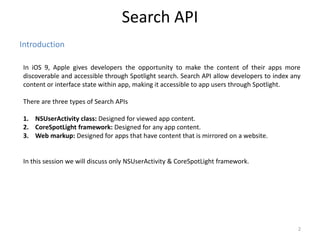
In iOS 9, Apple gives developers the opportunity to make the content of their apps more
discoverable and accessible through Spotlight search. Search API allow developers to index any
content or interface state within app, making it accessible to app users through Spotlight.
There are three types of Search APIs
1. NSUserActivity class: Designed for viewed app content.
2. CoreSpotLight framework: Designed for any app content.
3. Web markup: Designed for apps that have content that is mirrored on a website.
In this session we will discuss only NSUserActivity & CoreSpotLight framework.
NSUserActivity
Search API
3
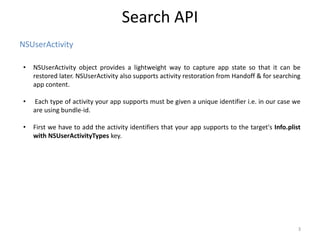
• NSUserActivity object provides a lightweight way to capture app state so that it can be
restored later. NSUserActivity also supports activity restoration from Handoff & for searching
app content.
• Each type of activity your app supports must be given a unique identifier i.e. in our case we
are using bundle-id.
• First we have to add the activity identifiers that your app supports to the target's Info.plist
with NSUserActivityTypes key.
NSUserActivity
Search API
4
Create an Activity: Create an object of NSUserActivity & set userinfo, title & other properties.
let activity = NSUserActivity(activityType: ”yourbundleID")
activity.userInfo = ["name": “nameString”, ”message": “messageString”, …..]
activity.title = “nameString”
var keywords = “nameString”.componentsSeparatedByString(" ")
keywords.append(“youritems”)
activity.keywords = Set(keywords)
activity.eligibleForHandoff = false
activity.eligibleForSearch = true
activity.becomeCurrent()
CoreSpotLight Framework
Search API
5
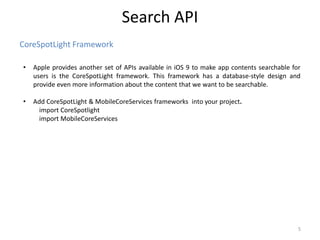
• Apple provides another set of APIs available in iOS 9 to make app contents searchable for
users is the CoreSpotLight framework. This framework has a database-style design and
provide even more information about the content that we want to be searchable.
• Add CoreSpotLight & MobileCoreServices frameworks into your project.
import CoreSpotlight
import MobileCoreServices
CoreSpotLight Framework
Search API
6
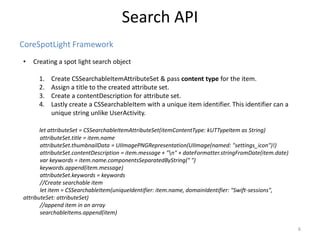
• Creating a spot light search object
1. Create CSSearchableItemAttributeSet & pass content type for the item.
2. Assign a title to the created attribute set.
3. Create a contentDescription for attribute set.
4. Lastly create a CSSearchableItem with a unique item identifier. This identifier can a
unique string unlike UserActivity.
let attributeSet = CSSearchableItemAttributeSet(itemContentType: kUTTypeItem as String)
attributeSet.title = item.name
attributeSet.thumbnailData = UIImagePNGRepresentation(UIImage(named: "settings_icon")!)
attributeSet.contentDescription = item.message + "n" + dateFormatter.stringFromDate(item.date)
var keywords = item.name.componentsSeparatedByString(" ")
keywords.append(item.message)
attributeSet.keywords = keywords
//Create searchable item
let item = CSSearchableItem(uniqueIdentifier: item.name, domainIdentifier: "Swift-sessions",
attributeSet: attributeSet)
//append item in an array
searchableItems.append(item)
CoreSpotLight Framework
Search API
7
• Deleting Item from Device
1. Delete the items represented by an array of unique identifiers.
func deleteSearchableItemsWithIdentifiers(identifiers: [String], completionHandler: ((NSError?) -
> Void)?)
2. Delete the items represented by an array of domains.
func deleteSearchableItemsWithDomainIdentifiers(domainIdentifiers: [String],
completionHandler: ((NSError?) -> Void)?)
3. Delete all items from the on-device index.
func deleteAllSearchableItemsWithCompletionHandler(completionHandler: ((NSError?) -> Void)?)
8
Thank you !

Search API

  • 1.
    Search API By: GaganVishal Mishra
  • 2.
    Introduction Search API 2 In iOS9, Apple gives developers the opportunity to make the content of their apps more discoverable and accessible through Spotlight search. Search API allow developers to index any content or interface state within app, making it accessible to app users through Spotlight. There are three types of Search APIs 1. NSUserActivity class: Designed for viewed app content. 2. CoreSpotLight framework: Designed for any app content. 3. Web markup: Designed for apps that have content that is mirrored on a website. In this session we will discuss only NSUserActivity & CoreSpotLight framework.
  • 3.
    NSUserActivity Search API 3 • NSUserActivityobject provides a lightweight way to capture app state so that it can be restored later. NSUserActivity also supports activity restoration from Handoff & for searching app content. • Each type of activity your app supports must be given a unique identifier i.e. in our case we are using bundle-id. • First we have to add the activity identifiers that your app supports to the target's Info.plist with NSUserActivityTypes key.
  • 4.
    NSUserActivity Search API 4 Create anActivity: Create an object of NSUserActivity & set userinfo, title & other properties. let activity = NSUserActivity(activityType: ”yourbundleID") activity.userInfo = ["name": “nameString”, ”message": “messageString”, …..] activity.title = “nameString” var keywords = “nameString”.componentsSeparatedByString(" ") keywords.append(“youritems”) activity.keywords = Set(keywords) activity.eligibleForHandoff = false activity.eligibleForSearch = true activity.becomeCurrent()
  • 5.
    CoreSpotLight Framework Search API 5 •Apple provides another set of APIs available in iOS 9 to make app contents searchable for users is the CoreSpotLight framework. This framework has a database-style design and provide even more information about the content that we want to be searchable. • Add CoreSpotLight & MobileCoreServices frameworks into your project. import CoreSpotlight import MobileCoreServices
  • 6.
    CoreSpotLight Framework Search API 6 •Creating a spot light search object 1. Create CSSearchableItemAttributeSet & pass content type for the item. 2. Assign a title to the created attribute set. 3. Create a contentDescription for attribute set. 4. Lastly create a CSSearchableItem with a unique item identifier. This identifier can a unique string unlike UserActivity. let attributeSet = CSSearchableItemAttributeSet(itemContentType: kUTTypeItem as String) attributeSet.title = item.name attributeSet.thumbnailData = UIImagePNGRepresentation(UIImage(named: "settings_icon")!) attributeSet.contentDescription = item.message + "n" + dateFormatter.stringFromDate(item.date) var keywords = item.name.componentsSeparatedByString(" ") keywords.append(item.message) attributeSet.keywords = keywords //Create searchable item let item = CSSearchableItem(uniqueIdentifier: item.name, domainIdentifier: "Swift-sessions", attributeSet: attributeSet) //append item in an array searchableItems.append(item)
  • 7.
    CoreSpotLight Framework Search API 7 •Deleting Item from Device 1. Delete the items represented by an array of unique identifiers. func deleteSearchableItemsWithIdentifiers(identifiers: [String], completionHandler: ((NSError?) - > Void)?) 2. Delete the items represented by an array of domains. func deleteSearchableItemsWithDomainIdentifiers(domainIdentifiers: [String], completionHandler: ((NSError?) -> Void)?) 3. Delete all items from the on-device index. func deleteAllSearchableItemsWithCompletionHandler(completionHandler: ((NSError?) -> Void)?)
  • 8.

Editor's Notes

  • #4 NSUserActivity: https://developer.apple.com/library/ios/documentation/Foundation/Reference/NSUserActivity_Class/
  • #5 NSUserActivity: https://developer.apple.com/library/ios/documentation/Foundation/Reference/NSUserActivity_Class/
  • #6 NSUserActivity: https://developer.apple.com/library/ios/documentation/Foundation/Reference/NSUserActivity_Class/
  • #7 NSUserActivity: https://developer.apple.com/library/ios/documentation/Foundation/Reference/NSUserActivity_Class/
  • #8 NSUserActivity: https://developer.apple.com/library/ios/documentation/Foundation/Reference/NSUserActivity_Class/