ScanSnap
Basics
 So you have finished
scanning, but then you
realized the pages are
upside down or you
have extra pages
 Welcome to ScanSnap
Utilizing ScanSnap
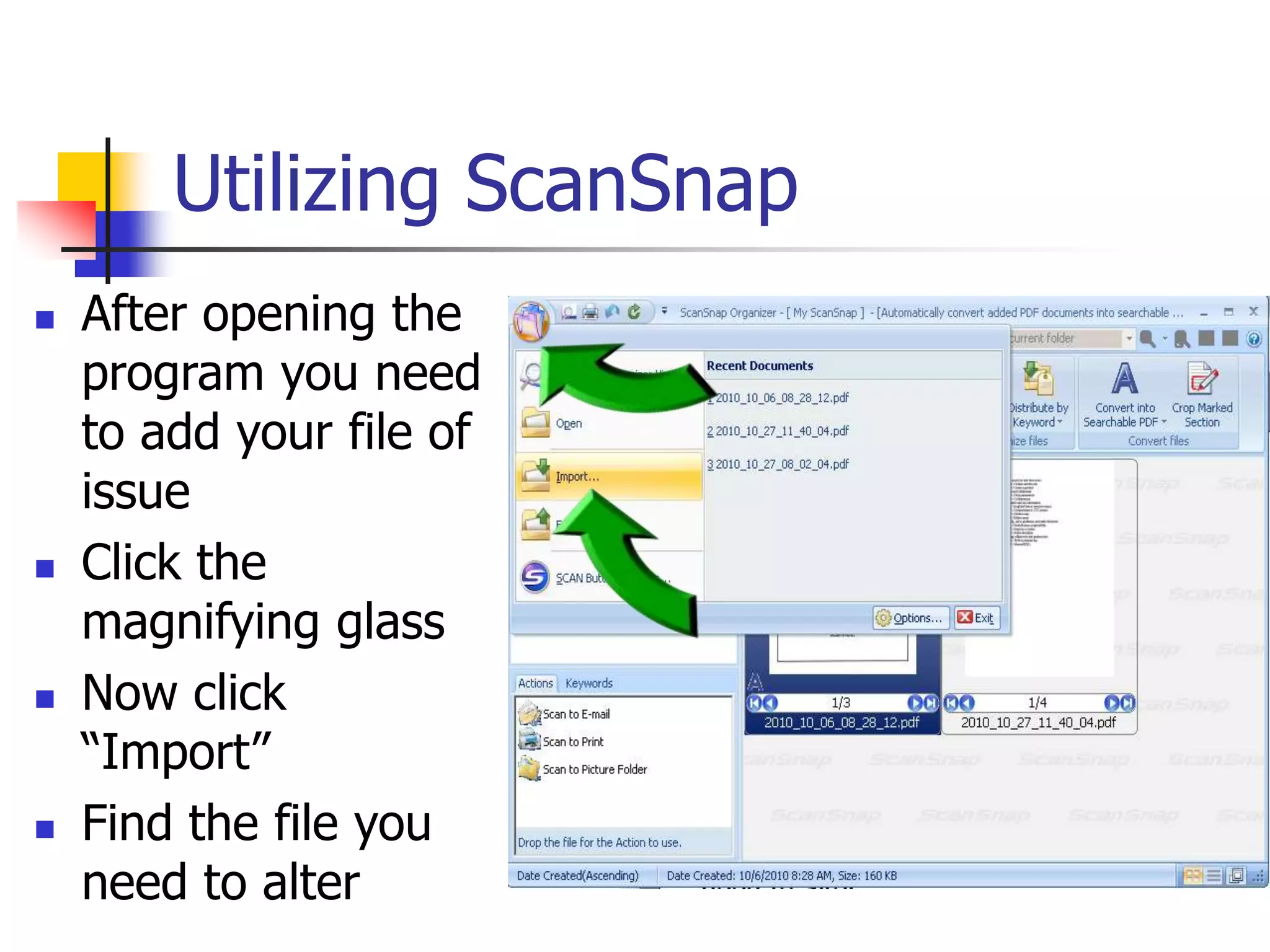
 After opening the
program you need
to add your file of
issue
 Click the
magnifying glass
 Now click
“Import”
 Find the file you
need to alter
ScanSnap
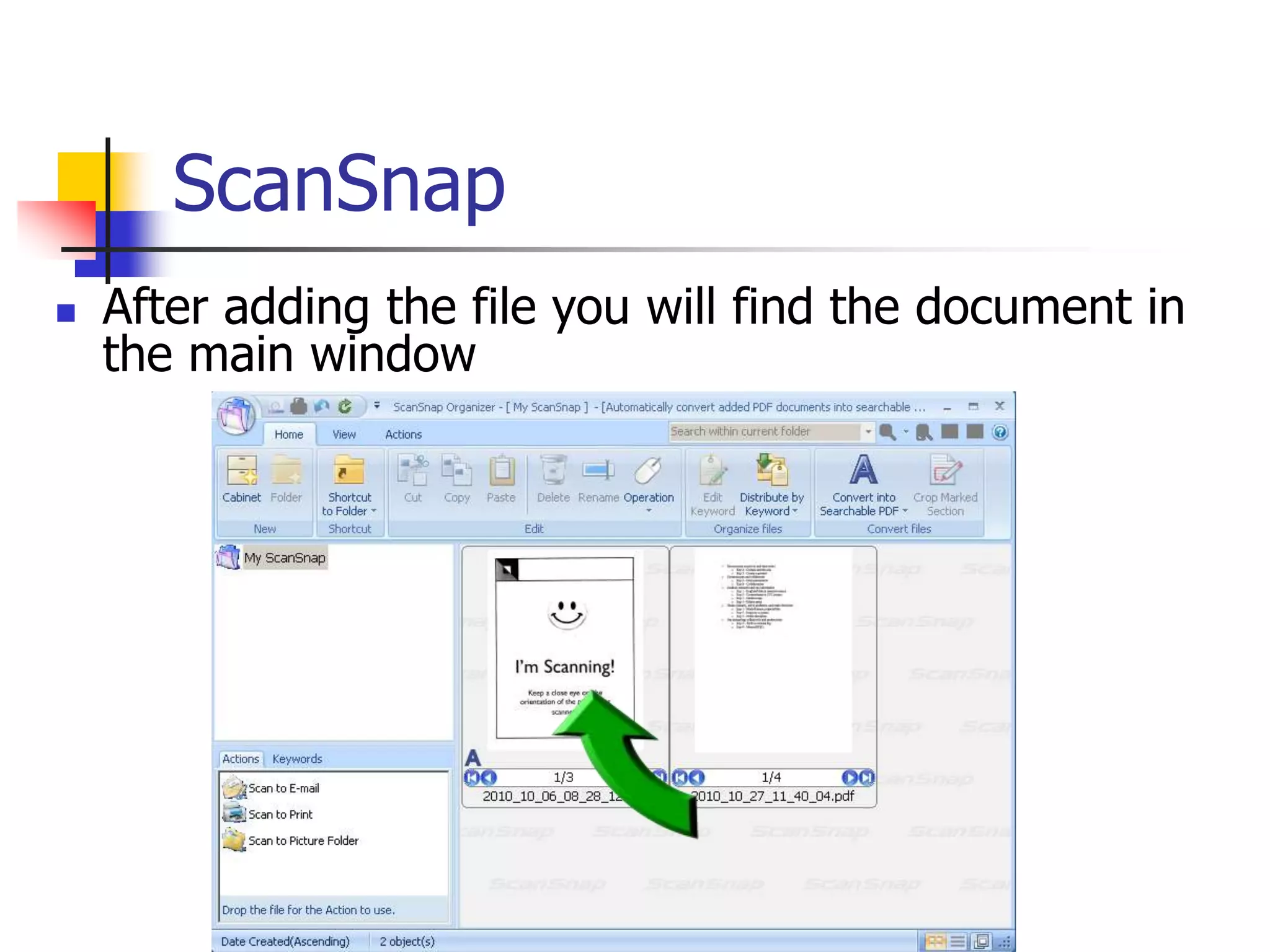
 After adding the file you will find the document in
the main window
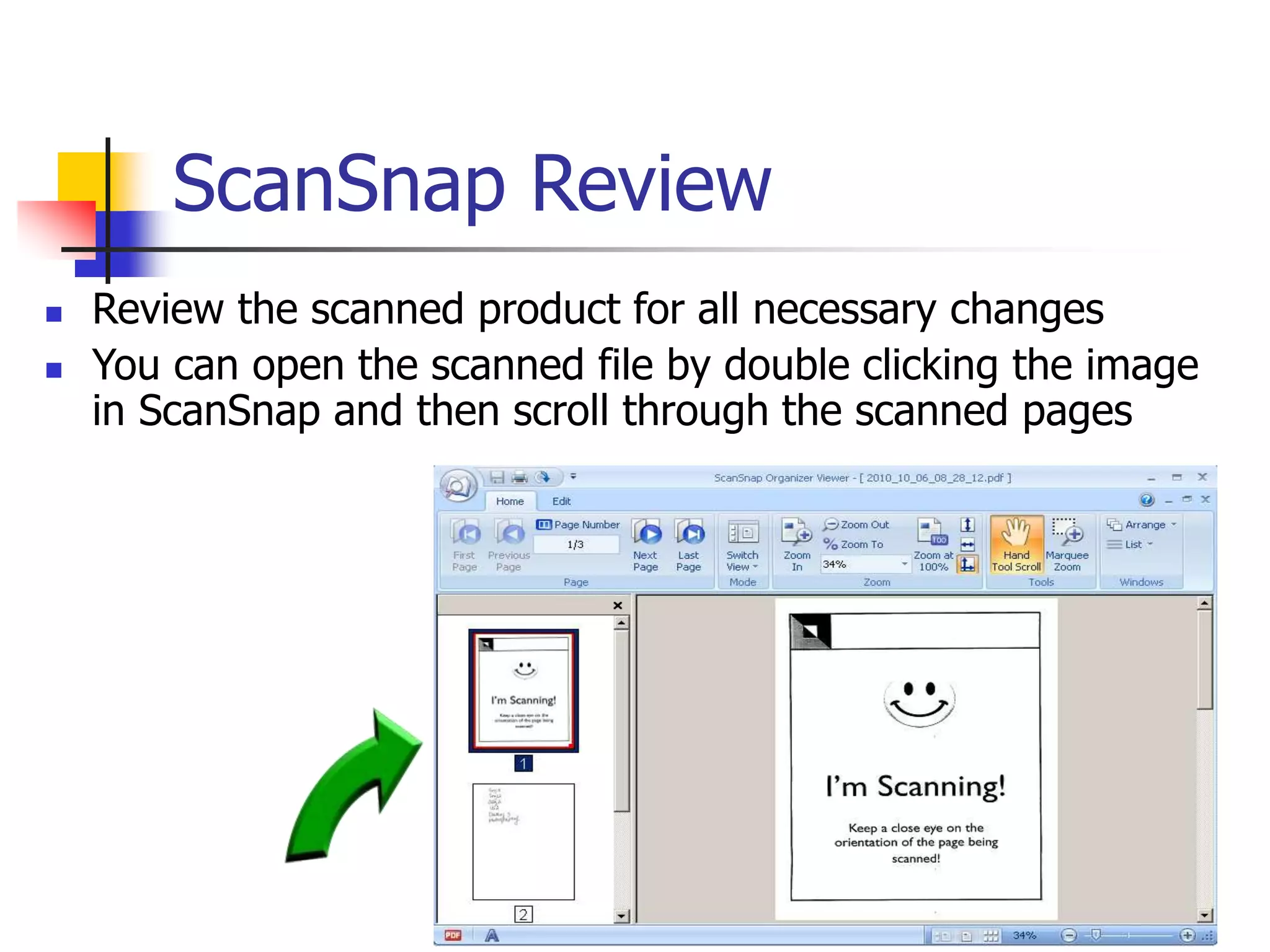
ScanSnap Review
 Review the scanned product for all necessary changes
 You can open the scanned file by double clicking the image
in ScanSnap and then scroll through the scanned pages
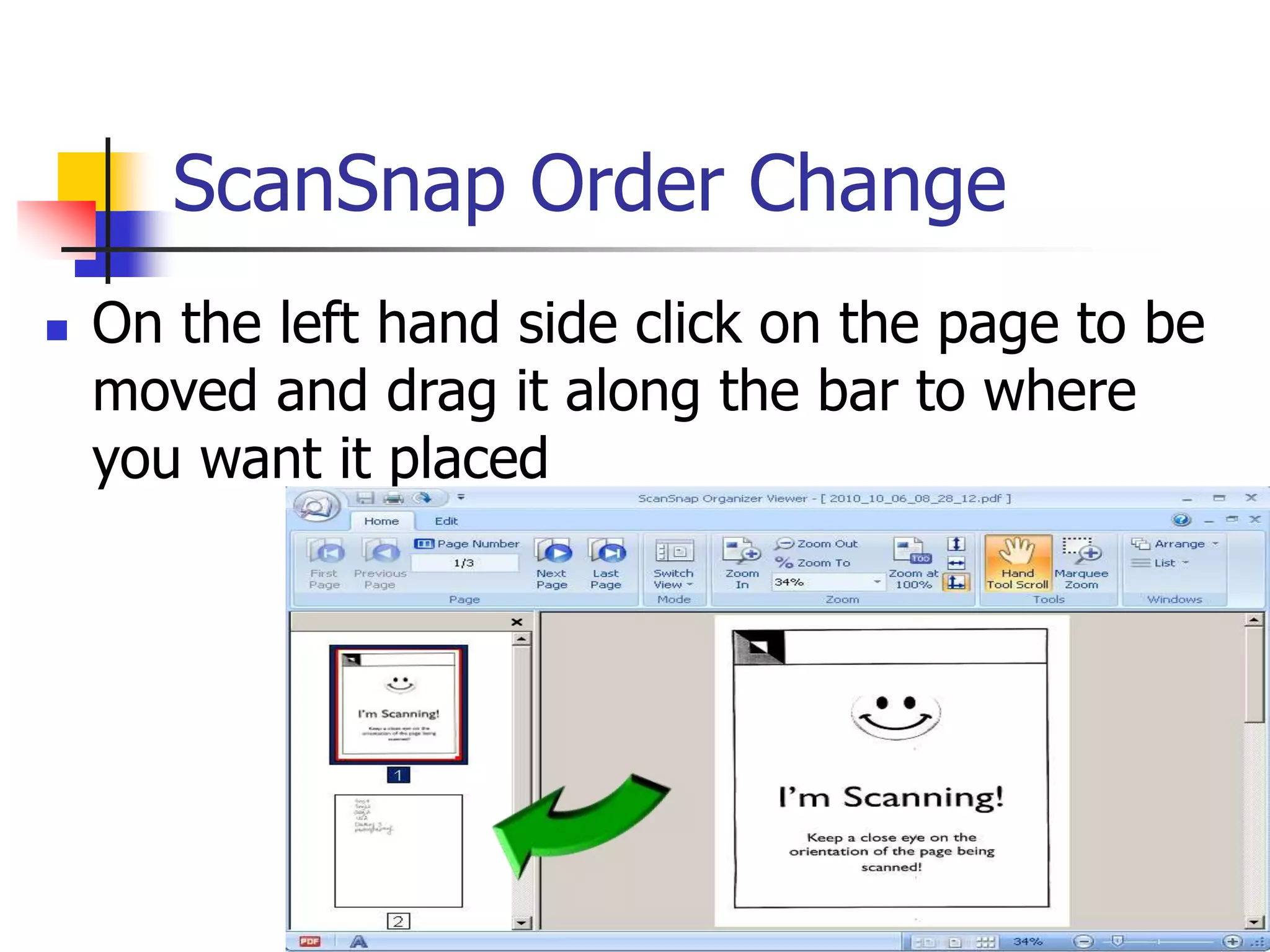
ScanSnap Order Change
 On the left hand side click on the page to be
moved and drag it along the bar to where
you want it placed
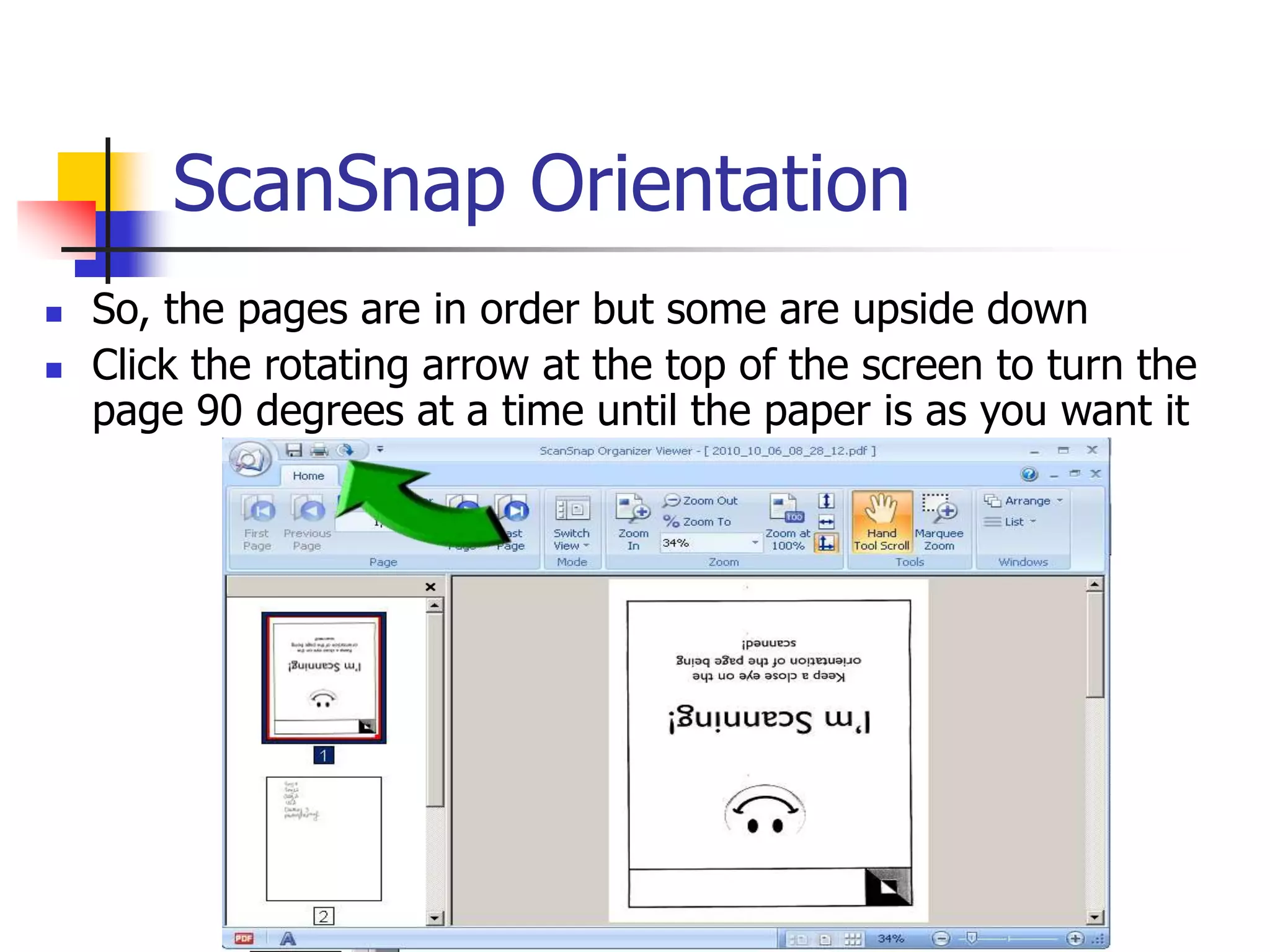
ScanSnap Orientation
 So, the pages are in order but some are upside down
 Click the rotating arrow at the top of the screen to turn the
page 90 degrees at a time until the paper is as you want it
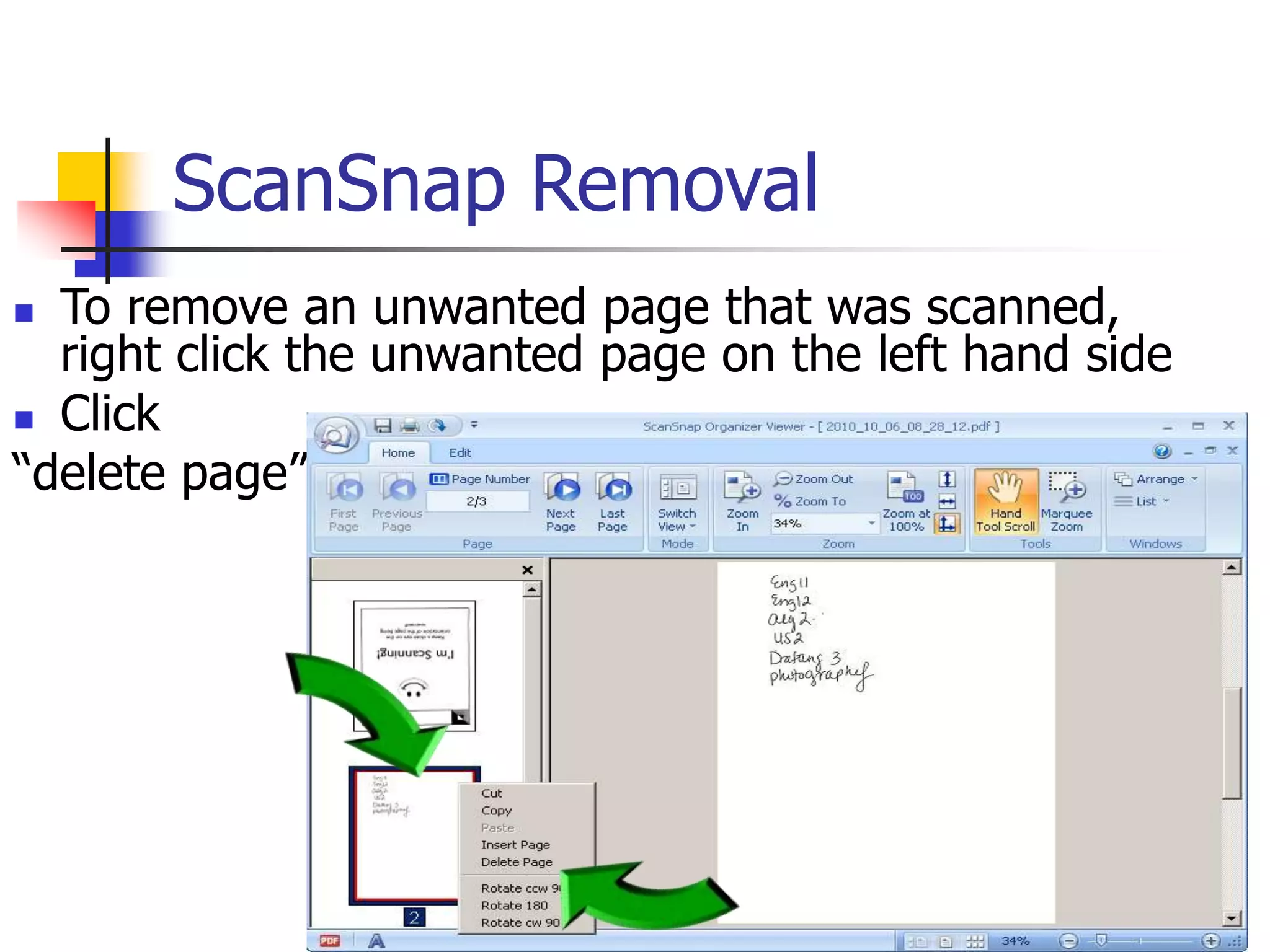
ScanSnap Removal
 To remove an unwanted page that was scanned,
right click the unwanted page on the left hand side
 Click
“delete page”
ScanSnap Combination I
 If the scanner had an issue and what should
be one file is now two or more you can
combine the pages so that you only use a
single file
 Open both files in ScanSnap
 Double click both files so that they are both
in the secondary window (as in slide 5)
ScanSnap Combination II
 Now click the page you would like to add to the file you want to
keep
 Drag the page over to the other file
ScanSnap Saving
 At the top left corner, click the magnifying glass
 Now click “Save As”
 Remember to change your file name to the assignment type
(Reflective Essay) and to choose your portfolio folder for
saving
Great Success
 You have now completed the portfolio
scanning tutorial and are now one step
further to graduating!!!

ScanSnap for Dummies

  • 1.
  • 2.
    Basics  So youhave finished scanning, but then you realized the pages are upside down or you have extra pages  Welcome to ScanSnap
  • 3.
    Utilizing ScanSnap  Afteropening the program you need to add your file of issue  Click the magnifying glass  Now click “Import”  Find the file you need to alter
  • 4.
    ScanSnap  After addingthe file you will find the document in the main window
  • 5.
    ScanSnap Review  Reviewthe scanned product for all necessary changes  You can open the scanned file by double clicking the image in ScanSnap and then scroll through the scanned pages
  • 6.
    ScanSnap Order Change On the left hand side click on the page to be moved and drag it along the bar to where you want it placed
  • 7.
    ScanSnap Orientation  So,the pages are in order but some are upside down  Click the rotating arrow at the top of the screen to turn the page 90 degrees at a time until the paper is as you want it
  • 8.
    ScanSnap Removal  Toremove an unwanted page that was scanned, right click the unwanted page on the left hand side  Click “delete page”
  • 9.
    ScanSnap Combination I If the scanner had an issue and what should be one file is now two or more you can combine the pages so that you only use a single file  Open both files in ScanSnap  Double click both files so that they are both in the secondary window (as in slide 5)
  • 10.
    ScanSnap Combination II Now click the page you would like to add to the file you want to keep  Drag the page over to the other file
  • 11.
    ScanSnap Saving  Atthe top left corner, click the magnifying glass  Now click “Save As”  Remember to change your file name to the assignment type (Reflective Essay) and to choose your portfolio folder for saving
  • 12.
    Great Success  Youhave now completed the portfolio scanning tutorial and are now one step further to graduating!!!