SAS FROM SCRATCH
Content:
•SAS Introduction
•Guide to install SAS studio
SAS INTRODUCTION
WHAT IS SAS?
SAS (Statistical Analysis System) is a statistical software used for data
analysis and for various other purposes such as data management, data
mining, report writing, statistical analysis, predictive analysis and data
modelling. It is considered as ‘leader’ in Advanced Analytics Platform
developed by SAS institute, an American based company. It is widely
used in different domains like retail, banking, finance, insurance,
medical and many other.
It has more than 200 components,
which includes:
• Base SAS – Basic procedures and
data management
• SAS/STAT – Statistical analysis
• SAS/GRAPH – Graphics and
presentation
• SAS/OR – Operations research
• SAS/ETS – Econometrics and Time
Series Analysis
• SAS/IML – Interactive matrix
language
• SAS/AF – Applications facility
• SAS/QC – Quality control
• SAS/INSIGHT – Data mining
• SAS/PH – Clinical trial analysis
• Enterprise Miner – data mining
• Enterprise Guide – GUI based code
editor & project manager
• SAS EBI – Suite of Business
Intelligence Applications
• SAS Grid Manager – Manager of
SAS grid computing environment
Below are the list of some of the common modules
or components which we will see as for now.
• BASE SAS: It is also known an Display Manager or SAS windowing
environment. It is the traditional Graphical User Interface which helps to
create and execute SAS programs in a variety of operating systems. It is used
for data manipulation as filtering data, selecting, renaming or removing
columns etc.
• SAS/STAT: It is used for statistical modelling data. For example, analysis of
variance, linear regression, predictive modelling, Bayesian analysis,
multivariate analysis, standardisation etc.
• SAS/Access: It provides an interface which helps to fetch external files from
different sources like SQL Server, Teradata, Oracle database, Excel etc.
• SAS/Graph: It is a data visualization tool which creates high-impact visuals
that gives a quick and clear insight to decision makers to help them to
understand the criticality of the data.
• SAS/ETS: It is a software which is used for modelling data, forecasting and
simulating processes by using time series analysis.
SAS Software is available for free. Earlier, there was a SAS university edition which
was needed to install on your machine. Now it is not required since August 2021, as it
got replaced with SAS OnDemand for Academics. It is now more accessible and
available for everyone-’Instructor’, ‘Student’, and ‘Individual Learners’. All you have to
do just create an account on SAS OnDemand for Academics site and then you go!. Below
are the steps shown to access SAS OnDemand for Academics:
STEP 1:
• First you need to go to the site
https://www.sas.com/en_in/software/on-
demand-for-academics.html.Then click on
the Access button (in orange color) at the
top right corner.
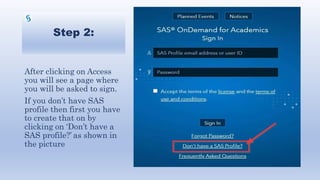
Step 2:
After clicking on Access
you will see a page where
you will be asked to sign.
If you don’t have SAS
profile then first you have
to create that on by
clicking on ‘Don’t have a
SAS profile?’ as shown in
the picture
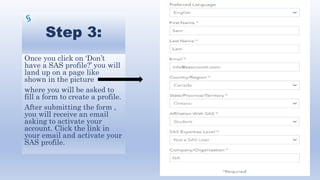
Step 3:
Once you click on ‘Don’t
have a SAS profile?’ you will
land up on a page like
shown in the picture
where you will be asked to
fill a form to create a profile.
After submitting the form ,
you will receive an email
asking to activate your
account. Click the link in
your email and activate your
SAS profile.
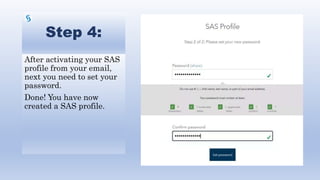
Step 4:
After activating your SAS
profile from your email,
next you need to set your
password.
Done! You have now
created a SAS profile.
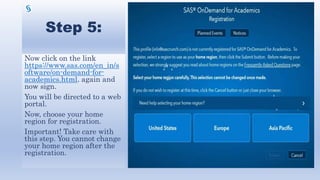
Step 5:
Now click on the link
https://www.sas.com/en_in/s
oftware/on-demand-for-
academics.html. again and
now sign.
You will be directed to a web
portal.
Now, choose your home
region for registration.
Important! Take care with
this step. You cannot change
your home region after the
registration.
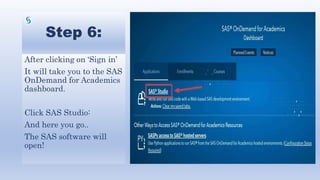
Step 6:
After clicking on ‘Sign in’
It will take you to the SAS
OnDemand for Academics
dashboard.
Click SAS Studio:
And here you go..
The SAS software will
open!
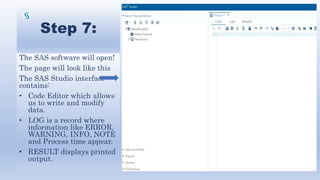
Step 7:
The SAS software will open!
The page will look like this
The SAS Studio interface
contains:
• Code Editor which allows
us to write and modify
data.
• LOG is a record where
information like ERROR,
WARNING, INFO, NOTE
and Process time appear.
• RESULT displays printed
output.
That’s it for now…

Sas introduction

  • 1.
  • 2.
  • 3.
    SAS INTRODUCTION WHAT ISSAS? SAS (Statistical Analysis System) is a statistical software used for data analysis and for various other purposes such as data management, data mining, report writing, statistical analysis, predictive analysis and data modelling. It is considered as ‘leader’ in Advanced Analytics Platform developed by SAS institute, an American based company. It is widely used in different domains like retail, banking, finance, insurance, medical and many other.
  • 4.
    It has morethan 200 components, which includes: • Base SAS – Basic procedures and data management • SAS/STAT – Statistical analysis • SAS/GRAPH – Graphics and presentation • SAS/OR – Operations research • SAS/ETS – Econometrics and Time Series Analysis • SAS/IML – Interactive matrix language • SAS/AF – Applications facility • SAS/QC – Quality control • SAS/INSIGHT – Data mining • SAS/PH – Clinical trial analysis • Enterprise Miner – data mining • Enterprise Guide – GUI based code editor & project manager • SAS EBI – Suite of Business Intelligence Applications • SAS Grid Manager – Manager of SAS grid computing environment
  • 5.
    Below are thelist of some of the common modules or components which we will see as for now. • BASE SAS: It is also known an Display Manager or SAS windowing environment. It is the traditional Graphical User Interface which helps to create and execute SAS programs in a variety of operating systems. It is used for data manipulation as filtering data, selecting, renaming or removing columns etc. • SAS/STAT: It is used for statistical modelling data. For example, analysis of variance, linear regression, predictive modelling, Bayesian analysis, multivariate analysis, standardisation etc. • SAS/Access: It provides an interface which helps to fetch external files from different sources like SQL Server, Teradata, Oracle database, Excel etc. • SAS/Graph: It is a data visualization tool which creates high-impact visuals that gives a quick and clear insight to decision makers to help them to understand the criticality of the data. • SAS/ETS: It is a software which is used for modelling data, forecasting and simulating processes by using time series analysis.
  • 6.
    SAS Software isavailable for free. Earlier, there was a SAS university edition which was needed to install on your machine. Now it is not required since August 2021, as it got replaced with SAS OnDemand for Academics. It is now more accessible and available for everyone-’Instructor’, ‘Student’, and ‘Individual Learners’. All you have to do just create an account on SAS OnDemand for Academics site and then you go!. Below are the steps shown to access SAS OnDemand for Academics: STEP 1: • First you need to go to the site https://www.sas.com/en_in/software/on- demand-for-academics.html.Then click on the Access button (in orange color) at the top right corner.
  • 7.
    Step 2: After clickingon Access you will see a page where you will be asked to sign. If you don’t have SAS profile then first you have to create that on by clicking on ‘Don’t have a SAS profile?’ as shown in the picture
  • 8.
    Step 3: Once youclick on ‘Don’t have a SAS profile?’ you will land up on a page like shown in the picture where you will be asked to fill a form to create a profile. After submitting the form , you will receive an email asking to activate your account. Click the link in your email and activate your SAS profile.
  • 9.
    Step 4: After activatingyour SAS profile from your email, next you need to set your password. Done! You have now created a SAS profile.
  • 10.
    Step 5: Now clickon the link https://www.sas.com/en_in/s oftware/on-demand-for- academics.html. again and now sign. You will be directed to a web portal. Now, choose your home region for registration. Important! Take care with this step. You cannot change your home region after the registration.
  • 11.
    Step 6: After clickingon ‘Sign in’ It will take you to the SAS OnDemand for Academics dashboard. Click SAS Studio: And here you go.. The SAS software will open!
  • 12.
    Step 7: The SASsoftware will open! The page will look like this The SAS Studio interface contains: • Code Editor which allows us to write and modify data. • LOG is a record where information like ERROR, WARNING, INFO, NOTE and Process time appear. • RESULT displays printed output.
  • 13.