Menu Analysis & Labeling
2
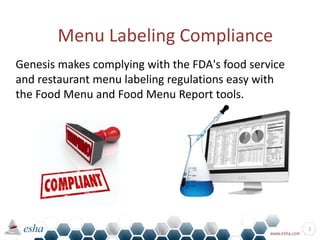
Genesis makes complying with the FDA's food service
and restaurant menu labeling regulations easy with
the Food Menu and Food Menu Report tools.
Menu Labeling Compliance
Step 1 – Enter Your Recipes in Genesis
3
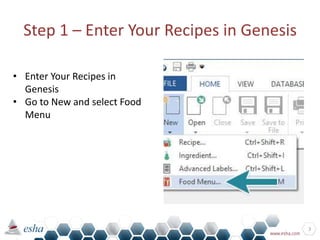
• Enter Your Recipes in
Genesis
• Go to New and select Food
Menu
Step 2 – Name Your Menu
4
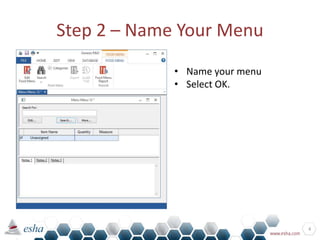
• Name your menu
• Select OK.
Step 3 – Add Categories
5
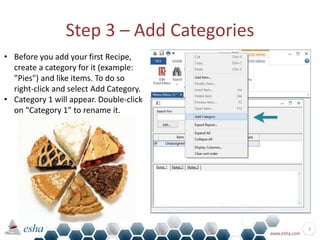
• Before you add your first Recipe,
create a category for it (example:
”Pies") and like items. To do so
right-click and select Add Category.
• Category 1 will appear. Double-click
on “Category 1” to rename it.
Step 4 – Add Recipes to the Menu
6
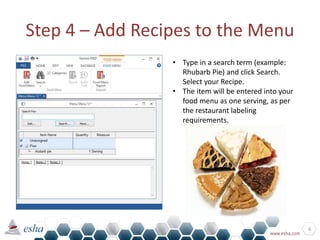
• Type in a search term (example:
Rhubarb Pie) and click Search.
Select your Recipe.
• The item will be entered into your
food menu as one serving, as per
the restaurant labeling
requirements.
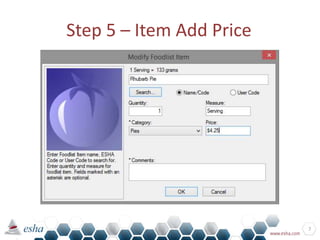
Step 5 – Item Add Price
7
Step 6 – Review Your Report
8
Step 6 – Review Your Report
9
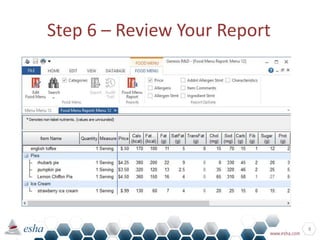
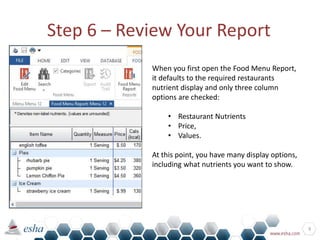
When you first open the Food Menu Report,
it defaults to the required restaurants
nutrient display and only three column
options are checked:
• Restaurant Nutrients
• Price,
• Values.
At this point, you have many display options,
including what nutrients you want to show.
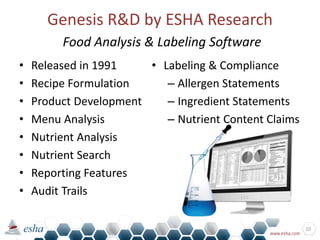
Genesis R&D by ESHA Research
Food Analysis & Labeling Software
• Released in 1991
• Recipe Formulation
• Product Development
• Menu Analysis
• Nutrient Analysis
• Nutrient Search
• Reporting Features
• Audit Trails
• Labeling & Compliance
– Allergen Statements
– Ingredient Statements
– Nutrient Content Claims
10
Learn More Today!
Phone: 503-585-6242
Website: www.esha.com
Email: info@esha.com
LinkedIn: bit.ly/ESHA-LinkedIn
FREE DEMO: www.esha.com/genesis-demo-download
11

Restaurant Menu Labeling & Recipe Analysis

  • 1.
  • 2.
    2 Genesis makes complyingwith the FDA's food service and restaurant menu labeling regulations easy with the Food Menu and Food Menu Report tools. Menu Labeling Compliance
  • 3.
    Step 1 –Enter Your Recipes in Genesis 3 • Enter Your Recipes in Genesis • Go to New and select Food Menu
  • 4.
    Step 2 –Name Your Menu 4 • Name your menu • Select OK.
  • 5.
    Step 3 –Add Categories 5 • Before you add your first Recipe, create a category for it (example: ”Pies") and like items. To do so right-click and select Add Category. • Category 1 will appear. Double-click on “Category 1” to rename it.
  • 6.
    Step 4 –Add Recipes to the Menu 6 • Type in a search term (example: Rhubarb Pie) and click Search. Select your Recipe. • The item will be entered into your food menu as one serving, as per the restaurant labeling requirements.
  • 7.
    Step 5 –Item Add Price 7
  • 8.
    Step 6 –Review Your Report 8
  • 9.
    Step 6 –Review Your Report 9 When you first open the Food Menu Report, it defaults to the required restaurants nutrient display and only three column options are checked: • Restaurant Nutrients • Price, • Values. At this point, you have many display options, including what nutrients you want to show.
  • 10.
    Genesis R&D byESHA Research Food Analysis & Labeling Software • Released in 1991 • Recipe Formulation • Product Development • Menu Analysis • Nutrient Analysis • Nutrient Search • Reporting Features • Audit Trails • Labeling & Compliance – Allergen Statements – Ingredient Statements – Nutrient Content Claims 10
  • 11.
    Learn More Today! Phone:503-585-6242 Website: www.esha.com Email: info@esha.com LinkedIn: bit.ly/ESHA-LinkedIn FREE DEMO: www.esha.com/genesis-demo-download 11