React Table
Tutorial:
Project Setup,
useTable, and
useFilter
www.bacancytechnology.com
Introduction
Table user interfaces are ubiquitous, mostly
used, and organized UI preferred by users
and developers. It makes the data look
simple and easily accessible. Being a ReactJS
developer, you might have heard of React
Table V7; few might have implemented it
too. If you are looking for a tutorial
explaining React Table V7 with an Example,
you have chosen the right blog. Today we
are here with a react-table tutorial for you.


I understand how challenging it could be
when you are trying to learn something
new, but I also know how interesting is that!
Isn’t it?


Refer to the next section that includes the
points covered in this tutorial – React Table
Tutorial – Project Setup, Installation,
useTable, and useFilter.
React Table
Tutorial Goal:
useTable and
useFilter
Before starting the development process
let’s have a look at the below video so that
you can understand what are we building.


Video: https://youtu.be/5rXI5E9iCkE
React Table
v7
The creator of React Table – Tanner Linsley,
launched React Table v7 in March 2020. We
might remember using the class component
of react-table, but now the library provides
the Hooks-based APIs and plugins for
creating a hassle-free React Table. The
release is considered a significant change as
the approach to creating a table, table UI,
and style has changed.
New Features in React
Table v7


Headless (100% customizable, Bring-
your-own-UI)
Lightweight (5kb – 14kb+ depending on
features used and tree-shaking)
Sorting (Multi and Stable)
Filters
Animatable
Row Expansion
Column Ordering
Virtualizable
Server-side/controlled data/state
Auto out of the box, fully controllable
API
Considering React Table release note, here
are the new features in React Table v7:
Extensible via a hook-based plugin
system
Row Selection
Resizable
Pivoting & Aggregation
Project
Set-Up
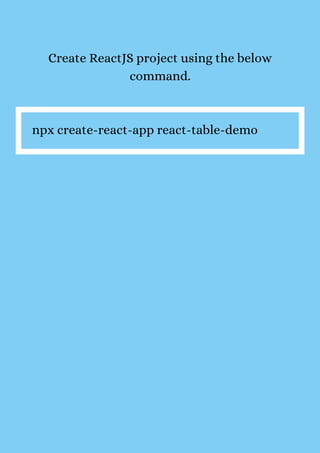
Create ReactJS project using the below
command.


npx create-react-app react-table-demo
Install
react-table
and Axios
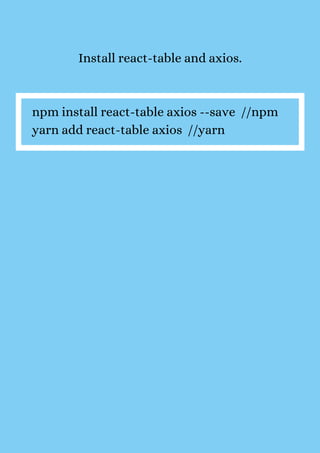
Install react-table and axios.


npm install react-table axios --save //npm
yarn add react-table axios //yarn
Looking for proficient
ReactJs developers for your
project?
Bacancy has the best developers with
extraordinary problem-solving skills and
Javascript knowledge. Get in touch with us
today and hire ReactJS developer to build
your dream product.
Getting
started with
React Table
Example
App.js – main file
TableContainer.js – having a Table
component.


After done with project setup and
installation, follow these steps to
implement React Table Example. I’ll be
writing the entire code in two files, i.e.,
Importing Axios and Hooks
import React, { useState, useEffect,
useMemo } from "react";
import axios from "axios";
Initializing state using
useState


const [data, setData] = useState([]);
Fetching Data using Axios


useEffect(() => {
axios("http://api.tvmaze.com/search/shows
?q=girls")
.then((res) => {
setData(res.data);
})
.catch((err) => console.log(err))
}, []);
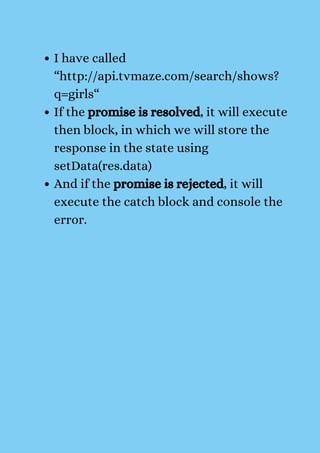
I have called
“http://api.tvmaze.com/search/shows?
q=girls“
If the promise is resolved, it will execute
then block, in which we will store the
response in the state using
setData(res.data)
And if the promise is rejected, it will
execute the catch block and console the
error.
Defining Columns


Header – the name of the column
Accessor – key in data.
After preparing our data, let’s define the
columns of the Table. The column structure
would consist-


We will wrap it inside hook useMemo as far
as the optimization is concerned.
const columns = useMemo(
() => [
{
Header: "TV Show",
columns: [
{
Header: "Name",
accessor: "show.name"
},
{
Header: "Type",
accessor: "show.type"
},
{
Header: "Language",
accessor: "show.language"
},
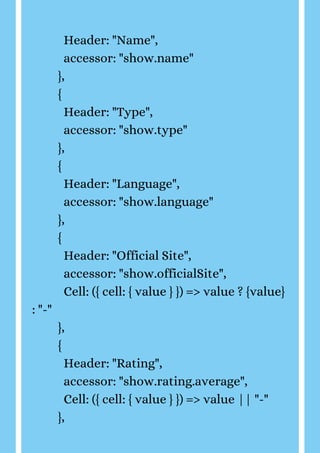
{
Header: "Official Site",
accessor: "show.officialSite",
Cell: ({ cell: { value } }) => value ? {value}
: "-"
},
{
Header: "Rating",
accessor: "show.rating.average",
Cell: ({ cell: { value } }) => value || "-"
},
{
Header: "Status",
accessor: "show.status",
},
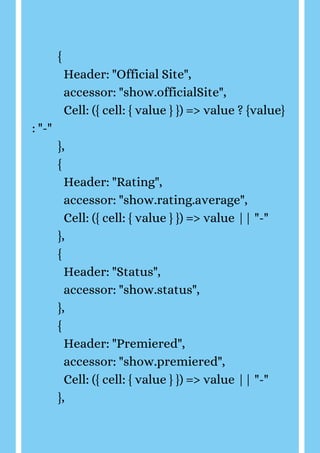
{
Header: "Premiered",
accessor: "show.premiered",
Cell: ({ cell: { value } }) => value || "-"
},
{
Header: "Time",
accessor: "show.schedule.time",
Cell: ({ cell: { value } }) => value || "-"
},
]
}
]
)
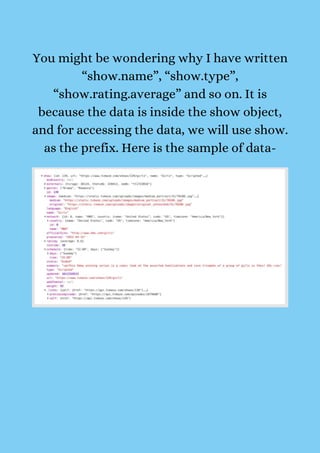
You might be wondering why I have written
“show.name”, “show.type”,
“show.rating.average” and so on. It is
because the data is inside the show object,
and for accessing the data, we will use show.
as the prefix. Here is the sample of data-
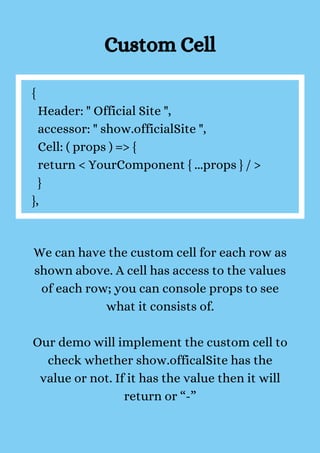
Custom Cell


{
Header: " Official Site ",
accessor: " show.officialSite ",
Cell: ( props ) => {
return < YourComponent { ...props } / >
}
},


We can have the custom cell for each row as
shown above. A cell has access to the values
of each row; you can console props to see
what it consists of.


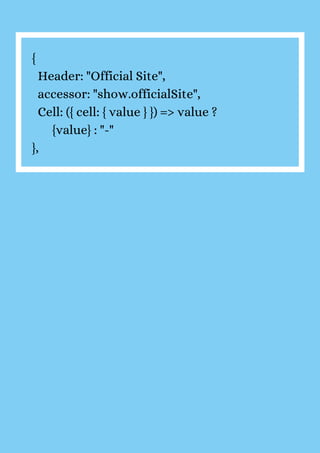
Our demo will implement the custom cell to
check whether show.officalSite has the
value or not. If it has the value then it will
return or “-”
{
Header: "Official Site",
accessor: "show.officialSite",
Cell: ({ cell: { value } }) => value ?
{value} : "-"
},
Implement
useTable
Hook in React
Table Tutorial
Data consists of the data of the API
response
Columns is an array of objects for
defining table columns.


We will create another file named –
TableContainer.js in which we will build our
Table component using the useTable hook.


It will take two properties: data and
columns, which we have defined in the
above sections.
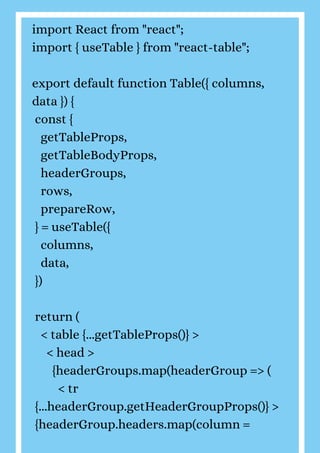
import React from "react";
import { useTable } from "react-table";
export default function Table({ columns,
data }) {
const {
getTableProps,
getTableBodyProps,
headerGroups,
rows,
prepareRow,
} = useTable({
columns,
data,
})
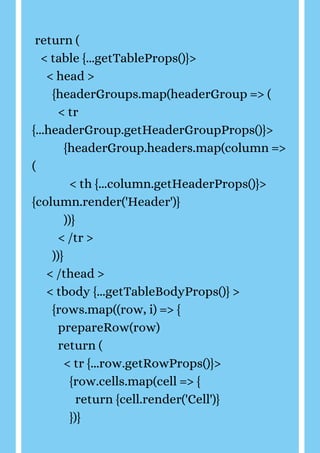
return (
< table {...getTableProps()} >
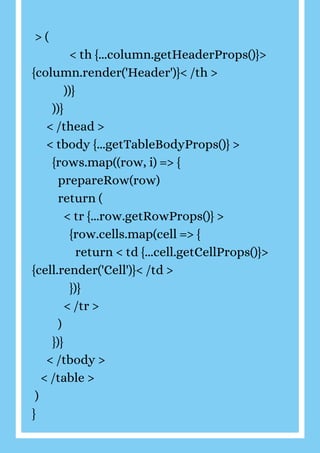
< head >
{headerGroups.map(headerGroup => (
< tr
{...headerGroup.getHeaderGroupProps()} >
{headerGroup.headers.map(column =
> (
< th {...column.getHeaderProps()}>
{column.render('Header')}< /th >
))}
))}
< /thead >
< tbody {...getTableBodyProps()} >
{rows.map((row, i) => {
prepareRow(row)
return (
< tr {...row.getRowProps()} >
{row.cells.map(cell => {
return < td {...cell.getCellProps()}>
{cell.render('Cell')}< /td >
})}
< /tr >
)
})}
< /tbody >
< /table >
)
}
Rendering
React Table
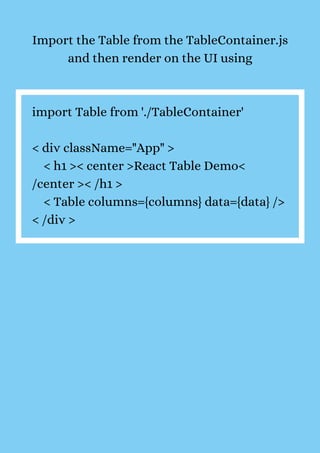
Import the Table from the TableContainer.js
and then render on the UI using


import Table from './TableContainer'
< div className="App" >
< h1 >< center >React Table Demo<
/center >< /h1 >
< Table columns={columns} data={data} />
< /div >
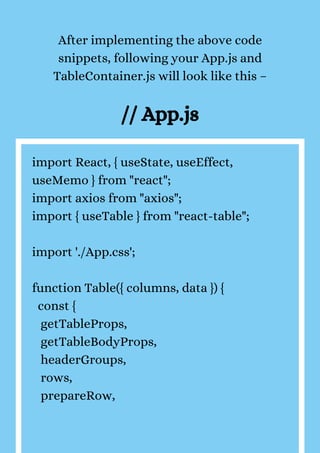
After implementing the above code
snippets, following your App.js and
TableContainer.js will look like this –


// App.js


import React, { useState, useEffect,
useMemo } from "react";
import axios from "axios";
import { useTable } from "react-table";
import './App.css';
function Table({ columns, data }) {
const {
getTableProps,
getTableBodyProps,
headerGroups,
rows,
prepareRow,
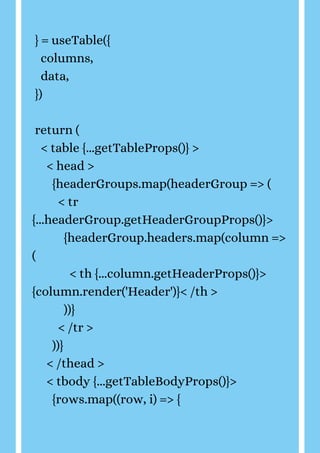
} = useTable({
columns,
data,
})
return (
< table {...getTableProps()} >
< head >
{headerGroups.map(headerGroup => (
< tr
{...headerGroup.getHeaderGroupProps()}>
{headerGroup.headers.map(column =>
(
< th {...column.getHeaderProps()}>
{column.render('Header')}< /th >
))}
< /tr >
))}
< /thead >
< tbody {...getTableBodyProps()}>
{rows.map((row, i) => {
prepareRow(row)
return (
< tr {...row.getRowProps()}>
{row.cells.map(cell => {
return {cell.render('Cell')}
})}
< /tr >
)
})}
< /tbody >
< /table >
)
}
function App() {
const [data, setData] = useState([]);
useEffect(() => {
axios("http://api.tvmaze.com/search/shows
?q=girls")
.then((res) => {
setData(res.data);
})
.catch((err) => console.log(err))
}, []);
const columns = useMemo(
() => [
{
Header: "TV Show",
columns: [
{
Header: "Name",
accessor: "show.name"
},
{
Header: "Type",
accessor: "show.type"
},
{
Header: "Language",
accessor: "show.language"
},
{
Header: "Official Site",
accessor: "show.officialSite",
Cell: ({ cell: { value } }) => value ? {value}
: "-"
},
{
Header: "Rating",
accessor: "show.rating.average",
Cell: ({ cell: { value } }) => value || "-"
},
{
Header: "Status",
accessor: "show.status",
},
{
Header: "Premiered",
accessor: "show.premiered",
Cell: ({ cell: { value } }) => value || "-"
},
{
Header: "Time",
accessor: "show.schedule.time",
Cell: ({ cell: { value } }) => value || "-"
},
]
}
]
)
return (
< div className="App" >
< h1 >< center >React Table Demo<
/center >< /h1 >
< Table columns={columns} data={data} /
>
< /div >
);
}
export default App;
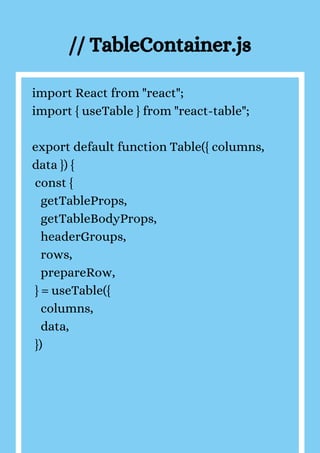
// TableContainer.js


import React from "react";
import { useTable } from "react-table";
export default function Table({ columns,
data }) {
const {
getTableProps,
getTableBodyProps,
headerGroups,
rows,
prepareRow,
} = useTable({
columns,
data,
})
return (
< table {...getTableProps()}>
< head >
{headerGroups.map(headerGroup => (
< tr
{...headerGroup.getHeaderGroupProps()}>
{headerGroup.headers.map(column =>
(
< th {...column.getHeaderProps()}>
{column.render('Header')}
))}
< /tr >
))}
< /thead >
< tbody {...getTableBodyProps()} >
{rows.map((row, i) => {
prepareRow(row)
return (
< tr {...row.getRowProps()}>
{row.cells.map(cell => {
return {cell.render('Cell')}
})}
< /tr >
)
})}
< /tbody >
< /table >
)
}
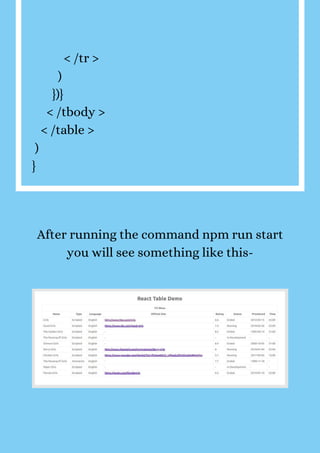
After running the command npm run start
you will see something like this-
Implement
useFilter
Hook
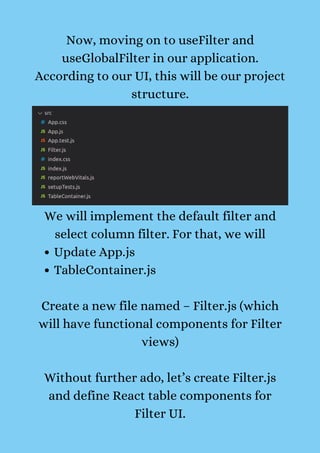
Now, moving on to useFilter and
useGlobalFilter in our application.
According to our UI, this will be our project
structure.
Update App.js
TableContainer.js
We will implement the default filter and
select column filter. For that, we will
Create a new file named – Filter.js (which
will have functional components for Filter
views)


Without further ado, let’s create Filter.js
and define React table components for
Filter UI.
Defining
Filter
Component
for UI
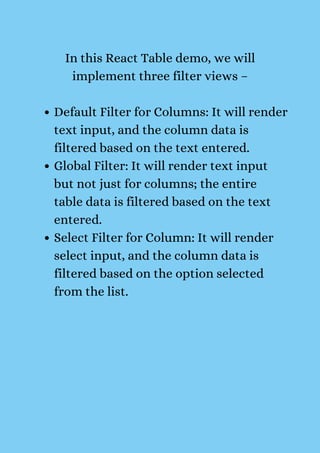
Default Filter for Columns: It will render
text input, and the column data is
filtered based on the text entered.
Global Filter: It will render text input
but not just for columns; the entire
table data is filtered based on the text
entered.
Select Filter for Column: It will render
select input, and the column data is
filtered based on the option selected
from the list.


In this React Table demo, we will
implement three filter views –
We will create a common file named Filter.js
(or with any suitable name) from where we
will export the above-mentioned functional
components for readability purposes.


// Filter.js


import { React, useMemo, useState } from
"react";
import { useAsyncDebounce } from "react-
table";
import { Label, Input } from "reactstrap";
// Component for Global Filter
export function GlobalFilter({
globalFilter,
setGlobalFilter
}) {
const [value, setValue] =
useState(globalFilter);
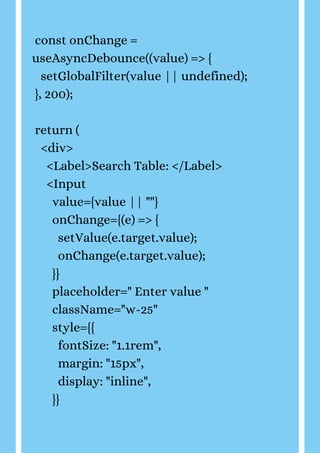
const onChange =
useAsyncDebounce((value) => {
setGlobalFilter(value || undefined);
}, 200);
return (
<div>
<Label>Search Table: </Label>
<Input
value={value || ""}
onChange={(e) => {
setValue(e.target.value);
onChange(e.target.value);
}}
placeholder=" Enter value "
className="w-25"
style={{
fontSize: "1.1rem",
margin: "15px",
display: "inline",
}}
/>
</div>
);
}
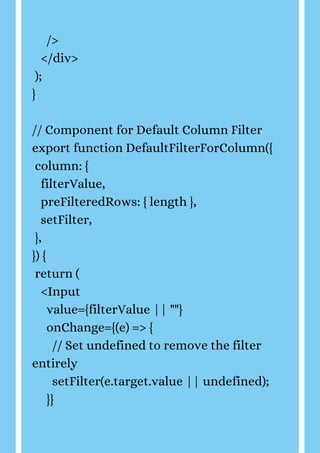
// Component for Default Column Filter
export function DefaultFilterForColumn({
column: {
filterValue,
preFilteredRows: { length },
setFilter,
},
}) {
return (
<Input
value={filterValue || ""}
onChange={(e) => {
// Set undefined to remove the filter
entirely
setFilter(e.target.value || undefined);
}}
placeholder={`Search ${length} records..`}
style={{ marginTop: "10px" }}
/>
);
}
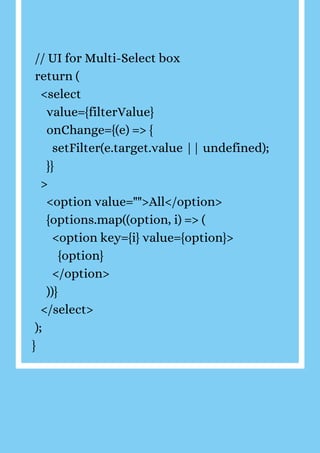
// Component for Custom Select Filter
export function SelectColumnFilter({
column: { filterValue, setFilter,
preFilteredRows, id },
}) {
// Use preFilteredRows to calculate the
options
const options = useMemo(() => {
const options = new Set();
preFilteredRows.forEach((row) => {
options.add(row.values[id]);
});
return [...options.values()];
}, [id, preFilteredRows]);
// UI for Multi-Select box
return (
<select
value={filterValue}
onChange={(e) => {
setFilter(e.target.value || undefined);
}}
>
<option value="">All</option>
{options.map((option, i) => (
<option key={i} value={option}>
{option}
</option>
))}
</select>
);
}
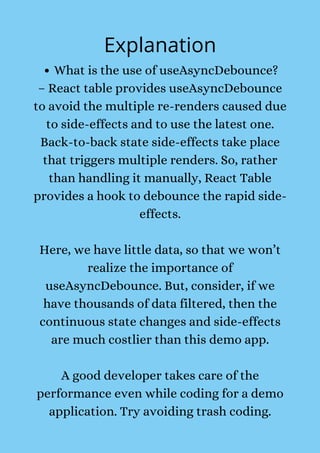
Explanation
What is the use of useAsyncDebounce?


– React table provides useAsyncDebounce
to avoid the multiple re-renders caused due
to side-effects and to use the latest one.
Back-to-back state side-effects take place
that triggers multiple renders. So, rather
than handling it manually, React Table
provides a hook to debounce the rapid side-
effects.


Here, we have little data, so that we won’t
realize the importance of
useAsyncDebounce. But, consider, if we
have thousands of data filtered, then the
continuous state changes and side-effects
are much costlier than this demo app.


A good developer takes care of the
performance even while coding for a demo
application. Try avoiding trash coding.
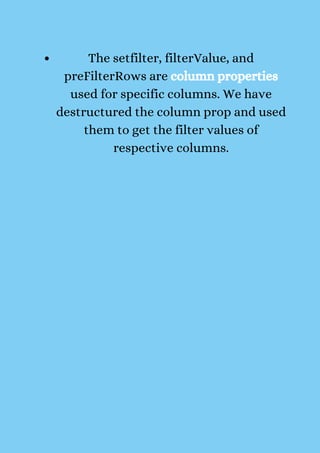
The setfilter, filterValue, and
preFilterRows are column properties
used for specific columns. We have
destructured the column prop and used
them to get the filter values of
respective columns.
Rendering
Filter
Component
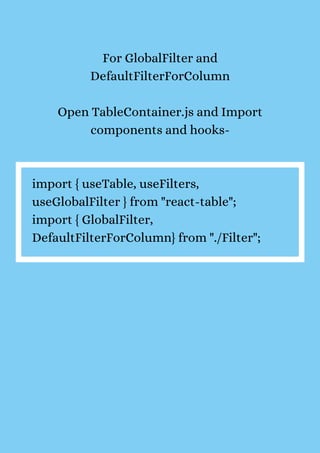
For GlobalFilter and
DefaultFilterForColumn


Open TableContainer.js and Import
components and hooks-


import { useTable, useFilters,
useGlobalFilter } from "react-table";
import { GlobalFilter,
DefaultFilterForColumn} from "./Filter";
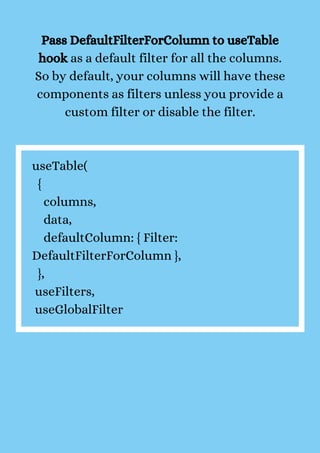
Pass DefaultFilterForColumn to useTable
hook as a default filter for all the columns.
So by default, your columns will have these
components as filters unless you provide a
custom filter or disable the filter.


useTable(
{
columns,
data,
defaultColumn: { Filter:
DefaultFilterForColumn },
},
useFilters,
useGlobalFilter
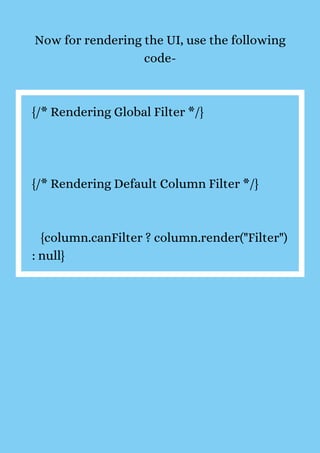
Now for rendering the UI, use the following
code-


{/* Rendering Global Filter */}
{/* Rendering Default Column Filter */}
{column.canFilter ? column.render("Filter")
: null}
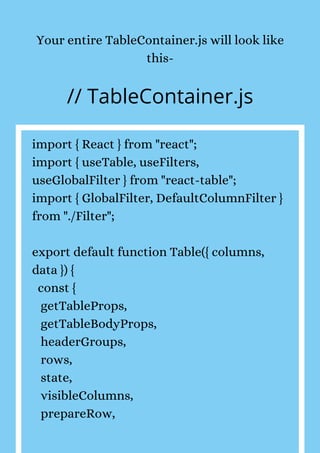
Your entire TableContainer.js will look like
this-


// TableContainer.js


import { React } from "react";
import { useTable, useFilters,
useGlobalFilter } from "react-table";
import { GlobalFilter, DefaultColumnFilter }
from "./Filter";
export default function Table({ columns,
data }) {
const {
getTableProps,
getTableBodyProps,
headerGroups,
rows,
state,
visibleColumns,
prepareRow,
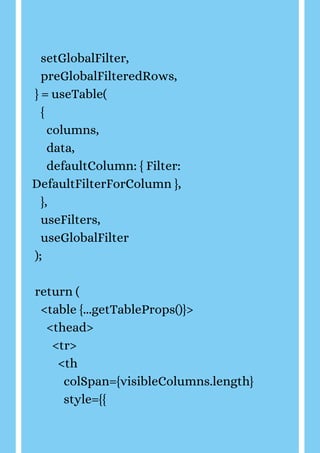
setGlobalFilter,
preGlobalFilteredRows,
} = useTable(
{
columns,
data,
defaultColumn: { Filter:
DefaultFilterForColumn },
},
useFilters,
useGlobalFilter
);
return (
<table {...getTableProps()}>
<thead>
<tr>
<th
colSpan={visibleColumns.length}
style={{
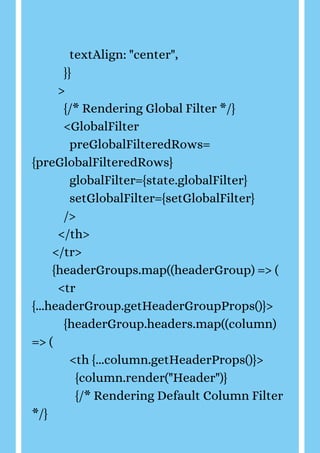
textAlign: "center",
}}
>
{/* Rendering Global Filter */}
<GlobalFilter
preGlobalFilteredRows=
{preGlobalFilteredRows}
globalFilter={state.globalFilter}
setGlobalFilter={setGlobalFilter}
/>
</th>
</tr>
{headerGroups.map((headerGroup) => (
<tr
{...headerGroup.getHeaderGroupProps()}>
{headerGroup.headers.map((column)
=> (
<th {...column.getHeaderProps()}>
{column.render("Header")}
{/* Rendering Default Column Filter
*/}
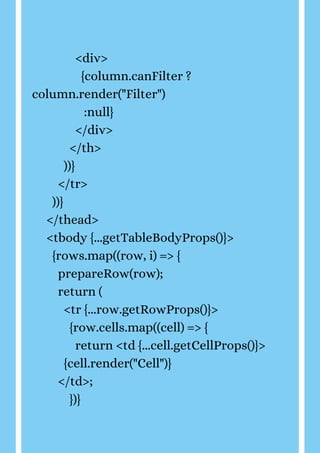
<div>
{column.canFilter ?
column.render("Filter")
:null}
</div>
</th>
))}
</tr>
))}
</thead>
<tbody {...getTableBodyProps()}>
{rows.map((row, i) => {
prepareRow(row);
return (
<tr {...row.getRowProps()}>
{row.cells.map((cell) => {
return <td {...cell.getCellProps()}>
{cell.render("Cell")}
</td>;
})}
</tr>
);
})}
</tbody>
</table>
);
}
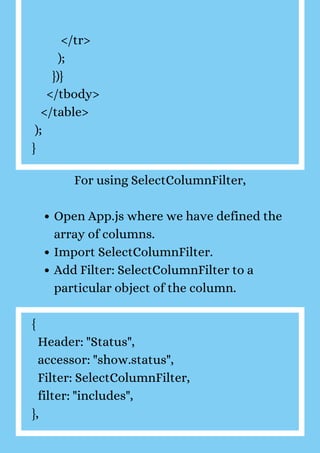
Open App.js where we have defined the
array of columns.
Import SelectColumnFilter.
Add Filter: SelectColumnFilter to a
particular object of the column.
For using SelectColumnFilter,


{
Header: "Status",
accessor: "show.status",
Filter: SelectColumnFilter,
filter: "includes",
},
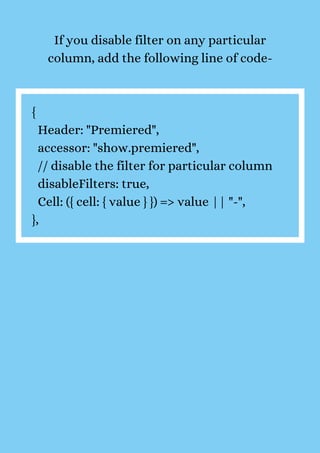
If you disable filter on any particular
column, add the following line of code-


{
Header: "Premiered",
accessor: "show.premiered",
// disable the filter for particular column
disableFilters: true,
Cell: ({ cell: { value } }) => value || "-",
},
How does
Column Filter
work in React
Table?
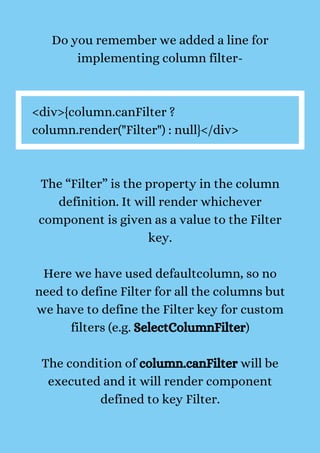
Do you remember we added a line for
implementing column filter-


<div>{column.canFilter ?
column.render("Filter") : null}</div>


The “Filter” is the property in the column
definition. It will render whichever
component is given as a value to the Filter
key.


Here we have used defaultcolumn, so no
need to define Filter for all the columns but
we have to define the Filter key for custom
filters (e.g. SelectColumnFilter)


The condition of column.canFilter will be
executed and it will render component
defined to key Filter.
Here we have mentioned the custom filter,
SelectColumnFilter, in the object and set
DefaultFilterForColumn as a default shown
filter.
Github
Repository:
react-table-
example
Feel free to visit the source code of the
demo application- react-table-example.
Conclusion
So, this was about how to filter your table
data using the useFilter hook. I hope the
React Table tutorial was helpful for you. If
you have any questions or suggestions, feel
free to comment below.


If you are a ReactJs enthusiast, check the
ReactJS Tutorials page with more tutorials
and its respective github repository.


At Bacancy, developers try their best to
come up with optimum solutions and
affordable problem-solving approaches. If
you are looking for a helping hand for your
project, contact us to hire ReactJS
developers without wasting a minute.
www.bacancytechnology.com
Thank You

React table tutorial project setup, use table, and usefilter

  • 1.
    React Table Tutorial: Project Setup, useTable,and useFilter www.bacancytechnology.com
  • 2.
  • 3.
    Table user interfacesare ubiquitous, mostly used, and organized UI preferred by users and developers. It makes the data look simple and easily accessible. Being a ReactJS developer, you might have heard of React Table V7; few might have implemented it too. If you are looking for a tutorial explaining React Table V7 with an Example, you have chosen the right blog. Today we are here with a react-table tutorial for you. I understand how challenging it could be when you are trying to learn something new, but I also know how interesting is that! Isn’t it? Refer to the next section that includes the points covered in this tutorial – React Table Tutorial – Project Setup, Installation, useTable, and useFilter.
  • 4.
  • 5.
    Before starting thedevelopment process let’s have a look at the below video so that you can understand what are we building. Video: https://youtu.be/5rXI5E9iCkE
  • 6.
  • 7.
    The creator ofReact Table – Tanner Linsley, launched React Table v7 in March 2020. We might remember using the class component of react-table, but now the library provides the Hooks-based APIs and plugins for creating a hassle-free React Table. The release is considered a significant change as the approach to creating a table, table UI, and style has changed.
  • 8.
    New Features inReact Table v7 Headless (100% customizable, Bring- your-own-UI) Lightweight (5kb – 14kb+ depending on features used and tree-shaking) Sorting (Multi and Stable) Filters Animatable Row Expansion Column Ordering Virtualizable Server-side/controlled data/state Auto out of the box, fully controllable API Considering React Table release note, here are the new features in React Table v7:
  • 9.
    Extensible via ahook-based plugin system Row Selection Resizable Pivoting & Aggregation
  • 10.
  • 11.
    Create ReactJS projectusing the below command. npx create-react-app react-table-demo
  • 12.
  • 13.
    Install react-table andaxios. npm install react-table axios --save //npm yarn add react-table axios //yarn
  • 14.
    Looking for proficient ReactJsdevelopers for your project? Bacancy has the best developers with extraordinary problem-solving skills and Javascript knowledge. Get in touch with us today and hire ReactJS developer to build your dream product.
  • 15.
  • 16.
    App.js – mainfile TableContainer.js – having a Table component. After done with project setup and installation, follow these steps to implement React Table Example. I’ll be writing the entire code in two files, i.e.,
  • 17.
    Importing Axios andHooks import React, { useState, useEffect, useMemo } from "react"; import axios from "axios"; Initializing state using useState const [data, setData] = useState([]);
  • 18.
    Fetching Data usingAxios useEffect(() => { axios("http://api.tvmaze.com/search/shows ?q=girls") .then((res) => { setData(res.data); }) .catch((err) => console.log(err)) }, []);
  • 19.
    I have called “http://api.tvmaze.com/search/shows? q=girls“ Ifthe promise is resolved, it will execute then block, in which we will store the response in the state using setData(res.data) And if the promise is rejected, it will execute the catch block and console the error.
  • 20.
    Defining Columns Header –the name of the column Accessor – key in data. After preparing our data, let’s define the columns of the Table. The column structure would consist- We will wrap it inside hook useMemo as far as the optimization is concerned. const columns = useMemo( () => [ { Header: "TV Show", columns: [ {
  • 21.
    Header: "Name", accessor: "show.name" }, { Header:"Type", accessor: "show.type" }, { Header: "Language", accessor: "show.language" }, { Header: "Official Site", accessor: "show.officialSite", Cell: ({ cell: { value } }) => value ? {value} : "-" }, { Header: "Rating", accessor: "show.rating.average", Cell: ({ cell: { value } }) => value || "-" },
  • 22.
    { Header: "Status", accessor: "show.status", }, { Header:"Premiered", accessor: "show.premiered", Cell: ({ cell: { value } }) => value || "-" }, { Header: "Time", accessor: "show.schedule.time", Cell: ({ cell: { value } }) => value || "-" }, ] } ] )
  • 23.
    You might bewondering why I have written “show.name”, “show.type”, “show.rating.average” and so on. It is because the data is inside the show object, and for accessing the data, we will use show. as the prefix. Here is the sample of data-
  • 24.
    Custom Cell { Header: "Official Site ", accessor: " show.officialSite ", Cell: ( props ) => { return < YourComponent { ...props } / > } }, We can have the custom cell for each row as shown above. A cell has access to the values of each row; you can console props to see what it consists of. Our demo will implement the custom cell to check whether show.officalSite has the value or not. If it has the value then it will return or “-”
  • 25.
    { Header: "Official Site", accessor:"show.officialSite", Cell: ({ cell: { value } }) => value ? {value} : "-" },
  • 26.
  • 27.
    Data consists ofthe data of the API response Columns is an array of objects for defining table columns. We will create another file named – TableContainer.js in which we will build our Table component using the useTable hook. It will take two properties: data and columns, which we have defined in the above sections.
  • 28.
    import React from"react"; import { useTable } from "react-table"; export default function Table({ columns, data }) { const { getTableProps, getTableBodyProps, headerGroups, rows, prepareRow, } = useTable({ columns, data, }) return ( < table {...getTableProps()} > < head > {headerGroups.map(headerGroup => ( < tr {...headerGroup.getHeaderGroupProps()} > {headerGroup.headers.map(column =
  • 29.
    > ( < th{...column.getHeaderProps()}> {column.render('Header')}< /th > ))} ))} < /thead > < tbody {...getTableBodyProps()} > {rows.map((row, i) => { prepareRow(row) return ( < tr {...row.getRowProps()} > {row.cells.map(cell => { return < td {...cell.getCellProps()}> {cell.render('Cell')}< /td > })} < /tr > ) })} < /tbody > < /table > ) }
  • 30.
  • 31.
    Import the Tablefrom the TableContainer.js and then render on the UI using import Table from './TableContainer' < div className="App" > < h1 >< center >React Table Demo< /center >< /h1 > < Table columns={columns} data={data} /> < /div >
  • 32.
    After implementing theabove code snippets, following your App.js and TableContainer.js will look like this – // App.js import React, { useState, useEffect, useMemo } from "react"; import axios from "axios"; import { useTable } from "react-table"; import './App.css'; function Table({ columns, data }) { const { getTableProps, getTableBodyProps, headerGroups, rows, prepareRow,
  • 33.
    } = useTable({ columns, data, }) return( < table {...getTableProps()} > < head > {headerGroups.map(headerGroup => ( < tr {...headerGroup.getHeaderGroupProps()}> {headerGroup.headers.map(column => ( < th {...column.getHeaderProps()}> {column.render('Header')}< /th > ))} < /tr > ))} < /thead > < tbody {...getTableBodyProps()}> {rows.map((row, i) => {
  • 34.
    prepareRow(row) return ( < tr{...row.getRowProps()}> {row.cells.map(cell => { return {cell.render('Cell')} })} < /tr > ) })} < /tbody > < /table > ) } function App() { const [data, setData] = useState([]); useEffect(() => { axios("http://api.tvmaze.com/search/shows ?q=girls")
  • 35.
    .then((res) => { setData(res.data); }) .catch((err)=> console.log(err)) }, []); const columns = useMemo( () => [ { Header: "TV Show", columns: [ { Header: "Name", accessor: "show.name" }, { Header: "Type", accessor: "show.type" }, { Header: "Language", accessor: "show.language" },
  • 36.
    { Header: "Official Site", accessor:"show.officialSite", Cell: ({ cell: { value } }) => value ? {value} : "-" }, { Header: "Rating", accessor: "show.rating.average", Cell: ({ cell: { value } }) => value || "-" }, { Header: "Status", accessor: "show.status", }, { Header: "Premiered", accessor: "show.premiered", Cell: ({ cell: { value } }) => value || "-" },
  • 37.
    { Header: "Time", accessor: "show.schedule.time", Cell:({ cell: { value } }) => value || "-" }, ] } ] ) return ( < div className="App" > < h1 >< center >React Table Demo< /center >< /h1 > < Table columns={columns} data={data} / > < /div > ); } export default App;
  • 38.
    // TableContainer.js import Reactfrom "react"; import { useTable } from "react-table"; export default function Table({ columns, data }) { const { getTableProps, getTableBodyProps, headerGroups, rows, prepareRow, } = useTable({ columns, data, })
  • 39.
    return ( < table{...getTableProps()}> < head > {headerGroups.map(headerGroup => ( < tr {...headerGroup.getHeaderGroupProps()}> {headerGroup.headers.map(column => ( < th {...column.getHeaderProps()}> {column.render('Header')} ))} < /tr > ))} < /thead > < tbody {...getTableBodyProps()} > {rows.map((row, i) => { prepareRow(row) return ( < tr {...row.getRowProps()}> {row.cells.map(cell => { return {cell.render('Cell')} })}
  • 40.
    < /tr > ) })} </tbody > < /table > ) } After running the command npm run start you will see something like this-
  • 41.
  • 42.
    Now, moving onto useFilter and useGlobalFilter in our application. According to our UI, this will be our project structure. Update App.js TableContainer.js We will implement the default filter and select column filter. For that, we will Create a new file named – Filter.js (which will have functional components for Filter views) Without further ado, let’s create Filter.js and define React table components for Filter UI.
  • 43.
  • 44.
    Default Filter forColumns: It will render text input, and the column data is filtered based on the text entered. Global Filter: It will render text input but not just for columns; the entire table data is filtered based on the text entered. Select Filter for Column: It will render select input, and the column data is filtered based on the option selected from the list. In this React Table demo, we will implement three filter views –
  • 45.
    We will createa common file named Filter.js (or with any suitable name) from where we will export the above-mentioned functional components for readability purposes. // Filter.js import { React, useMemo, useState } from "react"; import { useAsyncDebounce } from "react- table"; import { Label, Input } from "reactstrap"; // Component for Global Filter export function GlobalFilter({ globalFilter, setGlobalFilter }) { const [value, setValue] = useState(globalFilter);
  • 46.
    const onChange = useAsyncDebounce((value)=> { setGlobalFilter(value || undefined); }, 200); return ( <div> <Label>Search Table: </Label> <Input value={value || ""} onChange={(e) => { setValue(e.target.value); onChange(e.target.value); }} placeholder=" Enter value " className="w-25" style={{ fontSize: "1.1rem", margin: "15px", display: "inline", }}
  • 47.
    /> </div> ); } // Component forDefault Column Filter export function DefaultFilterForColumn({ column: { filterValue, preFilteredRows: { length }, setFilter, }, }) { return ( <Input value={filterValue || ""} onChange={(e) => { // Set undefined to remove the filter entirely setFilter(e.target.value || undefined); }}
  • 48.
    placeholder={`Search ${length} records..`} style={{marginTop: "10px" }} /> ); } // Component for Custom Select Filter export function SelectColumnFilter({ column: { filterValue, setFilter, preFilteredRows, id }, }) { // Use preFilteredRows to calculate the options const options = useMemo(() => { const options = new Set(); preFilteredRows.forEach((row) => { options.add(row.values[id]); }); return [...options.values()]; }, [id, preFilteredRows]);
  • 49.
    // UI forMulti-Select box return ( <select value={filterValue} onChange={(e) => { setFilter(e.target.value || undefined); }} > <option value="">All</option> {options.map((option, i) => ( <option key={i} value={option}> {option} </option> ))} </select> ); }
  • 50.
    Explanation What is theuse of useAsyncDebounce? – React table provides useAsyncDebounce to avoid the multiple re-renders caused due to side-effects and to use the latest one. Back-to-back state side-effects take place that triggers multiple renders. So, rather than handling it manually, React Table provides a hook to debounce the rapid side- effects. Here, we have little data, so that we won’t realize the importance of useAsyncDebounce. But, consider, if we have thousands of data filtered, then the continuous state changes and side-effects are much costlier than this demo app. A good developer takes care of the performance even while coding for a demo application. Try avoiding trash coding.
  • 51.
    The setfilter, filterValue,and preFilterRows are column properties used for specific columns. We have destructured the column prop and used them to get the filter values of respective columns.
  • 52.
  • 53.
    For GlobalFilter and DefaultFilterForColumn OpenTableContainer.js and Import components and hooks- import { useTable, useFilters, useGlobalFilter } from "react-table"; import { GlobalFilter, DefaultFilterForColumn} from "./Filter";
  • 54.
    Pass DefaultFilterForColumn touseTable hook as a default filter for all the columns. So by default, your columns will have these components as filters unless you provide a custom filter or disable the filter. useTable( { columns, data, defaultColumn: { Filter: DefaultFilterForColumn }, }, useFilters, useGlobalFilter
  • 55.
    Now for renderingthe UI, use the following code- {/* Rendering Global Filter */} {/* Rendering Default Column Filter */} {column.canFilter ? column.render("Filter") : null}
  • 56.
    Your entire TableContainer.jswill look like this- // TableContainer.js import { React } from "react"; import { useTable, useFilters, useGlobalFilter } from "react-table"; import { GlobalFilter, DefaultColumnFilter } from "./Filter"; export default function Table({ columns, data }) { const { getTableProps, getTableBodyProps, headerGroups, rows, state, visibleColumns, prepareRow,
  • 57.
    setGlobalFilter, preGlobalFilteredRows, } = useTable( { columns, data, defaultColumn:{ Filter: DefaultFilterForColumn }, }, useFilters, useGlobalFilter ); return ( <table {...getTableProps()}> <thead> <tr> <th colSpan={visibleColumns.length} style={{
  • 58.
    textAlign: "center", }} > {/* RenderingGlobal Filter */} <GlobalFilter preGlobalFilteredRows= {preGlobalFilteredRows} globalFilter={state.globalFilter} setGlobalFilter={setGlobalFilter} /> </th> </tr> {headerGroups.map((headerGroup) => ( <tr {...headerGroup.getHeaderGroupProps()}> {headerGroup.headers.map((column) => ( <th {...column.getHeaderProps()}> {column.render("Header")} {/* Rendering Default Column Filter */}
  • 59.
    <div> {column.canFilter ? column.render("Filter") :null} </div> </th> ))} </tr> ))} </thead> <tbody {...getTableBodyProps()}> {rows.map((row,i) => { prepareRow(row); return ( <tr {...row.getRowProps()}> {row.cells.map((cell) => { return <td {...cell.getCellProps()}> {cell.render("Cell")} </td>; })}
  • 60.
    </tr> ); })} </tbody> </table> ); } Open App.js wherewe have defined the array of columns. Import SelectColumnFilter. Add Filter: SelectColumnFilter to a particular object of the column. For using SelectColumnFilter, { Header: "Status", accessor: "show.status", Filter: SelectColumnFilter, filter: "includes", },
  • 61.
    If you disablefilter on any particular column, add the following line of code- { Header: "Premiered", accessor: "show.premiered", // disable the filter for particular column disableFilters: true, Cell: ({ cell: { value } }) => value || "-", },
  • 62.
  • 63.
    Do you rememberwe added a line for implementing column filter- <div>{column.canFilter ? column.render("Filter") : null}</div> The “Filter” is the property in the column definition. It will render whichever component is given as a value to the Filter key. Here we have used defaultcolumn, so no need to define Filter for all the columns but we have to define the Filter key for custom filters (e.g. SelectColumnFilter) The condition of column.canFilter will be executed and it will render component defined to key Filter.
  • 64.
    Here we havementioned the custom filter, SelectColumnFilter, in the object and set DefaultFilterForColumn as a default shown filter.
  • 65.
  • 66.
    Feel free tovisit the source code of the demo application- react-table-example.
  • 67.
  • 68.
    So, this wasabout how to filter your table data using the useFilter hook. I hope the React Table tutorial was helpful for you. If you have any questions or suggestions, feel free to comment below. If you are a ReactJs enthusiast, check the ReactJS Tutorials page with more tutorials and its respective github repository. At Bacancy, developers try their best to come up with optimum solutions and affordable problem-solving approaches. If you are looking for a helping hand for your project, contact us to hire ReactJS developers without wasting a minute.
  • 69.