ESP-32 IoT Development Trainer Kit
Research Design Lab www.researchdesignlab.com Page 1
ESP32 IoT
DEVELOPMET
TRAINER KIT
ESP-32 IoT Development Trainer Kit
Research Design Lab www.researchdesignlab.com Page 2
Features:
➢ High quality ESP32 development board.
➢ Standard I/O interface.
➢ Programmable with Arduino open source IDE.
➢ 8 independent LED.
➢ 1 * 4 independent keys.
➢ 4* 4 keypad matrix.
➢ RTC DS1307 with battery connector.
➢ I2C EEPROM Interfaces.
➢ The MAX232 chip RS232 communication.
➢ 16X2 LCD interface (character display).
➢ All IO Ports pin have extraction and clearly marked.
➢ On Board Power supply 3.3V, 5V 12V,GND.
➢ 8 pin DIP switches.
ESP-32 IoT Development Trainer Kit
Research Design Lab www.researchdesignlab.com Page 3
➢ The board also has inbuilt Xbee footprint.
➢ 3 ADC potentiometers.
➢ ON/OFF Slide switch.
➢ I2C Bus.
➢ SPI Bus.
➢ OLED interface.
➢ SD Card holder.
➢ RS232 Connector.
➢ Reset button.
➢ Power plug in DC socket.
➢ Power supply indicator LED.
➢ Test led for Tx, Rx.
➢ 4 digit 7 seg Multiplexed display
➢ Pin outs for 3.3V, 12V, 5V, GND.
ESP32 Transceiver Features:
➢ Ultra low power consumption
➢ Low cost SoC
➢ Built in antenna switches, power modules and filters
➢ Operating temperature – 40ºC to +125ºC
➢ Power supply 2.2V to 3.6V
➢ Supports UART/I2
C/I2
S/SPI protocol
➢ 448 KByte ROM, 520 KByte SRAM
➢ Wi-Fi - 802.11 b/g/n
➢ Bluetooth - v4.2 BR/EDR and BLE
➢ Xtensa® Dual-Core 32-bit LX6 microprocessors, up to 600 DMIPS
ESP32 Applications:
➢ Creating IOT Hub
➢ Low power IoT applications and data loggers
➢ Used in music players and audio streaming electronics
➢ Wi-Fi enabled proximity sensing
➢ Wi-Fi enabled home automation, smart agriculture, on-off control
➢ Real time wireless industrial plant condition monitoring
➢ Finds application in health and retail sector
Scope of Learning Experiments:
➢ Creating IOT Hub
➢ MQTT & Postman
➢ Monitoring Nodes
➢ Device to Cloud Connection (D2C)
➢ Device to Device Connection (D2D)
➢ Cloud to Device Connection (C2D)
➢ Creating GUI for Nodes
➢ Cloud Analytics
ESP-32 IoT Development Trainer Kit
Research Design Lab www.researchdesignlab.com Page 4
➢ Machine Learning
➢ LED blinking, shift operation
➢ 1X4 Keypad interfacing.
➢ 16X2 LCD interfacing.
➢ 4X4 Keypad interfacing.
➢ ADC interfacing.
➢ 7 Segment interfacing.
➢ DC Motor and Stepper motor interfacing.
➢ RTC DS1307 I2C protocol interfacing.
➢ AT24C04 EEPROM I2C protocol interfacing.
➢ Bluetooth interfacing.
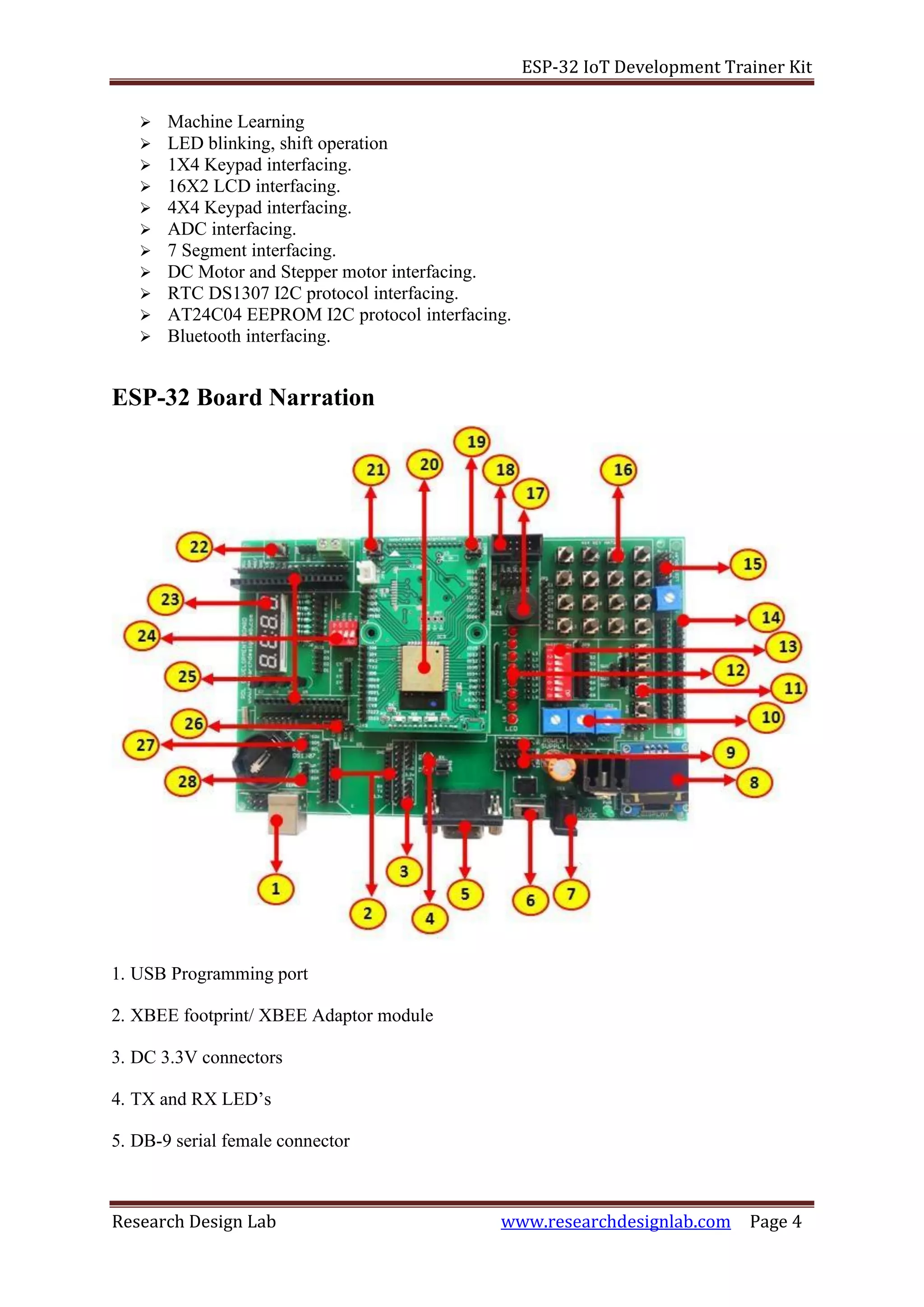
ESP-32 Board Narration
1. USB Programming port
2. XBEE footprint/ XBEE Adaptor module
3. DC 3.3V connectors
4. TX and RX LED’s
5. DB-9 serial female connector
ESP-32 IoT Development Trainer Kit
Research Design Lab www.researchdesignlab.com Page 5
6. Power ON switch
7. Power supply
8. OLED Display
9. DC 12V, 5V, GND connectors
10. Variable resistor POT
11. 4x1 Keypad
12. 8x1 LED’s
13. 8 way DIP switch
14. 16x2 LCD connectors
15. Node connector
16. 4x4 Keypad matrix
17. Buzzer
18. RDL Bus FRC Connector
19. Boot Button
20. ESP32 Wi-Fi
21. Reset button
22. Reset button
23. 4x1 7 Segment display
24. 4 way DIP switch (always ON)
25. Stackable header for Arduino Shields
26. SD card pinouts **
27. RTC pinouts
28. EPROM pinouts
** SD card holder is placed at the bottom of the PCB.
ESP-32 IoT Development Trainer Kit
Research Design Lab www.researchdesignlab.com Page 6
Contents
1. BLINKING AN LED.........................................................7
2. CONTROLLING LED USING SWITCH...............................9
3. SEVEN SEGMENT DISPLAYS........................................11
4. HEXKEYPAD ...............................................................15
5. LIQUID CRYSTAL DISPLAY...........................................17
6. CONTROLLING LED BRIGHTNESS ................................19
7. RTC (Real Time Clock) ................................................21
8. SD CARD ....................................................................24
9. OLED..........................................................................28
10. IBRATION SENSOR ...................................................30
11.TEMPERATURE SENSOR .............................................32
12.IR(Infrared) SENSOR...................................................35
13.MQTT ........................................................................38
14.JSON..........................................................................47
15.FTP ............................................................................51
16.OTA (Over the air) programming................................57
ESP-32 IoT Development Trainer Kit
Research Design Lab www.researchdesignlab.com Page 7
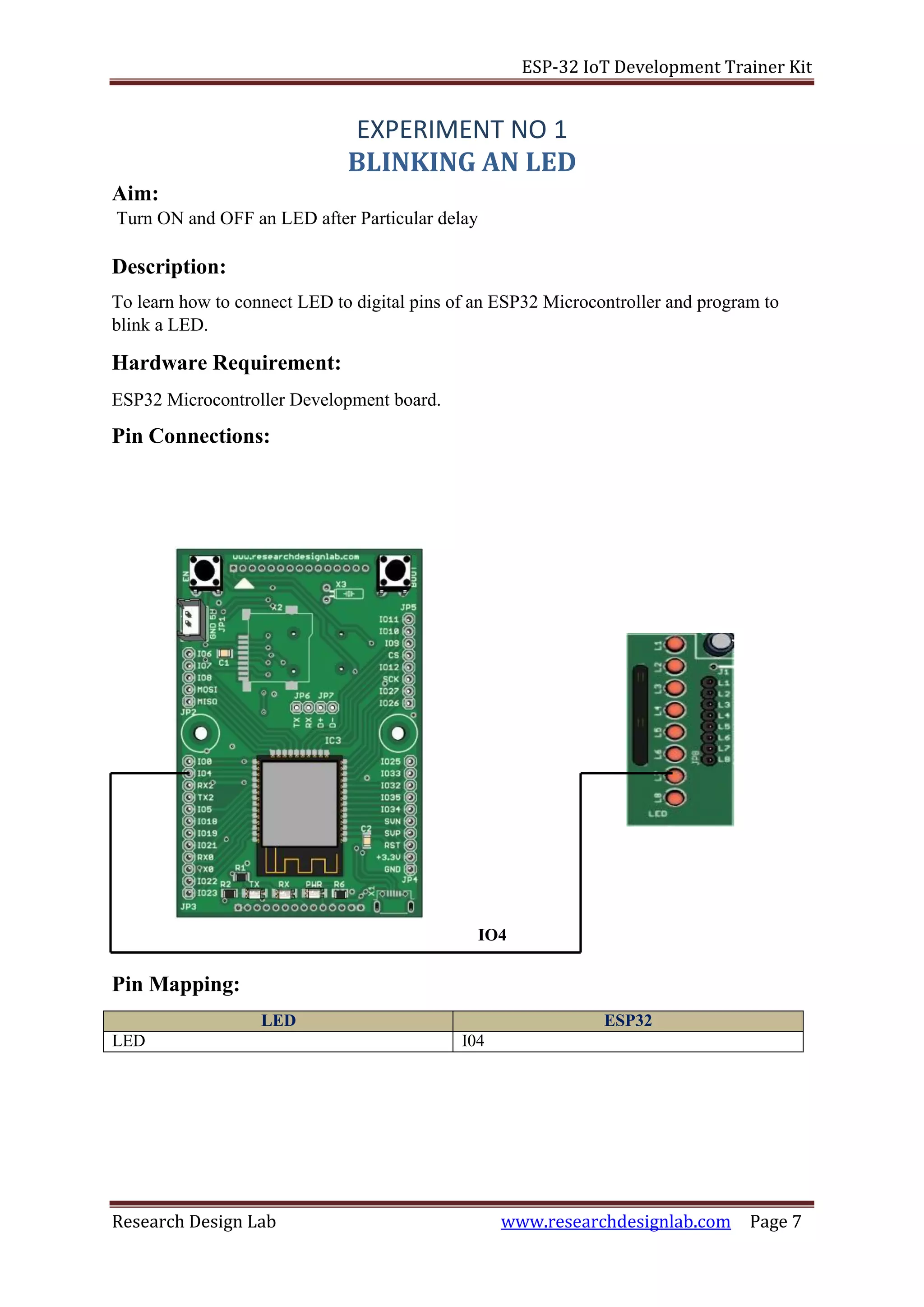
IO4
Aim:
EXPERIMENT NO 1
BLINKING AN LED
Turn ON and OFF an LED after Particular delay
Description:
To learn how to connect LED to digital pins of an ESP32 Microcontroller and program to
blink a LED.
Hardware Requirement:
ESP32 Microcontroller Development board.
Pin Connections:
Pin Mapping:
LED ESP32
LED I04
ESP-32 IoT Development Trainer Kit
Research Design Lab www.researchdesignlab.com Page 8
Procedure:
1. The above pin connection shows the connection between LED and ESP32
development board.
2. Connect IO4 pin of ESP32 development board to any of the LED pin.
3. Connect the USB cable to the board.
4. Open Arduino IDE. Select DOIT ESP32 DEVKIT V1in boards and select COM port.
5. Now verify the program and Upload it.
6. Now you can see the LED blink on the ESP32 development board.
Program:
void setup(void)
{
/* Initialize the output pin */
pinMode(4,OUTPUT);
}
/* the loop function runs over and over again forever */
void loop(void)
{
/* Turn the LED on */
digitalWrite(4,HIGH);
/* Wait for a second */
delay(1000);
/* Turn OFF LED */
digitalWrite(4,LOW);
/* Wait for a second */
delay(1000);
}
ESP-32 IoT Development Trainer Kit
Research Design Lab www.researchdesignlab.com Page 9
Aim:
EXPERIMENT NO 2
CONTROLLING LED USING SWITCH
Controlling LED using a Switch.
Description:
Understanding the working of switch. Turns ON the LED when switch is pressed and Turns
OFF when it is released.
Hardware Required:
ESP32-Microcontroller Development board.
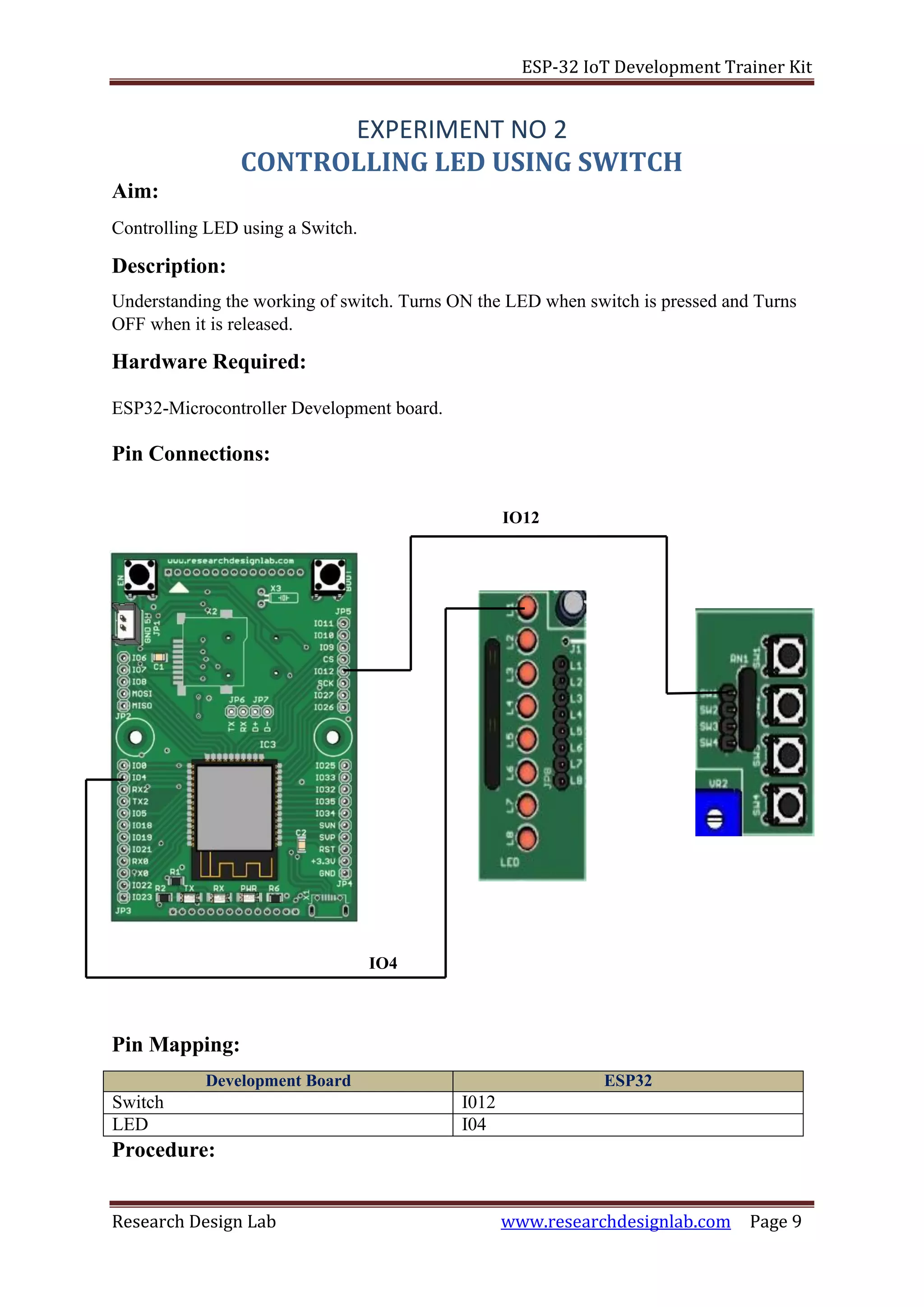
Pin Connections:
IO12
Pin Mapping:
Development Board ESP32
Switch I012
LED I04
Procedure:
IO4
ESP-32 IoT Development Trainer Kit
Research Design Lab www.researchdesignlab.com Page 10
1. The above pin connection shows how to control an LED using switch.
2. Connect IO4 pin of ESP32 development board to any of the LED pin and IO12 pin to
switch.
3. Connect the USB cable to the board.
4. Open Arduino IDE .Select DOIT ESP32 DEVKIT V1in boards and select COM port.
5. Now verify the program and Upload it.
6. Now you can see that when switch is pressed LED starts to glow on the ESP32
development board.
Program:
void setup(void)
{
/* Initialize the output pin */
pinMode(4,OUTPUT);
/* Switch is connected to pin 12 */
pinMode(12,INPUT);
/* to set baud rate */
Serial.begin(9600);
}
/* the loop function runs over and over again forever */
void loop(void)
if(digitalRead(12)==HIGH)
{
/* Turn the LED on */
digitalWrite(4,HIGH);
/* Wait for a second */
delay(1000);
/* Turn OFF LED */
digitalWrite(4,LOW);
/* Wait for a second */
delay(1000);
}
}
ESP-32 IoT Development Trainer Kit
Research Design Lab www.researchdesignlab.com Page 11
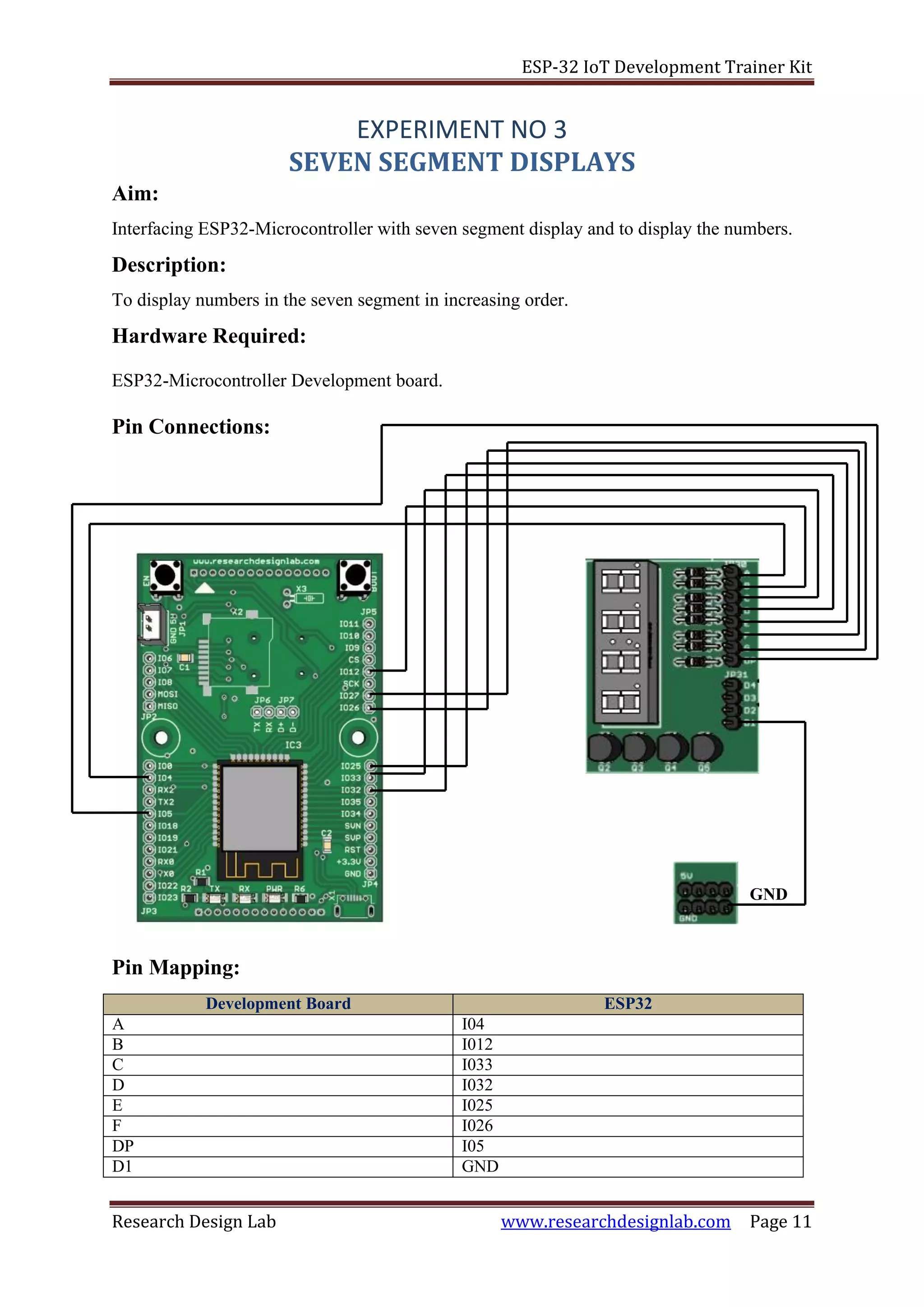
Pin Connections:
GND
Aim:
EXPERIMENT NO 3
SEVEN SEGMENT DISPLAYS
Interfacing ESP32-Microcontroller with seven segment display and to display the numbers.
Description:
To display numbers in the seven segment in increasing order.
Hardware Required:
ESP32-Microcontroller Development board.
Pin Mapping:
Development Board ESP32
A I04
B I012
C I033
D I032
E I025
F I026
DP I05
D1 GND
ESP-32 IoT Development Trainer Kit
Research Design Lab www.researchdesignlab.com Page 12
Procedure:
1. The above pin connection shows how to display numbers in seven segments.
2. Do the connections as shown in the pin diagram and pin mapping.
3. Connect the USB cable to the board.
4. Open Arduino IDE .Select DOIT ESP32 DEVKIT V1in boards and select COM port.
5. Now verify the program and Upload it.
6. Now you can see that number starts displaying on the seven segments on the ESP32
development board.
Program:
void setup(void)
{
/* define pin modes */
/* Set pin D2-D9 as output pins */
pinMode(4,OUTPUT);
pinMode(12,OUTPUT);
pinMode(33,OUTPUT);
pinMode(32,OUTPUT);
pinMode(25,OUTPUT);
pinMode(26,OUTPUT);
pinMode(27,OUTPUT);
pinMode(5,OUTPUT);
}
void loop(void)
{
/* print 0 */
{
digitalWrite(4,LOW);
digitalWrite(12,LOW);
digitalWrite(33,LOW);
digitalWrite(32,LOW);
digitalWrite(25,LOW);
digitalWrite(26,LOW);
digitalWrite(27,HIGH);
digitalWrite(5,LOW);
delay(1000);
}
/* print 1 */
{
digitalWrite(4,HIGH);
digitalWrite(12,LOW);
digitalWrite(33,LOW);
digitalWrite(32,HIGH);
digitalWrite(25,HIGH);
digitalWrite(26,HIGH);
digitalWrite(27,HIGH);
digitalWrite(5,LOW);
ESP-32 IoT Development Trainer Kit
Research Design Lab www.researchdesignlab.com Page 13
delay(1000);
}
/* print 2 */
{
digitalWrite(4,LOW);
digitalWrite(12,LOW);
digitalWrite(33,HIGH);
digitalWrite(32,LOW);
digitalWrite(25,LOW);
digitalWrite(26,HIGH);
digitalWrite(27,LOW);
digitalWrite(5,LOW);
delay(1000);
}
/* print 3 */
{
digitalWrite(4,LOW);
digitalWrite(12,LOW);
digitalWrite(33,LOW);
digitalWrite(32,LOW);
digitalWrite(25,HIGH);
digitalWrite(26,HIGH);
digitalWrite(27,LOW);
digitalWrite(5,LOW);
delay(1000);
}
/* print 4 */
{
digitalWrite(4,HIGH);
digitalWrite(12,LOW);
digitalWrite(33,LOW);
digitalWrite(32,HIGH);
digitalWrite(25,HIGH);
digitalWrite(26,LOW);
digitalWrite(27,LOW);
digitalWrite(5,LOW);
delay(1000);
}
/* print 5 */
{
digitalWrite(4,LOW);
digitalWrite(12,HIGH);
digitalWrite(33,LOW);
digitalWrite(32,LOW);
digitalWrite(25,HIGH);
digitalWrite(26,LOW);
digitalWrite(27,LOW);
digitalWrite(5,LOW);
delay(1000);
}
ESP-32 IoT Development Trainer Kit
Research Design Lab www.researchdesignlab.com Page 14
/* print 6 */
{
digitalWrite(4,LOW);
digitalWrite(12,HIGH);
digitalWrite(33,LOW);
digitalWrite(32,LOW);
digitalWrite(25,LOW);
digitalWrite(26,LOW);
digitalWrite(27,LOW);
digitalWrite(5,LOW);
delay(1000);
}
/* print 7 */
{
digitalWrite(4,LOW);
digitalWrite(12,LOW);
digitalWrite(33,LOW);
digitalWrite(32,HIGH);
digitalWrite(25,HIGH);
digitalWrite(26,HIGH);
digitalWrite(27,HIGH);
digitalWrite(5,LOW);
delay(1000);
}
/* print 8 */
{
digitalWrite(4,LOW);
digitalWrite(12,LOW);
digitalWrite(33,LOW);
digitalWrite(32,LOW);
digitalWrite(25,LOW);
digitalWrite(26,LOW);
digitalWrite(27,LOW);
digitalWrite(5,LOW);
delay(1000);
}
/* print 9 */
{
digitalWrite(4,LOW);
digitalWrite(12,LOW);
digitalWrite(33,LOW);
digitalWrite(32,LOW);
digitalWrite(25,HIGH);
digitalWrite(26,LOW);
digitalWrite(27,LOW);
digitalWrite(5,LOW);
delay(1000);
}
}
ESP-32 IoT Development Trainer Kit
Research Design Lab www.researchdesignlab.com Page 15
Aim:
EXPERIMENT NO 4
HEXKEYPAD
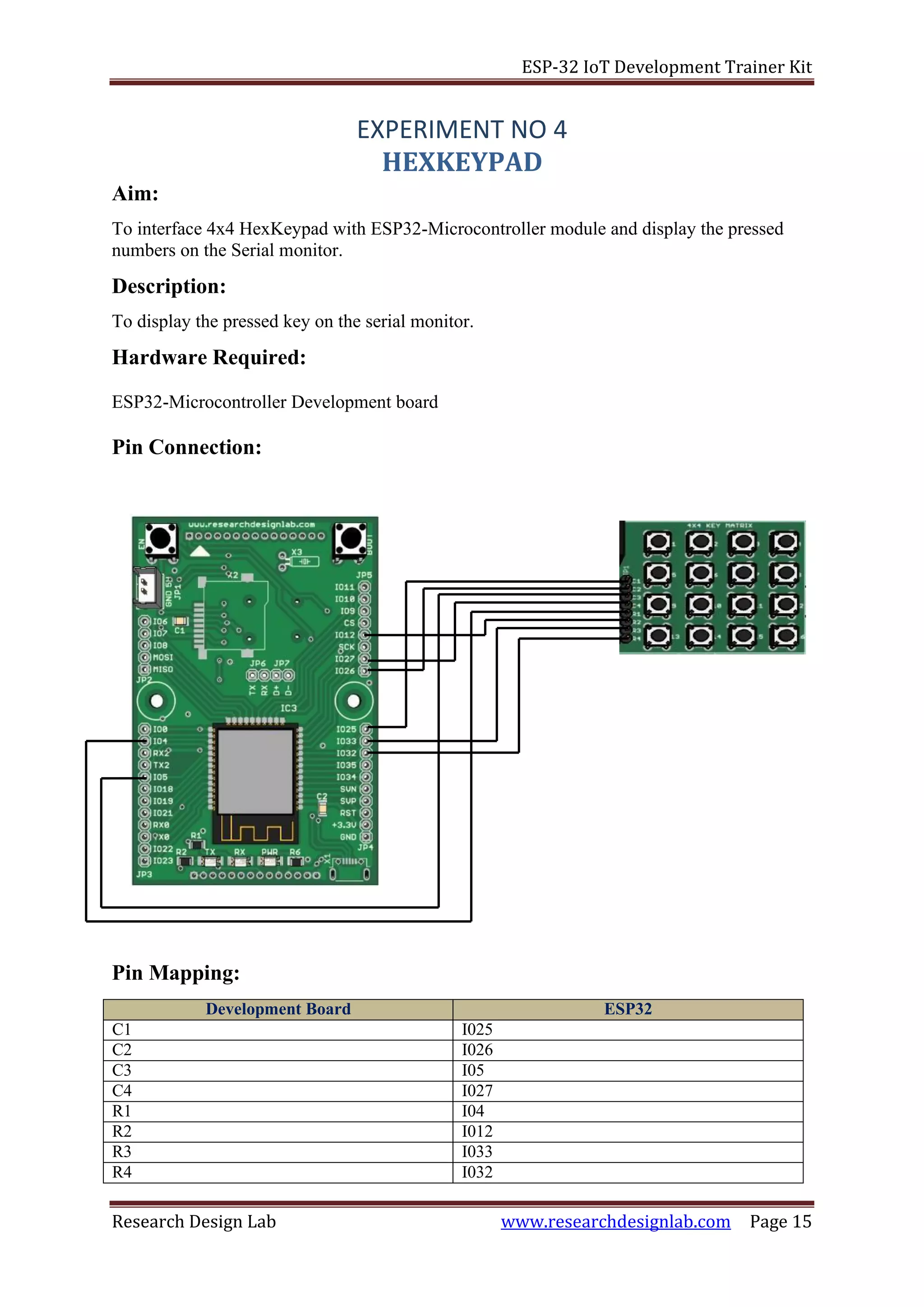
To interface 4x4 HexKeypad with ESP32-Microcontroller module and display the pressed
numbers on the Serial monitor.
Description:
To display the pressed key on the serial monitor.
Hardware Required:
ESP32-Microcontroller Development board
Pin Connection:
Pin Mapping:
Development Board ESP32
C1 I025
C2 I026
C3 I05
C4 I027
R1 I04
R2 I012
R3 I033
R4 I032
ESP-32 IoT Development Trainer Kit
Research Design Lab www.researchdesignlab.com Page 16
Procedure:
1. The above pin connection shows how to interface Hexkeypad with ESP32 board.
2. Do the connections as shown in the pin diagram and pin mapping.
3. Connect the USB cable to the board.
4. Open Arduino IDE .Select DOIT ESP32 DEVKIT V1in boards and select COM port.
5. Now verify the program and Upload it.
6. After uploading is done open serial monitor to observe the output.
7. For a particular switch the same number displays on our serial monitor.
Program:
/* Include the Keypad header file */
#include<Keypad.h>
/* four rows */
const byte ROWS=4;
/* four columns */
constbyteCOLS=4;
/* define the symbols on the buttons of the keypads */
charhexaKeys[ROWS][COLS]={
{'0','1','2','3'},
{'4','5','6','7'},
{'8','9','A','B'},
{'C','D','E','F'}
};
/* connect to the row pinouts of the keypad */
byterowPins[ROWS]={4,12,33,32};
/* connect to the column pinouts of the keypad */
bytecolPins[COLS]={25,26,5,27};
/* initialize an instance of class NewKeypad */
KeypadcustomKeypad=Keypad(makeKeymap(hexaKeys),rowPins,colPins,ROWS,COLS);
/* counter intialization */
intcounter=0;
void setup(void)
{
Serial.begin(9600);
}
void loop(void)
{
/* Key pressed is stored in customkey */
charcustomKey=customKeypad.getKey();
if(customKey)
{
/* Key pressed is stored in customkey */
Serial.println(customKey);
}
}
ESP-32 IoT Development Trainer Kit
Research Design Lab www.researchdesignlab.com Page 17
5V
GND
Aim:
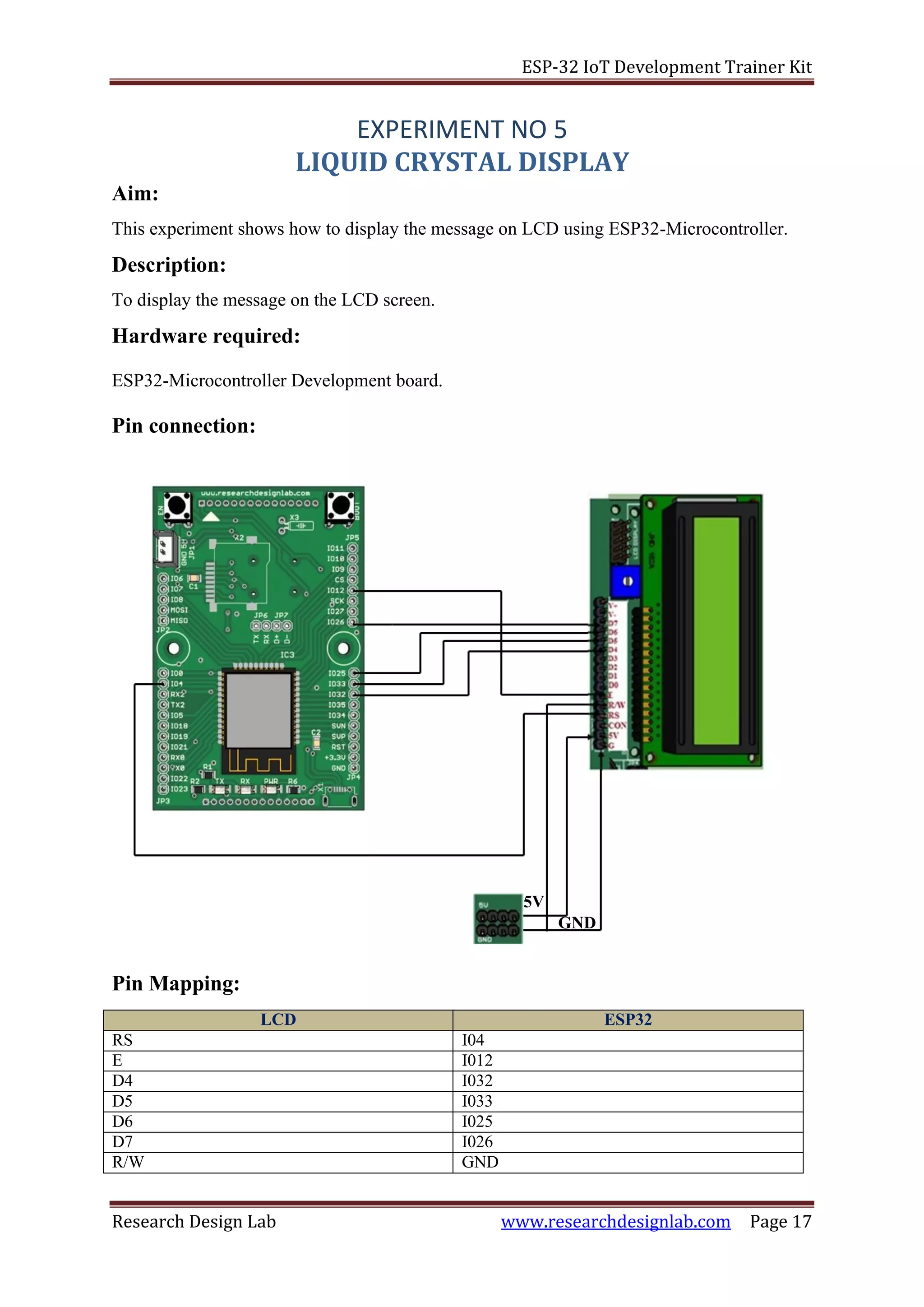
EXPERIMENT NO 5
LIQUID CRYSTAL DISPLAY
This experiment shows how to display the message on LCD using ESP32-Microcontroller.
Description:
To display the message on the LCD screen.
Hardware required:
ESP32-Microcontroller Development board.
Pin connection:
Pin Mapping:
LCD ESP32
RS I04
E I012
D4 I032
D5 I033
D6 I025
D7 I026
R/W GND
ESP-32 IoT Development Trainer Kit
Research Design Lab www.researchdesignlab.com Page 18
Procedure:
1. The above pin connection shows how to interface LCD with ESP32 board.
2. Do the connections as shown in the pin diagram and pin mapping.
3. Connect the USB cable to the board.
4. Open Arduino IDE .Select DOIT ESP32 DEVKIT V1in boards and select COM port.
5. Verify the program and Upload it.
6. Now you can see the output displaying the message on LCD of ESP32
microcontroller board.
Program:
/* Include the LCD library */
#include<LiquidCrystal.h>
/* Mapping the pins with library
rs=4,en=12,d4=32,d5=33,d6=25,d7=26 */
LiquidCrystallcd(4,12,32,33,25,26);
void setup(void)
{
/* set baud rate */
Serial.begin(9600);
/* set up the LCD's number of columns and rows */
lcd.begin(16,2);
}
void loop(void)
{
/* set the cursor to column 0, line 1
(note: line 1 is the second row, since counting begins with 0) */
lcd.setCursor(0,1);
/* Print a message to the LCD */
lcd.print("*WELCOME TO RDL*");
/*print the number of seconds since reset */
delay(5000);
/* clear the message */
lcd.clear();
}
ESP-32 IoT Development Trainer Kit
Research Design Lab www.researchdesignlab.com Page 19
IO5
IO34
Aim:
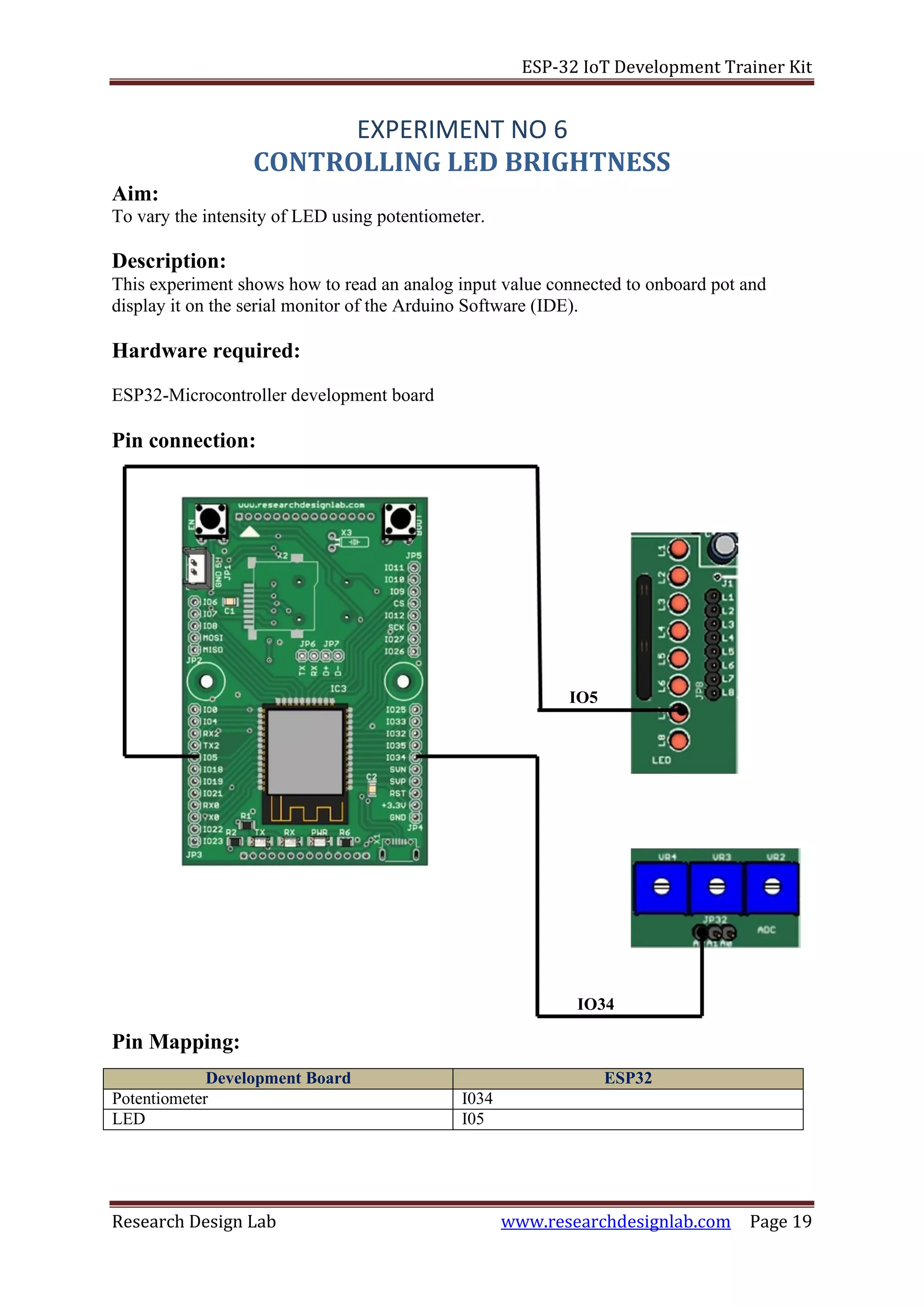
EXPERIMENT NO 6
CONTROLLING LED BRIGHTNESS
To vary the intensity of LED using potentiometer.
Description:
This experiment shows how to read an analog input value connected to onboard pot and
display it on the serial monitor of the Arduino Software (IDE).
Hardware required:
ESP32-Microcontroller development board
Pin connection:
Pin Mapping:
Development Board ESP32
Potentiometer I034
LED I05
ESP-32 IoT Development Trainer Kit
Research Design Lab www.researchdesignlab.com Page 20
Procedure:
1. The above pin connection shows how to control the brightness of LED using
potentiometer in ESP32 board.
2. Do the connections as shown in the pin diagram and pin mapping.
3. Connect the USB cable to the board.
4. Open Arduino IDE .Select DOIT ESP32 DEVKIT V1in boards and select COM port.
5. Verify the program and Upload it.
6. Open the serial monitor to observe the values.
7. Now using a screw driver rotate the potentiometer. The LED will be very bright at the
highest point and low as you turn the potentiometer in the opposite direction.
Program:
void setup(void)
{
/* set baud rate */
Serial.begin(9600);
/* Initialize the input pin */
pinMode(34,INPUT);
/* Initialize the output pin */
pinMode(5,OUTPUT);
}
/* the loop function runs over and over again forever */
void loop(void)
{
int outputvalue=analogRead(34);
int value=map(outputvalue,0,1023,0,255);
analogWrite(5,outputvalue);
/* Print a value on the serial monitor */
Serial.println(outputvalue);
delay(1000);
}
ESP-32 IoT Development Trainer Kit
Research Design Lab www.researchdesignlab.com Page 21
SCL
SDA
Aim:
EXPERIMENT NO 7
RTC (Real Time Clock)
To display Date and Time on the serial monitor using ESP 32 microcontroller development
board.
Description:
Interfacing Real Time Clock module with ESP 32 to display date and time on the serial monitor.
Hardware required:
ESP32-Microcontroller Development board
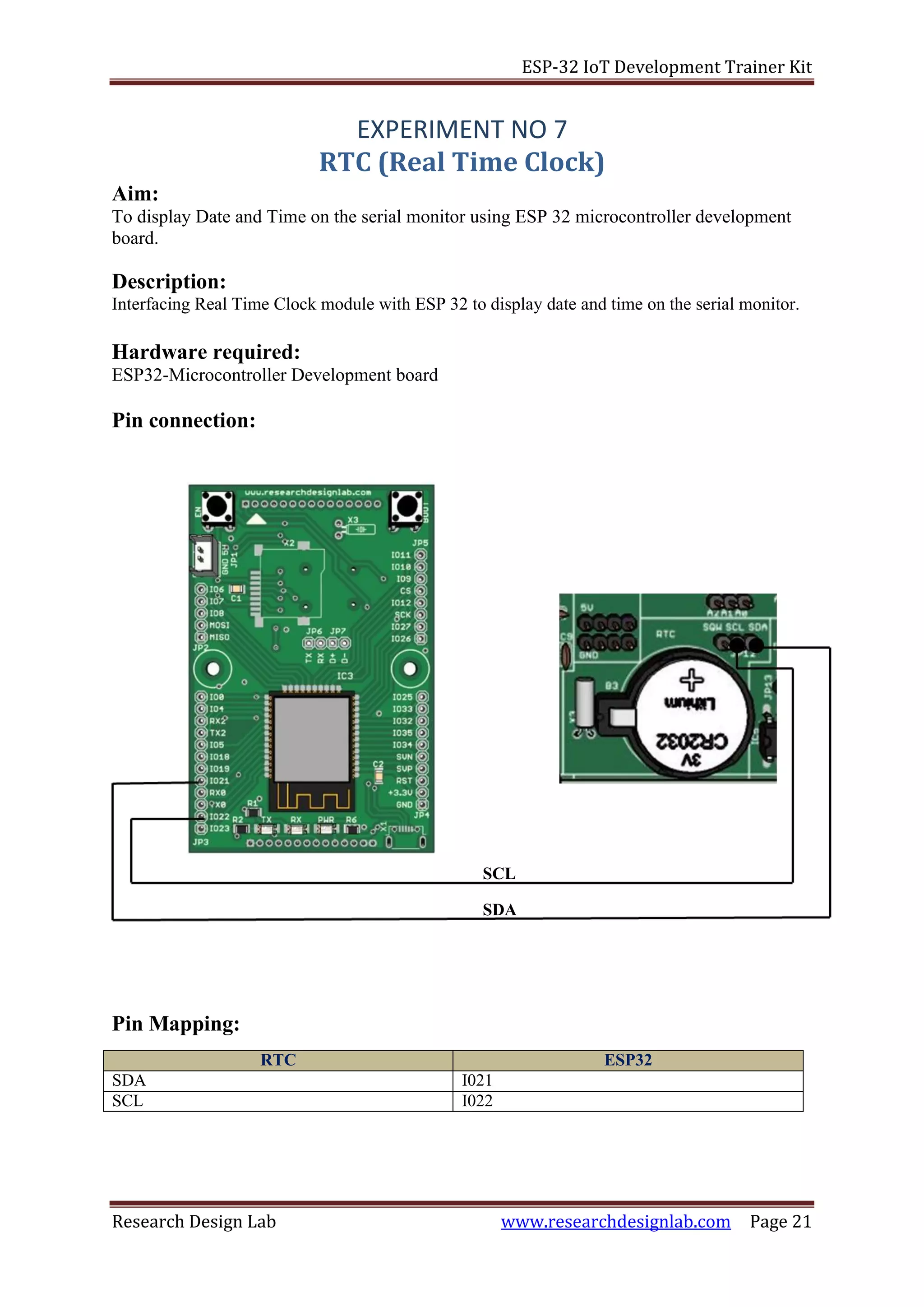
Pin connection:
Pin Mapping:
RTC ESP32
SDA I021
SCL I022
ESP-32 IoT Development Trainer Kit
Research Design Lab www.researchdesignlab.com Page 22
Procedure:
1. The above pin connection shows how to display date and time using RTC in ESP32
board.
2. Do the connections as shown in the pin diagram and pin mapping.
3. Connect the USB cable to the board.
4. Open Arduino IDE .Select DOIT ESP32 DEVKIT V1in boards and select COM port.
5. Verify the program and Upload it.
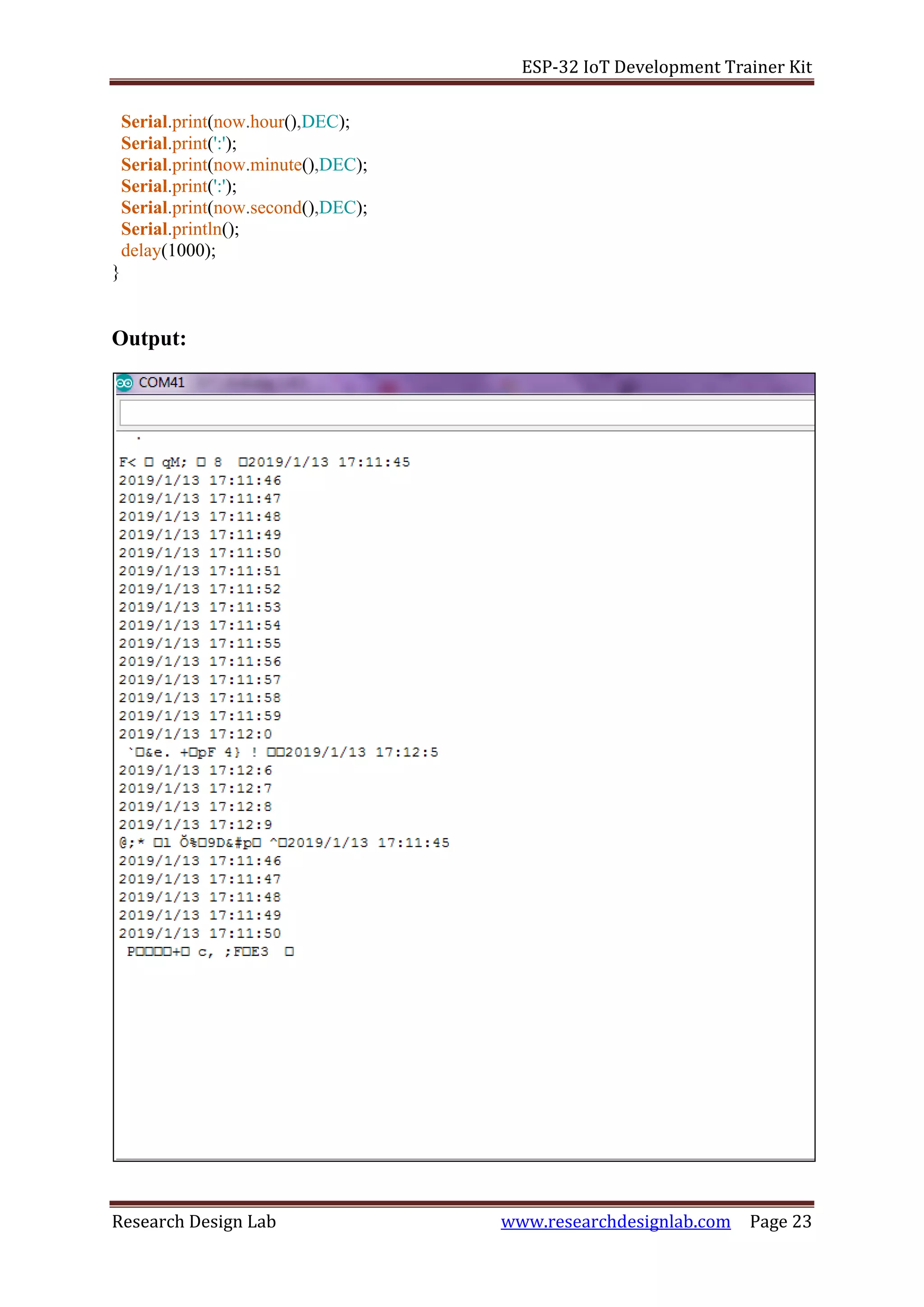
6. Open the serial monitor to observe the output.
Program:
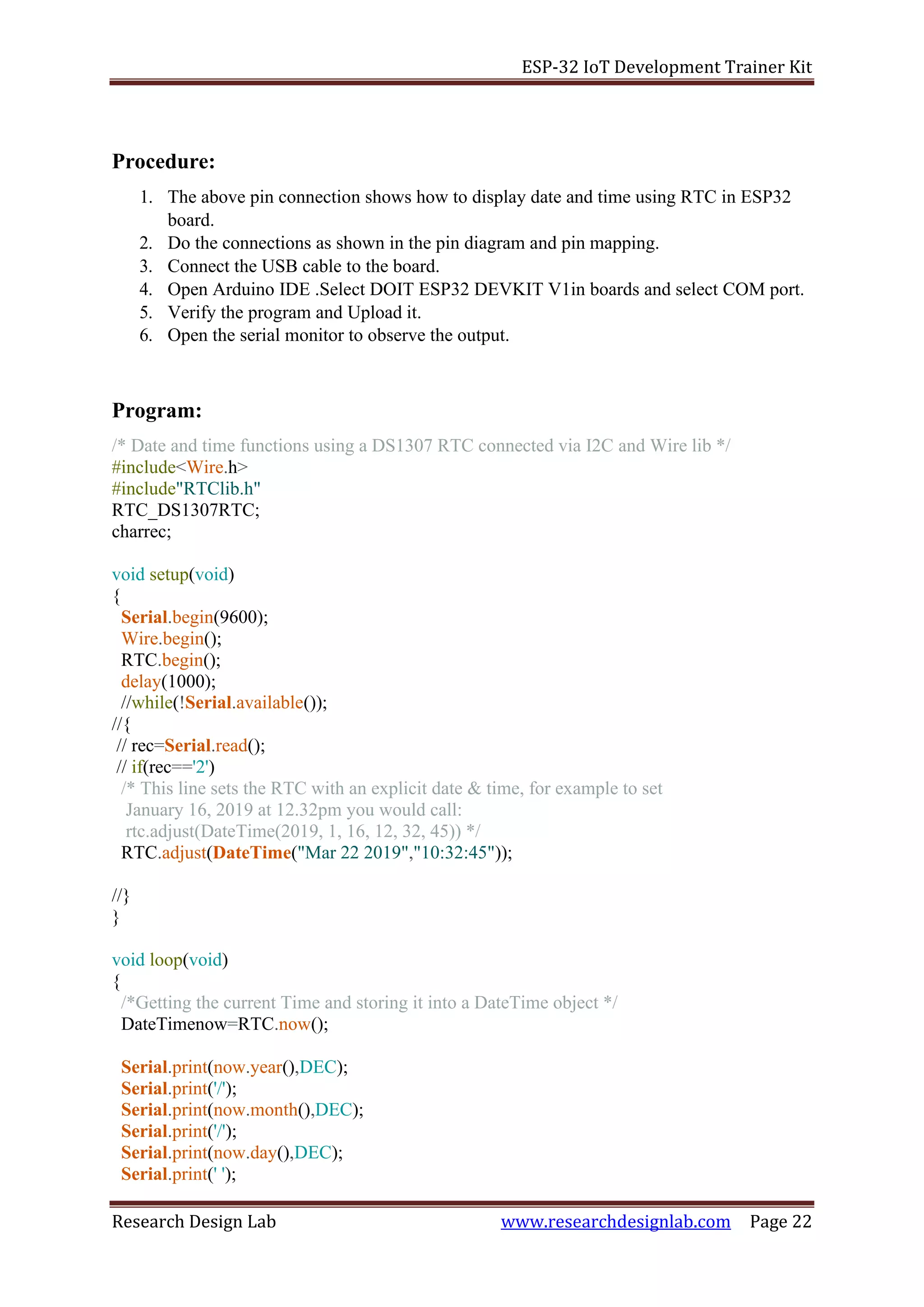
/* Date and time functions using a DS1307 RTC connected via I2C and Wire lib */
#include<Wire.h>
#include"RTClib.h"
RTC_DS1307RTC;
charrec;
void setup(void)
{
Serial.begin(9600);
Wire.begin();
RTC.begin();
delay(1000);
//while(!Serial.available());
//{
// rec=Serial.read();
// if(rec=='2')
/* This line sets the RTC with an explicit date & time, for example to set
January 16, 2019 at 12.32pm you would call:
rtc.adjust(DateTime(2019, 1, 16, 12, 32, 45)) */
RTC.adjust(DateTime("Mar 22 2019","10:32:45"));
//}
}
void loop(void)
{
/*Getting the current Time and storing it into a DateTime object */
DateTimenow=RTC.now();
Serial.print(now.year(),DEC);
Serial.print('/');
Serial.print(now.month(),DEC);
Serial.print('/');
Serial.print(now.day(),DEC);
Serial.print(' ');
ESP-32 IoT Development Trainer Kit
Research Design Lab www.researchdesignlab.com Page 23
Serial.print(now.hour(),DEC);
Serial.print(':');
Serial.print(now.minute(),DEC);
Serial.print(':');
Serial.print(now.second(),DEC);
Serial.println();
delay(1000);
}
Output:
ESP-32 IoT Development Trainer Kit
Research Design Lab www.researchdesignlab.com Page 24
Aim:
EXPERIMENT NO 8
SD CARD
To read the stored directories in SD card using ESP 32 microcontroller development board.
Description:
Interfacing SD card module with ESP 32 to list the directories stored in memory card.
Hardware required:
ESP32-Microcontroller Development board
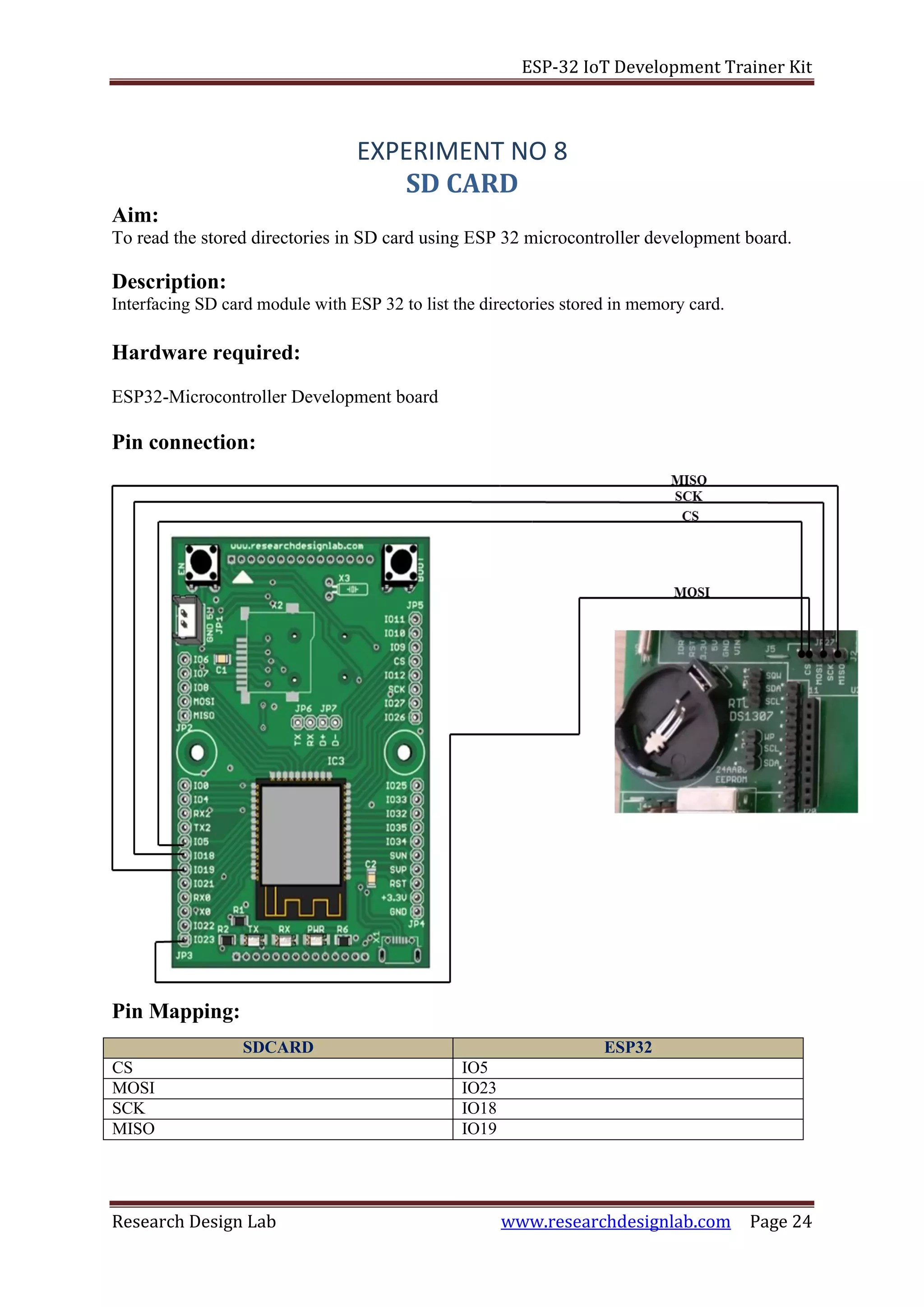
Pin connection:
Pin Mapping:
SDCARD ESP32
CS IO5
MOSI IO23
SCK IO18
MISO IO19
ESP-32 IoT Development Trainer Kit
Research Design Lab www.researchdesignlab.com Page 25
Procedure:
1. The above pin connection shows how to interface SD Card with ESP32 board.
2. Do the connections as shown in the pin diagram and pin mapping.
3. Insert the SD Card in the slot given below the board.
4. Connect the USB cable to the board.
5. Open Arduino IDE .Select DOIT ESP32 DEVKIT V1in boards and select COM port.
6. Verify the program and Upload it.
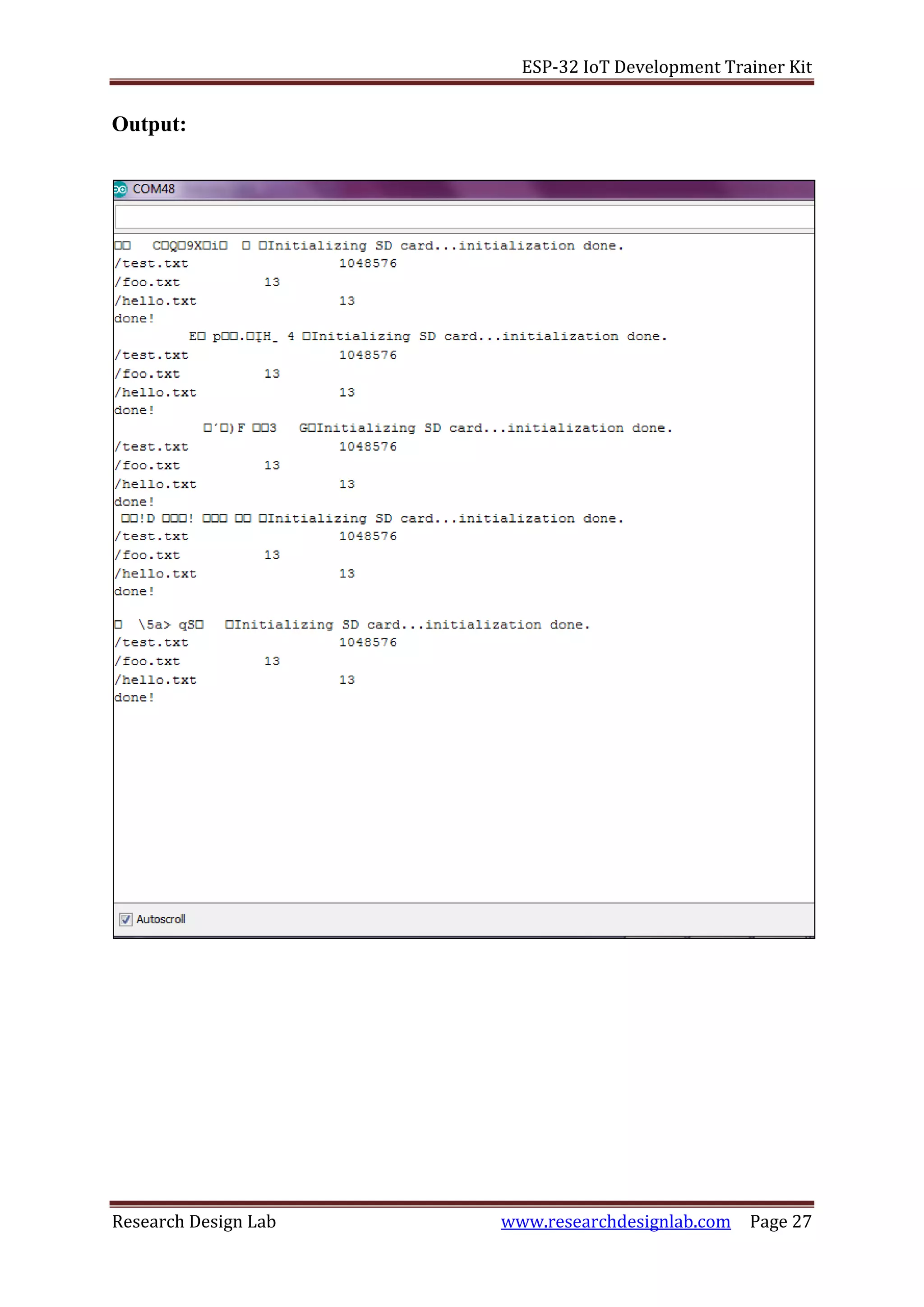
7. Open the serial monitor to observe the output.
Program :
/*
Listfiles
This example shows how print out the files in a directory on a SD card
The circuit:
* SD card attached to SPI bus as follows:
** MOSI - pin 11
** MISO - pin 12
** CLK - pin 13
** CS - pin 4 (for MKRZero SD: SDCARD_SS_PIN)
created Nov 2010
by David A. Mellis
modified 9 Apr 2012
by Tom Igoe
modified 2 Feb 2014
by Scott Fitzgerald
This example code is in the public domain.
*/
#include<SPI.h>
#include<SD.h>
Fileroot;
void setup(void)
{
/* Open serial communications and wait for port to open: */
Serial.begin(9600);
/* wait for serial port to connect. Needed for native USB port only */
while(!Serial){
}
ESP-32 IoT Development Trainer Kit
Research Design Lab www.researchdesignlab.com Page 26
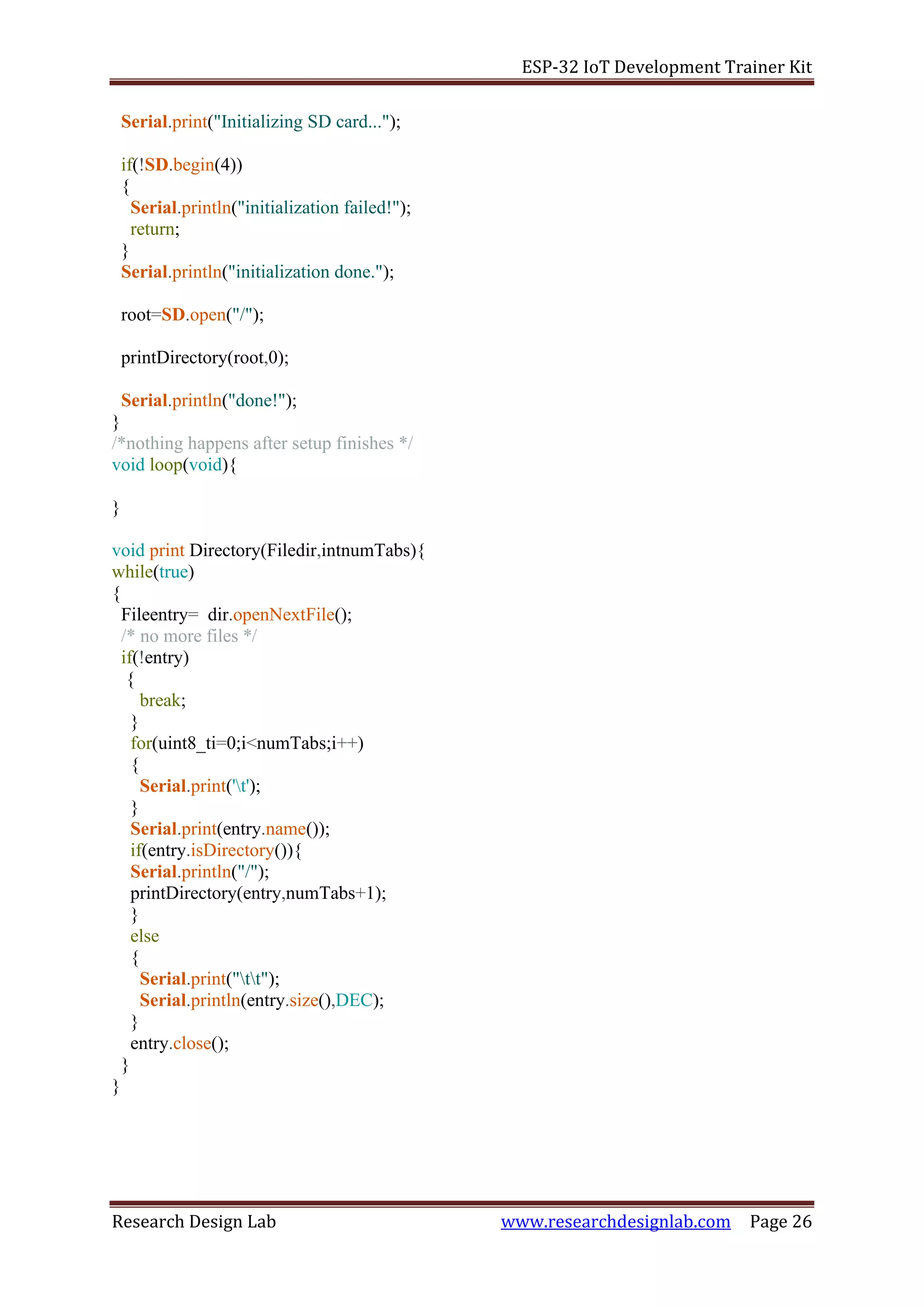
Serial.print("Initializing SD card...");
if(!SD.begin(4))
{
Serial.println("initialization failed!");
return;
}
Serial.println("initialization done.");
root=SD.open("/");
printDirectory(root,0);
Serial.println("done!");
}
/*nothing happens after setup finishes */
void loop(void){
}
void print Directory(Filedir,intnumTabs){
while(true)
{
Fileentry= dir.openNextFile();
/* no more files */
if(!entry)
{
break;
}
for(uint8_ti=0;i<numTabs;i++)
{
Serial.print('t');
}
Serial.print(entry.name());
if(entry.isDirectory()){
Serial.println("/");
printDirectory(entry,numTabs+1);
}
else
{
Serial.print("tt");
Serial.println(entry.size(),DEC);
}
entry.close();
}
}
ESP-32 IoT Development Trainer Kit
Research Design Lab www.researchdesignlab.com Page 27
Output:
ESP-32 IoT Development Trainer Kit
Research Design Lab www.researchdesignlab.com Page 28
5V
Aim:
EXPERIMENT NO 9
OLED
This experiment shows how to display the message on OLED using ESP32-Microcontroller.
Description:
To display message on OLED screen.
Hardware required:
ESP32-Microcontroller Development board
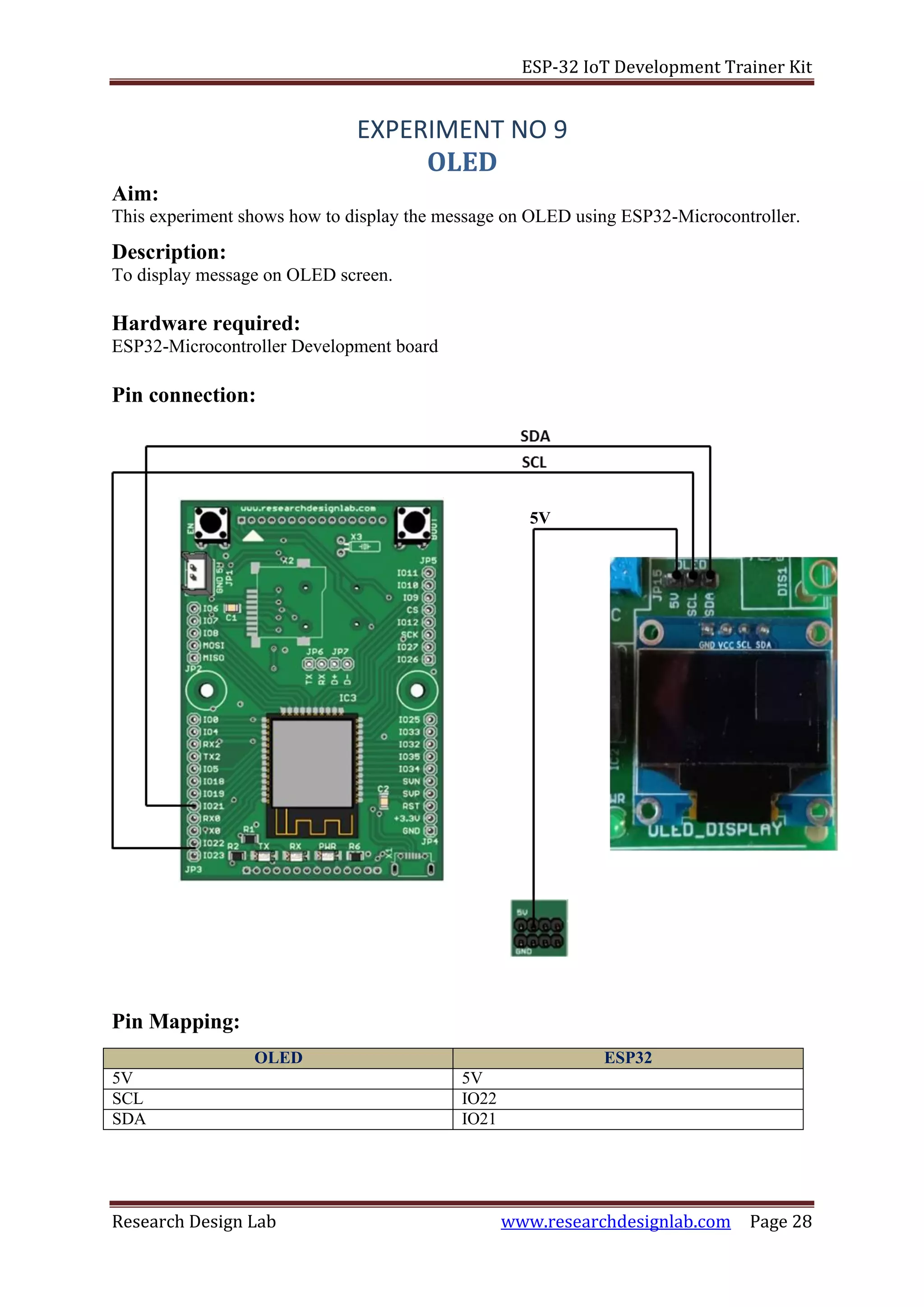
Pin connection:
Pin Mapping:
OLED ESP32
5V 5V
SCL IO22
SDA IO21
ESP-32 IoT Development Trainer Kit
Research Design Lab www.researchdesignlab.com Page 29
Procedure:
1. The above pin connection shows how to interface OLED with ESP32 board.
2. Do the connections as shown in the pin diagram and pin mapping.
3. Connect the USB cable to the board.
4. Open Arduino IDE .Select DOIT ESP32 DEVKIT V1in boards and select COM port.
5. Verify the program and Upload it.
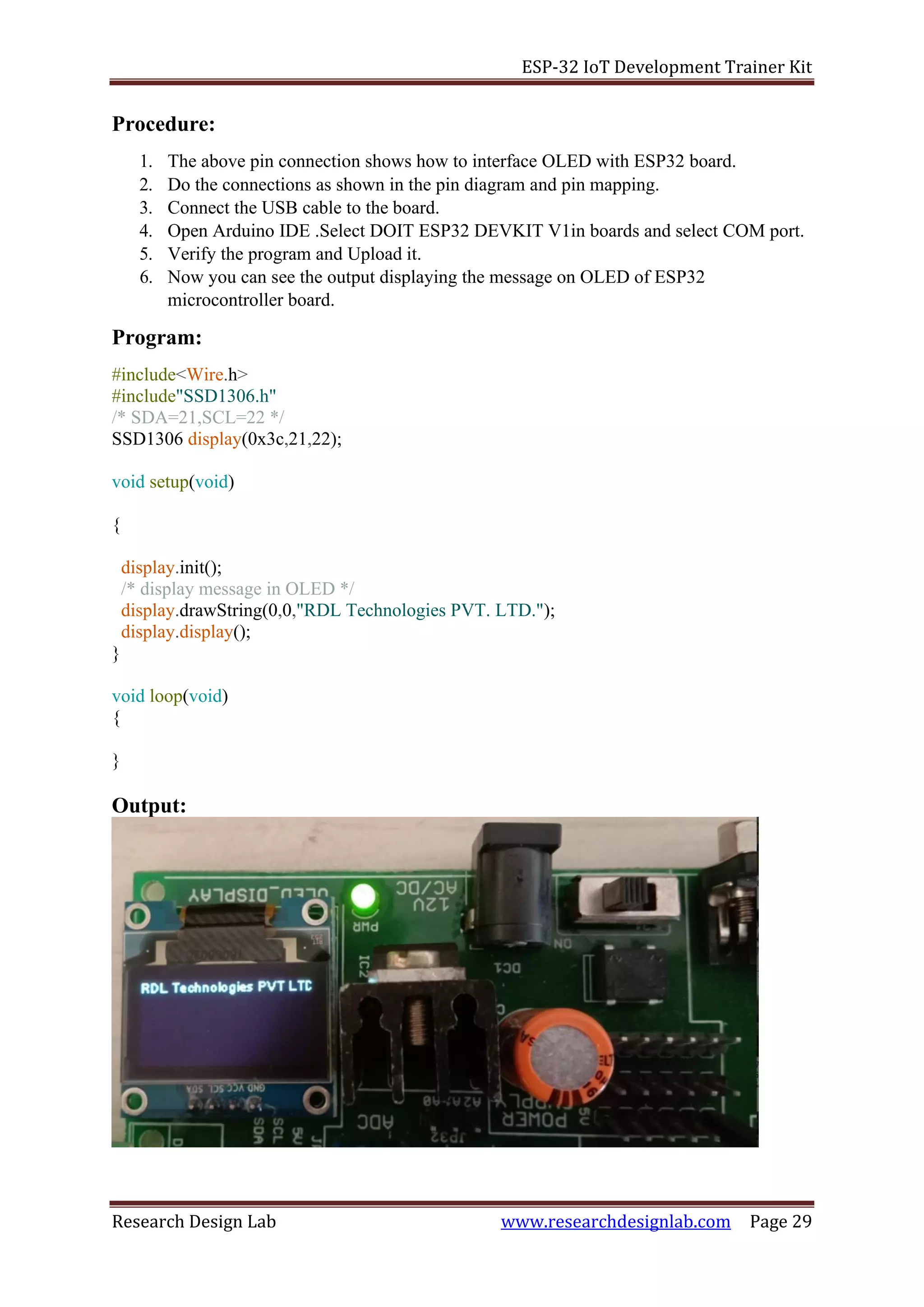
6. Now you can see the output displaying the message on OLED of ESP32
microcontroller board.
Program:
#include<Wire.h>
#include"SSD1306.h"
/* SDA=21,SCL=22 */
SSD1306 display(0x3c,21,22);
void setup(void)
{
display.init();
/* display message in OLED */
display.drawString(0,0,"RDL Technologies PVT. LTD.");
display.display();
}
void loop(void)
{
}
Output:
ESP-32 IoT Development Trainer Kit
Research Design Lab www.researchdesignlab.com Page 30
EXPERIMENT NO 10
VIBRATION SENSOR
Aim:
To extract information from vibration sensor.
Description:
To learn how to read values from a vibration sensor connected to analog pin using ESP32-
Microcontroller.
Hardware required:
ESP32-Microcontroller Development board
Vibration sensor
Pin connection:
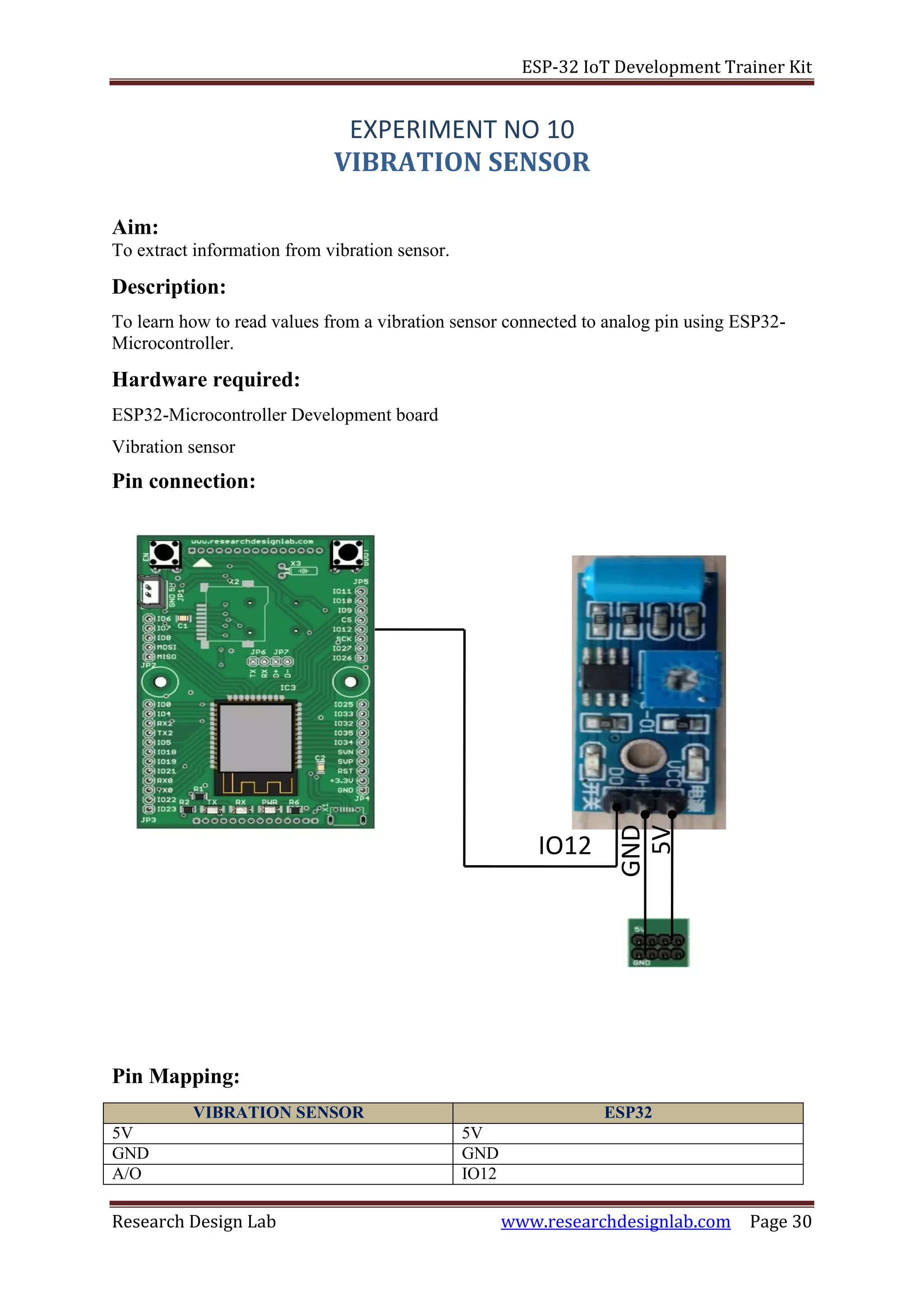
Pin Mapping:
VIBRATION SENSOR ESP32
5V 5V
GND GND
A/O IO12
IO12
GND
5V
ESP-32 IoT Development Trainer Kit
Research Design Lab www.researchdesignlab.com Page 31
Procedure:
1. The above pin connection shows how to read values from a vibration sensor using
ESP32 board.
2. Do the connections as shown in the pin diagram and pin mapping.
3. Connect the USB cable to the board.
4. Open Arduino IDE .Select DOIT ESP32 DEVKIT V1 in boards and select COM port.
5. Verify the program and upload it.
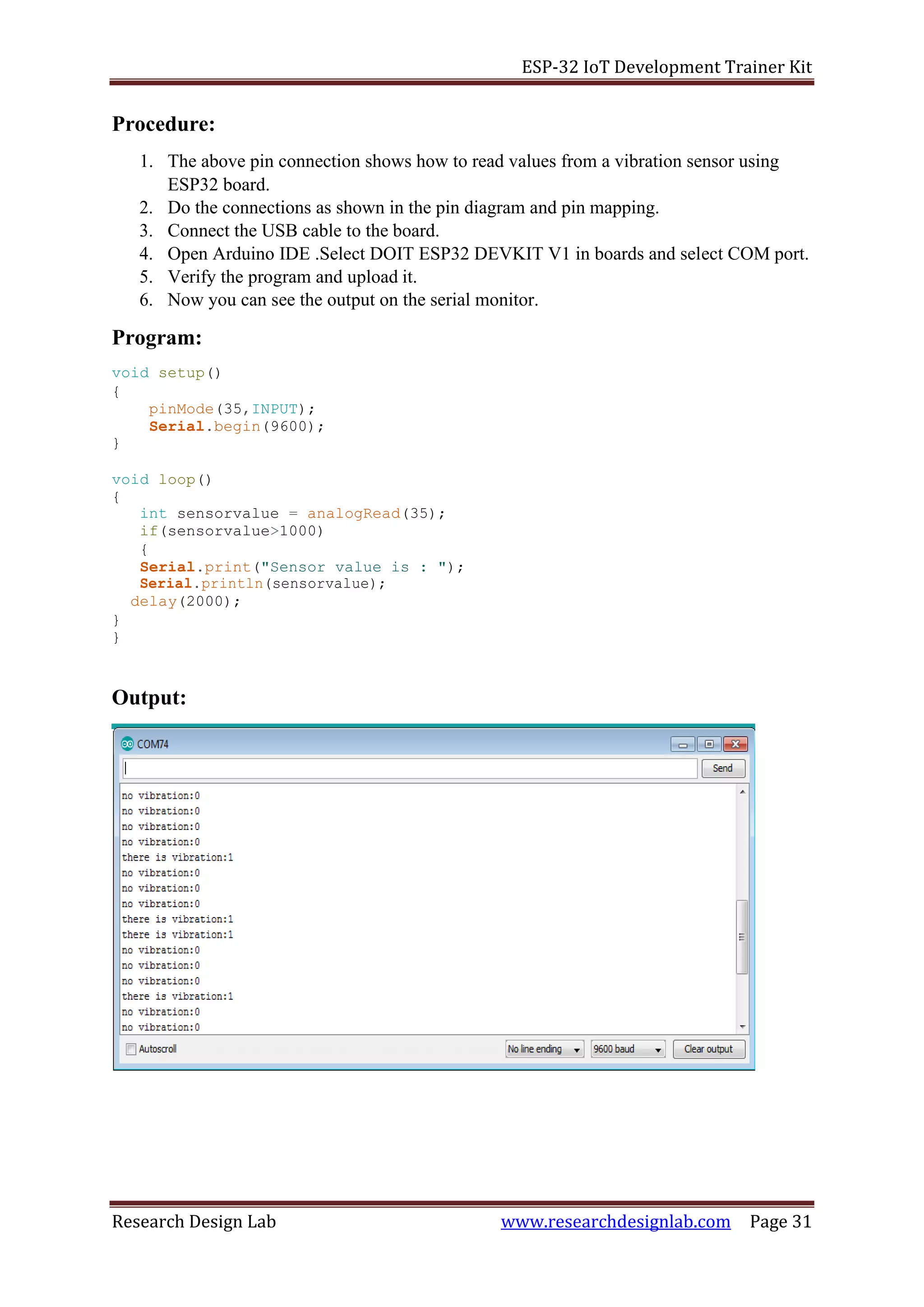
6. Now you can see the output on the serial monitor.
Program:
void setup()
{
pinMode(35,INPUT);
Serial.begin(9600);
}
void loop()
{
int sensorvalue = analogRead(35);
if(sensorvalue>1000)
{
Serial.print("Sensor value is : ");
Serial.println(sensorvalue);
delay(2000);
}
}
Output:
ESP-32 IoT Development Trainer Kit
Research Design Lab www.researchdesignlab.com Page 32
EXPERIMENT NO 11
TEMPERATURE SENSOR
Aim:
To extract information from temperature sensor.
Description:
To learn how to read values from a temperature sensor connected to analog pin using ESP32-
Microcontroller.
Hardware required:
ESP32-Microcontroller Development board
Temperature sensor
Pin connection:
IO35
GND
ESP-32 IoT Development Trainer Kit
Research Design Lab www.researchdesignlab.com Page 33
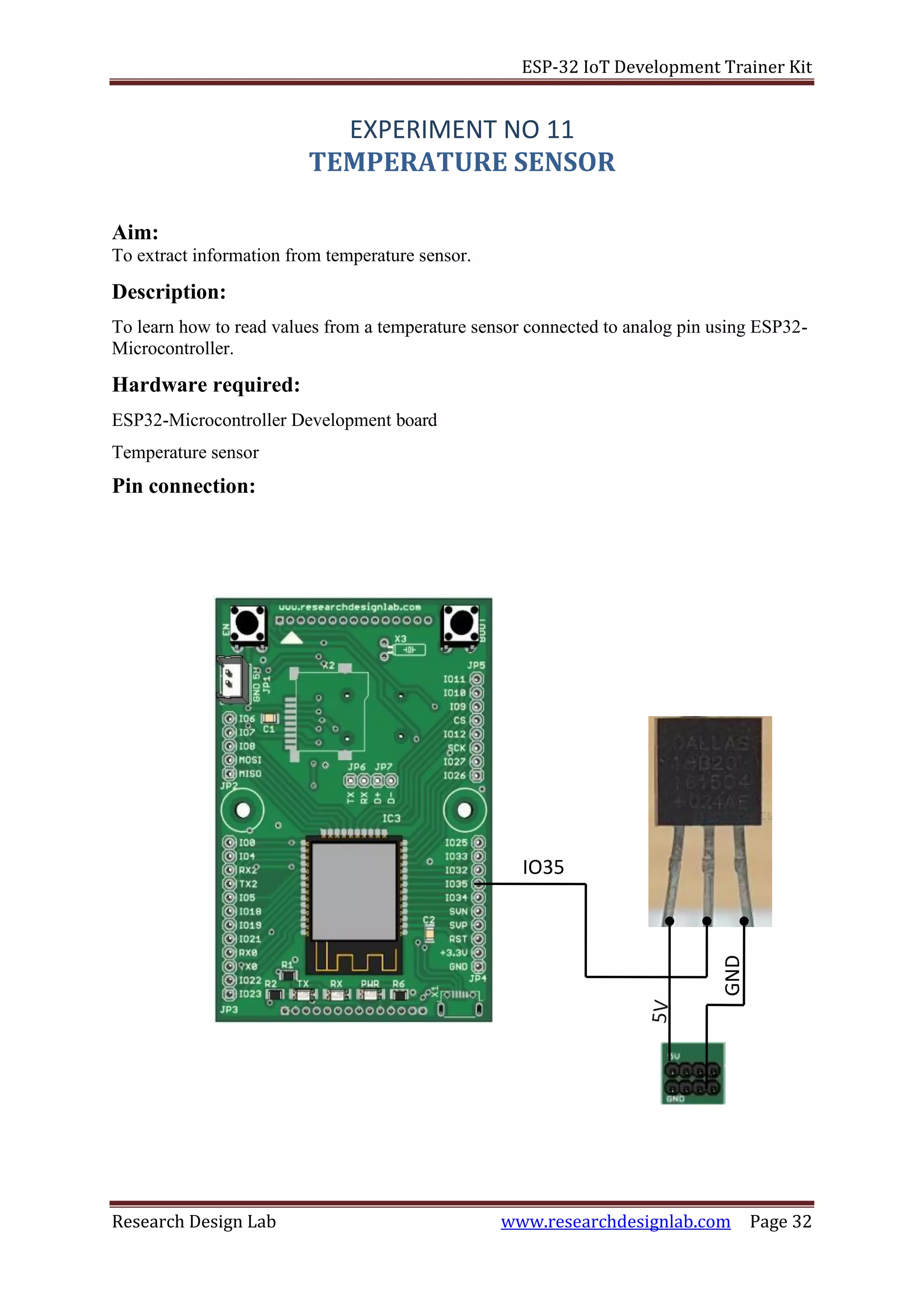
Pin Mapping:
TEMPERARUTE SENSOR ESP32
5V 5V
GND GND
A/O IO35
Procedure:
1. The above pin connection shows how to read values from a sensor using ESP32
board.
2. Do the connections as shown in the pin diagram and pin mapping.
3. Connect the USB cable to the board.
4. Open Arduino IDE .Select DOIT ESP32 DEVKIT V1in boards and select COM port.
5. Verify the program and Upload it.
6. Now you can see the output on the serial monitor.
PROGRAM:
float temp;
float value;
float valuec;
int tempPin = 35;
void setup() {
Serial.begin(9600);
}
void loop() {
temp = analogRead(tempPin);
// read analog volt from sensor and save to variable temp
value=( temp/2048.0)*3300;
valuec=value*0.1; //converts to degree celsius
// convert the analog volt to its temperature equivalent
Serial.print("temperature in C = ");
Serial.println(valuec); // display temperature value
Serial.println();
Serial.print("temperature = ");
Serial.println(value);
delay(1000); // update sensor reading each one second
}
ESP-32 IoT Development Trainer Kit
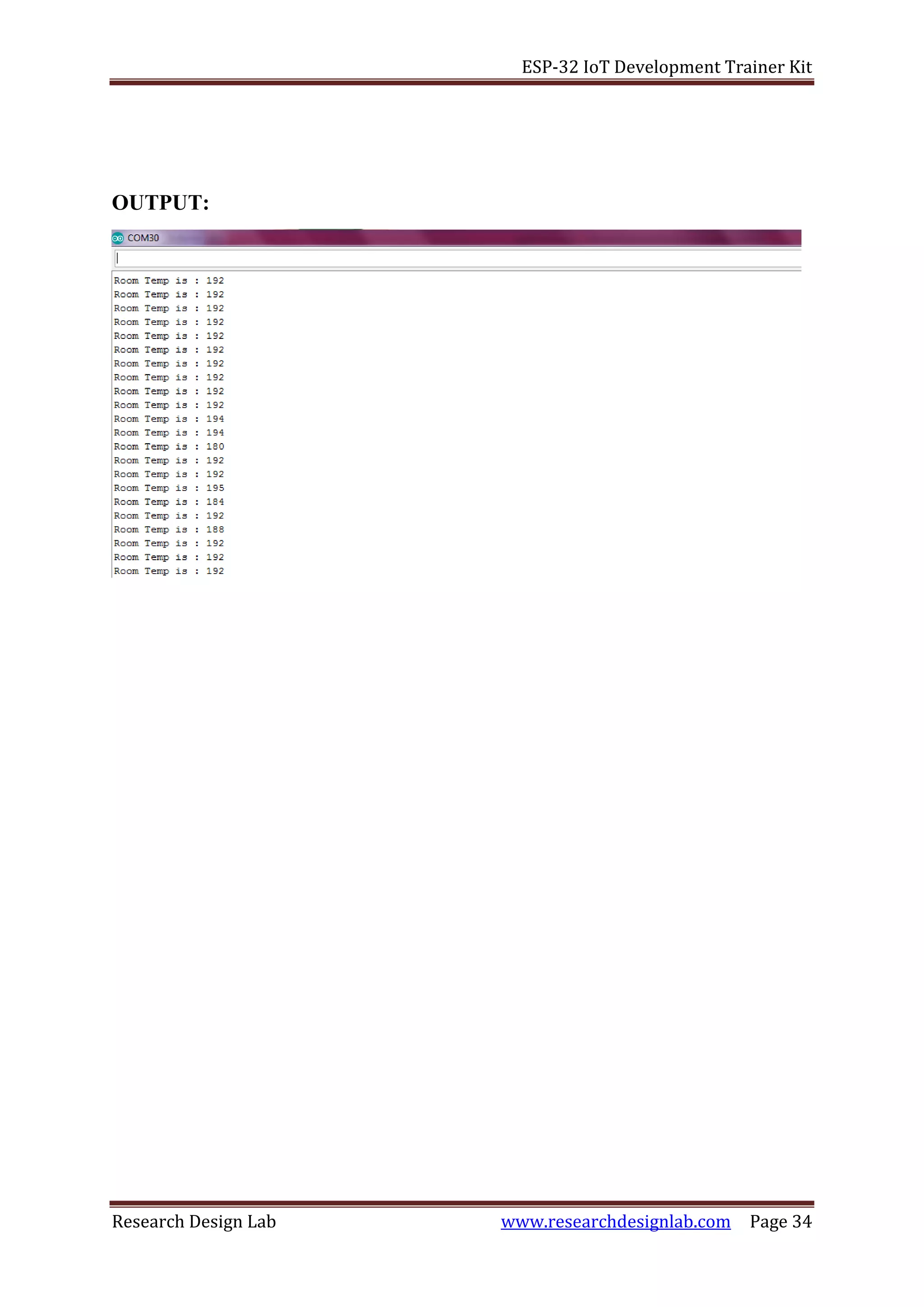
Research Design Lab www.researchdesignlab.com Page 34
OUTPUT:
ESP-32 IoT Development Trainer Kit
Research Design Lab www.researchdesignlab.com Page 35
EXPERIMENT NO 12
IR(Infrared) SENSOR
Aim:
To extract information from IR sensor.
Description:
To learn how to read values from an IR sensor using ESP32-Microcontroller.
Hardware required:
ESP32-Microcontroller Development board
PIR sensor
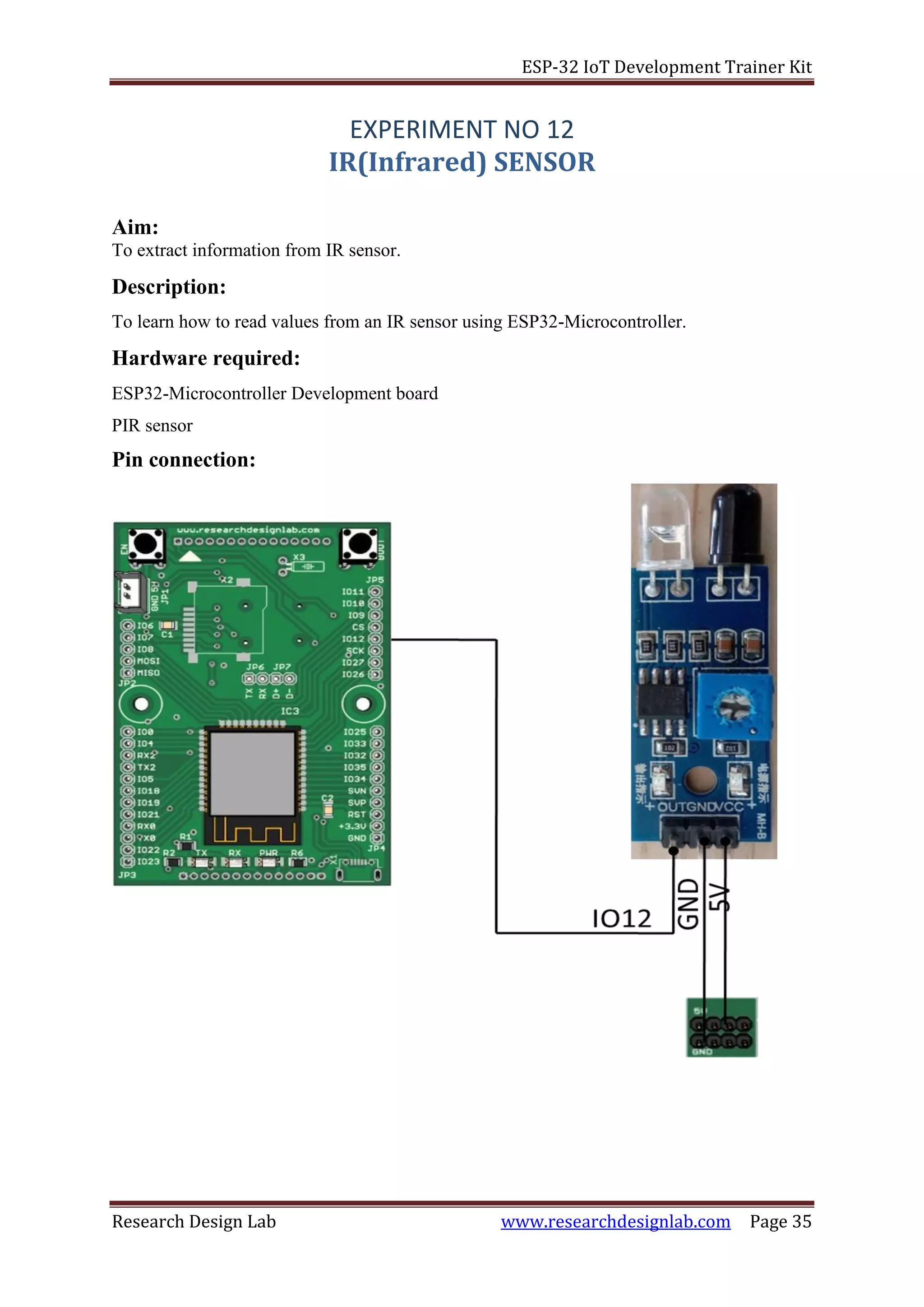
Pin connection:
ESP-32 IoT Development Trainer Kit
Research Design Lab www.researchdesignlab.com Page 36
Pin Mapping:
IR SENSOR ESP32
5V 5V
GND GND
A/O IO12
Procedure:
1. The above pin connection shows how to read values from a IR sensor using ESP32
board.
2. Do the connections as shown in the pin diagram and pin mapping.
3. Connect the USB cable to the board.
4. Open Arduino IDE .Select DOIT ESP32 DEVKIT V1 in boards and select COM port.
5. Verify the program and upload it.
6. Now you can see the output on the serial monitor.
Program:
/* the setup function runs once when you press reset or power the board */
void setup(void)
{
/* initialize digital pin 12 as an input */
pinMode(12,INPUT);
Serial.begin(9600);
}
/* the loop function runs over and over again forever */
void loop(void)
{
int value=digitalRead(12);
if(digitalRead(12)==HIGH)
{
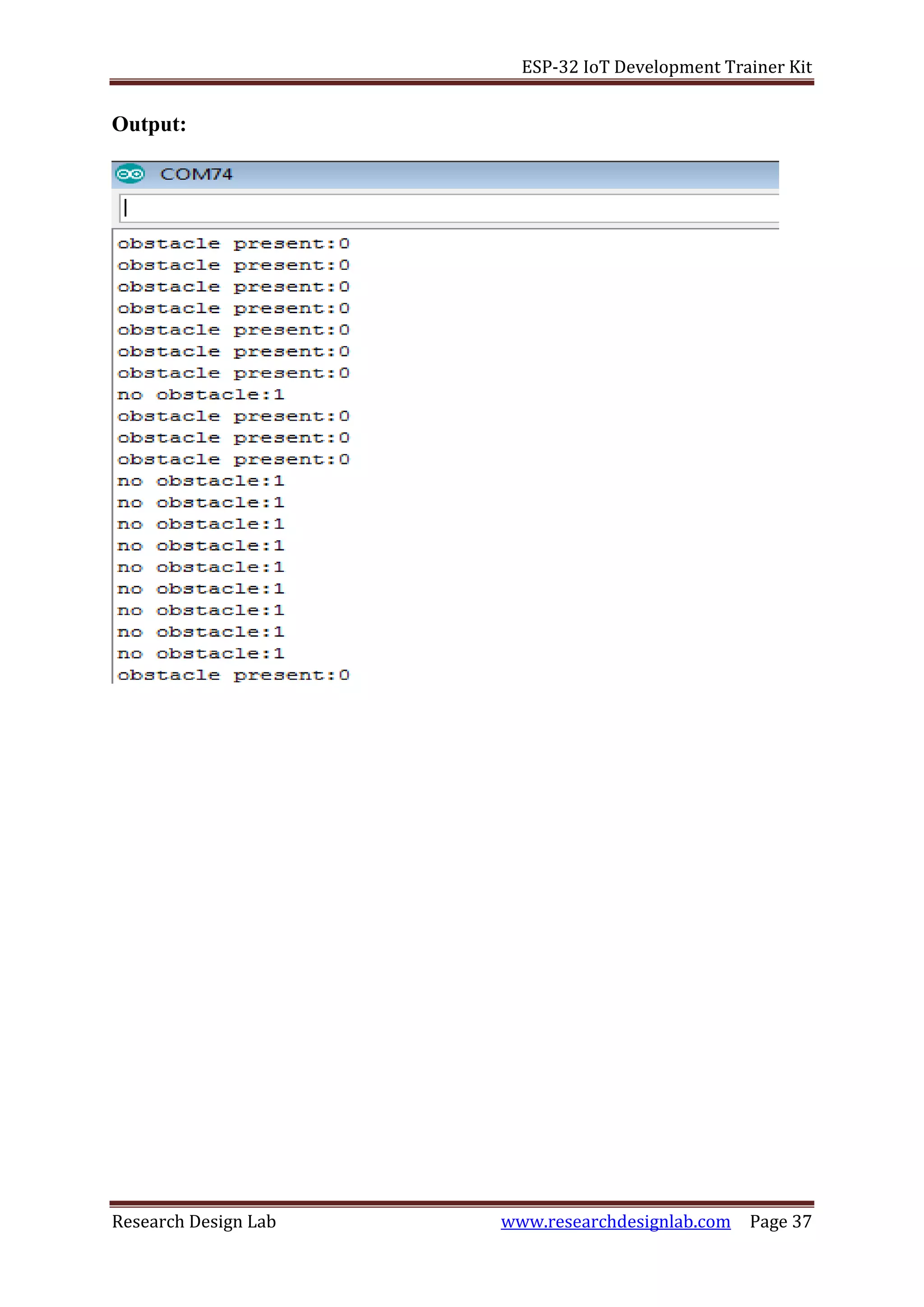
Serial.print("no obstacle:");
Serial.println(value);
delay(1000);
}
else if(digitalRead(12)==LOW)
{
Serial.print("obstacle present:");
Serial.println(value);
delay(1000);
}
}
ESP-32 IoT Development Trainer Kit
Research Design Lab www.researchdesignlab.com Page 37
Output:
ESP-32 IoT Development Trainer Kit
Research Design Lab www.researchdesignlab.com Page 38
EXPERIMENT NO 13
MQTT
Aim:
To interface Wi-Fi module with ESP32 to receive data from cloud using RDL ESP32
Development board.
Description:
Interfacing wi-fi module with the cloud MQTT to receive and send data using esP32
microcontroller.
Hardware required:
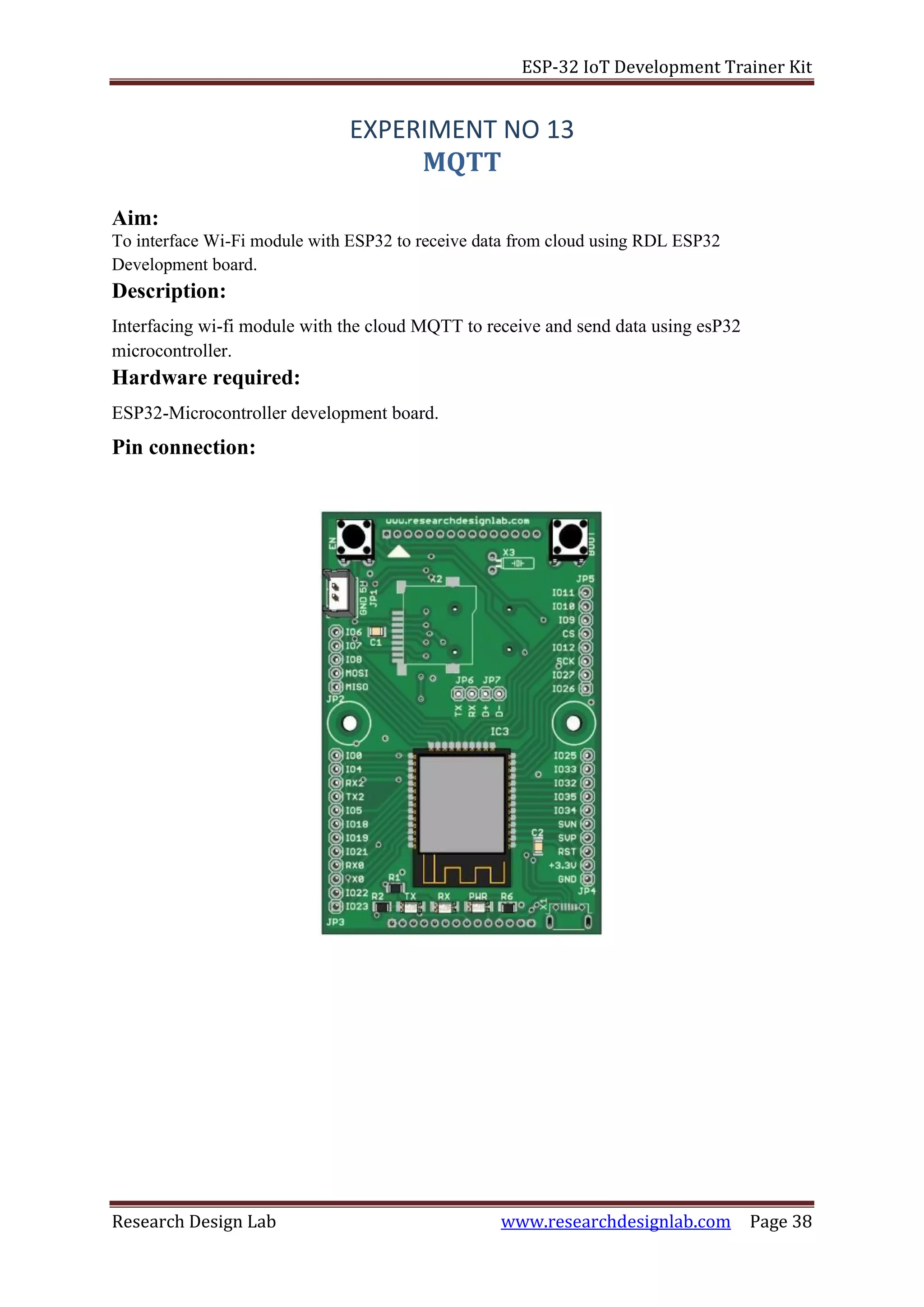
ESP32-Microcontroller development board.
Pin connection:
ESP-32 IoT Development Trainer Kit
Research Design Lab www.researchdesignlab.com Page 39
Procedure:
Uploading and Receiving Data from Cloud using ESP32
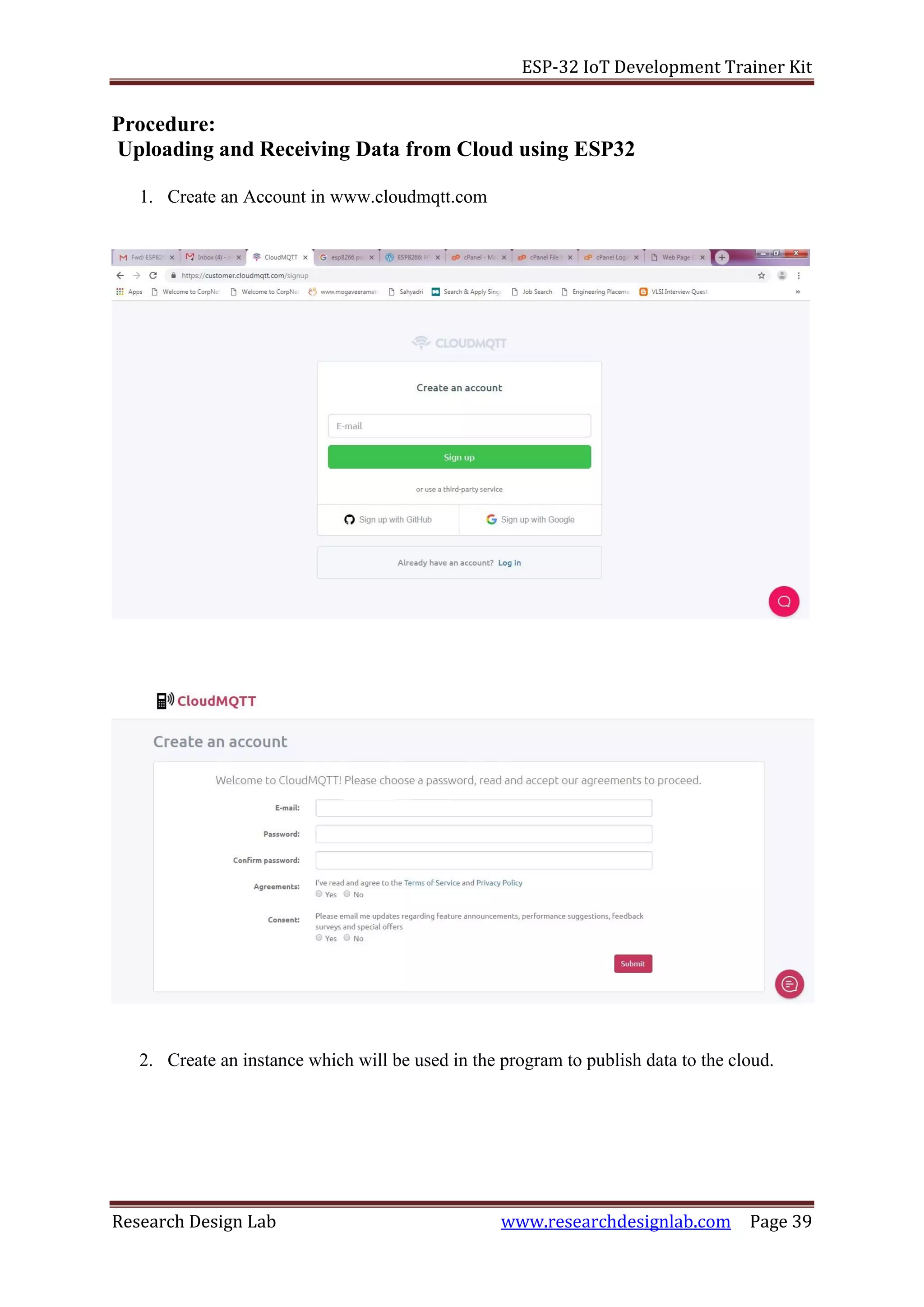
1. Create an Account in www.cloudmqtt.com
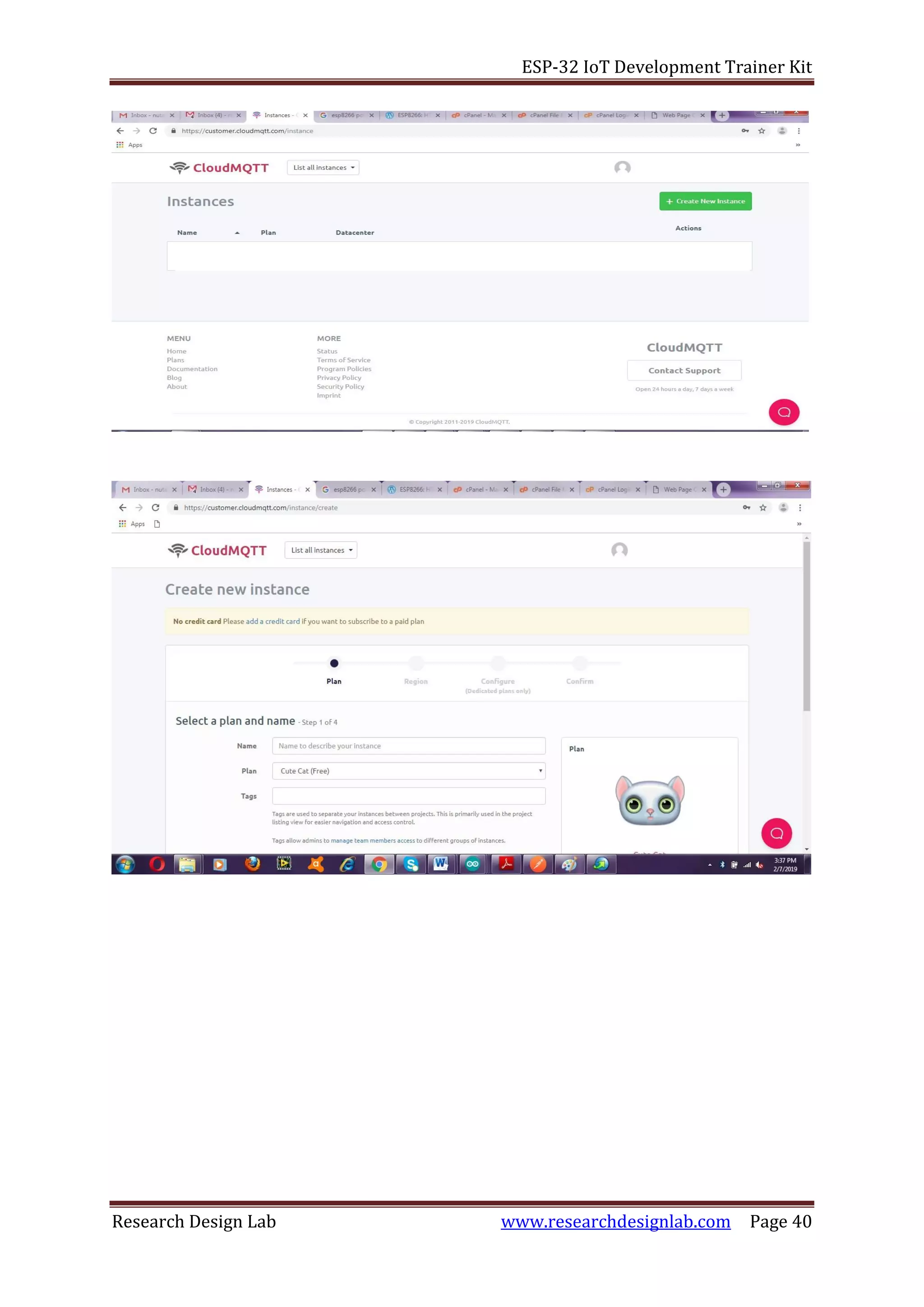
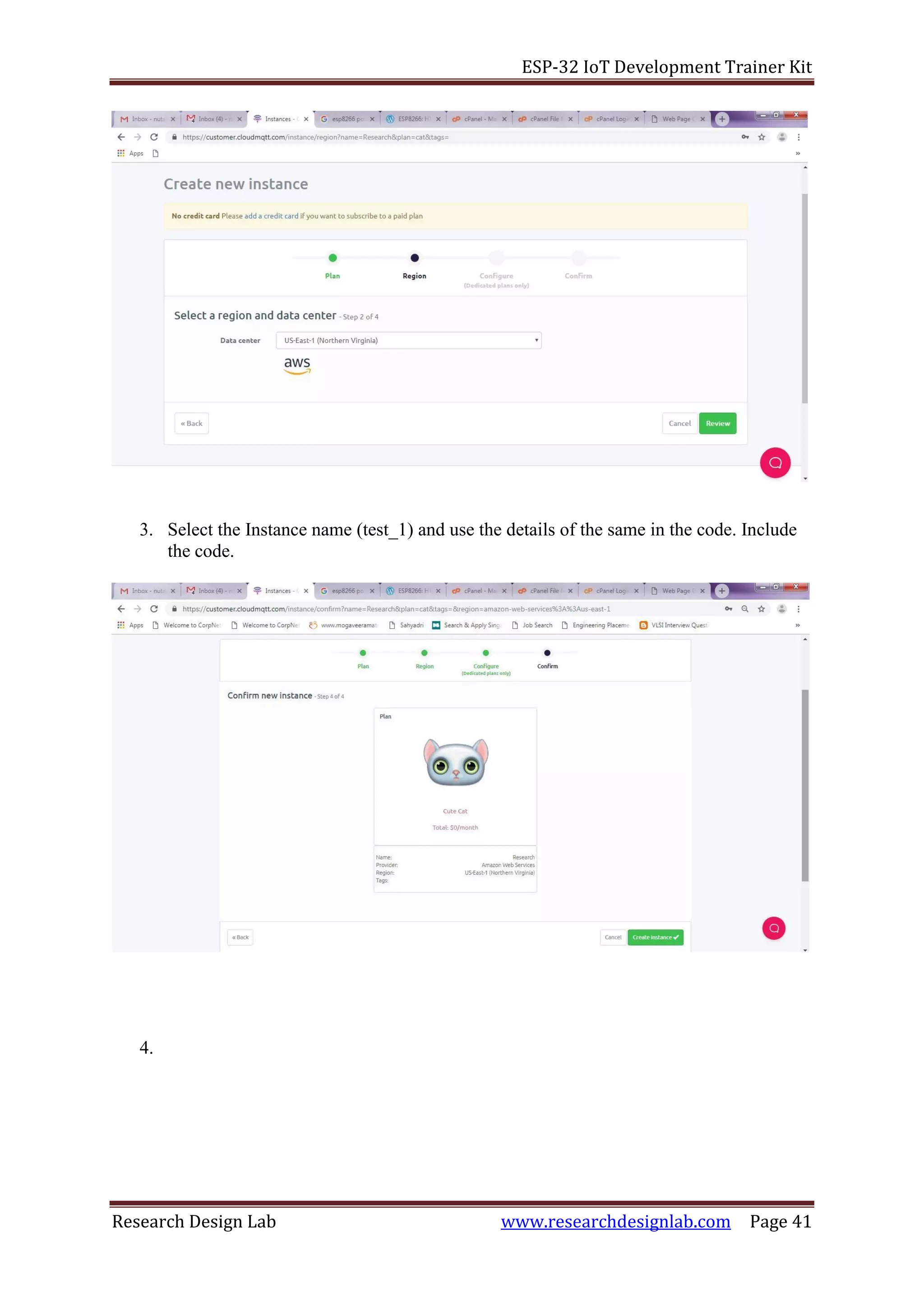
2. Create an instance which will be used in the program to publish data to the cloud.
ESP-32 IoT Development Trainer Kit
Research Design Lab www.researchdesignlab.com Page 40
ESP-32 IoT Development Trainer Kit
Research Design Lab www.researchdesignlab.com Page 41
3. Select the Instance name (test_1) and use the details of the same in the code. Include
the code.
4.
ESP-32 IoT Development Trainer Kit
Research Design Lab www.researchdesignlab.com Page 42
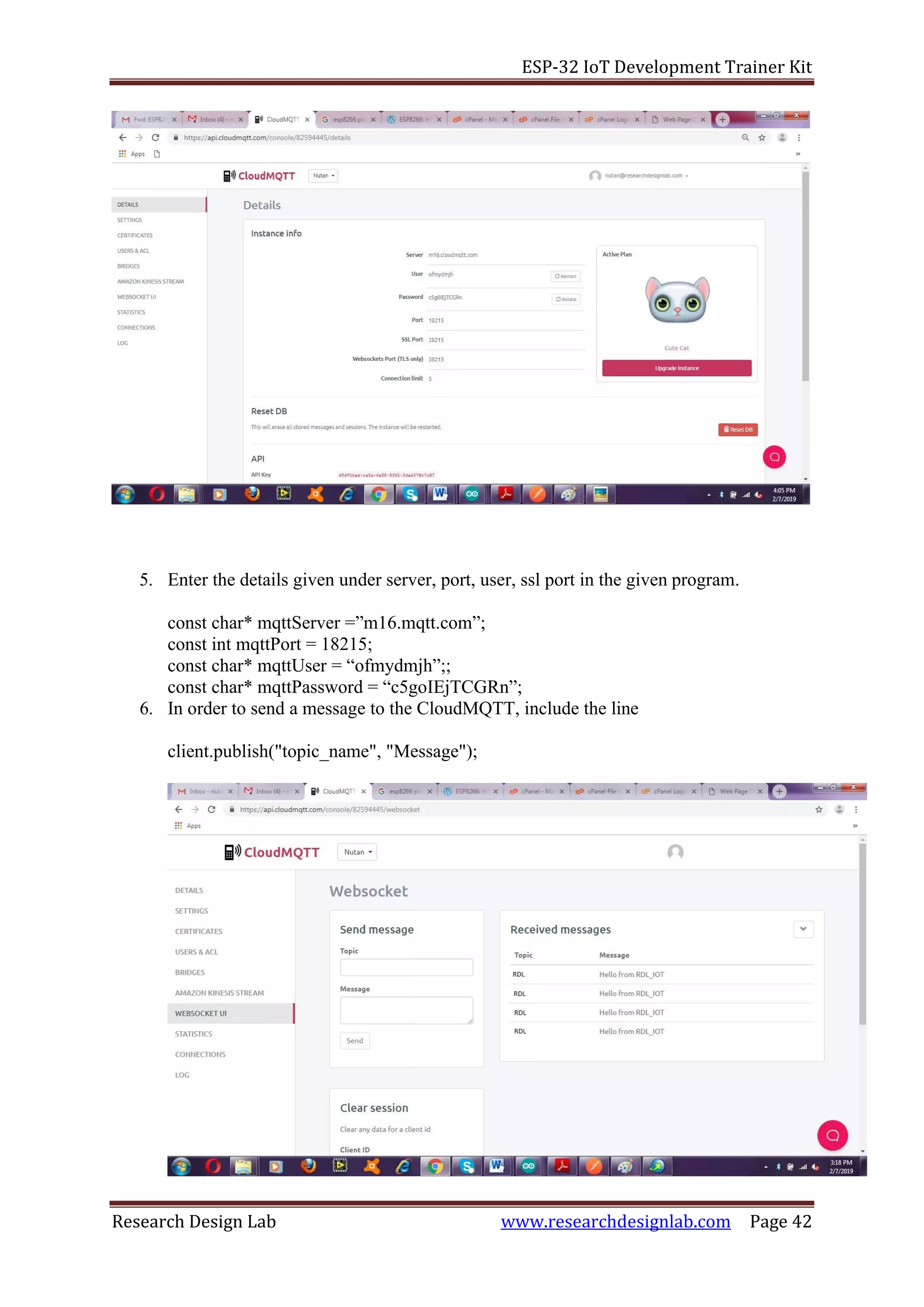
5. Enter the details given under server, port, user, ssl port in the given program.
const char* mqttServer =”m16.mqtt.com”;
const int mqttPort = 18215;
const char* mqttUser = “ofmydmjh”;;
const char* mqttPassword = “c5goIEjTCGRn”;
6. In order to send a message to the CloudMQTT, include the line
client.publish("topic_name", "Message");
ESP-32 IoT Development Trainer Kit
Research Design Lab www.researchdesignlab.com Page 43
7. To send data from CloudMQTT ,include the line client.subscribe("Topic_name");
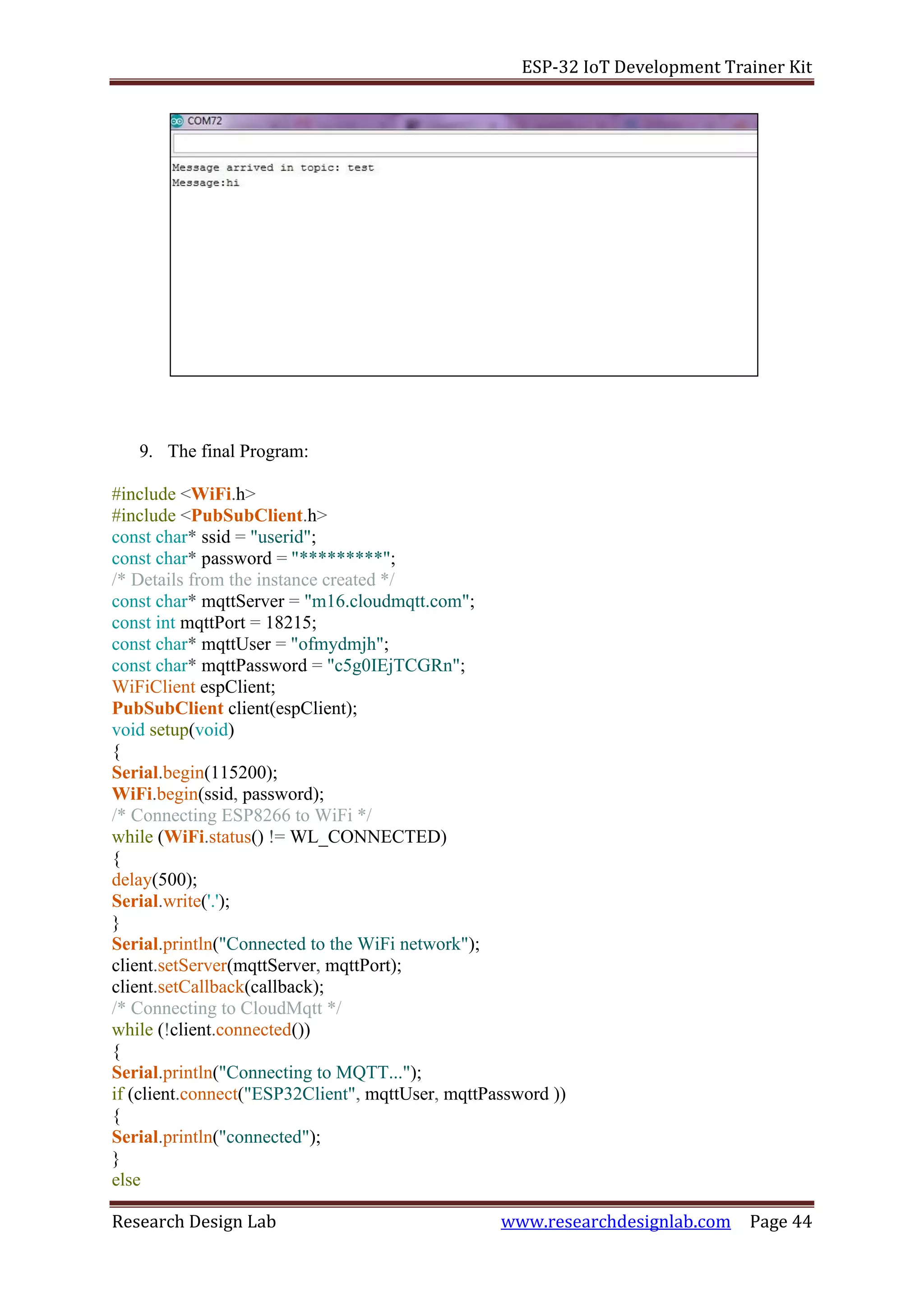
8. The following code prints the received data from the cloud in the Serial Monitor
void callback(char* topic, byte* payload, unsigned int length)
{
uint8_t s;
Serial.print("Message arrived in topic: ");
Serial.println(topic);
Serial.print("Message:");
for (int i = 0; i < length; i++)
{
s= payload[i];
Serial.write(s);
}
}
ESP-32 IoT Development Trainer Kit
Research Design Lab www.researchdesignlab.com Page 44
9. The final Program:
#include <WiFi.h>
#include <PubSubClient.h>
const char* ssid = "userid";
const char* password = "*********";
/* Details from the instance created */
const char* mqttServer = "m16.cloudmqtt.com";
const int mqttPort = 18215;
const char* mqttUser = "ofmydmjh";
const char* mqttPassword = "c5g0IEjTCGRn";
WiFiClient espClient;
PubSubClient client(espClient);
void setup(void)
{
Serial.begin(115200);
WiFi.begin(ssid, password);
/* Connecting ESP8266 to WiFi */
while (WiFi.status() != WL_CONNECTED)
{
delay(500);
Serial.write('.');
}
Serial.println("Connected to the WiFi network");
client.setServer(mqttServer, mqttPort);
client.setCallback(callback);
/* Connecting to CloudMqtt */
while (!client.connected())
{
Serial.println("Connecting to MQTT...");
if (client.connect("ESP32Client", mqttUser, mqttPassword ))
{
Serial.println("connected");
}
else
ESP-32 IoT Development Trainer Kit
Research Design Lab www.researchdesignlab.com Page 45
{
Serial.print("failed with state ");
Serial.print(client.state());
delay(2000);
}
}
/* Sending message to Topic "test1" */
client.publish("ABC", "Hello from RDL_IOT");
client.subscribe("test"); //Receives message sent to the topic "test"
}
/* This function is used to print the incoming data sent to the topic "test" */
void callback(char* topic, byte* payload, unsigned int length)
{
uint8_t s;
Serial.print("Message arrived in topic: ");
Serial.println(topic);
Serial.print("Message:");
for (int i = 0; i < length; i++)
{
s= payload[i];
Serial.write(s);
}
}
void loop(void)
{
client.loop();
}
ESP-32 IoT Development Trainer Kit
Research Design Lab www.researchdesignlab.com Page 46
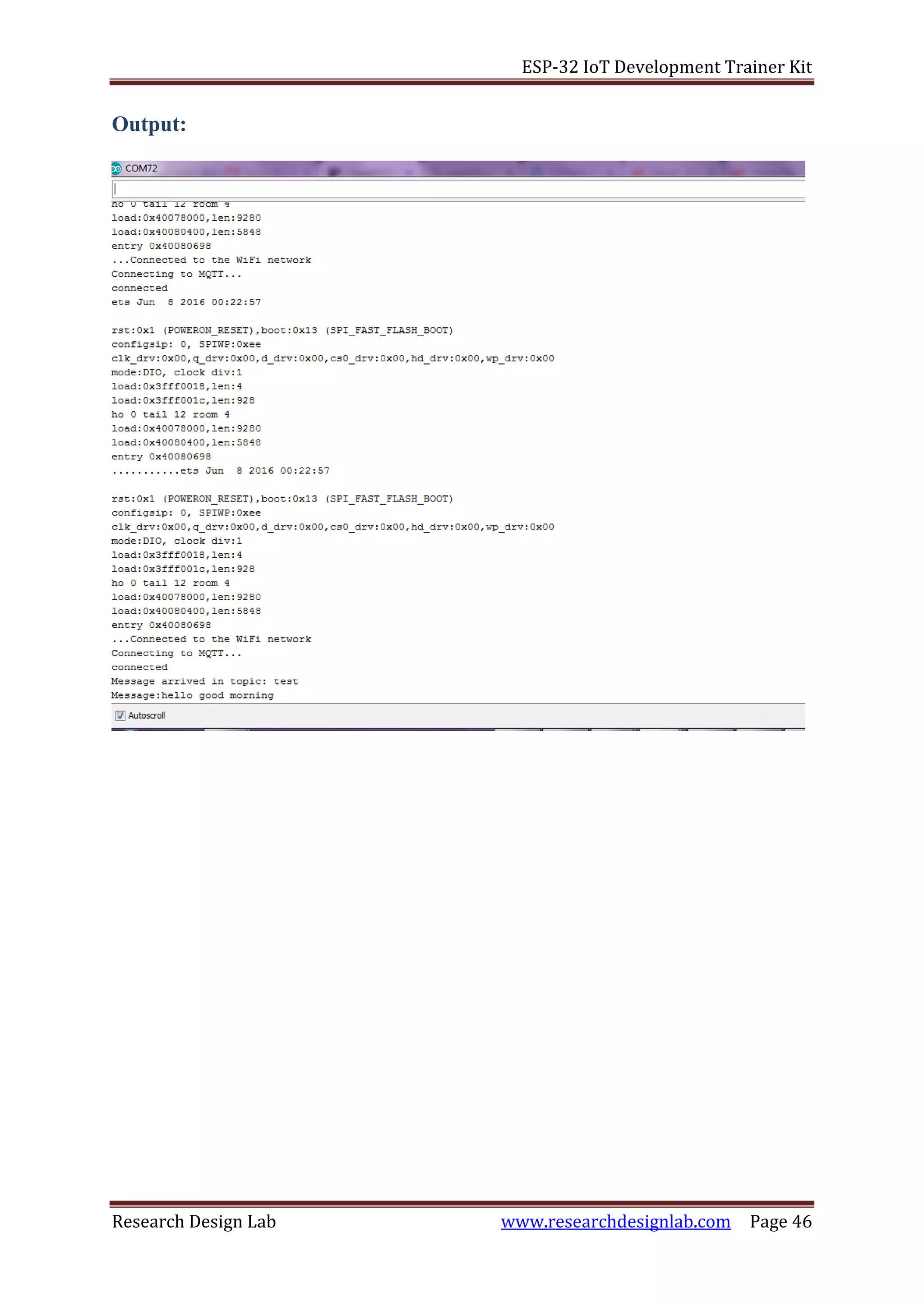
Output:
ESP-32 IoT Development Trainer Kit
Research Design Lab www.researchdesignlab.com Page 47
EXPERIMENT NO 14
JSON
Aim:
To interface Wi-Fi module with ESP32 to send data to server using RDL ESP32 Development
board.
Description:
Interfacing wi-fi module to send data to the server using ESP32microcontroller.
Hardware required:
ESP32-Microcontroller development board.
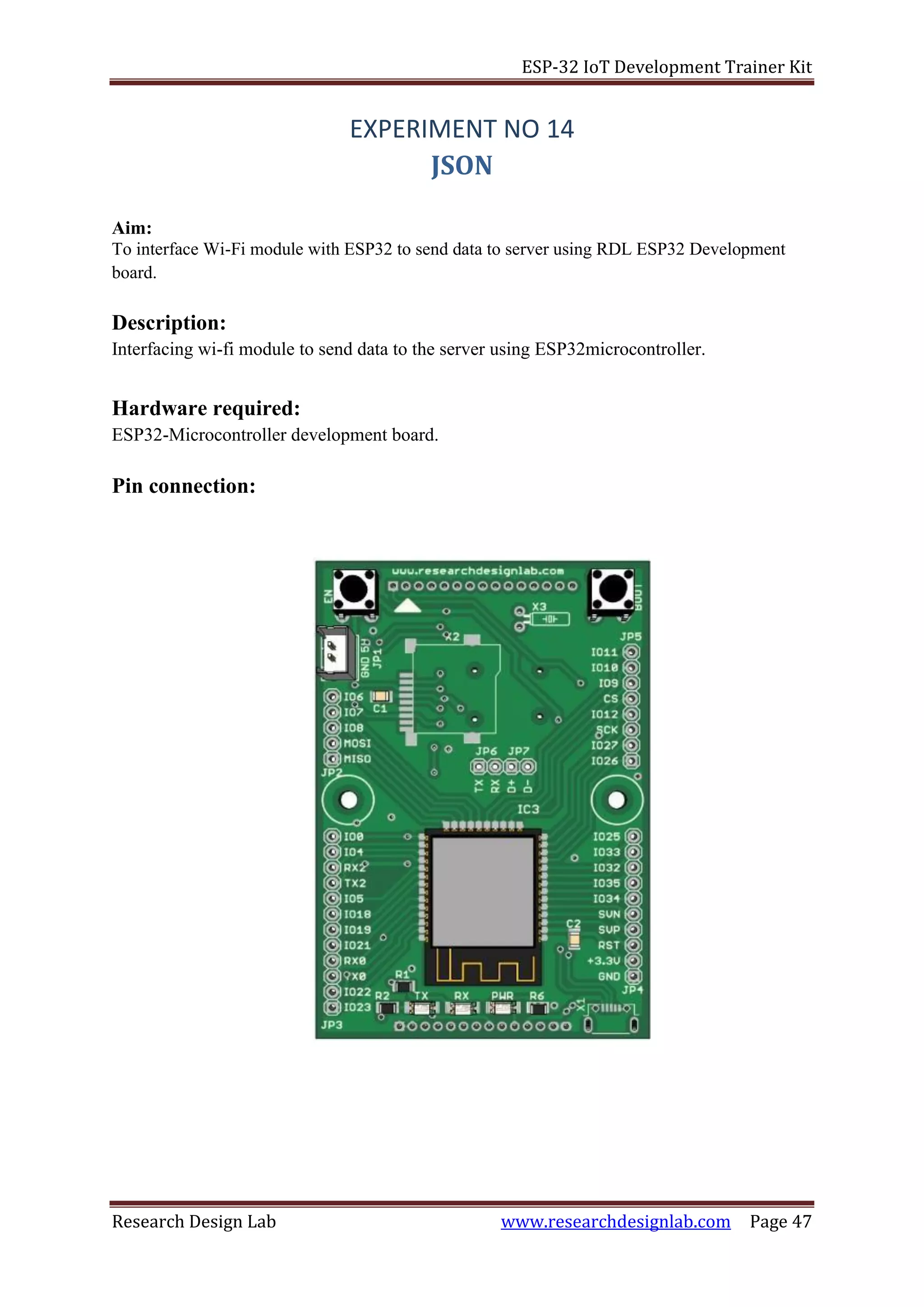
Pin connection:
ESP-32 IoT Development Trainer Kit
Research Design Lab www.researchdesignlab.com Page 48
Procedure:
1. Connect the USB cable to the ESP32 development board.
2. Open Arduino IDE .Select DOIT ESP32 DEVKIT V1in boards and select COM port.
3. Verify the program and upload it.
4. Now you can see wifi connected along with the IP address on the serial monitor.
5. To check the inserted values of gas and temperature use the server address and check
it on the browser.
Program:
/*
* This sketch sends data via HTTP POST requests to data.sparkfun.com
service.
*
* You need to get streamId and privateKey at data.sparkfun.com and paste
them
* below. Or just customize this script to talk to other HTTP servers.
*
*/
#include <WiFi.h>
char ssid[] = "your ssid";
char password[] = "your password";
const char* host = "varmatrix.com";
const char* streamId = "....................";
const char* privateKey = "....................";
//http://varmatrix.com/surendrardl/nitk/getone/insert.php?
WiFiClient esp32client;
void setup() {
Serial.begin(115200);
delay(10);
// We start by connecting to a WiFi network
Serial.println();
Serial.println();
Serial.print("Connecting to ");
Serial.println(ssid);
/* Explicitly set the ESP8266 to be a WiFi-client, otherwise, it by
default,
would try to act as both a client and an access-point and could cause
network-issues with your other WiFi-devices on your WiFi-network. */
//WiFi.mode(WIFI_STA);
WiFi.begin(ssid, password);
while (WiFi.status() != WL_CONNECTED) {
delay(500);
Serial.print(".");
}
Serial.println("");
Serial.println("WiFi connected");
Serial.println("IP address: ");
Serial.println(WiFi.localIP());
}
int value = 0;
ESP-32 IoT Development Trainer Kit
Research Design Lab www.researchdesignlab.com Page 49
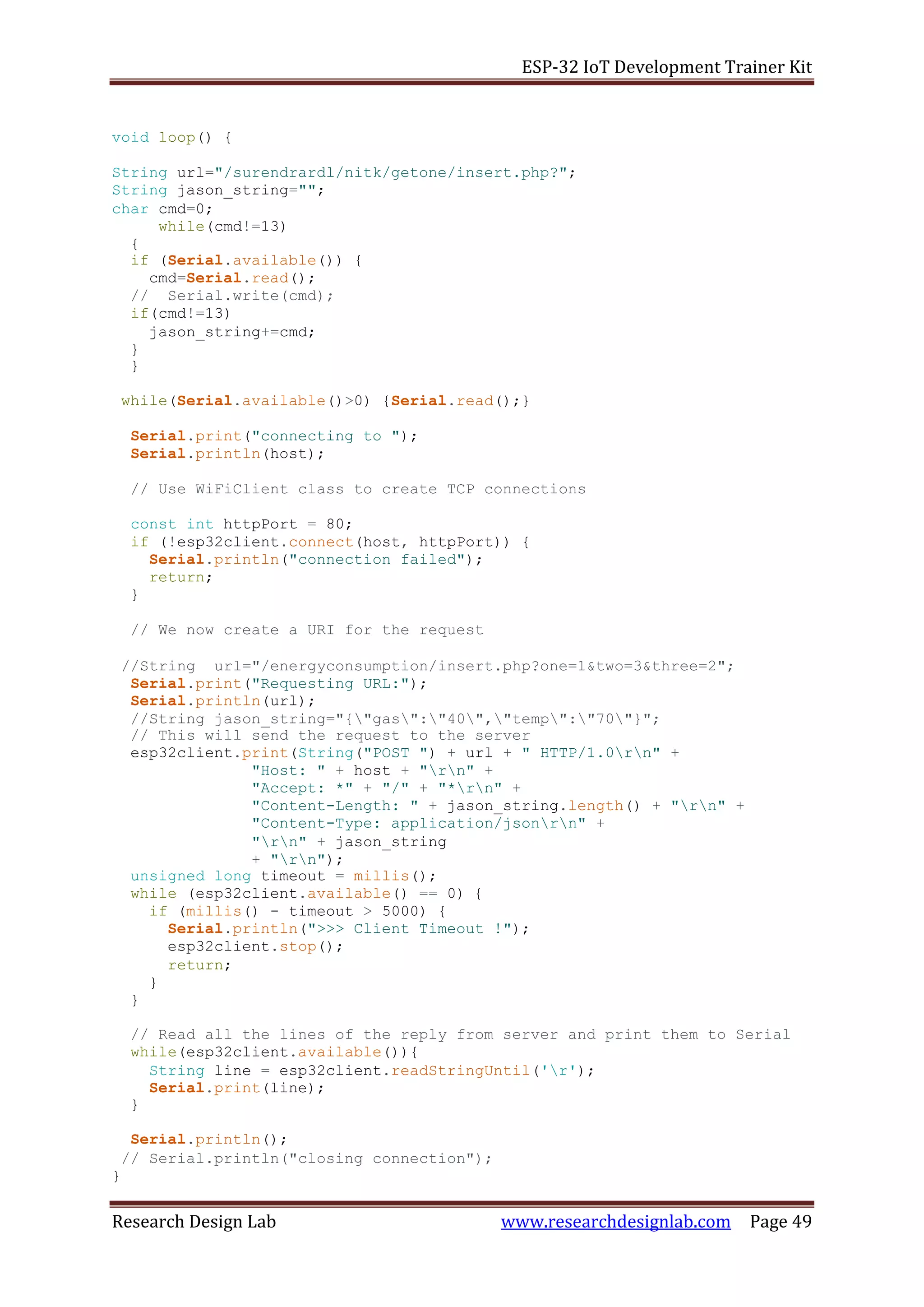
void loop() {
String url="/surendrardl/nitk/getone/insert.php?";
String jason_string="";
char cmd=0;
while(cmd!=13)
{
if (Serial.available()) {
cmd=Serial.read();
// Serial.write(cmd);
if(cmd!=13)
jason_string+=cmd;
}
}
while(Serial.available()>0) {Serial.read();}
Serial.print("connecting to ");
Serial.println(host);
// Use WiFiClient class to create TCP connections
const int httpPort = 80;
if (!esp32client.connect(host, httpPort)) {
Serial.println("connection failed");
return;
}
// We now create a URI for the request
//String url="/energyconsumption/insert.php?one=1&two=3&three=2";
Serial.print("Requesting URL:");
Serial.println(url);
//String jason_string="{"gas":"40","temp":"70"}";
// This will send the request to the server
esp32client.print(String("POST ") + url + " HTTP/1.0rn" +
"Host: " + host + "rn" +
"Accept: *" + "/" + "*rn" +
"Content-Length: " + jason_string.length() + "rn" +
"Content-Type: application/jsonrn" +
"rn" + jason_string
+ "rn");
unsigned long timeout = millis();
while (esp32client.available() == 0) {
if (millis() - timeout > 5000) {
Serial.println(">>> Client Timeout !");
esp32client.stop();
return;
}
}
// Read all the lines of the reply from server and print them to Serial
while(esp32client.available()){
String line = esp32client.readStringUntil('r');
Serial.print(line);
}
Serial.println();
// Serial.println("closing connection");
}
ESP-32 IoT Development Trainer Kit
Research Design Lab www.researchdesignlab.com Page 50
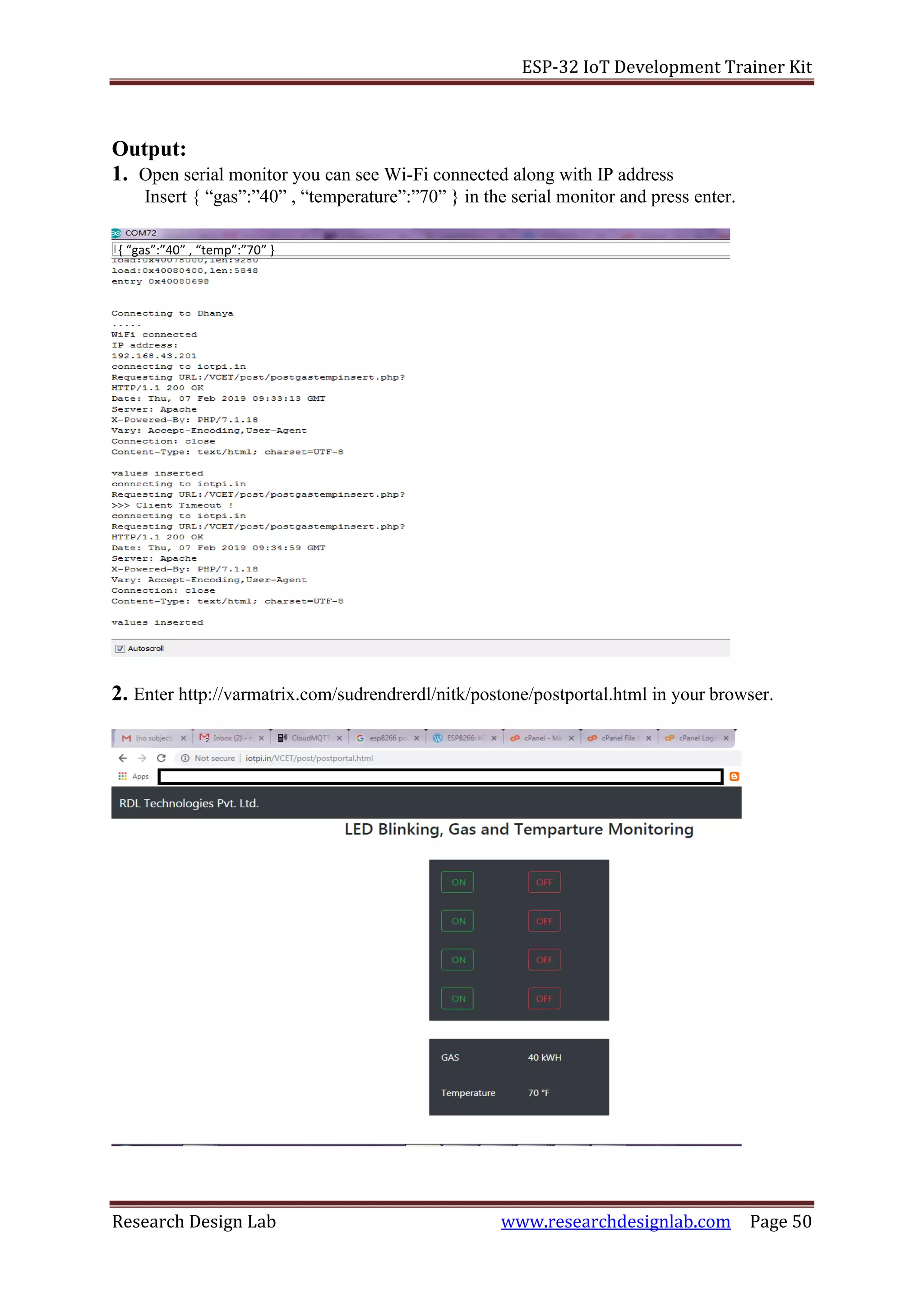
{ “gas”:”40” , “temp”:”70” }
Output:
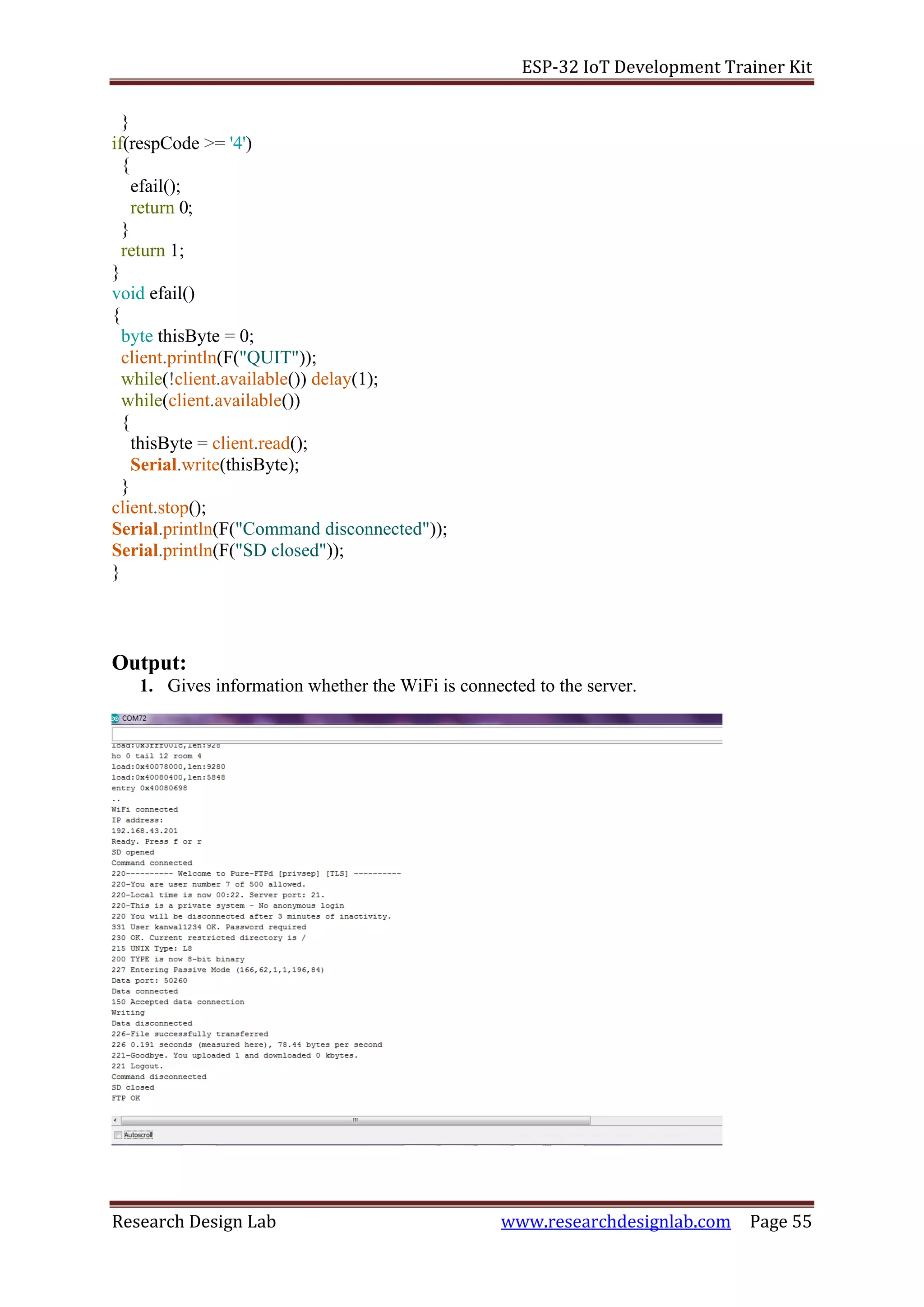
1. Open serial monitor you can see Wi-Fi connected along with IP address
Insert { “gas”:”40” , “temperature”:”70” } in the serial monitor and press enter.
2. Enter http://varmatrix.com/sudrendrerdl/nitk/postone/postportal.html in your browser.
ESP-32 IoT Development Trainer Kit
Research Design Lab www.researchdesignlab.com Page 51
EXPERIMENT NO 15
FTP
Aim:
To interface wifi module and access the data using RDL ESP32 Development board.
Description:
Interfacing wifi module to access the data using ESP32 microcontroller.
Hardware required:
ESP32-Microcontroller Development board.
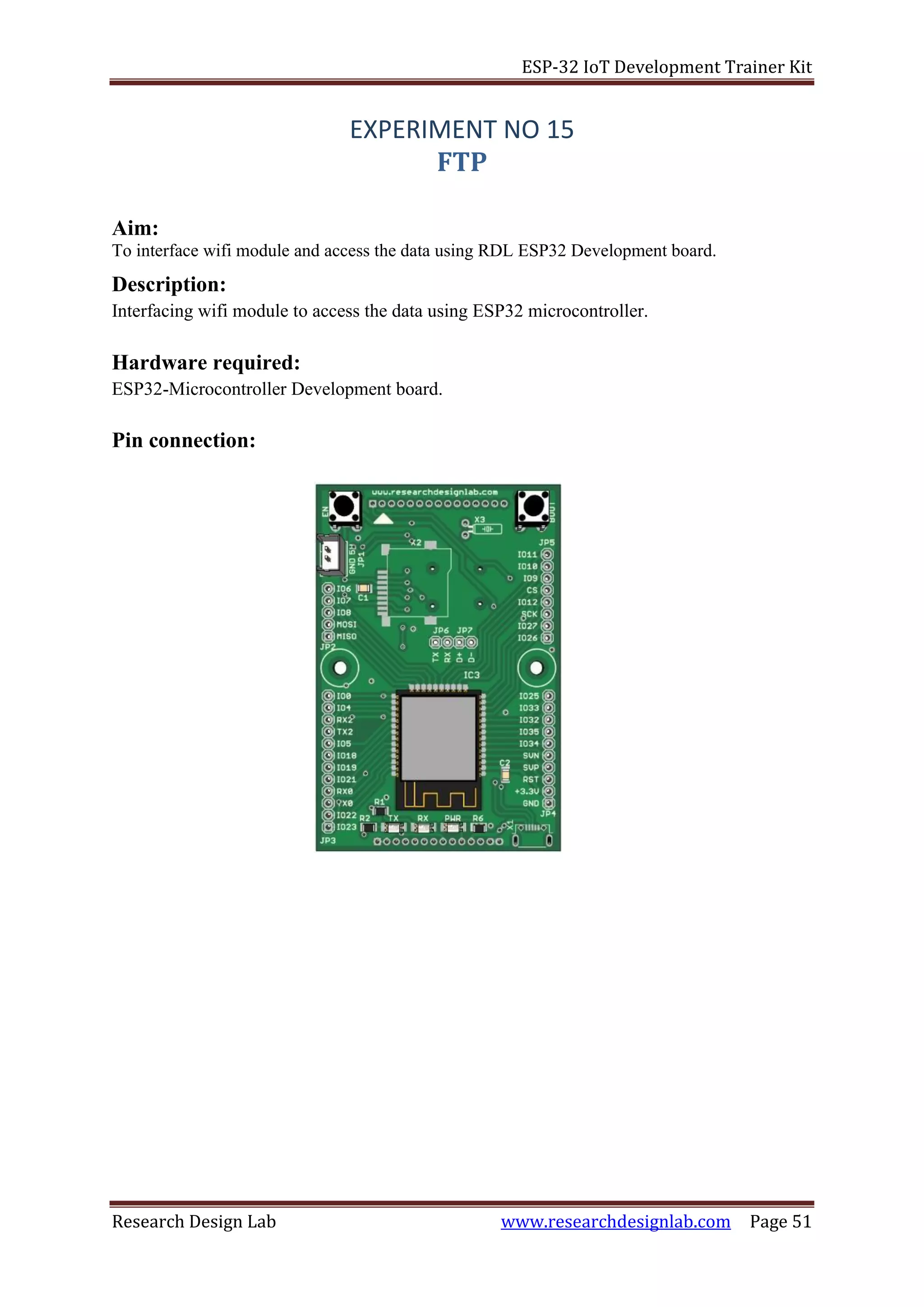
Pin connection:
ESP-32 IoT Development Trainer Kit
Research Design Lab www.researchdesignlab.com Page 52
Program:
#include <SD.h>
#include <SPI.h>
#include <WiFi.h>
/* comment out next line to write to SD from FTP server */
#define FTPWRITE
/* change to your network settings */
const char* ssid = "your username";
const char* password = "your password";
/* ftp server */
char server_link[] = "abcd.xxxxx.com";
byte clientBuf[]="i love my INDIA";
/* size of data string */
int clientCount = sizeof(clientBuf);
/* change to your server */
/* IPAddress server( 1, 2, 3, 4 ); */
WiFiClient client;
WiFiClient dclient;
char outBuf[128];
char outCount;
/* change fileName to your file (8.3 format!) */
char fileName[13] = "rdl.txt";
void setup(void)
{
Serial.begin(115200);
WiFi.mode(WIFI_STA);
WiFi.begin(ssid, password);
while (WiFi.status() != WL_CONNECTED)
{
delay(500);
Serial.print(".");
}
Serial.println("");
Serial.println("WiFi connected");
Serial.println("IP address: ");
Serial.println(WiFi.localIP());
Serial.println(F("Ready. Press f or r"));
}
void loop(void)
{
byte inChar;
inChar = Serial.read();
if(inChar == 'f')
{
if(doFTP()) Serial.println(F("FTP OK"));
else Serial.println(F("FTP FAIL"));
}
}
ESP-32 IoT Development Trainer Kit
Research Design Lab www.researchdesignlab.com Page 53
byte doFTP()
{
Serial.println(F("SD opened"));
if (client.connect(server_link,21)) {
Serial.println(F("Command connected"));
}
else
{
Serial.println(F("Command connection failed"));
return 0;
}
if(!eRcv()) return 0;
/* ftp username */
client.println(F("USER xxxxxxx"));
if(!eRcv()) return 0;
/* ftp password */
client.println(F("PASS xxxx@13xx5"));
if(!eRcv()) return 0;
client.println(F("SYST"));
if(!eRcv()) return 0;
client.println(F("Type I"));
if(!eRcv()) return 0;
client.println(F("PASV"));
if(!eRcv()) return 0;
char *tStr = strtok(outBuf,"(,");
int array_pasv[6];
for ( int i = 0; i < 6; i++) {
tStr = strtok(NULL,"(,");
array_pasv[i] = atoi(tStr);
if(tStr == NULL)
{
Serial.println(F("Bad PASV Answer"));
}
}
unsigned int hiPort,loPort;
hiPort = array_pasv[4] << 8;
loPort = array_pasv[5] & 255;
Serial.print(F("Data port: "));
hiPort = hiPort | loPort;
Serial.println(hiPort);
if (dclient.connect(server_link,hiPort)) {
Serial.println(F("Data connected"));
}
else {
Serial.println(F("Data connection failed"));
client.stop();
return 0;
}
#ifdef FTPWRITE
client.print(F("STOR "));
ESP-32 IoT Development Trainer Kit
Research Design Lab www.researchdesignlab.com Page 54
client.println(fileName);
#else
client.print(F("RETR "));
client.println(fileName);
#endif
if(!eRcv())
{
dclient.stop();
return 0;
}
#ifdef FTPWRITE
Serial.println(F("Writing"));
if(clientCount > 0) dclient.write(clientBuf,clientCount);
#else
while(dclient.connected())
{
while(dclient.available())
{
char c = dclient.read();
Serial.write(c);
}
}
#endif
dclient.stop();
Serial.println(F("Data disconnected"));
if(!eRcv()) return 0;
client.println(F("QUIT"));
if(!eRcv()) return 0;
client.stop();
Serial.println(F("Command disconnected"));
Serial.println(F("SD closed"));
return 1;
}
byte eRcv()
{
byte respCode;
byte thisByte;
while(!client.available()) delay(1);
respCode = client.peek();
outCount = 0;
while(client.available())
{
thisByte = client.read();
Serial.write(thisByte);
if(outCount < 127)
{
outBuf[outCount] = thisByte;
outCount++;
outBuf[outCount] = 0;
}
ESP-32 IoT Development Trainer Kit
Research Design Lab www.researchdesignlab.com Page 55
}
if(respCode >= '4')
{
efail();
return 0;
}
return 1;
}
void efail()
{
byte thisByte = 0;
client.println(F("QUIT"));
while(!client.available()) delay(1);
while(client.available())
{
thisByte = client.read();
Serial.write(thisByte);
}
client.stop();
Serial.println(F("Command disconnected"));
Serial.println(F("SD closed"));
}
Output:
1. Gives information whether the WiFi is connected to the server.
ESP-32 IoT Development Trainer Kit
Research Design Lab www.researchdesignlab.com Page 56
abcd.xxx.com
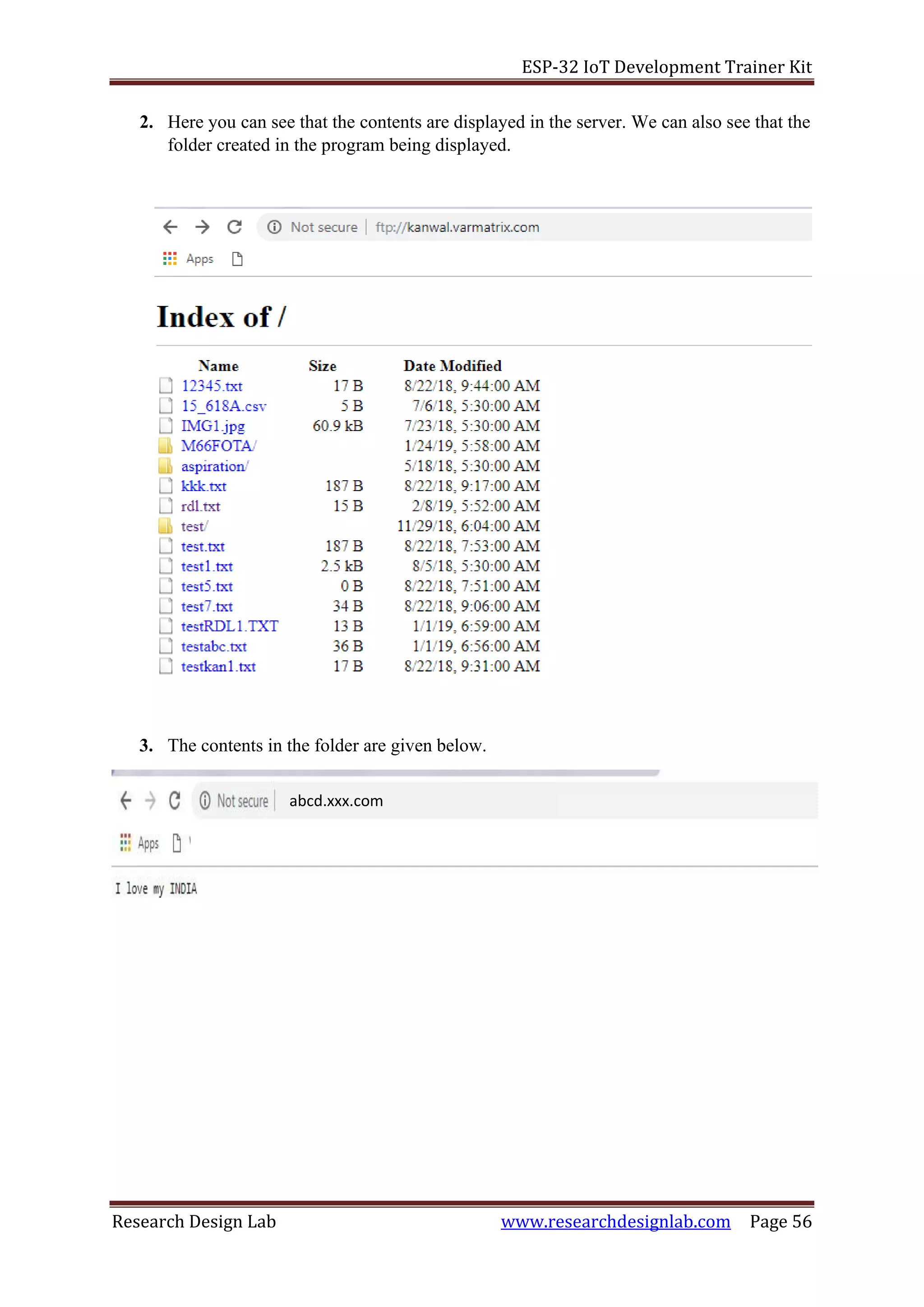
2. Here you can see that the contents are displayed in the server. We can also see that the
folder created in the program being displayed.
3. The contents in the folder are given below.
ESP-32 IoT Development Trainer Kit
Research Design Lab www.researchdesignlab.com Page 57
EXPERIMENT NO 16
OTA (Over the air) programming
Aim:
Turn ON and OFF an LED after Particular delay using OTA web server
Description:
To learn how to connect LED to digital pins of an ESP32 Microcontroller and program to
blink an LED using OTA web server.
Hardware required:
ESP32-Microcontroller development board.
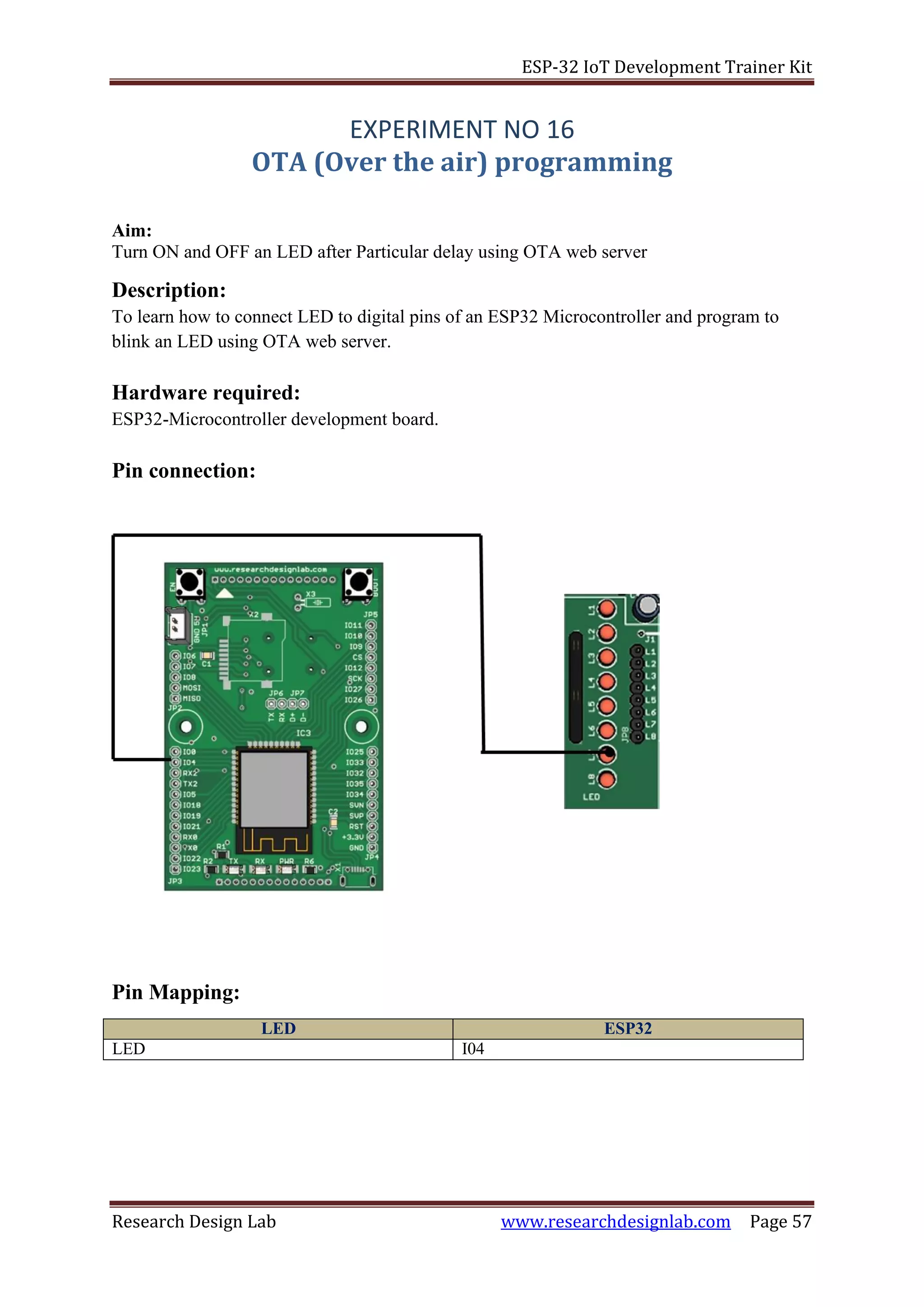
Pin connection:
Pin Mapping:
LED ESP32
LED I04
ESP-32 IoT Development Trainer Kit
Research Design Lab www.researchdesignlab.com Page 58
Procedure:
1. When you install the ESP32 add-on for the Arduino IDE, it will automatically install
the Arduino OTA library.
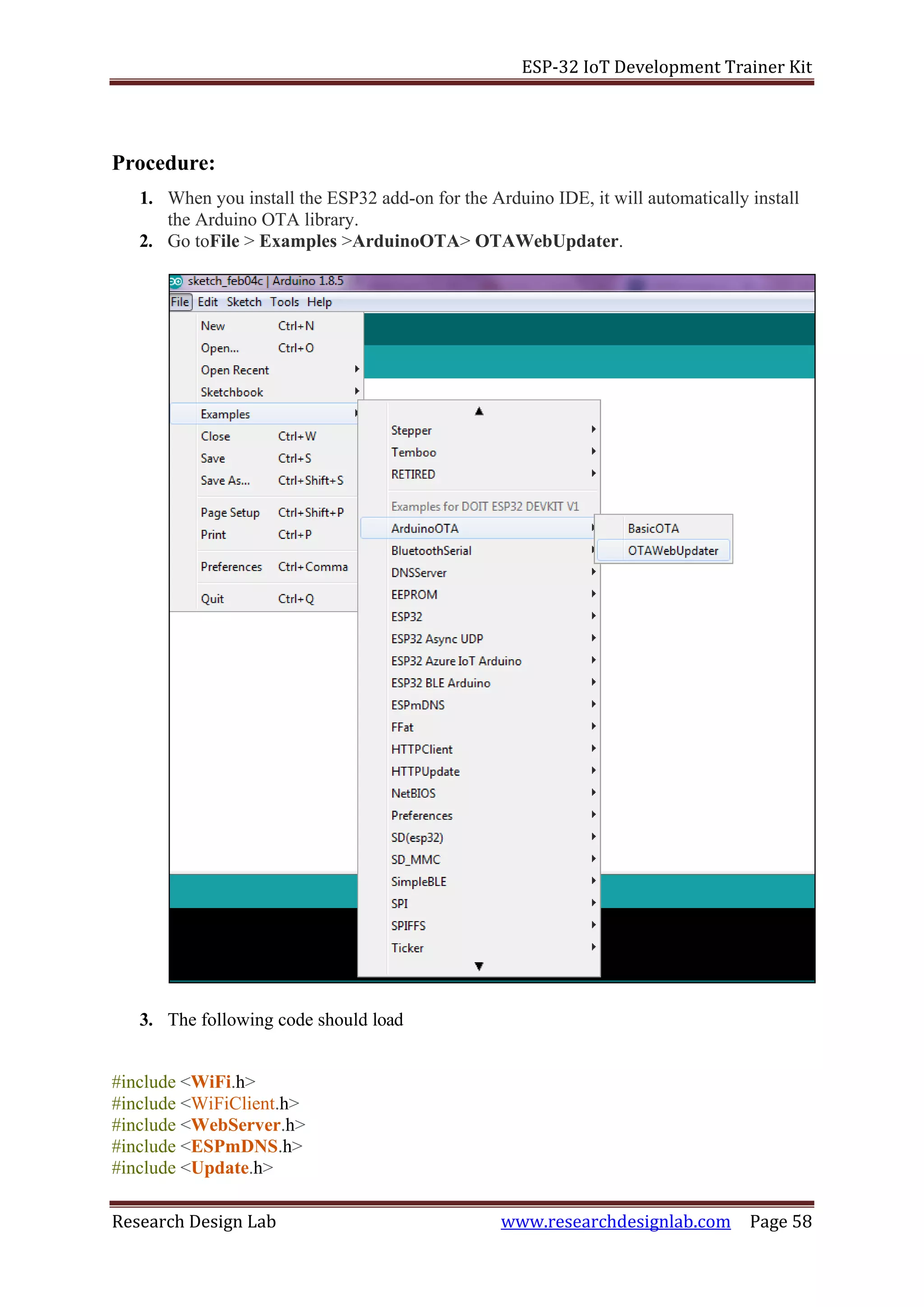
2. Go toFile > Examples >ArduinoOTA> OTAWebUpdater.
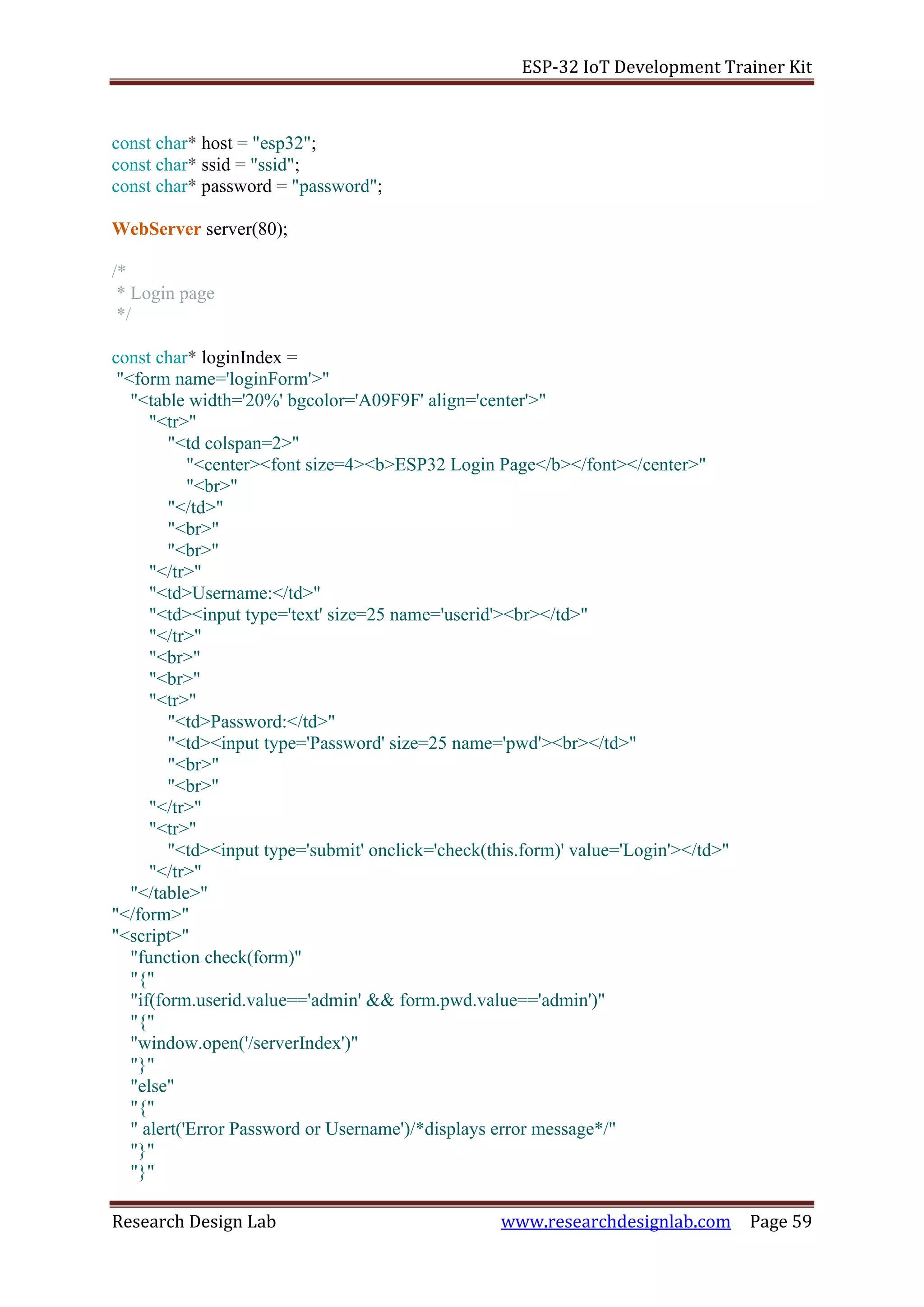
3. The following code should load
#include <WiFi.h>
#include <WiFiClient.h>
#include <WebServer.h>
#include <ESPmDNS.h>
#include <Update.h>
ESP-32 IoT Development Trainer Kit
Research Design Lab www.researchdesignlab.com Page 59
const char* host = "esp32";
const char* ssid = "ssid";
const char* password = "password";
WebServer server(80);
/*
* Login page
*/
const char* loginIndex =
"<form name='loginForm'>"
"<table width='20%' bgcolor='A09F9F' align='center'>"
"<tr>"
"<td colspan=2>"
"<center><font size=4><b>ESP32 Login Page</b></font></center>"
"<br>"
"</td>"
"<br>"
"<br>"
"</tr>"
"<td>Username:</td>"
"<td><input type='text' size=25 name='userid'><br></td>"
"</tr>"
"<br>"
"<br>"
"<tr>"
"<td>Password:</td>"
"<td><input type='Password' size=25 name='pwd'><br></td>"
"<br>"
"<br>"
"</tr>"
"<tr>"
"<td><input type='submit' onclick='check(this.form)' value='Login'></td>"
"</tr>"
"</table>"
"</form>"
"<script>"
"function check(form)"
"{"
"if(form.userid.value=='admin' && form.pwd.value=='admin')"
"{"
"window.open('/serverIndex')"
"}"
"else"
"{"
" alert('Error Password or Username')/*displays error message*/"
"}"
"}"
ESP-32 IoT Development Trainer Kit
Research Design Lab www.researchdesignlab.com Page 60
"</script>";
/*
* Server Index Page
*/
const char* serverIndex =
"<script src='https://ajax.googleapis.com/ajax/libs/jquery/3.2.1/jquery.min.js'></script>"
"<form method='POST' action='#' enctype='multipart/form-data' id='upload_form'>"
"<input type='file' name='update'>"
"<input type='submit' value='Update'>"
"</form>"
"<div id='prg'>progress: 0%</div>"
"<script>"
"$('form').submit(function(e){"
"e.preventDefault();"
"var form = $('#upload_form')[0];"
"var data = new FormData(form);"
" $.ajax({"
"url: '/update',"
"type: 'POST',"
"data: data,"
"contentType: false,"
"processData:false,"
"xhr: function() {"
"var xhr = new window.XMLHttpRequest();"
"xhr.upload.addEventListener('progress', function(evt) {"
"if (evt.lengthComputable) {"
"var per = evt.loaded / evt.total;"
"$('#prg').html('progress: ' + Math.round(per*100) + '%');"
"}"
"}, false);"
"return xhr;"
"},"
"success:function(d, s) {"
"console.log('success!')"
"},"
"error: function (a, b, c) {"
"}"
"});"
"});"
"</script>";
/*
* setup function
*/
void setup(void) {
Serial.begin(115200);
// Connect to WiFi network
ESP-32 IoT Development Trainer Kit
Research Design Lab www.researchdesignlab.com Page 61
WiFi.begin(ssid, password);
Serial.println("");
// Wait for connection
while (WiFi.status() != WL_CONNECTED) {
delay(500);
Serial.print(".");
}
Serial.println("");
Serial.print("Connected to ");
Serial.println(ssid);
Serial.print("IP address: ");
Serial.println(WiFi.localIP());
/*use mdns for host name resolution*/
if (!MDNS.begin(host)) { //http://esp32.local
Serial.println("Error setting up MDNS responder!");
while (1) {
delay(1000);
}
}
Serial.println("mDNS responder started");
/*return index page which is stored in serverIndex */
server.on("/", HTTP_GET, []() {
server.sendHeader("Connection", "close");
server.send(200, "text/html", loginIndex);
});
server.on("/serverIndex", HTTP_GET, []() {
server.sendHeader("Connection", "close");
server.send(200, "text/html", serverIndex);
});
/*handling uploading firmware file */
server.on("/update", HTTP_POST, []() {
server.sendHeader("Connection", "close");
server.send(200, "text/plain", (Update.hasError()) ? "FAIL" : "OK");
ESP.restart();
}, []() {
HTTPUpload& upload = server.upload();
if (upload.status == UPLOAD_FILE_START) {
Serial.printf("Update: %sn", upload.filename.c_str());
if (!Update.begin(UPDATE_SIZE_UNKNOWN)) { //start with max available size
Update.printError(Serial);
}
} else if (upload.status == UPLOAD_FILE_WRITE) {
/* flashing firmware to ESP*/
if (Update.write(upload.buf, upload.currentSize) != upload.currentSize) {
Update.printError(Serial);
}
} else if (upload.status == UPLOAD_FILE_END) {
if (Update.end(true)) { //true to set the size to the current progress
ESP-32 IoT Development Trainer Kit
Research Design Lab www.researchdesignlab.com Page 62
Serial.printf("Update Success: %unRebooting...n", upload.totalSize);
} else {
Update.printError(Serial);
}
}
});
server.begin();
}
void loop(void) {
server.handleClient();
delay(1);
}
4. You should change the following lines on the code to include your own network
credentials
➢ const char* ssid = “ ” ;
➢ const char* password = “ ” ;
5. Upload the above code to ESP32 board. Enter proper network credentials.
6. Now select proper board and serial port.
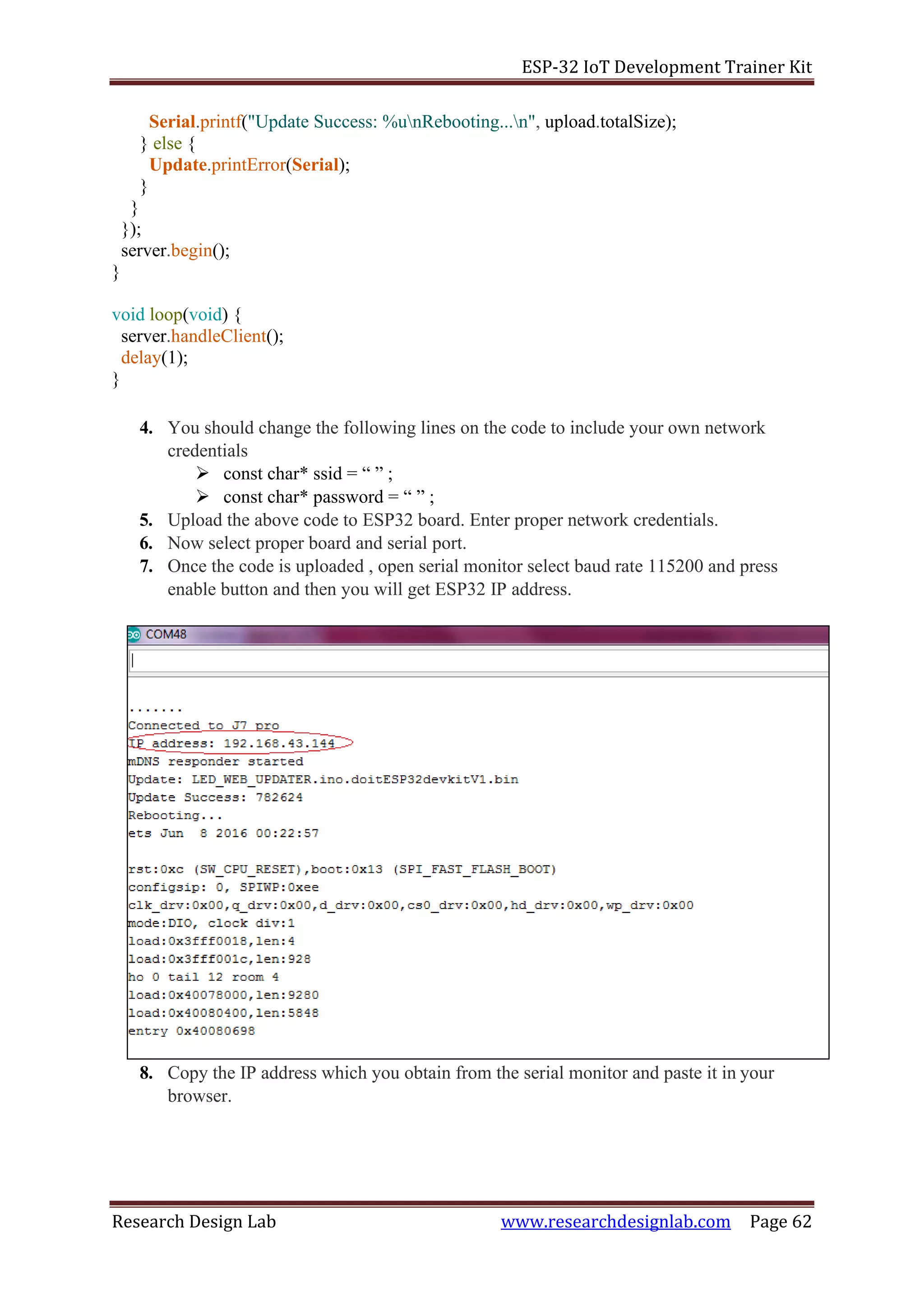
7. Once the code is uploaded , open serial monitor select baud rate 115200 and press
enable button and then you will get ESP32 IP address.
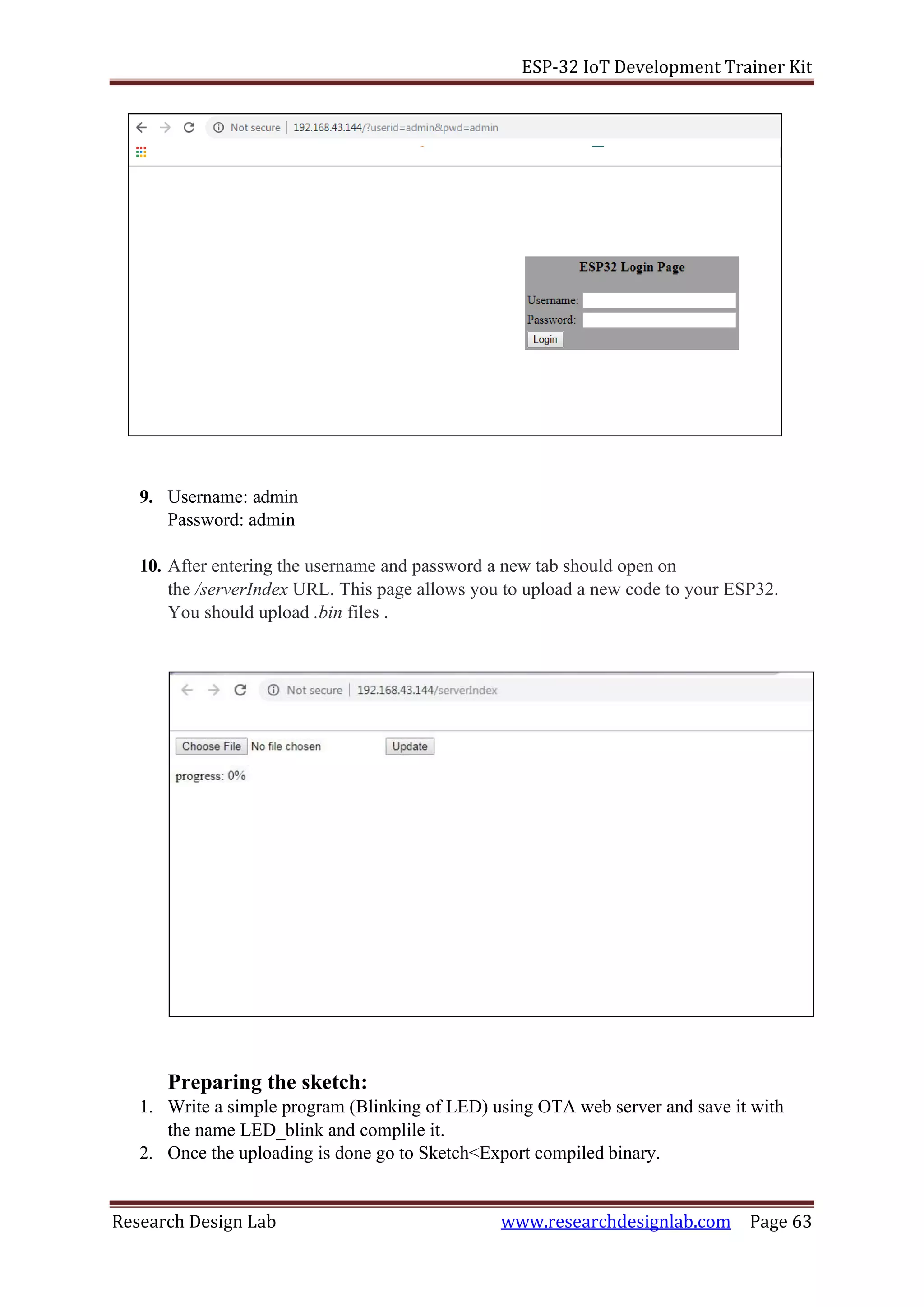
8. Copy the IP address which you obtain from the serial monitor and paste it in your
browser.
ESP-32 IoT Development Trainer Kit
Research Design Lab www.researchdesignlab.com Page 63
9. Username: admin
Password: admin
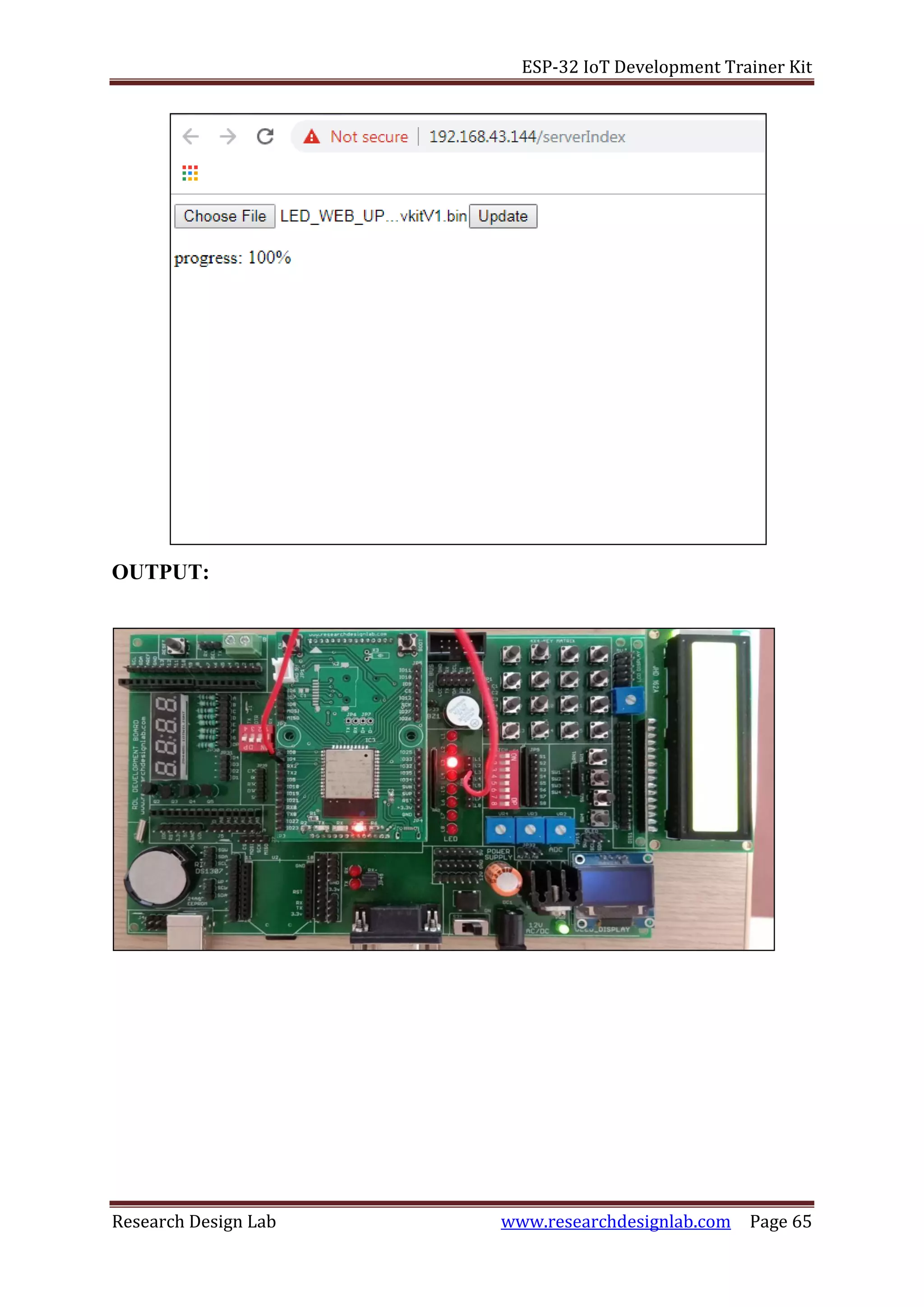
10. After entering the username and password a new tab should open on
the /serverIndex URL. This page allows you to upload a new code to your ESP32.
You should upload .bin files .
Preparing the sketch:
1. Write a simple program (Blinking of LED) using OTA web server and save it with
the name LED_blink and complile it.
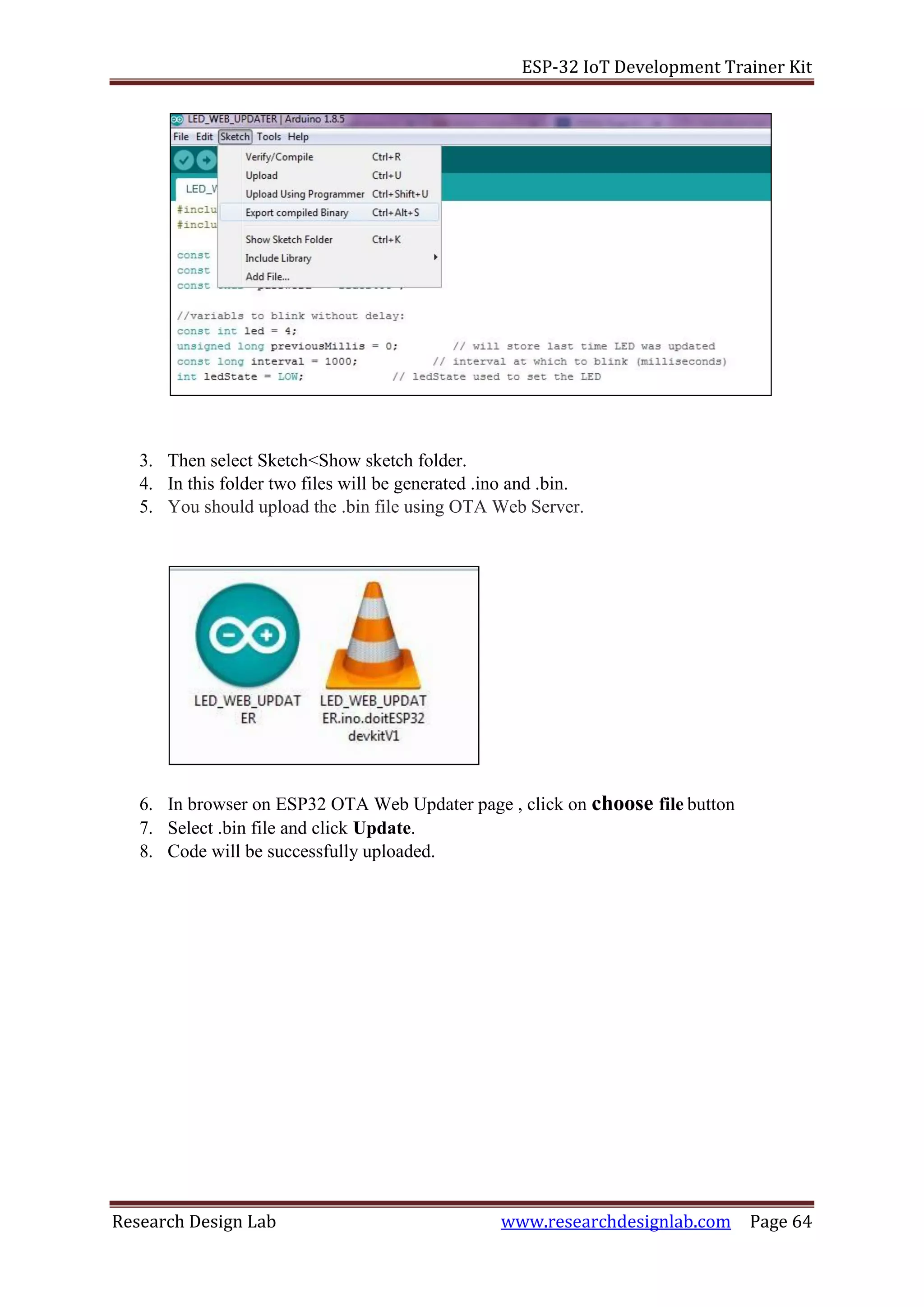
2. Once the uploading is done go to Sketch<Export compiled binary.
ESP-32 IoT Development Trainer Kit
Research Design Lab www.researchdesignlab.com Page 64
3. Then select Sketch<Show sketch folder.
4. In this folder two files will be generated .ino and .bin.
5. You should upload the .bin file using OTA Web Server.
6. In browser on ESP32 OTA Web Updater page , click on choose file button
7. Select .bin file and click Update.
8. Code will be successfully uploaded.
ESP-32 IoT Development Trainer Kit
Research Design Lab www.researchdesignlab.com Page 65
OUTPUT:

Rdl esp32 development board trainer kit

  • 1.
    ESP-32 IoT DevelopmentTrainer Kit Research Design Lab www.researchdesignlab.com Page 1 ESP32 IoT DEVELOPMET TRAINER KIT
  • 2.
    ESP-32 IoT DevelopmentTrainer Kit Research Design Lab www.researchdesignlab.com Page 2 Features: ➢ High quality ESP32 development board. ➢ Standard I/O interface. ➢ Programmable with Arduino open source IDE. ➢ 8 independent LED. ➢ 1 * 4 independent keys. ➢ 4* 4 keypad matrix. ➢ RTC DS1307 with battery connector. ➢ I2C EEPROM Interfaces. ➢ The MAX232 chip RS232 communication. ➢ 16X2 LCD interface (character display). ➢ All IO Ports pin have extraction and clearly marked. ➢ On Board Power supply 3.3V, 5V 12V,GND. ➢ 8 pin DIP switches.
  • 3.
    ESP-32 IoT DevelopmentTrainer Kit Research Design Lab www.researchdesignlab.com Page 3 ➢ The board also has inbuilt Xbee footprint. ➢ 3 ADC potentiometers. ➢ ON/OFF Slide switch. ➢ I2C Bus. ➢ SPI Bus. ➢ OLED interface. ➢ SD Card holder. ➢ RS232 Connector. ➢ Reset button. ➢ Power plug in DC socket. ➢ Power supply indicator LED. ➢ Test led for Tx, Rx. ➢ 4 digit 7 seg Multiplexed display ➢ Pin outs for 3.3V, 12V, 5V, GND. ESP32 Transceiver Features: ➢ Ultra low power consumption ➢ Low cost SoC ➢ Built in antenna switches, power modules and filters ➢ Operating temperature – 40ºC to +125ºC ➢ Power supply 2.2V to 3.6V ➢ Supports UART/I2 C/I2 S/SPI protocol ➢ 448 KByte ROM, 520 KByte SRAM ➢ Wi-Fi - 802.11 b/g/n ➢ Bluetooth - v4.2 BR/EDR and BLE ➢ Xtensa® Dual-Core 32-bit LX6 microprocessors, up to 600 DMIPS ESP32 Applications: ➢ Creating IOT Hub ➢ Low power IoT applications and data loggers ➢ Used in music players and audio streaming electronics ➢ Wi-Fi enabled proximity sensing ➢ Wi-Fi enabled home automation, smart agriculture, on-off control ➢ Real time wireless industrial plant condition monitoring ➢ Finds application in health and retail sector Scope of Learning Experiments: ➢ Creating IOT Hub ➢ MQTT & Postman ➢ Monitoring Nodes ➢ Device to Cloud Connection (D2C) ➢ Device to Device Connection (D2D) ➢ Cloud to Device Connection (C2D) ➢ Creating GUI for Nodes ➢ Cloud Analytics
  • 4.
    ESP-32 IoT DevelopmentTrainer Kit Research Design Lab www.researchdesignlab.com Page 4 ➢ Machine Learning ➢ LED blinking, shift operation ➢ 1X4 Keypad interfacing. ➢ 16X2 LCD interfacing. ➢ 4X4 Keypad interfacing. ➢ ADC interfacing. ➢ 7 Segment interfacing. ➢ DC Motor and Stepper motor interfacing. ➢ RTC DS1307 I2C protocol interfacing. ➢ AT24C04 EEPROM I2C protocol interfacing. ➢ Bluetooth interfacing. ESP-32 Board Narration 1. USB Programming port 2. XBEE footprint/ XBEE Adaptor module 3. DC 3.3V connectors 4. TX and RX LED’s 5. DB-9 serial female connector
  • 5.
    ESP-32 IoT DevelopmentTrainer Kit Research Design Lab www.researchdesignlab.com Page 5 6. Power ON switch 7. Power supply 8. OLED Display 9. DC 12V, 5V, GND connectors 10. Variable resistor POT 11. 4x1 Keypad 12. 8x1 LED’s 13. 8 way DIP switch 14. 16x2 LCD connectors 15. Node connector 16. 4x4 Keypad matrix 17. Buzzer 18. RDL Bus FRC Connector 19. Boot Button 20. ESP32 Wi-Fi 21. Reset button 22. Reset button 23. 4x1 7 Segment display 24. 4 way DIP switch (always ON) 25. Stackable header for Arduino Shields 26. SD card pinouts ** 27. RTC pinouts 28. EPROM pinouts ** SD card holder is placed at the bottom of the PCB.
  • 6.
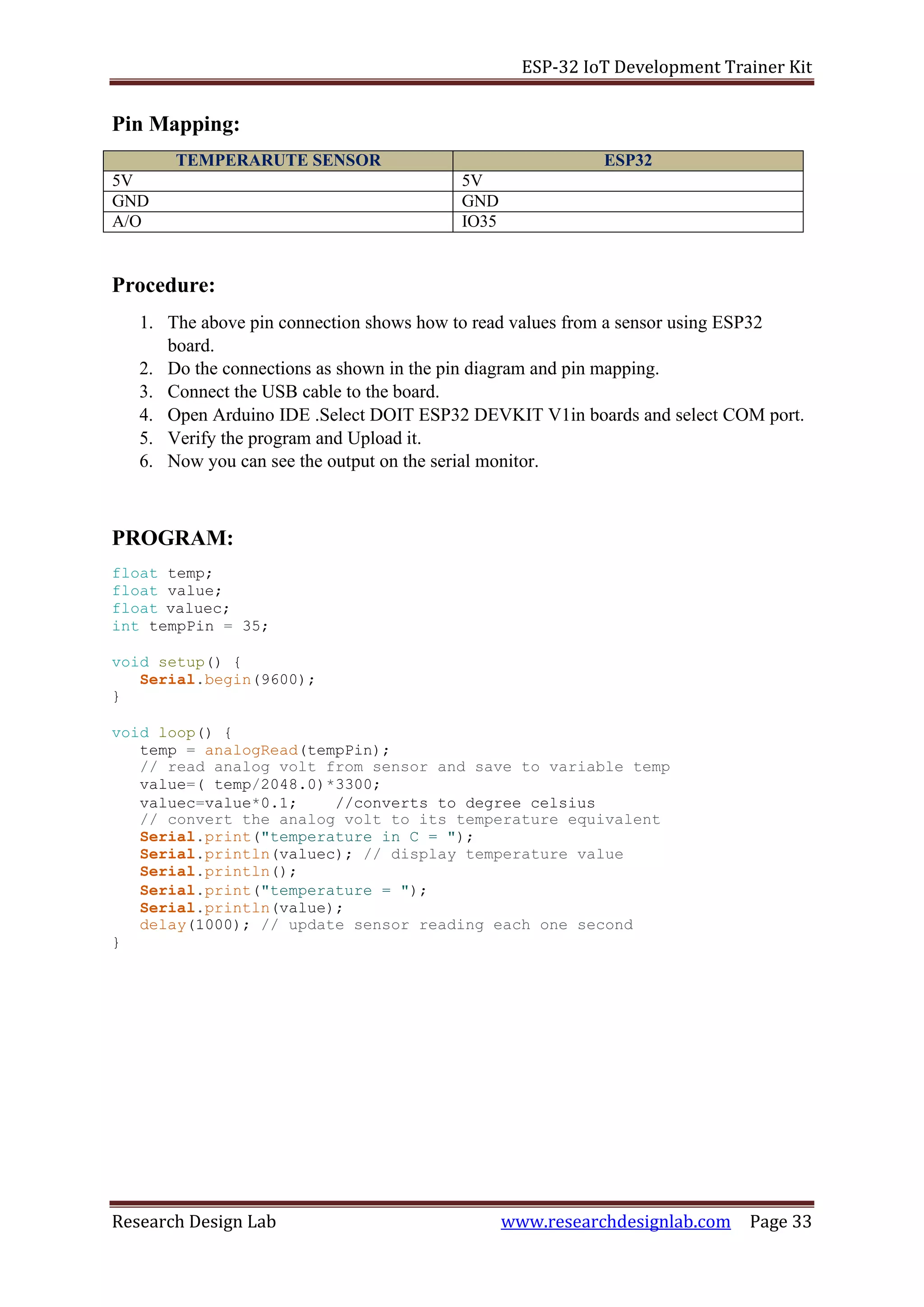
    ESP-32 IoT DevelopmentTrainer Kit Research Design Lab www.researchdesignlab.com Page 6 Contents 1. BLINKING AN LED.........................................................7 2. CONTROLLING LED USING SWITCH...............................9 3. SEVEN SEGMENT DISPLAYS........................................11 4. HEXKEYPAD ...............................................................15 5. LIQUID CRYSTAL DISPLAY...........................................17 6. CONTROLLING LED BRIGHTNESS ................................19 7. RTC (Real Time Clock) ................................................21 8. SD CARD ....................................................................24 9. OLED..........................................................................28 10. IBRATION SENSOR ...................................................30 11.TEMPERATURE SENSOR .............................................32 12.IR(Infrared) SENSOR...................................................35 13.MQTT ........................................................................38 14.JSON..........................................................................47 15.FTP ............................................................................51 16.OTA (Over the air) programming................................57
  • 7.
    ESP-32 IoT DevelopmentTrainer Kit Research Design Lab www.researchdesignlab.com Page 7 IO4 Aim: EXPERIMENT NO 1 BLINKING AN LED Turn ON and OFF an LED after Particular delay Description: To learn how to connect LED to digital pins of an ESP32 Microcontroller and program to blink a LED. Hardware Requirement: ESP32 Microcontroller Development board. Pin Connections: Pin Mapping: LED ESP32 LED I04
  • 8.
    ESP-32 IoT DevelopmentTrainer Kit Research Design Lab www.researchdesignlab.com Page 8 Procedure: 1. The above pin connection shows the connection between LED and ESP32 development board. 2. Connect IO4 pin of ESP32 development board to any of the LED pin. 3. Connect the USB cable to the board. 4. Open Arduino IDE. Select DOIT ESP32 DEVKIT V1in boards and select COM port. 5. Now verify the program and Upload it. 6. Now you can see the LED blink on the ESP32 development board. Program: void setup(void) { /* Initialize the output pin */ pinMode(4,OUTPUT); } /* the loop function runs over and over again forever */ void loop(void) { /* Turn the LED on */ digitalWrite(4,HIGH); /* Wait for a second */ delay(1000); /* Turn OFF LED */ digitalWrite(4,LOW); /* Wait for a second */ delay(1000); }
  • 9.
    ESP-32 IoT DevelopmentTrainer Kit Research Design Lab www.researchdesignlab.com Page 9 Aim: EXPERIMENT NO 2 CONTROLLING LED USING SWITCH Controlling LED using a Switch. Description: Understanding the working of switch. Turns ON the LED when switch is pressed and Turns OFF when it is released. Hardware Required: ESP32-Microcontroller Development board. Pin Connections: IO12 Pin Mapping: Development Board ESP32 Switch I012 LED I04 Procedure: IO4
  • 10.
    ESP-32 IoT DevelopmentTrainer Kit Research Design Lab www.researchdesignlab.com Page 10 1. The above pin connection shows how to control an LED using switch. 2. Connect IO4 pin of ESP32 development board to any of the LED pin and IO12 pin to switch. 3. Connect the USB cable to the board. 4. Open Arduino IDE .Select DOIT ESP32 DEVKIT V1in boards and select COM port. 5. Now verify the program and Upload it. 6. Now you can see that when switch is pressed LED starts to glow on the ESP32 development board. Program: void setup(void) { /* Initialize the output pin */ pinMode(4,OUTPUT); /* Switch is connected to pin 12 */ pinMode(12,INPUT); /* to set baud rate */ Serial.begin(9600); } /* the loop function runs over and over again forever */ void loop(void) if(digitalRead(12)==HIGH) { /* Turn the LED on */ digitalWrite(4,HIGH); /* Wait for a second */ delay(1000); /* Turn OFF LED */ digitalWrite(4,LOW); /* Wait for a second */ delay(1000); } }
  • 11.
    ESP-32 IoT DevelopmentTrainer Kit Research Design Lab www.researchdesignlab.com Page 11 Pin Connections: GND Aim: EXPERIMENT NO 3 SEVEN SEGMENT DISPLAYS Interfacing ESP32-Microcontroller with seven segment display and to display the numbers. Description: To display numbers in the seven segment in increasing order. Hardware Required: ESP32-Microcontroller Development board. Pin Mapping: Development Board ESP32 A I04 B I012 C I033 D I032 E I025 F I026 DP I05 D1 GND
  • 12.
    ESP-32 IoT DevelopmentTrainer Kit Research Design Lab www.researchdesignlab.com Page 12 Procedure: 1. The above pin connection shows how to display numbers in seven segments. 2. Do the connections as shown in the pin diagram and pin mapping. 3. Connect the USB cable to the board. 4. Open Arduino IDE .Select DOIT ESP32 DEVKIT V1in boards and select COM port. 5. Now verify the program and Upload it. 6. Now you can see that number starts displaying on the seven segments on the ESP32 development board. Program: void setup(void) { /* define pin modes */ /* Set pin D2-D9 as output pins */ pinMode(4,OUTPUT); pinMode(12,OUTPUT); pinMode(33,OUTPUT); pinMode(32,OUTPUT); pinMode(25,OUTPUT); pinMode(26,OUTPUT); pinMode(27,OUTPUT); pinMode(5,OUTPUT); } void loop(void) { /* print 0 */ { digitalWrite(4,LOW); digitalWrite(12,LOW); digitalWrite(33,LOW); digitalWrite(32,LOW); digitalWrite(25,LOW); digitalWrite(26,LOW); digitalWrite(27,HIGH); digitalWrite(5,LOW); delay(1000); } /* print 1 */ { digitalWrite(4,HIGH); digitalWrite(12,LOW); digitalWrite(33,LOW); digitalWrite(32,HIGH); digitalWrite(25,HIGH); digitalWrite(26,HIGH); digitalWrite(27,HIGH); digitalWrite(5,LOW);
  • 13.
    ESP-32 IoT DevelopmentTrainer Kit Research Design Lab www.researchdesignlab.com Page 13 delay(1000); } /* print 2 */ { digitalWrite(4,LOW); digitalWrite(12,LOW); digitalWrite(33,HIGH); digitalWrite(32,LOW); digitalWrite(25,LOW); digitalWrite(26,HIGH); digitalWrite(27,LOW); digitalWrite(5,LOW); delay(1000); } /* print 3 */ { digitalWrite(4,LOW); digitalWrite(12,LOW); digitalWrite(33,LOW); digitalWrite(32,LOW); digitalWrite(25,HIGH); digitalWrite(26,HIGH); digitalWrite(27,LOW); digitalWrite(5,LOW); delay(1000); } /* print 4 */ { digitalWrite(4,HIGH); digitalWrite(12,LOW); digitalWrite(33,LOW); digitalWrite(32,HIGH); digitalWrite(25,HIGH); digitalWrite(26,LOW); digitalWrite(27,LOW); digitalWrite(5,LOW); delay(1000); } /* print 5 */ { digitalWrite(4,LOW); digitalWrite(12,HIGH); digitalWrite(33,LOW); digitalWrite(32,LOW); digitalWrite(25,HIGH); digitalWrite(26,LOW); digitalWrite(27,LOW); digitalWrite(5,LOW); delay(1000); }
  • 14.
    ESP-32 IoT DevelopmentTrainer Kit Research Design Lab www.researchdesignlab.com Page 14 /* print 6 */ { digitalWrite(4,LOW); digitalWrite(12,HIGH); digitalWrite(33,LOW); digitalWrite(32,LOW); digitalWrite(25,LOW); digitalWrite(26,LOW); digitalWrite(27,LOW); digitalWrite(5,LOW); delay(1000); } /* print 7 */ { digitalWrite(4,LOW); digitalWrite(12,LOW); digitalWrite(33,LOW); digitalWrite(32,HIGH); digitalWrite(25,HIGH); digitalWrite(26,HIGH); digitalWrite(27,HIGH); digitalWrite(5,LOW); delay(1000); } /* print 8 */ { digitalWrite(4,LOW); digitalWrite(12,LOW); digitalWrite(33,LOW); digitalWrite(32,LOW); digitalWrite(25,LOW); digitalWrite(26,LOW); digitalWrite(27,LOW); digitalWrite(5,LOW); delay(1000); } /* print 9 */ { digitalWrite(4,LOW); digitalWrite(12,LOW); digitalWrite(33,LOW); digitalWrite(32,LOW); digitalWrite(25,HIGH); digitalWrite(26,LOW); digitalWrite(27,LOW); digitalWrite(5,LOW); delay(1000); } }
  • 15.
    ESP-32 IoT DevelopmentTrainer Kit Research Design Lab www.researchdesignlab.com Page 15 Aim: EXPERIMENT NO 4 HEXKEYPAD To interface 4x4 HexKeypad with ESP32-Microcontroller module and display the pressed numbers on the Serial monitor. Description: To display the pressed key on the serial monitor. Hardware Required: ESP32-Microcontroller Development board Pin Connection: Pin Mapping: Development Board ESP32 C1 I025 C2 I026 C3 I05 C4 I027 R1 I04 R2 I012 R3 I033 R4 I032
  • 16.
    ESP-32 IoT DevelopmentTrainer Kit Research Design Lab www.researchdesignlab.com Page 16 Procedure: 1. The above pin connection shows how to interface Hexkeypad with ESP32 board. 2. Do the connections as shown in the pin diagram and pin mapping. 3. Connect the USB cable to the board. 4. Open Arduino IDE .Select DOIT ESP32 DEVKIT V1in boards and select COM port. 5. Now verify the program and Upload it. 6. After uploading is done open serial monitor to observe the output. 7. For a particular switch the same number displays on our serial monitor. Program: /* Include the Keypad header file */ #include<Keypad.h> /* four rows */ const byte ROWS=4; /* four columns */ constbyteCOLS=4; /* define the symbols on the buttons of the keypads */ charhexaKeys[ROWS][COLS]={ {'0','1','2','3'}, {'4','5','6','7'}, {'8','9','A','B'}, {'C','D','E','F'} }; /* connect to the row pinouts of the keypad */ byterowPins[ROWS]={4,12,33,32}; /* connect to the column pinouts of the keypad */ bytecolPins[COLS]={25,26,5,27}; /* initialize an instance of class NewKeypad */ KeypadcustomKeypad=Keypad(makeKeymap(hexaKeys),rowPins,colPins,ROWS,COLS); /* counter intialization */ intcounter=0; void setup(void) { Serial.begin(9600); } void loop(void) { /* Key pressed is stored in customkey */ charcustomKey=customKeypad.getKey(); if(customKey) { /* Key pressed is stored in customkey */ Serial.println(customKey); } }
  • 17.
    ESP-32 IoT DevelopmentTrainer Kit Research Design Lab www.researchdesignlab.com Page 17 5V GND Aim: EXPERIMENT NO 5 LIQUID CRYSTAL DISPLAY This experiment shows how to display the message on LCD using ESP32-Microcontroller. Description: To display the message on the LCD screen. Hardware required: ESP32-Microcontroller Development board. Pin connection: Pin Mapping: LCD ESP32 RS I04 E I012 D4 I032 D5 I033 D6 I025 D7 I026 R/W GND
  • 18.
    ESP-32 IoT DevelopmentTrainer Kit Research Design Lab www.researchdesignlab.com Page 18 Procedure: 1. The above pin connection shows how to interface LCD with ESP32 board. 2. Do the connections as shown in the pin diagram and pin mapping. 3. Connect the USB cable to the board. 4. Open Arduino IDE .Select DOIT ESP32 DEVKIT V1in boards and select COM port. 5. Verify the program and Upload it. 6. Now you can see the output displaying the message on LCD of ESP32 microcontroller board. Program: /* Include the LCD library */ #include<LiquidCrystal.h> /* Mapping the pins with library rs=4,en=12,d4=32,d5=33,d6=25,d7=26 */ LiquidCrystallcd(4,12,32,33,25,26); void setup(void) { /* set baud rate */ Serial.begin(9600); /* set up the LCD's number of columns and rows */ lcd.begin(16,2); } void loop(void) { /* set the cursor to column 0, line 1 (note: line 1 is the second row, since counting begins with 0) */ lcd.setCursor(0,1); /* Print a message to the LCD */ lcd.print("*WELCOME TO RDL*"); /*print the number of seconds since reset */ delay(5000); /* clear the message */ lcd.clear(); }
  • 19.
    ESP-32 IoT DevelopmentTrainer Kit Research Design Lab www.researchdesignlab.com Page 19 IO5 IO34 Aim: EXPERIMENT NO 6 CONTROLLING LED BRIGHTNESS To vary the intensity of LED using potentiometer. Description: This experiment shows how to read an analog input value connected to onboard pot and display it on the serial monitor of the Arduino Software (IDE). Hardware required: ESP32-Microcontroller development board Pin connection: Pin Mapping: Development Board ESP32 Potentiometer I034 LED I05
  • 20.
    ESP-32 IoT DevelopmentTrainer Kit Research Design Lab www.researchdesignlab.com Page 20 Procedure: 1. The above pin connection shows how to control the brightness of LED using potentiometer in ESP32 board. 2. Do the connections as shown in the pin diagram and pin mapping. 3. Connect the USB cable to the board. 4. Open Arduino IDE .Select DOIT ESP32 DEVKIT V1in boards and select COM port. 5. Verify the program and Upload it. 6. Open the serial monitor to observe the values. 7. Now using a screw driver rotate the potentiometer. The LED will be very bright at the highest point and low as you turn the potentiometer in the opposite direction. Program: void setup(void) { /* set baud rate */ Serial.begin(9600); /* Initialize the input pin */ pinMode(34,INPUT); /* Initialize the output pin */ pinMode(5,OUTPUT); } /* the loop function runs over and over again forever */ void loop(void) { int outputvalue=analogRead(34); int value=map(outputvalue,0,1023,0,255); analogWrite(5,outputvalue); /* Print a value on the serial monitor */ Serial.println(outputvalue); delay(1000); }
  • 21.
    ESP-32 IoT DevelopmentTrainer Kit Research Design Lab www.researchdesignlab.com Page 21 SCL SDA Aim: EXPERIMENT NO 7 RTC (Real Time Clock) To display Date and Time on the serial monitor using ESP 32 microcontroller development board. Description: Interfacing Real Time Clock module with ESP 32 to display date and time on the serial monitor. Hardware required: ESP32-Microcontroller Development board Pin connection: Pin Mapping: RTC ESP32 SDA I021 SCL I022
  • 22.
    ESP-32 IoT DevelopmentTrainer Kit Research Design Lab www.researchdesignlab.com Page 22 Procedure: 1. The above pin connection shows how to display date and time using RTC in ESP32 board. 2. Do the connections as shown in the pin diagram and pin mapping. 3. Connect the USB cable to the board. 4. Open Arduino IDE .Select DOIT ESP32 DEVKIT V1in boards and select COM port. 5. Verify the program and Upload it. 6. Open the serial monitor to observe the output. Program: /* Date and time functions using a DS1307 RTC connected via I2C and Wire lib */ #include<Wire.h> #include"RTClib.h" RTC_DS1307RTC; charrec; void setup(void) { Serial.begin(9600); Wire.begin(); RTC.begin(); delay(1000); //while(!Serial.available()); //{ // rec=Serial.read(); // if(rec=='2') /* This line sets the RTC with an explicit date & time, for example to set January 16, 2019 at 12.32pm you would call: rtc.adjust(DateTime(2019, 1, 16, 12, 32, 45)) */ RTC.adjust(DateTime("Mar 22 2019","10:32:45")); //} } void loop(void) { /*Getting the current Time and storing it into a DateTime object */ DateTimenow=RTC.now(); Serial.print(now.year(),DEC); Serial.print('/'); Serial.print(now.month(),DEC); Serial.print('/'); Serial.print(now.day(),DEC); Serial.print(' ');
  • 23.
    ESP-32 IoT DevelopmentTrainer Kit Research Design Lab www.researchdesignlab.com Page 23 Serial.print(now.hour(),DEC); Serial.print(':'); Serial.print(now.minute(),DEC); Serial.print(':'); Serial.print(now.second(),DEC); Serial.println(); delay(1000); } Output:
  • 24.
    ESP-32 IoT DevelopmentTrainer Kit Research Design Lab www.researchdesignlab.com Page 24 Aim: EXPERIMENT NO 8 SD CARD To read the stored directories in SD card using ESP 32 microcontroller development board. Description: Interfacing SD card module with ESP 32 to list the directories stored in memory card. Hardware required: ESP32-Microcontroller Development board Pin connection: Pin Mapping: SDCARD ESP32 CS IO5 MOSI IO23 SCK IO18 MISO IO19
  • 25.
    ESP-32 IoT DevelopmentTrainer Kit Research Design Lab www.researchdesignlab.com Page 25 Procedure: 1. The above pin connection shows how to interface SD Card with ESP32 board. 2. Do the connections as shown in the pin diagram and pin mapping. 3. Insert the SD Card in the slot given below the board. 4. Connect the USB cable to the board. 5. Open Arduino IDE .Select DOIT ESP32 DEVKIT V1in boards and select COM port. 6. Verify the program and Upload it. 7. Open the serial monitor to observe the output. Program : /* Listfiles This example shows how print out the files in a directory on a SD card The circuit: * SD card attached to SPI bus as follows: ** MOSI - pin 11 ** MISO - pin 12 ** CLK - pin 13 ** CS - pin 4 (for MKRZero SD: SDCARD_SS_PIN) created Nov 2010 by David A. Mellis modified 9 Apr 2012 by Tom Igoe modified 2 Feb 2014 by Scott Fitzgerald This example code is in the public domain. */ #include<SPI.h> #include<SD.h> Fileroot; void setup(void) { /* Open serial communications and wait for port to open: */ Serial.begin(9600); /* wait for serial port to connect. Needed for native USB port only */ while(!Serial){ }
  • 26.
    ESP-32 IoT DevelopmentTrainer Kit Research Design Lab www.researchdesignlab.com Page 26 Serial.print("Initializing SD card..."); if(!SD.begin(4)) { Serial.println("initialization failed!"); return; } Serial.println("initialization done."); root=SD.open("/"); printDirectory(root,0); Serial.println("done!"); } /*nothing happens after setup finishes */ void loop(void){ } void print Directory(Filedir,intnumTabs){ while(true) { Fileentry= dir.openNextFile(); /* no more files */ if(!entry) { break; } for(uint8_ti=0;i<numTabs;i++) { Serial.print('t'); } Serial.print(entry.name()); if(entry.isDirectory()){ Serial.println("/"); printDirectory(entry,numTabs+1); } else { Serial.print("tt"); Serial.println(entry.size(),DEC); } entry.close(); } }
  • 27.
    ESP-32 IoT DevelopmentTrainer Kit Research Design Lab www.researchdesignlab.com Page 27 Output:
  • 28.
    ESP-32 IoT DevelopmentTrainer Kit Research Design Lab www.researchdesignlab.com Page 28 5V Aim: EXPERIMENT NO 9 OLED This experiment shows how to display the message on OLED using ESP32-Microcontroller. Description: To display message on OLED screen. Hardware required: ESP32-Microcontroller Development board Pin connection: Pin Mapping: OLED ESP32 5V 5V SCL IO22 SDA IO21
  • 29.
    ESP-32 IoT DevelopmentTrainer Kit Research Design Lab www.researchdesignlab.com Page 29 Procedure: 1. The above pin connection shows how to interface OLED with ESP32 board. 2. Do the connections as shown in the pin diagram and pin mapping. 3. Connect the USB cable to the board. 4. Open Arduino IDE .Select DOIT ESP32 DEVKIT V1in boards and select COM port. 5. Verify the program and Upload it. 6. Now you can see the output displaying the message on OLED of ESP32 microcontroller board. Program: #include<Wire.h> #include"SSD1306.h" /* SDA=21,SCL=22 */ SSD1306 display(0x3c,21,22); void setup(void) { display.init(); /* display message in OLED */ display.drawString(0,0,"RDL Technologies PVT. LTD."); display.display(); } void loop(void) { } Output:
  • 30.
    ESP-32 IoT DevelopmentTrainer Kit Research Design Lab www.researchdesignlab.com Page 30 EXPERIMENT NO 10 VIBRATION SENSOR Aim: To extract information from vibration sensor. Description: To learn how to read values from a vibration sensor connected to analog pin using ESP32- Microcontroller. Hardware required: ESP32-Microcontroller Development board Vibration sensor Pin connection: Pin Mapping: VIBRATION SENSOR ESP32 5V 5V GND GND A/O IO12 IO12 GND 5V
  • 31.
    ESP-32 IoT DevelopmentTrainer Kit Research Design Lab www.researchdesignlab.com Page 31 Procedure: 1. The above pin connection shows how to read values from a vibration sensor using ESP32 board. 2. Do the connections as shown in the pin diagram and pin mapping. 3. Connect the USB cable to the board. 4. Open Arduino IDE .Select DOIT ESP32 DEVKIT V1 in boards and select COM port. 5. Verify the program and upload it. 6. Now you can see the output on the serial monitor. Program: void setup() { pinMode(35,INPUT); Serial.begin(9600); } void loop() { int sensorvalue = analogRead(35); if(sensorvalue>1000) { Serial.print("Sensor value is : "); Serial.println(sensorvalue); delay(2000); } } Output:
  • 32.
    ESP-32 IoT DevelopmentTrainer Kit Research Design Lab www.researchdesignlab.com Page 32 EXPERIMENT NO 11 TEMPERATURE SENSOR Aim: To extract information from temperature sensor. Description: To learn how to read values from a temperature sensor connected to analog pin using ESP32- Microcontroller. Hardware required: ESP32-Microcontroller Development board Temperature sensor Pin connection: IO35 GND
  • 33.
    ESP-32 IoT DevelopmentTrainer Kit Research Design Lab www.researchdesignlab.com Page 33 Pin Mapping: TEMPERARUTE SENSOR ESP32 5V 5V GND GND A/O IO35 Procedure: 1. The above pin connection shows how to read values from a sensor using ESP32 board. 2. Do the connections as shown in the pin diagram and pin mapping. 3. Connect the USB cable to the board. 4. Open Arduino IDE .Select DOIT ESP32 DEVKIT V1in boards and select COM port. 5. Verify the program and Upload it. 6. Now you can see the output on the serial monitor. PROGRAM: float temp; float value; float valuec; int tempPin = 35; void setup() { Serial.begin(9600); } void loop() { temp = analogRead(tempPin); // read analog volt from sensor and save to variable temp value=( temp/2048.0)*3300; valuec=value*0.1; //converts to degree celsius // convert the analog volt to its temperature equivalent Serial.print("temperature in C = "); Serial.println(valuec); // display temperature value Serial.println(); Serial.print("temperature = "); Serial.println(value); delay(1000); // update sensor reading each one second }
  • 34.
    ESP-32 IoT DevelopmentTrainer Kit Research Design Lab www.researchdesignlab.com Page 34 OUTPUT:
  • 35.
    ESP-32 IoT DevelopmentTrainer Kit Research Design Lab www.researchdesignlab.com Page 35 EXPERIMENT NO 12 IR(Infrared) SENSOR Aim: To extract information from IR sensor. Description: To learn how to read values from an IR sensor using ESP32-Microcontroller. Hardware required: ESP32-Microcontroller Development board PIR sensor Pin connection:
  • 36.
    ESP-32 IoT DevelopmentTrainer Kit Research Design Lab www.researchdesignlab.com Page 36 Pin Mapping: IR SENSOR ESP32 5V 5V GND GND A/O IO12 Procedure: 1. The above pin connection shows how to read values from a IR sensor using ESP32 board. 2. Do the connections as shown in the pin diagram and pin mapping. 3. Connect the USB cable to the board. 4. Open Arduino IDE .Select DOIT ESP32 DEVKIT V1 in boards and select COM port. 5. Verify the program and upload it. 6. Now you can see the output on the serial monitor. Program: /* the setup function runs once when you press reset or power the board */ void setup(void) { /* initialize digital pin 12 as an input */ pinMode(12,INPUT); Serial.begin(9600); } /* the loop function runs over and over again forever */ void loop(void) { int value=digitalRead(12); if(digitalRead(12)==HIGH) { Serial.print("no obstacle:"); Serial.println(value); delay(1000); } else if(digitalRead(12)==LOW) { Serial.print("obstacle present:"); Serial.println(value); delay(1000); } }
  • 37.
    ESP-32 IoT DevelopmentTrainer Kit Research Design Lab www.researchdesignlab.com Page 37 Output:
  • 38.
    ESP-32 IoT DevelopmentTrainer Kit Research Design Lab www.researchdesignlab.com Page 38 EXPERIMENT NO 13 MQTT Aim: To interface Wi-Fi module with ESP32 to receive data from cloud using RDL ESP32 Development board. Description: Interfacing wi-fi module with the cloud MQTT to receive and send data using esP32 microcontroller. Hardware required: ESP32-Microcontroller development board. Pin connection:
  • 39.
    ESP-32 IoT DevelopmentTrainer Kit Research Design Lab www.researchdesignlab.com Page 39 Procedure: Uploading and Receiving Data from Cloud using ESP32 1. Create an Account in www.cloudmqtt.com 2. Create an instance which will be used in the program to publish data to the cloud.
  • 40.
    ESP-32 IoT DevelopmentTrainer Kit Research Design Lab www.researchdesignlab.com Page 40
  • 41.
    ESP-32 IoT DevelopmentTrainer Kit Research Design Lab www.researchdesignlab.com Page 41 3. Select the Instance name (test_1) and use the details of the same in the code. Include the code. 4.
  • 42.
    ESP-32 IoT DevelopmentTrainer Kit Research Design Lab www.researchdesignlab.com Page 42 5. Enter the details given under server, port, user, ssl port in the given program. const char* mqttServer =”m16.mqtt.com”; const int mqttPort = 18215; const char* mqttUser = “ofmydmjh”;; const char* mqttPassword = “c5goIEjTCGRn”; 6. In order to send a message to the CloudMQTT, include the line client.publish("topic_name", "Message");
  • 43.
    ESP-32 IoT DevelopmentTrainer Kit Research Design Lab www.researchdesignlab.com Page 43 7. To send data from CloudMQTT ,include the line client.subscribe("Topic_name"); 8. The following code prints the received data from the cloud in the Serial Monitor void callback(char* topic, byte* payload, unsigned int length) { uint8_t s; Serial.print("Message arrived in topic: "); Serial.println(topic); Serial.print("Message:"); for (int i = 0; i < length; i++) { s= payload[i]; Serial.write(s); } }
  • 44.
    ESP-32 IoT DevelopmentTrainer Kit Research Design Lab www.researchdesignlab.com Page 44 9. The final Program: #include <WiFi.h> #include <PubSubClient.h> const char* ssid = "userid"; const char* password = "*********"; /* Details from the instance created */ const char* mqttServer = "m16.cloudmqtt.com"; const int mqttPort = 18215; const char* mqttUser = "ofmydmjh"; const char* mqttPassword = "c5g0IEjTCGRn"; WiFiClient espClient; PubSubClient client(espClient); void setup(void) { Serial.begin(115200); WiFi.begin(ssid, password); /* Connecting ESP8266 to WiFi */ while (WiFi.status() != WL_CONNECTED) { delay(500); Serial.write('.'); } Serial.println("Connected to the WiFi network"); client.setServer(mqttServer, mqttPort); client.setCallback(callback); /* Connecting to CloudMqtt */ while (!client.connected()) { Serial.println("Connecting to MQTT..."); if (client.connect("ESP32Client", mqttUser, mqttPassword )) { Serial.println("connected"); } else
  • 45.
    ESP-32 IoT DevelopmentTrainer Kit Research Design Lab www.researchdesignlab.com Page 45 { Serial.print("failed with state "); Serial.print(client.state()); delay(2000); } } /* Sending message to Topic "test1" */ client.publish("ABC", "Hello from RDL_IOT"); client.subscribe("test"); //Receives message sent to the topic "test" } /* This function is used to print the incoming data sent to the topic "test" */ void callback(char* topic, byte* payload, unsigned int length) { uint8_t s; Serial.print("Message arrived in topic: "); Serial.println(topic); Serial.print("Message:"); for (int i = 0; i < length; i++) { s= payload[i]; Serial.write(s); } } void loop(void) { client.loop(); }
  • 46.
    ESP-32 IoT DevelopmentTrainer Kit Research Design Lab www.researchdesignlab.com Page 46 Output:
  • 47.
    ESP-32 IoT DevelopmentTrainer Kit Research Design Lab www.researchdesignlab.com Page 47 EXPERIMENT NO 14 JSON Aim: To interface Wi-Fi module with ESP32 to send data to server using RDL ESP32 Development board. Description: Interfacing wi-fi module to send data to the server using ESP32microcontroller. Hardware required: ESP32-Microcontroller development board. Pin connection:
  • 48.
    ESP-32 IoT DevelopmentTrainer Kit Research Design Lab www.researchdesignlab.com Page 48 Procedure: 1. Connect the USB cable to the ESP32 development board. 2. Open Arduino IDE .Select DOIT ESP32 DEVKIT V1in boards and select COM port. 3. Verify the program and upload it. 4. Now you can see wifi connected along with the IP address on the serial monitor. 5. To check the inserted values of gas and temperature use the server address and check it on the browser. Program: /* * This sketch sends data via HTTP POST requests to data.sparkfun.com service. * * You need to get streamId and privateKey at data.sparkfun.com and paste them * below. Or just customize this script to talk to other HTTP servers. * */ #include <WiFi.h> char ssid[] = "your ssid"; char password[] = "your password"; const char* host = "varmatrix.com"; const char* streamId = "...................."; const char* privateKey = "...................."; //http://varmatrix.com/surendrardl/nitk/getone/insert.php? WiFiClient esp32client; void setup() { Serial.begin(115200); delay(10); // We start by connecting to a WiFi network Serial.println(); Serial.println(); Serial.print("Connecting to "); Serial.println(ssid); /* Explicitly set the ESP8266 to be a WiFi-client, otherwise, it by default, would try to act as both a client and an access-point and could cause network-issues with your other WiFi-devices on your WiFi-network. */ //WiFi.mode(WIFI_STA); WiFi.begin(ssid, password); while (WiFi.status() != WL_CONNECTED) { delay(500); Serial.print("."); } Serial.println(""); Serial.println("WiFi connected"); Serial.println("IP address: "); Serial.println(WiFi.localIP()); } int value = 0;
  • 49.
    ESP-32 IoT DevelopmentTrainer Kit Research Design Lab www.researchdesignlab.com Page 49 void loop() { String url="/surendrardl/nitk/getone/insert.php?"; String jason_string=""; char cmd=0; while(cmd!=13) { if (Serial.available()) { cmd=Serial.read(); // Serial.write(cmd); if(cmd!=13) jason_string+=cmd; } } while(Serial.available()>0) {Serial.read();} Serial.print("connecting to "); Serial.println(host); // Use WiFiClient class to create TCP connections const int httpPort = 80; if (!esp32client.connect(host, httpPort)) { Serial.println("connection failed"); return; } // We now create a URI for the request //String url="/energyconsumption/insert.php?one=1&two=3&three=2"; Serial.print("Requesting URL:"); Serial.println(url); //String jason_string="{"gas":"40","temp":"70"}"; // This will send the request to the server esp32client.print(String("POST ") + url + " HTTP/1.0rn" + "Host: " + host + "rn" + "Accept: *" + "/" + "*rn" + "Content-Length: " + jason_string.length() + "rn" + "Content-Type: application/jsonrn" + "rn" + jason_string + "rn"); unsigned long timeout = millis(); while (esp32client.available() == 0) { if (millis() - timeout > 5000) { Serial.println(">>> Client Timeout !"); esp32client.stop(); return; } } // Read all the lines of the reply from server and print them to Serial while(esp32client.available()){ String line = esp32client.readStringUntil('r'); Serial.print(line); } Serial.println(); // Serial.println("closing connection"); }
  • 50.
    ESP-32 IoT DevelopmentTrainer Kit Research Design Lab www.researchdesignlab.com Page 50 { “gas”:”40” , “temp”:”70” } Output: 1. Open serial monitor you can see Wi-Fi connected along with IP address Insert { “gas”:”40” , “temperature”:”70” } in the serial monitor and press enter. 2. Enter http://varmatrix.com/sudrendrerdl/nitk/postone/postportal.html in your browser.
  • 51.
    ESP-32 IoT DevelopmentTrainer Kit Research Design Lab www.researchdesignlab.com Page 51 EXPERIMENT NO 15 FTP Aim: To interface wifi module and access the data using RDL ESP32 Development board. Description: Interfacing wifi module to access the data using ESP32 microcontroller. Hardware required: ESP32-Microcontroller Development board. Pin connection:
  • 52.
    ESP-32 IoT DevelopmentTrainer Kit Research Design Lab www.researchdesignlab.com Page 52 Program: #include <SD.h> #include <SPI.h> #include <WiFi.h> /* comment out next line to write to SD from FTP server */ #define FTPWRITE /* change to your network settings */ const char* ssid = "your username"; const char* password = "your password"; /* ftp server */ char server_link[] = "abcd.xxxxx.com"; byte clientBuf[]="i love my INDIA"; /* size of data string */ int clientCount = sizeof(clientBuf); /* change to your server */ /* IPAddress server( 1, 2, 3, 4 ); */ WiFiClient client; WiFiClient dclient; char outBuf[128]; char outCount; /* change fileName to your file (8.3 format!) */ char fileName[13] = "rdl.txt"; void setup(void) { Serial.begin(115200); WiFi.mode(WIFI_STA); WiFi.begin(ssid, password); while (WiFi.status() != WL_CONNECTED) { delay(500); Serial.print("."); } Serial.println(""); Serial.println("WiFi connected"); Serial.println("IP address: "); Serial.println(WiFi.localIP()); Serial.println(F("Ready. Press f or r")); } void loop(void) { byte inChar; inChar = Serial.read(); if(inChar == 'f') { if(doFTP()) Serial.println(F("FTP OK")); else Serial.println(F("FTP FAIL")); } }
  • 53.
    ESP-32 IoT DevelopmentTrainer Kit Research Design Lab www.researchdesignlab.com Page 53 byte doFTP() { Serial.println(F("SD opened")); if (client.connect(server_link,21)) { Serial.println(F("Command connected")); } else { Serial.println(F("Command connection failed")); return 0; } if(!eRcv()) return 0; /* ftp username */ client.println(F("USER xxxxxxx")); if(!eRcv()) return 0; /* ftp password */ client.println(F("PASS xxxx@13xx5")); if(!eRcv()) return 0; client.println(F("SYST")); if(!eRcv()) return 0; client.println(F("Type I")); if(!eRcv()) return 0; client.println(F("PASV")); if(!eRcv()) return 0; char *tStr = strtok(outBuf,"(,"); int array_pasv[6]; for ( int i = 0; i < 6; i++) { tStr = strtok(NULL,"(,"); array_pasv[i] = atoi(tStr); if(tStr == NULL) { Serial.println(F("Bad PASV Answer")); } } unsigned int hiPort,loPort; hiPort = array_pasv[4] << 8; loPort = array_pasv[5] & 255; Serial.print(F("Data port: ")); hiPort = hiPort | loPort; Serial.println(hiPort); if (dclient.connect(server_link,hiPort)) { Serial.println(F("Data connected")); } else { Serial.println(F("Data connection failed")); client.stop(); return 0; } #ifdef FTPWRITE client.print(F("STOR "));
  • 54.
    ESP-32 IoT DevelopmentTrainer Kit Research Design Lab www.researchdesignlab.com Page 54 client.println(fileName); #else client.print(F("RETR ")); client.println(fileName); #endif if(!eRcv()) { dclient.stop(); return 0; } #ifdef FTPWRITE Serial.println(F("Writing")); if(clientCount > 0) dclient.write(clientBuf,clientCount); #else while(dclient.connected()) { while(dclient.available()) { char c = dclient.read(); Serial.write(c); } } #endif dclient.stop(); Serial.println(F("Data disconnected")); if(!eRcv()) return 0; client.println(F("QUIT")); if(!eRcv()) return 0; client.stop(); Serial.println(F("Command disconnected")); Serial.println(F("SD closed")); return 1; } byte eRcv() { byte respCode; byte thisByte; while(!client.available()) delay(1); respCode = client.peek(); outCount = 0; while(client.available()) { thisByte = client.read(); Serial.write(thisByte); if(outCount < 127) { outBuf[outCount] = thisByte; outCount++; outBuf[outCount] = 0; }
  • 55.
    ESP-32 IoT DevelopmentTrainer Kit Research Design Lab www.researchdesignlab.com Page 55 } if(respCode >= '4') { efail(); return 0; } return 1; } void efail() { byte thisByte = 0; client.println(F("QUIT")); while(!client.available()) delay(1); while(client.available()) { thisByte = client.read(); Serial.write(thisByte); } client.stop(); Serial.println(F("Command disconnected")); Serial.println(F("SD closed")); } Output: 1. Gives information whether the WiFi is connected to the server.
  • 56.
    ESP-32 IoT DevelopmentTrainer Kit Research Design Lab www.researchdesignlab.com Page 56 abcd.xxx.com 2. Here you can see that the contents are displayed in the server. We can also see that the folder created in the program being displayed. 3. The contents in the folder are given below.
  • 57.
    ESP-32 IoT DevelopmentTrainer Kit Research Design Lab www.researchdesignlab.com Page 57 EXPERIMENT NO 16 OTA (Over the air) programming Aim: Turn ON and OFF an LED after Particular delay using OTA web server Description: To learn how to connect LED to digital pins of an ESP32 Microcontroller and program to blink an LED using OTA web server. Hardware required: ESP32-Microcontroller development board. Pin connection: Pin Mapping: LED ESP32 LED I04
  • 58.
    ESP-32 IoT DevelopmentTrainer Kit Research Design Lab www.researchdesignlab.com Page 58 Procedure: 1. When you install the ESP32 add-on for the Arduino IDE, it will automatically install the Arduino OTA library. 2. Go toFile > Examples >ArduinoOTA> OTAWebUpdater. 3. The following code should load #include <WiFi.h> #include <WiFiClient.h> #include <WebServer.h> #include <ESPmDNS.h> #include <Update.h>
  • 59.
    ESP-32 IoT DevelopmentTrainer Kit Research Design Lab www.researchdesignlab.com Page 59 const char* host = "esp32"; const char* ssid = "ssid"; const char* password = "password"; WebServer server(80); /* * Login page */ const char* loginIndex = "<form name='loginForm'>" "<table width='20%' bgcolor='A09F9F' align='center'>" "<tr>" "<td colspan=2>" "<center><font size=4><b>ESP32 Login Page</b></font></center>" "<br>" "</td>" "<br>" "<br>" "</tr>" "<td>Username:</td>" "<td><input type='text' size=25 name='userid'><br></td>" "</tr>" "<br>" "<br>" "<tr>" "<td>Password:</td>" "<td><input type='Password' size=25 name='pwd'><br></td>" "<br>" "<br>" "</tr>" "<tr>" "<td><input type='submit' onclick='check(this.form)' value='Login'></td>" "</tr>" "</table>" "</form>" "<script>" "function check(form)" "{" "if(form.userid.value=='admin' && form.pwd.value=='admin')" "{" "window.open('/serverIndex')" "}" "else" "{" " alert('Error Password or Username')/*displays error message*/" "}" "}"
  • 60.
    ESP-32 IoT DevelopmentTrainer Kit Research Design Lab www.researchdesignlab.com Page 60 "</script>"; /* * Server Index Page */ const char* serverIndex = "<script src='https://ajax.googleapis.com/ajax/libs/jquery/3.2.1/jquery.min.js'></script>" "<form method='POST' action='#' enctype='multipart/form-data' id='upload_form'>" "<input type='file' name='update'>" "<input type='submit' value='Update'>" "</form>" "<div id='prg'>progress: 0%</div>" "<script>" "$('form').submit(function(e){" "e.preventDefault();" "var form = $('#upload_form')[0];" "var data = new FormData(form);" " $.ajax({" "url: '/update'," "type: 'POST'," "data: data," "contentType: false," "processData:false," "xhr: function() {" "var xhr = new window.XMLHttpRequest();" "xhr.upload.addEventListener('progress', function(evt) {" "if (evt.lengthComputable) {" "var per = evt.loaded / evt.total;" "$('#prg').html('progress: ' + Math.round(per*100) + '%');" "}" "}, false);" "return xhr;" "}," "success:function(d, s) {" "console.log('success!')" "}," "error: function (a, b, c) {" "}" "});" "});" "</script>"; /* * setup function */ void setup(void) { Serial.begin(115200); // Connect to WiFi network
  • 61.
    ESP-32 IoT DevelopmentTrainer Kit Research Design Lab www.researchdesignlab.com Page 61 WiFi.begin(ssid, password); Serial.println(""); // Wait for connection while (WiFi.status() != WL_CONNECTED) { delay(500); Serial.print("."); } Serial.println(""); Serial.print("Connected to "); Serial.println(ssid); Serial.print("IP address: "); Serial.println(WiFi.localIP()); /*use mdns for host name resolution*/ if (!MDNS.begin(host)) { //http://esp32.local Serial.println("Error setting up MDNS responder!"); while (1) { delay(1000); } } Serial.println("mDNS responder started"); /*return index page which is stored in serverIndex */ server.on("/", HTTP_GET, []() { server.sendHeader("Connection", "close"); server.send(200, "text/html", loginIndex); }); server.on("/serverIndex", HTTP_GET, []() { server.sendHeader("Connection", "close"); server.send(200, "text/html", serverIndex); }); /*handling uploading firmware file */ server.on("/update", HTTP_POST, []() { server.sendHeader("Connection", "close"); server.send(200, "text/plain", (Update.hasError()) ? "FAIL" : "OK"); ESP.restart(); }, []() { HTTPUpload& upload = server.upload(); if (upload.status == UPLOAD_FILE_START) { Serial.printf("Update: %sn", upload.filename.c_str()); if (!Update.begin(UPDATE_SIZE_UNKNOWN)) { //start with max available size Update.printError(Serial); } } else if (upload.status == UPLOAD_FILE_WRITE) { /* flashing firmware to ESP*/ if (Update.write(upload.buf, upload.currentSize) != upload.currentSize) { Update.printError(Serial); } } else if (upload.status == UPLOAD_FILE_END) { if (Update.end(true)) { //true to set the size to the current progress
  • 62.
    ESP-32 IoT DevelopmentTrainer Kit Research Design Lab www.researchdesignlab.com Page 62 Serial.printf("Update Success: %unRebooting...n", upload.totalSize); } else { Update.printError(Serial); } } }); server.begin(); } void loop(void) { server.handleClient(); delay(1); } 4. You should change the following lines on the code to include your own network credentials ➢ const char* ssid = “ ” ; ➢ const char* password = “ ” ; 5. Upload the above code to ESP32 board. Enter proper network credentials. 6. Now select proper board and serial port. 7. Once the code is uploaded , open serial monitor select baud rate 115200 and press enable button and then you will get ESP32 IP address. 8. Copy the IP address which you obtain from the serial monitor and paste it in your browser.
  • 63.
    ESP-32 IoT DevelopmentTrainer Kit Research Design Lab www.researchdesignlab.com Page 63 9. Username: admin Password: admin 10. After entering the username and password a new tab should open on the /serverIndex URL. This page allows you to upload a new code to your ESP32. You should upload .bin files . Preparing the sketch: 1. Write a simple program (Blinking of LED) using OTA web server and save it with the name LED_blink and complile it. 2. Once the uploading is done go to Sketch<Export compiled binary.
  • 64.
    ESP-32 IoT DevelopmentTrainer Kit Research Design Lab www.researchdesignlab.com Page 64 3. Then select Sketch<Show sketch folder. 4. In this folder two files will be generated .ino and .bin. 5. You should upload the .bin file using OTA Web Server. 6. In browser on ESP32 OTA Web Updater page , click on choose file button 7. Select .bin file and click Update. 8. Code will be successfully uploaded.
  • 65.
    ESP-32 IoT DevelopmentTrainer Kit Research Design Lab www.researchdesignlab.com Page 65 OUTPUT: