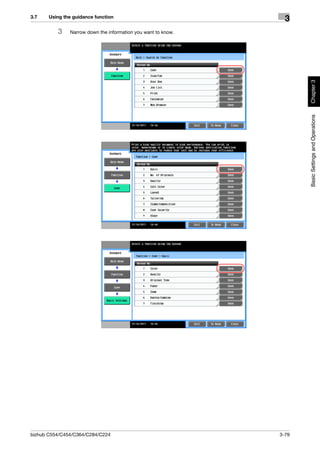
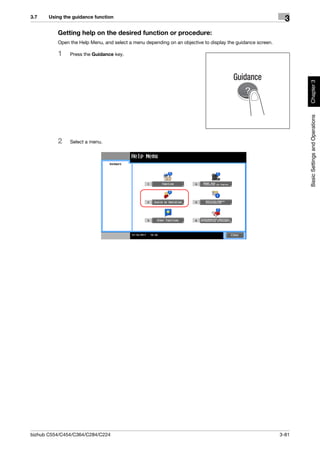
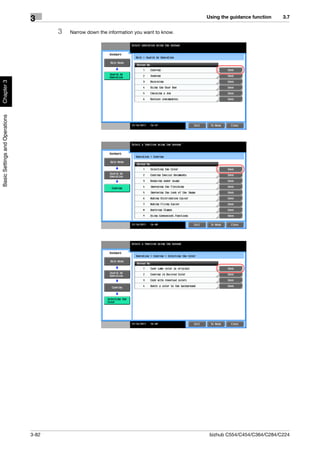
Quick Start Guide


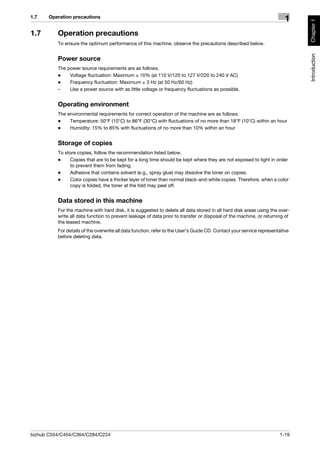
This guide describes basic machine procedures and setting
methods used to configure each function. It introduces important
functions that make it easier to use this machine.
This guide also contains notes and precautions that should be
followed in order to use this machine.
Table of contents
1    Introduction
     1.1       Environmental Information............................................................................................................. 1-2
               Energy Star®...................................................................................................................................... 1-2
               What is an ENERGY STAR® Product? .............................................................................................. 1-2
               Environmental benefits of power management ................................................................................. 1-2
               Recycled Paper.................................................................................................................................. 1-2
               Duplex printing................................................................................................................................... 1-2
     1.2       Safety information........................................................................................................................... 1-3
               Warning and precaution symbols ...................................................................................................... 1-3
               Meaning of symbols........................................................................................................................... 1-3
     1.3       Regulation notices .......................................................................................................................... 1-8
               CE Marking (Declaration of Conformity) for users of the European Union (EU)................................. 1-8
               USER INSTRUCTIONS FCC PART 15 - RADIO FREQUENCY DEVICES (for U.S.A. users).............. 1-8
               INTERFERENCE-CAUSING EQUIPMENT STANDARD (ICES-003 ISSUE 4) (for Canada users) ...... 1-8
               For users in countries not subject to class B regulations .................................................................. 1-8
               GS Certfication................................................................................................................................... 1-8
               Laser safety........................................................................................................................................ 1-8
               Internal laser radiation........................................................................................................................ 1-9
               CDRH regulations .............................................................................................................................. 1-9
               For European users............................................................................................................................ 1-9
               For Denmark users........................................................................................................................... 1-10
               For Finland, Sweden users .............................................................................................................. 1-10
               For Norway users............................................................................................................................. 1-10
               Laser safety label ............................................................................................................................. 1-11
               Ozone release .................................................................................................................................. 1-11
               Acoustic noise (for European users only)......................................................................................... 1-11
               Notification for California Customers............................................................................................... 1-11
               For EU member states only ............................................................................................................. 1-12
               For EU member states only ............................................................................................................. 1-12
               Telephone Cable .............................................................................................................................. 1-12
     1.4       Caution notations and labels ....................................................................................................... 1-13
     1.5       Special Notice to User .................................................................................................................. 1-14
               For Canada ...................................................................................................................................... 1-14
               For U.S.A.......................................................................................................................................... 1-14
               For New Zealand.............................................................................................................................. 1-15
               For Europe ....................................................................................................................................... 1-16
     1.6       Space requirements...................................................................................................................... 1-17
               bizhub C554/C454 ........................................................................................................................... 1-17
               bizhub C364/C284/C224 ................................................................................................................. 1-18
     1.7       Operation precautions.................................................................................................................. 1-19
               Power source ................................................................................................................................... 1-19
               Operating environment .................................................................................................................... 1-19
               Storage of copies............................................................................................................................. 1-19
               Data stored in this machine ............................................................................................................. 1-19
     1.8       Legal restrictions on copying ...................................................................................................... 1-20


2    About This Machine
     2.1       Introduction to User's Guide.......................................................................................................... 2-2
     2.1.1     Booklet manuals ................................................................................................................................ 2-2
               [Quick Start Guide]............................................................................................................................. 2-2
               [Quick Assist Guide]........................................................................................................................... 2-2
     2.1.2     User's Guide CD ................................................................................................................................ 2-3
               Layout of top page............................................................................................................................. 2-3
               Operating environment ...................................................................................................................... 2-4
               Viewing the top page ......................................................................................................................... 2-4


bizhub C554/C454/C364/C284/C224                                                                                                                       Contents-1
2.2     About this machine ......................................................................................................................... 2-5
      2.2.1   Optional components (bizhub C554/C454) ....................................................................................... 2-5
      2.2.2   Optional components (bizhub C364/C284/C224).............................................................................. 2-7
      2.2.3   Name of parts (MFP) (bizhub C554/C454) ......................................................................................... 2-9
              Front side ........................................................................................................................................... 2-9
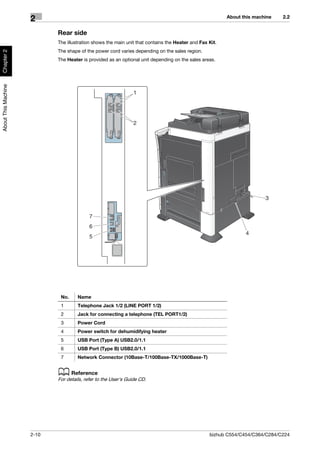
              Rear side .......................................................................................................................................... 2-10
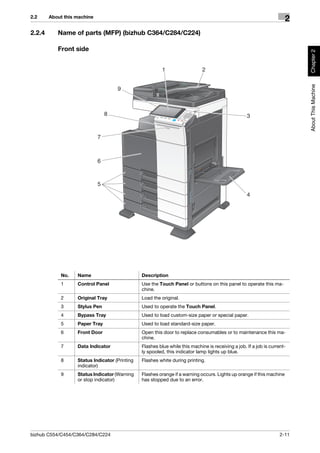
      2.2.4   Name of parts (MFP) (bizhub C364/C284/C224) ............................................................................. 2-11
              Front side ......................................................................................................................................... 2-11
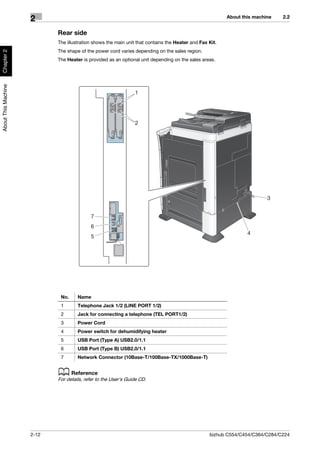
              Rear side .......................................................................................................................................... 2-12
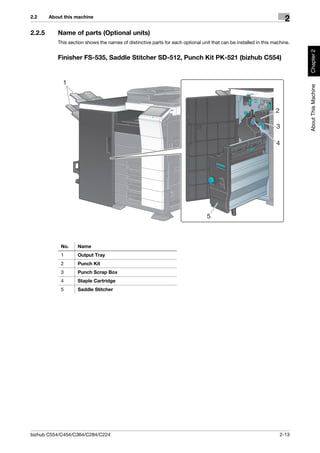
      2.2.5   Name of parts (Optional units) ......................................................................................................... 2-13
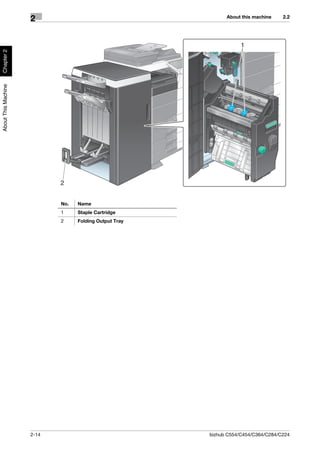
              Finisher FS-535, Saddle Stitcher SD-512, Punch Kit PK-521 (bizhub C554).................................. 2-13
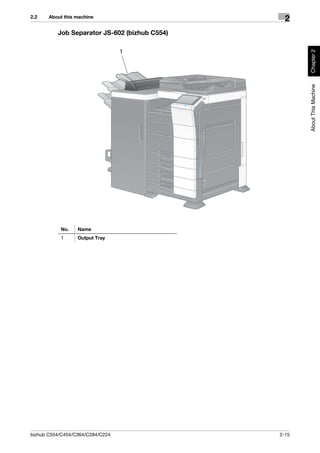
              Job Separator JS-602 (bizhub C554) .............................................................................................. 2-15
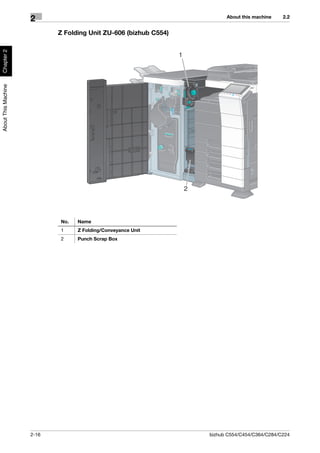
              Z Folding Unit ZU-606 (bizhub C554) .............................................................................................. 2-16
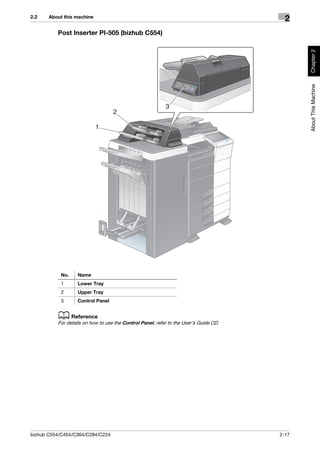
              Post Inserter PI-505 (bizhub C554).................................................................................................. 2-17
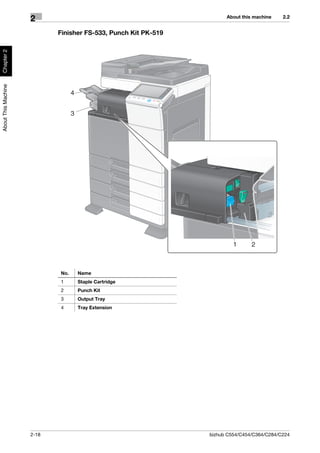
              Finisher FS-533, Punch Kit PK-519 ................................................................................................. 2-18
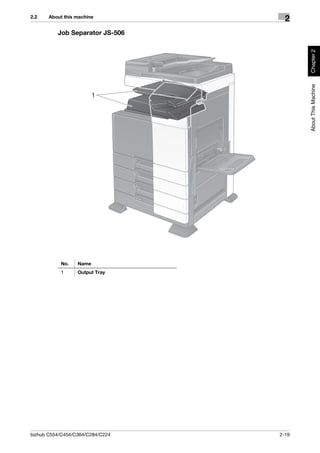
              Job Separator JS-506...................................................................................................................... 2-19
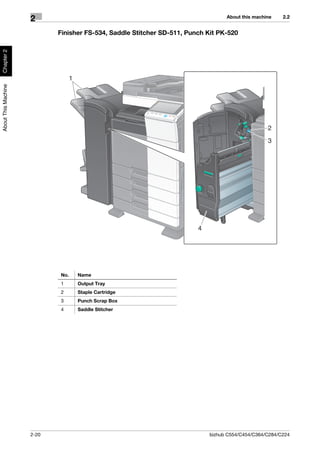
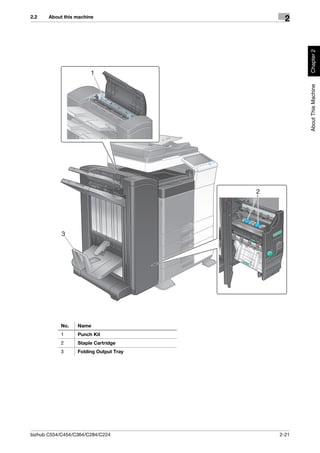
              Finisher FS-534, Saddle Stitcher SD-511, Punch Kit PK-520 ......................................................... 2-20
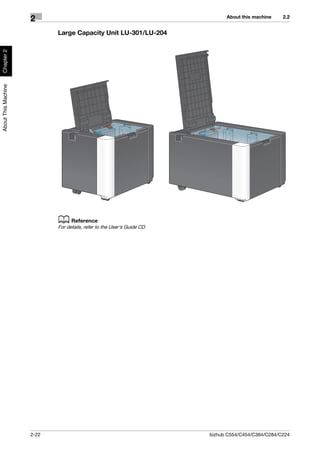
              Large Capacity Unit LU-301/LU-204 ............................................................................................... 2-22
      2.3     Power supply ................................................................................................................................. 2-23
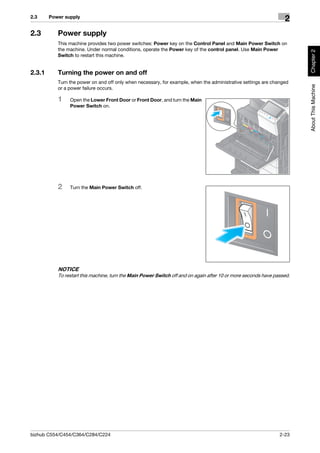
      2.3.1   Turning the power on and off........................................................................................................... 2-23
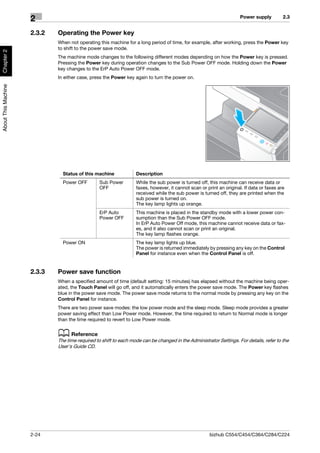
      2.3.2   Operating the Power key ................................................................................................................. 2-24
      2.3.3   Power save function ........................................................................................................................ 2-24
              Manually switching to the power save mode................................................................................... 2-25
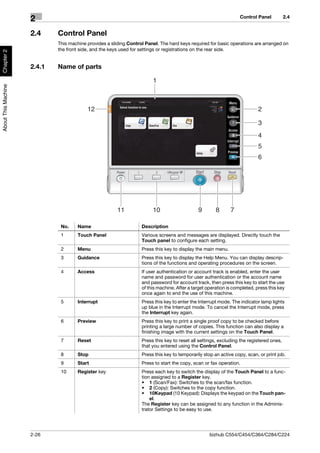
      2.4     Control Panel................................................................................................................................. 2-26
      2.4.1   Name of parts .................................................................................................................................. 2-26
      2.5     Touch Panel................................................................................................................................... 2-28
      2.5.1   Main Menu ....................................................................................................................................... 2-28
              Layout of main menu ....................................................................................................................... 2-28
              Customizing the main menu ............................................................................................................ 2-29
      2.5.2   Operating the Touch Panel .............................................................................................................. 2-29
              Tap ................................................................................................................................................... 2-29
              Double-tap ....................................................................................................................................... 2-29
              Flick.................................................................................................................................................. 2-30
              Drag ................................................................................................................................................. 2-30
              Precautions on using the Touch panel ............................................................................................ 2-30
      2.5.3   Entering characters .......................................................................................................................... 2-31
              When typing in "Group1": ................................................................................................................ 2-31
      2.6     Jobs................................................................................................................................................ 2-32
      2.6.1   Job screen ....................................................................................................................................... 2-32
      2.6.2   Multi-job function ............................................................................................................................. 2-32
      2.7     Loading Paper ............................................................................................................................... 2-33
      2.7.1   Loading paper in Tray 1 to Tray 4.................................................................................................... 2-33
              Applicable paper types .................................................................................................................... 2-33
              How to load paper ........................................................................................................................... 2-33
      2.7.2   LCT (built-in)..................................................................................................................................... 2-34
              Applicable paper types .................................................................................................................... 2-34
              How to load paper ........................................................................................................................... 2-34
      2.7.3   Loading paper into the Large Capacity Unit.................................................................................... 2-35
              Applicable paper types .................................................................................................................... 2-35
              How to load paper ........................................................................................................................... 2-35
      2.7.4   Bypass Tray ..................................................................................................................................... 2-36
              Applicable paper types .................................................................................................................... 2-36
              Applicable paper sizes ..................................................................................................................... 2-36
              How to load paper ........................................................................................................................... 2-36


3     Basic Settings and Operations
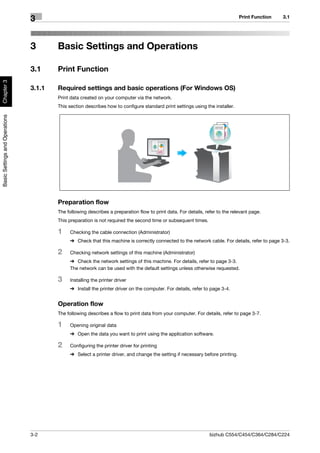
      3.1     Print Function .................................................................................................................................. 3-2
      3.1.1   Required settings and basic operations (For Windows OS) .............................................................. 3-2
              Preparation flow ................................................................................................................................. 3-2


Contents-2                                                                                                      bizhub C554/C454/C364/C284/C224
Operation flow.................................................................................................................................... 3-2
               Checking the cable connection ......................................................................................................... 3-3
               Checking network settings of this machine ....................................................................................... 3-3
               Installing the printer driver ................................................................................................................. 3-4
               Printing data....................................................................................................................................... 3-7
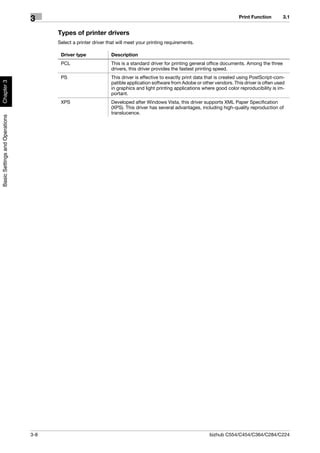
               Types of printer drivers ...................................................................................................................... 3-8
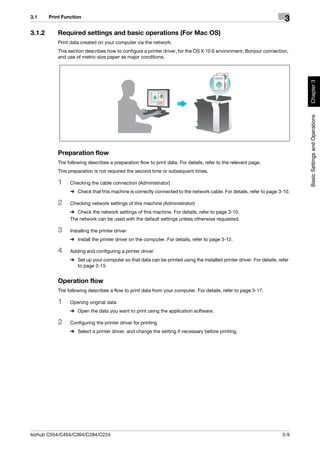
     3.1.2     Required settings and basic operations (For Mac OS) ...................................................................... 3-9
               Preparation flow ................................................................................................................................. 3-9
               Operation flow.................................................................................................................................... 3-9
               Checking the cable connection ....................................................................................................... 3-10
               Checking network settings of this machine ..................................................................................... 3-10
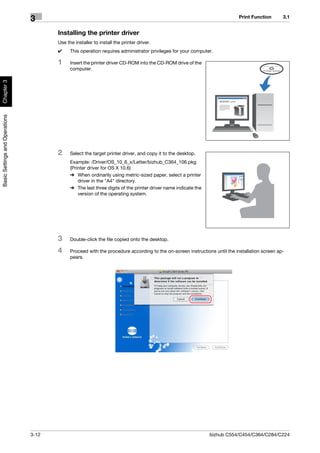
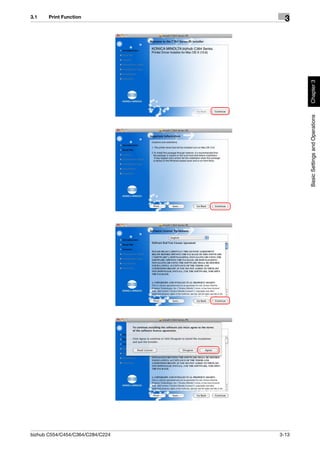
               Installing the printer driver ............................................................................................................... 3-12
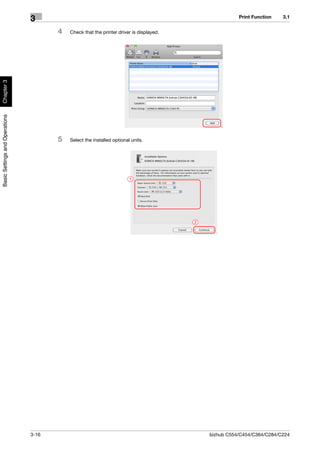
               Adding and configuring a printer driver ........................................................................................... 3-15
               Printing data..................................................................................................................................... 3-17
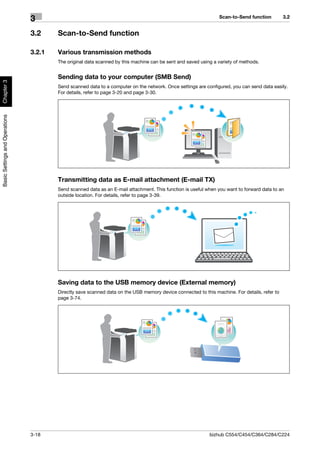
     3.2       Scan-to-Send function ................................................................................................................. 3-18
     3.2.1     Various transmission methods......................................................................................................... 3-18
               Sending data to your computer (SMB Send) ................................................................................... 3-18
               Transmitting data as E-mail attachment (E-mail TX)........................................................................ 3-18
               Saving data to the USB memory device (External memory)............................................................ 3-18
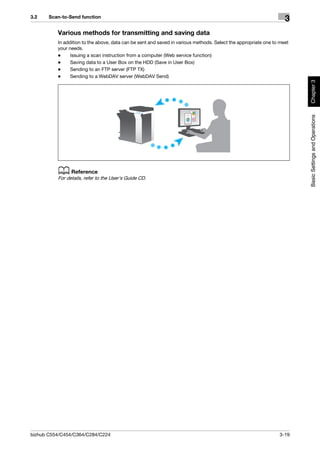
               Various methods for transmitting and saving data .......................................................................... 3-19
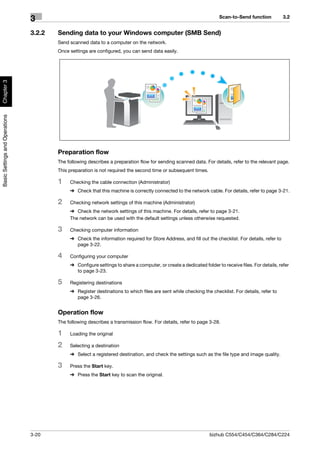
     3.2.2     Sending data to your Windows computer (SMB Send) ................................................................... 3-20
               Preparation flow ............................................................................................................................... 3-20
               Operation flow.................................................................................................................................. 3-20
               Checking the cable connection ....................................................................................................... 3-21
               Checking network settings of this machine ..................................................................................... 3-21
               Checklist .......................................................................................................................................... 3-22
               Checking computer information ...................................................................................................... 3-22
               Configuring your computer .............................................................................................................. 3-23
               Registering destinations .................................................................................................................. 3-26
               Sending the original ......................................................................................................................... 3-28
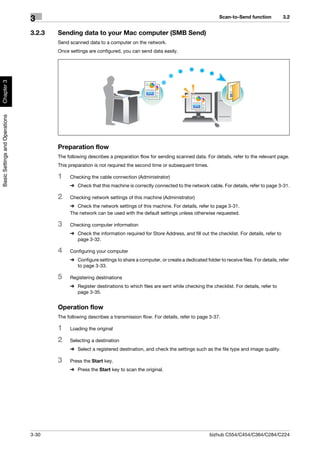
     3.2.3     Sending data to your Mac computer (SMB Send) ........................................................................... 3-30
               Preparation flow ............................................................................................................................... 3-30
               Operation flow.................................................................................................................................. 3-30
               Checking the cable connection ....................................................................................................... 3-31
               Checking network settings of this machine ..................................................................................... 3-31
               Checklist .......................................................................................................................................... 3-32
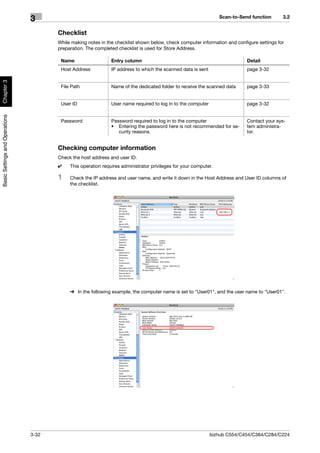
               Checking computer information ...................................................................................................... 3-32
               Configuring your computer .............................................................................................................. 3-33
               Registering destinations .................................................................................................................. 3-35
               Sending the original ......................................................................................................................... 3-37
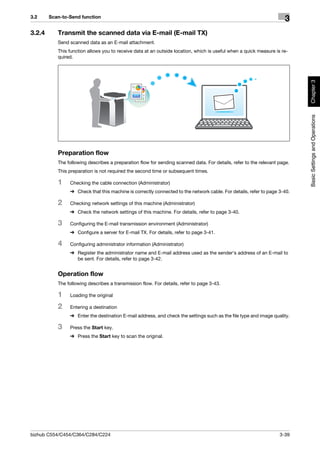
     3.2.4     Transmit the scanned data via E-mail (E-mail TX) ........................................................................... 3-39
               Preparation flow ............................................................................................................................... 3-39
               Operation flow.................................................................................................................................. 3-39
               Checking the cable connection ....................................................................................................... 3-40
               Checking network settings of this machine ..................................................................................... 3-40
               Configuring the E-mail transmission environment ........................................................................... 3-41
               Configuring administrator information ............................................................................................. 3-42
               Sending the original ......................................................................................................................... 3-43
     3.3       Fax Function .................................................................................................................................. 3-45
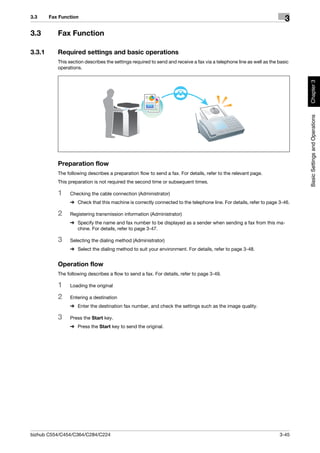
     3.3.1     Required settings and basic operations .......................................................................................... 3-45
               Preparation flow ............................................................................................................................... 3-45
               Operation flow.................................................................................................................................. 3-45
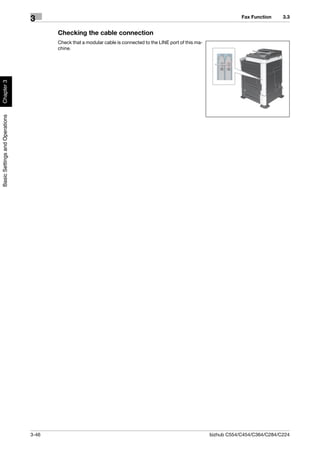
               Checking the cable connection ....................................................................................................... 3-46
               Registering transmission information .............................................................................................. 3-47
               Selecting the dialing method ........................................................................................................... 3-48
               Sending the original ......................................................................................................................... 3-49
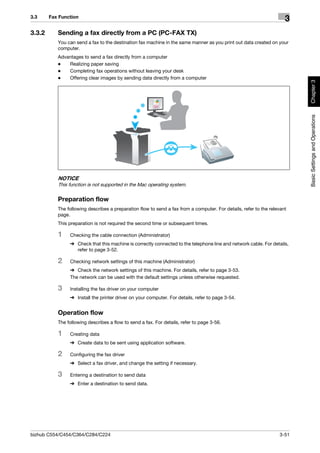
     3.3.2     Sending a fax directly from a PC (PC-FAX TX) ................................................................................ 3-51
               Preparation flow ............................................................................................................................... 3-51
               Operation flow.................................................................................................................................. 3-51
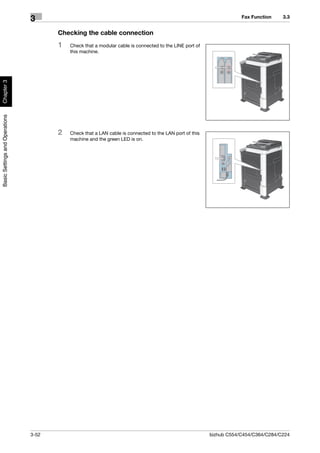
               Checking the cable connection ....................................................................................................... 3-52
               Checking network settings of this machine ..................................................................................... 3-53
               Installing the fax driver ..................................................................................................................... 3-54
               Sending data.................................................................................................................................... 3-56


bizhub C554/C454/C364/C284/C224                                                                                                                        Contents-3
3.4     Copy Function ............................................................................................................................... 3-58
              Basic operations .............................................................................................................................. 3-58
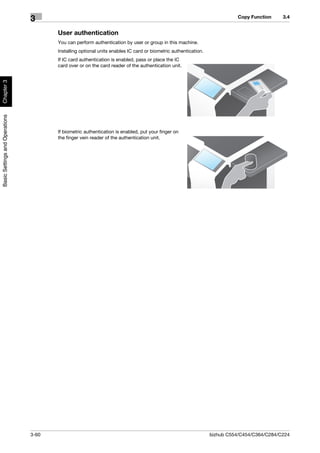
              User authentication.......................................................................................................................... 3-60
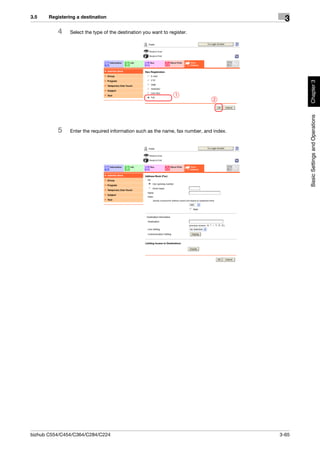
      3.5     Registering a destination ............................................................................................................. 3-61
      3.5.1   Registering an address book ........................................................................................................... 3-61
              Using the Control Panel to register an address book...................................................................... 3-61
              Using a computer to register a one-touch destination .................................................................... 3-64
      3.5.2   Information required to register a destination.................................................................................. 3-66
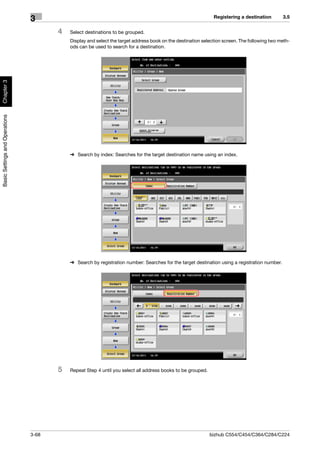
      3.5.3   Registering a group.......................................................................................................................... 3-67
              Registering a new group .................................................................................................................. 3-67
      3.5.4   Retrieving a registered destination .................................................................................................. 3-69
              Retrieving a destination ................................................................................................................... 3-69
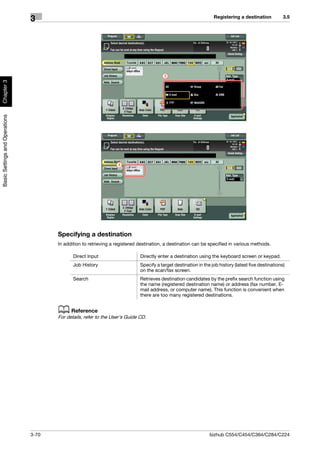
              Specifying a destination................................................................................................................... 3-70
      3.6     Using a USB memory device ....................................................................................................... 3-71
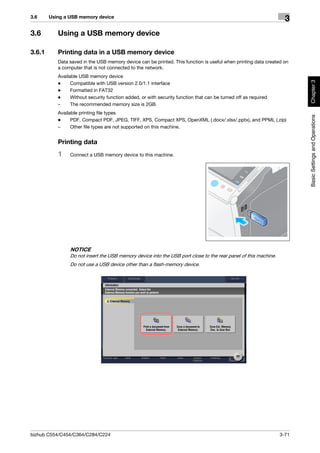
      3.6.1   Printing data in a USB memory device ............................................................................................ 3-71
              Printing data..................................................................................................................................... 3-71
      3.6.2   Saving the scanned data in the USB memory device (External memory) ....................................... 3-74
              Specifying functions to be permitted for external memory.............................................................. 3-74
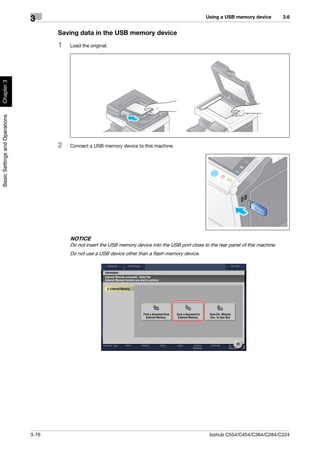
              Saving data in the USB memory device .......................................................................................... 3-76
      3.7     Using the guidance function ........................................................................................................ 3-78
      3.7.1   Guidance screen .............................................................................................................................. 3-78
              Getting help on the currently displayed screen: .............................................................................. 3-78
              Getting help on the desired function or procedure:......................................................................... 3-81
              Help Menu list .................................................................................................................................. 3-83


4     Advanced Functions
      4.1     Using advanced functions.............................................................................................................. 4-2
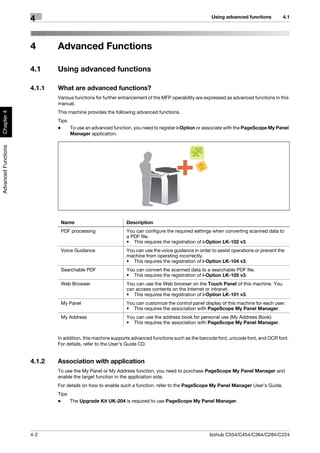
      4.1.1   What are advanced functions? .......................................................................................................... 4-2
      4.1.2   Association with application .............................................................................................................. 4-2
      4.1.3   Registering the i-Option license......................................................................................................... 4-3
              Preparation flow ................................................................................................................................. 4-3
              Registering the i-Option license......................................................................................................... 4-4
              Enabling the i-Option function ........................................................................................................... 4-6
              Configuring each function.................................................................................................................. 4-7
      4.2     Using the Voice Guidance .............................................................................................................. 4-8
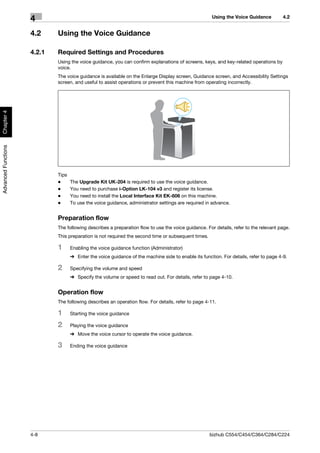
      4.2.1   Required Settings and Procedures.................................................................................................... 4-8
              Preparation flow ................................................................................................................................. 4-8
              Operation flow.................................................................................................................................... 4-8
              Enabling the voice guidance function ................................................................................................ 4-9
              Specifying the volume and speed.................................................................................................... 4-10
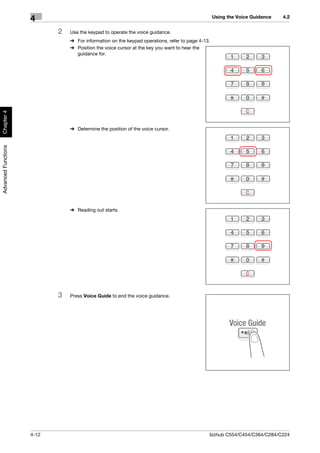
              Operating the voice guidance.......................................................................................................... 4-11
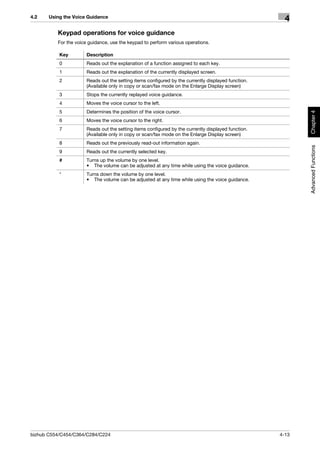
              Keypad operations for voice guidance ............................................................................................ 4-13


5     Index
      5.1     Index by item ................................................................................................................................... 5-2


Contents-4                                                                                                   bizhub C554/C454/C364/C284/C224
1
Introduction


               Introduction   Chapter 1
Environmental Information           1.1
               1
Chapter 1


               1     Introduction
Introduction


                     This [Quick Start Guide] uses illustrations to describe operating procedures for the most commonly used
                     functions in an easy-to-understand way.
                     Start by using this manual to become proficient with the useful functions that this machine offers.
                     For details on the various functions, refer to the User’s Guides on the User’s Guide CD included with this
                     machine.
                     In order to operate the machine safely and properly, be sure to read the safety information on page 1-3 of
                     this manual before use.
                     In addition, this manual contains the following information. Be sure to read the manual before using the ma-
                     chine.
                     -    Items that must be observed to use the machine safely
                     -    Information regarding product safety
                     -    Precautions when using the machine
                     The illustrations used in this manual may appear slightly different from views of the actual equipment.


               1.1   Environmental Information

                     Energy Star®


                     As an ENERGY STAR® Partner, this machine meets the ENERGY STAR® Guidelines for energy efficiency.


                     What is an ENERGY STAR® Product?
                     An ENERGY STAR® product has a special feature that allows it to automatically switch to a "low-power
                     mode" after a period of inactivity. An ENERGY STAR® product uses energy more efficiently, saves you money
                     on utility bills and helps protect the environment.


                     Environmental benefits of power management
                     Electricity consumption of a device depends on both its properties and the way of using the device.
                     Suitable power management setting offers you resource saving usage way. By setting the time to go into
                     power saving modes (e.g. sleep mode) shorter (or optimal), electricity consumption can be reduced.


                     Recycled Paper
                     This product can print on recycled paper and environmental stewardship initiatives certified paper which
                     complies with European standard EN 12281 as well as virgin paper. In addition it can print on lighter paper,
                     64g/m2 for example. Using such light paper contributes to resources-saving.


                     Duplex printing
                     With a product which has a duplex unit, you can print on both sides of paper automatically.
                     Using this function leads to reducing consumption of natural resources and your cost.
                     Attached printer driver provides this duplex printing function as initial setting in your computer (The setting
                     can be changed after installation manually).


               1-2                                                                            bizhub C554/C454/C364/C284/C224
1.2    Safety information
                                                                                                                        1


                                                                                                                            Chapter 1
1.2       Safety information
          This section contains detailed instructions on the operation and maintenance of this machine. To achieve op-
          timum utility of this device, all operators should carefully read and follow the instructions in this manual.


                                                                                                                            Introduction
          Please read the following section before connecting the machine to the supply. It contains important infor-
          mation related to user safety and preventing equipment problems.
          Please keep this manual in a handy place near the machine.
          Make sure you observe all of the precautions appear in each section of this manual.
          KM_Ver.04OE
          Reference
          -    Some parts of the contents of this section may not correspond with the purchased product.


          Warning and precaution symbols
          The following indicators are used on the warning labels or in the manuals to categorize the level of safety
          warnings.


                    WARNING                      Ignoring this warning could cause serious injury or even death.


                    CAUTION                      Ignoring this caution could cause injury or damage to property.


          Meaning of symbols

                         A triangle indicates a danger against which you should take precaution.
                              This symbol warns against cause burns.
                         A diagonal line indicates a prohibited course of action.
                              This symbol warns against dismantling the device.
                         A solid circle indicates an imperative course of action.
                              This symbol indicates you must unplug the device.


               Disassemble and modification

                    WARNING
               •   Do not modify this product, as a fire, electrical shock, or breakdown could
                   result. If the product employs a laser, the laser beam source could cause
                   blindness.
               •   Do not attempt to remove the covers and panels which have been fixed
                   to the product. Some products have a high-voltage part or a laser beam
                   source inside that could cause an electrical shock or blindness.


               Power cord

                    WARNING
               •   Use only the power cord supplied in the package. If a power cord is not
                   supplied, only use the power cord and plug that is specified in POWER
                   CORD INSTRUCTION. Failure to use this cord could result in a fire or
                   electrical shock.
               •   Use the power cord supplied in the package only for this machine and
                   NEVER use it for any other product. Failure to observe this precaution
                   could result in a fire or electrical shock.


bizhub C554/C454/C364/C284/C224                                                                                     1-3
Safety information   1.2
               1
Chapter 1


                     Power cord
                     •   Do not scratch, abrade, place a heavy object on, heat, twist, bend, pull
                         on, or damage the power cord. Use of a damaged power cord (exposed
                         core wire, broken wire, etc.) could result in a fire or breakdown.
Introduction


                         Should any of these conditions be found, immediately turn OFF the power
                         switch, unplug the power cord from the power outlet, and then call your
                         authorized service representative.


                     Power source

                          WARNING
                     •   Use only the power source voltage specified on the machine. Failure to
                         do that could result in a fire or electrical shock.

                     •   Do not use a multiple outlet adapter to connect any other appliances or
                         machines.
                         Use of a power outlet for more than the marked current value could result
                         in a fire or electrical shock.
                     •   Do not use an extension cord in principle. Use of an extension cord could
                         cause a fire or electrical shock. Contact your authorized service repre-
                         sentative if an extension cord is required.

                          CAUTION
                     •   The outlet must be near the equipment and easily accessible. Otherwise
                         you can not pull out the power plug when an emergency occurs.


                     Power plug

                          WARNING
                     •   Do not unplug and plug in the power cord with a wet hand, as an electrical
                         shock could result.

                     •   Plug the power cord all the way into the power outlet. Failure to do this
                         could result in a fire or electrical shock.


                          CAUTION
                     •   Do not place any objects around the power plug, as the power plug may
                         be difficult to pull out when an emergency occurs.

                     •   Do not tug the power cord when unplugging. Pulling on the power cord
                         could damage the cord, resulting in a fire or electrical shock.

                     •   Remove the power plug from the outlet more than one time a year and
                         clean the area between the plug terminals. Dust that accumulates be-
                         tween the plug terminals may cause a fire.


               1-4                                                                      bizhub C554/C454/C364/C284/C224
1.2    Safety information
                                                                                                    1


                                                                                                         Chapter 1
               Grounding

                    WARNING


                                                                                                         Introduction
               •   Connect the power cord to an electrical outlet that is equipped with a
                   grounding terminal.


               Installation

                    WARNING
               •   Do not place a flower vase or other container that contains water, or metal
                   clips or other small metallic objects on this product. Spilled water or me-
                   tallic objects dropped inside the product could result in a fire, electrical
                   shock, or breakdown.
                   Should a piece of metal, water, or any other similar foreign matter get in-
                   side the product, immediately turn OFF the power switch, unplug the
                   power cord from the power outlet, and then call your authorized service
                   representative.


               •   Do not use flammable sprays, liquids, or gases inside or near this ma-
                   chine. Do not clean the inside of this machine using a flammable gas
                   duster. A fire or explosion could result.


                    CAUTION
               •   After installing this product, mount it on a secure base. If the unit moves
                   or falls, it may cause personal injury.

               •   Do not place the product in a dusty place, or a site exposed to soot or
                   steam, near a kitchen table, bath, or a humidifier. A fire, electrical shock,
                   or breakdown could result.
               •   Do not place this product on an unstable or tilted bench, or in a location
                   subject to a lot of vibration and shock. It could drop or fall, causing per-
                   sonal injury or mechanical breakdown.
               •   Do not let any object plug the ventilation holes of this product. Heat could
                   accumulate inside the product, resulting in a fire or malfunction.


               Ventilation

                    CAUTION
               •   Using this product in a poorly ventilated room for a long time or producing
                   a large volume of copies or prints may cause the odor of exhaust air from
                   the machine. Ventilate the room well.


bizhub C554/C454/C364/C284/C224                                                                    1-5
Safety information   1.2
               1
Chapter 1


                     Actions in response to troubles

                          WARNING
Introduction


                     •   Do not keep using this product, if this product becomes inordinately hot
                         or emits smoke, or unusual odor or noise. Immediately turn OFF the pow-
                         er switch, unplug the power cord from the power outlet, and then call your
                         authorized service representative. If you keep on using it as is, a fire or
                         electrical shock could result.
                     •   Do not keep using this product, if this product has been dropped or its
                         cover damaged. Immediately turn OFF the power switch, unplug the
                         power cord from the power outlet, and then call your authorized service
                         representative. If you keep on using it as is, a fire or electrical shock could
                         result.

                          CAUTION
                     •   The inside of this product has areas subject to high temperature, which
                         may cause burns.
                         When checking the inside of the unit for malfunctions such as a paper
                         misfeed, do not touch the locations (around the fusing unit, etc.) which
                         are indicated by a "Caution HOT" caution label.


                     Consumables

                          WARNING
                     •   Do not throw the toner cartridge or toner into an open flame. The hot ton-
                         er may scatter and cause burns or other damage.


                          CAUTION
                     •   Do not leave toner-related parts (toner units, PC drum units, imaging units
                         or developing units) within easy reach of children. Licking any of these
                         parts or ingesting toner could damage your health.
                     •   Do not store toner-related parts (toner units, PC drum units, imaging units
                         or developing units) near devices susceptible to magnetism, such as pre-
                         cision equipment and data storage devices, otherwise they may malfunc-
                         tion. They could cause these products to malfunction.


                     When moving the machine

                          CAUTION
                     •   Whenever moving this product, be sure to disconnect the power cord and
                         other cables. Failure to do this could damage the cord or cable, resulting
                         in a fire, electrical shock, or breakdown.
                     •   When moving this product, always hold it at the locations specified in the
                         User’s Guide or other documents. If the unit is moved while held at loca-
                         tions other than those specified, it may fall, causing severe personal inju-
                         ry.


                     When using the machine

                          CAUTION
                     •   When using the machine, do not look at the light of the lamp for a pro-
                         longed time. Eyestrain could result.


               1-6                                                                           bizhub C554/C454/C364/C284/C224
1.2    Safety information
                                                                                                  1


                                                                                                       Chapter 1
               Papers

                    CAUTION


                                                                                                       Introduction
               •   Do not use stapled paper, conductive paper (such as silver paper or car-
                   bon paper) or treated heat-sensitive/inkjet paper, otherwise a fire may re-
                   sult.


          When the Fax is not installed:

               Before successive holidays

                    CAUTION
               •   Unplug the product when you will not use the product for long periods of
                   time.


bizhub C554/C454/C364/C284/C224                                                                  1-7
Regulation notices         1.3
               1
Chapter 1


               1.3   Regulation notices

                     CE Marking (Declaration of Conformity) for users of the European Union (EU)
Introduction


                     This product complies with the following EU directives:
                     2009/125/EC, 2006/95/EC, 2004/108/EC and 1999/5/EC directives.
                     This declaration is valid for the area of the European Union.
                     This device must be used with a shielded interface cable. The use of non-shielded cables is likely to result in
                     interference with radio communications and is prohibited under CISPR rules and local rules.


                     USER INSTRUCTIONS FCC PART 15 - RADIO FREQUENCY DEVICES (for
                     U.S.A. users)
                     NOTE: This equipment has been tested and found to comply with the limits for a Class A digital device, pur-
                     suant to Part 15 of the FCC Rules.
                     These limits are designed to provide reasonable protection against harmful interference when the equipment
                     is operated in a commercial environment. This equipment generates, uses and can radiate radio frequency
                     energy and, if not installed and used in accordance with the instruction manual, may cause harmful interfer-
                     ence to radio communications. Operation of this equipment in a residential area is likely to cause harmful in-
                     terference in which case the user will be required to correct the interference at his own expense.
                     WARNING: The design and production of this unit conform to FCC regulations, and any changes or modifi-
                     cations must be registered with the FCC and are subject to FCC control. Any changes made by the purchaser
                     or user without first contacting the manufacturer will be subject to penalty under FCC regulations.
                     This device must be used with a shielded interface cable. The use of non-shielded cables is likely to result in
                     interference with radio communications and is prohibited under FCC rules.


                     INTERFERENCE-CAUSING EQUIPMENT STANDARD (ICES-003 ISSUE 4) (for
                     Canada users)
                     This Class A digital apparatus complies with Canadian ICES-003.
                     Cet appareil numérique de la classe A est conforme à la norme NMB-003 du Canada.


                     For users in countries not subject to class B regulations
                     WARNING
                     This is a Class A product. In a domestic environment this product may cause radio interference in which case
                     the user may be required to take adequate measures.
                     This device must be used with a shielded interface cable. The use of non-shielded cables is likely to result in
                     interference with radio communications and is prohibited under CISPR rules and local rules.


                     GS Certfication
                     This product is GS-certified for the Konica Minolta branded model bizhub C554, bizhub C454, bizhub C364,
                     bizhub C284 and bizhub C224.


                     Laser safety
                     This is a digital machine which operates using a laser. There is no possibility of danger from the laser provided
                     the machine is operated according to the instructions in the manuals.
                     Since radiation emitted by the laser is completely confined within protective housing, the laser beam cannot
                     escape from the machine during any phase of user operation.
                     This machine is certified as a Class 1 laser product: This means the machine does not produce hazardous
                     laser radiation.


               1-8                                                                             bizhub C554/C454/C364/C284/C224
1.3    Regulation notices
                                                                                                                      1


                                                                                                                          Chapter 1
          Internal laser radiation
          Maximum Average Radiation Power: 11.2 μW (bizhub C554) / 9.4 μW (bizhub C454) / 7.4 μW (bizhub C364)
          / 6.0 μW (bizhub C284/C224) at the laser aperture of the print head unit.


                                                                                                                          Introduction
          Wavelength: 770-800 nm
          This product employs a Class 3B laser diode that emits an invisible laser beam.
          The laser diode and the scanning polygon mirror are incorporated in the print head unit.
          The print head unit is NOT A FIELD SERVICE ITEM:
          Therefore, the print head unit should not be opened under any circumstances.


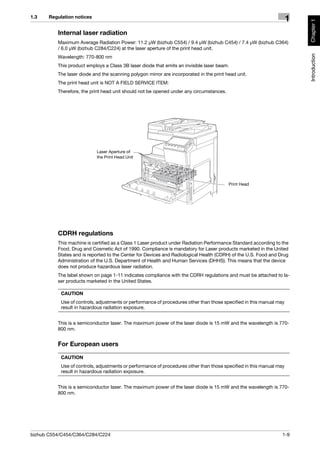
                            Laser Aperture of
                            the Print Head Unit


                                                                                         Print Head


          CDRH regulations
          This machine is certified as a Class 1 Laser product under Radiation Performance Standard according to the
          Food, Drug and Cosmetic Act of 1990. Compliance is mandatory for Laser products marketed in the United
          States and is reported to the Center for Devices and Radiological Health (CDRH) of the U.S. Food and Drug
          Administration of the U.S. Department of Health and Human Services (DHHS). This means that the device
          does not produce hazardous laser radiation.
          The label shown on page 1-11 indicates compliance with the CDRH regulations and must be attached to la-
          ser products marketed in the United States.

            CAUTION
            Use of controls, adjustments or performance of procedures other than those specified in this manual may
            result in hazardous radiation exposure.


          This is a semiconductor laser. The maximum power of the laser diode is 15 mW and the wavelength is 770-
          800 nm.


          For European users

            CAUTION
            Use of controls, adjustments or performance of procedures other than those specified in this manual may
            result in hazardous radiation exposure.


          This is a semiconductor laser. The maximum power of the laser diode is 15 mW and the wavelength is 770-
          800 nm.


bizhub C554/C454/C364/C284/C224                                                                                   1-9
Regulation notices           1.3
               1
Chapter 1


                      For Denmark users

                       ADVARSEL
                       Usynlig laserstråling ved åbning, når sikkerhedsafbrydere er ude af funktion. Undgå udsættelse for
Introduction


                       stråling. Klasse 1 laser produkt der opfylder IEC60825 sikkerheds kravene.


                      Dansk: Dette er en halvlederlaser. Laserdiodens højeste styrke er 15 mW og bølgelængden er 770-800 nm.


                      For Finland, Sweden users

                       LOUKAN 1 LASERLAITE
                       KLASS 1 LASER APPARAT


                       VAROITUS!
                       Laitteen Käyttäminen muulla kuin tässä käyttöohjeessa mainitulla tavalla saattaa altistaa käyttäjän turval-
                       lisuusluokan 1 ylittävälle näkymättömälle lasersäteilylle.


                      Tämä on puolijohdelaser. Laserdiodin sunrin teho on 15 mW ja aallonpituus on 770-800 nm.

                       VARNING!
                       Om apparaten används på annat sätt än i denna bruksanvisning specificerats, kan användaren utsättas
                       för osynlig laserstrålning, som överskrider gränsen för laserklass 1.


                      Det här är en halvledarlaser. Den maximala effekten för laserdioden är 15 mW och våglängden är 770-800 nm.

                       VARO!
                       Avattaessa ja suojalukitus ohitettaessa olet alttiina näkymättömälle lasersäteilylle. Älä katso säteeseen.


                       VARNING!
                       Osynlig laserstrålning när denna del är öppnad och spärren är urkopplad. Betrakta ej strålen.


                      For Norway users

                       ADVARSEL
                       Dersom apparatet brukes på annen måte enn spesifisert i denne bruksanvisning, kan brukeren utsettes
                       for unsynlig laserstråling som overskrider grensen for laser klass 1.


                      Dette en halvleder laser. Maksimal effekt till laserdiode er 15 mW og bølgelengde er 770-800 nm.


               1-10                                                                           bizhub C554/C454/C364/C284/C224
1.3    Regulation notices
                                                                                                                           1


                                                                                                                                 Chapter 1
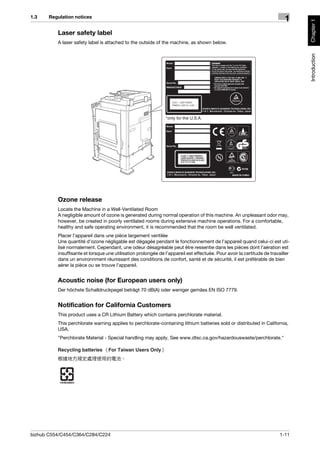
          Laser safety label
          A laser safety label is attached to the outside of the machine, as shown below.


                                                                                                                                 Introduction
                                                               *only for the U.S.A.


          Ozone release
          Locate the Machine in a Well-Ventilated Room
          A negligible amount of ozone is generated during normal operation of this machine. An unpleasant odor may,
          however, be created in poorly ventilated rooms during extensive machine operations. For a comfortable,
          healthy and safe operating environment, it is recommended that the room be well ventilated.
          Placer l’appareil dans une pièce largement ventilée
          Une quantité d’ozone négligable est dégagée pendant le fonctionnement de l’appareil quand celui-ci est uti-
          lisé normalement. Cependant, une odeur désagréable peut être ressentie dans les pièces dont l’aération est
          insuffisante et lorsque une utilisation prolongée de l’appareil est effectuée. Pour avoir la certitude de travailler
          dans un environnment réunissant des conditions de confort, santé et de sécurité, il est préférable de bien
          aérer la pièce ou se trouve l’appareil.


          Acoustic noise (for European users only)
          Der höchste Schalldruckpegel beträgt 70 dB(A) oder weniger gemäss EN ISO 7779.


          Notification for California Customers
          This product uses a CR Lithium Battery which contains perchlorate material.
          This perchlorate warning applies to perchlorate-containing lithium batteries sold or distributed in California,
          USA.
          "Perchlorate Material - Special handling may apply, See www.dtsc.ca.gov/hazardouswaste/perchlorate."


bizhub C554/C454/C364/C284/C224                                                                                          1-11
Regulation notices        1.3
               1
Chapter 1


                      For EU member states only
                                                This symbol means: Do not dispose of this product together with your household
                                                waste!
Introduction


                                                Please refer to the information of your local community or contact our dealers re-
                                                grading the proper handling of end-of-life electric and electronic equipments. Re-
                                                cycling of this product will help to conserve natural resources and prevent
                                                potential negative consequences for the environment and human health caused
                                                by inappropriate waste handling.


                      For EU member states only
                      This product complies with RoHS (2002/95/EC) Directive.


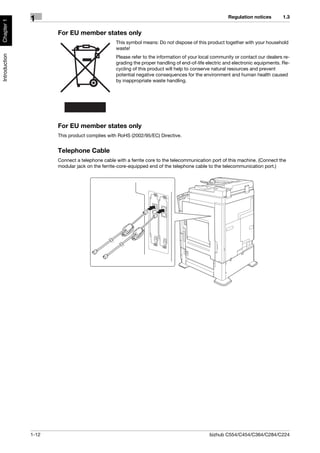
                      Telephone Cable
                      Connect a telephone cable with a ferrite core to the telecommunication port of this machine. (Connect the
                      modular jack on the ferrite-core-equipped end of the telephone cable to the telecommunication port.)


               1-12                                                                         bizhub C554/C454/C364/C284/C224
1.4    Caution notations and labels
                                                                                                                      1


                                                                                                                           Chapter 1
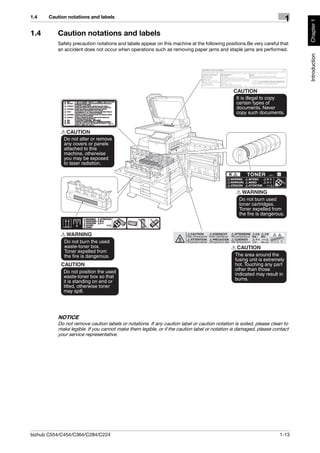
1.4       Caution notations and labels
          Safety precaution notations and labels appear on this machine at the following positions.Be very careful that
          an accident does not occur when operations such as removing paper jams and staple jams are performed.


                                                                                                                           Introduction
          NOTICE
          Do not remove caution labels or notations. If any caution label or caution notation is soiled, please clean to
          make legible. If you cannot make them legible, or if the caution label or notation is damaged, please contact
          your service representative.


bizhub C554/C454/C364/C284/C224                                                                                    1-13
Special Notice to User         1.5
               1
Chapter 1


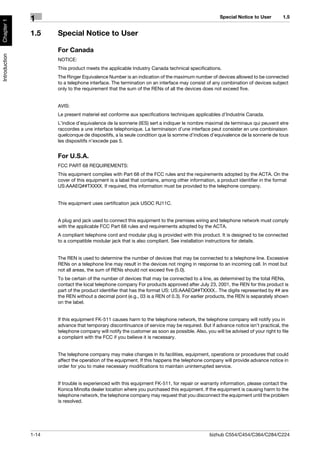
               1.5    Special Notice to User

                      For Canada
Introduction


                      NOTICE:
                      This product meets the applicable Industry Canada technical specifications.
                      The Ringer Equivalence Number is an indication of the maximum number of devices allowed to be connected
                      to a telephone interface. The termination on an interface may consist of any combination of devices subject
                      only to the requirement that the sum of the RENs of all the devices does not exceed five.


                      AVIS:
                      Le present materiel est conforme aux specifications techniques applicables d’Industrie Canada.
                      L’indice d’equivalence de la sonnerie (IES) sert a indiquer le nombre maximal de terminaux qui peuvent etre
                      raccordes a une interface telephonique. La terminaison d’une interface peut consister en une combinaison
                      quelconque de dispositifs, a la seule condition que la somme d’indices d’equivalence de la sonnerie de tous
                      les dispositifs n’excede pas 5.


                      For U.S.A.
                      FCC PART 68 REQUIREMENTS:
                      This equipment complies with Part 68 of the FCC rules and the requirements adopted by the ACTA. On the
                      cover of this equipment is a label that contains, among other information, a product identifier in the format
                      US:AAAEQ##TXXXX. If required, this information must be provided to the telephone company.


                      This equipment uses certification jack USOC RJ11C.


                      A plug and jack used to connect this equipment to the premises wiring and telephone network must comply
                      with the applicable FCC Part 68 rules and requirements adopted by the ACTA.
                      A compliant telephone cord and modular plug is provided with this product. It is designed to be connected
                      to a compatible modular jack that is also compliant. See installation instructions for details.


                      The REN is used to determine the number of devices that may be connected to a telephone line. Excessive
                      RENs on a telephone line may result in the devices not ringing in response to an incoming call. In most but
                      not all areas, the sum of RENs should not exceed five (5.0).
                      To be certain of the number of devices that may be connected to a line, as determined by the total RENs,
                      contact the local telephone company For products approved after July 23, 2001, the REN for this product is
                      part of the product identifier that has the format US: US:AAAEQ##TXXXX.. The digits represented by ## are
                      the REN without a decimal point (e.g., 03 is a REN of 0.3). For earlier products, the REN is separately shown
                      on the label.


                      If this equipment FK-511 causes harm to the telephone network, the telephone company will notify you in
                      advance that temporary discontinuance of service may be required. But if advance notice isn’t practical, the
                      telephone company will notify the customer as soon as possible. Also, you will be advised of your right to file
                      a complaint with the FCC if you believe it is necessary.


                      The telephone company may make changes in its facilities, equipment, operations or procedures that could
                      affect the operation of the equipment. If this happens the telephone company will provide advance notice in
                      order for you to make necessary modifications to maintain uninterrupted service.


                      If trouble is experienced with this equipment FK-511, for repair or warranty information, please contact the
                      Konica Minolta dealer location where you purchased this equipment. If the equipment is causing harm to the
                      telephone network, the telephone company may request that you disconnect the equipment until the problem
                      is resolved.


               1-14                                                                            bizhub C554/C454/C364/C284/C224
1.5    Special Notice to User
                                                                                                                                1


                                                                                                                                    Chapter 1
          Connection to party line service is subject to state tariffs. Contact the state public utility commission, public
          service commission or corporation commission for information. If you home has specially wired alarm equip-
          ment connected to the telephone line, ensure the installation of FK-511 does not disable you alarm equip-
          ment. If you have questions about what will disable alarm equipment, consult your telephone company or a


                                                                                                                                    Introduction
          qualified installer.


          The Telephone Consumer Protection Act of 1991 makes it unlawful for any person to use a computer or other
          electronic device, including FAX machines, to send any message unless such message clearly contains in a
          margin at the top or bottom of each transmitted page or on the first page of the transmission, the date and
          time it is sent and an identification of the business or other entity, or other individual sending the message
          and the telephone number of the sending machine or such business, other entity, or individual. (The tele-
          phone number provided may not be a 900 number or any other number for which charges exceed local or
          long-distance transmission charges.)
          In order to program this information into your FAX machine, you should complete the following steps: See
          [Sending by Renaming the Sender ([Fax Header Settings])] of the User’s Guide [Fax].


            WARNING/CAUTION Explained

                 WARNING
            The exclamation point within an equilateral triangle followed by the word "Warning" is intended to alert
            the user to the possibility that a disregard for the warning may result in fatal hazards or critical injuries. Be
            sure to focus your attention on the Warning headings when reading this Quick Start Guide.

                 CAUTION
            The exclamation point within an equilateral triangle followed by the word "Caution" is intended to alert the
            user to the possibility that a disregard for the caution may result in minor injuries or in physical damage.
            Be sure to focus your attention on the Caution headings when reading this Quick Start Guide.


          For New Zealand
          This device is equipped with pulse dialing while the Telecom standard is DTMF tone dialing. There is no guar-
          antee that Telecom lines will always continue to support pulse dialing.
          Use of pulse dialing, when this equipment is connected to the same line as other equipment, may give rise
          to bell tinkle or noise and may also cause a false answer condition. Should such problems occur, the user
          should not contact the Telecom Fault Service.
          This equipment may not provide for the effective hand-over of a call to another device connected to the same
          line.
          This equipment does not fully meet Telecom’s impedance requirements. Performance limitations may occur
          when used in conjunction with some parts of the network. Telecom will accept no responsibility should diffi-
          culties arise in such circumstances.
          The grant of a Telepermit for any item of terminal equipment indicates only that Telecom has accepted that
          the item complies with minimum conditions for connection to its network. It indicates no endorsement of the
          product by Telecom, nor does it provide any sort of warranty. Above all, it provides no assurance that any
          item will work correctly in all respects with another item of Telepermitted equipment of a different make or
          model, nor does it imply that any product is compatible with all of Telecom’s network services.
          The automatic calling functions of this equipment must not be used to cause a nuisance to other customers.
          Telepermitted equipment only may be connected to the auxiliary telephone port. The auxiliary port is not spe-
          cifically designed for 3-wire connected equipment. 3-wire might not respond to incoming ringing when con-
          nected to this port.


bizhub C554/C454/C364/C284/C224                                                                                           1-15
Special Notice to User        1.5
               1
Chapter 1


                      For Europe
                      The Facsimile has been approved in accordance with Council Decision 1999/5/ EC for pan-European single
                      terminal connection to the public switched telephone network (PSTN). However, due to differences between
                      the individual PSTNs provided in different countries, the approval does not, of itself, give an unconditional
Introduction


                      assurance of successful operation on every PSTN network terminal point.
                      In the event of problems, you should contact your equipment supplier in the first instance.


               1-16                                                                          bizhub C554/C454/C364/C284/C224
1.6    Space requirements
                                                                                                                                                                                            1


                                                                                                                                                                                                 Chapter 1
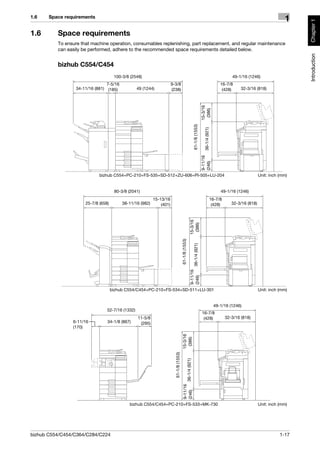
1.6       Space requirements
          To ensure that machine operation, consumables replenishing, part replacement, and regular maintenance
          can easily be performed, adhere to the recommended space requirements detailed below.


                                                                                                                                                                                                 Introduction
          bizhub C554/C454
                                      100-3/8 (2548)                                                                                                           49-1/16 (1246)
                                 7-5/16                                9-3/8                                                                            16-7/8
                  34-11/16 (881) (185)            49 (1244)            (238)                                                                             (428)      32-3/16 (818)


                                                                                                                                  15-3/16
                                                                                                                                   (386)
                                                                                                                  61-1/8 (1553)

                                                                                                                                    36-1/4 (921)
                                                                                                                                  9-11/16
                                                                                                                                  (246)
                             bizhub C554+PC-210+FS-535+SD-512+ZU-606+PI-505+LU-204                                                                                             Unit: inch (mm)


                                      80-3/8 (2041)                                                                                                     49-1/16 (1246)
                                                           15-13/16                                                                                16-7/8
                      25-7/8 (658)        38-11/16 (982)       (401)                                                                                (428)      32-3/16 (818)
                                                                                                         15-3/16
                                                                                                          (386)
                                                                                         61-1/8 (1553)

                                                                                                                 36-1/4 (921)
                                                                                                         9-11/16
                                                                                                         (246)


                                     bizhub C554/C454+PC-210+FS-534+SD-511+LU-301                                                                                              Unit: inch (mm)


                                                                                                                                                    49-1/16 (1246)
                                 52-7/16 (1332)
                                                                                                                                  16-7/8
                                                  11-5/8                                                                           (428)                    32-3/16 (818)
                6-11/16          34-1/8 (867)      (295)
                (170)
                                                                                          15-3/16
                                                                                           (386)
                                                                         61-1/8 (1553)

                                                                                                   36-1/4 (921)
                                                                                           9-11/16
                                                                                           (246)


                                             bizhub C554/C454+PC-210+FS-533+MK-730                                                                                             Unit: inch (mm)


bizhub C554/C454/C364/C284/C224                                                                                                                                                           1-17
Space requirements         1.6
               1
Chapter 1


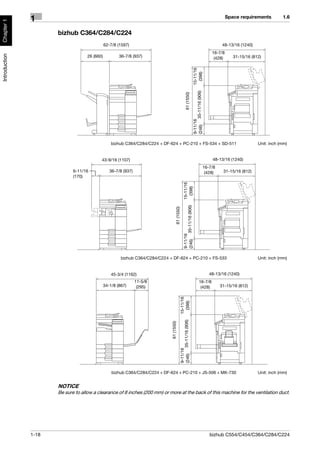
                      bizhub C364/C284/C224
                                               62-7/8 (1597)                                                                                                  48-13/16 (1240)
                                                                                                                                                         16-7/8
Introduction


                                    26 (660)           36-7/8 (937)                                                                                       (428)      31-15/16 (812)


                                                                                                                                 15-11/16
                                                                                                                                   (398)
                                                                                                                                 (246) 35-11/16 (906)
                                                                                                              61 (1550)
                                                                                                                                 9-11/16
                                                   bizhub C364/C284/C224 + DF-624 + PC-210 + FS-534 + SD-511                                                                     Unit: inch (mm)


                                           43-9/16 (1107)                                                                                                48-13/16 (1240)
                                                                                                                                                    16-7/8
                             6-11/16              36-7/8 (937)                                                                                       (428)     31-15/16 (812)
                             (170)

                                                                                                          15-11/16
                                                                                                            (398)
                                                                                                          (246) 35-11/16 (906)
                                                                                       61 (1550)
                                                                                                          9-11/16


                                                        bizhub C364/C284/C224 + DF-624 + PC-210 + FS-533                                                                         Unit: inch (mm)


                                                   45-3/4 (1162)                                                                                        48-13/16 (1240)
                                                                 11-5/8                                                                     16-7/8
                                               34-1/8 (867)       (295)                                                                      (428)           31-15/16 (812)
                                                                                                   15-11/16
                                                                                                     (398)
                                                                                                   (246) 35-11/16 (906)
                                                                               61 (1550)
                                                                                                   9-11/16


                                                   bizhub C364/C284/C224 + DF-624 + PC-210 + JS-506 + MK-730                                                                     Unit: inch (mm)


                      NOTICE
                      Be sure to allow a clearance of 8 inches (200 mm) or more at the back of this machine for the ventilation duct.


               1-18                                                                                                                                     bizhub C554/C454/C364/C284/C224
1.7    Operation precautions
                                                                                                                         1


                                                                                                                              Chapter 1
1.7       Operation precautions
          To ensure the optimum performance of this machine, observe the precautions described below.


                                                                                                                              Introduction
          Power source
          The power source requirements are as follows.
          -    Voltage fluctuation: Maximum ± 10% (at 110 V/120 to 127 V/220 to 240 V AC)
          -    Frequency fluctuation: Maximum ± 3 Hz (at 50 Hz/60 Hz)
          –    Use a power source with as little voltage or frequency fluctuations as possible.


          Operating environment
          The environmental requirements for correct operation of the machine are as follows.
          -    Temperature: 50°F (10°C) to 86°F (30°C) with fluctuations of no more than 18°F (10°C) within an hour
          -    Humidity: 15% to 85% with fluctuations of no more than 10% within an hour


          Storage of copies
          To store copies, follow the recommendation listed below.
          -    Copies that are to be kept for a long time should be kept where they are not exposed to light in order
               to prevent them from fading.
          -    Adhesive that contains solvent (e.g., spray glue) may dissolve the toner on copies.
          -    Color copies have a thicker layer of toner than normal black-and-white copies. Therefore, when a color
               copy is folded, the toner at the fold may peel off.


          Data stored in this machine
          For the machine with hard disk, it is suggested to delete all data stored in all hard disk areas using the over-
          write all data function to prevent leakage of data prior to transfer or disposal of the machine, or returning of
          the leased machine.
          For details of the overwrite all data function, refer to the User's Guide CD. Contact your service representative
          before deleting data.


bizhub C554/C454/C364/C284/C224                                                                                       1-19
Legal restrictions on copying        1.8
               1
Chapter 1


               1.8    Legal restrictions on copying
                      Certain types of originals must never be copied with the purpose or intent to pass copies of such originals
                      off as the originals.
Introduction


                      The following is not a complete list, but is meant to be used as a guide to responsible copying.
                      <Financial Instruments>
                      -    Personal checks
                      -    Traveler’s checks
                      -    Money orders
                      -    Certificates of deposit
                      -    Bonds or other certificates of indebtedness
                      -    Stock certificates
                      <Legal Originals>
                      -   Food stamps
                      -   Postage stamps (canceled or uncanceled)
                      -   Checks or drafts drawn by government agencies
                      -   Internal revenue stamps (canceled or uncanceled)
                      -   Passports
                      -   Immigration papers
                      -   Motor vehicle licenses and titles
                      -   House and property titles and deeds
                      <General>
                      -   Identification cards, badges, or insignias
                      -   Copyrighted works without permission of the copyright owner
                      In addition, it is prohibited under any circumstances to copy domestic or foreign currencies, or works of art
                      without permission of the copyright owner.
                      When in doubt about the nature of an original, consult with legal counsel.
                      NOTICE
                      This machine provides the forgery prevention function in order to prevent financial instruments from being
                      copied illegally.
                      We appreciate your understanding that printed images may infrequently have some noise or image data may
                      not be stored under certain circumstances due to this forgery prevention function.


               1-20                                                                          bizhub C554/C454/C364/C284/C224
2
About This Machine


                     About This Machine   Chapter 2
Introduction to User's Guide       2.1
                     2


                     2       About This Machine
Chapter 2


                     2.1     Introduction to User's Guide
                             The user's guide of this product consists of two booklet manuals and the "User's Guide CD".
About This Machine


                             The booklet manuals describe basic machine procedures and frequently asked questions.
                             If you want to learn about more detailed functions or operation methods, refer to the User's Guide included
                             in the "User's Guide CD".


                     2.1.1   Booklet manuals

                             [Quick Start Guide]
                             This guide describes basic machine procedures and setting meth-
                             ods used to configure each function. It introduces important func-
                             tions that make it easier to use this machine.
                             This guide also contains notes and precautions that should be fol-
                             lowed in order to use this machine.
                             Please be sure to read this manual before using this machine.


                                                                                                          Quick Start Guide


                             [Quick Assist Guide]
                             This guide describes frequently asked questions and presents sim-
                             ple troubleshooting procedures that can be carried out when using
                             this machine.


                                                                                                          Quick Assist Guide


                     2-2                                                                           bizhub C554/C454/C364/C284/C224
2.1     Introduction to User's Guide
                                                                                                                         2
2.1.2      User's Guide CD
           The "User's Guide CD" is provided with this machine.
           Select a desired function on the top page (Home), and check the details of the function.


                                                                                                                             Chapter 2
           Selecting [Introduction] on the top page (Home) allows you to view detailed methods for using the User's
           Guide.


           Layout of top page


                                                                                                                             About This Machine
                                        1
                                                                                                              2


                                                                                                              3


                                                                                                              4


             No.    Name                          Description
             1      [Search by Function]          Searches for desired information using functions such as printing or
                                                  scanning and buttons displayed on the touch panel.
             2      [Search]                      Enter one or multiple keywords to search within the User's Guide.
                                                  (Some pages are not targeted for searching.)
             3      [Search by Usage]             Searches for the required operations of this machine based on the
                                                  request format of "wanting to do something". This function provides
                                                  security measures against various situations and methods to bring
                                                  about cost reductions.
             4      [Search by Illustration]      Searches for the required operations of this machine based on the
                                                  output result, functions, and operation images.


bizhub C554/C454/C364/C284/C224                                                                                     2-3
Introduction to User's Guide         2.1
                     2
                           Operating environment

                           Item                                   Specifications
Chapter 2


                           Supported Operating Systems            Windows XP (SP3), Windows Vista (SP2), Windows 7 (SP1)
                                                                  Mac OS X10.4/10.5/10.6/10.7
                           Supported Web browsers                 Windows: Internet Explorer 6.x/7.x/8.x/9.x, Firefox 3.x/4.x
                                                                  Mac OS: Safari 3.1 or later /4.x/5.x
                                                                  • We recommend that you use the latest Web browser that is com-
                                                                     patible with your operating system to help you use this machine
About This Machine


                                                                     more conveniently and comfortably.
                                                                  • Check that JavaScript in your Web browser is enabled. The Us-
                                                                     er's Guide uses JavaScript for the page display and search func-
                                                                     tions.
                                                                  • In Internet Explorer 6.x/7.x, it may take some time for a page to
                                                                     display after you click a button or a menu in the table of contents.
                           Display resolution                     1024 x 768 pixels or more


                           Viewing the top page
                           For Windows
                           -    Windows XP opens the Web browser and displays the top page automatically when the User's Guide
                                CD is inserted into the CD-ROM drive of your computer.
                           -    Windows Vista or Windows 7 displays a message related to automatic playing when the User's Guide
                                CD is inserted into the CD-ROM drive of your computer. Clicking [rundll32.exe] displays the top page.
                           –    If the top page does not appear, select [My Computer] or [Computer], right-click on the
                                [Users_Guide_CD] icon, then click [Open]. If you double-click [index.html] in the folder, the top page will
                                open.
                           For Macintosh
                           -    Double-click the CD icon on the desktop, then [index.html] to display the top page.


                     2-4                                                                            bizhub C554/C454/C364/C284/C224
2.2     About this machine
                                                                                                        2
2.2        About this machine


                                                                                                            Chapter 2
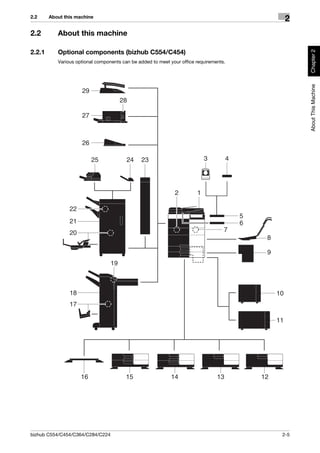
2.2.1      Optional components (bizhub C554/C454)
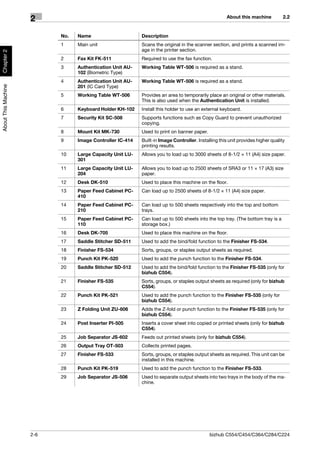
           Various optional components can be added to meet your office requirements.


                                                                                                            About This Machine
                     29
                                       28

                     27


                     26

                          25             24    23                           3         4


                                                              2         1

                22
                                                                                          5
                21                                                                        6
                20                                                                  7
                                                                                               8

                                                                                               9
                                  19


                18                                                                                 10
                17
                                                                                              11
                                                                                                   11


                     16                  15                  14                  13           12


bizhub C554/C454/C364/C284/C224                                                                     2-5
About this machine          2.2
                     2
                           No.   Name                      Description
                           1     Main unit                 Scans the original in the scanner section, and prints a scanned im-
                                                           age in the printer section.
Chapter 2


                           2     Fax Kit FK-511            Required to use the fax function.
                           3     Authentication Unit AU-   Working Table WT-506 is required as a stand.
                                 102 (Biometric Type)
                           4     Authentication Unit AU-   Working Table WT-506 is required as a stand.
About This Machine


                                 201 (IC Card Type)
                           5     Working Table WT-506      Provides an area to temporarily place an original or other materials.
                                                           This is also used when the Authentication Unit is installed.
                           6     Keyboard Holder KH-102    Install this holder to use an external keyboard.
                           7     Security Kit SC-508       Supports functions such as Copy Guard to prevent unauthorized
                                                           copying.
                           8     Mount Kit MK-730          Used to print on banner paper.
                           9     Image Controller IC-414   Built-in Image Controller. Installing this unit provides higher quality
                                                           printing results.
                           10    Large Capacity Unit LU-   Allows you to load up to 3000 sheets of 8-1/2 e 11 (A4) size paper.
                                 301
                           11    Large Capacity Unit LU-   Allows you to load up to 2500 sheets of SRA3 or 11 e 17 (A3) size
                                 204                       paper.
                           12    Desk DK-510               Used to place this machine on the floor.
                           13    Paper Feed Cabinet PC-    Can load up to 2500 sheets of 8-1/2 e 11 (A4) size paper.
                                 410
                           14    Paper Feed Cabinet PC-    Can load up to 500 sheets respectively into the top and bottom
                                 210                       trays.
                           15    Paper Feed Cabinet PC-    Can load up to 500 sheets into the top tray. (The bottom tray is a
                                 110                       storage box.)
                           16    Desk DK-705               Used to place this machine on the floor.
                           17    Saddle Stitcher SD-511    Used to add the bind/fold function to the Finisher FS-534.
                           18    Finisher FS-534           Sorts, groups, or staples output sheets as required.
                           19    Punch Kit PK-520          Used to add the punch function to the Finisher FS-534.
                           20    Saddle Stitcher SD-512    Used to add the bind/fold function to the Finisher FS-535 (only for
                                                           bizhub C554).
                           21    Finisher FS-535           Sorts, groups, or staples output sheets as required (only for bizhub
                                                           C554).
                           22    Punch Kit PK-521          Used to add the punch function to the Finisher FS-535 (only for
                                                           bizhub C554).
                           23    Z Folding Unit ZU-606     Adds the Z-fold or punch function to the Finisher FS-535 (only for
                                                           bizhub C554).
                           24    Post Inserter PI-505      Inserts a cover sheet into copied or printed sheets (only for bizhub
                                                           C554).
                           25    Job Separator JS-602      Feeds out printed sheets (only for bizhub C554).
                           26    Output Tray OT-503        Collects printed pages.
                           27    Finisher FS-533           Sorts, groups, or staples output sheets as required. This unit can be
                                                           installed in this machine.
                           28    Punch Kit PK-519          Used to add the punch function to the Finisher FS-533.
                           29    Job Separator JS-506      Used to separate output sheets into two trays in the body of the ma-
                                                           chine.


                     2-6                                                                    bizhub C554/C454/C364/C284/C224
2.2     About this machine
                                                                                                    2
2.2.2      Optional components (bizhub C364/C284/C224)
           Various optional components can be added to meet your office requirements.


                                                                                                         Chapter 2
                                                                                                         About This Machine
                             2                            3                              4


               23
                                                              5        6             7
                                 22

               21

                                                                   1

                                                                                         8
                              20
                                                                                         9
                                                                                         10


               19
                                                                                              11

                                                                                              12
                             18


                    17                  16                    15                14            13


bizhub C554/C454/C364/C284/C224                                                                    2-7
About this machine            2.2
                     2
                           No.   Name                      Description
                           1     Main unit                 Scans the original in the scanner section, and prints a scanned im-
                                                           age in the printer section.
Chapter 2


                           2     Original Cover OC-511     Used to fix the loaded originals.
                           3     Reverse Automatic Doc-    Automatically feeds and scans originals by page.
                                 ument Feeder DF-624
                           4     Dual Scan Document        Scans the front and back sides of the sheet at the same time. This
About This Machine


                                 Feeder DF-701             enables higher-speed scanning.
                           5     Fax Kit FK-511            Required to use the fax function.
                           6     Authentication Unit AU-   The Working Table WT-506 is required as a stand.
                                 102 (Biometric Type)
                           7     Authentication Unit AU-   The Working Table WT-506 is required as a stand.
                                 201 (IC Card Type)
                           8     Working Table WT-506      Provides an area to temporarily place an original or other materials.
                                                           This is also used when the Authentication Unit is installed.
                           9     Security Kit SC-508       Supports functions such as Copy Guard to prevent unauthorized
                                                           copying.
                           10    Keyboard Holder KH-102    Install this holder to use an external keyboard.
                           11    Mount Kit MK-730          Used to print on banner paper.
                           12    Image Controller IC-414   External image controller. Installing this unit provides the higher-
                                                           quality printing result.
                           13    Desk DK-705               Used to place this machine on the floor.
                           14    Desk DK-510               Used to place this machine on the floor.
                           15    Paper Feed Cabinet PC-    Can load up to 2500 sheets of 8-1/2 e 11 (A4) size paper.
                                 410
                           16    Paper Feed Cabinet PC-    Can load up to 500 sheets respectively into the top and bottom
                                 210                       trays.
                           17    Paper Feed Cabinet PC-    Can load up to 500 sheets into the top tray. (The bottom tray is a
                                 110                       storage box.)
                           18    Finisher FS-534           Sorts, groups, or staples output sheets as required. The Desk DK-
                                                           510 or Paper Feed Cabinet is required to install this unit.
                           19    Saddle Stitcher SD-511    Used to add the bind/fold function to the Finisher FS-534.
                           20    Punch Kit PK-520          Used to add the punch function to the Finisher FS-534.
                           21    Finisher FS-533           Sorts, groups, or staples output sheets as required. This unit can be
                                                           installed in this machine.
                           22    Punch Kit PK-519          Used to add the punch function to the Finisher FS-533.
                           23    Job Separator JS-506      Used to separate output sheets into two trays in the body of the ma-
                                                           chine.


                     2-8                                                                    bizhub C554/C454/C364/C284/C224
2.2     About this machine
                                                                                                                       2
2.2.3      Name of parts (MFP) (bizhub C554/C454)

           Front side


                                                                                                                            Chapter 2
                                                          1                   2


                                                                                                                            About This Machine
                                     10


                                 9
                                                                                                    3
                             8


                             7


                             6


                             5
                                                                                                    4


            No.    Name                         Description
            1      Control Panel                Use the Touch Panel or buttons on this panel to operate this ma-
                                                chine.
            2      Original Tray                Load the original.
            3      Stylus Pen                   Used to operate the Touch Panel.
            4      Bypass Tray                  Used to load custom-size paper or special paper.
            5      Paper Tray                   Used to load standard-size paper.
            6      Lower Front Door             Open this door to replace consumables or to maintenance this ma-
                                                chine.
            7      Upper Front Door             Open this door to replace a Toner Cartridge.
            8      Data Indicator               Flashes blue while this machine is receiving a job. If a job is current-
                                                ly spooled, this indicator lamp lights up blue.
            9      Status Indicator (Printing   Flashes white during printing.
                   indicator)
            10     Status Indicator (Warning    Flashes orange if a warning occurs. Lights up orange if this machine
                   or stop indicator)           has stopped due to an error.


bizhub C554/C454/C364/C284/C224                                                                                       2-9
About this machine   2.2
                     2
                            Rear side
                            The illustration shows the main unit that contains the Heater and Fax Kit.
                            The shape of the power cord varies depending on the sales region.
Chapter 2


                            The Heater is provided as an optional unit depending on the sales areas.
About This Machine


                                                                1


                                                                2


                                                                                                                        3


                                          7
                                          6
                                                                                                                4
                                          5


                             No.     Name
                             1       Telephone Jack 1/2 (LINE PORT 1/2)
                             2       Jack for connecting a telephone (TEL PORT1/2)
                             3       Power Cord
                             4       Power switch for dehumidifying heater
                             5       USB Port (Type A) USB2.0/1.1
                             6       USB Port (Type B) USB2.0/1.1
                             7       Network Connector (10Base-T/100Base-TX/1000Base-T)


                            d Reference
                            For details, refer to the User's Guide CD.


                     2-10                                                                         bizhub C554/C454/C364/C284/C224
2.2     About this machine
                                                                                                                       2
2.2.4      Name of parts (MFP) (bizhub C364/C284/C224)

           Front side


                                                                                                                            Chapter 2
                                                          1                   2


                                                                                                                            About This Machine
                                     9


                                 8                                                                  3


                             7


                             6


                             5
                                                                                                    4


            No.    Name                         Description
            1      Control Panel                Use the Touch Panel or buttons on this panel to operate this ma-
                                                chine.
            2      Original Tray                Load the original.
            3      Stylus Pen                   Used to operate the Touch Panel.
            4      Bypass Tray                  Used to load custom-size paper or special paper.
            5      Paper Tray                   Used to load standard-size paper.
            6      Front Door                   Open this door to replace consumables or to maintenance this ma-
                                                chine.
            7      Data Indicator               Flashes blue while this machine is receiving a job. If a job is current-
                                                ly spooled, this indicator lamp lights up blue.
            8      Status Indicator (Printing   Flashes white during printing.
                   indicator)
            9      Status Indicator (Warning    Flashes orange if a warning occurs. Lights up orange if this machine
                   or stop indicator)           has stopped due to an error.


bizhub C554/C454/C364/C284/C224                                                                                      2-11
About this machine   2.2
                     2
                            Rear side
                            The illustration shows the main unit that contains the Heater and Fax Kit.
                            The shape of the power cord varies depending on the sales region.
Chapter 2


                            The Heater is provided as an optional unit depending on the sales areas.
About This Machine


                                                                1


                                                                2


                                                                                                                         3


                                           7
                                           6
                                                                                                                 4
                                           5


                             No.     Name
                             1       Telephone Jack 1/2 (LINE PORT 1/2)
                             2       Jack for connecting a telephone (TEL PORT1/2)
                             3       Power Cord
                             4       Power switch for dehumidifying heater
                             5       USB Port (Type A) USB2.0/1.1
                             6       USB Port (Type B) USB2.0/1.1
                             7       Network Connector (10Base-T/100Base-TX/1000Base-T)


                            d Reference
                            For details, refer to the User's Guide CD.


                     2-12                                                                         bizhub C554/C454/C364/C284/C224
2.2     About this machine
                                                                                                                         2
2.2.5      Name of parts (Optional units)
           This section shows the names of distinctive parts for each optional unit that can be installed in this machine.


                                                                                                                              Chapter 2
           Finisher FS-535, Saddle Stitcher SD-512, Punch Kit PK-521 (bizhub C554)


             1


                                                                                                                              About This Machine
                                                                                                                   2

                                                                                                                   3

                                                                                                                   4


                                                                                  5


            No.     Name
            1       Output Tray
            2       Punch Kit
            3       Punch Scrap Box
            4       Staple Cartridge
            5       Saddle Stitcher


bizhub C554/C454/C364/C284/C224                                                                                        2-13
About this machine    2.2
                     2


                                                                    1
Chapter 2
About This Machine


                            2


                            No.   Name
                            1     Staple Cartridge
                            2     Folding Output Tray


                     2-14                               bizhub C554/C454/C364/C284/C224
2.2    About this machine
                                                 2
          Job Separator JS-602 (bizhub C554)

                                  1


                                                      Chapter 2
                                                      About This Machine
           No.    Name
           1      Output Tray


bizhub C554/C454/C364/C284/C224                2-15
About this machine    2.2
                     2
                            Z Folding Unit ZU-606 (bizhub C554)
Chapter 2


                                                                  1
About This Machine


                                                                      2


                            No.   Name
                            1     Z Folding/Conveyance Unit
                            2     Punch Scrap Box


                     2-16                                                 bizhub C554/C454/C364/C284/C224
2.2    About this machine
                                                                                         2
          Post Inserter PI-505 (bizhub C554)


                                                                                              Chapter 2
                                                                                              About This Machine
                                                           3
                                   2

                            1


           No.     Name
           1       Lower Tray
           2       Upper Tray
           3       Control Panel


          d Reference
          For details on how to use the Control Panel, refer to the User's Guide CD.


bizhub C554/C454/C364/C284/C224                                                        2-17
About this machine    2.2
                     2
                            Finisher FS-533, Punch Kit PK-519
Chapter 2
About This Machine


                                  4


                                  3


                                                                         1      2


                            No.       Name
                            1         Staple Cartridge
                            2         Punch Kit
                            3         Output Tray
                            4         Tray Extension


                     2-18                                       bizhub C554/C454/C364/C284/C224
2.2    About this machine
                                    2
          Job Separator JS-506


                                         Chapter 2
                                         About This Machine
                         1


           No.    Name
           1      Output Tray


bizhub C554/C454/C364/C284/C224   2-19
About this machine    2.2
                     2
                            Finisher FS-534, Saddle Stitcher SD-511, Punch Kit PK-520
Chapter 2


                                  1
About This Machine


                                                                                                  2
                                                                                                  3


                                                                        4


                            No.       Name
                            1         Output Tray
                            2         Staple Cartridge
                            3         Punch Scrap Box
                            4         Saddle Stitcher


                     2-20                                                   bizhub C554/C454/C364/C284/C224
2.2    About this machine
                                              2


                                                   Chapter 2
                       1


                                                   About This Machine
                                        2


            3


           No.    Name
           1      Punch Kit
           2      Staple Cartridge
           3      Folding Output Tray


bizhub C554/C454/C364/C284/C224             2-21
About this machine    2.2
                     2
                            Large Capacity Unit LU-301/LU-204
Chapter 2
About This Machine


                            d Reference
                            For details, refer to the User's Guide CD.


                     2-22                                                bizhub C554/C454/C364/C284/C224
2.3     Power supply
                                                                                                                  2
2.3        Power supply
           This machine provides two power switches: Power key on the Control Panel and Main Power Switch on
           the machine. Under normal conditions, operate the Power key of the control panel. Use Main Power


                                                                                                                        Chapter 2
           Switch to restart this machine.


2.3.1      Turning the power on and off
           Turn the power on and off only when necessary, for example, when the administrative settings are changed


                                                                                                                        About This Machine
           or a power failure occurs.

           1    Open the Lower Front Door or Front Door, and turn the Main
                Power Switch on.


           2    Turn the Main Power Switch off.


           NOTICE
           To restart this machine, turn the Main Power Switch off and on again after 10 or more seconds have passed.


bizhub C554/C454/C364/C284/C224                                                                                 2-23
Power supply         2.3
                     2
                     2.3.2   Operating the Power key
                             When not operating this machine for a long period of time, for example, after working, press the Power key
                             to shift to the power save mode.
Chapter 2


                             The machine mode changes to the following different modes depending on how the Power key is pressed.
                             Pressing the Power key during operation changes to the Sub Power OFF mode. Holding down the Power
                             key changes to the ErP Auto Power OFF mode.
                             In either case, press the Power key again to turn the power on.
About This Machine


                               Status of this machine             Description
                               Power OFF        Sub Power         While the sub power is turned off, this machine can receive data or
                                                OFF               faxes, however, it cannot scan or print an original. If data or faxes are
                                                                  received while the sub power is turned off, they are printed when the
                                                                  sub power is turned on.
                                                                  The key lamp lights up orange.
                                                ErP Auto          This machine is placed in the standby mode with a lower power con-
                                                Power OFF         sumption than the Sub Power OFF mode.
                                                                  In ErP Auto Power Off mode, this machine cannot receive data or fax-
                                                                  es, and it also cannot scan or print an original.
                                                                  The key lamp flashes orange.
                               Power ON                           The key lamp lights up blue.
                                                                  The power is returned immediately by pressing any key on the Control
                                                                  Panel for instance even when the Control Panel is off.


                     2.3.3   Power save function
                             When a specified amount of time (default setting: 15 minutes) has elapsed without the machine being oper-
                             ated, the Touch Panel will go off, and it automatically enters the power save mode. The Power key flashes
                             blue in the power save mode. The power save mode returns to the normal mode by pressing any key on the
                             Control Panel for instance.
                             There are two power save modes: the low power mode and the sleep mode. Sleep mode provides a greater
                             power saving effect than Low Power mode. However, the time required to return to Normal mode is longer
                             than the time required to revert to Low Power mode.


                             d Reference
                             The time required to shift to each mode can be changed in the Administrator Settings. For details, refer to the
                             User's Guide CD.


                     2-24                                                                             bizhub C554/C454/C364/C284/C224
2.3    Power supply
                                                                                                                     2
          Manually switching to the power save mode
          To manually switch to the low power or sleep mode before the machine shifts to the power save mode,
          change the settings of the Power key on the Control Panel to [Power Save].


                                                                                                                          Chapter 2
          Tap [Utility], and select [Administrator Settings] - [System Settings] - [Power Supply/Power Save Settings] -
          [Power Key Setting].
          For information on the default administrator password, refer to the [Quick Assist Guide].


                                                                                                                          About This Machine
                                            1                                      2


          After the setting is changed, the power save mode shifts as shown below depending on how the Power key
          is pressed.
          -     Pressing the Power key
          –     This machine shifts to the power save mode (low power or sleep mode). The power save mode returns
                to normal mode by pressing any key on the Touch Panel or Control Panel.
          -     Holding down the Power key
          –     This machine shifts to the Sub Power OFF mode. Pressing the Power key returns to the normal mode.


          d Reference
          For details, refer to the User's Guide CD.


bizhub C554/C454/C364/C284/C224                                                                                   2-25
Control Panel          2.4
                     2
                     2.4     Control Panel
                             This machine provides a sliding Control Panel. The hard keys required for basic operations are arranged on
                             the front side, and the keys used for settings or registrations on the rear side.
Chapter 2


                     2.4.1   Name of parts

                                                                        1
About This Machine


                                          12                                                                                2

                                                                                                                            3
                                                                                                                            4
                                                                                                                            5
                                                                                                                            6


                                                        11              10                    9        8      7

                              No.     Name                         Description
                              1       Touch Panel                  Various screens and messages are displayed. Directly touch the
                                                                   Touch panel to configure each setting.
                              2       Menu                         Press this key to display the main menu.
                              3       Guidance                     Press this key to display the Help Menu. You can display descrip-
                                                                   tions of the functions and operating procedures on the screen.
                              4       Access                       If user authentication or account track is enabled, enter the user
                                                                   name and password for user authentication or the account name
                                                                   and password for account track, then press this key to start the use
                                                                   of this machine. After a target operation is completed, press this key
                                                                   once again to end the use of this machine.
                              5       Interrupt                    Press this key to enter the Interrupt mode. The indicator lamp lights
                                                                   up blue in the Interrupt mode. To cancel the Interrupt mode, press
                                                                   the Interrupt key again.
                              6       Preview                      Press this key to print a single proof copy to be checked before
                                                                   printing a large number of copies. This function can also display a
                                                                   finishing image with the current settings on the Touch Panel.
                              7       Reset                        Press this key to reset all settings, excluding the registered ones,
                                                                   that you entered using the Control Panel.
                              8       Stop                         Press this key to temporarily stop an active copy, scan, or print job.
                              9       Start                        Press to start the copy, scan or fax operation.
                              10      Register key                 Press each key to switch the display of the Touch Panel to a func-
                                                                   tion assigned to a Register key.
                                                                   • 1 (Scan/Fax): Switches to the scan/fax function.
                                                                   • 2 (Copy): Switches to the copy function.
                                                                   • 10Keypad (10 Keypad): Displays the keypad on the Touch pan-
                                                                       el.
                                                                   The Register key can be assigned to any function in the Adminis-
                                                                   trator Settings to be easy to use.


                     2-26                                                                           bizhub C554/C454/C364/C284/C224
2.4    Control Panel
                                                                                                                   2
            No.    Name                        Description
            11     Power                       Turns the power on or off. The key lamp lights up or flashes blue
                                               when the power is turned on, and orange when the power is turned


                                                                                                                        Chapter 2
                                               off.
                                               • In the Administrator Settings, you can add the function for man-
                                                    ually switching to the power save mode to the Power key. For
                                                    details, refer to page 2-25.
            12     Status Indicator (Warning   Flashes orange if a warning occurs.
                   or stop indicator)          Lights up orange if this machine has stopped due to an error.


                                                                                                                        About This Machine
          Status with panel slid


                                                                                    1


                                                                                    2


                                                                                    3
                                                                                    4


            No.    Name                        Description
            1      Enlarge Display             Enters Enlarge Display mode.
            2      Keypad                      Use this keypad to enter numeric values such as the number of cop-
                                               ies, zoom ratio, and fax number.
            3      C                           Press this key to cancel numeric values such as the number of cop-
                                               ies, zoom ratio, and size you entered using the keypad.
            4      Voice Guide                 Press this key to start the voice guidance function (optional).


bizhub C554/C454/C364/C284/C224                                                                                  2-27
Touch Panel         2.5
                     2
                     2.5     Touch Panel
Chapter 2


                     2.5.1   Main Menu
                             Press the Menu key on the Control Panel to display the main menu. In the main menu, you can configure
                             settings such as frequently used functions or a shortcut key for jumping to each mode.


                             Layout of main menu
About This Machine


                                                                                                                      1


                                                                                                                     2


                              No.    Name                         Description
                              1      [Accessibility]              Press this button to adjust a Touch Panel pressing position,
                                                                  change keying sounds, and configure the operating environment of
                                                                  the Control Panel.
                                     [Counter]                    Press this button to display the total number of pages printed on
                                                                  this machine on a function or color basis.
                                     [Job List]                   Press this button to display active or standby jobs. If necessary, you
                                                                  can view job logs or print a communication report.
                              2      Main menu keys               Display shortcut keys assigned to any function.
                                                                  By default, the main menu shows [Copy], [Scan/Fax], [Box], and
                                                                  [Utility].
                                     [Utility]                    Press this button to configure settings of this machine or view the
                                                                  use status of this machine.
                                                                  • [Utility] is always displayed.


                     2-28                                                                          bizhub C554/C454/C364/C284/C224
2.5     Touch Panel
                                                                                                                   2
           Customizing the main menu
           The main menu can be extended to two screens as necessary. Up to 23 keys can be assigned to two main
           menu screens which can be switched.


                                                                                                                       Chapter 2
                                                                                                                       About This Machine
           In addition, you can specify your favorite background pattern.


           d Reference
           For details, refer to the User's Guide CD.


2.5.2      Operating the Touch Panel
           The Touch Panel of this machine supports user-friendly operations, such as, sliding a finger on the Touch
           Panel.


           Tap
           Lightly touch the screen with your finger, then remove your finger
           from the screen immediately. This action can select or determine a
           menu.


           Double-tap
           Lightly touch the screen with your finger twice in succession. This
           action is used to retrieve detailed information or enlarge a thumbnail
           image.


bizhub C554/C454/C364/C284/C224                                                                                 2-29
Touch Panel         2.5
                     2
                            Flick
                            Make a slight fillip while sliding your finger on the screen. This action
                            is used to scroll an address or job list and feed thumbnail-view pag-
Chapter 2


                            es.
About This Machine


                            Drag
                            Slide your finger on the screen while touching it. This action is used
                            to move a display position on an application or preview screen.


                            Precautions on using the Touch panel
                            This machine features a capacitance-base touch panel. Note the following points when operating the Touch
                            Panel.
                            -     Use your finger or the Stylus Pen supplied with this machine. Note that the Touch Panel will not re-
                                  spond appropriately if you operate it using your nail or a pen tip instead of your finger or the Stylus Pen.
                            -     Applying a strong force to the Touch Panel will damage the Touch Panel, and potentially cause a
                                  breakage.
                            -     When operating in the Touch Panel, do not press on it using excessive force or with a pointed object
                                  such as a mechanical pencil.
                            -     The Touch Panel may not respond appropriately, if operated with a wet finger or two fingers.
                            -     The Touch Panel will not respond appropriately, if operated with hands with gloves on. It is recom-
                                  mended that you use the Stylus Pen supplied with this machine or your finger.
                            -     The Touch Panel may not respond appropriately, if the distance between you and a fluorescent lamp
                                  is 20 inches (50 cm) or less while you are operating the Touch Panel.
                            -     Avoid using the Touch Panel at a site near a device that generates electric noise (such as a generator
                                  and an air conditioner). The electric noise may cause the Touch Panel to operate erratically.


                     2-30                                                                               bizhub C554/C454/C364/C284/C224
2.5     Touch Panel
                                                                                                                   2
2.5.3      Entering characters
           When entering characters to register an address or program, use the keyboard screen displayed on the
           Touch Panel.


                                                                                                                        Chapter 2
           When typing in "Group1":
           1    To type in uppercase letters or symbols, tap the [Shift] key.
                % If you mistyped, tap [ ] or [ ] to move the cursor to the character you want to clear, then tap the


                                                                                                                        About This Machine
                  [Delete] key.
                % Tap the [Shift] key again to return to the original keyboard screen.


                                                          2


                                                                                 1


           2    After typing completes, tap [OK].


bizhub C554/C454/C364/C284/C224                                                                                 2-31
Jobs      2.6
                     2
                     2.6     Jobs
Chapter 2


                     2.6.1   Job screen
                             A job refers to an operation such as printing, sending, receiving, or saving.
                             When you tap [Job List] in the main menu or the main screen of each mode, the Job screen appears.
                             In the Job screen, you can view a list or history of a job currently being executed or print a sending-receiving
                             result report.
About This Machine


                             In general, jobs are executed starting from the job at the top of the list of currently active jobs. If you are in a
                             hurry to execute any particular jobs, you can rearrange the job execution order.

                                                    1     2


                                                                                                                                3
                                                                                                                                4
                                                                                                                                5


                                                                                                                                6


                              No.       Description
                              1         Displays jobs.
                              2         Select a job type. In [Comm. List], you can also print a sending-receiving result report.
                              3         Click this button to narrow down the jobs to be displayed.
                              4         Click this button to delete a job.
                              5         Click this button to preferentially execute a selected job.
                              6         Click this button to view details of a selected job.


                     2.6.2   Multi-job function
                             While a job is active, you can register another job. Up to 251 jobs can be registered in total.
                             The table below shows the maximum number of jobs that can be registered for each function.

                              Function                         Minimum number of jobs                   Maximum number of jobs
                              Copy                             5                                        61
                              Print                            10                                       66
                              Scan                             5                                        61
                              Fax memory TX                    50                                       106
                              Fax RX                           100                                      156
                              Sharing                          56                                       -


                             Reference
                             -    These values may vary depending on conditions.
                             -    For details, refer to the User's Guide CD.


                     2-32                                                                                bizhub C554/C454/C364/C284/C224
2.7     Loading Paper
                                                                                                                       2
2.7        Loading Paper


                                                                                                                             Chapter 2
2.7.1      Loading paper in Tray 1 to Tray 4
           Up to 500 sheets of plain paper can be loaded into each tray.Tray3 and Tray4 are optional.


           Applicable paper types


                                                                                                                             About This Machine
           Plain paper, single-side-only paper, thin paper, special paper, thick paper, letterhead, colored paper, and re-
           cycled paper


           How to load paper
           1    Pull out the tray.

                NOTICE
                Be careful not to touch the Film.


           2    Slide the Lateral Guide to fit the paper size.


           3    Load paper into the tray.
                % Load paper into the tray with the print side facing up.


           4    When loading paper other than plain paper, specify the paper type. For details, refer to page 2-36.


bizhub C554/C454/C364/C284/C224                                                                                      2-33
Loading Paper        2.7
                     2
                     2.7.2   LCT (built-in)
                             Up to 2500 sheets of plain paper can be loaded into the LCT (built-in). The LCT (built-in) is an option.
Chapter 2


                             Applicable paper types
                             Plain paper, single-side-only paper, thin paper, special paper, thick paper, letterhead, colored paper, and re-
                             cycled paper
About This Machine


                             How to load paper
                             1    Pull out the tray.
                                  NOTICE
                                  Be careful not to touch the Film.


                             2    Load paper into the right tray.
                                  % Load paper into the tray with the print side facing up.
                                  NOTICE
                                  Do not load the tray with paper of a size other than that previ-
                                  ously specified. To change the paper size, contact your serv-
                                  ice representative.


                             3    Load paper into the left tray.
                                  % Load paper into the tray with the print side facing up.


                             4    When loading paper other than plain paper, specify the paper type. For details, refer to page 2-36.


                     2-34                                                                            bizhub C554/C454/C364/C284/C224
2.7     Loading Paper
                                                                                                                      2
2.7.3      Loading paper into the Large Capacity Unit
           Up to 3000 sheets of plain paper can be loaded into Large Capacity Unit LU-301, and up to 2500 sheets of
           plain paper into Large Capacity Unit LU-204.


                                                                                                                           Chapter 2
           The Large Capacity Unit is an option.


           Applicable paper types
           Plain paper, single-side-only paper, thin paper, special paper, thick paper, letterhead, colored paper, recy-


                                                                                                                           About This Machine
           cled paper


           How to load paper
           1    Open the door.


           2    Lift the Paper Feed Roller, and load paper into the unit.
                % Load paper into the tray with the print side facing down.
                NOTICE
                Exercise care not to touch the surface of the Paper Feed Roll-
                er with your hand.
                Do not load the Large Capacity Unit with paper of a size other
                than that previously specified. To change the paper size, con-
                tact your service representative.


           3    When loading paper other than plain paper, specify the paper type. For details, refer to page 2-36.


bizhub C554/C454/C364/C284/C224                                                                                     2-35
Loading Paper        2.7
                     2
                     2.7.4   Bypass Tray
                             Use the Bypass Tray when printing on a paper size other than for paper trays, or printing on envelopes or
                             transparencies.
Chapter 2


                             To use the Bypass Tray, load paper and specify the paper type.


                             Applicable paper types
                             Plain paper, single-side-only paper, special paper, thick paper, postcard (4 e 6 (A6 Card)), transparency, let-
About This Machine


                             terhead, colored paper, envelope, label sheets, index paper, recycled paper, and banner paper


                             Applicable paper sizes
                              Type                           Size
                              Standard-size paper            12 e 18 w to 5-1/2 e 8-1/2 w/v, 4 e 6 w, SRA3 w, A3 w to A6 w, B4 w to
                                                             B6 w, A6 card w, 8 e 13 w, 16K w/v, 8K w, banner paper
                              Custom-size paper              Paper width: 3-9/16 to 12-5/8 inches (90 mm to 320 mm)
                                                             Paper length: 5-1/2 to 47-1/4 inches (139.7 mm to 1,200 mm)


                             How to load paper
                             NOTICE
                             Exercise care not to touch the surface of the Paper Feed Roller with your hands.

                             1    Open the tray.
                                  % To load banner paper, install the Mount Kit MK-730 for
                                    banner paper.
                                  % To load large-sized paper, pull out the Tray Extension.
                                  NOTICE
                                  Exercise care not to touch the surface of the Paper Feed Roll-
                                  er with your hands.


                             2    After loading paper, adjust the Lateral Guide.
                                  % Load paper into the tray with the print side facing down.


                     2-36                                                                            bizhub C554/C454/C364/C284/C224
2.7    Loading Paper
                                                                       2
          3    Specify the paper type. Tap [Paper].


                                                                            Chapter 2
                                                                            About This Machine
          4    Select [#], then tap [Change Tray Setting].


                                                             1   2


          5    Select the paper type.


bizhub C554/C454/C364/C284/C224                                      2-37
Loading Paper          2.7
                     2
                            6   Specify the paper size.
Chapter 2


                                                                                         1
About This Machine


                                % For Auto Detect
                                [Auto Detect] detects the paper size automatically when standard-size paper is loaded into a tray.


                                                                                             2


                                                                                                 3


                                % For Standard Size
                                [Standard Size] is available when loading a postcard or standard-size paper for overseas.


                                                           2


                                                                        3


                                                                                             4


                     2-38                                                                        bizhub C554/C454/C364/C284/C224
2.7    Loading Paper
                                                    2
               % For Custom Size


                                                         Chapter 2
                                      2


                                                         About This Machine
                                              3


               % For Wide Paper


                                  2
                                          3


                                              4


bizhub C554/C454/C364/C284/C224                   2-39
Loading Paper     2.7
                     2
Chapter 2
About This Machine


                     2-40   bizhub C554/C454/C364/C284/C224
3
       Operations
       Basic Settings and


Basic Settings and Operations   Chapter 3
Print Function   3.1
                                3


                                3       Basic Settings and Operations

                                3.1     Print Function
Chapter 3


                                3.1.1   Required settings and basic operations (For Windows OS)
                                        Print data created on your computer via the network.
                                        This section describes how to configure standard print settings using the installer.
Basic Settings and Operations


                                        Preparation flow
                                        The following describes a preparation flow to print data. For details, refer to the relevant page.
                                        This preparation is not required the second time or subsequent times.

                                        1    Checking the cable connection (Administrator)
                                             % Check that this machine is correctly connected to the network cable. For details, refer to page 3-3.

                                        2    Checking network settings of this machine (Administrator)
                                             % Check the network settings of this machine. For details, refer to page 3-3.
                                             The network can be used with the default settings unless otherwise requested.

                                        3    Installing the printer driver
                                             % Install the printer driver on the computer. For details, refer to page 3-4.


                                        Operation flow
                                        The following describes a flow to print data from your computer. For details, refer to page 3-7.

                                        1    Opening original data
                                             % Open the data you want to print using the application software.

                                        2    Configuring the printer driver for printing
                                             % Select a printer driver, and change the setting if necessary before printing.


                                3-2                                                                              bizhub C554/C454/C364/C284/C224
3.1    Print Function
                                                                                                                         3
          Checking the cable connection
          Check that a LAN cable is connected to the LAN port of this ma-
          chine and the green LED is on.


                                                                                                                              Chapter 3
                                                                                                                              Basic Settings and Operations
          Checking network settings of this machine
          Tap [Utility], and select [Device Information]. Check that the IP address is displayed.

            •   For IPv4 environment                                •   For IPv6 environment


          If no IP address is displayed, you need to configure the network.
          -      Tap [Utility], and select [Administrator Settings] - [Network Settings] - [TCP/IP Settings]. Configure the
                 required settings to suit your environment. For details, refer to the User's Guide CD.
          -      For information on the default administrator password, refer to the [Quick Assist Guide].


          d Reference
          In general, the default settings are available for network connection; however, some network environments
          require a change on network settings. For details, refer to the User's Guide CD.


bizhub C554/C454/C364/C284/C224                                                                                         3-3
Print Function      3.1
                                3
                                      Installing the printer driver
                                      Use the installer to install the printer driver.
                                      0     This operation requires administrator privileges for your computer.

                                      1     Insert the printer driver CD-ROM into the CD-ROM drive of the
                                            computer.
Chapter 3
Basic Settings and Operations


                                      2     Click [Printer Install].

                                      3     Proceed with the procedure according to the on-screen instructions.


                                                                                              1


                                                                   2


                                                                                                  3


                                            This automatically searches for the appropriate network and displays printers and MFPs that are com-
                                            patible with the printer driver.


                                3-4                                                                          bizhub C554/C454/C364/C284/C224
3.1    Print Function
                                                                                                                   3
          4     Select this machine from the list.
                % If multiple identical models are displayed, check the IP address to select an appropriate one. For
                  details on how to check the IP address of this machine, refer to page 3-3.


                                                                                                                        Chapter 3
                                    1


                                                                                                                        Basic Settings and Operations
                                                                     2


          5     Select the check boxes of the printer drivers to be installed.


                                        1


                                                                         2


          6     Click [Install].


bizhub C554/C454/C364/C284/C224                                                                                   3-5
Print Function   3.1
                                3
                                      7   Click [Finish].
Chapter 3
Basic Settings and Operations


                                3-6                         bizhub C554/C454/C364/C284/C224
3.1    Print Function
                                                                                                                   3
          Printing data
          1     Open the data you want to print using the application software.

          2     In the [File] menu, click [Print].


                                                                                                                        Chapter 3
                                                                                                                        Basic Settings and Operations
          3     Select the installed printer driver, and click [Print].


                                               1


                                                               2


          Tips
          -    Clicking [Preferences] can change the setting of the printer driver as required.
          -    If user authentication is enabled in this machine, specify the required data such as the user name and
               password.


bizhub C554/C454/C364/C284/C224                                                                                   3-7
Print Function        3.1
                                3
                                      Types of printer drivers
                                      Select a printer driver that will meet your printing requirements.

                                       Driver type             Description
                                       PCL                     This is a standard driver for printing general office documents. Among the three
                                                               drivers, this driver provides the fastest printing speed.
                                       PS                      This driver is effective to exactly print data that is created using PostScript-com-
Chapter 3


                                                               patible application software from Adobe or other vendors. This driver is often used
                                                               in graphics and light printing applications where good color reproducibility is im-
                                                               portant.
                                       XPS                     Developed after Windows Vista, this driver supports XML Paper Specification
                                                               (XPS). This driver has several advantages, including high-quality reproduction of
                                                               translucence.
Basic Settings and Operations


                                3-8                                                                           bizhub C554/C454/C364/C284/C224
3.1     Print Function
                                                                                                                        3
3.1.2      Required settings and basic operations (For Mac OS)
           Print data created on your computer via the network.
           This section describes how to configure a printer driver, for the OS X 10.6 environment, Bonjour connection,
           and use of metric-size paper as major conditions.


                                                                                                                             Chapter 3
                                                                                                                             Basic Settings and Operations
           Preparation flow
           The following describes a preparation flow to print data. For details, refer to the relevant page.
           This preparation is not required the second time or subsequent times.

           1     Checking the cable connection (Administrator)
                 % Check that this machine is correctly connected to the network cable. For details, refer to page 3-10.

           2     Checking network settings of this machine (Administrator)
                 % Check the network settings of this machine. For details, refer to page 3-10.
                 The network can be used with the default settings unless otherwise requested.

           3     Installing the printer driver
                 % Install the printer driver on the computer. For details, refer to page 3-12.

           4     Adding and configuring a printer driver
                 % Set up your computer so that data can be printed using the installed printer driver. For details, refer
                   to page 3-15.


           Operation flow
           The following describes a flow to print data from your computer. For details, refer to page 3-17.

           1     Opening original data
                 % Open the data you want to print using the application software.

           2     Configuring the printer driver for printing
                 % Select a printer driver, and change the setting if necessary before printing.


bizhub C554/C454/C364/C284/C224                                                                                        3-9
Print Function      3.1
                                3
                                       Checking the cable connection
                                       Check that a LAN cable is connected to the LAN port of this ma-
                                       chine and the green LED is on.
Chapter 3
Basic Settings and Operations


                                       Checking network settings of this machine
                                       1    Tap [Utility], and select [Device Information]. Check that the IP address is displayed.

                                        •   For IPv4 environment                               •   For IPv6 environment


                                       2    Specify the Bonjour name. Tap [Utility], and select [Administrator Settings] - [Network Settings] - [Bon-
                                            jour Setting] - [ON].
                                            % For information on the default administrator password, refer to the [Quick Assist Guide].


                                                                          1


                                3-10                                                                           bizhub C554/C454/C364/C284/C224
3.1    Print Function
                                                                                                                         3
                % The Bonjour name is displayed on the printer driver as a connected device name. For "Bizhub C364
                  (5A:0C:4B)", "Bizhub C364" indicates the product name, and "(5A:0C:4B)" indicates the last three
                  bytes of the MAC address.


                                                                                                                              Chapter 3
                                                     2


                                                                                                                              Basic Settings and Operations
                                                                                           3


                % To change the Bonjour name, tap [Bonjour Name], and enter the name using the displayed key-
                  board.


          If no IP address is displayed in Step 1, you need to set up the network.
          -      Tap [Utility], and select [Administrator Settings] - [Network Settings] - [TCP/IP Settings]. Configure the
                 required settings to suit your environment. For details, refer to the User's Guide CD.
          -      For information on the default administrator password, refer to the [Quick Assist Guide].


bizhub C554/C454/C364/C284/C224                                                                                       3-11
Print Function       3.1
                                3
                                       Installing the printer driver
                                       Use the installer to install the printer driver.
                                       0     This operation requires administrator privileges for your computer.

                                       1     Insert the printer driver CD-ROM into the CD-ROM drive of the
                                             computer.
Chapter 3
Basic Settings and Operations


                                       2     Select the target printer driver, and copy it to the desktop.
                                             Example: /Driver/OS_10_6_x/Letter/bizhub_C364_106.pkg
                                             (Printer driver for OS X 10.6)
                                             % When ordinarily using metric-sized paper, select a printer
                                                 driver in the "A4" directory.
                                             % The last three digits of the printer driver name indicate the
                                                 version of the operating system.


                                       3     Double-click the file copied onto the desktop.

                                       4     Proceed with the procedure according to the on-screen instructions until the installation screen ap-
                                             pears.


                                3-12                                                                           bizhub C554/C454/C364/C284/C224
3.1    Print Function
                                    3


                                         Chapter 3
                                         Basic Settings and Operations


bizhub C554/C454/C364/C284/C224   3-13
Print Function     3.1
                                3
                                       5   Click [Install].
Chapter 3
Basic Settings and Operations


                                       6   When a prompt message appears to ask you to enter the name and password, type in the name and
                                           password of the user with administrator privileges.


                                                                                 1


                                                                                                 2


                                       7   Click [Close].


                                3-14                                                                  bizhub C554/C454/C364/C284/C224
3.1    Print Function
                                                                                                                       3
          Adding and configuring a printer driver
          Set up your computer so that data can be printed using the installed printer driver.
          0     This operation requires administrator privileges for your computer.

          1     In the Apple Menu, click [System Preferences] - [Print & Fax].

          2     Click [+].


                                                                                                                           Chapter 3
                                                                                                                           Basic Settings and Operations
                This automatically searches for the appropriate network and displays printers and MFPs that are com-
                patible with the printer driver.

          3     Select a printer for the Bonjour connection. Search for this machine from the list of printers for which
                [Kind] is set to [Bonjour], and click it.
                % If you cannot identify the connected machine because multiple same product names are listed,
                  check with the administrator.


                This automatically searches for a printer driver compatible with the selected printer.


bizhub C554/C454/C364/C284/C224                                                                                     3-15
Print Function   3.1
                                3
                                       4   Check that the printer driver is displayed.
Chapter 3
Basic Settings and Operations


                                       5   Select the installed optional units.


                                                                        1


                                                                                         2


                                3-16                                                         bizhub C554/C454/C364/C284/C224
3.1    Print Function
                                                                                        3
          Printing data
          1     Open the data you want to print using the application software.

          2     From the [File] menu, select [Print].


                                                                                             Chapter 3
                                                                                             Basic Settings and Operations
          3     Select the Bonjour name of this machine.

                                                   1

                                                                                  2


          Tips
          -    If necessary, you can change the settings of the printer driver.


bizhub C554/C454/C364/C284/C224                                                       3-17
Scan-to-Send function          3.2
                                3
                                3.2     Scan-to-Send function

                                3.2.1   Various transmission methods
                                        The original data scanned by this machine can be sent and saved using a variety of methods.


                                        Sending data to your computer (SMB Send)
Chapter 3


                                        Send scanned data to a computer on the network. Once settings are configured, you can send data easily.
                                        For details, refer to page 3-20 and page 3-30.
Basic Settings and Operations


                                        Transmitting data as E-mail attachment (E-mail TX)
                                        Send scanned data as an E-mail attachment. This function is useful when you want to forward data to an
                                        outside location. For details, refer to page 3-39.


                                        Saving data to the USB memory device (External memory)
                                        Directly save scanned data on the USB memory device connected to this machine. For details, refer to
                                        page 3-74.


                                3-18                                                                        bizhub C554/C454/C364/C284/C224
3.2    Scan-to-Send function
                                                                                                                   3
          Various methods for transmitting and saving data
          In addition to the above, data can be sent and saved in various methods. Select the appropriate one to meet
          your needs.
          -     Issuing a scan instruction from a computer (Web service function)
          -     Saving data to a User Box on the HDD (Save in User Box)
          -     Sending to an FTP server (FTP TX)
          -     Sending to a WebDAV server (WebDAV Send)


                                                                                                                        Chapter 3
                                                                                                                        Basic Settings and Operations
          d Reference
          For details, refer to the User's Guide CD.


bizhub C554/C454/C364/C284/C224                                                                                 3-19
Scan-to-Send function           3.2
                                3
                                3.2.2   Sending data to your Windows computer (SMB Send)
                                        Send scanned data to a computer on the network.
                                        Once settings are configured, you can send data easily.
Chapter 3
Basic Settings and Operations


                                        Preparation flow
                                        The following describes a preparation flow for sending scanned data. For details, refer to the relevant page.
                                        This preparation is not required the second time or subsequent times.

                                        1    Checking the cable connection (Administrator)
                                             % Check that this machine is correctly connected to the network cable. For details, refer to page 3-21.

                                        2    Checking network settings of this machine (Administrator)
                                             % Check the network settings of this machine. For details, refer to page 3-21.
                                             The network can be used with the default settings unless otherwise requested.

                                        3    Checking computer information
                                             % Check the information required for Store Address, and fill out the checklist. For details, refer to
                                               page 3-22.

                                        4    Configuring your computer
                                             % Configure settings to share a computer, or create a dedicated folder to receive files. For details, refer
                                               to page 3-23.

                                        5    Registering destinations
                                             % Register destinations to which files are sent while checking the checklist. For details, refer to
                                               page 3-26.


                                        Operation flow
                                        The following describes a transmission flow. For details, refer to page 3-28.

                                        1    Loading the original

                                        2    Selecting a destination
                                             % Select a registered destination, and check the settings such as the file type and image quality.

                                        3    Press the Start key.
                                             % Press the Start key to scan the original.


                                3-20                                                                             bizhub C554/C454/C364/C284/C224
3.2    Scan-to-Send function
                                                                                                                         3
          Checking the cable connection
          Check that a LAN cable is connected to the LAN port of this ma-
          chine and the green LED is on.


                                                                                                                              Chapter 3
                                                                                                                              Basic Settings and Operations
          Checking network settings of this machine
          Tap [Utility], and select [Device Information]. Then, check that the IP address is displayed.

           •   For IPv4 environment                                 •   For IPv6 environment


          If no IP address is displayed, you need to configure the network.
          -      Tap [Utility], and select [Administrator Settings] - [Network Settings] - [TCP/IP Settings]. Configure the
                 required settings to suit your environment. For details, refer to the User's Guide CD.
          -      For information on the default administrator password, refer to the [Quick Assist Guide].


          d Reference
          In general, the default settings are available for network connection; however, some network environments
          require a change on network settings. For details, refer to the User's Guide CD.


bizhub C554/C454/C364/C284/C224                                                                                       3-21
Scan-to-Send function      3.2
                                3
                                       Checklist
                                       While making notes in the checklist shown below, check computer information and configure settings for
                                       preparation. The completed checklist is used for Store Address.

                                        Name                   Entry column                                                  Detail
                                        Host Address           Host name or IP address to which the scanned data is sent     page 3-22
Chapter 3


                                        File Path              Name of the dedicated folder to receive the scanned data      page 3-23


                                        User ID                User name required to log in to the computer                  page 3-22
Basic Settings and Operations


                                        Password               Password required to log in to the computer                   Contact your sys-
                                                               • You should not enter this column for security reasons.      tem administra-
                                                                                                                             tor.


                                       Checking computer information
                                       Check the host address and user ID, and write them down.

                                       1    From the Start menu, select [Computer] - [System Properties].
                                            % In Windows XP, open the Start menu, and right-click on [My Computer], and select [Properties].

                                       2    Check the computer name, and write it down in the Host address column of the checklist.


                                       3    From the Start menu, select [All Programs] - [Accessories] - [Command Prompt].
                                            % In Windows XP, open the Start menu, and select [Programs] - [Accessories] - [Command Prompt].


                                3-22                                                                          bizhub C554/C454/C364/C284/C224
3.2    Scan-to-Send function
                                                                                                                  3
          4    Check the user name, and write it down in the User ID column of the checklist.
               % In the example shown below, "taro.yamada" is displayed as the user ID.


                                                                                                                       Chapter 3
                                                                                                                       Basic Settings and Operations
          Configuring your computer
          Create a new folder, and enable the sharing settings.
          0    This operation requires administrator privileges for your computer.

          1    From the Start menu, select [Control Panel] - [Network and Internet] - [Network and Sharing Center] -
               [Advanced sharing settings] then select the [Turn on file and printer sharing] check box.


               % In Windows Vista, open the Start menu, select [Control Panel] - [Network and Sharing Center], then
                 turn on [Public folder sharing].


               % For Windows XP, the control panel setting is not required.

          2    Create a new folder, and write down the folder name in the File path column of the checklist.


bizhub C554/C454/C364/C284/C224                                                                                 3-23
Scan-to-Send function          3.2
                                3
                                       3   Only for Windows XP, check the folder options.
                                           % Double-click the folder, select [Tools] - [Folder Options...] then click the [View] tab.
Chapter 3
Basic Settings and Operations


                                           % Clear the [Use simple file sharing (Recommended)] check box.


                                       4   Configure the setting to share the folder created in Step 2. Right-click on the folder, then click [Proper-
                                           ties].
                                           % For Windows XP, right-click on the folder, then click [Sharing and Security].


                                3-24                                                                          bizhub C554/C454/C364/C284/C224
3.2    Scan-to-Send function
                                                                                                                       3
          5    Click the [Sharing] tab, then click [Advanced Sharing].
               % For Windows XP, [Advanced Sharing] does not appear.


                                                                                                                            Chapter 3
                                                                                                                            Basic Settings and Operations
          6    Select the [Share this folder] check box, then click [Permissions].


                                              1


                                              2


          7    Select [Everyone] from the [Group or user names:] list, then select all of the [Allow] check boxes.


                                                  1


                                                                2


                                                       3


bizhub C554/C454/C364/C284/C224                                                                                      3-25
Scan-to-Send function         3.2
                                3
                                       Registering destinations
                                       While checking the created checklist, register the folder for receiving the scanned data as an address book
                                       of this machine.

                                       1    Tap [Utility], and select [One-Touch/ User Box Reg.] - [Create One-Touch Destination] - [Address Book
                                            (Public)] - [PC (SMB)].
Chapter 3
Basic Settings and Operations


                                       2    Tap [New].


                                       3    For [Name], specify the name to be displayed on the assigned key.
                                            For [Sort Character], enter the same name as [Name].


                                                                      1

                                                                      2


                                                                                 3


                                            % This sets the appropriate index for the name, which you entered into [Name], to [Index]. To change
                                              the setting, tap [Index].


                                3-26                                                                         bizhub C554/C454/C364/C284/C224
3.2    Scan-to-Send function
                                                                                                                      3
          4    While checking the checklist, enter the user ID and password you wrote down.


                                         1


                                         2


                                                                                                                           Chapter 3
                                                     3


                                                                                                                           Basic Settings and Operations
          5    While checking the checklist, enter the host address and file path you wrote down.
               % When not specifying a folder, enter a slash "/" for the file path. When specifying a folder, enter only
                 the folder name without slash "/".


                                          1


                                          2


                                                                                          3


          6    Tap [Close].


bizhub C554/C454/C364/C284/C224                                                                                    3-27
Scan-to-Send function    3.2
                                3
                                       Sending the original
                                       1   Load the original.
Chapter 3
Basic Settings and Operations


                                       2   Tap [Scan/Fax].


                                       3   Select a destination.


                                                                       1
                                                                   2


                                3-28                                       bizhub C554/C454/C364/C284/C224
3.2    Scan-to-Send function
                                                                                                                     3
          4    Check the setting if necessary.
               % Tap [Check Setting] to check the setting.


                                                                                                                          Chapter 3
                                                                                                                          Basic Settings and Operations
               % You can also check the setting using the keys displayed on the Touch Panel.
               % To change the setting, tap the desired key on the Touch Panel.

                  Settings                       Description
                  [Simplex/Duplex]               Select whether to scan one or both sides of the original.
                  [Resolution]                   Specify the scanning resolution.
                  [Color]                        Select whether to scan the original in color or black and white
                                                 mode.
                  [File Type]                    Select the type of the file to save scanned data.
                  [Scan Size]                    Specify the size of the original to be scanned.
                  [E-mail Settings]              Change the file name or the subject of an E-mail to be sent.


          5    Press the Start key.


bizhub C554/C454/C364/C284/C224                                                                                    3-29
Scan-to-Send function           3.2
                                3
                                3.2.3   Sending data to your Mac computer (SMB Send)
                                        Send scanned data to a computer on the network.
                                        Once settings are configured, you can send data easily.
Chapter 3
Basic Settings and Operations


                                        Preparation flow
                                        The following describes a preparation flow for sending scanned data. For details, refer to the relevant page.
                                        This preparation is not required the second time or subsequent times.

                                        1    Checking the cable connection (Administrator)
                                             % Check that this machine is correctly connected to the network cable. For details, refer to page 3-31.

                                        2    Checking network settings of this machine (Administrator)
                                             % Check the network settings of this machine. For details, refer to page 3-31.
                                             The network can be used with the default settings unless otherwise requested.

                                        3    Checking computer information
                                             % Check the information required for Store Address, and fill out the checklist. For details, refer to
                                               page 3-32.

                                        4    Configuring your computer
                                             % Configure settings to share a computer, or create a dedicated folder to receive files. For details, refer
                                               to page 3-33.

                                        5    Registering destinations
                                             % Register destinations to which files are sent while checking the checklist. For details, refer to
                                               page 3-35.


                                        Operation flow
                                        The following describes a transmission flow. For details, refer to page 3-37.

                                        1    Loading the original

                                        2    Selecting a destination
                                             % Select a registered destination, and check the settings such as the file type and image quality.

                                        3    Press the Start key.
                                             % Press the Start key to scan the original.


                                3-30                                                                             bizhub C554/C454/C364/C284/C224
3.2    Scan-to-Send function
                                                                                                                         3
          Checking the cable connection
          Check that a LAN cable is connected to the LAN port of this ma-
          chine and the green LED is on.


                                                                                                                              Chapter 3
                                                                                                                              Basic Settings and Operations
          Checking network settings of this machine
          Tap [Utility], and select [Device Information].
          Check that the IP address is displayed.

           •   For IPv4 environment                                 •   For IPv6 environment


          If no IP address is displayed, you need to configure the network.
          -      Tap [Utility], and select [Administrator Settings] - [Network Settings] - [TCP/IP Settings]. Configure the
                 required settings to suit your environment. For details, refer to the User's Guide CD.
          -      For information on the default administrator password, refer to the [Quick Assist Guide].


          d Reference
          In general, the default settings are available for network connection; however, some network environments
          require a change on network settings. For details, refer to the User's Guide CD.


bizhub C554/C454/C364/C284/C224                                                                                       3-31
Scan-to-Send function     3.2
                                3
                                       Checklist
                                       While making notes in the checklist shown below, check computer information and configure settings for
                                       preparation. The completed checklist is used for Store Address.

                                        Name                   Entry column                                                  Detail
                                        Host Address           IP address to which the scanned data is sent                  page 3-32
Chapter 3


                                        File Path              Name of the dedicated folder to receive the scanned data      page 3-33


                                        User ID                User name required to log in to the computer                  page 3-32
Basic Settings and Operations


                                        Password               Password required to log in to the computer                   Contact your sys-
                                                               • Entering the password here is not recommended for se-       tem administra-
                                                                  curity reasons.                                            tor.


                                       Checking computer information
                                       Check the host address and user ID.
                                       0    This operation requires administrator privileges for your computer.

                                       1    Check the IP address and user name, and write it down in the Host Address and User ID columns of
                                            the checklist.


                                            % In the following example, the computer name is set to "User01", and the user name to "User01".


                                3-32                                                                          bizhub C554/C454/C364/C284/C224
3.2    Scan-to-Send function
                                                                                                                   3
          Configuring your computer
          Create a new folder, and enable the sharing settings.
          0    This operation requires administrator privileges for your computer.

          1    Create a new folder, and write down the folder name in the File path column of the checklist.

          2    Enable the folder sharing settings. In the Apple menu, select [System Preferences] - [Sharing].


                                                                                                                        Chapter 3
          3    Select the [File Sharing] check box, then click [Options...].


                                                                                                                        Basic Settings and Operations
                                                                                     2
                                  1


          4    Select the [Share files and folders using SMB (Windows)] and user name check boxes, then click [Done].


                                           1


                                               2


                                                                         3


bizhub C554/C454/C364/C284/C224                                                                                  3-33
Scan-to-Send function   3.2
                                3
                                       5   Under [Shared Folders:], click [+].
Chapter 3
Basic Settings and Operations


                                       6   Select a new folder.


                                                                                 1


                                                                                                            2


                                       7   Click the new folder to check the access right.


                                           If the access right is changed to [Read & Write], the setting is completed.


                                3-34                                                                         bizhub C554/C454/C364/C284/C224
3.2    Scan-to-Send function
                                                                                                                   3
          Registering destinations
          While checking the created checklist, register the folder for receiving the scanned data as an address book
          of this machine.

          1    Tap [Utility], and select [One-Touch/ User Box Reg.] - [Create One-Touch Destination] - [Address Book
               (Public)] - [PC (SMB)].


                                                                                                                        Chapter 3
                                                                                                                        Basic Settings and Operations
          2    Tap [New].


          3    For [Name], specify the name to be displayed on the assigned key.
               % For [Sort Character], enter the same name as [Name].


                                          1

                                          2


                                                    3


               % This sets the appropriate index for the name, which you entered into [Name], to [Index]. To change
                 the setting, tap [Index].


bizhub C554/C454/C364/C284/C224                                                                                  3-35
Scan-to-Send function          3.2
                                3
                                       4   While checking the checklist, enter the user ID and password you wrote down.


                                                                      1


                                                                      2
Chapter 3


                                                                                   3
Basic Settings and Operations


                                       5   While checking the checklist, enter the host address and file path you wrote down.
                                           % When not specifying a folder, enter a slash "/" for the file path. When specifying a folder, enter only
                                             the folder name without slash "/".


                                                                      1


                                                                      2


                                                                                                                     3


                                       6   Tap [Close].


                                3-36                                                                          bizhub C554/C454/C364/C284/C224
3.2    Scan-to-Send function
                                                 3
          Sending the original
          1    Load the original.


                                                      Chapter 3
                                                      Basic Settings and Operations
          2    Tap [Scan/Fax].


          3    Select a destination.


                                           1
                                       2


bizhub C554/C454/C364/C284/C224                3-37
Scan-to-Send function        3.2
                                3
                                       4   Check the setting if necessary.
                                           % Tap [Check Setting] to check the setting.
Chapter 3
Basic Settings and Operations


                                           % You can also check the setting using the keys displayed on the Touch Panel.
                                           % To change the setting, tap the desired key on the Touch Panel.

                                            Settings                         Description
                                            [Simplex/Duplex]                 Select whether to scan one or both sides of the original.
                                            [Resolution]                     Specify the scanning resolution.
                                            [Color]                          Select whether to scan the original in color or black and white mode.
                                            [File Type]                      Select the type of the file to save scanned data.
                                            [Scan Size]                      Specify the size of the original to be scanned.
                                            [E-mail Settings]                Change the file name or the subject of an E-mail to be sent.


                                       5   Press the Start key.


                                3-38                                                                            bizhub C554/C454/C364/C284/C224
3.2     Scan-to-Send function
                                                                                                                     3
3.2.4      Transmit the scanned data via E-mail (E-mail TX)
           Send scanned data as an E-mail attachment.
           This function allows you to receive data at an outside location, which is useful when a quick measure is re-
           quired.


                                                                                                                           Chapter 3
                                                                                                                           Basic Settings and Operations
           Preparation flow
           The following describes a preparation flow for sending scanned data. For details, refer to the relevant page.
           This preparation is not required the second time or subsequent times.

           1    Checking the cable connection (Administrator)
                % Check that this machine is correctly connected to the network cable. For details, refer to page 3-40.

           2    Checking network settings of this machine (Administrator)
                % Check the network settings of this machine. For details, refer to page 3-40.

           3    Configuring the E-mail transmission environment (Administrator)
                % Configure a server for E-mail TX. For details, refer to page 3-41.

           4    Configuring administrator information (Administrator)
                % Register the administrator name and E-mail address used as the sender's address of an E-mail to
                  be sent. For details, refer to page 3-42.


           Operation flow
           The following describes a transmission flow. For details, refer to page 3-43.

           1    Loading the original

           2    Entering a destination
                % Enter the destination E-mail address, and check the settings such as the file type and image quality.

           3    Press the Start key.
                % Press the Start key to scan the original.


bizhub C554/C454/C364/C284/C224                                                                                    3-39
Scan-to-Send function          3.2
                                3
                                       Checking the cable connection
                                       Check that a LAN cable is connected to the LAN port of this ma-
                                       chine and the green LED is on.
Chapter 3
Basic Settings and Operations


                                       Checking network settings of this machine
                                       Tap [Utility], and select [Device Information].
                                       Check that the IP address is displayed.

                                        •   For IPv4 environment                                 •   For IPv6 environment


                                       If no IP address is displayed, you need to configure the network.
                                       -      Tap [Utility], and select [Administrator Settings] - [Network Settings] - [TCP/IP Settings]. Configure the
                                              required settings to suit your environment. For details, refer to the User's Guide CD.
                                       -      For information on the default administrator password, refer to the [Quick Assist Guide].


                                       d Reference
                                       In general, the default settings are available for network connection; however, some network environments
                                       require a change on network settings. For details, refer to the User's Guide CD.


                                3-40                                                                             bizhub C554/C454/C364/C284/C224
3.2    Scan-to-Send function
                                                                                                                3
          Configuring the E-mail transmission environment
          1    Tap [Utility], and select [Administrator Settings] - [Network Settings] - [E-Mail Settings].
               % For information on the default administrator password, refer to the [Quick Assist Guide].


                                                                                                                     Chapter 3
                                                                                                                     Basic Settings and Operations
          2    Tap [E-Mail TX (SMTP)].


          3    Select [ON] to enable E-mail TX (SMTP) settings and E-mail TX function.


                                                                                             3


                                         1


                                             2


bizhub C554/C454/C364/C284/C224                                                                               3-41
Scan-to-Send function          3.2
                                3
                                       4   Enter the SMTP server address.


                                                                      1
Chapter 3
Basic Settings and Operations


                                                                                                                      2


                                       Configuring administrator information
                                       1   Tap [Utility], and select [Administrator Settings] - [Administrator/Machine Settings] - [Administrator Reg-
                                           istration].


                                       2   Enter the required information, then tap [OK].


                                                                      1

                                                                      2


                                                                                                                      3


                                3-42                                                                          bizhub C554/C454/C364/C284/C224
3.2    Scan-to-Send function
                                            3
          Sending the original
          1    Load the original.


                                                 Chapter 3
                                                 Basic Settings and Operations
          2    Tap [Scan/Fax].


          3    Enter a destination.


                                      2
                          1


bizhub C554/C454/C364/C284/C224           3-43
Scan-to-Send function          3.2
                                3
Chapter 3
Basic Settings and Operations


                                       4   Check the setting if necessary.
                                           % Tap [Check Setting] to check the setting.


                                           % You can also check the setting using the keys displayed on the Touch Panel.
                                           % To change the setting, tap the desired key on the Touch Panel.

                                               Settings                      Description
                                               [Simplex/Duplex]              Select whether to scan one or both sides of the original.
                                               [Resolution]                  Specify the scanning resolution.
                                               [Color]                       Select whether to scan the original in color or black and white
                                                                             mode.
                                               [File Type]                   Select the type of the file to save scanned data.
                                               [Scan Size]                   Specify the size of the original to be scanned.
                                               [E-mail Settings]             Change the file name or the subject of an E-mail to be sent.


                                       5   Press the Start key.


                                3-44                                                                       bizhub C554/C454/C364/C284/C224
3.3     Fax Function
                                                                                                                         3
3.3        Fax Function

3.3.1      Required settings and basic operations
           This section describes the settings required to send and receive a fax via a telephone line as well as the basic
           operations.


                                                                                                                              Chapter 3
                                                                                                                              Basic Settings and Operations
           Preparation flow
           The following describes a preparation flow to send a fax. For details, refer to the relevant page.
           This preparation is not required the second time or subsequent times.

           1    Checking the cable connection (Administrator)
                % Check that this machine is correctly connected to the telephone line. For details, refer to page 3-46.

           2    Registering transmission information (Administrator)
                % Specify the name and fax number to be displayed as a sender when sending a fax from this ma-
                  chine. For details, refer to page 3-47.

           3    Selecting the dialing method (Administrator)
                % Select the dialing method to suit your environment. For details, refer to page 3-48.


           Operation flow
           The following describes a flow to send a fax. For details, refer to page 3-49.

           1    Loading the original

           2    Entering a destination
                % Enter the destination fax number, and check the settings such as the image quality.

           3    Press the Start key.
                % Press the Start key to send the original.


bizhub C554/C454/C364/C284/C224                                                                                       3-45
Fax Function    3.3
                                3
                                       Checking the cable connection
                                       Check that a modular cable is connected to the LINE port of this ma-
                                       chine.
Chapter 3
Basic Settings and Operations


                                3-46                                                                          bizhub C554/C454/C364/C284/C224
3.3    Fax Function
                                                                                                                       3
          Registering transmission information
          1    Tap [Utility], and select [Administrator Settings] - [Fax Settings] - [Header Information].


                                                                                                                           Chapter 3
                                                                                                                           Basic Settings and Operations
          2    Enter the sender information, then tap [OK].


                                          1

                                          2


                                                                                           3


           •   Sender settings                                     •   Sender Fax No. Settings
           Enter the name to be displayed as a sender.             Enter the fax number to be displayed as a sender.


          d Reference
          For information on the default administrator password, refer to the [Quick Assist Guide].


bizhub C554/C454/C364/C284/C224                                                                                  3-47
Fax Function   3.3
                                3
                                       Selecting the dialing method
                                       1    Tap [Utility], and select [Administrator Settings] - [Fax Settings] - [Line Parameter Setting].
Chapter 3
Basic Settings and Operations


                                       2    Tap [Dialing Method].


                                       3    For the push-button type, select [PB], and for the dial-pulse type, select [10pps].


                                                                                                                 1


                                                                                                                        2


                                       If you do not know the type of the dialing method:
                                       -     If you do not know the type of the dialing method, operate push buttons of your phone. When you hear
                                             "beep boop beep", set [Dialing Method] to [PB].
                                       -     If you do not hear "beep boop beep" after operating push buttons, select [10pps].


                                3-48                                                                            bizhub C554/C454/C364/C284/C224
3.3    Fax Function
                                            3
          Sending the original
          1    Load the original.


                                                 Chapter 3
                                                 Basic Settings and Operations
          2    Tap [Scan/Fax].


          3    Enter a destination.


                                      2
                          1


bizhub C554/C454/C364/C284/C224           3-49
Fax Function   3.3
                                3


                                                             3
Chapter 3


                                                                                                                           4
Basic Settings and Operations


                                       4   Check the setting if necessary.
                                           % Tap [Check Setting] to check the setting.


                                           % You can also check the setting using the keys displayed on the Touch Panel.
                                           % To change the setting, tap the desired key on the Touch Panel.
                                           [Color], [File Type], and [E-mail Settings] are not available when sending to a fax number.

                                            Settings                         Description
                                            [Simplex/Duplex]                 Select whether to scan one or both sides of the original.
                                            [Resolution]                     Specify the scanning resolution.
                                            [Scan Size]                      Specify the size of the original to be scanned.


                                       5   Press the Start key.


                                3-50                                                                            bizhub C554/C454/C364/C284/C224
3.3     Fax Function
                                                                                                                      3
3.3.2      Sending a fax directly from a PC (PC-FAX TX)
           You can send a fax to the destination fax machine in the same manner as you print out data created on your
           computer.
           Advantages to send a fax directly from a computer
           -   Realizing paper saving
           -   Completing fax operations without leaving your desk
           -   Offering clear images by sending data directly from a computer


                                                                                                                          Chapter 3
                                                                                                                          Basic Settings and Operations
           NOTICE
           This function is not supported in the Mac operating system.

           Preparation flow
           The following describes a preparation flow to send a fax from a computer. For details, refer to the relevant
           page.
           This preparation is not required the second time or subsequent times.

           1    Checking the cable connection (Administrator)
                % Check that this machine is correctly connected to the telephone line and network cable. For details,
                  refer to page 3-52.

           2    Checking network settings of this machine (Administrator)
                % Check the network settings of this machine. For details, refer to page 3-53.
                The network can be used with the default settings unless otherwise requested.

           3    Installing the fax driver on your computer
                % Install the printer driver on your computer. For details, refer to page 3-54.


           Operation flow
           The following describes a flow to send a fax. For details, refer to page 3-56.

           1    Creating data
                % Create data to be sent using application software.

           2    Configuring the fax driver
                % Select a fax driver, and change the setting if necessary.

           3    Entering a destination to send data
                % Enter a destination to send data.


bizhub C554/C454/C364/C284/C224                                                                                    3-51
Fax Function    3.3
                                3
                                       Checking the cable connection
                                       1   Check that a modular cable is connected to the LINE port of
                                           this machine.
Chapter 3
Basic Settings and Operations


                                       2   Check that a LAN cable is connected to the LAN port of this
                                           machine and the green LED is on.


                                3-52                                                                     bizhub C554/C454/C364/C284/C224
3.3    Fax Function
                                                                                                                         3
          Checking network settings of this machine
          Tap [Utility], and select [Device Information]. Check that the IP address is displayed.

           •   For IPv4 environment                                 •   For IPv6 environment


                                                                                                                              Chapter 3
                                                                                                                              Basic Settings and Operations
          If no IP address is displayed, you need to configure the network.
          -      Tap [Utility], and select [Administrator Settings] - [Network Settings] - [TCP/IP Settings]. Configure the
                 required settings to suit your environment. For details, refer to the User's Guide CD.
          -      For information on the default administrator password, refer to the [Quick Assist Guide].


          d Reference
          In general, the default settings are available for network connection; however, some network environments
          require a change on network settings. For details, refer to the User's Guide CD.


bizhub C554/C454/C364/C284/C224                                                                                       3-53
Fax Function    3.3
                                3
                                       Installing the fax driver
                                       Use the installer to install the fax driver.
                                       This section describes how to configure the standard print settings.
                                       0     This operation requires administrator privileges for your computer.

                                       1     Insert the printer driver CD-ROM into the CD-ROM drive of the
                                             computer.
Chapter 3
Basic Settings and Operations


                                       2     Click [Printer Install].

                                       3     Proceed with the procedure according to the on-screen instructions.


                                                                                               1


                                                                    2


                                                                                                   3


                                             Printers and MFPs connected to the network are automatically searched for.


                                3-54                                                                          bizhub C554/C454/C364/C284/C224
3.3    Fax Function
                                                          3
          4    Select this machine from the list.


                                      1


                                                               Chapter 3
                                                               Basic Settings and Operations
                                                    2


          5    Select a fax driver.


                                      1


                                                    2


          6    Click [Install].


bizhub C554/C454/C364/C284/C224                         3-55
Fax Function   3.3
                                3
                                       7   Click [Finish].
Chapter 3
Basic Settings and Operations


                                       Sending data
                                       1   Create data to be sent using application software.

                                       2   From the [File] menu, select [Print].


                                       3   Select the fax driver of this machine, and click [Print].


                                                                       1


                                                                                         2


                                           % Clicking [Preferences] can change the setting of the printer driver as required.


                                3-56                                                                        bizhub C554/C454/C364/C284/C224
3.3    Fax Function
                                                                                                                  3
               % If user authentication is enabled in this machine, specify the required data such as the user name
                 and password.

                                   1


                                                                          2


                                                                                                                      Chapter 3
                                                                                                                      Basic Settings and Operations
          4    Enter the destination [Name] and [FAX Number].
               % To send data to more than one destination, repeat this step.
               % Clicking [Add from Address Book] can retrieve the registered destinations of this machine.


                                       1


                                       2


          5    Click [OK].


bizhub C554/C454/C364/C284/C224                                                                                3-57
Copy Function        3.4
                                3
                                3.4    Copy Function

                                       Basic operations
                                       The following describes the basic operations to make a copy.

                                       1    If user authentication is enabled, the login screen appears. Tap the keyboard icon, enter the required
                                            items, then tap [Login] or press Access.
Chapter 3


                                            % If IC card or biometric authentication is enabled, refer to page 3-60.
Basic Settings and Operations


                                                                                                                       1


                                                                                                           2


                                       2    Load the original.


                                       3    Tap [Copy].


                                3-58                                                                           bizhub C554/C454/C364/C284/C224
3.4    Copy Function
                                                                                                                      3
          4    Check the basic settings.
               % Check the output image configured as specified while viewing the output illustrations displayed on
                 the Touch Panel.
               % Tapping [Check Setting] can check detailed settings.


                                                                                                                           Chapter 3
                                                                                                                           Basic Settings and Operations
               % To change the setting, tap the desired key on the Touch Panel.

                   Settings                      Description
                   [Original Type]               Specify the original type of the original.
                   [Color]                       Specify the color to output an image.
                   [Density]                     Adjust the copy density.
                   [Paper]                       Specify the output paper.
                   [Zoom]                        Specify the zoom ratio.
                   [Duplex/Combine]              Specify double-sided copying or combine copying.
                   [Finishing]                   Configure the offset, punch, or staple setting for output paper.


          5    Enter the number of copies using the keypad, and press the
               Start key.


bizhub C554/C454/C364/C284/C224                                                                                     3-59
Copy Function     3.4
                                3
                                       User authentication
                                       You can perform authentication by user or group in this machine.
                                       Installing optional units enables IC card or biometric authentication.
                                       If IC card authentication is enabled, pass or place the IC
                                       card over or on the card reader of the authentication unit.
Chapter 3
Basic Settings and Operations


                                       If biometric authentication is enabled, put your finger on
                                       the finger vein reader of the authentication unit.


                                3-60                                                                            bizhub C554/C454/C364/C284/C224
3.5     Registering a destination
                                                                                                                    3
3.5        Registering a destination

3.5.1      Registering an address book
           The fax and scan-to-send functions can register the frequently used destinations as address books. This sec-
           tion explains an example to register an address book to which a fax is sent.


                                                                                                                          Chapter 3
           Using the Control Panel to register an address book
           Select a destination type, and register destination information.

           1     Tap [Utility], and select [One-Touch/ User Box Reg.] - [Create One-Touch Destination] - [Address Book
                 (Public)].


                                                                                                                          Basic Settings and Operations
           2     Select the type of the destination you want to register.


           3     Tap [New].


bizhub C554/C454/C364/C284/C224                                                                                   3-61
Registering a destination        3.5
                                3
                                       4   Enter the destination name you want to register.
                                           % Tap [Name], and enter the destination name using the displayed keyboard.
                                           % For [Sort Character], enter the same name as [Name].
Chapter 3


                                                                     1

                                                                     2
Basic Settings and Operations


                                                                                           3


                                           % This sets the appropriate index for the name, which you entered into [Name], to [Index]. To change
                                             the setting, tap [Index].
                                           % Entry items and the number of setting screens vary depending on the destination type. Use [ ] or
                                             [ ] to switch setting screens while entering the required items. For information on entry items, refer
                                             to page 3-66.

                                       5   Enter the fax number.
                                           % Use the keypad on the Control Panel to enter a fax number.


                                                                      1


                                                                                                          2


                                       6   Tap [Close].


                                3-62                                                                          bizhub C554/C454/C364/C284/C224
3.5    Registering a destination
                                                                                                                      3
          What is an index?
          -    This is used as an index of a registered destination. Tap the Index key to narrow down a target desti-
               nation.
          -    If [Favorite] is selected as an index, the destination appears in the basic screen of the transmission
               screen after it has been registered in the address book; enabling the user to easily select a destination.


                                                                                                                            Chapter 3
                                                                                                                            Basic Settings and Operations


bizhub C554/C454/C364/C284/C224                                                                                     3-63
Registering a destination         3.5
                                3
                                       Using a computer to register a one-touch destination
                                       In addition to using the Control Panel, address books can be registered from a computer using the utility
                                       software, Web Connection.
                                       NOTICE
                                       When using Internet Explorer in the IPv6 environment, you need to correct the hosts file in advance. For de-
                                       tails, refer to the User's Guide CD.

                                       1    Check the IP address of this machine
Chapter 3


                                            % Tap [Utility], and select [Device Information]. Check that the IP address is displayed.

                                        •   For IPv4 environment                               •   For IPv6 environment
Basic Settings and Operations


                                            % If no IP address is displayed, you need to configure the network. For details, refer to the User's
                                              Guide CD.

                                       2    Start a Web browser, enter the IP address of this machine into the URL field, then press the [Enter] key.
                                            % For "http://192.168.1.20/", "192.168.1.20" is an IP address.
                                            % If you use a Web browser other than Internet Explorer 6 in the IPv6 environment, enclose the IPv6
                                              address in [ ]. For example, if the IPv6 address of this machine is "fe80::220:6bff:fe10:2f16", type in
                                              "http://[fe80::220:6bff:fe10:2f16]/".


                                            % If the login screen appears, enter the required items, then click [Login].

                                       3    Select [Store Address] and click [New Registration].


                                                                                                   1


                                                                             2


                                3-64                                                                           bizhub C554/C454/C364/C284/C224
3.5    Registering a destination
                                                                                            3
          4     Select the type of the destination you want to register.


                                                                                                 Chapter 3
                                                                  1
                                                                                2


                                                                                                 Basic Settings and Operations
          5     Enter the required information such as the name, fax number, and index.


bizhub C554/C454/C364/C284/C224                                                           3-65
Registering a destination         3.5
                                3
                                3.5.2   Information required to register a destination
                                        The items to be entered or the number of screens required to register a destination vary depending on the
                                        transmission type. This section describes specific information required to register a destination.
                                        Tips
                                        -    Setting items that can generally be used with defaults are omitted in this table.

                                         Item                                                    Description
Chapter 3


                                         [E-Mail]                       [Name]                   Enter the name of the destination to be registered
                                                                                                 as an address book.
                                                                        [E-Mail Address]         Enter the E-mail address used as the destination.
                                         [User Box]                     [Name]                   Enter the name of the destination to be registered
                                                                                                 as an address book.
Basic Settings and Operations


                                                                        [User Box]               Select a User Box to be used as a destination.
                                         [Fax]                          [Name]                   Enter the name of the destination to be registered
                                                                                                 as an address book.
                                                                        [Fax Number]             Enter the fax number of the destination.
                                         [PC (SMB)]                     [Name]                   Enter the name of the destination to be registered
                                                                                                 as an address book.
                                                                        [User ID]                Enter the login name of the destination computer.
                                                                        [Password]               Enter the password required to log in to the com-
                                                                                                 puter.
                                                                        [Host Address]           Enter the computer name or IP address.
                                                                                                 • Only uppercase letters are available for the
                                                                                                    computer name.
                                                                        [File Path]              Enter the folder name to be used as the destina-
                                                                                                 tion.
                                         [FTP]                          [Name]                   Enter the name of the destination to be registered
                                                                                                 as an address book.
                                                                        [Host Address]           Enter the address of the FTP server.
                                                                        [File Path]              Enter the directory to be used as the destination.
                                                                        [User ID]                Enter the user ID required to log in with FTP.
                                                                        [Password]               Enter the password required to log in with FTP.
                                         [WebDAV]                       [Name]                   Enter the name of the destination to be registered
                                                                                                 as an address book.
                                                                        [User ID]                Enter the user ID required to log in with WebDAV.
                                                                        [Password]               Enter the password required to log in with Web-
                                                                                                 DAV.
                                                                        [Host Address]           Enter the address of the WebDAV server.
                                                                        [File Path]              Enter the directory to be used as the destination.


                                3-66                                                                           bizhub C554/C454/C364/C284/C224
3.5     Registering a destination
                                                                                                                      3
3.5.3      Registering a group
           Several address books can be registered as a group.
           This function is useful when you have jobs involving sending data to specified members at periodic intervals.


           Registering a new group
           1     Tap [Utility], and select [One-Touch/ User Box Reg.] - [Create One-Touch Destination] - [Group].


                                                                                                                           Chapter 3
           2     Tap [New].


                                                                                                                           Basic Settings and Operations
           3     Enter the destination name you want to register.
                 % Tap [Name], and enter the destination name using the displayed keyboard.
                 % For [Sort Character], enter the same name as [Name].


                                           1

                                           2


                                                                 3


                 % This sets the appropriate index for the name, which you entered into [Name], to [Index]. To change
                   the setting, tap [Index].


bizhub C554/C454/C364/C284/C224                                                                                     3-67
Registering a destination        3.5
                                3
                                       4   Select destinations to be grouped.
                                           Display and select the target address book on the destination selection screen. The following two meth-
                                           ods can be used to search for a destination.
Chapter 3
Basic Settings and Operations


                                           % Search by index: Searches for the target destination name using an index.


                                           % Search by registration number: Searches for the target destination using a registration number.


                                       5   Repeat Step 4 until you select all address books to be grouped.


                                3-68                                                                         bizhub C554/C454/C364/C284/C224
3.5     Registering a destination
                                                                                                                     3
3.5.4      Retrieving a registered destination
           Retrieve an address book or group to specify it as a destination to which data is sent.


           Retrieving a destination
           1     Tap [Scan/Fax].


                                                                                                                          Chapter 3
                                                                                                                          Basic Settings and Operations
                 The destinations, which are categorized into [Favorite] when registering indexes, are displayed on the
                 basic screen.


           2     Narrow down destinations using index and address type.


                                        1


                                                                                      2


bizhub C554/C454/C364/C284/C224                                                                                    3-69
Registering a destination           3.5
                                3


                                                                                          3
Chapter 3
Basic Settings and Operations


                                                                   4


                                       Specifying a destination
                                       In addition to retrieving a registered destination, a destination can be specified in various methods.

                                              Direct Input                    Directly enter a destination using the keyboard screen or keypad.
                                              Job History                     Specify a target destination in the job history (latest five destinations)
                                                                              on the scan/fax screen.
                                              Search                          Retrieves destination candidates by the prefix search function using
                                                                              the name (registered destination name) or address (fax number, E-
                                                                              mail address, or computer name). This function is convenient when
                                                                              there are too many registered destinations.


                                       d Reference
                                       For details, refer to the User's Guide CD.


                                3-70                                                                             bizhub C554/C454/C364/C284/C224
3.6     Using a USB memory device
                                                                                                                   3
3.6        Using a USB memory device

3.6.1      Printing data in a USB memory device
           Data saved in the USB memory device can be printed. This function is useful when printing data created on
           a computer that is not connected to the network.
           Available USB memory device


                                                                                                                        Chapter 3
           -     Compatible with USB version 2.0/1.1 interface
           -     Formatted in FAT32
           -     Without security function added, or with security function that can be turned off as required
           –     The recommended memory size is 2GB.
           Available printing file types


                                                                                                                        Basic Settings and Operations
           -     PDF, Compact PDF, JPEG, TIFF, XPS, Compact XPS, OpenXML (.docx/.xlsx/.pptx), and PPML (.zip)
           –     Other file types are not supported on this machine.


           Printing data
           1    Connect a USB memory device to this machine.


                NOTICE
                Do not insert the USB memory device into the USB port close to the rear panel of this machine.
                Do not use a USB device other than a flash-memory device.


bizhub C554/C454/C364/C284/C224                                                                                  3-71
Using a USB memory device    3.6
                                3
                                       2   Select data to be printed, and tap [Print].
Chapter 3


                                                                       1
Basic Settings and Operations


                                                                                         2


                                                                   3

                                                                                                    4


                                       3   Check print settings.


                                3-72                                                          bizhub C554/C454/C364/C284/C224
3.6    Using a USB memory device
                                                                       3
          4    Press the Start key.
               NOTICE
               Do not disconnect the USB memory device during data
               printing.


                                                                            Chapter 3
                                                                            Basic Settings and Operations


bizhub C554/C454/C364/C284/C224                                      3-73
Using a USB memory device      3.6
                                3
                                3.6.2   Saving the scanned data in the USB memory device (External memory)
                                        The data scanned on this machine can be saved to the USB memory device, so it is convenient when printing
                                        data created on a computer that is not connected to the network.
                                        Available USB memory device
                                        -     Compatible with USB version 2.0/1.1 interface
                                        -     Formatted in FAT32
                                        -     Without security function added, or with security function that can be turned off as required
Chapter 3


                                        –     The recommended memory size is 2GB.


                                        Specifying functions to be permitted for external memory
                                        Change the settings to save documents in the USB memory device.
Basic Settings and Operations


                                        1    Tap [Utility], and select [Administrator Settings] - [System Settings] - [User Box Settings].


                                        2    Tap [External Memory Functional Settings].


                                3-74                                                                            bizhub C554/C454/C364/C284/C224
3.6    Using a USB memory device
                                                                                                        3
          3    Select [Save Document] and [ON]. Tap [OK].


                                             1
                                                                                   2


                                                                                                             Chapter 3
                                                                                        3


                                                                                                             Basic Settings and Operations
          d Reference
          For information on the default administrator password, refer to the [Quick Assist Guide].


bizhub C554/C454/C364/C284/C224                                                                       3-75
Using a USB memory device          3.6
                                3
                                       Saving data in the USB memory device
                                       1   Load the original.
Chapter 3
Basic Settings and Operations


                                       2   Connect a USB memory device to this machine.


                                           NOTICE
                                           Do not insert the USB memory device into the USB port close to the rear panel of this machine.
                                           Do not use a USB device other than a flash-memory device.


                                3-76                                                                      bizhub C554/C454/C364/C284/C224
3.6    Using a USB memory device
                                                                                                                  3
          3    Check the file name.


                                                                                                                       Chapter 3
                                                                                                                       Basic Settings and Operations
          4    If necessary, check the setting to save data.
               % Tap [Check Setting] to check the setting.
               % To change a file name, tap the keyboard icon.


               % You can also check the setting using the keys displayed on the Touch Panel.
               % To change the setting, tap the desired key on the Touch Panel.

                 Settings                     Description
                 [Simplex/Duplex]             Select whether to scan one or both sides of the original.
                 [Resolution]                 Specify the scanning resolution.
                 [Color]                      Select whether to scan the original in color or black and white mode.
                 [File Type]                  Select the type of the file to save scanned data.
                 [Scan Size]                  Specify the size of the original to be scanned.


          5    Press the Start key.
               NOTICE
               Do not disconnect the USB memory device during data sav-
               ing.


bizhub C554/C454/C364/C284/C224                                                                                 3-77
Using the guidance function       3.7
                                3
                                3.7     Using the guidance function

                                3.7.1   Guidance screen
                                        This machine provides the guidance function to display the description of a function on the screen and view
                                        an operation procedure with moving images.
                                        If you have any questions during operation, try to use this guidance function.
Chapter 3
Basic Settings and Operations


                                        Getting help on the currently displayed screen:
                                        Select [Function] on the Help Menu to display the guidance screen.

                                        1    Press the Guidance key.


                                        2    Select a menu.


                                3-78                                                                           bizhub C554/C454/C364/C284/C224
3.7    Using the guidance function
                                                                 3
          3    Narrow down the information you want to know.


                                                                      Chapter 3
                                                                      Basic Settings and Operations


bizhub C554/C454/C364/C284/C224                                3-79
Using the guidance function   3.7
                                3
Chapter 3
Basic Settings and Operations


                                       Name        Description
                                       [Exit]      Returns to the main menu.
                                       [To Menu]   Returns to the Help Menu.
                                       [Close]     Returns to the preceding screen.


                                3-80                                              bizhub C554/C454/C364/C284/C224
3.7    Using the guidance function
                                                                                                              3
          Getting help on the desired function or procedure:
          Open the Help Menu, and select a menu depending on an objective to display the guidance screen.

          1    Press the Guidance key.


                                                                                                                   Chapter 3
                                                                                                                   Basic Settings and Operations
          2    Select a menu.


bizhub C554/C454/C364/C284/C224                                                                             3-81
Using the guidance function   3.7
                                3
                                       3   Narrow down the information you want to know.
Chapter 3
Basic Settings and Operations


                                3-82                                                        bizhub C554/C454/C364/C284/C224
3.7    Using the guidance function
                                                                                                                      3
          4    Tapping [Go to function] opens the setting screen of a target function, enabling you to configure the
               settings immediately.


                                                                                                                          Chapter 3
                                                                                                                          Basic Settings and Operations
          Help Menu list
          The Help Menu provides the following information:

                 Name                          Description
                 [Function]                    Tap this button to display the guidance menu that has been sorted
                                               according to the function names to be displayed on the screen.
                 [Search by Operation]         Tap this button to display operation examples and explanations of
                                               this machine sorted by function.
                 [Other Functions]             Tap this button to display the guidance menu of the functions and
                                               settings that make it easier to use this machine.
                 [Name and Function of         Tap this button to check the name or function of each part of this
                 Parts]                        machine.
                 [Service/Admin. Informa-      Tap this button to display the service or administrator information,
                 tion]                         administrator name, extension number, and E-mail address.
                 [Consumables Replace/         Tap this button to check the consumables replacement or punch
                 Processing Procedure]         scrapping procedure with moving images.


bizhub C554/C454/C364/C284/C224                                                                                  3-83
Using the guidance function   3.7
                                3
Chapter 3
Basic Settings and Operations


                                3-84    bizhub C554/C454/C364/C284/C224
4 Advanced Functions


Advanced Functions               Chapter 4
Using advanced functions          4.1
                     4


                     4       Advanced Functions

                     4.1     Using advanced functions

                     4.1.1   What are advanced functions?
                             Various functions for further enhancement of the MFP operability are expressed as advanced functions in this
                             manual.
                             This machine provides the following advanced functions.
Chapter 4


                             Tips
                             -    To use an advanced function, you need to register i-Option or associate with the PageScope My Panel
                                  Manager application.
Advanced Functions


                              Name                           Description
                              PDF processing                 You can configure the required settings when converting scanned data to
                                                             a PDF file.
                                                             • This requires the registration of i-Option LK-102 v3.
                              Voice Guidance                 You can use the voice guidance in order to assist operations or prevent the
                                                             machine from operating incorrectly.
                                                             • This requires the registration of i-Option LK-104 v3.
                              Searchable PDF                 You can convert the scanned data to a searchable PDF file.
                                                             • This requires the registration of i-Option LK-105 v3.
                              Web Browser                    You can use the Web browser on the Touch Panel of this machine. You
                                                             can access contents on the Internet or intranet.
                                                             • This requires the registration of i-Option LK-101 v3.
                              My Panel                       You can customize the control panel display of this machine for each user.
                                                             • This requires the association with PageScope My Panel Manager.
                              My Address                     You can use the address book for personal use (My Address Book).
                                                             • This requires the association with PageScope My Panel Manager.


                             In addition, this machine supports advanced functions such as the barcode font, unicode font, and OCR font.
                             For details, refer to the User's Guide CD.


                     4.1.2   Association with application
                             To use the My Panel or My Address function, you need to purchase PageScope My Panel Manager and
                             enable the target function in the application side.
                             For details on how to enable such a function, refer to the PageScope My Panel Manager User's Guide.
                             Tips
                             -    The Upgrade Kit UK-204 is required to use PageScope My Panel Manager.


                     4-2                                                                            bizhub C554/C454/C364/C284/C224
4.1     Using advanced functions
                                                                                                                      4
4.1.3      Registering the i-Option license
           To add an optional function to this machine, you need to purchase i-Option and register its license.
           Tips
           -    The Upgrade Kit UK-204 is required to use i-Option.
           For details on how to purchase or install an optional unit, contact your service representative.


           Preparation flow
           The following describes a preparation flow to use advanced functions. For details, refer to the relevant page.
           This preparation is not required the second time or subsequent times.

           1    Registering the i-Option license (Administrator)


                                                                                                                            Chapter 4
                % Register the option license on a dedicated Web site. For details, refer to page 4-4.

           2    Enabling the i-Option function (Administrator)
                % Enter the license code to enable the function. For details, refer to page 4-6.


                                                                                                                            Advanced Functions
           3    Configuring each function (Administrator)
                Configure the required settings for each advanced function. For details, refer to page 4-7.


           d Reference
           For details on the procedure, refer to the User's Guide CD.


bizhub C554/C454/C364/C284/C224                                                                                      4-3
Using advanced functions          4.1
                     4
                           Registering the i-Option license
                           Register the request code and the contents of the token certificate on the Web site of the License Manage-
                           ment Server (LMS).

                           1    Tap [Utility], and select [Administrator Settings] - [Forward] - [License Settings] - [Get Request Code].
                                % For information on the default administrator password, refer to the [Quick Assist Guide].
Chapter 4
Advanced Functions


                           2    Tap [Yes] and [OK].


                                                                         1

                                                                                                           2


                           3    Tapping [Print] prints the serial number and request code.
                                % Prepare at hand the printed serial number, request code, and token certificate supplied with i-Op-
                                  tion.


                     4-4                                                                           bizhub C554/C454/C364/C284/C224
4.1    Using advanced functions
                                                                                                                       4
          4    Access the Web site of the License Management Server (LMS). Enter the [MFP Serial Number], then
               click [Next].
               % The URL is described in the token certificate.


                                                                   1


                                                           2


                                                                                                                            Chapter 4
                                                                                                                            Advanced Functions
          5    Enter the [Token Number], select the option you want to register from the [Product Description] list, then
               click [Add].


                                           1


                                                     2


          6    Click [Next].


bizhub C554/C454/C364/C284/C224                                                                                      4-5
Using advanced functions             4.1
                     4
                           7    Enter the [MFP Serial Number] and [Request Code], then click [Generate License Code].


                                                             1


                                                                        2
Chapter 4


                           8    The license code and function code are issued.
Advanced Functions


                           Tips
                           -    The issued license code and function code are required to enable i-Option. You should write them
                                down on a memo pad, etc.


                           Enabling the i-Option function
                           Register the license and function codes in this machine.

                           1    Tap [Utility], and select [Administrator Settings] - [Forward] - [License Settings] - [Install License].
                                % For information on the default administrator password, refer to the [Quick Assist Guide].


                     4-6                                                                             bizhub C554/C454/C364/C284/C224
4.1    Using advanced functions
                                                                                                                 4
          2    Enter the license and function codes you wrote down.


                                          1

                                          2


                                                                                                                      Chapter 4
                                                           3


          3    Select [Yes], then tap [OK].


                                                                                                                      Advanced Functions
                                                       1

                                                                                        2


               This machine restarts automatically.


          Configuring each function
          Configure the required settings for each advanced function.


          d Reference
          For details on the required setting items for each advanced function, refer to the User's Guide CD.


bizhub C554/C454/C364/C284/C224                                                                                 4-7
Using the Voice Guidance          4.2
                     4
                     4.2     Using the Voice Guidance

                     4.2.1   Required Settings and Procedures
                             Using the voice guidance, you can confirm explanations of screens, keys, and key-related operations by
                             voice.
                             The voice guidance is available on the Enlarge Display screen, Guidance screen, and Accessibility Settings
                             screen, and useful to assist operations or prevent this machine from operating incorrectly.
Chapter 4
Advanced Functions


                             Tips
                             -      The Upgrade Kit UK-204 is required to use the voice guidance.
                             -      You need to purchase i-Option LK-104 v3 and register its license.
                             -      You need to install the Local Interface Kit EK-606 on this machine.
                             -      To use the voice guidance, administrator settings are required in advance.


                             Preparation flow
                             The following describes a preparation flow to use the voice guidance. For details, refer to the relevant page.
                             This preparation is not required the second time or subsequent times.

                             1      Enabling the voice guidance function (Administrator)
                                    % Enter the voice guidance of the machine side to enable its function. For details, refer to page 4-9.

                             2      Specifying the volume and speed
                                    % Specify the volume or speed to read out. For details, refer to page 4-10.


                             Operation flow
                             The following describes an operation flow. For details, refer to page 4-11.

                             1      Starting the voice guidance

                             2      Playing the voice guidance
                                    % Move the voice cursor to operate the voice guidance.

                             3      Ending the voice guidance


                     4-8                                                                             bizhub C554/C454/C364/C284/C224
4.2    Using the Voice Guidance
                                                                                                                        4
          Enabling the voice guidance function
          Register the function and license codes in this machine.
          Then, configure settings to start the voice guidance.

          1    Enable the i-Option function. Tap [Utility], and select [Administrator Settings] - [Forward] - [License Set-
               tings] - [Install License].
               % For information on the default administrator password, refer to the [Quick Assist Guide].


                                                                                                                              Chapter 4
                                                                                                                              Advanced Functions
          2    Enter the license and function codes you wrote down.


                                          1

                                          2


                                                                  3


          3    Select [Yes], then tap [OK].


                                                        1

                                                                                            2


               This machine restarts automatically.


bizhub C554/C454/C364/C284/C224                                                                                        4-9
Using the Voice Guidance    4.2
                     4
                            4    Enable the voice guidance. Tap [Utility], and select [Administrator Settings] - [Forward].


                                                             1

                                                                                                  2
Chapter 4


                                                                                                           3


                            Specifying the volume and speed
Advanced Functions


                            Specify the volume or speed to read out.

                            1    Tap [Accessibility], and select [   ] - [Voice Guidance Settings].


                                              1


                                             2


                                                                                                      3


                            2    Specify the volume or speed.
                                 % [Volume]: Use [Higher] or [Lower] to adjust the volume.


                     4-10                                                                             bizhub C554/C454/C364/C284/C224
4.2    Using the Voice Guidance
                                                                                                                    4
               % [Voice Speed]: Select the speed to read out.


                                                                                                                         Chapter 4
          Operating the voice guidance


                                                                                                                         Advanced Functions
          1    Press Voice Guide on the screen that supports the voice guid-
               ance.


               % The following screens support the voice guidance.

                  •   Enlarge Display screen
                  •   Guidance screen
                  •   Accessibility Settings screen


               You will hear a voice to announce the start of the voice guidance, and the blue-frame voice cursor will
               be displayed.


bizhub C554/C454/C364/C284/C224                                                                                  4-11
Using the Voice Guidance   4.2
                     4
                            2   Use the keypad to operate the voice guidance.
                                % For information on the keypad operations, refer to page 4-13.
                                % Position the voice cursor at the key you want to hear the
                                  guidance for.
Chapter 4


                                % Determine the position of the voice cursor.
Advanced Functions


                                % Reading out starts.


                            3   Press Voice Guide to end the voice guidance.


                     4-12                                                                     bizhub C554/C454/C364/C284/C224
4.2    Using the Voice Guidance
                                                                                                       4
          Keypad operations for voice guidance
          For the voice guidance, use the keypad to perform various operations.

           Key         Description
           0           Reads out the explanation of a function assigned to each key.
           1           Reads out the explanation of the currently displayed screen.
           2           Reads out the setting items configured by the currently displayed function.
                       (Available only in copy or scan/fax mode on the Enlarge Display screen)
           3           Stops the currently replayed voice guidance.
           4           Moves the voice cursor to the left.
           5           Determines the position of the voice cursor.


                                                                                                            Chapter 4
           6           Moves the voice cursor to the right.
           7           Reads out the setting items configured by the currently displayed function.
                       (Available only in copy or scan/fax mode on the Enlarge Display screen)
           8           Reads out the previously read-out information again.


                                                                                                            Advanced Functions
           9           Reads out the currently selected key.
           #           Turns up the volume by one level.
                       • The volume can be adjusted at any time while using the voice guidance.
           *           Turns down the volume by one level.
                       • The volume can be adjusted at any time while using the voice guidance.


bizhub C554/C454/C364/C284/C224                                                                      4-13
Using the Voice Guidance    4.2
                     4
Chapter 4
Advanced Functions


                     4-14   bizhub C554/C454/C364/C284/C224
5 Index


Index   Chapter 5
Index by item                5.1
            5


            5                  Index

            5.1                Index by item
            A                                                                                        Saving the scanned data .......................................... 3-74
            Address Book ............................................................3-61            Search ....................................................................... 3-69
            Advanced Functions ...................................................4-2                Sender Fax No. Settings ........................................... 3-47
                                                                                                     Sender settings ......................................................... 3-47
            C                                                                                        Sleep mode ............................................................... 2-24
            Control Panel .............................................................2-26          SMB Send ....................................................... 3-20, 3-30
            Copy function ............................................................3-58           Sub Power OFF ......................................................... 2-24
            D                                                                                        T
            Dialing Method ..........................................................3-48            Token Certificate ......................................................... 4-4
Chapter 5


                                                                                                     Touch Panel .................................................... 2-28, 2-29
            E
            E-mail TX ...................................................................3-39        U
            Entering Characters ..................................................2-31               User authentication ................................................... 3-60
            ErP Auto Power OFF .................................................2-24
                                                                                                     V
Index


            F                                                                                        Voice Guidance ........................................................... 4-8
            Fax TX .......................................................................3-45
                                                                                                     X
            G                                                                                        XPS ............................................................................. 3-8
            Group ........................................................................3-67
            Guidance function .....................................................3-78

            I
            Installing the fax driver ..............................................3-54
            Installing the printer driver .................................3-4, 3-12
            i-Option .......................................................................4-3

            L
            License Management Server (LMS) ............................4-4
            Loading Paper ............................ 2-33, 2-34, 2-35, 2-36
            Low Power mode ......................................................2-24

            M
            Main Menu .................................................................2-28
            MFP ...................................................................2-9, 2-11

            O
            Options ......................................................2-5, 2-7, 2-13

            P
            PC-Fax TX .................................................................3-51
            PCL ..............................................................................3-8
            Power Save mode .....................................................2-24
            Print Function ......................................................3-2, 3-8
            Printing from a USB memory device .........................3-71
            PS ................................................................................3-8

            R
            Request Code .............................................................4-4

            S
            Safety information .......................................................1-3


            5-2                                                                                                                     bizhub C554/C454/C364/C284/C224
http://konicaminolta.com


                              Copyright          Printed in China
A161-9564-00   2012                                   2012. 2

Quick start for printer copier

  • 1.
    Quick Start Guide Thisguide describes basic machine procedures and setting methods used to configure each function. It introduces important functions that make it easier to use this machine. This guide also contains notes and precautions that should be followed in order to use this machine.
  • 2.
    Table of contents 1 Introduction 1.1 Environmental Information............................................................................................................. 1-2 Energy Star®...................................................................................................................................... 1-2 What is an ENERGY STAR® Product? .............................................................................................. 1-2 Environmental benefits of power management ................................................................................. 1-2 Recycled Paper.................................................................................................................................. 1-2 Duplex printing................................................................................................................................... 1-2 1.2 Safety information........................................................................................................................... 1-3 Warning and precaution symbols ...................................................................................................... 1-3 Meaning of symbols........................................................................................................................... 1-3 1.3 Regulation notices .......................................................................................................................... 1-8 CE Marking (Declaration of Conformity) for users of the European Union (EU)................................. 1-8 USER INSTRUCTIONS FCC PART 15 - RADIO FREQUENCY DEVICES (for U.S.A. users).............. 1-8 INTERFERENCE-CAUSING EQUIPMENT STANDARD (ICES-003 ISSUE 4) (for Canada users) ...... 1-8 For users in countries not subject to class B regulations .................................................................. 1-8 GS Certfication................................................................................................................................... 1-8 Laser safety........................................................................................................................................ 1-8 Internal laser radiation........................................................................................................................ 1-9 CDRH regulations .............................................................................................................................. 1-9 For European users............................................................................................................................ 1-9 For Denmark users........................................................................................................................... 1-10 For Finland, Sweden users .............................................................................................................. 1-10 For Norway users............................................................................................................................. 1-10 Laser safety label ............................................................................................................................. 1-11 Ozone release .................................................................................................................................. 1-11 Acoustic noise (for European users only)......................................................................................... 1-11 Notification for California Customers............................................................................................... 1-11 For EU member states only ............................................................................................................. 1-12 For EU member states only ............................................................................................................. 1-12 Telephone Cable .............................................................................................................................. 1-12 1.4 Caution notations and labels ....................................................................................................... 1-13 1.5 Special Notice to User .................................................................................................................. 1-14 For Canada ...................................................................................................................................... 1-14 For U.S.A.......................................................................................................................................... 1-14 For New Zealand.............................................................................................................................. 1-15 For Europe ....................................................................................................................................... 1-16 1.6 Space requirements...................................................................................................................... 1-17 bizhub C554/C454 ........................................................................................................................... 1-17 bizhub C364/C284/C224 ................................................................................................................. 1-18 1.7 Operation precautions.................................................................................................................. 1-19 Power source ................................................................................................................................... 1-19 Operating environment .................................................................................................................... 1-19 Storage of copies............................................................................................................................. 1-19 Data stored in this machine ............................................................................................................. 1-19 1.8 Legal restrictions on copying ...................................................................................................... 1-20 2 About This Machine 2.1 Introduction to User's Guide.......................................................................................................... 2-2 2.1.1 Booklet manuals ................................................................................................................................ 2-2 [Quick Start Guide]............................................................................................................................. 2-2 [Quick Assist Guide]........................................................................................................................... 2-2 2.1.2 User's Guide CD ................................................................................................................................ 2-3 Layout of top page............................................................................................................................. 2-3 Operating environment ...................................................................................................................... 2-4 Viewing the top page ......................................................................................................................... 2-4 bizhub C554/C454/C364/C284/C224 Contents-1
  • 3.
    2.2 About this machine ......................................................................................................................... 2-5 2.2.1 Optional components (bizhub C554/C454) ....................................................................................... 2-5 2.2.2 Optional components (bizhub C364/C284/C224).............................................................................. 2-7 2.2.3 Name of parts (MFP) (bizhub C554/C454) ......................................................................................... 2-9 Front side ........................................................................................................................................... 2-9 Rear side .......................................................................................................................................... 2-10 2.2.4 Name of parts (MFP) (bizhub C364/C284/C224) ............................................................................. 2-11 Front side ......................................................................................................................................... 2-11 Rear side .......................................................................................................................................... 2-12 2.2.5 Name of parts (Optional units) ......................................................................................................... 2-13 Finisher FS-535, Saddle Stitcher SD-512, Punch Kit PK-521 (bizhub C554).................................. 2-13 Job Separator JS-602 (bizhub C554) .............................................................................................. 2-15 Z Folding Unit ZU-606 (bizhub C554) .............................................................................................. 2-16 Post Inserter PI-505 (bizhub C554).................................................................................................. 2-17 Finisher FS-533, Punch Kit PK-519 ................................................................................................. 2-18 Job Separator JS-506...................................................................................................................... 2-19 Finisher FS-534, Saddle Stitcher SD-511, Punch Kit PK-520 ......................................................... 2-20 Large Capacity Unit LU-301/LU-204 ............................................................................................... 2-22 2.3 Power supply ................................................................................................................................. 2-23 2.3.1 Turning the power on and off........................................................................................................... 2-23 2.3.2 Operating the Power key ................................................................................................................. 2-24 2.3.3 Power save function ........................................................................................................................ 2-24 Manually switching to the power save mode................................................................................... 2-25 2.4 Control Panel................................................................................................................................. 2-26 2.4.1 Name of parts .................................................................................................................................. 2-26 2.5 Touch Panel................................................................................................................................... 2-28 2.5.1 Main Menu ....................................................................................................................................... 2-28 Layout of main menu ....................................................................................................................... 2-28 Customizing the main menu ............................................................................................................ 2-29 2.5.2 Operating the Touch Panel .............................................................................................................. 2-29 Tap ................................................................................................................................................... 2-29 Double-tap ....................................................................................................................................... 2-29 Flick.................................................................................................................................................. 2-30 Drag ................................................................................................................................................. 2-30 Precautions on using the Touch panel ............................................................................................ 2-30 2.5.3 Entering characters .......................................................................................................................... 2-31 When typing in "Group1": ................................................................................................................ 2-31 2.6 Jobs................................................................................................................................................ 2-32 2.6.1 Job screen ....................................................................................................................................... 2-32 2.6.2 Multi-job function ............................................................................................................................. 2-32 2.7 Loading Paper ............................................................................................................................... 2-33 2.7.1 Loading paper in Tray 1 to Tray 4.................................................................................................... 2-33 Applicable paper types .................................................................................................................... 2-33 How to load paper ........................................................................................................................... 2-33 2.7.2 LCT (built-in)..................................................................................................................................... 2-34 Applicable paper types .................................................................................................................... 2-34 How to load paper ........................................................................................................................... 2-34 2.7.3 Loading paper into the Large Capacity Unit.................................................................................... 2-35 Applicable paper types .................................................................................................................... 2-35 How to load paper ........................................................................................................................... 2-35 2.7.4 Bypass Tray ..................................................................................................................................... 2-36 Applicable paper types .................................................................................................................... 2-36 Applicable paper sizes ..................................................................................................................... 2-36 How to load paper ........................................................................................................................... 2-36 3 Basic Settings and Operations 3.1 Print Function .................................................................................................................................. 3-2 3.1.1 Required settings and basic operations (For Windows OS) .............................................................. 3-2 Preparation flow ................................................................................................................................. 3-2 Contents-2 bizhub C554/C454/C364/C284/C224
  • 4.
    Operation flow.................................................................................................................................... 3-2 Checking the cable connection ......................................................................................................... 3-3 Checking network settings of this machine ....................................................................................... 3-3 Installing the printer driver ................................................................................................................. 3-4 Printing data....................................................................................................................................... 3-7 Types of printer drivers ...................................................................................................................... 3-8 3.1.2 Required settings and basic operations (For Mac OS) ...................................................................... 3-9 Preparation flow ................................................................................................................................. 3-9 Operation flow.................................................................................................................................... 3-9 Checking the cable connection ....................................................................................................... 3-10 Checking network settings of this machine ..................................................................................... 3-10 Installing the printer driver ............................................................................................................... 3-12 Adding and configuring a printer driver ........................................................................................... 3-15 Printing data..................................................................................................................................... 3-17 3.2 Scan-to-Send function ................................................................................................................. 3-18 3.2.1 Various transmission methods......................................................................................................... 3-18 Sending data to your computer (SMB Send) ................................................................................... 3-18 Transmitting data as E-mail attachment (E-mail TX)........................................................................ 3-18 Saving data to the USB memory device (External memory)............................................................ 3-18 Various methods for transmitting and saving data .......................................................................... 3-19 3.2.2 Sending data to your Windows computer (SMB Send) ................................................................... 3-20 Preparation flow ............................................................................................................................... 3-20 Operation flow.................................................................................................................................. 3-20 Checking the cable connection ....................................................................................................... 3-21 Checking network settings of this machine ..................................................................................... 3-21 Checklist .......................................................................................................................................... 3-22 Checking computer information ...................................................................................................... 3-22 Configuring your computer .............................................................................................................. 3-23 Registering destinations .................................................................................................................. 3-26 Sending the original ......................................................................................................................... 3-28 3.2.3 Sending data to your Mac computer (SMB Send) ........................................................................... 3-30 Preparation flow ............................................................................................................................... 3-30 Operation flow.................................................................................................................................. 3-30 Checking the cable connection ....................................................................................................... 3-31 Checking network settings of this machine ..................................................................................... 3-31 Checklist .......................................................................................................................................... 3-32 Checking computer information ...................................................................................................... 3-32 Configuring your computer .............................................................................................................. 3-33 Registering destinations .................................................................................................................. 3-35 Sending the original ......................................................................................................................... 3-37 3.2.4 Transmit the scanned data via E-mail (E-mail TX) ........................................................................... 3-39 Preparation flow ............................................................................................................................... 3-39 Operation flow.................................................................................................................................. 3-39 Checking the cable connection ....................................................................................................... 3-40 Checking network settings of this machine ..................................................................................... 3-40 Configuring the E-mail transmission environment ........................................................................... 3-41 Configuring administrator information ............................................................................................. 3-42 Sending the original ......................................................................................................................... 3-43 3.3 Fax Function .................................................................................................................................. 3-45 3.3.1 Required settings and basic operations .......................................................................................... 3-45 Preparation flow ............................................................................................................................... 3-45 Operation flow.................................................................................................................................. 3-45 Checking the cable connection ....................................................................................................... 3-46 Registering transmission information .............................................................................................. 3-47 Selecting the dialing method ........................................................................................................... 3-48 Sending the original ......................................................................................................................... 3-49 3.3.2 Sending a fax directly from a PC (PC-FAX TX) ................................................................................ 3-51 Preparation flow ............................................................................................................................... 3-51 Operation flow.................................................................................................................................. 3-51 Checking the cable connection ....................................................................................................... 3-52 Checking network settings of this machine ..................................................................................... 3-53 Installing the fax driver ..................................................................................................................... 3-54 Sending data.................................................................................................................................... 3-56 bizhub C554/C454/C364/C284/C224 Contents-3
  • 5.
    3.4 Copy Function ............................................................................................................................... 3-58 Basic operations .............................................................................................................................. 3-58 User authentication.......................................................................................................................... 3-60 3.5 Registering a destination ............................................................................................................. 3-61 3.5.1 Registering an address book ........................................................................................................... 3-61 Using the Control Panel to register an address book...................................................................... 3-61 Using a computer to register a one-touch destination .................................................................... 3-64 3.5.2 Information required to register a destination.................................................................................. 3-66 3.5.3 Registering a group.......................................................................................................................... 3-67 Registering a new group .................................................................................................................. 3-67 3.5.4 Retrieving a registered destination .................................................................................................. 3-69 Retrieving a destination ................................................................................................................... 3-69 Specifying a destination................................................................................................................... 3-70 3.6 Using a USB memory device ....................................................................................................... 3-71 3.6.1 Printing data in a USB memory device ............................................................................................ 3-71 Printing data..................................................................................................................................... 3-71 3.6.2 Saving the scanned data in the USB memory device (External memory) ....................................... 3-74 Specifying functions to be permitted for external memory.............................................................. 3-74 Saving data in the USB memory device .......................................................................................... 3-76 3.7 Using the guidance function ........................................................................................................ 3-78 3.7.1 Guidance screen .............................................................................................................................. 3-78 Getting help on the currently displayed screen: .............................................................................. 3-78 Getting help on the desired function or procedure:......................................................................... 3-81 Help Menu list .................................................................................................................................. 3-83 4 Advanced Functions 4.1 Using advanced functions.............................................................................................................. 4-2 4.1.1 What are advanced functions? .......................................................................................................... 4-2 4.1.2 Association with application .............................................................................................................. 4-2 4.1.3 Registering the i-Option license......................................................................................................... 4-3 Preparation flow ................................................................................................................................. 4-3 Registering the i-Option license......................................................................................................... 4-4 Enabling the i-Option function ........................................................................................................... 4-6 Configuring each function.................................................................................................................. 4-7 4.2 Using the Voice Guidance .............................................................................................................. 4-8 4.2.1 Required Settings and Procedures.................................................................................................... 4-8 Preparation flow ................................................................................................................................. 4-8 Operation flow.................................................................................................................................... 4-8 Enabling the voice guidance function ................................................................................................ 4-9 Specifying the volume and speed.................................................................................................... 4-10 Operating the voice guidance.......................................................................................................... 4-11 Keypad operations for voice guidance ............................................................................................ 4-13 5 Index 5.1 Index by item ................................................................................................................................... 5-2 Contents-4 bizhub C554/C454/C364/C284/C224
  • 6.
    1 Introduction Introduction Chapter 1
  • 7.
    Environmental Information 1.1 1 Chapter 1 1 Introduction Introduction This [Quick Start Guide] uses illustrations to describe operating procedures for the most commonly used functions in an easy-to-understand way. Start by using this manual to become proficient with the useful functions that this machine offers. For details on the various functions, refer to the User’s Guides on the User’s Guide CD included with this machine. In order to operate the machine safely and properly, be sure to read the safety information on page 1-3 of this manual before use. In addition, this manual contains the following information. Be sure to read the manual before using the ma- chine. - Items that must be observed to use the machine safely - Information regarding product safety - Precautions when using the machine The illustrations used in this manual may appear slightly different from views of the actual equipment. 1.1 Environmental Information Energy Star® As an ENERGY STAR® Partner, this machine meets the ENERGY STAR® Guidelines for energy efficiency. What is an ENERGY STAR® Product? An ENERGY STAR® product has a special feature that allows it to automatically switch to a "low-power mode" after a period of inactivity. An ENERGY STAR® product uses energy more efficiently, saves you money on utility bills and helps protect the environment. Environmental benefits of power management Electricity consumption of a device depends on both its properties and the way of using the device. Suitable power management setting offers you resource saving usage way. By setting the time to go into power saving modes (e.g. sleep mode) shorter (or optimal), electricity consumption can be reduced. Recycled Paper This product can print on recycled paper and environmental stewardship initiatives certified paper which complies with European standard EN 12281 as well as virgin paper. In addition it can print on lighter paper, 64g/m2 for example. Using such light paper contributes to resources-saving. Duplex printing With a product which has a duplex unit, you can print on both sides of paper automatically. Using this function leads to reducing consumption of natural resources and your cost. Attached printer driver provides this duplex printing function as initial setting in your computer (The setting can be changed after installation manually). 1-2 bizhub C554/C454/C364/C284/C224
  • 8.
    1.2 Safety information 1 Chapter 1 1.2 Safety information This section contains detailed instructions on the operation and maintenance of this machine. To achieve op- timum utility of this device, all operators should carefully read and follow the instructions in this manual. Introduction Please read the following section before connecting the machine to the supply. It contains important infor- mation related to user safety and preventing equipment problems. Please keep this manual in a handy place near the machine. Make sure you observe all of the precautions appear in each section of this manual. KM_Ver.04OE Reference - Some parts of the contents of this section may not correspond with the purchased product. Warning and precaution symbols The following indicators are used on the warning labels or in the manuals to categorize the level of safety warnings. WARNING Ignoring this warning could cause serious injury or even death. CAUTION Ignoring this caution could cause injury or damage to property. Meaning of symbols A triangle indicates a danger against which you should take precaution. This symbol warns against cause burns. A diagonal line indicates a prohibited course of action. This symbol warns against dismantling the device. A solid circle indicates an imperative course of action. This symbol indicates you must unplug the device. Disassemble and modification WARNING • Do not modify this product, as a fire, electrical shock, or breakdown could result. If the product employs a laser, the laser beam source could cause blindness. • Do not attempt to remove the covers and panels which have been fixed to the product. Some products have a high-voltage part or a laser beam source inside that could cause an electrical shock or blindness. Power cord WARNING • Use only the power cord supplied in the package. If a power cord is not supplied, only use the power cord and plug that is specified in POWER CORD INSTRUCTION. Failure to use this cord could result in a fire or electrical shock. • Use the power cord supplied in the package only for this machine and NEVER use it for any other product. Failure to observe this precaution could result in a fire or electrical shock. bizhub C554/C454/C364/C284/C224 1-3
  • 9.
    Safety information 1.2 1 Chapter 1 Power cord • Do not scratch, abrade, place a heavy object on, heat, twist, bend, pull on, or damage the power cord. Use of a damaged power cord (exposed core wire, broken wire, etc.) could result in a fire or breakdown. Introduction Should any of these conditions be found, immediately turn OFF the power switch, unplug the power cord from the power outlet, and then call your authorized service representative. Power source WARNING • Use only the power source voltage specified on the machine. Failure to do that could result in a fire or electrical shock. • Do not use a multiple outlet adapter to connect any other appliances or machines. Use of a power outlet for more than the marked current value could result in a fire or electrical shock. • Do not use an extension cord in principle. Use of an extension cord could cause a fire or electrical shock. Contact your authorized service repre- sentative if an extension cord is required. CAUTION • The outlet must be near the equipment and easily accessible. Otherwise you can not pull out the power plug when an emergency occurs. Power plug WARNING • Do not unplug and plug in the power cord with a wet hand, as an electrical shock could result. • Plug the power cord all the way into the power outlet. Failure to do this could result in a fire or electrical shock. CAUTION • Do not place any objects around the power plug, as the power plug may be difficult to pull out when an emergency occurs. • Do not tug the power cord when unplugging. Pulling on the power cord could damage the cord, resulting in a fire or electrical shock. • Remove the power plug from the outlet more than one time a year and clean the area between the plug terminals. Dust that accumulates be- tween the plug terminals may cause a fire. 1-4 bizhub C554/C454/C364/C284/C224
  • 10.
    1.2 Safety information 1 Chapter 1 Grounding WARNING Introduction • Connect the power cord to an electrical outlet that is equipped with a grounding terminal. Installation WARNING • Do not place a flower vase or other container that contains water, or metal clips or other small metallic objects on this product. Spilled water or me- tallic objects dropped inside the product could result in a fire, electrical shock, or breakdown. Should a piece of metal, water, or any other similar foreign matter get in- side the product, immediately turn OFF the power switch, unplug the power cord from the power outlet, and then call your authorized service representative. • Do not use flammable sprays, liquids, or gases inside or near this ma- chine. Do not clean the inside of this machine using a flammable gas duster. A fire or explosion could result. CAUTION • After installing this product, mount it on a secure base. If the unit moves or falls, it may cause personal injury. • Do not place the product in a dusty place, or a site exposed to soot or steam, near a kitchen table, bath, or a humidifier. A fire, electrical shock, or breakdown could result. • Do not place this product on an unstable or tilted bench, or in a location subject to a lot of vibration and shock. It could drop or fall, causing per- sonal injury or mechanical breakdown. • Do not let any object plug the ventilation holes of this product. Heat could accumulate inside the product, resulting in a fire or malfunction. Ventilation CAUTION • Using this product in a poorly ventilated room for a long time or producing a large volume of copies or prints may cause the odor of exhaust air from the machine. Ventilate the room well. bizhub C554/C454/C364/C284/C224 1-5
  • 11.
    Safety information 1.2 1 Chapter 1 Actions in response to troubles WARNING Introduction • Do not keep using this product, if this product becomes inordinately hot or emits smoke, or unusual odor or noise. Immediately turn OFF the pow- er switch, unplug the power cord from the power outlet, and then call your authorized service representative. If you keep on using it as is, a fire or electrical shock could result. • Do not keep using this product, if this product has been dropped or its cover damaged. Immediately turn OFF the power switch, unplug the power cord from the power outlet, and then call your authorized service representative. If you keep on using it as is, a fire or electrical shock could result. CAUTION • The inside of this product has areas subject to high temperature, which may cause burns. When checking the inside of the unit for malfunctions such as a paper misfeed, do not touch the locations (around the fusing unit, etc.) which are indicated by a "Caution HOT" caution label. Consumables WARNING • Do not throw the toner cartridge or toner into an open flame. The hot ton- er may scatter and cause burns or other damage. CAUTION • Do not leave toner-related parts (toner units, PC drum units, imaging units or developing units) within easy reach of children. Licking any of these parts or ingesting toner could damage your health. • Do not store toner-related parts (toner units, PC drum units, imaging units or developing units) near devices susceptible to magnetism, such as pre- cision equipment and data storage devices, otherwise they may malfunc- tion. They could cause these products to malfunction. When moving the machine CAUTION • Whenever moving this product, be sure to disconnect the power cord and other cables. Failure to do this could damage the cord or cable, resulting in a fire, electrical shock, or breakdown. • When moving this product, always hold it at the locations specified in the User’s Guide or other documents. If the unit is moved while held at loca- tions other than those specified, it may fall, causing severe personal inju- ry. When using the machine CAUTION • When using the machine, do not look at the light of the lamp for a pro- longed time. Eyestrain could result. 1-6 bizhub C554/C454/C364/C284/C224
  • 12.
    1.2 Safety information 1 Chapter 1 Papers CAUTION Introduction • Do not use stapled paper, conductive paper (such as silver paper or car- bon paper) or treated heat-sensitive/inkjet paper, otherwise a fire may re- sult. When the Fax is not installed: Before successive holidays CAUTION • Unplug the product when you will not use the product for long periods of time. bizhub C554/C454/C364/C284/C224 1-7
  • 13.
    Regulation notices 1.3 1 Chapter 1 1.3 Regulation notices CE Marking (Declaration of Conformity) for users of the European Union (EU) Introduction This product complies with the following EU directives: 2009/125/EC, 2006/95/EC, 2004/108/EC and 1999/5/EC directives. This declaration is valid for the area of the European Union. This device must be used with a shielded interface cable. The use of non-shielded cables is likely to result in interference with radio communications and is prohibited under CISPR rules and local rules. USER INSTRUCTIONS FCC PART 15 - RADIO FREQUENCY DEVICES (for U.S.A. users) NOTE: This equipment has been tested and found to comply with the limits for a Class A digital device, pur- suant to Part 15 of the FCC Rules. These limits are designed to provide reasonable protection against harmful interference when the equipment is operated in a commercial environment. This equipment generates, uses and can radiate radio frequency energy and, if not installed and used in accordance with the instruction manual, may cause harmful interfer- ence to radio communications. Operation of this equipment in a residential area is likely to cause harmful in- terference in which case the user will be required to correct the interference at his own expense. WARNING: The design and production of this unit conform to FCC regulations, and any changes or modifi- cations must be registered with the FCC and are subject to FCC control. Any changes made by the purchaser or user without first contacting the manufacturer will be subject to penalty under FCC regulations. This device must be used with a shielded interface cable. The use of non-shielded cables is likely to result in interference with radio communications and is prohibited under FCC rules. INTERFERENCE-CAUSING EQUIPMENT STANDARD (ICES-003 ISSUE 4) (for Canada users) This Class A digital apparatus complies with Canadian ICES-003. Cet appareil numérique de la classe A est conforme à la norme NMB-003 du Canada. For users in countries not subject to class B regulations WARNING This is a Class A product. In a domestic environment this product may cause radio interference in which case the user may be required to take adequate measures. This device must be used with a shielded interface cable. The use of non-shielded cables is likely to result in interference with radio communications and is prohibited under CISPR rules and local rules. GS Certfication This product is GS-certified for the Konica Minolta branded model bizhub C554, bizhub C454, bizhub C364, bizhub C284 and bizhub C224. Laser safety This is a digital machine which operates using a laser. There is no possibility of danger from the laser provided the machine is operated according to the instructions in the manuals. Since radiation emitted by the laser is completely confined within protective housing, the laser beam cannot escape from the machine during any phase of user operation. This machine is certified as a Class 1 laser product: This means the machine does not produce hazardous laser radiation. 1-8 bizhub C554/C454/C364/C284/C224
  • 14.
    1.3 Regulation notices 1 Chapter 1 Internal laser radiation Maximum Average Radiation Power: 11.2 μW (bizhub C554) / 9.4 μW (bizhub C454) / 7.4 μW (bizhub C364) / 6.0 μW (bizhub C284/C224) at the laser aperture of the print head unit. Introduction Wavelength: 770-800 nm This product employs a Class 3B laser diode that emits an invisible laser beam. The laser diode and the scanning polygon mirror are incorporated in the print head unit. The print head unit is NOT A FIELD SERVICE ITEM: Therefore, the print head unit should not be opened under any circumstances. Laser Aperture of the Print Head Unit Print Head CDRH regulations This machine is certified as a Class 1 Laser product under Radiation Performance Standard according to the Food, Drug and Cosmetic Act of 1990. Compliance is mandatory for Laser products marketed in the United States and is reported to the Center for Devices and Radiological Health (CDRH) of the U.S. Food and Drug Administration of the U.S. Department of Health and Human Services (DHHS). This means that the device does not produce hazardous laser radiation. The label shown on page 1-11 indicates compliance with the CDRH regulations and must be attached to la- ser products marketed in the United States. CAUTION Use of controls, adjustments or performance of procedures other than those specified in this manual may result in hazardous radiation exposure. This is a semiconductor laser. The maximum power of the laser diode is 15 mW and the wavelength is 770- 800 nm. For European users CAUTION Use of controls, adjustments or performance of procedures other than those specified in this manual may result in hazardous radiation exposure. This is a semiconductor laser. The maximum power of the laser diode is 15 mW and the wavelength is 770- 800 nm. bizhub C554/C454/C364/C284/C224 1-9
  • 15.
    Regulation notices 1.3 1 Chapter 1 For Denmark users ADVARSEL Usynlig laserstråling ved åbning, når sikkerhedsafbrydere er ude af funktion. Undgå udsættelse for Introduction stråling. Klasse 1 laser produkt der opfylder IEC60825 sikkerheds kravene. Dansk: Dette er en halvlederlaser. Laserdiodens højeste styrke er 15 mW og bølgelængden er 770-800 nm. For Finland, Sweden users LOUKAN 1 LASERLAITE KLASS 1 LASER APPARAT VAROITUS! Laitteen Käyttäminen muulla kuin tässä käyttöohjeessa mainitulla tavalla saattaa altistaa käyttäjän turval- lisuusluokan 1 ylittävälle näkymättömälle lasersäteilylle. Tämä on puolijohdelaser. Laserdiodin sunrin teho on 15 mW ja aallonpituus on 770-800 nm. VARNING! Om apparaten används på annat sätt än i denna bruksanvisning specificerats, kan användaren utsättas för osynlig laserstrålning, som överskrider gränsen för laserklass 1. Det här är en halvledarlaser. Den maximala effekten för laserdioden är 15 mW och våglängden är 770-800 nm. VARO! Avattaessa ja suojalukitus ohitettaessa olet alttiina näkymättömälle lasersäteilylle. Älä katso säteeseen. VARNING! Osynlig laserstrålning när denna del är öppnad och spärren är urkopplad. Betrakta ej strålen. For Norway users ADVARSEL Dersom apparatet brukes på annen måte enn spesifisert i denne bruksanvisning, kan brukeren utsettes for unsynlig laserstråling som overskrider grensen for laser klass 1. Dette en halvleder laser. Maksimal effekt till laserdiode er 15 mW og bølgelengde er 770-800 nm. 1-10 bizhub C554/C454/C364/C284/C224
  • 16.
    1.3 Regulation notices 1 Chapter 1 Laser safety label A laser safety label is attached to the outside of the machine, as shown below. Introduction *only for the U.S.A. Ozone release Locate the Machine in a Well-Ventilated Room A negligible amount of ozone is generated during normal operation of this machine. An unpleasant odor may, however, be created in poorly ventilated rooms during extensive machine operations. For a comfortable, healthy and safe operating environment, it is recommended that the room be well ventilated. Placer l’appareil dans une pièce largement ventilée Une quantité d’ozone négligable est dégagée pendant le fonctionnement de l’appareil quand celui-ci est uti- lisé normalement. Cependant, une odeur désagréable peut être ressentie dans les pièces dont l’aération est insuffisante et lorsque une utilisation prolongée de l’appareil est effectuée. Pour avoir la certitude de travailler dans un environnment réunissant des conditions de confort, santé et de sécurité, il est préférable de bien aérer la pièce ou se trouve l’appareil. Acoustic noise (for European users only) Der höchste Schalldruckpegel beträgt 70 dB(A) oder weniger gemäss EN ISO 7779. Notification for California Customers This product uses a CR Lithium Battery which contains perchlorate material. This perchlorate warning applies to perchlorate-containing lithium batteries sold or distributed in California, USA. "Perchlorate Material - Special handling may apply, See www.dtsc.ca.gov/hazardouswaste/perchlorate." bizhub C554/C454/C364/C284/C224 1-11
  • 17.
    Regulation notices 1.3 1 Chapter 1 For EU member states only This symbol means: Do not dispose of this product together with your household waste! Introduction Please refer to the information of your local community or contact our dealers re- grading the proper handling of end-of-life electric and electronic equipments. Re- cycling of this product will help to conserve natural resources and prevent potential negative consequences for the environment and human health caused by inappropriate waste handling. For EU member states only This product complies with RoHS (2002/95/EC) Directive. Telephone Cable Connect a telephone cable with a ferrite core to the telecommunication port of this machine. (Connect the modular jack on the ferrite-core-equipped end of the telephone cable to the telecommunication port.) 1-12 bizhub C554/C454/C364/C284/C224
  • 18.
    1.4 Caution notations and labels 1 Chapter 1 1.4 Caution notations and labels Safety precaution notations and labels appear on this machine at the following positions.Be very careful that an accident does not occur when operations such as removing paper jams and staple jams are performed. Introduction NOTICE Do not remove caution labels or notations. If any caution label or caution notation is soiled, please clean to make legible. If you cannot make them legible, or if the caution label or notation is damaged, please contact your service representative. bizhub C554/C454/C364/C284/C224 1-13
  • 19.
    Special Notice toUser 1.5 1 Chapter 1 1.5 Special Notice to User For Canada Introduction NOTICE: This product meets the applicable Industry Canada technical specifications. The Ringer Equivalence Number is an indication of the maximum number of devices allowed to be connected to a telephone interface. The termination on an interface may consist of any combination of devices subject only to the requirement that the sum of the RENs of all the devices does not exceed five. AVIS: Le present materiel est conforme aux specifications techniques applicables d’Industrie Canada. L’indice d’equivalence de la sonnerie (IES) sert a indiquer le nombre maximal de terminaux qui peuvent etre raccordes a une interface telephonique. La terminaison d’une interface peut consister en une combinaison quelconque de dispositifs, a la seule condition que la somme d’indices d’equivalence de la sonnerie de tous les dispositifs n’excede pas 5. For U.S.A. FCC PART 68 REQUIREMENTS: This equipment complies with Part 68 of the FCC rules and the requirements adopted by the ACTA. On the cover of this equipment is a label that contains, among other information, a product identifier in the format US:AAAEQ##TXXXX. If required, this information must be provided to the telephone company. This equipment uses certification jack USOC RJ11C. A plug and jack used to connect this equipment to the premises wiring and telephone network must comply with the applicable FCC Part 68 rules and requirements adopted by the ACTA. A compliant telephone cord and modular plug is provided with this product. It is designed to be connected to a compatible modular jack that is also compliant. See installation instructions for details. The REN is used to determine the number of devices that may be connected to a telephone line. Excessive RENs on a telephone line may result in the devices not ringing in response to an incoming call. In most but not all areas, the sum of RENs should not exceed five (5.0). To be certain of the number of devices that may be connected to a line, as determined by the total RENs, contact the local telephone company For products approved after July 23, 2001, the REN for this product is part of the product identifier that has the format US: US:AAAEQ##TXXXX.. The digits represented by ## are the REN without a decimal point (e.g., 03 is a REN of 0.3). For earlier products, the REN is separately shown on the label. If this equipment FK-511 causes harm to the telephone network, the telephone company will notify you in advance that temporary discontinuance of service may be required. But if advance notice isn’t practical, the telephone company will notify the customer as soon as possible. Also, you will be advised of your right to file a complaint with the FCC if you believe it is necessary. The telephone company may make changes in its facilities, equipment, operations or procedures that could affect the operation of the equipment. If this happens the telephone company will provide advance notice in order for you to make necessary modifications to maintain uninterrupted service. If trouble is experienced with this equipment FK-511, for repair or warranty information, please contact the Konica Minolta dealer location where you purchased this equipment. If the equipment is causing harm to the telephone network, the telephone company may request that you disconnect the equipment until the problem is resolved. 1-14 bizhub C554/C454/C364/C284/C224
  • 20.
    1.5 Special Notice to User 1 Chapter 1 Connection to party line service is subject to state tariffs. Contact the state public utility commission, public service commission or corporation commission for information. If you home has specially wired alarm equip- ment connected to the telephone line, ensure the installation of FK-511 does not disable you alarm equip- ment. If you have questions about what will disable alarm equipment, consult your telephone company or a Introduction qualified installer. The Telephone Consumer Protection Act of 1991 makes it unlawful for any person to use a computer or other electronic device, including FAX machines, to send any message unless such message clearly contains in a margin at the top or bottom of each transmitted page or on the first page of the transmission, the date and time it is sent and an identification of the business or other entity, or other individual sending the message and the telephone number of the sending machine or such business, other entity, or individual. (The tele- phone number provided may not be a 900 number or any other number for which charges exceed local or long-distance transmission charges.) In order to program this information into your FAX machine, you should complete the following steps: See [Sending by Renaming the Sender ([Fax Header Settings])] of the User’s Guide [Fax]. WARNING/CAUTION Explained WARNING The exclamation point within an equilateral triangle followed by the word "Warning" is intended to alert the user to the possibility that a disregard for the warning may result in fatal hazards or critical injuries. Be sure to focus your attention on the Warning headings when reading this Quick Start Guide. CAUTION The exclamation point within an equilateral triangle followed by the word "Caution" is intended to alert the user to the possibility that a disregard for the caution may result in minor injuries or in physical damage. Be sure to focus your attention on the Caution headings when reading this Quick Start Guide. For New Zealand This device is equipped with pulse dialing while the Telecom standard is DTMF tone dialing. There is no guar- antee that Telecom lines will always continue to support pulse dialing. Use of pulse dialing, when this equipment is connected to the same line as other equipment, may give rise to bell tinkle or noise and may also cause a false answer condition. Should such problems occur, the user should not contact the Telecom Fault Service. This equipment may not provide for the effective hand-over of a call to another device connected to the same line. This equipment does not fully meet Telecom’s impedance requirements. Performance limitations may occur when used in conjunction with some parts of the network. Telecom will accept no responsibility should diffi- culties arise in such circumstances. The grant of a Telepermit for any item of terminal equipment indicates only that Telecom has accepted that the item complies with minimum conditions for connection to its network. It indicates no endorsement of the product by Telecom, nor does it provide any sort of warranty. Above all, it provides no assurance that any item will work correctly in all respects with another item of Telepermitted equipment of a different make or model, nor does it imply that any product is compatible with all of Telecom’s network services. The automatic calling functions of this equipment must not be used to cause a nuisance to other customers. Telepermitted equipment only may be connected to the auxiliary telephone port. The auxiliary port is not spe- cifically designed for 3-wire connected equipment. 3-wire might not respond to incoming ringing when con- nected to this port. bizhub C554/C454/C364/C284/C224 1-15
  • 21.
    Special Notice toUser 1.5 1 Chapter 1 For Europe The Facsimile has been approved in accordance with Council Decision 1999/5/ EC for pan-European single terminal connection to the public switched telephone network (PSTN). However, due to differences between the individual PSTNs provided in different countries, the approval does not, of itself, give an unconditional Introduction assurance of successful operation on every PSTN network terminal point. In the event of problems, you should contact your equipment supplier in the first instance. 1-16 bizhub C554/C454/C364/C284/C224
  • 22.
    1.6 Space requirements 1 Chapter 1 1.6 Space requirements To ensure that machine operation, consumables replenishing, part replacement, and regular maintenance can easily be performed, adhere to the recommended space requirements detailed below. Introduction bizhub C554/C454 100-3/8 (2548) 49-1/16 (1246) 7-5/16 9-3/8 16-7/8 34-11/16 (881) (185) 49 (1244) (238) (428) 32-3/16 (818) 15-3/16 (386) 61-1/8 (1553) 36-1/4 (921) 9-11/16 (246) bizhub C554+PC-210+FS-535+SD-512+ZU-606+PI-505+LU-204 Unit: inch (mm) 80-3/8 (2041) 49-1/16 (1246) 15-13/16 16-7/8 25-7/8 (658) 38-11/16 (982) (401) (428) 32-3/16 (818) 15-3/16 (386) 61-1/8 (1553) 36-1/4 (921) 9-11/16 (246) bizhub C554/C454+PC-210+FS-534+SD-511+LU-301 Unit: inch (mm) 49-1/16 (1246) 52-7/16 (1332) 16-7/8 11-5/8 (428) 32-3/16 (818) 6-11/16 34-1/8 (867) (295) (170) 15-3/16 (386) 61-1/8 (1553) 36-1/4 (921) 9-11/16 (246) bizhub C554/C454+PC-210+FS-533+MK-730 Unit: inch (mm) bizhub C554/C454/C364/C284/C224 1-17
  • 23.
    Space requirements 1.6 1 Chapter 1 bizhub C364/C284/C224 62-7/8 (1597) 48-13/16 (1240) 16-7/8 Introduction 26 (660) 36-7/8 (937) (428) 31-15/16 (812) 15-11/16 (398) (246) 35-11/16 (906) 61 (1550) 9-11/16 bizhub C364/C284/C224 + DF-624 + PC-210 + FS-534 + SD-511 Unit: inch (mm) 43-9/16 (1107) 48-13/16 (1240) 16-7/8 6-11/16 36-7/8 (937) (428) 31-15/16 (812) (170) 15-11/16 (398) (246) 35-11/16 (906) 61 (1550) 9-11/16 bizhub C364/C284/C224 + DF-624 + PC-210 + FS-533 Unit: inch (mm) 45-3/4 (1162) 48-13/16 (1240) 11-5/8 16-7/8 34-1/8 (867) (295) (428) 31-15/16 (812) 15-11/16 (398) (246) 35-11/16 (906) 61 (1550) 9-11/16 bizhub C364/C284/C224 + DF-624 + PC-210 + JS-506 + MK-730 Unit: inch (mm) NOTICE Be sure to allow a clearance of 8 inches (200 mm) or more at the back of this machine for the ventilation duct. 1-18 bizhub C554/C454/C364/C284/C224
  • 24.
    1.7 Operation precautions 1 Chapter 1 1.7 Operation precautions To ensure the optimum performance of this machine, observe the precautions described below. Introduction Power source The power source requirements are as follows. - Voltage fluctuation: Maximum ± 10% (at 110 V/120 to 127 V/220 to 240 V AC) - Frequency fluctuation: Maximum ± 3 Hz (at 50 Hz/60 Hz) – Use a power source with as little voltage or frequency fluctuations as possible. Operating environment The environmental requirements for correct operation of the machine are as follows. - Temperature: 50°F (10°C) to 86°F (30°C) with fluctuations of no more than 18°F (10°C) within an hour - Humidity: 15% to 85% with fluctuations of no more than 10% within an hour Storage of copies To store copies, follow the recommendation listed below. - Copies that are to be kept for a long time should be kept where they are not exposed to light in order to prevent them from fading. - Adhesive that contains solvent (e.g., spray glue) may dissolve the toner on copies. - Color copies have a thicker layer of toner than normal black-and-white copies. Therefore, when a color copy is folded, the toner at the fold may peel off. Data stored in this machine For the machine with hard disk, it is suggested to delete all data stored in all hard disk areas using the over- write all data function to prevent leakage of data prior to transfer or disposal of the machine, or returning of the leased machine. For details of the overwrite all data function, refer to the User's Guide CD. Contact your service representative before deleting data. bizhub C554/C454/C364/C284/C224 1-19
  • 25.
    Legal restrictions oncopying 1.8 1 Chapter 1 1.8 Legal restrictions on copying Certain types of originals must never be copied with the purpose or intent to pass copies of such originals off as the originals. Introduction The following is not a complete list, but is meant to be used as a guide to responsible copying. <Financial Instruments> - Personal checks - Traveler’s checks - Money orders - Certificates of deposit - Bonds or other certificates of indebtedness - Stock certificates <Legal Originals> - Food stamps - Postage stamps (canceled or uncanceled) - Checks or drafts drawn by government agencies - Internal revenue stamps (canceled or uncanceled) - Passports - Immigration papers - Motor vehicle licenses and titles - House and property titles and deeds <General> - Identification cards, badges, or insignias - Copyrighted works without permission of the copyright owner In addition, it is prohibited under any circumstances to copy domestic or foreign currencies, or works of art without permission of the copyright owner. When in doubt about the nature of an original, consult with legal counsel. NOTICE This machine provides the forgery prevention function in order to prevent financial instruments from being copied illegally. We appreciate your understanding that printed images may infrequently have some noise or image data may not be stored under certain circumstances due to this forgery prevention function. 1-20 bizhub C554/C454/C364/C284/C224
  • 26.
    2 About This Machine About This Machine Chapter 2
  • 27.
    Introduction to User'sGuide 2.1 2 2 About This Machine Chapter 2 2.1 Introduction to User's Guide The user's guide of this product consists of two booklet manuals and the "User's Guide CD". About This Machine The booklet manuals describe basic machine procedures and frequently asked questions. If you want to learn about more detailed functions or operation methods, refer to the User's Guide included in the "User's Guide CD". 2.1.1 Booklet manuals [Quick Start Guide] This guide describes basic machine procedures and setting meth- ods used to configure each function. It introduces important func- tions that make it easier to use this machine. This guide also contains notes and precautions that should be fol- lowed in order to use this machine. Please be sure to read this manual before using this machine. Quick Start Guide [Quick Assist Guide] This guide describes frequently asked questions and presents sim- ple troubleshooting procedures that can be carried out when using this machine. Quick Assist Guide 2-2 bizhub C554/C454/C364/C284/C224
  • 28.
    2.1 Introduction to User's Guide 2 2.1.2 User's Guide CD The "User's Guide CD" is provided with this machine. Select a desired function on the top page (Home), and check the details of the function. Chapter 2 Selecting [Introduction] on the top page (Home) allows you to view detailed methods for using the User's Guide. Layout of top page About This Machine 1 2 3 4 No. Name Description 1 [Search by Function] Searches for desired information using functions such as printing or scanning and buttons displayed on the touch panel. 2 [Search] Enter one or multiple keywords to search within the User's Guide. (Some pages are not targeted for searching.) 3 [Search by Usage] Searches for the required operations of this machine based on the request format of "wanting to do something". This function provides security measures against various situations and methods to bring about cost reductions. 4 [Search by Illustration] Searches for the required operations of this machine based on the output result, functions, and operation images. bizhub C554/C454/C364/C284/C224 2-3
  • 29.
    Introduction to User'sGuide 2.1 2 Operating environment Item Specifications Chapter 2 Supported Operating Systems Windows XP (SP3), Windows Vista (SP2), Windows 7 (SP1) Mac OS X10.4/10.5/10.6/10.7 Supported Web browsers Windows: Internet Explorer 6.x/7.x/8.x/9.x, Firefox 3.x/4.x Mac OS: Safari 3.1 or later /4.x/5.x • We recommend that you use the latest Web browser that is com- patible with your operating system to help you use this machine About This Machine more conveniently and comfortably. • Check that JavaScript in your Web browser is enabled. The Us- er's Guide uses JavaScript for the page display and search func- tions. • In Internet Explorer 6.x/7.x, it may take some time for a page to display after you click a button or a menu in the table of contents. Display resolution 1024 x 768 pixels or more Viewing the top page For Windows - Windows XP opens the Web browser and displays the top page automatically when the User's Guide CD is inserted into the CD-ROM drive of your computer. - Windows Vista or Windows 7 displays a message related to automatic playing when the User's Guide CD is inserted into the CD-ROM drive of your computer. Clicking [rundll32.exe] displays the top page. – If the top page does not appear, select [My Computer] or [Computer], right-click on the [Users_Guide_CD] icon, then click [Open]. If you double-click [index.html] in the folder, the top page will open. For Macintosh - Double-click the CD icon on the desktop, then [index.html] to display the top page. 2-4 bizhub C554/C454/C364/C284/C224
  • 30.
    2.2 About this machine 2 2.2 About this machine Chapter 2 2.2.1 Optional components (bizhub C554/C454) Various optional components can be added to meet your office requirements. About This Machine 29 28 27 26 25 24 23 3 4 2 1 22 5 21 6 20 7 8 9 19 18 10 17 11 11 16 15 14 13 12 bizhub C554/C454/C364/C284/C224 2-5
  • 31.
    About this machine 2.2 2 No. Name Description 1 Main unit Scans the original in the scanner section, and prints a scanned im- age in the printer section. Chapter 2 2 Fax Kit FK-511 Required to use the fax function. 3 Authentication Unit AU- Working Table WT-506 is required as a stand. 102 (Biometric Type) 4 Authentication Unit AU- Working Table WT-506 is required as a stand. About This Machine 201 (IC Card Type) 5 Working Table WT-506 Provides an area to temporarily place an original or other materials. This is also used when the Authentication Unit is installed. 6 Keyboard Holder KH-102 Install this holder to use an external keyboard. 7 Security Kit SC-508 Supports functions such as Copy Guard to prevent unauthorized copying. 8 Mount Kit MK-730 Used to print on banner paper. 9 Image Controller IC-414 Built-in Image Controller. Installing this unit provides higher quality printing results. 10 Large Capacity Unit LU- Allows you to load up to 3000 sheets of 8-1/2 e 11 (A4) size paper. 301 11 Large Capacity Unit LU- Allows you to load up to 2500 sheets of SRA3 or 11 e 17 (A3) size 204 paper. 12 Desk DK-510 Used to place this machine on the floor. 13 Paper Feed Cabinet PC- Can load up to 2500 sheets of 8-1/2 e 11 (A4) size paper. 410 14 Paper Feed Cabinet PC- Can load up to 500 sheets respectively into the top and bottom 210 trays. 15 Paper Feed Cabinet PC- Can load up to 500 sheets into the top tray. (The bottom tray is a 110 storage box.) 16 Desk DK-705 Used to place this machine on the floor. 17 Saddle Stitcher SD-511 Used to add the bind/fold function to the Finisher FS-534. 18 Finisher FS-534 Sorts, groups, or staples output sheets as required. 19 Punch Kit PK-520 Used to add the punch function to the Finisher FS-534. 20 Saddle Stitcher SD-512 Used to add the bind/fold function to the Finisher FS-535 (only for bizhub C554). 21 Finisher FS-535 Sorts, groups, or staples output sheets as required (only for bizhub C554). 22 Punch Kit PK-521 Used to add the punch function to the Finisher FS-535 (only for bizhub C554). 23 Z Folding Unit ZU-606 Adds the Z-fold or punch function to the Finisher FS-535 (only for bizhub C554). 24 Post Inserter PI-505 Inserts a cover sheet into copied or printed sheets (only for bizhub C554). 25 Job Separator JS-602 Feeds out printed sheets (only for bizhub C554). 26 Output Tray OT-503 Collects printed pages. 27 Finisher FS-533 Sorts, groups, or staples output sheets as required. This unit can be installed in this machine. 28 Punch Kit PK-519 Used to add the punch function to the Finisher FS-533. 29 Job Separator JS-506 Used to separate output sheets into two trays in the body of the ma- chine. 2-6 bizhub C554/C454/C364/C284/C224
  • 32.
    2.2 About this machine 2 2.2.2 Optional components (bizhub C364/C284/C224) Various optional components can be added to meet your office requirements. Chapter 2 About This Machine 2 3 4 23 5 6 7 22 21 1 8 20 9 10 19 11 12 18 17 16 15 14 13 bizhub C554/C454/C364/C284/C224 2-7
  • 33.
    About this machine 2.2 2 No. Name Description 1 Main unit Scans the original in the scanner section, and prints a scanned im- age in the printer section. Chapter 2 2 Original Cover OC-511 Used to fix the loaded originals. 3 Reverse Automatic Doc- Automatically feeds and scans originals by page. ument Feeder DF-624 4 Dual Scan Document Scans the front and back sides of the sheet at the same time. This About This Machine Feeder DF-701 enables higher-speed scanning. 5 Fax Kit FK-511 Required to use the fax function. 6 Authentication Unit AU- The Working Table WT-506 is required as a stand. 102 (Biometric Type) 7 Authentication Unit AU- The Working Table WT-506 is required as a stand. 201 (IC Card Type) 8 Working Table WT-506 Provides an area to temporarily place an original or other materials. This is also used when the Authentication Unit is installed. 9 Security Kit SC-508 Supports functions such as Copy Guard to prevent unauthorized copying. 10 Keyboard Holder KH-102 Install this holder to use an external keyboard. 11 Mount Kit MK-730 Used to print on banner paper. 12 Image Controller IC-414 External image controller. Installing this unit provides the higher- quality printing result. 13 Desk DK-705 Used to place this machine on the floor. 14 Desk DK-510 Used to place this machine on the floor. 15 Paper Feed Cabinet PC- Can load up to 2500 sheets of 8-1/2 e 11 (A4) size paper. 410 16 Paper Feed Cabinet PC- Can load up to 500 sheets respectively into the top and bottom 210 trays. 17 Paper Feed Cabinet PC- Can load up to 500 sheets into the top tray. (The bottom tray is a 110 storage box.) 18 Finisher FS-534 Sorts, groups, or staples output sheets as required. The Desk DK- 510 or Paper Feed Cabinet is required to install this unit. 19 Saddle Stitcher SD-511 Used to add the bind/fold function to the Finisher FS-534. 20 Punch Kit PK-520 Used to add the punch function to the Finisher FS-534. 21 Finisher FS-533 Sorts, groups, or staples output sheets as required. This unit can be installed in this machine. 22 Punch Kit PK-519 Used to add the punch function to the Finisher FS-533. 23 Job Separator JS-506 Used to separate output sheets into two trays in the body of the ma- chine. 2-8 bizhub C554/C454/C364/C284/C224
  • 34.
    2.2 About this machine 2 2.2.3 Name of parts (MFP) (bizhub C554/C454) Front side Chapter 2 1 2 About This Machine 10 9 3 8 7 6 5 4 No. Name Description 1 Control Panel Use the Touch Panel or buttons on this panel to operate this ma- chine. 2 Original Tray Load the original. 3 Stylus Pen Used to operate the Touch Panel. 4 Bypass Tray Used to load custom-size paper or special paper. 5 Paper Tray Used to load standard-size paper. 6 Lower Front Door Open this door to replace consumables or to maintenance this ma- chine. 7 Upper Front Door Open this door to replace a Toner Cartridge. 8 Data Indicator Flashes blue while this machine is receiving a job. If a job is current- ly spooled, this indicator lamp lights up blue. 9 Status Indicator (Printing Flashes white during printing. indicator) 10 Status Indicator (Warning Flashes orange if a warning occurs. Lights up orange if this machine or stop indicator) has stopped due to an error. bizhub C554/C454/C364/C284/C224 2-9
  • 35.
    About this machine 2.2 2 Rear side The illustration shows the main unit that contains the Heater and Fax Kit. The shape of the power cord varies depending on the sales region. Chapter 2 The Heater is provided as an optional unit depending on the sales areas. About This Machine 1 2 3 7 6 4 5 No. Name 1 Telephone Jack 1/2 (LINE PORT 1/2) 2 Jack for connecting a telephone (TEL PORT1/2) 3 Power Cord 4 Power switch for dehumidifying heater 5 USB Port (Type A) USB2.0/1.1 6 USB Port (Type B) USB2.0/1.1 7 Network Connector (10Base-T/100Base-TX/1000Base-T) d Reference For details, refer to the User's Guide CD. 2-10 bizhub C554/C454/C364/C284/C224
  • 36.
    2.2 About this machine 2 2.2.4 Name of parts (MFP) (bizhub C364/C284/C224) Front side Chapter 2 1 2 About This Machine 9 8 3 7 6 5 4 No. Name Description 1 Control Panel Use the Touch Panel or buttons on this panel to operate this ma- chine. 2 Original Tray Load the original. 3 Stylus Pen Used to operate the Touch Panel. 4 Bypass Tray Used to load custom-size paper or special paper. 5 Paper Tray Used to load standard-size paper. 6 Front Door Open this door to replace consumables or to maintenance this ma- chine. 7 Data Indicator Flashes blue while this machine is receiving a job. If a job is current- ly spooled, this indicator lamp lights up blue. 8 Status Indicator (Printing Flashes white during printing. indicator) 9 Status Indicator (Warning Flashes orange if a warning occurs. Lights up orange if this machine or stop indicator) has stopped due to an error. bizhub C554/C454/C364/C284/C224 2-11
  • 37.
    About this machine 2.2 2 Rear side The illustration shows the main unit that contains the Heater and Fax Kit. The shape of the power cord varies depending on the sales region. Chapter 2 The Heater is provided as an optional unit depending on the sales areas. About This Machine 1 2 3 7 6 4 5 No. Name 1 Telephone Jack 1/2 (LINE PORT 1/2) 2 Jack for connecting a telephone (TEL PORT1/2) 3 Power Cord 4 Power switch for dehumidifying heater 5 USB Port (Type A) USB2.0/1.1 6 USB Port (Type B) USB2.0/1.1 7 Network Connector (10Base-T/100Base-TX/1000Base-T) d Reference For details, refer to the User's Guide CD. 2-12 bizhub C554/C454/C364/C284/C224
  • 38.
    2.2 About this machine 2 2.2.5 Name of parts (Optional units) This section shows the names of distinctive parts for each optional unit that can be installed in this machine. Chapter 2 Finisher FS-535, Saddle Stitcher SD-512, Punch Kit PK-521 (bizhub C554) 1 About This Machine 2 3 4 5 No. Name 1 Output Tray 2 Punch Kit 3 Punch Scrap Box 4 Staple Cartridge 5 Saddle Stitcher bizhub C554/C454/C364/C284/C224 2-13
  • 39.
    About this machine 2.2 2 1 Chapter 2 About This Machine 2 No. Name 1 Staple Cartridge 2 Folding Output Tray 2-14 bizhub C554/C454/C364/C284/C224
  • 40.
    2.2 About this machine 2 Job Separator JS-602 (bizhub C554) 1 Chapter 2 About This Machine No. Name 1 Output Tray bizhub C554/C454/C364/C284/C224 2-15
  • 41.
    About this machine 2.2 2 Z Folding Unit ZU-606 (bizhub C554) Chapter 2 1 About This Machine 2 No. Name 1 Z Folding/Conveyance Unit 2 Punch Scrap Box 2-16 bizhub C554/C454/C364/C284/C224
  • 42.
    2.2 About this machine 2 Post Inserter PI-505 (bizhub C554) Chapter 2 About This Machine 3 2 1 No. Name 1 Lower Tray 2 Upper Tray 3 Control Panel d Reference For details on how to use the Control Panel, refer to the User's Guide CD. bizhub C554/C454/C364/C284/C224 2-17
  • 43.
    About this machine 2.2 2 Finisher FS-533, Punch Kit PK-519 Chapter 2 About This Machine 4 3 1 2 No. Name 1 Staple Cartridge 2 Punch Kit 3 Output Tray 4 Tray Extension 2-18 bizhub C554/C454/C364/C284/C224
  • 44.
    2.2 About this machine 2 Job Separator JS-506 Chapter 2 About This Machine 1 No. Name 1 Output Tray bizhub C554/C454/C364/C284/C224 2-19
  • 45.
    About this machine 2.2 2 Finisher FS-534, Saddle Stitcher SD-511, Punch Kit PK-520 Chapter 2 1 About This Machine 2 3 4 No. Name 1 Output Tray 2 Staple Cartridge 3 Punch Scrap Box 4 Saddle Stitcher 2-20 bizhub C554/C454/C364/C284/C224
  • 46.
    2.2 About this machine 2 Chapter 2 1 About This Machine 2 3 No. Name 1 Punch Kit 2 Staple Cartridge 3 Folding Output Tray bizhub C554/C454/C364/C284/C224 2-21
  • 47.
    About this machine 2.2 2 Large Capacity Unit LU-301/LU-204 Chapter 2 About This Machine d Reference For details, refer to the User's Guide CD. 2-22 bizhub C554/C454/C364/C284/C224
  • 48.
    2.3 Power supply 2 2.3 Power supply This machine provides two power switches: Power key on the Control Panel and Main Power Switch on the machine. Under normal conditions, operate the Power key of the control panel. Use Main Power Chapter 2 Switch to restart this machine. 2.3.1 Turning the power on and off Turn the power on and off only when necessary, for example, when the administrative settings are changed About This Machine or a power failure occurs. 1 Open the Lower Front Door or Front Door, and turn the Main Power Switch on. 2 Turn the Main Power Switch off. NOTICE To restart this machine, turn the Main Power Switch off and on again after 10 or more seconds have passed. bizhub C554/C454/C364/C284/C224 2-23
  • 49.
    Power supply 2.3 2 2.3.2 Operating the Power key When not operating this machine for a long period of time, for example, after working, press the Power key to shift to the power save mode. Chapter 2 The machine mode changes to the following different modes depending on how the Power key is pressed. Pressing the Power key during operation changes to the Sub Power OFF mode. Holding down the Power key changes to the ErP Auto Power OFF mode. In either case, press the Power key again to turn the power on. About This Machine Status of this machine Description Power OFF Sub Power While the sub power is turned off, this machine can receive data or OFF faxes, however, it cannot scan or print an original. If data or faxes are received while the sub power is turned off, they are printed when the sub power is turned on. The key lamp lights up orange. ErP Auto This machine is placed in the standby mode with a lower power con- Power OFF sumption than the Sub Power OFF mode. In ErP Auto Power Off mode, this machine cannot receive data or fax- es, and it also cannot scan or print an original. The key lamp flashes orange. Power ON The key lamp lights up blue. The power is returned immediately by pressing any key on the Control Panel for instance even when the Control Panel is off. 2.3.3 Power save function When a specified amount of time (default setting: 15 minutes) has elapsed without the machine being oper- ated, the Touch Panel will go off, and it automatically enters the power save mode. The Power key flashes blue in the power save mode. The power save mode returns to the normal mode by pressing any key on the Control Panel for instance. There are two power save modes: the low power mode and the sleep mode. Sleep mode provides a greater power saving effect than Low Power mode. However, the time required to return to Normal mode is longer than the time required to revert to Low Power mode. d Reference The time required to shift to each mode can be changed in the Administrator Settings. For details, refer to the User's Guide CD. 2-24 bizhub C554/C454/C364/C284/C224
  • 50.
    2.3 Power supply 2 Manually switching to the power save mode To manually switch to the low power or sleep mode before the machine shifts to the power save mode, change the settings of the Power key on the Control Panel to [Power Save]. Chapter 2 Tap [Utility], and select [Administrator Settings] - [System Settings] - [Power Supply/Power Save Settings] - [Power Key Setting]. For information on the default administrator password, refer to the [Quick Assist Guide]. About This Machine 1 2 After the setting is changed, the power save mode shifts as shown below depending on how the Power key is pressed. - Pressing the Power key – This machine shifts to the power save mode (low power or sleep mode). The power save mode returns to normal mode by pressing any key on the Touch Panel or Control Panel. - Holding down the Power key – This machine shifts to the Sub Power OFF mode. Pressing the Power key returns to the normal mode. d Reference For details, refer to the User's Guide CD. bizhub C554/C454/C364/C284/C224 2-25
  • 51.
    Control Panel 2.4 2 2.4 Control Panel This machine provides a sliding Control Panel. The hard keys required for basic operations are arranged on the front side, and the keys used for settings or registrations on the rear side. Chapter 2 2.4.1 Name of parts 1 About This Machine 12 2 3 4 5 6 11 10 9 8 7 No. Name Description 1 Touch Panel Various screens and messages are displayed. Directly touch the Touch panel to configure each setting. 2 Menu Press this key to display the main menu. 3 Guidance Press this key to display the Help Menu. You can display descrip- tions of the functions and operating procedures on the screen. 4 Access If user authentication or account track is enabled, enter the user name and password for user authentication or the account name and password for account track, then press this key to start the use of this machine. After a target operation is completed, press this key once again to end the use of this machine. 5 Interrupt Press this key to enter the Interrupt mode. The indicator lamp lights up blue in the Interrupt mode. To cancel the Interrupt mode, press the Interrupt key again. 6 Preview Press this key to print a single proof copy to be checked before printing a large number of copies. This function can also display a finishing image with the current settings on the Touch Panel. 7 Reset Press this key to reset all settings, excluding the registered ones, that you entered using the Control Panel. 8 Stop Press this key to temporarily stop an active copy, scan, or print job. 9 Start Press to start the copy, scan or fax operation. 10 Register key Press each key to switch the display of the Touch Panel to a func- tion assigned to a Register key. • 1 (Scan/Fax): Switches to the scan/fax function. • 2 (Copy): Switches to the copy function. • 10Keypad (10 Keypad): Displays the keypad on the Touch pan- el. The Register key can be assigned to any function in the Adminis- trator Settings to be easy to use. 2-26 bizhub C554/C454/C364/C284/C224
  • 52.
    2.4 Control Panel 2 No. Name Description 11 Power Turns the power on or off. The key lamp lights up or flashes blue when the power is turned on, and orange when the power is turned Chapter 2 off. • In the Administrator Settings, you can add the function for man- ually switching to the power save mode to the Power key. For details, refer to page 2-25. 12 Status Indicator (Warning Flashes orange if a warning occurs. or stop indicator) Lights up orange if this machine has stopped due to an error. About This Machine Status with panel slid 1 2 3 4 No. Name Description 1 Enlarge Display Enters Enlarge Display mode. 2 Keypad Use this keypad to enter numeric values such as the number of cop- ies, zoom ratio, and fax number. 3 C Press this key to cancel numeric values such as the number of cop- ies, zoom ratio, and size you entered using the keypad. 4 Voice Guide Press this key to start the voice guidance function (optional). bizhub C554/C454/C364/C284/C224 2-27
  • 53.
    Touch Panel 2.5 2 2.5 Touch Panel Chapter 2 2.5.1 Main Menu Press the Menu key on the Control Panel to display the main menu. In the main menu, you can configure settings such as frequently used functions or a shortcut key for jumping to each mode. Layout of main menu About This Machine 1 2 No. Name Description 1 [Accessibility] Press this button to adjust a Touch Panel pressing position, change keying sounds, and configure the operating environment of the Control Panel. [Counter] Press this button to display the total number of pages printed on this machine on a function or color basis. [Job List] Press this button to display active or standby jobs. If necessary, you can view job logs or print a communication report. 2 Main menu keys Display shortcut keys assigned to any function. By default, the main menu shows [Copy], [Scan/Fax], [Box], and [Utility]. [Utility] Press this button to configure settings of this machine or view the use status of this machine. • [Utility] is always displayed. 2-28 bizhub C554/C454/C364/C284/C224
  • 54.
    2.5 Touch Panel 2 Customizing the main menu The main menu can be extended to two screens as necessary. Up to 23 keys can be assigned to two main menu screens which can be switched. Chapter 2 About This Machine In addition, you can specify your favorite background pattern. d Reference For details, refer to the User's Guide CD. 2.5.2 Operating the Touch Panel The Touch Panel of this machine supports user-friendly operations, such as, sliding a finger on the Touch Panel. Tap Lightly touch the screen with your finger, then remove your finger from the screen immediately. This action can select or determine a menu. Double-tap Lightly touch the screen with your finger twice in succession. This action is used to retrieve detailed information or enlarge a thumbnail image. bizhub C554/C454/C364/C284/C224 2-29
  • 55.
    Touch Panel 2.5 2 Flick Make a slight fillip while sliding your finger on the screen. This action is used to scroll an address or job list and feed thumbnail-view pag- Chapter 2 es. About This Machine Drag Slide your finger on the screen while touching it. This action is used to move a display position on an application or preview screen. Precautions on using the Touch panel This machine features a capacitance-base touch panel. Note the following points when operating the Touch Panel. - Use your finger or the Stylus Pen supplied with this machine. Note that the Touch Panel will not re- spond appropriately if you operate it using your nail or a pen tip instead of your finger or the Stylus Pen. - Applying a strong force to the Touch Panel will damage the Touch Panel, and potentially cause a breakage. - When operating in the Touch Panel, do not press on it using excessive force or with a pointed object such as a mechanical pencil. - The Touch Panel may not respond appropriately, if operated with a wet finger or two fingers. - The Touch Panel will not respond appropriately, if operated with hands with gloves on. It is recom- mended that you use the Stylus Pen supplied with this machine or your finger. - The Touch Panel may not respond appropriately, if the distance between you and a fluorescent lamp is 20 inches (50 cm) or less while you are operating the Touch Panel. - Avoid using the Touch Panel at a site near a device that generates electric noise (such as a generator and an air conditioner). The electric noise may cause the Touch Panel to operate erratically. 2-30 bizhub C554/C454/C364/C284/C224
  • 56.
    2.5 Touch Panel 2 2.5.3 Entering characters When entering characters to register an address or program, use the keyboard screen displayed on the Touch Panel. Chapter 2 When typing in "Group1": 1 To type in uppercase letters or symbols, tap the [Shift] key. % If you mistyped, tap [ ] or [ ] to move the cursor to the character you want to clear, then tap the About This Machine [Delete] key. % Tap the [Shift] key again to return to the original keyboard screen. 2 1 2 After typing completes, tap [OK]. bizhub C554/C454/C364/C284/C224 2-31
  • 57.
    Jobs 2.6 2 2.6 Jobs Chapter 2 2.6.1 Job screen A job refers to an operation such as printing, sending, receiving, or saving. When you tap [Job List] in the main menu or the main screen of each mode, the Job screen appears. In the Job screen, you can view a list or history of a job currently being executed or print a sending-receiving result report. About This Machine In general, jobs are executed starting from the job at the top of the list of currently active jobs. If you are in a hurry to execute any particular jobs, you can rearrange the job execution order. 1 2 3 4 5 6 No. Description 1 Displays jobs. 2 Select a job type. In [Comm. List], you can also print a sending-receiving result report. 3 Click this button to narrow down the jobs to be displayed. 4 Click this button to delete a job. 5 Click this button to preferentially execute a selected job. 6 Click this button to view details of a selected job. 2.6.2 Multi-job function While a job is active, you can register another job. Up to 251 jobs can be registered in total. The table below shows the maximum number of jobs that can be registered for each function. Function Minimum number of jobs Maximum number of jobs Copy 5 61 Print 10 66 Scan 5 61 Fax memory TX 50 106 Fax RX 100 156 Sharing 56 - Reference - These values may vary depending on conditions. - For details, refer to the User's Guide CD. 2-32 bizhub C554/C454/C364/C284/C224
  • 58.
    2.7 Loading Paper 2 2.7 Loading Paper Chapter 2 2.7.1 Loading paper in Tray 1 to Tray 4 Up to 500 sheets of plain paper can be loaded into each tray.Tray3 and Tray4 are optional. Applicable paper types About This Machine Plain paper, single-side-only paper, thin paper, special paper, thick paper, letterhead, colored paper, and re- cycled paper How to load paper 1 Pull out the tray. NOTICE Be careful not to touch the Film. 2 Slide the Lateral Guide to fit the paper size. 3 Load paper into the tray. % Load paper into the tray with the print side facing up. 4 When loading paper other than plain paper, specify the paper type. For details, refer to page 2-36. bizhub C554/C454/C364/C284/C224 2-33
  • 59.
    Loading Paper 2.7 2 2.7.2 LCT (built-in) Up to 2500 sheets of plain paper can be loaded into the LCT (built-in). The LCT (built-in) is an option. Chapter 2 Applicable paper types Plain paper, single-side-only paper, thin paper, special paper, thick paper, letterhead, colored paper, and re- cycled paper About This Machine How to load paper 1 Pull out the tray. NOTICE Be careful not to touch the Film. 2 Load paper into the right tray. % Load paper into the tray with the print side facing up. NOTICE Do not load the tray with paper of a size other than that previ- ously specified. To change the paper size, contact your serv- ice representative. 3 Load paper into the left tray. % Load paper into the tray with the print side facing up. 4 When loading paper other than plain paper, specify the paper type. For details, refer to page 2-36. 2-34 bizhub C554/C454/C364/C284/C224
  • 60.
    2.7 Loading Paper 2 2.7.3 Loading paper into the Large Capacity Unit Up to 3000 sheets of plain paper can be loaded into Large Capacity Unit LU-301, and up to 2500 sheets of plain paper into Large Capacity Unit LU-204. Chapter 2 The Large Capacity Unit is an option. Applicable paper types Plain paper, single-side-only paper, thin paper, special paper, thick paper, letterhead, colored paper, recy- About This Machine cled paper How to load paper 1 Open the door. 2 Lift the Paper Feed Roller, and load paper into the unit. % Load paper into the tray with the print side facing down. NOTICE Exercise care not to touch the surface of the Paper Feed Roll- er with your hand. Do not load the Large Capacity Unit with paper of a size other than that previously specified. To change the paper size, con- tact your service representative. 3 When loading paper other than plain paper, specify the paper type. For details, refer to page 2-36. bizhub C554/C454/C364/C284/C224 2-35
  • 61.
    Loading Paper 2.7 2 2.7.4 Bypass Tray Use the Bypass Tray when printing on a paper size other than for paper trays, or printing on envelopes or transparencies. Chapter 2 To use the Bypass Tray, load paper and specify the paper type. Applicable paper types Plain paper, single-side-only paper, special paper, thick paper, postcard (4 e 6 (A6 Card)), transparency, let- About This Machine terhead, colored paper, envelope, label sheets, index paper, recycled paper, and banner paper Applicable paper sizes Type Size Standard-size paper 12 e 18 w to 5-1/2 e 8-1/2 w/v, 4 e 6 w, SRA3 w, A3 w to A6 w, B4 w to B6 w, A6 card w, 8 e 13 w, 16K w/v, 8K w, banner paper Custom-size paper Paper width: 3-9/16 to 12-5/8 inches (90 mm to 320 mm) Paper length: 5-1/2 to 47-1/4 inches (139.7 mm to 1,200 mm) How to load paper NOTICE Exercise care not to touch the surface of the Paper Feed Roller with your hands. 1 Open the tray. % To load banner paper, install the Mount Kit MK-730 for banner paper. % To load large-sized paper, pull out the Tray Extension. NOTICE Exercise care not to touch the surface of the Paper Feed Roll- er with your hands. 2 After loading paper, adjust the Lateral Guide. % Load paper into the tray with the print side facing down. 2-36 bizhub C554/C454/C364/C284/C224
  • 62.
    2.7 Loading Paper 2 3 Specify the paper type. Tap [Paper]. Chapter 2 About This Machine 4 Select [#], then tap [Change Tray Setting]. 1 2 5 Select the paper type. bizhub C554/C454/C364/C284/C224 2-37
  • 63.
    Loading Paper 2.7 2 6 Specify the paper size. Chapter 2 1 About This Machine % For Auto Detect [Auto Detect] detects the paper size automatically when standard-size paper is loaded into a tray. 2 3 % For Standard Size [Standard Size] is available when loading a postcard or standard-size paper for overseas. 2 3 4 2-38 bizhub C554/C454/C364/C284/C224
  • 64.
    2.7 Loading Paper 2 % For Custom Size Chapter 2 2 About This Machine 3 % For Wide Paper 2 3 4 bizhub C554/C454/C364/C284/C224 2-39
  • 65.
    Loading Paper 2.7 2 Chapter 2 About This Machine 2-40 bizhub C554/C454/C364/C284/C224
  • 66.
    3 Operations Basic Settings and Basic Settings and Operations Chapter 3
  • 67.
    Print Function 3.1 3 3 Basic Settings and Operations 3.1 Print Function Chapter 3 3.1.1 Required settings and basic operations (For Windows OS) Print data created on your computer via the network. This section describes how to configure standard print settings using the installer. Basic Settings and Operations Preparation flow The following describes a preparation flow to print data. For details, refer to the relevant page. This preparation is not required the second time or subsequent times. 1 Checking the cable connection (Administrator) % Check that this machine is correctly connected to the network cable. For details, refer to page 3-3. 2 Checking network settings of this machine (Administrator) % Check the network settings of this machine. For details, refer to page 3-3. The network can be used with the default settings unless otherwise requested. 3 Installing the printer driver % Install the printer driver on the computer. For details, refer to page 3-4. Operation flow The following describes a flow to print data from your computer. For details, refer to page 3-7. 1 Opening original data % Open the data you want to print using the application software. 2 Configuring the printer driver for printing % Select a printer driver, and change the setting if necessary before printing. 3-2 bizhub C554/C454/C364/C284/C224
  • 68.
    3.1 Print Function 3 Checking the cable connection Check that a LAN cable is connected to the LAN port of this ma- chine and the green LED is on. Chapter 3 Basic Settings and Operations Checking network settings of this machine Tap [Utility], and select [Device Information]. Check that the IP address is displayed. • For IPv4 environment • For IPv6 environment If no IP address is displayed, you need to configure the network. - Tap [Utility], and select [Administrator Settings] - [Network Settings] - [TCP/IP Settings]. Configure the required settings to suit your environment. For details, refer to the User's Guide CD. - For information on the default administrator password, refer to the [Quick Assist Guide]. d Reference In general, the default settings are available for network connection; however, some network environments require a change on network settings. For details, refer to the User's Guide CD. bizhub C554/C454/C364/C284/C224 3-3
  • 69.
    Print Function 3.1 3 Installing the printer driver Use the installer to install the printer driver. 0 This operation requires administrator privileges for your computer. 1 Insert the printer driver CD-ROM into the CD-ROM drive of the computer. Chapter 3 Basic Settings and Operations 2 Click [Printer Install]. 3 Proceed with the procedure according to the on-screen instructions. 1 2 3 This automatically searches for the appropriate network and displays printers and MFPs that are com- patible with the printer driver. 3-4 bizhub C554/C454/C364/C284/C224
  • 70.
    3.1 Print Function 3 4 Select this machine from the list. % If multiple identical models are displayed, check the IP address to select an appropriate one. For details on how to check the IP address of this machine, refer to page 3-3. Chapter 3 1 Basic Settings and Operations 2 5 Select the check boxes of the printer drivers to be installed. 1 2 6 Click [Install]. bizhub C554/C454/C364/C284/C224 3-5
  • 71.
    Print Function 3.1 3 7 Click [Finish]. Chapter 3 Basic Settings and Operations 3-6 bizhub C554/C454/C364/C284/C224
  • 72.
    3.1 Print Function 3 Printing data 1 Open the data you want to print using the application software. 2 In the [File] menu, click [Print]. Chapter 3 Basic Settings and Operations 3 Select the installed printer driver, and click [Print]. 1 2 Tips - Clicking [Preferences] can change the setting of the printer driver as required. - If user authentication is enabled in this machine, specify the required data such as the user name and password. bizhub C554/C454/C364/C284/C224 3-7
  • 73.
    Print Function 3.1 3 Types of printer drivers Select a printer driver that will meet your printing requirements. Driver type Description PCL This is a standard driver for printing general office documents. Among the three drivers, this driver provides the fastest printing speed. PS This driver is effective to exactly print data that is created using PostScript-com- Chapter 3 patible application software from Adobe or other vendors. This driver is often used in graphics and light printing applications where good color reproducibility is im- portant. XPS Developed after Windows Vista, this driver supports XML Paper Specification (XPS). This driver has several advantages, including high-quality reproduction of translucence. Basic Settings and Operations 3-8 bizhub C554/C454/C364/C284/C224
  • 74.
    3.1 Print Function 3 3.1.2 Required settings and basic operations (For Mac OS) Print data created on your computer via the network. This section describes how to configure a printer driver, for the OS X 10.6 environment, Bonjour connection, and use of metric-size paper as major conditions. Chapter 3 Basic Settings and Operations Preparation flow The following describes a preparation flow to print data. For details, refer to the relevant page. This preparation is not required the second time or subsequent times. 1 Checking the cable connection (Administrator) % Check that this machine is correctly connected to the network cable. For details, refer to page 3-10. 2 Checking network settings of this machine (Administrator) % Check the network settings of this machine. For details, refer to page 3-10. The network can be used with the default settings unless otherwise requested. 3 Installing the printer driver % Install the printer driver on the computer. For details, refer to page 3-12. 4 Adding and configuring a printer driver % Set up your computer so that data can be printed using the installed printer driver. For details, refer to page 3-15. Operation flow The following describes a flow to print data from your computer. For details, refer to page 3-17. 1 Opening original data % Open the data you want to print using the application software. 2 Configuring the printer driver for printing % Select a printer driver, and change the setting if necessary before printing. bizhub C554/C454/C364/C284/C224 3-9
  • 75.
    Print Function 3.1 3 Checking the cable connection Check that a LAN cable is connected to the LAN port of this ma- chine and the green LED is on. Chapter 3 Basic Settings and Operations Checking network settings of this machine 1 Tap [Utility], and select [Device Information]. Check that the IP address is displayed. • For IPv4 environment • For IPv6 environment 2 Specify the Bonjour name. Tap [Utility], and select [Administrator Settings] - [Network Settings] - [Bon- jour Setting] - [ON]. % For information on the default administrator password, refer to the [Quick Assist Guide]. 1 3-10 bizhub C554/C454/C364/C284/C224
  • 76.
    3.1 Print Function 3 % The Bonjour name is displayed on the printer driver as a connected device name. For "Bizhub C364 (5A:0C:4B)", "Bizhub C364" indicates the product name, and "(5A:0C:4B)" indicates the last three bytes of the MAC address. Chapter 3 2 Basic Settings and Operations 3 % To change the Bonjour name, tap [Bonjour Name], and enter the name using the displayed key- board. If no IP address is displayed in Step 1, you need to set up the network. - Tap [Utility], and select [Administrator Settings] - [Network Settings] - [TCP/IP Settings]. Configure the required settings to suit your environment. For details, refer to the User's Guide CD. - For information on the default administrator password, refer to the [Quick Assist Guide]. bizhub C554/C454/C364/C284/C224 3-11
  • 77.
    Print Function 3.1 3 Installing the printer driver Use the installer to install the printer driver. 0 This operation requires administrator privileges for your computer. 1 Insert the printer driver CD-ROM into the CD-ROM drive of the computer. Chapter 3 Basic Settings and Operations 2 Select the target printer driver, and copy it to the desktop. Example: /Driver/OS_10_6_x/Letter/bizhub_C364_106.pkg (Printer driver for OS X 10.6) % When ordinarily using metric-sized paper, select a printer driver in the "A4" directory. % The last three digits of the printer driver name indicate the version of the operating system. 3 Double-click the file copied onto the desktop. 4 Proceed with the procedure according to the on-screen instructions until the installation screen ap- pears. 3-12 bizhub C554/C454/C364/C284/C224
  • 78.
    3.1 Print Function 3 Chapter 3 Basic Settings and Operations bizhub C554/C454/C364/C284/C224 3-13
  • 79.
    Print Function 3.1 3 5 Click [Install]. Chapter 3 Basic Settings and Operations 6 When a prompt message appears to ask you to enter the name and password, type in the name and password of the user with administrator privileges. 1 2 7 Click [Close]. 3-14 bizhub C554/C454/C364/C284/C224
  • 80.
    3.1 Print Function 3 Adding and configuring a printer driver Set up your computer so that data can be printed using the installed printer driver. 0 This operation requires administrator privileges for your computer. 1 In the Apple Menu, click [System Preferences] - [Print & Fax]. 2 Click [+]. Chapter 3 Basic Settings and Operations This automatically searches for the appropriate network and displays printers and MFPs that are com- patible with the printer driver. 3 Select a printer for the Bonjour connection. Search for this machine from the list of printers for which [Kind] is set to [Bonjour], and click it. % If you cannot identify the connected machine because multiple same product names are listed, check with the administrator. This automatically searches for a printer driver compatible with the selected printer. bizhub C554/C454/C364/C284/C224 3-15
  • 81.
    Print Function 3.1 3 4 Check that the printer driver is displayed. Chapter 3 Basic Settings and Operations 5 Select the installed optional units. 1 2 3-16 bizhub C554/C454/C364/C284/C224
  • 82.
    3.1 Print Function 3 Printing data 1 Open the data you want to print using the application software. 2 From the [File] menu, select [Print]. Chapter 3 Basic Settings and Operations 3 Select the Bonjour name of this machine. 1 2 Tips - If necessary, you can change the settings of the printer driver. bizhub C554/C454/C364/C284/C224 3-17
  • 83.
    Scan-to-Send function 3.2 3 3.2 Scan-to-Send function 3.2.1 Various transmission methods The original data scanned by this machine can be sent and saved using a variety of methods. Sending data to your computer (SMB Send) Chapter 3 Send scanned data to a computer on the network. Once settings are configured, you can send data easily. For details, refer to page 3-20 and page 3-30. Basic Settings and Operations Transmitting data as E-mail attachment (E-mail TX) Send scanned data as an E-mail attachment. This function is useful when you want to forward data to an outside location. For details, refer to page 3-39. Saving data to the USB memory device (External memory) Directly save scanned data on the USB memory device connected to this machine. For details, refer to page 3-74. 3-18 bizhub C554/C454/C364/C284/C224
  • 84.
    3.2 Scan-to-Send function 3 Various methods for transmitting and saving data In addition to the above, data can be sent and saved in various methods. Select the appropriate one to meet your needs. - Issuing a scan instruction from a computer (Web service function) - Saving data to a User Box on the HDD (Save in User Box) - Sending to an FTP server (FTP TX) - Sending to a WebDAV server (WebDAV Send) Chapter 3 Basic Settings and Operations d Reference For details, refer to the User's Guide CD. bizhub C554/C454/C364/C284/C224 3-19
  • 85.
    Scan-to-Send function 3.2 3 3.2.2 Sending data to your Windows computer (SMB Send) Send scanned data to a computer on the network. Once settings are configured, you can send data easily. Chapter 3 Basic Settings and Operations Preparation flow The following describes a preparation flow for sending scanned data. For details, refer to the relevant page. This preparation is not required the second time or subsequent times. 1 Checking the cable connection (Administrator) % Check that this machine is correctly connected to the network cable. For details, refer to page 3-21. 2 Checking network settings of this machine (Administrator) % Check the network settings of this machine. For details, refer to page 3-21. The network can be used with the default settings unless otherwise requested. 3 Checking computer information % Check the information required for Store Address, and fill out the checklist. For details, refer to page 3-22. 4 Configuring your computer % Configure settings to share a computer, or create a dedicated folder to receive files. For details, refer to page 3-23. 5 Registering destinations % Register destinations to which files are sent while checking the checklist. For details, refer to page 3-26. Operation flow The following describes a transmission flow. For details, refer to page 3-28. 1 Loading the original 2 Selecting a destination % Select a registered destination, and check the settings such as the file type and image quality. 3 Press the Start key. % Press the Start key to scan the original. 3-20 bizhub C554/C454/C364/C284/C224
  • 86.
    3.2 Scan-to-Send function 3 Checking the cable connection Check that a LAN cable is connected to the LAN port of this ma- chine and the green LED is on. Chapter 3 Basic Settings and Operations Checking network settings of this machine Tap [Utility], and select [Device Information]. Then, check that the IP address is displayed. • For IPv4 environment • For IPv6 environment If no IP address is displayed, you need to configure the network. - Tap [Utility], and select [Administrator Settings] - [Network Settings] - [TCP/IP Settings]. Configure the required settings to suit your environment. For details, refer to the User's Guide CD. - For information on the default administrator password, refer to the [Quick Assist Guide]. d Reference In general, the default settings are available for network connection; however, some network environments require a change on network settings. For details, refer to the User's Guide CD. bizhub C554/C454/C364/C284/C224 3-21
  • 87.
    Scan-to-Send function 3.2 3 Checklist While making notes in the checklist shown below, check computer information and configure settings for preparation. The completed checklist is used for Store Address. Name Entry column Detail Host Address Host name or IP address to which the scanned data is sent page 3-22 Chapter 3 File Path Name of the dedicated folder to receive the scanned data page 3-23 User ID User name required to log in to the computer page 3-22 Basic Settings and Operations Password Password required to log in to the computer Contact your sys- • You should not enter this column for security reasons. tem administra- tor. Checking computer information Check the host address and user ID, and write them down. 1 From the Start menu, select [Computer] - [System Properties]. % In Windows XP, open the Start menu, and right-click on [My Computer], and select [Properties]. 2 Check the computer name, and write it down in the Host address column of the checklist. 3 From the Start menu, select [All Programs] - [Accessories] - [Command Prompt]. % In Windows XP, open the Start menu, and select [Programs] - [Accessories] - [Command Prompt]. 3-22 bizhub C554/C454/C364/C284/C224
  • 88.
    3.2 Scan-to-Send function 3 4 Check the user name, and write it down in the User ID column of the checklist. % In the example shown below, "taro.yamada" is displayed as the user ID. Chapter 3 Basic Settings and Operations Configuring your computer Create a new folder, and enable the sharing settings. 0 This operation requires administrator privileges for your computer. 1 From the Start menu, select [Control Panel] - [Network and Internet] - [Network and Sharing Center] - [Advanced sharing settings] then select the [Turn on file and printer sharing] check box. % In Windows Vista, open the Start menu, select [Control Panel] - [Network and Sharing Center], then turn on [Public folder sharing]. % For Windows XP, the control panel setting is not required. 2 Create a new folder, and write down the folder name in the File path column of the checklist. bizhub C554/C454/C364/C284/C224 3-23
  • 89.
    Scan-to-Send function 3.2 3 3 Only for Windows XP, check the folder options. % Double-click the folder, select [Tools] - [Folder Options...] then click the [View] tab. Chapter 3 Basic Settings and Operations % Clear the [Use simple file sharing (Recommended)] check box. 4 Configure the setting to share the folder created in Step 2. Right-click on the folder, then click [Proper- ties]. % For Windows XP, right-click on the folder, then click [Sharing and Security]. 3-24 bizhub C554/C454/C364/C284/C224
  • 90.
    3.2 Scan-to-Send function 3 5 Click the [Sharing] tab, then click [Advanced Sharing]. % For Windows XP, [Advanced Sharing] does not appear. Chapter 3 Basic Settings and Operations 6 Select the [Share this folder] check box, then click [Permissions]. 1 2 7 Select [Everyone] from the [Group or user names:] list, then select all of the [Allow] check boxes. 1 2 3 bizhub C554/C454/C364/C284/C224 3-25
  • 91.
    Scan-to-Send function 3.2 3 Registering destinations While checking the created checklist, register the folder for receiving the scanned data as an address book of this machine. 1 Tap [Utility], and select [One-Touch/ User Box Reg.] - [Create One-Touch Destination] - [Address Book (Public)] - [PC (SMB)]. Chapter 3 Basic Settings and Operations 2 Tap [New]. 3 For [Name], specify the name to be displayed on the assigned key. For [Sort Character], enter the same name as [Name]. 1 2 3 % This sets the appropriate index for the name, which you entered into [Name], to [Index]. To change the setting, tap [Index]. 3-26 bizhub C554/C454/C364/C284/C224
  • 92.
    3.2 Scan-to-Send function 3 4 While checking the checklist, enter the user ID and password you wrote down. 1 2 Chapter 3 3 Basic Settings and Operations 5 While checking the checklist, enter the host address and file path you wrote down. % When not specifying a folder, enter a slash "/" for the file path. When specifying a folder, enter only the folder name without slash "/". 1 2 3 6 Tap [Close]. bizhub C554/C454/C364/C284/C224 3-27
  • 93.
    Scan-to-Send function 3.2 3 Sending the original 1 Load the original. Chapter 3 Basic Settings and Operations 2 Tap [Scan/Fax]. 3 Select a destination. 1 2 3-28 bizhub C554/C454/C364/C284/C224
  • 94.
    3.2 Scan-to-Send function 3 4 Check the setting if necessary. % Tap [Check Setting] to check the setting. Chapter 3 Basic Settings and Operations % You can also check the setting using the keys displayed on the Touch Panel. % To change the setting, tap the desired key on the Touch Panel. Settings Description [Simplex/Duplex] Select whether to scan one or both sides of the original. [Resolution] Specify the scanning resolution. [Color] Select whether to scan the original in color or black and white mode. [File Type] Select the type of the file to save scanned data. [Scan Size] Specify the size of the original to be scanned. [E-mail Settings] Change the file name or the subject of an E-mail to be sent. 5 Press the Start key. bizhub C554/C454/C364/C284/C224 3-29
  • 95.
    Scan-to-Send function 3.2 3 3.2.3 Sending data to your Mac computer (SMB Send) Send scanned data to a computer on the network. Once settings are configured, you can send data easily. Chapter 3 Basic Settings and Operations Preparation flow The following describes a preparation flow for sending scanned data. For details, refer to the relevant page. This preparation is not required the second time or subsequent times. 1 Checking the cable connection (Administrator) % Check that this machine is correctly connected to the network cable. For details, refer to page 3-31. 2 Checking network settings of this machine (Administrator) % Check the network settings of this machine. For details, refer to page 3-31. The network can be used with the default settings unless otherwise requested. 3 Checking computer information % Check the information required for Store Address, and fill out the checklist. For details, refer to page 3-32. 4 Configuring your computer % Configure settings to share a computer, or create a dedicated folder to receive files. For details, refer to page 3-33. 5 Registering destinations % Register destinations to which files are sent while checking the checklist. For details, refer to page 3-35. Operation flow The following describes a transmission flow. For details, refer to page 3-37. 1 Loading the original 2 Selecting a destination % Select a registered destination, and check the settings such as the file type and image quality. 3 Press the Start key. % Press the Start key to scan the original. 3-30 bizhub C554/C454/C364/C284/C224
  • 96.
    3.2 Scan-to-Send function 3 Checking the cable connection Check that a LAN cable is connected to the LAN port of this ma- chine and the green LED is on. Chapter 3 Basic Settings and Operations Checking network settings of this machine Tap [Utility], and select [Device Information]. Check that the IP address is displayed. • For IPv4 environment • For IPv6 environment If no IP address is displayed, you need to configure the network. - Tap [Utility], and select [Administrator Settings] - [Network Settings] - [TCP/IP Settings]. Configure the required settings to suit your environment. For details, refer to the User's Guide CD. - For information on the default administrator password, refer to the [Quick Assist Guide]. d Reference In general, the default settings are available for network connection; however, some network environments require a change on network settings. For details, refer to the User's Guide CD. bizhub C554/C454/C364/C284/C224 3-31
  • 97.
    Scan-to-Send function 3.2 3 Checklist While making notes in the checklist shown below, check computer information and configure settings for preparation. The completed checklist is used for Store Address. Name Entry column Detail Host Address IP address to which the scanned data is sent page 3-32 Chapter 3 File Path Name of the dedicated folder to receive the scanned data page 3-33 User ID User name required to log in to the computer page 3-32 Basic Settings and Operations Password Password required to log in to the computer Contact your sys- • Entering the password here is not recommended for se- tem administra- curity reasons. tor. Checking computer information Check the host address and user ID. 0 This operation requires administrator privileges for your computer. 1 Check the IP address and user name, and write it down in the Host Address and User ID columns of the checklist. % In the following example, the computer name is set to "User01", and the user name to "User01". 3-32 bizhub C554/C454/C364/C284/C224
  • 98.
    3.2 Scan-to-Send function 3 Configuring your computer Create a new folder, and enable the sharing settings. 0 This operation requires administrator privileges for your computer. 1 Create a new folder, and write down the folder name in the File path column of the checklist. 2 Enable the folder sharing settings. In the Apple menu, select [System Preferences] - [Sharing]. Chapter 3 3 Select the [File Sharing] check box, then click [Options...]. Basic Settings and Operations 2 1 4 Select the [Share files and folders using SMB (Windows)] and user name check boxes, then click [Done]. 1 2 3 bizhub C554/C454/C364/C284/C224 3-33
  • 99.
    Scan-to-Send function 3.2 3 5 Under [Shared Folders:], click [+]. Chapter 3 Basic Settings and Operations 6 Select a new folder. 1 2 7 Click the new folder to check the access right. If the access right is changed to [Read & Write], the setting is completed. 3-34 bizhub C554/C454/C364/C284/C224
  • 100.
    3.2 Scan-to-Send function 3 Registering destinations While checking the created checklist, register the folder for receiving the scanned data as an address book of this machine. 1 Tap [Utility], and select [One-Touch/ User Box Reg.] - [Create One-Touch Destination] - [Address Book (Public)] - [PC (SMB)]. Chapter 3 Basic Settings and Operations 2 Tap [New]. 3 For [Name], specify the name to be displayed on the assigned key. % For [Sort Character], enter the same name as [Name]. 1 2 3 % This sets the appropriate index for the name, which you entered into [Name], to [Index]. To change the setting, tap [Index]. bizhub C554/C454/C364/C284/C224 3-35
  • 101.
    Scan-to-Send function 3.2 3 4 While checking the checklist, enter the user ID and password you wrote down. 1 2 Chapter 3 3 Basic Settings and Operations 5 While checking the checklist, enter the host address and file path you wrote down. % When not specifying a folder, enter a slash "/" for the file path. When specifying a folder, enter only the folder name without slash "/". 1 2 3 6 Tap [Close]. 3-36 bizhub C554/C454/C364/C284/C224
  • 102.
    3.2 Scan-to-Send function 3 Sending the original 1 Load the original. Chapter 3 Basic Settings and Operations 2 Tap [Scan/Fax]. 3 Select a destination. 1 2 bizhub C554/C454/C364/C284/C224 3-37
  • 103.
    Scan-to-Send function 3.2 3 4 Check the setting if necessary. % Tap [Check Setting] to check the setting. Chapter 3 Basic Settings and Operations % You can also check the setting using the keys displayed on the Touch Panel. % To change the setting, tap the desired key on the Touch Panel. Settings Description [Simplex/Duplex] Select whether to scan one or both sides of the original. [Resolution] Specify the scanning resolution. [Color] Select whether to scan the original in color or black and white mode. [File Type] Select the type of the file to save scanned data. [Scan Size] Specify the size of the original to be scanned. [E-mail Settings] Change the file name or the subject of an E-mail to be sent. 5 Press the Start key. 3-38 bizhub C554/C454/C364/C284/C224
  • 104.
    3.2 Scan-to-Send function 3 3.2.4 Transmit the scanned data via E-mail (E-mail TX) Send scanned data as an E-mail attachment. This function allows you to receive data at an outside location, which is useful when a quick measure is re- quired. Chapter 3 Basic Settings and Operations Preparation flow The following describes a preparation flow for sending scanned data. For details, refer to the relevant page. This preparation is not required the second time or subsequent times. 1 Checking the cable connection (Administrator) % Check that this machine is correctly connected to the network cable. For details, refer to page 3-40. 2 Checking network settings of this machine (Administrator) % Check the network settings of this machine. For details, refer to page 3-40. 3 Configuring the E-mail transmission environment (Administrator) % Configure a server for E-mail TX. For details, refer to page 3-41. 4 Configuring administrator information (Administrator) % Register the administrator name and E-mail address used as the sender's address of an E-mail to be sent. For details, refer to page 3-42. Operation flow The following describes a transmission flow. For details, refer to page 3-43. 1 Loading the original 2 Entering a destination % Enter the destination E-mail address, and check the settings such as the file type and image quality. 3 Press the Start key. % Press the Start key to scan the original. bizhub C554/C454/C364/C284/C224 3-39
  • 105.
    Scan-to-Send function 3.2 3 Checking the cable connection Check that a LAN cable is connected to the LAN port of this ma- chine and the green LED is on. Chapter 3 Basic Settings and Operations Checking network settings of this machine Tap [Utility], and select [Device Information]. Check that the IP address is displayed. • For IPv4 environment • For IPv6 environment If no IP address is displayed, you need to configure the network. - Tap [Utility], and select [Administrator Settings] - [Network Settings] - [TCP/IP Settings]. Configure the required settings to suit your environment. For details, refer to the User's Guide CD. - For information on the default administrator password, refer to the [Quick Assist Guide]. d Reference In general, the default settings are available for network connection; however, some network environments require a change on network settings. For details, refer to the User's Guide CD. 3-40 bizhub C554/C454/C364/C284/C224
  • 106.
    3.2 Scan-to-Send function 3 Configuring the E-mail transmission environment 1 Tap [Utility], and select [Administrator Settings] - [Network Settings] - [E-Mail Settings]. % For information on the default administrator password, refer to the [Quick Assist Guide]. Chapter 3 Basic Settings and Operations 2 Tap [E-Mail TX (SMTP)]. 3 Select [ON] to enable E-mail TX (SMTP) settings and E-mail TX function. 3 1 2 bizhub C554/C454/C364/C284/C224 3-41
  • 107.
    Scan-to-Send function 3.2 3 4 Enter the SMTP server address. 1 Chapter 3 Basic Settings and Operations 2 Configuring administrator information 1 Tap [Utility], and select [Administrator Settings] - [Administrator/Machine Settings] - [Administrator Reg- istration]. 2 Enter the required information, then tap [OK]. 1 2 3 3-42 bizhub C554/C454/C364/C284/C224
  • 108.
    3.2 Scan-to-Send function 3 Sending the original 1 Load the original. Chapter 3 Basic Settings and Operations 2 Tap [Scan/Fax]. 3 Enter a destination. 2 1 bizhub C554/C454/C364/C284/C224 3-43
  • 109.
    Scan-to-Send function 3.2 3 Chapter 3 Basic Settings and Operations 4 Check the setting if necessary. % Tap [Check Setting] to check the setting. % You can also check the setting using the keys displayed on the Touch Panel. % To change the setting, tap the desired key on the Touch Panel. Settings Description [Simplex/Duplex] Select whether to scan one or both sides of the original. [Resolution] Specify the scanning resolution. [Color] Select whether to scan the original in color or black and white mode. [File Type] Select the type of the file to save scanned data. [Scan Size] Specify the size of the original to be scanned. [E-mail Settings] Change the file name or the subject of an E-mail to be sent. 5 Press the Start key. 3-44 bizhub C554/C454/C364/C284/C224
  • 110.
    3.3 Fax Function 3 3.3 Fax Function 3.3.1 Required settings and basic operations This section describes the settings required to send and receive a fax via a telephone line as well as the basic operations. Chapter 3 Basic Settings and Operations Preparation flow The following describes a preparation flow to send a fax. For details, refer to the relevant page. This preparation is not required the second time or subsequent times. 1 Checking the cable connection (Administrator) % Check that this machine is correctly connected to the telephone line. For details, refer to page 3-46. 2 Registering transmission information (Administrator) % Specify the name and fax number to be displayed as a sender when sending a fax from this ma- chine. For details, refer to page 3-47. 3 Selecting the dialing method (Administrator) % Select the dialing method to suit your environment. For details, refer to page 3-48. Operation flow The following describes a flow to send a fax. For details, refer to page 3-49. 1 Loading the original 2 Entering a destination % Enter the destination fax number, and check the settings such as the image quality. 3 Press the Start key. % Press the Start key to send the original. bizhub C554/C454/C364/C284/C224 3-45
  • 111.
    Fax Function 3.3 3 Checking the cable connection Check that a modular cable is connected to the LINE port of this ma- chine. Chapter 3 Basic Settings and Operations 3-46 bizhub C554/C454/C364/C284/C224
  • 112.
    3.3 Fax Function 3 Registering transmission information 1 Tap [Utility], and select [Administrator Settings] - [Fax Settings] - [Header Information]. Chapter 3 Basic Settings and Operations 2 Enter the sender information, then tap [OK]. 1 2 3 • Sender settings • Sender Fax No. Settings Enter the name to be displayed as a sender. Enter the fax number to be displayed as a sender. d Reference For information on the default administrator password, refer to the [Quick Assist Guide]. bizhub C554/C454/C364/C284/C224 3-47
  • 113.
    Fax Function 3.3 3 Selecting the dialing method 1 Tap [Utility], and select [Administrator Settings] - [Fax Settings] - [Line Parameter Setting]. Chapter 3 Basic Settings and Operations 2 Tap [Dialing Method]. 3 For the push-button type, select [PB], and for the dial-pulse type, select [10pps]. 1 2 If you do not know the type of the dialing method: - If you do not know the type of the dialing method, operate push buttons of your phone. When you hear "beep boop beep", set [Dialing Method] to [PB]. - If you do not hear "beep boop beep" after operating push buttons, select [10pps]. 3-48 bizhub C554/C454/C364/C284/C224
  • 114.
    3.3 Fax Function 3 Sending the original 1 Load the original. Chapter 3 Basic Settings and Operations 2 Tap [Scan/Fax]. 3 Enter a destination. 2 1 bizhub C554/C454/C364/C284/C224 3-49
  • 115.
    Fax Function 3.3 3 3 Chapter 3 4 Basic Settings and Operations 4 Check the setting if necessary. % Tap [Check Setting] to check the setting. % You can also check the setting using the keys displayed on the Touch Panel. % To change the setting, tap the desired key on the Touch Panel. [Color], [File Type], and [E-mail Settings] are not available when sending to a fax number. Settings Description [Simplex/Duplex] Select whether to scan one or both sides of the original. [Resolution] Specify the scanning resolution. [Scan Size] Specify the size of the original to be scanned. 5 Press the Start key. 3-50 bizhub C554/C454/C364/C284/C224
  • 116.
    3.3 Fax Function 3 3.3.2 Sending a fax directly from a PC (PC-FAX TX) You can send a fax to the destination fax machine in the same manner as you print out data created on your computer. Advantages to send a fax directly from a computer - Realizing paper saving - Completing fax operations without leaving your desk - Offering clear images by sending data directly from a computer Chapter 3 Basic Settings and Operations NOTICE This function is not supported in the Mac operating system. Preparation flow The following describes a preparation flow to send a fax from a computer. For details, refer to the relevant page. This preparation is not required the second time or subsequent times. 1 Checking the cable connection (Administrator) % Check that this machine is correctly connected to the telephone line and network cable. For details, refer to page 3-52. 2 Checking network settings of this machine (Administrator) % Check the network settings of this machine. For details, refer to page 3-53. The network can be used with the default settings unless otherwise requested. 3 Installing the fax driver on your computer % Install the printer driver on your computer. For details, refer to page 3-54. Operation flow The following describes a flow to send a fax. For details, refer to page 3-56. 1 Creating data % Create data to be sent using application software. 2 Configuring the fax driver % Select a fax driver, and change the setting if necessary. 3 Entering a destination to send data % Enter a destination to send data. bizhub C554/C454/C364/C284/C224 3-51
  • 117.
    Fax Function 3.3 3 Checking the cable connection 1 Check that a modular cable is connected to the LINE port of this machine. Chapter 3 Basic Settings and Operations 2 Check that a LAN cable is connected to the LAN port of this machine and the green LED is on. 3-52 bizhub C554/C454/C364/C284/C224
  • 118.
    3.3 Fax Function 3 Checking network settings of this machine Tap [Utility], and select [Device Information]. Check that the IP address is displayed. • For IPv4 environment • For IPv6 environment Chapter 3 Basic Settings and Operations If no IP address is displayed, you need to configure the network. - Tap [Utility], and select [Administrator Settings] - [Network Settings] - [TCP/IP Settings]. Configure the required settings to suit your environment. For details, refer to the User's Guide CD. - For information on the default administrator password, refer to the [Quick Assist Guide]. d Reference In general, the default settings are available for network connection; however, some network environments require a change on network settings. For details, refer to the User's Guide CD. bizhub C554/C454/C364/C284/C224 3-53
  • 119.
    Fax Function 3.3 3 Installing the fax driver Use the installer to install the fax driver. This section describes how to configure the standard print settings. 0 This operation requires administrator privileges for your computer. 1 Insert the printer driver CD-ROM into the CD-ROM drive of the computer. Chapter 3 Basic Settings and Operations 2 Click [Printer Install]. 3 Proceed with the procedure according to the on-screen instructions. 1 2 3 Printers and MFPs connected to the network are automatically searched for. 3-54 bizhub C554/C454/C364/C284/C224
  • 120.
    3.3 Fax Function 3 4 Select this machine from the list. 1 Chapter 3 Basic Settings and Operations 2 5 Select a fax driver. 1 2 6 Click [Install]. bizhub C554/C454/C364/C284/C224 3-55
  • 121.
    Fax Function 3.3 3 7 Click [Finish]. Chapter 3 Basic Settings and Operations Sending data 1 Create data to be sent using application software. 2 From the [File] menu, select [Print]. 3 Select the fax driver of this machine, and click [Print]. 1 2 % Clicking [Preferences] can change the setting of the printer driver as required. 3-56 bizhub C554/C454/C364/C284/C224
  • 122.
    3.3 Fax Function 3 % If user authentication is enabled in this machine, specify the required data such as the user name and password. 1 2 Chapter 3 Basic Settings and Operations 4 Enter the destination [Name] and [FAX Number]. % To send data to more than one destination, repeat this step. % Clicking [Add from Address Book] can retrieve the registered destinations of this machine. 1 2 5 Click [OK]. bizhub C554/C454/C364/C284/C224 3-57
  • 123.
    Copy Function 3.4 3 3.4 Copy Function Basic operations The following describes the basic operations to make a copy. 1 If user authentication is enabled, the login screen appears. Tap the keyboard icon, enter the required items, then tap [Login] or press Access. Chapter 3 % If IC card or biometric authentication is enabled, refer to page 3-60. Basic Settings and Operations 1 2 2 Load the original. 3 Tap [Copy]. 3-58 bizhub C554/C454/C364/C284/C224
  • 124.
    3.4 Copy Function 3 4 Check the basic settings. % Check the output image configured as specified while viewing the output illustrations displayed on the Touch Panel. % Tapping [Check Setting] can check detailed settings. Chapter 3 Basic Settings and Operations % To change the setting, tap the desired key on the Touch Panel. Settings Description [Original Type] Specify the original type of the original. [Color] Specify the color to output an image. [Density] Adjust the copy density. [Paper] Specify the output paper. [Zoom] Specify the zoom ratio. [Duplex/Combine] Specify double-sided copying or combine copying. [Finishing] Configure the offset, punch, or staple setting for output paper. 5 Enter the number of copies using the keypad, and press the Start key. bizhub C554/C454/C364/C284/C224 3-59
  • 125.
    Copy Function 3.4 3 User authentication You can perform authentication by user or group in this machine. Installing optional units enables IC card or biometric authentication. If IC card authentication is enabled, pass or place the IC card over or on the card reader of the authentication unit. Chapter 3 Basic Settings and Operations If biometric authentication is enabled, put your finger on the finger vein reader of the authentication unit. 3-60 bizhub C554/C454/C364/C284/C224
  • 126.
    3.5 Registering a destination 3 3.5 Registering a destination 3.5.1 Registering an address book The fax and scan-to-send functions can register the frequently used destinations as address books. This sec- tion explains an example to register an address book to which a fax is sent. Chapter 3 Using the Control Panel to register an address book Select a destination type, and register destination information. 1 Tap [Utility], and select [One-Touch/ User Box Reg.] - [Create One-Touch Destination] - [Address Book (Public)]. Basic Settings and Operations 2 Select the type of the destination you want to register. 3 Tap [New]. bizhub C554/C454/C364/C284/C224 3-61
  • 127.
    Registering a destination 3.5 3 4 Enter the destination name you want to register. % Tap [Name], and enter the destination name using the displayed keyboard. % For [Sort Character], enter the same name as [Name]. Chapter 3 1 2 Basic Settings and Operations 3 % This sets the appropriate index for the name, which you entered into [Name], to [Index]. To change the setting, tap [Index]. % Entry items and the number of setting screens vary depending on the destination type. Use [ ] or [ ] to switch setting screens while entering the required items. For information on entry items, refer to page 3-66. 5 Enter the fax number. % Use the keypad on the Control Panel to enter a fax number. 1 2 6 Tap [Close]. 3-62 bizhub C554/C454/C364/C284/C224
  • 128.
    3.5 Registering a destination 3 What is an index? - This is used as an index of a registered destination. Tap the Index key to narrow down a target desti- nation. - If [Favorite] is selected as an index, the destination appears in the basic screen of the transmission screen after it has been registered in the address book; enabling the user to easily select a destination. Chapter 3 Basic Settings and Operations bizhub C554/C454/C364/C284/C224 3-63
  • 129.
    Registering a destination 3.5 3 Using a computer to register a one-touch destination In addition to using the Control Panel, address books can be registered from a computer using the utility software, Web Connection. NOTICE When using Internet Explorer in the IPv6 environment, you need to correct the hosts file in advance. For de- tails, refer to the User's Guide CD. 1 Check the IP address of this machine Chapter 3 % Tap [Utility], and select [Device Information]. Check that the IP address is displayed. • For IPv4 environment • For IPv6 environment Basic Settings and Operations % If no IP address is displayed, you need to configure the network. For details, refer to the User's Guide CD. 2 Start a Web browser, enter the IP address of this machine into the URL field, then press the [Enter] key. % For "http://192.168.1.20/", "192.168.1.20" is an IP address. % If you use a Web browser other than Internet Explorer 6 in the IPv6 environment, enclose the IPv6 address in [ ]. For example, if the IPv6 address of this machine is "fe80::220:6bff:fe10:2f16", type in "http://[fe80::220:6bff:fe10:2f16]/". % If the login screen appears, enter the required items, then click [Login]. 3 Select [Store Address] and click [New Registration]. 1 2 3-64 bizhub C554/C454/C364/C284/C224
  • 130.
    3.5 Registering a destination 3 4 Select the type of the destination you want to register. Chapter 3 1 2 Basic Settings and Operations 5 Enter the required information such as the name, fax number, and index. bizhub C554/C454/C364/C284/C224 3-65
  • 131.
    Registering a destination 3.5 3 3.5.2 Information required to register a destination The items to be entered or the number of screens required to register a destination vary depending on the transmission type. This section describes specific information required to register a destination. Tips - Setting items that can generally be used with defaults are omitted in this table. Item Description Chapter 3 [E-Mail] [Name] Enter the name of the destination to be registered as an address book. [E-Mail Address] Enter the E-mail address used as the destination. [User Box] [Name] Enter the name of the destination to be registered as an address book. Basic Settings and Operations [User Box] Select a User Box to be used as a destination. [Fax] [Name] Enter the name of the destination to be registered as an address book. [Fax Number] Enter the fax number of the destination. [PC (SMB)] [Name] Enter the name of the destination to be registered as an address book. [User ID] Enter the login name of the destination computer. [Password] Enter the password required to log in to the com- puter. [Host Address] Enter the computer name or IP address. • Only uppercase letters are available for the computer name. [File Path] Enter the folder name to be used as the destina- tion. [FTP] [Name] Enter the name of the destination to be registered as an address book. [Host Address] Enter the address of the FTP server. [File Path] Enter the directory to be used as the destination. [User ID] Enter the user ID required to log in with FTP. [Password] Enter the password required to log in with FTP. [WebDAV] [Name] Enter the name of the destination to be registered as an address book. [User ID] Enter the user ID required to log in with WebDAV. [Password] Enter the password required to log in with Web- DAV. [Host Address] Enter the address of the WebDAV server. [File Path] Enter the directory to be used as the destination. 3-66 bizhub C554/C454/C364/C284/C224
  • 132.
    3.5 Registering a destination 3 3.5.3 Registering a group Several address books can be registered as a group. This function is useful when you have jobs involving sending data to specified members at periodic intervals. Registering a new group 1 Tap [Utility], and select [One-Touch/ User Box Reg.] - [Create One-Touch Destination] - [Group]. Chapter 3 2 Tap [New]. Basic Settings and Operations 3 Enter the destination name you want to register. % Tap [Name], and enter the destination name using the displayed keyboard. % For [Sort Character], enter the same name as [Name]. 1 2 3 % This sets the appropriate index for the name, which you entered into [Name], to [Index]. To change the setting, tap [Index]. bizhub C554/C454/C364/C284/C224 3-67
  • 133.
    Registering a destination 3.5 3 4 Select destinations to be grouped. Display and select the target address book on the destination selection screen. The following two meth- ods can be used to search for a destination. Chapter 3 Basic Settings and Operations % Search by index: Searches for the target destination name using an index. % Search by registration number: Searches for the target destination using a registration number. 5 Repeat Step 4 until you select all address books to be grouped. 3-68 bizhub C554/C454/C364/C284/C224
  • 134.
    3.5 Registering a destination 3 3.5.4 Retrieving a registered destination Retrieve an address book or group to specify it as a destination to which data is sent. Retrieving a destination 1 Tap [Scan/Fax]. Chapter 3 Basic Settings and Operations The destinations, which are categorized into [Favorite] when registering indexes, are displayed on the basic screen. 2 Narrow down destinations using index and address type. 1 2 bizhub C554/C454/C364/C284/C224 3-69
  • 135.
    Registering a destination 3.5 3 3 Chapter 3 Basic Settings and Operations 4 Specifying a destination In addition to retrieving a registered destination, a destination can be specified in various methods. Direct Input Directly enter a destination using the keyboard screen or keypad. Job History Specify a target destination in the job history (latest five destinations) on the scan/fax screen. Search Retrieves destination candidates by the prefix search function using the name (registered destination name) or address (fax number, E- mail address, or computer name). This function is convenient when there are too many registered destinations. d Reference For details, refer to the User's Guide CD. 3-70 bizhub C554/C454/C364/C284/C224
  • 136.
    3.6 Using a USB memory device 3 3.6 Using a USB memory device 3.6.1 Printing data in a USB memory device Data saved in the USB memory device can be printed. This function is useful when printing data created on a computer that is not connected to the network. Available USB memory device Chapter 3 - Compatible with USB version 2.0/1.1 interface - Formatted in FAT32 - Without security function added, or with security function that can be turned off as required – The recommended memory size is 2GB. Available printing file types Basic Settings and Operations - PDF, Compact PDF, JPEG, TIFF, XPS, Compact XPS, OpenXML (.docx/.xlsx/.pptx), and PPML (.zip) – Other file types are not supported on this machine. Printing data 1 Connect a USB memory device to this machine. NOTICE Do not insert the USB memory device into the USB port close to the rear panel of this machine. Do not use a USB device other than a flash-memory device. bizhub C554/C454/C364/C284/C224 3-71
  • 137.
    Using a USBmemory device 3.6 3 2 Select data to be printed, and tap [Print]. Chapter 3 1 Basic Settings and Operations 2 3 4 3 Check print settings. 3-72 bizhub C554/C454/C364/C284/C224
  • 138.
    3.6 Using a USB memory device 3 4 Press the Start key. NOTICE Do not disconnect the USB memory device during data printing. Chapter 3 Basic Settings and Operations bizhub C554/C454/C364/C284/C224 3-73
  • 139.
    Using a USBmemory device 3.6 3 3.6.2 Saving the scanned data in the USB memory device (External memory) The data scanned on this machine can be saved to the USB memory device, so it is convenient when printing data created on a computer that is not connected to the network. Available USB memory device - Compatible with USB version 2.0/1.1 interface - Formatted in FAT32 - Without security function added, or with security function that can be turned off as required Chapter 3 – The recommended memory size is 2GB. Specifying functions to be permitted for external memory Change the settings to save documents in the USB memory device. Basic Settings and Operations 1 Tap [Utility], and select [Administrator Settings] - [System Settings] - [User Box Settings]. 2 Tap [External Memory Functional Settings]. 3-74 bizhub C554/C454/C364/C284/C224
  • 140.
    3.6 Using a USB memory device 3 3 Select [Save Document] and [ON]. Tap [OK]. 1 2 Chapter 3 3 Basic Settings and Operations d Reference For information on the default administrator password, refer to the [Quick Assist Guide]. bizhub C554/C454/C364/C284/C224 3-75
  • 141.
    Using a USBmemory device 3.6 3 Saving data in the USB memory device 1 Load the original. Chapter 3 Basic Settings and Operations 2 Connect a USB memory device to this machine. NOTICE Do not insert the USB memory device into the USB port close to the rear panel of this machine. Do not use a USB device other than a flash-memory device. 3-76 bizhub C554/C454/C364/C284/C224
  • 142.
    3.6 Using a USB memory device 3 3 Check the file name. Chapter 3 Basic Settings and Operations 4 If necessary, check the setting to save data. % Tap [Check Setting] to check the setting. % To change a file name, tap the keyboard icon. % You can also check the setting using the keys displayed on the Touch Panel. % To change the setting, tap the desired key on the Touch Panel. Settings Description [Simplex/Duplex] Select whether to scan one or both sides of the original. [Resolution] Specify the scanning resolution. [Color] Select whether to scan the original in color or black and white mode. [File Type] Select the type of the file to save scanned data. [Scan Size] Specify the size of the original to be scanned. 5 Press the Start key. NOTICE Do not disconnect the USB memory device during data sav- ing. bizhub C554/C454/C364/C284/C224 3-77
  • 143.
    Using the guidancefunction 3.7 3 3.7 Using the guidance function 3.7.1 Guidance screen This machine provides the guidance function to display the description of a function on the screen and view an operation procedure with moving images. If you have any questions during operation, try to use this guidance function. Chapter 3 Basic Settings and Operations Getting help on the currently displayed screen: Select [Function] on the Help Menu to display the guidance screen. 1 Press the Guidance key. 2 Select a menu. 3-78 bizhub C554/C454/C364/C284/C224
  • 144.
    3.7 Using the guidance function 3 3 Narrow down the information you want to know. Chapter 3 Basic Settings and Operations bizhub C554/C454/C364/C284/C224 3-79
  • 145.
    Using the guidancefunction 3.7 3 Chapter 3 Basic Settings and Operations Name Description [Exit] Returns to the main menu. [To Menu] Returns to the Help Menu. [Close] Returns to the preceding screen. 3-80 bizhub C554/C454/C364/C284/C224
  • 146.
    3.7 Using the guidance function 3 Getting help on the desired function or procedure: Open the Help Menu, and select a menu depending on an objective to display the guidance screen. 1 Press the Guidance key. Chapter 3 Basic Settings and Operations 2 Select a menu. bizhub C554/C454/C364/C284/C224 3-81
  • 147.
    Using the guidancefunction 3.7 3 3 Narrow down the information you want to know. Chapter 3 Basic Settings and Operations 3-82 bizhub C554/C454/C364/C284/C224
  • 148.
    3.7 Using the guidance function 3 4 Tapping [Go to function] opens the setting screen of a target function, enabling you to configure the settings immediately. Chapter 3 Basic Settings and Operations Help Menu list The Help Menu provides the following information: Name Description [Function] Tap this button to display the guidance menu that has been sorted according to the function names to be displayed on the screen. [Search by Operation] Tap this button to display operation examples and explanations of this machine sorted by function. [Other Functions] Tap this button to display the guidance menu of the functions and settings that make it easier to use this machine. [Name and Function of Tap this button to check the name or function of each part of this Parts] machine. [Service/Admin. Informa- Tap this button to display the service or administrator information, tion] administrator name, extension number, and E-mail address. [Consumables Replace/ Tap this button to check the consumables replacement or punch Processing Procedure] scrapping procedure with moving images. bizhub C554/C454/C364/C284/C224 3-83
  • 149.
    Using the guidancefunction 3.7 3 Chapter 3 Basic Settings and Operations 3-84 bizhub C554/C454/C364/C284/C224
  • 150.
    4 Advanced Functions AdvancedFunctions Chapter 4
  • 151.
    Using advanced functions 4.1 4 4 Advanced Functions 4.1 Using advanced functions 4.1.1 What are advanced functions? Various functions for further enhancement of the MFP operability are expressed as advanced functions in this manual. This machine provides the following advanced functions. Chapter 4 Tips - To use an advanced function, you need to register i-Option or associate with the PageScope My Panel Manager application. Advanced Functions Name Description PDF processing You can configure the required settings when converting scanned data to a PDF file. • This requires the registration of i-Option LK-102 v3. Voice Guidance You can use the voice guidance in order to assist operations or prevent the machine from operating incorrectly. • This requires the registration of i-Option LK-104 v3. Searchable PDF You can convert the scanned data to a searchable PDF file. • This requires the registration of i-Option LK-105 v3. Web Browser You can use the Web browser on the Touch Panel of this machine. You can access contents on the Internet or intranet. • This requires the registration of i-Option LK-101 v3. My Panel You can customize the control panel display of this machine for each user. • This requires the association with PageScope My Panel Manager. My Address You can use the address book for personal use (My Address Book). • This requires the association with PageScope My Panel Manager. In addition, this machine supports advanced functions such as the barcode font, unicode font, and OCR font. For details, refer to the User's Guide CD. 4.1.2 Association with application To use the My Panel or My Address function, you need to purchase PageScope My Panel Manager and enable the target function in the application side. For details on how to enable such a function, refer to the PageScope My Panel Manager User's Guide. Tips - The Upgrade Kit UK-204 is required to use PageScope My Panel Manager. 4-2 bizhub C554/C454/C364/C284/C224
  • 152.
    4.1 Using advanced functions 4 4.1.3 Registering the i-Option license To add an optional function to this machine, you need to purchase i-Option and register its license. Tips - The Upgrade Kit UK-204 is required to use i-Option. For details on how to purchase or install an optional unit, contact your service representative. Preparation flow The following describes a preparation flow to use advanced functions. For details, refer to the relevant page. This preparation is not required the second time or subsequent times. 1 Registering the i-Option license (Administrator) Chapter 4 % Register the option license on a dedicated Web site. For details, refer to page 4-4. 2 Enabling the i-Option function (Administrator) % Enter the license code to enable the function. For details, refer to page 4-6. Advanced Functions 3 Configuring each function (Administrator) Configure the required settings for each advanced function. For details, refer to page 4-7. d Reference For details on the procedure, refer to the User's Guide CD. bizhub C554/C454/C364/C284/C224 4-3
  • 153.
    Using advanced functions 4.1 4 Registering the i-Option license Register the request code and the contents of the token certificate on the Web site of the License Manage- ment Server (LMS). 1 Tap [Utility], and select [Administrator Settings] - [Forward] - [License Settings] - [Get Request Code]. % For information on the default administrator password, refer to the [Quick Assist Guide]. Chapter 4 Advanced Functions 2 Tap [Yes] and [OK]. 1 2 3 Tapping [Print] prints the serial number and request code. % Prepare at hand the printed serial number, request code, and token certificate supplied with i-Op- tion. 4-4 bizhub C554/C454/C364/C284/C224
  • 154.
    4.1 Using advanced functions 4 4 Access the Web site of the License Management Server (LMS). Enter the [MFP Serial Number], then click [Next]. % The URL is described in the token certificate. 1 2 Chapter 4 Advanced Functions 5 Enter the [Token Number], select the option you want to register from the [Product Description] list, then click [Add]. 1 2 6 Click [Next]. bizhub C554/C454/C364/C284/C224 4-5
  • 155.
    Using advanced functions 4.1 4 7 Enter the [MFP Serial Number] and [Request Code], then click [Generate License Code]. 1 2 Chapter 4 8 The license code and function code are issued. Advanced Functions Tips - The issued license code and function code are required to enable i-Option. You should write them down on a memo pad, etc. Enabling the i-Option function Register the license and function codes in this machine. 1 Tap [Utility], and select [Administrator Settings] - [Forward] - [License Settings] - [Install License]. % For information on the default administrator password, refer to the [Quick Assist Guide]. 4-6 bizhub C554/C454/C364/C284/C224
  • 156.
    4.1 Using advanced functions 4 2 Enter the license and function codes you wrote down. 1 2 Chapter 4 3 3 Select [Yes], then tap [OK]. Advanced Functions 1 2 This machine restarts automatically. Configuring each function Configure the required settings for each advanced function. d Reference For details on the required setting items for each advanced function, refer to the User's Guide CD. bizhub C554/C454/C364/C284/C224 4-7
  • 157.
    Using the VoiceGuidance 4.2 4 4.2 Using the Voice Guidance 4.2.1 Required Settings and Procedures Using the voice guidance, you can confirm explanations of screens, keys, and key-related operations by voice. The voice guidance is available on the Enlarge Display screen, Guidance screen, and Accessibility Settings screen, and useful to assist operations or prevent this machine from operating incorrectly. Chapter 4 Advanced Functions Tips - The Upgrade Kit UK-204 is required to use the voice guidance. - You need to purchase i-Option LK-104 v3 and register its license. - You need to install the Local Interface Kit EK-606 on this machine. - To use the voice guidance, administrator settings are required in advance. Preparation flow The following describes a preparation flow to use the voice guidance. For details, refer to the relevant page. This preparation is not required the second time or subsequent times. 1 Enabling the voice guidance function (Administrator) % Enter the voice guidance of the machine side to enable its function. For details, refer to page 4-9. 2 Specifying the volume and speed % Specify the volume or speed to read out. For details, refer to page 4-10. Operation flow The following describes an operation flow. For details, refer to page 4-11. 1 Starting the voice guidance 2 Playing the voice guidance % Move the voice cursor to operate the voice guidance. 3 Ending the voice guidance 4-8 bizhub C554/C454/C364/C284/C224
  • 158.
    4.2 Using the Voice Guidance 4 Enabling the voice guidance function Register the function and license codes in this machine. Then, configure settings to start the voice guidance. 1 Enable the i-Option function. Tap [Utility], and select [Administrator Settings] - [Forward] - [License Set- tings] - [Install License]. % For information on the default administrator password, refer to the [Quick Assist Guide]. Chapter 4 Advanced Functions 2 Enter the license and function codes you wrote down. 1 2 3 3 Select [Yes], then tap [OK]. 1 2 This machine restarts automatically. bizhub C554/C454/C364/C284/C224 4-9
  • 159.
    Using the VoiceGuidance 4.2 4 4 Enable the voice guidance. Tap [Utility], and select [Administrator Settings] - [Forward]. 1 2 Chapter 4 3 Specifying the volume and speed Advanced Functions Specify the volume or speed to read out. 1 Tap [Accessibility], and select [ ] - [Voice Guidance Settings]. 1 2 3 2 Specify the volume or speed. % [Volume]: Use [Higher] or [Lower] to adjust the volume. 4-10 bizhub C554/C454/C364/C284/C224
  • 160.
    4.2 Using the Voice Guidance 4 % [Voice Speed]: Select the speed to read out. Chapter 4 Operating the voice guidance Advanced Functions 1 Press Voice Guide on the screen that supports the voice guid- ance. % The following screens support the voice guidance. • Enlarge Display screen • Guidance screen • Accessibility Settings screen You will hear a voice to announce the start of the voice guidance, and the blue-frame voice cursor will be displayed. bizhub C554/C454/C364/C284/C224 4-11
  • 161.
    Using the VoiceGuidance 4.2 4 2 Use the keypad to operate the voice guidance. % For information on the keypad operations, refer to page 4-13. % Position the voice cursor at the key you want to hear the guidance for. Chapter 4 % Determine the position of the voice cursor. Advanced Functions % Reading out starts. 3 Press Voice Guide to end the voice guidance. 4-12 bizhub C554/C454/C364/C284/C224
  • 162.
    4.2 Using the Voice Guidance 4 Keypad operations for voice guidance For the voice guidance, use the keypad to perform various operations. Key Description 0 Reads out the explanation of a function assigned to each key. 1 Reads out the explanation of the currently displayed screen. 2 Reads out the setting items configured by the currently displayed function. (Available only in copy or scan/fax mode on the Enlarge Display screen) 3 Stops the currently replayed voice guidance. 4 Moves the voice cursor to the left. 5 Determines the position of the voice cursor. Chapter 4 6 Moves the voice cursor to the right. 7 Reads out the setting items configured by the currently displayed function. (Available only in copy or scan/fax mode on the Enlarge Display screen) 8 Reads out the previously read-out information again. Advanced Functions 9 Reads out the currently selected key. # Turns up the volume by one level. • The volume can be adjusted at any time while using the voice guidance. * Turns down the volume by one level. • The volume can be adjusted at any time while using the voice guidance. bizhub C554/C454/C364/C284/C224 4-13
  • 163.
    Using the VoiceGuidance 4.2 4 Chapter 4 Advanced Functions 4-14 bizhub C554/C454/C364/C284/C224
  • 164.
    5 Index Index Chapter 5
  • 165.
    Index by item 5.1 5 5 Index 5.1 Index by item A Saving the scanned data .......................................... 3-74 Address Book ............................................................3-61 Search ....................................................................... 3-69 Advanced Functions ...................................................4-2 Sender Fax No. Settings ........................................... 3-47 Sender settings ......................................................... 3-47 C Sleep mode ............................................................... 2-24 Control Panel .............................................................2-26 SMB Send ....................................................... 3-20, 3-30 Copy function ............................................................3-58 Sub Power OFF ......................................................... 2-24 D T Dialing Method ..........................................................3-48 Token Certificate ......................................................... 4-4 Chapter 5 Touch Panel .................................................... 2-28, 2-29 E E-mail TX ...................................................................3-39 U Entering Characters ..................................................2-31 User authentication ................................................... 3-60 ErP Auto Power OFF .................................................2-24 V Index F Voice Guidance ........................................................... 4-8 Fax TX .......................................................................3-45 X G XPS ............................................................................. 3-8 Group ........................................................................3-67 Guidance function .....................................................3-78 I Installing the fax driver ..............................................3-54 Installing the printer driver .................................3-4, 3-12 i-Option .......................................................................4-3 L License Management Server (LMS) ............................4-4 Loading Paper ............................ 2-33, 2-34, 2-35, 2-36 Low Power mode ......................................................2-24 M Main Menu .................................................................2-28 MFP ...................................................................2-9, 2-11 O Options ......................................................2-5, 2-7, 2-13 P PC-Fax TX .................................................................3-51 PCL ..............................................................................3-8 Power Save mode .....................................................2-24 Print Function ......................................................3-2, 3-8 Printing from a USB memory device .........................3-71 PS ................................................................................3-8 R Request Code .............................................................4-4 S Safety information .......................................................1-3 5-2 bizhub C554/C454/C364/C284/C224
  • 166.
    http://konicaminolta.com Copyright Printed in China A161-9564-00 2012 2012. 2