M2000
 Operator Guide                                                                                                                                                   Contents


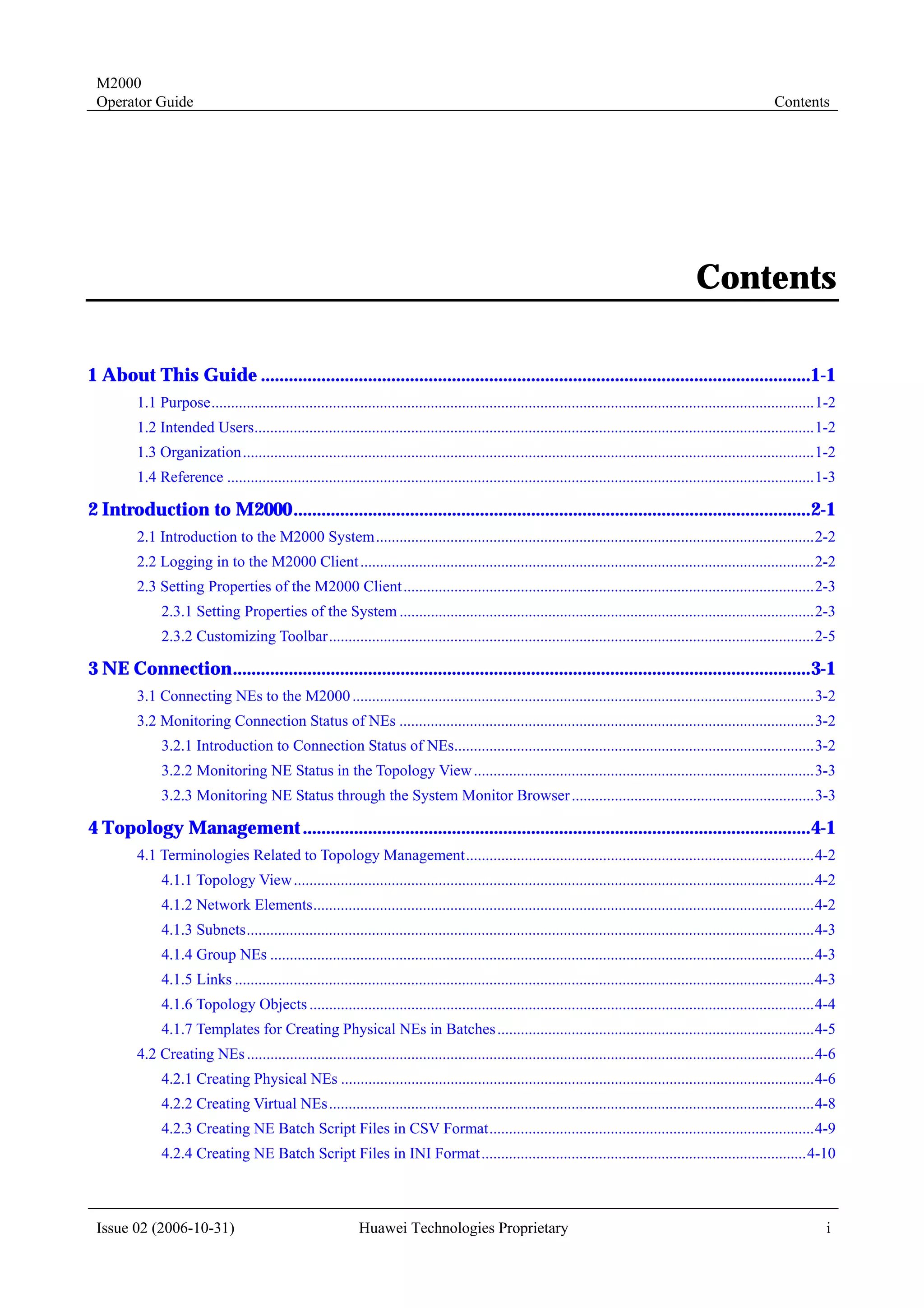
                                                                                                                                               Contents

1 About This Guide ......................................................................................................................1-1
         1.1 Purpose..........................................................................................................................................................1-2
         1.2 Intended Users...............................................................................................................................................1-2
         1.3 Organization..................................................................................................................................................1-2
         1.4 Reference ......................................................................................................................................................1-3

2 Introduction to M2000 ...............................................................................................................2-1
         2.1 Introduction to the M2000 System................................................................................................................2-2
         2.2 Logging in to the M2000 Client ....................................................................................................................2-2
         2.3 Setting Properties of the M2000 Client .........................................................................................................2-3
              2.3.1 Setting Properties of the System ..........................................................................................................2-3
              2.3.2 Customizing Toolbar............................................................................................................................2-5

3 NE Connection............................................................................................................................3-1
         3.1 Connecting NEs to the M2000 ......................................................................................................................3-2
         3.2 Monitoring Connection Status of NEs ..........................................................................................................3-2
              3.2.1 Introduction to Connection Status of NEs............................................................................................3-2
              3.2.2 Monitoring NE Status in the Topology View .......................................................................................3-3
              3.2.3 Monitoring NE Status through the System Monitor Browser ..............................................................3-3

4 Topology Management .............................................................................................................4-1
         4.1 Terminologies Related to Topology Management.........................................................................................4-2
              4.1.1 Topology View .....................................................................................................................................4-2
              4.1.2 Network Elements................................................................................................................................4-2
              4.1.3 Subnets.................................................................................................................................................4-3
              4.1.4 Group NEs ...........................................................................................................................................4-3
              4.1.5 Links ....................................................................................................................................................4-3
              4.1.6 Topology Objects .................................................................................................................................4-4
              4.1.7 Templates for Creating Physical NEs in Batches .................................................................................4-5
         4.2 Creating NEs .................................................................................................................................................4-6
              4.2.1 Creating Physical NEs .........................................................................................................................4-6
              4.2.2 Creating Virtual NEs............................................................................................................................4-8
              4.2.3 Creating NE Batch Script Files in CSV Format...................................................................................4-9
              4.2.4 Creating NE Batch Script Files in INI Format...................................................................................4-10


 Issue 02 (2006-10-31)                                        Huawei Technologies Proprietary                                                                                 i
M2000
 1 About This Guide                                                                                                                                Operator Guide

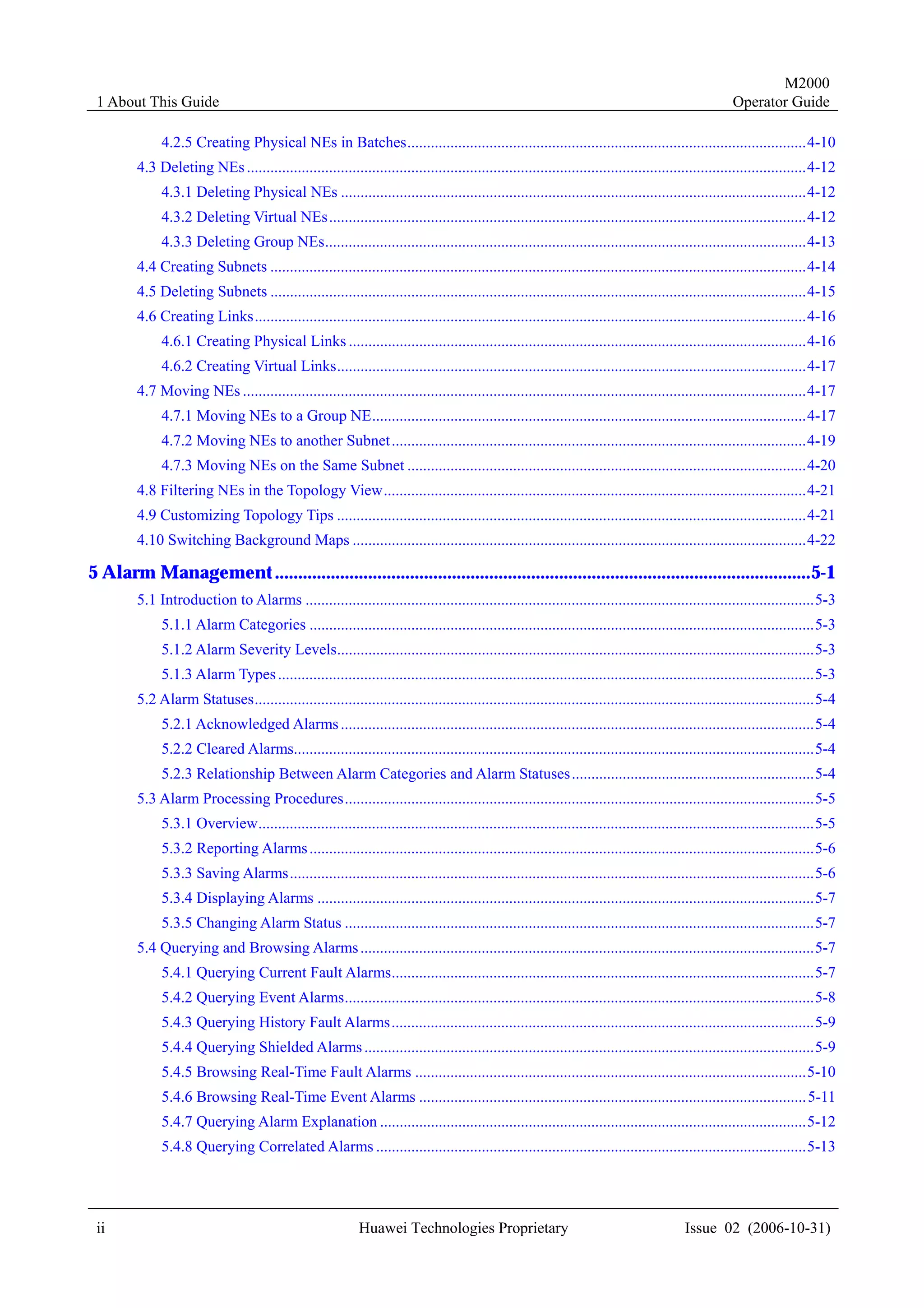
             4.2.5 Creating Physical NEs in Batches......................................................................................................4-10
        4.3 Deleting NEs ...............................................................................................................................................4-12
             4.3.1 Deleting Physical NEs .......................................................................................................................4-12
             4.3.2 Deleting Virtual NEs..........................................................................................................................4-12
             4.3.3 Deleting Group NEs...........................................................................................................................4-13
        4.4 Creating Subnets .........................................................................................................................................4-14
        4.5 Deleting Subnets .........................................................................................................................................4-15
        4.6 Creating Links.............................................................................................................................................4-16
             4.6.1 Creating Physical Links .....................................................................................................................4-16
             4.6.2 Creating Virtual Links........................................................................................................................4-17
        4.7 Moving NEs ................................................................................................................................................4-17
             4.7.1 Moving NEs to a Group NE...............................................................................................................4-17
             4.7.2 Moving NEs to another Subnet ..........................................................................................................4-19
             4.7.3 Moving NEs on the Same Subnet ......................................................................................................4-20
        4.8 Filtering NEs in the Topology View............................................................................................................4-21
        4.9 Customizing Topology Tips ........................................................................................................................4-21
        4.10 Switching Background Maps ....................................................................................................................4-22

5 Alarm Management ...................................................................................................................5-1
        5.1 Introduction to Alarms ..................................................................................................................................5-3
             5.1.1 Alarm Categories .................................................................................................................................5-3
             5.1.2 Alarm Severity Levels..........................................................................................................................5-3
             5.1.3 Alarm Types .........................................................................................................................................5-3
        5.2 Alarm Statuses...............................................................................................................................................5-4
             5.2.1 Acknowledged Alarms .........................................................................................................................5-4
             5.2.2 Cleared Alarms.....................................................................................................................................5-4
             5.2.3 Relationship Between Alarm Categories and Alarm Statuses ..............................................................5-4
        5.3 Alarm Processing Procedures........................................................................................................................5-5
             5.3.1 Overview..............................................................................................................................................5-5
             5.3.2 Reporting Alarms .................................................................................................................................5-6
             5.3.3 Saving Alarms......................................................................................................................................5-6
             5.3.4 Displaying Alarms ...............................................................................................................................5-7
             5.3.5 Changing Alarm Status ........................................................................................................................5-7
        5.4 Querying and Browsing Alarms ....................................................................................................................5-7
             5.4.1 Querying Current Fault Alarms............................................................................................................5-7
             5.4.2 Querying Event Alarms........................................................................................................................5-8
             5.4.3 Querying History Fault Alarms............................................................................................................5-9
             5.4.4 Querying Shielded Alarms ...................................................................................................................5-9
             5.4.5 Browsing Real-Time Fault Alarms ....................................................................................................5-10
             5.4.6 Browsing Real-Time Event Alarms ................................................................................................... 5-11
             5.4.7 Querying Alarm Explanation .............................................................................................................5-12
             5.4.8 Querying Correlated Alarms ..............................................................................................................5-13


 ii                                                         Huawei Technologies Proprietary                                             Issue 02 (2006-10-31)
M2000
 Operator Guide                                                                                                                                            Contents

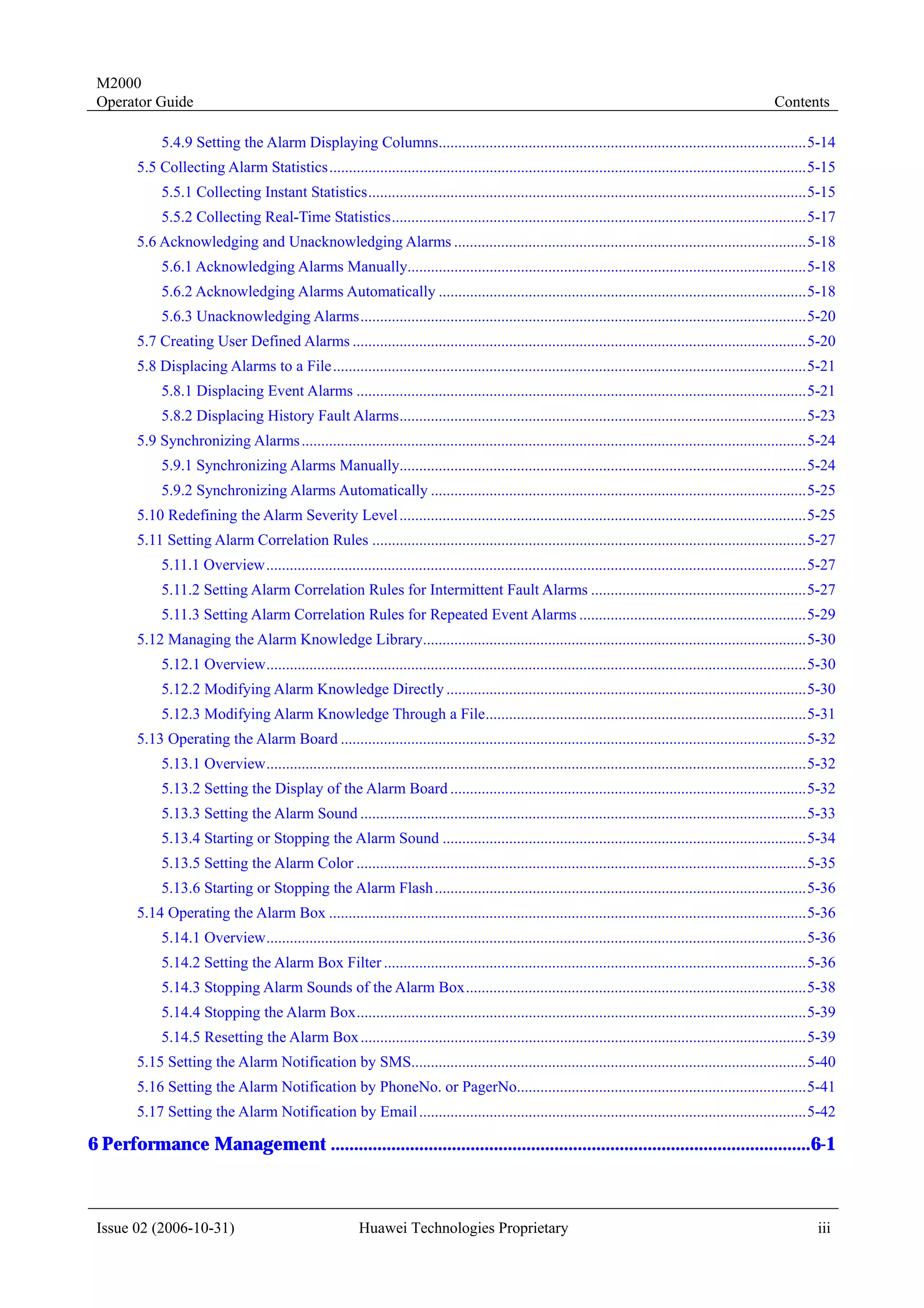
             5.4.9 Setting the Alarm Displaying Columns..............................................................................................5-14
        5.5 Collecting Alarm Statistics..........................................................................................................................5-15
             5.5.1 Collecting Instant Statistics................................................................................................................5-15
             5.5.2 Collecting Real-Time Statistics..........................................................................................................5-17
        5.6 Acknowledging and Unacknowledging Alarms ..........................................................................................5-18
             5.6.1 Acknowledging Alarms Manually......................................................................................................5-18
             5.6.2 Acknowledging Alarms Automatically ..............................................................................................5-18
             5.6.3 Unacknowledging Alarms..................................................................................................................5-20
        5.7 Creating User Defined Alarms ....................................................................................................................5-20
        5.8 Displacing Alarms to a File.........................................................................................................................5-21
             5.8.1 Displacing Event Alarms ...................................................................................................................5-21
             5.8.2 Displacing History Fault Alarms........................................................................................................5-23
        5.9 Synchronizing Alarms .................................................................................................................................5-24
             5.9.1 Synchronizing Alarms Manually........................................................................................................5-24
             5.9.2 Synchronizing Alarms Automatically ................................................................................................5-25
        5.10 Redefining the Alarm Severity Level ........................................................................................................5-25
        5.11 Setting Alarm Correlation Rules ...............................................................................................................5-27
             5.11.1 Overview..........................................................................................................................................5-27
             5.11.2 Setting Alarm Correlation Rules for Intermittent Fault Alarms .......................................................5-27
             5.11.3 Setting Alarm Correlation Rules for Repeated Event Alarms ..........................................................5-29
        5.12 Managing the Alarm Knowledge Library..................................................................................................5-30
             5.12.1 Overview..........................................................................................................................................5-30
             5.12.2 Modifying Alarm Knowledge Directly ............................................................................................5-30
             5.12.3 Modifying Alarm Knowledge Through a File..................................................................................5-31
        5.13 Operating the Alarm Board .......................................................................................................................5-32
             5.13.1 Overview..........................................................................................................................................5-32
             5.13.2 Setting the Display of the Alarm Board ...........................................................................................5-32
             5.13.3 Setting the Alarm Sound ..................................................................................................................5-33
             5.13.4 Starting or Stopping the Alarm Sound .............................................................................................5-34
             5.13.5 Setting the Alarm Color ...................................................................................................................5-35
             5.13.6 Starting or Stopping the Alarm Flash ...............................................................................................5-36
        5.14 Operating the Alarm Box ..........................................................................................................................5-36
             5.14.1 Overview..........................................................................................................................................5-36
             5.14.2 Setting the Alarm Box Filter ............................................................................................................5-36
             5.14.3 Stopping Alarm Sounds of the Alarm Box.......................................................................................5-38
             5.14.4 Stopping the Alarm Box...................................................................................................................5-39
             5.14.5 Resetting the Alarm Box ..................................................................................................................5-39
        5.15 Setting the Alarm Notification by SMS.....................................................................................................5-40
        5.16 Setting the Alarm Notification by PhoneNo. or PagerNo..........................................................................5-41
        5.17 Setting the Alarm Notification by Email ...................................................................................................5-42

6 Performance Management .......................................................................................................6-1


 Issue 02 (2006-10-31)                                    Huawei Technologies Proprietary                                                                            iii
M2000
1 About This Guide                                                                                                                              Operator Guide

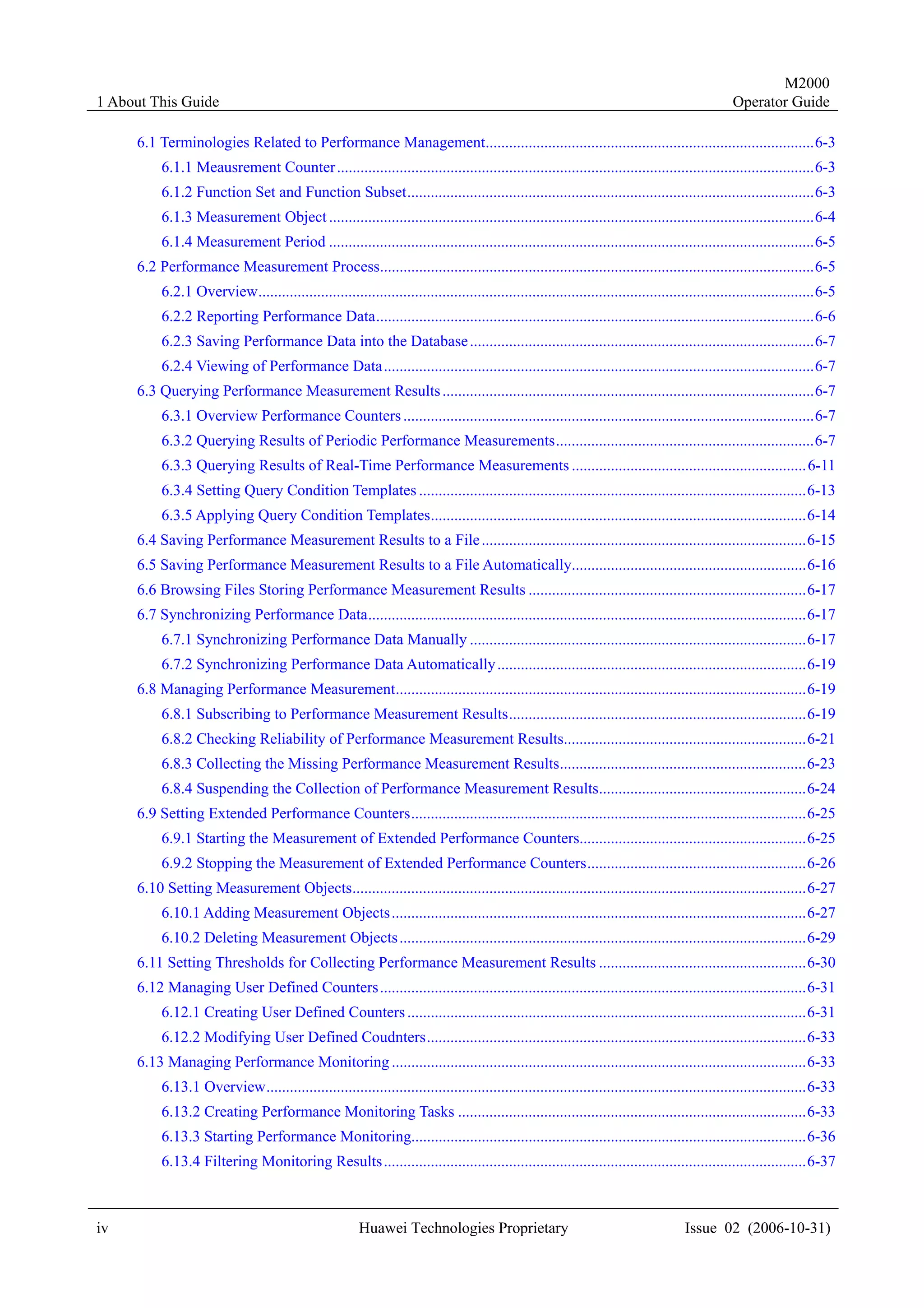
     6.1 Terminologies Related to Performance Management....................................................................................6-3
          6.1.1 Meausrement Counter ..........................................................................................................................6-3
          6.1.2 Function Set and Function Subset........................................................................................................6-3
          6.1.3 Measurement Object ............................................................................................................................6-4
          6.1.4 Measurement Period ............................................................................................................................6-5
     6.2 Performance Measurement Process...............................................................................................................6-5
          6.2.1 Overview..............................................................................................................................................6-5
          6.2.2 Reporting Performance Data................................................................................................................6-6
          6.2.3 Saving Performance Data into the Database ........................................................................................6-7
          6.2.4 Viewing of Performance Data..............................................................................................................6-7
     6.3 Querying Performance Measurement Results ...............................................................................................6-7
          6.3.1 Overview Performance Counters .........................................................................................................6-7
          6.3.2 Querying Results of Periodic Performance Measurements..................................................................6-7
          6.3.3 Querying Results of Real-Time Performance Measurements ............................................................ 6-11
          6.3.4 Setting Query Condition Templates ...................................................................................................6-13
          6.3.5 Applying Query Condition Templates................................................................................................6-14
     6.4 Saving Performance Measurement Results to a File ...................................................................................6-15
     6.5 Saving Performance Measurement Results to a File Automatically............................................................6-16
     6.6 Browsing Files Storing Performance Measurement Results .......................................................................6-17
     6.7 Synchronizing Performance Data................................................................................................................6-17
          6.7.1 Synchronizing Performance Data Manually ......................................................................................6-17
          6.7.2 Synchronizing Performance Data Automatically ...............................................................................6-19
     6.8 Managing Performance Measurement.........................................................................................................6-19
          6.8.1 Subscribing to Performance Measurement Results............................................................................6-19
          6.8.2 Checking Reliability of Performance Measurement Results..............................................................6-21
          6.8.3 Collecting the Missing Performance Measurement Results...............................................................6-23
          6.8.4 Suspending the Collection of Performance Measurement Results.....................................................6-24
     6.9 Setting Extended Performance Counters.....................................................................................................6-25
          6.9.1 Starting the Measurement of Extended Performance Counters..........................................................6-25
          6.9.2 Stopping the Measurement of Extended Performance Counters........................................................6-26
     6.10 Setting Measurement Objects....................................................................................................................6-27
          6.10.1 Adding Measurement Objects ..........................................................................................................6-27
          6.10.2 Deleting Measurement Objects ........................................................................................................6-29
     6.11 Setting Thresholds for Collecting Performance Measurement Results .....................................................6-30
     6.12 Managing User Defined Counters.............................................................................................................6-31
          6.12.1 Creating User Defined Counters ......................................................................................................6-31
          6.12.2 Modifying User Defined Coudnters.................................................................................................6-33
     6.13 Managing Performance Monitoring ..........................................................................................................6-33
          6.13.1 Overview..........................................................................................................................................6-33
          6.13.2 Creating Performance Monitoring Tasks .........................................................................................6-33
          6.13.3 Starting Performance Monitoring.....................................................................................................6-36
          6.13.4 Filtering Monitoring Results ............................................................................................................6-37


iv                                                      Huawei Technologies Proprietary                                              Issue 02 (2006-10-31)
M2000
 Operator Guide                                                                                                                                             Contents

             6.13.5 Setting Monitoring Thresholds ........................................................................................................6-38
             6.13.6 Exporting Data from the Current Monitoring Table.........................................................................6-39
             6.13.7 Viewing the Current Monitoring Chart ............................................................................................6-40
             6.13.8 Viewing the Trend Chart ..................................................................................................................6-42
             6.13.9 Setting Attributes for the Monitoring Chart .....................................................................................6-43
             6.13.10 Exporting Monitoring Results........................................................................................................6-44
        6.14 Managing Thresholds for Real-Time Counters .........................................................................................6-45
             6.14.1 Overview..........................................................................................................................................6-45
             6.14.2 Adding Monitoring Thresholds ........................................................................................................6-46
             6.14.3 Modifying Monitoring Thresholds...................................................................................................6-47
             6.14.4 Deleting Monitoring Thresholds ......................................................................................................6-48

7 Configuration Management.....................................................................................................7-1
        7.1 Querying NE Configuration ..........................................................................................................................7-2
             7.1.1 Configuration Types.............................................................................................................................7-2
             7.1.2 Querying NE Configuration.................................................................................................................7-2
             7.1.3 Querying the Basic NE Configuration .................................................................................................7-3
        7.2 Synchronizing NE Configuration..................................................................................................................7-4
             7.2.1 Synchronizing NE Configuration Manually ........................................................................................7-4
             7.2.2 Synchronizing NE Configuration Automatically .................................................................................7-5
             7.2.3 Synchronizing NE Configuration Periodically ....................................................................................7-6
        7.3 Exporting NE Configuration .........................................................................................................................7-6
             7.3.1 Exporting NE Configuration Manually................................................................................................7-6
             7.3.2 Exporting NE Confiugration Periodically............................................................................................7-7
        7.4 Saving NE Configuration to a File ................................................................................................................7-8
        7.5 Setting NE Type Privilege Rules...................................................................................................................7-9
        7.6 Applying NE Type Privilege Rules .............................................................................................................7-10
        7.7 Managing NE Users .................................................................................................................................... 7-11
             7.7.1 Overview of NE Users ....................................................................................................................... 7-11
             7.7.2 Principles for NE User Authorization ................................................................................................ 7-11
             7.7.3 Creating NE Users ............................................................................................................................. 7-11
             7.7.4 Modifying Privileges for NE Users....................................................................................................7-12
             7.7.5 Deleting NE User Accounts ...............................................................................................................7-14
        7.8 Monitoring Operations of M2000 Users and NE Users ..............................................................................7-15
             7.8.1 Overview of User Logs and NE Logs ................................................................................................7-15
             7.8.2 Synchronizing NE Logs .....................................................................................................................7-15
             7.8.3 Querying NE Logs .............................................................................................................................7-17
             7.8.4 Monitoring NE User Login on LMTs ................................................................................................7-18
             7.8.5 Monitoring Operations and Sessions of NE Users.............................................................................7-19
        7.9 Management of Enhanced Maintenance for NEs ........................................................................................7-19
             7.9.1 Overview............................................................................................................................................7-19
             7.9.2 Upgrading Enhanced Maintenance for NEs.......................................................................................7-20


 Issue 02 (2006-10-31)                                     Huawei Technologies Proprietary                                                                              v
M2000
 1 About This Guide                                                                                                                               Operator Guide

             7.9.3 Equipment Management ....................................................................................................................7-21
             7.9.4 Monitoring Management....................................................................................................................7-22
             7.9.5 Tracing Management .........................................................................................................................7-24
        7.10 Executing NE MML Commands...............................................................................................................7-25
             7.10.1 Overview of MML Commands ........................................................................................................7-25
             7.10.2 Viewing the MML Command Window............................................................................................7-25
             7.10.3 Executing One MML Command......................................................................................................7-26
             7.10.4 Setting the MML Command Script..................................................................................................7-27
             7.10.5 Executing Multiple MML Commands .............................................................................................7-29
             7.10.6 Executing MML Commands Periodically........................................................................................7-30
             7.10.7 Saving MML Command Results......................................................................................................7-30

8 NE Software and License Management.................................................................................8-1
        8.1 Checking the NE Software ............................................................................................................................8-2
             8.1.1 Checking NE Software Packages on the M2000 .................................................................................8-2
             8.1.2 Checking the Running NE Software ....................................................................................................8-3
        8.2 Setting the File Server ...................................................................................................................................8-4
             8.2.1 Purpose of and Principles for Setting the File Server ..........................................................................8-4
             8.2.2 Setting the NE File Server ...................................................................................................................8-4
        8.3 Upgrading the NE Software ..........................................................................................................................8-5
             8.3.1 Procedure for Upgrading the NE Software ..........................................................................................8-5
             8.3.2 Copying the NE Software to the M2000 Client ...................................................................................8-6
             8.3.3 Uploading the NE Software from the M2000 Client to the M2000 Server..........................................8-7
             8.3.4 Downloading the NE Software to a Board of an NE ...........................................................................8-8
             8.3.5 Operating the NE Software ................................................................................................................8-10
             8.3.6 Downloading NE Software Patches to a Board of an NE .................................................................. 8-11
             8.3.7 Operating Patches ..............................................................................................................................8-12
             8.3.8 Monitoring the Software Upgrade Progress.......................................................................................8-13
             8.3.9 Falling Back the Software Version.....................................................................................................8-14
        8.4 Upgrading the NodeB Software and Patches ..............................................................................................8-14
             8.4.1 NodeB Upgrade Policies....................................................................................................................8-14
             8.4.2 Upgrading One NodeB.......................................................................................................................8-15
             8.4.3 Upgrading Multiple NodeBs ..............................................................................................................8-17
        8.5 Managing the Software License ..................................................................................................................8-17
             8.5.1 Overview............................................................................................................................................8-17
             8.5.2 Checking the License Allocated to NodeBs.......................................................................................8-18
             8.5.3 Modifying the License Allocated to NodeBs .....................................................................................8-19
             8.5.4 Allocating the RAN License ..............................................................................................................8-20
             8.5.5 Synchronizing the License Allocated to NodeBs ...............................................................................8-20
             8.5.6 Deleting the RAN License .................................................................................................................8-21
             8.5.7 Uploading the License from the Client to the Folder on the Server...................................................8-22

9 Backup Managemnet.................................................................................................................9-1


 vi                                                        Huawei Technologies Proprietary                                             Issue 02 (2006-10-31)
M2000
 Operator Guide                                                                                                                                                       Contents

         9.1 Overview of the NE Data ..............................................................................................................................9-2
         9.2 Backing Up NE Data.....................................................................................................................................9-4
              9.2.1 Backup Modes .....................................................................................................................................9-4
              9.2.2 Backing Up NE Data Periodically .......................................................................................................9-4
              9.2.3 Backing Up NE Data Manually ...........................................................................................................9-5
         9.3 Browsing the NE Backup Progress ...............................................................................................................9-6
         9.4 Checking NE Backup Files ...........................................................................................................................9-7
         9.5 Restoring the NE Data...................................................................................................................................9-7

10 Troubleshooting .....................................................................................................................10-1
         10.1 Client Login Failures.................................................................................................................................10-2
              10.1.1 Prompt "Login failed. Confirm that your user name and password are case sensitive and correct."
              ....................................................................................................................................................................10-2
              10.1.2 Prompt "Invalid user account." ........................................................................................................10-2
              10.1.3 Prompt "Invalid login duration."......................................................................................................10-2
              10.1.4 Prompt Message "Invalid password." ..............................................................................................10-3
              10.1.5 Prompt Message "The password has expired. Please change your password! " ..............................10-3
              10.1.6 Prompt Message "Maintenance Mode."...........................................................................................10-3
              10.1.7 Prompt Message "The User Has Reached the Maximum Login Attempts. The User Account Has
              Been Locked, and It Can Be Unlocked in 1 Minute.".................................................................................10-4
              10.1.8 Prompt Message "The Server Doesn’t Exist or Service Is Not Running.".......................................10-4
              10.1.9 Prompt Message "Exceed Maximum Sessions." ing........................................................................10-5
              10.1.10 Prompt Message "Loading Module Failed, System Will Exit." .....................................................10-5
              10.1.11 Prompt Message "Failed to Log in to the Server after the Auto Client Upgrade or Running
              Exception"...................................................................................................................................................10-5
         10.2 Client Running Faults................................................................................................................................10-6
              10.2.1 Abortion of the M2000 Client..........................................................................................................10-6
              10.2.2 Failure to Run the M2000 Client .....................................................................................................10-6
              10.2.3 Abnormal Display of M2000 Client Interface..................................................................................10-7
              10.2.4 The Bulb on the GUI Is On and Off Intermittently ..........................................................................10-7
         10.3 Topology Management Faults ...................................................................................................................10-8
              10.3.1 Failure to Refresh the Topology View..............................................................................................10-8
              10.3.2 Failure to Discover NodeBs Automatically .....................................................................................10-9
              10.3.3 Conflicted Names for the Created Topology Objects.......................................................................10-9
         10.4 Alarm Management Faults ........................................................................................................................10-9
              10.4.1 Time Delay of Alarm Message Real-Time Printing .........................................................................10-9
              10.4.2 Failure to Receive Alarm Emails in Real-Time .............................................................................10-10
              10.4.3 Failure to Receive Alarm SMSs in Real-Time ...............................................................................10-10
              10.4.4 Unknown NE Names During the Alarm Query .............................................................................10-10


 Issue 02 (2006-10-31)                                         Huawei Technologies Proprietary                                                                                  vii
M2000
1 About This Guide                                                                                                                            Operator Guide


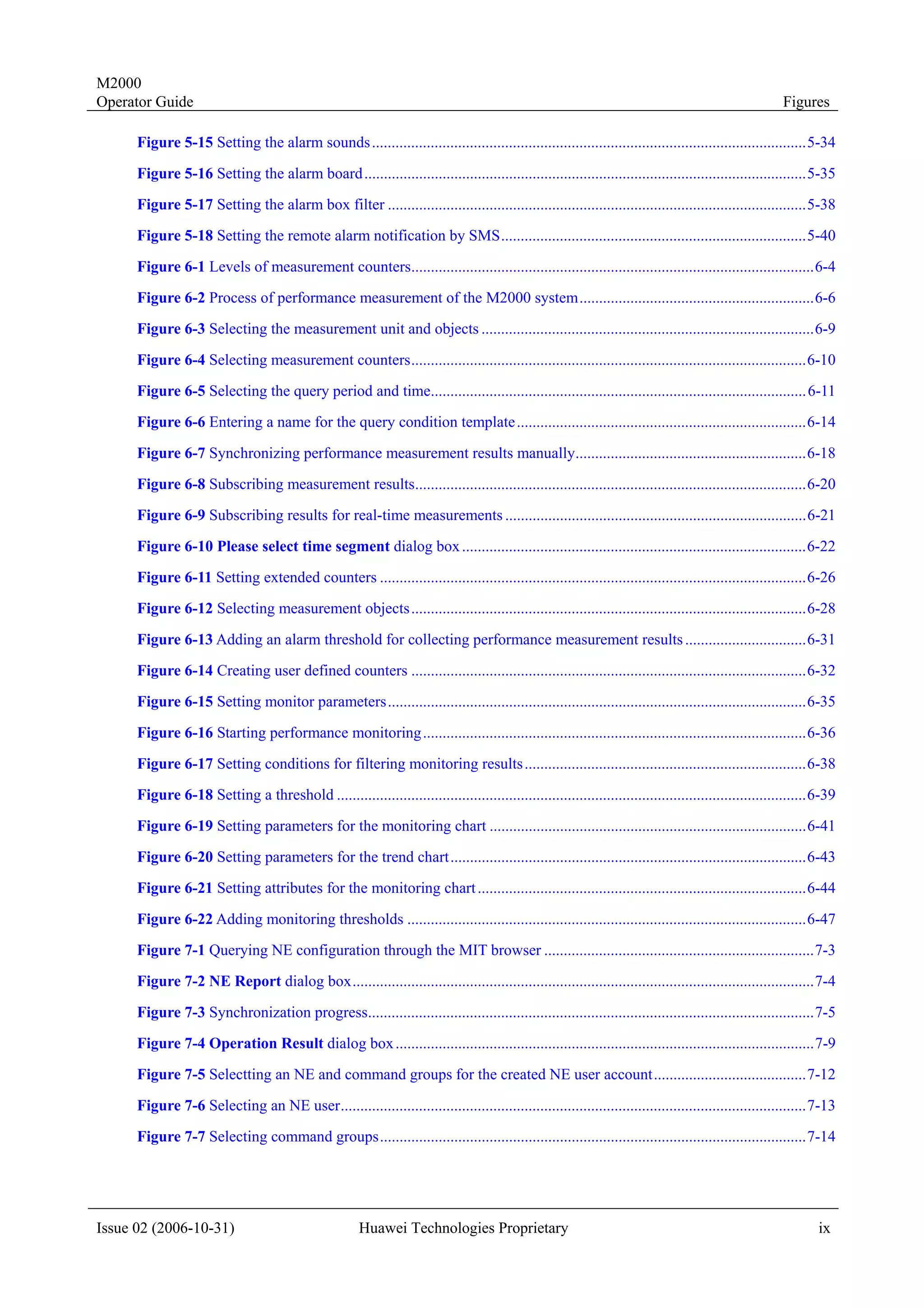
                                                                                                                                           Figures

       Figure 2-1 M2000 client interface (Physical Topology window) ......................................................................2-3
       Figure 2-2 Output Window tab in the System Setting dialog box ..................................................................2-4
       Figure 2-3 Terminal tab in the System Setting dialog box ...............................................................................2-5

       Figure 2-4 Customize Toolbar dialog box ........................................................................................................2-6
       Figure 3-1 Monitoring the NE statuses through the system monitor browser ....................................................3-4
       Figure 4-1 An example of CSV templates..........................................................................................................4-5

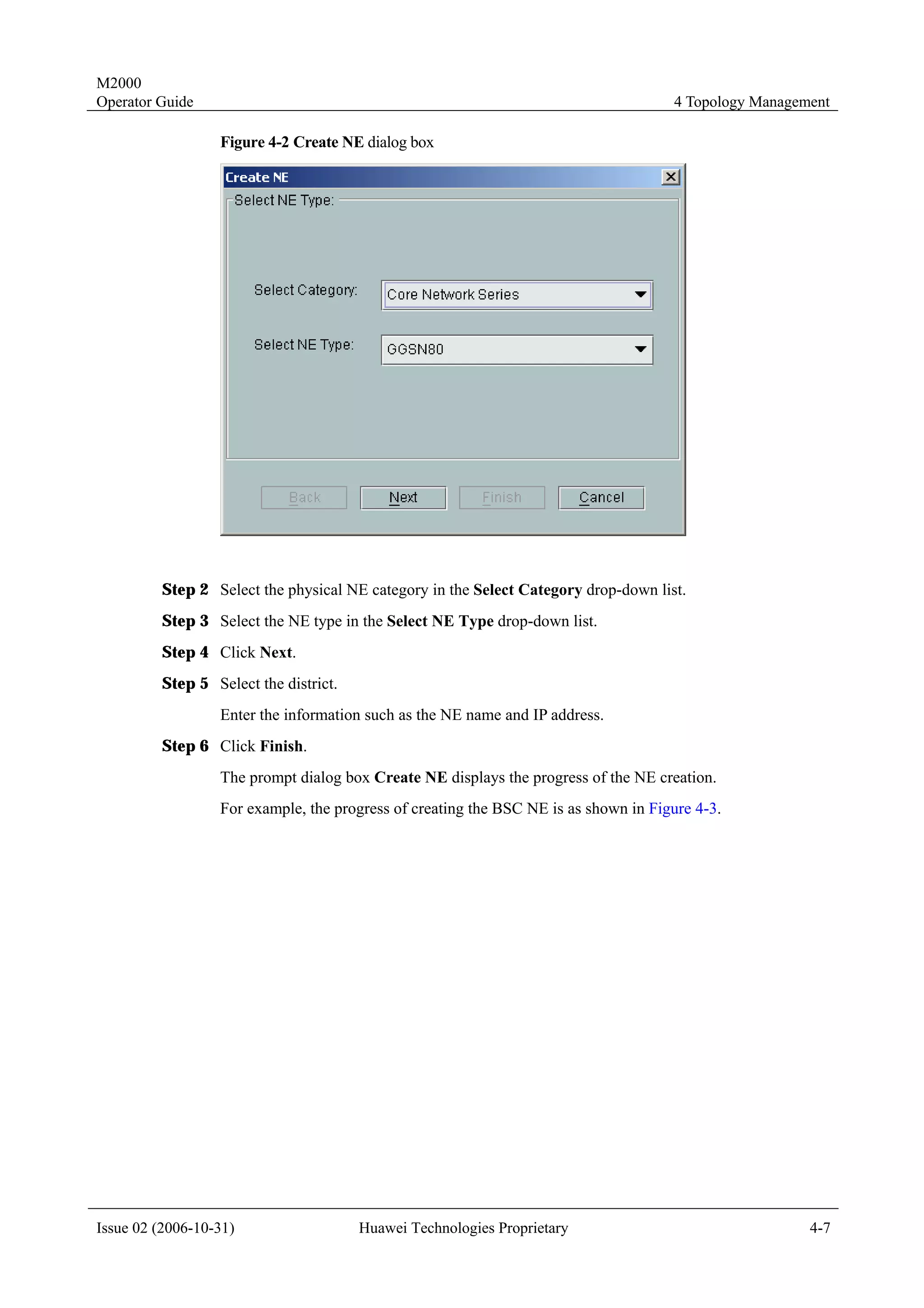
       Figure 4-2 Create NE dialog box ......................................................................................................................4-7
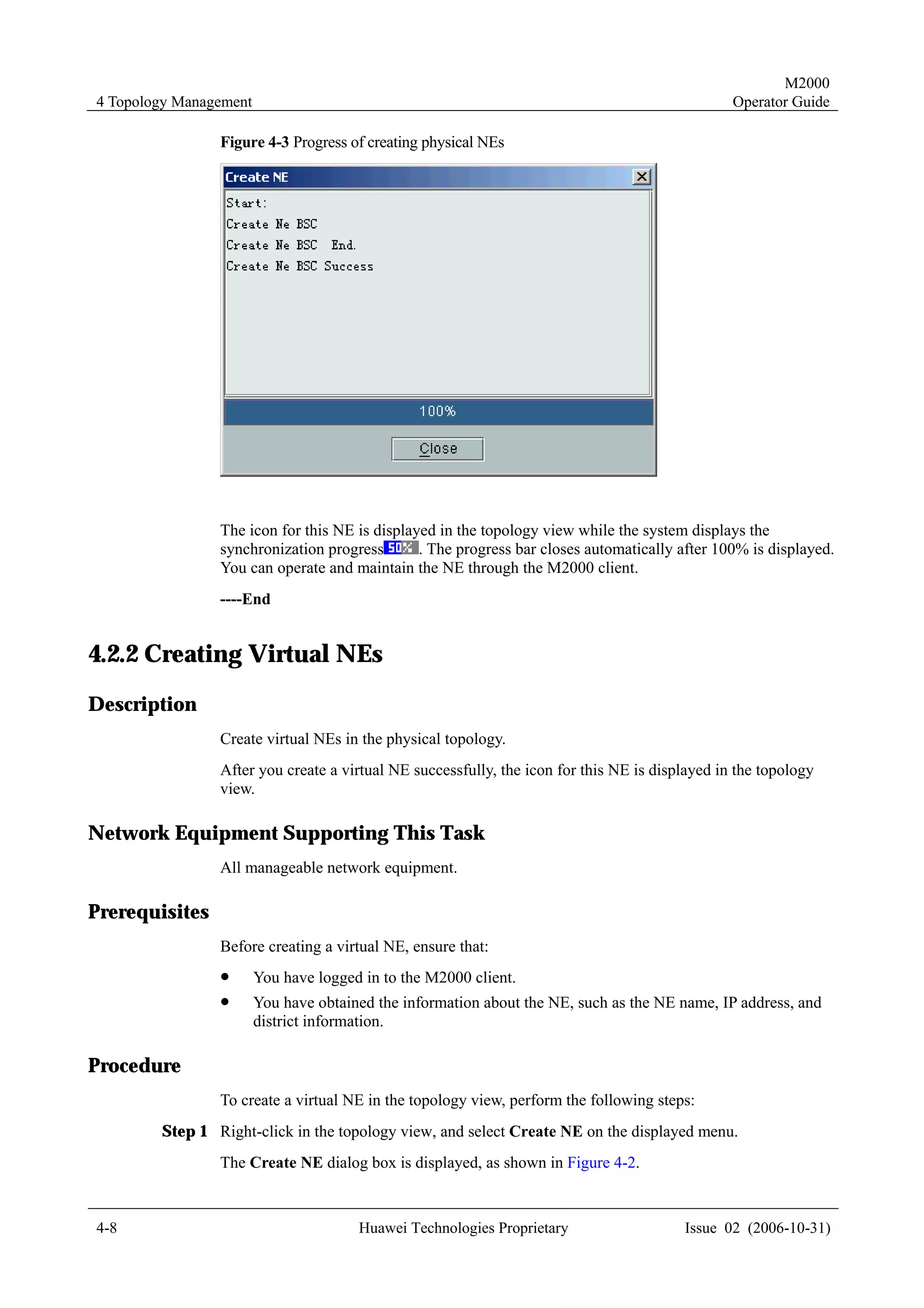
       Figure 4-3 Progress of creating physical NEs ....................................................................................................4-8
       Figure 4-4 Creating physical NEs in batches ................................................................................................... 4-11

       Figure 4-5 Creating physical subnets ...............................................................................................................4-15
       Figure 4-6 NE Property dialog box.................................................................................................................4-18
       Figure 4-7 Modify Physical Subnet dialog box..............................................................................................4-20

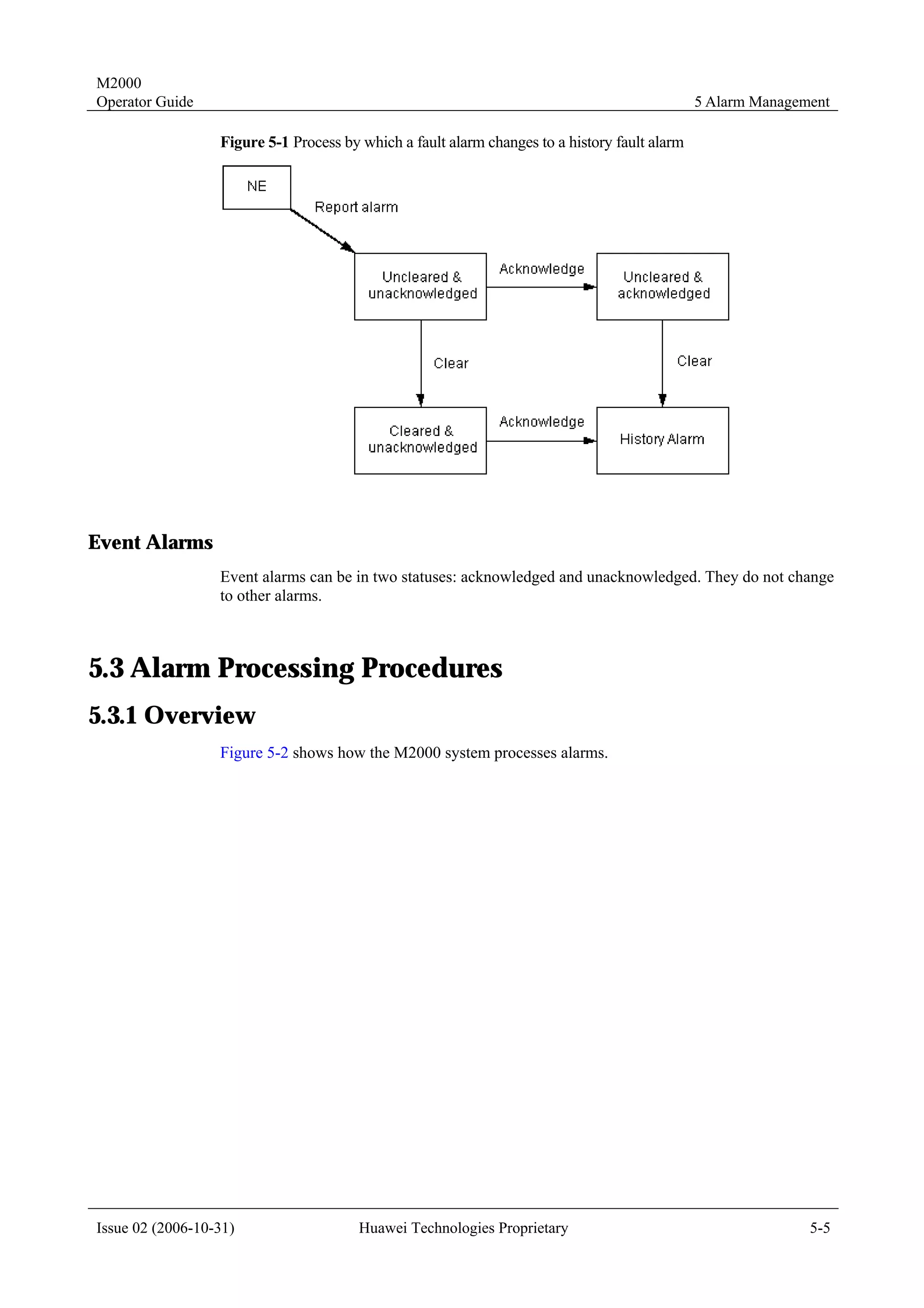
       Figure 5-1 Process by which a fault alarm changes to a history fault alarm ......................................................5-5
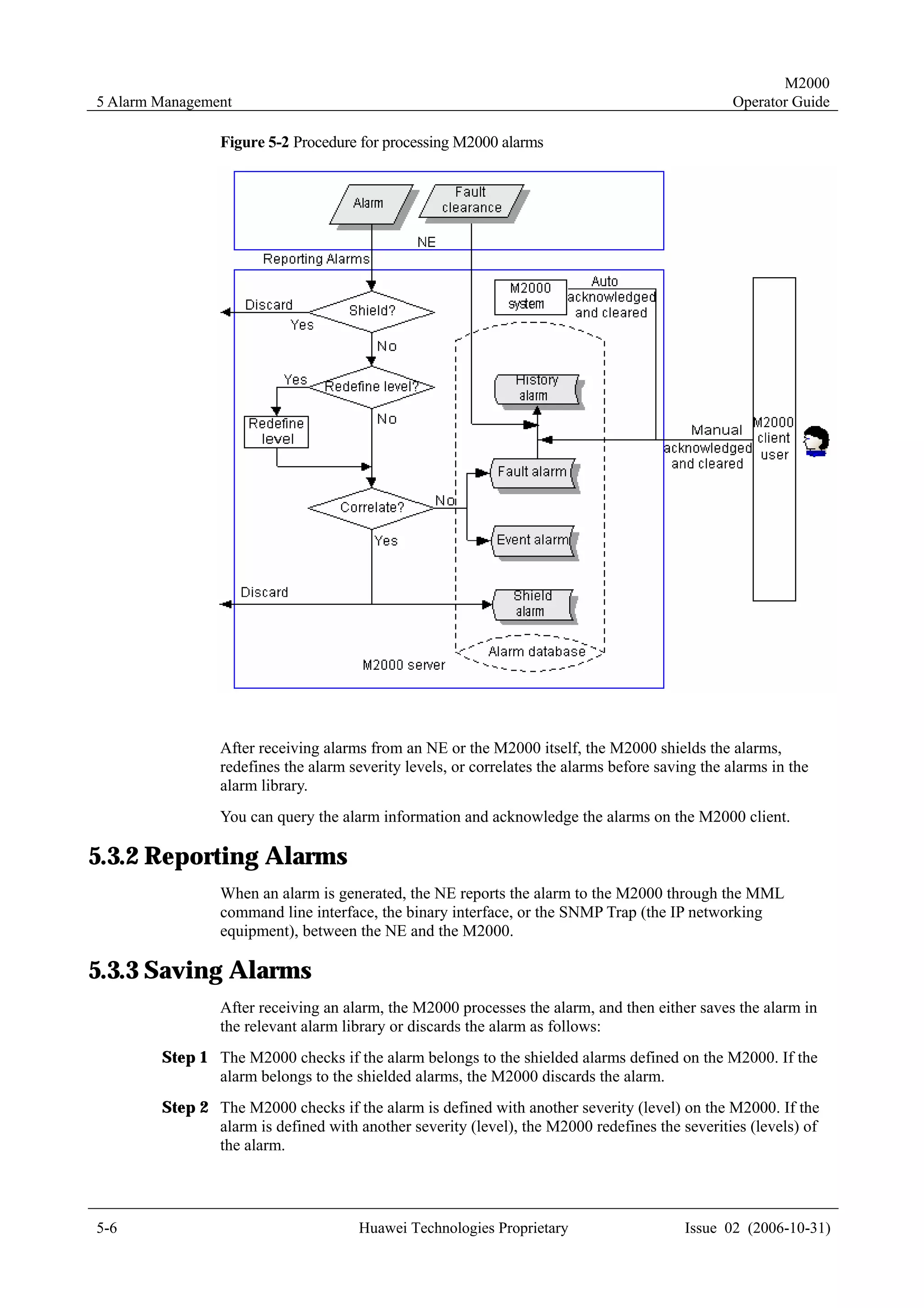
       Figure 5-2 Procedure for processing M2000 alarms ..........................................................................................5-6
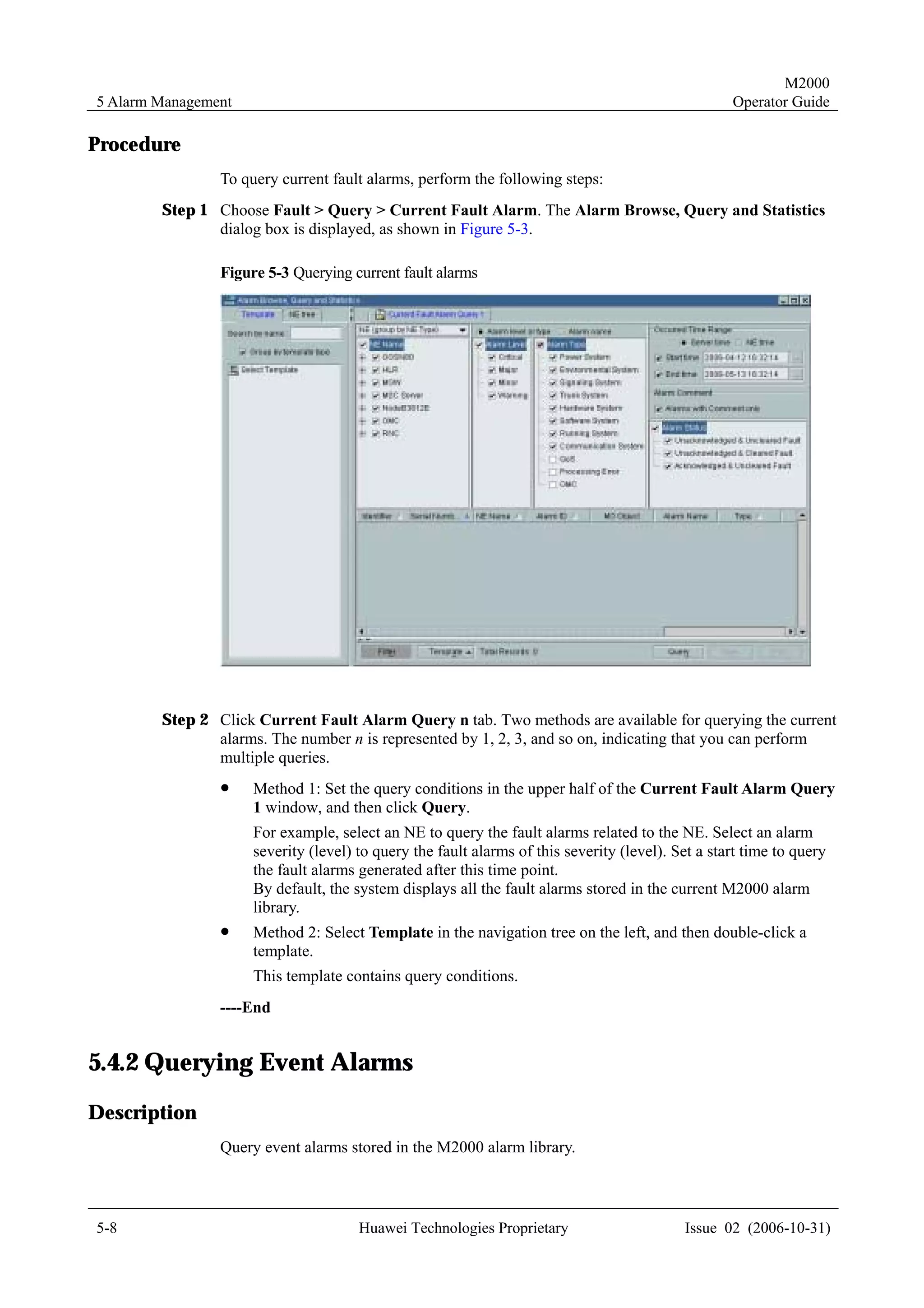
       Figure 5-3 Querying current fault alarms ...........................................................................................................5-8

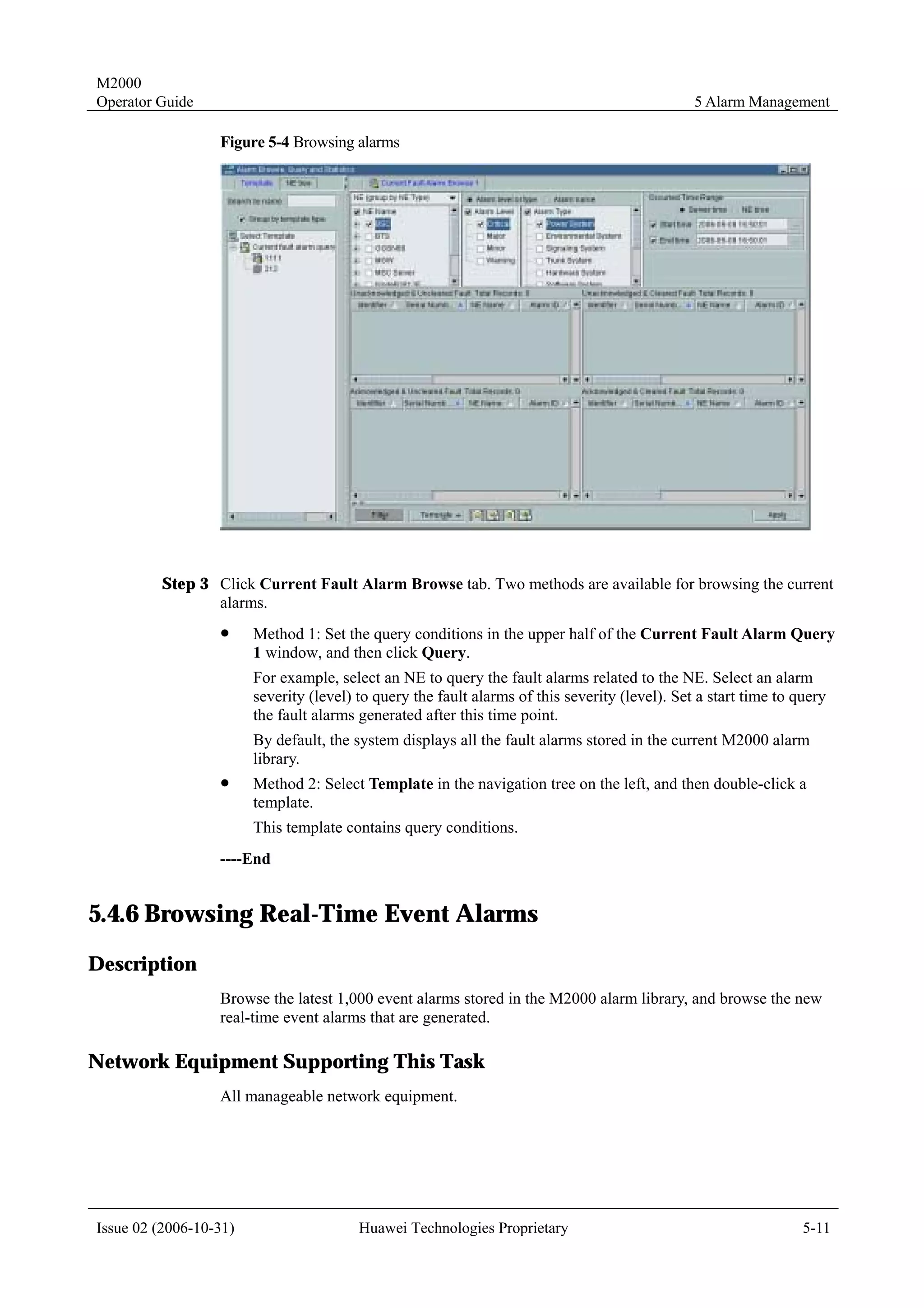
       Figure 5-4 Browsing alarms ............................................................................................................................. 5-11
       Figure 5-5 Alarm details...................................................................................................................................5-13
       Figure 5-6 Selecting the columns to be displayed in the alarm list ..................................................................5-15

       Figure 5-7 Alarm statistics table.......................................................................................................................5-16
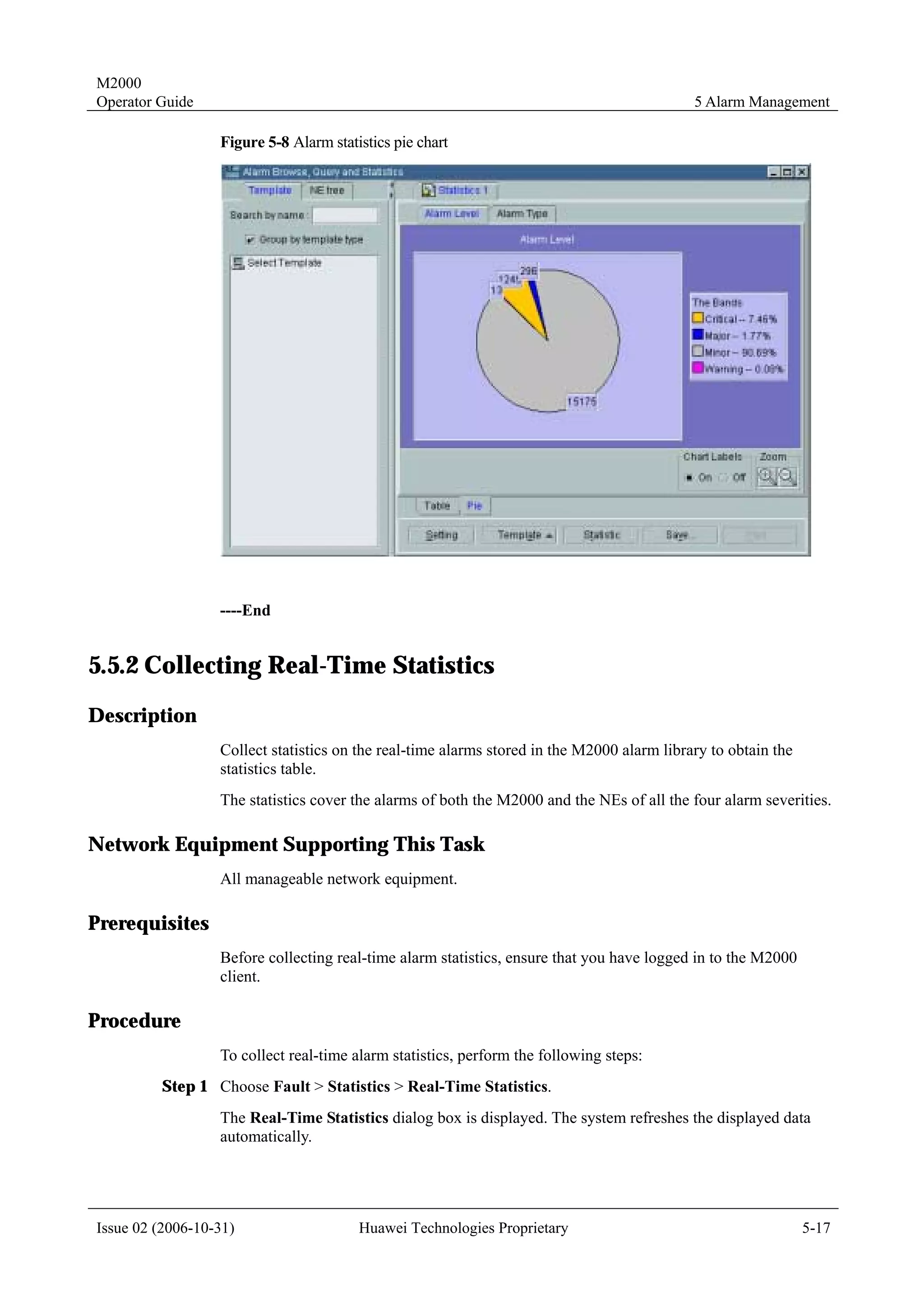
       Figure 5-8 Alarm statistics pie chart.................................................................................................................5-17
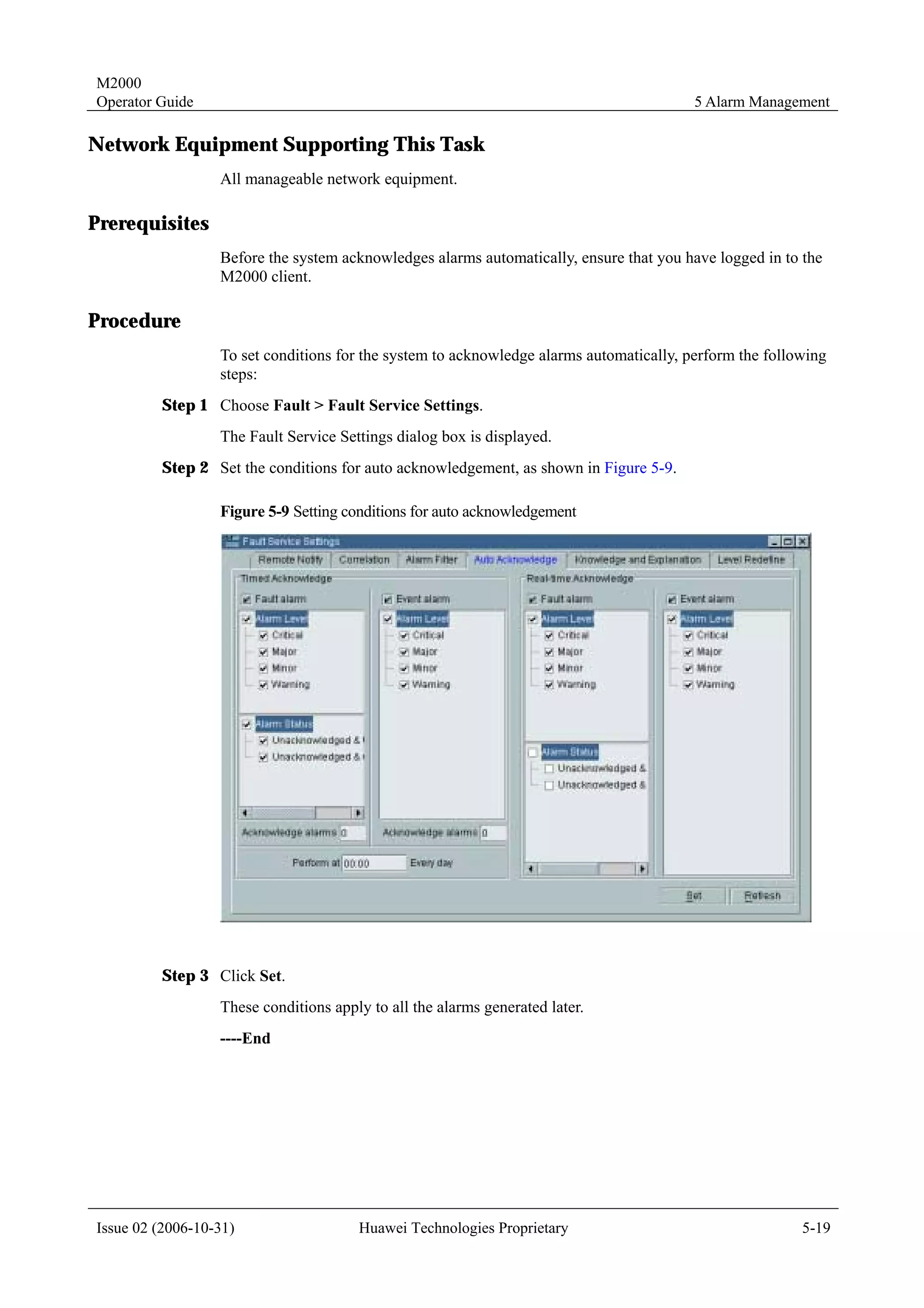
       Figure 5-9 Setting conditions for auto acknowledgement ................................................................................5-19
       Figure 5-10 Auto displacement ........................................................................................................................5-22
       Figure 5-11 Manual displacement ....................................................................................................................5-23
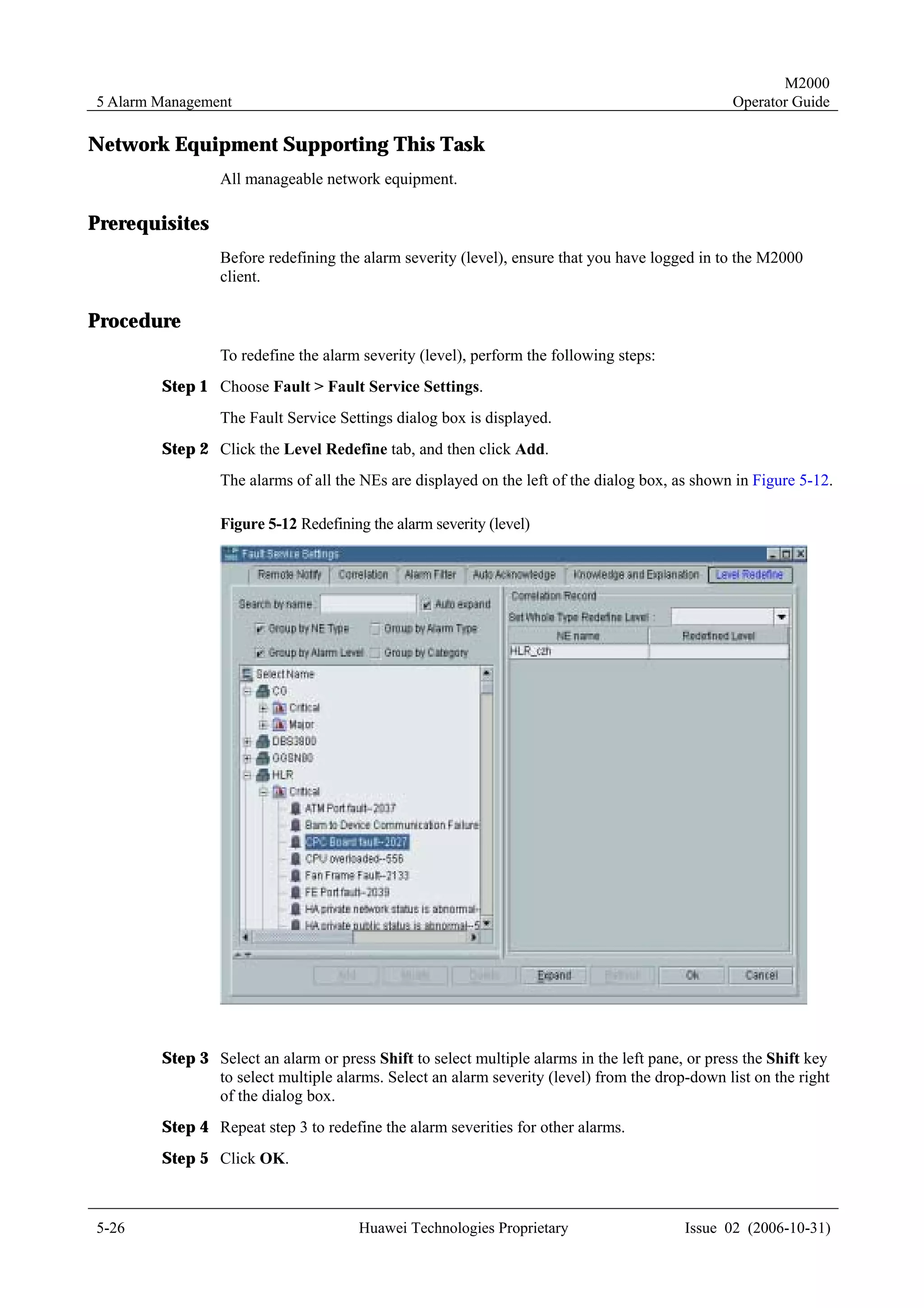
       Figure 5-12 Redefining the alarm severity (level)............................................................................................5-26
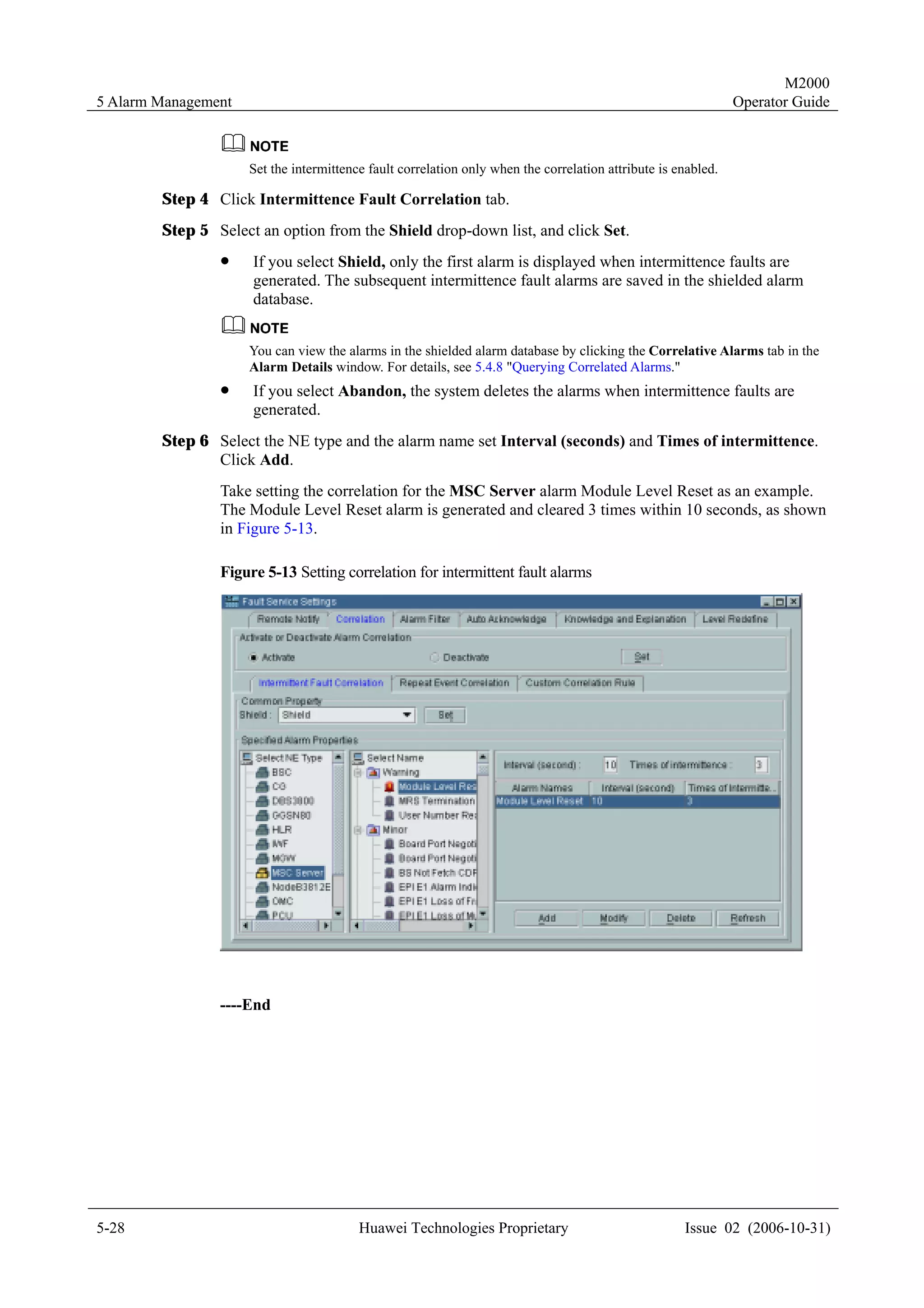
       Figure 5-13 Setting correlation for intermittent fault alarms............................................................................5-28
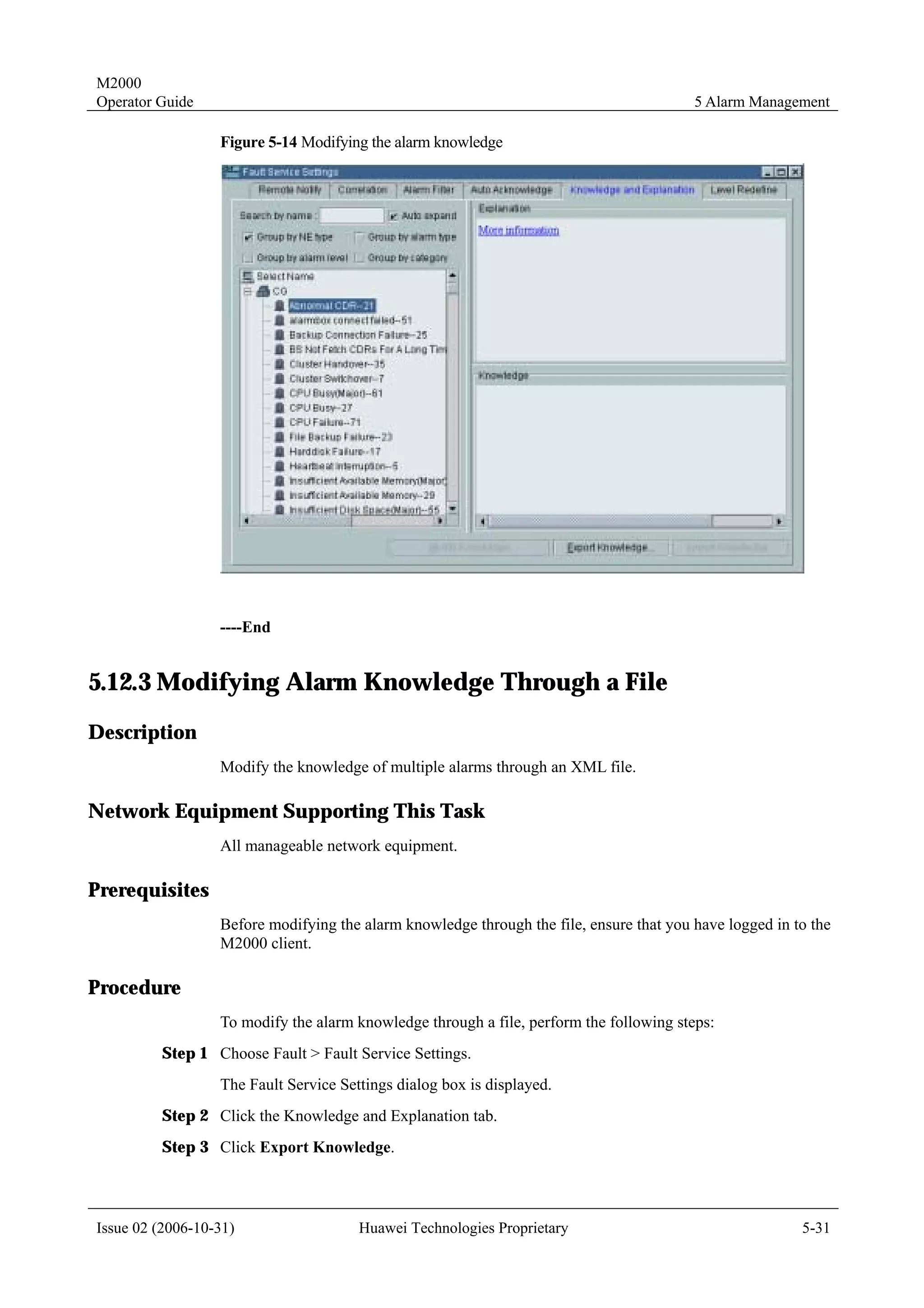
       Figure 5-14 Modifying the alarm knowledge...................................................................................................5-31


viii                                                     Huawei Technologies Proprietary                                           Issue 02 (2006-10-31)
M2000
Operator Guide                                                                                                                                        Figures

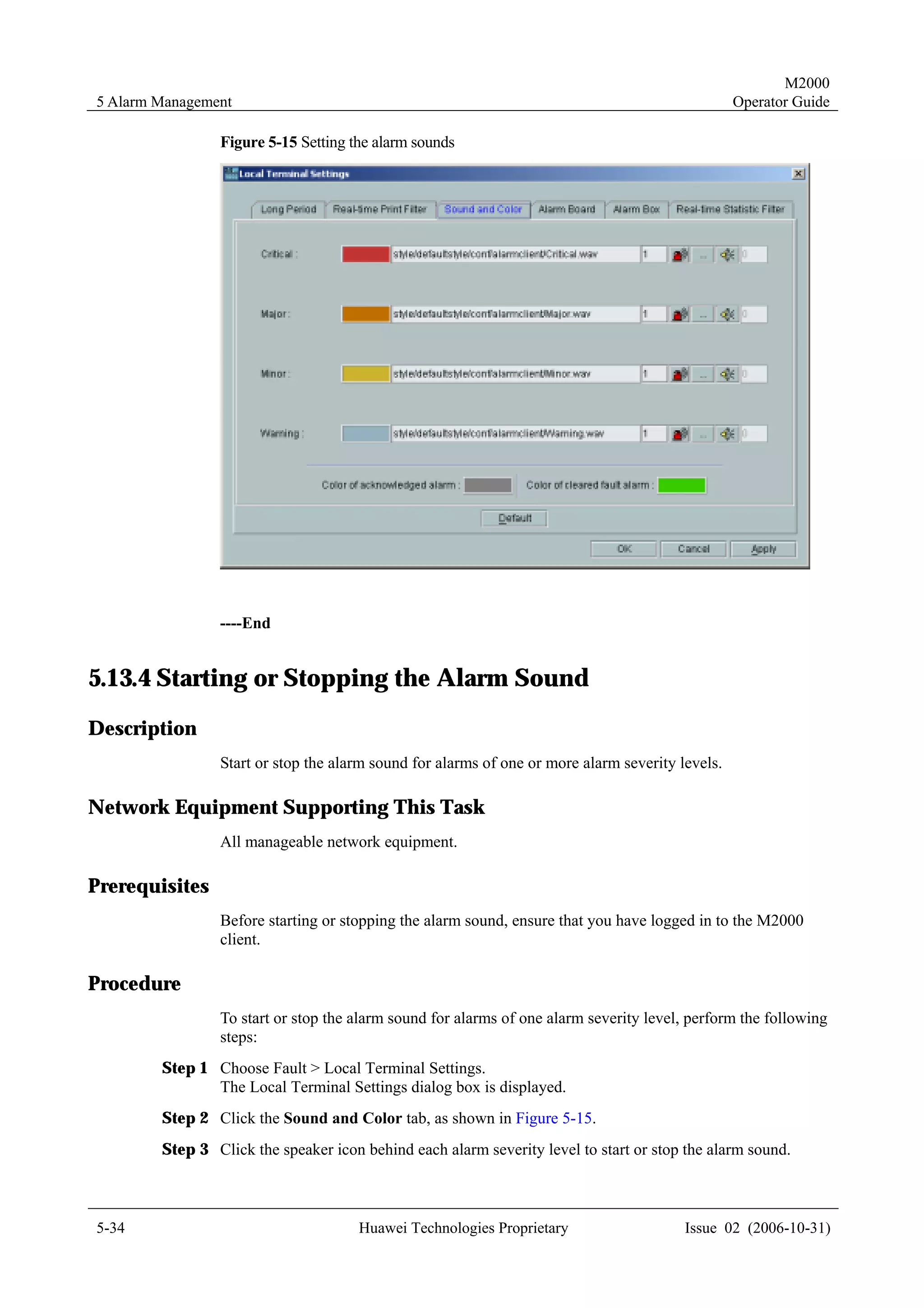
      Figure 5-15 Setting the alarm sounds ...............................................................................................................5-34

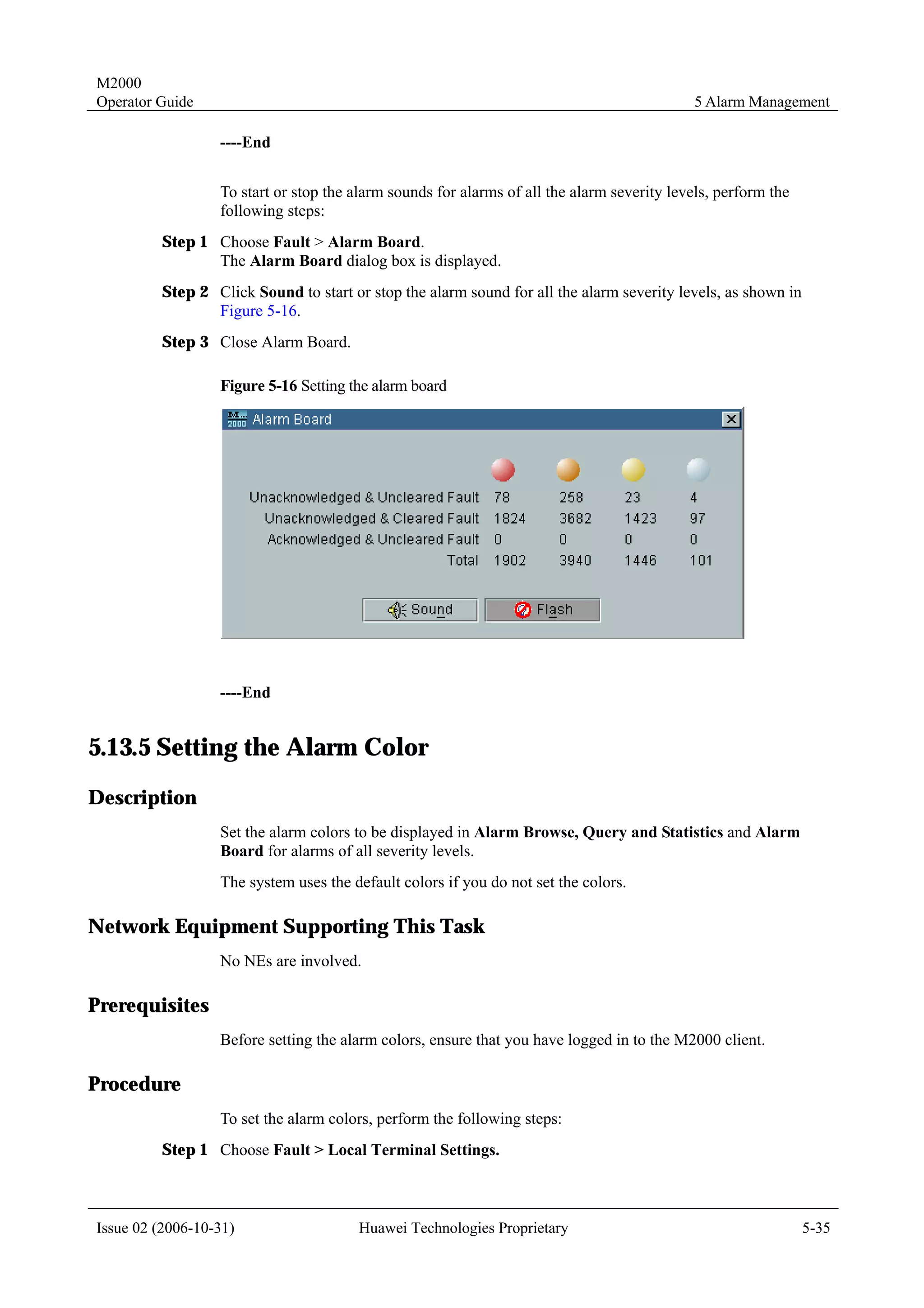
      Figure 5-16 Setting the alarm board .................................................................................................................5-35
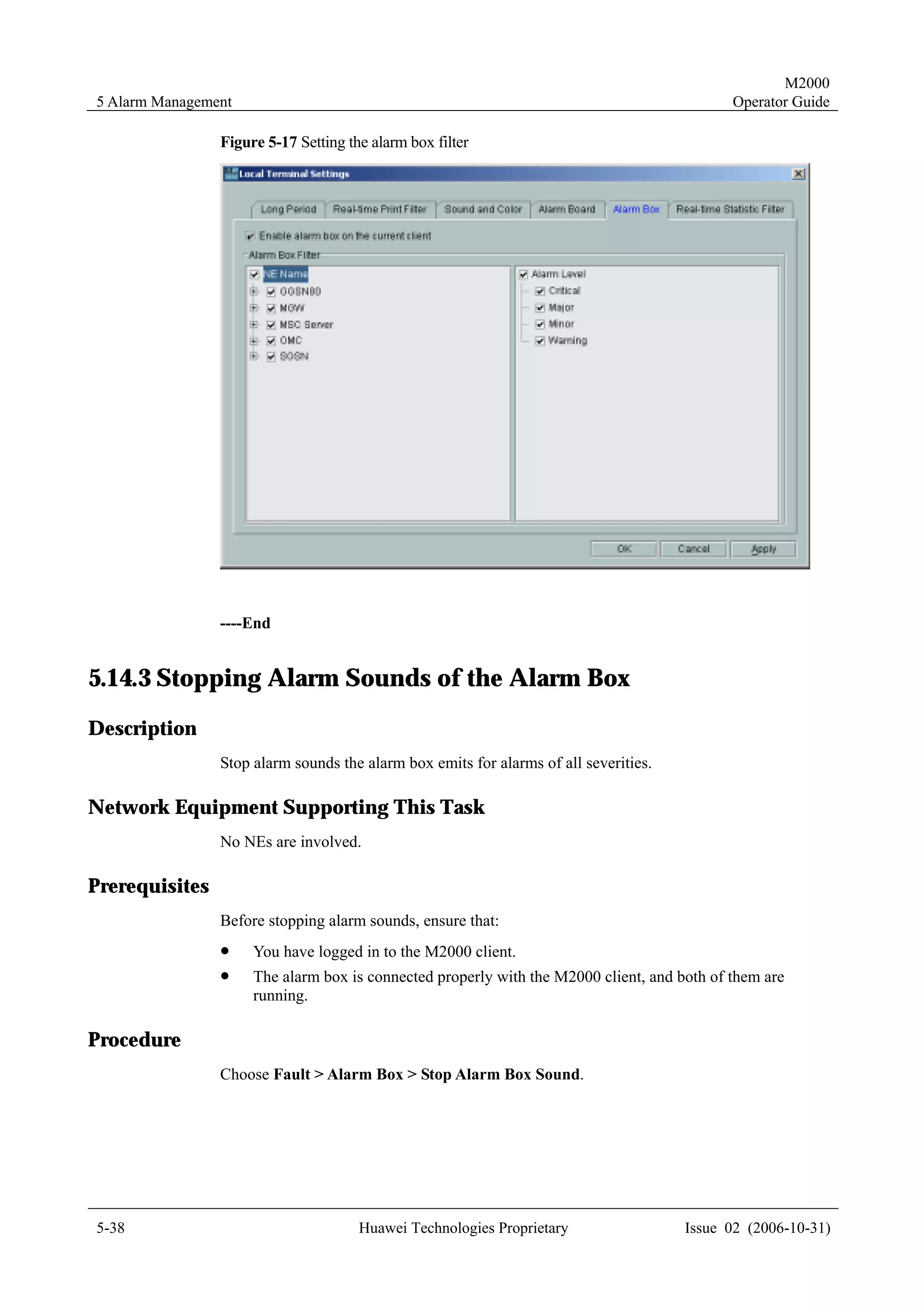
      Figure 5-17 Setting the alarm box filter ...........................................................................................................5-38
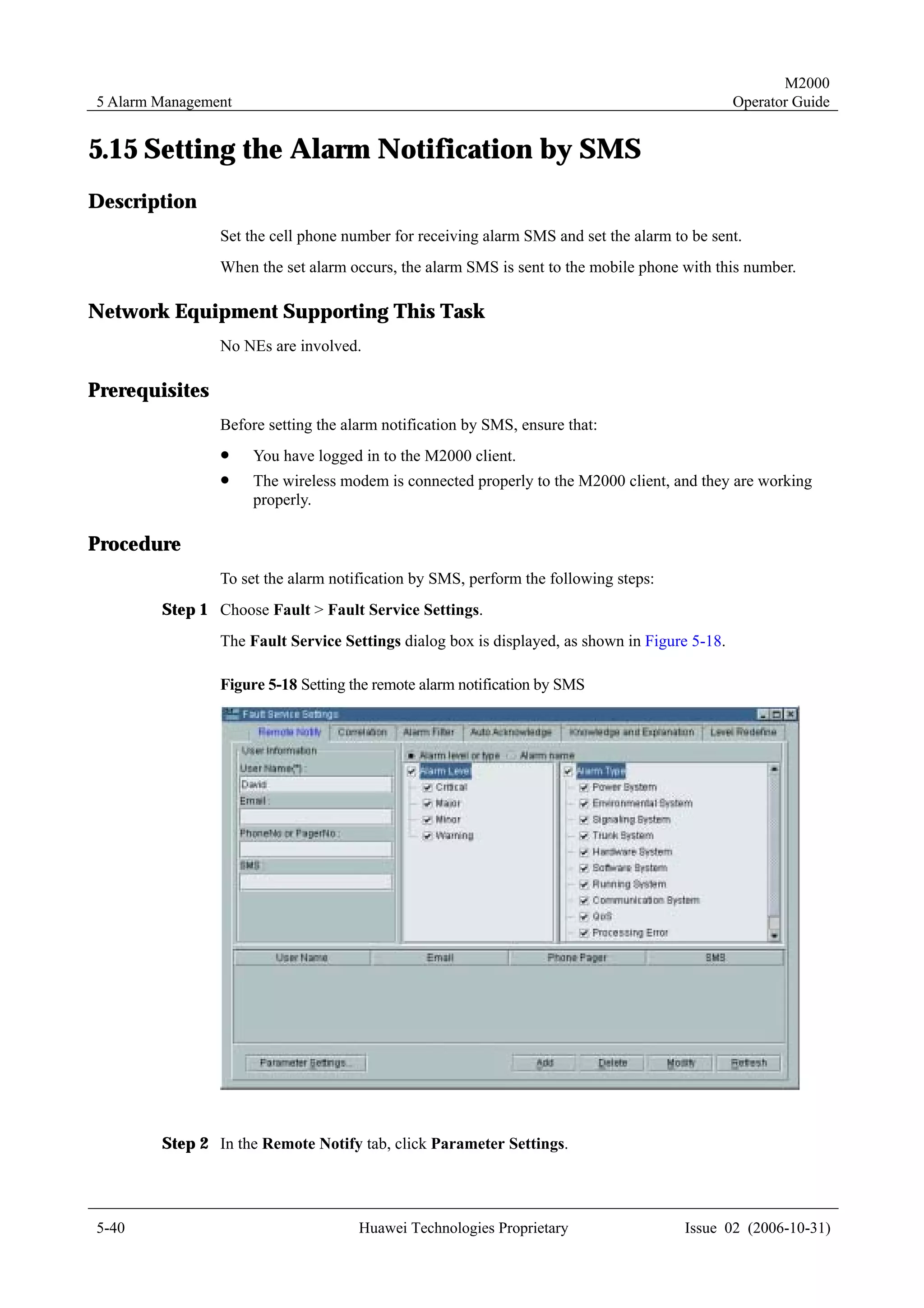
      Figure 5-18 Setting the remote alarm notification by SMS..............................................................................5-40
      Figure 6-1 Levels of measurement counters.......................................................................................................6-4
      Figure 6-2 Process of performance measurement of the M2000 system............................................................6-6
      Figure 6-3 Selecting the measurement unit and objects .....................................................................................6-9
      Figure 6-4 Selecting measurement counters.....................................................................................................6-10
      Figure 6-5 Selecting the query period and time................................................................................................ 6-11
      Figure 6-6 Entering a name for the query condition template ..........................................................................6-14
      Figure 6-7 Synchronizing performance measurement results manually...........................................................6-18
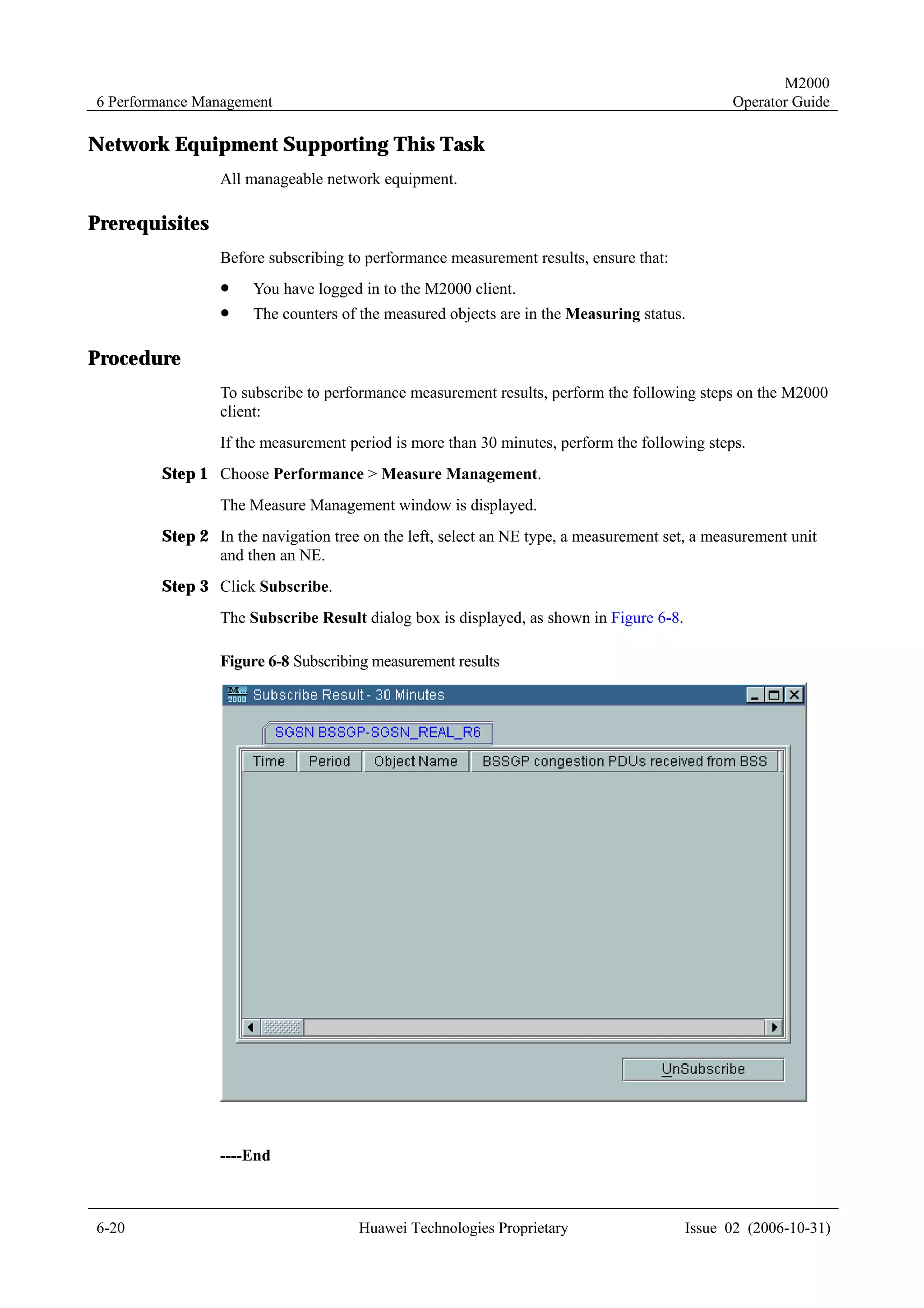
      Figure 6-8 Subscribing measurement results....................................................................................................6-20
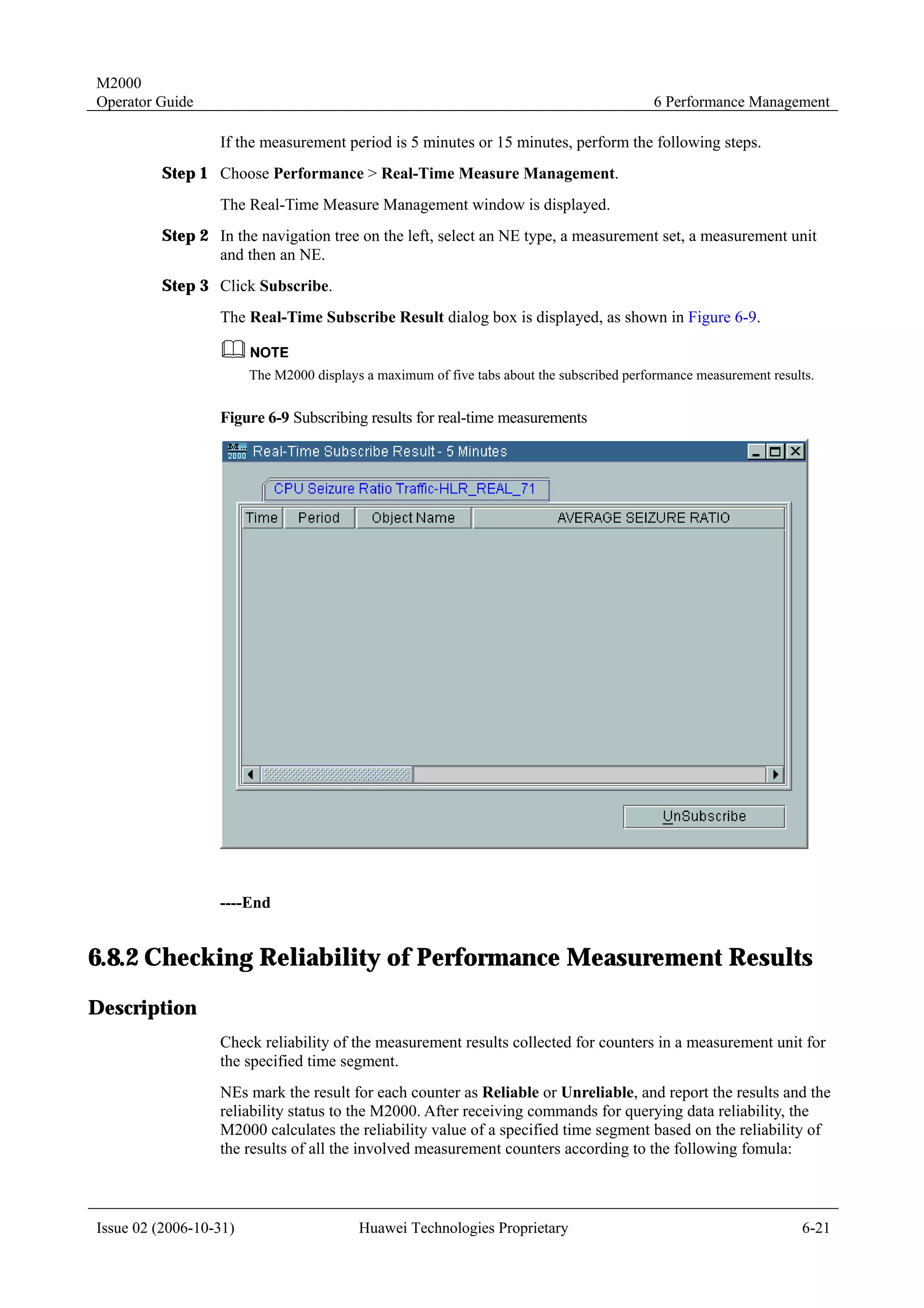
      Figure 6-9 Subscribing results for real-time measurements .............................................................................6-21

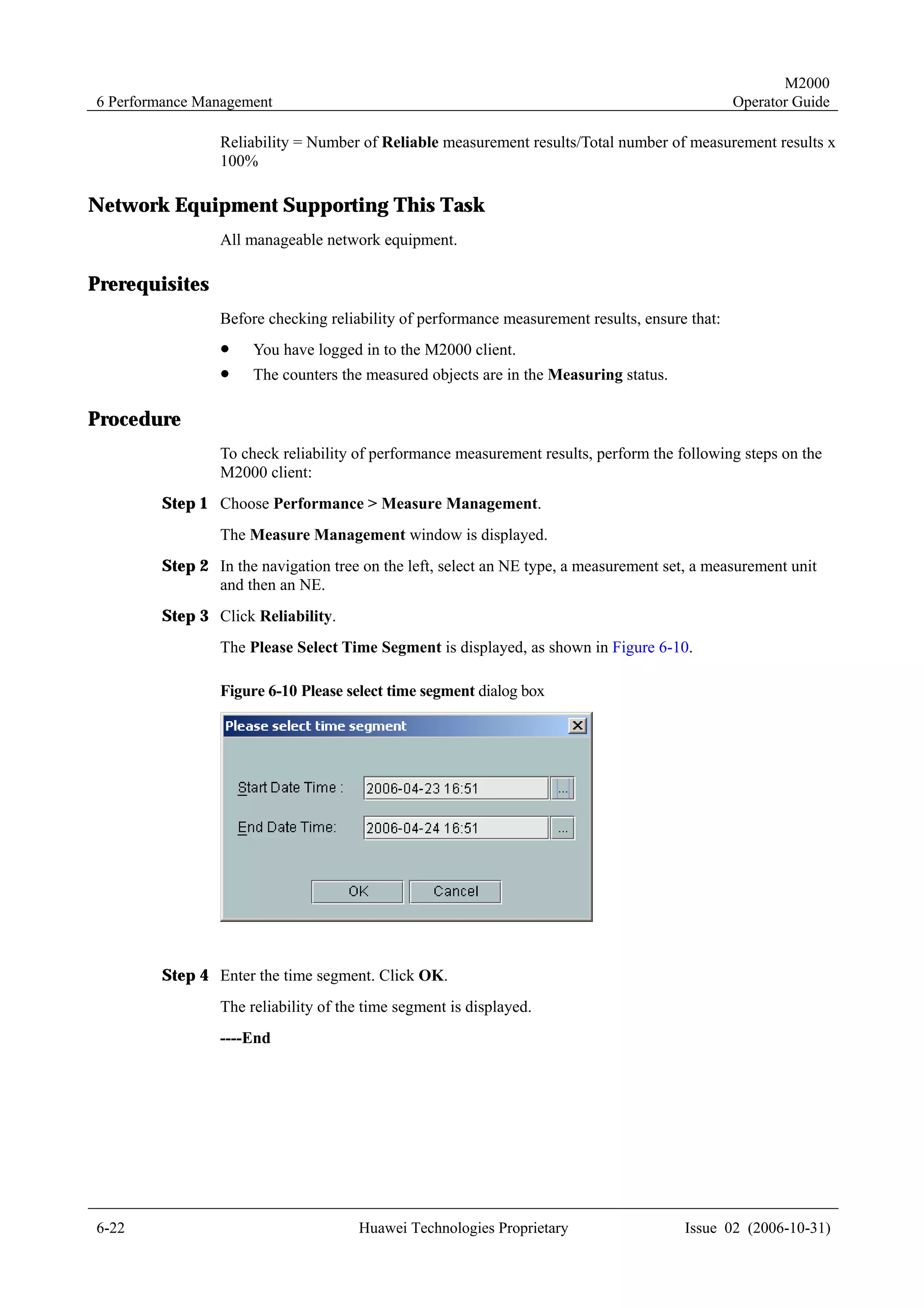
      Figure 6-10 Please select time segment dialog box ........................................................................................6-22
      Figure 6-11 Setting extended counters .............................................................................................................6-26
      Figure 6-12 Selecting measurement objects .....................................................................................................6-28

      Figure 6-13 Adding an alarm threshold for collecting performance measurement results ...............................6-31
      Figure 6-14 Creating user defined counters .....................................................................................................6-32
      Figure 6-15 Setting monitor parameters...........................................................................................................6-35

      Figure 6-16 Starting performance monitoring ..................................................................................................6-36
      Figure 6-17 Setting conditions for filtering monitoring results ........................................................................6-38
      Figure 6-18 Setting a threshold ........................................................................................................................6-39
      Figure 6-19 Setting parameters for the monitoring chart .................................................................................6-41
      Figure 6-20 Setting parameters for the trend chart...........................................................................................6-43
      Figure 6-21 Setting attributes for the monitoring chart ....................................................................................6-44
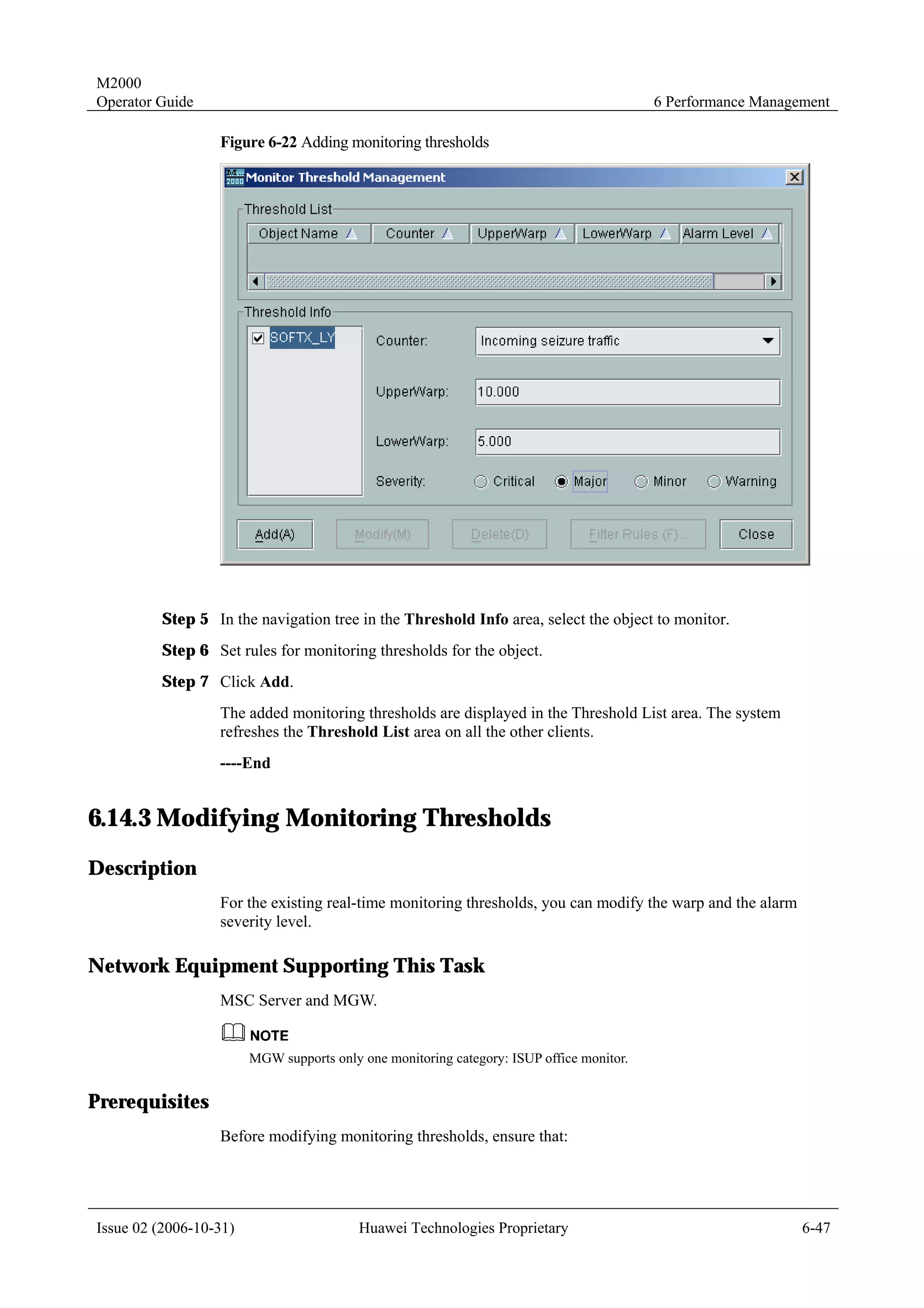
      Figure 6-22 Adding monitoring thresholds ......................................................................................................6-47
      Figure 7-1 Querying NE configuration through the MIT browser .....................................................................7-3
      Figure 7-2 NE Report dialog box......................................................................................................................7-4

      Figure 7-3 Synchronization progress..................................................................................................................7-5
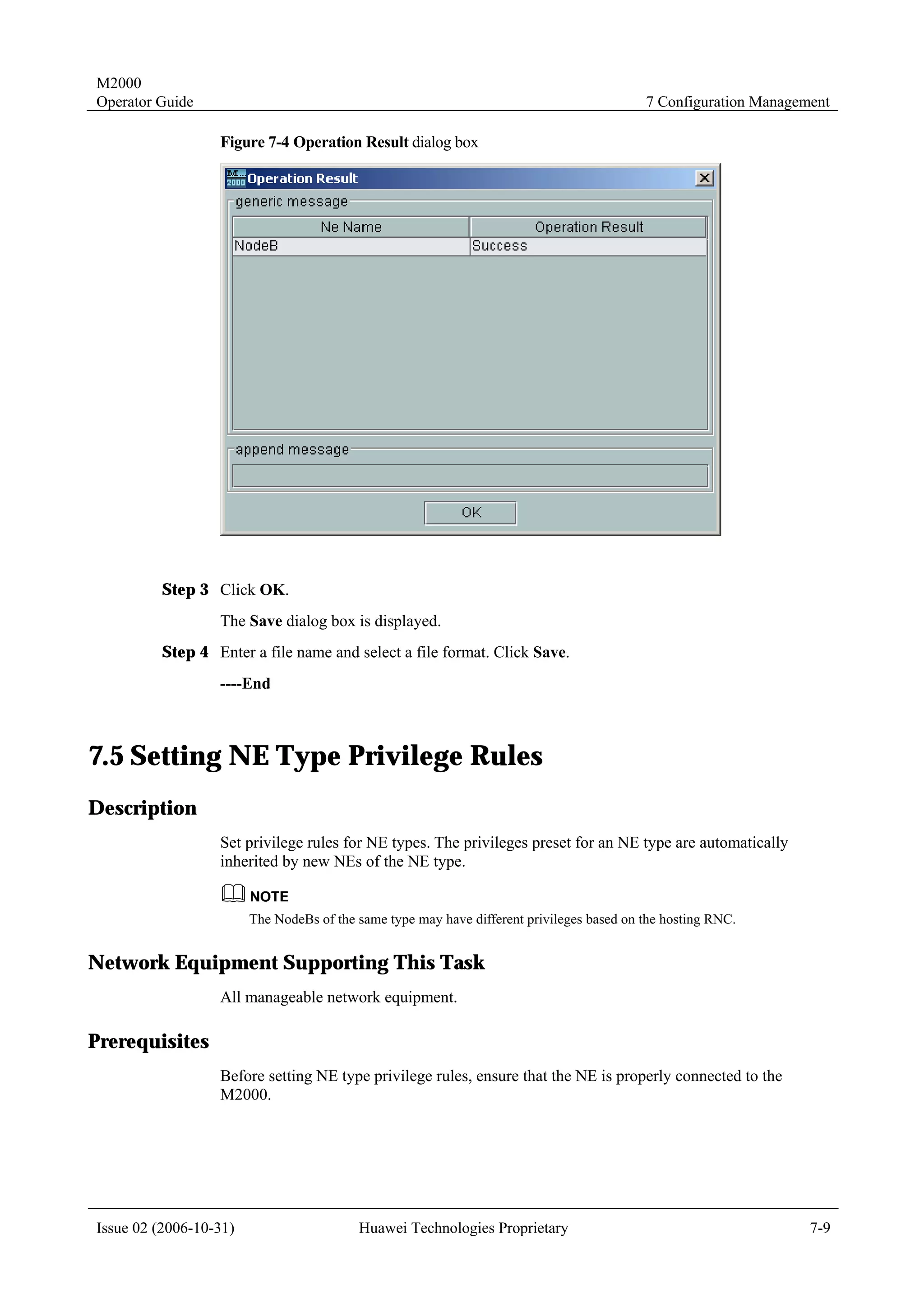
      Figure 7-4 Operation Result dialog box ...........................................................................................................7-9
      Figure 7-5 Selectting an NE and command groups for the created NE user account.......................................7-12

      Figure 7-6 Selecting an NE user.......................................................................................................................7-13
      Figure 7-7 Selecting command groups.............................................................................................................7-14


Issue 02 (2006-10-31)                                  Huawei Technologies Proprietary                                                                        ix
M2000
1 About This Guide                                                                                                                          Operator Guide

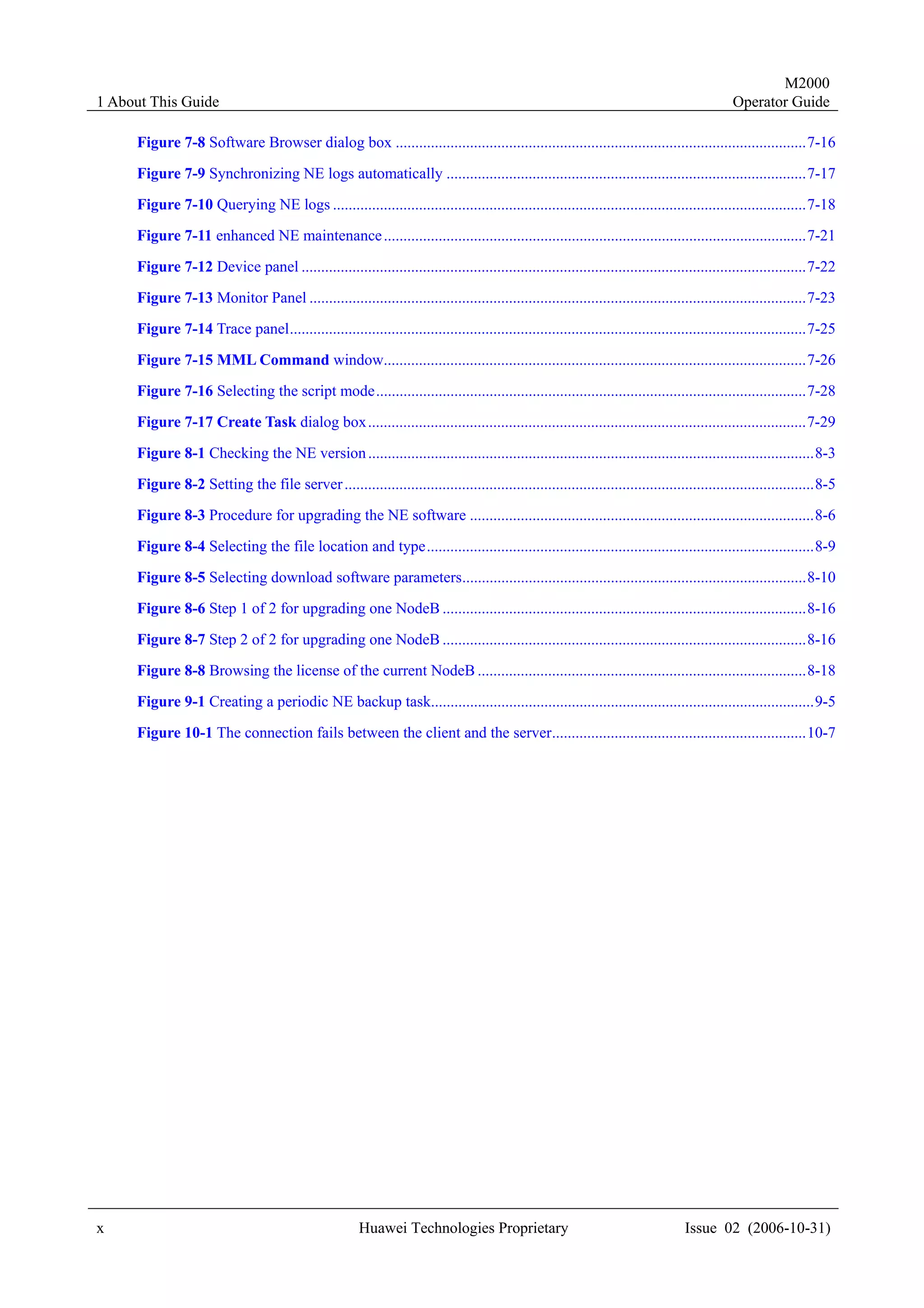
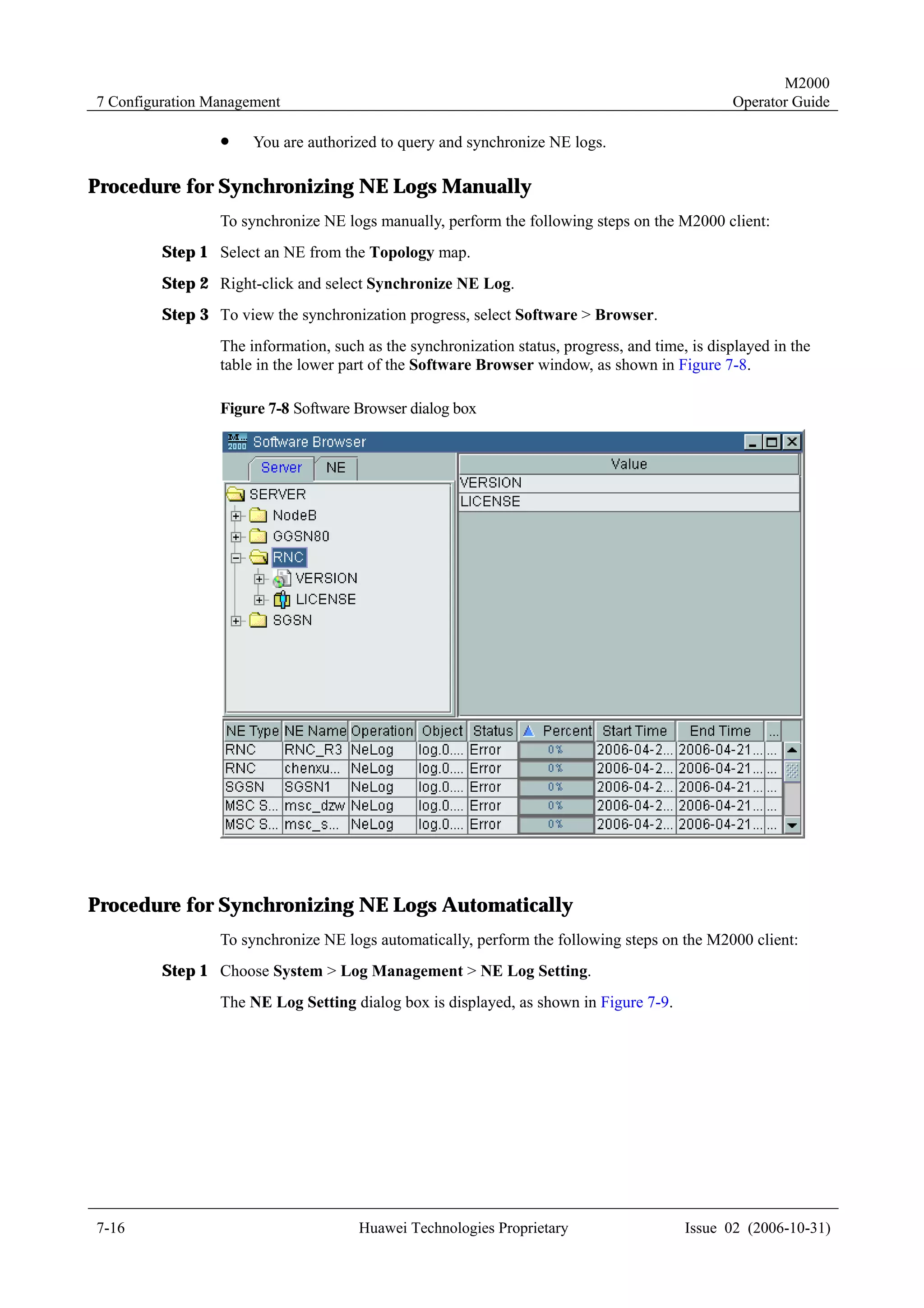
     Figure 7-8 Software Browser dialog box .........................................................................................................7-16

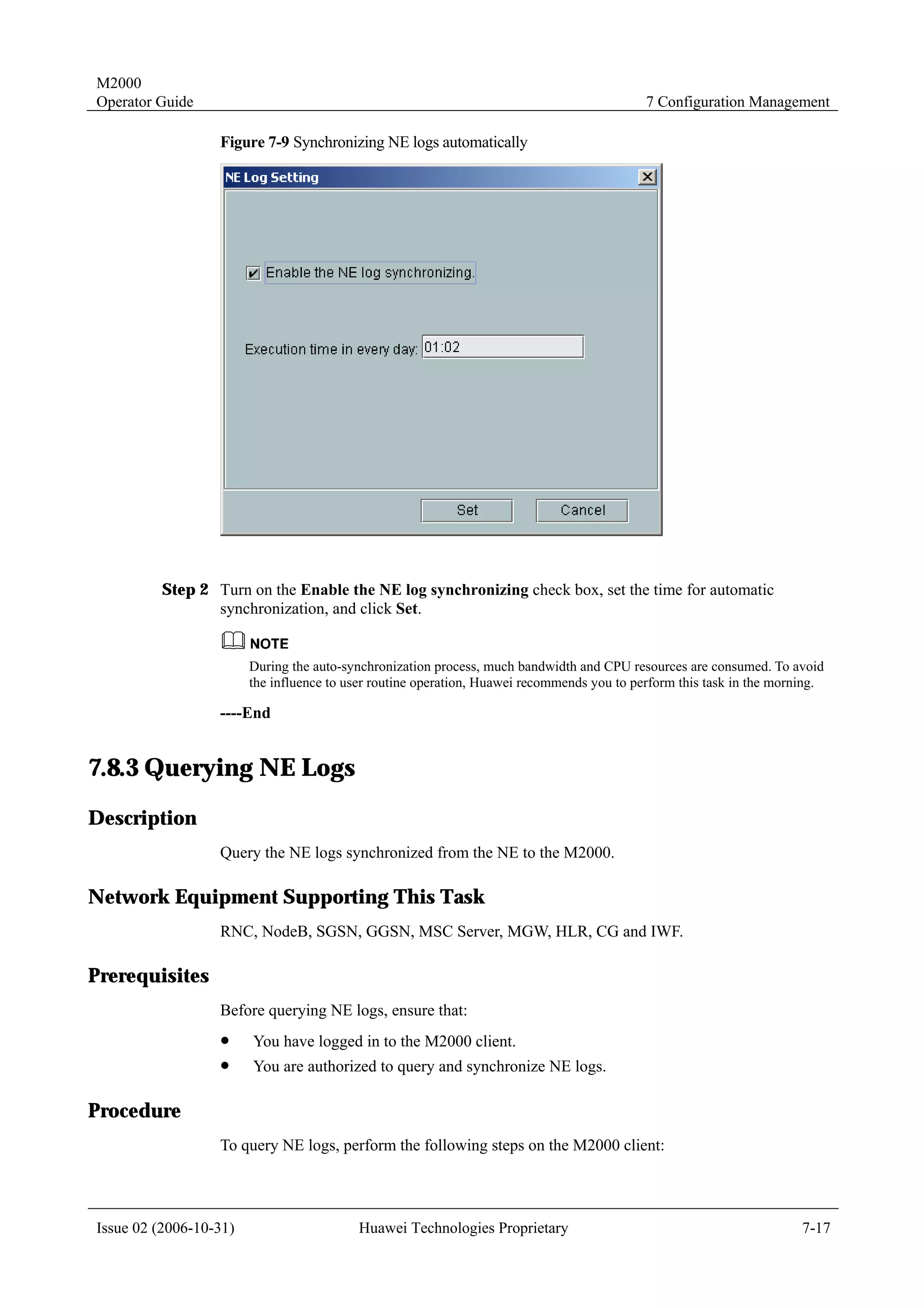
     Figure 7-9 Synchronizing NE logs automatically ............................................................................................7-17
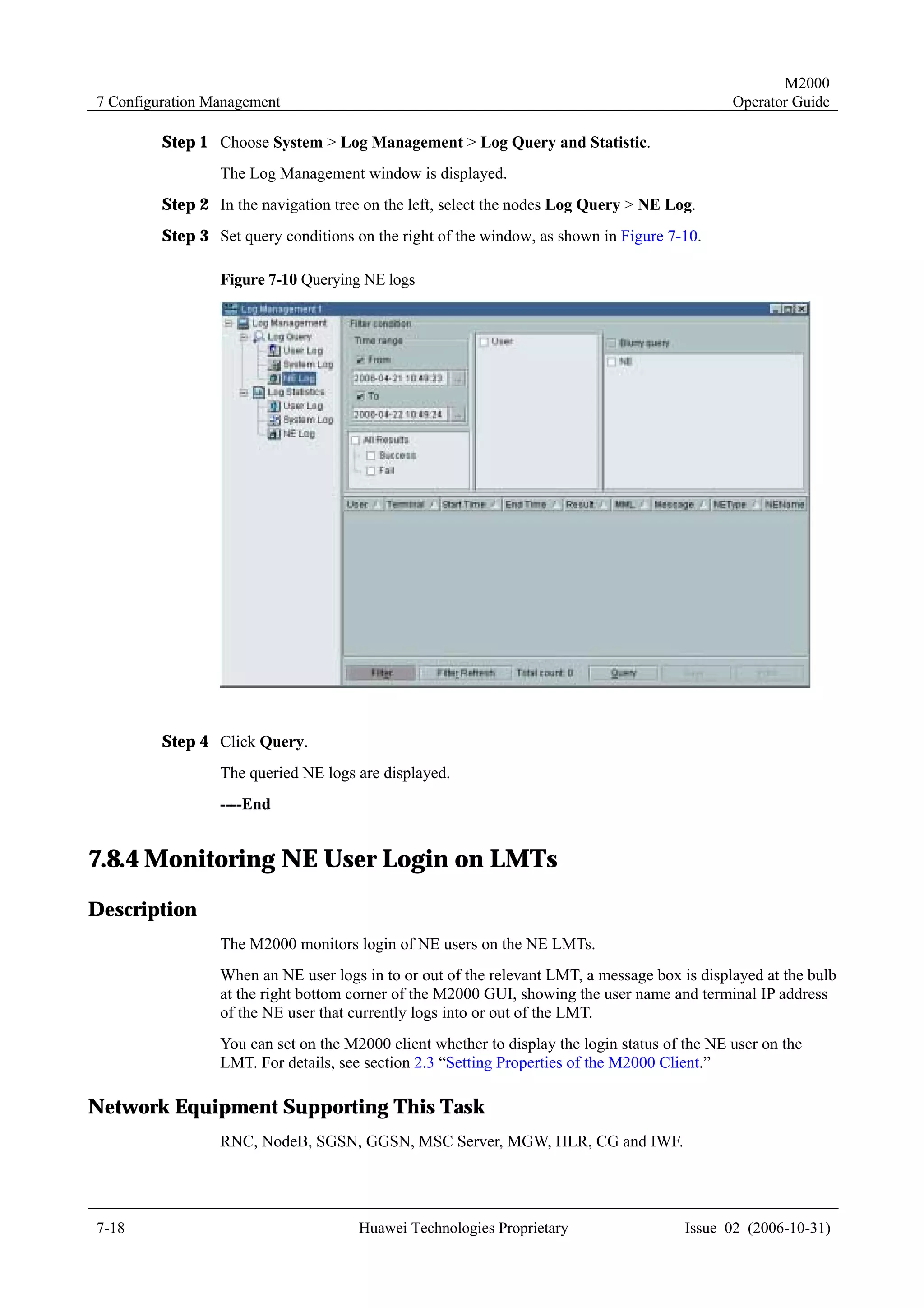
     Figure 7-10 Querying NE logs .........................................................................................................................7-18
     Figure 7-11 enhanced NE maintenance ............................................................................................................7-21
     Figure 7-12 Device panel .................................................................................................................................7-22
     Figure 7-13 Monitor Panel ...............................................................................................................................7-23
     Figure 7-14 Trace panel....................................................................................................................................7-25
     Figure 7-15 MML Command window............................................................................................................7-26
     Figure 7-16 Selecting the script mode..............................................................................................................7-28
     Figure 7-17 Create Task dialog box................................................................................................................7-29
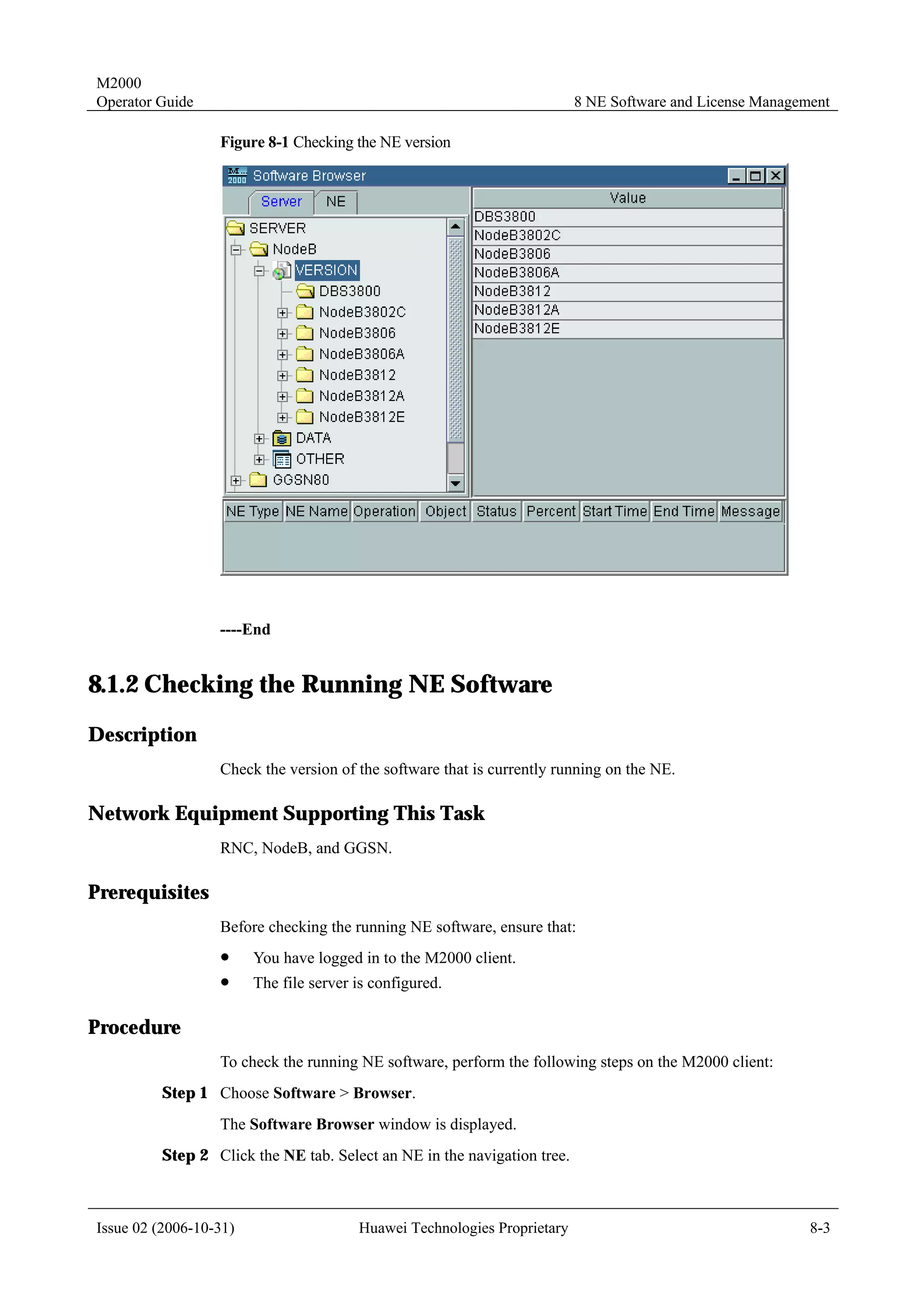
     Figure 8-1 Checking the NE version ..................................................................................................................8-3
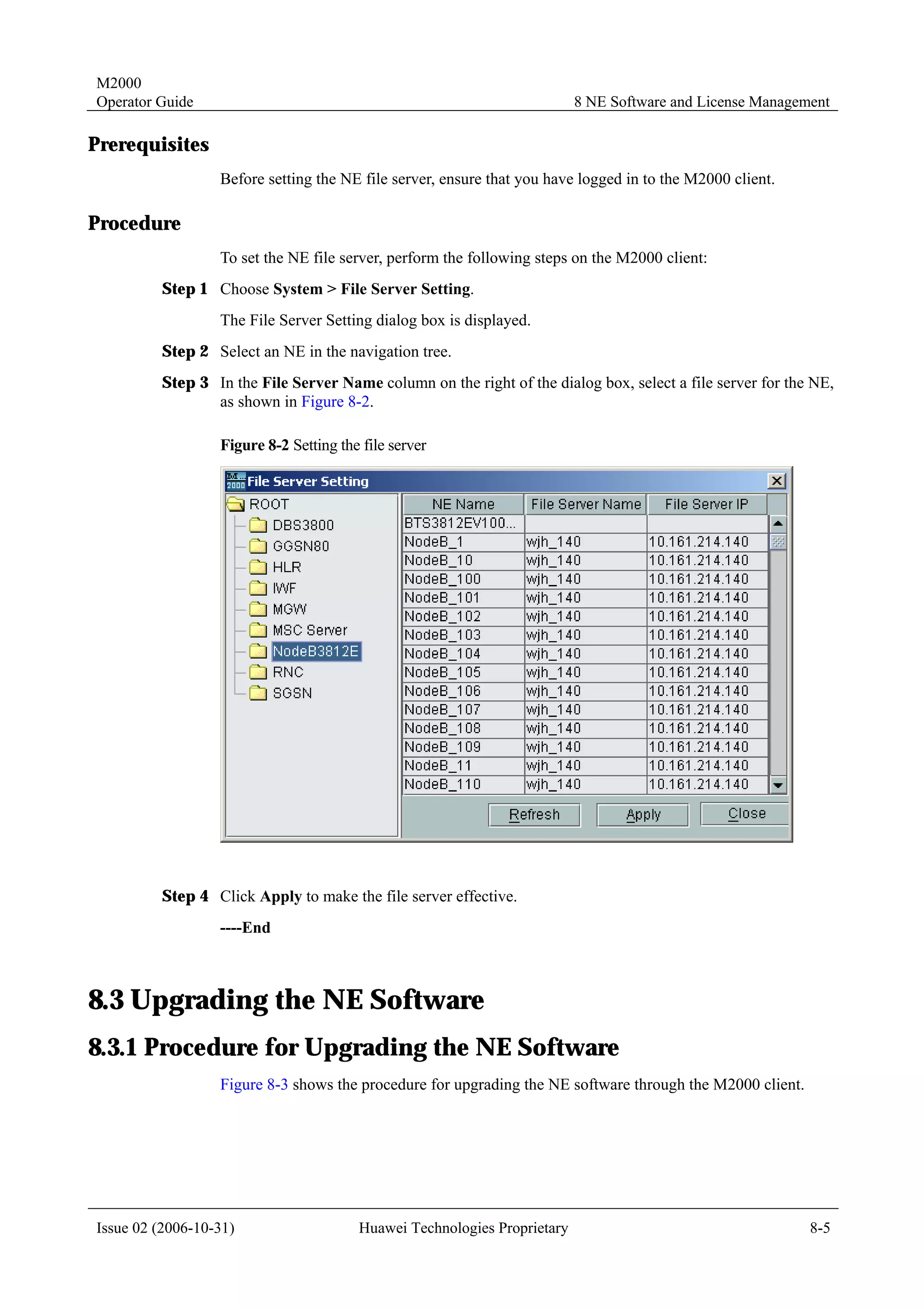
     Figure 8-2 Setting the file server ........................................................................................................................8-5
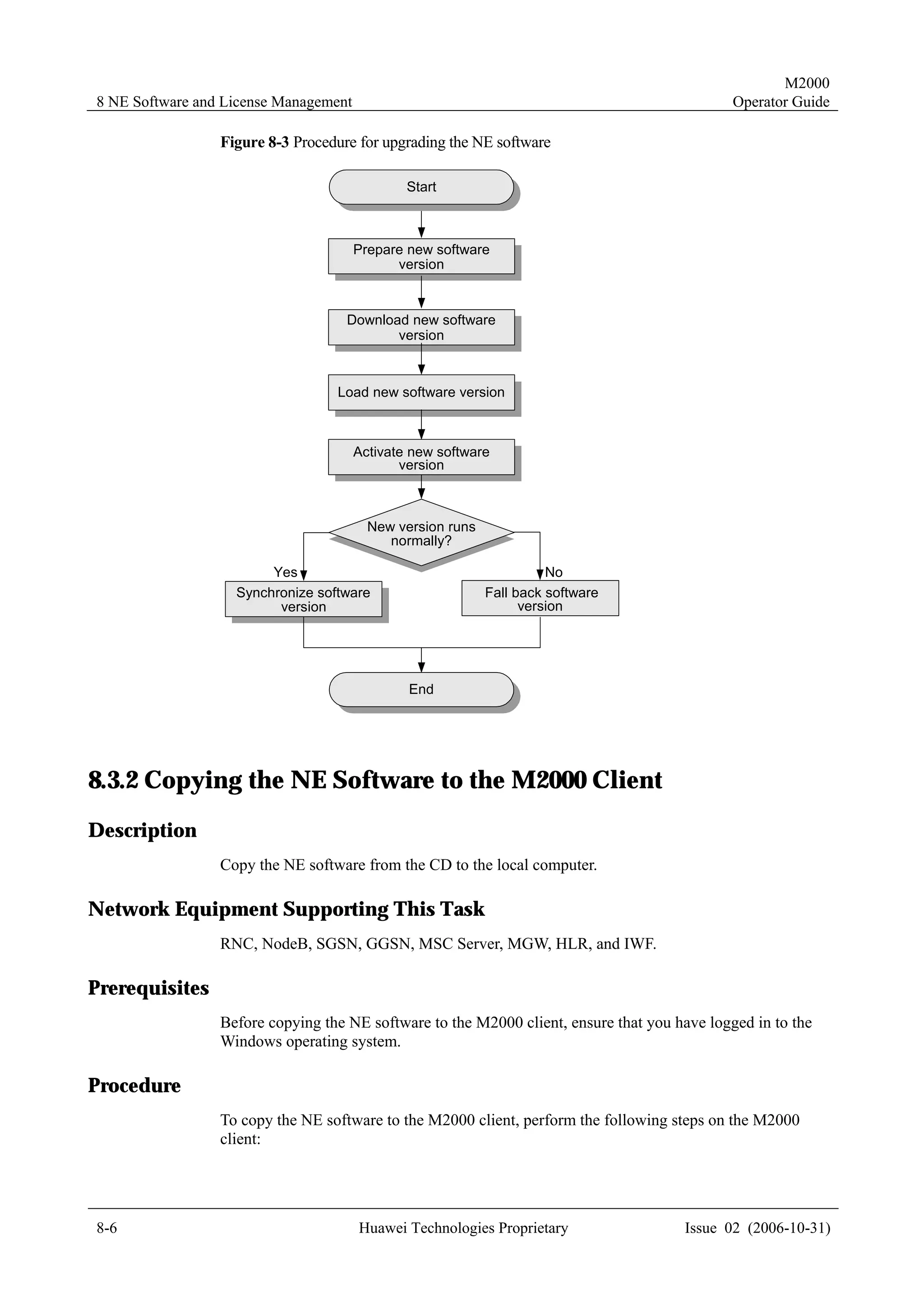
     Figure 8-3 Procedure for upgrading the NE software ........................................................................................8-6

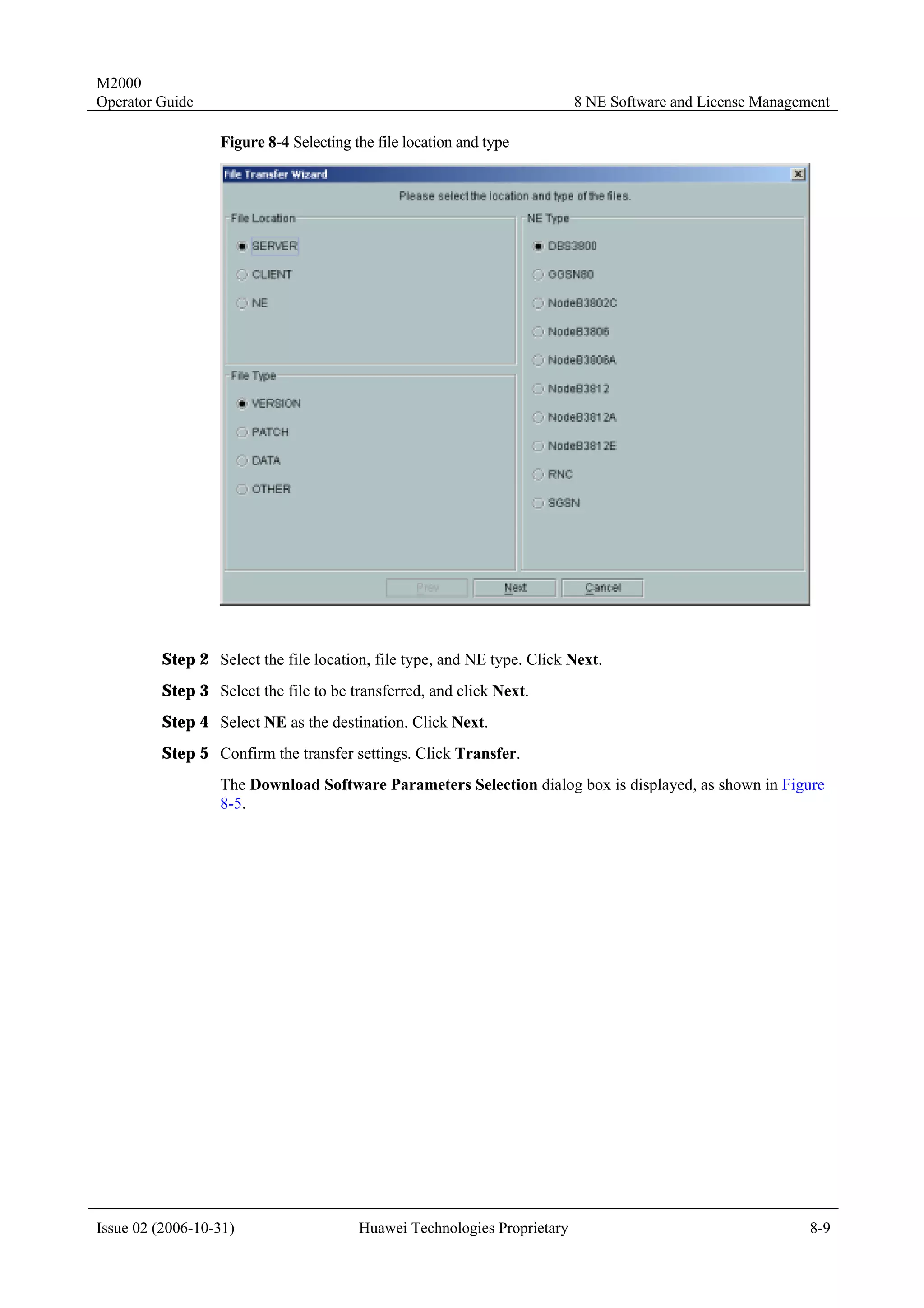
     Figure 8-4 Selecting the file location and type...................................................................................................8-9
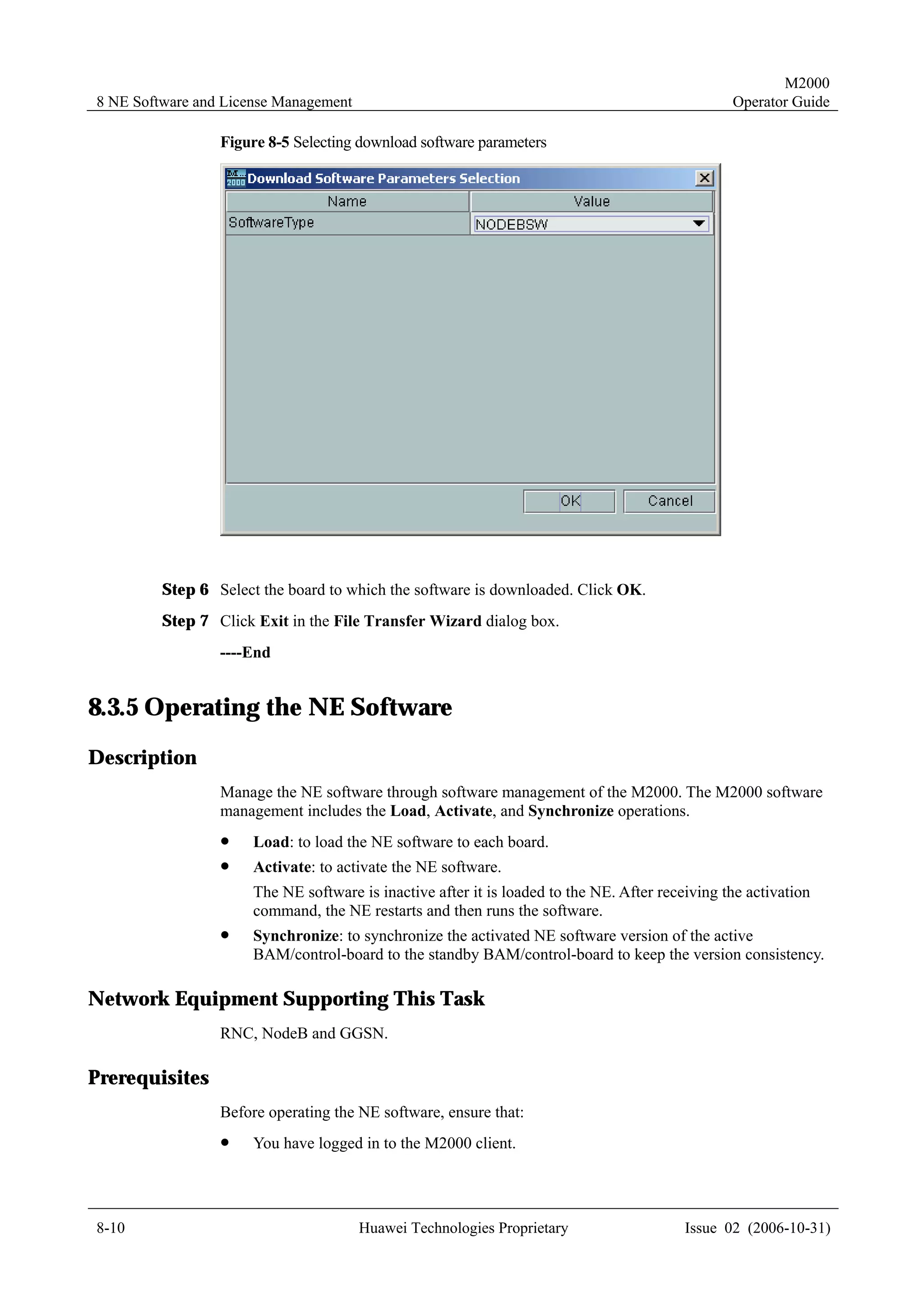
     Figure 8-5 Selecting download software parameters........................................................................................8-10
     Figure 8-6 Step 1 of 2 for upgrading one NodeB .............................................................................................8-16

     Figure 8-7 Step 2 of 2 for upgrading one NodeB .............................................................................................8-16
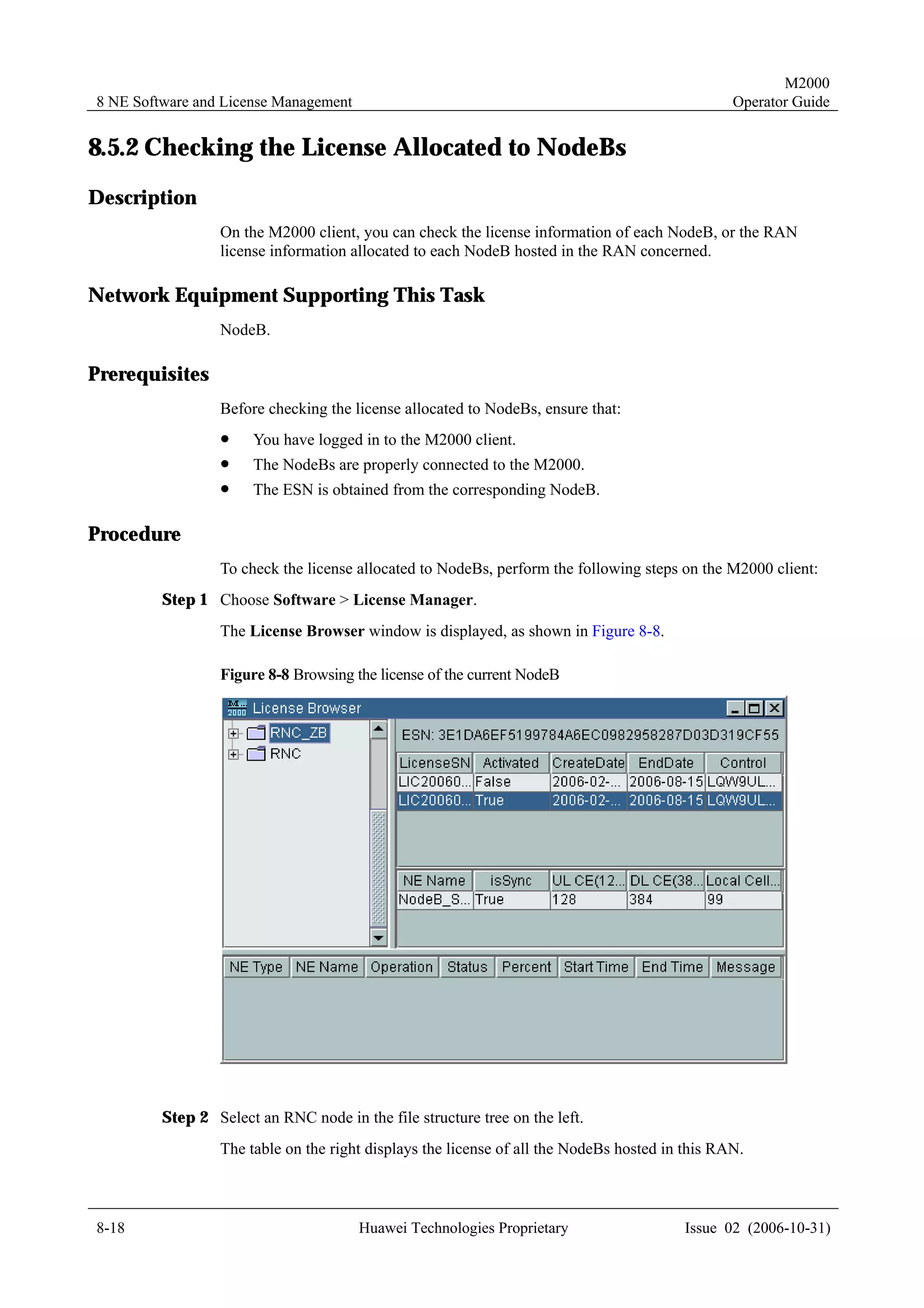
     Figure 8-8 Browsing the license of the current NodeB ....................................................................................8-18
     Figure 9-1 Creating a periodic NE backup task..................................................................................................9-5

     Figure 10-1 The connection fails between the client and the server.................................................................10-7


x                                                      Huawei Technologies Proprietary                                           Issue 02 (2006-10-31)
M2000
Operator Guide                                                                                                                                           Tables


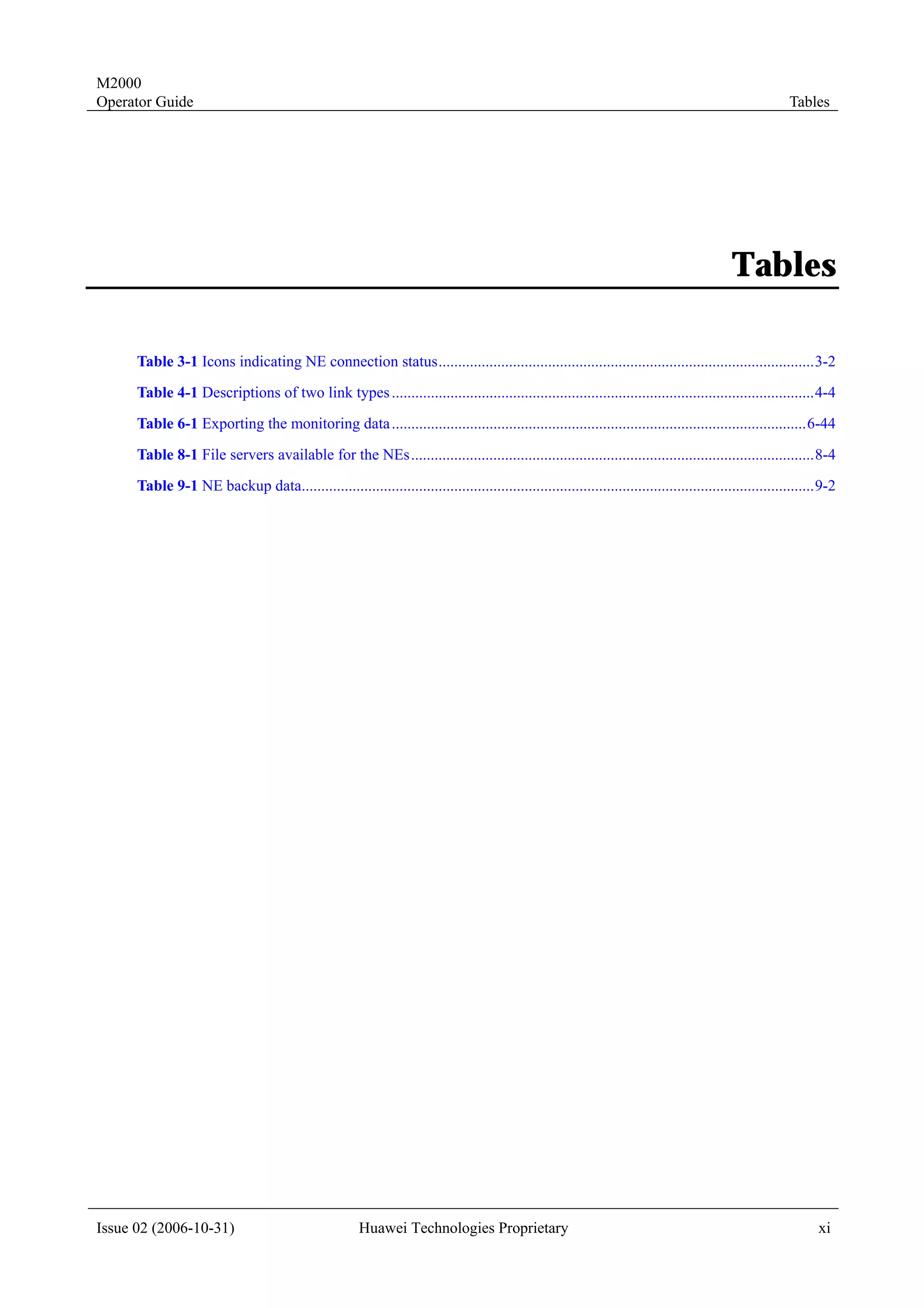
                                                                                                                                            Tables

      Table 3-1 Icons indicating NE connection status................................................................................................3-2
      Table 4-1 Descriptions of two link types ............................................................................................................4-4
      Table 6-1 Exporting the monitoring data ..........................................................................................................6-44

      Table 8-1 File servers available for the NEs.......................................................................................................8-4
      Table 9-1 NE backup data...................................................................................................................................9-2


Issue 02 (2006-10-31)                                   Huawei Technologies Proprietary                                                                         xi
M2000
Operator Guide                                                                                  1 About This Guide


                                                         1             About This Guide

About This Chapter

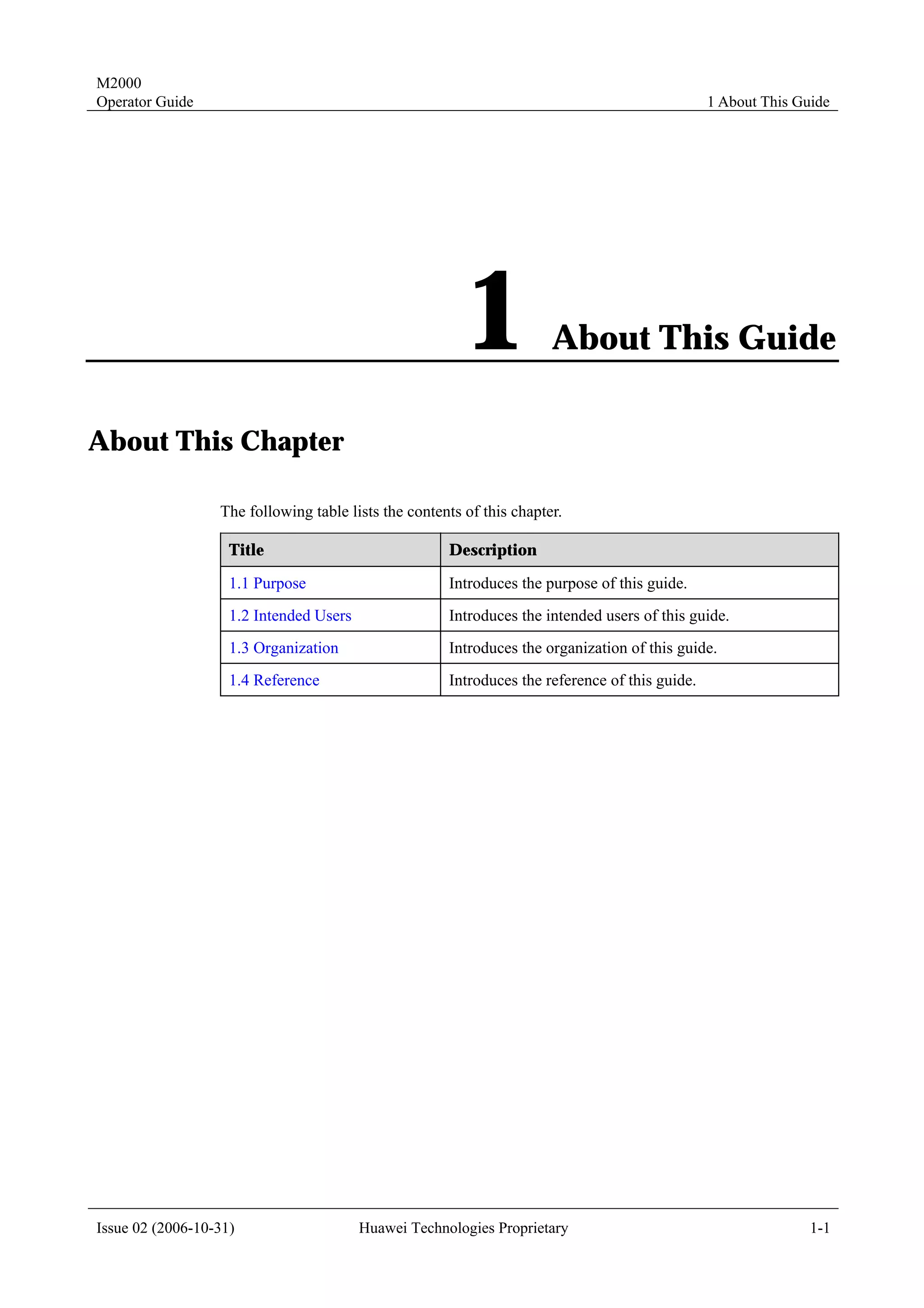
                  The following table lists the contents of this chapter.

                    Title                             Description

                    1.1 Purpose                       Introduces the purpose of this guide.
                    1.2 Intended Users                Introduces the intended users of this guide.
                    1.3 Organization                  Introduces the organization of this guide.
                    1.4 Reference                     Introduces the reference of this guide.


Issue 02 (2006-10-31)                    Huawei Technologies Proprietary                                       1-1
M2000
1 About This Guide                                                                                Operator Guide


1.1 Purpose
                     This guide describes how to operate and maintain the network equipment. It includes the
                     following content:
                     !    Monitoring network performance
                     !    Monitoring network alarms
                     !    Managing network configuration information
                     !    Upgrading the network element (NE) software
                     !    Backing up the NE data


1.2 Intended Users
                     The guide is intended for the following users:
                     !    Network engineers
                     !    Shift operators


1.3 Organization
                     This guide consists of the following chapters:
                     !    1 "About This Guide" introduces the purpose, intended users, and organization of this
                          guide.
                     !    2 "Introduction to M2000" describes the procedures for logging in to the M2000 client
                          and setting the client.
                     !    3 "NE Connection" describes the types of NEs the M2000 system manages, relevant
                          operation tasks, and the procedures for connecting types of network equipment.
                     !    4 "Topology Management" introduces topology management and describes the relevant
                          operation tasks and procedures.
                     !    5 "Alarm Management" introduces alarm management and describes relevant operation
                          tasks and procedures.
                     !    6 "Performance Management" introduces performance management and describes
                          relevant operation tasks and procedures.
                     !    7 "Configuration Management" describes the procedures for configuring and querying
                          NE service data.
                     !    8 "NE Software and License Management" describes the operation tasks and procedures
                          related to NE software and license management.
                     !    9 "Backup Managemnet" describes the operation tasks and procedures related to server
                          data backup and NE data backup.
                     !    10 "Troubleshooting" describes the handling suggestions for common faults that may
                          occur during operations on the client.


1-2                                         Huawei Technologies Proprietary                Issue 02 (2006-10-31)
M2000
Operator Guide                                                                            1 About This Guide


1.4 Reference
                  When you read this guide, see M2000 Online Help for more information.


Issue 02 (2006-10-31)                 Huawei Technologies Proprietary                                    1-3
M2000
Operator Guide                                                                          2 Introduction to M2000


                                               2             Introduction to M2000

About This Chapter

                  The following table lists the contents of this chapter.

                    Title                             Description

                    2.1 Introduction to the M2000     Introduces the M2000 system.
                    System
                    2.2 Logging in to the M2000       Describes how to log in to the M2000 client.
                    Client
                    2.3 Setting Properties of the     Describes how to set the properties of the M2000 client.
                    M2000 Client


Issue 02 (2006-10-31)                   Huawei Technologies Proprietary                                      2-1
M2000
2 Introduction to M2000                                                                               Operator Guide


2.1 Introduction to the M2000 System
                  iManager M2000 Mobile Element Management System (M2000 for short) is the network
                  management system (NMS) for Huawei mobile communications products. It works in the
                  widely used Client/Server mode. The M2000 system contains a set of servers and multiple
                  clients connected to the servers.
                  !       The M2000 server runs on the Unix platform. The server processes and stores NE data.
                  !       The M2000 clients run on the Windows platform. The clients provide friendly graphical
                          interfaces for operations and maintenance on the NEs.


2.2 Logging in to the M2000 Client
Description
                  Start the M2000 Client, and log in to the M2000 server.
                  After logging in to the M2000 client successfully, you can use the client to perform routine
                  operation and maintenance for the network equipment.

Network Equipment Supporting This Task
                  NEs are not involved.

Prerequisites
                  Before logging in to the M2000 client, ensure that:
                  !       The M2000 client software is installed.
                  !       The corresponding M2000 server is working properly.
                  !       The software versions of the M2000 client and the M2000 server match.
                  !       The M2000 client communicates normally with the M2000 server.
                  !       You have the required user name and password.

Procedure
                  To log in to the M2000 client, perform the following steps:
         Step 1 Choose Start > Programs > iManager M2000 Client > M2000 Client to start the M2000
                client.


                      You can configure the path for the menu iManager M2000 Client > M2000 Client in Start >
                      Programs when you install the client software. The default path is iManager M2000 Client.

         Step 2 In the displayed User Login dialog box, enter the server IP address to log in to the M2000
                client.


2-2                                       Huawei Technologies Proprietary                     Issue 02 (2006-10-31)
M2000
Operator Guide                                                                                          2 Introduction to M2000


                        If User Login does not list the information about the specified server, click      . The Server
                        Information dialog box is displayed.
                        In this dialog box, set the server information, such as the server IP and sever port.

         Step 3 Enter the user name and password. Click Login.
                  After the connection is set up, the client obtains the required data from the server. After the
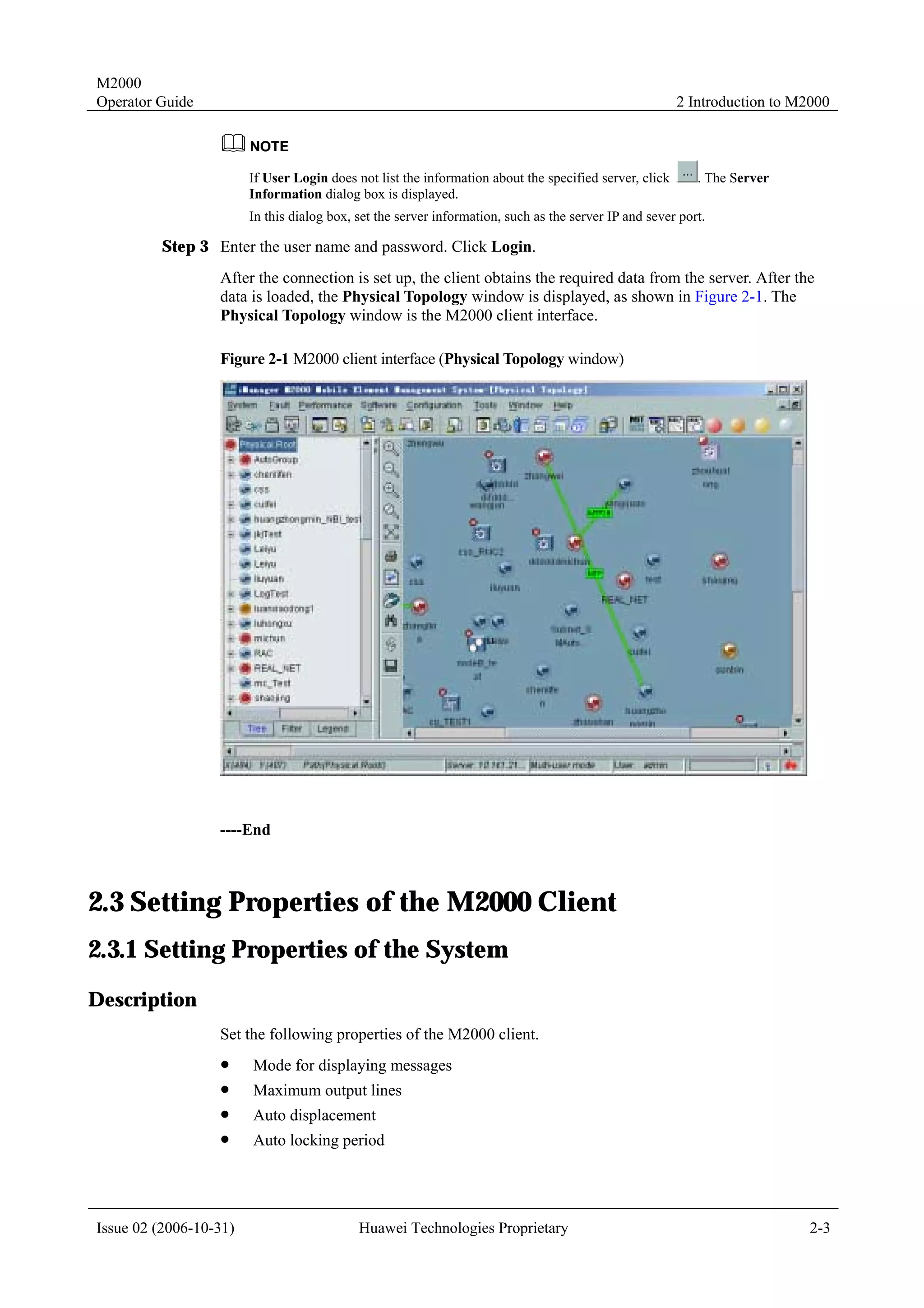
                  data is loaded, the Physical Topology window is displayed, as shown in Figure 2-1. The
                  Physical Topology window is the M2000 client interface.

                  Figure 2-1 M2000 client interface (Physical Topology window)


                  ----End


2.3 Setting Properties of the M2000 Client
2.3.1 Setting Properties of the System
Description
                  Set the following properties of the M2000 client.
                  !     Mode for displaying messages
                  !     Maximum output lines
                  !     Auto displacement
                  !     Auto locking period


Issue 02 (2006-10-31)                       Huawei Technologies Proprietary                                                 2-3
M2000
2 Introduction to M2000                                                                           Operator Guide

Network Equipment Supporting This Task
                  NEs are not involved.

Prerequisites
                  Before setting the properties of the system, ensure that you have logged in to the M2000
                  client.

Procedure
                  To set the properties of the M2000 client, perform the following steps:
         Step 1 Choose System > System Setting.
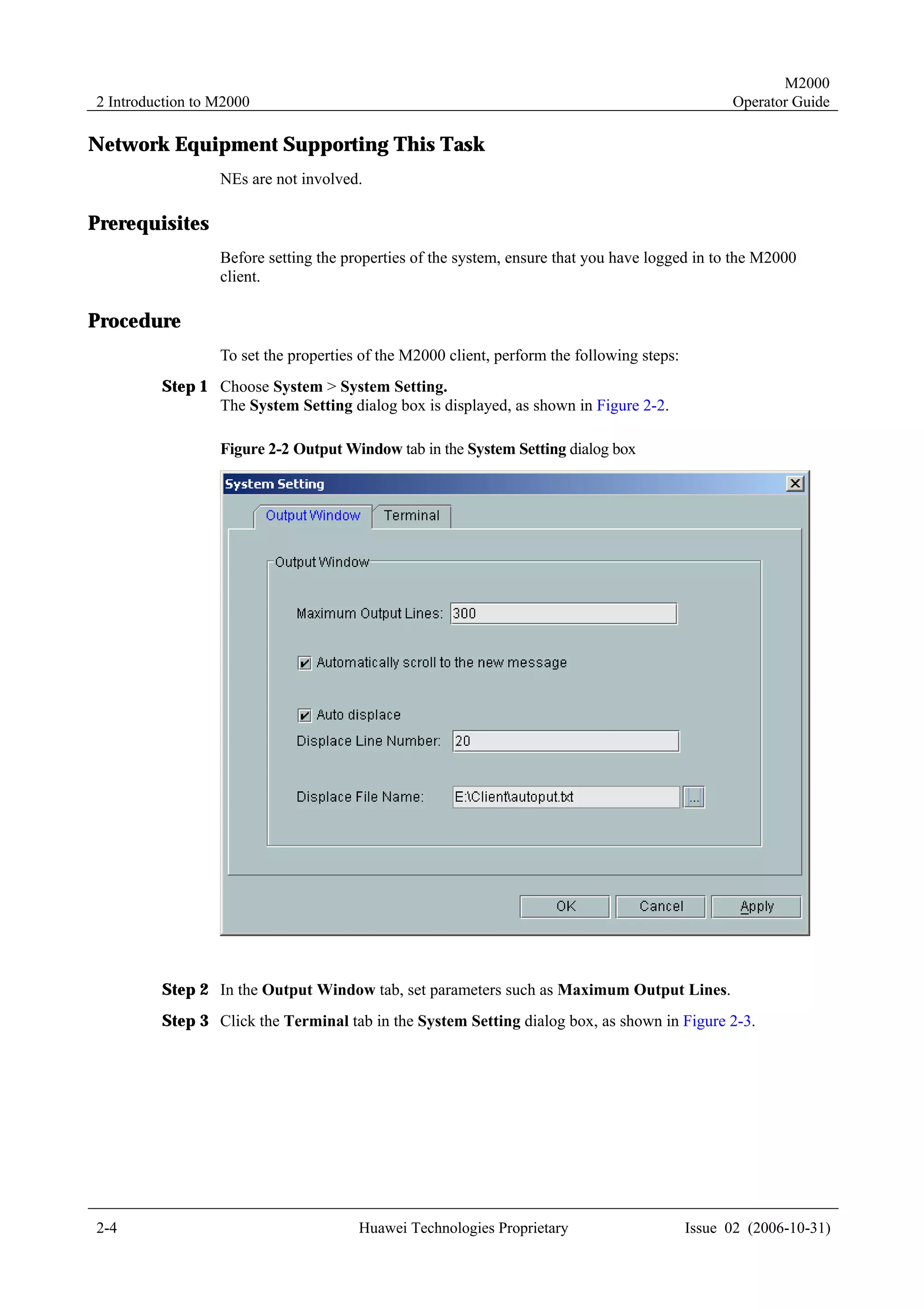
                The System Setting dialog box is displayed, as shown in Figure 2-2.

                  Figure 2-2 Output Window tab in the System Setting dialog box


         Step 2 In the Output Window tab, set parameters such as Maximum Output Lines.
         Step 3 Click the Terminal tab in the System Setting dialog box, as shown in Figure 2-3.


2-4                                    Huawei Technologies Proprietary                      Issue 02 (2006-10-31)
M2000
Operator Guide                                                                         2 Introduction to M2000

                  Figure 2-3 Terminal tab in the System Setting dialog box


         Step 4 Set the period for Automatically locked or turn off the option.
         Step 5 Click OK.
                  ----End


2.3.2 Customizing Toolbar
Description
                  Create the self defined toolbar in the M2000 client.

Network Equipment Supporting This Task
                  NEs are not involved.

Prerequisites
                  Before customizing the toolbar, ensure that you have logged in to the M2000 client.

Procedure
                  To customize the toolbar, perform the following steps:


Issue 02 (2006-10-31)                  Huawei Technologies Proprietary                                     2-5
M2000
2 Introduction to M2000                                                                  Operator Guide

         Step 1 Choose Tools > Customize Toolbar.
                The Customize Toolbar dialog box is displayed, as shown in Figure 2-4.

                  Figure 2-4 Customize Toolbar dialog box


         Step 2 Select the tool groups and button on the toolbar.
         Step 3 Click OK.
                  ----End


2-6                                   Huawei Technologies Proprietary              Issue 02 (2006-10-31)
M2000
Operator Guide                                                                                3 NE Connection


                                                                 3          NE Connection

About This Chapter

                  The following table lists the contents of this chapter.

                    Title                             Description

                    3.1 Connecting NEs to the         Introduces how to connect the NEs to the M2000.
                    M2000
                    3.2 Monitoring Connection         Describes how to monitor the connection statuses of the
                    Status of NEs                     NEs in the topology view or through the system monitor
                                                      browser.


Issue 02 (2006-10-31)                   Huawei Technologies Proprietary                                    3-1
M2000
3 NE Connection                                                                                        Operator Guide


3.1 Connecting NEs to the M2000
                  After the NEs are connected to the M2000, you can operate or maintain the NEs through the
                  M2000 system.


                      Debug the NEs and ensure that they work well before you connect them to the M2000 system.

                  For details, see the M2000 Commissioning Guide.


3.2 Monitoring Connection Status of NEs
3.2.1 Introduction to Connection Status of NEs
                  In the topology view, the connection statuses of the NEs are shown by NE icon and NE status
                  icon. The NE status icon is displayed at the top left of the NE icon. Multiple NE icons
                  displayed at the same time indicate that the NE is in several connection statuses.
                  When the NE and the M2000 are connected, the NE icon and NE status icon is displayed in
                  the topology view. You can operate and maintain the NE through the M2000.
                  When the NE is processing synchronization or disconnected with the M2000, the NE status
                  icons are displayed at the top left corner of the NE icon, as shown in Table 3-1.

                  Table 3-1 Icons indicating NE connection status
                   Icon    Meaning              Description

                           Synchronization      The M2000 extracts the NE configuration from the NE. The
                           processing           data is synchronized when the NE is connected or reconnected
                                                to the M2000.
                           Connection           The M2000 server is disconnected with the NE.
                           down                 The O&M (operation and maintenance) path between the NE
                                                and the M2000 does not work smoothly, or errors occur to
                                                some TCP or UDP ports.
                           NE not match         The NE is not matched.
                                                The O&M path between the NE and the M2000 works well.
                                                You cannot, however, operate or maintain the NE through the
                                                M2000 because the NE is not installed with the right version of
                                                the mediation package.
                           Forbid Connect       The NE is prohibited from being connected to the M2000
                                                server.
                           Unknown type         The current system does not support the NE type.

                           FourStates           The NE state contains four or more states.


3-2                                     Huawei Technologies Proprietary                        Issue 02 (2006-10-31)
M2000
Operator Guide                                                                                          3 NE Connection


3.2.2 Monitoring NE Status in the Topology View
Description
                  Monitor the status of the NEs in the topology view.

Network Equipment Supporting This Task
                  All manageable network equipment.

Prerequisites
                  Before monitoring the status of an NE, ensure that you have logged in to the M2000 client.

Procedure
                  To monitor the status of an NE in the topology view, perform the following steps:
         Step 1 Click the Tree tab on the left of the topology view.
         Step 2 Select the subnet with the NE.
         Step 3 Select the NE.
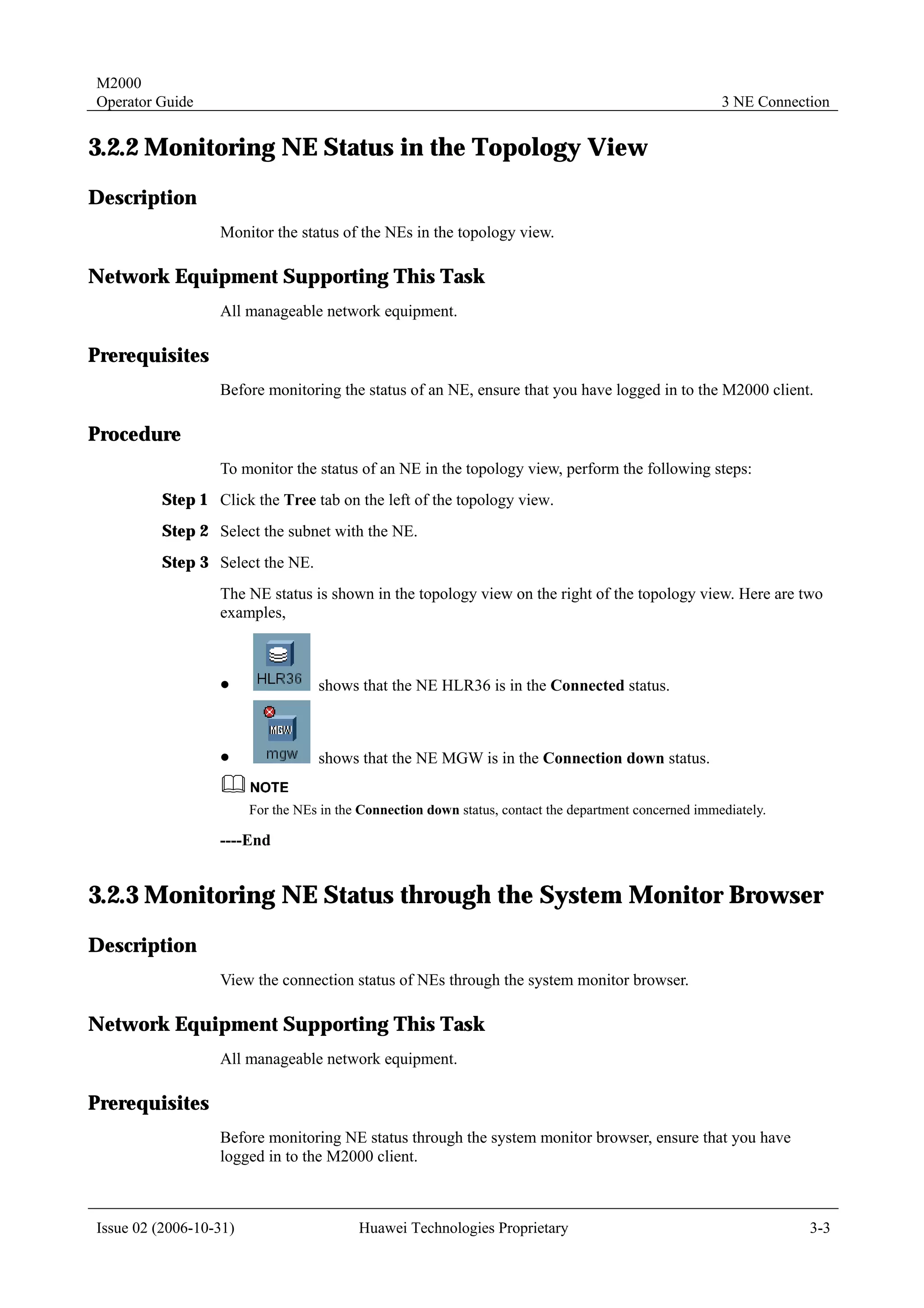
                  The NE status is shown in the topology view on the right of the topology view. Here are two
                  examples,


                  !                shows that the NE HLR36 is in the Connected status.


                  !                shows that the NE MGW is in the Connection down status.


                        For the NEs in the Connection down status, contact the department concerned immediately.

                  ----End


3.2.3 Monitoring NE Status through the System Monitor Browser
Description
                  View the connection status of NEs through the system monitor browser.

Network Equipment Supporting This Task
                  All manageable network equipment.

Prerequisites
                  Before monitoring NE status through the system monitor browser, ensure that you have
                  logged in to the M2000 client.


Issue 02 (2006-10-31)                     Huawei Technologies Proprietary                                           3-3
M2000
3 NE Connection                                                                               Operator Guide

Procedure
                  To monitor NE status through the system monitor browser, perform the following steps:
         Step 1 Choose Tools > System Monitor > Monitor Browser.
                  The System Monitor Browser dialog box is displayed.
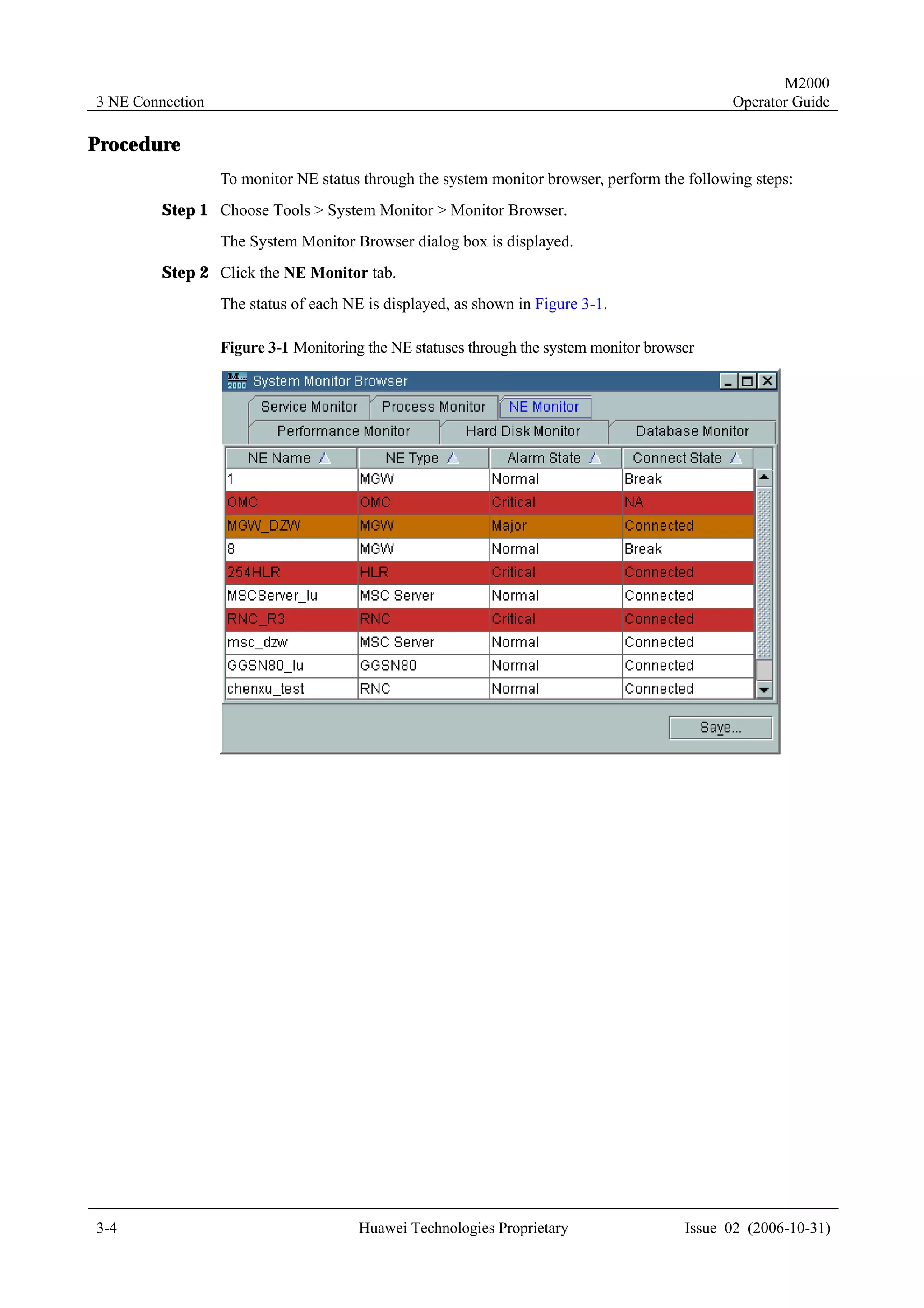
         Step 2 Click the NE Monitor tab.
                  The status of each NE is displayed, as shown in Figure 3-1.

                  Figure 3-1 Monitoring the NE statuses through the system monitor browser


3-4                                    Huawei Technologies Proprietary                  Issue 02 (2006-10-31)
M2000
Operator Guide                                                                          4 Topology Management


                                               4          Topology Management

About This Chapter

                  The following table lists the contents of this chapter.

                    Title                             Description

                    4.1 Terminologies Related to      Introduces the glossary related to topology management.
                    Topology Management
                    4.2 Creating NEs                  Describes how to create the NEs in the topology view and
                                                      in batches.
                    4.3 Deleting NEs                  Describes how to delete the NEs and the group NEs in the
                                                      topology view.
                    4.4 Creating Subnets              Describes how to create the subnets in the topology view.
                    4.5 Deleting Subnets              Describes how to delete the subnets in the topology view.
                    4.6 Creating Links                Describes how to create the links in the topology view.
                    4.7 Moving NEs                    Describes how to move the NEs in the topology view.
                    4.8 Filtering NEs in the          Describes how to filter the NEs in the topology view.
                    Topology View
                    4.9 Customizing Topology          Describes how to customize the topology tips.
                    Tips
                    4.10 Switching Background         Describes how to switch the background maps of the
                    Maps                              topology views.


Issue 02 (2006-10-31)                    Huawei Technologies Proprietary                                        4-1
M2000
4 Topology Management                                                                                   Operator Guide


4.1 Terminologies Related to Topology Management
4.1.1 Topology View
Meaning
                The topology view is the mapping of the communication network (managed through the
                M2000 system) on the M2000. The topology view shows the equipment and the connection
                between the equipment in the form of view and tree. It also provides entry points for the
                operations related to the configuration, alarm, and performance management through the
                client.
                The M2000 topology view consists of two parts: tree and view.
                !       The navigation tree on the left shows all the involved topology objects, such as NEs,
                        subnets, and the hierarchical architecture between these objects.
                !       The topology view on the right shows all the topology objects in the current network and
                        the location-related relationship between these objects.
                The system synchronizes the navigation tree and the topology view automatically.

Examples
                The displayed window after you log in the M2000 client is a topology view.

4.1.2 Network Elements
Meaning
                Topology management uses NEs to identify the communication equipment in the network.
                !       Physical NE
                        Physical NEs are the communication devices that can be managed by the M2000.
                !       Virtual NE
                        The third-party communication equipment in the entire communication network. The
                        M2000 cannot manage the equipment. Virtual NEs help complete the structure of the
                        communication network.
                In the topology view, the physical NE and virtual NE are distinguished by different icon
                colors. For example, the physical NE HLR is displayed as                in the topology view, while
                the virtual NE HLR is displayed as           .


                    The equipment type corresponds to the NE type. The NE types are identified by different icons. You can
                    view the icons by clicking the Legend tab in the left of the window.


Examples
                Some examples of NEs are as follows:


4-2                                     Huawei Technologies Proprietary                         Issue 02 (2006-10-31)
M2000
Operator Guide                                                                          4 Topology Management

                  !     Huawei BTS3812A sets up a physical connection with the M2000; thus it is a physical
                        NE.
                  !     The third-party equipment MOTOROLA HLR is a virtual NE.
                  !     The M2000 itself is a special NE. The M2000 is displayed as OMC in the topology view.

4.1.3 Subnets
Meaning
                  To manage NEs more efficiently, the huge M2000 network can be divided into several smaller
                  networks based on certain principles, such as by region. These smaller networks are called
                  subnets in the topology.

Examples
                  An example of subnets is as follows:
                  If the M2000 can manage all the NEs in the provinces A, B and C, these NEs can be divided
                  into three subnets by region (herein province).
                  The three subnets can also be divided into smaller subnets by city or county. In other words, a
                  subnet can be nested in another subnet.

4.1.4 Group NEs
Meaning
                  Some NEs in the communication network form a certain hierarchical architecture. The Group
                  NE is an NE that works as both an NE and a subnet.

Examples
                  Some examples of group NEs are as follows:
                  !     An RNC is a group NE. It manages NodeB NEs.
                  !     An MSC Server is a group NE. It manages MGW NEs.

4.1.5 Links
Meaning
                  The topology view uses links to identify the physical or logical connections between the
                  communication equipment. There are two types of links, physical and virtual, as shown in
                  Table 4-1.


Issue 02 (2006-10-31)                  Huawei Technologies Proprietary                                       4-3
M2000
4 Topology Management                                                                              Operator Guide

                Table 4-1 Descriptions of two link types

                 Link           Description
                 type

                 Physical       It refers to the signaling connections between two physical NEs.
                 link           M2000 supports six types of physical links: MTP3, MTP3B, DATALINK,
                                M3UA, H248, and BICCSCTP.
                                MTP3              MTP3 and MTP3B can only be created manually.
                                                  !   The NE at one side of the link must be a physical MGW.
                                MTP3B             !   The NE at the other side of the link can be a physical MSC
                                                      Server, or a virtual RNC or MSC Server.
                                DATALINK          These three types are created by the system automatically.
                                                  !   DATALINK links can be created between a physical CG and
                                M3UA                  a physical GGSN80 or SGSN.
                                                  !   H248 and M3UA links can only be created between a
                                H248
                                                      physical MGW and MSC Server.
                                BICCSCTP          !   BICCSCTP links can only be created between a physical
                                                      MSC Server.
                 Virtual        !   Virtual link refers to the logical communication connections between two
                 link               NEs.
                                !   Virtual links can only be created manually. You can modify or delete virtual
                                    links.


Examples
                Some examples of the links are as follows:
                !       The links between physical MGW and virtual MSC Server are physical links created by
                        the manually.
                !       The links between virtual MSC Server and virtual HLR are virtual links created
                        manually.

4.1.6 Topology Objects
Meaning
                NEs, subnets, and group NEs are topology objects.

Examples
                Some examples of topology objects are as follows:
                !       Huawei communication equipment BTS3812 that communicates with the M2000 is a
                        topological object.
                !       The manually created virtual link is a topological object.
                !       The manually created subnet C is a topological object.


4-4                                      Huawei Technologies Proprietary                    Issue 02 (2006-10-31)
M2000
Operator Guide                                                                          4 Topology Management


4.1.7 Templates for Creating Physical NEs in Batches
Meaning
                  To create NEs in batches on the M2000 client, you must create a script file manually and
                  perform the creation in bathes through executing the script.
                  Templates for creating physical NEs in batches are the standard templates provided by the
                  M2000 client. You only need to export the template, and then enter the information of the NEs
                  to be created. Two formats of templates are available: INI and CSV.
                  Templates for creating physical NEs in batches are the standard templates provided by the
                  M2000 client. Two formats of templates are available: INI and CSV.

Templates in the CSV Format
                  The templates in the CSV format apply only to the NEs in WCDMA networks.
                  Use the Microsoft Excel to edit the templates in the CSV format. All the NEs apply the same
                  parameter group, as shown in Figure 4-1.

                  Figure 4-1 An example of CSV templates


Templates in the INI Format
                  The templates in the INI format apply to create all types of NEs in batches except virtual NEs.
                  Use the notepad to edit the templates in the INI format. Different from the CSV templates, the
                  INI templates apply different parameter groups. To create multiple NEs of the same class, the
                  corresponding parameter groups should be provided accordingly.
                  The following examples show the parameter groups for some typical NEs.
                  Example 1: RNC
                  [RNC]
                  Name =
                  Vendor =
                  Physical Location =
                  District =
                  IP address =
                  Description =
                  Pos X =
                  Pos Y =
                  Position =
                  Coordination =


Issue 02 (2006-10-31)                  Huawei Technologies Proprietary                                        4-5
M2000
4 Topology Management                                                                         Operator Guide

                Example 2: BSC
                [BSC]
                Name =
                Vendor =
                Physical Location =
                District =
                IP address =
                Description =
                Username =
                Password =
                Pos X =
                Pos Y =
                Position =
                Coordination =

                For the parameters of the INI templates, see M2000 Online Help.


4.2 Creating NEs
4.2.1 Creating Physical NEs
Description
                Create physical NEs in the topology view.
                After you create an NE successfully, the M2000 synchronizes the NE to obtain the NE
                configuration data.

Network Equipment Supporting This Task
                All manageable network equipment.

Prerequisites
                Before creating a physical NE, ensure that:
                !       You have logged in to the M2000 client.
                !       The mediation software for the NE to be created is installed.
                !       You have obtained the NE information, such as the NE name, IP address, NE version,
                        and district information.

Procedure
                To create a physical NE in the topology view, perform the following steps:
        Step 1 Right-click in the topology view, and select Create NE on the displayed menu.
                The Create NE dialog box is displayed, as shown in Figure 4-2.


4-6                                     Huawei Technologies Proprietary                 Issue 02 (2006-10-31)
M2000
Operator Guide                                                                       4 Topology Management

                  Figure 4-2 Create NE dialog box


         Step 2 Select the physical NE category in the Select Category drop-down list.
         Step 3 Select the NE type in the Select NE Type drop-down list.
         Step 4 Click Next.
         Step 5 Select the district.
                  Enter the information such as the NE name and IP address.
         Step 6 Click Finish.
                  The prompt dialog box Create NE displays the progress of the NE creation.
                  For example, the progress of creating the BSC NE is as shown in Figure 4-3.


Issue 02 (2006-10-31)                  Huawei Technologies Proprietary                                 4-7
M2000
4 Topology Management                                                                           Operator Guide

                Figure 4-3 Progress of creating physical NEs


                The icon for this NE is displayed in the topology view while the system displays the
                synchronization progress       . The progress bar closes automatically after 100% is displayed.
                You can operate and maintain the NE through the M2000 client.
                ----End


4.2.2 Creating Virtual NEs
Description
                Create virtual NEs in the physical topology.
                After you create a virtual NE successfully, the icon for this NE is displayed in the topology
                view.

Network Equipment Supporting This Task
                All manageable network equipment.

Prerequisites
                Before creating a virtual NE, ensure that:
                !       You have logged in to the M2000 client.
                !       You have obtained the information about the NE, such as the NE name, IP address, and
                        district information.

Procedure
                To create a virtual NE in the topology view, perform the following steps:
        Step 1 Right-click in the topology view, and select Create NE on the displayed menu.
                The Create NE dialog box is displayed, as shown in Figure 4-2.


4-8                                    Huawei Technologies Proprietary                  Issue 02 (2006-10-31)
M2000
Operator Guide                                                                                 4 Topology Management

         Step 2 Select Virtual NEs in the Select Category drop-down list.
         Step 3 Select an NE type in the Select NE Type drop-down list.
         Step 4 Click Next.
         Step 5 Select the district of the NE. Enter the information such as the NE name and IP address.
         Step 6 Click Finish.
                  The prompt dialog box Create NE displays the progress of the NE creation. After the NE is
                  successfully created, the icon is displayed in the topology view.
                  ----End


4.2.3 Creating NE Batch Script Files in CSV Format
Description
                  Create an NE batch file in the CSV format. The NE batch file is used for creating NEs in
                  batches.

Network Equipment Supporting This Task
                  Physical NEs in WCDMA networks.

Prerequisites
                  Before creating an NE batch file in the CSV format, ensure that:
                  !     You have obtained the information about the NE Type, IP address, NE version and
                        district.
                  !     The version Excel97 or higher is installed and runs normally.

Procedure
                  To create an NE batch file in the CSV format, perform the following steps:
         Step 1 Choose Configuration > Exports NE Attributes Template > CSV File Format to view
                Export NE Info template (CSV file format) dialog box.

         Step 2 Click         . Save the template.
         Step 3 Open the template file, and enter the information of each NE, such as the NE type, NE name,
                NE version, and district.


                        Obtaining the NE type from the drop-down list in the Create NE dialog box is recommended. For
                        details, see part 4.2.1 "Creating Physical NEs."

         Step 4 Save the file.
                  ----End


Issue 02 (2006-10-31)                     Huawei Technologies Proprietary                                               4-9
M2000
4 Topology Management                                                                                Operator Guide


4.2.4 Creating NE Batch Script Files in INI Format
Description
                Create an NE batch file in the INI format. The NE batch file is used for creating NEs in
                batches.

Network Equipment Supporting This Task
                All NEs equipment except the virtual NEs.

Prerequisites
                You have obtained the NE information such as the NE Type, IP address, NE version and
                district.

Procedure
                To create an NE batch file in the INI format, perform the following steps:
        Step 1 Choose Configuration > Exports NE Attributes Template > INI File Format to view
               Export NE Info template (INI file format) dialog box.

        Step 2 Select the NE type. Click          , and save the template.
        Step 3 Open the template file, and enter the information of each NE, such the NE type, NE name, NE
               version and district.


                    Obtaining the NE type from the drop-down list in the Create NE dialog box is recommended. For
                    details, see part 4.2.1 "Creating Physical NEs."

        Step 4 Save the file.
                ----End


4.2.5 Creating Physical NEs in Batches
Description
                By creating physical NEs in batches, you can add multiple physical NEs in the same subnet
                into the topology view in batches at a time.
                The M2000 obtains the information about these NEs created from the batch files, and then
                synchronizes these NEs to obtain the configuration data.

Network Equipment Supporting This Task
                !       This task applies to creating physical NEs in WCDMA networks when the script file is in
                        the CSV format.
                !       This task applies to creating all NEs except virtual NEs when the script file is in the INI
                        format.


4-10                                    Huawei Technologies Proprietary                      Issue 02 (2006-10-31)
M2000
Operator Guide                                                                           4 Topology Management

Prerequisites
                  Before creating physical NEs in batches, ensure that:
                  !     You have logged in to the M2000 client.
                  !     The mediation software of the NE to be created is installed.
                  !     The NE batch script files are created. For details, see part 4.2.3 "Creating NE Batch
                        Script Files in CSV Format" and part 4.2.4 "Creating NE Batch Script Files in INI
                        Format"

Procedure
                  To create multiple physical NEs in batches, perform the following steps:
         Step 1 Right-click in the topology view, and select Create Physical NEs in batch on the displayed
                menu.
                  The Create Physical NEs in batch dialog box is displayed, as shown in Figure 4-4.

                  Figure 4-4 Creating physical NEs in batches


         Step 2 Click       . Select a file for creating NEs in batches.
         Step 3 Click Verify. Check the script file configuration.
         Step 4 Click OK.
                  The NE is created in the topology view.
                  Click Cancel to cancel the creating operation.


Issue 02 (2006-10-31)                   Huawei Technologies Proprietary                                         4-11
M2000
4 Topology Management                                                                          Operator Guide

                ----End


4.3 Deleting NEs
4.3.1 Deleting Physical NEs
Description
                Delete physical NEs from the physical topology.

Network Equipment Supporting This Task
                All manageable network equipment.

Prerequisites
                Before deleting a physical NE, ensure that:
                !       You have logged in to the M2000 client.
                !       The physical NE exists in the M2000, and it is not a group NE.

Procedure
                To delete a physical NE from the topology view, perform the following steps:
        Step 1 Select a physical NE in the topology view.
        Step 2 Right-click the NE, and select Delete on the displayed menu.
        Step 3 Click Yes in the displayed Confirm dialog box.
                The deletion progress is displayed in percentage. When 100% is displayed, the physical links
                of the physical NE are deleted automatically.
                ----End


4.3.2 Deleting Virtual NEs
Description
                Delete virtual NEs from the physical topology.

Network Equipment Supporting This Task
                All manageable network equipment.

Prerequisites
                Before deleting a virtual NE, ensure that:
                !       You have logged in to the M2000 client.


4-12                                   Huawei Technologies Proprietary                   Issue 02 (2006-10-31)
M2000
Operator Guide                                                                                        4 Topology Management

                  !     The virtual NE exists in the M2000.

Procedure
                  To delete a virtual NE from the topology view, perform the following steps:
         Step 1 Select the virtual NE in the topology view.
         Step 2 Right-click the NE, and select Delete on the displayed menu.
         Step 3 Click Yes in the displayed Confirm dialog box to delete the virtual NE.


                        If the virtual NE contains sub-NEs, the sub-NEs are displayed in the upper physical topology after you
                        delete the virtual NE.

                  ----End


4.3.3 Deleting Group NEs
Description
                  Delete group NEs from the physical topology.

Network Equipment Supporting This Task
                  BSC, MGW, RNC and MSC Server.

Prerequisites
                  Before deleting a group NE from the physical topology, ensure that:
                  !     You have logged in to the M2000 client.
                  !     The group NE to be deleted exists in the M2000.

Procedure
                  To delete the group NE, perform the following steps:
         Step 1 Select the group NE to be deleted in the topological view.
         Step 2 Right-click the group NE, and select Delete on the displayed menu.
         Step 3 Click Yes in the Confirm prompt dialog box to delete the group NE from the current view.


                        If the group NE contains other NEs, it exists as a virtual NE. In this case, the icon becomes a virtual
                        icon.

                  ----End


Issue 02 (2006-10-31)                       Huawei Technologies Proprietary                                                  4-13
M2000
4 Topology Management                                                                          Operator Guide


4.4 Creating Subnets
Description
                Create subnets in the physical topology.

Network Equipment Supporting This Task
                All manageable network equipment.

Prerequisites
                Before creating a subnet in the physical topology, ensure that:
                !       You have logged in to the M2000 client.
                !       The topological view and the network architecture are well planned.
                !       Procedure
                To create a subnet, perform the following steps:
        Step 1 Right-click in the topology view, and select Create Physical Subnet on the displayed menu.
                The dialog box Create Physical Subnet is displayed, as shown in Figure 4-5.
        Step 2 Click the Basic Attribute tab. Set the subnet attributes.
        Step 3 Click the Background Selection tab. Set the background.
        Step 4 Click the Objects Selection tab. Select the NEs and subnets to be displayed under this subnet.
        Step 5 Click OK.
                After the creation, you can view the icon of this subnet in the topology view. Double-click the
                icon to view the NEs and subnets under this subnet.


4-14                                   Huawei Technologies Proprietary                   Issue 02 (2006-10-31)
M2000
Operator Guide                                                                        4 Topology Management

                  Figure 4-5 Creating physical subnets


                  ----End


4.5 Deleting Subnets
Description
                  Delete subnets from the physical topology.

Network Equipment Supporting This Task
                  All manageable network equipment.

Prerequisites
                  Before deleting a subnet, ensure that:
                  !     You have logged in to the M2000 client.
                  !     The subnet exists in the M2000.

Procedure
                  To delete a subnet from the topology view, perform the following steps:
         Step 1 Select the subnet in the topology view.


Issue 02 (2006-10-31)                  Huawei Technologies Proprietary                                 4-15
M2000
4 Topology Management                                                                                      Operator Guide

        Step 2 Right-click the subnet, and select Delete on the displayed menu.
                The Confirm dialog box is displayed.
        Step 3 Click Yes in the Confirm prompt dialog box.


                    NEs and subnets under this subnet, if any, are displayed in the upper physical topology after you delete
                    this subnet.

                ----End


4.6 Creating Links
4.6.1 Creating Physical Links
Description
                Create physical links in the topology view manually.

Network Equipment Supporting This Task
                MGW and MSC Server.

Prerequisites
                Before creating a physical link in the topology view, ensure that:
                !       You have logged in to the M2000 client.
                !       The topology view and the network architecture are well planned.

Procedure
                To create a physical link, perform the following steps:
        Step 1 Right-click in the topology view, and select Create Link on the displayed menu.
                The Create Link dialog box is displayed.
        Step 2 Select the link type in the Create Link dialog box.

        Step 3 Click         . Select the NE for link side A and side Z.
                In the End A MO and End Z MO areas, select the configuration for the two ends of the link.


                Click           to add the configuration to the list on the right.


                    !     To set up multiple links, repeat the above steps.
                    !     To reselect the NEs, click Reset.

        Step 4 Click Create or Close.


4-16                                      Huawei Technologies Proprietary                         Issue 02 (2006-10-31)
M2000
Operator Guide                                                                        4 Topology Management

                  The prompt dialog box Create Link displays the progress of the link creation. After the
                  creation, a link is displayed between the two NEs.
                  ----End


4.6.2 Creating Virtual Links
Description
                  Create virtual links in the topology view.

Network Equipment Supporting This Task
                  All manageable network equipment.

Prerequisites
                  Before creating a virtual link in the topology view, ensure that:
                  !     You have logged in to the M2000 client.
                  !     The topology view and the network architecture are well planned.

Procedure
                  To create a virtual link, perform the following steps:
         Step 1 Right-click in the topology view, and select Create Virtual Link on the displayed menu.
                  The Create Virtual Link dialog box is displayed.
         Step 2 Enter the name of the virtual link.
         Step 3 Select the NEs in the end A and end Z of the link.
         Step 4 Click OK.
                  After the creation, a link is displayed between the two NEs.
                  ----End


4.7 Moving NEs
4.7.1 Moving NEs to a Group NE
Description
                  Move one or more NEs to a group NE in the topology view.

Network Equipment Supporting This Task
                  Move the NodeB to the RNC and the MGW to the MSC Server.


Issue 02 (2006-10-31)                   Huawei Technologies Proprietary                                     4-17
M2000
4 Topology Management                                                                       Operator Guide

Prerequisites
                Before moving an NE to a group NE, ensure that:
                !       You have logged in to the M2000 client.
                !       The NE exists in the same subnet as the group NE.

Procedure
                To move an NE to a group NE, perform the following steps:
        Step 1 Select the target group NE in the topology view.
        Step 2 Right-click the NE, and select Property on the displayed menu.
                The NE Property dialog box is displayed, as shown in Figure 4-6.

                Figure 4-6 NE Property dialog box


        Step 3 Click the Object Selection tab.

        Step 4 Select the NE to be moved to the group NE in the Available Objects list, and click            .
                The NE is added to the Selected Objects list.
        Step 5 Click OK.
                Double-click the group NE icon to view the group NE and the NEs under it.


4-18                                   Huawei Technologies Proprietary               Issue 02 (2006-10-31)
M2000
Operator Guide                                                                          4 Topology Management

                  ----End


4.7.2 Moving NEs to another Subnet
Description
                  Move one or more NEs to another subnet in the physical topology.

Network Equipment Supporting This Task
                  All manageable network equipment.

Prerequisites
                  Before moving an NE to another subnet, ensure that:
                  !     You have logged in to the M2000 client.
                  !     The NE exists in the same network layer as the target subnet.

Procedure
                  To move an NE to another subnet, perform the following steps:
         Step 1 Select the target subnet in the topology view.
         Step 2 Right-click the NE, and select Modify on the displayed menu.
                  The Modify Physical Subnet dialog box is displayed, as shown in Figure 4-7.


Issue 02 (2006-10-31)                   Huawei Technologies Proprietary                                  4-19
M2000
4 Topology Management                                                                                     Operator Guide

                Figure 4-7 Modify Physical Subnet dialog box


        Step 3 Click the Objects Selection tab.

        Step 4 Select the NE to be moved to the subnet in the Available Objects list, and click                         .
                The NE is added to the Selected Objects list.
        Step 5 Click OK.
                Double-click the group NE icon to view all the NEs under this subnet.
                ----End


4.7.3 Moving NEs on the Same Subnet
Description
                Move an NE to other locations in the same subnet in the topology view.


                     This operation changes only the location of the NE in the topology view. The actual geographical
                     location and physical connections of the NE is not concerned.


Network Equipment Supporting This Task
                All manageable network equipment.


4-20                                    Huawei Technologies Proprietary                          Issue 02 (2006-10-31)
M2000
Operator Guide                                                                             4 Topology Management

Prerequisites
                  Before moving an NE in the same subnet, ensure that:
                  !     You have logged in to the M2000 client.
                  !     The NE exists in the M2000.

Procedure
                  To move an NE in the same subnet, perform the following steps:
         Step 1 Select the NE in the topology view.
         Step 2 Drag it to the required location.

         Step 3 Click          in the toolbar in the middle part to save the new location of the NE.
                  ----End


4.8 Filtering NEs in the Topology View
Description
                  Set the filtering conditions as required, so that it shows only certain objects, such as the
                  background, NE, subnet, and link name.

Network Equipment Supporting This Task
                  All manageable network equipment.

Prerequisites
                  Before filtering NEs, ensure that you have logged in to the M2000 client.

Procedure
                  To filter NEs in the topology view, perform the following steps:
         Step 1 Click the Filter tab in the left pane of the topology view.
         Step 2 Select the objects to be displayed in the navigation tree.
                The objects that are not selected are not displayed in the topology view.
                  ----End


4.9 Customizing Topology Tips
Description
                  Topology tips are the prompt information displayed after the mouse pointer rests on an object
                  for several seconds.


Issue 02 (2006-10-31)                   Huawei Technologies Proprietary                                          4-21
M2000
4 Topology Management                                                                                   Operator Guide

                You can customize the counter items as prompt information as required. The counter items are
                classified into three types by NE, Link and District.

Network Equipment Supporting This Task
                No NEs are involved.

Prerequisites
                Before customizing topology tips, ensure that you have logged in to the M2000 client.

Procedure
                To customize topology tips, perform the following steps:
        Step 1 Choose Tools > Customize Topology Tips.
                The Customize Topology Tips dialog box is displayed.
                The system displays the counter item (activated or to be set) of the first NE in the navigation
                tree by default.
        Step 2 Select a counter in the navigation tree.
        Step 3 Set the counter item in the right of the dialog box.
        Step 4 Click OK or Apply.
                ----End


4.10 Switching Background Maps
Description
                Two views, topology view and map view, are available in the M2000.


                     !    You can only switch the background maps of the topology views.
                     !    The background of the topology view is Empty map by default. In other words, the topology view
                          has no background maps.

                The file format that can serve as the background map of the topology view in the M2000
                includes: GIF, IVL, JPEG, JPG, MIF, and SHP.

Network Equipment Supporting This Task
                No NEs are involved.

Prerequisites
                Before setting the background map of the topology view, ensure that:
                !       You have logged in to the M2000 client.
                !       The electronic maps exist in the M2000 client.


4-22                                    Huawei Technologies Proprietary                         Issue 02 (2006-10-31)
M2000
Operator Guide                                                                        4 Topology Management

Procedure
                  To switch electronic maps in the M2000 client, perform the following steps:
         Step 1 Right-click in the topology view, and select Set BackGround on the displayed menu.
                  The Set BackGround dialog box is displayed.
         Step 2 Click Select, and select the electronic map file.
         Step 3 Click OK.
                  After that, the electronic map selected becomes the background of the topology view.
                  ----End


Issue 02 (2006-10-31)                  Huawei Technologies Proprietary                                   4-23
M2000
Operator Guide                                                                              5 Alarm Management


                                                      5           Alarm Management

About This Chapter

                  The following table lists the contents of this chapter.

                    Title                             Description

                    5.1 Introduction to Alarms        Introduces the alarm categories, alarm severity levels and
                                                      the alarm types.
                    5.2 Alarm Statuses                Introduces the alarm statuses.
                    5.3 Alarm Processing              Introduces the alarm processing procedures.
                    Procedures
                    5.4 Querying and Browsing         Describes how to query and browse the alarms.
                    Alarms
                    5.5 Collecting Alarm Statistics   Describes how to collecting the alarm statistics.
                    5.6 Acknowledging and             Describes how to acknowledge and un acknowledge the
                    Unacknowledging Alarms            alarms.
                    5.7 Creating User Defined         Describes how to create a user defined alarm.
                    Alarms
                    5.8 Displacing Alarms to a        Describes how to displace the alarms to a file.
                    File
                    5.9 Synchronizing Alarms          Describes how to synchronize the alarms manually and
                                                      automatically.
                    5.10 Redefining the Alarm         Describes how to redefine the alarm severity levels.
                    Severity Level
                    5.11 Setting Alarm Correlation    Describes how to set the alarm correlation rules.
                    Rules
                    5.12 Managing the Alarm           Describes how to manage the alarm knowledge library.
                    Knowledge Library


Issue 02 (2006-10-31)                    Huawei Technologies Proprietary                                     5-1
M2000
5 Alarm Management                                                                           Operator Guide


                 Title                           Description

                 5.13 Operating the Alarm        Describes how to operate the alarm board.
                 Board
                 5.14 Operating the Alarm Box    Describes how to operate the alarm box.
                 5.15 Setting the Alarm          Describes how to set the alarm notification by SMS.
                 Notification by SMS
                 5.16 Setting the Alarm          Describes how to set the alarm notification by phoneNo.
                 Notification by PhoneNo. or     or pagerNo..
                 PagerNo.
                 5.17 Setting the Alarm          Describes how to set the alarm notification by Email.
                 Notification by Email


5-2                                 Huawei Technologies Proprietary                 Issue 02 (2006-10-31)
M2000
Operator Guide                                                                               5 Alarm Management


5.1 Introduction to Alarms
5.1.1 Alarm Categories
                  Alarms can be categorized based on two principles:
                  !     By alarm content: event alarms and fault alarms
                  !     By alarm handling and clearance: history fault alarms and shielded alarms
                  These four categories of alarms are described as follows:
                  !     Fault alarms, such as a board fault alarm, are generated when faults occur to hardware
                        devices or exceptions occur to key functions. Fault alarms are more severe than event
                        alarms. Fault alarms can be cleared.
                  !     Event alarms, such as a congestion alarm, are occasionally generated during the
                        equipment operation. The event alarms indicate only the equipment status at a certain
                        point of time. The system generates some event alarms periodically. Event alarms do not
                        need manual handling.
                  !     History fault alarms refer to the cleared and acknowledged fault alarms.
                  !     Shielded alarms are generated during a short period of time. The alarms matching the
                        correlation rules set on the M2000 client are shielded alarms, and they are stored in the
                        M2000 shielding library. Shielded alarms can only be fault or event alarms.

5.1.2 Alarm Severity Levels
                  Alarm severity level indicates how severe a generated alarm is. Sorted in the descending order,
                  alarms have four severity levels: critical, major, minor, and warning .
                  !     Critical alarms, such as the power circuit fault alarm or the output clock fault alarm,
                        affect the whole system operation. Critical alarms require immediate handling.
                  !     Major alarms, such as alarms about disconnected fibers or physical line faults, occur
                        only to boards or lines. If not handled timely, these alarms may affect the services.
                  !     Minor alarms, such as the alarm for bit errors in some physical lines, refer to common
                        status alarms that indicate the working status of boards or lines.
                  !     Warning alarms indicate status changes or events which do not affect the system
                        performance or subscriber services, but may interest the operator. Some warning alarms
                        prompt when the equipment returns to normality.

5.1.3 Alarm Types
                  Based on the alarm source, the following types of alarms are available:
                  !     Power alarms: related to the power supply system
                  !     Environment alarms: related to the equipment environment, such as the temperature,
                        humidity, and connection control
                  !     Signaling alarms: related to communication signaling
                  !     Trunk alarms: related to trunk circuits
                  !     Hardware alarms: related to boards such as the clock and CPU
                  !     Software alarms: related to the software


Issue 02 (2006-10-31)                   Huawei Technologies Proprietary                                        5-3
M2000
5 Alarm Management                                                                              Operator Guide

                !    Running alarms: related to and generated during the system operation
                !    Communication alarms: related to the communication system
                !    QoS alarms: related to the service quality
                !    Processing error alarms: related to exceptions


5.2 Alarm Statuses
5.2.1 Acknowledged Alarms
                The alarm acknowledgement function helps to identify alarms. After you acknowledge an
                alarm manually, the M2000 displays the alarm as acknowledged. In this way, you can easily
                distinguish between the alarms processed manually and those to be processed.
                This status, however, only indicates that the alarm is currently acknowledged. It does not
                indicate that the alarm is cleared.

5.2.2 Cleared Alarms
                Alarm clearance applies only to fault alarms. When a fault alarm is cleared, the NE returns to
                normality and reports the alarm clearance information to the M2000. For those alarms that
                cannot be cleared automatically, the M2000 system supports manual clearance.

5.2.3 Relationship Between Alarm Categories and Alarm Statuses
Fault Alarms Changing to History Fault Alarms
                Fault alarms can be in the following four statuses:
                !    Uncleared and unacknowledged
                !    Uncleared and acknowledged
                !    Cleared and unacknowledged
                !    Cleared and acknowledged
                For an acknowledged and cleared alarm, the M2000 moves the alarm from the current fault
                alarm library to the history fault alarm library. Accordingly, the alarm changes to a history
                fault alarm.
                For an unacknowledged or uncleared alarm, the alarm remains in the current fault alarm
                library as a current fault alarm.
                Figure 5-1 shows how a current fault alarm changes to a history fault alarm.


5-4                                  Huawei Technologies Proprietary                    Issue 02 (2006-10-31)
M2000
Operator Guide                                                                                 5 Alarm Management

                  Figure 5-1 Process by which a fault alarm changes to a history fault alarm


Event Alarms
                  Event alarms can be in two statuses: acknowledged and unacknowledged. They do not change
                  to other alarms.


5.3 Alarm Processing Procedures
5.3.1 Overview
                  Figure 5-2 shows how the M2000 system processes alarms.


Issue 02 (2006-10-31)                   Huawei Technologies Proprietary                                       5-5
M2000
5 Alarm Management                                                                               Operator Guide

                Figure 5-2 Procedure for processing M2000 alarms


                After receiving alarms from an NE or the M2000 itself, the M2000 shields the alarms,
                redefines the alarm severity levels, or correlates the alarms before saving the alarms in the
                alarm library.
                You can query the alarm information and acknowledge the alarms on the M2000 client.

5.3.2 Reporting Alarms
                When an alarm is generated, the NE reports the alarm to the M2000 through the MML
                command line interface, the binary interface, or the SNMP Trap (the IP networking
                equipment), between the NE and the M2000.

5.3.3 Saving Alarms
                After receiving an alarm, the M2000 processes the alarm, and then either saves the alarm in
                the relevant alarm library or discards the alarm as follows:
        Step 1 The M2000 checks if the alarm belongs to the shielded alarms defined on the M2000. If the
               alarm belongs to the shielded alarms, the M2000 discards the alarm.
        Step 2 The M2000 checks if the alarm is defined with another severity (level) on the M2000. If the
               alarm is defined with another severity (level), the M2000 redefines the severities (levels) of
               the alarm.


5-6                                   Huawei Technologies Proprietary                    Issue 02 (2006-10-31)
M2000
Operator Guide                                                                               5 Alarm Management

         Step 3 The M2000 checks if the alarm matches the correlation rules set on the M2000. If the alarm
                matches the correlation rules, the M2000 drops it into the shielded alarm library or discard it.
         Step 4 The M2000 saves alarms other than shielded or discarded alarms to the fault or event alarm
                library based on the alarm content.
                  ----End


5.3.4 Displaying Alarms
                  After the M2000 saves alarms to the libraries, you can query or browse the information about
                  the alarms on the M2000 client. These alarms include:
                  !     Current fault alarms
                  !     Event alarms
                  !     History fault alarms
                  !     Shielded alarms

5.3.5 Changing Alarm Status
                  The alarm status changes in the following two cases:
                  !     When you manually acknowledge an alarm on the M2000 client interface.
                        For details, see part 5.2.1 "Acknowledged Alarms." After the alarm is acknowledged, the
                        status of the alarm changes to acknowledged.
                  !     When you operate a faulty NE and clear the fault.
                        In this case, the status of the alarm changes to cleared. The cleared status applies only to
                        fault alarms.
                  The change of the NE status may lead to a change in the alarm category. For details, see part
                  5.2.3 "Relationship Between Alarm Categories and Alarm Statuses."


5.4 Querying and Browsing Alarms
5.4.1 Querying Current Fault Alarms
Description
                  Query the fault alarms stored in the M2000 alarm library.

Network Equipment Supporting This Task
                  All manageable network equipment.

Prerequisites
                  Before querying and browsing current fault alarms, ensure that you have logged in to the
                  M2000 client.


Issue 02 (2006-10-31)                     Huawei Technologies Proprietary                                      5-7
M2000
5 Alarm Management                                                                                 Operator Guide

Procedure
                To query current fault alarms, perform the following steps:
        Step 1 Choose Fault > Query > Current Fault Alarm. The Alarm Browse, Query and Statistics
               dialog box is displayed, as shown in Figure 5-3.

                Figure 5-3 Querying current fault alarms


        Step 2 Click Current Fault Alarm Query n tab. Two methods are available for querying the current
               alarms. The number n is represented by 1, 2, 3, and so on, indicating that you can perform
               multiple queries.
                !    Method 1: Set the query conditions in the upper half of the Current Fault Alarm Query
                     1 window, and then click Query.
                     For example, select an NE to query the fault alarms related to the NE. Select an alarm
                     severity (level) to query the fault alarms of this severity (level). Set a start time to query
                     the fault alarms generated after this time point.
                     By default, the system displays all the fault alarms stored in the current M2000 alarm
                     library.
                !    Method 2: Select Template in the navigation tree on the left, and then double-click a
                     template.
                     This template contains query conditions.
                ----End


5.4.2 Querying Event Alarms
Description
                Query event alarms stored in the M2000 alarm library.


5-8                                   Huawei Technologies Proprietary                      Issue 02 (2006-10-31)
M2000
Operator Guide                                                                            5 Alarm Management

Network Equipment Supporting This Task
                  All manageable network equipment.

Prerequisites
                  Before querying event alarms, ensure that you have logged in to the M2000 client.

Procedure
                  To query event alarms, perform the following steps:
         Step 1 Choose Fault > Query > Event Alarm.
                  The Alarm Browse, Query and Statistics dialog box is displayed.
         Step 2 Click Event Fault Alarm Query tab. Two methods are available for querying the event
                alarms. For details, see part 5.4.1 "Querying Current Fault Alarms."
                  ----End


5.4.3 Querying History Fault Alarms
Description
                  Query history fault alarms stored in the M2000 alarm library.

Network Equipment Supporting This Task
                  All manageable network equipment.

Prerequisites
                  Before querying history fault alarms, ensure that you have logged in to the M2000 client.

Procedure
                  To query history fault alarms, perform the following steps:
         Step 1 Choose Fault > Query > History Fault Alarm.
                  The Alarm Browse, Query and Statistics dialog box is displayed.
         Step 2 Click the History Fault Alarm Query tab. Two methods are available for querying the
                history fault alarms. For details, see part 5.4.1 "Querying Current Fault Alarms."

5.4.4 Querying Shielded Alarms
Description
                  Query shielded alarms stored in the M2000 alarm library.


Issue 02 (2006-10-31)                  Huawei Technologies Proprietary                                        5-9
M2000
5 Alarm Management                                                                            Operator Guide

Network Equipment Supporting This Task
                All manageable network equipment.

Prerequisites
                Before querying shielded alarms, ensure that you have logged in to the M2000 client.

Procedure
                To query shielded alarms, perform the following steps:
        Step 1 Choose Fault > Query > Shielded Alarm.
                The Alarm Browse, Query and Statistics dialog box is displayed.
        Step 2 Click the Shielded Alarm Query tab. Two methods are available for querying the shielded
               alarms. For details, see part 5.4.1 "Querying Current Fault Alarms."
                ----End


5.4.5 Browsing Real-Time Fault Alarms
Description
                Browse the latest 1 000 fault alarms stored in the M2000 alarm library, and browse the new
                real-time fault alarms that are generated.

Network Equipment Supporting This Task
                All manageable network equipment.

Prerequisites
                Before browsing real-time fault alarms, ensure that you have logged in to the M2000 client.

Procedure
                To browse real-time fault alarms, perform the following steps:
        Step 1 Choose Fault > Current Fault Alarm Browser.
                The Alarm Browse, Query and Statistics dialog box is displayed.
        Step 2 Click the Current Fault Alarm Browse tab. Two methods are available for browsing
               real-time fault alarms, as shown in Figure 5-4.


5-10                                 Huawei Technologies Proprietary                  Issue 02 (2006-10-31)
M2000
Operator Guide                                                                                  5 Alarm Management

                  Figure 5-4 Browsing alarms


         Step 3 Click Current Fault Alarm Browse tab. Two methods are available for browsing the current
                alarms.
                  !     Method 1: Set the query conditions in the upper half of the Current Fault Alarm Query
                        1 window, and then click Query.
                        For example, select an NE to query the fault alarms related to the NE. Select an alarm
                        severity (level) to query the fault alarms of this severity (level). Set a start time to query
                        the fault alarms generated after this time point.
                        By default, the system displays all the fault alarms stored in the current M2000 alarm
                        library.
                  !     Method 2: Select Template in the navigation tree on the left, and then double-click a
                        template.
                        This template contains query conditions.
                  ----End


5.4.6 Browsing Real-Time Event Alarms
Description
                  Browse the latest 1,000 event alarms stored in the M2000 alarm library, and browse the new
                  real-time event alarms that are generated.

Network Equipment Supporting This Task
                  All manageable network equipment.


Issue 02 (2006-10-31)                    Huawei Technologies Proprietary                                          5-11
M2000
5 Alarm Management                                                                               Operator Guide

Prerequisites
                Before browsing real-time event alarms, ensure that you have logged in to the M2000 client.

Procedure
                To browse real-time event alarms, perform the following steps:
        Step 1 Choose Fault > Event Alarm Browser.
                The Alarm Browse, Query and Statistics dialog box is displayed.
        Step 2 Click the Event Alarm Browse tab. Two methods are available for browsing real-time event
               alarms. For details, see part 5.4.5 Browsing Real-Time Fault Alarms."
                ----End


5.4.7 Querying Alarm Explanation
Description
                Set query conditions in Alarm Browse, Query and Statistics, and click Query to obtain a
                list of alarms. Select an alarm from the list to query the alarm details, such as the location
                information and the alarm processing help.

Network Equipment Supporting This Task
                All manageable network equipment.

Prerequisites
                Before querying the explanation of an alarm, ensure that:
                !    You have logged in to the M2000 client.
                !    The Alarm Browse, Query and Statistics dialog box is displayed with a list of alarms.

Procedure
                To query the explanation of an alarm, perform the following steps:
        Step 1 In Alarm Browse, Query and Statistics, select an alarm to query the alarm details.
        Step 2 Double-click the alarm.
                The Alarm Details dialog box is displayed, as shown in Figure 5-5.


5-12                                 Huawei Technologies Proprietary                     Issue 02 (2006-10-31)
M2000
Operator Guide                                                                            5 Alarm Management

                  Figure 5-5 Alarm details


         Step 3 Click each tab to obtain all the alarm details.
                  Click More information in the Alarm Details tab to obtain the help for processing the alarm.
                  ----End


5.4.8 Querying Correlated Alarms
Description
                  Query alarms correlated to an alarm, such as those repeated within a short period and those
                  matching the correlation rules manually set on the M2000 client.

Network Equipment Supporting This Task
                  All manageable network equipment.

Prerequisites
                  Before querying alarms correlated to an alarm, ensure that:
                  !     You have logged in to the M2000 client.
                  !     The Alarm Browse, Query and Statistics dialog box is displayed with a list of alarms.

Procedure
                  To query alarms correlated to an alarm, perform the following steps:
         Step 1 In Alarm Browse, Query and Statistics, select an alarm to query the alarm details.


Issue 02 (2006-10-31)                  Huawei Technologies Proprietary                                     5-13
M2000
5 Alarm Management                                                                           Operator Guide

        Step 2 Double-click the alarm.
                The Alarm Details dialog box is displayed as shown in Figure 5-5.
        Step 3 Click the Alarm Correlation tab to obtain the alarms correlated to the alarm but not
               displayed in the alarm list.
                ----End


5.4.9 Setting the Alarm Displaying Columns
Description
                Set the columns to be displayed in the alarm list in Alarm Browse, Query and Statistics.

Network Equipment Supporting This Task
                All manageable network equipment.

Prerequisites
                Before setting the alarm list, ensure that:
                !    You have logged in to the M2000 client.
                !    The Alarm Browse, Query and Statistics dialog box is displayed.

Procedure
                To set the alarm list, perform the following steps:
        Step 1 In Alarm Browse, Query and Statistics, right-click the alarm list and select Configure
               Columns.
                The Configure Columns dialog box is displayed, as shown in Figure 5-6.
        Step 2 Select the columns to be displayed, and then click OK.


5-14                                  Huawei Technologies Proprietary                Issue 02 (2006-10-31)
M2000
Operator Guide                                                                               5 Alarm Management

                  Figure 5-6 Selecting the columns to be displayed in the alarm list


                  ----End


5.5 Collecting Alarm Statistics
5.5.1 Collecting Instant Statistics
Description
                  Collect the statistics on the alarms stored in the M2000 alarm library to obtain the statistics
                  datasheet or pie chart.
                  Sort the alarm statistics by the following items: NE, NE Type, Link, Link Type, Alarm
                  Name, Alarm Level, Alarm Type, Alarm Log, Alarm Status, By Day, and By Hour.

Network Equipment Supporting This Task
                  All manageable network equipment.

Prerequisites
                  Before collecting instant alarm statistics, ensure that you have logged in to the M2000 client.

Procedure
                  To collect instant alarm statistics, perform the following steps:
         Step 1 Choose Fault > Statistics > Alarm Statistics.
                  The Alarm Browse, Query and Statistics dialog box is displayed.
         Step 2 Click the Statistics 1 tab.
         Step 3 Select statistics items in Statistic Item.


Issue 02 (2006-10-31)                   Huawei Technologies Proprietary                                        5-15
M2000
5 Alarm Management                                                                          Operator Guide

                For example, select Alarm Level and Alarm Type. Click Statistic, and the alarm data is
                displayed in a statistics table, as shown in Figure 5-7.

                Figure 5-7 Alarm statistics table


        Step 4 Click the Pie tab.
                The alarm pie chart is displayed, as shown in Figure 5-8.


5-16                                  Huawei Technologies Proprietary               Issue 02 (2006-10-31)
M2000
Operator Guide                                                                              5 Alarm Management

                  Figure 5-8 Alarm statistics pie chart


                  ----End


5.5.2 Collecting Real-Time Statistics
Description
                  Collect statistics on the real-time alarms stored in the M2000 alarm library to obtain the
                  statistics table.
                  The statistics cover the alarms of both the M2000 and the NEs of all the four alarm severities.

Network Equipment Supporting This Task
                  All manageable network equipment.

Prerequisites
                  Before collecting real-time alarm statistics, ensure that you have logged in to the M2000
                  client.

Procedure
                  To collect real-time alarm statistics, perform the following steps:
         Step 1 Choose Fault > Statistics > Real-Time Statistics.
                  The Real-Time Statistics dialog box is displayed. The system refreshes the displayed data
                  automatically.


Issue 02 (2006-10-31)                   Huawei Technologies Proprietary                                        5-17
M2000
5 Alarm Management                                                                                       Operator Guide

        Step 2 Drag the scroll bar on the right to view all the alarm statistics.
                 ----End


5.6 Acknowledging and Unacknowledging Alarms
5.6.1 Acknowledging Alarms Manually
Description
                 Manually acknowledge the alarms displayed in the alarm list in Alarm Browse, Query and
                 Statistics.
                 This task applies only to fault and event alarms.

Network Equipment Supporting This Task
                 All manageable network equipment.

Prerequisites
                 Before acknowledging an alarm manually, ensure that:
                 !    You have logged in to the M2000 client.
                 !    The Alarm Browse, Query and Statistics dialog box is displayed with a list of alarms.

Procedure
                 To acknowledge an alarm manually, perform the following steps:
        Step 1 In Alarm Browse, Query and Statistics, select an unacknowledged alarm.
        Step 2 Right-click the alarm and select Acknowledge.
                 The Confirm dialog box is displayed.
        Step 3 Click Yes.
                 The alarm is displayed Acknowledged in the alarm list.


                     After acknowledgement, the cleared alarms are saved in the history alarm database and disappear from
                     the current interface.

                 ----End


5.6.2 Acknowledging Alarms Automatically
Description
                 Set conditions for the system to acknowledge alarms automatically.
                 This task applies only to fault and event alarms.


5-18                                    Huawei Technologies Proprietary                         Issue 02 (2006-10-31)
M2000
Operator Guide                                                                           5 Alarm Management

Network Equipment Supporting This Task
                  All manageable network equipment.

Prerequisites
                  Before the system acknowledges alarms automatically, ensure that you have logged in to the
                  M2000 client.

Procedure
                  To set conditions for the system to acknowledge alarms automatically, perform the following
                  steps:
         Step 1 Choose Fault > Fault Service Settings.
                  The Fault Service Settings dialog box is displayed.
         Step 2 Set the conditions for auto acknowledgement, as shown in Figure 5-9.

                  Figure 5-9 Setting conditions for auto acknowledgement


         Step 3 Click Set.
                  These conditions apply to all the alarms generated later.
                  ----End


Issue 02 (2006-10-31)                  Huawei Technologies Proprietary                                   5-19
M2000
5 Alarm Management                                                                            Operator Guide


5.6.3 Unacknowledging Alarms
Description
                Unacknowledge the acknowledged alarms displayed in the alarm list in Alarm Browse,
                Query and Statistics.
                This task applies only to fault and event alarms.

Network Equipment Supporting This Task
                All manageable network equipment.

Prerequisites
                Before unacknowledging an alarm, ensure that:
                !    You have logged in to the M2000 client.
                !    The Alarm Browse, Query and Statistics dialog box is displayed with a list of alarms.
                !    Acknowledged alarms exist.

Procedure
                To unacknowledge an alarm, perform the following steps:
        Step 1 In Alarm Browse, Query and Statistics, select an acknowledged alarm.
        Step 2 Right-click the alarm and select Unacknowledge.
                The Confirm dialog box is displayed.
        Step 3 Click Yes.
                The alarm is displayed Unacknowledged in the alarm list.
                ----End


5.7 Creating User Defined Alarms
Description
                Users can define a new alarm to bind a port of a cabinet, subrack, or slot of NE. Mount an
                environment monitoring device on the port. When the device detects that the environment
                state is abnormal, the NE generates a real-time alarm and reports the alarm to the M2000.

Network Equipment Supporting This Task
                NodeB and MSCe

Prerequisites
                Before creating a user defined alarm, ensure that you have logged in to the M2000 client.


5-20                                 Huawei Technologies Proprietary                   Issue 02 (2006-10-31)
M2000
Operator Guide                                                                           5 Alarm Management

Procedure
                  To create a user defined alarm, perform the following steps:
         Step 1 Choose Fault > NE Alarm Settings.
                  The NE Alarm Settings dialog box is displayed.
         Step 2 Click the User Defined Alarm tab and then the Alarm Definition tab. Click Add.
                  The Add User Defined Alarm dialog box is displayed.
         Step 3 Select the NE type, alarm severity (level), and alarm type. Enter the alarm name and alarm ID,
                and click OK.
         Step 4 In Alarm Definition, click Apply.
         Step 5 Click the Alarm Binding tab.
                  The Add Alarm Binding dialog box is displayed
         Step 6 Select the NE on the left of the dialog box and the new alarm on the right of the dialog box.
                Under Bound Setting, set parameters such as Cabinet, Subrack, Slot and Port for this alarm.
                Click OK.
         Step 7 In Alarm Binding, click Apply.
                  ----End


5.8 Displacing Alarms to a File
5.8.1 Displacing Event Alarms
Description
                  Displace event alarms stored in the alarm library to a file in the TXT, HTML or XML format
                  through auto or manual displacement.
                  This task applies to both acknowledged and unacknowledged alarms.

Network Equipment Supporting This Task
                  All manageable network equipment.

Prerequisites
                  Before displacing event alarms, ensure that you have logged in to the M2000 client.

Procedure
                  To displace event alarms, perform the following steps:
         Step 1 Choose Fault > Alarm Displace.
                  The Alarm Displace dialog box is displayed.
         Step 2 The event alarms can be displaced in two ways: auto displacement and manual displacement.


Issue 02 (2006-10-31)                  Huawei Technologies Proprietary                                  5-21
M2000
5 Alarm Management                                                                           Operator Guide

                !    Click the Auto Displace tab. Set Alarm category to Event alarm, select the file type,
                     set the displace conditions, and then click Start, as shown in Figure 5-10.

                Figure 5-10 Auto displacement


                !    Manual displacement.
                Click the Manual Displace tab. Set Alarm category to Event alarm, select the file type, set
                the displace path, and then click Start, as shown in Figure 5-11.


5-22                                Huawei Technologies Proprietary                  Issue 02 (2006-10-31)
M2000
Operator Guide                                                                                          5 Alarm Management

                  Figure 5-11 Manual displacement


         Step 3 To displace alarm information manually, click Start.
                  Then the system displaces the information.


                        !   The alarms in the database are deleted after the system displaces the alarms automatically.
                        !   When displacing the alarms manually, you can select the Keep alarm data in database after
                            displace to save the alarm records in the alarm database.

                  ----End


5.8.2 Displacing History Fault Alarms
Description
                  Displace history fault alarms stored in the alarm library into a file in the TXT, HTML, or
                  XML format through auto or manual displacement.
                  This task does not apply to current fault alarms. After being acknowledged and cleared,
                  current fault alarms become history fault alarms, and then can be displaced.

Network Equipment Supporting This Task
                  All manageable network equipment.


Issue 02 (2006-10-31)                      Huawei Technologies Proprietary                                                5-23
M2000
5 Alarm Management                                                                            Operator Guide

Prerequisites
                Before displacing history fault alarms, ensure that you have logged in to the M2000 client.

Procedure
                To displace history fault alarms, perform the following steps:
        Step 1 Choose Fault > Alarm Displace.
               The Alarm Displace dialog box is displayed,
        Step 2 History fault alarms can be displaced in two ways: auto displacement and manual
               displacement.
                !    Auto displacement.
                     Click the Auto Displace tab. Set Alarm category to History fault alarm, select the file
                     type, set the displace conditions, and then click Set.
                !    Manual displacement.
                     Click the Manual Displace tab. Set Alarm category to History fault alarm, select the
                     file type, set the displace path, and then click Start.
        Step 3 To displace alarm information manually, click Start.
               The system displaces the information.
                ----End


5.9 Synchronizing Alarms
5.9.1 Synchronizing Alarms Manually
Description
                Synchronize alarms manually.
                Send a command to an NE to obtain the latest fault alarms. This task does not apply to event
                alarms.
                In the manual synchronization mode, you can synchronize one or more fault alarms at a time,
                or you can synchronize all the alarms of an NE at a time.
                You can synchronize Uncleared alarms. You cannot synchronize Cleared alarms.

Network Equipment Supporting This Task
                All manageable network equipment.

Prerequisites
                Before synchronizing alarms manually, ensure that:
                !    You have logged in to the M2000 client.
                !    Uncleared alarms exist.


5-24                                 Huawei Technologies Proprietary                   Issue 02 (2006-10-31)
M2000
Operator Guide                                                                                         5 Alarm Management

Procedure
                  To synchronize alarms manually, perform the following steps:
         Step 1 In the Alarm Browse, Query and Statistics dialog box, select the alarm to synchronize.


                        !   To synchronize more alarms, press the Ctrl or Shift key to select the alarms.
                        !   To synchronize all alarms of an NE, select the NE in the NE tree tab.

         Step 2 Right-click the selected alarm(s), and select Alarm Synchronize or NE Alarm Synchronize.
         Step 3 Click Yes after the Confirm dialog box is displayed.
                  ----End


5.9.2 Synchronizing Alarms Automatically
Description
                  Synchronize alarms automatically.
                  The system synchronizes alarms automatically in the following two cases:
                  !     When a new NE is created in the topology.
                        In this case, the system synchronizes all the alarms of the NE.
                  !     When new alarms occur or when the alarm status changes.
                        In this case, the NE reports the changes to the M2000. The M2000 checks the changes
                        and initiates the synchronization to obtain any missing alarms. This guarantees that the
                        alarm data stored in the M2000 alarm library is consistent with that of the NE.

Network Equipment Supporting This Task
                  All WCDMA network equipment.

Prerequisites
                  Before synchronizing alarms automatically, ensure that you have logged in to the M2000
                  client.

Procedure
                  The system performs the synchronization automatically. No manual setting or operation is
                  necessary.


5.10 Redefining the Alarm Severity Level
Description
                  Redefine the severities of the fault or event alarms of an NE or the M2000.
                  New alarms are displayed with the redefined severities.


Issue 02 (2006-10-31)                      Huawei Technologies Proprietary                                           5-25
M2000
5 Alarm Management                                                                              Operator Guide

Network Equipment Supporting This Task
                 All manageable network equipment.

Prerequisites
                 Before redefining the alarm severity (level), ensure that you have logged in to the M2000
                 client.

Procedure
                 To redefine the alarm severity (level), perform the following steps:
        Step 1 Choose Fault > Fault Service Settings.
                 The Fault Service Settings dialog box is displayed.
        Step 2 Click the Level Redefine tab, and then click Add.
                 The alarms of all the NEs are displayed on the left of the dialog box, as shown in Figure 5-12.

                 Figure 5-12 Redefining the alarm severity (level)


        Step 3 Select an alarm or press Shift to select multiple alarms in the left pane, or press the Shift key
               to select multiple alarms. Select an alarm severity (level) from the drop-down list on the right
               of the dialog box.
        Step 4 Repeat step 3 to redefine the alarm severities for other alarms.
        Step 5 Click OK.


5-26                                  Huawei Technologies Proprietary                    Issue 02 (2006-10-31)
M2000
Operator Guide                                                                                         5 Alarm Management

                  The left part of the dialog box displays the alarms with the redefined alarm severities.


                        To modify the redefined alarm severity, click Modify, and then perform Step 3 to set a new severity.
                        To remove the redefined alarm severity, click Delete.

                  ----End


5.11 Setting Alarm Correlation Rules
5.11.1 Overview
                  The M2000 performs correlation analysis on all the received alarms. The M2000 displays
                  only the root alarm and shields all the other redundant information; thus quickening fault
                  location.
                  The M2000 supports the following correlation analyses:
                  !     Intermittent fault correlation
                  !     Repeat event correlation
                  !     Custom correlation

5.11.2 Setting Alarm Correlation Rules for Intermittent Fault
Alarms
Description
                  Set correlation rules to prevent a fault alarm that is repeatedly generated or recovered within a
                  short period, such as between 0 s and 10 s, from being displayed repeatedly in Alarm Browse,
                  Query and Statistics.

Network Equipment Supporting This Task
                  All manageable network equipment.

Prerequisites
                  Before setting the correlation rules for repeated fault alarms, ensure that you have logged in to
                  the M2000 client.

Procedure
                  To set correlation rules for fault alarms, perform the following steps:
         Step 1 Choose Fault > Fault Service Settings.
                  The Fault Service Settings dialog box is displayed.
         Step 2 Click the Correlation tab.
         Step 3 Select Activate under Activate or deactivate alarm correlation, and then click Set.


Issue 02 (2006-10-31)                      Huawei Technologies Proprietary                                                5-27
M2000
5 Alarm Management                                                                                             Operator Guide


                     Set the intermittence fault correlation only when the correlation attribute is enabled.

        Step 4 Click Intermittence Fault Correlation tab.
        Step 5 Select an option from the Shield drop-down list, and click Set.
                !    If you select Shield, only the first alarm is displayed when intermittence faults are
                     generated. The subsequent intermittence fault alarms are saved in the shielded alarm
                     database.


                     You can view the alarms in the shielded alarm database by clicking the Correlative Alarms tab in the
                     Alarm Details window. For details, see 5.4.8 "Querying Correlated Alarms."
                !    If you select Abandon, the system deletes the alarms when intermittence faults are
                     generated.
        Step 6 Select the NE type and the alarm name set Interval (seconds) and Times of intermittence.
               Click Add.
                Take setting the correlation for the MSC Server alarm Module Level Reset as an example.
                The Module Level Reset alarm is generated and cleared 3 times within 10 seconds, as shown
                in Figure 5-13.

                Figure 5-13 Setting correlation for intermittent fault alarms


                ----End


5-28                                     Huawei Technologies Proprietary                             Issue 02 (2006-10-31)
M2000
Operator Guide                                                                                            5 Alarm Management


5.11.3 Setting Alarm Correlation Rules for Repeated Event Alarms
Description
                  Set correlation rules for event alarms to prevent an event alarm that is repeatedly generated or
                  recovered within a short period, such as between 0 s and 10 s, from being displayed
                  repeatedly in Alarm Browse, Query and Statistics.

Network Equipment Supporting This Task
                  All manageable network equipment.

Prerequisites
                  Before setting correlation rules for repeated event alarms, ensure that you have logged in to
                  the M2000 client.

Procedure
                  To set correlation rules for event alarms, perform the following steps:
         Step 1 Choose Fault > Fault Service Settings.
                  The Fault Service Settings dialog box is displayed.
         Step 2 Click the Correlation tab.
         Step 3 Select Activate under Activate or deactivate alarm correlation, and click Set.


                        Set the intermittence fault correlation only when the correlation attribute is enabled.

         Step 4 Click Repeat event correlation tab.
         Step 5 Select an option from the Shield drop-down list, and click Set.
                  !     If you select Shield, only the first event alarm is displayed. The subsequent repeat event
                        alarms are saved in the shielded alarm database.


                        You can view the alarms in the shielded alarm database by clicking the Correlative Alarms tab in the
                        Alarm Details window. For details, see 5.4.8 "Querying Correlated Alarms." .
                  !     If you select Abandon, the system deletes the alarms when repeat event faults are
                        generated.
         Step 6 Select the NE type and the alarm name set Interval (seconds) and Times of intermittence.
                Click Add.
                  ----End


Issue 02 (2006-10-31)                       Huawei Technologies Proprietary                                              5-29
M2000
5 Alarm Management                                                                             Operator Guide


5.12 Managing the Alarm Knowledge Library
5.12.1 Overview
                The M2000 provides the alarm knowledge library record and share experiences in handling
                alarms. You can record your own alarm handling experience in the knowledge library, or
                know about others' experiences from the knowledge library.
                The M2000 supports viewing, modifying, importing, and exporting the alarm knowledge
                library.

5.12.2 Modifying Alarm Knowledge Directly
Description
                Add or modify alarm knowledge records and record relevant experiences.
                See the alarm knowledge library to know about alarms that may occur later.

Network Equipment Supporting This Task
                All manageable network equipment.

Prerequisites
                Before modifying the knowledge of alarms directly, ensure that you have logged in to the
                M2000 client.

Procedure
                To modify the knowledge of the alarms directly, perform the following steps:
        Step 1 Choose Fault > Fault Service Settings.
                The Fault Service Settings dialog box is displayed.
        Step 2 Click the Knowledge and Explanation tab.
        Step 3 Select the alarm to add or modify on the left of the dialog box, and enter or modify the
               knowledge of this alarm in Knowledge on the right of the dialog box, as shown in Figure
               5-14.
        Step 4 Repeat step 3 to modify the knowledge of more alarms.
        Step 5 Click Modify Knowledge.
                The knowledge of this alarm is modified.


5-30                                 Huawei Technologies Proprietary                  Issue 02 (2006-10-31)
M2000
Operator Guide                                                                           5 Alarm Management

                  Figure 5-14 Modifying the alarm knowledge


                  ----End


5.12.3 Modifying Alarm Knowledge Through a File
Description
                  Modify the knowledge of multiple alarms through an XML file.

Network Equipment Supporting This Task
                  All manageable network equipment.

Prerequisites
                  Before modifying the alarm knowledge through the file, ensure that you have logged in to the
                  M2000 client.

Procedure
                  To modify the alarm knowledge through a file, perform the following steps:
         Step 1 Choose Fault > Fault Service Settings.
                  The Fault Service Settings dialog box is displayed.
         Step 2 Click the Knowledge and Explanation tab.
         Step 3 Click Export Knowledge.


Issue 02 (2006-10-31)                  Huawei Technologies Proprietary                                   5-31
M2000
5 Alarm Management                                                                              Operator Guide

                In the displayed dialog box, select the path and enter the name for the file with the exported
                alarm knowledge.
        Step 4 Modify the content in the Explain field in the knowledge file, and save the file.
        Step 5 Click Import Knowledge to import this XML file into the alarm knowledge library.
                ----End


5.13 Operating the Alarm Board
5.13.1 Overview
                The alarm board displays the current alarm statistics, alarm severity (level), and alarm status
                of the NE. Alarms fall into the following three statuses:
                !    Unacknowledged and uncleared
                !    Unacknowledged and cleared
                !    Acknowledged and uncleared

5.13.2 Setting the Display of the Alarm Board
Description
                Set the display of the alarm board.
                For example, set whether to display the alarm board on top of all the other windows and
                whether to display the number of alarms.

Network Equipment Supporting This Task
                No NEs are involved.

Prerequisites
                Before setting the alarm board display, ensure that you have logged in to the M2000 client.

Procedure
                To set the alarm board display, perform the following steps:
        Step 1 Choose Fault > Local Terminal Settings.
                The Local Terminal Settings dialog box is displayed.
        Step 2 Click the Alarm Board tab.
        Step 3 Set Alarm board windows setting, and set whether to display the number of the alarms.
                For example, set the alarm board on top of all the other windows, and show the number of the
                unacknowledged and uncleared alarms, and the number of acknowledged and uncleared
                alarms.
        Step 4 Click OK.


5-32                                  Huawei Technologies Proprietary                    Issue 02 (2006-10-31)
M2000
Operator Guide                                                                               5 Alarm Management

                  ----End


5.13.3 Setting the Alarm Sound
Description
                  Set the alarm sounds that the local terminal provides for alarms of all severity levels.
                  The system uses the default sounds if you do not set the sounds.

Network Equipment Supporting This Task
                  No NEs are involved.

Prerequisites
                  Before setting the alarm sounds, ensure that:
                  !     You have logged in to the M2000 client.
                  !     The WAV files providing the alarm sounds exist.

Procedure
                  To set the alarm sounds, perform the following steps:
         Step 1 Choose Fault > Local Terminal Settings.
                The Local Terminal Settings dialog box is displayed.
         Step 2 Click the Sound and Color tab, as shown in Figure 5-15.
         Step 3 Select the alarm sound files for alarms of various severities.
         Step 4 Click OK.


Issue 02 (2006-10-31)                   Huawei Technologies Proprietary                                      5-33
M2000
5 Alarm Management                                                                               Operator Guide

                Figure 5-15 Setting the alarm sounds


                ----End


5.13.4 Starting or Stopping the Alarm Sound
Description
                Start or stop the alarm sound for alarms of one or more alarm severity levels.

Network Equipment Supporting This Task
                All manageable network equipment.

Prerequisites
                Before starting or stopping the alarm sound, ensure that you have logged in to the M2000
                client.

Procedure
                To start or stop the alarm sound for alarms of one alarm severity level, perform the following
                steps:
        Step 1 Choose Fault > Local Terminal Settings.
               The Local Terminal Settings dialog box is displayed.
        Step 2 Click the Sound and Color tab, as shown in Figure 5-15.
        Step 3 Click the speaker icon behind each alarm severity level to start or stop the alarm sound.


5-34                                  Huawei Technologies Proprietary                   Issue 02 (2006-10-31)
M2000
Operator Guide                                                                              5 Alarm Management

                  ----End


                  To start or stop the alarm sounds for alarms of all the alarm severity levels, perform the
                  following steps:
         Step 1 Choose Fault > Alarm Board.
                The Alarm Board dialog box is displayed.
         Step 2 Click Sound to start or stop the alarm sound for all the alarm severity levels, as shown in
                Figure 5-16.
         Step 3 Close Alarm Board.

                  Figure 5-16 Setting the alarm board


                  ----End


5.13.5 Setting the Alarm Color
Description
                  Set the alarm colors to be displayed in Alarm Browse, Query and Statistics and Alarm
                  Board for alarms of all severity levels.
                  The system uses the default colors if you do not set the colors.

Network Equipment Supporting This Task
                  No NEs are involved.

Prerequisites
                  Before setting the alarm colors, ensure that you have logged in to the M2000 client.

Procedure
                  To set the alarm colors, perform the following steps:
         Step 1 Choose Fault > Local Terminal Settings.


Issue 02 (2006-10-31)                  Huawei Technologies Proprietary                                         5-35
M2000
5 Alarm Management                                                                               Operator Guide

                 The Local Terminal Settings dialog box is displayed.
        Step 2 Click the Sound and Color tab, as shown in Figure 5-15.
        Step 3 Set the color for alarms of each severity (level).
        Step 4 Click OK.
                 ----End


5.13.6 Starting or Stopping the Alarm Flash
Description
                 Start or stop the flash of the alarm indicator on the alarm board for the corresponding alarm
                 severity level.

Network Equipment Supporting This Task
                 No NEs are involved.

Prerequisites
                 Before starting or stopping the alarm flash, ensure that you have logged in to the M2000
                 client.

Procedure
                 To start or stop the alarm flash, perform the following steps:
        Step 1 Choose Fault > Alarm Board.
                 The Alarm Board dialog box is displayed.
        Step 2 Click Flash to start or stop the alarm indicators for all the alarm severities, as shown in Figure
               5-16.
        Step 3 Close Alarm Board.
                 ----End


5.14 Operating the Alarm Box
5.14.1 Overview
                 When detecting a faulty NE, the alarm box emits an audio or visual alarm based on the
                 settings on it.

5.14.2 Setting the Alarm Box Filter
Description
                 Select the alarms to be delivered to the alarm box.


5-36                                  Huawei Technologies Proprietary                    Issue 02 (2006-10-31)
M2000
Operator Guide                                                                             5 Alarm Management

                  The alarm box does not emit any audio or visual alarm for the alarms that are not selected.
                  By default, all alarms are delivered to the alarm box.

Network Equipment Supporting This Task
                  No NEs are involved.

Prerequisites
                  Before setting the alarm box filter, ensure that:
                  !     You have logged in to the M2000 client.
                  !     The alarm box is connected properly with the M2000 client, and both of them are
                        running.

Procedure
                  To set the alarm box filter, perform the following steps:
         Step 1 Choose Fault > Local Terminal Settings.
                  The Local Terminal Settings dialog box is displayed.
         Step 2 Click the Alarm Box tab.
         Step 3 Select Enable alarm box on the current client.
         Step 4 Select the NEs and the alarm severities.
                  Alarms of the selected NEs and alarm severities are delivered to the alarm box, as shown in
                  Figure 5-17.
         Step 5 Click OK.


Issue 02 (2006-10-31)                   Huawei Technologies Proprietary                                    5-37
M2000
5 Alarm Management                                                                          Operator Guide

                Figure 5-17 Setting the alarm box filter


                ----End


5.14.3 Stopping Alarm Sounds of the Alarm Box
Description
                Stop alarm sounds the alarm box emits for alarms of all severities.

Network Equipment Supporting This Task
                No NEs are involved.

Prerequisites
                Before stopping alarm sounds, ensure that:
                !    You have logged in to the M2000 client.
                !    The alarm box is connected properly with the M2000 client, and both of them are
                     running.

Procedure
                Choose Fault > Alarm Box > Stop Alarm Box Sound.


5-38                                  Huawei Technologies Proprietary                 Issue 02 (2006-10-31)
M2000
Operator Guide                                                                            5 Alarm Management


5.14.4 Stopping the Alarm Box
Description
                  Stop the alarm box to stop receiving alarms.

Network Equipment Supporting This Task
                  No NEs are involved.

Prerequisites
                  Before stopping the alarm box, ensure that:
                  !     You have logged in to the M2000 client.
                  !     The alarm box is connected properly with the M2000 client, and both of them are
                        running.

Procedure
                  To stop the alarm box, perform the following steps:
         Step 1 Choose Fault > Alarm Box > Stop Alarm Box, and the alarm box is stopped. The Stop
                Alarm Box is marked with a √.
         Step 2 If you select Stop Alarm Box again, the alarm box starts running again.
                  ----End


5.14.5 Resetting the Alarm Box
Description
                  Stop the alarm box to recover to the initial status.

Network Equipment Supporting This Task
                  No NEs are involved.

Prerequisites
                  Before resetting the alarm box, ensure that:
                  !     You have logged in to the M2000 client.
                  !     The alarm box is connected properly with the M2000 client, and both of them are
                        running.

Procedure
                  Choose Fault > Alarm Box > Reset Alarm Box.


Issue 02 (2006-10-31)                   Huawei Technologies Proprietary                                   5-39
M2000
5 Alarm Management                                                                             Operator Guide


5.15 Setting the Alarm Notification by SMS
Description
                Set the cell phone number for receiving alarm SMS and set the alarm to be sent.
                When the set alarm occurs, the alarm SMS is sent to the mobile phone with this number.

Network Equipment Supporting This Task
                No NEs are involved.

Prerequisites
                Before setting the alarm notification by SMS, ensure that:
                !    You have logged in to the M2000 client.
                !    The wireless modem is connected properly to the M2000 client, and they are working
                     properly.

Procedure
                To set the alarm notification by SMS, perform the following steps:
        Step 1 Choose Fault > Fault Service Settings.
                The Fault Service Settings dialog box is displayed, as shown in Figure 5-18.

                Figure 5-18 Setting the remote alarm notification by SMS


        Step 2 In the Remote Notify tab, click Parameter Settings.


5-40                                 Huawei Technologies Proprietary                  Issue 02 (2006-10-31)
M2000
Operator Guide                                                                             5 Alarm Management

                  The Remote notify detail setting dialog box is displayed.
         Step 3 Click the SMS tab, select Activate, set the number of the SMS center.
         Step 4 Enter the mobile phone number in the Test SMS No. Click Test.
                  If the mobile phone can receive the alarm notification, the displayed Test dialog box prompts
                  "The operation is successful". If not, the system prompts "The operation failed”.
                  After the test succeeds, click OK to return to the Remote notify detail setting dialog box.
         Step 5 Click OK to return to the Remote notify detail setting dialog box.
                  Enter the user name and mobile phone number. Select the alarm to be remote notified.
         Step 6 Click Add.
                  The mobile phone number is displayed in the lower part of the Remote Notify tab.
                  ----End


5.16 Setting the Alarm Notification by PhoneNo. or
PagerNo.
Description
                  Set the phone or pager number for receiving alarm notification and set the alarm to be sent.
                  When the alarm occurs, the alarm notification is sent to this phone number or pager number.

Network Equipment Supporting This Task
                  No NEs are involved.

Prerequisites
                  Before setting the alarm notification by PhoneNo. or PagerNo., ensure that:
                  !     You have logged in to the M2000 client.
                  !     The telephone or pager is connected to the M2000 client through the modem, and the
                        connection is working properly.

Procedure
                  To set the alarm notification over PhoneNo.or PagerNo., perform the following steps:
         Step 1 Choose Fault > Fault Service Settings.
                  The Fault Service Settings dialog box is displayed, as shown in Figure 5-18
         Step 2 In the Remote Notify tab, click Parameter Settings.
                  The Remote notify detail setting dialog box is displayed.
         Step 3 Click the Phone pager tab, and select Activate. Select values for Serial port and Sent point.
         Step 4 Enter the test phone number or pager number, and then click Test.


Issue 02 (2006-10-31)                  Huawei Technologies Proprietary                                      5-41
M2000
5 Alarm Management                                                                             Operator Guide

                If the mobile phone or pager can receive the alarm notification, the displayed Test dialog box
                prompts "The operation is successful ". If not, the system prompts "The operation failed”.
                After the test succeeds, click OK to return to the Remote notify detail setting dialog box
        Step 5 Click OK to return to the Fault Service Settings dialog box.
                Enter the user name and mobile phone or pager number. Select the alarm to be remote
                notified.
        Step 6 Click Add.
                The settings are displayed in the lower part of the Remote Notify tab.
                ----End


5.17 Setting the Alarm Notification by Email
Description
                Set the email address for receiving alarm notification. When the alarm occurs, the alarm
                notification is sent to this email address.

Network Equipment Supporting This Task
                No NEs are involved.

Prerequisites
                Before setting the alarm notification by email, ensure that:
                !    You have logged in to the M2000 client.
                !    The SMTP server is connected to the M2000 system and tested normal.

Procedure
                To set the alarm notification by email, perform the following steps:
        Step 1 Choose Fault > Fault Service Settings.
                The Fault Service Settings dialog box is displayed, as shown in Figure 5-18.
        Step 2 In the Remote Notify tab, click Parameter Settings.
                The Remote notify detail setting dialog box is displayed.
        Step 3 Click the Email tab, select Activate, and set the SMTP server.
        Step 4 Enter the test Email address for receiving the alarms, and then click Test.
                If the Email address can receive the alarm notification, the displayed Test dialog box prompts
                "The operation is successful". If not, the system prompts "The operation failed”.
                After the test succeeds, click OK to return to the Remote notify detail setting dialog box
        Step 5 Click OK to return to the Fault Service Settings dialog box.


5-42                                  Huawei Technologies Proprietary                    Issue 02 (2006-10-31)
M2000
Operator Guide                                                                            5 Alarm Management

                  Enter the user name and Email address. Select the alarm to be remote notified.
         Step 6 Click Add.
                  The setting information is displayed in the lower part of the Remote Notify tab.
                  ----End


Issue 02 (2006-10-31)                  Huawei Technologies Proprietary                                  5-43
M2000
Operator Guide                                                                       6 Performance Management


                                     6             Performance Management

About This Chapter

                  The following table lists the contents of this chapter.

                    Title                             Description

                    6.1 Terminologies Related to      Introduces the glossary related to performance
                    Performance Management            management
                    6.2 Performance Measurement       Introduces the performance measurement process.
                    Process
                    6.3 Querying Performance          Describes how to query the performance measurement
                    Measurement Results               results.
                    6.4 Saving Performance            Describes how to save the performance measurement
                    Measurement Results to a File     results to a file.
                    6.5 Saving Performance            Describes how to save the performance measurement
                    Measurement Results to a File     results to a file automatically.
                    Automatically
                    6.6 Browsing Files Storing        Describes how to browse the files storing the performance
                    Performance Measurement           measurement results.
                    Results
                    6.7 Synchronizing                 Describes how to synchronize the performance data
                    Performance Data                  stored in the M2000 performance database.
                    6.8 Managing Performance          Describes how to manage the performance measurement.
                    Measurement
                    6.9 Setting Extended              Describes how to set the extended performance counters.
                    Performance Counters
                    6.10 Setting Measurement          Describes how to add and delete measurement objects.
                    Objects


Issue 02 (2006-10-31)                   Huawei Technologies Proprietary                                      6-1
M2000
6 Performance Management                                                                      Operator Guide


                  Title                           Description

                  6.11 Setting Thresholds for     Describes how to set thresholds for collecting the
                  Collecting Performance          performance measurement results
                  Measurement Results
                  6.12 Managing User Defined      Describes how to create and modify the user defined
                  Counters                        counters.
                  6.13 Managing Performance       Describes how to manage the performance monitoring.
                  Monitoring
                  6.14 Managing Thresholds for    Describes how to add, modify and delete the monitoring
                  Real-Time Counters              thresholds.


6-2                                  Huawei Technologies Proprietary                  Issue 02 (2006-10-31)
M2000
Operator Guide                                                                        6 Performance Management


6.1 Terminologies Related to Performance Management
6.1.1 Meausrement Counter
                  Measurement counters define what to measure. Based on the source, measurement counters
                  fall into the following two categories:
                  !     Default counters defined for an NE
                        The NE periodically reports the measurement results of all default performance counters
                        to the M2000. The default performance counters consist of common counters and
                        extended counters.
                  !     Counters defined on the M2000 client, that is, user defined counters.
                  Operations are designed separately for these two categories of counters.

Common Counter
                  Common counters refer to key default counters defined for an NE. The NE periodically
                  reports the measurement results of all these counters to the M2000, and the M2000 saves the
                  results to the performance database for future queries.
                  You cannot add, modify, or delete KPIs.

Extended Counter
                  Extended counters are also default counters defined for an NE. The NE reports results of all
                  the extended counters to the M2000. The M2000 saves the results to the performance database
                  based on the settings on the M2000 client.
                  During the M2000 operation, you can select or clear extended counters.
                  !     When you select an extended counter, the measurement results of the extended counter
                        are saved to the M2000 performance database for future queries.
                  !     When you clear an extended counter, the M2000 does not save the measurement results
                        of the extended counter to the performance database.

User-Defined Counter
                  User defined counters refer to those defined on the M2000 client.
                  The system defines the user defined counters by adding, subtracting, multiplying, and
                  dividing the system default counters (both common counters and extended counters). You can
                  add, modify, or delete the user-defined counter during the M2000 operation.
                  The measurement results of the user-defined counters are not stored in the M2000 database.
                  When you query these results, the M2000 calculates the results through the set formula and
                  then displays the results through the client.

6.1.2 Function Set and Function Subset
                  The M2000 system involves large quantities of measurement counters. For better
                  management, these counters are divided into three levels, as shown in Figure 6-1.


Issue 02 (2006-10-31)                   Huawei Technologies Proprietary                                    6-3
M2000
6 Performance Management                                                                            Operator Guide

                 Figure 6-1 Levels of measurement counters

                                                      Function set/
                                                     Measurement set


                           Function subset/                                  Function subset/
                           Measurement unit               ……                 Measurement unit


                     Measurement                   Measurement                               Measurement
                                       ……                                   ……
                       counter                       counter                                   counter


                 !     Level 1 is the function set. A function set consists of function subsets related to a certain
                       system function. Function sets are also called measurement sets.
                 !     Level 2 is the function subset. A function subset consists of measurement counters
                       related to a certain system function. Function subsets are also called measurement units.
                 !     Level 3 is the measurement counter.

6.1.3 Measurement Object
                 The measurement object can be a physical concept (such as a board or subrack), or a logical
                 concept (suck as a cell).
                 Instead of existing independently, measurement counters are attached to measurement objects.
                 Different measurement counters are designed based on the measurement object.
                 Performance measurement objects of an NE can be classified into three classes: class 1, class
                 2, and class 3. Operations on measurement objects depend on the object class.

Class 1 Object
                 Class 1 objects are not to be selected. Class 1 objects are not displayed in the Object Setting
                 dialog box. NEs automatically report the measurement results of default counters of class 1
                 objects to the M2000.

Class 2 Object
                 You must select class 2 objects before you start a performance measurement. The M2000
                 delivers the selected objects to the NE, and the NE reports the results of measurement
                 counters of these objects to the M2000.
                 By default, no class 2 objects are selected, and no results are reported.
                 You can select class 2 objects, such as a board in the SGSN system, in the Object Setting
                 dialog box.

Class 3 Object
                 You must enter class 3 objects for performance measurement. The M2000 delivers the entered
                 objects to the NE, and the NE reports the results of measurement counters of these objects to
                 the M2000.


6-4                                     Huawei Technologies Proprietary                      Issue 02 (2006-10-31)
M2000
Operator Guide                                                                              6 Performance Management

                  You can enter class 3 objects, such as the IMSI number of the SGSN, in the Object Setting
                  dialog box.

6.1.4 Measurement Period
                  A measurement period refers to the interval for NEs to report measurement results. NEs report
                  measurement results to the M2000 periodically. The M2000 analyzes the results and then
                  saves the results to the database for future queries.
                  The measurement period is different from counter to counter. The following measurement
                  periods are available: 5 minutes, 15 minutes, 30 minutes, 60 minutes, or 24 hours.
                  Measurements with the period as 5 minutes or 15 minutes are called real-time measurements.
                  Only some NEs support real-time measurements.


                        The M2000 system supports flexible configuration of the measurement period.


6.2 Performance Measurement Process
6.2.1 Overview
                  Figure 6-2 shows the process of performance measurement of the M2000 system.
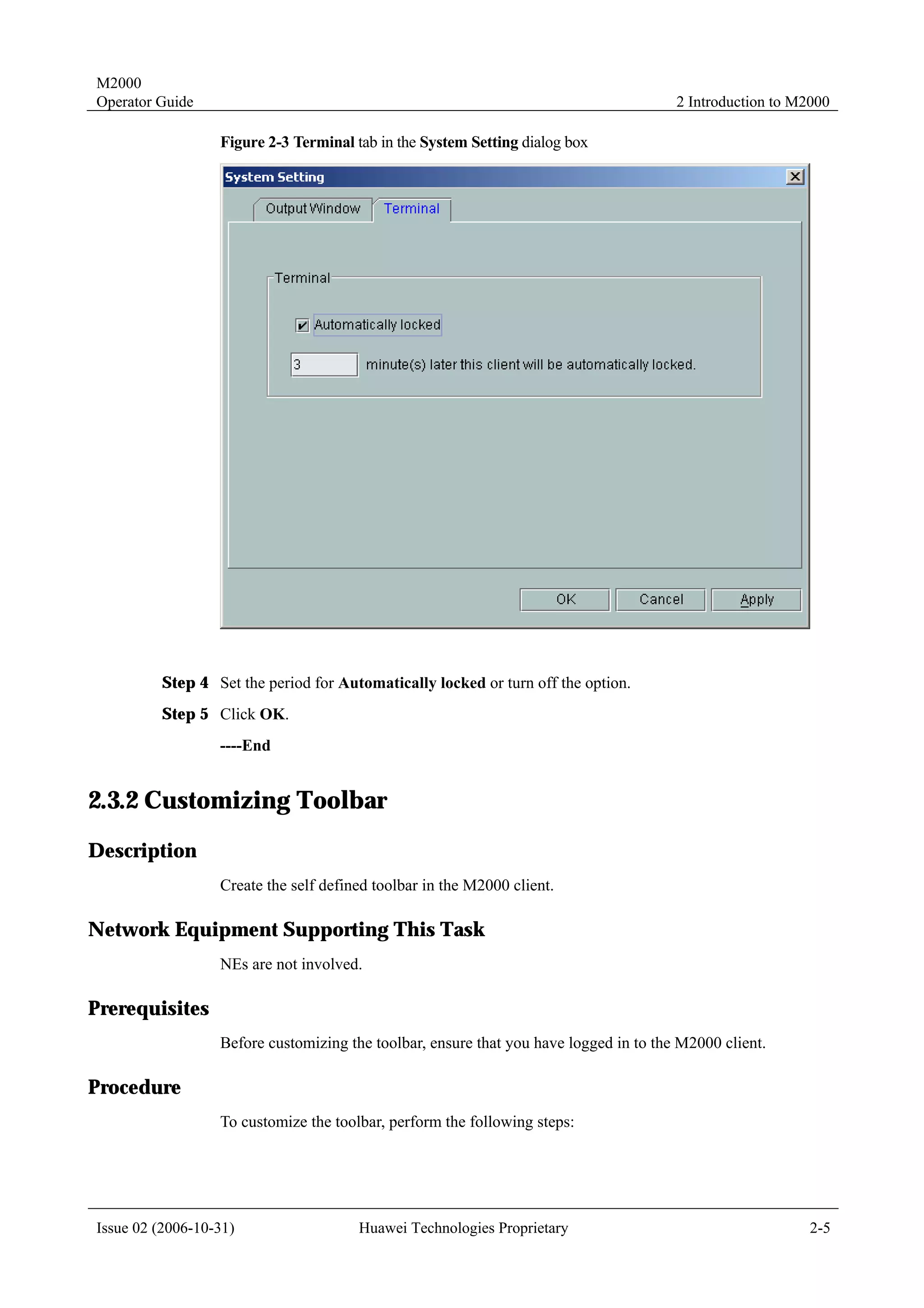


Issue 02 (2006-10-31)                     Huawei Technologies Proprietary                                        6-5
M2000
6 Performance Management                                                                            Operator Guide

                Figure 6-2 Process of performance measurement of the M2000 system


                                 Measurement       Measurement
                                   counter                                NE
                                                         object


                                           Measurement
                                              period


                                    Collect
                                 performance
                                     data


                 Unselected
                               Analyze mediation
                    Discard


                                   Save data


                                                                      Query result
                                Calculate user-         Performance
                                defined counter          database                    M2000
                                                                                     client


                                     Exceed
                                   threshold?

                                        Yes

                                Generate alarm


                                         M2000 server


                When a measurement period ends, the counters of an NE, both common counters and
                specified extended counters, start to be measured. The NE collects the measurement results,
                that is, the performance data, and reports the results to the M2000. After the mediation layer
                in the M2000 server analyzes the received results, the performance server saves the results to
                the performance database.
                The M2000 controls the number of the received performance results. An alarm is generated
                when the M2000 detects that more than the specified number of results are received.

6.2.2 Reporting Performance Data
                NEs report the collected performance results to the M2000 through various interfaces, which
                falls into two categories: the file interface and task interface.
                !     File interface
                      The NE saves the measurement results of all the KPIs and extended counters into a file.
                      When a measurement period ends, the NE uploads the file generated for this period to
                      the M2000. The M2000 mediation layer analyzes the file and collects the results for each


6-6                                    Huawei Technologies Proprietary                        Issue 02 (2006-10-31)
M2000
Operator Guide                                                                        6 Performance Management

                        counter. For the extended counter that is not selected, the M2000 discards the results
                        instead of saving them into the performance database.
                  !     Task interface
                        The M2000 delivers to the NE the information required for performance measurement,
                        for example, the information regarding objects, counters, and measurement periods.
                        Based on the received information, the NE creates performance measurement tasks and
                        measures each counter. When the measurement period ends, the NE reports the collected
                        results to the M2000. The M2000 analyzes the results and saves them to the performance
                        database.
                  Operations involved in the performance management are the same for these two different
                  interfaces.

6.2.3 Saving Performance Data into the Database
                  After receiving performance data from an NE, the M2000 analyzes the performance data and
                  then saves the data to the performance database.
                  For user-defined counters, the M2000 does not save the collected results to the performance
                  database. When the results of user-defined counters are queried, the M2000 calculates the
                  results through a preset formula and displays them through the client.

6.2.4 Viewing of Performance Data
                  Through the M2000 client, you can view all the data stored in the M2000 performance
                  database, and you can save the data to files.


6.3 Querying Performance Measurement Results
6.3.1 Overview Performance Counters
                  Performance counters fall into three categories:
                  !     Common counters
                  !     Extended counters
                  !     User-defined counters
                  Operations for counters vary based on the counter category.

6.3.2 Querying Results of Periodic Performance Measurements
Description
                  Query the results of the performance measurements with the measurement period of 30
                  minutes, 60 minutes, or 24 hours.
                  !     For the class 1 objects, the performance results are displayed immediately after your
                        query.
                  !     For the class 2 or class 3 objects, you must select or enter the measurement objects. The
                        performance results are displayed after the set measurement period ends.
                  Query performance results in either of the following two ways:


Issue 02 (2006-10-31)                    Huawei Technologies Proprietary                                         6-7
M2000
6 Performance Management                                                                       Operator Guide

                !     Setting new query conditions
                !     Using query condition templates

Network Equipment Supporting This Task
                All manageable network equipment.

Prerequisites
                Before querying results of periodic performance measurements, ensure that:
                !     You have logged in to the M2000 client.
                !     The performance results of the required measurement objects are reported to the M2000.

Procedure
                To query results of periodic performance measurements, perform the following steps on the
                M2000 client:
                To set new conditions, perform the following steps:
        Step 1 Choose Performance > Query Result.
                The Query Result window is displayed.
        Step 2 click New Query.
                The Query dialog box is displayed.
        Step 3 In the navigation tree on the left, select an NE, a measurement set, and then a measurement
               unit.
        Step 4 Select measurement objects in the Object Selection tab, select measurement counters in the
               Counter Selection tab, and set the measurement period and time in the Other Setting tab.
        Step 5 Click Query.
                The queried results are displayed on the screen. If the screen prompts "All counts to query are
                unavailable now.", infer that these counters are extended counters. Select the extended
                counters manually. In this case, perform steps 6 to 7.
        Step 6 In the prompt dialog box, click Counter Setting.
                The Counter Setting dialog box is displayed.
        Step 7 Select the extended counters. Click OK.
                When the screen switches to the Query Result window, perform steps 2 through 7 to continue
                the query.
                ----End


                To use query condition templates, perform the following steps.
        Step 1 Choose Performance > Query Result.
                The Query Result window is displayed.
        Step 2 Select a query template in the navigation tree on the left.


6-8                                   Huawei Technologies Proprietary                   Issue 02 (2006-10-31)
M2000
Operator Guide                                                                    6 Performance Management

         Step 3 Right-click the template and select Query. Select the time.
                  The queried results are displayed on the screen.
                  ----End


Examples
                  For example, to set query conditions to measure the CPU usage of SGSN_REAL, perform the
                  following steps:
         Step 1 Choose Performance > Query Result.
                  The Query Result window is displayed.
         Step 2 Click New Query.
                  The Query dialog box is displayed.
         Step 3 In the navigation tree on the left, select the SGSN_MML NE, the System load measurement
                measurement set, and then the System load PM measurement unit.
         Step 4 On the right of the dialog box, select all objects of SGSN_REAL, as shown in Figure 6-3.

                  Figure 6-3 Selecting the measurement unit and objects


         Step 5 Click the Counter Selection tab. Select the counters to be measured, as shown in Figure 6-4.


Issue 02 (2006-10-31)                  Huawei Technologies Proprietary                                     6-9
M2000
6 Performance Management                                                                               Operator Guide


                    These measurement counters are extended counters, which are selected manually. The selected
                    measurement counters are displayed normally under Counter Selection, and the rest counters are
                    grayed.


                Figure 6-4 Selecting measurement counters


        Step 6 Click the Other Setting tab. Select All under Default for Time and set Query Period to 30
               minutes. Use the default values for other settings, as shown in Figure 6-5. Click Query.


6-10                                  Huawei Technologies Proprietary                          Issue 02 (2006-10-31)
M2000
Operator Guide                                                                     6 Performance Management

                  Figure 6-5 Selecting the query period and time


                  ----End


6.3.3 Querying Results of Real-Time Performance Measurements
Description
                  Query the results of the performance measurements with the measureemnt period as 5 minutes
                  or 15 minutes.

Network Equipment Supporting This Task
                  All types of NEs in the WCDMA network.

Prerequisites
                  Before querying results of real-time performance measurements, ensure that:
                  !     You have logged in to the M2000 client.
                  !     The performance results of the required measurement objects are reported to the M2000.

Procedure
                  To query the results of real-time performance measurements, perform the following steps on
                  the M2000 client:
                  To set new conditions, perform the following steps:
         Step 1 Choose Performance > Query Result.


Issue 02 (2006-10-31)                  Huawei Technologies Proprietary                                   6-11
M2000
6 Performance Management                                                                       Operator Guide

                The Query Result window is displayed.
        Step 2 Click Real Query.
                The Real Query dialog box is displayed.
        Step 3 In the navigation tree on the left, select an NE, a measurement set, and then a measurement
               unit.
        Step 4 Select measurement objects in the Object Selection tab, select measurement counters in the
               Counter Selection tab, and set the measurement period and time in the Other Setting tab.
        Step 5 Click Query.
                The queried results are displayed on the screen. If the screen prompts "All counts to query are
                unavailable now.", infer that these counters are extended counters. Select the extended
                counters manually. In this case, perform steps 6 to 7.
        Step 6 In the prompt dialog box, click Counter Setting.
               The Counter Setting dialog box is displayed.
        Step 7 Select the extended counters. Click OK.
                When the screen switches to the Query Result window, perform steps 2 through 7 to continue
                the query.
                ----End


                To use query condition templates, perform the following steps.
        Step 1 Choose Performance > Query Result.
                The Query Result window is displayed.
        Step 2 Select a query template in the navigation tree on the left.
        Step 3 Right-click the template and select Query. Select the time.
                The queried results are displayed on the screen.
                ----End


Examples
                For example, to measure the CPU usage of SGSN_REAL in real time, perform the following
                steps:
        Step 1 Choose Performance > Query Result.
                The Query Result window is displayed.
        Step 2 Click Real Query.
                The Real-Time Query dialog box is displayed.
        Step 3 In the navigation tree on the left, select the SGSN_REAL NE, the System load
               measurement measurement set, and then the System load PM measurement unit.
        Step 4 On the right of the dialog box, select all the objects of SGSN_REAL.
        Step 5 Click the Counter Selection tab. Select the counters to be measured.


6-12                                  Huawei Technologies Proprietary                   Issue 02 (2006-10-31)
M2000
Operator Guide                                                                     6 Performance Management

         Step 6 Click the Other Setting tab. Select All under Default for Time and set Query Period to 5
                minutes. Use the default values for other settings, and click Query.
         Step 7 If the system prompts No result for the specified condition found, click Measurement in
                the prompt dialog box.
                  The Real-Time Measure Management window is displayed.
                  ----End


6.3.4 Setting Query Condition Templates
Description
                  Save the conditions set for querying results of periodic or real-time performance
                  measurements into templates. These templates can be directly used for querying performance
                  measurement results later.

Network Equipment Supporting This Task
                  All manageable network equipment.

Prerequisites
                  Before setting query condition templates, ensure that:
                  !     You have logged in to the M2000 client.
                  !     The performance results of the required measurement objects are reported to the M2000.

Procedure
                  To set query condition templates, perform the following steps on the M2000 client:
         Step 1 Choose Performance > Query Result.
                  The Query Result window is displayed.
                  !     To set templates for querying results of periodic performance measurements, perform
                        step 2.
                  !     To set templates for querying results of real-time performance measurements, perform
                        step 3.
         Step 2 Click New Query.
                  The Query dialog box is displayed.
         Step 3 Click Real-Time Query.
                  The Real-Time Query dialog box is displayed.
         Step 4 In the navigation tree on the left, select an NE, a measurement set, and then a measurement
                unit.
         Step 5 Select measurement objects in the Object Selection tab, select measurement counters in the
                Counter Selection tab, and set the measurement period and time in the Other Setting tab.
         Step 6 Click Save Template.


Issue 02 (2006-10-31)                  Huawei Technologies Proprietary                                   6-13
M2000
6 Performance Management                                                                    Operator Guide

                The Save As dialog box is displayed, as shown in Figure 6-6.

                Figure 6-6 Entering a name for the query condition template


        Step 7 Enter a name for the template, and click OK.
                The template is saved in the system.
                ----End


6.3.5 Applying Query Condition Templates
Description
                Use query condition templates to query performance measurement results.

Network Equipment Supporting This Task
                All manageable network equipment.

Prerequisites
                Before applying query condition templates, ensure that:
                !    You have logged in to the M2000 client.
                !    The performance results of the required measurement objects are reported to the M2000.


6-14                                 Huawei Technologies Proprietary                 Issue 02 (2006-10-31)
M2000
Operator Guide                                                                       6 Performance Management

Procedure
                  To apply query templates, perform the following steps on the M2000 client:
         Step 1 Choose Performance > Query Result.
                  The Query Result window is displayed.
         Step 2 Set a query template.
                  For details, see part 6.3.4 "Setting Query Condition Templates."
         Step 3 Select a query template in the navigation tree on the left.
         Step 4 Right-click and select Query. Set the time segment for querying results.
                  The queried performance measurement results are listed on the screen.
                  ----End


6.4 Saving Performance Measurement Results to a File
Description
                  Save the queried performance measurement results to a TXT, HTML, CSV, or XLS file.

Network Equipment Supporting This Task
                  All manageable network equipment.

Prerequisites
                  Before saving performance measurement results to files, ensure that:
                  !     You have logged in to the M2000 client.
                  !     The performance results of the required measurement objects are reported to the M2000.

Procedure
                  To save performance measurement results to files, perform the following steps on the M2000
                  client:
         Step 1 Query performance measurement results.
                  For details, see part 6.3.2 "Querying Results of Periodic Performance Measurements" or part
                  6.3.3 "Querying Results of Real-Time Performance Measurements."
         Step 2 When the results are displayed, click Save to save them as a file in the defined format.
                  ----End


Issue 02 (2006-10-31)                   Huawei Technologies Proprietary                                    6-15
M2000
6 Performance Management                                                                       Operator Guide


6.5 Saving Performance Measurement Results to a File
Automatically
Description
                Save the queried performance measurement results to a defined file automatically.

Network Equipment Supporting This Task
                All manageable network equipment.

Prerequisites
                Before saving performance measurement results to files automatically, ensure that:
                !    You have logged in to the M2000 client.
                !    The performance results of the required measurement objects are reported to the M2000.

Procedure
                The process for saving performance measurement results automatically starts immediately
                after M2000 services are started. According to the settings of the pmexport.cfg configuration
                file, the queried measurement results are saved to the specified folder on the server.
                !    The pmexport.cfg configuration file is stored in the path
                     /export/home/omc/var/etc/conf/.
                !    The configuration file includes the following content by default:
                PATH=/export/home/omc/var/fileint/pm/          // Directory for storing measurement result
                files
                DELAY=60                  // The time delay is 60 minutes. The value of the delay must be
                an integer multiple of 5.
                SAVEDAYS=3                // Measurement result files are stored on the server for three
                days.

                To save performance measurement results to files automatically, perform the following steps
                on the M2000 client:
        Step 1 Log in to the server through FTP.
        Step 2 Download the file in the /export/home/omc/var/fileint/pm/ folder to the client in the ASCII
               mode.
        Step 3 To modify the configuration file, contact the administrator, who has the privileges of the root
               account.
                ----End


6-16                                  Huawei Technologies Proprietary                    Issue 02 (2006-10-31)
M2000
Operator Guide                                                                      6 Performance Management


6.6 Browsing Files Storing Performance Measurement
Results
Description
                  Browse the saved TXT, HTML, CSV, or XLS files that store performance measurement
                  results.

Network Equipment Supporting This Task
                  All manageable network equipment.

Prerequisites
                  Before browsing files storing performance measurement results, ensure that:
                  !     You have logged in to the M2000 client.
                  !     The file storing performance measurement results exists.
                  !     You have installed IE, Excel or other file browser.

Procedure
                  To browse files storing performance measurement results, perform either of the following
                  operations:
                  !     Use Notepad or other relevant software to open the TXT file to browse the performance
                        results.
                  !     Use Microsoft Internet Exploror or other relevant software to open the HTML file to
                        browse the performance results.
                  !     Use EXCEL or any other relevant software to open the CSV or XLS file to browse the
                        performance results.


6.7 Synchronizing Performance Data
6.7.1 Synchronizing Performance Data Manually
Description
                  Obtain performance measurement results from NEs manually to synchronize the performance
                  data stored in the M2000 performance database.
                  Results of both periodic and real-time performance measurements can be synchronized.
                  Take a periodic performance measurement as an example, to explain how to synchronize
                  performance results manually.

Network Equipment Supporting This Task
                  All manageable network equipment.


Issue 02 (2006-10-31)                   Huawei Technologies Proprietary                                   6-17
M2000
6 Performance Management                                                                       Operator Guide

Prerequisites
                Before synchronizing performance data manually, ensure that:
                !    You have logged in to the M2000 client.
                !    The counters the measured objects are in the Measuring status.

Procedure
                To synchronize performance data manually, perform the following steps on the M2000 client:
        Step 1 Choose Performance > Measure Management.
                The Measure Management window is displayed.


                    For real-time performance measurements, choose Performance > Real-Time Measure Management.
                    The Real-Time Measure Management window is displayed.

        Step 2 Select an NE, a measurement set, a measurement unit and then an NE, as shown in Figure 6-7.

                Figure 6-7 Synchronizing performance measurement results manually


        Step 3 Click Synchornize.
                The Please Select Time Segment dialog box is displayed.
        Step 4 Enter the time segment of the results to be synchronized. Click OK.
                The system prompts "Synchronization command for the specified time segment is delivered!"
        Step 5 Click OK.


6-18                                 Huawei Technologies Proprietary                    Issue 02 (2006-10-31)
M2000
Operator Guide                                                                                 6 Performance Management

                  After you perform this operation, the synchronization request is put into the M2000 system
                  queue. The system processes the request queue periodically, every 5 minutes or 15 minutes,
                  and obtains performance results as requested. If the request queue includes many
                  synchronization requests involving long time segments or many counters, the system requires
                  some time to complete data synchronization.


                        The period for the system to process the queue depends on the NE type. For different NE type, the
                        periods are different.

                  ----End


6.7.2 Synchronizing Performance Data Automatically
Description
                  Obtain performance measurement results from NEs automatically to synchronize the
                  performance data stored in the M2000 performance database.

Network Equipment Supporting This Task
                  All manageable network equipment.

Prerequisites
                  Before synchronizing performance data automatically, ensure that:
                  !     You have logged in to the M2000 client.
                  !     The counters the measured objects are in the Measuring status.

Procedure
                  The system automatically checks the consistency of measurement counters, objects, and
                  measurement results between the NEs and the M2000. No manual settings or operations are
                  necessary.
                  !     If the M2000 detects that the objects and counters on an NE are different, the M2000
                        delivers a command and requires the NE to modify the measurement information.
                  !     If the M2000 detects that the measurement results on an NE are different, it delivers a
                        command and requires the NE to report the measurement results.


6.8 Managing Performance Measurement
6.8.1 Subscribing to Performance Measurement Results
Description
                  View the performance results collected from the subscribed time.


Issue 02 (2006-10-31)                      Huawei Technologies Proprietary                                                  6-19
M2000
6 Performance Management                                                                      Operator Guide

Network Equipment Supporting This Task
                All manageable network equipment.

Prerequisites
                Before subscribing to performance measurement results, ensure that:
                !    You have logged in to the M2000 client.
                !    The counters of the measured objects are in the Measuring status.

Procedure
                To subscribe to performance measurement results, perform the following steps on the M2000
                client:
                If the measurement period is more than 30 minutes, perform the following steps.
        Step 1 Choose Performance > Measure Management.
                The Measure Management window is displayed.
        Step 2 In the navigation tree on the left, select an NE type, a measurement set, a measurement unit
               and then an NE.
        Step 3 Click Subscribe.
                The Subscribe Result dialog box is displayed, as shown in Figure 6-8.

                Figure 6-8 Subscribing measurement results


                ----End


6-20                                 Huawei Technologies Proprietary                    Issue 02 (2006-10-31)
M2000
Operator Guide                                                                              6 Performance Management

                  If the measurement period is 5 minutes or 15 minutes, perform the following steps.
         Step 1 Choose Performance > Real-Time Measure Management.
                  The Real-Time Measure Management window is displayed.
         Step 2 In the navigation tree on the left, select an NE type, a measurement set, a measurement unit
                and then an NE.
         Step 3 Click Subscribe.
                  The Real-Time Subscribe Result dialog box is displayed, as shown in Figure 6-9.


                        The M2000 displays a maximum of five tabs about the subscribed performance measurement results.


                  Figure 6-9 Subscribing results for real-time measurements


                  ----End


6.8.2 Checking Reliability of Performance Measurement Results
Description
                  Check reliability of the measurement results collected for counters in a measurement unit for
                  the specified time segment.
                  NEs mark the result for each counter as Reliable or Unreliable, and report the results and the
                  reliability status to the M2000. After receiving commands for querying data reliability, the
                  M2000 calculates the reliability value of a specified time segment based on the reliability of
                  the results of all the involved measurement counters according to the following fomula:


Issue 02 (2006-10-31)                     Huawei Technologies Proprietary                                           6-21
M2000
6 Performance Management                                                                       Operator Guide

                Reliability = Number of Reliable measurement results/Total number of measurement results x
                100%

Network Equipment Supporting This Task
                All manageable network equipment.

Prerequisites
                Before checking reliability of performance measurement results, ensure that:
                !    You have logged in to the M2000 client.
                !    The counters the measured objects are in the Measuring status.

Procedure
                To check reliability of performance measurement results, perform the following steps on the
                M2000 client:
        Step 1 Choose Performance > Measure Management.
                The Measure Management window is displayed.
        Step 2 In the navigation tree on the left, select an NE type, a measurement set, a measurement unit
               and then an NE.
        Step 3 Click Reliability.
                The Please Select Time Segment is displayed, as shown in Figure 6-10.

                Figure 6-10 Please select time segment dialog box


        Step 4 Enter the time segment. Click OK.
                The reliability of the time segment is displayed.
                ----End


6-22                                 Huawei Technologies Proprietary                   Issue 02 (2006-10-31)
M2000
Operator Guide                                                                        6 Performance Management


6.8.3 Collecting the Missing Performance Measurement Results
Description
                  Check if there are missing measurement results. Collect the missing results from the relevant
                  NE through synchronization.
                  The word "missing" indicates that some data for a specified time segment is missing from the
                  M2000 performance database. The M2000 checks for the missing data automatically. When
                  detecting missing data, the M2000 initiates automatic synchronization to obtain the missing
                  data from the NE. You can also perform manual synchronization to collect back the missing
                  data.
                  The data for the specified time segment, however, must exist on the NE. If the measured
                  object is faulty during the specified time segment, no performance results are collected. In this
                  case, the measurement results for the specified time segment are lost.

Network Equipment Supporting This Task
                  All manageable network equipment.

Prerequisites
                  Before collecting back the missing performance measurement results, ensure that:
                  !     You have logged in to the M2000 client.
                  !     The counters the measured objects are in the Measuring status.

Procedure
                  To collect back the missing results, perform the following steps on the M2000 client:
         Step 1 Choose Performance > Measure Management.
                  The Measure Management window is displayed.


                        If you choose Performance > Real-Time Measure Management, the Real-Time Measure
                        Management window is displayed.

         Step 2 In the navigation tree on the left, select an NE type, a measurement set, a measurement unit
                and then an NE.
         Step 3 Click LostResult.
                  The Please select time segment dialog box is displayed, as shown in Figure 6-10.
         Step 4 Enter the time segment. Click OK.
                  A Message box is displayed to list the missing data, if any.
         Step 5 Click Close.
         Step 6 Click Synchornize in the Measure Management or Real-Time Measure Management
                window.
                  The measurement results on the NE are manually synchronized to the M2000 performance
                  database.


Issue 02 (2006-10-31)                   Huawei Technologies Proprietary                                      6-23
M2000
6 Performance Management                                                                      Operator Guide

                ----End


6.8.4 Suspending the Collection of Performance Measurement
Results
Description
                Suspend the collection of performance measurement results.
                After the collection is suspended, the M2000 discards the performance measurement results
                reported from the NEs without processing. The discarded data is not displayed on the M2000
                client.

Network Equipment Supporting This Task
                All manageable network equipment.

Prerequisites
                Before suspending the collection of performance measurement results, ensure that:
                !    You have logged in to the M2000 client.
                !    The counters the measured objects are in the Measuring status.

Procedure
                To suspend the collection of performance measurement results, perform the following steps
                on the M2000 client:
        Step 1 Choose Performance > Measure Management.
                The Measure Management window is displayed.
        Step 2 In the navigation tree on the left, select an NE type, a measurement set, a measurement unit
               and then an NE.
        Step 3 Click Suspend.
                The Confirm dialog box is displayed.
        Step 4 Click OK.
                The collection of the measurement results is suspended. In the Measure Management
                window, accordingly, the status of the relevant measurement counters changes from
                Measuring to Suspended.
                ----End


6-24                                 Huawei Technologies Proprietary                   Issue 02 (2006-10-31)
M2000
Operator Guide                                                                    6 Performance Management


6.9 Setting Extended Performance Counters
6.9.1 Starting the Measurement of Extended Performance
Counters
Description
                  Select the extended counters reported from NEs, and save them to the M2000 database for
                  future queries.

Network Equipment Supporting This Task
                  All manageable network equipment.

Prerequisites
                  Before starting the measurement of extended performance counters, ensure that:
                  !     You have logged in to the M2000 client.
                  !     The selected NE has extended counters.

Procedure
                  To start the measurement of extended performance counters, perform the following steps on
                  the M2000 client:
                  If the measurement period is more than 30 minutes, perform the following steps
         Step 1 Choose Performance > Counter Setting.
                  The Counter Setting dialog box is displayed, as shown in Figure 6-11.


Issue 02 (2006-10-31)                  Huawei Technologies Proprietary                                  6-25
M2000
6 Performance Management                                                                     Operator Guide

                Figure 6-11 Setting extended counters


        Step 2 In the navigation tree on the left, select an NE, a measurement set, and then a measurement
               unit.
        Step 3 On the right of the dialog box, select the measurement period and the extended counters,
               Click OK.
                ----End


                If the measurement period is 5 minutes or 15 minutes, perform the following steps.
        Step 1 Choose Performance > Real-Time Counter Setting.
                The Real-Time Counter Setting dialog box is displayed.
        Step 2 In the navigation tree on the left, select an NE, a measurement set, and then a measurement
               unit.
        Step 3 On the right of the dialog box, select the measurement period and the extended counters.
               Click OK.
                ----End


6.9.2 Stopping the Measurement of Extended Performance
Counters
Description
                Clear the extended counters reported by NEs from the M2000 database. The cleared extended
                counters are not displayed on the M2000 client.


6-26                                 Huawei Technologies Proprietary                  Issue 02 (2006-10-31)
M2000
Operator Guide                                                                      6 Performance Management

Network Equipment Supporting This Task
                  All manageable network equipment.

Prerequisites
                  Before stopping the measurement of extended performance counters, ensure that:
                  !     You have logged in to the M2000 client.
                  !     The selected NE has extended counters.

Procedure
                  To stop the measurement of extended performance counters, perform the following steps on
                  the M2000 client:
                  If the measurement period is more than 30 minutes, perform the following steps.
         Step 1 Choose Performance > Counter Setting.
                The Counter Setting dialog box is displayed, as shown in Figure 6-11.
         Step 2 In the navigation tree on the left, select an NE, a measurement set, and then a measurement
                unit.
         Step 3 Clear the extended counters for which you want to stop the measurement. Click OK.
                  ----End


                  If the measurement period is 5 minutes or 15 minutes, perform the following steps.
         Step 1 Choose Performance > Real-Time Counter Setting.
                The Real-Time Counter Setting dialog box is displayed.
         Step 2 In the navigation tree on the left, select an NE, a measurement set, and then a measurement
                unit.
         Step 3 Clear the extended counters for which you want to stop the measurement. Click OK.
                  ----End


6.10 Setting Measurement Objects
6.10.1 Adding Measurement Objects
Description
                  Select class 2 objects or add class 3 objects to have them measured.
                  After the counter measurement starts for the selected or added objects, the relevant NE reports
                  the measurement results to the M2000, and the M2000 saves the results to the performance
                  database.


Issue 02 (2006-10-31)                  Huawei Technologies Proprietary                                     6-27
M2000
6 Performance Management                                                                       Operator Guide

Network Equipment Supporting This Task
                All manageable network equipment.

Prerequisites
                Before adding measurement objects, ensure that:
                !     You have logged in to the M2000 client.
                !     The selected NE has unmeasured class 2 or class 3 objects.

Procedure
                To add measurement objects, perform the following steps on the M2000 client:
        Step 1 Choose Performance > Object Setting.
               The Object Setting dialog box is displayed.
        Step 2 In the navigation tree on the left, select an NE, a measurement set, and then a measurement
               unit.
                !     To select class 2 objects, perform step 3.
                !     To add class 3 objects, perform steps 4 and 6.
        Step 3 The class 2 objects involved in the measurement unit are displayed on the right of the dialog
               box, as shown in Figure 6-12. The displayed class 2 objects are selectable. Select the objects
               you want to measure. Click OK.

                Figure 6-12 Selecting measurement objects


        Step 4 To add class 3 objects, right-click on the right of the Object Setting dialog box, and select
               Add.


6-28                                  Huawei Technologies Proprietary                   Issue 02 (2006-10-31)
M2000
Operator Guide                                                                                  6 Performance Management


                        If the Add menu is not highlighted on the displayed menu, infer that you cannot add user-defined class 3
                        objects in this measurement unit.

         Step 5 In the displayed Set Object Properties dialog box, enter the new object properties.
         Step 6 Click OK to close the dialog box.
         Step 7 Click OK in the Object Setting dialog box.
                  ----End


6.10.2 Deleting Measurement Objects
Description
                  Clear class 2 objects or delete class 3 objects to have them excluded from the measurement.

Network Equipment Supporting This Task
                  All manageable network equipment.

Prerequisites
                  Before deleting measurement objects, ensure that:
                  !     You have logged in to the M2000 client.
                  !     The selected NE has unmeasured class 2 or class 3 objects.

Procedure
                  To delete measurement objects, perform the following steps on the M2000 client:
         Step 1 Choose Performance > Object Setting.
                  The Object Setting dialog box is displayed.
         Step 2 In the navigation tree on the left, select an NE, a measurement set, and then a measurement
                unit.
                  !     To clear class 2 objects, perform step 3.
                  !     To delete class 3 objects, perform steps 4 through 6.
         Step 3 The class 2 objects involved in the measurement unit are displayed on the right of the dialog
                box, as shown in Figure 6-12. The displayed class 2 objects can be cleared. Clear the objects
                you do not want to measure. Click OK.
         Step 4 To delete class 3 objects, right-click on the right of the Object Setting dialog box and select
                Delete.
                  The Confirm dialog box is displayed.


                        If the Delete menu is not highlighted on the displayed menu, infer that this measurement unit does not
                        involve class 3 objects.

         Step 5 Click OK in the Confirm dialog box.


Issue 02 (2006-10-31)                      Huawei Technologies Proprietary                                                6-29
M2000
6 Performance Management                                                                     Operator Guide

                ----End


6.11 Setting Thresholds for Collecting Performance
Measurement Results
Description
                Set thresholds for collecting performance measurement results.
                The M2000 generates an alarm when the number of result records reaches the threshold.

Network Equipment Supporting This Task
                All manageable network equipment.

Prerequisites
                Before setting a threshold for collecting performance measurement results, ensure that you
                have logged in to the M2000 client.

Procedure
                To set a threshold for collecting performance measurement results, perform the following
                steps on the M2000 client:
        Step 1 Choose Performance > Threshold Setting.
                The Threshold Setting dialog box is displayed.
        Step 2 In the navigation tree on the left, select an NE, measurement set, and then a measurement
               unit.
        Step 3 Click Add at the bottom right corner.
                The Add Threshold dialog box is displayed, as shown in Figure 6-13.


6-30                                 Huawei Technologies Proprietary                  Issue 02 (2006-10-31)
M2000
Operator Guide                                                                       6 Performance Management

                  Figure 6-13 Adding an alarm threshold for collecting performance measurement results


         Step 4 Select objects, counters, and the direction. Set the status to Activated. Enter the threshold
                value for triggering the alarm.
                  The parameters Value and Hysteresis together define whether to trigger an alarm.
                  For example,
                  !     In the Increasing direction, an alarm of a certain severity is triggered when the number
                        of measurement results reaches Value + Hysteresis.
                  !     In the Decreasing direction, the alarm is stopped when the number reaches Value –
                        Hysteresis.
         Step 5 Click OK.
                  ----End


6.12 Managing User Defined Counters
6.12.1 Creating User Defined Counters
Description
                  Define the required measurement counters based on the existing counters through the
                  arithmetic operation.


Issue 02 (2006-10-31)                   Huawei Technologies Proprietary                                     6-31
M2000
6 Performance Management                                                                      Operator Guide

                After an NE reports measurement results, the M2000 calculates user defined counters through
                the arithmetic operation based on the defined conditions.
                The counters used for calculating the user defined counter must belong to the same
                measurement set.

Network Equipment Supporting This Task
                All manageable network equipment.

Prerequisites
                Before creating user defined counters, ensure that you have logged in to the M2000 client.

Procedure
                To create user defined counters, perform the following steps on the M2000 client:
        Step 1 Choose Performance > Customer Counter Management.
                The Customer Counter Management dialog box is displayed.
        Step 2 In the navigation tree on the left, select an NE, a measurement set, and then a measurement
               unit.
        Step 3 Click Add.
                The Add User Defined Counter dialog box is displayed, as shown in Figure 6-14.

                Figure 6-14 Creating user defined counters


        Step 4 Enter the user defined name, select the meansurement counter and operator, and type the
               calculation formula.


6-32                                 Huawei Technologies Proprietary                   Issue 02 (2006-10-31)
M2000
Operator Guide                                                                      6 Performance Management

         Step 5 Click Create.
                  ----End


6.12.2 Modifying User Defined Coudnters
Description
                  Modify user defined counters.
                  You can modify the counter name, unit, and calculation formula.

Network Equipment Supporting This Task
                  All manageable network equipment.

Prerequisites
                  Before modifying user defined coudnters, ensure that you have logged in to the M2000 client.

Procedure
                  To modify user defined coudnters, perform the following steps on the M2000 client:
         Step 1 Choose Performance > Customer Counter Management.
                  The Customer Counter Management dialog box is displayed.
         Step 2 Select a user defined counter on the right of the dialog box. Click Modify.
                  The Modify User Defined Counter dialog box is displayed.
         Step 3 Modify the information of the counter, and click Modify.
                  ----End


6.13 Managing Performance Monitoring
6.13.1 Overview
                  The M2000 monitors performance counters in real-time.
                  The real-time monitoring of performance counters is based on and extends from the real-time
                  performance measurement. Performance monitoring counters are derived from original
                  counters and those calculated based on the original counters through the arithmetic operations.
                  Original counters refer to performance counters provided by softswitch NEs.

6.13.2 Creating Performance Monitoring Tasks
Description
                  Set monitor parameters for performance counters to monitor the counter change.


Issue 02 (2006-10-31)                  Huawei Technologies Proprietary                                     6-33
M2000
6 Performance Management                                                                     Operator Guide

Network Equipment Supporting This Task
                MSC Server and MGW.


                     MGW supports only one monitoring category: ISUP office monitor.


Prerequisites
                Before creating performance monitoring tasks, ensure that you have logged in to the M2000
                client.

Procedure
                To create performance monitoring tasks, perform the following steps on the M2000 client:
        Step 1 Choose Performance > Performance Monitor.
                The Performance Monitor window is displayed.
        Step 2 Click the NE View or Region View tab on the left of the Performance Monitor window.
        Step 3 Select an object to monitor in the navigation tree.
        Step 4 Right-click and select Start Monitor > User Defined.
                The Monitor Parameters Setting dialog box is displayed, as shown in Figure 6-15.


6-34                                   Huawei Technologies Proprietary                 Issue 02 (2006-10-31)
M2000
Operator Guide                                                                      6 Performance Management

                  Figure 6-15 Setting monitor parameters


         Step 5 Set monitor parameters to monitor the selected object.
         Step 6 Click OK.
                  A tab about the monitoring task is displayed on the right of the Performance Monitor
                  window, as shown in Figure 6-16.
                  Details about the monitor parameters are listed in the Table Data tab.


Issue 02 (2006-10-31)                  Huawei Technologies Proprietary                                   6-35
M2000
6 Performance Management                                                                          Operator Guide

                Figure 6-16 Starting performance monitoring


                ----End


6.13.3 Starting Performance Monitoring
Description
                Start the performance monitoring to view the counter change in the monitoring chart.


                    You can start a maximum of eight monitoring tasks on the same client.


Network Equipment Supporting This Task
                MSC Server and MGW.


                    MGW supports only one monitoring category: ISUP office monitor.


Prerequisites
                Before starting performance monitoring, ensure that:
                !    You have logged in to the M2000 client.
                !    A monitoring task is created.

Procedure
                To start performance monitoring, perform the following steps on the M2000 client:


6-36                                   Huawei Technologies Proprietary                      Issue 02 (2006-10-31)
M2000
Operator Guide                                                                            6 Performance Management

         Step 1 Choose Performance > Performance Monitor.
                  The Performance Monitor window is displayed.
         Step 2 Click the Monitor Task tab on the left of the window.
         Step 3 Select a monitoring task in the navigation tree.
         Step 4 Right-click the monitoring task and select Start Monitor.
                  Details about the monitor parameters are listed in the Table Data tab, as shown in Figure
                  6-16.
                  ----End


6.13.4 Filtering Monitoring Results
Description
                  Select objects and counters to be monitored to filter monitoring results. The results of the
                  selected objects and counters are displayed in the Table Data tab.

Network Equipment Supporting This Task
                  MSC Server and MGW.


                        MGW supports only one monitoring category: ISUP office monitor.


Prerequisites
                  Before filtering monitoring results, ensure that:
                  !     You have logged in to the M2000 client.
                  !     The performance monitoring is started.

Procedure
                  To filter monitoring results, perform the following steps on the M2000 client:
         Step 1 Choose Performance > Performance Monitor.
                  The Performance Monitor window is displayed.
         Step 2 Select an object to monitor in the navigation tree.
                  For details, see part 6.13.2 "Creating Performance Monitoring Tasks."
         Step 3 Open the monitoring chart of a monitoring task.
                  For details, see part 6.13.3 "Starting Performance Monitoring."
         Step 4 Right-click the Table Data tab and select Filter Setting.
                  The Filter Setting dialog box is displayed, as shown in Figure 6-17.


Issue 02 (2006-10-31)                     Huawei Technologies Proprietary                                        6-37
M2000
6 Performance Management                                                                      Operator Guide

                Figure 6-17 Setting conditions for filtering monitoring results


        Step 5 Set filtering conditions.
        Step 6 Click OK.
                ----End


6.13.5 Setting Monitoring Thresholds
Description
                Set thresholds for monitoring counters. The monitoring tasks that do not match the thresholds
                are displayed in the preset show style.

Network Equipment Supporting This Task
                MSC Server and MGW.


                     MGW supports only one monitoring category: ISUPoffice monitor.


Prerequisites
                Before setting monitoring thresholds, ensure that:
                !    You have logged in to the M2000 client.
                !    A monitoring task is created.


6-38                                   Huawei Technologies Proprietary                Issue 02 (2006-10-31)
M2000
Operator Guide                                                                      6 Performance Management

Procedure
                  To set monitoring thresholds, perform the following steps on the M2000 client:
         Step 1 Choose Performance > Performance Monitor.
                  The Performance Monitor window is displayed.
         Step 2 Select an object to monitor in the navigation tree.
                  For details, see part 6.13.2 "Creating Performance Monitoring Tasks."
         Step 3 Open the monitoring chart of a monitoring task.
                  For details, see part 6.13.3 "Starting Performance Monitoring."
         Step 4 In the Table Data tab, right-click and select Threshold Setting.
                  The Threshold Setting dialog box is displayed, as shown in Figure 6-18.

                  Figure 6-18 Setting a threshold


         Step 5 Select a monitoring counter. Set the upper and/or lower limit and the show style.
         Step 6 Click OK.
                  ----End


6.13.6 Exporting Data from the Current Monitoring Table
Description
                  The performance counter monitoring is a real-time monitoring process. Monitoring results
                  change dynamically. You can export the data from the monitoring table to either of the TXT,
                  HTML, CSV, and XLS file.

Network Equipment Supporting This Task
                  MSC Server and MGW.


Issue 02 (2006-10-31)                  Huawei Technologies Proprietary                                    6-39
M2000
6 Performance Management                                                                       Operator Guide


                     MGW supports only one monitoring category: ISUP office monitor.


Prerequisites
                Before exporting data from the current monitoring table, ensure that:
                !    You have logged in to the M2000 client.
                !    A monitoring task is created.

Procedure
                To export data from the current monitoring table, perform the following steps on the M2000
                client:
        Step 1 Choose Performance > Performance Monitor.
                The Performance Monitor window is displayed.
        Step 2 Select an object to monitor in the navigation tree.
                For details, see part 6.13.2 "Creating Performance Monitoring Tasks."
        Step 3 Open the monitoring chart of a monitoring task.
                For details, see part 6.13.3 "Starting Performance Monitoring."
        Step 4 In the Table Data tab, right-click and select Export Data.
                The Save dialog box is displayed.
        Step 5 Enter a file name. Specify the path for saving the file. Click OK.
                ----End


6.13.7 Viewing the Current Monitoring Chart
Description
                The M2000 displays changes of performance counters of monitoring objects in charts.
                Monitoring charts fall into the following three categories:
                !    Counter compare charts: show changes of multiple counters of one monitored object.
                !    Object compare charts: show changes of one counter of multiple monitored objects.
                !    Detail charts: show object and counter changes in a column chart.

Network Equipment Supporting This Task
                MSC Server and MGW.


6-40                                   Huawei Technologies Proprietary                   Issue 02 (2006-10-31)
M2000
Operator Guide                                                                            6 Performance Management


                        MGW supports only one monitoring category: ISUP office monitor.


Prerequisites
                  Before viewing the current monitoring chart, ensure that:
                  !     You have logged in to the M2000 client.
                  !     A monitoring task is created.

Procedure
                  To view the current monitoring chart, perform the following steps on the M2000 client:
         Step 1 Choose Performance > Performance Monitor.
                  The Performance Monitor window is displayed.
         Step 2 Select an object to monitor in the navigation tree.
                  For details, see part 6.13.2 "Creating Performance Monitoring Tasks."
         Step 3 Open the monitoring chart of a monitoring task.
                  For details, see part 6.13.3 "Starting Performance Monitoring."
         Step 4 Select a monitoring result record in the Table Data tab.
         Step 5 Right-click and select Show Monitor Chart.
                  The Monitor Information Setting dialog box is displayed, as shown in Figure 6-19.

                  Figure 6-19 Setting parameters for the monitoring chart


         Step 6 Set parameters for the monitoring chart.


Issue 02 (2006-10-31)                     Huawei Technologies Proprietary                                     6-41
M2000
6 Performance Management                                                                       Operator Guide

        Step 7 Click OK.
                ----End


6.13.8 Viewing the Trend Chart
Description
                The M2000 displays changes of performance counters of monitoring objects in charts.
                The trend chart displays the difference between the real value and history value of counters.
                The trend chart is the basis of analysis of counter changes.

Network Equipment Supporting This Task
                MSC Server and MGW.


                     MGW supports only one monitoring category: ISUP office monitor.


Prerequisites
                Before viewing the trend chart, ensure that:
                !    You have logged in to the M2000 client.
                !    A monitoring task is created.

Procedure
                To view the trend chart, perform the following steps on the M2000 client:
        Step 1 Choose Performance > Performance Monitor.
                The Performance Monitor window is displayed.
        Step 2 Select an object to monitor in the navigation tree.
                For details, see part 6.13.2 "Creating Performance Monitoring Tasks."
        Step 3 Open the monitoring chart of a monitoring task.
                For details, see part 6.13.3 "Starting Performance Monitoring."
        Step 4 In the Table Data tab, right-click and select Show Trend Chart.
                TheTrend Chart Parameter Setting dialog box is displayed, as shown in Figure 6-20.


6-42                                   Huawei Technologies Proprietary                  Issue 02 (2006-10-31)
M2000
Operator Guide                                                                            6 Performance Management

                  Figure 6-20 Setting parameters for the trend chart


         Step 5 Set parameters for the trend chart.
         Step 6 Click OK.
                  ----End


6.13.9 Setting Attributes for the Monitoring Chart
Description
                  Set attributes to view the required object or counter monitoring chart.

Network Equipment Supporting This Task
                  MSC Server and MGW.


                        MGW supports only one monitoring category: ISUP office monitor.


Prerequisites
                  Before setting attributes for the monitoring chart, ensure that:
                  !     You have logged in to the M2000 client.
                  !     The monitoring chart or trend chart is displayed.

Procedure
                  To set attributes for the monitoring chart, perform the following steps on the M2000 client:
         Step 1 In the monitoring task tab in the Performance Monitor window, select a monitoring chart
                tab.
         Step 2 Right-click in the chart area and select Properties.
                  The Property Setting dialog box is displayed, as shown in Figure 6-21.


Issue 02 (2006-10-31)                     Huawei Technologies Proprietary                                     6-43
M2000
6 Performance Management                                                                        Operator Guide

                Figure 6-21 Setting attributes for the monitoring chart


        Step 3 Set the attributes.
        Step 4 Click OK.
                ----End


6.13.10 Exporting Monitoring Results
Description
                Export monitoring data from the monitoring chart to a file. Figure 6-1 lists the two types of
                monitoring data to be exported.

                Table 6-1 Exporting the monitoring data
                  Data Type                    File Format

                  File                         TXT, HTML, CSV, or XLS
                  Photo                        JPG, GIF, BMP, or PNG


                Take exporting the monitoring data of the file type as an example.

Network Equipment Supporting This Task
                MSC Server and MGW.


6-44                                  Huawei Technologies Proprietary                   Issue 02 (2006-10-31)
M2000
Operator Guide                                                                            6 Performance Management


                        MGW supports only one monitoring category: ISUP office monitor.


Prerequisites
                  Before exporting monitoring results, ensure that:
                  !     You have logged in to the M2000 client.
                  !     The monitoring chart or trend chart is displayed.

Procedure
                  To export monitoring results, perform the following steps on the M2000 client:
         Step 1 In the monitoring task tab in the Performance Monitor window, select a monitoring chart
                tab.
         Step 2 Right-click in the chart area and select Export Data.
                  The Save dialog box is displayed.
         Step 3 Enter a file name. Specify a path for saving the file and the file format as well.
         Step 4 Click OK to export the monitoring data.
                  ----End


6.14 Managing Thresholds for Real-Time Counters
6.14.1 Overview
                  For performance monitoring , you can set counter thresholds to monitor changes of the
                  counter value. The threshold defines the allowable warp range between the actual counter
                  value and the history average value of the counter. A threshold alarm is generated when the
                  counter value exceeds the threshold for consecutive three times. For an existing threshold
                  alarm, the alarm is cleared when the counter value stays below the threshold for consecutive
                  three times.
                  The history average is also called experiential value. It is calculated by averaging the result
                  value at the current time point and the result values at the corresponding time in the last 10
                  days, and then the average result you get is the experiential value of the same time the next
                  day. Here the last 10 days must share the same experiential value calculation sequence. For
                  instance, if you set one sequence respectively from Monday to Sunday, then the last 10 days
                  from this Monday should be the 10 Mondays in the last 10 weeks. Currently the workday and
                  non-workday sequence is adopted, that is, the experiential value is calculated from the result
                  values of the same time point in the last 10 workdays, and vice versa.
                  The M2000 provides real-time counter threshold management. You can select the counter, set
                  the counter threshold, and select the severity of the threshold alarm.


Issue 02 (2006-10-31)                     Huawei Technologies Proprietary                                     6-45
M2000
6 Performance Management                                                                       Operator Guide


6.14.2 Adding Monitoring Thresholds
Description
                The M2000 monitors the counter threshold in real time. Before starting the monitoring, you
                must set the object category, counters, and the warp.

Network Equipment Supporting This Task
                MSC Server and MGW.


                     MGW supports only one monitoring category: ISUP office monitor.


Prerequisites
                Before adding monitoring thresholds, ensure that:
                !    You have logged in to the M2000 client.
                !    NEs that support setting monitoring threshold exist.

Procedure
                To add monitoring thresholds, perform the following steps on the M2000 client:
        Step 1 Choose Performance > Performance Monitor.
               The Performance Monitor window is displayed.
        Step 2 Click the Monitor Task tab on the left of the window.
        Step 3 Select a monitoring task in the navigation tree.
        Step 4 Right-click the monitoring task and select Monitor Threshold Setting.
                The Monitor Threshold Management dialog box is displayed, as shown in Figure 6-22.
                The Threshold List area displays all thresholds set for the monitoring task.


6-46                                   Huawei Technologies Proprietary                 Issue 02 (2006-10-31)
M2000
Operator Guide                                                                            6 Performance Management

                  Figure 6-22 Adding monitoring thresholds


         Step 5 In the navigation tree in the Threshold Info area, select the object to monitor.
         Step 6 Set rules for monitoring thresholds for the object.
         Step 7 Click Add.
                  The added monitoring thresholds are displayed in the Threshold List area. The system
                  refreshes the Threshold List area on all the other clients.
                  ----End


6.14.3 Modifying Monitoring Thresholds
Description
                  For the existing real-time monitoring thresholds, you can modify the warp and the alarm
                  severity level.

Network Equipment Supporting This Task
                  MSC Server and MGW.


                        MGW supports only one monitoring category: ISUP office monitor.


Prerequisites
                  Before modifying monitoring thresholds, ensure that:


Issue 02 (2006-10-31)                     Huawei Technologies Proprietary                                     6-47
M2000
6 Performance Management                                                                       Operator Guide

                !    You have logged in to the M2000 client.
                !    The monitoring thresholds are set.

Procedure
                To modify monitoring thresholds, perform the following steps on the M2000 client:
        Step 1 Choose Performance > Performance Monitor.
                The Performance Monitor window is displayed.
        Step 2 Click the Monitor Task tab on the left of the window.
        Step 3 Select a monitoring task in the navigation tree.
        Step 4 Right-click the monitoring task and select Monitor Threshold Setting.
                The Monitor Threshold Management dialog box is displayed, as shown in Figure 6-22.
                The Threshold List area displays all thresholds set for the monitoring task.
        Step 5 Select a set monitoring threshold.
        Step 6 In the Threshold Info area, reset monitoring threshold parameters.
        Step 7 Click Modify.
                The modified monitoring thresholds are displayed in the Threshold List area. The system
                automatically refreshes the Threshold List area on all the other clients.
                ----End


6.14.4 Deleting Monitoring Thresholds
Description
                You can delete unnecessary monitoring thresholds.

Network Equipment Supporting This Task
                MSC Server and MGW.


                     MGW supports only one monitoring category: ISUP office monitor.


Prerequisites
                Before deleting monitoring thresholds, ensure that:
                !    You have logged in to the M2000 client.
                !    The monitoring thresholds are set.

Procedure
                To delete monitoring thresholds, perform the following steps on the M2000 client:
        Step 1 Choose Performance > Performance Monitor.


6-48                                   Huawei Technologies Proprietary                 Issue 02 (2006-10-31)
M2000
Operator Guide                                                                                    6 Performance Management

                  The Performance Monitor window is displayed.
         Step 2 Click the Monitor Task tab on the left of the window.
         Step 3 Select a monitoring task in the navigation tree.
         Step 4 Right-click the monitoring task and select Monitor Threshold Setting.
                  The Monitor Threshold Management dialog box is displayed, as shown in Figure 6-22.
                  The Threshold List area displays all thresholds set for the monitoring task.
         Step 5 Select the set monitoring thresholds.


                        Press Shift or Ctrl to select multiple monitoring thresholds at a time.

         Step 6 Click Delete.
                  After a monitoring threshold is deleted, the system automatically refreshes the Threshold
                  List area on all the other clients.
                  ----End


Issue 02 (2006-10-31)                       Huawei Technologies Proprietary                                           6-49
M2000
Operator Guide                                                                      7 Configuration Management


                                 7             Configuration Management

About This Chapter

                  The following table lists the contents of this chapter.

                    Title                             Description

                    7.1 Querying NE                   Describes how to query the NE configuration.
                    Configuration
                    7.2 Synchronizing NE              Describes how to synchronize the NE configuration.
                    Configuration
                    7.3 Exporting NE                  Describes how to export the NE configuration.
                    Configuration
                    7.4 Saving NE Configuration       Describes how to save the NE configuration to a file.
                    to a File
                    7.5 Setting NE Type Privilege     Describes how to set the NE type privilege rules.
                    Rules
                    7.6 Applying NE Type              Describes how to apply the NE type privilege rules.
                    Privilege Rules
                    7.7 Managing NE Users             Describes how to manage the NE user accounts.
                    7.8 Monitoring Operations of      Describes how to monitoring the operation of the M2000
                    M2000 Users and NE Users          users and the NE users.
                    7.9 Management of Enhanced        Describes how to perform the management of enhanced
                    Maintenance for NEs               maintenance for NEs.
                    7.10 Executing NE MML             Describes how to execute the MMl commands.
                    Commands


Issue 02 (2006-10-31)                   Huawei Technologies Proprietary                                       7-1
M2000
7 Configuration Management                                                                       Operator Guide


7.1 Querying NE Configuration
7.1.1 Configuration Types
                 When you add a physical NE in the topology, the M2000 automatically synchronizes the NE
                 to obtain the NE configuration, and then saves the NE configuration to the M2000 server.
                 When the NE configuration changes, the NE reports the changed configuration to the the
                 M2000 to update the NE configuration stored on the server.
                 The NE configuration consists of two categories of information:
                 !     Physical information, such as the information about the cabinets, subracks, and boards
                       configured for an NE
                 !     Logical information, the information irrelevant to the physical NE structure, such as the
                       IP address, cell number, and route number

7.1.2 Querying NE Configuration
Description
                 Query the NE configuration, composed of the physical and logical information, through the
                 MIT browser.

Network Equipment Supporting This Task
                 All manageable network equipment.

Prerequisites
                 Before querying the NE configuration through the MIT browser, ensure that:
                 !     You have logged in to the M2000 client.
                 !     The NE communicates with the M2000 well.

Procedure
                 To query the NE configuration through the MIT browser, perform the following steps on the
                 M2000 client:
         Step 1 Choose Configuration > MIT Browser.
                 The MIT Browser window is displayed.
         Step 2 Select the NE to be queried in the navigation tree on the left.
                 The NE configuration is displayed in the window on the right. The NE becomes an
                 expandable node.
         Step 3 Click        on the left of the node.
                 All the configuration types available for the NE are displayed in the navigation tree, as shown
                 in Figure 7-1.


7-2                                      Huawei Technologies Proprietary                  Issue 02 (2006-10-31)
M2000
Operator Guide                                                                      7 Configuration Management

                  Figure 7-1 Querying NE configuration through the MIT browser


         Step 4 Click a configuration type.
                  Details about the configuration type are displayed on the right. The configuration type in the
                  left navigation tree becomes expandable.
         Step 5 To query more information, repeat steps 2 and 3.
                  ----End


7.1.3 Querying the Basic NE Configuration
Description
                  Query the basic NE configuration, such as the NE name, type, version, and IP address,
                  through the NE report.

Network Equipment Supporting This Task
                  All manageable network equipment.

Prerequisites
                  Before querying the basic NE configuration, ensure that you have logged in to the M2000
                  client.

Procedure
                  To query the basic NE configuration, perform the following steps on the M2000 client:


Issue 02 (2006-10-31)                  Huawei Technologies Proprietary                                       7-3
M2000
7 Configuration Management                                                                  Operator Guide

         Step 1 Choose Configuration > NE Report.
                 The NE Selection-NE Report dialog box is displayed.
         Step 2 Select an NE. Click OK.
                 The Operation Result dialog box is displayed.
         Step 3 Click OK.
                 The NE Report dialog box is displayed, as shown in Figure 7-2.

                 Figure 7-2 NE Report dialog box


                 ----End


7.2 Synchronizing NE Configuration
7.2.1 Synchronizing NE Configuration Manually
Description
                 Synchronize the NE configuration manually if the NE configuration changes during the
                 process when a physical NE is disconnected and then reconnected to the M2000.

Network Equipment Supporting This Task
                 All manageable network equipment.


7-4                                  Huawei Technologies Proprietary                 Issue 02 (2006-10-31)
M2000
Operator Guide                                                                               7 Configuration Management

Prerequisites
                  Before synchronizing NE configuration manually, ensure that:
                  !     You have logged in to the M2000 client.
                  !     The NE is connected to the M2000, and the relevant mediation layer is installed.

Procedure
                  To synchronize NE configuration manually, perform the following steps on the M2000 client:
         Step 1 Select one or more physical NEs in the topology view.
         Step 2 Right-click and select Synchronize NE configuration or Synchronize NE configuration in
                batch.
                  The synchronization progress is displayed on the top left corner of the NE icon, as shown in
                  Figure 7-3

                  Figure 7-3 Synchronization progress


                        !   To stop the synchronization, right-click and select Cancel Synchronization.
                        !   When 100% is displayed, the synchronization is complete and the progress percentage bar exits.

                  ----End


7.2.2 Synchronizing NE Configuration Automatically
Description
                  When you modify the configuration of a physical NE through the M2000 or the relevant LMT,
                  the NE automatically initiates the configuration synchronization with the M2000.

Network Equipment Supporting This Task
                  All manageable network equipment.

Prerequisites
                  Before synchronizing NE configuration automatically, ensure that the NE is properly
                  connected to the M2000.

Procedure
                  The system performs the automatic synchronization. No manual operations are required.


Issue 02 (2006-10-31)                      Huawei Technologies Proprietary                                                   7-5
M2000
7 Configuration Management                                                                   Operator Guide


7.2.3 Synchronizing NE Configuration Periodically
Description
                 Synchronize configuration of physical NEs by setting scheduled synchronization tasks. The
                 scheduled synchronization tasks synchronize all the NE configuration data each time.

Network Equipment Supporting This Task
                 All manageable network equipment.

Prerequisites
                 Before synchronizing NE configuration periodically, ensure that:
                 !    You have logged in to the M2000 client.
                 !    The NE is properly connected to the M2000.

Procedure
                 To synchronize the NE configuration periodically, perform the following steps on the M2000
                 client:
         Step 1 Choose Configuration > Task Management.
                 The Task Management window is displayed.
         Step 2 Click Add.
                 The Add Task dialog box is displayed.
         Step 3 Enter the task name and description.
         Step 4 Set Task Type to Scheduled Synchronization.
         Step 5 Set the execution type, time, and period.
         Step 6 Select the NE on which the scheduled synchronization is to be performed.
         Step 7 Click OK.
                 ----End


7.3 Exporting NE Configuration
7.3.1 Exporting NE Configuration Manually
Description
                 Export the configuration of a physical NE manually.

Network Equipment Supporting This Task
                 All manageable network equipment.


7-6                                   Huawei Technologies Proprietary                 Issue 02 (2006-10-31)
M2000
Operator Guide                                                                    7 Configuration Management

Prerequisites
                  Before exporting NE confiugration manually, ensure that the NE is properly connected to the
                  M2000.

Procedure
                  To export NE confiugration manually, perform the following steps on the M2000 client:
         Step 1 Choose Configuration > MIT Browser.
                  The MIT Browser window is displayed.
         Step 2 Unfold the navigation tree. Select a physical NE to export the configuration.
         Step 3 Right-click and select Export.
                  The Export Configuration Data dialog box is displayed.
         Step 4 Enter a file name and a path for saving the file.
         Step 5 Select a file type.
         Step 6 Click Export.
                  ----End


7.3.2 Exporting NE Confiugration Periodically
Description
                  Export the configuration of physical NEs by setting scheduled export tasks. The scheduled
                  export tasks export all the NE configuration.
                  Export the NE configuration throuhg the following path on the M2000 server :
                  /export/home/omc/var/fileint/cm/autoExport on the M2000 server

Network Equipment Supporting This Task
                  All manageable network equipment.

Prerequisites
                  Before exporting NE confiugration periodically, ensure that the NE is properly connected to
                  the M2000.

Procedure
                  To export NE confiugration periodically, perform the following steps on the M2000 client:
         Step 1 Choose Configuration > Task Management.
                  The Task Management window is displayed.
         Step 2 Click Add.
                  The Add Task dialog box is displayed.


Issue 02 (2006-10-31)                  Huawei Technologies Proprietary                                     7-7
M2000
7 Configuration Management                                                                     Operator Guide

                 Choose Configuration > Task Management.
         Step 3 Enter the task name and description.
         Step 4 Set Task Type to Scheduled Export Operation.
         Step 5 Set the execution type, time, and period.
         Step 6 Select an NE on which the scheduled export task is to be performed.
         Step 7 Click OK.
                 ----End


7.4 Saving NE Configuration to a File
Description
                 Query the basic NE configuration through NE reports, and save the queried NE configuration
                 to a TXT, HTML, CSV, or XLS file.

Network Equipment Supporting This Task
                 All manageable network equipment.

Prerequisites
                 Before saving NE configuration to a file, ensure that you have logged in to the M2000 client.

Procedure
                 To save NE configuration to a file, perform the following steps on the M2000 client:
         Step 1 Choose Configuration > NE Report.
                 The NE Selection-NE Report dialog box is displayed.
         Step 2 Select the NE for which you want to query the configuration. Click OK.
                 The Operation Result dialog box is displayed, as shown in Figure 7-4.


7-8                                   Huawei Technologies Proprietary                   Issue 02 (2006-10-31)
M2000
Operator Guide                                                                             7 Configuration Management

                  Figure 7-4 Operation Result dialog box


         Step 3 Click OK.
                  The Save dialog box is displayed.
         Step 4 Enter a file name and select a file format. Click Save.
                  ----End


7.5 Setting NE Type Privilege Rules
Description
                  Set privilege rules for NE types. The privileges preset for an NE type are automatically
                  inherited by new NEs of the NE type.


                        The NodeBs of the same type may have different privileges based on the hosting RNC.


Network Equipment Supporting This Task
                  All manageable network equipment.

Prerequisites
                  Before setting NE type privilege rules, ensure that the NE is properly connected to the
                  M2000.


Issue 02 (2006-10-31)                     Huawei Technologies Proprietary                                         7-9
M2000
7 Configuration Management                                                                                    Operator Guide

Procedure
                 To set NE type privilege rules, perform the following steps on the M2000 client:
         Step 1 Choose System > Security Management.
                 The Security Management dialog box is displayed.
         Step 2 Select an NE type in the navigation tree.
         Step 3 Click Setting Rule.
         Step 4 The Setting Rule dialog box is displayed.
         Step 5 Select users and command groups.
         Step 6 Click OK.
                 ----End


7.6 Applying NE Type Privilege Rules
Description
                 Apply the NE type privilege rules, so that the privileges preset for an NE type apply to the
                 created NEs of the NE type.

Network Equipment Supporting This Task
                 All manageable network equipment.

Prerequisites
                 Before applying NE type privilege rules, ensure that the NE communicates the M2000 well.

Procedure
                 To apply NE type privilege rules, perform the following steps on the M2000 client:
         Step 1 Choose System > Security Management.
                 The Security Management window is displayed.
         Step 2 Select an NE in the navigation tree.


                      If the target NE is not displayed in the navigation tree, right-click the NE node and select Refresh to
                      refresh the navigation manually.

         Step 3 Click Apply Rule.
         Step 4 Click Yes to apply the preset rules to the NE.
                 ----End


7-10                                      Huawei Technologies Proprietary                            Issue 02 (2006-10-31)
M2000
Operator Guide                                                                    7 Configuration Management


7.7 Managing NE Users
7.7.1 Overview of NE Users
                  The M2000 manages two classes of users:
                  !     M2000 users
                        To log in to the M2000, you must have an M2000 user account and the corresponding
                        password. M2000 user accounts are endowed with different operation privileges such as
                        security management, alarm management , and performance management. The M2000
                        administrator authorizes privileges to the other M2000 user accounts. The privilege
                        authorization is not described in this manual.
                  !     NE users
                        NE users are special M2000 user accounts. When an M2000 user is bound to an NE and
                        authorized with command privileges, the M2000 user becomes a user of that NE. The
                        information about the user is delivered to the NE. The NE user has the privileges to
                        execute the MML commands of the NE on the M2000 and LMT. In addition, the NE user
                        can start the LMT directly on the M2000. The NE users are authorized to execute
                        different commands.

7.7.2 Principles for NE User Authorization
                  The NE users are authorized to execute different commands.
                  Each category of NEs provides several groups of MML commands. Authorize the privileges
                  of the MML command groups to the NE users based on the actual needs. Follow the
                  principles below to authorize the privileges:
                  !     NE administrator: all command groups
                  !     NE operator: command groups related to data configuration and status query
                  !     NE monitor: command groups related to status query

7.7.3 Creating NE Users
Description
                  Bind an M2000 user to an NE to create a user of the NE, and then authorize command group
                  privileges to the NE user.

Network Equipment Supporting This Task
                  RNC, NodeB, SGSN, GGSN, MSC Server, MGW, HLR, and IWF.

Prerequisites
                  Before creating NE user accounts, ensure that:
                  !     You have logged in to the M2000 client.
                  !     You have the authorized operation privileges.


Issue 02 (2006-10-31)                   Huawei Technologies Proprietary                                  7-11
M2000
7 Configuration Management                                                                     Operator Guide

Procedure
                 To creat NE user accounts, perform the following steps on the M2000 client:
         Step 1 Choose System > Security Management.
                 The Security Management window is displayed.
         Step 2 Select an M2000 user in the User in the navigation tree.
         Step 3 Right-click and select Bind NE.
                 The Bind NE dialog box is displayed.
         Step 4 Select the NE you want to bind the user account, and select command groups, as shown in
                Figure 7-5.

                 Figure 7-5 Selectting an NE and command groups for the created NE user account


         Step 5 Click OK.
                 The NE and command groups bound to the NE user are displayed in the NE tab in the right of
                 the Security Management window.
                 ----End


7.7.4 Modifying Privileges for NE Users
Description
                 Modify the command groups bound to an NE user as required.


7-12                                  Huawei Technologies Proprietary                  Issue 02 (2006-10-31)
M2000
Operator Guide                                                                                  7 Configuration Management

Network Equipment Supporting This Task
                  RNC, NodeB, SGSN, GGSN, MSC Server, MGW, HLR, and IWF.

Prerequisites
                  Before modifying privileges for NE users, ensure that:
                  !     You have logged in to the M2000 client.
                  !     You are authorized to modify the MML commands bound to the NE user.

Procedure
                  To modify privileges for NE users, perform the following steps on the M2000 client:
         Step 1 Choose System > Security Management.
                  The Security Management window is displayed.
         Step 2 Under the NE node in the navigation tree, select the NE bound with the NE user you want to
                modify, and then select the NE user, as shown in Figure 7-6.

                  Figure 7-6 Selecting an NE user


                        If the target NE is not displayed in the navigation tree, right-click the NE node in the topology view ,
                        select Refresh to refresh the navigation manually.

         Step 3 On the right of the Security Management window, click the Command Group tab. Click
                Bind Command Group.
                  The Bind Command Group dialog box is displayed, as shown in Figure 7-7.


Issue 02 (2006-10-31)                       Huawei Technologies Proprietary                                                  7-13
M2000
7 Configuration Management                                                                      Operator Guide

                 Figure 7-7 Selecting command groups


         Step 4 Select command groups for the NE user. Click OK.
                 ----End


7.7.5 Deleting NE User Accounts
Description
                 Delete NE user accounts. After an NE user account is deleted, you cannot use the NE user
                 account to execute MML commands of the NE on the M2000, or you cannot log in to the
                 LMT of the NE.
                 The corresponding M2000 user, however, still exists.

Network Equipment Supporting This Task
                 RNC, NodeB, SGSN, GGSN, MSC Server, MGW, HLR, and IWF.

Prerequisites
                 Before deleting an NE user account, ensure that:
                 !    You have logged in to the M2000 client.
                 !    You are authorized to delete NE users.

Procedure
                 To delete NE user accounts, perform the following steps on the M2000 client:
         Step 1 Choose System > Security Management.


7-14                                  Huawei Technologies Proprietary                 Issue 02 (2006-10-31)
M2000
Operator Guide                                                                                  7 Configuration Management

                  The Security Management window is displayed.
         Step 2 Under the NE node in the navigation tree, select the NE bound with the NE user account you
                want to delete, and then select the user account.


                        If the target NE is not displayed in the navigation tree, right-click the NE node in the topology view ,
                        select Refresh to refresh the navigation manually.

         Step 3 Right-click and select Delete.
                  When the Confirm dialog box is displayed, click Yes.
                  ----End


7.8 Monitoring Operations of M2000 Users and NE Users
7.8.1 Overview of User Logs and NE Logs
                  You can operate an NE directly on the M2000 or by sending MML commands from the LMT
                  of the NE. The M2000 monitors all the operations performed on the M2000 and LMT, and
                  records the operations into logs.
                  !     The operations performed on the M2000 are recorded to user logs.
                  !     The operations performed on the LMT are recorded to NE logs.
                  The M2000 supports browsing user and NE logs, and monitors login of M2000 and NE users.

7.8.2 Synchronizing NE Logs
Description
                  Upload operation logs from an NE LMT to the M2000 through the synchronization between
                  the M2000 and the NE, so that you can browse the operation logs on the M2000.
                  Synchronize NE logs in either of the following two ways:
                  !     Manual synchronization: The M2000 starts extracting NE logs from NEs after receiving
                        a manual synchronization command.
                  !     Automatic synchronization: The M2000 sends a synchronization command to NEs to
                        extract NE logs at the preset time of each day.

Network Equipment Supporting This Task
                  RNC, NodeB, SGSN, GGSN, MSC Server, MGW, HLR, CG and IWF.

Prerequisites
                  Before synchronizing NE logs, ensure that:
                  !     You have logged in to the M2000 client.
                  !     The NE is properly connected to the M2000.
                  !     The NE file server is configured.


Issue 02 (2006-10-31)                       Huawei Technologies Proprietary                                                  7-15
M2000
7 Configuration Management                                                                      Operator Guide

                 !    You are authorized to query and synchronize NE logs.

Procedure for Synchronizing NE Logs Manually
                 To synchronize NE logs manually, perform the following steps on the M2000 client:
         Step 1 Select an NE from the Topology map.
         Step 2 Right-click and select Synchronize NE Log.
         Step 3 To view the synchronization progress, select Software > Browser.
                 The information, such as the synchronization status, progress, and time, is displayed in the
                 table in the lower part of the Software Browser window, as shown in Figure 7-8.

                 Figure 7-8 Software Browser dialog box


Procedure for Synchronizing NE Logs Automatically
                 To synchronize NE logs automatically, perform the following steps on the M2000 client:
         Step 1 Choose System > Log Management > NE Log Setting.
                 The NE Log Setting dialog box is displayed, as shown in Figure 7-9.


7-16                                  Huawei Technologies Proprietary                    Issue 02 (2006-10-31)
M2000
Operator Guide                                                                              7 Configuration Management

                  Figure 7-9 Synchronizing NE logs automatically


         Step 2 Turn on the Enable the NE log synchronizing check box, set the time for automatic
                synchronization, and click Set.


                        During the auto-synchronization process, much bandwidth and CPU resources are consumed. To avoid
                        the influence to user routine operation, Huawei recommends you to perform this task in the morning.

                  ----End


7.8.3 Querying NE Logs
Description
                  Query the NE logs synchronized from the NE to the M2000.

Network Equipment Supporting This Task
                  RNC, NodeB, SGSN, GGSN, MSC Server, MGW, HLR, CG and IWF.

Prerequisites
                  Before querying NE logs, ensure that:
                  !     You have logged in to the M2000 client.
                  !     You are authorized to query and synchronize NE logs.

Procedure
                  To query NE logs, perform the following steps on the M2000 client:


Issue 02 (2006-10-31)                     Huawei Technologies Proprietary                                              7-17
M2000
7 Configuration Management                                                                     Operator Guide

         Step 1 Choose System > Log Management > Log Query and Statistic.
                 The Log Management window is displayed.
         Step 2 In the navigation tree on the left, select the nodes Log Query > NE Log.
         Step 3 Set query conditions on the right of the window, as shown in Figure 7-10.

                 Figure 7-10 Querying NE logs


         Step 4 Click Query.
                 The queried NE logs are displayed.
                 ----End


7.8.4 Monitoring NE User Login on LMTs
Description
                 The M2000 monitors login of NE users on the NE LMTs.
                 When an NE user logs in to or out of the relevant LMT, a message box is displayed at the bulb
                 at the right bottom corner of the M2000 GUI, showing the user name and terminal IP address
                 of the NE user that currently logs into or out of the LMT.
                 You can set on the M2000 client whether to display the login status of the NE user on the
                 LMT. For details, see section 2.3 “Setting Properties of the M2000 Client.”

Network Equipment Supporting This Task
                 RNC, NodeB, SGSN, GGSN, MSC Server, MGW, HLR, CG and IWF.


7-18                                  Huawei Technologies Proprietary                   Issue 02 (2006-10-31)
M2000
Operator Guide                                                                       7 Configuration Management

Prerequisites
                  Before monitoring NE user login on LMTs, ensure that:
                  !     You have logged in to the M2000 client.
                  !     You are authorized to monitor NE users.

Procedure
                  No manual operations are required.

7.8.5 Monitoring Operations and Sessions of NE Users
Description
                  On the M2000 client, you can maintain and monitor NE users locally. You can query
                  information about NE users and monitor operations and sessions of NE users. For the NE user
                  that performs invalid operations, the M2000 forces the NE user to exit.

Network Equipment Supporting This Task
                  RNC, NodeB, SGSN, GGSN, MSC Server and IWF.

Prerequisites
                  Before monitoring operations and sessions of NE users, ensure that:
                  !     You have logged in to the M2000 client.
                  !     You are authorized to monitor and force NE users to exit.

Procedure
                  To monitor operations and sessions of NE users, perform the following steps on the M2000
                  client:
         Step 1 Choose System > User Monitor.
                  The User Monitor dialog box is displayed.
         Step 2 Click the Location Maintenance Monitor tab.
         Step 3 Select an NE in the physical topology tree on the left.
         Step 4 Click Monitor.
                  The monitoring of the status, sessions, and operations of the users of the NE starts.
                  ----End


7.9 Management of Enhanced Maintenance for NEs
7.9.1 Overview
                  Enhanced management for NE maintenance includes the following functions:


Issue 02 (2006-10-31)                   Huawei Technologies Proprietary                                    7-19
M2000
7 Configuration Management                                                                                 Operator Guide

                  !    Device management
                  !    Trace management
                  !    Monitoring management

7.9.2 Upgrading Enhanced Maintenance for NEs
Description
                  !    Upgrade the version of enhanced maintenance for NEs.
                  !    Generate the Enhanced NE Maintenance menu item.

Network Equipment Supporting This Task
                  All NEs, except the CG, in the WCDMA networks.

Prerequisites
                  Before upgrading the enhanced maintenance for NEs, ensure that:
                  !    You have logged in to the M2000 client as the NE user account.
                  !    Both the M2000 server and the client are installed with meditative NE software.
                  !    The NEs are connected to the M2000 properly.
                  !    The NEs support the LMT.

Procedure
                  To upgrade the enhanced maintenance for NEs, perform the following steps:
         Step 1 Select a physical NE in the topology view or from the navigation tree.
         Step 2 Right-click the NE, and select Upgrade Enhanced NE Maintenance from the shortcut
                menu.
                  The Confirm dialog box is displayed, prompting "The upgrade takes some time. Do you
                  really need to upgrade?"
         Step 3 Click Yes.
                  If no upgrade files exist in the local, go to step 5).
         Step 4 The Confirm dialog box is displayed, prompting “The upgrade file exists. Do you want to
                redownload the upgrade file?”


                      The local system can save only three versions of the upgrade file. Click Yes to redownload the upgrade
                      file. Click No to run the existing upgrade file.

         Step 5 Select the installation directory. Note that the directory must be the installation directory of
                the current client.
         Step 6 Click Next to install the upgrade file.
         Step 7 Click Finish.
                  After the upgrade file is installed successfully, restart the M2000.


7-20                                     Huawei Technologies Proprietary                           Issue 02 (2006-10-31)
M2000
Operator Guide                                                                                  7 Configuration Management

         Step 8 Select a physical NE and right-click it.
                  The Enhanced NE Maintenance menu item is added, as shown in Figure 7-11.

                  Figure 7-11 enhanced NE maintenance


                        Choose a menu item under the Enhanced NE Maintenance. The function is performed if the version of
                        common components for the enhanced NE maintenance on the M2000 client is consistent with that on
                        the server. Otherwise, perform the following steps:
                        !   If the version on the client is earlier than that on the server, the system prompts you to upgrade the
                            common component for the enhanced NE maintenance on the client. Click Yes to upgrade. Click No
                            to perform the maintenance forcibly.
                        !   If the version on the client is later than that on the server, the system prompts you to install the
                            corresponding enhanced NE maintenance version on the server, or uninstall the common component
                            for the enhanced NE maintenance on the client to restart the enhanced NE maintenance upgrade.

                  ----End


7.9.3 Equipment Management
Description
                  !     Activate the NE device panel.
                  !     Configure and maintain the NE device though MML command.
                  !     Ensure the normal running of the system.

Network Equipment Supporting This Task
                  All NEs, except the CG, in the WCDMA networks.


Issue 02 (2006-10-31)                      Huawei Technologies Proprietary                                                  7-21
M2000
7 Configuration Management                                                                     Operator Guide

Prerequisites
                 Before activating the NE device panel, ensure that:
                 !    You have logged in to the M2000 client as the NE user account.
                 !    Both the M2000 server and the client are installed with meditative NE software.
                 !    The NEs are connected to the M2000 properly.
                 !    The NEs has been upgraded with the enhanced maintenance.

Procedure
                 To activate the NE device panel, perform the following steps:
         Step 1 Select a physical NE in the topology view or from the navigation tree.
         Step 2 Right-click the NE and choose Enhanced NE Maintenance > Equipment Management
                from the shortcut menu.
                 You can manage the NE device in the displayed Device Panel dialog box, as shown in Figure
                 7-12.

                 Figure 7-12 Device panel


                 ----End


7.9.4 Monitoring Management
Description
                 !    Activate the NE monitoring panel.


7-22                                  Huawei Technologies Proprietary                    Issue 02 (2006-10-31)
M2000
Operator Guide                                                                      7 Configuration Management

                  !     Monitor the NE device and service status through graphics or data in real time.
                  !     Analyze and handle the exceptions.

Network Equipment Supporting This Task
                  All NEs, except the CG, in the WCDMA networks.

Prerequisites
                  Before activating the NE monitoring panel, ensure that:
                  !     You have logged in to the M2000 client as the NE user account.
                  !     Both the M2000 server and the client are installed with meditative NE software.
                  !     The NEs are connected to the M2000 properly.
                  !     The NEs has been upgraded with the enhanced maintenance.

Procedure
                  To activate the NE monitoring panel, perform the following steps:
         Step 1 Select an NE in the topology view or from the navigation tree.
         Step 2 Right-click the NE, and choose Enhanced NE Maintenance > Monitoring Management
                from the shortcut menu.
                  You can monitor the NE in the displayed Monitor Panel window, as shown in Figure 7-13.

                  Figure 7-13 Monitor Panel


                  ----End


Issue 02 (2006-10-31)                   Huawei Technologies Proprietary                                   7-23
M2000
7 Configuration Management                                                                      Operator Guide


7.9.5 Tracing Management
Description
                 Activate the NE trace panel.
                 Locate and handle the NE failure through tracing interfaces and signaling links.

Network Equipment Supporting This Task
                 All NEs, except the CG, in the WCDMA networks.

Prerequisites
                 Before activating the NE trace panel, ensure that:
                 !    You have logged in to the M2000 client as the NE user account.
                 !    Both the M2000 server and the client are installed with meditative NE software.
                 !    The NEs are connected to the M2000 properly.
                 !    The NEs has been upgraded with the enhanced maintenance.

Procedure
                 To activate the NE trace panel, perform the following steps:
         Step 1 Select an NE in the topology view or from the navigation tree.
         Step 2 Right-click the NE, and choose Enhanced NE Maintenance > Tracing Management from
                the shortcut menu.
                 You can perform the trace management in the displayed Trace Panel dialog box, as shown in
                 Figure 7-14.


7-24                                  Huawei Technologies Proprietary                   Issue 02 (2006-10-31)
M2000
Operator Guide                                                                     7 Configuration Management

                  Figure 7-14 Trace panel


                  ----End


7.10 Executing NE MML Commands
7.10.1 Overview of MML Commands
                  MML is the Human-Machine Language. You can send MML commands to the NEs on the
                  M2000 to operate and maintain the NEs. For example, you can configure NE information and
                  query NE settings.

7.10.2 Viewing the MML Command Window
Description
                  View the MML Command window on the M2000 client.

Network Equipment Supporting This Task
                  RNC, NodeB, SGSN, GGSN, MSC Server, MGW, HLR, and IWF.

Prerequisites
                  Before viewing the MML Command window, ensure that:
                  !     You have logged in to the M2000 client.
                  !     The mediation software of this NE is installed on the M2000 server.


Issue 02 (2006-10-31)                  Huawei Technologies Proprietary                                   7-25
M2000
7 Configuration Management                                                                                Operator Guide

                 !    The NE communicates with the M2000 well.

Procedure
                 To view the MML Command window, perform the following steps on the M2000 client:
         Step 1 Choose Configuration > MML Command.
                 The MML Command window is displayed.
         Step 2 Select an NE and the NE version in the navigation tree on the left.
                 The MML command navigation tree and the command entry box are displayed, as shown in
                 Figure 7-15.

                 Figure 7-15 MML Command window


                      The system upgrades the NE version automatically if the NE version is not upgraded. After the upgrade,
                      query the MML commands of the NE.

                 ----End


7.10.3 Executing One MML Command
Description
                 Execute one MML command in the MML Command window on the M2000 client.


7-26                                     Huawei Technologies Proprietary                          Issue 02 (2006-10-31)
M2000
Operator Guide                                                                          7 Configuration Management

Network Equipment Supporting This Task
                  RNC, NodeB, SGSN, GGSN, MSC Server, MGW, HLR, and IWF.

Prerequisites
                  Before executing one MML command, ensure that:
                  !     You have logged in to the M2000 client as an NE user of the NE.
                  !     The MML Command window is displayed.
                  !     The NE user is bound with the relevant command groups.

Procedure
                  To execute one MML command, perform the following steps on the M2000 client:
         Step 1 In the navigation tree , the upper left part of the MML Command window , select a NE with
                version.
         Step 2 In the MML command navigation tree, the bottom left part of the MML Command window,
                select the node of an MML command you want to execute.
         Step 3 Double-click the command node.
                  The command is displayed in the Command Input box in the bottom left part of the MML
                  Command window, as shown in Figure 7-15.
         Step 4 Enter the parameters of the command.
                  The mandatory parameters are red.

         Step 5 Click          on the right of the Command Input box or press F9 to execute the command.
                  The results for the executed command are displayed in the Command Maintenance tab in
                  the right part of the MML Command window.


                        !   When executing the same MML command on multiple NEs, the system delivers the command to the
                            NEs one after another. The NEs, however, must be of the same type and version.
                        !   For some MML commands, more than one message is returned after you execute the command. The
                            Command Maintenance tab, however, displays only the first message. To view the following
                            messages, choose Configuration > Follow-up Report Browser. The Follow-up Report
                            Browser window is displayed to show the following messages.

                  ----End


7.10.4 Setting the MML Command Script
Description
                  Set the MML command script mode to save MML commands to a command script.
                  A command script is a text file. It records a batch of MML commands for a single NE or
                  multiple NEs of the same type. You can execute multiple MML commands by executing a
                  command script.


Issue 02 (2006-10-31)                     Huawei Technologies Proprietary                                         7-27
M2000
7 Configuration Management                                                                   Operator Guide

Network Equipment Supporting This Task
                 RNC, NodeB, SGSN, GGSN, MSC Server, MGW, HLR, and IWF.

Prerequisites
                 Before setting the MML command script, ensure that:
                 !    You have logged in to the M2000 client as an NE user.
                 !    The MML Command window is displayed.
                 !    The NE user is bound with the relevant command groups.

Procedure
                 To set the MML command script, perform the following steps on the M2000 client:
         Step 1 Click the Command Maintenance tab on the right of the MML Command window.
         Step 2 Right-click in the blank area of the tab, and select MML Client Setting.
                 The MML Client Setting dialog box is displayed, as shown in Figure 7-16.

                 Figure 7-16 Selecting the script mode


         Step 3 Turn on the Script Mode check box in the Operation Mode Option area. Click OK.
         Step 4 Enter an MML command in the MML Command window.
                 You can enter multiple MML commands here. The entered commands are added to the
                 command list.

         Step 5 Click        on the right of the Command Input box.
                 The Save dialog box is displayed.
         Step 6 Enter the name and path of the script file to save the MML commands to the script.
                 ----End


7-28                                  Huawei Technologies Proprietary                 Issue 02 (2006-10-31)
M2000
Operator Guide                                                                    7 Configuration Management


7.10.5 Executing Multiple MML Commands
Description
                  Set immediate script tasks. The system executes the immediate task to execute multiple MML
                  commands at a time by executing a script file that contains the command.

Network Equipment Supporting This Task
                  RNC, NodeB, SGSN, GGSN, MSC Server, MGW, HLR, and IWF.

Prerequisites
                  Before executing multiple MML commands, ensure that:
                  !     You have logged in to the M2000 client as an NE user of the NE.
                  !     The MML command script file is configured.
                  !     The NE user is bound with the relevant command groups.

Procedure
                  To execute multiple MML commands, perform the following steps on the M2000 client:
         Step 1 Choose Configuration > Script Command.
                  The Script Command window is displayed.
         Step 2 Click Create.
                  The Create Task dialog box is displayed, as shown in Figure 7-17.

                  Figure 7-17 Create Task dialog box


Issue 02 (2006-10-31)                  Huawei Technologies Proprietary                                  7-29
M2000
7 Configuration Management                                                                         Operator Guide

         Step 3 Enter a task name, and select a script file.
         Step 4 Turn on the Immediate Task option. Set Start Time, Period, and Repeat Times. Click OK.
                  ----End


7.10.6 Executing MML Commands Periodically
Description
                  Set periodic script tasks. The system executes the periodic task at the specified time to
                  execute MML commands through a script file that contains the commands.

Network Equipment Supporting This Task
                  RNC, NodeB, SGSN, GGSN, MSC Server, MGW, HLR, and IWF.

Prerequisites
                  Before executing MML commands periodically, ensure that:
                  !    You have logged in to the M2000 client as an NE user of the NE.
                  !    The MML command script file is configured.
                  !    The NE user is bound with the relevant command groups.

Procedure
                  To execute MML commands periodically, perform the following steps on the M2000 client:
         Step 1 Choose Configuration > Script Command.
                  The Script Command window is displayed.
         Step 2 Click Create.
                  The Create Task dialog box is displayed, as shown in Figure 7-17.
         Step 3 Enter a task name, and select a script file.
         Step 4 Turn on the Periodic Task option. Set Start Time, Period, and Repeat Times. Click OK.
                  ----End


7.10.7 Saving MML Command Results
Description
                  Set report redirection to save the MML command result to a file.

Network Equipment Supporting This Task
                  RNC, NodeB, SGSN, GGSN, MSC Server, MGW, HLR, and IWF.


7-30                                   Huawei Technologies Proprietary                     Issue 02 (2006-10-31)
M2000
Operator Guide                                                                             7 Configuration Management

Prerequisites
                  Before saving MML command results, ensure that:
                  !     You have logged in to the M2000 client as an NE user of the NE.
                  !     The MML Command window is displayed.
                  !     The NE user is bound with the relevant command groups.

Procedure
                  To save MML command results, perform the following steps on the M2000 client:
         Step 1 Select an NE and an NE version in the MML Command window.
                  The M2000 GUI displays the MML Command tree and the Command Input box.
         Step 2 Right-click the Command Maintenance tab in the MML Command window, and select
                Report Redirection.
         Step 3 In the displayed Save dialog box, enter a name for the file to save the MML command result.
         Step 4 Execute an MML command.
                  The command result is displayed in the Common Maintenance tab and saved to the file.
         Step 5 To stop the saving of the command result, right-click in the Command Maintenance tab, and
                select Cancel Redirection.


                        To save the result of the last MML command to a file, right-click in the Common Maintenance tab, and
                        select Save As.

                  ----End


Issue 02 (2006-10-31)                     Huawei Technologies Proprietary                                             7-31
M2000
Operator Guide                                                              8 NE Software and License Management


       8            NE Software and License Management

About This Chapter

                  The following table lists the contents of this chapter.

                    Title                             Description

                    8.1 Checking the NE Software      Describes how to check the NE software.
                    8.2 Setting the File Server       Describes how to set the file server.
                    8.3 Upgrading the NE              Describes how to upgrade the NE software.
                    Software
                    8.4 Upgrading the NodeB           Describes how to upgrade the NodeB software and
                    Software and Patches              patches.
                    8.5 Managing the Software         Describes how to manage the software license.
                    License


Issue 02 (2006-10-31)                   Huawei Technologies Proprietary                                      8-1
M2000
8 NE Software and License Management                                                         Operator Guide


8.1 Checking the NE Software
8.1.1 Checking NE Software Packages on the M2000
Description
                 Check the software version of the NEs that are saved on the M2000 server.

Network Equipment Supporting This Task
                 RNC, NodeB, SGSN, and GGSN.

Prerequisites
                 Before checking NE software packages on the M2000, ensure that you have logged in to the
                 M2000 client.

Procedure
                 To check NE software packages on the M2000, perform the following steps on the M2000
                 client:
         Step 1 Choose Software > Browser.
                 The Software Browser dialog box is displayed.
         Step 2 Click the Server tab. Select an NE type in the navigation tree.
         Step 3 Select the VERSION node to view the information about all software versions and patches of
                the NE type, as shown in Figure 8-1.


8-2                                    Huawei Technologies Proprietary                Issue 02 (2006-10-31)
M2000
Operator Guide                                                            8 NE Software and License Management

                  Figure 8-1 Checking the NE version


                  ----End


8.1.2 Checking the Running NE Software
Description
                  Check the version of the software that is currently running on the NE.

Network Equipment Supporting This Task
                  RNC, NodeB, and GGSN.

Prerequisites
                  Before checking the running NE software, ensure that:
                  !     You have logged in to the M2000 client.
                  !     The file server is configured.

Procedure
                  To check the running NE software, perform the following steps on the M2000 client:
         Step 1 Choose Software > Browser.
                  The Software Browser window is displayed.
         Step 2 Click the NE tab. Select an NE in the navigation tree.


Issue 02 (2006-10-31)                   Huawei Technologies Proprietary                                    8-3
M2000
8 NE Software and License Management                                                            Operator Guide

         Step 3 Select the VERSION node to view the information about the software version and patches of
                the NE.
                 ----End


8.2 Setting the File Server
8.2.1 Purpose of and Principles for Setting the File Server
                 Software management of the M2000 is based on the FTP protocol. An FTP server, that is, the
                 relay server, is required for transferring files between the M2000 and the NEs. By default, the
                 M2000 serves as the FTP server and the NEs as FTP clients.
                 Owing to the restriction of the firewall upon networking or other network reasons, NEs may
                 fails to directly download files from the M2000. Hence the M2000 must support NEs to be set
                 as relay servers. Table 8-1 lists the file servers available for the NEs.

                 Table 8-1 File servers available for the NEs
                  NE                            File Server

                  NodeB                         RNC or M2000
                  RNC                           RNC or M2000
                  CG                            GGSN, MSC Server, or M2000
                  SGSN                          SGSN, GGSN, or M2000
                  GGSN                          SGSN or M2000
                  MSCServer                     MSC Server or M2000
                  MGW                           MSC Server or M2000
                  HLR                           MSC Server or M2000
                  IWF                           MSC Server or M2000


8.2.2 Setting the NE File Server
Description
                 Set the file server for an NE. You can perform software management operations, such as
                 checking the NE software version, upgrading the NE software, and viewing NE logs through
                 the file server.

Network Equipment Supporting This Task
                 RNC, NodeB, CG, SGSN, GGSN, MSC Server, MGW, HLR, and IWF.


8-4                                    Huawei Technologies Proprietary                   Issue 02 (2006-10-31)
M2000
Operator Guide                                                            8 NE Software and License Management

Prerequisites
                  Before setting the NE file server, ensure that you have logged in to the M2000 client.

Procedure
                  To set the NE file server, perform the following steps on the M2000 client:
         Step 1 Choose System > File Server Setting.
                  The File Server Setting dialog box is displayed.
         Step 2 Select an NE in the navigation tree.
         Step 3 In the File Server Name column on the right of the dialog box, select a file server for the NE,
                as shown in Figure 8-2.

                  Figure 8-2 Setting the file server


         Step 4 Click Apply to make the file server effective.
                  ----End


8.3 Upgrading the NE Software
8.3.1 Procedure for Upgrading the NE Software
                  Figure 8-3 shows the procedure for upgrading the NE software through the M2000 client.


Issue 02 (2006-10-31)                   Huawei Technologies Proprietary                                    8-5
M2000
8 NE Software and License Management                                                          Operator Guide

                 Figure 8-3 Procedure for upgrading the NE software

                                               Start


                                       Prepare new software
                                             version


                                    Download new software
                                           version


                                  Load new software version


                                       Activate new software
                                              version


                                         New version runs
                                            normally?

                        Yes                                           No
                   Synchronize software                     Fall back software
                         version                                  version


                                               End


8.3.2 Copying the NE Software to the M2000 Client
Description
                 Copy the NE software from the CD to the local computer.

Network Equipment Supporting This Task
                 RNC, NodeB, SGSN, GGSN, MSC Server, MGW, HLR, and IWF.

Prerequisites
                 Before copying the NE software to the M2000 client, ensure that you have logged in to the
                 Windows operating system.

Procedure
                 To copy the NE software to the M2000 client, perform the following steps on the M2000
                 client:


8-6                                    Huawei Technologies Proprietary                Issue 02 (2006-10-31)
M2000
Operator Guide                                                           8 NE Software and License Management

         Step 1 Insert the NE software CD into the CD-ROM of the M2000 client.
         Step 2 Copy the data from the CD to the disk on the computer.
                  ----End


8.3.3 Uploading the NE Software from the M2000 Client to the
M2000 Server
Description
                  Upload the NE software from the PC that serves as the M2000 client to the M2000 server.

Network Equipment Supporting This Task
                  RNC, NodeB, SGSN, GGSN, and MSC Server.

Prerequisites
                  Before uploading the NE software from the M2000 client to the M2000 server, ensure that
                  you have logged in to the M2000 client.

Procedure
                  To upload the NE software from the M2000 client to the M2000 server, perform the following
                  steps on the M2000 client:
         Step 1 Choose Software > Browser.
                  The Software Browser window is displayed.
         Step 2 Click the Server tab. Select the NE for which you want to upload the software.
         Step 3 Select the VERSION node and then a software version.
         Step 4 Right-click and select Upload Patch File to Current Folder > From Local.
                  The Upload File to Server dialog box is displayed.

         Step 5 Select the path of the local NE software file in the left pane. Click        to add the file to
                the right pane.
         Step 6 Click Start.
                  A percentage is displayed in the lower part of the Upload File to Server window to show the
                  upload progress.
         Step 7 Click Exit when the upload is complete.
                  ----End


Issue 02 (2006-10-31)                  Huawei Technologies Proprietary                                      8-7
M2000
8 NE Software and License Management                                                                         Operator Guide


8.3.4 Downloading the NE Software to a Board of an NE
Description
                 Download an NE software from the M2000 server to a board of the NE.


                     Files must be transferred between the client and the NEs through a file server.


Network Equipment Supporting This Task
                 RNC, NodeB, GGSN, SGSN, and MSC Server.

Prerequisites
                 Before downloading the NE software to a board of an NE, ensure that:
                 !    You have logged in to the M2000 client.
                 !    The file server of the NE is configured.
                 !    The NE is properly connected to the M2000.

Procedure
                 To download the NE software to a board of an NE, perform the following steps on the M2000
                 client:
         Step 1 Choose Software > File Transfer Wizard.
                 The File Transfer Wizard dialog box is displayed, as shown in Figure 8-4.


8-8                                     Huawei Technologies Proprietary                                Issue 02 (2006-10-31)
M2000
Operator Guide                                                            8 NE Software and License Management

                  Figure 8-4 Selecting the file location and type


         Step 2 Select the file location, file type, and NE type. Click Next.
         Step 3 Select the file to be transferred, and click Next.
         Step 4 Select NE as the destination. Click Next.
         Step 5 Confirm the transfer settings. Click Transfer.
                  The Download Software Parameters Selection dialog box is displayed, as shown in Figure
                  8-5.


Issue 02 (2006-10-31)                   Huawei Technologies Proprietary                                    8-9
M2000
8 NE Software and License Management                                                             Operator Guide

                 Figure 8-5 Selecting download software parameters


         Step 6 Select the board to which the software is downloaded. Click OK.
         Step 7 Click Exit in the File Transfer Wizard dialog box.
                 ----End


8.3.5 Operating the NE Software
Description
                 Manage the NE software through software management of the M2000. The M2000 software
                 management includes the Load, Activate, and Synchronize operations.
                 !    Load: to load the NE software to each board.
                 !    Activate: to activate the NE software.
                      The NE software is inactive after it is loaded to the NE. After receiving the activation
                      command, the NE restarts and then runs the software.
                 !    Synchronize: to synchronize the activated NE software version of the active
                      BAM/control-board to the standby BAM/control-board to keep the version consistency.

Network Equipment Supporting This Task
                 RNC, NodeB and GGSN.

Prerequisites
                 Before operating the NE software, ensure that:
                 !    You have logged in to the M2000 client.


8-10                                   Huawei Technologies Proprietary                    Issue 02 (2006-10-31)
M2000
Operator Guide                                                            8 NE Software and License Management

                  !     The file server of the NE is configured.
                  !     The NE is properly connected to the M2000.
                  !     The NE software is downloaded to the NE.

Procedure
                  To operate the NE software, perform the following steps on the M2000 client:
         Step 1 Choose Software > Browser.
                The Software Browser window is displayed.
         Step 2 Click the NE tab. Select an NE.
         Step 3 Select the VERSION node, and then a software version.
         Step 4 Right-click and select one of the following menu items:


                  The NE resets automatically after you activate the NE software. Be cautious with the Activate
                  operation.
                  !     Load: to load the NE software
                  !     Activate: to activate the NE software
                  !     Synchronize: to synchronize the software of the active BAM/control-board to the
                        standby BAM/control-board
                  After you select one of the above menu items, the M2000 creates a software management task.
                  Choose Software > Browser to view the task in the Software Browser window.
                  ----End


8.3.6 Downloading NE Software Patches to a Board of an NE
Description
                  Download the NE software patches from the M2000 server to a board of an NE.

Network Equipment Supporting This Task
                  RNC and GGSN.

Prerequisites
                  Before downloading NE software patches to a board of an NE, ensure that:
                  !     You have logged in to the M2000 client.
                  !     The file server of the NE is configured.
                  !     The NE is properly connected to the M2000.


Issue 02 (2006-10-31)                   Huawei Technologies Proprietary                                   8-11
M2000
8 NE Software and License Management                                                             Operator Guide

Procedure
                 For details, see part 8.3.4 "Downloading the NE Software to a Board of an NE."

8.3.7 Operating Patches
Description
                 Manage the NE software through software management of the M2000. The M2000 software
                 management includes the Load, Activate, Deactivate, Confirm, and Uninstall operations.
                 !    Load: to load the NE software to each board.
                 !    Activate: to activate the NE software.
                      The NE software is inactive after it is loaded to the NE. After receiving the activation
                      command, the NE restarts and then runs the software.
                 !    Deactivate: to deactivate the patches if the patches do not work well.
                 !    Confirm: to confirm the patches so that the activated patch serves as the current default
                      patch and the patch is still valid upon a system restart.
                      Confirm the patches after the patches work properly for a while after being activated.
                 !    Uninstall: to uninstall the patches if the patches are of no use.

Network Equipment Supporting This Task
                 RNC, GGSN, NodeB, MSC Server.

Prerequisites
                 Before operating patches, ensure that:
                 !    You have logged in to the M2000 client.
                 !    The file server of the NE is configured.
                 !    The NE is properly connected to the M2000.
                 !    The NE software patches are downloaded to the NE.

Procedure
                 To operate patches, perform the following steps on the M2000 client:
         Step 1 Choose Software > Browser.
                 The Software Browser window is displayed.
         Step 2 Click the NE tab. Select an NE. Select the VERSION node and then a patch version.
         Step 3 Right-click and click one of the following menu items:


8-12                                   Huawei Technologies Proprietary                    Issue 02 (2006-10-31)
M2000
Operator Guide                                                            8 NE Software and License Management


                  The NE resets automatically after you activate the NE software. Be cautious with the Activate
                  operation.
                  !     Load: to load the NE patch
                  !     Activate: to activate the NE patch
                  !     Deactivate: to deactivate the NE patch
                  !     Confirm: to confirm the NE patch
                  !     Uninstall: to uninstall the NE patch
                  After you select one of the above menu items, the M2000 creates a software management task.
                  Choose Software > Browser to view the task in the Software Browser window.
                  ----End


8.3.8 Monitoring the Software Upgrade Progress
Description
                  Monitor the NE upgrade process, which includes loading, activating, and synchronizing the
                  NE software, and loading, activating, deactivating, confirming, and uninstalling the NE
                  patches.

Network Equipment Supporting This Task
                  RNC, NodeB, GGSN, and MSC Server.

Prerequisites
                  Before monitoring the software upgrade progress, ensure that:
                  !     You have logged in to the M2000 client.
                  !     The file server of the NE is configured.
                  !     The NE is properly connected to the M2000.

Procedure
                  To monitor the software upgrade progress, perform the following steps on the M2000 client:
         Step 1 Choose Software > Browser.
                  The Software Browser window is displayed.
         Step 2 The progress percentages of various tasks are listed in a table in the lower part of the
                Software Browser window.
         Step 3 Right-click and select Set to filter the information displayed in the window.
                  To view the details of a particular line, right-click and select Show Detail.
                  ----End


Issue 02 (2006-10-31)                   Huawei Technologies Proprietary                                    8-13
M2000
8 NE Software and License Management                                                           Operator Guide


8.3.9 Falling Back the Software Version
Description
                 Fall back the NE software to the version before the upgrade.

Network Equipment Supporting This Task
                 RNC, NodeB, and GGSN.

Prerequisites
                 Before falling back the software version, ensure that:
                 !    You have logged in to the M2000 client.
                 !    The file server of the NE is configured.
                 !    The NE is properly connected to the M2000.

Procedure
                 To fall back the software version, perform the following steps on the M2000 client:
         Step 1 Choose Software > Browser.
                 The Software Browser window is displayed.
         Step 2 Click the NE tab. Select the NE version that is used before the upgrade.
         Step 3 Right-click and select Load to load the NE software.


                 The NE resets automatically after you activate the NE software. Be cautious with the Activate
                 operation.

         Step 4 Right-click and select Activate to activate the NE software.
                 ----End


8.4 Upgrading the NodeB Software and Patches
8.4.1 NodeB Upgrade Policies
                 Usually, an RNC hosts tens or hundreds of NodeBs. The following ways are used to upgrade
                 multiple NodeBs at a time:
                 !    Upgrade the software of one NodeB first. After verifying the software upgrade, install
                      and verify the patches, and then upgrade the other NodeBs in batches.


8-14                                   Huawei Technologies Proprietary                  Issue 02 (2006-10-31)
M2000
Operator Guide                                                            8 NE Software and License Management

                  !     Upgrade all the NodeBs in batches. Divide them into groups and then upgrade the
                        NodeBs in each group in batches.
                        To simplify the verification test after the upgrade, divide the NodeBs by region. The
                        number of NodeBs in one group depends on the batch processing capability of the
                        M2000. By default, the M2000 supports batch upgrade of 30 NodeBs at a time.

8.4.2 Upgrading One NodeB
Description
                  Upgrade one NodeB at a time.
                  The M2000 supports the upgrading of the NodeB software. You can define the upgrading
                  procedure on the M2000 client. The system performs the upgrade automatically based on the
                  defined procedure, which simplifies the software upgrade.

Network Equipment Supporting This Task
                  NodeB.

Prerequisites
                  Before upgrading one NodeB, ensure that:
                  !     You have logged in to the M2000 client.
                  !     The file server is configured for the NodeB.
                  !     The NodeB is properly connected to the M2000.
                  !     The upgrade software and patches of the NodeB are uploaded to the M2000 server.

Procedure
                  To upgrade one NodeB, perform the following steps on the M2000 client:
         Step 1 Choose Software > Browser.
                  The Software Browser window is displayed.
         Step 2 Click the NE tab. Select NodeB.
         Step 3 Right-click and select Upgrade.
                  The NodeB Upgrade – step 1 of 2 dialog box is displayed, as shown in Figure 8-6.


Issue 02 (2006-10-31)                   Huawei Technologies Proprietary                                         8-15
M2000
8 NE Software and License Management                                                        Operator Guide

                 Figure 8-6 Step 1 of 2 for upgrading one NodeB


         Step 4 Select the NodeB you want to upgrade. Click Next.
                 The NodeB Upgrade – step 2 of 2 dialog box is displayed, as shown in Figure 8-7.

                 Figure 8-7 Step 2 of 2 for upgrading one NodeB


8-16                                   Huawei Technologies Proprietary               Issue 02 (2006-10-31)
M2000
Operator Guide                                                            8 NE Software and License Management

         Step 5 Select Upgrade Bootrom and Software or Upgrade Patch, and select the relevant
                operations.
                  Click OK.
                  The Confirm dialog box is displayed.
         Step 6 Click OK.
                  The system upgrades the NodeB software or patches.
                  ----End


8.4.3 Upgrading Multiple NodeBs
Description
                  Upgrade multiple NodeBs at a time.
                  The M2000 supports the batch software upgrading for multiple NodeBs. You can define the
                  upgrading procedure on the M2000 client. The system performs the upgrade automatically
                  based on the defined procedure, which simplifies the software upgrade.
                  By default, the M2000 supports the batch upgrade of 30 NodeBs at a time.

Network Equipment Supporting This Task
                  NodeB.

Prerequisites
                  Before upgrading multiple NodeBs, ensure that:
                  !     You have logged in to the M2000 client.
                  !     The file server is configured for the NodeBs.
                  !     The NodeBs are properly connected to the M2000.
                  !     The upgrade software and patches of the NodeBs are uploaded to the M2000 server.

Procedure
                  For details, see part 8.4.2 "Upgrading One NodeB." Ensure to select multiple NodeBs in the
                  NodeB Upgrade – step 2 of 2 dialog box.


8.5 Managing the Software License
8.5.1 Overview
                  Software license management applies to only the NEs such as the RNC, NodeB, SGSN, and
                  GGSN.
                  This section takes the NodeB as an example to explain how to manage the NodeB license.
                  The related management operations include viewing, modifying, and synchronizing the
                  NodeB license.


Issue 02 (2006-10-31)                   Huawei Technologies Proprietary                                    8-17
M2000
8 NE Software and License Management                                                            Operator Guide


8.5.2 Checking the License Allocated to NodeBs
Description
                 On the M2000 client, you can check the license information of each NodeB, or the RAN
                 license information allocated to each NodeB hosted in the RAN concerned.

Network Equipment Supporting This Task
                 NodeB.

Prerequisites
                 Before checking the license allocated to NodeBs, ensure that:
                 !     You have logged in to the M2000 client.
                 !     The NodeBs are properly connected to the M2000.
                 !     The ESN is obtained from the corresponding NodeB.

Procedure
                 To check the license allocated to NodeBs, perform the following steps on the M2000 client:
         Step 1 Choose Software > License Manager.
                 The License Browser window is displayed, as shown in Figure 8-8.

                 Figure 8-8 Browsing the license of the current NodeB


         Step 2 Select an RNC node in the file structure tree on the left.
                 The table on the right displays the license of all the NodeBs hosted in this RAN.


8-18                                   Huawei Technologies Proprietary                  Issue 02 (2006-10-31)
M2000
Operator Guide                                                           8 NE Software and License Management

                  ----End


8.5.3 Modifying the License Allocated to NodeBs
Description
                  You can schedule licenses among NodeBs to adjust to the change of network functions and
                  capacity in special cases. Modify the license allocated to NodeBs through the M2000 client.

Network Equipment Supporting This Task
                  NodeB.

Prerequisites
                  Before modifying the license allocated to NodeBs, ensure that:
                  !     You have logged in to the M2000 client.
                  !     The NodeBs are properly connected to the M2000.
                  !     The Equipment Serial Number (ESN) is obtained from the corresponding NodeB.
                  !     The sum of the license allocated to all the NodeBs hosted in the RNC does not exceed
                        the license control information.

Procedure
                  To modify the license allocated to NodeBs, perform the following steps on the M2000 client:
         Step 1 Choose Software > License Manager.
                  The License Browser window is displayed.
         Step 2 Select an RNC node in the file structure tree on the left.
                The table in the upper part of the window displays the RAN license.
         Step 3 Select a license record.
                  The table in the lower part of the window lists the license allocated to all the NodeBs hosted
                  in the RAN concerned.
         Step 4 Select a NodeB license record. Right-click and select Modify, or double-click the NodeB
                license record.
                  The Modify dialog box is displayed.
                  Reset the parameters.
         Step 5 Click OK.
         Step 6 Make the modified license effective.
                  For details, see 8.5.4 "Allocating the RAN License."
                  ----End


Issue 02 (2006-10-31)                  Huawei Technologies Proprietary                                      8-19
M2000
8 NE Software and License Management                                                             Operator Guide


8.5.4 Allocating the RAN License
Description
                 After you modify the NodeB license on the M2000 client, allocate the modified RAN license
                 to all the NodeBs hosted in the RAN concerned.

Network Equipment Supporting This Task
                 NodeB

Prerequisites
                 Before allocating the RAN license, ensure that:
                 !     You have logged in to the M2000 client.
                 !     The NodeBs are properly connected to the M2000.
                 !     The ESN is obtained from the corresponding NodeB.

Procedure
                 To allocate the RAN license, perform the following steps on the M2000 client:
         Step 1 Choose Software > License Manager.
                 The License Browser window is displayed.
         Step 2 Select an RNC node in the file structure tree on the left.
                 The table in the upper part of the window displays the RAN license.
         Step 3 Select a license record.
                 The lower part of the window lists the license allocated to all the NodeBs hosted in the RAN
                 concerned.
         Step 4 Select a NodeB with the license modified. Right-click and select Distribute All.
                 The Confirm dialog box is displayed.
         Step 5 Click OK.
                 The modified license information is allocated to all the NodeBs.
                 ----End


8.5.5 Synchronizing the License Allocated to NodeBs
Description
                 Synchronize the license to ensure that the license allocated to all the NodeBs is consistent
                 with that stored on the M2000 server.


8-20                                   Huawei Technologies Proprietary                    Issue 02 (2006-10-31)
M2000
Operator Guide                                                            8 NE Software and License Management

Network Equipment Supporting This Task
                  NodeB

Prerequisites
                  Before synchronizing the license allocated to NodeBs, ensure that:
                  !     You have logged in to the M2000 client.
                  !     The NodeBs are properly connected to the M2000.
                  !     The ESN is obtained from the corresponding NodeB.

Procedure
                  To synchronize the license allocated to NodeBs, perform the following steps on the M2000
                  client:
         Step 1 Choose Software > License Manager.
                  The License Browser window is displayed.
         Step 2 Select an RNC node in the file structure tree on the left.
                  The table in the right upper part of the window displays the RAN license.
         Step 3 Select a license record.
                  The table in the lower part of the window lists the license allocated to all the NodeBs hosted
                  in the RAN concerned.
         Step 4 Select a NodeB with the license modified. Right-click and select Synchronize License to
                synchronize the NodeB license.
                  ----End


8.5.6 Deleting the RAN License
Description
                  After the RAN is allocated with a new license, the system automatically activates the license.
                  If the old license still exists, it is deactivated by the system. Users can remove the deactivated
                  licenses in the RAN.

Network Equipment Supporting This Task
                  NodeB

Prerequisites
                  Before deleting the RAN license, ensure that:
                  !     You have logged in to the M2000 client.
                  !     The NodeBs are properly connected to the M2000.
                  !     The ESN is obtained from the corresponding NodeB.


Issue 02 (2006-10-31)                   Huawei Technologies Proprietary                                        8-21
M2000
8 NE Software and License Management                                                              Operator Guide

Procedure
                 To delete the RAN license, perform the following steps on the M2000 client:
         Step 1 Choose Software > License Manager.
                 The License Browser window is displayed.
         Step 2 Select an RNC node in the file structure tree on the left.
                 The table in the right upper part of the window displays the RAN license.
         Step 3 Select a license record. Right-click and select Delete.
                 The license is deleted.
                 ----End


8.5.7 Uploading the License from the Client to the Folder on the
Server
Description
                 Upload the license from the M2000 client to a folder on the M2000 server and wait for
                 allocation.

Network Equipment Supporting This Task
                 NodeB

Prerequisites
                 Before uploading the license from the client to a folder on the server, ensure that:
                 !     You have logged in to the M2000 client.
                 !     The NodeBs are properly connected to the M2000.
                 !     The ESN is obtained from the corresponding NodeB.

Procedure
                 To upload the license from the client to a folder on the server, perform the following steps on
                 the M2000 client:
         Step 1 Choose Software > License Manager.
                 The License Browser window is displayed.
         Step 2 Select an RNC node in the file structure tree on the left. Right-click the RNC node and select
                Upload > From Client.
                 The Upload File(s) to Server dialog box is displayed.


8-22                                   Huawei Technologies Proprietary                    Issue 02 (2006-10-31)
M2000
Operator Guide                                                             8 NE Software and License Management


         Step 3 Select the file(s) or folder(s) to be uploaded on the left, and click            to add them to the

                  list on the right. Click          to move the selected file(s) or folder(s) from the right list to
                  the left list.
         Step 4 Click Start to upload the selected file(s) or folder(s).
                  The lower part of the window displays the uploading process.
         Step 5 Click Stop to stop the uploading.
                  The selected file(s) or folder(s) are deleted.
         Step 6 Click Exit when the upload is complete.
                  The License Browser dialog box displays the uploaded file(s) or folder(s).
                  ----End


Issue 02 (2006-10-31)                    Huawei Technologies Proprietary                                         8-23
M2000
Operator Guide                                                                           9 Backup Managemnet


                                                  9            Backup Managemnet

About This Chapter

                  The following table lists the contents of this chapter.

                    Title                             Description

                    9.1 Overview of the NE Data       Introduces the Ne data to be backed up.
                    9.2 Backing Up NE Data            Describes how to backup the NE data.
                    9.3 Browsing the NE Backup        Describes how to browse the NE backup progress.
                    Progress
                    9.4 Checking NE Backup Files      Describes how to check the NE backup files.
                    9.5 Restoring the NE Data         Describes how to restore the NE data.


Issue 02 (2006-10-31)                   Huawei Technologies Proprietary                                  9-1
M2000
9 Backup Managemnet                                                                            Operator Guide


9.1 Overview of the NE Data
                Back up the NE data periodically to ensure data security. The M2000 supports the backup of
                the NE configuration files and logs to the M2000 server.
                Table 9-1 lists the NE data to be backed up.

                Table 9-1 NE backup data
                 NE Type       Backup File                      Description

                 NodeB         Data configuration               Configuration data of the BS
                               Engineering parameters           Engineering data of the BS
                               Operation logs                   Data about BS maintenance
                               Device archives                  Manufacturing data of all boards in the BS
                               Main control data                NMPT O&M data
                               Board logs                       O&M data of each board in the BS
                               RTWP routine test logs           RTWP data
                 SGSN          Configuration data               SGSN configuration data
                               System data                      SGSN system data
                               User data                        SGSN user data
                               Command conversion file          MML commands changed to the default
                                                                ones of the SGSN
                               Alarm conversion file            Alarms changed to the default ones of the
                                                                SGSN
                               Performance tasks                Data about SGSN performance tasks
                               User-defined performance         Data about user-defined SGSN
                               options                          performance options
                               Performance templates            Data about SGSN performance templates
                               Tracing tasks                    Data about SGSN tracing tasks
                               License                          SGSN license
                               System description               Description of the SGSN hardware
                 MGW           Environment configuration        Information on application types of the
                                                                UMG8900
                               Configuration data               UMG configuration data
                               Performance task                 Data about UMG performance tasks
                               configuration


9-2                                  Huawei Technologies Proprietary                 Issue 02 (2006-10-31)
M2000
Operator Guide                                                                        9 Backup Managemnet


                    NE Type   Backup File                       Description

                              Performance object templates      Data about UMG performance object
                                                                templates
                              Performance counter templates     Data about UMG performance counter
                                                                templates
                              Performance time templates        Data about UMG performance time
                                                                templates
                              Performance task templates        Data about UMG performance task
                                                                templates
                              User-defined performance          UMG user defined performance counters
                              counters
                              Tracing task configuration        Configuration data about tracing tasks
                              Routine test task configuration   Configuration data about UMG routine test
                                                                tasks
                              Alarm configuration               Modified UMG alarm configuration data
                              modification
                              Alarm filter conditions           UMG filter conditions
                              Alarm board filter conditions     Conditions for filtering UMG boards
                              Alarm synchronization             UMG alarm synchronization number
                              number
                              Data management                   Configuration data about the UMG data
                              configuration                     management
                              User data                         UMG user data
                    GGSN      Configuration data                GGSN configuration data
                              Alarm logs                        GGSN alarm logs
                              Operation logs                    GGSN operation logs
                              Performance statistics            GGSN performance statistics
                              User data                         GGSN user data
                    RNC       Configuration data                RNC configuration data
                    MSC       Configuration data                MSC Server configuration data
                    Server
                    CG        Configuration data                CG configuration data
                    HLR       Configuration data                HLR configuration data
                    IWF       Configuration data                IWF configuration data


Issue 02 (2006-10-31)              Huawei Technologies Proprietary                                       9-3
M2000
9 Backup Managemnet                                                                          Operator Guide


9.2 Backing Up NE Data
9.2.1 Backup Modes
                Back up the NE data in two ways: periodic backup and manual backup.
                !     Periodic backup: The M2000 backs up the NE data periodically through the periodic
                      backup task, which backs up the data about all the NEs.
                !     Manual backup: Manual backup is also called immediate backup. In other words, you
                      can back up the NE data manually at any time.

9.2.2 Backing Up NE Data Periodically
Description
                Create periodic back tasks to back up the NE data periodically.

Network Equipment Supporting This Task
                All manageable network equipment.

Prerequisites
                Before backing up NE data periodically, ensure that:
                !     You have logged in to the M2000 client.
                !     The file server is configured.
                !     You are authorized with the relevant privileges.

Procedure
                To back up NE data periodically, perform the following steps on the M2000 client:
        Step 1 Choose Tool > System Backup > Periodic Backup Setting.
                The Periodic Backup dialog box is displayed, as shown in Figure 9-1.


9-4                                   Huawei Technologies Proprietary                  Issue 02 (2006-10-31)
M2000
Operator Guide                                                                                    9 Backup Managemnet

                  Figure 9-1 Creating a periodic NE backup task


         Step 2 Click the NE tab.
         Step 3 Turn on the Enable NE Periodic Backup check box.


                        The periodic backup tasks are activated only after you turn on the Enable NE Periodic Backup check
                        box.

         Step 4 Click            to set the time point for executing a periodic backup task.
         Step 5 Set the period for executing the periodical backup task.
                  The system executes the backup task at the specified time periodically.
         Step 6 Click OK.
                  ----End


9.2.3 Backing Up NE Data Manually
Description
                  Back up the NE data manually.

Network Equipment Supporting This Task
                  All types of network equipment listed in the NE data backup list.

Prerequisites
                  Before backing up NE data manually, ensure that:


Issue 02 (2006-10-31)                     Huawei Technologies Proprietary                                              9-5
M2000
9 Backup Managemnet                                                                                               Operator Guide

                !     You have logged in to the M2000 client.
                !     The file server is configured.
                !     You are authorized with the relevant privileges.

Procedure
                To back up NE data manually, perform the following steps on the M2000 client:
        Step 1 Choose Tool > System Backup > Backup Management.
                The Backup Management dialog box is displayed.
        Step 2 Click the NE Backup List tab.
        Step 3 Select an NE in the navigation tree to back up the NE data.


                      Press Ctrl to select multiple NEs at a time. To select all the NEs, select the root node.

        Step 4 Click Backup.
                ----End


9.3 Browsing the NE Backup Progress
Description
                Browse the progress of the NE data backup task.

Network Equipment Supporting This Task
                All types of network equipment listed in the NE data backup list.

Prerequisites
                Before browsing the NE backup progress, ensure that:
                !     You have logged in to the M2000 client.
                !     The file server is configured.
                !     You are authorized with the relevant privileges.

Procedure
                To browse the NE backup progress, choose Tool > System Backup > Backup Management.
                The progress of the backup task is displayed in the lower part of the Backup Management
                dialog box.


9-6                                       Huawei Technologies Proprietary                              Issue 02 (2006-10-31)
M2000
Operator Guide                                                                                   9 Backup Managemnet


9.4 Checking NE Backup Files
Description
                  Check the NE data backup files on the M2000 server.

Network Equipment Supporting This Task
                  All types of network equipment listed in the NE data backup list.

Prerequisites
                  Before checking NE backup files, ensure that:
                  !     You have logged in to the M2000 client.
                  !     The file server is configured.
                  !     You are authorized with the relevant privileges.

Procedure
                  To check NE backup files, perform the following steps on the M2000 client:
         Step 1 Choose Tool > System Backup > Backup Management.
                The Backup Management dialog box is displayed.
         Step 2 Click the NE Backup List tab.
         Step 3 Unfold the the navigation tree, and select an NE.
                  All the backup files of the NE data are listed in the right part of the tab.


                        Click Refresh to refresh the backup file list. Choose Tool > System Backup > Backup Management,
                        and the Backup Management dialog box is displayed

                  ----End


9.5 Restoring the NE Data
Description
                  Restore the NE data backup files on the server to the NE.

Network Equipment Supporting This Task
                  All types of network equipment listed in the NE data backup list.

Prerequisites
                  Before restoring the NE data, ensure that:
                  !     You have logged in to the M2000 client.


Issue 02 (2006-10-31)                     Huawei Technologies Proprietary                                           9-7
M2000
9 Backup Managemnet                                                                                              Operator Guide

                 !    The file server is configured.
                 !    You are authorized with the relevant privileges.

Procedure
                 To restore the NE data, perform the following steps on the M2000 client:
        Step 1 Choose Tool > System Backup > Backup Management.
                 The Backup Management window is displayed.
        Step 2 Click the NE Backup List tab.
        Step 3 Select an NE in the navigation tree.
                 The backup files of the NE data are listed in NE Backup List.


                      Press Ctrl to select multiple NEs at a time. To select all the NEs, click the root node.

        Step 4 Select a backup file in the list.
        Step 5 Right-click and select Restore, or click Restore in the dialog box.
                 ----End


9-8                                       Huawei Technologies Proprietary                             Issue 02 (2006-10-31)
M2000
Operator Guide                                                                               10 Troubleshooting


                                                    10                      Troubleshooting

About This Chapter

                  The following table lists the contents of this chapter.

                    Title                             Description

                    10.1 Client Login Failures        Introduces the possible causes and handling suggestions.
                    10.2 Client Running Faults        Introduces the possible causes and handling suggestions.
                    10.3 Topology Management          Introduces the possible causes and handling suggestions.
                    Faults
                    10.4 Alarm Management             Introduces the possible causes and handling suggestions.
                    Faults


Issue 02 (2006-10-31)                   Huawei Technologies Proprietary                                    10-1
M2000
10 Troubleshooting                                                                                     Operator Guide


10.1 Client Login Failures
10.1.1 Prompt "Login failed. Confirm that your user name and
password are case sensitive and correct."
Symptoms
                     The login to the M2000 client fails. The system prompts "Login failed. Confirm that your user
                     name and password are case sensitive and correct."

Possible Causes
                     The possible causes include:
                     !    The user account does not exist.
                     !    The user account is already deleted because the user account has not been used for login
                          for more than six months.

Handling Suggestions
                     Handle this fault in either of the following ways:
                     !    Relog in to the M2000 client with the correct user name and password.
                     !    Recreate the user account.

10.1.2 Prompt "Invalid user account."
Symptoms
                     The login to the M2000 client fails. The system prompts "Invalid user account."

Possible Causes
                     The possible causes include:
                     !    The user account is set to Invalid.
                     !    The system automatically sets this user account to Invalid because the user account has
                          not been used for login for three months.

Handling Suggestions
                     Contact the M2000 administrator to set the status of the user account to Valid.

10.1.3 Prompt "Invalid login duration."
Symptoms
                     The login to the M2000 client fails. The system prompts "Invalid login duration."


10-2                                      Huawei Technologies Proprietary                   Issue 02 (2006-10-31)
M2000
Operator Guide                                                                                10 Troubleshooting

Possible Causes
                  The current time is not in the time range of permitting the user account to perform operation.

Handling Suggestions
                  Contact the M2000 administrator to change the operating time range for this user account.

10.1.4 Prompt Message "Invalid password."
Symptoms
                  The login to the M2000 client fails. The system prompts "Invalid password."

Possible Causes
                  The password is incorrect.

Handling Suggestions
                  Relog in to the M2000 client with the correct user name and the password.

10.1.5 Prompt Message "The password has expired. Please change
your password! "
Symptoms
                  The login to the M2000 client fails. The system prompts "Password expired. Please change
                  your password!"

Possible Causes
                  The login password of the user account has expired.

Handling Suggestions
                  Contact the M2000 administrator to reset the password for this user account.

10.1.6 Prompt Message "Maintenance Mode."
Symptoms
                  The login to the M2000 client fails. The system prompts "Maintenance mode."

Possible Causes
                  The M2000 system is running in the maintenance mode.

Handling Suggestions
                  Contact the M2000 administrator to reset the running mode of the M2000 system.
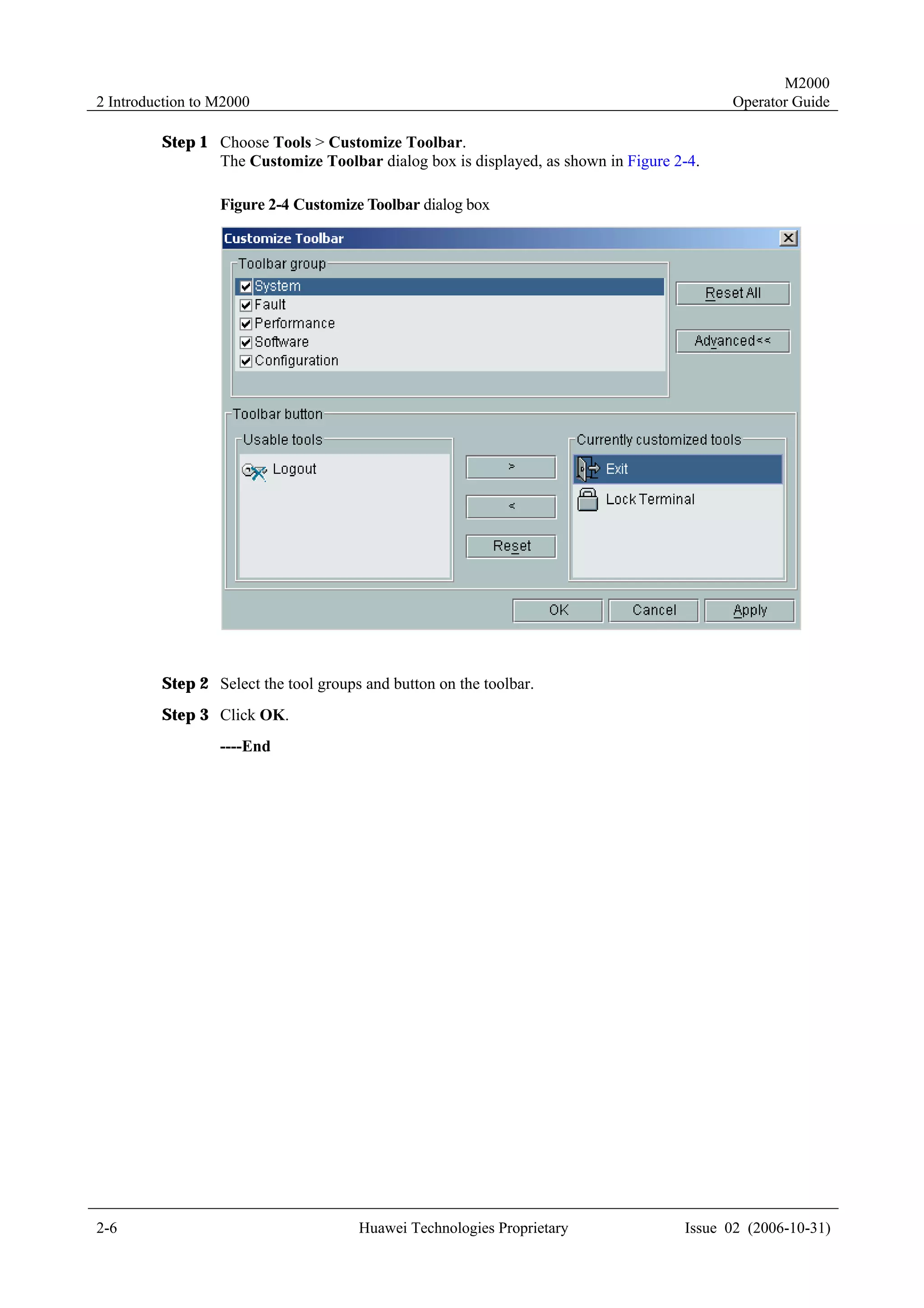


Issue 02 (2006-10-31)                  Huawei Technologies Proprietary                                      10-3
M2000
10 Troubleshooting                                                                                  Operator Guide


10.1.7 Prompt Message "The User Has Reached the Maximum
Login Attempts. The User Account Has Been Locked, and It Can
Be Unlocked in 1 Minute."
Symptoms
                     The login to the M2000 client fails. The system prompts "The user has reached the maximum
                     login attempts. The user account has been locked, and it can be unlocked in 1 minute."

Possible Causes
                     The password used for the current user account to log in to the system is incorrect, and the
                     number of attempts to log in has reached the set threshold.

Handling Suggestions
                     Contact the M2000 administrator to unlock the user account, or wait until the system unlocks
                     the user account.

10.1.8 Prompt Message "The Server Doesn’t Exist or Service Is Not
Running."
Symptoms
                     The login to the M2000 client fails. The system prompts "The server doesn’t exist or service
                     is not running."

Possible Causes
                     The possible causes include:
                     !    The IP address of the server is incorrect.
                     !    The communication between the client and the server is faulty.
                     !    The server or the service is not running.
                     !    The server has more than one IP address.

Handling Suggestions
                     Handle the fault in either of the following ways:
                     !    Use correct server IP address.
                     !    Check the connection between the client and the server.
                          Ensure that the client can ping to the server.
                          For details, see the M2000 Software Installation or M2000 HA System Software
                          Installation.
                     !    Contact the M2000 administrator to check the operating status of the server.


10-4                                       Huawei Technologies Proprietary                   Issue 02 (2006-10-31)
M2000
Operator Guide                                                                                 10 Troubleshooting


10.1.9 Prompt Message "Exceed Maximum Sessions." ing
Symptoms
                  The login to the M2000 client fails. The M2000 prompts "Exceed maximum sessions."

Possible Causes
                  The number of users logging in to the M2000 system reaches the limit.

Handling Suggestions
                  Wait until a user exits the system.

10.1.10 Prompt Message "Loading Module Failed, System Will
Exit."
Symptoms
                  The login to the M2000 client fails. The M2000 prompts "Loading module failed, system will
                  exit."

Possible Causes
                  The time on the client is inconsistent with that on the server.

Handling Suggestions
                  Maintain time consistency between the client and the server .

10.1.11 Prompt Message "Failed to Log in to the Server after the
Auto Client Upgrade or Running Exception"
Symptoms
                  When you log in to the server from the client, the system prompts for an upgrade. After the
                  upgrade, you cannot log in to the server, or function exceptions occur after you log in to the
                  server.

Possible Causes
                  The possible causes include:
                  !     The server version and the client version are inconsistent.
                        During the upgrade, the client version is higher than the server version.
                  !     The client and server versions do not belong to the same version series.
                  The client upgrade will be smooth if:
                  !     The client version and the server version belong to the same version series, for example,
                        C02B022.


Issue 02 (2006-10-31)                   Huawei Technologies Proprietary                                      10-5
M2000
10 Troubleshooting                                                                                       Operator Guide

                     !    The server version is higher than the client version, for example, the server version is
                          C02B022SP01 and the client version is C02B022.

Handling Suggestions
                     Uninstall the existing client, and install the client with the correct version. For details, see the
                     M2000 Software Installation Manual or M2000 HA System Software Installation Manual.


10.2 Client Running Faults
10.2.1 Abortion of the M2000 Client
Symptoms
                     The M2000 client interface closes automatically.

Possible Causes
                     The possible causes include:
                     !    You are forced to exit the M2000 client.
                          The user with the operation privileges, such as the M2000 administrator, can force you to
                          exit the M2000 client. The M2000 client prompts a message before your exit.
                     !    You change the time of the current M2000 client.
                          In this case, the M2000 client does not prompt any message before your exit.

Handling Suggestions
                     Handle the fault in either of the following ways:
                     !    Contact the M2000 administrator for the operation privilege.
                     !    Do not change the time of the current M2000 client during the M2000 operation. Exit the
                          M2000 client before you change the time.

10.2.2 Failure to Run the M2000 Client
Symptoms
                     The M2000 client fails to start.

Possible Causes
                     The possible causes include:
                     !    The computer is short of memory.
                          The M2000 client operation requires a memory of 256 MB. When the system runs short
                          of memory, the M2000 client prompts "out of memory."
                     !    Errors occur when you install the M2000 client.


10-6                                       Huawei Technologies Proprietary                       Issue 02 (2006-10-31)
M2000
Operator Guide                                                                                 10 Troubleshooting

Handling Suggestions
                  Handle the fault in either of the following ways:
                  !     Avoid starting several M2000 clients on the same terminal.
                  !     Quit other programs irrelevant to the M2000 client on the terminal.
                  !     Uninstall the existing M2000 client, and install a new one.

10.2.3 Abnormal Display of M2000 Client Interface
Symptoms
                  Characters displayed on the M2000 client are abnormal.

Possible Causes
                  The configuration file is incorrect.

Handling Suggestions
                  Uninstall the existing M2000 client, and install a new one.

10.2.4 The Bulb on the GUI Is On and Off Intermittently
Symptoms
                  The client cannot receive the event alarms and broadcast messages from the server. On the
                  client, the bulb at the lower right corner of the GUI is on and off intermittently. See Figure
                  10-1.

                  Figure 10-1 The connection fails between the client and the server


Possible Causes
                  The M2000 uses the event mechanism of CORBA to check whether the communication
                  between the M2000 client and the M2000 server is functioning well. A CORBA event is
                  called in a different way from a common CORBA request. For a common request, the client
                  initiates a connection and sends the request to the server. The server responds to the client
                  using the same connection; however, for a CORBA event, when the client initiates a
                  subscription request, the server sets up a new connection with the client and sends the event to
                  the client using this new connection. Therefore, such a fault results from the failure in setting
                  up a connection from the server to the client. The possible causes are as follows:


Issue 02 (2006-10-31)                   Huawei Technologies Proprietary                                       10-7
M2000
10 Troubleshooting                                                                                     Operator Guide

                     !    You are using dual IP addresses of the client.
                          The client monitors either of the IP addresses. Therefore, sometimes the client connects
                          to the server normally, sometimes does not.
                     !    You are using a firewall.

Handling Suggestions
                     !    If you set dual client IP addresses, change the settings on the client as follows.
                     Open default.xml in libopenorbconfig, and then find the following information.
                     <!-- properties controlling the incomming server side. -->
                         <property name="listenAddress" value="0.0.0.0">
                          <description>
                          Address to listen on on multi-homed host. Defaults to 0.0.0.0,
                          all local addresses.
                          </description>
                         </property>
                         <property name="port" value="53100">
                          <description>
                          Port for the iiop transport to listen on. Defaults to 0, any
                          available port.<p/>
                          Command line alias Port is available.
                         </description>
                     </property>

                     Change the value of listenAddress to a client IP address that you can ping successfully from
                     the server. In addition, you can use this IP address to connect to the port 53100 by Telnet.
                     !    If you use a firewall, change the settings as follows.
                          On the firewall, open port 53100 from the server to the client IP address. The IP address
                          and the port must be consistent with those set in the configuration file on the client.


10.3 Topology Management Faults
10.3.1 Failure to Refresh the Topology View
Symptoms
                     The connection between the client and the server is normal. The topology view, however,
                     cannot be refreshed in real time.

Possible Causes
                     Multiple IP addresses are configured for the PC serving as the client.

Handling Suggestions
                     In this case, specify the IP address for communications before logging in to the M2000 server.
                     For details, see the M2000 Installation Manual or M2000 HA System Installation Manual.


10-8                                      Huawei Technologies Proprietary                      Issue 02 (2006-10-31)
M2000
Operator Guide                                                                                               10 Troubleshooting


10.3.2 Failure to Discover NodeBs Automatically
Symptoms
                  The system fails to discover NodeBs automatically.

Possible Causes
                  The names of the NodeBs are invalid. The NodeB name must not contain the following
                  characters: ~!, @, #, $, %, ^, &, *, (, ), +, -, =, {, }, [, ], , , |, ;, ', :, , ", <, >, ., ?, /, . Also the
                  name must not end with a space.

Handling Suggestions
                  Execute the corresponding commands on the RNC to reset the names of the NodeBs.

10.3.3 Conflicted Names for the Created Topology Objects
Symptoms
                  When you create a topology object, the system prompts "The attribute value name already
                  exists." , but you cannot see the topology object with this name in the topology view.

Possible Causes
                  The causes include:
                  !     The current topology is not refreshed in real time.
                  !     You do not have the privilege to create objects with the same name.

Handling Suggestions
                  Change the object name and recreate the topology object.


10.4 Alarm Management Faults
10.4.1 Time Delay of Alarm Message Real-Time Printing
Symptoms
                  After you enable the alarm messages real-time print function, the printer cannot print the
                  reported alarm messages displayed in the browse window.

Possible Causes
                  The printer prints the alarm messages when the records fill one whole page or five minutes
                  after the printer receives the alarms.


Issue 02 (2006-10-31)                       Huawei Technologies Proprietary                                                    10-9
M2000
10 Troubleshooting                                                                                Operator Guide

Handling Suggestions
                     This is normal. No operation is necessary.

10.4.2 Failure to Receive Alarm Emails in Real-Time
Symptoms
                     Both an e-mail address and a phone number are set in the Remote notify tab of the Fault
                     Service Settings dialog box. But only an e-mail is received when an alarm occurs.

Possible Causes
                     The phone number is incorrect. The phone number must begin with the country code, for
                     example, 861361234***1, where 86 is the country code of the People’s Republic of China
                     (PRC).
                     In some countries or districts, however, the phone number must not begin with the country
                     code, for example, the Unite Arab Emirates (UAE).

Handling Suggestions
                     Enter the correct phone number in Remote notify detail settings.

10.4.3 Failure to Receive Alarm SMSs in Real-Time
Symptoms
                     The alarm SMS received on the mobile phone notifies the alarm generated 10 minutes ago.

Possible Causes
                     It takes about six seconds for an SMS to reach the receiver. Therefore, the M2000 can send a
                     maximum of 10 SMSs in one minute. The delay occurs when too many alarms are generated.

Handling Suggestions
                     In the Remote Notify tab of Fault Service Settings, select fewer types of alarms to send by
                     SMS. Ensure that only alarms with the highest priority are sent to the mobile phone through
                     the SMS.

10.4.4 Unknown NE Names During the Alarm Query
Symptoms
                     In the History Fault Alarm Query dialog box, the NE names in some alarm message are
                     displayed as Unknown.

Possible Causes
                     The NE reporting the alarm has been deleted from the M2000.


10-10                                     Huawei Technologies Proprietary                  Issue 02 (2006-10-31)
M2000
Operator Guide                                                                             10 Troubleshooting

Handling Suggestions
                  No operation is required.


                        To avoid such faults, delete the NE data after you delete an NE.


Issue 02 (2006-10-31)                      Huawei Technologies Proprietary                             10-11

47396377 m2000-operation-guide

  • 1.
    M2000 Operator Guide Contents Contents 1 About This Guide ......................................................................................................................1-1 1.1 Purpose..........................................................................................................................................................1-2 1.2 Intended Users...............................................................................................................................................1-2 1.3 Organization..................................................................................................................................................1-2 1.4 Reference ......................................................................................................................................................1-3 2 Introduction to M2000 ...............................................................................................................2-1 2.1 Introduction to the M2000 System................................................................................................................2-2 2.2 Logging in to the M2000 Client ....................................................................................................................2-2 2.3 Setting Properties of the M2000 Client .........................................................................................................2-3 2.3.1 Setting Properties of the System ..........................................................................................................2-3 2.3.2 Customizing Toolbar............................................................................................................................2-5 3 NE Connection............................................................................................................................3-1 3.1 Connecting NEs to the M2000 ......................................................................................................................3-2 3.2 Monitoring Connection Status of NEs ..........................................................................................................3-2 3.2.1 Introduction to Connection Status of NEs............................................................................................3-2 3.2.2 Monitoring NE Status in the Topology View .......................................................................................3-3 3.2.3 Monitoring NE Status through the System Monitor Browser ..............................................................3-3 4 Topology Management .............................................................................................................4-1 4.1 Terminologies Related to Topology Management.........................................................................................4-2 4.1.1 Topology View .....................................................................................................................................4-2 4.1.2 Network Elements................................................................................................................................4-2 4.1.3 Subnets.................................................................................................................................................4-3 4.1.4 Group NEs ...........................................................................................................................................4-3 4.1.5 Links ....................................................................................................................................................4-3 4.1.6 Topology Objects .................................................................................................................................4-4 4.1.7 Templates for Creating Physical NEs in Batches .................................................................................4-5 4.2 Creating NEs .................................................................................................................................................4-6 4.2.1 Creating Physical NEs .........................................................................................................................4-6 4.2.2 Creating Virtual NEs............................................................................................................................4-8 4.2.3 Creating NE Batch Script Files in CSV Format...................................................................................4-9 4.2.4 Creating NE Batch Script Files in INI Format...................................................................................4-10 Issue 02 (2006-10-31) Huawei Technologies Proprietary i
  • 2.
    M2000 1 AboutThis Guide Operator Guide 4.2.5 Creating Physical NEs in Batches......................................................................................................4-10 4.3 Deleting NEs ...............................................................................................................................................4-12 4.3.1 Deleting Physical NEs .......................................................................................................................4-12 4.3.2 Deleting Virtual NEs..........................................................................................................................4-12 4.3.3 Deleting Group NEs...........................................................................................................................4-13 4.4 Creating Subnets .........................................................................................................................................4-14 4.5 Deleting Subnets .........................................................................................................................................4-15 4.6 Creating Links.............................................................................................................................................4-16 4.6.1 Creating Physical Links .....................................................................................................................4-16 4.6.2 Creating Virtual Links........................................................................................................................4-17 4.7 Moving NEs ................................................................................................................................................4-17 4.7.1 Moving NEs to a Group NE...............................................................................................................4-17 4.7.2 Moving NEs to another Subnet ..........................................................................................................4-19 4.7.3 Moving NEs on the Same Subnet ......................................................................................................4-20 4.8 Filtering NEs in the Topology View............................................................................................................4-21 4.9 Customizing Topology Tips ........................................................................................................................4-21 4.10 Switching Background Maps ....................................................................................................................4-22 5 Alarm Management ...................................................................................................................5-1 5.1 Introduction to Alarms ..................................................................................................................................5-3 5.1.1 Alarm Categories .................................................................................................................................5-3 5.1.2 Alarm Severity Levels..........................................................................................................................5-3 5.1.3 Alarm Types .........................................................................................................................................5-3 5.2 Alarm Statuses...............................................................................................................................................5-4 5.2.1 Acknowledged Alarms .........................................................................................................................5-4 5.2.2 Cleared Alarms.....................................................................................................................................5-4 5.2.3 Relationship Between Alarm Categories and Alarm Statuses ..............................................................5-4 5.3 Alarm Processing Procedures........................................................................................................................5-5 5.3.1 Overview..............................................................................................................................................5-5 5.3.2 Reporting Alarms .................................................................................................................................5-6 5.3.3 Saving Alarms......................................................................................................................................5-6 5.3.4 Displaying Alarms ...............................................................................................................................5-7 5.3.5 Changing Alarm Status ........................................................................................................................5-7 5.4 Querying and Browsing Alarms ....................................................................................................................5-7 5.4.1 Querying Current Fault Alarms............................................................................................................5-7 5.4.2 Querying Event Alarms........................................................................................................................5-8 5.4.3 Querying History Fault Alarms............................................................................................................5-9 5.4.4 Querying Shielded Alarms ...................................................................................................................5-9 5.4.5 Browsing Real-Time Fault Alarms ....................................................................................................5-10 5.4.6 Browsing Real-Time Event Alarms ................................................................................................... 5-11 5.4.7 Querying Alarm Explanation .............................................................................................................5-12 5.4.8 Querying Correlated Alarms ..............................................................................................................5-13 ii Huawei Technologies Proprietary Issue 02 (2006-10-31)
  • 3.
    M2000 Operator Guide Contents 5.4.9 Setting the Alarm Displaying Columns..............................................................................................5-14 5.5 Collecting Alarm Statistics..........................................................................................................................5-15 5.5.1 Collecting Instant Statistics................................................................................................................5-15 5.5.2 Collecting Real-Time Statistics..........................................................................................................5-17 5.6 Acknowledging and Unacknowledging Alarms ..........................................................................................5-18 5.6.1 Acknowledging Alarms Manually......................................................................................................5-18 5.6.2 Acknowledging Alarms Automatically ..............................................................................................5-18 5.6.3 Unacknowledging Alarms..................................................................................................................5-20 5.7 Creating User Defined Alarms ....................................................................................................................5-20 5.8 Displacing Alarms to a File.........................................................................................................................5-21 5.8.1 Displacing Event Alarms ...................................................................................................................5-21 5.8.2 Displacing History Fault Alarms........................................................................................................5-23 5.9 Synchronizing Alarms .................................................................................................................................5-24 5.9.1 Synchronizing Alarms Manually........................................................................................................5-24 5.9.2 Synchronizing Alarms Automatically ................................................................................................5-25 5.10 Redefining the Alarm Severity Level ........................................................................................................5-25 5.11 Setting Alarm Correlation Rules ...............................................................................................................5-27 5.11.1 Overview..........................................................................................................................................5-27 5.11.2 Setting Alarm Correlation Rules for Intermittent Fault Alarms .......................................................5-27 5.11.3 Setting Alarm Correlation Rules for Repeated Event Alarms ..........................................................5-29 5.12 Managing the Alarm Knowledge Library..................................................................................................5-30 5.12.1 Overview..........................................................................................................................................5-30 5.12.2 Modifying Alarm Knowledge Directly ............................................................................................5-30 5.12.3 Modifying Alarm Knowledge Through a File..................................................................................5-31 5.13 Operating the Alarm Board .......................................................................................................................5-32 5.13.1 Overview..........................................................................................................................................5-32 5.13.2 Setting the Display of the Alarm Board ...........................................................................................5-32 5.13.3 Setting the Alarm Sound ..................................................................................................................5-33 5.13.4 Starting or Stopping the Alarm Sound .............................................................................................5-34 5.13.5 Setting the Alarm Color ...................................................................................................................5-35 5.13.6 Starting or Stopping the Alarm Flash ...............................................................................................5-36 5.14 Operating the Alarm Box ..........................................................................................................................5-36 5.14.1 Overview..........................................................................................................................................5-36 5.14.2 Setting the Alarm Box Filter ............................................................................................................5-36 5.14.3 Stopping Alarm Sounds of the Alarm Box.......................................................................................5-38 5.14.4 Stopping the Alarm Box...................................................................................................................5-39 5.14.5 Resetting the Alarm Box ..................................................................................................................5-39 5.15 Setting the Alarm Notification by SMS.....................................................................................................5-40 5.16 Setting the Alarm Notification by PhoneNo. or PagerNo..........................................................................5-41 5.17 Setting the Alarm Notification by Email ...................................................................................................5-42 6 Performance Management .......................................................................................................6-1 Issue 02 (2006-10-31) Huawei Technologies Proprietary iii
  • 4.
    M2000 1 About ThisGuide Operator Guide 6.1 Terminologies Related to Performance Management....................................................................................6-3 6.1.1 Meausrement Counter ..........................................................................................................................6-3 6.1.2 Function Set and Function Subset........................................................................................................6-3 6.1.3 Measurement Object ............................................................................................................................6-4 6.1.4 Measurement Period ............................................................................................................................6-5 6.2 Performance Measurement Process...............................................................................................................6-5 6.2.1 Overview..............................................................................................................................................6-5 6.2.2 Reporting Performance Data................................................................................................................6-6 6.2.3 Saving Performance Data into the Database ........................................................................................6-7 6.2.4 Viewing of Performance Data..............................................................................................................6-7 6.3 Querying Performance Measurement Results ...............................................................................................6-7 6.3.1 Overview Performance Counters .........................................................................................................6-7 6.3.2 Querying Results of Periodic Performance Measurements..................................................................6-7 6.3.3 Querying Results of Real-Time Performance Measurements ............................................................ 6-11 6.3.4 Setting Query Condition Templates ...................................................................................................6-13 6.3.5 Applying Query Condition Templates................................................................................................6-14 6.4 Saving Performance Measurement Results to a File ...................................................................................6-15 6.5 Saving Performance Measurement Results to a File Automatically............................................................6-16 6.6 Browsing Files Storing Performance Measurement Results .......................................................................6-17 6.7 Synchronizing Performance Data................................................................................................................6-17 6.7.1 Synchronizing Performance Data Manually ......................................................................................6-17 6.7.2 Synchronizing Performance Data Automatically ...............................................................................6-19 6.8 Managing Performance Measurement.........................................................................................................6-19 6.8.1 Subscribing to Performance Measurement Results............................................................................6-19 6.8.2 Checking Reliability of Performance Measurement Results..............................................................6-21 6.8.3 Collecting the Missing Performance Measurement Results...............................................................6-23 6.8.4 Suspending the Collection of Performance Measurement Results.....................................................6-24 6.9 Setting Extended Performance Counters.....................................................................................................6-25 6.9.1 Starting the Measurement of Extended Performance Counters..........................................................6-25 6.9.2 Stopping the Measurement of Extended Performance Counters........................................................6-26 6.10 Setting Measurement Objects....................................................................................................................6-27 6.10.1 Adding Measurement Objects ..........................................................................................................6-27 6.10.2 Deleting Measurement Objects ........................................................................................................6-29 6.11 Setting Thresholds for Collecting Performance Measurement Results .....................................................6-30 6.12 Managing User Defined Counters.............................................................................................................6-31 6.12.1 Creating User Defined Counters ......................................................................................................6-31 6.12.2 Modifying User Defined Coudnters.................................................................................................6-33 6.13 Managing Performance Monitoring ..........................................................................................................6-33 6.13.1 Overview..........................................................................................................................................6-33 6.13.2 Creating Performance Monitoring Tasks .........................................................................................6-33 6.13.3 Starting Performance Monitoring.....................................................................................................6-36 6.13.4 Filtering Monitoring Results ............................................................................................................6-37 iv Huawei Technologies Proprietary Issue 02 (2006-10-31)
  • 5.
    M2000 Operator Guide Contents 6.13.5 Setting Monitoring Thresholds ........................................................................................................6-38 6.13.6 Exporting Data from the Current Monitoring Table.........................................................................6-39 6.13.7 Viewing the Current Monitoring Chart ............................................................................................6-40 6.13.8 Viewing the Trend Chart ..................................................................................................................6-42 6.13.9 Setting Attributes for the Monitoring Chart .....................................................................................6-43 6.13.10 Exporting Monitoring Results........................................................................................................6-44 6.14 Managing Thresholds for Real-Time Counters .........................................................................................6-45 6.14.1 Overview..........................................................................................................................................6-45 6.14.2 Adding Monitoring Thresholds ........................................................................................................6-46 6.14.3 Modifying Monitoring Thresholds...................................................................................................6-47 6.14.4 Deleting Monitoring Thresholds ......................................................................................................6-48 7 Configuration Management.....................................................................................................7-1 7.1 Querying NE Configuration ..........................................................................................................................7-2 7.1.1 Configuration Types.............................................................................................................................7-2 7.1.2 Querying NE Configuration.................................................................................................................7-2 7.1.3 Querying the Basic NE Configuration .................................................................................................7-3 7.2 Synchronizing NE Configuration..................................................................................................................7-4 7.2.1 Synchronizing NE Configuration Manually ........................................................................................7-4 7.2.2 Synchronizing NE Configuration Automatically .................................................................................7-5 7.2.3 Synchronizing NE Configuration Periodically ....................................................................................7-6 7.3 Exporting NE Configuration .........................................................................................................................7-6 7.3.1 Exporting NE Configuration Manually................................................................................................7-6 7.3.2 Exporting NE Confiugration Periodically............................................................................................7-7 7.4 Saving NE Configuration to a File ................................................................................................................7-8 7.5 Setting NE Type Privilege Rules...................................................................................................................7-9 7.6 Applying NE Type Privilege Rules .............................................................................................................7-10 7.7 Managing NE Users .................................................................................................................................... 7-11 7.7.1 Overview of NE Users ....................................................................................................................... 7-11 7.7.2 Principles for NE User Authorization ................................................................................................ 7-11 7.7.3 Creating NE Users ............................................................................................................................. 7-11 7.7.4 Modifying Privileges for NE Users....................................................................................................7-12 7.7.5 Deleting NE User Accounts ...............................................................................................................7-14 7.8 Monitoring Operations of M2000 Users and NE Users ..............................................................................7-15 7.8.1 Overview of User Logs and NE Logs ................................................................................................7-15 7.8.2 Synchronizing NE Logs .....................................................................................................................7-15 7.8.3 Querying NE Logs .............................................................................................................................7-17 7.8.4 Monitoring NE User Login on LMTs ................................................................................................7-18 7.8.5 Monitoring Operations and Sessions of NE Users.............................................................................7-19 7.9 Management of Enhanced Maintenance for NEs ........................................................................................7-19 7.9.1 Overview............................................................................................................................................7-19 7.9.2 Upgrading Enhanced Maintenance for NEs.......................................................................................7-20 Issue 02 (2006-10-31) Huawei Technologies Proprietary v
  • 6.
    M2000 1 AboutThis Guide Operator Guide 7.9.3 Equipment Management ....................................................................................................................7-21 7.9.4 Monitoring Management....................................................................................................................7-22 7.9.5 Tracing Management .........................................................................................................................7-24 7.10 Executing NE MML Commands...............................................................................................................7-25 7.10.1 Overview of MML Commands ........................................................................................................7-25 7.10.2 Viewing the MML Command Window............................................................................................7-25 7.10.3 Executing One MML Command......................................................................................................7-26 7.10.4 Setting the MML Command Script..................................................................................................7-27 7.10.5 Executing Multiple MML Commands .............................................................................................7-29 7.10.6 Executing MML Commands Periodically........................................................................................7-30 7.10.7 Saving MML Command Results......................................................................................................7-30 8 NE Software and License Management.................................................................................8-1 8.1 Checking the NE Software ............................................................................................................................8-2 8.1.1 Checking NE Software Packages on the M2000 .................................................................................8-2 8.1.2 Checking the Running NE Software ....................................................................................................8-3 8.2 Setting the File Server ...................................................................................................................................8-4 8.2.1 Purpose of and Principles for Setting the File Server ..........................................................................8-4 8.2.2 Setting the NE File Server ...................................................................................................................8-4 8.3 Upgrading the NE Software ..........................................................................................................................8-5 8.3.1 Procedure for Upgrading the NE Software ..........................................................................................8-5 8.3.2 Copying the NE Software to the M2000 Client ...................................................................................8-6 8.3.3 Uploading the NE Software from the M2000 Client to the M2000 Server..........................................8-7 8.3.4 Downloading the NE Software to a Board of an NE ...........................................................................8-8 8.3.5 Operating the NE Software ................................................................................................................8-10 8.3.6 Downloading NE Software Patches to a Board of an NE .................................................................. 8-11 8.3.7 Operating Patches ..............................................................................................................................8-12 8.3.8 Monitoring the Software Upgrade Progress.......................................................................................8-13 8.3.9 Falling Back the Software Version.....................................................................................................8-14 8.4 Upgrading the NodeB Software and Patches ..............................................................................................8-14 8.4.1 NodeB Upgrade Policies....................................................................................................................8-14 8.4.2 Upgrading One NodeB.......................................................................................................................8-15 8.4.3 Upgrading Multiple NodeBs ..............................................................................................................8-17 8.5 Managing the Software License ..................................................................................................................8-17 8.5.1 Overview............................................................................................................................................8-17 8.5.2 Checking the License Allocated to NodeBs.......................................................................................8-18 8.5.3 Modifying the License Allocated to NodeBs .....................................................................................8-19 8.5.4 Allocating the RAN License ..............................................................................................................8-20 8.5.5 Synchronizing the License Allocated to NodeBs ...............................................................................8-20 8.5.6 Deleting the RAN License .................................................................................................................8-21 8.5.7 Uploading the License from the Client to the Folder on the Server...................................................8-22 9 Backup Managemnet.................................................................................................................9-1 vi Huawei Technologies Proprietary Issue 02 (2006-10-31)
  • 7.
    M2000 Operator Guide Contents 9.1 Overview of the NE Data ..............................................................................................................................9-2 9.2 Backing Up NE Data.....................................................................................................................................9-4 9.2.1 Backup Modes .....................................................................................................................................9-4 9.2.2 Backing Up NE Data Periodically .......................................................................................................9-4 9.2.3 Backing Up NE Data Manually ...........................................................................................................9-5 9.3 Browsing the NE Backup Progress ...............................................................................................................9-6 9.4 Checking NE Backup Files ...........................................................................................................................9-7 9.5 Restoring the NE Data...................................................................................................................................9-7 10 Troubleshooting .....................................................................................................................10-1 10.1 Client Login Failures.................................................................................................................................10-2 10.1.1 Prompt "Login failed. Confirm that your user name and password are case sensitive and correct." ....................................................................................................................................................................10-2 10.1.2 Prompt "Invalid user account." ........................................................................................................10-2 10.1.3 Prompt "Invalid login duration."......................................................................................................10-2 10.1.4 Prompt Message "Invalid password." ..............................................................................................10-3 10.1.5 Prompt Message "The password has expired. Please change your password! " ..............................10-3 10.1.6 Prompt Message "Maintenance Mode."...........................................................................................10-3 10.1.7 Prompt Message "The User Has Reached the Maximum Login Attempts. The User Account Has Been Locked, and It Can Be Unlocked in 1 Minute.".................................................................................10-4 10.1.8 Prompt Message "The Server Doesn’t Exist or Service Is Not Running.".......................................10-4 10.1.9 Prompt Message "Exceed Maximum Sessions." ing........................................................................10-5 10.1.10 Prompt Message "Loading Module Failed, System Will Exit." .....................................................10-5 10.1.11 Prompt Message "Failed to Log in to the Server after the Auto Client Upgrade or Running Exception"...................................................................................................................................................10-5 10.2 Client Running Faults................................................................................................................................10-6 10.2.1 Abortion of the M2000 Client..........................................................................................................10-6 10.2.2 Failure to Run the M2000 Client .....................................................................................................10-6 10.2.3 Abnormal Display of M2000 Client Interface..................................................................................10-7 10.2.4 The Bulb on the GUI Is On and Off Intermittently ..........................................................................10-7 10.3 Topology Management Faults ...................................................................................................................10-8 10.3.1 Failure to Refresh the Topology View..............................................................................................10-8 10.3.2 Failure to Discover NodeBs Automatically .....................................................................................10-9 10.3.3 Conflicted Names for the Created Topology Objects.......................................................................10-9 10.4 Alarm Management Faults ........................................................................................................................10-9 10.4.1 Time Delay of Alarm Message Real-Time Printing .........................................................................10-9 10.4.2 Failure to Receive Alarm Emails in Real-Time .............................................................................10-10 10.4.3 Failure to Receive Alarm SMSs in Real-Time ...............................................................................10-10 10.4.4 Unknown NE Names During the Alarm Query .............................................................................10-10 Issue 02 (2006-10-31) Huawei Technologies Proprietary vii
  • 8.
    M2000 1 About ThisGuide Operator Guide Figures Figure 2-1 M2000 client interface (Physical Topology window) ......................................................................2-3 Figure 2-2 Output Window tab in the System Setting dialog box ..................................................................2-4 Figure 2-3 Terminal tab in the System Setting dialog box ...............................................................................2-5 Figure 2-4 Customize Toolbar dialog box ........................................................................................................2-6 Figure 3-1 Monitoring the NE statuses through the system monitor browser ....................................................3-4 Figure 4-1 An example of CSV templates..........................................................................................................4-5 Figure 4-2 Create NE dialog box ......................................................................................................................4-7 Figure 4-3 Progress of creating physical NEs ....................................................................................................4-8 Figure 4-4 Creating physical NEs in batches ................................................................................................... 4-11 Figure 4-5 Creating physical subnets ...............................................................................................................4-15 Figure 4-6 NE Property dialog box.................................................................................................................4-18 Figure 4-7 Modify Physical Subnet dialog box..............................................................................................4-20 Figure 5-1 Process by which a fault alarm changes to a history fault alarm ......................................................5-5 Figure 5-2 Procedure for processing M2000 alarms ..........................................................................................5-6 Figure 5-3 Querying current fault alarms ...........................................................................................................5-8 Figure 5-4 Browsing alarms ............................................................................................................................. 5-11 Figure 5-5 Alarm details...................................................................................................................................5-13 Figure 5-6 Selecting the columns to be displayed in the alarm list ..................................................................5-15 Figure 5-7 Alarm statistics table.......................................................................................................................5-16 Figure 5-8 Alarm statistics pie chart.................................................................................................................5-17 Figure 5-9 Setting conditions for auto acknowledgement ................................................................................5-19 Figure 5-10 Auto displacement ........................................................................................................................5-22 Figure 5-11 Manual displacement ....................................................................................................................5-23 Figure 5-12 Redefining the alarm severity (level)............................................................................................5-26 Figure 5-13 Setting correlation for intermittent fault alarms............................................................................5-28 Figure 5-14 Modifying the alarm knowledge...................................................................................................5-31 viii Huawei Technologies Proprietary Issue 02 (2006-10-31)
  • 9.
    M2000 Operator Guide Figures Figure 5-15 Setting the alarm sounds ...............................................................................................................5-34 Figure 5-16 Setting the alarm board .................................................................................................................5-35 Figure 5-17 Setting the alarm box filter ...........................................................................................................5-38 Figure 5-18 Setting the remote alarm notification by SMS..............................................................................5-40 Figure 6-1 Levels of measurement counters.......................................................................................................6-4 Figure 6-2 Process of performance measurement of the M2000 system............................................................6-6 Figure 6-3 Selecting the measurement unit and objects .....................................................................................6-9 Figure 6-4 Selecting measurement counters.....................................................................................................6-10 Figure 6-5 Selecting the query period and time................................................................................................ 6-11 Figure 6-6 Entering a name for the query condition template ..........................................................................6-14 Figure 6-7 Synchronizing performance measurement results manually...........................................................6-18 Figure 6-8 Subscribing measurement results....................................................................................................6-20 Figure 6-9 Subscribing results for real-time measurements .............................................................................6-21 Figure 6-10 Please select time segment dialog box ........................................................................................6-22 Figure 6-11 Setting extended counters .............................................................................................................6-26 Figure 6-12 Selecting measurement objects .....................................................................................................6-28 Figure 6-13 Adding an alarm threshold for collecting performance measurement results ...............................6-31 Figure 6-14 Creating user defined counters .....................................................................................................6-32 Figure 6-15 Setting monitor parameters...........................................................................................................6-35 Figure 6-16 Starting performance monitoring ..................................................................................................6-36 Figure 6-17 Setting conditions for filtering monitoring results ........................................................................6-38 Figure 6-18 Setting a threshold ........................................................................................................................6-39 Figure 6-19 Setting parameters for the monitoring chart .................................................................................6-41 Figure 6-20 Setting parameters for the trend chart...........................................................................................6-43 Figure 6-21 Setting attributes for the monitoring chart ....................................................................................6-44 Figure 6-22 Adding monitoring thresholds ......................................................................................................6-47 Figure 7-1 Querying NE configuration through the MIT browser .....................................................................7-3 Figure 7-2 NE Report dialog box......................................................................................................................7-4 Figure 7-3 Synchronization progress..................................................................................................................7-5 Figure 7-4 Operation Result dialog box ...........................................................................................................7-9 Figure 7-5 Selectting an NE and command groups for the created NE user account.......................................7-12 Figure 7-6 Selecting an NE user.......................................................................................................................7-13 Figure 7-7 Selecting command groups.............................................................................................................7-14 Issue 02 (2006-10-31) Huawei Technologies Proprietary ix
  • 10.
    M2000 1 About ThisGuide Operator Guide Figure 7-8 Software Browser dialog box .........................................................................................................7-16 Figure 7-9 Synchronizing NE logs automatically ............................................................................................7-17 Figure 7-10 Querying NE logs .........................................................................................................................7-18 Figure 7-11 enhanced NE maintenance ............................................................................................................7-21 Figure 7-12 Device panel .................................................................................................................................7-22 Figure 7-13 Monitor Panel ...............................................................................................................................7-23 Figure 7-14 Trace panel....................................................................................................................................7-25 Figure 7-15 MML Command window............................................................................................................7-26 Figure 7-16 Selecting the script mode..............................................................................................................7-28 Figure 7-17 Create Task dialog box................................................................................................................7-29 Figure 8-1 Checking the NE version ..................................................................................................................8-3 Figure 8-2 Setting the file server ........................................................................................................................8-5 Figure 8-3 Procedure for upgrading the NE software ........................................................................................8-6 Figure 8-4 Selecting the file location and type...................................................................................................8-9 Figure 8-5 Selecting download software parameters........................................................................................8-10 Figure 8-6 Step 1 of 2 for upgrading one NodeB .............................................................................................8-16 Figure 8-7 Step 2 of 2 for upgrading one NodeB .............................................................................................8-16 Figure 8-8 Browsing the license of the current NodeB ....................................................................................8-18 Figure 9-1 Creating a periodic NE backup task..................................................................................................9-5 Figure 10-1 The connection fails between the client and the server.................................................................10-7 x Huawei Technologies Proprietary Issue 02 (2006-10-31)
  • 11.
    M2000 Operator Guide Tables Tables Table 3-1 Icons indicating NE connection status................................................................................................3-2 Table 4-1 Descriptions of two link types ............................................................................................................4-4 Table 6-1 Exporting the monitoring data ..........................................................................................................6-44 Table 8-1 File servers available for the NEs.......................................................................................................8-4 Table 9-1 NE backup data...................................................................................................................................9-2 Issue 02 (2006-10-31) Huawei Technologies Proprietary xi
  • 12.
    M2000 Operator Guide 1 About This Guide 1 About This Guide About This Chapter The following table lists the contents of this chapter. Title Description 1.1 Purpose Introduces the purpose of this guide. 1.2 Intended Users Introduces the intended users of this guide. 1.3 Organization Introduces the organization of this guide. 1.4 Reference Introduces the reference of this guide. Issue 02 (2006-10-31) Huawei Technologies Proprietary 1-1
  • 13.
    M2000 1 About ThisGuide Operator Guide 1.1 Purpose This guide describes how to operate and maintain the network equipment. It includes the following content: ! Monitoring network performance ! Monitoring network alarms ! Managing network configuration information ! Upgrading the network element (NE) software ! Backing up the NE data 1.2 Intended Users The guide is intended for the following users: ! Network engineers ! Shift operators 1.3 Organization This guide consists of the following chapters: ! 1 "About This Guide" introduces the purpose, intended users, and organization of this guide. ! 2 "Introduction to M2000" describes the procedures for logging in to the M2000 client and setting the client. ! 3 "NE Connection" describes the types of NEs the M2000 system manages, relevant operation tasks, and the procedures for connecting types of network equipment. ! 4 "Topology Management" introduces topology management and describes the relevant operation tasks and procedures. ! 5 "Alarm Management" introduces alarm management and describes relevant operation tasks and procedures. ! 6 "Performance Management" introduces performance management and describes relevant operation tasks and procedures. ! 7 "Configuration Management" describes the procedures for configuring and querying NE service data. ! 8 "NE Software and License Management" describes the operation tasks and procedures related to NE software and license management. ! 9 "Backup Managemnet" describes the operation tasks and procedures related to server data backup and NE data backup. ! 10 "Troubleshooting" describes the handling suggestions for common faults that may occur during operations on the client. 1-2 Huawei Technologies Proprietary Issue 02 (2006-10-31)
  • 14.
    M2000 Operator Guide 1 About This Guide 1.4 Reference When you read this guide, see M2000 Online Help for more information. Issue 02 (2006-10-31) Huawei Technologies Proprietary 1-3
  • 15.
    M2000 Operator Guide 2 Introduction to M2000 2 Introduction to M2000 About This Chapter The following table lists the contents of this chapter. Title Description 2.1 Introduction to the M2000 Introduces the M2000 system. System 2.2 Logging in to the M2000 Describes how to log in to the M2000 client. Client 2.3 Setting Properties of the Describes how to set the properties of the M2000 client. M2000 Client Issue 02 (2006-10-31) Huawei Technologies Proprietary 2-1
  • 16.
    M2000 2 Introduction toM2000 Operator Guide 2.1 Introduction to the M2000 System iManager M2000 Mobile Element Management System (M2000 for short) is the network management system (NMS) for Huawei mobile communications products. It works in the widely used Client/Server mode. The M2000 system contains a set of servers and multiple clients connected to the servers. ! The M2000 server runs on the Unix platform. The server processes and stores NE data. ! The M2000 clients run on the Windows platform. The clients provide friendly graphical interfaces for operations and maintenance on the NEs. 2.2 Logging in to the M2000 Client Description Start the M2000 Client, and log in to the M2000 server. After logging in to the M2000 client successfully, you can use the client to perform routine operation and maintenance for the network equipment. Network Equipment Supporting This Task NEs are not involved. Prerequisites Before logging in to the M2000 client, ensure that: ! The M2000 client software is installed. ! The corresponding M2000 server is working properly. ! The software versions of the M2000 client and the M2000 server match. ! The M2000 client communicates normally with the M2000 server. ! You have the required user name and password. Procedure To log in to the M2000 client, perform the following steps: Step 1 Choose Start > Programs > iManager M2000 Client > M2000 Client to start the M2000 client. You can configure the path for the menu iManager M2000 Client > M2000 Client in Start > Programs when you install the client software. The default path is iManager M2000 Client. Step 2 In the displayed User Login dialog box, enter the server IP address to log in to the M2000 client. 2-2 Huawei Technologies Proprietary Issue 02 (2006-10-31)
  • 17.
    M2000 Operator Guide 2 Introduction to M2000 If User Login does not list the information about the specified server, click . The Server Information dialog box is displayed. In this dialog box, set the server information, such as the server IP and sever port. Step 3 Enter the user name and password. Click Login. After the connection is set up, the client obtains the required data from the server. After the data is loaded, the Physical Topology window is displayed, as shown in Figure 2-1. The Physical Topology window is the M2000 client interface. Figure 2-1 M2000 client interface (Physical Topology window) ----End 2.3 Setting Properties of the M2000 Client 2.3.1 Setting Properties of the System Description Set the following properties of the M2000 client. ! Mode for displaying messages ! Maximum output lines ! Auto displacement ! Auto locking period Issue 02 (2006-10-31) Huawei Technologies Proprietary 2-3
  • 18.
    M2000 2 Introduction toM2000 Operator Guide Network Equipment Supporting This Task NEs are not involved. Prerequisites Before setting the properties of the system, ensure that you have logged in to the M2000 client. Procedure To set the properties of the M2000 client, perform the following steps: Step 1 Choose System > System Setting. The System Setting dialog box is displayed, as shown in Figure 2-2. Figure 2-2 Output Window tab in the System Setting dialog box Step 2 In the Output Window tab, set parameters such as Maximum Output Lines. Step 3 Click the Terminal tab in the System Setting dialog box, as shown in Figure 2-3. 2-4 Huawei Technologies Proprietary Issue 02 (2006-10-31)
  • 19.
    M2000 Operator Guide 2 Introduction to M2000 Figure 2-3 Terminal tab in the System Setting dialog box Step 4 Set the period for Automatically locked or turn off the option. Step 5 Click OK. ----End 2.3.2 Customizing Toolbar Description Create the self defined toolbar in the M2000 client. Network Equipment Supporting This Task NEs are not involved. Prerequisites Before customizing the toolbar, ensure that you have logged in to the M2000 client. Procedure To customize the toolbar, perform the following steps: Issue 02 (2006-10-31) Huawei Technologies Proprietary 2-5
  • 20.
    M2000 2 Introduction toM2000 Operator Guide Step 1 Choose Tools > Customize Toolbar. The Customize Toolbar dialog box is displayed, as shown in Figure 2-4. Figure 2-4 Customize Toolbar dialog box Step 2 Select the tool groups and button on the toolbar. Step 3 Click OK. ----End 2-6 Huawei Technologies Proprietary Issue 02 (2006-10-31)
  • 21.
    M2000 Operator Guide 3 NE Connection 3 NE Connection About This Chapter The following table lists the contents of this chapter. Title Description 3.1 Connecting NEs to the Introduces how to connect the NEs to the M2000. M2000 3.2 Monitoring Connection Describes how to monitor the connection statuses of the Status of NEs NEs in the topology view or through the system monitor browser. Issue 02 (2006-10-31) Huawei Technologies Proprietary 3-1
  • 22.
    M2000 3 NE Connection Operator Guide 3.1 Connecting NEs to the M2000 After the NEs are connected to the M2000, you can operate or maintain the NEs through the M2000 system. Debug the NEs and ensure that they work well before you connect them to the M2000 system. For details, see the M2000 Commissioning Guide. 3.2 Monitoring Connection Status of NEs 3.2.1 Introduction to Connection Status of NEs In the topology view, the connection statuses of the NEs are shown by NE icon and NE status icon. The NE status icon is displayed at the top left of the NE icon. Multiple NE icons displayed at the same time indicate that the NE is in several connection statuses. When the NE and the M2000 are connected, the NE icon and NE status icon is displayed in the topology view. You can operate and maintain the NE through the M2000. When the NE is processing synchronization or disconnected with the M2000, the NE status icons are displayed at the top left corner of the NE icon, as shown in Table 3-1. Table 3-1 Icons indicating NE connection status Icon Meaning Description Synchronization The M2000 extracts the NE configuration from the NE. The processing data is synchronized when the NE is connected or reconnected to the M2000. Connection The M2000 server is disconnected with the NE. down The O&M (operation and maintenance) path between the NE and the M2000 does not work smoothly, or errors occur to some TCP or UDP ports. NE not match The NE is not matched. The O&M path between the NE and the M2000 works well. You cannot, however, operate or maintain the NE through the M2000 because the NE is not installed with the right version of the mediation package. Forbid Connect The NE is prohibited from being connected to the M2000 server. Unknown type The current system does not support the NE type. FourStates The NE state contains four or more states. 3-2 Huawei Technologies Proprietary Issue 02 (2006-10-31)
  • 23.
    M2000 Operator Guide 3 NE Connection 3.2.2 Monitoring NE Status in the Topology View Description Monitor the status of the NEs in the topology view. Network Equipment Supporting This Task All manageable network equipment. Prerequisites Before monitoring the status of an NE, ensure that you have logged in to the M2000 client. Procedure To monitor the status of an NE in the topology view, perform the following steps: Step 1 Click the Tree tab on the left of the topology view. Step 2 Select the subnet with the NE. Step 3 Select the NE. The NE status is shown in the topology view on the right of the topology view. Here are two examples, ! shows that the NE HLR36 is in the Connected status. ! shows that the NE MGW is in the Connection down status. For the NEs in the Connection down status, contact the department concerned immediately. ----End 3.2.3 Monitoring NE Status through the System Monitor Browser Description View the connection status of NEs through the system monitor browser. Network Equipment Supporting This Task All manageable network equipment. Prerequisites Before monitoring NE status through the system monitor browser, ensure that you have logged in to the M2000 client. Issue 02 (2006-10-31) Huawei Technologies Proprietary 3-3
  • 24.
    M2000 3 NE Connection Operator Guide Procedure To monitor NE status through the system monitor browser, perform the following steps: Step 1 Choose Tools > System Monitor > Monitor Browser. The System Monitor Browser dialog box is displayed. Step 2 Click the NE Monitor tab. The status of each NE is displayed, as shown in Figure 3-1. Figure 3-1 Monitoring the NE statuses through the system monitor browser 3-4 Huawei Technologies Proprietary Issue 02 (2006-10-31)
  • 25.
    M2000 Operator Guide 4 Topology Management 4 Topology Management About This Chapter The following table lists the contents of this chapter. Title Description 4.1 Terminologies Related to Introduces the glossary related to topology management. Topology Management 4.2 Creating NEs Describes how to create the NEs in the topology view and in batches. 4.3 Deleting NEs Describes how to delete the NEs and the group NEs in the topology view. 4.4 Creating Subnets Describes how to create the subnets in the topology view. 4.5 Deleting Subnets Describes how to delete the subnets in the topology view. 4.6 Creating Links Describes how to create the links in the topology view. 4.7 Moving NEs Describes how to move the NEs in the topology view. 4.8 Filtering NEs in the Describes how to filter the NEs in the topology view. Topology View 4.9 Customizing Topology Describes how to customize the topology tips. Tips 4.10 Switching Background Describes how to switch the background maps of the Maps topology views. Issue 02 (2006-10-31) Huawei Technologies Proprietary 4-1
  • 26.
    M2000 4 Topology Management Operator Guide 4.1 Terminologies Related to Topology Management 4.1.1 Topology View Meaning The topology view is the mapping of the communication network (managed through the M2000 system) on the M2000. The topology view shows the equipment and the connection between the equipment in the form of view and tree. It also provides entry points for the operations related to the configuration, alarm, and performance management through the client. The M2000 topology view consists of two parts: tree and view. ! The navigation tree on the left shows all the involved topology objects, such as NEs, subnets, and the hierarchical architecture between these objects. ! The topology view on the right shows all the topology objects in the current network and the location-related relationship between these objects. The system synchronizes the navigation tree and the topology view automatically. Examples The displayed window after you log in the M2000 client is a topology view. 4.1.2 Network Elements Meaning Topology management uses NEs to identify the communication equipment in the network. ! Physical NE Physical NEs are the communication devices that can be managed by the M2000. ! Virtual NE The third-party communication equipment in the entire communication network. The M2000 cannot manage the equipment. Virtual NEs help complete the structure of the communication network. In the topology view, the physical NE and virtual NE are distinguished by different icon colors. For example, the physical NE HLR is displayed as in the topology view, while the virtual NE HLR is displayed as . The equipment type corresponds to the NE type. The NE types are identified by different icons. You can view the icons by clicking the Legend tab in the left of the window. Examples Some examples of NEs are as follows: 4-2 Huawei Technologies Proprietary Issue 02 (2006-10-31)
  • 27.
    M2000 Operator Guide 4 Topology Management ! Huawei BTS3812A sets up a physical connection with the M2000; thus it is a physical NE. ! The third-party equipment MOTOROLA HLR is a virtual NE. ! The M2000 itself is a special NE. The M2000 is displayed as OMC in the topology view. 4.1.3 Subnets Meaning To manage NEs more efficiently, the huge M2000 network can be divided into several smaller networks based on certain principles, such as by region. These smaller networks are called subnets in the topology. Examples An example of subnets is as follows: If the M2000 can manage all the NEs in the provinces A, B and C, these NEs can be divided into three subnets by region (herein province). The three subnets can also be divided into smaller subnets by city or county. In other words, a subnet can be nested in another subnet. 4.1.4 Group NEs Meaning Some NEs in the communication network form a certain hierarchical architecture. The Group NE is an NE that works as both an NE and a subnet. Examples Some examples of group NEs are as follows: ! An RNC is a group NE. It manages NodeB NEs. ! An MSC Server is a group NE. It manages MGW NEs. 4.1.5 Links Meaning The topology view uses links to identify the physical or logical connections between the communication equipment. There are two types of links, physical and virtual, as shown in Table 4-1. Issue 02 (2006-10-31) Huawei Technologies Proprietary 4-3
  • 28.
    M2000 4 Topology Management Operator Guide Table 4-1 Descriptions of two link types Link Description type Physical It refers to the signaling connections between two physical NEs. link M2000 supports six types of physical links: MTP3, MTP3B, DATALINK, M3UA, H248, and BICCSCTP. MTP3 MTP3 and MTP3B can only be created manually. ! The NE at one side of the link must be a physical MGW. MTP3B ! The NE at the other side of the link can be a physical MSC Server, or a virtual RNC or MSC Server. DATALINK These three types are created by the system automatically. ! DATALINK links can be created between a physical CG and M3UA a physical GGSN80 or SGSN. ! H248 and M3UA links can only be created between a H248 physical MGW and MSC Server. BICCSCTP ! BICCSCTP links can only be created between a physical MSC Server. Virtual ! Virtual link refers to the logical communication connections between two link NEs. ! Virtual links can only be created manually. You can modify or delete virtual links. Examples Some examples of the links are as follows: ! The links between physical MGW and virtual MSC Server are physical links created by the manually. ! The links between virtual MSC Server and virtual HLR are virtual links created manually. 4.1.6 Topology Objects Meaning NEs, subnets, and group NEs are topology objects. Examples Some examples of topology objects are as follows: ! Huawei communication equipment BTS3812 that communicates with the M2000 is a topological object. ! The manually created virtual link is a topological object. ! The manually created subnet C is a topological object. 4-4 Huawei Technologies Proprietary Issue 02 (2006-10-31)
  • 29.
    M2000 Operator Guide 4 Topology Management 4.1.7 Templates for Creating Physical NEs in Batches Meaning To create NEs in batches on the M2000 client, you must create a script file manually and perform the creation in bathes through executing the script. Templates for creating physical NEs in batches are the standard templates provided by the M2000 client. You only need to export the template, and then enter the information of the NEs to be created. Two formats of templates are available: INI and CSV. Templates for creating physical NEs in batches are the standard templates provided by the M2000 client. Two formats of templates are available: INI and CSV. Templates in the CSV Format The templates in the CSV format apply only to the NEs in WCDMA networks. Use the Microsoft Excel to edit the templates in the CSV format. All the NEs apply the same parameter group, as shown in Figure 4-1. Figure 4-1 An example of CSV templates Templates in the INI Format The templates in the INI format apply to create all types of NEs in batches except virtual NEs. Use the notepad to edit the templates in the INI format. Different from the CSV templates, the INI templates apply different parameter groups. To create multiple NEs of the same class, the corresponding parameter groups should be provided accordingly. The following examples show the parameter groups for some typical NEs. Example 1: RNC [RNC] Name = Vendor = Physical Location = District = IP address = Description = Pos X = Pos Y = Position = Coordination = Issue 02 (2006-10-31) Huawei Technologies Proprietary 4-5
  • 30.
    M2000 4 Topology Management Operator Guide Example 2: BSC [BSC] Name = Vendor = Physical Location = District = IP address = Description = Username = Password = Pos X = Pos Y = Position = Coordination = For the parameters of the INI templates, see M2000 Online Help. 4.2 Creating NEs 4.2.1 Creating Physical NEs Description Create physical NEs in the topology view. After you create an NE successfully, the M2000 synchronizes the NE to obtain the NE configuration data. Network Equipment Supporting This Task All manageable network equipment. Prerequisites Before creating a physical NE, ensure that: ! You have logged in to the M2000 client. ! The mediation software for the NE to be created is installed. ! You have obtained the NE information, such as the NE name, IP address, NE version, and district information. Procedure To create a physical NE in the topology view, perform the following steps: Step 1 Right-click in the topology view, and select Create NE on the displayed menu. The Create NE dialog box is displayed, as shown in Figure 4-2. 4-6 Huawei Technologies Proprietary Issue 02 (2006-10-31)
  • 31.
    M2000 Operator Guide 4 Topology Management Figure 4-2 Create NE dialog box Step 2 Select the physical NE category in the Select Category drop-down list. Step 3 Select the NE type in the Select NE Type drop-down list. Step 4 Click Next. Step 5 Select the district. Enter the information such as the NE name and IP address. Step 6 Click Finish. The prompt dialog box Create NE displays the progress of the NE creation. For example, the progress of creating the BSC NE is as shown in Figure 4-3. Issue 02 (2006-10-31) Huawei Technologies Proprietary 4-7
  • 32.
    M2000 4 Topology Management Operator Guide Figure 4-3 Progress of creating physical NEs The icon for this NE is displayed in the topology view while the system displays the synchronization progress . The progress bar closes automatically after 100% is displayed. You can operate and maintain the NE through the M2000 client. ----End 4.2.2 Creating Virtual NEs Description Create virtual NEs in the physical topology. After you create a virtual NE successfully, the icon for this NE is displayed in the topology view. Network Equipment Supporting This Task All manageable network equipment. Prerequisites Before creating a virtual NE, ensure that: ! You have logged in to the M2000 client. ! You have obtained the information about the NE, such as the NE name, IP address, and district information. Procedure To create a virtual NE in the topology view, perform the following steps: Step 1 Right-click in the topology view, and select Create NE on the displayed menu. The Create NE dialog box is displayed, as shown in Figure 4-2. 4-8 Huawei Technologies Proprietary Issue 02 (2006-10-31)
  • 33.
    M2000 Operator Guide 4 Topology Management Step 2 Select Virtual NEs in the Select Category drop-down list. Step 3 Select an NE type in the Select NE Type drop-down list. Step 4 Click Next. Step 5 Select the district of the NE. Enter the information such as the NE name and IP address. Step 6 Click Finish. The prompt dialog box Create NE displays the progress of the NE creation. After the NE is successfully created, the icon is displayed in the topology view. ----End 4.2.3 Creating NE Batch Script Files in CSV Format Description Create an NE batch file in the CSV format. The NE batch file is used for creating NEs in batches. Network Equipment Supporting This Task Physical NEs in WCDMA networks. Prerequisites Before creating an NE batch file in the CSV format, ensure that: ! You have obtained the information about the NE Type, IP address, NE version and district. ! The version Excel97 or higher is installed and runs normally. Procedure To create an NE batch file in the CSV format, perform the following steps: Step 1 Choose Configuration > Exports NE Attributes Template > CSV File Format to view Export NE Info template (CSV file format) dialog box. Step 2 Click . Save the template. Step 3 Open the template file, and enter the information of each NE, such as the NE type, NE name, NE version, and district. Obtaining the NE type from the drop-down list in the Create NE dialog box is recommended. For details, see part 4.2.1 "Creating Physical NEs." Step 4 Save the file. ----End Issue 02 (2006-10-31) Huawei Technologies Proprietary 4-9
  • 34.
    M2000 4 Topology Management Operator Guide 4.2.4 Creating NE Batch Script Files in INI Format Description Create an NE batch file in the INI format. The NE batch file is used for creating NEs in batches. Network Equipment Supporting This Task All NEs equipment except the virtual NEs. Prerequisites You have obtained the NE information such as the NE Type, IP address, NE version and district. Procedure To create an NE batch file in the INI format, perform the following steps: Step 1 Choose Configuration > Exports NE Attributes Template > INI File Format to view Export NE Info template (INI file format) dialog box. Step 2 Select the NE type. Click , and save the template. Step 3 Open the template file, and enter the information of each NE, such the NE type, NE name, NE version and district. Obtaining the NE type from the drop-down list in the Create NE dialog box is recommended. For details, see part 4.2.1 "Creating Physical NEs." Step 4 Save the file. ----End 4.2.5 Creating Physical NEs in Batches Description By creating physical NEs in batches, you can add multiple physical NEs in the same subnet into the topology view in batches at a time. The M2000 obtains the information about these NEs created from the batch files, and then synchronizes these NEs to obtain the configuration data. Network Equipment Supporting This Task ! This task applies to creating physical NEs in WCDMA networks when the script file is in the CSV format. ! This task applies to creating all NEs except virtual NEs when the script file is in the INI format. 4-10 Huawei Technologies Proprietary Issue 02 (2006-10-31)
  • 35.
    M2000 Operator Guide 4 Topology Management Prerequisites Before creating physical NEs in batches, ensure that: ! You have logged in to the M2000 client. ! The mediation software of the NE to be created is installed. ! The NE batch script files are created. For details, see part 4.2.3 "Creating NE Batch Script Files in CSV Format" and part 4.2.4 "Creating NE Batch Script Files in INI Format" Procedure To create multiple physical NEs in batches, perform the following steps: Step 1 Right-click in the topology view, and select Create Physical NEs in batch on the displayed menu. The Create Physical NEs in batch dialog box is displayed, as shown in Figure 4-4. Figure 4-4 Creating physical NEs in batches Step 2 Click . Select a file for creating NEs in batches. Step 3 Click Verify. Check the script file configuration. Step 4 Click OK. The NE is created in the topology view. Click Cancel to cancel the creating operation. Issue 02 (2006-10-31) Huawei Technologies Proprietary 4-11
  • 36.
    M2000 4 Topology Management Operator Guide ----End 4.3 Deleting NEs 4.3.1 Deleting Physical NEs Description Delete physical NEs from the physical topology. Network Equipment Supporting This Task All manageable network equipment. Prerequisites Before deleting a physical NE, ensure that: ! You have logged in to the M2000 client. ! The physical NE exists in the M2000, and it is not a group NE. Procedure To delete a physical NE from the topology view, perform the following steps: Step 1 Select a physical NE in the topology view. Step 2 Right-click the NE, and select Delete on the displayed menu. Step 3 Click Yes in the displayed Confirm dialog box. The deletion progress is displayed in percentage. When 100% is displayed, the physical links of the physical NE are deleted automatically. ----End 4.3.2 Deleting Virtual NEs Description Delete virtual NEs from the physical topology. Network Equipment Supporting This Task All manageable network equipment. Prerequisites Before deleting a virtual NE, ensure that: ! You have logged in to the M2000 client. 4-12 Huawei Technologies Proprietary Issue 02 (2006-10-31)
  • 37.
    M2000 Operator Guide 4 Topology Management ! The virtual NE exists in the M2000. Procedure To delete a virtual NE from the topology view, perform the following steps: Step 1 Select the virtual NE in the topology view. Step 2 Right-click the NE, and select Delete on the displayed menu. Step 3 Click Yes in the displayed Confirm dialog box to delete the virtual NE. If the virtual NE contains sub-NEs, the sub-NEs are displayed in the upper physical topology after you delete the virtual NE. ----End 4.3.3 Deleting Group NEs Description Delete group NEs from the physical topology. Network Equipment Supporting This Task BSC, MGW, RNC and MSC Server. Prerequisites Before deleting a group NE from the physical topology, ensure that: ! You have logged in to the M2000 client. ! The group NE to be deleted exists in the M2000. Procedure To delete the group NE, perform the following steps: Step 1 Select the group NE to be deleted in the topological view. Step 2 Right-click the group NE, and select Delete on the displayed menu. Step 3 Click Yes in the Confirm prompt dialog box to delete the group NE from the current view. If the group NE contains other NEs, it exists as a virtual NE. In this case, the icon becomes a virtual icon. ----End Issue 02 (2006-10-31) Huawei Technologies Proprietary 4-13
  • 38.
    M2000 4 Topology Management Operator Guide 4.4 Creating Subnets Description Create subnets in the physical topology. Network Equipment Supporting This Task All manageable network equipment. Prerequisites Before creating a subnet in the physical topology, ensure that: ! You have logged in to the M2000 client. ! The topological view and the network architecture are well planned. ! Procedure To create a subnet, perform the following steps: Step 1 Right-click in the topology view, and select Create Physical Subnet on the displayed menu. The dialog box Create Physical Subnet is displayed, as shown in Figure 4-5. Step 2 Click the Basic Attribute tab. Set the subnet attributes. Step 3 Click the Background Selection tab. Set the background. Step 4 Click the Objects Selection tab. Select the NEs and subnets to be displayed under this subnet. Step 5 Click OK. After the creation, you can view the icon of this subnet in the topology view. Double-click the icon to view the NEs and subnets under this subnet. 4-14 Huawei Technologies Proprietary Issue 02 (2006-10-31)
  • 39.
    M2000 Operator Guide 4 Topology Management Figure 4-5 Creating physical subnets ----End 4.5 Deleting Subnets Description Delete subnets from the physical topology. Network Equipment Supporting This Task All manageable network equipment. Prerequisites Before deleting a subnet, ensure that: ! You have logged in to the M2000 client. ! The subnet exists in the M2000. Procedure To delete a subnet from the topology view, perform the following steps: Step 1 Select the subnet in the topology view. Issue 02 (2006-10-31) Huawei Technologies Proprietary 4-15
  • 40.
    M2000 4 Topology Management Operator Guide Step 2 Right-click the subnet, and select Delete on the displayed menu. The Confirm dialog box is displayed. Step 3 Click Yes in the Confirm prompt dialog box. NEs and subnets under this subnet, if any, are displayed in the upper physical topology after you delete this subnet. ----End 4.6 Creating Links 4.6.1 Creating Physical Links Description Create physical links in the topology view manually. Network Equipment Supporting This Task MGW and MSC Server. Prerequisites Before creating a physical link in the topology view, ensure that: ! You have logged in to the M2000 client. ! The topology view and the network architecture are well planned. Procedure To create a physical link, perform the following steps: Step 1 Right-click in the topology view, and select Create Link on the displayed menu. The Create Link dialog box is displayed. Step 2 Select the link type in the Create Link dialog box. Step 3 Click . Select the NE for link side A and side Z. In the End A MO and End Z MO areas, select the configuration for the two ends of the link. Click to add the configuration to the list on the right. ! To set up multiple links, repeat the above steps. ! To reselect the NEs, click Reset. Step 4 Click Create or Close. 4-16 Huawei Technologies Proprietary Issue 02 (2006-10-31)
  • 41.
    M2000 Operator Guide 4 Topology Management The prompt dialog box Create Link displays the progress of the link creation. After the creation, a link is displayed between the two NEs. ----End 4.6.2 Creating Virtual Links Description Create virtual links in the topology view. Network Equipment Supporting This Task All manageable network equipment. Prerequisites Before creating a virtual link in the topology view, ensure that: ! You have logged in to the M2000 client. ! The topology view and the network architecture are well planned. Procedure To create a virtual link, perform the following steps: Step 1 Right-click in the topology view, and select Create Virtual Link on the displayed menu. The Create Virtual Link dialog box is displayed. Step 2 Enter the name of the virtual link. Step 3 Select the NEs in the end A and end Z of the link. Step 4 Click OK. After the creation, a link is displayed between the two NEs. ----End 4.7 Moving NEs 4.7.1 Moving NEs to a Group NE Description Move one or more NEs to a group NE in the topology view. Network Equipment Supporting This Task Move the NodeB to the RNC and the MGW to the MSC Server. Issue 02 (2006-10-31) Huawei Technologies Proprietary 4-17
  • 42.
    M2000 4 Topology Management Operator Guide Prerequisites Before moving an NE to a group NE, ensure that: ! You have logged in to the M2000 client. ! The NE exists in the same subnet as the group NE. Procedure To move an NE to a group NE, perform the following steps: Step 1 Select the target group NE in the topology view. Step 2 Right-click the NE, and select Property on the displayed menu. The NE Property dialog box is displayed, as shown in Figure 4-6. Figure 4-6 NE Property dialog box Step 3 Click the Object Selection tab. Step 4 Select the NE to be moved to the group NE in the Available Objects list, and click . The NE is added to the Selected Objects list. Step 5 Click OK. Double-click the group NE icon to view the group NE and the NEs under it. 4-18 Huawei Technologies Proprietary Issue 02 (2006-10-31)
  • 43.
    M2000 Operator Guide 4 Topology Management ----End 4.7.2 Moving NEs to another Subnet Description Move one or more NEs to another subnet in the physical topology. Network Equipment Supporting This Task All manageable network equipment. Prerequisites Before moving an NE to another subnet, ensure that: ! You have logged in to the M2000 client. ! The NE exists in the same network layer as the target subnet. Procedure To move an NE to another subnet, perform the following steps: Step 1 Select the target subnet in the topology view. Step 2 Right-click the NE, and select Modify on the displayed menu. The Modify Physical Subnet dialog box is displayed, as shown in Figure 4-7. Issue 02 (2006-10-31) Huawei Technologies Proprietary 4-19
  • 44.
    M2000 4 Topology Management Operator Guide Figure 4-7 Modify Physical Subnet dialog box Step 3 Click the Objects Selection tab. Step 4 Select the NE to be moved to the subnet in the Available Objects list, and click . The NE is added to the Selected Objects list. Step 5 Click OK. Double-click the group NE icon to view all the NEs under this subnet. ----End 4.7.3 Moving NEs on the Same Subnet Description Move an NE to other locations in the same subnet in the topology view. This operation changes only the location of the NE in the topology view. The actual geographical location and physical connections of the NE is not concerned. Network Equipment Supporting This Task All manageable network equipment. 4-20 Huawei Technologies Proprietary Issue 02 (2006-10-31)
  • 45.
    M2000 Operator Guide 4 Topology Management Prerequisites Before moving an NE in the same subnet, ensure that: ! You have logged in to the M2000 client. ! The NE exists in the M2000. Procedure To move an NE in the same subnet, perform the following steps: Step 1 Select the NE in the topology view. Step 2 Drag it to the required location. Step 3 Click in the toolbar in the middle part to save the new location of the NE. ----End 4.8 Filtering NEs in the Topology View Description Set the filtering conditions as required, so that it shows only certain objects, such as the background, NE, subnet, and link name. Network Equipment Supporting This Task All manageable network equipment. Prerequisites Before filtering NEs, ensure that you have logged in to the M2000 client. Procedure To filter NEs in the topology view, perform the following steps: Step 1 Click the Filter tab in the left pane of the topology view. Step 2 Select the objects to be displayed in the navigation tree. The objects that are not selected are not displayed in the topology view. ----End 4.9 Customizing Topology Tips Description Topology tips are the prompt information displayed after the mouse pointer rests on an object for several seconds. Issue 02 (2006-10-31) Huawei Technologies Proprietary 4-21
  • 46.
    M2000 4 Topology Management Operator Guide You can customize the counter items as prompt information as required. The counter items are classified into three types by NE, Link and District. Network Equipment Supporting This Task No NEs are involved. Prerequisites Before customizing topology tips, ensure that you have logged in to the M2000 client. Procedure To customize topology tips, perform the following steps: Step 1 Choose Tools > Customize Topology Tips. The Customize Topology Tips dialog box is displayed. The system displays the counter item (activated or to be set) of the first NE in the navigation tree by default. Step 2 Select a counter in the navigation tree. Step 3 Set the counter item in the right of the dialog box. Step 4 Click OK or Apply. ----End 4.10 Switching Background Maps Description Two views, topology view and map view, are available in the M2000. ! You can only switch the background maps of the topology views. ! The background of the topology view is Empty map by default. In other words, the topology view has no background maps. The file format that can serve as the background map of the topology view in the M2000 includes: GIF, IVL, JPEG, JPG, MIF, and SHP. Network Equipment Supporting This Task No NEs are involved. Prerequisites Before setting the background map of the topology view, ensure that: ! You have logged in to the M2000 client. ! The electronic maps exist in the M2000 client. 4-22 Huawei Technologies Proprietary Issue 02 (2006-10-31)
  • 47.
    M2000 Operator Guide 4 Topology Management Procedure To switch electronic maps in the M2000 client, perform the following steps: Step 1 Right-click in the topology view, and select Set BackGround on the displayed menu. The Set BackGround dialog box is displayed. Step 2 Click Select, and select the electronic map file. Step 3 Click OK. After that, the electronic map selected becomes the background of the topology view. ----End Issue 02 (2006-10-31) Huawei Technologies Proprietary 4-23
  • 48.
    M2000 Operator Guide 5 Alarm Management 5 Alarm Management About This Chapter The following table lists the contents of this chapter. Title Description 5.1 Introduction to Alarms Introduces the alarm categories, alarm severity levels and the alarm types. 5.2 Alarm Statuses Introduces the alarm statuses. 5.3 Alarm Processing Introduces the alarm processing procedures. Procedures 5.4 Querying and Browsing Describes how to query and browse the alarms. Alarms 5.5 Collecting Alarm Statistics Describes how to collecting the alarm statistics. 5.6 Acknowledging and Describes how to acknowledge and un acknowledge the Unacknowledging Alarms alarms. 5.7 Creating User Defined Describes how to create a user defined alarm. Alarms 5.8 Displacing Alarms to a Describes how to displace the alarms to a file. File 5.9 Synchronizing Alarms Describes how to synchronize the alarms manually and automatically. 5.10 Redefining the Alarm Describes how to redefine the alarm severity levels. Severity Level 5.11 Setting Alarm Correlation Describes how to set the alarm correlation rules. Rules 5.12 Managing the Alarm Describes how to manage the alarm knowledge library. Knowledge Library Issue 02 (2006-10-31) Huawei Technologies Proprietary 5-1
  • 49.
    M2000 5 Alarm Management Operator Guide Title Description 5.13 Operating the Alarm Describes how to operate the alarm board. Board 5.14 Operating the Alarm Box Describes how to operate the alarm box. 5.15 Setting the Alarm Describes how to set the alarm notification by SMS. Notification by SMS 5.16 Setting the Alarm Describes how to set the alarm notification by phoneNo. Notification by PhoneNo. or or pagerNo.. PagerNo. 5.17 Setting the Alarm Describes how to set the alarm notification by Email. Notification by Email 5-2 Huawei Technologies Proprietary Issue 02 (2006-10-31)
  • 50.
    M2000 Operator Guide 5 Alarm Management 5.1 Introduction to Alarms 5.1.1 Alarm Categories Alarms can be categorized based on two principles: ! By alarm content: event alarms and fault alarms ! By alarm handling and clearance: history fault alarms and shielded alarms These four categories of alarms are described as follows: ! Fault alarms, such as a board fault alarm, are generated when faults occur to hardware devices or exceptions occur to key functions. Fault alarms are more severe than event alarms. Fault alarms can be cleared. ! Event alarms, such as a congestion alarm, are occasionally generated during the equipment operation. The event alarms indicate only the equipment status at a certain point of time. The system generates some event alarms periodically. Event alarms do not need manual handling. ! History fault alarms refer to the cleared and acknowledged fault alarms. ! Shielded alarms are generated during a short period of time. The alarms matching the correlation rules set on the M2000 client are shielded alarms, and they are stored in the M2000 shielding library. Shielded alarms can only be fault or event alarms. 5.1.2 Alarm Severity Levels Alarm severity level indicates how severe a generated alarm is. Sorted in the descending order, alarms have four severity levels: critical, major, minor, and warning . ! Critical alarms, such as the power circuit fault alarm or the output clock fault alarm, affect the whole system operation. Critical alarms require immediate handling. ! Major alarms, such as alarms about disconnected fibers or physical line faults, occur only to boards or lines. If not handled timely, these alarms may affect the services. ! Minor alarms, such as the alarm for bit errors in some physical lines, refer to common status alarms that indicate the working status of boards or lines. ! Warning alarms indicate status changes or events which do not affect the system performance or subscriber services, but may interest the operator. Some warning alarms prompt when the equipment returns to normality. 5.1.3 Alarm Types Based on the alarm source, the following types of alarms are available: ! Power alarms: related to the power supply system ! Environment alarms: related to the equipment environment, such as the temperature, humidity, and connection control ! Signaling alarms: related to communication signaling ! Trunk alarms: related to trunk circuits ! Hardware alarms: related to boards such as the clock and CPU ! Software alarms: related to the software Issue 02 (2006-10-31) Huawei Technologies Proprietary 5-3
  • 51.
    M2000 5 Alarm Management Operator Guide ! Running alarms: related to and generated during the system operation ! Communication alarms: related to the communication system ! QoS alarms: related to the service quality ! Processing error alarms: related to exceptions 5.2 Alarm Statuses 5.2.1 Acknowledged Alarms The alarm acknowledgement function helps to identify alarms. After you acknowledge an alarm manually, the M2000 displays the alarm as acknowledged. In this way, you can easily distinguish between the alarms processed manually and those to be processed. This status, however, only indicates that the alarm is currently acknowledged. It does not indicate that the alarm is cleared. 5.2.2 Cleared Alarms Alarm clearance applies only to fault alarms. When a fault alarm is cleared, the NE returns to normality and reports the alarm clearance information to the M2000. For those alarms that cannot be cleared automatically, the M2000 system supports manual clearance. 5.2.3 Relationship Between Alarm Categories and Alarm Statuses Fault Alarms Changing to History Fault Alarms Fault alarms can be in the following four statuses: ! Uncleared and unacknowledged ! Uncleared and acknowledged ! Cleared and unacknowledged ! Cleared and acknowledged For an acknowledged and cleared alarm, the M2000 moves the alarm from the current fault alarm library to the history fault alarm library. Accordingly, the alarm changes to a history fault alarm. For an unacknowledged or uncleared alarm, the alarm remains in the current fault alarm library as a current fault alarm. Figure 5-1 shows how a current fault alarm changes to a history fault alarm. 5-4 Huawei Technologies Proprietary Issue 02 (2006-10-31)
  • 52.
    M2000 Operator Guide 5 Alarm Management Figure 5-1 Process by which a fault alarm changes to a history fault alarm Event Alarms Event alarms can be in two statuses: acknowledged and unacknowledged. They do not change to other alarms. 5.3 Alarm Processing Procedures 5.3.1 Overview Figure 5-2 shows how the M2000 system processes alarms. Issue 02 (2006-10-31) Huawei Technologies Proprietary 5-5
  • 53.
    M2000 5 Alarm Management Operator Guide Figure 5-2 Procedure for processing M2000 alarms After receiving alarms from an NE or the M2000 itself, the M2000 shields the alarms, redefines the alarm severity levels, or correlates the alarms before saving the alarms in the alarm library. You can query the alarm information and acknowledge the alarms on the M2000 client. 5.3.2 Reporting Alarms When an alarm is generated, the NE reports the alarm to the M2000 through the MML command line interface, the binary interface, or the SNMP Trap (the IP networking equipment), between the NE and the M2000. 5.3.3 Saving Alarms After receiving an alarm, the M2000 processes the alarm, and then either saves the alarm in the relevant alarm library or discards the alarm as follows: Step 1 The M2000 checks if the alarm belongs to the shielded alarms defined on the M2000. If the alarm belongs to the shielded alarms, the M2000 discards the alarm. Step 2 The M2000 checks if the alarm is defined with another severity (level) on the M2000. If the alarm is defined with another severity (level), the M2000 redefines the severities (levels) of the alarm. 5-6 Huawei Technologies Proprietary Issue 02 (2006-10-31)
  • 54.
    M2000 Operator Guide 5 Alarm Management Step 3 The M2000 checks if the alarm matches the correlation rules set on the M2000. If the alarm matches the correlation rules, the M2000 drops it into the shielded alarm library or discard it. Step 4 The M2000 saves alarms other than shielded or discarded alarms to the fault or event alarm library based on the alarm content. ----End 5.3.4 Displaying Alarms After the M2000 saves alarms to the libraries, you can query or browse the information about the alarms on the M2000 client. These alarms include: ! Current fault alarms ! Event alarms ! History fault alarms ! Shielded alarms 5.3.5 Changing Alarm Status The alarm status changes in the following two cases: ! When you manually acknowledge an alarm on the M2000 client interface. For details, see part 5.2.1 "Acknowledged Alarms." After the alarm is acknowledged, the status of the alarm changes to acknowledged. ! When you operate a faulty NE and clear the fault. In this case, the status of the alarm changes to cleared. The cleared status applies only to fault alarms. The change of the NE status may lead to a change in the alarm category. For details, see part 5.2.3 "Relationship Between Alarm Categories and Alarm Statuses." 5.4 Querying and Browsing Alarms 5.4.1 Querying Current Fault Alarms Description Query the fault alarms stored in the M2000 alarm library. Network Equipment Supporting This Task All manageable network equipment. Prerequisites Before querying and browsing current fault alarms, ensure that you have logged in to the M2000 client. Issue 02 (2006-10-31) Huawei Technologies Proprietary 5-7
  • 55.
    M2000 5 Alarm Management Operator Guide Procedure To query current fault alarms, perform the following steps: Step 1 Choose Fault > Query > Current Fault Alarm. The Alarm Browse, Query and Statistics dialog box is displayed, as shown in Figure 5-3. Figure 5-3 Querying current fault alarms Step 2 Click Current Fault Alarm Query n tab. Two methods are available for querying the current alarms. The number n is represented by 1, 2, 3, and so on, indicating that you can perform multiple queries. ! Method 1: Set the query conditions in the upper half of the Current Fault Alarm Query 1 window, and then click Query. For example, select an NE to query the fault alarms related to the NE. Select an alarm severity (level) to query the fault alarms of this severity (level). Set a start time to query the fault alarms generated after this time point. By default, the system displays all the fault alarms stored in the current M2000 alarm library. ! Method 2: Select Template in the navigation tree on the left, and then double-click a template. This template contains query conditions. ----End 5.4.2 Querying Event Alarms Description Query event alarms stored in the M2000 alarm library. 5-8 Huawei Technologies Proprietary Issue 02 (2006-10-31)
  • 56.
    M2000 Operator Guide 5 Alarm Management Network Equipment Supporting This Task All manageable network equipment. Prerequisites Before querying event alarms, ensure that you have logged in to the M2000 client. Procedure To query event alarms, perform the following steps: Step 1 Choose Fault > Query > Event Alarm. The Alarm Browse, Query and Statistics dialog box is displayed. Step 2 Click Event Fault Alarm Query tab. Two methods are available for querying the event alarms. For details, see part 5.4.1 "Querying Current Fault Alarms." ----End 5.4.3 Querying History Fault Alarms Description Query history fault alarms stored in the M2000 alarm library. Network Equipment Supporting This Task All manageable network equipment. Prerequisites Before querying history fault alarms, ensure that you have logged in to the M2000 client. Procedure To query history fault alarms, perform the following steps: Step 1 Choose Fault > Query > History Fault Alarm. The Alarm Browse, Query and Statistics dialog box is displayed. Step 2 Click the History Fault Alarm Query tab. Two methods are available for querying the history fault alarms. For details, see part 5.4.1 "Querying Current Fault Alarms." 5.4.4 Querying Shielded Alarms Description Query shielded alarms stored in the M2000 alarm library. Issue 02 (2006-10-31) Huawei Technologies Proprietary 5-9
  • 57.
    M2000 5 Alarm Management Operator Guide Network Equipment Supporting This Task All manageable network equipment. Prerequisites Before querying shielded alarms, ensure that you have logged in to the M2000 client. Procedure To query shielded alarms, perform the following steps: Step 1 Choose Fault > Query > Shielded Alarm. The Alarm Browse, Query and Statistics dialog box is displayed. Step 2 Click the Shielded Alarm Query tab. Two methods are available for querying the shielded alarms. For details, see part 5.4.1 "Querying Current Fault Alarms." ----End 5.4.5 Browsing Real-Time Fault Alarms Description Browse the latest 1 000 fault alarms stored in the M2000 alarm library, and browse the new real-time fault alarms that are generated. Network Equipment Supporting This Task All manageable network equipment. Prerequisites Before browsing real-time fault alarms, ensure that you have logged in to the M2000 client. Procedure To browse real-time fault alarms, perform the following steps: Step 1 Choose Fault > Current Fault Alarm Browser. The Alarm Browse, Query and Statistics dialog box is displayed. Step 2 Click the Current Fault Alarm Browse tab. Two methods are available for browsing real-time fault alarms, as shown in Figure 5-4. 5-10 Huawei Technologies Proprietary Issue 02 (2006-10-31)
  • 58.
    M2000 Operator Guide 5 Alarm Management Figure 5-4 Browsing alarms Step 3 Click Current Fault Alarm Browse tab. Two methods are available for browsing the current alarms. ! Method 1: Set the query conditions in the upper half of the Current Fault Alarm Query 1 window, and then click Query. For example, select an NE to query the fault alarms related to the NE. Select an alarm severity (level) to query the fault alarms of this severity (level). Set a start time to query the fault alarms generated after this time point. By default, the system displays all the fault alarms stored in the current M2000 alarm library. ! Method 2: Select Template in the navigation tree on the left, and then double-click a template. This template contains query conditions. ----End 5.4.6 Browsing Real-Time Event Alarms Description Browse the latest 1,000 event alarms stored in the M2000 alarm library, and browse the new real-time event alarms that are generated. Network Equipment Supporting This Task All manageable network equipment. Issue 02 (2006-10-31) Huawei Technologies Proprietary 5-11
  • 59.
    M2000 5 Alarm Management Operator Guide Prerequisites Before browsing real-time event alarms, ensure that you have logged in to the M2000 client. Procedure To browse real-time event alarms, perform the following steps: Step 1 Choose Fault > Event Alarm Browser. The Alarm Browse, Query and Statistics dialog box is displayed. Step 2 Click the Event Alarm Browse tab. Two methods are available for browsing real-time event alarms. For details, see part 5.4.5 Browsing Real-Time Fault Alarms." ----End 5.4.7 Querying Alarm Explanation Description Set query conditions in Alarm Browse, Query and Statistics, and click Query to obtain a list of alarms. Select an alarm from the list to query the alarm details, such as the location information and the alarm processing help. Network Equipment Supporting This Task All manageable network equipment. Prerequisites Before querying the explanation of an alarm, ensure that: ! You have logged in to the M2000 client. ! The Alarm Browse, Query and Statistics dialog box is displayed with a list of alarms. Procedure To query the explanation of an alarm, perform the following steps: Step 1 In Alarm Browse, Query and Statistics, select an alarm to query the alarm details. Step 2 Double-click the alarm. The Alarm Details dialog box is displayed, as shown in Figure 5-5. 5-12 Huawei Technologies Proprietary Issue 02 (2006-10-31)
  • 60.
    M2000 Operator Guide 5 Alarm Management Figure 5-5 Alarm details Step 3 Click each tab to obtain all the alarm details. Click More information in the Alarm Details tab to obtain the help for processing the alarm. ----End 5.4.8 Querying Correlated Alarms Description Query alarms correlated to an alarm, such as those repeated within a short period and those matching the correlation rules manually set on the M2000 client. Network Equipment Supporting This Task All manageable network equipment. Prerequisites Before querying alarms correlated to an alarm, ensure that: ! You have logged in to the M2000 client. ! The Alarm Browse, Query and Statistics dialog box is displayed with a list of alarms. Procedure To query alarms correlated to an alarm, perform the following steps: Step 1 In Alarm Browse, Query and Statistics, select an alarm to query the alarm details. Issue 02 (2006-10-31) Huawei Technologies Proprietary 5-13
  • 61.
    M2000 5 Alarm Management Operator Guide Step 2 Double-click the alarm. The Alarm Details dialog box is displayed as shown in Figure 5-5. Step 3 Click the Alarm Correlation tab to obtain the alarms correlated to the alarm but not displayed in the alarm list. ----End 5.4.9 Setting the Alarm Displaying Columns Description Set the columns to be displayed in the alarm list in Alarm Browse, Query and Statistics. Network Equipment Supporting This Task All manageable network equipment. Prerequisites Before setting the alarm list, ensure that: ! You have logged in to the M2000 client. ! The Alarm Browse, Query and Statistics dialog box is displayed. Procedure To set the alarm list, perform the following steps: Step 1 In Alarm Browse, Query and Statistics, right-click the alarm list and select Configure Columns. The Configure Columns dialog box is displayed, as shown in Figure 5-6. Step 2 Select the columns to be displayed, and then click OK. 5-14 Huawei Technologies Proprietary Issue 02 (2006-10-31)
  • 62.
    M2000 Operator Guide 5 Alarm Management Figure 5-6 Selecting the columns to be displayed in the alarm list ----End 5.5 Collecting Alarm Statistics 5.5.1 Collecting Instant Statistics Description Collect the statistics on the alarms stored in the M2000 alarm library to obtain the statistics datasheet or pie chart. Sort the alarm statistics by the following items: NE, NE Type, Link, Link Type, Alarm Name, Alarm Level, Alarm Type, Alarm Log, Alarm Status, By Day, and By Hour. Network Equipment Supporting This Task All manageable network equipment. Prerequisites Before collecting instant alarm statistics, ensure that you have logged in to the M2000 client. Procedure To collect instant alarm statistics, perform the following steps: Step 1 Choose Fault > Statistics > Alarm Statistics. The Alarm Browse, Query and Statistics dialog box is displayed. Step 2 Click the Statistics 1 tab. Step 3 Select statistics items in Statistic Item. Issue 02 (2006-10-31) Huawei Technologies Proprietary 5-15
  • 63.
    M2000 5 Alarm Management Operator Guide For example, select Alarm Level and Alarm Type. Click Statistic, and the alarm data is displayed in a statistics table, as shown in Figure 5-7. Figure 5-7 Alarm statistics table Step 4 Click the Pie tab. The alarm pie chart is displayed, as shown in Figure 5-8. 5-16 Huawei Technologies Proprietary Issue 02 (2006-10-31)
  • 64.
    M2000 Operator Guide 5 Alarm Management Figure 5-8 Alarm statistics pie chart ----End 5.5.2 Collecting Real-Time Statistics Description Collect statistics on the real-time alarms stored in the M2000 alarm library to obtain the statistics table. The statistics cover the alarms of both the M2000 and the NEs of all the four alarm severities. Network Equipment Supporting This Task All manageable network equipment. Prerequisites Before collecting real-time alarm statistics, ensure that you have logged in to the M2000 client. Procedure To collect real-time alarm statistics, perform the following steps: Step 1 Choose Fault > Statistics > Real-Time Statistics. The Real-Time Statistics dialog box is displayed. The system refreshes the displayed data automatically. Issue 02 (2006-10-31) Huawei Technologies Proprietary 5-17
  • 65.
    M2000 5 Alarm Management Operator Guide Step 2 Drag the scroll bar on the right to view all the alarm statistics. ----End 5.6 Acknowledging and Unacknowledging Alarms 5.6.1 Acknowledging Alarms Manually Description Manually acknowledge the alarms displayed in the alarm list in Alarm Browse, Query and Statistics. This task applies only to fault and event alarms. Network Equipment Supporting This Task All manageable network equipment. Prerequisites Before acknowledging an alarm manually, ensure that: ! You have logged in to the M2000 client. ! The Alarm Browse, Query and Statistics dialog box is displayed with a list of alarms. Procedure To acknowledge an alarm manually, perform the following steps: Step 1 In Alarm Browse, Query and Statistics, select an unacknowledged alarm. Step 2 Right-click the alarm and select Acknowledge. The Confirm dialog box is displayed. Step 3 Click Yes. The alarm is displayed Acknowledged in the alarm list. After acknowledgement, the cleared alarms are saved in the history alarm database and disappear from the current interface. ----End 5.6.2 Acknowledging Alarms Automatically Description Set conditions for the system to acknowledge alarms automatically. This task applies only to fault and event alarms. 5-18 Huawei Technologies Proprietary Issue 02 (2006-10-31)
  • 66.
    M2000 Operator Guide 5 Alarm Management Network Equipment Supporting This Task All manageable network equipment. Prerequisites Before the system acknowledges alarms automatically, ensure that you have logged in to the M2000 client. Procedure To set conditions for the system to acknowledge alarms automatically, perform the following steps: Step 1 Choose Fault > Fault Service Settings. The Fault Service Settings dialog box is displayed. Step 2 Set the conditions for auto acknowledgement, as shown in Figure 5-9. Figure 5-9 Setting conditions for auto acknowledgement Step 3 Click Set. These conditions apply to all the alarms generated later. ----End Issue 02 (2006-10-31) Huawei Technologies Proprietary 5-19
  • 67.
    M2000 5 Alarm Management Operator Guide 5.6.3 Unacknowledging Alarms Description Unacknowledge the acknowledged alarms displayed in the alarm list in Alarm Browse, Query and Statistics. This task applies only to fault and event alarms. Network Equipment Supporting This Task All manageable network equipment. Prerequisites Before unacknowledging an alarm, ensure that: ! You have logged in to the M2000 client. ! The Alarm Browse, Query and Statistics dialog box is displayed with a list of alarms. ! Acknowledged alarms exist. Procedure To unacknowledge an alarm, perform the following steps: Step 1 In Alarm Browse, Query and Statistics, select an acknowledged alarm. Step 2 Right-click the alarm and select Unacknowledge. The Confirm dialog box is displayed. Step 3 Click Yes. The alarm is displayed Unacknowledged in the alarm list. ----End 5.7 Creating User Defined Alarms Description Users can define a new alarm to bind a port of a cabinet, subrack, or slot of NE. Mount an environment monitoring device on the port. When the device detects that the environment state is abnormal, the NE generates a real-time alarm and reports the alarm to the M2000. Network Equipment Supporting This Task NodeB and MSCe Prerequisites Before creating a user defined alarm, ensure that you have logged in to the M2000 client. 5-20 Huawei Technologies Proprietary Issue 02 (2006-10-31)
  • 68.
    M2000 Operator Guide 5 Alarm Management Procedure To create a user defined alarm, perform the following steps: Step 1 Choose Fault > NE Alarm Settings. The NE Alarm Settings dialog box is displayed. Step 2 Click the User Defined Alarm tab and then the Alarm Definition tab. Click Add. The Add User Defined Alarm dialog box is displayed. Step 3 Select the NE type, alarm severity (level), and alarm type. Enter the alarm name and alarm ID, and click OK. Step 4 In Alarm Definition, click Apply. Step 5 Click the Alarm Binding tab. The Add Alarm Binding dialog box is displayed Step 6 Select the NE on the left of the dialog box and the new alarm on the right of the dialog box. Under Bound Setting, set parameters such as Cabinet, Subrack, Slot and Port for this alarm. Click OK. Step 7 In Alarm Binding, click Apply. ----End 5.8 Displacing Alarms to a File 5.8.1 Displacing Event Alarms Description Displace event alarms stored in the alarm library to a file in the TXT, HTML or XML format through auto or manual displacement. This task applies to both acknowledged and unacknowledged alarms. Network Equipment Supporting This Task All manageable network equipment. Prerequisites Before displacing event alarms, ensure that you have logged in to the M2000 client. Procedure To displace event alarms, perform the following steps: Step 1 Choose Fault > Alarm Displace. The Alarm Displace dialog box is displayed. Step 2 The event alarms can be displaced in two ways: auto displacement and manual displacement. Issue 02 (2006-10-31) Huawei Technologies Proprietary 5-21
  • 69.
    M2000 5 Alarm Management Operator Guide ! Click the Auto Displace tab. Set Alarm category to Event alarm, select the file type, set the displace conditions, and then click Start, as shown in Figure 5-10. Figure 5-10 Auto displacement ! Manual displacement. Click the Manual Displace tab. Set Alarm category to Event alarm, select the file type, set the displace path, and then click Start, as shown in Figure 5-11. 5-22 Huawei Technologies Proprietary Issue 02 (2006-10-31)
  • 70.
    M2000 Operator Guide 5 Alarm Management Figure 5-11 Manual displacement Step 3 To displace alarm information manually, click Start. Then the system displaces the information. ! The alarms in the database are deleted after the system displaces the alarms automatically. ! When displacing the alarms manually, you can select the Keep alarm data in database after displace to save the alarm records in the alarm database. ----End 5.8.2 Displacing History Fault Alarms Description Displace history fault alarms stored in the alarm library into a file in the TXT, HTML, or XML format through auto or manual displacement. This task does not apply to current fault alarms. After being acknowledged and cleared, current fault alarms become history fault alarms, and then can be displaced. Network Equipment Supporting This Task All manageable network equipment. Issue 02 (2006-10-31) Huawei Technologies Proprietary 5-23
  • 71.
    M2000 5 Alarm Management Operator Guide Prerequisites Before displacing history fault alarms, ensure that you have logged in to the M2000 client. Procedure To displace history fault alarms, perform the following steps: Step 1 Choose Fault > Alarm Displace. The Alarm Displace dialog box is displayed, Step 2 History fault alarms can be displaced in two ways: auto displacement and manual displacement. ! Auto displacement. Click the Auto Displace tab. Set Alarm category to History fault alarm, select the file type, set the displace conditions, and then click Set. ! Manual displacement. Click the Manual Displace tab. Set Alarm category to History fault alarm, select the file type, set the displace path, and then click Start. Step 3 To displace alarm information manually, click Start. The system displaces the information. ----End 5.9 Synchronizing Alarms 5.9.1 Synchronizing Alarms Manually Description Synchronize alarms manually. Send a command to an NE to obtain the latest fault alarms. This task does not apply to event alarms. In the manual synchronization mode, you can synchronize one or more fault alarms at a time, or you can synchronize all the alarms of an NE at a time. You can synchronize Uncleared alarms. You cannot synchronize Cleared alarms. Network Equipment Supporting This Task All manageable network equipment. Prerequisites Before synchronizing alarms manually, ensure that: ! You have logged in to the M2000 client. ! Uncleared alarms exist. 5-24 Huawei Technologies Proprietary Issue 02 (2006-10-31)
  • 72.
    M2000 Operator Guide 5 Alarm Management Procedure To synchronize alarms manually, perform the following steps: Step 1 In the Alarm Browse, Query and Statistics dialog box, select the alarm to synchronize. ! To synchronize more alarms, press the Ctrl or Shift key to select the alarms. ! To synchronize all alarms of an NE, select the NE in the NE tree tab. Step 2 Right-click the selected alarm(s), and select Alarm Synchronize or NE Alarm Synchronize. Step 3 Click Yes after the Confirm dialog box is displayed. ----End 5.9.2 Synchronizing Alarms Automatically Description Synchronize alarms automatically. The system synchronizes alarms automatically in the following two cases: ! When a new NE is created in the topology. In this case, the system synchronizes all the alarms of the NE. ! When new alarms occur or when the alarm status changes. In this case, the NE reports the changes to the M2000. The M2000 checks the changes and initiates the synchronization to obtain any missing alarms. This guarantees that the alarm data stored in the M2000 alarm library is consistent with that of the NE. Network Equipment Supporting This Task All WCDMA network equipment. Prerequisites Before synchronizing alarms automatically, ensure that you have logged in to the M2000 client. Procedure The system performs the synchronization automatically. No manual setting or operation is necessary. 5.10 Redefining the Alarm Severity Level Description Redefine the severities of the fault or event alarms of an NE or the M2000. New alarms are displayed with the redefined severities. Issue 02 (2006-10-31) Huawei Technologies Proprietary 5-25
  • 73.
    M2000 5 Alarm Management Operator Guide Network Equipment Supporting This Task All manageable network equipment. Prerequisites Before redefining the alarm severity (level), ensure that you have logged in to the M2000 client. Procedure To redefine the alarm severity (level), perform the following steps: Step 1 Choose Fault > Fault Service Settings. The Fault Service Settings dialog box is displayed. Step 2 Click the Level Redefine tab, and then click Add. The alarms of all the NEs are displayed on the left of the dialog box, as shown in Figure 5-12. Figure 5-12 Redefining the alarm severity (level) Step 3 Select an alarm or press Shift to select multiple alarms in the left pane, or press the Shift key to select multiple alarms. Select an alarm severity (level) from the drop-down list on the right of the dialog box. Step 4 Repeat step 3 to redefine the alarm severities for other alarms. Step 5 Click OK. 5-26 Huawei Technologies Proprietary Issue 02 (2006-10-31)
  • 74.
    M2000 Operator Guide 5 Alarm Management The left part of the dialog box displays the alarms with the redefined alarm severities. To modify the redefined alarm severity, click Modify, and then perform Step 3 to set a new severity. To remove the redefined alarm severity, click Delete. ----End 5.11 Setting Alarm Correlation Rules 5.11.1 Overview The M2000 performs correlation analysis on all the received alarms. The M2000 displays only the root alarm and shields all the other redundant information; thus quickening fault location. The M2000 supports the following correlation analyses: ! Intermittent fault correlation ! Repeat event correlation ! Custom correlation 5.11.2 Setting Alarm Correlation Rules for Intermittent Fault Alarms Description Set correlation rules to prevent a fault alarm that is repeatedly generated or recovered within a short period, such as between 0 s and 10 s, from being displayed repeatedly in Alarm Browse, Query and Statistics. Network Equipment Supporting This Task All manageable network equipment. Prerequisites Before setting the correlation rules for repeated fault alarms, ensure that you have logged in to the M2000 client. Procedure To set correlation rules for fault alarms, perform the following steps: Step 1 Choose Fault > Fault Service Settings. The Fault Service Settings dialog box is displayed. Step 2 Click the Correlation tab. Step 3 Select Activate under Activate or deactivate alarm correlation, and then click Set. Issue 02 (2006-10-31) Huawei Technologies Proprietary 5-27
  • 75.
    M2000 5 Alarm Management Operator Guide Set the intermittence fault correlation only when the correlation attribute is enabled. Step 4 Click Intermittence Fault Correlation tab. Step 5 Select an option from the Shield drop-down list, and click Set. ! If you select Shield, only the first alarm is displayed when intermittence faults are generated. The subsequent intermittence fault alarms are saved in the shielded alarm database. You can view the alarms in the shielded alarm database by clicking the Correlative Alarms tab in the Alarm Details window. For details, see 5.4.8 "Querying Correlated Alarms." ! If you select Abandon, the system deletes the alarms when intermittence faults are generated. Step 6 Select the NE type and the alarm name set Interval (seconds) and Times of intermittence. Click Add. Take setting the correlation for the MSC Server alarm Module Level Reset as an example. The Module Level Reset alarm is generated and cleared 3 times within 10 seconds, as shown in Figure 5-13. Figure 5-13 Setting correlation for intermittent fault alarms ----End 5-28 Huawei Technologies Proprietary Issue 02 (2006-10-31)
  • 76.
    M2000 Operator Guide 5 Alarm Management 5.11.3 Setting Alarm Correlation Rules for Repeated Event Alarms Description Set correlation rules for event alarms to prevent an event alarm that is repeatedly generated or recovered within a short period, such as between 0 s and 10 s, from being displayed repeatedly in Alarm Browse, Query and Statistics. Network Equipment Supporting This Task All manageable network equipment. Prerequisites Before setting correlation rules for repeated event alarms, ensure that you have logged in to the M2000 client. Procedure To set correlation rules for event alarms, perform the following steps: Step 1 Choose Fault > Fault Service Settings. The Fault Service Settings dialog box is displayed. Step 2 Click the Correlation tab. Step 3 Select Activate under Activate or deactivate alarm correlation, and click Set. Set the intermittence fault correlation only when the correlation attribute is enabled. Step 4 Click Repeat event correlation tab. Step 5 Select an option from the Shield drop-down list, and click Set. ! If you select Shield, only the first event alarm is displayed. The subsequent repeat event alarms are saved in the shielded alarm database. You can view the alarms in the shielded alarm database by clicking the Correlative Alarms tab in the Alarm Details window. For details, see 5.4.8 "Querying Correlated Alarms." . ! If you select Abandon, the system deletes the alarms when repeat event faults are generated. Step 6 Select the NE type and the alarm name set Interval (seconds) and Times of intermittence. Click Add. ----End Issue 02 (2006-10-31) Huawei Technologies Proprietary 5-29
  • 77.
    M2000 5 Alarm Management Operator Guide 5.12 Managing the Alarm Knowledge Library 5.12.1 Overview The M2000 provides the alarm knowledge library record and share experiences in handling alarms. You can record your own alarm handling experience in the knowledge library, or know about others' experiences from the knowledge library. The M2000 supports viewing, modifying, importing, and exporting the alarm knowledge library. 5.12.2 Modifying Alarm Knowledge Directly Description Add or modify alarm knowledge records and record relevant experiences. See the alarm knowledge library to know about alarms that may occur later. Network Equipment Supporting This Task All manageable network equipment. Prerequisites Before modifying the knowledge of alarms directly, ensure that you have logged in to the M2000 client. Procedure To modify the knowledge of the alarms directly, perform the following steps: Step 1 Choose Fault > Fault Service Settings. The Fault Service Settings dialog box is displayed. Step 2 Click the Knowledge and Explanation tab. Step 3 Select the alarm to add or modify on the left of the dialog box, and enter or modify the knowledge of this alarm in Knowledge on the right of the dialog box, as shown in Figure 5-14. Step 4 Repeat step 3 to modify the knowledge of more alarms. Step 5 Click Modify Knowledge. The knowledge of this alarm is modified. 5-30 Huawei Technologies Proprietary Issue 02 (2006-10-31)
  • 78.
    M2000 Operator Guide 5 Alarm Management Figure 5-14 Modifying the alarm knowledge ----End 5.12.3 Modifying Alarm Knowledge Through a File Description Modify the knowledge of multiple alarms through an XML file. Network Equipment Supporting This Task All manageable network equipment. Prerequisites Before modifying the alarm knowledge through the file, ensure that you have logged in to the M2000 client. Procedure To modify the alarm knowledge through a file, perform the following steps: Step 1 Choose Fault > Fault Service Settings. The Fault Service Settings dialog box is displayed. Step 2 Click the Knowledge and Explanation tab. Step 3 Click Export Knowledge. Issue 02 (2006-10-31) Huawei Technologies Proprietary 5-31
  • 79.
    M2000 5 Alarm Management Operator Guide In the displayed dialog box, select the path and enter the name for the file with the exported alarm knowledge. Step 4 Modify the content in the Explain field in the knowledge file, and save the file. Step 5 Click Import Knowledge to import this XML file into the alarm knowledge library. ----End 5.13 Operating the Alarm Board 5.13.1 Overview The alarm board displays the current alarm statistics, alarm severity (level), and alarm status of the NE. Alarms fall into the following three statuses: ! Unacknowledged and uncleared ! Unacknowledged and cleared ! Acknowledged and uncleared 5.13.2 Setting the Display of the Alarm Board Description Set the display of the alarm board. For example, set whether to display the alarm board on top of all the other windows and whether to display the number of alarms. Network Equipment Supporting This Task No NEs are involved. Prerequisites Before setting the alarm board display, ensure that you have logged in to the M2000 client. Procedure To set the alarm board display, perform the following steps: Step 1 Choose Fault > Local Terminal Settings. The Local Terminal Settings dialog box is displayed. Step 2 Click the Alarm Board tab. Step 3 Set Alarm board windows setting, and set whether to display the number of the alarms. For example, set the alarm board on top of all the other windows, and show the number of the unacknowledged and uncleared alarms, and the number of acknowledged and uncleared alarms. Step 4 Click OK. 5-32 Huawei Technologies Proprietary Issue 02 (2006-10-31)
  • 80.
    M2000 Operator Guide 5 Alarm Management ----End 5.13.3 Setting the Alarm Sound Description Set the alarm sounds that the local terminal provides for alarms of all severity levels. The system uses the default sounds if you do not set the sounds. Network Equipment Supporting This Task No NEs are involved. Prerequisites Before setting the alarm sounds, ensure that: ! You have logged in to the M2000 client. ! The WAV files providing the alarm sounds exist. Procedure To set the alarm sounds, perform the following steps: Step 1 Choose Fault > Local Terminal Settings. The Local Terminal Settings dialog box is displayed. Step 2 Click the Sound and Color tab, as shown in Figure 5-15. Step 3 Select the alarm sound files for alarms of various severities. Step 4 Click OK. Issue 02 (2006-10-31) Huawei Technologies Proprietary 5-33
  • 81.
    M2000 5 Alarm Management Operator Guide Figure 5-15 Setting the alarm sounds ----End 5.13.4 Starting or Stopping the Alarm Sound Description Start or stop the alarm sound for alarms of one or more alarm severity levels. Network Equipment Supporting This Task All manageable network equipment. Prerequisites Before starting or stopping the alarm sound, ensure that you have logged in to the M2000 client. Procedure To start or stop the alarm sound for alarms of one alarm severity level, perform the following steps: Step 1 Choose Fault > Local Terminal Settings. The Local Terminal Settings dialog box is displayed. Step 2 Click the Sound and Color tab, as shown in Figure 5-15. Step 3 Click the speaker icon behind each alarm severity level to start or stop the alarm sound. 5-34 Huawei Technologies Proprietary Issue 02 (2006-10-31)
  • 82.
    M2000 Operator Guide 5 Alarm Management ----End To start or stop the alarm sounds for alarms of all the alarm severity levels, perform the following steps: Step 1 Choose Fault > Alarm Board. The Alarm Board dialog box is displayed. Step 2 Click Sound to start or stop the alarm sound for all the alarm severity levels, as shown in Figure 5-16. Step 3 Close Alarm Board. Figure 5-16 Setting the alarm board ----End 5.13.5 Setting the Alarm Color Description Set the alarm colors to be displayed in Alarm Browse, Query and Statistics and Alarm Board for alarms of all severity levels. The system uses the default colors if you do not set the colors. Network Equipment Supporting This Task No NEs are involved. Prerequisites Before setting the alarm colors, ensure that you have logged in to the M2000 client. Procedure To set the alarm colors, perform the following steps: Step 1 Choose Fault > Local Terminal Settings. Issue 02 (2006-10-31) Huawei Technologies Proprietary 5-35
  • 83.
    M2000 5 Alarm Management Operator Guide The Local Terminal Settings dialog box is displayed. Step 2 Click the Sound and Color tab, as shown in Figure 5-15. Step 3 Set the color for alarms of each severity (level). Step 4 Click OK. ----End 5.13.6 Starting or Stopping the Alarm Flash Description Start or stop the flash of the alarm indicator on the alarm board for the corresponding alarm severity level. Network Equipment Supporting This Task No NEs are involved. Prerequisites Before starting or stopping the alarm flash, ensure that you have logged in to the M2000 client. Procedure To start or stop the alarm flash, perform the following steps: Step 1 Choose Fault > Alarm Board. The Alarm Board dialog box is displayed. Step 2 Click Flash to start or stop the alarm indicators for all the alarm severities, as shown in Figure 5-16. Step 3 Close Alarm Board. ----End 5.14 Operating the Alarm Box 5.14.1 Overview When detecting a faulty NE, the alarm box emits an audio or visual alarm based on the settings on it. 5.14.2 Setting the Alarm Box Filter Description Select the alarms to be delivered to the alarm box. 5-36 Huawei Technologies Proprietary Issue 02 (2006-10-31)
  • 84.
    M2000 Operator Guide 5 Alarm Management The alarm box does not emit any audio or visual alarm for the alarms that are not selected. By default, all alarms are delivered to the alarm box. Network Equipment Supporting This Task No NEs are involved. Prerequisites Before setting the alarm box filter, ensure that: ! You have logged in to the M2000 client. ! The alarm box is connected properly with the M2000 client, and both of them are running. Procedure To set the alarm box filter, perform the following steps: Step 1 Choose Fault > Local Terminal Settings. The Local Terminal Settings dialog box is displayed. Step 2 Click the Alarm Box tab. Step 3 Select Enable alarm box on the current client. Step 4 Select the NEs and the alarm severities. Alarms of the selected NEs and alarm severities are delivered to the alarm box, as shown in Figure 5-17. Step 5 Click OK. Issue 02 (2006-10-31) Huawei Technologies Proprietary 5-37
  • 85.
    M2000 5 Alarm Management Operator Guide Figure 5-17 Setting the alarm box filter ----End 5.14.3 Stopping Alarm Sounds of the Alarm Box Description Stop alarm sounds the alarm box emits for alarms of all severities. Network Equipment Supporting This Task No NEs are involved. Prerequisites Before stopping alarm sounds, ensure that: ! You have logged in to the M2000 client. ! The alarm box is connected properly with the M2000 client, and both of them are running. Procedure Choose Fault > Alarm Box > Stop Alarm Box Sound. 5-38 Huawei Technologies Proprietary Issue 02 (2006-10-31)
  • 86.
    M2000 Operator Guide 5 Alarm Management 5.14.4 Stopping the Alarm Box Description Stop the alarm box to stop receiving alarms. Network Equipment Supporting This Task No NEs are involved. Prerequisites Before stopping the alarm box, ensure that: ! You have logged in to the M2000 client. ! The alarm box is connected properly with the M2000 client, and both of them are running. Procedure To stop the alarm box, perform the following steps: Step 1 Choose Fault > Alarm Box > Stop Alarm Box, and the alarm box is stopped. The Stop Alarm Box is marked with a √. Step 2 If you select Stop Alarm Box again, the alarm box starts running again. ----End 5.14.5 Resetting the Alarm Box Description Stop the alarm box to recover to the initial status. Network Equipment Supporting This Task No NEs are involved. Prerequisites Before resetting the alarm box, ensure that: ! You have logged in to the M2000 client. ! The alarm box is connected properly with the M2000 client, and both of them are running. Procedure Choose Fault > Alarm Box > Reset Alarm Box. Issue 02 (2006-10-31) Huawei Technologies Proprietary 5-39
  • 87.
    M2000 5 Alarm Management Operator Guide 5.15 Setting the Alarm Notification by SMS Description Set the cell phone number for receiving alarm SMS and set the alarm to be sent. When the set alarm occurs, the alarm SMS is sent to the mobile phone with this number. Network Equipment Supporting This Task No NEs are involved. Prerequisites Before setting the alarm notification by SMS, ensure that: ! You have logged in to the M2000 client. ! The wireless modem is connected properly to the M2000 client, and they are working properly. Procedure To set the alarm notification by SMS, perform the following steps: Step 1 Choose Fault > Fault Service Settings. The Fault Service Settings dialog box is displayed, as shown in Figure 5-18. Figure 5-18 Setting the remote alarm notification by SMS Step 2 In the Remote Notify tab, click Parameter Settings. 5-40 Huawei Technologies Proprietary Issue 02 (2006-10-31)
  • 88.
    M2000 Operator Guide 5 Alarm Management The Remote notify detail setting dialog box is displayed. Step 3 Click the SMS tab, select Activate, set the number of the SMS center. Step 4 Enter the mobile phone number in the Test SMS No. Click Test. If the mobile phone can receive the alarm notification, the displayed Test dialog box prompts "The operation is successful". If not, the system prompts "The operation failed”. After the test succeeds, click OK to return to the Remote notify detail setting dialog box. Step 5 Click OK to return to the Remote notify detail setting dialog box. Enter the user name and mobile phone number. Select the alarm to be remote notified. Step 6 Click Add. The mobile phone number is displayed in the lower part of the Remote Notify tab. ----End 5.16 Setting the Alarm Notification by PhoneNo. or PagerNo. Description Set the phone or pager number for receiving alarm notification and set the alarm to be sent. When the alarm occurs, the alarm notification is sent to this phone number or pager number. Network Equipment Supporting This Task No NEs are involved. Prerequisites Before setting the alarm notification by PhoneNo. or PagerNo., ensure that: ! You have logged in to the M2000 client. ! The telephone or pager is connected to the M2000 client through the modem, and the connection is working properly. Procedure To set the alarm notification over PhoneNo.or PagerNo., perform the following steps: Step 1 Choose Fault > Fault Service Settings. The Fault Service Settings dialog box is displayed, as shown in Figure 5-18 Step 2 In the Remote Notify tab, click Parameter Settings. The Remote notify detail setting dialog box is displayed. Step 3 Click the Phone pager tab, and select Activate. Select values for Serial port and Sent point. Step 4 Enter the test phone number or pager number, and then click Test. Issue 02 (2006-10-31) Huawei Technologies Proprietary 5-41
  • 89.
    M2000 5 Alarm Management Operator Guide If the mobile phone or pager can receive the alarm notification, the displayed Test dialog box prompts "The operation is successful ". If not, the system prompts "The operation failed”. After the test succeeds, click OK to return to the Remote notify detail setting dialog box Step 5 Click OK to return to the Fault Service Settings dialog box. Enter the user name and mobile phone or pager number. Select the alarm to be remote notified. Step 6 Click Add. The settings are displayed in the lower part of the Remote Notify tab. ----End 5.17 Setting the Alarm Notification by Email Description Set the email address for receiving alarm notification. When the alarm occurs, the alarm notification is sent to this email address. Network Equipment Supporting This Task No NEs are involved. Prerequisites Before setting the alarm notification by email, ensure that: ! You have logged in to the M2000 client. ! The SMTP server is connected to the M2000 system and tested normal. Procedure To set the alarm notification by email, perform the following steps: Step 1 Choose Fault > Fault Service Settings. The Fault Service Settings dialog box is displayed, as shown in Figure 5-18. Step 2 In the Remote Notify tab, click Parameter Settings. The Remote notify detail setting dialog box is displayed. Step 3 Click the Email tab, select Activate, and set the SMTP server. Step 4 Enter the test Email address for receiving the alarms, and then click Test. If the Email address can receive the alarm notification, the displayed Test dialog box prompts "The operation is successful". If not, the system prompts "The operation failed”. After the test succeeds, click OK to return to the Remote notify detail setting dialog box Step 5 Click OK to return to the Fault Service Settings dialog box. 5-42 Huawei Technologies Proprietary Issue 02 (2006-10-31)
  • 90.
    M2000 Operator Guide 5 Alarm Management Enter the user name and Email address. Select the alarm to be remote notified. Step 6 Click Add. The setting information is displayed in the lower part of the Remote Notify tab. ----End Issue 02 (2006-10-31) Huawei Technologies Proprietary 5-43
  • 91.
    M2000 Operator Guide 6 Performance Management 6 Performance Management About This Chapter The following table lists the contents of this chapter. Title Description 6.1 Terminologies Related to Introduces the glossary related to performance Performance Management management 6.2 Performance Measurement Introduces the performance measurement process. Process 6.3 Querying Performance Describes how to query the performance measurement Measurement Results results. 6.4 Saving Performance Describes how to save the performance measurement Measurement Results to a File results to a file. 6.5 Saving Performance Describes how to save the performance measurement Measurement Results to a File results to a file automatically. Automatically 6.6 Browsing Files Storing Describes how to browse the files storing the performance Performance Measurement measurement results. Results 6.7 Synchronizing Describes how to synchronize the performance data Performance Data stored in the M2000 performance database. 6.8 Managing Performance Describes how to manage the performance measurement. Measurement 6.9 Setting Extended Describes how to set the extended performance counters. Performance Counters 6.10 Setting Measurement Describes how to add and delete measurement objects. Objects Issue 02 (2006-10-31) Huawei Technologies Proprietary 6-1
  • 92.
    M2000 6 Performance Management Operator Guide Title Description 6.11 Setting Thresholds for Describes how to set thresholds for collecting the Collecting Performance performance measurement results Measurement Results 6.12 Managing User Defined Describes how to create and modify the user defined Counters counters. 6.13 Managing Performance Describes how to manage the performance monitoring. Monitoring 6.14 Managing Thresholds for Describes how to add, modify and delete the monitoring Real-Time Counters thresholds. 6-2 Huawei Technologies Proprietary Issue 02 (2006-10-31)
  • 93.
    M2000 Operator Guide 6 Performance Management 6.1 Terminologies Related to Performance Management 6.1.1 Meausrement Counter Measurement counters define what to measure. Based on the source, measurement counters fall into the following two categories: ! Default counters defined for an NE The NE periodically reports the measurement results of all default performance counters to the M2000. The default performance counters consist of common counters and extended counters. ! Counters defined on the M2000 client, that is, user defined counters. Operations are designed separately for these two categories of counters. Common Counter Common counters refer to key default counters defined for an NE. The NE periodically reports the measurement results of all these counters to the M2000, and the M2000 saves the results to the performance database for future queries. You cannot add, modify, or delete KPIs. Extended Counter Extended counters are also default counters defined for an NE. The NE reports results of all the extended counters to the M2000. The M2000 saves the results to the performance database based on the settings on the M2000 client. During the M2000 operation, you can select or clear extended counters. ! When you select an extended counter, the measurement results of the extended counter are saved to the M2000 performance database for future queries. ! When you clear an extended counter, the M2000 does not save the measurement results of the extended counter to the performance database. User-Defined Counter User defined counters refer to those defined on the M2000 client. The system defines the user defined counters by adding, subtracting, multiplying, and dividing the system default counters (both common counters and extended counters). You can add, modify, or delete the user-defined counter during the M2000 operation. The measurement results of the user-defined counters are not stored in the M2000 database. When you query these results, the M2000 calculates the results through the set formula and then displays the results through the client. 6.1.2 Function Set and Function Subset The M2000 system involves large quantities of measurement counters. For better management, these counters are divided into three levels, as shown in Figure 6-1. Issue 02 (2006-10-31) Huawei Technologies Proprietary 6-3
  • 94.
    M2000 6 Performance Management Operator Guide Figure 6-1 Levels of measurement counters Function set/ Measurement set Function subset/ Function subset/ Measurement unit …… Measurement unit Measurement Measurement Measurement …… …… counter counter counter ! Level 1 is the function set. A function set consists of function subsets related to a certain system function. Function sets are also called measurement sets. ! Level 2 is the function subset. A function subset consists of measurement counters related to a certain system function. Function subsets are also called measurement units. ! Level 3 is the measurement counter. 6.1.3 Measurement Object The measurement object can be a physical concept (such as a board or subrack), or a logical concept (suck as a cell). Instead of existing independently, measurement counters are attached to measurement objects. Different measurement counters are designed based on the measurement object. Performance measurement objects of an NE can be classified into three classes: class 1, class 2, and class 3. Operations on measurement objects depend on the object class. Class 1 Object Class 1 objects are not to be selected. Class 1 objects are not displayed in the Object Setting dialog box. NEs automatically report the measurement results of default counters of class 1 objects to the M2000. Class 2 Object You must select class 2 objects before you start a performance measurement. The M2000 delivers the selected objects to the NE, and the NE reports the results of measurement counters of these objects to the M2000. By default, no class 2 objects are selected, and no results are reported. You can select class 2 objects, such as a board in the SGSN system, in the Object Setting dialog box. Class 3 Object You must enter class 3 objects for performance measurement. The M2000 delivers the entered objects to the NE, and the NE reports the results of measurement counters of these objects to the M2000. 6-4 Huawei Technologies Proprietary Issue 02 (2006-10-31)
  • 95.
    M2000 Operator Guide 6 Performance Management You can enter class 3 objects, such as the IMSI number of the SGSN, in the Object Setting dialog box. 6.1.4 Measurement Period A measurement period refers to the interval for NEs to report measurement results. NEs report measurement results to the M2000 periodically. The M2000 analyzes the results and then saves the results to the database for future queries. The measurement period is different from counter to counter. The following measurement periods are available: 5 minutes, 15 minutes, 30 minutes, 60 minutes, or 24 hours. Measurements with the period as 5 minutes or 15 minutes are called real-time measurements. Only some NEs support real-time measurements. The M2000 system supports flexible configuration of the measurement period. 6.2 Performance Measurement Process 6.2.1 Overview Figure 6-2 shows the process of performance measurement of the M2000 system. Issue 02 (2006-10-31) Huawei Technologies Proprietary 6-5
  • 96.
    M2000 6 Performance Management Operator Guide Figure 6-2 Process of performance measurement of the M2000 system Measurement Measurement counter NE object Measurement period Collect performance data Unselected Analyze mediation Discard Save data Query result Calculate user- Performance defined counter database M2000 client Exceed threshold? Yes Generate alarm M2000 server When a measurement period ends, the counters of an NE, both common counters and specified extended counters, start to be measured. The NE collects the measurement results, that is, the performance data, and reports the results to the M2000. After the mediation layer in the M2000 server analyzes the received results, the performance server saves the results to the performance database. The M2000 controls the number of the received performance results. An alarm is generated when the M2000 detects that more than the specified number of results are received. 6.2.2 Reporting Performance Data NEs report the collected performance results to the M2000 through various interfaces, which falls into two categories: the file interface and task interface. ! File interface The NE saves the measurement results of all the KPIs and extended counters into a file. When a measurement period ends, the NE uploads the file generated for this period to the M2000. The M2000 mediation layer analyzes the file and collects the results for each 6-6 Huawei Technologies Proprietary Issue 02 (2006-10-31)
  • 97.
    M2000 Operator Guide 6 Performance Management counter. For the extended counter that is not selected, the M2000 discards the results instead of saving them into the performance database. ! Task interface The M2000 delivers to the NE the information required for performance measurement, for example, the information regarding objects, counters, and measurement periods. Based on the received information, the NE creates performance measurement tasks and measures each counter. When the measurement period ends, the NE reports the collected results to the M2000. The M2000 analyzes the results and saves them to the performance database. Operations involved in the performance management are the same for these two different interfaces. 6.2.3 Saving Performance Data into the Database After receiving performance data from an NE, the M2000 analyzes the performance data and then saves the data to the performance database. For user-defined counters, the M2000 does not save the collected results to the performance database. When the results of user-defined counters are queried, the M2000 calculates the results through a preset formula and displays them through the client. 6.2.4 Viewing of Performance Data Through the M2000 client, you can view all the data stored in the M2000 performance database, and you can save the data to files. 6.3 Querying Performance Measurement Results 6.3.1 Overview Performance Counters Performance counters fall into three categories: ! Common counters ! Extended counters ! User-defined counters Operations for counters vary based on the counter category. 6.3.2 Querying Results of Periodic Performance Measurements Description Query the results of the performance measurements with the measurement period of 30 minutes, 60 minutes, or 24 hours. ! For the class 1 objects, the performance results are displayed immediately after your query. ! For the class 2 or class 3 objects, you must select or enter the measurement objects. The performance results are displayed after the set measurement period ends. Query performance results in either of the following two ways: Issue 02 (2006-10-31) Huawei Technologies Proprietary 6-7
  • 98.
    M2000 6 Performance Management Operator Guide ! Setting new query conditions ! Using query condition templates Network Equipment Supporting This Task All manageable network equipment. Prerequisites Before querying results of periodic performance measurements, ensure that: ! You have logged in to the M2000 client. ! The performance results of the required measurement objects are reported to the M2000. Procedure To query results of periodic performance measurements, perform the following steps on the M2000 client: To set new conditions, perform the following steps: Step 1 Choose Performance > Query Result. The Query Result window is displayed. Step 2 click New Query. The Query dialog box is displayed. Step 3 In the navigation tree on the left, select an NE, a measurement set, and then a measurement unit. Step 4 Select measurement objects in the Object Selection tab, select measurement counters in the Counter Selection tab, and set the measurement period and time in the Other Setting tab. Step 5 Click Query. The queried results are displayed on the screen. If the screen prompts "All counts to query are unavailable now.", infer that these counters are extended counters. Select the extended counters manually. In this case, perform steps 6 to 7. Step 6 In the prompt dialog box, click Counter Setting. The Counter Setting dialog box is displayed. Step 7 Select the extended counters. Click OK. When the screen switches to the Query Result window, perform steps 2 through 7 to continue the query. ----End To use query condition templates, perform the following steps. Step 1 Choose Performance > Query Result. The Query Result window is displayed. Step 2 Select a query template in the navigation tree on the left. 6-8 Huawei Technologies Proprietary Issue 02 (2006-10-31)
  • 99.
    M2000 Operator Guide 6 Performance Management Step 3 Right-click the template and select Query. Select the time. The queried results are displayed on the screen. ----End Examples For example, to set query conditions to measure the CPU usage of SGSN_REAL, perform the following steps: Step 1 Choose Performance > Query Result. The Query Result window is displayed. Step 2 Click New Query. The Query dialog box is displayed. Step 3 In the navigation tree on the left, select the SGSN_MML NE, the System load measurement measurement set, and then the System load PM measurement unit. Step 4 On the right of the dialog box, select all objects of SGSN_REAL, as shown in Figure 6-3. Figure 6-3 Selecting the measurement unit and objects Step 5 Click the Counter Selection tab. Select the counters to be measured, as shown in Figure 6-4. Issue 02 (2006-10-31) Huawei Technologies Proprietary 6-9
  • 100.
    M2000 6 Performance Management Operator Guide These measurement counters are extended counters, which are selected manually. The selected measurement counters are displayed normally under Counter Selection, and the rest counters are grayed. Figure 6-4 Selecting measurement counters Step 6 Click the Other Setting tab. Select All under Default for Time and set Query Period to 30 minutes. Use the default values for other settings, as shown in Figure 6-5. Click Query. 6-10 Huawei Technologies Proprietary Issue 02 (2006-10-31)
  • 101.
    M2000 Operator Guide 6 Performance Management Figure 6-5 Selecting the query period and time ----End 6.3.3 Querying Results of Real-Time Performance Measurements Description Query the results of the performance measurements with the measureemnt period as 5 minutes or 15 minutes. Network Equipment Supporting This Task All types of NEs in the WCDMA network. Prerequisites Before querying results of real-time performance measurements, ensure that: ! You have logged in to the M2000 client. ! The performance results of the required measurement objects are reported to the M2000. Procedure To query the results of real-time performance measurements, perform the following steps on the M2000 client: To set new conditions, perform the following steps: Step 1 Choose Performance > Query Result. Issue 02 (2006-10-31) Huawei Technologies Proprietary 6-11
  • 102.
    M2000 6 Performance Management Operator Guide The Query Result window is displayed. Step 2 Click Real Query. The Real Query dialog box is displayed. Step 3 In the navigation tree on the left, select an NE, a measurement set, and then a measurement unit. Step 4 Select measurement objects in the Object Selection tab, select measurement counters in the Counter Selection tab, and set the measurement period and time in the Other Setting tab. Step 5 Click Query. The queried results are displayed on the screen. If the screen prompts "All counts to query are unavailable now.", infer that these counters are extended counters. Select the extended counters manually. In this case, perform steps 6 to 7. Step 6 In the prompt dialog box, click Counter Setting. The Counter Setting dialog box is displayed. Step 7 Select the extended counters. Click OK. When the screen switches to the Query Result window, perform steps 2 through 7 to continue the query. ----End To use query condition templates, perform the following steps. Step 1 Choose Performance > Query Result. The Query Result window is displayed. Step 2 Select a query template in the navigation tree on the left. Step 3 Right-click the template and select Query. Select the time. The queried results are displayed on the screen. ----End Examples For example, to measure the CPU usage of SGSN_REAL in real time, perform the following steps: Step 1 Choose Performance > Query Result. The Query Result window is displayed. Step 2 Click Real Query. The Real-Time Query dialog box is displayed. Step 3 In the navigation tree on the left, select the SGSN_REAL NE, the System load measurement measurement set, and then the System load PM measurement unit. Step 4 On the right of the dialog box, select all the objects of SGSN_REAL. Step 5 Click the Counter Selection tab. Select the counters to be measured. 6-12 Huawei Technologies Proprietary Issue 02 (2006-10-31)
  • 103.
    M2000 Operator Guide 6 Performance Management Step 6 Click the Other Setting tab. Select All under Default for Time and set Query Period to 5 minutes. Use the default values for other settings, and click Query. Step 7 If the system prompts No result for the specified condition found, click Measurement in the prompt dialog box. The Real-Time Measure Management window is displayed. ----End 6.3.4 Setting Query Condition Templates Description Save the conditions set for querying results of periodic or real-time performance measurements into templates. These templates can be directly used for querying performance measurement results later. Network Equipment Supporting This Task All manageable network equipment. Prerequisites Before setting query condition templates, ensure that: ! You have logged in to the M2000 client. ! The performance results of the required measurement objects are reported to the M2000. Procedure To set query condition templates, perform the following steps on the M2000 client: Step 1 Choose Performance > Query Result. The Query Result window is displayed. ! To set templates for querying results of periodic performance measurements, perform step 2. ! To set templates for querying results of real-time performance measurements, perform step 3. Step 2 Click New Query. The Query dialog box is displayed. Step 3 Click Real-Time Query. The Real-Time Query dialog box is displayed. Step 4 In the navigation tree on the left, select an NE, a measurement set, and then a measurement unit. Step 5 Select measurement objects in the Object Selection tab, select measurement counters in the Counter Selection tab, and set the measurement period and time in the Other Setting tab. Step 6 Click Save Template. Issue 02 (2006-10-31) Huawei Technologies Proprietary 6-13
  • 104.
    M2000 6 Performance Management Operator Guide The Save As dialog box is displayed, as shown in Figure 6-6. Figure 6-6 Entering a name for the query condition template Step 7 Enter a name for the template, and click OK. The template is saved in the system. ----End 6.3.5 Applying Query Condition Templates Description Use query condition templates to query performance measurement results. Network Equipment Supporting This Task All manageable network equipment. Prerequisites Before applying query condition templates, ensure that: ! You have logged in to the M2000 client. ! The performance results of the required measurement objects are reported to the M2000. 6-14 Huawei Technologies Proprietary Issue 02 (2006-10-31)
  • 105.
    M2000 Operator Guide 6 Performance Management Procedure To apply query templates, perform the following steps on the M2000 client: Step 1 Choose Performance > Query Result. The Query Result window is displayed. Step 2 Set a query template. For details, see part 6.3.4 "Setting Query Condition Templates." Step 3 Select a query template in the navigation tree on the left. Step 4 Right-click and select Query. Set the time segment for querying results. The queried performance measurement results are listed on the screen. ----End 6.4 Saving Performance Measurement Results to a File Description Save the queried performance measurement results to a TXT, HTML, CSV, or XLS file. Network Equipment Supporting This Task All manageable network equipment. Prerequisites Before saving performance measurement results to files, ensure that: ! You have logged in to the M2000 client. ! The performance results of the required measurement objects are reported to the M2000. Procedure To save performance measurement results to files, perform the following steps on the M2000 client: Step 1 Query performance measurement results. For details, see part 6.3.2 "Querying Results of Periodic Performance Measurements" or part 6.3.3 "Querying Results of Real-Time Performance Measurements." Step 2 When the results are displayed, click Save to save them as a file in the defined format. ----End Issue 02 (2006-10-31) Huawei Technologies Proprietary 6-15
  • 106.
    M2000 6 Performance Management Operator Guide 6.5 Saving Performance Measurement Results to a File Automatically Description Save the queried performance measurement results to a defined file automatically. Network Equipment Supporting This Task All manageable network equipment. Prerequisites Before saving performance measurement results to files automatically, ensure that: ! You have logged in to the M2000 client. ! The performance results of the required measurement objects are reported to the M2000. Procedure The process for saving performance measurement results automatically starts immediately after M2000 services are started. According to the settings of the pmexport.cfg configuration file, the queried measurement results are saved to the specified folder on the server. ! The pmexport.cfg configuration file is stored in the path /export/home/omc/var/etc/conf/. ! The configuration file includes the following content by default: PATH=/export/home/omc/var/fileint/pm/ // Directory for storing measurement result files DELAY=60 // The time delay is 60 minutes. The value of the delay must be an integer multiple of 5. SAVEDAYS=3 // Measurement result files are stored on the server for three days. To save performance measurement results to files automatically, perform the following steps on the M2000 client: Step 1 Log in to the server through FTP. Step 2 Download the file in the /export/home/omc/var/fileint/pm/ folder to the client in the ASCII mode. Step 3 To modify the configuration file, contact the administrator, who has the privileges of the root account. ----End 6-16 Huawei Technologies Proprietary Issue 02 (2006-10-31)
  • 107.
    M2000 Operator Guide 6 Performance Management 6.6 Browsing Files Storing Performance Measurement Results Description Browse the saved TXT, HTML, CSV, or XLS files that store performance measurement results. Network Equipment Supporting This Task All manageable network equipment. Prerequisites Before browsing files storing performance measurement results, ensure that: ! You have logged in to the M2000 client. ! The file storing performance measurement results exists. ! You have installed IE, Excel or other file browser. Procedure To browse files storing performance measurement results, perform either of the following operations: ! Use Notepad or other relevant software to open the TXT file to browse the performance results. ! Use Microsoft Internet Exploror or other relevant software to open the HTML file to browse the performance results. ! Use EXCEL or any other relevant software to open the CSV or XLS file to browse the performance results. 6.7 Synchronizing Performance Data 6.7.1 Synchronizing Performance Data Manually Description Obtain performance measurement results from NEs manually to synchronize the performance data stored in the M2000 performance database. Results of both periodic and real-time performance measurements can be synchronized. Take a periodic performance measurement as an example, to explain how to synchronize performance results manually. Network Equipment Supporting This Task All manageable network equipment. Issue 02 (2006-10-31) Huawei Technologies Proprietary 6-17
  • 108.
    M2000 6 Performance Management Operator Guide Prerequisites Before synchronizing performance data manually, ensure that: ! You have logged in to the M2000 client. ! The counters the measured objects are in the Measuring status. Procedure To synchronize performance data manually, perform the following steps on the M2000 client: Step 1 Choose Performance > Measure Management. The Measure Management window is displayed. For real-time performance measurements, choose Performance > Real-Time Measure Management. The Real-Time Measure Management window is displayed. Step 2 Select an NE, a measurement set, a measurement unit and then an NE, as shown in Figure 6-7. Figure 6-7 Synchronizing performance measurement results manually Step 3 Click Synchornize. The Please Select Time Segment dialog box is displayed. Step 4 Enter the time segment of the results to be synchronized. Click OK. The system prompts "Synchronization command for the specified time segment is delivered!" Step 5 Click OK. 6-18 Huawei Technologies Proprietary Issue 02 (2006-10-31)
  • 109.
    M2000 Operator Guide 6 Performance Management After you perform this operation, the synchronization request is put into the M2000 system queue. The system processes the request queue periodically, every 5 minutes or 15 minutes, and obtains performance results as requested. If the request queue includes many synchronization requests involving long time segments or many counters, the system requires some time to complete data synchronization. The period for the system to process the queue depends on the NE type. For different NE type, the periods are different. ----End 6.7.2 Synchronizing Performance Data Automatically Description Obtain performance measurement results from NEs automatically to synchronize the performance data stored in the M2000 performance database. Network Equipment Supporting This Task All manageable network equipment. Prerequisites Before synchronizing performance data automatically, ensure that: ! You have logged in to the M2000 client. ! The counters the measured objects are in the Measuring status. Procedure The system automatically checks the consistency of measurement counters, objects, and measurement results between the NEs and the M2000. No manual settings or operations are necessary. ! If the M2000 detects that the objects and counters on an NE are different, the M2000 delivers a command and requires the NE to modify the measurement information. ! If the M2000 detects that the measurement results on an NE are different, it delivers a command and requires the NE to report the measurement results. 6.8 Managing Performance Measurement 6.8.1 Subscribing to Performance Measurement Results Description View the performance results collected from the subscribed time. Issue 02 (2006-10-31) Huawei Technologies Proprietary 6-19
  • 110.
    M2000 6 Performance Management Operator Guide Network Equipment Supporting This Task All manageable network equipment. Prerequisites Before subscribing to performance measurement results, ensure that: ! You have logged in to the M2000 client. ! The counters of the measured objects are in the Measuring status. Procedure To subscribe to performance measurement results, perform the following steps on the M2000 client: If the measurement period is more than 30 minutes, perform the following steps. Step 1 Choose Performance > Measure Management. The Measure Management window is displayed. Step 2 In the navigation tree on the left, select an NE type, a measurement set, a measurement unit and then an NE. Step 3 Click Subscribe. The Subscribe Result dialog box is displayed, as shown in Figure 6-8. Figure 6-8 Subscribing measurement results ----End 6-20 Huawei Technologies Proprietary Issue 02 (2006-10-31)
  • 111.
    M2000 Operator Guide 6 Performance Management If the measurement period is 5 minutes or 15 minutes, perform the following steps. Step 1 Choose Performance > Real-Time Measure Management. The Real-Time Measure Management window is displayed. Step 2 In the navigation tree on the left, select an NE type, a measurement set, a measurement unit and then an NE. Step 3 Click Subscribe. The Real-Time Subscribe Result dialog box is displayed, as shown in Figure 6-9. The M2000 displays a maximum of five tabs about the subscribed performance measurement results. Figure 6-9 Subscribing results for real-time measurements ----End 6.8.2 Checking Reliability of Performance Measurement Results Description Check reliability of the measurement results collected for counters in a measurement unit for the specified time segment. NEs mark the result for each counter as Reliable or Unreliable, and report the results and the reliability status to the M2000. After receiving commands for querying data reliability, the M2000 calculates the reliability value of a specified time segment based on the reliability of the results of all the involved measurement counters according to the following fomula: Issue 02 (2006-10-31) Huawei Technologies Proprietary 6-21
  • 112.
    M2000 6 Performance Management Operator Guide Reliability = Number of Reliable measurement results/Total number of measurement results x 100% Network Equipment Supporting This Task All manageable network equipment. Prerequisites Before checking reliability of performance measurement results, ensure that: ! You have logged in to the M2000 client. ! The counters the measured objects are in the Measuring status. Procedure To check reliability of performance measurement results, perform the following steps on the M2000 client: Step 1 Choose Performance > Measure Management. The Measure Management window is displayed. Step 2 In the navigation tree on the left, select an NE type, a measurement set, a measurement unit and then an NE. Step 3 Click Reliability. The Please Select Time Segment is displayed, as shown in Figure 6-10. Figure 6-10 Please select time segment dialog box Step 4 Enter the time segment. Click OK. The reliability of the time segment is displayed. ----End 6-22 Huawei Technologies Proprietary Issue 02 (2006-10-31)
  • 113.
    M2000 Operator Guide 6 Performance Management 6.8.3 Collecting the Missing Performance Measurement Results Description Check if there are missing measurement results. Collect the missing results from the relevant NE through synchronization. The word "missing" indicates that some data for a specified time segment is missing from the M2000 performance database. The M2000 checks for the missing data automatically. When detecting missing data, the M2000 initiates automatic synchronization to obtain the missing data from the NE. You can also perform manual synchronization to collect back the missing data. The data for the specified time segment, however, must exist on the NE. If the measured object is faulty during the specified time segment, no performance results are collected. In this case, the measurement results for the specified time segment are lost. Network Equipment Supporting This Task All manageable network equipment. Prerequisites Before collecting back the missing performance measurement results, ensure that: ! You have logged in to the M2000 client. ! The counters the measured objects are in the Measuring status. Procedure To collect back the missing results, perform the following steps on the M2000 client: Step 1 Choose Performance > Measure Management. The Measure Management window is displayed. If you choose Performance > Real-Time Measure Management, the Real-Time Measure Management window is displayed. Step 2 In the navigation tree on the left, select an NE type, a measurement set, a measurement unit and then an NE. Step 3 Click LostResult. The Please select time segment dialog box is displayed, as shown in Figure 6-10. Step 4 Enter the time segment. Click OK. A Message box is displayed to list the missing data, if any. Step 5 Click Close. Step 6 Click Synchornize in the Measure Management or Real-Time Measure Management window. The measurement results on the NE are manually synchronized to the M2000 performance database. Issue 02 (2006-10-31) Huawei Technologies Proprietary 6-23
  • 114.
    M2000 6 Performance Management Operator Guide ----End 6.8.4 Suspending the Collection of Performance Measurement Results Description Suspend the collection of performance measurement results. After the collection is suspended, the M2000 discards the performance measurement results reported from the NEs without processing. The discarded data is not displayed on the M2000 client. Network Equipment Supporting This Task All manageable network equipment. Prerequisites Before suspending the collection of performance measurement results, ensure that: ! You have logged in to the M2000 client. ! The counters the measured objects are in the Measuring status. Procedure To suspend the collection of performance measurement results, perform the following steps on the M2000 client: Step 1 Choose Performance > Measure Management. The Measure Management window is displayed. Step 2 In the navigation tree on the left, select an NE type, a measurement set, a measurement unit and then an NE. Step 3 Click Suspend. The Confirm dialog box is displayed. Step 4 Click OK. The collection of the measurement results is suspended. In the Measure Management window, accordingly, the status of the relevant measurement counters changes from Measuring to Suspended. ----End 6-24 Huawei Technologies Proprietary Issue 02 (2006-10-31)
  • 115.
    M2000 Operator Guide 6 Performance Management 6.9 Setting Extended Performance Counters 6.9.1 Starting the Measurement of Extended Performance Counters Description Select the extended counters reported from NEs, and save them to the M2000 database for future queries. Network Equipment Supporting This Task All manageable network equipment. Prerequisites Before starting the measurement of extended performance counters, ensure that: ! You have logged in to the M2000 client. ! The selected NE has extended counters. Procedure To start the measurement of extended performance counters, perform the following steps on the M2000 client: If the measurement period is more than 30 minutes, perform the following steps Step 1 Choose Performance > Counter Setting. The Counter Setting dialog box is displayed, as shown in Figure 6-11. Issue 02 (2006-10-31) Huawei Technologies Proprietary 6-25
  • 116.
    M2000 6 Performance Management Operator Guide Figure 6-11 Setting extended counters Step 2 In the navigation tree on the left, select an NE, a measurement set, and then a measurement unit. Step 3 On the right of the dialog box, select the measurement period and the extended counters, Click OK. ----End If the measurement period is 5 minutes or 15 minutes, perform the following steps. Step 1 Choose Performance > Real-Time Counter Setting. The Real-Time Counter Setting dialog box is displayed. Step 2 In the navigation tree on the left, select an NE, a measurement set, and then a measurement unit. Step 3 On the right of the dialog box, select the measurement period and the extended counters. Click OK. ----End 6.9.2 Stopping the Measurement of Extended Performance Counters Description Clear the extended counters reported by NEs from the M2000 database. The cleared extended counters are not displayed on the M2000 client. 6-26 Huawei Technologies Proprietary Issue 02 (2006-10-31)
  • 117.
    M2000 Operator Guide 6 Performance Management Network Equipment Supporting This Task All manageable network equipment. Prerequisites Before stopping the measurement of extended performance counters, ensure that: ! You have logged in to the M2000 client. ! The selected NE has extended counters. Procedure To stop the measurement of extended performance counters, perform the following steps on the M2000 client: If the measurement period is more than 30 minutes, perform the following steps. Step 1 Choose Performance > Counter Setting. The Counter Setting dialog box is displayed, as shown in Figure 6-11. Step 2 In the navigation tree on the left, select an NE, a measurement set, and then a measurement unit. Step 3 Clear the extended counters for which you want to stop the measurement. Click OK. ----End If the measurement period is 5 minutes or 15 minutes, perform the following steps. Step 1 Choose Performance > Real-Time Counter Setting. The Real-Time Counter Setting dialog box is displayed. Step 2 In the navigation tree on the left, select an NE, a measurement set, and then a measurement unit. Step 3 Clear the extended counters for which you want to stop the measurement. Click OK. ----End 6.10 Setting Measurement Objects 6.10.1 Adding Measurement Objects Description Select class 2 objects or add class 3 objects to have them measured. After the counter measurement starts for the selected or added objects, the relevant NE reports the measurement results to the M2000, and the M2000 saves the results to the performance database. Issue 02 (2006-10-31) Huawei Technologies Proprietary 6-27
  • 118.
    M2000 6 Performance Management Operator Guide Network Equipment Supporting This Task All manageable network equipment. Prerequisites Before adding measurement objects, ensure that: ! You have logged in to the M2000 client. ! The selected NE has unmeasured class 2 or class 3 objects. Procedure To add measurement objects, perform the following steps on the M2000 client: Step 1 Choose Performance > Object Setting. The Object Setting dialog box is displayed. Step 2 In the navigation tree on the left, select an NE, a measurement set, and then a measurement unit. ! To select class 2 objects, perform step 3. ! To add class 3 objects, perform steps 4 and 6. Step 3 The class 2 objects involved in the measurement unit are displayed on the right of the dialog box, as shown in Figure 6-12. The displayed class 2 objects are selectable. Select the objects you want to measure. Click OK. Figure 6-12 Selecting measurement objects Step 4 To add class 3 objects, right-click on the right of the Object Setting dialog box, and select Add. 6-28 Huawei Technologies Proprietary Issue 02 (2006-10-31)
  • 119.
    M2000 Operator Guide 6 Performance Management If the Add menu is not highlighted on the displayed menu, infer that you cannot add user-defined class 3 objects in this measurement unit. Step 5 In the displayed Set Object Properties dialog box, enter the new object properties. Step 6 Click OK to close the dialog box. Step 7 Click OK in the Object Setting dialog box. ----End 6.10.2 Deleting Measurement Objects Description Clear class 2 objects or delete class 3 objects to have them excluded from the measurement. Network Equipment Supporting This Task All manageable network equipment. Prerequisites Before deleting measurement objects, ensure that: ! You have logged in to the M2000 client. ! The selected NE has unmeasured class 2 or class 3 objects. Procedure To delete measurement objects, perform the following steps on the M2000 client: Step 1 Choose Performance > Object Setting. The Object Setting dialog box is displayed. Step 2 In the navigation tree on the left, select an NE, a measurement set, and then a measurement unit. ! To clear class 2 objects, perform step 3. ! To delete class 3 objects, perform steps 4 through 6. Step 3 The class 2 objects involved in the measurement unit are displayed on the right of the dialog box, as shown in Figure 6-12. The displayed class 2 objects can be cleared. Clear the objects you do not want to measure. Click OK. Step 4 To delete class 3 objects, right-click on the right of the Object Setting dialog box and select Delete. The Confirm dialog box is displayed. If the Delete menu is not highlighted on the displayed menu, infer that this measurement unit does not involve class 3 objects. Step 5 Click OK in the Confirm dialog box. Issue 02 (2006-10-31) Huawei Technologies Proprietary 6-29
  • 120.
    M2000 6 Performance Management Operator Guide ----End 6.11 Setting Thresholds for Collecting Performance Measurement Results Description Set thresholds for collecting performance measurement results. The M2000 generates an alarm when the number of result records reaches the threshold. Network Equipment Supporting This Task All manageable network equipment. Prerequisites Before setting a threshold for collecting performance measurement results, ensure that you have logged in to the M2000 client. Procedure To set a threshold for collecting performance measurement results, perform the following steps on the M2000 client: Step 1 Choose Performance > Threshold Setting. The Threshold Setting dialog box is displayed. Step 2 In the navigation tree on the left, select an NE, measurement set, and then a measurement unit. Step 3 Click Add at the bottom right corner. The Add Threshold dialog box is displayed, as shown in Figure 6-13. 6-30 Huawei Technologies Proprietary Issue 02 (2006-10-31)
  • 121.
    M2000 Operator Guide 6 Performance Management Figure 6-13 Adding an alarm threshold for collecting performance measurement results Step 4 Select objects, counters, and the direction. Set the status to Activated. Enter the threshold value for triggering the alarm. The parameters Value and Hysteresis together define whether to trigger an alarm. For example, ! In the Increasing direction, an alarm of a certain severity is triggered when the number of measurement results reaches Value + Hysteresis. ! In the Decreasing direction, the alarm is stopped when the number reaches Value – Hysteresis. Step 5 Click OK. ----End 6.12 Managing User Defined Counters 6.12.1 Creating User Defined Counters Description Define the required measurement counters based on the existing counters through the arithmetic operation. Issue 02 (2006-10-31) Huawei Technologies Proprietary 6-31
  • 122.
    M2000 6 Performance Management Operator Guide After an NE reports measurement results, the M2000 calculates user defined counters through the arithmetic operation based on the defined conditions. The counters used for calculating the user defined counter must belong to the same measurement set. Network Equipment Supporting This Task All manageable network equipment. Prerequisites Before creating user defined counters, ensure that you have logged in to the M2000 client. Procedure To create user defined counters, perform the following steps on the M2000 client: Step 1 Choose Performance > Customer Counter Management. The Customer Counter Management dialog box is displayed. Step 2 In the navigation tree on the left, select an NE, a measurement set, and then a measurement unit. Step 3 Click Add. The Add User Defined Counter dialog box is displayed, as shown in Figure 6-14. Figure 6-14 Creating user defined counters Step 4 Enter the user defined name, select the meansurement counter and operator, and type the calculation formula. 6-32 Huawei Technologies Proprietary Issue 02 (2006-10-31)
  • 123.
    M2000 Operator Guide 6 Performance Management Step 5 Click Create. ----End 6.12.2 Modifying User Defined Coudnters Description Modify user defined counters. You can modify the counter name, unit, and calculation formula. Network Equipment Supporting This Task All manageable network equipment. Prerequisites Before modifying user defined coudnters, ensure that you have logged in to the M2000 client. Procedure To modify user defined coudnters, perform the following steps on the M2000 client: Step 1 Choose Performance > Customer Counter Management. The Customer Counter Management dialog box is displayed. Step 2 Select a user defined counter on the right of the dialog box. Click Modify. The Modify User Defined Counter dialog box is displayed. Step 3 Modify the information of the counter, and click Modify. ----End 6.13 Managing Performance Monitoring 6.13.1 Overview The M2000 monitors performance counters in real-time. The real-time monitoring of performance counters is based on and extends from the real-time performance measurement. Performance monitoring counters are derived from original counters and those calculated based on the original counters through the arithmetic operations. Original counters refer to performance counters provided by softswitch NEs. 6.13.2 Creating Performance Monitoring Tasks Description Set monitor parameters for performance counters to monitor the counter change. Issue 02 (2006-10-31) Huawei Technologies Proprietary 6-33
  • 124.
    M2000 6 Performance Management Operator Guide Network Equipment Supporting This Task MSC Server and MGW. MGW supports only one monitoring category: ISUP office monitor. Prerequisites Before creating performance monitoring tasks, ensure that you have logged in to the M2000 client. Procedure To create performance monitoring tasks, perform the following steps on the M2000 client: Step 1 Choose Performance > Performance Monitor. The Performance Monitor window is displayed. Step 2 Click the NE View or Region View tab on the left of the Performance Monitor window. Step 3 Select an object to monitor in the navigation tree. Step 4 Right-click and select Start Monitor > User Defined. The Monitor Parameters Setting dialog box is displayed, as shown in Figure 6-15. 6-34 Huawei Technologies Proprietary Issue 02 (2006-10-31)
  • 125.
    M2000 Operator Guide 6 Performance Management Figure 6-15 Setting monitor parameters Step 5 Set monitor parameters to monitor the selected object. Step 6 Click OK. A tab about the monitoring task is displayed on the right of the Performance Monitor window, as shown in Figure 6-16. Details about the monitor parameters are listed in the Table Data tab. Issue 02 (2006-10-31) Huawei Technologies Proprietary 6-35
  • 126.
    M2000 6 Performance Management Operator Guide Figure 6-16 Starting performance monitoring ----End 6.13.3 Starting Performance Monitoring Description Start the performance monitoring to view the counter change in the monitoring chart. You can start a maximum of eight monitoring tasks on the same client. Network Equipment Supporting This Task MSC Server and MGW. MGW supports only one monitoring category: ISUP office monitor. Prerequisites Before starting performance monitoring, ensure that: ! You have logged in to the M2000 client. ! A monitoring task is created. Procedure To start performance monitoring, perform the following steps on the M2000 client: 6-36 Huawei Technologies Proprietary Issue 02 (2006-10-31)
  • 127.
    M2000 Operator Guide 6 Performance Management Step 1 Choose Performance > Performance Monitor. The Performance Monitor window is displayed. Step 2 Click the Monitor Task tab on the left of the window. Step 3 Select a monitoring task in the navigation tree. Step 4 Right-click the monitoring task and select Start Monitor. Details about the monitor parameters are listed in the Table Data tab, as shown in Figure 6-16. ----End 6.13.4 Filtering Monitoring Results Description Select objects and counters to be monitored to filter monitoring results. The results of the selected objects and counters are displayed in the Table Data tab. Network Equipment Supporting This Task MSC Server and MGW. MGW supports only one monitoring category: ISUP office monitor. Prerequisites Before filtering monitoring results, ensure that: ! You have logged in to the M2000 client. ! The performance monitoring is started. Procedure To filter monitoring results, perform the following steps on the M2000 client: Step 1 Choose Performance > Performance Monitor. The Performance Monitor window is displayed. Step 2 Select an object to monitor in the navigation tree. For details, see part 6.13.2 "Creating Performance Monitoring Tasks." Step 3 Open the monitoring chart of a monitoring task. For details, see part 6.13.3 "Starting Performance Monitoring." Step 4 Right-click the Table Data tab and select Filter Setting. The Filter Setting dialog box is displayed, as shown in Figure 6-17. Issue 02 (2006-10-31) Huawei Technologies Proprietary 6-37
  • 128.
    M2000 6 Performance Management Operator Guide Figure 6-17 Setting conditions for filtering monitoring results Step 5 Set filtering conditions. Step 6 Click OK. ----End 6.13.5 Setting Monitoring Thresholds Description Set thresholds for monitoring counters. The monitoring tasks that do not match the thresholds are displayed in the preset show style. Network Equipment Supporting This Task MSC Server and MGW. MGW supports only one monitoring category: ISUPoffice monitor. Prerequisites Before setting monitoring thresholds, ensure that: ! You have logged in to the M2000 client. ! A monitoring task is created. 6-38 Huawei Technologies Proprietary Issue 02 (2006-10-31)
  • 129.
    M2000 Operator Guide 6 Performance Management Procedure To set monitoring thresholds, perform the following steps on the M2000 client: Step 1 Choose Performance > Performance Monitor. The Performance Monitor window is displayed. Step 2 Select an object to monitor in the navigation tree. For details, see part 6.13.2 "Creating Performance Monitoring Tasks." Step 3 Open the monitoring chart of a monitoring task. For details, see part 6.13.3 "Starting Performance Monitoring." Step 4 In the Table Data tab, right-click and select Threshold Setting. The Threshold Setting dialog box is displayed, as shown in Figure 6-18. Figure 6-18 Setting a threshold Step 5 Select a monitoring counter. Set the upper and/or lower limit and the show style. Step 6 Click OK. ----End 6.13.6 Exporting Data from the Current Monitoring Table Description The performance counter monitoring is a real-time monitoring process. Monitoring results change dynamically. You can export the data from the monitoring table to either of the TXT, HTML, CSV, and XLS file. Network Equipment Supporting This Task MSC Server and MGW. Issue 02 (2006-10-31) Huawei Technologies Proprietary 6-39
  • 130.
    M2000 6 Performance Management Operator Guide MGW supports only one monitoring category: ISUP office monitor. Prerequisites Before exporting data from the current monitoring table, ensure that: ! You have logged in to the M2000 client. ! A monitoring task is created. Procedure To export data from the current monitoring table, perform the following steps on the M2000 client: Step 1 Choose Performance > Performance Monitor. The Performance Monitor window is displayed. Step 2 Select an object to monitor in the navigation tree. For details, see part 6.13.2 "Creating Performance Monitoring Tasks." Step 3 Open the monitoring chart of a monitoring task. For details, see part 6.13.3 "Starting Performance Monitoring." Step 4 In the Table Data tab, right-click and select Export Data. The Save dialog box is displayed. Step 5 Enter a file name. Specify the path for saving the file. Click OK. ----End 6.13.7 Viewing the Current Monitoring Chart Description The M2000 displays changes of performance counters of monitoring objects in charts. Monitoring charts fall into the following three categories: ! Counter compare charts: show changes of multiple counters of one monitored object. ! Object compare charts: show changes of one counter of multiple monitored objects. ! Detail charts: show object and counter changes in a column chart. Network Equipment Supporting This Task MSC Server and MGW. 6-40 Huawei Technologies Proprietary Issue 02 (2006-10-31)
  • 131.
    M2000 Operator Guide 6 Performance Management MGW supports only one monitoring category: ISUP office monitor. Prerequisites Before viewing the current monitoring chart, ensure that: ! You have logged in to the M2000 client. ! A monitoring task is created. Procedure To view the current monitoring chart, perform the following steps on the M2000 client: Step 1 Choose Performance > Performance Monitor. The Performance Monitor window is displayed. Step 2 Select an object to monitor in the navigation tree. For details, see part 6.13.2 "Creating Performance Monitoring Tasks." Step 3 Open the monitoring chart of a monitoring task. For details, see part 6.13.3 "Starting Performance Monitoring." Step 4 Select a monitoring result record in the Table Data tab. Step 5 Right-click and select Show Monitor Chart. The Monitor Information Setting dialog box is displayed, as shown in Figure 6-19. Figure 6-19 Setting parameters for the monitoring chart Step 6 Set parameters for the monitoring chart. Issue 02 (2006-10-31) Huawei Technologies Proprietary 6-41
  • 132.
    M2000 6 Performance Management Operator Guide Step 7 Click OK. ----End 6.13.8 Viewing the Trend Chart Description The M2000 displays changes of performance counters of monitoring objects in charts. The trend chart displays the difference between the real value and history value of counters. The trend chart is the basis of analysis of counter changes. Network Equipment Supporting This Task MSC Server and MGW. MGW supports only one monitoring category: ISUP office monitor. Prerequisites Before viewing the trend chart, ensure that: ! You have logged in to the M2000 client. ! A monitoring task is created. Procedure To view the trend chart, perform the following steps on the M2000 client: Step 1 Choose Performance > Performance Monitor. The Performance Monitor window is displayed. Step 2 Select an object to monitor in the navigation tree. For details, see part 6.13.2 "Creating Performance Monitoring Tasks." Step 3 Open the monitoring chart of a monitoring task. For details, see part 6.13.3 "Starting Performance Monitoring." Step 4 In the Table Data tab, right-click and select Show Trend Chart. TheTrend Chart Parameter Setting dialog box is displayed, as shown in Figure 6-20. 6-42 Huawei Technologies Proprietary Issue 02 (2006-10-31)
  • 133.
    M2000 Operator Guide 6 Performance Management Figure 6-20 Setting parameters for the trend chart Step 5 Set parameters for the trend chart. Step 6 Click OK. ----End 6.13.9 Setting Attributes for the Monitoring Chart Description Set attributes to view the required object or counter monitoring chart. Network Equipment Supporting This Task MSC Server and MGW. MGW supports only one monitoring category: ISUP office monitor. Prerequisites Before setting attributes for the monitoring chart, ensure that: ! You have logged in to the M2000 client. ! The monitoring chart or trend chart is displayed. Procedure To set attributes for the monitoring chart, perform the following steps on the M2000 client: Step 1 In the monitoring task tab in the Performance Monitor window, select a monitoring chart tab. Step 2 Right-click in the chart area and select Properties. The Property Setting dialog box is displayed, as shown in Figure 6-21. Issue 02 (2006-10-31) Huawei Technologies Proprietary 6-43
  • 134.
    M2000 6 Performance Management Operator Guide Figure 6-21 Setting attributes for the monitoring chart Step 3 Set the attributes. Step 4 Click OK. ----End 6.13.10 Exporting Monitoring Results Description Export monitoring data from the monitoring chart to a file. Figure 6-1 lists the two types of monitoring data to be exported. Table 6-1 Exporting the monitoring data Data Type File Format File TXT, HTML, CSV, or XLS Photo JPG, GIF, BMP, or PNG Take exporting the monitoring data of the file type as an example. Network Equipment Supporting This Task MSC Server and MGW. 6-44 Huawei Technologies Proprietary Issue 02 (2006-10-31)
  • 135.
    M2000 Operator Guide 6 Performance Management MGW supports only one monitoring category: ISUP office monitor. Prerequisites Before exporting monitoring results, ensure that: ! You have logged in to the M2000 client. ! The monitoring chart or trend chart is displayed. Procedure To export monitoring results, perform the following steps on the M2000 client: Step 1 In the monitoring task tab in the Performance Monitor window, select a monitoring chart tab. Step 2 Right-click in the chart area and select Export Data. The Save dialog box is displayed. Step 3 Enter a file name. Specify a path for saving the file and the file format as well. Step 4 Click OK to export the monitoring data. ----End 6.14 Managing Thresholds for Real-Time Counters 6.14.1 Overview For performance monitoring , you can set counter thresholds to monitor changes of the counter value. The threshold defines the allowable warp range between the actual counter value and the history average value of the counter. A threshold alarm is generated when the counter value exceeds the threshold for consecutive three times. For an existing threshold alarm, the alarm is cleared when the counter value stays below the threshold for consecutive three times. The history average is also called experiential value. It is calculated by averaging the result value at the current time point and the result values at the corresponding time in the last 10 days, and then the average result you get is the experiential value of the same time the next day. Here the last 10 days must share the same experiential value calculation sequence. For instance, if you set one sequence respectively from Monday to Sunday, then the last 10 days from this Monday should be the 10 Mondays in the last 10 weeks. Currently the workday and non-workday sequence is adopted, that is, the experiential value is calculated from the result values of the same time point in the last 10 workdays, and vice versa. The M2000 provides real-time counter threshold management. You can select the counter, set the counter threshold, and select the severity of the threshold alarm. Issue 02 (2006-10-31) Huawei Technologies Proprietary 6-45
  • 136.
    M2000 6 Performance Management Operator Guide 6.14.2 Adding Monitoring Thresholds Description The M2000 monitors the counter threshold in real time. Before starting the monitoring, you must set the object category, counters, and the warp. Network Equipment Supporting This Task MSC Server and MGW. MGW supports only one monitoring category: ISUP office monitor. Prerequisites Before adding monitoring thresholds, ensure that: ! You have logged in to the M2000 client. ! NEs that support setting monitoring threshold exist. Procedure To add monitoring thresholds, perform the following steps on the M2000 client: Step 1 Choose Performance > Performance Monitor. The Performance Monitor window is displayed. Step 2 Click the Monitor Task tab on the left of the window. Step 3 Select a monitoring task in the navigation tree. Step 4 Right-click the monitoring task and select Monitor Threshold Setting. The Monitor Threshold Management dialog box is displayed, as shown in Figure 6-22. The Threshold List area displays all thresholds set for the monitoring task. 6-46 Huawei Technologies Proprietary Issue 02 (2006-10-31)
  • 137.
    M2000 Operator Guide 6 Performance Management Figure 6-22 Adding monitoring thresholds Step 5 In the navigation tree in the Threshold Info area, select the object to monitor. Step 6 Set rules for monitoring thresholds for the object. Step 7 Click Add. The added monitoring thresholds are displayed in the Threshold List area. The system refreshes the Threshold List area on all the other clients. ----End 6.14.3 Modifying Monitoring Thresholds Description For the existing real-time monitoring thresholds, you can modify the warp and the alarm severity level. Network Equipment Supporting This Task MSC Server and MGW. MGW supports only one monitoring category: ISUP office monitor. Prerequisites Before modifying monitoring thresholds, ensure that: Issue 02 (2006-10-31) Huawei Technologies Proprietary 6-47
  • 138.
    M2000 6 Performance Management Operator Guide ! You have logged in to the M2000 client. ! The monitoring thresholds are set. Procedure To modify monitoring thresholds, perform the following steps on the M2000 client: Step 1 Choose Performance > Performance Monitor. The Performance Monitor window is displayed. Step 2 Click the Monitor Task tab on the left of the window. Step 3 Select a monitoring task in the navigation tree. Step 4 Right-click the monitoring task and select Monitor Threshold Setting. The Monitor Threshold Management dialog box is displayed, as shown in Figure 6-22. The Threshold List area displays all thresholds set for the monitoring task. Step 5 Select a set monitoring threshold. Step 6 In the Threshold Info area, reset monitoring threshold parameters. Step 7 Click Modify. The modified monitoring thresholds are displayed in the Threshold List area. The system automatically refreshes the Threshold List area on all the other clients. ----End 6.14.4 Deleting Monitoring Thresholds Description You can delete unnecessary monitoring thresholds. Network Equipment Supporting This Task MSC Server and MGW. MGW supports only one monitoring category: ISUP office monitor. Prerequisites Before deleting monitoring thresholds, ensure that: ! You have logged in to the M2000 client. ! The monitoring thresholds are set. Procedure To delete monitoring thresholds, perform the following steps on the M2000 client: Step 1 Choose Performance > Performance Monitor. 6-48 Huawei Technologies Proprietary Issue 02 (2006-10-31)
  • 139.
    M2000 Operator Guide 6 Performance Management The Performance Monitor window is displayed. Step 2 Click the Monitor Task tab on the left of the window. Step 3 Select a monitoring task in the navigation tree. Step 4 Right-click the monitoring task and select Monitor Threshold Setting. The Monitor Threshold Management dialog box is displayed, as shown in Figure 6-22. The Threshold List area displays all thresholds set for the monitoring task. Step 5 Select the set monitoring thresholds. Press Shift or Ctrl to select multiple monitoring thresholds at a time. Step 6 Click Delete. After a monitoring threshold is deleted, the system automatically refreshes the Threshold List area on all the other clients. ----End Issue 02 (2006-10-31) Huawei Technologies Proprietary 6-49
  • 140.
    M2000 Operator Guide 7 Configuration Management 7 Configuration Management About This Chapter The following table lists the contents of this chapter. Title Description 7.1 Querying NE Describes how to query the NE configuration. Configuration 7.2 Synchronizing NE Describes how to synchronize the NE configuration. Configuration 7.3 Exporting NE Describes how to export the NE configuration. Configuration 7.4 Saving NE Configuration Describes how to save the NE configuration to a file. to a File 7.5 Setting NE Type Privilege Describes how to set the NE type privilege rules. Rules 7.6 Applying NE Type Describes how to apply the NE type privilege rules. Privilege Rules 7.7 Managing NE Users Describes how to manage the NE user accounts. 7.8 Monitoring Operations of Describes how to monitoring the operation of the M2000 M2000 Users and NE Users users and the NE users. 7.9 Management of Enhanced Describes how to perform the management of enhanced Maintenance for NEs maintenance for NEs. 7.10 Executing NE MML Describes how to execute the MMl commands. Commands Issue 02 (2006-10-31) Huawei Technologies Proprietary 7-1
  • 141.
    M2000 7 Configuration Management Operator Guide 7.1 Querying NE Configuration 7.1.1 Configuration Types When you add a physical NE in the topology, the M2000 automatically synchronizes the NE to obtain the NE configuration, and then saves the NE configuration to the M2000 server. When the NE configuration changes, the NE reports the changed configuration to the the M2000 to update the NE configuration stored on the server. The NE configuration consists of two categories of information: ! Physical information, such as the information about the cabinets, subracks, and boards configured for an NE ! Logical information, the information irrelevant to the physical NE structure, such as the IP address, cell number, and route number 7.1.2 Querying NE Configuration Description Query the NE configuration, composed of the physical and logical information, through the MIT browser. Network Equipment Supporting This Task All manageable network equipment. Prerequisites Before querying the NE configuration through the MIT browser, ensure that: ! You have logged in to the M2000 client. ! The NE communicates with the M2000 well. Procedure To query the NE configuration through the MIT browser, perform the following steps on the M2000 client: Step 1 Choose Configuration > MIT Browser. The MIT Browser window is displayed. Step 2 Select the NE to be queried in the navigation tree on the left. The NE configuration is displayed in the window on the right. The NE becomes an expandable node. Step 3 Click on the left of the node. All the configuration types available for the NE are displayed in the navigation tree, as shown in Figure 7-1. 7-2 Huawei Technologies Proprietary Issue 02 (2006-10-31)
  • 142.
    M2000 Operator Guide 7 Configuration Management Figure 7-1 Querying NE configuration through the MIT browser Step 4 Click a configuration type. Details about the configuration type are displayed on the right. The configuration type in the left navigation tree becomes expandable. Step 5 To query more information, repeat steps 2 and 3. ----End 7.1.3 Querying the Basic NE Configuration Description Query the basic NE configuration, such as the NE name, type, version, and IP address, through the NE report. Network Equipment Supporting This Task All manageable network equipment. Prerequisites Before querying the basic NE configuration, ensure that you have logged in to the M2000 client. Procedure To query the basic NE configuration, perform the following steps on the M2000 client: Issue 02 (2006-10-31) Huawei Technologies Proprietary 7-3
  • 143.
    M2000 7 Configuration Management Operator Guide Step 1 Choose Configuration > NE Report. The NE Selection-NE Report dialog box is displayed. Step 2 Select an NE. Click OK. The Operation Result dialog box is displayed. Step 3 Click OK. The NE Report dialog box is displayed, as shown in Figure 7-2. Figure 7-2 NE Report dialog box ----End 7.2 Synchronizing NE Configuration 7.2.1 Synchronizing NE Configuration Manually Description Synchronize the NE configuration manually if the NE configuration changes during the process when a physical NE is disconnected and then reconnected to the M2000. Network Equipment Supporting This Task All manageable network equipment. 7-4 Huawei Technologies Proprietary Issue 02 (2006-10-31)
  • 144.
    M2000 Operator Guide 7 Configuration Management Prerequisites Before synchronizing NE configuration manually, ensure that: ! You have logged in to the M2000 client. ! The NE is connected to the M2000, and the relevant mediation layer is installed. Procedure To synchronize NE configuration manually, perform the following steps on the M2000 client: Step 1 Select one or more physical NEs in the topology view. Step 2 Right-click and select Synchronize NE configuration or Synchronize NE configuration in batch. The synchronization progress is displayed on the top left corner of the NE icon, as shown in Figure 7-3 Figure 7-3 Synchronization progress ! To stop the synchronization, right-click and select Cancel Synchronization. ! When 100% is displayed, the synchronization is complete and the progress percentage bar exits. ----End 7.2.2 Synchronizing NE Configuration Automatically Description When you modify the configuration of a physical NE through the M2000 or the relevant LMT, the NE automatically initiates the configuration synchronization with the M2000. Network Equipment Supporting This Task All manageable network equipment. Prerequisites Before synchronizing NE configuration automatically, ensure that the NE is properly connected to the M2000. Procedure The system performs the automatic synchronization. No manual operations are required. Issue 02 (2006-10-31) Huawei Technologies Proprietary 7-5
  • 145.
    M2000 7 Configuration Management Operator Guide 7.2.3 Synchronizing NE Configuration Periodically Description Synchronize configuration of physical NEs by setting scheduled synchronization tasks. The scheduled synchronization tasks synchronize all the NE configuration data each time. Network Equipment Supporting This Task All manageable network equipment. Prerequisites Before synchronizing NE configuration periodically, ensure that: ! You have logged in to the M2000 client. ! The NE is properly connected to the M2000. Procedure To synchronize the NE configuration periodically, perform the following steps on the M2000 client: Step 1 Choose Configuration > Task Management. The Task Management window is displayed. Step 2 Click Add. The Add Task dialog box is displayed. Step 3 Enter the task name and description. Step 4 Set Task Type to Scheduled Synchronization. Step 5 Set the execution type, time, and period. Step 6 Select the NE on which the scheduled synchronization is to be performed. Step 7 Click OK. ----End 7.3 Exporting NE Configuration 7.3.1 Exporting NE Configuration Manually Description Export the configuration of a physical NE manually. Network Equipment Supporting This Task All manageable network equipment. 7-6 Huawei Technologies Proprietary Issue 02 (2006-10-31)
  • 146.
    M2000 Operator Guide 7 Configuration Management Prerequisites Before exporting NE confiugration manually, ensure that the NE is properly connected to the M2000. Procedure To export NE confiugration manually, perform the following steps on the M2000 client: Step 1 Choose Configuration > MIT Browser. The MIT Browser window is displayed. Step 2 Unfold the navigation tree. Select a physical NE to export the configuration. Step 3 Right-click and select Export. The Export Configuration Data dialog box is displayed. Step 4 Enter a file name and a path for saving the file. Step 5 Select a file type. Step 6 Click Export. ----End 7.3.2 Exporting NE Confiugration Periodically Description Export the configuration of physical NEs by setting scheduled export tasks. The scheduled export tasks export all the NE configuration. Export the NE configuration throuhg the following path on the M2000 server : /export/home/omc/var/fileint/cm/autoExport on the M2000 server Network Equipment Supporting This Task All manageable network equipment. Prerequisites Before exporting NE confiugration periodically, ensure that the NE is properly connected to the M2000. Procedure To export NE confiugration periodically, perform the following steps on the M2000 client: Step 1 Choose Configuration > Task Management. The Task Management window is displayed. Step 2 Click Add. The Add Task dialog box is displayed. Issue 02 (2006-10-31) Huawei Technologies Proprietary 7-7
  • 147.
    M2000 7 Configuration Management Operator Guide Choose Configuration > Task Management. Step 3 Enter the task name and description. Step 4 Set Task Type to Scheduled Export Operation. Step 5 Set the execution type, time, and period. Step 6 Select an NE on which the scheduled export task is to be performed. Step 7 Click OK. ----End 7.4 Saving NE Configuration to a File Description Query the basic NE configuration through NE reports, and save the queried NE configuration to a TXT, HTML, CSV, or XLS file. Network Equipment Supporting This Task All manageable network equipment. Prerequisites Before saving NE configuration to a file, ensure that you have logged in to the M2000 client. Procedure To save NE configuration to a file, perform the following steps on the M2000 client: Step 1 Choose Configuration > NE Report. The NE Selection-NE Report dialog box is displayed. Step 2 Select the NE for which you want to query the configuration. Click OK. The Operation Result dialog box is displayed, as shown in Figure 7-4. 7-8 Huawei Technologies Proprietary Issue 02 (2006-10-31)
  • 148.
    M2000 Operator Guide 7 Configuration Management Figure 7-4 Operation Result dialog box Step 3 Click OK. The Save dialog box is displayed. Step 4 Enter a file name and select a file format. Click Save. ----End 7.5 Setting NE Type Privilege Rules Description Set privilege rules for NE types. The privileges preset for an NE type are automatically inherited by new NEs of the NE type. The NodeBs of the same type may have different privileges based on the hosting RNC. Network Equipment Supporting This Task All manageable network equipment. Prerequisites Before setting NE type privilege rules, ensure that the NE is properly connected to the M2000. Issue 02 (2006-10-31) Huawei Technologies Proprietary 7-9
  • 149.
    M2000 7 Configuration Management Operator Guide Procedure To set NE type privilege rules, perform the following steps on the M2000 client: Step 1 Choose System > Security Management. The Security Management dialog box is displayed. Step 2 Select an NE type in the navigation tree. Step 3 Click Setting Rule. Step 4 The Setting Rule dialog box is displayed. Step 5 Select users and command groups. Step 6 Click OK. ----End 7.6 Applying NE Type Privilege Rules Description Apply the NE type privilege rules, so that the privileges preset for an NE type apply to the created NEs of the NE type. Network Equipment Supporting This Task All manageable network equipment. Prerequisites Before applying NE type privilege rules, ensure that the NE communicates the M2000 well. Procedure To apply NE type privilege rules, perform the following steps on the M2000 client: Step 1 Choose System > Security Management. The Security Management window is displayed. Step 2 Select an NE in the navigation tree. If the target NE is not displayed in the navigation tree, right-click the NE node and select Refresh to refresh the navigation manually. Step 3 Click Apply Rule. Step 4 Click Yes to apply the preset rules to the NE. ----End 7-10 Huawei Technologies Proprietary Issue 02 (2006-10-31)
  • 150.
    M2000 Operator Guide 7 Configuration Management 7.7 Managing NE Users 7.7.1 Overview of NE Users The M2000 manages two classes of users: ! M2000 users To log in to the M2000, you must have an M2000 user account and the corresponding password. M2000 user accounts are endowed with different operation privileges such as security management, alarm management , and performance management. The M2000 administrator authorizes privileges to the other M2000 user accounts. The privilege authorization is not described in this manual. ! NE users NE users are special M2000 user accounts. When an M2000 user is bound to an NE and authorized with command privileges, the M2000 user becomes a user of that NE. The information about the user is delivered to the NE. The NE user has the privileges to execute the MML commands of the NE on the M2000 and LMT. In addition, the NE user can start the LMT directly on the M2000. The NE users are authorized to execute different commands. 7.7.2 Principles for NE User Authorization The NE users are authorized to execute different commands. Each category of NEs provides several groups of MML commands. Authorize the privileges of the MML command groups to the NE users based on the actual needs. Follow the principles below to authorize the privileges: ! NE administrator: all command groups ! NE operator: command groups related to data configuration and status query ! NE monitor: command groups related to status query 7.7.3 Creating NE Users Description Bind an M2000 user to an NE to create a user of the NE, and then authorize command group privileges to the NE user. Network Equipment Supporting This Task RNC, NodeB, SGSN, GGSN, MSC Server, MGW, HLR, and IWF. Prerequisites Before creating NE user accounts, ensure that: ! You have logged in to the M2000 client. ! You have the authorized operation privileges. Issue 02 (2006-10-31) Huawei Technologies Proprietary 7-11
  • 151.
    M2000 7 Configuration Management Operator Guide Procedure To creat NE user accounts, perform the following steps on the M2000 client: Step 1 Choose System > Security Management. The Security Management window is displayed. Step 2 Select an M2000 user in the User in the navigation tree. Step 3 Right-click and select Bind NE. The Bind NE dialog box is displayed. Step 4 Select the NE you want to bind the user account, and select command groups, as shown in Figure 7-5. Figure 7-5 Selectting an NE and command groups for the created NE user account Step 5 Click OK. The NE and command groups bound to the NE user are displayed in the NE tab in the right of the Security Management window. ----End 7.7.4 Modifying Privileges for NE Users Description Modify the command groups bound to an NE user as required. 7-12 Huawei Technologies Proprietary Issue 02 (2006-10-31)
  • 152.
    M2000 Operator Guide 7 Configuration Management Network Equipment Supporting This Task RNC, NodeB, SGSN, GGSN, MSC Server, MGW, HLR, and IWF. Prerequisites Before modifying privileges for NE users, ensure that: ! You have logged in to the M2000 client. ! You are authorized to modify the MML commands bound to the NE user. Procedure To modify privileges for NE users, perform the following steps on the M2000 client: Step 1 Choose System > Security Management. The Security Management window is displayed. Step 2 Under the NE node in the navigation tree, select the NE bound with the NE user you want to modify, and then select the NE user, as shown in Figure 7-6. Figure 7-6 Selecting an NE user If the target NE is not displayed in the navigation tree, right-click the NE node in the topology view , select Refresh to refresh the navigation manually. Step 3 On the right of the Security Management window, click the Command Group tab. Click Bind Command Group. The Bind Command Group dialog box is displayed, as shown in Figure 7-7. Issue 02 (2006-10-31) Huawei Technologies Proprietary 7-13
  • 153.
    M2000 7 Configuration Management Operator Guide Figure 7-7 Selecting command groups Step 4 Select command groups for the NE user. Click OK. ----End 7.7.5 Deleting NE User Accounts Description Delete NE user accounts. After an NE user account is deleted, you cannot use the NE user account to execute MML commands of the NE on the M2000, or you cannot log in to the LMT of the NE. The corresponding M2000 user, however, still exists. Network Equipment Supporting This Task RNC, NodeB, SGSN, GGSN, MSC Server, MGW, HLR, and IWF. Prerequisites Before deleting an NE user account, ensure that: ! You have logged in to the M2000 client. ! You are authorized to delete NE users. Procedure To delete NE user accounts, perform the following steps on the M2000 client: Step 1 Choose System > Security Management. 7-14 Huawei Technologies Proprietary Issue 02 (2006-10-31)
  • 154.
    M2000 Operator Guide 7 Configuration Management The Security Management window is displayed. Step 2 Under the NE node in the navigation tree, select the NE bound with the NE user account you want to delete, and then select the user account. If the target NE is not displayed in the navigation tree, right-click the NE node in the topology view , select Refresh to refresh the navigation manually. Step 3 Right-click and select Delete. When the Confirm dialog box is displayed, click Yes. ----End 7.8 Monitoring Operations of M2000 Users and NE Users 7.8.1 Overview of User Logs and NE Logs You can operate an NE directly on the M2000 or by sending MML commands from the LMT of the NE. The M2000 monitors all the operations performed on the M2000 and LMT, and records the operations into logs. ! The operations performed on the M2000 are recorded to user logs. ! The operations performed on the LMT are recorded to NE logs. The M2000 supports browsing user and NE logs, and monitors login of M2000 and NE users. 7.8.2 Synchronizing NE Logs Description Upload operation logs from an NE LMT to the M2000 through the synchronization between the M2000 and the NE, so that you can browse the operation logs on the M2000. Synchronize NE logs in either of the following two ways: ! Manual synchronization: The M2000 starts extracting NE logs from NEs after receiving a manual synchronization command. ! Automatic synchronization: The M2000 sends a synchronization command to NEs to extract NE logs at the preset time of each day. Network Equipment Supporting This Task RNC, NodeB, SGSN, GGSN, MSC Server, MGW, HLR, CG and IWF. Prerequisites Before synchronizing NE logs, ensure that: ! You have logged in to the M2000 client. ! The NE is properly connected to the M2000. ! The NE file server is configured. Issue 02 (2006-10-31) Huawei Technologies Proprietary 7-15
  • 155.
    M2000 7 Configuration Management Operator Guide ! You are authorized to query and synchronize NE logs. Procedure for Synchronizing NE Logs Manually To synchronize NE logs manually, perform the following steps on the M2000 client: Step 1 Select an NE from the Topology map. Step 2 Right-click and select Synchronize NE Log. Step 3 To view the synchronization progress, select Software > Browser. The information, such as the synchronization status, progress, and time, is displayed in the table in the lower part of the Software Browser window, as shown in Figure 7-8. Figure 7-8 Software Browser dialog box Procedure for Synchronizing NE Logs Automatically To synchronize NE logs automatically, perform the following steps on the M2000 client: Step 1 Choose System > Log Management > NE Log Setting. The NE Log Setting dialog box is displayed, as shown in Figure 7-9. 7-16 Huawei Technologies Proprietary Issue 02 (2006-10-31)
  • 156.
    M2000 Operator Guide 7 Configuration Management Figure 7-9 Synchronizing NE logs automatically Step 2 Turn on the Enable the NE log synchronizing check box, set the time for automatic synchronization, and click Set. During the auto-synchronization process, much bandwidth and CPU resources are consumed. To avoid the influence to user routine operation, Huawei recommends you to perform this task in the morning. ----End 7.8.3 Querying NE Logs Description Query the NE logs synchronized from the NE to the M2000. Network Equipment Supporting This Task RNC, NodeB, SGSN, GGSN, MSC Server, MGW, HLR, CG and IWF. Prerequisites Before querying NE logs, ensure that: ! You have logged in to the M2000 client. ! You are authorized to query and synchronize NE logs. Procedure To query NE logs, perform the following steps on the M2000 client: Issue 02 (2006-10-31) Huawei Technologies Proprietary 7-17
  • 157.
    M2000 7 Configuration Management Operator Guide Step 1 Choose System > Log Management > Log Query and Statistic. The Log Management window is displayed. Step 2 In the navigation tree on the left, select the nodes Log Query > NE Log. Step 3 Set query conditions on the right of the window, as shown in Figure 7-10. Figure 7-10 Querying NE logs Step 4 Click Query. The queried NE logs are displayed. ----End 7.8.4 Monitoring NE User Login on LMTs Description The M2000 monitors login of NE users on the NE LMTs. When an NE user logs in to or out of the relevant LMT, a message box is displayed at the bulb at the right bottom corner of the M2000 GUI, showing the user name and terminal IP address of the NE user that currently logs into or out of the LMT. You can set on the M2000 client whether to display the login status of the NE user on the LMT. For details, see section 2.3 “Setting Properties of the M2000 Client.” Network Equipment Supporting This Task RNC, NodeB, SGSN, GGSN, MSC Server, MGW, HLR, CG and IWF. 7-18 Huawei Technologies Proprietary Issue 02 (2006-10-31)
  • 158.
    M2000 Operator Guide 7 Configuration Management Prerequisites Before monitoring NE user login on LMTs, ensure that: ! You have logged in to the M2000 client. ! You are authorized to monitor NE users. Procedure No manual operations are required. 7.8.5 Monitoring Operations and Sessions of NE Users Description On the M2000 client, you can maintain and monitor NE users locally. You can query information about NE users and monitor operations and sessions of NE users. For the NE user that performs invalid operations, the M2000 forces the NE user to exit. Network Equipment Supporting This Task RNC, NodeB, SGSN, GGSN, MSC Server and IWF. Prerequisites Before monitoring operations and sessions of NE users, ensure that: ! You have logged in to the M2000 client. ! You are authorized to monitor and force NE users to exit. Procedure To monitor operations and sessions of NE users, perform the following steps on the M2000 client: Step 1 Choose System > User Monitor. The User Monitor dialog box is displayed. Step 2 Click the Location Maintenance Monitor tab. Step 3 Select an NE in the physical topology tree on the left. Step 4 Click Monitor. The monitoring of the status, sessions, and operations of the users of the NE starts. ----End 7.9 Management of Enhanced Maintenance for NEs 7.9.1 Overview Enhanced management for NE maintenance includes the following functions: Issue 02 (2006-10-31) Huawei Technologies Proprietary 7-19
  • 159.
    M2000 7 Configuration Management Operator Guide ! Device management ! Trace management ! Monitoring management 7.9.2 Upgrading Enhanced Maintenance for NEs Description ! Upgrade the version of enhanced maintenance for NEs. ! Generate the Enhanced NE Maintenance menu item. Network Equipment Supporting This Task All NEs, except the CG, in the WCDMA networks. Prerequisites Before upgrading the enhanced maintenance for NEs, ensure that: ! You have logged in to the M2000 client as the NE user account. ! Both the M2000 server and the client are installed with meditative NE software. ! The NEs are connected to the M2000 properly. ! The NEs support the LMT. Procedure To upgrade the enhanced maintenance for NEs, perform the following steps: Step 1 Select a physical NE in the topology view or from the navigation tree. Step 2 Right-click the NE, and select Upgrade Enhanced NE Maintenance from the shortcut menu. The Confirm dialog box is displayed, prompting "The upgrade takes some time. Do you really need to upgrade?" Step 3 Click Yes. If no upgrade files exist in the local, go to step 5). Step 4 The Confirm dialog box is displayed, prompting “The upgrade file exists. Do you want to redownload the upgrade file?” The local system can save only three versions of the upgrade file. Click Yes to redownload the upgrade file. Click No to run the existing upgrade file. Step 5 Select the installation directory. Note that the directory must be the installation directory of the current client. Step 6 Click Next to install the upgrade file. Step 7 Click Finish. After the upgrade file is installed successfully, restart the M2000. 7-20 Huawei Technologies Proprietary Issue 02 (2006-10-31)
  • 160.
    M2000 Operator Guide 7 Configuration Management Step 8 Select a physical NE and right-click it. The Enhanced NE Maintenance menu item is added, as shown in Figure 7-11. Figure 7-11 enhanced NE maintenance Choose a menu item under the Enhanced NE Maintenance. The function is performed if the version of common components for the enhanced NE maintenance on the M2000 client is consistent with that on the server. Otherwise, perform the following steps: ! If the version on the client is earlier than that on the server, the system prompts you to upgrade the common component for the enhanced NE maintenance on the client. Click Yes to upgrade. Click No to perform the maintenance forcibly. ! If the version on the client is later than that on the server, the system prompts you to install the corresponding enhanced NE maintenance version on the server, or uninstall the common component for the enhanced NE maintenance on the client to restart the enhanced NE maintenance upgrade. ----End 7.9.3 Equipment Management Description ! Activate the NE device panel. ! Configure and maintain the NE device though MML command. ! Ensure the normal running of the system. Network Equipment Supporting This Task All NEs, except the CG, in the WCDMA networks. Issue 02 (2006-10-31) Huawei Technologies Proprietary 7-21
  • 161.
    M2000 7 Configuration Management Operator Guide Prerequisites Before activating the NE device panel, ensure that: ! You have logged in to the M2000 client as the NE user account. ! Both the M2000 server and the client are installed with meditative NE software. ! The NEs are connected to the M2000 properly. ! The NEs has been upgraded with the enhanced maintenance. Procedure To activate the NE device panel, perform the following steps: Step 1 Select a physical NE in the topology view or from the navigation tree. Step 2 Right-click the NE and choose Enhanced NE Maintenance > Equipment Management from the shortcut menu. You can manage the NE device in the displayed Device Panel dialog box, as shown in Figure 7-12. Figure 7-12 Device panel ----End 7.9.4 Monitoring Management Description ! Activate the NE monitoring panel. 7-22 Huawei Technologies Proprietary Issue 02 (2006-10-31)
  • 162.
    M2000 Operator Guide 7 Configuration Management ! Monitor the NE device and service status through graphics or data in real time. ! Analyze and handle the exceptions. Network Equipment Supporting This Task All NEs, except the CG, in the WCDMA networks. Prerequisites Before activating the NE monitoring panel, ensure that: ! You have logged in to the M2000 client as the NE user account. ! Both the M2000 server and the client are installed with meditative NE software. ! The NEs are connected to the M2000 properly. ! The NEs has been upgraded with the enhanced maintenance. Procedure To activate the NE monitoring panel, perform the following steps: Step 1 Select an NE in the topology view or from the navigation tree. Step 2 Right-click the NE, and choose Enhanced NE Maintenance > Monitoring Management from the shortcut menu. You can monitor the NE in the displayed Monitor Panel window, as shown in Figure 7-13. Figure 7-13 Monitor Panel ----End Issue 02 (2006-10-31) Huawei Technologies Proprietary 7-23
  • 163.
    M2000 7 Configuration Management Operator Guide 7.9.5 Tracing Management Description Activate the NE trace panel. Locate and handle the NE failure through tracing interfaces and signaling links. Network Equipment Supporting This Task All NEs, except the CG, in the WCDMA networks. Prerequisites Before activating the NE trace panel, ensure that: ! You have logged in to the M2000 client as the NE user account. ! Both the M2000 server and the client are installed with meditative NE software. ! The NEs are connected to the M2000 properly. ! The NEs has been upgraded with the enhanced maintenance. Procedure To activate the NE trace panel, perform the following steps: Step 1 Select an NE in the topology view or from the navigation tree. Step 2 Right-click the NE, and choose Enhanced NE Maintenance > Tracing Management from the shortcut menu. You can perform the trace management in the displayed Trace Panel dialog box, as shown in Figure 7-14. 7-24 Huawei Technologies Proprietary Issue 02 (2006-10-31)
  • 164.
    M2000 Operator Guide 7 Configuration Management Figure 7-14 Trace panel ----End 7.10 Executing NE MML Commands 7.10.1 Overview of MML Commands MML is the Human-Machine Language. You can send MML commands to the NEs on the M2000 to operate and maintain the NEs. For example, you can configure NE information and query NE settings. 7.10.2 Viewing the MML Command Window Description View the MML Command window on the M2000 client. Network Equipment Supporting This Task RNC, NodeB, SGSN, GGSN, MSC Server, MGW, HLR, and IWF. Prerequisites Before viewing the MML Command window, ensure that: ! You have logged in to the M2000 client. ! The mediation software of this NE is installed on the M2000 server. Issue 02 (2006-10-31) Huawei Technologies Proprietary 7-25
  • 165.
    M2000 7 Configuration Management Operator Guide ! The NE communicates with the M2000 well. Procedure To view the MML Command window, perform the following steps on the M2000 client: Step 1 Choose Configuration > MML Command. The MML Command window is displayed. Step 2 Select an NE and the NE version in the navigation tree on the left. The MML command navigation tree and the command entry box are displayed, as shown in Figure 7-15. Figure 7-15 MML Command window The system upgrades the NE version automatically if the NE version is not upgraded. After the upgrade, query the MML commands of the NE. ----End 7.10.3 Executing One MML Command Description Execute one MML command in the MML Command window on the M2000 client. 7-26 Huawei Technologies Proprietary Issue 02 (2006-10-31)
  • 166.
    M2000 Operator Guide 7 Configuration Management Network Equipment Supporting This Task RNC, NodeB, SGSN, GGSN, MSC Server, MGW, HLR, and IWF. Prerequisites Before executing one MML command, ensure that: ! You have logged in to the M2000 client as an NE user of the NE. ! The MML Command window is displayed. ! The NE user is bound with the relevant command groups. Procedure To execute one MML command, perform the following steps on the M2000 client: Step 1 In the navigation tree , the upper left part of the MML Command window , select a NE with version. Step 2 In the MML command navigation tree, the bottom left part of the MML Command window, select the node of an MML command you want to execute. Step 3 Double-click the command node. The command is displayed in the Command Input box in the bottom left part of the MML Command window, as shown in Figure 7-15. Step 4 Enter the parameters of the command. The mandatory parameters are red. Step 5 Click on the right of the Command Input box or press F9 to execute the command. The results for the executed command are displayed in the Command Maintenance tab in the right part of the MML Command window. ! When executing the same MML command on multiple NEs, the system delivers the command to the NEs one after another. The NEs, however, must be of the same type and version. ! For some MML commands, more than one message is returned after you execute the command. The Command Maintenance tab, however, displays only the first message. To view the following messages, choose Configuration > Follow-up Report Browser. The Follow-up Report Browser window is displayed to show the following messages. ----End 7.10.4 Setting the MML Command Script Description Set the MML command script mode to save MML commands to a command script. A command script is a text file. It records a batch of MML commands for a single NE or multiple NEs of the same type. You can execute multiple MML commands by executing a command script. Issue 02 (2006-10-31) Huawei Technologies Proprietary 7-27
  • 167.
    M2000 7 Configuration Management Operator Guide Network Equipment Supporting This Task RNC, NodeB, SGSN, GGSN, MSC Server, MGW, HLR, and IWF. Prerequisites Before setting the MML command script, ensure that: ! You have logged in to the M2000 client as an NE user. ! The MML Command window is displayed. ! The NE user is bound with the relevant command groups. Procedure To set the MML command script, perform the following steps on the M2000 client: Step 1 Click the Command Maintenance tab on the right of the MML Command window. Step 2 Right-click in the blank area of the tab, and select MML Client Setting. The MML Client Setting dialog box is displayed, as shown in Figure 7-16. Figure 7-16 Selecting the script mode Step 3 Turn on the Script Mode check box in the Operation Mode Option area. Click OK. Step 4 Enter an MML command in the MML Command window. You can enter multiple MML commands here. The entered commands are added to the command list. Step 5 Click on the right of the Command Input box. The Save dialog box is displayed. Step 6 Enter the name and path of the script file to save the MML commands to the script. ----End 7-28 Huawei Technologies Proprietary Issue 02 (2006-10-31)
  • 168.
    M2000 Operator Guide 7 Configuration Management 7.10.5 Executing Multiple MML Commands Description Set immediate script tasks. The system executes the immediate task to execute multiple MML commands at a time by executing a script file that contains the command. Network Equipment Supporting This Task RNC, NodeB, SGSN, GGSN, MSC Server, MGW, HLR, and IWF. Prerequisites Before executing multiple MML commands, ensure that: ! You have logged in to the M2000 client as an NE user of the NE. ! The MML command script file is configured. ! The NE user is bound with the relevant command groups. Procedure To execute multiple MML commands, perform the following steps on the M2000 client: Step 1 Choose Configuration > Script Command. The Script Command window is displayed. Step 2 Click Create. The Create Task dialog box is displayed, as shown in Figure 7-17. Figure 7-17 Create Task dialog box Issue 02 (2006-10-31) Huawei Technologies Proprietary 7-29
  • 169.
    M2000 7 Configuration Management Operator Guide Step 3 Enter a task name, and select a script file. Step 4 Turn on the Immediate Task option. Set Start Time, Period, and Repeat Times. Click OK. ----End 7.10.6 Executing MML Commands Periodically Description Set periodic script tasks. The system executes the periodic task at the specified time to execute MML commands through a script file that contains the commands. Network Equipment Supporting This Task RNC, NodeB, SGSN, GGSN, MSC Server, MGW, HLR, and IWF. Prerequisites Before executing MML commands periodically, ensure that: ! You have logged in to the M2000 client as an NE user of the NE. ! The MML command script file is configured. ! The NE user is bound with the relevant command groups. Procedure To execute MML commands periodically, perform the following steps on the M2000 client: Step 1 Choose Configuration > Script Command. The Script Command window is displayed. Step 2 Click Create. The Create Task dialog box is displayed, as shown in Figure 7-17. Step 3 Enter a task name, and select a script file. Step 4 Turn on the Periodic Task option. Set Start Time, Period, and Repeat Times. Click OK. ----End 7.10.7 Saving MML Command Results Description Set report redirection to save the MML command result to a file. Network Equipment Supporting This Task RNC, NodeB, SGSN, GGSN, MSC Server, MGW, HLR, and IWF. 7-30 Huawei Technologies Proprietary Issue 02 (2006-10-31)
  • 170.
    M2000 Operator Guide 7 Configuration Management Prerequisites Before saving MML command results, ensure that: ! You have logged in to the M2000 client as an NE user of the NE. ! The MML Command window is displayed. ! The NE user is bound with the relevant command groups. Procedure To save MML command results, perform the following steps on the M2000 client: Step 1 Select an NE and an NE version in the MML Command window. The M2000 GUI displays the MML Command tree and the Command Input box. Step 2 Right-click the Command Maintenance tab in the MML Command window, and select Report Redirection. Step 3 In the displayed Save dialog box, enter a name for the file to save the MML command result. Step 4 Execute an MML command. The command result is displayed in the Common Maintenance tab and saved to the file. Step 5 To stop the saving of the command result, right-click in the Command Maintenance tab, and select Cancel Redirection. To save the result of the last MML command to a file, right-click in the Common Maintenance tab, and select Save As. ----End Issue 02 (2006-10-31) Huawei Technologies Proprietary 7-31
  • 171.
    M2000 Operator Guide 8 NE Software and License Management 8 NE Software and License Management About This Chapter The following table lists the contents of this chapter. Title Description 8.1 Checking the NE Software Describes how to check the NE software. 8.2 Setting the File Server Describes how to set the file server. 8.3 Upgrading the NE Describes how to upgrade the NE software. Software 8.4 Upgrading the NodeB Describes how to upgrade the NodeB software and Software and Patches patches. 8.5 Managing the Software Describes how to manage the software license. License Issue 02 (2006-10-31) Huawei Technologies Proprietary 8-1
  • 172.
    M2000 8 NE Softwareand License Management Operator Guide 8.1 Checking the NE Software 8.1.1 Checking NE Software Packages on the M2000 Description Check the software version of the NEs that are saved on the M2000 server. Network Equipment Supporting This Task RNC, NodeB, SGSN, and GGSN. Prerequisites Before checking NE software packages on the M2000, ensure that you have logged in to the M2000 client. Procedure To check NE software packages on the M2000, perform the following steps on the M2000 client: Step 1 Choose Software > Browser. The Software Browser dialog box is displayed. Step 2 Click the Server tab. Select an NE type in the navigation tree. Step 3 Select the VERSION node to view the information about all software versions and patches of the NE type, as shown in Figure 8-1. 8-2 Huawei Technologies Proprietary Issue 02 (2006-10-31)
  • 173.
    M2000 Operator Guide 8 NE Software and License Management Figure 8-1 Checking the NE version ----End 8.1.2 Checking the Running NE Software Description Check the version of the software that is currently running on the NE. Network Equipment Supporting This Task RNC, NodeB, and GGSN. Prerequisites Before checking the running NE software, ensure that: ! You have logged in to the M2000 client. ! The file server is configured. Procedure To check the running NE software, perform the following steps on the M2000 client: Step 1 Choose Software > Browser. The Software Browser window is displayed. Step 2 Click the NE tab. Select an NE in the navigation tree. Issue 02 (2006-10-31) Huawei Technologies Proprietary 8-3
  • 174.
    M2000 8 NE Softwareand License Management Operator Guide Step 3 Select the VERSION node to view the information about the software version and patches of the NE. ----End 8.2 Setting the File Server 8.2.1 Purpose of and Principles for Setting the File Server Software management of the M2000 is based on the FTP protocol. An FTP server, that is, the relay server, is required for transferring files between the M2000 and the NEs. By default, the M2000 serves as the FTP server and the NEs as FTP clients. Owing to the restriction of the firewall upon networking or other network reasons, NEs may fails to directly download files from the M2000. Hence the M2000 must support NEs to be set as relay servers. Table 8-1 lists the file servers available for the NEs. Table 8-1 File servers available for the NEs NE File Server NodeB RNC or M2000 RNC RNC or M2000 CG GGSN, MSC Server, or M2000 SGSN SGSN, GGSN, or M2000 GGSN SGSN or M2000 MSCServer MSC Server or M2000 MGW MSC Server or M2000 HLR MSC Server or M2000 IWF MSC Server or M2000 8.2.2 Setting the NE File Server Description Set the file server for an NE. You can perform software management operations, such as checking the NE software version, upgrading the NE software, and viewing NE logs through the file server. Network Equipment Supporting This Task RNC, NodeB, CG, SGSN, GGSN, MSC Server, MGW, HLR, and IWF. 8-4 Huawei Technologies Proprietary Issue 02 (2006-10-31)
  • 175.
    M2000 Operator Guide 8 NE Software and License Management Prerequisites Before setting the NE file server, ensure that you have logged in to the M2000 client. Procedure To set the NE file server, perform the following steps on the M2000 client: Step 1 Choose System > File Server Setting. The File Server Setting dialog box is displayed. Step 2 Select an NE in the navigation tree. Step 3 In the File Server Name column on the right of the dialog box, select a file server for the NE, as shown in Figure 8-2. Figure 8-2 Setting the file server Step 4 Click Apply to make the file server effective. ----End 8.3 Upgrading the NE Software 8.3.1 Procedure for Upgrading the NE Software Figure 8-3 shows the procedure for upgrading the NE software through the M2000 client. Issue 02 (2006-10-31) Huawei Technologies Proprietary 8-5
  • 176.
    M2000 8 NE Softwareand License Management Operator Guide Figure 8-3 Procedure for upgrading the NE software Start Prepare new software version Download new software version Load new software version Activate new software version New version runs normally? Yes No Synchronize software Fall back software version version End 8.3.2 Copying the NE Software to the M2000 Client Description Copy the NE software from the CD to the local computer. Network Equipment Supporting This Task RNC, NodeB, SGSN, GGSN, MSC Server, MGW, HLR, and IWF. Prerequisites Before copying the NE software to the M2000 client, ensure that you have logged in to the Windows operating system. Procedure To copy the NE software to the M2000 client, perform the following steps on the M2000 client: 8-6 Huawei Technologies Proprietary Issue 02 (2006-10-31)
  • 177.
    M2000 Operator Guide 8 NE Software and License Management Step 1 Insert the NE software CD into the CD-ROM of the M2000 client. Step 2 Copy the data from the CD to the disk on the computer. ----End 8.3.3 Uploading the NE Software from the M2000 Client to the M2000 Server Description Upload the NE software from the PC that serves as the M2000 client to the M2000 server. Network Equipment Supporting This Task RNC, NodeB, SGSN, GGSN, and MSC Server. Prerequisites Before uploading the NE software from the M2000 client to the M2000 server, ensure that you have logged in to the M2000 client. Procedure To upload the NE software from the M2000 client to the M2000 server, perform the following steps on the M2000 client: Step 1 Choose Software > Browser. The Software Browser window is displayed. Step 2 Click the Server tab. Select the NE for which you want to upload the software. Step 3 Select the VERSION node and then a software version. Step 4 Right-click and select Upload Patch File to Current Folder > From Local. The Upload File to Server dialog box is displayed. Step 5 Select the path of the local NE software file in the left pane. Click to add the file to the right pane. Step 6 Click Start. A percentage is displayed in the lower part of the Upload File to Server window to show the upload progress. Step 7 Click Exit when the upload is complete. ----End Issue 02 (2006-10-31) Huawei Technologies Proprietary 8-7
  • 178.
    M2000 8 NE Softwareand License Management Operator Guide 8.3.4 Downloading the NE Software to a Board of an NE Description Download an NE software from the M2000 server to a board of the NE. Files must be transferred between the client and the NEs through a file server. Network Equipment Supporting This Task RNC, NodeB, GGSN, SGSN, and MSC Server. Prerequisites Before downloading the NE software to a board of an NE, ensure that: ! You have logged in to the M2000 client. ! The file server of the NE is configured. ! The NE is properly connected to the M2000. Procedure To download the NE software to a board of an NE, perform the following steps on the M2000 client: Step 1 Choose Software > File Transfer Wizard. The File Transfer Wizard dialog box is displayed, as shown in Figure 8-4. 8-8 Huawei Technologies Proprietary Issue 02 (2006-10-31)
  • 179.
    M2000 Operator Guide 8 NE Software and License Management Figure 8-4 Selecting the file location and type Step 2 Select the file location, file type, and NE type. Click Next. Step 3 Select the file to be transferred, and click Next. Step 4 Select NE as the destination. Click Next. Step 5 Confirm the transfer settings. Click Transfer. The Download Software Parameters Selection dialog box is displayed, as shown in Figure 8-5. Issue 02 (2006-10-31) Huawei Technologies Proprietary 8-9
  • 180.
    M2000 8 NE Softwareand License Management Operator Guide Figure 8-5 Selecting download software parameters Step 6 Select the board to which the software is downloaded. Click OK. Step 7 Click Exit in the File Transfer Wizard dialog box. ----End 8.3.5 Operating the NE Software Description Manage the NE software through software management of the M2000. The M2000 software management includes the Load, Activate, and Synchronize operations. ! Load: to load the NE software to each board. ! Activate: to activate the NE software. The NE software is inactive after it is loaded to the NE. After receiving the activation command, the NE restarts and then runs the software. ! Synchronize: to synchronize the activated NE software version of the active BAM/control-board to the standby BAM/control-board to keep the version consistency. Network Equipment Supporting This Task RNC, NodeB and GGSN. Prerequisites Before operating the NE software, ensure that: ! You have logged in to the M2000 client. 8-10 Huawei Technologies Proprietary Issue 02 (2006-10-31)
  • 181.
    M2000 Operator Guide 8 NE Software and License Management ! The file server of the NE is configured. ! The NE is properly connected to the M2000. ! The NE software is downloaded to the NE. Procedure To operate the NE software, perform the following steps on the M2000 client: Step 1 Choose Software > Browser. The Software Browser window is displayed. Step 2 Click the NE tab. Select an NE. Step 3 Select the VERSION node, and then a software version. Step 4 Right-click and select one of the following menu items: The NE resets automatically after you activate the NE software. Be cautious with the Activate operation. ! Load: to load the NE software ! Activate: to activate the NE software ! Synchronize: to synchronize the software of the active BAM/control-board to the standby BAM/control-board After you select one of the above menu items, the M2000 creates a software management task. Choose Software > Browser to view the task in the Software Browser window. ----End 8.3.6 Downloading NE Software Patches to a Board of an NE Description Download the NE software patches from the M2000 server to a board of an NE. Network Equipment Supporting This Task RNC and GGSN. Prerequisites Before downloading NE software patches to a board of an NE, ensure that: ! You have logged in to the M2000 client. ! The file server of the NE is configured. ! The NE is properly connected to the M2000. Issue 02 (2006-10-31) Huawei Technologies Proprietary 8-11
  • 182.
    M2000 8 NE Softwareand License Management Operator Guide Procedure For details, see part 8.3.4 "Downloading the NE Software to a Board of an NE." 8.3.7 Operating Patches Description Manage the NE software through software management of the M2000. The M2000 software management includes the Load, Activate, Deactivate, Confirm, and Uninstall operations. ! Load: to load the NE software to each board. ! Activate: to activate the NE software. The NE software is inactive after it is loaded to the NE. After receiving the activation command, the NE restarts and then runs the software. ! Deactivate: to deactivate the patches if the patches do not work well. ! Confirm: to confirm the patches so that the activated patch serves as the current default patch and the patch is still valid upon a system restart. Confirm the patches after the patches work properly for a while after being activated. ! Uninstall: to uninstall the patches if the patches are of no use. Network Equipment Supporting This Task RNC, GGSN, NodeB, MSC Server. Prerequisites Before operating patches, ensure that: ! You have logged in to the M2000 client. ! The file server of the NE is configured. ! The NE is properly connected to the M2000. ! The NE software patches are downloaded to the NE. Procedure To operate patches, perform the following steps on the M2000 client: Step 1 Choose Software > Browser. The Software Browser window is displayed. Step 2 Click the NE tab. Select an NE. Select the VERSION node and then a patch version. Step 3 Right-click and click one of the following menu items: 8-12 Huawei Technologies Proprietary Issue 02 (2006-10-31)
  • 183.
    M2000 Operator Guide 8 NE Software and License Management The NE resets automatically after you activate the NE software. Be cautious with the Activate operation. ! Load: to load the NE patch ! Activate: to activate the NE patch ! Deactivate: to deactivate the NE patch ! Confirm: to confirm the NE patch ! Uninstall: to uninstall the NE patch After you select one of the above menu items, the M2000 creates a software management task. Choose Software > Browser to view the task in the Software Browser window. ----End 8.3.8 Monitoring the Software Upgrade Progress Description Monitor the NE upgrade process, which includes loading, activating, and synchronizing the NE software, and loading, activating, deactivating, confirming, and uninstalling the NE patches. Network Equipment Supporting This Task RNC, NodeB, GGSN, and MSC Server. Prerequisites Before monitoring the software upgrade progress, ensure that: ! You have logged in to the M2000 client. ! The file server of the NE is configured. ! The NE is properly connected to the M2000. Procedure To monitor the software upgrade progress, perform the following steps on the M2000 client: Step 1 Choose Software > Browser. The Software Browser window is displayed. Step 2 The progress percentages of various tasks are listed in a table in the lower part of the Software Browser window. Step 3 Right-click and select Set to filter the information displayed in the window. To view the details of a particular line, right-click and select Show Detail. ----End Issue 02 (2006-10-31) Huawei Technologies Proprietary 8-13
  • 184.
    M2000 8 NE Softwareand License Management Operator Guide 8.3.9 Falling Back the Software Version Description Fall back the NE software to the version before the upgrade. Network Equipment Supporting This Task RNC, NodeB, and GGSN. Prerequisites Before falling back the software version, ensure that: ! You have logged in to the M2000 client. ! The file server of the NE is configured. ! The NE is properly connected to the M2000. Procedure To fall back the software version, perform the following steps on the M2000 client: Step 1 Choose Software > Browser. The Software Browser window is displayed. Step 2 Click the NE tab. Select the NE version that is used before the upgrade. Step 3 Right-click and select Load to load the NE software. The NE resets automatically after you activate the NE software. Be cautious with the Activate operation. Step 4 Right-click and select Activate to activate the NE software. ----End 8.4 Upgrading the NodeB Software and Patches 8.4.1 NodeB Upgrade Policies Usually, an RNC hosts tens or hundreds of NodeBs. The following ways are used to upgrade multiple NodeBs at a time: ! Upgrade the software of one NodeB first. After verifying the software upgrade, install and verify the patches, and then upgrade the other NodeBs in batches. 8-14 Huawei Technologies Proprietary Issue 02 (2006-10-31)
  • 185.
    M2000 Operator Guide 8 NE Software and License Management ! Upgrade all the NodeBs in batches. Divide them into groups and then upgrade the NodeBs in each group in batches. To simplify the verification test after the upgrade, divide the NodeBs by region. The number of NodeBs in one group depends on the batch processing capability of the M2000. By default, the M2000 supports batch upgrade of 30 NodeBs at a time. 8.4.2 Upgrading One NodeB Description Upgrade one NodeB at a time. The M2000 supports the upgrading of the NodeB software. You can define the upgrading procedure on the M2000 client. The system performs the upgrade automatically based on the defined procedure, which simplifies the software upgrade. Network Equipment Supporting This Task NodeB. Prerequisites Before upgrading one NodeB, ensure that: ! You have logged in to the M2000 client. ! The file server is configured for the NodeB. ! The NodeB is properly connected to the M2000. ! The upgrade software and patches of the NodeB are uploaded to the M2000 server. Procedure To upgrade one NodeB, perform the following steps on the M2000 client: Step 1 Choose Software > Browser. The Software Browser window is displayed. Step 2 Click the NE tab. Select NodeB. Step 3 Right-click and select Upgrade. The NodeB Upgrade – step 1 of 2 dialog box is displayed, as shown in Figure 8-6. Issue 02 (2006-10-31) Huawei Technologies Proprietary 8-15
  • 186.
    M2000 8 NE Softwareand License Management Operator Guide Figure 8-6 Step 1 of 2 for upgrading one NodeB Step 4 Select the NodeB you want to upgrade. Click Next. The NodeB Upgrade – step 2 of 2 dialog box is displayed, as shown in Figure 8-7. Figure 8-7 Step 2 of 2 for upgrading one NodeB 8-16 Huawei Technologies Proprietary Issue 02 (2006-10-31)
  • 187.
    M2000 Operator Guide 8 NE Software and License Management Step 5 Select Upgrade Bootrom and Software or Upgrade Patch, and select the relevant operations. Click OK. The Confirm dialog box is displayed. Step 6 Click OK. The system upgrades the NodeB software or patches. ----End 8.4.3 Upgrading Multiple NodeBs Description Upgrade multiple NodeBs at a time. The M2000 supports the batch software upgrading for multiple NodeBs. You can define the upgrading procedure on the M2000 client. The system performs the upgrade automatically based on the defined procedure, which simplifies the software upgrade. By default, the M2000 supports the batch upgrade of 30 NodeBs at a time. Network Equipment Supporting This Task NodeB. Prerequisites Before upgrading multiple NodeBs, ensure that: ! You have logged in to the M2000 client. ! The file server is configured for the NodeBs. ! The NodeBs are properly connected to the M2000. ! The upgrade software and patches of the NodeBs are uploaded to the M2000 server. Procedure For details, see part 8.4.2 "Upgrading One NodeB." Ensure to select multiple NodeBs in the NodeB Upgrade – step 2 of 2 dialog box. 8.5 Managing the Software License 8.5.1 Overview Software license management applies to only the NEs such as the RNC, NodeB, SGSN, and GGSN. This section takes the NodeB as an example to explain how to manage the NodeB license. The related management operations include viewing, modifying, and synchronizing the NodeB license. Issue 02 (2006-10-31) Huawei Technologies Proprietary 8-17
  • 188.
    M2000 8 NE Softwareand License Management Operator Guide 8.5.2 Checking the License Allocated to NodeBs Description On the M2000 client, you can check the license information of each NodeB, or the RAN license information allocated to each NodeB hosted in the RAN concerned. Network Equipment Supporting This Task NodeB. Prerequisites Before checking the license allocated to NodeBs, ensure that: ! You have logged in to the M2000 client. ! The NodeBs are properly connected to the M2000. ! The ESN is obtained from the corresponding NodeB. Procedure To check the license allocated to NodeBs, perform the following steps on the M2000 client: Step 1 Choose Software > License Manager. The License Browser window is displayed, as shown in Figure 8-8. Figure 8-8 Browsing the license of the current NodeB Step 2 Select an RNC node in the file structure tree on the left. The table on the right displays the license of all the NodeBs hosted in this RAN. 8-18 Huawei Technologies Proprietary Issue 02 (2006-10-31)
  • 189.
    M2000 Operator Guide 8 NE Software and License Management ----End 8.5.3 Modifying the License Allocated to NodeBs Description You can schedule licenses among NodeBs to adjust to the change of network functions and capacity in special cases. Modify the license allocated to NodeBs through the M2000 client. Network Equipment Supporting This Task NodeB. Prerequisites Before modifying the license allocated to NodeBs, ensure that: ! You have logged in to the M2000 client. ! The NodeBs are properly connected to the M2000. ! The Equipment Serial Number (ESN) is obtained from the corresponding NodeB. ! The sum of the license allocated to all the NodeBs hosted in the RNC does not exceed the license control information. Procedure To modify the license allocated to NodeBs, perform the following steps on the M2000 client: Step 1 Choose Software > License Manager. The License Browser window is displayed. Step 2 Select an RNC node in the file structure tree on the left. The table in the upper part of the window displays the RAN license. Step 3 Select a license record. The table in the lower part of the window lists the license allocated to all the NodeBs hosted in the RAN concerned. Step 4 Select a NodeB license record. Right-click and select Modify, or double-click the NodeB license record. The Modify dialog box is displayed. Reset the parameters. Step 5 Click OK. Step 6 Make the modified license effective. For details, see 8.5.4 "Allocating the RAN License." ----End Issue 02 (2006-10-31) Huawei Technologies Proprietary 8-19
  • 190.
    M2000 8 NE Softwareand License Management Operator Guide 8.5.4 Allocating the RAN License Description After you modify the NodeB license on the M2000 client, allocate the modified RAN license to all the NodeBs hosted in the RAN concerned. Network Equipment Supporting This Task NodeB Prerequisites Before allocating the RAN license, ensure that: ! You have logged in to the M2000 client. ! The NodeBs are properly connected to the M2000. ! The ESN is obtained from the corresponding NodeB. Procedure To allocate the RAN license, perform the following steps on the M2000 client: Step 1 Choose Software > License Manager. The License Browser window is displayed. Step 2 Select an RNC node in the file structure tree on the left. The table in the upper part of the window displays the RAN license. Step 3 Select a license record. The lower part of the window lists the license allocated to all the NodeBs hosted in the RAN concerned. Step 4 Select a NodeB with the license modified. Right-click and select Distribute All. The Confirm dialog box is displayed. Step 5 Click OK. The modified license information is allocated to all the NodeBs. ----End 8.5.5 Synchronizing the License Allocated to NodeBs Description Synchronize the license to ensure that the license allocated to all the NodeBs is consistent with that stored on the M2000 server. 8-20 Huawei Technologies Proprietary Issue 02 (2006-10-31)
  • 191.
    M2000 Operator Guide 8 NE Software and License Management Network Equipment Supporting This Task NodeB Prerequisites Before synchronizing the license allocated to NodeBs, ensure that: ! You have logged in to the M2000 client. ! The NodeBs are properly connected to the M2000. ! The ESN is obtained from the corresponding NodeB. Procedure To synchronize the license allocated to NodeBs, perform the following steps on the M2000 client: Step 1 Choose Software > License Manager. The License Browser window is displayed. Step 2 Select an RNC node in the file structure tree on the left. The table in the right upper part of the window displays the RAN license. Step 3 Select a license record. The table in the lower part of the window lists the license allocated to all the NodeBs hosted in the RAN concerned. Step 4 Select a NodeB with the license modified. Right-click and select Synchronize License to synchronize the NodeB license. ----End 8.5.6 Deleting the RAN License Description After the RAN is allocated with a new license, the system automatically activates the license. If the old license still exists, it is deactivated by the system. Users can remove the deactivated licenses in the RAN. Network Equipment Supporting This Task NodeB Prerequisites Before deleting the RAN license, ensure that: ! You have logged in to the M2000 client. ! The NodeBs are properly connected to the M2000. ! The ESN is obtained from the corresponding NodeB. Issue 02 (2006-10-31) Huawei Technologies Proprietary 8-21
  • 192.
    M2000 8 NE Softwareand License Management Operator Guide Procedure To delete the RAN license, perform the following steps on the M2000 client: Step 1 Choose Software > License Manager. The License Browser window is displayed. Step 2 Select an RNC node in the file structure tree on the left. The table in the right upper part of the window displays the RAN license. Step 3 Select a license record. Right-click and select Delete. The license is deleted. ----End 8.5.7 Uploading the License from the Client to the Folder on the Server Description Upload the license from the M2000 client to a folder on the M2000 server and wait for allocation. Network Equipment Supporting This Task NodeB Prerequisites Before uploading the license from the client to a folder on the server, ensure that: ! You have logged in to the M2000 client. ! The NodeBs are properly connected to the M2000. ! The ESN is obtained from the corresponding NodeB. Procedure To upload the license from the client to a folder on the server, perform the following steps on the M2000 client: Step 1 Choose Software > License Manager. The License Browser window is displayed. Step 2 Select an RNC node in the file structure tree on the left. Right-click the RNC node and select Upload > From Client. The Upload File(s) to Server dialog box is displayed. 8-22 Huawei Technologies Proprietary Issue 02 (2006-10-31)
  • 193.
    M2000 Operator Guide 8 NE Software and License Management Step 3 Select the file(s) or folder(s) to be uploaded on the left, and click to add them to the list on the right. Click to move the selected file(s) or folder(s) from the right list to the left list. Step 4 Click Start to upload the selected file(s) or folder(s). The lower part of the window displays the uploading process. Step 5 Click Stop to stop the uploading. The selected file(s) or folder(s) are deleted. Step 6 Click Exit when the upload is complete. The License Browser dialog box displays the uploaded file(s) or folder(s). ----End Issue 02 (2006-10-31) Huawei Technologies Proprietary 8-23
  • 194.
    M2000 Operator Guide 9 Backup Managemnet 9 Backup Managemnet About This Chapter The following table lists the contents of this chapter. Title Description 9.1 Overview of the NE Data Introduces the Ne data to be backed up. 9.2 Backing Up NE Data Describes how to backup the NE data. 9.3 Browsing the NE Backup Describes how to browse the NE backup progress. Progress 9.4 Checking NE Backup Files Describes how to check the NE backup files. 9.5 Restoring the NE Data Describes how to restore the NE data. Issue 02 (2006-10-31) Huawei Technologies Proprietary 9-1
  • 195.
    M2000 9 Backup Managemnet Operator Guide 9.1 Overview of the NE Data Back up the NE data periodically to ensure data security. The M2000 supports the backup of the NE configuration files and logs to the M2000 server. Table 9-1 lists the NE data to be backed up. Table 9-1 NE backup data NE Type Backup File Description NodeB Data configuration Configuration data of the BS Engineering parameters Engineering data of the BS Operation logs Data about BS maintenance Device archives Manufacturing data of all boards in the BS Main control data NMPT O&M data Board logs O&M data of each board in the BS RTWP routine test logs RTWP data SGSN Configuration data SGSN configuration data System data SGSN system data User data SGSN user data Command conversion file MML commands changed to the default ones of the SGSN Alarm conversion file Alarms changed to the default ones of the SGSN Performance tasks Data about SGSN performance tasks User-defined performance Data about user-defined SGSN options performance options Performance templates Data about SGSN performance templates Tracing tasks Data about SGSN tracing tasks License SGSN license System description Description of the SGSN hardware MGW Environment configuration Information on application types of the UMG8900 Configuration data UMG configuration data Performance task Data about UMG performance tasks configuration 9-2 Huawei Technologies Proprietary Issue 02 (2006-10-31)
  • 196.
    M2000 Operator Guide 9 Backup Managemnet NE Type Backup File Description Performance object templates Data about UMG performance object templates Performance counter templates Data about UMG performance counter templates Performance time templates Data about UMG performance time templates Performance task templates Data about UMG performance task templates User-defined performance UMG user defined performance counters counters Tracing task configuration Configuration data about tracing tasks Routine test task configuration Configuration data about UMG routine test tasks Alarm configuration Modified UMG alarm configuration data modification Alarm filter conditions UMG filter conditions Alarm board filter conditions Conditions for filtering UMG boards Alarm synchronization UMG alarm synchronization number number Data management Configuration data about the UMG data configuration management User data UMG user data GGSN Configuration data GGSN configuration data Alarm logs GGSN alarm logs Operation logs GGSN operation logs Performance statistics GGSN performance statistics User data GGSN user data RNC Configuration data RNC configuration data MSC Configuration data MSC Server configuration data Server CG Configuration data CG configuration data HLR Configuration data HLR configuration data IWF Configuration data IWF configuration data Issue 02 (2006-10-31) Huawei Technologies Proprietary 9-3
  • 197.
    M2000 9 Backup Managemnet Operator Guide 9.2 Backing Up NE Data 9.2.1 Backup Modes Back up the NE data in two ways: periodic backup and manual backup. ! Periodic backup: The M2000 backs up the NE data periodically through the periodic backup task, which backs up the data about all the NEs. ! Manual backup: Manual backup is also called immediate backup. In other words, you can back up the NE data manually at any time. 9.2.2 Backing Up NE Data Periodically Description Create periodic back tasks to back up the NE data periodically. Network Equipment Supporting This Task All manageable network equipment. Prerequisites Before backing up NE data periodically, ensure that: ! You have logged in to the M2000 client. ! The file server is configured. ! You are authorized with the relevant privileges. Procedure To back up NE data periodically, perform the following steps on the M2000 client: Step 1 Choose Tool > System Backup > Periodic Backup Setting. The Periodic Backup dialog box is displayed, as shown in Figure 9-1. 9-4 Huawei Technologies Proprietary Issue 02 (2006-10-31)
  • 198.
    M2000 Operator Guide 9 Backup Managemnet Figure 9-1 Creating a periodic NE backup task Step 2 Click the NE tab. Step 3 Turn on the Enable NE Periodic Backup check box. The periodic backup tasks are activated only after you turn on the Enable NE Periodic Backup check box. Step 4 Click to set the time point for executing a periodic backup task. Step 5 Set the period for executing the periodical backup task. The system executes the backup task at the specified time periodically. Step 6 Click OK. ----End 9.2.3 Backing Up NE Data Manually Description Back up the NE data manually. Network Equipment Supporting This Task All types of network equipment listed in the NE data backup list. Prerequisites Before backing up NE data manually, ensure that: Issue 02 (2006-10-31) Huawei Technologies Proprietary 9-5
  • 199.
    M2000 9 Backup Managemnet Operator Guide ! You have logged in to the M2000 client. ! The file server is configured. ! You are authorized with the relevant privileges. Procedure To back up NE data manually, perform the following steps on the M2000 client: Step 1 Choose Tool > System Backup > Backup Management. The Backup Management dialog box is displayed. Step 2 Click the NE Backup List tab. Step 3 Select an NE in the navigation tree to back up the NE data. Press Ctrl to select multiple NEs at a time. To select all the NEs, select the root node. Step 4 Click Backup. ----End 9.3 Browsing the NE Backup Progress Description Browse the progress of the NE data backup task. Network Equipment Supporting This Task All types of network equipment listed in the NE data backup list. Prerequisites Before browsing the NE backup progress, ensure that: ! You have logged in to the M2000 client. ! The file server is configured. ! You are authorized with the relevant privileges. Procedure To browse the NE backup progress, choose Tool > System Backup > Backup Management. The progress of the backup task is displayed in the lower part of the Backup Management dialog box. 9-6 Huawei Technologies Proprietary Issue 02 (2006-10-31)
  • 200.
    M2000 Operator Guide 9 Backup Managemnet 9.4 Checking NE Backup Files Description Check the NE data backup files on the M2000 server. Network Equipment Supporting This Task All types of network equipment listed in the NE data backup list. Prerequisites Before checking NE backup files, ensure that: ! You have logged in to the M2000 client. ! The file server is configured. ! You are authorized with the relevant privileges. Procedure To check NE backup files, perform the following steps on the M2000 client: Step 1 Choose Tool > System Backup > Backup Management. The Backup Management dialog box is displayed. Step 2 Click the NE Backup List tab. Step 3 Unfold the the navigation tree, and select an NE. All the backup files of the NE data are listed in the right part of the tab. Click Refresh to refresh the backup file list. Choose Tool > System Backup > Backup Management, and the Backup Management dialog box is displayed ----End 9.5 Restoring the NE Data Description Restore the NE data backup files on the server to the NE. Network Equipment Supporting This Task All types of network equipment listed in the NE data backup list. Prerequisites Before restoring the NE data, ensure that: ! You have logged in to the M2000 client. Issue 02 (2006-10-31) Huawei Technologies Proprietary 9-7
  • 201.
    M2000 9 Backup Managemnet Operator Guide ! The file server is configured. ! You are authorized with the relevant privileges. Procedure To restore the NE data, perform the following steps on the M2000 client: Step 1 Choose Tool > System Backup > Backup Management. The Backup Management window is displayed. Step 2 Click the NE Backup List tab. Step 3 Select an NE in the navigation tree. The backup files of the NE data are listed in NE Backup List. Press Ctrl to select multiple NEs at a time. To select all the NEs, click the root node. Step 4 Select a backup file in the list. Step 5 Right-click and select Restore, or click Restore in the dialog box. ----End 9-8 Huawei Technologies Proprietary Issue 02 (2006-10-31)
  • 202.
    M2000 Operator Guide 10 Troubleshooting 10 Troubleshooting About This Chapter The following table lists the contents of this chapter. Title Description 10.1 Client Login Failures Introduces the possible causes and handling suggestions. 10.2 Client Running Faults Introduces the possible causes and handling suggestions. 10.3 Topology Management Introduces the possible causes and handling suggestions. Faults 10.4 Alarm Management Introduces the possible causes and handling suggestions. Faults Issue 02 (2006-10-31) Huawei Technologies Proprietary 10-1
  • 203.
    M2000 10 Troubleshooting Operator Guide 10.1 Client Login Failures 10.1.1 Prompt "Login failed. Confirm that your user name and password are case sensitive and correct." Symptoms The login to the M2000 client fails. The system prompts "Login failed. Confirm that your user name and password are case sensitive and correct." Possible Causes The possible causes include: ! The user account does not exist. ! The user account is already deleted because the user account has not been used for login for more than six months. Handling Suggestions Handle this fault in either of the following ways: ! Relog in to the M2000 client with the correct user name and password. ! Recreate the user account. 10.1.2 Prompt "Invalid user account." Symptoms The login to the M2000 client fails. The system prompts "Invalid user account." Possible Causes The possible causes include: ! The user account is set to Invalid. ! The system automatically sets this user account to Invalid because the user account has not been used for login for three months. Handling Suggestions Contact the M2000 administrator to set the status of the user account to Valid. 10.1.3 Prompt "Invalid login duration." Symptoms The login to the M2000 client fails. The system prompts "Invalid login duration." 10-2 Huawei Technologies Proprietary Issue 02 (2006-10-31)
  • 204.
    M2000 Operator Guide 10 Troubleshooting Possible Causes The current time is not in the time range of permitting the user account to perform operation. Handling Suggestions Contact the M2000 administrator to change the operating time range for this user account. 10.1.4 Prompt Message "Invalid password." Symptoms The login to the M2000 client fails. The system prompts "Invalid password." Possible Causes The password is incorrect. Handling Suggestions Relog in to the M2000 client with the correct user name and the password. 10.1.5 Prompt Message "The password has expired. Please change your password! " Symptoms The login to the M2000 client fails. The system prompts "Password expired. Please change your password!" Possible Causes The login password of the user account has expired. Handling Suggestions Contact the M2000 administrator to reset the password for this user account. 10.1.6 Prompt Message "Maintenance Mode." Symptoms The login to the M2000 client fails. The system prompts "Maintenance mode." Possible Causes The M2000 system is running in the maintenance mode. Handling Suggestions Contact the M2000 administrator to reset the running mode of the M2000 system. Issue 02 (2006-10-31) Huawei Technologies Proprietary 10-3
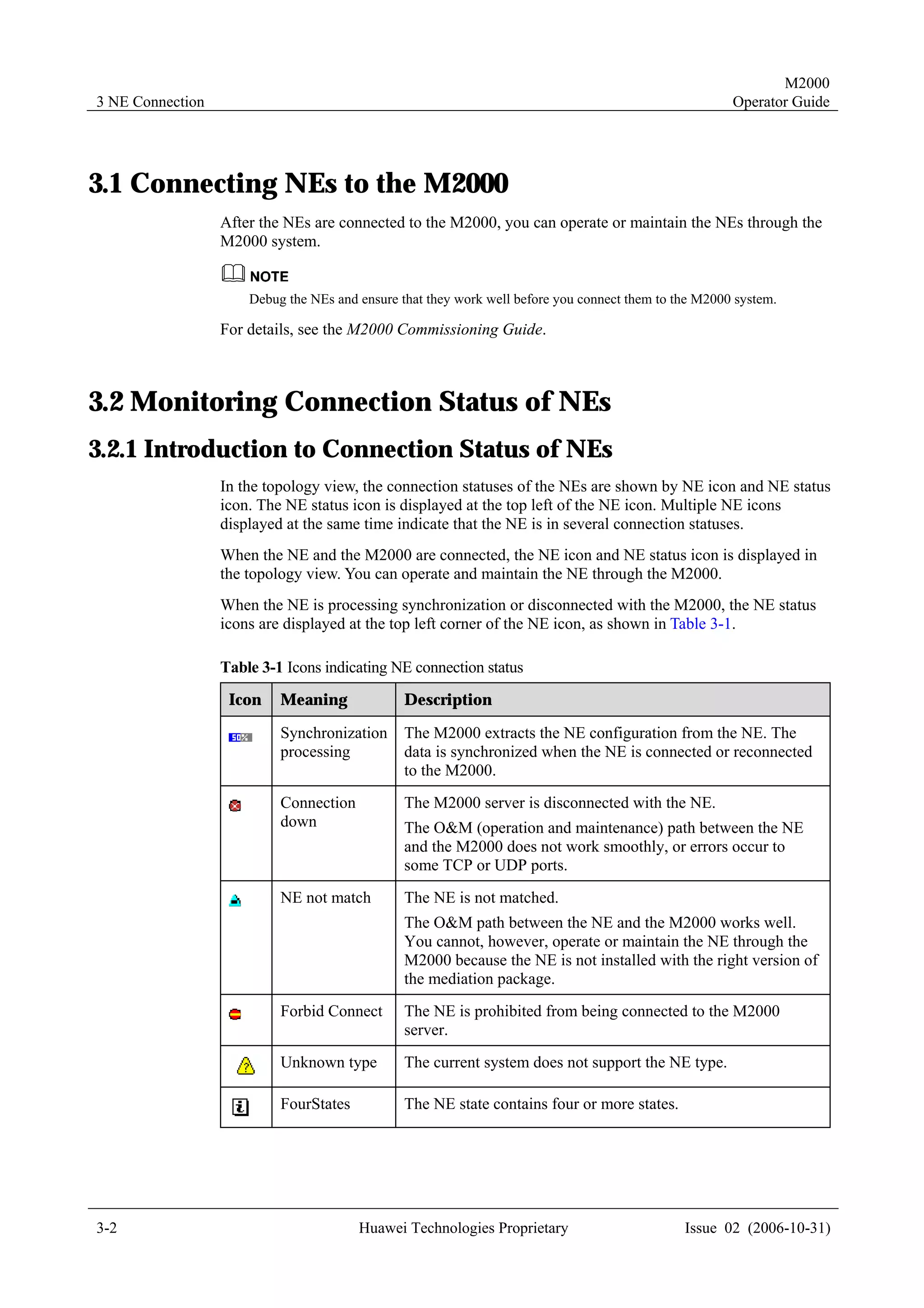
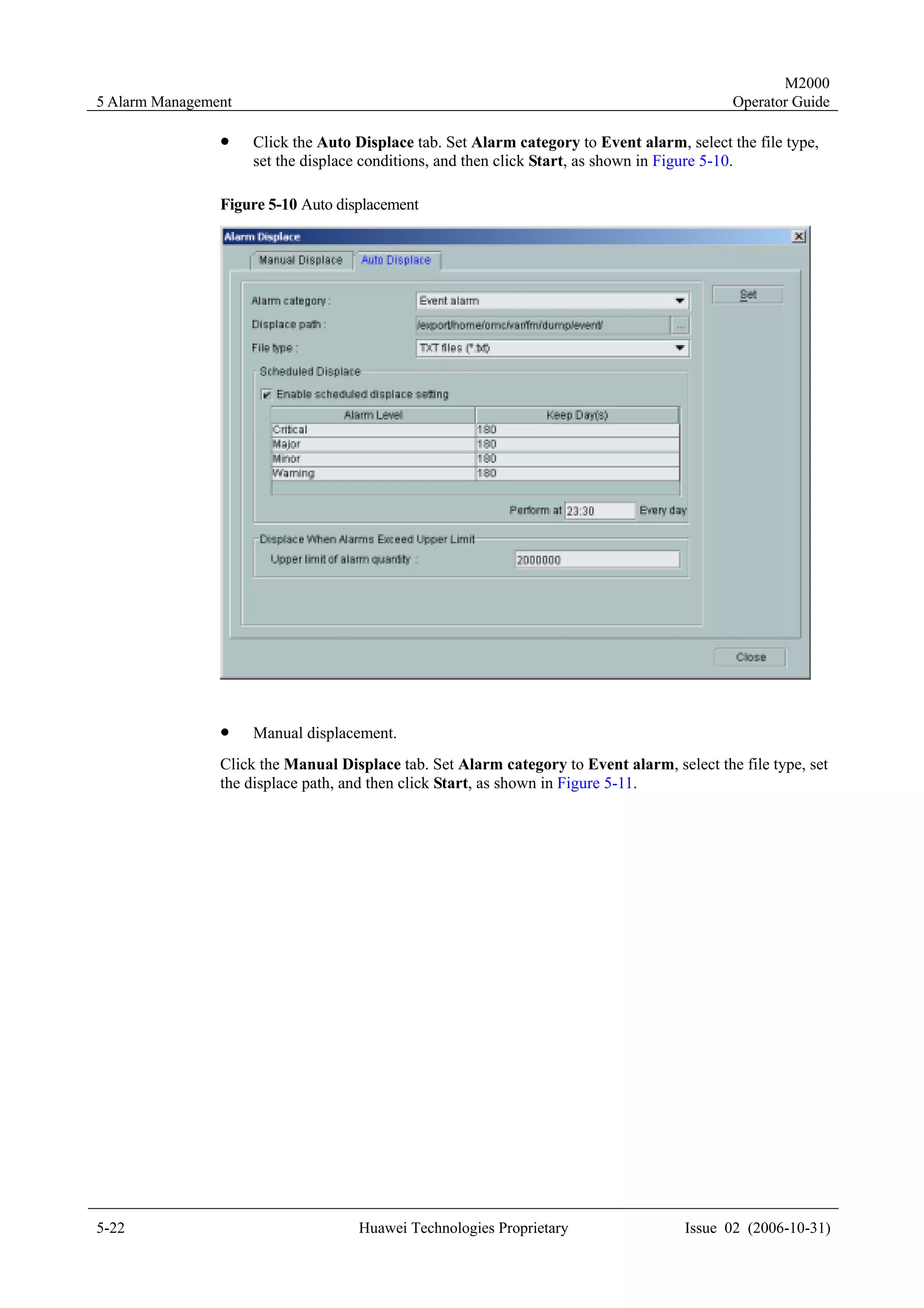
  • 205.
    M2000 10 Troubleshooting Operator Guide 10.1.7 Prompt Message "The User Has Reached the Maximum Login Attempts. The User Account Has Been Locked, and It Can Be Unlocked in 1 Minute." Symptoms The login to the M2000 client fails. The system prompts "The user has reached the maximum login attempts. The user account has been locked, and it can be unlocked in 1 minute." Possible Causes The password used for the current user account to log in to the system is incorrect, and the number of attempts to log in has reached the set threshold. Handling Suggestions Contact the M2000 administrator to unlock the user account, or wait until the system unlocks the user account. 10.1.8 Prompt Message "The Server Doesn’t Exist or Service Is Not Running." Symptoms The login to the M2000 client fails. The system prompts "The server doesn’t exist or service is not running." Possible Causes The possible causes include: ! The IP address of the server is incorrect. ! The communication between the client and the server is faulty. ! The server or the service is not running. ! The server has more than one IP address. Handling Suggestions Handle the fault in either of the following ways: ! Use correct server IP address. ! Check the connection between the client and the server. Ensure that the client can ping to the server. For details, see the M2000 Software Installation or M2000 HA System Software Installation. ! Contact the M2000 administrator to check the operating status of the server. 10-4 Huawei Technologies Proprietary Issue 02 (2006-10-31)
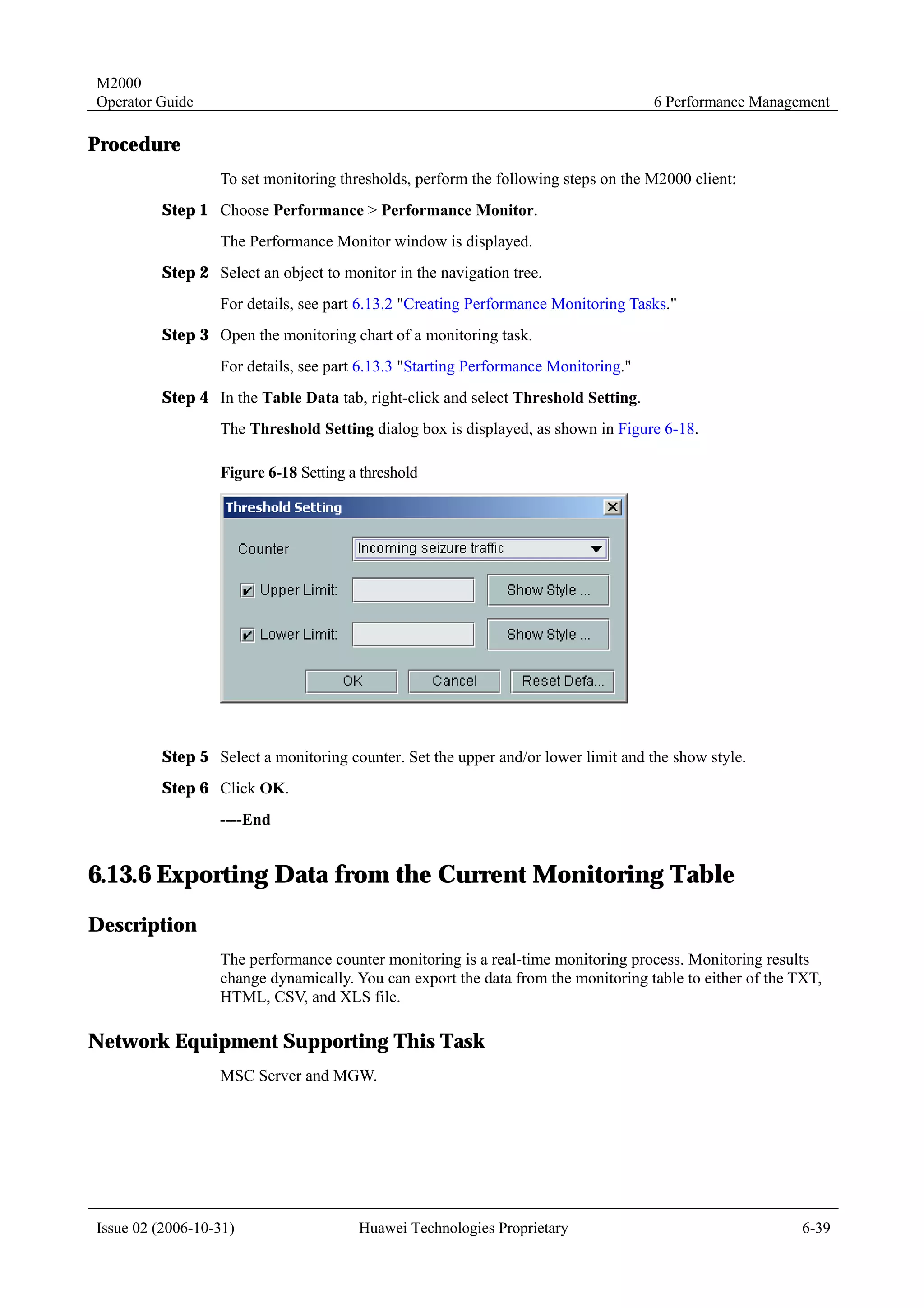
  • 206.
    M2000 Operator Guide 10 Troubleshooting 10.1.9 Prompt Message "Exceed Maximum Sessions." ing Symptoms The login to the M2000 client fails. The M2000 prompts "Exceed maximum sessions." Possible Causes The number of users logging in to the M2000 system reaches the limit. Handling Suggestions Wait until a user exits the system. 10.1.10 Prompt Message "Loading Module Failed, System Will Exit." Symptoms The login to the M2000 client fails. The M2000 prompts "Loading module failed, system will exit." Possible Causes The time on the client is inconsistent with that on the server. Handling Suggestions Maintain time consistency between the client and the server . 10.1.11 Prompt Message "Failed to Log in to the Server after the Auto Client Upgrade or Running Exception" Symptoms When you log in to the server from the client, the system prompts for an upgrade. After the upgrade, you cannot log in to the server, or function exceptions occur after you log in to the server. Possible Causes The possible causes include: ! The server version and the client version are inconsistent. During the upgrade, the client version is higher than the server version. ! The client and server versions do not belong to the same version series. The client upgrade will be smooth if: ! The client version and the server version belong to the same version series, for example, C02B022. Issue 02 (2006-10-31) Huawei Technologies Proprietary 10-5
  • 207.
    M2000 10 Troubleshooting Operator Guide ! The server version is higher than the client version, for example, the server version is C02B022SP01 and the client version is C02B022. Handling Suggestions Uninstall the existing client, and install the client with the correct version. For details, see the M2000 Software Installation Manual or M2000 HA System Software Installation Manual. 10.2 Client Running Faults 10.2.1 Abortion of the M2000 Client Symptoms The M2000 client interface closes automatically. Possible Causes The possible causes include: ! You are forced to exit the M2000 client. The user with the operation privileges, such as the M2000 administrator, can force you to exit the M2000 client. The M2000 client prompts a message before your exit. ! You change the time of the current M2000 client. In this case, the M2000 client does not prompt any message before your exit. Handling Suggestions Handle the fault in either of the following ways: ! Contact the M2000 administrator for the operation privilege. ! Do not change the time of the current M2000 client during the M2000 operation. Exit the M2000 client before you change the time. 10.2.2 Failure to Run the M2000 Client Symptoms The M2000 client fails to start. Possible Causes The possible causes include: ! The computer is short of memory. The M2000 client operation requires a memory of 256 MB. When the system runs short of memory, the M2000 client prompts "out of memory." ! Errors occur when you install the M2000 client. 10-6 Huawei Technologies Proprietary Issue 02 (2006-10-31)
  • 208.
    M2000 Operator Guide 10 Troubleshooting Handling Suggestions Handle the fault in either of the following ways: ! Avoid starting several M2000 clients on the same terminal. ! Quit other programs irrelevant to the M2000 client on the terminal. ! Uninstall the existing M2000 client, and install a new one. 10.2.3 Abnormal Display of M2000 Client Interface Symptoms Characters displayed on the M2000 client are abnormal. Possible Causes The configuration file is incorrect. Handling Suggestions Uninstall the existing M2000 client, and install a new one. 10.2.4 The Bulb on the GUI Is On and Off Intermittently Symptoms The client cannot receive the event alarms and broadcast messages from the server. On the client, the bulb at the lower right corner of the GUI is on and off intermittently. See Figure 10-1. Figure 10-1 The connection fails between the client and the server Possible Causes The M2000 uses the event mechanism of CORBA to check whether the communication between the M2000 client and the M2000 server is functioning well. A CORBA event is called in a different way from a common CORBA request. For a common request, the client initiates a connection and sends the request to the server. The server responds to the client using the same connection; however, for a CORBA event, when the client initiates a subscription request, the server sets up a new connection with the client and sends the event to the client using this new connection. Therefore, such a fault results from the failure in setting up a connection from the server to the client. The possible causes are as follows: Issue 02 (2006-10-31) Huawei Technologies Proprietary 10-7
  • 209.
    M2000 10 Troubleshooting Operator Guide ! You are using dual IP addresses of the client. The client monitors either of the IP addresses. Therefore, sometimes the client connects to the server normally, sometimes does not. ! You are using a firewall. Handling Suggestions ! If you set dual client IP addresses, change the settings on the client as follows. Open default.xml in libopenorbconfig, and then find the following information. <!-- properties controlling the incomming server side. --> <property name="listenAddress" value="0.0.0.0"> <description> Address to listen on on multi-homed host. Defaults to 0.0.0.0, all local addresses. </description> </property> <property name="port" value="53100"> <description> Port for the iiop transport to listen on. Defaults to 0, any available port.<p/> Command line alias Port is available. </description> </property> Change the value of listenAddress to a client IP address that you can ping successfully from the server. In addition, you can use this IP address to connect to the port 53100 by Telnet. ! If you use a firewall, change the settings as follows. On the firewall, open port 53100 from the server to the client IP address. The IP address and the port must be consistent with those set in the configuration file on the client. 10.3 Topology Management Faults 10.3.1 Failure to Refresh the Topology View Symptoms The connection between the client and the server is normal. The topology view, however, cannot be refreshed in real time. Possible Causes Multiple IP addresses are configured for the PC serving as the client. Handling Suggestions In this case, specify the IP address for communications before logging in to the M2000 server. For details, see the M2000 Installation Manual or M2000 HA System Installation Manual. 10-8 Huawei Technologies Proprietary Issue 02 (2006-10-31)
  • 210.
    M2000 Operator Guide 10 Troubleshooting 10.3.2 Failure to Discover NodeBs Automatically Symptoms The system fails to discover NodeBs automatically. Possible Causes The names of the NodeBs are invalid. The NodeB name must not contain the following characters: ~!, @, #, $, %, ^, &, *, (, ), +, -, =, {, }, [, ], , , |, ;, ', :, , ", <, >, ., ?, /, . Also the name must not end with a space. Handling Suggestions Execute the corresponding commands on the RNC to reset the names of the NodeBs. 10.3.3 Conflicted Names for the Created Topology Objects Symptoms When you create a topology object, the system prompts "The attribute value name already exists." , but you cannot see the topology object with this name in the topology view. Possible Causes The causes include: ! The current topology is not refreshed in real time. ! You do not have the privilege to create objects with the same name. Handling Suggestions Change the object name and recreate the topology object. 10.4 Alarm Management Faults 10.4.1 Time Delay of Alarm Message Real-Time Printing Symptoms After you enable the alarm messages real-time print function, the printer cannot print the reported alarm messages displayed in the browse window. Possible Causes The printer prints the alarm messages when the records fill one whole page or five minutes after the printer receives the alarms. Issue 02 (2006-10-31) Huawei Technologies Proprietary 10-9
  • 211.
    M2000 10 Troubleshooting Operator Guide Handling Suggestions This is normal. No operation is necessary. 10.4.2 Failure to Receive Alarm Emails in Real-Time Symptoms Both an e-mail address and a phone number are set in the Remote notify tab of the Fault Service Settings dialog box. But only an e-mail is received when an alarm occurs. Possible Causes The phone number is incorrect. The phone number must begin with the country code, for example, 861361234***1, where 86 is the country code of the People’s Republic of China (PRC). In some countries or districts, however, the phone number must not begin with the country code, for example, the Unite Arab Emirates (UAE). Handling Suggestions Enter the correct phone number in Remote notify detail settings. 10.4.3 Failure to Receive Alarm SMSs in Real-Time Symptoms The alarm SMS received on the mobile phone notifies the alarm generated 10 minutes ago. Possible Causes It takes about six seconds for an SMS to reach the receiver. Therefore, the M2000 can send a maximum of 10 SMSs in one minute. The delay occurs when too many alarms are generated. Handling Suggestions In the Remote Notify tab of Fault Service Settings, select fewer types of alarms to send by SMS. Ensure that only alarms with the highest priority are sent to the mobile phone through the SMS. 10.4.4 Unknown NE Names During the Alarm Query Symptoms In the History Fault Alarm Query dialog box, the NE names in some alarm message are displayed as Unknown. Possible Causes The NE reporting the alarm has been deleted from the M2000. 10-10 Huawei Technologies Proprietary Issue 02 (2006-10-31)
  • 212.
    M2000 Operator Guide 10 Troubleshooting Handling Suggestions No operation is required. To avoid such faults, delete the NE data after you delete an NE. Issue 02 (2006-10-31) Huawei Technologies Proprietary 10-11