Step 9
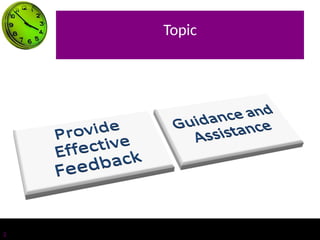
Provide Effective
Feedback
and Guidance
and
Assistanc
e
Topic
2
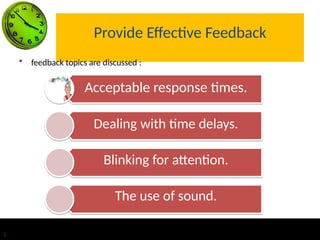
Provide Effective Feedback
• feedback topics are discussed :
Acceptable response times.
Dealing with time delays.
Blinking for attention.
The use of sound.
3
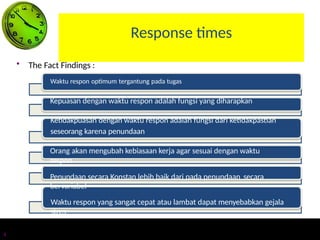
Response times
• The Fact Findings :
Waktu respon optimum tergantung pada tugas
Kepuasan dengan waktu respon adalah fungsi yang diharapkan
Ketidakpuasan dengan waktu respon adalah fungsi dari ketidakpastian
seseorang karena penundaan
Orang akan mengubah kebiasaan kerja agar sesuai dengan waktu
respon
Penundaan secara Konstan lebih baik dari pada penundaan secara
bervariabel
Waktu respon yang sangat cepat atau lambat dapat menyebabkan gejala
stres
4
Web Page Download Times
5
• Peserta tes diberi waktu respon dengan hasil sebagai berikut :
– High (Good): Up to 5 seconds
– Average: From 6 to 10 seconds
– Low (Poor): Over 10 seconds
Other studies have found the following:
• Longer delay times are tolerated by :
– Novice users, Older users, People not experienced with high bandwidth
connections, New visitors to a site, people performing important tasks,
People performing successful tasks, Better content
• Situs yang sangat lambat dapat menyebabkan orang untuk percaya bahwa
mereka membuat kesalahan
Web Page Download Times
6
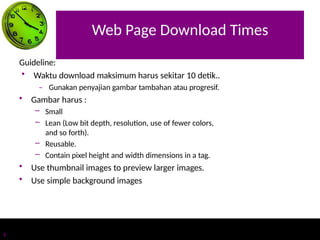
Guideline:
• Waktu download maksimum harus sekitar 10 detik..
– Gunakan penyajian gambar tambahan atau progresif.
• Gambar harus :
– Small
– Lean (Low bit depth, resolution, use of fewer colors,
and so forth).
– Reusable.
– Contain pixel height and width dimensions in a tag.
• Use thumbnail images to preview larger images.
• Use simple background images
Dealing with Time Delays
7
• Button click acknowledgement:
– Acknowledge all button clicks by visual or aural feedback within one-tenth of
a second.
• Waits of up to 10 seconds:
– If an operation takes 10 seconds or less to complete, present a “busy” signal
until the operation is complete.
• Display, for example, an animated hourglass pointer.
• Waits of 10 seconds to 1 minute:
– If an operation takes longer than 10 seconds to complete, display
– A rolling barber’s pole or other large animated object.
– Additionally, a progress indicator, percent complete message, or elapsed time
message.
Dealing with Time Delays
8
• Waits over 1 minute:
– Present an estimate of the length of the wait.
– Display a progress indicator, percent complete message, or elapsed time
message.
• Long, invisible operations:
– When an operation not visible to the user is completed, present an
acknowledgement that it is completed.
• A message Or An auditory tone.
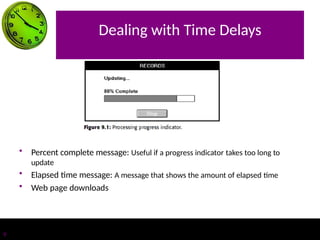
• ■ Progress indicator:
– Along rectangular bar that is initially empty but filled as the
operation proceeds.
• Dynamically fill the bar.
• Fill it with a color or shade of gray.
• Fill it from left to right or bottom to top
Dealing with Time Delays
• Percent complete message: Useful if a progress indicator takes too long to
update
• Elapsed time message: A message that shows the amount of elapsed time
• Web page downloads
9
Blinking for Attention
10
• Attract attention by flashing an indicator when an application is inactive
but must display a message to the user.
• To provide an additional message indication, also provide an
auditory signal (one or two beeps).
• Display the message
Use of Sound
11
• Always use in conjunction with a visual indication.
• Use no more than six different tones.
• Do not use : Jingles or tunes or Loud signals.
• Use tones consistently.
• Provide signal frequencies between 500 and 1,000 Hz.
• Allow the user to adjust the volume or turn the sound off altogether.
• Test the sounds with users over extended trial periods.
• Use sounds sparingly
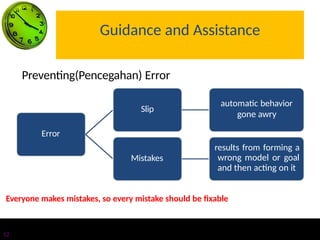
Guidance and Assistance
Error
Slip
automatic behavior
gone awry
Mistakes
results from forming a
wrong model or goal
and then acting on it
12
Preventing(Pencegahan) Error
Everyone makes mistakes, so every mistake should be fixable
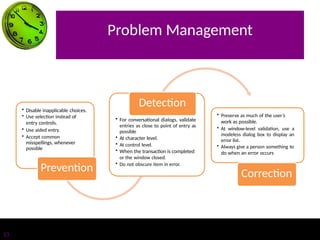
Problem Management
• Disable inapplicable choices.
• Use selection instead of
entry controls.
• Use aided entry.
• Accept common
misspellings, whenever
possible
Prevention
Detection
• For conversational dialogs, validate
entries as close to point of entry as
possible
• At character level.
• At control level.
• When the transaction is completed
or the window closed.
• Do not obscure item in error.
• Preserve as much of the user’s
work as possible.
• At window-level validation, use a
modeless dialog box to display an
error list.
• Always give a person something to
do when an error occurs
Correction
13
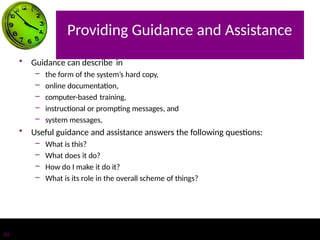
Providing Guidance and Assistance
14
• Guidance can describe in
– the form of the system’s hard copy,
– online documentation,
– computer-based training,
– instructional or prompting messages, and
– system messages,
• Useful guidance and assistance answers the following questions:
– What is this?
– What does it do?
– How do I make it do it?
– What is its role in the overall scheme of things?
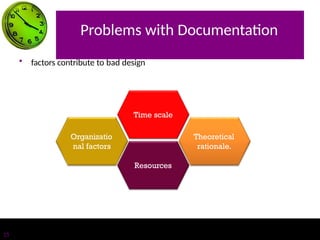
Problems with Documentation
• factors contribute to bad design
Resources
Theoretical
rationale.
Time scale
Organizatio
nal factors
15
How Users Interact with
Documentation
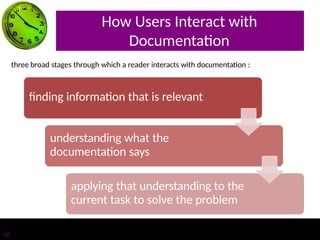
finding information that is relevant
understanding what the
documentation says
applying that understanding to the
current task to solve the problem
three broad stages through which a reader interacts with documentation :
16
How Users Interact with
Documentation
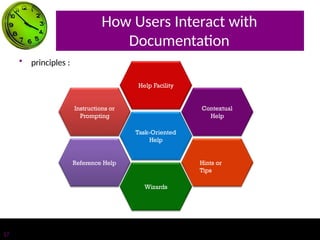
• principles :
Reference Help
Task-Oriented
Help
Hints or
Tips
Contextual
Help
Wizards
Help Facility
Instructions or
Prompting
17
Instructions or Prompting
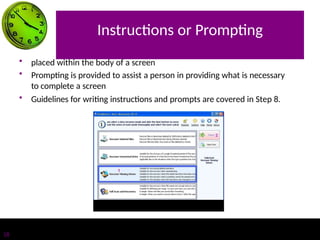
• placed within the body of a screen
• Prompting is provided to assist a person in providing what is necessary
to complete a screen
• Guidelines for writing instructions and prompts are covered in Step 8.
18
Help Facility
Help Facility Guidelines
• Kind:
• Training:
• Availability:
• Structure:
• Interaction:
• Location:
• Content:
• Style:
• Consistency:
• Title:
19
Contextual Help
20
Provides information within the context of a task being performed
Help Command Button
■ Description:
— A command button.
■ Purpose:
— To provide an overview of, summary assistance for, or explanatory
information about the purpose or contents of a window being
displayed.
■ Design guidelines:
–– Present Help in a secondary window or dialog box.
Contextual Help
21
Status Bar Message
• ■ Description:
– An abbreviated, context-sensitive message related to the screen item with the
focus.
– Appears in window’s status bar when the primary mouse button is pressed
over an item (or keyboard focus is achieved).
• ■ Purpose:
– — To provide explanatory information about the object with the focus.
Contextual Help
22
ToolTip
• Description:
– A small pop-up window that appears adjacent to control.
– Presented when the pointer remains over a control a short period of time.
• Purpose:
– Use to display the name of a control when the control has no text label.
• Design guidelines:
– Make application-specific ToolTips consistent with system-supplied ToolTips.
– Use system color setting for ToolTips above to distinguish them.
Contextual Help
23
What’s This? Command
• Description:
– A command located on the Help drop-down menu on a primary window.
– A button on the title bar of a secondary window.
– A command on a pop-up menu for a specific object.
– A button on a toolbar.
• Purpose:
– Use to provide contextual information about any screen object.
• Design guidelines:
– — Phrase to answer the question “What is this?”
– — Indicate the action associated with the item.
– — Begin the description with a verb.
Task-Oriented Help
24
Description:
• A primary window typically accessed through the Help Topics browser.
• Includes a set of command buttons at the top; Purpose:
• To describe the procedural steps for carrying out a task.
• Focuses on how to do something.
Design guidelines:
• Provide one procedure to complete a task, the simplest and most
common.
• Provide an explanation of the task’s goals and organizational structure at
the start.
• Divide procedural instructions into small steps.
• Present each step in the order to be executed.
Reference Help
25
Description:
• An online reference book.
• Typically accessed through a
– Command in a Help drop-down menu.
– Toolbar button.
Purpose:
• To present reference Help information, either
Design guidelines:
• Provide a consistent presentation style, following all previously presented
guidelines.
• Include a combination of contextual Help, and task-oriented Help, as
necessary.
• Include text, graphics, animation, video, and audio effects,
Wizards
26
Description:
• Serangkaian halaman presentasi ditampilkan dalam jendela sekunder. —
Termasuk : Controls to collect input, Navigation command buttons.
• Biasanya melalui pengaksesan.
Purpose:
• Untuk melakukan serangkaian langkah yang kompleks.
• Untuk melakukan tugas yang membutuhkan membuat beberapa
keputusan penting.
• Untuk memasukkan data penting dan untuk digunakan ketika biaya
kesalahan yang tinggi. .
• Untuk melakukan tugas yang jarang dicapai.
Hints or Tips
27
Description:
• Sebuah tombol perintah berlabel Petunjuk atau Tips.
Purpose:
• Untuk menghasilkan beberapa kontekstual penting, tetapi spesifik,
informasi dari item yang berhubungan dilayar
Design guidelines:
• Menghasilkan panduan hanya pada dua atau tiga poin penting
• Tempatkan tombol pada tempat panduan .
• Tulis secara singkat dan jelas.

Provide Effective Feedback for Design UI an d UX.pptx

  • 1.
    Step 9 Provide Effective Feedback andGuidance and Assistanc e
  • 2.
  • 3.
    Provide Effective Feedback •feedback topics are discussed : Acceptable response times. Dealing with time delays. Blinking for attention. The use of sound. 3
  • 4.
    Response times • TheFact Findings : Waktu respon optimum tergantung pada tugas Kepuasan dengan waktu respon adalah fungsi yang diharapkan Ketidakpuasan dengan waktu respon adalah fungsi dari ketidakpastian seseorang karena penundaan Orang akan mengubah kebiasaan kerja agar sesuai dengan waktu respon Penundaan secara Konstan lebih baik dari pada penundaan secara bervariabel Waktu respon yang sangat cepat atau lambat dapat menyebabkan gejala stres 4
  • 5.
    Web Page DownloadTimes 5 • Peserta tes diberi waktu respon dengan hasil sebagai berikut : – High (Good): Up to 5 seconds – Average: From 6 to 10 seconds – Low (Poor): Over 10 seconds Other studies have found the following: • Longer delay times are tolerated by : – Novice users, Older users, People not experienced with high bandwidth connections, New visitors to a site, people performing important tasks, People performing successful tasks, Better content • Situs yang sangat lambat dapat menyebabkan orang untuk percaya bahwa mereka membuat kesalahan
  • 6.
    Web Page DownloadTimes 6 Guideline: • Waktu download maksimum harus sekitar 10 detik.. – Gunakan penyajian gambar tambahan atau progresif. • Gambar harus : – Small – Lean (Low bit depth, resolution, use of fewer colors, and so forth). – Reusable. – Contain pixel height and width dimensions in a tag. • Use thumbnail images to preview larger images. • Use simple background images
  • 7.
    Dealing with TimeDelays 7 • Button click acknowledgement: – Acknowledge all button clicks by visual or aural feedback within one-tenth of a second. • Waits of up to 10 seconds: – If an operation takes 10 seconds or less to complete, present a “busy” signal until the operation is complete. • Display, for example, an animated hourglass pointer. • Waits of 10 seconds to 1 minute: – If an operation takes longer than 10 seconds to complete, display – A rolling barber’s pole or other large animated object. – Additionally, a progress indicator, percent complete message, or elapsed time message.
  • 8.
    Dealing with TimeDelays 8 • Waits over 1 minute: – Present an estimate of the length of the wait. – Display a progress indicator, percent complete message, or elapsed time message. • Long, invisible operations: – When an operation not visible to the user is completed, present an acknowledgement that it is completed. • A message Or An auditory tone. • ■ Progress indicator: – Along rectangular bar that is initially empty but filled as the operation proceeds. • Dynamically fill the bar. • Fill it with a color or shade of gray. • Fill it from left to right or bottom to top
  • 9.
    Dealing with TimeDelays • Percent complete message: Useful if a progress indicator takes too long to update • Elapsed time message: A message that shows the amount of elapsed time • Web page downloads 9
  • 10.
    Blinking for Attention 10 •Attract attention by flashing an indicator when an application is inactive but must display a message to the user. • To provide an additional message indication, also provide an auditory signal (one or two beeps). • Display the message
  • 11.
    Use of Sound 11 •Always use in conjunction with a visual indication. • Use no more than six different tones. • Do not use : Jingles or tunes or Loud signals. • Use tones consistently. • Provide signal frequencies between 500 and 1,000 Hz. • Allow the user to adjust the volume or turn the sound off altogether. • Test the sounds with users over extended trial periods. • Use sounds sparingly
  • 12.
    Guidance and Assistance Error Slip automaticbehavior gone awry Mistakes results from forming a wrong model or goal and then acting on it 12 Preventing(Pencegahan) Error Everyone makes mistakes, so every mistake should be fixable
  • 13.
    Problem Management • Disableinapplicable choices. • Use selection instead of entry controls. • Use aided entry. • Accept common misspellings, whenever possible Prevention Detection • For conversational dialogs, validate entries as close to point of entry as possible • At character level. • At control level. • When the transaction is completed or the window closed. • Do not obscure item in error. • Preserve as much of the user’s work as possible. • At window-level validation, use a modeless dialog box to display an error list. • Always give a person something to do when an error occurs Correction 13
  • 14.
    Providing Guidance andAssistance 14 • Guidance can describe in – the form of the system’s hard copy, – online documentation, – computer-based training, – instructional or prompting messages, and – system messages, • Useful guidance and assistance answers the following questions: – What is this? – What does it do? – How do I make it do it? – What is its role in the overall scheme of things?
  • 15.
    Problems with Documentation •factors contribute to bad design Resources Theoretical rationale. Time scale Organizatio nal factors 15
  • 16.
    How Users Interactwith Documentation finding information that is relevant understanding what the documentation says applying that understanding to the current task to solve the problem three broad stages through which a reader interacts with documentation : 16
  • 17.
    How Users Interactwith Documentation • principles : Reference Help Task-Oriented Help Hints or Tips Contextual Help Wizards Help Facility Instructions or Prompting 17
  • 18.
    Instructions or Prompting •placed within the body of a screen • Prompting is provided to assist a person in providing what is necessary to complete a screen • Guidelines for writing instructions and prompts are covered in Step 8. 18
  • 19.
    Help Facility Help FacilityGuidelines • Kind: • Training: • Availability: • Structure: • Interaction: • Location: • Content: • Style: • Consistency: • Title: 19
  • 20.
    Contextual Help 20 Provides informationwithin the context of a task being performed Help Command Button ■ Description: — A command button. ■ Purpose: — To provide an overview of, summary assistance for, or explanatory information about the purpose or contents of a window being displayed. ■ Design guidelines: –– Present Help in a secondary window or dialog box.
  • 21.
    Contextual Help 21 Status BarMessage • ■ Description: – An abbreviated, context-sensitive message related to the screen item with the focus. – Appears in window’s status bar when the primary mouse button is pressed over an item (or keyboard focus is achieved). • ■ Purpose: – — To provide explanatory information about the object with the focus.
  • 22.
    Contextual Help 22 ToolTip • Description: –A small pop-up window that appears adjacent to control. – Presented when the pointer remains over a control a short period of time. • Purpose: – Use to display the name of a control when the control has no text label. • Design guidelines: – Make application-specific ToolTips consistent with system-supplied ToolTips. – Use system color setting for ToolTips above to distinguish them.
  • 23.
    Contextual Help 23 What’s This?Command • Description: – A command located on the Help drop-down menu on a primary window. – A button on the title bar of a secondary window. – A command on a pop-up menu for a specific object. – A button on a toolbar. • Purpose: – Use to provide contextual information about any screen object. • Design guidelines: – — Phrase to answer the question “What is this?” – — Indicate the action associated with the item. – — Begin the description with a verb.
  • 24.
    Task-Oriented Help 24 Description: • Aprimary window typically accessed through the Help Topics browser. • Includes a set of command buttons at the top; Purpose: • To describe the procedural steps for carrying out a task. • Focuses on how to do something. Design guidelines: • Provide one procedure to complete a task, the simplest and most common. • Provide an explanation of the task’s goals and organizational structure at the start. • Divide procedural instructions into small steps. • Present each step in the order to be executed.
  • 25.
    Reference Help 25 Description: • Anonline reference book. • Typically accessed through a – Command in a Help drop-down menu. – Toolbar button. Purpose: • To present reference Help information, either Design guidelines: • Provide a consistent presentation style, following all previously presented guidelines. • Include a combination of contextual Help, and task-oriented Help, as necessary. • Include text, graphics, animation, video, and audio effects,
  • 26.
    Wizards 26 Description: • Serangkaian halamanpresentasi ditampilkan dalam jendela sekunder. — Termasuk : Controls to collect input, Navigation command buttons. • Biasanya melalui pengaksesan. Purpose: • Untuk melakukan serangkaian langkah yang kompleks. • Untuk melakukan tugas yang membutuhkan membuat beberapa keputusan penting. • Untuk memasukkan data penting dan untuk digunakan ketika biaya kesalahan yang tinggi. . • Untuk melakukan tugas yang jarang dicapai.
  • 27.
    Hints or Tips 27 Description: •Sebuah tombol perintah berlabel Petunjuk atau Tips. Purpose: • Untuk menghasilkan beberapa kontekstual penting, tetapi spesifik, informasi dari item yang berhubungan dilayar Design guidelines: • Menghasilkan panduan hanya pada dua atau tiga poin penting • Tempatkan tombol pada tempat panduan . • Tulis secara singkat dan jelas.