PrivateGSM Demo
Quick Start Guide for Nokia Symbian 9, 3rd and 5th ed.


Demo Version for evaluation only
NOT FOR SALE: the PrivateGSM version you can purchase
is sold within the Enterprise VoIP Security Suite solution.


© 2005-2011 PrivateWave Italia SpA - All trademarks and copyrights are property of their respective owners. All rights reserved.
PrivateGSM Demo                                          1


Summary


1. Before you begin                                          2


1.1 Some advices...                                          2
1.2 ...and one tip                                           2


2. Activation...in 3 easy steps!                             3


1 Install PrivateGSM                                         3
2 Select a network access point                              3
3 Launch the auto-activation                                 4


3. How it works                                              5


1   Invite your contacts                                     5
2   Make a secure call using PrivateGSM                      5
3   Receive a secure call using PrivateGSM                   6
4   Call phases                                              7
5   Call quality level                                       7
6   Check your security                                      8
7   Receive Only mode                                        8


4. Contacts                                                  9


                                             Quick Start Guide
PrivateGSM Demo                                                                                          2


1. Before you begin...


1.1 Some advices...
=   Your phone calls’ security is granted by using the VoIP data line instead of the voice one.
    Under particular events, due to the VoIP network condition, it could be present a little latency.
    If a WiFi internet connection is available, consider to use it for a better communication quality.

= As a VoIP phone call, with data-packet exchanging, both the caller and the called pay for the calling.
  To save your money consider to subscribe an unlimited mobile internet data plan with your mobile
  operator.

= When making a secure call, before being connected to your contact, the system needs to exchange
  and verify the security keys. It takes a while, so you need to wait some seconds before starting the
  conversation.


1.2 ...and one tip
=   You can save in your address book the contacts to whom you want to make secure calls by adding the
    secure prefix +801.


                                                                                             Quick Start Guide
PrivateGSM Demo                                                                           3


2. Activation...in 3 easy steps!


1   Install PrivateGSM


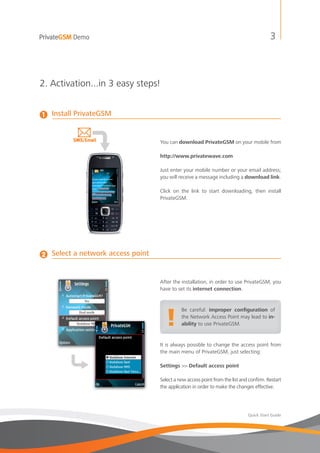
                                    You can download PrivateGSM on your mobile from

                                    http://www.privatewave.com

                                    Just enter your mobile number or your email address;
                                    you will receive a message including a download link.

                                    Click on the link to start downloading, then install
                                    PrivateGSM.


2   Select a network access point


                                    After the installation, in order to use PrivateGSM, you
                                    have to set its internet connection.


                                       !
                                              Be careful: improper configuration of
                                              the Network Access Point may lead to in-
                                              ability to use PrivateGSM.


                                    It is always possible to change the access point from
                                    the main menu of PrivateGSM, just selecting:

                                    Settings >> Default access point

                                    Select a new access point from the list and confirm. Restart
                                    the application in order to make the changes effective.


                                                                               Quick Start Guide
PrivateGSM Demo                                                                     4


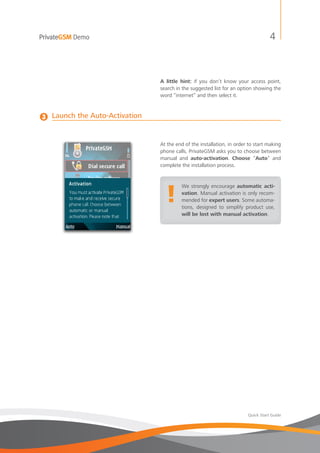
                                 A little hint: if you don’t know your access point,
                                 search in the suggested list for an option showing the
                                 word “internet” and then select it.


3   Launch the Auto-Activation


                                 At the end of the installation, in order to start making
                                 phone calls, PrivateGSM asks you to choose between
                                 manual and auto-activation. Choose “Auto” and
                                 complete the installation process.


                                    !
                                          We strongly encourage automatic acti-
                                          vation. Manual activation is only recom-
                                          mended for expert users. Some automa-
                                          tions, designed to simplify product use,
                                          will be lost with manual activation.


                                                                         Quick Start Guide
PrivateGSM Demo                                                                      5


3. How it works


1   Invite your contacts


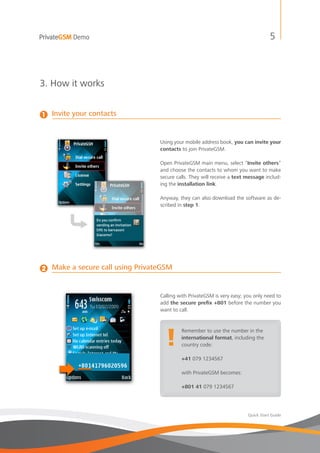
                                   Using your mobile address book, you can invite your
                                   contacts to join PrivateGSM.

                                   Open PrivateGSM main menu, select “Invite others”
                                   and choose the contacts to whom you want to make
                                   secure calls. They will receive a text message includ-
                                   ing the installation link.

                                   Anyway, they can also download the software as de-
                                   scribed in step 1.


2   Make a secure call using PrivateGSM


                                   Calling with PrivateGSM is very easy; you only need to
                                   add the secure prefix +801 before the number you
                                   want to call.


                                      !
                                            Remember to use the number in the
                                            international format, including the
                                            country code:

                                            +41 079 1234567

                                            with PrivateGSM becomes:

                                            +801 41 079 1234567


                                                                          Quick Start Guide
PrivateGSM Demo                                                                        6


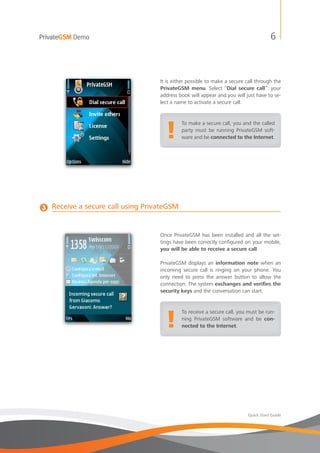
                                    It is either possible to make a secure call through the
                                    PrivateGSM menu. Select “Dial secure call”: your
                                    address book will appear and you will just have to se-
                                    lect a name to activate a secure call.


                                       !
                                             To make a secure call, you and the called
                                             party must be running PrivateGSM soft-
                                             ware and be connected to the Internet.


3   Receive a secure call using PrivateGSM


                                    Once PrivateGSM has been installed and all the set-
                                    tings have been correctly configured on your mobile,
                                    you will be able to receive a secure call.

                                    PrivateGSM displays an information note when an
                                    incoming secure call is ringing on your phone. You
                                    only need to press the answer button to allow the
                                    connection. The system exchanges and verifies the
                                    security keys and the conversation can start.


                                       !
                                             To receive a secure call, you must be run-
                                             ning PrivateGSM software and be con-
                                             nected to the Internet.


                                                                            Quick Start Guide
PrivateGSM Demo                                                                                         7


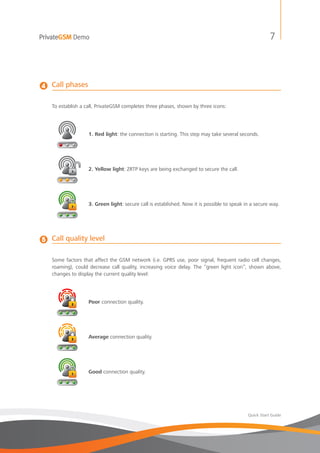
4   Call phases

    To establish a call, PrivateGSM completes three phases, shown by three icons:


                    1. Red light: the connection is starting. This step may take several seconds.


                    2. Yellow light: ZRTP keys are being exchanged to secure the call.


                    3. Green light: secure call is established. Now it is possible to speak in a secure way.


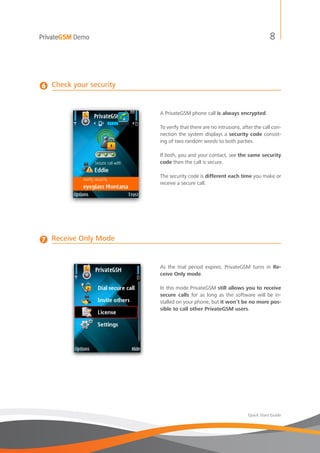
5   Call quality level

    Some factors that affect the GSM network (i.e. GPRS use, poor signal, frequent radio cell changes,
    roaming), could decrease call quality, increasing voice delay. The “green light icon”, shown above,
    changes to display the current quality level:


                    Poor connection quality.


                    Average connection quality.


                    Good connection quality.


                                                                                             Quick Start Guide
PrivateGSM Demo                                                                8


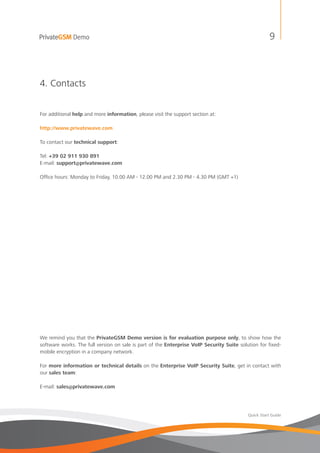
6   Check your security


                          A PrivateGSM phone call is always encrypted.

                          To verify that there are no intrusions, after the call con-
                          nection the system displays a security code consist-
                          ing of two random words to both parties.

                          If both, you and your contact, see the same security
                          code then the call is secure.

                          The security code is different each time you make or
                          receive a secure call.


7   Receive Only Mode


                          As the trial period expires, PrivateGSM turns in Re-
                          ceive Only mode.

                          In this mode PrivateGSM still allows you to receive
                          secure calls for as long as the software will be in-
                          stalled on your phone, but it won’t be no more pos-
                          sible to call other PrivateGSM users.


                                                                    Quick Start Guide
PrivateGSM Demo                                                                                       9


4. Contacts


For additional help and more information, please visit the support section at:

http://www.privatewave.com

To contact our technical support:

Tel: +39 02 911 930 891
E-mail: support@privatewave.com

Office hours: Monday to Friday, 10.00 AM - 12.00 PM and 2.30 PM - 4.30 PM (GMT +1)


We remind you that the PrivateGSM Demo version is for evaluation purpose only, to show how the
software works. The full version on sale is part of the Enterprise VoIP Security Suite solution for fixed-
mobile encryption in a company network.

For more information or technical details on the Enterprise VoIP Security Suite, get in contact with
our sales team:

E-mail: sales@privatewave.com


                                                                                           Quick Start Guide

PrivateGSM demo quickstart guide nokia_en

  • 1.
    PrivateGSM Demo Quick StartGuide for Nokia Symbian 9, 3rd and 5th ed. Demo Version for evaluation only NOT FOR SALE: the PrivateGSM version you can purchase is sold within the Enterprise VoIP Security Suite solution. © 2005-2011 PrivateWave Italia SpA - All trademarks and copyrights are property of their respective owners. All rights reserved.
  • 2.
    PrivateGSM Demo 1 Summary 1. Before you begin 2 1.1 Some advices... 2 1.2 ...and one tip 2 2. Activation...in 3 easy steps! 3 1 Install PrivateGSM 3 2 Select a network access point 3 3 Launch the auto-activation 4 3. How it works 5 1 Invite your contacts 5 2 Make a secure call using PrivateGSM 5 3 Receive a secure call using PrivateGSM 6 4 Call phases 7 5 Call quality level 7 6 Check your security 8 7 Receive Only mode 8 4. Contacts 9 Quick Start Guide
  • 3.
    PrivateGSM Demo 2 1. Before you begin... 1.1 Some advices... = Your phone calls’ security is granted by using the VoIP data line instead of the voice one. Under particular events, due to the VoIP network condition, it could be present a little latency. If a WiFi internet connection is available, consider to use it for a better communication quality. = As a VoIP phone call, with data-packet exchanging, both the caller and the called pay for the calling. To save your money consider to subscribe an unlimited mobile internet data plan with your mobile operator. = When making a secure call, before being connected to your contact, the system needs to exchange and verify the security keys. It takes a while, so you need to wait some seconds before starting the conversation. 1.2 ...and one tip = You can save in your address book the contacts to whom you want to make secure calls by adding the secure prefix +801. Quick Start Guide
  • 4.
    PrivateGSM Demo 3 2. Activation...in 3 easy steps! 1 Install PrivateGSM You can download PrivateGSM on your mobile from http://www.privatewave.com Just enter your mobile number or your email address; you will receive a message including a download link. Click on the link to start downloading, then install PrivateGSM. 2 Select a network access point After the installation, in order to use PrivateGSM, you have to set its internet connection. ! Be careful: improper configuration of the Network Access Point may lead to in- ability to use PrivateGSM. It is always possible to change the access point from the main menu of PrivateGSM, just selecting: Settings >> Default access point Select a new access point from the list and confirm. Restart the application in order to make the changes effective. Quick Start Guide
  • 5.
    PrivateGSM Demo 4 A little hint: if you don’t know your access point, search in the suggested list for an option showing the word “internet” and then select it. 3 Launch the Auto-Activation At the end of the installation, in order to start making phone calls, PrivateGSM asks you to choose between manual and auto-activation. Choose “Auto” and complete the installation process. ! We strongly encourage automatic acti- vation. Manual activation is only recom- mended for expert users. Some automa- tions, designed to simplify product use, will be lost with manual activation. Quick Start Guide
  • 6.
    PrivateGSM Demo 5 3. How it works 1 Invite your contacts Using your mobile address book, you can invite your contacts to join PrivateGSM. Open PrivateGSM main menu, select “Invite others” and choose the contacts to whom you want to make secure calls. They will receive a text message includ- ing the installation link. Anyway, they can also download the software as de- scribed in step 1. 2 Make a secure call using PrivateGSM Calling with PrivateGSM is very easy; you only need to add the secure prefix +801 before the number you want to call. ! Remember to use the number in the international format, including the country code: +41 079 1234567 with PrivateGSM becomes: +801 41 079 1234567 Quick Start Guide
  • 7.
    PrivateGSM Demo 6 It is either possible to make a secure call through the PrivateGSM menu. Select “Dial secure call”: your address book will appear and you will just have to se- lect a name to activate a secure call. ! To make a secure call, you and the called party must be running PrivateGSM soft- ware and be connected to the Internet. 3 Receive a secure call using PrivateGSM Once PrivateGSM has been installed and all the set- tings have been correctly configured on your mobile, you will be able to receive a secure call. PrivateGSM displays an information note when an incoming secure call is ringing on your phone. You only need to press the answer button to allow the connection. The system exchanges and verifies the security keys and the conversation can start. ! To receive a secure call, you must be run- ning PrivateGSM software and be con- nected to the Internet. Quick Start Guide
  • 8.
    PrivateGSM Demo 7 4 Call phases To establish a call, PrivateGSM completes three phases, shown by three icons: 1. Red light: the connection is starting. This step may take several seconds. 2. Yellow light: ZRTP keys are being exchanged to secure the call. 3. Green light: secure call is established. Now it is possible to speak in a secure way. 5 Call quality level Some factors that affect the GSM network (i.e. GPRS use, poor signal, frequent radio cell changes, roaming), could decrease call quality, increasing voice delay. The “green light icon”, shown above, changes to display the current quality level: Poor connection quality. Average connection quality. Good connection quality. Quick Start Guide
  • 9.
    PrivateGSM Demo 8 6 Check your security A PrivateGSM phone call is always encrypted. To verify that there are no intrusions, after the call con- nection the system displays a security code consist- ing of two random words to both parties. If both, you and your contact, see the same security code then the call is secure. The security code is different each time you make or receive a secure call. 7 Receive Only Mode As the trial period expires, PrivateGSM turns in Re- ceive Only mode. In this mode PrivateGSM still allows you to receive secure calls for as long as the software will be in- stalled on your phone, but it won’t be no more pos- sible to call other PrivateGSM users. Quick Start Guide
  • 10.
    PrivateGSM Demo 9 4. Contacts For additional help and more information, please visit the support section at: http://www.privatewave.com To contact our technical support: Tel: +39 02 911 930 891 E-mail: support@privatewave.com Office hours: Monday to Friday, 10.00 AM - 12.00 PM and 2.30 PM - 4.30 PM (GMT +1) We remind you that the PrivateGSM Demo version is for evaluation purpose only, to show how the software works. The full version on sale is part of the Enterprise VoIP Security Suite solution for fixed- mobile encryption in a company network. For more information or technical details on the Enterprise VoIP Security Suite, get in contact with our sales team: E-mail: sales@privatewave.com Quick Start Guide