. . How to insert a picture into Splashup.com By: Sara Ash
First Screen Shot First Select the Internet icon on your home page.
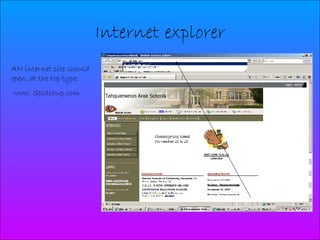
Internet explorer AN internet site should open, at the top type: www. Splashup.com
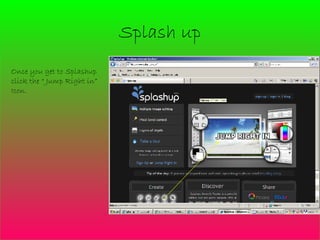
Splash up Once you get to Splashup click the “ Jump Right in” Icon.
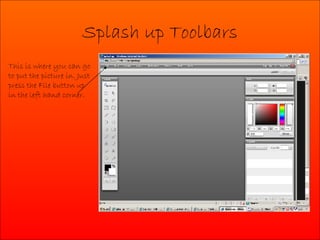
Splash up Toolbars This is where you can go to put the picture in. Just press the File button up in the left hand corner.
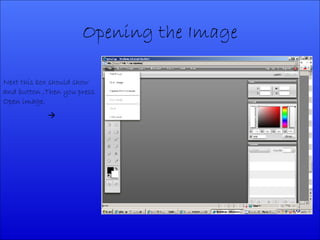
Opening the Image Next this box should show and button ,Then you press Open image. 
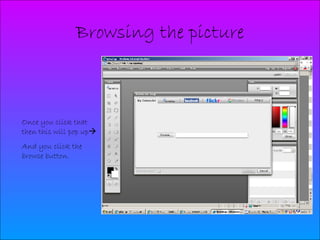
Browsing the picture Once you click that then this will pop up  And you click the browse button.
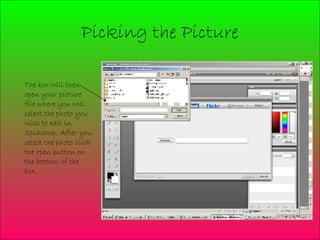
Picking the Picture The box will then open your picture file where you will select the photo you wish to edit in Splashup. After you select the photo click the open button on the bottom of the box.
Selecting the Picture Above the box another will open containing your document, select my Pictures. Select then open button in the box next to the browse button. Select the open button again at the bottom right hand side of the box.
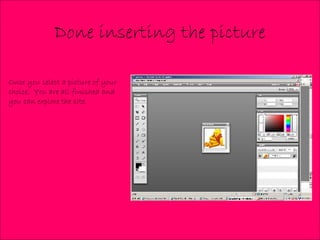
Done inserting the picture Once you select a picture of your choice.  You are all finished and you can explore the site.

Power Point Presentation For Tech......Splash Up!

  • 1.
    . . Howto insert a picture into Splashup.com By: Sara Ash
  • 2.
    First Screen ShotFirst Select the Internet icon on your home page.
  • 3.
    Internet explorer ANinternet site should open, at the top type: www. Splashup.com
  • 4.
    Splash up Onceyou get to Splashup click the “ Jump Right in” Icon.
  • 5.
    Splash up ToolbarsThis is where you can go to put the picture in. Just press the File button up in the left hand corner.
  • 6.
    Opening the ImageNext this box should show and button ,Then you press Open image. 
  • 7.
    Browsing the pictureOnce you click that then this will pop up  And you click the browse button.
  • 8.
    Picking the PictureThe box will then open your picture file where you will select the photo you wish to edit in Splashup. After you select the photo click the open button on the bottom of the box.
  • 9.
    Selecting the PictureAbove the box another will open containing your document, select my Pictures. Select then open button in the box next to the browse button. Select the open button again at the bottom right hand side of the box.
  • 10.
    Done inserting thepicture Once you select a picture of your choice. You are all finished and you can explore the site.