ANGEL HTML Editor: Inserting a Picture

Follow the steps listed below to insert a picture of yourself into a discussion posting.
(Screenshots are provided for clarity.)

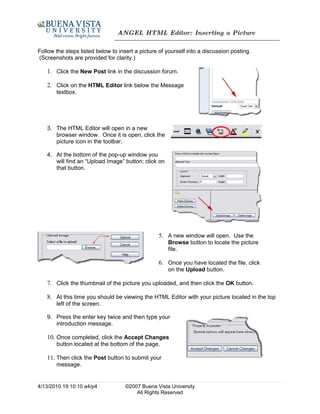
   1. Click the New Post link in the discussion forum.

   2. Click on the HTML Editor link below the Message
       textbox.


   3. The HTML Editor will open in a new
      browser window. Once it is open, click the
      picture icon in the toolbar.

   4. At the bottom of the pop-up window you
      will find an “Upload Image” button; click on
      that button.


                                                 5. A new window will open. Use the
                                                     Browse button to locate the picture
                                                     file.

                                                 6. Once you have located the file, click
                                                     on the Upload button.

   7. Click the thumbnail of the picture you uploaded, and then click the OK button.

   8. At this time you should be viewing the HTML Editor with your picture located in the top
       left of the screen.

   9. Press the enter key twice and then type your
      introduction message.

   10. Once completed, click the Accept Changes
       button located at the bottom of the page.

   11. Then click the Post button to submit your
       message.


4/13/2010 19:10:10 a4/p4            ©2007 Buena Vista University
                                        All Rights Reserved

Html editor guide

  • 1.
    ANGEL HTML Editor:Inserting a Picture Follow the steps listed below to insert a picture of yourself into a discussion posting. (Screenshots are provided for clarity.) 1. Click the New Post link in the discussion forum. 2. Click on the HTML Editor link below the Message textbox. 3. The HTML Editor will open in a new browser window. Once it is open, click the picture icon in the toolbar. 4. At the bottom of the pop-up window you will find an “Upload Image” button; click on that button. 5. A new window will open. Use the Browse button to locate the picture file. 6. Once you have located the file, click on the Upload button. 7. Click the thumbnail of the picture you uploaded, and then click the OK button. 8. At this time you should be viewing the HTML Editor with your picture located in the top left of the screen. 9. Press the enter key twice and then type your introduction message. 10. Once completed, click the Accept Changes button located at the bottom of the page. 11. Then click the Post button to submit your message. 4/13/2010 19:10:10 a4/p4 ©2007 Buena Vista University All Rights Reserved