API NOTEBOOK
By:- Rakesh Kumar Jha
MuleSoft Certified Architect, Designer and Developer
DZone MVB (Most Valuable Blogger)
Websites:-
https://dzone.com/users/2959749/rakeshjha.html
https://linkedin.com/in/rakesh-kumar-jha-660a57103
API Discovery and API Notebook
A well designed API has to be discoverable. MuleSoft anypoint platform API portal
provides a centralized place for discovering all the tools (API Documentation, Mock API
testing etc) that anybody can use to successfully discover an API.
MuleSoft anypoint platform API portal provides API Notebook, a web-based tool to
explore the API in JavaScript scripting workspace. API Notebook generates API client
from API RAML specification to understand API’s resources, methods, required
arguments etc and allow user to make live call to API for personalized testing.
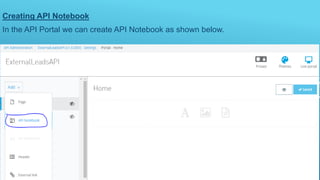
Creating API Notebook
In the API Portal we can create API Notebook as shown below.
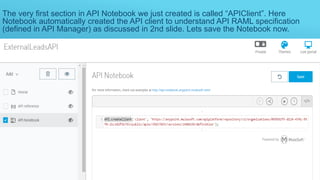
The very first section in API Notebook we just created is called “APIClient”. Here
Notebook automatically created the API client to understand API RAML specification
(defined in API Manager) as discussed in 2nd slide. Lets save the Notebook now.
Invoking API Flow From Notebook
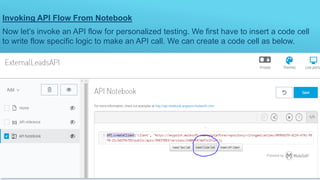
Now let’s invoke an API flow for personalized testing. We first have to insert a code cell
to write flow specific logic to make an API call. We can create a code cell as below.
Invoking API Flow From Notebook
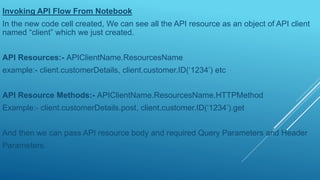
In the new code cell created, We can see all the API resource as an object of API client
named “client” which we just created.
API Resources:- APIClientName.ResourcesName
example:- client.customerDetails, client.customer.ID(‘1234’) etc
API Resource Methods:- APIClientName.ResourcesName.HTTPMethod
Example:- client.customerDetails.post, client.customer.ID(‘1234’).get
And then we can pass API resource body and required Query Parameters and Header
Parameters.
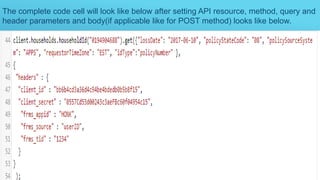
The complete code cell will look like below after setting API resource, method, query and
header parameters and body(if applicable like for POST method) looks like below.
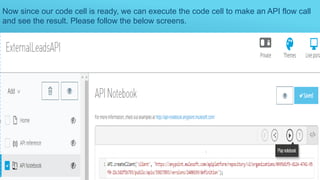
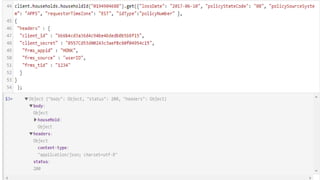
Now since our code cell is ready, we can execute the code cell to make an API flow call
and see the result. Please follow the below screens.
Let’s Share our Knowledge to Expand our MuleSoft Community.
Thank You!!

Play Your API with MuleSoft API Notebook

  • 1.
    API NOTEBOOK By:- RakeshKumar Jha MuleSoft Certified Architect, Designer and Developer DZone MVB (Most Valuable Blogger) Websites:- https://dzone.com/users/2959749/rakeshjha.html https://linkedin.com/in/rakesh-kumar-jha-660a57103
  • 2.
    API Discovery andAPI Notebook A well designed API has to be discoverable. MuleSoft anypoint platform API portal provides a centralized place for discovering all the tools (API Documentation, Mock API testing etc) that anybody can use to successfully discover an API. MuleSoft anypoint platform API portal provides API Notebook, a web-based tool to explore the API in JavaScript scripting workspace. API Notebook generates API client from API RAML specification to understand API’s resources, methods, required arguments etc and allow user to make live call to API for personalized testing.
  • 3.
    Creating API Notebook Inthe API Portal we can create API Notebook as shown below.
  • 4.
    The very firstsection in API Notebook we just created is called “APIClient”. Here Notebook automatically created the API client to understand API RAML specification (defined in API Manager) as discussed in 2nd slide. Lets save the Notebook now.
  • 5.
    Invoking API FlowFrom Notebook Now let’s invoke an API flow for personalized testing. We first have to insert a code cell to write flow specific logic to make an API call. We can create a code cell as below.
  • 6.
    Invoking API FlowFrom Notebook In the new code cell created, We can see all the API resource as an object of API client named “client” which we just created. API Resources:- APIClientName.ResourcesName example:- client.customerDetails, client.customer.ID(‘1234’) etc API Resource Methods:- APIClientName.ResourcesName.HTTPMethod Example:- client.customerDetails.post, client.customer.ID(‘1234’).get And then we can pass API resource body and required Query Parameters and Header Parameters.
  • 7.
    The complete codecell will look like below after setting API resource, method, query and header parameters and body(if applicable like for POST method) looks like below.
  • 8.
    Now since ourcode cell is ready, we can execute the code cell to make an API flow call and see the result. Please follow the below screens.
  • 10.
    Let’s Share ourKnowledge to Expand our MuleSoft Community. Thank You!!