PINGONE IDAAS:
What You Need to Know
Ian Jaffe
Email: ijaffe@pingidentity.com
Copyright © 2014 Ping Identity Corp.All rights reserved. 2
OVERVIEW
PingOne Service
Confidential — do not distribute Copyright © 2014 Ping Identity Corp.All rights reserved. 3
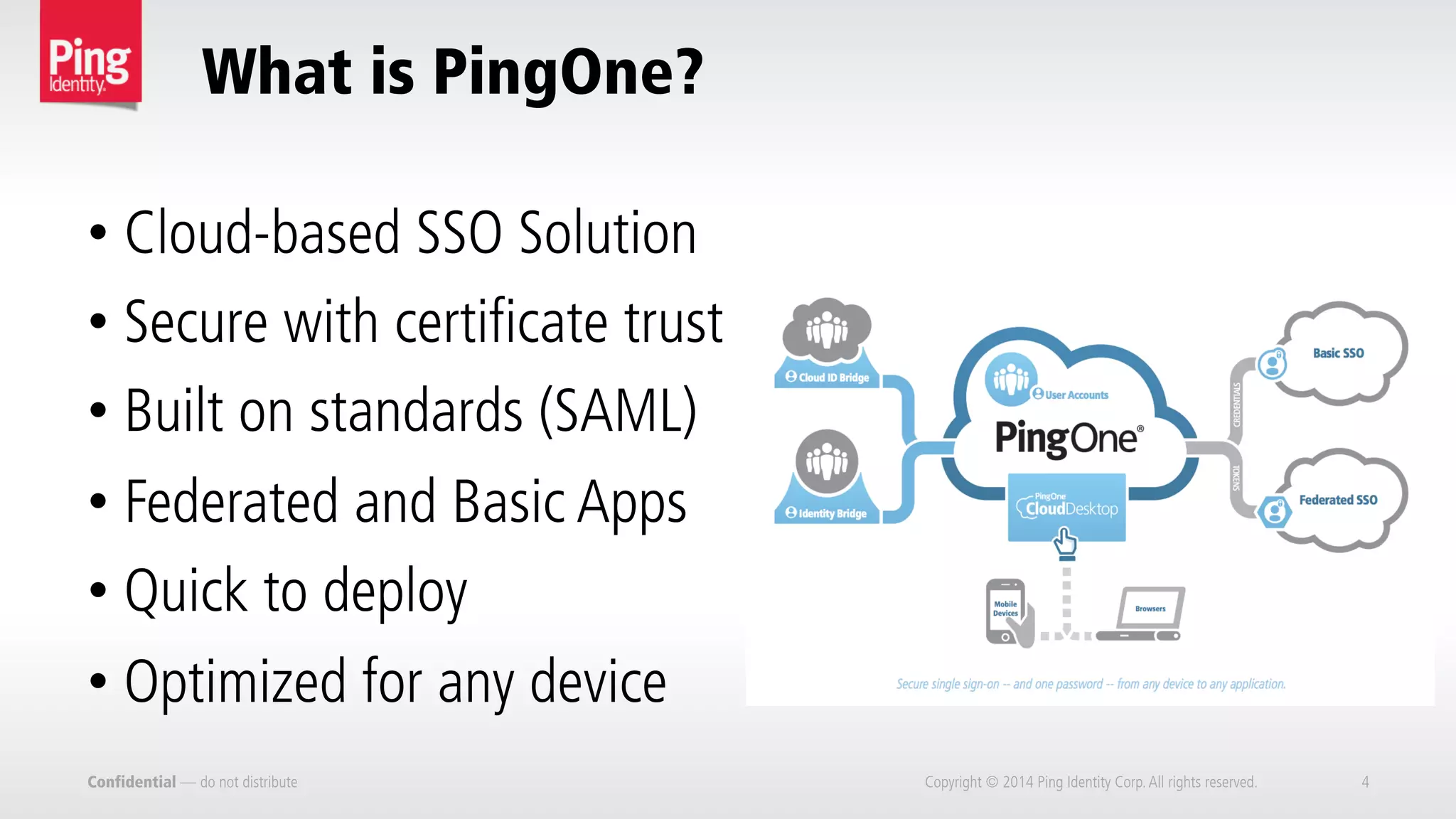
What is PingOne?
Confidential — do not distribute Copyright © 2014 Ping Identity Corp.All rights reserved. 4
• Cloud-based SSO Solution
• Secure with certificate trust
• Built on standards (SAML)
• Federated and Basic Apps
• Quick to deploy
• Optimized for any device
What are the various versions of PingOne?
Confidential — do not distribute Copyright © 2014 Ping Identity Corp.All rights reserved. 5
•  Employee SSO
PingOne for Groups – Free Offering
•  Desktop and Mobile
•  Basic SSO and SAML
•  Cloud Directory
•  Web/Email Support
•  Limited to 5 Applications
PingOne for Enterprise
•  Adds AD Connect Capability
•  Multi-Factor Authentication
•  Provisioning
•  24x7x365 Support (email, phone & web)
•  Adds On-Premise Identity Store Integration
(AD/LDAP/DB,WAM)
•  Adaptive Authentication
Confidential — do not distribute Copyright © 2014 Ping Identity Corp.All rights reserved. 6
What are the various versions of PingOne?
•  PingOne SSO For SaaS Apps
– SAML enable your applications
– Single connection to PingOne for all your customers
– REST-based API and source code available
– Supports both private and public applications
Confidential — do not distribute Copyright © 2014 Ping Identity Corp.All rights reserved. 7
More to Know about PingOne for Groups
•  Supports SSO to virtually any application
–  Basic SSO for apps with a username and password
–  Federated SSO for standards based SSO using SAML
•  1,000’s of applications via the PingOne app catalog
–  Other applications can be added manually
•  Authentication Policy Support
•  Autostart Application Functionality
Confidential — do not distribute Copyright © 2014 Ping Identity Corp.All rights reserved. 8
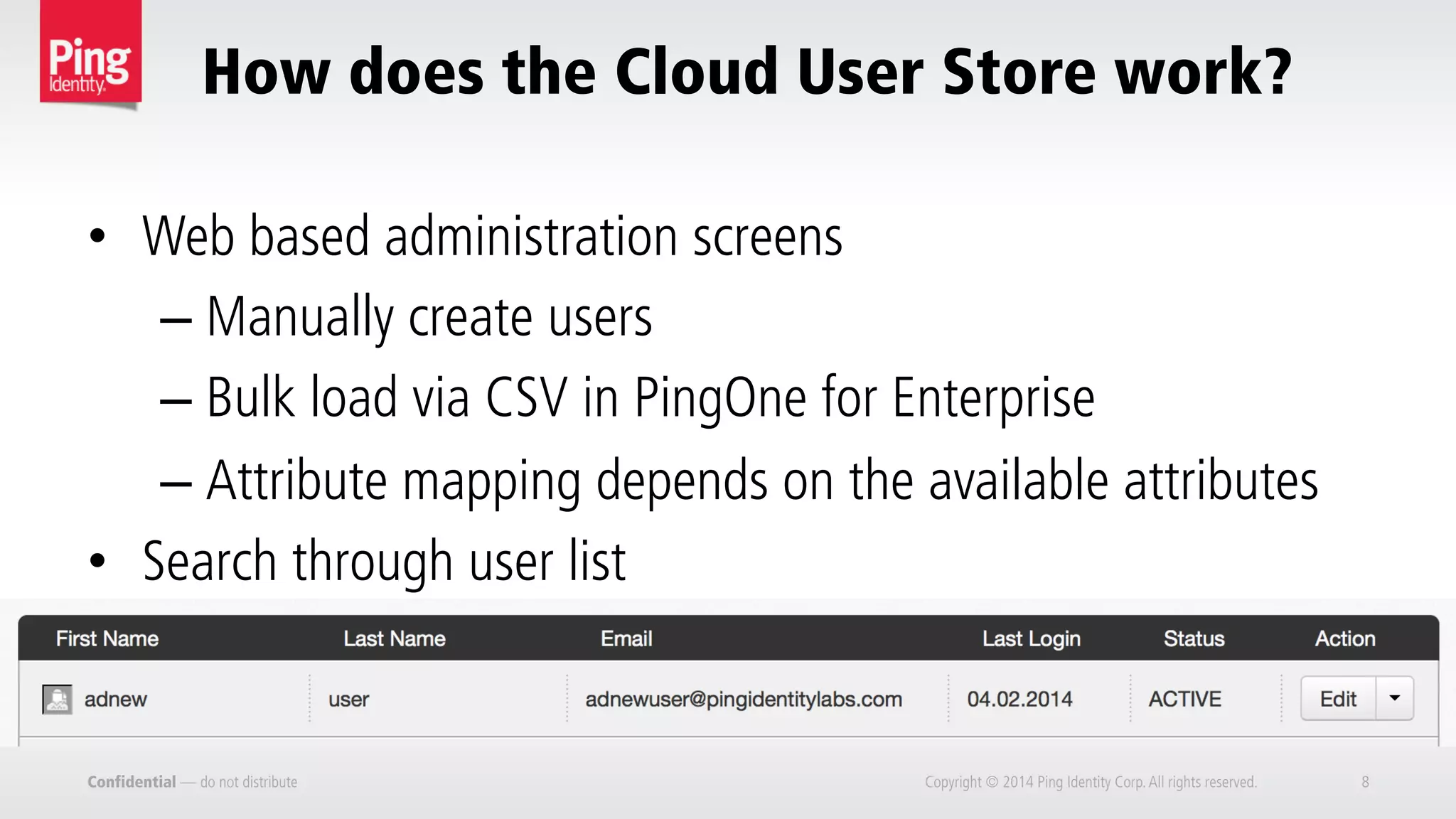
How does the Cloud User Store work?
•  Web based administration screens
– Manually create users
– Bulk load via CSV in PingOne for Enterprise
– Attribute mapping depends on the available attributes
•  Search through user list
What does the PingOne infrastructure look like?
Confidential — do not distribute Copyright © 2014 Ping Identity Corp.All rights reserved. 9
•  Deployment/Infrastructure
– Composed of many different services and subsystems
– Three primary data centers in the US
– 24/7/365 Supervision. 99.9% uptime
– All data centers are SOC II compliant
– Detailed logging and monitoring
http://uptime.pingidentity.com/
https://status.pingidentity.com/
https://www.pingone.com/security
What can be found in the App Catalog?
Confidential — do not distribute Copyright © 2014 Ping Identity Corp.All rights reserved. 10
•  Application Catalog
– Self-Service Configuration and Management
– Hundreds of SAML Applications
– Over 1,000 Additional Basic SSO Applications
– Through a SaaS SSO Account after SAML enabling and
integrating an application it can be added to the catalog
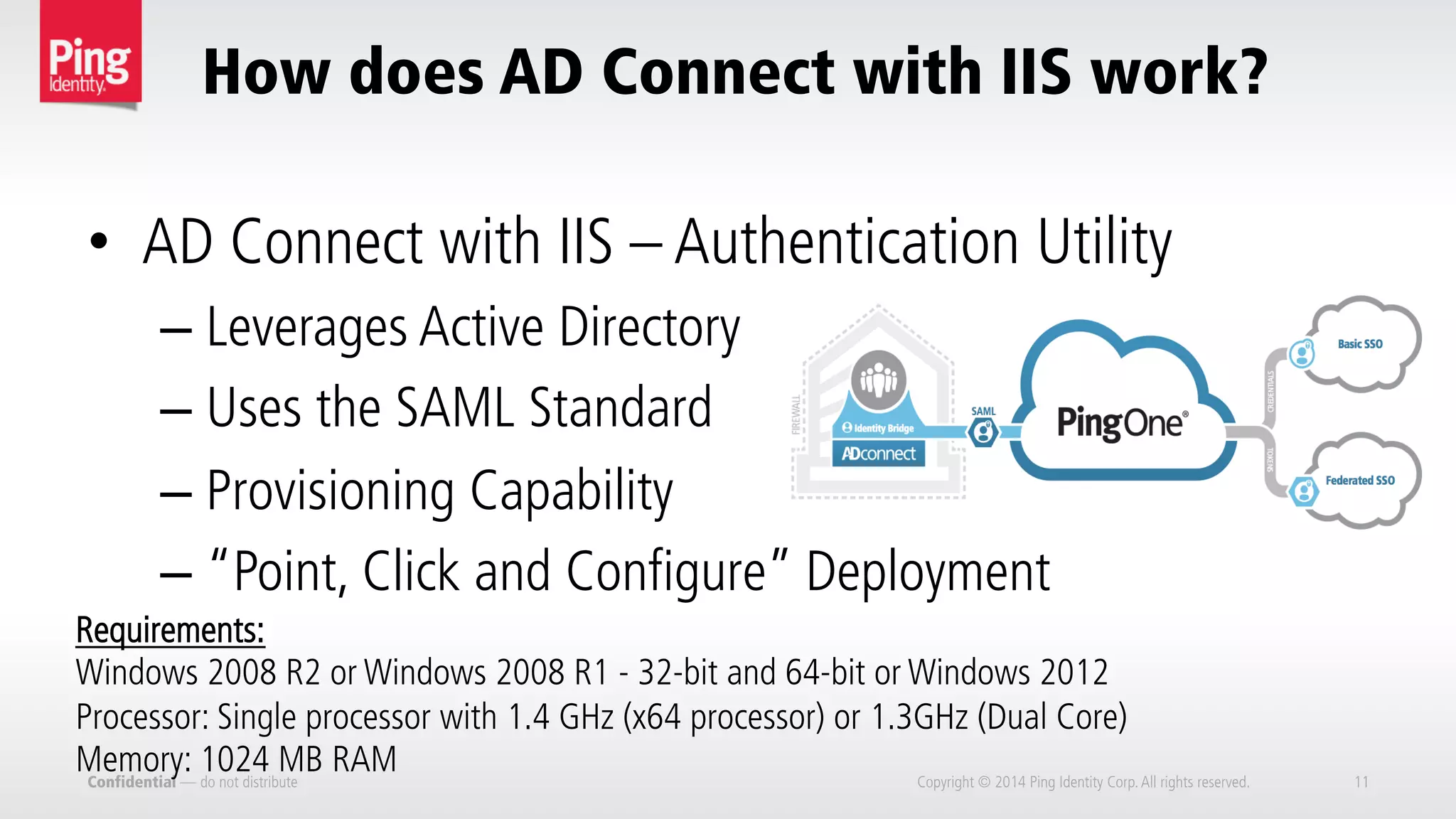
How does AD Connect with IIS work?
Confidential — do not distribute Copyright © 2014 Ping Identity Corp.All rights reserved. 11
•  AD Connect with IIS – Authentication Utility
– Leverages Active Directory
– Uses the SAML Standard
– Provisioning Capability
– “Point, Click and Configure” Deployment
Requirements:
Windows 2008 R2 or Windows 2008 R1 - 32-bit and 64-bit or Windows 2012
Processor: Single processor with 1.4 GHz (x64 processor) or 1.3GHz (Dual Core)
Memory: 1024 MB RAM
How does AD Connect work?
Confidential — do not distribute Copyright © 2014 Ping Identity Corp.All rights reserved. 12
•  AD Connect (AD Agent)
–  Does not require IIS
–  No need for certificates
–  Ping-managed High Availability
–  Provides Delegated Authentication Capability
–  Receives Authentication Requests,Validates Credentials, and
Sends User Attributes
–  Option in the AD Connect Installer
What other IdPs are Supported?
Confidential — do not distribute Copyright © 2014 Ping Identity Corp.All rights reserved. 13
•  PingFederate – 80 integration kits. Connect to any
identity store and application, on-premise and cloud
•  Cloud User Store – Built into PingOne
•  Salesforce as an IdP – Use Salesforce’s Identity Info
•  Google as an IdP – Use Google’s Identity Via OpenID
•  Other Third-Party Options – ADFS,Any SAML Solution
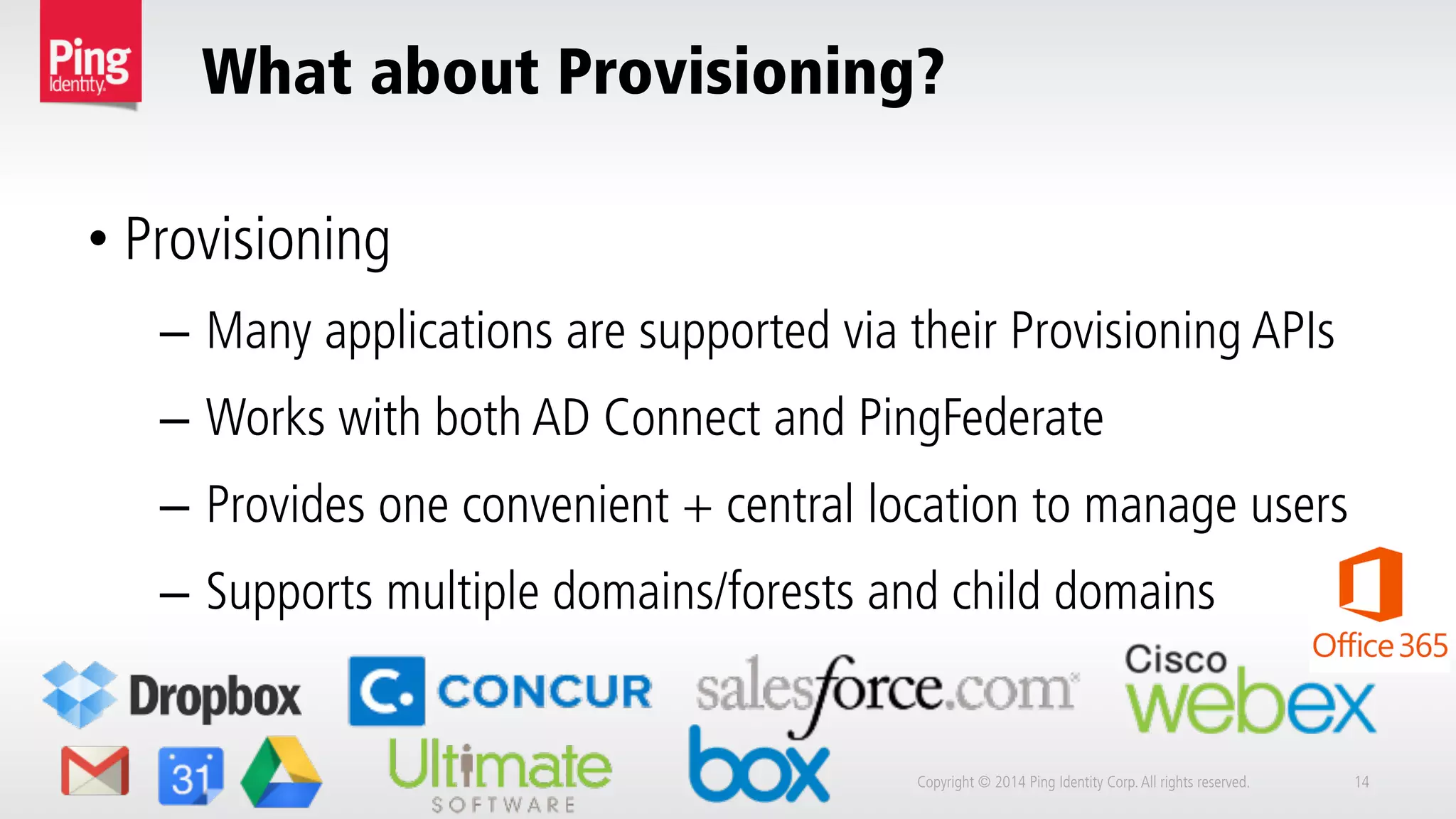
What about Provisioning?
Copyright © 2014 Ping Identity Corp.All rights reserved. 14
• Provisioning
–  Many applications are supported via their Provisioning APIs
–  Works with both AD Connect and PingFederate
–  Provides one convenient + central location to manage users
–  Supports multiple domains/forests and child domains
Exercise One: Joining PingOne For Groups
Copyright © 2014 Ping Identity Corp.All rights reserved. 15
•  https://www.pingidentity.com/en/products/pingone/sign-up-free.html
•  Get your welcome e-mail and click ‘Activate’
•  Fill in profile information including a password. Logo is optional.
•  Click ‘Create Account’ and select four applications for your desktop
•  Click ‘Next’ and Install the Browser Plugin
•  Define a privacy key. These applications are Basic SSO so let’s try out
the functionality
Exercise Two: Utilizing Basic SSO
Copyright © 2014 Ping Identity Corp.All rights reserved. 16
•  From the CloudDesktop, select an application
•  Follow the CloudDesktop extension prompts and click ‘Save’
•  Logout of this Application
•  Return to the portal and click the Application Link (Credentials
replayed at this point)
•  Return once again and select ‘Customize’
•  Select ‘Manage Application Passwords’ and view Application info
Exercise Three: Train your own Basic SSO app
Copyright © 2014 Ping Identity Corp.All rights reserved. 17
•  Login to the PingOne Administrative Console
•  Click ‘Applications’ and click ‘Add Application’, ‘New Basic SSO’
•  Click the ‘Begin’ button and specify URL to train
•  Follow the steps including selecting Username + Password fields
•  Optionally add images for logo and icon and select ‘Save’
Exercise Four: Mobile Access
Copyright © 2014 Ping Identity Corp.All rights reserved. 18
•  The PingOne mobile application works for both SAML +
Basic SSO
•  Download the app from either iOS App or Android Play Store
•  Launch the App and enter your Company ID
•  Enter login credentials
•  Select the app of your choice here that is configured for
Basic SSO
Any Questions?
Copyright © 2014 Ping Identity Corp.All rights reserved. 19

PingOne IDaaS: What You Need to Know

  • 2.
    PINGONE IDAAS: What YouNeed to Know Ian Jaffe Email: ijaffe@pingidentity.com Copyright © 2014 Ping Identity Corp.All rights reserved. 2
  • 3.
    OVERVIEW PingOne Service Confidential —do not distribute Copyright © 2014 Ping Identity Corp.All rights reserved. 3
  • 4.
    What is PingOne? Confidential— do not distribute Copyright © 2014 Ping Identity Corp.All rights reserved. 4 • Cloud-based SSO Solution • Secure with certificate trust • Built on standards (SAML) • Federated and Basic Apps • Quick to deploy • Optimized for any device
  • 5.
    What are thevarious versions of PingOne? Confidential — do not distribute Copyright © 2014 Ping Identity Corp.All rights reserved. 5 •  Employee SSO PingOne for Groups – Free Offering •  Desktop and Mobile •  Basic SSO and SAML •  Cloud Directory •  Web/Email Support •  Limited to 5 Applications PingOne for Enterprise •  Adds AD Connect Capability •  Multi-Factor Authentication •  Provisioning •  24x7x365 Support (email, phone & web) •  Adds On-Premise Identity Store Integration (AD/LDAP/DB,WAM) •  Adaptive Authentication
  • 6.
    Confidential — donot distribute Copyright © 2014 Ping Identity Corp.All rights reserved. 6 What are the various versions of PingOne? •  PingOne SSO For SaaS Apps – SAML enable your applications – Single connection to PingOne for all your customers – REST-based API and source code available – Supports both private and public applications
  • 7.
    Confidential — donot distribute Copyright © 2014 Ping Identity Corp.All rights reserved. 7 More to Know about PingOne for Groups •  Supports SSO to virtually any application –  Basic SSO for apps with a username and password –  Federated SSO for standards based SSO using SAML •  1,000’s of applications via the PingOne app catalog –  Other applications can be added manually •  Authentication Policy Support •  Autostart Application Functionality
  • 8.
    Confidential — donot distribute Copyright © 2014 Ping Identity Corp.All rights reserved. 8 How does the Cloud User Store work? •  Web based administration screens – Manually create users – Bulk load via CSV in PingOne for Enterprise – Attribute mapping depends on the available attributes •  Search through user list
  • 9.
    What does thePingOne infrastructure look like? Confidential — do not distribute Copyright © 2014 Ping Identity Corp.All rights reserved. 9 •  Deployment/Infrastructure – Composed of many different services and subsystems – Three primary data centers in the US – 24/7/365 Supervision. 99.9% uptime – All data centers are SOC II compliant – Detailed logging and monitoring http://uptime.pingidentity.com/ https://status.pingidentity.com/ https://www.pingone.com/security
  • 10.
    What can befound in the App Catalog? Confidential — do not distribute Copyright © 2014 Ping Identity Corp.All rights reserved. 10 •  Application Catalog – Self-Service Configuration and Management – Hundreds of SAML Applications – Over 1,000 Additional Basic SSO Applications – Through a SaaS SSO Account after SAML enabling and integrating an application it can be added to the catalog
  • 11.
    How does ADConnect with IIS work? Confidential — do not distribute Copyright © 2014 Ping Identity Corp.All rights reserved. 11 •  AD Connect with IIS – Authentication Utility – Leverages Active Directory – Uses the SAML Standard – Provisioning Capability – “Point, Click and Configure” Deployment Requirements: Windows 2008 R2 or Windows 2008 R1 - 32-bit and 64-bit or Windows 2012 Processor: Single processor with 1.4 GHz (x64 processor) or 1.3GHz (Dual Core) Memory: 1024 MB RAM
  • 12.
    How does ADConnect work? Confidential — do not distribute Copyright © 2014 Ping Identity Corp.All rights reserved. 12 •  AD Connect (AD Agent) –  Does not require IIS –  No need for certificates –  Ping-managed High Availability –  Provides Delegated Authentication Capability –  Receives Authentication Requests,Validates Credentials, and Sends User Attributes –  Option in the AD Connect Installer
  • 13.
    What other IdPsare Supported? Confidential — do not distribute Copyright © 2014 Ping Identity Corp.All rights reserved. 13 •  PingFederate – 80 integration kits. Connect to any identity store and application, on-premise and cloud •  Cloud User Store – Built into PingOne •  Salesforce as an IdP – Use Salesforce’s Identity Info •  Google as an IdP – Use Google’s Identity Via OpenID •  Other Third-Party Options – ADFS,Any SAML Solution
  • 14.
    What about Provisioning? Copyright© 2014 Ping Identity Corp.All rights reserved. 14 • Provisioning –  Many applications are supported via their Provisioning APIs –  Works with both AD Connect and PingFederate –  Provides one convenient + central location to manage users –  Supports multiple domains/forests and child domains
  • 15.
    Exercise One: JoiningPingOne For Groups Copyright © 2014 Ping Identity Corp.All rights reserved. 15 •  https://www.pingidentity.com/en/products/pingone/sign-up-free.html •  Get your welcome e-mail and click ‘Activate’ •  Fill in profile information including a password. Logo is optional. •  Click ‘Create Account’ and select four applications for your desktop •  Click ‘Next’ and Install the Browser Plugin •  Define a privacy key. These applications are Basic SSO so let’s try out the functionality
  • 16.
    Exercise Two: UtilizingBasic SSO Copyright © 2014 Ping Identity Corp.All rights reserved. 16 •  From the CloudDesktop, select an application •  Follow the CloudDesktop extension prompts and click ‘Save’ •  Logout of this Application •  Return to the portal and click the Application Link (Credentials replayed at this point) •  Return once again and select ‘Customize’ •  Select ‘Manage Application Passwords’ and view Application info
  • 17.
    Exercise Three: Trainyour own Basic SSO app Copyright © 2014 Ping Identity Corp.All rights reserved. 17 •  Login to the PingOne Administrative Console •  Click ‘Applications’ and click ‘Add Application’, ‘New Basic SSO’ •  Click the ‘Begin’ button and specify URL to train •  Follow the steps including selecting Username + Password fields •  Optionally add images for logo and icon and select ‘Save’
  • 18.
    Exercise Four: MobileAccess Copyright © 2014 Ping Identity Corp.All rights reserved. 18 •  The PingOne mobile application works for both SAML + Basic SSO •  Download the app from either iOS App or Android Play Store •  Launch the App and enter your Company ID •  Enter login credentials •  Select the app of your choice here that is configured for Basic SSO
  • 19.
    Any Questions? Copyright ©2014 Ping Identity Corp.All rights reserved. 19