Projects Delivery Group
Online Project Management Software
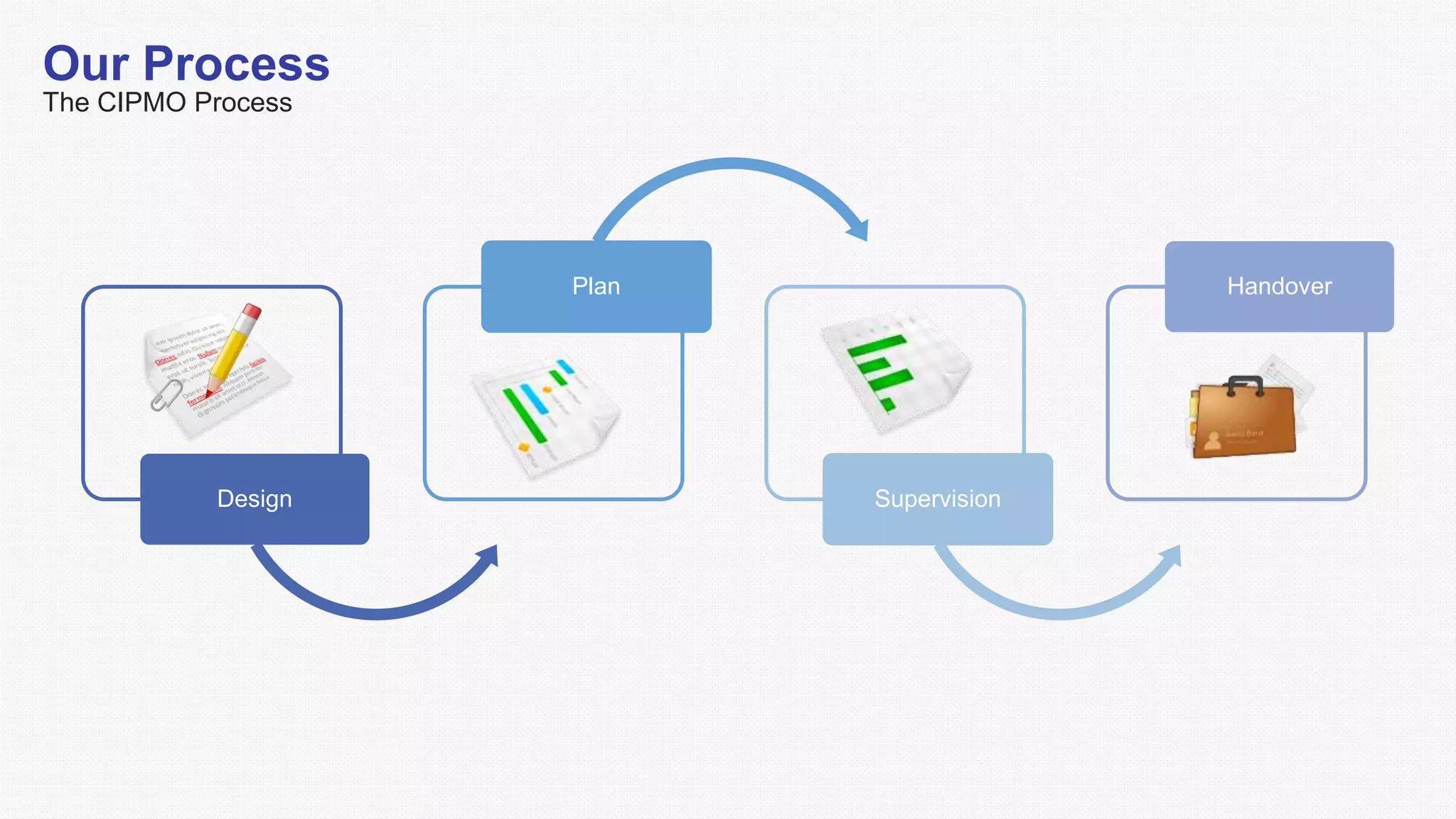
Design
Plan
Supervision
Handover
Our Process
The CIPMO Process
Design
Design the Project
Establish Team
Project Roles & Meetings
Step One
Step Two
Step Three
Step Four
Step Five
Step Six
Step Seven
January February March
1 2 3 4 1 2 3 4 1 2 3 4
Create Schedule
Gantt Chart
The project schedule is created listing a project's milestones, activities, and deliverables, with intended start and finish dates.
Project Schedule is created using the CIPMO
Municipality Apply Log Track Receive
Permit to
work Apply Track Approve Issue
Apply for Permits
Step-by-step
Method Statements
Step-by-step
Details of Material type, quality and
details of specification
Tools & Equipment
01 02
04 03
Outline of the Work to be Undertaken
Outline
Details of work management for the
duration of the project.
Setting up Site
Methodical details of the task to be
carried out stage by stage and any
checks that must be carried out.
Method of work
to be utilised
Identify Risks
Impact
Preventative
Contingency
Manage Risks
Risk Process
Identify Risk to the project
Potential impact of the risk on the
project (i.e. impact on scope,
deliverables, timescales,
resources) Actions taken to prevent the risk
from eventuating
Actions taken in the event that
the risk happens, to minimise its
impact on the project
Procurement
Procurement Process
Manage the procurement process from order through to delivery.
Health & Safety
Step-by-step
Identify HSE
Issue
Log on
CIPMO
Action on
Site
Update
CIPMO
Monitor &
Report
Issue is logged on the
CIPMO and assigned to the
responsible person
HSE Inspector identifies
HSE issue on site
The issue is then actioned
on site
The CIPMO is then updated
to show the issued has been
resolved
Reports can be produced at
any time to show what
issues have been closed
and what remains open
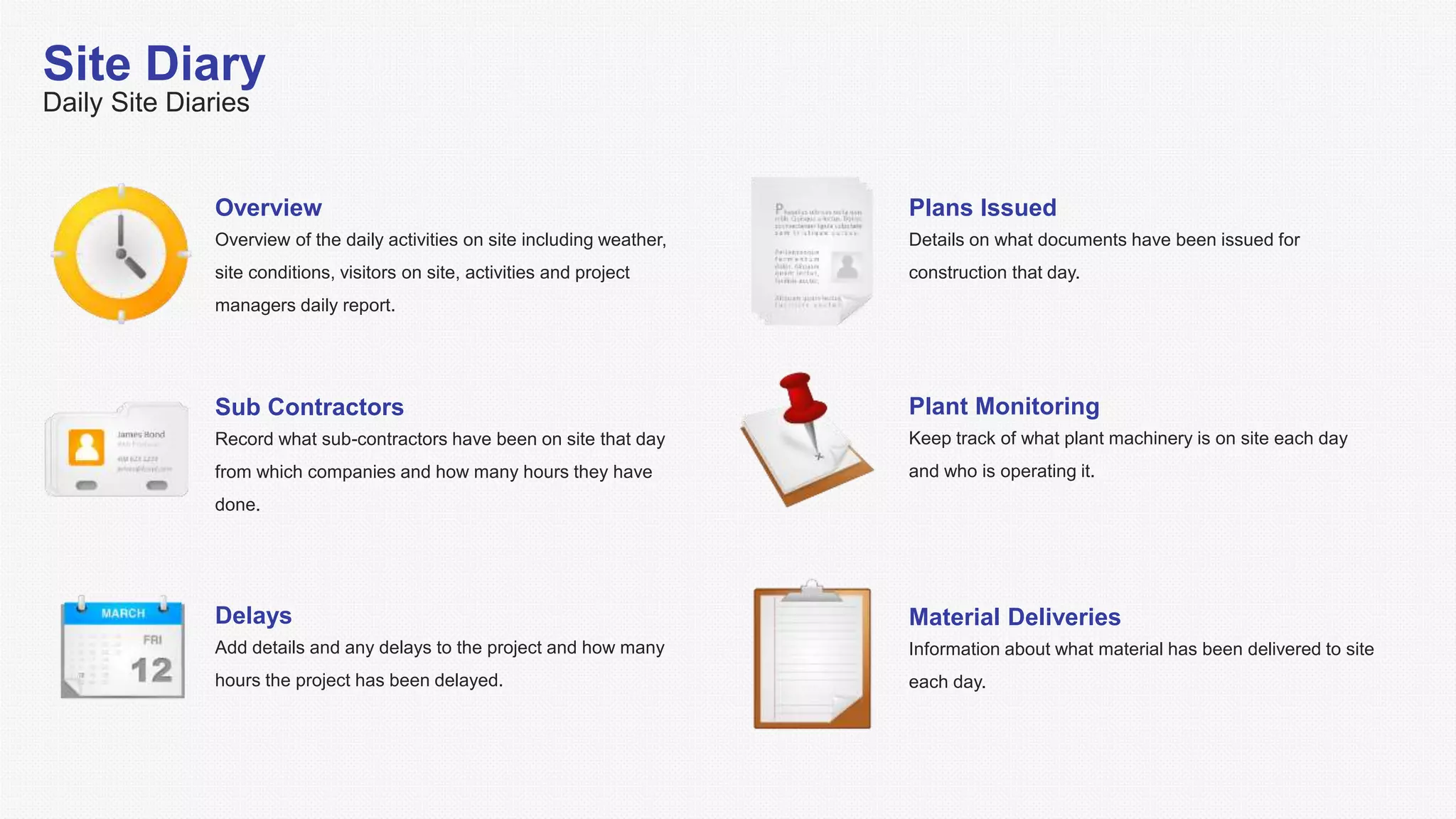
Site Diary
Daily Site Diaries
Overview
Overview of the daily activities on site including weather,
site conditions, visitors on site, activities and project
managers daily report.
Sub Contractors
Record what sub-contractors have been on site that day
from which companies and how many hours they have
done.
Plans Issued
Details on what documents have been issued for
construction that day.
Delays
Add details and any delays to the project and how many
hours the project has been delayed.
Plant Monitoring
Keep track of what plant machinery is on site each day
and who is operating it.
Material Deliveries
Information about what material has been delivered to site
each day.
Project Close-Out
Collection of documents - Handover summary report which demonstrates the benefits that the project has
delivered. The document reinforces any changes to scope, budget, schedule or quality, who agreed to the
changes and why they were necessary.
Facilities Management
Ongoing Management through the CIPMO software
Cleaning Operations
Maintenance
Fire Safety
Security
Health & Safety
Operational

Pdg cipmo

  • 1.
    Projects Delivery Group OnlineProject Management Software
  • 2.
  • 3.
  • 4.
  • 5.
    Step One Step Two StepThree Step Four Step Five Step Six Step Seven January February March 1 2 3 4 1 2 3 4 1 2 3 4 Create Schedule Gantt Chart The project schedule is created listing a project's milestones, activities, and deliverables, with intended start and finish dates. Project Schedule is created using the CIPMO
  • 6.
    Municipality Apply LogTrack Receive Permit to work Apply Track Approve Issue Apply for Permits Step-by-step
  • 7.
    Method Statements Step-by-step Details ofMaterial type, quality and details of specification Tools & Equipment 01 02 04 03 Outline of the Work to be Undertaken Outline Details of work management for the duration of the project. Setting up Site Methodical details of the task to be carried out stage by stage and any checks that must be carried out. Method of work to be utilised
  • 8.
    Identify Risks Impact Preventative Contingency Manage Risks RiskProcess Identify Risk to the project Potential impact of the risk on the project (i.e. impact on scope, deliverables, timescales, resources) Actions taken to prevent the risk from eventuating Actions taken in the event that the risk happens, to minimise its impact on the project
  • 9.
    Procurement Procurement Process Manage theprocurement process from order through to delivery.
  • 10.
    Health & Safety Step-by-step IdentifyHSE Issue Log on CIPMO Action on Site Update CIPMO Monitor & Report Issue is logged on the CIPMO and assigned to the responsible person HSE Inspector identifies HSE issue on site The issue is then actioned on site The CIPMO is then updated to show the issued has been resolved Reports can be produced at any time to show what issues have been closed and what remains open
  • 11.
    Site Diary Daily SiteDiaries Overview Overview of the daily activities on site including weather, site conditions, visitors on site, activities and project managers daily report. Sub Contractors Record what sub-contractors have been on site that day from which companies and how many hours they have done. Plans Issued Details on what documents have been issued for construction that day. Delays Add details and any delays to the project and how many hours the project has been delayed. Plant Monitoring Keep track of what plant machinery is on site each day and who is operating it. Material Deliveries Information about what material has been delivered to site each day.
  • 12.
    Project Close-Out Collection ofdocuments - Handover summary report which demonstrates the benefits that the project has delivered. The document reinforces any changes to scope, budget, schedule or quality, who agreed to the changes and why they were necessary.
  • 13.
    Facilities Management Ongoing Managementthrough the CIPMO software Cleaning Operations Maintenance Fire Safety Security Health & Safety Operational

Editor's Notes

  • #2 Attention! Before use this template, please download the following fonts: Ubuntu http://www.fontsquirrel.com/fonts/ubuntu Museo Slab http://www.fontsquirrel.com/fonts/Museo-Slab If you need more icons, you can download icon sets font, here: modernpics.otf http://www.fontsquirrel.com/fonts/modern-pictograms Entypo.otf http://www.fontsquirrel.com/fonts/entypo iconic_stroke.ttf http://somerandomdude.com/work/iconic
  • #13 Add your client logo here
  • #14 select the Grey Area, and then right click -> format shape -> Fill > Picture or texture fill -> insert picture from... If the image is doesn’t fit : On the “Format Picture” go to “Picture” Option, it should be 4th option and then chose “crop” adjust the Picture Position and Crop Position