Building SharePoint
Web Parts


Rob Windsor
rwindsor@portalsolutions.net
@robwindsor
What Are Web Parts?
• Small “chunks” of user interface and functionality
• Aggregated together to build page content
• Managed by end-users
   Add/remove web parts on a page
   Determine where web parts are placed on the page
   Set web part properties
• Concept and implementation not specific to
  SharePoint or ASP.NET
DEMO
iGoogle
Web Part History
• SharePoint 2003
   First version with web part infrastructure
   Web part types and infrastructure are specific to SharePoint
• ASP.NET 2.0
   Web part types and infrastructure added to ASP.NET
• SharePoint 2007
   Adds support for ASP.NET web parts
   Continues support for SharePoint web parts for backwards
    compatibility
• SharePoint 2010
   Same support as SharePoint 2007 in farm solutions
   Adds support for web parts in sandboxed solutions
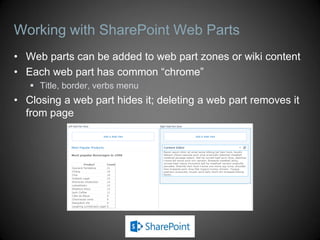
Working with SharePoint Web Parts
• Web parts can be added to web part zones or wiki content
• Each web part has common “chrome”
    Title, border, verbs menu
• Closing a web part hides it; deleting a web part removes it
  from page
Web Part Properties
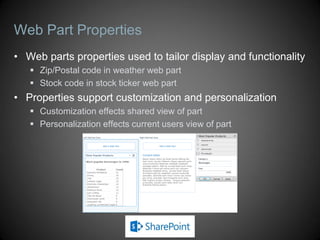
• Web parts properties used to tailor display and functionality
    Zip/Postal code in weather web part
    Stock code in stock ticker web part
• Properties support customization and personalization
    Customization effects shared view of part
    Personalization effects current users view of part
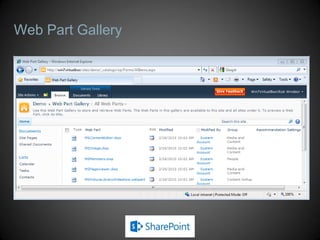
Web Part Gallery
• Site collection scoped
• Both .DWP and .WEBPART files as items
• SharePoint can discover new candidates from
  Web.config
• Maintain metadata
• Available out-of-the-box parts determined by
  edition and site template
Web Part Gallery
DEMO
Working with Web Parts
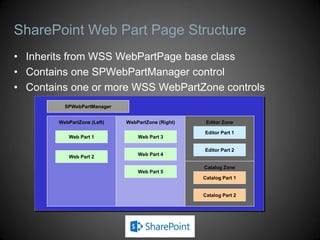
SharePoint Web Part Page Structure
• Inherits from WSS WebPartPage base class
• Contains one SPWebPartManager control
• Contains one or more WSS WebPartZone controls
          SPWebPartManager


        WebPartZone (Left)   WebPartZone (Right)    Editor Zone

                                                   Editor Part 1
           Web Part 1            Web Part 3

                                                   Editor Part 2
                                 Web Part 4
           Web Part 2

                                                   Catalog Zone
                                 Web Part 5
                                                   Catalog Part 1


                                                   Catalog Part 2
Building a Simple Web Part
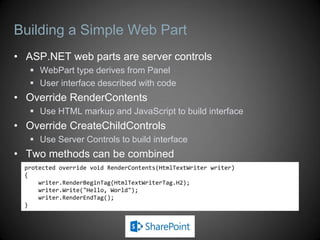
• ASP.NET web parts are server controls
    WebPart type derives from Panel
    User interface described with code
• Override RenderContents
    Use HTML markup and JavaScript to build interface
• Override CreateChildControls
    Use Server Controls to build interface
• Two methods can be combined
  protected override void RenderContents(HtmlTextWriter writer)
  {
      writer.RenderBeginTag(HtmlTextWriterTag.H2);
      writer.Write("Hello, World");
      writer.RenderEndTag();
  }
Chrome and Web Part Gallery Properties
• Can set web part properties to change chrome
  values
• Can be done in three places
   Using code in the web part constructor
   Using CAML in the .webpart file
   Editing the web part properties in the browser
• Web part gallery group name set in element
  manifest
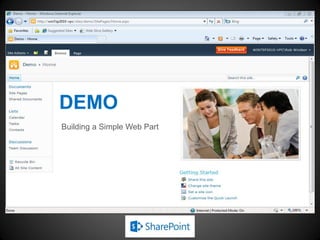
DEMO
Building a Simple Web Part
Composite Web Parts
• Contain server controls as children
• Declare controls as fields
• In CreateChildControls
     Create controls
     Set properties
     Add controls to web part Controls collection
     Use LiteralControl to add literal markup
• Populate controls in OnPreRender
Composite Web Parts
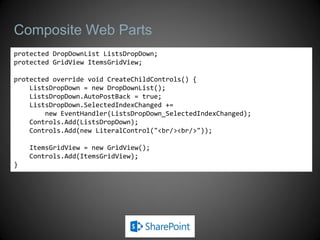
protected DropDownList ListsDropDown;
protected GridView ItemsGridView;

protected override void CreateChildControls() {
    ListsDropDown = new DropDownList();
    ListsDropDown.AutoPostBack = true;
    ListsDropDown.SelectedIndexChanged +=
        new EventHandler(ListsDropDown_SelectedIndexChanged);
    Controls.Add(ListsDropDown);
    Controls.Add(new LiteralControl("<br/><br/>"));

    ItemsGridView = new GridView();
    Controls.Add(ItemsGridView);
}
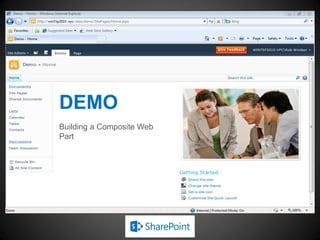
DEMO
Building a Composite Web
Part
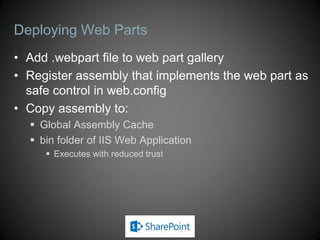
Deploying Web Parts
• Add .webpart file to web part gallery
• Register assembly that implements the web part as
  safe control in web.config
• Copy assembly to:
   Global Assembly Cache
   bin folder of IIS Web Application
      Executes with reduced trust
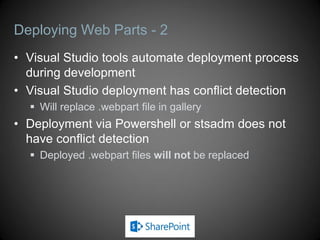
Deploying Web Parts - 2
• Visual Studio tools automate deployment process
  during development
• Visual Studio deployment has conflict detection
   Will replace .webpart file in gallery
• Deployment via Powershell or stsadm does not
  have conflict detection
   Deployed .webpart files will not be replaced
DEMO
Web Part Deployment
Web Parts in Sandboxed Solutions
• Split page rendering
    Page code runs in ASP.NET worker process
    Sandboxed web part code runs in sandbox worker process
    HTML markup and JavaScript from two worker processes merged
• Sandbox restrictions
      Reduced set of server object model API
      Restricted access outside SharePoint
      No elevation of permissions
      Cannot deploy files to SharePoint system folders
      Must be ASP.NET web parts
      Can only use ASP.NET controls
      No web part connections
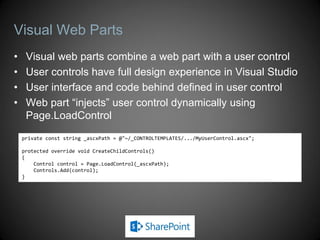
Visual Web Parts
•    Visual web parts combine a web part with a user control
•    User controls have full design experience in Visual Studio
•    User interface and code behind defined in user control
•    Web part “injects” user control dynamically using
     Page.LoadControl
    private const string _ascxPath = @"~/_CONTROLTEMPLATES/.../MyUserControl.ascx";

    protected override void CreateChildControls()
    {
        Control control = Page.LoadControl(_ascxPath);
        Controls.Add(control);
    }
Visual Web Parts and Sandboxed Solutions
• Native visual web part template not compatible
  with sandboxed solutions
   Attempts to deploy user control to system folders
• Visual Studio Power Tools contains a sandbox
  compatible template
   Markup in the user control is converted to code at design
    time
DEMO
Visual Web Parts
Web Part Properties
• Web Parts support persistent properties
• Configure properties via attributes
    Personalizable(param)
       Directs SharePoint to persist property value
       Parameter indicates if property may be personalized
    WebBrowsable(true)
       Directs SharePoint to generate interface to edit property
    WebDisplayName, WebDescription
       The prompt and tooltip that accompany the data entry element
    Category
       The group in which the properties will be shown

             [Personalizable(PersonalizationScope.Shared)]
             [WebBrowsable(true)]
             [WebDisplayName("Year")]
             [Category("Pluralsight")]
             public int Year { get; set; }
DEMO
Web Part Properties
Deactivating Web Part Features
• Deactivating a Feature that provisions .webpart
  files to the web part gallery effectively does nothing
    Files provisioned by a module are not automatically
     removed on deactivation
    That is, custom web parts remain in the gallery after the
     Feature has been deactivated
• You should add code to the feature receiver to
  remove the .webpart files from the gallery on
  deactivation
Deactivating Web Part Features
public override void FeatureDeactivating(SPFeatureReceiverProperties properties)
{
    var site = properties.Feature.Parent as SPSite;
    if (site == null) return;

    var web = site.RootWeb;
    var list = web.Lists["Web Part Gallery"];

    var partNames = new string[] {
        "Simple.webpart", "Composite.webpart", "Visual.webpart",
        "Sandboxed.webpart", "Properties.webpart"
    };

    foreach (var partName in partNames)
    {
        var item = list.Items.OfType<SPListItem>().
            SingleOrDefault(i => i.Name == partName);
        if (item != null) item.Delete();
    }
}
DEMO
Web Part Properties
Creating Connectable Web Parts
• Pass data from one web part to another
• Loosely-coupled connection
     Communication managed by WebPartManager
     Provider web part supplies data
     Consumer web parts retrieve data
• Interface used to define data contract
     ASP.NET has standard connection contracts
     Can use custom connection contracts
• SharePoint provides user interface elements to establish connections
• Not compatible with sandboxed solutions
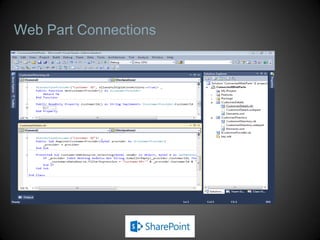
Web Part Connections
DEMO
Web Part Connections

Tutorial, Part 4: SharePoint 101: Jump-Starting the Developer by Rob Windsor - SPTec…

  • 1.
    Building SharePoint Web Parts RobWindsor rwindsor@portalsolutions.net @robwindsor
  • 2.
    What Are WebParts? • Small “chunks” of user interface and functionality • Aggregated together to build page content • Managed by end-users  Add/remove web parts on a page  Determine where web parts are placed on the page  Set web part properties • Concept and implementation not specific to SharePoint or ASP.NET
  • 3.
  • 4.
    Web Part History •SharePoint 2003  First version with web part infrastructure  Web part types and infrastructure are specific to SharePoint • ASP.NET 2.0  Web part types and infrastructure added to ASP.NET • SharePoint 2007  Adds support for ASP.NET web parts  Continues support for SharePoint web parts for backwards compatibility • SharePoint 2010  Same support as SharePoint 2007 in farm solutions  Adds support for web parts in sandboxed solutions
  • 5.
    Working with SharePointWeb Parts • Web parts can be added to web part zones or wiki content • Each web part has common “chrome”  Title, border, verbs menu • Closing a web part hides it; deleting a web part removes it from page
  • 6.
    Web Part Properties •Web parts properties used to tailor display and functionality  Zip/Postal code in weather web part  Stock code in stock ticker web part • Properties support customization and personalization  Customization effects shared view of part  Personalization effects current users view of part
  • 7.
    Web Part Gallery •Site collection scoped • Both .DWP and .WEBPART files as items • SharePoint can discover new candidates from Web.config • Maintain metadata • Available out-of-the-box parts determined by edition and site template
  • 8.
  • 9.
  • 10.
    SharePoint Web PartPage Structure • Inherits from WSS WebPartPage base class • Contains one SPWebPartManager control • Contains one or more WSS WebPartZone controls SPWebPartManager WebPartZone (Left) WebPartZone (Right) Editor Zone Editor Part 1 Web Part 1 Web Part 3 Editor Part 2 Web Part 4 Web Part 2 Catalog Zone Web Part 5 Catalog Part 1 Catalog Part 2
  • 11.
    Building a SimpleWeb Part • ASP.NET web parts are server controls  WebPart type derives from Panel  User interface described with code • Override RenderContents  Use HTML markup and JavaScript to build interface • Override CreateChildControls  Use Server Controls to build interface • Two methods can be combined protected override void RenderContents(HtmlTextWriter writer) { writer.RenderBeginTag(HtmlTextWriterTag.H2); writer.Write("Hello, World"); writer.RenderEndTag(); }
  • 12.
    Chrome and WebPart Gallery Properties • Can set web part properties to change chrome values • Can be done in three places  Using code in the web part constructor  Using CAML in the .webpart file  Editing the web part properties in the browser • Web part gallery group name set in element manifest
  • 13.
  • 14.
    Composite Web Parts •Contain server controls as children • Declare controls as fields • In CreateChildControls  Create controls  Set properties  Add controls to web part Controls collection  Use LiteralControl to add literal markup • Populate controls in OnPreRender
  • 15.
    Composite Web Parts protectedDropDownList ListsDropDown; protected GridView ItemsGridView; protected override void CreateChildControls() { ListsDropDown = new DropDownList(); ListsDropDown.AutoPostBack = true; ListsDropDown.SelectedIndexChanged += new EventHandler(ListsDropDown_SelectedIndexChanged); Controls.Add(ListsDropDown); Controls.Add(new LiteralControl("<br/><br/>")); ItemsGridView = new GridView(); Controls.Add(ItemsGridView); }
  • 16.
  • 17.
    Deploying Web Parts •Add .webpart file to web part gallery • Register assembly that implements the web part as safe control in web.config • Copy assembly to:  Global Assembly Cache  bin folder of IIS Web Application  Executes with reduced trust
  • 18.
    Deploying Web Parts- 2 • Visual Studio tools automate deployment process during development • Visual Studio deployment has conflict detection  Will replace .webpart file in gallery • Deployment via Powershell or stsadm does not have conflict detection  Deployed .webpart files will not be replaced
  • 19.
  • 20.
    Web Parts inSandboxed Solutions • Split page rendering  Page code runs in ASP.NET worker process  Sandboxed web part code runs in sandbox worker process  HTML markup and JavaScript from two worker processes merged • Sandbox restrictions  Reduced set of server object model API  Restricted access outside SharePoint  No elevation of permissions  Cannot deploy files to SharePoint system folders  Must be ASP.NET web parts  Can only use ASP.NET controls  No web part connections
  • 21.
    Visual Web Parts • Visual web parts combine a web part with a user control • User controls have full design experience in Visual Studio • User interface and code behind defined in user control • Web part “injects” user control dynamically using Page.LoadControl private const string _ascxPath = @"~/_CONTROLTEMPLATES/.../MyUserControl.ascx"; protected override void CreateChildControls() { Control control = Page.LoadControl(_ascxPath); Controls.Add(control); }
  • 22.
    Visual Web Partsand Sandboxed Solutions • Native visual web part template not compatible with sandboxed solutions  Attempts to deploy user control to system folders • Visual Studio Power Tools contains a sandbox compatible template  Markup in the user control is converted to code at design time
  • 23.
  • 24.
    Web Part Properties •Web Parts support persistent properties • Configure properties via attributes  Personalizable(param)  Directs SharePoint to persist property value  Parameter indicates if property may be personalized  WebBrowsable(true)  Directs SharePoint to generate interface to edit property  WebDisplayName, WebDescription  The prompt and tooltip that accompany the data entry element  Category  The group in which the properties will be shown [Personalizable(PersonalizationScope.Shared)] [WebBrowsable(true)] [WebDisplayName("Year")] [Category("Pluralsight")] public int Year { get; set; }
  • 25.
  • 26.
    Deactivating Web PartFeatures • Deactivating a Feature that provisions .webpart files to the web part gallery effectively does nothing  Files provisioned by a module are not automatically removed on deactivation  That is, custom web parts remain in the gallery after the Feature has been deactivated • You should add code to the feature receiver to remove the .webpart files from the gallery on deactivation
  • 27.
    Deactivating Web PartFeatures public override void FeatureDeactivating(SPFeatureReceiverProperties properties) { var site = properties.Feature.Parent as SPSite; if (site == null) return; var web = site.RootWeb; var list = web.Lists["Web Part Gallery"]; var partNames = new string[] { "Simple.webpart", "Composite.webpart", "Visual.webpart", "Sandboxed.webpart", "Properties.webpart" }; foreach (var partName in partNames) { var item = list.Items.OfType<SPListItem>(). SingleOrDefault(i => i.Name == partName); if (item != null) item.Delete(); } }
  • 28.
  • 29.
    Creating Connectable WebParts • Pass data from one web part to another • Loosely-coupled connection  Communication managed by WebPartManager  Provider web part supplies data  Consumer web parts retrieve data • Interface used to define data contract  ASP.NET has standard connection contracts  Can use custom connection contracts • SharePoint provides user interface elements to establish connections • Not compatible with sandboxed solutions
  • 30.
  • 31.