Basic Editing    Regina Pérez Lozano #19 7-C


       OpeningAnOrganizingDocumentViews
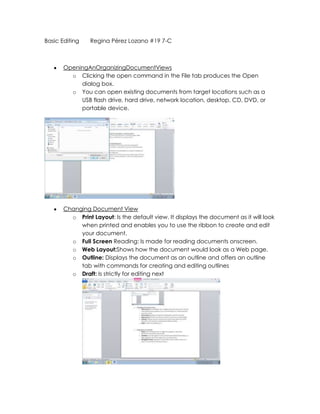
         o Clicking the open command in the File tab produces the Open
            dialog box.
         o You can open existing documents from target locations such as a
            USB flash drive, hard drive, network location, desktop, CD, DVD, or
            portable device.


       Changing Document View
         o Print Layout: Is the default view. It displays the document as it will look
            when printed and enables you to use the ribbon to create and edit
            your document.
         o Full Screen Reading: Is made for reading documents onscreen.
         o Web Layout:Shows how the document would look as a Web page.
         o Outline: Displays the document as an outline and offers an outline
            tab with commands for creating and editing outlines
         o Draft: Is strictly for editing next
Using show commands
    o Rulers: are measuring tools to align text, graphics, and other
       elements used within a document
    o Gridlines: provide a grid of vertical and horizontal lines that helps you
       align graphics and other objects in your documents.
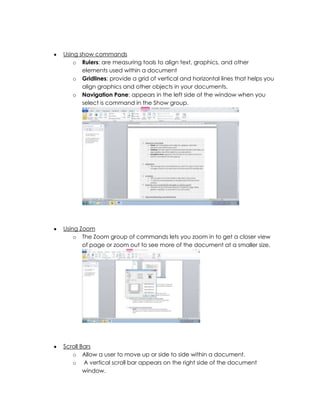
    o Navigation Pane: appears in the left side of the window when you
       select is command in the Show group.


Using Zoom
    o The Zoom group of commands lets you zoom in to get a closer view
       of page or zoom out to see more of the document at a smaller size.


Scroll Bars
   o Allow a user to move up or side to side within a document.
   o A vertical scroll bar appears on the right side of the document
        window.
Using The Go To Command To Navigate A Long Document
    o Using the Go To Command will jump to a specific page, table,
       graphic, equation, or other item in your document.


Selecting, Replacing, And Deleting Text
o   Delete: You can delete in Word documents by pressing the
    Backspace hey to delete characters to the left of the intersection


    point.
o   Multi-Selection: feature of word enables you to select multiple text
    items that are not adjacent.


o   Replace: To replace text in a Word document, simply select the text,
    then key new text. To cancel a selection, click in any blank area of
    the document screen.

Page 31 38

  • 1.
    Basic Editing Regina Pérez Lozano #19 7-C OpeningAnOrganizingDocumentViews o Clicking the open command in the File tab produces the Open dialog box. o You can open existing documents from target locations such as a USB flash drive, hard drive, network location, desktop, CD, DVD, or portable device. Changing Document View o Print Layout: Is the default view. It displays the document as it will look when printed and enables you to use the ribbon to create and edit your document. o Full Screen Reading: Is made for reading documents onscreen. o Web Layout:Shows how the document would look as a Web page. o Outline: Displays the document as an outline and offers an outline tab with commands for creating and editing outlines o Draft: Is strictly for editing next
  • 2.
    Using show commands o Rulers: are measuring tools to align text, graphics, and other elements used within a document o Gridlines: provide a grid of vertical and horizontal lines that helps you align graphics and other objects in your documents. o Navigation Pane: appears in the left side of the window when you select is command in the Show group. Using Zoom o The Zoom group of commands lets you zoom in to get a closer view of page or zoom out to see more of the document at a smaller size. Scroll Bars o Allow a user to move up or side to side within a document. o A vertical scroll bar appears on the right side of the document window.
  • 3.
    Using The GoTo Command To Navigate A Long Document o Using the Go To Command will jump to a specific page, table, graphic, equation, or other item in your document. Selecting, Replacing, And Deleting Text
  • 4.
    o Delete: You can delete in Word documents by pressing the Backspace hey to delete characters to the left of the intersection point. o Multi-Selection: feature of word enables you to select multiple text items that are not adjacent. o Replace: To replace text in a Word document, simply select the text, then key new text. To cancel a selection, click in any blank area of the document screen.