

ORGANIZING CONTACTS
                        BY CATEGORIES


                                       Not for use with Webmail

By Marsha Mitchell | Technology Coach | Better Homes and Gardens Real Estate Gary Greene
WHY USE CATEGORIES?

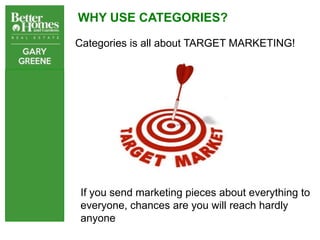
Categories is all about TARGET MARKETING!


If you send marketing pieces about everything to
everyone, chances are you will reach hardly
anyone
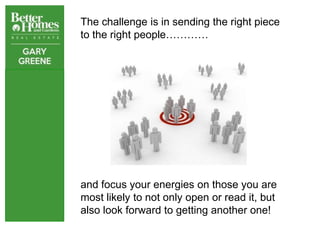
The challenge is in sending the right piece
to the right people…………


and focus your energies on those you are
most likely to not only open or read it, but
also look forward to getting another one!
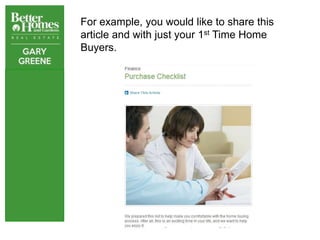
For example, you would like to share this
article and with just your 1st Time Home
Buyers.
Are your contacts organized so that you can do so?

And it gets even better!


The new BHG
Greenhouse is
loaded with
awesome pieces –
both digital and
print for you to
send FREE!
LOOK AT JUST A FEW OF THE READY – GO – PIECES!
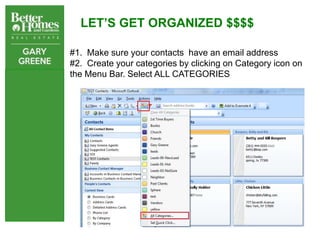
LET’S GET ORGANIZED $$$$

#1. Make sure your contacts have an email address
#2. Create your categories by clicking on Category icon on
the Menu Bar. Select ALL CATEGORIES
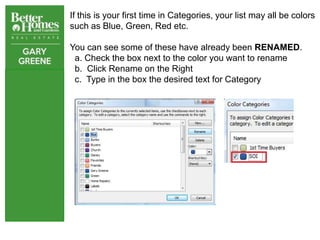
If this is your first time in Categories, your list may all be colors
such as Blue, Green, Red etc.

You can see some of these have already been RENAMED.
 a. Check the box next to the color you want to rename
 b. Click Rename on the Right
 c. Type in the box the desired text for Category
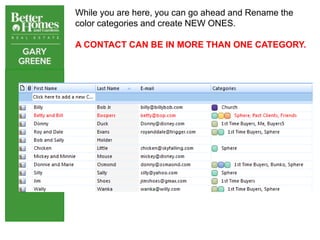
While you are here, you can go ahead and Rename the
color categories and create NEW ONES.

A CONTACT CAN BE IN MORE THAN ONE CATEGORY.
CREATING A NEW CATEGORY
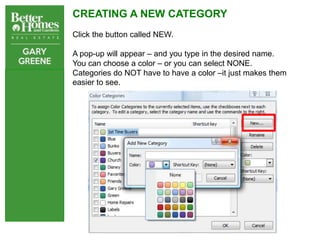
Click the button called NEW.

A pop-up will appear – and you type in the desired name.
You can choose a color – or you can select NONE.
Categories do NOT have to have a color –it just makes them
easier to see.
SAVING CATEGORIES
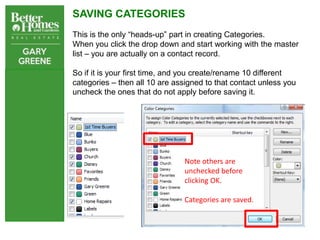
This is the only “heads-up” part in creating Categories.
When you click the drop down and start working with the master
list – you are actually on a contact record.

So if it is your first time, and you create/rename 10 different
categories – then all 10 are assigned to that contact unless you
uncheck the ones that do not apply before saving it.


                                Note others are
                                unchecked before
                                clicking OK.

                                Categories are saved.
HOW DO I KNOW WHAT CATEGORIES TO CREATE?

Everyone’s list will be different according to the pieces
to be sent out – and according to the different ways
people think.

                               Some basics might include:
                               Family
                               Sphere
                               Buyers
                               Sellers
                               Past Clients
                               Homeowners Association
                               Church
                               Tennis/Golf
                               Vendors
                               Gary Greene Agents
                               Co-op Agents
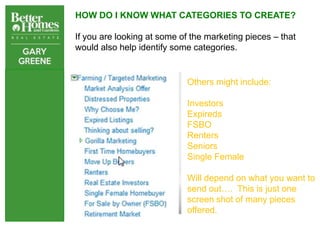
HOW DO I KNOW WHAT CATEGORIES TO CREATE?

If you are looking at some of the marketing pieces – that
would also help identify some categories.


                            Others might include:

                            Investors
                            Expireds
                            FSBO
                            Renters
                            Seniors
                            Single Female

                            Will depend on what you want to
                            send out…. This is just one
                            screen shot of many pieces
                            offered.
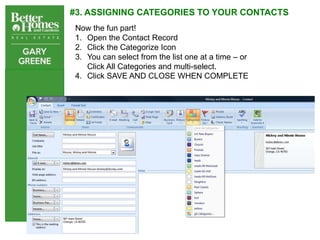
#3. ASSIGNING CATEGORIES TO YOUR CONTACTS
Now the fun part!
1. Open the Contact Record
2. Click the Categorize Icon
3. You can select from the list one at a time – or
   Click All Categories and multi-select.
4. Click SAVE AND CLOSE WHEN COMPLETE
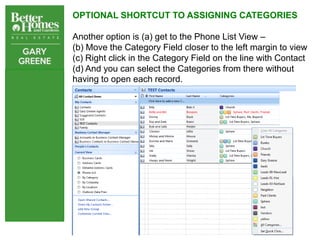
OPTIONAL SHORTCUT TO ASSIGNING CATEGORIES

Another option is (a) get to the Phone List View –
(b) Move the Category Field closer to the left margin to view
(c) Right click in the Category Field on the line with Contact
(d) And you can select the Categories from there without
having to open each record.
Congratulations! You have them
organized – so what can you do
with them?
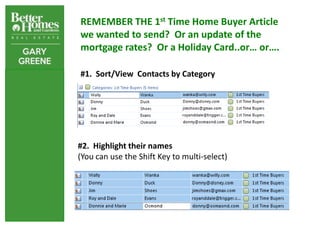
REMEMBER THE 1st Time Home Buyer Article
we wanted to send? Or an update of the
mortgage rates? Or a Holiday Card..or… or….

#1. Sort/View Contacts by Category


#2. Highlight their names
(You can use the Shift Key to multi-select)
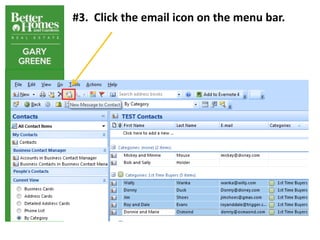
#3. Click the email icon on the menu bar.
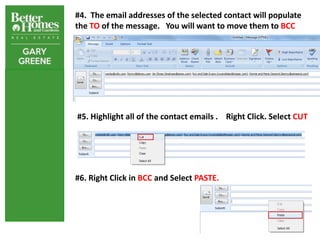
#4. The email addresses of the selected contact will populate
the TO of the message. You will want to move them to BCC


#5. Highlight all of the contact emails . Right Click. Select CUT


#6. Right Click in BCC and Select PASTE.
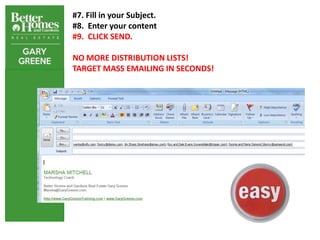
#7. Fill in your Subject.
#8. Enter your content
#9. CLICK SEND.

NO MORE DISTRIBUTION LISTS!
TARGET MASS EMAILING IN SECONDS!
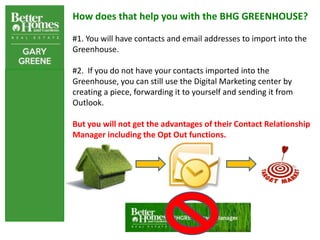
How does that help you with the BHG GREENHOUSE?

#1. You will have contacts and email addresses to import into the
Greenhouse.

#2. If you do not have your contacts imported into the
Greenhouse, you can still use the Digital Marketing center by
creating a piece, forwarding it to yourself and sending it from
Outlook.

But you will not get the advantages of their Contact Relationship
Manager including the Opt Out functions.
MANAGING CONTACTS IN THE GREENHOUSE

The BHGGreenhouse has a powerful and robust Contact
Relationship Manager that you will want to use.

You can setup prewritten campaigns, monitor your contacts
and marketing from start to finish.
CONVERT LEADS TO CUSTOMERS TO CLOSINGS $$$$

You will want to import your
contacts into the
Greenhouse -

In the meantime:
1. Gather as many contacts
   and emails as possible

2. Organize them into
   Categories

3. And be READY TO ROLL!
DIGITAL MARKETING VS PRINT MARKETING


This presentation focused on email addresses
– but while you are organizing your contacts,
you might think about checking/gathering
mailing addresses for your PRINT MARKETING
PIECES 
Marsha Mitchell
Director of Agent Technologies
Better Homes and Gardens Real Estate
Gary Greene
Houston, TX
Marsha@GaryGreene.com

Organizing Contacts in Outlook

  • 1.
    ORGANIZING CONTACTS BY CATEGORIES Not for use with Webmail By Marsha Mitchell | Technology Coach | Better Homes and Gardens Real Estate Gary Greene
  • 2.
    WHY USE CATEGORIES? Categoriesis all about TARGET MARKETING! If you send marketing pieces about everything to everyone, chances are you will reach hardly anyone
  • 3.
    The challenge isin sending the right piece to the right people………… and focus your energies on those you are most likely to not only open or read it, but also look forward to getting another one!
  • 4.
    For example, youwould like to share this article and with just your 1st Time Home Buyers.
  • 5.
    Are your contactsorganized so that you can do so? And it gets even better! The new BHG Greenhouse is loaded with awesome pieces – both digital and print for you to send FREE!
  • 6.
    LOOK AT JUSTA FEW OF THE READY – GO – PIECES!
  • 7.
    LET’S GET ORGANIZED$$$$ #1. Make sure your contacts have an email address #2. Create your categories by clicking on Category icon on the Menu Bar. Select ALL CATEGORIES
  • 8.
    If this isyour first time in Categories, your list may all be colors such as Blue, Green, Red etc. You can see some of these have already been RENAMED. a. Check the box next to the color you want to rename b. Click Rename on the Right c. Type in the box the desired text for Category
  • 9.
    While you arehere, you can go ahead and Rename the color categories and create NEW ONES. A CONTACT CAN BE IN MORE THAN ONE CATEGORY.
  • 10.
    CREATING A NEWCATEGORY Click the button called NEW. A pop-up will appear – and you type in the desired name. You can choose a color – or you can select NONE. Categories do NOT have to have a color –it just makes them easier to see.
  • 11.
    SAVING CATEGORIES This isthe only “heads-up” part in creating Categories. When you click the drop down and start working with the master list – you are actually on a contact record. So if it is your first time, and you create/rename 10 different categories – then all 10 are assigned to that contact unless you uncheck the ones that do not apply before saving it. Note others are unchecked before clicking OK. Categories are saved.
  • 12.
    HOW DO IKNOW WHAT CATEGORIES TO CREATE? Everyone’s list will be different according to the pieces to be sent out – and according to the different ways people think. Some basics might include: Family Sphere Buyers Sellers Past Clients Homeowners Association Church Tennis/Golf Vendors Gary Greene Agents Co-op Agents
  • 13.
    HOW DO IKNOW WHAT CATEGORIES TO CREATE? If you are looking at some of the marketing pieces – that would also help identify some categories. Others might include: Investors Expireds FSBO Renters Seniors Single Female Will depend on what you want to send out…. This is just one screen shot of many pieces offered.
  • 14.
    #3. ASSIGNING CATEGORIESTO YOUR CONTACTS Now the fun part! 1. Open the Contact Record 2. Click the Categorize Icon 3. You can select from the list one at a time – or Click All Categories and multi-select. 4. Click SAVE AND CLOSE WHEN COMPLETE
  • 15.
    OPTIONAL SHORTCUT TOASSIGNING CATEGORIES Another option is (a) get to the Phone List View – (b) Move the Category Field closer to the left margin to view (c) Right click in the Category Field on the line with Contact (d) And you can select the Categories from there without having to open each record.
  • 16.
    Congratulations! You havethem organized – so what can you do with them?
  • 17.
    REMEMBER THE 1stTime Home Buyer Article we wanted to send? Or an update of the mortgage rates? Or a Holiday Card..or… or…. #1. Sort/View Contacts by Category #2. Highlight their names (You can use the Shift Key to multi-select)
  • 18.
    #3. Click theemail icon on the menu bar.
  • 19.
    #4. The emailaddresses of the selected contact will populate the TO of the message. You will want to move them to BCC #5. Highlight all of the contact emails . Right Click. Select CUT #6. Right Click in BCC and Select PASTE.
  • 20.
    #7. Fill inyour Subject. #8. Enter your content #9. CLICK SEND. NO MORE DISTRIBUTION LISTS! TARGET MASS EMAILING IN SECONDS!
  • 21.
    How does thathelp you with the BHG GREENHOUSE? #1. You will have contacts and email addresses to import into the Greenhouse. #2. If you do not have your contacts imported into the Greenhouse, you can still use the Digital Marketing center by creating a piece, forwarding it to yourself and sending it from Outlook. But you will not get the advantages of their Contact Relationship Manager including the Opt Out functions.
  • 22.
    MANAGING CONTACTS INTHE GREENHOUSE The BHGGreenhouse has a powerful and robust Contact Relationship Manager that you will want to use. You can setup prewritten campaigns, monitor your contacts and marketing from start to finish.
  • 23.
    CONVERT LEADS TOCUSTOMERS TO CLOSINGS $$$$ You will want to import your contacts into the Greenhouse - In the meantime: 1. Gather as many contacts and emails as possible 2. Organize them into Categories 3. And be READY TO ROLL!
  • 24.
    DIGITAL MARKETING VSPRINT MARKETING This presentation focused on email addresses – but while you are organizing your contacts, you might think about checking/gathering mailing addresses for your PRINT MARKETING PIECES 
  • 25.
    Marsha Mitchell Director ofAgent Technologies Better Homes and Gardens Real Estate Gary Greene Houston, TX Marsha@GaryGreene.com