Optimizing The
WordPress Admin
For Users
Creating a Better User
Experience for Clients
Cristina Robinson
UI/UX Designer at Three29
Blogger at TheLovelyGeek.com
@LovelyGeek #wcsac
@TheLovelyGeek #wcsac
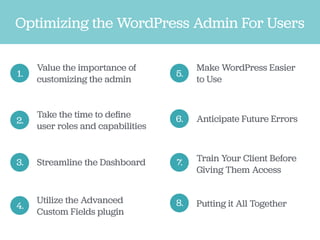
Optimizing the WordPress Admin For Users
1.
Value the importance of
customizing the admin
2.
Take the time to define
user roles and capabilities
3. Streamline the Dashboard
4.
Utilize the Advanced
Custom Fields plugin
5.
Make WordPress Easier
to Use
6. Anticipate Future Errors
7. Train Your Client Before
Giving Them Access
8. Putting it All Together
Why should I care?
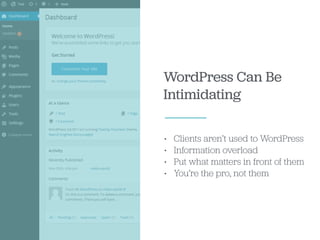
WordPress Can Be
Intimidating
• Clients aren’t used to WordPress
• Information overload
• Put what matters in front of them
• You’re the pro, not them
They Can Break Things
• Run updates
• Mess with settings
• Break the theme
• Fixes can be frustrating
• Do you want to fix it now or
later?
ā€œWith great power comes great
responsibility.ā€ - Uncle Ben
Put Your Best
Foot Forward
• Reduce emails
• Client satisfaction
• Provide value
• Enhance your reputation
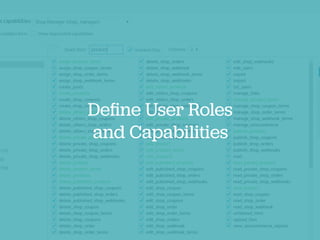
Define User Roles
and Capabilities
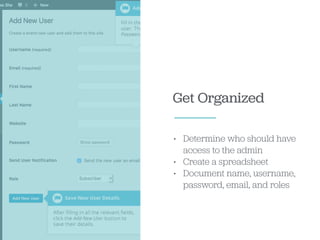
Get Organized
• Determine who should have
access to the admin
• Create a spreadsheet
• Document name, username,
password, email, and roles
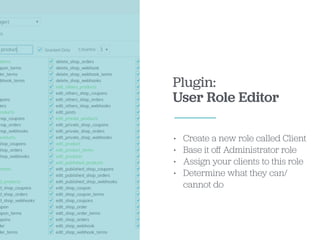
Plugin:
User Role Editor
• Create a new role called Client
• Base it off Administrator role
• Assign your clients to this role
• Determine what they can/
cannot do
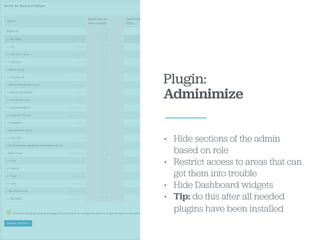
Plugin:
Adminimize
• Hide sections of the admin
based on role
• Restrict access to areas that can
get them into trouble
• Hide Dashboard widgets
• Tip: do this after all needed
plugins have been installed
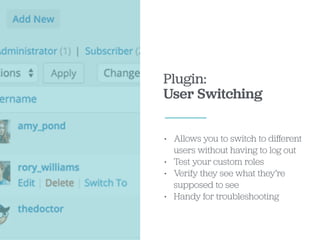
Plugin:
User Switching
• Allows you to switch to different
users without having to log out
• Test your custom roles
• Verify they see what they’re
supposed to see
• Handy for troubleshooting
Streamline the
Dashboard widgets
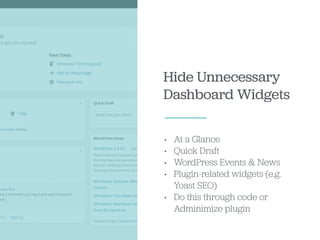
Hide Unnecessary
Dashboard Widgets
• At a Glance
• Quick Draft
• WordPress Events & News
• Plugin-related widgets (e.g.
Yoast SEO)
• Do this through code or
Adminimize plugin
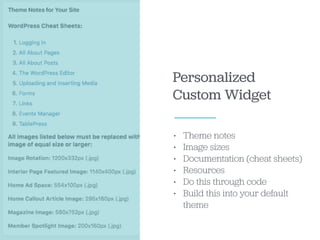
Personalized
Custom Widget
• Theme notes
• Image sizes
• Documentation (cheat sheets)
• Resources
• Do this through code
• Build this into your default
theme
Plugin:
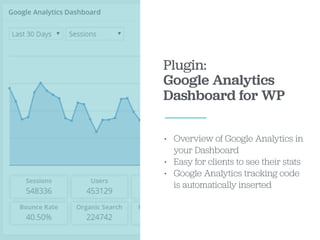
Google Analytics
Dashboard for WP
• Overview of Google Analytics in
your Dashboard
• Easy for clients to see their stats
• Google Analytics tracking code
is automatically inserted
Optional Plugin:
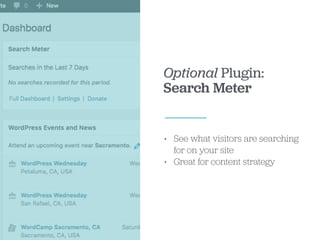
Search Meter
• See what visitors are searching
for on your site
• Great for content strategy
Optional Plugin:
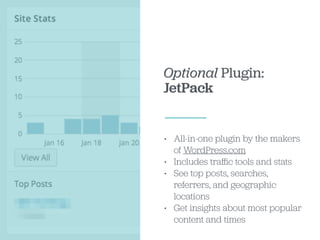
JetPack
• All-in-one plugin by the makers
of WordPress.com
• Includes traffic tools and stats
• See top posts, searches,
referrers, and geographic
locations
• Get insights about most popular
content and times
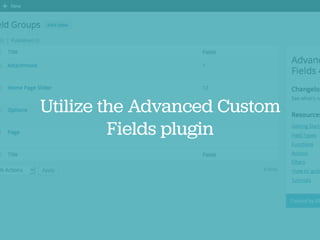
Utilize the Advanced Custom
Fields plugin
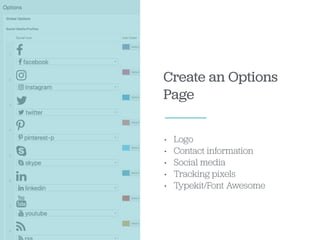
Create an Options
Page
• Logo
• Contact information
• Social media
• Tracking pixels
• Typekit/Font Awesome
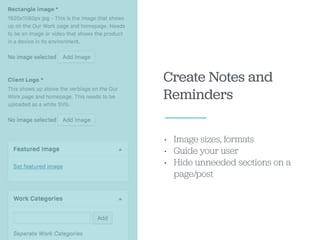
Create Notes and
Reminders
• Image sizes, formats
• Guide your user
• Hide unneeded sections on a
page/post
Make WordPress
Easier to Use
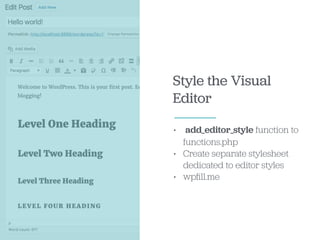
Style the Visual
Editor
• add_editor_style function to
functions.php
• Create separate stylesheet
dedicated to editor styles
• wpfill.me
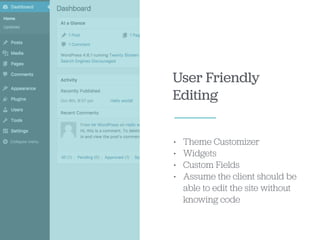
User Friendly
Editing
• Theme Customizer
• Widgets
• Custom Fields
• Assume the client should be
able to edit the site without
knowing code
Anticipate Future Errors
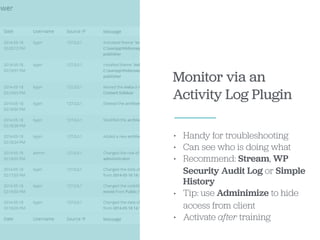
Monitor via an
Activity Log Plugin
• Handy for troubleshooting
• Can see who is doing what
• Recommend: Stream, WP
Security Audit Log or Simple
History
• Tip: use Adminimize to hide
access from client
• Activate after training
Train Your Client Before
Giving Them Access
WordPress Training
• Show them how to login with
the credentials you’ve created
for them
• Set expectations
• Educate on best practices
• Documentation for reference
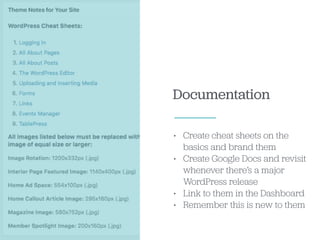
Documentation
• Create cheat sheets on the
basics and brand them
• Create Google Docs and revisit
whenever there’s a major
WordPress release
• Link to them in the Dashboard
• Remember this is new to them
Putting It All Together
Create An Admin
You Can Be Proud Of
Thank you!
www.TheLovelyGeek.com

Optimizing The WordPress Admin For Users