Tutorial for Beginners
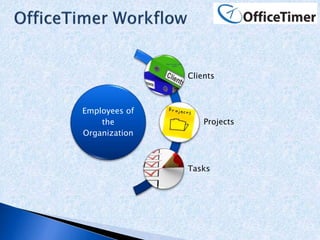
Employees of
the
Organization
Clients
Projects
Tasks
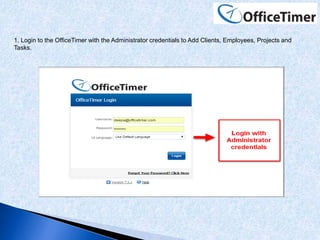
1. Login to the OfficeTimer with the Administrator credentials to Add Clients, Employees, Projects and
Tasks.
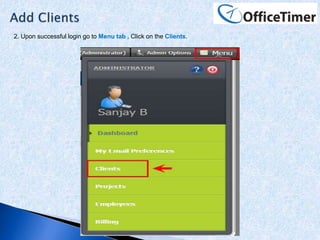
2. Upon successful login go to Menu tab , Click on the Clients.
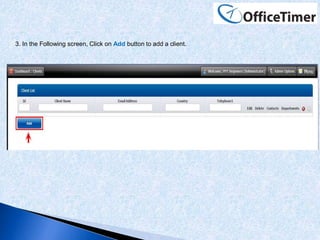
3. In the Following screen, Click on Add button to add a client.
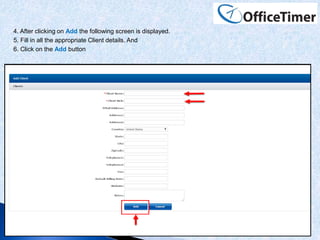
4. After clicking on Add the following screen is displayed.
5. Fill in all the appropriate Client details. And
6. Click on the Add button
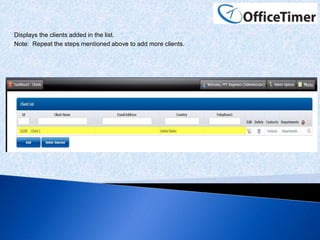
Displays the clients added in the list.
Note: Repeat the steps mentioned above to add more clients.
After Adding Clients, Add Employees
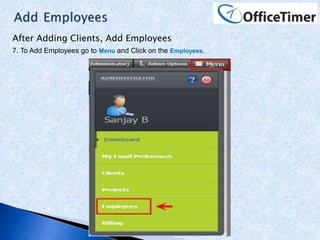
7. To Add Employees go to Menu and Click on the Employees.
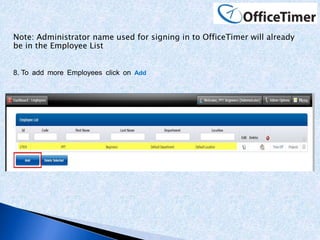
Note: Administrator name used for signing in to OfficeTimer will already
be in the Employee List
8. To add more Employees click on Add
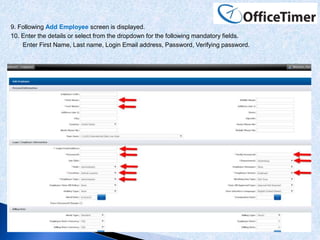
9. Following Add Employee screen is displayed.
10. Enter the details or select from the dropdown for the following mandatory fields.
Enter First Name, Last name, Login Email address, Password, Verifying password.
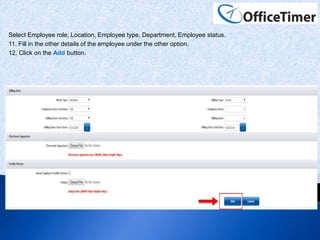
Select Employee role, Location, Employee type, Department, Employee status.
11. Fill in the other details of the employee under the other option.
12. Click on the Add button.
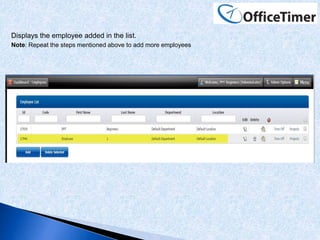
Displays the employee added in the list.
Note: Repeat the steps mentioned above to add more employees
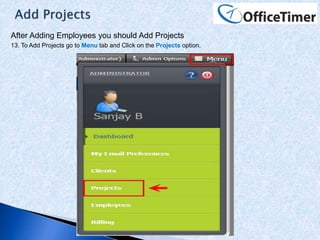
After Adding Employees you should Add Projects
13. To Add Projects go to Menu tab and Click on the Projects option.
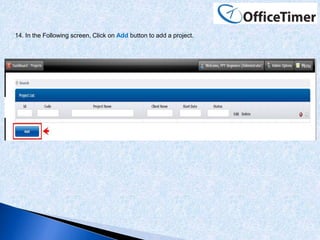
14. In the Following screen, Click on Add button to add a project.
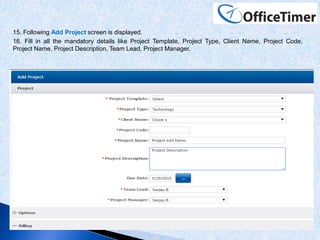
15. Following Add Project screen is displayed.
16. Fill in all the mandatory details like Project Template, Project Type, Client Name, Project Code,
Project Name, Project Description, Team Lead, Project Manager.
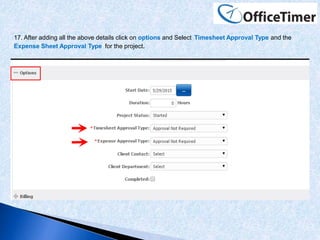
17. After adding all the above details click on options and Select Timesheet Approval Type and the
Expense Sheet Approval Type for the project.
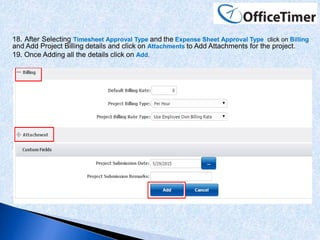
18. After Selecting Timesheet Approval Type and the Expense Sheet Approval Type click on Billing
and Add Project Billing details and click on Attachments to Add Attachments for the project.
19. Once Adding all the details click on Add.
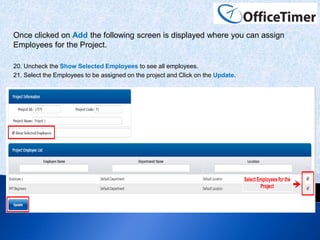
Once clicked on Add the following screen is displayed where you can assign
Employees for the Project.
20. Uncheck the Show Selected Employees to see all employees.
21. Select the Employees to be assigned on the project and Click on the Update.
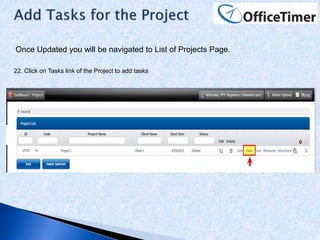
Once Updated you will be navigated to List of Projects Page.
22. Click on Tasks link of the Project to add tasks
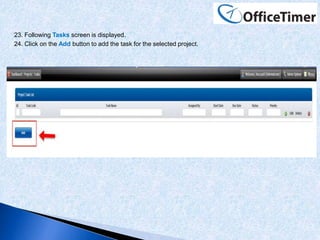
23. Following Tasks screen is displayed.
24. Click on the Add button to add the task for the selected project.
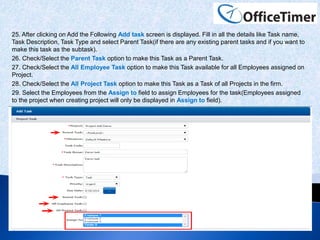
25. After clicking on Add the Following Add task screen is displayed. Fill in all the details like Task name,
Task Description, Task Type and select Parent Task(if there are any existing parent tasks and if you want to
make this task as the subtask).
26. Check/Select the Parent Task option to make this Task as a Parent Task.
27. Check/Select the All Employee Task option to make this Task available for all Employees assigned on
Project.
28. Check/Select the All Project Task option to make this Task as a Task of all Projects in the firm.
29. Select the Employees from the Assign to field to assign Employees for the task(Employees assigned
to the project when creating project will only be displayed in Assign to field).
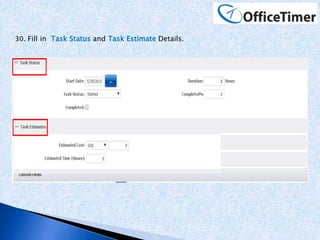
30. Fill in Task Status and Task Estimate Details.
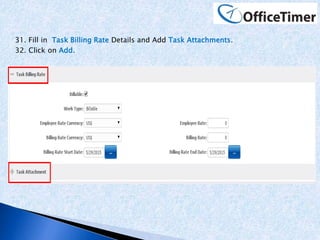
31. Fill in Task Billing Rate Details and Add Task Attachments.
32. Click on Add.
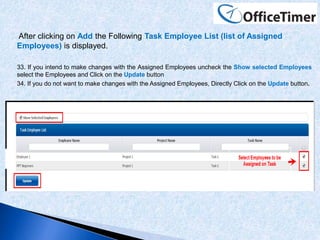
After clicking on Add the Following Task Employee List (list of Assigned
Employees) is displayed.
33. If you intend to make changes with the Assigned Employees uncheck the Show selected Employees
select the Employees and Click on the Update button
34. If you do not want to make changes with the Assigned Employees, Directly Click on the Update button.
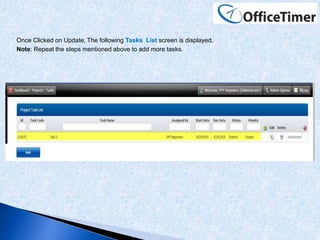
Once Clicked on Update, The following Tasks List screen is displayed.
Note: Repeat the steps mentioned above to add more tasks.
Office timer tutorial for beginners to add Clients, Employees, Projects and Tasks.

Office timer tutorial for beginners to add Clients, Employees, Projects and Tasks.

  • 1.
  • 2.
  • 3.
    1. Login tothe OfficeTimer with the Administrator credentials to Add Clients, Employees, Projects and Tasks.
  • 4.
    2. Upon successfullogin go to Menu tab , Click on the Clients.
  • 5.
    3. In theFollowing screen, Click on Add button to add a client.
  • 6.
    4. After clickingon Add the following screen is displayed. 5. Fill in all the appropriate Client details. And 6. Click on the Add button
  • 7.
    Displays the clientsadded in the list. Note: Repeat the steps mentioned above to add more clients.
  • 8.
    After Adding Clients,Add Employees 7. To Add Employees go to Menu and Click on the Employees.
  • 9.
    Note: Administrator nameused for signing in to OfficeTimer will already be in the Employee List 8. To add more Employees click on Add
  • 10.
    9. Following AddEmployee screen is displayed. 10. Enter the details or select from the dropdown for the following mandatory fields. Enter First Name, Last name, Login Email address, Password, Verifying password.
  • 11.
    Select Employee role,Location, Employee type, Department, Employee status. 11. Fill in the other details of the employee under the other option. 12. Click on the Add button.
  • 12.
    Displays the employeeadded in the list. Note: Repeat the steps mentioned above to add more employees
  • 13.
    After Adding Employeesyou should Add Projects 13. To Add Projects go to Menu tab and Click on the Projects option.
  • 14.
    14. In theFollowing screen, Click on Add button to add a project.
  • 15.
    15. Following AddProject screen is displayed. 16. Fill in all the mandatory details like Project Template, Project Type, Client Name, Project Code, Project Name, Project Description, Team Lead, Project Manager.
  • 16.
    17. After addingall the above details click on options and Select Timesheet Approval Type and the Expense Sheet Approval Type for the project.
  • 17.
    18. After SelectingTimesheet Approval Type and the Expense Sheet Approval Type click on Billing and Add Project Billing details and click on Attachments to Add Attachments for the project. 19. Once Adding all the details click on Add.
  • 18.
    Once clicked onAdd the following screen is displayed where you can assign Employees for the Project. 20. Uncheck the Show Selected Employees to see all employees. 21. Select the Employees to be assigned on the project and Click on the Update.
  • 19.
    Once Updated youwill be navigated to List of Projects Page. 22. Click on Tasks link of the Project to add tasks
  • 20.
    23. Following Tasksscreen is displayed. 24. Click on the Add button to add the task for the selected project.
  • 21.
    25. After clickingon Add the Following Add task screen is displayed. Fill in all the details like Task name, Task Description, Task Type and select Parent Task(if there are any existing parent tasks and if you want to make this task as the subtask). 26. Check/Select the Parent Task option to make this Task as a Parent Task. 27. Check/Select the All Employee Task option to make this Task available for all Employees assigned on Project. 28. Check/Select the All Project Task option to make this Task as a Task of all Projects in the firm. 29. Select the Employees from the Assign to field to assign Employees for the task(Employees assigned to the project when creating project will only be displayed in Assign to field).
  • 22.
    30. Fill inTask Status and Task Estimate Details.
  • 23.
    31. Fill inTask Billing Rate Details and Add Task Attachments. 32. Click on Add.
  • 24.
    After clicking onAdd the Following Task Employee List (list of Assigned Employees) is displayed. 33. If you intend to make changes with the Assigned Employees uncheck the Show selected Employees select the Employees and Click on the Update button 34. If you do not want to make changes with the Assigned Employees, Directly Click on the Update button.
  • 25.
    Once Clicked onUpdate, The following Tasks List screen is displayed. Note: Repeat the steps mentioned above to add more tasks.