LINUX
What is Linux? •  An alternative to Microsoft Windows •  Open source •  Freely available •  Reliable •  More use seen in labs/scientific situations, but is seeing more popularity. •  Command line based interface
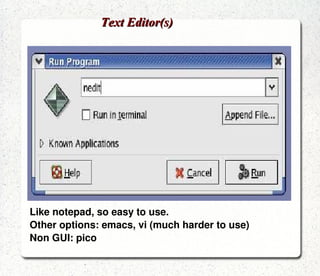
Text Editor(s) Like notepad, so easy to use.
Other options: emacs, vi (much harder to use)
Non GUI: pico
Features of Linux:   1. Virtual memory, allowing the system to use disk room the  same as RAM memory.   2. Networking with TCP/IP and other protocols.   3. Multiple user capability.   4. Protected mode so programs or user's can't  access unauthorized areas.   5. Shared libraries   6. True multitasking   7. X - A graphical user interface similar to windows, but  supports remote sessions over a network.
LINUX COMMANDS
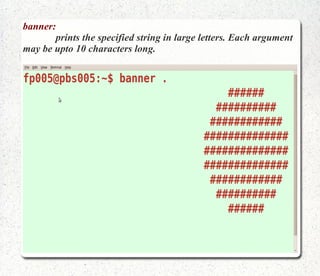
banner:   prints the specified string in large letters. Each argument may be upto 10 characters long.
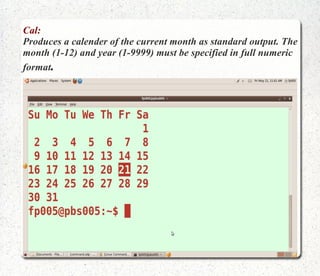
Cal: Produces a calender of the current month as standard output. The month (1-12) and year (1-9999) must be specified in full numeric format .
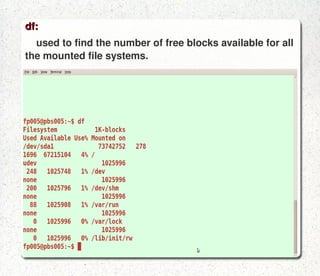
df: used to find the number of free blocks available for all the mounted file systems.
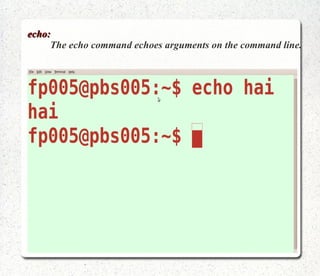
echo:   The echo command echoes arguments on the command line.
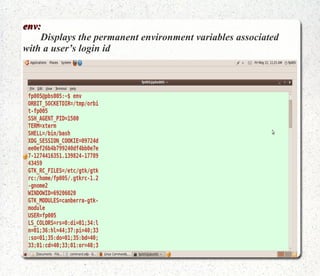
env:   Displays the permanent environment variables associated with a user’s login id
exit command: Used to stop the execution of a shell script.
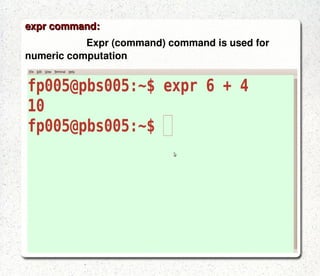
expr command: Expr (command) command is used for numeric computation .
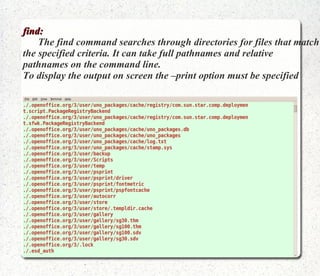
find:   The find command searches through directories for files that match the specified criteria. It can take full pathnames and relative pathnames on the command line. To display the output on screen the –print option must be specified
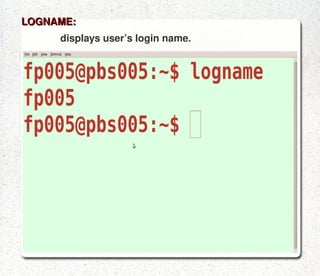
LOGNAME: displays user’s login name.
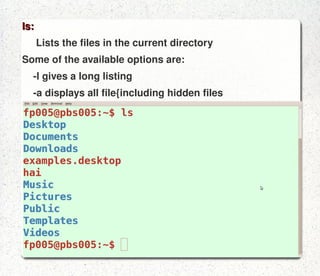
ls: Lists the files in the current directory  Some of the available options are: -l gives a long listing -a displays all file{including hidden files
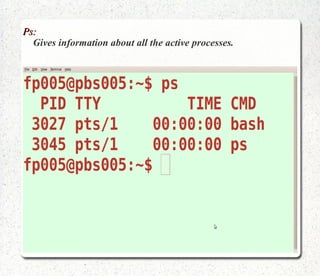
Ps:   Gives information about all the active processes.
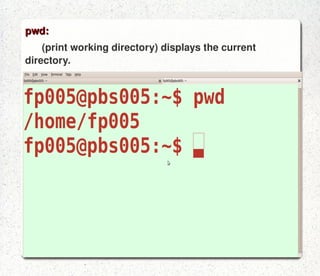
pwd: (print working directory) displays the current directory.
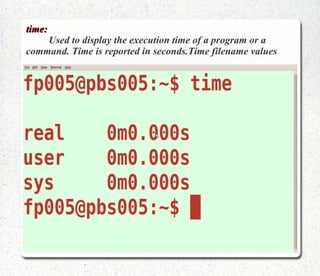
time:   Used to display the execution time of a program or a command. Time is reported in seconds.Time filename values
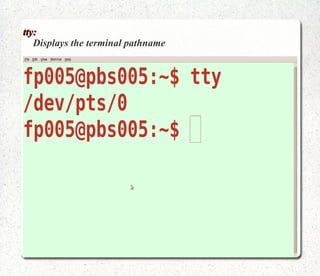
tty:   Displays the terminal pathname
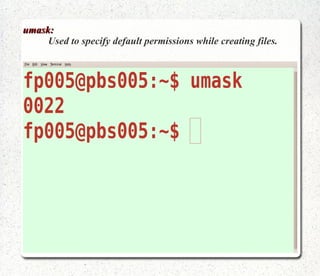
umask:   Used to specify default permissions while creating files.
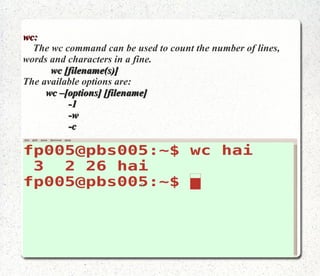
wc:   The wc command can be used to count the number of lines, words and characters in a fine.   wc [filename(s)] The available options are:   wc –[options] [filename]   -1   -w   -c
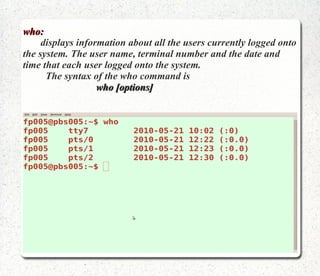
who:   displays information about all the users currently logged onto the system. The user name, terminal number and the date and time that each user logged onto the system.   The syntax of the who command is   who [options]
date :    Display or change the date & time
free :     Display memory usage
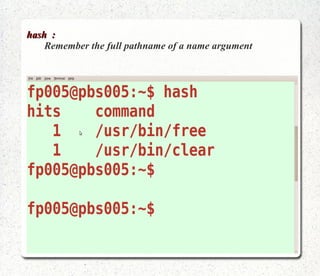
hash  :    Remember the full pathname of a name argument
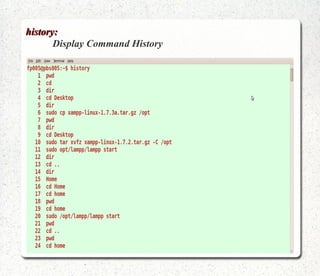
history:    Display Command History
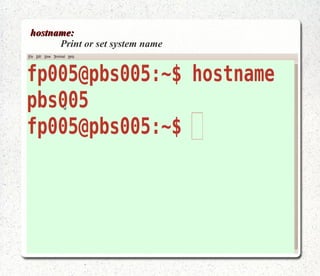
hostname:    Print or set system name
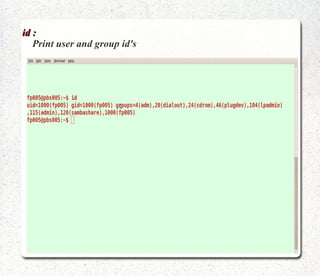
id :    Print user and group id's
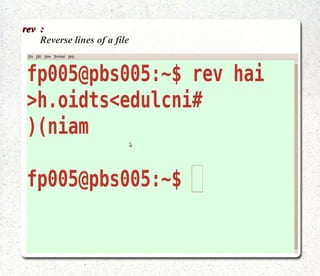
rev  :    Reverse lines of a file
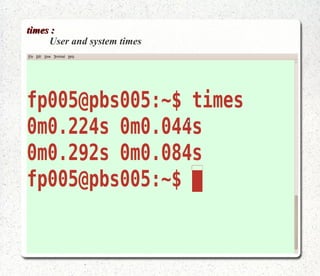
times :    User and system times
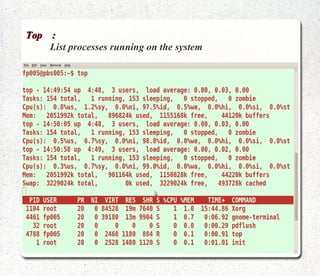
Top  :   List processes running on the system
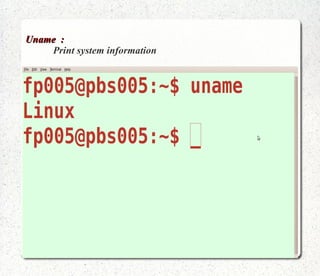
Uname  :   Print system information
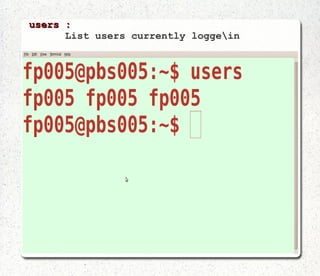
users  :  List users currently logge\in
Vi  :   Text Editor
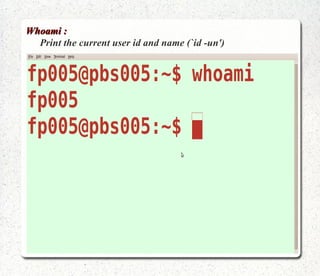
Whoami :   Print the current user id and name (`id -un')
DIRECTORY
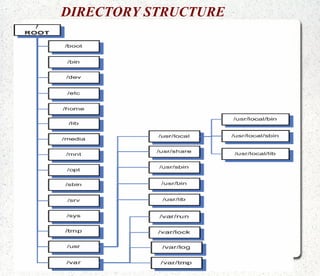
DIRECTORY STRUCTURE
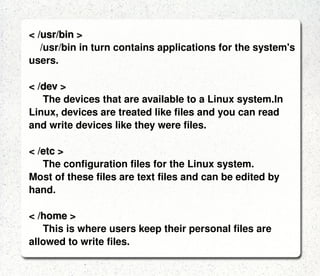
LINUX DIRECTORIES: < / > The root directory. The starting point of your directory structure. This is where the Linux system begins.  Every other file and directory on your system is under  the root directory. Usually the root directory contains only subdirectories.  < /boot > The place where Linux keeps information that it needs when booting up.  < /bin > The /bin directory contains the most important programs that the system needs to operate, such as the shells, ls, grep, and other essential things.
< /usr/bin > /usr/bin in turn contains applications for the system's users. < /dev > The devices that are available to a Linux system.In Linux, devices are treated like files and you can read and write devices like they were files. < /etc > The configuration files for the Linux system.  Most of these files are text files and can be edited by hand. < /home > This is where users keep their personal files are allowed to write files.
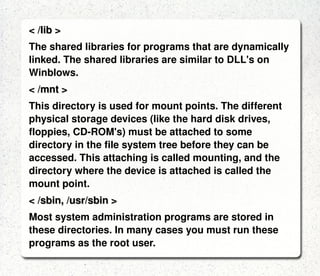
< /lib > The shared libraries for programs that are dynamically linked. The shared libraries are similar to DLL's on Winblows. < /mnt > This directory is used for mount points. The different physical storage devices (like the hard disk drives, floppies, CD-ROM's) must be attached to some directory in the file system tree before they can be accessed. This attaching is called mounting, and the directory where the device is attached is called the mount point. < /sbin, /usr/sbin > Most system administration programs are stored in these directories. In many cases you must run these programs as the root user.
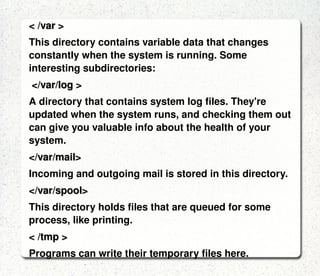
< /var > This directory contains variable data that changes constantly when the system is running. Some interesting subdirectories: </var/log > A directory that contains system log files. They're updated when the system runs, and checking them out can give you valuable info about the health of your system.  </var/mail> Incoming and outgoing mail is stored in this directory. </var/spool> This directory holds files that are queued for some process, like printing. < /tmp > Programs can write their temporary files here.
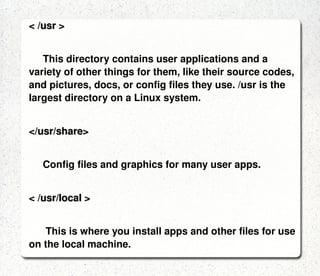
< /usr > This directory contains user applications and a variety of other things for them, like their source codes, and pictures, docs, or config files they use. /usr is the largest directory on a Linux system.  </usr/share> Config files and graphics for many user apps. < /usr/local > This is where you install apps and other files for use on the local machine.
 
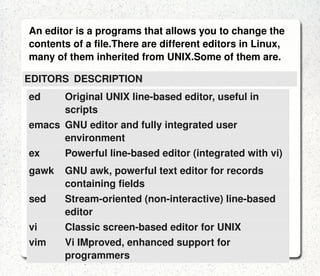
An editor is a programs that allows you to change the contents of a file.There are different editors in Linux, many of them inherited from UNIX.Some of them are.  ed Original UNIX line-based editor, useful in scripts emacs GNU editor and fully integrated user environment ex Powerful line-based editor (integrated with vi) gawk GNU awk, powerful text editor for records containing fields sed Stream-oriented (non-interactive) line-based editor vi Classic screen-based editor for UNIX vim Vi IMproved, enhanced support for programmers EDITORS DESCRIPTION
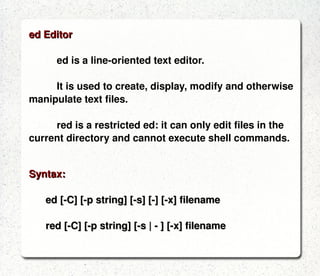
ed Editor ed is a line-oriented text editor.  It is used to create, display, modify and otherwise manipulate text files.  red is a restricted ed: it can only edit files in the  current directory and cannot execute shell commands.   Syntax: ed [-C] [-p string] [-s] [-] [-x] filename red [-C] [-p string] [-s | - ] [-x] filename
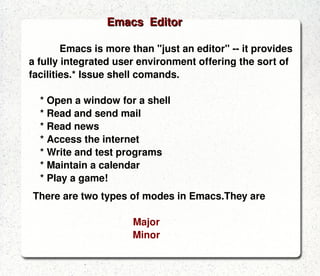
Emacs  Editor Emacs is more than &quot;just an editor&quot; -- it provides a fully integrated user environment offering the sort of facilities.* Issue shell comands. * Open a window for a shell * Read and send mail * Read news * Access the internet * Write and test programs * Maintain a calendar * Play a game!  There are two types of modes in Emacs.They are Major
Minor
ex Editor ex Editor is a line-editor mode of the vi text editor. Syntax: ex [ -| -s ] [ -l ] [ -L ] [ -R ] [ -r [file ] ] [ -t tag ] [ -v ] [ -V ] [ -x ] [ -wn ] [ -C] [+command | -c command ] file
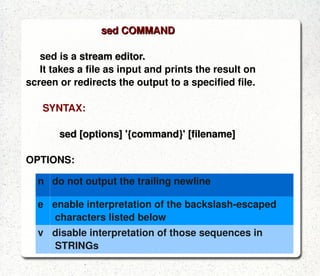
sed COMMAND sed is a  stream editor.
It takes a file as input and prints the result on  screen or redirects the output to a specified file. SYNTAX: sed [options] '{command}' [filename] OPTIONS: n do not output the trailing newline e  enable interpretation of the backslash-escaped  characters listed below v disable interpretation of those sequences in  STRINGs
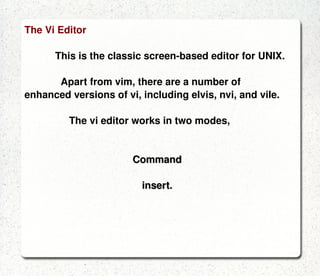
The Vi Editor This is the classic screen-based editor for UNIX.  Apart from vim, there are a number of enhanced versions of vi, including elvis, nvi, and vile. The vi editor works in two modes,  Command
insert.
Command mode :  letters or sequence of letters interactively command vi. Commands are case sensitive. The ESC key can end a command. Insert mode :  Text is inserted. The ESC key ends insert mode and returns you to command mode.  One can enter insert mode with the &quot;i&quot; (insert), &quot;a&quot; (insert after), &quot;A&quot; (insert at end of line), &quot;o&quot; (open new line after current line) or &quot;O&quot; (Open line above current line) commands.
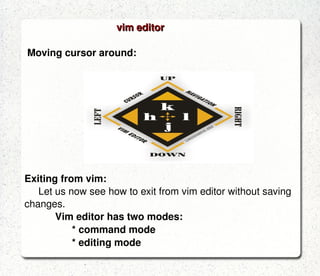
vim editor Moving cursor around: Exiting from vim: Let us now see how to exit from vim editor without saving changes. Vim editor has two modes: * command mode * editing mode
Command mode  i s the one where we can instruct vim editor to exit to the command line ( shell ).  To do that we need press ESC and type :q!. Character Deletion delete character with x key  Inserting Text Press i or a in command mode and type  Saving edited file in command mode :wq or SHIFT+zz

Nithi

  • 1.
  • 2.
    What is Linux?• An alternative to Microsoft Windows • Open source • Freely available • Reliable • More use seen in labs/scientific situations, but is seeing more popularity. • Command line based interface
  • 3.
    Text Editor(s) Likenotepad, so easy to use.
  • 4.
    Other options: emacs,vi (much harder to use)
  • 5.
  • 6.
    Features of Linux: 1. Virtual memory, allowing the system to use disk room the same as RAM memory. 2. Networking with TCP/IP and other protocols. 3. Multiple user capability. 4. Protected mode so programs or user's can't access unauthorized areas. 5. Shared libraries 6. True multitasking 7. X - A graphical user interface similar to windows, but supports remote sessions over a network.
  • 7.
  • 8.
    banner: prints the specified string in large letters. Each argument may be upto 10 characters long.
  • 9.
    Cal: Produces acalender of the current month as standard output. The month (1-12) and year (1-9999) must be specified in full numeric format .
  • 10.
    df: used tofind the number of free blocks available for all the mounted file systems.
  • 11.
    echo: The echo command echoes arguments on the command line.
  • 12.
    env: Displays the permanent environment variables associated with a user’s login id
  • 13.
    exit command: Usedto stop the execution of a shell script.
  • 14.
    expr command: Expr(command) command is used for numeric computation .
  • 15.
    find: The find command searches through directories for files that match the specified criteria. It can take full pathnames and relative pathnames on the command line. To display the output on screen the –print option must be specified
  • 16.
  • 17.
    ls: Lists thefiles in the current directory Some of the available options are: -l gives a long listing -a displays all file{including hidden files
  • 18.
    Ps: Gives information about all the active processes.
  • 19.
    pwd: (print workingdirectory) displays the current directory.
  • 20.
    time: Used to display the execution time of a program or a command. Time is reported in seconds.Time filename values
  • 21.
    tty: Displays the terminal pathname
  • 22.
    umask: Used to specify default permissions while creating files.
  • 23.
    wc: The wc command can be used to count the number of lines, words and characters in a fine. wc [filename(s)] The available options are: wc –[options] [filename] -1 -w -c
  • 24.
    who: displays information about all the users currently logged onto the system. The user name, terminal number and the date and time that each user logged onto the system. The syntax of the who command is who [options]
  • 25.
    date : Display or change the date & time
  • 26.
    free : Display memory usage
  • 27.
    hash : Remember the full pathname of a name argument
  • 28.
    history: Display Command History
  • 29.
    hostname: Print or set system name
  • 30.
    id : Print user and group id's
  • 31.
    rev : Reverse lines of a file
  • 32.
    times : User and system times
  • 33.
    Top : List processes running on the system
  • 34.
    Uname : Print system information
  • 35.
    users : List users currently logge\in
  • 36.
    Vi : Text Editor
  • 37.
    Whoami : Print the current user id and name (`id -un')
  • 38.
  • 39.
  • 40.
    LINUX DIRECTORIES: </ > The root directory. The starting point of your directory structure. This is where the Linux system begins. Every other file and directory on your system is under the root directory. Usually the root directory contains only subdirectories. < /boot > The place where Linux keeps information that it needs when booting up. < /bin > The /bin directory contains the most important programs that the system needs to operate, such as the shells, ls, grep, and other essential things.
  • 41.
    < /usr/bin >/usr/bin in turn contains applications for the system's users. < /dev > The devices that are available to a Linux system.In Linux, devices are treated like files and you can read and write devices like they were files. < /etc > The configuration files for the Linux system. Most of these files are text files and can be edited by hand. < /home > This is where users keep their personal files are allowed to write files.
  • 42.
    < /lib >The shared libraries for programs that are dynamically linked. The shared libraries are similar to DLL's on Winblows. < /mnt > This directory is used for mount points. The different physical storage devices (like the hard disk drives, floppies, CD-ROM's) must be attached to some directory in the file system tree before they can be accessed. This attaching is called mounting, and the directory where the device is attached is called the mount point. < /sbin, /usr/sbin > Most system administration programs are stored in these directories. In many cases you must run these programs as the root user.
  • 43.
    < /var >This directory contains variable data that changes constantly when the system is running. Some interesting subdirectories: </var/log > A directory that contains system log files. They're updated when the system runs, and checking them out can give you valuable info about the health of your system. </var/mail> Incoming and outgoing mail is stored in this directory. </var/spool> This directory holds files that are queued for some process, like printing. < /tmp > Programs can write their temporary files here.
  • 44.
    < /usr >This directory contains user applications and a variety of other things for them, like their source codes, and pictures, docs, or config files they use. /usr is the largest directory on a Linux system. </usr/share> Config files and graphics for many user apps. < /usr/local > This is where you install apps and other files for use on the local machine.
  • 45.
  • 46.
    An editor isa programs that allows you to change the contents of a file.There are different editors in Linux, many of them inherited from UNIX.Some of them are. ed Original UNIX line-based editor, useful in scripts emacs GNU editor and fully integrated user environment ex Powerful line-based editor (integrated with vi) gawk GNU awk, powerful text editor for records containing fields sed Stream-oriented (non-interactive) line-based editor vi Classic screen-based editor for UNIX vim Vi IMproved, enhanced support for programmers EDITORS DESCRIPTION
  • 47.
    ed Editor edis a line-oriented text editor. It is used to create, display, modify and otherwise manipulate text files. red is a restricted ed: it can only edit files in the current directory and cannot execute shell commands. Syntax: ed [-C] [-p string] [-s] [-] [-x] filename red [-C] [-p string] [-s | - ] [-x] filename
  • 48.
    Emacs EditorEmacs is more than &quot;just an editor&quot; -- it provides a fully integrated user environment offering the sort of facilities.* Issue shell comands. * Open a window for a shell * Read and send mail * Read news * Access the internet * Write and test programs * Maintain a calendar * Play a game! There are two types of modes in Emacs.They are Major
  • 49.
  • 50.
    ex Editor exEditor is a line-editor mode of the vi text editor. Syntax: ex [ -| -s ] [ -l ] [ -L ] [ -R ] [ -r [file ] ] [ -t tag ] [ -v ] [ -V ] [ -x ] [ -wn ] [ -C] [+command | -c command ] file
  • 51.
    sed COMMAND sedis a stream editor.
  • 52.
    It takes afile as input and prints the result on screen or redirects the output to a specified file. SYNTAX: sed [options] '{command}' [filename] OPTIONS: n do not output the trailing newline e enable interpretation of the backslash-escaped characters listed below v disable interpretation of those sequences in STRINGs
  • 53.
    The Vi EditorThis is the classic screen-based editor for UNIX. Apart from vim, there are a number of enhanced versions of vi, including elvis, nvi, and vile. The vi editor works in two modes, Command
  • 54.
  • 55.
    Command mode : letters or sequence of letters interactively command vi. Commands are case sensitive. The ESC key can end a command. Insert mode : Text is inserted. The ESC key ends insert mode and returns you to command mode. One can enter insert mode with the &quot;i&quot; (insert), &quot;a&quot; (insert after), &quot;A&quot; (insert at end of line), &quot;o&quot; (open new line after current line) or &quot;O&quot; (Open line above current line) commands.
  • 56.
    vim editor Movingcursor around: Exiting from vim: Let us now see how to exit from vim editor without saving changes. Vim editor has two modes: * command mode * editing mode
  • 57.
    Command mode i s the one where we can instruct vim editor to exit to the command line ( shell ). To do that we need press ESC and type :q!. Character Deletion delete character with x key Inserting Text Press i or a in command mode and type Saving edited file in command mode :wq or SHIFT+zz
  • 58.
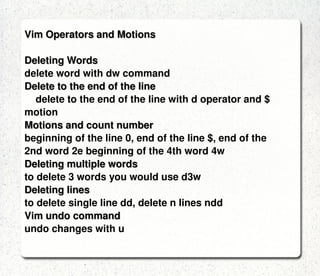
    Vim Operators andMotions Deleting Words delete word with dw command Delete to the end of the line delete to the end of the line with d operator and $ motion Motions and count number beginning of the line 0, end of the line $, end of the 2nd word 2e beginning of the 4th word 4w Deleting multiple words to delete 3 words you would use d3w Deleting lines to delete single line dd, delete n lines ndd Vim undo command undo changes with u
  • 59.
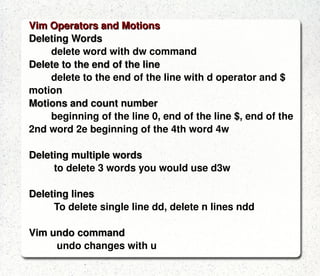
    Vim Operators andMotions Deleting Words delete word with dw command Delete to the end of the line delete to the end of the line with d operator and $ motion Motions and count number beginning of the line 0, end of the line $, end of the 2nd word 2e beginning of the 4th word 4w Deleting multiple words to delete 3 words you would use d3w Deleting lines To delete single line dd, delete n lines ndd Vim undo command undo changes with u
  • 60.
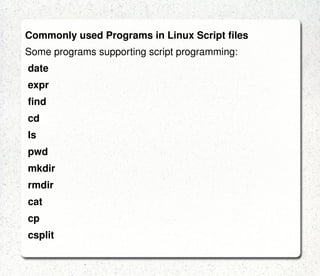
    Commonly used Programsin Linux Script files Some programs supporting script programming: date expr find cd ls pwd mkdir rmdir cat cp csplit
  • 61.
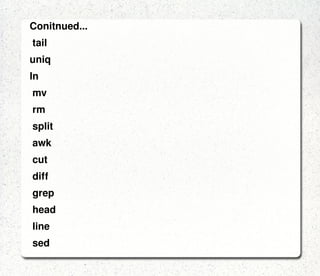
    Conitnued... tail uniq ln mv rm split awk cut diff grep head line sed
  • 62.

Editor's Notes