User Manual
 This document is licensed by virrea.fr under the
      Creative Commons BY-NC-ND license.
   Any translation of this document welcome !
       Contact us at : innovation@virrea.fr


                   Page 1 of 6
What is New World Studio ?
Powered by OpenSimulator for everyone
New World Studio is the most complete, advanced and easy to use OpenSimulator distribution, and is
available under the GNU GPL v2 license.

Wether you are an educator, scientist, professional designer, individual, or anything else,
with New World Studio, you get started in a matter of minutes, even seconds with your OpenSimulator
virtual world.

It ships with :

        An easy to use graphical user interface
        An up to date OpenSimulator distribution
        An Imprudence viewer to connect to your world
        A MySQL database server for better performance (currently only on Windows)
        A web front-end to manage virtual world users and settings

Official website : http://www.newworldstudio.org/


Cross-platform, on a stick or installed, multi-lingual
New World Studio is natively cross-platform and portable, be it on a USB stick, external hard drive disk,
or installed on your machine. It is also multi-lingual thanks to its generous contributors !


Automatic updates, and continual improvement
New World Studio comes with automatic updates, regular bugs fixes, OpenSimulator updates, and is
subject to continual improvement.

Please, keep in mind that New World Studio is currently in Beta development phase. It means that, while
functional, there may still be some bugs or missing features that will be added as part of the continual
improvement process. Thanks for your understanding and support to make New World Studio better
everyday.


About this manual
This manual will be constantly improved and updated as New World Studio evolves. Also, please feel
free to send us your suggestions and ideas about this manual at : innovation@virrea.fr


                                               Page 2 of 6
1. Downloads & prerequisites
Download New World Studio
You can download New World Studio for your platform (Windows, Mac, or Linux) on the official website
on this page :

http://www.newworldstudio.org/site/en/downloads

Or you can click on the icon corresponding to your platform below.


Once downloaded, unzip the archive to your prefered folder.


Prerequisites for Windows users
On Windows, check that you have the .NET Framework 3.5 installed on your system.
If not, you can download it here : http://www.microsoft.com/en-us/download/details.aspx?id=21


Prerequisites for Mac & Linux users
On Mac and Linux, check that you have the Mono Framework installed on your system.
If not, you can download it here : http://www.go-mono.com/mono-downloads/download.html


                                              Page 3 of 6
2. Setup
Start up New World Studio
On Windows, you just have to execute the NewWorldStudio.exe file to startup.

On Mac and Linux, you need to open a terminal window, navigate to your install folder, then execute
NewWorldStudio.exe using mono :

         cd NewWorldStudio
         mono NewWorldStudio.exe


Update checks
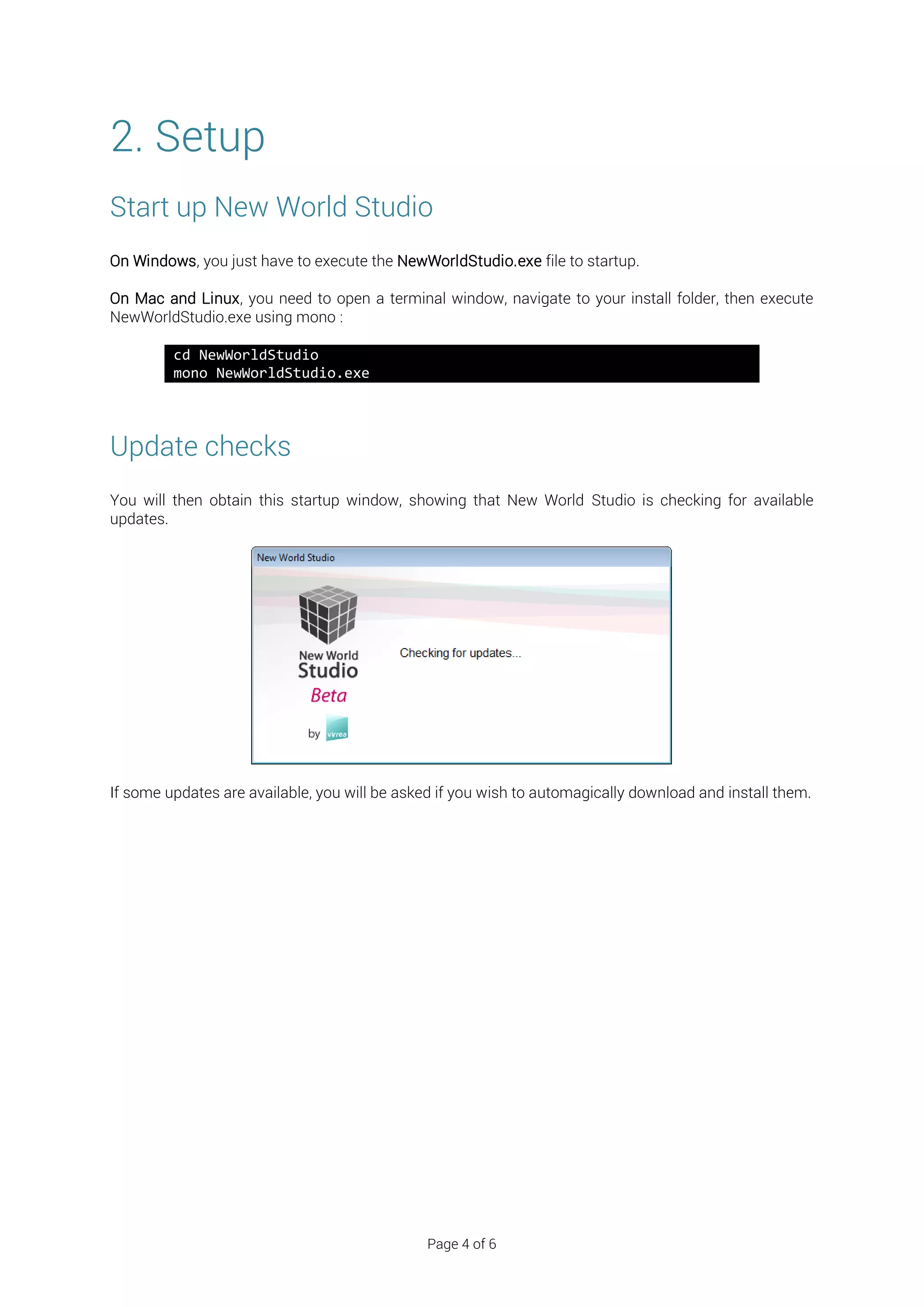
You will then obtain this startup window, showing that New World Studio is checking for available
updates.


If some updates are available, you will be asked if you wish to automagically download and install them.


                                               Page 4 of 6
Setup your New World Studio install
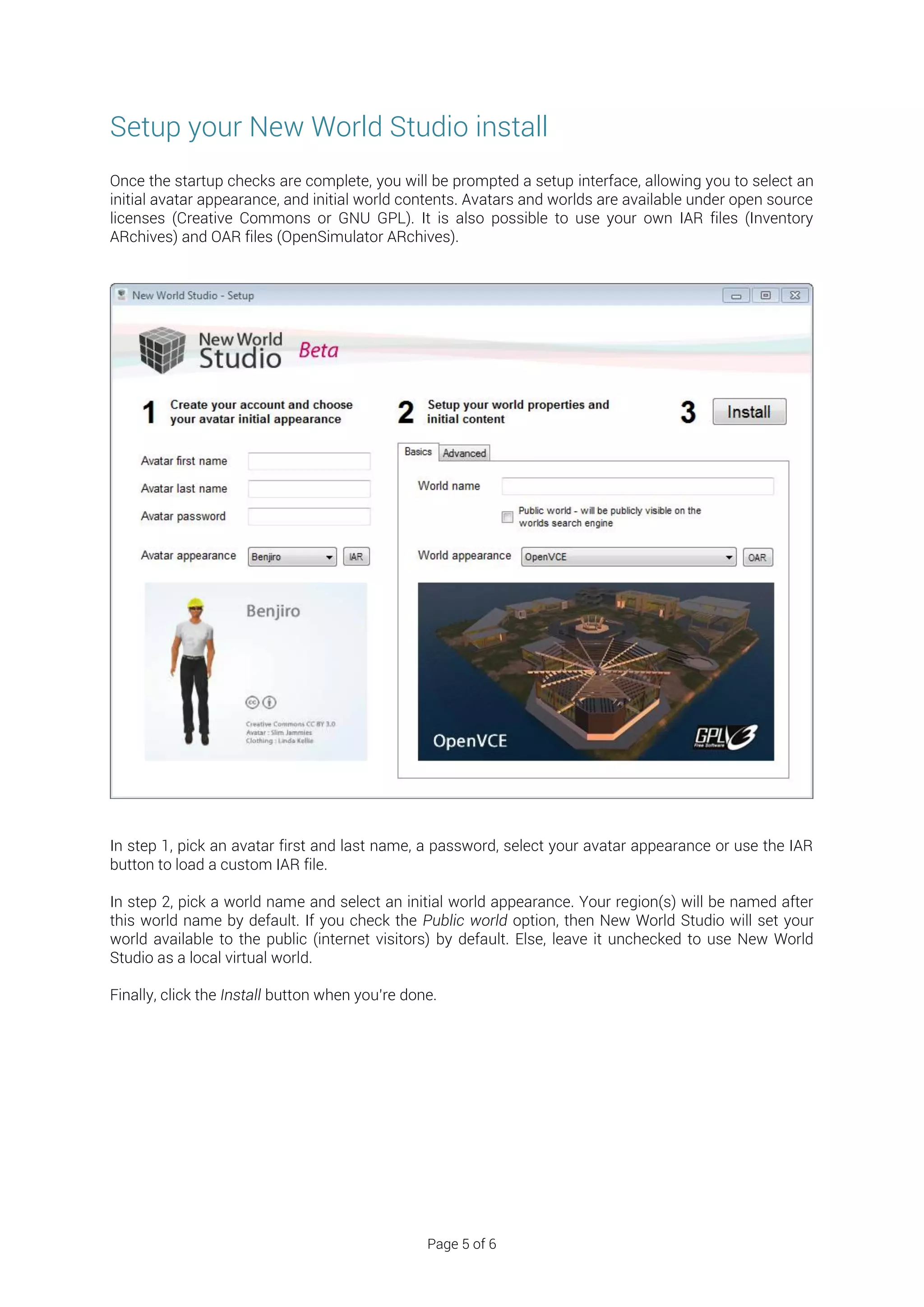
Once the startup checks are complete, you will be prompted a setup interface, allowing you to select an
initial avatar appearance, and initial world contents. Avatars and worlds are available under open source
licenses (Creative Commons or GNU GPL). It is also possible to use your own IAR files (Inventory
ARchives) and OAR files (OpenSimulator ARchives).


In step 1, pick an avatar first and last name, a password, select your avatar appearance or use the IAR
button to load a custom IAR file.

In step 2, pick a world name and select an initial world appearance. Your region(s) will be named after
this world name by default. If you check the Public world option, then New World Studio will set your
world available to the public (internet visitors) by default. Else, leave it unchecked to use New World
Studio as a local virtual world.

Finally, click the Install button when you’re done.


                                                 Page 5 of 6
3. Start your virtual world in 2 steps
3.1. Start the virtual world
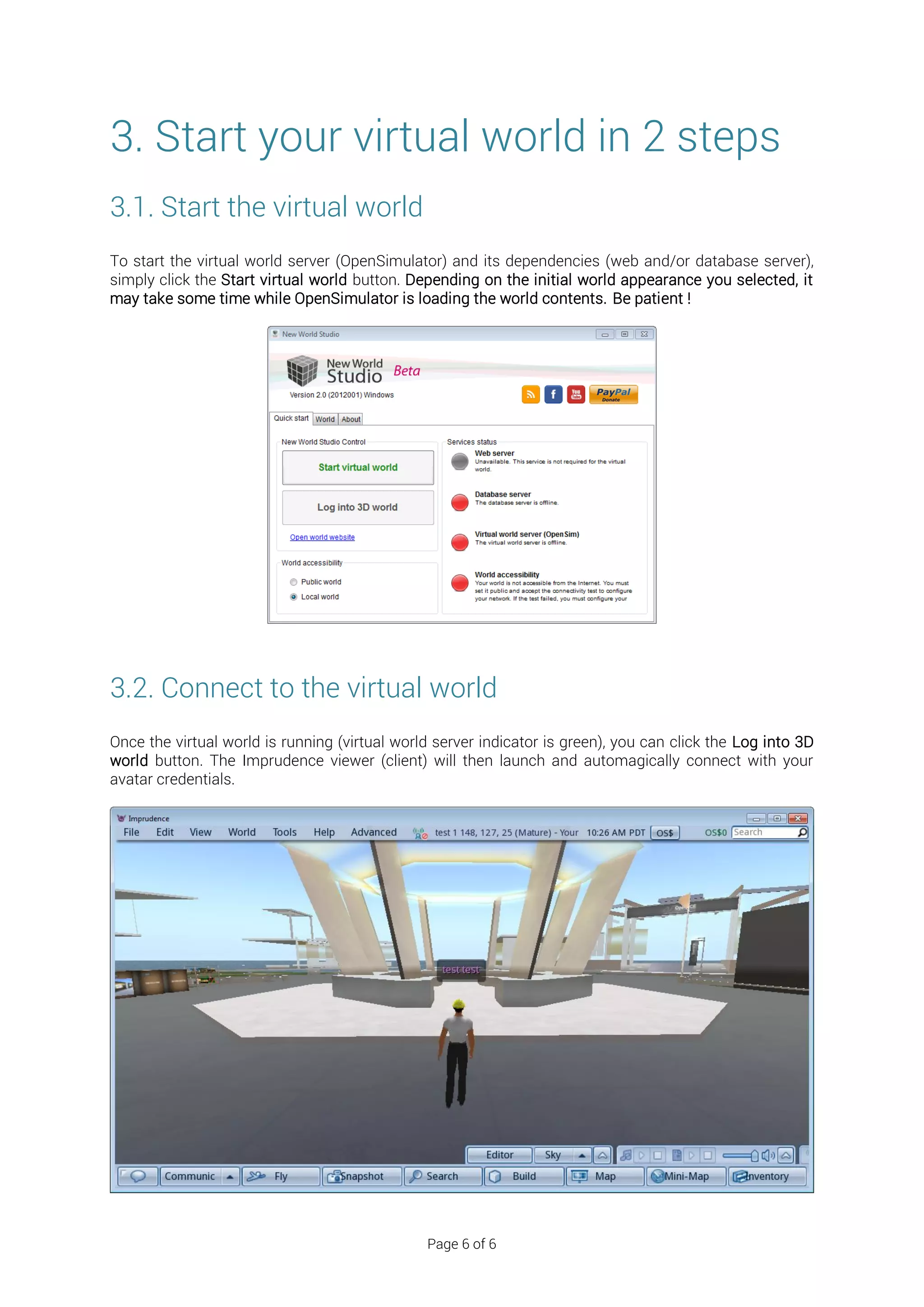
To start the virtual world server (OpenSimulator) and its dependencies (web and/or database server),
simply click the Start virtual world button. Depending on the initial world appearance you selected, it
may take some time while OpenSimulator is loading the world contents. Be patient !


3.2. Connect to the virtual world
Once the virtual world is running (virtual world server indicator is green), you can click the Log into 3D
world button. The Imprudence viewer (client) will then launch and automagically connect with your
avatar credentials.


                                               Page 6 of 6

New World Studio - User Manual EN

  • 1.
    User Manual Thisdocument is licensed by virrea.fr under the Creative Commons BY-NC-ND license. Any translation of this document welcome ! Contact us at : innovation@virrea.fr Page 1 of 6
  • 2.
    What is NewWorld Studio ? Powered by OpenSimulator for everyone New World Studio is the most complete, advanced and easy to use OpenSimulator distribution, and is available under the GNU GPL v2 license. Wether you are an educator, scientist, professional designer, individual, or anything else, with New World Studio, you get started in a matter of minutes, even seconds with your OpenSimulator virtual world. It ships with :  An easy to use graphical user interface  An up to date OpenSimulator distribution  An Imprudence viewer to connect to your world  A MySQL database server for better performance (currently only on Windows)  A web front-end to manage virtual world users and settings Official website : http://www.newworldstudio.org/ Cross-platform, on a stick or installed, multi-lingual New World Studio is natively cross-platform and portable, be it on a USB stick, external hard drive disk, or installed on your machine. It is also multi-lingual thanks to its generous contributors ! Automatic updates, and continual improvement New World Studio comes with automatic updates, regular bugs fixes, OpenSimulator updates, and is subject to continual improvement. Please, keep in mind that New World Studio is currently in Beta development phase. It means that, while functional, there may still be some bugs or missing features that will be added as part of the continual improvement process. Thanks for your understanding and support to make New World Studio better everyday. About this manual This manual will be constantly improved and updated as New World Studio evolves. Also, please feel free to send us your suggestions and ideas about this manual at : innovation@virrea.fr Page 2 of 6
  • 3.
    1. Downloads &prerequisites Download New World Studio You can download New World Studio for your platform (Windows, Mac, or Linux) on the official website on this page : http://www.newworldstudio.org/site/en/downloads Or you can click on the icon corresponding to your platform below. Once downloaded, unzip the archive to your prefered folder. Prerequisites for Windows users On Windows, check that you have the .NET Framework 3.5 installed on your system. If not, you can download it here : http://www.microsoft.com/en-us/download/details.aspx?id=21 Prerequisites for Mac & Linux users On Mac and Linux, check that you have the Mono Framework installed on your system. If not, you can download it here : http://www.go-mono.com/mono-downloads/download.html Page 3 of 6
  • 4.
    2. Setup Start upNew World Studio On Windows, you just have to execute the NewWorldStudio.exe file to startup. On Mac and Linux, you need to open a terminal window, navigate to your install folder, then execute NewWorldStudio.exe using mono : cd NewWorldStudio mono NewWorldStudio.exe Update checks You will then obtain this startup window, showing that New World Studio is checking for available updates. If some updates are available, you will be asked if you wish to automagically download and install them. Page 4 of 6
  • 5.
    Setup your NewWorld Studio install Once the startup checks are complete, you will be prompted a setup interface, allowing you to select an initial avatar appearance, and initial world contents. Avatars and worlds are available under open source licenses (Creative Commons or GNU GPL). It is also possible to use your own IAR files (Inventory ARchives) and OAR files (OpenSimulator ARchives). In step 1, pick an avatar first and last name, a password, select your avatar appearance or use the IAR button to load a custom IAR file. In step 2, pick a world name and select an initial world appearance. Your region(s) will be named after this world name by default. If you check the Public world option, then New World Studio will set your world available to the public (internet visitors) by default. Else, leave it unchecked to use New World Studio as a local virtual world. Finally, click the Install button when you’re done. Page 5 of 6
  • 6.
    3. Start yourvirtual world in 2 steps 3.1. Start the virtual world To start the virtual world server (OpenSimulator) and its dependencies (web and/or database server), simply click the Start virtual world button. Depending on the initial world appearance you selected, it may take some time while OpenSimulator is loading the world contents. Be patient ! 3.2. Connect to the virtual world Once the virtual world is running (virtual world server indicator is green), you can click the Log into 3D world button. The Imprudence viewer (client) will then launch and automagically connect with your avatar credentials. Page 6 of 6