Hintter
Salesboss User Guide
www.Salesboss.org
Salesboss group
01/04/2015
1
User guide
Table of Contents
1. Get started......................................................................................................................................3
1.1. Download salesboss app.................................................................................................3
1.2. Register new business.....................................................................................................3
1.3. Login................................................................................................................................3
1.4. Overview salesboss app..................................................................................................3
2. Setup your business........................................................................................................................5
2.1. Register new business.....................................................................................................5
2.2. Add products...................................................................................................................5
2.3. Add staffs ........................................................................................................................5
3. Run your business...........................................................................................................................6
3.1. Sales ................................................................................................................................6
3.1.1. Add new order: .......................................................................................................6
3.1.2. View an order..........................................................................................................6
3.1.3. View revenue report...............................................................................................7
3.2. Payment ..........................................................................................................................7
3.2.1. Confirm payment ....................................................................................................7
3.2.2. View a paid order....................................................................................................7
3.2.3. Send receipt ............................................................................................................8
3.2.4. Print receipt ............................................................................................................8
3.3. Stock................................................................................................................................8
3.3.1. Confirm export........................................................................................................8
3.3.2. View an exported order ..........................................................................................8
3.3.3. Import more good...................................................................................................9
3.3.4. Make inventory.......................................................................................................9
3.3.5. View inventory......................................................................................................10
3.4. Notification ...................................................................................................................10
3.5. Management.................................................................................................................10
3.5.1. Add product ..........................................................................................................10
3.5.2. Edit product price..................................................................................................11
3.5.3. Add staff................................................................................................................11
2
3.5.4. Edit staff info.........................................................................................................12
3.5.5. Edit business profile..............................................................................................12
3.5.6. Setting ...................................................................................................................12
3.6. User...............................................................................................................................13
3.6.1. Edit profile.............................................................................................................13
3.6.2. Change password..................................................................................................13
3
1. Get started
1.1. Download salesboss app
Android link:
iOS link:
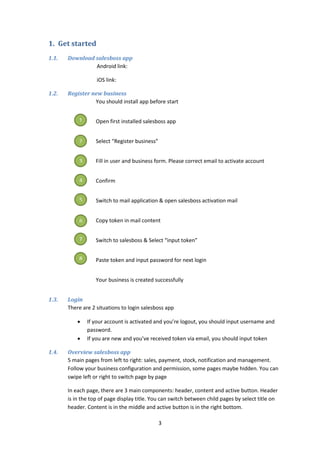
1.2. Register new business
You should install app before start
Open first installed salesboss app
Select “Register business”
Fill in user and business form. Please correct email to activate account
Confirm
Switch to mail application & open salesboss activation mail
Copy token in mail content
Switch to salesboss & Select “input token”
Paste token and input password for next login
Your business is created successfully
1.3. Login
There are 2 situations to login salesboss app
 If your account is activated and you’re logout, you should input username and
password.
 If you are new and you’ve received token via email, you should input token
1.4. Overview salesboss app
5 main pages from left to right: sales, payment, stock, notification and management.
Follow your business configuration and permission, some pages maybe hidden. You can
swipe left or right to switch page by page
In each page, there are 3 main components: header, content and active button. Header
is in the top of page display title. You can switch between child pages by select title on
header. Content is in the middle and active button is in the right bottom.
1
2
3
4
5
6
7
8
4
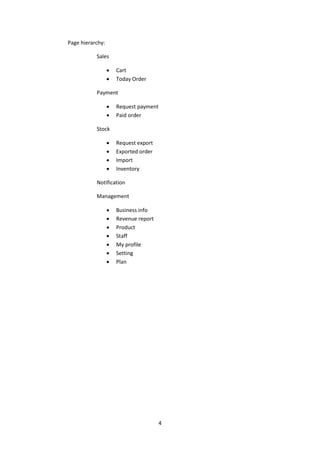
Page hierarchy:
Sales
 Cart
 Today Order
Payment
 Request payment
 Paid order
Stock
 Request export
 Exported order
 Import
 Inventory
Notification
Management
 Business info
 Revenue report
 Product
 Staff
 My profile
 Setting
 Plan
5
2. Setup your business
2.1. Register new business
Follow 1.2
2.2. Add products
Follow 3.5
2.3. Add staffs
Follow 3.
6
3. Run your business
3.1. Sales
3.1.1. Add new order:
You should login as manager or salesman
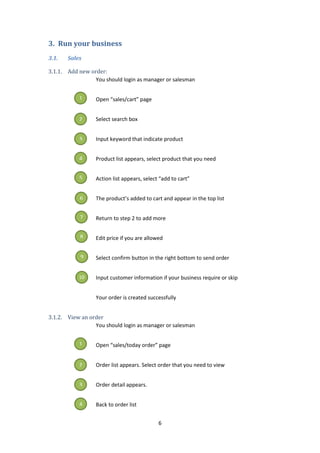
Open “sales/cart” page
Select search box
Input keyword that indicate product
Product list appears, select product that you need
Action list appears, select “add to cart”
The product’s added to cart and appear in the top list
Return to step 2 to add more
Edit price if you are allowed
Select confirm button in the right bottom to send order
Input customer information if your business require or skip
Your order is created successfully
3.1.2. View an order
You should login as manager or salesman
Open “sales/today order” page
Order list appears. Select order that you need to view
Order detail appears.
Back to order list
1
2
3
4
5
6
7
8
9
10
1
2
3
4
7
Your order is listed by date
3.1.3. View revenue report
You should login as manager
Open “Management/Report” page
Select view by week or by month
View report
3.2. Payment
* Note: if your business is configured that no split cashier and salesman, payment page will be hide
3.2.1. Confirm payment
You should login as manager or staff include cashier role
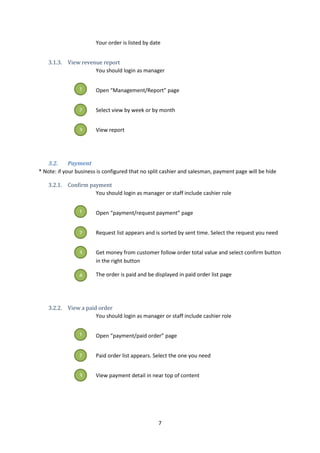
Open “payment/request payment” page
Request list appears and is sorted by sent time. Select the request you need
Get money from customer follow order total value and select confirm button
in the right button
The order is paid and be displayed in paid order list page
3.2.2. View a paid order
You should login as manager or staff include cashier role
Open “payment/paid order” page
Paid order list appears. Select the one you need
View payment detail in near top of content
1
2
3
1
2
3
4
1
2
3
8
3.2.3. Send receipt
You should login as manager or staff include cashier role
View a paid order. Follow 3.2.Send receipt if you don’t know how.
Select “Email receipt” button in the right bottom
Switch to email application
3.2.4. Print receipt
You should login as manager or staff include cashier role. And your device
should have Android version from 4.4
View a paid order. Follow 3.2.Send receipt if you don’t know how.
Select “Print receipt” button in the right bottom
Switch to system print service
Select printer and paper you need
3.3. Stock
* Note: if your business is configured that no stock, stock page will be hidden
3.3.1. Confirm export
You should login as manager or staff include keeper role. And you should
select require confirm export in configuration of business
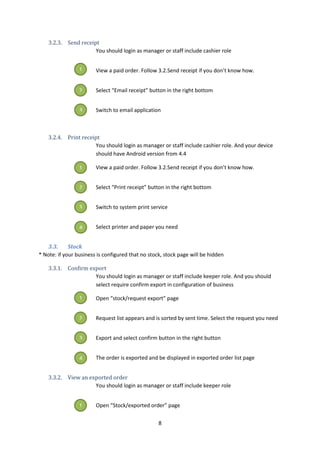
Open “stock/request export” page
Request list appears and is sorted by sent time. Select the request you need
Export and select confirm button in the right button
The order is exported and be displayed in exported order list page
3.3.2. View an exported order
You should login as manager or staff include keeper role
Open “Stock/exported order” page
1
2
3
1
2
3
4
1
2
3
4
1
9
Exported order list appears. Select the one you need
View export detail in near top of content
3.3.3. Import more good
You should login as manager or staff include keeper role
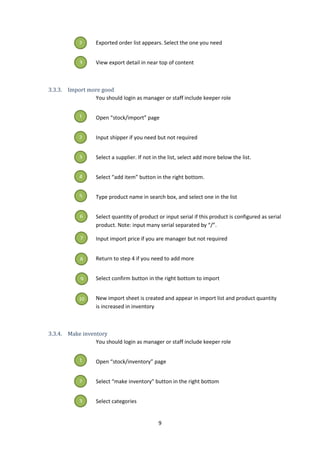
Open “stock/import” page
Input shipper if you need but not required
Select a supplier. If not in the list, select add more below the list.
Select “add item” button in the right bottom.
Type product name in search box, and select one in the list
Select quantity of product or input serial if this product is configured as serial
product. Note: input many serial separated by “/”.
Input import price if you are manager but not required
Return to step 4 if you need to add more
Select confirm button in the right bottom to import
New import sheet is created and appear in import list and product quantity
is increased in inventory
3.3.4. Make inventory
You should login as manager or staff include keeper role
Open “stock/inventory” page
Select “make inventory” button in the right bottom
Select categories
2
3
1
2
3
4
5
6
7
8
9
10
1
2
3
10
Select product and input new quantity. With serial product, you must input
serial. If you need more items in serial product, select “add” button in the
right bottom.
Select “confirm” button in the right bottom
Your new numbers will be updated to inventory
3.3.5. View inventory
You should login as manager or staff include keeper role
Open “stock/inventory” page
By default, appeared list is inventory in current time.
Select “history” button in the right bottom.
Inventory list sort by time appears. Select an inventory in the time you need
to review.
That list will be displayed
3.4. Notification
This page shows all new actions from your colleague. You can access this page by 3
ways:
 Swipe left or right in application
 Select a notification from android system notification
 Select in-app notification icon
3.5. Management
3.5.1. Add product
You should login as manager
Open “management/product” page
Select “add product” button in the right bottom
Name and price are required. Images are optional
4
5
1
2
3
4
5
1
2
3
4
11
Select more info. If your business has customer service, stock, you should
configure
If your product has many editions, you should add options and value
If you want to detail your product specification, you should select template
first.
3.5.2. Edit product price
You should login as manager
Open “management/product” page
Select product you want to change price from product list
Edit price
Confirm
The product list is updated
3.5.3. Add staff
You should login as manager
Open “management/staff” page
Select “add staff” button in the right bottom
Phone number is identification and email is for activated so be sure they are
correct
Permission is important, so consider selecting.
Confirm
Your staff will receive a token via email.
He installs “salesboss” and launches it.
5
6
1
2
3
4
5
1
2
3
4
6
5
7
8
12
In the first time, he input received token to activate his account
He is a staff of your business now.
3.5.4. Edit staff info.
You should login as manager
Open “management/staff” page
Select staff you want to change from staff list
Edit information
Confirm
The staff list is updated
3.5.5. Edit business profile
You should login as manager
Open “management/business info.” page
Edit information
Confirm
The information of business is updated
3.5.6. Setting
*Note: any change in setting can cause any change in your system and data.
You should login as manager
Open “management/setting” page
Check or uncheck options
1
2
3
4
1
2
3
1
2
3
13
Confirm
Your business model and data is updated
3.6. User
3.6.1. Edit profile
You should already login
Open “management/my profile” page
Edit information
Confirm
Your profile is updated
3.6.2. Change password
You should already login
Open “management/my profile” page
Select “change password” button in the right bottom
Input old and new password
Confirm
1
2
3
1
2
3
4

Salesboss user guide

  • 1.
  • 2.
    1 User guide Table ofContents 1. Get started......................................................................................................................................3 1.1. Download salesboss app.................................................................................................3 1.2. Register new business.....................................................................................................3 1.3. Login................................................................................................................................3 1.4. Overview salesboss app..................................................................................................3 2. Setup your business........................................................................................................................5 2.1. Register new business.....................................................................................................5 2.2. Add products...................................................................................................................5 2.3. Add staffs ........................................................................................................................5 3. Run your business...........................................................................................................................6 3.1. Sales ................................................................................................................................6 3.1.1. Add new order: .......................................................................................................6 3.1.2. View an order..........................................................................................................6 3.1.3. View revenue report...............................................................................................7 3.2. Payment ..........................................................................................................................7 3.2.1. Confirm payment ....................................................................................................7 3.2.2. View a paid order....................................................................................................7 3.2.3. Send receipt ............................................................................................................8 3.2.4. Print receipt ............................................................................................................8 3.3. Stock................................................................................................................................8 3.3.1. Confirm export........................................................................................................8 3.3.2. View an exported order ..........................................................................................8 3.3.3. Import more good...................................................................................................9 3.3.4. Make inventory.......................................................................................................9 3.3.5. View inventory......................................................................................................10 3.4. Notification ...................................................................................................................10 3.5. Management.................................................................................................................10 3.5.1. Add product ..........................................................................................................10 3.5.2. Edit product price..................................................................................................11 3.5.3. Add staff................................................................................................................11
  • 3.
    2 3.5.4. Edit staffinfo.........................................................................................................12 3.5.5. Edit business profile..............................................................................................12 3.5.6. Setting ...................................................................................................................12 3.6. User...............................................................................................................................13 3.6.1. Edit profile.............................................................................................................13 3.6.2. Change password..................................................................................................13
  • 4.
    3 1. Get started 1.1.Download salesboss app Android link: iOS link: 1.2. Register new business You should install app before start Open first installed salesboss app Select “Register business” Fill in user and business form. Please correct email to activate account Confirm Switch to mail application & open salesboss activation mail Copy token in mail content Switch to salesboss & Select “input token” Paste token and input password for next login Your business is created successfully 1.3. Login There are 2 situations to login salesboss app  If your account is activated and you’re logout, you should input username and password.  If you are new and you’ve received token via email, you should input token 1.4. Overview salesboss app 5 main pages from left to right: sales, payment, stock, notification and management. Follow your business configuration and permission, some pages maybe hidden. You can swipe left or right to switch page by page In each page, there are 3 main components: header, content and active button. Header is in the top of page display title. You can switch between child pages by select title on header. Content is in the middle and active button is in the right bottom. 1 2 3 4 5 6 7 8
  • 5.
    4 Page hierarchy: Sales  Cart Today Order Payment  Request payment  Paid order Stock  Request export  Exported order  Import  Inventory Notification Management  Business info  Revenue report  Product  Staff  My profile  Setting  Plan
  • 6.
    5 2. Setup yourbusiness 2.1. Register new business Follow 1.2 2.2. Add products Follow 3.5 2.3. Add staffs Follow 3.
  • 7.
    6 3. Run yourbusiness 3.1. Sales 3.1.1. Add new order: You should login as manager or salesman Open “sales/cart” page Select search box Input keyword that indicate product Product list appears, select product that you need Action list appears, select “add to cart” The product’s added to cart and appear in the top list Return to step 2 to add more Edit price if you are allowed Select confirm button in the right bottom to send order Input customer information if your business require or skip Your order is created successfully 3.1.2. View an order You should login as manager or salesman Open “sales/today order” page Order list appears. Select order that you need to view Order detail appears. Back to order list 1 2 3 4 5 6 7 8 9 10 1 2 3 4
  • 8.
    7 Your order islisted by date 3.1.3. View revenue report You should login as manager Open “Management/Report” page Select view by week or by month View report 3.2. Payment * Note: if your business is configured that no split cashier and salesman, payment page will be hide 3.2.1. Confirm payment You should login as manager or staff include cashier role Open “payment/request payment” page Request list appears and is sorted by sent time. Select the request you need Get money from customer follow order total value and select confirm button in the right button The order is paid and be displayed in paid order list page 3.2.2. View a paid order You should login as manager or staff include cashier role Open “payment/paid order” page Paid order list appears. Select the one you need View payment detail in near top of content 1 2 3 1 2 3 4 1 2 3
  • 9.
    8 3.2.3. Send receipt Youshould login as manager or staff include cashier role View a paid order. Follow 3.2.Send receipt if you don’t know how. Select “Email receipt” button in the right bottom Switch to email application 3.2.4. Print receipt You should login as manager or staff include cashier role. And your device should have Android version from 4.4 View a paid order. Follow 3.2.Send receipt if you don’t know how. Select “Print receipt” button in the right bottom Switch to system print service Select printer and paper you need 3.3. Stock * Note: if your business is configured that no stock, stock page will be hidden 3.3.1. Confirm export You should login as manager or staff include keeper role. And you should select require confirm export in configuration of business Open “stock/request export” page Request list appears and is sorted by sent time. Select the request you need Export and select confirm button in the right button The order is exported and be displayed in exported order list page 3.3.2. View an exported order You should login as manager or staff include keeper role Open “Stock/exported order” page 1 2 3 1 2 3 4 1 2 3 4 1
  • 10.
    9 Exported order listappears. Select the one you need View export detail in near top of content 3.3.3. Import more good You should login as manager or staff include keeper role Open “stock/import” page Input shipper if you need but not required Select a supplier. If not in the list, select add more below the list. Select “add item” button in the right bottom. Type product name in search box, and select one in the list Select quantity of product or input serial if this product is configured as serial product. Note: input many serial separated by “/”. Input import price if you are manager but not required Return to step 4 if you need to add more Select confirm button in the right bottom to import New import sheet is created and appear in import list and product quantity is increased in inventory 3.3.4. Make inventory You should login as manager or staff include keeper role Open “stock/inventory” page Select “make inventory” button in the right bottom Select categories 2 3 1 2 3 4 5 6 7 8 9 10 1 2 3
  • 11.
    10 Select product andinput new quantity. With serial product, you must input serial. If you need more items in serial product, select “add” button in the right bottom. Select “confirm” button in the right bottom Your new numbers will be updated to inventory 3.3.5. View inventory You should login as manager or staff include keeper role Open “stock/inventory” page By default, appeared list is inventory in current time. Select “history” button in the right bottom. Inventory list sort by time appears. Select an inventory in the time you need to review. That list will be displayed 3.4. Notification This page shows all new actions from your colleague. You can access this page by 3 ways:  Swipe left or right in application  Select a notification from android system notification  Select in-app notification icon 3.5. Management 3.5.1. Add product You should login as manager Open “management/product” page Select “add product” button in the right bottom Name and price are required. Images are optional 4 5 1 2 3 4 5 1 2 3 4
  • 12.
    11 Select more info.If your business has customer service, stock, you should configure If your product has many editions, you should add options and value If you want to detail your product specification, you should select template first. 3.5.2. Edit product price You should login as manager Open “management/product” page Select product you want to change price from product list Edit price Confirm The product list is updated 3.5.3. Add staff You should login as manager Open “management/staff” page Select “add staff” button in the right bottom Phone number is identification and email is for activated so be sure they are correct Permission is important, so consider selecting. Confirm Your staff will receive a token via email. He installs “salesboss” and launches it. 5 6 1 2 3 4 5 1 2 3 4 6 5 7 8
  • 13.
    12 In the firsttime, he input received token to activate his account He is a staff of your business now. 3.5.4. Edit staff info. You should login as manager Open “management/staff” page Select staff you want to change from staff list Edit information Confirm The staff list is updated 3.5.5. Edit business profile You should login as manager Open “management/business info.” page Edit information Confirm The information of business is updated 3.5.6. Setting *Note: any change in setting can cause any change in your system and data. You should login as manager Open “management/setting” page Check or uncheck options 1 2 3 4 1 2 3 1 2 3
  • 14.
    13 Confirm Your business modeland data is updated 3.6. User 3.6.1. Edit profile You should already login Open “management/my profile” page Edit information Confirm Your profile is updated 3.6.2. Change password You should already login Open “management/my profile” page Select “change password” button in the right bottom Input old and new password Confirm 1 2 3 1 2 3 4