USING MYSQL THROUGH PYTHON

                                   MYSQLDB


                                  TAYLOR REDD


                                 1. Intoduction
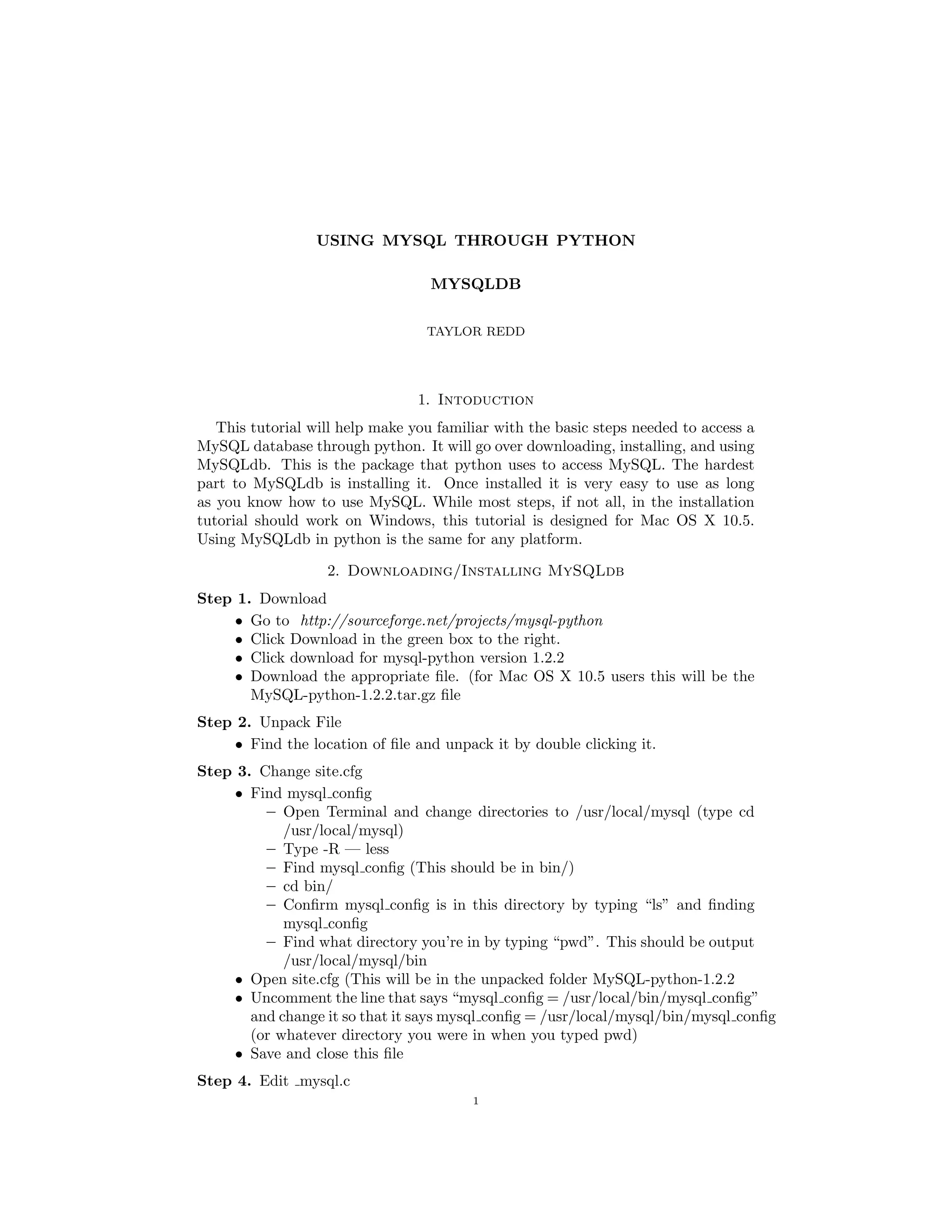
   This tutorial will help make you familiar with the basic steps needed to access a
MySQL database through python. It will go over downloading, installing, and using
MySQLdb. This is the package that python uses to access MySQL. The hardest
part to MySQLdb is installing it. Once installed it is very easy to use as long
as you know how to use MySQL. While most steps, if not all, in the installation
tutorial should work on Windows, this tutorial is designed for Mac OS X 10.5.
Using MySQLdb in python is the same for any platform.

                   2. Downloading/Installing MySQLdb
Step 1. Download
     • Go to http://sourceforge.net/projects/mysql-python
     • Click Download in the green box to the right.
     • Click download for mysql-python version 1.2.2
     • Download the appropriate file. (for Mac OS X 10.5 users this will be the
       MySQL-python-1.2.2.tar.gz file
Step 2. Unpack File
     • Find the location of file and unpack it by double clicking it.
Step 3. Change site.cfg
     • Find mysql config
         – Open Terminal and change directories to /usr/local/mysql (type cd
            /usr/local/mysql)
         – Type -R — less
         – Find mysql config (This should be in bin/)
         – cd bin/
         – Confirm mysql config is in this directory by typing “ls” and finding
            mysql config
         – Find what directory you’re in by typing “pwd”. This should be output
            /usr/local/mysql/bin
     • Open site.cfg (This will be in the unpacked folder MySQL-python-1.2.2
     • Uncomment the line that says “mysql config = /usr/local/bin/mysql config”
       and change it so that it says mysql config = /usr/local/mysql/bin/mysql config
       (or whatever directory you were in when you typed pwd)
     • Save and close this file
Step 4. Edit mysql.c
                                         1
2                                TAYLOR REDD


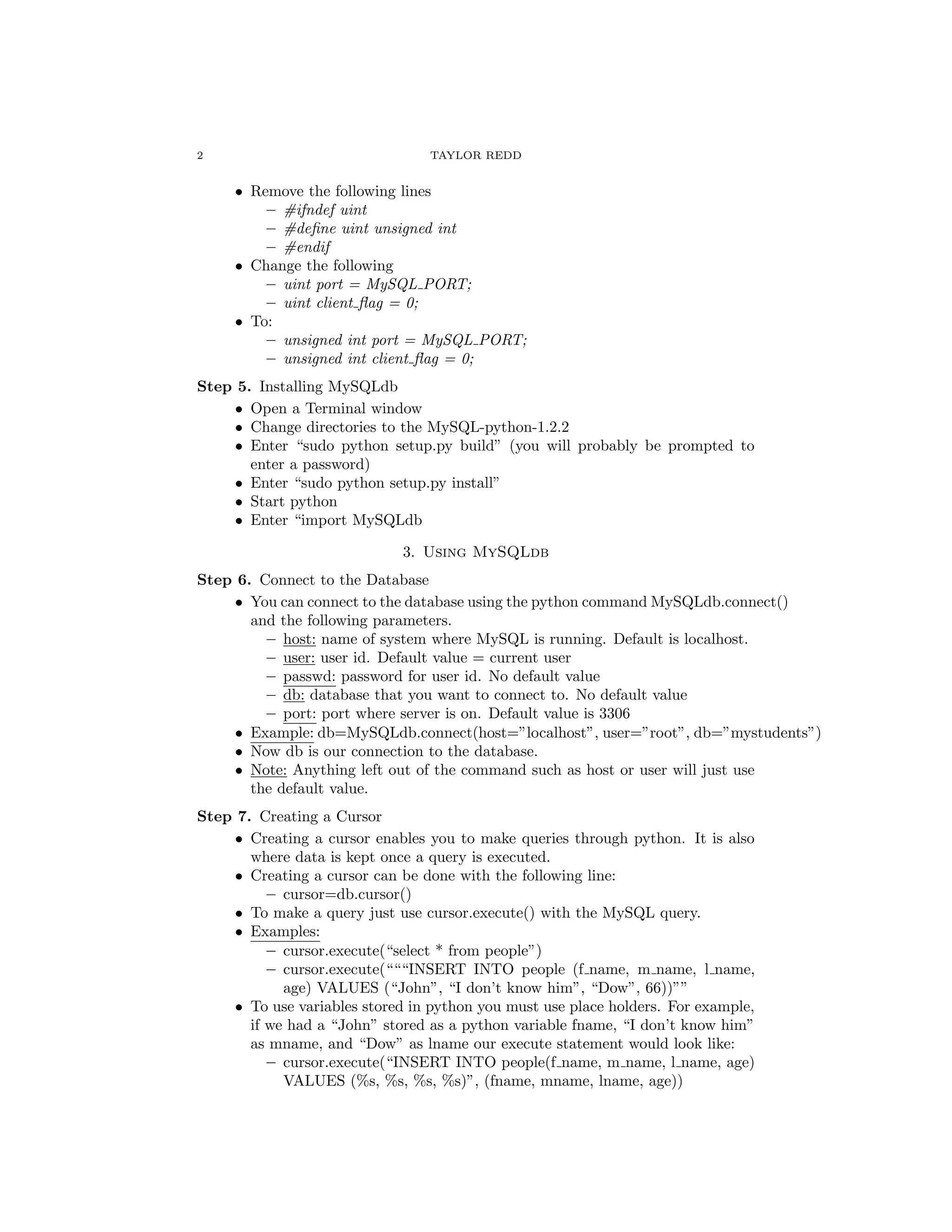
     • Remove the following lines
         – #ifndef uint
         – #define uint unsigned int
         – #endif
     • Change the following
         – uint port = MySQL PORT;
         – uint client flag = 0;
     • To:
         – unsigned int port = MySQL PORT;
         – unsigned int client flag = 0;
Step 5. Installing MySQLdb
     • Open a Terminal window
     • Change directories to the MySQL-python-1.2.2
     • Enter “sudo python setup.py build” (you will probably be prompted to
       enter a password)
     • Enter “sudo python setup.py install”
     • Start python
     • Enter “import MySQLdb

                             3. Using MySQLdb
Step 6. Connect to the Database
     • You can connect to the database using the python command MySQLdb.connect()
       and the following parameters.
         – host: name of system where MySQL is running. Default is localhost.
         – user: user id. Default value = current user
         – passwd: password for user id. No default value
         – db: database that you want to connect to. No default value
         – port: port where server is on. Default value is 3306
     • Example: db=MySQLdb.connect(host=”localhost”, user=”root”, db=”mystudents”)
     • Now db is our connection to the database.
     • Note: Anything left out of the command such as host or user will just use
       the default value.
Step 7. Creating a Cursor
     • Creating a cursor enables you to make queries through python. It is also
       where data is kept once a query is executed.
     • Creating a cursor can be done with the following line:
          – cursor=db.cursor()
     • To make a query just use cursor.execute() with the MySQL query.
     • Examples:
          – cursor.execute(“select * from people”)
          – cursor.execute(“““INSERT INTO people (f name, m name, l name,
            age) VALUES (“John”, “I don’t know him”, “Dow”, 66))””
     • To use variables stored in python you must use place holders. For example,
       if we had a “John” stored as a python variable fname, “I don’t know him”
       as mname, and “Dow” as lname our execute statement would look like:
          – cursor.execute(“INSERT INTO people(f name, m name, l name, age)
            VALUES (%s, %s, %s, %s)”, (fname, mname, lname, age))
USING MYSQL THROUGH PYTHON                              MYSQLDB             3


Step 8. Using fetchone() and fetchall()
     • fetchone(): returns one row of python tuple. It returns the next tuple not
       already returned.
     • fetchall(): returns a tuple of tuples. Basically, a list of all the rows.
     • Example: cursor.execute(”select * from people”)
          – row=cursor.fetchone() - sets row to the first entry in people
            row=cursor.fetchone() - sets row to the next entry in people.
          – rows=cursor.fetchall() - sets rows as a list of all the entries. rows[0][0]
            returns the first name of the first person.

My Sq Ldb Tut

  • 1.
    USING MYSQL THROUGHPYTHON MYSQLDB TAYLOR REDD 1. Intoduction This tutorial will help make you familiar with the basic steps needed to access a MySQL database through python. It will go over downloading, installing, and using MySQLdb. This is the package that python uses to access MySQL. The hardest part to MySQLdb is installing it. Once installed it is very easy to use as long as you know how to use MySQL. While most steps, if not all, in the installation tutorial should work on Windows, this tutorial is designed for Mac OS X 10.5. Using MySQLdb in python is the same for any platform. 2. Downloading/Installing MySQLdb Step 1. Download • Go to http://sourceforge.net/projects/mysql-python • Click Download in the green box to the right. • Click download for mysql-python version 1.2.2 • Download the appropriate file. (for Mac OS X 10.5 users this will be the MySQL-python-1.2.2.tar.gz file Step 2. Unpack File • Find the location of file and unpack it by double clicking it. Step 3. Change site.cfg • Find mysql config – Open Terminal and change directories to /usr/local/mysql (type cd /usr/local/mysql) – Type -R — less – Find mysql config (This should be in bin/) – cd bin/ – Confirm mysql config is in this directory by typing “ls” and finding mysql config – Find what directory you’re in by typing “pwd”. This should be output /usr/local/mysql/bin • Open site.cfg (This will be in the unpacked folder MySQL-python-1.2.2 • Uncomment the line that says “mysql config = /usr/local/bin/mysql config” and change it so that it says mysql config = /usr/local/mysql/bin/mysql config (or whatever directory you were in when you typed pwd) • Save and close this file Step 4. Edit mysql.c 1
  • 2.
    2 TAYLOR REDD • Remove the following lines – #ifndef uint – #define uint unsigned int – #endif • Change the following – uint port = MySQL PORT; – uint client flag = 0; • To: – unsigned int port = MySQL PORT; – unsigned int client flag = 0; Step 5. Installing MySQLdb • Open a Terminal window • Change directories to the MySQL-python-1.2.2 • Enter “sudo python setup.py build” (you will probably be prompted to enter a password) • Enter “sudo python setup.py install” • Start python • Enter “import MySQLdb 3. Using MySQLdb Step 6. Connect to the Database • You can connect to the database using the python command MySQLdb.connect() and the following parameters. – host: name of system where MySQL is running. Default is localhost. – user: user id. Default value = current user – passwd: password for user id. No default value – db: database that you want to connect to. No default value – port: port where server is on. Default value is 3306 • Example: db=MySQLdb.connect(host=”localhost”, user=”root”, db=”mystudents”) • Now db is our connection to the database. • Note: Anything left out of the command such as host or user will just use the default value. Step 7. Creating a Cursor • Creating a cursor enables you to make queries through python. It is also where data is kept once a query is executed. • Creating a cursor can be done with the following line: – cursor=db.cursor() • To make a query just use cursor.execute() with the MySQL query. • Examples: – cursor.execute(“select * from people”) – cursor.execute(“““INSERT INTO people (f name, m name, l name, age) VALUES (“John”, “I don’t know him”, “Dow”, 66))”” • To use variables stored in python you must use place holders. For example, if we had a “John” stored as a python variable fname, “I don’t know him” as mname, and “Dow” as lname our execute statement would look like: – cursor.execute(“INSERT INTO people(f name, m name, l name, age) VALUES (%s, %s, %s, %s)”, (fname, mname, lname, age))
  • 3.
    USING MYSQL THROUGHPYTHON MYSQLDB 3 Step 8. Using fetchone() and fetchall() • fetchone(): returns one row of python tuple. It returns the next tuple not already returned. • fetchall(): returns a tuple of tuples. Basically, a list of all the rows. • Example: cursor.execute(”select * from people”) – row=cursor.fetchone() - sets row to the first entry in people row=cursor.fetchone() - sets row to the next entry in people. – rows=cursor.fetchall() - sets rows as a list of all the entries. rows[0][0] returns the first name of the first person.