My practical
installation
  {   By Cammie Hall
      Yr11
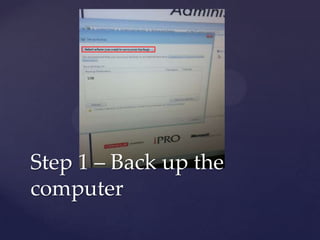
Select where you want to save your backup


      USB


Step 1 – Back up the
computer
Step 2 – Check the
computer properties, to
see what needs updating
Step 3 – Check you have
all the equip in your anti-
static bag.
Step 4 – Add an extra
RAM to increase the RAM
Step 5 – Then add a wireless nic, and on
the outside of the tower check the nic is
working correctly. (this is done by
viewing the green light in the outside of
the tower).
Compare


Step 6 – turn on the computer
and see if everything is working
correctly. And see what u have
changed.
Wireless Network connection


 Step 6 – Check
the Wireless Nic            This shows that the
                            internet is working
   is working.                      fine
Step 7 –
Insert the disk and set up
     the wireless nic.
This is my practical
  installation for
   Mr.Oneways
     computer

My practical installation

  • 1.
    My practical installation { By Cammie Hall Yr11
  • 2.
    Select where youwant to save your backup USB Step 1 – Back up the computer
  • 3.
    Step 2 –Check the computer properties, to see what needs updating
  • 4.
    Step 3 –Check you have all the equip in your anti- static bag.
  • 5.
    Step 4 –Add an extra RAM to increase the RAM
  • 6.
    Step 5 –Then add a wireless nic, and on the outside of the tower check the nic is working correctly. (this is done by viewing the green light in the outside of the tower).
  • 7.
    Compare Step 6 –turn on the computer and see if everything is working correctly. And see what u have changed.
  • 8.
    Wireless Network connection Step 6 – Check the Wireless Nic This shows that the internet is working is working. fine
  • 9.
    Step 7 – Insertthe disk and set up the wireless nic.
  • 10.
    This is mypractical installation for Mr.Oneways computer