Microsoft Project 2016
INFOCUS COURSEWARE
Designed to fast-track you through the process of learning
about computers and information technology, the In Focus
range is a unique and innovative concept in learning.
A quick reference summary of key procedures is provided at
the bottom of each page together with handy tips and
additional information.
Each title in the In Focus series can be used as:
 a classroom workbook for instructor-led teaching and
training;
 a self-study guide for self-paced learning;
 a tutorial guide for distance education programs;
 a resource collection of just-in-time support and
information for help desk users and support staff;
 a handy, desk-side reference for computer users.
This publication has been created using EngineRoom
Desktop™ document management and publishing software
developed by Watsonia Publishing.
MICROSOFT PROJECT 2016
ESSENTIALS
Product Code: DYN250
© 2016 Watsonia Publishing
Essentials
MICROSOFT PROJECT 2016
ESSENTIALS
. . . . . . . . . . . . . . . . . . . . . . . . . . . . . . . . . . . . . . . .
Copyright  2016 by Watsonia Software Pty Ltd (ABN 64 060 335 748)
Published by Watsonia Publishing
47 Greenaway Street
Bulleen VIC 3105
Australia
Phone: +61 3 9851 4000
Fax: +61 3 9851 4001
Web: www.watsoniapublishing.com
Email: info@watsoniapublishing.com
Product Code: DYN250
Build: 31/10/16
. . . . . . . . . . . . . . . . . . . . . . . . . . . . . . . . . . . . . . . .
Trademark Acknowledgments
All terms mentioned in this manual that are known to be trademarks or service marks
have been appropriately acknowledged or capitalised. Watsonia Software cannot
attest to the accuracy of this information. Use of a term in this manual should not be
regarded as affecting the validity of any trademark or service mark.
Screen Shots © 1983-2016 Microsoft. All rights reserved.
Disclaimer
Every effort has been made to provide accurate and complete information. However,
Watsonia Software assumes no responsibility for any direct, indirect, incidental, or
consequential damages arising from the use of information in this document. Data
and case study examples are intended to be fictional. Any resemblance to real
persons or companies is coincidental.
Copyright Notice
This publication is protected in accordance with the provisions of the Copyright Act.
Apart from permissions expressed in the Copyright Act pertaining to copying for
study, review, or research, no part of this publication may be reproduced in any form,
or stored in a database or retrieval system, or transmitted or distributed in any form
by any means, electronic, mechanical photocopying, recording, or otherwise without
written permission from Watsonia Software Pty Ltd.
Microsoft Project 2016 - Essentials
Dynamic Web Training - i - Preface
READ ME FIRST
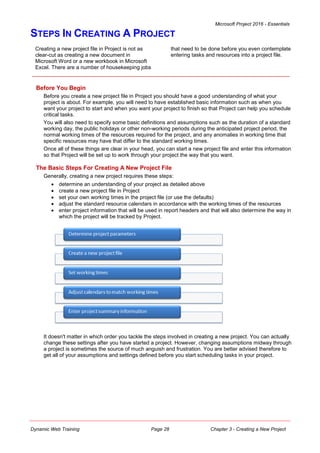
1
4
In case you're not familiar with the terminology,
Read Me First is quite often the name given to a
computer file that contains important information
for people to know prior to using an application.
This section contains some important information to
help you use this book so we thought we'd start
with a Read Me First section.
What skills and knowledge
you will acquire...
The skills and knowledge acquired in Microsoft Project 2016 - Essentials
are sufficient to be able to use and operate the software effectively.
What you'll need to know
before beginning this
course...
Microsoft Project 2016 - Essentials assumes little or no knowledge of the
software. However, it would be beneficial to have a general
understanding of personal computers and the Windows operating system
environment.
The objectives of this guide… At the completion of this course you should be able to:
 start Microsoft Project and identify how it works
 explain some of the key concepts associated with project
management
 create a new project file in Project
 enter tasks into a project file
 create relationships between tasks in a project
 add resources, including labour, materials and equipment to a
project
 understand and use resource assignment calculations
 assign resources to tasks using a number of different methods
 use various techniques for levelling over allocation of resources
 assign material resources in a project
 assign and track costs within a project
 apply constraints and deadlines to tasks in a project
 track the progress of a project
 print various aspects of a project
 obtain help for Project whenever you need it
What you get in a chapter... Each chapter begins with a summary page listing the topics covered in
that chapter. The chapter then consists of single-page topic sheets
pertaining to the theme of the chapter.
What you'll need to have
before commencing this
course...
Many of the topics in this learning guide require you to open an existing
file with data in it. These files can be obtained from your instructor and
you will need the product code for this course which is DYN250.
As you work through this
guide…
It is strongly recommended that you close all open files, if any, prior to
commencing each new chapter in this learning guide. Each chapter,
where relevant, has its own set of exercise files and any from a previous
chapter are no longer required.
Where to from here... Have a look at the next page which explains how a topic page works,
ensure that you have access to the exercise files (see above), and you're
ready to make a start.
Microsoft Project 2016 - Essentials
Dynamic Web Training - ii - Preface
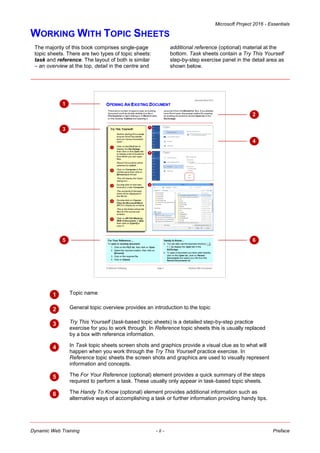
WORKING WITH TOPIC SHEETS
The majority of this book comprises single-page
topic sheets. There are two types of topic sheets:
task and reference. The layout of both is similar
– an overview at the top, detail in the centre and
additional reference (optional) material at the
bottom. Task sheets contain a Try This Yourself
step-by-step exercise panel in the detail area as
shown below.
3
4
5
 Topic name
 General topic overview provides an introduction to the topic
 Try This Yourself (task-based topic sheets) is a detailed step-by-step practice
exercise for you to work through. In Reference topic sheets this is usually replaced
by a box with reference information.
 In Task topic sheets screen shots and graphics provide a visual clue as to what will
happen when you work through the Try This Yourself practice exercise. In
Reference topic sheets the screen shots and graphics are used to visually represent
information and concepts.
 The For Your Reference (optional) element provides a quick summary of the steps
required to perform a task. These usually only appear in task-based topic sheets.
 The Handy To Know (optional) element provides additional information such as
alternative ways of accomplishing a task or further information providing handy tips.
6
1
2
Microsoft Project 2016 - Essentials
Dynamic Web Training - iii - Contents
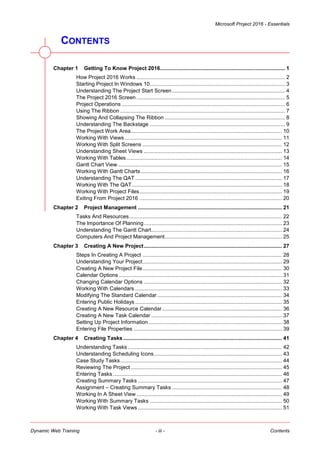
CONTENTS
Chapter 1 Getting To Know Project 2016.................................................................................... 1
How Project 2016 Works .................................................................................................... 2
Starting Project In Windows 10........................................................................................... 3
Understanding The Project Start Screen............................................................................ 4
The Project 2016 Screen .................................................................................................... 5
Project Operations .............................................................................................................. 6
Using The Ribbon ............................................................................................................... 7
Showing And Collapsing The Ribbon ................................................................................. 8
Understanding The Backstage ........................................................................................... 9
The Project Work Area...................................................................................................... 10
Working With Views.......................................................................................................... 11
Working With Split Screens .............................................................................................. 12
Understanding Sheet Views ............................................................................................. 13
Working With Tables......................................................................................................... 14
Gantt Chart View............................................................................................................... 15
Working With Gantt Charts ............................................................................................... 16
Understanding The QAT................................................................................................... 17
Working With The QAT..................................................................................................... 18
Working With Project Files................................................................................................ 19
Exiting From Project 2016 ................................................................................................ 20
Chapter 2 Project Management ................................................................................................. 21
Tasks And Resources....................................................................................................... 22
The Importance Of Planning............................................................................................. 23
Understanding The Gantt Chart........................................................................................ 24
Computers And Project Management............................................................................... 25
Chapter 3 Creating A New Project............................................................................................. 27
Steps In Creating A Project .............................................................................................. 28
Understanding Your Project.............................................................................................. 29
Creating A New Project File.............................................................................................. 30
Calendar Options.............................................................................................................. 31
Changing Calendar Options ............................................................................................. 32
Working With Calendars ................................................................................................... 33
Modifying The Standard Calendar .................................................................................... 34
Entering Public Holidays................................................................................................... 35
Creating A New Resource Calendar................................................................................. 36
Creating A New Task Calendar ........................................................................................ 37
Setting Up Project Information.......................................................................................... 38
Entering File Properties .................................................................................................... 39
Chapter 4 Creating Tasks........................................................................................................... 41
Understanding Tasks........................................................................................................ 42
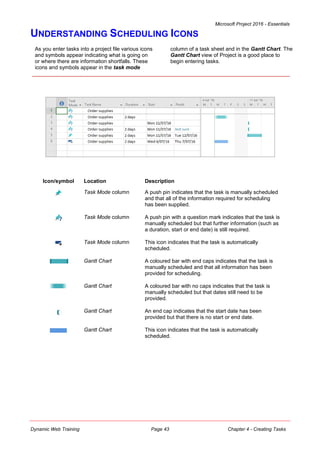
Understanding Scheduling Icons ...................................................................................... 43
Case Study Tasks............................................................................................................. 44
Reviewing The Project...................................................................................................... 45
Entering Tasks.................................................................................................................. 46
Creating Summary Tasks ................................................................................................. 47
Assignment – Creating Summary Tasks .......................................................................... 48
Working In A Sheet View .................................................................................................. 49
Working With Summary Tasks ......................................................................................... 50
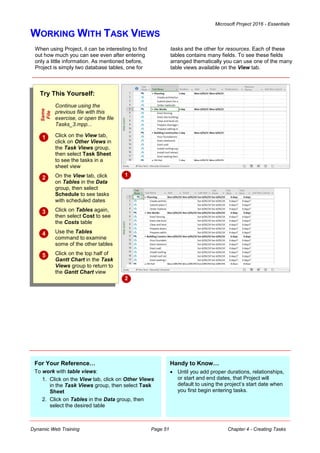
Working With Task Views ................................................................................................. 51
Microsoft Project 2016 - Essentials
Dynamic Web Training - iv - Contents
Examining Task Information ............................................................................................. 52
Understanding Task Durations ......................................................................................... 53
Entering Task Durations ................................................................................................... 54
Checking Progress............................................................................................................ 55
Entering Milestones .......................................................................................................... 56
Assigning A Calendar To A Task...................................................................................... 57
Chapter 5 Scheduling ................................................................................................................. 59
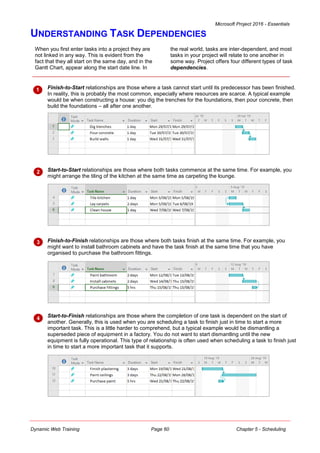
Understanding Task Dependencies.................................................................................. 60
Creating Dependencies Automatically.............................................................................. 61
Creating Dependencies In Task Entry.............................................................................. 62
Creating Dependencies In Task Information .................................................................... 63
Creating Dependencies In A Sheet View.......................................................................... 64
Modifying A Schedule Using Dependencies..................................................................... 65
Auto Scheduling Tasks ..................................................................................................... 66
Critical Path And Project Slack ......................................................................................... 67
Viewing The Critical Path.................................................................................................. 68
Examining Task Slack....................................................................................................... 69
Understanding Lag Time .................................................................................................. 70
Entering Lag Time............................................................................................................. 71
Understanding Lead Time ................................................................................................ 72
Entering Lead Time........................................................................................................... 73
Inactivating A Task............................................................................................................ 74
Chapter 6 Resourcing A Project ................................................................................................ 75
Understanding Resources ................................................................................................ 76
Entering Work Resources................................................................................................. 77
Entering Material Resources ............................................................................................ 78
Entering Cost Resources.................................................................................................. 79
Assigning Calendars To Resources ................................................................................. 80
Understanding Resource Availability................................................................................ 81
Adjusting Resource Availability......................................................................................... 82
Changing The Unit Display ............................................................................................... 83
Chapter 7 Resourcing Concepts ............................................................................................... 85
Resource Assignment Calculations .................................................................................. 86
Task Types And Work Effort............................................................................................. 87
Creating A Simple Assignment ......................................................................................... 88
Working With Fixed Unit Tasks......................................................................................... 89
Working With Fixed Duration Tasks ................................................................................. 90
Making Multiple Assignments ........................................................................................... 91
Adding Additional Resources............................................................................................ 92
Adding More Of The Same Resource............................................................................... 93
More Resources In Multiple Assignments ........................................................................ 94
Understanding Effort Driven Scheduling........................................................................... 95
Working With Non Effort Driven Tasks ............................................................................. 96
Working With Effort Driven Tasks..................................................................................... 97
Resource Assignment Summary ...................................................................................... 98
Chapter 8 Assigning Resources................................................................................................ 99
Simple Resource Assignments....................................................................................... 100
Assigning Part Time Resources ..................................................................................... 101
Understanding Work Contouring .................................................................................... 102
Specifying Resource Usage ........................................................................................... 103
Contouring Work Hours .................................................................................................. 104
Assigning Specific Work Times ...................................................................................... 105
Work Times For Multiple Assignments ........................................................................... 106
Microsoft Project 2016 - Essentials
Dynamic Web Training - v - Contents
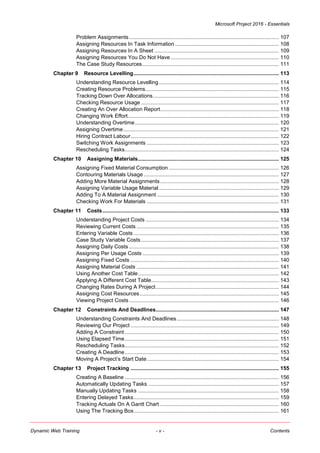
Problem Assignments..................................................................................................... 107
Assigning Resources In Task Information ...................................................................... 108
Assigning Resources In A Sheet .................................................................................... 109
Assigning Resources You Do Not Have ......................................................................... 110
The Case Study Resources............................................................................................ 111
Chapter 9 Resource Levelling.................................................................................................. 113
Understanding Resource Levelling................................................................................. 114
Creating Resource Problems.......................................................................................... 115
Tracking Down Over Allocations..................................................................................... 116
Checking Resource Usage ............................................................................................. 117
Creating An Over Allocation Report................................................................................ 118
Changing Work Effort...................................................................................................... 119
Understanding Overtime................................................................................................. 120
Assigning Overtime......................................................................................................... 121
Hiring Contract Labour.................................................................................................... 122
Switching Work Assignments ......................................................................................... 123
Rescheduling Tasks........................................................................................................ 124
Chapter 10 Assigning Materials............................................................................................... 125
Assigning Fixed Material Consumption .......................................................................... 126
Contouring Materials Usage ........................................................................................... 127
Adding More Material Assignments................................................................................ 128
Assigning Variable Usage Material................................................................................. 129
Adding To A Material Assignment .................................................................................. 130
Checking Work For Materials ......................................................................................... 131
Chapter 11 Costs....................................................................................................................... 133
Understanding Project Costs .......................................................................................... 134
Reviewing Current Costs ................................................................................................ 135
Entering Variable Costs .................................................................................................. 136
Case Study Variable Costs............................................................................................. 137
Assigning Daily Costs ..................................................................................................... 138
Assigning Per Usage Costs ............................................................................................ 139
Assigning Fixed Costs .................................................................................................... 140
Assigning Material Costs ................................................................................................ 141
Using Another Cost Table............................................................................................... 142
Applying A Different Cost Table...................................................................................... 143
Changing Rates During A Project................................................................................... 144
Assigning Cost Resources.............................................................................................. 145
Viewing Project Costs..................................................................................................... 146
Chapter 12 Constraints And Deadlines................................................................................... 147
Understanding Constraints And Deadlines..................................................................... 148
Reviewing Our Project .................................................................................................... 149
Adding A Constraint........................................................................................................ 150
Using Elapsed Time........................................................................................................ 151
Rescheduling Tasks........................................................................................................ 152
Creating A Deadline........................................................................................................ 153
Moving A Project’s Start Date......................................................................................... 154
Chapter 13 Project Tracking .................................................................................................... 155
Creating A Baseline ........................................................................................................ 156
Automatically Updating Tasks ........................................................................................ 157
Manually Updating Tasks ............................................................................................... 158
Entering Delayed Tasks.................................................................................................. 159
Tracking Actuals On A Gantt Chart ................................................................................ 160
Using The Tracking Box.................................................................................................. 161
Microsoft Project 2016 - Essentials
Dynamic Web Training - vi - Contents
Viewing Task Slippage.................................................................................................... 162
Chapter 14 Printing ................................................................................................................... 163
Understanding Printing ................................................................................................... 164
Previewing Before You Print........................................................................................... 165
Selecting A Printer .......................................................................................................... 166
Printing A Gantt Chart..................................................................................................... 167
Printing Sheet Views....................................................................................................... 168
Printing Tasks For Resources ........................................................................................ 169
Printing Resources For Tasks ........................................................................................ 170
Chapter 15 Getting Help ........................................................................................................... 171
Understanding How Help Works..................................................................................... 172
Using Tell Me .................................................................................................................. 173
Accessing The Help Window .......................................................................................... 174
Navigating The Help Window ......................................................................................... 175
Using Google To Get Help.............................................................................................. 176
Printing A Help Topic ...................................................................................................... 177
Other Sources Of Assistance ......................................................................................... 178
Microsoft Project 2016 - Essentials
Dynamic Web Training Page 1 Chapter 1 - Getting to Know Project 2016
CHAPTER 1 GETTING TO KNOW PROJECT 2016
In this session you will:
 gain an understanding of Microsoft Project's operating
philosophy
 learn how to start Microsoft Project 2016
 gain an understanding of the Project 2016 Start screen
 gain an understanding of the main Project screen
elements
 gain an understanding of the operating process of
Project
 learn how to use the ribbon
 learn how to show and collapse the ribbon
 gain an understanding of Backstage View in Project
 gain an understanding of the work area and project views
 learn how to change the view of your project
 learn how to split the project work area horizontally
 gain an understanding of sheet views in Project
 learn how to change the table in a Sheet view
 gain an understanding of the Gantt Chart view
 learn how to work with the Gantt Chart view
 gain an understanding of the Quick Access Toolbar
 learn how to add a command to the Quick Access
Toolbar
 learn how to work with existing Project files
 learn how to exit from Project.
Microsoft Project is software specifically designed to assist you in
managing and controlling projects. It is arguably one of the more
difficult software products to learn, not only because you need to
study how to use the software, but because you also need to know
a little about project management theory.
This chapter is an introduction to the basic operating concepts in
Microsoft Project.
INFOCUS
Microsoft Project 2016 - Essentials
Dynamic Web Training Page 2 Chapter 1 - Getting to Know Project 2016
HOW PROJECT 2016 WORKS
Microsoft Project is a computer database that
uses two main tables of data to keep track of
your project. Project uses one table to store
information about the tasks associated with your
project and the other for resource information. By
using the many views available in Project, you can
display your project data from these tables in many
different ways.
Tasks Table
The Tasks table is comprised of over 240 columns (or fields) which contain information about the tasks
such as scheduled start, scheduled finish, name, duration, cost, and the like. Some of these fields
require you to enter data, while others are calculated and filled by Project for you.
ID Name Duration Start Finish Fixed Cost etc.
8 Erect fencing 3 days 9/7/2015 11/7/2015 No $500
Resources Table
This table contains over 200 fields (or columns) which contain information about the resources being
used to complete the tasks in the project.
ID Name Initials Group Max Units Standard Rate Overtime Rate etc.
3 Builder FG Contractor 4 $55.00/h $75.00/h
The two tables are joined together by assigning resources to tasks.
Views
To help you view your data, Project adopts techniques used in spreadsheets, databases, and graphics
packages.
For example, you can view your task or resource table in sheets on the screen. Sheets are similar to
spreadsheet programs where data is presented in rows and columns. In fact, many of the operations
used in spreadsheets, such as widening columns, deleting data, selecting cells and the like are also
found in Project.
You can also view your data in forms. Forms are similar to a form view that is usually utilised in the data
entry screen in database programs. Forms allow you to add or edit data, and you can usually cycle
through the cards as you would in a normal database.
If you wish to see your data graphically you can view it as a Gantt Chart or Network Diagram.
In addition, there are a variety of other graphs available for displaying resources.
Microsoft Project 2016 - Essentials
Dynamic Web Training Page 3 Chapter 1 - Getting to Know Project 2016
STARTING PROJECT IN WINDOWS 10
5
Try This Yourself:
Before you begin, ensure
that your computer is
switched on and the
desktop is displayed…
 If there is no Project icon in
the taskbar at the bottom of
the desktop, click on the
Windows icon in the
taskbar, as shown, to
display the Start menu
 Click on All apps to display
a list of all the apps on your
computer
 Scroll down to the P section
Project 2016 is listed here…
 Click on Project 2016 to
start Project
 Right-click on the Project
icon in the taskbar to
display a menu of options,
as shown, then select Pin
this program to taskbar
You can now click on this
icon to open Project from
the desktop. This icon will
remain in the taskbar unless
you remove it…
 Repeat step 5 to select
Close window to close
Project
 Click on the Project icon in
the taskbar to open Project
again
1
For Your Reference…
To add a Project icon to the desktop taskbar:
1. Display the Start menu, then click on All
apps
2. Right-click on Project 2016
3. Select Pin to taskbar
To create a new project or edit an existing one,
the first thing you must do is start Project. The
first time you use Project you will need to open it
from the taskbar Search the web and Windows
bar or the All apps list in the Start menu. You can
then choose to pin Project to the Start menu or the
taskbar so that you can access it more quickly and
easily the next time you use it.
Handy to Know…
 You can start Project by clicking in the
taskbar Search… bar, typing project, then
clicking on Project in the list of search
results.
 You can pin Project to the Start menu by
displaying the All apps list, right-clicking on
Project 2016 and selecting Pin to Start.
Microsoft Project 2016 - Essentials
Dynamic Web Training Page 4 Chapter 1 - Getting to Know Project 2016
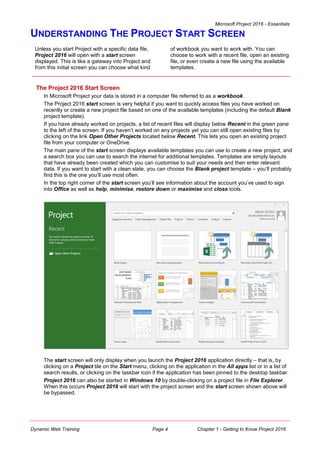
UNDERSTANDING THE PROJECT START SCREEN
Unless you start Project with a specific data file,
Project 2016 will open with a start screen
displayed. This is like a gateway into Project and
from this initial screen you can choose what kind
of workbook you want to work with. You can
choose to work with a recent file, open an existing
file, or even create a new file using the available
templates.
The Project 2016 Start Screen
In Microsoft Project your data is stored in a computer file referred to as a workbook.
The Project 2016 start screen is very helpful if you want to quickly access files you have worked on
recently or create a new project file based on one of the available templates (including the default Blank
project template).
If you have already worked on projects, a list of recent files will display below Recent in the green pane
to the left of the screen. If you haven’t worked on any projects yet you can still open existing files by
clicking on the link Open Other Projects located below Recent. This lets you open an existing project
file from your computer or OneDrive.
The main pane of the start screen displays available templates you can use to create a new project, and
a search box you can use to search the internet for additional templates. Templates are simply layouts
that have already been created which you can customise to suit your needs and then enter relevant
data. If you want to start with a clean slate, you can choose the Blank project template – you’ll probably
find this is the one you’ll use most often.
In the top right corner of the start screen you’ll see information about the account you’ve used to sign
into Office as well as help, minimise, restore down or maximise and close tools.
The start screen will only display when you launch the Project 2016 application directly – that is, by
clicking on a Project tile on the Start menu, clicking on the application in the All apps list or in a list of
search results, or clicking on the taskbar icon if the application has been pinned to the desktop taskbar.
Project 2016 can also be started in Windows 10 by double-clicking on a project file in File Explorer.
When this occurs Project 2016 will start with the project screen and the start screen shown above will
be bypassed.
Microsoft Project 2016 - Essentials
Dynamic Web Training Page 5 Chapter 1 - Getting to Know Project 2016
THE PROJECT 2016 SCREEN
The Project screen will vary depending upon the
view, table and filter that is currently active.
However, you will need to become familiar with
the basic components of the screen as shown
below. Understanding the layout of the screen, and
its components and terminology will help you in
learning to use Project.
Ribbon
Active Pane
Indicator
Sheet View
Scheduling Mode Status Bar Quick View buttons
Gantt Chart
Ribbon The ribbon displays the commands required to use Microsoft Project. It is made up of tabs
(File, Task, Resource, etc.) which each contain groups of commands organised into logical
order.
Active pane
indicator
The active pane indicator is a dark grey vertical bar that runs down the left side of a
screen (or a view). In the example above, the active pane indicator is labelled Gantt Chart
to indicate that the Gantt Chart is the active view. As seen above, you can have two
different views displayed by splitting the screen; however, only one view will be active at a
time. This is because functions such as the commands on the ribbon change depending on
the view you are using. The indicator shows which view is currently active.
Sheet view Your project’s tasks and resources can be seen as a table, which appears similar to
spreadsheet. In Project this is referred to as a sheet view.
Scheduling mode Your project can be scheduled manually (the default) or automatically. This (very important)
indicator tells you which mode is currently applicable.
Status bar Watch this space – it tells you what Project is currently doing.
Quick view buttons There are many ways to change the view of the screen. These four buttons provide quick
access to the four most common views saving you the hassle of locating the commands to
do this on the ribbon. From left to right, these views are Gantt Chart, Task Usage, Team
Planner and Resource Chart.
Gantt chart The Gantt Chart is the most popular view of a project. It shows your project’s tasks as a
series of timelines. It is the default view of Project when it is first started and will most likely
be the one you use most.
Microsoft Project 2016 - Essentials
Dynamic Web Training Page 6 Chapter 1 - Getting to Know Project 2016
PROJECT OPERATIONS
The Work Area
The work area occupies the
largest part of the screen and
contains the data associated
with your project. The key
point to remember is that a
project is made up of tasks
and resources and the work
area allows you to view your
task and resource data in a
number of different ways. The
work area may show your data
in a sheet view, a chart view
like a Gantt chart, or both.
The Ribbon
When you need to do something with the data in the work area, such as format it, colour it, analyse it,
move it, copy it, change the view of it and much more, you’ll find all of the relevant commands on the
ribbon. The ribbon has commands organised thematically using a series of tabs across the top.
Commands on each tab are further organised into groups of related commands. For example, the
Task tab contains commands that allow you to work with tasks, while the Resource tab contains
commands for working with resources. These commands are organised into groups such as
Schedule, Assignments, and so on.
Backstage
When you want to do something
with the data in your work area,
such as save it so that you can
access it again later, print it,
share it with a colleague, send it
to your boss, apply protective
security and so on, you will
need to access the Backstage
area of Project. The Backstage
is accessed using the File tab
on the ribbon. Rather than
offering you commands on a
ribbon, the Backstage occupies
the entire screen and has a
series of options down the left
side. Here the Print option is
active, displaying a preview of
the work area and a series of
print-related options on the right
side of the Backstage.
For a novice user the Project 2016 screen can
seem intimidating. However, you’ll soon see that
it is made up of only three key areas. The data
you type is placed in the work area. The data
here can be manipulated and changed using
commands on the ribbon. The data is saved in a
project file which is controlled through commands
on the Backstage.
Microsoft Project 2016 - Essentials
Dynamic Web Training Page 7 Chapter 1 - Getting to Know Project 2016
USING THE RIBBON
Try This Yourself:
Before starting this
exercise ensure that
Project has started...
 Examine the various
groups on the Task tab
The group names appear
at the bottom of the
ribbon…
 Click on the Resource tab
The commands on this tab
are used to work with
resources. Many will not
be available because
there are no resources in
the blank project on the
screen…
 Click on Resource Pool in
the Assignments group to
display a menu of options
 Select Share Resources
to display the Share
Resources dialog box
 Click on [Cancel] to close
the dialog box without
doing anything
 Click on the other tabs and
spend some time
examining the groups and
commands they contain
 Click on the Task tab to
display the commands and
options for working with
tasks
The ribbon is the command centre for Project. It
provides a series of commands organised into
groups and placed on relevant tabs. Tabs are
activated by clicking on their name to display the
command groups. Commands are activated by
clicking on a button, tool or gallery option.
Everything you could possibly want to do in Project
will be found somewhere on the ribbon.
1
2
3
For Your Reference…
To use the ribbon:
1. Click on a tab to display the commands
2. Click on a button to activate a command,
display a gallery or display a dialog box
Handy to Know…
 Contextual tabs appear in the ribbon in
specific circumstances. For example, if the
Gantt Chart view is active, the Gantt Chart
Tools: Format tab will appear. This provides
quick access to all of the tools you may need
to modify and work with the Gantt Chart.
4
Microsoft Project 2016 - Essentials
Dynamic Web Training Page 8 Chapter 1 - Getting to Know Project 2016
SHOWING AND COLLAPSING THE RIBBON
Try This Yourself:
Before starting this
exercise ensure that
Project has started...
 Click on the Project tab to
display the Project
commands
 Double-click on the Project
tab to minimise the ribbon
While the tabs stay visible,
the rest of the commands
are hidden...
 Click on the View tab to
display the ribbon and see
the commands for the
View tab
 Click back in the work area
of the project
The ribbon will hide again –
it only becomes visible
when you click on a tab…
 Double-click on the Task
tab to redisplay the ribbon
permanently again
The ribbon, valuable as it is, does tend to occupy
a reasonable amount of space. You can minimise
the ribbon so that only the tabs are visible. You
can minimise the ribbon as a once-off operation,
or have it remain constantly minimised and display
full commands only briefly when a tab is clicked.
1
2
For Your Reference…
To hide/display the ribbon:
1. Double-click on the active tab to hide the
ribbon
2. Click on a tab to see the ribbon temporarily
3. Double-click on a tab to show the ribbon
permanently
Handy to Know…
 You can use the keyboard shortcut +
to show or hide the ribbon.
 You can hide the ribbon by clicking on the
small grey arrow at the right end of the
ribbon, and redisplay it permanently by
clicking on the pin icon.
3
Microsoft Project 2016 - Essentials
Dynamic Web Training Page 9 Chapter 1 - Getting to Know Project 2016
UNDERSTANDING THE BACKSTAGE
The ribbon lets you work on the content in a
document so that you can add more content,
format it, insert pictures into it, copy it, and much
more. The Backstage view, which is accessed
using the File tab, lets you do something with the
content you create. You can save it for later use,
print it on paper, send it via email, and more by
using the options found in the Backstage view.
The Backstage View
The File tab on the ribbon is not a normal tab – as you can tell by the fact that it is coloured. Clicking on
the File tab launches a mini-program within Project known as Backstage view. Backstage, as it’s
known for short, occupies the entire screen.
Backstage Tabs
The Backstage tabs provide more options for working with a project:
Info Provides status information about the current project and lets you
manage versions and permissions.
New Lets you create a new project and provides access to a gallery of
inbuilt templates as well as a range of online templates.
Open Provides a list of recent projects as well as the option to search
through your Computer, OneDrive or other place, to find what you are
looking for.
Save Saves your current project (if already saved to a location) or prompts
you to save to a location.
Save As Allows you to name your project and save it to a location.
Save as
Adobe PDF
Lets you save a project as an Adobe PDF file.
Print Lets you print the current project and preview it.
Share Lets you share your project with other people via email, online
presentation, blog or cloud (e.g. OneDrive).
Export Allows you to export your project to a different application.
Close Closes your current project.
Account Contains product and user information.
Options Presents you with a range of options which assist in the creation and
editing of your project.
At the left of the Backstage is a
navigation pane which is made up of
tabs. These tabs provide you with
access to various operations such as
printing, saving and sharing. They can
also provide you with information
about your project such as the file
size.
Clicking on one of these tabs brings up
a range of options associated with that
particular operation.
The whole underlying purpose of the
Backstage is to let you protect your
data and share it with others, and to
provide you with valuable information
about your project. Depending on what
type of project it is and what has been
done to it, different information may
display when the Info tab is selected.
Microsoft Project 2016 - Essentials
Dynamic Web Training Page 10 Chapter 1 - Getting to Know Project 2016
THE PROJECT WORK AREA
The main part of the Project screen is made up of
the work area where your project data is
displayed. Remember, Project is really just two
tables of data – tasks and resources. The work
area shows you different aspects and sometimes
combined views of this data. For example, you can
view your tasks and the resources assigned to
them.
The View Tab
The View tab on the ribbon
provides you with access to the
views for your project’s data.
Notice there are two different
groups of views: Task Views
and Resource Views.
When you click on the arrow for one of the View
commands you’ll receive a menu of further views
available to you. All of the menus feature the More
Views command which displays the More Views dialog
box. This dialog box lists all of the standard views
available to you in Project.
Built-In Project Views
Project contains twenty-seven different built-in views. Seven of these views are available from the
Task Views and Resource Views groups on the View tab, while the full twenty-seven are available
from the More Views dialog box. Here’s a list of the twenty-seven views – the ones marked with a (T)
or (R) are accessible directly from the View tab of the ribbon.
 Bar Rollup  Multiple Baselines Gantt  Task Details Form
 Calendar (T)  Network Diagram (T)  Task Entry
 Descriptive Network Diagram  Relationship Diagram  Task Form
 Detail Gantt  Resource Allocation  Task Name Form
 Gantt Chart (T)  Resource Form  Task Sheet
 Gantt with Timeline  Resource Graph  Task Usage (T)
 Levelling Gantt  Resource Name Form  Team Planner (R)
 Milestone Date Rollup  Resource Sheet (R)  Timeline
 Milestone Rollup  Resource Usage (R)  Tracking Gantt
Microsoft Project 2016 - Essentials
Dynamic Web Training Page 11 Chapter 1 - Getting to Know Project 2016
WORKING WITH VIEWS
Try This Yourself:
Before starting this
exercise ensure that
Microsoft Project has
started...
 Click on the View tab and
spend a few moments
studying the options in the
Task Views and
Resource Views groups
 Click on the top half of
Task Usage in the Task
Views group to display
the work allocations on
the screen
 Click on the top half of
Calendar in the Task
Views group to display
the content on the screen
as a calendar
 Click on Other Views in
the Task Views group to
display a menu of options,
then select Task Form
 Click on the top half of
Resource Sheet in the
Resource Views group to
display a spreadsheet-like
view of the resources
 Click on the top half of
Gantt Chart in the Task
Views group to return to
the Gantt Chart view
For Your Reference…
To display different views:
 Click on a command on the View tab, or
 Click on the arrow of a command and click
on More Views to display a list of all
available views
A view is the way the project and the data it
contains is displayed. In order to work with your
project successfully, you will need to learn how to
operate and manipulate the many different views.
The easiest way to change the view of your project
is through the commands on the View tab or
through the Quick Views buttons at the bottom
right of the screen.
1 The commands on the ribbon grow or shrink in width depending on the
size of the Project window – when they’ve shrunk down their names
often don’t appear. You may need to enlarge the window (if possible)
to see the names properly.
Handy to Know…
 The Gantt Chart, Task Usage, Team
Planner and Resource Sheet views appear
as buttons at the bottom right of the screen.
There is an obvious lack of data presented on this screen! Don’t worry
too much at this stage about what the view is all about. All we are
doing at the moment is examining the View commands to see how
they work and what they offer.
2
Microsoft Project 2016 - Essentials
Dynamic Web Training Page 12 Chapter 1 - Getting to Know Project 2016
WORKING WITH SPLIT SCREENS
For Your Reference…
To display a split view:
1. Click on Details in the Split View group on
the View tab
2. Optionally, click on the drop arrow for
Details and choose the desired view
Handy to Know…
 The Timeline tick box in the Split View
displays/hides a timeline that appears above
a Gantt Chart. The timeline encompasses
the whole project from start to end, and
provides a useful way of quickly moving
through the duration of a project.
1
Sometimes in Project one view of your data is not
enough. Therefore, Project allows you to split
your screen horizontally into two views. For
example, you might want to see tasks at the top
and the resources they use at the bottom. One of
these views is deemed to be the active view, as
indicated by the Active Pane indicator.
Try This Yourself:
Before starting this exercise
ensure that Microsoft Project
has started...
 Click on the View tab and
click on Details in the Split
View group so it appears
ticked
The Task Form view is now
displayed in the bottom half of
the screen…
 On the View tab, click on the
drop arrow next to Details to
see a list of available views
 Click on Resource Form to
display this view in the lower
area
 Click on Details in the Split
View group so it appears
unticked, to return to the
Gantt Chart view
 Point to the split screen
button at the bottom right of
the screen
The mouse pointer will change
to a double-headed arrow…
 Click and drag the button
about one third of the way up
the screen to create a custom
split
 Double-click on the button
(which now runs the full width
of the screen) to return to a
single view
5
6
Microsoft Project 2016 - Essentials
Dynamic Web Training Page 13 Chapter 1 - Getting to Know Project 2016
UNDERSTANDING SHEET VIEWS
Sheet views of data are common in database
and spreadsheet applications. Project also uses
sheet views where data is presented in rows and
columns. In Project there are dozens of columns
(called fields) for tasks and similarly for resources.
To make it easier to work with these fields, they
have been organised into tables.
The Tables command on the
View tab provides access to
the tables in Project. The
menu presents a few of the
more commonly used tables
but all of the tables are
obtained using the More
Tables command.
About Tables
Since there are dozens of fields for both Tasks and Resources, Project organises these fields into
specialised groupings called tables. For example, fields for tasks associated with costs are
organised into a Cost table, fields that are commonly used for data entry are organised into an
Entry table, and so on.
Task Tables
There are seventeen pre-defined tables for tasks as follows:
 Baseline  Earned Value  Export  Summary
 Constraint Dates  Earned Value Cost Indicators  Hyperlink  Tracking
 Cost  Earned Value Schedule Indicators  Rollup Table  Usage
 Delay  Entry  Schedule  Variance
 Work
Resource Tables
There are ten pre-defined tables for resources as follows:
 Cost  Entry – Material Resources  Hyperlink  Usage
 Earned Value  Entry – Work Resources  Summary  Work
 Entry  Export
Microsoft Project 2016 - Essentials
Dynamic Web Training Page 14 Chapter 1 - Getting to Know Project 2016
WORKING WITH TABLES
Try This Yourself:
Before starting this
exercise ensure that
Microsoft Project has
started...
 Click on the View tab,
click on Other Views in
the Task Views group,
then select Task Sheet
to see tasks presented
in a sheet view
 Click on Tables in the
Data group, then select
Cost to see Cost
columns
 Click on Tables again,
then select More
Tables to display the
More Tables dialog box
 Click on Delay, then
click on [Apply]
 Click on the top half of
Gantt Chart in the Task
Views group to see the
Gantt Chart view again
– together with the
Entry table
 Click on Tables in the
Data group, then select
Cost to see the Cost
table with the Gantt
Chart view
 Click on Tables again,
then select Entry
For Your Reference…
To change the tables in a sheet view:
1. On the View tab, click on Tables in the Data
group, then select the desired table or select
More Tables
2. If you are using the More Tables dialog box,
click on the desired table, then click on
[Apply]
Project consists of two databases: tasks which
contains over 240 columns of data, and
resources which contains over 200 columns of
data. Tables display information from these
columns (or fields) into organised and logical
groupings. Once a Sheet view has been chosen
you can change the table of fields that are
presented.
1
2
Handy to Know…
 To quickly see the name of the current table
view, move your mouse pointer to the All
Cells box. This is located in the top left hand
corner of the table, where the rows and
columns intersect. A ToolTip will be
displayed containing the table view name.
The area to the left of the information icon shown above is known as the
All Cells box. If you click on this all of the cells in the sheet will be
selected. If you hover the mouse over this area the name of the current
table and view will appear in a ToolTip.
5
6
Microsoft Project 2016 - Essentials
Dynamic Web Training Page 15 Chapter 1 - Getting to Know Project 2016
GANTT CHART VIEW
There is one view in Project that acts as a kind of
home base, and that is the Gantt Chart view.
This view contains all of the elements that are
usually required to obtain a quick visual snapshot
of a project. In the Gantt Chart view, the left side of
the chart displays tasks in a sheet view while the
right side of the view displays tasks in a timeline so
that a quick visual overview can be obtained.
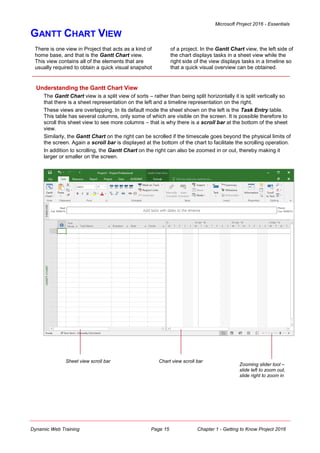
Understanding the Gantt Chart View
The Gantt Chart view is a split view of sorts – rather than being split horizontally it is split vertically so
that there is a sheet representation on the left and a timeline representation on the right.
These views are overlapping. In its default mode the sheet shown on the left is the Task Entry table.
This table has several columns, only some of which are visible on the screen. It is possible therefore to
scroll this sheet view to see more columns – that is why there is a scroll bar at the bottom of the sheet
view.
Similarly, the Gantt Chart on the right can be scrolled if the timescale goes beyond the physical limits of
the screen. Again a scroll bar is displayed at the bottom of the chart to facilitate the scrolling operation.
In addition to scrolling, the Gantt Chart on the right can also be zoomed in or out, thereby making it
larger or smaller on the screen.
Sheet view scroll bar Chart view scroll bar
Zooming slider tool –
slide left to zoom out,
slide right to zoom in
Microsoft Project 2016 - Essentials
Dynamic Web Training Page 16 Chapter 1 - Getting to Know Project 2016
WORKING WITH GANTT CHARTS
3
Try This Yourself:
Before starting this
exercise ensure that
Microsoft Project has
started...
 Click on the right
arrow of the
horizontal scroll bar in
the left pane to scroll
the sheet view and
see different columns
 Click on the left arrow
until the first field
is back in view
 Click on the right
arrow of the
horizontal scroll bar in
the right pane and
notice how the chart
scrolls
 Point to the line that
divides the table on
the left from the chart
on the right so the
mouse pointer
changes to a double-
headed arrow, then
click and drag to the
right to see more of
the sheet view
 Double-click on the
vertical line to
precisely align it to
the nearest field
The Gantt Chart view is used to display tasks
and durations as bars plotted on a time scale.
It provides an overview of the project, as well as
the capacity to enter or edit task information.
It is the default view in Project and the most
common view. It also contains a few useful features
for displaying your data.
1
For Your Reference…
To work with a Gantt Chart:
1. Click on the horizontal scroll buttons in the
left pane to scroll the sheet and the right
pane to scroll the timeline
2. Drag the scroll bar on the right pane to a
specific point in time
Handy to Know…
 Press + to jump to the first task.
 Press + to see the start of the Gantt
bar for the selected task.
 Press to jump to the start of a task row.
 Press to jump to the end of a task row.
4
Microsoft Project 2016 - Essentials
Dynamic Web Training Page 17 Chapter 1 - Getting to Know Project 2016
UNDERSTANDING THE QAT
The Quick Access Toolbar, also known as the
QAT, is a small toolbar that appears at the top
left corner of the Project window. It is designed to
provide access to the command tools you use
most frequently, such as Save. By default, the QAT
also contains the Undo and Redo tools. You can
add tools to the Quick Access Toolbar to make
finding your favourite commands easier.
The Quick Access Toolbar
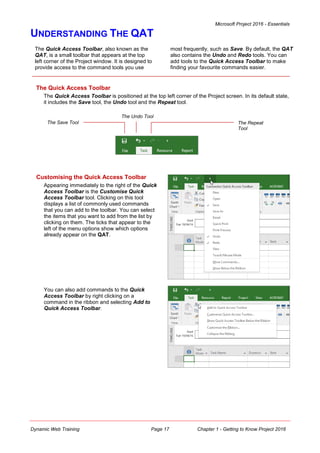
The Quick Access Toolbar is positioned at the top left corner of the Project screen. In its default state,
it includes the Save tool, the Undo tool and the Repeat tool.
The Undo Tool
The Save Tool The Repeat
Tool
Customising the Quick Access Toolbar
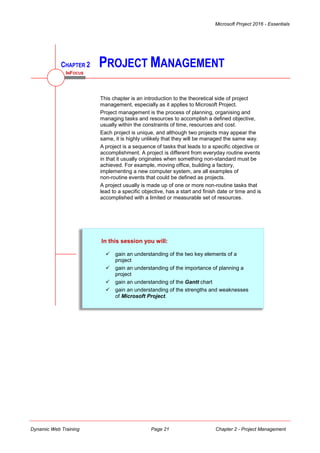
Appearing immediately to the right of the Quick
Access Toolbar is the Customise Quick
Access Toolbar tool. Clicking on this tool
displays a list of commonly used commands
that you can add to the toolbar. You can select
the items that you want to add from the list by
clicking on them. The ticks that appear to the
left of the menu options show which options
already appear on the QAT.
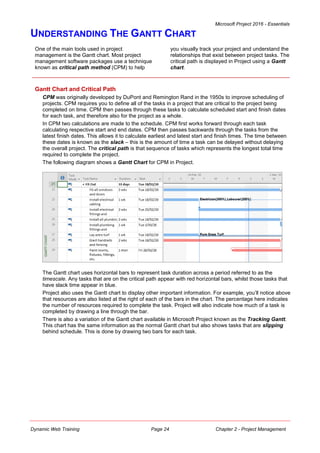
You can also add commands to the Quick
Access Toolbar by right clicking on a
command in the ribbon and selecting Add to
Quick Access Toolbar.
Microsoft Project 2016 - Essentials
Dynamic Web Training Page 18 Chapter 1 - Getting to Know Project 2016
WORKING WITH THE QAT
Try This Yourself:
Before starting this
exercise ensure that
Microsoft Project has
started...
 Click on the Project tab
 Right-click on Project
Information in the
Properties group to see a
shortcut menu
 Click on Add to Quick
Access Toolbar to display
the command as a small
icon on the QAT
 Click on Project
Information on the QAT
to display the Project
Information dialog box
just as it would if you’d
used the command on the
ribbon
 Click on [Cancel] to close
the dialog box without
doing anything
 Right-click on Project
Information on the QAT
and click on Remove from
Quick Access Toolbar to
remove the icon
For Your Reference…
To display a command on the QAT:
1. Right-click on the command in the ribbon
2. Click on Add to Quick Access Toolbar
The Quick Access Toolbar (QAT), which
appears at the very top left hand corner of the
screen, is a handy location to place commands
from the ribbon that you use frequently. This is
done by choosing the Add to Quick Access
Toolbar option which appears when you right-click
on the command when it is in the ribbon. The
command appears as an icon in the QAT.
2
3
4
Handy to Know…
 Changes you make to the QAT are global in
scope. This means that they stay in Project
for every project you create.
Microsoft Project 2016 - Essentials
Dynamic Web Training Page 19 Chapter 1 - Getting to Know Project 2016
WORKING WITH PROJECT FILES
Try This Yourself:
Before starting this
exercise ensure that
Microsoft Project has
started and a blank
project is displayed...
 Click on the File tab,
then click on Open
 Click on This PC,
then click on Browse
to display the Open
dialog box
 Navigate to the folder
Course Files for
Microsoft Project
2016, then double-
click on the file called
Sample Project.mpp
 Click on the File tab
again, click on New,
then click on Blank
Project to create
another new project
 Click on the View tab,
then click on Switch
Windows in the
Window group to
display a menu of
open projects
 Select 3 Sample
Project.mpp
 On the View tab, click
on Arrange All in the
Window group to see
all open projects
For Your Reference…
To open an existing project file:
1. Click on the File tab, then click on Open
2. Choose the location where the file is stored
(e.g. OneDrive, This PC, etc.), then click on
Browse
3. Click on the file, then click on [Open]
Projects that you work on are normally contained
in their own project files. A project file is created
when a new project is saved for the first time. To
open an existing project file that you or someone
else has worked on before, to save changes you
have made in a project, or to close a project file,
you will need to access the Backstage commands.
5
Handy to Know…
 Any projects that have been opened and
saved on your computer will appear in the
Recent Projects listing. This provides an
easier way of opening a previous file than
searching through folders. By default, Project
will display the last twenty-five projects that
have been worked on.
Three project files should be open at the
moment. Sample Project.mpp which you
just opened, a new project which you just
created, and the blank project that has
been open since the beginning of this
session.
6
7
Microsoft Project 2016 - Essentials
Dynamic Web Training Page 20 Chapter 1 - Getting to Know Project 2016
EXITING FROM PROJECT 2016
Try This Yourself:
Before starting this
exercise ensure
Microsoft Project has
started...
 Click on the File tab,
then click on Close
If changes have been
made while working
with the project file and
the file is unsaved you
will be prompted to save
the changes. Normally
you would choose this
option but as we have
only been playing
around we do not need
to save anything…
 If the save prompt has
appeared, click on [No]
 Repeat the above steps
until there are no more
open project files and
you have been returned
to the start screen
 Click on the Close
button at the top right
corner of the window as
shown to close Project
2016
For Your Reference…
To exit from Project 2016:
1. Click on the File, then click on Close to
close each open project
2. Click on the Close button at the top right
corner of the start window to close Project
2016
Although several methods exist for exiting from
Project, the best is to close individual project files
that are open. When you close the last project file
that is open you will be returned to Project’s start
screen. You can exit from here using the close
button on the window. If you attempt to close a
changed project file that has not been saved you
will be asked if you wish to save it.
1
Handy to Know…
 The keyboard shortcut for exiting Project is
+ .
 You can click on the Close button at the top
right corner of the Project 2016 screen to
close all project files and exit Project.
3
Microsoft Project 2016 - Essentials
Dynamic Web Training Page 21 Chapter 2 - Project Management
CHAPTER 2 PROJECT MANAGEMENT
In this session you will:
 gain an understanding of the two key elements of a
project
 gain an understanding of the importance of planning a
project
 gain an understanding of the Gantt chart
 gain an understanding of the strengths and weaknesses
of Microsoft Project.
This chapter is an introduction to the theoretical side of project
management, especially as it applies to Microsoft Project.
Project management is the process of planning, organising and
managing tasks and resources to accomplish a defined objective,
usually within the constraints of time, resources and cost.
Each project is unique, and although two projects may appear the
same, it is highly unlikely that they will be managed the same way.
A project is a sequence of tasks that leads to a specific objective or
accomplishment. A project is different from everyday routine events
in that it usually originates when something non-standard must be
achieved. For example, moving office, building a factory,
implementing a new computer system, are all examples of
non-routine events that could be defined as projects.
A project usually is made up of one or more non-routine tasks that
lead to a specific objective, has a start and finish date or time and is
accomplished with a limited or measurable set of resources.
INFOCUS
Microsoft Project 2016 - Essentials
Dynamic Web Training Page 22 Chapter 2 - Project Management
TASKS AND RESOURCES
A project comprises a sequence of tasks that
culminate in the completion of the project. These
tasks may be dependent, in that some can only
be started when their predecessors have been
finished. Other tasks may be independent in that
they can be completed simultaneously or without
needing to wait until another task has been
completed.
Tasks
The example below shows some possible tasks that might be listed in a typical project.
For example, when building a house, you may need to seek council approval, prepare the site works, lay
the slab, erect the walls, and so on. These are the tasks required to construct the house. The time taken
to complete each task is called its duration. The project is completed when all of the tasks have been
accomplished.
Resources
Tasks can only be accomplished if you have the necessary resources. Resources can take the form of
people, money, equipment, facilities or supplies. The following diagram shows resources listed in a
typical project.
The duration of tasks may be affected by the number or resources that can be directed towards it. For
example, it may take one painter three days to paint your house. Three painters however, may take only
one day. This type of task is known as resource driven, because the number of resources influences
the duration of the task.
Other tasks are fixed in duration. For example, when building a house on a concrete slab you may need
to wait five days for the concrete to cure before erecting the frame. No matter how many resources you
provide, you will still need to wait the five days.
Your project therefore, is made up of tasks and resources.
Microsoft Project 2016 - Essentials
Dynamic Web Training Page 23 Chapter 2 - Project Management
THE IMPORTANCE OF PLANNING
Since a project is non-routine it can only be
managed effectively with a plan. Planning is the
most important step in project management as it
formalises what you will do, how it will be done,
and how long it will take. It is used to predict the
outcome. When the plan has been produced you
will have a schedule with which to work. It should
detail tasks, timeframes and resources.
The Project Plan
Planning involves specifying:
 what you will do – the tasks needed to complete the project
 when you will do it – the duration required for the tasks
 how you will do it – the resources required to undertake the tasks.
The plan can be used as a baseline to measure actual performance. When the actual performance is
compared to the baseline the variance can be examined to determine the extent and nature of corrective
action required to ensure that targets are met. As a consequence, the schedule will change to reflect
changing circumstances.
While the plan remains fixed as a guideline, the schedule is constantly updated using actual data. Your
project needs to be rescheduled regularly to reflect actual circumstances.
Steps In Project Management
The steps of project management therefore involve the:
1. formulation of a plan
2. creation of a schedule based on the plan
3. monitoring of actual circumstance and comparison against the plan
4. revision of the schedule based on actual circumstance.
Microsoft Project 2016 - Essentials
Dynamic Web Training Page 24 Chapter 2 - Project Management
UNDERSTANDING THE GANTT CHART
One of the main tools used in project
management is the Gantt chart. Most project
management software packages use a technique
known as critical path method (CPM) to help
you visually track your project and understand the
relationships that exist between project tasks. The
critical path is displayed in Project using a Gantt
chart.
Gantt Chart and Critical Path
CPM was originally developed by DuPont and Remington Rand in the 1950s to improve scheduling of
projects. CPM requires you to define all of the tasks in a project that are critical to the project being
completed on time. CPM then passes through these tasks to calculate scheduled start and finish dates
for each task, and therefore also for the project as a whole.
In CPM two calculations are made to the schedule. CPM first works forward through each task
calculating respective start and end dates. CPM then passes backwards through the tasks from the
latest finish dates. This allows it to calculate earliest and latest start and finish times. The time between
these dates is known as the slack – this is the amount of time a task can be delayed without delaying
the overall project. The critical path is that sequence of tasks which represents the longest total time
required to complete the project.
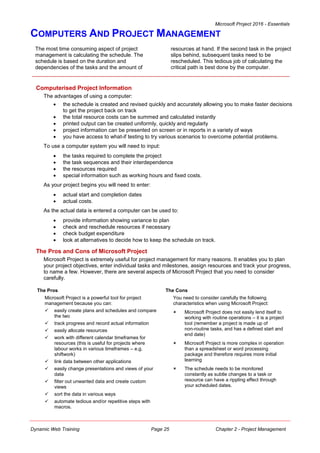
The following diagram shows a Gantt Chart for CPM in Project.
The Gantt chart uses horizontal bars to represent task duration across a period referred to as the
timescale. Any tasks that are on the critical path appear with red horizontal bars, whilst those tasks that
have slack time appear in blue.
Project also uses the Gantt chart to display other important information. For example, you’ll notice above
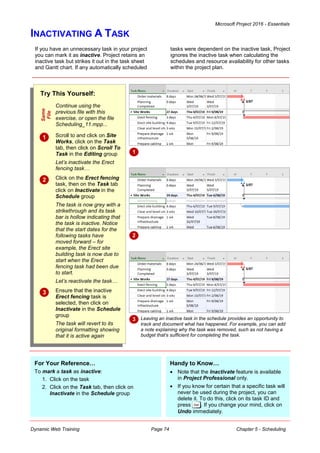
that resources are also listed at the right of each of the bars in the chart. The percentage here indicates
the number of resources required to complete the task. Project will also indicate how much of a task is
completed by drawing a line through the bar.
There is also a variation of the Gantt chart available in Microsoft Project known as the Tracking Gantt.
This chart has the same information as the normal Gantt chart but also shows tasks that are slipping
behind schedule. This is done by drawing two bars for each task.
Microsoft Project 2016 - Essentials
Dynamic Web Training Page 25 Chapter 2 - Project Management
COMPUTERS AND PROJECT MANAGEMENT
The most time consuming aspect of project
management is calculating the schedule. The
schedule is based on the duration and
dependencies of the tasks and the amount of
resources at hand. If the second task in the project
slips behind, subsequent tasks need to be
rescheduled. This tedious job of calculating the
critical path is best done by the computer.
Computerised Project Information
The advantages of using a computer:
 the schedule is created and revised quickly and accurately allowing you to make faster decisions
to get the project back on track
 the total resource costs can be summed and calculated instantly
 printed output can be created uniformly, quickly and regularly
 project information can be presented on screen or in reports in a variety of ways
 you have access to what-if testing to try various scenarios to overcome potential problems.
To use a computer system you will need to input:
 the tasks required to complete the project
 the task sequences and their interdependence
 the resources required
 special information such as working hours and fixed costs.
As your project begins you will need to enter:
 actual start and completion dates
 actual costs.
As the actual data is entered a computer can be used to:
 provide information showing variance to plan
 check and reschedule resources if necessary
 check budget expenditure
 look at alternatives to decide how to keep the schedule on track.
The Pros and Cons of Microsoft Project
Microsoft Project is extremely useful for project management for many reasons. It enables you to plan
your project objectives, enter individual tasks and milestones, assign resources and track your progress,
to name a few. However, there are several aspects of Microsoft Project that you need to consider
carefully.
The Pros
Microsoft Project is a powerful tool for project
management because you can:
 easily create plans and schedules and compare
the two
 track progress and record actual information
 easily allocate resources
 work with different calendar timeframes for
resources (this is useful for projects where
labour works in various timeframes – e.g.
shiftwork)
 link data between other applications
 easily change presentations and views of your
data
 filter out unwanted data and create custom
views
 sort the data in various ways
 automate tedious and/or repetitive steps with
macros.
The Cons
You need to consider carefully the following
characteristics when using Microsoft Project:
 Microsoft Project does not easily lend itself to
working with routine operations – it is a project
tool (remember a project is made up of
non-routine tasks, and has a defined start and
end date)
 Microsoft Project is more complex in operation
than a spreadsheet or word processing
package and therefore requires more initial
learning
 The schedule needs to be monitored
constantly as subtle changes to a task or
resource can have a rippling effect through
your scheduled dates.
Microsoft Project 2016 - Essentials
Dynamic Web Training Page 26 Chapter 2 - Project Management
NOTES:
Microsoft Project 2016 - Essentials
Dynamic Web Training Page 27 Chapter 3 - Creating a New Project
CHAPTER 3 CREATING A NEW PROJECT
In this session you will:
 gain an understanding of the requirements needed to
create a new project file
 gain an understanding of the project case study
 learn how to create a new project file
 gain an understanding of how Project options control the
way time is handled
 learn how to change the calendar options
 gain an understanding of calendars and how they are
used
 learn how to adjust nonworking time in the Standard
Calendar
 learn how to enter public holidays and leave periods into
a calendar
 learn how to create a new resource calendar
 learn how to create a new task calendar
 learn how to specify project information and properly set
up a project
 learn how to specify project summary information.
The first step in using Project to manage the project you are
working on is to create a new project file and set up some of the
operational parameters.
If it hasn’t been done already you’ll need to update Project’s
definition of a work day, and then specify the working times
associated with your project and that of the resources available to
you.
INFOCUS
Microsoft Project 2016 - Essentials
Dynamic Web Training Page 28 Chapter 3 - Creating a New Project
STEPS IN CREATING A PROJECT
Creating a new project file in Project is not as
clear-cut as creating a new document in
Microsoft Word or a new workbook in Microsoft
Excel. There are a number of housekeeping jobs
that need to be done before you even contemplate
entering tasks and resources into a project file.
Before You Begin
Before you create a new project file in Project you should have a good understanding of what your
project is about. For example, you will need to have established basic information such as when you
want your project to start and when you want your project to finish so that Project can help you schedule
critical tasks.
You will also need to specify some basic definitions and assumptions such as the duration of a standard
working day, the public holidays or other non-working periods during the anticipated project period, the
normal working times of the resources required for the project, and any anomalies in working time that
specific resources may have that differ to the standard working times.
Once all of these things are clear in your head, you can start a new project file and enter this information
so that Project will be set up to work through your project the way that you want.
The Basic Steps For Creating A New Project File
Generally, creating a new project requires these steps:
 determine an understanding of your project as detailed above
 create a new project file in Project
 set your own working times in the project file (or use the defaults)
 adjust the standard resource calendars in accordance with the working times of the resources
 enter project information that will be used in report headers and that will also determine the way in
which the project will be tracked by Project.
It doesn't matter in which order you tackle the steps involved in creating a new project. You can actually
change these settings after you have started a project. However, changing assumptions midway through
a project is sometimes the source of much anguish and frustration. You are better advised therefore to
get all of your assumptions and settings defined before you start scheduling tasks in your project.
Microsoft Project 2016 - Essentials
Dynamic Web Training Page 29 Chapter 3 - Creating a New Project
UNDERSTANDING YOUR PROJECT
The best way to learn how to create a new
project is through a case study. In this
courseware you are going to help manage the
construction of a new state-of-the-art stadium
called The Rostadium. The Rostadium is a football-
oriented stadium built for the local community to
conduct games in all codes of football.
The Case Study
The Rostadium is designed as a scaled-down version of some of the newer stadiums that have been
built in recent times. It will feature a retractable roof, detachable turf, and removable goal posts and
paraphernalia.
The architect's proposed drawings are shown below for your reference.
The retracting roof of the stadium should be able to open in stages. A cut-away section of the stadium
showing the roof half-open is shown below.
Key Construction Details
Construction of The Rostadium is expected to commence on Monday May 6, 2019. The building should
be ready for use within ten months and is budgeted at a total cost not exceeding $125 million.
The stadium will be built with contract labour hired for the job but paid through the normal payroll system.
Some specialised tasks, such as the laying of turf, the acoustics system, and the like, will be conducted
by external contractors.
The normal site working day will begin at 7:30 am and conclude at 3:30 pm with a half-hour break for
lunch at 12:30 pm. This makes it a 7.5 hour working day. The normal working week is from Monday to
Friday – a total of 37.5 hours (5 x 7.5).
This is the key information that you need to begin a new project.
Microsoft Project 2016 - Essentials
Dynamic Web Training Page 30 Chapter 3 - Creating a New Project
CREATING A NEW PROJECT FILE
Try This Yourself:
Before starting this exercise
ensure that Microsoft Project
has started...
 If the start screen is not in
view, click on the File tab on
the ribbon, then click on New
to see the available templates
Spend a few moments
studying the new file options
here…
 Click on Blank Project to
create a new project based on
a blank and empty template
Even though we haven’t
entered anything yet, it is a
good idea to save the new
project to create the file…
 Click on the File tab, then
click on Save
 Click on This PC, then click
on Browse to display the
Save As dialog box
 Type The Rostadium Project
in the File name
 Navigate to the course files
folder (most likely on your C:
drive)
 Click on [Save] to save the
project file
Notice that the file name
appears in the title bar of the
Project window
For Your Reference…
To create a new blank project file:
1. Click on the File tab and click on New
2. Click on Blank Project
Handy to Know…
 Templates are project files with settings and
information already in them. While they can
save time it is generally a good idea to
understand how to create a new file from
scratch so that you can fully understand what
actually happens in a file.
The new project you are about to begin will need
to be stored in a new project file. A new project is
created using the New option on the Backstage
(accessed from the File tab). This command
allows you to base your project file on a specific
template which already has settings and
information stored in it, or to base your project on a
blank template.
1
6
Microsoft Project 2016 - Essentials
Dynamic Web Training Page 31 Chapter 3 - Creating a New Project
CALENDAR OPTIONS
As you will see later when you enter tasks, you
can enter their durations in a number of different
ways. For example, you can enter the duration in
days, or weeks, or even months. For Project to
be able to calculate appropriate dates around these
durations it has to have a common set of rules to
work to. These calendaring rules are set up in the
calendar options.
Project Options
The way that Project behaves and works can be controlled through its options which are found in the
Project Options dialog box. This dialog box can be found on the Backstage and is accessed from the
File tab.
Customising these options will vary from project to project, and you need to be aware of the more
important ones.
One of the most critical options that you will need to examine is the definition of a day and a week.
Project calculates everything based on minutes. When you enter a duration for a task, Project internally
converts that duration to minutes based on the definition of a day in the Options dialog box.
For example, if the Options
dialog box shows that there
are 8 hours in a day, Project
will internally convert a 1-day
task to 480 minutes (that is, 8
hours x 60 minutes). If the
Options dialog box shows that
there are 10 hours in a day,
Project will internally convert a
1-day task to 600 minutes.
Default Start and End Times
These are backup values for Project. Usually a task start time is determined by the finish time of the
predecessor task. However, the Default start time is used only when you don’t enter a specific start
time or one is not calculated for you based on a predecessor. Similarly, the finish time of a task is
automatically calculated for you based on the task’s start date and time and its duration. If you
specifically enter a finish date and don’t enter a finish time the Default end time is used to calculate a
finish time for the task.
Don’t worry if this sounds a bit hard to comprehend for the moment. Until you know otherwise you should
ensure that the Default start time and the Default end time match the start and end times for a normal
working day in your organisation.
24 hour versus 12 hour time settings
Windows can be configured to show time in a 24 hour or 12 hour format. Project shows time based on
how your Windows is configured. You can change the setting using the Clock, Language and Region
settings in the Windows Control Panel.
To display a 24 hour clock the Short Time style will need to be set to H:mm and the Long Time set to
H:mm:ss. To display a 12 hour clock the Short Time style will need to be set to h:mm and the Long
Time set to h:mm:ss (in lowercase letters).
Fiscal Year
Another trap to watch out for is the definition of a fiscal year. By default, as you can see from above, the
fiscal year on a Gantt chart is shown in the American format, beginning in January and running through
to December. Australia’s fiscal year starts in July and continues on to June of the following year. If this
will be an issue for your projects, you should adjust the Fiscal year starts in setting appropriate to your
needs.
Microsoft Project 2016 - Essentials
Dynamic Web Training Page 32 Chapter 3 - Creating a New Project
CHANGING CALENDAR OPTIONS
The Calendar options affect the duration of the
tasks. In the Options dialog box, the Schedule
tab allows us to set our default start and finish
times for tasks. We can also set which day the
week starts on in our project and which month the
fiscal year starts in. Most importantly, however, we
can specify how many hours per day and week the
project requires.
Try This Yourself:
Same
File
Continue using the
previous file you created
earlier, or open the file
Creating A New
Project_1.mpp...
 Click on the File tab and
click on Options to
display the Project
Options dialog box
 Click on the Schedule
tab and study the
Calendar options
 Click on the drop arrow
for Default start time
and click on 7:30 AM
(or 07:30 for 24 hour
settings)
 Click on the drop arrow
for Default end time
and click on 3:30 PM (or
15:30 for 24 hour
settings)
 Press to jump to
Hours per day and type
7.5
 Press to jump to
Hours per week and
type 37.5
 Click on [OK] to close
the Options dialog box
2
For Your Reference…
To set default working time:
1. Click on the File tab, then click on Options
2. Click on the Schedule tab
3. Change the options as required
4. Click on [OK]
Handy to Know…
 The Options dialog box allows you to specify
the number of days in a month. Since
months are variable, Project needs to have
your mathematical interpretation of how
many days exist in a month in your business.
Unless you specifically need to change this,
it is recommended to leave it at 20 days.
6
Microsoft Project 2016 - Essentials
Dynamic Web Training Page 33 Chapter 3 - Creating a New Project
WORKING WITH CALENDARS
Calendars are used in Project to define the
working and non-working days of the resources
and tasks in your project. While there can be
several calendars simultaneously in use
throughout your project there will at least be one
standard calendar available as the default project
calendar. This calendar should contain settings that
reflect the basic working time of your organisation.
Calendars and Working Time
Having changed the settings in the Options dialog box, Project now assumes that a normal working day
is 7.5 hours and that there are 37.5 hours in a working week. While we entered a Default start time and
a Default end time, these don’t really give Project a clue as to how a working day or indeed a working
period is made up.
For instance, are there lunch breaks, and if so, when? How do we specify days off such as public
holidays, annual leave, and the like? And what happens if we have people such as shift workers who
don’t work the hours specified in the Options?
To address these situations Project uses calendars which can be applied to the tasks and resources in
your project. In a calendar you can define the working time (referred to as working weeks) for a resource
as well as any exceptions for time off, holidays, and so on.
Calendars are extremely important in Project and basically provide the guidelines for calculating how
much work is required to complete tasks in your project.
Project already has several calendars built into it which can, and should, be modified for the project you
are working on. These are template calendars, known as base calendars, which can either be used as
is, or modified or even cloned. The three calendars are:
 Standard – which includes a typical (at least in America) working time scenario from Monday to
Friday, starting at 8:00 am and finishing at 5:00 pm with lunch between 12 noon and 1:00 pm.
 Night shift – which sets the working time from Monday to Friday, starting at 11:00 pm and
concluding at 8:00 am, with lunch between 3:00 and 4:00 am.
 24 Hours – where work is scheduled 24 hours a day, 7 days a week.
The Standard calendar is the one most commonly used and the one that will be used for our case study.
Its hours should be adjusted to match those of the standard working time in our case study.
Calendars are accessed from the
Change Working Time dialog box.
This dialog box displays a view of one
month which shows working and
non-working days.
Normal daily working times are
adjusted using the Work Weeks tab
in the dialog box.
The Exceptions tab is used for
specifying things such as public
holidays and non-routine non-working
times and days.
Microsoft Project 2016 - Essentials
Dynamic Web Training Page 34 Chapter 3 - Creating a New Project
MODIFYING THE STANDARD CALENDAR
Try This Yourself:
Same
File
Continue using the previous file
with this exercise, or open the
file Creating A New
Project_2.mpp...
 Click on the Project tab, then
click on Change Working Time
in the Properties group to
display the Change Working
Time dialog box
The Standard calendar will
appear showing the current date
as the default…
 Click on the Work Weeks tab to
see the hours set up for the
working week
 Click on Default in Name, click
on [Details] to display the
Details dialog box
 Click on Monday, hold down
and click on Friday to
select the working days to
change
 Click on Set day(s) to these
specific working times
 Click in the times and adjust
them as follows:
7:30 AM 12:30 PM
1:00 PM 3:30 PM
 Click on [OK] and notice how the
times have now been updated
 Click on [OK] to close the
Change Working Time dialog
box
The Standard calendar, sometimes also known
as the project calendar, is the one that will be
assigned as the default calendar to any tasks or
resources that are entered into the project. The
working times in this calendar should be adjusted
to match the normal working times of your
organisation. This can be done using the Change
Working Time command on the Project tab.
For Your Reference…
To modify the Standard calendar:
1. Click on the Project tab, then click on
Change Working Time in the Properties
group
2. Click on the Work Weeks tab
3. Click on Default and change the times as
required
Handy to Know…
 The Default start time and Default end
time in the Calendar options have no impact
or bearing on the working times in the
Standard calendar. You must always ensure
that the working time in the Standard
calendar matches those of your organisation.
2
6
Microsoft Project 2016 - Essentials
Dynamic Web Training Page 35 Chapter 3 - Creating a New Project
ENTERING PUBLIC HOLIDAYS
Try This Yourself:
Same
File
Continue using the
previous file with this
exercise, or open the
file Creating A New
Project_3.mpp...
 Click on the Project tab,
then click on Change
Working Time in the
Properties group to see
the Change Working
Time dialog box
 Click on the scroll arrow
on the calendar part of
the box until December
2019 appears in view,
then click on Monday
the 23rd
 Click in Name in
Exceptions and type
End of year closure
 Click in Finish and click
on the drop arrow to
display a calendar
 Click on the arrow to the
right of December 2019
until you can see
January 2020, then
click on the 6th
 Click on [OK]
The Standard calendar, indeed any calendar,
can be updated to take account of public
holidays, holiday leave, and other forms of
absence from the workplace that directly interfere
with the scheduling of the project. Work weeks in
the calendar are used to specify working and
non-working times, while leave and holidays are
entered as exceptions to these times.
For Your Reference…
To enter public holidays in a calendar:
1. Display the Change Working Time dialog
box
2. Enter the leave or holiday as an exception
with a start and finish date
Handy to Know…
 The next time you open the Change
Working Time dialog box and display the
calendar, the dates entered as leave or
holidays will be shaded out as non-working
days.
2
4
Microsoft Project 2016 - Essentials
Dynamic Web Training Page 36 Chapter 3 - Creating a New Project
CREATING A NEW RESOURCE CALENDAR
Sometimes you may need to create a new
resource calendar for a specific group of
resources. This may be the case where projects
use multiple types of resources. In our case
study, some of the contract labour work a four-day
week: Monday to Thursday. To ensure that they
aren’t scheduled to work on Fridays, we will create
a new calendar which we will later assign to them.
Try This Yourself:
Same
File
Continue using the previous
file with this exercise, or open
the file Creating A New
Project_4.mpp...
 Click on the Project tab, then
click on Change Working
Time in the Properties group
to see the Change Working
Time dialog box
 Click on [Create New
Calendar] to display the
Create New Base Calendar
dialog box
 Type GBWU Award in
Name, then click on [OK]
You will now have cloned
your standard calendar…
 Click on the Work Weeks
tab, then click on [Details] to
display the Details for…
dialog box
 Click on Friday in Select
day(s), then click on Set
days to nonworking time
 Click on [OK] to return to the
Change Working Time
dialog box
Friday now appears shaded
as a non-working day…
 Click on [OK]
2
For Your Reference…
To create a resource calendar:
1. Click on the Project tab, then click on
Change Working Time in the Properties
group
2. Click on [Create New Calendar]
3. Type a name for the new calendar, then click
on [OK]
Handy to Know…
 By cloning a calendar, you are creating a
new base (i.e. template) calendar. This
template can be applied to as many
resources and tasks as you like. When you
make a change to the calendar the changes
will be made to all of the resources and tasks
that use the calendar.
3
Microsoft Project 2016 - Essentials
Dynamic Web Training Page 37 Chapter 3 - Creating a New Project
CREATING A NEW TASK CALENDAR
Try This Yourself:
Same
File
Continue using the previous file
with this exercise, or open the
file Creating A New
Project_5.mpp...
 Click on the Project tab, then
click on Change Working
Time in the Properties group
to see the Change Working
Time dialog box
 Click on [Create New
Calendar] to display the
Create New Base Calendar
dialog box
 Type PA Installation in Name,
then click on [OK] to create a
clone of the standard calendar
 Click on the Work Weeks tab,
then click on [Details] to
display the Details for… dialog
box
 Select Monday – Friday in
Select day(s), then click on Set
days to nonworking time
 Select both Saturday and
Sunday, click on Set day(s) to
these specific working times
then set the times as shown
 Click on [OK] to return to the
Change Working Time dialog
box
Only Saturdays and Sundays
are working days…
 Click on [OK]
For Your Reference…
To create a task calendar:
1. Click on the Project tab, then click on
Change Working Time in the Properties
group
2. Click on [Create New Calendar]
3. Type a name for the new calendar and click
on [OK]
Handy to Know…
 You will need to create a task calendar when
a task must happen during a certain time
period. For example, if the email servers
need to be taken down, it is probably best to
force that to happen during the evening or
weekend rather than during peak working
hours.
Normally tasks are scheduled based on the
project calendar. To define unique or specific
exceptions, such as a task that can occur only on
a weekend (and weekends are set as nonworking
time in the project calendar), you can create a task
calendar setting weekends as working time then
assign it to just that task while leaving the rest of
the project using the normal project calendar.
6
7
Microsoft Project 2016 - Essentials
Dynamic Web Training Page 38 Chapter 3 - Creating a New Project
SETTING UP PROJECT INFORMATION
Try This Yourself:
Same
File
Continue using the
previous file with this
exercise, or open the
file Creating A New
Project_6.mpp...
 Click on the Project tab,
then click on Project
Information in the
Properties group to
display the Project
Information dialog box
 Click on the drop arrow
for Start date to display
a calendar
 Change the date to
Monday May 6, 2019
 Click on the drop arrow
next to Calendar to
display a list of
calendars that have
been set up to be used
 Click on Standard to
select this calendar
 Click on [Statistics] to
view the project
situation thus far
Nothing has been
entered yet so this will
not have a lot of
information to display…
 Click on [Close]
Projects have a definite start and end date. This
information can be entered into the Project
Information dialog box which allows you to
specify the basic operational parameters of your
project, including start and end dates, the project
calendar to use, and more. Probably the most
important detail to enter here is the project start
date from which all tasks will be scheduled.
1
For Your Reference…
To set up project information:
1. Click on Project Information in the
Properties group on the Project tab
2. Change the start date to the appropriate start
date for your project
3. Ensure the correct project calendar is used
Handy to Know…
 Project is a calculation machine – if you enter
either a start date or an end date the other
will be automatically calculated for you. We
don’t have any scheduled tasks at the
moment so in our project the project finishes
when it starts.
4
6
Microsoft Project 2016 - Essentials
Dynamic Web Training Page 39 Chapter 3 - Creating a New Project
ENTERING FILE PROPERTIES
Try This Yourself:
Same
File
Continue using the
previous file with this
exercise, or open the
file Creating A New
Project_7.mpp...
 Click on the File tab,
then click on Info to
see the project details
(aka Project
Information) to the right
 Click on the small drop
arrow next to Project
Information to display
a menu of options
 Click on Advanced
Properties to display
the Properties dialog
box
 Ensure the Summary
tab is selected, then
change the Author to
your name and enter
the other details as
shown
 Click on [OK]
For Your Reference…
To enter file properties for the project:
1. Click on the File tab, then click on Info
2. Click on the small drop arrow next to Project
Information, then click on Advanced
Properties
All computer files on your computer have specific
properties associated with them – their name,
location, author, etc. In most cases the relevant
details are entered by the computer whilst the
other details are ignored. In Project some of these
properties find their way into reports and it is a
good idea to at least set up some of the Summary
properties of your project file.
2
4
Handy to Know…
 File properties are not a really important part
of Project. However, they can help to keep
track of things if you include some basic
information in them.
Microsoft Project 2016 - Essentials
Dynamic Web Training Page 40 Chapter 3 - Creating a New Project
NOTES:
Microsoft Project 2016 - Essentials
Dynamic Web Training Page 41 Chapter 4 - Creating Tasks
CHAPTER 4 CREATING TASKS
In this session you will:
 gain an understanding of tasks and how they are created
 gain an understanding of the symbols and icons
associated with tasks
 gain an understanding of the case study tasks
 learn how to review an existing project
 learn how to enter tasks into a project
 learn how to create summary tasks
 learn how to create additional summary tasks
 learn how to move around a task sheet
 learn how to manipulate summary tasks and outlining
 learn how to work with the various views of a task table
 learn how to work with tasks using the Task Information
dialog box
 gain an understanding of task durations
 learn how to enter durations for a task
 learn how to check project progress and status
 learn how to enter task milestones
 learn how to assign a calendar to a task.
A project normally consists of several tasks. Tasks are defined as
activities required to complete your project.
Tasks are entered in Project into rows and columns much the same
as data is entered into a spreadsheet like Excel.
INFOCUS
Microsoft Project 2016 - Essentials
Dynamic Web Training Page 42 Chapter 4 - Creating Tasks
UNDERSTANDING TASKS
Tasks are the activities that make up your
project. They form the very structure of your
project and it is important that some thought and
planning goes into their creation. Tasks are
entered into a project file in a table-like way with
each task entered into a separate row of its own.
Tasks are automatically assigned an ID number
which appears at the left of the table.
Organising Tasks
Tasks can be grouped into phases. Project allows you to display the phases as well as the tasks – the
phase headings are actually referred to as summary tasks.
A summary task is created when the detail tasks below it are demoted in the hierarchy. The summary
task is automatically calculated to start at the start date of its earliest subordinate and will finish at the
end date of its latest subordinate. Project will also sum all project costs as well as calculate summary
start and finish dates.
Entering tasks can be done in two ways:
 top down, where specific summary tasks are worked out first, and then the detail tasks required
to complete the summaries
 bottom up, where the tasks are worked out and then grouped according to specific summaries.
You can elect to enter the tasks first, then the summaries, or you can enter the summaries then the
tasks.
When you have both summaries and tasks in a project, your project has a hierarchy. Project
managers traditionally use a hierarchical organisation known as a work breakdown structure to identify
major components of a project and then the detail required for each of those components.
The most important aspect of managing a project is being organised. It is a good idea to have your task
list well and truly determined before you enter it into Project.
Scheduling Modes
Tasks comprise of details such as duration, start date and finish date. In addition, tasks are related to
one another and these relationships together with the durations and dates form the overall project
schedule.
In Project tasks can be either automatically scheduled, where Project takes care of assigning and
adjusting start and finish times, or manually scheduled where you control when dates and times will be
adjusted and calculated.
Tasks can be switched between automatic and manual scheduling at any time. When a new project file
is created the tasks are manually scheduled as a default. This is indicated in the status bar at the bottom
left of the screen.
Manual scheduling only became available in Microsoft Project 2010. Prior to this version projects were
automatically scheduled. If you open a project in Microsoft Project 2016 that was created in a previous
version, it will still remain automatically scheduled.
Microsoft Project 2016 - Essentials
Dynamic Web Training Page 43 Chapter 4 - Creating Tasks
UNDERSTANDING SCHEDULING ICONS
As you enter tasks into a project file various icons
and symbols appear indicating what is going on
or where there are information shortfalls. These
icons and symbols appear in the task mode
column of a task sheet and in the Gantt Chart. The
Gantt Chart view of Project is a good place to
begin entering tasks.
Icon/symbol Location Description
Task Mode column A push pin indicates that the task is manually scheduled
and that all of the information required for scheduling
has been supplied.
Task Mode column A push pin with a question mark indicates that the task is
manually scheduled but that further information (such as
a duration, start or end date) is still required.
Task Mode column This icon indicates that the task is automatically
scheduled.
Gantt Chart A coloured bar with end caps indicates that the task is
manually scheduled and that all information has been
provided for scheduling.
Gantt Chart A coloured bar with no caps indicates that the task is
manually scheduled but that dates still need to be
provided.
Gantt Chart An end cap indicates that the start date has been
provided but that there is no start or end date.
Gantt Chart This icon indicates that the task is automatically
scheduled.
Microsoft Project 2016 - Essentials
Dynamic Web Training Page 44 Chapter 4 - Creating Tasks
CASE STUDY TASKS
In our case study, Scott Harris, the Project
Manager at The Rostrum, has consulted with his
project group and together they have determined
that the construction of the new stadium should
be broken into five phases. Each of the phases
(known as summary tasks) and their respective
tasks are shown in the table below.
Phase Tasks
Planning  Create architectural plans
 Submit plans for approval
 Order materials
Site Works  Erect fencing
 Erect site buildings
 Clear and level site
 Prepare drainage infrastructure
 Prepare cabling infrastructure
Building Construction  Pour foundations
 Erect steelwork
 Erect walls
 Install roofing superstructure
 Install roof retracting mechanism
 Erect seating tiers
Fit Out  Fit all windows and doors
 Install electrical cabling
 Install electrical fittings and fixtures
 Install all plumbing
 Install plumbing fittings and fixtures
 Lay astro turf
 Erect handrails and fencing
 Paint rooms, fixtures, fittings, etc
 Install PA system
 Install video imaging equipment
 Fit out control room
Commissioning  Test roof mechanism
 Test PA system
 Test video imaging equipment
 Test control room equipment
 Obtain official occupancy certificates
 Obtain safety certification
 Official opening
Microsoft Project 2016 - Essentials
Dynamic Web Training Page 45 Chapter 4 - Creating Tasks
REVIEWING THE PROJECT
You are about to enter tasks into a newly created
project file. Even though this project file is
currently empty it still contains some basic project
information that can be reviewed. Reviewing
project information on a regular basis is a good way
of ensuring that data is entered correctly. We’ll
have a look at the information now, and then again
after the tasks are entered.
Try This Yourself:
Open
File
Before starting this exercise
you MUST open the file
Tasks_1.mpp…
 Notice how the Gantt Chart
timeline in the project begins
with the week that the
project commences (May 6,
2019) in view
 Click on the Project tab,
then click on Project
Information in the
Properties group to display
the Project Information
dialog box
The start and finish dates
here are identical because
no scheduling has yet been
done…
 Click on [Statistics] to see
the Project Statistics
 Click on [Close] to close the
dialog box
While we are here we’ll
ensure that manual
scheduling is switched on…
 Click on the current
scheduling mode button at
the bottom left of the screen
 Click on Manually
Scheduled
2
5
For Your Reference…
To manually schedule tasks:
1. Click on the current scheduling mode button
at the bottom left of the screen
2. Click on Manually Scheduled
Handy to Know…
 It is recommended that you review your
project statistics regularly. This is especially
useful after entering task durations and
dependencies.
6
Microsoft Project 2016 - Essentials
Dynamic Web Training Page 46 Chapter 4 - Creating Tasks
ENTERING TASKS
Try This Yourself:
Same
File
Continue using the
previous file with this
exercise, or open the file
Tasks_1.mpp...
 Click on the Task Name
cell in the first line
 Type Create
architectural plans, then
press
A manually scheduled
task pin appears in the
Task Mode column, with a
question mark indicating
that more information is
required. Also, if the
column has not been wide
enough, word wrapping
will occur, increasing the
height of the row…
 Type Submit plans for
approval as the second
task, then press
 Enter the remaining tasks
as shown
 Hold down and press
to return to the top
left corner of the task list
4
For Your Reference…
To enter tasks in Gantt Chart view:
1. Click in the first available task cell
2. Type the name of the task, then press
Handy to Know…
 When you enter a Task Name into the Gantt
Chart view and press , nothing will
appear in the Gantt Chart because you
haven’t entered the duration, start date or
end date for the task. This information is
required to draw a timeline.
There are many ways to enter tasks into a project
file. One of these is the Gantt Chart, which is the
default view. In the Gantt Chart view the tasks
are entered into the sheet view on the left of the
screen. As you enter a task, a default duration of 1
day is automatically assigned to the task and a
Gantt bar is drawn in the chart on the right of the
screen.
1
2
3. Order materials
4. Erect fencing
5. Erect site buildings
6. Clear and level site
7. Prepare drainage infrastructure
8. Prepare cabling infrastructure
9. Pour foundations
10. Erect steelwork
11. Erect wall
12. Install roofing superstructure
13. Install roof retracting mechanism
14. Erect seating tiers
15. Fit all windows and doors
16. Install electrical cabling
17. Install electrical fittings and fixtures
18. Install all plumbing
19. Install plumbing fittings and fixtures
20. Lay astro turf
21. Erect handrails and fencing
22. Paint rooms, fixtures, fittings, etc.
23. Install PA system
24. Install video imaging equipment
25. Fit out control room
26. Test roof mechanism
27. Test PA system
28. Test video imaging equipment
29. Test control room equipment
30. Obtain official occupancy certificates
31. Obtain safety certification
32. Official opening
Microsoft Project 2016 - Essentials
Dynamic Web Training Page 47 Chapter 4 - Creating Tasks
CREATING SUMMARY TASKS
Try This Yourself:
Same
File
Continue using the
previous file with this
exercise, or open the
file Tasks_2.mpp...
 Click on Create
architectural plans,
hold down the left
mouse button and drag
down to Order
materials to select the
three tasks
 Click on the Task tab,
then click on Summary
in the Insert group to
insert a new summary
task
 Type Planning as the
name for the new
summary task, then
press
 Repeat the above steps
and create the
additional summary
tasks as shown on the
next page
Summary tasks are like headings that represent
the phases in a project. They also summarise
information. Summary tasks are general
headings that have subordinate tasks.
Subordinate tasks are indented to the right and
provide a further level of detail for that part of the
project. Summary tasks can be entered when tasks
are first entered or at a subsequent stage.
1
2
For Your Reference…
To create a summary task:
1. Select the sub-ordinate tasks
2. Click on the Task tab, then click on
Summary in the Insert group
3. Type a name for the summary task and
press
Handy to Know…
 Summary tasks appear as autoscheduled
tasks. A summary task is calculated using
the start date of the first task and the end
date of the last task. As such they have to be
automatically calculated based on their
subordinates.
3
Microsoft Project 2016 - Essentials
Dynamic Web Training Page 48 Chapter 4 - Creating Tasks
ASSIGNMENT – CREATING SUMMARY TASKS
Using the steps outlined in the previous exercise,
create the following summary tasks as shown.
Take care when selecting the required
subordinate tasks. You should check that you
have selected the correct tasks. If you make a
mistake, use the Undo tool on the Quick Access
Toolbar to undo the mistake.
Planning
Create architectural plans
Submit plans for approval
Order materials
Site Works
Erect fencing
Erect site buildings
Clear and level site
Prepare drainage infrastructure
Prepare cabling infrastructure
Building Construction
Pour foundations
Erect steelwork
Erect wall
Install roofing superstructure
Install roof retracting mechanism
Erect seating tiers
Fit Out
Fit all windows and doors
Install electrical cabling
Install electrical fittings and fixtures
Install all plumbing
Install plumbing fittings and fixtures
Lay astro turf
Erect handrails and fencing
Paint rooms, fixtures, fittings, etc.
Install PA system
Install video imaging equipment
Fit out control room
Commissioning
Test roof mechanism
Test PA system
Test video imaging equipment
Test control room equipment
Obtain official occupancy certificates
Obtain safety certification
Official opening
Add
Add
Add
Add
Microsoft Project 2016 - Essentials
Dynamic Web Training Page 49 Chapter 4 - Creating Tasks
WORKING IN A SHEET VIEW
Try This Yourself:
Same
File
Continue using the
previous file with this
exercise, or open the
file Tasks_3.mpp...
 Hold down and
press to return to
the top left corner of the
table
 Press to jump
down one screen
 Press to jump up
one screen
 Press to move right
in the table to the last
column in the current
row
 Press to move left
in the table to the first
column in the current
row
For Your Reference…
To move about a sheet view:
 + takes you to the top left corner of
the sheet
 + takes you to the bottom right
corner of the sheet
Handy to Know…
 + moves the Gantt view to the first
timeline bar, while + moves the
Gantt view to the end of the last timeline bar.
A tasksheet displays your data in columns and
rows. The columns to the left of the Gantt chart
actually represent part of a sheet. As you scroll
around and enter or change data you can
sometimes get lost in a task or resource sheet.
There are some basic keyboard keys that will help
you to move about and, if necessary, re-orientate
the project sheet so that you can get your bearings.
1
2
4
Microsoft Project 2016 - Essentials
Dynamic Web Training Page 50 Chapter 4 - Creating Tasks
WORKING WITH SUMMARY TASKS
Try This Yourself:
Same
File
Continue using the
previous file with this
exercise, or open the
file Tasks_3.mpp...
 Click on the View tab,
then click on Outline
in the Data group to
display a menu of
options
 Select Level 1 to see
only the summary
tasks
 Click on the white
arrow next to Site
Works to see the
detail tasks
 On the View tab, click
on Outline in the Data
group, then select All
Subtasks to see all of
the tasks again
Summary tasks allow you to hide unnecessary
detail. For example, you can collapse a project
so that the detail tasks below the summary tasks
are no longer visible. This is an excellent way of
seeing a bird's eye view of your project. You can
collapse and expand (display) all of the detail
tasks, or just specific ones using the tools on the
toolbar and the summary task headings.
1
For Your Reference…
To outline a project:
1. Click on the View tab, then click on Outline
in the Data group
2. Select the desired option
Handy to Know…
 A white arrow to the left of a summary task
indicates that it can be expanded. A black
arrow indicates that the summary task can
be collapsed.
2
3
Microsoft Project 2016 - Essentials
Dynamic Web Training Page 51 Chapter 4 - Creating Tasks
WORKING WITH TASK VIEWS
Try This Yourself:
Same
File
Continue using the
previous file with this
exercise, or open the file
Tasks_3.mpp...
 Click on the View tab,
click on Other Views in
the Task Views group,
then select Task Sheet
to see the tasks in a
sheet view
 On the View tab, click
on Tables in the Data
group, then select
Schedule to see tasks
with scheduled dates
 Click on Tables again,
then select Cost to see
the Costs table
 Use the Tables
command to examine
some of the other tables
 Click on the top half of
Gantt Chart in the Task
Views group to return to
the Gantt Chart view
For Your Reference…
To work with table views:
1. Click on the View tab, click on Other Views
in the Task Views group, then select Task
Sheet
2. Click on Tables in the Data group, then
select the desired table
When using Project, it can be interesting to find
out how much you can see even after entering
only a little information. As mentioned before,
Project is simply two database tables, one for
tasks and the other for resources. Each of these
tables contains many fields. To see these fields
arranged thematically you can use one of the many
table views available on the View tab.
1
Handy to Know…
 Until you add proper durations, relationships,
or start and end dates, that Project will
default to using the project’s start date when
you first begin entering tasks.
2
Microsoft Project 2016 - Essentials
Dynamic Web Training Page 52 Chapter 4 - Creating Tasks
EXAMINING TASK INFORMATION
Try This Yourself:
Same
File
Continue using the
previous file with this
exercise, or open the file
Tasks_3.mpp...
 Click on Create
architectural plans to
select the task
 Click on the Task tab,
then click on Information
in the Properties group to
display the Task
Information dialog box
This dialog box provides
all of the relevant
information available for a
task…
 Click on the various tabs
on the dialog box and
examine the options and
settings that they contain
 Click on [OK]
For Your Reference…
To examine task information:
1. Click on a task to select it
2. Click on the Task tab, then click on
Information in the Properties group
Just as Project provides you with a Project
Information dialog box to see key information
about the overall project, there is also a separate
Task Information dialog box that provides all of
the information pertaining to a task in one easy
location. This dialog box can be accessed using the
Information command on the Task tab, or by
double-clicking on a task.
2
Handy to Know…
 The Task Information dialog box is often
used to modify tasks in a project. It provides
access to all of the fields of a task in one
convenient location.
Microsoft Project 2016 - Essentials
Dynamic Web Training Page 53 Chapter 4 - Creating Tasks
UNDERSTANDING TASK DURATIONS
To be able to create a project schedule you need
to assign a duration to each of the tasks, specify
how the tasks are inter-related or dependent
upon one another and assign resources to
complete the tasks. Once durations have been
entered, Project has sufficient information to be
able to calculate a critical path and determine the
amount of slack in the tasks.
Task Durations
Once tasks have been entered (or as they are being entered), you can specify the appropriate duration for
each task.
Unless specified otherwise, the default scheduling (Manual Scheduling) as set in the Options dialog box is
used. As manual scheduling requires you to enter the duration of your tasks manually, no duration will appear
in the Duration cell next to your tasks. An exception to this is summary tasks, which will appear with a default
duration of 1 day, as shown below on the left.
Abbreviations and Units
You can type the duration in minutes, days, hours, weeks, or months, and you can use a variety of
abbreviations for these. For example, you can express a day as d, dy, or day, and a week as w, wk, or
week. Minutes are normally entered as m, while months are entered as mo.
Project internally converts the duration to hourly units as defined by the duration of a day and a week in
the Options dialog box. If the Options dialog box states that a day comprises of 8 hours, and the base
calendar says that the day starts at 7:30 am and finishes at 4:00 pm with a half hour lunch break, and
you enter a task with a 10 hour duration, the task will be scheduled according to regular working hours.
This task will be scheduled to start at 7:30 am and finish at 9:30 am the following day – 8 hours on the
first day (7:30 – 4:00), and 2 hours on the second day (7:30 – 9:30).
Elapsed Duration
You can also specify elapsed duration where the passing of a certain amount of time is important.
Elapsed duration is based on 24 hours. For example, waiting for paint to dry is best measured as
elapsed time, rather than the other type of duration, which is based on the hours in a working day.
The following abbreviations can be used for durations.
Unit Abbreviation Unit Abbreviation
Minutes m Elapsed Minutes em
Hours h Elapsed Hours eh
Days d Elapsed Days ed
Weeks w Elapsed Weeks ew
Months mo Elapsed Months emo
If you are scheduling down to the hour it helps to actually display hours in the start and end time of
project tasks. The way dates and time are displayed can be changed in the Options dialog box. The
Options dialog box is accessed from the Backstage (by clicking on the File tab) and clicking on
Options. The date and time display settings are controlled using the Date Format option under Project
View on the General tab of the Options dialog box.
Microsoft Project 2016 - Essentials
Dynamic Web Training Page 54 Chapter 4 - Creating Tasks
ENTERING TASK DURATIONS
2
Try This Yourself:
Same
File
Continue using the
previous file with this
exercise, or open the file
Tasks_3.mpp...
 Click in the Duration
cell to the right of
Create architectural
plans, type 3w, then
press
Here we are setting the
duration of this task to 3
weeks…
 Type 1mo in Duration
for Submit plans for
approval, and 8d for
Order materials
Notice that the summary
task has a duration
derived from the task
with the longest duration
– in this case 20 days
(i.e. 1 month)…
 Enter the remaining
durations as shown
Note: Do not enter the
durations for the
summary tasks as these
are automatically
calculated
3
For Your Reference…
To enter task durations:
1. Click in the duration cell of the task
2. Enter a duration value as a number
together with the appropriate abbreviation
(e.g. 4d for 4 days)
3. Press
Handy to Know…
 The durations of summary tasks (the ones in
bold) are automatically calculated as you
enter the durations for the subordinate tasks.
Once tasks have been entered (or as they are
being entered) you can enter the appropriate
duration details for each task. Durations can also
be entered with a ? suffix. This indicates that the
duration is a rough estimate. You can later change
the duration to confirm the estimate.
Site Works 15 days
Erect fencing 3 days
Erect site buildings 4 days
Clear and level site 3 wks
Prepare drainage
infrastructure 1 wk
Prepare cabling
infrastructure 1 wk
Building Construction 60 days
Pour foundations 4 days
Erect steelwork 3 mons
Erect wall 2 mons
Install roofing
superstructure 2 wks
Install roof retracting
mechanism 1 wk
Erect seating tiers 3 wks
Fit Out 20 days
Fit all windows and doors 2 wks
Install electrical cabling 1 wk
Install electrical fittings and
fixtures 2 wks
Install all plumbing 2 wks
Install plumbing fixtures and
fittings 1 wk
Lay astro turf 1 wk
Erect handrails and fencing 2 wks
Paint rooms, fixtures,
fittings, etc 1 mon
Install PA system 2 days
Install video imaging
equipment 3 days
Fit out control room 1 wk
Commissioning 5 days
Test roof mechanism 1 wk
Test PA system 2 days
Test video imaging
equipment 2 days
Test control room
equipment 1 wk
Obtain official occupancy
certificates 1 day
Obtain safety certification 2 days
Official opening 1 day
Microsoft Project 2016 - Essentials
Dynamic Web Training Page 55 Chapter 4 - Creating Tasks
CHECKING PROGRESS
Try This Yourself:
Same
File
Continue using the
previous file with this
exercise, or open the file
Tasks_4.mpp...
 Click on the Project tab,
then click on Project
Information in the
Properties group
 Click on [OK] to close the
dialog box
Let’s have a look at the
scheduling table to see
what is happening…
 Click on the View tab,
then click on Other Views
in the Task Views group
and select Task Sheet
 On the View tab, click on
Tables in the Data group
and select Schedule
 On the View tab, click on
the top half of Gantt
Chart in the Task Views
group to return to this
view
For Your Reference…
To check the progress of a project:
1. Click on the View tab, then click on Other
Views in the Task Views group and select
Task Sheet
2. On the View tab, click on Tables in the Data
group and select Schedule
Working with Project involves some repetitive
actions. For example, you’ll constantly be adding
or modifying tasks and resource data where even
the most trivial update can cause havoc with a
project’s schedule. It is therefore imperative that
you check project progress and status on a regular
basis. Our project now has durations – let’s see
what has happened.
1 Notice that our project is now scheduled to finish in July. There are still
no relationships (or dependencies) between the tasks in the project.
The finish date is therefore calculated from the task that has the
greatest duration.
Handy to Know…
 Slack time is that period in a task between
the earliest date in which a task can start and
the latest date in which the task can start.
The period is slack, meaning that the task
can begin anywhere between the earliest
and latest start dates.
We still haven’t definitely scheduled the tasks. However, given that
the project should finish in late July, Project has attempted to
calculate slack time for each task.
4
Microsoft Project 2016 - Essentials
Dynamic Web Training Page 56 Chapter 4 - Creating Tasks
ENTERING MILESTONES
no
Try This Yourself:
Same
File
Continue using the
previous file with this
exercise, or open the file
Tasks_4.mpp...
 Click on the Site Works
summary task to select it
 Click on the Task tab,
then click on Milestone in
the Insert group to create
a milestone in the project
at the end of the
Planning phase
 Type Planning
Completed, then press
 Repeat the above steps
and add milestones at the
end of each of the
project’s remaining
phases as shown
 Press + , then
save the project
For Your Reference…
To create a milestone in a project:
1. Click in the location for the milestone
2. Click on the Task tab, then click on
Milestone in the Insert group
3. Type a name for the milestone, then press
Milestones are significant events that occur in
your project. A milestone is entered like a normal
task except that it is assigned a duration of zero.
Milestones can be entered when you first create
your project, or, as in our case, after you have
entered your tasks. Milestones are handy to use as
reference points in your project to identify key
targets or goals that have been achieved.
1
2
3
Handy to Know…
 Milestones have zero duration because they
are designed to highlight a particular point in
the project. You can convert any existing
duration into a milestone by changing its
duration to zero.
Milestone At End Of
Site Works Completed Site Works
Building Construction Completed Building Construction
Fit Out Completed Fit Out
Commissioning Completed Commissioning
4
Microsoft Project 2016 - Essentials
Dynamic Web Training Page 57 Chapter 4 - Creating Tasks
ASSIGNING A CALENDAR TO A TASK
By default, tasks are scheduled based on the
project calendar. However, tasks can have their
own calendars, if necessary, such as for those
tasks that must be completed during non-working
hours. To define unique or specific exceptions for
working time and non-working time for an individual
task, you can create a specific task calendar and
then assign it to the task.
Try This Yourself:
Open
File
Before starting this exercise
you MUST open the file
Tasks_5.mpp…
 Click on the Install PA
system task under Fit Out
to select it
This task must be
completed on a weekend so
we will assign the PA
Installation task calendar
that you created in the
previous chapter as it has
the appropriate working
hours for the task…
 Click on the Task tab, then
click on Information in the
Properties group to display
the Task Information dialog
box
 Click on the Advanced tab,
then click on the Calendar
drop arrow to display the
project’s calendars
 Select PA Installation, then
click on [OK] to apply it
An icon will be added to the
Information column for the
task…
 Point to the icon to read the
tip
3 Here you can see Project’s three base calendars (24 Hours, Night
Shift and Standard), our resource calendar (GBWU Award) and the
task calendar (PA Installation).
5
For Your Reference…
To assign a calendar to a task:
1. Click on the task
2. On the Task tab, click on Information in the
Properties group, then click on the
Advanced tab
3. Select the desired calendar in Calendar
Handy to Know…
 When Project schedules a task which has
had a task calendar applied, the working
times in the task calendar override those in
the project calendar. If resources are
assigned, the task is scheduled based on the
intersection of the working times of the task
and resource calendar.
Microsoft Project 2016 - Essentials
Dynamic Web Training Page 58 Chapter 4 - Creating Tasks
NOTES:
Microsoft Project 2016 - Essentials
Dynamic Web Training Page 59 Chapter 5 - Scheduling
CHAPTER 5 SCHEDULING
In this session you will:
 gain an understanding of task dependencies
 learn how to automatically create Finish-to-Start
dependencies
 learn how to create task relationships in Task Entry view
 learn how to create task dependencies using the Task
Information dialog box
 learn how to create task dependencies in a sheet view
 learn how to manipulate the schedule using task
dependencies
 learn how to switch the tasks to auto schedule mode
 gain an understanding of the Critical Path Method and
project slack
 learn how to view the critical path
 learn how to examine the slack time available to non-
critical tasks
 gain an understanding of lag time
 learn how to enter lag time
 gain an understanding of lead time
 learn how to enter lead time
 learn how to inactivate a task.
Tasks in a project are usually dependent on one another and
happen in a specific order. Quite often, one task cannot begin until
a previous task has been completed.
In order for tasks to happen at the right time, you need to link
dependent tasks and specify the type of dependency they have.
This can be done by developing task relationships between
predecessor tasks and successor tasks.
Once you establish task relationships, your project plan will begin to
look like a real schedule. Possible start dates and finish dates for
individual tasks and phases will become available.
INFOCUS
Microsoft Project 2016 - Essentials
Dynamic Web Training Page 60 Chapter 5 - Scheduling
UNDERSTANDING TASK DEPENDENCIES
When you first enter tasks into a project they are
not linked in any way. This is evident from the
fact that they all start on the same day, and in the
Gantt Chart, appear along the start date line. In
the real world, tasks are inter-dependent, and most
tasks in your project will relate to one another in
some way. Project offers four different types of task
dependencies.
Finish-to-Start relationships are those where a task cannot start until its predecessor has been finished.
In reality, this is probably the most common, especially where resources are scarce. A typical example
would be when constructing a house: you dig the trenches for the foundations, then pour concrete, then
build the foundations – all after one another.
Start-to-Start relationships are those where both tasks commence at the same time. For example, you
might arrange the tiling of the kitchen at the same time as carpeting the lounge.
1
2
Finish-to-Finish relationships are those where both tasks finish at the same time. For example, you
might want to install bathroom cabinets and have the task finish at the same time that you have
organised to purchase the bathroom fittings.
Start-to-Finish relationships are those where the completion of one task is dependent on the start of
another. Generally, this is used when you are scheduling a task to finish just in time to start a more
important task. This is a little harder to comprehend, but a typical example would be dismantling a
superseded piece of equipment in a factory. You do not want to start dismantling until the new
equipment is fully operational. This type of relationship is often used when scheduling a task to finish just
in time to start a more important task that it supports.
3
4
Microsoft Project 2016 - Essentials
Dynamic Web Training Page 61 Chapter 5 - Scheduling
CREATING DEPENDENCIES AUTOMATICALLY
Try This Yourself:
Open
File
Before starting this
exercise you MUST
open the file
Scheduling_1.mpp…
 Click on Create
architectural plans,
then hold down
and click on Order
materials to select the
first three tasks
 Click on the Task tab,
then click on Link the
Selected Tasks (the
chain icon) in the
Schedule group to link
the selected tasks
Since the tasks are
linked, Project has
entered start and finish
dates for the tasks and
modified the timelines…
 Click on Order
materials, hold down
and click on
Planning Completed to
select both tasks
 On the Task tab, click
on Link the Selected
Tasks in the Schedule
group to link the
selected tasks
For Your Reference…
To automatically create a dependency:
1. Select the tasks you want to link
2. Click on the Task tab, then click on Link the
Selected Tasks in the Schedule group
The most common form of task dependency is a
Finish-to-Start type where one task starts after
its predecessor finishes. This type of dependency
is also the easiest to create as Project actually
has a command that automatically creates this
relationship between tasks in the project that have
been selected.
1
2
Handy to Know…
 The duration of summary tasks will change
when you link tasks as Finish-to-Start.
Summary tasks are automatically scheduled
and their duration depends upon the total
duration of their dependencies.
4
Microsoft Project 2016 - Essentials
Dynamic Web Training Page 62 Chapter 5 - Scheduling
CREATING DEPENDENCIES IN TASK ENTRY
Try This Yourself:
Same
File
Continue using the
previous file with this
exercise, or open the file
Scheduling_2.mpp...
 Click on the View tab,
then click on Details in
the Split View group so it
appears ticked to see the
task entry view
 Click on Planning
Completed in the Task
Name column of the
Gantt Chart
The details for this task
appear in the task form…
 Click below the current
entry in the ID column in
the Predecessor panel
(right side) of the form
 Type 2 (which is the ID of
Create architectural
plans), then click on [OK]
in the Task Form
 Repeat step 4 and add ID
3 to the predecessor list
 Repeat step 1 to deselect
Details and return to a
single view
For Your Reference…
To create dependencies in a task form:
1. Click on the View tab, then click on Details
in the Split View group
2. Click on the desired task
3. Enter the appropriate dependencies in the
Predecessor column on the form
Handy to Know…
 Milestone tasks logically can only be
completed when the tasks before it have
been completed. Therefore, it is a good idea
to enter all of a milestone’s predecessors
and the appropriate dependency type –
usually a Finish-to-Start (FS) for each.
Dependencies can be defined between tasks
using a form view. Task Entry view is a good
choice for entering dependencies as it is a split
view which shows the Gantt Chart at the top and
a task form at the bottom of the screen. You can
see the relationships drawn graphically on the
Gantt bars, and the details entered into a form.
Forms are ideal for more complex dependencies.
2
4
5
Microsoft Project 2016 - Essentials
Dynamic Web Training Page 63 Chapter 5 - Scheduling
CREATING DEPENDENCIES IN TASK INFORMATION
Try This Yourself:
Same
File
Continue using the
previous file with this
exercise, or open the file
Scheduling_3.mpp...
 Double-click on Erect
fencing in the Task Name
column to display the Task
Information dialog box
 Click on the
Predecessors tab
 Click in the ID column,
type 5, then press to
see the details
 Click on [OK] to record the
entry and close the dialog
box
For Your Reference…
To create dependencies using Task Information:
1. Double-click on the task
2. Click on the Predecessors tab, then enter
the appropriate details
Handy to Know…
 When you type a number into the ID column
in a Predecessors form, Project
automatically assumes that you wish to
create a Finish-to-Start dependency. You
can change the type of dependency using
the Type column in the form.
The Task Information dialog box contains all of
the information pertaining to a task in a project. It
is made up of a number of tabs, one of which is
the Predecessors tab which shows you the
dependencies that exist for the task. This area of
the dialog box also allows you to enter dependency
information.
1
3
Microsoft Project 2016 - Essentials
Dynamic Web Training Page 64 Chapter 5 - Scheduling
CREATING DEPENDENCIES IN A SHEET VIEW
Try This Yourself:
Same
File
Continue using the
previous file with this
exercise, or open the file
Scheduling_4.mpp...
 Click on the View tab,
then click on Other Views
in the Task Views group
and select Task Sheet
 On the View tab, click on
Tables in the Data group
and select Entry
 Click in the
Predecessors cell for
Erect site buildings, type
7, then press
 Repeat step 3 to enter the
predecessor details for
the remaining tasks as
shown
 Press + to return
to the first task
For Your Reference…
To create dependencies in a sheet view:
1. Display the Entry table in a Task Sheet view
2. Type relevant ID numbers in the
Predecessors column in the table
Creating dependencies in forms and dialog boxes
is handy for complex dependency types.
However, it can be tedious if you have lots of
dependencies you wish to enter – such as at the
time you are setting up your schedule. The best
way to quickly enter dependencies is in a sheet
view where you can easily see task ID numbers
and have access to the Predecessors column.
2
Site Works
Erect fencing 5
Erect site buildings 7
Clear and level site 8
Prepare drainage infrastructure 9
Prepare cabling infrastructure 9
Site Works Completed 7,8,9,10,11
Building Construction
Pour foundations 12
Erect steelwork 14
Erect wall 15
Install roofing superstructure 16
Install roof retracting mechanism 17
Erect seating tiers 18
Building Construction Completed 14,15,16,17,18,19
Fit Out
Fit all windows and doors 20
Install electrical cabling 20
Install electrical fittings and fixtures 23
Install all plumbing 20
Install plumbing fittings and fixtures 25
Lay astro turf 20
Erect handrails and fencing 27
Paint rooms, fixtures, fittings, etc. 28
Install PA system 23
Install video imaging equipment 23
Fit out control room 29,30,31
Fit Out Completed 22,23,24,25,26,27,28,29,30,31,32
Commissioning
Test roof mechanism 33
Test PA system 33
Test video imaging equipment 33
Test control room equipment 35,36,37
Obtain official occupancy certificates 38
Obtain safety certification 39
Official opening 40
Commissioning Completed 35,36,37,38,39,40,41
4
Handy to Know…
 To create alternative relationships, you need
to have a good grasp of the abbreviations
that Project uses when defining relationships.
The predecessor ID is followed by the
dependency type e.g. Finish-to-Start (FS),
Start-to-Start (SS), Finish-to-Finish (FF) and
Start-to-Finish (SF).
Microsoft Project 2016 - Essentials
Dynamic Web Training Page 65 Chapter 5 - Scheduling
MODIFYING A SCHEDULE USING DEPENDENCIES
We've just been informed that the powers-that-be
have decided to schedule the first football match
at the stadium on Saturday May 9, 2020. As all of
the relationships have been entered we can see
what Project has calculated as a finish date. Now
we can make whatever adjustments that may be
necessary to bring the conclusion of the schedule
back to an acceptable date.
Try This Yourself:
Same
File
Continue using the previous
file with this exercise, or open
the file Scheduling_5.mpp...
 Click on the Project tab, then
click on Project Information
in the Properties group and
notice that the project is
currently scheduled to finish
on Friday May 15, 2020 – too
late for the match on May 9
 Click on [OK] to close the
dialog box
We should be able to finish
the project earlier by
modifying some of the
dependencies. The seating
tiers, for example, can be
erected at the same time as
the roof is installed…
 Click on the Predecessors
cell for Erect seating tiers
under the Building
Construction summary task
 Type 18SS, then press
to make this task start at the
same time the roof is
installed
We can also bring the timing
of the handrail installation
forward…
 Click on the Predecessors
cell for Erect handrails and
fencing under the Fit Out
summary task, type 20 and
press
1
For Your Reference…
To modify dependencies:
1. Click in the Predecessors cell of the
relevant task
2. Adjust the value as appropriate by either
typing a different task ID or changing the
dependency type
Handy to Know…
 If tasks are manually scheduled, the overall
project end date will not change. You can
switch the project to auto-scheduling mode
or use the Respect Links command on the
Task tab to update the links between
selected tasks.
5
4
Microsoft Project 2016 - Essentials
Dynamic Web Training Page 66 Chapter 5 - Scheduling
AUTO SCHEDULING TASKS
Try This Yourself:
Same
File
Continue using the
previous file with this
exercise, or open the
file Scheduling_6.mpp...
 Point to the grey box
where the task IDs
meet the column
headings, then click to
select all of the tasks
 Click on the Task tab,
then click on Auto
Schedule in the Tasks
group to auto schedule
all of the selected tasks
 Click on any task to
remove the selection
highlighting
 Click on the Project
tab, then click on
Project Information in
the Properties group
Notice that the project
is now scheduled to
finish on Thursday April
30, 2020…
 Click on [OK] to close
the dialog box
 Scroll to the bottom of
the task list to view the
start and end dates of
the tasks
You can choose to have Project instantly
recalculate a project’s end date based on any
changes and manipulations you make to the
tasks by switching to auto scheduling, or
maintain complete control over the task scheduling.
Doing it all manually requires a high level of
vigilance and organisation. In our case study we
want Project to control the scheduling for us.
1
4
For Your Reference…
To auto schedule tasks:
1. Select the tasks to be auto scheduled
2. Click on the Task tab, then click on Auto
Schedule in the Tasks group
Handy to Know…
 If you convert selected tasks to being auto
scheduled, the overall project will still be in
manual mode for new tasks. If you want to
ensure that new tasks you add to the project
are automatically scheduled too, you’ll need
to set the New Tasks button at the bottom
left of the screen.
6
Microsoft Project 2016 - Essentials
Dynamic Web Training Page 67 Chapter 5 - Scheduling
CRITICAL PATH AND PROJECT SLACK
Once all of the project tasks together with their
durations and dependencies have been entered
into a project it is possible to view the critical
path. The critical path controls a project’s
finishing date because it represents the longest
sequence of tasks in a project. Finding the critical
path is essential for controlling the overall
scheduling of a project.
Critical Path Method
The critical path is the series of tasks that will affect the project’s end date if they are changed. For
example, if you shorten the duration of one of these critical tasks on the path the project will finish
earlier. Conversely if you lengthen the duration of a task, or if it is delayed in some way, then the finish
date for the project will be later.
The Critical Path Method (CPM) is a well-documented and common algorithm that calculates the
critical path in a project. The critical path method is used to calculate the earliest and the latest that each
task can start and finish without blowing out the project’s end date.
If a task’s earliest and latest start dates and earliest and latest finish dates are the same, the task is said
to be on the critical path because it has no free time available to it. Any change to the start or finish
dates of these critical tasks will directly impact on the project’s finish date.
Slack Time
The Critical Path Method (CPM) also identifies non-critical tasks. Non-critical tasks have slack time
(sometimes known as float) meaning that there is some variation between the task’s earliest and latest
start dates and earliest and latest finish dates.
In Project, a non-critical task can have two types of slack – free slack and total slack. Slack can act like
a buffer, allowing the task to slip a certain amount of time before it becomes critical, and causes a delay
in the schedule.
Free slack is the amount of slippage time before one task delays another, while total slack is the amount
of time a task can slip before affecting the project completion date.
The scheduled start and finish dates represent the dates that Project calculates during its forward pass
through your tasks and the critical path, using the durations and dependencies that you supplied.
Once the finish date of the path is established it is then used as the point at which Project commences
its backward pass through the tasks to calculate slack.
A Moving Target
A critical path is not normally a static item – it changes as you make adjustments to tasks and
scheduling in your project. Furthermore, a task becomes non-critical once it has been completed as it
obviously no longer can affect the outcome of the project.
Microsoft Project 2016 - Essentials
Dynamic Web Training Page 68 Chapter 5 - Scheduling
VIEWING THE CRITICAL PATH
Try This Yourself:
Same
File
Continue using the previous
file with this exercise, or open
the file Scheduling_7.mpp...
 Click on the Task tab, then
click on Gantt Chart in the
View group
 Press + , then +
if necessary to move to
the first to move to the top task
 Click on the Gantt Chart
Tools: Format tab, then click
on Critical Tasks in the Bar
Styles group so it appears
ticked
All tasks on the critical path will
now appear with red bars…
 Click on Zoom Out (the minus
icon) on the Zoom Slider in
the status bar until you can
see most of the bars on the
screen
Notice that many of the Fit Out
bars are blue indicating that
they are non-critical…
 On the Gantt Chart Tools:
Format tab, click on Slack in
Bar Styles so it appears ticked
to see slack lines in non-critical
tasks
 Click on the Zoom In on the
Zoom Slider until you can see
the days of the week
 Press + to return to
the start bar of the project
The Gantt Chart view in Project can be used to
display those tasks that are deemed to be on the
critical path. The critical path is always there
on the Gantt Chart but you must actually choose
an appropriate formatting option for the critical
path (and also the slack time) to be seen.
3
For Your Reference…
To view the critical path:
1. Click on the Gantt Chart Tools: Format tab
2. Click on Critical Tasks in Bar Styles so it
appears ticked
Handy to Know…
 There are many options on the Gantt Chart
Tools: Format tab for making certain
aspects of your project stand out. However,
Project traditionally displays critical tasks in
red and non-critical tasks in blue.
The slack lines are the darker blue lines below
the normal task lines…
The task bar here now appears red…
5
Microsoft Project 2016 - Essentials
Dynamic Web Training Page 69 Chapter 5 - Scheduling
EXAMINING TASK SLACK
Try This Yourself:
Same
File
Continue using the
previous file with this
exercise, or open the file
Scheduling_8.mpp...
 Use + to move
up to the first task
 Click on the View tab,
then click on Other
Views in the Task
Views group and select
Task Sheet
 On the View tab, click
on Tables in the Data
group and select
Schedule to display the
Schedule table
There’s not a lot of slack
time at the top of the
tasks because these are
mostly on the critical
path…
 Scroll down until the Fit
Out tasks are at the top
of the screen
For Your Reference…
To examine task slack:
1. Click on the View tab, then click on Other
Views in the Task Views group and select
Task Sheet
2. On the View tab, click on Tables in the Data
group and select Schedule
Viewing critical and non-critical tasks in the Gantt
Chart is quite useful. However, using the Gantt
Chart to determine the amount of slack in a
non-critical task can be a bit tricky to do – it just
isn’t accurate enough. If you really want to find out
how much slack time a task has, it is best done by
viewing the Schedule table on a task sheet view.
2
Handy to Know…
 It’s important to keep an eye on slack time as
it can greatly help you reschedule tasks
without impinging on the overall project’s
finish date.
3
4
Microsoft Project 2016 - Essentials
Dynamic Web Training Page 70 Chapter 5 - Scheduling
UNDERSTANDING LAG TIME
Once you have established dependencies
between tasks you may find it necessary to
further delay the start of one of the tasks. Project
provides four different types of task dependency
offering you plenty of scoping. Any one of those
dependency types can be further delayed using a
lag time calculation.
Lag Time
Task relationships are often more complex than the four relationship types that we have seen thus far.
Consider the situation of a house to be built on a concrete slab. The erection of walls cannot commence
until the concrete has properly cured. The two tasks, pouring the slab and erecting the walls, constitute a
definite finish-to-start relationship.
However, the laying of the slab must be finished some five days before the frame can be erected so that
the concrete can sufficiently cure. It would not be wise to factor this into the project, as time taken for the
curing would also include any resource allocation such as cost of concrete workers. These workers are
most likely working on another job while the slab for the house is curing.
Project therefore allows you to delay the start of a task, even though there may be a finish-to-start
relationship. This delay between the two tasks is called lag time.
Lag times are represented numerically, either as a direct duration value or as a percentage. For
example, waiting for the concrete to cure may take five days. This would be written as 5d in the lag field
of the Erect walls task (because this is the task that lags behind its predecessor) and would appear in
the Gantt Chart as shown below.
There is only one problem with the scenario above. While we have entered a lag of 5d, Project has
determined these as five work days. If you add all of the days, you'll notice that there is a lag of five work
days and two weekend days. The concrete can cure over the weekend as it requires no resources to do
so.
In the scenario above we need to enter elapsed days. This would be written as 5ed rather than 5d. With
this adjustment the lag will look as shown below.
You can also enter lag as a percentage. The percentage is calculated as a percentage of the
predecessor task. In the example below, a lag of 80% has been entered in the lag field of the Erect walls
field – the lag is calculated as 80% of the Pour Concrete duration.
Microsoft Project 2016 - Essentials
Dynamic Web Training Page 71 Chapter 5 - Scheduling
ENTERING LAG TIME
Try This Yourself:
Same
File
Continue using the
previous file with this
exercise, or open the file
Scheduling_9.mpp...
 Click on the View tab, click
on the top half of Gantt
Chart in the Task Views
group, then press +
to return to the top
task
 Scroll down until the
Building Construction
tasks appear at the top of
the screen
 Click and drag the vertical
bar between the sheet and
the chart to the right until
you can see the start and
finish date columns
 Click on Pour foundations,
click on the Task tab, then
click on Scroll to Task in
the Editing group until you
can see the timeline for the
task
 Double-click on Erect
steelwork to display the
Task Information dialog
box, then click on the
Predecessors tab
 Click on 0d in Lag, then
type 100eh and press
 Click on [OK] to see the lag
in the timeline
For Your Reference…
To enter lag time for a task:
1. Double-click on the successor task, then
display the Task Information dialog box and
click on the Predecessors tab
2. Type the desired amount of lag into the Lag
field in the dialog box
Handy to Know…
 You can enter lag time in a Task Form view.
This form can be seen using the split screen
view, or by accessing a Task Form using the
Other Views command on the View tab.
Lag time is the delay from the end of the
predecessor to the beginning of the successor
task. Lag time can be entered as a positive value,
or as a percentage of the predecessor’s duration.
It can be entered in the Lag field in the Task
Information dialog box. In our project, under
construction guidelines we must wait 100 hours
after pouring foundations before erecting anything.
3
6
7
Microsoft Project 2016 - Essentials
Dynamic Web Training Page 72 Chapter 5 - Scheduling
UNDERSTANDING LEAD TIME
There may be times in your project when a
predecessor doesn’t have to be finished for the
successor to start. In Project you can make tasks
overlap. This overlap is known as lead time.
Lead time is an overlap between tasks that have a
dependency. You enter a lead time as a negative
value in the Lag field for a task.
Lead Time
Lead time is the opposite of lag time. Whereas lag time delays the start of a successor task, lead time
accelerates it. Lead is normally used where a task may be starting earlier than the task before it
concludes.
For example, consider the building of a house as a project. Normally, you would expect that the task of
painting couldn’t begin until the plasterwork has been finished. Therefore, you would set a finish-to-start
relationship between the painting and the plastering tasks, as shown in the example below.
However, in a larger house, the painters may be able to move in and paint one room while the plasterers
are still working on another. Therefore, the painters may be able to start the painting task when the
plasterers have completed 80% of their task (rather than when the plasterers have finished). In other
words, the painters can start the painting task when the plasterers only have 20% of their work left to do.
This is still classified as a finish-to-start relationship. However, there is a slight overlap between the two
tasks. The time between when the second task begins and the first task ends is known as lead time.
Lead time can be entered into a sheet or a form. It can be entered as a duration or as a percentage.
Lead times, because of their overlapping nature, are preceded with a minus sign.
For example, to represent the fact that painters can start work with a lead time of one day you can enter
–1d. If this represents 20% of the task's total duration you can enter it as -20%.
Microsoft Project 2016 - Essentials
Dynamic Web Training Page 73 Chapter 5 - Scheduling
ENTERING LEAD TIME
Try This Yourself:
Same
File
Continue using the previous
file with this exercise, or
open the file
Scheduling_10.mpp...
 Click on Erect wall under the
Building Construction
summary task, then on the
Task tab click on Scroll to
Task in the Editing group
In our case study we can
actually start erecting walls
when 90% of the steelwork is
done…
 Double-click on Erect wall to
display the Task
Information dialog box, then
ensure the Predecessors
tab is selected
 Click on 0d in Lag, then type
-10% and press
 Click on [OK]
 Repeat the above steps to
apply a lead time of -2d to
the Paint rooms, fixtures,
fittings, etc. task
 Click on the Project tab, then
click on Project Information
in the Properties group
The project is now scheduled
to finish on Wednesday
22/4/20…
 Click on [OK] to close the
dialog box
For Your Reference…
To enter lead time for a task:
1. Double-click on the successor task, then
click on the Predecessors tab of the Task
Information dialog box
2. Type the desired amount of lead as a
negative value into the Lag field
Lead time is an overlap between tasks that have
a dependency. By assigning lead time to a
relationship, the successor gets a head start.
Lead time can be entered as a negative number
or a negative percentage. Lead time reduces
elapsed time in the schedule and, when applied to
critical tasks, can shorten the overall time of the
project.
3
4
Handy to Know…
 You can enter lead time directly into the
Task Sheet. Click in Predecessors for the
successor task. You can enter the lead time
at the end of the task ID for the allocated
relationship. For example, Task 3 has a FS
relationship with Task 2. To indicate a 2-day
lead, the entry would appear as 2FS -2d.
Notice that the Erect wall task has now come forward 6 days. The
calculation represents 10% of the duration for Erect steelwork, which is 3
months. The calculation is derived by finding the total hours for erecting
steelwork (20 days per month x 3 months x 7.5 hours per day = 450
hours). 10% of the total hours divided by the hours per day determines the
amount of lead time (10% x 450 hours = 45/7.5 = 6 days). You can also
specify a precise amount for lead.
5
Microsoft Project 2016 - Essentials
Dynamic Web Training Page 74 Chapter 5 - Scheduling
INACTIVATING A TASK
Try This Yourself:
Same
File
Continue using the
previous file with this
exercise, or open the file
Scheduling_11.mpp...
 Scroll to and click on Site
Works, click on the Task
tab, then click on Scroll To
Task in the Editing group
Let’s inactivate the Erect
fencing task…
 Click on the Erect fencing
task, then on the Task tab
click on Inactivate in the
Schedule group
The task is now grey with a
strikethrough and its task
bar is hollow indicating that
the task is inactive. Notice
that the start dates for the
following tasks have
moved forward – for
example, the Erect site
building task is now due to
start when the Erect
fencing task had been due
to start.
Let’s reactivate the task…
 Ensure that the inactive
Erect fencing task is
selected, then click on
Inactivate in the Schedule
group
The task will revert to its
original formatting showing
that it is active again
For Your Reference…
To mark a task as inactive:
1. Click on the task
2. Click on the Task tab, then click on
Inactivate in the Schedule group
If you have an unnecessary task in your project
you can mark it as inactive. Project retains an
inactive task but strikes it out in the task sheet
and Gantt chart. If any automatically scheduled
tasks were dependent on the inactive task, Project
ignores the inactive task when calculating the
schedules and resource availability for other tasks
within the project plan.
1
2
Handy to Know…
 Note that the Inactivate feature is available
in Project Professional only.
 If you know for certain that a specific task will
never be used during the project, you can
delete it. To do this, click on its task ID and
press . If you change your mind, click on
Undo immediately.
Leaving an inactive task in the schedule provides an opportunity to
track and document what has happened. For example, you can add
a note explaining why the task was removed, such as not having a
budget that’s sufficient for completing the task.
3
Microsoft Project 2016 - Essentials
Dynamic Web Training Page 75 Chapter 6 - Resourcing a Project
CHAPTER 6 RESOURCING A PROJECT
In this session you will:
 gain an understanding of resources in Project
 learn how to enter Work resources into a project
 learn how to create material resources
 learn how to enter cost resources into a project
 learn how to assign calendars to resources
 gain an understanding of resource availability
 learn how to change resource availability
 learn how to change the display of resource units.
Resources are the people, equipment, facilities, costs and materials
required to complete the tasks of your project. Project requires you
to create a resource sheet which lists the resources required to
perform the tasks of your project.
You can enter resources on an individual name basis (e.g. John
Smith) or as a consolidated group (e.g. carpenters). The method
you use depends entirely upon the nature of your business and the
scope of your project.
These resources form what is referred to as a resource pool.
INFOCUS
Microsoft Project 2016 - Essentials
Dynamic Web Training Page 76 Chapter 6 - Resourcing a Project
UNDERSTANDING RESOURCES
Resources are the second main part of a project.
While tasks identify the individual components
and steps of a project, it is the resources that
actually get the job done. In Project, resources
can be anything required to perform tasks – people,
equipment, facilities, materials, and even costs.
These are categorised into three main resource
types: work, materials and costs.
Resource Types
To facilitate working with and tracking resources, Project requires you to categorise your resources into
one of three types.
Work Work resources are those that are associated with time. People are work resources
as they are tracked by the amount of time that they spend on a task. Similarly,
equipment used in a project is also considered a work resource as it is tracked by
time.
Tracking by time allows availability to be ascertained and over-allocation of resources
to be identified. It also allows costing to be tracked.
Material Material resources are assigned by quantity as opposed to time. For example, you
may need 100 tonnes of gravel for a driveway, 20 litres of paint for the walls, or 200
metres of carpet.
Cost Cost resources are ones that are purely based on costs without any time or quantity
variables. Costs can be things such as travel costs to attend a meeting, costs
associated with building permits, or end of project celebration costs.
Units
While Material types are measured by quantity (e.g. metre, litre, tonne, and so on) and Cost types are
measured by a numeric value, Work types are a little trickier.
It would be fair to assume that a numeric quantity value could be applied to a Work resource; for
example, one mechanic, or two bulldozers. However, problems emerge when the Work resource is not
fully available to your particular task or project. For example, what do you do with a Supervisor who
might be spending half of the time on your project, and the other half on your colleague’s project?
The answer lies in nominating the units of a Work resource as a percentage rather than an integer
value. In Project, when you set up a resource pool the default unit of measure for a Work resource is
100%. This means that you have one of these work resources available full-time to your project. If you
have three carpenters, they would be entered as 300%. A half-time Supervisor would be entered as
50%.
Naming Resources
The most common type of resource used in projects is usually the Work type. These are the people and
equipment used to complete the necessary tasks.
Before resources can be assigned to the tasks in your project, you will need to create a resource pool –
this identifies the resources that will be available to undertake the tasks.
When creating a resource pool you will need to decide how you want to name your resources. For
example, will you be naming people using their names or their job titles? Do you use a generic name for
your equipment (e.g. Dozer) or do you specifically identify a piece of equipment by its registration or
serial number?
The answer depends on the size, purpose, and nature of your project. Larger projects as a rule are
probably best set up with either job titles or occupations (e.g. Mechanic, Welder, etc.).
In our case study project we will be using occupational titles.
Microsoft Project 2016 - Essentials
Dynamic Web Training Page 77 Chapter 6 - Resourcing a Project
ENTERING WORK RESOURCES
By far the most common type of resource you’ll
be entering into a project will be Work resources.
The Work type is used for labour and equipment.
When you enter a Work resource you can
provide information such as a name, the maximum
units available to the project, and other optional
information such as a group which can later be
used for filtering resources.
Try This Yourself:
Open
File
Before starting this
exercise you MUST open
the file Resources_1.mpp...
 Click on the View tab, then
click on Resource Sheet
in the Resource Views
group to display the
Resource Sheet view
 Click in the first Resource
Name cell, type Architect,
then press to move to
the Type column
Notice that a number of
default items have been
entered for you in the
row…
 Click in the Initials cell,
type Arc, then press to
move to Group
 Type Consultant in
Group, then press to
move to Max
 Ensure that Max shows
100%, press , then
press to move to the
first cell of the next line
 Repeat the above steps
and enter the other
resources as shown
2
5
Name Initials Groups Max. Units
Architect Arc Consultant 100%
Draftsperson Dft Staff 200%
Building Clerk BC Staff 100%
Supervisor Sup Staff 100%
Rigger Rig Wages 600%
Boilermaker BM Wages 600%
Welder Weld Wages 500%
Carpenter Car Wages 800%
Painter Ptr Wages 500%
Labourer Lab Wages 1,000%
Driver Drv Wages 300%
No Barrier Fencing NBF Contractor 100%
Rock Solid Concrete RSC Contractor 100%
Listen Ear Audio LEA Contractor 100%
In Focus Video IFV Contractor 100%
Pure Grass Turf PGT Contractor 100%
Building Inspector BI Government 100%
High Jib Crane HJC Equipment 100%
Grader Grd Equipment 200%
Air Compressor AC Equipment 100%
Utility Ute Equipment 200%
6
For Your Reference…
To enter work resources into a project:
1. Click on the View tab, then click on
Resource Sheet in the Resource Views
group
2. Click in the first free Resource Name cell
3. Type a Name, Initials, Group and Max.
Units for the resource, then press
Handy to Know…
 Normally when you enter work resources,
you enter cost details as well.
Microsoft Project 2016 - Essentials
Dynamic Web Training Page 78 Chapter 6 - Resourcing a Project
ENTERING MATERIAL RESOURCES
Material resources in Project are resources that
are consumed during the project. They could
include: building supplies, paint, grass, aggregate
used in road construction, cloth and so on. When
a material resource is added to the pool you will
need to change the Type field to Material, as
opposed to Work, which is the default.
Try This Yourself:
Same
File
Continue using the
previous file with this
exercise, or open the file
Resources_2.mpp...
 Ensure that the Resource
Sheet appears, scroll
down and click in the first
empty Resource Name
cell
 Type Astro Turf, then
press to move to Type
 Type M (for Material), then
press to move to the
Material column
The Material column (not
to be confused with the
Type column) is used to
indicate a unit of
measure…
 Type Square Metre, then
press to move to
Initials
 Type Grass, then press
to move to Group
 Type Material, then press
 Repeat the above steps to
add the material resources
for Paint as shown
2
3
For Your Reference…
To enter material resources into a project:
1. In a Resource Sheet view, click in the first
free Resource Name cell
2. Type a Name and set the type to Material
3. Type Initials, Group and Material for the
resource, then press
Handy to Know…
 Two fields in the Resource Sheet are not
applicable to a Material resource. The Max
field is used to indicate variable availability,
and therefore does not apply to material
resources. The other field is Base Calendar
which is used only with work resources to
indicate their availability.
6
7
Microsoft Project 2016 - Essentials
Dynamic Web Training Page 79 Chapter 6 - Resourcing a Project
ENTERING COST RESOURCES
The Cost resource type is used for ancillary
costs in a project that are not linked to either time
or to materials. In our case study, project building
permits are required to be obtained so that the
building phase can commence. In addition, the
project manager is going to throw a celebratory
party for the workers at the end of the project.
These are both Cost type resources.
Try This Yourself:
Same
File
Continue using the
previous file with this
exercise, or open the file
Resources_3.mpp...
 Ensure that the Resource
Sheet is displayed, then
scroll down and click in the
first empty Resource
Name cell
 Type Building Permit,
then press to move to
Type
 Type C (for Cost), then
press twice to move to
the Initials column
 Type BPerm, then press
tab to move to Group
 Type Cost, then press
 Repeat the above steps
and add another cost
resource for End of
Project Party as shown
2
3
4
For Your Reference…
To enter cost resources into a project:
1. In a Resource Sheet view, click in the first
free Resource Name cell
2. Type a Name, then set the type to Cost
3. Type Initials and the Group for the
resource, then press
Handy to Know…
 Even though ancillary costs are a Cost
resource, no costs are ever entered into a
Resource Sheet for these resources. The
costs are entered when the resource is
assigned to a task.
5
6
Microsoft Project 2016 - Essentials
Dynamic Web Training Page 80 Chapter 6 - Resourcing a Project
ASSIGNING CALENDARS TO RESOURCES
Try This Yourself:
Same
File
Continue using the
previous file with this
exercise, or open the
file
Resources_4.mpp...
 Ensure that the
Resource Sheet is
displayed, then press
+ to move to
the top of the list
We need to assign the
special GBWU
calendar to our
contractors, since they
work only a four day
week…
 Click on Standard in
the Base Calendar for
No Barrier Fencing,
then click on the drop
arrow that has
appeared to see the
available calendars
 Select GBWU Award,
then press to
record the change
 Press + to
return to the first
resource
For Your Reference…
To assign a calendar to a resource:
1. In a Resource Sheet view, click on the
calendar in Base Calendar to see a list of
calendars
2. Select the desired calendar from the drop list
Handy to Know…
 Unless you specifically assign a calendar to
your resources, Project will use the standard
calendar of the current project.
Project needs to know how much time your
resources can work on a project. The daily
commitment of your resources is controlled
through the resource calendar. Ideally, your
resources work the same hours as those defined in
the standard calendar. However, part timers and
casuals can make things difficult because they tend
not to work standard hours.
2
3
Microsoft Project 2016 - Essentials
Dynamic Web Training Page 81 Chapter 6 - Resourcing a Project
UNDERSTANDING RESOURCE AVAILABILITY
As well as manipulating a resource’s calendar,
Project allows you to enter availability dates for
a resource. This is useful to block out dates when
the resource will not be available or where
availability may change during the project. For
example, you may have a resource that is available
full time for the first week, but then available for
only half of the time in the following week.
Adjusting Resource Information
The resource availability information can be entered on the General tab in the Resource Information
dialog box (you will learn how to open this dialog box on the next page).
In this example, the architect is
available on a full-time basis
(100%) until June 23
(inclusive). The architect will
then be unavailable until July 7.
However, on July 8 the
architect is available on a full
time basis again.
In this example, a third line has
been added. The architect is
still available on a full-time
basis (100%) until June 23
(inclusive). The architect will
then still be unavailable until
July 7. On July 8, until July 14,
the architect will still be
available on a full time basis
again. From July 15, however,
the architect will be available on
a half-time basis (50%) only.
In the Resource Information dialog box, on the General tab, NA appears in the Available From
column. In this context, NA means not applicable. You should leave NA in the field to indicate that the
architect is available from the Start Date or until the Finish Date of the project.
Microsoft Project 2016 - Essentials
Dynamic Web Training Page 82 Chapter 6 - Resourcing a Project
ADJUSTING RESOURCE AVAILABILITY
Try This Yourself:
Same
File
Continue using the previous
file with this exercise, or
open the file
Resources_5.mpp...
 Double-click on Architect
under Resource Name to
display the Resource
Information dialog box
 Ensure the General tab is
selected
 Under Resource
Availability, click on NA in
Available To, type 23/6/19,
then click in Available
From on the next line
 Type 8/7/19 and press
This indicates that the
architect will not be
available between
24/6/2019 and 7/7/2019…
 Click on the Notes tab, click
in the large white box and
type:
The architect will be
attending World Architects
Day festivities in Sao Paulo
between June 24 and July 7.
 Click on [OK] and click on
another resource to
deselect the Architect
resource
Notice that a note icon now
appears beside the
Architect resource
For Your Reference…
To change availability for a resource:
1. Double-click on the resource
2. Change the Resource Availability dates in
the General tab
3. Click on [OK]
Handy to Know…
 Double-clicking on a note icon to the left of a
resource in a Resource Sheet view will
display the note. You can also point to the
note icon to see the note in a tooltip.
Each resource in your resource pool has a
calendar assigned to it. If you don’t do anything
then the Standard calendar in your project will be
automatically applied to a resource. However,
once a calendar has been applied it can be
modified either for all resources that use it, or for
just one particular resource. We need to change
some availability times for our Architect.
4
5
6
Microsoft Project 2016 - Essentials
Dynamic Web Training Page 83 Chapter 6 - Resourcing a Project
CHANGING THE UNIT DISPLAY
Try This Yourself:
Same
File
Continue using the
previous file with this
exercise, or open the
file Resources_6.mpp...
 Click on the File tab,
click on Options to
display the Project
Options dialog box,
then click on the
Schedule tab
 Click on the drop arrow
for Show assignment
units as a, then select
Decimal
 Click on [OK] to see the
Max column now
appear with numbers
rather than percentages
We’ll change them back
again for the case
study…
 Click on the File tab,
click on Options, then
click on the Schedule
tab
 Click on the drop arrow
for Show assignment
units as a, then select
Percentage
 Click on [OK]
Early versions of Project displayed the Max units
for resources as integers rather than
percentages. While percentages make more
sense from a resource allocation and availability
perspective, you can change the display so that
Max units appears as numbers if that suits the
project you are working on.
For Your Reference…
To change the display of resource units:
1. Click on the File tab, click on Options to
display the Project Options dialog box, then
click on its Schedule tab
2. Click on the drop arrow for Show
assignment units as a, then select an
option
Handy to Know…
 The units are used to calculate the work
effort required for a task. While it may not
seem like it now, it is much easier to see the
logic of the work calculation when units are
expressed as percentages. We recommend
leaving the units as percentages.
3
2
Microsoft Project 2016 - Essentials
Dynamic Web Training Page 84 Chapter 6 - Resourcing a Project
NOTES:
Microsoft Project 2016 - Essentials
Dynamic Web Training Page 85 Chapter 7 - Resourcing Concepts
CHAPTER 7 RESOURCING CONCEPTS
In this session you will:
 gain an understanding of how resource assignment
calculations are made
 gain an understanding of the varying task types and work
effort
 learn how to perform simple resource assignments
 learn how to work with fixed unit tasks
 learn how to work with fixed duration tasks
 learn how to make multiple assignments of resources in a
Task Form
 learn how to add additional resources to a task and
handle the consequences
 learn how to add more of the same resource to a task
and work with the consequences
 learn how to add more of the same resource where
multiple resource types exist
 gain an understanding of effort driven scheduling
 learn how to work with tasks that are not driven by effort
 learn how to work with effort driven tasks
 gain an understanding of the resource key points.
Project’s primary purpose is to act as a scheduling tool – you enter the tasks
and resources, and a schedule is created for you which outlines appropriate
start and end dates not only for the entire project but also for each task.
You can elect not to use this powerful aspect of Project by leaving your
project and its tasks in manual scheduling mode. However, it can be very
useful to see what happens when tasks are delayed, or when you assign
more resources to a task, or when a contractor can’t start on the day
required. All of these require that some or all of the tasks be auto-scheduled
so that Project can apply its internal calculation methodologies to derive
relevant scheduling outcomes.
Once you auto-schedule tasks, start and end dates move around as you
manipulate your resource assignments. Understanding the underlying
methodologies, how they work, and what outcomes they will generate is
fundamental to working with Project effectively.
INFOCUS
Microsoft Project 2016 - Essentials
Dynamic Web Training Page 86 Chapter 7 - Resourcing Concepts
RESOURCE ASSIGNMENT CALCULATIONS
When tasks are auto-scheduled, their start and
end dates can be manipulated both by the task
duration and the assignment of predecessors.
Once resources are assigned to tasks, other
variables come into play which can affect their
scheduling. Key amongst those variables are the
number of resources (known as units) and the
amount of work required by those resources.
The Scheduling Triangle
Auto-scheduled tasks are controlled using three factors – duration, the number of resources, and the
amount of work required by those resources. Generally, you start a project with tasks and then assign
durations to those tasks.
For example, you may want to paint the inside of your house which you assume will take a week to do.
Let’s say for the sake of this example that a week is made up of five working days, each eight hours
long. So the duration of the task is one week (i.e. 40 hours). The task form for this example would look
as below (changing the view to incorporate a task form will be explained later in this chapter).
A painter has been hired to do the work. As soon as you assign the painter to the task, your task form
will appear as follows:
Important assumptions have been made here by Project based on what was just entered. Notice how
the work field shows 40h. This has been calculated from the number of units (100%) multiplied by the
duration (1w = 40 hours). In this example the formula used by Project for determining the amount of
work required by the painter is:
Work = units x duration (40 = 100% x 40)
So, we have updated Project with the information that the task will take 1 week (i.e. 40 hours) and that it
will take the painter 100% of his time to do it. Project in turn has determined from this that there is 40
hours of work required by this resource to complete the task.
Once initial values are entered, the calculations can begin. But what happens if we hire two painters and
assign them both to the task? In this scenario Project can either:
 halve the duration (20h of duration = 40h of work / 2 units of painters)
or
 increase the work value to 80h (80h of work = 2 units of painters x 1w duration)
By default Project will change the duration first. Therefore, if we assigned another painter to the task
above, the duration would halve from 1 wk to 0.5 wks (i.e. 40h to 20h).
Microsoft Project 2016 - Essentials
Dynamic Web Training Page 87 Chapter 7 - Resourcing Concepts
TASK TYPES AND WORK EFFORT
With auto-scheduled tasks the scheduling will
update when one of the three resource variables
– duration, work, or units – are changed.
Project affords you a greater degree of control
over what will be allowed to change through the
use of task types. You can lock a task into being
either one that is fixed duration, fixed unit, or
fixed work.
Task Types
While Project needs all three aspects of an assignment – duration, work, and units – to perform the
appropriate calculation, it can fill in the missing pieces should you leave one blank. Generally, you’ll
know the duration of a task and the resources you wish to assign to it. With this information Project can
calculate the work and enter it for you.
However, once you are more confident in your skills with Project, or if you want to specify the work
yourself, you can manipulate the calculation methodology to get it to do what you want. At any point in
time one of three points of the assignment triangle is fixed, effectively allowing the other two to be
manipulated.
As a default the Units are fixed because Project’s default calculation bias leans towards changing
durations first, then work, and finally units. You can, however, override this bias by fixing one of the other
points. The consequences of this are outlined in the table below.
Task Type Usage Impact
Fixed Units This is the default setting. It means that
Units will not be altered.
 Change duration and the work will adjust
 Change work or units and the duration will adjust
Fixed
Duration
Use this setting if the duration must remain
constant.
 Change units or duration and the work will adjust
 Change work and the units will remain
unchanged
Fixed Work Used when work is to remain constant. For
example, when a specific amount of work
has been quoted and will be charged for
irrespective of resources used or duration.
 Change units and the duration will adjust
 Change duration and units will remain
unchanged
Resource Work
While simple, single resource examples are fine and relatively easy to understand, it becomes more
complex when several resources are involved. For example, let’s say that erecting the framework of a
house takes six weeks. This translates to 240 hours given an eight hour working day (6 x 40 hours per
week). The work required for the following resources is:
Resource Units Assigned Work Resource Duration Work Formula
Carpenters 500% 1200h 240h 5 * 240
Labourers 800% 1920h 240h 8 * 240
Driver 100% 240h 240h 1 * 240
Supervisor 25% 60h 240h .25 * 240
All resources above have been assigned to work for the duration of the task (240 hours). The supervisor
works one quarter of each day (during the entire task), while the other categories work the full day.
As you can see, work should not be confused with duration – work is the total number of hours required
by the resource units to complete the task in the duration. So while carpenters will be taking 240 hours to
complete the task, because there are 5 (500%) carpenters there is actually 1,200 hours of carpenter
work effort required to complete the task within 240 hours.
The total work required by all of the resources is known as the effort. A task can be effort driven where
the total amount of work controls the scheduling.
Microsoft Project 2016 - Essentials
Dynamic Web Training Page 88 Chapter 7 - Resourcing Concepts
CREATING A SIMPLE ASSIGNMENT
Try This Yourself:
Open
File
Before starting this
exercise you MUST
open the file Assignment
Concepts_1.mpp…
 Click on the View tab,
then click on Details in
the Split View group so
it appears ticked to
display a Task Form in
the lower part of the
screen
 Click on Task Form
name in the Active
Pane Indicator to make
the Task Form active
 Click on the Task Form
Tools: Format tab, then
click on Work in the
Details group to see the
Work settings in the
form
 Click on Paint Building
A in the Gantt Chart
 Click on the Resource
tab, then click on Assign
Resources in the
Assignments group to
display the Assign
Resources dialog box
 Click on Supervisor,
then click on [Assign] to
assign this resource
 Click on [Close] to close
the Assign Resources
dialog box
The best way to see how the calculation of work
effort is performed is to create a relatively simple
assignment in a project. We will step out of the
case study for the remainder of this chapter and
apply the concepts to a simple project. One of the
best ways to assign resources and to see what is
going on is to use a split view incorporating a Task
Form.
2
5 The Assign
Resources
dialog box allows
you to assign
resources to the
task that is
selected. Its
other advantage
is that it lets you
see the
resources
available to your
project.
For Your Reference…
To assign a single resource to a task:
1. Display the appropriate view and select the
task
2. Click on the Resource tab, then click on
Assign Resources in the Assignments
group
3. Click on the resource and click on [Assign]
Handy to Know…
 A split screen is made up of an upper and
lower pane. The bar at the left of each pane
is used to select the pane you want to work
with. Commands on the ribbon sometimes
change according to the pane and the view
that is currently selected.
6 In this example
we have
assigned the
Supervisor to the
task. The task
has a duration of
1 week, which in
this project file is
equivalent to
37.5 hours. That
is why the Work
column shows
37.5h.
Microsoft Project 2016 - Essentials
Dynamic Web Training Page 89 Chapter 7 - Resourcing Concepts
WORKING WITH FIXED UNIT TASKS
Try This Yourself:
Same
File
Continue using the
previous file with this
exercise, or open the
file Assignment
Concepts_2.mpp...
 Spend a few moments
studying the duration,
the units, and the work

In the Task Form,
select 1 wk in
Duration, type 2w, then
click on [OK]
Here we’ve changed
the duration. Let’s alter
the work hours this time
to see what happens to
the duration...

Click on 75h in Work in
the Task Form

Type 56.25h, then click
on [OK]

Click on 56.25h in
Work, type 37.5h, then
click on [OK] to reset
the values
For Your Reference…
When a task is Fixed Unit:
 If you change the Duration, the Work will
automatically update
 If you change the Work, the Duration will
automatically update
As a default, new tasks entered into Project are
created with the Fixed Units type classification.
This means that once entered, if you change the
duration the work hours will automatically update,
or if you change the work hours, the duration will
automatically update.
2 Because the Task type is Fixed Units, the Units of resource has
remained at 100%. The work however has doubled because the duration
has changed to 2 weeks (100% x 37.5h x 2).
Handy to Know…
 If a task is set with a Fixed Unit task type,
you can still adjust the number of units.
When you do this, Project will make changes
to the duration by default.
Since the Units are fixed at 100% and we have changed the work to
56.25h the only variable that can change is the duration. The duration
has changed to 1.5 weeks (1 supervisor x 56.25h)
4
Microsoft Project 2016 - Essentials
Dynamic Web Training Page 90 Chapter 7 - Resourcing Concepts
WORKING WITH FIXED DURATION TASKS
Try This Yourself:
Same
File
Continue using the previous
file with this exercise, or
open the file Assignment
Concepts_3.mpp...
 Click on the drop arrow for
Task type in the Task
Form, select Fixed
Duration, then click on [OK]
 Click on 100% in Units, type
200%, then click on [OK]
At first glance it appears as
though things have worked.
Units have increased, as
have the work hours.
However, a resource
problem indicator has
appeared next to the task
name suggesting that we
have an allocation
problem…
 Point to the red icon in the
Gantt Chart and read the
information provided
 Right-click on the indicator
and select Fix in Task
Inspector to display the
Task Inspector panel on
the left side of the screen
 Click on [Reduce Work] to
restore the work back to
37.5h and the units to 100%
 Click on Close in the top
right corner of the Task
Inspector panel to close it
There are some tasks that need their durations
fixed. Fixed Duration type tasks are normally
ones where the duration won't or can't change
because the events that shape the task are
outside of your control. Since the duration is fixed,
changes made to these tasks don’t normally
interrupt the schedule. However, they often create
problems of insufficient resources for the task.
1
For Your Reference…
When a task is Fixed Duration:
 If you change the Units, the Work will
automatically update
 If you change the Work, the Units will not
change
Handy to Know…
 When the Task Inspector is instructed to
repair an over allocation of resources
problem by reducing the work, the units will
revert back to the available number of units.
There is only 1 supervisor in the whole project. The message here
indicates that we’ve assigned 2 supervisors (200%) which obviously
can’t be done.
Three solutions are offered to us. We can:
1. Increase the duration – since work is now 75h the duration will need
to be increased to 2 weeks.
2. Reduce the work – it can be no more than 37.5h.
3. Assign another resource.
You can click on any of these options and Project will make the
necessary adjustments.
4
Microsoft Project 2016 - Essentials
Dynamic Web Training Page 91 Chapter 7 - Resourcing Concepts
MAKING MULTIPLE ASSIGNMENTS
Try This Yourself:
Open
File
Before starting this
exercise you MUST
open the file Assignment
Concepts_4.mpp...
 Click on Paint Building
A in the Gantt Chart
There are currently no
assignments here…
 Click in Resource
Name in the form, then
click on the drop arrow
and select Supervisor
The assignment still has
to be recorded. This is
done later after we’ve
added all of the
resources…
 Click directly below the
Supervisor in
Resource Name, then
click on the drop arrow
and select Painter
 Click in Units next to
Painter, then type 300%
This represents 3
painters working for the
entire duration…
 Click on [OK] to record
all of the assignments
Notice that there are
37.5h for supervisors,
and 112.5h for the
painters in work
Planning is one of the most important aspects of
working with Project. Often tasks will require
more than one resource assignment. Careful
planning should reveal to you what resources are
required before you set up your project. If you know
the resources that will be required, it is best to
enter them directly into the Task Form in one
operation.
2
For Your Reference…
To make multiple assignments:
1. Click on the Resource Name drop arrow in a
blank row in the Task Form, then select the
desired resource
2. Once all of the resources have been listed
click on [OK]
Handy to Know…
 When making multiple assignments, Project
will record the total effort for the task only
once the [OK] button is clicked. The effort is
simply the sum of all of the work.
3
Tip: In this example, the effort is 150h (i.e. 37.5 + 112.5 hours).
5
Microsoft Project 2016 - Essentials
Dynamic Web Training Page 92 Chapter 7 - Resourcing Concepts
ADDING ADDITIONAL RESOURCES
Try This Yourself:
Same
File
Continue using the previous
file with this exercise, or
open the file Assignment
Concepts_5.mpp...
 Click on Paint Building B
in the Gantt Chart
 Click on the Resource tab,
then click on Assign
Resources in the
Assignments group
 Click on Supervisor, then
click on [Assign]
Let’s see what happens
when another resource is
assigned…
 Click on Painter in the
Assign Resources dialog
box, then click on [Assign]
An error indicator appears
at the top left of the task
indicating that there are a
couple of ways of handling
this…
 Click on the diamond to
display a list of options
 Ensure Increase the
amount of work but keep
the same duration is
selected to resolve the
problem
 Close the Assign
Resources dialog box
There will be times when you need to make
adjustments to the current resource assignments
of a task. This can escape the original planning
phase and occur for all manner of reasons.
Depending upon the type of task you are working
with, this may have interesting implications for your
schedule. When implications become apparent
Project will provide you with options.
3
For Your Reference…
To assign additional resources to a task:
1. Click on the Resource tab and click on
Assign Resources in the Assignments
group
2. Click on the desired resource and click on
[Assign] – look out for error indicators
Handy to Know…
 When you add a second resource to a task,
Project won’t know whether you wish to keep
the total effort at the original number of hours
assigned to the first resource, or whether
both resources are to work for the same
number of hours – thereby doubling the
original total effort.
4
5 We want the supervisor and painter both to work 37.5h each and
the duration to remain at 1 week.
Microsoft Project 2016 - Essentials
Dynamic Web Training Page 93 Chapter 7 - Resourcing Concepts
ADDING MORE OF THE SAME RESOURCE
If you add or remove resources using the
Resource Assignment dialog box, Project will
try and help you overcome potential problems or
scheduling issues by displaying a yellow
diamond. When you click on the diamond, an
action button with suggestions and strategies will
display. This doesn’t occur when you add
resources by typing directly into the Task Form.
Try This Yourself:
Open
File
Before starting this
exercise you MUST open
the file Assignment
Concepts_6.mpp…
 Click on Paint Building A
– notice that it has 1
painter assigned to it
 Click on the Resource tab,
then click on Assign
Resources in the
Assignments group
 Click on 100% under Units
in the dialog box, type
200%, then press
Because this is a Fixed
Units task, the total work
has remained at 37.5h and
the duration has halved.
But there is also the yellow
diamond in the task
name…
 Point to the error indicator,
then click on it to see
available options
The default in this case is
fine…
 Click on Change the
duration but keep the
amount of work the same
to confirm that the right
choice has been made
 Close the Assign
Resources dialog box
3
For Your Reference…
To increase resources:
1. Click on the Resource tab, then click on
Assign Resources in the Assignments
group
2. Increase the current percentage shown for
the resource, then press
Handy to Know…
 If you select Change the amount of work
but keep the duration the same from the
yellow diamond list of options, Project will
increase the Work accordingly but keep the
Duration the same.
4
5 Tip: If you had selected Change the amount of work but keep the
duration the same at step 5, Project would have increased Work to 75h
and kept Duration at 1 wk.
Microsoft Project 2016 - Essentials
Dynamic Web Training Page 94 Chapter 7 - Resourcing Concepts
MORE RESOURCES IN MULTIPLE ASSIGNMENTS
Try This Yourself:
Same
File
Continue using the
previous file with this
exercise, or open the file
Assignment
Concepts_7.mpp...
 Click on Paint Building B
– notice that it has 1
painter and 1 supervisor
 Click on the Resource tab,
then click on Assign
Resources in the
Assignments group
 Click on 100% for Painter
in the dialog box, type
200%, then press
Nothing appears to have
happened. Even though
the duration and the work
remain the same, Project
has stored the information
that there are now 2
painters working a total of
37.5h – in other words they
are job sharing doing only
18.75h each on the task…
 Click on the error indicator
for Paint Building B to
see the available options
 Select Change the
amount of work but keep
the duration the same
 Close the Assign
Resources dialog box
For Your Reference…
When adding resources in multiple
assignments:
1. Click on the Resource tab, click on Assign
Resources in the Assignments group, then
add the desired resources
2. Click on the yellow diamond for the task and
select the best option for your project
Adding more resources to a task should normally
reduce the duration of the task; however, Project
has issues when you add more of one type of a
resource where other resources are also present.
It doesn’t know whether you are trying to shorten
the duration, or simply add more resources
because more work for a resource is required.
3
Handy to Know…
 When you add an additional resource to a
task (such as a second painter), Project
retains the original Duration and Work, and
simply splits the Work for the resource type
between the total number of that resource
(such as the two painters working only half
time).
4
5
Microsoft Project 2016 - Essentials
Dynamic Web Training Page 95 Chapter 7 - Resourcing Concepts
UNDERSTANDING EFFORT DRIVEN SCHEDULING
It is safe to assume that if you add another
carpenter to a task that already has a carpenter,
then the duration of the task should reduce
given that the same amount of work is now
handled by two carpenters. However, should the
duration change if you add a labourer to that task?
If the answer is yes, then you will need to consider
changing the task to effort driven.
Work Driven Scheduling
In Project, the terms work and effort apply to two very different things. Work is a measurement of the
time that it takes resources to complete what is required of them in a task. Work is usually measured in
hours, and the resource in a task that has the most work (hours) is the one that normally controls how
long the task will take (the duration).
In the example above we have a carpenter who requires 40h to complete the task and a supervisor who
requires 40h. The duration is determined by the longest amount of work, which in this case is 40h, and it
is calculated at 1 week (assuming a 40 hour week).
We’ve now added another carpenter and also a labourer. Adding the carpenter resulted in no change to
the amount of work – however, each carpenter job shares and works only 20 hours. The duration hasn’t
changed because the supervisor had the greatest amount of work after the second carpenter was
added. When we subsequently added a labourer, Project assumed that the labourer would work the
duration of the task (40 hours).
Effort Driven Scheduling
Using the same example above we get a very different result when we convert the task to Effort driven
before making the changes. When we convert the original task to effort driven, Project totals all of the
work to derive an effort value. In the original schedule effort will be 80 hours (40h + 40h). If we now add
another carpenter and then a labourer the work values appear as shown:
Here the 80 hours of effort remain constant. Since the carpenters are both job sharing they are counted
as 1 resource, not 2. Therefore, there are 3 resources counted here (1 job-sharing carpenter, 1
supervisor, and 1 labourer). Dividing the total effort (80 hours) by 3 provides work hours for each
resource (26.67h), and since this is now the longest work value it controls the duration. Here all
resources share the effort. Since the effort is fixed, the more resources, irrespective of type, we throw at
the task the shorter the task takes to complete.
Microsoft Project 2016 - Essentials
Dynamic Web Training Page 96 Chapter 7 - Resourcing Concepts
WORKING WITH NON EFFORT DRIVEN TASKS
Try This Yourself:
Open
File
Before starting this
exercise you MUST
open the file
Assignment
Concepts_8.mpp…
 Click on Build the front
walls – notice that a
carpenter and a
labourer have been
assigned to the task for
6 weeks
 Click on the Resource
tab, then click on
Assign Resources in
the Assignments group
 Click on Electricians,
then click on [Assign]
Here the total hours of
work have been
increased from 480h to
720h but the duration
remains intact…
 Click on the error
indicator in Build the
front walls to see a list
of available options
 Click on Increase the
amount of work but
keep the same
duration to accept the
default changes
 Close the Assign
Resources dialog box
For Your Reference…
To work with a non-effort driven task:
1. Ensure that the Effort driven setting in the
Task Form is not ticked
2. Enter assignments as required
By default, new tasks are created as non-effort
driven. In other words, the duration calculations
are determined by the individual resource
workloads as opposed to the total work (or effort)
of the task. This allows you to freely assign
additional resource types without impacting too
much on the workloads of the other resources.
1
Handy to Know…
 The total work (the sum of all of the work
required by the resources) is the same as the
task effort. When tasks are not driven by
effort the amount of total work can freely
increase.
4
5
Microsoft Project 2016 - Essentials
Dynamic Web Training Page 97 Chapter 7 - Resourcing Concepts
WORKING WITH EFFORT DRIVEN TASKS
Try This Yourself:
Same
File
Continue using the previous
file with this exercise, or
open the file Assignment
Concepts_9.mpp...
 Click on Build the back
walls – notice that a
carpenter and a labourer
have been assigned for 6
weeks
 Click on Effort driven in the
Task Form so it appears
ticked, then click on [OK]
 Click back on Build the back
walls, click on the Resource
tab, click on Assign
Resources in the
Assignments group, click on
Electricians, then click on
[Assign]
The duration will decrease to
4 weeks because the 480
hours of effort is now being
done by 3 resources rather
than 2 meaning that each
resource only needs to work
160 hours…
 Click on the error indicator in
Build the front walls to see
a list of available options
 Click on Reduce duration
but keep the same amount
of work to accept the default
changes
 Close the Assign
Resources dialog box
If assigning additional resources to a task will
affect the duration, then the task should be
marked as effort driven. This is done by ticking
the Effort driven setting in a Task Form. When
you mark a task as Effort driven the total work
times of the task are summed to create an effort
value which is then used to control the overall
duration as the resources are updated.
2
For Your Reference…
To make a task effort driven:
1. Click on Effort driven in the Task Form so it
appears ticked
2. Click on [OK]
Handy to Know…
 Effort driven is really only relevant for tasks
that have more than one resource
assignment. With only one assignment
duration is automatically recalculated when
work or units change.
This now sets up a total effort of 480 hours (240h + 240h)…
4
5
Microsoft Project 2016 - Essentials
Dynamic Web Training Page 98 Chapter 7 - Resourcing Concepts
RESOURCE ASSIGNMENT SUMMARY
A lot of theory has been covered in this particular
chapter relating to scheduling and the use of
resources. Below is a summary of the key points.
Much of what we’ve addressed here will become
more familiar and probably more logical as you
work through your own projects.
Resource Assignment Calculations
Resource assignment calculations in Project are based on three elements – duration, work, and
resource units. In the equation, duration will be adjusted first where possible, then units, then work. The
calculation can be algebraically re-defined as follows:
Work = Duration x Units
Duration = Work ÷ Units
Units = Work ÷ Duration
Work is normally shown in hours, and Units (the number of resources) as percentages.
Task Types
Tasks must be assigned one of three possible types – Fixed Units, Fixed Duration, or Fixed Work. As
a default a new task is created as Fixed Units. The type assigned to a task determines the scheduling
calculation that will be performed by Project on the task.
Symbols
It can be easy to become frustrated with Project’s scheduling methodologies. Watch for symbols such as
the over-allocation symbol that appears in red in the information column on a task sheet, or the small
triangle that indicates an Action Button is available to guide you through an issue. These symbols and
icons can usually be clicked or right-clicked to reveal automated actions or inspectors that offer advice.
Consider using the Assign Resources dialog box for entering resources, as this dialog box will trigger
Action Buttons for you.
Effort Driven Scheduling
Effort driven scheduling is where the total work effort of a task remains fixed irrespective of how many
resources you assign to the task. The total work effort is derived by adding together all of the work done
by the resources.
Since the total work remains fixed the duration of the task will be shortened when you add more
resources and lengthened as you take them away.
Effort driven scheduling is turned off by default in Project 2016.
As a rule, if you have a task where the duration should reduce, the more resources (of any kind) that you
assign to it, then it should be set up as an effort driven task.
Adjust Your View
When allocating resources to tasks, adjust the views of your project to provide as much information and
easy access to features as possible. While you are beginning, we suggest splitting the screen so that a
Gantt Chart appears at the top and a Task Form appears below. The Gantt Chart will allow you to see
your tasks in a task sheet on the left, and as a timeline to the right – the timeline is a great way to
perceive scheduling changes. The Task Form at the bottom provides an easy way to adjust resource
allocation details. You can use options on the Format tab to modify the settings in the Task Form.
Microsoft Project 2016 - Essentials
Dynamic Web Training Page 99 Chapter 8 - Assigning Resources
CHAPTER 8 ASSIGNING RESOURCES
In this session you will:
 learn how to create simple assignments using a split view
 learn how to assign part time resources
 gain an understanding of contouring resource usage
 learn how to specify resource usage
 learn how to apply a default contour
 learn how to modify usage hours along an existing
contour
 learn how to enter work times for several resources
 learn how to resolve resourcing problems
 learn how to assign resources using Task Information
 learn how to assign resources in a sheet
 learn how to assign resources that aren't in the pool
 gain an understanding of assigning resources in a wider
range of tasks.
Once you have entered tasks and resources into a project, you can use the
resources and assign them to the tasks. There are a number of benefits to
assigning resources, particularly clarifying responsibility, knowing how long it
will take to complete a task and knowing how much the task will cost.
Project allows you to enter resources in a number of ways and using a
number of techniques. For example, you can assign resources through a form
view, a sheet view and even through a dialog box. The technique you use is
determined largely by your own personal preferences.
More than one resource can be assigned for any given task. However, as you
will see, care needs to be exercised to ensure that you assign resources at
the appropriate time and in the correct way, otherwise scheduling problems
may ensue.
You can also assign resources on a part-time basis, perhaps to share the
same resource across more than one task. Project is also flexible enough to
allow you to contour resource assignments.
INFOCUS
Microsoft Project 2016 - Essentials
Dynamic Web Training Page 100 Chapter 8 - Assigning Resources
SIMPLE RESOURCE ASSIGNMENTS
Try This Yourself:
Open
File
Before starting this exercise you
MUST open the file
Assignment_1.mpp...
 Click on the View tab, then click
on the top half of Gantt Chart in
the Task Views group
 Click on Details in the Split
View group to display a task
form, then click and drag the
bar dividing the Gantt chart and
the task form up towards the
top of the screen
 Click on the task name Create
architectural plans in the
Gantt Chart
 Click on the Resource tab, then
click on Assign Resources in
the Assignments group to
open the Assign Resources
dialog box
 Click on Architect in the dialog
box, then click on [Assign] to
assign one architect
 Click in Units for Draftsperson
in the dialog box, type 200%,
then click on [Assign]
 Click on Create architectural
plans in the Gantt Chart, then
click on the yellow diamond
action button to display a list of
options
 Select Increase the amount of
work but keep the same
duration
For Your Reference…
To create simple resource assignments:
1. Display a split view with a Gantt Chart in the
top and a Task Form at the bottom
2. Display the Assign Resources dialog box
(Resource tab > Assign Resources)
3. Assign the desired resources
Split views where a Gantt Chart is displayed in
the top pane and a task form in the lower pane
are useful for making resource assignments. The
lower pane allows you to display the resources
used in a task. With this view you can see the
immediate effect on a Gantt bar of assigning
resources.
The Task Form (at the bottom of the split view) here shows Units and
Work. If your form is different to the one shown here, click in the form,
click on the Gantt Chart Tools: Format tab, then click on Resources &
Predecessors in the Details group.
3
6
Handy to Know…
 If you are happy with the result of the Work,
Duration and Units after you’ve made an
assignment, you don’t have to click on the
yellow diamond action button to confirm what
Project has done.
One Architect working full-time for the 3 week duration will
work 112.5 hours (37.5 x 3). Two Draftspersons working
full-time for the 3 week duration will work 225 hours (37.5
x 3 x 200%)
Microsoft Project 2016 - Essentials
Dynamic Web Training Page 101 Chapter 8 - Assigning Resources
ASSIGNING PART TIME RESOURCES
Try This Yourself:
Same
File
Continue using the
previous file with this
exercise, or open the
file
Assignment_2.mpp...
 Ensure that the Create
architectural plans
task is still selected in
the Gantt Chart and that
the Assign Resources
dialog box is displayed
 Click on Units for
Building Clerk in the
Assign Resources
dialog box
 Type 25%, then click on
[Assign]
 Click on Create
architectural plans in
the Gantt Chart, then
click on the error
indicator to display a list
of options
 Select Increase the
amount of work but
keep the same
duration
 Click on [Close] to
close the Assign
Resources dialog box
For Your Reference…
To assign part-time resources:
1. Click on Units for the resource in the Assign
Resources dialog box
2. Type a percentage that represents the part
time component (e.g. 25%), then click on
[Assign]
Handy to Know…
 It is recommended that you to click on an
error indicator even if you intend on simply
selecting the default, in order to clear it away
and minimise clutter in your project.
Not all resources will be required to work full-time
on a task. Quite often you will need to assign a
resource on a part-time basis. Assigning
part-time involvement is done by specifying a
percentage less than 100% in Units. For example,
in the Create architectural plans task we need
some part time work done by the clerk.
3
The question really being asked here by Project is do you want to
make the calculation based on effort? For example, if you opt to
reduce the duration Microsoft Project will perform an effort-based
calculation as follows:
New Duration = (Existing hours / new number of resources) x Existing
Duration
Thus the new duration would be calculated at 103.85 hours or 2.77
weeks, i.e. (112.5 / 3.25) x 3.
4
Microsoft Project 2016 - Essentials
Dynamic Web Training Page 102 Chapter 8 - Assigning Resources
UNDERSTANDING WORK CONTOURING
Each resource has a resource work pattern which
is defined as the division of work by a resource
over the duration of the task. Project allows you
to shape the work amounts by adjusting the
hours which have been assigned. You can apply
work amounts by manually adjusting the hours or
by applying one of the built-in contours.
The Resource Work Pattern
Project normally assigns a flat work pattern for resources over the duration of a task. This simply means
that an equal number of hours per day are assigned over the duration of a task.
If a plumber had to work for 20 hours over five days on a task, Project would calculate the resource work
pattern as shown in the table.
Resource Units M T W T F Total
Plumber 50% 4h 4h 4h 4h 4h 20h
Project allows you to assign a contour type to the task that the resource is working on. Contour refers
to the shape the work would appear in if it were charted on a graph; for example, a flat work pattern as
described above would display on a bar chart with all of the bars at the same height, as the same
amount of work is being done each day. You can choose other contour types in order to specify that
different amounts of work should be done each day. Project will then calculate the hours to assign daily
based on the contour type. The contour types are shown in the following table.
Icon Contour Type Description
Back Loaded More hours toward end of task
Front Loaded More hours toward front of task
Double Peak Two peaks in the middle of the task
Early Peak An early peak in the task
Late Peak A late peak in the task
Bell More hours toward the centre of the task
Turtle A plateau of more hours toward the centre of the task
The table below shows an example of the resource work pattern with a front loaded contour type
assigned.
Resource Units M T W T F M T W T F Total
Plumber 50% 4h 4h 3h 3h 2h 1h 1h 1h 1h 0h 20h
The useful thing about contouring is that you can edit the hours entered by Project and apportion them
exactly as you need.
Microsoft Project 2016 - Essentials
Dynamic Web Training Page 103 Chapter 8 - Assigning Resources
SPECIFYING RESOURCE USAGE
Try This Yourself:
Same
File
Continue using the
previous file with this
exercise, or open the file
Assignment_3.mpp...
 Click on the Submit
plans for approval task
under the Planning
summary task, click on
the Task tab, then click
on Scroll to Task in the
Editing group to scroll
the timeline to this task
 Click on the drop arrow
for Task Type in the
Task Form and select
Fixed Duration, then
click on [OK]
Since permit approvals
are largely out of our
control and we know that
it will take a month, we
should fix its duration...
 Click in Resource
Name, then click on the
drop arrow and select
Architect

Click in Work, type 8h,
then click on [OK]
The Architect has only to
complete some forms
and take them to Council
at the beginning of the
task, then pick up the
permits and approvals at
the end of the task
For Your Reference…
To specify resource usage:
1. Select the task
2. Fix the duration of the task
3. Enter an assignment and change the Work
to the total hours the resource will work
In our case study, the architect is required to
submit plans for approval. While the task duration
is currently one month, the architect is only
required for eight hours – five hours at the start to
complete and submit the plans, then three hours at
the end to collect the permits and approvals. We’ll
use a front loaded contour to see whether this will
help us.
2
Handy to Know…
 It is important to fix the duration of most
tasks that you wish to contour. If you don’t,
the duration will be probably changed by
Project.
4
Microsoft Project 2016 - Essentials
Dynamic Web Training Page 104 Chapter 8 - Assigning Resources
CONTOURING WORK HOURS
If you want to contour a task in very precise
measures you can by-pass automatic contouring
and insert work hours directly into the Task
Usage sheet. This can be done by editing the
work amounts in the timesheet area or the Task
Usage or Resource Usage view.
Try This Yourself:
Same
File
Continue using the
previous file with this
exercise, or open the file
Assignment_4.mpp...
 Click on the Submit plans
for approval task under
the Planning summary
task, click on the View
tab, then click on the drop
arrow for Details in the
Split View group and
select Task Usage
 If necessary, scroll the
task timeline until you can
see the work for the task
 Double-click on Architect
in the Task Usage pane
to display the
Assignment Information
dialog box
 Click on the drop arrow for
Work contour and select
Front Loaded, then click
on [OK]
Project will now attempt to
load more work hours at
the beginning of the task.
A Front Loaded icon will
appear next to the
resource name in the
Task Usage view...
 Click on the right scroll
arrow of the timeline and
notice how the hours
gradually diminish
3
4
For Your Reference…
To apply a default work contour:
1. Double-click on a resource to display the
Assignment Information dialog box
2. Click on the drop arrow for Work contour
and select the desired contour
3. Click on [OK]
Handy to Know…
 As part of the contouring algorithm used in
Project, the work hours will be recalculated
so that the contouring can be
accommodated.
5 The problem here is that Front Loading doesn't really reflect the way we
want the hours to be. The Architect will spend 5 hours on the first day
submitting the plans, then 3 hours on the last day collecting permits.
We will therefore edit the values and adjust them to what we need.
Notice the work hours have dropped from 8 hrs to 4.8 hrs.
Microsoft Project 2016 - Essentials
Dynamic Web Training Page 105 Chapter 8 - Assigning Resources
ASSIGNING SPECIFIC WORK TIMES
To take proper control of contouring you should
enter your own times into the Task Usage sheet.
Choosing a default contour from Project’s options
can provide you with a starting point from which
you can insert hours as required. Using the contour
shape as a guide, we’ll now insert hours as we feel
they should be carried out.
Try This Yourself:
Same
File
Continue using the
previous file with this
exercise, or open the
file
Assignment_5.mpp...
 Ensure that Submit
plans for approval
under the Planning
summary task is
selected in the top pane
 In the Task Usage
sheet in the lower right
pane, click on 0.4h for
Monday, May 27, type
5h as shown, then
press to move to
the next entry
 Repeat step 2 and
change all of the dates
from Tuesday, May 28,
to Thursday June 20
to 0
 Ensure that you are
currently at 0.03h for
Friday, 21 June, type
3h, then press
2
For Your Reference…
To change specific work usage:
1. Display the Work Usage timeline
2. Type the desired hours into the relevant
dates to achieve the work usage you need
Handy to Know…
 Watch how the Work hours change as you
modify the usage hours. Ensure when you
have finished that the adjusted usage hours
equal the Work that you require to be done.
3
4
Microsoft Project 2016 - Essentials
Dynamic Web Training Page 106 Chapter 8 - Assigning Resources
WORK TIMES FOR MULTIPLE ASSIGNMENTS
Sometimes one resource on a task needs to work
at the start and another towards the end. In our
case study, the task of Ordering materials falls
upon both the draftsperson and the building clerk.
The draftsperson is required to create the original
quantity specifications and the clerk is required to
raise the orders based on these specifications.
Try This Yourself:
Same
File
Continue using the
previous file with this
exercise, or open the
file
Assignment_6.mpp...
 Click on the Order
materials task under
the Planning summary
task in the Gantt Chart,
click on the View tab,
then click on the drop
arrow for Details in the
Split View group and
click on Task Form to
display the Task Form
in the lower pane
 In the Task Form, click
on the drop arrow for
Task type and select
Fixed Duration, then
click on [OK]
 Click in Resource
Name and enter a
Draftsperson for
48.75h of Work and a
Building Clerk for
18.75h of Work – click
on [OK] when these
have been entered
 Click on the View tab,
then click on the drop
arrow for Details and
select Task Usage to
see the usage again
 Enter the hours for the
two resources as shown
3
Draftsperson Clerk
Mon 24/6 7.5h 0h
Tues 25/6 7.5h 0h
Wed 26/6 7.5h 0h
Thur 27/6 7.5h 0h
Fri 28/6 7.5h 0h
Mon 1/7 7.5h 3.75h
Tues 2/7 3.75h 7.5h
Wed 3/7 0h 7.5h
5
For Your Reference…
To enter work times for several resources:
1. Fix the duration of the task and enter the
Work hours for relevant resources
2. Change the view to Task Usage and enter
the work hours on the timeline
Handy to Know…
 A material resource can also have its work
amounts manually contoured. This will give a
better indication of the distribution of the
quantity of materials over the duration of the
task.
Microsoft Project 2016 - Essentials
Dynamic Web Training Page 107 Chapter 8 - Assigning Resources
PROBLEM ASSIGNMENTS
Try This Yourself:
Same
File
Continue using the previous
file with this exercise, or open
the file Assignment_7.mpp...
 Click on the View tab, then
click on the drop arrow for
Details in the Split View
group and select Task Form
 In the Gantt Chart, scroll to
and click on the Erect
fencing task under the Site
Works summary task
 In the Task Form, click in
Resource Name, click on the
drop arrow, select No Barrier
Fencing, then click on [OK]
 Double-click on No Barrier
Fencing to display the Task
Information dialog box, click
on the General tab, then click
on [Change Working Time]
to open the Change Working
Time dialog box
 Click in Name in Exceptions,
type Additional work day
and change the Start and
Finish days to 5 July 2019
 Click on [Details] to see the
Details dialog box, click on
Working times and adjust
the hours as shown
 Click on [OK] in all three open
dialog boxes
The task will now finish on
Monday, 8 July
For Your Reference…
To change resource working time:
1. Double-click on the resource name, then
click on [Change Working Time]
2. Make the necessary changes to the calendar
and working time
3. Click on [OK]
When working with Project, it is easy to overlook
some details while focusing on others, potentially
causing problems later on. The fencing contractor
in our case study uses labour who are members
of the GBWU – this union has negotiated that they
don't work on Fridays. So, what happens when we
assign this resource to a task which falls on a
Friday?
3 The Gantt bar now stretches over 4 working days, whilst the duration still
shows 3. The contractor requires 3 days (3 x 7.5h = 22.5h) to complete
the task. But since the contractor doesn’t work on Fridays it will take an
extra day to complete the task.
Handy to Know…
 When a resource is created, one of the
pre-existing calendars in the project is
assigned to it. The calendar belonging to the
resource becomes what is known as the
resource calendar. Any changes made here
remain only with the resource in which the
change was made.
5
6
Here we’re effectively adjusting the resource calendar so that
the fencing contractor will work on a Friday – but only Friday
July 5, 2019.
Microsoft Project 2016 - Essentials
Dynamic Web Training Page 108 Chapter 8 - Assigning Resources
ASSIGNING RESOURCES IN TASK INFORMATION
Try This Yourself:
Same
File
Continue using the
previous file with this
exercise, or open the file
Assignment_8.mpp...
 Double-click on the Erect
site buildings task under
the Site Works summary
task to display the Task
Information dialog box,
then click on the
Resources tab
 Click in the blank cell
beneath Resource Name,
click on the drop arrow and
select Supervisor, then
click in the next line
 Click on the drop arrow
and select Carpenter
 Click in Units and type
400%
 Click on the line beneath
Carpenter, then click on
the drop arrow and select
Labourer
 Click in Units and type
800%
 Click on [OK] to record the
assignments in the project
For Your Reference…
To assign resources using Task Information:
1. Double-click on the task, then click on the
Resources tab
2. Select a resource from Resource Name
3. Type the appropriate amount of units
4. Click on [OK]
Project has an information dialog box each for
tasks and resources. These boxes provide
access to the various fields for either the task or
the resource and present virtually a complete
picture of each aspect of a project. You can also
use a Task Information dialog box as a means of
entering resource assignments.
2
Handy to Know…
 The Assign Resources dialog box is handy
for entering single resource assignments.
However, each time you click [Assign] all of
the scheduling is recalculated. With multiple
assignments it is better to use the Task
Information dialog box where the scheduling
is updated only after [OK] is clicked.
6
Microsoft Project 2016 - Essentials
Dynamic Web Training Page 109 Chapter 8 - Assigning Resources
ASSIGNING RESOURCES IN A SHEET
Try This Yourself:
Same
File
Continue using the
previous file with this
exercise, or open the file
Assignment_9.mpp...
 If a split view is displayed,
double-click on the
dividing line between the
Gantt Chart and the Task
Form to remove Task
Form view, then change
the view to a Task Sheet
(View tab > Other Views
> More Views > Task
Sheet) with an Entry
table (View tab > Tables
> Entry)
 Point to the border
between the Resource
Names and Add New
Column headings, then
double-click to widen the
Resource Names column
 Click in the Resource
Names cell for Clear and
level site, then click on
the drop arrow to see the
resource list
 Click on Driver, Grader,
and Supervisor so they
appear ticked, then press
 Click in the text until the
edit cursor appears, edit
the entries as shown, then
press to complete
the edits
If you are familiar with spreadsheets, you might
find it easier to assign resources using the Task
Sheet view. It can be a very quick way of
assigning resources and provides a convenient
way of seeing the assignments of more than one
task at a time.
1
2
For Your Reference…
To assign resources in a sheet:
1. Display a Task Sheet with an Entry table
2. Click in the Resource Name cell and click
on the drop arrow
3. Click on all of the required resources and
press
Handy to Know…
 You can choose to type the resource names
into the cell rather than use the drop arrow
and selection method.
4
5
Microsoft Project 2016 - Essentials
Dynamic Web Training Page 110 Chapter 8 - Assigning Resources
ASSIGNING RESOURCES YOU DO NOT HAVE
Try This Yourself:
Same
File
Continue using the
previous file with this
exercise, or open the file
Assignment_10.mpp...
 Click in the Resource
Names cell for the
Prepare drainage
infrastructure task
 Type Supervisor [50%],
Plumber [200%] and
press
 Type Supervisor [50%],
Electrician [300%] in the
Prepare cabling
infrastructure task and
press
 Click on the View tab,
then click on Resource
Sheet in the Resource
Views group
Notice the new resources
appear over-allocated…
 Click in Max for
Plumber, type 200% and
press
As soon as you press
the bold red will
disappear because there
are enough resources in
the pool to fulfil the
commitment...
 Type 300% in Max for
Electrician and press
For Your Reference…
To assign resources you don’t have:
1. Type the name of the resource into the
appropriate location
2. Change to a Resource Sheet view
3. Update the units to at least match those
required in the project
Handy to Know…
 The technique for adding resources that
aren’t in the pool works for any of the
assignment methods. You simply type the
name of the resource and the required units
– however, you’ll need to update the
resource details at a later time.
While we don’t recommend it, there may be times
when you need to add a new task and assign a
resource that isn’t in the pool. Microsoft Project
allows you to add an unknown resource with a
minimum of information so that you can continue
assigning resources without needing to update the
resource pool.
3
4
5
6
Microsoft Project 2016 - Essentials
Dynamic Web Training Page 111 Chapter 8 - Assigning Resources
THE CASE STUDY RESOURCES
Resource assignment requires care and attention
to detail and the best way to learn this is through
practise. Our case tasks still require a great deal
more resource assignment. Using whichever of
the assignment methods and techniques you prefer
assign the resources to the remaining tasks as
shown below.
Building Construction
Pour foundations Rock Solid Concrete
Erect steelwork Supervisor [50%], Rigger [600%], Boilermaker [600%], Welder [500%],
Labourer [600%], Driver [200%], High Jib Crane, Utility
Erect wall Supervisor [50%], Carpenter [700%], Labourer [400%], Driver, Grader, Air
Compressor, Electrician [75%], Plumber [25%]
Install roofing superstructure Supervisor [50%], Rigger [500%], Boilermaker [500%], Welder [300%],
Labourer [500%], Driver [200%], High Jib Crane, Utility, Air Compressor,
Plumber [50%]
Install roof retracting
mechanism
Supervisor [50%], Welder, Boilermaker [200%], Rigger [200%], Electrician
[200%], Driver, High Jib Crane
Erect seating tiers Supervisor [50%], Carpenter [800%], Welder [200%], Boilermaker [200%],
Labourer [500%], Driver, Utility, Air Compressor
Fit Out
Fit all windows and doors Carpenter [500%], Labourer [200%]
Install electrical cabling Electrician [300%], Labourer [200%]
Install electrical fittings and
fixtures
Electrician [300%]
Install all plumbing Plumber [200%], Labourer [200%]
Install plumbing fixtures and
fittings
Plumber [200%]
Lay astro turf Pure Grass Turf
Erect handrails and fencing Welder [400%], Boilermaker [200%]
Paint rooms, fixtures, fittings,
etc.
Painter [500%]
Install PA system Listen Ear Audio
Install video imaging
equipment
In Focus Video
Fit out control room Electrician [200%], Listen Ear Audio, In Focus Video
Commissioning
Test roof mechanism Supervisor, Electrician [200%], Rigger
Test PA system Listen Ear Audio
Test video imaging equipment In Focus Video
Test control room equipment Supervisor, Listen Ear Audio [20%], In Focus Video [20%], Architect,
Electrician [200%]
Obtain official occupancy
certificates
Architect, Building Clerk, Supervisor
Obtain safety certification
Microsoft Project 2016 - Essentials
Dynamic Web Training Page 112 Chapter 8 - Assigning Resources
NOTES:
Microsoft Project 2016 - Essentials
Dynamic Web Training Page 113 Chapter 9 - Resource Levelling
CHAPTER 9 RESOURCE LEVELLING
In this session you will:
 gain an understanding of resource over allocations
 learn how to create resource chaos in a project
 learn how to track down resource over allocations using
the Resource Graph
 learn how to check Resource Usage for over-allocations
 learn how to create an over-allocated resources report
 learn how to change work effort to fix over allocations
 gain an understanding of assigning overtime to resources
 learn how to assign overtime to fix over-allocations
 learn how to assign contract labour to fix over-allocations
 learn how to switch work assignments to fix over
allocations
 learn how to reschedule tasks to fix over allocations.
Ideally you will always have enough resources to complete the
tasks in your project. However, this is not always the case and
sometimes you will not have enough resources for the work you’ve
scheduled. This is known as over-allocation.
Resources become over-allocated in a project when they are
scheduled to do more work than can be accomplished in the
specified time. Resource levelling resolves any over-allocations
which exist in your project.
Project gives you two options when levelling – letting Project level
the schedule for you, or resolving the resource over-allocations
yourself.
INFOCUS
Microsoft Project 2016 - Essentials
Dynamic Web Training Page 114 Chapter 9 - Resource Levelling
UNDERSTANDING RESOURCE LEVELLING
Levelling refers to the even allocation of
resources. When you assign more resources to a
task than you have available the resource is said
to be over-allocated and requires levelling.
Sometimes over-allocation is also referred to as a
resource conflict – you simply have too much work
for a resource to do.
Resolving Resource Conflict Using Levelling
Resource conflicts occur normally when you are entering the resources against the tasks. You may not
have noticed that the same resource is required in more than one place. However, because Project is
constantly recalculating the start and finish dates it is able to provide you with accurate details about
these overlaps, or over-allocations, in work commitments.
The process of resolving these over-allocations is called levelling (or leveling). This term stems from
the fact that in an ideal project, all of your resources will be spread evenly, or flatly, across the scope of
tasks. An over-allocation suggests that you have a bump or peak usage that needs to be evened out.
Project has a special Resource Graph view as shown below which demonstrates this concept of over-
allocation and levelling.
In the graph, the thicker line
at 500% indicates that this
is the maximum units that
we have in the resource
pool. Any bar above this line
indicates an over-allocation
of resources. This peaking
needs to be eliminated.
Project provides you with
the ability to automatically or
manually level over-
allocations.
If you choose automatic levelling, Project will attempt to resolve the conflict for you. Usually this is
done by slipping the task dates out. It does this by adding delay to the tasks so that resources are not
required at the same time. However, with automatic levelling you do forfeit control over your project.
Most people prefer to resolve over-allocations manually.
This can be done by:
 moving a task that has an over-allocated resource within the project so that the task dates are
changed to a date when the resource is free
 increasing the maximum units of the resource (usually by hiring or seconding additional staff)
 assigning a different resource that is currently free to the task
 assigning overtime
 extending working days on the calendar used by the resource so that more time is available
to work on the tasks.
Obviously not all of these options are practical. For example, if you have a deadline to meet, slipping the
task dates by moving the task further down the timeframe is not a good idea. In this circumstance you
may be better off hiring more staff or allocating another resource to the task.
Similarly, if your project is constrained by costs then you may need to slip the dates out rather than hire
or buy additional resources or allocate overtime to the task.
Microsoft Project 2016 - Essentials
Dynamic Web Training Page 115 Chapter 9 - Resource Levelling
CREATING RESOURCE PROBLEMS
Try This Yourself:
Open
File
Before starting this
exercise you MUST open
the file Levelling_1.mpp...
 Click on the Project tab,
then click on Project
Information in the
Properties group
The case study project is
currently scheduled to
finish on Wednesday April
22…
 Click on [OK] to close the
dialog box
 Click on the View tab, then
click on Resource Sheet
in the Resource Views
group
 Click on 200% in Max for
Draftsperson, type 100%
and press
 Point to the warning icon
and read the message that
appears
 Repeat step 4 and change
the number of resource
units for the following
resources: Rigger 500%,
Carpenter 600%, Driver
200%
For Your Reference…
To create resource problems:
 Reduce the number of units of a resource
Handy to Know…
 Over-allocations occur when more resources
are assigned to a task than there are units in
the resource pool. For example, Project will
allow you to assign ten carpenters to a task
even though only five exist in the resource
pool.
Our case study project is functional – we have
ample resources to complete the required tasks.
However, the project manager has just been
advised that a second project is to begin
elsewhere and some of the resources he has in the
resource pool will be taken away to work on the
new project. Having carefully assigned resources to
the various tasks this will now cause problems.
4 This action has effectively halved the drafting resources in your
project. Since there were more resources available when you did the
initial assignments there are now times when the resource is over
committed. Our committed (allocated) resources appear in red. A
warning icon appears in the left column.
6
Microsoft Project 2016 - Essentials
Dynamic Web Training Page 116 Chapter 9 - Resource Levelling
TRACKING DOWN OVER ALLOCATIONS
Over allocations aren't immediately apparent,
unless they arise when you are changing data in
the resource sheet as we have done.
Over-allocations can be problematic and it is a
good idea to check the resource pool on a regular
basis to see whether there are over-allocations in
your project. Remember, over-allocated resources
appear bolded red in the resource pool.
Try This Yourself:
Same
File
Continue using the previous
file with this exercise, or open
the file Levelling_2.mpp...
 Click on the View tab, then
click on Other Views in the
Resource Views group and
select Resource Graph
 Press + , then +
to move to the start of the
project
 Press until the
Draftsperson comes into view
This resource is over-allocated
as indicated by the colouring
of the name and in the chart…
 Press until you can see
the Rigger, then press +
to return to the start of
the project
 Click on the Resource tab,
then click on Next
Overallocation in the Level
group to see the over-
allocation for the Riggers
 Click on Next Overallocation
again – you will be advised
that there are no more
over-allocations for this
resource
 Click on [OK]
 Repeat steps 4 to 7 with the
Carpenter resource
3
4
For Your Reference…
To display over-allocations as a chart:
1. Click on the View tab, then click on Other
Views in the Resource Views group and
select Resource Graph
2. Click on the over-allocated resource
3. Click on the Resource tab, then click on the
Next Overallocation command
Handy to Know…
 There are a few ways to resolve over-
allocation issues, including changing how
long a task will take to complete and
assigning more resources to a task.
6
Microsoft Project 2016 - Essentials
Dynamic Web Training Page 117 Chapter 9 - Resource Levelling
CHECKING RESOURCE USAGE
Another great way of tracking over-allocations,
and more importantly the extent of over-
allocation, is through the Resource Usage view.
This view presents a sheet to the left which is
organised in order of resources and the tasks that
they are working on. To the right is a timeline view
which shows the hours the resource works. Over
allocated resources appear in red colouring.
Try This Yourself:
Same
File
Continue using the
previous file with this
exercise, or open the
file Levelling_3.mpp...
 Click on the View tab,
then click on Resource
Usage in Resource
Views
 Press + to
move to the top of the
resource list
 Scroll to and click on
Draftsperson, click on
the Task tab, then click
on Scroll to Task in the
Editing group to
display the usage
information for this
resource
 Scroll to and click on
Rigger and click on
Scroll to Task in the
Editing group to
display the usage
information for this
resource
2
3
For Your Reference…
To check for over-allocations in resource usage:
1. Click on the View tab, then click on
Resource Usage in the Resource Views
group
2. Scroll to over-allocated resources
Handy to Know…
 At the time of writing, we found that the Next
Overallocation command (to move to the
task in the timeline) in the Resource Usage
view was erratic and inconsistent due to a
bug when used in Resource Usage view.
4
Microsoft Project 2016 - Essentials
Dynamic Web Training Page 118 Chapter 9 - Resource Levelling
CREATING AN OVER ALLOCATION REPORT
Try This Yourself:
Same
File
Continue using the
previous file with this
exercise, or open the
file Levelling_3.mpp...
 Click on the Report
tab, then click on
Resources in the View
Reports group to
display a list of reports
 Select Overallocated
Resources to display
the report
The report shows which
resources are over
allocated and when the
over allocations
occur…
 Click on the File tab,
then click on Print
 Click on [Print] to print
the report, or click on
the Back arrow if you
prefer not to print
 Click on the View tab,
then click on Resource
Usage in the Resource
Views group
Project contains a number of in-built and pre-
defined reports which help you locate all sorts of
information about, and problems in, your project.
One such report, the Overallocated Resources
report, lists all of the resources that are over
allocated in your project and which tasks contain
those over allocations. This is a handy report to use
when levelling your project.
1
For Your Reference…
To create an over-allocated resources report:
1. Click on the Report tab, then click on
Resources in the View Reports group
2. Select Overallocated Resources
Handy to Know…
 It is recommended that you print the over-
allocated resources report before
commencing levelling operations so that you
have an idea of what is required as well as a
record to refer back to.
2
Microsoft Project 2016 - Essentials
Dynamic Web Training Page 119 Chapter 9 - Resource Levelling
CHANGING WORK EFFORT
Try This Yourself:
Same
File
Continue using the previous
file with this exercise, or open
the file Levelling_3.mpp...
 Click on the View tab, then
click on Resource Usage in
the Resource Views group to
display the Resource Usage
sheet
 Scroll to and click on
Draftsperson, click on the
Task tab, then click on Scroll
to Task in the Editing group
to display usage information
for this resource
 Click on Gantt Chart in the
View group to see a Gantt
Chart view
 Point to the information icon
next to Create architectural
plans under Planning, then
right-click on it and select Fix
in Task Inspector
 Click on [Reduce Work] to
remove the over-allocation
 Click on Create architectural
plans, then click on Details
in the Properties group to
see a task form in the lower
pane of the screen
Notice that the hours for the
draftsperson show 112.5h
(3w x 37.5h)…
 Click on the close button of
the Task Inspector
There is no right or wrong way to level
over-allocations – the methods that you choose
are determined by the nature of your project. The
best way to tackle over-allocations is one at a
time. We'll start with the Draftsperson. We
identified a work requirement for two draftspersons
to create the architectural plans. It has been
decided that there is only enough work for one.
1
2 The problem here is that the task Create architectural plans
requires/shows 15 hours of draftsperson work on most days – since a
day is 7.5 hours this means that there is a requirement for 2 draftspeople.
6
For Your Reference…
To resolve over-allocation by changing work
effort:
1. Right-click on the icon next to the task with
the over-allocation and click on Fix in Task
Inspector
2. Click on [Reduce Work] to remove the over
allocation
Handy to Know…
 If you know that reducing the Work will fix an
over-allocation, you could manually type the
desired hours in the Work field for the
resource rather than using the Task
Inspector.
Microsoft Project 2016 - Essentials
Dynamic Web Training Page 120 Chapter 9 - Resource Levelling
UNDERSTANDING OVERTIME
You can reduce the overall duration of a resource
assignment in a task by assigning overtime to
the resource. The total work for the assigned
resources remains the same, but the task
duration is reduced. In Project, overtime is defined
as the work scheduled to take place beyond the
regular working hours of the resource.
The Effect of Overtime On Task Duration
We have an over-allocation with the riggers. As you'll soon see, this is only in one task – erecting the
steelwork. In our case study there is a specific amount of work to be done on this. The riggers prepare
and assemble some of the steelwork units that are then lifted into place.
We are short one rigger. This shortfall can be overcome by assigning overtime to the other riggers –
they'll work enough overtime to cover the shortfall of one rigger.
In Project, assigning overtime can shorten the duration of a task. A task requires a specific amount of
work effort by the resources to complete the task within the required duration. The duration of the task is
calculated on the basis that the work effort will be done in regular work time.
However, if some of that work effort is done in overtime (that is, outside of regular work time) then the
duration of the task will shorten – providing effort from other resources doesn’t come into play. Consider
the table below:
Total Work Ovt Hours Reg Work Time Duration
15h 0h 15h 2 days
15h 3.75h 11.25h 1.5 days
Our task is effort driven and currently requires six riggers per day to complete.
If we take one rigger
away, the duration will
be longer – assuming
that the same amount
of work needs to be
done by the five
remaining riggers.
However, by assigning overtime we
should be able to return the duration
to its original amount. This is
presented numerically in the form
below.
Microsoft Project 2016 - Essentials
Dynamic Web Training Page 121 Chapter 9 - Resource Levelling
ASSIGNING OVERTIME
Try This Yourself:
Same
File
Continue using the
previous file with this
exercise, or open the file
Levelling_4.mpp...
 Ensure you have a split
screen view with the
Gantt Chart and the Task
Details Form, click in the
top pane, click on the
View tab, then click on
Resource Usage in the
Resource Views group
 In the Gantt Chart, scroll
down, click on Rigger,
click on the Task tab,
then click on Scroll to
Task in the Editing group
to display this task in the
timeline
 Click in the Task Details
Form, click on the Task
Form Tools: Format tab,
then ensure Work is
selected in the Details
group
 Click on 600% in Units for
Rigger, type 500 and
click on [OK]
 Click on 0h in Ovt. Work
for Rigger, type 450h and
click on [OK]
The task is back to 3
months and the Rigger
resource is no longer
over-allocated
To resolve a resource over-allocation, you may
need to assign overtime. By definition, overtime
is something that happens outside of the normal
working hours. The value in Work represents
total hours for a resource. Any value in overtime is
subtracted from the total Work and this in turn may
impact on the task duration. Generally, more
overtime results in a shorter task duration.
The duration has extended to 3.6 months because the Work for the
Riggers (2,700h) is now divided by 5 riggers to derive total work of 540
hours for each rigger. Since there are 150 hours of work per week (37.5
x 5) when you divide the total hours (540h) for a rigger by 150 you get
3.6 months.
4
For Your Reference…
To assign overtime to a resource:
1. Ensure a Task Form appears with the Work
format selected
2. Type the appropriate overtime in the Ovt.
Work field, then click on [OK]
Handy to Know…
 Project subtracts overtime from total Work
(2,700 – 450 = 2,250), then divides this by
the number of specific resources (2,250 / 5 =
450). This in turn is then divided by the
number of hours per week (450 / 150 = 3) to
determine how many weeks of work are
required by this resource.
5
Microsoft Project 2016 - Essentials
Dynamic Web Training Page 122 Chapter 9 - Resource Levelling
HIRING CONTRACT LABOUR
Try This Yourself:
Same
File
Continue using the
previous file with this
exercise, or open the file
Levelling_5.mpp...
 Scroll down the Gantt
chart until the Carpenter
resource can be seen,
click on Erect wall, click
on the Task tab, then
click on Scroll to Task in
the Editing group
 In the Task Details Form
click in Resource Name
below Plumber, type On
The Hammer, then click
on [OK]
We can hire contract
labour from this agency to
perform some of the
carpentry work…
 Click on 700% in Units for
Carpenter and type
600%, click on 2,100h in
Work and type 1800,
then click on [OK]
 Double-click on On The
Hammer to display the
Resource Information
dialog box
 Change the Units to
1000%, type OTH in
Initials and type Contract
Labour in Group
 Click on [OK]
For Your Reference…
To add a new resource to cover
over-allocations:
1. Click in Resource Name, type the name of
the resource, then click on [OK]
2. Enter the appropriate Work for this new
resource, then deduct the same amount from
the over-allocated resource
Handy to Know…
 If you have access to an endless supply of
contract labour, you will be able to enter a
large sum of units (such as 1000%).
Our case study project doesn't have enough
carpenters to complete the work that needs to be
done. If it is absolutely necessary, we have
permission to bring in additional contract
tradespeople. We will have to add a new resource
to the pool, then assign the resource to the task,
being careful that we don't accidentally change the
duration due to the effort-driven nature of the task.
3
5
Microsoft Project 2016 - Essentials
Dynamic Web Training Page 123 Chapter 9 - Resource Levelling
SWITCHING WORK ASSIGNMENTS
Try This Yourself:
Same
File
Continue using the
previous file with this
exercise, or open the file
Levelling_6.mpp...
 Click on Erect seating
tiers in the Gantt chart,
click on the Task tab,
then click on Scroll to
Task in the Editing
group
 In the Task Details
Form, type 600% in
Units for Carpenter,
then type 675h in Work
This represents 3 weeks
work for 6 carpenters (6
x 3 x 37.5 = 675)...

Type 700% in Units for
Labourer and type
787.5h in Work
This represents 3 weeks
work for 7 labourers (7 x
3 x 37.5 = 787.5)...
 Click on [OK] to record
the revised assignments
The carpenter resource
no longer appears over-
allocated
For Your Reference…
To switch work assignments:
1. Select the task
2. Adjust the units and/or work effort for the
over allocated resource
3. Click on [OK]
Handy to Know…
 Switching assignments in Project is relatively
easy to do, providing you take into
consideration the effort-driven nature of your
tasks.
The task of erecting the seating tiers requires
eight carpenters, but there are only six in the
pool. We could use the contract labour, but we
only have permission to do so if it is absolutely
necessary. Instead, we can give some of the more
menial carpentry tasks to the labourers we already
have.
2
4
Microsoft Project 2016 - Essentials
Dynamic Web Training Page 124 Chapter 9 - Resource Levelling
RESCHEDULING TASKS
We have an over-allocation of drivers. This over-
allocation has arisen because the resource is
required on two different tasks at the same time.
We don't want to use additional resources, and
overtime isn't practical as the work of the driver is
required in normal working time. We need to
reschedule the tasks in such a way that allows us
to still meet the project deadlines and timeframes.
Try This Yourself:
Same
File
Continue using the previous file
with this exercise, or open the
file Levelling_7.mpp...
 Scroll down in the top pane and
click on the Driver resource,
click on the Task tab, then click
on Scroll to Task in the
Editing group
 Use the scroll bar below the
timeline to scroll right until red
values appear in the Driver row
 Click on Erect wall in the upper
pane, then click on the Task
Details Form (lower pane)
 Click on the Task Form Tools:
Format tab, then click on
Predecessors & Successors
in the Details group
 Click on -10% in Lag, type 0
and click on [OK] to remove
the over allocation
 Click on the Project tab, then
click on Project Information in
the Properties group
The finish date is now
Thursday, May 7…
 Click on [OK]
 Double-click on the divider line
between the panes to remove
the lower pane, click on the
Task tab, then click on Gantt
Chart in the View group
5
For Your Reference…
To reschedule an over-allocated task:
1. Display the predecessors in a task form
2. Adjust for lag or predecessor relationships
6
Handy to Know…
 When you want to switch to another view
from a combination view, remember to
remove the split in the window. For example,
double-click on the line between the two
panes, then select Resource Sheet view to
check that all over-allocations have gone.
Microsoft Project 2016 - Essentials
Dynamic Web Training Page 125 Chapter 10 - Assigning Materials
CHAPTER 10 ASSIGNING MATERIALS
In this session you will:
 learn how to assign fixed material consumption
 learn how to contour material consumption
 learn how to supplement materials in a project
 learn how to assign variable usage materials
 learn how to add more materials to a task
 learn how to view material quantities and levels.
Project has three types of resources: work, costs, and materials.
Work resources are used for assigning labour and equipment, costs
resources are used for special costs such as travel, and material
resources are used for assigning and tracking materials that are
consumed during the project.
Material resources need to be assigned to tasks much the same
way as work resources need to be assigned to tasks. The methods
of assignment, however, differ between them.
When a new resource is added to the project resource pool it must
be clearly identified as either a work resource or a material
resource.
The resource type you choose determines which other fields are
available for that resource and how it can be assigned.
Material resources can generally only be assigned in a variable
material consumption method or in a fixed material consumption
method. With the variable material consumption method, the
material is assigned as a unit with a usage rate based on a time
period. With fixed material consumption the total consumption is
added in the Work field of a task without any notion of a duration.
INFOCUS
Microsoft Project 2016 - Essentials
Dynamic Web Training Page 126 Chapter 10 - Assigning Materials
ASSIGNING FIXED MATERIAL CONSUMPTION
Try This Yourself:
Open
File
Before starting this
exercise you MUST open
the file Materials_1.mpp...
 Double-click on the Lay
astro turf task to display
the Task Information
dialog box, then click on
the Resources tab
 Click below Pure Grass
Turf, then click on the drop
arrow and select Astro
Turf
 Click on 1 Square Metre
in Units, then type 17850
and click on [OK]
 Double-click on Paint
rooms, fixtures, fittings,
etc. in the Gantt Chart to
display the Task
Information dialog box
 Click immediately below
Painter, then click on the
drop arrow and select
Paint
 Click on 1 Litre, then type
1500 and click on [OK]
Two materials will be consumed in our case
study project: the turf laid on the oval, and the
paint. Since there is a fixed amount of both
required, these can be entered as fixed material
consumption items. These are entered into the
work field of the resource assignment in the same
way that hours are entered for a Work resource.
2
For Your Reference…
To assign fixed material consumption:
1. Double-click on the task, then click on the
Resources tab
2. Click on the Resource Name drop arrow
and select the appropriate material
3. Enter the quantity in Units
Handy to Know…
 Notice that Project automatically adds
descriptive labels (e.g. litres, square metre,
etc.) after the quantities of material resources
that you enter. These are the labels from the
Material field in the resource pool. Whatever
you typed in this field will be used by Project
as the descriptor.
5
Microsoft Project 2016 - Essentials
Dynamic Web Training Page 127 Chapter 10 - Assigning Materials
CONTOURING MATERIALS USAGE
Try This Yourself:
Same
File
Continue using the
previous file with this
exercise, or open the file
Materials_2.mpp...
 Click on the View tab,
then click on Details in
the Split View group to
split the screen
 Click on the drop arrow
for Details and select
Resource Usage to
display the resource
usage details in the lower
form
 Click on the Paint rooms,
fixtures, fittings, etc.
task in the top pane, click
on the Task tab, then
click on Scroll to Task in
the Editing group
 Click on the first 75 (white
background) in the
Resource Usage
timeline, then type 25 and
press to move to the
next day
 Repeat step 4 and enter
the values as shown – the
total should show 1,500
when you have finished
 Click on the View tab,
then click on Details in
the Split View group to
return to a single pane
view
When you enter fixed material consumption
amounts, Project will contour the usage over the
duration of the task. The default methodology is a
flat line where an equal usage is assigned to
every hour of the duration of the task. Just like work
resources, however, you can get in and change the
contouring of the assignment to suit the needs of
your project.
3
Day Date Litres
Tue 17/3 30
Wed 18/3 35
Thu 19/3 45
Fri 20/3 50
Mon 23/3 70
Tue 24/3 70
Wed 25/3 80
Thu 26/3 80
Fri 27/3 80
Mon 30/3 90
5
4
For Your Reference…
To contour materials usage:
1. Display the Resource Usage form
2. Click on the task and scroll to it on the
timeline
3. Type the new values into the timeline cells
Handy to Know…
 Once costs are entered for materials, Project
will allow you to monitor the cost of
resources. This can be used to project cash
flows. In many situations however, materials
are really only used after some preparation
work and therefore should be contoured
towards the later part of the task.
Day Date Litres
Tue 31/3 90
Wed 1/4 100
Thu 2/4 100
Fri 3/4 100
Mon 6/4 130
Tue 7/4 130
Wed 8/4 100
Thu 9/4 80
Fri 10/4 15
Microsoft Project 2016 - Essentials
Dynamic Web Training Page 128 Chapter 10 - Assigning Materials
ADDING MORE MATERIAL ASSIGNMENTS
Try This Yourself:
Same
File
Continue using the
previous file with this
exercise, or open the file
Materials_3.mpp...
 Click on the View tab,
then click on Resource
Sheet in the Resource
Views group to display
the resource pool
We need to add
unleaded petrol and
diesel to the project…
 Scroll to the bottom of
the list of resources, then
click in the next available
Resource Name cell
(below On The Hammer)
 Type Diesel Fuel and
press to move to
Type
 Type M for Material and
press to move to
Material
 Type Litre and press
to move to Initials
 Type DF and press
to move to Group
 Type Fuel and press
 Repeat steps 2 to 7 and
add the petrol resource
as shown
For Your Reference…
To add more material resources:
1. Click on View, then click on Resource
Sheet in the Resource Views group
2. Click in the next available Resource Name
cell
3. Type in the necessary details, e.g. Resource
Name, Type etc.
Handy to Know…
 You can sort a resource by any of its
columns simply by clicking on the small
arrow that appears to the right of the field
(column) heading.
Material resources are the supplies or other
consumable items used to complete tasks in a
project. Information about resources is
maintained in a resource list, which can be
created using the Resource Sheet. This list of
resources can be added to at any stage during the
project.
2
3
7
8
Microsoft Project 2016 - Essentials
Dynamic Web Training Page 129 Chapter 10 - Assigning Materials
ASSIGNING VARIABLE USAGE MATERIAL
Unlike the turf and the paint, we have no idea
how much fuel will be used during the life of the
project. We might be able to calculate this but it
really makes no sense to do so. These material
resources can therefore be assigned as variable
material consumption resources, where they are
assigned at a certain consumption rate per hour.
Try This Yourself:
Same
File
Continue using the previous
file with this exercise, or open
the file Materials_4.mpp...
 Click on the View tab, then
click on Details in the Split
View group to select it to split
the screen if necessary
 Click on the drop arrow for
Details and select Task Sheet
– this view will show the tasks
that a resource is assigned to
 Click on Grader in the
Resource Sheet to see all of
the tasks for the grader in the
Task Sheet
 Double-click on Clear and level
site in the Task Sheet to
display the Task Information
dialog box, then click on the
Resources tab
Notice that there are two
graders used for this task…
 Click in the Resource Name
cell below Supervisor, then
click on the drop arrow and
select Diesel Fuel
 Type 16/h in Units, then press
 Click on [OK]
 Repeat steps 3 to 7 to add the
additional fuel materials as
shown
3
6
8
For Your Reference…
To assign variable material resources:
1. Double-click on the task, then click on the
Resources tab
2. Select the material to assign
3. Type the unit and follow it with /h to indicate
hourly usage, then click on [OK]
Handy to Know…
 Expressions such as 16/h or 2/d are defined
as 16 per hour or 2 per day. For example, if
16/h represents 16 litres/h in a project, this
means the resources together use 16 litres
per hour of working time.
Grader Erect Wall Diesel Fuel 8/h
High Jib Crane Erect Steelwork Diesel Fuel 12/h
Install roofing superstructure Diesel Fuel 12/h
Install roof retracting
mechanism
Diesel Fuel 12/h
Utility Erect Steelwork Unleaded Petrol 4/h
Install roofing superstructure Unleaded Petrol 4/h
Erect seating tiers Unleaded Petrol 4/h
Air Compressor Erect seating tiers Diesel Fuel 6/h
Microsoft Project 2016 - Essentials
Dynamic Web Training Page 130 Chapter 10 - Assigning Materials
ADDING TO A MATERIAL ASSIGNMENT
Try This Yourself:
Same
File
Continue using the
previous file with this
exercise, or open the file
Materials_5.mpp...

Click on Air Compressor
in the Resource Sheet to
see all of the tasks for this
resource in the Task
Sheet
We’ve already entered the
fuel assignment for the
grader…

Double-click on Erect wall
to display the Task
Information dialog box
Notice that Diesel Fuel
already appears here. The
compressor uses 6 litres
per hour. We can adjust
the present unit rate to
include this usage…

Click on 8 litre/h in Unit for
Diesel Fuel
 Type 14/h and press
 Click on [OK] to record this
entry
 Repeat steps 2 through to
5 and increase the usage
of Diesel Fuel for the
Install roofing
superstructure task that
uses the air compressor to
18/h
You may need to apply the same material
resource several times in the same task. For
example, the Erect wall task requires the use of
a grader and the air compressor, both of which
use diesel fuel. We would like to assign the
appropriate fuel for both of these items.
Unfortunately, Project doesn't allow you to add the
same resource twice to a task.
2
For Your Reference…
To add to a material assignment:
1. Double-click on the task that has the material
resource already assigned, then click on the
Resources tab
2. Adjust the units for the material resource
3. Click on [OK]
Handy to Know…
 Project will appear to let you enter the same
assignment twice. You can type it into the
Task Information dialog box. However,
when you click on [OK], the previous
assignment will be deleted and replaced with
the one you’ve just typed.
4
Microsoft Project 2016 - Essentials
Dynamic Web Training Page 131 Chapter 10 - Assigning Materials
CHECKING WORK FOR MATERIALS
Try This Yourself:
Same
File
Continue using the
previous file with this
exercise, or open the
file Materials_6.mpp...
 Scroll to and click on
Diesel Fuel in the top
pane to see all of the
tasks that use this
resource in the lower
pane
While this is useful it
doesn’t provide a guide
to actual usage or
quantities…
 Click on the View tab,
then click on the drop
arrow for Details in the
Split View group and
select Resource Usage
to see the proposed fuel
usage for each task
 Click on some of the
other materials in the
top pane to see
quantities required and
usage in the lower pane
 Click on the View tab,
click on Gantt Chart in
the Task Views group,
then click on Details in
the Split View group to
return to a single view
For Your Reference…
To check for material resource quantities:
1. Split the view with resources at the top and
resource usage at the bottom
2. Click on the material in the top pane to see
the usage and quantities in the bottom pane
for each task
Project allows you to view the tasks that material
resources have been applied to in exactly the
same way as you view work resources. The
easiest view to use is the Task Entry view as it
shows you detailed information about the resource
assignment in the lower pane.
1
Handy to Know…
 The Resource Usage view has the added
benefit of showing you the quantities
required on a regular and periodic basis. This
is useful for ordering purposes.
2
Microsoft Project 2016 - Essentials
Dynamic Web Training Page 132 Chapter 10 - Assigning Materials
NOTES:
Microsoft Project 2016 - Essentials
Dynamic Web Training Page 133 Chapter 11 - Costs
CHAPTER 11 COSTS
INFOCUS
Money is one of the primary elements of a project that must be kept
under strict control.
Project can assist you in planning, forecasting and tracking costs
associated with a project.
Most costs accumulated in a project are generated through the
variable use of resources, although there are also fixed costs and
special one-off costs such as permits, travel, and the like.
In this session you will:
 gain an understanding of costs in Project
 learn how to review the current cost status of a project
 learn how to assign variable costs to resources
 gain an understanding of how variable costs are assigned
to many resources
 learn how to assign daily costs to resources
 learn how to assign per usage costs to resources
 learn how to assign fixed costs to tasks
 learn how to assign costs to materials
 learn how to create multiple cost tables for a resource
 learn how to apply a different cost rate table
 learn how to assign changing cost rates
 learn how to assign a Cost Resource to a task
 learn how to view the overall project costs.
Microsoft Project 2016 - Essentials
Dynamic Web Training Page 134 Chapter 11 - Costs
UNDERSTANDING PROJECT COSTS
Project can perform some very elaborate and
sophisticated cost analyses on your projects. The
tools and features in Project will allow you to
create an overall project budget and to track
actual expenses with relative ease. Project allows
you to create variable costs, fixed costs and cost-
per-use costs.
Variable Resource Costs
The most common type of costing in Project is the variable costing assigned to a resource. This is
usually the hourly standard and overtime rates for labour, or an hourly standard rate assigned to
machinery usage. The way this works in Project is similar to a spreadsheet – you enter an hourly rate
into a resource sheet, and Project will apply that rate to all areas where the resource has been assigned
to calculate a total costing for you.
A useful feature with variable costs is that you can tell Project when to accrue these variable costs.
Variable costs can be accrued at the beginning or end of a task, or prorated as the task is underway.
The table below explains the differences.
Accrual Type Usage
Beginning All costs are accrued at the start of the task. This is used when an upfront payment
is required before work commences.
Prorata Costs are accrued according to the amount of work that has been performed. If 50%
of the work is completed, then 50% of the costs will be shown.
End All costs are accrued at the end of the task. This is used in situations where you
might be invoiced for the services of a contractor – the invoice is generally raised at
the completion of the work.
A slight variation on these variable costs is a per usage cost. Let’s say you need to hire equipment to
dig holes. The hire company may charge you on an hourly basis and this would be the variable costing.
However, they may charge you an administration fee each time you hire the equipment. In Project you
would enter this administration cost into the cost-per-use field for the resource.
Fixed Costs
Project allows you to assign a fixed cost against a task. For example, you may have negotiated some
contract work at a fixed price for your project. In our case study, the project manager has negotiated for
the foundations to be poured by a concrete company. We pay a fixed contract price for everything to do
with this task – materials, labour, equipment, and the like.
The Cost Resource
In Project there is also a cost resource. Generally, costs are associated with a resource – an hourly
rate for labour or a cost-per-use for machinery. But there are some costs, such as those associated with
travel, training, permits, or even a party that may not be appropriate to link to a particular resource.
Project provides you with a cost resource for these situations – in our case study we have created two
of them: one for building permits and the other for our end-of-project party. You only ever enter a cost
value for these at the time they are assigned to a task.
Benefits For Project Managers
One of the advantages of Project is that you can mix and match all of these cost elements within your
project and check the status of the costing at any time. You may, for example, have tasks that have
variable cost labour, cost-per-use equipment, and some fixed cost contractual components. When you
enter all of these elements, Project will calculate a total cost for the task and extrapolate that up into the
total cost of the summary tasks and then ultimately up into the total project level.
Microsoft Project 2016 - Essentials
Dynamic Web Training Page 135 Chapter 11 - Costs
REVIEWING CURRENT COSTS
Try This Yourself:
Open
File
Before starting this
exercise you MUST
open the file
Costs_1.mpp...
 Click on the Project
tab, then click on
Project Information in
the Properties group
 Click on [Statistics] to
display the Project
Statistics dialog box
This dialog box shows
total project costs, but
there shouldn’t be any
just yet…
 Click on [Close]
For Your Reference…
To display total project costs:
1. Click on the Project tab, then click on
Project Information in the Properties group
2. Click on [Statistics] to display the Project
Statistics dialog box
In this session you will be working with the costs
for The Rostadium project. The project file you
will open has appropriate calendars and project
summary information, tasks, durations and
milestones, resources and resource assignments.
But it doesn't yet have any cost data. The best way
to check the cost status of a project is to use the
Project Statistics dialog box.
1
2
Handy to Know…
 It is a good idea to regularly display the
Project Statistics dialog box as you enter
costs just to ensure things are progressing
as they should.
Microsoft Project 2016 - Essentials
Dynamic Web Training Page 136 Chapter 11 - Costs
ENTERING VARIABLE COSTS
In a project, most of your costs come from the
resources that are carrying out the tasks.
Typically this will be either labour or machinery
which is costed on an hourly basis. The costs are
calculated by the duration of the task, or the
working hours of the resource multiplied by the
amount entered in the Std Rate and the Ovt Rate
in the Resource Sheet.
Try This Yourself:
Same
File
Continue using the previous
file with this exercise, or open
the file Costs_1.mpp...
 Click on the View tab, then
click on Resource Sheet in
the Resource Views group to
display the data in this view
 Click on $0.00/hr in Std. Rate
for Architect
 Type 160 and press to
move to Ovt. Rate, then type
160 and press twice to
move to Accrue At
 Click on the drop arrow that
has appeared and select End
The Architect will invoice us
when his work is done...
 Click on $0.00/hr in Std. Rate
for Draftsperson
 Type 48000/y and press
to move to Ovt. Rate, then
type 57000/y and press
to complete the entry
 Click on the Project tab, click
on Project Information in the
Properties group, then click
on [Statistics]
 Click on [Close]
 Repeat steps 2 to 6 to enter
the information shown on the
following page
3
6
7
For Your Reference…
To assign variable costs to a resource:
1. Display a Resource Sheet view
2. Type a variable cost rate in Std. Rate and
Ovt. Rate
Handy to Know…
 Always enter an amount for overtime. In
some cases, such as salaried professionals
who do not get paid overtime, you may be
inclined to leave the field blank. If you then
assign overtime, they will be charged at zero.
The overtime hours should be charged at
cost as an absolute minimum.
Microsoft Project 2016 - Essentials
Dynamic Web Training Page 137 Chapter 11 - Costs
CASE STUDY VARIABLE COSTS
Most larger projects will require you to enter quite
a deal of information about the variable costs for
the resources. In our case we have about 30
resources, many of which will require variable
rates for both Std. and Ovt. to be entered. This is
part of the hard slog associated with setting up a
project. There aren’t any real tricks or traps here so
enter the amounts shown below.
Resource Name Std. Rate Ovt. Rate
Building Clerk 42000/y 63000/y
Supervisor 45000/y 67500/y
Rigger 18.95 28.43
Boilermaker 20.66 30.99
Welder 20.25 30.38
Carpenter 21.50 32.25
Painter 12.90 19.35
Labourer 15.50 23.25
Driver 17.56 26.34
Listen Ear Audio 116.80 116.80
In Focus Video 178.00 178.00
Pure Grass Turf 195.00 195.00
Plumber 22.65 33.98
Electrician 21.56 32.34
On The Hammer 65.25 97.88
Large amounts, such as 42000, are
annual salaries. That is why they are
entered with a /y after them to
indicate that this is an annual
amount. Project will convert this
amount into an hourly basis for
calculation purposes.
Note that in order to provide a bit
more “realism” the list of resources at
the left here isn’t the same as the
order of resources in the project file!
Microsoft Project 2016 - Essentials
Dynamic Web Training Page 138 Chapter 11 - Costs
ASSIGNING DAILY COSTS
Try This Yourself:
Same
File
Continue using the
previous file with this
exercise, or open the
file Costs_2.mpp...
 Click on $0.00/hr in Std.
Rate for the High Jib
Crane
 Type 2700/d and press
Since we pay a daily
hire cost there is no
need to enter an
overtime amount. If the
equipment is used in
overtime hours, there is
no additional charge to
us…
 Repeat steps 1 and 2
and add a daily rate for
the following:
Grader 1565/d
Air Compressor 1280/d
Utility 215/d
 Click on the Project tab,
click on Project
Information in the
Properties group, then
click on [Statistics]
 Click on [Close] to
close the dialog box and
return to the project
A number of projects involve the hire of
equipment, which is charged out on a daily basis.
You can enter these types of charges into Project
in much the same way as you enter the salaries
for labour. To enter a daily charge for an item
simply type the rate followed by /d. When you do
this Project will still internally convert the rate to an
hourly rate.
2
3
4
For Your Reference…
To assign a daily cost:
1. Display a Resource Sheet view
2. Type the daily cost (/d to make it a daily rate)
in Std. Rate for the desired resource
3. Repeat step 2 for Ovt. Rate
4. Press
Handy to Know…
 You should be careful when it comes to
allocating the accrual method. If you have to
pay for the resource in advance, you should
change accrual to Beginning. If you pay on
invoice at the end of the usage, you should
change the accrual to End.
Microsoft Project 2016 - Essentials
Dynamic Web Training Page 139 Chapter 11 - Costs
ASSIGNING PER USAGE COSTS
Some resources are charged on a cost-per-use
basis. The Per Use Cost field is used to include
a charge that is added once for each unit of a
resource that is assigned to any task. It is a one-
time cost for a resource used on a task. It is great
for one-off costs such as a call-out charge for a
tradesman or the flag-fall charge in a taxi.
Try This Yourself:
Same
File
Continue using the previous
file with this exercise, or open
the file Costs_3.mpp...
 Double-click on High Jib
Crane to display the Resource
Information dialog box
 Click on the Costs tab to
display the Costs information
In our case study the hire
equipment incurs a daily hire
charge. It also incurs an
additional expense to cover
insurance and administration.
This is charged to us on a
cost-per-use basis. It doesn't
matter whether we hire the
equipment for a day or for a
year, we only incur the
additional expense once…
 Type 1200 in Per Use Cost,
then press
 Click on [OK]
 Repeat steps 1 to 4 for the
resources as shown
Let's see how this has affected
the costs...
 Click on the Project tab, click
on Project Information in the
Properties group, then click
on [Statistics]
 Click on [Close]
3
5
For Your Reference…
To assign one time usage costs:
1. Double-click on the resource, then click on
the Costs tab
2. Type the one-time usage cost in Per Use
Cost
3. Click on [OK]
Resource Per Use Cost
Grader 600
Air Compressor 200
Utility 67
On The Hammer 75
Handy to Know…
 You can have the Cost Per Use charge on
its own. You can also have it in combination
with the Std. Rate and Ovt. Rate, as would
be the case where a call-out fee and an
hourly rate is charged for service calls.
 Use Resource Usage view to see how and
where specifically a resource is used.
6
Microsoft Project 2016 - Essentials
Dynamic Web Training Page 140 Chapter 11 - Costs
ASSIGNING FIXED COSTS
The Per Use Cost field for resources allows you
to assign a fixed usage cost to a resource. Each
time you use that resource you incur that fixed
cost. If you want that cost to occur only once, you
can assign a fixed cost to the task rather than the
resource. In our case study this is handy for
contract charges, which have been negotiated for a
particular activity or task.
Try This Yourself:
Same
File
Continue using the
previous file with this
exercise, or open the file
Costs_4.mpp...
 Click on the View tab,
then click on Other
Views in the Task Views
group and select Task
Sheet to display this view
This sheet doesn’t have
any cost fields so we’ll
need to adjust the table…
 Click on Tables in the
Data group and select
Cost to display this table
This table gives you a
break up of costs. We’ll
use it for entering fixed
costs for a task…
 Click in Fixed Cost for
Erect fencing, then type
15900 and press
 Under Site Works, click
in the Fixed Cost column
for Pour foundations,
then type 895000 and
press
 Click on the Project tab,
click on Project
Information in the
Properties group, then
click on [Statistics]
 Click on [Close]
2
3
4
For Your Reference…
To assign fixed costs for a task:
1. Display a Task Sheet view with the Costs
table
2. Type the appropriate cost into the Fixed
Cost field for the desired task, then press
Handy to Know…
 You can set the accrual method in the Fixed
Cost Accrual field in the Cost table so that
the costs are accrued either at the beginning
or the end of the task.
5
Microsoft Project 2016 - Essentials
Dynamic Web Training Page 141 Chapter 11 - Costs
ASSIGNING MATERIAL COSTS
Try This Yourself:
Same
File
Continue using the previous
file with this exercise, or open
the file Costs_5.mpp...
 Click on the View tab, then
click on Resource Sheet in
the Resource Views group
For all of the materials, the
turf, the paint, and the fuel, we
wish to be able to track costs
as the materials are
consumed. By assigning a cost
per metre to Astro Turf, Project
will use this rate and multiply it
by the total number of metres
that we have indicated will be
required in the assignment of
the turf…
 Click in Std. Rate for Astro
Turf, then type 65.27 and
press
 Type 8.76 in Std. Rate for
Paint and press
 Click in Std. Rate for Diesel
Fuel, then type 1.89 and press
 Type 1.76 in Std. Rate for
Unleaded Petrol and press
 Click on the Project tab, click
on Project Information in the
Properties group, then click
on [Statistics]
 Click on [Close]
For Your Reference…
To assign material costs:
1. Display a Resource Sheet view
2. Type the cost in the Std. Rate field and
press
In Project, costs for materials are applied the
same way as costs for work resources. You can
apply the costs using Std. rates where Project
will determine the costs based on the usage. This
is ideal for consumable materials such as nails,
timber, fuel, and the like, and allows you to track
expenditure as the task progresses.
2
5 These costs are entered as a unit rate in the Std. Rate field of the
resource sheet. Project assumes that this is a normal rate and
multiplies it by the number of units of the material assigned to a task.
For example, if you enter $5.00 for paint in the resource sheet, and
then assign 20 units in a task, Project will calculate the cost at
$100.00.
Handy to Know…
 When assigning material costs, you can also
assign a cost-per-use charge, which
effectively allows you to create a fixed cost
for the materials.
6
Microsoft Project 2016 - Essentials
Dynamic Web Training Page 142 Chapter 11 - Costs
USING ANOTHER COST TABLE
Try This Yourself:
Same
File
Continue using the
previous file with this
exercise, or open the file
Costs_6.mpp...
 Scroll up to and
double-click on
Architect to display the
Resource Information
dialog box, then click on
the Costs tab to see the
costings of this resource
 Click on the B tab to see
a different series of costs
The architects normally
charge us an hourly fee.
For special jobs,
however, such as
submitting important
documentation, they
significantly up their
fee...
 Click in Standard Rate
and type 450
 Click in Overtime Rate,
then type 450 and press
 Click on [OK] to record
the change
For Your Reference…
To use multiple cost tables:
1. Double-click on the desired resource, then
click on the Costs tab
2. Click on the drop arrow for Cost accrual
3. Click on the desired table, enter the desired
rates, then click on [OK]
Project lets you assign different rates for the
same resource in the project by creating
additional cost rate tables for the resource. This
is useful where a resource may charge different
rates depending upon the task that they are
performing. Access to these different tables is
made available through the Resource Information
dialog box.
1
Handy to Know…
 You can specify a percentage rate change in
a cost rate table from a set date. Once you
have entered the effective date, type in the
percentage change in the Standard Rate,
Overtime Rate and Per Use Cost fields, e.g.
+10% or -7.5%. The actual rate is then
calculated and appears in the field.
4
Microsoft Project 2016 - Essentials
Dynamic Web Training Page 143 Chapter 11 - Costs
APPLYING A DIFFERENT COST TABLE
Try This Yourself:
Same
File
Continue using the previous
file with this exercise, or
open the file Costs_7.mpp...
 Click on the View tab, then
click on Resource Usage in
the Resource Views group
to display this view
 Scroll to and click on
Submit plans for approval
under Architect, click on
the Task tab, then click on
Scroll to Task in the
Editing group to display
details about this task in the
right pane
 Click on the Resource
Usage Tools: Format tab,
then click on Cost in the
Details group so it appears
ticked
 Scroll to the right until you
can see the last cost entry –
a value will appear there
because the resource costs
are accrued at the end of an
assignment
 Double-click on Submit
plans for approval to
display the Assignment
Information dialog box
 Click on the drop arrow for
Cost rate table and select
B
 Click on [OK] to use this
cost table in the task
For Your Reference…
To apply a different cost table:
1. Double-click on a task, then click on the
General tab of the Assignment Information
dialog box
2. Click on the drop arrow for Cost rate table
and select a different table
Project allows you to specify different costs for
resources at different times throughout the
project by using cost rate tables. The default
Cost rate table applied to resources is ‘A’. If you
have more than one cost rate table for a resource,
you will need to specify which table is used for
different assignments.
4
6
Handy to Know…
 You can have up to five cost rate tables for
each resource, and you can create a
graduated scale of rates if you use them all.
7
Microsoft Project 2016 - Essentials
Dynamic Web Training Page 144 Chapter 11 - Costs
CHANGING RATES DURING A PROJECT
Project allows you to enter rate changes for
resources in a project. This is done by
nominating an effective date for the change and
then entering the new rates effective from that
date. In our case study, negotiations with the
carpenters' union have resulted in a 25% pay rise
for the carpenters effective from January 1, 2020.
Try This Yourself:
Same
File
Continue using the
previous file with this
exercise, or open the file
Costs_8.mpp...
 Click on the View tab,
then click on Resource
Sheet in the Resource
Views group
 Double-click on
Carpenter, then click on
the Costs tab
 Click in the Effective
Date cell in the second
row, then complete the
details as shown
 Click on [OK]
Let’s see what impact this
has had on the project…
 On the View tab, click on
Resource Usage in the
Resource Views group to
display this view
 Click on Erect wall below
Carpenter, click on the
Task tab, then click on
Scroll to Task in the
Editing group
 Scroll right until you can
see January
The hours should still
show 45 but the new table
will be being used and the
cost will be higher
3
For Your Reference…
To assign changed rates from a specific date:
1. Double-click on the desired resource
2. Click on the Costs tab
3. Click in the next free Effective Date cell and
enter the relevant date and rate details
Handy to Know…
 It can sometimes be hard to track down
changing rates in a project. If you do have to
change the rates for a resource, make a note
of it in the Notes field in the Resource
Information dialog box. Project will display a
notes icon next to resources with Notes as a
reminder.
6
7
Microsoft Project 2016 - Essentials
Dynamic Web Training Page 145 Chapter 11 - Costs
ASSIGNING COST RESOURCES
Project has a separate cost resource which can
be a little hard to get your head around. This is
actually a resource that appears in the resource
pool but doesn’t have a cost value until it is
assigned to a task. It is useful for costs that aren’t
directly influenced by the duration of a task or the
usage of other resources. It is similar to a fixed
cost.
Try This Yourself:
Same
File
Continue using the
previous file with this
exercise, or open the file
Costs_9.mpp...
 Click on the View tab, then
click on Gantt Chart in the
Task Views group to
display this view
 Double-click on Submit
plans for approval under
Planning to display the
Task Information dialog
box, then click on the
Resources tab
 Click below Architect,
then click on the drop
arrow and select Building
Permit
Since this is a cost
resource there are no units
to worry about, only a cost
value to assign…
 Click in Cost, then type
2500 and press
 Click on [OK]
 Repeat the above steps
and assign the End of
Project Party at a cost of
15500 to the Official
Opening task
4
For Your Reference…
To assign cost resources to a task:
1. Double-click on a task and click on the
Resources tab
2. Choose a cost resource in Resource Name
and enter a cost in the Cost field
Handy to Know…
 By creating a Cost Resource rather than
entering amounts as Fixed Costs for a task,
you can actually itemise the fixed costs
associated with a task.
Tip: If we had assigned the party and permits as a Fixed Cost, you’d
only see a total amount for the two tasks rather than being able to
itemise the costs associated with each task.
6
Microsoft Project 2016 - Essentials
Dynamic Web Training Page 146 Chapter 11 - Costs
VIEWING PROJECT COSTS
Once all of a project’s costs have been entered,
there are many ways in Project for you to view
those costs. You can use the Project Statistics
dialog box to see the total project costs, or you
can use different views and tables to see the costs
for tasks and also the costs for resources.
Try This Yourself:
Same
File
Continue using the previous
file with this exercise, or
open the file
Costs_10.mpp...
 Click on the Project tab,
click on Project
Information in the
Properties group, then click
on [Statistics] to see the
Project Statistics dialog
box
 Click on [Close]
 Click on the View tab, then
click on Other Views in the
Task Views group and
select Task Sheet to display
this view
Using a task sheet view you
can see the cost break-
down by task…
 On the View tab, click on
Tables in the Data group
and ensure Cost is selected
 On the View tab, click on
Resource Sheet in the
Resource Views group,
then click on Tables in Data
and select Cost
Using a resource sheet view
you can see the cost break-
down by resource...
 Click on Gantt Chart in the
Task Views group
1
For Your Reference…
To review project costs:
1. Use the Project Statistics dialog box
(Project > Project Information)
2. Display a Task Sheet view with a Cost table
3. Display a Resource Sheet view with a Cost
table
Handy to Know…
 The views, such as a Task Sheet view with a
Cost table, can be printed if you require a
quick hard copy summary of the costs.
5
4
Microsoft Project 2016 - Essentials
Dynamic Web Training Page 147 Chapter 12 - Constraints and Deadlines
CHAPTER 12 CONSTRAINTS AND DEADLINES
INFOCUS
All tasks which are created in Project are automatically assigned the
constraint As Soon As Possible. This particular constraint requires
each task to begin as early as possible, depending on the project
start date and any relationships which have been set.
Constraints allow you to place restrictions on the way Project
calculates task start and finish dates. This may be necessary when
you need to take into account external factors such as resource
availability.
Project also gives you the option to set a deadline on tasks. This
simply indicates when you want a task to be completed, without
limiting the schedule calculations by setting a constraint.
In this session you will:
 gain an understanding of constraints and deadlines
 learn how to review project status
 learn how to add a constraint to a task
 learn how to resolve conflicts caused by constraints
 learn how to reschedule tasks to overcome constraint
issues
 learn how to create a deadline
 learn how to quickly move a project's start date.
Microsoft Project 2016 - Essentials
Dynamic Web Training Page 148 Chapter 12 - Constraints and Deadlines
UNDERSTANDING CONSTRAINTS AND DEADLINES
Every new task that you create in a project has a
constraint imposed upon it. It is the type of
constraint that dictates to Project which
calculation methodology to use for scheduling.
When you add a new task to a project the task is
constrained by As Soon As Possible for a project
based on a start date, and by As Late As Possible
for a project based on a finish date.
Constraints
Project considers the sequencing requirements based on the task’s predecessors and then schedules
the task after these requirements are completed – in the literal sense of the word, there are no real
constraints placed on the task.
Constraints are rules or directives that will affect the outcome of a task. For example, a specific task
might have to start on a particular day, or it may have to be finished by a certain date. These are
constraints.
However, the default constraint can be changed to one of the following.
 As Late As Possible
 As Soon As Possible
 Finish No Earlier Than
 Finish No Later Than
 Must Finish On
 Must Start On
 Start No Earlier Than
 Start No Later Than
They can easily be changed in the Task Information dialog box.
Constraints in Project can be either hard or soft.
A hard constraint is one where the constraint must be honoured even if the predecessor links must be
violated. This is the default setting in Project.
A soft constraint is one where the predecessor relationship is honoured rather than the constraint.
Changing constraints to either hard or soft is done using the Tasks will always honour their constraint
dates option in the Schedule tab of the Options dialog box.
Deadlines
Project also allows you to assign a deadline to a task. Unlike a constraint, which can determine the
outcome of the project, a schedule deadline is simply a marker placed against a task and a time. If the
task fails to be completed within the deadline, an indicator appears in the project but the schedule
remains unaffected.
Microsoft Project 2016 - Essentials
Dynamic Web Training Page 149 Chapter 12 - Constraints and Deadlines
REVIEWING OUR PROJECT
Try This Yourself:
Open
File
Before starting this
exercise you MUST
open the file
Constraints_1.mpp...
 Spend a few moments
studying the project
Let’s examine some of
the key information…
 Click on the Project
tab, then click on
Project Information in
the Properties group
to display the Project
Information dialog box
Notice that the project
is scheduled to finish
on Thursday, May 7.
Everything looks fine at
the moment…
 Click on [Statistics] to
display the Project
Statistics dialog box
 Click on [Close] to
close the dialog box
For Your Reference…
To review project information and statistics:
1. Click on the Project tab, then click on
Project Information in the Properties group
2. Click on [Statistics]
In this session you are going to enter some
constraints and deadlines in the project for The
Rostadium construction. Before setting up
constraints or deadlines, it’s a good idea to
review where the project is at in terms of start and
end dates and financial matters.
2
3
Handy to Know…
 Reviewing the project information and
statistics should be done regularly. Even the
smallest change to a task can throw a project
schedule out. By regularly checking the
schedule and statistics, you will pick up
changes before they become too
entrenched.
Microsoft Project 2016 - Essentials
Dynamic Web Training Page 150 Chapter 12 - Constraints and Deadlines
ADDING A CONSTRAINT
Try This Yourself:
Same
File
Continue using the previous
file with this exercise, or
open the file
Constraints_1.mpp...
 Scroll down the list of tasks,
double click on Official
opening under
Commissioning to display
the Task Information
dialog box, then click on the
Advanced tab
 Click on the drop arrow for
Constraint type and select
Must Start On
 Click on NA in Constraint
date and type 2/5/20
07:30PM
 Click on [OK]
The Planning Wizard will
appear because the
constraint can't be met
given the current state of
the project – the critical path
makes it impossible to have
the ceremony on April 25…
 Click on Continue. A Must
Start On constraint will be
set and click on [OK]
This time the Planning
Wizard will advise of a
scheduling conflict…
 Click on Continue. Allow
scheduling conflict and
click on [OK]
The project manager has been told that the
official opening of the new Rostadium complex
must take place on Saturday, May 2 at 7:30 pm.
Our stadium will need to be completed by this
date – this is a constraint imposed on our project.
The opening’s start time is a hard constraint so it’s
going to have to be set up as a Must Start On
constraint.
3
4
For Your Reference…
To apply a constraint to a task:
1. Double-click on the task, then click on the
Advanced tab on the dialog box
2. Click on the Constraint type drop arrow and
select the appropriate constraint
3. Type a constraint date
Handy to Know…
 When a task is constrained a scheduling icon
will appear next to the task.
5 Note: In our case
study, the Gantt
Chart has become
quite convoluted –
notice that some
tasks prior to the
official opening
are now
scheduled to be
done after the
opening.
Microsoft Project 2016 - Essentials
Dynamic Web Training Page 151 Chapter 12 - Constraints and Deadlines
USING ELAPSED TIME
Try This Yourself:
Same
File
Continue using the previous
file with this exercise, or
open the file
Constraints_2.mpp...
 In the task list under
Commissioning, click on
the Official opening task,
click on the View tab, then
click on Details in the Split
View group to see a Task
Form in the lower pane
Notice that even though we
said this started on
Saturday at 7.30 PM it still
occupies all of Monday. The
task should be 3 hours, not
1 day. Let’s change the
duration…
 In the Gantt chart, click in
the Duration column for the
Official opening task, then
type 3h and press
 If the Planning Wizard has
appeared click on
Continue, click on Don’t
tell me about this again,
then click on [OK]
 In the Gantt chart, click in
the Duration column for the
Official opening task, then
type 3eh and press
 Click on Details in the Split
View group to return to a
single pane view
It is pretty clear that we need to resolve the
scheduling conflict in the project. The conflict has
occurred because the tasks on the critical path
cannot be completed in time to honour the
constraint on the Official Opening task. One
problem we have is that the opening celebrations
take place outside normal working hours.
1
For Your Reference…
To specify elapsed time:
1. Click in the duration cell of the desired task
2. Insert the letter e (for elapsed) between the
amount and type of duration (e.g. 3d
becomes 3ed)
3. Press
Handy to Know…
 The method you choose to resolve your
scheduling problems should be determined
by the circumstances and situations within
your project, and each project is different.
2 This has reduced the duration but it still spills into Monday because we
scheduled the start outside of normal working time. Project has to assign
the 3 hours in work time. The next available work period starts at 7:30
am on Monday morning.
By changing the duration to elapsed time we have adjusted the timeline.
The duration is now applicable only to the Saturday.
4
Microsoft Project 2016 - Essentials
Dynamic Web Training Page 152 Chapter 12 - Constraints and Deadlines
RESCHEDULING TASKS
Our case study project has reached a crisis point.
The official opening must be held on May 2 but,
given the current schedule, there is no way this
can happen. We need to go back and make
some changes to the schedule. The problem lies
towards the end of the project in the
Commissioning phase and it is here that we’ll look
for solutions.
Try This Yourself:
Same
File
Continue using the
previous file with this
exercise, or open the
file Constraints_3.mpp...
 Scroll down in the Gantt
Chart so that you can
see all of the
Commissioning tasks,
then scroll the timeline
to the right until you can
see the timelines for all
of the Commissioning
tasks
 Click on 1 wk in
Duration for Test roof
mechanism, then type
3d and press
Our schedule still
doesn’t fit within the
constraint. If a message
box displays, click on
[OK]…
 Click on 1 wk for Test
control room
equipment, then type
3d and press
The project can now be
completed by May 2
1
For Your Reference…
To reschedule tasks:
1. Review the problem area using a Gantt
Chart view
2. Determine a strategy for overcoming the
problem – e.g. change durations, task
dependencies or resources
2
Handy to Know…
 Rescheduling some tasks in your project
might help to fix scheduling problems. Look
also to see whether you can change the
dependencies in some of the tasks, setting
them to start at the same time. However, you
will have to watch out for resource conflicts if
one resource is used in most of the tasks.
3
Microsoft Project 2016 - Essentials
Dynamic Web Training Page 153 Chapter 12 - Constraints and Deadlines
CREATING A DEADLINE
Try This Yourself:
Same
File
Continue using the
previous file with this
exercise, or open the
file
Constraints_4.mpp...
 Press + ,
then + to
move to the top and
the start of the project
 Double-click on
Submit plans for
approval to display
the Task Information
dialog box, then click
on the Advanced tab
 Click on NA in
Deadline and type
21/06/19
 Click on [OK]
A deadline icon will
appear at the end of
the task. Our task will
be placed on the
critical path
For Your Reference…
To add a deadline to a task:
1. Double-click on the desired task, then click
on the Advanced tab
2. Click on or type the Deadline date
3. Click on [OK]
Handy to Know…
 Deadlines appear visually only after the due
date has elapsed and if the task is not
completed by that date. They also appear in
a Deadline field and can be used as part of
the filtering system. For example, you can
create a filter that shows only tasks that have
deadlines, or that are due on a specific date.
Project allows you to assign deadlines to tasks.
Unlike constraints, deadlines do not impact in any
way on the outcome of a schedule and are not
used by Project to calculate schedule dates.
Deadlines are simply visual cues that can be
placed on a Gantt chart to show that a task was
completed after a finish date.
3
4
Microsoft Project 2016 - Essentials
Dynamic Web Training Page 154 Chapter 12 - Constraints and Deadlines
MOVING A PROJECT’S START DATE
Try This Yourself:
Open
File
Before starting this exercise
you MUST open the file
Constraints_5.mpp...
 Click on the Prepare Plans
task, then hold down the
key and press to move
to the start of the project
 Click on the Project tab,
then click on Project
Information in the
Properties group and note
the start date
This project was originally
supposed to start in March
2010…
 Click on [Cancel]
 On the Project tab, click on
Move Project in the
Schedule group to see the
Move Project dialog box
 Click on the drop arrow next
to the date and select
[Today] to use the current
date as the new start
 Click on [OK]
 On the Project tab, click on
Project Information in the
Properties group to view
the new start date
 Click on [Cancel]
When you are working with a project it is
important to set a start date. If the project is
delayed in starting, or perhaps you are building a
new project from an existing project file, you can
quickly move the start date using the Move
Project option in the Schedule group on the
Project tab.
2
5
For Your Reference…
To move a project’s start date:
1. Click on the Project tab, then click on Move
Project in the Schedule group
2. Set the appropriate date, then click on [OK]
Handy to Know…
 You don’t have to use today’s date as the
start date. You can type any date you like in
the Move Project dialog box.
6
Microsoft Project 2016 - Essentials
Dynamic Web Training Page 155 Chapter 13 - Project Tracking
CHAPTER 13 PROJECT TRACKING
INFOCUS
Once you have entered your tasks and resources and created a
project schedule, you are ready to start tracking the progress of
your project.
As a project manager you will need to monitor expenditure to see if
you are exceeding the limits, and monitor the tasks to see whether
they are in front of or behind your plan. Project can help with these
activities.
Once the project has been scheduled you are ready to commit it to
a baseline or plan.
The baseline becomes a yardstick against which actual
performance can be measured and will provide the foundation for
updating the current schedule relying on progress to date.
Once the project has been committed to a plan, Project will provide
you with three sets of data to work with: a baseline, actual data and
current data.
In this session you will:
 learn how to create a baseline
 learn how to automatically update actual progress
 learn how to manually update project progress
 learn how to enter delayed tasks
 learn how to track actuals on the Gantt Chart
 learn how to track actuals using the Tracking Box
 learn how to view task slippage.
Microsoft Project 2016 - Essentials
Dynamic Web Training Page 156 Chapter 13 - Project Tracking
CREATING A BASELINE
Try This Yourself:
Open
File
Before starting this
exercise you MUST open
the file Tracking_1.mpp...
 Click on the View tab,
then click on Other
Views in the Task Views
group and select Task
Sheet to display this view
 On the View tab, click on
Tables in the Data group
and select Variance to
display this table
 Click on the Project tab,
then click on Set
Baseline in the
Schedule group and
select Set Baseline to
display the Set Baseline
dialog box
 Click on [OK] to copy the
data from the schedule
columns to the baseline
columns
 On the Project tab, click
on Project Information
in the Properties group
to display the Project
Information dialog box,
then click on [Statistics]
The current and baseline
dates are identical – for
now…
 Click on [Close]
Once you are happy with the task allocation and
resource levelling of your project you can
commit it to a baseline plan. Creating a baseline
is simply a matter of transferring information from
the current schedule fields to special baseline fields
where the data will not change. This then provides
you with a fixed set of data that can be used to
measure the performance of the project schedule.
3
For Your Reference…
To set a baseline:
1. Click on the Project tab, then click on Set
Baseline in the Schedule group and select
Set Baseline
2. Click on [OK]
Handy to Know…
 The Variance table will highlight differences
(variances) between the baseline and actuals
when they are entered.
4
5
Microsoft Project 2016 - Essentials
Dynamic Web Training Page 157 Chapter 13 - Project Tracking
AUTOMATICALLY UPDATING TASKS
Try This Yourself:
Same
File
Continue using the previous
file with this exercise, or
open the file
Tracking_2.mpp...
 Click on the View tab, then
click on Tables in the Data
group and select Tracking
to display the Tracking table
 Click on Create
architectural plans under
Planning, then hold down
and click on Planning
Completed to select the
Planning tasks
 Click on the Project tab,
then click on Update
Project in the Status group
to display the Update
Project dialog box
 Click on the date, type
27/6/19, then click on
Selected tasks to select it
 Click on [OK]
Notice that only the first 2
tasks are 100% completed…
 On the Project tab, click on
Project Information in the
Properties group, then click
on [Statistics] to see how
much of the project is
marked as completed
 Click on [Close]
Once the baseline has been created you are
ready to start entering actual information. There
are a variety of ways of doing this. In some
situations, your tasks will have performed exactly
as planned and you can get Project to convert the
scheduled data into the actual data. This is by far
the easiest way to update the tracking of a project.
2
4
For Your Reference…
To automatically update actuals:
1. Select the tasks to update
2. Click on the Project tab, then click on
Update Project in the Status group
3. Enter a date, specify selected tasks only,
then click on [OK]
Handy to Know…
 When working with a real project, you would
begin tracking the project as it commenced
and in real time rather than setting a future
date.
5
6
Order materials is only 38% complete as it is scheduled to end
on 3/7/2019. Since we updated the schedule to 27/6/2019,
Project has marked this task as only 38% complete.
Microsoft Project 2016 - Essentials
Dynamic Web Training Page 158 Chapter 13 - Project Tracking
MANUALLY UPDATING TASKS
To update the tracking of a task you can enter a
value into one of a number of fields such as Start
Date, End Date, % Comp, Act Dur, Rem Dur, and
Project will then calculate the amount of work
done. This provides you with a great deal of
flexibility in how you track the progress of tasks.
Try This Yourself:
Same
File
Continue using the previous
file with this exercise, or
open the file
Tracking_3.mpp...
 Under Planning, click in the
% Comp column for Order
materials, then type 100
and press
 Type 100 in % Comp for
Planning Completed, then
press
 Type 100 in % Comp for
Site Works, then press
Notice how all of the
subordinate tasks are also
marked as completed…
 Click in % Comp for
Building Construction,
then type 40 and press
to see how the update is
applied
Calculations also work in
reverse where the summary
is updated as a subordinate
is changed…
 Click in % Comp for Erect
steelwork, then type 100
and press
Notice how the % Comp for
Building Construction
updates…
 Type 100 in % Comp for
Erect wall and press
1
3
For Your Reference…
To manually update actuals:
1. Change the view to the Tracking table
2. Click in % Comp of the desired task and
enter a value
Handy to Know…
 If you enter a value in a summary task %
Comp field, Project will apply a percentage to
the dependent sub-tasks. Alternatively, if you
enter a value in the % Comp field of the
sub-tasks, Project will apply a percentage to
the summary task.
4
6
Microsoft Project 2016 - Essentials
Dynamic Web Training Page 159 Chapter 13 - Project Tracking
ENTERING DELAYED TASKS
Try This Yourself:
Same
File
Continue using the
previous file with this
exercise, or open the
file Tracking_4.mpp...
 Under Building
Construction, click on
NA in Act. Start for
Install roofing
superstructure
This task was
scheduled to commence
Wed 22/1, but has been
delayed to Mon 27/1…
 Type 27/1/20 and press
A message box displays
notifying you that this
causes a scheduling
conflict…
 Click on [OK]
 Click in % Comp for
Install roofing
superstructure, then
type 100 and press
 Click on the View tab,
then click on Tables in
the Data group and
select Variance to see
where the tasks are
slipping behind the
schedule
Projects are often more complicated than our
case study. You may find that many of your tasks
aren’t started or completed according to plan.
You can type actual dates into the project and
Project will take this detail and update the current
status to provide you with an up-to-date schedule.
Sometimes, however, you may find problematic
consequences as a result of slippage in tasks.
1
2
1
For Your Reference…
To enter delayed actuals:
1. Display the Tracking table
2. Type the delayed start into the Act. Start
column of the task
Handy to Know…
 The Variance table will compare the actual
start and finish to those recorded in the
baseline of the project. The variance will then
be reported as days in the variance columns.
5
4
Microsoft Project 2016 - Essentials
Dynamic Web Training Page 160 Chapter 13 - Project Tracking
TRACKING ACTUALS ON A GANTT CHART
Try This Yourself:
Same
File
Continue using the previous file
with this exercise, or open the
file Tracking_5.mpp...
 Click on the View tab, then click
on Gantt Chart in the Task
Views group
 Under Building Construction,
click on Install roof retracting
mechanism, click on the Task
tab, then click on Scroll to Task
in the Editing group to display
the Gantt bar for this task
 On the Task tab, click on 100%
Complete in the Schedule
group to mark the task as
completed – if a message box
displays, click on [OK]
 Click on Erect seating tiers
under Building Construction,
then on the Task tab click on
25% Complete in the Schedule
group – if a message box
displays, click on [OK]
Notice the progress line
displayed in the task’s bar…
 On the Task tab, click on 50%
Complete, then click on 75%
Complete
 Click on the Project tab, click on
Project Information in the
Properties group, then click on
[Statistics] to see how much is
complete now
 Click on [Close]
For Your Reference…
To enter actuals on a Gantt chart:
1. Display a Gantt Chart, then click on the
Task tab
2. Click on any of the percentage completed
commands in the Schedule group
Project allows you to enter actual data on a Gantt
Chart or other graphic view as well as in a sheet
view. You can do this in a couple of ways. Project
has special Tracking tools that allow you to
quickly update the progress of a task. Alternatively,
you can enter actual data in the Gantt Chart by
dragging the mouse along the task bar you wish to
update.
2
3
Handy to Know…
 As a task is being tracked, the Gantt Chart
timeline will display a bar within the timeline
bar to show how much of the task is
completed. Also, tasks that are 100%
completed are no longer critical and are
therefore no longer on the critical path.
4
Microsoft Project 2016 - Essentials
Dynamic Web Training Page 161 Chapter 13 - Project Tracking
USING THE TRACKING BOX
Try This Yourself:
Same
File
Continue using the
previous file with this
exercise, or open the file
Tracking_6.mpp...
 Click on Erect seating
tiers under Building
Construction
 Click on the Task tab,
then click on the drop
arrow for Mark on Track
in the Schedule group
 Select Update Tasks to
display the Update
Tasks dialog box
 Click on NA in Finish,
type 28/2/20, then click
on [OK]
This task actually
finished a few days
ahead of schedule,
which helped the
scheduling problem
created by a task that
started later than
scheduled
For Your Reference…
To update actuals using the Tracking Box:
1. Click on the task that you want to update
2. Click on the Task tab, then click on the drop
arrow for Mark on Track and select Update
Tasks
3. Type a finish date, then click on [OK]
Project allows you to perform many tasks by
using dialog boxes. For example, when working
with tasks you can double-click to display the
Task Information dialog box. The Update Tasks
dialog box provides a convenient way of updating
the progress of a specific task when tracking your
project.
2
3
Handy to Know…
 The Update Tasks dialog box is handy for
entering a variety of information for tracking a
task. You can use it to enter dates, percent
completed and actual durations.
4
Microsoft Project 2016 - Essentials
Dynamic Web Training Page 162 Chapter 13 - Project Tracking
VIEWING TASK SLIPPAGE
Try This Yourself:
Same
File
Continue using the
previous file with this
exercise, or open the file
Tracking_7.mpp...
 Click on the View tab,
then click on the drop
arrow for Gantt Chart in
the Task Views group
 Select Tracking Gantt
to see a variation on the
Gantt Chart showing
slippage timelines
 In the Gantt chart scroll
to and click on Fit Out,
click on the Task tab,
then click on Scroll To
Task in the Editing
group to display the
relevant tasks in the
timeline
 Click on the View tab,
then click on Other
Views in the Task
Views group and select
Task Sheet to display
this view
 On the View tab, click on
Tables in the Data group
and select Variance
 Click on the drop arrow
for Gantt Chart in the
Task Views group, then
select Gantt Chart to
see the normal chart
again
The plan in a project is the baseline that was
originally defined. There are a number of ways of
seeing how the project is progressing according
to the original baseline. You can see the
comparison to baseline through the Tracking Gantt
view. This chart shows two bars for each task. One
bar represents the original baseline, while the other
represents the revised schedule.
1
For Your Reference…
To view task slippage:
1. Click on the View tab, then click on the drop
arrow for Gantt Chart and select Tracking
Gantt
2. Change the view to a Task Sheet and
change the table to a Variance table
Handy to Know…
 You can display the original start and end
dates for tasks and compare them to the
revised schedule in a Variance table. This
table also shows the number of days that
each task has slipped from its original
baseline dates.
5
3
Microsoft Project 2016 - Essentials
Dynamic Web Training Page 163 Chapter 14 - Printing
CHAPTER 14 PRINTING
INFOCUS
Project allows you to print what is currently on the screen.
In Project you can move your project information from the screen to
paper by either creating a report, or by printing the current view.
The easiest method is to print the current view. You can print the
contents of any view, except for a form view.
To do this you need to spend some time setting up the view exactly
as you want it to appear on paper. You need to choose the
appropriate view, a relevant table if applicable, and appropriate
filters and sort orders of the data.
Fortunately, you can preview a print before committing it to paper –
and this is very strongly recommended. Previewing a view allows
you to see how it will appear on paper and it can save reams of
wasted paper.
Form views however cannot be printed. If you have a split view, one
pane can be printed at a time. However, if one pane is a form view
this will not be printed.
In this session you will:
 gain an understanding of printing in Project
 learn how to preview print jobs before actually printing
them
 learn how to select a printer for printing
 learn how to print a Gantt chart
 learn how to print a sheet view
 learn how to print a list of tasks for a resource
 learn how to print a list of resources required for a task.
Microsoft Project 2016 - Essentials
Dynamic Web Training Page 164 Chapter 14 - Printing
UNDERSTANDING PRINTING
Printing, in its simplest form, means producing a
paper copy of what you have created on the
computer screen. Early forms of printing required
typesetting, printing presses and ink. These days
printing only requires a printer which converts the
electronic version into letters and other graphics on
a page. Before you commit to printing to paper,
there are a few things to consider.
Resisting The Urge To Print
These days printers are very cheap, easy to install and easy to use. While computers were
supposed to reduce the amount of paper and introduce a paperless age, in reality they have made it
easy to go through pages and pages of paper while we review and modify the data. If you take some
time to think the following things through, you may well reduce the amount of paper and ink or toner
that you go through, which will both save you money and reduce the impact on the environment.
Draft Versus Final
The first thing to consider is why you are printing. If you just want to review the layout and proof the
numbers, there is a good case for printing only a draft copy of the data. This uses less ink and in
some cases prints more quickly than a best-quality copy. If you have a colour printer, then you can
often choose to print in greyscale, saving the more expensive colour ink for later. If it’s the final copy
that you want to print, then you should make sure you’ve previewed the output so that you don’t
waste ink, time, paper and patience.
When Printing Isn’t Printing
Traditionally, printing referred to creating a hard copy of the data, meaning a copy of the data on
paper. These days, printing can also be used to create an electronic version of the data, known as a
soft copy. For example, you can print to the Microsoft XPS Document Writer and create an XPS
version of the file, or use the Export features to create a PDF (portable document file) version of the
workbook.
Knowing What To Print
Before attempting to print from Project you need to be aware and understand exactly what you are
printing. Do you want to print only a part of a project (such as all of the tasks within a summary task),
the entire project, or maybe a list of all of the project’s resources? As a default Project assumes that
you wish to print everything in the current project, and that’s what you’ll get if you choose the
simplest and easiest way to print in Project.
Knowing Where To Print
Even though it may appear like it, printing is not handled by Project, but rather through the operating
system of your computer. With the operating system you install printers on your computer – these
printers may be sitting on the table next to your computer, or may even be a fair distance away in
another room or on another floor and connected via your network. Once a printer has been installed
on your computer it will become available for printing your Project data. One of the installed printers
on your computer will be set up as the default printer. The default printer is the printer that appears
in the Print dialog box when you access the printing operation. It’s the printer that will be used
unless you select another one.
Knowing When To Print
When you tell Project to print, it must somehow convert what appears on a screen into a logical,
legible equivalent on paper. Naturally, if your data spans across dozens of rows or columns it won’t
print easily on one sheet of A4 paper. As a consequence, there will be breaks in the printing as it
spans across several pieces of paper – and these breaks may not necessarily occur where you want
them. So before you print anything on paper it is a good idea to use Print Preview to see on the
screen exactly how the data will print before you send it to the printer. Print Preview provides a way
of seeing how the data will look when it’s printed without actually printing it. You should always
check Print Preview before sending any data to a printer.
Microsoft Project 2016 - Essentials
Dynamic Web Training Page 165 Chapter 14 - Printing
PREVIEWING BEFORE YOU PRINT
You would hope that what you see on your
screen is what you get when you print out on
paper – and generally this is the case. But what
happens if you have a large number of rows, or
many columns, or wide columns? How will Project
render this to paper? If you are not sure how your
project data will print it is a good idea to preview
the print data on the screen first.
Try This Yourself:
Open
File
Before starting this
exercise you MUST open
the file Printing_1.mpp...
 Click on the File tab to
display the Backstage
view, then click on Print
The Print options are
displayed on the left and
Print Preview on the right.
Print Preview shows you
how the worksheet data
will appear when printed
on paper…
 Click on the Actual Size
tool at the bottom-right to
zoom in
You can use the scroll
bars if necessary to move
around the page when
zoomed in. Clicking on the
Zoom to Page tool will
zoom in and out…
 Click on the One Page
tool to zoom out
 Click on the Multiple
Pages tool next to the
Zoom to Page tool to
display all of the pages in
the project
We won’t actually print at
this point so let’s exit out…
 Click on the Back arrow
to close the preview and
return to the worksheet
2
4
For Your Reference…
To preview before printing:
1. Click on the File tab
2. Click on Print to see a preview of your
worksheet
Handy to Know…
 After you have previewed or printed you may
notice dotted lines in your worksheet – these
lines are page boundaries that indicate
where pages will break.
Microsoft Project 2016 - Essentials
Dynamic Web Training Page 166 Chapter 14 - Printing
SELECTING A PRINTER
When you perform any printing operation, Project
must be told which printer to use. Unless you
specify otherwise Project will use the Windows
default printer or the last printer you specified
while working in the current session of Project.
Should you wish to use a different printer you can
do so using the Printer drop list which allows you
to choose from any printer installed in Windows.
Try This Yourself:
Same
File
Continue using the
previous file with this
exercise, or open the
file Printing_1.mpp...
 Click on the File tab
to open the
Backstage view,
then click on Print
 Click on the drop
arrow under Printer
to see a list of
available printers
 Select the name of
the printer that you
wish to use, or click
on the drop arrow
under Printer again
to close the list
Ensure that the
printer you have
chosen is turned on,
connected and ready
to use – it will say
Ready underneath
the printer when this
is the case.
You could print at
this point, or return to
your project, but we
will continue the next
exercise from here…
 Click on the Back
arrow to close the
preview and return to
the project
2
3
For Your Reference…
To select a specific printer:
1. Click on the File tab, then click on Print
2. Click on the drop arrow under Printer and
select the desired printer
Handy to Know…
 The list of printers on your computer will
differ from the one shown above. The list of
printers will show all printers installed for use
on your computer and could include the
printer on your desk as well as the one
connected via the network two floors below
where you currently are.
Microsoft Project 2016 - Essentials
Dynamic Web Training Page 167 Chapter 14 - Printing
PRINTING A GANTT CHART
Try This Yourself:
Same
File
Continue using the
previous file with this
exercise, or open the file
Printing_1.mpp...
 Click on the View tab,
then click on Gantt
Chart in the Task
Views group
 Click on the File tab,
then click on Print to
see the print settings
and a preview
 Click on Multiple Pages
at the bottom right of the
preview to see all of the
pages
 Point to any page and
click once to zoom in on
that page
Let’s print only those
tasks for the first
calendar month of the
project…
 Click on the date in To,
type 28/5/19 and press
to update the
preview
 Ensure that your printer
is ready to print, then
click on [Print]
If you do not wish to
print, click on the Back
arrow
One of the more popular printouts is a Gantt
chart. Before you print a Gantt chart, you will
need to set it up and then preview it on the
screen. When you preview a printout a page
count will indicate the number of pages that will be
printed. There are view buttons at the bottom right
of the preview pane for seeing and zooming pages.
2
For Your Reference…
To print a Gantt chart:
1. Display the Gantt Chart, click on the File
tab, then click on Print
2. Specify the pages or dates you wish to print
3. Click on [Print]
Handy to Know…
 The page count indicator at the bottom of the
print preview in the Backstage indicates
which page you are currently viewing.
3
Microsoft Project 2016 - Essentials
Dynamic Web Training Page 168 Chapter 14 - Printing
PRINTING SHEET VIEWS
Try This Yourself:
Same
File
Continue using the
previous file with this
exercise, or open the file
Printing_1.mpp...
 Click on the View tab,
then click on Other Views
in the Task Views group
and select Task Sheet
 Click on Tables in the
Data group and select
Cost
 Point between the column
headings for Task Name
and Fixed Cost, then
double-click to perform a
best fit
 Repeat step 3 for other
columns that need fitting
 Click on the File tab, then
click on Print to see a
preview of the sheet
 Click on Print Specific
Dates (below Settings on
the left) and select Print
Entire Project
 Click on Portrait
Orientation and select
Landscape Orientation
 Ensure that your printer is
ready to print, and click on
[Print]
If you do not wish to print,
click on the Back arrow
For Your Reference…
To print a sheet view:
1. Display the sheet in the project, ensuring all
columns are visible
2. Click on the File tab, then click on Print
3. Specify the pages or dates you wish to print
4. Click on [Print]
A sheet view printout is just as informative as a
Gantt chart printout. Remember, there are a
number of sheet views, each dictated by a
particular table. When you print a sheet view it
will appear on paper as it does on the screen. You
can choose the appropriate table, then format it so
that the correct data is available for the print out.
3
Handy to Know…
 Prior to printing a sheet view, you can format,
hide or even move columns so that just the
correct amount of data is made available for
the printout.
5
Microsoft Project 2016 - Essentials
Dynamic Web Training Page 169 Chapter 14 - Printing
PRINTING TASKS FOR RESOURCES
Try This Yourself:
Same
File
Continue using the
previous file with this
exercise, or open the file
Printing_1.mpp...
 Click on the View tab,
then click on Resource
Sheet in the Resource
Views group
 Click on Details in the
Split Views group so it
appears ticked, then click
on the drop arrow for
Details and select Task
Sheet to see a task sheet
in the lower pane
 Click on Supervisor in
the top pane to see all of
the tasks for this resource
in the lower pane
 Click in the lower pane,
then, on the View tab,
click on Tables in the
Data group and select
Schedule
 Double-click between the
column headings to
re-size them where
necessary
 Click on the File tab, then
click on Print to see a
preview of the tasks
worked by the supervisor
 If you wish, print the
listing
For Your Reference…
To print tasks for a resource:
1. Set up a split view with resources at the top
and tasks at the bottom
2. Click on the desired resource in the top
pane, then click in the lower pane
3. Click on the File tab, then click on Print
Once you have mastered the skills in printing you
can concentrate on developing some useful
printouts. One of these is a jobs list for your
resources. This can be done using a combination
view where the top pane shows the resources in
the project, while the lower pane lists the tasks
undertaken by the resource that is currently
selected in the top pane.
2
Handy to Know…
 Printing tasks for a resource produces a
quick and rough task list. When you print the
tasks using this technique there is no
mention of the resource you are printing the
tasks for. Project has reports that are more
appropriate for more formal documents and
printing.
5
Microsoft Project 2016 - Essentials
Dynamic Web Training Page 170 Chapter 14 - Printing
PRINTING RESOURCES FOR TASKS
Another useful printout is the opposite of the
tasks for resources printout. In this printout you
print a list of resources for a particular task.
Again, a combination view set up with the correct
sheet is required to create this printout. The top
pane shows the tasks while the lower pane shows
the required resources.
Try This Yourself:
Same
File
Continue using the
previous file with this
exercise, or open the file
Printing_1.mpp...
 Click in the top pane,
click on the View tab,
then click on Gantt
Chart in the Task
Views group
 Click on the Erect site
buildings task
 On the View tab, ensure
Details in the Split
View group appears
ticked, then click on the
drop arrow for Details
and select Resource
Sheet to display a
resource sheet in the
lower pane
 Click in the lower pane,
then on the View tab
click on Tables in the
Data group and select
Cost
 Click on the File tab,
then click on Print to
see a preview of the
resources required for
the task
 If you wish, print the
listing
4
For Your Reference…
To print resources required for a task:
1. Set up a split view with tasks at the top and
resources at the bottom
2. Click on the desired task in the top pane,
then click in the lower pane
3. Click on the File tab, then click on Print
Handy to Know…
 There’s not a lot of choice in the way of
resource tables. However, you can actually
build your own custom tables to printing
quick and dirty lists of resources required for
a task.
5
Microsoft Project 2016 - Essentials
Dynamic Web Training Page 171 Chapter 15 - Getting Help
CHAPTER 15 GETTING HELP
In this session you will:
 gain an understanding of how Project Help works
 learn how to use Tell Me
 learn how to access the Help window
 learn how to navigate the Help window
 learn how to use Google to search for help
 learn how to print a help topic
 gain an understanding of alternative sources of help.
The interface in Project can be confusing and complex for newer
users. As a result, there may be aspects that you don’t quite
understand or require assistance with. This is where Help comes in
handy.
INFOCUS
Microsoft Project 2016 - Essentials
Dynamic Web Training Page 172 Chapter 15 - Getting Help
UNDERSTANDING HOW HELP WORKS
Office contains help facilities and options for you
to use. The main access point for help is the
Project Help window. This window appears
when you press , point to some commands on
the ribbon or click on the Help tool in certain dialog
boxes.
1
2
3
4
 Help tools These tools are provided to make working with the Project Help window easier. They
include Back and Forward buttons you can use to step through topics you’ve
researched and a Print button. You can quickly return to the Project Help home
screen by clicking on Home. You can even magnify the text if it is too small by clicking
on Use Large Text.
 Search
box
You can use the search box to specify the information you wish to find. Simply type
the topic name or term you require help with or information on and press .
 Top
Categories
These are a list of commonly searched topics that may be related to the subject on
which you wish to find information. When you click on the plus icon next to one of
these, all help articles related to that general function or topic will appear listed.
 Pin icon By clicking on the pin icon known as Keep Help on Top/Don’t Keep Help on Top
you can pin the Project Help window so that it stays open even while you are working
on your worksheet. Once you have selected Keep Help on Top, the pin icon will
change to Don’t Keep Help on Top so you can easily turn off this feature again.
Tip: Microsoft’s help
system tends to be
dynamic as it is
relatively easy for
Microsoft to change or
update its web-based
content. As a result,
your Project Help
window may look a little
different to the screen
shown here.
Microsoft Project 2016 - Essentials
Dynamic Web Training Page 173 Chapter 15 - Getting Help
USING TELL ME
5
Try This Yourself:
Open
File
Before starting this
exercise you MUST
open the file
Help_1.mpp...
 Click on the Create
architectural plans
task, then click on
Tell me what you
want to do in the
ribbon
 Type insert to see a
list of suggestions
 Select Insert
Milestone to insert a
new task milestone
 Click on Undo in the
Quick Access
Toolbar to undo the
previous step
 Click on Tell me…,
type change, then
point to Font Colour
to see a menu of
options
 Click anywhere on the
screen to close the
Tell Me options
The Tell Me feature available in Project is
designed to provide users with fast and efficient
access to help. If you can’t find a tool you wish to
use or you can’t remember how to perform a
task, you can type keywords or a phrase into the
Tell me what you want to do box in the ribbon
and Project will provide a list of suggestions.
1
For Your Reference…
To use Tell Me:
1. Click in Tell me what you want to do
2. Type a keyword or phrase
3. Select an option
Handy to Know…
 Press + to activate the Tell me what
you want to do box.
2
Microsoft Project 2016 - Essentials
Dynamic Web Training Page 174 Chapter 15 - Getting Help
ACCESSING THE HELP WINDOW
The Project Help window can be accessed from
three main places in Project. General help can be
accessed by clicking in Tell me what you want
to do in the top left corner of the Excel screen.
Help for a specific dialog box can be accessed by
clicking on Help in the dialog box, and command-
specific help can be accessed for some commands
by pointing to the command and pressing .
Try This Yourself:
Before starting this
exercise you MUST
ensure Project has
started and a blank
project is displayed...

Press to display the
Help window
 Click on Close to close
the Project Help
window, as shown
 Click in Tell me what
you want to do, as
shown

Type insert milestone
to display a menu of
options
 Select Get Help on
“insert table” to display
the Help window
You could click on a link
to access relevant
information…
 Click on Close to close
the Project Help
window
2
3
For Your Reference…
To access the Project Help window:
 Click in Tell me what you want to do and
select Get Help, or
 Open a dialog box and click on Help, or
 Press
Handy to Know…
 Specific Help isn’t available for every
command. However, if you point to a
command a tooltip will appear including a
description of the tool. Below this, if specific
help is available, the text Tell me more will
appear. Clicking on Tell me more will display
the Help topics for that command.
5
Microsoft Project 2016 - Essentials
Dynamic Web Training Page 175 Chapter 15 - Getting Help
NAVIGATING THE HELP WINDOW
The Project Help window has a series of buttons
that you can use to navigate Help topics, such as
the Forward and Back arrows which allow you to
move backwards and forwards between screens
you have visited. There is also the Home tool
which allows you to return to the home screen
without having to move back through your previous
screens.
Try This Yourself:
Before starting this
exercise you MUST
ensure Project has
started and a blank
project is displayed...
 Press to display the
Project Help window
 Under Top Categories,
scroll to and click on
Print, save, and export
to display a list of articles
as shown
 Click on Save a project
file as PDF to open the
article
 Click on Back, as
shown, to return to the
list of categories
 Click on Forward to
return to the Save as
PDF article
 Click on Home to return
to the Project Help
home screen
 Click in the Search, type
levelling, then press
to display articles
related to functions
 Click on Level resource
assignments to display
this article
 Click on Close to exit
the Project Help window
2 3
For Your Reference…
To navigate within the Help window:
 Click on Back to return to the previous
screen
 Click on Forward to return to the next screen
 Click on Home to return to the Project Help
home screen
7
4
Handy to Know…
 You can increase the size of the text in the
Project Help window by clicking on Use
Large Text located immediately to the left of
the search box. Simply click on Use Large
Text again if you wish to return to the default
font size.
Microsoft Project 2016 - Essentials
Dynamic Web Training Page 176 Chapter 15 - Getting Help
USING GOOGLE TO GET HELP
Try This Yourself:
Before starting this
exercise ensure your
computer is
connected to the
internet...
 Open your web
browser in the usual
way and access the
Google website
(www.google.com.au)
 Type level resources
in project 2016 into
the search box, then
press
After a few moments
a whole range of
suggested sites will
appear. Since the
web is dynamic and is
constantly changing
your results will most
likely differ to what we
have shown…
 Scroll through and
follow any links you
find interesting
 Click on Close to
close the browser
window
If you’re having difficulty with Project (or another
product for that matter) or would like to find some
quicker and easier ways of working with Project,
you can rest assured that others have had similar
concerns and have posted tips and possible
solutions on the web. Using a popular search
engine such as Google can easily put you in touch
with a range of information from other users.
1
For Your Reference…
To Google help for Project:
1. Open your web browser in the usual way
and use it to access the Google website
2. Type search criteria into the search box, then
press
Handy to Know…
 This type of help tends to be more eclectic
than Project’s direct help. Instead of an
organised help system, by using a Google
search you’ll find plenty of help and support,
but also opinions (both good and bad),
commentary, observations, and a whole
range of other information.
2
Microsoft Project 2016 - Essentials
Dynamic Web Training Page 177 Chapter 15 - Getting Help
PRINTING A HELP TOPIC
When viewing help topics in Project, you may find
information that you want to keep for future
reference or that you want to pass on to
someone else. In this situation, you may find it
easier to print the help topic. The Print button is
provided to make printing help topics easy. You
can print one page, a selection or an entire topic.
Try This Yourself:
Before starting this exercise
you MUST ensure Project
has started and a blank
project is displayed...
 Press to display the
Project Help window
 Type format text in the
Search box, then press
 Click on Use the Format
Painter – Office Support
to display the article
 Click on Print, as shown, to
display the Print dialog box
In this case the topic is only
one page. However, there
may be times when the
topic is several pages long
but you only wish to print
the first page. In this case
you would select Pages
under Page Range and
type 1 in the Pages option
box so that only the first
page will be printed…
 Ensure the correct printer is
selected, then click on
[Print]
The help information will be
reformatted to fit your paper
and then printed...
 Click on Close to exit the
Project Help window
4
For Your Reference…
To print a help topic:
1. Display the help information in the Project
Help window
2. Click on Print
3. Select the desired settings
4. Click on [Print]
Handy to Know…
 If you want to print only a section of a help
page, select the required text using the
mouse before clicking on Print. Then, in the
Print dialog box, click on Selection and click
on [Print]. Only the selected text will be
printed.
5
Microsoft Project 2016 - Essentials
Dynamic Web Training Page 178 Chapter 15 - Getting Help
OTHER SOURCES OF ASSISTANCE
Microsoft Office 2016 applications are extremely
sophisticated. They allow you to perform
everyday tasks with relative ease, but also have
the power for very specialised and advanced
functions. No matter how much you know, you’ll still
get stuck from time to time. Fortunately, there is a
wealth of information out there for you to call upon.
Friends And Colleagues
Friends and colleagues can be valuable sources of information. If they have been using the software long
enough, there is a fair chance that they will know a way around a problem or at least know where to find
help.
Reference Manuals
There are hundreds of reference books available for software
applications. These books can be found in the Computer
section of most bookstores. They are reference books
because they are too large and too technical to read from
cover to cover. While they can be expensive, many people
prefer to keep one or two by their computers for reference.
They all have an extensive table of contents and index to
make searching for topics relatively easy.
Training Manuals
Training manuals focus more on how to do things rather than
provide a complete reference. They are usually written as a
series and in sequence, e.g. Level 1, 2 and 3, or Module 1
and 2. Good training manuals provide step-by-step
instructions and plenty of screen shots so that you can easily
and quickly see where you are up to and what you should
have done. Many are written to a particular curriculum or
accreditation syllabus and can be used for examination
preparation. For more information on our training manuals
you can visit our website at www.watsoniapublishing.com.
Computer Magazines
Computer magazines have undergone radical change in the last few years. In the past computer
magazines were available as a printed monthly magazine that could be purchased from a newsstand.
Today most magazines are available as an online magazine rather than a print magazine. The online
magazines can be viewed on a computer, a tablet or even a smart-phone.
Computer magazines provide the most up to date information because they are published so frequently.
The only real downside to them is that you may not find specific information – they are handy as a
general learning tool. The other problem is that they are often full of advertising that you’ll need to wade
through to get to the information.
Blogs and Personal Websites
There are hundreds of blogs and personal websites dedicated to the various Office applications. If you do
a general Google search for help you’ll come across the more popular of these sites. You can also
choose to subscribe to many of these bloggers and experts. You’ll then receive regular updates from
them regarding the product you are interested in.
Microsoft Project 2016 - Essentials
Dynamic Web Training Page 179 Concluding Remarks
CONCLUDING REMARKS
Congratulations!
You have now completed Microsoft Project 2016 - Essentials. Microsoft Project 2016 - Essentials
was designed to get you to the point where you can competently perform a variety of operations.
We have tried to build up your skills and knowledge by having you work through specific tasks.
The step-by-step approach will serve as a reference for you when you need to repeat a task.
Where To From Here?
The following is a little advice about what to do next:
 Spend some time playing with what you have learnt. You should reinforce the skills that you
have acquired and use some of the application's commands. This will test just how much of
the concepts and features have stuck! Don't try a big task just yet if you can avoid it – small
is a good way to start.
 Some aspects of the course may now be a little vague. Go over some of the points that you
may be unclear about. Use the examples and exercises in these notes and have another go
– these step-by-step notes were designed to help you in the classroom and in the work
place!
Here are a few techniques and strategies that we've found handy for learning more about
technology:
 read computer magazines – there are often useful articles about specific techniques
 if you have the skills and facilities browse the internet, specifically the technical pages of
the application that you have just learnt
 take an interest in what your work colleagues have done and how they did it – we don't
suggest that you plagiarise, but you can certainly learn from the techniques of others
 if your software came with a manual (which is rare nowadays) spend a bit of time each day
reading a few pages. Then try the techniques out straight away – over a period of time
you'll learn a lot this way
 and of course, there are also more courses and books for you to work through.
Hungry for More?
We live in an ever-changing world where we all need to review and upgrade our
skills.
If you have received this course book on a training course, why not ask the tutor or
trainer for other courses that may be of benefit to you. If you are attending a
college ask for one of their brochures.
Alternatively, if you’ve enjoyed using this course book you can find others that
cover a wide range of topics at our website www.watsoniapublishing.com.
Microsoft Project 2016 - Essentials
INDEX
A
access Help ..................................174
Account............................................9
accrual .........................................138
accrue..........................................134
action button.................................98
Action Button ................................93
Active Pane Indicator.......................5
actuals .........................................160
add command, QAT.......................18
additional resources......................92
Arrange Windows..........................19
Assign Resources dialog box........100
auto schedule mode......................66
automatic levelling ......................114
automatic scheduling ....................42
B
Backstage............................... 6, 9, 19
base calendar ................................33
base calendar, creating new..........36
baseline ............................... 156, 162
C
calendar................................... 28, 33
calendar exceptions.....................107
Calendar tab ..................................32
calendar, assigning to task.............57
calendar, creating new ..................36
calendar, resources .......................36
case study......................................29
case study resources ...................111
case study tasks.............................44
case study variable costs .............137
changing tables..............................14
changing views ..............................11
changing working time ................107
close file.........................................20
close Project ..................................20
collapse project tasks ....................50
collapse ribbon ................................8
computerised project management
..................................................25
constraint .................... 148, 150, 152
constraint, default .......................148
contour........................ 102, 103, 127
contract labour............................122
cost rate table...................... 142, 143
cost resource ....................... 134, 145
cost resource, entering..................79
Cost resources ...............................76
Cost table................................. 14, 51
cost-per-use......... 134, 139, 140, 141
costs.....................................134, 135
costs, variable ..............................136
creating a new project file .......28, 30
critical path........................ 53, 67, 68
critical path method (CPM)............24
Critical Path Method (CPM)...........67
critical path, formatting.................68
D
daily costs ....................................138
deadline ...............................148, 153
default contours ..........................104
default printer......................164, 166
default time ...................................32
default working time .....................31
delayed tasks ...............................159
demoted task.................................47
display ribbon ..................................8
duration ............................. 22, 54, 86
duration, abbreviations .................53
duration, elapsed...........................53
E
effort........................................87, 91
effort driven......... 87, 95, 96, 97, 101
effort driven scheduling.................98
elapsed duration....................53, 151
enter task.......................................46
equipment costs ..........................138
error icon .......................................98
exceptions......................................35
Exit command................................20
expand project tasks......................50
F
FF dependency...............................64
File tab .............................................9
file, close........................................20
file, open........................................19
finish date ......................................38
finish-to-finish................................60
finish-to-start...........................60, 61
fiscal year.......................................31
fixed costs............................134, 140
fixed costs alternative..................145
fixed duration ..........................87, 90
fixed units .......................... 87, 89, 93
fixed work ......................................87
flat work pattern..........................102
float................................................67
Format tab .....................................68
formatting critical path..................68
formatting views............................88
forms................................................2
friends..........................................178
FS dependency...............................64
G
Gantt chart.....................................24
Gantt Chart ............5, 15, 16, 46, 160
Gantt Chart icons ...........................43
Gantt Chart, printing....................167
Google help..................................176
H
Help......................................172, 174
Help articles .................................175
help print......................................177
hide ribbon.......................................8
hierarchy ........................................42
hours per day ...........................31, 32
hours per week ........................31, 32
I
inactivated task, reactivating .........74
inactivating tasks............................74
Indent tool .....................................47
Info...................................................9
L
lag time ....................................70, 71
launching Project .............................3
lead time ..................................72, 73
levelling........................................114
Link command................................61
M
magazines ....................................178
manual scheduling ...................42, 45
manual tracking ...........................158
material assignment.....................130
material consumption..........126, 127
material costs...............................141
material resources .78, 128, 129, 131
Material resources .........................76
Max units, change..........................83
milestones......................................56
modifying tasks ..............................52
moving a start date......................154
multiple resource assignment........91
multiple resources .........................94
Microsoft Project 2016 - Essentials
N
Navigating Help ...........................175
new resources .............................110
nonworking time ..................... 34, 35
O
offline help ..................................178
open file.........................................19
outlining ........................................47
over-allocate resource.................115
overallocated resources report ...118
over-allocation.... 114, 116, 117, 119,
121, 122, 123, 124
overtime .............................. 120, 121
overtime rate...............................139
P
part time resources .....................101
pin Project to taskbar ......................3
pin ribbon ........................................8
planning the project ......................23
predecessors..................................63
previewing printing .....................165
print help.....................................177
print previewing ..........................165
printers........................................166
printing ........................ 164, 165, 168
printing Gantt Chart ....................167
printing resource tasks ................169
printing resources for tasks.........170
project costs ................................146
Project Help window ...................174
project information ... 38, 45, 65, 149
project options ..............................31
project plan ...................................23
Project start screen .........................4
project statistics ............................45
project status.................................55
project summary information .......45
project tracking ...........................157
Project, pin to taskbar .....................3
Project, start....................................3
properties......................................39
public holidays......................... 34, 35
Q
quick access toolbar (QAT) ...... 17, 18
quick access toolbar (QAT), add
buttons......................................17
quick access toolbar (QAT),
customise..................................17
Quick View buttons .........................5
R
reference manuals.......................178
relationships .... 60, 61, 62, 63, 70, 72
reports .........................................118
rescheduling tasks ...............124, 152
resource assignment.....88, 100, 108,
109, 110
resource availability.................81, 82
resource calendar ...... 33, 57, 80, 107
resource calendar, creating new ...36
resource conflict ..........................114
resource costs...... 136, 138, 139, 146
resource driven..............................33
Resource Graph ...................114, 116
resource information.....................82
Resource Information dialog box...81
resource levelling.........................114
resource over-allocation........90, 115
resource pool.................................77
resource rates, changing..............144
Resource Sheet ..............................77
resource units ................................86
resource usage.....................102, 103
Resource Usage view ...................117
Resource Views..............................10
resource work pattern.................102
resource, adding more of the same
...................................................93
resources ....................... 2, 22, 76, 77
ribbon ..........................................5, 6
ribbon, commands...........................7
ribbon, display .................................8
ribbon, groups .................................7
ribbon, hide .....................................8
ribbon, tabs......................................7
S
schedule.........................................23
Schedule table ...............................51
scheduling mode..............................5
Search box ...................................172
selecting a printer........................166
SF dependency...............................64
sheet view.............. 5, 13, 51, 64, 168
slack ...................................53, 55, 67
slack time.................................68, 69
split screens ...................................12
split view......................................100
SS dependency...............................64
standard calendar.............. 33, 34, 80
standard rate ...............................139
start date ...............................38, 154
start screen......................................4
starting Project ................................3
start-to-finish.................................60
start-to-start ..................................60
status bar.........................................5
subordinate....................................47
successors......................................63
summary information....................39
summary tasks .............42, 47, 48, 50
Switch Windows.............................19
T
tables..........................................2, 14
tables resources predefined ..........13
tables tasks predefined..................13
task calendar............................33, 57
task calendars, creating .................37
task costs......................................146
task dependencies ...................64, 65
task duration..................................53
Task Entry View......................62, 100
Task Form...........................86, 88, 91
task icons .......................................43
Task Information..............52, 63, 108
Task Inspector ........................90, 119
task sheet...............................49, 109
task slippage.................................162
task tables......................................51
task type.........................................87
Task Views......................................10
task, assigning calendar .................57
task, deleting..................................74
task, demoting ...............................47
task, enter ......................................46
task, inactivating ............................74
task, reactivating............................74
tasks .........................2, 13, 22, 42, 46
Tell me..........................................173
Tell me what you want to do .......173
templates.......................................30
Timeline view.................................12
Tracking Box.................................161
Tracking Gantt..............................162
Tracking Toolbar ..........................160
training manuals ..........................178
U
unit display.....................................83
unit rates......................................141
update tasks.................................161
updating a project........................157
updating tracking .........................158
Use Large Text..............................175
V
variable costs ...............................134
variable material consumption ....129
Variance table ..............................162
view Gantt Chart ............................15
viewing slack time..........................69
views ........................................10, 11
views tables....................................13
Microsoft Project 2016 - Essentials
W
Watsonia Publishing ....................178
work......................................... 86, 87
work area.........................................6
work breakdown structure ............42
work calculation.............................86
work contour .......................104, 105
work driven....................................95
work effort..................... 92, 119, 120
work resources ..............................77
Work resources..............................76
working days, exceptions...............35
working time....................28, 32, 106
working time, default.....................31

MsProject 2016 Essentials Course Manual.pdf

  • 1.
    Microsoft Project 2016 INFOCUSCOURSEWARE Designed to fast-track you through the process of learning about computers and information technology, the In Focus range is a unique and innovative concept in learning. A quick reference summary of key procedures is provided at the bottom of each page together with handy tips and additional information. Each title in the In Focus series can be used as:  a classroom workbook for instructor-led teaching and training;  a self-study guide for self-paced learning;  a tutorial guide for distance education programs;  a resource collection of just-in-time support and information for help desk users and support staff;  a handy, desk-side reference for computer users. This publication has been created using EngineRoom Desktop™ document management and publishing software developed by Watsonia Publishing. MICROSOFT PROJECT 2016 ESSENTIALS Product Code: DYN250 © 2016 Watsonia Publishing Essentials
  • 2.
    MICROSOFT PROJECT 2016 ESSENTIALS .. . . . . . . . . . . . . . . . . . . . . . . . . . . . . . . . . . . . . . . Copyright  2016 by Watsonia Software Pty Ltd (ABN 64 060 335 748) Published by Watsonia Publishing 47 Greenaway Street Bulleen VIC 3105 Australia Phone: +61 3 9851 4000 Fax: +61 3 9851 4001 Web: www.watsoniapublishing.com Email: info@watsoniapublishing.com Product Code: DYN250 Build: 31/10/16 . . . . . . . . . . . . . . . . . . . . . . . . . . . . . . . . . . . . . . . . Trademark Acknowledgments All terms mentioned in this manual that are known to be trademarks or service marks have been appropriately acknowledged or capitalised. Watsonia Software cannot attest to the accuracy of this information. Use of a term in this manual should not be regarded as affecting the validity of any trademark or service mark. Screen Shots © 1983-2016 Microsoft. All rights reserved. Disclaimer Every effort has been made to provide accurate and complete information. However, Watsonia Software assumes no responsibility for any direct, indirect, incidental, or consequential damages arising from the use of information in this document. Data and case study examples are intended to be fictional. Any resemblance to real persons or companies is coincidental. Copyright Notice This publication is protected in accordance with the provisions of the Copyright Act. Apart from permissions expressed in the Copyright Act pertaining to copying for study, review, or research, no part of this publication may be reproduced in any form, or stored in a database or retrieval system, or transmitted or distributed in any form by any means, electronic, mechanical photocopying, recording, or otherwise without written permission from Watsonia Software Pty Ltd.
  • 3.
    Microsoft Project 2016- Essentials Dynamic Web Training - i - Preface READ ME FIRST 1 4 In case you're not familiar with the terminology, Read Me First is quite often the name given to a computer file that contains important information for people to know prior to using an application. This section contains some important information to help you use this book so we thought we'd start with a Read Me First section. What skills and knowledge you will acquire... The skills and knowledge acquired in Microsoft Project 2016 - Essentials are sufficient to be able to use and operate the software effectively. What you'll need to know before beginning this course... Microsoft Project 2016 - Essentials assumes little or no knowledge of the software. However, it would be beneficial to have a general understanding of personal computers and the Windows operating system environment. The objectives of this guide… At the completion of this course you should be able to:  start Microsoft Project and identify how it works  explain some of the key concepts associated with project management  create a new project file in Project  enter tasks into a project file  create relationships between tasks in a project  add resources, including labour, materials and equipment to a project  understand and use resource assignment calculations  assign resources to tasks using a number of different methods  use various techniques for levelling over allocation of resources  assign material resources in a project  assign and track costs within a project  apply constraints and deadlines to tasks in a project  track the progress of a project  print various aspects of a project  obtain help for Project whenever you need it What you get in a chapter... Each chapter begins with a summary page listing the topics covered in that chapter. The chapter then consists of single-page topic sheets pertaining to the theme of the chapter. What you'll need to have before commencing this course... Many of the topics in this learning guide require you to open an existing file with data in it. These files can be obtained from your instructor and you will need the product code for this course which is DYN250. As you work through this guide… It is strongly recommended that you close all open files, if any, prior to commencing each new chapter in this learning guide. Each chapter, where relevant, has its own set of exercise files and any from a previous chapter are no longer required. Where to from here... Have a look at the next page which explains how a topic page works, ensure that you have access to the exercise files (see above), and you're ready to make a start.
  • 4.
    Microsoft Project 2016- Essentials Dynamic Web Training - ii - Preface WORKING WITH TOPIC SHEETS The majority of this book comprises single-page topic sheets. There are two types of topic sheets: task and reference. The layout of both is similar – an overview at the top, detail in the centre and additional reference (optional) material at the bottom. Task sheets contain a Try This Yourself step-by-step exercise panel in the detail area as shown below. 3 4 5  Topic name  General topic overview provides an introduction to the topic  Try This Yourself (task-based topic sheets) is a detailed step-by-step practice exercise for you to work through. In Reference topic sheets this is usually replaced by a box with reference information.  In Task topic sheets screen shots and graphics provide a visual clue as to what will happen when you work through the Try This Yourself practice exercise. In Reference topic sheets the screen shots and graphics are used to visually represent information and concepts.  The For Your Reference (optional) element provides a quick summary of the steps required to perform a task. These usually only appear in task-based topic sheets.  The Handy To Know (optional) element provides additional information such as alternative ways of accomplishing a task or further information providing handy tips. 6 1 2
  • 5.
    Microsoft Project 2016- Essentials Dynamic Web Training - iii - Contents CONTENTS Chapter 1 Getting To Know Project 2016.................................................................................... 1 How Project 2016 Works .................................................................................................... 2 Starting Project In Windows 10........................................................................................... 3 Understanding The Project Start Screen............................................................................ 4 The Project 2016 Screen .................................................................................................... 5 Project Operations .............................................................................................................. 6 Using The Ribbon ............................................................................................................... 7 Showing And Collapsing The Ribbon ................................................................................. 8 Understanding The Backstage ........................................................................................... 9 The Project Work Area...................................................................................................... 10 Working With Views.......................................................................................................... 11 Working With Split Screens .............................................................................................. 12 Understanding Sheet Views ............................................................................................. 13 Working With Tables......................................................................................................... 14 Gantt Chart View............................................................................................................... 15 Working With Gantt Charts ............................................................................................... 16 Understanding The QAT................................................................................................... 17 Working With The QAT..................................................................................................... 18 Working With Project Files................................................................................................ 19 Exiting From Project 2016 ................................................................................................ 20 Chapter 2 Project Management ................................................................................................. 21 Tasks And Resources....................................................................................................... 22 The Importance Of Planning............................................................................................. 23 Understanding The Gantt Chart........................................................................................ 24 Computers And Project Management............................................................................... 25 Chapter 3 Creating A New Project............................................................................................. 27 Steps In Creating A Project .............................................................................................. 28 Understanding Your Project.............................................................................................. 29 Creating A New Project File.............................................................................................. 30 Calendar Options.............................................................................................................. 31 Changing Calendar Options ............................................................................................. 32 Working With Calendars ................................................................................................... 33 Modifying The Standard Calendar .................................................................................... 34 Entering Public Holidays................................................................................................... 35 Creating A New Resource Calendar................................................................................. 36 Creating A New Task Calendar ........................................................................................ 37 Setting Up Project Information.......................................................................................... 38 Entering File Properties .................................................................................................... 39 Chapter 4 Creating Tasks........................................................................................................... 41 Understanding Tasks........................................................................................................ 42 Understanding Scheduling Icons ...................................................................................... 43 Case Study Tasks............................................................................................................. 44 Reviewing The Project...................................................................................................... 45 Entering Tasks.................................................................................................................. 46 Creating Summary Tasks ................................................................................................. 47 Assignment – Creating Summary Tasks .......................................................................... 48 Working In A Sheet View .................................................................................................. 49 Working With Summary Tasks ......................................................................................... 50 Working With Task Views ................................................................................................. 51
  • 6.
    Microsoft Project 2016- Essentials Dynamic Web Training - iv - Contents Examining Task Information ............................................................................................. 52 Understanding Task Durations ......................................................................................... 53 Entering Task Durations ................................................................................................... 54 Checking Progress............................................................................................................ 55 Entering Milestones .......................................................................................................... 56 Assigning A Calendar To A Task...................................................................................... 57 Chapter 5 Scheduling ................................................................................................................. 59 Understanding Task Dependencies.................................................................................. 60 Creating Dependencies Automatically.............................................................................. 61 Creating Dependencies In Task Entry.............................................................................. 62 Creating Dependencies In Task Information .................................................................... 63 Creating Dependencies In A Sheet View.......................................................................... 64 Modifying A Schedule Using Dependencies..................................................................... 65 Auto Scheduling Tasks ..................................................................................................... 66 Critical Path And Project Slack ......................................................................................... 67 Viewing The Critical Path.................................................................................................. 68 Examining Task Slack....................................................................................................... 69 Understanding Lag Time .................................................................................................. 70 Entering Lag Time............................................................................................................. 71 Understanding Lead Time ................................................................................................ 72 Entering Lead Time........................................................................................................... 73 Inactivating A Task............................................................................................................ 74 Chapter 6 Resourcing A Project ................................................................................................ 75 Understanding Resources ................................................................................................ 76 Entering Work Resources................................................................................................. 77 Entering Material Resources ............................................................................................ 78 Entering Cost Resources.................................................................................................. 79 Assigning Calendars To Resources ................................................................................. 80 Understanding Resource Availability................................................................................ 81 Adjusting Resource Availability......................................................................................... 82 Changing The Unit Display ............................................................................................... 83 Chapter 7 Resourcing Concepts ............................................................................................... 85 Resource Assignment Calculations .................................................................................. 86 Task Types And Work Effort............................................................................................. 87 Creating A Simple Assignment ......................................................................................... 88 Working With Fixed Unit Tasks......................................................................................... 89 Working With Fixed Duration Tasks ................................................................................. 90 Making Multiple Assignments ........................................................................................... 91 Adding Additional Resources............................................................................................ 92 Adding More Of The Same Resource............................................................................... 93 More Resources In Multiple Assignments ........................................................................ 94 Understanding Effort Driven Scheduling........................................................................... 95 Working With Non Effort Driven Tasks ............................................................................. 96 Working With Effort Driven Tasks..................................................................................... 97 Resource Assignment Summary ...................................................................................... 98 Chapter 8 Assigning Resources................................................................................................ 99 Simple Resource Assignments....................................................................................... 100 Assigning Part Time Resources ..................................................................................... 101 Understanding Work Contouring .................................................................................... 102 Specifying Resource Usage ........................................................................................... 103 Contouring Work Hours .................................................................................................. 104 Assigning Specific Work Times ...................................................................................... 105 Work Times For Multiple Assignments ........................................................................... 106
  • 7.
    Microsoft Project 2016- Essentials Dynamic Web Training - v - Contents Problem Assignments..................................................................................................... 107 Assigning Resources In Task Information ...................................................................... 108 Assigning Resources In A Sheet .................................................................................... 109 Assigning Resources You Do Not Have ......................................................................... 110 The Case Study Resources............................................................................................ 111 Chapter 9 Resource Levelling.................................................................................................. 113 Understanding Resource Levelling................................................................................. 114 Creating Resource Problems.......................................................................................... 115 Tracking Down Over Allocations..................................................................................... 116 Checking Resource Usage ............................................................................................. 117 Creating An Over Allocation Report................................................................................ 118 Changing Work Effort...................................................................................................... 119 Understanding Overtime................................................................................................. 120 Assigning Overtime......................................................................................................... 121 Hiring Contract Labour.................................................................................................... 122 Switching Work Assignments ......................................................................................... 123 Rescheduling Tasks........................................................................................................ 124 Chapter 10 Assigning Materials............................................................................................... 125 Assigning Fixed Material Consumption .......................................................................... 126 Contouring Materials Usage ........................................................................................... 127 Adding More Material Assignments................................................................................ 128 Assigning Variable Usage Material................................................................................. 129 Adding To A Material Assignment .................................................................................. 130 Checking Work For Materials ......................................................................................... 131 Chapter 11 Costs....................................................................................................................... 133 Understanding Project Costs .......................................................................................... 134 Reviewing Current Costs ................................................................................................ 135 Entering Variable Costs .................................................................................................. 136 Case Study Variable Costs............................................................................................. 137 Assigning Daily Costs ..................................................................................................... 138 Assigning Per Usage Costs ............................................................................................ 139 Assigning Fixed Costs .................................................................................................... 140 Assigning Material Costs ................................................................................................ 141 Using Another Cost Table............................................................................................... 142 Applying A Different Cost Table...................................................................................... 143 Changing Rates During A Project................................................................................... 144 Assigning Cost Resources.............................................................................................. 145 Viewing Project Costs..................................................................................................... 146 Chapter 12 Constraints And Deadlines................................................................................... 147 Understanding Constraints And Deadlines..................................................................... 148 Reviewing Our Project .................................................................................................... 149 Adding A Constraint........................................................................................................ 150 Using Elapsed Time........................................................................................................ 151 Rescheduling Tasks........................................................................................................ 152 Creating A Deadline........................................................................................................ 153 Moving A Project’s Start Date......................................................................................... 154 Chapter 13 Project Tracking .................................................................................................... 155 Creating A Baseline ........................................................................................................ 156 Automatically Updating Tasks ........................................................................................ 157 Manually Updating Tasks ............................................................................................... 158 Entering Delayed Tasks.................................................................................................. 159 Tracking Actuals On A Gantt Chart ................................................................................ 160 Using The Tracking Box.................................................................................................. 161
  • 8.
    Microsoft Project 2016- Essentials Dynamic Web Training - vi - Contents Viewing Task Slippage.................................................................................................... 162 Chapter 14 Printing ................................................................................................................... 163 Understanding Printing ................................................................................................... 164 Previewing Before You Print........................................................................................... 165 Selecting A Printer .......................................................................................................... 166 Printing A Gantt Chart..................................................................................................... 167 Printing Sheet Views....................................................................................................... 168 Printing Tasks For Resources ........................................................................................ 169 Printing Resources For Tasks ........................................................................................ 170 Chapter 15 Getting Help ........................................................................................................... 171 Understanding How Help Works..................................................................................... 172 Using Tell Me .................................................................................................................. 173 Accessing The Help Window .......................................................................................... 174 Navigating The Help Window ......................................................................................... 175 Using Google To Get Help.............................................................................................. 176 Printing A Help Topic ...................................................................................................... 177 Other Sources Of Assistance ......................................................................................... 178
  • 9.
    Microsoft Project 2016- Essentials Dynamic Web Training Page 1 Chapter 1 - Getting to Know Project 2016 CHAPTER 1 GETTING TO KNOW PROJECT 2016 In this session you will:  gain an understanding of Microsoft Project's operating philosophy  learn how to start Microsoft Project 2016  gain an understanding of the Project 2016 Start screen  gain an understanding of the main Project screen elements  gain an understanding of the operating process of Project  learn how to use the ribbon  learn how to show and collapse the ribbon  gain an understanding of Backstage View in Project  gain an understanding of the work area and project views  learn how to change the view of your project  learn how to split the project work area horizontally  gain an understanding of sheet views in Project  learn how to change the table in a Sheet view  gain an understanding of the Gantt Chart view  learn how to work with the Gantt Chart view  gain an understanding of the Quick Access Toolbar  learn how to add a command to the Quick Access Toolbar  learn how to work with existing Project files  learn how to exit from Project. Microsoft Project is software specifically designed to assist you in managing and controlling projects. It is arguably one of the more difficult software products to learn, not only because you need to study how to use the software, but because you also need to know a little about project management theory. This chapter is an introduction to the basic operating concepts in Microsoft Project. INFOCUS
  • 10.
    Microsoft Project 2016- Essentials Dynamic Web Training Page 2 Chapter 1 - Getting to Know Project 2016 HOW PROJECT 2016 WORKS Microsoft Project is a computer database that uses two main tables of data to keep track of your project. Project uses one table to store information about the tasks associated with your project and the other for resource information. By using the many views available in Project, you can display your project data from these tables in many different ways. Tasks Table The Tasks table is comprised of over 240 columns (or fields) which contain information about the tasks such as scheduled start, scheduled finish, name, duration, cost, and the like. Some of these fields require you to enter data, while others are calculated and filled by Project for you. ID Name Duration Start Finish Fixed Cost etc. 8 Erect fencing 3 days 9/7/2015 11/7/2015 No $500 Resources Table This table contains over 200 fields (or columns) which contain information about the resources being used to complete the tasks in the project. ID Name Initials Group Max Units Standard Rate Overtime Rate etc. 3 Builder FG Contractor 4 $55.00/h $75.00/h The two tables are joined together by assigning resources to tasks. Views To help you view your data, Project adopts techniques used in spreadsheets, databases, and graphics packages. For example, you can view your task or resource table in sheets on the screen. Sheets are similar to spreadsheet programs where data is presented in rows and columns. In fact, many of the operations used in spreadsheets, such as widening columns, deleting data, selecting cells and the like are also found in Project. You can also view your data in forms. Forms are similar to a form view that is usually utilised in the data entry screen in database programs. Forms allow you to add or edit data, and you can usually cycle through the cards as you would in a normal database. If you wish to see your data graphically you can view it as a Gantt Chart or Network Diagram. In addition, there are a variety of other graphs available for displaying resources.
  • 11.
    Microsoft Project 2016- Essentials Dynamic Web Training Page 3 Chapter 1 - Getting to Know Project 2016 STARTING PROJECT IN WINDOWS 10 5 Try This Yourself: Before you begin, ensure that your computer is switched on and the desktop is displayed…  If there is no Project icon in the taskbar at the bottom of the desktop, click on the Windows icon in the taskbar, as shown, to display the Start menu  Click on All apps to display a list of all the apps on your computer  Scroll down to the P section Project 2016 is listed here…  Click on Project 2016 to start Project  Right-click on the Project icon in the taskbar to display a menu of options, as shown, then select Pin this program to taskbar You can now click on this icon to open Project from the desktop. This icon will remain in the taskbar unless you remove it…  Repeat step 5 to select Close window to close Project  Click on the Project icon in the taskbar to open Project again 1 For Your Reference… To add a Project icon to the desktop taskbar: 1. Display the Start menu, then click on All apps 2. Right-click on Project 2016 3. Select Pin to taskbar To create a new project or edit an existing one, the first thing you must do is start Project. The first time you use Project you will need to open it from the taskbar Search the web and Windows bar or the All apps list in the Start menu. You can then choose to pin Project to the Start menu or the taskbar so that you can access it more quickly and easily the next time you use it. Handy to Know…  You can start Project by clicking in the taskbar Search… bar, typing project, then clicking on Project in the list of search results.  You can pin Project to the Start menu by displaying the All apps list, right-clicking on Project 2016 and selecting Pin to Start.
  • 12.
    Microsoft Project 2016- Essentials Dynamic Web Training Page 4 Chapter 1 - Getting to Know Project 2016 UNDERSTANDING THE PROJECT START SCREEN Unless you start Project with a specific data file, Project 2016 will open with a start screen displayed. This is like a gateway into Project and from this initial screen you can choose what kind of workbook you want to work with. You can choose to work with a recent file, open an existing file, or even create a new file using the available templates. The Project 2016 Start Screen In Microsoft Project your data is stored in a computer file referred to as a workbook. The Project 2016 start screen is very helpful if you want to quickly access files you have worked on recently or create a new project file based on one of the available templates (including the default Blank project template). If you have already worked on projects, a list of recent files will display below Recent in the green pane to the left of the screen. If you haven’t worked on any projects yet you can still open existing files by clicking on the link Open Other Projects located below Recent. This lets you open an existing project file from your computer or OneDrive. The main pane of the start screen displays available templates you can use to create a new project, and a search box you can use to search the internet for additional templates. Templates are simply layouts that have already been created which you can customise to suit your needs and then enter relevant data. If you want to start with a clean slate, you can choose the Blank project template – you’ll probably find this is the one you’ll use most often. In the top right corner of the start screen you’ll see information about the account you’ve used to sign into Office as well as help, minimise, restore down or maximise and close tools. The start screen will only display when you launch the Project 2016 application directly – that is, by clicking on a Project tile on the Start menu, clicking on the application in the All apps list or in a list of search results, or clicking on the taskbar icon if the application has been pinned to the desktop taskbar. Project 2016 can also be started in Windows 10 by double-clicking on a project file in File Explorer. When this occurs Project 2016 will start with the project screen and the start screen shown above will be bypassed.
  • 13.
    Microsoft Project 2016- Essentials Dynamic Web Training Page 5 Chapter 1 - Getting to Know Project 2016 THE PROJECT 2016 SCREEN The Project screen will vary depending upon the view, table and filter that is currently active. However, you will need to become familiar with the basic components of the screen as shown below. Understanding the layout of the screen, and its components and terminology will help you in learning to use Project. Ribbon Active Pane Indicator Sheet View Scheduling Mode Status Bar Quick View buttons Gantt Chart Ribbon The ribbon displays the commands required to use Microsoft Project. It is made up of tabs (File, Task, Resource, etc.) which each contain groups of commands organised into logical order. Active pane indicator The active pane indicator is a dark grey vertical bar that runs down the left side of a screen (or a view). In the example above, the active pane indicator is labelled Gantt Chart to indicate that the Gantt Chart is the active view. As seen above, you can have two different views displayed by splitting the screen; however, only one view will be active at a time. This is because functions such as the commands on the ribbon change depending on the view you are using. The indicator shows which view is currently active. Sheet view Your project’s tasks and resources can be seen as a table, which appears similar to spreadsheet. In Project this is referred to as a sheet view. Scheduling mode Your project can be scheduled manually (the default) or automatically. This (very important) indicator tells you which mode is currently applicable. Status bar Watch this space – it tells you what Project is currently doing. Quick view buttons There are many ways to change the view of the screen. These four buttons provide quick access to the four most common views saving you the hassle of locating the commands to do this on the ribbon. From left to right, these views are Gantt Chart, Task Usage, Team Planner and Resource Chart. Gantt chart The Gantt Chart is the most popular view of a project. It shows your project’s tasks as a series of timelines. It is the default view of Project when it is first started and will most likely be the one you use most.
  • 14.
    Microsoft Project 2016- Essentials Dynamic Web Training Page 6 Chapter 1 - Getting to Know Project 2016 PROJECT OPERATIONS The Work Area The work area occupies the largest part of the screen and contains the data associated with your project. The key point to remember is that a project is made up of tasks and resources and the work area allows you to view your task and resource data in a number of different ways. The work area may show your data in a sheet view, a chart view like a Gantt chart, or both. The Ribbon When you need to do something with the data in the work area, such as format it, colour it, analyse it, move it, copy it, change the view of it and much more, you’ll find all of the relevant commands on the ribbon. The ribbon has commands organised thematically using a series of tabs across the top. Commands on each tab are further organised into groups of related commands. For example, the Task tab contains commands that allow you to work with tasks, while the Resource tab contains commands for working with resources. These commands are organised into groups such as Schedule, Assignments, and so on. Backstage When you want to do something with the data in your work area, such as save it so that you can access it again later, print it, share it with a colleague, send it to your boss, apply protective security and so on, you will need to access the Backstage area of Project. The Backstage is accessed using the File tab on the ribbon. Rather than offering you commands on a ribbon, the Backstage occupies the entire screen and has a series of options down the left side. Here the Print option is active, displaying a preview of the work area and a series of print-related options on the right side of the Backstage. For a novice user the Project 2016 screen can seem intimidating. However, you’ll soon see that it is made up of only three key areas. The data you type is placed in the work area. The data here can be manipulated and changed using commands on the ribbon. The data is saved in a project file which is controlled through commands on the Backstage.
  • 15.
    Microsoft Project 2016- Essentials Dynamic Web Training Page 7 Chapter 1 - Getting to Know Project 2016 USING THE RIBBON Try This Yourself: Before starting this exercise ensure that Project has started...  Examine the various groups on the Task tab The group names appear at the bottom of the ribbon…  Click on the Resource tab The commands on this tab are used to work with resources. Many will not be available because there are no resources in the blank project on the screen…  Click on Resource Pool in the Assignments group to display a menu of options  Select Share Resources to display the Share Resources dialog box  Click on [Cancel] to close the dialog box without doing anything  Click on the other tabs and spend some time examining the groups and commands they contain  Click on the Task tab to display the commands and options for working with tasks The ribbon is the command centre for Project. It provides a series of commands organised into groups and placed on relevant tabs. Tabs are activated by clicking on their name to display the command groups. Commands are activated by clicking on a button, tool or gallery option. Everything you could possibly want to do in Project will be found somewhere on the ribbon. 1 2 3 For Your Reference… To use the ribbon: 1. Click on a tab to display the commands 2. Click on a button to activate a command, display a gallery or display a dialog box Handy to Know…  Contextual tabs appear in the ribbon in specific circumstances. For example, if the Gantt Chart view is active, the Gantt Chart Tools: Format tab will appear. This provides quick access to all of the tools you may need to modify and work with the Gantt Chart. 4
  • 16.
    Microsoft Project 2016- Essentials Dynamic Web Training Page 8 Chapter 1 - Getting to Know Project 2016 SHOWING AND COLLAPSING THE RIBBON Try This Yourself: Before starting this exercise ensure that Project has started...  Click on the Project tab to display the Project commands  Double-click on the Project tab to minimise the ribbon While the tabs stay visible, the rest of the commands are hidden...  Click on the View tab to display the ribbon and see the commands for the View tab  Click back in the work area of the project The ribbon will hide again – it only becomes visible when you click on a tab…  Double-click on the Task tab to redisplay the ribbon permanently again The ribbon, valuable as it is, does tend to occupy a reasonable amount of space. You can minimise the ribbon so that only the tabs are visible. You can minimise the ribbon as a once-off operation, or have it remain constantly minimised and display full commands only briefly when a tab is clicked. 1 2 For Your Reference… To hide/display the ribbon: 1. Double-click on the active tab to hide the ribbon 2. Click on a tab to see the ribbon temporarily 3. Double-click on a tab to show the ribbon permanently Handy to Know…  You can use the keyboard shortcut + to show or hide the ribbon.  You can hide the ribbon by clicking on the small grey arrow at the right end of the ribbon, and redisplay it permanently by clicking on the pin icon. 3
  • 17.
    Microsoft Project 2016- Essentials Dynamic Web Training Page 9 Chapter 1 - Getting to Know Project 2016 UNDERSTANDING THE BACKSTAGE The ribbon lets you work on the content in a document so that you can add more content, format it, insert pictures into it, copy it, and much more. The Backstage view, which is accessed using the File tab, lets you do something with the content you create. You can save it for later use, print it on paper, send it via email, and more by using the options found in the Backstage view. The Backstage View The File tab on the ribbon is not a normal tab – as you can tell by the fact that it is coloured. Clicking on the File tab launches a mini-program within Project known as Backstage view. Backstage, as it’s known for short, occupies the entire screen. Backstage Tabs The Backstage tabs provide more options for working with a project: Info Provides status information about the current project and lets you manage versions and permissions. New Lets you create a new project and provides access to a gallery of inbuilt templates as well as a range of online templates. Open Provides a list of recent projects as well as the option to search through your Computer, OneDrive or other place, to find what you are looking for. Save Saves your current project (if already saved to a location) or prompts you to save to a location. Save As Allows you to name your project and save it to a location. Save as Adobe PDF Lets you save a project as an Adobe PDF file. Print Lets you print the current project and preview it. Share Lets you share your project with other people via email, online presentation, blog or cloud (e.g. OneDrive). Export Allows you to export your project to a different application. Close Closes your current project. Account Contains product and user information. Options Presents you with a range of options which assist in the creation and editing of your project. At the left of the Backstage is a navigation pane which is made up of tabs. These tabs provide you with access to various operations such as printing, saving and sharing. They can also provide you with information about your project such as the file size. Clicking on one of these tabs brings up a range of options associated with that particular operation. The whole underlying purpose of the Backstage is to let you protect your data and share it with others, and to provide you with valuable information about your project. Depending on what type of project it is and what has been done to it, different information may display when the Info tab is selected.
  • 18.
    Microsoft Project 2016- Essentials Dynamic Web Training Page 10 Chapter 1 - Getting to Know Project 2016 THE PROJECT WORK AREA The main part of the Project screen is made up of the work area where your project data is displayed. Remember, Project is really just two tables of data – tasks and resources. The work area shows you different aspects and sometimes combined views of this data. For example, you can view your tasks and the resources assigned to them. The View Tab The View tab on the ribbon provides you with access to the views for your project’s data. Notice there are two different groups of views: Task Views and Resource Views. When you click on the arrow for one of the View commands you’ll receive a menu of further views available to you. All of the menus feature the More Views command which displays the More Views dialog box. This dialog box lists all of the standard views available to you in Project. Built-In Project Views Project contains twenty-seven different built-in views. Seven of these views are available from the Task Views and Resource Views groups on the View tab, while the full twenty-seven are available from the More Views dialog box. Here’s a list of the twenty-seven views – the ones marked with a (T) or (R) are accessible directly from the View tab of the ribbon.  Bar Rollup  Multiple Baselines Gantt  Task Details Form  Calendar (T)  Network Diagram (T)  Task Entry  Descriptive Network Diagram  Relationship Diagram  Task Form  Detail Gantt  Resource Allocation  Task Name Form  Gantt Chart (T)  Resource Form  Task Sheet  Gantt with Timeline  Resource Graph  Task Usage (T)  Levelling Gantt  Resource Name Form  Team Planner (R)  Milestone Date Rollup  Resource Sheet (R)  Timeline  Milestone Rollup  Resource Usage (R)  Tracking Gantt
  • 19.
    Microsoft Project 2016- Essentials Dynamic Web Training Page 11 Chapter 1 - Getting to Know Project 2016 WORKING WITH VIEWS Try This Yourself: Before starting this exercise ensure that Microsoft Project has started...  Click on the View tab and spend a few moments studying the options in the Task Views and Resource Views groups  Click on the top half of Task Usage in the Task Views group to display the work allocations on the screen  Click on the top half of Calendar in the Task Views group to display the content on the screen as a calendar  Click on Other Views in the Task Views group to display a menu of options, then select Task Form  Click on the top half of Resource Sheet in the Resource Views group to display a spreadsheet-like view of the resources  Click on the top half of Gantt Chart in the Task Views group to return to the Gantt Chart view For Your Reference… To display different views:  Click on a command on the View tab, or  Click on the arrow of a command and click on More Views to display a list of all available views A view is the way the project and the data it contains is displayed. In order to work with your project successfully, you will need to learn how to operate and manipulate the many different views. The easiest way to change the view of your project is through the commands on the View tab or through the Quick Views buttons at the bottom right of the screen. 1 The commands on the ribbon grow or shrink in width depending on the size of the Project window – when they’ve shrunk down their names often don’t appear. You may need to enlarge the window (if possible) to see the names properly. Handy to Know…  The Gantt Chart, Task Usage, Team Planner and Resource Sheet views appear as buttons at the bottom right of the screen. There is an obvious lack of data presented on this screen! Don’t worry too much at this stage about what the view is all about. All we are doing at the moment is examining the View commands to see how they work and what they offer. 2
  • 20.
    Microsoft Project 2016- Essentials Dynamic Web Training Page 12 Chapter 1 - Getting to Know Project 2016 WORKING WITH SPLIT SCREENS For Your Reference… To display a split view: 1. Click on Details in the Split View group on the View tab 2. Optionally, click on the drop arrow for Details and choose the desired view Handy to Know…  The Timeline tick box in the Split View displays/hides a timeline that appears above a Gantt Chart. The timeline encompasses the whole project from start to end, and provides a useful way of quickly moving through the duration of a project. 1 Sometimes in Project one view of your data is not enough. Therefore, Project allows you to split your screen horizontally into two views. For example, you might want to see tasks at the top and the resources they use at the bottom. One of these views is deemed to be the active view, as indicated by the Active Pane indicator. Try This Yourself: Before starting this exercise ensure that Microsoft Project has started...  Click on the View tab and click on Details in the Split View group so it appears ticked The Task Form view is now displayed in the bottom half of the screen…  On the View tab, click on the drop arrow next to Details to see a list of available views  Click on Resource Form to display this view in the lower area  Click on Details in the Split View group so it appears unticked, to return to the Gantt Chart view  Point to the split screen button at the bottom right of the screen The mouse pointer will change to a double-headed arrow…  Click and drag the button about one third of the way up the screen to create a custom split  Double-click on the button (which now runs the full width of the screen) to return to a single view 5 6
  • 21.
    Microsoft Project 2016- Essentials Dynamic Web Training Page 13 Chapter 1 - Getting to Know Project 2016 UNDERSTANDING SHEET VIEWS Sheet views of data are common in database and spreadsheet applications. Project also uses sheet views where data is presented in rows and columns. In Project there are dozens of columns (called fields) for tasks and similarly for resources. To make it easier to work with these fields, they have been organised into tables. The Tables command on the View tab provides access to the tables in Project. The menu presents a few of the more commonly used tables but all of the tables are obtained using the More Tables command. About Tables Since there are dozens of fields for both Tasks and Resources, Project organises these fields into specialised groupings called tables. For example, fields for tasks associated with costs are organised into a Cost table, fields that are commonly used for data entry are organised into an Entry table, and so on. Task Tables There are seventeen pre-defined tables for tasks as follows:  Baseline  Earned Value  Export  Summary  Constraint Dates  Earned Value Cost Indicators  Hyperlink  Tracking  Cost  Earned Value Schedule Indicators  Rollup Table  Usage  Delay  Entry  Schedule  Variance  Work Resource Tables There are ten pre-defined tables for resources as follows:  Cost  Entry – Material Resources  Hyperlink  Usage  Earned Value  Entry – Work Resources  Summary  Work  Entry  Export
  • 22.
    Microsoft Project 2016- Essentials Dynamic Web Training Page 14 Chapter 1 - Getting to Know Project 2016 WORKING WITH TABLES Try This Yourself: Before starting this exercise ensure that Microsoft Project has started...  Click on the View tab, click on Other Views in the Task Views group, then select Task Sheet to see tasks presented in a sheet view  Click on Tables in the Data group, then select Cost to see Cost columns  Click on Tables again, then select More Tables to display the More Tables dialog box  Click on Delay, then click on [Apply]  Click on the top half of Gantt Chart in the Task Views group to see the Gantt Chart view again – together with the Entry table  Click on Tables in the Data group, then select Cost to see the Cost table with the Gantt Chart view  Click on Tables again, then select Entry For Your Reference… To change the tables in a sheet view: 1. On the View tab, click on Tables in the Data group, then select the desired table or select More Tables 2. If you are using the More Tables dialog box, click on the desired table, then click on [Apply] Project consists of two databases: tasks which contains over 240 columns of data, and resources which contains over 200 columns of data. Tables display information from these columns (or fields) into organised and logical groupings. Once a Sheet view has been chosen you can change the table of fields that are presented. 1 2 Handy to Know…  To quickly see the name of the current table view, move your mouse pointer to the All Cells box. This is located in the top left hand corner of the table, where the rows and columns intersect. A ToolTip will be displayed containing the table view name. The area to the left of the information icon shown above is known as the All Cells box. If you click on this all of the cells in the sheet will be selected. If you hover the mouse over this area the name of the current table and view will appear in a ToolTip. 5 6
  • 23.
    Microsoft Project 2016- Essentials Dynamic Web Training Page 15 Chapter 1 - Getting to Know Project 2016 GANTT CHART VIEW There is one view in Project that acts as a kind of home base, and that is the Gantt Chart view. This view contains all of the elements that are usually required to obtain a quick visual snapshot of a project. In the Gantt Chart view, the left side of the chart displays tasks in a sheet view while the right side of the view displays tasks in a timeline so that a quick visual overview can be obtained. Understanding the Gantt Chart View The Gantt Chart view is a split view of sorts – rather than being split horizontally it is split vertically so that there is a sheet representation on the left and a timeline representation on the right. These views are overlapping. In its default mode the sheet shown on the left is the Task Entry table. This table has several columns, only some of which are visible on the screen. It is possible therefore to scroll this sheet view to see more columns – that is why there is a scroll bar at the bottom of the sheet view. Similarly, the Gantt Chart on the right can be scrolled if the timescale goes beyond the physical limits of the screen. Again a scroll bar is displayed at the bottom of the chart to facilitate the scrolling operation. In addition to scrolling, the Gantt Chart on the right can also be zoomed in or out, thereby making it larger or smaller on the screen. Sheet view scroll bar Chart view scroll bar Zooming slider tool – slide left to zoom out, slide right to zoom in
  • 24.
    Microsoft Project 2016- Essentials Dynamic Web Training Page 16 Chapter 1 - Getting to Know Project 2016 WORKING WITH GANTT CHARTS 3 Try This Yourself: Before starting this exercise ensure that Microsoft Project has started...  Click on the right arrow of the horizontal scroll bar in the left pane to scroll the sheet view and see different columns  Click on the left arrow until the first field is back in view  Click on the right arrow of the horizontal scroll bar in the right pane and notice how the chart scrolls  Point to the line that divides the table on the left from the chart on the right so the mouse pointer changes to a double- headed arrow, then click and drag to the right to see more of the sheet view  Double-click on the vertical line to precisely align it to the nearest field The Gantt Chart view is used to display tasks and durations as bars plotted on a time scale. It provides an overview of the project, as well as the capacity to enter or edit task information. It is the default view in Project and the most common view. It also contains a few useful features for displaying your data. 1 For Your Reference… To work with a Gantt Chart: 1. Click on the horizontal scroll buttons in the left pane to scroll the sheet and the right pane to scroll the timeline 2. Drag the scroll bar on the right pane to a specific point in time Handy to Know…  Press + to jump to the first task.  Press + to see the start of the Gantt bar for the selected task.  Press to jump to the start of a task row.  Press to jump to the end of a task row. 4
  • 25.
    Microsoft Project 2016- Essentials Dynamic Web Training Page 17 Chapter 1 - Getting to Know Project 2016 UNDERSTANDING THE QAT The Quick Access Toolbar, also known as the QAT, is a small toolbar that appears at the top left corner of the Project window. It is designed to provide access to the command tools you use most frequently, such as Save. By default, the QAT also contains the Undo and Redo tools. You can add tools to the Quick Access Toolbar to make finding your favourite commands easier. The Quick Access Toolbar The Quick Access Toolbar is positioned at the top left corner of the Project screen. In its default state, it includes the Save tool, the Undo tool and the Repeat tool. The Undo Tool The Save Tool The Repeat Tool Customising the Quick Access Toolbar Appearing immediately to the right of the Quick Access Toolbar is the Customise Quick Access Toolbar tool. Clicking on this tool displays a list of commonly used commands that you can add to the toolbar. You can select the items that you want to add from the list by clicking on them. The ticks that appear to the left of the menu options show which options already appear on the QAT. You can also add commands to the Quick Access Toolbar by right clicking on a command in the ribbon and selecting Add to Quick Access Toolbar.
  • 26.
    Microsoft Project 2016- Essentials Dynamic Web Training Page 18 Chapter 1 - Getting to Know Project 2016 WORKING WITH THE QAT Try This Yourself: Before starting this exercise ensure that Microsoft Project has started...  Click on the Project tab  Right-click on Project Information in the Properties group to see a shortcut menu  Click on Add to Quick Access Toolbar to display the command as a small icon on the QAT  Click on Project Information on the QAT to display the Project Information dialog box just as it would if you’d used the command on the ribbon  Click on [Cancel] to close the dialog box without doing anything  Right-click on Project Information on the QAT and click on Remove from Quick Access Toolbar to remove the icon For Your Reference… To display a command on the QAT: 1. Right-click on the command in the ribbon 2. Click on Add to Quick Access Toolbar The Quick Access Toolbar (QAT), which appears at the very top left hand corner of the screen, is a handy location to place commands from the ribbon that you use frequently. This is done by choosing the Add to Quick Access Toolbar option which appears when you right-click on the command when it is in the ribbon. The command appears as an icon in the QAT. 2 3 4 Handy to Know…  Changes you make to the QAT are global in scope. This means that they stay in Project for every project you create.
  • 27.
    Microsoft Project 2016- Essentials Dynamic Web Training Page 19 Chapter 1 - Getting to Know Project 2016 WORKING WITH PROJECT FILES Try This Yourself: Before starting this exercise ensure that Microsoft Project has started and a blank project is displayed...  Click on the File tab, then click on Open  Click on This PC, then click on Browse to display the Open dialog box  Navigate to the folder Course Files for Microsoft Project 2016, then double- click on the file called Sample Project.mpp  Click on the File tab again, click on New, then click on Blank Project to create another new project  Click on the View tab, then click on Switch Windows in the Window group to display a menu of open projects  Select 3 Sample Project.mpp  On the View tab, click on Arrange All in the Window group to see all open projects For Your Reference… To open an existing project file: 1. Click on the File tab, then click on Open 2. Choose the location where the file is stored (e.g. OneDrive, This PC, etc.), then click on Browse 3. Click on the file, then click on [Open] Projects that you work on are normally contained in their own project files. A project file is created when a new project is saved for the first time. To open an existing project file that you or someone else has worked on before, to save changes you have made in a project, or to close a project file, you will need to access the Backstage commands. 5 Handy to Know…  Any projects that have been opened and saved on your computer will appear in the Recent Projects listing. This provides an easier way of opening a previous file than searching through folders. By default, Project will display the last twenty-five projects that have been worked on. Three project files should be open at the moment. Sample Project.mpp which you just opened, a new project which you just created, and the blank project that has been open since the beginning of this session. 6 7
  • 28.
    Microsoft Project 2016- Essentials Dynamic Web Training Page 20 Chapter 1 - Getting to Know Project 2016 EXITING FROM PROJECT 2016 Try This Yourself: Before starting this exercise ensure Microsoft Project has started...  Click on the File tab, then click on Close If changes have been made while working with the project file and the file is unsaved you will be prompted to save the changes. Normally you would choose this option but as we have only been playing around we do not need to save anything…  If the save prompt has appeared, click on [No]  Repeat the above steps until there are no more open project files and you have been returned to the start screen  Click on the Close button at the top right corner of the window as shown to close Project 2016 For Your Reference… To exit from Project 2016: 1. Click on the File, then click on Close to close each open project 2. Click on the Close button at the top right corner of the start window to close Project 2016 Although several methods exist for exiting from Project, the best is to close individual project files that are open. When you close the last project file that is open you will be returned to Project’s start screen. You can exit from here using the close button on the window. If you attempt to close a changed project file that has not been saved you will be asked if you wish to save it. 1 Handy to Know…  The keyboard shortcut for exiting Project is + .  You can click on the Close button at the top right corner of the Project 2016 screen to close all project files and exit Project. 3
  • 29.
    Microsoft Project 2016- Essentials Dynamic Web Training Page 21 Chapter 2 - Project Management CHAPTER 2 PROJECT MANAGEMENT In this session you will:  gain an understanding of the two key elements of a project  gain an understanding of the importance of planning a project  gain an understanding of the Gantt chart  gain an understanding of the strengths and weaknesses of Microsoft Project. This chapter is an introduction to the theoretical side of project management, especially as it applies to Microsoft Project. Project management is the process of planning, organising and managing tasks and resources to accomplish a defined objective, usually within the constraints of time, resources and cost. Each project is unique, and although two projects may appear the same, it is highly unlikely that they will be managed the same way. A project is a sequence of tasks that leads to a specific objective or accomplishment. A project is different from everyday routine events in that it usually originates when something non-standard must be achieved. For example, moving office, building a factory, implementing a new computer system, are all examples of non-routine events that could be defined as projects. A project usually is made up of one or more non-routine tasks that lead to a specific objective, has a start and finish date or time and is accomplished with a limited or measurable set of resources. INFOCUS
  • 30.
    Microsoft Project 2016- Essentials Dynamic Web Training Page 22 Chapter 2 - Project Management TASKS AND RESOURCES A project comprises a sequence of tasks that culminate in the completion of the project. These tasks may be dependent, in that some can only be started when their predecessors have been finished. Other tasks may be independent in that they can be completed simultaneously or without needing to wait until another task has been completed. Tasks The example below shows some possible tasks that might be listed in a typical project. For example, when building a house, you may need to seek council approval, prepare the site works, lay the slab, erect the walls, and so on. These are the tasks required to construct the house. The time taken to complete each task is called its duration. The project is completed when all of the tasks have been accomplished. Resources Tasks can only be accomplished if you have the necessary resources. Resources can take the form of people, money, equipment, facilities or supplies. The following diagram shows resources listed in a typical project. The duration of tasks may be affected by the number or resources that can be directed towards it. For example, it may take one painter three days to paint your house. Three painters however, may take only one day. This type of task is known as resource driven, because the number of resources influences the duration of the task. Other tasks are fixed in duration. For example, when building a house on a concrete slab you may need to wait five days for the concrete to cure before erecting the frame. No matter how many resources you provide, you will still need to wait the five days. Your project therefore, is made up of tasks and resources.
  • 31.
    Microsoft Project 2016- Essentials Dynamic Web Training Page 23 Chapter 2 - Project Management THE IMPORTANCE OF PLANNING Since a project is non-routine it can only be managed effectively with a plan. Planning is the most important step in project management as it formalises what you will do, how it will be done, and how long it will take. It is used to predict the outcome. When the plan has been produced you will have a schedule with which to work. It should detail tasks, timeframes and resources. The Project Plan Planning involves specifying:  what you will do – the tasks needed to complete the project  when you will do it – the duration required for the tasks  how you will do it – the resources required to undertake the tasks. The plan can be used as a baseline to measure actual performance. When the actual performance is compared to the baseline the variance can be examined to determine the extent and nature of corrective action required to ensure that targets are met. As a consequence, the schedule will change to reflect changing circumstances. While the plan remains fixed as a guideline, the schedule is constantly updated using actual data. Your project needs to be rescheduled regularly to reflect actual circumstances. Steps In Project Management The steps of project management therefore involve the: 1. formulation of a plan 2. creation of a schedule based on the plan 3. monitoring of actual circumstance and comparison against the plan 4. revision of the schedule based on actual circumstance.
  • 32.
    Microsoft Project 2016- Essentials Dynamic Web Training Page 24 Chapter 2 - Project Management UNDERSTANDING THE GANTT CHART One of the main tools used in project management is the Gantt chart. Most project management software packages use a technique known as critical path method (CPM) to help you visually track your project and understand the relationships that exist between project tasks. The critical path is displayed in Project using a Gantt chart. Gantt Chart and Critical Path CPM was originally developed by DuPont and Remington Rand in the 1950s to improve scheduling of projects. CPM requires you to define all of the tasks in a project that are critical to the project being completed on time. CPM then passes through these tasks to calculate scheduled start and finish dates for each task, and therefore also for the project as a whole. In CPM two calculations are made to the schedule. CPM first works forward through each task calculating respective start and end dates. CPM then passes backwards through the tasks from the latest finish dates. This allows it to calculate earliest and latest start and finish times. The time between these dates is known as the slack – this is the amount of time a task can be delayed without delaying the overall project. The critical path is that sequence of tasks which represents the longest total time required to complete the project. The following diagram shows a Gantt Chart for CPM in Project. The Gantt chart uses horizontal bars to represent task duration across a period referred to as the timescale. Any tasks that are on the critical path appear with red horizontal bars, whilst those tasks that have slack time appear in blue. Project also uses the Gantt chart to display other important information. For example, you’ll notice above that resources are also listed at the right of each of the bars in the chart. The percentage here indicates the number of resources required to complete the task. Project will also indicate how much of a task is completed by drawing a line through the bar. There is also a variation of the Gantt chart available in Microsoft Project known as the Tracking Gantt. This chart has the same information as the normal Gantt chart but also shows tasks that are slipping behind schedule. This is done by drawing two bars for each task.
  • 33.
    Microsoft Project 2016- Essentials Dynamic Web Training Page 25 Chapter 2 - Project Management COMPUTERS AND PROJECT MANAGEMENT The most time consuming aspect of project management is calculating the schedule. The schedule is based on the duration and dependencies of the tasks and the amount of resources at hand. If the second task in the project slips behind, subsequent tasks need to be rescheduled. This tedious job of calculating the critical path is best done by the computer. Computerised Project Information The advantages of using a computer:  the schedule is created and revised quickly and accurately allowing you to make faster decisions to get the project back on track  the total resource costs can be summed and calculated instantly  printed output can be created uniformly, quickly and regularly  project information can be presented on screen or in reports in a variety of ways  you have access to what-if testing to try various scenarios to overcome potential problems. To use a computer system you will need to input:  the tasks required to complete the project  the task sequences and their interdependence  the resources required  special information such as working hours and fixed costs. As your project begins you will need to enter:  actual start and completion dates  actual costs. As the actual data is entered a computer can be used to:  provide information showing variance to plan  check and reschedule resources if necessary  check budget expenditure  look at alternatives to decide how to keep the schedule on track. The Pros and Cons of Microsoft Project Microsoft Project is extremely useful for project management for many reasons. It enables you to plan your project objectives, enter individual tasks and milestones, assign resources and track your progress, to name a few. However, there are several aspects of Microsoft Project that you need to consider carefully. The Pros Microsoft Project is a powerful tool for project management because you can:  easily create plans and schedules and compare the two  track progress and record actual information  easily allocate resources  work with different calendar timeframes for resources (this is useful for projects where labour works in various timeframes – e.g. shiftwork)  link data between other applications  easily change presentations and views of your data  filter out unwanted data and create custom views  sort the data in various ways  automate tedious and/or repetitive steps with macros. The Cons You need to consider carefully the following characteristics when using Microsoft Project:  Microsoft Project does not easily lend itself to working with routine operations – it is a project tool (remember a project is made up of non-routine tasks, and has a defined start and end date)  Microsoft Project is more complex in operation than a spreadsheet or word processing package and therefore requires more initial learning  The schedule needs to be monitored constantly as subtle changes to a task or resource can have a rippling effect through your scheduled dates.
  • 34.
    Microsoft Project 2016- Essentials Dynamic Web Training Page 26 Chapter 2 - Project Management NOTES:
  • 35.
    Microsoft Project 2016- Essentials Dynamic Web Training Page 27 Chapter 3 - Creating a New Project CHAPTER 3 CREATING A NEW PROJECT In this session you will:  gain an understanding of the requirements needed to create a new project file  gain an understanding of the project case study  learn how to create a new project file  gain an understanding of how Project options control the way time is handled  learn how to change the calendar options  gain an understanding of calendars and how they are used  learn how to adjust nonworking time in the Standard Calendar  learn how to enter public holidays and leave periods into a calendar  learn how to create a new resource calendar  learn how to create a new task calendar  learn how to specify project information and properly set up a project  learn how to specify project summary information. The first step in using Project to manage the project you are working on is to create a new project file and set up some of the operational parameters. If it hasn’t been done already you’ll need to update Project’s definition of a work day, and then specify the working times associated with your project and that of the resources available to you. INFOCUS
  • 36.
    Microsoft Project 2016- Essentials Dynamic Web Training Page 28 Chapter 3 - Creating a New Project STEPS IN CREATING A PROJECT Creating a new project file in Project is not as clear-cut as creating a new document in Microsoft Word or a new workbook in Microsoft Excel. There are a number of housekeeping jobs that need to be done before you even contemplate entering tasks and resources into a project file. Before You Begin Before you create a new project file in Project you should have a good understanding of what your project is about. For example, you will need to have established basic information such as when you want your project to start and when you want your project to finish so that Project can help you schedule critical tasks. You will also need to specify some basic definitions and assumptions such as the duration of a standard working day, the public holidays or other non-working periods during the anticipated project period, the normal working times of the resources required for the project, and any anomalies in working time that specific resources may have that differ to the standard working times. Once all of these things are clear in your head, you can start a new project file and enter this information so that Project will be set up to work through your project the way that you want. The Basic Steps For Creating A New Project File Generally, creating a new project requires these steps:  determine an understanding of your project as detailed above  create a new project file in Project  set your own working times in the project file (or use the defaults)  adjust the standard resource calendars in accordance with the working times of the resources  enter project information that will be used in report headers and that will also determine the way in which the project will be tracked by Project. It doesn't matter in which order you tackle the steps involved in creating a new project. You can actually change these settings after you have started a project. However, changing assumptions midway through a project is sometimes the source of much anguish and frustration. You are better advised therefore to get all of your assumptions and settings defined before you start scheduling tasks in your project.
  • 37.
    Microsoft Project 2016- Essentials Dynamic Web Training Page 29 Chapter 3 - Creating a New Project UNDERSTANDING YOUR PROJECT The best way to learn how to create a new project is through a case study. In this courseware you are going to help manage the construction of a new state-of-the-art stadium called The Rostadium. The Rostadium is a football- oriented stadium built for the local community to conduct games in all codes of football. The Case Study The Rostadium is designed as a scaled-down version of some of the newer stadiums that have been built in recent times. It will feature a retractable roof, detachable turf, and removable goal posts and paraphernalia. The architect's proposed drawings are shown below for your reference. The retracting roof of the stadium should be able to open in stages. A cut-away section of the stadium showing the roof half-open is shown below. Key Construction Details Construction of The Rostadium is expected to commence on Monday May 6, 2019. The building should be ready for use within ten months and is budgeted at a total cost not exceeding $125 million. The stadium will be built with contract labour hired for the job but paid through the normal payroll system. Some specialised tasks, such as the laying of turf, the acoustics system, and the like, will be conducted by external contractors. The normal site working day will begin at 7:30 am and conclude at 3:30 pm with a half-hour break for lunch at 12:30 pm. This makes it a 7.5 hour working day. The normal working week is from Monday to Friday – a total of 37.5 hours (5 x 7.5). This is the key information that you need to begin a new project.
  • 38.
    Microsoft Project 2016- Essentials Dynamic Web Training Page 30 Chapter 3 - Creating a New Project CREATING A NEW PROJECT FILE Try This Yourself: Before starting this exercise ensure that Microsoft Project has started...  If the start screen is not in view, click on the File tab on the ribbon, then click on New to see the available templates Spend a few moments studying the new file options here…  Click on Blank Project to create a new project based on a blank and empty template Even though we haven’t entered anything yet, it is a good idea to save the new project to create the file…  Click on the File tab, then click on Save  Click on This PC, then click on Browse to display the Save As dialog box  Type The Rostadium Project in the File name  Navigate to the course files folder (most likely on your C: drive)  Click on [Save] to save the project file Notice that the file name appears in the title bar of the Project window For Your Reference… To create a new blank project file: 1. Click on the File tab and click on New 2. Click on Blank Project Handy to Know…  Templates are project files with settings and information already in them. While they can save time it is generally a good idea to understand how to create a new file from scratch so that you can fully understand what actually happens in a file. The new project you are about to begin will need to be stored in a new project file. A new project is created using the New option on the Backstage (accessed from the File tab). This command allows you to base your project file on a specific template which already has settings and information stored in it, or to base your project on a blank template. 1 6
  • 39.
    Microsoft Project 2016- Essentials Dynamic Web Training Page 31 Chapter 3 - Creating a New Project CALENDAR OPTIONS As you will see later when you enter tasks, you can enter their durations in a number of different ways. For example, you can enter the duration in days, or weeks, or even months. For Project to be able to calculate appropriate dates around these durations it has to have a common set of rules to work to. These calendaring rules are set up in the calendar options. Project Options The way that Project behaves and works can be controlled through its options which are found in the Project Options dialog box. This dialog box can be found on the Backstage and is accessed from the File tab. Customising these options will vary from project to project, and you need to be aware of the more important ones. One of the most critical options that you will need to examine is the definition of a day and a week. Project calculates everything based on minutes. When you enter a duration for a task, Project internally converts that duration to minutes based on the definition of a day in the Options dialog box. For example, if the Options dialog box shows that there are 8 hours in a day, Project will internally convert a 1-day task to 480 minutes (that is, 8 hours x 60 minutes). If the Options dialog box shows that there are 10 hours in a day, Project will internally convert a 1-day task to 600 minutes. Default Start and End Times These are backup values for Project. Usually a task start time is determined by the finish time of the predecessor task. However, the Default start time is used only when you don’t enter a specific start time or one is not calculated for you based on a predecessor. Similarly, the finish time of a task is automatically calculated for you based on the task’s start date and time and its duration. If you specifically enter a finish date and don’t enter a finish time the Default end time is used to calculate a finish time for the task. Don’t worry if this sounds a bit hard to comprehend for the moment. Until you know otherwise you should ensure that the Default start time and the Default end time match the start and end times for a normal working day in your organisation. 24 hour versus 12 hour time settings Windows can be configured to show time in a 24 hour or 12 hour format. Project shows time based on how your Windows is configured. You can change the setting using the Clock, Language and Region settings in the Windows Control Panel. To display a 24 hour clock the Short Time style will need to be set to H:mm and the Long Time set to H:mm:ss. To display a 12 hour clock the Short Time style will need to be set to h:mm and the Long Time set to h:mm:ss (in lowercase letters). Fiscal Year Another trap to watch out for is the definition of a fiscal year. By default, as you can see from above, the fiscal year on a Gantt chart is shown in the American format, beginning in January and running through to December. Australia’s fiscal year starts in July and continues on to June of the following year. If this will be an issue for your projects, you should adjust the Fiscal year starts in setting appropriate to your needs.
  • 40.
    Microsoft Project 2016- Essentials Dynamic Web Training Page 32 Chapter 3 - Creating a New Project CHANGING CALENDAR OPTIONS The Calendar options affect the duration of the tasks. In the Options dialog box, the Schedule tab allows us to set our default start and finish times for tasks. We can also set which day the week starts on in our project and which month the fiscal year starts in. Most importantly, however, we can specify how many hours per day and week the project requires. Try This Yourself: Same File Continue using the previous file you created earlier, or open the file Creating A New Project_1.mpp...  Click on the File tab and click on Options to display the Project Options dialog box  Click on the Schedule tab and study the Calendar options  Click on the drop arrow for Default start time and click on 7:30 AM (or 07:30 for 24 hour settings)  Click on the drop arrow for Default end time and click on 3:30 PM (or 15:30 for 24 hour settings)  Press to jump to Hours per day and type 7.5  Press to jump to Hours per week and type 37.5  Click on [OK] to close the Options dialog box 2 For Your Reference… To set default working time: 1. Click on the File tab, then click on Options 2. Click on the Schedule tab 3. Change the options as required 4. Click on [OK] Handy to Know…  The Options dialog box allows you to specify the number of days in a month. Since months are variable, Project needs to have your mathematical interpretation of how many days exist in a month in your business. Unless you specifically need to change this, it is recommended to leave it at 20 days. 6
  • 41.
    Microsoft Project 2016- Essentials Dynamic Web Training Page 33 Chapter 3 - Creating a New Project WORKING WITH CALENDARS Calendars are used in Project to define the working and non-working days of the resources and tasks in your project. While there can be several calendars simultaneously in use throughout your project there will at least be one standard calendar available as the default project calendar. This calendar should contain settings that reflect the basic working time of your organisation. Calendars and Working Time Having changed the settings in the Options dialog box, Project now assumes that a normal working day is 7.5 hours and that there are 37.5 hours in a working week. While we entered a Default start time and a Default end time, these don’t really give Project a clue as to how a working day or indeed a working period is made up. For instance, are there lunch breaks, and if so, when? How do we specify days off such as public holidays, annual leave, and the like? And what happens if we have people such as shift workers who don’t work the hours specified in the Options? To address these situations Project uses calendars which can be applied to the tasks and resources in your project. In a calendar you can define the working time (referred to as working weeks) for a resource as well as any exceptions for time off, holidays, and so on. Calendars are extremely important in Project and basically provide the guidelines for calculating how much work is required to complete tasks in your project. Project already has several calendars built into it which can, and should, be modified for the project you are working on. These are template calendars, known as base calendars, which can either be used as is, or modified or even cloned. The three calendars are:  Standard – which includes a typical (at least in America) working time scenario from Monday to Friday, starting at 8:00 am and finishing at 5:00 pm with lunch between 12 noon and 1:00 pm.  Night shift – which sets the working time from Monday to Friday, starting at 11:00 pm and concluding at 8:00 am, with lunch between 3:00 and 4:00 am.  24 Hours – where work is scheduled 24 hours a day, 7 days a week. The Standard calendar is the one most commonly used and the one that will be used for our case study. Its hours should be adjusted to match those of the standard working time in our case study. Calendars are accessed from the Change Working Time dialog box. This dialog box displays a view of one month which shows working and non-working days. Normal daily working times are adjusted using the Work Weeks tab in the dialog box. The Exceptions tab is used for specifying things such as public holidays and non-routine non-working times and days.
  • 42.
    Microsoft Project 2016- Essentials Dynamic Web Training Page 34 Chapter 3 - Creating a New Project MODIFYING THE STANDARD CALENDAR Try This Yourself: Same File Continue using the previous file with this exercise, or open the file Creating A New Project_2.mpp...  Click on the Project tab, then click on Change Working Time in the Properties group to display the Change Working Time dialog box The Standard calendar will appear showing the current date as the default…  Click on the Work Weeks tab to see the hours set up for the working week  Click on Default in Name, click on [Details] to display the Details dialog box  Click on Monday, hold down and click on Friday to select the working days to change  Click on Set day(s) to these specific working times  Click in the times and adjust them as follows: 7:30 AM 12:30 PM 1:00 PM 3:30 PM  Click on [OK] and notice how the times have now been updated  Click on [OK] to close the Change Working Time dialog box The Standard calendar, sometimes also known as the project calendar, is the one that will be assigned as the default calendar to any tasks or resources that are entered into the project. The working times in this calendar should be adjusted to match the normal working times of your organisation. This can be done using the Change Working Time command on the Project tab. For Your Reference… To modify the Standard calendar: 1. Click on the Project tab, then click on Change Working Time in the Properties group 2. Click on the Work Weeks tab 3. Click on Default and change the times as required Handy to Know…  The Default start time and Default end time in the Calendar options have no impact or bearing on the working times in the Standard calendar. You must always ensure that the working time in the Standard calendar matches those of your organisation. 2 6
  • 43.
    Microsoft Project 2016- Essentials Dynamic Web Training Page 35 Chapter 3 - Creating a New Project ENTERING PUBLIC HOLIDAYS Try This Yourself: Same File Continue using the previous file with this exercise, or open the file Creating A New Project_3.mpp...  Click on the Project tab, then click on Change Working Time in the Properties group to see the Change Working Time dialog box  Click on the scroll arrow on the calendar part of the box until December 2019 appears in view, then click on Monday the 23rd  Click in Name in Exceptions and type End of year closure  Click in Finish and click on the drop arrow to display a calendar  Click on the arrow to the right of December 2019 until you can see January 2020, then click on the 6th  Click on [OK] The Standard calendar, indeed any calendar, can be updated to take account of public holidays, holiday leave, and other forms of absence from the workplace that directly interfere with the scheduling of the project. Work weeks in the calendar are used to specify working and non-working times, while leave and holidays are entered as exceptions to these times. For Your Reference… To enter public holidays in a calendar: 1. Display the Change Working Time dialog box 2. Enter the leave or holiday as an exception with a start and finish date Handy to Know…  The next time you open the Change Working Time dialog box and display the calendar, the dates entered as leave or holidays will be shaded out as non-working days. 2 4
  • 44.
    Microsoft Project 2016- Essentials Dynamic Web Training Page 36 Chapter 3 - Creating a New Project CREATING A NEW RESOURCE CALENDAR Sometimes you may need to create a new resource calendar for a specific group of resources. This may be the case where projects use multiple types of resources. In our case study, some of the contract labour work a four-day week: Monday to Thursday. To ensure that they aren’t scheduled to work on Fridays, we will create a new calendar which we will later assign to them. Try This Yourself: Same File Continue using the previous file with this exercise, or open the file Creating A New Project_4.mpp...  Click on the Project tab, then click on Change Working Time in the Properties group to see the Change Working Time dialog box  Click on [Create New Calendar] to display the Create New Base Calendar dialog box  Type GBWU Award in Name, then click on [OK] You will now have cloned your standard calendar…  Click on the Work Weeks tab, then click on [Details] to display the Details for… dialog box  Click on Friday in Select day(s), then click on Set days to nonworking time  Click on [OK] to return to the Change Working Time dialog box Friday now appears shaded as a non-working day…  Click on [OK] 2 For Your Reference… To create a resource calendar: 1. Click on the Project tab, then click on Change Working Time in the Properties group 2. Click on [Create New Calendar] 3. Type a name for the new calendar, then click on [OK] Handy to Know…  By cloning a calendar, you are creating a new base (i.e. template) calendar. This template can be applied to as many resources and tasks as you like. When you make a change to the calendar the changes will be made to all of the resources and tasks that use the calendar. 3
  • 45.
    Microsoft Project 2016- Essentials Dynamic Web Training Page 37 Chapter 3 - Creating a New Project CREATING A NEW TASK CALENDAR Try This Yourself: Same File Continue using the previous file with this exercise, or open the file Creating A New Project_5.mpp...  Click on the Project tab, then click on Change Working Time in the Properties group to see the Change Working Time dialog box  Click on [Create New Calendar] to display the Create New Base Calendar dialog box  Type PA Installation in Name, then click on [OK] to create a clone of the standard calendar  Click on the Work Weeks tab, then click on [Details] to display the Details for… dialog box  Select Monday – Friday in Select day(s), then click on Set days to nonworking time  Select both Saturday and Sunday, click on Set day(s) to these specific working times then set the times as shown  Click on [OK] to return to the Change Working Time dialog box Only Saturdays and Sundays are working days…  Click on [OK] For Your Reference… To create a task calendar: 1. Click on the Project tab, then click on Change Working Time in the Properties group 2. Click on [Create New Calendar] 3. Type a name for the new calendar and click on [OK] Handy to Know…  You will need to create a task calendar when a task must happen during a certain time period. For example, if the email servers need to be taken down, it is probably best to force that to happen during the evening or weekend rather than during peak working hours. Normally tasks are scheduled based on the project calendar. To define unique or specific exceptions, such as a task that can occur only on a weekend (and weekends are set as nonworking time in the project calendar), you can create a task calendar setting weekends as working time then assign it to just that task while leaving the rest of the project using the normal project calendar. 6 7
  • 46.
    Microsoft Project 2016- Essentials Dynamic Web Training Page 38 Chapter 3 - Creating a New Project SETTING UP PROJECT INFORMATION Try This Yourself: Same File Continue using the previous file with this exercise, or open the file Creating A New Project_6.mpp...  Click on the Project tab, then click on Project Information in the Properties group to display the Project Information dialog box  Click on the drop arrow for Start date to display a calendar  Change the date to Monday May 6, 2019  Click on the drop arrow next to Calendar to display a list of calendars that have been set up to be used  Click on Standard to select this calendar  Click on [Statistics] to view the project situation thus far Nothing has been entered yet so this will not have a lot of information to display…  Click on [Close] Projects have a definite start and end date. This information can be entered into the Project Information dialog box which allows you to specify the basic operational parameters of your project, including start and end dates, the project calendar to use, and more. Probably the most important detail to enter here is the project start date from which all tasks will be scheduled. 1 For Your Reference… To set up project information: 1. Click on Project Information in the Properties group on the Project tab 2. Change the start date to the appropriate start date for your project 3. Ensure the correct project calendar is used Handy to Know…  Project is a calculation machine – if you enter either a start date or an end date the other will be automatically calculated for you. We don’t have any scheduled tasks at the moment so in our project the project finishes when it starts. 4 6
  • 47.
    Microsoft Project 2016- Essentials Dynamic Web Training Page 39 Chapter 3 - Creating a New Project ENTERING FILE PROPERTIES Try This Yourself: Same File Continue using the previous file with this exercise, or open the file Creating A New Project_7.mpp...  Click on the File tab, then click on Info to see the project details (aka Project Information) to the right  Click on the small drop arrow next to Project Information to display a menu of options  Click on Advanced Properties to display the Properties dialog box  Ensure the Summary tab is selected, then change the Author to your name and enter the other details as shown  Click on [OK] For Your Reference… To enter file properties for the project: 1. Click on the File tab, then click on Info 2. Click on the small drop arrow next to Project Information, then click on Advanced Properties All computer files on your computer have specific properties associated with them – their name, location, author, etc. In most cases the relevant details are entered by the computer whilst the other details are ignored. In Project some of these properties find their way into reports and it is a good idea to at least set up some of the Summary properties of your project file. 2 4 Handy to Know…  File properties are not a really important part of Project. However, they can help to keep track of things if you include some basic information in them.
  • 48.
    Microsoft Project 2016- Essentials Dynamic Web Training Page 40 Chapter 3 - Creating a New Project NOTES:
  • 49.
    Microsoft Project 2016- Essentials Dynamic Web Training Page 41 Chapter 4 - Creating Tasks CHAPTER 4 CREATING TASKS In this session you will:  gain an understanding of tasks and how they are created  gain an understanding of the symbols and icons associated with tasks  gain an understanding of the case study tasks  learn how to review an existing project  learn how to enter tasks into a project  learn how to create summary tasks  learn how to create additional summary tasks  learn how to move around a task sheet  learn how to manipulate summary tasks and outlining  learn how to work with the various views of a task table  learn how to work with tasks using the Task Information dialog box  gain an understanding of task durations  learn how to enter durations for a task  learn how to check project progress and status  learn how to enter task milestones  learn how to assign a calendar to a task. A project normally consists of several tasks. Tasks are defined as activities required to complete your project. Tasks are entered in Project into rows and columns much the same as data is entered into a spreadsheet like Excel. INFOCUS
  • 50.
    Microsoft Project 2016- Essentials Dynamic Web Training Page 42 Chapter 4 - Creating Tasks UNDERSTANDING TASKS Tasks are the activities that make up your project. They form the very structure of your project and it is important that some thought and planning goes into their creation. Tasks are entered into a project file in a table-like way with each task entered into a separate row of its own. Tasks are automatically assigned an ID number which appears at the left of the table. Organising Tasks Tasks can be grouped into phases. Project allows you to display the phases as well as the tasks – the phase headings are actually referred to as summary tasks. A summary task is created when the detail tasks below it are demoted in the hierarchy. The summary task is automatically calculated to start at the start date of its earliest subordinate and will finish at the end date of its latest subordinate. Project will also sum all project costs as well as calculate summary start and finish dates. Entering tasks can be done in two ways:  top down, where specific summary tasks are worked out first, and then the detail tasks required to complete the summaries  bottom up, where the tasks are worked out and then grouped according to specific summaries. You can elect to enter the tasks first, then the summaries, or you can enter the summaries then the tasks. When you have both summaries and tasks in a project, your project has a hierarchy. Project managers traditionally use a hierarchical organisation known as a work breakdown structure to identify major components of a project and then the detail required for each of those components. The most important aspect of managing a project is being organised. It is a good idea to have your task list well and truly determined before you enter it into Project. Scheduling Modes Tasks comprise of details such as duration, start date and finish date. In addition, tasks are related to one another and these relationships together with the durations and dates form the overall project schedule. In Project tasks can be either automatically scheduled, where Project takes care of assigning and adjusting start and finish times, or manually scheduled where you control when dates and times will be adjusted and calculated. Tasks can be switched between automatic and manual scheduling at any time. When a new project file is created the tasks are manually scheduled as a default. This is indicated in the status bar at the bottom left of the screen. Manual scheduling only became available in Microsoft Project 2010. Prior to this version projects were automatically scheduled. If you open a project in Microsoft Project 2016 that was created in a previous version, it will still remain automatically scheduled.
  • 51.
    Microsoft Project 2016- Essentials Dynamic Web Training Page 43 Chapter 4 - Creating Tasks UNDERSTANDING SCHEDULING ICONS As you enter tasks into a project file various icons and symbols appear indicating what is going on or where there are information shortfalls. These icons and symbols appear in the task mode column of a task sheet and in the Gantt Chart. The Gantt Chart view of Project is a good place to begin entering tasks. Icon/symbol Location Description Task Mode column A push pin indicates that the task is manually scheduled and that all of the information required for scheduling has been supplied. Task Mode column A push pin with a question mark indicates that the task is manually scheduled but that further information (such as a duration, start or end date) is still required. Task Mode column This icon indicates that the task is automatically scheduled. Gantt Chart A coloured bar with end caps indicates that the task is manually scheduled and that all information has been provided for scheduling. Gantt Chart A coloured bar with no caps indicates that the task is manually scheduled but that dates still need to be provided. Gantt Chart An end cap indicates that the start date has been provided but that there is no start or end date. Gantt Chart This icon indicates that the task is automatically scheduled.
  • 52.
    Microsoft Project 2016- Essentials Dynamic Web Training Page 44 Chapter 4 - Creating Tasks CASE STUDY TASKS In our case study, Scott Harris, the Project Manager at The Rostrum, has consulted with his project group and together they have determined that the construction of the new stadium should be broken into five phases. Each of the phases (known as summary tasks) and their respective tasks are shown in the table below. Phase Tasks Planning  Create architectural plans  Submit plans for approval  Order materials Site Works  Erect fencing  Erect site buildings  Clear and level site  Prepare drainage infrastructure  Prepare cabling infrastructure Building Construction  Pour foundations  Erect steelwork  Erect walls  Install roofing superstructure  Install roof retracting mechanism  Erect seating tiers Fit Out  Fit all windows and doors  Install electrical cabling  Install electrical fittings and fixtures  Install all plumbing  Install plumbing fittings and fixtures  Lay astro turf  Erect handrails and fencing  Paint rooms, fixtures, fittings, etc  Install PA system  Install video imaging equipment  Fit out control room Commissioning  Test roof mechanism  Test PA system  Test video imaging equipment  Test control room equipment  Obtain official occupancy certificates  Obtain safety certification  Official opening
  • 53.
    Microsoft Project 2016- Essentials Dynamic Web Training Page 45 Chapter 4 - Creating Tasks REVIEWING THE PROJECT You are about to enter tasks into a newly created project file. Even though this project file is currently empty it still contains some basic project information that can be reviewed. Reviewing project information on a regular basis is a good way of ensuring that data is entered correctly. We’ll have a look at the information now, and then again after the tasks are entered. Try This Yourself: Open File Before starting this exercise you MUST open the file Tasks_1.mpp…  Notice how the Gantt Chart timeline in the project begins with the week that the project commences (May 6, 2019) in view  Click on the Project tab, then click on Project Information in the Properties group to display the Project Information dialog box The start and finish dates here are identical because no scheduling has yet been done…  Click on [Statistics] to see the Project Statistics  Click on [Close] to close the dialog box While we are here we’ll ensure that manual scheduling is switched on…  Click on the current scheduling mode button at the bottom left of the screen  Click on Manually Scheduled 2 5 For Your Reference… To manually schedule tasks: 1. Click on the current scheduling mode button at the bottom left of the screen 2. Click on Manually Scheduled Handy to Know…  It is recommended that you review your project statistics regularly. This is especially useful after entering task durations and dependencies. 6
  • 54.
    Microsoft Project 2016- Essentials Dynamic Web Training Page 46 Chapter 4 - Creating Tasks ENTERING TASKS Try This Yourself: Same File Continue using the previous file with this exercise, or open the file Tasks_1.mpp...  Click on the Task Name cell in the first line  Type Create architectural plans, then press A manually scheduled task pin appears in the Task Mode column, with a question mark indicating that more information is required. Also, if the column has not been wide enough, word wrapping will occur, increasing the height of the row…  Type Submit plans for approval as the second task, then press  Enter the remaining tasks as shown  Hold down and press to return to the top left corner of the task list 4 For Your Reference… To enter tasks in Gantt Chart view: 1. Click in the first available task cell 2. Type the name of the task, then press Handy to Know…  When you enter a Task Name into the Gantt Chart view and press , nothing will appear in the Gantt Chart because you haven’t entered the duration, start date or end date for the task. This information is required to draw a timeline. There are many ways to enter tasks into a project file. One of these is the Gantt Chart, which is the default view. In the Gantt Chart view the tasks are entered into the sheet view on the left of the screen. As you enter a task, a default duration of 1 day is automatically assigned to the task and a Gantt bar is drawn in the chart on the right of the screen. 1 2 3. Order materials 4. Erect fencing 5. Erect site buildings 6. Clear and level site 7. Prepare drainage infrastructure 8. Prepare cabling infrastructure 9. Pour foundations 10. Erect steelwork 11. Erect wall 12. Install roofing superstructure 13. Install roof retracting mechanism 14. Erect seating tiers 15. Fit all windows and doors 16. Install electrical cabling 17. Install electrical fittings and fixtures 18. Install all plumbing 19. Install plumbing fittings and fixtures 20. Lay astro turf 21. Erect handrails and fencing 22. Paint rooms, fixtures, fittings, etc. 23. Install PA system 24. Install video imaging equipment 25. Fit out control room 26. Test roof mechanism 27. Test PA system 28. Test video imaging equipment 29. Test control room equipment 30. Obtain official occupancy certificates 31. Obtain safety certification 32. Official opening
  • 55.
    Microsoft Project 2016- Essentials Dynamic Web Training Page 47 Chapter 4 - Creating Tasks CREATING SUMMARY TASKS Try This Yourself: Same File Continue using the previous file with this exercise, or open the file Tasks_2.mpp...  Click on Create architectural plans, hold down the left mouse button and drag down to Order materials to select the three tasks  Click on the Task tab, then click on Summary in the Insert group to insert a new summary task  Type Planning as the name for the new summary task, then press  Repeat the above steps and create the additional summary tasks as shown on the next page Summary tasks are like headings that represent the phases in a project. They also summarise information. Summary tasks are general headings that have subordinate tasks. Subordinate tasks are indented to the right and provide a further level of detail for that part of the project. Summary tasks can be entered when tasks are first entered or at a subsequent stage. 1 2 For Your Reference… To create a summary task: 1. Select the sub-ordinate tasks 2. Click on the Task tab, then click on Summary in the Insert group 3. Type a name for the summary task and press Handy to Know…  Summary tasks appear as autoscheduled tasks. A summary task is calculated using the start date of the first task and the end date of the last task. As such they have to be automatically calculated based on their subordinates. 3
  • 56.
    Microsoft Project 2016- Essentials Dynamic Web Training Page 48 Chapter 4 - Creating Tasks ASSIGNMENT – CREATING SUMMARY TASKS Using the steps outlined in the previous exercise, create the following summary tasks as shown. Take care when selecting the required subordinate tasks. You should check that you have selected the correct tasks. If you make a mistake, use the Undo tool on the Quick Access Toolbar to undo the mistake. Planning Create architectural plans Submit plans for approval Order materials Site Works Erect fencing Erect site buildings Clear and level site Prepare drainage infrastructure Prepare cabling infrastructure Building Construction Pour foundations Erect steelwork Erect wall Install roofing superstructure Install roof retracting mechanism Erect seating tiers Fit Out Fit all windows and doors Install electrical cabling Install electrical fittings and fixtures Install all plumbing Install plumbing fittings and fixtures Lay astro turf Erect handrails and fencing Paint rooms, fixtures, fittings, etc. Install PA system Install video imaging equipment Fit out control room Commissioning Test roof mechanism Test PA system Test video imaging equipment Test control room equipment Obtain official occupancy certificates Obtain safety certification Official opening Add Add Add Add
  • 57.
    Microsoft Project 2016- Essentials Dynamic Web Training Page 49 Chapter 4 - Creating Tasks WORKING IN A SHEET VIEW Try This Yourself: Same File Continue using the previous file with this exercise, or open the file Tasks_3.mpp...  Hold down and press to return to the top left corner of the table  Press to jump down one screen  Press to jump up one screen  Press to move right in the table to the last column in the current row  Press to move left in the table to the first column in the current row For Your Reference… To move about a sheet view:  + takes you to the top left corner of the sheet  + takes you to the bottom right corner of the sheet Handy to Know…  + moves the Gantt view to the first timeline bar, while + moves the Gantt view to the end of the last timeline bar. A tasksheet displays your data in columns and rows. The columns to the left of the Gantt chart actually represent part of a sheet. As you scroll around and enter or change data you can sometimes get lost in a task or resource sheet. There are some basic keyboard keys that will help you to move about and, if necessary, re-orientate the project sheet so that you can get your bearings. 1 2 4
  • 58.
    Microsoft Project 2016- Essentials Dynamic Web Training Page 50 Chapter 4 - Creating Tasks WORKING WITH SUMMARY TASKS Try This Yourself: Same File Continue using the previous file with this exercise, or open the file Tasks_3.mpp...  Click on the View tab, then click on Outline in the Data group to display a menu of options  Select Level 1 to see only the summary tasks  Click on the white arrow next to Site Works to see the detail tasks  On the View tab, click on Outline in the Data group, then select All Subtasks to see all of the tasks again Summary tasks allow you to hide unnecessary detail. For example, you can collapse a project so that the detail tasks below the summary tasks are no longer visible. This is an excellent way of seeing a bird's eye view of your project. You can collapse and expand (display) all of the detail tasks, or just specific ones using the tools on the toolbar and the summary task headings. 1 For Your Reference… To outline a project: 1. Click on the View tab, then click on Outline in the Data group 2. Select the desired option Handy to Know…  A white arrow to the left of a summary task indicates that it can be expanded. A black arrow indicates that the summary task can be collapsed. 2 3
  • 59.
    Microsoft Project 2016- Essentials Dynamic Web Training Page 51 Chapter 4 - Creating Tasks WORKING WITH TASK VIEWS Try This Yourself: Same File Continue using the previous file with this exercise, or open the file Tasks_3.mpp...  Click on the View tab, click on Other Views in the Task Views group, then select Task Sheet to see the tasks in a sheet view  On the View tab, click on Tables in the Data group, then select Schedule to see tasks with scheduled dates  Click on Tables again, then select Cost to see the Costs table  Use the Tables command to examine some of the other tables  Click on the top half of Gantt Chart in the Task Views group to return to the Gantt Chart view For Your Reference… To work with table views: 1. Click on the View tab, click on Other Views in the Task Views group, then select Task Sheet 2. Click on Tables in the Data group, then select the desired table When using Project, it can be interesting to find out how much you can see even after entering only a little information. As mentioned before, Project is simply two database tables, one for tasks and the other for resources. Each of these tables contains many fields. To see these fields arranged thematically you can use one of the many table views available on the View tab. 1 Handy to Know…  Until you add proper durations, relationships, or start and end dates, that Project will default to using the project’s start date when you first begin entering tasks. 2
  • 60.
    Microsoft Project 2016- Essentials Dynamic Web Training Page 52 Chapter 4 - Creating Tasks EXAMINING TASK INFORMATION Try This Yourself: Same File Continue using the previous file with this exercise, or open the file Tasks_3.mpp...  Click on Create architectural plans to select the task  Click on the Task tab, then click on Information in the Properties group to display the Task Information dialog box This dialog box provides all of the relevant information available for a task…  Click on the various tabs on the dialog box and examine the options and settings that they contain  Click on [OK] For Your Reference… To examine task information: 1. Click on a task to select it 2. Click on the Task tab, then click on Information in the Properties group Just as Project provides you with a Project Information dialog box to see key information about the overall project, there is also a separate Task Information dialog box that provides all of the information pertaining to a task in one easy location. This dialog box can be accessed using the Information command on the Task tab, or by double-clicking on a task. 2 Handy to Know…  The Task Information dialog box is often used to modify tasks in a project. It provides access to all of the fields of a task in one convenient location.
  • 61.
    Microsoft Project 2016- Essentials Dynamic Web Training Page 53 Chapter 4 - Creating Tasks UNDERSTANDING TASK DURATIONS To be able to create a project schedule you need to assign a duration to each of the tasks, specify how the tasks are inter-related or dependent upon one another and assign resources to complete the tasks. Once durations have been entered, Project has sufficient information to be able to calculate a critical path and determine the amount of slack in the tasks. Task Durations Once tasks have been entered (or as they are being entered), you can specify the appropriate duration for each task. Unless specified otherwise, the default scheduling (Manual Scheduling) as set in the Options dialog box is used. As manual scheduling requires you to enter the duration of your tasks manually, no duration will appear in the Duration cell next to your tasks. An exception to this is summary tasks, which will appear with a default duration of 1 day, as shown below on the left. Abbreviations and Units You can type the duration in minutes, days, hours, weeks, or months, and you can use a variety of abbreviations for these. For example, you can express a day as d, dy, or day, and a week as w, wk, or week. Minutes are normally entered as m, while months are entered as mo. Project internally converts the duration to hourly units as defined by the duration of a day and a week in the Options dialog box. If the Options dialog box states that a day comprises of 8 hours, and the base calendar says that the day starts at 7:30 am and finishes at 4:00 pm with a half hour lunch break, and you enter a task with a 10 hour duration, the task will be scheduled according to regular working hours. This task will be scheduled to start at 7:30 am and finish at 9:30 am the following day – 8 hours on the first day (7:30 – 4:00), and 2 hours on the second day (7:30 – 9:30). Elapsed Duration You can also specify elapsed duration where the passing of a certain amount of time is important. Elapsed duration is based on 24 hours. For example, waiting for paint to dry is best measured as elapsed time, rather than the other type of duration, which is based on the hours in a working day. The following abbreviations can be used for durations. Unit Abbreviation Unit Abbreviation Minutes m Elapsed Minutes em Hours h Elapsed Hours eh Days d Elapsed Days ed Weeks w Elapsed Weeks ew Months mo Elapsed Months emo If you are scheduling down to the hour it helps to actually display hours in the start and end time of project tasks. The way dates and time are displayed can be changed in the Options dialog box. The Options dialog box is accessed from the Backstage (by clicking on the File tab) and clicking on Options. The date and time display settings are controlled using the Date Format option under Project View on the General tab of the Options dialog box.
  • 62.
    Microsoft Project 2016- Essentials Dynamic Web Training Page 54 Chapter 4 - Creating Tasks ENTERING TASK DURATIONS 2 Try This Yourself: Same File Continue using the previous file with this exercise, or open the file Tasks_3.mpp...  Click in the Duration cell to the right of Create architectural plans, type 3w, then press Here we are setting the duration of this task to 3 weeks…  Type 1mo in Duration for Submit plans for approval, and 8d for Order materials Notice that the summary task has a duration derived from the task with the longest duration – in this case 20 days (i.e. 1 month)…  Enter the remaining durations as shown Note: Do not enter the durations for the summary tasks as these are automatically calculated 3 For Your Reference… To enter task durations: 1. Click in the duration cell of the task 2. Enter a duration value as a number together with the appropriate abbreviation (e.g. 4d for 4 days) 3. Press Handy to Know…  The durations of summary tasks (the ones in bold) are automatically calculated as you enter the durations for the subordinate tasks. Once tasks have been entered (or as they are being entered) you can enter the appropriate duration details for each task. Durations can also be entered with a ? suffix. This indicates that the duration is a rough estimate. You can later change the duration to confirm the estimate. Site Works 15 days Erect fencing 3 days Erect site buildings 4 days Clear and level site 3 wks Prepare drainage infrastructure 1 wk Prepare cabling infrastructure 1 wk Building Construction 60 days Pour foundations 4 days Erect steelwork 3 mons Erect wall 2 mons Install roofing superstructure 2 wks Install roof retracting mechanism 1 wk Erect seating tiers 3 wks Fit Out 20 days Fit all windows and doors 2 wks Install electrical cabling 1 wk Install electrical fittings and fixtures 2 wks Install all plumbing 2 wks Install plumbing fixtures and fittings 1 wk Lay astro turf 1 wk Erect handrails and fencing 2 wks Paint rooms, fixtures, fittings, etc 1 mon Install PA system 2 days Install video imaging equipment 3 days Fit out control room 1 wk Commissioning 5 days Test roof mechanism 1 wk Test PA system 2 days Test video imaging equipment 2 days Test control room equipment 1 wk Obtain official occupancy certificates 1 day Obtain safety certification 2 days Official opening 1 day
  • 63.
    Microsoft Project 2016- Essentials Dynamic Web Training Page 55 Chapter 4 - Creating Tasks CHECKING PROGRESS Try This Yourself: Same File Continue using the previous file with this exercise, or open the file Tasks_4.mpp...  Click on the Project tab, then click on Project Information in the Properties group  Click on [OK] to close the dialog box Let’s have a look at the scheduling table to see what is happening…  Click on the View tab, then click on Other Views in the Task Views group and select Task Sheet  On the View tab, click on Tables in the Data group and select Schedule  On the View tab, click on the top half of Gantt Chart in the Task Views group to return to this view For Your Reference… To check the progress of a project: 1. Click on the View tab, then click on Other Views in the Task Views group and select Task Sheet 2. On the View tab, click on Tables in the Data group and select Schedule Working with Project involves some repetitive actions. For example, you’ll constantly be adding or modifying tasks and resource data where even the most trivial update can cause havoc with a project’s schedule. It is therefore imperative that you check project progress and status on a regular basis. Our project now has durations – let’s see what has happened. 1 Notice that our project is now scheduled to finish in July. There are still no relationships (or dependencies) between the tasks in the project. The finish date is therefore calculated from the task that has the greatest duration. Handy to Know…  Slack time is that period in a task between the earliest date in which a task can start and the latest date in which the task can start. The period is slack, meaning that the task can begin anywhere between the earliest and latest start dates. We still haven’t definitely scheduled the tasks. However, given that the project should finish in late July, Project has attempted to calculate slack time for each task. 4
  • 64.
    Microsoft Project 2016- Essentials Dynamic Web Training Page 56 Chapter 4 - Creating Tasks ENTERING MILESTONES no Try This Yourself: Same File Continue using the previous file with this exercise, or open the file Tasks_4.mpp...  Click on the Site Works summary task to select it  Click on the Task tab, then click on Milestone in the Insert group to create a milestone in the project at the end of the Planning phase  Type Planning Completed, then press  Repeat the above steps and add milestones at the end of each of the project’s remaining phases as shown  Press + , then save the project For Your Reference… To create a milestone in a project: 1. Click in the location for the milestone 2. Click on the Task tab, then click on Milestone in the Insert group 3. Type a name for the milestone, then press Milestones are significant events that occur in your project. A milestone is entered like a normal task except that it is assigned a duration of zero. Milestones can be entered when you first create your project, or, as in our case, after you have entered your tasks. Milestones are handy to use as reference points in your project to identify key targets or goals that have been achieved. 1 2 3 Handy to Know…  Milestones have zero duration because they are designed to highlight a particular point in the project. You can convert any existing duration into a milestone by changing its duration to zero. Milestone At End Of Site Works Completed Site Works Building Construction Completed Building Construction Fit Out Completed Fit Out Commissioning Completed Commissioning 4
  • 65.
    Microsoft Project 2016- Essentials Dynamic Web Training Page 57 Chapter 4 - Creating Tasks ASSIGNING A CALENDAR TO A TASK By default, tasks are scheduled based on the project calendar. However, tasks can have their own calendars, if necessary, such as for those tasks that must be completed during non-working hours. To define unique or specific exceptions for working time and non-working time for an individual task, you can create a specific task calendar and then assign it to the task. Try This Yourself: Open File Before starting this exercise you MUST open the file Tasks_5.mpp…  Click on the Install PA system task under Fit Out to select it This task must be completed on a weekend so we will assign the PA Installation task calendar that you created in the previous chapter as it has the appropriate working hours for the task…  Click on the Task tab, then click on Information in the Properties group to display the Task Information dialog box  Click on the Advanced tab, then click on the Calendar drop arrow to display the project’s calendars  Select PA Installation, then click on [OK] to apply it An icon will be added to the Information column for the task…  Point to the icon to read the tip 3 Here you can see Project’s three base calendars (24 Hours, Night Shift and Standard), our resource calendar (GBWU Award) and the task calendar (PA Installation). 5 For Your Reference… To assign a calendar to a task: 1. Click on the task 2. On the Task tab, click on Information in the Properties group, then click on the Advanced tab 3. Select the desired calendar in Calendar Handy to Know…  When Project schedules a task which has had a task calendar applied, the working times in the task calendar override those in the project calendar. If resources are assigned, the task is scheduled based on the intersection of the working times of the task and resource calendar.
  • 66.
    Microsoft Project 2016- Essentials Dynamic Web Training Page 58 Chapter 4 - Creating Tasks NOTES:
  • 67.
    Microsoft Project 2016- Essentials Dynamic Web Training Page 59 Chapter 5 - Scheduling CHAPTER 5 SCHEDULING In this session you will:  gain an understanding of task dependencies  learn how to automatically create Finish-to-Start dependencies  learn how to create task relationships in Task Entry view  learn how to create task dependencies using the Task Information dialog box  learn how to create task dependencies in a sheet view  learn how to manipulate the schedule using task dependencies  learn how to switch the tasks to auto schedule mode  gain an understanding of the Critical Path Method and project slack  learn how to view the critical path  learn how to examine the slack time available to non- critical tasks  gain an understanding of lag time  learn how to enter lag time  gain an understanding of lead time  learn how to enter lead time  learn how to inactivate a task. Tasks in a project are usually dependent on one another and happen in a specific order. Quite often, one task cannot begin until a previous task has been completed. In order for tasks to happen at the right time, you need to link dependent tasks and specify the type of dependency they have. This can be done by developing task relationships between predecessor tasks and successor tasks. Once you establish task relationships, your project plan will begin to look like a real schedule. Possible start dates and finish dates for individual tasks and phases will become available. INFOCUS
  • 68.
    Microsoft Project 2016- Essentials Dynamic Web Training Page 60 Chapter 5 - Scheduling UNDERSTANDING TASK DEPENDENCIES When you first enter tasks into a project they are not linked in any way. This is evident from the fact that they all start on the same day, and in the Gantt Chart, appear along the start date line. In the real world, tasks are inter-dependent, and most tasks in your project will relate to one another in some way. Project offers four different types of task dependencies. Finish-to-Start relationships are those where a task cannot start until its predecessor has been finished. In reality, this is probably the most common, especially where resources are scarce. A typical example would be when constructing a house: you dig the trenches for the foundations, then pour concrete, then build the foundations – all after one another. Start-to-Start relationships are those where both tasks commence at the same time. For example, you might arrange the tiling of the kitchen at the same time as carpeting the lounge. 1 2 Finish-to-Finish relationships are those where both tasks finish at the same time. For example, you might want to install bathroom cabinets and have the task finish at the same time that you have organised to purchase the bathroom fittings. Start-to-Finish relationships are those where the completion of one task is dependent on the start of another. Generally, this is used when you are scheduling a task to finish just in time to start a more important task. This is a little harder to comprehend, but a typical example would be dismantling a superseded piece of equipment in a factory. You do not want to start dismantling until the new equipment is fully operational. This type of relationship is often used when scheduling a task to finish just in time to start a more important task that it supports. 3 4
  • 69.
    Microsoft Project 2016- Essentials Dynamic Web Training Page 61 Chapter 5 - Scheduling CREATING DEPENDENCIES AUTOMATICALLY Try This Yourself: Open File Before starting this exercise you MUST open the file Scheduling_1.mpp…  Click on Create architectural plans, then hold down and click on Order materials to select the first three tasks  Click on the Task tab, then click on Link the Selected Tasks (the chain icon) in the Schedule group to link the selected tasks Since the tasks are linked, Project has entered start and finish dates for the tasks and modified the timelines…  Click on Order materials, hold down and click on Planning Completed to select both tasks  On the Task tab, click on Link the Selected Tasks in the Schedule group to link the selected tasks For Your Reference… To automatically create a dependency: 1. Select the tasks you want to link 2. Click on the Task tab, then click on Link the Selected Tasks in the Schedule group The most common form of task dependency is a Finish-to-Start type where one task starts after its predecessor finishes. This type of dependency is also the easiest to create as Project actually has a command that automatically creates this relationship between tasks in the project that have been selected. 1 2 Handy to Know…  The duration of summary tasks will change when you link tasks as Finish-to-Start. Summary tasks are automatically scheduled and their duration depends upon the total duration of their dependencies. 4
  • 70.
    Microsoft Project 2016- Essentials Dynamic Web Training Page 62 Chapter 5 - Scheduling CREATING DEPENDENCIES IN TASK ENTRY Try This Yourself: Same File Continue using the previous file with this exercise, or open the file Scheduling_2.mpp...  Click on the View tab, then click on Details in the Split View group so it appears ticked to see the task entry view  Click on Planning Completed in the Task Name column of the Gantt Chart The details for this task appear in the task form…  Click below the current entry in the ID column in the Predecessor panel (right side) of the form  Type 2 (which is the ID of Create architectural plans), then click on [OK] in the Task Form  Repeat step 4 and add ID 3 to the predecessor list  Repeat step 1 to deselect Details and return to a single view For Your Reference… To create dependencies in a task form: 1. Click on the View tab, then click on Details in the Split View group 2. Click on the desired task 3. Enter the appropriate dependencies in the Predecessor column on the form Handy to Know…  Milestone tasks logically can only be completed when the tasks before it have been completed. Therefore, it is a good idea to enter all of a milestone’s predecessors and the appropriate dependency type – usually a Finish-to-Start (FS) for each. Dependencies can be defined between tasks using a form view. Task Entry view is a good choice for entering dependencies as it is a split view which shows the Gantt Chart at the top and a task form at the bottom of the screen. You can see the relationships drawn graphically on the Gantt bars, and the details entered into a form. Forms are ideal for more complex dependencies. 2 4 5
  • 71.
    Microsoft Project 2016- Essentials Dynamic Web Training Page 63 Chapter 5 - Scheduling CREATING DEPENDENCIES IN TASK INFORMATION Try This Yourself: Same File Continue using the previous file with this exercise, or open the file Scheduling_3.mpp...  Double-click on Erect fencing in the Task Name column to display the Task Information dialog box  Click on the Predecessors tab  Click in the ID column, type 5, then press to see the details  Click on [OK] to record the entry and close the dialog box For Your Reference… To create dependencies using Task Information: 1. Double-click on the task 2. Click on the Predecessors tab, then enter the appropriate details Handy to Know…  When you type a number into the ID column in a Predecessors form, Project automatically assumes that you wish to create a Finish-to-Start dependency. You can change the type of dependency using the Type column in the form. The Task Information dialog box contains all of the information pertaining to a task in a project. It is made up of a number of tabs, one of which is the Predecessors tab which shows you the dependencies that exist for the task. This area of the dialog box also allows you to enter dependency information. 1 3
  • 72.
    Microsoft Project 2016- Essentials Dynamic Web Training Page 64 Chapter 5 - Scheduling CREATING DEPENDENCIES IN A SHEET VIEW Try This Yourself: Same File Continue using the previous file with this exercise, or open the file Scheduling_4.mpp...  Click on the View tab, then click on Other Views in the Task Views group and select Task Sheet  On the View tab, click on Tables in the Data group and select Entry  Click in the Predecessors cell for Erect site buildings, type 7, then press  Repeat step 3 to enter the predecessor details for the remaining tasks as shown  Press + to return to the first task For Your Reference… To create dependencies in a sheet view: 1. Display the Entry table in a Task Sheet view 2. Type relevant ID numbers in the Predecessors column in the table Creating dependencies in forms and dialog boxes is handy for complex dependency types. However, it can be tedious if you have lots of dependencies you wish to enter – such as at the time you are setting up your schedule. The best way to quickly enter dependencies is in a sheet view where you can easily see task ID numbers and have access to the Predecessors column. 2 Site Works Erect fencing 5 Erect site buildings 7 Clear and level site 8 Prepare drainage infrastructure 9 Prepare cabling infrastructure 9 Site Works Completed 7,8,9,10,11 Building Construction Pour foundations 12 Erect steelwork 14 Erect wall 15 Install roofing superstructure 16 Install roof retracting mechanism 17 Erect seating tiers 18 Building Construction Completed 14,15,16,17,18,19 Fit Out Fit all windows and doors 20 Install electrical cabling 20 Install electrical fittings and fixtures 23 Install all plumbing 20 Install plumbing fittings and fixtures 25 Lay astro turf 20 Erect handrails and fencing 27 Paint rooms, fixtures, fittings, etc. 28 Install PA system 23 Install video imaging equipment 23 Fit out control room 29,30,31 Fit Out Completed 22,23,24,25,26,27,28,29,30,31,32 Commissioning Test roof mechanism 33 Test PA system 33 Test video imaging equipment 33 Test control room equipment 35,36,37 Obtain official occupancy certificates 38 Obtain safety certification 39 Official opening 40 Commissioning Completed 35,36,37,38,39,40,41 4 Handy to Know…  To create alternative relationships, you need to have a good grasp of the abbreviations that Project uses when defining relationships. The predecessor ID is followed by the dependency type e.g. Finish-to-Start (FS), Start-to-Start (SS), Finish-to-Finish (FF) and Start-to-Finish (SF).
  • 73.
    Microsoft Project 2016- Essentials Dynamic Web Training Page 65 Chapter 5 - Scheduling MODIFYING A SCHEDULE USING DEPENDENCIES We've just been informed that the powers-that-be have decided to schedule the first football match at the stadium on Saturday May 9, 2020. As all of the relationships have been entered we can see what Project has calculated as a finish date. Now we can make whatever adjustments that may be necessary to bring the conclusion of the schedule back to an acceptable date. Try This Yourself: Same File Continue using the previous file with this exercise, or open the file Scheduling_5.mpp...  Click on the Project tab, then click on Project Information in the Properties group and notice that the project is currently scheduled to finish on Friday May 15, 2020 – too late for the match on May 9  Click on [OK] to close the dialog box We should be able to finish the project earlier by modifying some of the dependencies. The seating tiers, for example, can be erected at the same time as the roof is installed…  Click on the Predecessors cell for Erect seating tiers under the Building Construction summary task  Type 18SS, then press to make this task start at the same time the roof is installed We can also bring the timing of the handrail installation forward…  Click on the Predecessors cell for Erect handrails and fencing under the Fit Out summary task, type 20 and press 1 For Your Reference… To modify dependencies: 1. Click in the Predecessors cell of the relevant task 2. Adjust the value as appropriate by either typing a different task ID or changing the dependency type Handy to Know…  If tasks are manually scheduled, the overall project end date will not change. You can switch the project to auto-scheduling mode or use the Respect Links command on the Task tab to update the links between selected tasks. 5 4
  • 74.
    Microsoft Project 2016- Essentials Dynamic Web Training Page 66 Chapter 5 - Scheduling AUTO SCHEDULING TASKS Try This Yourself: Same File Continue using the previous file with this exercise, or open the file Scheduling_6.mpp...  Point to the grey box where the task IDs meet the column headings, then click to select all of the tasks  Click on the Task tab, then click on Auto Schedule in the Tasks group to auto schedule all of the selected tasks  Click on any task to remove the selection highlighting  Click on the Project tab, then click on Project Information in the Properties group Notice that the project is now scheduled to finish on Thursday April 30, 2020…  Click on [OK] to close the dialog box  Scroll to the bottom of the task list to view the start and end dates of the tasks You can choose to have Project instantly recalculate a project’s end date based on any changes and manipulations you make to the tasks by switching to auto scheduling, or maintain complete control over the task scheduling. Doing it all manually requires a high level of vigilance and organisation. In our case study we want Project to control the scheduling for us. 1 4 For Your Reference… To auto schedule tasks: 1. Select the tasks to be auto scheduled 2. Click on the Task tab, then click on Auto Schedule in the Tasks group Handy to Know…  If you convert selected tasks to being auto scheduled, the overall project will still be in manual mode for new tasks. If you want to ensure that new tasks you add to the project are automatically scheduled too, you’ll need to set the New Tasks button at the bottom left of the screen. 6
  • 75.
    Microsoft Project 2016- Essentials Dynamic Web Training Page 67 Chapter 5 - Scheduling CRITICAL PATH AND PROJECT SLACK Once all of the project tasks together with their durations and dependencies have been entered into a project it is possible to view the critical path. The critical path controls a project’s finishing date because it represents the longest sequence of tasks in a project. Finding the critical path is essential for controlling the overall scheduling of a project. Critical Path Method The critical path is the series of tasks that will affect the project’s end date if they are changed. For example, if you shorten the duration of one of these critical tasks on the path the project will finish earlier. Conversely if you lengthen the duration of a task, or if it is delayed in some way, then the finish date for the project will be later. The Critical Path Method (CPM) is a well-documented and common algorithm that calculates the critical path in a project. The critical path method is used to calculate the earliest and the latest that each task can start and finish without blowing out the project’s end date. If a task’s earliest and latest start dates and earliest and latest finish dates are the same, the task is said to be on the critical path because it has no free time available to it. Any change to the start or finish dates of these critical tasks will directly impact on the project’s finish date. Slack Time The Critical Path Method (CPM) also identifies non-critical tasks. Non-critical tasks have slack time (sometimes known as float) meaning that there is some variation between the task’s earliest and latest start dates and earliest and latest finish dates. In Project, a non-critical task can have two types of slack – free slack and total slack. Slack can act like a buffer, allowing the task to slip a certain amount of time before it becomes critical, and causes a delay in the schedule. Free slack is the amount of slippage time before one task delays another, while total slack is the amount of time a task can slip before affecting the project completion date. The scheduled start and finish dates represent the dates that Project calculates during its forward pass through your tasks and the critical path, using the durations and dependencies that you supplied. Once the finish date of the path is established it is then used as the point at which Project commences its backward pass through the tasks to calculate slack. A Moving Target A critical path is not normally a static item – it changes as you make adjustments to tasks and scheduling in your project. Furthermore, a task becomes non-critical once it has been completed as it obviously no longer can affect the outcome of the project.
  • 76.
    Microsoft Project 2016- Essentials Dynamic Web Training Page 68 Chapter 5 - Scheduling VIEWING THE CRITICAL PATH Try This Yourself: Same File Continue using the previous file with this exercise, or open the file Scheduling_7.mpp...  Click on the Task tab, then click on Gantt Chart in the View group  Press + , then + if necessary to move to the first to move to the top task  Click on the Gantt Chart Tools: Format tab, then click on Critical Tasks in the Bar Styles group so it appears ticked All tasks on the critical path will now appear with red bars…  Click on Zoom Out (the minus icon) on the Zoom Slider in the status bar until you can see most of the bars on the screen Notice that many of the Fit Out bars are blue indicating that they are non-critical…  On the Gantt Chart Tools: Format tab, click on Slack in Bar Styles so it appears ticked to see slack lines in non-critical tasks  Click on the Zoom In on the Zoom Slider until you can see the days of the week  Press + to return to the start bar of the project The Gantt Chart view in Project can be used to display those tasks that are deemed to be on the critical path. The critical path is always there on the Gantt Chart but you must actually choose an appropriate formatting option for the critical path (and also the slack time) to be seen. 3 For Your Reference… To view the critical path: 1. Click on the Gantt Chart Tools: Format tab 2. Click on Critical Tasks in Bar Styles so it appears ticked Handy to Know…  There are many options on the Gantt Chart Tools: Format tab for making certain aspects of your project stand out. However, Project traditionally displays critical tasks in red and non-critical tasks in blue. The slack lines are the darker blue lines below the normal task lines… The task bar here now appears red… 5
  • 77.
    Microsoft Project 2016- Essentials Dynamic Web Training Page 69 Chapter 5 - Scheduling EXAMINING TASK SLACK Try This Yourself: Same File Continue using the previous file with this exercise, or open the file Scheduling_8.mpp...  Use + to move up to the first task  Click on the View tab, then click on Other Views in the Task Views group and select Task Sheet  On the View tab, click on Tables in the Data group and select Schedule to display the Schedule table There’s not a lot of slack time at the top of the tasks because these are mostly on the critical path…  Scroll down until the Fit Out tasks are at the top of the screen For Your Reference… To examine task slack: 1. Click on the View tab, then click on Other Views in the Task Views group and select Task Sheet 2. On the View tab, click on Tables in the Data group and select Schedule Viewing critical and non-critical tasks in the Gantt Chart is quite useful. However, using the Gantt Chart to determine the amount of slack in a non-critical task can be a bit tricky to do – it just isn’t accurate enough. If you really want to find out how much slack time a task has, it is best done by viewing the Schedule table on a task sheet view. 2 Handy to Know…  It’s important to keep an eye on slack time as it can greatly help you reschedule tasks without impinging on the overall project’s finish date. 3 4
  • 78.
    Microsoft Project 2016- Essentials Dynamic Web Training Page 70 Chapter 5 - Scheduling UNDERSTANDING LAG TIME Once you have established dependencies between tasks you may find it necessary to further delay the start of one of the tasks. Project provides four different types of task dependency offering you plenty of scoping. Any one of those dependency types can be further delayed using a lag time calculation. Lag Time Task relationships are often more complex than the four relationship types that we have seen thus far. Consider the situation of a house to be built on a concrete slab. The erection of walls cannot commence until the concrete has properly cured. The two tasks, pouring the slab and erecting the walls, constitute a definite finish-to-start relationship. However, the laying of the slab must be finished some five days before the frame can be erected so that the concrete can sufficiently cure. It would not be wise to factor this into the project, as time taken for the curing would also include any resource allocation such as cost of concrete workers. These workers are most likely working on another job while the slab for the house is curing. Project therefore allows you to delay the start of a task, even though there may be a finish-to-start relationship. This delay between the two tasks is called lag time. Lag times are represented numerically, either as a direct duration value or as a percentage. For example, waiting for the concrete to cure may take five days. This would be written as 5d in the lag field of the Erect walls task (because this is the task that lags behind its predecessor) and would appear in the Gantt Chart as shown below. There is only one problem with the scenario above. While we have entered a lag of 5d, Project has determined these as five work days. If you add all of the days, you'll notice that there is a lag of five work days and two weekend days. The concrete can cure over the weekend as it requires no resources to do so. In the scenario above we need to enter elapsed days. This would be written as 5ed rather than 5d. With this adjustment the lag will look as shown below. You can also enter lag as a percentage. The percentage is calculated as a percentage of the predecessor task. In the example below, a lag of 80% has been entered in the lag field of the Erect walls field – the lag is calculated as 80% of the Pour Concrete duration.
  • 79.
    Microsoft Project 2016- Essentials Dynamic Web Training Page 71 Chapter 5 - Scheduling ENTERING LAG TIME Try This Yourself: Same File Continue using the previous file with this exercise, or open the file Scheduling_9.mpp...  Click on the View tab, click on the top half of Gantt Chart in the Task Views group, then press + to return to the top task  Scroll down until the Building Construction tasks appear at the top of the screen  Click and drag the vertical bar between the sheet and the chart to the right until you can see the start and finish date columns  Click on Pour foundations, click on the Task tab, then click on Scroll to Task in the Editing group until you can see the timeline for the task  Double-click on Erect steelwork to display the Task Information dialog box, then click on the Predecessors tab  Click on 0d in Lag, then type 100eh and press  Click on [OK] to see the lag in the timeline For Your Reference… To enter lag time for a task: 1. Double-click on the successor task, then display the Task Information dialog box and click on the Predecessors tab 2. Type the desired amount of lag into the Lag field in the dialog box Handy to Know…  You can enter lag time in a Task Form view. This form can be seen using the split screen view, or by accessing a Task Form using the Other Views command on the View tab. Lag time is the delay from the end of the predecessor to the beginning of the successor task. Lag time can be entered as a positive value, or as a percentage of the predecessor’s duration. It can be entered in the Lag field in the Task Information dialog box. In our project, under construction guidelines we must wait 100 hours after pouring foundations before erecting anything. 3 6 7
  • 80.
    Microsoft Project 2016- Essentials Dynamic Web Training Page 72 Chapter 5 - Scheduling UNDERSTANDING LEAD TIME There may be times in your project when a predecessor doesn’t have to be finished for the successor to start. In Project you can make tasks overlap. This overlap is known as lead time. Lead time is an overlap between tasks that have a dependency. You enter a lead time as a negative value in the Lag field for a task. Lead Time Lead time is the opposite of lag time. Whereas lag time delays the start of a successor task, lead time accelerates it. Lead is normally used where a task may be starting earlier than the task before it concludes. For example, consider the building of a house as a project. Normally, you would expect that the task of painting couldn’t begin until the plasterwork has been finished. Therefore, you would set a finish-to-start relationship between the painting and the plastering tasks, as shown in the example below. However, in a larger house, the painters may be able to move in and paint one room while the plasterers are still working on another. Therefore, the painters may be able to start the painting task when the plasterers have completed 80% of their task (rather than when the plasterers have finished). In other words, the painters can start the painting task when the plasterers only have 20% of their work left to do. This is still classified as a finish-to-start relationship. However, there is a slight overlap between the two tasks. The time between when the second task begins and the first task ends is known as lead time. Lead time can be entered into a sheet or a form. It can be entered as a duration or as a percentage. Lead times, because of their overlapping nature, are preceded with a minus sign. For example, to represent the fact that painters can start work with a lead time of one day you can enter –1d. If this represents 20% of the task's total duration you can enter it as -20%.
  • 81.
    Microsoft Project 2016- Essentials Dynamic Web Training Page 73 Chapter 5 - Scheduling ENTERING LEAD TIME Try This Yourself: Same File Continue using the previous file with this exercise, or open the file Scheduling_10.mpp...  Click on Erect wall under the Building Construction summary task, then on the Task tab click on Scroll to Task in the Editing group In our case study we can actually start erecting walls when 90% of the steelwork is done…  Double-click on Erect wall to display the Task Information dialog box, then ensure the Predecessors tab is selected  Click on 0d in Lag, then type -10% and press  Click on [OK]  Repeat the above steps to apply a lead time of -2d to the Paint rooms, fixtures, fittings, etc. task  Click on the Project tab, then click on Project Information in the Properties group The project is now scheduled to finish on Wednesday 22/4/20…  Click on [OK] to close the dialog box For Your Reference… To enter lead time for a task: 1. Double-click on the successor task, then click on the Predecessors tab of the Task Information dialog box 2. Type the desired amount of lead as a negative value into the Lag field Lead time is an overlap between tasks that have a dependency. By assigning lead time to a relationship, the successor gets a head start. Lead time can be entered as a negative number or a negative percentage. Lead time reduces elapsed time in the schedule and, when applied to critical tasks, can shorten the overall time of the project. 3 4 Handy to Know…  You can enter lead time directly into the Task Sheet. Click in Predecessors for the successor task. You can enter the lead time at the end of the task ID for the allocated relationship. For example, Task 3 has a FS relationship with Task 2. To indicate a 2-day lead, the entry would appear as 2FS -2d. Notice that the Erect wall task has now come forward 6 days. The calculation represents 10% of the duration for Erect steelwork, which is 3 months. The calculation is derived by finding the total hours for erecting steelwork (20 days per month x 3 months x 7.5 hours per day = 450 hours). 10% of the total hours divided by the hours per day determines the amount of lead time (10% x 450 hours = 45/7.5 = 6 days). You can also specify a precise amount for lead. 5
  • 82.
    Microsoft Project 2016- Essentials Dynamic Web Training Page 74 Chapter 5 - Scheduling INACTIVATING A TASK Try This Yourself: Same File Continue using the previous file with this exercise, or open the file Scheduling_11.mpp...  Scroll to and click on Site Works, click on the Task tab, then click on Scroll To Task in the Editing group Let’s inactivate the Erect fencing task…  Click on the Erect fencing task, then on the Task tab click on Inactivate in the Schedule group The task is now grey with a strikethrough and its task bar is hollow indicating that the task is inactive. Notice that the start dates for the following tasks have moved forward – for example, the Erect site building task is now due to start when the Erect fencing task had been due to start. Let’s reactivate the task…  Ensure that the inactive Erect fencing task is selected, then click on Inactivate in the Schedule group The task will revert to its original formatting showing that it is active again For Your Reference… To mark a task as inactive: 1. Click on the task 2. Click on the Task tab, then click on Inactivate in the Schedule group If you have an unnecessary task in your project you can mark it as inactive. Project retains an inactive task but strikes it out in the task sheet and Gantt chart. If any automatically scheduled tasks were dependent on the inactive task, Project ignores the inactive task when calculating the schedules and resource availability for other tasks within the project plan. 1 2 Handy to Know…  Note that the Inactivate feature is available in Project Professional only.  If you know for certain that a specific task will never be used during the project, you can delete it. To do this, click on its task ID and press . If you change your mind, click on Undo immediately. Leaving an inactive task in the schedule provides an opportunity to track and document what has happened. For example, you can add a note explaining why the task was removed, such as not having a budget that’s sufficient for completing the task. 3
  • 83.
    Microsoft Project 2016- Essentials Dynamic Web Training Page 75 Chapter 6 - Resourcing a Project CHAPTER 6 RESOURCING A PROJECT In this session you will:  gain an understanding of resources in Project  learn how to enter Work resources into a project  learn how to create material resources  learn how to enter cost resources into a project  learn how to assign calendars to resources  gain an understanding of resource availability  learn how to change resource availability  learn how to change the display of resource units. Resources are the people, equipment, facilities, costs and materials required to complete the tasks of your project. Project requires you to create a resource sheet which lists the resources required to perform the tasks of your project. You can enter resources on an individual name basis (e.g. John Smith) or as a consolidated group (e.g. carpenters). The method you use depends entirely upon the nature of your business and the scope of your project. These resources form what is referred to as a resource pool. INFOCUS
  • 84.
    Microsoft Project 2016- Essentials Dynamic Web Training Page 76 Chapter 6 - Resourcing a Project UNDERSTANDING RESOURCES Resources are the second main part of a project. While tasks identify the individual components and steps of a project, it is the resources that actually get the job done. In Project, resources can be anything required to perform tasks – people, equipment, facilities, materials, and even costs. These are categorised into three main resource types: work, materials and costs. Resource Types To facilitate working with and tracking resources, Project requires you to categorise your resources into one of three types. Work Work resources are those that are associated with time. People are work resources as they are tracked by the amount of time that they spend on a task. Similarly, equipment used in a project is also considered a work resource as it is tracked by time. Tracking by time allows availability to be ascertained and over-allocation of resources to be identified. It also allows costing to be tracked. Material Material resources are assigned by quantity as opposed to time. For example, you may need 100 tonnes of gravel for a driveway, 20 litres of paint for the walls, or 200 metres of carpet. Cost Cost resources are ones that are purely based on costs without any time or quantity variables. Costs can be things such as travel costs to attend a meeting, costs associated with building permits, or end of project celebration costs. Units While Material types are measured by quantity (e.g. metre, litre, tonne, and so on) and Cost types are measured by a numeric value, Work types are a little trickier. It would be fair to assume that a numeric quantity value could be applied to a Work resource; for example, one mechanic, or two bulldozers. However, problems emerge when the Work resource is not fully available to your particular task or project. For example, what do you do with a Supervisor who might be spending half of the time on your project, and the other half on your colleague’s project? The answer lies in nominating the units of a Work resource as a percentage rather than an integer value. In Project, when you set up a resource pool the default unit of measure for a Work resource is 100%. This means that you have one of these work resources available full-time to your project. If you have three carpenters, they would be entered as 300%. A half-time Supervisor would be entered as 50%. Naming Resources The most common type of resource used in projects is usually the Work type. These are the people and equipment used to complete the necessary tasks. Before resources can be assigned to the tasks in your project, you will need to create a resource pool – this identifies the resources that will be available to undertake the tasks. When creating a resource pool you will need to decide how you want to name your resources. For example, will you be naming people using their names or their job titles? Do you use a generic name for your equipment (e.g. Dozer) or do you specifically identify a piece of equipment by its registration or serial number? The answer depends on the size, purpose, and nature of your project. Larger projects as a rule are probably best set up with either job titles or occupations (e.g. Mechanic, Welder, etc.). In our case study project we will be using occupational titles.
  • 85.
    Microsoft Project 2016- Essentials Dynamic Web Training Page 77 Chapter 6 - Resourcing a Project ENTERING WORK RESOURCES By far the most common type of resource you’ll be entering into a project will be Work resources. The Work type is used for labour and equipment. When you enter a Work resource you can provide information such as a name, the maximum units available to the project, and other optional information such as a group which can later be used for filtering resources. Try This Yourself: Open File Before starting this exercise you MUST open the file Resources_1.mpp...  Click on the View tab, then click on Resource Sheet in the Resource Views group to display the Resource Sheet view  Click in the first Resource Name cell, type Architect, then press to move to the Type column Notice that a number of default items have been entered for you in the row…  Click in the Initials cell, type Arc, then press to move to Group  Type Consultant in Group, then press to move to Max  Ensure that Max shows 100%, press , then press to move to the first cell of the next line  Repeat the above steps and enter the other resources as shown 2 5 Name Initials Groups Max. Units Architect Arc Consultant 100% Draftsperson Dft Staff 200% Building Clerk BC Staff 100% Supervisor Sup Staff 100% Rigger Rig Wages 600% Boilermaker BM Wages 600% Welder Weld Wages 500% Carpenter Car Wages 800% Painter Ptr Wages 500% Labourer Lab Wages 1,000% Driver Drv Wages 300% No Barrier Fencing NBF Contractor 100% Rock Solid Concrete RSC Contractor 100% Listen Ear Audio LEA Contractor 100% In Focus Video IFV Contractor 100% Pure Grass Turf PGT Contractor 100% Building Inspector BI Government 100% High Jib Crane HJC Equipment 100% Grader Grd Equipment 200% Air Compressor AC Equipment 100% Utility Ute Equipment 200% 6 For Your Reference… To enter work resources into a project: 1. Click on the View tab, then click on Resource Sheet in the Resource Views group 2. Click in the first free Resource Name cell 3. Type a Name, Initials, Group and Max. Units for the resource, then press Handy to Know…  Normally when you enter work resources, you enter cost details as well.
  • 86.
    Microsoft Project 2016- Essentials Dynamic Web Training Page 78 Chapter 6 - Resourcing a Project ENTERING MATERIAL RESOURCES Material resources in Project are resources that are consumed during the project. They could include: building supplies, paint, grass, aggregate used in road construction, cloth and so on. When a material resource is added to the pool you will need to change the Type field to Material, as opposed to Work, which is the default. Try This Yourself: Same File Continue using the previous file with this exercise, or open the file Resources_2.mpp...  Ensure that the Resource Sheet appears, scroll down and click in the first empty Resource Name cell  Type Astro Turf, then press to move to Type  Type M (for Material), then press to move to the Material column The Material column (not to be confused with the Type column) is used to indicate a unit of measure…  Type Square Metre, then press to move to Initials  Type Grass, then press to move to Group  Type Material, then press  Repeat the above steps to add the material resources for Paint as shown 2 3 For Your Reference… To enter material resources into a project: 1. In a Resource Sheet view, click in the first free Resource Name cell 2. Type a Name and set the type to Material 3. Type Initials, Group and Material for the resource, then press Handy to Know…  Two fields in the Resource Sheet are not applicable to a Material resource. The Max field is used to indicate variable availability, and therefore does not apply to material resources. The other field is Base Calendar which is used only with work resources to indicate their availability. 6 7
  • 87.
    Microsoft Project 2016- Essentials Dynamic Web Training Page 79 Chapter 6 - Resourcing a Project ENTERING COST RESOURCES The Cost resource type is used for ancillary costs in a project that are not linked to either time or to materials. In our case study, project building permits are required to be obtained so that the building phase can commence. In addition, the project manager is going to throw a celebratory party for the workers at the end of the project. These are both Cost type resources. Try This Yourself: Same File Continue using the previous file with this exercise, or open the file Resources_3.mpp...  Ensure that the Resource Sheet is displayed, then scroll down and click in the first empty Resource Name cell  Type Building Permit, then press to move to Type  Type C (for Cost), then press twice to move to the Initials column  Type BPerm, then press tab to move to Group  Type Cost, then press  Repeat the above steps and add another cost resource for End of Project Party as shown 2 3 4 For Your Reference… To enter cost resources into a project: 1. In a Resource Sheet view, click in the first free Resource Name cell 2. Type a Name, then set the type to Cost 3. Type Initials and the Group for the resource, then press Handy to Know…  Even though ancillary costs are a Cost resource, no costs are ever entered into a Resource Sheet for these resources. The costs are entered when the resource is assigned to a task. 5 6
  • 88.
    Microsoft Project 2016- Essentials Dynamic Web Training Page 80 Chapter 6 - Resourcing a Project ASSIGNING CALENDARS TO RESOURCES Try This Yourself: Same File Continue using the previous file with this exercise, or open the file Resources_4.mpp...  Ensure that the Resource Sheet is displayed, then press + to move to the top of the list We need to assign the special GBWU calendar to our contractors, since they work only a four day week…  Click on Standard in the Base Calendar for No Barrier Fencing, then click on the drop arrow that has appeared to see the available calendars  Select GBWU Award, then press to record the change  Press + to return to the first resource For Your Reference… To assign a calendar to a resource: 1. In a Resource Sheet view, click on the calendar in Base Calendar to see a list of calendars 2. Select the desired calendar from the drop list Handy to Know…  Unless you specifically assign a calendar to your resources, Project will use the standard calendar of the current project. Project needs to know how much time your resources can work on a project. The daily commitment of your resources is controlled through the resource calendar. Ideally, your resources work the same hours as those defined in the standard calendar. However, part timers and casuals can make things difficult because they tend not to work standard hours. 2 3
  • 89.
    Microsoft Project 2016- Essentials Dynamic Web Training Page 81 Chapter 6 - Resourcing a Project UNDERSTANDING RESOURCE AVAILABILITY As well as manipulating a resource’s calendar, Project allows you to enter availability dates for a resource. This is useful to block out dates when the resource will not be available or where availability may change during the project. For example, you may have a resource that is available full time for the first week, but then available for only half of the time in the following week. Adjusting Resource Information The resource availability information can be entered on the General tab in the Resource Information dialog box (you will learn how to open this dialog box on the next page). In this example, the architect is available on a full-time basis (100%) until June 23 (inclusive). The architect will then be unavailable until July 7. However, on July 8 the architect is available on a full time basis again. In this example, a third line has been added. The architect is still available on a full-time basis (100%) until June 23 (inclusive). The architect will then still be unavailable until July 7. On July 8, until July 14, the architect will still be available on a full time basis again. From July 15, however, the architect will be available on a half-time basis (50%) only. In the Resource Information dialog box, on the General tab, NA appears in the Available From column. In this context, NA means not applicable. You should leave NA in the field to indicate that the architect is available from the Start Date or until the Finish Date of the project.
  • 90.
    Microsoft Project 2016- Essentials Dynamic Web Training Page 82 Chapter 6 - Resourcing a Project ADJUSTING RESOURCE AVAILABILITY Try This Yourself: Same File Continue using the previous file with this exercise, or open the file Resources_5.mpp...  Double-click on Architect under Resource Name to display the Resource Information dialog box  Ensure the General tab is selected  Under Resource Availability, click on NA in Available To, type 23/6/19, then click in Available From on the next line  Type 8/7/19 and press This indicates that the architect will not be available between 24/6/2019 and 7/7/2019…  Click on the Notes tab, click in the large white box and type: The architect will be attending World Architects Day festivities in Sao Paulo between June 24 and July 7.  Click on [OK] and click on another resource to deselect the Architect resource Notice that a note icon now appears beside the Architect resource For Your Reference… To change availability for a resource: 1. Double-click on the resource 2. Change the Resource Availability dates in the General tab 3. Click on [OK] Handy to Know…  Double-clicking on a note icon to the left of a resource in a Resource Sheet view will display the note. You can also point to the note icon to see the note in a tooltip. Each resource in your resource pool has a calendar assigned to it. If you don’t do anything then the Standard calendar in your project will be automatically applied to a resource. However, once a calendar has been applied it can be modified either for all resources that use it, or for just one particular resource. We need to change some availability times for our Architect. 4 5 6
  • 91.
    Microsoft Project 2016- Essentials Dynamic Web Training Page 83 Chapter 6 - Resourcing a Project CHANGING THE UNIT DISPLAY Try This Yourself: Same File Continue using the previous file with this exercise, or open the file Resources_6.mpp...  Click on the File tab, click on Options to display the Project Options dialog box, then click on the Schedule tab  Click on the drop arrow for Show assignment units as a, then select Decimal  Click on [OK] to see the Max column now appear with numbers rather than percentages We’ll change them back again for the case study…  Click on the File tab, click on Options, then click on the Schedule tab  Click on the drop arrow for Show assignment units as a, then select Percentage  Click on [OK] Early versions of Project displayed the Max units for resources as integers rather than percentages. While percentages make more sense from a resource allocation and availability perspective, you can change the display so that Max units appears as numbers if that suits the project you are working on. For Your Reference… To change the display of resource units: 1. Click on the File tab, click on Options to display the Project Options dialog box, then click on its Schedule tab 2. Click on the drop arrow for Show assignment units as a, then select an option Handy to Know…  The units are used to calculate the work effort required for a task. While it may not seem like it now, it is much easier to see the logic of the work calculation when units are expressed as percentages. We recommend leaving the units as percentages. 3 2
  • 92.
    Microsoft Project 2016- Essentials Dynamic Web Training Page 84 Chapter 6 - Resourcing a Project NOTES:
  • 93.
    Microsoft Project 2016- Essentials Dynamic Web Training Page 85 Chapter 7 - Resourcing Concepts CHAPTER 7 RESOURCING CONCEPTS In this session you will:  gain an understanding of how resource assignment calculations are made  gain an understanding of the varying task types and work effort  learn how to perform simple resource assignments  learn how to work with fixed unit tasks  learn how to work with fixed duration tasks  learn how to make multiple assignments of resources in a Task Form  learn how to add additional resources to a task and handle the consequences  learn how to add more of the same resource to a task and work with the consequences  learn how to add more of the same resource where multiple resource types exist  gain an understanding of effort driven scheduling  learn how to work with tasks that are not driven by effort  learn how to work with effort driven tasks  gain an understanding of the resource key points. Project’s primary purpose is to act as a scheduling tool – you enter the tasks and resources, and a schedule is created for you which outlines appropriate start and end dates not only for the entire project but also for each task. You can elect not to use this powerful aspect of Project by leaving your project and its tasks in manual scheduling mode. However, it can be very useful to see what happens when tasks are delayed, or when you assign more resources to a task, or when a contractor can’t start on the day required. All of these require that some or all of the tasks be auto-scheduled so that Project can apply its internal calculation methodologies to derive relevant scheduling outcomes. Once you auto-schedule tasks, start and end dates move around as you manipulate your resource assignments. Understanding the underlying methodologies, how they work, and what outcomes they will generate is fundamental to working with Project effectively. INFOCUS
  • 94.
    Microsoft Project 2016- Essentials Dynamic Web Training Page 86 Chapter 7 - Resourcing Concepts RESOURCE ASSIGNMENT CALCULATIONS When tasks are auto-scheduled, their start and end dates can be manipulated both by the task duration and the assignment of predecessors. Once resources are assigned to tasks, other variables come into play which can affect their scheduling. Key amongst those variables are the number of resources (known as units) and the amount of work required by those resources. The Scheduling Triangle Auto-scheduled tasks are controlled using three factors – duration, the number of resources, and the amount of work required by those resources. Generally, you start a project with tasks and then assign durations to those tasks. For example, you may want to paint the inside of your house which you assume will take a week to do. Let’s say for the sake of this example that a week is made up of five working days, each eight hours long. So the duration of the task is one week (i.e. 40 hours). The task form for this example would look as below (changing the view to incorporate a task form will be explained later in this chapter). A painter has been hired to do the work. As soon as you assign the painter to the task, your task form will appear as follows: Important assumptions have been made here by Project based on what was just entered. Notice how the work field shows 40h. This has been calculated from the number of units (100%) multiplied by the duration (1w = 40 hours). In this example the formula used by Project for determining the amount of work required by the painter is: Work = units x duration (40 = 100% x 40) So, we have updated Project with the information that the task will take 1 week (i.e. 40 hours) and that it will take the painter 100% of his time to do it. Project in turn has determined from this that there is 40 hours of work required by this resource to complete the task. Once initial values are entered, the calculations can begin. But what happens if we hire two painters and assign them both to the task? In this scenario Project can either:  halve the duration (20h of duration = 40h of work / 2 units of painters) or  increase the work value to 80h (80h of work = 2 units of painters x 1w duration) By default Project will change the duration first. Therefore, if we assigned another painter to the task above, the duration would halve from 1 wk to 0.5 wks (i.e. 40h to 20h).
  • 95.
    Microsoft Project 2016- Essentials Dynamic Web Training Page 87 Chapter 7 - Resourcing Concepts TASK TYPES AND WORK EFFORT With auto-scheduled tasks the scheduling will update when one of the three resource variables – duration, work, or units – are changed. Project affords you a greater degree of control over what will be allowed to change through the use of task types. You can lock a task into being either one that is fixed duration, fixed unit, or fixed work. Task Types While Project needs all three aspects of an assignment – duration, work, and units – to perform the appropriate calculation, it can fill in the missing pieces should you leave one blank. Generally, you’ll know the duration of a task and the resources you wish to assign to it. With this information Project can calculate the work and enter it for you. However, once you are more confident in your skills with Project, or if you want to specify the work yourself, you can manipulate the calculation methodology to get it to do what you want. At any point in time one of three points of the assignment triangle is fixed, effectively allowing the other two to be manipulated. As a default the Units are fixed because Project’s default calculation bias leans towards changing durations first, then work, and finally units. You can, however, override this bias by fixing one of the other points. The consequences of this are outlined in the table below. Task Type Usage Impact Fixed Units This is the default setting. It means that Units will not be altered.  Change duration and the work will adjust  Change work or units and the duration will adjust Fixed Duration Use this setting if the duration must remain constant.  Change units or duration and the work will adjust  Change work and the units will remain unchanged Fixed Work Used when work is to remain constant. For example, when a specific amount of work has been quoted and will be charged for irrespective of resources used or duration.  Change units and the duration will adjust  Change duration and units will remain unchanged Resource Work While simple, single resource examples are fine and relatively easy to understand, it becomes more complex when several resources are involved. For example, let’s say that erecting the framework of a house takes six weeks. This translates to 240 hours given an eight hour working day (6 x 40 hours per week). The work required for the following resources is: Resource Units Assigned Work Resource Duration Work Formula Carpenters 500% 1200h 240h 5 * 240 Labourers 800% 1920h 240h 8 * 240 Driver 100% 240h 240h 1 * 240 Supervisor 25% 60h 240h .25 * 240 All resources above have been assigned to work for the duration of the task (240 hours). The supervisor works one quarter of each day (during the entire task), while the other categories work the full day. As you can see, work should not be confused with duration – work is the total number of hours required by the resource units to complete the task in the duration. So while carpenters will be taking 240 hours to complete the task, because there are 5 (500%) carpenters there is actually 1,200 hours of carpenter work effort required to complete the task within 240 hours. The total work required by all of the resources is known as the effort. A task can be effort driven where the total amount of work controls the scheduling.
  • 96.
    Microsoft Project 2016- Essentials Dynamic Web Training Page 88 Chapter 7 - Resourcing Concepts CREATING A SIMPLE ASSIGNMENT Try This Yourself: Open File Before starting this exercise you MUST open the file Assignment Concepts_1.mpp…  Click on the View tab, then click on Details in the Split View group so it appears ticked to display a Task Form in the lower part of the screen  Click on Task Form name in the Active Pane Indicator to make the Task Form active  Click on the Task Form Tools: Format tab, then click on Work in the Details group to see the Work settings in the form  Click on Paint Building A in the Gantt Chart  Click on the Resource tab, then click on Assign Resources in the Assignments group to display the Assign Resources dialog box  Click on Supervisor, then click on [Assign] to assign this resource  Click on [Close] to close the Assign Resources dialog box The best way to see how the calculation of work effort is performed is to create a relatively simple assignment in a project. We will step out of the case study for the remainder of this chapter and apply the concepts to a simple project. One of the best ways to assign resources and to see what is going on is to use a split view incorporating a Task Form. 2 5 The Assign Resources dialog box allows you to assign resources to the task that is selected. Its other advantage is that it lets you see the resources available to your project. For Your Reference… To assign a single resource to a task: 1. Display the appropriate view and select the task 2. Click on the Resource tab, then click on Assign Resources in the Assignments group 3. Click on the resource and click on [Assign] Handy to Know…  A split screen is made up of an upper and lower pane. The bar at the left of each pane is used to select the pane you want to work with. Commands on the ribbon sometimes change according to the pane and the view that is currently selected. 6 In this example we have assigned the Supervisor to the task. The task has a duration of 1 week, which in this project file is equivalent to 37.5 hours. That is why the Work column shows 37.5h.
  • 97.
    Microsoft Project 2016- Essentials Dynamic Web Training Page 89 Chapter 7 - Resourcing Concepts WORKING WITH FIXED UNIT TASKS Try This Yourself: Same File Continue using the previous file with this exercise, or open the file Assignment Concepts_2.mpp...  Spend a few moments studying the duration, the units, and the work  In the Task Form, select 1 wk in Duration, type 2w, then click on [OK] Here we’ve changed the duration. Let’s alter the work hours this time to see what happens to the duration...  Click on 75h in Work in the Task Form  Type 56.25h, then click on [OK]  Click on 56.25h in Work, type 37.5h, then click on [OK] to reset the values For Your Reference… When a task is Fixed Unit:  If you change the Duration, the Work will automatically update  If you change the Work, the Duration will automatically update As a default, new tasks entered into Project are created with the Fixed Units type classification. This means that once entered, if you change the duration the work hours will automatically update, or if you change the work hours, the duration will automatically update. 2 Because the Task type is Fixed Units, the Units of resource has remained at 100%. The work however has doubled because the duration has changed to 2 weeks (100% x 37.5h x 2). Handy to Know…  If a task is set with a Fixed Unit task type, you can still adjust the number of units. When you do this, Project will make changes to the duration by default. Since the Units are fixed at 100% and we have changed the work to 56.25h the only variable that can change is the duration. The duration has changed to 1.5 weeks (1 supervisor x 56.25h) 4
  • 98.
    Microsoft Project 2016- Essentials Dynamic Web Training Page 90 Chapter 7 - Resourcing Concepts WORKING WITH FIXED DURATION TASKS Try This Yourself: Same File Continue using the previous file with this exercise, or open the file Assignment Concepts_3.mpp...  Click on the drop arrow for Task type in the Task Form, select Fixed Duration, then click on [OK]  Click on 100% in Units, type 200%, then click on [OK] At first glance it appears as though things have worked. Units have increased, as have the work hours. However, a resource problem indicator has appeared next to the task name suggesting that we have an allocation problem…  Point to the red icon in the Gantt Chart and read the information provided  Right-click on the indicator and select Fix in Task Inspector to display the Task Inspector panel on the left side of the screen  Click on [Reduce Work] to restore the work back to 37.5h and the units to 100%  Click on Close in the top right corner of the Task Inspector panel to close it There are some tasks that need their durations fixed. Fixed Duration type tasks are normally ones where the duration won't or can't change because the events that shape the task are outside of your control. Since the duration is fixed, changes made to these tasks don’t normally interrupt the schedule. However, they often create problems of insufficient resources for the task. 1 For Your Reference… When a task is Fixed Duration:  If you change the Units, the Work will automatically update  If you change the Work, the Units will not change Handy to Know…  When the Task Inspector is instructed to repair an over allocation of resources problem by reducing the work, the units will revert back to the available number of units. There is only 1 supervisor in the whole project. The message here indicates that we’ve assigned 2 supervisors (200%) which obviously can’t be done. Three solutions are offered to us. We can: 1. Increase the duration – since work is now 75h the duration will need to be increased to 2 weeks. 2. Reduce the work – it can be no more than 37.5h. 3. Assign another resource. You can click on any of these options and Project will make the necessary adjustments. 4
  • 99.
    Microsoft Project 2016- Essentials Dynamic Web Training Page 91 Chapter 7 - Resourcing Concepts MAKING MULTIPLE ASSIGNMENTS Try This Yourself: Open File Before starting this exercise you MUST open the file Assignment Concepts_4.mpp...  Click on Paint Building A in the Gantt Chart There are currently no assignments here…  Click in Resource Name in the form, then click on the drop arrow and select Supervisor The assignment still has to be recorded. This is done later after we’ve added all of the resources…  Click directly below the Supervisor in Resource Name, then click on the drop arrow and select Painter  Click in Units next to Painter, then type 300% This represents 3 painters working for the entire duration…  Click on [OK] to record all of the assignments Notice that there are 37.5h for supervisors, and 112.5h for the painters in work Planning is one of the most important aspects of working with Project. Often tasks will require more than one resource assignment. Careful planning should reveal to you what resources are required before you set up your project. If you know the resources that will be required, it is best to enter them directly into the Task Form in one operation. 2 For Your Reference… To make multiple assignments: 1. Click on the Resource Name drop arrow in a blank row in the Task Form, then select the desired resource 2. Once all of the resources have been listed click on [OK] Handy to Know…  When making multiple assignments, Project will record the total effort for the task only once the [OK] button is clicked. The effort is simply the sum of all of the work. 3 Tip: In this example, the effort is 150h (i.e. 37.5 + 112.5 hours). 5
  • 100.
    Microsoft Project 2016- Essentials Dynamic Web Training Page 92 Chapter 7 - Resourcing Concepts ADDING ADDITIONAL RESOURCES Try This Yourself: Same File Continue using the previous file with this exercise, or open the file Assignment Concepts_5.mpp...  Click on Paint Building B in the Gantt Chart  Click on the Resource tab, then click on Assign Resources in the Assignments group  Click on Supervisor, then click on [Assign] Let’s see what happens when another resource is assigned…  Click on Painter in the Assign Resources dialog box, then click on [Assign] An error indicator appears at the top left of the task indicating that there are a couple of ways of handling this…  Click on the diamond to display a list of options  Ensure Increase the amount of work but keep the same duration is selected to resolve the problem  Close the Assign Resources dialog box There will be times when you need to make adjustments to the current resource assignments of a task. This can escape the original planning phase and occur for all manner of reasons. Depending upon the type of task you are working with, this may have interesting implications for your schedule. When implications become apparent Project will provide you with options. 3 For Your Reference… To assign additional resources to a task: 1. Click on the Resource tab and click on Assign Resources in the Assignments group 2. Click on the desired resource and click on [Assign] – look out for error indicators Handy to Know…  When you add a second resource to a task, Project won’t know whether you wish to keep the total effort at the original number of hours assigned to the first resource, or whether both resources are to work for the same number of hours – thereby doubling the original total effort. 4 5 We want the supervisor and painter both to work 37.5h each and the duration to remain at 1 week.
  • 101.
    Microsoft Project 2016- Essentials Dynamic Web Training Page 93 Chapter 7 - Resourcing Concepts ADDING MORE OF THE SAME RESOURCE If you add or remove resources using the Resource Assignment dialog box, Project will try and help you overcome potential problems or scheduling issues by displaying a yellow diamond. When you click on the diamond, an action button with suggestions and strategies will display. This doesn’t occur when you add resources by typing directly into the Task Form. Try This Yourself: Open File Before starting this exercise you MUST open the file Assignment Concepts_6.mpp…  Click on Paint Building A – notice that it has 1 painter assigned to it  Click on the Resource tab, then click on Assign Resources in the Assignments group  Click on 100% under Units in the dialog box, type 200%, then press Because this is a Fixed Units task, the total work has remained at 37.5h and the duration has halved. But there is also the yellow diamond in the task name…  Point to the error indicator, then click on it to see available options The default in this case is fine…  Click on Change the duration but keep the amount of work the same to confirm that the right choice has been made  Close the Assign Resources dialog box 3 For Your Reference… To increase resources: 1. Click on the Resource tab, then click on Assign Resources in the Assignments group 2. Increase the current percentage shown for the resource, then press Handy to Know…  If you select Change the amount of work but keep the duration the same from the yellow diamond list of options, Project will increase the Work accordingly but keep the Duration the same. 4 5 Tip: If you had selected Change the amount of work but keep the duration the same at step 5, Project would have increased Work to 75h and kept Duration at 1 wk.
  • 102.
    Microsoft Project 2016- Essentials Dynamic Web Training Page 94 Chapter 7 - Resourcing Concepts MORE RESOURCES IN MULTIPLE ASSIGNMENTS Try This Yourself: Same File Continue using the previous file with this exercise, or open the file Assignment Concepts_7.mpp...  Click on Paint Building B – notice that it has 1 painter and 1 supervisor  Click on the Resource tab, then click on Assign Resources in the Assignments group  Click on 100% for Painter in the dialog box, type 200%, then press Nothing appears to have happened. Even though the duration and the work remain the same, Project has stored the information that there are now 2 painters working a total of 37.5h – in other words they are job sharing doing only 18.75h each on the task…  Click on the error indicator for Paint Building B to see the available options  Select Change the amount of work but keep the duration the same  Close the Assign Resources dialog box For Your Reference… When adding resources in multiple assignments: 1. Click on the Resource tab, click on Assign Resources in the Assignments group, then add the desired resources 2. Click on the yellow diamond for the task and select the best option for your project Adding more resources to a task should normally reduce the duration of the task; however, Project has issues when you add more of one type of a resource where other resources are also present. It doesn’t know whether you are trying to shorten the duration, or simply add more resources because more work for a resource is required. 3 Handy to Know…  When you add an additional resource to a task (such as a second painter), Project retains the original Duration and Work, and simply splits the Work for the resource type between the total number of that resource (such as the two painters working only half time). 4 5
  • 103.
    Microsoft Project 2016- Essentials Dynamic Web Training Page 95 Chapter 7 - Resourcing Concepts UNDERSTANDING EFFORT DRIVEN SCHEDULING It is safe to assume that if you add another carpenter to a task that already has a carpenter, then the duration of the task should reduce given that the same amount of work is now handled by two carpenters. However, should the duration change if you add a labourer to that task? If the answer is yes, then you will need to consider changing the task to effort driven. Work Driven Scheduling In Project, the terms work and effort apply to two very different things. Work is a measurement of the time that it takes resources to complete what is required of them in a task. Work is usually measured in hours, and the resource in a task that has the most work (hours) is the one that normally controls how long the task will take (the duration). In the example above we have a carpenter who requires 40h to complete the task and a supervisor who requires 40h. The duration is determined by the longest amount of work, which in this case is 40h, and it is calculated at 1 week (assuming a 40 hour week). We’ve now added another carpenter and also a labourer. Adding the carpenter resulted in no change to the amount of work – however, each carpenter job shares and works only 20 hours. The duration hasn’t changed because the supervisor had the greatest amount of work after the second carpenter was added. When we subsequently added a labourer, Project assumed that the labourer would work the duration of the task (40 hours). Effort Driven Scheduling Using the same example above we get a very different result when we convert the task to Effort driven before making the changes. When we convert the original task to effort driven, Project totals all of the work to derive an effort value. In the original schedule effort will be 80 hours (40h + 40h). If we now add another carpenter and then a labourer the work values appear as shown: Here the 80 hours of effort remain constant. Since the carpenters are both job sharing they are counted as 1 resource, not 2. Therefore, there are 3 resources counted here (1 job-sharing carpenter, 1 supervisor, and 1 labourer). Dividing the total effort (80 hours) by 3 provides work hours for each resource (26.67h), and since this is now the longest work value it controls the duration. Here all resources share the effort. Since the effort is fixed, the more resources, irrespective of type, we throw at the task the shorter the task takes to complete.
  • 104.
    Microsoft Project 2016- Essentials Dynamic Web Training Page 96 Chapter 7 - Resourcing Concepts WORKING WITH NON EFFORT DRIVEN TASKS Try This Yourself: Open File Before starting this exercise you MUST open the file Assignment Concepts_8.mpp…  Click on Build the front walls – notice that a carpenter and a labourer have been assigned to the task for 6 weeks  Click on the Resource tab, then click on Assign Resources in the Assignments group  Click on Electricians, then click on [Assign] Here the total hours of work have been increased from 480h to 720h but the duration remains intact…  Click on the error indicator in Build the front walls to see a list of available options  Click on Increase the amount of work but keep the same duration to accept the default changes  Close the Assign Resources dialog box For Your Reference… To work with a non-effort driven task: 1. Ensure that the Effort driven setting in the Task Form is not ticked 2. Enter assignments as required By default, new tasks are created as non-effort driven. In other words, the duration calculations are determined by the individual resource workloads as opposed to the total work (or effort) of the task. This allows you to freely assign additional resource types without impacting too much on the workloads of the other resources. 1 Handy to Know…  The total work (the sum of all of the work required by the resources) is the same as the task effort. When tasks are not driven by effort the amount of total work can freely increase. 4 5
  • 105.
    Microsoft Project 2016- Essentials Dynamic Web Training Page 97 Chapter 7 - Resourcing Concepts WORKING WITH EFFORT DRIVEN TASKS Try This Yourself: Same File Continue using the previous file with this exercise, or open the file Assignment Concepts_9.mpp...  Click on Build the back walls – notice that a carpenter and a labourer have been assigned for 6 weeks  Click on Effort driven in the Task Form so it appears ticked, then click on [OK]  Click back on Build the back walls, click on the Resource tab, click on Assign Resources in the Assignments group, click on Electricians, then click on [Assign] The duration will decrease to 4 weeks because the 480 hours of effort is now being done by 3 resources rather than 2 meaning that each resource only needs to work 160 hours…  Click on the error indicator in Build the front walls to see a list of available options  Click on Reduce duration but keep the same amount of work to accept the default changes  Close the Assign Resources dialog box If assigning additional resources to a task will affect the duration, then the task should be marked as effort driven. This is done by ticking the Effort driven setting in a Task Form. When you mark a task as Effort driven the total work times of the task are summed to create an effort value which is then used to control the overall duration as the resources are updated. 2 For Your Reference… To make a task effort driven: 1. Click on Effort driven in the Task Form so it appears ticked 2. Click on [OK] Handy to Know…  Effort driven is really only relevant for tasks that have more than one resource assignment. With only one assignment duration is automatically recalculated when work or units change. This now sets up a total effort of 480 hours (240h + 240h)… 4 5
  • 106.
    Microsoft Project 2016- Essentials Dynamic Web Training Page 98 Chapter 7 - Resourcing Concepts RESOURCE ASSIGNMENT SUMMARY A lot of theory has been covered in this particular chapter relating to scheduling and the use of resources. Below is a summary of the key points. Much of what we’ve addressed here will become more familiar and probably more logical as you work through your own projects. Resource Assignment Calculations Resource assignment calculations in Project are based on three elements – duration, work, and resource units. In the equation, duration will be adjusted first where possible, then units, then work. The calculation can be algebraically re-defined as follows: Work = Duration x Units Duration = Work ÷ Units Units = Work ÷ Duration Work is normally shown in hours, and Units (the number of resources) as percentages. Task Types Tasks must be assigned one of three possible types – Fixed Units, Fixed Duration, or Fixed Work. As a default a new task is created as Fixed Units. The type assigned to a task determines the scheduling calculation that will be performed by Project on the task. Symbols It can be easy to become frustrated with Project’s scheduling methodologies. Watch for symbols such as the over-allocation symbol that appears in red in the information column on a task sheet, or the small triangle that indicates an Action Button is available to guide you through an issue. These symbols and icons can usually be clicked or right-clicked to reveal automated actions or inspectors that offer advice. Consider using the Assign Resources dialog box for entering resources, as this dialog box will trigger Action Buttons for you. Effort Driven Scheduling Effort driven scheduling is where the total work effort of a task remains fixed irrespective of how many resources you assign to the task. The total work effort is derived by adding together all of the work done by the resources. Since the total work remains fixed the duration of the task will be shortened when you add more resources and lengthened as you take them away. Effort driven scheduling is turned off by default in Project 2016. As a rule, if you have a task where the duration should reduce, the more resources (of any kind) that you assign to it, then it should be set up as an effort driven task. Adjust Your View When allocating resources to tasks, adjust the views of your project to provide as much information and easy access to features as possible. While you are beginning, we suggest splitting the screen so that a Gantt Chart appears at the top and a Task Form appears below. The Gantt Chart will allow you to see your tasks in a task sheet on the left, and as a timeline to the right – the timeline is a great way to perceive scheduling changes. The Task Form at the bottom provides an easy way to adjust resource allocation details. You can use options on the Format tab to modify the settings in the Task Form.
  • 107.
    Microsoft Project 2016- Essentials Dynamic Web Training Page 99 Chapter 8 - Assigning Resources CHAPTER 8 ASSIGNING RESOURCES In this session you will:  learn how to create simple assignments using a split view  learn how to assign part time resources  gain an understanding of contouring resource usage  learn how to specify resource usage  learn how to apply a default contour  learn how to modify usage hours along an existing contour  learn how to enter work times for several resources  learn how to resolve resourcing problems  learn how to assign resources using Task Information  learn how to assign resources in a sheet  learn how to assign resources that aren't in the pool  gain an understanding of assigning resources in a wider range of tasks. Once you have entered tasks and resources into a project, you can use the resources and assign them to the tasks. There are a number of benefits to assigning resources, particularly clarifying responsibility, knowing how long it will take to complete a task and knowing how much the task will cost. Project allows you to enter resources in a number of ways and using a number of techniques. For example, you can assign resources through a form view, a sheet view and even through a dialog box. The technique you use is determined largely by your own personal preferences. More than one resource can be assigned for any given task. However, as you will see, care needs to be exercised to ensure that you assign resources at the appropriate time and in the correct way, otherwise scheduling problems may ensue. You can also assign resources on a part-time basis, perhaps to share the same resource across more than one task. Project is also flexible enough to allow you to contour resource assignments. INFOCUS
  • 108.
    Microsoft Project 2016- Essentials Dynamic Web Training Page 100 Chapter 8 - Assigning Resources SIMPLE RESOURCE ASSIGNMENTS Try This Yourself: Open File Before starting this exercise you MUST open the file Assignment_1.mpp...  Click on the View tab, then click on the top half of Gantt Chart in the Task Views group  Click on Details in the Split View group to display a task form, then click and drag the bar dividing the Gantt chart and the task form up towards the top of the screen  Click on the task name Create architectural plans in the Gantt Chart  Click on the Resource tab, then click on Assign Resources in the Assignments group to open the Assign Resources dialog box  Click on Architect in the dialog box, then click on [Assign] to assign one architect  Click in Units for Draftsperson in the dialog box, type 200%, then click on [Assign]  Click on Create architectural plans in the Gantt Chart, then click on the yellow diamond action button to display a list of options  Select Increase the amount of work but keep the same duration For Your Reference… To create simple resource assignments: 1. Display a split view with a Gantt Chart in the top and a Task Form at the bottom 2. Display the Assign Resources dialog box (Resource tab > Assign Resources) 3. Assign the desired resources Split views where a Gantt Chart is displayed in the top pane and a task form in the lower pane are useful for making resource assignments. The lower pane allows you to display the resources used in a task. With this view you can see the immediate effect on a Gantt bar of assigning resources. The Task Form (at the bottom of the split view) here shows Units and Work. If your form is different to the one shown here, click in the form, click on the Gantt Chart Tools: Format tab, then click on Resources & Predecessors in the Details group. 3 6 Handy to Know…  If you are happy with the result of the Work, Duration and Units after you’ve made an assignment, you don’t have to click on the yellow diamond action button to confirm what Project has done. One Architect working full-time for the 3 week duration will work 112.5 hours (37.5 x 3). Two Draftspersons working full-time for the 3 week duration will work 225 hours (37.5 x 3 x 200%)
  • 109.
    Microsoft Project 2016- Essentials Dynamic Web Training Page 101 Chapter 8 - Assigning Resources ASSIGNING PART TIME RESOURCES Try This Yourself: Same File Continue using the previous file with this exercise, or open the file Assignment_2.mpp...  Ensure that the Create architectural plans task is still selected in the Gantt Chart and that the Assign Resources dialog box is displayed  Click on Units for Building Clerk in the Assign Resources dialog box  Type 25%, then click on [Assign]  Click on Create architectural plans in the Gantt Chart, then click on the error indicator to display a list of options  Select Increase the amount of work but keep the same duration  Click on [Close] to close the Assign Resources dialog box For Your Reference… To assign part-time resources: 1. Click on Units for the resource in the Assign Resources dialog box 2. Type a percentage that represents the part time component (e.g. 25%), then click on [Assign] Handy to Know…  It is recommended that you to click on an error indicator even if you intend on simply selecting the default, in order to clear it away and minimise clutter in your project. Not all resources will be required to work full-time on a task. Quite often you will need to assign a resource on a part-time basis. Assigning part-time involvement is done by specifying a percentage less than 100% in Units. For example, in the Create architectural plans task we need some part time work done by the clerk. 3 The question really being asked here by Project is do you want to make the calculation based on effort? For example, if you opt to reduce the duration Microsoft Project will perform an effort-based calculation as follows: New Duration = (Existing hours / new number of resources) x Existing Duration Thus the new duration would be calculated at 103.85 hours or 2.77 weeks, i.e. (112.5 / 3.25) x 3. 4
  • 110.
    Microsoft Project 2016- Essentials Dynamic Web Training Page 102 Chapter 8 - Assigning Resources UNDERSTANDING WORK CONTOURING Each resource has a resource work pattern which is defined as the division of work by a resource over the duration of the task. Project allows you to shape the work amounts by adjusting the hours which have been assigned. You can apply work amounts by manually adjusting the hours or by applying one of the built-in contours. The Resource Work Pattern Project normally assigns a flat work pattern for resources over the duration of a task. This simply means that an equal number of hours per day are assigned over the duration of a task. If a plumber had to work for 20 hours over five days on a task, Project would calculate the resource work pattern as shown in the table. Resource Units M T W T F Total Plumber 50% 4h 4h 4h 4h 4h 20h Project allows you to assign a contour type to the task that the resource is working on. Contour refers to the shape the work would appear in if it were charted on a graph; for example, a flat work pattern as described above would display on a bar chart with all of the bars at the same height, as the same amount of work is being done each day. You can choose other contour types in order to specify that different amounts of work should be done each day. Project will then calculate the hours to assign daily based on the contour type. The contour types are shown in the following table. Icon Contour Type Description Back Loaded More hours toward end of task Front Loaded More hours toward front of task Double Peak Two peaks in the middle of the task Early Peak An early peak in the task Late Peak A late peak in the task Bell More hours toward the centre of the task Turtle A plateau of more hours toward the centre of the task The table below shows an example of the resource work pattern with a front loaded contour type assigned. Resource Units M T W T F M T W T F Total Plumber 50% 4h 4h 3h 3h 2h 1h 1h 1h 1h 0h 20h The useful thing about contouring is that you can edit the hours entered by Project and apportion them exactly as you need.
  • 111.
    Microsoft Project 2016- Essentials Dynamic Web Training Page 103 Chapter 8 - Assigning Resources SPECIFYING RESOURCE USAGE Try This Yourself: Same File Continue using the previous file with this exercise, or open the file Assignment_3.mpp...  Click on the Submit plans for approval task under the Planning summary task, click on the Task tab, then click on Scroll to Task in the Editing group to scroll the timeline to this task  Click on the drop arrow for Task Type in the Task Form and select Fixed Duration, then click on [OK] Since permit approvals are largely out of our control and we know that it will take a month, we should fix its duration...  Click in Resource Name, then click on the drop arrow and select Architect  Click in Work, type 8h, then click on [OK] The Architect has only to complete some forms and take them to Council at the beginning of the task, then pick up the permits and approvals at the end of the task For Your Reference… To specify resource usage: 1. Select the task 2. Fix the duration of the task 3. Enter an assignment and change the Work to the total hours the resource will work In our case study, the architect is required to submit plans for approval. While the task duration is currently one month, the architect is only required for eight hours – five hours at the start to complete and submit the plans, then three hours at the end to collect the permits and approvals. We’ll use a front loaded contour to see whether this will help us. 2 Handy to Know…  It is important to fix the duration of most tasks that you wish to contour. If you don’t, the duration will be probably changed by Project. 4
  • 112.
    Microsoft Project 2016- Essentials Dynamic Web Training Page 104 Chapter 8 - Assigning Resources CONTOURING WORK HOURS If you want to contour a task in very precise measures you can by-pass automatic contouring and insert work hours directly into the Task Usage sheet. This can be done by editing the work amounts in the timesheet area or the Task Usage or Resource Usage view. Try This Yourself: Same File Continue using the previous file with this exercise, or open the file Assignment_4.mpp...  Click on the Submit plans for approval task under the Planning summary task, click on the View tab, then click on the drop arrow for Details in the Split View group and select Task Usage  If necessary, scroll the task timeline until you can see the work for the task  Double-click on Architect in the Task Usage pane to display the Assignment Information dialog box  Click on the drop arrow for Work contour and select Front Loaded, then click on [OK] Project will now attempt to load more work hours at the beginning of the task. A Front Loaded icon will appear next to the resource name in the Task Usage view...  Click on the right scroll arrow of the timeline and notice how the hours gradually diminish 3 4 For Your Reference… To apply a default work contour: 1. Double-click on a resource to display the Assignment Information dialog box 2. Click on the drop arrow for Work contour and select the desired contour 3. Click on [OK] Handy to Know…  As part of the contouring algorithm used in Project, the work hours will be recalculated so that the contouring can be accommodated. 5 The problem here is that Front Loading doesn't really reflect the way we want the hours to be. The Architect will spend 5 hours on the first day submitting the plans, then 3 hours on the last day collecting permits. We will therefore edit the values and adjust them to what we need. Notice the work hours have dropped from 8 hrs to 4.8 hrs.
  • 113.
    Microsoft Project 2016- Essentials Dynamic Web Training Page 105 Chapter 8 - Assigning Resources ASSIGNING SPECIFIC WORK TIMES To take proper control of contouring you should enter your own times into the Task Usage sheet. Choosing a default contour from Project’s options can provide you with a starting point from which you can insert hours as required. Using the contour shape as a guide, we’ll now insert hours as we feel they should be carried out. Try This Yourself: Same File Continue using the previous file with this exercise, or open the file Assignment_5.mpp...  Ensure that Submit plans for approval under the Planning summary task is selected in the top pane  In the Task Usage sheet in the lower right pane, click on 0.4h for Monday, May 27, type 5h as shown, then press to move to the next entry  Repeat step 2 and change all of the dates from Tuesday, May 28, to Thursday June 20 to 0  Ensure that you are currently at 0.03h for Friday, 21 June, type 3h, then press 2 For Your Reference… To change specific work usage: 1. Display the Work Usage timeline 2. Type the desired hours into the relevant dates to achieve the work usage you need Handy to Know…  Watch how the Work hours change as you modify the usage hours. Ensure when you have finished that the adjusted usage hours equal the Work that you require to be done. 3 4
  • 114.
    Microsoft Project 2016- Essentials Dynamic Web Training Page 106 Chapter 8 - Assigning Resources WORK TIMES FOR MULTIPLE ASSIGNMENTS Sometimes one resource on a task needs to work at the start and another towards the end. In our case study, the task of Ordering materials falls upon both the draftsperson and the building clerk. The draftsperson is required to create the original quantity specifications and the clerk is required to raise the orders based on these specifications. Try This Yourself: Same File Continue using the previous file with this exercise, or open the file Assignment_6.mpp...  Click on the Order materials task under the Planning summary task in the Gantt Chart, click on the View tab, then click on the drop arrow for Details in the Split View group and click on Task Form to display the Task Form in the lower pane  In the Task Form, click on the drop arrow for Task type and select Fixed Duration, then click on [OK]  Click in Resource Name and enter a Draftsperson for 48.75h of Work and a Building Clerk for 18.75h of Work – click on [OK] when these have been entered  Click on the View tab, then click on the drop arrow for Details and select Task Usage to see the usage again  Enter the hours for the two resources as shown 3 Draftsperson Clerk Mon 24/6 7.5h 0h Tues 25/6 7.5h 0h Wed 26/6 7.5h 0h Thur 27/6 7.5h 0h Fri 28/6 7.5h 0h Mon 1/7 7.5h 3.75h Tues 2/7 3.75h 7.5h Wed 3/7 0h 7.5h 5 For Your Reference… To enter work times for several resources: 1. Fix the duration of the task and enter the Work hours for relevant resources 2. Change the view to Task Usage and enter the work hours on the timeline Handy to Know…  A material resource can also have its work amounts manually contoured. This will give a better indication of the distribution of the quantity of materials over the duration of the task.
  • 115.
    Microsoft Project 2016- Essentials Dynamic Web Training Page 107 Chapter 8 - Assigning Resources PROBLEM ASSIGNMENTS Try This Yourself: Same File Continue using the previous file with this exercise, or open the file Assignment_7.mpp...  Click on the View tab, then click on the drop arrow for Details in the Split View group and select Task Form  In the Gantt Chart, scroll to and click on the Erect fencing task under the Site Works summary task  In the Task Form, click in Resource Name, click on the drop arrow, select No Barrier Fencing, then click on [OK]  Double-click on No Barrier Fencing to display the Task Information dialog box, click on the General tab, then click on [Change Working Time] to open the Change Working Time dialog box  Click in Name in Exceptions, type Additional work day and change the Start and Finish days to 5 July 2019  Click on [Details] to see the Details dialog box, click on Working times and adjust the hours as shown  Click on [OK] in all three open dialog boxes The task will now finish on Monday, 8 July For Your Reference… To change resource working time: 1. Double-click on the resource name, then click on [Change Working Time] 2. Make the necessary changes to the calendar and working time 3. Click on [OK] When working with Project, it is easy to overlook some details while focusing on others, potentially causing problems later on. The fencing contractor in our case study uses labour who are members of the GBWU – this union has negotiated that they don't work on Fridays. So, what happens when we assign this resource to a task which falls on a Friday? 3 The Gantt bar now stretches over 4 working days, whilst the duration still shows 3. The contractor requires 3 days (3 x 7.5h = 22.5h) to complete the task. But since the contractor doesn’t work on Fridays it will take an extra day to complete the task. Handy to Know…  When a resource is created, one of the pre-existing calendars in the project is assigned to it. The calendar belonging to the resource becomes what is known as the resource calendar. Any changes made here remain only with the resource in which the change was made. 5 6 Here we’re effectively adjusting the resource calendar so that the fencing contractor will work on a Friday – but only Friday July 5, 2019.
  • 116.
    Microsoft Project 2016- Essentials Dynamic Web Training Page 108 Chapter 8 - Assigning Resources ASSIGNING RESOURCES IN TASK INFORMATION Try This Yourself: Same File Continue using the previous file with this exercise, or open the file Assignment_8.mpp...  Double-click on the Erect site buildings task under the Site Works summary task to display the Task Information dialog box, then click on the Resources tab  Click in the blank cell beneath Resource Name, click on the drop arrow and select Supervisor, then click in the next line  Click on the drop arrow and select Carpenter  Click in Units and type 400%  Click on the line beneath Carpenter, then click on the drop arrow and select Labourer  Click in Units and type 800%  Click on [OK] to record the assignments in the project For Your Reference… To assign resources using Task Information: 1. Double-click on the task, then click on the Resources tab 2. Select a resource from Resource Name 3. Type the appropriate amount of units 4. Click on [OK] Project has an information dialog box each for tasks and resources. These boxes provide access to the various fields for either the task or the resource and present virtually a complete picture of each aspect of a project. You can also use a Task Information dialog box as a means of entering resource assignments. 2 Handy to Know…  The Assign Resources dialog box is handy for entering single resource assignments. However, each time you click [Assign] all of the scheduling is recalculated. With multiple assignments it is better to use the Task Information dialog box where the scheduling is updated only after [OK] is clicked. 6
  • 117.
    Microsoft Project 2016- Essentials Dynamic Web Training Page 109 Chapter 8 - Assigning Resources ASSIGNING RESOURCES IN A SHEET Try This Yourself: Same File Continue using the previous file with this exercise, or open the file Assignment_9.mpp...  If a split view is displayed, double-click on the dividing line between the Gantt Chart and the Task Form to remove Task Form view, then change the view to a Task Sheet (View tab > Other Views > More Views > Task Sheet) with an Entry table (View tab > Tables > Entry)  Point to the border between the Resource Names and Add New Column headings, then double-click to widen the Resource Names column  Click in the Resource Names cell for Clear and level site, then click on the drop arrow to see the resource list  Click on Driver, Grader, and Supervisor so they appear ticked, then press  Click in the text until the edit cursor appears, edit the entries as shown, then press to complete the edits If you are familiar with spreadsheets, you might find it easier to assign resources using the Task Sheet view. It can be a very quick way of assigning resources and provides a convenient way of seeing the assignments of more than one task at a time. 1 2 For Your Reference… To assign resources in a sheet: 1. Display a Task Sheet with an Entry table 2. Click in the Resource Name cell and click on the drop arrow 3. Click on all of the required resources and press Handy to Know…  You can choose to type the resource names into the cell rather than use the drop arrow and selection method. 4 5
  • 118.
    Microsoft Project 2016- Essentials Dynamic Web Training Page 110 Chapter 8 - Assigning Resources ASSIGNING RESOURCES YOU DO NOT HAVE Try This Yourself: Same File Continue using the previous file with this exercise, or open the file Assignment_10.mpp...  Click in the Resource Names cell for the Prepare drainage infrastructure task  Type Supervisor [50%], Plumber [200%] and press  Type Supervisor [50%], Electrician [300%] in the Prepare cabling infrastructure task and press  Click on the View tab, then click on Resource Sheet in the Resource Views group Notice the new resources appear over-allocated…  Click in Max for Plumber, type 200% and press As soon as you press the bold red will disappear because there are enough resources in the pool to fulfil the commitment...  Type 300% in Max for Electrician and press For Your Reference… To assign resources you don’t have: 1. Type the name of the resource into the appropriate location 2. Change to a Resource Sheet view 3. Update the units to at least match those required in the project Handy to Know…  The technique for adding resources that aren’t in the pool works for any of the assignment methods. You simply type the name of the resource and the required units – however, you’ll need to update the resource details at a later time. While we don’t recommend it, there may be times when you need to add a new task and assign a resource that isn’t in the pool. Microsoft Project allows you to add an unknown resource with a minimum of information so that you can continue assigning resources without needing to update the resource pool. 3 4 5 6
  • 119.
    Microsoft Project 2016- Essentials Dynamic Web Training Page 111 Chapter 8 - Assigning Resources THE CASE STUDY RESOURCES Resource assignment requires care and attention to detail and the best way to learn this is through practise. Our case tasks still require a great deal more resource assignment. Using whichever of the assignment methods and techniques you prefer assign the resources to the remaining tasks as shown below. Building Construction Pour foundations Rock Solid Concrete Erect steelwork Supervisor [50%], Rigger [600%], Boilermaker [600%], Welder [500%], Labourer [600%], Driver [200%], High Jib Crane, Utility Erect wall Supervisor [50%], Carpenter [700%], Labourer [400%], Driver, Grader, Air Compressor, Electrician [75%], Plumber [25%] Install roofing superstructure Supervisor [50%], Rigger [500%], Boilermaker [500%], Welder [300%], Labourer [500%], Driver [200%], High Jib Crane, Utility, Air Compressor, Plumber [50%] Install roof retracting mechanism Supervisor [50%], Welder, Boilermaker [200%], Rigger [200%], Electrician [200%], Driver, High Jib Crane Erect seating tiers Supervisor [50%], Carpenter [800%], Welder [200%], Boilermaker [200%], Labourer [500%], Driver, Utility, Air Compressor Fit Out Fit all windows and doors Carpenter [500%], Labourer [200%] Install electrical cabling Electrician [300%], Labourer [200%] Install electrical fittings and fixtures Electrician [300%] Install all plumbing Plumber [200%], Labourer [200%] Install plumbing fixtures and fittings Plumber [200%] Lay astro turf Pure Grass Turf Erect handrails and fencing Welder [400%], Boilermaker [200%] Paint rooms, fixtures, fittings, etc. Painter [500%] Install PA system Listen Ear Audio Install video imaging equipment In Focus Video Fit out control room Electrician [200%], Listen Ear Audio, In Focus Video Commissioning Test roof mechanism Supervisor, Electrician [200%], Rigger Test PA system Listen Ear Audio Test video imaging equipment In Focus Video Test control room equipment Supervisor, Listen Ear Audio [20%], In Focus Video [20%], Architect, Electrician [200%] Obtain official occupancy certificates Architect, Building Clerk, Supervisor Obtain safety certification
  • 120.
    Microsoft Project 2016- Essentials Dynamic Web Training Page 112 Chapter 8 - Assigning Resources NOTES:
  • 121.
    Microsoft Project 2016- Essentials Dynamic Web Training Page 113 Chapter 9 - Resource Levelling CHAPTER 9 RESOURCE LEVELLING In this session you will:  gain an understanding of resource over allocations  learn how to create resource chaos in a project  learn how to track down resource over allocations using the Resource Graph  learn how to check Resource Usage for over-allocations  learn how to create an over-allocated resources report  learn how to change work effort to fix over allocations  gain an understanding of assigning overtime to resources  learn how to assign overtime to fix over-allocations  learn how to assign contract labour to fix over-allocations  learn how to switch work assignments to fix over allocations  learn how to reschedule tasks to fix over allocations. Ideally you will always have enough resources to complete the tasks in your project. However, this is not always the case and sometimes you will not have enough resources for the work you’ve scheduled. This is known as over-allocation. Resources become over-allocated in a project when they are scheduled to do more work than can be accomplished in the specified time. Resource levelling resolves any over-allocations which exist in your project. Project gives you two options when levelling – letting Project level the schedule for you, or resolving the resource over-allocations yourself. INFOCUS
  • 122.
    Microsoft Project 2016- Essentials Dynamic Web Training Page 114 Chapter 9 - Resource Levelling UNDERSTANDING RESOURCE LEVELLING Levelling refers to the even allocation of resources. When you assign more resources to a task than you have available the resource is said to be over-allocated and requires levelling. Sometimes over-allocation is also referred to as a resource conflict – you simply have too much work for a resource to do. Resolving Resource Conflict Using Levelling Resource conflicts occur normally when you are entering the resources against the tasks. You may not have noticed that the same resource is required in more than one place. However, because Project is constantly recalculating the start and finish dates it is able to provide you with accurate details about these overlaps, or over-allocations, in work commitments. The process of resolving these over-allocations is called levelling (or leveling). This term stems from the fact that in an ideal project, all of your resources will be spread evenly, or flatly, across the scope of tasks. An over-allocation suggests that you have a bump or peak usage that needs to be evened out. Project has a special Resource Graph view as shown below which demonstrates this concept of over- allocation and levelling. In the graph, the thicker line at 500% indicates that this is the maximum units that we have in the resource pool. Any bar above this line indicates an over-allocation of resources. This peaking needs to be eliminated. Project provides you with the ability to automatically or manually level over- allocations. If you choose automatic levelling, Project will attempt to resolve the conflict for you. Usually this is done by slipping the task dates out. It does this by adding delay to the tasks so that resources are not required at the same time. However, with automatic levelling you do forfeit control over your project. Most people prefer to resolve over-allocations manually. This can be done by:  moving a task that has an over-allocated resource within the project so that the task dates are changed to a date when the resource is free  increasing the maximum units of the resource (usually by hiring or seconding additional staff)  assigning a different resource that is currently free to the task  assigning overtime  extending working days on the calendar used by the resource so that more time is available to work on the tasks. Obviously not all of these options are practical. For example, if you have a deadline to meet, slipping the task dates by moving the task further down the timeframe is not a good idea. In this circumstance you may be better off hiring more staff or allocating another resource to the task. Similarly, if your project is constrained by costs then you may need to slip the dates out rather than hire or buy additional resources or allocate overtime to the task.
  • 123.
    Microsoft Project 2016- Essentials Dynamic Web Training Page 115 Chapter 9 - Resource Levelling CREATING RESOURCE PROBLEMS Try This Yourself: Open File Before starting this exercise you MUST open the file Levelling_1.mpp...  Click on the Project tab, then click on Project Information in the Properties group The case study project is currently scheduled to finish on Wednesday April 22…  Click on [OK] to close the dialog box  Click on the View tab, then click on Resource Sheet in the Resource Views group  Click on 200% in Max for Draftsperson, type 100% and press  Point to the warning icon and read the message that appears  Repeat step 4 and change the number of resource units for the following resources: Rigger 500%, Carpenter 600%, Driver 200% For Your Reference… To create resource problems:  Reduce the number of units of a resource Handy to Know…  Over-allocations occur when more resources are assigned to a task than there are units in the resource pool. For example, Project will allow you to assign ten carpenters to a task even though only five exist in the resource pool. Our case study project is functional – we have ample resources to complete the required tasks. However, the project manager has just been advised that a second project is to begin elsewhere and some of the resources he has in the resource pool will be taken away to work on the new project. Having carefully assigned resources to the various tasks this will now cause problems. 4 This action has effectively halved the drafting resources in your project. Since there were more resources available when you did the initial assignments there are now times when the resource is over committed. Our committed (allocated) resources appear in red. A warning icon appears in the left column. 6
  • 124.
    Microsoft Project 2016- Essentials Dynamic Web Training Page 116 Chapter 9 - Resource Levelling TRACKING DOWN OVER ALLOCATIONS Over allocations aren't immediately apparent, unless they arise when you are changing data in the resource sheet as we have done. Over-allocations can be problematic and it is a good idea to check the resource pool on a regular basis to see whether there are over-allocations in your project. Remember, over-allocated resources appear bolded red in the resource pool. Try This Yourself: Same File Continue using the previous file with this exercise, or open the file Levelling_2.mpp...  Click on the View tab, then click on Other Views in the Resource Views group and select Resource Graph  Press + , then + to move to the start of the project  Press until the Draftsperson comes into view This resource is over-allocated as indicated by the colouring of the name and in the chart…  Press until you can see the Rigger, then press + to return to the start of the project  Click on the Resource tab, then click on Next Overallocation in the Level group to see the over- allocation for the Riggers  Click on Next Overallocation again – you will be advised that there are no more over-allocations for this resource  Click on [OK]  Repeat steps 4 to 7 with the Carpenter resource 3 4 For Your Reference… To display over-allocations as a chart: 1. Click on the View tab, then click on Other Views in the Resource Views group and select Resource Graph 2. Click on the over-allocated resource 3. Click on the Resource tab, then click on the Next Overallocation command Handy to Know…  There are a few ways to resolve over- allocation issues, including changing how long a task will take to complete and assigning more resources to a task. 6
  • 125.
    Microsoft Project 2016- Essentials Dynamic Web Training Page 117 Chapter 9 - Resource Levelling CHECKING RESOURCE USAGE Another great way of tracking over-allocations, and more importantly the extent of over- allocation, is through the Resource Usage view. This view presents a sheet to the left which is organised in order of resources and the tasks that they are working on. To the right is a timeline view which shows the hours the resource works. Over allocated resources appear in red colouring. Try This Yourself: Same File Continue using the previous file with this exercise, or open the file Levelling_3.mpp...  Click on the View tab, then click on Resource Usage in Resource Views  Press + to move to the top of the resource list  Scroll to and click on Draftsperson, click on the Task tab, then click on Scroll to Task in the Editing group to display the usage information for this resource  Scroll to and click on Rigger and click on Scroll to Task in the Editing group to display the usage information for this resource 2 3 For Your Reference… To check for over-allocations in resource usage: 1. Click on the View tab, then click on Resource Usage in the Resource Views group 2. Scroll to over-allocated resources Handy to Know…  At the time of writing, we found that the Next Overallocation command (to move to the task in the timeline) in the Resource Usage view was erratic and inconsistent due to a bug when used in Resource Usage view. 4
  • 126.
    Microsoft Project 2016- Essentials Dynamic Web Training Page 118 Chapter 9 - Resource Levelling CREATING AN OVER ALLOCATION REPORT Try This Yourself: Same File Continue using the previous file with this exercise, or open the file Levelling_3.mpp...  Click on the Report tab, then click on Resources in the View Reports group to display a list of reports  Select Overallocated Resources to display the report The report shows which resources are over allocated and when the over allocations occur…  Click on the File tab, then click on Print  Click on [Print] to print the report, or click on the Back arrow if you prefer not to print  Click on the View tab, then click on Resource Usage in the Resource Views group Project contains a number of in-built and pre- defined reports which help you locate all sorts of information about, and problems in, your project. One such report, the Overallocated Resources report, lists all of the resources that are over allocated in your project and which tasks contain those over allocations. This is a handy report to use when levelling your project. 1 For Your Reference… To create an over-allocated resources report: 1. Click on the Report tab, then click on Resources in the View Reports group 2. Select Overallocated Resources Handy to Know…  It is recommended that you print the over- allocated resources report before commencing levelling operations so that you have an idea of what is required as well as a record to refer back to. 2
  • 127.
    Microsoft Project 2016- Essentials Dynamic Web Training Page 119 Chapter 9 - Resource Levelling CHANGING WORK EFFORT Try This Yourself: Same File Continue using the previous file with this exercise, or open the file Levelling_3.mpp...  Click on the View tab, then click on Resource Usage in the Resource Views group to display the Resource Usage sheet  Scroll to and click on Draftsperson, click on the Task tab, then click on Scroll to Task in the Editing group to display usage information for this resource  Click on Gantt Chart in the View group to see a Gantt Chart view  Point to the information icon next to Create architectural plans under Planning, then right-click on it and select Fix in Task Inspector  Click on [Reduce Work] to remove the over-allocation  Click on Create architectural plans, then click on Details in the Properties group to see a task form in the lower pane of the screen Notice that the hours for the draftsperson show 112.5h (3w x 37.5h)…  Click on the close button of the Task Inspector There is no right or wrong way to level over-allocations – the methods that you choose are determined by the nature of your project. The best way to tackle over-allocations is one at a time. We'll start with the Draftsperson. We identified a work requirement for two draftspersons to create the architectural plans. It has been decided that there is only enough work for one. 1 2 The problem here is that the task Create architectural plans requires/shows 15 hours of draftsperson work on most days – since a day is 7.5 hours this means that there is a requirement for 2 draftspeople. 6 For Your Reference… To resolve over-allocation by changing work effort: 1. Right-click on the icon next to the task with the over-allocation and click on Fix in Task Inspector 2. Click on [Reduce Work] to remove the over allocation Handy to Know…  If you know that reducing the Work will fix an over-allocation, you could manually type the desired hours in the Work field for the resource rather than using the Task Inspector.
  • 128.
    Microsoft Project 2016- Essentials Dynamic Web Training Page 120 Chapter 9 - Resource Levelling UNDERSTANDING OVERTIME You can reduce the overall duration of a resource assignment in a task by assigning overtime to the resource. The total work for the assigned resources remains the same, but the task duration is reduced. In Project, overtime is defined as the work scheduled to take place beyond the regular working hours of the resource. The Effect of Overtime On Task Duration We have an over-allocation with the riggers. As you'll soon see, this is only in one task – erecting the steelwork. In our case study there is a specific amount of work to be done on this. The riggers prepare and assemble some of the steelwork units that are then lifted into place. We are short one rigger. This shortfall can be overcome by assigning overtime to the other riggers – they'll work enough overtime to cover the shortfall of one rigger. In Project, assigning overtime can shorten the duration of a task. A task requires a specific amount of work effort by the resources to complete the task within the required duration. The duration of the task is calculated on the basis that the work effort will be done in regular work time. However, if some of that work effort is done in overtime (that is, outside of regular work time) then the duration of the task will shorten – providing effort from other resources doesn’t come into play. Consider the table below: Total Work Ovt Hours Reg Work Time Duration 15h 0h 15h 2 days 15h 3.75h 11.25h 1.5 days Our task is effort driven and currently requires six riggers per day to complete. If we take one rigger away, the duration will be longer – assuming that the same amount of work needs to be done by the five remaining riggers. However, by assigning overtime we should be able to return the duration to its original amount. This is presented numerically in the form below.
  • 129.
    Microsoft Project 2016- Essentials Dynamic Web Training Page 121 Chapter 9 - Resource Levelling ASSIGNING OVERTIME Try This Yourself: Same File Continue using the previous file with this exercise, or open the file Levelling_4.mpp...  Ensure you have a split screen view with the Gantt Chart and the Task Details Form, click in the top pane, click on the View tab, then click on Resource Usage in the Resource Views group  In the Gantt Chart, scroll down, click on Rigger, click on the Task tab, then click on Scroll to Task in the Editing group to display this task in the timeline  Click in the Task Details Form, click on the Task Form Tools: Format tab, then ensure Work is selected in the Details group  Click on 600% in Units for Rigger, type 500 and click on [OK]  Click on 0h in Ovt. Work for Rigger, type 450h and click on [OK] The task is back to 3 months and the Rigger resource is no longer over-allocated To resolve a resource over-allocation, you may need to assign overtime. By definition, overtime is something that happens outside of the normal working hours. The value in Work represents total hours for a resource. Any value in overtime is subtracted from the total Work and this in turn may impact on the task duration. Generally, more overtime results in a shorter task duration. The duration has extended to 3.6 months because the Work for the Riggers (2,700h) is now divided by 5 riggers to derive total work of 540 hours for each rigger. Since there are 150 hours of work per week (37.5 x 5) when you divide the total hours (540h) for a rigger by 150 you get 3.6 months. 4 For Your Reference… To assign overtime to a resource: 1. Ensure a Task Form appears with the Work format selected 2. Type the appropriate overtime in the Ovt. Work field, then click on [OK] Handy to Know…  Project subtracts overtime from total Work (2,700 – 450 = 2,250), then divides this by the number of specific resources (2,250 / 5 = 450). This in turn is then divided by the number of hours per week (450 / 150 = 3) to determine how many weeks of work are required by this resource. 5
  • 130.
    Microsoft Project 2016- Essentials Dynamic Web Training Page 122 Chapter 9 - Resource Levelling HIRING CONTRACT LABOUR Try This Yourself: Same File Continue using the previous file with this exercise, or open the file Levelling_5.mpp...  Scroll down the Gantt chart until the Carpenter resource can be seen, click on Erect wall, click on the Task tab, then click on Scroll to Task in the Editing group  In the Task Details Form click in Resource Name below Plumber, type On The Hammer, then click on [OK] We can hire contract labour from this agency to perform some of the carpentry work…  Click on 700% in Units for Carpenter and type 600%, click on 2,100h in Work and type 1800, then click on [OK]  Double-click on On The Hammer to display the Resource Information dialog box  Change the Units to 1000%, type OTH in Initials and type Contract Labour in Group  Click on [OK] For Your Reference… To add a new resource to cover over-allocations: 1. Click in Resource Name, type the name of the resource, then click on [OK] 2. Enter the appropriate Work for this new resource, then deduct the same amount from the over-allocated resource Handy to Know…  If you have access to an endless supply of contract labour, you will be able to enter a large sum of units (such as 1000%). Our case study project doesn't have enough carpenters to complete the work that needs to be done. If it is absolutely necessary, we have permission to bring in additional contract tradespeople. We will have to add a new resource to the pool, then assign the resource to the task, being careful that we don't accidentally change the duration due to the effort-driven nature of the task. 3 5
  • 131.
    Microsoft Project 2016- Essentials Dynamic Web Training Page 123 Chapter 9 - Resource Levelling SWITCHING WORK ASSIGNMENTS Try This Yourself: Same File Continue using the previous file with this exercise, or open the file Levelling_6.mpp...  Click on Erect seating tiers in the Gantt chart, click on the Task tab, then click on Scroll to Task in the Editing group  In the Task Details Form, type 600% in Units for Carpenter, then type 675h in Work This represents 3 weeks work for 6 carpenters (6 x 3 x 37.5 = 675)...  Type 700% in Units for Labourer and type 787.5h in Work This represents 3 weeks work for 7 labourers (7 x 3 x 37.5 = 787.5)...  Click on [OK] to record the revised assignments The carpenter resource no longer appears over- allocated For Your Reference… To switch work assignments: 1. Select the task 2. Adjust the units and/or work effort for the over allocated resource 3. Click on [OK] Handy to Know…  Switching assignments in Project is relatively easy to do, providing you take into consideration the effort-driven nature of your tasks. The task of erecting the seating tiers requires eight carpenters, but there are only six in the pool. We could use the contract labour, but we only have permission to do so if it is absolutely necessary. Instead, we can give some of the more menial carpentry tasks to the labourers we already have. 2 4
  • 132.
    Microsoft Project 2016- Essentials Dynamic Web Training Page 124 Chapter 9 - Resource Levelling RESCHEDULING TASKS We have an over-allocation of drivers. This over- allocation has arisen because the resource is required on two different tasks at the same time. We don't want to use additional resources, and overtime isn't practical as the work of the driver is required in normal working time. We need to reschedule the tasks in such a way that allows us to still meet the project deadlines and timeframes. Try This Yourself: Same File Continue using the previous file with this exercise, or open the file Levelling_7.mpp...  Scroll down in the top pane and click on the Driver resource, click on the Task tab, then click on Scroll to Task in the Editing group  Use the scroll bar below the timeline to scroll right until red values appear in the Driver row  Click on Erect wall in the upper pane, then click on the Task Details Form (lower pane)  Click on the Task Form Tools: Format tab, then click on Predecessors & Successors in the Details group  Click on -10% in Lag, type 0 and click on [OK] to remove the over allocation  Click on the Project tab, then click on Project Information in the Properties group The finish date is now Thursday, May 7…  Click on [OK]  Double-click on the divider line between the panes to remove the lower pane, click on the Task tab, then click on Gantt Chart in the View group 5 For Your Reference… To reschedule an over-allocated task: 1. Display the predecessors in a task form 2. Adjust for lag or predecessor relationships 6 Handy to Know…  When you want to switch to another view from a combination view, remember to remove the split in the window. For example, double-click on the line between the two panes, then select Resource Sheet view to check that all over-allocations have gone.
  • 133.
    Microsoft Project 2016- Essentials Dynamic Web Training Page 125 Chapter 10 - Assigning Materials CHAPTER 10 ASSIGNING MATERIALS In this session you will:  learn how to assign fixed material consumption  learn how to contour material consumption  learn how to supplement materials in a project  learn how to assign variable usage materials  learn how to add more materials to a task  learn how to view material quantities and levels. Project has three types of resources: work, costs, and materials. Work resources are used for assigning labour and equipment, costs resources are used for special costs such as travel, and material resources are used for assigning and tracking materials that are consumed during the project. Material resources need to be assigned to tasks much the same way as work resources need to be assigned to tasks. The methods of assignment, however, differ between them. When a new resource is added to the project resource pool it must be clearly identified as either a work resource or a material resource. The resource type you choose determines which other fields are available for that resource and how it can be assigned. Material resources can generally only be assigned in a variable material consumption method or in a fixed material consumption method. With the variable material consumption method, the material is assigned as a unit with a usage rate based on a time period. With fixed material consumption the total consumption is added in the Work field of a task without any notion of a duration. INFOCUS
  • 134.
    Microsoft Project 2016- Essentials Dynamic Web Training Page 126 Chapter 10 - Assigning Materials ASSIGNING FIXED MATERIAL CONSUMPTION Try This Yourself: Open File Before starting this exercise you MUST open the file Materials_1.mpp...  Double-click on the Lay astro turf task to display the Task Information dialog box, then click on the Resources tab  Click below Pure Grass Turf, then click on the drop arrow and select Astro Turf  Click on 1 Square Metre in Units, then type 17850 and click on [OK]  Double-click on Paint rooms, fixtures, fittings, etc. in the Gantt Chart to display the Task Information dialog box  Click immediately below Painter, then click on the drop arrow and select Paint  Click on 1 Litre, then type 1500 and click on [OK] Two materials will be consumed in our case study project: the turf laid on the oval, and the paint. Since there is a fixed amount of both required, these can be entered as fixed material consumption items. These are entered into the work field of the resource assignment in the same way that hours are entered for a Work resource. 2 For Your Reference… To assign fixed material consumption: 1. Double-click on the task, then click on the Resources tab 2. Click on the Resource Name drop arrow and select the appropriate material 3. Enter the quantity in Units Handy to Know…  Notice that Project automatically adds descriptive labels (e.g. litres, square metre, etc.) after the quantities of material resources that you enter. These are the labels from the Material field in the resource pool. Whatever you typed in this field will be used by Project as the descriptor. 5
  • 135.
    Microsoft Project 2016- Essentials Dynamic Web Training Page 127 Chapter 10 - Assigning Materials CONTOURING MATERIALS USAGE Try This Yourself: Same File Continue using the previous file with this exercise, or open the file Materials_2.mpp...  Click on the View tab, then click on Details in the Split View group to split the screen  Click on the drop arrow for Details and select Resource Usage to display the resource usage details in the lower form  Click on the Paint rooms, fixtures, fittings, etc. task in the top pane, click on the Task tab, then click on Scroll to Task in the Editing group  Click on the first 75 (white background) in the Resource Usage timeline, then type 25 and press to move to the next day  Repeat step 4 and enter the values as shown – the total should show 1,500 when you have finished  Click on the View tab, then click on Details in the Split View group to return to a single pane view When you enter fixed material consumption amounts, Project will contour the usage over the duration of the task. The default methodology is a flat line where an equal usage is assigned to every hour of the duration of the task. Just like work resources, however, you can get in and change the contouring of the assignment to suit the needs of your project. 3 Day Date Litres Tue 17/3 30 Wed 18/3 35 Thu 19/3 45 Fri 20/3 50 Mon 23/3 70 Tue 24/3 70 Wed 25/3 80 Thu 26/3 80 Fri 27/3 80 Mon 30/3 90 5 4 For Your Reference… To contour materials usage: 1. Display the Resource Usage form 2. Click on the task and scroll to it on the timeline 3. Type the new values into the timeline cells Handy to Know…  Once costs are entered for materials, Project will allow you to monitor the cost of resources. This can be used to project cash flows. In many situations however, materials are really only used after some preparation work and therefore should be contoured towards the later part of the task. Day Date Litres Tue 31/3 90 Wed 1/4 100 Thu 2/4 100 Fri 3/4 100 Mon 6/4 130 Tue 7/4 130 Wed 8/4 100 Thu 9/4 80 Fri 10/4 15
  • 136.
    Microsoft Project 2016- Essentials Dynamic Web Training Page 128 Chapter 10 - Assigning Materials ADDING MORE MATERIAL ASSIGNMENTS Try This Yourself: Same File Continue using the previous file with this exercise, or open the file Materials_3.mpp...  Click on the View tab, then click on Resource Sheet in the Resource Views group to display the resource pool We need to add unleaded petrol and diesel to the project…  Scroll to the bottom of the list of resources, then click in the next available Resource Name cell (below On The Hammer)  Type Diesel Fuel and press to move to Type  Type M for Material and press to move to Material  Type Litre and press to move to Initials  Type DF and press to move to Group  Type Fuel and press  Repeat steps 2 to 7 and add the petrol resource as shown For Your Reference… To add more material resources: 1. Click on View, then click on Resource Sheet in the Resource Views group 2. Click in the next available Resource Name cell 3. Type in the necessary details, e.g. Resource Name, Type etc. Handy to Know…  You can sort a resource by any of its columns simply by clicking on the small arrow that appears to the right of the field (column) heading. Material resources are the supplies or other consumable items used to complete tasks in a project. Information about resources is maintained in a resource list, which can be created using the Resource Sheet. This list of resources can be added to at any stage during the project. 2 3 7 8
  • 137.
    Microsoft Project 2016- Essentials Dynamic Web Training Page 129 Chapter 10 - Assigning Materials ASSIGNING VARIABLE USAGE MATERIAL Unlike the turf and the paint, we have no idea how much fuel will be used during the life of the project. We might be able to calculate this but it really makes no sense to do so. These material resources can therefore be assigned as variable material consumption resources, where they are assigned at a certain consumption rate per hour. Try This Yourself: Same File Continue using the previous file with this exercise, or open the file Materials_4.mpp...  Click on the View tab, then click on Details in the Split View group to select it to split the screen if necessary  Click on the drop arrow for Details and select Task Sheet – this view will show the tasks that a resource is assigned to  Click on Grader in the Resource Sheet to see all of the tasks for the grader in the Task Sheet  Double-click on Clear and level site in the Task Sheet to display the Task Information dialog box, then click on the Resources tab Notice that there are two graders used for this task…  Click in the Resource Name cell below Supervisor, then click on the drop arrow and select Diesel Fuel  Type 16/h in Units, then press  Click on [OK]  Repeat steps 3 to 7 to add the additional fuel materials as shown 3 6 8 For Your Reference… To assign variable material resources: 1. Double-click on the task, then click on the Resources tab 2. Select the material to assign 3. Type the unit and follow it with /h to indicate hourly usage, then click on [OK] Handy to Know…  Expressions such as 16/h or 2/d are defined as 16 per hour or 2 per day. For example, if 16/h represents 16 litres/h in a project, this means the resources together use 16 litres per hour of working time. Grader Erect Wall Diesel Fuel 8/h High Jib Crane Erect Steelwork Diesel Fuel 12/h Install roofing superstructure Diesel Fuel 12/h Install roof retracting mechanism Diesel Fuel 12/h Utility Erect Steelwork Unleaded Petrol 4/h Install roofing superstructure Unleaded Petrol 4/h Erect seating tiers Unleaded Petrol 4/h Air Compressor Erect seating tiers Diesel Fuel 6/h
  • 138.
    Microsoft Project 2016- Essentials Dynamic Web Training Page 130 Chapter 10 - Assigning Materials ADDING TO A MATERIAL ASSIGNMENT Try This Yourself: Same File Continue using the previous file with this exercise, or open the file Materials_5.mpp...  Click on Air Compressor in the Resource Sheet to see all of the tasks for this resource in the Task Sheet We’ve already entered the fuel assignment for the grader…  Double-click on Erect wall to display the Task Information dialog box Notice that Diesel Fuel already appears here. The compressor uses 6 litres per hour. We can adjust the present unit rate to include this usage…  Click on 8 litre/h in Unit for Diesel Fuel  Type 14/h and press  Click on [OK] to record this entry  Repeat steps 2 through to 5 and increase the usage of Diesel Fuel for the Install roofing superstructure task that uses the air compressor to 18/h You may need to apply the same material resource several times in the same task. For example, the Erect wall task requires the use of a grader and the air compressor, both of which use diesel fuel. We would like to assign the appropriate fuel for both of these items. Unfortunately, Project doesn't allow you to add the same resource twice to a task. 2 For Your Reference… To add to a material assignment: 1. Double-click on the task that has the material resource already assigned, then click on the Resources tab 2. Adjust the units for the material resource 3. Click on [OK] Handy to Know…  Project will appear to let you enter the same assignment twice. You can type it into the Task Information dialog box. However, when you click on [OK], the previous assignment will be deleted and replaced with the one you’ve just typed. 4
  • 139.
    Microsoft Project 2016- Essentials Dynamic Web Training Page 131 Chapter 10 - Assigning Materials CHECKING WORK FOR MATERIALS Try This Yourself: Same File Continue using the previous file with this exercise, or open the file Materials_6.mpp...  Scroll to and click on Diesel Fuel in the top pane to see all of the tasks that use this resource in the lower pane While this is useful it doesn’t provide a guide to actual usage or quantities…  Click on the View tab, then click on the drop arrow for Details in the Split View group and select Resource Usage to see the proposed fuel usage for each task  Click on some of the other materials in the top pane to see quantities required and usage in the lower pane  Click on the View tab, click on Gantt Chart in the Task Views group, then click on Details in the Split View group to return to a single view For Your Reference… To check for material resource quantities: 1. Split the view with resources at the top and resource usage at the bottom 2. Click on the material in the top pane to see the usage and quantities in the bottom pane for each task Project allows you to view the tasks that material resources have been applied to in exactly the same way as you view work resources. The easiest view to use is the Task Entry view as it shows you detailed information about the resource assignment in the lower pane. 1 Handy to Know…  The Resource Usage view has the added benefit of showing you the quantities required on a regular and periodic basis. This is useful for ordering purposes. 2
  • 140.
    Microsoft Project 2016- Essentials Dynamic Web Training Page 132 Chapter 10 - Assigning Materials NOTES:
  • 141.
    Microsoft Project 2016- Essentials Dynamic Web Training Page 133 Chapter 11 - Costs CHAPTER 11 COSTS INFOCUS Money is one of the primary elements of a project that must be kept under strict control. Project can assist you in planning, forecasting and tracking costs associated with a project. Most costs accumulated in a project are generated through the variable use of resources, although there are also fixed costs and special one-off costs such as permits, travel, and the like. In this session you will:  gain an understanding of costs in Project  learn how to review the current cost status of a project  learn how to assign variable costs to resources  gain an understanding of how variable costs are assigned to many resources  learn how to assign daily costs to resources  learn how to assign per usage costs to resources  learn how to assign fixed costs to tasks  learn how to assign costs to materials  learn how to create multiple cost tables for a resource  learn how to apply a different cost rate table  learn how to assign changing cost rates  learn how to assign a Cost Resource to a task  learn how to view the overall project costs.
  • 142.
    Microsoft Project 2016- Essentials Dynamic Web Training Page 134 Chapter 11 - Costs UNDERSTANDING PROJECT COSTS Project can perform some very elaborate and sophisticated cost analyses on your projects. The tools and features in Project will allow you to create an overall project budget and to track actual expenses with relative ease. Project allows you to create variable costs, fixed costs and cost- per-use costs. Variable Resource Costs The most common type of costing in Project is the variable costing assigned to a resource. This is usually the hourly standard and overtime rates for labour, or an hourly standard rate assigned to machinery usage. The way this works in Project is similar to a spreadsheet – you enter an hourly rate into a resource sheet, and Project will apply that rate to all areas where the resource has been assigned to calculate a total costing for you. A useful feature with variable costs is that you can tell Project when to accrue these variable costs. Variable costs can be accrued at the beginning or end of a task, or prorated as the task is underway. The table below explains the differences. Accrual Type Usage Beginning All costs are accrued at the start of the task. This is used when an upfront payment is required before work commences. Prorata Costs are accrued according to the amount of work that has been performed. If 50% of the work is completed, then 50% of the costs will be shown. End All costs are accrued at the end of the task. This is used in situations where you might be invoiced for the services of a contractor – the invoice is generally raised at the completion of the work. A slight variation on these variable costs is a per usage cost. Let’s say you need to hire equipment to dig holes. The hire company may charge you on an hourly basis and this would be the variable costing. However, they may charge you an administration fee each time you hire the equipment. In Project you would enter this administration cost into the cost-per-use field for the resource. Fixed Costs Project allows you to assign a fixed cost against a task. For example, you may have negotiated some contract work at a fixed price for your project. In our case study, the project manager has negotiated for the foundations to be poured by a concrete company. We pay a fixed contract price for everything to do with this task – materials, labour, equipment, and the like. The Cost Resource In Project there is also a cost resource. Generally, costs are associated with a resource – an hourly rate for labour or a cost-per-use for machinery. But there are some costs, such as those associated with travel, training, permits, or even a party that may not be appropriate to link to a particular resource. Project provides you with a cost resource for these situations – in our case study we have created two of them: one for building permits and the other for our end-of-project party. You only ever enter a cost value for these at the time they are assigned to a task. Benefits For Project Managers One of the advantages of Project is that you can mix and match all of these cost elements within your project and check the status of the costing at any time. You may, for example, have tasks that have variable cost labour, cost-per-use equipment, and some fixed cost contractual components. When you enter all of these elements, Project will calculate a total cost for the task and extrapolate that up into the total cost of the summary tasks and then ultimately up into the total project level.
  • 143.
    Microsoft Project 2016- Essentials Dynamic Web Training Page 135 Chapter 11 - Costs REVIEWING CURRENT COSTS Try This Yourself: Open File Before starting this exercise you MUST open the file Costs_1.mpp...  Click on the Project tab, then click on Project Information in the Properties group  Click on [Statistics] to display the Project Statistics dialog box This dialog box shows total project costs, but there shouldn’t be any just yet…  Click on [Close] For Your Reference… To display total project costs: 1. Click on the Project tab, then click on Project Information in the Properties group 2. Click on [Statistics] to display the Project Statistics dialog box In this session you will be working with the costs for The Rostadium project. The project file you will open has appropriate calendars and project summary information, tasks, durations and milestones, resources and resource assignments. But it doesn't yet have any cost data. The best way to check the cost status of a project is to use the Project Statistics dialog box. 1 2 Handy to Know…  It is a good idea to regularly display the Project Statistics dialog box as you enter costs just to ensure things are progressing as they should.
  • 144.
    Microsoft Project 2016- Essentials Dynamic Web Training Page 136 Chapter 11 - Costs ENTERING VARIABLE COSTS In a project, most of your costs come from the resources that are carrying out the tasks. Typically this will be either labour or machinery which is costed on an hourly basis. The costs are calculated by the duration of the task, or the working hours of the resource multiplied by the amount entered in the Std Rate and the Ovt Rate in the Resource Sheet. Try This Yourself: Same File Continue using the previous file with this exercise, or open the file Costs_1.mpp...  Click on the View tab, then click on Resource Sheet in the Resource Views group to display the data in this view  Click on $0.00/hr in Std. Rate for Architect  Type 160 and press to move to Ovt. Rate, then type 160 and press twice to move to Accrue At  Click on the drop arrow that has appeared and select End The Architect will invoice us when his work is done...  Click on $0.00/hr in Std. Rate for Draftsperson  Type 48000/y and press to move to Ovt. Rate, then type 57000/y and press to complete the entry  Click on the Project tab, click on Project Information in the Properties group, then click on [Statistics]  Click on [Close]  Repeat steps 2 to 6 to enter the information shown on the following page 3 6 7 For Your Reference… To assign variable costs to a resource: 1. Display a Resource Sheet view 2. Type a variable cost rate in Std. Rate and Ovt. Rate Handy to Know…  Always enter an amount for overtime. In some cases, such as salaried professionals who do not get paid overtime, you may be inclined to leave the field blank. If you then assign overtime, they will be charged at zero. The overtime hours should be charged at cost as an absolute minimum.
  • 145.
    Microsoft Project 2016- Essentials Dynamic Web Training Page 137 Chapter 11 - Costs CASE STUDY VARIABLE COSTS Most larger projects will require you to enter quite a deal of information about the variable costs for the resources. In our case we have about 30 resources, many of which will require variable rates for both Std. and Ovt. to be entered. This is part of the hard slog associated with setting up a project. There aren’t any real tricks or traps here so enter the amounts shown below. Resource Name Std. Rate Ovt. Rate Building Clerk 42000/y 63000/y Supervisor 45000/y 67500/y Rigger 18.95 28.43 Boilermaker 20.66 30.99 Welder 20.25 30.38 Carpenter 21.50 32.25 Painter 12.90 19.35 Labourer 15.50 23.25 Driver 17.56 26.34 Listen Ear Audio 116.80 116.80 In Focus Video 178.00 178.00 Pure Grass Turf 195.00 195.00 Plumber 22.65 33.98 Electrician 21.56 32.34 On The Hammer 65.25 97.88 Large amounts, such as 42000, are annual salaries. That is why they are entered with a /y after them to indicate that this is an annual amount. Project will convert this amount into an hourly basis for calculation purposes. Note that in order to provide a bit more “realism” the list of resources at the left here isn’t the same as the order of resources in the project file!
  • 146.
    Microsoft Project 2016- Essentials Dynamic Web Training Page 138 Chapter 11 - Costs ASSIGNING DAILY COSTS Try This Yourself: Same File Continue using the previous file with this exercise, or open the file Costs_2.mpp...  Click on $0.00/hr in Std. Rate for the High Jib Crane  Type 2700/d and press Since we pay a daily hire cost there is no need to enter an overtime amount. If the equipment is used in overtime hours, there is no additional charge to us…  Repeat steps 1 and 2 and add a daily rate for the following: Grader 1565/d Air Compressor 1280/d Utility 215/d  Click on the Project tab, click on Project Information in the Properties group, then click on [Statistics]  Click on [Close] to close the dialog box and return to the project A number of projects involve the hire of equipment, which is charged out on a daily basis. You can enter these types of charges into Project in much the same way as you enter the salaries for labour. To enter a daily charge for an item simply type the rate followed by /d. When you do this Project will still internally convert the rate to an hourly rate. 2 3 4 For Your Reference… To assign a daily cost: 1. Display a Resource Sheet view 2. Type the daily cost (/d to make it a daily rate) in Std. Rate for the desired resource 3. Repeat step 2 for Ovt. Rate 4. Press Handy to Know…  You should be careful when it comes to allocating the accrual method. If you have to pay for the resource in advance, you should change accrual to Beginning. If you pay on invoice at the end of the usage, you should change the accrual to End.
  • 147.
    Microsoft Project 2016- Essentials Dynamic Web Training Page 139 Chapter 11 - Costs ASSIGNING PER USAGE COSTS Some resources are charged on a cost-per-use basis. The Per Use Cost field is used to include a charge that is added once for each unit of a resource that is assigned to any task. It is a one- time cost for a resource used on a task. It is great for one-off costs such as a call-out charge for a tradesman or the flag-fall charge in a taxi. Try This Yourself: Same File Continue using the previous file with this exercise, or open the file Costs_3.mpp...  Double-click on High Jib Crane to display the Resource Information dialog box  Click on the Costs tab to display the Costs information In our case study the hire equipment incurs a daily hire charge. It also incurs an additional expense to cover insurance and administration. This is charged to us on a cost-per-use basis. It doesn't matter whether we hire the equipment for a day or for a year, we only incur the additional expense once…  Type 1200 in Per Use Cost, then press  Click on [OK]  Repeat steps 1 to 4 for the resources as shown Let's see how this has affected the costs...  Click on the Project tab, click on Project Information in the Properties group, then click on [Statistics]  Click on [Close] 3 5 For Your Reference… To assign one time usage costs: 1. Double-click on the resource, then click on the Costs tab 2. Type the one-time usage cost in Per Use Cost 3. Click on [OK] Resource Per Use Cost Grader 600 Air Compressor 200 Utility 67 On The Hammer 75 Handy to Know…  You can have the Cost Per Use charge on its own. You can also have it in combination with the Std. Rate and Ovt. Rate, as would be the case where a call-out fee and an hourly rate is charged for service calls.  Use Resource Usage view to see how and where specifically a resource is used. 6
  • 148.
    Microsoft Project 2016- Essentials Dynamic Web Training Page 140 Chapter 11 - Costs ASSIGNING FIXED COSTS The Per Use Cost field for resources allows you to assign a fixed usage cost to a resource. Each time you use that resource you incur that fixed cost. If you want that cost to occur only once, you can assign a fixed cost to the task rather than the resource. In our case study this is handy for contract charges, which have been negotiated for a particular activity or task. Try This Yourself: Same File Continue using the previous file with this exercise, or open the file Costs_4.mpp...  Click on the View tab, then click on Other Views in the Task Views group and select Task Sheet to display this view This sheet doesn’t have any cost fields so we’ll need to adjust the table…  Click on Tables in the Data group and select Cost to display this table This table gives you a break up of costs. We’ll use it for entering fixed costs for a task…  Click in Fixed Cost for Erect fencing, then type 15900 and press  Under Site Works, click in the Fixed Cost column for Pour foundations, then type 895000 and press  Click on the Project tab, click on Project Information in the Properties group, then click on [Statistics]  Click on [Close] 2 3 4 For Your Reference… To assign fixed costs for a task: 1. Display a Task Sheet view with the Costs table 2. Type the appropriate cost into the Fixed Cost field for the desired task, then press Handy to Know…  You can set the accrual method in the Fixed Cost Accrual field in the Cost table so that the costs are accrued either at the beginning or the end of the task. 5
  • 149.
    Microsoft Project 2016- Essentials Dynamic Web Training Page 141 Chapter 11 - Costs ASSIGNING MATERIAL COSTS Try This Yourself: Same File Continue using the previous file with this exercise, or open the file Costs_5.mpp...  Click on the View tab, then click on Resource Sheet in the Resource Views group For all of the materials, the turf, the paint, and the fuel, we wish to be able to track costs as the materials are consumed. By assigning a cost per metre to Astro Turf, Project will use this rate and multiply it by the total number of metres that we have indicated will be required in the assignment of the turf…  Click in Std. Rate for Astro Turf, then type 65.27 and press  Type 8.76 in Std. Rate for Paint and press  Click in Std. Rate for Diesel Fuel, then type 1.89 and press  Type 1.76 in Std. Rate for Unleaded Petrol and press  Click on the Project tab, click on Project Information in the Properties group, then click on [Statistics]  Click on [Close] For Your Reference… To assign material costs: 1. Display a Resource Sheet view 2. Type the cost in the Std. Rate field and press In Project, costs for materials are applied the same way as costs for work resources. You can apply the costs using Std. rates where Project will determine the costs based on the usage. This is ideal for consumable materials such as nails, timber, fuel, and the like, and allows you to track expenditure as the task progresses. 2 5 These costs are entered as a unit rate in the Std. Rate field of the resource sheet. Project assumes that this is a normal rate and multiplies it by the number of units of the material assigned to a task. For example, if you enter $5.00 for paint in the resource sheet, and then assign 20 units in a task, Project will calculate the cost at $100.00. Handy to Know…  When assigning material costs, you can also assign a cost-per-use charge, which effectively allows you to create a fixed cost for the materials. 6
  • 150.
    Microsoft Project 2016- Essentials Dynamic Web Training Page 142 Chapter 11 - Costs USING ANOTHER COST TABLE Try This Yourself: Same File Continue using the previous file with this exercise, or open the file Costs_6.mpp...  Scroll up to and double-click on Architect to display the Resource Information dialog box, then click on the Costs tab to see the costings of this resource  Click on the B tab to see a different series of costs The architects normally charge us an hourly fee. For special jobs, however, such as submitting important documentation, they significantly up their fee...  Click in Standard Rate and type 450  Click in Overtime Rate, then type 450 and press  Click on [OK] to record the change For Your Reference… To use multiple cost tables: 1. Double-click on the desired resource, then click on the Costs tab 2. Click on the drop arrow for Cost accrual 3. Click on the desired table, enter the desired rates, then click on [OK] Project lets you assign different rates for the same resource in the project by creating additional cost rate tables for the resource. This is useful where a resource may charge different rates depending upon the task that they are performing. Access to these different tables is made available through the Resource Information dialog box. 1 Handy to Know…  You can specify a percentage rate change in a cost rate table from a set date. Once you have entered the effective date, type in the percentage change in the Standard Rate, Overtime Rate and Per Use Cost fields, e.g. +10% or -7.5%. The actual rate is then calculated and appears in the field. 4
  • 151.
    Microsoft Project 2016- Essentials Dynamic Web Training Page 143 Chapter 11 - Costs APPLYING A DIFFERENT COST TABLE Try This Yourself: Same File Continue using the previous file with this exercise, or open the file Costs_7.mpp...  Click on the View tab, then click on Resource Usage in the Resource Views group to display this view  Scroll to and click on Submit plans for approval under Architect, click on the Task tab, then click on Scroll to Task in the Editing group to display details about this task in the right pane  Click on the Resource Usage Tools: Format tab, then click on Cost in the Details group so it appears ticked  Scroll to the right until you can see the last cost entry – a value will appear there because the resource costs are accrued at the end of an assignment  Double-click on Submit plans for approval to display the Assignment Information dialog box  Click on the drop arrow for Cost rate table and select B  Click on [OK] to use this cost table in the task For Your Reference… To apply a different cost table: 1. Double-click on a task, then click on the General tab of the Assignment Information dialog box 2. Click on the drop arrow for Cost rate table and select a different table Project allows you to specify different costs for resources at different times throughout the project by using cost rate tables. The default Cost rate table applied to resources is ‘A’. If you have more than one cost rate table for a resource, you will need to specify which table is used for different assignments. 4 6 Handy to Know…  You can have up to five cost rate tables for each resource, and you can create a graduated scale of rates if you use them all. 7
  • 152.
    Microsoft Project 2016- Essentials Dynamic Web Training Page 144 Chapter 11 - Costs CHANGING RATES DURING A PROJECT Project allows you to enter rate changes for resources in a project. This is done by nominating an effective date for the change and then entering the new rates effective from that date. In our case study, negotiations with the carpenters' union have resulted in a 25% pay rise for the carpenters effective from January 1, 2020. Try This Yourself: Same File Continue using the previous file with this exercise, or open the file Costs_8.mpp...  Click on the View tab, then click on Resource Sheet in the Resource Views group  Double-click on Carpenter, then click on the Costs tab  Click in the Effective Date cell in the second row, then complete the details as shown  Click on [OK] Let’s see what impact this has had on the project…  On the View tab, click on Resource Usage in the Resource Views group to display this view  Click on Erect wall below Carpenter, click on the Task tab, then click on Scroll to Task in the Editing group  Scroll right until you can see January The hours should still show 45 but the new table will be being used and the cost will be higher 3 For Your Reference… To assign changed rates from a specific date: 1. Double-click on the desired resource 2. Click on the Costs tab 3. Click in the next free Effective Date cell and enter the relevant date and rate details Handy to Know…  It can sometimes be hard to track down changing rates in a project. If you do have to change the rates for a resource, make a note of it in the Notes field in the Resource Information dialog box. Project will display a notes icon next to resources with Notes as a reminder. 6 7
  • 153.
    Microsoft Project 2016- Essentials Dynamic Web Training Page 145 Chapter 11 - Costs ASSIGNING COST RESOURCES Project has a separate cost resource which can be a little hard to get your head around. This is actually a resource that appears in the resource pool but doesn’t have a cost value until it is assigned to a task. It is useful for costs that aren’t directly influenced by the duration of a task or the usage of other resources. It is similar to a fixed cost. Try This Yourself: Same File Continue using the previous file with this exercise, or open the file Costs_9.mpp...  Click on the View tab, then click on Gantt Chart in the Task Views group to display this view  Double-click on Submit plans for approval under Planning to display the Task Information dialog box, then click on the Resources tab  Click below Architect, then click on the drop arrow and select Building Permit Since this is a cost resource there are no units to worry about, only a cost value to assign…  Click in Cost, then type 2500 and press  Click on [OK]  Repeat the above steps and assign the End of Project Party at a cost of 15500 to the Official Opening task 4 For Your Reference… To assign cost resources to a task: 1. Double-click on a task and click on the Resources tab 2. Choose a cost resource in Resource Name and enter a cost in the Cost field Handy to Know…  By creating a Cost Resource rather than entering amounts as Fixed Costs for a task, you can actually itemise the fixed costs associated with a task. Tip: If we had assigned the party and permits as a Fixed Cost, you’d only see a total amount for the two tasks rather than being able to itemise the costs associated with each task. 6
  • 154.
    Microsoft Project 2016- Essentials Dynamic Web Training Page 146 Chapter 11 - Costs VIEWING PROJECT COSTS Once all of a project’s costs have been entered, there are many ways in Project for you to view those costs. You can use the Project Statistics dialog box to see the total project costs, or you can use different views and tables to see the costs for tasks and also the costs for resources. Try This Yourself: Same File Continue using the previous file with this exercise, or open the file Costs_10.mpp...  Click on the Project tab, click on Project Information in the Properties group, then click on [Statistics] to see the Project Statistics dialog box  Click on [Close]  Click on the View tab, then click on Other Views in the Task Views group and select Task Sheet to display this view Using a task sheet view you can see the cost break- down by task…  On the View tab, click on Tables in the Data group and ensure Cost is selected  On the View tab, click on Resource Sheet in the Resource Views group, then click on Tables in Data and select Cost Using a resource sheet view you can see the cost break- down by resource...  Click on Gantt Chart in the Task Views group 1 For Your Reference… To review project costs: 1. Use the Project Statistics dialog box (Project > Project Information) 2. Display a Task Sheet view with a Cost table 3. Display a Resource Sheet view with a Cost table Handy to Know…  The views, such as a Task Sheet view with a Cost table, can be printed if you require a quick hard copy summary of the costs. 5 4
  • 155.
    Microsoft Project 2016- Essentials Dynamic Web Training Page 147 Chapter 12 - Constraints and Deadlines CHAPTER 12 CONSTRAINTS AND DEADLINES INFOCUS All tasks which are created in Project are automatically assigned the constraint As Soon As Possible. This particular constraint requires each task to begin as early as possible, depending on the project start date and any relationships which have been set. Constraints allow you to place restrictions on the way Project calculates task start and finish dates. This may be necessary when you need to take into account external factors such as resource availability. Project also gives you the option to set a deadline on tasks. This simply indicates when you want a task to be completed, without limiting the schedule calculations by setting a constraint. In this session you will:  gain an understanding of constraints and deadlines  learn how to review project status  learn how to add a constraint to a task  learn how to resolve conflicts caused by constraints  learn how to reschedule tasks to overcome constraint issues  learn how to create a deadline  learn how to quickly move a project's start date.
  • 156.
    Microsoft Project 2016- Essentials Dynamic Web Training Page 148 Chapter 12 - Constraints and Deadlines UNDERSTANDING CONSTRAINTS AND DEADLINES Every new task that you create in a project has a constraint imposed upon it. It is the type of constraint that dictates to Project which calculation methodology to use for scheduling. When you add a new task to a project the task is constrained by As Soon As Possible for a project based on a start date, and by As Late As Possible for a project based on a finish date. Constraints Project considers the sequencing requirements based on the task’s predecessors and then schedules the task after these requirements are completed – in the literal sense of the word, there are no real constraints placed on the task. Constraints are rules or directives that will affect the outcome of a task. For example, a specific task might have to start on a particular day, or it may have to be finished by a certain date. These are constraints. However, the default constraint can be changed to one of the following.  As Late As Possible  As Soon As Possible  Finish No Earlier Than  Finish No Later Than  Must Finish On  Must Start On  Start No Earlier Than  Start No Later Than They can easily be changed in the Task Information dialog box. Constraints in Project can be either hard or soft. A hard constraint is one where the constraint must be honoured even if the predecessor links must be violated. This is the default setting in Project. A soft constraint is one where the predecessor relationship is honoured rather than the constraint. Changing constraints to either hard or soft is done using the Tasks will always honour their constraint dates option in the Schedule tab of the Options dialog box. Deadlines Project also allows you to assign a deadline to a task. Unlike a constraint, which can determine the outcome of the project, a schedule deadline is simply a marker placed against a task and a time. If the task fails to be completed within the deadline, an indicator appears in the project but the schedule remains unaffected.
  • 157.
    Microsoft Project 2016- Essentials Dynamic Web Training Page 149 Chapter 12 - Constraints and Deadlines REVIEWING OUR PROJECT Try This Yourself: Open File Before starting this exercise you MUST open the file Constraints_1.mpp...  Spend a few moments studying the project Let’s examine some of the key information…  Click on the Project tab, then click on Project Information in the Properties group to display the Project Information dialog box Notice that the project is scheduled to finish on Thursday, May 7. Everything looks fine at the moment…  Click on [Statistics] to display the Project Statistics dialog box  Click on [Close] to close the dialog box For Your Reference… To review project information and statistics: 1. Click on the Project tab, then click on Project Information in the Properties group 2. Click on [Statistics] In this session you are going to enter some constraints and deadlines in the project for The Rostadium construction. Before setting up constraints or deadlines, it’s a good idea to review where the project is at in terms of start and end dates and financial matters. 2 3 Handy to Know…  Reviewing the project information and statistics should be done regularly. Even the smallest change to a task can throw a project schedule out. By regularly checking the schedule and statistics, you will pick up changes before they become too entrenched.
  • 158.
    Microsoft Project 2016- Essentials Dynamic Web Training Page 150 Chapter 12 - Constraints and Deadlines ADDING A CONSTRAINT Try This Yourself: Same File Continue using the previous file with this exercise, or open the file Constraints_1.mpp...  Scroll down the list of tasks, double click on Official opening under Commissioning to display the Task Information dialog box, then click on the Advanced tab  Click on the drop arrow for Constraint type and select Must Start On  Click on NA in Constraint date and type 2/5/20 07:30PM  Click on [OK] The Planning Wizard will appear because the constraint can't be met given the current state of the project – the critical path makes it impossible to have the ceremony on April 25…  Click on Continue. A Must Start On constraint will be set and click on [OK] This time the Planning Wizard will advise of a scheduling conflict…  Click on Continue. Allow scheduling conflict and click on [OK] The project manager has been told that the official opening of the new Rostadium complex must take place on Saturday, May 2 at 7:30 pm. Our stadium will need to be completed by this date – this is a constraint imposed on our project. The opening’s start time is a hard constraint so it’s going to have to be set up as a Must Start On constraint. 3 4 For Your Reference… To apply a constraint to a task: 1. Double-click on the task, then click on the Advanced tab on the dialog box 2. Click on the Constraint type drop arrow and select the appropriate constraint 3. Type a constraint date Handy to Know…  When a task is constrained a scheduling icon will appear next to the task. 5 Note: In our case study, the Gantt Chart has become quite convoluted – notice that some tasks prior to the official opening are now scheduled to be done after the opening.
  • 159.
    Microsoft Project 2016- Essentials Dynamic Web Training Page 151 Chapter 12 - Constraints and Deadlines USING ELAPSED TIME Try This Yourself: Same File Continue using the previous file with this exercise, or open the file Constraints_2.mpp...  In the task list under Commissioning, click on the Official opening task, click on the View tab, then click on Details in the Split View group to see a Task Form in the lower pane Notice that even though we said this started on Saturday at 7.30 PM it still occupies all of Monday. The task should be 3 hours, not 1 day. Let’s change the duration…  In the Gantt chart, click in the Duration column for the Official opening task, then type 3h and press  If the Planning Wizard has appeared click on Continue, click on Don’t tell me about this again, then click on [OK]  In the Gantt chart, click in the Duration column for the Official opening task, then type 3eh and press  Click on Details in the Split View group to return to a single pane view It is pretty clear that we need to resolve the scheduling conflict in the project. The conflict has occurred because the tasks on the critical path cannot be completed in time to honour the constraint on the Official Opening task. One problem we have is that the opening celebrations take place outside normal working hours. 1 For Your Reference… To specify elapsed time: 1. Click in the duration cell of the desired task 2. Insert the letter e (for elapsed) between the amount and type of duration (e.g. 3d becomes 3ed) 3. Press Handy to Know…  The method you choose to resolve your scheduling problems should be determined by the circumstances and situations within your project, and each project is different. 2 This has reduced the duration but it still spills into Monday because we scheduled the start outside of normal working time. Project has to assign the 3 hours in work time. The next available work period starts at 7:30 am on Monday morning. By changing the duration to elapsed time we have adjusted the timeline. The duration is now applicable only to the Saturday. 4
  • 160.
    Microsoft Project 2016- Essentials Dynamic Web Training Page 152 Chapter 12 - Constraints and Deadlines RESCHEDULING TASKS Our case study project has reached a crisis point. The official opening must be held on May 2 but, given the current schedule, there is no way this can happen. We need to go back and make some changes to the schedule. The problem lies towards the end of the project in the Commissioning phase and it is here that we’ll look for solutions. Try This Yourself: Same File Continue using the previous file with this exercise, or open the file Constraints_3.mpp...  Scroll down in the Gantt Chart so that you can see all of the Commissioning tasks, then scroll the timeline to the right until you can see the timelines for all of the Commissioning tasks  Click on 1 wk in Duration for Test roof mechanism, then type 3d and press Our schedule still doesn’t fit within the constraint. If a message box displays, click on [OK]…  Click on 1 wk for Test control room equipment, then type 3d and press The project can now be completed by May 2 1 For Your Reference… To reschedule tasks: 1. Review the problem area using a Gantt Chart view 2. Determine a strategy for overcoming the problem – e.g. change durations, task dependencies or resources 2 Handy to Know…  Rescheduling some tasks in your project might help to fix scheduling problems. Look also to see whether you can change the dependencies in some of the tasks, setting them to start at the same time. However, you will have to watch out for resource conflicts if one resource is used in most of the tasks. 3
  • 161.
    Microsoft Project 2016- Essentials Dynamic Web Training Page 153 Chapter 12 - Constraints and Deadlines CREATING A DEADLINE Try This Yourself: Same File Continue using the previous file with this exercise, or open the file Constraints_4.mpp...  Press + , then + to move to the top and the start of the project  Double-click on Submit plans for approval to display the Task Information dialog box, then click on the Advanced tab  Click on NA in Deadline and type 21/06/19  Click on [OK] A deadline icon will appear at the end of the task. Our task will be placed on the critical path For Your Reference… To add a deadline to a task: 1. Double-click on the desired task, then click on the Advanced tab 2. Click on or type the Deadline date 3. Click on [OK] Handy to Know…  Deadlines appear visually only after the due date has elapsed and if the task is not completed by that date. They also appear in a Deadline field and can be used as part of the filtering system. For example, you can create a filter that shows only tasks that have deadlines, or that are due on a specific date. Project allows you to assign deadlines to tasks. Unlike constraints, deadlines do not impact in any way on the outcome of a schedule and are not used by Project to calculate schedule dates. Deadlines are simply visual cues that can be placed on a Gantt chart to show that a task was completed after a finish date. 3 4
  • 162.
    Microsoft Project 2016- Essentials Dynamic Web Training Page 154 Chapter 12 - Constraints and Deadlines MOVING A PROJECT’S START DATE Try This Yourself: Open File Before starting this exercise you MUST open the file Constraints_5.mpp...  Click on the Prepare Plans task, then hold down the key and press to move to the start of the project  Click on the Project tab, then click on Project Information in the Properties group and note the start date This project was originally supposed to start in March 2010…  Click on [Cancel]  On the Project tab, click on Move Project in the Schedule group to see the Move Project dialog box  Click on the drop arrow next to the date and select [Today] to use the current date as the new start  Click on [OK]  On the Project tab, click on Project Information in the Properties group to view the new start date  Click on [Cancel] When you are working with a project it is important to set a start date. If the project is delayed in starting, or perhaps you are building a new project from an existing project file, you can quickly move the start date using the Move Project option in the Schedule group on the Project tab. 2 5 For Your Reference… To move a project’s start date: 1. Click on the Project tab, then click on Move Project in the Schedule group 2. Set the appropriate date, then click on [OK] Handy to Know…  You don’t have to use today’s date as the start date. You can type any date you like in the Move Project dialog box. 6
  • 163.
    Microsoft Project 2016- Essentials Dynamic Web Training Page 155 Chapter 13 - Project Tracking CHAPTER 13 PROJECT TRACKING INFOCUS Once you have entered your tasks and resources and created a project schedule, you are ready to start tracking the progress of your project. As a project manager you will need to monitor expenditure to see if you are exceeding the limits, and monitor the tasks to see whether they are in front of or behind your plan. Project can help with these activities. Once the project has been scheduled you are ready to commit it to a baseline or plan. The baseline becomes a yardstick against which actual performance can be measured and will provide the foundation for updating the current schedule relying on progress to date. Once the project has been committed to a plan, Project will provide you with three sets of data to work with: a baseline, actual data and current data. In this session you will:  learn how to create a baseline  learn how to automatically update actual progress  learn how to manually update project progress  learn how to enter delayed tasks  learn how to track actuals on the Gantt Chart  learn how to track actuals using the Tracking Box  learn how to view task slippage.
  • 164.
    Microsoft Project 2016- Essentials Dynamic Web Training Page 156 Chapter 13 - Project Tracking CREATING A BASELINE Try This Yourself: Open File Before starting this exercise you MUST open the file Tracking_1.mpp...  Click on the View tab, then click on Other Views in the Task Views group and select Task Sheet to display this view  On the View tab, click on Tables in the Data group and select Variance to display this table  Click on the Project tab, then click on Set Baseline in the Schedule group and select Set Baseline to display the Set Baseline dialog box  Click on [OK] to copy the data from the schedule columns to the baseline columns  On the Project tab, click on Project Information in the Properties group to display the Project Information dialog box, then click on [Statistics] The current and baseline dates are identical – for now…  Click on [Close] Once you are happy with the task allocation and resource levelling of your project you can commit it to a baseline plan. Creating a baseline is simply a matter of transferring information from the current schedule fields to special baseline fields where the data will not change. This then provides you with a fixed set of data that can be used to measure the performance of the project schedule. 3 For Your Reference… To set a baseline: 1. Click on the Project tab, then click on Set Baseline in the Schedule group and select Set Baseline 2. Click on [OK] Handy to Know…  The Variance table will highlight differences (variances) between the baseline and actuals when they are entered. 4 5
  • 165.
    Microsoft Project 2016- Essentials Dynamic Web Training Page 157 Chapter 13 - Project Tracking AUTOMATICALLY UPDATING TASKS Try This Yourself: Same File Continue using the previous file with this exercise, or open the file Tracking_2.mpp...  Click on the View tab, then click on Tables in the Data group and select Tracking to display the Tracking table  Click on Create architectural plans under Planning, then hold down and click on Planning Completed to select the Planning tasks  Click on the Project tab, then click on Update Project in the Status group to display the Update Project dialog box  Click on the date, type 27/6/19, then click on Selected tasks to select it  Click on [OK] Notice that only the first 2 tasks are 100% completed…  On the Project tab, click on Project Information in the Properties group, then click on [Statistics] to see how much of the project is marked as completed  Click on [Close] Once the baseline has been created you are ready to start entering actual information. There are a variety of ways of doing this. In some situations, your tasks will have performed exactly as planned and you can get Project to convert the scheduled data into the actual data. This is by far the easiest way to update the tracking of a project. 2 4 For Your Reference… To automatically update actuals: 1. Select the tasks to update 2. Click on the Project tab, then click on Update Project in the Status group 3. Enter a date, specify selected tasks only, then click on [OK] Handy to Know…  When working with a real project, you would begin tracking the project as it commenced and in real time rather than setting a future date. 5 6 Order materials is only 38% complete as it is scheduled to end on 3/7/2019. Since we updated the schedule to 27/6/2019, Project has marked this task as only 38% complete.
  • 166.
    Microsoft Project 2016- Essentials Dynamic Web Training Page 158 Chapter 13 - Project Tracking MANUALLY UPDATING TASKS To update the tracking of a task you can enter a value into one of a number of fields such as Start Date, End Date, % Comp, Act Dur, Rem Dur, and Project will then calculate the amount of work done. This provides you with a great deal of flexibility in how you track the progress of tasks. Try This Yourself: Same File Continue using the previous file with this exercise, or open the file Tracking_3.mpp...  Under Planning, click in the % Comp column for Order materials, then type 100 and press  Type 100 in % Comp for Planning Completed, then press  Type 100 in % Comp for Site Works, then press Notice how all of the subordinate tasks are also marked as completed…  Click in % Comp for Building Construction, then type 40 and press to see how the update is applied Calculations also work in reverse where the summary is updated as a subordinate is changed…  Click in % Comp for Erect steelwork, then type 100 and press Notice how the % Comp for Building Construction updates…  Type 100 in % Comp for Erect wall and press 1 3 For Your Reference… To manually update actuals: 1. Change the view to the Tracking table 2. Click in % Comp of the desired task and enter a value Handy to Know…  If you enter a value in a summary task % Comp field, Project will apply a percentage to the dependent sub-tasks. Alternatively, if you enter a value in the % Comp field of the sub-tasks, Project will apply a percentage to the summary task. 4 6
  • 167.
    Microsoft Project 2016- Essentials Dynamic Web Training Page 159 Chapter 13 - Project Tracking ENTERING DELAYED TASKS Try This Yourself: Same File Continue using the previous file with this exercise, or open the file Tracking_4.mpp...  Under Building Construction, click on NA in Act. Start for Install roofing superstructure This task was scheduled to commence Wed 22/1, but has been delayed to Mon 27/1…  Type 27/1/20 and press A message box displays notifying you that this causes a scheduling conflict…  Click on [OK]  Click in % Comp for Install roofing superstructure, then type 100 and press  Click on the View tab, then click on Tables in the Data group and select Variance to see where the tasks are slipping behind the schedule Projects are often more complicated than our case study. You may find that many of your tasks aren’t started or completed according to plan. You can type actual dates into the project and Project will take this detail and update the current status to provide you with an up-to-date schedule. Sometimes, however, you may find problematic consequences as a result of slippage in tasks. 1 2 1 For Your Reference… To enter delayed actuals: 1. Display the Tracking table 2. Type the delayed start into the Act. Start column of the task Handy to Know…  The Variance table will compare the actual start and finish to those recorded in the baseline of the project. The variance will then be reported as days in the variance columns. 5 4
  • 168.
    Microsoft Project 2016- Essentials Dynamic Web Training Page 160 Chapter 13 - Project Tracking TRACKING ACTUALS ON A GANTT CHART Try This Yourself: Same File Continue using the previous file with this exercise, or open the file Tracking_5.mpp...  Click on the View tab, then click on Gantt Chart in the Task Views group  Under Building Construction, click on Install roof retracting mechanism, click on the Task tab, then click on Scroll to Task in the Editing group to display the Gantt bar for this task  On the Task tab, click on 100% Complete in the Schedule group to mark the task as completed – if a message box displays, click on [OK]  Click on Erect seating tiers under Building Construction, then on the Task tab click on 25% Complete in the Schedule group – if a message box displays, click on [OK] Notice the progress line displayed in the task’s bar…  On the Task tab, click on 50% Complete, then click on 75% Complete  Click on the Project tab, click on Project Information in the Properties group, then click on [Statistics] to see how much is complete now  Click on [Close] For Your Reference… To enter actuals on a Gantt chart: 1. Display a Gantt Chart, then click on the Task tab 2. Click on any of the percentage completed commands in the Schedule group Project allows you to enter actual data on a Gantt Chart or other graphic view as well as in a sheet view. You can do this in a couple of ways. Project has special Tracking tools that allow you to quickly update the progress of a task. Alternatively, you can enter actual data in the Gantt Chart by dragging the mouse along the task bar you wish to update. 2 3 Handy to Know…  As a task is being tracked, the Gantt Chart timeline will display a bar within the timeline bar to show how much of the task is completed. Also, tasks that are 100% completed are no longer critical and are therefore no longer on the critical path. 4
  • 169.
    Microsoft Project 2016- Essentials Dynamic Web Training Page 161 Chapter 13 - Project Tracking USING THE TRACKING BOX Try This Yourself: Same File Continue using the previous file with this exercise, or open the file Tracking_6.mpp...  Click on Erect seating tiers under Building Construction  Click on the Task tab, then click on the drop arrow for Mark on Track in the Schedule group  Select Update Tasks to display the Update Tasks dialog box  Click on NA in Finish, type 28/2/20, then click on [OK] This task actually finished a few days ahead of schedule, which helped the scheduling problem created by a task that started later than scheduled For Your Reference… To update actuals using the Tracking Box: 1. Click on the task that you want to update 2. Click on the Task tab, then click on the drop arrow for Mark on Track and select Update Tasks 3. Type a finish date, then click on [OK] Project allows you to perform many tasks by using dialog boxes. For example, when working with tasks you can double-click to display the Task Information dialog box. The Update Tasks dialog box provides a convenient way of updating the progress of a specific task when tracking your project. 2 3 Handy to Know…  The Update Tasks dialog box is handy for entering a variety of information for tracking a task. You can use it to enter dates, percent completed and actual durations. 4
  • 170.
    Microsoft Project 2016- Essentials Dynamic Web Training Page 162 Chapter 13 - Project Tracking VIEWING TASK SLIPPAGE Try This Yourself: Same File Continue using the previous file with this exercise, or open the file Tracking_7.mpp...  Click on the View tab, then click on the drop arrow for Gantt Chart in the Task Views group  Select Tracking Gantt to see a variation on the Gantt Chart showing slippage timelines  In the Gantt chart scroll to and click on Fit Out, click on the Task tab, then click on Scroll To Task in the Editing group to display the relevant tasks in the timeline  Click on the View tab, then click on Other Views in the Task Views group and select Task Sheet to display this view  On the View tab, click on Tables in the Data group and select Variance  Click on the drop arrow for Gantt Chart in the Task Views group, then select Gantt Chart to see the normal chart again The plan in a project is the baseline that was originally defined. There are a number of ways of seeing how the project is progressing according to the original baseline. You can see the comparison to baseline through the Tracking Gantt view. This chart shows two bars for each task. One bar represents the original baseline, while the other represents the revised schedule. 1 For Your Reference… To view task slippage: 1. Click on the View tab, then click on the drop arrow for Gantt Chart and select Tracking Gantt 2. Change the view to a Task Sheet and change the table to a Variance table Handy to Know…  You can display the original start and end dates for tasks and compare them to the revised schedule in a Variance table. This table also shows the number of days that each task has slipped from its original baseline dates. 5 3
  • 171.
    Microsoft Project 2016- Essentials Dynamic Web Training Page 163 Chapter 14 - Printing CHAPTER 14 PRINTING INFOCUS Project allows you to print what is currently on the screen. In Project you can move your project information from the screen to paper by either creating a report, or by printing the current view. The easiest method is to print the current view. You can print the contents of any view, except for a form view. To do this you need to spend some time setting up the view exactly as you want it to appear on paper. You need to choose the appropriate view, a relevant table if applicable, and appropriate filters and sort orders of the data. Fortunately, you can preview a print before committing it to paper – and this is very strongly recommended. Previewing a view allows you to see how it will appear on paper and it can save reams of wasted paper. Form views however cannot be printed. If you have a split view, one pane can be printed at a time. However, if one pane is a form view this will not be printed. In this session you will:  gain an understanding of printing in Project  learn how to preview print jobs before actually printing them  learn how to select a printer for printing  learn how to print a Gantt chart  learn how to print a sheet view  learn how to print a list of tasks for a resource  learn how to print a list of resources required for a task.
  • 172.
    Microsoft Project 2016- Essentials Dynamic Web Training Page 164 Chapter 14 - Printing UNDERSTANDING PRINTING Printing, in its simplest form, means producing a paper copy of what you have created on the computer screen. Early forms of printing required typesetting, printing presses and ink. These days printing only requires a printer which converts the electronic version into letters and other graphics on a page. Before you commit to printing to paper, there are a few things to consider. Resisting The Urge To Print These days printers are very cheap, easy to install and easy to use. While computers were supposed to reduce the amount of paper and introduce a paperless age, in reality they have made it easy to go through pages and pages of paper while we review and modify the data. If you take some time to think the following things through, you may well reduce the amount of paper and ink or toner that you go through, which will both save you money and reduce the impact on the environment. Draft Versus Final The first thing to consider is why you are printing. If you just want to review the layout and proof the numbers, there is a good case for printing only a draft copy of the data. This uses less ink and in some cases prints more quickly than a best-quality copy. If you have a colour printer, then you can often choose to print in greyscale, saving the more expensive colour ink for later. If it’s the final copy that you want to print, then you should make sure you’ve previewed the output so that you don’t waste ink, time, paper and patience. When Printing Isn’t Printing Traditionally, printing referred to creating a hard copy of the data, meaning a copy of the data on paper. These days, printing can also be used to create an electronic version of the data, known as a soft copy. For example, you can print to the Microsoft XPS Document Writer and create an XPS version of the file, or use the Export features to create a PDF (portable document file) version of the workbook. Knowing What To Print Before attempting to print from Project you need to be aware and understand exactly what you are printing. Do you want to print only a part of a project (such as all of the tasks within a summary task), the entire project, or maybe a list of all of the project’s resources? As a default Project assumes that you wish to print everything in the current project, and that’s what you’ll get if you choose the simplest and easiest way to print in Project. Knowing Where To Print Even though it may appear like it, printing is not handled by Project, but rather through the operating system of your computer. With the operating system you install printers on your computer – these printers may be sitting on the table next to your computer, or may even be a fair distance away in another room or on another floor and connected via your network. Once a printer has been installed on your computer it will become available for printing your Project data. One of the installed printers on your computer will be set up as the default printer. The default printer is the printer that appears in the Print dialog box when you access the printing operation. It’s the printer that will be used unless you select another one. Knowing When To Print When you tell Project to print, it must somehow convert what appears on a screen into a logical, legible equivalent on paper. Naturally, if your data spans across dozens of rows or columns it won’t print easily on one sheet of A4 paper. As a consequence, there will be breaks in the printing as it spans across several pieces of paper – and these breaks may not necessarily occur where you want them. So before you print anything on paper it is a good idea to use Print Preview to see on the screen exactly how the data will print before you send it to the printer. Print Preview provides a way of seeing how the data will look when it’s printed without actually printing it. You should always check Print Preview before sending any data to a printer.
  • 173.
    Microsoft Project 2016- Essentials Dynamic Web Training Page 165 Chapter 14 - Printing PREVIEWING BEFORE YOU PRINT You would hope that what you see on your screen is what you get when you print out on paper – and generally this is the case. But what happens if you have a large number of rows, or many columns, or wide columns? How will Project render this to paper? If you are not sure how your project data will print it is a good idea to preview the print data on the screen first. Try This Yourself: Open File Before starting this exercise you MUST open the file Printing_1.mpp...  Click on the File tab to display the Backstage view, then click on Print The Print options are displayed on the left and Print Preview on the right. Print Preview shows you how the worksheet data will appear when printed on paper…  Click on the Actual Size tool at the bottom-right to zoom in You can use the scroll bars if necessary to move around the page when zoomed in. Clicking on the Zoom to Page tool will zoom in and out…  Click on the One Page tool to zoom out  Click on the Multiple Pages tool next to the Zoom to Page tool to display all of the pages in the project We won’t actually print at this point so let’s exit out…  Click on the Back arrow to close the preview and return to the worksheet 2 4 For Your Reference… To preview before printing: 1. Click on the File tab 2. Click on Print to see a preview of your worksheet Handy to Know…  After you have previewed or printed you may notice dotted lines in your worksheet – these lines are page boundaries that indicate where pages will break.
  • 174.
    Microsoft Project 2016- Essentials Dynamic Web Training Page 166 Chapter 14 - Printing SELECTING A PRINTER When you perform any printing operation, Project must be told which printer to use. Unless you specify otherwise Project will use the Windows default printer or the last printer you specified while working in the current session of Project. Should you wish to use a different printer you can do so using the Printer drop list which allows you to choose from any printer installed in Windows. Try This Yourself: Same File Continue using the previous file with this exercise, or open the file Printing_1.mpp...  Click on the File tab to open the Backstage view, then click on Print  Click on the drop arrow under Printer to see a list of available printers  Select the name of the printer that you wish to use, or click on the drop arrow under Printer again to close the list Ensure that the printer you have chosen is turned on, connected and ready to use – it will say Ready underneath the printer when this is the case. You could print at this point, or return to your project, but we will continue the next exercise from here…  Click on the Back arrow to close the preview and return to the project 2 3 For Your Reference… To select a specific printer: 1. Click on the File tab, then click on Print 2. Click on the drop arrow under Printer and select the desired printer Handy to Know…  The list of printers on your computer will differ from the one shown above. The list of printers will show all printers installed for use on your computer and could include the printer on your desk as well as the one connected via the network two floors below where you currently are.
  • 175.
    Microsoft Project 2016- Essentials Dynamic Web Training Page 167 Chapter 14 - Printing PRINTING A GANTT CHART Try This Yourself: Same File Continue using the previous file with this exercise, or open the file Printing_1.mpp...  Click on the View tab, then click on Gantt Chart in the Task Views group  Click on the File tab, then click on Print to see the print settings and a preview  Click on Multiple Pages at the bottom right of the preview to see all of the pages  Point to any page and click once to zoom in on that page Let’s print only those tasks for the first calendar month of the project…  Click on the date in To, type 28/5/19 and press to update the preview  Ensure that your printer is ready to print, then click on [Print] If you do not wish to print, click on the Back arrow One of the more popular printouts is a Gantt chart. Before you print a Gantt chart, you will need to set it up and then preview it on the screen. When you preview a printout a page count will indicate the number of pages that will be printed. There are view buttons at the bottom right of the preview pane for seeing and zooming pages. 2 For Your Reference… To print a Gantt chart: 1. Display the Gantt Chart, click on the File tab, then click on Print 2. Specify the pages or dates you wish to print 3. Click on [Print] Handy to Know…  The page count indicator at the bottom of the print preview in the Backstage indicates which page you are currently viewing. 3
  • 176.
    Microsoft Project 2016- Essentials Dynamic Web Training Page 168 Chapter 14 - Printing PRINTING SHEET VIEWS Try This Yourself: Same File Continue using the previous file with this exercise, or open the file Printing_1.mpp...  Click on the View tab, then click on Other Views in the Task Views group and select Task Sheet  Click on Tables in the Data group and select Cost  Point between the column headings for Task Name and Fixed Cost, then double-click to perform a best fit  Repeat step 3 for other columns that need fitting  Click on the File tab, then click on Print to see a preview of the sheet  Click on Print Specific Dates (below Settings on the left) and select Print Entire Project  Click on Portrait Orientation and select Landscape Orientation  Ensure that your printer is ready to print, and click on [Print] If you do not wish to print, click on the Back arrow For Your Reference… To print a sheet view: 1. Display the sheet in the project, ensuring all columns are visible 2. Click on the File tab, then click on Print 3. Specify the pages or dates you wish to print 4. Click on [Print] A sheet view printout is just as informative as a Gantt chart printout. Remember, there are a number of sheet views, each dictated by a particular table. When you print a sheet view it will appear on paper as it does on the screen. You can choose the appropriate table, then format it so that the correct data is available for the print out. 3 Handy to Know…  Prior to printing a sheet view, you can format, hide or even move columns so that just the correct amount of data is made available for the printout. 5
  • 177.
    Microsoft Project 2016- Essentials Dynamic Web Training Page 169 Chapter 14 - Printing PRINTING TASKS FOR RESOURCES Try This Yourself: Same File Continue using the previous file with this exercise, or open the file Printing_1.mpp...  Click on the View tab, then click on Resource Sheet in the Resource Views group  Click on Details in the Split Views group so it appears ticked, then click on the drop arrow for Details and select Task Sheet to see a task sheet in the lower pane  Click on Supervisor in the top pane to see all of the tasks for this resource in the lower pane  Click in the lower pane, then, on the View tab, click on Tables in the Data group and select Schedule  Double-click between the column headings to re-size them where necessary  Click on the File tab, then click on Print to see a preview of the tasks worked by the supervisor  If you wish, print the listing For Your Reference… To print tasks for a resource: 1. Set up a split view with resources at the top and tasks at the bottom 2. Click on the desired resource in the top pane, then click in the lower pane 3. Click on the File tab, then click on Print Once you have mastered the skills in printing you can concentrate on developing some useful printouts. One of these is a jobs list for your resources. This can be done using a combination view where the top pane shows the resources in the project, while the lower pane lists the tasks undertaken by the resource that is currently selected in the top pane. 2 Handy to Know…  Printing tasks for a resource produces a quick and rough task list. When you print the tasks using this technique there is no mention of the resource you are printing the tasks for. Project has reports that are more appropriate for more formal documents and printing. 5
  • 178.
    Microsoft Project 2016- Essentials Dynamic Web Training Page 170 Chapter 14 - Printing PRINTING RESOURCES FOR TASKS Another useful printout is the opposite of the tasks for resources printout. In this printout you print a list of resources for a particular task. Again, a combination view set up with the correct sheet is required to create this printout. The top pane shows the tasks while the lower pane shows the required resources. Try This Yourself: Same File Continue using the previous file with this exercise, or open the file Printing_1.mpp...  Click in the top pane, click on the View tab, then click on Gantt Chart in the Task Views group  Click on the Erect site buildings task  On the View tab, ensure Details in the Split View group appears ticked, then click on the drop arrow for Details and select Resource Sheet to display a resource sheet in the lower pane  Click in the lower pane, then on the View tab click on Tables in the Data group and select Cost  Click on the File tab, then click on Print to see a preview of the resources required for the task  If you wish, print the listing 4 For Your Reference… To print resources required for a task: 1. Set up a split view with tasks at the top and resources at the bottom 2. Click on the desired task in the top pane, then click in the lower pane 3. Click on the File tab, then click on Print Handy to Know…  There’s not a lot of choice in the way of resource tables. However, you can actually build your own custom tables to printing quick and dirty lists of resources required for a task. 5
  • 179.
    Microsoft Project 2016- Essentials Dynamic Web Training Page 171 Chapter 15 - Getting Help CHAPTER 15 GETTING HELP In this session you will:  gain an understanding of how Project Help works  learn how to use Tell Me  learn how to access the Help window  learn how to navigate the Help window  learn how to use Google to search for help  learn how to print a help topic  gain an understanding of alternative sources of help. The interface in Project can be confusing and complex for newer users. As a result, there may be aspects that you don’t quite understand or require assistance with. This is where Help comes in handy. INFOCUS
  • 180.
    Microsoft Project 2016- Essentials Dynamic Web Training Page 172 Chapter 15 - Getting Help UNDERSTANDING HOW HELP WORKS Office contains help facilities and options for you to use. The main access point for help is the Project Help window. This window appears when you press , point to some commands on the ribbon or click on the Help tool in certain dialog boxes. 1 2 3 4  Help tools These tools are provided to make working with the Project Help window easier. They include Back and Forward buttons you can use to step through topics you’ve researched and a Print button. You can quickly return to the Project Help home screen by clicking on Home. You can even magnify the text if it is too small by clicking on Use Large Text.  Search box You can use the search box to specify the information you wish to find. Simply type the topic name or term you require help with or information on and press .  Top Categories These are a list of commonly searched topics that may be related to the subject on which you wish to find information. When you click on the plus icon next to one of these, all help articles related to that general function or topic will appear listed.  Pin icon By clicking on the pin icon known as Keep Help on Top/Don’t Keep Help on Top you can pin the Project Help window so that it stays open even while you are working on your worksheet. Once you have selected Keep Help on Top, the pin icon will change to Don’t Keep Help on Top so you can easily turn off this feature again. Tip: Microsoft’s help system tends to be dynamic as it is relatively easy for Microsoft to change or update its web-based content. As a result, your Project Help window may look a little different to the screen shown here.
  • 181.
    Microsoft Project 2016- Essentials Dynamic Web Training Page 173 Chapter 15 - Getting Help USING TELL ME 5 Try This Yourself: Open File Before starting this exercise you MUST open the file Help_1.mpp...  Click on the Create architectural plans task, then click on Tell me what you want to do in the ribbon  Type insert to see a list of suggestions  Select Insert Milestone to insert a new task milestone  Click on Undo in the Quick Access Toolbar to undo the previous step  Click on Tell me…, type change, then point to Font Colour to see a menu of options  Click anywhere on the screen to close the Tell Me options The Tell Me feature available in Project is designed to provide users with fast and efficient access to help. If you can’t find a tool you wish to use or you can’t remember how to perform a task, you can type keywords or a phrase into the Tell me what you want to do box in the ribbon and Project will provide a list of suggestions. 1 For Your Reference… To use Tell Me: 1. Click in Tell me what you want to do 2. Type a keyword or phrase 3. Select an option Handy to Know…  Press + to activate the Tell me what you want to do box. 2
  • 182.
    Microsoft Project 2016- Essentials Dynamic Web Training Page 174 Chapter 15 - Getting Help ACCESSING THE HELP WINDOW The Project Help window can be accessed from three main places in Project. General help can be accessed by clicking in Tell me what you want to do in the top left corner of the Excel screen. Help for a specific dialog box can be accessed by clicking on Help in the dialog box, and command- specific help can be accessed for some commands by pointing to the command and pressing . Try This Yourself: Before starting this exercise you MUST ensure Project has started and a blank project is displayed...  Press to display the Help window  Click on Close to close the Project Help window, as shown  Click in Tell me what you want to do, as shown  Type insert milestone to display a menu of options  Select Get Help on “insert table” to display the Help window You could click on a link to access relevant information…  Click on Close to close the Project Help window 2 3 For Your Reference… To access the Project Help window:  Click in Tell me what you want to do and select Get Help, or  Open a dialog box and click on Help, or  Press Handy to Know…  Specific Help isn’t available for every command. However, if you point to a command a tooltip will appear including a description of the tool. Below this, if specific help is available, the text Tell me more will appear. Clicking on Tell me more will display the Help topics for that command. 5
  • 183.
    Microsoft Project 2016- Essentials Dynamic Web Training Page 175 Chapter 15 - Getting Help NAVIGATING THE HELP WINDOW The Project Help window has a series of buttons that you can use to navigate Help topics, such as the Forward and Back arrows which allow you to move backwards and forwards between screens you have visited. There is also the Home tool which allows you to return to the home screen without having to move back through your previous screens. Try This Yourself: Before starting this exercise you MUST ensure Project has started and a blank project is displayed...  Press to display the Project Help window  Under Top Categories, scroll to and click on Print, save, and export to display a list of articles as shown  Click on Save a project file as PDF to open the article  Click on Back, as shown, to return to the list of categories  Click on Forward to return to the Save as PDF article  Click on Home to return to the Project Help home screen  Click in the Search, type levelling, then press to display articles related to functions  Click on Level resource assignments to display this article  Click on Close to exit the Project Help window 2 3 For Your Reference… To navigate within the Help window:  Click on Back to return to the previous screen  Click on Forward to return to the next screen  Click on Home to return to the Project Help home screen 7 4 Handy to Know…  You can increase the size of the text in the Project Help window by clicking on Use Large Text located immediately to the left of the search box. Simply click on Use Large Text again if you wish to return to the default font size.
  • 184.
    Microsoft Project 2016- Essentials Dynamic Web Training Page 176 Chapter 15 - Getting Help USING GOOGLE TO GET HELP Try This Yourself: Before starting this exercise ensure your computer is connected to the internet...  Open your web browser in the usual way and access the Google website (www.google.com.au)  Type level resources in project 2016 into the search box, then press After a few moments a whole range of suggested sites will appear. Since the web is dynamic and is constantly changing your results will most likely differ to what we have shown…  Scroll through and follow any links you find interesting  Click on Close to close the browser window If you’re having difficulty with Project (or another product for that matter) or would like to find some quicker and easier ways of working with Project, you can rest assured that others have had similar concerns and have posted tips and possible solutions on the web. Using a popular search engine such as Google can easily put you in touch with a range of information from other users. 1 For Your Reference… To Google help for Project: 1. Open your web browser in the usual way and use it to access the Google website 2. Type search criteria into the search box, then press Handy to Know…  This type of help tends to be more eclectic than Project’s direct help. Instead of an organised help system, by using a Google search you’ll find plenty of help and support, but also opinions (both good and bad), commentary, observations, and a whole range of other information. 2
  • 185.
    Microsoft Project 2016- Essentials Dynamic Web Training Page 177 Chapter 15 - Getting Help PRINTING A HELP TOPIC When viewing help topics in Project, you may find information that you want to keep for future reference or that you want to pass on to someone else. In this situation, you may find it easier to print the help topic. The Print button is provided to make printing help topics easy. You can print one page, a selection or an entire topic. Try This Yourself: Before starting this exercise you MUST ensure Project has started and a blank project is displayed...  Press to display the Project Help window  Type format text in the Search box, then press  Click on Use the Format Painter – Office Support to display the article  Click on Print, as shown, to display the Print dialog box In this case the topic is only one page. However, there may be times when the topic is several pages long but you only wish to print the first page. In this case you would select Pages under Page Range and type 1 in the Pages option box so that only the first page will be printed…  Ensure the correct printer is selected, then click on [Print] The help information will be reformatted to fit your paper and then printed...  Click on Close to exit the Project Help window 4 For Your Reference… To print a help topic: 1. Display the help information in the Project Help window 2. Click on Print 3. Select the desired settings 4. Click on [Print] Handy to Know…  If you want to print only a section of a help page, select the required text using the mouse before clicking on Print. Then, in the Print dialog box, click on Selection and click on [Print]. Only the selected text will be printed. 5
  • 186.
    Microsoft Project 2016- Essentials Dynamic Web Training Page 178 Chapter 15 - Getting Help OTHER SOURCES OF ASSISTANCE Microsoft Office 2016 applications are extremely sophisticated. They allow you to perform everyday tasks with relative ease, but also have the power for very specialised and advanced functions. No matter how much you know, you’ll still get stuck from time to time. Fortunately, there is a wealth of information out there for you to call upon. Friends And Colleagues Friends and colleagues can be valuable sources of information. If they have been using the software long enough, there is a fair chance that they will know a way around a problem or at least know where to find help. Reference Manuals There are hundreds of reference books available for software applications. These books can be found in the Computer section of most bookstores. They are reference books because they are too large and too technical to read from cover to cover. While they can be expensive, many people prefer to keep one or two by their computers for reference. They all have an extensive table of contents and index to make searching for topics relatively easy. Training Manuals Training manuals focus more on how to do things rather than provide a complete reference. They are usually written as a series and in sequence, e.g. Level 1, 2 and 3, or Module 1 and 2. Good training manuals provide step-by-step instructions and plenty of screen shots so that you can easily and quickly see where you are up to and what you should have done. Many are written to a particular curriculum or accreditation syllabus and can be used for examination preparation. For more information on our training manuals you can visit our website at www.watsoniapublishing.com. Computer Magazines Computer magazines have undergone radical change in the last few years. In the past computer magazines were available as a printed monthly magazine that could be purchased from a newsstand. Today most magazines are available as an online magazine rather than a print magazine. The online magazines can be viewed on a computer, a tablet or even a smart-phone. Computer magazines provide the most up to date information because they are published so frequently. The only real downside to them is that you may not find specific information – they are handy as a general learning tool. The other problem is that they are often full of advertising that you’ll need to wade through to get to the information. Blogs and Personal Websites There are hundreds of blogs and personal websites dedicated to the various Office applications. If you do a general Google search for help you’ll come across the more popular of these sites. You can also choose to subscribe to many of these bloggers and experts. You’ll then receive regular updates from them regarding the product you are interested in.
  • 187.
    Microsoft Project 2016- Essentials Dynamic Web Training Page 179 Concluding Remarks CONCLUDING REMARKS Congratulations! You have now completed Microsoft Project 2016 - Essentials. Microsoft Project 2016 - Essentials was designed to get you to the point where you can competently perform a variety of operations. We have tried to build up your skills and knowledge by having you work through specific tasks. The step-by-step approach will serve as a reference for you when you need to repeat a task. Where To From Here? The following is a little advice about what to do next:  Spend some time playing with what you have learnt. You should reinforce the skills that you have acquired and use some of the application's commands. This will test just how much of the concepts and features have stuck! Don't try a big task just yet if you can avoid it – small is a good way to start.  Some aspects of the course may now be a little vague. Go over some of the points that you may be unclear about. Use the examples and exercises in these notes and have another go – these step-by-step notes were designed to help you in the classroom and in the work place! Here are a few techniques and strategies that we've found handy for learning more about technology:  read computer magazines – there are often useful articles about specific techniques  if you have the skills and facilities browse the internet, specifically the technical pages of the application that you have just learnt  take an interest in what your work colleagues have done and how they did it – we don't suggest that you plagiarise, but you can certainly learn from the techniques of others  if your software came with a manual (which is rare nowadays) spend a bit of time each day reading a few pages. Then try the techniques out straight away – over a period of time you'll learn a lot this way  and of course, there are also more courses and books for you to work through. Hungry for More? We live in an ever-changing world where we all need to review and upgrade our skills. If you have received this course book on a training course, why not ask the tutor or trainer for other courses that may be of benefit to you. If you are attending a college ask for one of their brochures. Alternatively, if you’ve enjoyed using this course book you can find others that cover a wide range of topics at our website www.watsoniapublishing.com.
  • 188.
    Microsoft Project 2016- Essentials INDEX A access Help ..................................174 Account............................................9 accrual .........................................138 accrue..........................................134 action button.................................98 Action Button ................................93 Active Pane Indicator.......................5 actuals .........................................160 add command, QAT.......................18 additional resources......................92 Arrange Windows..........................19 Assign Resources dialog box........100 auto schedule mode......................66 automatic levelling ......................114 automatic scheduling ....................42 B Backstage............................... 6, 9, 19 base calendar ................................33 base calendar, creating new..........36 baseline ............................... 156, 162 C calendar................................... 28, 33 calendar exceptions.....................107 Calendar tab ..................................32 calendar, assigning to task.............57 calendar, creating new ..................36 calendar, resources .......................36 case study......................................29 case study resources ...................111 case study tasks.............................44 case study variable costs .............137 changing tables..............................14 changing views ..............................11 changing working time ................107 close file.........................................20 close Project ..................................20 collapse project tasks ....................50 collapse ribbon ................................8 computerised project management ..................................................25 constraint .................... 148, 150, 152 constraint, default .......................148 contour........................ 102, 103, 127 contract labour............................122 cost rate table...................... 142, 143 cost resource ....................... 134, 145 cost resource, entering..................79 Cost resources ...............................76 Cost table................................. 14, 51 cost-per-use......... 134, 139, 140, 141 costs.....................................134, 135 costs, variable ..............................136 creating a new project file .......28, 30 critical path........................ 53, 67, 68 critical path method (CPM)............24 Critical Path Method (CPM)...........67 critical path, formatting.................68 D daily costs ....................................138 deadline ...............................148, 153 default contours ..........................104 default printer......................164, 166 default time ...................................32 default working time .....................31 delayed tasks ...............................159 demoted task.................................47 display ribbon ..................................8 duration ............................. 22, 54, 86 duration, abbreviations .................53 duration, elapsed...........................53 E effort........................................87, 91 effort driven......... 87, 95, 96, 97, 101 effort driven scheduling.................98 elapsed duration....................53, 151 enter task.......................................46 equipment costs ..........................138 error icon .......................................98 exceptions......................................35 Exit command................................20 expand project tasks......................50 F FF dependency...............................64 File tab .............................................9 file, close........................................20 file, open........................................19 finish date ......................................38 finish-to-finish................................60 finish-to-start...........................60, 61 fiscal year.......................................31 fixed costs............................134, 140 fixed costs alternative..................145 fixed duration ..........................87, 90 fixed units .......................... 87, 89, 93 fixed work ......................................87 flat work pattern..........................102 float................................................67 Format tab .....................................68 formatting critical path..................68 formatting views............................88 forms................................................2 friends..........................................178 FS dependency...............................64 G Gantt chart.....................................24 Gantt Chart ............5, 15, 16, 46, 160 Gantt Chart icons ...........................43 Gantt Chart, printing....................167 Google help..................................176 H Help......................................172, 174 Help articles .................................175 help print......................................177 hide ribbon.......................................8 hierarchy ........................................42 hours per day ...........................31, 32 hours per week ........................31, 32 I inactivated task, reactivating .........74 inactivating tasks............................74 Indent tool .....................................47 Info...................................................9 L lag time ....................................70, 71 launching Project .............................3 lead time ..................................72, 73 levelling........................................114 Link command................................61 M magazines ....................................178 manual scheduling ...................42, 45 manual tracking ...........................158 material assignment.....................130 material consumption..........126, 127 material costs...............................141 material resources .78, 128, 129, 131 Material resources .........................76 Max units, change..........................83 milestones......................................56 modifying tasks ..............................52 moving a start date......................154 multiple resource assignment........91 multiple resources .........................94
  • 189.
    Microsoft Project 2016- Essentials N Navigating Help ...........................175 new resources .............................110 nonworking time ..................... 34, 35 O offline help ..................................178 open file.........................................19 outlining ........................................47 over-allocate resource.................115 overallocated resources report ...118 over-allocation.... 114, 116, 117, 119, 121, 122, 123, 124 overtime .............................. 120, 121 overtime rate...............................139 P part time resources .....................101 pin Project to taskbar ......................3 pin ribbon ........................................8 planning the project ......................23 predecessors..................................63 previewing printing .....................165 print help.....................................177 print previewing ..........................165 printers........................................166 printing ........................ 164, 165, 168 printing Gantt Chart ....................167 printing resource tasks ................169 printing resources for tasks.........170 project costs ................................146 Project Help window ...................174 project information ... 38, 45, 65, 149 project options ..............................31 project plan ...................................23 Project start screen .........................4 project statistics ............................45 project status.................................55 project summary information .......45 project tracking ...........................157 Project, pin to taskbar .....................3 Project, start....................................3 properties......................................39 public holidays......................... 34, 35 Q quick access toolbar (QAT) ...... 17, 18 quick access toolbar (QAT), add buttons......................................17 quick access toolbar (QAT), customise..................................17 Quick View buttons .........................5 R reference manuals.......................178 relationships .... 60, 61, 62, 63, 70, 72 reports .........................................118 rescheduling tasks ...............124, 152 resource assignment.....88, 100, 108, 109, 110 resource availability.................81, 82 resource calendar ...... 33, 57, 80, 107 resource calendar, creating new ...36 resource conflict ..........................114 resource costs...... 136, 138, 139, 146 resource driven..............................33 Resource Graph ...................114, 116 resource information.....................82 Resource Information dialog box...81 resource levelling.........................114 resource over-allocation........90, 115 resource pool.................................77 resource rates, changing..............144 Resource Sheet ..............................77 resource units ................................86 resource usage.....................102, 103 Resource Usage view ...................117 Resource Views..............................10 resource work pattern.................102 resource, adding more of the same ...................................................93 resources ....................... 2, 22, 76, 77 ribbon ..........................................5, 6 ribbon, commands...........................7 ribbon, display .................................8 ribbon, groups .................................7 ribbon, hide .....................................8 ribbon, tabs......................................7 S schedule.........................................23 Schedule table ...............................51 scheduling mode..............................5 Search box ...................................172 selecting a printer........................166 SF dependency...............................64 sheet view.............. 5, 13, 51, 64, 168 slack ...................................53, 55, 67 slack time.................................68, 69 split screens ...................................12 split view......................................100 SS dependency...............................64 standard calendar.............. 33, 34, 80 standard rate ...............................139 start date ...............................38, 154 start screen......................................4 starting Project ................................3 start-to-finish.................................60 start-to-start ..................................60 status bar.........................................5 subordinate....................................47 successors......................................63 summary information....................39 summary tasks .............42, 47, 48, 50 Switch Windows.............................19 T tables..........................................2, 14 tables resources predefined ..........13 tables tasks predefined..................13 task calendar............................33, 57 task calendars, creating .................37 task costs......................................146 task dependencies ...................64, 65 task duration..................................53 Task Entry View......................62, 100 Task Form...........................86, 88, 91 task icons .......................................43 Task Information..............52, 63, 108 Task Inspector ........................90, 119 task sheet...............................49, 109 task slippage.................................162 task tables......................................51 task type.........................................87 Task Views......................................10 task, assigning calendar .................57 task, deleting..................................74 task, demoting ...............................47 task, enter ......................................46 task, inactivating ............................74 task, reactivating............................74 tasks .........................2, 13, 22, 42, 46 Tell me..........................................173 Tell me what you want to do .......173 templates.......................................30 Timeline view.................................12 Tracking Box.................................161 Tracking Gantt..............................162 Tracking Toolbar ..........................160 training manuals ..........................178 U unit display.....................................83 unit rates......................................141 update tasks.................................161 updating a project........................157 updating tracking .........................158 Use Large Text..............................175 V variable costs ...............................134 variable material consumption ....129 Variance table ..............................162 view Gantt Chart ............................15 viewing slack time..........................69 views ........................................10, 11 views tables....................................13
  • 190.
    Microsoft Project 2016- Essentials W Watsonia Publishing ....................178 work......................................... 86, 87 work area.........................................6 work breakdown structure ............42 work calculation.............................86 work contour .......................104, 105 work driven....................................95 work effort..................... 92, 119, 120 work resources ..............................77 Work resources..............................76 working days, exceptions...............35 working time....................28, 32, 106 working time, default.....................31