Ver 1.0.1
Takeshi Matsuzaki
e-learning corp., ltd.
Adobe® Connect™ is a web conferencing platform for web
meetings, eLearning, and webinars. It powers mission critical web
conferencing solutions end-to-end, on virtually any device, and
enables organizations from leading corporations to the U.S.
Department of Defense to fundamentally improve
productivity.(Adobe HP)
On-premises: installing own server
(This time we use this version )
SaaS version : using Connect SaaS
Moodle (acronym for Modular Object-Oriented Dynamic
Learning Environment) is a free software e-learning platform,
also known as a Learning Management System, or Virtual
Learning Environment (VLE). As of June 2013 it had a user
base of 83,008 registered and verified sites, serving
70,696,570 users in 7.5+ million courses with 1.2+ million
teachers.[3]
(wikipedia)
Joining Connct from
Moodle directory
Single Sign On
(SSO)
From Moodle, you can
set Connect settings
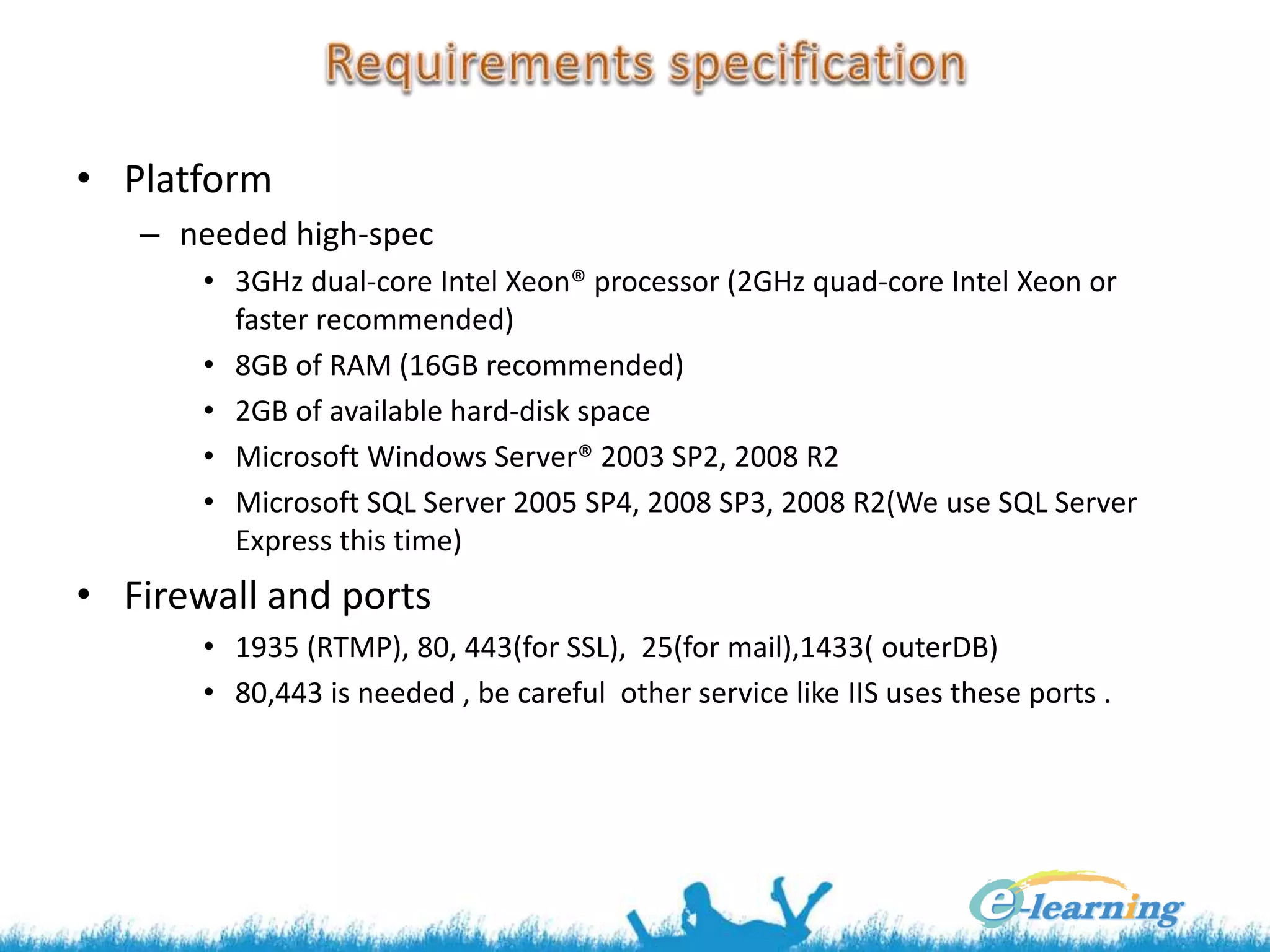
• Platform
– needed high-spec
• 3GHz dual-core Intel Xeon® processor (2GHz quad-core Intel Xeon or
faster recommended)
• 8GB of RAM (16GB recommended)
• 2GB of available hard-disk space
• Microsoft Windows Server® 2003 SP2, 2008 R2
• Microsoft SQL Server 2005 SP4, 2008 SP3, 2008 R2(We use SQL Server
Express this time)
• Firewall and ports
• 1935 (RTMP), 80, 443(for SSL), 25(for mail),1433( outerDB)
• 80,443 is needed , be careful other service like IIS uses these ports .
• Preparation
– Set SQL Server Server Authentication Mode to [SQL Server and
Windows Authentication mode]
– Make an SQL Server account Connect, Set the acccount's serverRoles
to public, sysadmin .
• Install
– Down load a license file .
– Make an administrator account .
– SQL Server database 'Breeze' was made .
– Set FQDN .
Browse 'Connect' as an administrator
You can use
Connect alone.
Point FQDN
Point FQDN
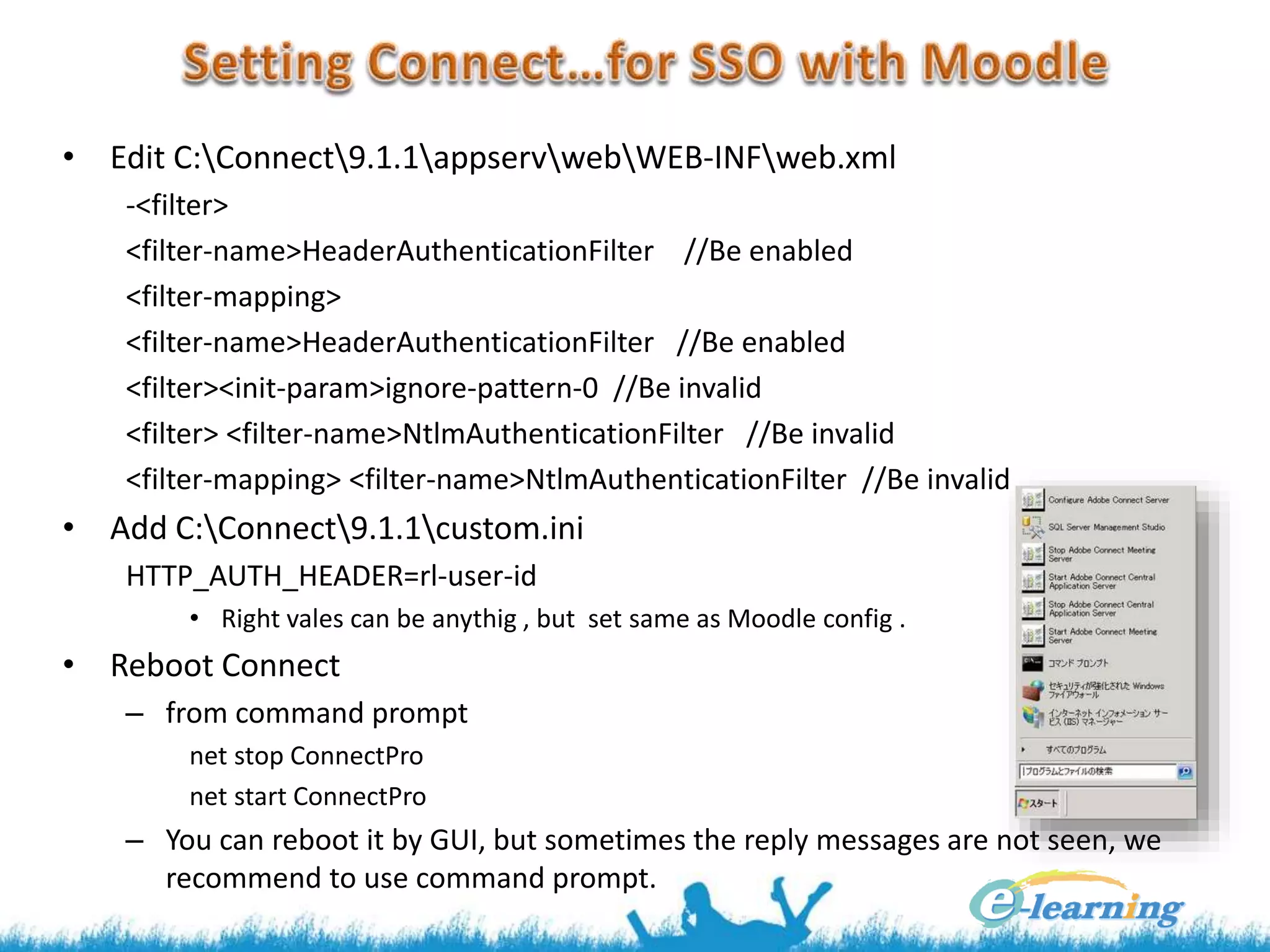
• Edit C:Connect9.1.1appservwebWEB-INFweb.xml
-<filter>
<filter-name>HeaderAuthenticationFilter //Be enabled
<filter-mapping>
<filter-name>HeaderAuthenticationFilter //Be enabled
<filter><init-param>ignore-pattern-0 //Be invalid
<filter> <filter-name>NtlmAuthenticationFilter //Be invalid
<filter-mapping> <filter-name>NtlmAuthenticationFilter //Be invalid
• Add C:Connect9.1.1custom.ini
HTTP_AUTH_HEADER=rl-user-id
• Right vales can be anythig , but set same as Moodle config .
• Reboot Connect
– from command prompt
net stop ConnectPro
net start ConnectPro
– You can reboot it by GUI, but sometimes the reply messages are not seen, we
recommend to use command prompt.
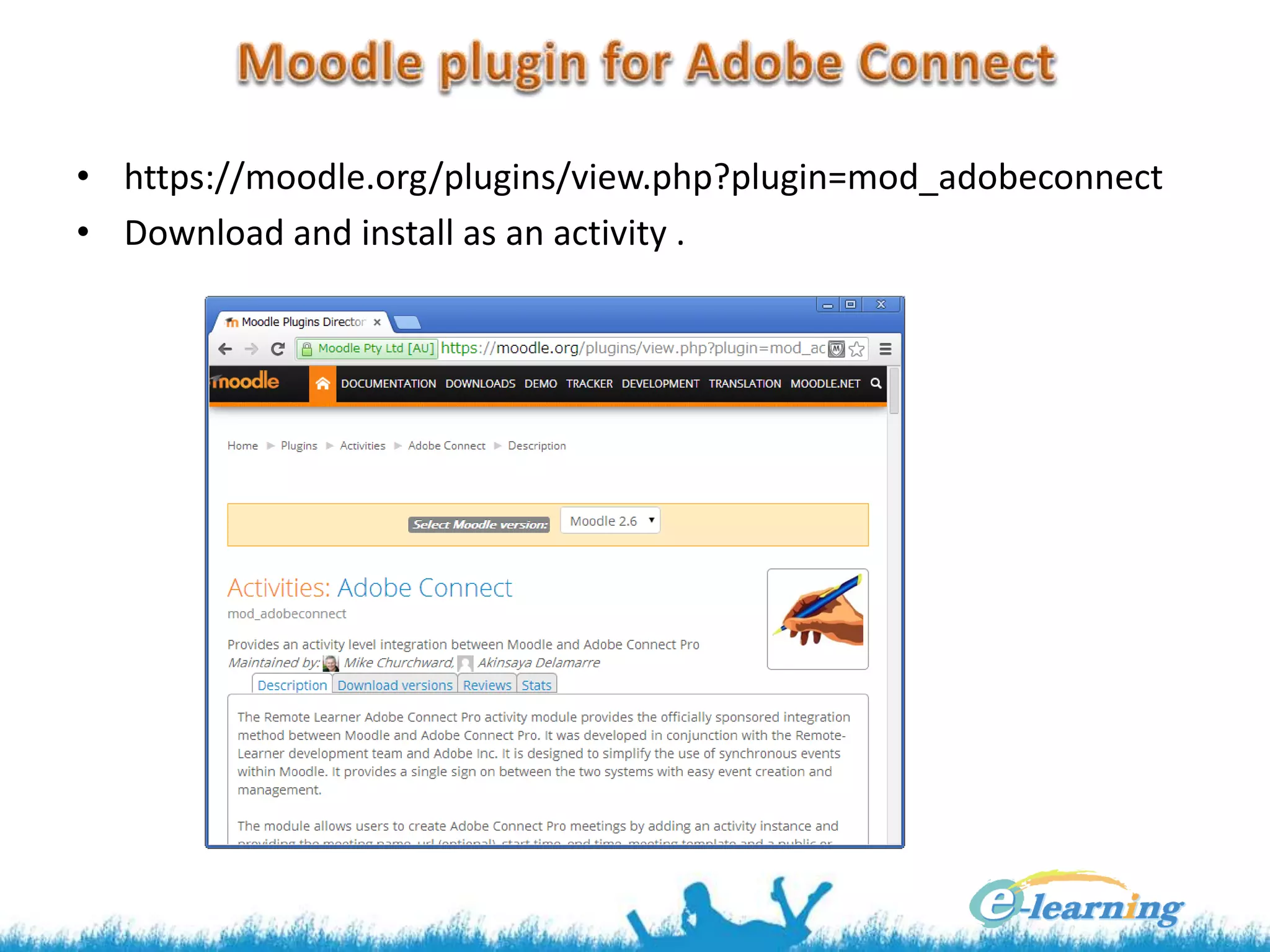
• https://moodle.org/plugins/view.php?plugin=mod_adobeconnect
• Download and install as an activity .
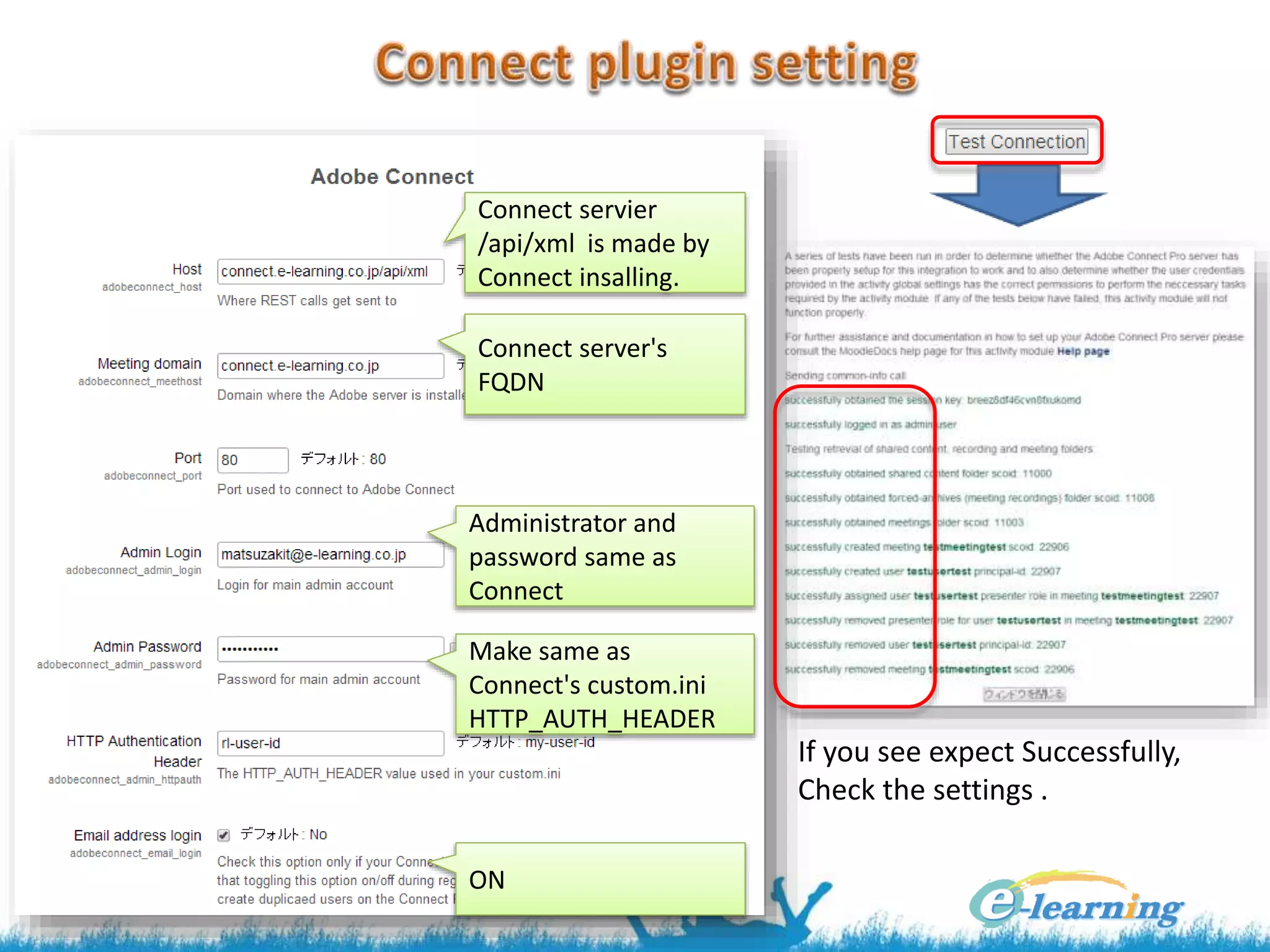
Connect servier
/api/xml is made by
Connect insalling.
Connect server's
FQDN
Administrator and
password same as
Connect
Make same as
Connect's custom.ini
HTTP_AUTH_HEADER
ON
If you see expect Successfully,
Check the settings .
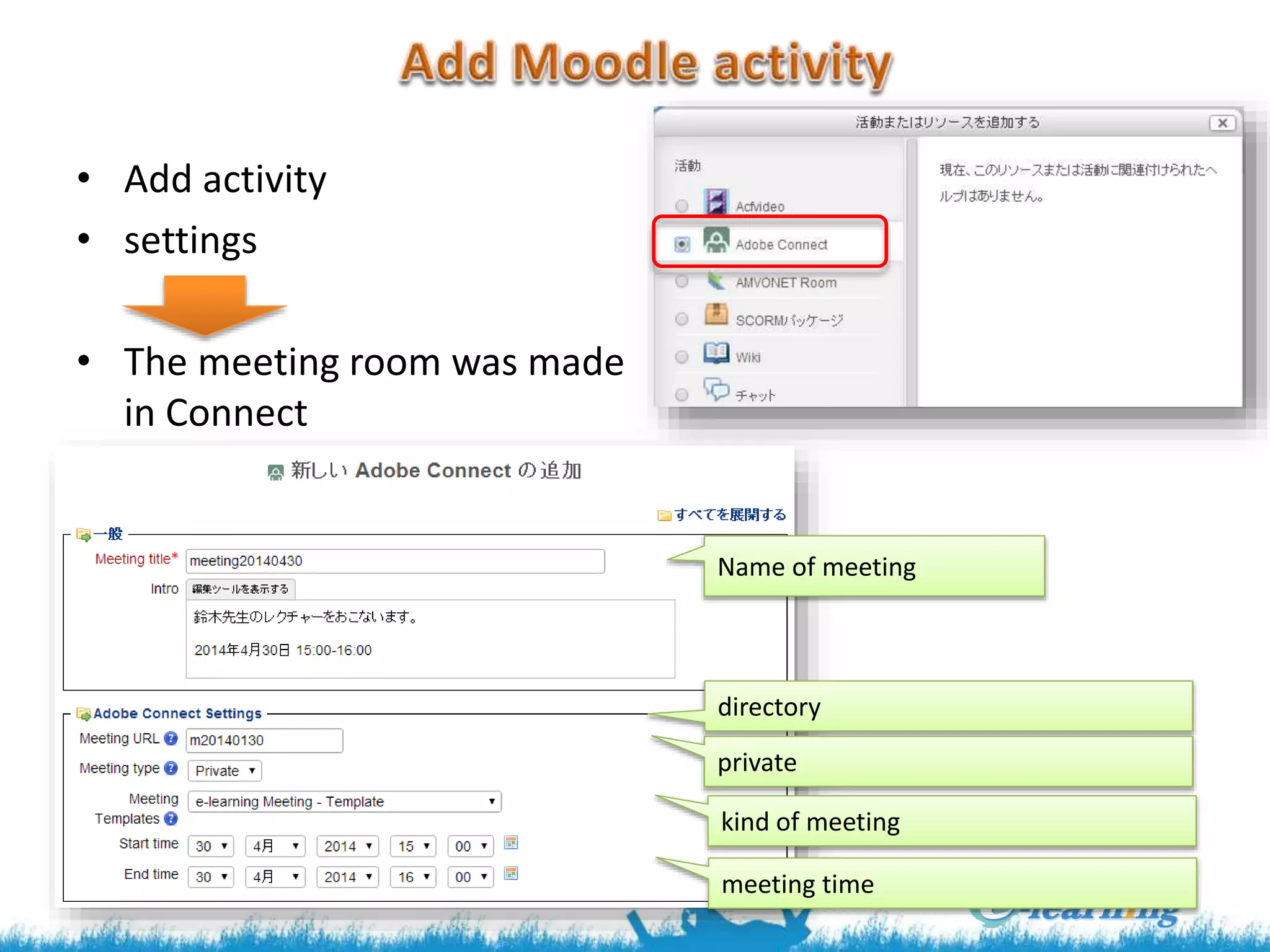
• Add activity
• settings
• The meeting room was made
in Connect
Name of meeting
directory
private
kind of meeting
meeting time
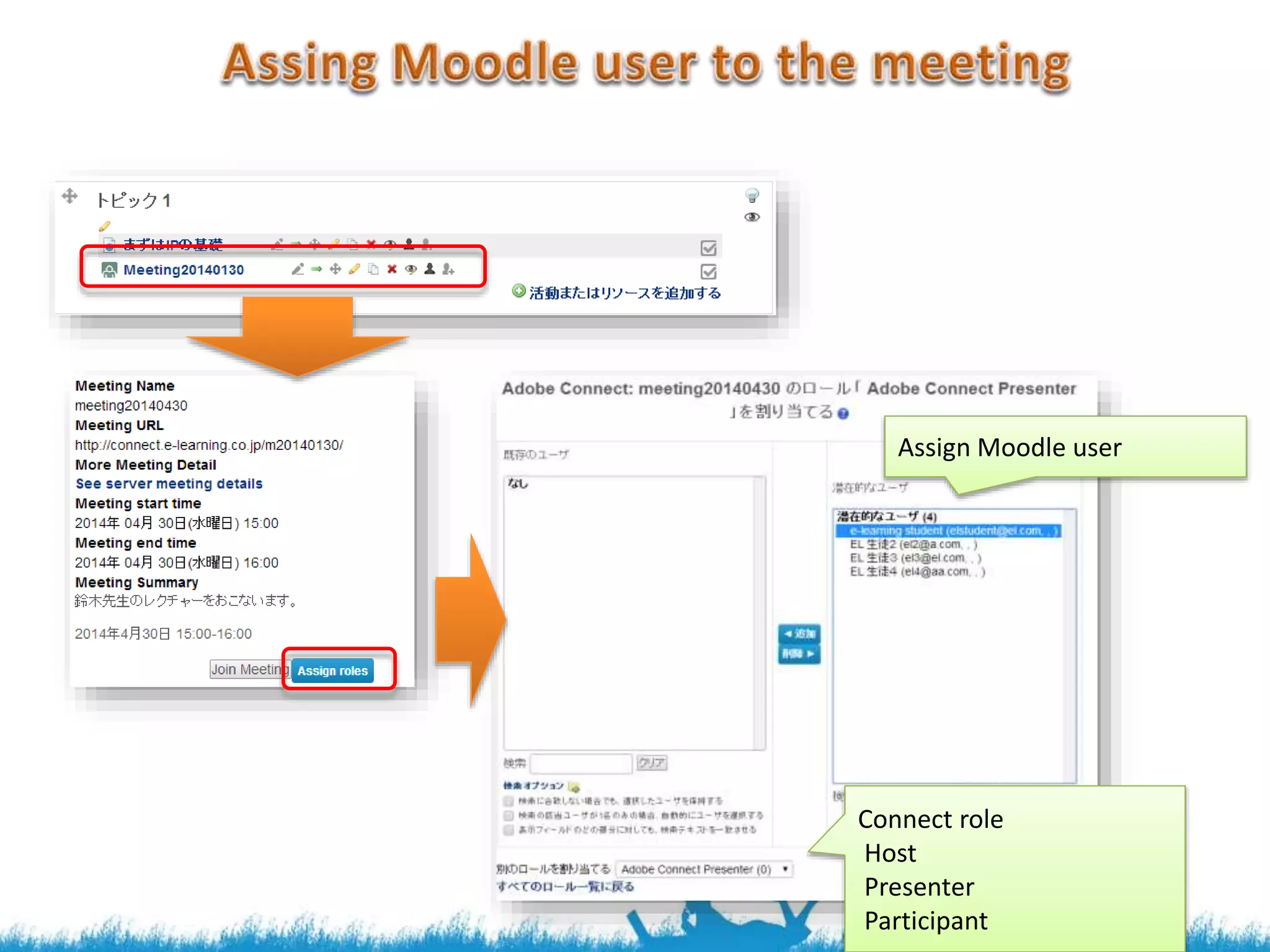
Connect role
Host
Presenter
Participant
Assign Moodle user
• There are some cautions, it may be a kind of Bug, it will or will not be fixed .
• my verification version
– Moodle 2.5.2+(Build:20131025)
– Adobe Connect 9.1.0.0
– Moodle plugin for Adobe Connect 2013022702
• 2 bytes meeting name
– Connect itself is OK
– But from the plugin , with the message such as wrong function, the meeting can not be
made .
• 2 bytes user name
– Connect itself is OK
– From the plugin , no [Assign roles] errors , but no users was not made in Connect, and
SSO doesn't succeed.
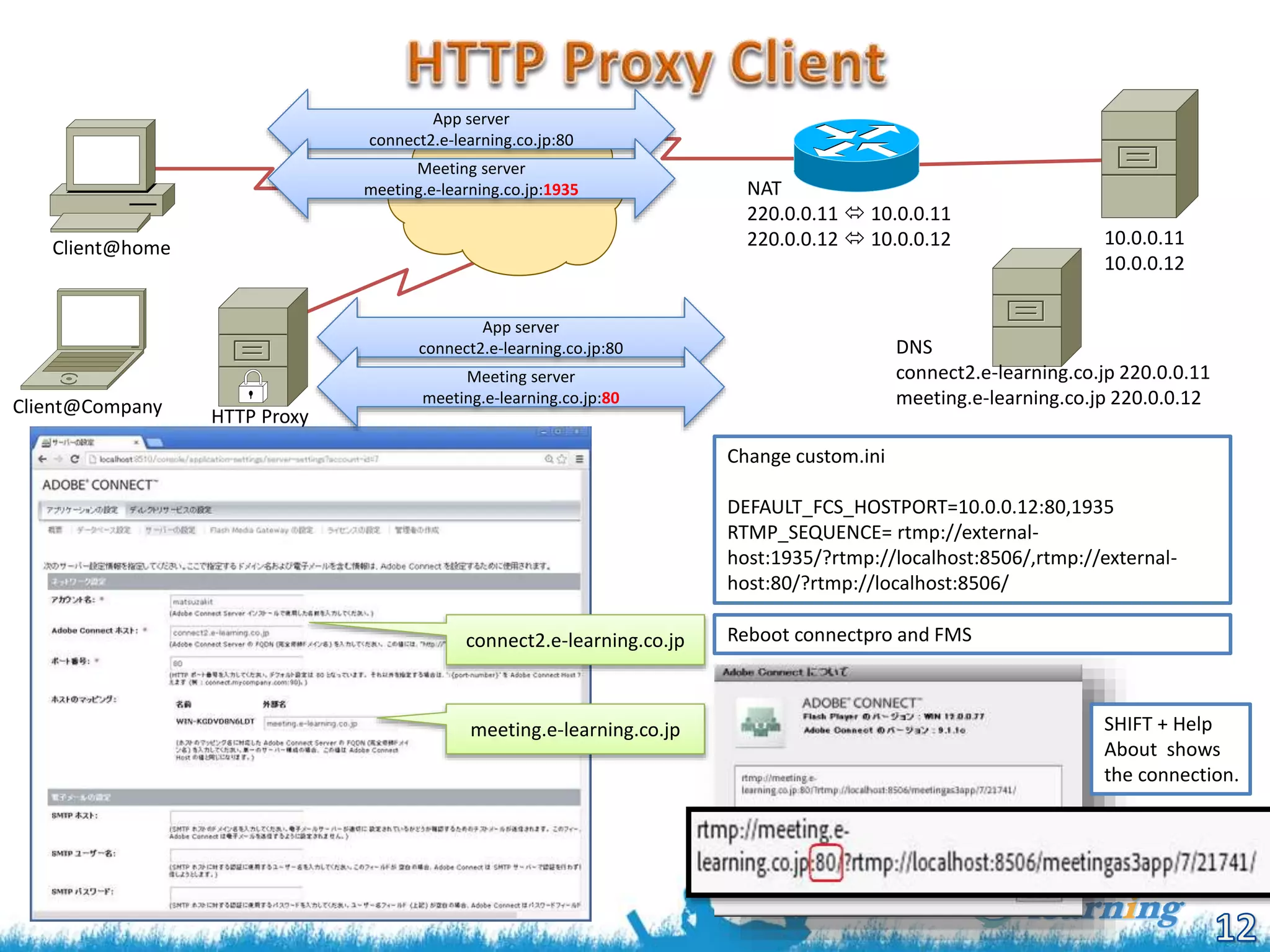
Client@home
Client@Company
NAT
220.0.0.11  10.0.0.11
220.0.0.12  10.0.0.12
DNS
connect2.e-learning.co.jp 220.0.0.11
meeting.e-learning.co.jp 220.0.0.12
10.0.0.11
10.0.0.12
connect2.e-learning.co.jp
meeting.e-learning.co.jp
Change custom.ini
DEFAULT_FCS_HOSTPORT=10.0.0.12:80,1935
RTMP_SEQUENCE= rtmp://external-
host:1935/?rtmp://localhost:8506/,rtmp://external-
host:80/?rtmp://localhost:8506/
Reboot connectpro and FMS
HTTP Proxy
App server
connect2.e-learning.co.jp:80
Meeting server
meeting.e-learning.co.jp:1935
App server
connect2.e-learning.co.jp:80
Meeting server
meeting.e-learning.co.jp:80
SHIFT + Help
About shows
the connection.
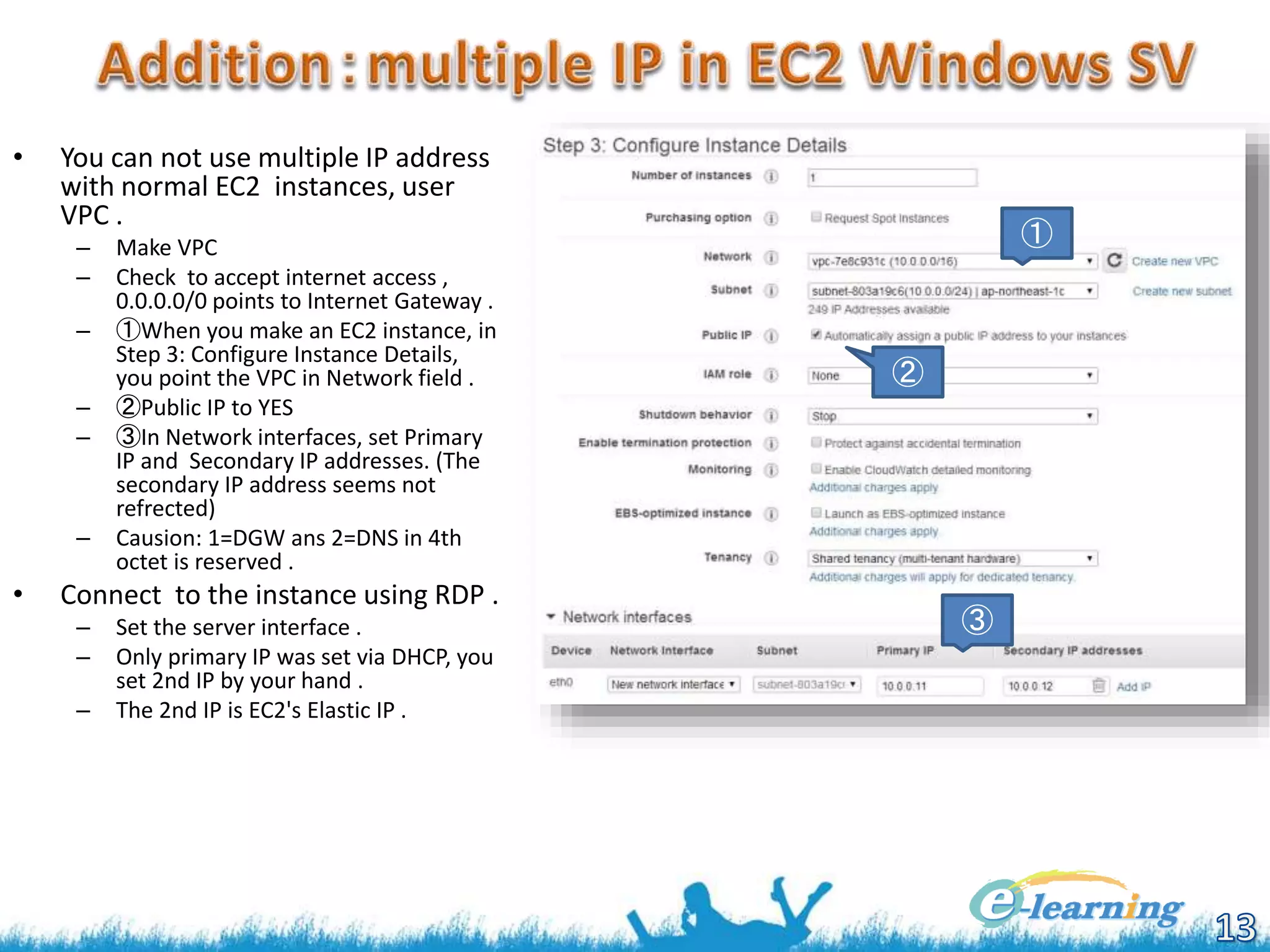
• You can not use multiple IP address
with normal EC2 instances, user
VPC .
– Make VPC
– Check to accept internet access ,
0.0.0.0/0 points to Internet Gateway .
– ①When you make an EC2 instance, in
Step 3: Configure Instance Details,
you point the VPC in Network field .
– ②Public IP to YES
– ③In Network interfaces, set Primary
IP and Secondary IP addresses. (The
secondary IP address seems not
refrected)
– Causion: 1=DGW ans 2=DNS in 4th
octet is reserved .
• Connect to the instance using RDP .
– Set the server interface .
– Only primary IP was set via DHCP, you
set 2nd IP by your hand .
– The 2nd IP is EC2's Elastic IP .
①
②
③
• Moodle
– http://www.e-learning.co.jp
– e-learning corp.,
– osslms@e-learning.co.jp

Moodle + Adobe Connect

  • 1.
  • 2.
    Adobe® Connect™ isa web conferencing platform for web meetings, eLearning, and webinars. It powers mission critical web conferencing solutions end-to-end, on virtually any device, and enables organizations from leading corporations to the U.S. Department of Defense to fundamentally improve productivity.(Adobe HP) On-premises: installing own server (This time we use this version ) SaaS version : using Connect SaaS Moodle (acronym for Modular Object-Oriented Dynamic Learning Environment) is a free software e-learning platform, also known as a Learning Management System, or Virtual Learning Environment (VLE). As of June 2013 it had a user base of 83,008 registered and verified sites, serving 70,696,570 users in 7.5+ million courses with 1.2+ million teachers.[3] (wikipedia) Joining Connct from Moodle directory Single Sign On (SSO) From Moodle, you can set Connect settings
  • 3.
    • Platform – neededhigh-spec • 3GHz dual-core Intel Xeon® processor (2GHz quad-core Intel Xeon or faster recommended) • 8GB of RAM (16GB recommended) • 2GB of available hard-disk space • Microsoft Windows Server® 2003 SP2, 2008 R2 • Microsoft SQL Server 2005 SP4, 2008 SP3, 2008 R2(We use SQL Server Express this time) • Firewall and ports • 1935 (RTMP), 80, 443(for SSL), 25(for mail),1433( outerDB) • 80,443 is needed , be careful other service like IIS uses these ports .
  • 4.
    • Preparation – SetSQL Server Server Authentication Mode to [SQL Server and Windows Authentication mode] – Make an SQL Server account Connect, Set the acccount's serverRoles to public, sysadmin . • Install – Down load a license file . – Make an administrator account . – SQL Server database 'Breeze' was made . – Set FQDN . Browse 'Connect' as an administrator You can use Connect alone. Point FQDN Point FQDN
  • 5.
    • Edit C:Connect9.1.1appservwebWEB-INFweb.xml -<filter> <filter-name>HeaderAuthenticationFilter//Be enabled <filter-mapping> <filter-name>HeaderAuthenticationFilter //Be enabled <filter><init-param>ignore-pattern-0 //Be invalid <filter> <filter-name>NtlmAuthenticationFilter //Be invalid <filter-mapping> <filter-name>NtlmAuthenticationFilter //Be invalid • Add C:Connect9.1.1custom.ini HTTP_AUTH_HEADER=rl-user-id • Right vales can be anythig , but set same as Moodle config . • Reboot Connect – from command prompt net stop ConnectPro net start ConnectPro – You can reboot it by GUI, but sometimes the reply messages are not seen, we recommend to use command prompt.
  • 6.
  • 7.
    Connect servier /api/xml ismade by Connect insalling. Connect server's FQDN Administrator and password same as Connect Make same as Connect's custom.ini HTTP_AUTH_HEADER ON If you see expect Successfully, Check the settings .
  • 8.
    • Add activity •settings • The meeting room was made in Connect Name of meeting directory private kind of meeting meeting time
  • 9.
  • 11.
    • There aresome cautions, it may be a kind of Bug, it will or will not be fixed . • my verification version – Moodle 2.5.2+(Build:20131025) – Adobe Connect 9.1.0.0 – Moodle plugin for Adobe Connect 2013022702 • 2 bytes meeting name – Connect itself is OK – But from the plugin , with the message such as wrong function, the meeting can not be made . • 2 bytes user name – Connect itself is OK – From the plugin , no [Assign roles] errors , but no users was not made in Connect, and SSO doesn't succeed.
  • 12.
    Client@home Client@Company NAT 220.0.0.11  10.0.0.11 220.0.0.12 10.0.0.12 DNS connect2.e-learning.co.jp 220.0.0.11 meeting.e-learning.co.jp 220.0.0.12 10.0.0.11 10.0.0.12 connect2.e-learning.co.jp meeting.e-learning.co.jp Change custom.ini DEFAULT_FCS_HOSTPORT=10.0.0.12:80,1935 RTMP_SEQUENCE= rtmp://external- host:1935/?rtmp://localhost:8506/,rtmp://external- host:80/?rtmp://localhost:8506/ Reboot connectpro and FMS HTTP Proxy App server connect2.e-learning.co.jp:80 Meeting server meeting.e-learning.co.jp:1935 App server connect2.e-learning.co.jp:80 Meeting server meeting.e-learning.co.jp:80 SHIFT + Help About shows the connection.
  • 13.
    • You cannot use multiple IP address with normal EC2 instances, user VPC . – Make VPC – Check to accept internet access , 0.0.0.0/0 points to Internet Gateway . – ①When you make an EC2 instance, in Step 3: Configure Instance Details, you point the VPC in Network field . – ②Public IP to YES – ③In Network interfaces, set Primary IP and Secondary IP addresses. (The secondary IP address seems not refrected) – Causion: 1=DGW ans 2=DNS in 4th octet is reserved . • Connect to the instance using RDP . – Set the server interface . – Only primary IP was set via DHCP, you set 2nd IP by your hand . – The 2nd IP is EC2's Elastic IP . ① ② ③
  • 14.
    • Moodle – http://www.e-learning.co.jp –e-learning corp., – osslms@e-learning.co.jp