www.starlinkindia.com
USER MANUAL
MOBILE
LEAVE MANAGEMENT
SOFTWARE
www.starlinkindia.com
INDEX:
INTRODUCTION
1.) USER
 Profile
 Holiday List
 Mobile Attendance Punch
 Leave Manage
 Gate Pass Manage
 Punch Manage
 Mobile Attendance Manage
 Salary Slip
 Change Password
 Logout
2.) SUPER USER
 Profile
 Holiday List
 Leave Manage
 Gate Pass Manage
 Punch Manage
 Mobile Attendance Manage
 Salary Slip
 Employee Reports
 Change Password
 Logout
www.starlinkindia.com
3.) ADMIN
 Create User
 Configuration
 Leave Master
 Salary Manage
 News Manage
 Leave Status
 Import User
 Change Password
 Logout
4.) FORGET PASSWORD
www.starlinkindia.com
INTRODUCTION:
Mobile Leave Management Software enables you to get the status of the leave,
view daily attendance record, and to apply for leaves through your mobile
phones.
It facilitates you to:
 Submit the online request for leave application.
 Check the applied leave status and the leave balance.
 View the list of holidays offered by the company.
 View attendance record.
This application allows the following different types of user with different
privileges:
 USER
 SUPER USER(REPORTING USER)
 ADMIN
 USER is created by ADMIN. a user can:
 Apply leave online to his/her Super User (Reporting User).
 Check their attendance.
 View holidays defined by the company.
 SUPER USER has the authority to approve/reject leaves and check monthly
reports of the users who reports to him/her.
www.starlinkindia.com
 ADMIN is a system defined user and has the following rights, he can:
 Approve/reject leaves of any user.
 Create/delete/update user’s account that access leave management
system.
 Create user accounts through excel sheet dynamically.
Working of Mobile Leave Management Software:
 Initially, admin will create the users according to the hierarchy, who will
then have access to the Mobile Leave Management Software. All the
employees will be USERs; Reporting Manager will be given SUPER USER’s
rights depending upon the hierarchy.
 Super Users can view employee details who reports to him/her.
 Users can apply leaves online.
 They can view holidays of the current calendar year.
 They can check status of the applied leaves, whether it has been approved
or not.
 They can check their attendance record in calendar or grid view.
 Option to change the password.
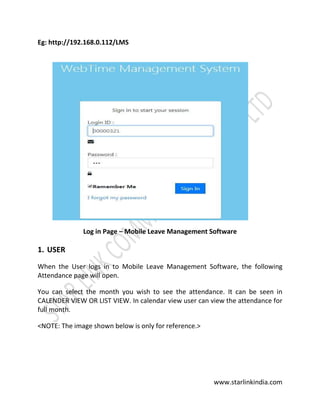
URL for Login of USER/SUPER USER/GATE USER/ADMIN:
Run the browser (for e.g., internet explorer) and type http://<IPofPC>*/mlms in
the address bar.
*<IP of PC> is the IP on which Mobile Leave Management Application is
installed.
www.starlinkindia.com
Eg: http://192.168.0.112/LMS
Log in Page – Mobile Leave Management Software
1. USER
When the User logs in to Mobile Leave Management Software, the following
Attendance page will open.
You can select the month you wish to see the attendance. It can be seen in
CALENDER VIEW OR LIST VIEW. In calendar view user can view the attendance for
full month.
<NOTE: The image shown below is only for reference.>
www.starlinkindia.com
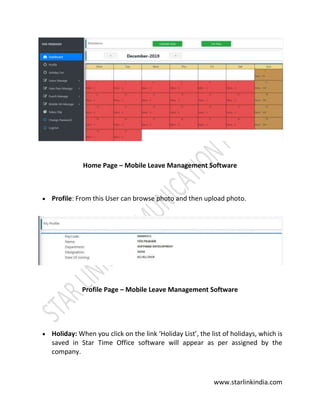
Home Page – Mobile Leave Management Software
 Profile: From this User can browse photo and then upload photo.
Profile Page – Mobile Leave Management Software
 Holiday: When you click on the link ‘Holiday List’, the list of holidays, which is
saved in Star Time Office software will appear as per assigned by the
company.
www.starlinkindia.com
<NOTE: Different holidays can be set for different locations or departments
or their combinations.>
Public Holiday List Page - Mobile Leave Management Software
 Mobile Attendance Punch: when a user log in to their mobile attendance app,
their office details appears on the screen. Menu option is available on the top
left corner of the app.
Mobile Home Page- Mobile Leave Management Software
www.starlinkindia.com
On clicking the menu option, you will receive the option “Mark Punch” to mark
the attendance.
Mark Punch- Mobile Leave Management Software
On clicking it, user’s latitudinal and longitudinal details along with the date and
time appears, click on the “PUNCH POST” to register your current day’s
attendance through your mobile phone.
www.starlinkindia.com
 Leave Manage:
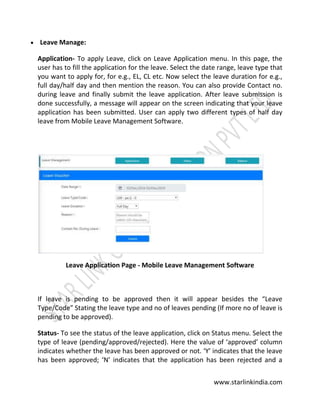
Application- To apply Leave, click on Leave Application menu. In this page, the
user has to fill the application for the leave. Select the date range, leave type that
you want to apply for, for e.g., EL, CL etc. Now select the leave duration for e.g.,
full day/half day and then mention the reason. You can also provide Contact no.
during leave and finally submit the leave application. After leave submission is
done successfully, a message will appear on the screen indicating that your leave
application has been submitted. User can apply two different types of half day
leave from Mobile Leave Management Software.
Leave Application Page - Mobile Leave Management Software
If leave is pending to be approved then it will appear besides the “Leave
Type/Code” Stating the leave type and no of leaves pending (If more no of leave is
pending to be approved).
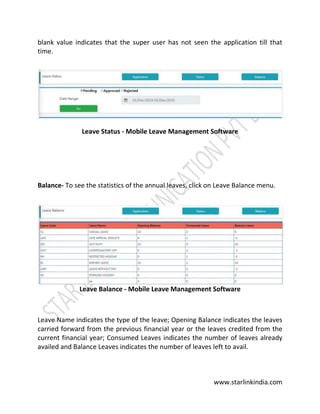
Status- To see the status of the leave application, click on Status menu. Select the
type of leave (pending/approved/rejected). Here the value of ‘approved’ column
indicates whether the leave has been approved or not. ‘Y’ indicates that the leave
has been approved; ‘N’ indicates that the application has been rejected and a
www.starlinkindia.com
blank value indicates that the super user has not seen the application till that
time.
Leave Status - Mobile Leave Management Software
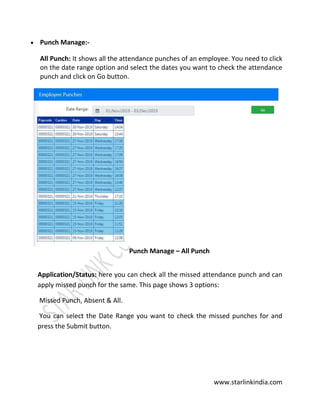
Balance- To see the statistics of the annual leaves, click on Leave Balance menu.
Leave Balance - Mobile Leave Management Software
Leave Name indicates the type of the leave; Opening Balance indicates the leaves
carried forward from the previous financial year or the leaves credited from the
current financial year; Consumed Leaves indicates the number of leaves already
availed and Balance Leaves indicates the number of leaves left to avail.
www.starlinkindia.com
 Gate Pass Manage:
Application: gate pass application feature is used to create a leave pass leave for
hourly purpose. You need to select the date in For Date column, Out Time & in
Time options needs to be selected for the duration you want to go out, purpose
of visit & vehicle, weather Official or Personal and the reason can be mentioned.
Lastly you can submit the application or you can rest it to fill it again.
Gate Pass Application – Mobile Leave Management Software
Status: gate pass status can be checked by clicking the status option. Desired
out and in time can be entered and clicking on the search button will show you
the status of the gate pass.
Gate Pass Status – Mobile Leave Management Software
www.starlinkindia.com
 Punch Manage:-
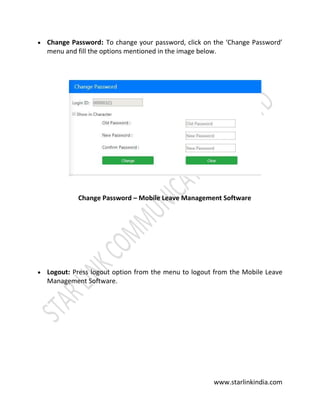
All Punch: It shows all the attendance punches of an employee. You need to click
on the date range option and select the dates you want to check the attendance
punch and click on Go button.
Punch Manage – All Punch
Application/Status: here you can check all the missed attendance punch and can
apply missed punch for the same. This page shows 3 options:
Missed Punch, Absent & All.
You can select the Date Range you want to check the missed punches for and
press the Submit button.
www.starlinkindia.com
Punch Manage – Application/Status
Apply Missed Punch: to apply for missed punch, your employee id will appear
automatically, enter the Punch Date you missed, Punch In Time Office, Miss Punch,
Actual Time, Reason and submit it. It will be sent to the concerned Reporting
Manager for Approval/Rejection.
Apply Missed Punch
www.starlinkindia.com
 Mobile Attendance Manage:-
Mobile Attendance Punch List: this option helps the employees to view their
attendance with their mobile phones from anywhere.
Mobile Attendance Punch List – Mobile Leave Management Software
It consists of 3 more options:
Authorized Location Punch List: which shows the authorized area punch list of an
employee
Authorized Location Punch List- Mobile Leave Management Software
www.starlinkindia.com
Unauthorized Punch List: it shows the list of all the unauthorized punch list of
employees. It also shows the Latitudinal & Longitudinal codes from where the
attendance has been marked by the mobile phone.
Unauthorized Punch List – Mobile Leave Management Software
Authorized Location List:It shows an employee’s authorized area for attendance
punch. This feature has options which define the Location Name, Location
Address, Date, Time, Longitudinal and Latitudinal codes & the Radius under which
the employee is authorized to punch the attendance.
Authorized Location List – Mobile Leave Management Software
www.starlinkindia.com
 Salary Slip: this option keeps the salary slip of the user. User can check any of
their past salary slip by selecting the month and year option and click the
generate button on the right side. A new pop up screen will come showing the
salary slip.
www.starlinkindia.com
 Change Password: To change your password, click on the ‘Change Password’
menu and fill the options mentioned in the image below.
Change Password – Mobile Leave Management Software
 Logout: Press logout option from the menu to logout from the Mobile Leave
Management Software.
www.starlinkindia.com
2. SUPER USER:
For Super User some additional privileges have been provided in addition to all
options present in USER log in.
When the Super User logs in to the Application, the following home page will
appear:
Super User Dashboard- Mobile Leave Management Software
 Leave Manage:-
Approve Leaves: this menu allows the Super User to approve/reject
employee’s leaves. Pending, approved & rejected requests can be searched
with the employee’s paycode & Name
Leave Request-Approve/Reject – Mobile Leave Management Software
www.starlinkindia.com
 Gate pass Manage:-
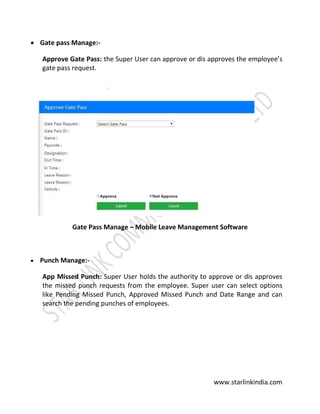
Approve Gate Pass: the Super User can approve or dis approves the employee’s
gate pass request.
Gate Pass Manage – Mobile Leave Management Software
 Punch Manage:-
App Missed Punch: Super User holds the authority to approve or dis approves
the missed punch requests from the employee. Super user can select options
like Pending Missed Punch, Approved Missed Punch and Date Range and can
search the pending punches of employees.
www.starlinkindia.com
App Missed punch – Mobile Leave Management Software
 Mobile Attendance Manage:-
Punch Location Master: a super user can edit or delete the assigned locations.
Information like Name, Address, Latitude, Longitude, Radius & Active status is
shown.
Punch Location Master- Mobile Leave Management Software
To add a new Location Master, click on the New button, a new screen will show
you the option Location ID, Location Name, Address, Latitude, Longitude, Radius,
check box to check if location is Active or not and save. A new location will appear
in the punch location master option.
www.starlinkindia.com
Add New Punch Location Master – Mobile Leave Management Software
Employee Location Mapping: super user can assign or remove locations for the
employees with this feature. Dates can be selected along with different locations
for every employee to assign them the work task for specific location. In a similar
way, locations can be deleted as well.
Employee Location Mapping – Mobile Leave Management Software
www.starlinkindia.com
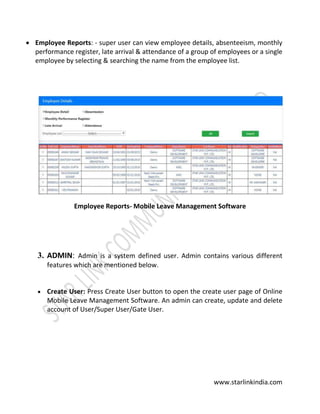
 Employee Reports: - super user can view employee details, absenteeism, monthly
performance register, late arrival & attendance of a group of employees or a single
employee by selecting & searching the name from the employee list.
Employee Reports- Mobile Leave Management Software
3. ADMIN: Admin is a system defined user. Admin contains various different
features which are mentioned below.
 Create User: Press Create User button to open the create user page of Online
Mobile Leave Management Software. An admin can create, update and delete
account of User/Super User/Gate User.
www.starlinkindia.com
Create User- Mobile Leave Management Software
a. Select “Unregistered User” from drop-down list. There are 3 options for
searching users in WebTime Management, so Search Unregistered user for
Creation of user.
Create Un-registered User – Mobile Leave Management Software
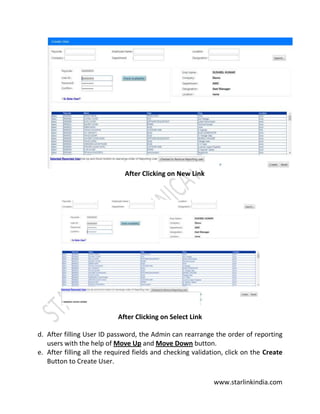
b. Click on New link in Grid view
c. Select Reporting User from click on select link, there is also an option for
search Reporting user.
www.starlinkindia.com
After Clicking on New Link
After Clicking on Select Link
d. After filling User ID password, the Admin can rearrange the order of reporting
users with the help of Move Up and Move Down button.
e. After filling all the required fields and checking validation, click on the Create
Button to Create User.
www.starlinkindia.com
To Edit Existing user: to edit a user; select the user for editing by clicking on
the Edit link.
To Edit a User
After clicking on edit link
Update all fields then click on Create button to save.
How to delete a user:
www.starlinkindia.com
 Configuration: - From this option, Admin can set the following parameters:
Approval Type- There are two options for Approval Type which are as follows:-
1. Single Level Approval- From this option when User Apply Leave and any of
his Reporting Person approves Leave then Leave will Approved.
2. Step by Step Approval- When this option is selected, then, on applying a
leave if there are more than one Reporting Persons for the User, this Leave
will be forwarded to his Lower Reporting Person first. If Lower Reporting
Person approves the leave, then it will be forwarded to the Higher
Reporting Person. If Higher Reporting Person approves this Leave, it means
that the Leave has been approved. If the Higher Reporting Person rejects
the Leave, then it will be rejected.
www.starlinkindia.com
Apart from it, other options like Server I.P, Port No. Mail from, Password,
Admin Mail ID, Max Approval Days, check box for Gate Pass (check if gate
pass allow), Salary Slip (check if salary slip allow), Punch Request (check if
punch request allow), Mobile Attendance Manage (check if mobile
attendance allow), Geo Fencing Enable (check if mobile attendance (geo
fencing) allow), Leave Apply Date Range can be selected.
Configuration- Mobile Leave Management Software
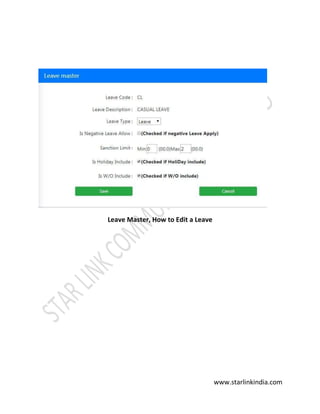
 Leave Master: From this option Admin can edit any Leave which is added/
created in Time Office Software.
www.starlinkindia.com
Leave Master – Mobile Leave Management Software
To edit leaves: click on the edit option, admin can change the following fields:
Leave Type- Admin can change type of Leave such as to change as Leave, Present,
Absent.
Is Negative Leave Allow- From this option Admin can give permission to apply
negative leave to the entire use.
Sanction Limit- From this option Admin can decide Max and Min Leave to apply
for LMS User.
Is Holiday Include- From this option Admin can decide for LMS User to apply
Leave on Holiday or not.
Is W/O Include- From this option Admin can decide for LMS User to apply Leave
on weekly off or not.
www.starlinkindia.com
Leave Master, How to Edit a Leave
www.starlinkindia.com
 Salary Manage: - this option contains salary slips for all the months in a year.
Admin can search any month’s salary slips. Admin can save or delete the salary
slip as well.
Salary Manage- Mobile Leave Management Software
www.starlinkindia.com
 News Manage: - in this section, admin can add, edit & delete the company
related news like employee’s birthdays, festival greetings, company declared
holidays and others.
News Manage – Mobile Leave Management Software
 Leave Status: From this option Admin can see Pending, Approved, and
Rejected Leave of selected employees or all employees of the particular year.
www.starlinkindia.com
Leave Status – Mobile Leave Management Software
 Import User: Click on the Import User button to open import user page. If you
want to create users from excel sheet then you can import excel sheet from
this page and this option can create only the user and super user.
For excel format click on Get Excel Format to generate and save this. Fill all the
details accordingly.
Import User- Mobile Leave Management Software
 Change Password: From this option Admin can change Password.
www.starlinkindia.com
Change Password-Mobile Leave Management Software
 Logout: Press Logout option to escape from the Online Mobile Leave
Management Software.
4. FORGET PASSWORD: If a User, Super user has forgotten their Mobile Leave
Management’s password, then they can click on the link “Forgot Password”
displayed on the Login Page to retrieve the password.
When any of the above mentioned users clicks on the “Forgot Password” Link
then the following screen will appear.
www.starlinkindia.com
Forget Password – Mobile Leave Management Software
User can type their Employee Login ID and the Email ID associated with it.
As soon he/she clicks on the Submit button then an email will be sent to the
respective Email ID with the Existing Password.
**THE END**

Mobile Leave Management | WebTime App

  • 1.
  • 2.
    www.starlinkindia.com INDEX: INTRODUCTION 1.) USER  Profile Holiday List  Mobile Attendance Punch  Leave Manage  Gate Pass Manage  Punch Manage  Mobile Attendance Manage  Salary Slip  Change Password  Logout 2.) SUPER USER  Profile  Holiday List  Leave Manage  Gate Pass Manage  Punch Manage  Mobile Attendance Manage  Salary Slip  Employee Reports  Change Password  Logout
  • 3.
    www.starlinkindia.com 3.) ADMIN  CreateUser  Configuration  Leave Master  Salary Manage  News Manage  Leave Status  Import User  Change Password  Logout 4.) FORGET PASSWORD
  • 4.
    www.starlinkindia.com INTRODUCTION: Mobile Leave ManagementSoftware enables you to get the status of the leave, view daily attendance record, and to apply for leaves through your mobile phones. It facilitates you to:  Submit the online request for leave application.  Check the applied leave status and the leave balance.  View the list of holidays offered by the company.  View attendance record. This application allows the following different types of user with different privileges:  USER  SUPER USER(REPORTING USER)  ADMIN  USER is created by ADMIN. a user can:  Apply leave online to his/her Super User (Reporting User).  Check their attendance.  View holidays defined by the company.  SUPER USER has the authority to approve/reject leaves and check monthly reports of the users who reports to him/her.
  • 5.
    www.starlinkindia.com  ADMIN isa system defined user and has the following rights, he can:  Approve/reject leaves of any user.  Create/delete/update user’s account that access leave management system.  Create user accounts through excel sheet dynamically. Working of Mobile Leave Management Software:  Initially, admin will create the users according to the hierarchy, who will then have access to the Mobile Leave Management Software. All the employees will be USERs; Reporting Manager will be given SUPER USER’s rights depending upon the hierarchy.  Super Users can view employee details who reports to him/her.  Users can apply leaves online.  They can view holidays of the current calendar year.  They can check status of the applied leaves, whether it has been approved or not.  They can check their attendance record in calendar or grid view.  Option to change the password. URL for Login of USER/SUPER USER/GATE USER/ADMIN: Run the browser (for e.g., internet explorer) and type http://<IPofPC>*/mlms in the address bar. *<IP of PC> is the IP on which Mobile Leave Management Application is installed.
  • 6.
    www.starlinkindia.com Eg: http://192.168.0.112/LMS Log inPage – Mobile Leave Management Software 1. USER When the User logs in to Mobile Leave Management Software, the following Attendance page will open. You can select the month you wish to see the attendance. It can be seen in CALENDER VIEW OR LIST VIEW. In calendar view user can view the attendance for full month. <NOTE: The image shown below is only for reference.>
  • 7.
    www.starlinkindia.com Home Page –Mobile Leave Management Software  Profile: From this User can browse photo and then upload photo. Profile Page – Mobile Leave Management Software  Holiday: When you click on the link ‘Holiday List’, the list of holidays, which is saved in Star Time Office software will appear as per assigned by the company.
  • 8.
    www.starlinkindia.com <NOTE: Different holidayscan be set for different locations or departments or their combinations.> Public Holiday List Page - Mobile Leave Management Software  Mobile Attendance Punch: when a user log in to their mobile attendance app, their office details appears on the screen. Menu option is available on the top left corner of the app. Mobile Home Page- Mobile Leave Management Software
  • 9.
    www.starlinkindia.com On clicking themenu option, you will receive the option “Mark Punch” to mark the attendance. Mark Punch- Mobile Leave Management Software On clicking it, user’s latitudinal and longitudinal details along with the date and time appears, click on the “PUNCH POST” to register your current day’s attendance through your mobile phone.
  • 10.
    www.starlinkindia.com  Leave Manage: Application-To apply Leave, click on Leave Application menu. In this page, the user has to fill the application for the leave. Select the date range, leave type that you want to apply for, for e.g., EL, CL etc. Now select the leave duration for e.g., full day/half day and then mention the reason. You can also provide Contact no. during leave and finally submit the leave application. After leave submission is done successfully, a message will appear on the screen indicating that your leave application has been submitted. User can apply two different types of half day leave from Mobile Leave Management Software. Leave Application Page - Mobile Leave Management Software If leave is pending to be approved then it will appear besides the “Leave Type/Code” Stating the leave type and no of leaves pending (If more no of leave is pending to be approved). Status- To see the status of the leave application, click on Status menu. Select the type of leave (pending/approved/rejected). Here the value of ‘approved’ column indicates whether the leave has been approved or not. ‘Y’ indicates that the leave has been approved; ‘N’ indicates that the application has been rejected and a
  • 11.
    www.starlinkindia.com blank value indicatesthat the super user has not seen the application till that time. Leave Status - Mobile Leave Management Software Balance- To see the statistics of the annual leaves, click on Leave Balance menu. Leave Balance - Mobile Leave Management Software Leave Name indicates the type of the leave; Opening Balance indicates the leaves carried forward from the previous financial year or the leaves credited from the current financial year; Consumed Leaves indicates the number of leaves already availed and Balance Leaves indicates the number of leaves left to avail.
  • 12.
    www.starlinkindia.com  Gate PassManage: Application: gate pass application feature is used to create a leave pass leave for hourly purpose. You need to select the date in For Date column, Out Time & in Time options needs to be selected for the duration you want to go out, purpose of visit & vehicle, weather Official or Personal and the reason can be mentioned. Lastly you can submit the application or you can rest it to fill it again. Gate Pass Application – Mobile Leave Management Software Status: gate pass status can be checked by clicking the status option. Desired out and in time can be entered and clicking on the search button will show you the status of the gate pass. Gate Pass Status – Mobile Leave Management Software
  • 13.
    www.starlinkindia.com  Punch Manage:- AllPunch: It shows all the attendance punches of an employee. You need to click on the date range option and select the dates you want to check the attendance punch and click on Go button. Punch Manage – All Punch Application/Status: here you can check all the missed attendance punch and can apply missed punch for the same. This page shows 3 options: Missed Punch, Absent & All. You can select the Date Range you want to check the missed punches for and press the Submit button.
  • 14.
    www.starlinkindia.com Punch Manage –Application/Status Apply Missed Punch: to apply for missed punch, your employee id will appear automatically, enter the Punch Date you missed, Punch In Time Office, Miss Punch, Actual Time, Reason and submit it. It will be sent to the concerned Reporting Manager for Approval/Rejection. Apply Missed Punch
  • 15.
    www.starlinkindia.com  Mobile AttendanceManage:- Mobile Attendance Punch List: this option helps the employees to view their attendance with their mobile phones from anywhere. Mobile Attendance Punch List – Mobile Leave Management Software It consists of 3 more options: Authorized Location Punch List: which shows the authorized area punch list of an employee Authorized Location Punch List- Mobile Leave Management Software
  • 16.
    www.starlinkindia.com Unauthorized Punch List:it shows the list of all the unauthorized punch list of employees. It also shows the Latitudinal & Longitudinal codes from where the attendance has been marked by the mobile phone. Unauthorized Punch List – Mobile Leave Management Software Authorized Location List:It shows an employee’s authorized area for attendance punch. This feature has options which define the Location Name, Location Address, Date, Time, Longitudinal and Latitudinal codes & the Radius under which the employee is authorized to punch the attendance. Authorized Location List – Mobile Leave Management Software
  • 17.
    www.starlinkindia.com  Salary Slip:this option keeps the salary slip of the user. User can check any of their past salary slip by selecting the month and year option and click the generate button on the right side. A new pop up screen will come showing the salary slip.
  • 18.
    www.starlinkindia.com  Change Password:To change your password, click on the ‘Change Password’ menu and fill the options mentioned in the image below. Change Password – Mobile Leave Management Software  Logout: Press logout option from the menu to logout from the Mobile Leave Management Software.
  • 19.
    www.starlinkindia.com 2. SUPER USER: ForSuper User some additional privileges have been provided in addition to all options present in USER log in. When the Super User logs in to the Application, the following home page will appear: Super User Dashboard- Mobile Leave Management Software  Leave Manage:- Approve Leaves: this menu allows the Super User to approve/reject employee’s leaves. Pending, approved & rejected requests can be searched with the employee’s paycode & Name Leave Request-Approve/Reject – Mobile Leave Management Software
  • 20.
    www.starlinkindia.com  Gate passManage:- Approve Gate Pass: the Super User can approve or dis approves the employee’s gate pass request. Gate Pass Manage – Mobile Leave Management Software  Punch Manage:- App Missed Punch: Super User holds the authority to approve or dis approves the missed punch requests from the employee. Super user can select options like Pending Missed Punch, Approved Missed Punch and Date Range and can search the pending punches of employees.
  • 21.
    www.starlinkindia.com App Missed punch– Mobile Leave Management Software  Mobile Attendance Manage:- Punch Location Master: a super user can edit or delete the assigned locations. Information like Name, Address, Latitude, Longitude, Radius & Active status is shown. Punch Location Master- Mobile Leave Management Software To add a new Location Master, click on the New button, a new screen will show you the option Location ID, Location Name, Address, Latitude, Longitude, Radius, check box to check if location is Active or not and save. A new location will appear in the punch location master option.
  • 22.
    www.starlinkindia.com Add New PunchLocation Master – Mobile Leave Management Software Employee Location Mapping: super user can assign or remove locations for the employees with this feature. Dates can be selected along with different locations for every employee to assign them the work task for specific location. In a similar way, locations can be deleted as well. Employee Location Mapping – Mobile Leave Management Software
  • 23.
    www.starlinkindia.com  Employee Reports:- super user can view employee details, absenteeism, monthly performance register, late arrival & attendance of a group of employees or a single employee by selecting & searching the name from the employee list. Employee Reports- Mobile Leave Management Software 3. ADMIN: Admin is a system defined user. Admin contains various different features which are mentioned below.  Create User: Press Create User button to open the create user page of Online Mobile Leave Management Software. An admin can create, update and delete account of User/Super User/Gate User.
  • 24.
    www.starlinkindia.com Create User- MobileLeave Management Software a. Select “Unregistered User” from drop-down list. There are 3 options for searching users in WebTime Management, so Search Unregistered user for Creation of user. Create Un-registered User – Mobile Leave Management Software b. Click on New link in Grid view c. Select Reporting User from click on select link, there is also an option for search Reporting user.
  • 25.
    www.starlinkindia.com After Clicking onNew Link After Clicking on Select Link d. After filling User ID password, the Admin can rearrange the order of reporting users with the help of Move Up and Move Down button. e. After filling all the required fields and checking validation, click on the Create Button to Create User.
  • 26.
    www.starlinkindia.com To Edit Existinguser: to edit a user; select the user for editing by clicking on the Edit link. To Edit a User After clicking on edit link Update all fields then click on Create button to save. How to delete a user:
  • 27.
    www.starlinkindia.com  Configuration: -From this option, Admin can set the following parameters: Approval Type- There are two options for Approval Type which are as follows:- 1. Single Level Approval- From this option when User Apply Leave and any of his Reporting Person approves Leave then Leave will Approved. 2. Step by Step Approval- When this option is selected, then, on applying a leave if there are more than one Reporting Persons for the User, this Leave will be forwarded to his Lower Reporting Person first. If Lower Reporting Person approves the leave, then it will be forwarded to the Higher Reporting Person. If Higher Reporting Person approves this Leave, it means that the Leave has been approved. If the Higher Reporting Person rejects the Leave, then it will be rejected.
  • 28.
    www.starlinkindia.com Apart from it,other options like Server I.P, Port No. Mail from, Password, Admin Mail ID, Max Approval Days, check box for Gate Pass (check if gate pass allow), Salary Slip (check if salary slip allow), Punch Request (check if punch request allow), Mobile Attendance Manage (check if mobile attendance allow), Geo Fencing Enable (check if mobile attendance (geo fencing) allow), Leave Apply Date Range can be selected. Configuration- Mobile Leave Management Software  Leave Master: From this option Admin can edit any Leave which is added/ created in Time Office Software.
  • 29.
    www.starlinkindia.com Leave Master –Mobile Leave Management Software To edit leaves: click on the edit option, admin can change the following fields: Leave Type- Admin can change type of Leave such as to change as Leave, Present, Absent. Is Negative Leave Allow- From this option Admin can give permission to apply negative leave to the entire use. Sanction Limit- From this option Admin can decide Max and Min Leave to apply for LMS User. Is Holiday Include- From this option Admin can decide for LMS User to apply Leave on Holiday or not. Is W/O Include- From this option Admin can decide for LMS User to apply Leave on weekly off or not.
  • 30.
  • 31.
    www.starlinkindia.com  Salary Manage:- this option contains salary slips for all the months in a year. Admin can search any month’s salary slips. Admin can save or delete the salary slip as well. Salary Manage- Mobile Leave Management Software
  • 32.
    www.starlinkindia.com  News Manage:- in this section, admin can add, edit & delete the company related news like employee’s birthdays, festival greetings, company declared holidays and others. News Manage – Mobile Leave Management Software  Leave Status: From this option Admin can see Pending, Approved, and Rejected Leave of selected employees or all employees of the particular year.
  • 33.
    www.starlinkindia.com Leave Status –Mobile Leave Management Software  Import User: Click on the Import User button to open import user page. If you want to create users from excel sheet then you can import excel sheet from this page and this option can create only the user and super user. For excel format click on Get Excel Format to generate and save this. Fill all the details accordingly. Import User- Mobile Leave Management Software  Change Password: From this option Admin can change Password.
  • 34.
    www.starlinkindia.com Change Password-Mobile LeaveManagement Software  Logout: Press Logout option to escape from the Online Mobile Leave Management Software. 4. FORGET PASSWORD: If a User, Super user has forgotten their Mobile Leave Management’s password, then they can click on the link “Forgot Password” displayed on the Login Page to retrieve the password. When any of the above mentioned users clicks on the “Forgot Password” Link then the following screen will appear.
  • 35.
    www.starlinkindia.com Forget Password –Mobile Leave Management Software User can type their Employee Login ID and the Email ID associated with it. As soon he/she clicks on the Submit button then an email will be sent to the respective Email ID with the Existing Password. **THE END**