Definition
Word 2016 isa word processing application/program
that allows you to create a variety of documents like
letters, flyers, and reports
Word 2016 allows you to
do more with your word
processing project
4.
Word Interface
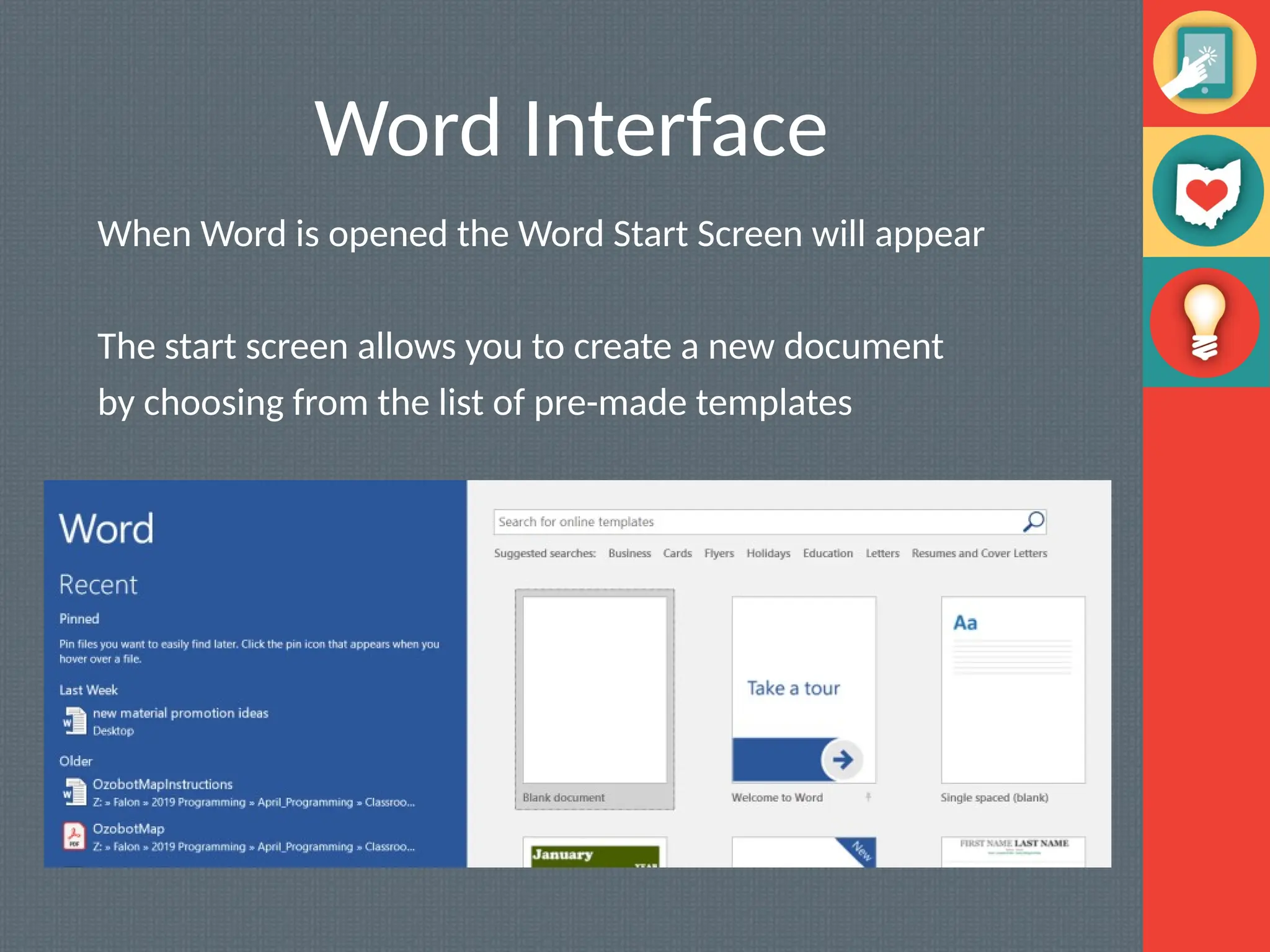
When Wordis opened the Word Start Screen will appear
The start screen allows you to create a new document
by choosing from the list of pre-made templates
5.
The Ribbon
The Ribboncontains multiple tabs, each with several groups of
tools. The tools provided in the ribbon will help you complete
common tasks in Word.
The Ribbon has nine tabs:
1.File
2.Home
3.Insert
4.Design
5.Layout
6.References
7.Mailings
8.Review
9.View
10.Help ●●●
6.
The Ribbon
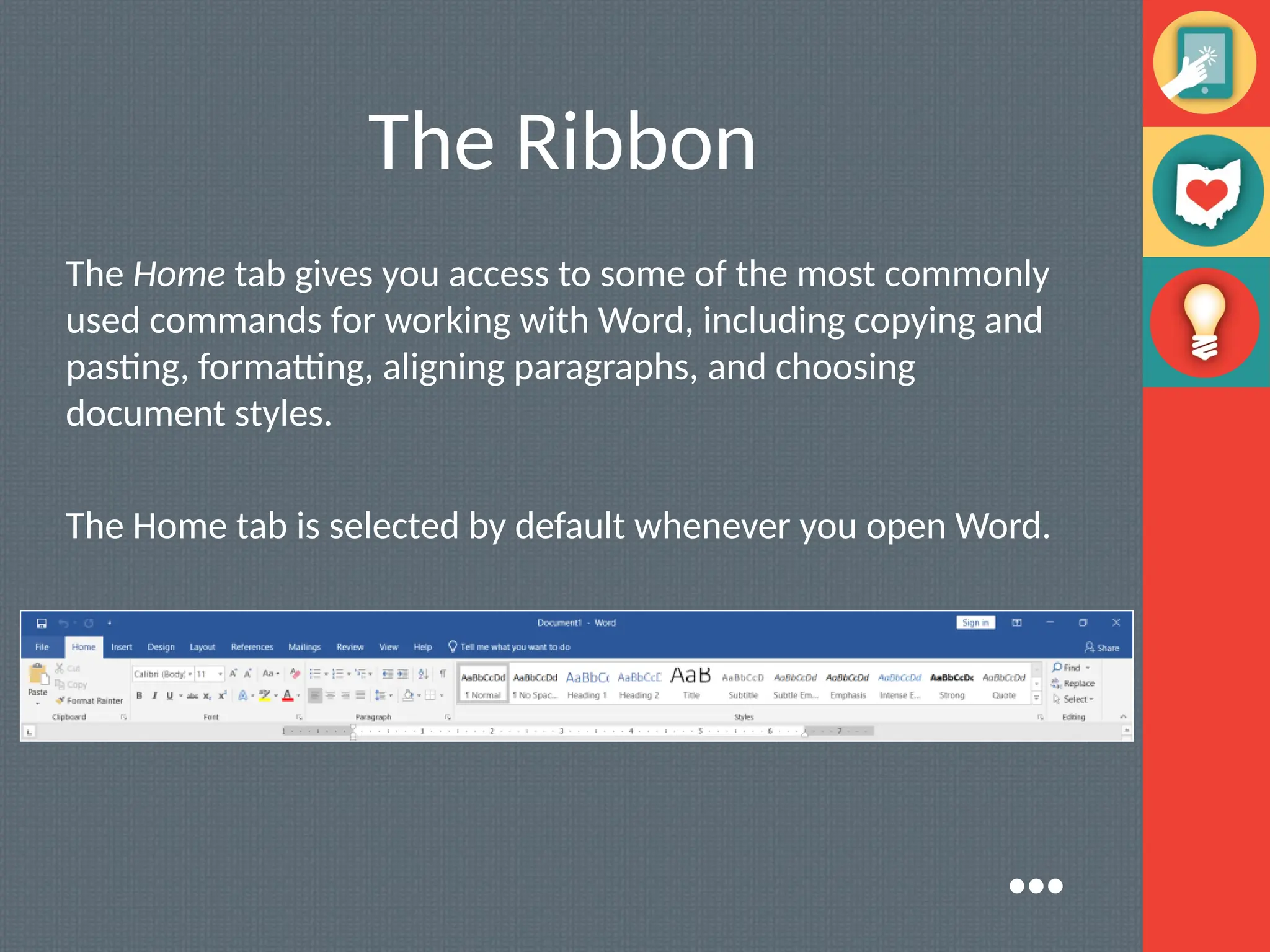
The Hometab gives you access to some of the most commonly
used commands for working with Word, including copying and
pasting, formatting, aligning paragraphs, and choosing
document styles.
The Home tab is selected by default whenever you open Word.
●●●
7.
The Ribbon
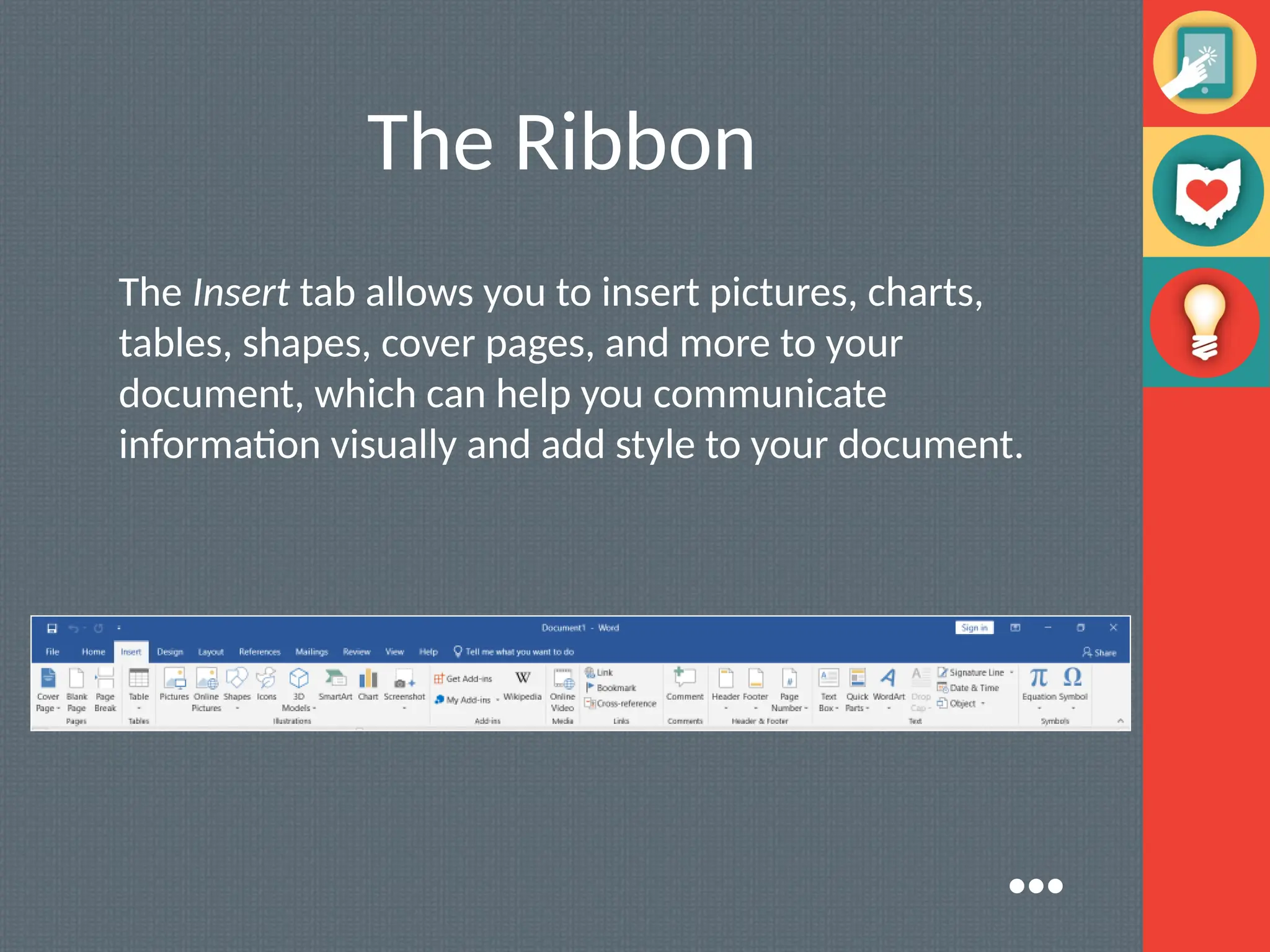
The Inserttab allows you to insert pictures, charts,
tables, shapes, cover pages, and more to your
document, which can help you communicate
information visually and add style to your document.
●●●
8.
The Ribbon
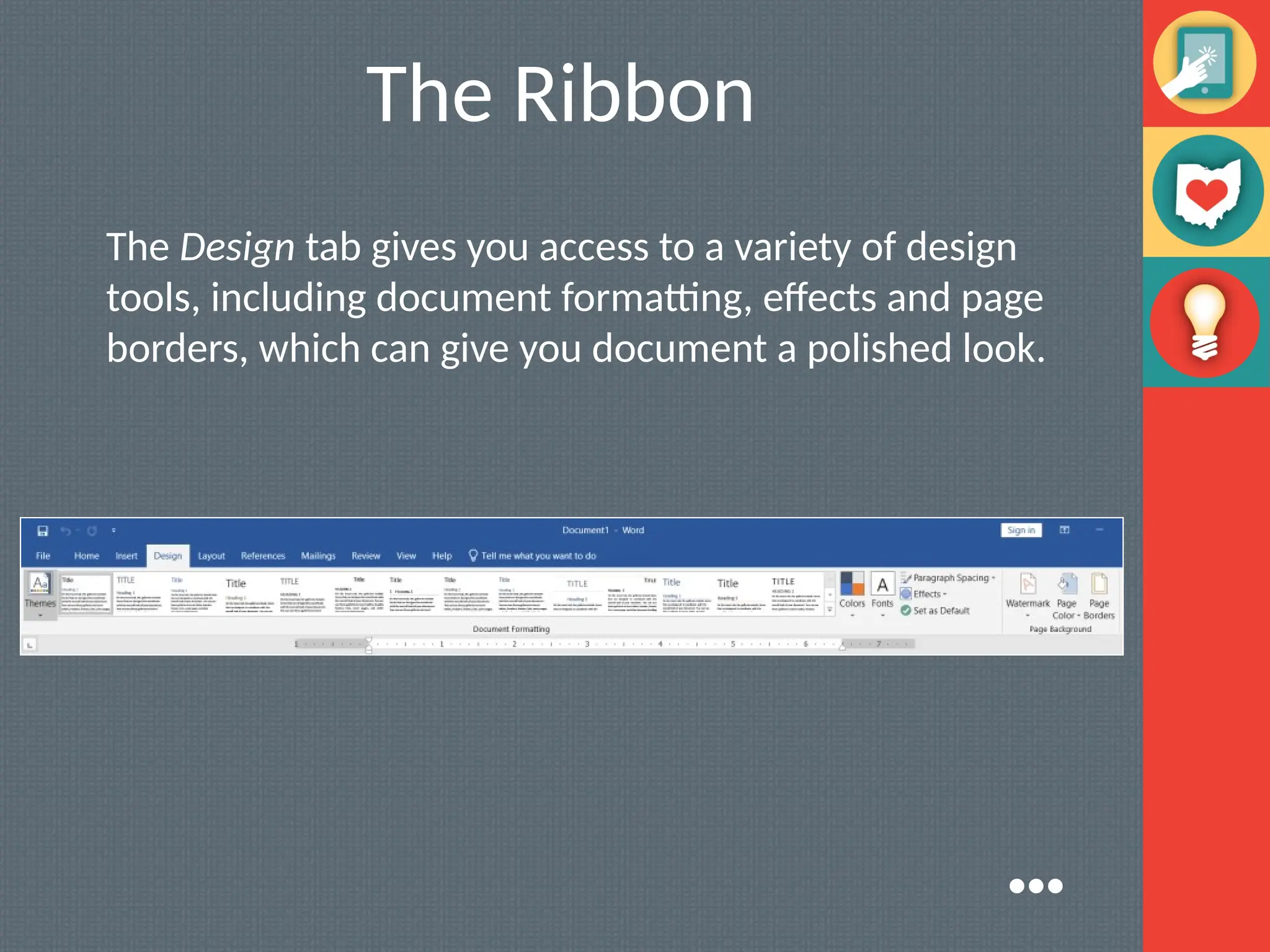
The Designtab gives you access to a variety of design
tools, including document formatting, effects and page
borders, which can give you document a polished look.
●●●
9.
The Ribbon
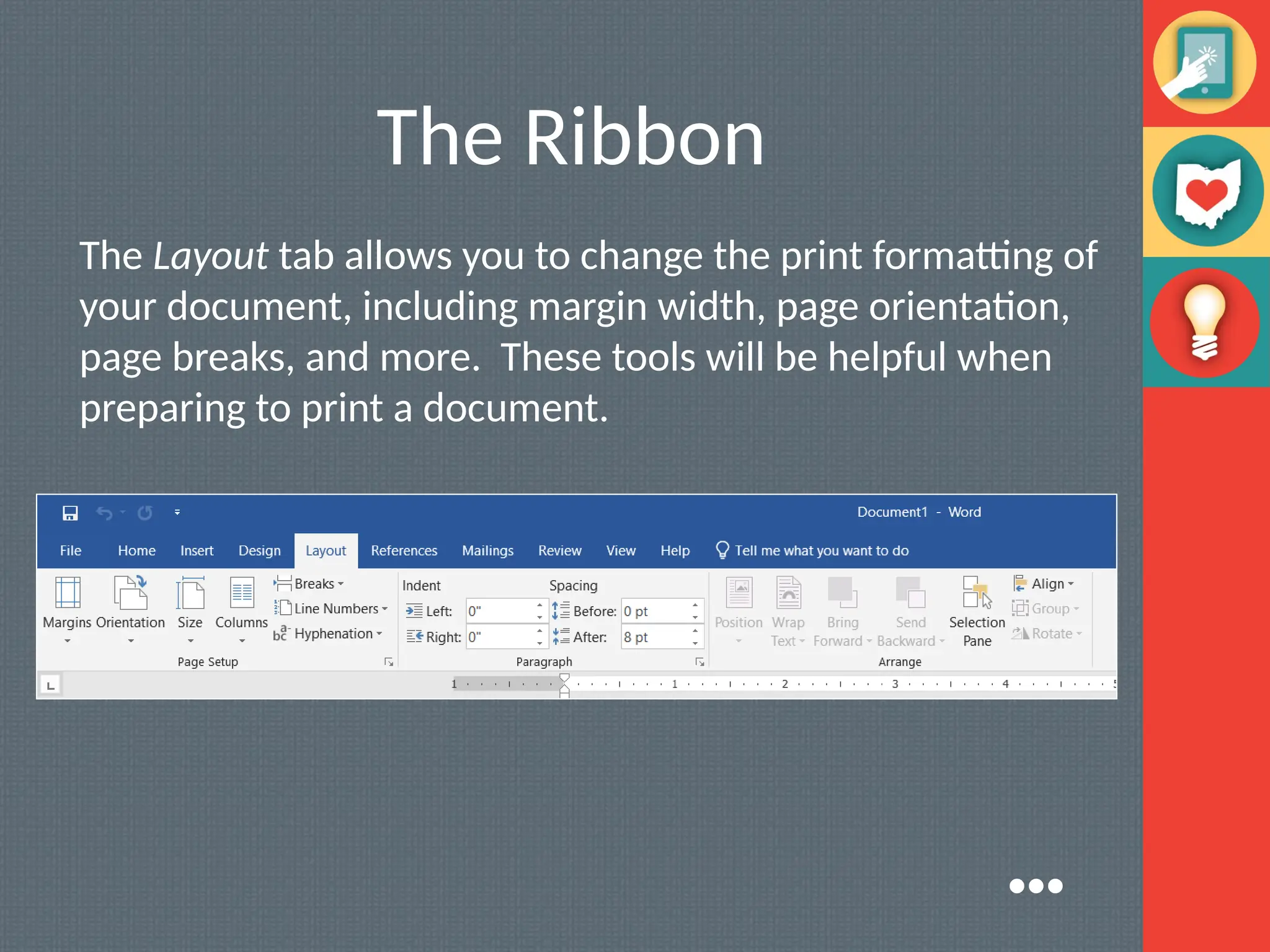
The Layouttab allows you to change the print formatting of
your document, including margin width, page orientation,
page breaks, and more. These tools will be helpful when
preparing to print a document.
●●●
10.
The Ribbon
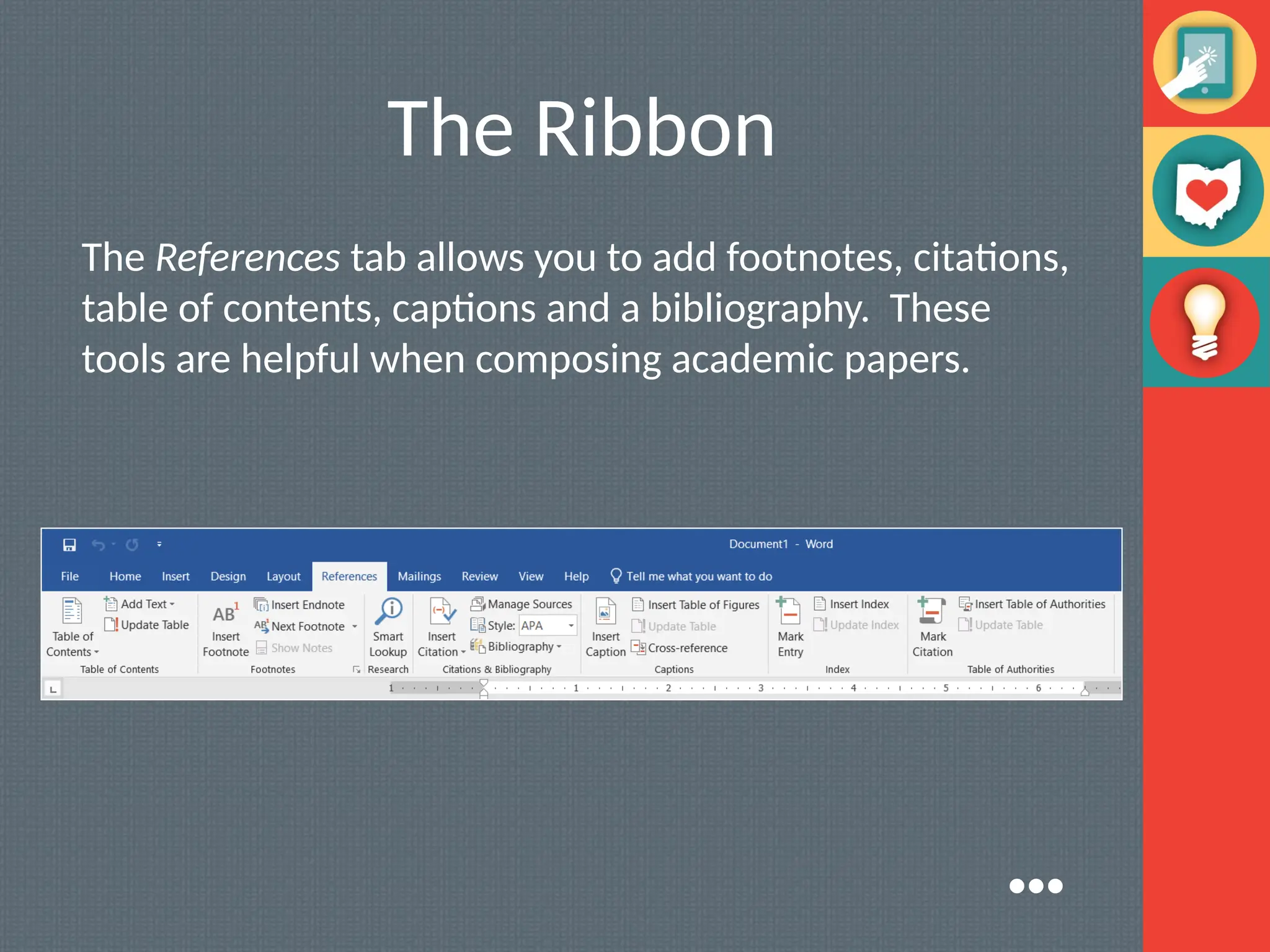
The Referencestab allows you to add footnotes, citations,
table of contents, captions and a bibliography. These
tools are helpful when composing academic papers.
●●●
11.
The Ribbon
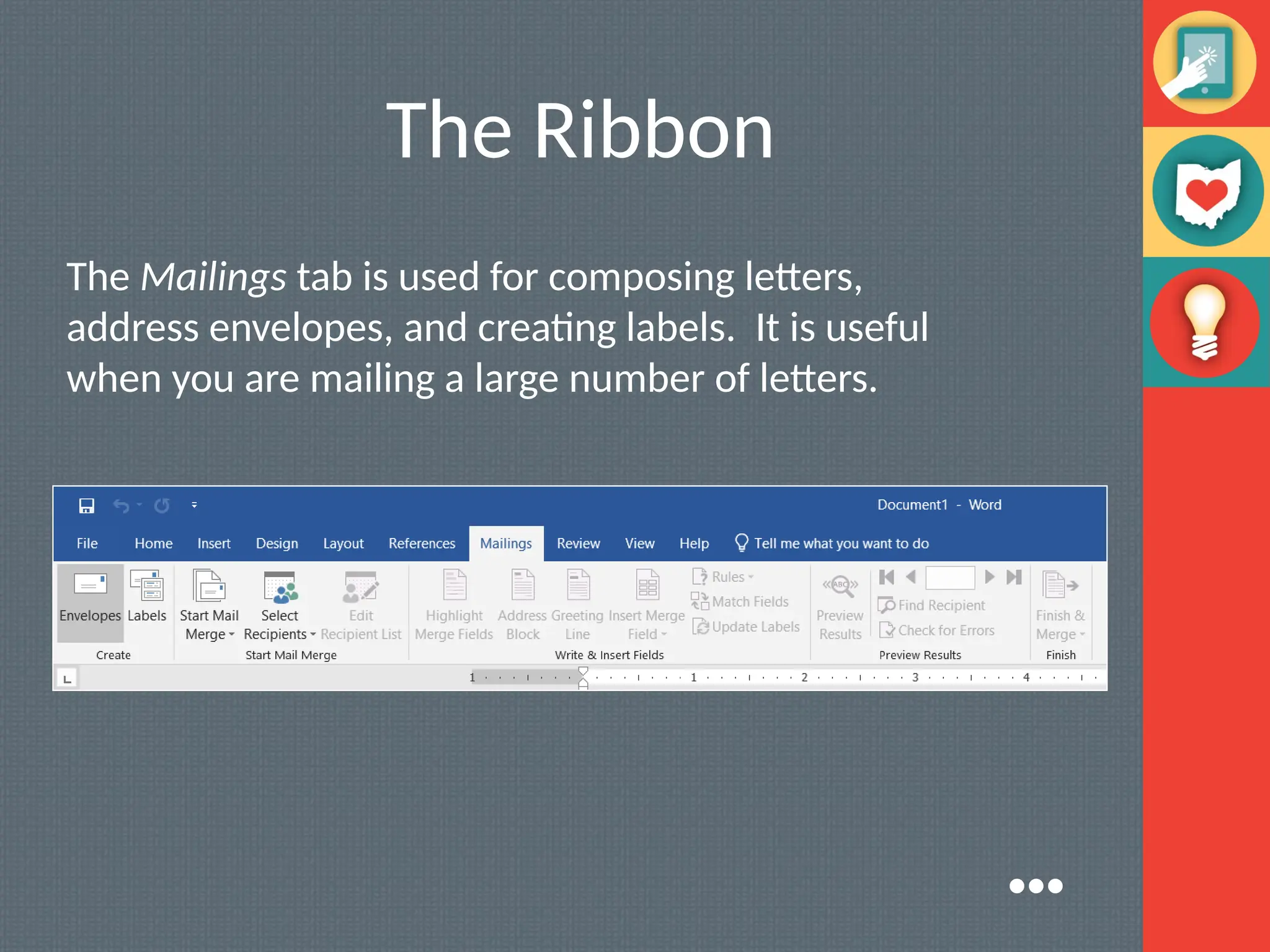
The Mailingstab is used for composing letters,
address envelopes, and creating labels. It is useful
when you are mailing a large number of letters.
●●●
12.
The Ribbon
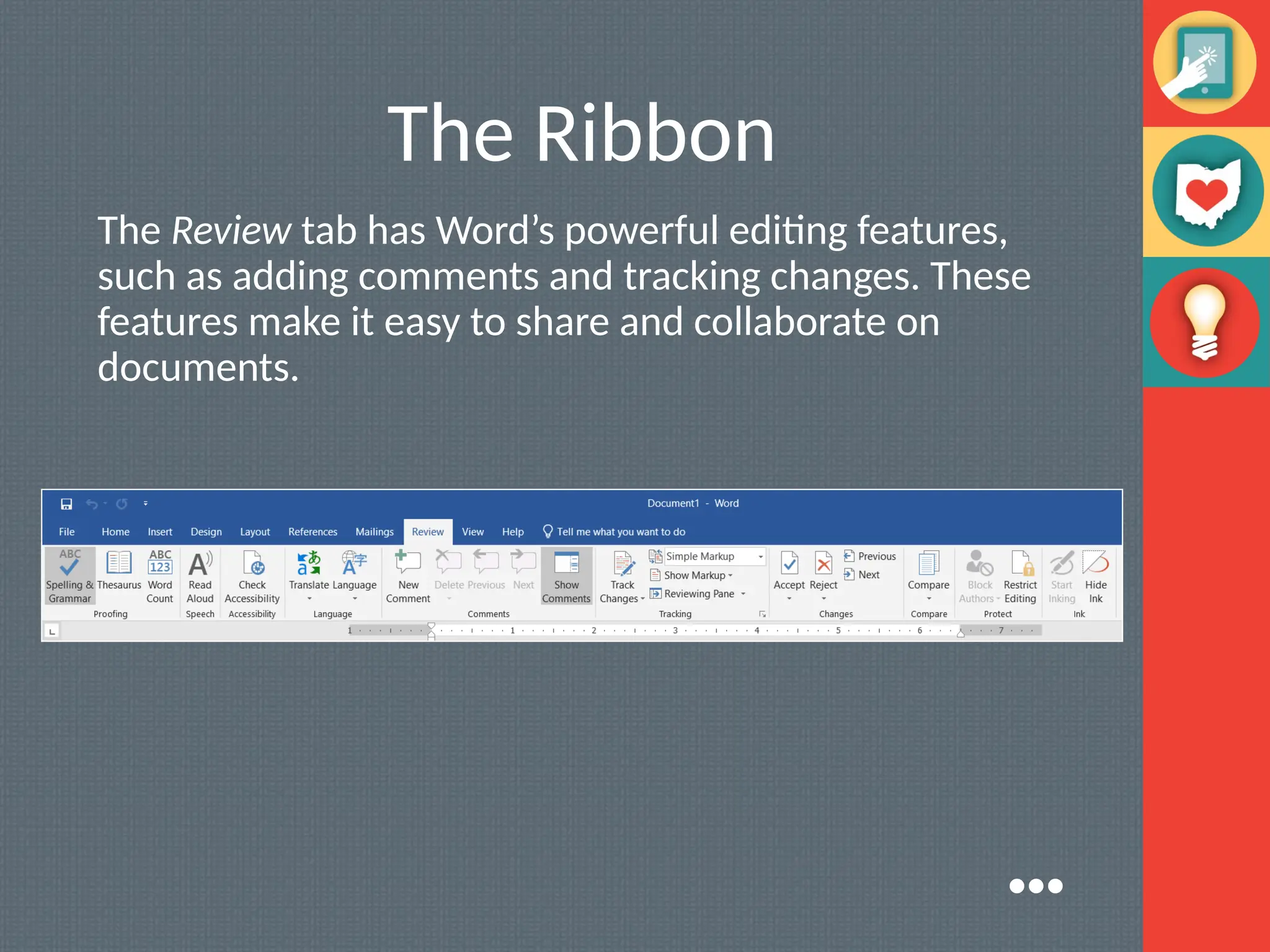
The Reviewtab has Word’s powerful editing features,
such as adding comments and tracking changes. These
features make it easy to share and collaborate on
documents.
●●●
13.
The Ribbon
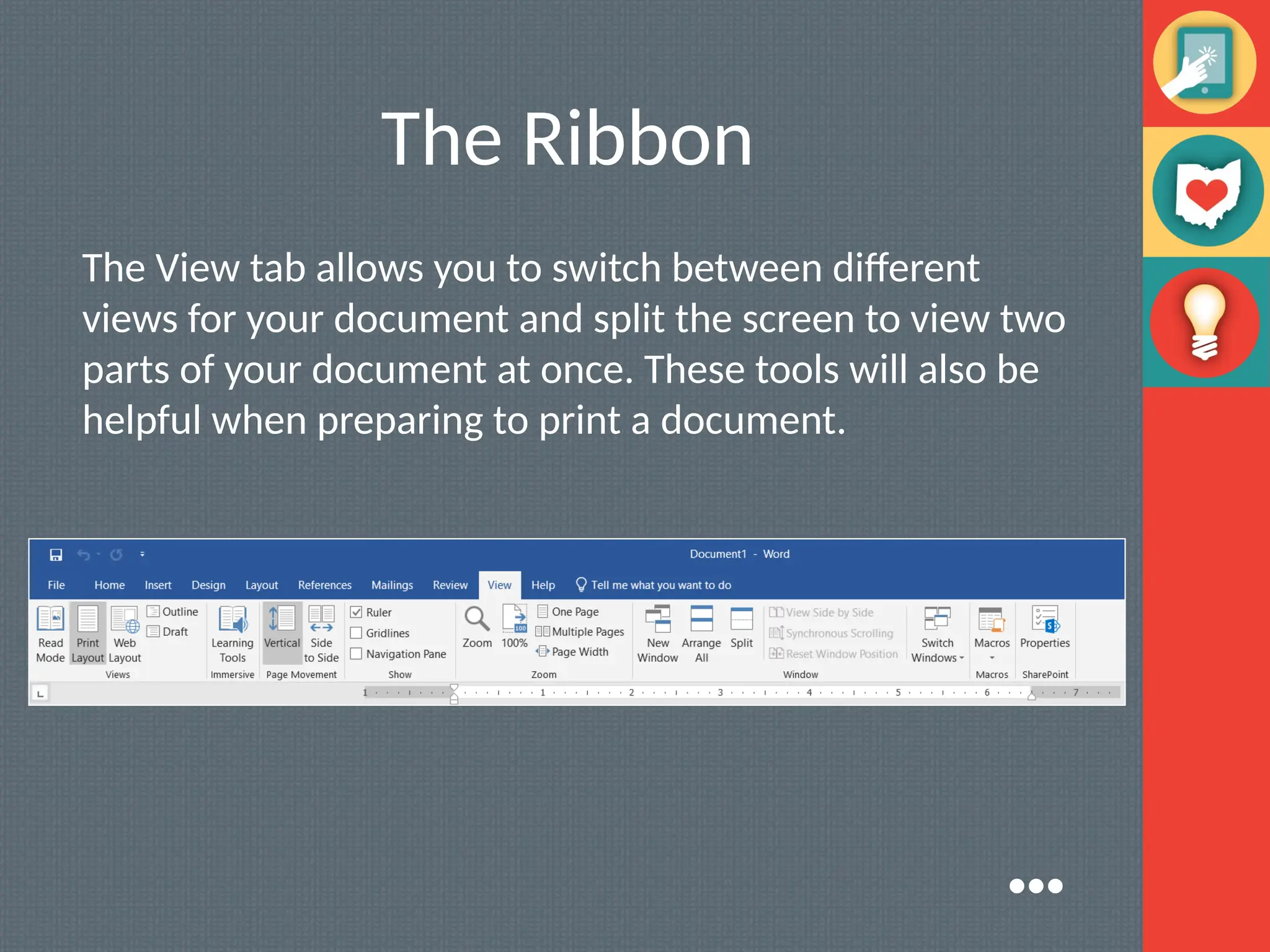
The Viewtab allows you to switch between different
views for your document and split the screen to view two
parts of your document at once. These tools will also be
helpful when preparing to print a document.
●●●
14.
The Ribbon
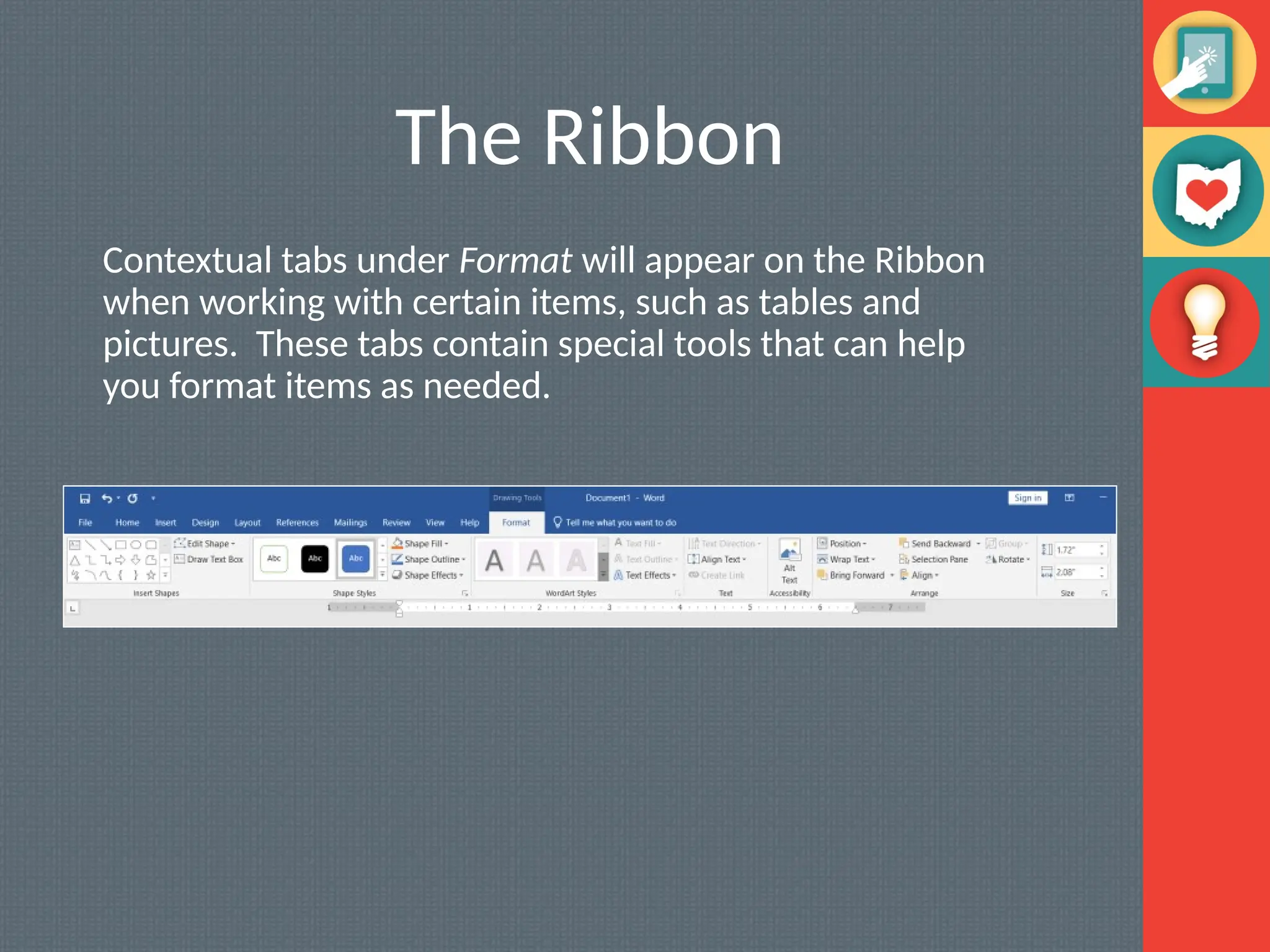
Contextual tabsunder Format will appear on the Ribbon
when working with certain items, such as tables and
pictures. These tabs contain special tools that can help
you format items as needed.
15.
The Quick AccessToolbar
Located just above the Ribbon, the Quick Access toolbar lets
you access common commands no matter which tab is selected.
By default, it shows the Save, Undo, and Repeat commands.
You can add other tools depending on your preference.
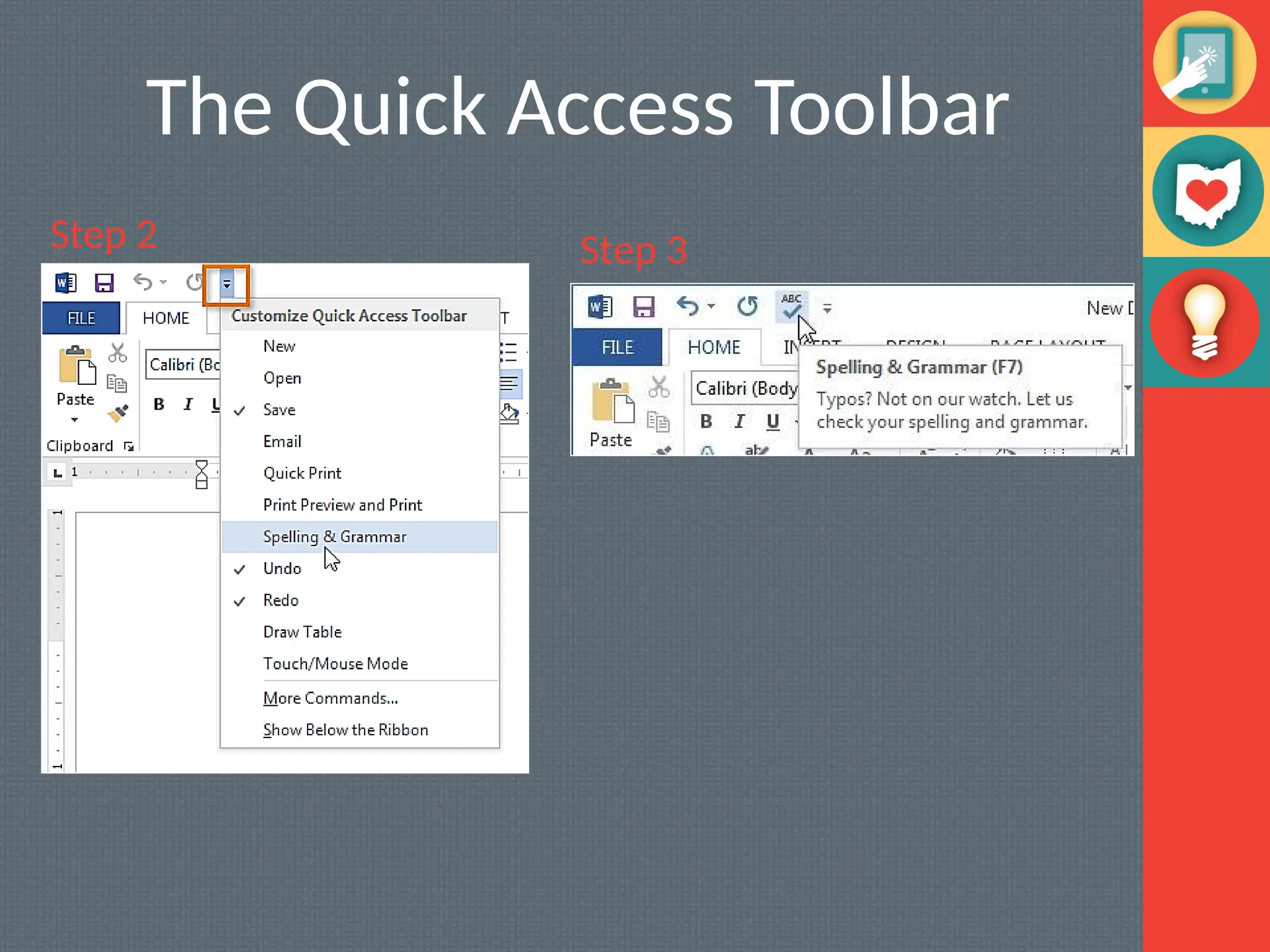
To add Commands to the Quick Access Toolbar:
1.Click the drop-down arrow to the right of the Quick Access
toolbar.
2.Select the Commands you wish to add from the drop-down
menu. To choose from more commands, select more commands
3.The Command will be added to the Quick Access toolbar.
●●●
The Ruler
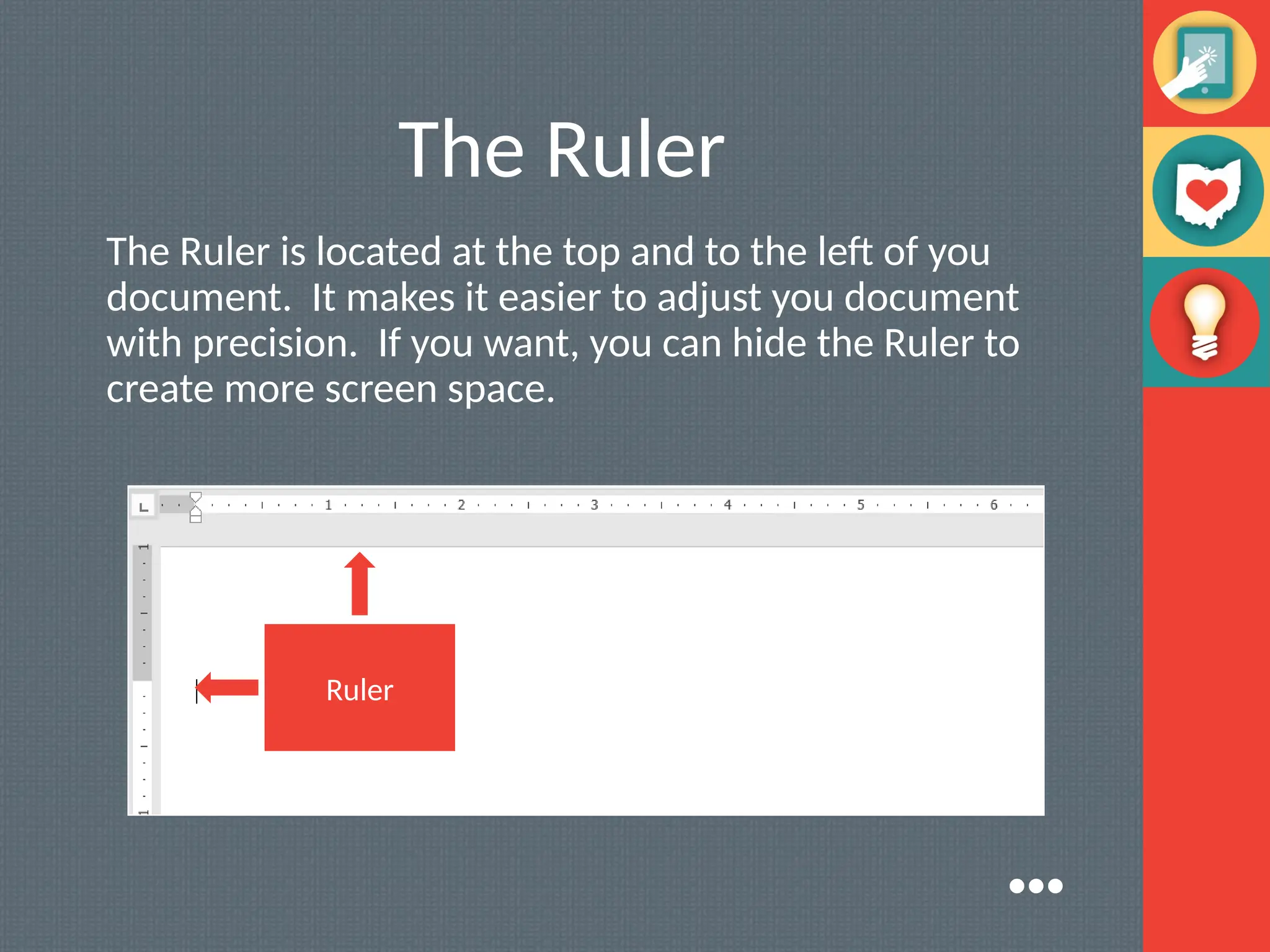
The Ruleris located at the top and to the left of you
document. It makes it easier to adjust you document
with precision. If you want, you can hide the Ruler to
create more screen space.
Ruler
●●●
18.
The Ruler
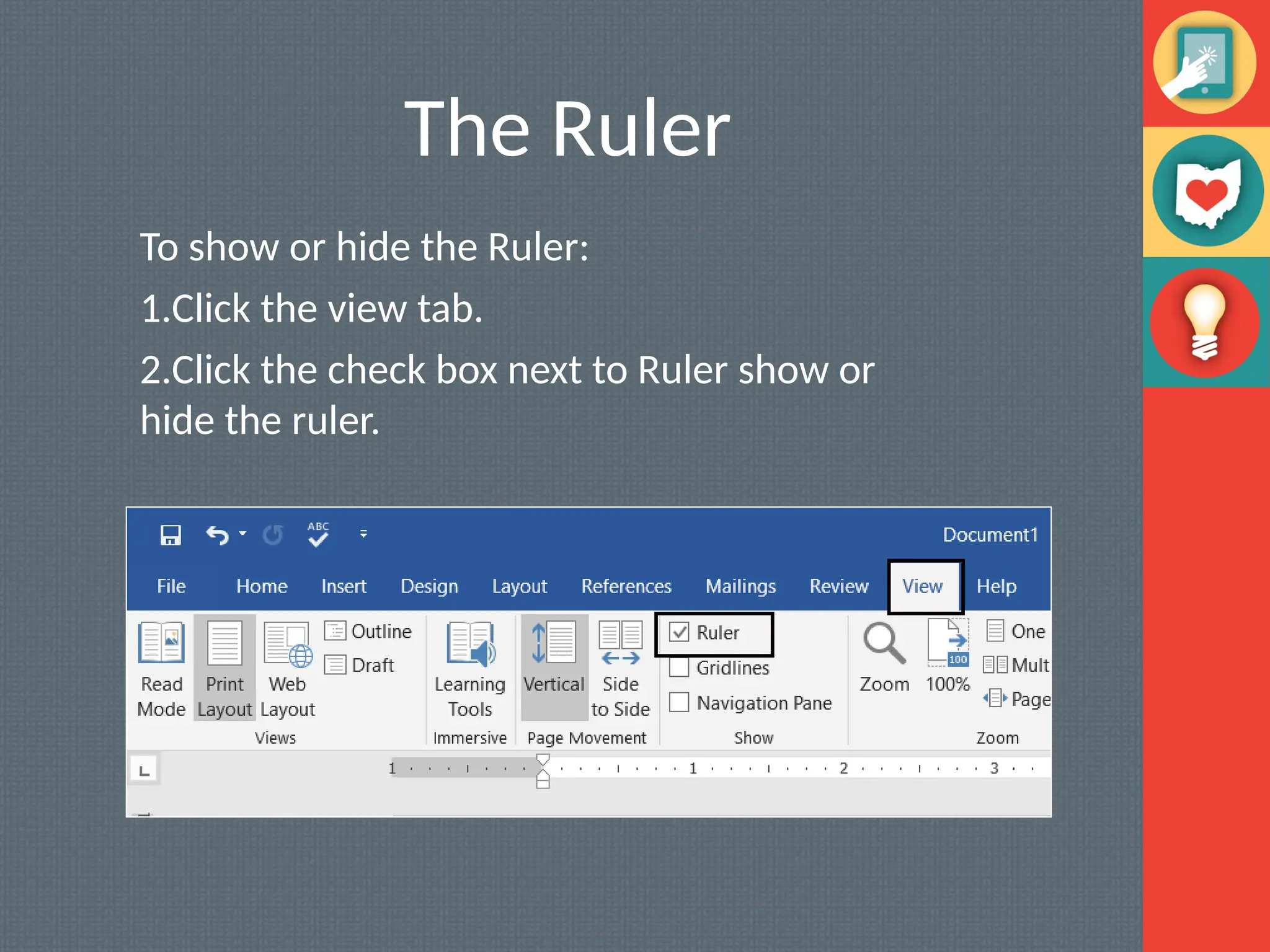
To showor hide the Ruler:
1.Click the view tab.
2.Click the check box next to Ruler show or
hide the ruler.
19.
Document Views
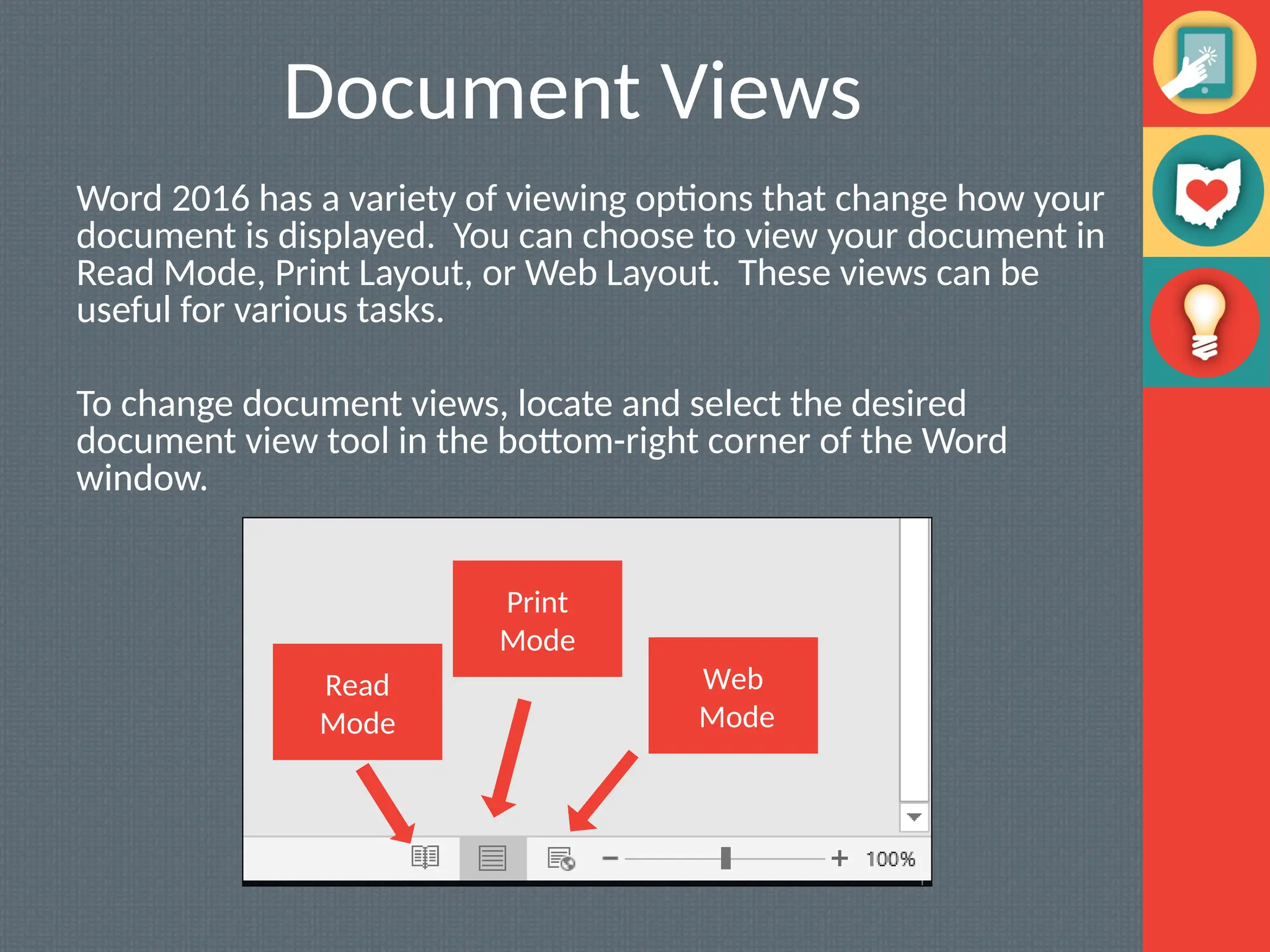
Word 2016has a variety of viewing options that change how your
document is displayed. You can choose to view your document in
Read Mode, Print Layout, or Web Layout. These views can be
useful for various tasks.
To change document views, locate and select the desired
document view tool in the bottom-right corner of the Word
window.
Read
Mode
Print
Mode
Web
Mode
20.
Document Views
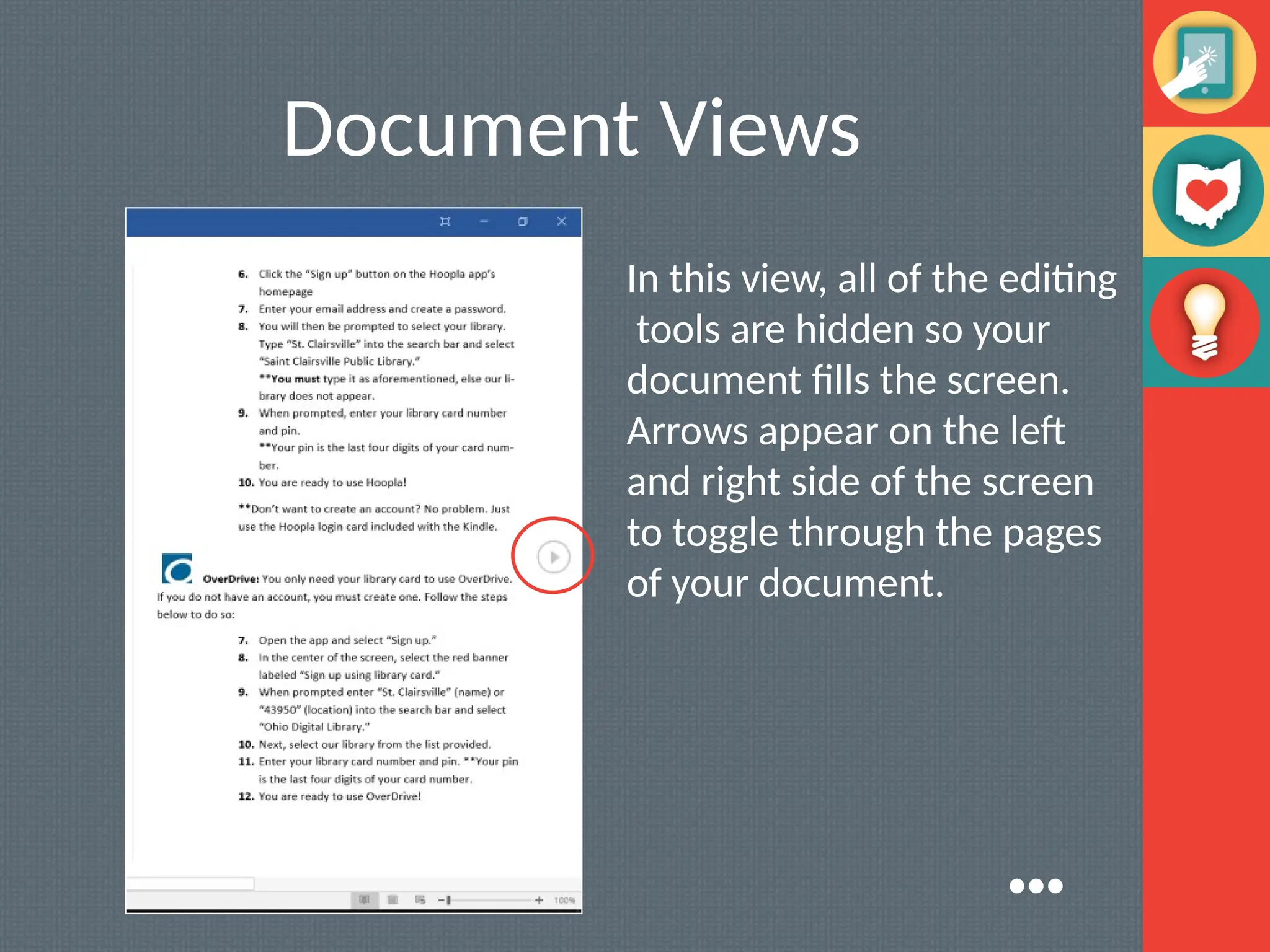
In thisview, all of the editing
tools are hidden so your
document fills the screen.
Arrows appear on the left
and right side of the screen
to toggle through the pages
of your document.
●●●
21.
Document Views
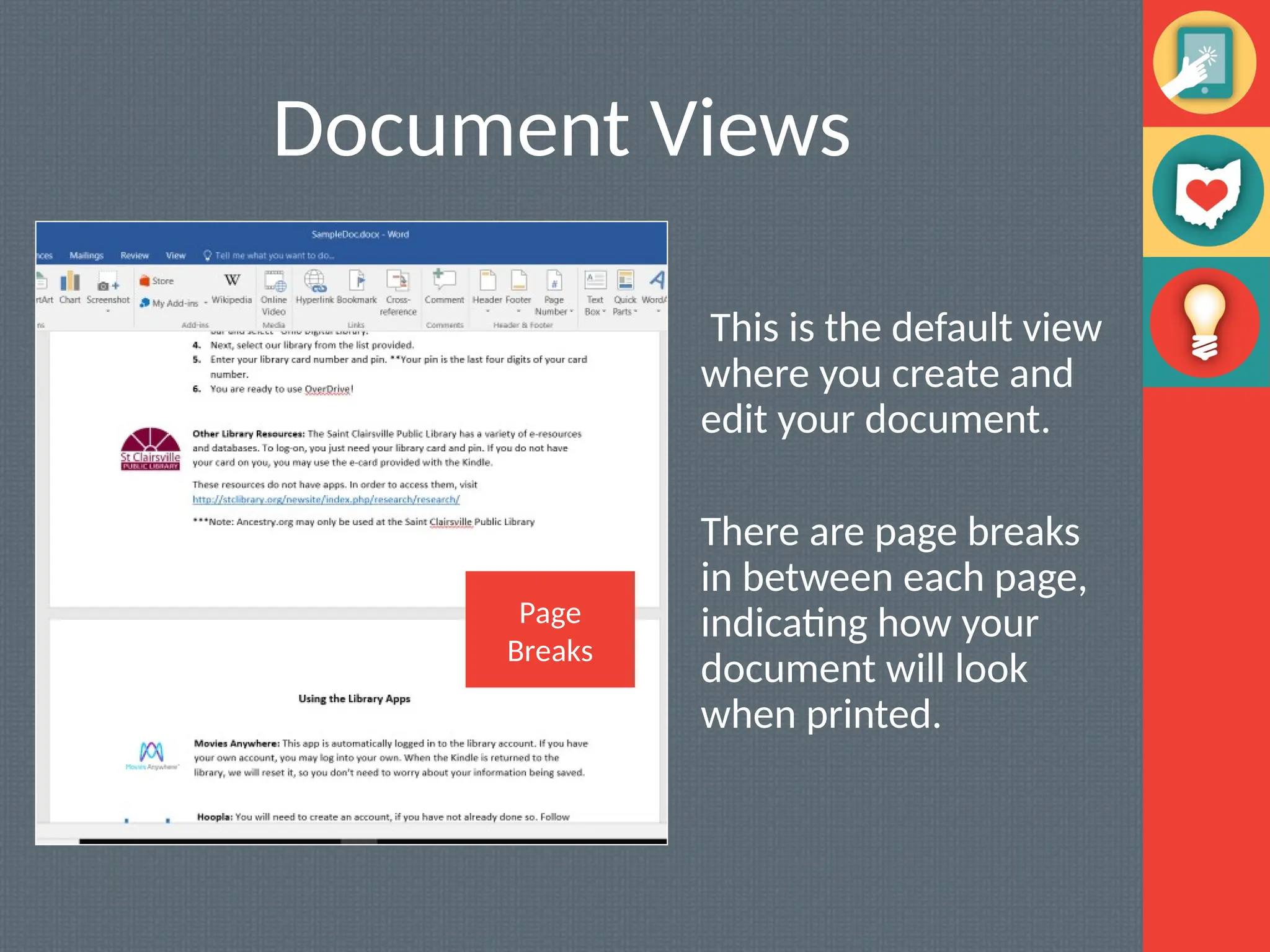
This isthe default view
where you create and
edit your document.
There are page breaks
in between each page,
indicating how your
document will look
when printed.
Page
Breaks
22.
What MS WordDo?
The Insertion Point: The insertion point is the blinking
vertical line in your document. It indicates where you can
enter text on the page. Blank document: When a new,
document opens, the insertion point is located in the top left
corner of the page.
The Selection Point:
1. Place the insertion point next to the text you wish
to select.
2. Click the mouse and while holding it down drag
you mouse over the text to select it.
3. Release the mouse button. You have selected the
text. A highlighted box will appear over the
selected text.
●●●
23.
What MS WordDo?
• Copy and Paste Text : To copy and paste text:
Copying text creates a duplicate of the text. Select the
text you wish to copy
• Cut and Paste Text : Select the text you wish to cut.
Click the Cut command on the Home tab or right click the
selected text and select cut.
• Changing Font / Font Size/ Font color.
• Page Orientation
• Highlight Text- Bold/Italic/Underlined.
• Changing Text Alignment
24.
Backstage View
Backstage viewgives you various options for saving,
opening a file, printing, and sharing your document.
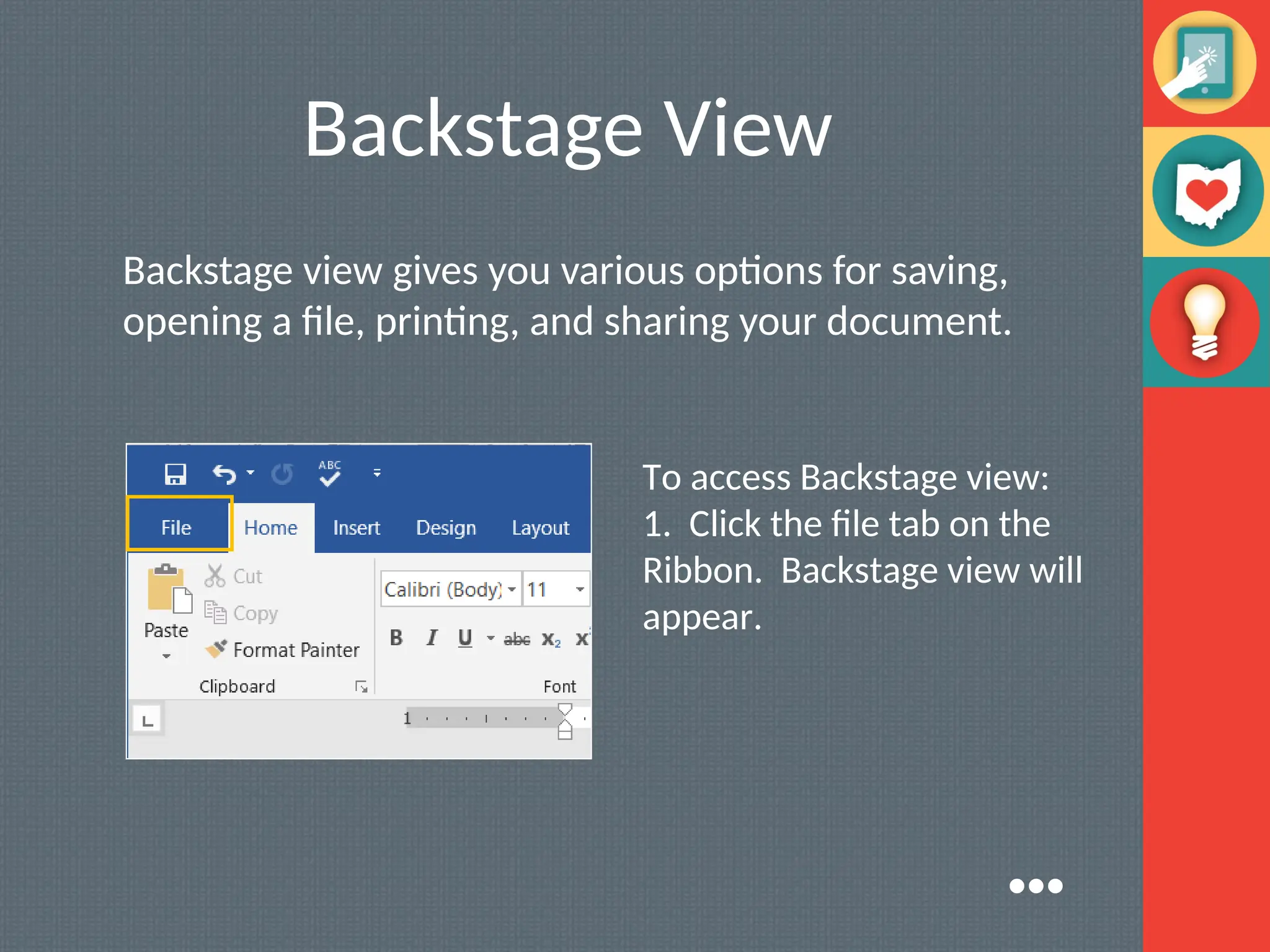
To access Backstage view:
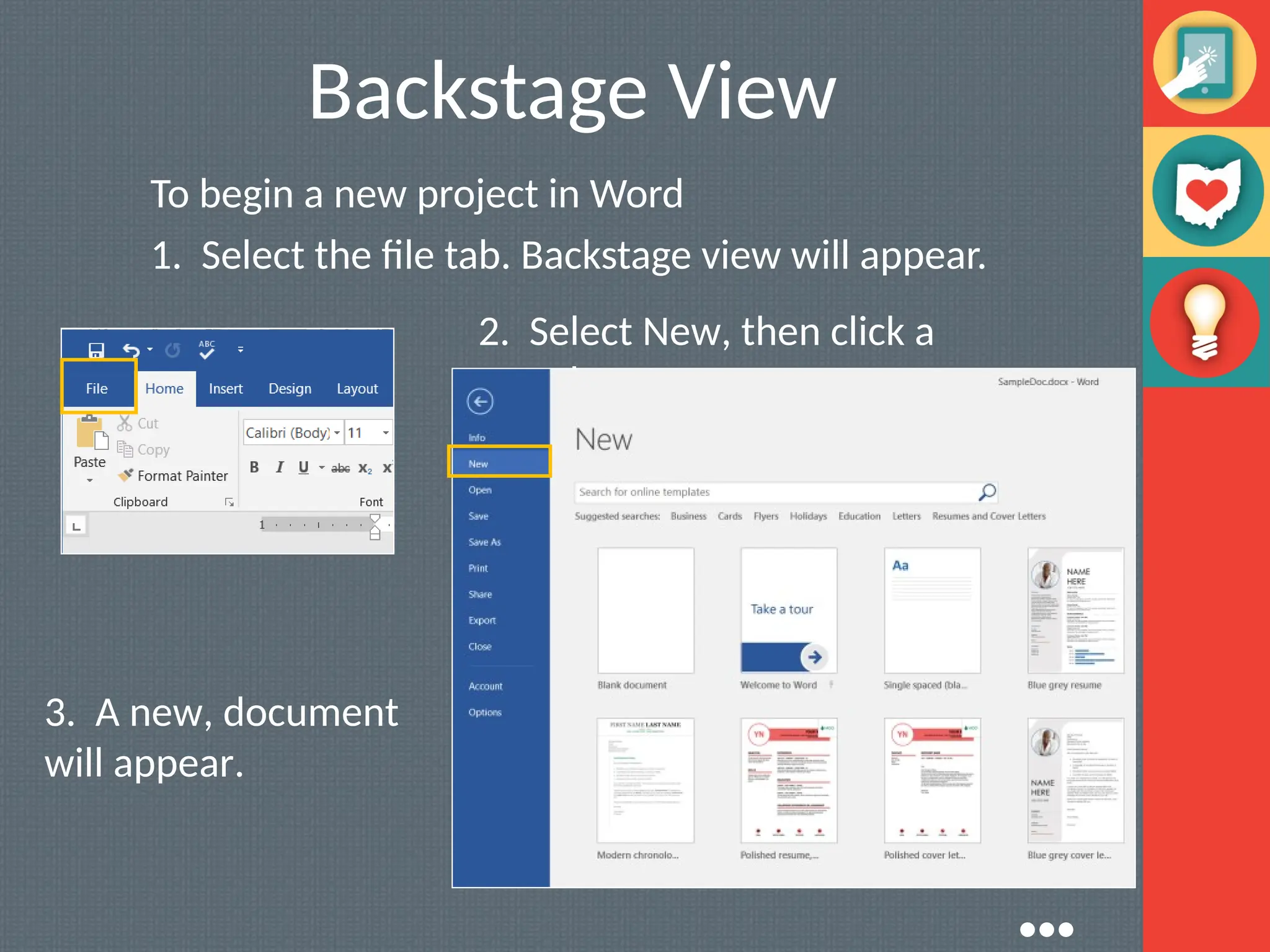
1. Click the file tab on the
Ribbon. Backstage view will
appear.
●●●
25.
Backstage View
To begina new project in Word
1. Select the file tab. Backstage view will appear.
2. Select New, then click a
template.
3. A new, document
will appear.
●●●
26.
Backstage View
In Wordthere are two says to save a file, SAVE and SAVE AS.
SAVE is used when a document is open or edited to save
what you are working on.
SAVE AS is used to save the document to a location and
change the name of the document.
It is important to save your document whenever you start a
new project or make changes to an existing one. Saving
early and often can prevent you work from being lost. You
will also need to pay close attention to where you save the
document so it will be easy to find later.
●●●
27.
Backstage View
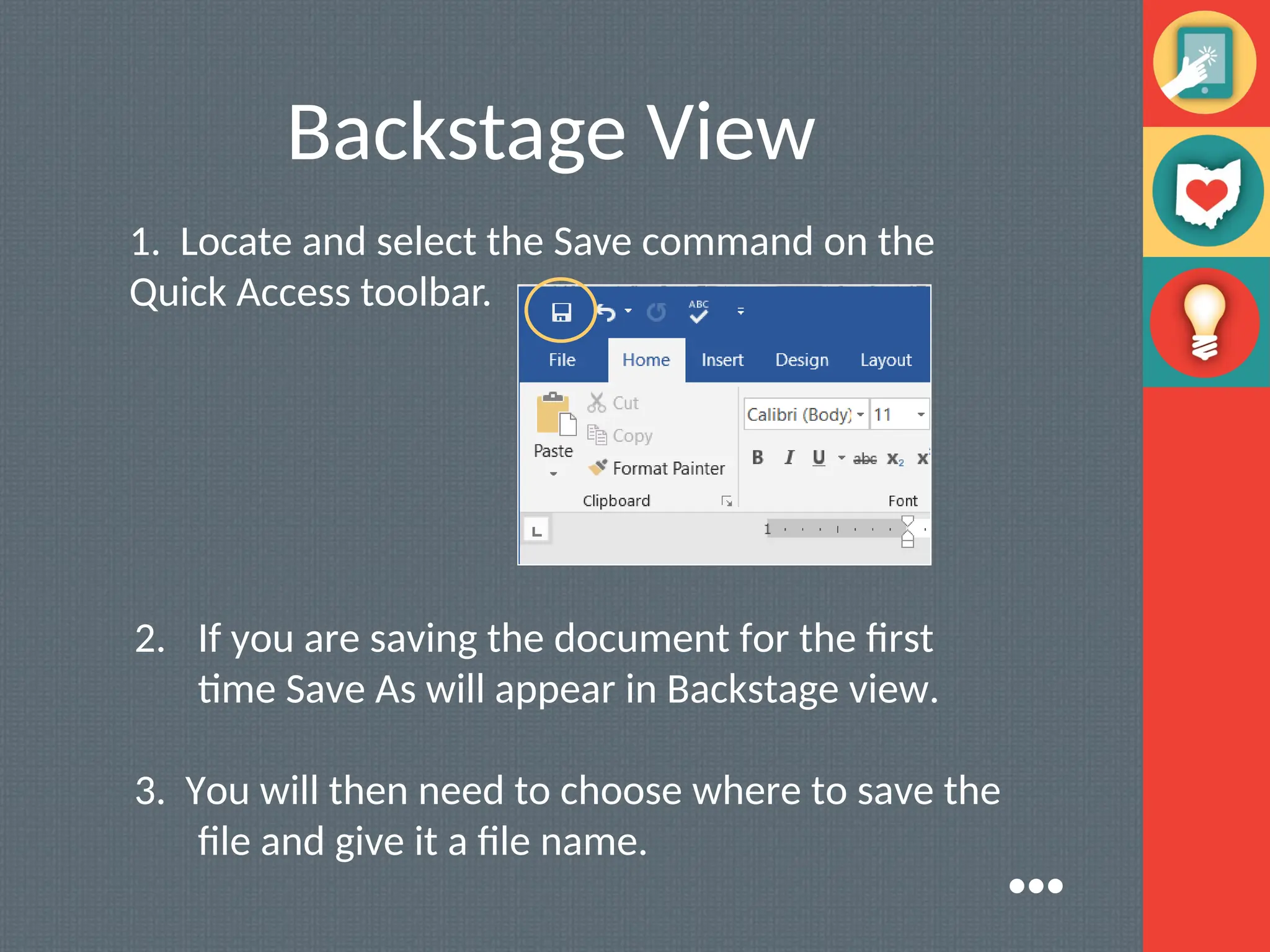
1. Locateand select the Save command on the
Quick Access toolbar.
2. If you are saving the document for the first
time Save As will appear in Backstage view.
3. You will then need to choose where to save the
file and give it a file name.
●●●
28.
Backstage View
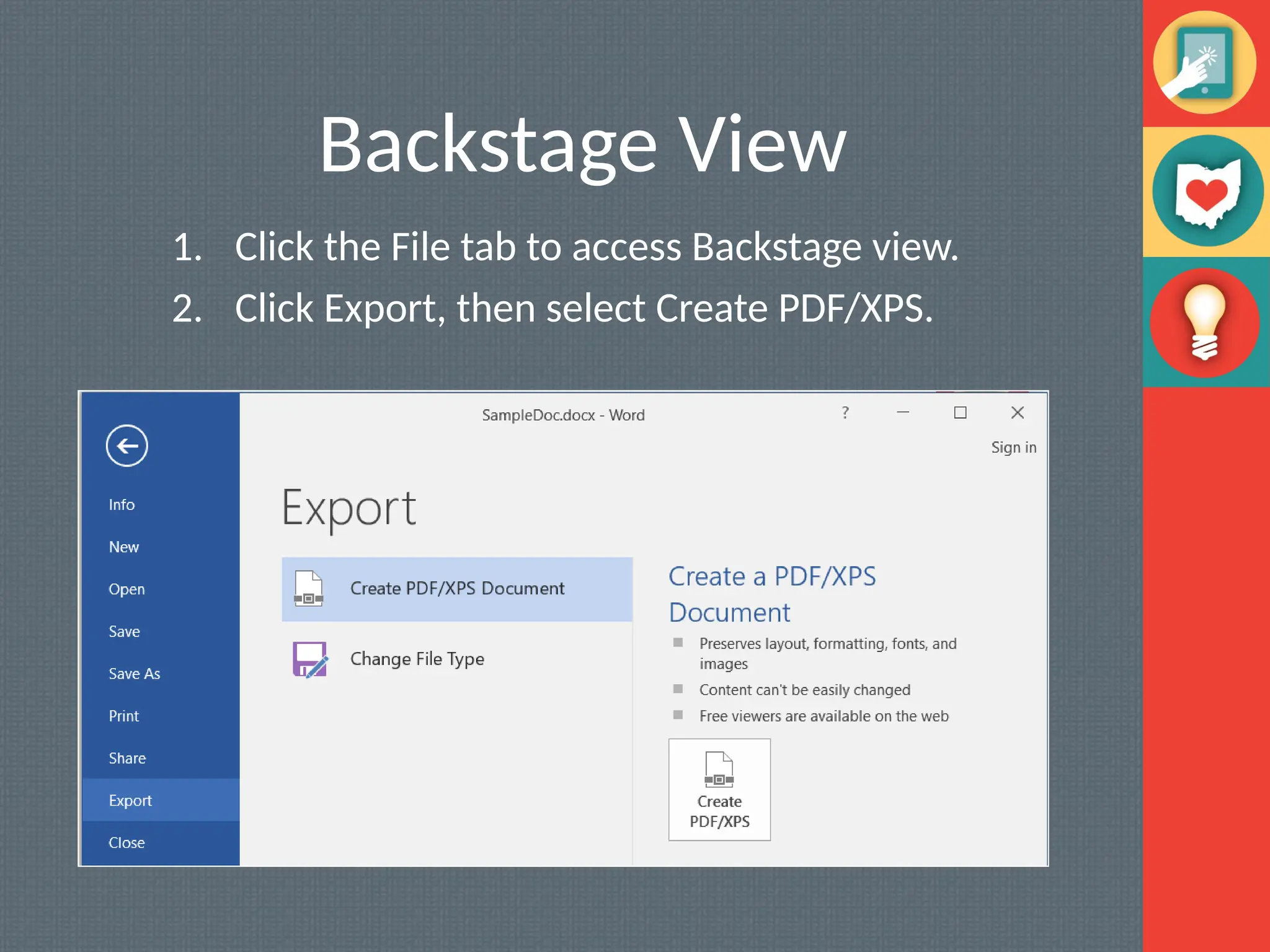
1. Clickthe File tab to access Backstage view.
2. Click Export, then select Create PDF/XPS.
29.
Conclusion
Microsoft Word allowsyou to create simple word
processing documents like letters and reports
effortlessly, allowing you to add color and clip art.
Writing in various fonts and sizes and using tables,
borders & bullet formatting reduces tediousness and
increases productivity