Download free for 30 days
Sign in
Upload
Language (EN)
Support
Business
Mobile
Social Media
Marketing
Technology
Art & Photos
Career
Design
Education
Presentations & Public Speaking
Government & Nonprofit
Healthcare
Internet
Law
Leadership & Management
Automotive
Engineering
Software
Recruiting & HR
Retail
Sales
Services
Science
Small Business & Entrepreneurship
Food
Environment
Economy & Finance
Data & Analytics
Investor Relations
Sports
Spiritual
News & Politics
Travel
Self Improvement
Real Estate
Entertainment & Humor
Health & Medicine
Devices & Hardware
Lifestyle
Change Language
Language
English
Español
Português
Français
Deutsche
Cancel
Save
Submit search
EN
Uploaded by
Computational Materials Science Initiative
2,210 views
ALPSチュートリアル(6) Matplotlib入門
CMSIハンズオン資料
Technology
◦
Read more
0
Save
Share
Embed
Embed presentation
Download
Download to read offline
1
/ 9
2
/ 9
3
/ 9
4
/ 9
5
/ 9
6
/ 9
7
/ 9
8
/ 9
9
/ 9
More Related Content
PDF
ALPSチュートリアル(4) Python入門
by
Computational Materials Science Initiative
PDF
ALPSチュートリアル(5) ALPS Python入門
by
Computational Materials Science Initiative
PDF
ALPSチュートリアル(3) アプリケーション実習
by
Computational Materials Science Initiative
PDF
ALPSチュートリアル(1) ALPSの概要
by
Computational Materials Science Initiative
PDF
ALPSチュートリアル(7) アプリケーションのALPS化
by
Computational Materials Science Initiative
PDF
ALPSチュートリアル(2) ALPSのインストール
by
Computational Materials Science Initiative
PDF
Subprocess no susume
by
Makoto Kishimoto
PDF
研究生のためのC++ no.7
by
Tomohiro Namba
ALPSチュートリアル(4) Python入門
by
Computational Materials Science Initiative
ALPSチュートリアル(5) ALPS Python入門
by
Computational Materials Science Initiative
ALPSチュートリアル(3) アプリケーション実習
by
Computational Materials Science Initiative
ALPSチュートリアル(1) ALPSの概要
by
Computational Materials Science Initiative
ALPSチュートリアル(7) アプリケーションのALPS化
by
Computational Materials Science Initiative
ALPSチュートリアル(2) ALPSのインストール
by
Computational Materials Science Initiative
Subprocess no susume
by
Makoto Kishimoto
研究生のためのC++ no.7
by
Tomohiro Namba
What's hot
PDF
Python で munin plugin を書いてみる
by
ftnk
PPT
Task
by
Shingo Nakamura
PPTX
Scalamacrosについて
by
dekosuke
PDF
配管流路の多目的最適化OpenFOAM+OpenMDAO(第28回オープンCAE勉強会@関西)
by
TatsuyaKatayama
KEY
Applicative functor
by
Yuichi Adachi
PPTX
前期講座09
by
Takenori Nakagawa
PDF
Testman
by
makoto tsuyuki
PDF
awk v.s. bashどっちが強い?@OSC2011Tokyo
by
Ryuichi Ueda
PDF
Async design with Unity3D
by
Kouji Hosoda
PPTX
Node.js - sleep sort algorithm
by
takesako
KEY
ひのきのぼうだけで全クリ目指す
by
AromaBlack
PPTX
pecl-AOPの紹介
by
Hiraku Nakano
PDF
Haskell で CLI
by
Nobutada Matsubara
PDF
Google Developer Day 2010 Japan: プログラミング言語 Go (鵜飼 文敏)
by
Google Developer Relations Team
PPT
CLR/H No.35-2
by
Nobuhisa Koizumi
PDF
データサイエンスワールドからC++を眺めてみる
by
Shintaro Fukushima
PPTX
generate_series関数使い込み
by
kawarasho
PDF
Boost Tour 1.48.0 diff
by
Akira Takahashi
PDF
シェル入門
by
ina job
PPT
C++でHello worldを書いてみた
by
firewood
Python で munin plugin を書いてみる
by
ftnk
Task
by
Shingo Nakamura
Scalamacrosについて
by
dekosuke
配管流路の多目的最適化OpenFOAM+OpenMDAO(第28回オープンCAE勉強会@関西)
by
TatsuyaKatayama
Applicative functor
by
Yuichi Adachi
前期講座09
by
Takenori Nakagawa
Testman
by
makoto tsuyuki
awk v.s. bashどっちが強い?@OSC2011Tokyo
by
Ryuichi Ueda
Async design with Unity3D
by
Kouji Hosoda
Node.js - sleep sort algorithm
by
takesako
ひのきのぼうだけで全クリ目指す
by
AromaBlack
pecl-AOPの紹介
by
Hiraku Nakano
Haskell で CLI
by
Nobutada Matsubara
Google Developer Day 2010 Japan: プログラミング言語 Go (鵜飼 文敏)
by
Google Developer Relations Team
CLR/H No.35-2
by
Nobuhisa Koizumi
データサイエンスワールドからC++を眺めてみる
by
Shintaro Fukushima
generate_series関数使い込み
by
kawarasho
Boost Tour 1.48.0 diff
by
Akira Takahashi
シェル入門
by
ina job
C++でHello worldを書いてみた
by
firewood
Similar to ALPSチュートリアル(6) Matplotlib入門
PPTX
東大生向けデータ解析講座 第2回 2017/12/29
by
西岡 賢一郎
PPTX
[機械学習]文章のクラス分類
by
Tetsuya Hasegawa
PDF
Introduction to NumPy & SciPy
by
Shiqiao Du
PDF
TensorFlowプログラミングと分類アルゴリズムの基礎
by
Etsuji Nakai
PDF
lispmeetup#63 Common Lispでゼロから作るDeep Learning
by
Satoshi imai
PPTX
R超入門機械学習をはじめよう
by
幹雄 小川
PDF
Python 機械学習プログラミング データ分析ライブラリー解説編
by
Etsuji Nakai
PDF
Python for Data Anaysis第2回勉強会4,5章
by
Makoto Kawano
東大生向けデータ解析講座 第2回 2017/12/29
by
西岡 賢一郎
[機械学習]文章のクラス分類
by
Tetsuya Hasegawa
Introduction to NumPy & SciPy
by
Shiqiao Du
TensorFlowプログラミングと分類アルゴリズムの基礎
by
Etsuji Nakai
lispmeetup#63 Common Lispでゼロから作るDeep Learning
by
Satoshi imai
R超入門機械学習をはじめよう
by
幹雄 小川
Python 機械学習プログラミング データ分析ライブラリー解説編
by
Etsuji Nakai
Python for Data Anaysis第2回勉強会4,5章
by
Makoto Kawano
More from Computational Materials Science Initiative
PDF
MateriApps LIVE! の設定
by
Computational Materials Science Initiative
PDF
How to setup MateriApps LIVE!
by
Computational Materials Science Initiative
PDF
How to setup MateriApps LIVE!
by
Computational Materials Science Initiative
PDF
MateriApps LIVE!の設定
by
Computational Materials Science Initiative
PDF
MateriApps LIVE! の設定
by
Computational Materials Science Initiative
PDF
How to setup MateriApps LIVE!
by
Computational Materials Science Initiative
PDF
How to setup MateriApps LIVE!
by
Computational Materials Science Initiative
PDF
MateriApps LIVE! の設定
by
Computational Materials Science Initiative
PDF
MateriApps LIVE! の設定
by
Computational Materials Science Initiative
PDF
How to setup MateriApps LIVE!
by
Computational Materials Science Initiative
PDF
How to setup MateriApps LIVE!
by
Computational Materials Science Initiative
PDF
MateriApps LIVE! の設定
by
Computational Materials Science Initiative
PDF
How to setup MateriApps LIVE!
by
Computational Materials Science Initiative
PDF
MateriApps LIVE!の設定
by
Computational Materials Science Initiative
PDF
ALPSチュートリアル
by
Computational Materials Science Initiative
PDF
How to setup MateriApps LIVE!
by
Computational Materials Science Initiative
PDF
MateriApps LIVE!の設定
by
Computational Materials Science Initiative
PDF
MateriApps: OpenMXを利用した第一原理計算の簡単な実習
by
Computational Materials Science Initiative
PDF
CMSI計算科学技術特論C (2015) ALPS と量子多体問題②
by
Computational Materials Science Initiative
PDF
CMSI計算科学技術特論C (2015) ALPS と量子多体問題①
by
Computational Materials Science Initiative
MateriApps LIVE! の設定
by
Computational Materials Science Initiative
How to setup MateriApps LIVE!
by
Computational Materials Science Initiative
How to setup MateriApps LIVE!
by
Computational Materials Science Initiative
MateriApps LIVE!の設定
by
Computational Materials Science Initiative
MateriApps LIVE! の設定
by
Computational Materials Science Initiative
How to setup MateriApps LIVE!
by
Computational Materials Science Initiative
How to setup MateriApps LIVE!
by
Computational Materials Science Initiative
MateriApps LIVE! の設定
by
Computational Materials Science Initiative
MateriApps LIVE! の設定
by
Computational Materials Science Initiative
How to setup MateriApps LIVE!
by
Computational Materials Science Initiative
How to setup MateriApps LIVE!
by
Computational Materials Science Initiative
MateriApps LIVE! の設定
by
Computational Materials Science Initiative
How to setup MateriApps LIVE!
by
Computational Materials Science Initiative
MateriApps LIVE!の設定
by
Computational Materials Science Initiative
ALPSチュートリアル
by
Computational Materials Science Initiative
How to setup MateriApps LIVE!
by
Computational Materials Science Initiative
MateriApps LIVE!の設定
by
Computational Materials Science Initiative
MateriApps: OpenMXを利用した第一原理計算の簡単な実習
by
Computational Materials Science Initiative
CMSI計算科学技術特論C (2015) ALPS と量子多体問題②
by
Computational Materials Science Initiative
CMSI計算科学技術特論C (2015) ALPS と量子多体問題①
by
Computational Materials Science Initiative
ALPSチュートリアル(6) Matplotlib入門
1.
ALPS チュートリアル: Introduction
to Matplotlib ALPS チュートリアル: Introduction to Matplotlib CMSI ハンズオン ALPS Collaboration http://alps.comp-phys.org/ 2014-10-16 1 / 9
2.
ALPS チュートリアル: Introduction
to Matplotlib Outline 1 環境設定 2 プロットしてみる 3 Figure とAxes 2 / 9
3.
ALPS チュートリアル: Introduction
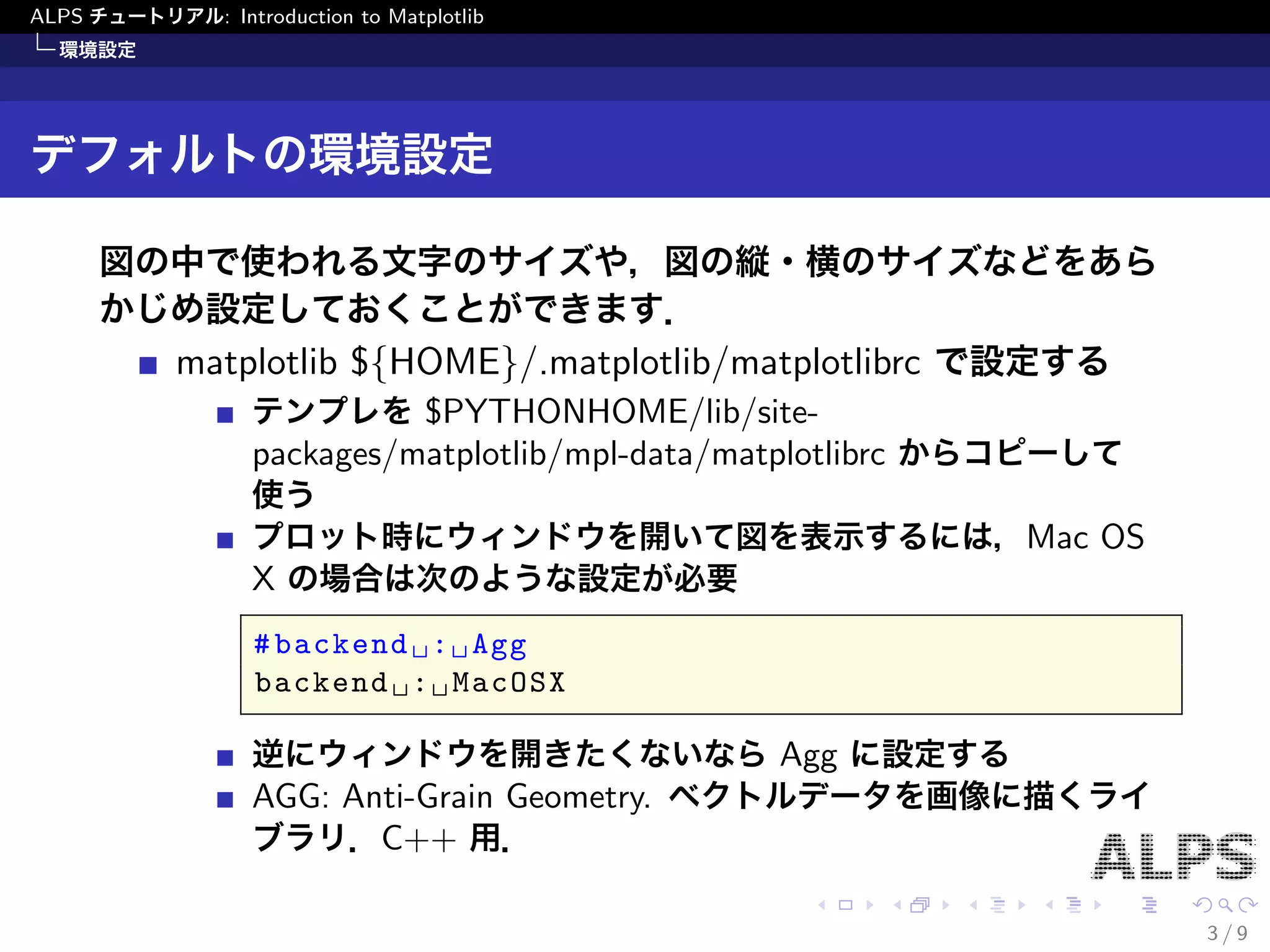
to Matplotlib 環境設定 デフォルトの環境設定 図の中で使われる文字のサイズや,図の縦・横のサイズなどをあら かじめ設定しておくことができます. matplotlib $fHOMEg/.matplotlib/matplotlibrc で設定する テンプレを$PYTHONHOME/lib/site- packages/matplotlib/mpl-data/matplotlibrc からコピーして 使う プロット時にウィンドウを開いて図を表示するには,Mac OS X の場合は次のような設定が必要 #backend : Agg backend : MacOSX 逆にウィンドウを開きたくないならAgg に設定する AGG: Anti-Grain Geometry. ベクトルデータを画像に描くライ ブラリ.C++ 用. 3 / 9
4.
ALPS チュートリアル: Introduction
to Matplotlib 環境設定 動的に環境設定を行う backend の設定はimport matplotlib の直後にすること >>> import matplotlib as mpl >>> mpl.use('Agg') グラフのサイズやフォントのサイズの設定 >>> import pylab >>> params = { ... 'legend.fontsize': 10 ... 'xtick.labelsize': 8 ... 'ytick.labelsize': 8 ... 'figure.figsize': [width, height]} >>> pyalps.rcParams.update(params) 4 / 9
5.
ALPS チュートリアル: Introduction
to Matplotlib プロットしてみる 簡単な図をプロットしてみる y = x2 のプロット >>> x = range(-10,10) >>> y = [i*i for i in x] # シンボルの色を赤(r), # 形を丸(o)に設定 >>> pl.plot(x, y, 'ro') ...[<matplotlib.lines.Line2D at 0 x114c82710>] # 拡張子で保存の # ファイル形式が決まります! >>> pl.savefig('x2.pdf') >>> pl.show() 10 5 0 5 10 100 80 60 40 20 0 5 / 9
6.
ALPS チュートリアル: Introduction
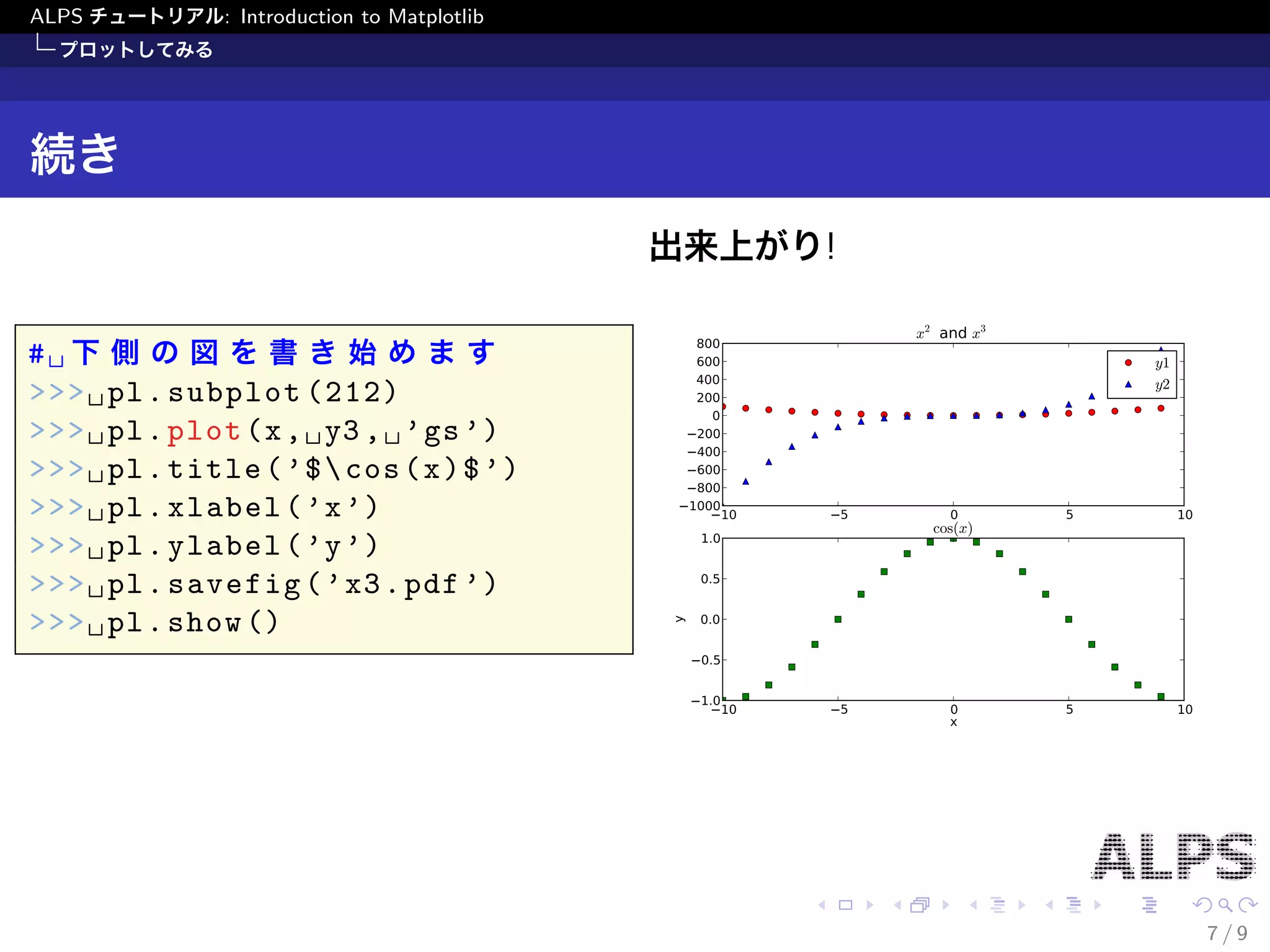
to Matplotlib プロットしてみる 少し複雑な図をプロットしてみる >>> import math as m # cos を使うため >>> x = range(-10,10) >>> y1 = [i*i for i in x] >>> y2 = [i*i*i for i in x] >>> y3 = [m.cos(2 * m.pi * i/20) for i in x] # 図を上下2 段に並べてプロットします >>> pl.subplot(211) # 上側の図を書き始めます >>> pl.plot(x, y1, 'ro') # 1 つのグラフに >>> pl.plot(x, y2, 'b^') # 2 つのデータセットをプロット >>> pl.title('$x^2$ and $x^3$') # 図のタイトル.TeX もOk! >>> pl.legend(('$y1$', '$y2$'), numpoints=1) # 凡例 6 / 9
7.
ALPS チュートリアル: Introduction
to Matplotlib プロットしてみる 続き # 下側の図を書き始めます >>> pl.subplot(212) >>> pl.plot(x, y3, 'gs') >>> pl.title('$cos(x)$') >>> pl.xlabel('x') >>> pl.ylabel('y') >>> pl.savefig('x3.pdf') >>> pl.show() 出来上がり! 10 5 0 5 10 800 600 400 200 0 200 400 600 800 1000 x2 and x3 y1 y2 10 5 0 5 10 x 1.0 0.5 0.0 0.5 1.0 y cos(x) 7 / 9
8.
ALPS チュートリアル: Introduction
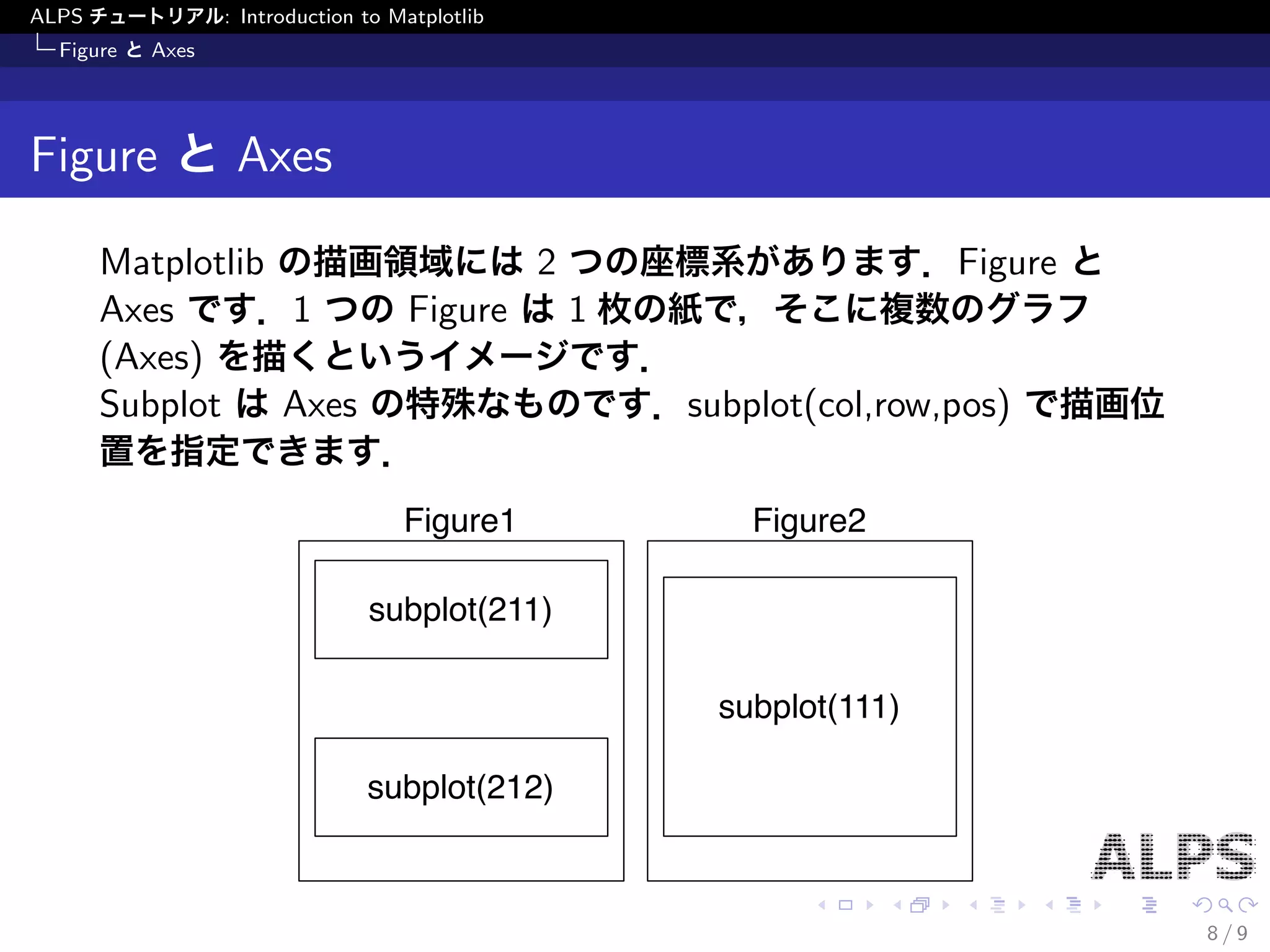
to Matplotlib Figure とAxes Figure とAxes Matplotlib の描画領域には2 つの座標系があります.Figure と Axes です.1 つのFigure は1 枚の紙で,そこに複数のグラフ (Axes) を描くというイメージです. Subplot はAxes の特殊なものです.subplot(col,row,pos) で描画位 置を指定できます. Figure1 Figure2 subplot(211) subplot(212) subplot(111) 8 / 9
9.
ALPS チュートリアル: Introduction
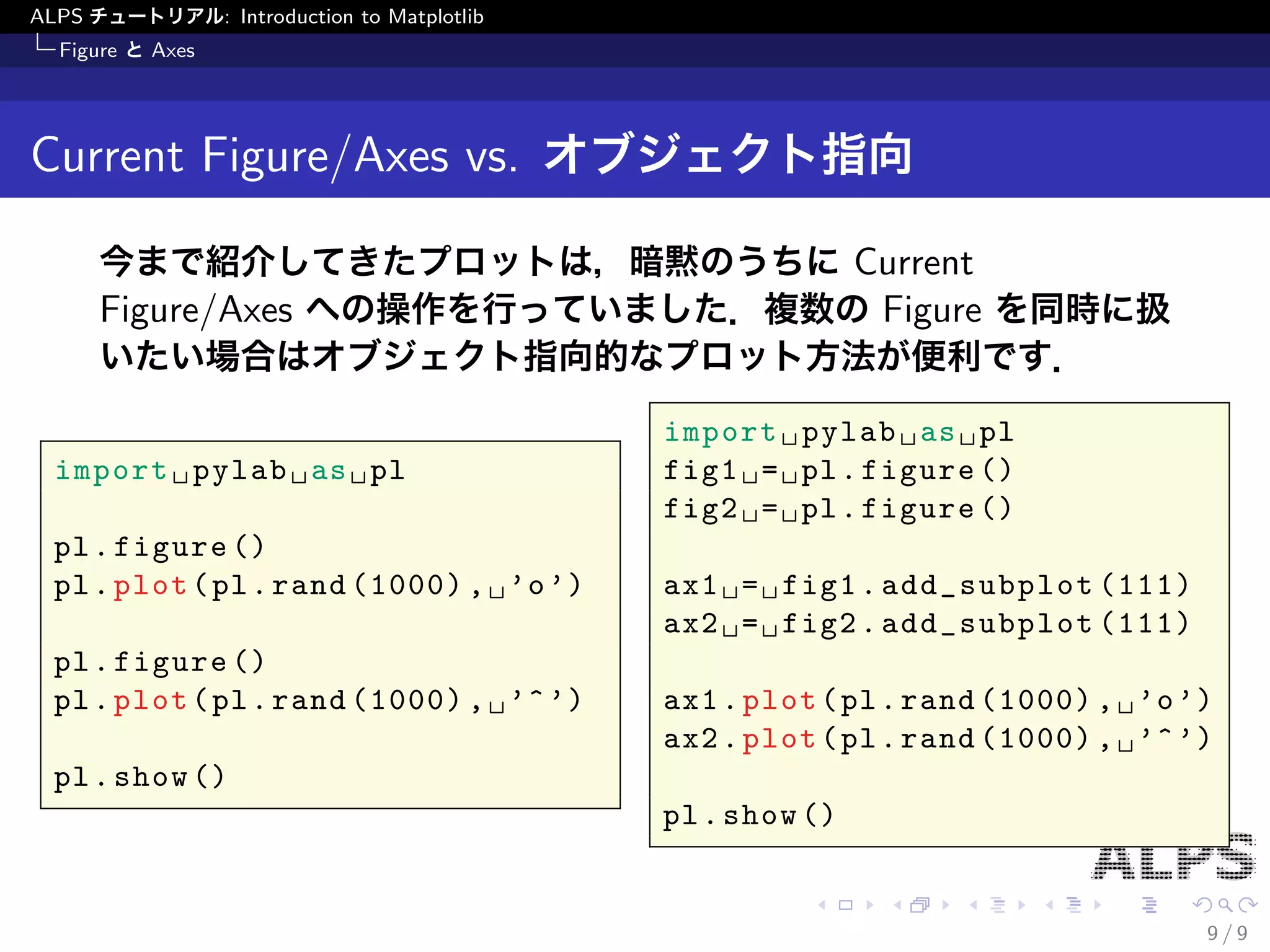
to Matplotlib Figure とAxes Current Figure/Axes vs. オブジェクト指向 今まで紹介してきたプロットは,暗黙のうちにCurrent Figure/Axes への操作を行っていました.複数のFigure を同時に扱 いたい場合はオブジェクト指向的なプロット方法が便利です. import pylab as pl pl.figure() pl.plot(pl.rand(1000), 'o') pl.figure() pl.plot(pl.rand(1000), '^') pl.show() import pylab as pl fig1 = pl.figure() fig2 = pl.figure() ax1 = fig1.add_subplot(111) ax2 = fig2.add_subplot(111) ax1.plot(pl.rand(1000), 'o') ax2.plot(pl.rand(1000), '^') pl.show() 9 / 9
Download

![ALPS チュートリアル: Introduction to Matplotlib
環境設定
動的に環境設定を行う
backend の設定はimport matplotlib の直後にすること
>>> import matplotlib as mpl
>>> mpl.use('Agg')
グラフのサイズやフォントのサイズの設定
>>> import pylab
>>> params = {
... 'legend.fontsize': 10
... 'xtick.labelsize': 8
... 'ytick.labelsize': 8
... 'figure.figsize': [width, height]}
>>> pyalps.rcParams.update(params)
4 / 9](https://image.slidesharecdn.com/matplotlib-normal-130930230608-phpapp02/75/ALPS-6-Matplotlib-4-2048.jpg)
![ALPS チュートリアル: Introduction to Matplotlib
プロットしてみる
簡単な図をプロットしてみる
y = x2 のプロット
>>> x = range(-10,10)
>>> y = [i*i for i in x]
# シンボルの色を赤(r),
# 形を丸(o)に設定
>>> pl.plot(x, y, 'ro')
...[<matplotlib.lines.Line2D at 0
x114c82710>]
# 拡張子で保存の
# ファイル形式が決まります!
>>> pl.savefig('x2.pdf')
>>> pl.show()
10 5 0 5 10
100
80
60
40
20
0
5 / 9](https://image.slidesharecdn.com/matplotlib-normal-130930230608-phpapp02/75/ALPS-6-Matplotlib-5-2048.jpg)
![ALPS チュートリアル: Introduction to Matplotlib
プロットしてみる
少し複雑な図をプロットしてみる
>>> import math as m # cos を使うため
>>> x = range(-10,10)
>>> y1 = [i*i for i in x]
>>> y2 = [i*i*i for i in x]
>>> y3 = [m.cos(2 * m.pi * i/20) for i in x]
# 図を上下2 段に並べてプロットします
>>> pl.subplot(211) # 上側の図を書き始めます
>>> pl.plot(x, y1, 'ro') # 1 つのグラフに
>>> pl.plot(x, y2, 'b^') # 2 つのデータセットをプロット
>>> pl.title('$x^2$ and $x^3$') # 図のタイトル.TeX もOk!
>>> pl.legend(('$y1$', '$y2$'), numpoints=1) # 凡例
6 / 9](https://image.slidesharecdn.com/matplotlib-normal-130930230608-phpapp02/75/ALPS-6-Matplotlib-6-2048.jpg)


![[機械学習]文章のクラス分類](https://cdn.slidesharecdn.com/ss_thumbnails/ss-160218112331-thumbnail.jpg?width=640&height=640&fit=bounds)


