
Managing Database Project with Visual Studio, SSDT 
and TFS
About myself: 
• Seasoned data architect/DBA with 15 years of SQL Server experience 
• Independent consultant, currently Technical Delivery Manager at 
Government of Alberta 
• Microsoft Certified System Engineer: MCSE 
• Oracle Certified Professional: Oracle DBA 
• IBM Certified Solution Expert: DB2 UDB 
http://netdbsolutions.com 
https://twitter.com/HarryZheng 
http://ca.linkedin.com/in/harryzheng 
https://www.facebook.com/Harry.H.Zheng 
2
Session agenda 
1. Evolution of SSDT 
2. Create a database project with Visual Studio / SSDT 
3. Build and deploy database project 
4. Check in the project to Team Foundation Server (TFS) 
5. Manage database changes with SSDT and TFS 
6. Seed reference data and other test data for deployment 
7. Database Unit test and deployment packaging 
3
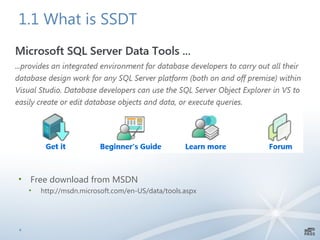
1.1 What is SSDT 
• Free download from MSDN 
• http://msdn.microsoft.com/en-US/data/tools.aspx 
4
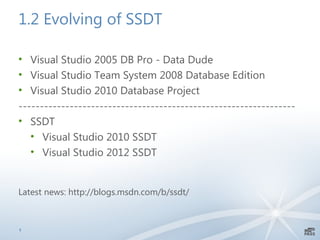
1.2 Evolving of SSDT 
• Visual Studio 2005 DB Pro - Data Dude 
• Visual Studio Team System 2008 Database Edition 
• Visual Studio 2010 Database Project 
----------------------------------------------------------------- 
• SSDT 
• Visual Studio 2010 SSDT 
• Visual Studio 2012 SSDT 
Latest news: http://blogs.msdn.com/b/ssdt/ 
5
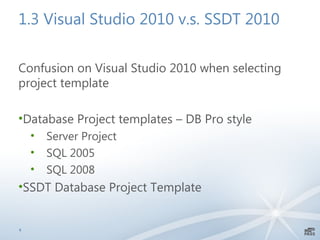
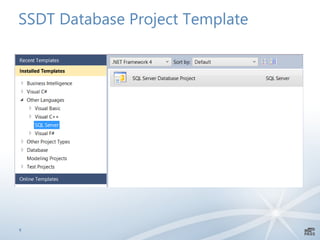
1.3 Visual Studio 2010 v.s. SSDT 2010 
Confusion on Visual Studio 2010 when selecting 
project template 
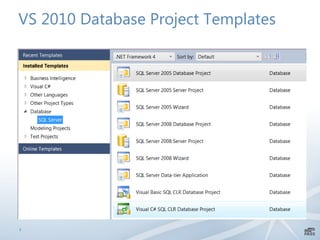
•Database Project templates – DB Pro style 
• Server Project 
• SQL 2005 
• SQL 2008 
•SSDT Database Project Template 
6
VS 2010 Database Project Templates 
7
SSDT Database Project Template 
8
1.4 Why SSDT 
• Manage database objects from Visual Studio – unified interface 
• Manage database version with source control tools, e.g. TFS 
• Refactoring 
• Schema Comparison 
• Database Unit Test 
9
1.5 SSDT Features 
• Solution Explorer 
• SQL Server Object Explorer – including Project Schema View 
• T-SQL Query Window 
• Online Connected Development 
• Offline Project Development – (localdb)Projects 
• Database Snapshot 
• Target switch to different SQL Server versions 
• Schema compare between: 
• Database 
• Database project 
• Project snapshot 
10
1.6 SSDT Limitations 
Not feature complete v.s. VS Database Professional (DBPro) 
•No data compare (this feature is available now) 
•No data generation (this feature is available now) 
Third party tool: 
•Red Gate Data Compare 
•Red Gate Data Generation 
11
Session agenda 
1. Evolution of SSDT 
2. Create a database project with Visual Studio / SSDT 
3. Build and deploy database project 
4. Check in the project to Team Foundation Server (TFS) 
5. Manage database changes with SSDT and TFS 
6. Seed reference data and other test data for deployment 
7. Database Unit test and deployment packaging 
12
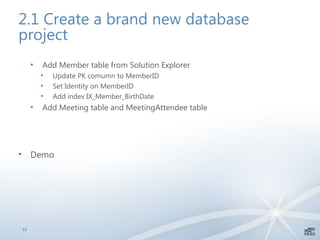
2.1 Create a brand new database 
project 
• Add Member table from Solution Explorer 
• Update PK comumn to MemberID 
• Set Identity on MemberID 
• Add index IX_Member_BirthDate 
• Add Meeting table and MeetingAttendee table 
• Demo 
13
2.2 Import existing database into 
project 
1. Design Data Model in PowerDesigner 
2. Generate SQL Script from PowerDesigner 
3. Run SQL Script to local SQL Instance 
4. Import existing database to create the database project 
• Demo 
14
2.3 Create a project snapshot 
• Snapshot – point in time project objects 
Demo 
1 
5
Session agenda 
1. Evolution of SSDT 
2. Create a database project with Visual Studio / SSDT 
3. Build and deploy database project 
4. Check in the project to Team Foundation Server (TFS) 
5. Manage database changes with SSDT and TFS 
6. Seed reference data and other test data for deployment 
7. Database Unit test and deployment packaging 
16
3.1 Code Analysis 
• Add SP: uspShowMeetingAttendee with “select * from” 
• Build project 
• Project -> Property -> Code Analysis 
• Build project 
• Update Sp to select FirstName, LastName 
• Build project 
Demo 
17
3.2 Publish project 
• Publish to Integration 
• Publish to Windows Azure SQL Database 
Demo 
1 
8
Session agenda 
1. Evolution of SSDT 
2. Create a database project with Visual Studio / SSDT 
3. Build and deploy database project 
4. Check in the project to Team Foundation Server (TFS) 
5. Manage database changes with SSDT and TFS 
6. Seed reference data and other test data for deployment 
7. Database Unit test and deployment packaging 
19
4. Check in the project to Team 
Foundation Server (TFS) 
• Protect database schema objects 
• Track schema changes 
Demo 
• Check in database project 
20
Session agenda 
1. Evolution of SSDT 
2. Create a database project with Visual Studio / SSDT 
3. Build and deploy database project 
4. Check in the project to Team Foundation Server (TFS) 
5. Manage database changes with SSDT and TFS 
6. Seed reference data and other test data for deployment 
7. Database Unit test and deployment packaging 
21
5.1 Manage Table Change 
• Change Member.LastName to varchar 
• Checkin change 
• Inspect TFS history 
22
5.2 Refactor 
•Update table Member 
•Refactor Member.LastName to SurName 
•Inspect uspShowMeetingAttendee 
Demo 
23
5.3 Schema Compare 
Schema Compare 
•Compare Project to live Database 
•Update target database 
•Compare again 
•Schema compare options 
2 
4
Session agenda 
1. Evolution of SSDT 
2. Create a database project with Visual Studio / SSDT 
3. Build and deploy database project 
4. Check in the project to Team Foundation Server (TFS) 
5. Manage database changes with SSDT and TFS 
6. Seed reference data and other test data for deployment 
7. Database Unit test and deployment packaging 
25
6.1 Seed data with SQL Script 
• Add sql script to PostDeploymentScript 
• SSDT allows script data out 
Demo 
26
6.2 Seed data with BCP 
• BCP file in on PostDeploymentScript 
2 
7
6.3 Seed Data with Restore 
• Create a separate Seed Database to track seed data 
• Backup seed database to network share 
• Restore Seed database to target before deployment 
• Publish database to update target schema 
• Seed data remains 
2 
8
Session agenda 
1. Evolution of SSDT 
2. Create a database project with Visual Studio / SSDT 
3. Build and deploy database project 
4. Check in the project to Team Foundation Server (TFS) 
5. Manage database changes with SSDT and TFS 
6. Seed reference data and other test data for deployment 
7. Database Unit test and deployment packaging 
29
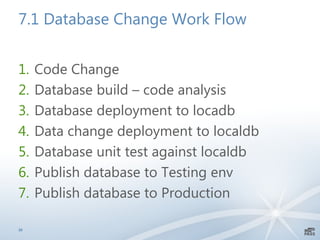
7.1 Database Change Work Flow 
1. Code Change 
2. Database build – code analysis 
3. Database deployment to locadb 
4. Data change deployment to localdb 
5. Database unit test against localdb 
6. Publish database to Testing env 
7. Publish database to Production 
3 
0
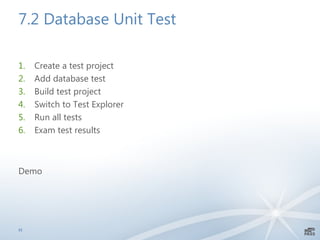
7.2 Database Unit Test 
1. Create a test project 
2. Add database test 
3. Build test project 
4. Switch to Test Explorer 
5. Run all tests 
6. Exam test results 
Demo 
3 
1
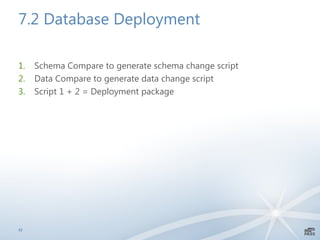
7.2 Database Deployment 
1. Schema Compare to generate schema change script 
2. Data Compare to generate data change script 
3. Script 1 + 2 = Deployment package 
3 
2

Managing database project with Visual Studio SSDT and TFS

  • 1.
    Managing Database Projectwith Visual Studio, SSDT and TFS
  • 2.
    About myself: •Seasoned data architect/DBA with 15 years of SQL Server experience • Independent consultant, currently Technical Delivery Manager at Government of Alberta • Microsoft Certified System Engineer: MCSE • Oracle Certified Professional: Oracle DBA • IBM Certified Solution Expert: DB2 UDB http://netdbsolutions.com https://twitter.com/HarryZheng http://ca.linkedin.com/in/harryzheng https://www.facebook.com/Harry.H.Zheng 2
  • 3.
    Session agenda 1.Evolution of SSDT 2. Create a database project with Visual Studio / SSDT 3. Build and deploy database project 4. Check in the project to Team Foundation Server (TFS) 5. Manage database changes with SSDT and TFS 6. Seed reference data and other test data for deployment 7. Database Unit test and deployment packaging 3
  • 4.
    1.1 What isSSDT • Free download from MSDN • http://msdn.microsoft.com/en-US/data/tools.aspx 4
  • 5.
    1.2 Evolving ofSSDT • Visual Studio 2005 DB Pro - Data Dude • Visual Studio Team System 2008 Database Edition • Visual Studio 2010 Database Project ----------------------------------------------------------------- • SSDT • Visual Studio 2010 SSDT • Visual Studio 2012 SSDT Latest news: http://blogs.msdn.com/b/ssdt/ 5
  • 6.
    1.3 Visual Studio2010 v.s. SSDT 2010 Confusion on Visual Studio 2010 when selecting project template •Database Project templates – DB Pro style • Server Project • SQL 2005 • SQL 2008 •SSDT Database Project Template 6
  • 7.
    VS 2010 DatabaseProject Templates 7
  • 8.
  • 9.
    1.4 Why SSDT • Manage database objects from Visual Studio – unified interface • Manage database version with source control tools, e.g. TFS • Refactoring • Schema Comparison • Database Unit Test 9
  • 10.
    1.5 SSDT Features • Solution Explorer • SQL Server Object Explorer – including Project Schema View • T-SQL Query Window • Online Connected Development • Offline Project Development – (localdb)Projects • Database Snapshot • Target switch to different SQL Server versions • Schema compare between: • Database • Database project • Project snapshot 10
  • 11.
    1.6 SSDT Limitations Not feature complete v.s. VS Database Professional (DBPro) •No data compare (this feature is available now) •No data generation (this feature is available now) Third party tool: •Red Gate Data Compare •Red Gate Data Generation 11
  • 12.
    Session agenda 1.Evolution of SSDT 2. Create a database project with Visual Studio / SSDT 3. Build and deploy database project 4. Check in the project to Team Foundation Server (TFS) 5. Manage database changes with SSDT and TFS 6. Seed reference data and other test data for deployment 7. Database Unit test and deployment packaging 12
  • 13.
    2.1 Create abrand new database project • Add Member table from Solution Explorer • Update PK comumn to MemberID • Set Identity on MemberID • Add index IX_Member_BirthDate • Add Meeting table and MeetingAttendee table • Demo 13
  • 14.
    2.2 Import existingdatabase into project 1. Design Data Model in PowerDesigner 2. Generate SQL Script from PowerDesigner 3. Run SQL Script to local SQL Instance 4. Import existing database to create the database project • Demo 14
  • 15.
    2.3 Create aproject snapshot • Snapshot – point in time project objects Demo 1 5
  • 16.
    Session agenda 1.Evolution of SSDT 2. Create a database project with Visual Studio / SSDT 3. Build and deploy database project 4. Check in the project to Team Foundation Server (TFS) 5. Manage database changes with SSDT and TFS 6. Seed reference data and other test data for deployment 7. Database Unit test and deployment packaging 16
  • 17.
    3.1 Code Analysis • Add SP: uspShowMeetingAttendee with “select * from” • Build project • Project -> Property -> Code Analysis • Build project • Update Sp to select FirstName, LastName • Build project Demo 17
  • 18.
    3.2 Publish project • Publish to Integration • Publish to Windows Azure SQL Database Demo 1 8
  • 19.
    Session agenda 1.Evolution of SSDT 2. Create a database project with Visual Studio / SSDT 3. Build and deploy database project 4. Check in the project to Team Foundation Server (TFS) 5. Manage database changes with SSDT and TFS 6. Seed reference data and other test data for deployment 7. Database Unit test and deployment packaging 19
  • 20.
    4. Check inthe project to Team Foundation Server (TFS) • Protect database schema objects • Track schema changes Demo • Check in database project 20
  • 21.
    Session agenda 1.Evolution of SSDT 2. Create a database project with Visual Studio / SSDT 3. Build and deploy database project 4. Check in the project to Team Foundation Server (TFS) 5. Manage database changes with SSDT and TFS 6. Seed reference data and other test data for deployment 7. Database Unit test and deployment packaging 21
  • 22.
    5.1 Manage TableChange • Change Member.LastName to varchar • Checkin change • Inspect TFS history 22
  • 23.
    5.2 Refactor •Updatetable Member •Refactor Member.LastName to SurName •Inspect uspShowMeetingAttendee Demo 23
  • 24.
    5.3 Schema Compare Schema Compare •Compare Project to live Database •Update target database •Compare again •Schema compare options 2 4
  • 25.
    Session agenda 1.Evolution of SSDT 2. Create a database project with Visual Studio / SSDT 3. Build and deploy database project 4. Check in the project to Team Foundation Server (TFS) 5. Manage database changes with SSDT and TFS 6. Seed reference data and other test data for deployment 7. Database Unit test and deployment packaging 25
  • 26.
    6.1 Seed datawith SQL Script • Add sql script to PostDeploymentScript • SSDT allows script data out Demo 26
  • 27.
    6.2 Seed datawith BCP • BCP file in on PostDeploymentScript 2 7
  • 28.
    6.3 Seed Datawith Restore • Create a separate Seed Database to track seed data • Backup seed database to network share • Restore Seed database to target before deployment • Publish database to update target schema • Seed data remains 2 8
  • 29.
    Session agenda 1.Evolution of SSDT 2. Create a database project with Visual Studio / SSDT 3. Build and deploy database project 4. Check in the project to Team Foundation Server (TFS) 5. Manage database changes with SSDT and TFS 6. Seed reference data and other test data for deployment 7. Database Unit test and deployment packaging 29
  • 30.
    7.1 Database ChangeWork Flow 1. Code Change 2. Database build – code analysis 3. Database deployment to locadb 4. Data change deployment to localdb 5. Database unit test against localdb 6. Publish database to Testing env 7. Publish database to Production 3 0
  • 31.
    7.2 Database UnitTest 1. Create a test project 2. Add database test 3. Build test project 4. Switch to Test Explorer 5. Run all tests 6. Exam test results Demo 3 1
  • 32.
    7.2 Database Deployment 1. Schema Compare to generate schema change script 2. Data Compare to generate data change script 3. Script 1 + 2 = Deployment package 3 2