Malwarebytes
Anti-Spam program installation
John Lorens
847-687-1329
johnlorens@gmail.com
www.lorenstechsolutions.com
Malwarebytes Anti-Malware (MBAM) is an application for
computers running under the Microsoft Windows and Apple OS X
operating system that finds and removes malware
1
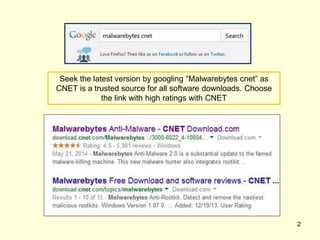
Seek the latest version by googling “Malwarebytes cnet” as
CNET is a trusted source for all software downloads. Choose
the link with high ratings with CNET
2
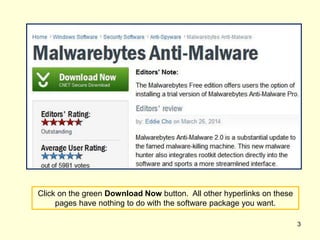
Click on the green Download Now button. All other hyperlinks on these
pages have nothing to do with the software package you want.
3
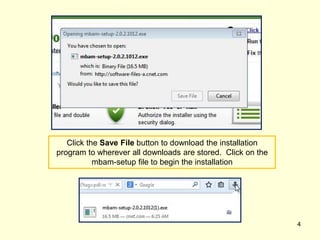
Click the Save File button to download the installation
program to wherever all downloads are stored. Click on the
mbam-setup file to begin the installation
4
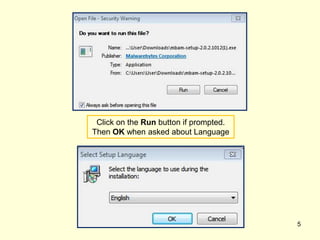
Click on the Run button if prompted.
Then OK when asked about Language
5
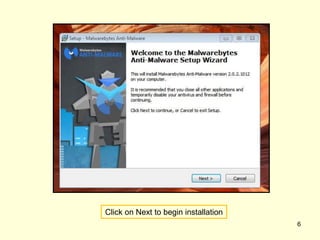
Click on Next to begin installation
6
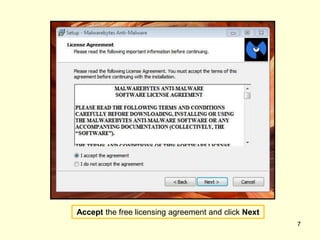
Accept the free licensing agreement and click Next
7
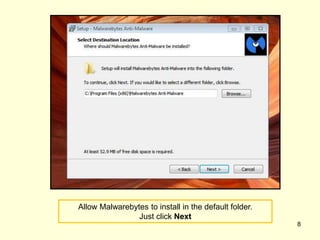
Allow Malwarebytes to install in the default folder.
Just click Next
8
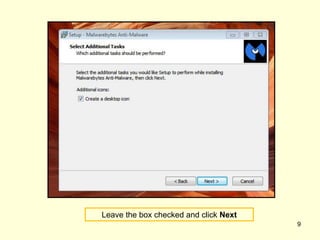
Leave the box checked and click Next
9
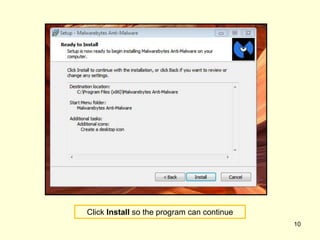
Click Install so the program can continue
10
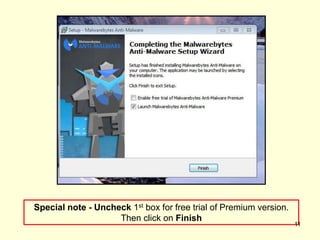
Special note - Uncheck 1st box for free trial of Premium version.
Then click on Finish
11
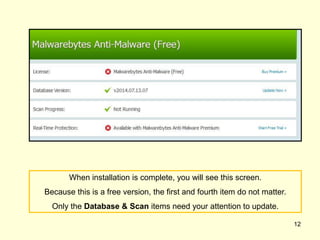
When installation is complete, you will see this screen.
Because this is a free version, the first and fourth item do not matter.
Only the Database & Scan items need your attention to update.
12
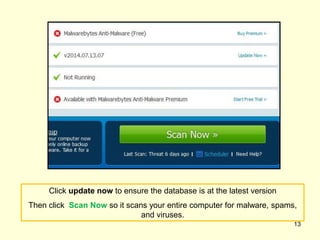
Click update now to ensure the database is at the latest version
Then click Scan Now so it scans your entire computer for malware, spams,
and viruses.
13
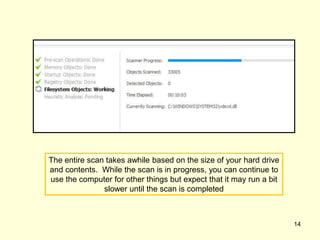
The entire scan takes awhile based on the size of your hard drive
and contents. While the scan is in progress, you can continue to
use the computer for other things but expect that it may run a bit
slower until the scan is completed
14
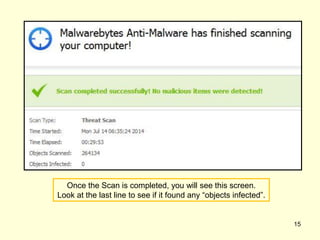
Once the Scan is completed, you will see this screen.
Look at the last line to see if it found any “objects infected”.
15
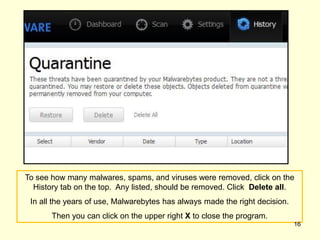
To see how many malwares, spams, and viruses were removed, click on the
History tab on the top. Any listed, should be removed. Click Delete all.
In all the years of use, Malwarebytes has always made the right decision.
Then you can click on the upper right X to close the program.
16
John Lorens
Program / Project Manager
Computer Engineer
johnlorens@gmail.com
847-687-1329
www.lorenstechsolutions.com
www.linkedin.com/in/johnlorens/
17

Malwarebytes Installation

  • 1.
    Malwarebytes Anti-Spam program installation JohnLorens 847-687-1329 johnlorens@gmail.com www.lorenstechsolutions.com Malwarebytes Anti-Malware (MBAM) is an application for computers running under the Microsoft Windows and Apple OS X operating system that finds and removes malware 1
  • 2.
    Seek the latestversion by googling “Malwarebytes cnet” as CNET is a trusted source for all software downloads. Choose the link with high ratings with CNET 2
  • 3.
    Click on thegreen Download Now button. All other hyperlinks on these pages have nothing to do with the software package you want. 3
  • 4.
    Click the SaveFile button to download the installation program to wherever all downloads are stored. Click on the mbam-setup file to begin the installation 4
  • 5.
    Click on theRun button if prompted. Then OK when asked about Language 5
  • 6.
    Click on Nextto begin installation 6
  • 7.
    Accept the freelicensing agreement and click Next 7
  • 8.
    Allow Malwarebytes toinstall in the default folder. Just click Next 8
  • 9.
    Leave the boxchecked and click Next 9
  • 10.
    Click Install sothe program can continue 10
  • 11.
    Special note -Uncheck 1st box for free trial of Premium version. Then click on Finish 11
  • 12.
    When installation iscomplete, you will see this screen. Because this is a free version, the first and fourth item do not matter. Only the Database & Scan items need your attention to update. 12
  • 13.
    Click update nowto ensure the database is at the latest version Then click Scan Now so it scans your entire computer for malware, spams, and viruses. 13
  • 14.
    The entire scantakes awhile based on the size of your hard drive and contents. While the scan is in progress, you can continue to use the computer for other things but expect that it may run a bit slower until the scan is completed 14
  • 15.
    Once the Scanis completed, you will see this screen. Look at the last line to see if it found any “objects infected”. 15
  • 16.
    To see howmany malwares, spams, and viruses were removed, click on the History tab on the top. Any listed, should be removed. Click Delete all. In all the years of use, Malwarebytes has always made the right decision. Then you can click on the upper right X to close the program. 16
  • 17.
    John Lorens Program /Project Manager Computer Engineer johnlorens@gmail.com 847-687-1329 www.lorenstechsolutions.com www.linkedin.com/in/johnlorens/ 17