Texthelp
Using the Study Skills options to
create a Bibliography and more…
Texthelp has a feature that allows
you to instantly create a
Bibliography from multiple sources
that you have highlighted
information in.
(Works best with Internet Explorer)
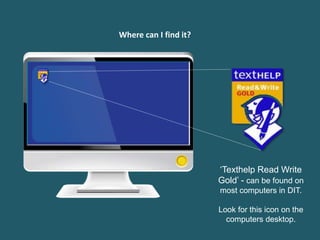
‘Texthelp Read Write
Gold’ - can be found on
most computers in DIT.
Look for this icon on the
computers desktop.
Where can I find it?
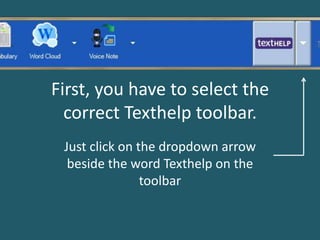
First, you have to select the
correct Texthelp toolbar.
Just click on the dropdown arrow
beside the word Texthelp on the
toolbar
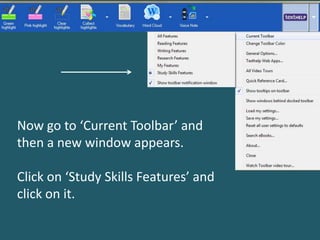
Now go to ‘Current Toolbar’ and
then a new window appears.
Click on ‘Study Skills Features’ and
click on it.
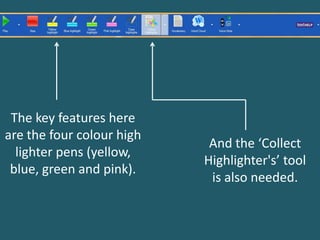
The key features here
are the four colour high
lighter pens (yellow,
blue, green and pink).
And the ‘Collect
Highlighter's’ tool
is also needed.
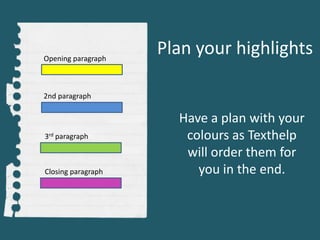
Plan your highlights
Have a plan with your
colours as Texthelp
will order them for
you in the end.
Opening paragraph
2nd paragraph
3rd paragraph
Closing paragraph
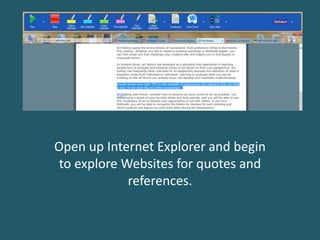
Open up Internet Explorer and begin
to explore Websites for quotes and
references.
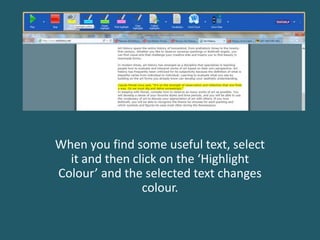
When you find some useful text, select
it and then click on the ‘Highlight
Colour’ and the selected text changes
colour.
So just explore websites and
documents and highlight the text
that is appropriate and keep the
colour code in mind.
Tip- have the sheet with the colours
and the paragraphs they correspond
to beside you. This will keep you
focused.
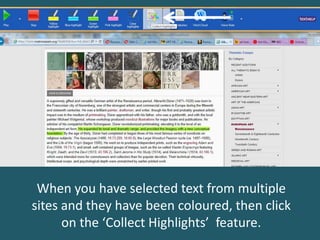
When you have selected text from multiple
sites and they have been coloured, then click
on the ‘Collect Highlights’ feature.
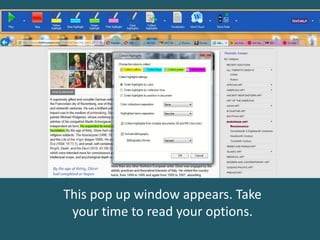
This pop up window appears. Take
your time to read your options.
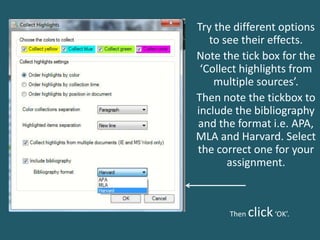
Try the different options
to see their effects.
Note the tick box for the
‘Collect highlights from
multiple sources’.
Then note the tickbox to
include the bibliography
and the format i.e. APA,
MLA and Harvard. Select
the correct one for your
assignment.
Then click‘OK’.
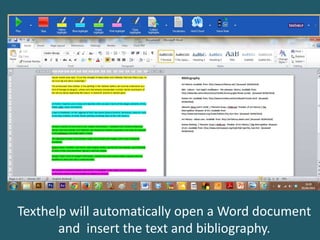
Texthelp will automatically open a Word document
and insert the text and bibliography.
Just a few last details to do but this
is a good start with your assignment.
Click on this link to see videos about
Texthelp.

Making a bibliography with texthelp

  • 1.
    Texthelp Using the StudySkills options to create a Bibliography and more…
  • 2.
    Texthelp has afeature that allows you to instantly create a Bibliography from multiple sources that you have highlighted information in. (Works best with Internet Explorer)
  • 3.
    ‘Texthelp Read Write Gold’- can be found on most computers in DIT. Look for this icon on the computers desktop. Where can I find it?
  • 4.
    First, you haveto select the correct Texthelp toolbar. Just click on the dropdown arrow beside the word Texthelp on the toolbar
  • 5.
    Now go to‘Current Toolbar’ and then a new window appears. Click on ‘Study Skills Features’ and click on it.
  • 6.
    The key featureshere are the four colour high lighter pens (yellow, blue, green and pink). And the ‘Collect Highlighter's’ tool is also needed.
  • 7.
    Plan your highlights Havea plan with your colours as Texthelp will order them for you in the end. Opening paragraph 2nd paragraph 3rd paragraph Closing paragraph
  • 8.
    Open up InternetExplorer and begin to explore Websites for quotes and references.
  • 9.
    When you findsome useful text, select it and then click on the ‘Highlight Colour’ and the selected text changes colour.
  • 10.
    So just explorewebsites and documents and highlight the text that is appropriate and keep the colour code in mind. Tip- have the sheet with the colours and the paragraphs they correspond to beside you. This will keep you focused.
  • 11.
    When you haveselected text from multiple sites and they have been coloured, then click on the ‘Collect Highlights’ feature.
  • 12.
    This pop upwindow appears. Take your time to read your options.
  • 13.
    Try the differentoptions to see their effects. Note the tick box for the ‘Collect highlights from multiple sources’. Then note the tickbox to include the bibliography and the format i.e. APA, MLA and Harvard. Select the correct one for your assignment. Then click‘OK’.
  • 14.
    Texthelp will automaticallyopen a Word document and insert the text and bibliography.
  • 15.
    Just a fewlast details to do but this is a good start with your assignment. Click on this link to see videos about Texthelp.