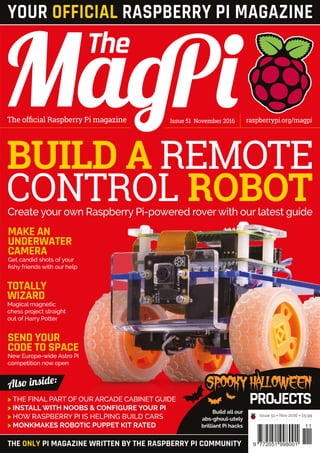
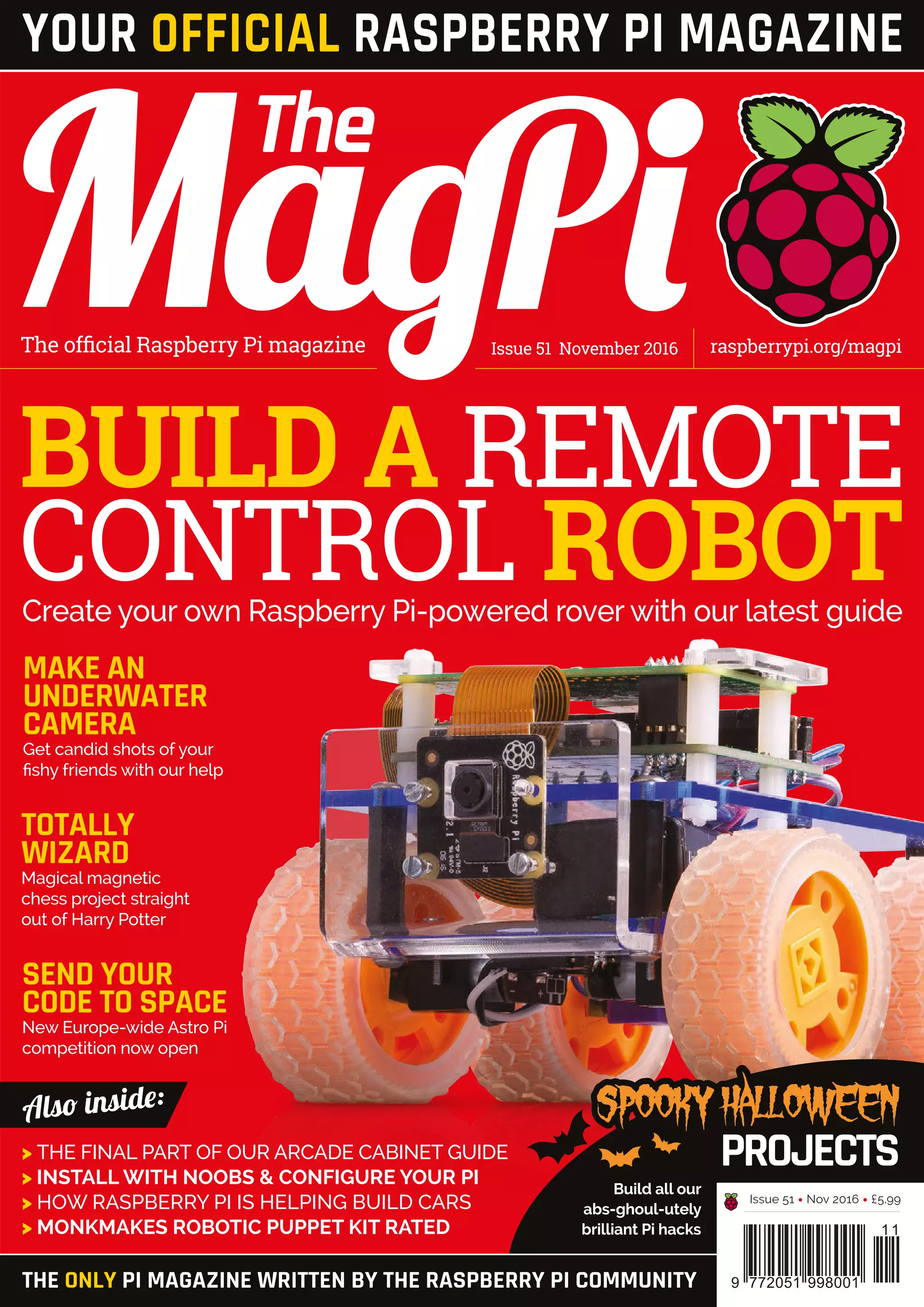
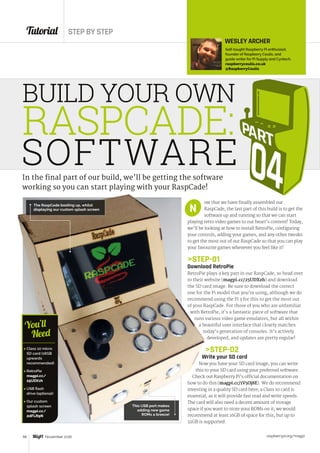
BUILD A REMOTE
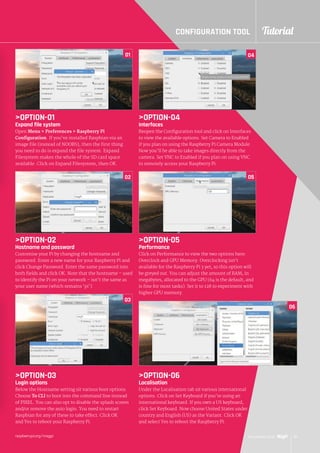
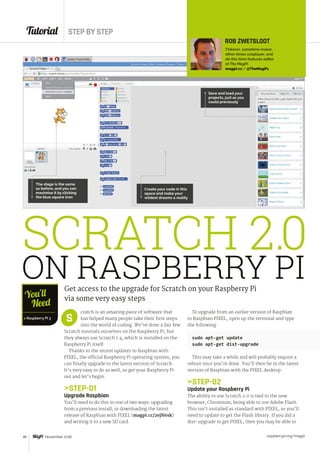
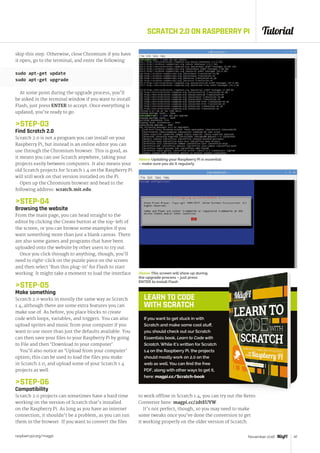
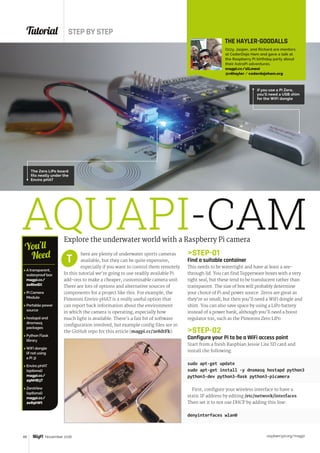
CONTROL ROBOT
SPOOKYHALLOWEEN
PROJECTS
Issue 51 November 2016The official Raspberry Pi magazine raspberrypi.org/magpi
THE ONLY PI MAGAZINE WRITTEN BY THE RASPBERRY PI COMMUNITY
Also inside:
11
9 772051 998001
Issue 51 • Nov 2016 • £5.99
YOUR OFFICIAL RASPBERRY PI MAGAZINE
Create your own Raspberry Pi-powered rover with our latest guide
TOTALLY
WIZARD
Magical magnetic
chess project straight
out of Harry Potter
SEND YOUR
CODE TO SPACE
New Europe-wide Astro Pi
competition now open
MAKE AN
UNDERWATER
CAMERA
Get candid shots of your
fishy friends with our help
Also inside:
>	THE FINAL PART OF OUR ARCADE CABINET GUIDE
>	INSTALL WITH NOOBS & CONFIGURE YOUR PI
>	HOW RASPBERRY PI IS HELPING BUILD CARS
>	MONKMAKES ROBOTIC PUPPET KIT RATED
Build all our
abs-ghoul-utely
brilliant Pi hacks
raspberrypi.org/magpi 3April 2016
PAGE 30
SEE PAGE 30 FOR DETAILS
raspberrypi.org/magpi 3
Welcome
EDITORIAL
Managing Editor: Russell Barnes
russell@raspberrypi.org
Features Editor: Rob Zwetsloot
News Editor: Lucy Hattersley
Sub Editors: Laura Clay, Phil King, Lorna Lynch
DESIGN
Critical Media: criticalmedia.co.uk
Head of Design: Dougal Matthews
Designers: Lee Allen, Mike Kay
PUBLISHING
For advertising & licensing:
russell@raspberrypi.org +44 (0)7904 766523
Publisher: Liz Upton
CEO: Eben Upton
The MagPi magazine is published by Raspberry Pi (Trading) Ltd., 30 Station Road, Cambridge, CB1 2JH. The publisher,
editor and contributors accept no responsibility in respect of any omissions or errors relating to goods, products or services
referred to or advertised in the magazine. Except where otherwise noted, content in this magazine is licensed under a
Creative Commons Attribution-NonCommercial-ShareAlike 3.0 Unported (CC BY-NC-SA 3.0). ISSN: 2051-9982.
WELCOME TO
THE OFFICIAL
MAGAZINE
e’re still riding high on the success
of last month’s 50th issue, in which
we counted down the best Raspberry
Pi projects ever made. The response from our
readers to the public-voted portion of our
countdown – the all-important top 20 – was
astounding, so please accept our heartfelt
thanks for making it such a memorable
community event!
We’re back to business as usual this issue.
Just the standard, everyday, run‑of‑the‑mill
articles you’ve come to expect from the
magazine on a month-by-month basis.
Standard stuff like shooting your code
into space, building awesome robots,
mastering essential computing expertise,
and bootstrapping the impossible with
nothing more than affordable technology,
a free weekend, and the skills to succeed.
Just the usual.
Enjoy the issue!
Russell Barnes
Managing Editor
W
CONTRIBUTORS
WesArcher,Alex Bate, Bare Conductive, Brian Corteil,
Mike Cook, Rachel-Chloe Gregory, Gareth Halfacree,
Richard Hayler, Ben Nuttall, Phil King, Simon Long,
Matt Richardson, Richard Smedley& CliveWebster
GET IN TOUCH
THIS MONTH:
magpi@raspberrypi.orgFIND US ONLINE raspberrypi.org/magpi
This magazine is printed on paper sourced from
sustainable forests and the printer operates an
environmental management system which has
been assessed as conforming to ISO 14001.
DISTRIBUTION
Seymour Distribution Ltd
2 East Poultry Ave
London
EC1A 9PT | +44 (0)207 429 4000	
SUBSCRIPTIONS
Select Publisher Services Ltd
PO Box 6337
Bournemouth
BH1 9EH | +44 (0)1202 586 848
November 2016
06 BLAST YOUR CODE INTO SPACE
Enter the new, improved Europe-wide Astro Pi competition
14 BUILD YOUR OWN ROBOT
Ladies and gentleman, we can build it. We have the technology
44 CONFIGURE YOUR RASPBERRY PI
Tweak your Pi’s dials in another essential beginner’s guide
48 MAKE AN UNDERWATER CAMERA
Take your Raspberry Pi for a swim with the fishes
raspberrypi.org/magpi4 November 2016
BUILD A ROBOT
ContentsIssue 51 November 2016 raspberrypi.org/magpi
COVER FEATURETUTORIALS
14
Element14’s community challenge
is over, with some amazing results
Astro Pi is back with a Europe-wide
challenge for kids to enter!
PIIOT
WINNERS
NEW ASTRO PI COMPETITION
126
IN THE NEWS
> RASPBERRY PI 101 – NOOBS	 42
Install one of many OSes with NOOBS
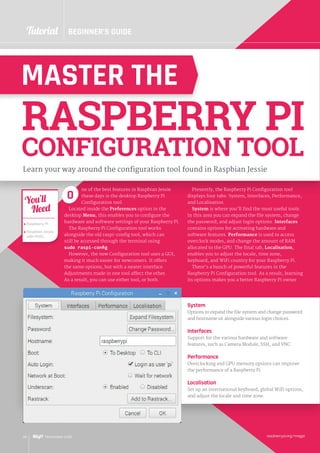
> RASPBERRY PI 101 – CONFIG	 44
Change the way your Raspberry Pi works
> HOW TO USE SCRATCH 2.0	 46
Upgrade Raspbian with PIXEL to use Scratch 2.0
> UNDERWATER CAMERA	 48
Build a waterproof, Pi-powered camera
> INTRO TO C PART 5	 50
How to use pointers in your code
> BUILD A WIFI DETECTOR	 52
Find out who’s been at your house by using WiFi
> CREATE A STATUES GAME	 54
Play statues with a Raspberry Pi in the Pi Bakery
> ARCADE MACHINE PART 5	 58
Finish building the RaspCade
> MAKE PONG WITH PI CAP	 60
How to make Capong, a physical version of Pong
> PIVR – PVR ON YOUR PI	 64
Upgrade your Pi media centre with a PVR
A car factory in Portugal has
supercharged its production line
with Raspberry Pis
PI-MADE
CARS 8
Magic chess. Like Harry Potter, only real!
32
YOUR PROJECTS
Contents
raspberrypi.org/magpi 5November 2016
> NEWS	 06
> TECHNICAL FAQ	 66
> BOOK REVIEWS	 82
> THE FINAL WORD	 96
REGULARS
> PUPPET KIT	 76
> FORMCARD	 78
> MCROBOFACE	 79
> ZERO SEG	 80
> ZERO LIPO	 81
REVIEWS
COMMUNITY
> THIS MONTH IN PI	 84
What else happened this month in the world of Pi?
> EVENTS	 88
Find a community event near you
> MEET A JAM ORGANISER	 90
We talk to Les Pounder of the Blackpool Jams
> LETTERS	 92
We answer your letters about the magazine and Pi
A glockenspiel powered by a Pi
MONOME PI	 34
 
An old-school, self-playing piano
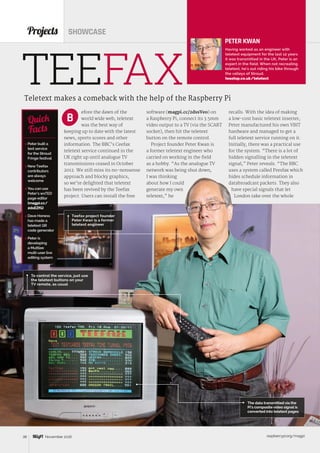
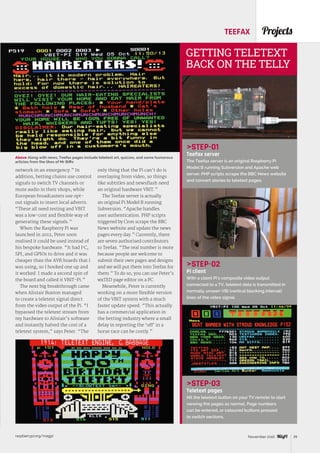
Relive the glory days of Ceefax
PIANOLA	 36
TEEFAX	 38
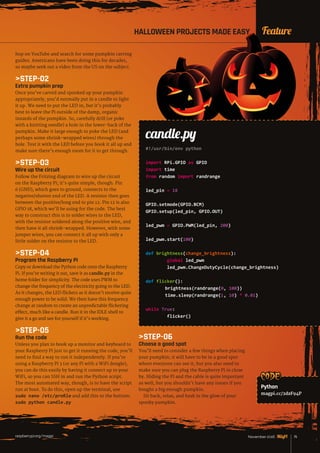
Scare your friends with these quick Halloween
projects you can do in time for the big day
THE BIG FEATURE
68
86Meet Matt Reed, American
maker extraordinaire
COMMUNITY
SPOTLIGHT
EASY HALLOWEEN PROJECTS
WIZARD CHESS
94
ONE OF TWO
PI-TOPCEEDS
OR A PI-TOP!
raspberrypi.org/magpi6 November 2016
News
All aboard the ISS
“We have a Raspberry Pi computer
on the International Space Station,
which is being programmed by
school students,” said Dave Honess,
programme manager for Astro Pi.
“Think about how profound that
is for a school student,” continued
Dave, speaking at the Space for
Inspiration conference. “You can
have something you’ve made up in
space; that’s what Astro Pi is.”
Getting the Astro Pi devices on
board the ISS in the first place was
no easy feat for the Raspberry Pi
Foundation, so it’s fantastic to
see them doing a second mission.
“If you want to fly anything to the
International Space Station, even
if it’s a small payload, you have
to have something called a Flight
Safety Certificate (FSC),” said Dave.
“Our FSC was quite hard to get,
because as an educational payload
we were quite unusual.”
The Astro Pi units went up for
Major Tim Peake, a British ESA
Brand-new European mission for Astro Pi units sees students
across Europe developing code for Ed and Izzy
he European Space Agency
(ESA) and the Raspberry
Pi Foundation have
teamed up to run a brand-new
Astro Pi challenge.
Space cadets will get another
chance to create code for Ed and
Izzy, the two Astro Pi units on
board the International Space
Station (ISS). For this mission,
students from France, Spain,
Germany, and other European
countries will join young coders
from Britain.
This time around, ESA French
astronaut Thomas Pesquet will run
code on Ed and Izzy.
Thomas is ready to blast into
space in November 2016. He will
serve on board the ISS as a flight
engineer for Expeditions 50 and 51.
“I’m currently at the European
Astronaut centre,” he told us.
“I’m training for my Proxima
mission. I’ll be going to the
International Space Station
this autumn, for six months.”
T
FEATURE
Students and teachers should first assemble
a mission team, which must include at least
one support teacher as well as students under
the age of 16. Use the Mission Plan Template
(magpi.cc/2enYSWP) to design a sample mission
that showcases your approach to running a space
mission, and demonstrates that you can break
down your big idea into concrete steps.
The deadline for the first round of applications
is 13 November 2016.
Teams from France should register in French
through the Centre National d’Études Spatiales:
magpi.cc/2eo1zYh.
Teams from Poland should register in Polish
through ESERO Poland: magpi.cc/2dUyJya.
Teams from the other ESA Member States
should register and upload their mission plan
(in English) with ESA: magpi.cc/2eo3Fre.
If you’re looking for inspiration, take a look at
the winners from Tim Peake’s Astro Pi mission
(magpi.cc/2eo258N).
SIGN UP FOR ASTRO PI
ASTRO PI BLASTS
BACK INTO SPACE
ESA astronaut Thomas Pesquet is challenging
school students across Europe (credit: ESA/NASA)
Our two Astro Pi devices, Ed and Izzy, are still hard
at work on board the ISS (credit: ESA/NASA)
raspberrypi.org/magpi 7November 2016
NewsASTRO PI BLASTS BACK INTO SPACE
Astronaut. Tim manually uploaded
code, developed by UK school
students, to the boards.
Before Tim left the ISS, he
plugged in an Ethernet cable to the
Astro Pi devices. “So we now have
space-to-ground communications
with the Raspberry Pi,” said
Dave. “We can remotely access it
to deploy new student code and
download experiment results,
which we didn’t have in Tim’s
mission. He had to take the SD
card out and plug it into a laptop,
which was time-consuming.”
Ed and Izzy flying high
“My friend and fellow ESA
astronaut Tim Peake just finished
up his ISS mission,” said new
astronaut Thomas. “He has left
Above Ed and Izzy, the two Astro Pi devices
flying on the ISS (credit: ESA/NASA)
7November 2016
two very special items on board for
me: two Astro Pi computers.”
Each Astro Pi contains a standard
Raspberry Pi 2 and a Sense HAT.
“So get ready,” continued Thomas,
“since a lot of exciting science
can be done with the Astro Pis.
I’m very glad to invite you to join
the Astro Pi School Challenge. I
will challenge you to run a coding
competition, based on the mission
that I will assign you.
“You may even have the
chance to send your code to the
Astro Pi on the ISS, where it will
run in space,” said Thomas.
“Have fun learning. I can’t wait to
see all the code that you come up
with. So, see you soon!”
We now have space-to-
ground communications
with the Raspberry Pi
ASTRO PI
IN NUMBERS
RESPONDED TO ESA’S
‘DO YOU WANT TO BE
AN ASTRONAUT?’ AD
raspberrypi.org/magpi8 November 2016
News
Chariot driving
The AGV contains a Raspberry Pi,
a touch display, a 12-channel USB
servo controller, and a RoboClaw
ST 2x45A motor controller (which
drives the two DC motors).
A Roboteq MGS1600 magnetic
band sensor is used to guide the
AGV along the track that runs
around the factory. “It travels 36
metres per cycle,” says Pedro.
“We currently have a production
of 220 cars per day; it travels 7,920
metres per day.”
The robot sports a RoboPeak
RPLIDAR 360° scanner for safety.
“The RPLIDAR is used for people
detection,” explains Pedro. So
the AGV will stop automatically
if a person is in its way.
Robot controlled by Raspberry Pi carries cars around the factory
he Raspberry Pi is taken
incredibly seriously
in engineering, with
thousands of our favourite
computers embedded in industrial
projects around the world.
Peugeot Citroën has taken
the Raspberry Pi to heart. The
company is using Raspberry Pi
boards to revolutionise the way
it builds cars.
The jewel in its crown is this
automatic guided vehicle (AGV)
used in its Portugal factory. We
spoke to Pedro Lopes, manager
of the engineering department.
“In our weld shop, the cars
are transported in a wheeled
iron structure that we call ‘the
chariot’,” he tells us.
Vítor Duarte, Peugeot Citroën's
weld shop manager, challenged
T
CAR FACTORY
PEUGEOT CITROEN USING
RASPBERRY PI
ROBOTS
TO BUILD CARS
The Raspberry Pi and other
components live inside the white
box on the front of the robot
Pedro to build a low-cost, but
reliable, solution for carrying
the chariots “without using
human hands”. The manager
of IT infrastructure, Carlos
Mesquita, sponsored the project.
“He’s a believer in these types
of solutions,” says Pedro. The
Raspberry Pi AGV was born.
“Our metalworkers made the
completely iron structure,”
recalls Pedro. “At the same time,
the programmers, who are all
Raspberry Pi fans, started to
choose the components and began
writing the code.”
The result is a giant,
autonomous robot, which is used
to lift and move cars around the
Peugeot Citroën factory.
Below Rui Peixoto,
Pedro Lopes, and
Gonçalo Marques
stand on top the
AGV in the Peugeot
Citroën factory
9November 2016raspberrypi.org/magpi
NewsALEXA / HMI
9November 2016
he Alexa Voice Service
(AVS) API for Raspberry
Pi now includes
hands-free functionality.
“Any digital maker using the free
API from the Amazon Developer
team had to add a button to their
build, putting a slight dampener
on the futuristic vibe of the
disembodied Alexa,” writes Alex
Bate, Raspberry Pi’s social media
editor. “We know about this
because a bunch of you [makers]
complained about it.”
This update removes the press-
a-button limitation. Makers can
now use Alexa by issuing a wake
word, calling out to “Alexa”,
“Echo”, or “Amazon”.
HANDS-FREE
WITH ALEXA
Above The update to Amazon's Alexa
API now enables Raspberry Pi makers to
create hands-free devices similar to the
Amazon Echo Dot
If you’re looking for ideas
for builds, check out the
Internet of Voice Challenge that
Raspberry Pi and Hackster hosted
(magpi.cc/2baErdf). Winning
builds included a voice-activated
Baseball Pitching Machine, a voice-
controlled K’nex Car, and a Smart
Cap for the visually impaired.
NOW TRENDING
The stories that made waves on
our social media sites this month
PIPER REVIEW	 magpi.cc/2dT46qz
Rob's review of the crowdfunded laptop that gamifies
the hardware building process piqued the interest of
our lively Google Plus community.
ZERO 360 magpi.cc/2dT2Qnk
This project generated
lots of love on Twitter.
James Mitchell’s
ingenious device
can take 360-degree
panoramas and
even time-lapses. It
features eight Pi Zeros
equipped with Camera
Modules, placed
around a laser-cut
wooden housing.
BUILDING A
HUMAN MACHINE
INTERFACE
roy Miller, applications
engineer at Galil Motion
Control, has developed
a human machine interface
(HMI) using Galil software
and a Raspberry Pi
The result is a cheap, powerful
HMI perfect for industrial
environments, without having
to use a full-sized PC.
“There are many sources
for HMIs, and many can cost
thousands of dollars,” says
Troy. The Raspberry Pi is a much
cheaper option, but it also comes
with a 7-inch touch display, and
now it can run Galil’s motion-
control software.
“This powerful trio forms the
foundation for an inexpensive but
fully capable HMI, customised for
any motion-control application,”
says Troy.
“There are free software tools
that can allow a person to create
just about any interface to run on
the Raspberry Pi,” he adds. “The
software acts as the glue to take in
the input from the user in the touch
interface, and the Galil gclib API
translates those simple instructions
into the commands to send to the
machine motion controller.”
Troy has made an excellent video
demonstration of a Raspberry
Pi running Galil software to
control a stepper motor linear
stage (magpi.cc/2dSXGYu).
TOP 50	 magpi.cc/2dT4FAM
We were taken aback by the sheer weight of
community love for the Top 50 feature (from The MagPi
issue 50). Our Top 50 photo album got a huge amount of
attention on Facebook.
T
T
News
raspberrypi.org/magpi10 November 2016
ROYALRASPBERRY
ROYAL RASPBERRY
Raspberry Pi community invited to meet the Duke of York
at St James’s Palace
and support our community to
grow and achieve more.”
The event came shortly after the
news that the Raspberry Pi had sold
over ten million units in total. It
was a great opportunity to reward
some of the community that had
made this British computer such a
success story.
ucky members of the
Raspberry Pi community
attended a special event at
St James Palace on 5 October.
The Duke of York, HRH Prince
Andrew, invited members of the
Raspberry Pi community to the
event to celebrate all the good work
that they do.
Invitees were free to mingle with
members of the community, and
learn about Code Club and Raspberry
Jam events, while taking in the
splendour of the palace.
There were inspirational speeches
from the Raspberry Pi Foundation
CEO Philip Colligan, Code Club UK
co-founder Clare Sutcliffe, and The
Duke of York himself.
“The event at St James’s
Palace was an opportunity for
us to celebrate the awesome
achievements of our community of
makers, educators, volunteers, and
young people,” says Philip Colligan.
“More than anything, Raspberry
Pi is a community and we really
just wanted to say thank you for
everything they do.”
L
More than anything, Raspberry Pi is a
community and we really just wanted
to say thank you for everything they do
Grand old duke
“The Duke of York is patron of
the Raspberry Pi Foundation and
was also the patron of Code Club
before we merged,” explains
Philip. “So he hosted the event
and gave a heartfelt speech about
the importance of computing and
digital making education.”
Places for the event were
extremely limited. “The only
downside was that we could only
fit 150 people in the room,” Philip
tells us, “and, of course, our
community is much, much bigger
than that. That’s why we’re always
thinking of more ways to celebrate
Right Hannah
Belshaw, from
Cumnor House Girls’
School in Croydon,
was an Astro Pi
winnerwith her
idea to represent
data from the Astro
Pi in the world
of Minecraft
Below Maria
Quevedo, Clare
Sutcliffe, and
Rik Cross from
Code Club UK
Below Tom Hartley, president of Imperial
College Robotics Society; Amy Mather,
winner of European Commission’s Digital Girl
award; and MatthewTimmons- Brown, The
Raspberry Pi Guy
News
raspberrypi.org/magpi 11November 2016
NEC DISPLAY / OPEN INDIRECT
Below The displays are designed for public
signage and presentations; the range starts
at a 40-inch size
NEC DISPLAY
WITH PI INSIDE
EC has announced a new
display with a Raspberry Pi 3
Compute Module inside.
“We think that the large-format
NEC displays will be suitable for a
very broad range of applications,”
says Eben Upton, CEO of Raspberry
Pi Trading. “Obviously digital
signage applications, but there are
also opportunities for interactive
presentations and a broad range of
IoT projects.”
The Raspberry Pi Compute Module
comprises the guts of a Raspberry
Pi 3 board. Other projects can have a
Raspberry Pi embedded inside.
NEC has customised the Compute
Module with a larger than usual
16GB of flash storage.
“People are using Raspberry
Pis to add intelligence to their
products,” explains Eben. “We’ve
been fortunate enough to have sold
10 million Raspberry Pis so far, and
the commercial success has led
to the third generation of a more
mature and powerful technology
which can be used with NEC’s
intelligent display.”
Custom Raspberrry Pi Compute Module makes
new NEC display super-smart
N
Developer powered
“Our work on the Raspberry Pi
mini-computers is driven by the
huge community of developers,”
continues Eben. “Overall, this
collaboration shows NEC’s
confidence with our ability to
provide a platform that can be used
in a variety of environments.”
“Integrating the Raspberry
Pis with our displays will provide
businesses with advanced technology
suitable for digital signage,
streaming, and presenting to
enhance the overall visual experience
at an affordable price point,”
says Stefanie Corinth, senior VP
marketing & business development
at NEC Display Solutions.
“It’s an incredible vote of
confidence in the Raspberry Pi
Compute Module platform from a
blue-chip hardware vendor, and
will hopefully be the first of many,”
concludes Eben.
This NEC display is seriously smarter
than its rivals thanks to the Raspberry Pi
Compute Module embedded inside
he Raspberry Pi is being used to save the
eyesight of people in India thanks to the
Open Indirect Ophthalmoscope (OIO) project.
“The OIO is a portable retinal camera that uses
machine learning to make diagnosis not only
affordable but also accurate and reliable,” explains
Sandeep Vempati, a mechanical engineer at the
Srujana Center for Innovation. The device uses a
Raspberry Pi to drive down the cost of diagnosis.
“Currently, visual impairment affects 285 million
people worldwide,” reveals Sandeep. “What's
more surprising is the fact that 80 percent of all
visual impairment can be prevented, or cured if
diagnosed correctly.”
“India is the diabetic capital of the world,”
says Dr Jay Chhablani, a retinal disease specialist.
“Diabetics affects the retina and leads to something
called ‘diabetic retinopathy’. If we see the patient
at an early stage of diabetes, we can treat these
patients by controlling diabetes and applying
laser treatment.”
“3D printing creates the OIO for a fraction of the
cost of conventional devices, and yet maintains the
same quality,” says Sandeep. The OIO costs $800 to
build. Conventional retinal cameras cost ten times
as much.
OIO’s Hackaday page (magpi.cc/2dVtqfN) lists the
required components. “Engineering feels great when
you see a product being useful in the real world,”
enthuses Sandeep.
OPEN INDIRECT
OPHTHALMOSCOPE
This ultra-low-cost eye screening
device uses machine learning to
save eyesight in India
T
The OIO scans the
retina and uses
machine learning
to diagnose
problems. The
touch screen on
the front displays
the diagnosis
The case is 3D printed, and the components are low-
cost and widely available. The project is open-source so
anybody can build one
raspberrypi.org/magpi12 November 2016
News
Element14 tasked makers with creating an IoT command centre using a Pi 3
FEATURE
he element14 Raspberry
Pi community is a pretty
amazing place, especially if
you want to catch some great Pi-
related maker projects. In the past
we’ve featured projects straight
from here, like a super-scary
haunted door and even a Pi Zero
soldered into a CRT TV for retro
gaming. Recently, the community
held a design challenge called
PiIoT, with the aim to create
‘Smarter Spaces with Raspberry
Pi 3’. Using a Pi 3, contestants
were tasked with creating a better
command centre for all their IoT
devices in a specific area. The
winners were announced just after
we went to print last issue, but
they’re pretty cool so we thought
we’d introduce you to them now!
T
MEET THE
WINNERS OF
PIIOT SMARTER SPACES
And the winners are…
Plant health smart camera
Maker: Gerrit Polder
magpi.cc/2ej7RnP
Gerrit’s project isn’t even about
an IoT home, but an IoT farm.
This project uses two Pi Camera
Modules, a normal one and a
Pi NoIR camera, along with
OpenCV to track plant health.
It’s a contained system with a
purpose-built display and a slave
Raspberry Pi Model B+ to operate
the other camera. This method
uses the same technique as the
Enviro Pi experiment that was
carried out on the ISS for Astro Pi:
Normalized Difference Vegetation
Index (NDVI). The images are
combined in this method, which
can then be reviewed on the
system itself.
Thuis
Maker: Robin Eggenkamp
magpi.cc/2ejjbjS
Thuis is a full home automation
system with the Raspberry Pi at
the core. The original brief was
to have a smartphone greet you
as you get home, and to have the
house react as you move through
it. This has been accomplished,
with lights turning on as you
enter rooms and a custom UI
that lets you control lighting,
music, and other media aspects
throughout the home. It’s a very
powerful and complex system;
Robin has also put together
some fantastic documentation
for it if you wish to follow in
his footsteps.
3
2
Below A simple
interface for Thuis
that controls many
parts of the house
raspberrypi.org/magpi 13November 2016
NewsPIIOT SMARTER SPACES WINNERS
IoT Alarm Clock
Maker: Frederick Vandenbosch
magpi.cc/2ej74n5
This IoT Alarm Clock is something
slightly simpler: it’s a control
unit that lives in Frederick’s
bedroom. While primarily an
alarm clock, it also has access to
the IoT network in his house. It
also has a sister unit in the living
room, and includes a full screen
for slightly more precise control.
Both units can control the IoT
devices in the house, which
comprise a cat feeder, a special
tower light in Frederick’s garage
to notify him if he’s needed, a set
of Philips Hue lights, and a couple
of other bits around the house.
The judges really liked the
hand-built wooden enclosures
for the project, and the excellent
interface he built to go with
it. Apparently, Frederick also
moved during the time he was
building his entry, which is a
very impressive feat. His efforts
won him a 3D printer, which will
definitely help him in the future.
Element14’s community has regular challenges
that people can enter – PiIoT was the second
of the year – and they always have pretty good
prizes, too. PiIoT’s first prize was a 3D printer, and
the runners-up managed to go home with a huge
selection of kit, including some power tools. Keep
an eye out on the element14 contest pages for the
next round: magpi.cc/2ejj9bB.
DESIGN CHALLENGES
1
his is no ordinary robot build. Over the next
few pages, we are going to show you how to
design, build, and program a robot capable
of winning a robotics competition; the best part is,
anyone can make one!
In this feature, we will take you thought the
steps required to build this amazing robot.
We’ll look at different types of components
you could select, how to program it, how to
build it, and then how to control your robot.
We’ll even have some tips for if you want
to enter your robot into a competition.
Read on and we can get started…
Make a Pi Wars-winning robot with our expert Brian Corteil
T
BUILD A
REMOTE
CONTROL
ROBOT
raspberrypi.org/magpi14 November 2016
Feature
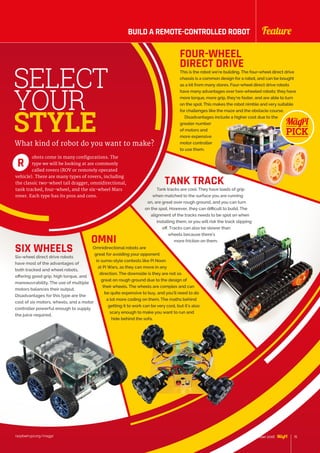
obots come in many configurations. The
type we will be looking at are commonly
called rovers (ROV or remotely operated
vehicle). There are many types of rovers, including
the classic two-wheel tail dragger, omnidirectional,
tank tracked, four-wheel, and the six-wheel Mars
rover. Each type has its pros and cons.
R
FOUR-WHEEL
DIRECT DRIVE
This is the robot we’re building. The four-wheel direct drive
chassis is a common design for a robot, and can be bought
as a kit from many stores. Four-wheel direct drive robots
have many advantages over two-wheeled robots: they have
more torque, more grip, they’re faster, and are able to turn
on the spot. This makes the robot nimble and very suitable
for challenges like the maze and the obstacle course.
Disadvantages include a higher cost due to the
greater number
of motors and
more expensive
motor controller
to use them.
TANK TRACK
Tank tracks are cool. They have loads of grip
when matched to the surface you are running
on, are great over rough ground, and you can turn
on the spot. However, they can difficult to build. The
alignment of the tracks needs to be spot on when
installing them, or you will risk the track slipping
off. Tracks can also be slower than
wheels because there’s
more friction on them.OMNI
Omnidirectional robots are
great for avoiding your opponent
in sumo-style contests like Pi Noon
at Pi Wars, as they can move in any
direction. The downside is they are not so
great on rough ground due to the design of
their wheels. The wheels are complex and can
be quite expensive to buy, and you’ll need to do
a lot more coding on them. The maths behind
getting it to work can be very cool, but it’s also
scary enough to make you want to run and
hide behind the sofa.
SIX WHEELS
Six-wheel direct drive robots
have most of the advantages of
both tracked and wheel robots,
offering good grip, high torque, and
manoeuvrability. The use of multiple
motors balances their output.
Disadvantages for this type are the
cost of six motors, wheels, and a motor
controller powerful enough to supply
the juice required.
What kind of robot do you want to make?
SELECT
YOUR
STYLE
raspberrypi.org/magpi 15November 2016
FeatureBUILD A REMOTE-CONTROLLED ROBOT
November 2016
PICK YOUR
MOTORS
otors come in many sizes, types, with/without
gearboxes, etc. Common motor types used in
maker projects are brushless, brushed, and
stepper (see more details on the right). When selecting
a motor, you need to consider its voltage rating, free-
run current, stall current, and type. The free-run (or
operating) current is how much current the motor will
draw when running; with this information, you’ll be
able to estimate how much power the robot needs.
This is important for a reliable design, as
you’ll need to match the motor and controller
characteristics; if you use a motor that has a voltage
rating higher than the motor controller, you won’t get
the full potential out of the motor. If the stall current
is higher than the controller’s peak output current,
you’ll see ‘magic smoke’ come from the controller,
which is bad. Another characteristic of the motor you
need to consider is its speed: the higher the RPM of
the motor, the faster it will turn the robot’s wheels/
tracks. For this robot, we’re using the micro metal 6V
N20 motors from Pimoroni.
M
MOTOR TYPES
BRUSHLESS
PROS:  No brushes to wear out
More torque
More power
Better control
Power-to-size ratio
CONS:  Complex  expensive controls
Less rugged
Cost
BRUSHED
PROS:  High torque at lower speeds
Simple control circuits
Cost
CONS:  Shorter operational life
Power-to-size ratio
STEPPER
PROS:  Precise control
(turns in small steps)
CONS:  Complex controls
Cost
Slow
MOTOR MARKINGS
MOTOR MARKINGS
Some things you’ll see on a motor…
DC: 12V
The rated voltage of the motor. Can also be shown
as ‘12V DC’. DC means that the motor must be
powered by a direct current source like a battery.
RPM
Revolutions per minute. Can also be shown as r/min.
The lower the number, the slower the motor is, so
500 rpm is faster than 25 rpm.
GEAR BOX RATIO
Not pictured on this motor. If a motor output is
described as a ratio, the lower the number, the
faster the motor, so 50:1 is faster than 254:1.
How will the robot
get around everywhere?
Our tiny
robot is using
this tiny micro
metal brushed
motor
raspberrypi.org/magpi16 November 2016
Feature
otor controllers, like the name suggests,
are used to control motors. There are many
types available for the Raspberry Pi, so when
selecting the motor controller, you need to match the
controller to your motors. An important consideration
in this selection is the support documents, libraries,
and software examples. Features to look out for are
inputs, outputs, servo control, and whether or not
it can power the Pi from a single power source. The
controller you select must be able to handle the
battery voltage, the peak current of the motors when
stalled, and be compatible with the Raspberry Pi.
M
SELECT A MOTOR
CONTROLLER
Now we have motors, we need a way to use them
MOTOR
CONTROLLER
SPECS:
Peak current:
How much current the driver
will tolerate before releasing
magic smoke
Drive voltage:
Voltage used to drive the motor(s)
Drive current:
Constant current the driver
chip can maintain
Logic voltage:
Voltage the logic must
be driven at to function
Logic current:
Current required to function
SOME CONTROLLERS
TO CONSIDER:
ZEROBORG piborg.org/zeroborg
The ZeroBorg is the controller we’re using in this project.
It has a number of features that make it stand out from
some of the other boards, such as its use of two TI DVR 8833
H-bridges which allows for independent control of up to four motors.
This makes it good for controlling an omnidirectional robot, or two
stepper motors. You also can add/specify a DC-to-DC converter to power
both the motors and the attached Raspberry Pi Zero. One final feature is the
IR receiver, so you can control your robot with an IR remote control.
PICON ZERO magpi.cc/1p9wGaA
Awell-thought-out Pi Zero format controller from 4tronix, it uses the same TI
DRV8833 motor driver H-bridge chip as the ZeroBorg. The extra inputs and outputs
are great for adding sensors, servos, and NeoPixels; there’s even a dedicated socket
for an HC-SR04 ultrasonic sensor! The power arrangements are very flexible, as you
can drive the motors from the Pi’s 5V rail or from a separate power source, from 3V
to 11V. It’s also worth checking out 4tronix’s RoboHAT if you’re using a full-sized Pi.
EXPLORER PHAT magpi.cc/1Pk5SdN
The Pimoroni Explorer pHAT was the first Pi Zero-format motor driver HAT,
and is an excellent controller. It uses the TI DVR8833 H-bridge again and has
four 5V-tolerant digital and analogue inputs, plus four 500mA outputs. The
various inputs give options for connecting different types of sensors, and the
motor driver will happily drive a pair of N20 metal gear motors. For a full-sized
Pi, use the Explorer HAT Pro.
raspberrypi.org/magpi 17November 2016
FeatureBUILD A REMOTE-CONTROLLED ROBOT
17November 2016
POWER
YOUR ROBOT
he correct battery can make a huge difference
to your robot. It all comes down to four types
for robots: lithium-ion, NiCad-based, lead
acid, and dry cells. Battery technology has improved a
great deal in recent years, thanks to the development
of mobile phones, laptop computers, and tablets,
with their requirement for high power and increased
standby life. Whichever battery type you use, you’ll
need a battery holder to connect them.
T
The perfect batteries to get your
robot moving
NICAD / NIMH
(nominal cell voltage 1.2V)
NiCad / NiMH batteries
were the number one choice
before the rise of the lithium-
ion batteries, due to their
power-to-weight ratio and a
predictable discharge voltage
that changes little from 1.2V
per cell until it nearly runs out.
They’re packaged in common
battery sizes, including AAA,
AA, and PP3. Chargers are also
commonly available, even
being sold in supermarkets.
The discharge rates are not
as high as a lithium battery,
but they don’t have a
flammable metal in
their construction.
We’re using this
type for our robot.
LITHIUM-ION
INCLUDING LIPO
(nominal cell voltage 3.7V)
Lithium-ion-based batteries
offer some of the highest
energy density and energy
release available. This means a
robot powered in this fashion
can use a smaller, lighter
battery. Lithium batteries
are more dangerous, though.
There are two types of lithium
batteries: type one has built-
in safety circuits, to protect
against under- and over-
voltage and short circuit. Type
two batteries have no safety
circuits! If you wish to upgrade
your robot to LiPo, make sure
to be safe.
LEAD ACID
(nominal cell voltage 2V)
The granddaddy of all
rechargeable batteries, the
lead acid battery was invented
in 1859 by Gaston Planté. This
type of battery has a very low
energy density and is made
of lead. This makes it a poor
choice for use in a robot,
although it can supply high
surge currents. While larger
lead acid batteries are used
in most cars, they’re best
ignored for this project due
to their high weight and low
energy density.
DRY CELL
(nominal cell voltage 1.5V)
Zinc-carbon and alkaline
are the more common types
of dry cells, widely available
in common battery sizes,
including AAA, AA, and PP3.
Although not rechargeable,
they’re useful as an emergency
replacement for NiCad /
NiMH; however, you need to
be careful with the increased
voltage. They’re also expensive
to continually replace.
raspberrypi.org/magpi18 November 2016 raspberrypi.org/magpi
Feature
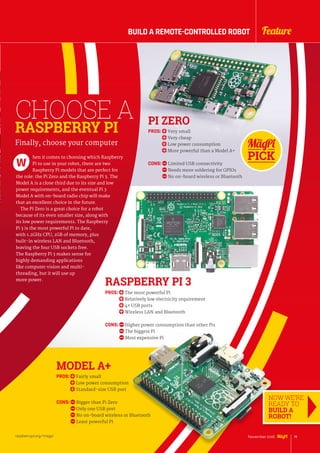
CHOOSE A
RASPBERRY PI
hen it comes to choosing which Raspberry
Pi to use in your robot, there are two
Raspberry Pi models that are perfect for
the role: the Pi Zero and the Raspberry Pi 3. The
Model A is a close third due to its size and low
power requirements, and the eventual Pi 3
Model A with on-board radio chip will make
that an excellent choice in the future.
The Pi Zero is a great choice for a robot
because of its even smaller size, along with
its low power requirements. The Raspberry
Pi 3 is the most powerful Pi to date,
with 1.2GHz CPU, 1GB of memory, plus
built-in wireless LAN and Bluetooth,
leaving the four USB sockets free.
The Raspberry Pi 3 makes sense for
highly demanding applications
like computer vision and multi-
threading, but it will use up
more power.
W
Finally, choose your computer
PI ZERO
PROS:  Very small
Very cheap
Low power consumption
More powerful than a Model A+
CONS:  Limited USB connectivity
Needs more soldering for GPIOs
No on-board wireless or Bluetooth
RASPBERRY PI 3
PROS:  The most powerful Pi
Relatively low electricity requirement
4× USB ports
Wireless LAN and Bluetooth
CONS:  Higher power consumption than other Pis
The biggest Pi
Most expensive Pi
MODEL A+
PROS:  Fairly small
Low power consumption
Standard-size USB port
CONS:  Bigger than Pi Zero
Only one USB port
No on-board wireless or Bluetooth
Least powerful Pi
NOW WE’RE
READY TO
BUILD A
ROBOT!
raspberrypi.org/magpi 19November 2016raspberrypi.org/magpi
FeatureBUILD A REMOTE-CONTROLLED ROBOT
DESIGNING
THE CHASSIS
he chassis for a robot needs to be strong
and light, and have enough space to fit all
the parts on it. For something like Pi Wars,
there’s an additional requirement for the robot’s
footprint to be less than 300 × 225mm.
Start by laying out the parts you already selected on a
piece of paper the size of, or smaller than, the footprint
you are building to. If you don’t already have all the
parts, you can model them in 3D or CAD software, or
even cut them out of paper. This will give you an idea of
what size your robot will need to be, and what clearance
the wheels require. It also helps to think where and
how additional sensors attach to your chassis.
In addition, you’ll need to think about how to
add and remove parts for different challenges. The
T
Now we have all the parts, they need to attach to something
distance between your robot’s wheels will affect
how your robot will turn/handle: if the wheel base is
longer than its width, the robot will turn more slowly.
This could be an advantage in a speed run challenge,
as it would make it harder for the robot to turn and
hopefully help keep it on track.
You also need to think about the clearance height
from the surface your robot is standing on to the
bottom of your motors/chassis. The higher it is, the
better your robot will be at clearing obstacles. It’s also
a good idea to keep most of the weight low down in
your design; this will stabilise your robot and make
it less likely to topple over.
One of the most important things to think about is
how easy will it be to change or charge your battery.
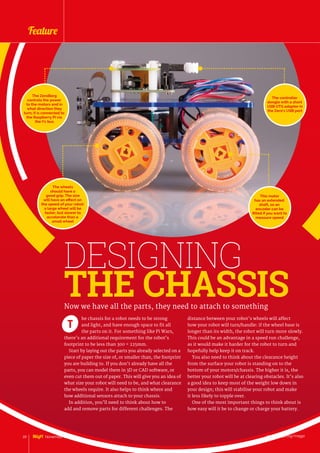
This motor
has an extended
shaft, so an
encoder can be
fitted if you want to
measure speed
The wheels
should have a
good grip. The size
will have an effect on
the speed of your robot:
a large wheel will be
faster, but slower to
accelerate than a
small wheel
The controller
dongle with a short
USB OTG adapter in
the Zero’s USB port
The ZeroBorg
controls the power
to the motors and in
what direction they
turn; it is connected to
the Raspberry Pi via
the I2
c bus
raspberrypi.org/magpi20 November 2016
Feature
PRE-
MADE
ROBOT
CHASSIS
f you don’t fancy designing a chassis just
yet, we’ve got some files you can use.
They’re for the robot we’ve built; it’s made
up of two Perspex plates, with 3mm PCB spacers
joining the two together. The motors and battery
are fitted on the bottom plate, with the motor
controller and Raspberry Pi mounted on the
top plate. This creates a box, making a light
and strong chassis with plenty of space for
all the components, along with any sensors
to be added in the future. The plates are
laser-cut for this project, but they could
also be 3D-printed or even cut and
drilled by hand.
I
Download our files so you can
make the rover from our cover!
HOW TO
MAKE THE CHASSIS
For the chassis plates, you’ll have to get them
laser-cut – or cut them out yourself – from 3mm
plywood, MDF, or Perspex (acrylic). It’s also possible
to convert files for 3D printing.
You can download a PDF for the plates from
GitHub (magpi.cc/2dx82hO). You’ll also find a
DXF file, plus the original Inkscape SVG files, so
you can modify the design if required. Your local
makerspace, hackspace, or fab lab may be able
to help cut the plates. In the UK, there’s also Eagle
Labs. There are other online laser cutting services
– try searching for ‘laser cutting services’ in Google
and look for local ones. A top tip to remember: the
plates’ edges should be cut last on the laser cutter.
RESOURCES:
CHASSIS FILES
MagPi robot chassis files: magpi.cc/2dx82hO
PLACES TO BUILD THE CHASSIS
Hackspaces and makerspaces: magpi.cc/2dxbnxr
Eagle Labs: labs.uk.barclays
Fab Labs UK: fablabsuk.co.uk
ONLINE SERVICES
RazorLAB: razorlab.co.uk
Laser Make: lasermake.co.uk
Perspex (acrylic) supplier: kitronik.co.uk
01. BOTTOM PLATE
The bottom plate is the biggest part of the chassis
– technically you don’t need the top plate for this
robot, but it’s a lot more sturdier with it on
02. TOP PLATE
The Pi Zero and ZeroBorg are mounted on this.
It also creates a little space between the chassis
plates to store the battery
03. CAMERA MOUNT
The camera mount
needs to be bent
along the line going
through it, so it can be
mounted underneath
the bottom plate while
still having the camera
face forward
01
02
03
raspberrypi.org/magpi 21November 2016
FeatureBUILD A REMOTE-CONTROLLED ROBOT
BUILDING
THE ROBOTGet your screwdriver handy, as it’s time to make your robot
Major components:
Raspberry Pi Zero
(v1.3 if adding a camera)
PiBorg ZeroBorg complete
piborg.org/zeroborg
Chassis plates
4× 50:1 micro metal gear motors
magpi.cc/2eynuNk
4× Pimoroni motor brackets
magpi.cc/2dW6NYR
4× wheels
magpi.cc/2eq0Npp
USB to micro-USB OTG Converter Shim
magpi.cc/1JT9aZc
Wireless controller – we used the PDP Rock Candy
magpi.cc/2dvjKJS
Connectors and fasteners:
PP3 battery clip
magpi.cc/2ebjlgV
PP3 rechargeable battery
Female-to-male jumper wires
magpi.cc/2dvjMSb
6× 3mm hole, 20mm length PCB
spacer posts
magpi.cc/2dvjKJR
12× 3mm, 8mm length hex pan
head machine screws
magpi.cc/2ebkaWQ
8× straight header pins for motors
magpi.cc/2eeUbv9
Optional camera:
Camera holder
Raspberry Pi Camera Module
PARTS LIST: STEP-01
Prepare the motors
The motors must be modified slightly
to make sure they fit under the
chassis. Using a soldering iron
and a pair of pliers, you should
remove the bent pins from
each motor shim, suck out
the solder, and solder
some straight pins
back in. Once that’s
done, connect the
wheels to the motors.
STEP-02
Attach the motors
The motors need to be attached to the
bottom plate using the brackets, as shown.
You can either have the wires connected now
while it’s easier to do, or you can add them
afterwards so they’re out of the way as you
connect the rest of the motors.
raspberrypi.org/magpi22 November 2016
Feature
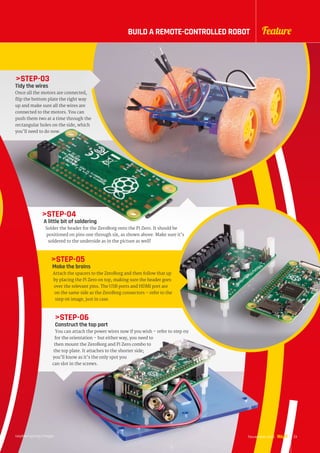
STEP-03
Tidy the wires
Once all the motors are connected,
flip the bottom plate the right way
up and make sure all the wires are
connected to the motors. You can
push them two at a time through the
rectangular holes on the side, which
you’ll need to do now.
STEP-04
A little bit of soldering
Solder the header for the ZeroBorg onto the Pi Zero. It should be
positioned on pins one through six, as shown above. Make sure it’s
soldered to the underside as in the picture as well!
STEP-05
Make the brains
Attach the spacers to the ZeroBorg and then follow that up
by placing the Pi Zero on top, making sure the header goes
over the relevant pins. The USB ports and HDMI port are
on the same side as the ZeroBorg connectors – refer to the
step 06 image, just in case.
STEP-06
Construct the top part
You can attach the power wires now if you wish – refer to step 09
for the orientation – but either way, you need to
then mount the ZeroBorg and Pi Zero combo to
the top plate. It attaches to the shorter side;
you’ll know as it’s the only spot you
can slot in the screws.
raspberrypi.org/magpi 23November 2016
FeatureBUILD A REMOTE-CONTROLLED ROBOT
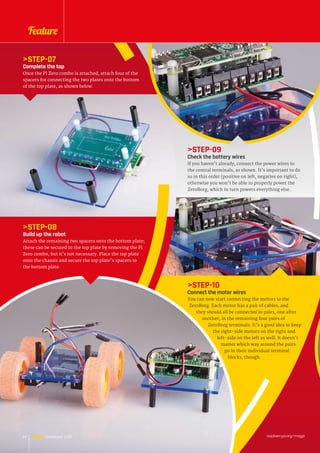
STEP-10
Connect the motor wires
You can now start connecting the motors to the
ZeroBorg. Each motor has a pair of cables, and
they should all be connected in pairs, one after
another, in the remaining four pairs of
ZeroBorg terminals. It’s a good idea to keep
the right-side motors on the right and
left-side on the left as well. It doesn’t
matter which way around the pairs
go in their individual terminal
blocks, though.
STEP-07
Complete the top
Once the Pi Zero combo is attached, attach four of the
spacers for connecting the two plates onto the bottom
of the top plate, as shown below.
STEP-08
Build up the robot
Attach the remaining two spacers onto the bottom plate;
these can be secured to the top plate by removing the Pi
Zero combo, but it’s not necessary. Place the top plate
onto the chassis and secure the top plate’s spacers to
the bottom plate.
STEP-09
Check the battery wires
If you haven’t already, connect the power wires to
the central terminals, as shown. It’s important to do
so in this order (positive on left, negative on right),
otherwise you won’t be able to properly power the
ZeroBorg, which in turn powers everything else.
raspberrypi.org/magpi24 November 2016
Feature
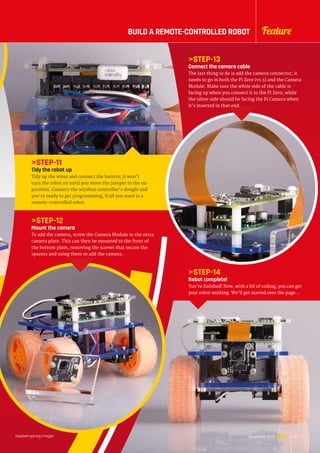
STEP-14
Robot complete!
You’re finished! Now, with a bit of coding, you can get
your robot working. We’ll get started over the page…
STEP-11
Tidy the robot up
Tidy up the wires and connect the battery; it won’t
turn the robot on until you move the jumper to the on
position. Connect the wireless controller’s dongle and
you’re ready to get programming, if all you want is a
remote-controlled robot.
STEP-13
Connect the camera cable
The last thing to do is add the camera connector; it
needs to go in both the Pi Zero (v1.3) and the Camera
Module. Make sure the white side of the cable is
facing up when you connect it to the Pi Zero, while
the silver side should be facing the Pi Camera when
it’s inserted in that end.
STEP-12
Mount the camera
To add the camera, screw the Camera Module to the extra
camera plate. This can then be mounted to the front of
the bottom plate, removing the screws that secure the
spacers and using them to add the camera.
raspberrypi.org/magpi 25November 2016
FeatureBUILD A REMOTE-CONTROLLED ROBOT
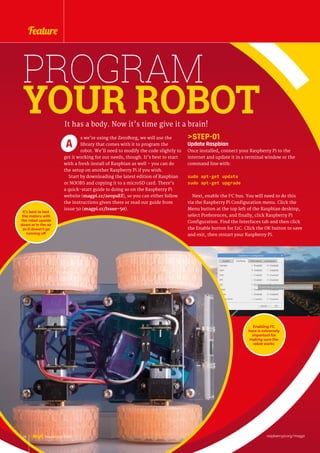
STEP-01
Update Raspbian
Once installed, connect your Raspberry Pi to the
internet and update it in a terminal window or the
command line with:
sudo apt-get update
sudo apt-get upgrade
Next, enable the I2
C bus. You will need to do this
via the Raspberry Pi Configuration menu. Click the
Menu button at the top left of the Raspbian desktop,
select Preferences, and finally, click Raspberry Pi
Configuration. Find the Interfaces tab and then click
the Enable button for I2C. Click the OK button to save
and exit, then restart your Raspberry Pi.
PROGRAM
YOUR ROBOTIt has a body. Now it’s time give it a brain!
s we’re using the ZeroBorg, we will use the
library that comes with it to program the
robot. We’ll need to modify the code slightly to
get it working for our needs, though. It’s best to start
with a fresh install of Raspbian as well – you can do
the setup on another Raspberry Pi if you wish.
Start by downloading the latest edition of Raspbian
or NOOBS and copying it to a microSD card. There’s
a quick-start guide to doing so on the Raspberry Pi
website (magpi.cc/2eopaEf), so you can either follow
the instructions given there or read our guide from
issue 50 (magpi.cc/Issue-50).
A
It’s best to test
the motors with
the robot upside
down or in the air
so it doesn’t go
running off
Enabling I2
C
here is extremely
important for
making sure the
robot works
raspberrypi.org/magpi26 November 2016
Feature
STEP-02
Install ZeroBorg software
Now you need to download the ZeroBorg software.
Open a terminal window and enter the following:
bash (curl https://www.piborg.org/
install-zeroborg.txt)
You should also install the joystick app for testing
your joypad and mapping the buttons. See the ‘Using
a gamepad’ section (bottom right) for more details.
The button mapping for the game controller is in
zbJoystick.py. Use nano to open the file, and find the
line # Settings for the joystick. For the Rock
Candy controllers used in our version, it should look
something like this:
axisUpDown = 1
axisUpDownInverted = False
axisLeftRight = 2
axisLeftRightInverted = False
buttonResetEpo = 9
buttonSlow = 6
slowFactor = 0.5
buttonFastTurn = 7
interval = 0.00
STEP-03
Auto-start on boot
The final step is for the software to auto-start when
you power on your robot. On the command-line
or in a terminal window, use:
sudo nano /etc/rc.local
This will open the nano text editor; after the line
starting with fi, enter the following:
./home/pi/zeroborg/runJoystick.sh 
Save and exit. You can now test your robot! If you
have not done so already, put the microSD card into
the Raspberry Pi Zero, then power up your robot by
moving the jumper on the ZeroBorg to cover both the
power pins. Test the motors by pushing forward on
the wireless controller’s left stick; this should result
in all four wheels moving in the same direction.
If some wheels are going in a different direction,
swap around their cables in the ZeroBorg for that
specific motor. Next, push the stick to the left and
right, making sure that the correct wheels run
when selected – if they do not, swap the incorrect
pairs of jumpers.
CONTROL FROM
A WEB BROWSER
For this way of controlling the robot, you’ll have to switch out
any game controller receiver for a WiFi adapter. Plug the Pi Zero
into a computer and get the WiFi connected before continuing.
Once that’s done, you need to find the IP address of the
robot by opening a terminal window and using:
ifconfig
Make a note of it – this is how we’ll connect to the robot
from elsewhere. Then install OpenCV using:
sudo app-get install python-opencv
Once that’s done, you’ll need to download the PiBorg web
interface. Back in the terminal window, use:
git clone https://github.com/piborg/diddyborg-web.git
This will create a folder called diddyborg-web. Enter the
following commands to start the web server:
cd diddyborg-web
sudo python diddyborg-webyetiWeb.py
It will confirm when the web server has started. Type the
IP address you found earlier into a browser on your PC or
smartphone (or even another Raspberry Pi!) and you’ll be able
to connect to the robot and see through the camera. Disconnect
the monitor and any peripherals, then go for a ride!
Control your robot from your computer or
smartphone and use the on board camera
USING A GAMEPAD
To get the gamepad or joystick button numbers,
install the joystick software with:
sudo apt-get install joystick
Plug your gamepad in and then run the
following to find out how it’s listed:
ls /dev/input/js*
It will probably come up as something like
/dev/input/js0. You can then test it using:
jstest /dev/input/js0
Move each stick and press each button in turn. You will see the values
change for the axis or button pressed in real-time. Make some notes so you
remember which button is which!
raspberrypi.org/magpi 27November 2016
FeatureBUILD A REMOTE CONTROLLED ROBOT
NEXT ISSUE:
THE CHALLENGESCome back next issue to learn how to add and use sensors
to your robot to make it a true automaton
i Wars is next April and has a load of different
challenges; it’s a bit too late to enter them,
but that doesn’t stop you from learning how
to get your robot competition-ready by using some
excellent robo-sensors. Come back next month for
our guide on how to add and use amazing sensors to
conquer these challenges.
P
STRAIGHT-LINE
SPEED TEST
The Straight-Line Speed Test is autonomous,
with only a start and stop button allowed for the
starting and stopping of your robot’s run. The
course is a straight run, just over 7.3m long, with
walls 67mm high placed 522mm apart – very
precisely. There are penalties if your robot touches
a wall, plus points for each clean and completed
run. Three runs must be attempted. Here are some
methods you could use for this challenge…
Computer vision: Find the walls and guide
your robot down the centre. You could also
use an IR light beacon placed at the end of
the course and aim to keep the beacon in the
centre of the image, while steering the robot
down the centre of the course.
Dead reckoning using wheel/motor encoders:
Count the number of turns each wheel makes
in a set time. The shorter the time, the more
accurate it should be.
Distance sensors: Measuring the distance
between the walls, steer the robot down the
centre of the course.
IMU: Set a bearing and follow it – distance
sensors may be useful as a backup check.
This ultrasonic
distance sensor
can be used to
check how far away
the wall is
raspberrypi.org/magpi28 November 2016
Feature
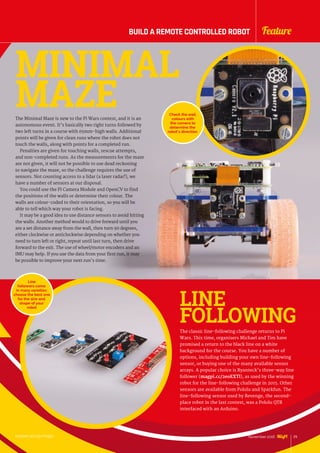
The Minimal Maze is new to the Pi Wars contest, and it is an
autonomous event. It’s basically two right turns followed by
two left turns in a course with 65mm-high walls. Additional
points will be given for clean runs where the robot does not
touch the walls, along with points for a completed run.
Penalties are given for touching walls, rescue attempts,
and non-completed runs. As the measurements for the maze
are not given, it will not be possible to use dead reckoning
to navigate the maze, so the challenge requires the use of
sensors. Not counting access to a lidar (a laser radar!), we
have a number of sensors at our disposal.
You could use the Pi Camera Module and OpenCV to find
the positions of the walls or determine their colour. The
walls are colour-coded to their orientation, so you will be
able to tell which way your robot is facing.
It may be a good idea to use distance sensors to avoid hitting
the walls. Another method would to drive forward until you
are a set distance away from the wall, then turn 90 degrees,
either clockwise or anticlockwise depending on whether you
need to turn left or right, repeat until last turn, then drive
forward to the exit. The use of wheel/motor encoders and an
IMU may help. If you use the data from your first run, it may
be possible to improve your next run’s time.
MINIMAL
MAZE Check the wall
colours with
the camera to
determine the
robot’s direction
The classic line-following challenge returns to Pi
Wars. This time, organisers Michael and Tim have
promised a return to the black line on a white
background for the course. You have a number of
options, including building your own line-following
sensor, or buying one of the many available sensor
arrays. A popular choice is Ryanteck’s three-way line
follower (magpi.cc/2eoEXTl), as used by the winning
robot for the line-following challenge in 2015. Other
sensors are available from Pololu and Sparkfun. The
line-following sensor used by Revenge, the second-
place robot in the last contest, was a Pololu QTR
interfaced with an Arduino.
LINE
FOLLOWING
Line
followers come
in many varieties:
choose the best one
for the size and
shape of your
robot
raspberrypi.org/magpi 29November 2016
FeatureBUILD A REMOTE CONTROLLED ROBOT
Tutorial WALKTHROUGH
raspberrypi.org/magpi30 November 2016
FREE PI ZERO!Subscribe in print for six or 12 months to receive this stunning free gift
SAVE
UP TO
25%
Subscribe today  receive:
	 A free Pi Zero v1.3 (the latest model)
	 A free Camera Module connector
	 A free USB  HDMI cable bundle
Delivered with your first issue!
Other benefits:
	 Save up to 25% on the price
	 Free delivery to your door
	 Exclusive Pi offers  discounts
	 Get every issue first (before stores)
Tutorial
raspberrypi.org/magpi 31November 2016
RETURNTHISFORMTO:
MagPiMagazine Subscriptions, Select Publisher Services Ltd, PO Box 6337,
Bournemouth BH1 9EH
Please tick this box if you DO NOT want to receive any other information
from Select Publisher Services Ltd.
Please tick this box if you DO NOT want to receive any other information
from other companies.
Please tick this box if you DO NOT want to subscribe to The MagPi newsletter.
This subscription is:	 nFor me n A gift for someone*
YOUR DETAILS Mr n Mrs n Miss n Ms n
First name ............................................ Surname ........................................................
Address ........................................................................................................................
....................................................................................................................................
Postcode ............................................... Email .............................................................
Daytime phone ..................................... Mobile ............................................................
*If giving The MagPi as a gift, please complete both your own details (above) and the recipient’s (below).
GIFT RECIPIENT’S DETAILS ONLY Mr n Mrs n Miss n Ms n
First name ............................................ Surname ........................................................
Address ........................................................................................................................
Postcode .................................................... Email ..................................................................
SUBSCRIPTION FORM
YES! I’d like to subscribe to The MagPi magazine and save money
PAYMENT OPTIONS
1 DIRECT DEBIT PAYMENT £12.99 every 3 issues (UK only)
InstructiontoyourbankorbuildingsocietytopaybyDirectDebit
Please fill in the form and send to:
The MagPi, Select Publisher Services Ltd,
PO Box 6337, Bournemouth BH1 9EH
Name and full postal address of your bank or building society:
To: The Manager Bank/building society .......................................................................
Address ...........................................................................................................................
........................................................................................................................................
..................................................................................... Postcode ....................................
Name(s) of account holder(s) ............................................................................................
Branch sort code n n n n n n Account number n n n n n n n n
Reference n n n n n n n n n n n n n n n n n   (Official use only)
Instruction to your bank or building society
Please pay Select Publisher Services Ltd Direct Debits from the account detailed in this instruction
subject to the safeguards assured by the Direct Debit Guarantee. I understand that this instruction
may remain with Select Publisher Services Ltd and, if so, details will be passed electronically to my
bank/building society.
Signature ..................................................................... Date n n/n n/n n
Banks and building societies may not accept Direct Debit instructions for some types of account.
SUBSCRIPTION PRICING WHEN PAYING BY CHEQUE OR CREDIT/DEBIT CARD
6 ISSUES 	 nUK £30 	nEurope £45 	nRest of World £50
12 ISSUES 	nUK £55 	nEurope £80 	nRest of World £90
2 CHEQUE
I enclose a cheque for ............................... (made payable to Select Publisher Services Ltd)
3 CREDIT/DEBIT CARD nVisa nMasterCard nMaestro nSwitch
Card number	 n n n n n n n n n n n n n n n n
Expiry date	 n n n n	 Valid from n n n n (if shown)
Issue number	 n n (if shown)	 Security number n n n
		 (last 3 digits on the back of the card)
Signature ..................................................................... Date n n/n n/n n
I would like my subscription to begin from issue ............................................ (month + year)
Service user number 8 3 8 7 7 3
Mag#51
Pricing
Get six issues:
£30 (UK)
£45 (EU)
$69 (USA)
£50 (Rest of World)
Subscribe for a year:
£55 (UK)
£80 (EU)
$129 (USA)
£90 (Rest of World)
Get three issues:
£12.99 (UK) (Direct Debit)
$37.50 (US) (quarterly)
How to subscribe:
	 magpi.cc/Subs1 (UK / ROW)
	 imsnews.com/magpi (USA)
	 Call +44(0)1202 586848 (UK/ROW)
	 Call 800 428 3003 (USA)
raspberrypi.org/magpi32 November 2016
ethanie Fentiman can’t
play chess, but when her
imagination sparked and
the opportunity presented itself, she
brought the iconic game of Wizard’s
Chess from Harry Potter to life using
a Raspberry Pi, stepper motors, and
possibly a little magic.
For her A-level computing
coursework, Bethanie took an idea
that had been nestling in the back
of her mind, and turned it into a
reality. Well, as much of a reality
Projects SHOWCASE
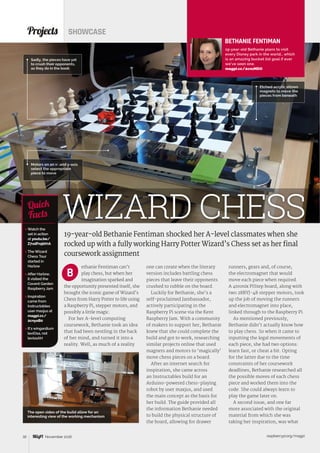
19-year-old Bethanie Fentiman shocked her A-level classmates when she
rocked up with a fully working Harry Potter Wizard’s Chess set as her final
coursework assignment
 Watch the
set in action
at youtu.be/
Z7xdFn5bVrA
 The Wizard
Chess Tour
started in
Harlow
 After Harlow,
it visited the
Covent Garden
Raspberry Jam
 Inspiration
came from
Instructables
user maxjus at
magpi.cc/
2cnyoB0
 It’s wingardium
leviOsa, not
leviosAH
Quick
Facts
Etched acrylic allows
magnets to move the
pieces from beneath
WIZARD CHESS
Sadly, the pieces have yet
to crush their opponents,
as they do in the book
B
Motors on an x- and y-axis
select the appropriate
piece to move
BETHANIE FENTIMAN
19-year-old Bethanie plans to visit
every Disney park in the world… which
is an amazing bucket list goal if ever
we’ve seen one.
magpi.cc/2cnzMDO
one can create when the literary
version includes battling chess
pieces that leave their opponents
crushed to rubble on the board.
Luckily for Bethanie, she’s a
self-proclaimed Jambassador,
actively participating in the
Raspberry Pi scene via the Kent
Raspberry Jam. With a community
of makers to support her, Bethanie
knew that she could complete the
build and got to work, researching
similar projects online that used
magnets and motors to ‘magically’
move chess pieces on a board.
After an internet search for
inspiration, she came across
an Instructables build for an
Arduino-powered chess-playing
robot by user maxjus, and used
the main concept as the basis for
her build. The guide provided all
the information Bethanie needed
to build the physical structure of
the board, allowing for drawer
runners, gears and, of course,
the electromagnet that would
move each piece when required.
A 4tronix PiStep board, along with
two 28BYJ-48 stepper motors, took
up the job of moving the runners
and electromagnet into place,
linked through to the Raspberry Pi.
As mentioned previously,
Bethanie didn’t actually know how
to play chess. So when it came to
inputting the legal movements of
each piece, she had two options:
learn fast, or cheat a bit. Opting
for the latter due to the time
constraints of her coursework
deadlines, Bethanie researched all
the possible moves of each chess
piece and worked them into the
code. She could always learn to
play the game later on.
A second issue, and one far
more associated with the original
material from which she was
taking her inspiration, was what
The open sides of the build allow for an
interesting view of the working mechanism
raspberrypi.org/magpi 33November 2016
ProjectsWIZARD CHESS
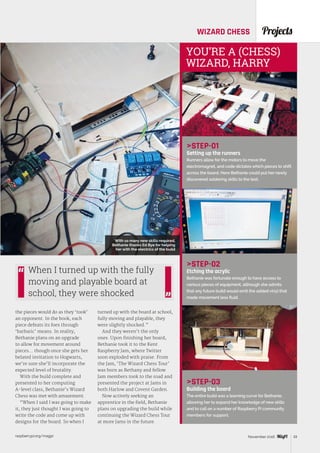
STEP-01
Setting up the runners
Runners allow for the motors to move the
electromagnet, and code dictates which pieces to shift
across the board. Here Bethanie could put her newly
discovered soldering skills to the test.
STEP-02
Etching the acrylic
Bethanie was fortunate enough to have access to
various pieces of equipment, although she admits
that any future build would omit the added vinyl that
made movement less fluid.
STEP-03
Building the board
The entire build was a learning curve for Bethanie,
allowing her to expand her knowledge of new skills
and to call on a number of Raspberry Pi community
members for support.
YOU’RE A (CHESS)
WIZARD, HARRY
the pieces would do as they ‘took’
an opponent. In the book, each
piece defeats its foes through
‘barbaric’ means. In reality,
Bethanie plans on an upgrade
to allow for movement around
pieces… though once she gets her
belated invitation to Hogwarts,
we’re sure she’ll incorporate the
expected level of brutality.
With the build complete and
presented to her computing
A-level class, Bethanie’s Wizard
Chess was met with amazement.
“When I said I was going to make
it, they just thought I was going to
write the code and come up with
designs for the board. So when I
turned up with the board at school,
fully moving and playable, they
were slightly shocked.”
And they weren’t the only
ones. Upon finishing her board,
Bethanie took it to the Kent
Raspberry Jam, where Twitter
soon exploded with praise. From
the Jam, ‘The Wizard Chess Tour’
was born as Bethany and fellow
Jam members took to the road and
presented the project at Jams in
both Harlow and Covent Garden.
Now actively seeking an
apprentice in the field, Bethanie
plans on upgrading the build while
continuing the Wizard Chess Tour
at more Jams in the future.
When I turned up with the fully
moving and playable board at
school, they were shocked
With so many new skills required,
Bethanie thanks Ed Bye for helping
her with the electrics of the build
raspberrypi.org/magpi34 November 2016
ith hammers hitting the
bars of a toy glockenspiel
to play a tune, the
Monomepi sounds just like an
old-fashioned music box, but this
Pi-powered contraption is based
on new technology… and on quite
a lot of LEGO. “It was just my luck
that the components fitted with
the LEGO bricks almost perfectly!”
reveals its creator, Joon Guillen.
Projects SHOWCASE
A music box featuring old and new technology in perfect harmony
 The LEGO
contraption
took around
three evenings
to build
 Joon’s young
daughter
added some
extra blocks
 The hammers
are made from
coffee stirrers
and LEGO
 A Pi 3 runs
the Python
sequencing
software
 The project
took around
two months
to perfect
Quick
Facts
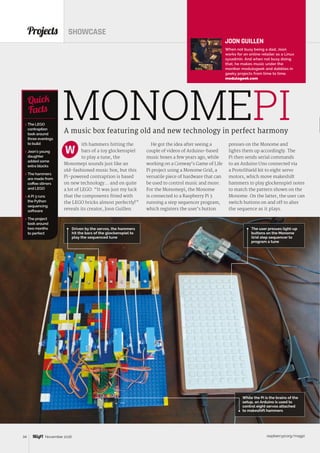
The user presses light-up
buttons on the Monome
Grid step sequencer to
program a tune
MONOMEPI
W
Driven by the servos, the hammers
hit the bars of the glockenspiel to
play the sequenced tune
JOON GUILLEN
When not busy being a dad, Joon
works for an online retailer as a Linux
sysadmin. And when not busy doing
that, he makes music under the
moniker modulogeek and dabbles in
geeky projects from time to time.
modulogeek.com
He got the idea after seeing a
couple of videos of Arduino-based
music boxes a few years ago, while
working on a Conway’s Game of Life
Pi project using a Monome Grid, a
versatile piece of hardware that can
be used to control music and more.
For the Monomepi, the Monome
is connected to a Raspberry Pi 3
running a step sequencer program,
which registers the user’s button
presses on the Monome and
lights them up accordingly. The
Pi then sends serial commands
to an Arduino Uno connected via
a ProtoShield kit to eight servo
motors, which move makeshift
hammers to play glockenspiel notes
to match the pattern shown on the
Monome. On the latter, the user can
switch buttons on and off to alter
the sequence as it plays.
While the Pi is the brains of the
setup, an Arduino is used to
control eight servos attached
to makeshift hammers
raspberrypi.org/magpi 35November 2016
ProjectsMONOMEPI
STEP-01
Glockenspiel hammers
To play the notes on a toy glockenspiel, the hammers
are made from coffee stirrers, sticky tape, and LEGO
blocks borrowed from Joon’s young daughter.
STEP-02
Arduino servos
Eight servo motors are connected to an Arduino Uno
R3 and ProtoShield kit with a mini-breadboard. This
is controlled by the Raspberry Pi and Monome Grid.
STEP-03
LEGO construction
With the wiring complete, it’s time to connect the
hammers and add more LEGO blocks around the
servos to keep everything firmly in place.
BUILDING A
MODERN-DAY
MUSIC BOX
“The contraption itself took
only two or three evenings to
build,” Joon tells us. “I focused
most of my energy on the software
side, so the physical construction
was almost an afterthought.”
To build it, he borrowed a bunch
of LEGO blocks from his young
daughter. “They were the first
things I thought of using. I
haven’t the talent for crafts,
and so LEGO was the quickest
way to build the contraption. My
daughter even added some blocks
of her own in there!”
While the construction was quick,
the project as a whole took around
two months, with Joon working
casually over the course of several
evenings and weekends. “Most of it
was figuring out the step sequencer
logic, Arduino code, and optimising
performance.” The main Python
program running on the Pi is
based on a Monome library Joon
had created for his previous project.
“That took a very long time, as I
had zero Python knowledge when
I started out. The library has since
undergone several improvements
through the years.”
While Joon opted to control his
servos via an Arduino, he says
there’s no reason why anyone
creating a similar project couldn’t
trigger them from the Pi itself,
using a suitable motor driver board.
And if you’re lacking a Monome
(quite an expensive piece of kit), a
touchscreen could be used instead:
“A web-based UI should work, too.
Or, if one isn’t necessarily trying
to make a step sequencer, push
buttons or [a computer] keyboard
are viable control alternatives.”
As a part-time musician, Joon
plans to sample the Monomepi to
use in at least one of his tracks.
He’s also looking to improve the
project by “adding features to the
step sequencer program, such
as having more than 16 steps,
and the ability to use multiple
velocities. Other than that, I am
trying to think of more ways to
use my servos with the Pi!”
Joon admits he was lucky that the servos
fitted easily between the LEGO blocks,
albeit with a bit of paper padding
The note-playing hammers are made from coffee stirrers
stuck to LEGO blocks snaffled from Joon’s toddler!
raspberrypi.org/magpi36 November 2016
’ve always wanted an
pianola,” says Lloyd
Bayley, the owner of this
rather fantastic Yamaha Disklavier
self-playing piano.
Pianolas may look like regular
instruments, but they don’t just
make the sound of a piano. They also
move the keys all by themselves.
Self-playing pianos have a long
and distinguished history. “I was
around the old paper roll, bellows-
driven ones when I was a child,”
Lloyd reminisces, “and I found
them fascinating. I found this one
at a Sydney piano shop and went
to visit them for a demonstration
Projects SHOWCASE
When one maker’s self-playing piano failed, he used a Raspberry Pi
to repair it… and made it his pianola play even better than before
 Pianolas were
first developed
in the late
19th and early
20th centuries
 Original pianolas
used bellows to
push down keys
with air
 The keys in
this pianola are
pushed using
electromagnets
 It can play songs
backwards
 Lloyd originally
used aplaymidi
from the
command line
Quick
Facts
The touchscreen display enables
users to control the Raspberry Pi
and select MIDI tracks
PIANOLA
“I
LLOYD BAYLEY
Lloyd is an IT consultant/systems
engineer and maker. He’s played the
piano since he was a child and taught
himself to play by ear.
bayleysbanter.com
and decided to buy it on the
spot… I’m still enjoying it after
almost three years.”
Pianolas are spectacular to
watch. Classic versions were
controlled by reams of paper with
holes punched into them. You can
see self-playing pianos in classic
movies (particularly westerns
and comedies). Modern pianolas
have replaced the paper rolls with
floppy disks and MIDI files.
“The piano itself doesn’t store
songs,” explains Lloyd, “as it has
no on-board memory. Everything
must be loaded via floppy drive or
via the MIDI ports.”
The electronic system uses
programming to fire solenoids,
“which are a bit like a little finger
that prods the hammers to strike
the strings,” says Lloyd. “The
strike force can be varied, and
they are thus able to play loud and
soft notes with ease.”
Lloyd’s Yamaha Disklavier
eventually suffered a hardware
fault. The 3.5-inch floppy drive,
which was used to load the
music files, stopped working.
Rather than pay for an expensive
replacement from Yamaha, he
chose to use a Raspberry Pi with
a touchscreen display instead.
The MIDI file is used by the pianola
to determine which keys to play
A USB-to-MIDI cable is used to
connect the Raspberry Pi to the
Yamaha Disklavier’s MIDI IN socket
raspberrypi.org/magpi 37November 2016
ProjectsPIANOLA
STEP-01
Touchscreen
A touchscreen display with a Raspberry
Pi mounted on the rear is used to control
the pianola. It is loaded with XPMIDI,
which provides an interface to select,
and then play, the MIDI tracks.
STEP-02
MIDI input
The Raspberry Pi connects to the pianola
via the MIDI IN connector (using a USB-to-
MIDI converter cable). MIDI files contain
information on which notes to play, and MIDI
is used to start and stop playing tracks.
STEP-03
Tapping the keys
The MIDI file sent by the Raspberry Pi controls
the Yamaha Disklavier directly. The signals
are used to activate solenoids, a type of
electromagnet, inside the piano. These push
the keys down, and the piano plays itself.
CONTROLLING A PIANOLA
The Raspberry Pi attaches to the
back of the touchscreen with pre-
installed mounting accessories.
“To connect it to the pianola, I
used a USB-to-MIDI converter
cable and was a little surprised to
find it was that simple.”
Lloyd loaded the Raspbian Jessie
operating system and tried to
play a file on the command line
with the aplaymidi utility. “I was
going to write my own cataloguing
and playing software and while
researching it, I came across
XPMIDI (magpi.cc/2cCfG9L),
which does the job nicely. It has
a GNU public licence, so you can
modify it if need be.”
The end result is a fully working,
self-playing piano which is a vast
improvement upon the original
version. Lloyd is able to store far
more songs, and a program that
he developed for the touchscreen
enables rapid access to his choice
of a list of thousands of songs.
“It’s working and working
well,” says Lloyd. “I have a few
different playlists that I favour,
and I also like to play manually as
well. It’s a nice happy pianola to
have around the house.
“I have showed it to people and
they are amazed, and think I’m
very clever. However, it was quite
an easy project, as most of the
‘trickery’ is already in place.
I just had to fit all the pieces
of the puzzle together.”
Lloyd tells us that his pianola
project is mostly complete.
“I think I would like to have a crack
at doing the reverse, so I could
play straight into the storage on
the Raspberry Pi.” This is a feature
built into the pianola, but it writes
directly to the floppy disk.
“With a bit of extra software,”
says Lloyd, “you could output
through the MIDI ports back in.
That will take a little research and
is on the list of things to do.”
It was quite an easy project,
as most of the ‘trickery’
is already in place
The pianola is quite mesmerising to watch,
and plays songs with precision and perfection
The Disklavier script launches the
interfaces, enabling users to select
songs via the touchscreen
raspberrypi.org/magpi38 November 2016
efore the dawn of the
world wide web, teletext
was the best way of
keeping up to date with the latest
news, sports scores and other
information. The BBC’s Ceefax
teletext service continued in the
UK right up until analogue TV
transmissions ceased in October
2012. We still miss its no-nonsense
approach and blocky graphics,
so we’re delighted that teletext
has been revived by the Teefax
project. Users can install the free
Projects SHOWCASE
Teletext makes a comeback with the help of the Raspberry Pi
 Peter built a
text service
for the Stroud
Fringe festival
 NewTeefax
contributors
are always
welcome
 You can use
Peter’s wxTED
page editor
(magpi.cc/
2dsEZfG)
 Dave Honess
has made a
teletext QR
code generator
 Peter is
developing
a Muttlee
multi‑user live
editing system
Quick
Facts
TEEFAX
The data transmitted via the
Pi’s composite video signal is
converted into teletext pages
B
Teefax project founder
Peter Kwan is a former
teletext engineer
PETER KWAN
Having worked as an engineer with
teletext equipment for the last 12 years
it was transmitted in the UK, Peter is an
expert in the field. When not recreating
teletext, he’s out riding his bike through
the valleys of Stroud.
teastop.co.uk/teletext
software (magpi.cc/2dssVeo) on
a Raspberry Pi, connect its 3.5mm
video output to a TV (via the SCART
socket), then hit the teletext
button on the remote control.
Project founder Peter Kwan is
a former teletext engineer who
carried on working in the field
as a hobby. “As the analogue TV
network was being shut down,
I was thinking
about how I could
generate my own
teletext,” he
recalls. With the idea of making
a low-cost basic teletext inserter,
Peter manufactured his own VBIT
hardware and managed to get a
full teletext service running on it.
Initially, there was a practical use
for the system. “There is a lot of
hidden signalling in the teletext
signal,” Peter reveals. “The BBC
uses a system called Presfax which
hides schedule information in
databroadcast packets. They also
have special signals that let
London take over the whole
To control the service, just use
the teletext buttons on your
TV remote, as usual
raspberrypi.org/magpi 39November 2016
ProjectsTEEFAX
STEP-01
Teefax server
The Teefax server is an original Raspberry Pi
Model B running Subversion and Apache web
server. PHP scripts scrape the BBC News website
and convert stories to teletext pages.
STEP-02
Pi client
With a client Pi’s composite video output
connected to a TV, teletext data is transmitted in
normally unseen VBI (vertical blanking interval)
lines of the video signal.
STEP-03
Teletext pages
Hit the teletext button on your TV remote to start
viewing the pages as normal. Page numbers
can be entered, or coloured buttons pressed
to switch sections.
GETTING TELETEXT
BACK ON THE TELLY
network in an emergency.” In
addition, betting chains use control
signals to switch TV channels or
mute audio in their shops, while
European broadcasters use opt-
out signals to insert local adverts.
“These all need testing and VBIT
was a low-cost and flexible way of
generating these signals.”
When the Raspberry Pi was
launched in 2012, Peter soon
realised it could be used instead of
his bespoke hardware. “It had I2
C,
SPI, and GPIOs to drive and it was
cheaper than the AVR boards that I
was using, so I hooked one up and
it worked. I made a second spin of
the board and called it VBIT-Pi.”
The next big breakthrough came
when Alistair Buxton managed
to create a teletext signal direct
from the video output of the Pi. “I
bypassed the teletext stream from
my hardware to Alistair’s software
and instantly halved the cost of a
teletext system,” says Peter. “The
only thing that the Pi can’t do is
overlaying from video, so things
like subtitles and newsflash need
an original hardware VBIT.”
The Teefax server is actually
an original Pi Model B running
Subversion. “Apache handles
user authentication. PHP scripts
triggered by Cron scrape the BBC
News website and update the news
pages every day.” Currently, there
are seven authorised contributors
to Teefax. “The real number is more
because people are welcome to
submit their own pages and designs
and we will put them into Teefax for
them.” To do so, you can use Peter’s
wxTED page editor on a PC.
Meanwhile, Peter is currently
working on a more flexible version
of the VBIT system with a much
faster update speed. “This actually
has a commercial application in
the betting industry where a small
delay in reporting the ‘off’ in a
horse race can be costly.”
Above Along with news, Teefax pages include teletext art, quizzes, and some humorous
articles from the likes of Mr Biffo
raspberrypi.org/magpi42 xxxx 2016
Tutorial RASPBERRY PI 101: BEGINNER’S GUIDE TO NOOBS
ne of the things we love about the Raspberry
Pi is just how easy it is to get started. A lot
of this is down to a custom, simple-to-use
installer called NOOBS.
NOOBS (or ‘New Out Of Box Software’, to give
it its full name) is a unique installation image
and an essential tool for newcomers. With
NOOBS loaded on a micro SD card, you can install
a wonderful range of operating systems for
your Raspberry Pi.
More importantly, you can speedily set up a new
Raspberry Pi with Raspbian, the official operating
system. When you start up a Raspberry Pi with
NOOBS for the first time, you’re given the option to
install the Raspbian operating system. Connect the
Raspberry Pi to a network and you’ll also get a bunch
of other operating systems to choose from.
From there it’s just a matter of picking the
operating system you want and letting NOOBS do
its thing. The NOOBS installer wipes the micro
SD card and sets up the operating system
for you. When the Raspberry Pi restarts,
you’ll no longer see NOOBS, just your
operating system.
In this tutorial, we’re going to help
absolute newcomers install Raspbian
Jessie with PIXEL (the official
operating system). But don’t forget:
you can use NOOBS to experiment
with other operating systems.
NOOBS isn’t just great for
beginners; it’s also ideal for
exploring what other operating
systems have to offer.
raspberrypi.org/magpi42 November 2016
 micro SD card
(8GB or larger)
 NOOBS
installation files
 Mac, PC or
Linux machine
You’ll
Need
BEGINNER’S GUIDE TO
NOOBS
O
The ‘Raspbian [RECOMMENDED]’ option is the
official operating system and is available offline. The ‘x’
next to it indicates that this OS is going to be installed
The easiest way to set up a Raspberry Pi with Raspbian,
and other operating systems, is to use the NOOBS installer
Click the Install button
to format your micro SD
card and install the selected
operating system
Connect to a wireless
network (or attach an Ethernet
cable) to access a wider range
of operating systems
raspberrypi.org/magpi 43xxxxx 2016
Tutorial
raspberrypi.org/magpi
01
RASPBERRY PI 101
STEP-01
Download NOOBS
Open your web browser and visit raspberrypi.org/
downloads/noobs/. Click on Download ZIP under
‘NOOBS Offline and network install’. Save the ZIP file
to your Downloads folder and extract its contents.
STEP-02
SD card
Download SD Card Formatter from sdcard.org and
open the program (click Yes in the User Account
Control alert on Windows). Attach your micro SD card
to the computer, and the card will appear in Drive.
Enter ‘SD CARD’ in the Volume Label so you can
identify it in the next step. Click Format (enter your
password on a Mac). Answer OK to the alerts.
STEP-03
Copy the files
Return to your Downloads and open the folder
containing the NOOBS files. Make sure you’re looking
at the files inside the folder, and not the folder itself.
Select all the files in the NOOBS folder and drag them
to the SD CARD folder (in the sidebar).
02
03
STEP-04
Power up
Eject the micro SD card from your computer. Place
it into your Raspberry Pi and power it up. You’ll be
greeted by the NOOBS v1.9 screen. If you haven’t
connected to the internet, you’ll only see a single
option: ‘Raspbian [RECOMMENDED]’.
STEP-05
Connect to network
To access more operating system options, connect the
Raspberry Pi to a network. Attach an Ethernet cable or
click ‘WiFi networks’. Choose your wireless network
and enter the password. Click OK. You’ll now see a wider
range of options (as shown in the main image opposite).
STEP-06
Install Raspbian
We’re going to go with Raspbian, so click to put an X
in the box next to ‘Raspbian [RECOMMENDED]’ and
click Install. Click Yes in the alert window. The NOOBS
software is copied to the micro SD card. NOOBS
displays ‘OS(es) Installed Successfully’ when the
software is installed. Click OK and the Raspberry Pi
will restart and boot into the operating system.
05
06
04
43November 2016
raspberrypi.org/magpi44 xxxx 2016
Tutorial BEGINNER’S GUIDE
raspberrypi.org/magpi44 November 2016
 Raspberry Pi
 Raspbian Jessie
with PIXEL
You’ll
Need
MASTER THE
RASPBERRY PI
CONFIGURATION TOOL
Learn your way around the configuration tool found in Raspbian Jessie
System
Options to expand the file system and change password
and hostname sit alongside various login choices.
Interfaces
Support for the various hardware and software
features, such as Camera Module, SSH, and VNC.
Performance
Overclocking and GPU memory options can improve
the performance of a Raspberry Pi.
Localisation
Set up an international keyboard, global WiFi options,
and adjust the locale and time zone.
ne of the best features in Raspbian Jessie
these days is the desktop Raspberry Pi
Configuration tool.
Located inside the Preferences option in the
desktop Menu, this enables you to configure the
hardware and software settings of your Raspberry Pi.
The Raspberry Pi Configuration tool works
alongside the old raspi-config tool, which can
still be accessed through the terminal using
sudo raspi-config.
However, the new Configuration tool uses a GUI,
making it much easier for newcomers. It offers
the same options, but with a neater interface.
Adjustments made in one tool affect the other.
As a result, you can use either tool, or both.
O
Presently, the Raspberry Pi Configuration tool
displays four tabs: System, Interfaces, Performance,
and Localisation.
System is where you’ll find the most useful tools.
In this area you can expand the file system, change
the password, and adjust login options. Interfaces
contains options for activating hardware and
software features. Performance is used to access
overclock modes, and change the amount of RAM
allocated to the GPU. The final tab, Localisation,
enables you to adjust the locale, time zone,
keyboard, and WiFi country for your Raspberry Pi.
There’s a bunch of powerful features in the
Raspberry Pi Configuration tool. As a result, learning
its options makes you a better Raspberry Pi owner.
raspberrypi.org/magpi 45xxxxx 2016
Tutorial
raspberrypi.org/magpi
01
CONFIGURATION TOOL
OPTION-01
Expand file system
Open Menu  Preferences  Raspberry Pi
Configuration. If you’ve installed Raspbian via an
image file (instead of NOOBS), then the first thing
you need to do is expand the file system. Expand
Filesystem makes the whole of the SD card space
available. Click on Expand Filesystem, then OK.
OPTION-02
Hostname and password
Customise your Pi by changing the hostname and
password. Enter a new name for your Raspberry Pi and
click Change Password. Enter the same password into
both fields and click OK. Note that the hostname – used
to identify the Pi on your network – isn’t the same as
your user name (which remains ‘pi’).
OPTION-03
Login options
Below the Hostname setting sit various boot options.
Choose To CLI to boot into the command line instead
of PIXEL. You can also opt to disable the splash screen
and/or remove the auto login. You need to restart
Raspbian for any of these to take effect. Click OK
and Yes to reboot your Raspberry Pi.
02
03
OPTION-04
Interfaces
Reopen the Configuration tool and click on Interfaces
to view the available options. Set Camera to Enabled
if you plan on using the Raspberry Pi Camera Module.
Now you’ll be able to take images directly from the
camera. Set VNC to Enabled if you plan on using VNC
to remotely access your Raspberry Pi.
OPTION-05
Performance
Click on Performance to view the two options here:
Overclock and GPU Memory. Overclocking isn’t
available for the Raspberry Pi 3 yet, so this option will
be greyed out. You can adjust the amount of RAM, in
megabytes, allocated to the GPU (64 is the default, and
is fine for most tasks). Set it to 128 to experiment with
higher GPU memory.
OPTION-06
Localisation
Under the Localisation tab sit various international
options. Click on Set Keyboard if you’re using an
international keyboard. If you own a US keyboard,
click Set Keyboard. Now choose United States under
country and English (US) as the Variant. Click OK
and select Yes to reboot the Raspberry Pi.
05
06
04
45November 2016
Tutorial STEP BY STEP
raspberrypi.org/magpi46 November 2016
SCRATCH 2.0
Get access to the upgrade for Scratch on your Raspberry Pi
via some very easy steps
cratch is an amazing piece of software that
has helped many people take their first steps
into the world of coding. We’ve done a fair few
Scratch tutorials ourselves on the Raspberry Pi, but
they always use Scratch 1.4, which is installed on the
Raspberry Pi itself.
Thanks to the recent updates to Raspbian with
PIXEL, the official Raspberry Pi operating system, you
can finally upgrade to the latest version of Scratch.
It’s very easy to do as well, so get your Raspberry Pi
out and let’s begin.
STEP-01
Upgrade Raspbian
You’ll need to do this in one of two ways: upgrading
from a previous install, or downloading the latest
release of Raspbian with PIXEL (magpi.cc/2ejN6sk)
and writing it to a new SD card.
S Raspberry Pi 3
You’ll
Need
ON RASPBERRY PI
ROB ZWETSLOOT
Tinkerer, sometime maker,
other-times cosplayer, and
all-the-time features editor
of The MagPi.
magpi.cc / @TheMagP1
To upgrade from an earlier version of Raspbian
to Raspbian PIXEL, open up the terminal and type
the following:
sudo apt-get update
sudo apt-get dist-upgrade
This may take a while and will probably require a
reboot once you’re done. You’ll then be in the latest
version of Raspbian with the PIXEL desktop.
STEP-02
Update your Raspberry Pi
The ability to use Scratch 2.0 is tied to the new
browser, Chromium, being able to use Adobe Flash.
This isn’t installed as standard with PIXEL, so you’ll
need to update to get the Flash library. If you did a
dist-upgrade to get PIXEL, then you may be able to
The stage is the same
as before, and you can
maximise it by clicking
the blue square icon
Save and load your
projects, just as you
could previously
Create your code in this
space and make your
wildest dreams a reality
Tutorial
raspberrypi.org/magpi 47November 2016
LEARN TO CODE
WITH SCRATCH
SCRATCH 2.0 ON RASPBERRY PI
skip this step. Otherwise, close Chromium if you have
it open, go to the terminal, and enter the following:
sudo apt-get update
sudo apt-get upgrade
At some point during the upgrade process, you’ll
be asked in the terminal window if you want to install
Flash; just press ENTER to accept. Once everything is
updated, you’re ready to go.
STEP-03
Find Scratch 2.0
Scratch 2.0 is not a program you can install on your
Raspberry Pi, but instead is an online editor you can
use through the Chromium browser. This is good, as
it means you can use Scratch anywhere, taking your
projects easily between computers. It also means your
old Scratch projects for Scratch 1.4 on the Raspberry Pi
will still work on that version installed on the Pi.
Open up the Chromium browser and head to the
following address: scratch.mit.edu.
STEP-04
Browsing the website
From the main page, you can head straight to the
editor by clicking the Create button at the top-left of
the screen, or you can browse some examples if you
want something more than just a blank canvas. There
are also some games and programs that have been
uploaded onto the website by other users to try out.
Once you click through to anything, though, you’ll
need to right-click on the puzzle piece on the screen
and then select ‘Run this plug-in’ for Flash to start
working. It might take a moment to load the interface.
STEP-05
Make something
Scratch 2.0 works in mostly the same way as Scratch
1.4, although there are some extra features you can
make use of. As before, you place blocks to create
code with loops, variables, and triggers. You can also
upload sprites and music from your computer if you
want to use more than just the defaults available. You
can then save your files to your Raspberry Pi by going
to File and then ‘Download to your computer’.
You’ll also notice an ‘Upload from your computer’
option; this can be used to load the files you make
in Scratch 2.0, and upload some of your Scratch 1.4
projects as well.
STEP-06
Compatibility
Scratch 2.0 projects can sometimes have a hard time
working on the version of Scratch that’s installed
on the Raspberry Pi. As long as you have an internet
connection, it shouldn’t be a problem, as you can run
them in the browser. If you want to convert the files
If you want to get stuck in with
Scratch and make some cool stuff,
you should check out our Scratch
Essentials book, Learn to Code with
Scratch. While it’s written for Scratch
1.4 on the Raspberry Pi, the projects
should mostly work on 2.0 on the
web as well. You can find the free
PDF, along with other ways to get it,
here: magpi.cc/Scratch-book
to work offline in Scratch 1.4, you can try out the Retro
Converter here: magpi.cc/2dtEUYW.
It’s not perfect, though, so you may need to make
some tweaks once you’ve done the conversion to get
it working properly on the older version of Scratch.
Above This screen will show up during
the upgrade process – just press
ENTER to install Flash
Above Updating your Raspberry Pi is essential
– make sure you do it regularly
Tutorial STEP BY STEP
raspberrypi.org/magpi48 November 2016
AQUAPI-CAMExplore the underwater world with a Raspberry Pi camera
here are plenty of underwater sports cameras
available, but they can be quite expensive,
especially if you want to control them remotely.
In this tutorial we’re going to use readily available Pi
add-ons to make a cheaper, customisable camera unit.
There are lots of options and alternative sources of
components for a project like this. For example, the
Pimoroni Enviro pHAT is a really useful option that
can report back information about the environment
in which the camera is operating, especially how
much light is available. There’s a fair bit of software
configuration involved, but example config files are in
the GitHub repo for this article (magpi.cc/2e8dtFk).
T
 A transparent,
waterproof box
magpi.cc/
2e8beBX
 Pi Camera
Module
 Portable power
source
 hostapd and
dnsmasq
packages
 Python Flask
library
 WiFi dongle
(if not using
a Pi 3)
 Enviro pHAT
(optional)
magpi.cc/
29NHB3T
 ZeroView
(optional)
magpi.cc/
2e89hWt
You’ll
Need
THE HAYLER-GOODALLS
Ozzy, Jasper, and Richard are mentors
at CoderDojo Ham and gave a talk at
the Raspberry Pi birthday party about
their AstroPi adventures.
magpi.cc/1lLmeoi
@rdhayler / coderdojoham.org
STEP-01
Find a suitable container
This needs to be watertight and have at least a see-
through lid. You can find Tupperware boxes with a very
tight seal, but these tend to be translucent rather than
transparent. The size of box will probably determine
your choice of Pi and power source. Zeros are great as
they’re so small, but then you’ll need a WiFi dongle and
shim. You can also save space by using a LiPo battery
instead of a power bank, although you’ll need a boost
regulator too, such as the Pimoroni Zero LiPo.
STEP-02
Configure your Pi to be a WiFi access point
Start from a fresh Raspbian Jessie Lite SD card and
install the following:
sudo apt-get update
sudo apt-get install -y dnsmasq hostapd python3
python3-dev python3-flask python3-picamera
First, configure your wireless interface to have a
static IP address by editing /etc/network/interfaces.
Then set it to not use DHCP by adding this line:
denyinterfaces wlan0
The Zero LiPo board
fits neatly under the
Enviro pHAT
If you use a Pi Zero,
you'll need a USB shim
for the WiFi dongle
Tutorial
raspberrypi.org/magpi 49November 2016
AQUAPI-CAM
…to the end of your /etc/dhcpcd.conf file. Next,
create the /etc/hostapd/hostapd.conf file, using the
example in this tutorial’s GitHub repository as
a template. Change the interface, ssid, and
passphrase parameters as needed. Finally, edit /etc/
dnsmasq.conf, ensuring that the IP addresses are
consistent with your settings in
/etc/network/interfaces. Then reboot!
STEP-03
Add the Enviro pHAT
You have the option of soldering this board directly
onto the Pi’s GPIO pins, or you can use the supplied
female header if you want to reuse it in other projects.
After that, install the Python library and dependencies
using the following command:
curl -sS https://get.pimoroni.com/envirophat | bash
The library comes with some example programs
and you should run these to test that everything
is working correctly.
STEP-04
Fit everything into your container
To cut down on reflections and get the best possible
images, the camera should be as close to the
transparent side of your container as possible. The
ZeroView from the Pi Hut is a clever mounting plate
that uses suction cups and will also hold your Pi
securely. Alternatively, you could make a mount
out of cardboard and glue this to the inside of the
container. Velcro tape can be a good solution for
power sources (which normally need to be removable
for recharging).
STEP-05
Add some code, HTML and CSS
Clone the entire Flask folder from the project
repository onto your Pi. Flask is a small web
framework written in Python which allows you to
create simple web services; in this case, it’s a webpage
that allows us to see data from the Enviro pHAT
and the latest captured images. We can also switch
between recording modes (movie or continuous still
frames) or take photos on demand. This control of the
camera is achieved via the excellent Python picamera
library. You could enhance the project by adding
additional exposure and shutter speed controls to
your interface if you want.
STEP-06
Set the code to run at boot
To set the AquaPiCam program to run when the
Pi boots up, add this line to your /etc/rc.local file,
immediately above the exit 0 line:
python3 /home/pi/Flask/apc.py 
It’s also a good idea to configure the Pi to only boot
to the command line, using:
sudo raspi-config
…and selecting ‘console’ under option 3.
Now go and find somewhere wet! You might
want to run a few tests in the bath before venturing
further afield!
Above left You'll still have to get pretty close to the water yourself
Above right The web interface shows environmental information
and lets you control the camera
Tutorial WALKTHROUGH
raspberrypi.org/magpi50 November 2016
POINTERShe term ‘pointer’ has struck fear into the
heart of many a beginner C programmer, but
once you’ve got your head around them, they
are a very useful feature of the language. They aren’t
actually that complicated in reality.
Remember when we looked at the declaration of
variables? Declaring a variable – telling the compiler
what type it is and what it’s called – before you can
use it is necessary in C, because the declaration
enables the compiler to allocate a block of memory
to store the variable. So for every variable you
declare, there’s a block of memory which is set aside
by the compiler for that variable, and the compiler
remembers which particular block of memory is used
for each variable.
What is a pointer?
A pointer is just the address of a block of memory
with a variable in it – that’s all there is to it. So
if you declare a variable and a pointer to that
variable, you can access the value in that block of
memory in two ways: either with the variable name,
or with the pointer.
Let’s look at a simple example:
#include stdio.h
void main (void)
{
	 int a;
	 int *ptr_to_a;
	 ptr_to_a = a;
	 a = 5;
	 printf (The value of a is %dn, a);
	 *ptr_to_a = 6;
	 printf (The value of a is %dn, a);
	 printf (The value of ptr_to_a is 		
			%dn, ptr_to_a);
printf (It stores the value %dn,
			*ptr_to_a);
printf (The address of a is %dn, 		
a);
}
Taking it line by line, the first line is one we’re
already familiar with: we declare an integer variable
called a. But what’s this?
T
AN INTRODUCTION TO C
SIMON LONG
Works for Raspberry Pi as a software
engineer, specialising in user interface
design. In his spare time he writes apps
for the iPhone and solves crosswords.
raspberrypi.org
PART 05
A declaration for a pointer to an
integer variable – in effect, an
address containing an integer
An assignment of a pointer
– initialises the pointer to
point at a specific variable
Pointers: variables have addresses as well as names...
* AND 
When first
learning about
pointers, you
may find it
helpful to say
out loud what
a line of code
is doing: an * is
“what is pointed
to by”, and an 
is “the address
of”. Once you
have got those
two ideas
fixed in your
head, you’ve
pretty much
understood
pointers!
Tutorial
raspberrypi.org/magpi 51November 2016
AN INTRODUCTION TO C
int *ptr_to_a;
This looks like it’s declaring another integer
variable, doesn’t it? But look more carefully: the
asterisk (*) at the start of the variable name indicates
that this isn’t declaring an integer variable, but a
pointer to an integer variable.
So we now have an integer variable called a, and we
have a pointer to an integer variable, called ptr_to_a.
But neither of these actually have a value in them yet.
It’s all very well calling the pointer ptr_to_a, but it
has no idea what (or where) a is, so let’s fix that:
ptr_to_a = a;
This is the important bit! In C, the symbol  before
a variable name means ‘address of the variable’, so
a means ‘the address in memory of the variable a’.
And as we said above, a pointer is the address of a
variable. So this line initialises ptr_to_a to be the
address of a; ptr_to_a is now a valid pointer to the
variable a, so we can now use it.
The next two lines are familiar; we set a to be 5, and
just to check that worked, we print its value. So let’s
try doing the same thing, but with the pointer:
*ptr_to_a = 6;
We’re using the asterisk differently here. When
declaring a variable, putting an * before its name
indicates the variable is a pointer. But once the pointer
exists, putting an * in front of its name means ‘the
variable pointed to by this pointer’; this is known as
dereferencing the pointer. So this line tells the compiler
to set the variable pointed to by the pointer ptr_to_a to
6. We know that the variable pointed to by ptr_to_a is
a, so this line is just another way of setting a to 6; and if
we print the value of a, we find it has changed to 6.
The next lines should help you to understand
the relationship between pointers, variables,
and addresses:
printf (The value of ptr_to_a is %dn,
ptr_to_a);
In this line, we’re printing the value of ptr_to_a;
not the value it’s pointing at, but the value of the
pointer itself. This prints a very large number, as it’s
the address in memory where a can be found.
printf (It stores the value %dn, *ptr_to_a);
In this line, we’re printing the value pointed to by
ptr_to_a; note the asterisk before the name. This
prints the value of a.
printf (The address of a is %dn, a);
Finally, in this line, we’re printing the address of a
itself, the same as the value of ptr_to_a we printed above.
The crucial thing to remember when working with
pointers is this: you can’t just declare a pointer,
you need to also declare and associate the variable
you want it to point to. When a pointer is created,
it points at a random location in memory; if you try
and write something to it, you can cause all sorts of
errors. Always make sure your pointers are pointing
at something before doing anything with them.
Void pointers and casting
You can also define a pointer without saying what
type of variable it’s pointing to; this is a void pointer,
written as void *. A pointer is just an address in
memory, so we don’t necessarily need to know what’s
at that memory. To use a void pointer, you need to cast
it: tell the compiler what sort of pointer to treat it as…
#include stdio.h
void main (void)
{
	 int intval = 255958283;
	 void *vptr = intval;
	 printf (The value at vptr as an int 	
		 is %dn, *((int *) vptr));
	 printf (The value at vptr as a char 	
		 is %dn, *((char *) vptr));
}
We initialise the void pointer vptr to point to an
integer variable called intval.
In the first printf statement, we insert (int *)
in front of vptr before we dereference it using *. This
casts vptr to an integer pointer, and so the value of
intval is printed as an integer.
In the second printf statement, we insert (char *)
in front of vptr before we dereference it. This casts vptr
to a char pointer, and so what is printed is the value
of the char which makes up the first byte of intval.
What do you use pointers for?
Why bother with pointers? We can already access
a variable with its name. There are several ways in
which pointers are useful, which we will explore in
the future. But a few of the important ones are:
FUNCTION CALLS – in the next instalment we will look at
how to split up C code into functions; pointers are very
useful for allowing a function to return multiple values.
STRING HANDLING – in C, a string is a continuous block of
memory with a letter stored in each byte; pointers make
it possible to perform efficient operations on strings.
ARRAYS – C allows array variables – lists of values of
the same type – which, like strings, are stored in a
continuous block of memory; pointers make accessing
arrays easier and more efficient.
INCREMENTING
POINTERS
You can use
++ and -- on
pointers, but
you need to
be careful.
(*a)++
increments
the value
pointed to by
a, but *(a++)
increments the
pointer itself
rather than the
value it points
at; this will
move a to point
at the memory
address
immediately
after a.
ALWAYS
HAVE
SOMETHING
TO POINT TO!
It’s worth
stressing this
again: a pointer
is not a piece
of memory, it's
just an address
of memory. If
you want to do
anything with
a pointer, you
need to declare
something for
it to point to
as well as the
pointer itself.
MEMORY
Pointers are
one of the
ways C allows
(or in some
cases forces)
you to think
about what
the actual
hardware
of your
computer is
doing; a good
understanding
of pointers
gives you
a good
understanding
of how the
compiler
handles
memory.
Tutorial WALKTHROUGH
raspberrypi.org/magpi52 November 2016
 USB WiFi
adapter
magpi.cc/
2dDzU2A
You’ll
Need
ooking for an easy and useful project for
that Pi you just have lying around? Find out
who’s home and who’s not, or when your
favourite coworkers are at the office, with just a Pi
and an internet connection! This WiFi-based presence
detector will take hardly any time at all, and you’ll
suddenly have a base for triggering all sorts of things
when someone is detected, like that theme music
you’ve always wanted.
Presence detection
The way that we’re going to detect ‘presence’ is by
scanning the WiFi network for certain devices’ MAC
addresses, the unique identifiers that your phone or
laptop gives when connecting to a network. Detecting
devices can also be done via Bluetooth; however, not
everyone will always have their phone’s Bluetooth
turned on, so WiFi should be a bit more reliable.
Update your Pi and install arp-scan, an Address
Resolution Protocol packet scanner that shows every
active IPv4 device on your local internet:
sudo apt-get update
sudo apt-get install arp-scan
Once arp-scan is installed, you can test it with:
sudo arp-scan –l
You should see a list of devices and corresponding
MAC addresses run down the screen; it could take a
little while to load if on a large network.
A quick Google search will tell you how to find
your particular phone/laptop MAC address, usually a
series of 12 letters and numbers separated by colons.
You can check to see if your device appears on the
L
KNOW WHO’S AT HOME
WITHOUT ANY SENSORS
Set up a sensor-free presence detector to let you know
when someone’s close enough to connect to the WiFi
RACHEL-CHLOE GREGORY
Rachel-Chloe is an engineering grad
who now gets to make Internet of
Things projects for a living at Initial
State, a data visualisation service.
initialstate.com
Emojis representing who’s around
are sent to your dashboard on
Initial State’s website
Trigger actions like an SMS based
on when someone comes or goes
All you need
is an internet
connection
Tutorial
raspberrypi.org/magpi 53November 2016
SENSOR-FREE PRESENCE DETECTOR
arp-scan list of devices if the following command
returns an address:
sudo arp-scan -l | grep DEVICEMACADDRESS
If your phone was found, the command will output
its address. If it wasn’t found, make sure that it’s
connected to the same WiFi network as the Pi (or vice
versa). You may also need to wake up your device, as
many devices disappear when they ‘sleep’.
Initial State
We’re going to use Initial State to create a real-time
dashboard showing who’s at the office and who isn’t.
Go to app.initialstate.com/#/register/ and create a
new account. Install the Initial State Python module
on your Pi:
curl -sSL https://get.initialstate.com/		
	 python -o - | sudo bash
You will be prompted to create an example script;
this isn’t essential to installing the module, but can
help test your ability to stream to Initial State.
The code
You can clone the GitHub repo to get the
presence.py script:
git clone https://github.com/initialstate/
pi-sensor-free-presence-detector.git
We use threading to create separate pieces of code
that run at the same time as each other. This allows us
to look for more than one device on the network more
reliably. The subprocess module lets us call arp-scan
within our Python script.
To customise the script, change the arrays of names
and addresses to match your own. In this use case, we’re
tracking who’s at the office, so we have an array with our
Language
PYTHON 3
DOWNLOAD:
magpi.cc/2dDyuoV
TRIGGERING
AN ACTION
Easily set up
SMS or email
alerts within
Initial State or
customise the
code to make
the Pi trigger
something.
EMOJIS
You can
change
the emoji
icon in your
dashboard
to represent
your personal
use case, such
as a house or
hospital.
names. The address array contains the corresponding
MAC addresses for our phones. If you want to add more
devices, simply add more values to both arrays.
You’ll also need to replace YOUR_ACCESS_KEY
with your Initial State access key, which can be found
on your Initial State Account page.
Run the script with:
sudo python presence.py
Watch what prints to the terminal to make sure
your devices are being detected, and that streaming
is working. Head over to Initial State to check out
your dashboard!
Run from boot
To make this truly useful and reliable, we need to
handle any network issues. We found the easiest
solution to be rebooting the Pi whenever the network
connection drops. First, we need to create a script to
check the WiFi and then trigger shutdown:
sudo nano /usr/local/bin/checkwifi.sh
Place the following inside the file, making sure to
replace the IP address with the IP address of your router:
ping -c4 IP_ADDRESS  /dev/null
if [ $? != 0 ]
then
sudo /sbin/shutdown -r now
fi
The ping checks for a connection. If it returns
with a non-zero exit code, the script sends the
shutdown command. 
Save and exit the script. Now make sure its
permissions are in order:
sudo chmod 775 /usr/local/bin/checkwifi.sh
Running a script from boot on the Pi is pretty
straightforward with the service crontab:
sudo crontab -e
Pick your favourite text editor (such as nano) and at
the bottom of the file, under all of the comments, add
@reboot nohup sudo /usr/bin/python /home/
pi/presence.py  to run the presence.py script. If
you named your script something else or put it in a
different directory, replace /home/pi/presence.py
with the correct path. Then, under that, add */5
* * * * /usr/bin/sudo -H /usr/local/bin/
checkwifi.sh  /dev/null 21 to run the
checkwifi.sh script. Exit crontab and reboot the Pi to
run your new presence detector!
This small setup would fit perfectly in a 3D-printed enclosure
Tutorial WALKTHROUGH
raspberrypi.org/magpi54 November 2016
Play the classic statues game with the Raspberry Pi as the arbiter,
which also supplies the music
he coming festive season often involves
playing games, and musical statues is one of
the classic favourites. For anyone who is not
familiar with the game, it involves players dancing
around to music. When the music stops, they must
adopt a pose and hold it like a statue; the player first
to move is out. In this version there are two players
who face off against each other, and PIR (passive
infrared) sensors detect who moves first. For some
unknown reason, all participants seem to also pull a
funny face when freezing.
The circuit
The sensor we chose to use is the very low-cost
HC‑SR501 PIR, although most others would probably
work. Unfortunately, it does not have an ideal operating
characteristic for this application, but luckily this is
easy to fix. In the retrigger mode, the output goes high
for a minimum amount of time set by an adjustment
pot. Then, if more movement is detected during the
high output time, the timer is triggered again and the
output doesn’t go low until no movement is detected
for the minimum high time. When the output goes
low, it stays low for a fixed time and then the sensor is
activated again, ready to respond to movement. While
this behaviour is fine, what is not suitable for our game
arbiter is the actual duration of these times. Even with
the adjustment pot set on the minimum value, the delay
obtained on the pot is approximately 5 seconds. The
fixed time to activate the sensor again is about 3 seconds
and has no adjustment control. Therefore we require
a bit of hacking to shorten these times. This is done
simply by replacing two capacitors with smaller ones.
These are surface-mount ones; that might put some
people off, but it is simple if you have a pair of tweezers
and a fine-tipped soldering iron.
Wiring up these sensors is easy: just 5V and ground
and the output is an open drain configuration, so
simply wire it up to any GPIO pin and enable the
T
MIKE COOK
Veteran magazine author from the old
days and writer of the Body Build series.
Co-author of Raspberry Pi for Dummies,
Raspberry Pi Projects, and Raspberry Pi
Projects for Dummies.
magpi.cc/1NqIdHU
MIKE’S PI BAKERY
STATUES PI
PIR sensors detect
movement to right or left
Red/green LEDs indicate
movement, and yellow
show who has won
 2× HC-SR501
PIR sensors or
equivalent
 2× Common
anode red /
green LEDs –
diffused case
 4× 150Ω resistors
 2× 1.2nF surface-
mount capacitors
 9-way ribbon
cable
 Stripboard
 Angle aluminium
 MDF board
 Assorted nuts
and bolts
You’ll
Need
THE ULTIMATE STATUES JUDGE
Win / lose window on screen
Tutorial
raspberrypi.org/magpi 55November 2016
pull-up resistors. The indicator for each side is a red/
green LED of the common anode type. This means
to turn it on, the GPIO pin is set to zero. Using a
150Ω resistor gives 10mA through each LED, which
is quite bright enough. The full schematic is shown
in Fig 1; see the step-by-step section for details of
construction. Note that when powering up, it takes
about a minute before the sensors respond, as they
have to auto-calibrate.
The game
The game is split into four phases:
1) SETUP – the sensors wait until there has been no
movement on either side for a time given by the
startDelay variable. When this occurs, the music
starts and the game progresses to the next phase.
2) RUNNING – the movement sensors are monitored,
the music is looped if the file has ended, and the LEDs
show movement, until the time in the playDuration
variable is exceeded and the music stops. Then the
game progresses to the next phase.
3) WINNER – when the time for the players to freeze,
given in the stopDelay variable, has expired, the
sensors are monitored to see who moves first. The
winner is then displayed and the winner’s LED is lit
up yellow. After a small delay, the game progresses
to the last phase.
4) RESTART – the game will halt until the computer
operator presses the space bar. The game now goes
back to the first phase.
STATUES PI
Right LED
3V3 3V3 5V
Left LED
Left PIR
HC-SR501
Right PIR
HC-SR501
Red RedGreen Green
GPIO4 GPIO17 GPIO27 GPIO22
3V3
3V3
5V
5V GPIO18 GPIO23
150R 150R 150R 150R R G
Anode
LED pin out
Raspberry Pi GPIO
GND
BUILDING THE STATUES
CONTROLLER
STEP-01
Modify the sensors
Locate capacitor CY1, under the pot delay RT1; and CY2, just above the
ground pin. Remove them by quickly alternating your soldering iron
from one end to the other until both ends melt and you can flick it off or
grab it with tweezers. Clean the pads with some solder braid to remove
all the solder; work quickly so you do not lift the pads. Then replace
them with a 1nF to 1.5nF capacitor– we used a 1.2nF. Cut a 30mm length
of 18mm by 6mm strip pine for the mounting stick and paint it if you like.
Fig 1 The circuit diagrams for the project
Tutorial WALKTHROUGH
raspberrypi.org/magpi56 November 2016
#!/usr/bin/env python
# Statues
import time, pygame
import os, sys, random
import wiringpi2 as io
pygame.init() # initialise pygame
os.environ['SDL_VIDEO_WINDOW_POS'] = 'center'
pygame.display.set_caption(Statues)
screen = pygame.display.set_
mode([300,100],0,32)
pygame.mixer.quit()
pygame.mixer.init(frequency=22050, size=-16,
channels=2, buffer=512)
pygame.event.set_allowed(None)
pygame.event.set_allowed([pygame.
KEYDOWN,pygame.QUIT])
moveSound = pygame.mixer.Sound(sounds/s0.ogg)
pygame.mixer.music.load(sounds/tune.wav)
pygame.mixer.music.set_volume(1.0)
pygame.mixer.music.play()
pygame.mixer.music.pause()
imageNames = [ready,still,dance,freeze,
leftWin,rightWin,play]
messages = [ pygame.image.
load(images/+imageNames[m]+.png)
for m in range(0,7) ]
setup = 0 ; running =1; winner = 2; rstart = 3
# state machine constants
status = rstart # state machine status
stillTime = 0.0
startDelay = 2.0 # period to hold before game starts
stopDelay = 3.0 # period to wait after music
# stops before looking at sensors
playDuration = 4.0 # time the music plays
restart = False
def main():
global leftMovement,rightMovement, status
initGPIO()
printStatues game
print Esc to quit
leftMovement = False
rightMovement = False
while True:
checkForEvent()
if status == setup:
settingUp()
if status == running :
gameRun()
if status == winner :
gameWinner()
if status == rstart :
gameRstart()
def settingUp():
global stillTime, status, playTime
checkSensors()
showLEDs()
if stillTime == 0:
stillTime = time.time()
elif time.time() - stillTime  startDelay :
status = running
statues.pySTEP-02
Make the PIR mounts
Make four brackets 11mm wide
from 2mm thick asymmetric
aluminium channel 12mm by
24mm by 24mm. Drill 2mm holes
in the short side to fix the PIR
sensor to the bracket with an M2
nut and bolt. Cut the long side
of two brackets down to 18mm
so they do not overlap when
attached to the sensor. Drill a
3mm hole in each long side so you
can fix it to the stick with M3 nuts
and bolts. Make sure the brackets
do not foul any of the PCB tracks;
assembly can be fiddly and a
miniature spanner helps.
STEP-03
Add the electronics
The few electronic parts fit on a
piece of 6 by 24 hole stripboard,
the copper strips running along the
short side. Drill three 1mm holes
through the stick to allow the LED to
be mounted on the other side. Wire
the power and signal connectors of
the PIR sensors through a three-pin
header socket to the board. Then
wire it all back to the Raspberry Pi
through a length of 9-way ribbon
cable. Attach the ribbon cable to the
stick with double-sided sticky foam
pads, and make a 30mm bracket
from 25mm by 15mm asymmetric
aluminium angle and fix it to an MDF
board about 100mm by 200mm.
The software
The statues.py program is written as a state machine
following the game phases. The stages of the game
are displayed in a small window and simply display
an image consisting of the words/instructions for
the current phase of the game. It uses the Pygame
framework and the streaming music function to make
sure that the music continues at the same point for the
next round when the game resumes.
Taking it further
We recommend the game is played as a ‘best of three
and you are out’ mode, but there is no software to
enforce that, so you might like to add some, or even
keep a score of the rounds won by each player. It is
best played at one end of a room, but you might have
to put some sort of a screen in front of the sensors
to stop any movement from the audience interfering
with them. You can replace the tune played with your
own; the tune in the GitHub repository is one we wrote
here at the Bakery – it might be a bit techno for some.
01.
02.
03.
04.
05.
06.
07.
08.
09.
10.
11.
12.
13.
14.
15.
16.
17.
18.
19.
20.
21.
22.
23.
24.
25.
26.
27.
28.
29.
30.
31.
32.
33.
34.
35.
36.
37.
38.
39.
40.
41.
42.
43.
44.
45.
46.
47.
48.
49.
50.
51.
52.
53.
54.
55.
56.
57.
58.
59.
Tutorial
raspberrypi.org/magpi 57November 2016
STATUES PI
playTime = time.time()
pygame.mixer.music.unpause()
#play music - game running
displayMessage(2,128)
if leftMovement or rightMovement:
stillTime = 0
# reset the still time before the music
moveSound.play()
displayMessage(1,random.randint(40,220))
def gameRun():
global leftMovement,rightMovement, status, playTime
checkSensors()
showLEDs()
if time.time()-playTime  playDuration :
#music stops
displayMessage(3,128)
pygame.mixer.music.pause()
status = winner
playTime = time.time()
else :
if not pygame.mixer.music.get_busy() :
# check end of music file
pygame.mixer.music.rewind()
pygame.mixer.music.play()
def gameWinner():
global leftMovement,rightMovement, status
if time.time() - playTime  stopDelay :
checkSensors()
showLEDs()
if leftMovement or rightMovement :
moveSound.play()
if leftMovement :
printright player wins
winLED(1)
displayMessage(5,128)
else :
printleft player wins
winLED(0)
displayMessage(4,128)
status = rstart
time.sleep(3.5)
def gameRstart():
global restart, status, stillTime, playDuration
if restart :
restart = False
status = setup
checkSensors()
showLEDs()
displayMessage(0,128)
printready
stillTime = 0.0
playDuration = random.randint(6,20)+6
# time till next stop
else :
displayMessage(6,128)
def winLED(player):
for i in range(0,4): # all LEDs off
io.digitalWrite(ledPins[i],1)
if player == 0: # winner's LEDs yellow
io.digitalWrite(ledPins[0],0)
io.digitalWrite(ledPins[1],0)
else :
io.digitalWrite(ledPins[2],0)
io.digitalWrite(ledPins[3],0)
def displayMessage(m,b):
pygame.draw.rect(screen,(
b,b,b),(0,0,300,100),0)
screen.blit(messages[m],(0,0))
pygame.display.update()
def checkSensors():
global
leftMovement,rightMovement
if io.digitalRead(pirPins[0])
== 1 and not(leftMovement):
leftMovement = True
elif io.digitalRead(
pirPins[0]) == 0 and leftMovement:
leftMovement = False
if io.digitalRead(
pirPins[1]) == 1 and not(rightMovement):
rightMovement = True
elif io.digitalRead(pirPins[1]) == 0 and rightMovement:
rightMovement = False
def showLEDs():
if leftMovement :
io.digitalWrite(ledPins[0],0) # turn Red on
io.digitalWrite(ledPins[1],1) # turn Green off
else :
io.digitalWrite(ledPins[0],1) # turn Red off
io.digitalWrite(ledPins[1],0) # turn Green on
if rightMovement :
io.digitalWrite(ledPins[2],0) # turn Red on
io.digitalWrite(ledPins[3],1) # turn Green off
else :
io.digitalWrite(ledPins[2],1) # turn Red off
io.digitalWrite(ledPins[3],0) # turn Green on
def initGPIO():
global ledPins,pirPins
ledPins = [ 4,17,27,22] # left R, left G, right R, right G
pirPins = [18,23] # left / right
try :
io.wiringPiSetupGpio()
except :
printstart IDLE with 'gksudo idle' from command line
os._exit(1)
for pin in range (0,4):
io.pinMode(ledPins[pin],1) # led pin to output
io.digitalWrite(ledPins[pin],1) # turn off
io.pinMode(pirPins[0],0) # input left PIR sensor
io.pinMode(pirPins[1],0) # input right PIR sensor
io.pullUpDnControl(pirPins[0],2) # input enable pull up
io.pullUpDnControl(pirPins[1],2) # input enable pull up
def terminate(): # close down the program
printclosing down
pygame.mixer.quit()
pygame.quit() # close pygame
os._exit(1)
def checkForEvent(): # see if we need to quit
global restart
event = pygame.event.poll()
if event.type == pygame.QUIT :
terminate()
if event.type == pygame.KEYDOWN :
if event.key == pygame.K_ESCAPE :
terminate()
if event.key == pygame.K_SPACE :
restart = True
if __name__ == '__main__':
main()
Language
PYTHON
DOWNLOAD:
magpi.cc/1NqJjmV
PROJECT
VIDEOS
Check out Mike’s
Bakery videos at:
magpi.cc/1NqJnTz
60.
61.
62.
63.
64.
65.
66.
67.
68.
69.
70.
71.
72.
73.
74.
75.
76.
77.
78.
79.
80.
81.
82.
83.
84.
85.
86.
87.
88.
89.
90.
91.
92.
93.
94.
95.
96.
97.
98.
99.
100.
101.
102.
103.
104.
105.
106.
107.
108.
109.
110.
111.
112.
113.
114.
115.
116.
117.
118.
119.
120.
121.
122.
123.
124.
125.
126.
127.
128.
129.
130.
131.
132.
133.
134.
135.
136.
137.
138.
139.
140.
141.
142.
143.
144.
145.
146.
147.
148.
149.
150.
151.
152.
153.
154.
155.
156.
157.
158.
159.
160.
161.
162.
163.
164.
165.
166.
167.
168.
169.
170.
171.
172.
173.
174.
175.
176.
177.
178.
179.
180.
181.
182.
183.
184.
185.
186.
187.
188.
189.
190.
191.
Tutorial STEP BY STEP
raspberrypi.org/magpi58 November 2016
ow that we have finally assembled our
RaspCade, the last part of this build is to get the
software up and running so that we can start
playing retro video games to our heart’s content! Today,
we’ll be looking at how to install RetroPie, configuring
your controls, adding your games, and any other tweaks
to get the most out of our RaspCade so that you can play
your favourite games whenever you feel like it!
STEP-01
Download RetroPie
RetroPie plays a key part in our RaspCade, so head over
to their website (magpi.cc/25UDXzh) and download
the SD card image. Be sure to download the correct
one for the Pi model that you’re using, although we do
recommend using the Pi 3 for this to get the most out
of your RaspCade. For those of you who are unfamiliar
with RetroPie, it’s a fantastic piece of software that
runs various video game emulators, but all within
a beautiful user interface that closely matches
today’s generation of consoles. It’s actively
developed, and updates are pretty regular!
STEP-02
Write your SD card
Now you have your SD card image, you can write
this to your SD card using your preferred software.
Check out Raspberry Pi’s official documentation on
how to do this (magpi.cc/1V5Oj8E). We do recommend
investing in a quality SD card here; a Class 10 card is
essential, as it will provide fast read and write speeds.
The card will also need a decent amount of storage
space if you want to store your ROMs on it; we would
recommend at least 16GB of space for this, but up to
32GB is supported.
This USB port makes
adding new game
ROMs a breeze!
N
WESLEY ARCHER
Self-taught Raspberry Pi enthusiast,
founder of Raspberry Coulis, and
guide writer for Pi Supply and Cyntech.
raspberrycoulis.co.uk
@RaspberryCoulis
BUILD YOUR OWN
RASPCADE:
SOFTWARE
 Class 10 micro
SD card (16GB
upwards
recommended)
 RetroPie
magpi.cc/
25UDXzh
 USB flash
drive (optional)
 Our custom
splash screen
magpi.cc/
2dFLR9N
You’ll
Need
In the final part of our build, we’ll be getting the software
working so you can start playing with your RaspCade!
The RaspCade booting up, whilst
displaying our custom splash screen
Tutorial
raspberrypi.org/magpi 59November 2016
BUILD YOUR OWN ARCADE MACHINE
CUSTOM
RASPCADE
SPLASH
SCREEN
Use our
custom
RaspCade
splash screen
by following
the guide here
(magpi.cc/
2emU0kJ)
to complete
the look!
STEP-03
Boot your RaspCade
Once your SD card has been prepared, it’s now time
to pop this into your Pi and boot up your RaspCade!
All being well, you should see the RetroPie logo
as your RaspCade boots. You can use our custom
RaspCade splash screen (magpi.cc/2dFLR9N) if you
like and we’ll cover how to change this shortly. The
first boot usually takes a little longer than normal, as
the file system will be expanded to fill your SD card,
but you’ll know when it’s done when you see the
welcome screen.
STEP-04
Setting up your controls
Fortunately, RetroPie makes setting up your controls a
simple process; you’re asked to do this during the first
boot. You should now see the welcome screen asking
you to hold a button on your device to configure it.
Press and hold one of the buttons on your RaspCade
and then follow the on-screen prompts, pressing
the relevant buttons when needed. You can skip
assigning a button by holding any button until the
tutorial moves on. All being well, you should be able
to assign directions to your joystick, as well as the
eight arcade buttons.
STEP-05
Transferring your ROMs
ROMs, short for Read-Only Memory, are the game
files. These are basically a collection of the files
you’d find on a game cartridge if you took the
data straight off them, and you’ll need them play
certain games on your RaspCade. The quickest
way of transferring the ROMs to your RaspCade is
by following the USB guide on RetroPie’s website
(magpi.cc/2dmE14h), as this will automatically
transfer all the files to the correct place without any
major user input. You can use the USB port on the
front of the RaspCade to do this, too!
STEP-06
Restart and play!
Once you have added all your ROMs, you need to
restart your RaspCade so that RetroPie can load
them. You should notice that different gaming
systems will appear after you have rebooted,
mirroring those that you’ve added. Now you can
simply pick your system, choose your favourite
game, and start playing on your very own RaspCade!
You may need to tweak a few more settings, such as
the display and controls for different systems, but
we recommend getting to know the RetroPie wiki
page (magpi.cc/2emU7fV) as there’s a wealth of
information there.
ROMS
ON USB
INSTEAD
Use a USB
flash drive
to store your
ROMs instead
of the SD card
by following
the guide
here for easier
transfers:
magpi.cc/
2emUxmK
Above We highly
recommend using
Pimoroni’s Picade
PCB as it takes the
hassle out of your
controls and sound
– a definite must!
Above Whilst not in this guide for simplicity, putting NeoPixels
inside the buttons adds some pizazz to the RaspCade
Tutorial WALKTHROUGH
raspberrypi.org/magpi60 November 2016
 Pi Cap and
Electric Paint
magpi.cc/
2e8kmGK
 micro-USB cable
 Pi power supply
 Crocodile clips
 Acrylic
 Glue
 Cardboard
 Aluminium foil
You’ll
Need
apong breaks Pong out of the screen and
into your hands. Map the Pong paddles to
the position of your hands, using a Pi Cap
and Raspberry Pi, to create a simple and addictive
game. Capong is a physical reinterpretation of the
original video game. Instead of mouse or arrow keys,
it uses sensors arranged on a laser-cut stand so
that each player moves her hand between a pair of
sensors. The game is based on SimplePong, available
on openprocessing.org and released under Creative
Commons. It was modified to use input from the Pi Cap
sensors and converted to two-player operation.
First steps
First, we need to set up the Pi Cap. Run through the
‘Setting up your Pi Cap on the Raspberry Pi Zero’
tutorial found at magpi.cc/2emLB1K, and don’t miss
any steps. (You need to know the IP of the Pi to log
into it.) Run through the Pi Cap intro to see the code
examples, particularly the one that streams the sensor
data via OSC to your laptop terminal window. Notice
the DIFF data; that’s what we’ll be using.
Once you’ve done this, download and install
Processing if that’s not already on your laptop. Unzip
and install the code mpr121_pong in Processing’s
sketch folder, usually /Documents/Processing. Open
the sketch in Processing and start it running. To run
the OSC demo standalone, go to your PiCapExamples
folder on the Pi and cd to cpp/picap-datastream-
osc-cpp. Use ./run to see the Pi Cap datastream. Find
out the IP of your laptop then use ./run –host [IP
address of laptop] to stream it to Processing. Pong
should now be running.  Click the laptop mouse to
start a game; it finishes when a player misses the ball.
Click the laptop mouse to start another game.
If you want to build the acrylic stand, as seen in our
version, you can download the Illustrator files online
(here: magpi.cc/2enaB7V and here: magpi.cc/2enc6Tn)
and follow the tutorial instructions, courtesy of
@rossatkin. You will need a laser cutter to cut these out,
or you can make it out of foam board.
To assemble your stand, glue one of the I-shaped
pieces of acrylic to the white rectangular piece with
no holes in it.
CAPONG
Make a physical version of Pong! Use capacitive sensing and Electric Paint
to make a fun and addictive two-player game to play with your friends
PAUL TANNER,
ROSS ATKIN
 TINA ASPIALA
Paul, Ross, and Tina are IoT developers,
engineers, and designers. They enjoy
testing the limits of the latest tech with
Bare Conductive.
magpi.cc/2dDDdXP / @BareConductive
C
A PONG GAME
Four of the Pi Cap’s 12
capacitive electrodes
are being used as
proximity sensors
The game runs on a Pi Zero
with a Pi Cap add-on and
Ethernet cable
Players move their hands
between the Electric Paint
sensors to control the
paddles on screen
CROCODILE
CLIPS
Make sure you
leave enough
length for each
crocodile clip
to reach its
designated
electrode.
Tutorial
raspberrypi.org/magpi 61November 2016
CAPONG – A PONG GAME
Before you glue in the two red rectangular pieces,
make sure to insert two of the crocodile clips inside
the structure; there should be a slot for the cables
to exit when you attach the sides. This will ensure
the wires are concealed within your stand, but
still accessible.
Glue the two red rectangular pieces to the white
structure. Using a small paintbrush, dab all the joints of
the stand with the acrylic glue; this adhesive will melt
the plastic pieces together. Careful with the red acrylic:
it may melt and release some colour. You should still
have one acrylic piece remaining: the white rectangle
with two holes. Don’t glue this piece on yet.
Stand your Capong upright, so the white piece with
no holes is touching the tabletop. Make sure you have
enough wire so that your crocodile clips protrude at
the top; you need at least 7.5cm of croc clip visible,
as shown in the picture.
Now, leave some length of the wire out the
bottom of the stand, and cut and strip the wire. You
should have about 1.5cm of copper wire protruding.
You’re going to use this to attach the copper wire
to the sensors.
Cut out two cardboard squares and two rectangles.
These will go on your stand so you can measure the
STRAIN
RELIEF
Secure each
cable on its
sensor so
they don’t
move (you can
use double-
sided tape).
RED
ACRYLIC
Careful when
gluing the
red acrylic –
it may melt
and release
some colour.
To build the acrylic stand seen here, you
can download the Illustrator files online
Left Be patient
with the build and
you’ll get there
Bottom left
You may need
to shorten
your crocodile
clips during
construction
Tutorial WALKTHROUGH
raspberrypi.org/magpi62 November 2016
import oscP5.*;
import netP5.*;
final int numElectrodes = 12;
boolean serialSelected = false;
boolean oscSelected = false;
boolean firstRead = true;
boolean soloMode = false;
boolean gameStart = false; //true;
float x = 150;
float y = 150;
float speedX = random(3, 5);
float speedY = random(3, 5);
int leftColor = 128;
int rightColor = 128;
int diam;
int rectSize = 150;
float diamHit;
int vpos1 = 0;
int vpos2 = 0;
OscP5 oscP5;
int[] diffs;
int globalGraphPtr = 0;
int electrodeNumber = 0;
int serialNumber = 4;
int lastMillis = 0;
void setup() {
size(500, 500);
noStroke();
smooth();
// setup OSC receiver on port 3000
oscP5 = new OscP5(this, 3000);
// other setup
diffs = new int[numElectrodes];
}
void oscEvent(OscMessage oscMessage) {
println(oscevent);
if (firstRead  oscMessage.			
	 checkAddrPattern(/diff)) {
firstRead = false;
}
else {
mpr121_pong.pde
01.
02.
03.
04.
05.
06.
07.
08.
09.
10.
11.
12.
13.
14.
15.
16.
17.
18.
19.
20.
21.
22.
23.
24.
25.
26.
27.
28.
29.
30.
31.
32.
33.
34.
35.
36.
37.
38.
39.
40.
41.
42.
43.
44.
45.
46.
47.
48.
49.
50.
51.
52.
53.
TROUBLE-
SHOOTING
Make sure
you’ve
mapped
the correct
crocodile clip
to each sensor
and electrode
combination.
size of the interior surfaces. If you’re using Electric
Paint, you can paint directly onto these squares.
Once dry, apply some double-sided tape; you’re
going to glue the sensors face down against the
acrylic. But first, you must cold-solder the paint!
Using your Electric Paint tube, squeeze out
a generous amount of paint onto the exposed
copper. You should make sure the wire is held
in place so that it doesn’t move around; you can
use double-sided tape. When you’re finished,
you should have four sensors – two square, two
rectangular – connected to each of the sides of the
Capong stand.
If you don’t have Electric Paint, you can
make your sensors using aluminium foil. Just
follow the same steps as above, but sandwich
the exposed wire between the aluminium foil
and the cardboard.
You can now firmly attach your sensors to the
stand and get out your Pi Cap and Pi Zero. Take the
crocodile clips that are protruding from the top of
the Capong stand and attach them to your Pi Cap’s
electrodes. Make sure you’re connecting to the
correct electrodes, the ones you’ve programmed
for functionality.
Now you can connect your Pi Zero, upload the
code, and get playing!
Above top Paint
Electric Paint to
make your sensor,
and to cold-
solder to your
crocodile clip
Above Attach
each of the
four crocodile
clips from each
sensor to the
correct electrode
Tutorial
raspberrypi.org/magpi 63November 2016
if (oscMessage.checkAddrPattern(/diff)) {
// simulate mouse in original game
updateArrayOSC(diffs, oscMessage.		
		arguments());
vpos1=diffs[10]-diffs[1]+100; // guesswork
vpos1*=2.5;
if (vpos1  450) vpos1=450; // limits
if (vpos1  80) vpos1=80;
vpos2=diffs[0]-diffs[11]+100; // guesswork
vpos2*=2.0;
if (vpos2  450) vpos2=450; // limits
if (vpos2  80) vpos2=80;
print(vpos1, vpos2);
println();
}
}
}
void draw() {
background(255);
fill(200,0,0);
diam = 20;
ellipse(x, y, diam, diam);
fill(200,0,0);
rect(width-30, vpos1-rectSize/2, 10, rectSize);
rect(30, vpos2-rectSize/2, 10, rectSize);
if (gameStart) {
x = x + speedX;
y = y + speedY;
// if ball hits movable bar, invert X 		
	 direction and apply effects
if ( x  width-30  x  width-20  y  		
		vpos1-rectSize/2  y  		
		vpos1+rectSize/2 ) {
speedX = speedX * -1;
x = x + speedX;
rightColor = 0;
fill(200,0,0);
diamHit = random(75,150);
ellipse(x,y,diamHit,diamHit);
rectSize = rectSize-10;
rectSize = constrain(rectSize, 10,150);
}
// similar if ball hits the other movable bar 	
	 (2 players)
else if ( x  20  x  30  y  vpos2-		
	 rectSize/2  y  vpos2+rectSize/2 ) {
speedX = speedX * -1;
x = x + speedX;
rightColor = 0;
fill(200,0,0);
diamHit = random(75,150); 	
ellipse(x,y,diamHit 		
		,diamHit);
rectSize = rectSize-10;
rectSize = 	
constrain(rectSize, 10,150);
}
// if ball hits wall, change direction of X 		
		(single-player only)
else if (false  x  25) {
speedX = speedX * -1.1;
x = x + speedX;
leftColor = 0;
}
else {
leftColor = 128;
rightColor = 128;
}
// resets things if ball hits either wall - you lose
if (x  width || x  0) {
gameStart = false;
//delay(5000); // auto-restart
//gameStart = true;
x = 150;
y = 150;
speedX = random(3, 5);
speedY = random(3, 5);
rectSize = 150;
}
// if ball hits up or down, change direction of Y
if ( y  height || y  0 ) {
speedY = speedY * -1;
y = y + speedY;
}
}
}
void mousePressed() {
gameStart = !gameStart;
}
void updateArrayOSC(int[] array, Object[] data) {
if (array == null || data == null) {
return;
}
for (int i = 0; i  min(array.length,
		data.length); i++) {
array[i] = (int)data[i];
}
}
Language
PROCESSING
DOWNLOAD:
magpi.cc/2dDE4b0
54.
55.
56.
57.
58.
59.
60.
61.
62.
63.
64.
65.
66.
67.
68.
69.
70.
71.
72.
73.
74.
75.
76.
77.
78.
79.
80.
81.
82.
83.
84.
85.
86.
87.
88.
89.
90.
91.
92.
93.
94.
95.
96.
97.
98.
99.
100.
101.
102.
103.
104.
105.
106.
107.
108.
109.
110.
111.
112.
113.
114.
115.
116.
117.
118.
119.
120.
121.
122.
123.
124.
125.
126.
127.
128.
129.
130.
131.
132.
133.
134.
135.
136.
137.
138.
139.
140.
141.
142.
143.
144.
145.
146.
147.
148.
149.
150.
151.
152.
153.
154.
155.
156.
157.
CAPONG – A PONG GAME
Tutorial WALKTHROUGH
raspberrypi.org/magpi64 November 2016
 USB TV tuner
linuxtv.org/wiki
 USB remote
control
magpi.cc/
2dDLriE
 USB hard disk
magpi.cc/
2dDLN8F
 Powered
USB hub
magpi.cc/
2dDLFGh
 OSMC
osmc.tv
 MPEG2 codec
magpi.cc/
2dDLT0c
You’ll
Need
he secular festival of Good Telly Season is just
around the corner, so what better time to make
a PVR that does everything? From recording
TV shows to streaming favourite films from your NAS
to playing tunes from your smartphone, a PiVR can do
everything apart from virtual reality: the name’s a little
misleading like that.
Better still, your PiVR only uses USB devices and
requires a few fairly basic terminal commands to get
running. There’s nothing here to scare a Pi novice, and
plenty to please the experts.
The PiVR is based around a Pi 3, both for its
processing power and the current it can feed to USB
devices. The TV tuner used in this project can be
found here: magpi.cc/2dDMTS7. However, with this
TV tuner taking up to 500mA, an old laptop hard disk
sucking 1A and the Pi itself consuming up to 800mA,
we worried about brownouts if we powered everything
from the Pi. We therefore based our project around a
3A powered USB hub: plenty of headroom.
OSMC and the software
We chose OSMC (osmc.tv) as the basis for the PiTV,
as it incorporates the popular Kodi front-end (albeit
in skinned form) with a full Raspbian back-end.
Essentially, it’s easy to use and easy to modify and
T
A PI-POWERED PVR
Make your own PVR to record and watch live TV,
as well as stream video and audio
CLIVE WEBSTER
A professional tinkerer since 2004,
Clive just keeps seeing more uses
for Pis around the house – how
many Pis are too many?
@clivewriting
PIVR
We used a 3A powered
USB hub to prevent
brownouts when
watching telly
The Pi 3 provides
enough juice to power
the TV tuner directly;
older Pis would struggle
You could house the PiVR
in an old set-top box, or
build your own case
Tutorial
raspberrypi.org/magpi 65November 2016
PIVR
NEATER
BUILD
Using a 314GB
WD PiDrive
(which only
consumes
0.55A) might
allowyou to
drop the USB
hub from
the build.
add to. Better yet, it’s a cinch to install: download the
installer and it’ll set up your SD card automatically.
You can even enter your WiFi details during the install
so the Pi is ready to go once it’s booted.
Update OSMC and its apps in the usual way, over
SSH. The login credentials are osmc/osmc: change
these as soon as possible via the passwd command.
sudo apt-get update  sudo apt-get -y upgrade
If your hard disk has also lived a former life, wipe
and format it with fdisk and then reboot.
fdisk /dev/sda
Next, mount the hard disk and link it to a folder
called recordings:
sudo mkfs.ext4 /dev/sda -L storage
sudo mkdir /mnt/recordings
sudo mount /dev/sda /mnt/recordings
sudo chown osmc:osmc /mnt/recordings
sudo chmod 777 /mnt/recordings
Now you can find your Pi’s serial number, which
is needed to buy an MPEG-2 codec licence for your
Pi (this licence will be tethered to your Pi). Without
an MPEG-2 codec licence, the Pi will have to decode
the TV signal in software rather than its bespoke
hardware, which can lead to overheating and general
performance issues. Follow the instructions at
magpi.cc/2dDLT0c and pay the £2.40. Your licence
code should arrive within 72 hours; add the entire line
of the received MPEG-2 licence to your config file:
sudo nano /boot/config.txt
Getting your TV tuner up and running might require
some detective work, but your first step is to find
your tuner on magpi.cc/2dDNsLv. If you’re lucky,
your tuner won’t require specific firmware, otherwise
you’ll have to download it, typically from GitHub: see
magpi.cc/2dDMI9h. However, our PCTV TripleStick
(292e) required even newer firmware, which we found
at magpi.cc/2dDMiQm:
wget http://palosaari.fi/linux/v4l-dvb/
firmware/Si2168/Si2168-B40/4.0.25/dvb-demod-		
	 si2168-b40-01.fw
sudo mv dvb-demod-si2168-b40-01.fw /lib/firmware
sudo reboot
dmesg
The return from dmesg shouldn’t list any errors
regarding firmware not downloading. If so, you can
proceed to setting up Tvheadend, the server and
client combination that handles all the live TV duties
for the PiVR.
Tvheadend on OSMC
The easiest way to install the latest, correct version of
Tvheadend is via OSMC’s front-end. First, you must
navigate its awkward setup procedure; use only a
keyboard, as it’s too easy to get confused as to which
level of menu or option you’re selecting with a mouse.
Once negotiated, head to My OSMC and track across
to Remotes to set up your remote. Then track back to
the OSMC Store and install Tvheadend (it’s free, don’t
worry), not forgetting to select Apply to actually start
the installation.
Once installed, you’ll need to switch to another
computer to set up Tvheadend; point a browser to
http://pi-ip-address:9981 and log in with
osmc/osmc. Now follow this setup order to avoid
getting into awful tangles with Tvheadend. First,
head to Configuration  DVB Inputs  Networks.
Click Add and then choose DVB-T as the Type; on the
next screen give your ‘network’ a relevant name and
select the correct Predefined Mux for your TV area (see
digitaluk.co.uk if you’re not sure). If you’re on the
edge of two masts’ coverage, add a network for both.
Now go to the TV adapters tab and select your TV
tuner; on the right-hand pane, tick the Enabled box
and add any and all networks via the Networks field.
Head to the Muxes tab and you should see many
entries with a scan status of PEND; after a while, these
will switch to Active, and hopefully then to OK. The
last job in the Tvheadend webpage is to head to the
Recording tab and change the recording location to
your hard disk, in our case mnt/recordings. Click Save
which is toward the top-left for this section.
Now you can switch back to OSMC on your Pi. Head
to Settings  Add-ons  My add ons  PVR clients 
Tvheadend HTSP Client. Press Enter on your remote,
then select Configure. Enter the Tvheadend login
details (osmc/osmc) and then select Enable. Finally,
head to Settings  TV  General and tick Enabled; you
should see OSMC update a few things. Head back to
the main OSMC menu and you’ll now see an option for
Live TV. Open that, and you’ll see an EPG and other
such options. To watch a show, select it from the
EPG and then press Back on your remote until you go
‘beyond’ the main menu into full-screen live TV.
AUDIO
ADD-ON
OSMC
supports
AirPlay (from
iTunes servers)
while the Pi 3
has Bluetooth
– upgrade the
audio output
and you’ve got
a streaming
jukebox.
SCREEN OUT
Add a VFD
display for
extra slickness,
perhaps using
a £10 ZeroSeg
with the two
buttons left off
(magpi.cc/
2dOtGBg).
OSMC itself is attractive and easy to use; it’ll
work with most USB remote controls, too
F.A.Q. YOUR QUESTIONS ANSWERED
raspberrypi.org/magpi66 November 2016
WHAT IS A HAT?
Add-on
A HAT is a type of add-on for the Raspberry Pi
that connects to the GPIO pins and gives it further
functionality. There’s a specific definition that takes
into account size and other factors, but that’s the
major part you need to know.
Hardware Attached on Top
HAT is an acronym (or possibly a backronym) of
Hardware Attached on Top, as the hardware add-on is
attached on top of the Raspberry Pi. Smaller HATs are
sometimes called pHATs and are usually designed with
the Pi Zero in mind.
Other add-ons
There are other add-ons for the Raspberry Pi that
aren’t called HATs; usually, they don’t meet the ‘HAT’
specification mentioned earlier, but they’re no less
capable of giving extra functionality to the Raspberry Pi.
Email magpi@raspberrypi.org or
find us on raspberrypi.org/forums
to feature in a future issue.
NEED A
PROBLEM
SOLVED?
FREQUENTLY
ASKED QUESTIONS
Your technical hardware and software problems solved…
TYPES OF HATS
Sensors
The Sense HAT is one of the most famous HATs; as
well as adding a big LED matrix, it has extra sensors.
This allows the Raspberry Pi to use humidity,
temperature, and other measurements in programs.
More inputs
Some HATs can add extra buttons or input devices to
the Raspberry Pi. The Skywriter HAT allows for motion
controls, while the Piano HAT has capacitive piano
keys you can use to create a symphony.
Extra ports
Not quite as common are HATs that add extra
connectivity to the Pi. This can be alternate wireless
or wired internet connections, extra USB ports, or
even motor controllers to plug robot parts into the
Raspberry Pi easily.
BUYING HATS
Official HATs
The Sense HAT is currently the only HAT officially
made by Raspberry Pi; you can get it from a few
places such as Pimoroni, Element14, and other
official suppliers. Check out the page for it on
the Raspberry Pi website for more information:
magpi.cc/1TGGUt5
Unofficial HATs
These can be made by anyone and you’ll find them
either on general Raspberry Pi online stores for the
more generic ones, or on specialist sites for the more
niche varieties. Just because they’re not made by Pi,
though, doesn’t make them any less of a HAT.
Make your own HAT
If there’s a specific function you want to add to your
Raspberry Pi, why not create your own special HAT?
We did a tutorial on this in issue 42 of The MagPi
(which you can find here: magpi.cc/Issue-42),
so give it a look.
RASPBERRY PI
Below The Sense
HAT is the official
Raspberry Pi HAT,
and it's used on the
Astro Pi mission
HATS
F.A.Q.
raspberrypi.org/magpi 67November 2016
YOUR QUESTIONS ANSWERED
What is the Camera Module?
The Camera Module is a small PCB that connects to the
CSI-2 camera port on the Raspberry Pi using a short ribbon
cable. It provides connectivity for a camera capable of
capturing still images or video recordings. The camera
connects to the Image System Pipeline (ISP) in the
Raspberry Pi’s SoC, where the incoming camera data is
processed and eventually converted to an image or video
on the SD card (or other storage). You can read more about
the Camera Module here: magpi.cc/28IjIsz.
What model of camera does the Camera Module use?
The Camera Module V2 is a Sony IMX219, while the
original Camera Module is an Omnivision 5647. They are
comparable to cameras used in mobile phones.
What resolutions are supported?
The Camera Module V2 is capable of taking photos up
to 8 megapixels (8MP). It supports 1080p30, 720p60 and
VGA90 video modes, as well as still capture. The original
FROM THE RASPBERRY PI FAQ
RASPBERRYPI.ORG/HELP
Having trouble with The MagPi on the App Store or Google Play?
Here are your most common questions answered:
How do I find The MagPi on Google Play or the App Store?
All you have to do is go to the search bar and type ‘The MagPi’
or ‘Raspberry Pi’ to find us.
I’ve subscribed to the digital edition and I can’t sign
in to restore my purchases. Please help!
Since your The MagPi purchases are linked to your Google or
Apple accounts, there’s no need to sign in at all. If you’d like to
re‑download your purchases on your current device, or make your
purchases available on other devices, all you need to do is press
‘Subscribe’ on the home screen, then ‘Restore Purchases’ on the
next screen.
How can I search the digital magazine for keywords?
Finding direct references is really easy with The MagPi app: all you
have to do is tap the screen to get the app’s GUI to show, and then
press the small magnifying glass icon in the top-right corner of the
screen. Just type in your search term to find the relevant results.
THE MAGPI APP
Camera Module is capable of taking photos up to 5 megapixels
and can record video at resolutions up to 1080p30.
Which picture formats are supported?
The Camera Module supports raw capturing (Bayer data direct from
the sensor) or encoding as JPEG, PNG, GIF, BMP, uncompressed
YUV, and uncompressed RGB photos. It can record video as H.264,
baseline, main, and high-profile formats.
How do I use the camera?
There are three command-line applications provided for stills,
video, and stills output uncompressed. These applications provide
the typical features you might find on a compact camera, such as
set image size, compression quality, exposure mode, and ISO. See
the documentation for more details: magpi.cc/2egdAQA.
Can I extend the ribbon cable?
Yes. We have reports of people using cables up to 4 metres long
and still receiving acceptable images, though your experience
may differ.
raspberrypi.org/magpi68 November 2016
Feature
t’s that time of year again. The nights are
longer, the air is colder, and there’s a faint
cackling on the wind. It might be a witch, or
it might just be a fox. Yes, it’s Halloween, and by the
time you read this, it’s going to be very soon.
Fear not (or do, it’s Halloween after all),
as we’ve put together some quick and easy
fang‑tastic tutorials to help you spook up the place: a
ghastly game where you dodge skeletons, a box that
screams when you go near it, and a pumpkin lit by
electricity instead of a flame.
Prepare yourselves, it’s about to get spooky…
Not got much time before Halloween?
Try out these quick and easy spooks
to scare your friends
I
HALLOWEENPROJECTS MADE EASY
raspberrypi.org/magpi 69November 2016
Don’t waste candles: create a
spooky, electric-powered
jack-o’-lantern instead.
LED-LIT
PUMPKIN
74
Create a nasty surprise for
anyone with this motion-
activated screaming Pi.
SCREAMER 72
FeatureHALLOWEEN PROJECTS MADE EASY
Can you survive a walk in the
woods and avoid all the nasty
skeletons in this Scratch game?
SKELETON
DODGER
70
News
raspberrypi.org/magpi70 November 2016
SKELETON
DODGERCreate a spooky Scratch game and dodge those nasty skellies
ou should always be careful when walking
through the woods around Halloween; what if
a scary skeleton has a bone to pick with you?
In this tutorial we’re making a simple game in Scratch,
where you have to dodge the skeletons by pressing
the left or right arrow on your keyboard in time. We’re
making this in Scratch 2.0 in the new Raspbian with
PIXEL Chromium browser; refer to the tutorial starting
on page 46 for how to get it ready.
Y
 Scratch 2.0
scratch.mit.edu
 Game sprites
magpi.cc/
SkeleDodger
 Some willing
friends
You’ll Need
Feature
ROB ZWETSLOOT
Tinkerer, sometime maker,
other-times cosplayer, and
all-the-time features editor
of The MagPi.
magpi.cc / @TheMagP1
STEP-01
Get some sprites
We’ve already pre-prepared some sprites that you can
use for this artful game of bone avoidance, which you
can find here: magpi.cc/SkeleDodger.
This includes an animated skeleton sprite, a
pointer to warn you which direction a skeleton will
come from, and a forest background. These were all
obtained from OpenGameArt.org, an amazing place to
get free graphics and sounds for your games.
Go to scratch.mit.edu, start a new project, and click
on ‘Upload backdrop from file’ to upload the forest
background. We also then moved the cat so it looked
like it was walking along the ground.
STEP-02
Different costumes
Load the skele1 sprite into Scratch by clicking on
‘Upload sprite from file’ in the Sprites box. Place him
on the left side of the screen for now. Click on the
Costumes tab and click on the ‘Upload costume from
file’ icon to upload the rest of the skeleton sprites.
Once you’ve done that, click ‘Paint new costume’
to add one more sprite to the skeleton. Don’t make
anything; just save it and name it skele0. This allows
us to have the skeleton disappear! Now, upload the
pointer sprite in the same way, and create a blank
costume for it so we can have it blink.
STEP-03
Cat code
See Fig-01 for how we’re coding the cat. When the
green flag is pressed, the game is reset and the cat
asks you to press the space bar to play. Pressing
SPACE stops the cat’s message, then starts a looping
walking cycle using its second costume. SPACE also
70 November 2016
FIG-01
News
raspberrypi.org/magpi 71November 2016
FeatureHALLOWEEN PROJECTS MADE EASY
starts the countdown to the first skeleton appearing,
which happens in one, two, or three seconds thanks to
pick random. We then select a random skeleton using
the skeleton_trigger variable. We can also move
the cat left or right by holding down the keys on the
keyboard; when you let go, he’ll return to the centre.
STEP-04
Pointer code
The pointer is quite simple, as seen in Fig-02. When
it senses that the right skeleton_trigger has been
activated, it will then flash for a few seconds to warn
the player a skeleton is coming. It then calls a specific
skeleton by setting the skeleton_location variable.
You’ll need to duplicate the point to have one on the
other side; right-click and duplicate the sprite, click
on the ‘i’ in the sprite box, select the left-right arrow
in the rotation style, and flip it to -90 degrees. Copy
the code to the new pointer; make sure to change the
skeleton_location and trigger number around.
STEP-05
Skeleton code
Fig-03 shows one of the skeleton’s scripts – there’s
two of them, but they work the same way. They reset
their position when the game starts, and then when
SPACE is pressed, they wait until they’re called at
the end of the pointers script. They’ll move towards
you and then check to see if you’re there or not. If
you are, the game stops and then they tell you it’s
game over. If not, they move back, thwarted again
by your fast reflexes. The script then resets the
variables to start again. You’ll need to create a
second skeleton, just like we created a new pointer,
with different parameters.
STEP-06
Tweak it and get playing!
Play around with the positions of the cat, pointers,
and skeletons, as well as the way they move, to
perfect your version of Skeleton Dodger. There are
many ways you can improve the game as well; why
not add a score system to it? You can also set it up
so you only move left or right for a short amount of
time, meaning you have to time your press exactly.
You can even make it so that game over occurs at
different times. Get spooky and have fun!
FIG-02
FIG-03
The cat is you, walking
through the forest, not
a care in the world
The skeletons are out to get
you! You’ll get a warning
where they’re coming from
A spooky forest
background for our
very spooky game
CODE:
Scratch 2.0
magpi.cc/SkeleDodger
FIG-02
News
raspberrypi.org/magpi72 November 2016
Turn your Raspberry Pi into a motion-sensitive scream queen with our
guide to mixing PIR sensors and audio files
alloween and screaming go hand in
dismembered hand. So what better Halloween
project than turning your Raspberry Pi into a
motion-detecting screamer?
In this project we’re going to use a PIR sensor to
detect movement, then get our Raspberry Pi to play an
audio file of a scream. Attach an amplified speaker to
your Raspberry Pi, and you have a scream box you can
hide around the home (or squeeze inside a pumpkin).
There are lots of famous screams, from Fay Wray in
King Kong to William Shatner in The Wrath of Khan, or
the Tarzan Yell. But we’ve picked the most famous of
all: the Wilhelm Scream.
H
LUCY HATTERSLEY
Lucy is the news editor for The
MagPi. When she’s not chasing
stories, she’s creating random
entertaining projects.
magpi.cc
Feature
 Wilhelm Scream
audio file
magpi.cc/
2diLoex
 HC-SR501 PIR
sensor
magpi.cc/
2diJivg
 Mini portable
speaker
magpi.cc/
2diQyHq
 Breadboard and
jumper wires
You’ll Need
CREATE A
SCREAMER
STEP-01
Get the scream
Start by creating an empty folder to contain our
code and files using mkdir ~/screamer. Now
move into the folder using cd ~/screamer.
Download the scream directly from Archive.org
using wget https://archive.org/download/
WilhelmScreamSample/WilhelmScream.wav. It’s
become a Hollywood joke to sneak the Wilhelm
Scream into movies, and it’s been in over 225 so far
(including all Star Wars films, Lord of The Rings, and lots
of Disney movies). You can watch a video compilation
of Wilhelm Scream on YouTube (magpi.cc/2diKSNB).
11
55
1010
1515
2020
2525
3030
A
A
B
B
C
C
D
D
E
E
F
F
G
G
H
H
I
I
J
J
The PIR sensor has
three connections:
live, ground, and a
switch to connect to
send a signal to the
Raspberry Pi when it
detects movement
Connect the PIR
sensor’s OUT cable
to GPIO pin 4. This pin
is used in Python to
detect motion and
activate the scream
72 November 2016 raspberrypi.org/magpi
News
raspberrypi.org/magpi 73November 2016
FeatureHALLOWEEN PROJECTS MADE EASY
STEP-02
Attach PIR motion sensor
We need to wire the PIR (passive infrared) sensor
to the Pi. While it could be hooked to the GPIO pins
directly using female-to-female jumper wires,
we’re doing it via a breadboard. The sensor has three
pins: VCC (voltage supply), OUT (output), and GND
(ground). Use female-to-male jumpers to connect
VCC to the ‘+’ rail of the breadboard, and GND to
the ‘–’ rail. Wire OUT to a numbered row, then use
another jumper to connect that row to GPIO pin 4.
STEP-03
Connect the speaker
Connect a speaker to your Raspberry Pi using the audio
output connector. You’ll need to use active speakers
with a separate power source, as the Raspberry Pi
doesn’t have enough power to drive passive speakers.
Turn your speakers up nice and loud, so the scream will
be effective. Enter aplay WilhelmScream.wav in the
terminal to hear the scream in action.
STEP-04
Open IDLE
Open IDLE using Menu  Programming  Python 3
(IDLE) and create a new file (File  New File). Save it
as scream.py in the screamer directory you created in
the first step. Now enter the code from the scream.py
listing. First, we import MotionSensor from gpiozero,
along with time and pygame. We’re using Pygame
for its audio support. Next, we initialise the mixer
with pygame.mixer.init(). Finally, we load in the
WilhelmScream.wav file. The audio file needs to be in
the same directory as the scream.py program because
we’re using a relative path.
CODE:
Python
magpi.cc/2dA5G1K
from gpiozero import MotionSensor
import time
import pygame
pygame.mixer.init()
pygame.mixer.music.load(WilhelmScream.wav)
pir = MotionSensor(4)
pir.wait_for_no_motion()
while True:
print(Ready)
pir.wait_for_motion()
print(Motion detected)
pygame.mixer.music.play()
time.sleep(3)	
scream.py
STEP-05
Set up the sensor
Next, we create an object (called pir) in our code and
connect it to GPIO pin 4. We do this using the gpiozero
API with pir = MotionSensor(4). Now we can call
on the motion sensor using the pir object’s methods.
The first method we use is wait_for_no_motion().
This allows time for the PIR sensor to sleep when we
first run the code, so our Raspberry Pi doesn’t start
screaming as soon as we run the program.
STEP-06
Create the scream
Our code ends with a while True: block to create an
infinite loop and keep our sensor running. Inside the
loop we have a pir.wait_for_motion() function
to get our sensor watching for movement. When it
activates, we’ll use the pygame.mixer.music.play()
function to play the scream. Then we use
time.sleep() to pause before scanning again.
Use python scream.py in the terminal to run the
program. Leave the room so the PIR sensor can settle
down. Then re-enter and listen to your scream.
Above With a
portable charger
it’s possible
to embed the
Raspberry Pi inside
a pumpkin. Just
make sure the
PIR sensor can
view the outside.
(image: Daryl
Mitchel, Flickr)
News
raspberrypi.org/magpi74 November 2016
Forget candles: power up your pumpkin with a flickering candle-effect LED
utting an LED into a pumpkin is easy;
Screamer over the page used a plastic one
and that didn’t even need a Raspberry Pi for
it! However, you don’t quite get that great candle
flickering effect in the pumpkin, even if you’re saving
on burning through candles.
You could add flickering by adding extra complicated
components, but instead we’re going to do it with
some more complicated code instead at no extra
cost. Get yourself carving and get ready to make the
ultimate electric jack-o’-lantern.
P
Feature
 LED (orange
or red works)
 Resistor
(400Ω)
 Wires and such
(jumpers will do)
 Carved pumpkin
(scary)
You’ll Need
ROB ZWETSLOOT
Tinkerer, sometime maker,
other-times cosplayer, and
all-the-time features editor
of The MagPi.
magpi.cc / @TheMagP1
ELECTRIC-POWERED
JACK-O’-LANTERN
STEP-01
Carve your pumpkin!
The first and most important step. Kids: ask a grown-
up for some help in carving it up. Grown-ups: good
luck, you’re on your own. If it’s your first time carving
a pumpkin, it’s quite simple; grab a carving pumpkin
from your local supermarket, slice off the top with a
sharp knife, scoop out the insides with a spoon, and
then create your design.
Luckily, as we live in the future with powerful
pocket computers called ‘smartphones’, you can also
You could go for a
classic, scary pumpkin
like here but you
could also make a
special pattern
Poke the LED through
the back; you probably
don’t want the whole
Pi in there
GPIO
It’s a very simple circuit to build;
you can test it on breadboard
and then make the LED cable
from the Pi
News
raspberrypi.org/magpi 75November 2016
FeatureHALLOWEEN PROJECTS MADE EASY
hop on YouTube and search for some pumpkin carving
guides. Americans have been doing this for decades,
so maybe seek out a video from the US on the subject.
STEP-02
Extra pumpkin prep
Once you’ve carved and spooked up your pumpkin
appropriately, you’d normally put in a candle to light
it up. We need to put the LED in, but it’s probably
best to leave the Pi outside of the damp, organic
innards of the pumpkin. So, carefully drill (or poke
with a knitting needle) a hole in the lower-back of the
pumpkin. Make it large enough to poke the LED (and
perhaps some shrink-wrapped wires) through the
hole. Test it with the LED before you hook it all up and
make sure there’s enough room for it to get through.
STEP-03
Wire up the circuit
Follow the Fritzing diagram to wire up the circuit
on the Raspberry Pi; it’s quite simple, though. Pin
6 (GND), which goes to ground, connects to the
negative/shorter end of the LED. A resistor then goes
between the positive/long end to pin 12. Pin 12 is also
GPIO 18, which we’ll be using for the code. The best
way to construct this is to solder wires to the LED,
with the resistor soldered along the positive wire, and
then have it all shrink-wrapped. However, with some
jumper wires, you can connect it all up with only a
little solder on the resistor to the LED.
STEP-04
Program the Raspberry Pi
Copy or download the Python code onto the Raspberry
Pi. If you’re writing it out, save it as candle.py in the
home folder for simplicity. The code uses PWM to
change the frequency of the electricity going to the LED.
As it changes, the LED flickers as it doesn’t receive quite
enough power to be solid. We then have this frequency
change at random to create an unpredictable flickering
effect, much like a candle. Run it in the IDLE shell to
give it a go and see for yourself if it’s working.
STEP-05
Run the code
Unless you plan to hook up a monitor and keyboard to
your Raspberry Pi just to get it running the code, you’ll
need to find a way to run it independently. If you’re
using a Raspberry Pi 3 (or any Pi with a WiFi dongle),
you can do this easily by having it connect up to your
WiFi, so you can SSH in and run the Python script.
The most automated way, though, is to have the script
run at boot. To do this, open up the terminal, use
sudo nano /etc/profile and add this to the bottom:
sudo python candle.py
CODE:
Python
magpi.cc/2dzF94P
STEP-06
Choose a good spot
You’ll need to consider a few things when placing
your pumpkin; it will have to be in a good spot
where everyone can see it, but you also need to
make sure you can plug the Raspberry Pi in close
by. Hiding the Pi and the cable is quite important
as well, but you shouldn’t have any issues if you
bought a big enough pumpkin.
Sit back, relax, and bask in the glow of your
spooky pumpkin.
#!/usr/bin/env python
import RPi.GPIO as GPIO
import time
from random import randrange
led_pin = 18
GPIO.setmode(GPIO.BCM)
GPIO.setup(led_pin, GPIO.OUT)
led_pwm = GPIO.PWM(led_pin, 200)
led_pwm.start(100)
def brightness(change_brightness):
global led_pwm
led_pwm.ChangeDutyCycle(change_brightness)
def flicker():
	brightness(randrange(0, 100))
	time.sleep(randrange(1, 10) * 0.01)
while True:
flicker()
candle.py
Review
raspberrypi.org/magpi76 November 2016
Use your
Raspberry
Pi to take
control of
this string
puppet
Simon Monk
Maker
Says
PUPPET KIT FOR
RASPBERRY PI
he Puppet Kit by esteemed
maker Simon Monk
caught the attention
of everybody at The MagPi. This
quirky project has you detaching
the strings from a traditional
marionette and hooking them up
to servo motors. These are then
used with Python code to control
the doll.
“How cool,” said many team
members; “Waah, clowns are
creepy,” said even more. Maybe
it’s Halloween coming, or the craze
for dressing up as Killer Clowns
on the news every night, but we
certainly felt this puppet had a
touch of Psychoville to it.
A fear of psychotic circus
performers has never stopped
us from building before, and this
doll’s creepy clown make-up isn't
going to stop us now. We quickly
had ‘Mr Jelly’ out of his box and on
the operating table.
There’s a lot of promise in this
build. With everything set up, you
can make the puppet walk, wave,
and even perform killer dance
moves. You can get him to spot
your wave and wave back, thanks
to the included PIR sensor.
Master of puppets
The central part of the Puppet
Kit is its four 9g servos to control
the strings of the marionette.
The strings are detached from
the usual wooden cross and
hooked up to little wooden
arm extensions.
A Servo Six board is wired
directly to the GPIO pins on the
Raspberry Pi (not included). Aside
from the Pi and micro SD card,
everything you need is in the box.
Opening the kit reveals a
plywood board, with holes
marked for various components.
To start the build, you screw
in your Raspberry Pi and the
Servo Six board to this plywood
board. We found this first step
the fiddliest part of the build,
with each screw using a wooden
washer and small nut.
Then you move on to the
battery box and servo motors.
These are all attached using self-
adhesive foam blocks, with the
servos hanging over the edge
of the plywood board. The idea
is that you place the board on
the edge of a desk or on top of
a box, so that the puppet can
dangle below.
Your Raspberry Pi pulls all the strings with this innovative puppet kit project
T
MAPLIN
ROBOTIC
ARM
Maplin's robotic
arm is a much
more complex
build with more
functionality.
It can be
controlled from
a Raspberry Pi
with Fuze BASIC.
magpi.cc/2dLweuN
Related
£50 / $61
PUPPET KIT FOR RASPBERRY PI
Review
raspberrypi.org/magpi 77November 2016
PUPPET KIT FOR RASPBERRY PI
Last word
A great project for novices that teaches the
basics of servo motor control in a friendly
environment. Not for the coulrophobes, though.
magpi.cc/2dLjNz3
£30 / $37
Everything is wired up using
the ten female-to-female jumper
cables. You connect the servos
to the Servo Six board, and the
latter directly to the Raspberry
Pi. The instructions are clear and
include a photograph for each
step. It’s an ideal project for
novice makers.
We only had one slight hiccup
during the build. We didn’t have
the micro SD card inserted into
the Pi when we started, and
couldn’t access the card slot when
it was time to test the servos (the
position of the Servo Six board
made it impossible to get in). So
we had to remove the Pi, slot in
the card, and reinsert it. So make
sure you set up Raspbian Jessie
with PIXEL before you get started.
Puppet on a string
The software side of things is easy
thanks to Simon Monk’s Servo Six
Python library, available from his
GitHub. The instructions use Git
to download (clone) the files.
Attaching the puppet to the
servos requires you to cut the
strings. But if you’re careful,
they can be easily reconnected
to the wooden cross to give you
back the original puppet. Then we
hung the puppet over the edge of
a desk and ran the test program.
Our marionette sprang to life, just
like Chucky from Child’s Play, and
started to walk.
With the build complete, you
can head into the two projects.
The first is an animation
program where you use keyboard
commands to control the puppet
directly. The second project
involves using the PIR sensor to
detect motion. As you wave to the
puppet, he waves back.
Spending a day with the puppet
was highly entertaining. It’s an
ideal way to introduce young
students to Raspberry Pi coding.
Above The plywood board serves as a base for the project,
with the Raspberry Pi and other components attached to it
You can make the puppet walk,
wave, and even perform killer
dance moves
Review
raspberrypi.org/magpi78 November 2016
A handy,
pocket-sized
card of strong,
meltable
bioplastic
FORMcard
Maker
Says
FORMCARDhen Peter Marigold’s
FORMcard hit
crowdfunding site
Indiegogo, there was initial
confusion: £5/$6 per pack for what
appeared to be credit-card-sized
lumps of plastic seemed a little
over the top. Playing the video,
though, revealed the FORMcard
secret: it can be softened and
worked by simply dunking it in a
cup of hot water for a few seconds.
Plastic fantastic
Built from starch-based
bioplastic, making it food-
safe and biodegradable, each
FORMcard represents a potential
fix. Suggested projects range from
building a compact screwdriver
with a bare cross-head bit
(FORMcard, surprisingly, having
the strength to withstand such
use), through to using it to encase
electronics for waterproofing
or repair broken casings
on other devices.
The standard FORMcard kit
comes as a pack of three cards,
each the same size as a standard
credit card though significantly
thicker; you can choose from
black, white, grey, or a mixture
of colours. Its use couldn’t be
simpler: just as in Peter’s video,
you pour a cup of hot, clean water,
submerge the FORMcard for a
minute or so, then fish it out with a
spoon and it’s ready to use.
This is where things get, quite
literally, sticky. Unlike rival Sugru,
which is relatively easy to work
while soft, FORMcard is extremely
keen on retaining your fingerprints
for all eternity, and hardens in
minutes rather than the average
24-hour curing time of Sugru.
Reusable, remouldable
Here, though, FORMcard’s second
trick becomes apparent: it’s almost
infinitely reusable. Unlike Sugru,
which hardens permanently,
FORMcard can be softened again
by applying more heat. Actually
removing the softened FORMcard
from the surface to which it was
applied is more of a challenge,
admittedly, but it’s still a neat
trick and one which allows for
temporary repairs.
FORMcards can also be combined,
if you need more material for
a particular project, and their
shape allows you to keep one in
your wallet for those just-in-case
moments, assuming you can find
a source of hot water, of course!
In testing, the FORMcards
became soft and workable at
around 60°C; if you’re looking to
house or repair anything which
gets even near this temperature,
you’ll need to look elsewhere for
the solution.
Last word
Although not easy to work with
and unsuitable for projects
that get hot, FORMcard’s
strength, eco-friendly
credentials, and reusability
mean it should be a standard
in every maker’s toolbox.
An eco-friendly plastic which softens in hot water, is FORMcard the future of making?
W
SUGRU
Mouldable by
hand, Sugru
transforms from
a soft putty to
flexible rubber
overnight – but
you can only
use it once.
sugru.com
Related
£7 / $12
formcard.com
£5 / $6
FORMCARD
Review
raspberrypi.org/magpi 79November 2016
Add
emotion and
fun to your
electronic
creation
4tronix
Maker
Says
MCROBOFACE
MCROBOFACE
magpi.cc/2dXcipD
aunched via Kickstarter,
McRoboFace is a PCB board
with 17 WS2812B RGB
LEDs, also known as NeoPixels.
These are fully addressable and
arranged in the shape of a face.
At full power, they’re blindingly
bright and, while their intensity is
adjustable via software, we’d advise
purchasing the optional diffuser
kit to soften the effect; the frosted
acrylic diffuser is easily fitted to
the front using three nylon screws,
nuts, and spacers.
Either way, you’ll need to solder
on the supplied four-pin right-
angled header to connect it to your
Raspberry Pi. It can also be driven
by many other microcontrollers,
including micro:bit, Arduino,
Codebug, BeagleBone, Crumble,
and ESP8266. When using it with
the Pi, you have two options. The
first method is to connect it via a
Picon Zero, using output 5 set to
WS2812B. Since the Picon Zero
also features two H-bridge motor
drivers, it’s an easy way to create
a wheeled robot with an expressive
face at the front.
Alternatively, you can hook
the McRoboFace up directly to
the Pi’s GPIO pins 5V and GND,
along with GPIO 18 (the PWM
pin) for precision control of the
NeoPixels. While requiring a few
extra setup steps, this method
works perfectly well; no voltage
level shifting is needed, as the
pixels can be controlled using 3.3V
quite happily. Incidentally, the
fourth McRoboFace pin is a digital
out for daisy-chaining with other
NeoPixel displays.
The Pi connection method
will determine the Python
programming method for
controlling McRoboFace. Again,
a little more setup is required
when using the GPIO pins directly,
including the importing of the
neopixel (rpi-ws281x) library. It’s
not a major hurdle, however, as
you can just adapt the example
code from the GitHub repo
(magpi.cc/2dxooY3).
Controlling the NeoPixels is easy
enough, as they’re numbered on
the PCB: 15 and 16 for the eyes,
14 for the nose, and the rest for
the mouth. Since they’re all fully
addressable, you can adjust the
RGB shade and brightness of each
precisely. This makes it possible
to create some very impressive
fade and colour cycle effects.
Using Python lists also enables
you to easily change several pixels
at once for facial expressions.
Last word
McRoboFace is an inexpensive
and fun way to add a bit of
character to your robots or
other creations with facial
expressions, or as a general
NeoPixel light display. You
could even hook it up to an
audio input, as Robin Newman
did (magpi.cc/2dxqZ4k),
to ‘sing’ along to music!
This bright light-up face will add character to your projects
L
NEOPIXEL
RING
Available in
various sizes,
from 12 to 60
NeoPixels,
these chainable
rings are an
alternative to
the standard
NeoPixel strips.
magpi.cc/2dXaWLy
Related
From £6 / $8
£7 / $9
Review
raspberrypi.org/magpi80 November 2016
An
easy-to-use
8-character
7-segment
display add-
on board
Average Man
Maker
Says
ZEROSEG
hile playing around with
some generic spare parts,
including a standard
seven-segment LED unit, Richard
Saville – aka Average Man vs Pi
(averagemanvsraspberrypi.com)
– had the idea of creating a more
polished, Pi Zero-sized display.
Following a lot of reverse-
engineering, trial and error, and
prototyping, he came up with the
ZeroSeg, which features two four-
digit display units.
The first thing to note is that it
comes in kit form, with numerous
components to solder onto the
rear and front of the small board,
including various resistors and
capacitors. Fortunately, there’s an
excellent online assembly guide
to help you, as the parts need to
be added in a specific order. Quite
a bit of precision is required, too.
For instance, the MAX7219CNG
chip socket must be flush with the
board edge to enable you to cram in
the two LED units; when soldering
the latter, you also need to take
care not to touch previously added
components on the rear. Still,
it’s fun to put together and you
get a sense of achievement when
it’s completed.
To get it working, you need to
install the ZeroSeg Python library
and spidev, and enable the SPI
interface on the Raspberry Pi. In
addition to power and ground, it
only uses five GPIO pins: 8, 10, 11,
17, and 26; this means there are
still plenty to play with if you’re
breaking them out or stacking the
ZeroSeg on top of another board.
The ZeroSeg code library includes
a few Python examples to get
you started, including a demo
that shows off its capabilities,
such as the ability to fade the
brightness through 15 levels and
scroll digits across the display. It’s
fairly easy to program by adapting
examples, although we couldn’t
figure out a way of showing text;
this may well have been added by
the time you read this, although
some letters (such as M and W)
are impossible to reproduce on
a seven-segment display. So it’s
best suited to displaying digits;
use cases include a temperature
monitor and time/date display.
The two programmable mini-
buttons are a nice bonus and can
be used to switch what’s shown.
Last word
While not as flexible as a
matrix display, the ZeroSeg
is great for value for money
and fun to assemble. More
suited to displaying digits than
text, it’s fine for numerical
data, which may be scrolled
across the two LED units. The
latter are bright enough at full
power, although in daylight
the white non-lit sectors are
very visible.
Build your own old-school red LED display
W
MICRO DOT
PHAT
Able to display
text and
numbers, this
LED matrix
display is
very versatile
and renders
characters in
great detail.
magpi.cc/2cfq7Ob
Related
£22 / $27
magpi.cc/2dOtGBg
£10 / $12
ZEROSEG
Review
raspberrypi.org/magpi 81November 2016
Aims
to give you
the most
compact
Raspberry Pi
power supply
possible
Pimoroni
Maker
Says
ZERO LIPO
ZERO LIPO
magpi.cc/2coJyZ2
he Zero LiPo is a tiny
add‑on board for the
Raspberry Pi that enables
you to power it from lithium
polymer and lithium ion batteries.
The board itself is tiny.
Measuring just 0.8mm thick
and weighing 2.9g, it doesn't
interfere with your usage of the
Raspberry Pi.
It attaches to the eight GPIO
pins at the top of the pin layout
(covering the two 5V pins, 3.3V,
GPIO 3 and 4, and Ground). From
here it provides power to the
Raspberry Pi, while leaving the
micro-USB power socket free.
There are two ways to attach
the Zero LiPo to the Raspberry Pi.
You can either solder the board to
the bottom of the standard GPIO
header, or you can solder it to a 2×4
female header.
This second option enables you
to attach, and remove, the Zero
LiPo to/from the GPIO pins, but
it blocks the pins. Both options
require deft soldering skills.
In addition to the Pi Zero, you
can use the Zero LiPo on any
Raspberry Pi model.
Once attached to the Raspberry
Pi, the board gets its power from
a battery via a JST connector. Just
charge up your battery, then plug it
in to power up the Raspberry Pi.
Pimoroni is selling a range of
LiPo and Li-ion batteries, ranging
from £4.50 to £18.
We tested a 1200mAh LiPo and
a 2200mAh Li-ion battery. Both
battery types function largely the
same (plug and go). The board
uses a step-up boost converter
(TPS61232) to convert the 3-4.2V
from the batteries to the 5V used
by the Raspberry Pi.
As the battery runs out, you get
an alert at 3.4V: a red low voltage
warning LED comes on. The board
automatically shuts down at 3.0V.
This protects the battery.
The Pimoroni blog
(magpi.cc/2d1YwCm) has detailed
tests on how much usage you
can expect to get in a variety of
common tasks, across the range
of batteries.
In addition to the Pi Zero, you
will need a JST charger for your
battery, such as the Adafruit
Micro Lipo (£7.50) or PowerBoost
1000 (£20.50), both also available
from Pimoroni.
Last word
It's a slick piece of kit, but
make sure you factor in the
price of the charger and
batteries. It's a great option
for providing safe power for
a portable project, though.
Reliable and portable power for the Raspberry Pi
T
ANKER
ASTRO E1
5200MAH
You can power
a Raspberry Pi
using most USB
battery packs
designed for
smartphones.
These are
bulkier and less
integrated than
the Zero LiPo.
magpi.cc/2d21w1E
Related
£12 / $16
£10 / $13
raspberrypi.org/magpi82 November 2016
Review BOOKS
From Siri to Tony
Stark’s Jarvis,
everyone is speaking
to virtual assistants, but how about
creating your own? Tanay Pant’s
concise guide does just that and,
despite the slightly grating (but
presumably postmodern ironic)
aspect of the female-voiced
assistant greeting those who
follow the project with a 1960s
assistant-style “Hi, handsome”,
bear with it as the project is
well put together and actually
quite useful.
A virtual assistant is made up
of speech-to-text (STT), logic,
and text-to-speech (TTS). STT is
Author: Tany Pant
Publisher: Apress
Price: £14.99
ISBN: 978-1484221662
magpi.cc/2evszRu
BUILDING A VIRTUAL
ASSISTANT FOR
RASPBERRY PI
farmed out to Google’s powerful
service, but other options are
considered, and you can substitute
in one of them. TTS is provided
by the eSpeak package, and some
basic code soon gets the reader
in ‘conversation’ with the Pi
(once you’ve acquired a USB
microphone for it!). The rest
of the book builds the logic
layer to add to the assistant’s
accomplishments.
All code is in Python, and a
lot of conversation depends
on if-elif-else statements. Siri-
style look-ups of definitions
from Wikipedia, or the day’s
weather or business news, form
the basics, but adding Selenium
testing of your website(s) opens
the reader’s eyes to other
possibilities. A music player,
note taker, and Twitter interface
are followed by suggestions for
further development.
FAMILY PROJECTS FOR
SMART OBJECTS
Sensors, communication, and
the whole Internet of Things
encapsulated in simple and
fun projects you can do with
your children. Code is provided,
so even beginners can try the
projects out.
Author: John Keefe
Publisher: Maker Media
Price: £14.50
ISBN: 978-1680451238
magpi.cc/2evoL2V
The Yocto Project is
a build system for products
on embedded devices – popular
boards like BeagleBoard and the
Raspberry Pi – and the Pi’s extra
grunt makes it an ideal platform
for developing and trialling Yocto
builds of embedded apps, in a
more realistic environment than
running inside QEMU on your PC.
A complex collection of
tools, processes, templates,
and methods, getting started
with Yocto is greatly aided by a
well-ordered guide. Texier and
Mabäcker provide a step-through
guide to working with BitBake,
YOCTO FOR
RASPBERRY PI
Author: Pierre-Jean
Texier, Petter Mabäcker
Publisher: Packt
Price: £23.99
ISBN: 978-1785281952
magpi.cc/2evoD38
A lovingly presented collection
of craft-meets-electronics
that will enthral and enthuse
your mini-makers. Projects
include firefly nightlights,
light-up tote bags, fairy wings,
thunderclouds, a superhero
cape, and more.
Felt, paper, and card meet
LEDs, resistors, and the
good old 555 timer chip, in
a collection of projects kids
will enjoy making and using
– without realising they’re
learning, too.
Authors: Emily Coker, Kelli Townley
Publisher: Maker Media
Price: £14.50
ISBN: 978-1680451054
magpi.cc/2evo9dC
Authors: Ji Sun Lee, Jaymes Dec
Publisher: Maker Media
Price: £14.50
ISBN: 978-1680451771
magpi.cc/2evspJS
OpenEmbedded-Core, Poky, BSP
(the meta-raspberrypi layer),
introducing Yocto workflow,
building your first system
with Poky, and the BSP layer
for Raspberry Pi. These layers
are assembled as recipes, then
put through BitBake to build
the image for the Pi’s SD card.
After working through
BitBake’s powerful features,
the authors look at Raspberry
Pi-specific aspects of
developing with Yocto, and
introduce a project to work with
the Pi’s GPIO pins. The provided
code is in C, but shouldn’t be too
much of a stretch for anyone with
programming basics. Further
Yocto layers follow, built of
collections of recipes, for better
organisation of larger projects. A
home automation project brings
together everything learned.
MAKE IT GLOW: LED PROJECTS
FOR THE WHOLE FAMILY
MAKE: TECH DIY: EASY
ELECTRONICS PROJECTS FOR
PARENTS AND KIDS
RASPBERRY PI
BESTSELLERS
Maker Media’s family-oriented series
puts electronics and fun into learning
and playing
Score
Score
MAKE FAMILY
raspberrypi.org/magpi 83November 2016
Score
ReviewBOOKS
Harley Hahn’s Emacs Field Guide
The veteran tech author brings his
beginner-friendly style to introducing
Emacs. Abounds with history, geekiness,
and clear explanations.
Author: Harley Hahn
Publisher: Apress
Price: £19.99
ISBN: 978-1484217023
magpi.cc/2evrRUz
Emacs
Emacs is a self-documenting editor with
built-in tutorial. So, Ctrl-h a searches for
the appropriate Emacs info page.
Author: N/A
Publisher: GNU
Price: N/A
ISBN: N/A
magpi.cc/2evq6qd
Mastering Emacs: 2nd Edition
Philosophical and practical guide to
the ultimate ‘tinkerer’s editor’, updated
for Emacs 25. Thoughtful, immersive,
and full of useful workflow tips.
Author: Mickey Petersen
Publisher: ebook – masteringemacs.org
Price: $39.99
ISBN: N/A
magpi.cc/2evrhGi
Sacha Chua’s Emacs blog
Rivalling (or surpassing!) the EmacsWiki,
from an A3 poster introducing Emacs to
beginners, to detailed modifications of
numerous modes.
Author: Sacha Chua
Jim Mlodgenski  Kirk Roybal
Publisher: N/A – blog
Price: N/A
ISBN: N/A
magpi.cc/2evsOvW
The Org Mode 8 Reference Manual
Written by Org Mode’s original author.
Organise your projects, your business,
and your life, with Emacs’ secret weapon.
Author: Carsten Dominik
Publisher: Samurai Media
Price: £16.03
ISBN: 978-9881327703
orgmode.org
ESSENTIAL READING:
Get to grips with the programmer’s editor that
thinks it’s an operating system
A brave move in a
beginner’s book
is to make the reader learn two
languages – R and Python – but
R has great strengths in dealing
with statistics, and Python is the
best general-purpose language for
machine learning. It’s all about the
data, and the language intros get
straight to work on manipulating
mathematical matrices, lists, and
multiple-dimensional arrays.
Unlike many ‘... for Dummies’
series books, this one seems aimed
more at traditional learners, with
fewer space-filling diagrams, and
far more instructive text. To give
a rounded picture of machine
Author: John Paul Mueller,
Luca Massaron
Publisher: Wiley
Price: £21.99
ISBN: 978-1119245513
magpi.cc/2evs364
learning – a vast topic – the
book jumps between practical
and informational sections, and
some readers may find
themselves skipping back
and forth among sections
to get the most out of it.
And what a lot there is
to get out of this one: the
future of machine learning;
language intros; maths
and statistics (all of that
high school learning you’ve
forgotten); a great introduction
to many of the algorithms you
need to know; working examples
in R and Python to illustrate
what you’ve learned; and a great
selection of machine learning
problems tackled using the skills
you’ve been learning, followed by
a look at where to explore next.
Comprehensive, and not just
for dummies.
MACHINE LEARNING
FOR DUMMIES
While the US
Department of Labor
states that two-thirds
of children in primary schools
today will work in jobs that have
not yet been invented, many of us
have been making up careers as
we go along for a long time. The
rhyme ‘Jack of all trades / Master
of none’ was completed in the
original Elizabethan form with
‘Oft’ times better / than a master
of one.’
The Neo-Generalist takes in
all who switch from generalist
to hyper-specialist: the multi-
hyphenate, portfolio or slash
career; full stack engineers;
Author: Kenneth Mikkelsen,
Richard Martin
Publisher: LID
Price: £12.99
ISBN: 978-1910649558
magpi.cc/2evq7KV
tinkerers; inventive dilettantes
who are a familiar feature at
makerspaces and at Python
conferences where, for example,
a surprising percentage of
coders have a background
as professional musicians;
and those who follow a
‘continuum of options’.
The authors’ sweeping
style – reminiscent of
Leslie Kenton – won’t be
to all tastes, but they’ve
done a magnificent job of
showing multiple possibilities
that exist for creative people in
our changing times, illustrated
with dozens of interviewees from
many walks of life, and frequent
crossings between disruptive
technology, the arts, and social
enterprise. If you find yourself
‘living in more than one world’,
take heart: you’re certainly
not alone.
THE NEO-
GENERALIST
Score
GNU EMACS
raspberrypi.org/magpi84 November 2016
CommunityCommunity
Everything else that happened this month in the world of Raspberry Pi
THE MONTH IN
RASPBERRY PI
FEATURE
Feel like you missed out by not going
to see Raspberry Pi in New York? The
team recorded a live video tour of
the Pi booth and surrounding areas at
the Maker Faire, which you can watch
on the Raspberry Pi Facebook page
by following the shortlink. It might
be a good idea to get the page liked
if you want to be ready for the next
livestream: facebook.com/raspberrypi
RASPBERRY PI LIVE!
ne of the biggest events on the maker calendar
is the World Maker Faire in New York, and it’s
a bit of a tradition with the Raspberry Pi team;
before the computer came out in 2012, the Raspberry Pi
was being demonstrated by (the very small) team Pi.
Things have changed a lot since then and Raspberry
Pi was a prominent presence at this year’s event, with
members from the Foundation and Trading company
attending to help out. This included The MagPi’s Lorna
Lynch, who has blogged about the experience in detail
on the Raspberry Pi blog (magpi.cc/2emXdBX).
O
“As in previous years, there were many excellent
Raspberry Pi-based projects, as well as familiar faces
from the Pi community. There was an excellent display
of Pi-controlled Lego Mindstorms robots. We also
met the guys from Pi Supply showcasing their new
JustBoom equipment, bringing affordable high-quality
audio to Raspberry Pi users. Eager experimenters of all
ages came to try out our Sense HAT activities, and to
tell us about the Pi projects they had made at home.
One man was even wearing a Pi Zero as a necklace!”
It looks like it was a lot of fun; we hope to see you
there next year, or maybe even at the Bay Area Maker
Faire in May!
NEW YORK
WORLD
MAKER
FAIRE
magpi.cc/2ejpaoK
A handy sign
pointing you in the
right directions at
Maker Faire
It tipped down with rain during
setup the day before, but that
didn’t stop our brave volunteers
raspberrypi.org/magpi 85November 2016
CommunityTHIS MONTH IN PI
BEST OF THE REST
Here are some other great things we saw this month
This popped up in our Twitter feed
from Manoj Nathwani; he’s managed
to attach and power a Pi Zero and
camera on top of a Parrot MiniDrone,
and still get it to fly. There’s some
pretty tight weight limits, it seems,
and it wasn’t easy. Follow the link:
it’s a great read.
DRONE WITH
A PI CAMERA
CROWDFUND THIS!The best crowdfunding hits this month for you to check out…
A lot of Raspberry Pi robot kits you can buy have an
educational slant, teaching you code and/or robotics
as you create and program your robot. Spy v. sPi
takes this educational angle in a different direction,
with the robots being built and programmed to fulfil
missions in what Dexter Industries are calling a
‘capture-the-flag adventure’. This is done by using
sensors to protect or capture an electronic treasure
the teams are vying for. It sounds like a lot of fun,
and with your help they can get it out.
This campaign will have finished by the time this goes
to press. However, it’s hit the goal so expect to see
more of it soon: it’s another learning robot, but this
one is based on Mars rovers! It combines Raspberry Pi
and Arduino for the usual robo-education of building
and coding. This one is fairly unique, as it has a row of
awesome NeoPixels on its chassis and just under the
ultrasonic sensors to make it look like it has a face.
It’s got a lot of amazing functions, so it’s definitely
one to keep an eye on.
SPIRIT ROVERkck.st/2dlan05
magpi.cc/2ejoyiX
We’ve seen many Raspberry Pis
stuffed into gaming peripherals,
but we really like this project: a
Pi Zero has been stuck into the
cartridge for Back to the Future on
the NES (bad) and modified into a
full retro console (good). Power,
HDMI, and USB ports have been
brought out to make them easier
to access, as well.
PI CARTmagpi.cc/2ejmNCr
kck.st/2dCw8c1
Here’s something that’s a bit more
of a utility. The PiShield is a shield
for the Pi Zero that adds eight
5V analogue sensor ports and
four I2
C device ports to the
Pi. As its form factor is
designed for the Pi Zero,
that means it also fits
on other Raspberry
Pis, as long as they have
the 40‑pin GPIO. This makes
it pretty useful for many robot or
home automation projects, and it’s
actually already been funded. Just a $20
(Canadian) pledge guarantees one for yourself.
PISHIELD
SPY V. SPIkck.st/2dfNwmG
raspberrypi.org/magpi86 November 2016
Community
Matt spends his days creating awesome
builds for integrated marketing agency
redpepper in Nashville, Tennessee
MATT REED
Below Matt hosts the
redpepper ‘Touch of Tech’
online series, highlighting
the latest in interesting and
unusual tech releases
COMMUNITY PROFILE
att’s background is in
web design/development,
extending to graphic design
in which he acquired his BFA at the
University of Tennessee-Knoxville.
In his youth, his passion focused
on car stereo systems, designing
elaborate builds that his wallet
couldn’t afford. However, this
enriched his maker skill set by
introducing woodwork, electronics,
and fabrication exploration into
his creations.
Having joined the integrated
marketing agency redpepper eight
years ago, Matt originally worked
in the design and production
of microsites. However, as his
interests continued to grow,
demand began to evolve, and
products such as the Arduino
and Raspberry Pi came into mix.
Matt soon found himself moving
away from the screen toward
physical builds.
“I’m interested in anything that
uses tech in a clever way. Whether
it be AR, VR, front-end, back-end,
app dev, servers, hardware, UI,
UX, motion graphics, art, science,
M
COMMUNITY
PROFILE
Category: Professional maker
Day job: Creative technologist
Website: mcreed.com
magpi.cc/2engP7x
Matt Reed
raspberrypi.org/magpi 87November 2016
CommunityMATT REED
or human behaviour. I really enjoy
coming up with ideas people can
relate to.”
Matt’s passion is to make tech
seem cool, creative, empowering,
and approachable, and his projects
reflect this. Away from the
Raspberry Pi, Matt has built some
amazing creations such as the Home
Alone Holidaython, an app that lets
you recreate the famous curtain
shadow party in Kevin McCallister’s
living room. Pick the shadow you
want to appear, and projectors
illuminate the design against a
sheet across the redpepper office
window. Christmas on Tweet Street
LIVE! captures hilariously negative
Christmas-themed tweets from
Twitter, displaying them across a
traditional festive painting, while
DOOR8ELL allows office visitors
the opportunity to Slack-message
their required staff member via an
arcade interface, complete with
8-bit graphics. There’s also been
a capacitive piano built with jelly
keys, a phone app to simulate the
destruction of cars as you sit within
traffic, and a working QR code made
entirely from Oreos.
Playing the ‘technology
advocate’ role at redpepper,
Matt continues to bridge the gap
between the company’s day-to-
day business and the fun, intuitive
uses of tech. Not only do they offer
technological marketing solutions
via their rpLAB, they have
continued to grow, incorporating
Google’s Sprint methodology into
idea building and brainstorming
within days of receiving a request,
“so having tools that are powerful,
flexible, and cost-effective like the
Pi is invaluable.”
“I just love the intersection of
art and science,” Matt explains
when discussing his passion for
tech. “Having worked with Linux
servers for most of my career, the
Pi was the natural extension for
my interest in hardware. Running
Node.js on the Pi has become my
go-to toolset.”
We’ve seen Matt’s Raspberry Pi-
based portfolio grow over the last
couple of years. A few of his builds
have been featured in The MagPi,
and his Raspberry Preserve was
placed 13th in the Top 50 Raspberry
Pi Builds in issue 50.
There’s no denying that Matt
will continue to be ‘one to watch’
in the world of quirky, original
tech builds.
I’minterestedinanythingthat
usestechinacleverway
HIGHLIGHTS
BOOMILLUMINATOR
The Boomilluminator, an interactive art installation
for the Red Bull Creation Qualifier, used LEDs within
empty Red Bull cans that reacted to the bass of any
music played. A light show across the cans was then
relayed to peoples’ phones, extending the experience.
SLACKBOT BOT
Users of the multi-channel messenger service Slack
will appreciate this one. Beacons throughout the office
allow users to locate Slackbot Bot, which features a
tornado siren mounted on a Roomba, and send it to
predetermined locations to deliver messages. “It was
absolutely hilarious to test in the office.”
vimeo.com/117277575
DOORJAM
Walk into a room with Doorjam enabled, and suddenly
your favourite tune is playing via boombox speakers.
Simply select your favourite song from Spotify, walk
within range of a Bluetooth iBeacon, and you’re ready
to make your entrance in style.
vimeo.com/183868335
vimeo.com/65828183
Sniffur allows Matt to keep tabs on his roaming greyhound,
Bean, using a collar-mounted beacon and three Raspberry Pis
EVENTSCommunity
raspberrypi.org/magpi88 November 2016
PUT YOUR EVENT
ON THE MAP
raspberrypi.org/jam/add
Want to add your get-together?
List it here:
FIND OUT
ABOUT JAMS
Want a Raspberry Jam in your
area? Want to start one?
Email Ben Nuttall about it:
ben@raspberrypi.org
RASPBERRY JAM
EVENT CALENDAR
RASPBERRY JAM
BOGOTÁ
Bogotá, DC, Colombia
3
Find out what community-organised, Raspberry Pi-
themed events are happening near you…
2ND WIMBLEDON
RASPBERRY JAM
When: Sunday 13 November
Where: Wimbledon Library,
Wimbledon, UK
magpi.cc/2dNW4zu
Projects and talks from teachers
and children to help inspire people
in computing and using the Pi.
TOKYO RASPBERRY JAM
#007
When: Sunday 6 November
Where: Hodokubo 2-1-1, Hino,
Tokyo, Japan
magpi.cc/2dNUfT6
The Japanese Raspberry Pi Users
Group is putting on a Jam for
Tokyo locals to learn about the Pi.
RASPBERRY JAM BOGOTÁ
When: Saturday 19 November
Where: Avenida El Dorado Carrera
45 # 26 - 33, Bogotá, DC,
Colombia
miraspberrypi.com
Presentations and workshops at
the first and longest-running
Latin Raspberry Jam.
RASPBERRY JAM LEEDS
When: Wednesday 2 November
Where: Swallow Hill Community
College, Leeds, UK
magpi.cc/2dNPDfP
Everyone is invited for a couple
of hours of computing fun,
talks, demonstrations, and
hands‑on workshops.
BALTIMORE
RASPBERRY JAM
When: Saturday 3 December
Where: Digital Harbor Foundation
Tech Center, Baltimore, MD, USA
magpi.cc/2dNYFsU
Dedicate some time to exploring
the Raspberry Pi or working on
your own Pi projects.
RASPBERRY JAM
PRESTON
When: Monday 7 November
Where: Media Innovation Studio,
Preston, UK
magpi.cc/2dNRp0k
Learn, create, and share the
potential of the Raspberry Pi
at a family-friendly event.
REGULAR EVENTSHIGHLIGHTED EVENTS
TOKYO RASPBERRY JAM
#007
Hodokubo 2-1-1, Hino, Tokyo, Japan
1
BALTIMORE
RASPBERRY JAM
Baltimore, MD, USA
4
EVENTS Community
raspberrypi.org/magpi 89November 2016
FILL IN THE GAPS!
Raspberry Jam community
manager Ben Nuttall would
like you to help Raspberry
Pi spread Raspberry Jams
around the country, and one
area that could do with more
is Scotland. If you’re handy
with a Raspberry Pi and know
others who are, see over the
page to find to some top tips
on setting up and getting
people interest in attending
a Raspberry Jam near you.
TORBAY TECH JAM
When: Saturday 12 November
Where: Paignton Library and
Information Centre,
Paignton, UK
torbaytechjam.org.uk
A fun, informal, and family-friendly
event that aims to inspire people to get
into code and take up STEM subjects.
HULL
RASPBERRY JAM
When: Saturday 12 November
Where: Malet Lambert School,
Hull, UK
magpi.cc/2dNRAJ6
Bringing people together from across
a wide area to discover the exciting
potential of the Raspberry Pi.
SCOTLAND NEEDS RASPBERRY JAMS
2ND WIMBLEDON
RASPBERRY JAM
Wimbledon, UK
2
JAM HEAT MAP JAMS
EVERYWHERE!
COULD USE
MORE JAMS
The Glasgow Raspberry Pi Day was great:
let’s get more Jams in Scotland!
RASPBERRY JAM
PRESTON
Preston, UK
6
RASPBERRY JAM
LEEDS
Leeds, UK
5
TORBAY
TECH JAM
Paignton, UK
7
HULL
RASPBERRY JAM
Hull, UK
8
raspberrypi.org/magpi90 November 2016
Community
BLACKPOOL
RASPBERRY JAM:
INTERVIEW
How did you get involved in the
Raspberry Pi community?
“Since day one I have been a
staunch supporter of the Raspberry
Pi as a platform for social change
and invention. When I first
started in the community, I knew
nothing about programming and
electronics, but with the help of
the community and quite a lot of
rather basic questions, I quickly
understood what could be done
with the Raspberry Pi. The main
service that the community
provides is support. Without it,
the Raspberry Pi would just be
another single-board computer
vying for the attention of the
masses. The community embraced
the Raspberry Pi and created many
wonderful projects that benefit
everyone in many different ways.
Children learn to code, become
inspired through science and
engineering thanks to Astro Pi,
and learn how data can be used to
shape our lives. The community
are the backbone that support the
project, and I would like to say
thanks to every member of the
Raspberry Pi community.”
What was the first Raspberry Jam
you attended?
“My first Jam was in Manchester,
hosted by a fresh-faced Ben
Nuttall. At this Jam I met many
like-minded individuals, including
a rather young Amy Mather who
has now gone on to great things.
This Jam was one of the very first
to exist and, at the time, it was
testing the water as to how a Jam
should be organised. There were
lots of tables full of Raspberry Pis
being used to play videos using
XBMC, and children learning to
make games with Scratch and
doing basic Python programming.”
Why did you decide to start the
Blackpool Raspberry Jam?
“Blackpool isn’t exactly a tech
hub. Our transient population
relies on seasonal work and, as
such, Blackpool suffers from many
social issues, of which poverty is
one. I started Blackpool Raspberry
Jam as a way to introduce
computing and creating inventions
to the children of the area. We
take the Jam on the road to the
many libraries of Blackpool and its
surrounding boroughs. Blackpool
Libraries have supported our
Jam since day one and provide a
free venue inside a local library,
which means that we don’t have
to charge our attendees, and this
enables us to provide free access
to the Raspberry Pi.”
How did you go about organising
the first Blackpool Jam?
“Once I organised a venue with
Blackpool Libraries, the rest
just fell into place. I already had
plenty of Raspberry Pi computers,
power supplies, and cables. All I
needed were keyboards, mice, and
AN INTERVIEW WITH LES POUNDER
LES POUNDER
Les Pounder is a maker, author, and hacker
who lives in the UK. He regularly works with the
Raspberry Pi Foundation to deliver Picademy
training to teachers. He also writes a blog at bigl.es
for some of his crazy ideas.
Practical tips for running a Jam for your local community from the chief, Les Pounder
ontributor to the magazine
and Raspberry Jam runner
Les Pounder talks to us
about his experiences.
How did you find out about
Raspberry Pi?
“Having used Linux since the late
1990s, I was always on the lookout
for new Linux devices. Whilst
reading the BBC’s technology
page, I stumbled upon Rory
Cellan-Jones’s piece introducing a
new small computer, which at the
time resembled a USB flash drive.
I was intrigued and so, along with
many others, I was online at 6am,
29 February 2012 and managed to
secure my first Raspberry Pi.”
C
raspberrypi.org/magpi 91November 2016
CommunityBLACKPOOL RASPBERRY JAM
screens, which the local library
was able to make available to us.
But really, for a Jam all you need
is a space, some tables, and access
to power and WiFi. Then invite
people from your local community
via posters in community spaces.
We approached Blackpool Council
to provide advertising across
Blackpool at all public libraries
and museums. Once we had
the advertisements and venue
sorted, everything else was easily
manageable thanks to the great
team of STEM Ambassadors
that work with me at Blackpool
Raspberry Jam.”
What activities did you put on at
the Jam?
“I offered lessons for those new to
the Raspberry Pi to enjoy. Nothing
formal, just fun bite-size projects
that can be completed with very
little code and in very little time:
ideal for children with a short
attention span. Seriously, you can
have so much fun using a jelly baby
as a push-button burp trigger!
For more advanced attendees,
we provided space and facilities
for them to show their projects
to the group. We’ve seen robots,
scary spooks that react to sound,
and many LED projects created by
children in the local area.”
How did the Jam go? How many
people attended?
“For our first Jam we had around
20 people turn up, including
Raspberry Pi co-founder Pete
Lomas who gave a great talk on
how the Pi came to life. Each
month at the Jam we now see
around 12 people attend, which is
perfect for the small space that we
have. What I like about just having
12 people is that we have parents
learning with their children, and
my team and I have the time to talk
to them and offer advice, ideas,
and suggestions on all manner of
Raspberry Pi queries.”
SETTING UP YOUR OWN JAM:
LES’S TOP TIPS
01. EXPERIENCE
Attend a few different Jams in your area and get a
feel for how each of them is run. Take the best bits
and use them for your Jam.
02. COLLEAGUES
Finding support and help from like-minded
persons is key to longevity. A good resource is your
local STEM Ambassadors, who provide outreach
for schools on many different topics.
03. PERSEVERANCE
Don’t worry if you don’t attract many people –
quality of interaction with your attendees will
create a better Jam than having hundreds of
people that you never speak to.
04. BUDGETING
Equipment can be expensive, but local councils
and schools regularly get rid of old kit and this can
be recycled for use with the Raspberry Pi.
raspberrypi.org/magpi92 November 2016
Community YOUR LETTERS
YOUR LETTERS
There’s a lot that
comes with the
kit other than
the keyboard
Across generations
I am really pleased that the Pi is doing so well.
Its popularity and success mean that even
after many years I have been able to return to
playing with computers.
I started in the very late Seventies with
Apple, BBC, and Sinclair(s) at work, as well
as a Video Genie (Tandy TRS80) at home.
I also joined a local computer group. Word
processors such as Scripsit, and spreadsheets
like Visicalc, were great, but it was the ability
to write my own software that took up so much
of my time and was so rewarding.
Time moved on, software got better, I got
busy, and I had to be productive in my paid-for
work. With that and the fact that the PC had
arrived, a lot of the fun went out of computers
and I had very little time to play.
Now I have retired, and several Raspberry
Pis later, I’m loving it. Solar warming air
panels, temperature sensors, fans, and
a whole load of tin cans painted black. It
worked. Mail box and gate monitoring, with an
announcement and an additional email when
I get post or leave the gate open. Yes, I’m
getting old now. Every morning I get a spoken
message to take my pills, weekly reminders
to record blood pressure, and if the internet
connection goes down, WiMax here, I get
another alert.
International keys
I’ve just received issue 50, along with an email from
my wife asking if I wanted to renew the subscription.
I actually told a client I had to call them back so I
could phone my wife and tell her not to cancel it
under any circumstances!
It was great to learn that the Raspberry Pi
Foundation are offering an official starter kit as,
having bought Pis from the start (actually being
one of the first people to email them about it before
the website was even set up), there has often been
difficulty getting peripherals that work first time.
It’s not the case any more, but it was when they first
came out.
What disappoints me is the keyboard seems to
be the standard US layout, and not the UK layout
we know and love. I know there are only two
differences between the two: the placement of the
“ and @ symbols. For a developer like me, though,
that’s a massive difference between code working
Now I have an Asterisk SIP PABX for the house
phones, a Kodi media server, and I’m about to
design, test, and install a water supply monitor,
with alerts for excessive water use by my pool in
case I get a leak. This can potentially save a future
€2,000 water bill.
If the Pi hadn’t been a thing, I may never have
had the chance to do this much. It’s not just the new
generation that gain; it’s the likes of myself, the
first computing generation that had the same sort of
start with those early, DIY boxes.
Here’s to someone who has achieved even more,
sending in a letter in another 40 years’ time, and
reminiscing how it all started with the first bite of
the Pi.
Peter Drew
You’re not the only retired person we’ve spoken to who
has found new life in coding thanks to the Raspberry
Pi; in fact, we’ve come across people of all ages who
are taking up coding after a long break or trying it for
the first time, thanks to the Raspberry Pi. We like to
think it’s the unique mix of an excellent community of
people sharing amazing things, and a very low barrier
to entry price-wise that’s helped with this. We’re glad
to hear you’ve benefited from it as well!
raspberrypi.org/magpi 93November 2016
CommunityYOUR LETTERS
Make it happen
Dear MagPi,
Congratulations on 50 issues and 10 million
Pis. I’m happy to see that in your list of the
50 greatest Raspberry Pi projects of all time,
no fewer than two were made at Makespace, a
maker community and space in Cambridge. Both
Tom Oinn’s mind-bending robot Triangula and
Brian Corteil’s Digital Zoetrope might never
have been made without Makespace’s laser
cutters, electronics equipment, and assorted
other kit, and above all, its supportive and
enthusiastic community.
Around the world, makerspaces are springing
up and helping to equip and train a whole
generation of makers, from beginner to expert
and from children to pensioners. If they are
anything like Makespace, I expect they’re all
hotbeds of Raspberry Pi projects, too. Perhaps we
might see a feature on them in a future issue?
Mark Wainwright
Hi Mark; we’ve heard many wonderful things
about the Makespace in Cambridge, especially as
its in the Pi’s home town. We don’t have anything
to announce just yet, but we definitely have been
talking about doing some stuff on makerspaces:
watch this space!
and having to spend hours going through it to find
your mistake.
Can you let us know via the next issue if that’s
the actual keyboard we will receive, or if UK buyers
will get the UK version? I buy these for people all
the time as they’re so inexpensive, so knowing
I can get a starter kit in a UK layout will tell me
whether to purchase one for those people or not.
Ian Williams
Hi Ian; we hope you didn’t get in any trouble with
your client for having to hang up! As for the layout of
the official keyboard, it’s the American layout even
on those bought in the UK for the moment. It’s still
a lovely little keyboard, and well worth having to
change your thinking around a bit just to make sure
you’re using the right keys. You could also probably
pick up another keyboard that will work for very little
money if you absolutely need it!
ello,
It would be very useful to have a table of contents for all
issues (regular issues and all special topic issues) of The
MagPi which could be searched.
For example, it would be useful when I would like to find all issues
of The MagPi which are part of a guide to learn C (which would be
issues 47, 48, and 49).
Is something like this already available? If not, would it be
possible to produce something like this?
Best regards,
Supermerlin
There’s a database available for the first 30 issues of The MagPi
(magpi.cc/2ds5RbZ) and we have heard of a few people that keep
their own database of all the articles in each issue. It’s absolutely
feasible, though, and we’d certainly welcome someone creating
and maintaining a database for us online, as it would help out the
editorial team at times.
If you have a public database of all The MagPi articles, please get
in touch; we can try to do something to help and make sure it’s got
a bit more notoriety!
FROM THE FORUM:
The Raspberry Pi Forum is a hotbed of
conversations and problem-solving for the
community - join in via raspberrypi.org/forums
ARTICLE
DATABASE
H
WRITE TO US
Have you got something you’d like to say?
Get in touch via magpi@raspberrypi.org or on The MagPi
section of the forum at: raspberrypi.org/forums
raspberrypi.org/magpi94
WHICH
CROWDFUNDING
SITE DID THE
ORIGINAL PI-TOP
LAUNCH ON?
Terms  Conditions
Competition closes 21 November 2016. Prize is offered worldwide to participants aged 18 or over, except employees of the Raspberry Pi Foundation, the prize supplier,
their families or friends. Winners will be notified by email after the draw date. By entering the competition, the winner consents to any publicity generated from the
competition, in print and online. Participants agree to receive occasional newsletters from The MagPi magazine (unless otherwise stated upon entry). We don’t like
spam. Participants’ details will remain strictly confidential and won’t be shared with third parties. Prizes are non-negotiable and no cash alternative will be offered.
ONE OF TWO
PI-TOPCEEDS
OR A PI-TOP!
In association with
www.pi-top.com
PI-TOP IS A DIY LAPTOP AND PI-TOPCEED IS THE ALL-IN-ONE
DESKTOP, BOTH POWERED BY THE RASPBERRY PI
The ideal maker devices and learning tools for STEAM education. Both come
with pi-topOS to easily start coding, building circuits, and making hardware.
November 2016
Tell us by 21 November
for your chance to win!
Simply email competition@raspberrypi.org
with your name, address, and answer!
Review
raspberrypi.org/magpi 95May 2015
22 23
ESSENTIALS
[ Chapter One ]
[ LEARN TO CODE WITH C ]
23
[ CHAPTER FOUR]
stdio.h
a is equal to %d and I've finishedn
T
ESSENTIALS
22 [ Chapter Four ] [ More Advanced Flow Control ]
FLOW CONTROLFor loops and case statements – more advanced
ways of controlling the flow of a program
MORE ADVANCED
A for loop allows you to initialise,
test, and increment the variables
associated with a loop from
within the loop definition itself
A switch statement allows
you to choose different
actions depending on multiple
different values of a variable
22 23
ESSENTIALS
[ Chapter One ]
[ LEARN TO CODE WITH C ]
23
[ CHAPTER FOUR]
stdio.h
a is equal to %d and I've finishedn
T
ESSENTIALS
22 [ Chapter Four ] [ More Advanced Flow Control ]
FLOW CONTROLFor loops and case statements – more advanced
ways of controlling the flow of a program
MORE ADVANCED
A for loop allows you to initialise,
test, and increment the variables
associated with a loop from
within the loop definition itself
A switch statement allows
you to choose different
actions depending on multiple
different values of a variable
CLEARN
CODE
WITH
TO
magpi.cc/learn-c-book
Get started today for
just £2.99 / $3.99 ON
YOUR
PROGRAM WITH THE WORLD’S
MOST POPULAR LANGUAGE
Raspberry Pi
ESSENTIALS
From the makers of the
official Raspberry Pi magazine
Find it on
digital app
raspberrypi.org/magpi 95November 2016
raspberrypi.org/magpi96 November 2016
Column
aking things can change your life. It did
for me, and I hear the same from others
all the time.
After I graduated from university in 2003, I jumped
immediately into the workforce. I landed in New York
City’s entertainment industry, which is where I’d
dreamed of working since I was young. I was excited
to be a staffer on a major television show, where I
learned what it takes to produce a weekly television
drama. I slowly worked my way up the ladder in the
television industry over a few years.
There’s a lot to admire about how film and
television content is produced. A crew of over one
hundred people with creative and technical talents
come together to create a piece of entertainment,
under the watchful eye of the director. It’s an
enormous piece of creative collaboration, but
it’s also a business. Everyone does their part to
make it happen. It’s incredible to see a television
show get made.
I had found a niche in the television industry that
I did well in, but eventually I hit a rut. I had a small
role in a big piece of work. I wanted to be more
creative, and have more autonomy and influence over
what I was helping to create. It was at that time that I
started closely following what makers were doing.
Feeling inspired by the work of others, I started to
make things with microcontrollers and electronics.
I’d then share how to do these projects online.
Eventually, I was contributing projects to Make:
magazine and I was soon able to make side money
from making things for companies, writing about
how to make, and writing about what others were
making. Soon enough, I was finding enough jobs
to leave the television industry and work as a
maker full-time.
M
That eventually led to my current job, doing
outreach for Raspberry Pi in the United States. It’s
incredibly gratifying work and despite the long road
to get there, I couldn’t be happier with what I’m
doing. The spare time I invested in making things as
a hobby has paid off greatly in a new career that gives
me creative freedom and a much more interesting
work day.
Make it happen
I meet people all the time who have stories about
how making has had an impact on their lives. At
World Maker Faire New York recently, I met student
Gerald Burkett; he told me his story of becoming
a maker. He said, “I’m doing things I wouldn’t
have ever dreamed of just four years ago, and it’s
changed my life for the better.” And Gerald is
having an impact on others as well. Even though
he’s soon graduating, he’s encouraging the school’s
administration to foster makers among students.
He says that they “deserve an inviting environment
where creativity is encouraged, and access to tools
and supplies they couldn’t obtain otherwise in order
to prototype and invent.”
Because of more accessible technology like
Raspberry Pi and freely available online resources,
it’s easier than ever to make the things that you want
to see in the world. Whether you’re a student or are
far down a particular career path, it’s also easier than
ever to explore making as a passion and potentially
also a livelihood.
If you’re reading this and you feel like you’re stuck
in a rut with your job, I understand that feeling and
encourage you to pursue making with vigour. There’s
a good chance that what you make can change your
life. It worked for me.
MATT RICHARDSON
Matt is Raspberry Pi’s US-based product evangelist. Before
that, he was co-author of Getting Started with Raspberry Pi
and a contributing editor at Make: magazine.
Matt Richardson tells his story of going from hobbyist to career maker
MAKING
LIFE CHANGES
THE FINAL WORD
CREATE YOUR OWN
REMOTE CONTROLLED CAR
OR OBSTACLE-SENSING ROBOT
• Light-weight aluminium
• Electric motors
• Large wheels
• Stackable chassis plates
www.robots.sb-components.co.uk Call: 0203 514 0914
At SB Components we strive to offer our customers the best prices
for the best products. Our product team works tirelessly to source top
quality affordable components from around the world.
FEATURES INCLUDE:
Raspberry Pi is a trademark of the Raspberry Pi Foundation. Raspberry Pi not included.
The perfect
companion for
the SB Components’
Motor-Shield
Tutorial WALKTHROUGH
LEARN | CODE | MAKE
ESSENTIALS
From the makers of the
official Raspberry Pi magazine
ONLY £4/$6
raspberrypi.org/magpi
GET THEM
DIGITALLY:
from
ESSENTIALS
OUT NOW IN PRINT
raspberrypi.org/magpi98 November 2016
www.abelectronics.co.uk
Expand your PiStackable expansion boards for the Raspberry Pi
Also
available
for the
Pi Zero
Serial Pi Plus
RS232 serial communication board.
Control your Raspberry Pi over RS232
or connect to external serial
accessories.
Breakout Pi Plus
The Breakout Pi Plus is a useful
and versatile prototyping expansion
board for the Raspberry Pi
ADC Differential Pi
8 channel 18 bit analogue to digital
converter. I2
C address selection
allows you to add up to 32 analogue
inputs to your Raspberry Pi.
IO Pi Plus
32 digital 5V inputs or outputs. I2
C
address selection allows you to stack
up to 4 IO Pi Plus boards on your
Raspberry Pi giving you 128 digital
inputs or outputs.
RTC Pi Plus
Real-time clock with battery backup
and 5V I2
C level converter for adding
external 5V I2
C devices to your
Raspberry Pi.
1 Wire Pi Plus
1-Wire®
to I2
C host interface with ESD
protection diode and I2
C address
selection.
Spy vs. sPi is a capture-the-flag style engineering
adventure that puts real purpose to basic design and
programming skills. It can be played individually or in
teams and is based on the GrovePi.
Each “spy” is assigned a series of missions, requiring
them to write code to control an assortment of
sensors that will allow them to protect their “jewel”
in different ways, or capture the “jewel” of a
competing spy.
Back us on Kickstarter Sept. 20-Oct 31, 2016!
www.dexterindustries.com/spy
D E F E N D .C A P T U R E .
SPY SPIVS.
C O D E .
BrickPiRaspberry Pi + LEGO MINDSTORMS
www.dexterindustries.com
GrovePiBuild your own spy device.

MagPi51

  • 1.
    BUILD A REMOTE CONTROLROBOT SPOOKYHALLOWEEN PROJECTS Issue 51 November 2016The official Raspberry Pi magazine raspberrypi.org/magpi THE ONLY PI MAGAZINE WRITTEN BY THE RASPBERRY PI COMMUNITY Also inside: 11 9 772051 998001 Issue 51 • Nov 2016 • £5.99 YOUR OFFICIAL RASPBERRY PI MAGAZINE Create your own Raspberry Pi-powered rover with our latest guide TOTALLY WIZARD Magical magnetic chess project straight out of Harry Potter SEND YOUR CODE TO SPACE New Europe-wide Astro Pi competition now open MAKE AN UNDERWATER CAMERA Get candid shots of your fishy friends with our help Also inside: > THE FINAL PART OF OUR ARCADE CABINET GUIDE > INSTALL WITH NOOBS & CONFIGURE YOUR PI > HOW RASPBERRY PI IS HELPING BUILD CARS > MONKMAKES ROBOTIC PUPPET KIT RATED Build all our abs-ghoul-utely brilliant Pi hacks
  • 3.
    raspberrypi.org/magpi 3April 2016 PAGE30 SEE PAGE 30 FOR DETAILS raspberrypi.org/magpi 3 Welcome EDITORIAL Managing Editor: Russell Barnes russell@raspberrypi.org Features Editor: Rob Zwetsloot News Editor: Lucy Hattersley Sub Editors: Laura Clay, Phil King, Lorna Lynch DESIGN Critical Media: criticalmedia.co.uk Head of Design: Dougal Matthews Designers: Lee Allen, Mike Kay PUBLISHING For advertising & licensing: russell@raspberrypi.org +44 (0)7904 766523 Publisher: Liz Upton CEO: Eben Upton The MagPi magazine is published by Raspberry Pi (Trading) Ltd., 30 Station Road, Cambridge, CB1 2JH. The publisher, editor and contributors accept no responsibility in respect of any omissions or errors relating to goods, products or services referred to or advertised in the magazine. Except where otherwise noted, content in this magazine is licensed under a Creative Commons Attribution-NonCommercial-ShareAlike 3.0 Unported (CC BY-NC-SA 3.0). ISSN: 2051-9982. WELCOME TO THE OFFICIAL MAGAZINE e’re still riding high on the success of last month’s 50th issue, in which we counted down the best Raspberry Pi projects ever made. The response from our readers to the public-voted portion of our countdown – the all-important top 20 – was astounding, so please accept our heartfelt thanks for making it such a memorable community event! We’re back to business as usual this issue. Just the standard, everyday, run‑of‑the‑mill articles you’ve come to expect from the magazine on a month-by-month basis. Standard stuff like shooting your code into space, building awesome robots, mastering essential computing expertise, and bootstrapping the impossible with nothing more than affordable technology, a free weekend, and the skills to succeed. Just the usual. Enjoy the issue! Russell Barnes Managing Editor W CONTRIBUTORS WesArcher,Alex Bate, Bare Conductive, Brian Corteil, Mike Cook, Rachel-Chloe Gregory, Gareth Halfacree, Richard Hayler, Ben Nuttall, Phil King, Simon Long, Matt Richardson, Richard Smedley& CliveWebster GET IN TOUCH THIS MONTH: magpi@raspberrypi.orgFIND US ONLINE raspberrypi.org/magpi This magazine is printed on paper sourced from sustainable forests and the printer operates an environmental management system which has been assessed as conforming to ISO 14001. DISTRIBUTION Seymour Distribution Ltd 2 East Poultry Ave London EC1A 9PT | +44 (0)207 429 4000 SUBSCRIPTIONS Select Publisher Services Ltd PO Box 6337 Bournemouth BH1 9EH | +44 (0)1202 586 848 November 2016 06 BLAST YOUR CODE INTO SPACE Enter the new, improved Europe-wide Astro Pi competition 14 BUILD YOUR OWN ROBOT Ladies and gentleman, we can build it. We have the technology 44 CONFIGURE YOUR RASPBERRY PI Tweak your Pi’s dials in another essential beginner’s guide 48 MAKE AN UNDERWATER CAMERA Take your Raspberry Pi for a swim with the fishes
  • 4.
    raspberrypi.org/magpi4 November 2016 BUILDA ROBOT ContentsIssue 51 November 2016 raspberrypi.org/magpi COVER FEATURETUTORIALS 14 Element14’s community challenge is over, with some amazing results Astro Pi is back with a Europe-wide challenge for kids to enter! PIIOT WINNERS NEW ASTRO PI COMPETITION 126 IN THE NEWS > RASPBERRY PI 101 – NOOBS 42 Install one of many OSes with NOOBS > RASPBERRY PI 101 – CONFIG 44 Change the way your Raspberry Pi works > HOW TO USE SCRATCH 2.0 46 Upgrade Raspbian with PIXEL to use Scratch 2.0 > UNDERWATER CAMERA 48 Build a waterproof, Pi-powered camera > INTRO TO C PART 5 50 How to use pointers in your code > BUILD A WIFI DETECTOR 52 Find out who’s been at your house by using WiFi > CREATE A STATUES GAME 54 Play statues with a Raspberry Pi in the Pi Bakery > ARCADE MACHINE PART 5 58 Finish building the RaspCade > MAKE PONG WITH PI CAP 60 How to make Capong, a physical version of Pong > PIVR – PVR ON YOUR PI 64 Upgrade your Pi media centre with a PVR A car factory in Portugal has supercharged its production line with Raspberry Pis PI-MADE CARS 8
  • 5.
    Magic chess. LikeHarry Potter, only real! 32 YOUR PROJECTS Contents raspberrypi.org/magpi 5November 2016 > NEWS 06 > TECHNICAL FAQ 66 > BOOK REVIEWS 82 > THE FINAL WORD 96 REGULARS > PUPPET KIT 76 > FORMCARD 78 > MCROBOFACE 79 > ZERO SEG 80 > ZERO LIPO 81 REVIEWS COMMUNITY > THIS MONTH IN PI 84 What else happened this month in the world of Pi? > EVENTS 88 Find a community event near you > MEET A JAM ORGANISER 90 We talk to Les Pounder of the Blackpool Jams > LETTERS 92 We answer your letters about the magazine and Pi A glockenspiel powered by a Pi MONOME PI 34   An old-school, self-playing piano Relive the glory days of Ceefax PIANOLA 36 TEEFAX 38 Scare your friends with these quick Halloween projects you can do in time for the big day THE BIG FEATURE 68 86Meet Matt Reed, American maker extraordinaire COMMUNITY SPOTLIGHT EASY HALLOWEEN PROJECTS WIZARD CHESS 94 ONE OF TWO PI-TOPCEEDS OR A PI-TOP!
  • 6.
    raspberrypi.org/magpi6 November 2016 News Allaboard the ISS “We have a Raspberry Pi computer on the International Space Station, which is being programmed by school students,” said Dave Honess, programme manager for Astro Pi. “Think about how profound that is for a school student,” continued Dave, speaking at the Space for Inspiration conference. “You can have something you’ve made up in space; that’s what Astro Pi is.” Getting the Astro Pi devices on board the ISS in the first place was no easy feat for the Raspberry Pi Foundation, so it’s fantastic to see them doing a second mission. “If you want to fly anything to the International Space Station, even if it’s a small payload, you have to have something called a Flight Safety Certificate (FSC),” said Dave. “Our FSC was quite hard to get, because as an educational payload we were quite unusual.” The Astro Pi units went up for Major Tim Peake, a British ESA Brand-new European mission for Astro Pi units sees students across Europe developing code for Ed and Izzy he European Space Agency (ESA) and the Raspberry Pi Foundation have teamed up to run a brand-new Astro Pi challenge. Space cadets will get another chance to create code for Ed and Izzy, the two Astro Pi units on board the International Space Station (ISS). For this mission, students from France, Spain, Germany, and other European countries will join young coders from Britain. This time around, ESA French astronaut Thomas Pesquet will run code on Ed and Izzy. Thomas is ready to blast into space in November 2016. He will serve on board the ISS as a flight engineer for Expeditions 50 and 51. “I’m currently at the European Astronaut centre,” he told us. “I’m training for my Proxima mission. I’ll be going to the International Space Station this autumn, for six months.” T FEATURE Students and teachers should first assemble a mission team, which must include at least one support teacher as well as students under the age of 16. Use the Mission Plan Template (magpi.cc/2enYSWP) to design a sample mission that showcases your approach to running a space mission, and demonstrates that you can break down your big idea into concrete steps. The deadline for the first round of applications is 13 November 2016. Teams from France should register in French through the Centre National d’Études Spatiales: magpi.cc/2eo1zYh. Teams from Poland should register in Polish through ESERO Poland: magpi.cc/2dUyJya. Teams from the other ESA Member States should register and upload their mission plan (in English) with ESA: magpi.cc/2eo3Fre. If you’re looking for inspiration, take a look at the winners from Tim Peake’s Astro Pi mission (magpi.cc/2eo258N). SIGN UP FOR ASTRO PI ASTRO PI BLASTS BACK INTO SPACE ESA astronaut Thomas Pesquet is challenging school students across Europe (credit: ESA/NASA) Our two Astro Pi devices, Ed and Izzy, are still hard at work on board the ISS (credit: ESA/NASA)
  • 7.
    raspberrypi.org/magpi 7November 2016 NewsASTROPI BLASTS BACK INTO SPACE Astronaut. Tim manually uploaded code, developed by UK school students, to the boards. Before Tim left the ISS, he plugged in an Ethernet cable to the Astro Pi devices. “So we now have space-to-ground communications with the Raspberry Pi,” said Dave. “We can remotely access it to deploy new student code and download experiment results, which we didn’t have in Tim’s mission. He had to take the SD card out and plug it into a laptop, which was time-consuming.” Ed and Izzy flying high “My friend and fellow ESA astronaut Tim Peake just finished up his ISS mission,” said new astronaut Thomas. “He has left Above Ed and Izzy, the two Astro Pi devices flying on the ISS (credit: ESA/NASA) 7November 2016 two very special items on board for me: two Astro Pi computers.” Each Astro Pi contains a standard Raspberry Pi 2 and a Sense HAT. “So get ready,” continued Thomas, “since a lot of exciting science can be done with the Astro Pis. I’m very glad to invite you to join the Astro Pi School Challenge. I will challenge you to run a coding competition, based on the mission that I will assign you. “You may even have the chance to send your code to the Astro Pi on the ISS, where it will run in space,” said Thomas. “Have fun learning. I can’t wait to see all the code that you come up with. So, see you soon!” We now have space-to- ground communications with the Raspberry Pi ASTRO PI IN NUMBERS RESPONDED TO ESA’S ‘DO YOU WANT TO BE AN ASTRONAUT?’ AD
  • 8.
    raspberrypi.org/magpi8 November 2016 News Chariotdriving The AGV contains a Raspberry Pi, a touch display, a 12-channel USB servo controller, and a RoboClaw ST 2x45A motor controller (which drives the two DC motors). A Roboteq MGS1600 magnetic band sensor is used to guide the AGV along the track that runs around the factory. “It travels 36 metres per cycle,” says Pedro. “We currently have a production of 220 cars per day; it travels 7,920 metres per day.” The robot sports a RoboPeak RPLIDAR 360° scanner for safety. “The RPLIDAR is used for people detection,” explains Pedro. So the AGV will stop automatically if a person is in its way. Robot controlled by Raspberry Pi carries cars around the factory he Raspberry Pi is taken incredibly seriously in engineering, with thousands of our favourite computers embedded in industrial projects around the world. Peugeot Citroën has taken the Raspberry Pi to heart. The company is using Raspberry Pi boards to revolutionise the way it builds cars. The jewel in its crown is this automatic guided vehicle (AGV) used in its Portugal factory. We spoke to Pedro Lopes, manager of the engineering department. “In our weld shop, the cars are transported in a wheeled iron structure that we call ‘the chariot’,” he tells us. Vítor Duarte, Peugeot Citroën's weld shop manager, challenged T CAR FACTORY PEUGEOT CITROEN USING RASPBERRY PI ROBOTS TO BUILD CARS The Raspberry Pi and other components live inside the white box on the front of the robot Pedro to build a low-cost, but reliable, solution for carrying the chariots “without using human hands”. The manager of IT infrastructure, Carlos Mesquita, sponsored the project. “He’s a believer in these types of solutions,” says Pedro. The Raspberry Pi AGV was born. “Our metalworkers made the completely iron structure,” recalls Pedro. “At the same time, the programmers, who are all Raspberry Pi fans, started to choose the components and began writing the code.” The result is a giant, autonomous robot, which is used to lift and move cars around the Peugeot Citroën factory. Below Rui Peixoto, Pedro Lopes, and Gonçalo Marques stand on top the AGV in the Peugeot Citroën factory
  • 9.
    9November 2016raspberrypi.org/magpi NewsALEXA /HMI 9November 2016 he Alexa Voice Service (AVS) API for Raspberry Pi now includes hands-free functionality. “Any digital maker using the free API from the Amazon Developer team had to add a button to their build, putting a slight dampener on the futuristic vibe of the disembodied Alexa,” writes Alex Bate, Raspberry Pi’s social media editor. “We know about this because a bunch of you [makers] complained about it.” This update removes the press- a-button limitation. Makers can now use Alexa by issuing a wake word, calling out to “Alexa”, “Echo”, or “Amazon”. HANDS-FREE WITH ALEXA Above The update to Amazon's Alexa API now enables Raspberry Pi makers to create hands-free devices similar to the Amazon Echo Dot If you’re looking for ideas for builds, check out the Internet of Voice Challenge that Raspberry Pi and Hackster hosted (magpi.cc/2baErdf). Winning builds included a voice-activated Baseball Pitching Machine, a voice- controlled K’nex Car, and a Smart Cap for the visually impaired. NOW TRENDING The stories that made waves on our social media sites this month PIPER REVIEW magpi.cc/2dT46qz Rob's review of the crowdfunded laptop that gamifies the hardware building process piqued the interest of our lively Google Plus community. ZERO 360 magpi.cc/2dT2Qnk This project generated lots of love on Twitter. James Mitchell’s ingenious device can take 360-degree panoramas and even time-lapses. It features eight Pi Zeros equipped with Camera Modules, placed around a laser-cut wooden housing. BUILDING A HUMAN MACHINE INTERFACE roy Miller, applications engineer at Galil Motion Control, has developed a human machine interface (HMI) using Galil software and a Raspberry Pi The result is a cheap, powerful HMI perfect for industrial environments, without having to use a full-sized PC. “There are many sources for HMIs, and many can cost thousands of dollars,” says Troy. The Raspberry Pi is a much cheaper option, but it also comes with a 7-inch touch display, and now it can run Galil’s motion- control software. “This powerful trio forms the foundation for an inexpensive but fully capable HMI, customised for any motion-control application,” says Troy. “There are free software tools that can allow a person to create just about any interface to run on the Raspberry Pi,” he adds. “The software acts as the glue to take in the input from the user in the touch interface, and the Galil gclib API translates those simple instructions into the commands to send to the machine motion controller.” Troy has made an excellent video demonstration of a Raspberry Pi running Galil software to control a stepper motor linear stage (magpi.cc/2dSXGYu). TOP 50 magpi.cc/2dT4FAM We were taken aback by the sheer weight of community love for the Top 50 feature (from The MagPi issue 50). Our Top 50 photo album got a huge amount of attention on Facebook. T T
  • 10.
    News raspberrypi.org/magpi10 November 2016 ROYALRASPBERRY ROYALRASPBERRY Raspberry Pi community invited to meet the Duke of York at St James’s Palace and support our community to grow and achieve more.” The event came shortly after the news that the Raspberry Pi had sold over ten million units in total. It was a great opportunity to reward some of the community that had made this British computer such a success story. ucky members of the Raspberry Pi community attended a special event at St James Palace on 5 October. The Duke of York, HRH Prince Andrew, invited members of the Raspberry Pi community to the event to celebrate all the good work that they do. Invitees were free to mingle with members of the community, and learn about Code Club and Raspberry Jam events, while taking in the splendour of the palace. There were inspirational speeches from the Raspberry Pi Foundation CEO Philip Colligan, Code Club UK co-founder Clare Sutcliffe, and The Duke of York himself. “The event at St James’s Palace was an opportunity for us to celebrate the awesome achievements of our community of makers, educators, volunteers, and young people,” says Philip Colligan. “More than anything, Raspberry Pi is a community and we really just wanted to say thank you for everything they do.” L More than anything, Raspberry Pi is a community and we really just wanted to say thank you for everything they do Grand old duke “The Duke of York is patron of the Raspberry Pi Foundation and was also the patron of Code Club before we merged,” explains Philip. “So he hosted the event and gave a heartfelt speech about the importance of computing and digital making education.” Places for the event were extremely limited. “The only downside was that we could only fit 150 people in the room,” Philip tells us, “and, of course, our community is much, much bigger than that. That’s why we’re always thinking of more ways to celebrate Right Hannah Belshaw, from Cumnor House Girls’ School in Croydon, was an Astro Pi winnerwith her idea to represent data from the Astro Pi in the world of Minecraft Below Maria Quevedo, Clare Sutcliffe, and Rik Cross from Code Club UK Below Tom Hartley, president of Imperial College Robotics Society; Amy Mather, winner of European Commission’s Digital Girl award; and MatthewTimmons- Brown, The Raspberry Pi Guy
  • 11.
    News raspberrypi.org/magpi 11November 2016 NECDISPLAY / OPEN INDIRECT Below The displays are designed for public signage and presentations; the range starts at a 40-inch size NEC DISPLAY WITH PI INSIDE EC has announced a new display with a Raspberry Pi 3 Compute Module inside. “We think that the large-format NEC displays will be suitable for a very broad range of applications,” says Eben Upton, CEO of Raspberry Pi Trading. “Obviously digital signage applications, but there are also opportunities for interactive presentations and a broad range of IoT projects.” The Raspberry Pi Compute Module comprises the guts of a Raspberry Pi 3 board. Other projects can have a Raspberry Pi embedded inside. NEC has customised the Compute Module with a larger than usual 16GB of flash storage. “People are using Raspberry Pis to add intelligence to their products,” explains Eben. “We’ve been fortunate enough to have sold 10 million Raspberry Pis so far, and the commercial success has led to the third generation of a more mature and powerful technology which can be used with NEC’s intelligent display.” Custom Raspberrry Pi Compute Module makes new NEC display super-smart N Developer powered “Our work on the Raspberry Pi mini-computers is driven by the huge community of developers,” continues Eben. “Overall, this collaboration shows NEC’s confidence with our ability to provide a platform that can be used in a variety of environments.” “Integrating the Raspberry Pis with our displays will provide businesses with advanced technology suitable for digital signage, streaming, and presenting to enhance the overall visual experience at an affordable price point,” says Stefanie Corinth, senior VP marketing & business development at NEC Display Solutions. “It’s an incredible vote of confidence in the Raspberry Pi Compute Module platform from a blue-chip hardware vendor, and will hopefully be the first of many,” concludes Eben. This NEC display is seriously smarter than its rivals thanks to the Raspberry Pi Compute Module embedded inside he Raspberry Pi is being used to save the eyesight of people in India thanks to the Open Indirect Ophthalmoscope (OIO) project. “The OIO is a portable retinal camera that uses machine learning to make diagnosis not only affordable but also accurate and reliable,” explains Sandeep Vempati, a mechanical engineer at the Srujana Center for Innovation. The device uses a Raspberry Pi to drive down the cost of diagnosis. “Currently, visual impairment affects 285 million people worldwide,” reveals Sandeep. “What's more surprising is the fact that 80 percent of all visual impairment can be prevented, or cured if diagnosed correctly.” “India is the diabetic capital of the world,” says Dr Jay Chhablani, a retinal disease specialist. “Diabetics affects the retina and leads to something called ‘diabetic retinopathy’. If we see the patient at an early stage of diabetes, we can treat these patients by controlling diabetes and applying laser treatment.” “3D printing creates the OIO for a fraction of the cost of conventional devices, and yet maintains the same quality,” says Sandeep. The OIO costs $800 to build. Conventional retinal cameras cost ten times as much. OIO’s Hackaday page (magpi.cc/2dVtqfN) lists the required components. “Engineering feels great when you see a product being useful in the real world,” enthuses Sandeep. OPEN INDIRECT OPHTHALMOSCOPE This ultra-low-cost eye screening device uses machine learning to save eyesight in India T The OIO scans the retina and uses machine learning to diagnose problems. The touch screen on the front displays the diagnosis The case is 3D printed, and the components are low- cost and widely available. The project is open-source so anybody can build one
  • 12.
    raspberrypi.org/magpi12 November 2016 News Element14tasked makers with creating an IoT command centre using a Pi 3 FEATURE he element14 Raspberry Pi community is a pretty amazing place, especially if you want to catch some great Pi- related maker projects. In the past we’ve featured projects straight from here, like a super-scary haunted door and even a Pi Zero soldered into a CRT TV for retro gaming. Recently, the community held a design challenge called PiIoT, with the aim to create ‘Smarter Spaces with Raspberry Pi 3’. Using a Pi 3, contestants were tasked with creating a better command centre for all their IoT devices in a specific area. The winners were announced just after we went to print last issue, but they’re pretty cool so we thought we’d introduce you to them now! T MEET THE WINNERS OF PIIOT SMARTER SPACES And the winners are… Plant health smart camera Maker: Gerrit Polder magpi.cc/2ej7RnP Gerrit’s project isn’t even about an IoT home, but an IoT farm. This project uses two Pi Camera Modules, a normal one and a Pi NoIR camera, along with OpenCV to track plant health. It’s a contained system with a purpose-built display and a slave Raspberry Pi Model B+ to operate the other camera. This method uses the same technique as the Enviro Pi experiment that was carried out on the ISS for Astro Pi: Normalized Difference Vegetation Index (NDVI). The images are combined in this method, which can then be reviewed on the system itself. Thuis Maker: Robin Eggenkamp magpi.cc/2ejjbjS Thuis is a full home automation system with the Raspberry Pi at the core. The original brief was to have a smartphone greet you as you get home, and to have the house react as you move through it. This has been accomplished, with lights turning on as you enter rooms and a custom UI that lets you control lighting, music, and other media aspects throughout the home. It’s a very powerful and complex system; Robin has also put together some fantastic documentation for it if you wish to follow in his footsteps. 3 2 Below A simple interface for Thuis that controls many parts of the house
  • 13.
    raspberrypi.org/magpi 13November 2016 NewsPIIOTSMARTER SPACES WINNERS IoT Alarm Clock Maker: Frederick Vandenbosch magpi.cc/2ej74n5 This IoT Alarm Clock is something slightly simpler: it’s a control unit that lives in Frederick’s bedroom. While primarily an alarm clock, it also has access to the IoT network in his house. It also has a sister unit in the living room, and includes a full screen for slightly more precise control. Both units can control the IoT devices in the house, which comprise a cat feeder, a special tower light in Frederick’s garage to notify him if he’s needed, a set of Philips Hue lights, and a couple of other bits around the house. The judges really liked the hand-built wooden enclosures for the project, and the excellent interface he built to go with it. Apparently, Frederick also moved during the time he was building his entry, which is a very impressive feat. His efforts won him a 3D printer, which will definitely help him in the future. Element14’s community has regular challenges that people can enter – PiIoT was the second of the year – and they always have pretty good prizes, too. PiIoT’s first prize was a 3D printer, and the runners-up managed to go home with a huge selection of kit, including some power tools. Keep an eye out on the element14 contest pages for the next round: magpi.cc/2ejj9bB. DESIGN CHALLENGES 1
  • 14.
    his is noordinary robot build. Over the next few pages, we are going to show you how to design, build, and program a robot capable of winning a robotics competition; the best part is, anyone can make one! In this feature, we will take you thought the steps required to build this amazing robot. We’ll look at different types of components you could select, how to program it, how to build it, and then how to control your robot. We’ll even have some tips for if you want to enter your robot into a competition. Read on and we can get started… Make a Pi Wars-winning robot with our expert Brian Corteil T BUILD A REMOTE CONTROL ROBOT raspberrypi.org/magpi14 November 2016 Feature
  • 15.
    obots come inmany configurations. The type we will be looking at are commonly called rovers (ROV or remotely operated vehicle). There are many types of rovers, including the classic two-wheel tail dragger, omnidirectional, tank tracked, four-wheel, and the six-wheel Mars rover. Each type has its pros and cons. R FOUR-WHEEL DIRECT DRIVE This is the robot we’re building. The four-wheel direct drive chassis is a common design for a robot, and can be bought as a kit from many stores. Four-wheel direct drive robots have many advantages over two-wheeled robots: they have more torque, more grip, they’re faster, and are able to turn on the spot. This makes the robot nimble and very suitable for challenges like the maze and the obstacle course. Disadvantages include a higher cost due to the greater number of motors and more expensive motor controller to use them. TANK TRACK Tank tracks are cool. They have loads of grip when matched to the surface you are running on, are great over rough ground, and you can turn on the spot. However, they can difficult to build. The alignment of the tracks needs to be spot on when installing them, or you will risk the track slipping off. Tracks can also be slower than wheels because there’s more friction on them.OMNI Omnidirectional robots are great for avoiding your opponent in sumo-style contests like Pi Noon at Pi Wars, as they can move in any direction. The downside is they are not so great on rough ground due to the design of their wheels. The wheels are complex and can be quite expensive to buy, and you’ll need to do a lot more coding on them. The maths behind getting it to work can be very cool, but it’s also scary enough to make you want to run and hide behind the sofa. SIX WHEELS Six-wheel direct drive robots have most of the advantages of both tracked and wheel robots, offering good grip, high torque, and manoeuvrability. The use of multiple motors balances their output. Disadvantages for this type are the cost of six motors, wheels, and a motor controller powerful enough to supply the juice required. What kind of robot do you want to make? SELECT YOUR STYLE raspberrypi.org/magpi 15November 2016 FeatureBUILD A REMOTE-CONTROLLED ROBOT November 2016
  • 16.
    PICK YOUR MOTORS otors comein many sizes, types, with/without gearboxes, etc. Common motor types used in maker projects are brushless, brushed, and stepper (see more details on the right). When selecting a motor, you need to consider its voltage rating, free- run current, stall current, and type. The free-run (or operating) current is how much current the motor will draw when running; with this information, you’ll be able to estimate how much power the robot needs. This is important for a reliable design, as you’ll need to match the motor and controller characteristics; if you use a motor that has a voltage rating higher than the motor controller, you won’t get the full potential out of the motor. If the stall current is higher than the controller’s peak output current, you’ll see ‘magic smoke’ come from the controller, which is bad. Another characteristic of the motor you need to consider is its speed: the higher the RPM of the motor, the faster it will turn the robot’s wheels/ tracks. For this robot, we’re using the micro metal 6V N20 motors from Pimoroni. M MOTOR TYPES BRUSHLESS PROS: No brushes to wear out More torque More power Better control Power-to-size ratio CONS: Complex expensive controls Less rugged Cost BRUSHED PROS: High torque at lower speeds Simple control circuits Cost CONS: Shorter operational life Power-to-size ratio STEPPER PROS: Precise control (turns in small steps) CONS: Complex controls Cost Slow MOTOR MARKINGS MOTOR MARKINGS Some things you’ll see on a motor… DC: 12V The rated voltage of the motor. Can also be shown as ‘12V DC’. DC means that the motor must be powered by a direct current source like a battery. RPM Revolutions per minute. Can also be shown as r/min. The lower the number, the slower the motor is, so 500 rpm is faster than 25 rpm. GEAR BOX RATIO Not pictured on this motor. If a motor output is described as a ratio, the lower the number, the faster the motor, so 50:1 is faster than 254:1. How will the robot get around everywhere? Our tiny robot is using this tiny micro metal brushed motor raspberrypi.org/magpi16 November 2016 Feature
  • 17.
    otor controllers, likethe name suggests, are used to control motors. There are many types available for the Raspberry Pi, so when selecting the motor controller, you need to match the controller to your motors. An important consideration in this selection is the support documents, libraries, and software examples. Features to look out for are inputs, outputs, servo control, and whether or not it can power the Pi from a single power source. The controller you select must be able to handle the battery voltage, the peak current of the motors when stalled, and be compatible with the Raspberry Pi. M SELECT A MOTOR CONTROLLER Now we have motors, we need a way to use them MOTOR CONTROLLER SPECS: Peak current: How much current the driver will tolerate before releasing magic smoke Drive voltage: Voltage used to drive the motor(s) Drive current: Constant current the driver chip can maintain Logic voltage: Voltage the logic must be driven at to function Logic current: Current required to function SOME CONTROLLERS TO CONSIDER: ZEROBORG piborg.org/zeroborg The ZeroBorg is the controller we’re using in this project. It has a number of features that make it stand out from some of the other boards, such as its use of two TI DVR 8833 H-bridges which allows for independent control of up to four motors. This makes it good for controlling an omnidirectional robot, or two stepper motors. You also can add/specify a DC-to-DC converter to power both the motors and the attached Raspberry Pi Zero. One final feature is the IR receiver, so you can control your robot with an IR remote control. PICON ZERO magpi.cc/1p9wGaA Awell-thought-out Pi Zero format controller from 4tronix, it uses the same TI DRV8833 motor driver H-bridge chip as the ZeroBorg. The extra inputs and outputs are great for adding sensors, servos, and NeoPixels; there’s even a dedicated socket for an HC-SR04 ultrasonic sensor! The power arrangements are very flexible, as you can drive the motors from the Pi’s 5V rail or from a separate power source, from 3V to 11V. It’s also worth checking out 4tronix’s RoboHAT if you’re using a full-sized Pi. EXPLORER PHAT magpi.cc/1Pk5SdN The Pimoroni Explorer pHAT was the first Pi Zero-format motor driver HAT, and is an excellent controller. It uses the TI DVR8833 H-bridge again and has four 5V-tolerant digital and analogue inputs, plus four 500mA outputs. The various inputs give options for connecting different types of sensors, and the motor driver will happily drive a pair of N20 metal gear motors. For a full-sized Pi, use the Explorer HAT Pro. raspberrypi.org/magpi 17November 2016 FeatureBUILD A REMOTE-CONTROLLED ROBOT 17November 2016
  • 18.
    POWER YOUR ROBOT he correctbattery can make a huge difference to your robot. It all comes down to four types for robots: lithium-ion, NiCad-based, lead acid, and dry cells. Battery technology has improved a great deal in recent years, thanks to the development of mobile phones, laptop computers, and tablets, with their requirement for high power and increased standby life. Whichever battery type you use, you’ll need a battery holder to connect them. T The perfect batteries to get your robot moving NICAD / NIMH (nominal cell voltage 1.2V) NiCad / NiMH batteries were the number one choice before the rise of the lithium- ion batteries, due to their power-to-weight ratio and a predictable discharge voltage that changes little from 1.2V per cell until it nearly runs out. They’re packaged in common battery sizes, including AAA, AA, and PP3. Chargers are also commonly available, even being sold in supermarkets. The discharge rates are not as high as a lithium battery, but they don’t have a flammable metal in their construction. We’re using this type for our robot. LITHIUM-ION INCLUDING LIPO (nominal cell voltage 3.7V) Lithium-ion-based batteries offer some of the highest energy density and energy release available. This means a robot powered in this fashion can use a smaller, lighter battery. Lithium batteries are more dangerous, though. There are two types of lithium batteries: type one has built- in safety circuits, to protect against under- and over- voltage and short circuit. Type two batteries have no safety circuits! If you wish to upgrade your robot to LiPo, make sure to be safe. LEAD ACID (nominal cell voltage 2V) The granddaddy of all rechargeable batteries, the lead acid battery was invented in 1859 by Gaston Planté. This type of battery has a very low energy density and is made of lead. This makes it a poor choice for use in a robot, although it can supply high surge currents. While larger lead acid batteries are used in most cars, they’re best ignored for this project due to their high weight and low energy density. DRY CELL (nominal cell voltage 1.5V) Zinc-carbon and alkaline are the more common types of dry cells, widely available in common battery sizes, including AAA, AA, and PP3. Although not rechargeable, they’re useful as an emergency replacement for NiCad / NiMH; however, you need to be careful with the increased voltage. They’re also expensive to continually replace. raspberrypi.org/magpi18 November 2016 raspberrypi.org/magpi Feature
  • 19.
    CHOOSE A RASPBERRY PI henit comes to choosing which Raspberry Pi to use in your robot, there are two Raspberry Pi models that are perfect for the role: the Pi Zero and the Raspberry Pi 3. The Model A is a close third due to its size and low power requirements, and the eventual Pi 3 Model A with on-board radio chip will make that an excellent choice in the future. The Pi Zero is a great choice for a robot because of its even smaller size, along with its low power requirements. The Raspberry Pi 3 is the most powerful Pi to date, with 1.2GHz CPU, 1GB of memory, plus built-in wireless LAN and Bluetooth, leaving the four USB sockets free. The Raspberry Pi 3 makes sense for highly demanding applications like computer vision and multi- threading, but it will use up more power. W Finally, choose your computer PI ZERO PROS: Very small Very cheap Low power consumption More powerful than a Model A+ CONS: Limited USB connectivity Needs more soldering for GPIOs No on-board wireless or Bluetooth RASPBERRY PI 3 PROS: The most powerful Pi Relatively low electricity requirement 4× USB ports Wireless LAN and Bluetooth CONS: Higher power consumption than other Pis The biggest Pi Most expensive Pi MODEL A+ PROS: Fairly small Low power consumption Standard-size USB port CONS: Bigger than Pi Zero Only one USB port No on-board wireless or Bluetooth Least powerful Pi NOW WE’RE READY TO BUILD A ROBOT! raspberrypi.org/magpi 19November 2016raspberrypi.org/magpi FeatureBUILD A REMOTE-CONTROLLED ROBOT
  • 20.
    DESIGNING THE CHASSIS he chassisfor a robot needs to be strong and light, and have enough space to fit all the parts on it. For something like Pi Wars, there’s an additional requirement for the robot’s footprint to be less than 300 × 225mm. Start by laying out the parts you already selected on a piece of paper the size of, or smaller than, the footprint you are building to. If you don’t already have all the parts, you can model them in 3D or CAD software, or even cut them out of paper. This will give you an idea of what size your robot will need to be, and what clearance the wheels require. It also helps to think where and how additional sensors attach to your chassis. In addition, you’ll need to think about how to add and remove parts for different challenges. The T Now we have all the parts, they need to attach to something distance between your robot’s wheels will affect how your robot will turn/handle: if the wheel base is longer than its width, the robot will turn more slowly. This could be an advantage in a speed run challenge, as it would make it harder for the robot to turn and hopefully help keep it on track. You also need to think about the clearance height from the surface your robot is standing on to the bottom of your motors/chassis. The higher it is, the better your robot will be at clearing obstacles. It’s also a good idea to keep most of the weight low down in your design; this will stabilise your robot and make it less likely to topple over. One of the most important things to think about is how easy will it be to change or charge your battery. This motor has an extended shaft, so an encoder can be fitted if you want to measure speed The wheels should have a good grip. The size will have an effect on the speed of your robot: a large wheel will be faster, but slower to accelerate than a small wheel The controller dongle with a short USB OTG adapter in the Zero’s USB port The ZeroBorg controls the power to the motors and in what direction they turn; it is connected to the Raspberry Pi via the I2 c bus raspberrypi.org/magpi20 November 2016 Feature
  • 21.
    PRE- MADE ROBOT CHASSIS f you don’tfancy designing a chassis just yet, we’ve got some files you can use. They’re for the robot we’ve built; it’s made up of two Perspex plates, with 3mm PCB spacers joining the two together. The motors and battery are fitted on the bottom plate, with the motor controller and Raspberry Pi mounted on the top plate. This creates a box, making a light and strong chassis with plenty of space for all the components, along with any sensors to be added in the future. The plates are laser-cut for this project, but they could also be 3D-printed or even cut and drilled by hand. I Download our files so you can make the rover from our cover! HOW TO MAKE THE CHASSIS For the chassis plates, you’ll have to get them laser-cut – or cut them out yourself – from 3mm plywood, MDF, or Perspex (acrylic). It’s also possible to convert files for 3D printing. You can download a PDF for the plates from GitHub (magpi.cc/2dx82hO). You’ll also find a DXF file, plus the original Inkscape SVG files, so you can modify the design if required. Your local makerspace, hackspace, or fab lab may be able to help cut the plates. In the UK, there’s also Eagle Labs. There are other online laser cutting services – try searching for ‘laser cutting services’ in Google and look for local ones. A top tip to remember: the plates’ edges should be cut last on the laser cutter. RESOURCES: CHASSIS FILES MagPi robot chassis files: magpi.cc/2dx82hO PLACES TO BUILD THE CHASSIS Hackspaces and makerspaces: magpi.cc/2dxbnxr Eagle Labs: labs.uk.barclays Fab Labs UK: fablabsuk.co.uk ONLINE SERVICES RazorLAB: razorlab.co.uk Laser Make: lasermake.co.uk Perspex (acrylic) supplier: kitronik.co.uk 01. BOTTOM PLATE The bottom plate is the biggest part of the chassis – technically you don’t need the top plate for this robot, but it’s a lot more sturdier with it on 02. TOP PLATE The Pi Zero and ZeroBorg are mounted on this. It also creates a little space between the chassis plates to store the battery 03. CAMERA MOUNT The camera mount needs to be bent along the line going through it, so it can be mounted underneath the bottom plate while still having the camera face forward 01 02 03 raspberrypi.org/magpi 21November 2016 FeatureBUILD A REMOTE-CONTROLLED ROBOT
  • 22.
    BUILDING THE ROBOTGet yourscrewdriver handy, as it’s time to make your robot Major components: Raspberry Pi Zero (v1.3 if adding a camera) PiBorg ZeroBorg complete piborg.org/zeroborg Chassis plates 4× 50:1 micro metal gear motors magpi.cc/2eynuNk 4× Pimoroni motor brackets magpi.cc/2dW6NYR 4× wheels magpi.cc/2eq0Npp USB to micro-USB OTG Converter Shim magpi.cc/1JT9aZc Wireless controller – we used the PDP Rock Candy magpi.cc/2dvjKJS Connectors and fasteners: PP3 battery clip magpi.cc/2ebjlgV PP3 rechargeable battery Female-to-male jumper wires magpi.cc/2dvjMSb 6× 3mm hole, 20mm length PCB spacer posts magpi.cc/2dvjKJR 12× 3mm, 8mm length hex pan head machine screws magpi.cc/2ebkaWQ 8× straight header pins for motors magpi.cc/2eeUbv9 Optional camera: Camera holder Raspberry Pi Camera Module PARTS LIST: STEP-01 Prepare the motors The motors must be modified slightly to make sure they fit under the chassis. Using a soldering iron and a pair of pliers, you should remove the bent pins from each motor shim, suck out the solder, and solder some straight pins back in. Once that’s done, connect the wheels to the motors. STEP-02 Attach the motors The motors need to be attached to the bottom plate using the brackets, as shown. You can either have the wires connected now while it’s easier to do, or you can add them afterwards so they’re out of the way as you connect the rest of the motors. raspberrypi.org/magpi22 November 2016 Feature
  • 23.
    STEP-03 Tidy the wires Onceall the motors are connected, flip the bottom plate the right way up and make sure all the wires are connected to the motors. You can push them two at a time through the rectangular holes on the side, which you’ll need to do now. STEP-04 A little bit of soldering Solder the header for the ZeroBorg onto the Pi Zero. It should be positioned on pins one through six, as shown above. Make sure it’s soldered to the underside as in the picture as well! STEP-05 Make the brains Attach the spacers to the ZeroBorg and then follow that up by placing the Pi Zero on top, making sure the header goes over the relevant pins. The USB ports and HDMI port are on the same side as the ZeroBorg connectors – refer to the step 06 image, just in case. STEP-06 Construct the top part You can attach the power wires now if you wish – refer to step 09 for the orientation – but either way, you need to then mount the ZeroBorg and Pi Zero combo to the top plate. It attaches to the shorter side; you’ll know as it’s the only spot you can slot in the screws. raspberrypi.org/magpi 23November 2016 FeatureBUILD A REMOTE-CONTROLLED ROBOT
  • 24.
    STEP-10 Connect the motorwires You can now start connecting the motors to the ZeroBorg. Each motor has a pair of cables, and they should all be connected in pairs, one after another, in the remaining four pairs of ZeroBorg terminals. It’s a good idea to keep the right-side motors on the right and left-side on the left as well. It doesn’t matter which way around the pairs go in their individual terminal blocks, though. STEP-07 Complete the top Once the Pi Zero combo is attached, attach four of the spacers for connecting the two plates onto the bottom of the top plate, as shown below. STEP-08 Build up the robot Attach the remaining two spacers onto the bottom plate; these can be secured to the top plate by removing the Pi Zero combo, but it’s not necessary. Place the top plate onto the chassis and secure the top plate’s spacers to the bottom plate. STEP-09 Check the battery wires If you haven’t already, connect the power wires to the central terminals, as shown. It’s important to do so in this order (positive on left, negative on right), otherwise you won’t be able to properly power the ZeroBorg, which in turn powers everything else. raspberrypi.org/magpi24 November 2016 Feature
  • 25.
    STEP-14 Robot complete! You’re finished!Now, with a bit of coding, you can get your robot working. We’ll get started over the page… STEP-11 Tidy the robot up Tidy up the wires and connect the battery; it won’t turn the robot on until you move the jumper to the on position. Connect the wireless controller’s dongle and you’re ready to get programming, if all you want is a remote-controlled robot. STEP-13 Connect the camera cable The last thing to do is add the camera connector; it needs to go in both the Pi Zero (v1.3) and the Camera Module. Make sure the white side of the cable is facing up when you connect it to the Pi Zero, while the silver side should be facing the Pi Camera when it’s inserted in that end. STEP-12 Mount the camera To add the camera, screw the Camera Module to the extra camera plate. This can then be mounted to the front of the bottom plate, removing the screws that secure the spacers and using them to add the camera. raspberrypi.org/magpi 25November 2016 FeatureBUILD A REMOTE-CONTROLLED ROBOT
  • 26.
    STEP-01 Update Raspbian Once installed,connect your Raspberry Pi to the internet and update it in a terminal window or the command line with: sudo apt-get update sudo apt-get upgrade Next, enable the I2 C bus. You will need to do this via the Raspberry Pi Configuration menu. Click the Menu button at the top left of the Raspbian desktop, select Preferences, and finally, click Raspberry Pi Configuration. Find the Interfaces tab and then click the Enable button for I2C. Click the OK button to save and exit, then restart your Raspberry Pi. PROGRAM YOUR ROBOTIt has a body. Now it’s time give it a brain! s we’re using the ZeroBorg, we will use the library that comes with it to program the robot. We’ll need to modify the code slightly to get it working for our needs, though. It’s best to start with a fresh install of Raspbian as well – you can do the setup on another Raspberry Pi if you wish. Start by downloading the latest edition of Raspbian or NOOBS and copying it to a microSD card. There’s a quick-start guide to doing so on the Raspberry Pi website (magpi.cc/2eopaEf), so you can either follow the instructions given there or read our guide from issue 50 (magpi.cc/Issue-50). A It’s best to test the motors with the robot upside down or in the air so it doesn’t go running off Enabling I2 C here is extremely important for making sure the robot works raspberrypi.org/magpi26 November 2016 Feature
  • 27.
    STEP-02 Install ZeroBorg software Nowyou need to download the ZeroBorg software. Open a terminal window and enter the following: bash (curl https://www.piborg.org/ install-zeroborg.txt) You should also install the joystick app for testing your joypad and mapping the buttons. See the ‘Using a gamepad’ section (bottom right) for more details. The button mapping for the game controller is in zbJoystick.py. Use nano to open the file, and find the line # Settings for the joystick. For the Rock Candy controllers used in our version, it should look something like this: axisUpDown = 1 axisUpDownInverted = False axisLeftRight = 2 axisLeftRightInverted = False buttonResetEpo = 9 buttonSlow = 6 slowFactor = 0.5 buttonFastTurn = 7 interval = 0.00 STEP-03 Auto-start on boot The final step is for the software to auto-start when you power on your robot. On the command-line or in a terminal window, use: sudo nano /etc/rc.local This will open the nano text editor; after the line starting with fi, enter the following: ./home/pi/zeroborg/runJoystick.sh Save and exit. You can now test your robot! If you have not done so already, put the microSD card into the Raspberry Pi Zero, then power up your robot by moving the jumper on the ZeroBorg to cover both the power pins. Test the motors by pushing forward on the wireless controller’s left stick; this should result in all four wheels moving in the same direction. If some wheels are going in a different direction, swap around their cables in the ZeroBorg for that specific motor. Next, push the stick to the left and right, making sure that the correct wheels run when selected – if they do not, swap the incorrect pairs of jumpers. CONTROL FROM A WEB BROWSER For this way of controlling the robot, you’ll have to switch out any game controller receiver for a WiFi adapter. Plug the Pi Zero into a computer and get the WiFi connected before continuing. Once that’s done, you need to find the IP address of the robot by opening a terminal window and using: ifconfig Make a note of it – this is how we’ll connect to the robot from elsewhere. Then install OpenCV using: sudo app-get install python-opencv Once that’s done, you’ll need to download the PiBorg web interface. Back in the terminal window, use: git clone https://github.com/piborg/diddyborg-web.git This will create a folder called diddyborg-web. Enter the following commands to start the web server: cd diddyborg-web sudo python diddyborg-webyetiWeb.py It will confirm when the web server has started. Type the IP address you found earlier into a browser on your PC or smartphone (or even another Raspberry Pi!) and you’ll be able to connect to the robot and see through the camera. Disconnect the monitor and any peripherals, then go for a ride! Control your robot from your computer or smartphone and use the on board camera USING A GAMEPAD To get the gamepad or joystick button numbers, install the joystick software with: sudo apt-get install joystick Plug your gamepad in and then run the following to find out how it’s listed: ls /dev/input/js* It will probably come up as something like /dev/input/js0. You can then test it using: jstest /dev/input/js0 Move each stick and press each button in turn. You will see the values change for the axis or button pressed in real-time. Make some notes so you remember which button is which! raspberrypi.org/magpi 27November 2016 FeatureBUILD A REMOTE CONTROLLED ROBOT
  • 28.
    NEXT ISSUE: THE CHALLENGESComeback next issue to learn how to add and use sensors to your robot to make it a true automaton i Wars is next April and has a load of different challenges; it’s a bit too late to enter them, but that doesn’t stop you from learning how to get your robot competition-ready by using some excellent robo-sensors. Come back next month for our guide on how to add and use amazing sensors to conquer these challenges. P STRAIGHT-LINE SPEED TEST The Straight-Line Speed Test is autonomous, with only a start and stop button allowed for the starting and stopping of your robot’s run. The course is a straight run, just over 7.3m long, with walls 67mm high placed 522mm apart – very precisely. There are penalties if your robot touches a wall, plus points for each clean and completed run. Three runs must be attempted. Here are some methods you could use for this challenge… Computer vision: Find the walls and guide your robot down the centre. You could also use an IR light beacon placed at the end of the course and aim to keep the beacon in the centre of the image, while steering the robot down the centre of the course. Dead reckoning using wheel/motor encoders: Count the number of turns each wheel makes in a set time. The shorter the time, the more accurate it should be. Distance sensors: Measuring the distance between the walls, steer the robot down the centre of the course. IMU: Set a bearing and follow it – distance sensors may be useful as a backup check. This ultrasonic distance sensor can be used to check how far away the wall is raspberrypi.org/magpi28 November 2016 Feature
  • 29.
    The Minimal Mazeis new to the Pi Wars contest, and it is an autonomous event. It’s basically two right turns followed by two left turns in a course with 65mm-high walls. Additional points will be given for clean runs where the robot does not touch the walls, along with points for a completed run. Penalties are given for touching walls, rescue attempts, and non-completed runs. As the measurements for the maze are not given, it will not be possible to use dead reckoning to navigate the maze, so the challenge requires the use of sensors. Not counting access to a lidar (a laser radar!), we have a number of sensors at our disposal. You could use the Pi Camera Module and OpenCV to find the positions of the walls or determine their colour. The walls are colour-coded to their orientation, so you will be able to tell which way your robot is facing. It may be a good idea to use distance sensors to avoid hitting the walls. Another method would to drive forward until you are a set distance away from the wall, then turn 90 degrees, either clockwise or anticlockwise depending on whether you need to turn left or right, repeat until last turn, then drive forward to the exit. The use of wheel/motor encoders and an IMU may help. If you use the data from your first run, it may be possible to improve your next run’s time. MINIMAL MAZE Check the wall colours with the camera to determine the robot’s direction The classic line-following challenge returns to Pi Wars. This time, organisers Michael and Tim have promised a return to the black line on a white background for the course. You have a number of options, including building your own line-following sensor, or buying one of the many available sensor arrays. A popular choice is Ryanteck’s three-way line follower (magpi.cc/2eoEXTl), as used by the winning robot for the line-following challenge in 2015. Other sensors are available from Pololu and Sparkfun. The line-following sensor used by Revenge, the second- place robot in the last contest, was a Pololu QTR interfaced with an Arduino. LINE FOLLOWING Line followers come in many varieties: choose the best one for the size and shape of your robot raspberrypi.org/magpi 29November 2016 FeatureBUILD A REMOTE CONTROLLED ROBOT
  • 30.
    Tutorial WALKTHROUGH raspberrypi.org/magpi30 November2016 FREE PI ZERO!Subscribe in print for six or 12 months to receive this stunning free gift SAVE UP TO 25% Subscribe today receive: A free Pi Zero v1.3 (the latest model) A free Camera Module connector A free USB HDMI cable bundle Delivered with your first issue! Other benefits: Save up to 25% on the price Free delivery to your door Exclusive Pi offers discounts Get every issue first (before stores)
  • 31.
    Tutorial raspberrypi.org/magpi 31November 2016 RETURNTHISFORMTO: MagPiMagazineSubscriptions, Select Publisher Services Ltd, PO Box 6337, Bournemouth BH1 9EH Please tick this box if you DO NOT want to receive any other information from Select Publisher Services Ltd. Please tick this box if you DO NOT want to receive any other information from other companies. Please tick this box if you DO NOT want to subscribe to The MagPi newsletter. This subscription is: nFor me n A gift for someone* YOUR DETAILS Mr n Mrs n Miss n Ms n First name ............................................ Surname ........................................................ Address ........................................................................................................................ .................................................................................................................................... Postcode ............................................... Email ............................................................. Daytime phone ..................................... Mobile ............................................................ *If giving The MagPi as a gift, please complete both your own details (above) and the recipient’s (below). GIFT RECIPIENT’S DETAILS ONLY Mr n Mrs n Miss n Ms n First name ............................................ Surname ........................................................ Address ........................................................................................................................ Postcode .................................................... Email .................................................................. SUBSCRIPTION FORM YES! I’d like to subscribe to The MagPi magazine and save money PAYMENT OPTIONS 1 DIRECT DEBIT PAYMENT £12.99 every 3 issues (UK only) InstructiontoyourbankorbuildingsocietytopaybyDirectDebit Please fill in the form and send to: The MagPi, Select Publisher Services Ltd, PO Box 6337, Bournemouth BH1 9EH Name and full postal address of your bank or building society: To: The Manager Bank/building society ....................................................................... Address ........................................................................................................................... ........................................................................................................................................ ..................................................................................... Postcode .................................... Name(s) of account holder(s) ............................................................................................ Branch sort code n n n n n n Account number n n n n n n n n Reference n n n n n n n n n n n n n n n n n (Official use only) Instruction to your bank or building society Please pay Select Publisher Services Ltd Direct Debits from the account detailed in this instruction subject to the safeguards assured by the Direct Debit Guarantee. I understand that this instruction may remain with Select Publisher Services Ltd and, if so, details will be passed electronically to my bank/building society. Signature ..................................................................... Date n n/n n/n n Banks and building societies may not accept Direct Debit instructions for some types of account. SUBSCRIPTION PRICING WHEN PAYING BY CHEQUE OR CREDIT/DEBIT CARD 6 ISSUES nUK £30 nEurope £45 nRest of World £50 12 ISSUES nUK £55 nEurope £80 nRest of World £90 2 CHEQUE I enclose a cheque for ............................... (made payable to Select Publisher Services Ltd) 3 CREDIT/DEBIT CARD nVisa nMasterCard nMaestro nSwitch Card number n n n n n n n n n n n n n n n n Expiry date n n n n Valid from n n n n (if shown) Issue number n n (if shown) Security number n n n (last 3 digits on the back of the card) Signature ..................................................................... Date n n/n n/n n I would like my subscription to begin from issue ............................................ (month + year) Service user number 8 3 8 7 7 3 Mag#51 Pricing Get six issues: £30 (UK) £45 (EU) $69 (USA) £50 (Rest of World) Subscribe for a year: £55 (UK) £80 (EU) $129 (USA) £90 (Rest of World) Get three issues: £12.99 (UK) (Direct Debit) $37.50 (US) (quarterly) How to subscribe: magpi.cc/Subs1 (UK / ROW) imsnews.com/magpi (USA) Call +44(0)1202 586848 (UK/ROW) Call 800 428 3003 (USA)
  • 32.
    raspberrypi.org/magpi32 November 2016 ethanieFentiman can’t play chess, but when her imagination sparked and the opportunity presented itself, she brought the iconic game of Wizard’s Chess from Harry Potter to life using a Raspberry Pi, stepper motors, and possibly a little magic. For her A-level computing coursework, Bethanie took an idea that had been nestling in the back of her mind, and turned it into a reality. Well, as much of a reality Projects SHOWCASE 19-year-old Bethanie Fentiman shocked her A-level classmates when she rocked up with a fully working Harry Potter Wizard’s Chess set as her final coursework assignment Watch the set in action at youtu.be/ Z7xdFn5bVrA The Wizard Chess Tour started in Harlow After Harlow, it visited the Covent Garden Raspberry Jam Inspiration came from Instructables user maxjus at magpi.cc/ 2cnyoB0 It’s wingardium leviOsa, not leviosAH Quick Facts Etched acrylic allows magnets to move the pieces from beneath WIZARD CHESS Sadly, the pieces have yet to crush their opponents, as they do in the book B Motors on an x- and y-axis select the appropriate piece to move BETHANIE FENTIMAN 19-year-old Bethanie plans to visit every Disney park in the world… which is an amazing bucket list goal if ever we’ve seen one. magpi.cc/2cnzMDO one can create when the literary version includes battling chess pieces that leave their opponents crushed to rubble on the board. Luckily for Bethanie, she’s a self-proclaimed Jambassador, actively participating in the Raspberry Pi scene via the Kent Raspberry Jam. With a community of makers to support her, Bethanie knew that she could complete the build and got to work, researching similar projects online that used magnets and motors to ‘magically’ move chess pieces on a board. After an internet search for inspiration, she came across an Instructables build for an Arduino-powered chess-playing robot by user maxjus, and used the main concept as the basis for her build. The guide provided all the information Bethanie needed to build the physical structure of the board, allowing for drawer runners, gears and, of course, the electromagnet that would move each piece when required. A 4tronix PiStep board, along with two 28BYJ-48 stepper motors, took up the job of moving the runners and electromagnet into place, linked through to the Raspberry Pi. As mentioned previously, Bethanie didn’t actually know how to play chess. So when it came to inputting the legal movements of each piece, she had two options: learn fast, or cheat a bit. Opting for the latter due to the time constraints of her coursework deadlines, Bethanie researched all the possible moves of each chess piece and worked them into the code. She could always learn to play the game later on. A second issue, and one far more associated with the original material from which she was taking her inspiration, was what The open sides of the build allow for an interesting view of the working mechanism
  • 33.
    raspberrypi.org/magpi 33November 2016 ProjectsWIZARDCHESS STEP-01 Setting up the runners Runners allow for the motors to move the electromagnet, and code dictates which pieces to shift across the board. Here Bethanie could put her newly discovered soldering skills to the test. STEP-02 Etching the acrylic Bethanie was fortunate enough to have access to various pieces of equipment, although she admits that any future build would omit the added vinyl that made movement less fluid. STEP-03 Building the board The entire build was a learning curve for Bethanie, allowing her to expand her knowledge of new skills and to call on a number of Raspberry Pi community members for support. YOU’RE A (CHESS) WIZARD, HARRY the pieces would do as they ‘took’ an opponent. In the book, each piece defeats its foes through ‘barbaric’ means. In reality, Bethanie plans on an upgrade to allow for movement around pieces… though once she gets her belated invitation to Hogwarts, we’re sure she’ll incorporate the expected level of brutality. With the build complete and presented to her computing A-level class, Bethanie’s Wizard Chess was met with amazement. “When I said I was going to make it, they just thought I was going to write the code and come up with designs for the board. So when I turned up with the board at school, fully moving and playable, they were slightly shocked.” And they weren’t the only ones. Upon finishing her board, Bethanie took it to the Kent Raspberry Jam, where Twitter soon exploded with praise. From the Jam, ‘The Wizard Chess Tour’ was born as Bethany and fellow Jam members took to the road and presented the project at Jams in both Harlow and Covent Garden. Now actively seeking an apprentice in the field, Bethanie plans on upgrading the build while continuing the Wizard Chess Tour at more Jams in the future. When I turned up with the fully moving and playable board at school, they were shocked With so many new skills required, Bethanie thanks Ed Bye for helping her with the electrics of the build
  • 34.
    raspberrypi.org/magpi34 November 2016 ithhammers hitting the bars of a toy glockenspiel to play a tune, the Monomepi sounds just like an old-fashioned music box, but this Pi-powered contraption is based on new technology… and on quite a lot of LEGO. “It was just my luck that the components fitted with the LEGO bricks almost perfectly!” reveals its creator, Joon Guillen. Projects SHOWCASE A music box featuring old and new technology in perfect harmony The LEGO contraption took around three evenings to build Joon’s young daughter added some extra blocks The hammers are made from coffee stirrers and LEGO A Pi 3 runs the Python sequencing software The project took around two months to perfect Quick Facts The user presses light-up buttons on the Monome Grid step sequencer to program a tune MONOMEPI W Driven by the servos, the hammers hit the bars of the glockenspiel to play the sequenced tune JOON GUILLEN When not busy being a dad, Joon works for an online retailer as a Linux sysadmin. And when not busy doing that, he makes music under the moniker modulogeek and dabbles in geeky projects from time to time. modulogeek.com He got the idea after seeing a couple of videos of Arduino-based music boxes a few years ago, while working on a Conway’s Game of Life Pi project using a Monome Grid, a versatile piece of hardware that can be used to control music and more. For the Monomepi, the Monome is connected to a Raspberry Pi 3 running a step sequencer program, which registers the user’s button presses on the Monome and lights them up accordingly. The Pi then sends serial commands to an Arduino Uno connected via a ProtoShield kit to eight servo motors, which move makeshift hammers to play glockenspiel notes to match the pattern shown on the Monome. On the latter, the user can switch buttons on and off to alter the sequence as it plays. While the Pi is the brains of the setup, an Arduino is used to control eight servos attached to makeshift hammers
  • 35.
    raspberrypi.org/magpi 35November 2016 ProjectsMONOMEPI STEP-01 Glockenspielhammers To play the notes on a toy glockenspiel, the hammers are made from coffee stirrers, sticky tape, and LEGO blocks borrowed from Joon’s young daughter. STEP-02 Arduino servos Eight servo motors are connected to an Arduino Uno R3 and ProtoShield kit with a mini-breadboard. This is controlled by the Raspberry Pi and Monome Grid. STEP-03 LEGO construction With the wiring complete, it’s time to connect the hammers and add more LEGO blocks around the servos to keep everything firmly in place. BUILDING A MODERN-DAY MUSIC BOX “The contraption itself took only two or three evenings to build,” Joon tells us. “I focused most of my energy on the software side, so the physical construction was almost an afterthought.” To build it, he borrowed a bunch of LEGO blocks from his young daughter. “They were the first things I thought of using. I haven’t the talent for crafts, and so LEGO was the quickest way to build the contraption. My daughter even added some blocks of her own in there!” While the construction was quick, the project as a whole took around two months, with Joon working casually over the course of several evenings and weekends. “Most of it was figuring out the step sequencer logic, Arduino code, and optimising performance.” The main Python program running on the Pi is based on a Monome library Joon had created for his previous project. “That took a very long time, as I had zero Python knowledge when I started out. The library has since undergone several improvements through the years.” While Joon opted to control his servos via an Arduino, he says there’s no reason why anyone creating a similar project couldn’t trigger them from the Pi itself, using a suitable motor driver board. And if you’re lacking a Monome (quite an expensive piece of kit), a touchscreen could be used instead: “A web-based UI should work, too. Or, if one isn’t necessarily trying to make a step sequencer, push buttons or [a computer] keyboard are viable control alternatives.” As a part-time musician, Joon plans to sample the Monomepi to use in at least one of his tracks. He’s also looking to improve the project by “adding features to the step sequencer program, such as having more than 16 steps, and the ability to use multiple velocities. Other than that, I am trying to think of more ways to use my servos with the Pi!” Joon admits he was lucky that the servos fitted easily between the LEGO blocks, albeit with a bit of paper padding The note-playing hammers are made from coffee stirrers stuck to LEGO blocks snaffled from Joon’s toddler!
  • 36.
    raspberrypi.org/magpi36 November 2016 ’vealways wanted an pianola,” says Lloyd Bayley, the owner of this rather fantastic Yamaha Disklavier self-playing piano. Pianolas may look like regular instruments, but they don’t just make the sound of a piano. They also move the keys all by themselves. Self-playing pianos have a long and distinguished history. “I was around the old paper roll, bellows- driven ones when I was a child,” Lloyd reminisces, “and I found them fascinating. I found this one at a Sydney piano shop and went to visit them for a demonstration Projects SHOWCASE When one maker’s self-playing piano failed, he used a Raspberry Pi to repair it… and made it his pianola play even better than before Pianolas were first developed in the late 19th and early 20th centuries Original pianolas used bellows to push down keys with air The keys in this pianola are pushed using electromagnets It can play songs backwards Lloyd originally used aplaymidi from the command line Quick Facts The touchscreen display enables users to control the Raspberry Pi and select MIDI tracks PIANOLA “I LLOYD BAYLEY Lloyd is an IT consultant/systems engineer and maker. He’s played the piano since he was a child and taught himself to play by ear. bayleysbanter.com and decided to buy it on the spot… I’m still enjoying it after almost three years.” Pianolas are spectacular to watch. Classic versions were controlled by reams of paper with holes punched into them. You can see self-playing pianos in classic movies (particularly westerns and comedies). Modern pianolas have replaced the paper rolls with floppy disks and MIDI files. “The piano itself doesn’t store songs,” explains Lloyd, “as it has no on-board memory. Everything must be loaded via floppy drive or via the MIDI ports.” The electronic system uses programming to fire solenoids, “which are a bit like a little finger that prods the hammers to strike the strings,” says Lloyd. “The strike force can be varied, and they are thus able to play loud and soft notes with ease.” Lloyd’s Yamaha Disklavier eventually suffered a hardware fault. The 3.5-inch floppy drive, which was used to load the music files, stopped working. Rather than pay for an expensive replacement from Yamaha, he chose to use a Raspberry Pi with a touchscreen display instead. The MIDI file is used by the pianola to determine which keys to play A USB-to-MIDI cable is used to connect the Raspberry Pi to the Yamaha Disklavier’s MIDI IN socket
  • 37.
    raspberrypi.org/magpi 37November 2016 ProjectsPIANOLA STEP-01 Touchscreen Atouchscreen display with a Raspberry Pi mounted on the rear is used to control the pianola. It is loaded with XPMIDI, which provides an interface to select, and then play, the MIDI tracks. STEP-02 MIDI input The Raspberry Pi connects to the pianola via the MIDI IN connector (using a USB-to- MIDI converter cable). MIDI files contain information on which notes to play, and MIDI is used to start and stop playing tracks. STEP-03 Tapping the keys The MIDI file sent by the Raspberry Pi controls the Yamaha Disklavier directly. The signals are used to activate solenoids, a type of electromagnet, inside the piano. These push the keys down, and the piano plays itself. CONTROLLING A PIANOLA The Raspberry Pi attaches to the back of the touchscreen with pre- installed mounting accessories. “To connect it to the pianola, I used a USB-to-MIDI converter cable and was a little surprised to find it was that simple.” Lloyd loaded the Raspbian Jessie operating system and tried to play a file on the command line with the aplaymidi utility. “I was going to write my own cataloguing and playing software and while researching it, I came across XPMIDI (magpi.cc/2cCfG9L), which does the job nicely. It has a GNU public licence, so you can modify it if need be.” The end result is a fully working, self-playing piano which is a vast improvement upon the original version. Lloyd is able to store far more songs, and a program that he developed for the touchscreen enables rapid access to his choice of a list of thousands of songs. “It’s working and working well,” says Lloyd. “I have a few different playlists that I favour, and I also like to play manually as well. It’s a nice happy pianola to have around the house. “I have showed it to people and they are amazed, and think I’m very clever. However, it was quite an easy project, as most of the ‘trickery’ is already in place. I just had to fit all the pieces of the puzzle together.” Lloyd tells us that his pianola project is mostly complete. “I think I would like to have a crack at doing the reverse, so I could play straight into the storage on the Raspberry Pi.” This is a feature built into the pianola, but it writes directly to the floppy disk. “With a bit of extra software,” says Lloyd, “you could output through the MIDI ports back in. That will take a little research and is on the list of things to do.” It was quite an easy project, as most of the ‘trickery’ is already in place The pianola is quite mesmerising to watch, and plays songs with precision and perfection The Disklavier script launches the interfaces, enabling users to select songs via the touchscreen
  • 38.
    raspberrypi.org/magpi38 November 2016 eforethe dawn of the world wide web, teletext was the best way of keeping up to date with the latest news, sports scores and other information. The BBC’s Ceefax teletext service continued in the UK right up until analogue TV transmissions ceased in October 2012. We still miss its no-nonsense approach and blocky graphics, so we’re delighted that teletext has been revived by the Teefax project. Users can install the free Projects SHOWCASE Teletext makes a comeback with the help of the Raspberry Pi Peter built a text service for the Stroud Fringe festival NewTeefax contributors are always welcome You can use Peter’s wxTED page editor (magpi.cc/ 2dsEZfG) Dave Honess has made a teletext QR code generator Peter is developing a Muttlee multi‑user live editing system Quick Facts TEEFAX The data transmitted via the Pi’s composite video signal is converted into teletext pages B Teefax project founder Peter Kwan is a former teletext engineer PETER KWAN Having worked as an engineer with teletext equipment for the last 12 years it was transmitted in the UK, Peter is an expert in the field. When not recreating teletext, he’s out riding his bike through the valleys of Stroud. teastop.co.uk/teletext software (magpi.cc/2dssVeo) on a Raspberry Pi, connect its 3.5mm video output to a TV (via the SCART socket), then hit the teletext button on the remote control. Project founder Peter Kwan is a former teletext engineer who carried on working in the field as a hobby. “As the analogue TV network was being shut down, I was thinking about how I could generate my own teletext,” he recalls. With the idea of making a low-cost basic teletext inserter, Peter manufactured his own VBIT hardware and managed to get a full teletext service running on it. Initially, there was a practical use for the system. “There is a lot of hidden signalling in the teletext signal,” Peter reveals. “The BBC uses a system called Presfax which hides schedule information in databroadcast packets. They also have special signals that let London take over the whole To control the service, just use the teletext buttons on your TV remote, as usual
  • 39.
    raspberrypi.org/magpi 39November 2016 ProjectsTEEFAX STEP-01 Teefaxserver The Teefax server is an original Raspberry Pi Model B running Subversion and Apache web server. PHP scripts scrape the BBC News website and convert stories to teletext pages. STEP-02 Pi client With a client Pi’s composite video output connected to a TV, teletext data is transmitted in normally unseen VBI (vertical blanking interval) lines of the video signal. STEP-03 Teletext pages Hit the teletext button on your TV remote to start viewing the pages as normal. Page numbers can be entered, or coloured buttons pressed to switch sections. GETTING TELETEXT BACK ON THE TELLY network in an emergency.” In addition, betting chains use control signals to switch TV channels or mute audio in their shops, while European broadcasters use opt- out signals to insert local adverts. “These all need testing and VBIT was a low-cost and flexible way of generating these signals.” When the Raspberry Pi was launched in 2012, Peter soon realised it could be used instead of his bespoke hardware. “It had I2 C, SPI, and GPIOs to drive and it was cheaper than the AVR boards that I was using, so I hooked one up and it worked. I made a second spin of the board and called it VBIT-Pi.” The next big breakthrough came when Alistair Buxton managed to create a teletext signal direct from the video output of the Pi. “I bypassed the teletext stream from my hardware to Alistair’s software and instantly halved the cost of a teletext system,” says Peter. “The only thing that the Pi can’t do is overlaying from video, so things like subtitles and newsflash need an original hardware VBIT.” The Teefax server is actually an original Pi Model B running Subversion. “Apache handles user authentication. PHP scripts triggered by Cron scrape the BBC News website and update the news pages every day.” Currently, there are seven authorised contributors to Teefax. “The real number is more because people are welcome to submit their own pages and designs and we will put them into Teefax for them.” To do so, you can use Peter’s wxTED page editor on a PC. Meanwhile, Peter is currently working on a more flexible version of the VBIT system with a much faster update speed. “This actually has a commercial application in the betting industry where a small delay in reporting the ‘off’ in a horse race can be costly.” Above Along with news, Teefax pages include teletext art, quizzes, and some humorous articles from the likes of Mr Biffo
  • 42.
    raspberrypi.org/magpi42 xxxx 2016 TutorialRASPBERRY PI 101: BEGINNER’S GUIDE TO NOOBS ne of the things we love about the Raspberry Pi is just how easy it is to get started. A lot of this is down to a custom, simple-to-use installer called NOOBS. NOOBS (or ‘New Out Of Box Software’, to give it its full name) is a unique installation image and an essential tool for newcomers. With NOOBS loaded on a micro SD card, you can install a wonderful range of operating systems for your Raspberry Pi. More importantly, you can speedily set up a new Raspberry Pi with Raspbian, the official operating system. When you start up a Raspberry Pi with NOOBS for the first time, you’re given the option to install the Raspbian operating system. Connect the Raspberry Pi to a network and you’ll also get a bunch of other operating systems to choose from. From there it’s just a matter of picking the operating system you want and letting NOOBS do its thing. The NOOBS installer wipes the micro SD card and sets up the operating system for you. When the Raspberry Pi restarts, you’ll no longer see NOOBS, just your operating system. In this tutorial, we’re going to help absolute newcomers install Raspbian Jessie with PIXEL (the official operating system). But don’t forget: you can use NOOBS to experiment with other operating systems. NOOBS isn’t just great for beginners; it’s also ideal for exploring what other operating systems have to offer. raspberrypi.org/magpi42 November 2016 micro SD card (8GB or larger) NOOBS installation files Mac, PC or Linux machine You’ll Need BEGINNER’S GUIDE TO NOOBS O The ‘Raspbian [RECOMMENDED]’ option is the official operating system and is available offline. The ‘x’ next to it indicates that this OS is going to be installed The easiest way to set up a Raspberry Pi with Raspbian, and other operating systems, is to use the NOOBS installer Click the Install button to format your micro SD card and install the selected operating system Connect to a wireless network (or attach an Ethernet cable) to access a wider range of operating systems
  • 43.
    raspberrypi.org/magpi 43xxxxx 2016 Tutorial raspberrypi.org/magpi 01 RASPBERRYPI 101 STEP-01 Download NOOBS Open your web browser and visit raspberrypi.org/ downloads/noobs/. Click on Download ZIP under ‘NOOBS Offline and network install’. Save the ZIP file to your Downloads folder and extract its contents. STEP-02 SD card Download SD Card Formatter from sdcard.org and open the program (click Yes in the User Account Control alert on Windows). Attach your micro SD card to the computer, and the card will appear in Drive. Enter ‘SD CARD’ in the Volume Label so you can identify it in the next step. Click Format (enter your password on a Mac). Answer OK to the alerts. STEP-03 Copy the files Return to your Downloads and open the folder containing the NOOBS files. Make sure you’re looking at the files inside the folder, and not the folder itself. Select all the files in the NOOBS folder and drag them to the SD CARD folder (in the sidebar). 02 03 STEP-04 Power up Eject the micro SD card from your computer. Place it into your Raspberry Pi and power it up. You’ll be greeted by the NOOBS v1.9 screen. If you haven’t connected to the internet, you’ll only see a single option: ‘Raspbian [RECOMMENDED]’. STEP-05 Connect to network To access more operating system options, connect the Raspberry Pi to a network. Attach an Ethernet cable or click ‘WiFi networks’. Choose your wireless network and enter the password. Click OK. You’ll now see a wider range of options (as shown in the main image opposite). STEP-06 Install Raspbian We’re going to go with Raspbian, so click to put an X in the box next to ‘Raspbian [RECOMMENDED]’ and click Install. Click Yes in the alert window. The NOOBS software is copied to the micro SD card. NOOBS displays ‘OS(es) Installed Successfully’ when the software is installed. Click OK and the Raspberry Pi will restart and boot into the operating system. 05 06 04 43November 2016
  • 44.
    raspberrypi.org/magpi44 xxxx 2016 TutorialBEGINNER’S GUIDE raspberrypi.org/magpi44 November 2016 Raspberry Pi Raspbian Jessie with PIXEL You’ll Need MASTER THE RASPBERRY PI CONFIGURATION TOOL Learn your way around the configuration tool found in Raspbian Jessie System Options to expand the file system and change password and hostname sit alongside various login choices. Interfaces Support for the various hardware and software features, such as Camera Module, SSH, and VNC. Performance Overclocking and GPU memory options can improve the performance of a Raspberry Pi. Localisation Set up an international keyboard, global WiFi options, and adjust the locale and time zone. ne of the best features in Raspbian Jessie these days is the desktop Raspberry Pi Configuration tool. Located inside the Preferences option in the desktop Menu, this enables you to configure the hardware and software settings of your Raspberry Pi. The Raspberry Pi Configuration tool works alongside the old raspi-config tool, which can still be accessed through the terminal using sudo raspi-config. However, the new Configuration tool uses a GUI, making it much easier for newcomers. It offers the same options, but with a neater interface. Adjustments made in one tool affect the other. As a result, you can use either tool, or both. O Presently, the Raspberry Pi Configuration tool displays four tabs: System, Interfaces, Performance, and Localisation. System is where you’ll find the most useful tools. In this area you can expand the file system, change the password, and adjust login options. Interfaces contains options for activating hardware and software features. Performance is used to access overclock modes, and change the amount of RAM allocated to the GPU. The final tab, Localisation, enables you to adjust the locale, time zone, keyboard, and WiFi country for your Raspberry Pi. There’s a bunch of powerful features in the Raspberry Pi Configuration tool. As a result, learning its options makes you a better Raspberry Pi owner.
  • 45.
    raspberrypi.org/magpi 45xxxxx 2016 Tutorial raspberrypi.org/magpi 01 CONFIGURATIONTOOL OPTION-01 Expand file system Open Menu Preferences Raspberry Pi Configuration. If you’ve installed Raspbian via an image file (instead of NOOBS), then the first thing you need to do is expand the file system. Expand Filesystem makes the whole of the SD card space available. Click on Expand Filesystem, then OK. OPTION-02 Hostname and password Customise your Pi by changing the hostname and password. Enter a new name for your Raspberry Pi and click Change Password. Enter the same password into both fields and click OK. Note that the hostname – used to identify the Pi on your network – isn’t the same as your user name (which remains ‘pi’). OPTION-03 Login options Below the Hostname setting sit various boot options. Choose To CLI to boot into the command line instead of PIXEL. You can also opt to disable the splash screen and/or remove the auto login. You need to restart Raspbian for any of these to take effect. Click OK and Yes to reboot your Raspberry Pi. 02 03 OPTION-04 Interfaces Reopen the Configuration tool and click on Interfaces to view the available options. Set Camera to Enabled if you plan on using the Raspberry Pi Camera Module. Now you’ll be able to take images directly from the camera. Set VNC to Enabled if you plan on using VNC to remotely access your Raspberry Pi. OPTION-05 Performance Click on Performance to view the two options here: Overclock and GPU Memory. Overclocking isn’t available for the Raspberry Pi 3 yet, so this option will be greyed out. You can adjust the amount of RAM, in megabytes, allocated to the GPU (64 is the default, and is fine for most tasks). Set it to 128 to experiment with higher GPU memory. OPTION-06 Localisation Under the Localisation tab sit various international options. Click on Set Keyboard if you’re using an international keyboard. If you own a US keyboard, click Set Keyboard. Now choose United States under country and English (US) as the Variant. Click OK and select Yes to reboot the Raspberry Pi. 05 06 04 45November 2016
  • 46.
    Tutorial STEP BYSTEP raspberrypi.org/magpi46 November 2016 SCRATCH 2.0 Get access to the upgrade for Scratch on your Raspberry Pi via some very easy steps cratch is an amazing piece of software that has helped many people take their first steps into the world of coding. We’ve done a fair few Scratch tutorials ourselves on the Raspberry Pi, but they always use Scratch 1.4, which is installed on the Raspberry Pi itself. Thanks to the recent updates to Raspbian with PIXEL, the official Raspberry Pi operating system, you can finally upgrade to the latest version of Scratch. It’s very easy to do as well, so get your Raspberry Pi out and let’s begin. STEP-01 Upgrade Raspbian You’ll need to do this in one of two ways: upgrading from a previous install, or downloading the latest release of Raspbian with PIXEL (magpi.cc/2ejN6sk) and writing it to a new SD card. S Raspberry Pi 3 You’ll Need ON RASPBERRY PI ROB ZWETSLOOT Tinkerer, sometime maker, other-times cosplayer, and all-the-time features editor of The MagPi. magpi.cc / @TheMagP1 To upgrade from an earlier version of Raspbian to Raspbian PIXEL, open up the terminal and type the following: sudo apt-get update sudo apt-get dist-upgrade This may take a while and will probably require a reboot once you’re done. You’ll then be in the latest version of Raspbian with the PIXEL desktop. STEP-02 Update your Raspberry Pi The ability to use Scratch 2.0 is tied to the new browser, Chromium, being able to use Adobe Flash. This isn’t installed as standard with PIXEL, so you’ll need to update to get the Flash library. If you did a dist-upgrade to get PIXEL, then you may be able to The stage is the same as before, and you can maximise it by clicking the blue square icon Save and load your projects, just as you could previously Create your code in this space and make your wildest dreams a reality
  • 47.
    Tutorial raspberrypi.org/magpi 47November 2016 LEARNTO CODE WITH SCRATCH SCRATCH 2.0 ON RASPBERRY PI skip this step. Otherwise, close Chromium if you have it open, go to the terminal, and enter the following: sudo apt-get update sudo apt-get upgrade At some point during the upgrade process, you’ll be asked in the terminal window if you want to install Flash; just press ENTER to accept. Once everything is updated, you’re ready to go. STEP-03 Find Scratch 2.0 Scratch 2.0 is not a program you can install on your Raspberry Pi, but instead is an online editor you can use through the Chromium browser. This is good, as it means you can use Scratch anywhere, taking your projects easily between computers. It also means your old Scratch projects for Scratch 1.4 on the Raspberry Pi will still work on that version installed on the Pi. Open up the Chromium browser and head to the following address: scratch.mit.edu. STEP-04 Browsing the website From the main page, you can head straight to the editor by clicking the Create button at the top-left of the screen, or you can browse some examples if you want something more than just a blank canvas. There are also some games and programs that have been uploaded onto the website by other users to try out. Once you click through to anything, though, you’ll need to right-click on the puzzle piece on the screen and then select ‘Run this plug-in’ for Flash to start working. It might take a moment to load the interface. STEP-05 Make something Scratch 2.0 works in mostly the same way as Scratch 1.4, although there are some extra features you can make use of. As before, you place blocks to create code with loops, variables, and triggers. You can also upload sprites and music from your computer if you want to use more than just the defaults available. You can then save your files to your Raspberry Pi by going to File and then ‘Download to your computer’. You’ll also notice an ‘Upload from your computer’ option; this can be used to load the files you make in Scratch 2.0, and upload some of your Scratch 1.4 projects as well. STEP-06 Compatibility Scratch 2.0 projects can sometimes have a hard time working on the version of Scratch that’s installed on the Raspberry Pi. As long as you have an internet connection, it shouldn’t be a problem, as you can run them in the browser. If you want to convert the files If you want to get stuck in with Scratch and make some cool stuff, you should check out our Scratch Essentials book, Learn to Code with Scratch. While it’s written for Scratch 1.4 on the Raspberry Pi, the projects should mostly work on 2.0 on the web as well. You can find the free PDF, along with other ways to get it, here: magpi.cc/Scratch-book to work offline in Scratch 1.4, you can try out the Retro Converter here: magpi.cc/2dtEUYW. It’s not perfect, though, so you may need to make some tweaks once you’ve done the conversion to get it working properly on the older version of Scratch. Above This screen will show up during the upgrade process – just press ENTER to install Flash Above Updating your Raspberry Pi is essential – make sure you do it regularly
  • 48.
    Tutorial STEP BYSTEP raspberrypi.org/magpi48 November 2016 AQUAPI-CAMExplore the underwater world with a Raspberry Pi camera here are plenty of underwater sports cameras available, but they can be quite expensive, especially if you want to control them remotely. In this tutorial we’re going to use readily available Pi add-ons to make a cheaper, customisable camera unit. There are lots of options and alternative sources of components for a project like this. For example, the Pimoroni Enviro pHAT is a really useful option that can report back information about the environment in which the camera is operating, especially how much light is available. There’s a fair bit of software configuration involved, but example config files are in the GitHub repo for this article (magpi.cc/2e8dtFk). T A transparent, waterproof box magpi.cc/ 2e8beBX Pi Camera Module Portable power source hostapd and dnsmasq packages Python Flask library WiFi dongle (if not using a Pi 3) Enviro pHAT (optional) magpi.cc/ 29NHB3T ZeroView (optional) magpi.cc/ 2e89hWt You’ll Need THE HAYLER-GOODALLS Ozzy, Jasper, and Richard are mentors at CoderDojo Ham and gave a talk at the Raspberry Pi birthday party about their AstroPi adventures. magpi.cc/1lLmeoi @rdhayler / coderdojoham.org STEP-01 Find a suitable container This needs to be watertight and have at least a see- through lid. You can find Tupperware boxes with a very tight seal, but these tend to be translucent rather than transparent. The size of box will probably determine your choice of Pi and power source. Zeros are great as they’re so small, but then you’ll need a WiFi dongle and shim. You can also save space by using a LiPo battery instead of a power bank, although you’ll need a boost regulator too, such as the Pimoroni Zero LiPo. STEP-02 Configure your Pi to be a WiFi access point Start from a fresh Raspbian Jessie Lite SD card and install the following: sudo apt-get update sudo apt-get install -y dnsmasq hostapd python3 python3-dev python3-flask python3-picamera First, configure your wireless interface to have a static IP address by editing /etc/network/interfaces. Then set it to not use DHCP by adding this line: denyinterfaces wlan0 The Zero LiPo board fits neatly under the Enviro pHAT If you use a Pi Zero, you'll need a USB shim for the WiFi dongle
  • 49.
    Tutorial raspberrypi.org/magpi 49November 2016 AQUAPI-CAM …tothe end of your /etc/dhcpcd.conf file. Next, create the /etc/hostapd/hostapd.conf file, using the example in this tutorial’s GitHub repository as a template. Change the interface, ssid, and passphrase parameters as needed. Finally, edit /etc/ dnsmasq.conf, ensuring that the IP addresses are consistent with your settings in /etc/network/interfaces. Then reboot! STEP-03 Add the Enviro pHAT You have the option of soldering this board directly onto the Pi’s GPIO pins, or you can use the supplied female header if you want to reuse it in other projects. After that, install the Python library and dependencies using the following command: curl -sS https://get.pimoroni.com/envirophat | bash The library comes with some example programs and you should run these to test that everything is working correctly. STEP-04 Fit everything into your container To cut down on reflections and get the best possible images, the camera should be as close to the transparent side of your container as possible. The ZeroView from the Pi Hut is a clever mounting plate that uses suction cups and will also hold your Pi securely. Alternatively, you could make a mount out of cardboard and glue this to the inside of the container. Velcro tape can be a good solution for power sources (which normally need to be removable for recharging). STEP-05 Add some code, HTML and CSS Clone the entire Flask folder from the project repository onto your Pi. Flask is a small web framework written in Python which allows you to create simple web services; in this case, it’s a webpage that allows us to see data from the Enviro pHAT and the latest captured images. We can also switch between recording modes (movie or continuous still frames) or take photos on demand. This control of the camera is achieved via the excellent Python picamera library. You could enhance the project by adding additional exposure and shutter speed controls to your interface if you want. STEP-06 Set the code to run at boot To set the AquaPiCam program to run when the Pi boots up, add this line to your /etc/rc.local file, immediately above the exit 0 line: python3 /home/pi/Flask/apc.py It’s also a good idea to configure the Pi to only boot to the command line, using: sudo raspi-config …and selecting ‘console’ under option 3. Now go and find somewhere wet! You might want to run a few tests in the bath before venturing further afield! Above left You'll still have to get pretty close to the water yourself Above right The web interface shows environmental information and lets you control the camera
  • 50.
    Tutorial WALKTHROUGH raspberrypi.org/magpi50 November2016 POINTERShe term ‘pointer’ has struck fear into the heart of many a beginner C programmer, but once you’ve got your head around them, they are a very useful feature of the language. They aren’t actually that complicated in reality. Remember when we looked at the declaration of variables? Declaring a variable – telling the compiler what type it is and what it’s called – before you can use it is necessary in C, because the declaration enables the compiler to allocate a block of memory to store the variable. So for every variable you declare, there’s a block of memory which is set aside by the compiler for that variable, and the compiler remembers which particular block of memory is used for each variable. What is a pointer? A pointer is just the address of a block of memory with a variable in it – that’s all there is to it. So if you declare a variable and a pointer to that variable, you can access the value in that block of memory in two ways: either with the variable name, or with the pointer. Let’s look at a simple example: #include stdio.h void main (void) { int a; int *ptr_to_a; ptr_to_a = a; a = 5; printf (The value of a is %dn, a); *ptr_to_a = 6; printf (The value of a is %dn, a); printf (The value of ptr_to_a is %dn, ptr_to_a); printf (It stores the value %dn, *ptr_to_a); printf (The address of a is %dn, a); } Taking it line by line, the first line is one we’re already familiar with: we declare an integer variable called a. But what’s this? T AN INTRODUCTION TO C SIMON LONG Works for Raspberry Pi as a software engineer, specialising in user interface design. In his spare time he writes apps for the iPhone and solves crosswords. raspberrypi.org PART 05 A declaration for a pointer to an integer variable – in effect, an address containing an integer An assignment of a pointer – initialises the pointer to point at a specific variable Pointers: variables have addresses as well as names... * AND When first learning about pointers, you may find it helpful to say out loud what a line of code is doing: an * is “what is pointed to by”, and an is “the address of”. Once you have got those two ideas fixed in your head, you’ve pretty much understood pointers!
  • 51.
    Tutorial raspberrypi.org/magpi 51November 2016 ANINTRODUCTION TO C int *ptr_to_a; This looks like it’s declaring another integer variable, doesn’t it? But look more carefully: the asterisk (*) at the start of the variable name indicates that this isn’t declaring an integer variable, but a pointer to an integer variable. So we now have an integer variable called a, and we have a pointer to an integer variable, called ptr_to_a. But neither of these actually have a value in them yet. It’s all very well calling the pointer ptr_to_a, but it has no idea what (or where) a is, so let’s fix that: ptr_to_a = a; This is the important bit! In C, the symbol before a variable name means ‘address of the variable’, so a means ‘the address in memory of the variable a’. And as we said above, a pointer is the address of a variable. So this line initialises ptr_to_a to be the address of a; ptr_to_a is now a valid pointer to the variable a, so we can now use it. The next two lines are familiar; we set a to be 5, and just to check that worked, we print its value. So let’s try doing the same thing, but with the pointer: *ptr_to_a = 6; We’re using the asterisk differently here. When declaring a variable, putting an * before its name indicates the variable is a pointer. But once the pointer exists, putting an * in front of its name means ‘the variable pointed to by this pointer’; this is known as dereferencing the pointer. So this line tells the compiler to set the variable pointed to by the pointer ptr_to_a to 6. We know that the variable pointed to by ptr_to_a is a, so this line is just another way of setting a to 6; and if we print the value of a, we find it has changed to 6. The next lines should help you to understand the relationship between pointers, variables, and addresses: printf (The value of ptr_to_a is %dn, ptr_to_a); In this line, we’re printing the value of ptr_to_a; not the value it’s pointing at, but the value of the pointer itself. This prints a very large number, as it’s the address in memory where a can be found. printf (It stores the value %dn, *ptr_to_a); In this line, we’re printing the value pointed to by ptr_to_a; note the asterisk before the name. This prints the value of a. printf (The address of a is %dn, a); Finally, in this line, we’re printing the address of a itself, the same as the value of ptr_to_a we printed above. The crucial thing to remember when working with pointers is this: you can’t just declare a pointer, you need to also declare and associate the variable you want it to point to. When a pointer is created, it points at a random location in memory; if you try and write something to it, you can cause all sorts of errors. Always make sure your pointers are pointing at something before doing anything with them. Void pointers and casting You can also define a pointer without saying what type of variable it’s pointing to; this is a void pointer, written as void *. A pointer is just an address in memory, so we don’t necessarily need to know what’s at that memory. To use a void pointer, you need to cast it: tell the compiler what sort of pointer to treat it as… #include stdio.h void main (void) { int intval = 255958283; void *vptr = intval; printf (The value at vptr as an int is %dn, *((int *) vptr)); printf (The value at vptr as a char is %dn, *((char *) vptr)); } We initialise the void pointer vptr to point to an integer variable called intval. In the first printf statement, we insert (int *) in front of vptr before we dereference it using *. This casts vptr to an integer pointer, and so the value of intval is printed as an integer. In the second printf statement, we insert (char *) in front of vptr before we dereference it. This casts vptr to a char pointer, and so what is printed is the value of the char which makes up the first byte of intval. What do you use pointers for? Why bother with pointers? We can already access a variable with its name. There are several ways in which pointers are useful, which we will explore in the future. But a few of the important ones are: FUNCTION CALLS – in the next instalment we will look at how to split up C code into functions; pointers are very useful for allowing a function to return multiple values. STRING HANDLING – in C, a string is a continuous block of memory with a letter stored in each byte; pointers make it possible to perform efficient operations on strings. ARRAYS – C allows array variables – lists of values of the same type – which, like strings, are stored in a continuous block of memory; pointers make accessing arrays easier and more efficient. INCREMENTING POINTERS You can use ++ and -- on pointers, but you need to be careful. (*a)++ increments the value pointed to by a, but *(a++) increments the pointer itself rather than the value it points at; this will move a to point at the memory address immediately after a. ALWAYS HAVE SOMETHING TO POINT TO! It’s worth stressing this again: a pointer is not a piece of memory, it's just an address of memory. If you want to do anything with a pointer, you need to declare something for it to point to as well as the pointer itself. MEMORY Pointers are one of the ways C allows (or in some cases forces) you to think about what the actual hardware of your computer is doing; a good understanding of pointers gives you a good understanding of how the compiler handles memory.
  • 52.
    Tutorial WALKTHROUGH raspberrypi.org/magpi52 November2016 USB WiFi adapter magpi.cc/ 2dDzU2A You’ll Need ooking for an easy and useful project for that Pi you just have lying around? Find out who’s home and who’s not, or when your favourite coworkers are at the office, with just a Pi and an internet connection! This WiFi-based presence detector will take hardly any time at all, and you’ll suddenly have a base for triggering all sorts of things when someone is detected, like that theme music you’ve always wanted. Presence detection The way that we’re going to detect ‘presence’ is by scanning the WiFi network for certain devices’ MAC addresses, the unique identifiers that your phone or laptop gives when connecting to a network. Detecting devices can also be done via Bluetooth; however, not everyone will always have their phone’s Bluetooth turned on, so WiFi should be a bit more reliable. Update your Pi and install arp-scan, an Address Resolution Protocol packet scanner that shows every active IPv4 device on your local internet: sudo apt-get update sudo apt-get install arp-scan Once arp-scan is installed, you can test it with: sudo arp-scan –l You should see a list of devices and corresponding MAC addresses run down the screen; it could take a little while to load if on a large network. A quick Google search will tell you how to find your particular phone/laptop MAC address, usually a series of 12 letters and numbers separated by colons. You can check to see if your device appears on the L KNOW WHO’S AT HOME WITHOUT ANY SENSORS Set up a sensor-free presence detector to let you know when someone’s close enough to connect to the WiFi RACHEL-CHLOE GREGORY Rachel-Chloe is an engineering grad who now gets to make Internet of Things projects for a living at Initial State, a data visualisation service. initialstate.com Emojis representing who’s around are sent to your dashboard on Initial State’s website Trigger actions like an SMS based on when someone comes or goes All you need is an internet connection
  • 53.
    Tutorial raspberrypi.org/magpi 53November 2016 SENSOR-FREEPRESENCE DETECTOR arp-scan list of devices if the following command returns an address: sudo arp-scan -l | grep DEVICEMACADDRESS If your phone was found, the command will output its address. If it wasn’t found, make sure that it’s connected to the same WiFi network as the Pi (or vice versa). You may also need to wake up your device, as many devices disappear when they ‘sleep’. Initial State We’re going to use Initial State to create a real-time dashboard showing who’s at the office and who isn’t. Go to app.initialstate.com/#/register/ and create a new account. Install the Initial State Python module on your Pi: curl -sSL https://get.initialstate.com/ python -o - | sudo bash You will be prompted to create an example script; this isn’t essential to installing the module, but can help test your ability to stream to Initial State. The code You can clone the GitHub repo to get the presence.py script: git clone https://github.com/initialstate/ pi-sensor-free-presence-detector.git We use threading to create separate pieces of code that run at the same time as each other. This allows us to look for more than one device on the network more reliably. The subprocess module lets us call arp-scan within our Python script. To customise the script, change the arrays of names and addresses to match your own. In this use case, we’re tracking who’s at the office, so we have an array with our Language PYTHON 3 DOWNLOAD: magpi.cc/2dDyuoV TRIGGERING AN ACTION Easily set up SMS or email alerts within Initial State or customise the code to make the Pi trigger something. EMOJIS You can change the emoji icon in your dashboard to represent your personal use case, such as a house or hospital. names. The address array contains the corresponding MAC addresses for our phones. If you want to add more devices, simply add more values to both arrays. You’ll also need to replace YOUR_ACCESS_KEY with your Initial State access key, which can be found on your Initial State Account page. Run the script with: sudo python presence.py Watch what prints to the terminal to make sure your devices are being detected, and that streaming is working. Head over to Initial State to check out your dashboard! Run from boot To make this truly useful and reliable, we need to handle any network issues. We found the easiest solution to be rebooting the Pi whenever the network connection drops. First, we need to create a script to check the WiFi and then trigger shutdown: sudo nano /usr/local/bin/checkwifi.sh Place the following inside the file, making sure to replace the IP address with the IP address of your router: ping -c4 IP_ADDRESS /dev/null if [ $? != 0 ] then sudo /sbin/shutdown -r now fi The ping checks for a connection. If it returns with a non-zero exit code, the script sends the shutdown command.  Save and exit the script. Now make sure its permissions are in order: sudo chmod 775 /usr/local/bin/checkwifi.sh Running a script from boot on the Pi is pretty straightforward with the service crontab: sudo crontab -e Pick your favourite text editor (such as nano) and at the bottom of the file, under all of the comments, add @reboot nohup sudo /usr/bin/python /home/ pi/presence.py to run the presence.py script. If you named your script something else or put it in a different directory, replace /home/pi/presence.py with the correct path. Then, under that, add */5 * * * * /usr/bin/sudo -H /usr/local/bin/ checkwifi.sh /dev/null 21 to run the checkwifi.sh script. Exit crontab and reboot the Pi to run your new presence detector! This small setup would fit perfectly in a 3D-printed enclosure
  • 54.
    Tutorial WALKTHROUGH raspberrypi.org/magpi54 November2016 Play the classic statues game with the Raspberry Pi as the arbiter, which also supplies the music he coming festive season often involves playing games, and musical statues is one of the classic favourites. For anyone who is not familiar with the game, it involves players dancing around to music. When the music stops, they must adopt a pose and hold it like a statue; the player first to move is out. In this version there are two players who face off against each other, and PIR (passive infrared) sensors detect who moves first. For some unknown reason, all participants seem to also pull a funny face when freezing. The circuit The sensor we chose to use is the very low-cost HC‑SR501 PIR, although most others would probably work. Unfortunately, it does not have an ideal operating characteristic for this application, but luckily this is easy to fix. In the retrigger mode, the output goes high for a minimum amount of time set by an adjustment pot. Then, if more movement is detected during the high output time, the timer is triggered again and the output doesn’t go low until no movement is detected for the minimum high time. When the output goes low, it stays low for a fixed time and then the sensor is activated again, ready to respond to movement. While this behaviour is fine, what is not suitable for our game arbiter is the actual duration of these times. Even with the adjustment pot set on the minimum value, the delay obtained on the pot is approximately 5 seconds. The fixed time to activate the sensor again is about 3 seconds and has no adjustment control. Therefore we require a bit of hacking to shorten these times. This is done simply by replacing two capacitors with smaller ones. These are surface-mount ones; that might put some people off, but it is simple if you have a pair of tweezers and a fine-tipped soldering iron. Wiring up these sensors is easy: just 5V and ground and the output is an open drain configuration, so simply wire it up to any GPIO pin and enable the T MIKE COOK Veteran magazine author from the old days and writer of the Body Build series. Co-author of Raspberry Pi for Dummies, Raspberry Pi Projects, and Raspberry Pi Projects for Dummies. magpi.cc/1NqIdHU MIKE’S PI BAKERY STATUES PI PIR sensors detect movement to right or left Red/green LEDs indicate movement, and yellow show who has won 2× HC-SR501 PIR sensors or equivalent 2× Common anode red / green LEDs – diffused case 4× 150Ω resistors 2× 1.2nF surface- mount capacitors 9-way ribbon cable Stripboard Angle aluminium MDF board Assorted nuts and bolts You’ll Need THE ULTIMATE STATUES JUDGE Win / lose window on screen
  • 55.
    Tutorial raspberrypi.org/magpi 55November 2016 pull-upresistors. The indicator for each side is a red/ green LED of the common anode type. This means to turn it on, the GPIO pin is set to zero. Using a 150Ω resistor gives 10mA through each LED, which is quite bright enough. The full schematic is shown in Fig 1; see the step-by-step section for details of construction. Note that when powering up, it takes about a minute before the sensors respond, as they have to auto-calibrate. The game The game is split into four phases: 1) SETUP – the sensors wait until there has been no movement on either side for a time given by the startDelay variable. When this occurs, the music starts and the game progresses to the next phase. 2) RUNNING – the movement sensors are monitored, the music is looped if the file has ended, and the LEDs show movement, until the time in the playDuration variable is exceeded and the music stops. Then the game progresses to the next phase. 3) WINNER – when the time for the players to freeze, given in the stopDelay variable, has expired, the sensors are monitored to see who moves first. The winner is then displayed and the winner’s LED is lit up yellow. After a small delay, the game progresses to the last phase. 4) RESTART – the game will halt until the computer operator presses the space bar. The game now goes back to the first phase. STATUES PI Right LED 3V3 3V3 5V Left LED Left PIR HC-SR501 Right PIR HC-SR501 Red RedGreen Green GPIO4 GPIO17 GPIO27 GPIO22 3V3 3V3 5V 5V GPIO18 GPIO23 150R 150R 150R 150R R G Anode LED pin out Raspberry Pi GPIO GND BUILDING THE STATUES CONTROLLER STEP-01 Modify the sensors Locate capacitor CY1, under the pot delay RT1; and CY2, just above the ground pin. Remove them by quickly alternating your soldering iron from one end to the other until both ends melt and you can flick it off or grab it with tweezers. Clean the pads with some solder braid to remove all the solder; work quickly so you do not lift the pads. Then replace them with a 1nF to 1.5nF capacitor– we used a 1.2nF. Cut a 30mm length of 18mm by 6mm strip pine for the mounting stick and paint it if you like. Fig 1 The circuit diagrams for the project
  • 56.
    Tutorial WALKTHROUGH raspberrypi.org/magpi56 November2016 #!/usr/bin/env python # Statues import time, pygame import os, sys, random import wiringpi2 as io pygame.init() # initialise pygame os.environ['SDL_VIDEO_WINDOW_POS'] = 'center' pygame.display.set_caption(Statues) screen = pygame.display.set_ mode([300,100],0,32) pygame.mixer.quit() pygame.mixer.init(frequency=22050, size=-16, channels=2, buffer=512) pygame.event.set_allowed(None) pygame.event.set_allowed([pygame. KEYDOWN,pygame.QUIT]) moveSound = pygame.mixer.Sound(sounds/s0.ogg) pygame.mixer.music.load(sounds/tune.wav) pygame.mixer.music.set_volume(1.0) pygame.mixer.music.play() pygame.mixer.music.pause() imageNames = [ready,still,dance,freeze, leftWin,rightWin,play] messages = [ pygame.image. load(images/+imageNames[m]+.png) for m in range(0,7) ] setup = 0 ; running =1; winner = 2; rstart = 3 # state machine constants status = rstart # state machine status stillTime = 0.0 startDelay = 2.0 # period to hold before game starts stopDelay = 3.0 # period to wait after music # stops before looking at sensors playDuration = 4.0 # time the music plays restart = False def main(): global leftMovement,rightMovement, status initGPIO() printStatues game print Esc to quit leftMovement = False rightMovement = False while True: checkForEvent() if status == setup: settingUp() if status == running : gameRun() if status == winner : gameWinner() if status == rstart : gameRstart() def settingUp(): global stillTime, status, playTime checkSensors() showLEDs() if stillTime == 0: stillTime = time.time() elif time.time() - stillTime startDelay : status = running statues.pySTEP-02 Make the PIR mounts Make four brackets 11mm wide from 2mm thick asymmetric aluminium channel 12mm by 24mm by 24mm. Drill 2mm holes in the short side to fix the PIR sensor to the bracket with an M2 nut and bolt. Cut the long side of two brackets down to 18mm so they do not overlap when attached to the sensor. Drill a 3mm hole in each long side so you can fix it to the stick with M3 nuts and bolts. Make sure the brackets do not foul any of the PCB tracks; assembly can be fiddly and a miniature spanner helps. STEP-03 Add the electronics The few electronic parts fit on a piece of 6 by 24 hole stripboard, the copper strips running along the short side. Drill three 1mm holes through the stick to allow the LED to be mounted on the other side. Wire the power and signal connectors of the PIR sensors through a three-pin header socket to the board. Then wire it all back to the Raspberry Pi through a length of 9-way ribbon cable. Attach the ribbon cable to the stick with double-sided sticky foam pads, and make a 30mm bracket from 25mm by 15mm asymmetric aluminium angle and fix it to an MDF board about 100mm by 200mm. The software The statues.py program is written as a state machine following the game phases. The stages of the game are displayed in a small window and simply display an image consisting of the words/instructions for the current phase of the game. It uses the Pygame framework and the streaming music function to make sure that the music continues at the same point for the next round when the game resumes. Taking it further We recommend the game is played as a ‘best of three and you are out’ mode, but there is no software to enforce that, so you might like to add some, or even keep a score of the rounds won by each player. It is best played at one end of a room, but you might have to put some sort of a screen in front of the sensors to stop any movement from the audience interfering with them. You can replace the tune played with your own; the tune in the GitHub repository is one we wrote here at the Bakery – it might be a bit techno for some. 01. 02. 03. 04. 05. 06. 07. 08. 09. 10. 11. 12. 13. 14. 15. 16. 17. 18. 19. 20. 21. 22. 23. 24. 25. 26. 27. 28. 29. 30. 31. 32. 33. 34. 35. 36. 37. 38. 39. 40. 41. 42. 43. 44. 45. 46. 47. 48. 49. 50. 51. 52. 53. 54. 55. 56. 57. 58. 59.
  • 57.
    Tutorial raspberrypi.org/magpi 57November 2016 STATUESPI playTime = time.time() pygame.mixer.music.unpause() #play music - game running displayMessage(2,128) if leftMovement or rightMovement: stillTime = 0 # reset the still time before the music moveSound.play() displayMessage(1,random.randint(40,220)) def gameRun(): global leftMovement,rightMovement, status, playTime checkSensors() showLEDs() if time.time()-playTime playDuration : #music stops displayMessage(3,128) pygame.mixer.music.pause() status = winner playTime = time.time() else : if not pygame.mixer.music.get_busy() : # check end of music file pygame.mixer.music.rewind() pygame.mixer.music.play() def gameWinner(): global leftMovement,rightMovement, status if time.time() - playTime stopDelay : checkSensors() showLEDs() if leftMovement or rightMovement : moveSound.play() if leftMovement : printright player wins winLED(1) displayMessage(5,128) else : printleft player wins winLED(0) displayMessage(4,128) status = rstart time.sleep(3.5) def gameRstart(): global restart, status, stillTime, playDuration if restart : restart = False status = setup checkSensors() showLEDs() displayMessage(0,128) printready stillTime = 0.0 playDuration = random.randint(6,20)+6 # time till next stop else : displayMessage(6,128) def winLED(player): for i in range(0,4): # all LEDs off io.digitalWrite(ledPins[i],1) if player == 0: # winner's LEDs yellow io.digitalWrite(ledPins[0],0) io.digitalWrite(ledPins[1],0) else : io.digitalWrite(ledPins[2],0) io.digitalWrite(ledPins[3],0) def displayMessage(m,b): pygame.draw.rect(screen,( b,b,b),(0,0,300,100),0) screen.blit(messages[m],(0,0)) pygame.display.update() def checkSensors(): global leftMovement,rightMovement if io.digitalRead(pirPins[0]) == 1 and not(leftMovement): leftMovement = True elif io.digitalRead( pirPins[0]) == 0 and leftMovement: leftMovement = False if io.digitalRead( pirPins[1]) == 1 and not(rightMovement): rightMovement = True elif io.digitalRead(pirPins[1]) == 0 and rightMovement: rightMovement = False def showLEDs(): if leftMovement : io.digitalWrite(ledPins[0],0) # turn Red on io.digitalWrite(ledPins[1],1) # turn Green off else : io.digitalWrite(ledPins[0],1) # turn Red off io.digitalWrite(ledPins[1],0) # turn Green on if rightMovement : io.digitalWrite(ledPins[2],0) # turn Red on io.digitalWrite(ledPins[3],1) # turn Green off else : io.digitalWrite(ledPins[2],1) # turn Red off io.digitalWrite(ledPins[3],0) # turn Green on def initGPIO(): global ledPins,pirPins ledPins = [ 4,17,27,22] # left R, left G, right R, right G pirPins = [18,23] # left / right try : io.wiringPiSetupGpio() except : printstart IDLE with 'gksudo idle' from command line os._exit(1) for pin in range (0,4): io.pinMode(ledPins[pin],1) # led pin to output io.digitalWrite(ledPins[pin],1) # turn off io.pinMode(pirPins[0],0) # input left PIR sensor io.pinMode(pirPins[1],0) # input right PIR sensor io.pullUpDnControl(pirPins[0],2) # input enable pull up io.pullUpDnControl(pirPins[1],2) # input enable pull up def terminate(): # close down the program printclosing down pygame.mixer.quit() pygame.quit() # close pygame os._exit(1) def checkForEvent(): # see if we need to quit global restart event = pygame.event.poll() if event.type == pygame.QUIT : terminate() if event.type == pygame.KEYDOWN : if event.key == pygame.K_ESCAPE : terminate() if event.key == pygame.K_SPACE : restart = True if __name__ == '__main__': main() Language PYTHON DOWNLOAD: magpi.cc/1NqJjmV PROJECT VIDEOS Check out Mike’s Bakery videos at: magpi.cc/1NqJnTz 60. 61. 62. 63. 64. 65. 66. 67. 68. 69. 70. 71. 72. 73. 74. 75. 76. 77. 78. 79. 80. 81. 82. 83. 84. 85. 86. 87. 88. 89. 90. 91. 92. 93. 94. 95. 96. 97. 98. 99. 100. 101. 102. 103. 104. 105. 106. 107. 108. 109. 110. 111. 112. 113. 114. 115. 116. 117. 118. 119. 120. 121. 122. 123. 124. 125. 126. 127. 128. 129. 130. 131. 132. 133. 134. 135. 136. 137. 138. 139. 140. 141. 142. 143. 144. 145. 146. 147. 148. 149. 150. 151. 152. 153. 154. 155. 156. 157. 158. 159. 160. 161. 162. 163. 164. 165. 166. 167. 168. 169. 170. 171. 172. 173. 174. 175. 176. 177. 178. 179. 180. 181. 182. 183. 184. 185. 186. 187. 188. 189. 190. 191.
  • 58.
    Tutorial STEP BYSTEP raspberrypi.org/magpi58 November 2016 ow that we have finally assembled our RaspCade, the last part of this build is to get the software up and running so that we can start playing retro video games to our heart’s content! Today, we’ll be looking at how to install RetroPie, configuring your controls, adding your games, and any other tweaks to get the most out of our RaspCade so that you can play your favourite games whenever you feel like it! STEP-01 Download RetroPie RetroPie plays a key part in our RaspCade, so head over to their website (magpi.cc/25UDXzh) and download the SD card image. Be sure to download the correct one for the Pi model that you’re using, although we do recommend using the Pi 3 for this to get the most out of your RaspCade. For those of you who are unfamiliar with RetroPie, it’s a fantastic piece of software that runs various video game emulators, but all within a beautiful user interface that closely matches today’s generation of consoles. It’s actively developed, and updates are pretty regular! STEP-02 Write your SD card Now you have your SD card image, you can write this to your SD card using your preferred software. Check out Raspberry Pi’s official documentation on how to do this (magpi.cc/1V5Oj8E). We do recommend investing in a quality SD card here; a Class 10 card is essential, as it will provide fast read and write speeds. The card will also need a decent amount of storage space if you want to store your ROMs on it; we would recommend at least 16GB of space for this, but up to 32GB is supported. This USB port makes adding new game ROMs a breeze! N WESLEY ARCHER Self-taught Raspberry Pi enthusiast, founder of Raspberry Coulis, and guide writer for Pi Supply and Cyntech. raspberrycoulis.co.uk @RaspberryCoulis BUILD YOUR OWN RASPCADE: SOFTWARE Class 10 micro SD card (16GB upwards recommended) RetroPie magpi.cc/ 25UDXzh USB flash drive (optional) Our custom splash screen magpi.cc/ 2dFLR9N You’ll Need In the final part of our build, we’ll be getting the software working so you can start playing with your RaspCade! The RaspCade booting up, whilst displaying our custom splash screen
  • 59.
    Tutorial raspberrypi.org/magpi 59November 2016 BUILDYOUR OWN ARCADE MACHINE CUSTOM RASPCADE SPLASH SCREEN Use our custom RaspCade splash screen by following the guide here (magpi.cc/ 2emU0kJ) to complete the look! STEP-03 Boot your RaspCade Once your SD card has been prepared, it’s now time to pop this into your Pi and boot up your RaspCade! All being well, you should see the RetroPie logo as your RaspCade boots. You can use our custom RaspCade splash screen (magpi.cc/2dFLR9N) if you like and we’ll cover how to change this shortly. The first boot usually takes a little longer than normal, as the file system will be expanded to fill your SD card, but you’ll know when it’s done when you see the welcome screen. STEP-04 Setting up your controls Fortunately, RetroPie makes setting up your controls a simple process; you’re asked to do this during the first boot. You should now see the welcome screen asking you to hold a button on your device to configure it. Press and hold one of the buttons on your RaspCade and then follow the on-screen prompts, pressing the relevant buttons when needed. You can skip assigning a button by holding any button until the tutorial moves on. All being well, you should be able to assign directions to your joystick, as well as the eight arcade buttons. STEP-05 Transferring your ROMs ROMs, short for Read-Only Memory, are the game files. These are basically a collection of the files you’d find on a game cartridge if you took the data straight off them, and you’ll need them play certain games on your RaspCade. The quickest way of transferring the ROMs to your RaspCade is by following the USB guide on RetroPie’s website (magpi.cc/2dmE14h), as this will automatically transfer all the files to the correct place without any major user input. You can use the USB port on the front of the RaspCade to do this, too! STEP-06 Restart and play! Once you have added all your ROMs, you need to restart your RaspCade so that RetroPie can load them. You should notice that different gaming systems will appear after you have rebooted, mirroring those that you’ve added. Now you can simply pick your system, choose your favourite game, and start playing on your very own RaspCade! You may need to tweak a few more settings, such as the display and controls for different systems, but we recommend getting to know the RetroPie wiki page (magpi.cc/2emU7fV) as there’s a wealth of information there. ROMS ON USB INSTEAD Use a USB flash drive to store your ROMs instead of the SD card by following the guide here for easier transfers: magpi.cc/ 2emUxmK Above We highly recommend using Pimoroni’s Picade PCB as it takes the hassle out of your controls and sound – a definite must! Above Whilst not in this guide for simplicity, putting NeoPixels inside the buttons adds some pizazz to the RaspCade
  • 60.
    Tutorial WALKTHROUGH raspberrypi.org/magpi60 November2016 Pi Cap and Electric Paint magpi.cc/ 2e8kmGK micro-USB cable Pi power supply Crocodile clips Acrylic Glue Cardboard Aluminium foil You’ll Need apong breaks Pong out of the screen and into your hands. Map the Pong paddles to the position of your hands, using a Pi Cap and Raspberry Pi, to create a simple and addictive game. Capong is a physical reinterpretation of the original video game. Instead of mouse or arrow keys, it uses sensors arranged on a laser-cut stand so that each player moves her hand between a pair of sensors. The game is based on SimplePong, available on openprocessing.org and released under Creative Commons. It was modified to use input from the Pi Cap sensors and converted to two-player operation. First steps First, we need to set up the Pi Cap. Run through the ‘Setting up your Pi Cap on the Raspberry Pi Zero’ tutorial found at magpi.cc/2emLB1K, and don’t miss any steps. (You need to know the IP of the Pi to log into it.) Run through the Pi Cap intro to see the code examples, particularly the one that streams the sensor data via OSC to your laptop terminal window. Notice the DIFF data; that’s what we’ll be using. Once you’ve done this, download and install Processing if that’s not already on your laptop. Unzip and install the code mpr121_pong in Processing’s sketch folder, usually /Documents/Processing. Open the sketch in Processing and start it running. To run the OSC demo standalone, go to your PiCapExamples folder on the Pi and cd to cpp/picap-datastream- osc-cpp. Use ./run to see the Pi Cap datastream. Find out the IP of your laptop then use ./run –host [IP address of laptop] to stream it to Processing. Pong should now be running.  Click the laptop mouse to start a game; it finishes when a player misses the ball. Click the laptop mouse to start another game. If you want to build the acrylic stand, as seen in our version, you can download the Illustrator files online (here: magpi.cc/2enaB7V and here: magpi.cc/2enc6Tn) and follow the tutorial instructions, courtesy of @rossatkin. You will need a laser cutter to cut these out, or you can make it out of foam board. To assemble your stand, glue one of the I-shaped pieces of acrylic to the white rectangular piece with no holes in it. CAPONG Make a physical version of Pong! Use capacitive sensing and Electric Paint to make a fun and addictive two-player game to play with your friends PAUL TANNER, ROSS ATKIN TINA ASPIALA Paul, Ross, and Tina are IoT developers, engineers, and designers. They enjoy testing the limits of the latest tech with Bare Conductive. magpi.cc/2dDDdXP / @BareConductive C A PONG GAME Four of the Pi Cap’s 12 capacitive electrodes are being used as proximity sensors The game runs on a Pi Zero with a Pi Cap add-on and Ethernet cable Players move their hands between the Electric Paint sensors to control the paddles on screen CROCODILE CLIPS Make sure you leave enough length for each crocodile clip to reach its designated electrode.
  • 61.
    Tutorial raspberrypi.org/magpi 61November 2016 CAPONG– A PONG GAME Before you glue in the two red rectangular pieces, make sure to insert two of the crocodile clips inside the structure; there should be a slot for the cables to exit when you attach the sides. This will ensure the wires are concealed within your stand, but still accessible. Glue the two red rectangular pieces to the white structure. Using a small paintbrush, dab all the joints of the stand with the acrylic glue; this adhesive will melt the plastic pieces together. Careful with the red acrylic: it may melt and release some colour. You should still have one acrylic piece remaining: the white rectangle with two holes. Don’t glue this piece on yet. Stand your Capong upright, so the white piece with no holes is touching the tabletop. Make sure you have enough wire so that your crocodile clips protrude at the top; you need at least 7.5cm of croc clip visible, as shown in the picture. Now, leave some length of the wire out the bottom of the stand, and cut and strip the wire. You should have about 1.5cm of copper wire protruding. You’re going to use this to attach the copper wire to the sensors. Cut out two cardboard squares and two rectangles. These will go on your stand so you can measure the STRAIN RELIEF Secure each cable on its sensor so they don’t move (you can use double- sided tape). RED ACRYLIC Careful when gluing the red acrylic – it may melt and release some colour. To build the acrylic stand seen here, you can download the Illustrator files online Left Be patient with the build and you’ll get there Bottom left You may need to shorten your crocodile clips during construction
  • 62.
    Tutorial WALKTHROUGH raspberrypi.org/magpi62 November2016 import oscP5.*; import netP5.*; final int numElectrodes = 12; boolean serialSelected = false; boolean oscSelected = false; boolean firstRead = true; boolean soloMode = false; boolean gameStart = false; //true; float x = 150; float y = 150; float speedX = random(3, 5); float speedY = random(3, 5); int leftColor = 128; int rightColor = 128; int diam; int rectSize = 150; float diamHit; int vpos1 = 0; int vpos2 = 0; OscP5 oscP5; int[] diffs; int globalGraphPtr = 0; int electrodeNumber = 0; int serialNumber = 4; int lastMillis = 0; void setup() { size(500, 500); noStroke(); smooth(); // setup OSC receiver on port 3000 oscP5 = new OscP5(this, 3000); // other setup diffs = new int[numElectrodes]; } void oscEvent(OscMessage oscMessage) { println(oscevent); if (firstRead oscMessage. checkAddrPattern(/diff)) { firstRead = false; } else { mpr121_pong.pde 01. 02. 03. 04. 05. 06. 07. 08. 09. 10. 11. 12. 13. 14. 15. 16. 17. 18. 19. 20. 21. 22. 23. 24. 25. 26. 27. 28. 29. 30. 31. 32. 33. 34. 35. 36. 37. 38. 39. 40. 41. 42. 43. 44. 45. 46. 47. 48. 49. 50. 51. 52. 53. TROUBLE- SHOOTING Make sure you’ve mapped the correct crocodile clip to each sensor and electrode combination. size of the interior surfaces. If you’re using Electric Paint, you can paint directly onto these squares. Once dry, apply some double-sided tape; you’re going to glue the sensors face down against the acrylic. But first, you must cold-solder the paint! Using your Electric Paint tube, squeeze out a generous amount of paint onto the exposed copper. You should make sure the wire is held in place so that it doesn’t move around; you can use double-sided tape. When you’re finished, you should have four sensors – two square, two rectangular – connected to each of the sides of the Capong stand. If you don’t have Electric Paint, you can make your sensors using aluminium foil. Just follow the same steps as above, but sandwich the exposed wire between the aluminium foil and the cardboard. You can now firmly attach your sensors to the stand and get out your Pi Cap and Pi Zero. Take the crocodile clips that are protruding from the top of the Capong stand and attach them to your Pi Cap’s electrodes. Make sure you’re connecting to the correct electrodes, the ones you’ve programmed for functionality. Now you can connect your Pi Zero, upload the code, and get playing! Above top Paint Electric Paint to make your sensor, and to cold- solder to your crocodile clip Above Attach each of the four crocodile clips from each sensor to the correct electrode
  • 63.
    Tutorial raspberrypi.org/magpi 63November 2016 if(oscMessage.checkAddrPattern(/diff)) { // simulate mouse in original game updateArrayOSC(diffs, oscMessage. arguments()); vpos1=diffs[10]-diffs[1]+100; // guesswork vpos1*=2.5; if (vpos1 450) vpos1=450; // limits if (vpos1 80) vpos1=80; vpos2=diffs[0]-diffs[11]+100; // guesswork vpos2*=2.0; if (vpos2 450) vpos2=450; // limits if (vpos2 80) vpos2=80; print(vpos1, vpos2); println(); } } } void draw() { background(255); fill(200,0,0); diam = 20; ellipse(x, y, diam, diam); fill(200,0,0); rect(width-30, vpos1-rectSize/2, 10, rectSize); rect(30, vpos2-rectSize/2, 10, rectSize); if (gameStart) { x = x + speedX; y = y + speedY; // if ball hits movable bar, invert X direction and apply effects if ( x width-30 x width-20 y vpos1-rectSize/2 y vpos1+rectSize/2 ) { speedX = speedX * -1; x = x + speedX; rightColor = 0; fill(200,0,0); diamHit = random(75,150); ellipse(x,y,diamHit,diamHit); rectSize = rectSize-10; rectSize = constrain(rectSize, 10,150); } // similar if ball hits the other movable bar (2 players) else if ( x 20 x 30 y vpos2- rectSize/2 y vpos2+rectSize/2 ) { speedX = speedX * -1; x = x + speedX; rightColor = 0; fill(200,0,0); diamHit = random(75,150); ellipse(x,y,diamHit ,diamHit); rectSize = rectSize-10; rectSize = constrain(rectSize, 10,150); } // if ball hits wall, change direction of X (single-player only) else if (false x 25) { speedX = speedX * -1.1; x = x + speedX; leftColor = 0; } else { leftColor = 128; rightColor = 128; } // resets things if ball hits either wall - you lose if (x width || x 0) { gameStart = false; //delay(5000); // auto-restart //gameStart = true; x = 150; y = 150; speedX = random(3, 5); speedY = random(3, 5); rectSize = 150; } // if ball hits up or down, change direction of Y if ( y height || y 0 ) { speedY = speedY * -1; y = y + speedY; } } } void mousePressed() { gameStart = !gameStart; } void updateArrayOSC(int[] array, Object[] data) { if (array == null || data == null) { return; } for (int i = 0; i min(array.length, data.length); i++) { array[i] = (int)data[i]; } } Language PROCESSING DOWNLOAD: magpi.cc/2dDE4b0 54. 55. 56. 57. 58. 59. 60. 61. 62. 63. 64. 65. 66. 67. 68. 69. 70. 71. 72. 73. 74. 75. 76. 77. 78. 79. 80. 81. 82. 83. 84. 85. 86. 87. 88. 89. 90. 91. 92. 93. 94. 95. 96. 97. 98. 99. 100. 101. 102. 103. 104. 105. 106. 107. 108. 109. 110. 111. 112. 113. 114. 115. 116. 117. 118. 119. 120. 121. 122. 123. 124. 125. 126. 127. 128. 129. 130. 131. 132. 133. 134. 135. 136. 137. 138. 139. 140. 141. 142. 143. 144. 145. 146. 147. 148. 149. 150. 151. 152. 153. 154. 155. 156. 157. CAPONG – A PONG GAME
  • 64.
    Tutorial WALKTHROUGH raspberrypi.org/magpi64 November2016 USB TV tuner linuxtv.org/wiki USB remote control magpi.cc/ 2dDLriE USB hard disk magpi.cc/ 2dDLN8F Powered USB hub magpi.cc/ 2dDLFGh OSMC osmc.tv MPEG2 codec magpi.cc/ 2dDLT0c You’ll Need he secular festival of Good Telly Season is just around the corner, so what better time to make a PVR that does everything? From recording TV shows to streaming favourite films from your NAS to playing tunes from your smartphone, a PiVR can do everything apart from virtual reality: the name’s a little misleading like that. Better still, your PiVR only uses USB devices and requires a few fairly basic terminal commands to get running. There’s nothing here to scare a Pi novice, and plenty to please the experts. The PiVR is based around a Pi 3, both for its processing power and the current it can feed to USB devices. The TV tuner used in this project can be found here: magpi.cc/2dDMTS7. However, with this TV tuner taking up to 500mA, an old laptop hard disk sucking 1A and the Pi itself consuming up to 800mA, we worried about brownouts if we powered everything from the Pi. We therefore based our project around a 3A powered USB hub: plenty of headroom. OSMC and the software We chose OSMC (osmc.tv) as the basis for the PiTV, as it incorporates the popular Kodi front-end (albeit in skinned form) with a full Raspbian back-end. Essentially, it’s easy to use and easy to modify and T A PI-POWERED PVR Make your own PVR to record and watch live TV, as well as stream video and audio CLIVE WEBSTER A professional tinkerer since 2004, Clive just keeps seeing more uses for Pis around the house – how many Pis are too many? @clivewriting PIVR We used a 3A powered USB hub to prevent brownouts when watching telly The Pi 3 provides enough juice to power the TV tuner directly; older Pis would struggle You could house the PiVR in an old set-top box, or build your own case
  • 65.
    Tutorial raspberrypi.org/magpi 65November 2016 PIVR NEATER BUILD Usinga 314GB WD PiDrive (which only consumes 0.55A) might allowyou to drop the USB hub from the build. add to. Better yet, it’s a cinch to install: download the installer and it’ll set up your SD card automatically. You can even enter your WiFi details during the install so the Pi is ready to go once it’s booted. Update OSMC and its apps in the usual way, over SSH. The login credentials are osmc/osmc: change these as soon as possible via the passwd command. sudo apt-get update sudo apt-get -y upgrade If your hard disk has also lived a former life, wipe and format it with fdisk and then reboot. fdisk /dev/sda Next, mount the hard disk and link it to a folder called recordings: sudo mkfs.ext4 /dev/sda -L storage sudo mkdir /mnt/recordings sudo mount /dev/sda /mnt/recordings sudo chown osmc:osmc /mnt/recordings sudo chmod 777 /mnt/recordings Now you can find your Pi’s serial number, which is needed to buy an MPEG-2 codec licence for your Pi (this licence will be tethered to your Pi). Without an MPEG-2 codec licence, the Pi will have to decode the TV signal in software rather than its bespoke hardware, which can lead to overheating and general performance issues. Follow the instructions at magpi.cc/2dDLT0c and pay the £2.40. Your licence code should arrive within 72 hours; add the entire line of the received MPEG-2 licence to your config file: sudo nano /boot/config.txt Getting your TV tuner up and running might require some detective work, but your first step is to find your tuner on magpi.cc/2dDNsLv. If you’re lucky, your tuner won’t require specific firmware, otherwise you’ll have to download it, typically from GitHub: see magpi.cc/2dDMI9h. However, our PCTV TripleStick (292e) required even newer firmware, which we found at magpi.cc/2dDMiQm: wget http://palosaari.fi/linux/v4l-dvb/ firmware/Si2168/Si2168-B40/4.0.25/dvb-demod- si2168-b40-01.fw sudo mv dvb-demod-si2168-b40-01.fw /lib/firmware sudo reboot dmesg The return from dmesg shouldn’t list any errors regarding firmware not downloading. If so, you can proceed to setting up Tvheadend, the server and client combination that handles all the live TV duties for the PiVR. Tvheadend on OSMC The easiest way to install the latest, correct version of Tvheadend is via OSMC’s front-end. First, you must navigate its awkward setup procedure; use only a keyboard, as it’s too easy to get confused as to which level of menu or option you’re selecting with a mouse. Once negotiated, head to My OSMC and track across to Remotes to set up your remote. Then track back to the OSMC Store and install Tvheadend (it’s free, don’t worry), not forgetting to select Apply to actually start the installation. Once installed, you’ll need to switch to another computer to set up Tvheadend; point a browser to http://pi-ip-address:9981 and log in with osmc/osmc. Now follow this setup order to avoid getting into awful tangles with Tvheadend. First, head to Configuration DVB Inputs Networks. Click Add and then choose DVB-T as the Type; on the next screen give your ‘network’ a relevant name and select the correct Predefined Mux for your TV area (see digitaluk.co.uk if you’re not sure). If you’re on the edge of two masts’ coverage, add a network for both. Now go to the TV adapters tab and select your TV tuner; on the right-hand pane, tick the Enabled box and add any and all networks via the Networks field. Head to the Muxes tab and you should see many entries with a scan status of PEND; after a while, these will switch to Active, and hopefully then to OK. The last job in the Tvheadend webpage is to head to the Recording tab and change the recording location to your hard disk, in our case mnt/recordings. Click Save which is toward the top-left for this section. Now you can switch back to OSMC on your Pi. Head to Settings Add-ons My add ons PVR clients Tvheadend HTSP Client. Press Enter on your remote, then select Configure. Enter the Tvheadend login details (osmc/osmc) and then select Enable. Finally, head to Settings TV General and tick Enabled; you should see OSMC update a few things. Head back to the main OSMC menu and you’ll now see an option for Live TV. Open that, and you’ll see an EPG and other such options. To watch a show, select it from the EPG and then press Back on your remote until you go ‘beyond’ the main menu into full-screen live TV. AUDIO ADD-ON OSMC supports AirPlay (from iTunes servers) while the Pi 3 has Bluetooth – upgrade the audio output and you’ve got a streaming jukebox. SCREEN OUT Add a VFD display for extra slickness, perhaps using a £10 ZeroSeg with the two buttons left off (magpi.cc/ 2dOtGBg). OSMC itself is attractive and easy to use; it’ll work with most USB remote controls, too
  • 66.
    F.A.Q. YOUR QUESTIONSANSWERED raspberrypi.org/magpi66 November 2016 WHAT IS A HAT? Add-on A HAT is a type of add-on for the Raspberry Pi that connects to the GPIO pins and gives it further functionality. There’s a specific definition that takes into account size and other factors, but that’s the major part you need to know. Hardware Attached on Top HAT is an acronym (or possibly a backronym) of Hardware Attached on Top, as the hardware add-on is attached on top of the Raspberry Pi. Smaller HATs are sometimes called pHATs and are usually designed with the Pi Zero in mind. Other add-ons There are other add-ons for the Raspberry Pi that aren’t called HATs; usually, they don’t meet the ‘HAT’ specification mentioned earlier, but they’re no less capable of giving extra functionality to the Raspberry Pi. Email magpi@raspberrypi.org or find us on raspberrypi.org/forums to feature in a future issue. NEED A PROBLEM SOLVED? FREQUENTLY ASKED QUESTIONS Your technical hardware and software problems solved… TYPES OF HATS Sensors The Sense HAT is one of the most famous HATs; as well as adding a big LED matrix, it has extra sensors. This allows the Raspberry Pi to use humidity, temperature, and other measurements in programs. More inputs Some HATs can add extra buttons or input devices to the Raspberry Pi. The Skywriter HAT allows for motion controls, while the Piano HAT has capacitive piano keys you can use to create a symphony. Extra ports Not quite as common are HATs that add extra connectivity to the Pi. This can be alternate wireless or wired internet connections, extra USB ports, or even motor controllers to plug robot parts into the Raspberry Pi easily. BUYING HATS Official HATs The Sense HAT is currently the only HAT officially made by Raspberry Pi; you can get it from a few places such as Pimoroni, Element14, and other official suppliers. Check out the page for it on the Raspberry Pi website for more information: magpi.cc/1TGGUt5 Unofficial HATs These can be made by anyone and you’ll find them either on general Raspberry Pi online stores for the more generic ones, or on specialist sites for the more niche varieties. Just because they’re not made by Pi, though, doesn’t make them any less of a HAT. Make your own HAT If there’s a specific function you want to add to your Raspberry Pi, why not create your own special HAT? We did a tutorial on this in issue 42 of The MagPi (which you can find here: magpi.cc/Issue-42), so give it a look. RASPBERRY PI Below The Sense HAT is the official Raspberry Pi HAT, and it's used on the Astro Pi mission HATS
  • 67.
    F.A.Q. raspberrypi.org/magpi 67November 2016 YOURQUESTIONS ANSWERED What is the Camera Module? The Camera Module is a small PCB that connects to the CSI-2 camera port on the Raspberry Pi using a short ribbon cable. It provides connectivity for a camera capable of capturing still images or video recordings. The camera connects to the Image System Pipeline (ISP) in the Raspberry Pi’s SoC, where the incoming camera data is processed and eventually converted to an image or video on the SD card (or other storage). You can read more about the Camera Module here: magpi.cc/28IjIsz. What model of camera does the Camera Module use? The Camera Module V2 is a Sony IMX219, while the original Camera Module is an Omnivision 5647. They are comparable to cameras used in mobile phones. What resolutions are supported? The Camera Module V2 is capable of taking photos up to 8 megapixels (8MP). It supports 1080p30, 720p60 and VGA90 video modes, as well as still capture. The original FROM THE RASPBERRY PI FAQ RASPBERRYPI.ORG/HELP Having trouble with The MagPi on the App Store or Google Play? Here are your most common questions answered: How do I find The MagPi on Google Play or the App Store? All you have to do is go to the search bar and type ‘The MagPi’ or ‘Raspberry Pi’ to find us. I’ve subscribed to the digital edition and I can’t sign in to restore my purchases. Please help! Since your The MagPi purchases are linked to your Google or Apple accounts, there’s no need to sign in at all. If you’d like to re‑download your purchases on your current device, or make your purchases available on other devices, all you need to do is press ‘Subscribe’ on the home screen, then ‘Restore Purchases’ on the next screen. How can I search the digital magazine for keywords? Finding direct references is really easy with The MagPi app: all you have to do is tap the screen to get the app’s GUI to show, and then press the small magnifying glass icon in the top-right corner of the screen. Just type in your search term to find the relevant results. THE MAGPI APP Camera Module is capable of taking photos up to 5 megapixels and can record video at resolutions up to 1080p30. Which picture formats are supported? The Camera Module supports raw capturing (Bayer data direct from the sensor) or encoding as JPEG, PNG, GIF, BMP, uncompressed YUV, and uncompressed RGB photos. It can record video as H.264, baseline, main, and high-profile formats. How do I use the camera? There are three command-line applications provided for stills, video, and stills output uncompressed. These applications provide the typical features you might find on a compact camera, such as set image size, compression quality, exposure mode, and ISO. See the documentation for more details: magpi.cc/2egdAQA. Can I extend the ribbon cable? Yes. We have reports of people using cables up to 4 metres long and still receiving acceptable images, though your experience may differ.
  • 68.
    raspberrypi.org/magpi68 November 2016 Feature t’sthat time of year again. The nights are longer, the air is colder, and there’s a faint cackling on the wind. It might be a witch, or it might just be a fox. Yes, it’s Halloween, and by the time you read this, it’s going to be very soon. Fear not (or do, it’s Halloween after all), as we’ve put together some quick and easy fang‑tastic tutorials to help you spook up the place: a ghastly game where you dodge skeletons, a box that screams when you go near it, and a pumpkin lit by electricity instead of a flame. Prepare yourselves, it’s about to get spooky… Not got much time before Halloween? Try out these quick and easy spooks to scare your friends I HALLOWEENPROJECTS MADE EASY
  • 69.
    raspberrypi.org/magpi 69November 2016 Don’twaste candles: create a spooky, electric-powered jack-o’-lantern instead. LED-LIT PUMPKIN 74 Create a nasty surprise for anyone with this motion- activated screaming Pi. SCREAMER 72 FeatureHALLOWEEN PROJECTS MADE EASY Can you survive a walk in the woods and avoid all the nasty skeletons in this Scratch game? SKELETON DODGER 70
  • 70.
    News raspberrypi.org/magpi70 November 2016 SKELETON DODGERCreatea spooky Scratch game and dodge those nasty skellies ou should always be careful when walking through the woods around Halloween; what if a scary skeleton has a bone to pick with you? In this tutorial we’re making a simple game in Scratch, where you have to dodge the skeletons by pressing the left or right arrow on your keyboard in time. We’re making this in Scratch 2.0 in the new Raspbian with PIXEL Chromium browser; refer to the tutorial starting on page 46 for how to get it ready. Y Scratch 2.0 scratch.mit.edu Game sprites magpi.cc/ SkeleDodger Some willing friends You’ll Need Feature ROB ZWETSLOOT Tinkerer, sometime maker, other-times cosplayer, and all-the-time features editor of The MagPi. magpi.cc / @TheMagP1 STEP-01 Get some sprites We’ve already pre-prepared some sprites that you can use for this artful game of bone avoidance, which you can find here: magpi.cc/SkeleDodger. This includes an animated skeleton sprite, a pointer to warn you which direction a skeleton will come from, and a forest background. These were all obtained from OpenGameArt.org, an amazing place to get free graphics and sounds for your games. Go to scratch.mit.edu, start a new project, and click on ‘Upload backdrop from file’ to upload the forest background. We also then moved the cat so it looked like it was walking along the ground. STEP-02 Different costumes Load the skele1 sprite into Scratch by clicking on ‘Upload sprite from file’ in the Sprites box. Place him on the left side of the screen for now. Click on the Costumes tab and click on the ‘Upload costume from file’ icon to upload the rest of the skeleton sprites. Once you’ve done that, click ‘Paint new costume’ to add one more sprite to the skeleton. Don’t make anything; just save it and name it skele0. This allows us to have the skeleton disappear! Now, upload the pointer sprite in the same way, and create a blank costume for it so we can have it blink. STEP-03 Cat code See Fig-01 for how we’re coding the cat. When the green flag is pressed, the game is reset and the cat asks you to press the space bar to play. Pressing SPACE stops the cat’s message, then starts a looping walking cycle using its second costume. SPACE also 70 November 2016 FIG-01
  • 71.
    News raspberrypi.org/magpi 71November 2016 FeatureHALLOWEENPROJECTS MADE EASY starts the countdown to the first skeleton appearing, which happens in one, two, or three seconds thanks to pick random. We then select a random skeleton using the skeleton_trigger variable. We can also move the cat left or right by holding down the keys on the keyboard; when you let go, he’ll return to the centre. STEP-04 Pointer code The pointer is quite simple, as seen in Fig-02. When it senses that the right skeleton_trigger has been activated, it will then flash for a few seconds to warn the player a skeleton is coming. It then calls a specific skeleton by setting the skeleton_location variable. You’ll need to duplicate the point to have one on the other side; right-click and duplicate the sprite, click on the ‘i’ in the sprite box, select the left-right arrow in the rotation style, and flip it to -90 degrees. Copy the code to the new pointer; make sure to change the skeleton_location and trigger number around. STEP-05 Skeleton code Fig-03 shows one of the skeleton’s scripts – there’s two of them, but they work the same way. They reset their position when the game starts, and then when SPACE is pressed, they wait until they’re called at the end of the pointers script. They’ll move towards you and then check to see if you’re there or not. If you are, the game stops and then they tell you it’s game over. If not, they move back, thwarted again by your fast reflexes. The script then resets the variables to start again. You’ll need to create a second skeleton, just like we created a new pointer, with different parameters. STEP-06 Tweak it and get playing! Play around with the positions of the cat, pointers, and skeletons, as well as the way they move, to perfect your version of Skeleton Dodger. There are many ways you can improve the game as well; why not add a score system to it? You can also set it up so you only move left or right for a short amount of time, meaning you have to time your press exactly. You can even make it so that game over occurs at different times. Get spooky and have fun! FIG-02 FIG-03 The cat is you, walking through the forest, not a care in the world The skeletons are out to get you! You’ll get a warning where they’re coming from A spooky forest background for our very spooky game CODE: Scratch 2.0 magpi.cc/SkeleDodger FIG-02
  • 72.
    News raspberrypi.org/magpi72 November 2016 Turnyour Raspberry Pi into a motion-sensitive scream queen with our guide to mixing PIR sensors and audio files alloween and screaming go hand in dismembered hand. So what better Halloween project than turning your Raspberry Pi into a motion-detecting screamer? In this project we’re going to use a PIR sensor to detect movement, then get our Raspberry Pi to play an audio file of a scream. Attach an amplified speaker to your Raspberry Pi, and you have a scream box you can hide around the home (or squeeze inside a pumpkin). There are lots of famous screams, from Fay Wray in King Kong to William Shatner in The Wrath of Khan, or the Tarzan Yell. But we’ve picked the most famous of all: the Wilhelm Scream. H LUCY HATTERSLEY Lucy is the news editor for The MagPi. When she’s not chasing stories, she’s creating random entertaining projects. magpi.cc Feature Wilhelm Scream audio file magpi.cc/ 2diLoex HC-SR501 PIR sensor magpi.cc/ 2diJivg Mini portable speaker magpi.cc/ 2diQyHq Breadboard and jumper wires You’ll Need CREATE A SCREAMER STEP-01 Get the scream Start by creating an empty folder to contain our code and files using mkdir ~/screamer. Now move into the folder using cd ~/screamer. Download the scream directly from Archive.org using wget https://archive.org/download/ WilhelmScreamSample/WilhelmScream.wav. It’s become a Hollywood joke to sneak the Wilhelm Scream into movies, and it’s been in over 225 so far (including all Star Wars films, Lord of The Rings, and lots of Disney movies). You can watch a video compilation of Wilhelm Scream on YouTube (magpi.cc/2diKSNB). 11 55 1010 1515 2020 2525 3030 A A B B C C D D E E F F G G H H I I J J The PIR sensor has three connections: live, ground, and a switch to connect to send a signal to the Raspberry Pi when it detects movement Connect the PIR sensor’s OUT cable to GPIO pin 4. This pin is used in Python to detect motion and activate the scream 72 November 2016 raspberrypi.org/magpi
  • 73.
    News raspberrypi.org/magpi 73November 2016 FeatureHALLOWEENPROJECTS MADE EASY STEP-02 Attach PIR motion sensor We need to wire the PIR (passive infrared) sensor to the Pi. While it could be hooked to the GPIO pins directly using female-to-female jumper wires, we’re doing it via a breadboard. The sensor has three pins: VCC (voltage supply), OUT (output), and GND (ground). Use female-to-male jumpers to connect VCC to the ‘+’ rail of the breadboard, and GND to the ‘–’ rail. Wire OUT to a numbered row, then use another jumper to connect that row to GPIO pin 4. STEP-03 Connect the speaker Connect a speaker to your Raspberry Pi using the audio output connector. You’ll need to use active speakers with a separate power source, as the Raspberry Pi doesn’t have enough power to drive passive speakers. Turn your speakers up nice and loud, so the scream will be effective. Enter aplay WilhelmScream.wav in the terminal to hear the scream in action. STEP-04 Open IDLE Open IDLE using Menu Programming Python 3 (IDLE) and create a new file (File New File). Save it as scream.py in the screamer directory you created in the first step. Now enter the code from the scream.py listing. First, we import MotionSensor from gpiozero, along with time and pygame. We’re using Pygame for its audio support. Next, we initialise the mixer with pygame.mixer.init(). Finally, we load in the WilhelmScream.wav file. The audio file needs to be in the same directory as the scream.py program because we’re using a relative path. CODE: Python magpi.cc/2dA5G1K from gpiozero import MotionSensor import time import pygame pygame.mixer.init() pygame.mixer.music.load(WilhelmScream.wav) pir = MotionSensor(4) pir.wait_for_no_motion() while True: print(Ready) pir.wait_for_motion() print(Motion detected) pygame.mixer.music.play() time.sleep(3) scream.py STEP-05 Set up the sensor Next, we create an object (called pir) in our code and connect it to GPIO pin 4. We do this using the gpiozero API with pir = MotionSensor(4). Now we can call on the motion sensor using the pir object’s methods. The first method we use is wait_for_no_motion(). This allows time for the PIR sensor to sleep when we first run the code, so our Raspberry Pi doesn’t start screaming as soon as we run the program. STEP-06 Create the scream Our code ends with a while True: block to create an infinite loop and keep our sensor running. Inside the loop we have a pir.wait_for_motion() function to get our sensor watching for movement. When it activates, we’ll use the pygame.mixer.music.play() function to play the scream. Then we use time.sleep() to pause before scanning again. Use python scream.py in the terminal to run the program. Leave the room so the PIR sensor can settle down. Then re-enter and listen to your scream. Above With a portable charger it’s possible to embed the Raspberry Pi inside a pumpkin. Just make sure the PIR sensor can view the outside. (image: Daryl Mitchel, Flickr)
  • 74.
    News raspberrypi.org/magpi74 November 2016 Forgetcandles: power up your pumpkin with a flickering candle-effect LED utting an LED into a pumpkin is easy; Screamer over the page used a plastic one and that didn’t even need a Raspberry Pi for it! However, you don’t quite get that great candle flickering effect in the pumpkin, even if you’re saving on burning through candles. You could add flickering by adding extra complicated components, but instead we’re going to do it with some more complicated code instead at no extra cost. Get yourself carving and get ready to make the ultimate electric jack-o’-lantern. P Feature LED (orange or red works) Resistor (400Ω) Wires and such (jumpers will do) Carved pumpkin (scary) You’ll Need ROB ZWETSLOOT Tinkerer, sometime maker, other-times cosplayer, and all-the-time features editor of The MagPi. magpi.cc / @TheMagP1 ELECTRIC-POWERED JACK-O’-LANTERN STEP-01 Carve your pumpkin! The first and most important step. Kids: ask a grown- up for some help in carving it up. Grown-ups: good luck, you’re on your own. If it’s your first time carving a pumpkin, it’s quite simple; grab a carving pumpkin from your local supermarket, slice off the top with a sharp knife, scoop out the insides with a spoon, and then create your design. Luckily, as we live in the future with powerful pocket computers called ‘smartphones’, you can also You could go for a classic, scary pumpkin like here but you could also make a special pattern Poke the LED through the back; you probably don’t want the whole Pi in there GPIO It’s a very simple circuit to build; you can test it on breadboard and then make the LED cable from the Pi
  • 75.
    News raspberrypi.org/magpi 75November 2016 FeatureHALLOWEENPROJECTS MADE EASY hop on YouTube and search for some pumpkin carving guides. Americans have been doing this for decades, so maybe seek out a video from the US on the subject. STEP-02 Extra pumpkin prep Once you’ve carved and spooked up your pumpkin appropriately, you’d normally put in a candle to light it up. We need to put the LED in, but it’s probably best to leave the Pi outside of the damp, organic innards of the pumpkin. So, carefully drill (or poke with a knitting needle) a hole in the lower-back of the pumpkin. Make it large enough to poke the LED (and perhaps some shrink-wrapped wires) through the hole. Test it with the LED before you hook it all up and make sure there’s enough room for it to get through. STEP-03 Wire up the circuit Follow the Fritzing diagram to wire up the circuit on the Raspberry Pi; it’s quite simple, though. Pin 6 (GND), which goes to ground, connects to the negative/shorter end of the LED. A resistor then goes between the positive/long end to pin 12. Pin 12 is also GPIO 18, which we’ll be using for the code. The best way to construct this is to solder wires to the LED, with the resistor soldered along the positive wire, and then have it all shrink-wrapped. However, with some jumper wires, you can connect it all up with only a little solder on the resistor to the LED. STEP-04 Program the Raspberry Pi Copy or download the Python code onto the Raspberry Pi. If you’re writing it out, save it as candle.py in the home folder for simplicity. The code uses PWM to change the frequency of the electricity going to the LED. As it changes, the LED flickers as it doesn’t receive quite enough power to be solid. We then have this frequency change at random to create an unpredictable flickering effect, much like a candle. Run it in the IDLE shell to give it a go and see for yourself if it’s working. STEP-05 Run the code Unless you plan to hook up a monitor and keyboard to your Raspberry Pi just to get it running the code, you’ll need to find a way to run it independently. If you’re using a Raspberry Pi 3 (or any Pi with a WiFi dongle), you can do this easily by having it connect up to your WiFi, so you can SSH in and run the Python script. The most automated way, though, is to have the script run at boot. To do this, open up the terminal, use sudo nano /etc/profile and add this to the bottom: sudo python candle.py CODE: Python magpi.cc/2dzF94P STEP-06 Choose a good spot You’ll need to consider a few things when placing your pumpkin; it will have to be in a good spot where everyone can see it, but you also need to make sure you can plug the Raspberry Pi in close by. Hiding the Pi and the cable is quite important as well, but you shouldn’t have any issues if you bought a big enough pumpkin. Sit back, relax, and bask in the glow of your spooky pumpkin. #!/usr/bin/env python import RPi.GPIO as GPIO import time from random import randrange led_pin = 18 GPIO.setmode(GPIO.BCM) GPIO.setup(led_pin, GPIO.OUT) led_pwm = GPIO.PWM(led_pin, 200) led_pwm.start(100) def brightness(change_brightness): global led_pwm led_pwm.ChangeDutyCycle(change_brightness) def flicker(): brightness(randrange(0, 100)) time.sleep(randrange(1, 10) * 0.01) while True: flicker() candle.py
  • 76.
    Review raspberrypi.org/magpi76 November 2016 Useyour Raspberry Pi to take control of this string puppet Simon Monk Maker Says PUPPET KIT FOR RASPBERRY PI he Puppet Kit by esteemed maker Simon Monk caught the attention of everybody at The MagPi. This quirky project has you detaching the strings from a traditional marionette and hooking them up to servo motors. These are then used with Python code to control the doll. “How cool,” said many team members; “Waah, clowns are creepy,” said even more. Maybe it’s Halloween coming, or the craze for dressing up as Killer Clowns on the news every night, but we certainly felt this puppet had a touch of Psychoville to it. A fear of psychotic circus performers has never stopped us from building before, and this doll’s creepy clown make-up isn't going to stop us now. We quickly had ‘Mr Jelly’ out of his box and on the operating table. There’s a lot of promise in this build. With everything set up, you can make the puppet walk, wave, and even perform killer dance moves. You can get him to spot your wave and wave back, thanks to the included PIR sensor. Master of puppets The central part of the Puppet Kit is its four 9g servos to control the strings of the marionette. The strings are detached from the usual wooden cross and hooked up to little wooden arm extensions. A Servo Six board is wired directly to the GPIO pins on the Raspberry Pi (not included). Aside from the Pi and micro SD card, everything you need is in the box. Opening the kit reveals a plywood board, with holes marked for various components. To start the build, you screw in your Raspberry Pi and the Servo Six board to this plywood board. We found this first step the fiddliest part of the build, with each screw using a wooden washer and small nut. Then you move on to the battery box and servo motors. These are all attached using self- adhesive foam blocks, with the servos hanging over the edge of the plywood board. The idea is that you place the board on the edge of a desk or on top of a box, so that the puppet can dangle below. Your Raspberry Pi pulls all the strings with this innovative puppet kit project T MAPLIN ROBOTIC ARM Maplin's robotic arm is a much more complex build with more functionality. It can be controlled from a Raspberry Pi with Fuze BASIC. magpi.cc/2dLweuN Related £50 / $61 PUPPET KIT FOR RASPBERRY PI
  • 77.
    Review raspberrypi.org/magpi 77November 2016 PUPPETKIT FOR RASPBERRY PI Last word A great project for novices that teaches the basics of servo motor control in a friendly environment. Not for the coulrophobes, though. magpi.cc/2dLjNz3 £30 / $37 Everything is wired up using the ten female-to-female jumper cables. You connect the servos to the Servo Six board, and the latter directly to the Raspberry Pi. The instructions are clear and include a photograph for each step. It’s an ideal project for novice makers. We only had one slight hiccup during the build. We didn’t have the micro SD card inserted into the Pi when we started, and couldn’t access the card slot when it was time to test the servos (the position of the Servo Six board made it impossible to get in). So we had to remove the Pi, slot in the card, and reinsert it. So make sure you set up Raspbian Jessie with PIXEL before you get started. Puppet on a string The software side of things is easy thanks to Simon Monk’s Servo Six Python library, available from his GitHub. The instructions use Git to download (clone) the files. Attaching the puppet to the servos requires you to cut the strings. But if you’re careful, they can be easily reconnected to the wooden cross to give you back the original puppet. Then we hung the puppet over the edge of a desk and ran the test program. Our marionette sprang to life, just like Chucky from Child’s Play, and started to walk. With the build complete, you can head into the two projects. The first is an animation program where you use keyboard commands to control the puppet directly. The second project involves using the PIR sensor to detect motion. As you wave to the puppet, he waves back. Spending a day with the puppet was highly entertaining. It’s an ideal way to introduce young students to Raspberry Pi coding. Above The plywood board serves as a base for the project, with the Raspberry Pi and other components attached to it You can make the puppet walk, wave, and even perform killer dance moves
  • 78.
    Review raspberrypi.org/magpi78 November 2016 Ahandy, pocket-sized card of strong, meltable bioplastic FORMcard Maker Says FORMCARDhen Peter Marigold’s FORMcard hit crowdfunding site Indiegogo, there was initial confusion: £5/$6 per pack for what appeared to be credit-card-sized lumps of plastic seemed a little over the top. Playing the video, though, revealed the FORMcard secret: it can be softened and worked by simply dunking it in a cup of hot water for a few seconds. Plastic fantastic Built from starch-based bioplastic, making it food- safe and biodegradable, each FORMcard represents a potential fix. Suggested projects range from building a compact screwdriver with a bare cross-head bit (FORMcard, surprisingly, having the strength to withstand such use), through to using it to encase electronics for waterproofing or repair broken casings on other devices. The standard FORMcard kit comes as a pack of three cards, each the same size as a standard credit card though significantly thicker; you can choose from black, white, grey, or a mixture of colours. Its use couldn’t be simpler: just as in Peter’s video, you pour a cup of hot, clean water, submerge the FORMcard for a minute or so, then fish it out with a spoon and it’s ready to use. This is where things get, quite literally, sticky. Unlike rival Sugru, which is relatively easy to work while soft, FORMcard is extremely keen on retaining your fingerprints for all eternity, and hardens in minutes rather than the average 24-hour curing time of Sugru. Reusable, remouldable Here, though, FORMcard’s second trick becomes apparent: it’s almost infinitely reusable. Unlike Sugru, which hardens permanently, FORMcard can be softened again by applying more heat. Actually removing the softened FORMcard from the surface to which it was applied is more of a challenge, admittedly, but it’s still a neat trick and one which allows for temporary repairs. FORMcards can also be combined, if you need more material for a particular project, and their shape allows you to keep one in your wallet for those just-in-case moments, assuming you can find a source of hot water, of course! In testing, the FORMcards became soft and workable at around 60°C; if you’re looking to house or repair anything which gets even near this temperature, you’ll need to look elsewhere for the solution. Last word Although not easy to work with and unsuitable for projects that get hot, FORMcard’s strength, eco-friendly credentials, and reusability mean it should be a standard in every maker’s toolbox. An eco-friendly plastic which softens in hot water, is FORMcard the future of making? W SUGRU Mouldable by hand, Sugru transforms from a soft putty to flexible rubber overnight – but you can only use it once. sugru.com Related £7 / $12 formcard.com £5 / $6 FORMCARD
  • 79.
    Review raspberrypi.org/magpi 79November 2016 Add emotionand fun to your electronic creation 4tronix Maker Says MCROBOFACE MCROBOFACE magpi.cc/2dXcipD aunched via Kickstarter, McRoboFace is a PCB board with 17 WS2812B RGB LEDs, also known as NeoPixels. These are fully addressable and arranged in the shape of a face. At full power, they’re blindingly bright and, while their intensity is adjustable via software, we’d advise purchasing the optional diffuser kit to soften the effect; the frosted acrylic diffuser is easily fitted to the front using three nylon screws, nuts, and spacers. Either way, you’ll need to solder on the supplied four-pin right- angled header to connect it to your Raspberry Pi. It can also be driven by many other microcontrollers, including micro:bit, Arduino, Codebug, BeagleBone, Crumble, and ESP8266. When using it with the Pi, you have two options. The first method is to connect it via a Picon Zero, using output 5 set to WS2812B. Since the Picon Zero also features two H-bridge motor drivers, it’s an easy way to create a wheeled robot with an expressive face at the front. Alternatively, you can hook the McRoboFace up directly to the Pi’s GPIO pins 5V and GND, along with GPIO 18 (the PWM pin) for precision control of the NeoPixels. While requiring a few extra setup steps, this method works perfectly well; no voltage level shifting is needed, as the pixels can be controlled using 3.3V quite happily. Incidentally, the fourth McRoboFace pin is a digital out for daisy-chaining with other NeoPixel displays. The Pi connection method will determine the Python programming method for controlling McRoboFace. Again, a little more setup is required when using the GPIO pins directly, including the importing of the neopixel (rpi-ws281x) library. It’s not a major hurdle, however, as you can just adapt the example code from the GitHub repo (magpi.cc/2dxooY3). Controlling the NeoPixels is easy enough, as they’re numbered on the PCB: 15 and 16 for the eyes, 14 for the nose, and the rest for the mouth. Since they’re all fully addressable, you can adjust the RGB shade and brightness of each precisely. This makes it possible to create some very impressive fade and colour cycle effects. Using Python lists also enables you to easily change several pixels at once for facial expressions. Last word McRoboFace is an inexpensive and fun way to add a bit of character to your robots or other creations with facial expressions, or as a general NeoPixel light display. You could even hook it up to an audio input, as Robin Newman did (magpi.cc/2dxqZ4k), to ‘sing’ along to music! This bright light-up face will add character to your projects L NEOPIXEL RING Available in various sizes, from 12 to 60 NeoPixels, these chainable rings are an alternative to the standard NeoPixel strips. magpi.cc/2dXaWLy Related From £6 / $8 £7 / $9
  • 80.
    Review raspberrypi.org/magpi80 November 2016 An easy-to-use 8-character 7-segment displayadd- on board Average Man Maker Says ZEROSEG hile playing around with some generic spare parts, including a standard seven-segment LED unit, Richard Saville – aka Average Man vs Pi (averagemanvsraspberrypi.com) – had the idea of creating a more polished, Pi Zero-sized display. Following a lot of reverse- engineering, trial and error, and prototyping, he came up with the ZeroSeg, which features two four- digit display units. The first thing to note is that it comes in kit form, with numerous components to solder onto the rear and front of the small board, including various resistors and capacitors. Fortunately, there’s an excellent online assembly guide to help you, as the parts need to be added in a specific order. Quite a bit of precision is required, too. For instance, the MAX7219CNG chip socket must be flush with the board edge to enable you to cram in the two LED units; when soldering the latter, you also need to take care not to touch previously added components on the rear. Still, it’s fun to put together and you get a sense of achievement when it’s completed. To get it working, you need to install the ZeroSeg Python library and spidev, and enable the SPI interface on the Raspberry Pi. In addition to power and ground, it only uses five GPIO pins: 8, 10, 11, 17, and 26; this means there are still plenty to play with if you’re breaking them out or stacking the ZeroSeg on top of another board. The ZeroSeg code library includes a few Python examples to get you started, including a demo that shows off its capabilities, such as the ability to fade the brightness through 15 levels and scroll digits across the display. It’s fairly easy to program by adapting examples, although we couldn’t figure out a way of showing text; this may well have been added by the time you read this, although some letters (such as M and W) are impossible to reproduce on a seven-segment display. So it’s best suited to displaying digits; use cases include a temperature monitor and time/date display. The two programmable mini- buttons are a nice bonus and can be used to switch what’s shown. Last word While not as flexible as a matrix display, the ZeroSeg is great for value for money and fun to assemble. More suited to displaying digits than text, it’s fine for numerical data, which may be scrolled across the two LED units. The latter are bright enough at full power, although in daylight the white non-lit sectors are very visible. Build your own old-school red LED display W MICRO DOT PHAT Able to display text and numbers, this LED matrix display is very versatile and renders characters in great detail. magpi.cc/2cfq7Ob Related £22 / $27 magpi.cc/2dOtGBg £10 / $12 ZEROSEG
  • 81.
    Review raspberrypi.org/magpi 81November 2016 Aims togive you the most compact Raspberry Pi power supply possible Pimoroni Maker Says ZERO LIPO ZERO LIPO magpi.cc/2coJyZ2 he Zero LiPo is a tiny add‑on board for the Raspberry Pi that enables you to power it from lithium polymer and lithium ion batteries. The board itself is tiny. Measuring just 0.8mm thick and weighing 2.9g, it doesn't interfere with your usage of the Raspberry Pi. It attaches to the eight GPIO pins at the top of the pin layout (covering the two 5V pins, 3.3V, GPIO 3 and 4, and Ground). From here it provides power to the Raspberry Pi, while leaving the micro-USB power socket free. There are two ways to attach the Zero LiPo to the Raspberry Pi. You can either solder the board to the bottom of the standard GPIO header, or you can solder it to a 2×4 female header. This second option enables you to attach, and remove, the Zero LiPo to/from the GPIO pins, but it blocks the pins. Both options require deft soldering skills. In addition to the Pi Zero, you can use the Zero LiPo on any Raspberry Pi model. Once attached to the Raspberry Pi, the board gets its power from a battery via a JST connector. Just charge up your battery, then plug it in to power up the Raspberry Pi. Pimoroni is selling a range of LiPo and Li-ion batteries, ranging from £4.50 to £18. We tested a 1200mAh LiPo and a 2200mAh Li-ion battery. Both battery types function largely the same (plug and go). The board uses a step-up boost converter (TPS61232) to convert the 3-4.2V from the batteries to the 5V used by the Raspberry Pi. As the battery runs out, you get an alert at 3.4V: a red low voltage warning LED comes on. The board automatically shuts down at 3.0V. This protects the battery. The Pimoroni blog (magpi.cc/2d1YwCm) has detailed tests on how much usage you can expect to get in a variety of common tasks, across the range of batteries. In addition to the Pi Zero, you will need a JST charger for your battery, such as the Adafruit Micro Lipo (£7.50) or PowerBoost 1000 (£20.50), both also available from Pimoroni. Last word It's a slick piece of kit, but make sure you factor in the price of the charger and batteries. It's a great option for providing safe power for a portable project, though. Reliable and portable power for the Raspberry Pi T ANKER ASTRO E1 5200MAH You can power a Raspberry Pi using most USB battery packs designed for smartphones. These are bulkier and less integrated than the Zero LiPo. magpi.cc/2d21w1E Related £12 / $16 £10 / $13
  • 82.
    raspberrypi.org/magpi82 November 2016 ReviewBOOKS From Siri to Tony Stark’s Jarvis, everyone is speaking to virtual assistants, but how about creating your own? Tanay Pant’s concise guide does just that and, despite the slightly grating (but presumably postmodern ironic) aspect of the female-voiced assistant greeting those who follow the project with a 1960s assistant-style “Hi, handsome”, bear with it as the project is well put together and actually quite useful. A virtual assistant is made up of speech-to-text (STT), logic, and text-to-speech (TTS). STT is Author: Tany Pant Publisher: Apress Price: £14.99 ISBN: 978-1484221662 magpi.cc/2evszRu BUILDING A VIRTUAL ASSISTANT FOR RASPBERRY PI farmed out to Google’s powerful service, but other options are considered, and you can substitute in one of them. TTS is provided by the eSpeak package, and some basic code soon gets the reader in ‘conversation’ with the Pi (once you’ve acquired a USB microphone for it!). The rest of the book builds the logic layer to add to the assistant’s accomplishments. All code is in Python, and a lot of conversation depends on if-elif-else statements. Siri- style look-ups of definitions from Wikipedia, or the day’s weather or business news, form the basics, but adding Selenium testing of your website(s) opens the reader’s eyes to other possibilities. A music player, note taker, and Twitter interface are followed by suggestions for further development. FAMILY PROJECTS FOR SMART OBJECTS Sensors, communication, and the whole Internet of Things encapsulated in simple and fun projects you can do with your children. Code is provided, so even beginners can try the projects out. Author: John Keefe Publisher: Maker Media Price: £14.50 ISBN: 978-1680451238 magpi.cc/2evoL2V The Yocto Project is a build system for products on embedded devices – popular boards like BeagleBoard and the Raspberry Pi – and the Pi’s extra grunt makes it an ideal platform for developing and trialling Yocto builds of embedded apps, in a more realistic environment than running inside QEMU on your PC. A complex collection of tools, processes, templates, and methods, getting started with Yocto is greatly aided by a well-ordered guide. Texier and Mabäcker provide a step-through guide to working with BitBake, YOCTO FOR RASPBERRY PI Author: Pierre-Jean Texier, Petter Mabäcker Publisher: Packt Price: £23.99 ISBN: 978-1785281952 magpi.cc/2evoD38 A lovingly presented collection of craft-meets-electronics that will enthral and enthuse your mini-makers. Projects include firefly nightlights, light-up tote bags, fairy wings, thunderclouds, a superhero cape, and more. Felt, paper, and card meet LEDs, resistors, and the good old 555 timer chip, in a collection of projects kids will enjoy making and using – without realising they’re learning, too. Authors: Emily Coker, Kelli Townley Publisher: Maker Media Price: £14.50 ISBN: 978-1680451054 magpi.cc/2evo9dC Authors: Ji Sun Lee, Jaymes Dec Publisher: Maker Media Price: £14.50 ISBN: 978-1680451771 magpi.cc/2evspJS OpenEmbedded-Core, Poky, BSP (the meta-raspberrypi layer), introducing Yocto workflow, building your first system with Poky, and the BSP layer for Raspberry Pi. These layers are assembled as recipes, then put through BitBake to build the image for the Pi’s SD card. After working through BitBake’s powerful features, the authors look at Raspberry Pi-specific aspects of developing with Yocto, and introduce a project to work with the Pi’s GPIO pins. The provided code is in C, but shouldn’t be too much of a stretch for anyone with programming basics. Further Yocto layers follow, built of collections of recipes, for better organisation of larger projects. A home automation project brings together everything learned. MAKE IT GLOW: LED PROJECTS FOR THE WHOLE FAMILY MAKE: TECH DIY: EASY ELECTRONICS PROJECTS FOR PARENTS AND KIDS RASPBERRY PI BESTSELLERS Maker Media’s family-oriented series puts electronics and fun into learning and playing Score Score MAKE FAMILY
  • 83.
    raspberrypi.org/magpi 83November 2016 Score ReviewBOOKS HarleyHahn’s Emacs Field Guide The veteran tech author brings his beginner-friendly style to introducing Emacs. Abounds with history, geekiness, and clear explanations. Author: Harley Hahn Publisher: Apress Price: £19.99 ISBN: 978-1484217023 magpi.cc/2evrRUz Emacs Emacs is a self-documenting editor with built-in tutorial. So, Ctrl-h a searches for the appropriate Emacs info page. Author: N/A Publisher: GNU Price: N/A ISBN: N/A magpi.cc/2evq6qd Mastering Emacs: 2nd Edition Philosophical and practical guide to the ultimate ‘tinkerer’s editor’, updated for Emacs 25. Thoughtful, immersive, and full of useful workflow tips. Author: Mickey Petersen Publisher: ebook – masteringemacs.org Price: $39.99 ISBN: N/A magpi.cc/2evrhGi Sacha Chua’s Emacs blog Rivalling (or surpassing!) the EmacsWiki, from an A3 poster introducing Emacs to beginners, to detailed modifications of numerous modes. Author: Sacha Chua Jim Mlodgenski Kirk Roybal Publisher: N/A – blog Price: N/A ISBN: N/A magpi.cc/2evsOvW The Org Mode 8 Reference Manual Written by Org Mode’s original author. Organise your projects, your business, and your life, with Emacs’ secret weapon. Author: Carsten Dominik Publisher: Samurai Media Price: £16.03 ISBN: 978-9881327703 orgmode.org ESSENTIAL READING: Get to grips with the programmer’s editor that thinks it’s an operating system A brave move in a beginner’s book is to make the reader learn two languages – R and Python – but R has great strengths in dealing with statistics, and Python is the best general-purpose language for machine learning. It’s all about the data, and the language intros get straight to work on manipulating mathematical matrices, lists, and multiple-dimensional arrays. Unlike many ‘... for Dummies’ series books, this one seems aimed more at traditional learners, with fewer space-filling diagrams, and far more instructive text. To give a rounded picture of machine Author: John Paul Mueller, Luca Massaron Publisher: Wiley Price: £21.99 ISBN: 978-1119245513 magpi.cc/2evs364 learning – a vast topic – the book jumps between practical and informational sections, and some readers may find themselves skipping back and forth among sections to get the most out of it. And what a lot there is to get out of this one: the future of machine learning; language intros; maths and statistics (all of that high school learning you’ve forgotten); a great introduction to many of the algorithms you need to know; working examples in R and Python to illustrate what you’ve learned; and a great selection of machine learning problems tackled using the skills you’ve been learning, followed by a look at where to explore next. Comprehensive, and not just for dummies. MACHINE LEARNING FOR DUMMIES While the US Department of Labor states that two-thirds of children in primary schools today will work in jobs that have not yet been invented, many of us have been making up careers as we go along for a long time. The rhyme ‘Jack of all trades / Master of none’ was completed in the original Elizabethan form with ‘Oft’ times better / than a master of one.’ The Neo-Generalist takes in all who switch from generalist to hyper-specialist: the multi- hyphenate, portfolio or slash career; full stack engineers; Author: Kenneth Mikkelsen, Richard Martin Publisher: LID Price: £12.99 ISBN: 978-1910649558 magpi.cc/2evq7KV tinkerers; inventive dilettantes who are a familiar feature at makerspaces and at Python conferences where, for example, a surprising percentage of coders have a background as professional musicians; and those who follow a ‘continuum of options’. The authors’ sweeping style – reminiscent of Leslie Kenton – won’t be to all tastes, but they’ve done a magnificent job of showing multiple possibilities that exist for creative people in our changing times, illustrated with dozens of interviewees from many walks of life, and frequent crossings between disruptive technology, the arts, and social enterprise. If you find yourself ‘living in more than one world’, take heart: you’re certainly not alone. THE NEO- GENERALIST Score GNU EMACS
  • 84.
    raspberrypi.org/magpi84 November 2016 CommunityCommunity Everythingelse that happened this month in the world of Raspberry Pi THE MONTH IN RASPBERRY PI FEATURE Feel like you missed out by not going to see Raspberry Pi in New York? The team recorded a live video tour of the Pi booth and surrounding areas at the Maker Faire, which you can watch on the Raspberry Pi Facebook page by following the shortlink. It might be a good idea to get the page liked if you want to be ready for the next livestream: facebook.com/raspberrypi RASPBERRY PI LIVE! ne of the biggest events on the maker calendar is the World Maker Faire in New York, and it’s a bit of a tradition with the Raspberry Pi team; before the computer came out in 2012, the Raspberry Pi was being demonstrated by (the very small) team Pi. Things have changed a lot since then and Raspberry Pi was a prominent presence at this year’s event, with members from the Foundation and Trading company attending to help out. This included The MagPi’s Lorna Lynch, who has blogged about the experience in detail on the Raspberry Pi blog (magpi.cc/2emXdBX). O “As in previous years, there were many excellent Raspberry Pi-based projects, as well as familiar faces from the Pi community. There was an excellent display of Pi-controlled Lego Mindstorms robots. We also met the guys from Pi Supply showcasing their new JustBoom equipment, bringing affordable high-quality audio to Raspberry Pi users. Eager experimenters of all ages came to try out our Sense HAT activities, and to tell us about the Pi projects they had made at home. One man was even wearing a Pi Zero as a necklace!” It looks like it was a lot of fun; we hope to see you there next year, or maybe even at the Bay Area Maker Faire in May! NEW YORK WORLD MAKER FAIRE magpi.cc/2ejpaoK A handy sign pointing you in the right directions at Maker Faire It tipped down with rain during setup the day before, but that didn’t stop our brave volunteers
  • 85.
    raspberrypi.org/magpi 85November 2016 CommunityTHISMONTH IN PI BEST OF THE REST Here are some other great things we saw this month This popped up in our Twitter feed from Manoj Nathwani; he’s managed to attach and power a Pi Zero and camera on top of a Parrot MiniDrone, and still get it to fly. There’s some pretty tight weight limits, it seems, and it wasn’t easy. Follow the link: it’s a great read. DRONE WITH A PI CAMERA CROWDFUND THIS!The best crowdfunding hits this month for you to check out… A lot of Raspberry Pi robot kits you can buy have an educational slant, teaching you code and/or robotics as you create and program your robot. Spy v. sPi takes this educational angle in a different direction, with the robots being built and programmed to fulfil missions in what Dexter Industries are calling a ‘capture-the-flag adventure’. This is done by using sensors to protect or capture an electronic treasure the teams are vying for. It sounds like a lot of fun, and with your help they can get it out. This campaign will have finished by the time this goes to press. However, it’s hit the goal so expect to see more of it soon: it’s another learning robot, but this one is based on Mars rovers! It combines Raspberry Pi and Arduino for the usual robo-education of building and coding. This one is fairly unique, as it has a row of awesome NeoPixels on its chassis and just under the ultrasonic sensors to make it look like it has a face. It’s got a lot of amazing functions, so it’s definitely one to keep an eye on. SPIRIT ROVERkck.st/2dlan05 magpi.cc/2ejoyiX We’ve seen many Raspberry Pis stuffed into gaming peripherals, but we really like this project: a Pi Zero has been stuck into the cartridge for Back to the Future on the NES (bad) and modified into a full retro console (good). Power, HDMI, and USB ports have been brought out to make them easier to access, as well. PI CARTmagpi.cc/2ejmNCr kck.st/2dCw8c1 Here’s something that’s a bit more of a utility. The PiShield is a shield for the Pi Zero that adds eight 5V analogue sensor ports and four I2 C device ports to the Pi. As its form factor is designed for the Pi Zero, that means it also fits on other Raspberry Pis, as long as they have the 40‑pin GPIO. This makes it pretty useful for many robot or home automation projects, and it’s actually already been funded. Just a $20 (Canadian) pledge guarantees one for yourself. PISHIELD SPY V. SPIkck.st/2dfNwmG
  • 86.
    raspberrypi.org/magpi86 November 2016 Community Mattspends his days creating awesome builds for integrated marketing agency redpepper in Nashville, Tennessee MATT REED Below Matt hosts the redpepper ‘Touch of Tech’ online series, highlighting the latest in interesting and unusual tech releases COMMUNITY PROFILE att’s background is in web design/development, extending to graphic design in which he acquired his BFA at the University of Tennessee-Knoxville. In his youth, his passion focused on car stereo systems, designing elaborate builds that his wallet couldn’t afford. However, this enriched his maker skill set by introducing woodwork, electronics, and fabrication exploration into his creations. Having joined the integrated marketing agency redpepper eight years ago, Matt originally worked in the design and production of microsites. However, as his interests continued to grow, demand began to evolve, and products such as the Arduino and Raspberry Pi came into mix. Matt soon found himself moving away from the screen toward physical builds. “I’m interested in anything that uses tech in a clever way. Whether it be AR, VR, front-end, back-end, app dev, servers, hardware, UI, UX, motion graphics, art, science, M COMMUNITY PROFILE Category: Professional maker Day job: Creative technologist Website: mcreed.com magpi.cc/2engP7x Matt Reed
  • 87.
    raspberrypi.org/magpi 87November 2016 CommunityMATTREED or human behaviour. I really enjoy coming up with ideas people can relate to.” Matt’s passion is to make tech seem cool, creative, empowering, and approachable, and his projects reflect this. Away from the Raspberry Pi, Matt has built some amazing creations such as the Home Alone Holidaython, an app that lets you recreate the famous curtain shadow party in Kevin McCallister’s living room. Pick the shadow you want to appear, and projectors illuminate the design against a sheet across the redpepper office window. Christmas on Tweet Street LIVE! captures hilariously negative Christmas-themed tweets from Twitter, displaying them across a traditional festive painting, while DOOR8ELL allows office visitors the opportunity to Slack-message their required staff member via an arcade interface, complete with 8-bit graphics. There’s also been a capacitive piano built with jelly keys, a phone app to simulate the destruction of cars as you sit within traffic, and a working QR code made entirely from Oreos. Playing the ‘technology advocate’ role at redpepper, Matt continues to bridge the gap between the company’s day-to- day business and the fun, intuitive uses of tech. Not only do they offer technological marketing solutions via their rpLAB, they have continued to grow, incorporating Google’s Sprint methodology into idea building and brainstorming within days of receiving a request, “so having tools that are powerful, flexible, and cost-effective like the Pi is invaluable.” “I just love the intersection of art and science,” Matt explains when discussing his passion for tech. “Having worked with Linux servers for most of my career, the Pi was the natural extension for my interest in hardware. Running Node.js on the Pi has become my go-to toolset.” We’ve seen Matt’s Raspberry Pi- based portfolio grow over the last couple of years. A few of his builds have been featured in The MagPi, and his Raspberry Preserve was placed 13th in the Top 50 Raspberry Pi Builds in issue 50. There’s no denying that Matt will continue to be ‘one to watch’ in the world of quirky, original tech builds. I’minterestedinanythingthat usestechinacleverway HIGHLIGHTS BOOMILLUMINATOR The Boomilluminator, an interactive art installation for the Red Bull Creation Qualifier, used LEDs within empty Red Bull cans that reacted to the bass of any music played. A light show across the cans was then relayed to peoples’ phones, extending the experience. SLACKBOT BOT Users of the multi-channel messenger service Slack will appreciate this one. Beacons throughout the office allow users to locate Slackbot Bot, which features a tornado siren mounted on a Roomba, and send it to predetermined locations to deliver messages. “It was absolutely hilarious to test in the office.” vimeo.com/117277575 DOORJAM Walk into a room with Doorjam enabled, and suddenly your favourite tune is playing via boombox speakers. Simply select your favourite song from Spotify, walk within range of a Bluetooth iBeacon, and you’re ready to make your entrance in style. vimeo.com/183868335 vimeo.com/65828183 Sniffur allows Matt to keep tabs on his roaming greyhound, Bean, using a collar-mounted beacon and three Raspberry Pis
  • 88.
    EVENTSCommunity raspberrypi.org/magpi88 November 2016 PUTYOUR EVENT ON THE MAP raspberrypi.org/jam/add Want to add your get-together? List it here: FIND OUT ABOUT JAMS Want a Raspberry Jam in your area? Want to start one? Email Ben Nuttall about it: ben@raspberrypi.org RASPBERRY JAM EVENT CALENDAR RASPBERRY JAM BOGOTÁ Bogotá, DC, Colombia 3 Find out what community-organised, Raspberry Pi- themed events are happening near you… 2ND WIMBLEDON RASPBERRY JAM When: Sunday 13 November Where: Wimbledon Library, Wimbledon, UK magpi.cc/2dNW4zu Projects and talks from teachers and children to help inspire people in computing and using the Pi. TOKYO RASPBERRY JAM #007 When: Sunday 6 November Where: Hodokubo 2-1-1, Hino, Tokyo, Japan magpi.cc/2dNUfT6 The Japanese Raspberry Pi Users Group is putting on a Jam for Tokyo locals to learn about the Pi. RASPBERRY JAM BOGOTÁ When: Saturday 19 November Where: Avenida El Dorado Carrera 45 # 26 - 33, Bogotá, DC, Colombia miraspberrypi.com Presentations and workshops at the first and longest-running Latin Raspberry Jam. RASPBERRY JAM LEEDS When: Wednesday 2 November Where: Swallow Hill Community College, Leeds, UK magpi.cc/2dNPDfP Everyone is invited for a couple of hours of computing fun, talks, demonstrations, and hands‑on workshops. BALTIMORE RASPBERRY JAM When: Saturday 3 December Where: Digital Harbor Foundation Tech Center, Baltimore, MD, USA magpi.cc/2dNYFsU Dedicate some time to exploring the Raspberry Pi or working on your own Pi projects. RASPBERRY JAM PRESTON When: Monday 7 November Where: Media Innovation Studio, Preston, UK magpi.cc/2dNRp0k Learn, create, and share the potential of the Raspberry Pi at a family-friendly event. REGULAR EVENTSHIGHLIGHTED EVENTS TOKYO RASPBERRY JAM #007 Hodokubo 2-1-1, Hino, Tokyo, Japan 1 BALTIMORE RASPBERRY JAM Baltimore, MD, USA 4
  • 89.
    EVENTS Community raspberrypi.org/magpi 89November2016 FILL IN THE GAPS! Raspberry Jam community manager Ben Nuttall would like you to help Raspberry Pi spread Raspberry Jams around the country, and one area that could do with more is Scotland. If you’re handy with a Raspberry Pi and know others who are, see over the page to find to some top tips on setting up and getting people interest in attending a Raspberry Jam near you. TORBAY TECH JAM When: Saturday 12 November Where: Paignton Library and Information Centre, Paignton, UK torbaytechjam.org.uk A fun, informal, and family-friendly event that aims to inspire people to get into code and take up STEM subjects. HULL RASPBERRY JAM When: Saturday 12 November Where: Malet Lambert School, Hull, UK magpi.cc/2dNRAJ6 Bringing people together from across a wide area to discover the exciting potential of the Raspberry Pi. SCOTLAND NEEDS RASPBERRY JAMS 2ND WIMBLEDON RASPBERRY JAM Wimbledon, UK 2 JAM HEAT MAP JAMS EVERYWHERE! COULD USE MORE JAMS The Glasgow Raspberry Pi Day was great: let’s get more Jams in Scotland! RASPBERRY JAM PRESTON Preston, UK 6 RASPBERRY JAM LEEDS Leeds, UK 5 TORBAY TECH JAM Paignton, UK 7 HULL RASPBERRY JAM Hull, UK 8
  • 90.
    raspberrypi.org/magpi90 November 2016 Community BLACKPOOL RASPBERRYJAM: INTERVIEW How did you get involved in the Raspberry Pi community? “Since day one I have been a staunch supporter of the Raspberry Pi as a platform for social change and invention. When I first started in the community, I knew nothing about programming and electronics, but with the help of the community and quite a lot of rather basic questions, I quickly understood what could be done with the Raspberry Pi. The main service that the community provides is support. Without it, the Raspberry Pi would just be another single-board computer vying for the attention of the masses. The community embraced the Raspberry Pi and created many wonderful projects that benefit everyone in many different ways. Children learn to code, become inspired through science and engineering thanks to Astro Pi, and learn how data can be used to shape our lives. The community are the backbone that support the project, and I would like to say thanks to every member of the Raspberry Pi community.” What was the first Raspberry Jam you attended? “My first Jam was in Manchester, hosted by a fresh-faced Ben Nuttall. At this Jam I met many like-minded individuals, including a rather young Amy Mather who has now gone on to great things. This Jam was one of the very first to exist and, at the time, it was testing the water as to how a Jam should be organised. There were lots of tables full of Raspberry Pis being used to play videos using XBMC, and children learning to make games with Scratch and doing basic Python programming.” Why did you decide to start the Blackpool Raspberry Jam? “Blackpool isn’t exactly a tech hub. Our transient population relies on seasonal work and, as such, Blackpool suffers from many social issues, of which poverty is one. I started Blackpool Raspberry Jam as a way to introduce computing and creating inventions to the children of the area. We take the Jam on the road to the many libraries of Blackpool and its surrounding boroughs. Blackpool Libraries have supported our Jam since day one and provide a free venue inside a local library, which means that we don’t have to charge our attendees, and this enables us to provide free access to the Raspberry Pi.” How did you go about organising the first Blackpool Jam? “Once I organised a venue with Blackpool Libraries, the rest just fell into place. I already had plenty of Raspberry Pi computers, power supplies, and cables. All I needed were keyboards, mice, and AN INTERVIEW WITH LES POUNDER LES POUNDER Les Pounder is a maker, author, and hacker who lives in the UK. He regularly works with the Raspberry Pi Foundation to deliver Picademy training to teachers. He also writes a blog at bigl.es for some of his crazy ideas. Practical tips for running a Jam for your local community from the chief, Les Pounder ontributor to the magazine and Raspberry Jam runner Les Pounder talks to us about his experiences. How did you find out about Raspberry Pi? “Having used Linux since the late 1990s, I was always on the lookout for new Linux devices. Whilst reading the BBC’s technology page, I stumbled upon Rory Cellan-Jones’s piece introducing a new small computer, which at the time resembled a USB flash drive. I was intrigued and so, along with many others, I was online at 6am, 29 February 2012 and managed to secure my first Raspberry Pi.” C
  • 91.
    raspberrypi.org/magpi 91November 2016 CommunityBLACKPOOLRASPBERRY JAM screens, which the local library was able to make available to us. But really, for a Jam all you need is a space, some tables, and access to power and WiFi. Then invite people from your local community via posters in community spaces. We approached Blackpool Council to provide advertising across Blackpool at all public libraries and museums. Once we had the advertisements and venue sorted, everything else was easily manageable thanks to the great team of STEM Ambassadors that work with me at Blackpool Raspberry Jam.” What activities did you put on at the Jam? “I offered lessons for those new to the Raspberry Pi to enjoy. Nothing formal, just fun bite-size projects that can be completed with very little code and in very little time: ideal for children with a short attention span. Seriously, you can have so much fun using a jelly baby as a push-button burp trigger! For more advanced attendees, we provided space and facilities for them to show their projects to the group. We’ve seen robots, scary spooks that react to sound, and many LED projects created by children in the local area.” How did the Jam go? How many people attended? “For our first Jam we had around 20 people turn up, including Raspberry Pi co-founder Pete Lomas who gave a great talk on how the Pi came to life. Each month at the Jam we now see around 12 people attend, which is perfect for the small space that we have. What I like about just having 12 people is that we have parents learning with their children, and my team and I have the time to talk to them and offer advice, ideas, and suggestions on all manner of Raspberry Pi queries.” SETTING UP YOUR OWN JAM: LES’S TOP TIPS 01. EXPERIENCE Attend a few different Jams in your area and get a feel for how each of them is run. Take the best bits and use them for your Jam. 02. COLLEAGUES Finding support and help from like-minded persons is key to longevity. A good resource is your local STEM Ambassadors, who provide outreach for schools on many different topics. 03. PERSEVERANCE Don’t worry if you don’t attract many people – quality of interaction with your attendees will create a better Jam than having hundreds of people that you never speak to. 04. BUDGETING Equipment can be expensive, but local councils and schools regularly get rid of old kit and this can be recycled for use with the Raspberry Pi.
  • 92.
    raspberrypi.org/magpi92 November 2016 CommunityYOUR LETTERS YOUR LETTERS There’s a lot that comes with the kit other than the keyboard Across generations I am really pleased that the Pi is doing so well. Its popularity and success mean that even after many years I have been able to return to playing with computers. I started in the very late Seventies with Apple, BBC, and Sinclair(s) at work, as well as a Video Genie (Tandy TRS80) at home. I also joined a local computer group. Word processors such as Scripsit, and spreadsheets like Visicalc, were great, but it was the ability to write my own software that took up so much of my time and was so rewarding. Time moved on, software got better, I got busy, and I had to be productive in my paid-for work. With that and the fact that the PC had arrived, a lot of the fun went out of computers and I had very little time to play. Now I have retired, and several Raspberry Pis later, I’m loving it. Solar warming air panels, temperature sensors, fans, and a whole load of tin cans painted black. It worked. Mail box and gate monitoring, with an announcement and an additional email when I get post or leave the gate open. Yes, I’m getting old now. Every morning I get a spoken message to take my pills, weekly reminders to record blood pressure, and if the internet connection goes down, WiMax here, I get another alert. International keys I’ve just received issue 50, along with an email from my wife asking if I wanted to renew the subscription. I actually told a client I had to call them back so I could phone my wife and tell her not to cancel it under any circumstances! It was great to learn that the Raspberry Pi Foundation are offering an official starter kit as, having bought Pis from the start (actually being one of the first people to email them about it before the website was even set up), there has often been difficulty getting peripherals that work first time. It’s not the case any more, but it was when they first came out. What disappoints me is the keyboard seems to be the standard US layout, and not the UK layout we know and love. I know there are only two differences between the two: the placement of the “ and @ symbols. For a developer like me, though, that’s a massive difference between code working Now I have an Asterisk SIP PABX for the house phones, a Kodi media server, and I’m about to design, test, and install a water supply monitor, with alerts for excessive water use by my pool in case I get a leak. This can potentially save a future €2,000 water bill. If the Pi hadn’t been a thing, I may never have had the chance to do this much. It’s not just the new generation that gain; it’s the likes of myself, the first computing generation that had the same sort of start with those early, DIY boxes. Here’s to someone who has achieved even more, sending in a letter in another 40 years’ time, and reminiscing how it all started with the first bite of the Pi. Peter Drew You’re not the only retired person we’ve spoken to who has found new life in coding thanks to the Raspberry Pi; in fact, we’ve come across people of all ages who are taking up coding after a long break or trying it for the first time, thanks to the Raspberry Pi. We like to think it’s the unique mix of an excellent community of people sharing amazing things, and a very low barrier to entry price-wise that’s helped with this. We’re glad to hear you’ve benefited from it as well!
  • 93.
    raspberrypi.org/magpi 93November 2016 CommunityYOURLETTERS Make it happen Dear MagPi, Congratulations on 50 issues and 10 million Pis. I’m happy to see that in your list of the 50 greatest Raspberry Pi projects of all time, no fewer than two were made at Makespace, a maker community and space in Cambridge. Both Tom Oinn’s mind-bending robot Triangula and Brian Corteil’s Digital Zoetrope might never have been made without Makespace’s laser cutters, electronics equipment, and assorted other kit, and above all, its supportive and enthusiastic community. Around the world, makerspaces are springing up and helping to equip and train a whole generation of makers, from beginner to expert and from children to pensioners. If they are anything like Makespace, I expect they’re all hotbeds of Raspberry Pi projects, too. Perhaps we might see a feature on them in a future issue? Mark Wainwright Hi Mark; we’ve heard many wonderful things about the Makespace in Cambridge, especially as its in the Pi’s home town. We don’t have anything to announce just yet, but we definitely have been talking about doing some stuff on makerspaces: watch this space! and having to spend hours going through it to find your mistake. Can you let us know via the next issue if that’s the actual keyboard we will receive, or if UK buyers will get the UK version? I buy these for people all the time as they’re so inexpensive, so knowing I can get a starter kit in a UK layout will tell me whether to purchase one for those people or not. Ian Williams Hi Ian; we hope you didn’t get in any trouble with your client for having to hang up! As for the layout of the official keyboard, it’s the American layout even on those bought in the UK for the moment. It’s still a lovely little keyboard, and well worth having to change your thinking around a bit just to make sure you’re using the right keys. You could also probably pick up another keyboard that will work for very little money if you absolutely need it! ello, It would be very useful to have a table of contents for all issues (regular issues and all special topic issues) of The MagPi which could be searched. For example, it would be useful when I would like to find all issues of The MagPi which are part of a guide to learn C (which would be issues 47, 48, and 49). Is something like this already available? If not, would it be possible to produce something like this? Best regards, Supermerlin There’s a database available for the first 30 issues of The MagPi (magpi.cc/2ds5RbZ) and we have heard of a few people that keep their own database of all the articles in each issue. It’s absolutely feasible, though, and we’d certainly welcome someone creating and maintaining a database for us online, as it would help out the editorial team at times. If you have a public database of all The MagPi articles, please get in touch; we can try to do something to help and make sure it’s got a bit more notoriety! FROM THE FORUM: The Raspberry Pi Forum is a hotbed of conversations and problem-solving for the community - join in via raspberrypi.org/forums ARTICLE DATABASE H WRITE TO US Have you got something you’d like to say? Get in touch via magpi@raspberrypi.org or on The MagPi section of the forum at: raspberrypi.org/forums
  • 94.
    raspberrypi.org/magpi94 WHICH CROWDFUNDING SITE DID THE ORIGINALPI-TOP LAUNCH ON? Terms Conditions Competition closes 21 November 2016. Prize is offered worldwide to participants aged 18 or over, except employees of the Raspberry Pi Foundation, the prize supplier, their families or friends. Winners will be notified by email after the draw date. By entering the competition, the winner consents to any publicity generated from the competition, in print and online. Participants agree to receive occasional newsletters from The MagPi magazine (unless otherwise stated upon entry). We don’t like spam. Participants’ details will remain strictly confidential and won’t be shared with third parties. Prizes are non-negotiable and no cash alternative will be offered. ONE OF TWO PI-TOPCEEDS OR A PI-TOP! In association with www.pi-top.com PI-TOP IS A DIY LAPTOP AND PI-TOPCEED IS THE ALL-IN-ONE DESKTOP, BOTH POWERED BY THE RASPBERRY PI The ideal maker devices and learning tools for STEAM education. Both come with pi-topOS to easily start coding, building circuits, and making hardware. November 2016 Tell us by 21 November for your chance to win! Simply email competition@raspberrypi.org with your name, address, and answer!
  • 95.
    Review raspberrypi.org/magpi 95May 2015 2223 ESSENTIALS [ Chapter One ] [ LEARN TO CODE WITH C ] 23 [ CHAPTER FOUR] stdio.h a is equal to %d and I've finishedn T ESSENTIALS 22 [ Chapter Four ] [ More Advanced Flow Control ] FLOW CONTROLFor loops and case statements – more advanced ways of controlling the flow of a program MORE ADVANCED A for loop allows you to initialise, test, and increment the variables associated with a loop from within the loop definition itself A switch statement allows you to choose different actions depending on multiple different values of a variable 22 23 ESSENTIALS [ Chapter One ] [ LEARN TO CODE WITH C ] 23 [ CHAPTER FOUR] stdio.h a is equal to %d and I've finishedn T ESSENTIALS 22 [ Chapter Four ] [ More Advanced Flow Control ] FLOW CONTROLFor loops and case statements – more advanced ways of controlling the flow of a program MORE ADVANCED A for loop allows you to initialise, test, and increment the variables associated with a loop from within the loop definition itself A switch statement allows you to choose different actions depending on multiple different values of a variable CLEARN CODE WITH TO magpi.cc/learn-c-book Get started today for just £2.99 / $3.99 ON YOUR PROGRAM WITH THE WORLD’S MOST POPULAR LANGUAGE Raspberry Pi ESSENTIALS From the makers of the official Raspberry Pi magazine Find it on digital app raspberrypi.org/magpi 95November 2016
  • 96.
    raspberrypi.org/magpi96 November 2016 Column akingthings can change your life. It did for me, and I hear the same from others all the time. After I graduated from university in 2003, I jumped immediately into the workforce. I landed in New York City’s entertainment industry, which is where I’d dreamed of working since I was young. I was excited to be a staffer on a major television show, where I learned what it takes to produce a weekly television drama. I slowly worked my way up the ladder in the television industry over a few years. There’s a lot to admire about how film and television content is produced. A crew of over one hundred people with creative and technical talents come together to create a piece of entertainment, under the watchful eye of the director. It’s an enormous piece of creative collaboration, but it’s also a business. Everyone does their part to make it happen. It’s incredible to see a television show get made. I had found a niche in the television industry that I did well in, but eventually I hit a rut. I had a small role in a big piece of work. I wanted to be more creative, and have more autonomy and influence over what I was helping to create. It was at that time that I started closely following what makers were doing. Feeling inspired by the work of others, I started to make things with microcontrollers and electronics. I’d then share how to do these projects online. Eventually, I was contributing projects to Make: magazine and I was soon able to make side money from making things for companies, writing about how to make, and writing about what others were making. Soon enough, I was finding enough jobs to leave the television industry and work as a maker full-time. M That eventually led to my current job, doing outreach for Raspberry Pi in the United States. It’s incredibly gratifying work and despite the long road to get there, I couldn’t be happier with what I’m doing. The spare time I invested in making things as a hobby has paid off greatly in a new career that gives me creative freedom and a much more interesting work day. Make it happen I meet people all the time who have stories about how making has had an impact on their lives. At World Maker Faire New York recently, I met student Gerald Burkett; he told me his story of becoming a maker. He said, “I’m doing things I wouldn’t have ever dreamed of just four years ago, and it’s changed my life for the better.” And Gerald is having an impact on others as well. Even though he’s soon graduating, he’s encouraging the school’s administration to foster makers among students. He says that they “deserve an inviting environment where creativity is encouraged, and access to tools and supplies they couldn’t obtain otherwise in order to prototype and invent.” Because of more accessible technology like Raspberry Pi and freely available online resources, it’s easier than ever to make the things that you want to see in the world. Whether you’re a student or are far down a particular career path, it’s also easier than ever to explore making as a passion and potentially also a livelihood. If you’re reading this and you feel like you’re stuck in a rut with your job, I understand that feeling and encourage you to pursue making with vigour. There’s a good chance that what you make can change your life. It worked for me. MATT RICHARDSON Matt is Raspberry Pi’s US-based product evangelist. Before that, he was co-author of Getting Started with Raspberry Pi and a contributing editor at Make: magazine. Matt Richardson tells his story of going from hobbyist to career maker MAKING LIFE CHANGES THE FINAL WORD
  • 97.
    CREATE YOUR OWN REMOTECONTROLLED CAR OR OBSTACLE-SENSING ROBOT • Light-weight aluminium • Electric motors • Large wheels • Stackable chassis plates www.robots.sb-components.co.uk Call: 0203 514 0914 At SB Components we strive to offer our customers the best prices for the best products. Our product team works tirelessly to source top quality affordable components from around the world. FEATURES INCLUDE: Raspberry Pi is a trademark of the Raspberry Pi Foundation. Raspberry Pi not included. The perfect companion for the SB Components’ Motor-Shield
  • 98.
    Tutorial WALKTHROUGH LEARN |CODE | MAKE ESSENTIALS From the makers of the official Raspberry Pi magazine ONLY £4/$6 raspberrypi.org/magpi GET THEM DIGITALLY: from ESSENTIALS OUT NOW IN PRINT raspberrypi.org/magpi98 November 2016
  • 99.
    www.abelectronics.co.uk Expand your PiStackableexpansion boards for the Raspberry Pi Also available for the Pi Zero Serial Pi Plus RS232 serial communication board. Control your Raspberry Pi over RS232 or connect to external serial accessories. Breakout Pi Plus The Breakout Pi Plus is a useful and versatile prototyping expansion board for the Raspberry Pi ADC Differential Pi 8 channel 18 bit analogue to digital converter. I2 C address selection allows you to add up to 32 analogue inputs to your Raspberry Pi. IO Pi Plus 32 digital 5V inputs or outputs. I2 C address selection allows you to stack up to 4 IO Pi Plus boards on your Raspberry Pi giving you 128 digital inputs or outputs. RTC Pi Plus Real-time clock with battery backup and 5V I2 C level converter for adding external 5V I2 C devices to your Raspberry Pi. 1 Wire Pi Plus 1-Wire® to I2 C host interface with ESD protection diode and I2 C address selection.
  • 100.
    Spy vs. sPiis a capture-the-flag style engineering adventure that puts real purpose to basic design and programming skills. It can be played individually or in teams and is based on the GrovePi. Each “spy” is assigned a series of missions, requiring them to write code to control an assortment of sensors that will allow them to protect their “jewel” in different ways, or capture the “jewel” of a competing spy. Back us on Kickstarter Sept. 20-Oct 31, 2016! www.dexterindustries.com/spy D E F E N D .C A P T U R E . SPY SPIVS. C O D E . BrickPiRaspberry Pi + LEGO MINDSTORMS www.dexterindustries.com GrovePiBuild your own spy device.