Issue 47 July 2016The official Raspberry Pi magazine raspberrypi.org/magpi
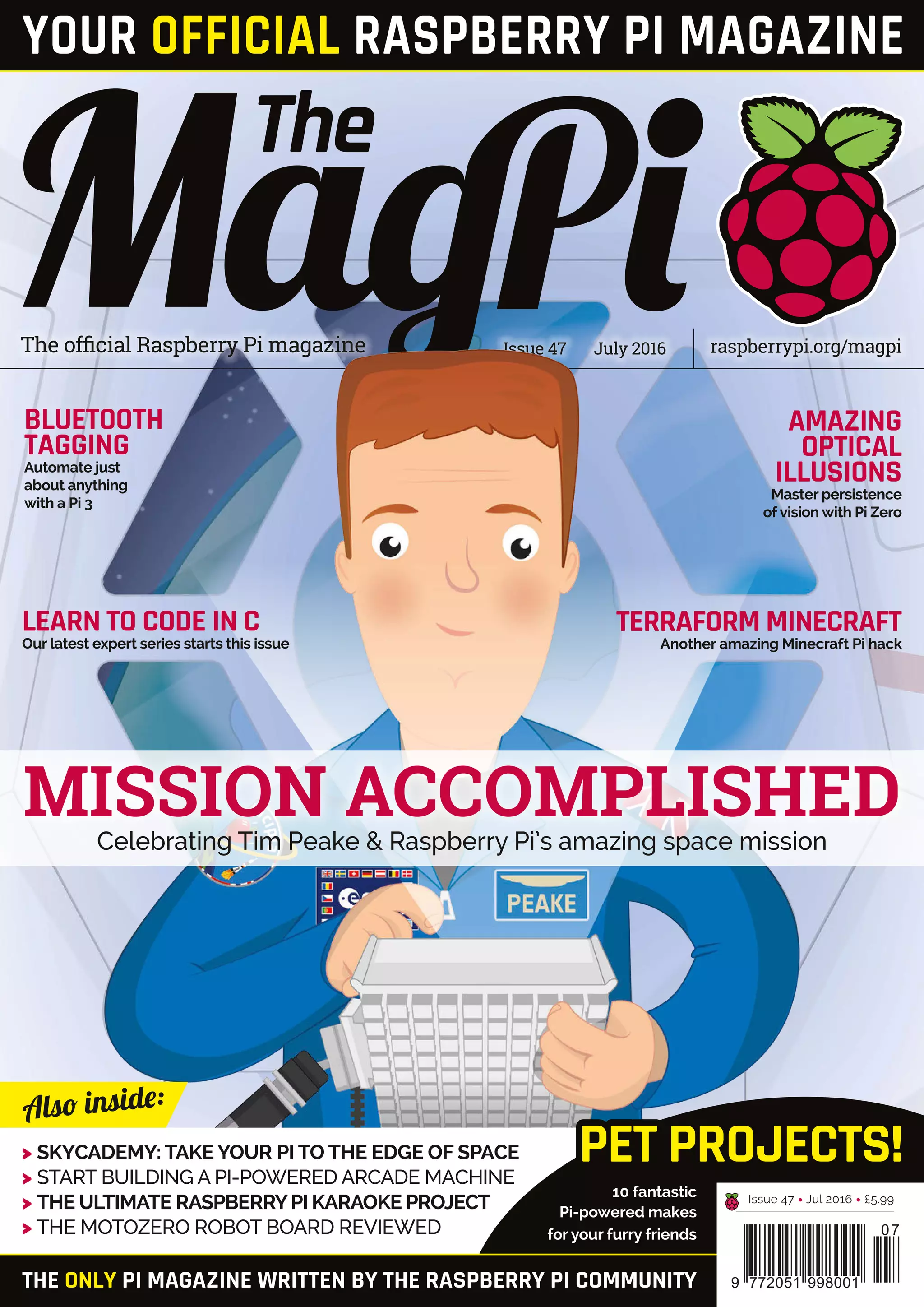
Celebrating Tim Peake & Raspberry Pi’s amazing space mission
>	SKYCADEMY: TAKE YOUR PI TO THE EDGE OF SPACE
>	START BUILDING A PI-POWERED ARCADE MACHINE
>	THE ULTIMATE RASPBERRYPI KARAOKE PROJECT
>	THE MOTOZERO ROBOT BOARD REVIEWED
THE ONLY PI MAGAZINE WRITTEN BY THE RASPBERRY PI COMMUNITY
Also inside:
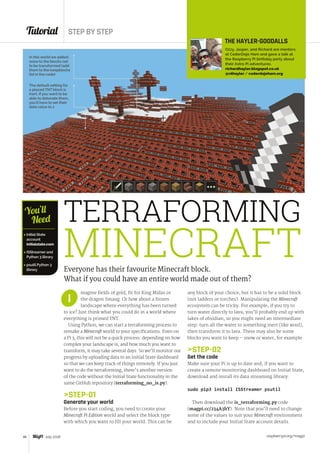
TERRAFORM MINECRAFT
Another amazing Minecraft Pi hack
LEARN TO CODE IN C
Our latest expert series starts this issue
AMAZING
OPTICAL
ILLUSIONS
Master persistence
of vision with Pi Zero
MISSION ACCOMPLISHED
BLUETOOTH
TAGGING
Automate just
about anything
with a Pi 3
10 fantastic
Pi-powered makes
for your furry friends
Issue 47 • Jul 2016 • £5.99
07
9 772051 998001
PET PROJECTS!
YOUR OFFICIAL RASPBERRY PI MAGAZINE
raspberrypi.org/magpi 3April 2016
SEE PAGE 30 FOR DETAILS
raspberrypi.org/magpi 3
Welcome
WELCOME TO
THE OFFICIAL
PI MAGAZINE!
EDITORIAL
Managing Editor: Russell Barnes
russell@raspberrypi.org
Features Editor: Rob Zwetsloot
Sub Editors: Laura Clay, Phil King, Lorna Lynch
DESIGN
Critical Media: criticalmedia.co.uk
Head of Design: Dougal Matthews
Designers: Lee Allen, Mike Kay
Cover photography: Gareth Halfacree
PUBLISHING
For advertising & licensing:
russell@raspberrypi.org +44 (0)7904 766523
Publisher: Liz Upton
CEO: Eben Upton
The MagPi magazine is published by Raspberry Pi (Trading) Ltd., 30 Station Road, Cambridge, CB1 2JH. The publisher,
editor and contributors accept no responsibility in respect of any omissions or errors relating to goods, products or services
referred to or advertised in the magazine. Except where otherwise noted, content in this magazine is licensed under a
Creative Commons Attribution-NonCommercial-ShareAlike 3.0 Unported (CC BY-NC-SA 3.0). ISSN: 2051-9982.
n December last year, British Army
Air Corps officer Timothy Nigel Peake
stepped aboard the Soyuz TMA-19M
to start a six-month mission aboard the
International Space Station. It was a small step
across the ISS hatch for Tim, but as the first
British European Space Agency astronaut it
was a giant leap for the United Kingdom and
especially the children that dream of one day
going to space.
Tim wasn’t the only UK-born passenger aboard
the ISS, though; two Raspberry Pis joined him on
his mission to carry out experiments developed
by British schoolchildren. While Tim returned
to Earth on 18 June, our two intrepid Raspberry
Pis, Ed and Izzy, remain aboard to continue their
ongoing mission to inspire and educate children
all over the world via the Astro Pi programme.
You can learn all about Astro Pi in our massive
cover feature starting on page 14, and how Astro
Pi and other educational programmes Tim has
been involved with have touched the lives of and
inspired more than a million schoolchildren.
Enjoy the issue!
Russell Barnes
Managing Editor
I
CONTRIBUTORS
SamAaron, DanAldred,WesleyArcher, Mike Cook,
LucyHattersley, Richard Hayler, PhilKing,
Simon Long,Alan McCullagh, Matt Richardson &
Richard Smedley, LucyRogers & FrancescoVannini
GET IN TOUCH
THIS MONTH:
magpi@raspberrypi.orgFIND US ONLINE raspberrypi.org/magpi
This magazine is printed on paper sourced from
sustainable forests and the printer operates an
environmental management system which has
been assessed as conforming to ISO 14001.
DISTRIBUTION
Seymour Distribution Ltd
2 East Poultry Ave
London
EC1A 9PT | +44 (0)207 429 4000	
SUBSCRIPTIONS
Select Publisher Services Ltd
PO Box 6337
Bournemouth
BH1 9EH | +44 (0)1202 586 848
July 2016
14 ASTRO PI: MISSION ACCOMPLISHED
We look at this amazing collaboration, but it’s not over yet!
32 THE ULTIMATE RETRO PHONE
Martin Mander is back with another stunning Pi project 
46 TERRAFORM MINECRAFT
Become the destroyer of worlds in Minecraft Pi
72 YOUR PET PROJECTS
10 amazing community creations for your furry friends
raspberrypi.org/magpi4 July 2016
ASTRO PITim Peake has returned to Earth; let’s see what he accomplished with Astro Pi
ContentsIssue 47 July 2016 raspberrypi.org/magpi
COVER FEATURETUTORIALS
14
Young people show off their
projects at the Coolest Projects
awards in Dublin
Everyone’s talking about Raspberry Pi in the sky.
Skycademy returns as records are broken with HABs
CoderDojo
Pis in the sky
10
6
IN THE NEWS
> PI 3 BLUETOOTH TAG	 42
Create automated events with a Pi and a smartphone
> WAKE DINO WITH NODE-RED	 44
Email a dinosaur to let people know dinner is ready
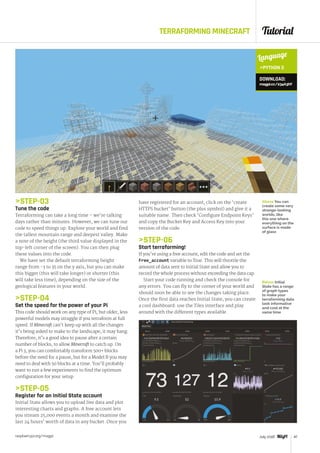
> MINECRAFT TERRAFORMING	 46
Program Minecraft to change its landscape
> EGG DROP GAME	 48
Make a Sense HAT game that uses the tilt sensor
> SONIC PI	 50
Create randomised drum patterns with Sonic Pi’s creator
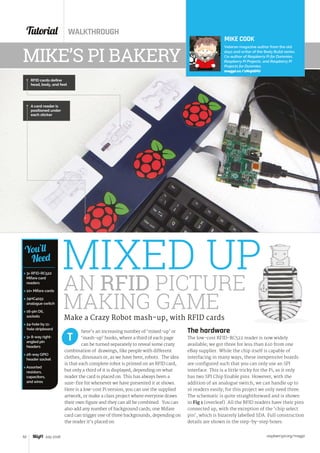
> PI BAKERY	 52
Build yet another amazing machine with Mike Cook
> ARCADE MACHINE BUILD (PT 1)	 58
Start building your own arcade cabinet from scratch
> PERSISTENCE OF VISION	 60
Create an optical illusion with a fast-spinning Pi Zero
> RASPBERRY BERET	 64
Put a camera on your head in this Pi-powered Prince tribute
Pi Wars returns in 2017 to give
people more time to make even
cooler Pi-powered robots
PI WARS 3
9
ALEXAPHONEThis very Seventies telephone has been souped up with a Raspberry Pi
A tiny karaoke box that lets you belt out
your favourite pop song at full volume
Raspberry Pis that bring you honey,
although there are some bees involved
32
A clock that keeps track of Bitcoin stats
and can store some money in it as well
Karaoke Box	 34
Beekeeping Server	 36
Bitcoin Clock	 38
YOUR PROJECTS
Contents
raspberrypi.org/magpi 5July 2016
> NEWS	 06
The biggest stories from the world of Raspberry Pi
> TECHNICAL FAQ	 70
Got a problem? Maybe we can help...
> BOOK REVIEWS	 86
The best reads for coders and hackers
> THE FINAL WORD	 97
More musings from Raspberry Pi’s Matt Richardson
REGULARS
> MOTOZERO	 80
> PI ZERO MOTOR SHIM	 82
> RASPIO HAT	 83
> CHICKBOT	 84
REVIEWS
COMMUNITY
> THIS MONTH IN PI	 88
We round up other goings-on in the Pi community
> EVENTS	 90
Get involved in a community gathering near you
> YOUR LETTERS	 92
Talk to us about the magazine or Raspberry Pi
Cute critters and the Raspberry Pis that people use to control
them or make them famous on the internet
THE BIG FEATURE
72
THE BEST PI PET PROJECTS
8An amazing 500,000 Raspberry Pis were
sold in a single month
RASPBERRY PI SALES
95
In association with
raspberrypi.org/magpi6 July 2016
News
f you’ve paid attention to
high-altitude ballooning
(HAB) within the Raspberry
Pi community, you’ll have no doubt
heard of Dave Akerman. He’s
broken records thanks to Pis in
HABs, specifically ones involving
the highest altitude amateur live-
transmitted pictures. It’s very
specialised, but still spectacular.
It probably comes as no surprise,
then, to learn that he’s broken the
record once again, this time thanks
to the recently released upgrade
to the Raspberry Pi Zero. The new
camera port is a big deal when
you’re doing something like this.
“I’d been pleading with
Eben [Upton] since I first saw a
prototype of the original Pi Zero.
Its low weight would be ideal for
live-imaging HAB applications,
if only it had a camera port,”
Dave writes on the Raspberry Pi
blog. “The camera is the entire
reason for using a Pi for HAB; if
Everyone has been talking about high-altitude
ballooning this month; here’s why…
you don’t want pictures, then a
smaller/lighter/simpler AVR or
PIC microcontroller will easily
do the job, and with less battery
power. I felt that the CSI-less Pi
Zero was a missed opportunity.
Eben agreed, and said he would
try to make it happen.”
New records
On launch day, Dave had to wait
for the weather to clear before
filling up the balloon, contending
with some unexpected gusts of
wind in the process. The predicted
altitude for the payload before the
balloon burst was 42km (26 miles),
which is about double the altitude
of the U-2 spy plane. Predictions
weren’t far off; the last photo
sent from the camera before the
balloon burst records an altitude
of 41,837m. Dave believes this
breaks any previous record he’s
made, and any others that have
been made since.
FEATURE
HIGH-
FLYING PI
I
Last year, Skycademy helped
teachers around the UK to
learn about performing HAB
experiments in their schools.
It was a huge success, so the
Raspberry Pi Foundation is
launching a new Skycademy
course. The course will take place
over three days, with the second
day dedicated to launching and
tracking a HAB. You can find out
more information, and apply,
online: magpi.cc/28J5Vma
SKYCADEMY 2016
The balloon reached almost halfway
to the edge of space, and only a few
metres short of the 42km prediction
A basic case with the bare essentials needed to make things
work, which is important when you’re trying to save weight
raspberrypi.org/magpi 7July 2016
News
The Pi Camera Module went
missing as the balloon burst, so
if you have a very thorough search
around Shropshire, you might just
find the highest-flying Pi camera
ever/so far.
A boy and his Pi
While Dave might be breaking
more records, a 17-year-old
student from Monmouth School,
Sam Sully, was taking his first
steps into Pi-powered ballooning
with his own HAB project. After
seeing Dave’s original Pi in the Sky
blog in 2012, Sam was eager to give
it a go, but didn’t have the skills to
do so at the time.
“Now, four years later, I’ve
gained many more skills,” Sam
tells us. “Last year I received
an Arkwright Scholarship,
giving me £300 to spend on
anything to further my interests
in engineering and computer
science. I decided after a while
that I could now do this project,
and so I started my research.”
His research brought him to
the forums of the Raspberry Pi
Foundation and to members of
the UK High Altitude Society
(UKHAS), where unsurprisingly
he bumped into Dave as well
HIGH-FLYING PI
as other members. Completing
his research, Sam built his
SkiPi on the provided budget,
using the skills in electronics
and programming that he had
developed for the task.
After two months of work, Sam
took his payload and balloon to a
field and filled it up with helium
for its ascent over Monmouth.
Dave even came down to spectate
and give a hand if needed.
“I programmed the camera to
take a picture every minute,” Sam
says. “These were stored on the Pi
Zero. Then the Pi selected the best
photos and transmitted them back
to us. But my focus was on making
sure I couldn’t lose it.”
The balloon reached a very
respectable altitude of 32km
in about an hour, before falling
back down to Earth. It took some
finding, but Sam managed to
retrieve the payload and the rest
of the photos.
“The pictures are beautiful,”
effuses Sam. “I’ve already shared
them with people and set one
as my desktop background.
It’s an amazing view from up
there. People have reacted with
amazement: they are really
impressed that it actually worked.”
Pi in the Sky
The reason we didn’t name this news story ‘Pi in the
Sky’! Dave Akerman came to the community’s attention
when he originally broke that altitude record, using a Pi
and a webcam, in July 2012.
DAVE’S FLIGHTS
Babbage’s big jump
You may remember Felix Baumgartner, who managed
to fall with so much style he broke the sound barrier.
Dave tried to recreate this feat at a greater altitude,
but with a Babbage bear as a passenger.
Heston Blumenthal’s potato
As part of top chef Heston Blumenthal’s Great British
Food episode on pies, Dave launched a Heston-esque
potato from a HAB. The potato survived its descent,
but not Heston’s plans to mash it up for dinner.
7July 2016
A glimpse of Earth from
space as Sam’s SkiPi reaches
high into the atmosphere
raspberrypi.org/magpi8 July 2016
News
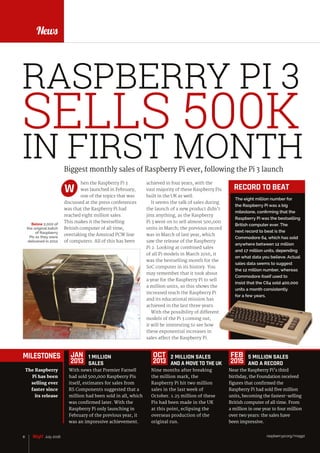
Biggest monthly sales of Raspberry Pi ever, following the Pi 3 launch
hen the Raspberry Pi 3
was launched in February,
one of the topics that was
discussed at the press conferences
was that the Raspberry Pi had
reached eight million sales.
This makes it the bestselling
British computer of all time,
overtaking the Amstrad PCW line
of computers. All of this has been
W
FEATURE
The eight million number for
the Raspberry Pi was a big
milestone, confirming that the
Raspberry Pi was the bestselling
British computer ever. The
next record to beat is the
Commodore 64, which has sold
anywhere between 12 million
and 17 million units, depending
on what data you believe. Actual
sales data seems to suggest
the 12 million number, whereas
Commodore itself used to
insist that the C64 sold 400,000
units a month consistently
for a few years.
RECORD TO BEAT
RASPBERRY PI 3
SELLS 500K
IN FIRST MONTH
Below 2,000 of
the original batch
of Raspberry
Pis as they were
delivered in 2012
MILESTONES
With news that Premier Farnell
had sold 500,000 Raspberry Pis
itself, estimates for sales from
RS Components suggested that a
million had been sold in all, which
was confirmed later. With the
Raspberry Pi only launching in
February of the previous year, it
was an impressive achievement.
2 MILLION SALES
AND A MOVE TO THE UK
Nine months after breaking
the million mark, the
Raspberry Pi hit two million
sales in the last week of
October. 1.25 million of these
Pis had been made in the UK
at this point, eclipsing the
overseas production of the
original run.
5 MILLION SALES
AND A RECORD
Near the Raspberry Pi’s third
birthday, the Foundation received
figures that confirmed the
Raspberry Pi had sold five million
units, becoming the fastest-selling
British computer of all time. From
a million in one year to four million
over two years: the sales have
been impressive.
The Raspberry
Pi has been
selling ever
faster since
its release
JAN
2013
OCT
2013
FEB
2015
1 MILLION
SALES
raspberrypi.org/magpi8 July 2016
achieved in four years, with the
vast majority of these Raspberry Pis
built in the UK as well.
It seems the talk of sales during
the launch of a new product didn’t
jinx anything, as the Raspberry
Pi 3 went on to sell almost 500,000
units in March; the previous record
was in March of last year, which
saw the release of the Raspberry
Pi 2. Looking at combined sales
of all Pi models in March 2016, it
was the bestselling month for the
SoC computer in its history. You
may remember that it took about
a year for the Raspberry Pi to sell
a million units, so this shows the
increased reach the Raspberry Pi
and its educational mission has
achieved in the last three years.
With the possibility of different
models of the Pi 3 coming out,
it will be interesting to see how
these exponential increases in
sales affect the Raspberry Pi.
raspberrypi.org/magpi 9July 2016
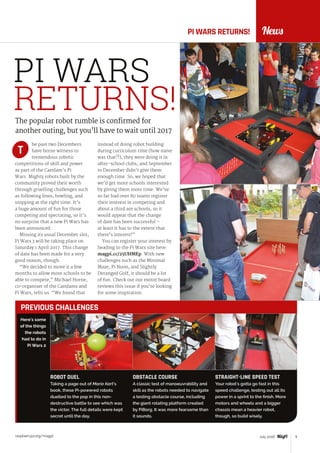
Here’s some
of the things
the robots
had to do in
Pi Wars 2
PREVIOUS CHALLENGES
News
he past two Decembers
have borne witness to
tremendous robotic
competitions of skill and power
as part of the CamJam’s Pi
Wars. Mighty robots built by the
community proved their worth
through gruelling challenges such
as following lines, bowling, and
stopping at the right time. It’s
a huge amount of fun for those
competing and spectating, so it’s
no surprise that a new Pi Wars has
been announced.
Missing its usual December slot,
Pi Wars 3 will be taking place on
Saturday 1 April 2017. This change
of date has been made for a very
good reason, though.
“We decided to move it a few
months to allow more schools to be
able to compete,” Michael Horne,
co-organiser of the CamJams and
Pi Wars, tells us. “We found that
The popular robot rumble is confirmed for
another outing, but you’ll have to wait until 2017
PI WARS RETURNS!
T
PI WARS
RETURNS!
instead of doing robot building
during curriculum time (how naive
was that?!), they were doing it in
after-school clubs, and September
to December didn’t give them
enough time. So, we hoped that
we’d get more schools interested
by giving them more time. We’ve
so far had over 80 teams register
their interest in competing and
about a third are schools, so it
would appear that the change
of date has been successful –
at least it has to the extent that
there’s interest!”
You can register your interest by
heading to the Pi Wars site here:
magpi.cc/25UHMEp. With new
challenges such as the Minimal
Maze, Pi Noon, and Slightly
Deranged Golf, it should be a lot
of fun. Check out our motor board
reviews this issue if you’re looking
for some inspiration.
ROBOT DUEL
Taking a page out of Mario Kart’s
book, these Pi-powered robots
duelled to the pop in this non-
destructive battle to see which was
the victor. The full details were kept
secret until the day.
OBSTACLE COURSE
A classic test of manoeuvrability and
skill as the robots needed to navigate
a testing obstacle course, including
the giant rotating platform created
by PiBorg. It was more fearsome than
it sounds.
STRAIGHT-LINE SPEED TEST
Your robot’s gotta go fast in this
speed challenge, testing out all its
power in a sprint to the finish. More
motors and wheels and a bigger
chassis mean a heavier robot,
though, so build wisely.
raspberrypi.org/magpi10 July 2016
News
n Saturday 18 June 2016,
Raspberry Pi Foundation
CEO Philip Colligan and
community manager Ben Nuttall
headed to Dublin for the CoderDojo
Coolest Projects awards. Here,
loads of young people gathered to
show off their excellent projects
for everyone to see. Philip gave a
Pi-based presentation to start the
morning, and then it was time to
see the displays.
“As we walked around the
venue, we grew more and more
impressed by the projects on
show,” Ben mentions in his blog
about the event. “We asked each
exhibiting group to talk us through
their project, and were genuinely
Young people convene in Dublin
to show off their best projects
impressed by both the projects and
their presentation.”
There were a lot of Raspberry
Pi projects on display, including
websites, Sonic Pi demos, robots,
and even an arcade machine:
“We arrived at a beautiful Pi-
powered retro gaming console and
spoke to the maker’s dad. He was
excited for his son to be able to
show his project to people from
the Raspberry Pi Foundation, and
asked if we could stick around
to wait for him to return.” Ben
requested Mega Drive classic
Golden Axe, which was quickly
loaded up for him to play. On this
page are some of the amazing
projects that Philip and Ben found.
O
FEATURE
SEE
CODERDOJO’S
COOLEST
PROJECTS
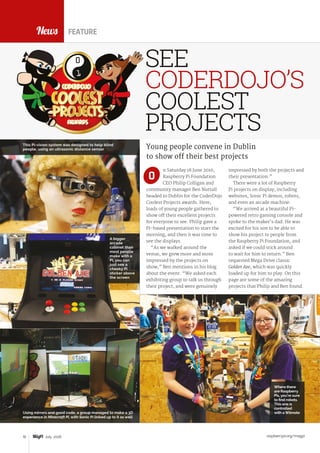
A bigger
arcade
cabinet than
most people
make with a
Pi, you can
just see a
cheeky Pi
sticker above
the screen
This Pi-vision system was designed to help blind
people, using an ultrasonic distance sensor
Using mirrors and good code, a group managed to make a 3D
experience in Minecraft Pi, with Sonic Pi linked up to it as well
Where there
are Raspberry
Pis, you’re sure
to find robots.
This one is
controlled
with a Wiimote
raspberrypi.org/magpi 11July 2016
NewsCODERDOJO’S COOLEST PROJECTS
How you can help inspire young minds
GET INVOLVED
oderDojo, like Raspberry Pi
and Code Club, is all about
inspiring and teaching kids
about computing. Ben Nuttall has
these tips on how you can help
with this effort:
“If you want to join us in
giving more young people the
opportunity to learn programming
skills, learn to make things with
computers, and generally hack
things that didn’t need hacking,
there are plenty of ways you can
get involved.
“You can set up a Raspberry
Jam (magpi.cc/28Nxeff) in your
area, or volunteer to help out
at one near you. Start a Code Club
(magpi.cc/28NxhYz) at a local
primary school, or another venue
like a library or community centre.
Finally, you could also set up a
CoderDojo (magpi.cc/28Nxn2d),
or offer to help at one near you.”
You can find out about any
Raspberry Jams that might
be near you by checking out our
Events pages, starting on page
90 of this issue, or by checking
the link for Raspberry Jams above
for a full calendar of events.
Maybe you’ll help inspire the
next winners of CoderDojo
Coolest Projects…
C
Become a coder, and your code could go to space
in the next Astro Pi competition
Feature MISSION ACCOMPLISHED
raspberrypi.org/magpi14 July 2016
ver the past six months,
the eyes of the nation
have been turned
skyward, hoping to catch a glimpse
of the ISS as it zooms far overhead.
It’s not the space station that
people are looking at, though; it’s
the man on board representing the
United Kingdom. Passions have
been ignited and many people
have been inspired, thanks to
the endeavours of British ESA
astronaut Tim Peake.
Tim wasn’t the only UK passenger
aboard the ISS; as we’re sure
you’ve seen in this magazine, two
special Raspberry Pis joined him up
there. The Astro Pis, Ed and Izzy,
had their own mission to carry
out experiments coded by British
school students, some of which Tim
helped with, and the results have
been phenomenal.
On 18 June, Tim finally returned
to Earth, and told reporters, “It
was incredible. The best ride I’ve
been on ever.” While his first
space flight is over, Ed and Izzy’s
ride isn’t just yet, as the Astro Pi
adventure continues. Here’s what
they’ve achieved so far.
Miss onACCOMPLISHED
O
Feature
raspberrypi.org/magpi 15July 2016
raspberrypi.org/magpi16
Feature MISSION ACCOMPLISHED
magine being a child back
in July 1969, when humans
first set foot on the Moon.
Watching those grainy black-and-
white TV images would have been
both fascinating and inspirational,
and many a kid would have gone
to bed that night dreaming of
becoming an astronaut.
Since then, space exploration
has come on in leaps and bounds.
Scientists are making exciting new
discoveries and there are faraway
plans to put people on Mars. But
what’s perhaps just as interesting
is that we don’t have to be idle
participants any more. Thanks
to the Raspberry Pi, children can
engage with space like never before.
It wasn’t always going to be that
way. When plans were made for
ESA astronaut Tim Peake to travel
to the International Space Station
last December, the idea was that
he would solely work on a twin-
expedition, educational mission
called Principia (principia.org.uk).
It involved conducting experiments
which can’t be carried out anywhere
on Earth, looking at physiology,
biology, and materials science, as
well as solar and radiation physics.
But then the UK Space Agency
proposed sending Raspberry Pis
to the ISS with him, allowing
children to conduct their own
space experiments. The concept
of the Astro Pi and its associated
competition was born and – a week
TIM PEAKE'S
18 June may have seen the end of Tim Peake’s 186
days in space, but this is only the end of the first
chapter for Astro Pi
before Tim made his voyage and
following 20 months of intense
work – two Pis equipped with the
sensor-packed Sense HAT were
sent skywards.
Each Pi had a different camera – a
standard visible spectrum and an
infrared – and children were invited
to code them, with the promise that
the best efforts would be uploaded
for use by Tim. At their disposal
was an all-in-one gyroscope,
accelerometer and magnetometer,
the Sense HAT’s 8×8 RGB LED
matrix and temperature, humidity
cosm cclassroomI
For more information on the individual experiments, and to watch the Astro Pi
video series, head to astro-pi.org
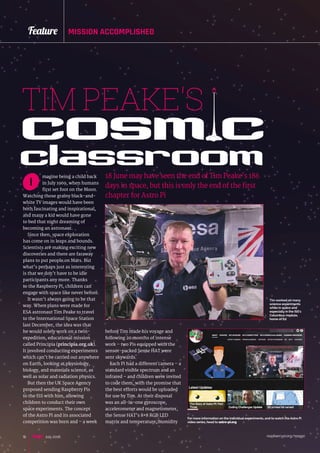
Tim worked on many
science experiments
while in space and
especially in the ISS‘s
Columbus module,
home of Ed
July 2016
raspberrypi.org/magpi 17July 2016
Feature
and barometric pressure sensors.
The children used them to come up
with some marvellous experiments.
The winners
In total, seven experiments were
chosen: two winners from students
aged 11 and under, two from those
11 to 14, two more from 14 to 16, and
one from 16 to 18. Each winning
experiment fitted well into Tim’s
overall remit of research, and
they astounded the judges. ‘Crew
Detector’ by Cranmere Code Club,
for example, was able to check for
fluctuations in humidity in order
to see if an astronaut was nearby,
while ‘SpaceCRAFT’ took data
logs from the Astro Pi sensors and
visualised the results in Minecraft.
‘Trees’ took images of Earth
in order to analyse plant health;
‘Watchdog’ by Kieran Wand
measured temperature, pressure
and humidity, and displayed them
on the LED screen for astronomers
to check; and ‘Radiation’ by Team
Arthur, Alexander and Kiran at
Magdalen College School blanked
off the visible spectrum camera
so that only high-energy space
radiation could get through,
allowing for effective monitoring.
Of course, there was room for
fun. Team Terminal from Lincoln
UTC produced a suite of reaction
games that could gauge how Tim
performed over time, and whether
he was affected by long-term space
flight. ‘Flags’ used telemetry data
provided by NORAD, together with
the real-time clock on the Astro
Pi, to predict the ISS’s location. It
then displayed a flag of the country
directly beneath the ISS.
“Flags was this simple thing that
allowed astronauts to look out of
their window and know where they
were orbiting over,” says Libby
Jackson from the UK Space Agency.
“The children worked out how to do
that using three-line element data
and it was a great example of what
the project could do.” Libby was
amazed by the creativity on display
and the way young minds solve
problems. “They came up with
things that blew our minds; things
that we had never thought of”.
Peake practice
The experiments ran during
February and March, and they were
classed as prime activities. This
meant they were carried out as part
of the four hours in the mission
set aside for educational pursuits.
On top of that, Tim could use his
Space is great, but it’s tricky to update your MP3
player from the ISS. Dave Honess sprung into action
to provide Tim with some fresh beats by launching
a new competition. This 2016 Coding Competition
tasked students with turning the Astro Pi into an MP3
player, or to produce some original music using Sonic
Pi (sonic-pi.net).
PLAY THAT FUNKY MUSIC
Lowena Hull’s MP3 player allowed Tim to shake the
Astro Pi to adjust the volume and skip tracks. “I was
dubious about the tilt mechanism working well in
microgravity using the accelerometers to change
tracks, but it worked brilliantly,” Tim says. “I tried
inputting motion in other axes to test the stability
and it was rock solid – it only worked with the correct
motion.” But all were amazing: Marcus Panchal’s
iSpace showed playback progress, Joe Spears’ MP3
player included a Red Dwarf alarm clock and cool
patterns, and Jude Young’s Astro MP3 Player had
functional buttons and LED patterns.
LET’S JAM
The Sonic Pi tunes were great, too. Pinal Parmar came
up with Keep Calm and Dance, while Iris and Joseph
Mitchell of the Southend Raspberry Jam produced Run
To The Stars and included a funky piano, bass drums,
cymbals, squelchy bass, and ‘alien tune’ loops. Isaac
Ingram’s Final Frontier was complex (“The key was to
make the drum beat and then develop the music around
it,” explains his father, Karl), while the development of
Jamie Andrews’ Piano Pi “was based around the chords
used throughout,” says his father, Jason.
Each winning experiment
fitted well into Tim’s overall
remit of research
MUSIC TO TIM’S EARS
The Mitchells produce
their Sonic Pi track,
Run To The Stars
The creator of Final Frontier, Isaac
Ingram, started with a drum beat
and built the song from there
Jude Young was the creator
of the Astro MP3 Player
Joe Spears’ MP3 player
had a Red Dwarf theme
In space, everyone can see your selfie Credit: ESA/NASA
raspberrypi.org/magpi
Feature MISSION ACCOMPLISHED
18 July 2016
reserve activity time – another
four hours which, as long as there
wasn’t a pressing emergency, was
available for any Pi projects if he so
wished. But Tim also used Astro Pi
during his days off. It underlined
the fact that Tim loved his time
with the Raspberry Pi and that it
has proven to be useful.
“That’s where Astro Pi got a big
win,” says Dave Honess, education
resource engineer at the Raspberry
Pi Foundation. “Tim was motivated
and interested in Astro Pi, and
he engaged with it himself on a
personal level.” Whenever Tim
used the Pi, Dave would get a daily
operations report from the ground
control team, detailing what he
had done. “There may have been
other things he was doing in his
own time, such as using the suite
of reaction games,” Dave says. “We
know he was very engaged.”
To ease the burden on Tim’s time,
the programs ran automatically.
Tim simply had to select an
experiment from an app called the
Master Control Program, which
was on board the Astro Pi. But
he threw himself into the tasks,
using social media and videos to
showcase what he was doing with
the children’s work.
“I’ve been amazed at how
many kids and adults have been
SKY-PI THINKING
Astro Pi has encouraged children
to think about the importance of
coding within the space industry.
Libby Jackson, the UK Space
Agency’s astronaut flight education
programme manager, says: “Pis
have been used in satellites, the ISS
has computers with millions of lines
of code, software is needed for the
next Mars Rover, and we need solid
programs for the service module
for the Orion spacecraft. There
are lots of opportunities.” Libby is
actually the one to thank for Astro
Pi’s existence in the first place;
when she was interviewed for
her job at the UK Space Agency,
she pitched an idea for doing
something with Raspberry Pi on
the ISS. This kernel of an idea is
what eventually became Astro Pi.
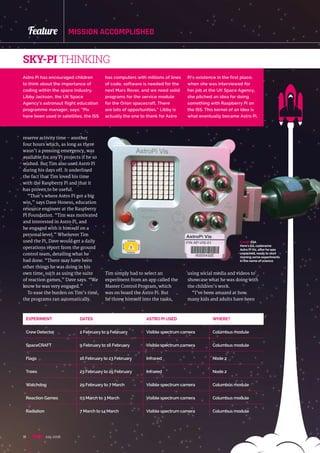
EXPERIMENT DATES ASTRO PI USED WHERE?
Crew Detector 2 February to 9 February Visible spectrum camera Columbus module
SpaceCRAFT 9 February to 16 February Visible spectrum camera Columbus module
Flags 16 February to 23 February Infrared Node 2
Trees 23 February to 25 February Infrared Node 2
Watchdog 29 February to 7 March Visible spectrum camera Columbus module
Reaction Games 03 March to 3 March Visible spectrum camera Columbus module
Radiation 7 March to 14 March Visible spectrum camera Columbus module
Credit: ESA
Here’s Ed, codename
Astro Pi Vis, after he was
unpacked, ready to start
running some experiments
in the name of science
raspberrypi.org/magpi 19July 2016
Feature
encouraged and inspired to
take up programming and look
at science in a different way,”
effuses Tim. “Libby told me that
the UK Space Agency has now
engaged with over a million school
children during this mission, and
of course Astro Pi has been a huge
part of that.”
One person who is certainly
pleased at how well Astro Pi did is
Raspberry Pi founder Eben Upton,
who said the entire experiment
reminded him of the excitement
he felt about space as a child
back in the 1980s. “Inspiring a
new generation of scientists and
engineers has always been a key
part of the Principia mission, and
Tim made space travel as cool for
British children today.”
Eben believes it showed the
great potential of commercial,
off-the-shelf technology in space
applications. “We hope to see
Raspberry Pi-derived hardware
in CubeSats in low earth orbit
and maybe beyond: we’ve been
wondering if SpaceX have any room
on their Red Dragon mission in
2018,” he comments.
Given that the Astro Pi was
one of the fastest ever projects
deployed to the ISS, you sense
anything is possible.
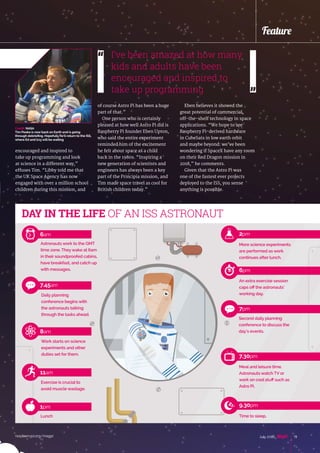
DAY IN THE LIFE OF AN ISS ASTRONAUT
Astronauts work to the GMT
time zone. They wake at 6am
in their soundproofed cabins,
have breakfast, and catch up
with messages.
6am
More science experiments
are performed as work
continues after lunch.
2pm
An extra exercise session
caps off the astronauts’
working day.
6pm
Second daily planning
conference to discuss the
day’s events.
7pm
Meal and leisure time.
Astronauts watch TV or
work on cool stuff such as
Astro Pi.
7.30pm
Daily planning
conference begins with
the astronauts talking
through the tasks ahead.
7.45am
Work starts on science
experiments and other
duties set for them.
8am
Exercise is crucial to
avoid muscle wastage.
11am
Lunch
1pm
Time to sleep.
9.30pm
I’ve been amazed at how many
kids and adults have been
encouraged and inspired to
take up programming
Credit: NASA
Tim Peake is now back on Earth and is going
through debriefing. Hopefully he’ll return to the ISS,
where Ed and Izzywill be waiting
raspberrypi.org/magpi20 July 2016
Feature MISSION ACCOMPLISHED
SPACEcraftReplicating the movements of the ISS and its environment in a Minecraft world
n order to better
understand a complex
concept, bringing it
back down to earth can help
enormously. And so it proved when
Jon Belshaw was talking to his
daughter, Hannah, about space,
the ISS, and the ability of the Astro
Pi’s magnetometer to measure the
Earth’s magnetic field. “Can’t we
just do it in Minecraft?” she asked
him, firmly seeding an idea that
would grow to be a winner.
Jon had already shown Hannah
how to program blocks in Python,
I
and create shapes such as spheres
of sand which dropped under
gravity in Minecraft. But with
SpaceCRAFT, the concept was to
log information from the Astro
Pi’s sensors every ten seconds,
laying down row upon row of data
in a CSV file. Upon the return of
the document from orbit, Hannah
envisaged opening it in Minecraft
and playing it back, effectively
using the block-building game as a
data visualisation tool.
To advance the idea, Hannah
had a Skype meeting with Martin
Creators
> Hannah
Belshaw, at
Cumnor House
Girls School
Dates
 9 February to
16 February
2016
Astro Pi
 Astro Pi Vis
Infobox
I had some amazing experiences because of this
project, like starting my own coding club at my
school, visiting Surrey Satellites, and best of all
being able to meet Tim Peake
Hannah says
O’Hanlon, a Picademy trainer
and co-author of Adventures in
Minecraft. She discussed writing
Python code to animate a small
version of the ISS and animated
gauges for the environmental
sensors. There would also be
a long-term data logger and a
playback function. Martin wrote
the code and sent it back to
Hannah for her to look at.
When the code was ready, it
was sent to the ISS. “It was a
gateway idea, because children
love the open-world nature of
Minecraft and the ability to freely
construct their own world,” says
Jon Belshaw. “The ability to build
in Minecraft with Python code
shows children they don’t only
have to consume technology,
they can actively produce it
themselves, which is a powerful
lesson for them.”
Expected results
According to Jon, the idea was
to make young people think
about science and technology
and engage with it more directly.
“They can think about what
microgravity means, and the
distances, speeds, and energy
required to lift someone up to
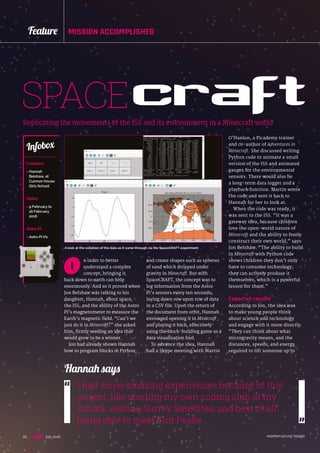
A look at the collation of the data as it came through via the SpaceCRAFT experiment
raspberrypi.org/magpi 21July 2016
Feature
space,” he says. Both he and
Hannah expected to see “mainly
internal effects”, although they
also hoped to see “the occasional
engine burn as acceleration”.
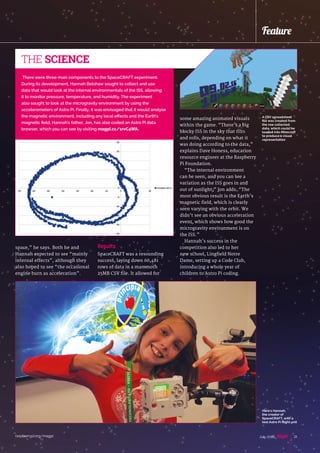
There were three main components to the SpaceCRAFT experiment.
During its development, Hannah Belshaw sought to collect and use
data that would look at the internal environmentals of the ISS, allowing
it to monitor pressure, temperature, and humidity. The experiment
also sought to look at the microgravity environment by using the
accelerometers of Astro Pi. Finally, it was envisaged that it would analyse
the magnetic environment, including any local effects and the Earth's
magnetic field. Hannah's father, Jon, has also coded an Astro Pi data
browser, which you can see by visiting magpi.cc/1rvC4WA.
THE SCIENCE
Results
SpaceCRAFT was a resounding
success, laying down 60,481
rows of data in a mammoth
25MB CSV file. It allowed for
some amazing animated visuals
within the game. “There’s a big
blocky ISS in the sky that tilts
and rolls, depending on what it
was doing according to the data,”
explains Dave Honess, education
resource engineer at the Raspberry
Pi Foundation.
“The internal environment
can be seen, and you can see a
variation as the ISS goes in and
out of sunlight,” Jon adds. “The
most obvious result is the Earth’s
magnetic field, which is clearly
seen varying with the orbit. We
didn’t see an obvious acceleration
event, which shows how good the
microgravity environment is on
the ISS.”
Hannah’s success in the
competition also led to her
new school, Lingfield Notre
Dame, setting up a Code Club,
introducing a whole year of
children to Astro Pi coding.
A CSV spreadsheet
file was created from
the raw collected
data, which could be
loaded into Minecraft
to produce a visual
representation
Here's Hannah,
the creator of
SpaceCRAFT, with a
test Astro Pi flight unit
raspberrypi.org/magpi22 July 2016
Feature MISSION ACCOMPLISHED
riginally called Sweaty
Astronaut, this fun
project sought to use
the environmental sensors of the
Astro Pi to detect the presence of
a crew member on board the ISS.
By monitoring fluctuations in
the humidity sensor, a message
would scroll across the LED screen
asking if someone was there. A
picture would then be taken using
the camera, and the idea was
to see how many shots it would
eventually be able to capture.
The concept for Crew Detector
came from Cranmere Primary
School pupil, Jasper Hayler-
Goodall. He, along with all
members of the Cranmere Code
Club, had been encouraged
by teacher Richard Hayler to
submit an entry to the Astro
Pi competition. When the club
found it had won, the children
decided to code the experiment
themselves, and it made for a true
collaborative effort.
CREWdetectorSnapping away at astronauts on board the ISS by detecting changes in humidity
Creators
 Cranmere
Code Club,
at Cranmere
Primary School
Dates
 2 February to
9 February 2016
Astro Pi
 Astro Pi Vis
Infobox
O
“I still can’t quite believe
that the code we wrote in the
computing suite at the school has
been run on the ISS,” says Richard.
“The Cranmere boys and girls
were determined from the outset
that they would do it themselves
when – and not if – they won. I was
also impressed by their attention
to detail, especially the usability
of the program. They clearly felt a
real sense of ownership over the
code, and wanted it to work they
way they thought best.”
Expected results
The team members didn’t
have a set number of expected
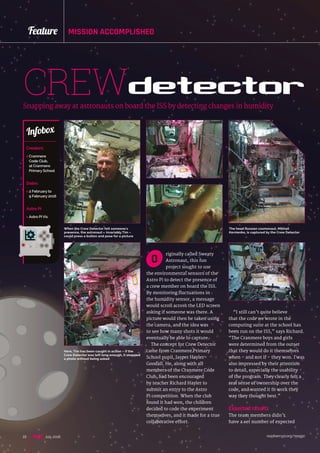
When the Crew Detector felt someone's
presence, the astronaut – invariably Tim –
could press a button and pose for a picture
The head Russian cosmonaut, Mikhail
Kornienko, is captured by the Crew Detector
Here, Tim has been caught in action – if the
Crew Detector was left long enough, it snapped
a photo without being asked
raspberrypi.org/magpi 23July 2016
Feature
photographs in their head, but
they implemented measures
that would help to increase their
chance of success. So, while
the code would try to catch an
astronaut’s attention if it believed
one had been detected, prompting
them to pose for a photo, if it was
ignored then the AstroPi would
snap away regardless after a
few seconds.
The resulting data was logged
in a file. “We were hoping to be
able to plot graphs of humidity
readings and see spikes indicating
a change in humidity,” Richard
adds. “The times of the peaks
should correspond to time-
stamped photos containing a
friendly spaceman.” As a neat
bonus, the Sense HAT’s LED
matrix would display a three-
minute animation sequence,
created by the dozen-strong Code
Club, upon a positive detection.
Results
It was always going to be a difficult
project. As Richard points out,
the code would have to record
the baseline humidity just long
enough to produce an accurate
trigger threshold. The children
also had to consider the trigger
point: if they set the bar too high
then it would fail to detect anyone,
and if it was too low it would
create too many false positives.
This had to be done without truly
knowing the conditions of the ISS.
But in the end, they received
nine photographs of British ESA
astronaut Tim Peake either posing
or working, in addition to one
showing just his arm. Another
image showed Russian cosmonaut
Mikhail Korniyenko’s head in the
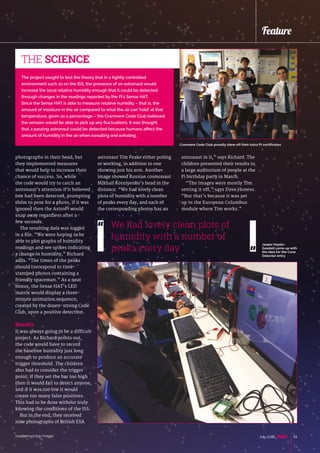
distance. “We had lovely clean
plots of humidity with a number
of peaks every day, and each of
the corresponding photos has an
The project sought to test the theory that in a tightly controlled
environment such as on the ISS, the presence of an astronaut would
increase the local relative humidity enough that it could be detected
through changes in the readings reported by the Pi's Sense HAT.
Since the Sense HAT is able to measure relative humidity – that is, the
amount of moisture in the air compared to what the air can 'hold' at that
temperature, given as a percentage – the Cranmere Code Club believed
the sensors would be able to pick up any fluctuations. It was thought
that a passing astronaut could be detected because humans affect the
amount of humidity in the air when sweating and exhaling.
THE SCIENCE
We had lovely clean plots of
humidity with a number of
peaks every day
astronaut in it,” says Richard. The
children presented their results to
a large auditorium of people at the
Pi birthday party in March.
“The images were mostly Tim
setting it off,” says Dave Honess.
“But that’s because it was set
up in the European Columbus
module where Tim works.”
Cranmere Code Club proudly show off their Astro Pi certificates
Jasper Hayler-
Goodall came up with
the idea for the Crew
Detector entry
raspberrypi.org/magpi24 July 2016
Feature MISSION ACCOMPLISHED
ne of the advantages
of considering the
wider implications and
applications of space is the ability
to think big and see the overall
picture of life. Oliver Turnbull
certainly thought so, as he took
inspiration from people who
were using the Raspberry Pi and
its infrared camera to monitor
environmental change through
the measurement of plant
health. “I thought this could be
taken to the next level and be
done in space,” he says. And so
the Westminster School pupil
proposed Trees, which looked to
use the Astro Pi NoIR camera to
snap pictures of the ground.
It was obvious that it was going
to be an ambitious project from
the start. Under the team name
EnviroPi and the watchful eye
of teacher Sam Page, Trees was
looking to achieve something
that’s normally performed by
sensitive and expensive devices.
“By doing this with the extremely
cheap Raspberry Pi, I hoped to
show its power in monitoring
environmental change and
damage, and encourage others
to set up their own DIY projects
in helping to monitor it,”
Oliver says.
To do this, the infrared camera
was used to take observation
pictures of the ground and then
an image processing technique
called Normalised Difference
Vegetation Index (NDVI) was used.
treesMapping the environmental health of Earth in great detail from the ISS
Creators
 EnviroPi, at
Westminster
School
Dates
 23 February to
25 February
2016
Astro Pi
 Astro Pi IR
Infobox O
This snapshot of Earth shows the plant health
above central Europe, taken on 23 February
Amazing colour was captured by the camera in this
image taken over CentralAmerica
Essentially, this is a measure of
plant health. Oliver thought it
would be interesting to compare
the global data collected from
the ISS to other environmental
metrics, such as CO2
emissions or
annual temperature, which can
be found online from the World
Bank API.
raspberrypi.org/magpi 25July 2016
Feature
Expected results
Oliver had done his homework:
he took off in a light aircraft to
test the experiment, holding the
camera out of the window. He
was able to process the resulting
images and get an idea of what it
would be like with the benefit of
more altitude. Oliver expected to
see a negative correlation between
NDVI levels (or plant health) in
different areas and the amount
of CO2
emissions and average
fluctuations of temperature in
those areas.
“We also hoped to get some
strong definition between
different areas of land (for
example, very dense forest,
rainforest, agricultural land,
forested land) to demonstrate the
ability of the Raspberry Pi as an
ecological monitoring device,”
Oliver adds. “In my tests, we
managed to get some really strong
definition between different areas
of land.”
The experiment sought to investigate the plant health level of
vegetation across as much of the world’s surface as possible, by
examining the present levels of chlorophyll and comparing it against
several environmental factors for each area. Chlorophyll strongly
absorbs light in the 400-700nm band (visible light), but reflects
strongly in the near infrared band. The photosynthetic capacity (that is,
the chlorophyll levels) of a plant can then be worked out by comparing
the ratio of near infrared radiation reflected to visible radiation
reflected. A special index called NDVI gives a value from +1 (most
photosynthetic) to -1 (not photosynthetic). Forests will have a very
high value for NDVI, while areas such as oceans or deserts will have a
negative value.
THE SCIENCE
Results
Trees didn’t run as smoothy
as expected. In order for the
experiment to work, a blue filter
needed to be applied to the
camera, but it didn’t form part of
the payload to the ISS. It was an
essential component, and it looked
like the project would be doomed
(the astronauts even tried to find
a blue filter on board). In the end,
the Astro Pi was deployed onto the
hatch window and ran without it.
Hopefully this will help to inspire others to take
environmental monitoring into their own hands.
It’s pretty amazing to think that [Raspberry Pi] can
perform the job of something worth hundreds of
thousands of pounds
Oliver says
Credit: ESA
In order to get a good
image of Earth, Tim
Peake stuck the Astro
Pi IR device onto
the hatch window of
the ISS
But it meant the red and
infrared data would be saved
to the same channel, making it
impossible to distinguish the
latter. “We had to improvise
by using an alternative index
(GLI), which compares the green
channel to the red channel (G-R)/
(G+R),” Oliver reveals.
Despite the setback, more than
4,000 photos were sent back. And
they were stunning. “Although
there’s less definition than with
the NDVI method, it still shows
some definition. I am still playing
around to try and optimise the
images and to improve the
definition, such as taking into
account atmospheric corrections,
but hopefully there will be some
nice data in the end.”
raspberrypi.org/magpi26 July 2016
Feature MISSION ACCOMPLISHED
and beyond
TO INFINITY
im has returned to
Earth and been
reunited
with his family.
His legacy will
carry on, though,
thanks to the kids
he’s inspired over
the past six months,
and there’s a very real
possibility he’ll be able
to go up to the ISS again. As
for the Astro Pis, their legacy
is just beginning as they’ll be
up on the space station for a very
long time.
“The Astro Pis are staying on
board the ISS until 2022,” Dave
Honess tells us. “That’s when their
RTC batteries technically expire,
although they’ll probably hold
charge for another ten years. At
that point, we’ll get them down
from space and retire them to a
comfy museum somewhere so
everyone can go visit them!”
While the Astro Pis were created
with the aid of the UK Space
Agency with Tim’s stay in mind,
their ability to stay operational
for another 6-16 years on the ISS
means that other plans sprang up
for them. In March 2016, the ESA
got in contact with the Foundation
T
The future of Astro Pi is very bright
about the Astro Pis being involved
with French astronaut Thomas
Pesquet’s mission on the ISS.
“The ESA has Astro Pi
educational plans for the next two
astronauts that are going up,”
Dave reveals. “Thomas Pesquet is
launching in November this year,
The ESA has Astro Pi educational plans
for the next two astronauts that are
going up to the ISS
Want
to get
your
hands on
an Astro Pi?
You can start
3D-printing
your own flight
cases to do some
experiments with
and veteran [Italian]
astronaut Paolo Nespoli
launches in May 2017.”
It’s not just France and Italy
who will get involved with Astro
Pi, though. Thanks to the success
of Astro Pi, the ESA is rolling
out Astro Pi-related education
resources to all ESA member
states, which is currently 22
countries, exponentially expanding
the educational reach of the Astro
Pi project.
“Each ESA member state has
something called an ESERO office;
these provide free resources,
support and information for
teachers to enhance STEM subjects
using space as a context,” says
raspberrypi.org/magpi 27July 2016
Feature
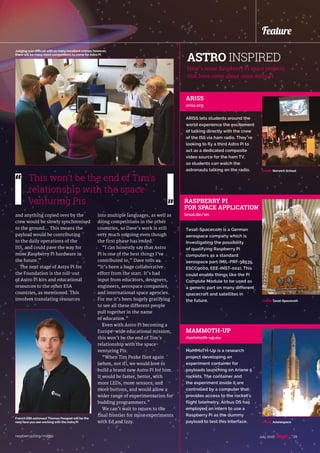
On 9 June 2016, Tim Peake connected one of the Astro Pi computers to
the ISS Joint Station LAN using a £4,000 Ethernet cable, whereupon it
was remotely accessed by ground control in Switzerland. To accomplish
this, a double VPN is used along with a Ku band radio link bounced
off a number of satellites in orbit. Firstly, they VPN into the ESA private
network, and from there they open another VPN across the Atlantic to a
NASA computer called the MPCC ground node. That machine uses the
Ku band radio link and has IP connectivity to everything on the ISS Joint
Station LAN. Basically, you can now talk to the Astro Pi from a computer
on the ground.
GROUND CONTROL
TO ED AND IZZY?
Dave. “We’re working with ESA to
distribute hundreds of boxed Astro
Pi kits around Europe through these
ESERO offices. They will have a
range of supporting educational
material in the local languages, so
they could be coming to a school
near you!”
There’s not just educational
plans for the Astro Pis either – their
usefulness hasn’t gone unnoticed
by the rest of the space agencies
that make use of the ISS, as
Dave explains:
“ESA operations are also
planning to use the Astro Pi payload
for a number of utilitarian, non-
educational applications. These
plans are currently in flux, but may
represent a more longer-term use
for the payload for when there are
no ESA crew members on board
the ISS. One idea is for them to
be ‘delay-tolerant networking
download servers’ for the JSL.
Downloading large amounts of
data to the ground usually ties up a
laptop, but because the Astro Pi OS
is a derivative of Debian Linux, they
can easily be configured for this
task. They would have a large USB
hard disk connected, which would
be shared over the JSL network,
Putting on events
around the country
so kids could talk
to Tim; parts of the
ARISS system used
Raspberry Pis such as
the display here
Credit: ESA/NASA
raspberrypi.org/magpi28 July 2016
Feature MISSION ACCOMPLISHED
ENTRANT DATA
Teams from all around the
UK entered the Astro Pi
competitions, and school
students everywhere were
inspired by this and Tim
Peake’s mission
raspberrypi.org/magpi 29July 2016
Feature
and anything copied over by the
crew would be slowly synchronised
to the ground... This means the
payload would be contributing
to the daily operations of the
ISS, and could pave the way for
more Raspberry Pi hardware in
the future.”
The next stage of Astro Pi for
the Foundation is the roll-out
of Astro Pi kits and educational
resources to the other ESA
countries, as mentioned. This
involves translating resources
into multiple languages, as well as
doing competitions in the other
countries, so Dave’s work is still
very much ongoing even though
the first phase has ended.
“I can honestly say that Astro
Pi is one of the best things I’ve
contributed to,” Dave tells us.
“It’s been a huge collaborative
effort from the start. It’s had
input from educators, designers,
engineers, aerospace companies,
and international space agencies.
For me it’s been hugely gratifying
to see all these different people
pull together in the name
of education.”
Even with Astro Pi becoming a
Europe-wide educational mission,
this won’t be the end of Tim’s
relationship with the space-
venturing Pis.
“When Tim Peake flies again
(when, not if), we would love to
build a brand new Astro Pi for him.
It would be faster, better, with
more LEDs, more sensors, and
more buttons, and would allow a
wider range of experimentation for
budding programmers.”
We can’t wait to return to the
final frontier for more experiments
with Ed and Izzy.
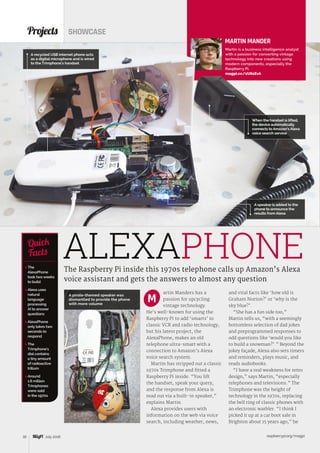
ASTRO INSPIRED
Here’s some Raspberry Pi space projects
that have come about since Astro Pi
MAMMOTH-UP
mammoth-up.eu
MaMMoTH-Up is a research
project developing an
experiment container for
payloads launching on Ariane 5
rockets. The container and
the experiment inside it are
controlled by a computer that
provides access to the rocket's
flight telemetry. Airbus DS has
employed an intern to use a
Raspberry Pi as the dummy
payload to test this interface.
ARISS
ariss.org
ARISS lets students around the
world experience the excitement
of talking directly with the crew
of the ISS via ham radio. They’re
looking to fly a third Astro Pi to
act as a dedicated composite
video source for the ham TV,
so students can watch the
astronauts talking on the radio. Credit: Norwich School
RASPBERRY PI
FOR SPACE APPLICATION
tesat.de/en
Tesat-Spacecom is a German
aerospace company which is
investigating the possibility
of qualifying Raspberry Pi
computers as a standard
aerospace part (MIL-PRF-38535,
ESCC9000, EEE-INST-002). This
could enable things like the Pi
Compute Module to be used as
a generic part on many different
spacecraft and satellites in
the future. Credit: Tesat-Spacecom
This won’t be the end of Tim's
relationship with the space-
venturing Pis
Judging was difficult with so many excellent entries; however,
there will be many more competitions to come forAstro Pi
French ESA astronaut Thomas Pesquet will be the
next face you see working with the Astro Pi Credit: Arianespace
Tutorial WALKTHROUGH
raspberrypi.org/magpi30 July 2016
FREE PI ZERO!Subscribe in print for six or 12 months to receive this stunning free gift
SAVE
UP TO
25%
Subscribe today  receive:
	 A free Pi Zero v1.3 (the latest model)
	 A free Camera Module connector
	 A free USB  HDMI cable bundle
Delivered with your first issue!
Other benefits:
	 Save up to 25% on the price
	 Free delivery to your door
	 Exclusive Pi offers  discounts
	 Get every issue first (before stores)
Tutorial
raspberrypi.org/magpi 31July 2016
RETURNTHISFORMTO:
MagPiMagazine Subscriptions, Select Publisher Services Ltd, PO Box 6337,
Bournemouth BH1 9EH
Please tick this box if you DO NOT want to receive any other information
from Select Publisher Services Ltd.
Please tick this box if you DO NOT want to receive any other information
from other companies.
Please tick this box if you DO NOT want to subscribe to The MagPi newsletter.
This subscription is:	 nFor me n A gift for someone*
YOUR DETAILS Mr n Mrs n Miss n Ms n
First name ............................................ Surname ........................................................
Address ........................................................................................................................
....................................................................................................................................
Postcode ............................................... Email .............................................................
Daytime phone ..................................... Mobile ............................................................
*If giving The MagPi as a gift, please complete both your own details (above) and the recipient’s (below).
GIFT RECIPIENT’S DETAILS ONLY Mr n Mrs n Miss n Ms n
First name ............................................ Surname ........................................................
Address ........................................................................................................................
Postcode .................................................... Email ..................................................................
SUBSCRIPTION FORM
YES! I’d like to subscribe to The MagPi magazine  save money
PAYMENT OPTIONS
1 DIRECT DEBIT PAYMENT £12.99 every 3 issues (UK only)
InstructiontoyourbankorbuildingsocietytopaybyDirectDebit
Please fill in the form and send to:
The MagPi, Select Publisher Services Ltd,
PO Box 6337, Bournemouth BH1 9EH
Name and full postal address of your bank or building society:
To: The Manager Bank/building society .......................................................................
Address ...........................................................................................................................
........................................................................................................................................
..................................................................................... Postcode ....................................
Name(s) of account holder(s) ............................................................................................
Branch sort code n n n n n n Account number n n n n n n n n
Reference n n n n n n n n n n n n n n n n n   (Official use only)
Instruction to your bank or building society
Please pay Select Publisher Services Ltd Direct Debits from the account detailed in this instruction
subject to the safeguards assured by the Direct Debit Guarantee. I understand that this instruction
may remain with Select Publisher Services Ltd and, if so, details will be passed electronically to my
bank/building society.
Signature ..................................................................... Date n n/n n/n n
Banks and building societies may not accept Direct Debit instructions for some types of account.
SUBSCRIPTION PRICING WHEN PAYING BY CHEQUE OR CREDIT/DEBIT CARD
6 ISSUES 	 nUK £30 	nEurope £45 	nRest of World £50
12 ISSUES 	nUK £55 	nEurope £80 	nRest of World £90
2 CHEQUE
I enclose a cheque for ............................... (made payable to Select Publisher Services Ltd)
3 CREDIT/DEBIT CARD nVisa nMasterCard nMaestro nSwitch
Card number	 n n n n n n n n n n n n n n n n
Expiry date	 n n n n	 Valid from n n n n (if shown)
Issue number	 n n (if shown)	 Security number n n n
		 (last 3 digits on the back of the card)
Signature ..................................................................... Date n n/n n/n n
I would like my subscription to begin from issue ............................................ (month + year)
Service user number 8 3 8 7 7 3
Mag#47
Pricing
Get six issues:
£30 (UK)
£45 (EU)
$69 (USA)
£50 (Rest of World)
Subscribe for a year:
£55 (UK)
£80 (EU)
$129 (USA)
£90 (Rest of World)
Get three issues:
£12.99 (UK) (direct debit)
$37.50 (US) (quarterly)
How to subscribe:
	 magpi.cc/Subs1 (UK / ROW)
	 imsnews.com/magpi (USA)
	 Call +44(0)1202 586848 (UK/ROW)
	 Call 800 428 3003 (USA)
raspberrypi.org/magpi32 July 2016
Projects SHOWCASE
The Raspberry Pi inside this 1970s telephone calls up Amazon’s Alexa
voice assistant and gets the answers to almost any question
 The
AlexaPhone
took two weeks
to build
 Alexa uses
natural
language
processing
AI to answer
questions
 AlexaPhone
only takes two
seconds to
respond
 The
Trimphone’s
dial contains
a tiny amount
of radioactive
tritium
 Around
1.6 million
Trimphones
were sold
in the 1970s
Quick
Facts
MARTIN MANDER
Martin is a business intelligence analyst
with a passion for converting vintage
technology into new creations using
modern components, especially the
Raspberry Pi.
magpi.cc/1U61EvA
artin Manders has a
passion for upcycling
vintage technology.
He’s well-known for using the
Raspberry Pi to add ‘smarts’ to
classic VCR and radio technology,
but his latest project, the
AlexaPhone, makes an old
telephone ultra-smart with a
connection to Amazon’s Alexa
voice search system.
Martin has stripped out a classic
1970s Trimphone and fitted a
Raspberry Pi inside. “You lift
the handset, speak your query,
and the response from Alexa is
read out via a built-in speaker,”
explains Martin.
Alexa provides users with
information on the web via voice
search, including weather, news,
and vital facts like ‘how old is
Graham Norton?’ or ‘why is the
sky blue?’.
“She has a fun side too,”
Martin tells us, “with a seemingly
bottomless selection of dad jokes
and preprogrammed responses to
odd questions like ‘would you like
to build a snowman?’.” Beyond the
jokey façade, Alexa also sets timers
and reminders, plays music, and
reads audiobooks.
“I have a real weakness for retro
design,” says Martin, “especially
telephones and televisions.” The
Trimphone was the height of
technology in the 1970s, replacing
the bell ring of classic phones with
an electronic warbler. “I think I
picked it up at a car boot sale in
Brighton about 15 years ago,” he
M
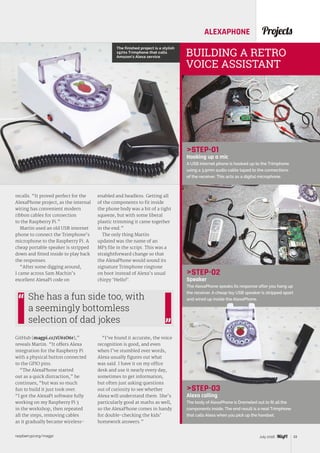
When the handset is lifted,
the device automatically
connects to Amazon’s Alexa
voice search service
ALEXAPHONE
A speaker is added to the
phone to announce the
results from Alexa
A recycled USB internet phone acts
as a digital microphone and is wired
to the Trimphone’s handset
A pirate-themed speaker was
dismantled to provide the phone
with more volume
raspberrypi.org/magpi 33July 2016
ProjectsALEXAPHONE
STEP-01
Hooking up a mic
A USB internet phone is hooked up to the Trimphone
using a 3.5mm audio cable taped to the connections
of the receiver. This acts as a digital microphone.
STEP-02
Speaker
The AlexaPhone speaks its response after you hang up
the receiver. A cheap toy USB speaker is stripped apart
and wired up inside the AlexaPhone.
STEP-03
Alexa calling
The body of AlexaPhone is Dremeled out to fit all the
components inside. The end result is a neat Trimphone
that calls Alexa when you pick up the handset.
BUILDING A RETRO
VOICE ASSISTANT
recalls. “It proved perfect for the
AlexaPhone project, as the internal
wiring has convenient modern
ribbon cables for connection
to the Raspberry Pi.”
Martin used an old USB internet
phone to connect the Trimphone’s
microphone to the Raspberry Pi. A
cheap portable speaker is stripped
down and fitted inside to play back
the responses.
“After some digging around,
I came across Sam Machin’s
excellent AlexaPi code on
GitHub (magpi.cc/1U61O6r),”
reveals Martin. “It offers Alexa
integration for the Raspberry Pi
with a physical button connected
to the GPIO pins.
“The AlexaPhone started
out as a quick distraction,” he
continues, “but was so much
fun to build it just took over.
“I got the AlexaPi software fully
working on my Raspberry Pi 3
in the workshop, then repeated
all the steps, removing cables
as it gradually became wireless-
enabled and headless. Getting all
of the components to fit inside
the phone body was a bit of a tight
squeeze, but with some liberal
plastic trimming it came together
in the end.”
The only thing Martin
updated was the name of an
MP3 file in the script. This was a
straightforward change so that
the AlexaPhone would sound its
signature Trimphone ringtone
on boot instead of Alexa’s usual
chirpy ‘Hello!’.
“I’ve found it accurate, the voice
recognition is good, and even
when I’ve stumbled over words,
Alexa usually figures out what
was said. I have it on my office
desk and use it nearly every day,
sometimes to get information,
but often just asking questions
out of curiosity to see whether
Alexa will understand them. She’s
particularly good at maths as well,
so the AlexaPhone comes in handy
for double-checking the kids’
homework answers.”
She has a fun side too, with
a seemingly bottomless
selection of dad jokes
The finished project is a stylish
1970s Trimphone that calls
Amazon’s Alexa service
raspberrypi.org/magpi34 July 2016
ertain members of The
MagPi team like a good
bit of karaoke. Africa by
Toto, Disney music, the theme
to Mazinger Z – it’s all a bit of fun
with the right people. Karaoke
machines can be expensive,
though, and the cheaper ones lack
great functionality as well. Harry
Gonzalez-Rivera came across this
Projects SHOWCASE
Unimpressed with a consumer karaoke product,
one Pi user made something far better with a Pi Zero
 The project
uses bare-
bones Raspbian
 It took about a
month’s work
at weekends
 Harry’s
planning a
second version
powered by Pi 3
 Karaoke is
a Japanese
portmanteau of
kara okesutra,
or empty
orchestra
 This is Harry’s
first project
Quick
Facts
All the system fits inside this
small, older karaoke mixer
PI ZERO
KARAOKE BOX
Plug in a mic and
you’re ready to go
C
The system hooks up over
RCA cables and can be routed
through a home theatre setup
HARRY GONZALEZ-RIVERA
A system analyst living in
Texas, Harry likes to take tech
apart to figure out how it works
in his spare time.
magpi.cc/1tvSTTr
problem when trying to buy a
commercial karaoke machine.
“About a year ago, I bought a
consumer karaoke box that had
USB and HDMI for about $140,”
Harry tells us. “It looked awesome
until I actually tried to use it: at
first, the HDMI output created
an audio delay and the output
of the HDMI wasn’t even 1080p.
It turned out to be a conversion
from composite to HDMI. Also,
the USB implementation of the
device [for loading files] was
poorly programmed.”
After getting a smart hub for
home automation, Harry spent
some time trying to get it to
control his TV, and one of his
friends joked that he should try
raspberrypi.org/magpi 35July 2016
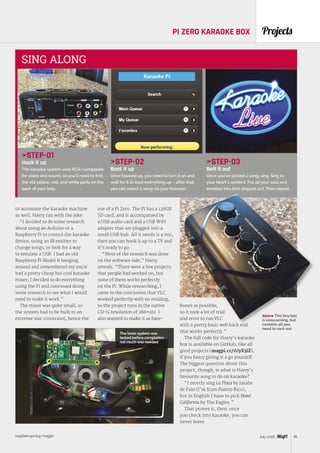
ProjectsPI ZERO KARAOKE BOX
STEP-01
Hook it up
The karaoke system uses RCA/composite
for video and sound, so you’ll need to find
the old yellow, red, and white ports on the
back of your telly.
STEP-02
Boot it up
Once hooked up, you need to turn it on and
wait for it to load everything up – after that,
you can select a song via your browser.
STEP-03
Belt it out
Once you’ve picked a song, sing. Sing to
your heart’s content. Put all your soul and
emotion into that singular act. Then repeat.
SING ALONG
to automate the karaoke machine
as well. Harry ran with the joke:
“I decided to do some research
about using an Arduino or a
Raspberry Pi to control the karaoke
device, using an IR emitter to
change songs, or look for a way
to emulate a USB. I had an old
Raspberry Pi Model B hanging
around and remembered my uncle
had a pretty cheap but cool karaoke
mixer; I decided to do everything
using the Pi and continued doing
some research to see what I would
need to make it work.”
The mixer was quite small, so
the system had to be built to an
extreme size constraint, hence the
use of a Pi Zero. The Pi has a 128GB
SD card, and is accompanied by
a USB audio card and a USB WiFi
adapter that are plugged into a
small USB hub. All it needs is a mic,
then you can hook it up to a TV and
it’s ready to go.
“Most of the research was done
on the software side,” Harry
reveals. “There were a few projects
that people had worked on, but
none of them works perfectly
on the Pi. While researching, I
came to the conclusion that VLC
worked perfectly with no resizing,
so the project runs in the native
CD-G resolution of 288×192. I
also wanted to make it as bare-
bones as possible,
so it took a lot of trial
and error to run VLC
with a pretty basic web back end
that works perfectly.”
The full code for Harry’s karaoke
box is available on GitHub, like all
good projects (magpi.cc/1UyX3iZ),
if you fancy giving it a go yourself.
The biggest question about this
project, though, is what is Harry’s
favourite song to do on karaoke?
“I mostly sing La Flaca by Jarabe
de Palo (I’m from Puerto Rico),
but in English I have to pick Hotel
California by The Eagles.”
That proves it, then: once
you check into karaoke, you can
never leave.
The basic system was
tested before completion –
not much was needed
Above This tiny box
is unassuming, but
contains all you
need to rock out
raspberrypi.org/magpi36 July 2016
Projects SHOWCASE
Home-grown honey made with Raspberry Pi sounds tasty to us.
Have a slice of this home-built beehive with smart scales and sensors
An Arduino is hooked up
to a DHT sensor to capture
temperature readings
BEEKEEPING
SERVER
VALENTIN PETRACHE
Valentin works as a full-time test
engineer for web applications and is a
part-time electronic hobbyist. He has
created various electronic projects.
magpi.cc/24yIWzx
 Each hive
has around
30,000 bees
 Valentin owns
30 hives in total
 It took about a
month to build
 It measures the
temperature
outside the hive
 The battery
lasts around
three days
Quick
Facts
The Beehive Server lets
Valentin know the ideal time
to collect his honey
The device is housed
safely inside a sealed
plastic box with
switches on the outside
The Raspberry Pi is used
to maintain a database of
temperature readings
ees are amazing! They
build hives, waggle dance
for each other, and make
tasty honey, which we then steal
and turn into Crunchie bars.
It’s a good job bees make three
times as much honey as they
need, given how tasty it is. In
summer months the bees are
busy making honey, which they
then use as food during the colder
winter months.
Beekeepers aim to snaffle the
extra honey at just the right time.
One smart MagPi reader, Valentin
Petrache, got rid of the guesswork
and built a smarter beehive. The
Beekeeping Server measures
the weight and temperature of a
hive. Valentin then uses the data
to figure out the exact time to
harvest his honey.
“When I first thought of
the idea,” says Valentin, “I
made a checklist of important
information on beekeeping, and
how to harvest as much honey
as possible.
“I measure the outside
temperature and humidity,” he
tells us. “It’s important to know
when the bees are active, and
to know the hive’s weight.
“In beekeeping, it’s important
to keep your hives close to a lawn
of flowers where bees extract
B
raspberrypi.org/magpi 37July 2016
ProjectsBEEKEEPING SERVER
STEP-01
Arduino and DHT sensor
A DHT (digital humidity and
temperature) sensor is connected to the
Arduino on port 10. An LCD is hooked to
the Arduino, so Valentin can check the
readings locally at the beehive.
STEP-02
Box and buttons
A plastic tub is used as an enclosure
to protect the parts from the bees.
A button is connected to pin 12. Pressing
it activates the backlight so the LCD can
be read in low light conditions.
STEP-03
Bee safe
The Raspberry Pi and Arduino devices are
placed inside the sealed box, with a switch
used to turn it on and off. This unit is then
connected to a weight scale, mounted
at the bottom of the beehive.
INSIDE THE HIVE
pollen and produce honey.
If the flowers don’t have enough
pollen, the bees start eating the
honey from the hive. Therefore,
you have to move the hives to a
better area. So I thought, “What
a great idea to have a weight scale
under a hive.”
The Beekeeping Server merges
different devices and sensors.
The project contains a Raspberry
Pi, Arduino board, DHT23 sensor,
HX-711 scale amplifier board,
load scale (rated at 300kg), small
LCD, WiFi dongle, and lithium
polymer battery.
“The Arduino board is the core
of the project,” explains Valentin.
“It reads the temperature,
humidity and weight, and prints
it in a human-friendly format.
The HX711 amplifier sensor reads
raw data from the load scale and
sends it to Arduino in kilograms.
The DHT sensor reads outdoor
temperature and humidity,
and the LCD [displays] weight,
temperature, and humidity.
“The Raspberry Pi has the
role of the server for wireless
communication,” he continues.
An Apache server and SQL
database are set up in Raspbian.
The Raspberry Pi accesses the
data from the Arduino and
hosts a webpage displaying the
results. Alternatively, the small
LCD on the beehive provides
data on-site.
“It took about a month to
build,” says Valentin, “and of
course there were problems.”
From library issues all the
way to frying a board, Valentin
has had his work cut out.
“At first, I had problems
with getting a reading from
the HX711 sensor. My scale had
different colour codes for the
four wires it has, and the HX711
was getting no data. Currently,
I have problems with the weight
Above The
temperature and
weight of the hive
are accessed
remotely, letting
the owner
know when the
honey is ready
to be collected
I get. The scale is very sensitive
to temperature variation. I’m
currently trying to resolve that
problem by creating a thermal
barrier between the sensor and
outside temperature.”
Despite the gremlins,
the Beekeeping Server is in
constant use. Valentin is ironing
out the issues and looking
to add a solar panel soon (the
battery needs changing every
three days).
“It’s fun building one,” he
tells us. “The process of creating
something, and the information
you learn during the build process,
it’s all very rewarding.”
raspberrypi.org/magpi38 July 2016
Projects SHOWCASE
MATTHEW ZIPKIN
A lifelong programmer, Matthew
is a professional audio engineer
working on TV, films, and music.
youtu.be/78u8EQtIXMY
Powered by Pi (and
other things) to connect
to the Bitcoin network
Interact with the monitor
clock and even use it as
a Bitcoin piggy bank
Visualise the current
state of the block chain
with this display
f you work or pay attention
to the technology
industry, you’ll know how
ubiquitous Bitcoin is. The digital
currency is big in the tech world,
and considering how much Bitcoin
is currently worth, it can be very
advantageous to help mine some of
it – it’s basically free money! Well,
minus the expense of the electricity
required to help with the mining.
Raspberry Pis are quite popular for
Bitcoin uses, but Matthew Zipkin
has found a fairly novel way of
connecting his Pi to Bitcoin.
“The Bitcoin Block Clock is
a Bitcoin full node connected
to a 32×32 RGB LED grid, which
visualises certain network
properties in a fun, colourful
clock-like display,” Matthew
explains. “So that’s two things:
a Bitcoin full node is a computer
that runs the Bitcoin software.
It connects to 12 peers on the
network who also run the same
software, and together as part of
the ~7,000-node Bitcoin network
establish the global consensus on
the block chain, the ledger of all
Bitcoin transactions. That software
Visualise a Bitcoin node with a
great light display that tells you
how well the current block is
going in your block chain
 The build took
about four
months
 A full list of
components
can be found
here:
magpi.cc/
1PnglX0
 The enclosure
build was fairly
new ground for
Matthew, but
turned out well
 Matthew chose
the Pi due to
the strength of
the community
 Matthew is
currently
building
a second,
better version
Quick
Facts
I
BITCOIN
BLOCK
CLOCK
Left More
information is
provided on the
screen below
the display
raspberrypi.org/magpi 39July 2016
ProjectsBITCOIN BLOCK CLOCK
Above The whole
system is open
for all to see:
no tricks here
STEP-01
Start it up
Plugging in the system is only the first
step, as you need to start the specific
script as well to make sure everything
is running.
STEP-02
Clock display
You can just sit and watch the Bitcoin
interactions, powered by a specific API and
code that translates the data in real time
for the display.
STEP-03
Different displays
You can also change the displays and
interact with the clock using a wireless
keyboard. You can then deposit and
withdraw money from it.
HOW TO VISUALISE BITCOIN
can also send and receive Bitcoin
transactions, giving my project a
‘piggy bank’ functionality. You can
send money to the clock!”
The LED grid lights up and
shows a lot of data for the user,
including current block progress,
how difficult it is to mine Bitcoins,
and how much you can mine. It
may look a little complicated, but
to those in the know it offers a lot
of useful info.
“There are a few companies that
sell compact Bitcoin full nodes to
users and hobbyists,” Matthew
tells us as he explains why he
made it. “But they’re boring! They
don’t even have a screen. You just
plug it into the wall like an air
freshener and let it do its thing.
You can SSH into them and do
technical things, but they really
provide very little utility to the
user. There was one company that
used to make them with a screen
that at least showed some network
statistics, and I wanted one, but
they went out of business! So I
decided to make my own.”
The final product looks great
and, according to Matthew, works
well: “It’s been running non-stop
ever since I finished it. The SSD
was a huge help. Lots of compact
full nodes just use a USB flash
drive, and that works OK just for
the Bitcoin stuff. But the other
functions I wanted my clock to do
were so slow, and I discovered the
bottleneck was the flash drive.
It looks awesome and everyone
who comes into my living room
is mesmerised by it. It looks like
some crazy alien clock! You don’t
need to know anything about
Bitcoin or computers to appreciate
that it’s cool.”
Tutorial WALKTHROUGH
 CONQUER THE COMMAND LINE
 EXPERIMENT WITH SENSE HAT
 MAKE GAMES WITH PYTHON
 CODE MUSIC WITH SONIC PI
AVAILABLE NOW:
LEARN | CODE | MAKE
ESSENTIALS
From the makers of the
official Raspberry Pi magazine
ESSENTIALS
Tutorial
OUT NOW IN PRINT
ONLY £3.99
raspberrypi.org/magpi
GET THEM
DIGITALLY:
from
Tutorial STEP BY STEP
raspberrypi.org/magpi42 July 2016
CREATE A
RASPBERRY PI 3
BLUETOOTH TAGHave a Raspberry Pi 3 switch on your computer when you get home
from work, by looking out for a Bluetooth device
ffordable automation is just one of the many
popular projects for the Raspberry Pi since
its release. We can easily see why: it’s small,
easily programmable, and has a huge community
backing it with software and support. Now that the
Pi 3 has built-in Bluetooth, it’s even easier to create
events to help control your house better. We’re going
A PyBluez module
magpi.cc/
1VOuGCy
 Wakeonlan
Python module
magpi.cc/
1VOvpDF
 Compatible PC
 Bluetooth dongle
(optional, only if
you don't have
a Pi 3)
You’ll
Need
to show off a simple project by creating a Python
script that sends a Wake-on-LAN (WoL) magic packet
to your PC wh3en it detects a specific mobile phone's
Bluetooth signal.
STEP-01
Prepare your Raspberry Pi
We’ll need several extra pieces of software added
to the Raspberry Pi to get our little system working.
Both connecting to Bluetooth and sending a Wake-
on-LAN signal require extra modules for Python.
First, grab pip – the Python package installer –
so we can add them:
sudo apt-get install python-pip
Once that’s done, you can install the PyBluez and
wakeonlan modules with pip, using the following
two commands:
sudo pip install pybluez
sudo pip install wakeonlan
ROB ZWETSLOOT
Tinkerer, sometime maker,
other-times cosplayer, and
all-the-time features editor
of The MagPi.
magpi.cc / @TheMagP1
This can be achieved
with nothing more
than a phone as a tag
With built-in Bluetooth
support, the Pi 3 is perfect
for this kind of automation
You just need two devices
to get this style of
automation started
Below Small tags like
this can be used as well,
although you might
need to do a little bit
of hacking on them
Tutorial
raspberrypi.org/magpi 43July 2016
PI 3 BLUETOOTH TAG
STEP-02
Get an address
We’re going to program the Pi to look out for a specific
Bluetooth device, using the latter’s MAC address
for complete accuracy. While creating this tutorial,
we used an Android phone; for any Android device
with Bluetooth capabilities, you just need to go to
‘About phone’ and then ‘Settings’ to find the MAC
address for the Bluetooth interface. You’ll need to
look up information specific to your type of phone
or Bluetooth device on how to find its MAC address.
Either way, make a note of this address.
STEP-03
Wake up your PC
Wake-on-LAN is built into many PCs. The wired
network interface is receptive to the ‘magic packet’
that tells it to turn on. However, the WoL packet needs
a MAC address to look for, rather than an IP address, as
the PC is off. Boot into the BIOS of your PC; directions
to do this should be on the splash screen when you turn
your PC on. Enable Wake-on-LAN if it’s available, then
boot into your operating system and look up the details
on your wired network to find the MAC address.
STEP-04
Get coding
We’re just about ready to get this all working; all
we need now is the code. Copy it from the listing or
download it from magpi.cc/BluetoothTag. You’ll need
to edit it a bit on the Raspberry Pi, replacing the MAC
address for the phone with the device that activates
the Wake-on-LAN. You’ll also need to edit the MAC
#/usr/bin/env python
import time
import bluetooth
from wakeonlan import
phone = ff:ff:ff:ff:ff:ff
def search():
devices = bluetooth.discover_devices(duration = 5, lookup_names = True)
return devices
while True:
results = search()
for addr, name in results:
if addr == phone:
wol.send_magic_packet('ff:ff:ff:ff:ff:ff')
time.sleep(20)
bluetooth_tag.py
address on the line wol.send_magic_packet to be
that of your PC. Press F5 to give it a test; you may need
to play about with your device’s Bluetooth settings for
it to work properly.
STEP-05
Run at boot
It won’t be easy to run the script in IDLE all the time
for this, so it’s best to have the script executed at boot
time. Assuming this isn’t a Raspberry Pi you’ll be
using for much desktop work, you should first set it to
boot to command line and also to automatically log in.
Once that’s done, open up your user profile with:
sudo nano /etc/profile
…and add this line to the end of the file:
sudo python /home/py/bluetooth_tag.py 
Save and exit. Rebooting will start the
script automatically.
STEP-06
Future edits
The script is easily upgradeable and expandable.
You could have it look for multiple Bluetooth devices,
you could change the timing (how long it checks and
the time between checks), you can have it send a
magic packet to multiple systems, etc. That’s just the
beginning as well: with such triggers, you can set off
many other automation tasks that can be controlled
by Python.
Language
PYTHON 2
DOWNLOAD:
magpi.cc/
BluetoothTag
Above This is
where you can
find the MAC
address on an
Android phone,
but it will differ
on other devices
Tutorial STEP BY STEP
raspberrypi.org/magpi44 July 2016
MAKE A
DINOSAUR REACT
TO YOUR EMAILHack a toy dinosaur with Node-RED to provide email notifications
ant to let the kids know it’s time for dinner by
waking a toy in their bedroom? Or have a fun
alert on your desk when you receive an email?
This project takes you step by step through the process
of hacking a cheap toy and using a Raspberry Pi, Node-
RED drag-and-drop visual programming, and simple
electronics to make a dinosaur move on demand. The
electronic circuit used in this project can also be used
to control larger motors, relays, or high power LEDs.
First step, toy dinosaurs – next step, email control of
all your home automation devices?
W
LUCY ROGERS
Tamer of robot dinosaurs, hacker of the
IoT, author. Translates science into
plain English. Positively affecting the
lives of a billion people.
lucyrogers.com / @DrLucyRogers
STEP-01
Install Node-RED on your Pi
Before connecting anything to the GPIO pins of your
Pi, we’ll draw the code. If you have the latest version
of Raspbian Jessie, Node-RED comes installed in your
Programming folder. If not, you can install it via a
terminal (see magpi.cc/28PJz2O). You also need the
Firefox browser. Connect your Pi to the internet, open
Node-RED (MenuProgrammingNode-RED), and
paste the address at the top of the Node-RED window
into Firefox. This address should be something like
http://192.168.X.XXX :1880. You should now see
the Node-RED flow page. If you find everything is
sluggish, you may like to access that address from
another computer’s browser.
STEP-02
Intro to Node-RED
If you haven’t used Node-RED before, start by making
an ‘inject-debug’ flow. Drag an inject node from the
Input section of the left menu into the middle pane.
Its name should change to timestamp. Repeat with a
green debug node from the Output menu. Join the two
by clicking one of the grey pimples and drag it to the
pimple on the other node. Click the big red ‘deploy’
button at the top-left. Activate the inject node by
clicking the square to the left of the word timestamp.
The resulting message (payload) appears in the
debug tab.
STEP-03
Draw the flow
Drag the email node with the connector on the right
into the work area. Double-click it and enter your
email credentials. Connect a debug to the email node,
to check what messages are arriving. The message
contains the email text and who it’s from. Drag in a
switch node and double-click to make some changes.
For Rule1, change the ‘==’ to ‘Contains’ and type
 Connex Action
Dinosaur
Electronics
Kit: magpi.cc/
1ScJbZX
 LED  1kΩ and
330Ω resistors
 NPN Darlington
pair transistor
 Diode 1N4001
 Breadboard
and cables
You’ll
Need
A Darlington pair transistor
allows higher currents to
be switched compared
to a normal transistor
This is where
you put the
dinosaur motor!
This diode
stops back EMF
damaging the Pi
Tutorial
raspberrypi.org/magpi 45July 2016
HACK A DINOSAUR
‘Dinner’ (without quotes) into the text string box. Any
email that contains the word ‘Dinner’ will output to the
first (top) output node. Click ‘+ rule’ near the bottom,
and change ‘==’ to ‘otherwise’. All other messages will
go to the second (bottom) output node.
STEP-04
Turn the motor on and off
The message must just be ‘1’ or ‘0’ to turn the motor
on or off. To change it from the text, add a change
node and change the message to a 1. Connect an
inject node to the input of the change node. This
will allow you to text the flow without sending an
email. Add a delay node and another change node,
and change the message to zero, otherwise the dino
won’t stop. Connect both the first change node and
the delay node to a GPIO out node (connector on
left). Set the pin to physical pin 37. Deploy the flow.
STEP-05
Make the circuit and dinosaur
Connect the circuit as shown in the diagram. Turn
the Pi off before connecting anything to the GPIO pins.
As this motor is low current, we could use a transistor
rather than a Darlington pair. However, the latter
Language
NODE-RED
DOWNLOAD:
magpi.cc/1sNeypk
allows higher currents to be switched, and so this
circuit can be used for other projects – but never mains
or AC. Assemble the dinosaur kit. Make sure the dino
can nod freely. The kit’s battery holder and motor
connect straight to the breadboard. You don’t need the
switch. On the Raspberry Pi, use the ground on physical
pin 39 and GPIO pin 37.
STEP-06
Make dino nod and roar
Turn the Pi back on and open Node-RED again.
Click the inject node and the dinosaur should nod.
Now send an email with ‘Dinner’ in the message
(not in the subject). The dino should nod again!
To get your dino to speak, attach a speaker to the
Raspberry Pi, then add an exec node into the flow.
You may need to install MPlayer onto the Pi (use
sudo apt-get install mplayer from a terminal).
Make sure your ‘roar’ MP3 file is on the Pi. Double-
click the exec node and type in the command box:
mplayer /home/pi/.node-red/roar.mp3
PYTHON
If you want to
do this using
Python, see @
ForToffee’s blog
(magpi.cc/
1sNeTZj) or
Chris Robbins’
(magpi.cc/
1sNeMNi).
Above
The complete
project. Now
you just need to
email ‘Dinner’
to get everyone's
attention
Set your dinosaur
free! There are
already a few
dinos in the
wild – tamed
by @andysc,
@neilcford,
@fortoffee and
@andypiper
Left This
Node-RED flow will
trigger if any email
is received. The
delay node stops
the dino after
five seconds
Tutorial STEP BY STEP
raspberrypi.org/magpi46 July 2016
TERRAFORMING
MINECRAFTEveryone has their favourite Minecraft block.
What if you could have an entire world made out of them?
magine fields of gold, fit for King Midas or
the dragon Smaug. Or how about a frozen
landscape where everything has been turned
to ice? Just think what you could do in a world where
everything is primed TNT.
Using Python, we can start a terraforming process to
remake a Minecraft world to your specifications. Even on
a Pi 3, this will not be a quick process: depending on how
complex your landscape is, and how much you want to
transform, it may take several days. So we’ll monitor our
progress by uploading data to an Initial State dashboard
so that we can keep track of things remotely. If you just
want to do the terraforming, there’s another version
of the code without the Initial State functionality in the
same GitHub repository (terraforming_no_is.py).
STEP-01
Generate your world
Before you start coding, you need to create your
Minecraft Pi Edition world and select the block type
with which you want to fill your world. This can be
I
The default setting for
a placed TNT block is
inert. If you want to be
able to detonate them,
you'll have to set their
data value to 1
 Initial State
account
initialstate.com
 ISStreamer and
Python 3 library
 psutil Python 3
library
You’ll
Need
THE HAYLER-GOODALLS
Ozzy, Jasper, and Richard are mentors
at CoderDojo Ham and gave a talk at
the Raspberry Pi birthday party about
their Astro Pi adventures.
richardhayler.blogspot.co.uk
@rdhayler / coderdojoham.org
any block of your choice, but it has to be a solid block
(not ladders or torches). Manipulating the Minecraft
ecosystem can be tricky. For example, if you try to
turn water directly to lava, you’ll probably end up with
lakes of obsidian, so you might need an intermediate
step: turn all the water to something inert (like wool),
then transform it to lava. There may also be some
blocks you want to keep – snow or water, for example.
STEP-02
Get the code
Make sure your Pi is up to date and, if you want to
create a remote monitoring dashboard on Initial State,
download and install its data streaming library:
sudo pip3 install ISStreamer psutil
Then download the is_terraforming.py code
(magpi.cc/234A3hY). Note that you’ll need to change
some of the values to suit your Minecraft environment
and to include your Initial State account details.
In this world we added
snow to the blocks not
to be transformed (add
them to the keepblocks
list in the code)
Tutorial
raspberrypi.org/magpi 47July 2016
TERRAFORMING MINECRAFT
STEP-03
Tune the code
Terraforming can take a long time – we’re talking
days rather than minutes. However, we can tune our
code to speed things up. Explore your world and find
the tallest mountain range and deepest valley. Make
a note of the height (the third value displayed in the
top-left corner of the screen). You can then plug
these values into the code.
We have set the default terraforming height
range from -3 to 35 on the y axis, but you can make
this bigger (this will take longer) or shorter (this
will take less time), depending on the size of the
geological features in your world.
STEP-04
Set the speed for the power of your Pi
This code should work on any type of Pi, but older, less
powerful models may struggle if you terraform at full
speed. If Minecraft can’t keep up with all the changes
it’s being asked to make to the landscape, it may hang.
Therefore, it’s a good idea to pause after a certain
number of blocks, to allow Minecraft to catch up. On
a Pi 3, you can comfortably transform 500+ blocks
before the need for a pause, but for a Model B you may
need to deal with 50 blocks at a time. You’ll probably
want to run a few experiments to find the optimum
configuration for your setup.
STEP-05
Register for an Initial State account
Initial State allows you to upload live data and plot
interesting charts and graphs. A free account lets
you stream 25,000 events a month and examine the
last 24 hours’ worth of data in any bucket. Once you
47July 2016
have registered for an account, click on the ‘create
HTTPS bucket’ button (the plus symbol) and give it a
suitable name. Then check ‘Configure Endpoint Keys’
and copy the Bucket Key and Access Key into your
version of the code.
STEP-06
Start terraforming!
If you’re using a free account, edit the code and set the
Free_account variable to True. This will throttle the
amount of data sent to Initial State and allow you to
record the whole process without exceeding the data cap.
Start your code running and check the console for
any errors. You can fly to the corner of your world and
should soon be able to see the changes taking place.
Once the first data reaches Initial State, you can create
a cool dashboard: use the Tiles interface and play
around with the different types available.
Above You can
create some very
strange-looking
worlds, like
this one where
everything on the
surface is made
of glass
Below Initial
State has a range
of graph types
to make your
terraforming data
look informative
and cool at the
same time
Language
PYTHON 3
DOWNLOAD:
magpi.cc/234A3hY
Tutorial WALKTHROUGH
raspberrypi.org/magpi48 July 2016
The positions
of the LEDs are
numbered and
use an x and y
axis. However,
this starts from
the top-left of
the matrix
The egg, a yellow
LED, falls from a
random starting
point at the top
of the Sense HAT
Tilt the Sense HAT
left or right to
move the basket
to where you think
the egg will land –
can you catch it?
 Raspberry Pi
Sense HAT
magpi.cc/
1TGGUt5
You’ll
Need ome of the most basic and repetitive games
can be the most fun. Consider Flappy Bird,
noughts and crosses, or even catch. With
this in mind, a simple drop-and-catch game makes
excellent use of the Sense HAT. Code a yellow LED to
drop each second, and a basket on the bottom row of
LEDs. Use code to record the accelerometer reading
and utilise this so that when you tilt your Sense HAT
left or right, you can move the basket to catch the
egg. Catch it and you play again, but if you miss one,
then it breaks and it’s game over.
Getting set up
Ensuring that your Raspberry Pi is turned off, attach
your Sense HAT to the GPIO pins. Use the supports
and screws to secure the HAT into position. Plug in
the power and boot up your Pi. The Sense HAT Python
library is included with the current OS image and
requires no installation. Either load your preferred
Python editor and type up the code, or download it to
your Raspberry Pi, saving it into your home folder.
To run the code, press F5; after a short introduction
screen and a countdown, the game will begin. If you
open the code in a text editor, you can customise some
features of the program such as the messages, the
colours used, and the splash screen.
To edit or use your own message, find the code line
which begins sense.show_message – for example,
on line 32. Change the text within the speech marks
and add your own message. Editing the colour of the
message is possible and achieved by changing the red,
green, and blue (RGB) values. The maximum value for
each is 255, which is the full amount of colour. These
can be combined to create a wide range of colours.
For example, the colour blue is [0, 0, 255].
Like the text, you can also change the colour of the
egg or basket by editing the RGB values within the
square brackets. These are set using the code
sense.set_pixel, found on line 46. You could change
the values to [0, 255, 0] to create a pea drop game!
S
MAKE A MOTION-CONTROLLED
EGG DROP GAMECan you catch the eggs as they drop from the top of the Sense HAT?
DAN ALDRED
A Raspberry Pi Certified Educator and
a lead schoolteacher for CAS. He's
passionate about creating projects and
uses projects like this to engage the
students that he teaches.
tecoed.co.uk / @dan_aldred
Tutorial
raspberrypi.org/magpi 49July 2016
Editing and using images
When the game begins, an image of a chicken is
displayed. This is loaded from a file called chick.png,
which is stored in the same folder as your egg drop
program file. You can create your own images to
display throughout the game and use the code
sense.load_image(chick.png) on line 34,
replacing the file name ‘chick.png’ with the
name of your file. An effective tool to create an
image is RPi 8x8 Grid Draw, a superb on-screen
program that enables you to manipulate the
LEDs in real time. You can change the colours,
rotate them, and then export the image as code
or as an 8×8 PNG file. First, we need to install the
‘Python PNG library’ – open a terminal window and
type: sudo pip3 install pypng. After this has
finished installing, type:
git clone https://github.com/jrobinson-uk/
RPi_8x8GridDraw
Once the installation has completed, move to its
folder by typing cd RPi_8x8GridDraw, then type
python3 sense_grid.py to run the application.
The Grid Editor enables you to select from a range
of colours displayed down the right-hand side of
the window. Simply choose a colour, then click the
location of the LED on the grid and select ‘Play on
LEDs’ to display the colour on the Sense HAT LED
matrix. Clear the LEDs using the ‘Clear Grid’ button
then start over. Finally, when exporting the image,
you can either save as a PNG file or you can export
the layout as code and import that into your program.
Remember that the image size is limited to 8×8
pixels. If you’re looking for inspiration, check out
Johan Viet who has some excellent examples of
8×8-pixel art (magpi.cc/1SrqGDm).
Dropping the egg
Both the basket and egg mechanics are similar, except
that the basket only moves left and right along the x
axis. This means that the y axis value stays static.
To simulate the egg
dropping, the first LED is set
in position and coloured yellow (line 46).
The egg_x is the value the LED’s horizontal position
at the top of the matrix; remember, this is selected
at random at the start of each drop. The egg_y value
refers to the LED’s vertical position. The LED is then
coloured black, giving the impression that it’s no longer
there (line 63). The egg_y value is increased by one,
which moves to the LED down one place (line 64). Then
that LED is coloured yellow, giving the appearance that
the egg has dropped down one space (line 65).
The basket is set by turning on one LED (line 47);
this creates a nice brownish colour. Since the basket
doesn’t move up, the y value position is set to 7. The
orientation of the Sense HAT is taken using pitch =
sense.get_orientation()['pitch'] on line 55. This
value is fed into a function called basket_move (line
18), which calculates the new position of the LED in
relation to the amount of tilt. Again, the LED is set to
black so it appears that the basket has left its current
position (line 62). Lastly, the new position is set using
sense.set_pixel(basket_x, 7, [139, 69, 19]),
where basket_x is the new value of the position of
the LED along the bottom of the matrix.
Below To make
the game more
interesting, the
egg is dropped
from a random
position each time
a new egg falls
Language
PYTHON
DOWNLOAD:
magpi.cc/1teCX7Y
EGG DROP GAME
Above Once the
egg is on the
bottom line of
LEDs, its position
is compared with
the position of
the basket
Figure out the positions of the LEDs
using the graphical interface
Tutorial WALKTHROUGH
raspberrypi.org/magpi50 July 2016
n a previous episode of this Sonic Pi series,
we explored the power of randomisation to
introduce variety, surprise, and change into
our live-coded tracks and performances. For example,
we randomly picked notes from a scale to create
never-ending melodies. Today we’re going to learn a
new technique which uses randomisation for rhythm
– probabilistic beats!
Probability
Before we can start making new beats and synth
rhythms, we need to take a quick dive into the basics of
probability. This might sound daunting, but really it’s
just as simple as rolling a dice!  When you take a regular
six-sided board game dice and roll it, what’s actually
happening? Well, firstly you’ll roll a 1, 2, 3, 4, 5 or 6, with
exactly the same chance of getting any of the numbers.
In fact, given that it’s a six-sided dice, on average (if
you roll lots and lots of times) you’ll throw a 1 every six
throws. This means you have a 1 in 6 chance of throwing
a 1. We can emulate dice rolls in Sonic Pi with the dice
function. Let’s roll one eight times:
8.times do
  puts dice
  sleep 1
end
Notice how the log prints values between 1 and 6,
just as if we’d rolled a real dice ourselves.
Random beats
Now imagine you had a drum and before you hit it you
rolled the dice – if you got a 1, you hit the drum (otherwise
I
PROBABILISTIC
SEQUENCERAfter a brief break while touring, Sam Aaron is back to continue
his amazing Sonic Pi series
SAM AARON
Sam is the creator of Sonic Pi. By day he’s
a research associate at the University of
Cambridge Computer Laboratory; by night
he writes code for people to dance to.
sonic-pi.netPART 11

 Raspberry Pi
running Raspbian
 Sonic Pi v2.7+
 Speakers or
headphones with
a 3.5mm jack
 Update Sonic Pi:
sudo apt-get
update  sudo
apt-get install
sonic-pi
You’ll
Need
you didn’t). You now have a probabilistic drum machine
working with a probability of 1/6! Let’s hear it:
live_loop :random_beat do
  sample :drum_snare_hard if dice == 1
  sleep 0.125
end
Let’s quickly go over each line to make sure
everything is clear. First, we create a new live_loop
called :random_beat, which will continually repeat the
two lines between do and end. The first of these lines is
a call to sample, which will play a pre-recorded sound
(the :drum_snare_hard sound in this case). However,
this line has a special conditional if ending. This means
that the line will only be executed if the statement on
the right-hand side of the if is true. The statement
in this case is dice == 1. This calls our dice function
which, as we have seen, returns a value between 1 and
6. We then use the equality operator == to check to see
if this value is 1. If it is 1, then the statement resolves to
true and our snare drum sounds; if it isn’t 1, then the
statement resolves to false and the snare is skipped.
The second line simply waits for 0.125 seconds before
rolling the dice again.
Changing probabilities
Those of you who have played role-playing games will be
familiar with lots of strangely shaped dice with different
ranges. For example, there is the tetrahedron dice which
has four sides, and even a 20-sided dice in the shape of
a icosahedron. The number of sides on the dice changes
the chance, or probability, of rolling a 1. The fewer sides,
the more likely you are to roll a 1; the more sides, the less
CODE A
Tutorial
raspberrypi.org/magpi 51July 2016
PROBABLISTIC SEQUENCER
likely. For example, with a four-sided dice, there’s a 1 in
4 chance of rolling a 1; with a 20-sided dice, there’s a 1 in
20 chance. Luckily, Sonic Pi has the handy one_in fn for
describing exactly this. Let’s play:
live_loop :different_probabilities do
  sample :drum_snare_hard if one_in(6)
  sleep 0.125
end
Start the live loop above and you’ll hear the familiar
random rhythm. However, don’t stop the code running.
Instead, change the 6 to a different value such as 2 or
20 and press the Run button again. Notice that lower
numbers mean the snare drum sounds more frequently,
while higher numbers mean the snare triggers fewer
times. You’re making music with probabilities!
Combining probabilities
Things get really exciting when you combine multiple
samples being triggered with different probabilities.
For example:
live_loop :multi_beat do
  sample :elec_hi_snare if one_in(6)
  sample :drum_cymbal_closed if one_in(2)
  sample :drum_cymbal_pedal if one_in(3)
  sample :bd_haus if one_in(4)
  sleep 0.125
end
Again, run the code above and then start changing
the probabilities to modify the rhythm. Also, try
changing the samples to create an entirely new feel.
For example, try changing :drum_cymbal_closed
to :bass_hit_c for extra bass!
Repeatable rhythms
Next, we can use our old friend use_random_seed
to reset the random stream after eight iterations to
create a regular beat. Type the following code to hear
a much more regular and repeating rhythm. Once you
hear the beat, try changing the seed value from 1000 to
another number. Notice how different numbers generate
different beats.
live_loop :multi_beat do
  use_random_seed 1000
  8.times do
    sample :elec_hi_snare if one_in(6)
    sample :drum_cymbal_closed if one_in(2)
    sample :drum_cymbal_pedal if one_in(3)
    sample :bd_haus if one_in(4)
    sleep 0.125
  end
end
One thing I tend to do with this kind of structure is
to remember which seeds sound good and make a note
of them. That way I can easily recreate my rhythms in
future practice sessions or performances.
Bringing it all together
Finally, we can throw in some random bass to give it
some nice melodic content. Notice that we can also
use our newly discovered probabilistic sequencing
method on synths as well as samples. Don’t leave it at
that, though – tweak the numbers and make your own
track with the power of probabilities!
Language
RUBY
ImagebyChrisYarzab.magpi.cc/28IxWwp(CCBY2.0)
live_loop :multi_beat do
  use_random_seed 2000
  8.times do
    c = rrand(70, 130)
    n = (scale :e1, :minor_pentatonic).take(3).choose
    synth :tb303, note: n, release: 0.1, cutoff: c if rand  0.9
    sample :elec_hi_snare if one_in(6)
    sample :drum_cymbal_closed if one_in(2)
    sample :drum_cymbal_pedal if one_in(3)
    sample :bd_haus, amp: 1.5 if one_in(4)
    sleep 0.125
  end
end
Tutorial WALKTHROUGH
raspberrypi.org/magpi52 July 2016
Make a Crazy Robot mash-up, with RFID cards
here’s an increasing number of ‘mixed-up’ or
‘mash-up’ books, where a third of each page
can be turned separately to reveal some crazy
combination of drawings, like people with different
clothes, dinosaurs or, as we have here, robots. The idea
is that each complete robot is printed on an RFID card,
but only a third of it is displayed, depending on what
reader the card is placed on. This has always been a
sure-fire hit whenever we have presented it at shows.
Here is a low-cost Pi version; you can use the supplied
artwork, or make a class project where everyone draws
their own figure and they can all be combined. You can
also add any number of background cards; one Mifare
card can trigger one of three backgrounds, depending on
the reader it’s placed on.
T
MIKE COOK
Veteran magazine author from the old
days and writer of the Body Build series.
Co-author of Raspberry Pi for Dummies,
Raspberry Pi Projects, and Raspberry Pi
Projects for Dummies.
magpi.cc/1NqIdHU
MIKE’S PI BAKERY
MIXED UP
RFID cards define
head, body, and feet
The hardware
The low-cost RFID-RC522 reader is now widely
available; we got three for less than £10 from one
eBay supplier. While the chip itself is capable of
interfacing in many ways, these inexpensive boards
are configured such that you can only use an SPI
interface. This is a little tricky for the Pi, as it only
has two SPI Chip Enable pins. However, with the
addition of an analogue switch, we can handle up to
16 readers easily; for this project we only need three.
The schematic is quite straightforward and is shown
in Fig 1 (overleaf). All the RFID readers have their pins
connected up, with the exception of the ‘chip select
pin’, which is bizarrely labelled SDA. Full construction
details are shown in the step-by-step boxes.
 3× RFID-RC522
Mifare card
readers
 10× Mifare cards
 74HC4051
analogue switch
 16-pin DIL
sockets
 24-hole by 11-
hole stripboard
 3× 8-way right-
angled pin
headers
 26-way GPIO
header socket
 Assorted
resistors,
capacitors,
and wires
You’ll
Need
AN RFID PICTURE
MAKING GAME
A card reader is
positioned under
each sticker
Tutorial
raspberrypi.org/magpi 53July 2016
MIXED UP
mixUp.py
#!/usr/bin/env python
# All Mixed Up by Mike Cook June 2016
import RPi.GPIO as GPIO
import MFRC522
import time, pygame, os, sys
pygame.init() # initialise graphics interface
os.environ['SDL_VIDEO_WINDOW_POS'] = 'center'
pygame.display.set_caption(All Mixed Up)
pygame.event.set_allowed(None)
pygame.event.set_allowed([pygame.KEYDOWN,pygame.QUIT])
screenWidth = 406
screenHeight = 615
screen = pygame.display.set_mode([screenWidth,screenHeight],0,32)
numberOfCards = 10 # picture cards
numberOfBacks = 3 # background cards
card = [ pygame.image.load(Cards/R+str(cardNumber)+.png).convert_alpha()
for cardNumber in range(0,numberOfCards+1)]
# three background images for each card
backImage = [ pygame.image.load(Cards/B+str(backNumber)+.jpg)
for backNumber in range(0,numberOfBacks*3)]
# number of entries to match numberOfCards variable + 1
tokens = [
0,0x96e2acd5,0xaa01a910,0xbd51192b,0xccb419de, 0xec9f19de,
0x5c6ccadd, 0x1c0201de, 0xcc0101de,0x1c88fadd, 0xccba19de]
# number of entries to match numberOfBacks variable
backToken = [0x9c3131de,0xbcc8eedd,0xdc54e6dd]
headRect = pygame.Rect(0,0,screenWidth,164)
bodyRect = pygame.Rect(0,165,screenWidth,224)
feetRect = pygame.Rect(0,384,screenWidth,231)
headReader = 0; bodyReader = 1; feetReader = 2
GPIO.setmode(GPIO.BOARD)
GPIO.setwarnings(False)
muxPins = [16,18,7]
cardPresent = [False,False,False]
cardID = [0,0,0]
needRedraw = True
background = 0
def main():
print All mixed up
init()
while 1:
checkForEvent()
if needRedraw :
drawScreen()
scanReaders()
def scanReaders():
global cardPresent, cardID, needRedraw, background
Gathering resources
The first thing you need is the artwork for the cards.
This can be drawn as a class project, copied from a
book or the internet, or you can use our artwork. We
say ours, but we commissioned the robot drawings
from an artist friend, Adam Farra; you can see them
all in Fig 2 (page 57) and download them from the
GitHub repository for the project. If you’re drawing
your own artwork, it should end up as a PNG image
406 pixels wide by 615 pixels high. It’s important that
the height is divisible by three. They should also have
a transparent background, so we can add our own
in with other cards. There can be three background
images for each background card.
You will also need to install an RFID library; we
used the one at magpi.cc/28LleQN. The sample code
is useful for testing your readers individually. When
you’re ready, move the MFRC522.pyc file into the
folder that contains the mixUp.py code listing; this
folder should also contain a directory called Cards,
which contains the artwork files.
The software
The software runs under the Pygame framework
and starts off by initialising that system. Each card
causes its associated picture to be drawn, but through
a different mask depending on the reader the card
was seen on. In this way, only the head, body, or feet
are drawn, depending on the reader used. The line
Make your own
robot mash-up
Language
PYTHON 2.7
DOWNLOAD:
magpi.cc/1NqJjmV
PROJECT
VIDEOS
Check out Mike’s
Bakery videos at:
magpi.cc/1NqJnTz
Tutorial WALKTHROUGH
raspberrypi.org/magpi54 July 2016
Raspberry Pi
GPIO connector
3V3
3V3
GPIO 23
GPIO 24
GPIO 4
GPIO 8
PB0
PB1
PB2
CS
74HC4051
16
11
10
9
3
15
14
13
6 7 8
All
10k
GPIO 10
GPIO 9
GPIO 11
GPIO 25
Din
Dout
CLK
Gnd
3V3 3V3 3V3
3V3 8
SDA
1
MOSI
MISO
SCK
RST
GND 8
RFID-522
Top Reader
3
4
2
7
3V3 8
SDA
1
MOSI
MISO
SCK
RST
GND 8
RFID-522
Middle Reader
3
4
2
7
3V3 8
SDA
1
MOSI
MISO
SCK
RST
GND 8
RFID-522
Bottom Reader
3
4
2
7
Fig 1 The schematic
of the project
STEP-01
Make the reader select circuit
Build the reader select circuit on a piece of 24-hole
by 11-hole stripboard. Make sure you break the tracks
underneath the 74HC4051 IC, as well as those shown as
breaks seen through the board; we always use a socket
for ICs. Add the right-angled pin headers and solder the
components in place. Next, wire the links across the board.
Finally, wire up a length of 10-way ribbon cable for the
signals back to the Pi. Wire up the other end of the ribbon
cable to a connector that fits on the Pi’s GPIO plug.
74HC4051
10K
0.1uf
10K
10K
Middle Reader Bottom Reader
Top Reader
1 8 1 8
1 8
GPIO 11
GPIO 10
GPIO 9
Gnd
GPIO 8
GPIO 25 GPIO 4 GPIO 24 GPIO 23 3V3
BUILDING THE CARD READER SYSTEM
Tutorial
raspberrypi.org/magpi 55July 2016
MIXED UP
that sets the tokens list will need changing to
match the cards that you have. Run the code and
present the cards to any reader to get a printout
of the card’s ID number. Next, copy and paste
these numbers into the tokens list. Do the same
for the background cards with the backToken
list. Now run the program again and see what card
generates what picture, then stick a printout of
that picture on the card.
You can swap the reader associated with the
head and feet by changing the headReader and
feetReader variables. This needs to be done to
make the display match the reader positions of the
reader box if you have it the inverse way up. If the
images you have drawn are not quite aligned, we
have written a program to nudge them into place,
which you can also find in the GitHub repo.
for reader in range(0,3):
setMux(reader)
(status,TagType) = mfRaeder[reader].MFRC522_Request(mfRaeder[reader].PICC_REQIDL)
if status == mfRaeder[reader].MI_OK:
(status,uid) = mfRaeder[reader].MFRC522_Anticoll()
if status == mfRaeder[reader].MI_OK and cardPresent[reader] == False :
cardPresent[reader] = True
needRedraw = True
token = (uid[0]  24) | (uid[1]  16) | (uid[2]  8) | uid[3]
if getImageNumber(token) != 0 :
cardID[reader] = getImageNumber(token)
else:
setBackground(token,reader)
print Card reader,reader,hex(token).rstrip(L)
else :
cardPresent[reader] = False # no card present
def drawScreen():
global needRedraw
screen.blit(backImage[background],(0,0))
screen.set_clip(headRect)
screen.blit(card[cardID[headReader]],(0,0)) # change 0 to 2 for inverse
screen.set_clip(bodyRect)
screen.blit(card[cardID[bodyReader]],(0,0))
screen.set_clip(feetRect)
screen.blit(card[cardID[feetReader]],(0,0)) # change 2 to 0 for inverse
screen.set_clip(None)
pygame.display.update()
needRedraw = False
STEP-02
Attaching the readers
First, solder the right-angled pin headers on the
reader PCB. Now, make up lengths of 8-way ribbon
cable connectors to connect to the reader switch.
Mark each end of the cable with a small white dot
so you don’t get it the wrong way round. At this
stage, it’s worth testing that all three readers work.
As the readers are affected by metal, it’s important
to use as little metal as possible in constructing
the box. Also, the readers interfere with each
other, reducing the range, so mount them at least
70mm apart.
Tutorial WALKTHROUGH
raspberrypi.org/magpi56 July 2016
Taking it further
One simple, effective change would be to play a
sound when a card is presented. Also, you could add
an LED close to each reader that would flash when
a card was presented. You also might want to add a
print function so that you can get a hard copy of your
mash-up. The artwork is a pencil sketch; how about
using a paint program to colour it? One with a flood-
fill paint bucket is easy-to-use. Keep to just a few
matching colours for each robot; this enhances the
craziness of the mixed up versions.
However, the great fun comes when you change
the artwork completely. We did a version using the
dinosaur images from a printed mix-and-match
book; it also mixed up the syllables in the names to
create a new one and the kids loved it. Not only did
that involve new artwork, though, but also a change
from portrait to landscape for the screen window.
Are you up to that challenge?
STEP-03
Making the box
We used MDF to make the box lid and base, with
12mm strip pine for the sides. We made the base
and top 280mm by 105mm, and used 10mm taped
hex pillars to screw the base to the top. The sides
were glued together and glued to the top; small
blind recess holes were drilled in the top to give
the glue something extra to grip on. We used the
foaming Gorilla glue and held it together with
clamps while it set. To get the spacing pillars to
match up, clamp the base to the lid and drill through
both at the same time. Note that the Gorilla glue
requires damp joints, hence the water spray.
STEP-04
Finishing the box
The box was assembled and the corners were
given a small radius to remove any sharp edges.
The readers were mounted on strip pine glued
to the base, component side down, and
attached with some small self-tapping
screws. Make the reader come as close
to the lid as possible to get the best
reader range. The box was given a coat of MDF
primer and then two coats of gloss paint. Finally,
Raspberry Pi stickers were placed on the lid over
each reader. Print out the robot pictures and glue
them to the RFID cards; we also added a layer
of transparent book-backing sticky back plastic
for extra durability.
Tutorial
raspberrypi.org/magpi 57July 2016
MIXED UP
def getImageNumber(number):
image = 0
for i in range(0,numberOfCards+1) :
if tokens[i] == number:
image = i
return image
def setBackground(token, reader):
global background
background = 0
for i in range(0,numberOfBacks):
if token == backToken[i]:
background = reader + (i*3)
def init():
global mfRaeder
for pin in range (0,3):
GPIO.setup(muxPins[pin],GPIO.OUT) # mux pin to output
setMux(0)
reader1 = MFRC522.MFRC522()
setMux(1)
reader2 = MFRC522.MFRC522()
setMux(2)
reader3 = MFRC522.MFRC522()
mfRaeder = [reader1,reader2,reader3]
def setMux(n):
mask = 1;
for pin in range(0,3):
if (mask  n) != 0 :
GPIO.output(muxPins[pin], True)
else :
GPIO.output(muxPins[pin], False)
mask = mask  1
def terminate(): # close down the program
print (Closing down)
GPIO.cleanup()
pygame.quit() # close pygame
os._exit(1)
def checkForEvent(): # see if we need to quit
global nextF, background, needRedraw, cardID
event = pygame.event.poll()
if event.type == pygame.QUIT :
terminate()
if event.type == pygame.KEYDOWN :
if event.key == pygame.K_ESCAPE :
terminate()
if event.key == pygame.K_SPACE : # reset display
background = 0
needRedraw = True
for i in range(0,3):
cardID[i] = 0
# Main program logic:
if __name__ == '__main__':
main()
Fig 2 The cast of crazy robots
Tutorial STEP BY STEP
raspberrypi.org/magpi58 July 2016
 7˝ LCD screen
and HDMI driver
board (eBay)
 Picade PCB
(pimoroni.com)
 Zippy ball top
arcade stick
(eBay)
 2.8mm  4.8mm
Arcade daisy
chain wires
(eBay)
 Female A panel
mount USB
socket (eBay)
 8× 30mm
Arcade buttons
(modmypi.com)
 2× 3-inch, 4-ohm,
3W speakers
(modmypi.com)
 Various 12.7mm
stand-offs
(modmypi.com)
You’ll
Need
he Raspberry Pi is a perfect choice for an
arcade emulator, given its size, power, cost,
and flexibility. There are many Pi-powered
arcades available, some DIY and pre-built or kit-
based, but in this multi-part special we’ll be showing
you how to build your own from scratch! Over the next
few months, you will learn the basics of laser cutting
your own cabinet, wiring together arcade controls,
and setting up RetroPie for your very own home-made
RaspCade! In this tutorial, we’ll be looking at what
you’ll need to get underway...
STEP-01
Plan your build
Before starting to build the RaspCade, we thought
carefully about what would be needed and how to keep
it simple. We used an LCD screen that was to hand,
but any 7-inch screen should fit! The trickiest part was
designing the cabinet, but this should now be as simple
as downloading the files and getting them cut by a laser
cutter. The parts list is not set in stone, but pay attention
to dimensions, particularly the buttons and panel mount
parts, as the cabinet is designed for our build in mind.
T
Ever wanted your own arcade machine? In this multi-part series,
we’re going to show you how to build your own RaspCade from scratch
MAKE A
PROTOTYPE
A prototype
cabinet was
made out of
paper before
laser cutting,
to make sure
it worked.
WESLEY ARCHER
Self-taught Raspberry Pi enthusiast,
founder of Raspberry Coulis, and guide
writer for Pi Supply and Cyntech. Enjoys
trying out new Pi projects and sharing them!
raspberrycoulis.co.uk
@RaspberryCoulis
facebook.com/raspberrycoulis
BUILD YOUR OWN
ARCADE
MACHINE
Download the files to laser
cut your very own RaspCade
cabinet like this one
Play your favourite video
games using RetroPie
Tutorial
raspberrypi.org/magpi 59July 2016
BUILD YOUR OWN ARCADE MACHINE
STEP-02
Download the designs
To save you the hassle of making your own
cabinet, you can download our designs (as
a ZIP file) here: magpi.cc/28KVsMn. The
designs have been optimised for use
with online laser cutting services,
such as RazorLAB (Ponoko to our
US readers), to keep things simple.
Plastics require special solvents for this
and can be quite messy, so 3mm MDF is
recommended when cutting, because it’s cheap
and easy to glue together once assembled. If you
want to tweak the designs to your liking, then you’ll
need Adobe Illustrator (or possibly Inkscape), as they
are saved as EPS files.
STEP-03
Don’t overcomplicate things
As this is a DIY build, we highly recommend you keep
things as simple as possible – at least for your first
attempt, anyway. Arcade machines nowadays are full
of flashing lights and enticing sound effects. Whilst
this would be awesome, replicating this at home
might be challenging. However, if you’re feeling
adventurous, then go for it! For example, in our build
we are going to add NeoPixels driven by an Adafruit
Trinket, and held by custom 3D printed mounts within
the clear arcade buttons, but you don’t have to do this
if you aren’t feeling confident.
STEP-04
Software for the task
There are many options for emulation software to use
on the RaspCade, but we’ll be using RetroPie in this
build and we recommend you do, too. RetroPie is very
easy to set up and provides a fantastic front-end to
our RaspCade. It’s always being refined and updated
by the developer, plus it can play a wide variety of
games, so it makes an excellent choice for this project.
You can download the latest version of RetroPie
here: magpi.cc/25UDXzh.
WANT A KIT
INSTEAD?
If a DIYversion
is not for you,
then why not
check out
Pimoroni’s
PiCade
instead?
magpi.cc/
1U9cMLz
STEP-05
A handy guide
If you’re reading this thinking, “Why are there only
eight buttons instead of ten?”, or “I want flashing
lights all over the place!”, then feel free to only use
this series as a guide. You don’t need to follow it to
the letter. As mentioned earlier, the cabinet design
is based on the parts we have available, but if you’re
feeling creative, feel free to design your own cabinet
or tweak the one in the design. We would love to see
what you do with your build and hope you share them!
STEP-06
What’s next?
Now it’s time to get all your parts so that you’re ready
for the next stage; most, if not all of them, should be
able to be purchased online. Costs may well vary, but
you should be able to find everything you need. In the
next edition, we’ll start building our controls. For this
you’ll definitely need the joystick, buttons, the arcade
wiring harnesses, and the Picade PCB. We’ll cover
the basics of wiring up all your buttons, including the
joystick, and how to use them with the Picade PCB
for a hassle-free installation.
An essential part!
Pimoroni’s excellent
Picade PCB (now in
blue) makes setting
up the controls
and sound in our
RaspCade a whole
lot easier.
Below Some of
the components
we need in our
build, including the
obligatory joystick
Tutorial WALKTHROUGH
raspberrypi.org/magpi60 July 2016
 USB 5Vvoltage
booster step-up
module
magpi.cc/
1U5Fz0p
 LiPo battery
charger
magpi.cc/
1U5F46y
 Lithium polymer
battery –
1000mAh
magpi.cc/
1U5FkSP
 Nylon stand‑offs
magpi.cc/
1WD2eVf
 Red LED bar
graph display
magpi.cc/
1WD1tLN
 220Ω SIL
network - 8
commoned
resistors
magpi.cc/
1WD1SxG
 36-way header
strip
magpi.cc/
1WD1YFA
 Case fan
 Stripboard
You’ll
Need
n this article, we’re going to show
you how to build a Raspberry Pi Zero setup
to display text from a file using an LED bar.
The fun part is that the Pi and all the rest of the
hardware are spinning, glued onto a PC fan, to deliver
a fantastic persistence of vision (POV) effect whilst
remaining wirelessly connected to your network!
What is POV?
You can experience persistence of vision in many
ways. From something as simple and obvious as a flip
book or a film, to seeing car wheels spinning in the
other direction, the principle is very similar. These
are an illusion: what we perceive as motion is given
by a series of discrete images shown to us at a specific
rate. If the number of images per second is too low, we
perceive them as just pictures; get the right frame rate
and you see motion.
Persistence of vision with LEDs has been a thing for
a while and has been perfected over time to extremely
sophisticated levels.
Our example works with eight LEDs arranged in an
LED bar and installed on a rotating platform. When
the platform, our CD, starts spinning, an LED which
is turned on will give the illusion of a bright disc. This
is very similar to what happens when you start writing
your name in the air with a sparkler on bonfire night.
Imagine that you’re able to control the sparkler
very precisely, and it can also be switched on and off
at very precise moments during its motion. In such
conditions, you could be able to see something that
would remind you of Morse code.
In the same way, as the CD rotates, we’ll be controlling
our LED bar with very precise timings, and these will give
you the impression of very complicated light patterns
which we eventually use to display characters.
I
WRITE TEXT
IN THIN AIR
WITH A PI ZEROCreate a persistence of vision illusion, an interesting project that’s fairly
easy to achieve and from which there is plenty to learn
GARAGE TECH
Advocate of physical computing,
digital fabrication, and
tech recycling.
garagetech.tips
@GarageTechTweet
An old CD has been
used as a platter on
the fan, to hold the
rest of the project
The LED bar with
the resistor network
is connected to the
GPIO and will display
your message
The USB 5V booster
will power your Pi Zero
with a LiPo battery
Using a spare case
fan is a quick and
easy way to get the
spinning element
Tutorial
raspberrypi.org/magpi 61July 2016
WRITE TEXT IN THIN AIR
CONTAIN THE VIBRATIONS
Even the cable connected to the LED bar will introduce
substantial imbalance if not properly anchored. Pull all
the slack of the cable to the centre of the CD and fix it
tightly so that it won’t move once the disc is spinning. You
might want to experiment, drilling a few holes to find the
sweet spot for where to place the LED bar, but after a bit
of trial and error you should have a stable enough setup.
Building the POV
The most important part of getting this POV to
run smoothly is the way you fix the system onto the
CD. Placing the Pi Zero in the correct place will make it
so that, when turning, the whole setup will have as
few vibrations as possible. The rule of thumb we
followed was to drill two 3mm holes on opposite sides
of the central hole of the CD, so that they would sit on
one of the disc’s diameters. The two holes correspond
to the ones on the Pi Zero’s PCB, which are diagonally
opposed to each other.
Fix the Pi with the spacers and install the rest of the
components as shown in the picture. The LiPo battery
gets tucked in under the Pi.
Be creative about how you fix things, and use the
correct amount of Blu-Tack and cable ties.
We modified the LiPo battery terminals so that we
could easily plug it into the charger without needing
to take anything apart.
Use a spacer between the fan and the CD to
keep things away from the fan frame. Lastly, put
together the LED bar as shown in the picture below,
following the corresponding colour and GPIO
pin numbers.
Tuning the rotation speed
Getting the timing right works better by trial and error
than by making very complicated calculations, and
that’s how we approached the problem. We needed
to make it so that the frequency at which the PC fan
is spinning, and the frequency with which we’re
switching the LEDs on and off, somehow converge
on a point at which the illusion of floating text is
convincing. We started by choosing about 5-6V with
a bench power supply to power our 12V PC fan. That
meant the fan was turning slower or faster, depending
on the voltage selection of the power supply. In the
meantime, we started by blinking one of the LEDs
with some regular timing and went off to see if a
dotted line was appearing instead of the bright disc.
Changing the timing between flashes helped us tune
the dotted line so that it looked like a succession of bright
and dark lines which appeared about the same length.
Once we got there, it was just a question of putting
together the right code to show the characters we wanted.
In your own setup, you will only need to adjust the
voltage provided to the fan once the script is running,
until you see something floating in the air.
Going for a spin
We provide the demo code PiZeroPOV.py on GitHub
(magpi.cc/1WD4ADE), which will display the contents
of pov.txt. The script will check the contents of the
text file every 10 seconds and display them on the
POV. As the Pi Zero is connected to your network via
its wireless adapter, you can change what’s being
displayed at any time without needing to shut down
or alter the spinning system in any way. The only
limitations of this demo script are that it only accepts
lower-case characters and spaces – anything else
will break it miserably, but, hey, anybody can easily
improve it with a bit of time and dedication.
So, as you log into your rotating Pi Zero, just type:
sudo python PiZeroPOV/PiZeroPOV.py 
...and start editing pov.txt by using nano:
nano PiZeroPOV/pox.txt
This will get your messages in the air!
Above Have it write
anything you want
in the air – it looks
better in real life
than in photos!
11
12
13
15
16
18
22
7
GND
220OHMRESISTORS
Language
PYTHON
DOWNLOAD:
magpi.cc/1WD4ADE
Tutorial WALKTHROUGH
raspberrypi.org/magpi62 July 2016
he C programming language has been around
for several decades, and is popular both with
hobbyists and in industry; it’s been used to
program everything, from the tiny microcontrollers
used in watches and toasters up to huge software
systems. In fact, most of Linux (and Raspbian) is
written in it. It’s a language which allows you to
control the finest details of the processor, but is still
simple to learn and read. This series is an introduction
to C for absolute beginners; you don’t need anything
other than a Pi running Raspbian to get started.
What’s so great about C?
C is a very powerful language – there’s not much you
can’t use it for – but it’s fairly simple. The language
itself only has 20 or so keywords, but there’s a huge
library of additional functions that you can call in when
you need them. In this series, we’re going to concentrate
on learning about the keywords, with a few of the more
useful library functions thrown in for good measure.
Many of the languages that you may have seen,
such as Python, are what are called interpreted
languages. This means that the code you write is run
directly: each line of code is read in and interpreted
as you run it. C is different: it’s a compiled language.
This means that the code you write, known as the
source code, is never run directly. The source code
is passed through a program called a compiler,
which converts it into a machine-readable version
called an executable or a binary; you then run the
resulting executable.
This may seem complex, but it has a few big
advantages. First, it means that you don’t need to
have a copy of C itself on every computer you want to
run your program on; once compiled, the executable
is standalone and self-contained. Second, the
compilation process will find a lot of errors before
you even run the program (but it won’t usually find
all of them!). Most importantly, the compilation
process means that the time-consuming translation
of human-readable code into machine-readable
instructions has already happened, which means that
compiled code generally runs many times faster than
interpreted code would.
T
AN INTRODUCTION TO C
C is one of the most widely used programming languages –
learn how to use it to program the Pi!
SIMON LONG
Works for Raspberry Pi as a software
engineer, specialising in user interface
design. In his spare time he writes apps
for the iPhone and solves crosswords.
raspberrypi.org
PART 01
GETTING STARTED
WHITESPACE
DOESN’T
MATTER!
Unlike Python,
whitespace
has no
significance
in C – you can
put spaces,
tabs, and new
lines anywhere
you like in a
C program
to make it
readable.
You use a text editor like Geany
to enter your C program before
compiling it
You use the command line to
compile and run C programs
Tutorial
raspberrypi.org/magpi 63July 2016
AN INTRODUCTION TO C
Hello world – your first C program
With all that out of the way – which has hopefully
made you think that C might be worth learning – let’s
have a look at the first program everyone writes in
any language: the one that prints ‘Hello World’ on the
screen. Incidentally, the tradition of writing a Hello
World program was first introduced with the original
documentation describing C itself. Just think: no C,
no Hello World...
#include stdio.h
void main (void)
{
	 /* A print statement */
	 printf (Hello world!n);
}
Hopefully not too frightening! Let’s look at it line by line.
#include stdio.h
This is known as a hash-include. As mentioned
above, the C language has a large library of functions
that can be included, and we need to use one of
them in this program: the formatted print command
printf. This is part of the standard input-output
library, or stdio for short. So what this line does is to
warn the compiler that the program needs the stdio
library to be included as part of the compile process.
void main (void)
C is a function-based language; every program
is made up of a number of functions.
Each function takes zero or more arguments, and
returns a single value. A function definition consists of a
specification of what the function returns (in this case,
a ‘void’), a function name (in this case, ‘main’), and a list
of arguments enclosed in round brackets (again, a ‘void’).
Every C program has to include a function called
‘main’; when you run the compiled program, the main
function is the first thing that executes.
The word ‘void’ is called a type specifier; a void is
a special type which means ‘no value required’. We’ll
look more at types in the next instalment of this series.
So this line defines the main function for this
program; it states that the main function takes
no arguments, and returns no value.
The code which makes up the function itself is
enclosed between the two curly brackets {} that
follow the function definition.
First, we have a comment telling us what’s going
on. Comments in C start with the symbol /*, and end
with */ - anything between those two symbols is
ignored by the compiler.
/* A print statement */
The code itself is just one line:
printf (Hello World!n);
This is a call to the printf (‘print formatted’)
function from the stdio library. In this case, it takes
a single argument, which is a text string enclosed
within double-quotes. As mentioned above, function
arguments are enclosed in round brackets.
Note that the line ends with a semicolon. All
statements in C must finish with a semicolon; this
tells the compiler that this is the end of a statement.
One of the most common beginner mistakes in C
is to forget a semicolon somewhere!
What about the string itself? The ‘Hello World!’ bit is
straightforward enough, but what about that ‘n’ at the
end? Remember this function is called print formatted?
Well, the n is a bit of formatting; it’s the symbol for
a newline character. So this line will print the string
‘Hello World!’, followed by a new line.
Compiling your program
Let’s compile and run this. Raspbian includes a C
compiler called gcc, so there’s nothing to install; just
start up Raspbian on your Pi and you’re ready to go.
Use your favourite text editor to create a file called
hello.c, copy the program above into it, and save it.
Then, from a terminal, go into the directory where you
saved hello.c and enter:
gcc –o myprog hello.c
This calls the gcc C compiler with the option
-o myprog, which tells it to create an executable
output file called myprog, and to use hello.c as the
input source code.
If you entered your C code correctly (did you make
sure the semicolon was there?), this should take a
second or so and then return you to the command line.
There should now be a file in the current directory
called myprog – try running it by typing:
./myprog
Et voila! You should now have…
Hello World!
…written in the terminal.
That’s your first C program written, compiled, and
run. Next time, we’ll start using C for something a bit
more useful...
CHECK YOUR
BRACKETS
Unlike
whitespace,
punctuation is
very important
in C – make
sure you don’t
use a curly
bracket where
a round one
is needed, or
vice versa.
RUNNING
YOUR
PROGRAM
You need to
tell Linux that
the program
you want
to run is in
the current
directory, so
don’t forget
the ./ before
myprog, or it
won’t know
where to look!
CHOOSE
YOUR EDITOR
You can use
whatever
editor you like
to enter code,
as long as it
saves it as
plain text. The
Geany editor
included in
Raspbian is a
good choice,
but you can
also use
Leafpad, nano,
or any others
that you prefer.
Left You interact
with both the
C compiler and
your compiled C
programs from the
command line; you
can either do this in
a terminal window
in the desktop, or
by booting your
Pi straight to the
command line
Tutorial STEP BY STEP
raspberrypi.org/magpi64 July 2016
MAKE A
RASPBERRY BERET
We’ll add some wearable electronics to our hat: music, lights, camera,
and some 3D prints in a digital homage to Prince
or some people hearing about the
Raspberry Pi for the first time, a certain song
entered their head. This earworm turned out
to be the eighties classic Raspberry Beret. It’s now
become more poignant with the untimely departure
in April 2016 of legendary musician Prince.
As far back as August 2011 in the forum, there was
even a merchandising suggestion of a Raspberry (Pi)
Beret. Since nothing came of it, we’re going to hack our
hat for some fun – adding colour, sound, and vision.
STEP-01
Prepping the Pi
We start out with a fresh installation of Raspbian. Use
the WiFi dongle to connect to the network. Make sure
everything is up to date:
sudo apt-get update  sudo apt-get upgrade
Take note of the Pi’s IP address:
hostname –I
We’ll then be able to work remotely via SSH, and
later point our smartphone or web browser at the Pi.
F
Our piezo buzzer, connected
between GND and GPIO 22,
gives some fun musical tones
 A hat – ideally
a beret
 Piezo buzzer
magpi.cc/
28IjuBH
 WiFi dongle
magpi.cc/
28IjAsZ
 Battery packs (5V
for Pi; 5-9V for
NeoPixels)
 Camera Module
magpi.cc/28IjIsz
 Pisoundo
package,
originally from
onebeartoe
magpi.cc/
28IjRMy
 Rpi_ws281x
library from jgarff
magpi.cc/
28IjT6X
You’ll
Need
ALAN MCCULLAGH
Irish and French. Biggest Raspberry Pi
supporter in Orange. Ambassador and
national coordinator for Europe Code Week.
Helping develop Code Club in France.
@tyrower
You could also find the IP via the graphical interface,
a smartphone app (such as Fing), Bonjour via Mac,
via a router admin page, or a tool such as Nmap.
STEP-02
Making the sign (of the times)
If you have access to a 3D printer, you can creatively
spruce up the hat with some colourful 3D prints.
Prince famously became associated with a shape,
later known as the ‘Love symbol’, even replacing
his name at one time. We easily found a vector
graphic (SVG) online (magpi.cc/28Ii66C), as created
by onebeartoe. Bringing the file into Tinkercad
(tinkercad.com), via Import URL, giving it a height
in the process, allows us to generate a 3D printing
file. We rescale it so our NeoPixels shine and our
camera can shoot through it. We must then generate
our final ‘G-Code’ file to be printed.
STEP-03
What it sounds like when piezos cry
The piezo is no simple buzzer. Much like phones
of old, we can program it to play very basic tunes,
although don’t expect quality – it’s more like a
novelty musical Christmas tie than high-fidelity.
Our DC power should be
between 5V (minimum) and 9V
(for brightest, dazzling results)
NeoPixels, linked to GND and
GPIO 18 (for data), may be hooked up
using conductive thread
Tutorial
raspberrypi.org/magpi 65July 2016
RASPBERRY BERET
First, check the version of Java (it should be 1.8):
java –version
If needed, install/upgrade via:
sudo apt-get install oracle-java8-jdk
The latest JAR package of our Raspberry Beret
version of Pisoundo can be downloaded and copied
to the Pi from magpi.cc/28IqaUQ.
If you’ve already hooked up the piezo as in the
schematic, you can launch the application via :
sudo java -jar pisoundo-0.0.1-Raspberry-
Beret.jar
From the network, we then point a browser at
http://[IP_address_of_Pi]:2111/ui/index.html
and choose a tune from the list. Alternatively, it’s
possible to inject your own musical code by clicking
on the On‑the-Fly link on the page.
STEP-04
Add some lights
Having hooked up our individual NeoPixels, as per
the diagram, we need to carry out the following
commands to get our lights on and flashing.
sudo apt-get install build-essential
python-dev git scons swig
https://github.com/jgarff/rpi_ws281x.git
cd python
sudo python setup.py install
In the example given, we see three NeoPixels, but
you can choose to add as few or as many as you want
(individual, rings, or strands). To configure this, type:
cd examples/
sudo nano strandtest.py
Then adjust the following line to suit your setup:
LED_COUNT = 3 # Number of LED pixels
Finally, to launch our program, use:
sudo python ./strandtest.py
Our LEDs should start to flicker, dance, and
change colour.
STEP-05
Cameras, action…
A final step is to hook up our Camera Module to take
photos or even broadcast a live video stream. One of
the easiest ways is with the RPi Cam Web Interface
(magpi.cc/28InKFJ). Don’t forget to activate the
camera via the Configuration menu on the Interfaces
tab. Here’s a simple installation method:
git clone https://github.com/
silvanmelchior/RPi_Cam_Web_Interface.git
cd RPi_Cam_Web_Interface
chmod u+x *.sh
./install.sh
Once we’ve set this up, all we need to do is point a
web browser at the IP address of our Pi to access the
RPi Cam Control.
STEP-06
Explore the possibilities
If you tested out this project on a breadboard to get
it working, it’s now time to install all the electronics
inside our hat. Use your imagination to modify and
make it better. Hack the hat. What else could we add
to our chapeau?
So now we have a Raspberry Beret – the kind you
wouldn’t find in a second-hand store. Enjoy!
LE BERET
BASQUE
The beret is
often thought
of as French,
but for us it’s
usually more
associated
specifically
with Basque
regional
tradition.
THE MELON
HAT
In France, they
think of the
bowler hat as
being British. A
fruit connection
– it’s called
a ‘melon hat’
in French!
Language
PYTHON
DOWNLOAD:
magpi.cc/28IqenE
Left Placing the
piezo on the top,
NeoPixels around
the edge, and
camera on the
front, we add our
3D ‘symbols’ for a
final Princely touch
Left Printing off
3D decorative
symbols adds
colour to our
headwear
and hides our
electronic
connections.
Hot glue is our
friend when
attaching them
Tutorial STEP BY STEP
raspberrypi.org/magpi66 July 2016
LIGHT AN LEDScratch can be used with the Pi’s GPIO pins for physical computing projects.
Here, we’ll hook up a button-activated LED
n the latest version of Raspbian Jessie, Scratch
features a built-in GPIO server to make it
easier to control electronic components or
add-on boards. In this first GPIO tutorial, we’ll be
creating a simple circuit with a button that, when
pressed, causes an LED to light up. Take a look at the
‘You’ll Need’ box to see which electronic components
are required; you can buy them separately, but they’re
all in the CamJam EduKit #1 (magpi.cc/1OcXtim).
I
When the button is pressed,
the circuit is broken and
Scratch senses a zero
value from GPIO pin 21
Left This project is simple to wire up using a
solderless breadboard and some jumper wires
PHIL KING
When not sub-editing The MagPi and
writing articles, Phil loves to work on
Pi projects, and to help his six-year-old
son learn Scratch coding.
@philking68
STEP-01
Connect the LED
It’s advisable to turn the Pi off when building your
circuit. The breadboard features numbered columns,
each comprising five connected holes. Place your
LED’s legs in adjacent numbered columns, as shown
in the diagram. Note that the shorter leg of the
LED is the negative end; in its breadboard column,
insert one end of the resistor, then place the other
end in the outer row marked ‘–’ (the ground rail).
Use a male-to-female jumper wire to connect
another hole in that ground rail to a GND pin on
the Pi. Finally, use a jumper wire to connect a hole
in the column of the LED’s longer (positive) leg
to GPIO pin 17.
STEP-02
Configure Scratch GPIO
Before we can use the GPIO pins from Scratch, we
need to turn its GPIO server on. While this can be
done from the Edit menu, instead we’ll get our code to
activate it. Under a when green flag clicked block,
add a broadcast Control block, click its arrow, select
new/edit, and enter gpioserveron. We also need to
configure GPIO pin 17 as an output pin (to trigger the
LED), so add another broadcast block and change
it to config17out.
By wiring the ‘–’ row, or ground
rail, to a GND pin, multiple
components can share
the connection
The LED’s longer leg is wired
to GPIO 17, while the other
is connected via a resistor
to the ground rail
 Solderless
breadboard
 LED
 333Ω resistor
 Push button
 3× male-to-
female jumper
wires
 Male-to-male
jumper wire
You’ll
Need
Tutorial
raspberrypi.org/magpi 67July 2016
LIGHT AN LED
STEP-03
Light the LED
We’ll now test our circuit by using a loop to make
the LED blink. Add a forever block to the bottom
of your code. Within it, add the following blocks:
broadcast gpio17on, wait 1 secs, broadcast
gpio17off, and wait 1 secs. Now try running the
code (shown in Listing 1): your LED should blink on
and off repeatedly.
STEP-04
Connect the button
We can control our LED by adding a push button.
Again, we’d advise you to turn the Pi off while
connecting new components. Add the push button to
the breadboard, with its pins straddling the central
groove (as shown in the diagram). Connect a male-
to-female jumper wire from one pin’s column to GPIO
pin 21 on the Pi. Connect a male-to-male jumper from
the other pin (on the same side of the groove) to the
ground rail you’re using for the LED circuit (to share
its connection to the GND pin).
STEP-05
Configure button
Before Scratch can react to your new button, it needs
to be told which pin is its input. Delete the forever
loop from your blinking LED code by dragging it out
of the Scripts area. Add another broadcast block
with config21in to configure GPIO pin 21 as an input
(see Listing 2). Run and stop the code. Now, click the
Sensing category in the top-left pane. Find the sensor
value block and change it to gpio21. Click its tickbox
to show its value on the stage: whenever the button is
pressed, it should change from 1 to 0.
STEP-06
Link to LED
With the button working, it’s time to make it trigger
the LED. Add the code from Listing 3 to the end of
your code. Again, we’re using a forever block for
a continual loop. Inside it we add an if…else block.
.01
.02
.03
.04
In the if field, we place an = Operator block; in its left
field, we add gpio21 sensor value, with 1 in the right
field. Underneath, we insert broadcast gpio17off.
This way, when the button isn’t pressed, the LED will
be off. Under else, we insert broadcast gpio17on,
to light the LED when the button is pressed. Run the
code (as in Listing 4), press that button, and watch
your LED! In the next tutorial, we’ll add more LEDs
to the circuit to make a pedestrian crossing.
Above Ticking the button’s gpio21 sensor value will
show it on the stage, which is handy for testing
Tutorial STEP BY STEP
raspberrypi.org/magpi68 July 2016
LED TRAFFIC LIGHTSWe use three LEDs and a push button to make a pedestrian crossing
n the latest version of Raspbian Jessie, Scratch
features a built-in GPIO server to make it
easier to control electronic components or
add-on boards. In this second GPIO tutorial, we’ll
create a pedestrian crossing with some traffic lights
and a sound alert using LEDs, a push button, and a
buzzer. Again, all the components required are in the
CamJam EduKit #1 (magpi.cc/1OcXtim).
STEP-01
Connect the LEDs
It’s best to turn the Pi off when building your circuit.
The breadboard features numbered columns, each
I
Each LED is connected to a different
GPIO pin, so it can be triggered
during the traffic light sequence
Right While there’s
quite a jumble of
wires, it’s relatively
easy to connect all
the components
 Solderless
breadboard
 3× LEDs: red,
yellow, and
green
 3× 333Ω resistors
 Push button
 Piezo buzzer
 5× male-to-
female jumper
wires
 2× male-to-male
jumper wires
You’ll
Need
comprising five connected holes. Add the LEDs to it, as
shown in the diagram. If you still have the setup from
the previous tutorial, you can leave those components,
including the red LED, in place. As before, the shorter
(negative) leg of each LED should be connected via a
resistor to the ‘–’ row (common ground rail), which
is wired to a GND pin on the Pi. Each LED’s longer
(positive) leg should be connected to the respective
GPIO pin via a male-to-female jumper cable.
STEP-02
Configure Scratch GPIO
First, we need to turn on Scratch’s GPIO server. Under
a when green flag clicked block, add a broadcast
Control block, click its arrow, select new/edit, and
enter gpioserveron. We also need to configure
our LEDs’ GPIO pins as outputs, so add three more
broadcast blocks and change them to config17out,
config23out, and config25out respectively. While
we’re at it, we’ll configure the pins for the buzzer
(config16out) and button (config21in) we’ll use later.
Your code should look like Listing 1.
STEP-03
Traffic light sequence
We’ll now test our circuit by creating a traffic light
sequence: red, red/amber, green, amber. Add the
code from Listing 2. Here, within a forever block,
are blocks to turn the LEDs on and off in the correct
sequence, waiting a few seconds between each change.
Try running it to check that all the LEDs are connected
correctly and working.
A piezo buzzer is wired up to the
ground rail and GPIO pin 16 to make
our pedestrian crossing beep
When the button is pressed, the
circuit is broken and Scratch senses
a zero value from GPIO pin 21
PHIL KING
When not sub-editing The MagPi and
writing articles, Phil loves to work on
Pi projects, and to help his six-year-old
son learn Scratch coding.
@philking68
Tutorial
raspberrypi.org/magpi 69July 2016
LED TRAFFIC LIGHTS
STEP-04
Connect the button
For our pedestrian crossing, we’ll need a push button.
Again, you can use the one already placed in the previous
tutorial, which straddles the central groove of the
breadboard and is connected to the ground rail and GPIO
pin 21. We’ve already configured it as an output in step
2; run and stop that code. Now, click Sensing in the top-
left pane. Find the sensor value block and change it to
gpio21. Click its tickbox to show its value on the stage:
when the button is pressed, it’ll change from 1 to 0.
STEP-05
Stop the lights
We need to get a button press to cause the traffic
lights to stay on red for a few seconds. Select Variables
from the top-left, then click ‘Make a variable’ and
enter ‘pushed’ in the text field. Add the code from
Listing 3, keeping it separate from the rest. Using an
if block, this sets pushed to True when the value
sensed from GPIO pin 21 is zero, i.e. when the push
button is pressed.
Next, we need to add an if…else block to our traffic
light sequence code, to stop it when pushed is True.
After moving the light sequence blocks out of the
forever block (keeping them in the Scripts area), add
in an if…else block and put the light sequence blocks
back under if. In the if field, use an = Operator
block with pushed in the left field and ‘False’ in the
right. Under else, add a broadcast and wait block
set to ‘beep’; we’ll be using this for our buzzer in
the next step. Your light sequence code should now
resemble Listing 4.
STEP-06
Add a buzzer
Finally, we’ll add a piezo buzzer, connected to the
ground rail (short leg) and GPIO pin 16 (long leg),
to make a beeping noise when it’s safe to cross the
road. Add the code from Listing 5 separately. This
runs whenever beep is broadcast, after the button is
pressed and the light sequence ends. It shows a red
light and uses a repeat loop to turn the buzzer on and
off for a beeping sound. Finally, it turns off the red
LED and resets the pushed variable to False. Test out
your pedestrian crossing by pressing the button!
.01 .02
.03
.04
.05
Above Four pieces of code are used: for GPIO configuration,
light sequence, button press detection, and buzzer beeping
F.A.Q. YOUR QUESTIONS ANSWERED
raspberrypi.org/magpi70 July 2016
HOW CAN I MAKE AN ASTRO PI?
Print a case
You can 3D print a replica of the Astro Pi flight unit
currently in use on the International Space Station.
It fits a Raspberry Pi with a Sense HAT and can be
found on the Astro Pi site: magpi.cc/28KOC8h
Add some buttons
The Astro Pi case has specific buttons on the ISS
that you can also buy down on Earth. These need
to be wired up to the Raspberry Pi, and there’s
a learning resource on where to get the buttons
and how to connect them: magpi.cc/28KfzFn
Alternative buttons
The buttons used on the flight cases aren’t the only
ones you can use (they can be a little expensive)
– any tactile push buttons can be used, although
you may need to file the case down for it to fit.
Email magpi@raspberrypi.org or
find us on raspberrypi.org/forums
to feature in a future issue.
NEED A
PROBLEM
SOLVED?
FREQUENTLY
ASKED QUESTIONS
Your technical hardware and software problems solved…
CAN I RUN THE EXPERIMENT CODE?
Grab the code
All the code for Astro Pi is open-source and
available to download from the Astro Pi GitHub
(github.com/astro-pi). With the case and buttons, you
can run the games and some of the experiments that
require the sensors, but you’ll have to run them manually.
Camera experiments
Some of the experiments require the Raspberry Pi
camera, mainly the standard camera such as in Crew
Detector; however, EnviroPi needs an IR camera (Pi
NoIR) and a blue filter to run properly. You may need
to take photos from a plane, though!
Master control program
On the ISS, astronauts such as Tim Peake selected the
programs using the joystick and buttons, thanks to a
special selector program. The code for it isn’t available
yet, but you can always program your own in Python.
HOW DO I FIND THE ASTRO PI MUSIC?
Get the MP3 players
The 2016 competition called for MP3 players, and these are
available on the Astro Pi GitHub (github.com/astro-pi)
as well. You’ll need to plug in speakers or headphones
to listen to anything on them, though.
Space tunes
Several pieces of music were composed and sent
up to Tim to listen to on the Astro Pi. You can
find these on the Raspberry Pi SoundCloud page
(soundcloud.com/raspberry_pi). Take a listen
and maybe you’ll find a new favourite track.
Programme your own music
The music for these challenges was created on Sonic Pi
(sonic-pi.net). We’ve had many tutorials about Sonic
Pi in the magazine (including this issue). Indeed, we
also have a book filled with Sonic Pi tutorials, which
can be found here: magpi.cc/MagPiStore
HOME GROWN
ASTRO PI
Below A beautiful
3D print of the
Astro Pi case,
sans hardware
F.A.Q.
raspberrypi.org/magpi 71July 2016
YOUR QUESTIONS ANSWERED
What SoC does the Raspberry Pi use?
All versions and revisions of the Raspberry Pi, other
than the Raspberry Pi 2B/3B, use the Broadcom
BCM2835. This contains an ARM1176JZFS with floating
point, running at 700MHz, and a VideoCore IV GPU.
The GPU is capable of Blu-ray-quality playback,
using H.264 at 40Mbps. It has a fast 3D core, accessed
using the supplied OpenGL ES2.0 and OpenVG libraries.
The Model 2B uses the Broadcom BCM2836. This
contains a quad-core ARM Cortex-A7 processor with
floating point and NEON, running at 900MHz, and the
same VideoCore IV GPU that's in the other models
of Raspberry Pi. The Model 3B uses the Broadcom
BCM2837, containing a quad-core ARM Cortex-A53
running at 1.2GHz. Its GPU capabilities are equivalent
to the Pi 2.
Why was the ARM1176JZFS selected?
Cost and performance factors.
FROM THE RASPBERRY PI FAQ
RASPBERRYPI.ORG/HELP
Having trouble with The MagPi on the App Store or Google Play?
Here are your most common questions answered:
How do I find The MagPi on Google Play
or the App Store?
All you have to do is go to the search bar and type ‘The MagPi’
or ‘Raspberry Pi’ to find us.
I’ve subscribed to the digital edition and I can’t sign
in to restore my purchases. Please help!
Since your The MagPi purchases are linked to your Google or Apple
accounts, there’s no need to sign in at all. If you’d like to re-download
your purchases on your current device, or make your purchases
available on other devices, all you need to do is press ‘Subscribe’
on the home screen, then ‘Restore Purchases’ on the next screen.
How can I search the digital magazine for keywords?
Finding direct references is really easy with The MagPi app: all you
have to do is tap the screen to get the app’s GUI to show, and then
press the small magnifying glass icon in the top-right corner of the
screen. Just type in your search term to find the relevant results.
THE MAGPI APP
What is an SoC?
A System on a Chip (SoC) is a method of placing all necessary
electronics for running a computer on a single chip. Instead
of having an individual chip for the CPU, GPU, USB controller,
RAM, northbridge, southbridge, and so on, everything is
compressed down into one tidy package.
How does the Raspberry Pi boot?
All the files necessary for booting are installed in a FAT32
partition of the SD card. The Raspberry Pi has to have an SD
card installed to boot from, but a USB HD can ‘take over’
after the initial boot. You cannot boot without an SD card.
Do you sell a self-assembly kit?
No. It would be too expensive for us to provide kits alongside
finished boards, which would mean introducing another step
in manufacturing. A kit would also be impossible to hand-
solder. We use special equipment (robots!) to solder on the
BGA package and other tiny components.
Feature
raspberrypi.org/magpi72 July 2016
Create something for your critter with these amazing Raspberry Pi projects for pets
e love to see cool projects that combine
technology and cute critters here at Raspberry
Pi Towers. After all, pets are family, and
we love Raspberry Pi projects designed around our
four-legged (or more) friends.
There have been some great examples over the
last few months, so we thought it’d be a great idea to
herd them all into one giant feature to show you our
favourite pet-themed projects.
Raspberry Pi builders are a quirky bunch, and we’ve
got pet projects for all kinds of pets. Cat owners will
love Jasper’s Cat Exercise Wheel, David Bryan’s Pi-
Powered Cat Feeder, and John Shovic’s MouseAir.
Dogs will go all waggy-tailed for Matt Reed’s Sniffur or
David Hunt’s Pi-Rex.
Some of the best projects here put animals on social
media: Kate Bevan’s Tweeting Cat Flap and Henry
Conklin’s Twitter for Dogs both allow pets to interact
online (by moving or barking).
We’ve also included a cool project for smaller
creatures. Will McGugan’s Beetlecam monitors the
nocturnal movements of elephant beetles.
There are some super projects here, so put some
food in your pet’s bowl and settle down to figure out
what to make.
W
TOP TEN
PET TECH
PROJECTS
TOP
TEN
Feature
raspberrypi.org/magpi 73July 2016
PET TECH PROJECTS
Left There have been two versions of the
MouseAir. The second edition uses the
Raspberry Pi Camera to detect nearby cats
JOHN SHOVIC
Dr John C Shovic is the chief technical
officer and co-founder of SwitchDoc
Labs. He has also served as a Professor
of Computer Science at Eastern
Washington University, Washington State
University, and the University of Idaho.
MOUSEAIRWhen it sees a cat, it flings a toy mouse! That’s the basic premise
behind this brilliant cat-detecting mouse launcher
ats love chasing mice, which is why so many
cat owners wake up with unwanted presents
on their doorsteps.
If your cat is a hunter, then check out John Shovic’s
brilliant MouseAir project (magpi.cc/22MIwq3). This
Raspberry Pi build keeps a cat’s urge to chase after
mice in check by flinging toy mice for it. “The goal of
the project,” says John, “is to be able to detect a cat
walking by and fire a mouse. It worked!”
It may not surprise you to learn that the idea was
conceived in a bar. The MouseAir was dreamt up in
the Fedora in Coeur d’Alene, Idaho. “It was named by
Sarah, the most excellent bartender there, and some
Blue Moon beer,” John discloses.
MouseAir combines a Pi Camera Module with a
Mouse Loading System and Mouse Launching System
(which flings toy mice into the air). “The Mouse
Loading System is a conveyor belt, driven by servo
motors, that drops the mice into the Mouse Launching
System,” explains John.
The Mouse Launching System is two rapidly spinning
DC motors. These fling the mouse for the cat to chase.
“We’re using a Pi Camera on a pan-and-tilt
structure to capture the cat events, examine the
launching mechanism for jams, motion detection, and
stream video,” says John. “The conveyor belt is the
last thing that needs a little work.
“I had so much response to the project (including the
response from my cat) that I decided to do a redesign
of MouseAir, incorporating what I had learned from
the project. I aggressively redesigned to eliminate
unneeded hardware, and drive down the cost and size.”
C
YOU’LL
NEED
 Pi Camera Module
 Servo motors
 DC motors
The toy mouse is
flung in the direction
of the cat by the
Mouse Launching
System (two
spinning DC motors)
The Pi Camera is used to detect
the movement of the cat, and
to check for mice jams
The Mouse
Loading
System is
a chute
that stacks
up mice. A
servo motor
is used to
move the
mouse onto
the launch
system
Left The MouseAir’s
3D printed case
houses the
Raspberry Pi and
servo motor
Feature
raspberrypi.org/magpi74 July 2016
Henry Conklin’s dog, Oliver, can share his barks
using Twitter thanks to the Bark Detect project
(magpi.cc/28KCBxd). “My dog Oliver has always
been quite vocal,” explains Henry, “and recently I
decided that his thoughts and comments needed to
be shared with the world. Thus, the @OliverBarkBark
project was born.”
By connecting a Raspberry Pi, WiFi dongle, and
microphone, Henry was able to make a system that
“automatically detected, filtered, and published each
and every one of Oliver’s deafening vocalisations.”
The Bark Detect is much more advanced than it
appears. “I took a machine learning approach to filter
out the barks,” reveals Henry. “I built a model using
pyAudioAnalysis (magpi.cc/1VKsITG) and a day’s
worth of barks. I then set up a Bash script to run every
ten minutes and classify each recorded sound.”
Wuf! Bark! Grrrr… this Raspberry Pi takes
a dog’s barking and tweets it online
BARK
DETECT
TOP TEN
The barks are forwarded to the Twitter API using
python-twitter (magpi.cc/1VKsGet) and posted under
the handle @OliverBarkBark: be sure to follow!
Currently, the tweets are random strings composed of
‘bark’, ‘ruff’, and ‘woof’. “I plan to replace that with a
bark-to-text translator that will likely produce similar
results, but be much closer to Oliver’s actual voice.”
Below Machine
learning is used to
detect which noises
belong to Oliver
When Oliver barks, his speech is picked upby Bark Detect and tweeted online
Feature
raspberrypi.org/magpi 75July 2016
All cats think they’re special, but only Daphne has her
very own Twitter-enabled cat flap that heralds her arrival
online. The Flappy McFlapface project snaps a photo and
tweets it, along with a cute randomised phrase.
Built by Bernie Sumption, this cat flap is a thing of
beauty. “Daphne often takes to social media to rant
about the inadequate service provided by her staff
(tech journalist Kate Bevan),” explains Bernie on his
blog (magpi.cc/1VKui85). “This activity is cathartic
and highly recommended for any household pet.
Unfortunately, Daphne’s cat flap was until recently
mute, and couldn’t tell the world about its thoughts
and feelings.”
A £3 reed switch from Maplin provides the input.
“This is wired to the GPIO sensors, using a couple of
resistors that prevent the Pi from being damaged by
drawing too much current. The reed switch is duct-
taped to the cat flap so that when Daphne walks
through, the voltage on a GPIO pin changes and the
software can spring into action.”
Daphne announces her arrival to
the whole world every time she
saunters through her cat flap
FLAPPY MCFLAPFACE
The Raspberry Pi uses a generative grammar
program to create a tweet for Daphne. “It works by
taking a standard sentence structure and replacing
nodes in the sentence with one of several options,”
says Bernie. Tweets include ‘Most exquisite Daphne,
how soft is your magnificent fwuff. I can expire
without regrets,’ and ‘Oh my! It’s Daphne, how noble
is your imperial demeanour. No wall-mounted fixture
could be luckier than me.’ You can follow Flappy
McFlapface on ‎@DaphneFlap.
PET TECH PROJECTS
Every time Daphne heads
through her cat flap, it
snaps her picture and
tweets about it
Left A generative
grammar Python
program creates
tweets for the
Flappy McFlapface
Feature
raspberrypi.org/magpi76 July 2016
avid Hunt’s dog Lexi has her very own door.
The Raspberry Pi inside Pi-Rex listens for
Lexi’s bark and opens the door for her.
“Sleep deprivation has been driving me mad,” says
David. “It’s all down to a new member of the family,
our new dog. She [Lexi] barks at night when she’s
left out. She barks early in the morning when she’s
left in.”
One dog’s bark is enough to open doors on command
PI-REXDavid decided to build a bark-activated automatic
door opener. A noise detector circuit is wired to the
input of the Raspberry Pi to detect barks. A motor
driver circuit drives the actuator that unlocks the
door, and a weight and pulley system swings the door
open when it’s unlocked.
“I picked up the audio detection circuit in Maplin as
a DIY kit,” David tells us. “I probed the audio
sensor with a voltmeter; when the volume
into the microphone was at a decent level, I
saw about 3-3.5 volts at one point, so I hooked
that directly up to the GPIO on the Raspberry
Pi, and it worked beautifully.
“I had a few pieces of metal lying around,
and an angle bracket which got around the
concrete blocks nicely to meet the door lock.
I added a couple of bearings to reduce the
friction on the mechanism; I didn’t want to
burn out the actuator. When it was built it
was still a little stiff, so I greased it up and it
was then moving nice and smoothly.”
Now whenever Lexi barks, the door
opens automatically to let her into the
house (magpi.cc/28KAM3z).
TOP TEN
D
YOU’LL
NEED
 Central door
lock actuator
 Angle bracket
 Motor driver PCB
DAVID HUNT
David is a senior embedded Linux
software engineer. In his spare time,
he takes pictures and plays with
gadgets and technology.
Left The door is connected to a weight via a pulley
system. When the actuator moves back, the door
automatically swings open
An audio detector circuit kit from Maplin is
hacked into the Raspberry Pi. This detects
Lexi’s barks and sends a signal to a GPIO pin
When a bark is detected,
the Raspberry Pi gets the
motor driver circuit to
drive the actuator
The central door lock
actuator is used as a
locking mechanism. This
pulls the door lock open
when a bark is detected
The door is connected to a weight via a
pulley system. When the actuator is pulled
back, the door automatically swings open
Feature
raspberrypi.org/magpi 77July 2016
One of our readers has built
Doctor Who’s robot dog
K9hat if you want to build a pet tech project, but
don’t have a pet? Well, you could use your
Raspberry Pi to build your very own dog.
And if you’re going to build a dog, why not go with
the best robot dog that ever existed: Doctor Who’s K9?
Richard Hopkins is an IBM Distinguished Engineer,
and he’s spent a lot of time bringing K9 to life. “Most
people would probably start with something simple,
but that’s not my style,” says Richard. “Sink or swim.
My first robot will be as near a facsimile of Doctor
Who’s dog K9 as I am capable.”
The K9 build is based on the K9 schematics from the
Doctor Who props department, and made from MDF.
It’s a work in progress, and detailed instructions can
be found on Richard’s blog (magpi.cc/28J6O21).
Richard has also
purchased several
remote-control K9
toys from eBay, but
ended up building his version of K9 with motors from
an electric scooter. “The servos used for the tail and
ears are simply not powerful enough to move a fairly
substantial robot around,” explains Richard. So he
uses e-scooter motors connected to an H-bridge to
move the robot around.
K9 is a lot smarter than most robots. “One
of the original goals of building K9 was that he
should have a Siri-like function for when he’s not
a remote presence robot,” Richard says. “Apple
has put quite a bit of money into developing Siri,
so getting an equivalent function working on a
Pi is a big ask.” Fortunately, Steven Hickson has
created a very clever voice command capability,
specifically tuned for the Pi, as part of the PiAUISuite
(magpi.cc/22MLXNr). Behind the scenes, it uses
Google voice recognition and Google Translate text-
to-speech software to enable the Pi to understand
simple spoken commands and respond using voice.
“I’ve managed to get the basics working,”
reveals Richard. “You can now hold a conversation
with K9, even if there are some embarrassing pauses
while he thinks.”
PET TECH PROJECTS
RICHARD HOPKINS
Richard Hopkins is an IBM
Distinguished Engineer in the UK.
He is the co-author of a book called
Eating the IT Elephant.
W
YOU’LL
NEED
 E-scooter motors
 IR sensors
 Node-RED
 PiAUISuite
K9 features Sharp infrared
proximity sensors attached
to his rotating ears. These
look forwards and to the
sides, and enable K9 to
navigate his environment
The robot uses Siri-like
voice analysis to hold
conversations and act on
his master’s commands
The Raspberry Pi inside
controls K9 and powers
the dashboard screen on
his side. It also connects
to the Pi Camera sitting
behind his red eyes
Inside the body are
motors recycled from
an electric scooter.
These have enough
power to move the
heavy robot around
Feature
raspberrypi.org/magpi78 July 2016
TOP TEN
Elephant beetles may not be the most strokeable pets,
but Will McGugan is a freelance software developer
in Edinburgh who loves them all the same. “These
insects are mostly nocturnal,” he tells us. “During
the day, they tend to burrow under their bedding
material or hang out on a branch. But during the
night, they can be quite active. I know this because
Monitoring nocturnal insects with a Raspberry Pi Camera
BEETLECAM
in the morning they have rearranged the branches
in their tank.”
Will wanted to make use of the Pi’s Camera Module
to create a webcam. “I also wanted to be able to create
time-lapse movies, because I didn’t want to watch 12
hours of video to see what they get up to at night.”
The result was Beetlecam (magpi.cc/22MLURG).
We looked at Matt Reed’s Sniffur project back in
issue 42, and it’s still an impressive piece of kit.
Sniffur uses a Bluetooth beacon and Raspberry Pis
to triangulate the position of Bean, the dog at Matt’s
office. But all dogs like to get out and play. “When
[greyhounds] do, they’re very hard to catch because
they’re so fast,” says Matt. “The need to know where
she is at any moment and see if she’s close to the
front doors is the reason Sniffur was built.”
Three Raspberry Pis are used to monitor the beacon
device attached to Bean’s collar (magpi.cc/28L5NIe).
Keep track of your pet, using beacons
to triangulate their position
SNIFFUR
Left A beacon is attached to Bean’s collar,
and three Raspberry Pi devices are used
to triangulate the dog’s position
The Beetlecam is mounted on the roof of
the elephant beetles’ tank using Velcro tabs
Feature
raspberrypi.org/magpi 79July 2016
Anybody with a cat knows how useful a cat feeder is.
David Bryan took things one step further by building
this Pi-powered cat feeder (magpi.cc/28KAD01).
“It’s simple,” says David, “and can be easily
assembled in about 4-6 hours once you have
all the parts.”
Keep your cat fed with this
automated cat feeder
PI-POWERED
CAT FEEDER
We looked at Jasper’s Cat Exercise Wheel in issue
45, and it’s still one of the coolest pet tech projects
around. This giant mechanised wheel uses a laser
pointer to attract cats, and then a motor turns the
wheel (youtu.be/dbPTwewy1SA). The Pi gathers data
on motion and reports back via a web interface.
Build a giant hamster wheel
for your moggy
CATWHEEL
PetBot (petbot.com) is the only commercially available
project here, but don’t worry: it’s all open-source, and
you’re free to use the source code to build your version
(or buy a pre-built kit). PetBot trundles around the
floor of your house and enables you to interact with
your pets from afar. It comes with a remote-controlled
webcam, image recognition software, and treat
dispenser, and is powered by the Raspberry Pi.
Keep an eye on your pet with
this open-source robot
PETBOT
PET TECH PROJECTS
Play with your
pet remotely with
PetBot, a robot
designed for
pet interaction
The
Raspberry Pi
periodically
activates
servos that
dispense
food into the
cat’s bowl
Keep your cats trim with
this smart exercise wheel
Review
raspberrypi.org/magpi80 July 2016
It’s
simple, easy
to use, and
looks great
Average Man
Maker
Says
MOTOZEROichard Saville, who blogs
as the Average Man
(magpi.cc/1Ypo4ez),
came up with the design for the
MotoZero while watching his
favourite TV show, Sons of Anarchy.
That biker influence has led to the
coolest-looking motor board we’ve
ever seen, resembling an exposed
engine with its chunky terminals
and twin socket-mounted driver
chips. The attention to detail even
extends to some piston graphics
on the board. That’s right, by
the way: you get not one but two
motor driver chips, enabling the
MotoZero to control four motors
independently. While the L293D
chips used here have been around
quite a long time, they do the job
well enough, as they are fairly
low-powered motors.
Design considerations
It’s obvious that a lot of thought
has gone into the MotoZero’s
design. The terminal blocks are
high-quality and chunky, making
it easy to connect your motor
wires; their screw-heads are a
decent size, too. These blocks
should certainly stand up to
prolonged use. The main terminal
blocks are grouped in pairs, after
sliding the ridge edges together,
to avoid them being easily twisted
out of place. Their positioning
on either side of the Zero-sized
board is ideal for powering the
wheels on each corner of a robot.
A fifth terminal block is supplied
for the wires from your chosen
power supply; alternatively, you
could solder them directly to
the board holes. One caveat to
mention here is that, due to its
low cost, the MotoZero board
lacks any protection from reverse
polarity, so you need to make
sure that your battery pack is
connected the right way round!
Since the MotoZero is supplied
in kit form, you’ll need to assemble
it, which involves a fair amount
of soldering. While some people
might be put off by this, Richard
reckons it’s all part of the fun of
playing around with electronics.
Depending on your soldering skills,
it should take 30-60 minutes
to put together; helpfully, the
comprehensive PDF manual
contains a step-by-step assembly
guide illustrated with photos, while
the board itself is clearly marked
with component positions and
labels. It’s recommended to solder
This Zero-size board lets you control up to four motors independently
R
PICON
ZERO
With numerous,
configurable
outputs and
inputs, this
fully featured
Zero-size motor
board is ideal
for complex
projects.
magpi.cc/1p9wGaA
Related
£13 / $18
MOTOZERO
Review
raspberrypi.org/magpi 81July 2016
Last word
While it lacks some of the
advanced functionality of
more expensive motor boards,
including servo control and
GPIO inputs/through-holes
for sensors, the MotoZero
offers great value for money,
looks very cool, and has the
unusual ability to control four
motors independently.
magpi.cc/1XRfqGQ
£10 / $14
on the 40-pin GPIO header first,
followed by the two chip sockets,
then the four motor connection
terminals, capacitor, and optional
fifth terminal block. Just slot the
two L293D chips into the sockets
and you’re good to go.
Twin drivers
Once the MotoZero is assembled,
it’s ready to control connected
motors once slotted onto a
Raspberry Pi. Incidentally, while
the MotoZero’s form factor is a
perfect match for the Pi Zero, and
Zero-sized robots, it can be used
with any 40-pin Pi model.
As mentioned, the L293D driver
chips are old technology, but still
a good choice here since they are
low-cost – thereby helping to keep
the overall price down – and able
to handle a wide range of voltages:
from 4.5V to 36V. Handily, they
also have built-in overheating
protection and feature integrated
flyback diodes to prevent damage
from sudden voltage spikes from
the motors. And even if they do get
damaged, the socket mounting on
the MotoZero makes them a cinch
to replace.
One slight downside to using
L293D chips is that they only
supply 600mA continuous current
per channel (i.e. motor). This
means that you will need to
use motors with a stall current
not much higher than that: the
manual states that you can get
away with around 700mA, so long
as you’re careful to avoid stalling
the motor and also keep an eye
on chip temperature.
When it comes to controlling
them, each motor channel is
assigned three of the Pi’s GPIO pins
(which have been chosen carefully
to avoid using any with special
functions such as I2
C, SPI, and
UART). While the first two pins are
turned HIGH/LOW or LOW/HIGH to
make the motor turn forwards or
backwards, as per usual, the third
pin acts as a master on/off switch.
While you might well wonder what
the point of this ‘enable’ pin could
be, one benefit is that it can be
used with pulse-width modulation
(PWM) to control the speed
independently of direction.
Although the Python coding
process will be similar to that
for most other motor boards,
one major plus point is that the
MotoZero is getting its very own
output device class in the excellent
GPIO Zero library (although at
the time of writing, Ben Nuttall
was still working on this), which
should make it even easier for
robotics novices to control motors
with very few lines of code. Note,
however, that if you want to attach
any robot sensors – such as a line
follower or ultrasonic distance
sensor – you’ll need to either wire
them directly to pins by using a
stacking GPIO header (instead of
the one supplied), or stack a HAT
underneath the MotoZero.
The MotoZero allocates three GPIO pins to each of the four motor
channels, as follows…
MOTOR CONTROL PINS
MOTOR 1:
Enable pin – 5
Positive – 24
Negative – 27
MOTOR 2:
Enable pin – 17
Positive – 6
Negative – 22
MOTOR 3:
Enable pin – 12
Positive – 23
Negative – 16
MOTOR 4:
Enable pin – 25
Positive – 13
Negative – 18
MOTOZERO
Review
raspberrypi.org/magpi82 July 2016
Add
motors to
(almost)
any Pi Zero
project
4tronix
Maker
Says
PZM–PI ZERO
MOTOR SHIM
e’ve seen some tiny
add-ons for Raspberry
Pis and even the Pi Zero
in the past, but this motor shim
from 4tronix has surprised us the
most with its size. About as long
as three micro SD cards laid end
to end and not much wider (it’s
38mm × 16mm), this tiny bit of PCB
promises the ability to control two
motors while taking up very little
space in your project.
The shim comes as a kit you
need to construct: the two motor
terminals, a power terminal, and a
couple of methods of attaching it to
the GPIO ports. It does require a little
bit of soldering, but even the most
novice wielders of a soldering iron
should have no problem with this
and be done in about 20 minutes.
Due to how thin the board is
(0.8mm, which is tiny), you can
easily mount it directly to the Pi
Zero if you wish. It does come
with some more straightforward
methods, as mentioned above:
a female header so you can attach
it to a Pi Zero with a set of 40
GPIO pins attached, or a male
header so it can just slot through
the empty pins. It only needs six,
as well, and uses the last six pins
so that it doesn’t take up the 5V
and 3V3 pins at the front of the
GPIOs. It’s quite clever, although
it does mean you need proper
external power for it, like most
motor boards.
The code for the board is quite
simple, much like for the other
4tronix boards. Getting the
Python module from their site
lets you import it and give such
commands as pzm.forward and
pzm.spinRight, and also control
the speed. All very easy to use
and implement into your project.
We feel this particular shim goes
beyond robot projects; after all,
there are plenty of great dedicated
robot-centred motor boards.
Motors can do more than turn
wheels, after all, although if you’re
making a particularly tiny robot,
the shim should easily do for that
as well.
Last word
It barely costs more than the
Pi Zero, yet it lets you make
tiny robots or add motors
to any sort of Raspberry
Pi project. The minimal
assembly is great as well.
Not quite a motor board like the MotoZero, this little shim
does let you control some motors with the Pi Zero
W
PICOBORG
Another simple
motor controller
that can be
used for robots
or other motor
tasks. It takes
up more GPIO
pins, though.
piborg.org/picoborg
Related
£7 / $10
magpi.cc/1XrL6lv
£5 / $7
PI ZERO MOTOR SHIM
Review
raspberrypi.org/magpi 83July 2016
Putting
your ports
in perfect
order and
protecting
them from
human error
RasPiO
Maker
Says
RASPIO PRO HAT
RASPIO PRO HAT
rasp.io/prohat
ne obstacle that newcomers
to Raspberry Pi physical
computing come up against
is trying to figure out which pin
does what on the Pi’s GPIO header,
particularly since they’re not
labelled. Previous solutions have
included printing out a GPIO pin
reference guide on such items as
rulers and key-rings. Alternatively,
users could just refer to an online
diagram, such as at pinout.xyz.
Even then, you still need to count
down the two lines of pins on the
Pi to locate the one required, which
increases the chance of a potentially
damaging wiring mistake.
Enter the RasPiO Pro HAT.
Designed by Alex Eames of raspi.tv,
it makes using the GPIO pins a
whole lot easier. Around the edges
of its built-in breadboard are
female header sockets connected
to the Pi’s GPIO pins, arranged
and labelled in numerical (BCM)
order. So, for instance, if you want
to hook up a component to GPIO
18, you simply plug its jumper wire
into that labelled socket: no more
pin-counting! Nor is any extra
software required. The HAT works
perfectly with GPIO Zero, as well as
other libraries. It’s such as simple
solution, it’s a wonder no one’s
thought of it before.
The third female header
comprises six extra connections
apiece for 3V3 and GND; this comes
in handy, since the mini 72-point
breadboard doesn’t feature the
‘+’ and ‘–’power rails of larger
versions. In addition, you won’t
need quite so many jumper wires to
power/ground all your components
as they are, in effect, wired straight
to the relevant GPIO pins. You may
need to stock up on a few more
male-to-male cables, though.
The other big advantage of the
RasPiO is that it makes prototyping
a lot safer, since a protection
circuit with a 330Ω resistor and
3V3 Zener diode is built into each
GPIO port. This means that you can
use LEDs without extra resistors,
and you won’t damage your Pi’s
GPIO by wiring something up
incorrectly, although you still need
to take care not to directly short
3V3 or 5V power to GND! One side
effect of this protection circuitry
is that some components requiring
more than the 10mA limit, such
as buzzers, may be underpowered;
fortunately, a line of unprotected
through-hole ports is included for
this purpose.
Last word
The RasPiO Pro HAT really
does make electronics
easier, eliminating the need
for counting GPIO pins
while also protecting them
against incorrect wiring.
About the only drawback is a
lack of room on its half-size
breadboard, but if you do need
extra space for components,
you could easily hook it up to
another breadboard.
Is this electronics prototyping HAT the easiest-to-use ever?
O
EXPLORER
HAT PRO
While not as
easy to use,
it includes
two H-bridge
motor drivers,
analogue inputs,
built-in LEDs,
touch pads,
and capacitive
clip pads.
magpi.cc/1OAKy46
Related
£18 / $23
£15 / $22
Review
raspberrypi.org/magpi84 July 2016
A fully
functional
low-cost
robot
Chickbot
Maker
Says
RASPBERRY PI KIT
t’s been a little while since
we’ve seen a full robot kit
in the magazine, rather
than just boards and controllers.
The Chickbot is an educational robot
kit aimed squarely at beginners,
with a bigger focus on programming
the robot than other aspects of it.
Due to this programming focus, the
actual physical chassis itself is very
simple and bare-bones, requiring
very little to actually build it from
the supplied kit.
The build itself is very simple,
with not even a screwdriver
involved to put the chassis
together until you start wiring
in the motor cables. It’s so low-
tech, the tyres for the wheels
are made from cut-up balloons,
which are a bit of a nightmare to
put on properly; this probably
does help to keep the cost down
on the overall kit, though. We put
it together in about an episode-
and-a-half of Pokémon, so roughly
half an hour, with the only really
tricky bit being making sure all
the right motor cables were going
in the correct slot. It does come
with some instructions, but a more
thorough walkthrough guide is
provided online that was of slightly
more use to us.
Speed build
The build is a little flimsy and
we’re mildly concerned over
how well the robot will fare
with beginners playing around
with it. It’s not like it’s going to
completely shatter if you hit a wall
at full speed (it’s not particularly
fast anyway), although if you find
yourself doing this, sticking a little
foam tactically around the edge
is pretty simple and quick.
A lot of the learning and
building that’s part of Chickbot
is hosted on the website, and
at the time of writing it’s still
under construction. A series of
programming tutorials for the
Raspberry Pi version are still being
written, although it will guide you
through a very basic program to
get the LED and buzzer working in
a preprogrammed manner. These
tutorials are written in Python and
use the RPi.GPIO library instead
of GPIO Zero, and the robot needs
to be programmed completely
manually rather than using any
supplied module or library. There’s
at least a well-commented Python
script to get you going; however, it
A very DIY robot that’s designed to be fun to program and easy to assemble
I
CAMJAM
EDUKIT #3
Another cheap
beginner’s
robot kit, it’s
supported in
GPIO Zero, but
doesn't come
with a chassis.
magpi.cc/28KDW9S
Related
£17 / $25
CHICKBOT
CHICKBOT
Review
raspberrypi.org/magpi 85July 2016
CHICKBOT
Last word
A great little idea, but right
now the Raspberry Pi version
doesn't have quite enough
documentation to make it as
educational as it wants to be.
chickbot.club
£17 / $25
can be a little tricky for a beginner
to parse effectively and learn from.
Hopefully, when the tutorials are
properly finished, you’ll be able to
truly exploit the educational and
robotic powers of the Chickbot. The
Arduino version is fully supported
right now, with several tutorials
on how to get the robot working,
moving, and singing. The tutorials
are useful and explain what
they’re doing in detail, so you’ll
definitely learn in the process.
So far, this level of explanation is
present in the available Raspberry
Pi documentation, but it may be a
little while before this full level of
support is available on the website.
As for using it with a Raspberry Pi,
really your best bet is a Model A+ or
a Raspberry Pi Zero. The robot isn’t
very fast, so you could feasibly hold
a full-sized Pi as it trundles along,
but a full-sized Pi rests awkwardly
on top of the robot. The Zero and A+
fit a bit more snugly on top and don’t
significantly add to the weight of the
chassis. While the tutorials suggest
you hook it up to a monitor so you
can program it manually in Python
before running the script, we suggest
prepping the Pi first to make sure you
can SSH into it. That way you don’t
have to worry about cables running
off the robot as you test it out,
although for the lights and buzzer
programs it’s safe to hook it up.
Great potential
Overall, the Chickbot is an
interesting kit. We like how cheap
it is and its focus on programming;
however, for the programming side
it does need the documentation to
make it truly worthwhile. It must
be said that it’s still considered
largely a beta product, so it will
get this documentation; we’ve
been told some more will be up
by the time we go to press. If
this sounds like a product you’re
interested in, then keep an eye out
on the Chickbot website to figure
out when the documentation is
in a state that’s ready for you.
Above There's a
few components
to assemble, but
you can put them
together pretty
quickly with
little hassle
We like how cheap
it is and its focus
on programming
raspberrypi.org/magpi86 July 2016
Review BOOKS
Adding a co-author to Packt’s
interesting but outdated
guide to Python best practices
for intermediate developers has
resulted in a series of improvements
to readability and code examples,
and an update to Python 3 along
with updates to tools to manage
your code. The first chapter sums
up the current status of Python use,
ensuring you’re comfortable with
utilities such as pip and virtualenv,
which nowadays are standard tools
of Python coders.
Focusing strongly on
“reliable code deployments and
concurrency”, and thus aimed
at web developers and back-end
engineers in particular, Jaworski
Author: Michał Jaworski, Tarek Ziadé
Publisher: Packt
Price: £27.58
ISBN: 978-1785886850
magpi.cc/28R5KKQ
EXPERT PYTHON
PROGRAMMING
THINK PYTHON,
2ND EDITION
The highly regarded – and
extremely popular – programming
introduction, updated for Python 3.
Readable and useful guide with
nice examples, exercises, and
good debugging information.
Features in Coursera MOOC.
Author: Allen Downey
Publisher: O’Reilly
Price: £29.99
ISBN: 978-1491939369
magpi.cc/28R52xq
Once upon a time,
when cars had
no computers, and were simple
enough to maintain and repair by
any competent home mechanic,
Haynes manuals were first
choice for how to work with any
automobile. Now, while modern
cars are too difficult to work on,
but computers are heading back
to the DIY ethos of the 1980s,
Haynes’ ongoing diversification
efforts catches up with multicore
Pis and the Zero. Not the Pi 3
though, but pity the poor
publisher trying to keep up with
Foundation developments.
PI 2 OWNERS’
WORKSHOP
MANUAL
Author: Gray Girling
Publisher: J H Haynes  Co
Price: £18.99
ISBN: 978-1785210730
magpi.cc/28R5mMs
Teaches Bayesian analysis
with Python code instead of
calculus, making it easier to
understand for programmers,
and providing a path from
simple to real-world examples.
Authors: Allen Downey
Publisher: O’Reilly
Price: £19.99
ISBN: 978-1449370787
magpi.cc/28R57kw
THINK COMPLEXITY:
COMPLEXITY SCIENCE
AND COMPUTATIONAL
MODELING
Downey covers complexity
science, embracing “data
structures and algorithms,
intermediate programming in
Python, computational modelling,
and the philosophy of science”
along the way! Concise,
challenging, enjoyable.
Authors: Allen Downey
Publisher: O’Reilly
Price: £26.50
ISBN: 978-1449314637
magpi.cc/28R56NH
The updated publication retains
Haynes’ clear layout and practical
cookbook approach: this is a book
to be dipped into and quickly
accessed for projects and
answers, with the detailed
contents sections squeezed
into a double-page spread for
instant access to all recipes.
The ensuing introduction
places the Pi squarely in the
BBC Micro tradition, and ably
and concisely introduces the
philosophy of Free Software.
Recipes are grouped into
software and hardware sections,
leading onto projects (‘Meal
Plans’) that are both useful (such
as a media centre) and a platform
for further learning; this includes
a game of Snake as an immersive
follow-up to the useful earlier
Python introduction. A good Pi
intro and ongoing reference.
THINK BAYES
RASPBERRY PI
BESTSELLERS
Dr Downey’s ‘Think Like A ...’ series is
available as O’Reilly paperbacks, free
Green Tea PDFs, or LaTeX source
Score
GREEN TEA PRESS
Score
and Ziadé dive into best practices
in syntax at various levels, from
iterators, generators,
and descriptors,
to class-level
improvements and
metaprogramming.
The authors then tackle
good naming practices,
and packaging and
deploying code.
Documentation,
test-driven development, and
managing your code follow. Then
locating bottlenecks, “the three
rules of optimisation”, and writing
extensions in C, C++, Cython or
Pyrex, along with the section
on concurrency, will squeeze
performance out of a language that
optimises developer time over CPU
time. Useful design patterns round
off a book which will help many less
experienced Python programmers
step up to the next level.
raspberrypi.org/magpi 87July 2016
Score
ReviewBOOKS
Land of Lisp
The book of the website of the rock
video (no, seriously), and the funnest
introduction: learn Lisp “one game
at a time”.
Author: Conrad Barski
Publisher: No Starch
Price: £33.50
ISBN: 978-1593272814
landoflisp.com
Practical Common Lisp
Comprehensive and well-written
introduction that shows Lisp’s power
through a series of practical projects.
Author: Peter Seibel
Publisher: Apress
Price: £47.49
ISBN: 978-1430242901
gigamonkeys.com/book
Paradigms of Artificial
Intelligence Programming
This 25-year-old book goes far
beyond AI, and teaches more about
programming than you’d believe!
Author: Morgan Kaufmann
Publisher: Morgan Kaufmann
Price: £43.99
ISBN: 978-1558601918
norvig.com/paip.html
Let Over Lambda
Opinionated but essential guide
to advanced Lisp use, focussing
on macros - programs that write
programs - and how to break rules.
Author: Doug Hoyte
Publisher: Lulu
Price: £30.50
ISBN: 978-1435712751
letoverlambda.com
Common Lisp Recipes
Lisp veteran Weitz takes a practical
engineer’s approach to the language,
producing the best intermediate-level
general Lisp reference.
Author: Edmund Weitz
Publisher: Apress
Price: £41.50
ISBN: 978-1484211779
magpi.cc/28R6xM9
ESSENTIAL READING:
Simple syntax, multi-paradigm, and frequently
alleged to make you a better programmer...
This book is all about
bringing action ‑
music, light, and sound – to the Pi
and the Arduino. Both boards are
treated fairly equally, and it gives
a good appraisal of which types
of projects are best suited to one
board or the other, although the
low-cost Pi Zero changes the cost
argument in the Pi’s favour.
If you only have a Pi, there’s
plenty here to do and learn
from: Monk’s latest work is all
about the dynamic possibilities
of electronics. The projects are
both interesting in themselves,
and a good source of learning
Author: Simon Monk
Publisher: Maker Media
Price: £23.50
ISBN: 978-1457187797
magpi.cc/28R5VpP
and inspiration for developing
your own Pi projects. If you’re
new to the Pi and electronics,
introductory chapters cover Python
and the GPIO library,
then a practical look at
electronics, moving from
the general to the specific,
and illustrated with
hands-on experiments.
Several chapters cover
different types of motors,
giving motion to your
project, and including
‘Pepe, the Dancing Raspberry
Pi Puppet’, which returns in the
sound chapter, gaining a voice. The
IoT chapter sees Pepe connected to
the internet and dancing each time
his name is tweeted. Dr Monk’s
clear instructions and well-
developed projects make an ideal
introduction to electronics with
your Raspberry Pi.
MAKE:
ACTION:
Accidental
sysadmin is
the term for
anyone who has ended up with
responsibility for an office’s
IT systems after unadvisedly
revealing that they know how
to change the printer toner or
reboot the server, then finding
it a short step to overall control
of all the computers. There are
many small organisations with no
formally trained sysadmin, and
your reviewer has trained many
people in this position in a number
of community organisations across
the country.
Author: Eric A Kralicek
Publisher: Apress
Price: £27.99
ISBN: 978-1484218167
magpi.cc/28R6905
Many years ago, Ubuntu –
installed on recycled hardware
– was the most useful option,
and today the Pi 3 is ideal as a
surprisingly able small business
server. A book needs to be
written on this topic, but
this is not that book: Kralicek
instead gives a thorough
grounding on sysadmin tasks,
networking technologies, and
various servers and services,
but all from a rather MS-centric
point of view.
Nevertheless, the higher-
level overview presented in
most chapters will be a useful
introduction to essential areas
for many people who have IT
responsibility thrust upon them.
In conjunction with a good Linux
introduction, this handbook could
help you put your organisation’s IT
in a saner and safer state, and save
unnecessary problems.
THE ACCIDENTAL
SYSADMIN
HANDBOOK
Score
COMMON LISP
raspberrypi.org/magpi88 July 2016
CommunityCommunity
Everything else that happened this month in the world of Raspberry Pi
THE MONTH IN RASPBERRY PI
FEATURE
xplaining the whole knighthood and honours
system in the UK can be a little tricky.
Basically, to celebrate the Queen’s birthday,
a selection of British citizens are chosen to be
honoured for their contributions to British society
in some way. Usually you hear of those that have
knighthoods for their work in cinema (Sir Patrick
Stewart, Dame Judi Dench, etc), or in fields such as
E
EBEN UPTON
PUT ON
HONOURS LIST
Right Tim’s
contributions to
science won’t be
ending with his
return, so there’s
always time for him
to get knighted in
the future
ORDERS OF THE
BRITISH EMPIRE
A full list of the honours you can
receive in the UK in ranking order
KNIGHT GRAND CROSS or DAME GRAND CROSS
of the Most Excellent Order of the British Empire
Abbreviated: GBE | Title: Sir/Dame
KNIGHT COMMANDER or DAME COMMANDER
of the Most Excellent Order of the British Empire
Abbreviated: KBE or DBE | Title: Sir/Dame
COMMANDER
of the Most Excellent Order of the British Empire
Abbreviated: CBE | Title: None
OFFICER
of the Most Excellent Order of the British Empire
Abbreviated: OBE | Title: None
MEMBER
of the Most Excellent Order of the British Empire
Abbreviated: MBE | Title: None
business and science. There are several ranks to them,
but they all mean that the Queen has noticed you for
outstanding achievements.
Eben Upton, co-creator of the Raspberry Pi and
current CEO of Raspberry Pi Trading, has been given
one of these birthday honours. To be exact, a CBE, or
Commander of the Most Excellent Order of the British
Empire. The honour is being bestowed upon Eben for
his ‘services to Business and Education’.
Space honour
While we’re still in our Astro Pi special issue, we’d be
remiss not to mention that Tim Peake also received
an honour. Apparently he’s the first person to ever
be honoured while in space. As his work did not take
place in the United Kingdom (although let’s not
argue about who ‘owns’ space), Tim received the
Companion of the Order of St Michael and St George,
or CMG, for his contributions to space research and
scientific education. Having seen the way kids react
to him and the way they’ve embraced STEM this year,
we’d definitely say he’s earned it.
While he won’t be Sir Eben when
he receives the honour, Lord
Commander seems to be catching
on in the Raspberry Pi office
raspberrypi.org/magpi 89July 2016
CommunityTHIS MONTH IN PI
BEST OF THE REST
Here are some other great things we saw this month
People keep fitting Pi Zeros into
ever smaller cases, this time an
old Burger King Game Boy toy. It’s
fully functional and made waves
on /r/gaming (Reddit), where
they predictably complained it
was showing a GBA game. Most
people loved it, though.
GAME BOY COLOR NANO
CROWDFUND
THIS!
The best crowdfunding hits this
month for you to check out…
Earlier in this issue we covered the MotoZero, which
allows you to control four motors from a Pi Zero-sized
board. The Dark Control wants to let you control six
motors from your Pi Zero. It comes in two flavours:
a board that powers six DC motors, and another that
controls six ESC (electronic speed control) powered
motors. Six independent motors is a lot – most Pi
robot boards do two or four, so six opens up a few more
options. This could mean more wheels or just motors
that control other aspects of a robot. You could even
build a hexcopter with enough patience.
DARK CONTROL:
ROBOT CONTROLLERS
kck.st/1S3yHfv
“Look at the Pi Zero. It’s small, really cheap, and sips
power. Seems like it’s made to wander around,” reads
the pitch on this solar power station board for the Pi
Zero. It fits under the Pi Zero, so it leaves the GPIO pins
clear and it comes with several more functions as well,
such as three extra USB ports, a real-time clock, and a
couple sets of motor control pins. It’s just been launched
at the time of writing, so give it a look and see if it it’s
something for you.
SOLAR PI PLATTER
magpi.cc/28Nu9PO
magpi.cc/28MJr7P
This is a voice-controlled replica
of the famous computer system
from 2001: A Space Odyssey. It
costs around $100 to build and
this version looks lovely thanks to
a great attention to detail. You can
probably make sure it does open
the pod-bay doors as well.
RASPBERRY PI
HAL9000
magpi.cc/28Mv3Zm
kck.st/1thu6Cm
This is an interesting project: a Raspberry Pi Compute
Module board that completely opens it up to just
about every function you might need in a more serious
internet-connected device. It has a 3G modem,
Ethernet port, bulk storage, serial ports for RS232 and
RS485, ‘easily expandable IO’, a DC power supply input,
and industrial-style design considerations. It looks
fairly ridiculous and all this ridiculousness will set you
back about £99 when its launched, minus Compute
Module, so if you’re interested you can probably
get a bargain on its Kickstarter.
MYPI: INDUSTRIAL
STRENGTH IOT
EVENTSCommunity
raspberrypi.org/magpi90 July 2016
RASPBERRY
JAM EVENT
CALENDAR
CNM SUMMER CAMP
Albuquerque, NM, USA6
Find out what community-organised,
Raspberry Pi-themed events
are happening near you…
TORBAY TECH JAM
When: Saturday 9 July
Where: Paignton Library 
Information Centre,
Paignton, UK
torbaytechjam.org.uk
A fun, family-friendly event to
inspire young people to take an
interest in computing and STEM.
PUT YOUR EVENT ON THE MAP
raspberrypi.org/jam/add
Want to add your get-together? List it here:
RASPBERRY JAM LEEDS
When: Wednesday 6 July
Where: Swallow Hill Community
College, Leeds, UK
magpi.cc/28K6EDD
An event aiming to bring people
together from across a wide area
to discover the exciting potential
of the Raspberry Pi computer.
STAFFORD
RASPBERRY JAM
When: Wednesday 13 July
Where: King Edward VI High
School, Stafford, UK
magpi.cc/28K6NqI
A big meetup where Pi enthusiasts
get together, share ideas, help each
other, and most of all have fun!
COVENTRY AND WARWICKSHIRE
RASPBERRY JAM #3
When: Wednesday 20 July
Where: Nicholas Chamberlaine
School, Bedworth, UK
magpi.cc/28KJBNj
A meetup for people who have a
Raspberry Pi or want to learn more
about the Raspberry Pi.
SLICE OF PI CLUB
When: Tuesday 19 July
Where: Heart of Worcestershire
College, Redditch, UK
magpi.cc/28KJfpE
The Slice of Pi Club is set up to
bring like-minded people together
to learn about the wonderful world
of the Raspberry Pi computer.
CNM SUMMER CAMP
When: Friday 22 July
Where: Central New Mexico
Community College,
Albuquerque, NM, USA
magpi.cc/28KJZeN
Explore all the great things you can
do with a Raspberry Pi. Let’s have a
fun day of learning and exploring!
EVENTS Community
raspberrypi.org/magpi 91July 2016
RASPBERRY JAM
PRESTON
Preston, UK
8
COVENTRY AND WARWICKSHIRE
RASPBERRY JAM #3
Bedworth, UK
RASPBERRY JAM:
SLICE OF PI CLUB
Redditch, UK
5
4
STAFFORD
RASPBERRY JAM
Stafford, UK
RASPBERRY JAM LEEDS
Leeds, UK
TRURO RASPBERRY JAM
Truro, UK
3
1
7
When: Friday 22 July
Where: Central New Mexico
Community College,
Albuquerque, NM, USA
CNM SUMMER CAMP
The CNM Summer Camp is a course
held during summer break for
middle and high school students,
so they can learn in a college-style
environment. Of the many courses
on offer, you can spend a full day at
their own Raspberry Jam, learning
about how the Raspberry Pi works
and seeing demos of it. For more
details, check out the event page:
magpi.cc/28KJZeN
TRURO RASPBERRY JAM
When: Saturday 23 July
Where: Truro College,
Truro, UK
magpi.cc/28KKiWS
The first ever Truro Raspberry Jam
to bring together enthusiastic and
beginner Raspberry Pi users in the
county of Cornwall.
RASPBERRY JAM PRESTON
When: Monday 1 August
Where: Media Factory Building,
Preston, UK
magpi.cc/28KKNAa
Join the Preston Pi community as they
learn, create, and share the potential of
the Raspberry Pi computer at an open,
family-friendly event.
DON’T MISS:
TORBAY TECH JAM
Paignton, UK2
raspberrypi.org/magpi92 July 2016
Community YOUR LETTERS
YOUR LETTERS
All the merch
I saw a tweet on the Raspberry Pi account where
someone was wearing a Raspberry Pi T-shirt and a
MagPi hat, while drinking from a Raspberry Pi mug.
I knew there was Raspberry Pi merchandise, but I
didn’t know there was MagPi merchandise. Can I
get both of them from the same store, or are they
in different stores online?
Thanks,
Lisa Allyn
That was actually our Features Editor, Rob
Zwetsloot. The T-shirt is available from the
Raspberry Pi Swag shop (swag.raspberrypi.org)
along with other shirts and merch. That specific
cup isn’t for sale yet, but probably will be soon
(if it’s not already when this mag goes on sale);
there’s also another type of mug you can buy on
the store. As for the hat, unfortunately it’s a one of
a kind that was custom-made. We don’t currently
have any other merchandise, unfortunately; we
have been thinking about making some, however,
so watch this space.
For the cosplayers
I really liked the tutorial on doing Sans’ LED light-up
eye in the magazine [issue 45]. I’ve been trying to
think of a way to do cosplay electronics for a while
now and it was great to see some inspiration from
one of my favourite magazines. Will you do more
tutorials on how to incorporate the Raspberry Pi into
costumes or clothing in general? I’ve got some ideas
for costumes (and Christmas jumpers!) that I’d like
to use them for.
Yu Kimura
It was a lot of fun to make, even if there was some
emergency soldering that had to be done at the
convention. Finishing costumes at the hotel is
fairly normal for cosplayers, though. We’ve been
thinking about doing more to do with costuming
and wearables here at The MagPi; our Features Ed
and resident cosplayer has been planning a big build
that we’ll probably cover in here if he ever does it.
So hopefully, we can do more cosplay electronics
tutorials. Actuators, buttons, sounds, displays,
and a mic maybe? We’ll see what we can do.
The trick with cosplay electronics is making them portable and robust –
can’t really have breadboard knocking about inside a head!
raspberrypi.org/magpi 93July 2016
CommunityYOUR LETTERS
n the November 2015 issue of The MagPi (issue 39),
how do I get the sprites in the article ‘Pixel art on
Sense HAT’?
The link takes me to a page that is one file with all the sprites.
How do I pick out just one to test the program?
pixster
The file in question is a sprite sheet, created by someone not
related to Raspberry Pi, that just holds a hundred 8×8 famous
character sprites. For this tutorial, you’ll need to cut out the
sprite you wish to use (in fact, there’s a step in the tutorial
all about how to do this). Alternatively, you can find the code
this tutorial was based on to display every single character
from the sprite sheet here: magpi.cc/28KXAT4. There’s less
cutting out this way!
FROM THE FORUM:
The Raspberry Pi Forum is a hotbed of
conversations and problem-solving for the
community - join in via raspberrypi.org/forums
SPRITE SENSE
WRITE
TO US
Have you got
something
you’d like
to say?
Get in touch
via magpi@
raspberrypi.org
or on The
MagPi section
of the forum at
raspberrypi.org/
forums
I
Python version
In the last issue of the magazine, I noticed you’d
been doing a lot more Python 3 code. I’m a big
proponent of doing tutorials in Python 3 over
Python 2, so I was happy to see this. Was this
intentional at all? I’ve noticed in the past you’ve
done a mixture of Python 2 and Python 3 tutorials.
Mark N
Yep, we’ve been trying to make sure all our
code is Python 3 where possible since last
issue. It means a lot of our tutorials are a bit
more future-proof, as Python 2 is very slowly
phased out over the next couple of years. The
Raspberry Pi Foundation also likes to do a lot of
its resources in Python 3 as well, so it just makes
sense to do so. There’s really not all that much
new to learn from the switch, but we’ll probably
do a conversion article in a future issue!
Adventure’s end
I’ve really been enjoying following along with Astro
Pi and Tim Peake’s adventures over the last several
months of the magazine but as I write this, Tim’s
mission is coming to an end. I’m looking forward
to seeing some of the experiment results, and my
kids are excited to see his landing, but I’m now
wondering if we’ll ever see as many space articles
in The MagPi as when he was in space. Are there any
plans to carry on your astronomical coverage?
Regards,
Keith C
If you’ve read this far into the magazine, you’ve
probably noticed that we’ve had a huge, massive
Astro Pi feature to celebrate Tim’s return. As part of
that article, we discussed the future of Astro Pi and
how there were already plans to use it when French
astronaut Thomas Pesquet makes his way up to the ISS
at the end of the year. There are also plans for Astro Pi
kits to be spread around the ESA countries, so hopefully
there’ll be experiments and competitions from them.
We’ll definitely cover as much as we can regarding that.
We’ve also got another round of Skycademy coming
up, if you like reading up on the Pi as a HAB computer,
and we’ll be covering that as well. There’s still plenty
of room for space content in the mag!
AstroPi Vis
Above This is definitely not the last we’ll see
of the Astro Pi in the pages of this magazine
raspberrypi.org/magpi94 July 2016
READ US ANYWHERE
or
Download it today – it’s free!
	 Get all 30 legacy issues free
	 Instant downloads every month
	 Fast rendering performance
	 Live links  interactivity
Magazine
for smartphones  tablets
Available now
Subscribe from
£2.29rolling subscription
£26.99full year subscription
DOWNLOAD ALL 30 ORIGINAL ISSUESFREE:
with a Newsstand
subscription
SAVE
25%
(limited time offer)
DO SCIENCE
SENSE HAT
WITH OUR NEW
ESSENTIALS
E-BOOK
AVAILABLE ON
THE MAGPI APP!
WITH
THE
Review
raspberrypi.org/magpi 95July 2016
The IQ Audio Pi-DAC+
delivers outstanding sonic
performance and full HD audio
Also available at: pi-shack.com
WHAT NOUN IS
COMMONLY USED
TO DESCRIBE HI-FI
ENTHUSIASTS?
Terms  Conditions
Competition closes 25 July 2016. Prize is offered worldwide to participants aged 18 or over, except employees of the Raspberry Pi Foundation, the prize supplier,
their families or friends. Winners will be notified by email after the draw date. By entering the competition, the winner consents to any publicity generated from the
competition, in print and online. Participants agree to receive occasional newsletters from The MagPi magazine (unless otherwise stated upon entry). We don’t like
spam. Participants’ details will remain strictly confidential and won’t be shared with third parties. Prizes are non-negotiable and no cash alternative will be offered.
In association with
Tell us by 25 July
for your chance to win!
Simply email competition@raspberrypi.org
with your name, address and answer!
W W W. I Q AU D I O . C O. U K
raspberrypi.org/magpi96 July 2015
Column
he success of Raspberry Pi as a computer has
created a large market for accessories. That
market strengthens Raspberry Pi’s value,
which makes for a wonderful positive feedback loop
that amplifies and enhances the world of Raspberry
Pi for everyone. I’ve been thinking a lot about the
Raspberry Pi ecosystem and how to find success in
it. While there are many ways to be a part of this
ecosystem, such as creating content or selling kits,
I especially like the market for accessories.
HATs are a particular favourite of mine. If you’re
not familiar them, HAT stands for Hardware
Attached on Top. It’s the specification for Raspberry
Pi add‑on boards which can be placed on the GPIO
pins. A Raspberry Pi HAT is often a basic extension of
the capabilities of the product. It can add functionality
like motor control, analogue input, or motion sensors.
It can be used to interface the Raspberry Pi with other
technologies like a wireless transceiver, e-ink display,
or high-end audio devices. HATs make it easy for you
to use other hardware with Raspberry Pi without the
need to create a mess of jumper wires, components,
and data sheets.
Not all HATS are one-trick ponies. Some do a
bunch of different things. For example, Pimoroni’s
Explorer HAT Pro has capacitive touch pads, RGB
LEDs, analogue input, motor drivers, and a convenient
breadboard on top. And our own Sense HAT has an
8×8 RGB LED matrix, joystick input, and sensors
for motion, orientation, acceleration, temperature,
pressure, and humidity. With these multipurpose
HATs, you can explore a lot of different project ideas
without a lot of fuss.
I also like HATS that make Raspberry Pi more
useful to other communities of enthusiasts. Those
of you who are interested in building your own
T
flying drone might like Navio 2, which adds a lot
of the necessary functionality to make your own
autonomous drone with Raspberry Pi at its core.
With Navio 2, drone-building hobbyists can leverage
the power of Raspberry Pi and its community for
their own projects. 
Useful and stylish
Beyond HATs, there are many other kinds of useful
accessories, such as cases, adapters, and mounts for
Raspberry Pi. Just a few days ago, I came across a new
product called ZeroView by The Pi Hut. It’s a suction-
cup mount for a Raspberry Pi Zero or Model A+ and a
Camera Module. It lets you easily point the Raspberry
Pi Camera Module out of a window so that you can
set up your own time-lapse rig, security camera,
or dashcam. I suspect that this product will be very
successful since a lot of people use Raspberry Pi in
these sorts of applications.
While some accessories like ZeroView are very
clever and useful, others are fun and stylish. I’d
recommend that you check out Raspberry Pi cases
created by C4Labs. They’ve mastered the use of
wood and acrylic to make some unique enclosures.
Some are inspired by hot-rod cars, while others look
more natural and organic. Of course, if you’re being
practical, a case can be a very simple object, but it’s
also a chance for a Raspberry Pi owner to add splash
of style and fun to it.
As Raspberry Pi enthusiasts, we’re lucky to have
such an amazing group of entrepreneurs making
useful, interesting, and creative products to go along
with the world’s most famous affordable computer.
With the strong growth of the platform, there’s an
opportunity for more innovation and creativity in this
space and I can’t wait to see what happens next!
MATT RICHARDSON
Matt is Raspberry Pi’s US-based product evangelist. Before
that, he was co-author of Getting Started with Raspberry Pi
and a contributing editor at Make: magazine.
From HATs to cases, Matt Richardson explores the Raspberry Pi
product ecosystem
SUCCESSFUL
ACCESSORIES
THE FINAL WORD
ESSENTIALS
LEARN TO
CODE
SCRATCH
WITH
MAKE SIMPLE GAMES AND APPLICATIONS
ON
YOUR Raspberry Pi
Written by The MagPi Team
4 5
ESSENTIALS
[ Chapter One ]
[ LEARN TO CODE WITH SCRATCH ]
5
[ CHAPTER ONE]
GET STARTED
WITH SCRATCHFancy yourself as Disney or Miyamoto? Whether your
inspiration is Mickey Mouse or Mario, Scratch helps
you to bring your creations to life…
G
ESSENTIALS
4 [ Chapter One ] [ Get Started with Scratch ]
The Sprite List: Select your sprites
here, so you can change their scripts or
costumes. Click the Stage in the Sprite
List to add scripts to it or change its
background
The Blocks Palette:
This is where you
find the commands
to control your
sprites. Click the
rounded buttons
at the top to
switch between
the different types
of blocks
Scripts Area: Assemble
your programs here by
dragging blocks in from
the Blocks Palette and
joining them together
Tabs: Click the tabs
to choose between
changing a sprite’s
scripts, costumes,
or sounds
The Stage: Watch
your sprites move
and interact here
Get the latest
version of
Scratch by
updating your
operating system
using: sudo apt-
get update 
sudo apt-get
upgrade
[ KEEP UP
TO DATE ]
4 5
ESSENTIALS
[ Chapter One ]
[ LEARN TO CODE WITH SCRATCH ]
5
[ CHAPTER ONE]
GET STARTED
WITH SCRATCHFancy yourself as Disney or Miyamoto? Whether your
inspiration is Mickey Mouse or Mario, Scratch helps
you to bring your creations to life…
G
ESSENTIALS
4 [ Chapter One ] [ Get Started with Scratch ]
The Sprite List: Select your sprites
here, so you can change their scripts or
costumes. Click the Stage in the Sprite
List to add scripts to it or change its
background
The Blocks Palette:
This is where you
find the commands
to control your
sprites. Click the
rounded buttons
at the top to
switch between
the different types
of blocks
Scripts Area: Assemble
your programs here by
dragging blocks in from
the Blocks Palette and
joining them together
Tabs: Click the tabs
to choose between
changing a sprite’s
scripts, costumes,
or sounds
The Stage: Watch
your sprites move
and interact here
Get the latest
version of
Scratch by
updating your
operating system
using: sudo apt-
get update 
sudo apt-get
upgrade
[ KEEP UP
TO DATE ]
WITH SCRATCH
MAKE GAMES AND APPLICATIONS
raspberrypi.org/magpi98 July 2016
Get started today for
just £2.99 / $3.99
ESSENTIALS
From the makers of the
official Raspberry Pi magazine
magpi.cc/Scratch-book
Find it on
digital app
WITH
YOUR Raspberry Pi
LEARN TO CODE
MagPi47
MagPi47

MagPi47

  • 1.
    Issue 47 July2016The official Raspberry Pi magazine raspberrypi.org/magpi Celebrating Tim Peake & Raspberry Pi’s amazing space mission > SKYCADEMY: TAKE YOUR PI TO THE EDGE OF SPACE > START BUILDING A PI-POWERED ARCADE MACHINE > THE ULTIMATE RASPBERRYPI KARAOKE PROJECT > THE MOTOZERO ROBOT BOARD REVIEWED THE ONLY PI MAGAZINE WRITTEN BY THE RASPBERRY PI COMMUNITY Also inside: TERRAFORM MINECRAFT Another amazing Minecraft Pi hack LEARN TO CODE IN C Our latest expert series starts this issue AMAZING OPTICAL ILLUSIONS Master persistence of vision with Pi Zero MISSION ACCOMPLISHED BLUETOOTH TAGGING Automate just about anything with a Pi 3 10 fantastic Pi-powered makes for your furry friends Issue 47 • Jul 2016 • £5.99 07 9 772051 998001 PET PROJECTS! YOUR OFFICIAL RASPBERRY PI MAGAZINE
  • 3.
    raspberrypi.org/magpi 3April 2016 SEEPAGE 30 FOR DETAILS raspberrypi.org/magpi 3 Welcome WELCOME TO THE OFFICIAL PI MAGAZINE! EDITORIAL Managing Editor: Russell Barnes russell@raspberrypi.org Features Editor: Rob Zwetsloot Sub Editors: Laura Clay, Phil King, Lorna Lynch DESIGN Critical Media: criticalmedia.co.uk Head of Design: Dougal Matthews Designers: Lee Allen, Mike Kay Cover photography: Gareth Halfacree PUBLISHING For advertising & licensing: russell@raspberrypi.org +44 (0)7904 766523 Publisher: Liz Upton CEO: Eben Upton The MagPi magazine is published by Raspberry Pi (Trading) Ltd., 30 Station Road, Cambridge, CB1 2JH. The publisher, editor and contributors accept no responsibility in respect of any omissions or errors relating to goods, products or services referred to or advertised in the magazine. Except where otherwise noted, content in this magazine is licensed under a Creative Commons Attribution-NonCommercial-ShareAlike 3.0 Unported (CC BY-NC-SA 3.0). ISSN: 2051-9982. n December last year, British Army Air Corps officer Timothy Nigel Peake stepped aboard the Soyuz TMA-19M to start a six-month mission aboard the International Space Station. It was a small step across the ISS hatch for Tim, but as the first British European Space Agency astronaut it was a giant leap for the United Kingdom and especially the children that dream of one day going to space. Tim wasn’t the only UK-born passenger aboard the ISS, though; two Raspberry Pis joined him on his mission to carry out experiments developed by British schoolchildren. While Tim returned to Earth on 18 June, our two intrepid Raspberry Pis, Ed and Izzy, remain aboard to continue their ongoing mission to inspire and educate children all over the world via the Astro Pi programme. You can learn all about Astro Pi in our massive cover feature starting on page 14, and how Astro Pi and other educational programmes Tim has been involved with have touched the lives of and inspired more than a million schoolchildren. Enjoy the issue! Russell Barnes Managing Editor I CONTRIBUTORS SamAaron, DanAldred,WesleyArcher, Mike Cook, LucyHattersley, Richard Hayler, PhilKing, Simon Long,Alan McCullagh, Matt Richardson & Richard Smedley, LucyRogers & FrancescoVannini GET IN TOUCH THIS MONTH: magpi@raspberrypi.orgFIND US ONLINE raspberrypi.org/magpi This magazine is printed on paper sourced from sustainable forests and the printer operates an environmental management system which has been assessed as conforming to ISO 14001. DISTRIBUTION Seymour Distribution Ltd 2 East Poultry Ave London EC1A 9PT | +44 (0)207 429 4000 SUBSCRIPTIONS Select Publisher Services Ltd PO Box 6337 Bournemouth BH1 9EH | +44 (0)1202 586 848 July 2016 14 ASTRO PI: MISSION ACCOMPLISHED We look at this amazing collaboration, but it’s not over yet! 32 THE ULTIMATE RETRO PHONE Martin Mander is back with another stunning Pi project  46 TERRAFORM MINECRAFT Become the destroyer of worlds in Minecraft Pi 72 YOUR PET PROJECTS 10 amazing community creations for your furry friends
  • 4.
    raspberrypi.org/magpi4 July 2016 ASTROPITim Peake has returned to Earth; let’s see what he accomplished with Astro Pi ContentsIssue 47 July 2016 raspberrypi.org/magpi COVER FEATURETUTORIALS 14 Young people show off their projects at the Coolest Projects awards in Dublin Everyone’s talking about Raspberry Pi in the sky. Skycademy returns as records are broken with HABs CoderDojo Pis in the sky 10 6 IN THE NEWS > PI 3 BLUETOOTH TAG 42 Create automated events with a Pi and a smartphone > WAKE DINO WITH NODE-RED 44 Email a dinosaur to let people know dinner is ready > MINECRAFT TERRAFORMING 46 Program Minecraft to change its landscape > EGG DROP GAME 48 Make a Sense HAT game that uses the tilt sensor > SONIC PI 50 Create randomised drum patterns with Sonic Pi’s creator > PI BAKERY 52 Build yet another amazing machine with Mike Cook > ARCADE MACHINE BUILD (PT 1) 58 Start building your own arcade cabinet from scratch > PERSISTENCE OF VISION 60 Create an optical illusion with a fast-spinning Pi Zero > RASPBERRY BERET 64 Put a camera on your head in this Pi-powered Prince tribute Pi Wars returns in 2017 to give people more time to make even cooler Pi-powered robots PI WARS 3 9
  • 5.
    ALEXAPHONEThis very Seventiestelephone has been souped up with a Raspberry Pi A tiny karaoke box that lets you belt out your favourite pop song at full volume Raspberry Pis that bring you honey, although there are some bees involved 32 A clock that keeps track of Bitcoin stats and can store some money in it as well Karaoke Box 34 Beekeeping Server 36 Bitcoin Clock 38 YOUR PROJECTS Contents raspberrypi.org/magpi 5July 2016 > NEWS 06 The biggest stories from the world of Raspberry Pi > TECHNICAL FAQ 70 Got a problem? Maybe we can help... > BOOK REVIEWS 86 The best reads for coders and hackers > THE FINAL WORD 97 More musings from Raspberry Pi’s Matt Richardson REGULARS > MOTOZERO 80 > PI ZERO MOTOR SHIM 82 > RASPIO HAT 83 > CHICKBOT 84 REVIEWS COMMUNITY > THIS MONTH IN PI 88 We round up other goings-on in the Pi community > EVENTS 90 Get involved in a community gathering near you > YOUR LETTERS 92 Talk to us about the magazine or Raspberry Pi Cute critters and the Raspberry Pis that people use to control them or make them famous on the internet THE BIG FEATURE 72 THE BEST PI PET PROJECTS 8An amazing 500,000 Raspberry Pis were sold in a single month RASPBERRY PI SALES 95 In association with
  • 6.
    raspberrypi.org/magpi6 July 2016 News fyou’ve paid attention to high-altitude ballooning (HAB) within the Raspberry Pi community, you’ll have no doubt heard of Dave Akerman. He’s broken records thanks to Pis in HABs, specifically ones involving the highest altitude amateur live- transmitted pictures. It’s very specialised, but still spectacular. It probably comes as no surprise, then, to learn that he’s broken the record once again, this time thanks to the recently released upgrade to the Raspberry Pi Zero. The new camera port is a big deal when you’re doing something like this. “I’d been pleading with Eben [Upton] since I first saw a prototype of the original Pi Zero. Its low weight would be ideal for live-imaging HAB applications, if only it had a camera port,” Dave writes on the Raspberry Pi blog. “The camera is the entire reason for using a Pi for HAB; if Everyone has been talking about high-altitude ballooning this month; here’s why… you don’t want pictures, then a smaller/lighter/simpler AVR or PIC microcontroller will easily do the job, and with less battery power. I felt that the CSI-less Pi Zero was a missed opportunity. Eben agreed, and said he would try to make it happen.” New records On launch day, Dave had to wait for the weather to clear before filling up the balloon, contending with some unexpected gusts of wind in the process. The predicted altitude for the payload before the balloon burst was 42km (26 miles), which is about double the altitude of the U-2 spy plane. Predictions weren’t far off; the last photo sent from the camera before the balloon burst records an altitude of 41,837m. Dave believes this breaks any previous record he’s made, and any others that have been made since. FEATURE HIGH- FLYING PI I Last year, Skycademy helped teachers around the UK to learn about performing HAB experiments in their schools. It was a huge success, so the Raspberry Pi Foundation is launching a new Skycademy course. The course will take place over three days, with the second day dedicated to launching and tracking a HAB. You can find out more information, and apply, online: magpi.cc/28J5Vma SKYCADEMY 2016 The balloon reached almost halfway to the edge of space, and only a few metres short of the 42km prediction A basic case with the bare essentials needed to make things work, which is important when you’re trying to save weight
  • 7.
    raspberrypi.org/magpi 7July 2016 News ThePi Camera Module went missing as the balloon burst, so if you have a very thorough search around Shropshire, you might just find the highest-flying Pi camera ever/so far. A boy and his Pi While Dave might be breaking more records, a 17-year-old student from Monmouth School, Sam Sully, was taking his first steps into Pi-powered ballooning with his own HAB project. After seeing Dave’s original Pi in the Sky blog in 2012, Sam was eager to give it a go, but didn’t have the skills to do so at the time. “Now, four years later, I’ve gained many more skills,” Sam tells us. “Last year I received an Arkwright Scholarship, giving me £300 to spend on anything to further my interests in engineering and computer science. I decided after a while that I could now do this project, and so I started my research.” His research brought him to the forums of the Raspberry Pi Foundation and to members of the UK High Altitude Society (UKHAS), where unsurprisingly he bumped into Dave as well HIGH-FLYING PI as other members. Completing his research, Sam built his SkiPi on the provided budget, using the skills in electronics and programming that he had developed for the task. After two months of work, Sam took his payload and balloon to a field and filled it up with helium for its ascent over Monmouth. Dave even came down to spectate and give a hand if needed. “I programmed the camera to take a picture every minute,” Sam says. “These were stored on the Pi Zero. Then the Pi selected the best photos and transmitted them back to us. But my focus was on making sure I couldn’t lose it.” The balloon reached a very respectable altitude of 32km in about an hour, before falling back down to Earth. It took some finding, but Sam managed to retrieve the payload and the rest of the photos. “The pictures are beautiful,” effuses Sam. “I’ve already shared them with people and set one as my desktop background. It’s an amazing view from up there. People have reacted with amazement: they are really impressed that it actually worked.” Pi in the Sky The reason we didn’t name this news story ‘Pi in the Sky’! Dave Akerman came to the community’s attention when he originally broke that altitude record, using a Pi and a webcam, in July 2012. DAVE’S FLIGHTS Babbage’s big jump You may remember Felix Baumgartner, who managed to fall with so much style he broke the sound barrier. Dave tried to recreate this feat at a greater altitude, but with a Babbage bear as a passenger. Heston Blumenthal’s potato As part of top chef Heston Blumenthal’s Great British Food episode on pies, Dave launched a Heston-esque potato from a HAB. The potato survived its descent, but not Heston’s plans to mash it up for dinner. 7July 2016 A glimpse of Earth from space as Sam’s SkiPi reaches high into the atmosphere
  • 8.
    raspberrypi.org/magpi8 July 2016 News Biggestmonthly sales of Raspberry Pi ever, following the Pi 3 launch hen the Raspberry Pi 3 was launched in February, one of the topics that was discussed at the press conferences was that the Raspberry Pi had reached eight million sales. This makes it the bestselling British computer of all time, overtaking the Amstrad PCW line of computers. All of this has been W FEATURE The eight million number for the Raspberry Pi was a big milestone, confirming that the Raspberry Pi was the bestselling British computer ever. The next record to beat is the Commodore 64, which has sold anywhere between 12 million and 17 million units, depending on what data you believe. Actual sales data seems to suggest the 12 million number, whereas Commodore itself used to insist that the C64 sold 400,000 units a month consistently for a few years. RECORD TO BEAT RASPBERRY PI 3 SELLS 500K IN FIRST MONTH Below 2,000 of the original batch of Raspberry Pis as they were delivered in 2012 MILESTONES With news that Premier Farnell had sold 500,000 Raspberry Pis itself, estimates for sales from RS Components suggested that a million had been sold in all, which was confirmed later. With the Raspberry Pi only launching in February of the previous year, it was an impressive achievement. 2 MILLION SALES AND A MOVE TO THE UK Nine months after breaking the million mark, the Raspberry Pi hit two million sales in the last week of October. 1.25 million of these Pis had been made in the UK at this point, eclipsing the overseas production of the original run. 5 MILLION SALES AND A RECORD Near the Raspberry Pi’s third birthday, the Foundation received figures that confirmed the Raspberry Pi had sold five million units, becoming the fastest-selling British computer of all time. From a million in one year to four million over two years: the sales have been impressive. The Raspberry Pi has been selling ever faster since its release JAN 2013 OCT 2013 FEB 2015 1 MILLION SALES raspberrypi.org/magpi8 July 2016 achieved in four years, with the vast majority of these Raspberry Pis built in the UK as well. It seems the talk of sales during the launch of a new product didn’t jinx anything, as the Raspberry Pi 3 went on to sell almost 500,000 units in March; the previous record was in March of last year, which saw the release of the Raspberry Pi 2. Looking at combined sales of all Pi models in March 2016, it was the bestselling month for the SoC computer in its history. You may remember that it took about a year for the Raspberry Pi to sell a million units, so this shows the increased reach the Raspberry Pi and its educational mission has achieved in the last three years. With the possibility of different models of the Pi 3 coming out, it will be interesting to see how these exponential increases in sales affect the Raspberry Pi.
  • 9.
    raspberrypi.org/magpi 9July 2016 Here’ssome of the things the robots had to do in Pi Wars 2 PREVIOUS CHALLENGES News he past two Decembers have borne witness to tremendous robotic competitions of skill and power as part of the CamJam’s Pi Wars. Mighty robots built by the community proved their worth through gruelling challenges such as following lines, bowling, and stopping at the right time. It’s a huge amount of fun for those competing and spectating, so it’s no surprise that a new Pi Wars has been announced. Missing its usual December slot, Pi Wars 3 will be taking place on Saturday 1 April 2017. This change of date has been made for a very good reason, though. “We decided to move it a few months to allow more schools to be able to compete,” Michael Horne, co-organiser of the CamJams and Pi Wars, tells us. “We found that The popular robot rumble is confirmed for another outing, but you’ll have to wait until 2017 PI WARS RETURNS! T PI WARS RETURNS! instead of doing robot building during curriculum time (how naive was that?!), they were doing it in after-school clubs, and September to December didn’t give them enough time. So, we hoped that we’d get more schools interested by giving them more time. We’ve so far had over 80 teams register their interest in competing and about a third are schools, so it would appear that the change of date has been successful – at least it has to the extent that there’s interest!” You can register your interest by heading to the Pi Wars site here: magpi.cc/25UHMEp. With new challenges such as the Minimal Maze, Pi Noon, and Slightly Deranged Golf, it should be a lot of fun. Check out our motor board reviews this issue if you’re looking for some inspiration. ROBOT DUEL Taking a page out of Mario Kart’s book, these Pi-powered robots duelled to the pop in this non- destructive battle to see which was the victor. The full details were kept secret until the day. OBSTACLE COURSE A classic test of manoeuvrability and skill as the robots needed to navigate a testing obstacle course, including the giant rotating platform created by PiBorg. It was more fearsome than it sounds. STRAIGHT-LINE SPEED TEST Your robot’s gotta go fast in this speed challenge, testing out all its power in a sprint to the finish. More motors and wheels and a bigger chassis mean a heavier robot, though, so build wisely.
  • 10.
    raspberrypi.org/magpi10 July 2016 News nSaturday 18 June 2016, Raspberry Pi Foundation CEO Philip Colligan and community manager Ben Nuttall headed to Dublin for the CoderDojo Coolest Projects awards. Here, loads of young people gathered to show off their excellent projects for everyone to see. Philip gave a Pi-based presentation to start the morning, and then it was time to see the displays. “As we walked around the venue, we grew more and more impressed by the projects on show,” Ben mentions in his blog about the event. “We asked each exhibiting group to talk us through their project, and were genuinely Young people convene in Dublin to show off their best projects impressed by both the projects and their presentation.” There were a lot of Raspberry Pi projects on display, including websites, Sonic Pi demos, robots, and even an arcade machine: “We arrived at a beautiful Pi- powered retro gaming console and spoke to the maker’s dad. He was excited for his son to be able to show his project to people from the Raspberry Pi Foundation, and asked if we could stick around to wait for him to return.” Ben requested Mega Drive classic Golden Axe, which was quickly loaded up for him to play. On this page are some of the amazing projects that Philip and Ben found. O FEATURE SEE CODERDOJO’S COOLEST PROJECTS A bigger arcade cabinet than most people make with a Pi, you can just see a cheeky Pi sticker above the screen This Pi-vision system was designed to help blind people, using an ultrasonic distance sensor Using mirrors and good code, a group managed to make a 3D experience in Minecraft Pi, with Sonic Pi linked up to it as well Where there are Raspberry Pis, you’re sure to find robots. This one is controlled with a Wiimote
  • 11.
    raspberrypi.org/magpi 11July 2016 NewsCODERDOJO’SCOOLEST PROJECTS How you can help inspire young minds GET INVOLVED oderDojo, like Raspberry Pi and Code Club, is all about inspiring and teaching kids about computing. Ben Nuttall has these tips on how you can help with this effort: “If you want to join us in giving more young people the opportunity to learn programming skills, learn to make things with computers, and generally hack things that didn’t need hacking, there are plenty of ways you can get involved. “You can set up a Raspberry Jam (magpi.cc/28Nxeff) in your area, or volunteer to help out at one near you. Start a Code Club (magpi.cc/28NxhYz) at a local primary school, or another venue like a library or community centre. Finally, you could also set up a CoderDojo (magpi.cc/28Nxn2d), or offer to help at one near you.” You can find out about any Raspberry Jams that might be near you by checking out our Events pages, starting on page 90 of this issue, or by checking the link for Raspberry Jams above for a full calendar of events. Maybe you’ll help inspire the next winners of CoderDojo Coolest Projects… C Become a coder, and your code could go to space in the next Astro Pi competition
  • 14.
  • 15.
    ver the pastsix months, the eyes of the nation have been turned skyward, hoping to catch a glimpse of the ISS as it zooms far overhead. It’s not the space station that people are looking at, though; it’s the man on board representing the United Kingdom. Passions have been ignited and many people have been inspired, thanks to the endeavours of British ESA astronaut Tim Peake. Tim wasn’t the only UK passenger aboard the ISS; as we’re sure you’ve seen in this magazine, two special Raspberry Pis joined him up there. The Astro Pis, Ed and Izzy, had their own mission to carry out experiments coded by British school students, some of which Tim helped with, and the results have been phenomenal. On 18 June, Tim finally returned to Earth, and told reporters, “It was incredible. The best ride I’ve been on ever.” While his first space flight is over, Ed and Izzy’s ride isn’t just yet, as the Astro Pi adventure continues. Here’s what they’ve achieved so far. Miss onACCOMPLISHED O Feature raspberrypi.org/magpi 15July 2016
  • 16.
    raspberrypi.org/magpi16 Feature MISSION ACCOMPLISHED maginebeing a child back in July 1969, when humans first set foot on the Moon. Watching those grainy black-and- white TV images would have been both fascinating and inspirational, and many a kid would have gone to bed that night dreaming of becoming an astronaut. Since then, space exploration has come on in leaps and bounds. Scientists are making exciting new discoveries and there are faraway plans to put people on Mars. But what’s perhaps just as interesting is that we don’t have to be idle participants any more. Thanks to the Raspberry Pi, children can engage with space like never before. It wasn’t always going to be that way. When plans were made for ESA astronaut Tim Peake to travel to the International Space Station last December, the idea was that he would solely work on a twin- expedition, educational mission called Principia (principia.org.uk). It involved conducting experiments which can’t be carried out anywhere on Earth, looking at physiology, biology, and materials science, as well as solar and radiation physics. But then the UK Space Agency proposed sending Raspberry Pis to the ISS with him, allowing children to conduct their own space experiments. The concept of the Astro Pi and its associated competition was born and – a week TIM PEAKE'S 18 June may have seen the end of Tim Peake’s 186 days in space, but this is only the end of the first chapter for Astro Pi before Tim made his voyage and following 20 months of intense work – two Pis equipped with the sensor-packed Sense HAT were sent skywards. Each Pi had a different camera – a standard visible spectrum and an infrared – and children were invited to code them, with the promise that the best efforts would be uploaded for use by Tim. At their disposal was an all-in-one gyroscope, accelerometer and magnetometer, the Sense HAT’s 8×8 RGB LED matrix and temperature, humidity cosm cclassroomI For more information on the individual experiments, and to watch the Astro Pi video series, head to astro-pi.org Tim worked on many science experiments while in space and especially in the ISS‘s Columbus module, home of Ed July 2016
  • 17.
    raspberrypi.org/magpi 17July 2016 Feature andbarometric pressure sensors. The children used them to come up with some marvellous experiments. The winners In total, seven experiments were chosen: two winners from students aged 11 and under, two from those 11 to 14, two more from 14 to 16, and one from 16 to 18. Each winning experiment fitted well into Tim’s overall remit of research, and they astounded the judges. ‘Crew Detector’ by Cranmere Code Club, for example, was able to check for fluctuations in humidity in order to see if an astronaut was nearby, while ‘SpaceCRAFT’ took data logs from the Astro Pi sensors and visualised the results in Minecraft. ‘Trees’ took images of Earth in order to analyse plant health; ‘Watchdog’ by Kieran Wand measured temperature, pressure and humidity, and displayed them on the LED screen for astronomers to check; and ‘Radiation’ by Team Arthur, Alexander and Kiran at Magdalen College School blanked off the visible spectrum camera so that only high-energy space radiation could get through, allowing for effective monitoring. Of course, there was room for fun. Team Terminal from Lincoln UTC produced a suite of reaction games that could gauge how Tim performed over time, and whether he was affected by long-term space flight. ‘Flags’ used telemetry data provided by NORAD, together with the real-time clock on the Astro Pi, to predict the ISS’s location. It then displayed a flag of the country directly beneath the ISS. “Flags was this simple thing that allowed astronauts to look out of their window and know where they were orbiting over,” says Libby Jackson from the UK Space Agency. “The children worked out how to do that using three-line element data and it was a great example of what the project could do.” Libby was amazed by the creativity on display and the way young minds solve problems. “They came up with things that blew our minds; things that we had never thought of”. Peake practice The experiments ran during February and March, and they were classed as prime activities. This meant they were carried out as part of the four hours in the mission set aside for educational pursuits. On top of that, Tim could use his Space is great, but it’s tricky to update your MP3 player from the ISS. Dave Honess sprung into action to provide Tim with some fresh beats by launching a new competition. This 2016 Coding Competition tasked students with turning the Astro Pi into an MP3 player, or to produce some original music using Sonic Pi (sonic-pi.net). PLAY THAT FUNKY MUSIC Lowena Hull’s MP3 player allowed Tim to shake the Astro Pi to adjust the volume and skip tracks. “I was dubious about the tilt mechanism working well in microgravity using the accelerometers to change tracks, but it worked brilliantly,” Tim says. “I tried inputting motion in other axes to test the stability and it was rock solid – it only worked with the correct motion.” But all were amazing: Marcus Panchal’s iSpace showed playback progress, Joe Spears’ MP3 player included a Red Dwarf alarm clock and cool patterns, and Jude Young’s Astro MP3 Player had functional buttons and LED patterns. LET’S JAM The Sonic Pi tunes were great, too. Pinal Parmar came up with Keep Calm and Dance, while Iris and Joseph Mitchell of the Southend Raspberry Jam produced Run To The Stars and included a funky piano, bass drums, cymbals, squelchy bass, and ‘alien tune’ loops. Isaac Ingram’s Final Frontier was complex (“The key was to make the drum beat and then develop the music around it,” explains his father, Karl), while the development of Jamie Andrews’ Piano Pi “was based around the chords used throughout,” says his father, Jason. Each winning experiment fitted well into Tim’s overall remit of research MUSIC TO TIM’S EARS The Mitchells produce their Sonic Pi track, Run To The Stars The creator of Final Frontier, Isaac Ingram, started with a drum beat and built the song from there Jude Young was the creator of the Astro MP3 Player Joe Spears’ MP3 player had a Red Dwarf theme In space, everyone can see your selfie Credit: ESA/NASA
  • 18.
    raspberrypi.org/magpi Feature MISSION ACCOMPLISHED 18July 2016 reserve activity time – another four hours which, as long as there wasn’t a pressing emergency, was available for any Pi projects if he so wished. But Tim also used Astro Pi during his days off. It underlined the fact that Tim loved his time with the Raspberry Pi and that it has proven to be useful. “That’s where Astro Pi got a big win,” says Dave Honess, education resource engineer at the Raspberry Pi Foundation. “Tim was motivated and interested in Astro Pi, and he engaged with it himself on a personal level.” Whenever Tim used the Pi, Dave would get a daily operations report from the ground control team, detailing what he had done. “There may have been other things he was doing in his own time, such as using the suite of reaction games,” Dave says. “We know he was very engaged.” To ease the burden on Tim’s time, the programs ran automatically. Tim simply had to select an experiment from an app called the Master Control Program, which was on board the Astro Pi. But he threw himself into the tasks, using social media and videos to showcase what he was doing with the children’s work. “I’ve been amazed at how many kids and adults have been SKY-PI THINKING Astro Pi has encouraged children to think about the importance of coding within the space industry. Libby Jackson, the UK Space Agency’s astronaut flight education programme manager, says: “Pis have been used in satellites, the ISS has computers with millions of lines of code, software is needed for the next Mars Rover, and we need solid programs for the service module for the Orion spacecraft. There are lots of opportunities.” Libby is actually the one to thank for Astro Pi’s existence in the first place; when she was interviewed for her job at the UK Space Agency, she pitched an idea for doing something with Raspberry Pi on the ISS. This kernel of an idea is what eventually became Astro Pi. EXPERIMENT DATES ASTRO PI USED WHERE? Crew Detector 2 February to 9 February Visible spectrum camera Columbus module SpaceCRAFT 9 February to 16 February Visible spectrum camera Columbus module Flags 16 February to 23 February Infrared Node 2 Trees 23 February to 25 February Infrared Node 2 Watchdog 29 February to 7 March Visible spectrum camera Columbus module Reaction Games 03 March to 3 March Visible spectrum camera Columbus module Radiation 7 March to 14 March Visible spectrum camera Columbus module Credit: ESA Here’s Ed, codename Astro Pi Vis, after he was unpacked, ready to start running some experiments in the name of science
  • 19.
    raspberrypi.org/magpi 19July 2016 Feature encouragedand inspired to take up programming and look at science in a different way,” effuses Tim. “Libby told me that the UK Space Agency has now engaged with over a million school children during this mission, and of course Astro Pi has been a huge part of that.” One person who is certainly pleased at how well Astro Pi did is Raspberry Pi founder Eben Upton, who said the entire experiment reminded him of the excitement he felt about space as a child back in the 1980s. “Inspiring a new generation of scientists and engineers has always been a key part of the Principia mission, and Tim made space travel as cool for British children today.” Eben believes it showed the great potential of commercial, off-the-shelf technology in space applications. “We hope to see Raspberry Pi-derived hardware in CubeSats in low earth orbit and maybe beyond: we’ve been wondering if SpaceX have any room on their Red Dragon mission in 2018,” he comments. Given that the Astro Pi was one of the fastest ever projects deployed to the ISS, you sense anything is possible. DAY IN THE LIFE OF AN ISS ASTRONAUT Astronauts work to the GMT time zone. They wake at 6am in their soundproofed cabins, have breakfast, and catch up with messages. 6am More science experiments are performed as work continues after lunch. 2pm An extra exercise session caps off the astronauts’ working day. 6pm Second daily planning conference to discuss the day’s events. 7pm Meal and leisure time. Astronauts watch TV or work on cool stuff such as Astro Pi. 7.30pm Daily planning conference begins with the astronauts talking through the tasks ahead. 7.45am Work starts on science experiments and other duties set for them. 8am Exercise is crucial to avoid muscle wastage. 11am Lunch 1pm Time to sleep. 9.30pm I’ve been amazed at how many kids and adults have been encouraged and inspired to take up programming Credit: NASA Tim Peake is now back on Earth and is going through debriefing. Hopefully he’ll return to the ISS, where Ed and Izzywill be waiting
  • 20.
    raspberrypi.org/magpi20 July 2016 FeatureMISSION ACCOMPLISHED SPACEcraftReplicating the movements of the ISS and its environment in a Minecraft world n order to better understand a complex concept, bringing it back down to earth can help enormously. And so it proved when Jon Belshaw was talking to his daughter, Hannah, about space, the ISS, and the ability of the Astro Pi’s magnetometer to measure the Earth’s magnetic field. “Can’t we just do it in Minecraft?” she asked him, firmly seeding an idea that would grow to be a winner. Jon had already shown Hannah how to program blocks in Python, I and create shapes such as spheres of sand which dropped under gravity in Minecraft. But with SpaceCRAFT, the concept was to log information from the Astro Pi’s sensors every ten seconds, laying down row upon row of data in a CSV file. Upon the return of the document from orbit, Hannah envisaged opening it in Minecraft and playing it back, effectively using the block-building game as a data visualisation tool. To advance the idea, Hannah had a Skype meeting with Martin Creators > Hannah Belshaw, at Cumnor House Girls School Dates 9 February to 16 February 2016 Astro Pi Astro Pi Vis Infobox I had some amazing experiences because of this project, like starting my own coding club at my school, visiting Surrey Satellites, and best of all being able to meet Tim Peake Hannah says O’Hanlon, a Picademy trainer and co-author of Adventures in Minecraft. She discussed writing Python code to animate a small version of the ISS and animated gauges for the environmental sensors. There would also be a long-term data logger and a playback function. Martin wrote the code and sent it back to Hannah for her to look at. When the code was ready, it was sent to the ISS. “It was a gateway idea, because children love the open-world nature of Minecraft and the ability to freely construct their own world,” says Jon Belshaw. “The ability to build in Minecraft with Python code shows children they don’t only have to consume technology, they can actively produce it themselves, which is a powerful lesson for them.” Expected results According to Jon, the idea was to make young people think about science and technology and engage with it more directly. “They can think about what microgravity means, and the distances, speeds, and energy required to lift someone up to A look at the collation of the data as it came through via the SpaceCRAFT experiment
  • 21.
    raspberrypi.org/magpi 21July 2016 Feature space,”he says. Both he and Hannah expected to see “mainly internal effects”, although they also hoped to see “the occasional engine burn as acceleration”. There were three main components to the SpaceCRAFT experiment. During its development, Hannah Belshaw sought to collect and use data that would look at the internal environmentals of the ISS, allowing it to monitor pressure, temperature, and humidity. The experiment also sought to look at the microgravity environment by using the accelerometers of Astro Pi. Finally, it was envisaged that it would analyse the magnetic environment, including any local effects and the Earth's magnetic field. Hannah's father, Jon, has also coded an Astro Pi data browser, which you can see by visiting magpi.cc/1rvC4WA. THE SCIENCE Results SpaceCRAFT was a resounding success, laying down 60,481 rows of data in a mammoth 25MB CSV file. It allowed for some amazing animated visuals within the game. “There’s a big blocky ISS in the sky that tilts and rolls, depending on what it was doing according to the data,” explains Dave Honess, education resource engineer at the Raspberry Pi Foundation. “The internal environment can be seen, and you can see a variation as the ISS goes in and out of sunlight,” Jon adds. “The most obvious result is the Earth’s magnetic field, which is clearly seen varying with the orbit. We didn’t see an obvious acceleration event, which shows how good the microgravity environment is on the ISS.” Hannah’s success in the competition also led to her new school, Lingfield Notre Dame, setting up a Code Club, introducing a whole year of children to Astro Pi coding. A CSV spreadsheet file was created from the raw collected data, which could be loaded into Minecraft to produce a visual representation Here's Hannah, the creator of SpaceCRAFT, with a test Astro Pi flight unit
  • 22.
    raspberrypi.org/magpi22 July 2016 FeatureMISSION ACCOMPLISHED riginally called Sweaty Astronaut, this fun project sought to use the environmental sensors of the Astro Pi to detect the presence of a crew member on board the ISS. By monitoring fluctuations in the humidity sensor, a message would scroll across the LED screen asking if someone was there. A picture would then be taken using the camera, and the idea was to see how many shots it would eventually be able to capture. The concept for Crew Detector came from Cranmere Primary School pupil, Jasper Hayler- Goodall. He, along with all members of the Cranmere Code Club, had been encouraged by teacher Richard Hayler to submit an entry to the Astro Pi competition. When the club found it had won, the children decided to code the experiment themselves, and it made for a true collaborative effort. CREWdetectorSnapping away at astronauts on board the ISS by detecting changes in humidity Creators Cranmere Code Club, at Cranmere Primary School Dates 2 February to 9 February 2016 Astro Pi Astro Pi Vis Infobox O “I still can’t quite believe that the code we wrote in the computing suite at the school has been run on the ISS,” says Richard. “The Cranmere boys and girls were determined from the outset that they would do it themselves when – and not if – they won. I was also impressed by their attention to detail, especially the usability of the program. They clearly felt a real sense of ownership over the code, and wanted it to work they way they thought best.” Expected results The team members didn’t have a set number of expected When the Crew Detector felt someone's presence, the astronaut – invariably Tim – could press a button and pose for a picture The head Russian cosmonaut, Mikhail Kornienko, is captured by the Crew Detector Here, Tim has been caught in action – if the Crew Detector was left long enough, it snapped a photo without being asked
  • 23.
    raspberrypi.org/magpi 23July 2016 Feature photographsin their head, but they implemented measures that would help to increase their chance of success. So, while the code would try to catch an astronaut’s attention if it believed one had been detected, prompting them to pose for a photo, if it was ignored then the AstroPi would snap away regardless after a few seconds. The resulting data was logged in a file. “We were hoping to be able to plot graphs of humidity readings and see spikes indicating a change in humidity,” Richard adds. “The times of the peaks should correspond to time- stamped photos containing a friendly spaceman.” As a neat bonus, the Sense HAT’s LED matrix would display a three- minute animation sequence, created by the dozen-strong Code Club, upon a positive detection. Results It was always going to be a difficult project. As Richard points out, the code would have to record the baseline humidity just long enough to produce an accurate trigger threshold. The children also had to consider the trigger point: if they set the bar too high then it would fail to detect anyone, and if it was too low it would create too many false positives. This had to be done without truly knowing the conditions of the ISS. But in the end, they received nine photographs of British ESA astronaut Tim Peake either posing or working, in addition to one showing just his arm. Another image showed Russian cosmonaut Mikhail Korniyenko’s head in the distance. “We had lovely clean plots of humidity with a number of peaks every day, and each of the corresponding photos has an The project sought to test the theory that in a tightly controlled environment such as on the ISS, the presence of an astronaut would increase the local relative humidity enough that it could be detected through changes in the readings reported by the Pi's Sense HAT. Since the Sense HAT is able to measure relative humidity – that is, the amount of moisture in the air compared to what the air can 'hold' at that temperature, given as a percentage – the Cranmere Code Club believed the sensors would be able to pick up any fluctuations. It was thought that a passing astronaut could be detected because humans affect the amount of humidity in the air when sweating and exhaling. THE SCIENCE We had lovely clean plots of humidity with a number of peaks every day astronaut in it,” says Richard. The children presented their results to a large auditorium of people at the Pi birthday party in March. “The images were mostly Tim setting it off,” says Dave Honess. “But that’s because it was set up in the European Columbus module where Tim works.” Cranmere Code Club proudly show off their Astro Pi certificates Jasper Hayler- Goodall came up with the idea for the Crew Detector entry
  • 24.
    raspberrypi.org/magpi24 July 2016 FeatureMISSION ACCOMPLISHED ne of the advantages of considering the wider implications and applications of space is the ability to think big and see the overall picture of life. Oliver Turnbull certainly thought so, as he took inspiration from people who were using the Raspberry Pi and its infrared camera to monitor environmental change through the measurement of plant health. “I thought this could be taken to the next level and be done in space,” he says. And so the Westminster School pupil proposed Trees, which looked to use the Astro Pi NoIR camera to snap pictures of the ground. It was obvious that it was going to be an ambitious project from the start. Under the team name EnviroPi and the watchful eye of teacher Sam Page, Trees was looking to achieve something that’s normally performed by sensitive and expensive devices. “By doing this with the extremely cheap Raspberry Pi, I hoped to show its power in monitoring environmental change and damage, and encourage others to set up their own DIY projects in helping to monitor it,” Oliver says. To do this, the infrared camera was used to take observation pictures of the ground and then an image processing technique called Normalised Difference Vegetation Index (NDVI) was used. treesMapping the environmental health of Earth in great detail from the ISS Creators EnviroPi, at Westminster School Dates 23 February to 25 February 2016 Astro Pi Astro Pi IR Infobox O This snapshot of Earth shows the plant health above central Europe, taken on 23 February Amazing colour was captured by the camera in this image taken over CentralAmerica Essentially, this is a measure of plant health. Oliver thought it would be interesting to compare the global data collected from the ISS to other environmental metrics, such as CO2 emissions or annual temperature, which can be found online from the World Bank API.
  • 25.
    raspberrypi.org/magpi 25July 2016 Feature Expectedresults Oliver had done his homework: he took off in a light aircraft to test the experiment, holding the camera out of the window. He was able to process the resulting images and get an idea of what it would be like with the benefit of more altitude. Oliver expected to see a negative correlation between NDVI levels (or plant health) in different areas and the amount of CO2 emissions and average fluctuations of temperature in those areas. “We also hoped to get some strong definition between different areas of land (for example, very dense forest, rainforest, agricultural land, forested land) to demonstrate the ability of the Raspberry Pi as an ecological monitoring device,” Oliver adds. “In my tests, we managed to get some really strong definition between different areas of land.” The experiment sought to investigate the plant health level of vegetation across as much of the world’s surface as possible, by examining the present levels of chlorophyll and comparing it against several environmental factors for each area. Chlorophyll strongly absorbs light in the 400-700nm band (visible light), but reflects strongly in the near infrared band. The photosynthetic capacity (that is, the chlorophyll levels) of a plant can then be worked out by comparing the ratio of near infrared radiation reflected to visible radiation reflected. A special index called NDVI gives a value from +1 (most photosynthetic) to -1 (not photosynthetic). Forests will have a very high value for NDVI, while areas such as oceans or deserts will have a negative value. THE SCIENCE Results Trees didn’t run as smoothy as expected. In order for the experiment to work, a blue filter needed to be applied to the camera, but it didn’t form part of the payload to the ISS. It was an essential component, and it looked like the project would be doomed (the astronauts even tried to find a blue filter on board). In the end, the Astro Pi was deployed onto the hatch window and ran without it. Hopefully this will help to inspire others to take environmental monitoring into their own hands. It’s pretty amazing to think that [Raspberry Pi] can perform the job of something worth hundreds of thousands of pounds Oliver says Credit: ESA In order to get a good image of Earth, Tim Peake stuck the Astro Pi IR device onto the hatch window of the ISS But it meant the red and infrared data would be saved to the same channel, making it impossible to distinguish the latter. “We had to improvise by using an alternative index (GLI), which compares the green channel to the red channel (G-R)/ (G+R),” Oliver reveals. Despite the setback, more than 4,000 photos were sent back. And they were stunning. “Although there’s less definition than with the NDVI method, it still shows some definition. I am still playing around to try and optimise the images and to improve the definition, such as taking into account atmospheric corrections, but hopefully there will be some nice data in the end.”
  • 26.
    raspberrypi.org/magpi26 July 2016 FeatureMISSION ACCOMPLISHED and beyond TO INFINITY im has returned to Earth and been reunited with his family. His legacy will carry on, though, thanks to the kids he’s inspired over the past six months, and there’s a very real possibility he’ll be able to go up to the ISS again. As for the Astro Pis, their legacy is just beginning as they’ll be up on the space station for a very long time. “The Astro Pis are staying on board the ISS until 2022,” Dave Honess tells us. “That’s when their RTC batteries technically expire, although they’ll probably hold charge for another ten years. At that point, we’ll get them down from space and retire them to a comfy museum somewhere so everyone can go visit them!” While the Astro Pis were created with the aid of the UK Space Agency with Tim’s stay in mind, their ability to stay operational for another 6-16 years on the ISS means that other plans sprang up for them. In March 2016, the ESA got in contact with the Foundation T The future of Astro Pi is very bright about the Astro Pis being involved with French astronaut Thomas Pesquet’s mission on the ISS. “The ESA has Astro Pi educational plans for the next two astronauts that are going up,” Dave reveals. “Thomas Pesquet is launching in November this year, The ESA has Astro Pi educational plans for the next two astronauts that are going up to the ISS Want to get your hands on an Astro Pi? You can start 3D-printing your own flight cases to do some experiments with and veteran [Italian] astronaut Paolo Nespoli launches in May 2017.” It’s not just France and Italy who will get involved with Astro Pi, though. Thanks to the success of Astro Pi, the ESA is rolling out Astro Pi-related education resources to all ESA member states, which is currently 22 countries, exponentially expanding the educational reach of the Astro Pi project. “Each ESA member state has something called an ESERO office; these provide free resources, support and information for teachers to enhance STEM subjects using space as a context,” says
  • 27.
    raspberrypi.org/magpi 27July 2016 Feature On9 June 2016, Tim Peake connected one of the Astro Pi computers to the ISS Joint Station LAN using a £4,000 Ethernet cable, whereupon it was remotely accessed by ground control in Switzerland. To accomplish this, a double VPN is used along with a Ku band radio link bounced off a number of satellites in orbit. Firstly, they VPN into the ESA private network, and from there they open another VPN across the Atlantic to a NASA computer called the MPCC ground node. That machine uses the Ku band radio link and has IP connectivity to everything on the ISS Joint Station LAN. Basically, you can now talk to the Astro Pi from a computer on the ground. GROUND CONTROL TO ED AND IZZY? Dave. “We’re working with ESA to distribute hundreds of boxed Astro Pi kits around Europe through these ESERO offices. They will have a range of supporting educational material in the local languages, so they could be coming to a school near you!” There’s not just educational plans for the Astro Pis either – their usefulness hasn’t gone unnoticed by the rest of the space agencies that make use of the ISS, as Dave explains: “ESA operations are also planning to use the Astro Pi payload for a number of utilitarian, non- educational applications. These plans are currently in flux, but may represent a more longer-term use for the payload for when there are no ESA crew members on board the ISS. One idea is for them to be ‘delay-tolerant networking download servers’ for the JSL. Downloading large amounts of data to the ground usually ties up a laptop, but because the Astro Pi OS is a derivative of Debian Linux, they can easily be configured for this task. They would have a large USB hard disk connected, which would be shared over the JSL network, Putting on events around the country so kids could talk to Tim; parts of the ARISS system used Raspberry Pis such as the display here Credit: ESA/NASA
  • 28.
    raspberrypi.org/magpi28 July 2016 FeatureMISSION ACCOMPLISHED ENTRANT DATA Teams from all around the UK entered the Astro Pi competitions, and school students everywhere were inspired by this and Tim Peake’s mission
  • 29.
    raspberrypi.org/magpi 29July 2016 Feature andanything copied over by the crew would be slowly synchronised to the ground... This means the payload would be contributing to the daily operations of the ISS, and could pave the way for more Raspberry Pi hardware in the future.” The next stage of Astro Pi for the Foundation is the roll-out of Astro Pi kits and educational resources to the other ESA countries, as mentioned. This involves translating resources into multiple languages, as well as doing competitions in the other countries, so Dave’s work is still very much ongoing even though the first phase has ended. “I can honestly say that Astro Pi is one of the best things I’ve contributed to,” Dave tells us. “It’s been a huge collaborative effort from the start. It’s had input from educators, designers, engineers, aerospace companies, and international space agencies. For me it’s been hugely gratifying to see all these different people pull together in the name of education.” Even with Astro Pi becoming a Europe-wide educational mission, this won’t be the end of Tim’s relationship with the space- venturing Pis. “When Tim Peake flies again (when, not if), we would love to build a brand new Astro Pi for him. It would be faster, better, with more LEDs, more sensors, and more buttons, and would allow a wider range of experimentation for budding programmers.” We can’t wait to return to the final frontier for more experiments with Ed and Izzy. ASTRO INSPIRED Here’s some Raspberry Pi space projects that have come about since Astro Pi MAMMOTH-UP mammoth-up.eu MaMMoTH-Up is a research project developing an experiment container for payloads launching on Ariane 5 rockets. The container and the experiment inside it are controlled by a computer that provides access to the rocket's flight telemetry. Airbus DS has employed an intern to use a Raspberry Pi as the dummy payload to test this interface. ARISS ariss.org ARISS lets students around the world experience the excitement of talking directly with the crew of the ISS via ham radio. They’re looking to fly a third Astro Pi to act as a dedicated composite video source for the ham TV, so students can watch the astronauts talking on the radio. Credit: Norwich School RASPBERRY PI FOR SPACE APPLICATION tesat.de/en Tesat-Spacecom is a German aerospace company which is investigating the possibility of qualifying Raspberry Pi computers as a standard aerospace part (MIL-PRF-38535, ESCC9000, EEE-INST-002). This could enable things like the Pi Compute Module to be used as a generic part on many different spacecraft and satellites in the future. Credit: Tesat-Spacecom This won’t be the end of Tim's relationship with the space- venturing Pis Judging was difficult with so many excellent entries; however, there will be many more competitions to come forAstro Pi French ESA astronaut Thomas Pesquet will be the next face you see working with the Astro Pi Credit: Arianespace
  • 30.
    Tutorial WALKTHROUGH raspberrypi.org/magpi30 July2016 FREE PI ZERO!Subscribe in print for six or 12 months to receive this stunning free gift SAVE UP TO 25% Subscribe today receive: A free Pi Zero v1.3 (the latest model) A free Camera Module connector A free USB HDMI cable bundle Delivered with your first issue! Other benefits: Save up to 25% on the price Free delivery to your door Exclusive Pi offers discounts Get every issue first (before stores)
  • 31.
    Tutorial raspberrypi.org/magpi 31July 2016 RETURNTHISFORMTO: MagPiMagazineSubscriptions, Select Publisher Services Ltd, PO Box 6337, Bournemouth BH1 9EH Please tick this box if you DO NOT want to receive any other information from Select Publisher Services Ltd. Please tick this box if you DO NOT want to receive any other information from other companies. Please tick this box if you DO NOT want to subscribe to The MagPi newsletter. This subscription is: nFor me n A gift for someone* YOUR DETAILS Mr n Mrs n Miss n Ms n First name ............................................ Surname ........................................................ Address ........................................................................................................................ .................................................................................................................................... Postcode ............................................... Email ............................................................. Daytime phone ..................................... Mobile ............................................................ *If giving The MagPi as a gift, please complete both your own details (above) and the recipient’s (below). GIFT RECIPIENT’S DETAILS ONLY Mr n Mrs n Miss n Ms n First name ............................................ Surname ........................................................ Address ........................................................................................................................ Postcode .................................................... Email .................................................................. SUBSCRIPTION FORM YES! I’d like to subscribe to The MagPi magazine save money PAYMENT OPTIONS 1 DIRECT DEBIT PAYMENT £12.99 every 3 issues (UK only) InstructiontoyourbankorbuildingsocietytopaybyDirectDebit Please fill in the form and send to: The MagPi, Select Publisher Services Ltd, PO Box 6337, Bournemouth BH1 9EH Name and full postal address of your bank or building society: To: The Manager Bank/building society ....................................................................... Address ........................................................................................................................... ........................................................................................................................................ ..................................................................................... Postcode .................................... Name(s) of account holder(s) ............................................................................................ Branch sort code n n n n n n Account number n n n n n n n n Reference n n n n n n n n n n n n n n n n n (Official use only) Instruction to your bank or building society Please pay Select Publisher Services Ltd Direct Debits from the account detailed in this instruction subject to the safeguards assured by the Direct Debit Guarantee. I understand that this instruction may remain with Select Publisher Services Ltd and, if so, details will be passed electronically to my bank/building society. Signature ..................................................................... Date n n/n n/n n Banks and building societies may not accept Direct Debit instructions for some types of account. SUBSCRIPTION PRICING WHEN PAYING BY CHEQUE OR CREDIT/DEBIT CARD 6 ISSUES nUK £30 nEurope £45 nRest of World £50 12 ISSUES nUK £55 nEurope £80 nRest of World £90 2 CHEQUE I enclose a cheque for ............................... (made payable to Select Publisher Services Ltd) 3 CREDIT/DEBIT CARD nVisa nMasterCard nMaestro nSwitch Card number n n n n n n n n n n n n n n n n Expiry date n n n n Valid from n n n n (if shown) Issue number n n (if shown) Security number n n n (last 3 digits on the back of the card) Signature ..................................................................... Date n n/n n/n n I would like my subscription to begin from issue ............................................ (month + year) Service user number 8 3 8 7 7 3 Mag#47 Pricing Get six issues: £30 (UK) £45 (EU) $69 (USA) £50 (Rest of World) Subscribe for a year: £55 (UK) £80 (EU) $129 (USA) £90 (Rest of World) Get three issues: £12.99 (UK) (direct debit) $37.50 (US) (quarterly) How to subscribe: magpi.cc/Subs1 (UK / ROW) imsnews.com/magpi (USA) Call +44(0)1202 586848 (UK/ROW) Call 800 428 3003 (USA)
  • 32.
    raspberrypi.org/magpi32 July 2016 ProjectsSHOWCASE The Raspberry Pi inside this 1970s telephone calls up Amazon’s Alexa voice assistant and gets the answers to almost any question The AlexaPhone took two weeks to build Alexa uses natural language processing AI to answer questions AlexaPhone only takes two seconds to respond The Trimphone’s dial contains a tiny amount of radioactive tritium Around 1.6 million Trimphones were sold in the 1970s Quick Facts MARTIN MANDER Martin is a business intelligence analyst with a passion for converting vintage technology into new creations using modern components, especially the Raspberry Pi. magpi.cc/1U61EvA artin Manders has a passion for upcycling vintage technology. He’s well-known for using the Raspberry Pi to add ‘smarts’ to classic VCR and radio technology, but his latest project, the AlexaPhone, makes an old telephone ultra-smart with a connection to Amazon’s Alexa voice search system. Martin has stripped out a classic 1970s Trimphone and fitted a Raspberry Pi inside. “You lift the handset, speak your query, and the response from Alexa is read out via a built-in speaker,” explains Martin. Alexa provides users with information on the web via voice search, including weather, news, and vital facts like ‘how old is Graham Norton?’ or ‘why is the sky blue?’. “She has a fun side too,” Martin tells us, “with a seemingly bottomless selection of dad jokes and preprogrammed responses to odd questions like ‘would you like to build a snowman?’.” Beyond the jokey façade, Alexa also sets timers and reminders, plays music, and reads audiobooks. “I have a real weakness for retro design,” says Martin, “especially telephones and televisions.” The Trimphone was the height of technology in the 1970s, replacing the bell ring of classic phones with an electronic warbler. “I think I picked it up at a car boot sale in Brighton about 15 years ago,” he M When the handset is lifted, the device automatically connects to Amazon’s Alexa voice search service ALEXAPHONE A speaker is added to the phone to announce the results from Alexa A recycled USB internet phone acts as a digital microphone and is wired to the Trimphone’s handset A pirate-themed speaker was dismantled to provide the phone with more volume
  • 33.
    raspberrypi.org/magpi 33July 2016 ProjectsALEXAPHONE STEP-01 Hookingup a mic A USB internet phone is hooked up to the Trimphone using a 3.5mm audio cable taped to the connections of the receiver. This acts as a digital microphone. STEP-02 Speaker The AlexaPhone speaks its response after you hang up the receiver. A cheap toy USB speaker is stripped apart and wired up inside the AlexaPhone. STEP-03 Alexa calling The body of AlexaPhone is Dremeled out to fit all the components inside. The end result is a neat Trimphone that calls Alexa when you pick up the handset. BUILDING A RETRO VOICE ASSISTANT recalls. “It proved perfect for the AlexaPhone project, as the internal wiring has convenient modern ribbon cables for connection to the Raspberry Pi.” Martin used an old USB internet phone to connect the Trimphone’s microphone to the Raspberry Pi. A cheap portable speaker is stripped down and fitted inside to play back the responses. “After some digging around, I came across Sam Machin’s excellent AlexaPi code on GitHub (magpi.cc/1U61O6r),” reveals Martin. “It offers Alexa integration for the Raspberry Pi with a physical button connected to the GPIO pins. “The AlexaPhone started out as a quick distraction,” he continues, “but was so much fun to build it just took over. “I got the AlexaPi software fully working on my Raspberry Pi 3 in the workshop, then repeated all the steps, removing cables as it gradually became wireless- enabled and headless. Getting all of the components to fit inside the phone body was a bit of a tight squeeze, but with some liberal plastic trimming it came together in the end.” The only thing Martin updated was the name of an MP3 file in the script. This was a straightforward change so that the AlexaPhone would sound its signature Trimphone ringtone on boot instead of Alexa’s usual chirpy ‘Hello!’. “I’ve found it accurate, the voice recognition is good, and even when I’ve stumbled over words, Alexa usually figures out what was said. I have it on my office desk and use it nearly every day, sometimes to get information, but often just asking questions out of curiosity to see whether Alexa will understand them. She’s particularly good at maths as well, so the AlexaPhone comes in handy for double-checking the kids’ homework answers.” She has a fun side too, with a seemingly bottomless selection of dad jokes The finished project is a stylish 1970s Trimphone that calls Amazon’s Alexa service
  • 34.
    raspberrypi.org/magpi34 July 2016 ertainmembers of The MagPi team like a good bit of karaoke. Africa by Toto, Disney music, the theme to Mazinger Z – it’s all a bit of fun with the right people. Karaoke machines can be expensive, though, and the cheaper ones lack great functionality as well. Harry Gonzalez-Rivera came across this Projects SHOWCASE Unimpressed with a consumer karaoke product, one Pi user made something far better with a Pi Zero The project uses bare- bones Raspbian It took about a month’s work at weekends Harry’s planning a second version powered by Pi 3 Karaoke is a Japanese portmanteau of kara okesutra, or empty orchestra This is Harry’s first project Quick Facts All the system fits inside this small, older karaoke mixer PI ZERO KARAOKE BOX Plug in a mic and you’re ready to go C The system hooks up over RCA cables and can be routed through a home theatre setup HARRY GONZALEZ-RIVERA A system analyst living in Texas, Harry likes to take tech apart to figure out how it works in his spare time. magpi.cc/1tvSTTr problem when trying to buy a commercial karaoke machine. “About a year ago, I bought a consumer karaoke box that had USB and HDMI for about $140,” Harry tells us. “It looked awesome until I actually tried to use it: at first, the HDMI output created an audio delay and the output of the HDMI wasn’t even 1080p. It turned out to be a conversion from composite to HDMI. Also, the USB implementation of the device [for loading files] was poorly programmed.” After getting a smart hub for home automation, Harry spent some time trying to get it to control his TV, and one of his friends joked that he should try
  • 35.
    raspberrypi.org/magpi 35July 2016 ProjectsPIZERO KARAOKE BOX STEP-01 Hook it up The karaoke system uses RCA/composite for video and sound, so you’ll need to find the old yellow, red, and white ports on the back of your telly. STEP-02 Boot it up Once hooked up, you need to turn it on and wait for it to load everything up – after that, you can select a song via your browser. STEP-03 Belt it out Once you’ve picked a song, sing. Sing to your heart’s content. Put all your soul and emotion into that singular act. Then repeat. SING ALONG to automate the karaoke machine as well. Harry ran with the joke: “I decided to do some research about using an Arduino or a Raspberry Pi to control the karaoke device, using an IR emitter to change songs, or look for a way to emulate a USB. I had an old Raspberry Pi Model B hanging around and remembered my uncle had a pretty cheap but cool karaoke mixer; I decided to do everything using the Pi and continued doing some research to see what I would need to make it work.” The mixer was quite small, so the system had to be built to an extreme size constraint, hence the use of a Pi Zero. The Pi has a 128GB SD card, and is accompanied by a USB audio card and a USB WiFi adapter that are plugged into a small USB hub. All it needs is a mic, then you can hook it up to a TV and it’s ready to go. “Most of the research was done on the software side,” Harry reveals. “There were a few projects that people had worked on, but none of them works perfectly on the Pi. While researching, I came to the conclusion that VLC worked perfectly with no resizing, so the project runs in the native CD-G resolution of 288×192. I also wanted to make it as bare- bones as possible, so it took a lot of trial and error to run VLC with a pretty basic web back end that works perfectly.” The full code for Harry’s karaoke box is available on GitHub, like all good projects (magpi.cc/1UyX3iZ), if you fancy giving it a go yourself. The biggest question about this project, though, is what is Harry’s favourite song to do on karaoke? “I mostly sing La Flaca by Jarabe de Palo (I’m from Puerto Rico), but in English I have to pick Hotel California by The Eagles.” That proves it, then: once you check into karaoke, you can never leave. The basic system was tested before completion – not much was needed Above This tiny box is unassuming, but contains all you need to rock out
  • 36.
    raspberrypi.org/magpi36 July 2016 ProjectsSHOWCASE Home-grown honey made with Raspberry Pi sounds tasty to us. Have a slice of this home-built beehive with smart scales and sensors An Arduino is hooked up to a DHT sensor to capture temperature readings BEEKEEPING SERVER VALENTIN PETRACHE Valentin works as a full-time test engineer for web applications and is a part-time electronic hobbyist. He has created various electronic projects. magpi.cc/24yIWzx Each hive has around 30,000 bees Valentin owns 30 hives in total It took about a month to build It measures the temperature outside the hive The battery lasts around three days Quick Facts The Beehive Server lets Valentin know the ideal time to collect his honey The device is housed safely inside a sealed plastic box with switches on the outside The Raspberry Pi is used to maintain a database of temperature readings ees are amazing! They build hives, waggle dance for each other, and make tasty honey, which we then steal and turn into Crunchie bars. It’s a good job bees make three times as much honey as they need, given how tasty it is. In summer months the bees are busy making honey, which they then use as food during the colder winter months. Beekeepers aim to snaffle the extra honey at just the right time. One smart MagPi reader, Valentin Petrache, got rid of the guesswork and built a smarter beehive. The Beekeeping Server measures the weight and temperature of a hive. Valentin then uses the data to figure out the exact time to harvest his honey. “When I first thought of the idea,” says Valentin, “I made a checklist of important information on beekeeping, and how to harvest as much honey as possible. “I measure the outside temperature and humidity,” he tells us. “It’s important to know when the bees are active, and to know the hive’s weight. “In beekeeping, it’s important to keep your hives close to a lawn of flowers where bees extract B
  • 37.
    raspberrypi.org/magpi 37July 2016 ProjectsBEEKEEPINGSERVER STEP-01 Arduino and DHT sensor A DHT (digital humidity and temperature) sensor is connected to the Arduino on port 10. An LCD is hooked to the Arduino, so Valentin can check the readings locally at the beehive. STEP-02 Box and buttons A plastic tub is used as an enclosure to protect the parts from the bees. A button is connected to pin 12. Pressing it activates the backlight so the LCD can be read in low light conditions. STEP-03 Bee safe The Raspberry Pi and Arduino devices are placed inside the sealed box, with a switch used to turn it on and off. This unit is then connected to a weight scale, mounted at the bottom of the beehive. INSIDE THE HIVE pollen and produce honey. If the flowers don’t have enough pollen, the bees start eating the honey from the hive. Therefore, you have to move the hives to a better area. So I thought, “What a great idea to have a weight scale under a hive.” The Beekeeping Server merges different devices and sensors. The project contains a Raspberry Pi, Arduino board, DHT23 sensor, HX-711 scale amplifier board, load scale (rated at 300kg), small LCD, WiFi dongle, and lithium polymer battery. “The Arduino board is the core of the project,” explains Valentin. “It reads the temperature, humidity and weight, and prints it in a human-friendly format. The HX711 amplifier sensor reads raw data from the load scale and sends it to Arduino in kilograms. The DHT sensor reads outdoor temperature and humidity, and the LCD [displays] weight, temperature, and humidity. “The Raspberry Pi has the role of the server for wireless communication,” he continues. An Apache server and SQL database are set up in Raspbian. The Raspberry Pi accesses the data from the Arduino and hosts a webpage displaying the results. Alternatively, the small LCD on the beehive provides data on-site. “It took about a month to build,” says Valentin, “and of course there were problems.” From library issues all the way to frying a board, Valentin has had his work cut out. “At first, I had problems with getting a reading from the HX711 sensor. My scale had different colour codes for the four wires it has, and the HX711 was getting no data. Currently, I have problems with the weight Above The temperature and weight of the hive are accessed remotely, letting the owner know when the honey is ready to be collected I get. The scale is very sensitive to temperature variation. I’m currently trying to resolve that problem by creating a thermal barrier between the sensor and outside temperature.” Despite the gremlins, the Beekeeping Server is in constant use. Valentin is ironing out the issues and looking to add a solar panel soon (the battery needs changing every three days). “It’s fun building one,” he tells us. “The process of creating something, and the information you learn during the build process, it’s all very rewarding.”
  • 38.
    raspberrypi.org/magpi38 July 2016 ProjectsSHOWCASE MATTHEW ZIPKIN A lifelong programmer, Matthew is a professional audio engineer working on TV, films, and music. youtu.be/78u8EQtIXMY Powered by Pi (and other things) to connect to the Bitcoin network Interact with the monitor clock and even use it as a Bitcoin piggy bank Visualise the current state of the block chain with this display f you work or pay attention to the technology industry, you’ll know how ubiquitous Bitcoin is. The digital currency is big in the tech world, and considering how much Bitcoin is currently worth, it can be very advantageous to help mine some of it – it’s basically free money! Well, minus the expense of the electricity required to help with the mining. Raspberry Pis are quite popular for Bitcoin uses, but Matthew Zipkin has found a fairly novel way of connecting his Pi to Bitcoin. “The Bitcoin Block Clock is a Bitcoin full node connected to a 32×32 RGB LED grid, which visualises certain network properties in a fun, colourful clock-like display,” Matthew explains. “So that’s two things: a Bitcoin full node is a computer that runs the Bitcoin software. It connects to 12 peers on the network who also run the same software, and together as part of the ~7,000-node Bitcoin network establish the global consensus on the block chain, the ledger of all Bitcoin transactions. That software Visualise a Bitcoin node with a great light display that tells you how well the current block is going in your block chain The build took about four months A full list of components can be found here: magpi.cc/ 1PnglX0 The enclosure build was fairly new ground for Matthew, but turned out well Matthew chose the Pi due to the strength of the community Matthew is currently building a second, better version Quick Facts I BITCOIN BLOCK CLOCK Left More information is provided on the screen below the display
  • 39.
    raspberrypi.org/magpi 39July 2016 ProjectsBITCOINBLOCK CLOCK Above The whole system is open for all to see: no tricks here STEP-01 Start it up Plugging in the system is only the first step, as you need to start the specific script as well to make sure everything is running. STEP-02 Clock display You can just sit and watch the Bitcoin interactions, powered by a specific API and code that translates the data in real time for the display. STEP-03 Different displays You can also change the displays and interact with the clock using a wireless keyboard. You can then deposit and withdraw money from it. HOW TO VISUALISE BITCOIN can also send and receive Bitcoin transactions, giving my project a ‘piggy bank’ functionality. You can send money to the clock!” The LED grid lights up and shows a lot of data for the user, including current block progress, how difficult it is to mine Bitcoins, and how much you can mine. It may look a little complicated, but to those in the know it offers a lot of useful info. “There are a few companies that sell compact Bitcoin full nodes to users and hobbyists,” Matthew tells us as he explains why he made it. “But they’re boring! They don’t even have a screen. You just plug it into the wall like an air freshener and let it do its thing. You can SSH into them and do technical things, but they really provide very little utility to the user. There was one company that used to make them with a screen that at least showed some network statistics, and I wanted one, but they went out of business! So I decided to make my own.” The final product looks great and, according to Matthew, works well: “It’s been running non-stop ever since I finished it. The SSD was a huge help. Lots of compact full nodes just use a USB flash drive, and that works OK just for the Bitcoin stuff. But the other functions I wanted my clock to do were so slow, and I discovered the bottleneck was the flash drive. It looks awesome and everyone who comes into my living room is mesmerised by it. It looks like some crazy alien clock! You don’t need to know anything about Bitcoin or computers to appreciate that it’s cool.”
  • 40.
    Tutorial WALKTHROUGH CONQUERTHE COMMAND LINE EXPERIMENT WITH SENSE HAT MAKE GAMES WITH PYTHON CODE MUSIC WITH SONIC PI AVAILABLE NOW: LEARN | CODE | MAKE ESSENTIALS From the makers of the official Raspberry Pi magazine ESSENTIALS
  • 41.
    Tutorial OUT NOW INPRINT ONLY £3.99 raspberrypi.org/magpi GET THEM DIGITALLY: from
  • 42.
    Tutorial STEP BYSTEP raspberrypi.org/magpi42 July 2016 CREATE A RASPBERRY PI 3 BLUETOOTH TAGHave a Raspberry Pi 3 switch on your computer when you get home from work, by looking out for a Bluetooth device ffordable automation is just one of the many popular projects for the Raspberry Pi since its release. We can easily see why: it’s small, easily programmable, and has a huge community backing it with software and support. Now that the Pi 3 has built-in Bluetooth, it’s even easier to create events to help control your house better. We’re going A PyBluez module magpi.cc/ 1VOuGCy Wakeonlan Python module magpi.cc/ 1VOvpDF Compatible PC Bluetooth dongle (optional, only if you don't have a Pi 3) You’ll Need to show off a simple project by creating a Python script that sends a Wake-on-LAN (WoL) magic packet to your PC wh3en it detects a specific mobile phone's Bluetooth signal. STEP-01 Prepare your Raspberry Pi We’ll need several extra pieces of software added to the Raspberry Pi to get our little system working. Both connecting to Bluetooth and sending a Wake- on-LAN signal require extra modules for Python. First, grab pip – the Python package installer – so we can add them: sudo apt-get install python-pip Once that’s done, you can install the PyBluez and wakeonlan modules with pip, using the following two commands: sudo pip install pybluez sudo pip install wakeonlan ROB ZWETSLOOT Tinkerer, sometime maker, other-times cosplayer, and all-the-time features editor of The MagPi. magpi.cc / @TheMagP1 This can be achieved with nothing more than a phone as a tag With built-in Bluetooth support, the Pi 3 is perfect for this kind of automation You just need two devices to get this style of automation started Below Small tags like this can be used as well, although you might need to do a little bit of hacking on them
  • 43.
    Tutorial raspberrypi.org/magpi 43July 2016 PI3 BLUETOOTH TAG STEP-02 Get an address We’re going to program the Pi to look out for a specific Bluetooth device, using the latter’s MAC address for complete accuracy. While creating this tutorial, we used an Android phone; for any Android device with Bluetooth capabilities, you just need to go to ‘About phone’ and then ‘Settings’ to find the MAC address for the Bluetooth interface. You’ll need to look up information specific to your type of phone or Bluetooth device on how to find its MAC address. Either way, make a note of this address. STEP-03 Wake up your PC Wake-on-LAN is built into many PCs. The wired network interface is receptive to the ‘magic packet’ that tells it to turn on. However, the WoL packet needs a MAC address to look for, rather than an IP address, as the PC is off. Boot into the BIOS of your PC; directions to do this should be on the splash screen when you turn your PC on. Enable Wake-on-LAN if it’s available, then boot into your operating system and look up the details on your wired network to find the MAC address. STEP-04 Get coding We’re just about ready to get this all working; all we need now is the code. Copy it from the listing or download it from magpi.cc/BluetoothTag. You’ll need to edit it a bit on the Raspberry Pi, replacing the MAC address for the phone with the device that activates the Wake-on-LAN. You’ll also need to edit the MAC #/usr/bin/env python import time import bluetooth from wakeonlan import phone = ff:ff:ff:ff:ff:ff def search(): devices = bluetooth.discover_devices(duration = 5, lookup_names = True) return devices while True: results = search() for addr, name in results: if addr == phone: wol.send_magic_packet('ff:ff:ff:ff:ff:ff') time.sleep(20) bluetooth_tag.py address on the line wol.send_magic_packet to be that of your PC. Press F5 to give it a test; you may need to play about with your device’s Bluetooth settings for it to work properly. STEP-05 Run at boot It won’t be easy to run the script in IDLE all the time for this, so it’s best to have the script executed at boot time. Assuming this isn’t a Raspberry Pi you’ll be using for much desktop work, you should first set it to boot to command line and also to automatically log in. Once that’s done, open up your user profile with: sudo nano /etc/profile …and add this line to the end of the file: sudo python /home/py/bluetooth_tag.py Save and exit. Rebooting will start the script automatically. STEP-06 Future edits The script is easily upgradeable and expandable. You could have it look for multiple Bluetooth devices, you could change the timing (how long it checks and the time between checks), you can have it send a magic packet to multiple systems, etc. That’s just the beginning as well: with such triggers, you can set off many other automation tasks that can be controlled by Python. Language PYTHON 2 DOWNLOAD: magpi.cc/ BluetoothTag Above This is where you can find the MAC address on an Android phone, but it will differ on other devices
  • 44.
    Tutorial STEP BYSTEP raspberrypi.org/magpi44 July 2016 MAKE A DINOSAUR REACT TO YOUR EMAILHack a toy dinosaur with Node-RED to provide email notifications ant to let the kids know it’s time for dinner by waking a toy in their bedroom? Or have a fun alert on your desk when you receive an email? This project takes you step by step through the process of hacking a cheap toy and using a Raspberry Pi, Node- RED drag-and-drop visual programming, and simple electronics to make a dinosaur move on demand. The electronic circuit used in this project can also be used to control larger motors, relays, or high power LEDs. First step, toy dinosaurs – next step, email control of all your home automation devices? W LUCY ROGERS Tamer of robot dinosaurs, hacker of the IoT, author. Translates science into plain English. Positively affecting the lives of a billion people. lucyrogers.com / @DrLucyRogers STEP-01 Install Node-RED on your Pi Before connecting anything to the GPIO pins of your Pi, we’ll draw the code. If you have the latest version of Raspbian Jessie, Node-RED comes installed in your Programming folder. If not, you can install it via a terminal (see magpi.cc/28PJz2O). You also need the Firefox browser. Connect your Pi to the internet, open Node-RED (MenuProgrammingNode-RED), and paste the address at the top of the Node-RED window into Firefox. This address should be something like http://192.168.X.XXX :1880. You should now see the Node-RED flow page. If you find everything is sluggish, you may like to access that address from another computer’s browser. STEP-02 Intro to Node-RED If you haven’t used Node-RED before, start by making an ‘inject-debug’ flow. Drag an inject node from the Input section of the left menu into the middle pane. Its name should change to timestamp. Repeat with a green debug node from the Output menu. Join the two by clicking one of the grey pimples and drag it to the pimple on the other node. Click the big red ‘deploy’ button at the top-left. Activate the inject node by clicking the square to the left of the word timestamp. The resulting message (payload) appears in the debug tab. STEP-03 Draw the flow Drag the email node with the connector on the right into the work area. Double-click it and enter your email credentials. Connect a debug to the email node, to check what messages are arriving. The message contains the email text and who it’s from. Drag in a switch node and double-click to make some changes. For Rule1, change the ‘==’ to ‘Contains’ and type Connex Action Dinosaur Electronics Kit: magpi.cc/ 1ScJbZX LED 1kΩ and 330Ω resistors NPN Darlington pair transistor Diode 1N4001 Breadboard and cables You’ll Need A Darlington pair transistor allows higher currents to be switched compared to a normal transistor This is where you put the dinosaur motor! This diode stops back EMF damaging the Pi
  • 45.
    Tutorial raspberrypi.org/magpi 45July 2016 HACKA DINOSAUR ‘Dinner’ (without quotes) into the text string box. Any email that contains the word ‘Dinner’ will output to the first (top) output node. Click ‘+ rule’ near the bottom, and change ‘==’ to ‘otherwise’. All other messages will go to the second (bottom) output node. STEP-04 Turn the motor on and off The message must just be ‘1’ or ‘0’ to turn the motor on or off. To change it from the text, add a change node and change the message to a 1. Connect an inject node to the input of the change node. This will allow you to text the flow without sending an email. Add a delay node and another change node, and change the message to zero, otherwise the dino won’t stop. Connect both the first change node and the delay node to a GPIO out node (connector on left). Set the pin to physical pin 37. Deploy the flow. STEP-05 Make the circuit and dinosaur Connect the circuit as shown in the diagram. Turn the Pi off before connecting anything to the GPIO pins. As this motor is low current, we could use a transistor rather than a Darlington pair. However, the latter Language NODE-RED DOWNLOAD: magpi.cc/1sNeypk allows higher currents to be switched, and so this circuit can be used for other projects – but never mains or AC. Assemble the dinosaur kit. Make sure the dino can nod freely. The kit’s battery holder and motor connect straight to the breadboard. You don’t need the switch. On the Raspberry Pi, use the ground on physical pin 39 and GPIO pin 37. STEP-06 Make dino nod and roar Turn the Pi back on and open Node-RED again. Click the inject node and the dinosaur should nod. Now send an email with ‘Dinner’ in the message (not in the subject). The dino should nod again! To get your dino to speak, attach a speaker to the Raspberry Pi, then add an exec node into the flow. You may need to install MPlayer onto the Pi (use sudo apt-get install mplayer from a terminal). Make sure your ‘roar’ MP3 file is on the Pi. Double- click the exec node and type in the command box: mplayer /home/pi/.node-red/roar.mp3 PYTHON If you want to do this using Python, see @ ForToffee’s blog (magpi.cc/ 1sNeTZj) or Chris Robbins’ (magpi.cc/ 1sNeMNi). Above The complete project. Now you just need to email ‘Dinner’ to get everyone's attention Set your dinosaur free! There are already a few dinos in the wild – tamed by @andysc, @neilcford, @fortoffee and @andypiper Left This Node-RED flow will trigger if any email is received. The delay node stops the dino after five seconds
  • 46.
    Tutorial STEP BYSTEP raspberrypi.org/magpi46 July 2016 TERRAFORMING MINECRAFTEveryone has their favourite Minecraft block. What if you could have an entire world made out of them? magine fields of gold, fit for King Midas or the dragon Smaug. Or how about a frozen landscape where everything has been turned to ice? Just think what you could do in a world where everything is primed TNT. Using Python, we can start a terraforming process to remake a Minecraft world to your specifications. Even on a Pi 3, this will not be a quick process: depending on how complex your landscape is, and how much you want to transform, it may take several days. So we’ll monitor our progress by uploading data to an Initial State dashboard so that we can keep track of things remotely. If you just want to do the terraforming, there’s another version of the code without the Initial State functionality in the same GitHub repository (terraforming_no_is.py). STEP-01 Generate your world Before you start coding, you need to create your Minecraft Pi Edition world and select the block type with which you want to fill your world. This can be I The default setting for a placed TNT block is inert. If you want to be able to detonate them, you'll have to set their data value to 1 Initial State account initialstate.com ISStreamer and Python 3 library psutil Python 3 library You’ll Need THE HAYLER-GOODALLS Ozzy, Jasper, and Richard are mentors at CoderDojo Ham and gave a talk at the Raspberry Pi birthday party about their Astro Pi adventures. richardhayler.blogspot.co.uk @rdhayler / coderdojoham.org any block of your choice, but it has to be a solid block (not ladders or torches). Manipulating the Minecraft ecosystem can be tricky. For example, if you try to turn water directly to lava, you’ll probably end up with lakes of obsidian, so you might need an intermediate step: turn all the water to something inert (like wool), then transform it to lava. There may also be some blocks you want to keep – snow or water, for example. STEP-02 Get the code Make sure your Pi is up to date and, if you want to create a remote monitoring dashboard on Initial State, download and install its data streaming library: sudo pip3 install ISStreamer psutil Then download the is_terraforming.py code (magpi.cc/234A3hY). Note that you’ll need to change some of the values to suit your Minecraft environment and to include your Initial State account details. In this world we added snow to the blocks not to be transformed (add them to the keepblocks list in the code)
  • 47.
    Tutorial raspberrypi.org/magpi 47July 2016 TERRAFORMINGMINECRAFT STEP-03 Tune the code Terraforming can take a long time – we’re talking days rather than minutes. However, we can tune our code to speed things up. Explore your world and find the tallest mountain range and deepest valley. Make a note of the height (the third value displayed in the top-left corner of the screen). You can then plug these values into the code. We have set the default terraforming height range from -3 to 35 on the y axis, but you can make this bigger (this will take longer) or shorter (this will take less time), depending on the size of the geological features in your world. STEP-04 Set the speed for the power of your Pi This code should work on any type of Pi, but older, less powerful models may struggle if you terraform at full speed. If Minecraft can’t keep up with all the changes it’s being asked to make to the landscape, it may hang. Therefore, it’s a good idea to pause after a certain number of blocks, to allow Minecraft to catch up. On a Pi 3, you can comfortably transform 500+ blocks before the need for a pause, but for a Model B you may need to deal with 50 blocks at a time. You’ll probably want to run a few experiments to find the optimum configuration for your setup. STEP-05 Register for an Initial State account Initial State allows you to upload live data and plot interesting charts and graphs. A free account lets you stream 25,000 events a month and examine the last 24 hours’ worth of data in any bucket. Once you 47July 2016 have registered for an account, click on the ‘create HTTPS bucket’ button (the plus symbol) and give it a suitable name. Then check ‘Configure Endpoint Keys’ and copy the Bucket Key and Access Key into your version of the code. STEP-06 Start terraforming! If you’re using a free account, edit the code and set the Free_account variable to True. This will throttle the amount of data sent to Initial State and allow you to record the whole process without exceeding the data cap. Start your code running and check the console for any errors. You can fly to the corner of your world and should soon be able to see the changes taking place. Once the first data reaches Initial State, you can create a cool dashboard: use the Tiles interface and play around with the different types available. Above You can create some very strange-looking worlds, like this one where everything on the surface is made of glass Below Initial State has a range of graph types to make your terraforming data look informative and cool at the same time Language PYTHON 3 DOWNLOAD: magpi.cc/234A3hY
  • 48.
    Tutorial WALKTHROUGH raspberrypi.org/magpi48 July2016 The positions of the LEDs are numbered and use an x and y axis. However, this starts from the top-left of the matrix The egg, a yellow LED, falls from a random starting point at the top of the Sense HAT Tilt the Sense HAT left or right to move the basket to where you think the egg will land – can you catch it? Raspberry Pi Sense HAT magpi.cc/ 1TGGUt5 You’ll Need ome of the most basic and repetitive games can be the most fun. Consider Flappy Bird, noughts and crosses, or even catch. With this in mind, a simple drop-and-catch game makes excellent use of the Sense HAT. Code a yellow LED to drop each second, and a basket on the bottom row of LEDs. Use code to record the accelerometer reading and utilise this so that when you tilt your Sense HAT left or right, you can move the basket to catch the egg. Catch it and you play again, but if you miss one, then it breaks and it’s game over. Getting set up Ensuring that your Raspberry Pi is turned off, attach your Sense HAT to the GPIO pins. Use the supports and screws to secure the HAT into position. Plug in the power and boot up your Pi. The Sense HAT Python library is included with the current OS image and requires no installation. Either load your preferred Python editor and type up the code, or download it to your Raspberry Pi, saving it into your home folder. To run the code, press F5; after a short introduction screen and a countdown, the game will begin. If you open the code in a text editor, you can customise some features of the program such as the messages, the colours used, and the splash screen. To edit or use your own message, find the code line which begins sense.show_message – for example, on line 32. Change the text within the speech marks and add your own message. Editing the colour of the message is possible and achieved by changing the red, green, and blue (RGB) values. The maximum value for each is 255, which is the full amount of colour. These can be combined to create a wide range of colours. For example, the colour blue is [0, 0, 255]. Like the text, you can also change the colour of the egg or basket by editing the RGB values within the square brackets. These are set using the code sense.set_pixel, found on line 46. You could change the values to [0, 255, 0] to create a pea drop game! S MAKE A MOTION-CONTROLLED EGG DROP GAMECan you catch the eggs as they drop from the top of the Sense HAT? DAN ALDRED A Raspberry Pi Certified Educator and a lead schoolteacher for CAS. He's passionate about creating projects and uses projects like this to engage the students that he teaches. tecoed.co.uk / @dan_aldred
  • 49.
    Tutorial raspberrypi.org/magpi 49July 2016 Editingand using images When the game begins, an image of a chicken is displayed. This is loaded from a file called chick.png, which is stored in the same folder as your egg drop program file. You can create your own images to display throughout the game and use the code sense.load_image(chick.png) on line 34, replacing the file name ‘chick.png’ with the name of your file. An effective tool to create an image is RPi 8x8 Grid Draw, a superb on-screen program that enables you to manipulate the LEDs in real time. You can change the colours, rotate them, and then export the image as code or as an 8×8 PNG file. First, we need to install the ‘Python PNG library’ – open a terminal window and type: sudo pip3 install pypng. After this has finished installing, type: git clone https://github.com/jrobinson-uk/ RPi_8x8GridDraw Once the installation has completed, move to its folder by typing cd RPi_8x8GridDraw, then type python3 sense_grid.py to run the application. The Grid Editor enables you to select from a range of colours displayed down the right-hand side of the window. Simply choose a colour, then click the location of the LED on the grid and select ‘Play on LEDs’ to display the colour on the Sense HAT LED matrix. Clear the LEDs using the ‘Clear Grid’ button then start over. Finally, when exporting the image, you can either save as a PNG file or you can export the layout as code and import that into your program. Remember that the image size is limited to 8×8 pixels. If you’re looking for inspiration, check out Johan Viet who has some excellent examples of 8×8-pixel art (magpi.cc/1SrqGDm). Dropping the egg Both the basket and egg mechanics are similar, except that the basket only moves left and right along the x axis. This means that the y axis value stays static. To simulate the egg dropping, the first LED is set in position and coloured yellow (line 46). The egg_x is the value the LED’s horizontal position at the top of the matrix; remember, this is selected at random at the start of each drop. The egg_y value refers to the LED’s vertical position. The LED is then coloured black, giving the impression that it’s no longer there (line 63). The egg_y value is increased by one, which moves to the LED down one place (line 64). Then that LED is coloured yellow, giving the appearance that the egg has dropped down one space (line 65). The basket is set by turning on one LED (line 47); this creates a nice brownish colour. Since the basket doesn’t move up, the y value position is set to 7. The orientation of the Sense HAT is taken using pitch = sense.get_orientation()['pitch'] on line 55. This value is fed into a function called basket_move (line 18), which calculates the new position of the LED in relation to the amount of tilt. Again, the LED is set to black so it appears that the basket has left its current position (line 62). Lastly, the new position is set using sense.set_pixel(basket_x, 7, [139, 69, 19]), where basket_x is the new value of the position of the LED along the bottom of the matrix. Below To make the game more interesting, the egg is dropped from a random position each time a new egg falls Language PYTHON DOWNLOAD: magpi.cc/1teCX7Y EGG DROP GAME Above Once the egg is on the bottom line of LEDs, its position is compared with the position of the basket Figure out the positions of the LEDs using the graphical interface
  • 50.
    Tutorial WALKTHROUGH raspberrypi.org/magpi50 July2016 n a previous episode of this Sonic Pi series, we explored the power of randomisation to introduce variety, surprise, and change into our live-coded tracks and performances. For example, we randomly picked notes from a scale to create never-ending melodies. Today we’re going to learn a new technique which uses randomisation for rhythm – probabilistic beats! Probability Before we can start making new beats and synth rhythms, we need to take a quick dive into the basics of probability. This might sound daunting, but really it’s just as simple as rolling a dice!  When you take a regular six-sided board game dice and roll it, what’s actually happening? Well, firstly you’ll roll a 1, 2, 3, 4, 5 or 6, with exactly the same chance of getting any of the numbers. In fact, given that it’s a six-sided dice, on average (if you roll lots and lots of times) you’ll throw a 1 every six throws. This means you have a 1 in 6 chance of throwing a 1. We can emulate dice rolls in Sonic Pi with the dice function. Let’s roll one eight times: 8.times do   puts dice   sleep 1 end Notice how the log prints values between 1 and 6, just as if we’d rolled a real dice ourselves. Random beats Now imagine you had a drum and before you hit it you rolled the dice – if you got a 1, you hit the drum (otherwise I PROBABILISTIC SEQUENCERAfter a brief break while touring, Sam Aaron is back to continue his amazing Sonic Pi series SAM AARON Sam is the creator of Sonic Pi. By day he’s a research associate at the University of Cambridge Computer Laboratory; by night he writes code for people to dance to. sonic-pi.netPART 11 Raspberry Pi running Raspbian Sonic Pi v2.7+ Speakers or headphones with a 3.5mm jack Update Sonic Pi: sudo apt-get update sudo apt-get install sonic-pi You’ll Need you didn’t). You now have a probabilistic drum machine working with a probability of 1/6! Let’s hear it: live_loop :random_beat do   sample :drum_snare_hard if dice == 1   sleep 0.125 end Let’s quickly go over each line to make sure everything is clear. First, we create a new live_loop called :random_beat, which will continually repeat the two lines between do and end. The first of these lines is a call to sample, which will play a pre-recorded sound (the :drum_snare_hard sound in this case). However, this line has a special conditional if ending. This means that the line will only be executed if the statement on the right-hand side of the if is true. The statement in this case is dice == 1. This calls our dice function which, as we have seen, returns a value between 1 and 6. We then use the equality operator == to check to see if this value is 1. If it is 1, then the statement resolves to true and our snare drum sounds; if it isn’t 1, then the statement resolves to false and the snare is skipped. The second line simply waits for 0.125 seconds before rolling the dice again. Changing probabilities Those of you who have played role-playing games will be familiar with lots of strangely shaped dice with different ranges. For example, there is the tetrahedron dice which has four sides, and even a 20-sided dice in the shape of a icosahedron. The number of sides on the dice changes the chance, or probability, of rolling a 1. The fewer sides, the more likely you are to roll a 1; the more sides, the less CODE A
  • 51.
    Tutorial raspberrypi.org/magpi 51July 2016 PROBABLISTICSEQUENCER likely. For example, with a four-sided dice, there’s a 1 in 4 chance of rolling a 1; with a 20-sided dice, there’s a 1 in 20 chance. Luckily, Sonic Pi has the handy one_in fn for describing exactly this. Let’s play: live_loop :different_probabilities do   sample :drum_snare_hard if one_in(6)   sleep 0.125 end Start the live loop above and you’ll hear the familiar random rhythm. However, don’t stop the code running. Instead, change the 6 to a different value such as 2 or 20 and press the Run button again. Notice that lower numbers mean the snare drum sounds more frequently, while higher numbers mean the snare triggers fewer times. You’re making music with probabilities! Combining probabilities Things get really exciting when you combine multiple samples being triggered with different probabilities. For example: live_loop :multi_beat do   sample :elec_hi_snare if one_in(6)   sample :drum_cymbal_closed if one_in(2)   sample :drum_cymbal_pedal if one_in(3)   sample :bd_haus if one_in(4)   sleep 0.125 end Again, run the code above and then start changing the probabilities to modify the rhythm. Also, try changing the samples to create an entirely new feel. For example, try changing :drum_cymbal_closed to :bass_hit_c for extra bass! Repeatable rhythms Next, we can use our old friend use_random_seed to reset the random stream after eight iterations to create a regular beat. Type the following code to hear a much more regular and repeating rhythm. Once you hear the beat, try changing the seed value from 1000 to another number. Notice how different numbers generate different beats. live_loop :multi_beat do   use_random_seed 1000   8.times do     sample :elec_hi_snare if one_in(6)     sample :drum_cymbal_closed if one_in(2)     sample :drum_cymbal_pedal if one_in(3)     sample :bd_haus if one_in(4)     sleep 0.125   end end One thing I tend to do with this kind of structure is to remember which seeds sound good and make a note of them. That way I can easily recreate my rhythms in future practice sessions or performances. Bringing it all together Finally, we can throw in some random bass to give it some nice melodic content. Notice that we can also use our newly discovered probabilistic sequencing method on synths as well as samples. Don’t leave it at that, though – tweak the numbers and make your own track with the power of probabilities! Language RUBY ImagebyChrisYarzab.magpi.cc/28IxWwp(CCBY2.0) live_loop :multi_beat do   use_random_seed 2000   8.times do     c = rrand(70, 130)     n = (scale :e1, :minor_pentatonic).take(3).choose     synth :tb303, note: n, release: 0.1, cutoff: c if rand 0.9     sample :elec_hi_snare if one_in(6)     sample :drum_cymbal_closed if one_in(2)     sample :drum_cymbal_pedal if one_in(3)     sample :bd_haus, amp: 1.5 if one_in(4)     sleep 0.125   end end
  • 52.
    Tutorial WALKTHROUGH raspberrypi.org/magpi52 July2016 Make a Crazy Robot mash-up, with RFID cards here’s an increasing number of ‘mixed-up’ or ‘mash-up’ books, where a third of each page can be turned separately to reveal some crazy combination of drawings, like people with different clothes, dinosaurs or, as we have here, robots. The idea is that each complete robot is printed on an RFID card, but only a third of it is displayed, depending on what reader the card is placed on. This has always been a sure-fire hit whenever we have presented it at shows. Here is a low-cost Pi version; you can use the supplied artwork, or make a class project where everyone draws their own figure and they can all be combined. You can also add any number of background cards; one Mifare card can trigger one of three backgrounds, depending on the reader it’s placed on. T MIKE COOK Veteran magazine author from the old days and writer of the Body Build series. Co-author of Raspberry Pi for Dummies, Raspberry Pi Projects, and Raspberry Pi Projects for Dummies. magpi.cc/1NqIdHU MIKE’S PI BAKERY MIXED UP RFID cards define head, body, and feet The hardware The low-cost RFID-RC522 reader is now widely available; we got three for less than £10 from one eBay supplier. While the chip itself is capable of interfacing in many ways, these inexpensive boards are configured such that you can only use an SPI interface. This is a little tricky for the Pi, as it only has two SPI Chip Enable pins. However, with the addition of an analogue switch, we can handle up to 16 readers easily; for this project we only need three. The schematic is quite straightforward and is shown in Fig 1 (overleaf). All the RFID readers have their pins connected up, with the exception of the ‘chip select pin’, which is bizarrely labelled SDA. Full construction details are shown in the step-by-step boxes. 3× RFID-RC522 Mifare card readers 10× Mifare cards 74HC4051 analogue switch 16-pin DIL sockets 24-hole by 11- hole stripboard 3× 8-way right- angled pin headers 26-way GPIO header socket Assorted resistors, capacitors, and wires You’ll Need AN RFID PICTURE MAKING GAME A card reader is positioned under each sticker
  • 53.
    Tutorial raspberrypi.org/magpi 53July 2016 MIXEDUP mixUp.py #!/usr/bin/env python # All Mixed Up by Mike Cook June 2016 import RPi.GPIO as GPIO import MFRC522 import time, pygame, os, sys pygame.init() # initialise graphics interface os.environ['SDL_VIDEO_WINDOW_POS'] = 'center' pygame.display.set_caption(All Mixed Up) pygame.event.set_allowed(None) pygame.event.set_allowed([pygame.KEYDOWN,pygame.QUIT]) screenWidth = 406 screenHeight = 615 screen = pygame.display.set_mode([screenWidth,screenHeight],0,32) numberOfCards = 10 # picture cards numberOfBacks = 3 # background cards card = [ pygame.image.load(Cards/R+str(cardNumber)+.png).convert_alpha() for cardNumber in range(0,numberOfCards+1)] # three background images for each card backImage = [ pygame.image.load(Cards/B+str(backNumber)+.jpg) for backNumber in range(0,numberOfBacks*3)] # number of entries to match numberOfCards variable + 1 tokens = [ 0,0x96e2acd5,0xaa01a910,0xbd51192b,0xccb419de, 0xec9f19de, 0x5c6ccadd, 0x1c0201de, 0xcc0101de,0x1c88fadd, 0xccba19de] # number of entries to match numberOfBacks variable backToken = [0x9c3131de,0xbcc8eedd,0xdc54e6dd] headRect = pygame.Rect(0,0,screenWidth,164) bodyRect = pygame.Rect(0,165,screenWidth,224) feetRect = pygame.Rect(0,384,screenWidth,231) headReader = 0; bodyReader = 1; feetReader = 2 GPIO.setmode(GPIO.BOARD) GPIO.setwarnings(False) muxPins = [16,18,7] cardPresent = [False,False,False] cardID = [0,0,0] needRedraw = True background = 0 def main(): print All mixed up init() while 1: checkForEvent() if needRedraw : drawScreen() scanReaders() def scanReaders(): global cardPresent, cardID, needRedraw, background Gathering resources The first thing you need is the artwork for the cards. This can be drawn as a class project, copied from a book or the internet, or you can use our artwork. We say ours, but we commissioned the robot drawings from an artist friend, Adam Farra; you can see them all in Fig 2 (page 57) and download them from the GitHub repository for the project. If you’re drawing your own artwork, it should end up as a PNG image 406 pixels wide by 615 pixels high. It’s important that the height is divisible by three. They should also have a transparent background, so we can add our own in with other cards. There can be three background images for each background card. You will also need to install an RFID library; we used the one at magpi.cc/28LleQN. The sample code is useful for testing your readers individually. When you’re ready, move the MFRC522.pyc file into the folder that contains the mixUp.py code listing; this folder should also contain a directory called Cards, which contains the artwork files. The software The software runs under the Pygame framework and starts off by initialising that system. Each card causes its associated picture to be drawn, but through a different mask depending on the reader the card was seen on. In this way, only the head, body, or feet are drawn, depending on the reader used. The line Make your own robot mash-up Language PYTHON 2.7 DOWNLOAD: magpi.cc/1NqJjmV PROJECT VIDEOS Check out Mike’s Bakery videos at: magpi.cc/1NqJnTz
  • 54.
    Tutorial WALKTHROUGH raspberrypi.org/magpi54 July2016 Raspberry Pi GPIO connector 3V3 3V3 GPIO 23 GPIO 24 GPIO 4 GPIO 8 PB0 PB1 PB2 CS 74HC4051 16 11 10 9 3 15 14 13 6 7 8 All 10k GPIO 10 GPIO 9 GPIO 11 GPIO 25 Din Dout CLK Gnd 3V3 3V3 3V3 3V3 8 SDA 1 MOSI MISO SCK RST GND 8 RFID-522 Top Reader 3 4 2 7 3V3 8 SDA 1 MOSI MISO SCK RST GND 8 RFID-522 Middle Reader 3 4 2 7 3V3 8 SDA 1 MOSI MISO SCK RST GND 8 RFID-522 Bottom Reader 3 4 2 7 Fig 1 The schematic of the project STEP-01 Make the reader select circuit Build the reader select circuit on a piece of 24-hole by 11-hole stripboard. Make sure you break the tracks underneath the 74HC4051 IC, as well as those shown as breaks seen through the board; we always use a socket for ICs. Add the right-angled pin headers and solder the components in place. Next, wire the links across the board. Finally, wire up a length of 10-way ribbon cable for the signals back to the Pi. Wire up the other end of the ribbon cable to a connector that fits on the Pi’s GPIO plug. 74HC4051 10K 0.1uf 10K 10K Middle Reader Bottom Reader Top Reader 1 8 1 8 1 8 GPIO 11 GPIO 10 GPIO 9 Gnd GPIO 8 GPIO 25 GPIO 4 GPIO 24 GPIO 23 3V3 BUILDING THE CARD READER SYSTEM
  • 55.
    Tutorial raspberrypi.org/magpi 55July 2016 MIXEDUP that sets the tokens list will need changing to match the cards that you have. Run the code and present the cards to any reader to get a printout of the card’s ID number. Next, copy and paste these numbers into the tokens list. Do the same for the background cards with the backToken list. Now run the program again and see what card generates what picture, then stick a printout of that picture on the card. You can swap the reader associated with the head and feet by changing the headReader and feetReader variables. This needs to be done to make the display match the reader positions of the reader box if you have it the inverse way up. If the images you have drawn are not quite aligned, we have written a program to nudge them into place, which you can also find in the GitHub repo. for reader in range(0,3): setMux(reader) (status,TagType) = mfRaeder[reader].MFRC522_Request(mfRaeder[reader].PICC_REQIDL) if status == mfRaeder[reader].MI_OK: (status,uid) = mfRaeder[reader].MFRC522_Anticoll() if status == mfRaeder[reader].MI_OK and cardPresent[reader] == False : cardPresent[reader] = True needRedraw = True token = (uid[0] 24) | (uid[1] 16) | (uid[2] 8) | uid[3] if getImageNumber(token) != 0 : cardID[reader] = getImageNumber(token) else: setBackground(token,reader) print Card reader,reader,hex(token).rstrip(L) else : cardPresent[reader] = False # no card present def drawScreen(): global needRedraw screen.blit(backImage[background],(0,0)) screen.set_clip(headRect) screen.blit(card[cardID[headReader]],(0,0)) # change 0 to 2 for inverse screen.set_clip(bodyRect) screen.blit(card[cardID[bodyReader]],(0,0)) screen.set_clip(feetRect) screen.blit(card[cardID[feetReader]],(0,0)) # change 2 to 0 for inverse screen.set_clip(None) pygame.display.update() needRedraw = False STEP-02 Attaching the readers First, solder the right-angled pin headers on the reader PCB. Now, make up lengths of 8-way ribbon cable connectors to connect to the reader switch. Mark each end of the cable with a small white dot so you don’t get it the wrong way round. At this stage, it’s worth testing that all three readers work. As the readers are affected by metal, it’s important to use as little metal as possible in constructing the box. Also, the readers interfere with each other, reducing the range, so mount them at least 70mm apart.
  • 56.
    Tutorial WALKTHROUGH raspberrypi.org/magpi56 July2016 Taking it further One simple, effective change would be to play a sound when a card is presented. Also, you could add an LED close to each reader that would flash when a card was presented. You also might want to add a print function so that you can get a hard copy of your mash-up. The artwork is a pencil sketch; how about using a paint program to colour it? One with a flood- fill paint bucket is easy-to-use. Keep to just a few matching colours for each robot; this enhances the craziness of the mixed up versions. However, the great fun comes when you change the artwork completely. We did a version using the dinosaur images from a printed mix-and-match book; it also mixed up the syllables in the names to create a new one and the kids loved it. Not only did that involve new artwork, though, but also a change from portrait to landscape for the screen window. Are you up to that challenge? STEP-03 Making the box We used MDF to make the box lid and base, with 12mm strip pine for the sides. We made the base and top 280mm by 105mm, and used 10mm taped hex pillars to screw the base to the top. The sides were glued together and glued to the top; small blind recess holes were drilled in the top to give the glue something extra to grip on. We used the foaming Gorilla glue and held it together with clamps while it set. To get the spacing pillars to match up, clamp the base to the lid and drill through both at the same time. Note that the Gorilla glue requires damp joints, hence the water spray. STEP-04 Finishing the box The box was assembled and the corners were given a small radius to remove any sharp edges. The readers were mounted on strip pine glued to the base, component side down, and attached with some small self-tapping screws. Make the reader come as close to the lid as possible to get the best reader range. The box was given a coat of MDF primer and then two coats of gloss paint. Finally, Raspberry Pi stickers were placed on the lid over each reader. Print out the robot pictures and glue them to the RFID cards; we also added a layer of transparent book-backing sticky back plastic for extra durability.
  • 57.
    Tutorial raspberrypi.org/magpi 57July 2016 MIXEDUP def getImageNumber(number): image = 0 for i in range(0,numberOfCards+1) : if tokens[i] == number: image = i return image def setBackground(token, reader): global background background = 0 for i in range(0,numberOfBacks): if token == backToken[i]: background = reader + (i*3) def init(): global mfRaeder for pin in range (0,3): GPIO.setup(muxPins[pin],GPIO.OUT) # mux pin to output setMux(0) reader1 = MFRC522.MFRC522() setMux(1) reader2 = MFRC522.MFRC522() setMux(2) reader3 = MFRC522.MFRC522() mfRaeder = [reader1,reader2,reader3] def setMux(n): mask = 1; for pin in range(0,3): if (mask n) != 0 : GPIO.output(muxPins[pin], True) else : GPIO.output(muxPins[pin], False) mask = mask 1 def terminate(): # close down the program print (Closing down) GPIO.cleanup() pygame.quit() # close pygame os._exit(1) def checkForEvent(): # see if we need to quit global nextF, background, needRedraw, cardID event = pygame.event.poll() if event.type == pygame.QUIT : terminate() if event.type == pygame.KEYDOWN : if event.key == pygame.K_ESCAPE : terminate() if event.key == pygame.K_SPACE : # reset display background = 0 needRedraw = True for i in range(0,3): cardID[i] = 0 # Main program logic: if __name__ == '__main__': main() Fig 2 The cast of crazy robots
  • 58.
    Tutorial STEP BYSTEP raspberrypi.org/magpi58 July 2016 7˝ LCD screen and HDMI driver board (eBay) Picade PCB (pimoroni.com) Zippy ball top arcade stick (eBay) 2.8mm 4.8mm Arcade daisy chain wires (eBay) Female A panel mount USB socket (eBay) 8× 30mm Arcade buttons (modmypi.com) 2× 3-inch, 4-ohm, 3W speakers (modmypi.com) Various 12.7mm stand-offs (modmypi.com) You’ll Need he Raspberry Pi is a perfect choice for an arcade emulator, given its size, power, cost, and flexibility. There are many Pi-powered arcades available, some DIY and pre-built or kit- based, but in this multi-part special we’ll be showing you how to build your own from scratch! Over the next few months, you will learn the basics of laser cutting your own cabinet, wiring together arcade controls, and setting up RetroPie for your very own home-made RaspCade! In this tutorial, we’ll be looking at what you’ll need to get underway... STEP-01 Plan your build Before starting to build the RaspCade, we thought carefully about what would be needed and how to keep it simple. We used an LCD screen that was to hand, but any 7-inch screen should fit! The trickiest part was designing the cabinet, but this should now be as simple as downloading the files and getting them cut by a laser cutter. The parts list is not set in stone, but pay attention to dimensions, particularly the buttons and panel mount parts, as the cabinet is designed for our build in mind. T Ever wanted your own arcade machine? In this multi-part series, we’re going to show you how to build your own RaspCade from scratch MAKE A PROTOTYPE A prototype cabinet was made out of paper before laser cutting, to make sure it worked. WESLEY ARCHER Self-taught Raspberry Pi enthusiast, founder of Raspberry Coulis, and guide writer for Pi Supply and Cyntech. Enjoys trying out new Pi projects and sharing them! raspberrycoulis.co.uk @RaspberryCoulis facebook.com/raspberrycoulis BUILD YOUR OWN ARCADE MACHINE Download the files to laser cut your very own RaspCade cabinet like this one Play your favourite video games using RetroPie
  • 59.
    Tutorial raspberrypi.org/magpi 59July 2016 BUILDYOUR OWN ARCADE MACHINE STEP-02 Download the designs To save you the hassle of making your own cabinet, you can download our designs (as a ZIP file) here: magpi.cc/28KVsMn. The designs have been optimised for use with online laser cutting services, such as RazorLAB (Ponoko to our US readers), to keep things simple. Plastics require special solvents for this and can be quite messy, so 3mm MDF is recommended when cutting, because it’s cheap and easy to glue together once assembled. If you want to tweak the designs to your liking, then you’ll need Adobe Illustrator (or possibly Inkscape), as they are saved as EPS files. STEP-03 Don’t overcomplicate things As this is a DIY build, we highly recommend you keep things as simple as possible – at least for your first attempt, anyway. Arcade machines nowadays are full of flashing lights and enticing sound effects. Whilst this would be awesome, replicating this at home might be challenging. However, if you’re feeling adventurous, then go for it! For example, in our build we are going to add NeoPixels driven by an Adafruit Trinket, and held by custom 3D printed mounts within the clear arcade buttons, but you don’t have to do this if you aren’t feeling confident. STEP-04 Software for the task There are many options for emulation software to use on the RaspCade, but we’ll be using RetroPie in this build and we recommend you do, too. RetroPie is very easy to set up and provides a fantastic front-end to our RaspCade. It’s always being refined and updated by the developer, plus it can play a wide variety of games, so it makes an excellent choice for this project. You can download the latest version of RetroPie here: magpi.cc/25UDXzh. WANT A KIT INSTEAD? If a DIYversion is not for you, then why not check out Pimoroni’s PiCade instead? magpi.cc/ 1U9cMLz STEP-05 A handy guide If you’re reading this thinking, “Why are there only eight buttons instead of ten?”, or “I want flashing lights all over the place!”, then feel free to only use this series as a guide. You don’t need to follow it to the letter. As mentioned earlier, the cabinet design is based on the parts we have available, but if you’re feeling creative, feel free to design your own cabinet or tweak the one in the design. We would love to see what you do with your build and hope you share them! STEP-06 What’s next? Now it’s time to get all your parts so that you’re ready for the next stage; most, if not all of them, should be able to be purchased online. Costs may well vary, but you should be able to find everything you need. In the next edition, we’ll start building our controls. For this you’ll definitely need the joystick, buttons, the arcade wiring harnesses, and the Picade PCB. We’ll cover the basics of wiring up all your buttons, including the joystick, and how to use them with the Picade PCB for a hassle-free installation. An essential part! Pimoroni’s excellent Picade PCB (now in blue) makes setting up the controls and sound in our RaspCade a whole lot easier. Below Some of the components we need in our build, including the obligatory joystick
  • 60.
    Tutorial WALKTHROUGH raspberrypi.org/magpi60 July2016 USB 5Vvoltage booster step-up module magpi.cc/ 1U5Fz0p LiPo battery charger magpi.cc/ 1U5F46y Lithium polymer battery – 1000mAh magpi.cc/ 1U5FkSP Nylon stand‑offs magpi.cc/ 1WD2eVf Red LED bar graph display magpi.cc/ 1WD1tLN 220Ω SIL network - 8 commoned resistors magpi.cc/ 1WD1SxG 36-way header strip magpi.cc/ 1WD1YFA Case fan Stripboard You’ll Need n this article, we’re going to show you how to build a Raspberry Pi Zero setup to display text from a file using an LED bar. The fun part is that the Pi and all the rest of the hardware are spinning, glued onto a PC fan, to deliver a fantastic persistence of vision (POV) effect whilst remaining wirelessly connected to your network! What is POV? You can experience persistence of vision in many ways. From something as simple and obvious as a flip book or a film, to seeing car wheels spinning in the other direction, the principle is very similar. These are an illusion: what we perceive as motion is given by a series of discrete images shown to us at a specific rate. If the number of images per second is too low, we perceive them as just pictures; get the right frame rate and you see motion. Persistence of vision with LEDs has been a thing for a while and has been perfected over time to extremely sophisticated levels. Our example works with eight LEDs arranged in an LED bar and installed on a rotating platform. When the platform, our CD, starts spinning, an LED which is turned on will give the illusion of a bright disc. This is very similar to what happens when you start writing your name in the air with a sparkler on bonfire night. Imagine that you’re able to control the sparkler very precisely, and it can also be switched on and off at very precise moments during its motion. In such conditions, you could be able to see something that would remind you of Morse code. In the same way, as the CD rotates, we’ll be controlling our LED bar with very precise timings, and these will give you the impression of very complicated light patterns which we eventually use to display characters. I WRITE TEXT IN THIN AIR WITH A PI ZEROCreate a persistence of vision illusion, an interesting project that’s fairly easy to achieve and from which there is plenty to learn GARAGE TECH Advocate of physical computing, digital fabrication, and tech recycling. garagetech.tips @GarageTechTweet An old CD has been used as a platter on the fan, to hold the rest of the project The LED bar with the resistor network is connected to the GPIO and will display your message The USB 5V booster will power your Pi Zero with a LiPo battery Using a spare case fan is a quick and easy way to get the spinning element
  • 61.
    Tutorial raspberrypi.org/magpi 61July 2016 WRITETEXT IN THIN AIR CONTAIN THE VIBRATIONS Even the cable connected to the LED bar will introduce substantial imbalance if not properly anchored. Pull all the slack of the cable to the centre of the CD and fix it tightly so that it won’t move once the disc is spinning. You might want to experiment, drilling a few holes to find the sweet spot for where to place the LED bar, but after a bit of trial and error you should have a stable enough setup. Building the POV The most important part of getting this POV to run smoothly is the way you fix the system onto the CD. Placing the Pi Zero in the correct place will make it so that, when turning, the whole setup will have as few vibrations as possible. The rule of thumb we followed was to drill two 3mm holes on opposite sides of the central hole of the CD, so that they would sit on one of the disc’s diameters. The two holes correspond to the ones on the Pi Zero’s PCB, which are diagonally opposed to each other. Fix the Pi with the spacers and install the rest of the components as shown in the picture. The LiPo battery gets tucked in under the Pi. Be creative about how you fix things, and use the correct amount of Blu-Tack and cable ties. We modified the LiPo battery terminals so that we could easily plug it into the charger without needing to take anything apart. Use a spacer between the fan and the CD to keep things away from the fan frame. Lastly, put together the LED bar as shown in the picture below, following the corresponding colour and GPIO pin numbers. Tuning the rotation speed Getting the timing right works better by trial and error than by making very complicated calculations, and that’s how we approached the problem. We needed to make it so that the frequency at which the PC fan is spinning, and the frequency with which we’re switching the LEDs on and off, somehow converge on a point at which the illusion of floating text is convincing. We started by choosing about 5-6V with a bench power supply to power our 12V PC fan. That meant the fan was turning slower or faster, depending on the voltage selection of the power supply. In the meantime, we started by blinking one of the LEDs with some regular timing and went off to see if a dotted line was appearing instead of the bright disc. Changing the timing between flashes helped us tune the dotted line so that it looked like a succession of bright and dark lines which appeared about the same length. Once we got there, it was just a question of putting together the right code to show the characters we wanted. In your own setup, you will only need to adjust the voltage provided to the fan once the script is running, until you see something floating in the air. Going for a spin We provide the demo code PiZeroPOV.py on GitHub (magpi.cc/1WD4ADE), which will display the contents of pov.txt. The script will check the contents of the text file every 10 seconds and display them on the POV. As the Pi Zero is connected to your network via its wireless adapter, you can change what’s being displayed at any time without needing to shut down or alter the spinning system in any way. The only limitations of this demo script are that it only accepts lower-case characters and spaces – anything else will break it miserably, but, hey, anybody can easily improve it with a bit of time and dedication. So, as you log into your rotating Pi Zero, just type: sudo python PiZeroPOV/PiZeroPOV.py ...and start editing pov.txt by using nano: nano PiZeroPOV/pox.txt This will get your messages in the air! Above Have it write anything you want in the air – it looks better in real life than in photos! 11 12 13 15 16 18 22 7 GND 220OHMRESISTORS Language PYTHON DOWNLOAD: magpi.cc/1WD4ADE
  • 62.
    Tutorial WALKTHROUGH raspberrypi.org/magpi62 July2016 he C programming language has been around for several decades, and is popular both with hobbyists and in industry; it’s been used to program everything, from the tiny microcontrollers used in watches and toasters up to huge software systems. In fact, most of Linux (and Raspbian) is written in it. It’s a language which allows you to control the finest details of the processor, but is still simple to learn and read. This series is an introduction to C for absolute beginners; you don’t need anything other than a Pi running Raspbian to get started. What’s so great about C? C is a very powerful language – there’s not much you can’t use it for – but it’s fairly simple. The language itself only has 20 or so keywords, but there’s a huge library of additional functions that you can call in when you need them. In this series, we’re going to concentrate on learning about the keywords, with a few of the more useful library functions thrown in for good measure. Many of the languages that you may have seen, such as Python, are what are called interpreted languages. This means that the code you write is run directly: each line of code is read in and interpreted as you run it. C is different: it’s a compiled language. This means that the code you write, known as the source code, is never run directly. The source code is passed through a program called a compiler, which converts it into a machine-readable version called an executable or a binary; you then run the resulting executable. This may seem complex, but it has a few big advantages. First, it means that you don’t need to have a copy of C itself on every computer you want to run your program on; once compiled, the executable is standalone and self-contained. Second, the compilation process will find a lot of errors before you even run the program (but it won’t usually find all of them!). Most importantly, the compilation process means that the time-consuming translation of human-readable code into machine-readable instructions has already happened, which means that compiled code generally runs many times faster than interpreted code would. T AN INTRODUCTION TO C C is one of the most widely used programming languages – learn how to use it to program the Pi! SIMON LONG Works for Raspberry Pi as a software engineer, specialising in user interface design. In his spare time he writes apps for the iPhone and solves crosswords. raspberrypi.org PART 01 GETTING STARTED WHITESPACE DOESN’T MATTER! Unlike Python, whitespace has no significance in C – you can put spaces, tabs, and new lines anywhere you like in a C program to make it readable. You use a text editor like Geany to enter your C program before compiling it You use the command line to compile and run C programs
  • 63.
    Tutorial raspberrypi.org/magpi 63July 2016 ANINTRODUCTION TO C Hello world – your first C program With all that out of the way – which has hopefully made you think that C might be worth learning – let’s have a look at the first program everyone writes in any language: the one that prints ‘Hello World’ on the screen. Incidentally, the tradition of writing a Hello World program was first introduced with the original documentation describing C itself. Just think: no C, no Hello World... #include stdio.h void main (void) { /* A print statement */ printf (Hello world!n); } Hopefully not too frightening! Let’s look at it line by line. #include stdio.h This is known as a hash-include. As mentioned above, the C language has a large library of functions that can be included, and we need to use one of them in this program: the formatted print command printf. This is part of the standard input-output library, or stdio for short. So what this line does is to warn the compiler that the program needs the stdio library to be included as part of the compile process. void main (void) C is a function-based language; every program is made up of a number of functions. Each function takes zero or more arguments, and returns a single value. A function definition consists of a specification of what the function returns (in this case, a ‘void’), a function name (in this case, ‘main’), and a list of arguments enclosed in round brackets (again, a ‘void’). Every C program has to include a function called ‘main’; when you run the compiled program, the main function is the first thing that executes. The word ‘void’ is called a type specifier; a void is a special type which means ‘no value required’. We’ll look more at types in the next instalment of this series. So this line defines the main function for this program; it states that the main function takes no arguments, and returns no value. The code which makes up the function itself is enclosed between the two curly brackets {} that follow the function definition. First, we have a comment telling us what’s going on. Comments in C start with the symbol /*, and end with */ - anything between those two symbols is ignored by the compiler. /* A print statement */ The code itself is just one line: printf (Hello World!n); This is a call to the printf (‘print formatted’) function from the stdio library. In this case, it takes a single argument, which is a text string enclosed within double-quotes. As mentioned above, function arguments are enclosed in round brackets. Note that the line ends with a semicolon. All statements in C must finish with a semicolon; this tells the compiler that this is the end of a statement. One of the most common beginner mistakes in C is to forget a semicolon somewhere! What about the string itself? The ‘Hello World!’ bit is straightforward enough, but what about that ‘n’ at the end? Remember this function is called print formatted? Well, the n is a bit of formatting; it’s the symbol for a newline character. So this line will print the string ‘Hello World!’, followed by a new line. Compiling your program Let’s compile and run this. Raspbian includes a C compiler called gcc, so there’s nothing to install; just start up Raspbian on your Pi and you’re ready to go. Use your favourite text editor to create a file called hello.c, copy the program above into it, and save it. Then, from a terminal, go into the directory where you saved hello.c and enter: gcc –o myprog hello.c This calls the gcc C compiler with the option -o myprog, which tells it to create an executable output file called myprog, and to use hello.c as the input source code. If you entered your C code correctly (did you make sure the semicolon was there?), this should take a second or so and then return you to the command line. There should now be a file in the current directory called myprog – try running it by typing: ./myprog Et voila! You should now have… Hello World! …written in the terminal. That’s your first C program written, compiled, and run. Next time, we’ll start using C for something a bit more useful... CHECK YOUR BRACKETS Unlike whitespace, punctuation is very important in C – make sure you don’t use a curly bracket where a round one is needed, or vice versa. RUNNING YOUR PROGRAM You need to tell Linux that the program you want to run is in the current directory, so don’t forget the ./ before myprog, or it won’t know where to look! CHOOSE YOUR EDITOR You can use whatever editor you like to enter code, as long as it saves it as plain text. The Geany editor included in Raspbian is a good choice, but you can also use Leafpad, nano, or any others that you prefer. Left You interact with both the C compiler and your compiled C programs from the command line; you can either do this in a terminal window in the desktop, or by booting your Pi straight to the command line
  • 64.
    Tutorial STEP BYSTEP raspberrypi.org/magpi64 July 2016 MAKE A RASPBERRY BERET We’ll add some wearable electronics to our hat: music, lights, camera, and some 3D prints in a digital homage to Prince or some people hearing about the Raspberry Pi for the first time, a certain song entered their head. This earworm turned out to be the eighties classic Raspberry Beret. It’s now become more poignant with the untimely departure in April 2016 of legendary musician Prince. As far back as August 2011 in the forum, there was even a merchandising suggestion of a Raspberry (Pi) Beret. Since nothing came of it, we’re going to hack our hat for some fun – adding colour, sound, and vision. STEP-01 Prepping the Pi We start out with a fresh installation of Raspbian. Use the WiFi dongle to connect to the network. Make sure everything is up to date: sudo apt-get update sudo apt-get upgrade Take note of the Pi’s IP address: hostname –I We’ll then be able to work remotely via SSH, and later point our smartphone or web browser at the Pi. F Our piezo buzzer, connected between GND and GPIO 22, gives some fun musical tones A hat – ideally a beret Piezo buzzer magpi.cc/ 28IjuBH WiFi dongle magpi.cc/ 28IjAsZ Battery packs (5V for Pi; 5-9V for NeoPixels) Camera Module magpi.cc/28IjIsz Pisoundo package, originally from onebeartoe magpi.cc/ 28IjRMy Rpi_ws281x library from jgarff magpi.cc/ 28IjT6X You’ll Need ALAN MCCULLAGH Irish and French. Biggest Raspberry Pi supporter in Orange. Ambassador and national coordinator for Europe Code Week. Helping develop Code Club in France. @tyrower You could also find the IP via the graphical interface, a smartphone app (such as Fing), Bonjour via Mac, via a router admin page, or a tool such as Nmap. STEP-02 Making the sign (of the times) If you have access to a 3D printer, you can creatively spruce up the hat with some colourful 3D prints. Prince famously became associated with a shape, later known as the ‘Love symbol’, even replacing his name at one time. We easily found a vector graphic (SVG) online (magpi.cc/28Ii66C), as created by onebeartoe. Bringing the file into Tinkercad (tinkercad.com), via Import URL, giving it a height in the process, allows us to generate a 3D printing file. We rescale it so our NeoPixels shine and our camera can shoot through it. We must then generate our final ‘G-Code’ file to be printed. STEP-03 What it sounds like when piezos cry The piezo is no simple buzzer. Much like phones of old, we can program it to play very basic tunes, although don’t expect quality – it’s more like a novelty musical Christmas tie than high-fidelity. Our DC power should be between 5V (minimum) and 9V (for brightest, dazzling results) NeoPixels, linked to GND and GPIO 18 (for data), may be hooked up using conductive thread
  • 65.
    Tutorial raspberrypi.org/magpi 65July 2016 RASPBERRYBERET First, check the version of Java (it should be 1.8): java –version If needed, install/upgrade via: sudo apt-get install oracle-java8-jdk The latest JAR package of our Raspberry Beret version of Pisoundo can be downloaded and copied to the Pi from magpi.cc/28IqaUQ. If you’ve already hooked up the piezo as in the schematic, you can launch the application via : sudo java -jar pisoundo-0.0.1-Raspberry- Beret.jar From the network, we then point a browser at http://[IP_address_of_Pi]:2111/ui/index.html and choose a tune from the list. Alternatively, it’s possible to inject your own musical code by clicking on the On‑the-Fly link on the page. STEP-04 Add some lights Having hooked up our individual NeoPixels, as per the diagram, we need to carry out the following commands to get our lights on and flashing. sudo apt-get install build-essential python-dev git scons swig https://github.com/jgarff/rpi_ws281x.git cd python sudo python setup.py install In the example given, we see three NeoPixels, but you can choose to add as few or as many as you want (individual, rings, or strands). To configure this, type: cd examples/ sudo nano strandtest.py Then adjust the following line to suit your setup: LED_COUNT = 3 # Number of LED pixels Finally, to launch our program, use: sudo python ./strandtest.py Our LEDs should start to flicker, dance, and change colour. STEP-05 Cameras, action… A final step is to hook up our Camera Module to take photos or even broadcast a live video stream. One of the easiest ways is with the RPi Cam Web Interface (magpi.cc/28InKFJ). Don’t forget to activate the camera via the Configuration menu on the Interfaces tab. Here’s a simple installation method: git clone https://github.com/ silvanmelchior/RPi_Cam_Web_Interface.git cd RPi_Cam_Web_Interface chmod u+x *.sh ./install.sh Once we’ve set this up, all we need to do is point a web browser at the IP address of our Pi to access the RPi Cam Control. STEP-06 Explore the possibilities If you tested out this project on a breadboard to get it working, it’s now time to install all the electronics inside our hat. Use your imagination to modify and make it better. Hack the hat. What else could we add to our chapeau? So now we have a Raspberry Beret – the kind you wouldn’t find in a second-hand store. Enjoy! LE BERET BASQUE The beret is often thought of as French, but for us it’s usually more associated specifically with Basque regional tradition. THE MELON HAT In France, they think of the bowler hat as being British. A fruit connection – it’s called a ‘melon hat’ in French! Language PYTHON DOWNLOAD: magpi.cc/28IqenE Left Placing the piezo on the top, NeoPixels around the edge, and camera on the front, we add our 3D ‘symbols’ for a final Princely touch Left Printing off 3D decorative symbols adds colour to our headwear and hides our electronic connections. Hot glue is our friend when attaching them
  • 66.
    Tutorial STEP BYSTEP raspberrypi.org/magpi66 July 2016 LIGHT AN LEDScratch can be used with the Pi’s GPIO pins for physical computing projects. Here, we’ll hook up a button-activated LED n the latest version of Raspbian Jessie, Scratch features a built-in GPIO server to make it easier to control electronic components or add-on boards. In this first GPIO tutorial, we’ll be creating a simple circuit with a button that, when pressed, causes an LED to light up. Take a look at the ‘You’ll Need’ box to see which electronic components are required; you can buy them separately, but they’re all in the CamJam EduKit #1 (magpi.cc/1OcXtim). I When the button is pressed, the circuit is broken and Scratch senses a zero value from GPIO pin 21 Left This project is simple to wire up using a solderless breadboard and some jumper wires PHIL KING When not sub-editing The MagPi and writing articles, Phil loves to work on Pi projects, and to help his six-year-old son learn Scratch coding. @philking68 STEP-01 Connect the LED It’s advisable to turn the Pi off when building your circuit. The breadboard features numbered columns, each comprising five connected holes. Place your LED’s legs in adjacent numbered columns, as shown in the diagram. Note that the shorter leg of the LED is the negative end; in its breadboard column, insert one end of the resistor, then place the other end in the outer row marked ‘–’ (the ground rail). Use a male-to-female jumper wire to connect another hole in that ground rail to a GND pin on the Pi. Finally, use a jumper wire to connect a hole in the column of the LED’s longer (positive) leg to GPIO pin 17. STEP-02 Configure Scratch GPIO Before we can use the GPIO pins from Scratch, we need to turn its GPIO server on. While this can be done from the Edit menu, instead we’ll get our code to activate it. Under a when green flag clicked block, add a broadcast Control block, click its arrow, select new/edit, and enter gpioserveron. We also need to configure GPIO pin 17 as an output pin (to trigger the LED), so add another broadcast block and change it to config17out. By wiring the ‘–’ row, or ground rail, to a GND pin, multiple components can share the connection The LED’s longer leg is wired to GPIO 17, while the other is connected via a resistor to the ground rail Solderless breadboard LED 333Ω resistor Push button 3× male-to- female jumper wires Male-to-male jumper wire You’ll Need
  • 67.
    Tutorial raspberrypi.org/magpi 67July 2016 LIGHTAN LED STEP-03 Light the LED We’ll now test our circuit by using a loop to make the LED blink. Add a forever block to the bottom of your code. Within it, add the following blocks: broadcast gpio17on, wait 1 secs, broadcast gpio17off, and wait 1 secs. Now try running the code (shown in Listing 1): your LED should blink on and off repeatedly. STEP-04 Connect the button We can control our LED by adding a push button. Again, we’d advise you to turn the Pi off while connecting new components. Add the push button to the breadboard, with its pins straddling the central groove (as shown in the diagram). Connect a male- to-female jumper wire from one pin’s column to GPIO pin 21 on the Pi. Connect a male-to-male jumper from the other pin (on the same side of the groove) to the ground rail you’re using for the LED circuit (to share its connection to the GND pin). STEP-05 Configure button Before Scratch can react to your new button, it needs to be told which pin is its input. Delete the forever loop from your blinking LED code by dragging it out of the Scripts area. Add another broadcast block with config21in to configure GPIO pin 21 as an input (see Listing 2). Run and stop the code. Now, click the Sensing category in the top-left pane. Find the sensor value block and change it to gpio21. Click its tickbox to show its value on the stage: whenever the button is pressed, it should change from 1 to 0. STEP-06 Link to LED With the button working, it’s time to make it trigger the LED. Add the code from Listing 3 to the end of your code. Again, we’re using a forever block for a continual loop. Inside it we add an if…else block. .01 .02 .03 .04 In the if field, we place an = Operator block; in its left field, we add gpio21 sensor value, with 1 in the right field. Underneath, we insert broadcast gpio17off. This way, when the button isn’t pressed, the LED will be off. Under else, we insert broadcast gpio17on, to light the LED when the button is pressed. Run the code (as in Listing 4), press that button, and watch your LED! In the next tutorial, we’ll add more LEDs to the circuit to make a pedestrian crossing. Above Ticking the button’s gpio21 sensor value will show it on the stage, which is handy for testing
  • 68.
    Tutorial STEP BYSTEP raspberrypi.org/magpi68 July 2016 LED TRAFFIC LIGHTSWe use three LEDs and a push button to make a pedestrian crossing n the latest version of Raspbian Jessie, Scratch features a built-in GPIO server to make it easier to control electronic components or add-on boards. In this second GPIO tutorial, we’ll create a pedestrian crossing with some traffic lights and a sound alert using LEDs, a push button, and a buzzer. Again, all the components required are in the CamJam EduKit #1 (magpi.cc/1OcXtim). STEP-01 Connect the LEDs It’s best to turn the Pi off when building your circuit. The breadboard features numbered columns, each I Each LED is connected to a different GPIO pin, so it can be triggered during the traffic light sequence Right While there’s quite a jumble of wires, it’s relatively easy to connect all the components Solderless breadboard 3× LEDs: red, yellow, and green 3× 333Ω resistors Push button Piezo buzzer 5× male-to- female jumper wires 2× male-to-male jumper wires You’ll Need comprising five connected holes. Add the LEDs to it, as shown in the diagram. If you still have the setup from the previous tutorial, you can leave those components, including the red LED, in place. As before, the shorter (negative) leg of each LED should be connected via a resistor to the ‘–’ row (common ground rail), which is wired to a GND pin on the Pi. Each LED’s longer (positive) leg should be connected to the respective GPIO pin via a male-to-female jumper cable. STEP-02 Configure Scratch GPIO First, we need to turn on Scratch’s GPIO server. Under a when green flag clicked block, add a broadcast Control block, click its arrow, select new/edit, and enter gpioserveron. We also need to configure our LEDs’ GPIO pins as outputs, so add three more broadcast blocks and change them to config17out, config23out, and config25out respectively. While we’re at it, we’ll configure the pins for the buzzer (config16out) and button (config21in) we’ll use later. Your code should look like Listing 1. STEP-03 Traffic light sequence We’ll now test our circuit by creating a traffic light sequence: red, red/amber, green, amber. Add the code from Listing 2. Here, within a forever block, are blocks to turn the LEDs on and off in the correct sequence, waiting a few seconds between each change. Try running it to check that all the LEDs are connected correctly and working. A piezo buzzer is wired up to the ground rail and GPIO pin 16 to make our pedestrian crossing beep When the button is pressed, the circuit is broken and Scratch senses a zero value from GPIO pin 21 PHIL KING When not sub-editing The MagPi and writing articles, Phil loves to work on Pi projects, and to help his six-year-old son learn Scratch coding. @philking68
  • 69.
    Tutorial raspberrypi.org/magpi 69July 2016 LEDTRAFFIC LIGHTS STEP-04 Connect the button For our pedestrian crossing, we’ll need a push button. Again, you can use the one already placed in the previous tutorial, which straddles the central groove of the breadboard and is connected to the ground rail and GPIO pin 21. We’ve already configured it as an output in step 2; run and stop that code. Now, click Sensing in the top- left pane. Find the sensor value block and change it to gpio21. Click its tickbox to show its value on the stage: when the button is pressed, it’ll change from 1 to 0. STEP-05 Stop the lights We need to get a button press to cause the traffic lights to stay on red for a few seconds. Select Variables from the top-left, then click ‘Make a variable’ and enter ‘pushed’ in the text field. Add the code from Listing 3, keeping it separate from the rest. Using an if block, this sets pushed to True when the value sensed from GPIO pin 21 is zero, i.e. when the push button is pressed. Next, we need to add an if…else block to our traffic light sequence code, to stop it when pushed is True. After moving the light sequence blocks out of the forever block (keeping them in the Scripts area), add in an if…else block and put the light sequence blocks back under if. In the if field, use an = Operator block with pushed in the left field and ‘False’ in the right. Under else, add a broadcast and wait block set to ‘beep’; we’ll be using this for our buzzer in the next step. Your light sequence code should now resemble Listing 4. STEP-06 Add a buzzer Finally, we’ll add a piezo buzzer, connected to the ground rail (short leg) and GPIO pin 16 (long leg), to make a beeping noise when it’s safe to cross the road. Add the code from Listing 5 separately. This runs whenever beep is broadcast, after the button is pressed and the light sequence ends. It shows a red light and uses a repeat loop to turn the buzzer on and off for a beeping sound. Finally, it turns off the red LED and resets the pushed variable to False. Test out your pedestrian crossing by pressing the button! .01 .02 .03 .04 .05 Above Four pieces of code are used: for GPIO configuration, light sequence, button press detection, and buzzer beeping
  • 70.
    F.A.Q. YOUR QUESTIONSANSWERED raspberrypi.org/magpi70 July 2016 HOW CAN I MAKE AN ASTRO PI? Print a case You can 3D print a replica of the Astro Pi flight unit currently in use on the International Space Station. It fits a Raspberry Pi with a Sense HAT and can be found on the Astro Pi site: magpi.cc/28KOC8h Add some buttons The Astro Pi case has specific buttons on the ISS that you can also buy down on Earth. These need to be wired up to the Raspberry Pi, and there’s a learning resource on where to get the buttons and how to connect them: magpi.cc/28KfzFn Alternative buttons The buttons used on the flight cases aren’t the only ones you can use (they can be a little expensive) – any tactile push buttons can be used, although you may need to file the case down for it to fit. Email magpi@raspberrypi.org or find us on raspberrypi.org/forums to feature in a future issue. NEED A PROBLEM SOLVED? FREQUENTLY ASKED QUESTIONS Your technical hardware and software problems solved… CAN I RUN THE EXPERIMENT CODE? Grab the code All the code for Astro Pi is open-source and available to download from the Astro Pi GitHub (github.com/astro-pi). With the case and buttons, you can run the games and some of the experiments that require the sensors, but you’ll have to run them manually. Camera experiments Some of the experiments require the Raspberry Pi camera, mainly the standard camera such as in Crew Detector; however, EnviroPi needs an IR camera (Pi NoIR) and a blue filter to run properly. You may need to take photos from a plane, though! Master control program On the ISS, astronauts such as Tim Peake selected the programs using the joystick and buttons, thanks to a special selector program. The code for it isn’t available yet, but you can always program your own in Python. HOW DO I FIND THE ASTRO PI MUSIC? Get the MP3 players The 2016 competition called for MP3 players, and these are available on the Astro Pi GitHub (github.com/astro-pi) as well. You’ll need to plug in speakers or headphones to listen to anything on them, though. Space tunes Several pieces of music were composed and sent up to Tim to listen to on the Astro Pi. You can find these on the Raspberry Pi SoundCloud page (soundcloud.com/raspberry_pi). Take a listen and maybe you’ll find a new favourite track. Programme your own music The music for these challenges was created on Sonic Pi (sonic-pi.net). We’ve had many tutorials about Sonic Pi in the magazine (including this issue). Indeed, we also have a book filled with Sonic Pi tutorials, which can be found here: magpi.cc/MagPiStore HOME GROWN ASTRO PI Below A beautiful 3D print of the Astro Pi case, sans hardware
  • 71.
    F.A.Q. raspberrypi.org/magpi 71July 2016 YOURQUESTIONS ANSWERED What SoC does the Raspberry Pi use? All versions and revisions of the Raspberry Pi, other than the Raspberry Pi 2B/3B, use the Broadcom BCM2835. This contains an ARM1176JZFS with floating point, running at 700MHz, and a VideoCore IV GPU. The GPU is capable of Blu-ray-quality playback, using H.264 at 40Mbps. It has a fast 3D core, accessed using the supplied OpenGL ES2.0 and OpenVG libraries. The Model 2B uses the Broadcom BCM2836. This contains a quad-core ARM Cortex-A7 processor with floating point and NEON, running at 900MHz, and the same VideoCore IV GPU that's in the other models of Raspberry Pi. The Model 3B uses the Broadcom BCM2837, containing a quad-core ARM Cortex-A53 running at 1.2GHz. Its GPU capabilities are equivalent to the Pi 2. Why was the ARM1176JZFS selected? Cost and performance factors. FROM THE RASPBERRY PI FAQ RASPBERRYPI.ORG/HELP Having trouble with The MagPi on the App Store or Google Play? Here are your most common questions answered: How do I find The MagPi on Google Play or the App Store? All you have to do is go to the search bar and type ‘The MagPi’ or ‘Raspberry Pi’ to find us. I’ve subscribed to the digital edition and I can’t sign in to restore my purchases. Please help! Since your The MagPi purchases are linked to your Google or Apple accounts, there’s no need to sign in at all. If you’d like to re-download your purchases on your current device, or make your purchases available on other devices, all you need to do is press ‘Subscribe’ on the home screen, then ‘Restore Purchases’ on the next screen. How can I search the digital magazine for keywords? Finding direct references is really easy with The MagPi app: all you have to do is tap the screen to get the app’s GUI to show, and then press the small magnifying glass icon in the top-right corner of the screen. Just type in your search term to find the relevant results. THE MAGPI APP What is an SoC? A System on a Chip (SoC) is a method of placing all necessary electronics for running a computer on a single chip. Instead of having an individual chip for the CPU, GPU, USB controller, RAM, northbridge, southbridge, and so on, everything is compressed down into one tidy package. How does the Raspberry Pi boot? All the files necessary for booting are installed in a FAT32 partition of the SD card. The Raspberry Pi has to have an SD card installed to boot from, but a USB HD can ‘take over’ after the initial boot. You cannot boot without an SD card. Do you sell a self-assembly kit? No. It would be too expensive for us to provide kits alongside finished boards, which would mean introducing another step in manufacturing. A kit would also be impossible to hand- solder. We use special equipment (robots!) to solder on the BGA package and other tiny components.
  • 72.
    Feature raspberrypi.org/magpi72 July 2016 Createsomething for your critter with these amazing Raspberry Pi projects for pets e love to see cool projects that combine technology and cute critters here at Raspberry Pi Towers. After all, pets are family, and we love Raspberry Pi projects designed around our four-legged (or more) friends. There have been some great examples over the last few months, so we thought it’d be a great idea to herd them all into one giant feature to show you our favourite pet-themed projects. Raspberry Pi builders are a quirky bunch, and we’ve got pet projects for all kinds of pets. Cat owners will love Jasper’s Cat Exercise Wheel, David Bryan’s Pi- Powered Cat Feeder, and John Shovic’s MouseAir. Dogs will go all waggy-tailed for Matt Reed’s Sniffur or David Hunt’s Pi-Rex. Some of the best projects here put animals on social media: Kate Bevan’s Tweeting Cat Flap and Henry Conklin’s Twitter for Dogs both allow pets to interact online (by moving or barking). We’ve also included a cool project for smaller creatures. Will McGugan’s Beetlecam monitors the nocturnal movements of elephant beetles. There are some super projects here, so put some food in your pet’s bowl and settle down to figure out what to make. W TOP TEN PET TECH PROJECTS TOP TEN
  • 73.
    Feature raspberrypi.org/magpi 73July 2016 PETTECH PROJECTS Left There have been two versions of the MouseAir. The second edition uses the Raspberry Pi Camera to detect nearby cats JOHN SHOVIC Dr John C Shovic is the chief technical officer and co-founder of SwitchDoc Labs. He has also served as a Professor of Computer Science at Eastern Washington University, Washington State University, and the University of Idaho. MOUSEAIRWhen it sees a cat, it flings a toy mouse! That’s the basic premise behind this brilliant cat-detecting mouse launcher ats love chasing mice, which is why so many cat owners wake up with unwanted presents on their doorsteps. If your cat is a hunter, then check out John Shovic’s brilliant MouseAir project (magpi.cc/22MIwq3). This Raspberry Pi build keeps a cat’s urge to chase after mice in check by flinging toy mice for it. “The goal of the project,” says John, “is to be able to detect a cat walking by and fire a mouse. It worked!” It may not surprise you to learn that the idea was conceived in a bar. The MouseAir was dreamt up in the Fedora in Coeur d’Alene, Idaho. “It was named by Sarah, the most excellent bartender there, and some Blue Moon beer,” John discloses. MouseAir combines a Pi Camera Module with a Mouse Loading System and Mouse Launching System (which flings toy mice into the air). “The Mouse Loading System is a conveyor belt, driven by servo motors, that drops the mice into the Mouse Launching System,” explains John. The Mouse Launching System is two rapidly spinning DC motors. These fling the mouse for the cat to chase. “We’re using a Pi Camera on a pan-and-tilt structure to capture the cat events, examine the launching mechanism for jams, motion detection, and stream video,” says John. “The conveyor belt is the last thing that needs a little work. “I had so much response to the project (including the response from my cat) that I decided to do a redesign of MouseAir, incorporating what I had learned from the project. I aggressively redesigned to eliminate unneeded hardware, and drive down the cost and size.” C YOU’LL NEED Pi Camera Module Servo motors DC motors The toy mouse is flung in the direction of the cat by the Mouse Launching System (two spinning DC motors) The Pi Camera is used to detect the movement of the cat, and to check for mice jams The Mouse Loading System is a chute that stacks up mice. A servo motor is used to move the mouse onto the launch system Left The MouseAir’s 3D printed case houses the Raspberry Pi and servo motor
  • 74.
    Feature raspberrypi.org/magpi74 July 2016 HenryConklin’s dog, Oliver, can share his barks using Twitter thanks to the Bark Detect project (magpi.cc/28KCBxd). “My dog Oliver has always been quite vocal,” explains Henry, “and recently I decided that his thoughts and comments needed to be shared with the world. Thus, the @OliverBarkBark project was born.” By connecting a Raspberry Pi, WiFi dongle, and microphone, Henry was able to make a system that “automatically detected, filtered, and published each and every one of Oliver’s deafening vocalisations.” The Bark Detect is much more advanced than it appears. “I took a machine learning approach to filter out the barks,” reveals Henry. “I built a model using pyAudioAnalysis (magpi.cc/1VKsITG) and a day’s worth of barks. I then set up a Bash script to run every ten minutes and classify each recorded sound.” Wuf! Bark! Grrrr… this Raspberry Pi takes a dog’s barking and tweets it online BARK DETECT TOP TEN The barks are forwarded to the Twitter API using python-twitter (magpi.cc/1VKsGet) and posted under the handle @OliverBarkBark: be sure to follow! Currently, the tweets are random strings composed of ‘bark’, ‘ruff’, and ‘woof’. “I plan to replace that with a bark-to-text translator that will likely produce similar results, but be much closer to Oliver’s actual voice.” Below Machine learning is used to detect which noises belong to Oliver When Oliver barks, his speech is picked upby Bark Detect and tweeted online
  • 75.
    Feature raspberrypi.org/magpi 75July 2016 Allcats think they’re special, but only Daphne has her very own Twitter-enabled cat flap that heralds her arrival online. The Flappy McFlapface project snaps a photo and tweets it, along with a cute randomised phrase. Built by Bernie Sumption, this cat flap is a thing of beauty. “Daphne often takes to social media to rant about the inadequate service provided by her staff (tech journalist Kate Bevan),” explains Bernie on his blog (magpi.cc/1VKui85). “This activity is cathartic and highly recommended for any household pet. Unfortunately, Daphne’s cat flap was until recently mute, and couldn’t tell the world about its thoughts and feelings.” A £3 reed switch from Maplin provides the input. “This is wired to the GPIO sensors, using a couple of resistors that prevent the Pi from being damaged by drawing too much current. The reed switch is duct- taped to the cat flap so that when Daphne walks through, the voltage on a GPIO pin changes and the software can spring into action.” Daphne announces her arrival to the whole world every time she saunters through her cat flap FLAPPY MCFLAPFACE The Raspberry Pi uses a generative grammar program to create a tweet for Daphne. “It works by taking a standard sentence structure and replacing nodes in the sentence with one of several options,” says Bernie. Tweets include ‘Most exquisite Daphne, how soft is your magnificent fwuff. I can expire without regrets,’ and ‘Oh my! It’s Daphne, how noble is your imperial demeanour. No wall-mounted fixture could be luckier than me.’ You can follow Flappy McFlapface on ‎@DaphneFlap. PET TECH PROJECTS Every time Daphne heads through her cat flap, it snaps her picture and tweets about it Left A generative grammar Python program creates tweets for the Flappy McFlapface
  • 76.
    Feature raspberrypi.org/magpi76 July 2016 avidHunt’s dog Lexi has her very own door. The Raspberry Pi inside Pi-Rex listens for Lexi’s bark and opens the door for her. “Sleep deprivation has been driving me mad,” says David. “It’s all down to a new member of the family, our new dog. She [Lexi] barks at night when she’s left out. She barks early in the morning when she’s left in.” One dog’s bark is enough to open doors on command PI-REXDavid decided to build a bark-activated automatic door opener. A noise detector circuit is wired to the input of the Raspberry Pi to detect barks. A motor driver circuit drives the actuator that unlocks the door, and a weight and pulley system swings the door open when it’s unlocked. “I picked up the audio detection circuit in Maplin as a DIY kit,” David tells us. “I probed the audio sensor with a voltmeter; when the volume into the microphone was at a decent level, I saw about 3-3.5 volts at one point, so I hooked that directly up to the GPIO on the Raspberry Pi, and it worked beautifully. “I had a few pieces of metal lying around, and an angle bracket which got around the concrete blocks nicely to meet the door lock. I added a couple of bearings to reduce the friction on the mechanism; I didn’t want to burn out the actuator. When it was built it was still a little stiff, so I greased it up and it was then moving nice and smoothly.” Now whenever Lexi barks, the door opens automatically to let her into the house (magpi.cc/28KAM3z). TOP TEN D YOU’LL NEED Central door lock actuator Angle bracket Motor driver PCB DAVID HUNT David is a senior embedded Linux software engineer. In his spare time, he takes pictures and plays with gadgets and technology. Left The door is connected to a weight via a pulley system. When the actuator moves back, the door automatically swings open An audio detector circuit kit from Maplin is hacked into the Raspberry Pi. This detects Lexi’s barks and sends a signal to a GPIO pin When a bark is detected, the Raspberry Pi gets the motor driver circuit to drive the actuator The central door lock actuator is used as a locking mechanism. This pulls the door lock open when a bark is detected The door is connected to a weight via a pulley system. When the actuator is pulled back, the door automatically swings open
  • 77.
    Feature raspberrypi.org/magpi 77July 2016 Oneof our readers has built Doctor Who’s robot dog K9hat if you want to build a pet tech project, but don’t have a pet? Well, you could use your Raspberry Pi to build your very own dog. And if you’re going to build a dog, why not go with the best robot dog that ever existed: Doctor Who’s K9? Richard Hopkins is an IBM Distinguished Engineer, and he’s spent a lot of time bringing K9 to life. “Most people would probably start with something simple, but that’s not my style,” says Richard. “Sink or swim. My first robot will be as near a facsimile of Doctor Who’s dog K9 as I am capable.” The K9 build is based on the K9 schematics from the Doctor Who props department, and made from MDF. It’s a work in progress, and detailed instructions can be found on Richard’s blog (magpi.cc/28J6O21). Richard has also purchased several remote-control K9 toys from eBay, but ended up building his version of K9 with motors from an electric scooter. “The servos used for the tail and ears are simply not powerful enough to move a fairly substantial robot around,” explains Richard. So he uses e-scooter motors connected to an H-bridge to move the robot around. K9 is a lot smarter than most robots. “One of the original goals of building K9 was that he should have a Siri-like function for when he’s not a remote presence robot,” Richard says. “Apple has put quite a bit of money into developing Siri, so getting an equivalent function working on a Pi is a big ask.” Fortunately, Steven Hickson has created a very clever voice command capability, specifically tuned for the Pi, as part of the PiAUISuite (magpi.cc/22MLXNr). Behind the scenes, it uses Google voice recognition and Google Translate text- to-speech software to enable the Pi to understand simple spoken commands and respond using voice. “I’ve managed to get the basics working,” reveals Richard. “You can now hold a conversation with K9, even if there are some embarrassing pauses while he thinks.” PET TECH PROJECTS RICHARD HOPKINS Richard Hopkins is an IBM Distinguished Engineer in the UK. He is the co-author of a book called Eating the IT Elephant. W YOU’LL NEED E-scooter motors IR sensors Node-RED PiAUISuite K9 features Sharp infrared proximity sensors attached to his rotating ears. These look forwards and to the sides, and enable K9 to navigate his environment The robot uses Siri-like voice analysis to hold conversations and act on his master’s commands The Raspberry Pi inside controls K9 and powers the dashboard screen on his side. It also connects to the Pi Camera sitting behind his red eyes Inside the body are motors recycled from an electric scooter. These have enough power to move the heavy robot around
  • 78.
    Feature raspberrypi.org/magpi78 July 2016 TOPTEN Elephant beetles may not be the most strokeable pets, but Will McGugan is a freelance software developer in Edinburgh who loves them all the same. “These insects are mostly nocturnal,” he tells us. “During the day, they tend to burrow under their bedding material or hang out on a branch. But during the night, they can be quite active. I know this because Monitoring nocturnal insects with a Raspberry Pi Camera BEETLECAM in the morning they have rearranged the branches in their tank.” Will wanted to make use of the Pi’s Camera Module to create a webcam. “I also wanted to be able to create time-lapse movies, because I didn’t want to watch 12 hours of video to see what they get up to at night.” The result was Beetlecam (magpi.cc/22MLURG). We looked at Matt Reed’s Sniffur project back in issue 42, and it’s still an impressive piece of kit. Sniffur uses a Bluetooth beacon and Raspberry Pis to triangulate the position of Bean, the dog at Matt’s office. But all dogs like to get out and play. “When [greyhounds] do, they’re very hard to catch because they’re so fast,” says Matt. “The need to know where she is at any moment and see if she’s close to the front doors is the reason Sniffur was built.” Three Raspberry Pis are used to monitor the beacon device attached to Bean’s collar (magpi.cc/28L5NIe). Keep track of your pet, using beacons to triangulate their position SNIFFUR Left A beacon is attached to Bean’s collar, and three Raspberry Pi devices are used to triangulate the dog’s position The Beetlecam is mounted on the roof of the elephant beetles’ tank using Velcro tabs
  • 79.
    Feature raspberrypi.org/magpi 79July 2016 Anybodywith a cat knows how useful a cat feeder is. David Bryan took things one step further by building this Pi-powered cat feeder (magpi.cc/28KAD01). “It’s simple,” says David, “and can be easily assembled in about 4-6 hours once you have all the parts.” Keep your cat fed with this automated cat feeder PI-POWERED CAT FEEDER We looked at Jasper’s Cat Exercise Wheel in issue 45, and it’s still one of the coolest pet tech projects around. This giant mechanised wheel uses a laser pointer to attract cats, and then a motor turns the wheel (youtu.be/dbPTwewy1SA). The Pi gathers data on motion and reports back via a web interface. Build a giant hamster wheel for your moggy CATWHEEL PetBot (petbot.com) is the only commercially available project here, but don’t worry: it’s all open-source, and you’re free to use the source code to build your version (or buy a pre-built kit). PetBot trundles around the floor of your house and enables you to interact with your pets from afar. It comes with a remote-controlled webcam, image recognition software, and treat dispenser, and is powered by the Raspberry Pi. Keep an eye on your pet with this open-source robot PETBOT PET TECH PROJECTS Play with your pet remotely with PetBot, a robot designed for pet interaction The Raspberry Pi periodically activates servos that dispense food into the cat’s bowl Keep your cats trim with this smart exercise wheel
  • 80.
    Review raspberrypi.org/magpi80 July 2016 It’s simple,easy to use, and looks great Average Man Maker Says MOTOZEROichard Saville, who blogs as the Average Man (magpi.cc/1Ypo4ez), came up with the design for the MotoZero while watching his favourite TV show, Sons of Anarchy. That biker influence has led to the coolest-looking motor board we’ve ever seen, resembling an exposed engine with its chunky terminals and twin socket-mounted driver chips. The attention to detail even extends to some piston graphics on the board. That’s right, by the way: you get not one but two motor driver chips, enabling the MotoZero to control four motors independently. While the L293D chips used here have been around quite a long time, they do the job well enough, as they are fairly low-powered motors. Design considerations It’s obvious that a lot of thought has gone into the MotoZero’s design. The terminal blocks are high-quality and chunky, making it easy to connect your motor wires; their screw-heads are a decent size, too. These blocks should certainly stand up to prolonged use. The main terminal blocks are grouped in pairs, after sliding the ridge edges together, to avoid them being easily twisted out of place. Their positioning on either side of the Zero-sized board is ideal for powering the wheels on each corner of a robot. A fifth terminal block is supplied for the wires from your chosen power supply; alternatively, you could solder them directly to the board holes. One caveat to mention here is that, due to its low cost, the MotoZero board lacks any protection from reverse polarity, so you need to make sure that your battery pack is connected the right way round! Since the MotoZero is supplied in kit form, you’ll need to assemble it, which involves a fair amount of soldering. While some people might be put off by this, Richard reckons it’s all part of the fun of playing around with electronics. Depending on your soldering skills, it should take 30-60 minutes to put together; helpfully, the comprehensive PDF manual contains a step-by-step assembly guide illustrated with photos, while the board itself is clearly marked with component positions and labels. It’s recommended to solder This Zero-size board lets you control up to four motors independently R PICON ZERO With numerous, configurable outputs and inputs, this fully featured Zero-size motor board is ideal for complex projects. magpi.cc/1p9wGaA Related £13 / $18 MOTOZERO
  • 81.
    Review raspberrypi.org/magpi 81July 2016 Lastword While it lacks some of the advanced functionality of more expensive motor boards, including servo control and GPIO inputs/through-holes for sensors, the MotoZero offers great value for money, looks very cool, and has the unusual ability to control four motors independently. magpi.cc/1XRfqGQ £10 / $14 on the 40-pin GPIO header first, followed by the two chip sockets, then the four motor connection terminals, capacitor, and optional fifth terminal block. Just slot the two L293D chips into the sockets and you’re good to go. Twin drivers Once the MotoZero is assembled, it’s ready to control connected motors once slotted onto a Raspberry Pi. Incidentally, while the MotoZero’s form factor is a perfect match for the Pi Zero, and Zero-sized robots, it can be used with any 40-pin Pi model. As mentioned, the L293D driver chips are old technology, but still a good choice here since they are low-cost – thereby helping to keep the overall price down – and able to handle a wide range of voltages: from 4.5V to 36V. Handily, they also have built-in overheating protection and feature integrated flyback diodes to prevent damage from sudden voltage spikes from the motors. And even if they do get damaged, the socket mounting on the MotoZero makes them a cinch to replace. One slight downside to using L293D chips is that they only supply 600mA continuous current per channel (i.e. motor). This means that you will need to use motors with a stall current not much higher than that: the manual states that you can get away with around 700mA, so long as you’re careful to avoid stalling the motor and also keep an eye on chip temperature. When it comes to controlling them, each motor channel is assigned three of the Pi’s GPIO pins (which have been chosen carefully to avoid using any with special functions such as I2 C, SPI, and UART). While the first two pins are turned HIGH/LOW or LOW/HIGH to make the motor turn forwards or backwards, as per usual, the third pin acts as a master on/off switch. While you might well wonder what the point of this ‘enable’ pin could be, one benefit is that it can be used with pulse-width modulation (PWM) to control the speed independently of direction. Although the Python coding process will be similar to that for most other motor boards, one major plus point is that the MotoZero is getting its very own output device class in the excellent GPIO Zero library (although at the time of writing, Ben Nuttall was still working on this), which should make it even easier for robotics novices to control motors with very few lines of code. Note, however, that if you want to attach any robot sensors – such as a line follower or ultrasonic distance sensor – you’ll need to either wire them directly to pins by using a stacking GPIO header (instead of the one supplied), or stack a HAT underneath the MotoZero. The MotoZero allocates three GPIO pins to each of the four motor channels, as follows… MOTOR CONTROL PINS MOTOR 1: Enable pin – 5 Positive – 24 Negative – 27 MOTOR 2: Enable pin – 17 Positive – 6 Negative – 22 MOTOR 3: Enable pin – 12 Positive – 23 Negative – 16 MOTOR 4: Enable pin – 25 Positive – 13 Negative – 18 MOTOZERO
  • 82.
    Review raspberrypi.org/magpi82 July 2016 Add motorsto (almost) any Pi Zero project 4tronix Maker Says PZM–PI ZERO MOTOR SHIM e’ve seen some tiny add-ons for Raspberry Pis and even the Pi Zero in the past, but this motor shim from 4tronix has surprised us the most with its size. About as long as three micro SD cards laid end to end and not much wider (it’s 38mm × 16mm), this tiny bit of PCB promises the ability to control two motors while taking up very little space in your project. The shim comes as a kit you need to construct: the two motor terminals, a power terminal, and a couple of methods of attaching it to the GPIO ports. It does require a little bit of soldering, but even the most novice wielders of a soldering iron should have no problem with this and be done in about 20 minutes. Due to how thin the board is (0.8mm, which is tiny), you can easily mount it directly to the Pi Zero if you wish. It does come with some more straightforward methods, as mentioned above: a female header so you can attach it to a Pi Zero with a set of 40 GPIO pins attached, or a male header so it can just slot through the empty pins. It only needs six, as well, and uses the last six pins so that it doesn’t take up the 5V and 3V3 pins at the front of the GPIOs. It’s quite clever, although it does mean you need proper external power for it, like most motor boards. The code for the board is quite simple, much like for the other 4tronix boards. Getting the Python module from their site lets you import it and give such commands as pzm.forward and pzm.spinRight, and also control the speed. All very easy to use and implement into your project. We feel this particular shim goes beyond robot projects; after all, there are plenty of great dedicated robot-centred motor boards. Motors can do more than turn wheels, after all, although if you’re making a particularly tiny robot, the shim should easily do for that as well. Last word It barely costs more than the Pi Zero, yet it lets you make tiny robots or add motors to any sort of Raspberry Pi project. The minimal assembly is great as well. Not quite a motor board like the MotoZero, this little shim does let you control some motors with the Pi Zero W PICOBORG Another simple motor controller that can be used for robots or other motor tasks. It takes up more GPIO pins, though. piborg.org/picoborg Related £7 / $10 magpi.cc/1XrL6lv £5 / $7 PI ZERO MOTOR SHIM
  • 83.
    Review raspberrypi.org/magpi 83July 2016 Putting yourports in perfect order and protecting them from human error RasPiO Maker Says RASPIO PRO HAT RASPIO PRO HAT rasp.io/prohat ne obstacle that newcomers to Raspberry Pi physical computing come up against is trying to figure out which pin does what on the Pi’s GPIO header, particularly since they’re not labelled. Previous solutions have included printing out a GPIO pin reference guide on such items as rulers and key-rings. Alternatively, users could just refer to an online diagram, such as at pinout.xyz. Even then, you still need to count down the two lines of pins on the Pi to locate the one required, which increases the chance of a potentially damaging wiring mistake. Enter the RasPiO Pro HAT. Designed by Alex Eames of raspi.tv, it makes using the GPIO pins a whole lot easier. Around the edges of its built-in breadboard are female header sockets connected to the Pi’s GPIO pins, arranged and labelled in numerical (BCM) order. So, for instance, if you want to hook up a component to GPIO 18, you simply plug its jumper wire into that labelled socket: no more pin-counting! Nor is any extra software required. The HAT works perfectly with GPIO Zero, as well as other libraries. It’s such as simple solution, it’s a wonder no one’s thought of it before. The third female header comprises six extra connections apiece for 3V3 and GND; this comes in handy, since the mini 72-point breadboard doesn’t feature the ‘+’ and ‘–’power rails of larger versions. In addition, you won’t need quite so many jumper wires to power/ground all your components as they are, in effect, wired straight to the relevant GPIO pins. You may need to stock up on a few more male-to-male cables, though. The other big advantage of the RasPiO is that it makes prototyping a lot safer, since a protection circuit with a 330Ω resistor and 3V3 Zener diode is built into each GPIO port. This means that you can use LEDs without extra resistors, and you won’t damage your Pi’s GPIO by wiring something up incorrectly, although you still need to take care not to directly short 3V3 or 5V power to GND! One side effect of this protection circuitry is that some components requiring more than the 10mA limit, such as buzzers, may be underpowered; fortunately, a line of unprotected through-hole ports is included for this purpose. Last word The RasPiO Pro HAT really does make electronics easier, eliminating the need for counting GPIO pins while also protecting them against incorrect wiring. About the only drawback is a lack of room on its half-size breadboard, but if you do need extra space for components, you could easily hook it up to another breadboard. Is this electronics prototyping HAT the easiest-to-use ever? O EXPLORER HAT PRO While not as easy to use, it includes two H-bridge motor drivers, analogue inputs, built-in LEDs, touch pads, and capacitive clip pads. magpi.cc/1OAKy46 Related £18 / $23 £15 / $22
  • 84.
    Review raspberrypi.org/magpi84 July 2016 Afully functional low-cost robot Chickbot Maker Says RASPBERRY PI KIT t’s been a little while since we’ve seen a full robot kit in the magazine, rather than just boards and controllers. The Chickbot is an educational robot kit aimed squarely at beginners, with a bigger focus on programming the robot than other aspects of it. Due to this programming focus, the actual physical chassis itself is very simple and bare-bones, requiring very little to actually build it from the supplied kit. The build itself is very simple, with not even a screwdriver involved to put the chassis together until you start wiring in the motor cables. It’s so low- tech, the tyres for the wheels are made from cut-up balloons, which are a bit of a nightmare to put on properly; this probably does help to keep the cost down on the overall kit, though. We put it together in about an episode- and-a-half of Pokémon, so roughly half an hour, with the only really tricky bit being making sure all the right motor cables were going in the correct slot. It does come with some instructions, but a more thorough walkthrough guide is provided online that was of slightly more use to us. Speed build The build is a little flimsy and we’re mildly concerned over how well the robot will fare with beginners playing around with it. It’s not like it’s going to completely shatter if you hit a wall at full speed (it’s not particularly fast anyway), although if you find yourself doing this, sticking a little foam tactically around the edge is pretty simple and quick. A lot of the learning and building that’s part of Chickbot is hosted on the website, and at the time of writing it’s still under construction. A series of programming tutorials for the Raspberry Pi version are still being written, although it will guide you through a very basic program to get the LED and buzzer working in a preprogrammed manner. These tutorials are written in Python and use the RPi.GPIO library instead of GPIO Zero, and the robot needs to be programmed completely manually rather than using any supplied module or library. There’s at least a well-commented Python script to get you going; however, it A very DIY robot that’s designed to be fun to program and easy to assemble I CAMJAM EDUKIT #3 Another cheap beginner’s robot kit, it’s supported in GPIO Zero, but doesn't come with a chassis. magpi.cc/28KDW9S Related £17 / $25 CHICKBOT CHICKBOT
  • 85.
    Review raspberrypi.org/magpi 85July 2016 CHICKBOT Lastword A great little idea, but right now the Raspberry Pi version doesn't have quite enough documentation to make it as educational as it wants to be. chickbot.club £17 / $25 can be a little tricky for a beginner to parse effectively and learn from. Hopefully, when the tutorials are properly finished, you’ll be able to truly exploit the educational and robotic powers of the Chickbot. The Arduino version is fully supported right now, with several tutorials on how to get the robot working, moving, and singing. The tutorials are useful and explain what they’re doing in detail, so you’ll definitely learn in the process. So far, this level of explanation is present in the available Raspberry Pi documentation, but it may be a little while before this full level of support is available on the website. As for using it with a Raspberry Pi, really your best bet is a Model A+ or a Raspberry Pi Zero. The robot isn’t very fast, so you could feasibly hold a full-sized Pi as it trundles along, but a full-sized Pi rests awkwardly on top of the robot. The Zero and A+ fit a bit more snugly on top and don’t significantly add to the weight of the chassis. While the tutorials suggest you hook it up to a monitor so you can program it manually in Python before running the script, we suggest prepping the Pi first to make sure you can SSH into it. That way you don’t have to worry about cables running off the robot as you test it out, although for the lights and buzzer programs it’s safe to hook it up. Great potential Overall, the Chickbot is an interesting kit. We like how cheap it is and its focus on programming; however, for the programming side it does need the documentation to make it truly worthwhile. It must be said that it’s still considered largely a beta product, so it will get this documentation; we’ve been told some more will be up by the time we go to press. If this sounds like a product you’re interested in, then keep an eye out on the Chickbot website to figure out when the documentation is in a state that’s ready for you. Above There's a few components to assemble, but you can put them together pretty quickly with little hassle We like how cheap it is and its focus on programming
  • 86.
    raspberrypi.org/magpi86 July 2016 ReviewBOOKS Adding a co-author to Packt’s interesting but outdated guide to Python best practices for intermediate developers has resulted in a series of improvements to readability and code examples, and an update to Python 3 along with updates to tools to manage your code. The first chapter sums up the current status of Python use, ensuring you’re comfortable with utilities such as pip and virtualenv, which nowadays are standard tools of Python coders. Focusing strongly on “reliable code deployments and concurrency”, and thus aimed at web developers and back-end engineers in particular, Jaworski Author: Michał Jaworski, Tarek Ziadé Publisher: Packt Price: £27.58 ISBN: 978-1785886850 magpi.cc/28R5KKQ EXPERT PYTHON PROGRAMMING THINK PYTHON, 2ND EDITION The highly regarded – and extremely popular – programming introduction, updated for Python 3. Readable and useful guide with nice examples, exercises, and good debugging information. Features in Coursera MOOC. Author: Allen Downey Publisher: O’Reilly Price: £29.99 ISBN: 978-1491939369 magpi.cc/28R52xq Once upon a time, when cars had no computers, and were simple enough to maintain and repair by any competent home mechanic, Haynes manuals were first choice for how to work with any automobile. Now, while modern cars are too difficult to work on, but computers are heading back to the DIY ethos of the 1980s, Haynes’ ongoing diversification efforts catches up with multicore Pis and the Zero. Not the Pi 3 though, but pity the poor publisher trying to keep up with Foundation developments. PI 2 OWNERS’ WORKSHOP MANUAL Author: Gray Girling Publisher: J H Haynes Co Price: £18.99 ISBN: 978-1785210730 magpi.cc/28R5mMs Teaches Bayesian analysis with Python code instead of calculus, making it easier to understand for programmers, and providing a path from simple to real-world examples. Authors: Allen Downey Publisher: O’Reilly Price: £19.99 ISBN: 978-1449370787 magpi.cc/28R57kw THINK COMPLEXITY: COMPLEXITY SCIENCE AND COMPUTATIONAL MODELING Downey covers complexity science, embracing “data structures and algorithms, intermediate programming in Python, computational modelling, and the philosophy of science” along the way! Concise, challenging, enjoyable. Authors: Allen Downey Publisher: O’Reilly Price: £26.50 ISBN: 978-1449314637 magpi.cc/28R56NH The updated publication retains Haynes’ clear layout and practical cookbook approach: this is a book to be dipped into and quickly accessed for projects and answers, with the detailed contents sections squeezed into a double-page spread for instant access to all recipes. The ensuing introduction places the Pi squarely in the BBC Micro tradition, and ably and concisely introduces the philosophy of Free Software. Recipes are grouped into software and hardware sections, leading onto projects (‘Meal Plans’) that are both useful (such as a media centre) and a platform for further learning; this includes a game of Snake as an immersive follow-up to the useful earlier Python introduction. A good Pi intro and ongoing reference. THINK BAYES RASPBERRY PI BESTSELLERS Dr Downey’s ‘Think Like A ...’ series is available as O’Reilly paperbacks, free Green Tea PDFs, or LaTeX source Score GREEN TEA PRESS Score and Ziadé dive into best practices in syntax at various levels, from iterators, generators, and descriptors, to class-level improvements and metaprogramming. The authors then tackle good naming practices, and packaging and deploying code. Documentation, test-driven development, and managing your code follow. Then locating bottlenecks, “the three rules of optimisation”, and writing extensions in C, C++, Cython or Pyrex, along with the section on concurrency, will squeeze performance out of a language that optimises developer time over CPU time. Useful design patterns round off a book which will help many less experienced Python programmers step up to the next level.
  • 87.
    raspberrypi.org/magpi 87July 2016 Score ReviewBOOKS Landof Lisp The book of the website of the rock video (no, seriously), and the funnest introduction: learn Lisp “one game at a time”. Author: Conrad Barski Publisher: No Starch Price: £33.50 ISBN: 978-1593272814 landoflisp.com Practical Common Lisp Comprehensive and well-written introduction that shows Lisp’s power through a series of practical projects. Author: Peter Seibel Publisher: Apress Price: £47.49 ISBN: 978-1430242901 gigamonkeys.com/book Paradigms of Artificial Intelligence Programming This 25-year-old book goes far beyond AI, and teaches more about programming than you’d believe! Author: Morgan Kaufmann Publisher: Morgan Kaufmann Price: £43.99 ISBN: 978-1558601918 norvig.com/paip.html Let Over Lambda Opinionated but essential guide to advanced Lisp use, focussing on macros - programs that write programs - and how to break rules. Author: Doug Hoyte Publisher: Lulu Price: £30.50 ISBN: 978-1435712751 letoverlambda.com Common Lisp Recipes Lisp veteran Weitz takes a practical engineer’s approach to the language, producing the best intermediate-level general Lisp reference. Author: Edmund Weitz Publisher: Apress Price: £41.50 ISBN: 978-1484211779 magpi.cc/28R6xM9 ESSENTIAL READING: Simple syntax, multi-paradigm, and frequently alleged to make you a better programmer... This book is all about bringing action ‑ music, light, and sound – to the Pi and the Arduino. Both boards are treated fairly equally, and it gives a good appraisal of which types of projects are best suited to one board or the other, although the low-cost Pi Zero changes the cost argument in the Pi’s favour. If you only have a Pi, there’s plenty here to do and learn from: Monk’s latest work is all about the dynamic possibilities of electronics. The projects are both interesting in themselves, and a good source of learning Author: Simon Monk Publisher: Maker Media Price: £23.50 ISBN: 978-1457187797 magpi.cc/28R5VpP and inspiration for developing your own Pi projects. If you’re new to the Pi and electronics, introductory chapters cover Python and the GPIO library, then a practical look at electronics, moving from the general to the specific, and illustrated with hands-on experiments. Several chapters cover different types of motors, giving motion to your project, and including ‘Pepe, the Dancing Raspberry Pi Puppet’, which returns in the sound chapter, gaining a voice. The IoT chapter sees Pepe connected to the internet and dancing each time his name is tweeted. Dr Monk’s clear instructions and well- developed projects make an ideal introduction to electronics with your Raspberry Pi. MAKE: ACTION: Accidental sysadmin is the term for anyone who has ended up with responsibility for an office’s IT systems after unadvisedly revealing that they know how to change the printer toner or reboot the server, then finding it a short step to overall control of all the computers. There are many small organisations with no formally trained sysadmin, and your reviewer has trained many people in this position in a number of community organisations across the country. Author: Eric A Kralicek Publisher: Apress Price: £27.99 ISBN: 978-1484218167 magpi.cc/28R6905 Many years ago, Ubuntu – installed on recycled hardware – was the most useful option, and today the Pi 3 is ideal as a surprisingly able small business server. A book needs to be written on this topic, but this is not that book: Kralicek instead gives a thorough grounding on sysadmin tasks, networking technologies, and various servers and services, but all from a rather MS-centric point of view. Nevertheless, the higher- level overview presented in most chapters will be a useful introduction to essential areas for many people who have IT responsibility thrust upon them. In conjunction with a good Linux introduction, this handbook could help you put your organisation’s IT in a saner and safer state, and save unnecessary problems. THE ACCIDENTAL SYSADMIN HANDBOOK Score COMMON LISP
  • 88.
    raspberrypi.org/magpi88 July 2016 CommunityCommunity Everythingelse that happened this month in the world of Raspberry Pi THE MONTH IN RASPBERRY PI FEATURE xplaining the whole knighthood and honours system in the UK can be a little tricky. Basically, to celebrate the Queen’s birthday, a selection of British citizens are chosen to be honoured for their contributions to British society in some way. Usually you hear of those that have knighthoods for their work in cinema (Sir Patrick Stewart, Dame Judi Dench, etc), or in fields such as E EBEN UPTON PUT ON HONOURS LIST Right Tim’s contributions to science won’t be ending with his return, so there’s always time for him to get knighted in the future ORDERS OF THE BRITISH EMPIRE A full list of the honours you can receive in the UK in ranking order KNIGHT GRAND CROSS or DAME GRAND CROSS of the Most Excellent Order of the British Empire Abbreviated: GBE | Title: Sir/Dame KNIGHT COMMANDER or DAME COMMANDER of the Most Excellent Order of the British Empire Abbreviated: KBE or DBE | Title: Sir/Dame COMMANDER of the Most Excellent Order of the British Empire Abbreviated: CBE | Title: None OFFICER of the Most Excellent Order of the British Empire Abbreviated: OBE | Title: None MEMBER of the Most Excellent Order of the British Empire Abbreviated: MBE | Title: None business and science. There are several ranks to them, but they all mean that the Queen has noticed you for outstanding achievements. Eben Upton, co-creator of the Raspberry Pi and current CEO of Raspberry Pi Trading, has been given one of these birthday honours. To be exact, a CBE, or Commander of the Most Excellent Order of the British Empire. The honour is being bestowed upon Eben for his ‘services to Business and Education’. Space honour While we’re still in our Astro Pi special issue, we’d be remiss not to mention that Tim Peake also received an honour. Apparently he’s the first person to ever be honoured while in space. As his work did not take place in the United Kingdom (although let’s not argue about who ‘owns’ space), Tim received the Companion of the Order of St Michael and St George, or CMG, for his contributions to space research and scientific education. Having seen the way kids react to him and the way they’ve embraced STEM this year, we’d definitely say he’s earned it. While he won’t be Sir Eben when he receives the honour, Lord Commander seems to be catching on in the Raspberry Pi office
  • 89.
    raspberrypi.org/magpi 89July 2016 CommunityTHISMONTH IN PI BEST OF THE REST Here are some other great things we saw this month People keep fitting Pi Zeros into ever smaller cases, this time an old Burger King Game Boy toy. It’s fully functional and made waves on /r/gaming (Reddit), where they predictably complained it was showing a GBA game. Most people loved it, though. GAME BOY COLOR NANO CROWDFUND THIS! The best crowdfunding hits this month for you to check out… Earlier in this issue we covered the MotoZero, which allows you to control four motors from a Pi Zero-sized board. The Dark Control wants to let you control six motors from your Pi Zero. It comes in two flavours: a board that powers six DC motors, and another that controls six ESC (electronic speed control) powered motors. Six independent motors is a lot – most Pi robot boards do two or four, so six opens up a few more options. This could mean more wheels or just motors that control other aspects of a robot. You could even build a hexcopter with enough patience. DARK CONTROL: ROBOT CONTROLLERS kck.st/1S3yHfv “Look at the Pi Zero. It’s small, really cheap, and sips power. Seems like it’s made to wander around,” reads the pitch on this solar power station board for the Pi Zero. It fits under the Pi Zero, so it leaves the GPIO pins clear and it comes with several more functions as well, such as three extra USB ports, a real-time clock, and a couple sets of motor control pins. It’s just been launched at the time of writing, so give it a look and see if it it’s something for you. SOLAR PI PLATTER magpi.cc/28Nu9PO magpi.cc/28MJr7P This is a voice-controlled replica of the famous computer system from 2001: A Space Odyssey. It costs around $100 to build and this version looks lovely thanks to a great attention to detail. You can probably make sure it does open the pod-bay doors as well. RASPBERRY PI HAL9000 magpi.cc/28Mv3Zm kck.st/1thu6Cm This is an interesting project: a Raspberry Pi Compute Module board that completely opens it up to just about every function you might need in a more serious internet-connected device. It has a 3G modem, Ethernet port, bulk storage, serial ports for RS232 and RS485, ‘easily expandable IO’, a DC power supply input, and industrial-style design considerations. It looks fairly ridiculous and all this ridiculousness will set you back about £99 when its launched, minus Compute Module, so if you’re interested you can probably get a bargain on its Kickstarter. MYPI: INDUSTRIAL STRENGTH IOT
  • 90.
    EVENTSCommunity raspberrypi.org/magpi90 July 2016 RASPBERRY JAMEVENT CALENDAR CNM SUMMER CAMP Albuquerque, NM, USA6 Find out what community-organised, Raspberry Pi-themed events are happening near you… TORBAY TECH JAM When: Saturday 9 July Where: Paignton Library Information Centre, Paignton, UK torbaytechjam.org.uk A fun, family-friendly event to inspire young people to take an interest in computing and STEM. PUT YOUR EVENT ON THE MAP raspberrypi.org/jam/add Want to add your get-together? List it here: RASPBERRY JAM LEEDS When: Wednesday 6 July Where: Swallow Hill Community College, Leeds, UK magpi.cc/28K6EDD An event aiming to bring people together from across a wide area to discover the exciting potential of the Raspberry Pi computer. STAFFORD RASPBERRY JAM When: Wednesday 13 July Where: King Edward VI High School, Stafford, UK magpi.cc/28K6NqI A big meetup where Pi enthusiasts get together, share ideas, help each other, and most of all have fun! COVENTRY AND WARWICKSHIRE RASPBERRY JAM #3 When: Wednesday 20 July Where: Nicholas Chamberlaine School, Bedworth, UK magpi.cc/28KJBNj A meetup for people who have a Raspberry Pi or want to learn more about the Raspberry Pi. SLICE OF PI CLUB When: Tuesday 19 July Where: Heart of Worcestershire College, Redditch, UK magpi.cc/28KJfpE The Slice of Pi Club is set up to bring like-minded people together to learn about the wonderful world of the Raspberry Pi computer. CNM SUMMER CAMP When: Friday 22 July Where: Central New Mexico Community College, Albuquerque, NM, USA magpi.cc/28KJZeN Explore all the great things you can do with a Raspberry Pi. Let’s have a fun day of learning and exploring!
  • 91.
    EVENTS Community raspberrypi.org/magpi 91July2016 RASPBERRY JAM PRESTON Preston, UK 8 COVENTRY AND WARWICKSHIRE RASPBERRY JAM #3 Bedworth, UK RASPBERRY JAM: SLICE OF PI CLUB Redditch, UK 5 4 STAFFORD RASPBERRY JAM Stafford, UK RASPBERRY JAM LEEDS Leeds, UK TRURO RASPBERRY JAM Truro, UK 3 1 7 When: Friday 22 July Where: Central New Mexico Community College, Albuquerque, NM, USA CNM SUMMER CAMP The CNM Summer Camp is a course held during summer break for middle and high school students, so they can learn in a college-style environment. Of the many courses on offer, you can spend a full day at their own Raspberry Jam, learning about how the Raspberry Pi works and seeing demos of it. For more details, check out the event page: magpi.cc/28KJZeN TRURO RASPBERRY JAM When: Saturday 23 July Where: Truro College, Truro, UK magpi.cc/28KKiWS The first ever Truro Raspberry Jam to bring together enthusiastic and beginner Raspberry Pi users in the county of Cornwall. RASPBERRY JAM PRESTON When: Monday 1 August Where: Media Factory Building, Preston, UK magpi.cc/28KKNAa Join the Preston Pi community as they learn, create, and share the potential of the Raspberry Pi computer at an open, family-friendly event. DON’T MISS: TORBAY TECH JAM Paignton, UK2
  • 92.
    raspberrypi.org/magpi92 July 2016 CommunityYOUR LETTERS YOUR LETTERS All the merch I saw a tweet on the Raspberry Pi account where someone was wearing a Raspberry Pi T-shirt and a MagPi hat, while drinking from a Raspberry Pi mug. I knew there was Raspberry Pi merchandise, but I didn’t know there was MagPi merchandise. Can I get both of them from the same store, or are they in different stores online? Thanks, Lisa Allyn That was actually our Features Editor, Rob Zwetsloot. The T-shirt is available from the Raspberry Pi Swag shop (swag.raspberrypi.org) along with other shirts and merch. That specific cup isn’t for sale yet, but probably will be soon (if it’s not already when this mag goes on sale); there’s also another type of mug you can buy on the store. As for the hat, unfortunately it’s a one of a kind that was custom-made. We don’t currently have any other merchandise, unfortunately; we have been thinking about making some, however, so watch this space. For the cosplayers I really liked the tutorial on doing Sans’ LED light-up eye in the magazine [issue 45]. I’ve been trying to think of a way to do cosplay electronics for a while now and it was great to see some inspiration from one of my favourite magazines. Will you do more tutorials on how to incorporate the Raspberry Pi into costumes or clothing in general? I’ve got some ideas for costumes (and Christmas jumpers!) that I’d like to use them for. Yu Kimura It was a lot of fun to make, even if there was some emergency soldering that had to be done at the convention. Finishing costumes at the hotel is fairly normal for cosplayers, though. We’ve been thinking about doing more to do with costuming and wearables here at The MagPi; our Features Ed and resident cosplayer has been planning a big build that we’ll probably cover in here if he ever does it. So hopefully, we can do more cosplay electronics tutorials. Actuators, buttons, sounds, displays, and a mic maybe? We’ll see what we can do. The trick with cosplay electronics is making them portable and robust – can’t really have breadboard knocking about inside a head!
  • 93.
    raspberrypi.org/magpi 93July 2016 CommunityYOURLETTERS n the November 2015 issue of The MagPi (issue 39), how do I get the sprites in the article ‘Pixel art on Sense HAT’? The link takes me to a page that is one file with all the sprites. How do I pick out just one to test the program? pixster The file in question is a sprite sheet, created by someone not related to Raspberry Pi, that just holds a hundred 8×8 famous character sprites. For this tutorial, you’ll need to cut out the sprite you wish to use (in fact, there’s a step in the tutorial all about how to do this). Alternatively, you can find the code this tutorial was based on to display every single character from the sprite sheet here: magpi.cc/28KXAT4. There’s less cutting out this way! FROM THE FORUM: The Raspberry Pi Forum is a hotbed of conversations and problem-solving for the community - join in via raspberrypi.org/forums SPRITE SENSE WRITE TO US Have you got something you’d like to say? Get in touch via magpi@ raspberrypi.org or on The MagPi section of the forum at raspberrypi.org/ forums I Python version In the last issue of the magazine, I noticed you’d been doing a lot more Python 3 code. I’m a big proponent of doing tutorials in Python 3 over Python 2, so I was happy to see this. Was this intentional at all? I’ve noticed in the past you’ve done a mixture of Python 2 and Python 3 tutorials. Mark N Yep, we’ve been trying to make sure all our code is Python 3 where possible since last issue. It means a lot of our tutorials are a bit more future-proof, as Python 2 is very slowly phased out over the next couple of years. The Raspberry Pi Foundation also likes to do a lot of its resources in Python 3 as well, so it just makes sense to do so. There’s really not all that much new to learn from the switch, but we’ll probably do a conversion article in a future issue! Adventure’s end I’ve really been enjoying following along with Astro Pi and Tim Peake’s adventures over the last several months of the magazine but as I write this, Tim’s mission is coming to an end. I’m looking forward to seeing some of the experiment results, and my kids are excited to see his landing, but I’m now wondering if we’ll ever see as many space articles in The MagPi as when he was in space. Are there any plans to carry on your astronomical coverage? Regards, Keith C If you’ve read this far into the magazine, you’ve probably noticed that we’ve had a huge, massive Astro Pi feature to celebrate Tim’s return. As part of that article, we discussed the future of Astro Pi and how there were already plans to use it when French astronaut Thomas Pesquet makes his way up to the ISS at the end of the year. There are also plans for Astro Pi kits to be spread around the ESA countries, so hopefully there’ll be experiments and competitions from them. We’ll definitely cover as much as we can regarding that. We’ve also got another round of Skycademy coming up, if you like reading up on the Pi as a HAB computer, and we’ll be covering that as well. There’s still plenty of room for space content in the mag! AstroPi Vis Above This is definitely not the last we’ll see of the Astro Pi in the pages of this magazine
  • 94.
    raspberrypi.org/magpi94 July 2016 READUS ANYWHERE or Download it today – it’s free! Get all 30 legacy issues free Instant downloads every month Fast rendering performance Live links interactivity Magazine for smartphones tablets Available now Subscribe from £2.29rolling subscription £26.99full year subscription DOWNLOAD ALL 30 ORIGINAL ISSUESFREE: with a Newsstand subscription SAVE 25% (limited time offer) DO SCIENCE SENSE HAT WITH OUR NEW ESSENTIALS E-BOOK AVAILABLE ON THE MAGPI APP! WITH THE
  • 95.
    Review raspberrypi.org/magpi 95July 2016 TheIQ Audio Pi-DAC+ delivers outstanding sonic performance and full HD audio Also available at: pi-shack.com WHAT NOUN IS COMMONLY USED TO DESCRIBE HI-FI ENTHUSIASTS? Terms Conditions Competition closes 25 July 2016. Prize is offered worldwide to participants aged 18 or over, except employees of the Raspberry Pi Foundation, the prize supplier, their families or friends. Winners will be notified by email after the draw date. By entering the competition, the winner consents to any publicity generated from the competition, in print and online. Participants agree to receive occasional newsletters from The MagPi magazine (unless otherwise stated upon entry). We don’t like spam. Participants’ details will remain strictly confidential and won’t be shared with third parties. Prizes are non-negotiable and no cash alternative will be offered. In association with Tell us by 25 July for your chance to win! Simply email competition@raspberrypi.org with your name, address and answer! W W W. I Q AU D I O . C O. U K
  • 96.
    raspberrypi.org/magpi96 July 2015 Column hesuccess of Raspberry Pi as a computer has created a large market for accessories. That market strengthens Raspberry Pi’s value, which makes for a wonderful positive feedback loop that amplifies and enhances the world of Raspberry Pi for everyone. I’ve been thinking a lot about the Raspberry Pi ecosystem and how to find success in it. While there are many ways to be a part of this ecosystem, such as creating content or selling kits, I especially like the market for accessories. HATs are a particular favourite of mine. If you’re not familiar them, HAT stands for Hardware Attached on Top. It’s the specification for Raspberry Pi add‑on boards which can be placed on the GPIO pins. A Raspberry Pi HAT is often a basic extension of the capabilities of the product. It can add functionality like motor control, analogue input, or motion sensors. It can be used to interface the Raspberry Pi with other technologies like a wireless transceiver, e-ink display, or high-end audio devices. HATs make it easy for you to use other hardware with Raspberry Pi without the need to create a mess of jumper wires, components, and data sheets. Not all HATS are one-trick ponies. Some do a bunch of different things. For example, Pimoroni’s Explorer HAT Pro has capacitive touch pads, RGB LEDs, analogue input, motor drivers, and a convenient breadboard on top. And our own Sense HAT has an 8×8 RGB LED matrix, joystick input, and sensors for motion, orientation, acceleration, temperature, pressure, and humidity. With these multipurpose HATs, you can explore a lot of different project ideas without a lot of fuss. I also like HATS that make Raspberry Pi more useful to other communities of enthusiasts. Those of you who are interested in building your own T flying drone might like Navio 2, which adds a lot of the necessary functionality to make your own autonomous drone with Raspberry Pi at its core. With Navio 2, drone-building hobbyists can leverage the power of Raspberry Pi and its community for their own projects.  Useful and stylish Beyond HATs, there are many other kinds of useful accessories, such as cases, adapters, and mounts for Raspberry Pi. Just a few days ago, I came across a new product called ZeroView by The Pi Hut. It’s a suction- cup mount for a Raspberry Pi Zero or Model A+ and a Camera Module. It lets you easily point the Raspberry Pi Camera Module out of a window so that you can set up your own time-lapse rig, security camera, or dashcam. I suspect that this product will be very successful since a lot of people use Raspberry Pi in these sorts of applications. While some accessories like ZeroView are very clever and useful, others are fun and stylish. I’d recommend that you check out Raspberry Pi cases created by C4Labs. They’ve mastered the use of wood and acrylic to make some unique enclosures. Some are inspired by hot-rod cars, while others look more natural and organic. Of course, if you’re being practical, a case can be a very simple object, but it’s also a chance for a Raspberry Pi owner to add splash of style and fun to it. As Raspberry Pi enthusiasts, we’re lucky to have such an amazing group of entrepreneurs making useful, interesting, and creative products to go along with the world’s most famous affordable computer. With the strong growth of the platform, there’s an opportunity for more innovation and creativity in this space and I can’t wait to see what happens next! MATT RICHARDSON Matt is Raspberry Pi’s US-based product evangelist. Before that, he was co-author of Getting Started with Raspberry Pi and a contributing editor at Make: magazine. From HATs to cases, Matt Richardson explores the Raspberry Pi product ecosystem SUCCESSFUL ACCESSORIES THE FINAL WORD
  • 98.
    ESSENTIALS LEARN TO CODE SCRATCH WITH MAKE SIMPLEGAMES AND APPLICATIONS ON YOUR Raspberry Pi Written by The MagPi Team 4 5 ESSENTIALS [ Chapter One ] [ LEARN TO CODE WITH SCRATCH ] 5 [ CHAPTER ONE] GET STARTED WITH SCRATCHFancy yourself as Disney or Miyamoto? Whether your inspiration is Mickey Mouse or Mario, Scratch helps you to bring your creations to life… G ESSENTIALS 4 [ Chapter One ] [ Get Started with Scratch ] The Sprite List: Select your sprites here, so you can change their scripts or costumes. Click the Stage in the Sprite List to add scripts to it or change its background The Blocks Palette: This is where you find the commands to control your sprites. Click the rounded buttons at the top to switch between the different types of blocks Scripts Area: Assemble your programs here by dragging blocks in from the Blocks Palette and joining them together Tabs: Click the tabs to choose between changing a sprite’s scripts, costumes, or sounds The Stage: Watch your sprites move and interact here Get the latest version of Scratch by updating your operating system using: sudo apt- get update sudo apt-get upgrade [ KEEP UP TO DATE ] 4 5 ESSENTIALS [ Chapter One ] [ LEARN TO CODE WITH SCRATCH ] 5 [ CHAPTER ONE] GET STARTED WITH SCRATCHFancy yourself as Disney or Miyamoto? Whether your inspiration is Mickey Mouse or Mario, Scratch helps you to bring your creations to life… G ESSENTIALS 4 [ Chapter One ] [ Get Started with Scratch ] The Sprite List: Select your sprites here, so you can change their scripts or costumes. Click the Stage in the Sprite List to add scripts to it or change its background The Blocks Palette: This is where you find the commands to control your sprites. Click the rounded buttons at the top to switch between the different types of blocks Scripts Area: Assemble your programs here by dragging blocks in from the Blocks Palette and joining them together Tabs: Click the tabs to choose between changing a sprite’s scripts, costumes, or sounds The Stage: Watch your sprites move and interact here Get the latest version of Scratch by updating your operating system using: sudo apt- get update sudo apt-get upgrade [ KEEP UP TO DATE ] WITH SCRATCH MAKE GAMES AND APPLICATIONS raspberrypi.org/magpi98 July 2016 Get started today for just £2.99 / $3.99 ESSENTIALS From the makers of the official Raspberry Pi magazine magpi.cc/Scratch-book Find it on digital app WITH YOUR Raspberry Pi LEARN TO CODE