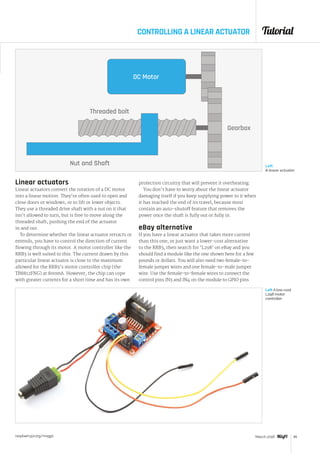
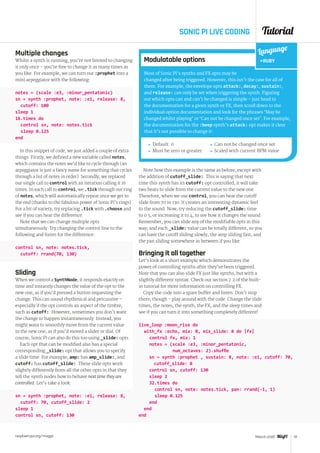
How & why you should
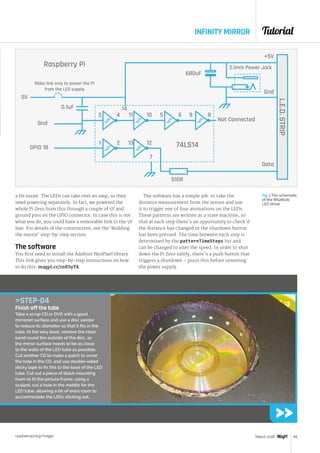
give your next project
an open source licence
raspberrypi.org/magpi
>	 ASTRO PI ISS MISSION UPDATE
>	 THE ULTIMATE PI ZERO CLUSTER
>	 DO SCIENCE WITH THE SENSE HAT
>	 MAKE A PI-POWERED WAKE-LIGHT
Also inside:
THE ONLY MAGAZINE WRITTEN BY THE COMMUNITY, FOR THE COMMUNITY
Issue 43 • Mar 2016 • £5.99
Issue 43 March 2016
03
9 772051 998001
The official Raspberry Pi magazine
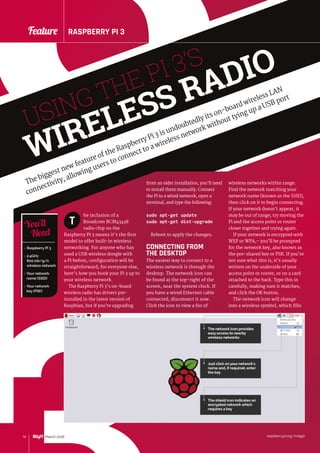
FREE TO SHARE
WINARASPBERRYPI3!WE'VEGOT1OTOGIVEAWAY
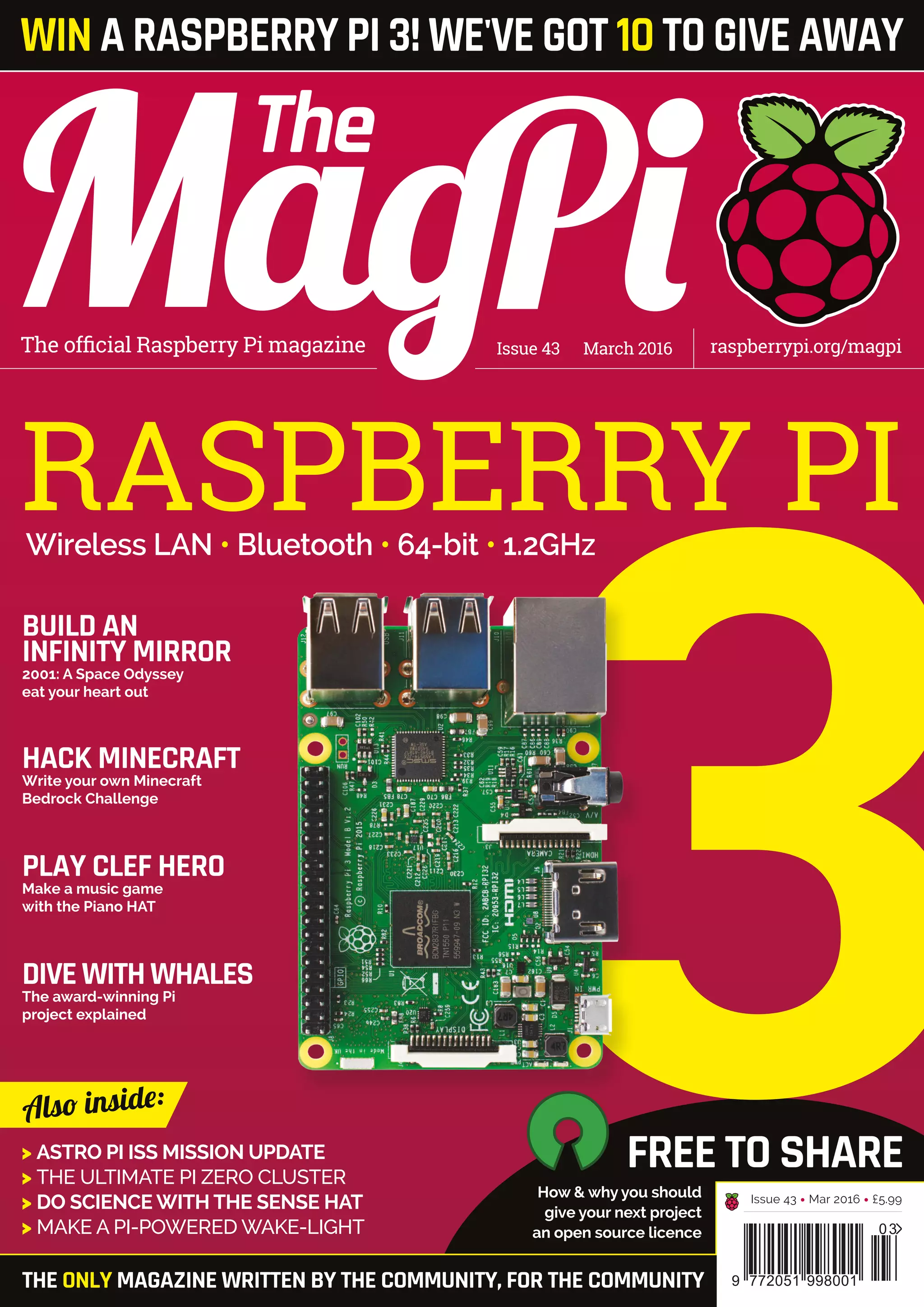
Wireless LAN • Bluetooth • 64-bit • 1.2GHz
RASPBERRY PI
BUILD AN
INFINITY MIRROR
2001: A Space Odyssey
eat your heart out
PLAY CLEF HERO
Make a music game
with the Piano HAT
DIVEWITHWHALES
The award-winning Pi
project explained
HACK MINECRAFT
Write your own Minecraft
Bedrock Challenge
We also stock a wide range of expansion boards
for the original Raspberry Pi models A and B
www.abelectronics.co.uk
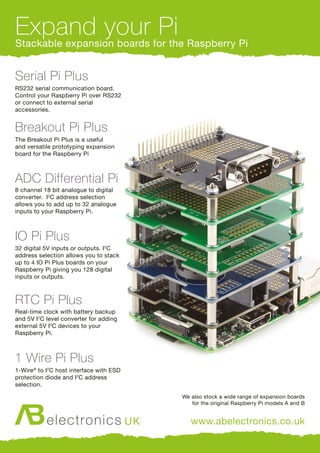
Expand your PiStackable expansion boards for the Raspberry Pi
Serial Pi Plus
RS232 serial communication board.
Control your Raspberry Pi over RS232
or connect to external serial
accessories.
Breakout Pi Plus
The Breakout Pi Plus is a useful
and versatile prototyping expansion
board for the Raspberry Pi
ADC Differential Pi
8 channel 18 bit analogue to digital
converter. I2
C address selection
allows you to add up to 32 analogue
inputs to your Raspberry Pi.
IO Pi Plus
32 digital 5V inputs or outputs. I2
C
address selection allows you to stack
up to 4 IO Pi Plus boards on your
Raspberry Pi giving you 128 digital
inputs or outputs.
RTC Pi Plus
Real-time clock with battery backup
and 5V I2
C level converter for adding
external 5V I2
C devices to your
Raspberry Pi.
1 Wire Pi Plus
1-Wire®
to I2
C host interface with ESD
protection diode and I2
C address
selection.
S
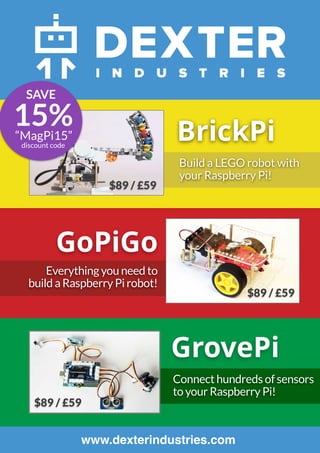
BrickPi
GoPiGo
GrovePi
www.dexterindustries.com
Build a LEGO robot with
your Raspberry Pi!
$89 / £59
$89 / £59
Everything you need to
build a Raspberry Pi robot!
$89 / £59
Connect hundreds of sensors
to your Raspberry Pi!
15%“MagPi15”
discount code
SAVE
raspberrypi.org/magpi 3March 2015
SEE PAGE 20 FOR DETAILS
raspberrypi.org/magpi 3
Welcome
WELCOME TO
THE OFFICIAL
PI MAGAZINE!
EDITORIAL
Managing Editor: Russell Barnes
russell@raspberrypi.org
Features Editor: Rob Zwetsloot
Sub Editors: Laura Clay, Phil King, Lorna Lynch
DESIGN
Critical Media: criticalmedia.co.uk
Head of Design: Dougal Matthews
Designers: Lee Allen, Mike Kay
Cover photography: Gareth Halfacree
PUBLISHING
For advertising & licensing:
russell@raspberrypi.org +44 (0)7904 766523
Publisher: Liz Upton
CEO: Eben Upton
The MagPi magazine is published by Raspberry Pi (Trading) Ltd., Mount Pleasant House, Cambridge, CB3 0RN. The
publisher, editor and contributors accept no responsibility in respect of any omissions or errors relating to goods, products
or services referred to or advertised in the magazine. Except where otherwise noted, content in this magazine is licensed
under a Creative Commons Attribution-NonCommercial-ShareAlike 3.0 Unported (CC BY-NC-SA 3.0). ISSN: 2051-9982.
welve months have passed since The MagPi
was relaunched as the official Raspberry
Pi magazine. Our first issue was a bit of a
double-whammy. It came at the time Raspberry Pi was
celebrating its third birthday, as well as coinciding with
the launch of the Raspberry Pi 2.
Here we are exactly one year on and we’re celebrating
another birthday and another incredible launch with
the Raspberry Pi 3. Featuring built-in wireless LAN,
Bluetooth, and a new processor clocked at 1.2GHz
capable of 64-bit instructions, the Pi 3 is as a real
game-changer for hackers and makers. You can skip
ahead just a couple of pages to get the full low-down,
including a detailed hardware breakdown, interviews
with Raspberry Pi’s Eben Upton and James Adams, a
full suite of benchmark tests, wireless how-to, and
much more besides.
Since we like to go the extra mile for our valued
readers, we’ve also teamed up with ThePiHut.com on a
fantastic offer for our print subscribers. On 29 February
we sent all our print subscribers an email containing
a unique code they could use at ThePiHut.com to be
among the very first people in the world to receive
Raspberry Pi’s latest credit card-sized PC. You can find
all the details of the offer on pages 18-19 (and it’s not
too late to take part if you’re not yet subscribed).
Russell Barnes
Managing Editor
T
CONTRIBUTORS
SamAaron,WesleyArcher, Mike Cook, Gareth
Halfacree, LucyHattersley, Ozzy, Richard Hayler, Phil
King, Sean McManus, Simon Monk, Matt Richardson,
James Singleton & Richard Smedley
GET IN TOUCH
THIS MONTH:
magpi@raspberrypi.orgFIND US ONLINE raspberrypi.org/magpi
This magazine is printed on paper sourced from
sustainable forests and the printer operates an
environmental management system which has
been assessed as conforming to ISO 14001.
DISTRIBUTION
Seymour Distribution Ltd
2 East Poultry Ave
London
EC1A 9PT | +44 (0)207 429 4000	
SUBSCRIPTIONS
Select Publisher Services Ltd
PO Box 6337
Bournemouth
BH1 9EH | +44 (0)1202 586 848
March 2016
PROUDSUPPORTERS OF:
6 THE RASPBERRY PI 3 IS HERE!
We’ve got everything you need to know and more
22 GET SWITCHED ON TO ASTRO PI
Both Ed and Izzy are doing their thing on the ISS!
56 TO INFINITY (AND BEYOND)
Cook up a Pi-powered infinity mirror in Mike’s Pi Bakery
70 MAKE IT FREE TO SHARE
Why (and how) to use open source licences
raspberrypi.org/magpi4 March 2016
RASPBERRY PI 3The hottest Pi ever made has arrived. Here’s everything you need to know about
the new addition to the family, including benchmarks and project ideas
ContentsIssue 43 March 2016 raspberrypi.org/magpi
COVER FEATURETUTORIALS
6
This young enthusiast discovered
the Pi and won an award for
computing, all in the same year
Ed and Izzy are finally up and running on the
International Space Station. Here’s what they’re doing
YASMIN BEYTHE BIG ASTRO PI
SWITCH-ON!
30
22
IN THE NEWS
> ADD PUSH NOTIFICATIONS
ON MOTIONEYEOS	 48
Use your Pi as a motion-detecting CCTV camera
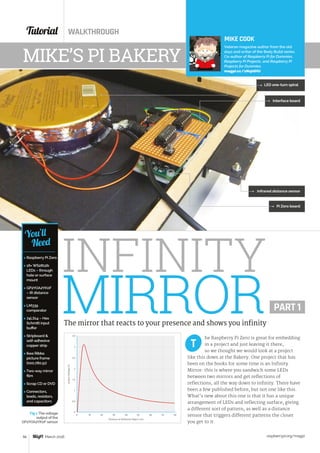
 CONTROL SOUND ON SONIC PI	 50
Sonic Pi’s creator shows how to shape and sculpt sounds
 BUILD A MUSIC GAME	 52
Make Clef Hero – a music game for the brilliant Piano HAT
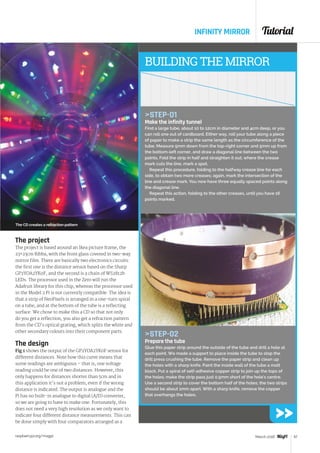
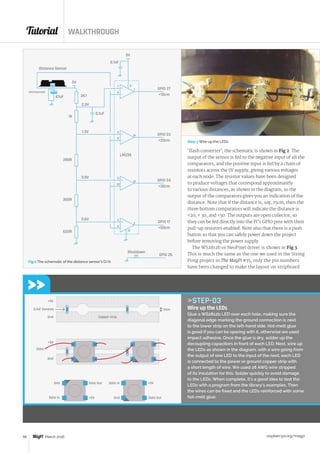
 MIKE’S PI BAKERY 	 56
Build an infinity mirror in part one of this massive guide
 MAKE A WAKE-LIGHT	 62
Meet the morning more naturally with this Pi-powered light
 THE BEDROCK CHALLENGE	 64
Build an exciting Minecraft mini-game
 SCIENCE WITH THE SENSE HAT	66
Learn about light and colour in this new Sense HAT series
The award-winning Raspiwhale
project attaches Pi-powered tracking
devices to whales
RIDING
WHALES
28
THE PI ZERO CLUSTER
Check out this amazing custom board for crunching numbers with Pi Zeros
A Raspberry Pi device reimagined
for the 19th century. It’s a thing of beauty
This cool handheld Raspberry Pi IR camera
takes stunning and unique shots
34
Bring some excitement to your office job with
this futuristic touch-controlled desk mod
STEAMPUNK PI	 36
EYE-PI CAMERA	 38
PIDESK	 40
YOUR PROJECTS
Contents
raspberrypi.org/magpi 5March 2016
 NEWS	 22
The biggest stories form the world of Raspberry Pi
 TECHNICAL FAQS	 68
Have you got a problem? Yo – we’ll solve it
 BOOK REVIEWS	 82
The latest computer books reviewed and rated
 THE FINAL WORD	 96
This month Matt talks about affordable connectivity
REGULARS
 PROSTER VC99 MULTIMETER	 76
 ZEBRA ZERO CASE	 78
 PIMORONI PHAT DAC	 79
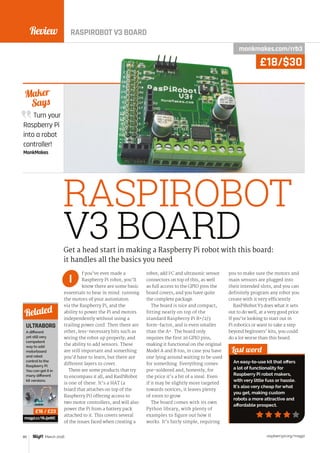
 RASPIROBOT V3 BOARD	 80
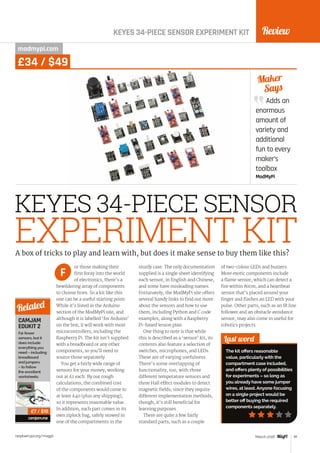
 KEYES EXPERIMENT KIT	 81
REVIEWS
COMMUNITY
 THIS MONTH IN PI	 84
What else is happening in the community this month?
 EVENTS	 88
Find a community gathering near you
 LETTERS	 92
Two pages for your thoughts on the mag and community
Here’s your essential guide to how (and why) your next
Raspberry Pi project should have an open source licence
THE BIG FEATURE
70
We catch up with Raspberry Pi’s
Eben Upton to see what’s at the
heart of Pi Zero’s availability issues
PI ZERO AVAILABILITY
26
FREE TO SHARE
95
Don’t miss your
chance to win
a brand new
Raspberry Pi 3!
3March 2016
RASPBERRY PI 3Feature
6
RASPBERRY PI
Wireless LAN
64-bit
Bluetooth
1.2GHz
raspberrypi.org/magpi
3
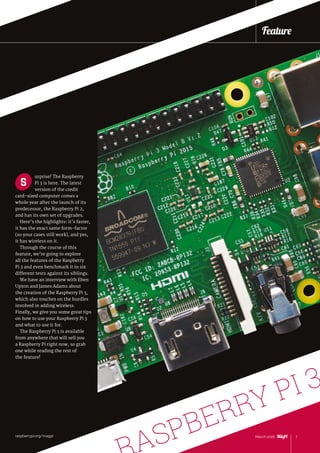
urprise! The Raspberry
Pi 3 is here. The latest
version of the credit
card‑sized computer comes a
whole year after the launch of its
predecessor, the Raspberry Pi 2,
and has its own set of upgrades.
Here’s the highlights: it’s faster,
it has the exact same form-factor
(so your cases still work), and yes,
it has wireless on it.
Through the course of this
feature, we’re going to explore
all the features of the Raspberry
Pi 3 and even benchmark it in six
different tests against its siblings.
We have an interview with Eben
Upton and James Adams about
the creation of the Raspberry Pi 3,
which also touches on the hurdles
involved in adding wireless.
Finally, we give you some great tips
on how to use your Raspberry Pi 3
and what to use it for.
The Raspberry Pi 3 is available
from anywhere that will sell you
a Raspberry Pi right now, so grab
one while reading the rest of
the feature!
S
7March 2016raspberrypi.org/magpi
Feature
ASPBERRY PI 3
raspberrypi.org/magpi8 March 2016
Feature RASPBERRY PI 3
raspberrypi.org/magpiMarch 2016
RASPBERRY PI 3Feature
8
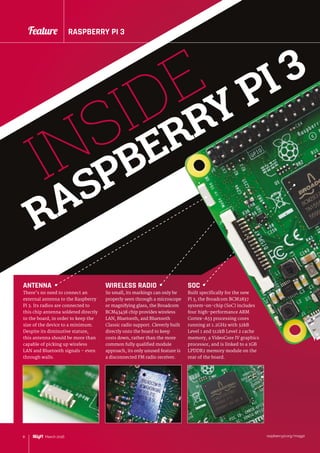
ANTENNA
There’s no need to connect an
external antenna to the Raspberry
Pi 3. Its radios are connected to
this chip antenna soldered directly
to the board, in order to keep the
size of the device to a minimum.
Despite its diminutive stature,
this antenna should be more than
capable of picking up wireless
LAN and Bluetooth signals – even
through walls.
WIRELESS RADIO
So small, its markings can only be
properly seen through a microscope
or magnifying glass, the Broadcom
BCM43438 chip provides wireless
LAN, Bluetooth, and Bluetooth
Classic radio support. Cleverly built
directly onto the board to keep
costs down, rather than the more
common fully qualified module
approach, its only unused feature is
a disconnected FM radio receiver.
SOC
Built specifically for the new
Pi 3, the Broadcom BCM2837
system-on-chip (SoC) includes
four high-performance ARM
Cortex-A53 processing cores
running at 1.2GHz with 32kB
Level 1 and 512kB Level 2 cache
memory, a VideoCore IV graphics
processor, and is linked to a 1GB
LPDDR2 memory module on the
rear of the board.
RASPBERRY PI 3
INSIDE
raspberrypi.org/magpi 9March 2016
Feature
9March 2016
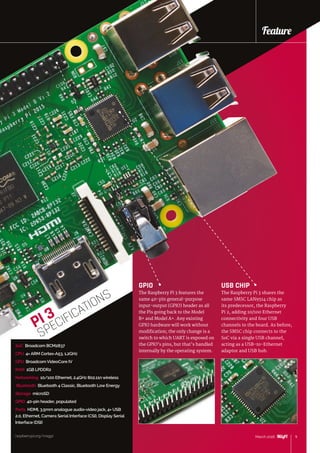
GPIO
The Raspberry Pi 3 features the
same 40-pin general-purpose
input-output (GPIO) header as all
the Pis going back to the Model
B+ and Model A+. Any existing
GPIO hardware will work without
modification; the only change is a
switch to which UART is exposed on
the GPIO’s pins, but that’s handled
internally by the operating system.
USB CHIP
The Raspberry Pi 3 shares the
same SMSC LAN9514 chip as
its predecessor, the Raspberry
Pi 2, adding 10/100 Ethernet
connectivity and four USB
channels to the board. As before,
the SMSC chip connects to the
SoC via a single USB channel,
acting as a USB-to-Ethernet
adaptor and USB hub.
SoC Broadcom BCM2837
CPU 4× ARM Cortex-A53, 1.2GHz
GPU Broadcom VideoCore IV
RAM 1GB LPDDR2
Networking 10/100 Ethernet, 2.4GHz 802.11n wireless
Bluetooth Bluetooth 4 Classic, Bluetooth Low Energy
Storage microSD
GPIO 40-pin header, populated
Ports HDMI, 3.5mm analogue audio-video jack, 4× USB
2.0, Ethernet, Camera Serial Interface (CSI), Display Serial
Interface (DSI)
PI 3
SPECIFICATIONS
Feature
raspberrypi.org/magpi
raspberrypi.org/magpi10 March 2016
Feature RASPBERRY PI 3
3
raspberrypi.org/magpi10 March 2016
Feature RASPBERRY PI 3
INTRODUCING THE
RASPBERRY PI 3
We speak to Eben Upton and James Adams to find out
what makes the latest member of the Raspberry Pi family tick…
wireless and Bluetooth is the big
step change on this device. It’s
something people have asked us
for for a long time. It’s been this
missing element of the platform.
“It wasn’t on the original device
because it was a million miles
beyond us at the kind of scale we
were at back then,” Eben admits,
thinking back to the early days of
the Foundation. “We sold 800,000
Raspberry Pis before we hired our
first employee. There’s no way you
could do this sort of stuff with no
employees. It’s eaten a couple of
man-years, probably, getting radio
onto the device.”
TESTING
Conformance testing, too, would
have been difficult. “You can do
all the testing for an unintentional
radiator in a couple of days. Pete
[Lomas] and I did the original
one; Pete, James [Adams], Gordon
[Hollingworth], and I did the
subsequent products,” Eben
recalls. “The radio stuff, you give
it to a guy and he takes six weeks
and just rams through all of these
tests. The test campaign for Pi 3
has cost us, basically, £100,000,”
some ten times that of its radio-
free predecessors.
The radio chip isn’t the only
new feature, of course. The new
BCM2837 system-on-chip has
been developed specifically for the
t’s been four years
since the launch of the
original Raspberry Pi,
and project co-founder Eben
Upton has but one word to
describe that period: “Packed!”
he laughs from his home in a
small Cambridgeshire village.
“Just sort of non-stop.”
“There’s just this sense of
not really having stopped,” he
tells us on behalf of the growing
Raspberry Pi team. “Of just having
worked continuously.”
The culmination of the team’s
ambitions, the Raspberry Pi 3
excites Eben for one main reason:
“Connectivity. The other stuff is
just quantitative change, it’s just
faster, more,” he explains. “The
project by Broadcom. “It’s kind of
a mixture of being able to make a
business case for it, and then all
those people at Broadcom who
believed in the mission and were
prepared to do the work to get it
over the line,” Eben explains of
how the Foundation was able to
convince the multinational chip
giant to build custom chips for the
project. “That’s people from fresh
graduate engineers all the way up
to people in the C-suite at the top.
Tricky, though!”
USB AND PXE
NETWORK BOOT
Even with the chip designed and
taped out in March of last year, the
Foundation had some final input
for Broadcom in order to add two
new features: direct USB mass-
storage and PXE network boot
capabilities. “Gordon rewrote the
boot ROM for the chip and then
provided an updated boot ROM to
Broadcom, saying ‘shove this in
the chip, it’ll work’,” Eben laughs.
“And it does!
“The other interesting thing
about the chip is for all other ones
the implementation work was done
entirely in Cambridge; this one was a
collaboration with Broadcom’s set-
top box engineering group in Aztec
West [business park] in Bristol.”
Eben readily admits that not all
the capabilities of the new parts
I
The tiny BCM43438
chip provides built-in
wireless and Bluetooth
raspberrypi.org/magpi 11March 2016
Feature
raspberrypi.org/magpi
Feature
are going to be used at launch,
however. “Although it is a 64‑bit
core, we’re using it as just a faster
32-bit core,” he reveals about
the Pi 3’s central processing unit.
“I can imagine there’d be some
real benefits [to 64-bit code].
The downside is that you do
really create a separate world. To
access that benefit, you’d have to
have two operating systems. I’m
hoping that someone will come
and demonstrate to me that this
is a good idea. But there are some
really compelling advantages to
still being basically ARMv6, and
because it’s [Cortex-]A53 it’s a
really good 32‑bit processor.”
Aware of the high demand
that a Raspberry Pi launch
typically encounters, talk turns to
production. “We’ve already made
30,000 of it,” Eben discloses, still
some weeks ahead of the release.
“I’d like to do at least three million
units, and that requires you to
build, say, 60,000 a week. We’ll
probably build around 100,000
a week in the UK, plus whatever
Embest builds in China, for a
month or two, then you back off to
maybe 60,000 a week.”
“I’D LIKE TO DO AT LEAST THREE MILLION UNITS, AND
THAT REQUIRES YOU TO BUILD, SAY, 60,000 A WEEK”
What were the
biggest challenges in
adding a radio?
Firstly, we had to find a
solution that would fit into the current Pi form factor
with minimal change and that would also be affordable.
Secondly was how to connect it to the 2837 processor.
Eben managed to secure a good solution from
Broadcom, the BCM43438, and I then set about
squeezing it onto the Pi. The layout for the BCM43438 was
a real challenge – as, for radio, layout really matters.
Connectivity-wise, 2837 actually has two SD card
controllers and two UARTs. We decided to look at
swapping to the Broadcom SD card controller as the
main [one], and using the standard SD controller to talk to
the wireless. For Bluetooth, we use the existing UART and
swap the UART on the GPIO pins to the second UART.
What is your circuit design workflow?
You need to have a completed schematic and then
iterate on the layout: place parts and shuffle them around
until you can see roughly how the connections will work
out before committing to routing the tracks out. It really
is part art and part science, and takes a bit of practice
before you get a good feel for how to do it well. I also like
to make sure all my designs look good, too, but that bit’s
not strictly necessary!
Is there anyone you’d like to thank?
Roger Thornton for managing most of the test-script
writing and conformance paperwork as well as plenty
of work on the RF side, closely followed by Phil Elwell
for sterling work on the Bluetooth and wireless stack,
and Kalevi Ratschunas and the team at Broadcom for
their hard work on the firmware side. I’d also like to thank
Alistair May, who gave us some invaluable help and
advice when we were initially getting to grips with the RF
engineering challenges.
Ifyou could add one feature to a
hypothetical Pi 4, what would it be?
That’s an easy one: I’d like to see USB 3.0 added, as it
really is the universal solution for adding peripherals
– especially higher bandwidth ones like disk drives,
network interfaces – and removes the requirement for
things like SATA.
11March 2016
JAMES ADAMS
DIRECTOR OF HARDWARE ENGINEERING
raspberrypi.org/magpi12 March 2016
Feature RASPBERRY PI 3
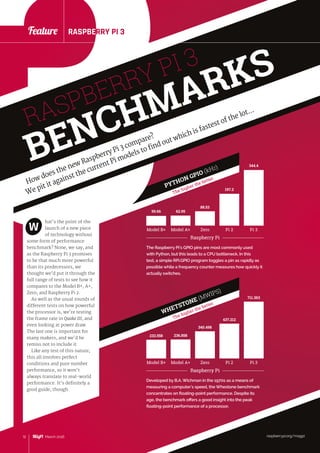
The Raspberry Pi’s GPIO pins are most commonly used
with Python, but this leads to a CPU bottleneck. In this
test, a simple RPi.GPIO program toggles a pin as rapidly as
possible while a frequency counter measures how quickly it
actually switches.
Raspberry Pi
Model B+
59.66 62.95
88.53
197.2
344.4
Model A+ Zero Pi 2 Pi 3
PYTHON GPIO (kHZ)
The higher the better
Developed by B.A. Wichman in the 1970s as a means of
measuring a computer’s speed, the Whestone benchmark
concentrates on floating-point performance. Despite its
age, the benchmark offers a good insight into the peak
floating-point performance of a processor.
Raspberry Pi
Model B+
232.558 236.858
340.498
437.212
711.363
Model A+ Zero Pi 2 Pi 3
WHETSTONE (MWIPS)
The higher the better
RASPBERRY PI 3
BENCHMARKS
How does the new Raspberry Pi 3 compare?
We pit it against the current Pi models to find out which is fastest of the lot...
12 March 2016
Feature
hat’s the point of the
launch of a new piece
of technology without
some form of performance
benchmark? None, we say, and
as the Raspberry Pi 3 promises
to be that much more powerful
than its predecessors, we
thought we’d put it through the
full range of tests to see how it
compares to the Model B+, A+,
Zero, and Raspberry Pi 2.
As well as the usual rounds of
different tests on how powerful
the processor is, we’re testing
the frame rate in Quake III, and
even looking at power draw.
The last one is important for
many makers, and we’d be
remiss not to include it.
Like any test of this nature,
this all involves perfect
conditions and pure number
performance, so it won’t
always translate to real-world
performance. It’s definitely a
good guide, though.
W
raspberrypi.org/magpi
RASPBERRY PI 3
raspberrypi.org/magpi 13March 2016
Feature
POWER DRAW
The lower the better
DHRYSTONE (MIPS)
The higher the better
SYSBENCH CPU
The lower the better
raspberrypi.org/magpi
Feature
Raspberry Pi
Model B+ Model A+ Zero Pi 2 Pi 3
847.11 863.17
1237.29
1671.58
2458.1
Where Whetstone measures floating-point performance,
Dhrystone was developed in the 1980s by Reinhold
P Weicker to measure integer – or whole-number –
performance. As with its floating-point equivalent,
Dhrystone is still a useful synthetic benchmark for
comparing different chips.
Offering support for multi-threaded operation – taking
advantage of the four processing cores on the Pi 2 and
Pi 3 – SysBench reveals just how far we’ve come since
the original Raspberry Pi design. While single-threaded
performance has improved greatly, the biggest gains
go to multi‑threaded programs.
Raspberry Pi
Model B+ Model A+ Zero Pi 2 Pi 3
510.81 502.42
349.43
293.08
182.225
76.28
49.02
MULTI-THREADED (SECS)SINGLE-THREADED (SECS)
You can’t get extra performance without a few sacrifices.
The Pi 3 draws the most power of the test group, but its
extra performance means it spends more time at idle. Those
looking for maximum battery life should look at the Model
A+ or the Pi Zero as an alternative.
Raspberry Pi
Model B+ Model A+ Zero Pi 2 Pi 3
0.25
0.31
0.11
0.17
0.1
0.25 0.26
0.42
0.31
0.58
LOAD (A)IDLE (A)
The classic twitch shooter from industry pioneer id
Software, Quake III Arena is heavily tied to the CPU
performance of the Pi. The standard ‘timedemo’ was run at
1280×1024, high geometric, maximum texture detail, 32-bit
texture quality, and trilinear filtering to obtain these results.
Raspberry Pi
Model B+ Model A+ Zero Pi 2 Pi 3
19.4 19.5
28.8
57
70.1
QUAKE III ARENA TIMEDEMO
The higher the better
13March 2016
raspberrypi.org/magpi14 March 2016
Feature RASPBERRY PI 3
3
raspberrypi.org/magpi14 March 2016
Feature RASPBERRY PI 3
USING THE PI 3’S
WIRELESS RADIO
The biggest new feature of the Raspberry Pi 3 is undoubtedly its on-board wireless LAN
connectivity, allowing users to connect to a wireless network without tying up a USB port
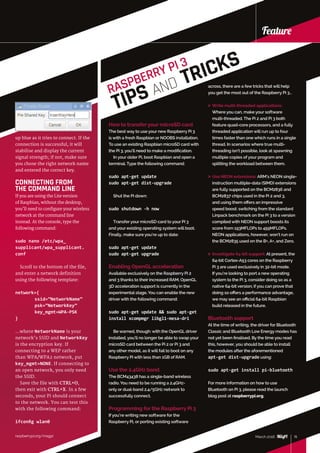
from an older installation, you’ll need
to install them manually. Connect
the Pi to a wired network, open a
terminal, and type the following:
sudo apt-get update
sudo apt-get dist-upgrade
Reboot to apply the changes.
CONNECTING FROM
THE DESKTOP
The easiest way to connect to a
wireless network is through the
desktop. The network icon can
be found at the top-right of the
screen, near the system clock. If
you have a wired Ethernet cable
connected, disconnect it now.
Click the icon to view a list of
he inclusion of a
Broadcom BCM43438
radio chip on the
Raspberry Pi 3 means it’s the first
model to offer built-in wireless
networking. For anyone who has
used a USB wireless dongle with
a Pi before, configuration will be
straightforward; for everyone else,
here’s how you hook your Pi 3 up to
your wireless network.
The Raspberry Pi 3’s on-board
wireless radio has drivers pre-
installed in the latest version of
Raspbian, but if you’re upgrading
wireless networks within range.
Find the network matching your
network name (known as the SSID),
then click on it to begin connecting.
If your network doesn’t appear, it
may be out of range; try moving the
Pi and the access point or router
closer together and trying again.
If your network is encrypted with
WEP or WPA,– you’ll be prompted
for the network key, also known as
the pre-shared key or PSK. If you’re
not sure what this is, it’s usually
written on the underside of your
access point or router, or on a card
attached to the back. Type this in
carefully, making sure it matches,
and click the OK button.
The network icon will change
into a wireless symbol, which fills
T
 Raspberry Pi 3
 2.4GHz
802.11b/g/n
wireless network
 Your network
name (SSID)
 Your network
key (PSK)
You’ll
Need
The network icon provides
easy access to nearby
wireless networks
Just click on your network’s
name and, if required, enter
the key
The shield icon indicates an
encrypted network which
requires a key
raspberrypi.org/magpi
Feature
15March 2016raspberrypi.org/magpi
Feature
up blue as it tries to connect. If the
connection is successful, it will
stabilise and display the current
signal strength; if not, make sure
you chose the right network name
and entered the correct key.
CONNECTING FROM
THE COMMAND LINE
If you are using the Lite version
of Raspbian, without the desktop,
you’ll need to configure your wireless
network at the command line
instead. At the console, type the
following command:
sudo nano /etc/wpa_
supplicant/wpa_supplicant.
conf
Scroll to the bottom of the file,
and enter a network definition
using the following template:
network={
	ssid=”NetworkName”
	psk=”NetworkKey”
	key_mgmt=WPA-PSK
}
…where NetworkName is your
network’s SSID and NetworkKey
is the encryption key. If
connecting to a WEP rather
than WPA/WPA2 network, put
key_mgmt=NONE. If connecting to
an open network, you only need
the SSID.
Save the file with CTRL+O,
then exit with CTRL+X. In a few
seconds, your Pi should connect
to the network. You can test this
with the following command:
ifconfig wlan0
RASPBERRY PI 3
TIPS AND TRICKS
across, there are a few tricks that will help
you get the most out of the Raspberry Pi 3…
 Write multi-threaded applications:
Where you can, make your software
multi‑threaded. The Pi 2 and Pi 3 both
feature quad-core processors, and a fully
threaded application will run up to four
times faster than one which runs in a single
thread. In scenarios where true multi-
threading isn’t possible, look at spawning
multiple copies of your program and
splitting the workload between them.
 Use NEON extensions: ARM’s NEON single-
instruction multiple-data (SIMD) extensions
are fully supported on the BCM2836 and
BCM2837 chips used in the Pi 2 and 3,
and using them offers an impressive
speed boost: switching from the standard
Linpack benchmark on the Pi 3 to a version
compiled with NEON support boosts its
score from 193MFLOPs to 459MFLOPs.
NEON applications, however, won’t run on
the BCM2835 used on the B+, A+, and Zero.
 Investigate 64-bit support: At present, the
64-bit Cortex-A53 cores on the Raspberry
Pi 3 are used exclusively in 32-bit mode.
If you’re looking to port a new operating
system to the Pi 3, consider doing so as a
native 64-bit version; if you can prove that
doing so offers a performance advantage,
we may see an official 64-bit Raspbian
build released in the future.
Bluetooth support
At the time of writing, the driver for Bluetooth
Classic and Bluetooth Low Energy modes has
not yet been finalised. By the time you read
this, however, you should be able to install
the modules after the aforementioned
apt-get dist-upgrade using:
sudo apt-get install pi-bluetooth
For more information on how to use
Bluetooth on Pi 3, please read the launch
blog post at raspberrypi.org.
March 2016 15
How to transferyour microSD card
The best way to use your new Raspberry Pi 3
is with a fresh Raspbian or NOOBS installation.
To use an existing Raspbian microSD card with
the Pi 3, you’ll need to make a modification.
In your older Pi, boot Raspbian and open a
terminal. Type the following command:
sudo apt-get update
sudo apt-get dist-upgrade
Shut the Pi down:
sudo shutdown -h now
Transfer your microSD card to your Pi 3
and your existing operating system will boot.
Finally, make sure you’re up to date:
sudo apt-get update
sudo apt-get upgrade
Enabling OpenGL acceleration
Available exclusively on the Raspberry Pi 2
and 3 thanks to their increased RAM, OpenGL
3D acceleration support is currently in the
experimental stage. You can enable the new
driver with the following command:
sudo apt-get update  sudo apt-get
install xcompmgr libgl1-mesa-dri
Be warned, though: with the OpenGL driver
installed, you’ll no longer be able to swap your
microSD card between the Pi 2 or Pi 3 and
any other model, as it will fail to boot on any
Raspberry Pi with less than 1GB of RAM.
Use the 2.4GHz band
The BCM43438 has a single-band wireless
radio. You need to be running a 2.4GHz-
only or dual-band 2.4/5GHz network to
successfully connect.
Programming for the Raspberry Pi 3
If you’re writing new software for the
Raspberry Pi, or porting existing software
raspberrypi.org/magpi16 March 2016
Feature RASPBERRY PI 3
16 March 2016
Feature RASPBERRY PI 3
he launch of the
shiny new Raspberry
Pi 3 brings with it
an exciting combination of
improved performance and new
functionality, but all the features
in the world aren’t much use if
you don’t have any ideas. Here
are our suggestions for five new
uses for the Pi 3, made possible
by improvements made by the
Raspberry Pi Foundation.
T
The Broadcom BCM43438 radio
chip is high-performance yet
low-power, making it perfect
for building your own sensor
networks. Connect everything
from temperature sensors to
cameras to your Raspberry Pi 3
and have it communicate its
findings via wireless LAN for quick
and easy Internet of Things (IoT)
goodness, or drop the power draw
further and build a Bluetooth Low
Energy network with multiple Pi 3
systems. For remote installations,
try pairing to a cheap second-
hand GSM mobile handset via
Bluetooth Classic.
As well as wireless 802.11n
and Bluetooth Low Energy,
the BCM43438 chip supports
Bluetooth Classic mode,
including the Advanced Audio
Distribution Profile (A2DP).
Support for A2DP means it’s
possible to configure a Pi 3 as
a streamer, either receiving
audio from a device such as
a smartphone or tablet for
amplification via HDMI or
analogue outputs, or sending
its own audio to a remote A2DP
destination such as a Bluetooth-
enabled soundbar or hi-fi system.
You can even build on existing
Pi-powered Bluetooth projects
without having to buy a
USB radio dongle.
BUILD A WIRELESS
SENSOR NETWORK
STREAM AUDIO
VIA BLUETOOTHTHINGS TO DO
WITH
YOUR PI 3
We’ve compiled five new
things you can do with a Raspberry Pi 3…
5 1
2
raspberrypi.org/magpi
raspberrypi.org/magpi 17March 2016
Feature
raspberrypi.org/magpi
Feature
The Raspberry Pi has always
had a powerful graphics
processor, and now that the
central processor can keep up,
we’re going to see increasingly
complex games being built on
the system. For those who enjoy
the classics, the Pi 3’s increased
performance means smoother
emulation in general, plus
support for emulating newer or
more demanding systems and
titles. For others, there’s promise
that future Pi games will be
able to give mainstream titles
a real run for their money in the
graphics department.
We’ve seen the Raspberry Pi
used to build a pseudo thin-
client infrastructure in the past,
but the need for local storage
in the form of the microSD card
has kept it from being a truly thin
implementation. The promised
support for PXE network boot
means that a Pi 3, unlike any
other model, can be used as a
thin client without the need for
any local storage, decreasing
deployment cost and increasing
reliability – and no more risk
of anyone walking off with the
SD card!
The BCM2837 at the heart of
the Pi 3 uses the 64-bit ARMv8
microarchitecture, compared
to the 32-bit ARMv7 and ARMv6
of previous models. As well
as widening compatibility for
running other operating systems,
the shift to 64-bit holds the
potential to improve performance
– but it’s going to be up to the
community to demonstrate
that splitting Raspbian into
32‑bit and 64-bit variants offers
advantages enough to outweigh
the headache of maintaining and
supporting two distinct operating
system builds.
17March 2016
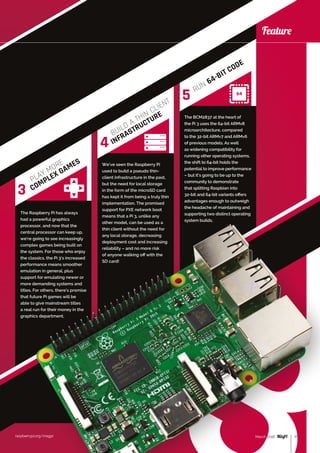
PLAY MORE
COMPLEX GAMES
BUILD A THIN CLIENT
INFRASTRUCTURE
RUN 64-BIT CODE
3
4
5
18 March 2016
Feature RASPBERRY PI 3
raspberrypi.org/magpi
Feature RASPBERRY PI 3
WITH THE MAGPI  THE PI HUT
GET YOUR
PI 3 FIRST
There are much more than just savings on
offer for print subscribers of the magazine.
Here’s how you can get your Pi 3 first…
3
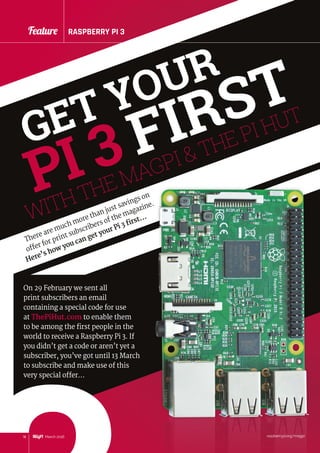
On 29 February we sent all
print subscribers an email
containing a special code for use
at ThePiHut.com to enable them
to be among the first people in the
world to receive a Raspberry Pi 3. If
you didn’t get a code or aren’t yet a
subscriber, you’ve got until 13 March
to subscribe and make use of this
very special offer…
19March 2016
Feature
raspberrypi.org/magpi 19March 2016
Use your subscriber
code at The Pi Hut to:
Jump to the front
of the queue
Get priority handling
of your Pi 3 order
Be first in line
if stock is short
FIND YOUR EMAIL FROM THE MAGPI
The email was sent to all
subscribers on 29 February from
magpi@raspberrypi.org
GRAB YOUR SUBSCRIBER CODE
Make a note of your unique code
or copy it from the email
VISIT THEPIHUT.COM
Visit thepihut.com
and put a Pi 3 in your basket
ENTER YOUR UNIQUE SUBSCRIBER CODE
Simply paste or write-in your code
at the checkout
NO CODE?
If you’re an existing subscriber and you didn’t receive an email, it
might be because your address isn’t in the subscriptions database.
To rectify this simply email magpi@selectps.com with your full
name and postcode and our subscriptions team will reply with your
unique code within 24 hours.
Not a subscriber? It’s not too late to make use of this offer.
Simply subscribe (over the page) and email magpi@selectps.com
requesting your unique subscriber code before 13 March to make
use of this fantastic offer.
3HOW TO USE
YOUR CODE
Feature
Tutorial WALKTHROUGH
raspberrypi.org/magpi20 March 2016
SUBSCRIBE TODAY!Subscribe to the Official Raspberry Pi mag today for a whole host of benefits
SAVE
UP TO
25%
Subscription benefits
	 Save up to 25% on the price
	 Free delivery to your door
	 Never miss a single issue
	 Get it first (before stores)
PI ZERO
#40 IS STILL
ON OFFER
Call today!
Tutorial
raspberrypi.org/magpi 21March 2016
RETURNTHISFORMTO:
MagPiMagazine Subscriptions, Select Publisher Services Ltd, PO Box 6337,
Bournemouth BH1 9EH
Please tick this box if you DO NOT want to receive any other information
from Select Publisher Services Ltd.
Please tick this box if you DO NOT want to receive any other information
from other companies.
Please tick this box if you DO NOT want to subscribe to The MagPi newsletter.
This subscription is:	 nFor me n A gift for someone*
YOUR DETAILS Mr n Mrs n Miss n Ms n
First name ............................................ Surname ........................................................
Address ........................................................................................................................
....................................................................................................................................
Postcode ............................................... Email .............................................................
Daytime phone ..................................... Mobile ............................................................
*If giving The MagPi as a gift, please complete both your own details (above) and the recipient’s (below).
GIFT RECIPIENT’S DETAILS ONLY Mr n Mrs n Miss n Ms n
First name ............................................ Surname ........................................................
Address ........................................................................................................................
Postcode .................................................... Email ..................................................................
SUBSCRIPTION FORM
YES! I’d like to subscribe to The MagPi magazine  save money
PAYMENT OPTIONS
1 DIRECT DEBIT PAYMENT £12.99 every 3 issues (UK only)
InstructiontoyourbankorbuildingsocietytopaybyDirectDebit
Please fill in the form and send to:
The MagPi, Select Publisher Services Ltd,
PO Box 6337, Bournemouth BH1 9EH
Name and full postal address of your bank or building society:
To: The Manager Bank/building society .......................................................................
Address ...........................................................................................................................
........................................................................................................................................
..................................................................................... Postcode ....................................
Name(s) of account holder(s) ............................................................................................
Branch sort code n n n n n n Account number n n n n n n n n
Reference n n n n n n n n n n n n n n n n n (Official use only)
Instruction to your bank or building society
Please pay Select Publisher Services Ltd Direct Debits from the account detailed in this instruction
subject to the safeguards assured by the Direct Debit Guarantee. I understand that this instruction
may remain with Select Publisher Services Ltd and, if so, details will be passed electronically to my
bank/building society.
Signature ..................................................................... Date n n/n n/n n
Banks and building societies may not accept Direct Debit instructions for some types of account.
SUBSCRIPTION PRICING WHEN PAYING BY CHEQUE OR CREDIT/DEBIT CARD
6 ISSUES 	 nUK £30 	nEurope £45 	nRest of world £50
12 ISSUES 	nUK £55 	nEurope £80 	nRest of world £90
2 CHEQUE
I enclose a cheque for ............................... (made payable to Select Publisher Services Ltd)
3 CREDIT/DEBIT CARD nVisa nMasterCard nMaestro nSwitch
Card number	 n n n n n n n n n n n n n n n n
Expiry date	 n n n n	 Valid from n n n n (if shown)
Issue number	 n n (if shown)	 Security number n n n
		 (last 3 digits on the back of the card)
Signature ..................................................................... Date n n/n n/n n
I would like my subscription to begin from issue ............................................ (month + year)
Service user number 8 3 8 7 7 3
Mag#43
Pricing
Get six issues:
£30 (UK)
£45 (EU)
$69 (USA)
£50 (Rest of World)
Subscribe for a year:
£55 (UK)
£80 (EU)
$129 (USA)
£90 (Rest of World)
Direct Debit
£12.99 (UK) (quarterly)
How to subscribe:
	 magpi.cc/Subs1 (UK / ROW)
	 imsnews.com/magpi (USA)
	 Call +44(0)1202 586848 (UK/ROW)
	 Call 800 428 3003 (USA)
raspberrypi.org/magpi22 March 2016
News
hile the two Astro Pis
were launched in early
December last year, they
have until recently been sitting
aboard the International Space
Station, waiting to be turned
on. It wasn’t until January
that the first Astro Pi was
even unpacked.
Due to the astronauts’ busy,
tightly organised schedules and all
the precautions and regulations
freshly woken Ed confirmed that
switch‑on was successful.
The Crew Detector code was settled
on as the first long-term experiment.
This program was created by
Cranemere Code Club from Cranmere
Primary School and ran for a whole
week, measuring humidity in the
capsule to try to detect whether or
not one of the crew members had
entered the European Columbus
module where it was currently
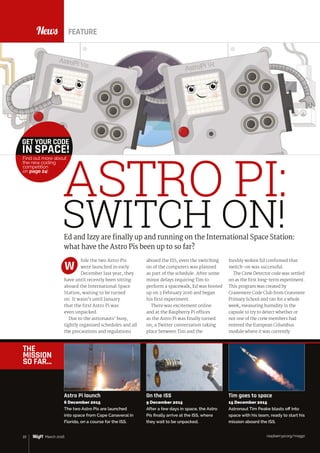
Ed and Izzy are finally up and running on the International Space Station:
what have the Astro Pis been up to so far?
aboard the ISS, even the switching
on of the computers was planned
as part of the schedule. After some
minor delays requiring Tim to
perform a spacewalk, Ed was booted
up on 2 February 2016 and began
his first experiment.
There was excitement online
and at the Raspberry Pi offices
as the Astro Pi was finally turned
on; a Twitter conversation taking
place between Tim and the
W
FEATURE
ASTRO PI:
SWITCH ON!
THE
MISSION
SO FAR…
raspberrypi.org/magpi22 March 2016
Astro Pi launch
6 December 2015
The two Astro Pis are launched
into space from Cape Canaveral in
Florida, on a course for the ISS.
On the ISS
9 December 2015
After a few days in space, the Astro
Pis finally arrive at the ISS, where
they wait to be unpacked.
Tim goes to space
15 December 2015
Astronaut Tim Peake blasts off into
space with his team, ready to start his
mission aboard the ISS.
GET YOUR CODE
IN SPACE!
Find out more about
the new coding
competition
on page 24!
raspberrypi.org/magpi 23March 2016
NewsASTRO PI: SWITCH ON!
situated. If a pre-specified change in
humidity was detected, it would ask
for any crew around to confirm they
were in the capsule.
Ed will be running several other
experiments during Tim’s mission
on board the ISS. Immediately after
Crew Detector finished, Ed started
running SpaceCRAFT, a Minecraft-
themed experiment.
To get a glimpse into how busy
the astronauts are on board,
prompting this delayed switch‑on,
you only need to look at the weekly
blogs revealing Tim’s exploits on
the ISS. For the week of the Astro Pi
switch-on, he’d removed a shutter
door on the ESA’s Biolab, replacing
it with a cover that allowed the
unit to begin more experiments.
He filled out questionnaires on his
‘space headaches’ and did testing
on his skin; remember, along with
other experiments, each astronaut
is themself an experiment on
how well humans can survive
living in space.
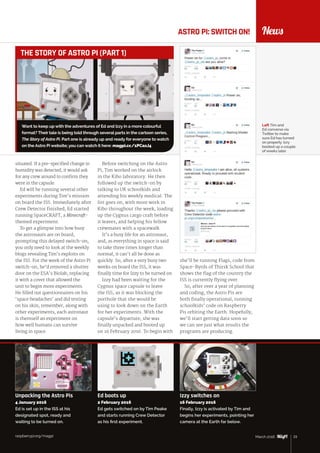
Left Tim and
Ed converse via
Twitter to make
sure Ed has turned
on properly. Izzy
booted up a couple
of weeks later
Before switching on the Astro
Pi, Tim worked on the airlock
in the Kibo laboratory. He then
followed up the switch-on by
talking to UK schoolkids and
attending his weekly medical. The
list goes on, with more work in
Kibo throughout the week, loading
up the Cygnus cargo craft before
it leaves, and helping his fellow
crewmates with a spacewalk.
It’s a busy life for an astronaut,
and, as everything in space is said
to take three times longer than
normal, it can’t all be done as
quickly. So, after a very busy two
weeks on board the ISS, it was
finally time for Izzy to be turned on.
Izzy had been waiting for the
Cygnus space capsule to leave
the ISS, as it was blocking the
porthole that she would be
using to look down on the Earth
for her experiments. With the
capsule’s departure, she was
finally unpacked and booted up
on 16 February 2016. To begin with
she’ll be running Flags, code from
Space-Byrds of Thirsk School that
shows the flag of the country the
ISS is currently flying over.
So, after over a year of planning
and coding, the Astro Pis are
both finally operational, running
schoolkids’ code on Raspberry
Pis orbiting the Earth. Hopefully,
we’ll start getting data soon so
we can see just what results the
programs are producing.
raspberrypi.org/magpi 23March 2016
Want to keep up with the adventures of Ed and Izzy in a more colourful
format? Their tale is being told through several parts in the cartoon series,
The Story of Astro Pi. Part one is already up and ready for everyone to watch
on the Astro Pi website; you can watch it here: magpi.cc/1PCaxJ4
THE STORY OF ASTRO PI (PART 1)
Unpacking the Astro Pis
4 January 2016
Ed is set up in the ISS at his
designated spot, ready and
waiting to be turned on.
Ed boots up
2 February 2016
Ed gets switched on by Tim Peake
and starts running Crew Detector
as his first experiment.
Izzy switches on
16 February 2016
Finally, Izzy is activated by Tim and
begins her experiments, pointing her
camera at the Earth far below.
News
raspberrypi.org/magpi24 March 2016
While the two Astro Pis already contain code from
several schoolchildren, there’s now a chance for others
to send up more code to run on Ed and Izzy!
Ifyou want to get involved, there are two challenges
you can take part in. The first is to create an MP3 music
player in Python to run on one of the Astro Pis. The
second challenge is to actually create some music to
play on the music player using Sonic Pi.
You can find out more information on how to enter on
the Astro Pi website: magpi.cc/AstroPiChallenge.
You’ll need to hurry, though: entries must be received
by 31 March 2016!
Missed your chance to get your code in
space? Enter the 2016 Coding Challenge
NEW CODING
COMPETITION!
News FEATURE
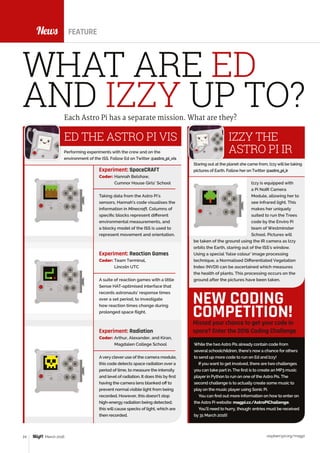
WHAT ARE ED
AND IZZY UP TO?Each Astro Pi has a separate mission. What are they?
ED THE ASTRO PI VIS
Experiment: SpaceCRAFT
Coder: Hannah Belshaw,
Cumnor House Girls’ School
Taking data from the Astro Pi’s
sensors, Hannah’s code visualises the
information in Minecraft. Columns of
specific blocks represent different
environmental measurements, and
a blocky model of the ISS is used to
represent movement and orientation.
Experiment: Reaction Games
Coder: Team Terminal,
Lincoln UTC
A suite of reaction games with a little
Sense HAT-optimised interface that
records astronauts’ response times
over a set period, to investigate
how reaction times change during
prolonged space flight.
Experiment: Radiation
Coder: Arthur, Alexander, and Kiran,
Magdalen College School
Avery clever use of the camera module,
this code detects space radiation over a
period of time, to measure the intensity
and level of radiation. It does this by first
having the camera lens blanked off to
prevent normalvisible light from being
recorded. However, this doesn’t stop
high-energy radiation being detected;
this will cause specks of light, which are
then recorded.
Performing experiments with the crew and on the
environment of the ISS. Follow Ed on Twitter @astro_pi_vis
IZZY THE
ASTRO PI IR
Staring out at the planet she came from, Izzywill be taking
pictures of Earth. Follow her on Twitter @astro_pi_ir
Izzy is equipped with
a Pi NoIR Camera
Module, allowing her to
see infrared light. This
makes her uniquely
suited to run the Trees
code by the Enviro Pi
team of Westminster
School. Pictures will
be taken of the ground using the IR camera as Izzy
orbits the Earth, staring out of the ISS’s window.
Using a special ‘false colour’ image processing
technique, a Normalised Differentiated Vegetation
Index (NVDI) can be ascertained which measures
the health of plants. This processing occurs on the
ground after the pictures have been taken.
News
raspberrypi.org/magpi 25March 2016
Alan McCullagh’s mini Astro Pi case is no larger
than a Raspberry Pi Zero. If only there was a
Sense HAT Zero
News
Perform experiments that are out-of-this-world
with a 3D-printed Astro Pi case and a Sense HAT
MAKE YOUR
OWN ASTRO PI!
The port for
the Sense HAT
LED matrix and
joystick are usable
in the build
The files allowyou
to print an almost
exact replica of the
Astro Pi case
on the ISS
You can even
fit in the same
push buttons
used in space,
although they are a
little pricey
You can have it
printed in any
colour, and even
sand it down for
smoothness
Want to make an Astro Pi at home? Now you finally,
properly can, thanks to the official 3D-printable Astro Pi
flight case! While it may not be milled out of aluminium
or weigh as much as the original, it functions in exactly
the same way as the version in space. It lets you view the
LED matrix on the Sense HAT, use the joystick, and even
add some buttons. For people taking part in the new
Coding Challenge, it’s also a good way to test out your
code on a unit like the one Tim has up on the ISS.
ASTRO PI
GET THE FILES!
Find out how to make your own
by following these instructions!
magpi.cc/1KbS617
HERE’S SOME
YOU MADE EARLIER…
People were quick to start creating their own
Astro Pis. Here are some of our favourites You’ve got yourAstro Pi: so what do you do now?
Experiment! The Sense HATwas designed to sense its
environment, which allows it to perform many types of
experiments. Ifyou’re not sure where to start, why not
have a look at our new book, Experiment with the Sense
HAT! We tellyou how to get started with this neat Pi
add-on and how to use every function, before
giving you several cool projects
to try out that make full use
of the Sense HAT.
The book is available
digitallyvia our app for
only £2.99, or you can
get the brand new print
version for £3.99!
Check out our website
for more details:
DO SCIENCE WITH
YOUR ASTRO PI
EXPERIMENT WITH
THE SENSE HAT!
Recreating Tim Peake’s famous (in
the Pi community) pose, the young
space cadet and occasional MagPi
writerJasper Hayler-Goodall holds
his silver version proudly
magpi.cc/Sense-HAT-book
News
raspberrypi.org/magpi26 March 2016
News
he launch of the Raspberry
Pi Zero, the world’s
first fully functional
microcomputer to cost just £4/$5,
caused quite a stir. Unsurprisingly,
given the precedent of the
Foundation’s other launches, initial
stock sold out within minutes.
What has been more surprising is
that stock continues to be elusive,
with small batches appearing in
the official sales channel only to
immediately disappear again under
a flood of demand.
The scarcity of the Pi Zero has
led to a ‘black market’ of sorts
appearing. When we gave away a
cover-mounted Zero with issue 40,
we were disappointed to see auction
sites filled with opportunists trying
to profit from purchases from
supermarket shelves.
Even now, there are unscrupulous
outlets looking to profit from the
high demand for the device. Some
retailers have taken to buying up
stock from the official outlets in
order to resell at a substantial
mark-up; one seller was recently
found to be adding a pair of cheap
adaptor cables to the Pi Zero in
order to attempt to justify a £36
selling price.
Buyers are disappointed
that they can’t easily get their
hands on one or more Pi Zeros
for their planned projects, and
doubly so when they see rampant
profiteering. Fortunately, there’s
light at the end of the tunnel:
production is being ramped up to
meet demand.
“I placed another 150,000 POs
[production orders] – well, a pair
of POs, a 50K and a 100K – in the
last couple of days,” Raspberry Pi
First-party hardware production leads to scaling challenges
RASPBERRY PI ZERO
T
Foundation co-founder Eben Upton
explained during an interview in
early February. “It’d be good to get
to a point where we’re doing at least
50,000 a month for Zero. I think we
could do 50,000 a month on Zero
pretty comfortably.”
But, given the tradition for new
Pi models to sell out at launch,
why is it taking so long to ramp
up production on the Zero? The
answer lies in the board’s unique
position, Eben reveals. “This isn’t
quite the same as the other Pis,
because the other Pis are made by
RS and Farnell. We make these Pis,
so you’re actually looking at a small
company trying to scale.”
“We’ve got good resources and
good engineers, but you’re looking
at a small company trying to scale
production,” Eben continues. “It’s
not quite realistic to compare the [Pi
Zero] throughput to the throughput
of the big Pis, because the big Pis
are being made by billion-dollar,
billion-pound companies; the Zero’s
being made by us.”
The launch of the Pi 3 won’t see
the Zero put on the back-burner,
though. “If we can get it stable at
50,000 a month,” Eben promises,
“then we can look at how we can
scale up from that.”
There’s light at the end of the
tunnel: production is being
ramped up to meet demand
RASPBERRY PI
ZERO PRODUCTION
GETTING ON TRACK
Below Production
scaling has proven
a challenge for
the Raspberry Pi
Foundation’s first
in-house board,
the Pi Zero
raspberrypi.org/magpi28 March 2016
News
explains Raspiwhale creator Daniel
Pérez Martinez. “I needed a device
that would allow me to measure the
behaviour of the whale, and knew that
they were developing instruments
of this kind in the United States.
The problem was that they were in
the experimental stage or were very
expensive - over $20,000.” This led
the team to think about creating their
own devices. Since the Raspberry Pi
hadn’t yet been launched, the first
attempt involved a Gumstix board,
without success; this was followed by
the use of simple data loggers.
When the research project was
continued as a doctoral thesis of
Belen Arguelles – at the laboratory
of applied ecophysiology of
CENPAT-CONICET directed by Dr
Marcelo Bertellotti – Daniel offered
to develop a new device. “Exactly a
year ago I discovered the Raspberry
Pi world,” he tells us, “and I turned
fully to developing ideas. Of course,
Raspiwhale was the priority.”
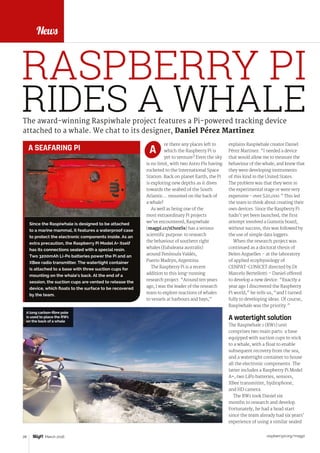
A watertight solution
The Raspiwhale 1 (RW1) unit
comprises two main parts: a base
equipped with suction cups to stick
to a whale, with a float to enable
subsequent recovery from the sea,
and a watertight container to house
all the electronic components. The
latter includes a Raspberry Pi Model
A+, two LiPo batteries, sensors,
XBee transmitter, hydrophone,
and HD camera.
The RW1 took Daniel six
months to research and develop.
Fortunately, he had a head start
since the team already had six years’
experience of using a similar sealed
The award-winning Raspiwhale project features a Pi-powered tracking device
attached to a whale. We chat to its designer, Daniel Pérez Martinez
re there any places left to
which the Raspberry Pi is
yet to venture? Even the sky
is no limit, with two Astro Pis having
rocketed to the International Space
Station. Back on planet Earth, the Pi
is exploring new depths as it dives
towards the seabed of the South
Atlantic… mounted on the back of
a whale!
As well as being one of the
most extraordinary Pi projects
we’ve encountered, Raspiwhale
(magpi.cc/1O1ozSs) has a serious
scientific purpose: to research
the behaviour of southern right
whales (Eubaleana australis)
around Península Valdés,
Puerto Madryn, Argentina.
The Raspberry Pi is a recent
addition to this long-running
research project. “Around ten years
ago, I was the leader of the research
team to explore reactions of whales
to vessels at harbours and bays,”
A
FEATURE
A long carbon-fibre pole
is used to place the RW1
on the back of a whale
RIDES A WHALE
RASPBERRY PI
Since the Raspiwhale is designed to be attached
to a marine mammal, it features a waterproof case
to protect the electronic components inside. As an
extra precaution, the Raspberry Pi Model A+ itself
has its connections sealed with a special resin.
Two 3200mAh Li-Po batteries power the Pi and an
XBee radio transmitter. The watertight container
is attached to a base with three suction cups for
mounting on the whale’s back. At the end of a
session, the suction cups are vented to release the
device, which floats to the surface to be recovered
by the team.
A SEAFARING PI
raspberrypi.org/magpi 29March 2016
NewsRASPBERRY PI RIDES A WHALE
container tracking device. Compared
with previous efforts, he says it
was “extremely quick and simple
development work with Raspberry
Pi.” It also offered a greater range
of possibilities: “It was much more
than we had imagined, and at very
low cost.”
While there are numerous devices
available for monitoring wildlife
behaviour, using technology such as
VHF telemetry or the Argos system,
the Raspiwhale is the first to feature
a fully functional computer with
an operating system. According
to Daniel, there are three key
advantages of having a Raspberry Pi
on board: low cost, ease of use, and
the ability to use multiple sensors
simultaneously. “The huge amount
of information online, forums,
and the Raspberry Pi community
makes [for] easy implementation of
complex sensors, storage, analysis
and downloading of data, and so
on.” In addition, the Pi’s GPIO
connection and large number of
protocols make it easy to implement
“ideas for measuring environmental
aspects, whether [about an] animal
or its environment.”
While the RW1’s IMU (inertial
motion unit) tracks a whale’s
movements (including speed,
rotation, and compass bearing) with
great accuracy, the inclusion of the Pi
enables the collection of a wide range
of key data, such as temperature
(whale and sea), darkness,
photosynthesis activity, whale heart
rate, muscle activity, swimming
patterns, and indicators of stress. An
attached HD camera captures often
dramatic video footage and stills.
Testing times
So far, two RW1 models have been
built and field-tested: they are
required to work at depths of up
to 100m and survive collisions
with animals weighing 40 tons.
Each device is placed on a whale
– attached with non-invasive
suction cups, so as not to harm the
animal – using a long carbon-fibre
pole extended from a boat. As well
as transmitting its position, the
RW1’s XBee radio module enables
two-way communication with
a remote human operator who
can set each of the sensors and
download data, videos, photos,
and sound recordings.
Daniel tells us the system is
already producing some positive
results. “In tests, we could
record dives of a mother with
her cubs, [monitor] behaviour
of reproduction and feeding,
[and record] vocalisation with
the hydrophone and video
simultaneously.” In 2016, the team
plan to use Raspiwhale to record
at least 30 sessions of diving and
situations involving interaction
between whales and boats.
Much to Daniel’s surprise, the
project has already attracted the
interest of other wildlife research
teams around the world: due to its
use of low-cost hardware and open-
source software, other researchers
could easily adapt the device for
their own purposes. Meanwhile,
Daniel is planning to develop a
smaller version of Raspiwhale to use
on dolphins, and reckons the tiny
Pi Zero opens up some interesting
new possibilities.
In October 2015, Raspiwhale
won first prize in the category
‘New technologies in scientific
research’ at Argentina’s
prestigious Innovar event –
a government-backed annual
innovation competition that
featured entries from over 1,300
projects in 2015. The award was
presented to a delighted Daniel
Pérez Martinez (left), Dr Marcelo
Bertellotti, and Belen Arguelles.
INNOVATION AWARD
Daniel’s Ideas Pi website (ideaspi.com) lists
numerous planned projects using the Raspberry
Pi, ranging from a weather station to a metal
detector. He tells us that his next goal is
the development of a water level/quality
measurement station for the mining industry.
“The idea is that both mining companies and
partner communities can develop their projects to
have low-cost workstations, networked to monitor
the quantity and quality of water, as it changes
over time, in regions where mining takes place.”
IDEAS PI
The orange RW1 is clearly
visible on the back of this whale
in the bay of Puerto Madryn
raspberrypi.org/magpi30 March 2016
News
hen you’re a kid, you
have to make the difficult
choice of what kind of
career you want to go into without
really having the life experience
necessary to properly choose what
you’d like to do. For Yasmin Bey,
a Year 10 student doing her GCSEs,
the decision is not that tough.
“Probably an AI specialist. It’s
definitely a field I would like to
go into,” Yasmin confidently
tells us. That’s her second choice
after starting her own business
as well – one in the tech and
computing sector. Even at 15,
pertaining to them and their
interests in tech and computing.
There was also a practical element,
according to Yasmin:
“For instance, I showed the
skills I learned from my interests
in technology… an incomplete
Traffic HAT (magpi.cc/1Mma7oD)
and then a complete one, with
the soldering, etc. I then did some
footage of the robot I made for Pi
Wars as well.”
By her own admission, she feels
the video was cringeworthy (don’t
we all when we make videos of
ourselves?). It did, however, win
her the prestigious award.
Yasmin’s interest in computing
started incredibly early, around
the age of four or five, when she
decided to make a website:
“I kind of liked that on a
website you have the power to put
whatever you want on it, so I just
decided to make my own. It had
really ugly marquee tags and Comic
Sans. From there, though, I learnt
that there are more languages than
just HTML and CSS, and then began
making JavaScript sites.”
At that age, she was unable to
learn more from school – “I don’t
think school knew what HTML
was!” – so the next best place
was learning on YouTube. A prime
How a young computer hobbyist discovered the Raspberry Pi and
won a European award for computing in the same year…
she’s already experienced enough
with computing to know it is what
she loves, and her efforts have
been rewarded by winning the
prestigious Digital Girl of the Year
award for 2015.
“It was really, really cool. So
cool,” Yasmin says of winning the
award. “When I heard how many
people applied for it – I think it
was in the 30,000s – I was amazed.
If you do the maths and figure out
your chance of actually winning,
[the odds] are rather substantial.”
Entry was via video where
applicants had to answer questions
W
INTERVIEW
DIGITAL GIRL OF
THE YEAR 2015
YASMIN BEY
AWARD
MISSION:
Recognising
outstanding
girls in digital
sectors around
the world
REGION:
Europe
PART OF:
The Ada
Awards, a
global award
network
named after
computing
pioneer Ada
Lovelace
WEBSITE:
digital
girlaward.com
DIGITAL
GIRL
OF THE
YEAR
Yasmin meets Carrie-Anne Philbin, with a cameo from Astro Pi
raspberrypi.org/magpi 31March 2016
DIGITALGIRLOFTHEYEAR
As well as winning Digital Girl
of the Year, Yasmin has been
nominated for the 2016 FDM
everywoman in Technology
Awards. These awards are for
women who are role models in
the tech sector, showing that
women work in STEM industries
too, as a way to inspire young
girls and women to keep on with
STEM subjects if they want to.
Yasmin is a finalist for the One
To Watch award, among other
school and university students.
Clearly, the rest of the world
is beginning to take notice of
Yasmin and her abilities.
News
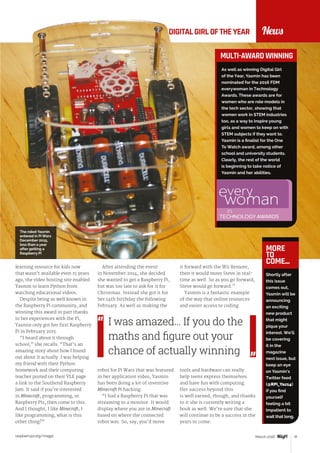
learning resource for kids now
that wasn’t available even 15 years
ago, the video hosting site enabled
Yasmin to learn Python from
watching educational videos.
Despite being so well known in
the Raspberry Pi community, and
winning this award in part thanks
to her experiences with the Pi,
Yasmin only got her first Raspberry
Pi in February 2015.
“I heard about it through
school,” she recalls. “That’s an
amazing story about how I found
out about it actually. I was helping
my friend with their Python
homework and their computing
teacher posted on their VLE page
a link to the Southend Raspberry
Jam. It said if you’re interested
in Minecraft, programming, or
Raspberry Pis, then come to this.
And I thought, I like Minecraft, I
like programming, what is this
other thing?”
MULTI-AWARD WINNING
After attending the event
in November 2014, she decided
she wanted to get a Raspberry Pi,
but was too late to ask for it for
Christmas. Instead she got it for
her 14th birthday the following
February. As well as making the
robot for Pi Wars that was featured
in her application video, Yasmin
has been doing a lot of inventive
Minecraft Pi hacking:
“I had a Raspberry Pi that was
streaming to a monitor. It would
display where you are in Minecraft
based on where the connected
robot was. So, say, you’d move
it forward with the Wii Remote,
then it would move Steve in real-
time as well. So as you go forward,
Steve would go forward.”
Yasmin is a fantastic example
of the way that online resources
and easier access to coding
tools and hardware can really
help teens express themselves
and have fun with computing.
Her success beyond this
is well earned, though, and thanks
to it she is currently writing a
book as well. We’re sure that she
will continue to be a success in the
years to come.
I was amazed… If you do the
maths and figure out your
chance of actually winning
Shortly after
this issue
comes out,
Yasmin will be
announcing
an exciting
new product
that might
pique your
interest. We’ll
be covering
it in the
magazine
next issue, but
keep an eye
on Yasmin’s
Twitter feed
(@RPi_Yaz14)
if you find
yourself
feeling a bit
impatient to
wait that long.
MORE
TO
COME...
The robot Yasmin
entered in Pi Wars
December 2015,
less than a year
after getting a
Raspberry Pi
raspberrypi.org/magpi34 March 2016
hen the Raspberry Pi Zero
was being made, Eben
Upton mentioned to us
how one box of Pi Zeros holds
hundreds of them. Hundreds of
cores and hundreds of gigabytes
of RAM – a crate of power, if used
correctly. We never managed to
work out the FLOPS one box could
theoretically process, even if that
might not be feasible. However,
a Japanese company also saw the
power of the Pi Zero in numbers
and has created the PiZero Cluster
Board, which allows up to 16 Pi
Projects SHOWCASE
Turn your Raspberry Pi Zeros into a number-crunching cluster
of computers with this custom-made board
 The board
works with
any number of
Pi Zeros
 From idea to
completion, the
cluster took six
weeks to build
 A Compute
Module is used
in the Actbulb
 The team have
been studying
the VideoCore
GPU for future
projects
 The board is
20cm × 20cm ×
5cm, even with
Pis attached
Quick
Facts
The board is powered by one
supply on the rear that can
activate all 16 Pi Zeros
PIZEROCLUSTER BOARD
A full-size USB port
is wired up to each
Pi Zero
W
16 Pi Zeros working in
parallel means 16 1GHz
cores and 8GB of RAM
are available
IDEIN, INC
Yasuyuki Yamada , Koichi
Nakamura and Yukimasa
Sugizaki make up the team
at Idein, Inc, which works on
AI technology.
idein.jp
Zeros to do parallel computing.
We spoke to Koichi Nakamura,
representative director of Idein,
Inc, about the cluster board:
“When I was playing with
Raspberry Pi Zero, I realised that
costs of cables and adapters are
relatively expensive, and found
a solution that used micro USB
plugs for cradles. I used this idea
to create our computer cluster…
I think it’s useful for many other
projects, [but it was] originally
designed and developed for our
internal purposes.”
Idein is currently developing the
Actbulb, a Pi-powered sensor suite
that fits into standard lightbulb
sockets to use in any way you see fit.
Sensors include a microphone and
cameras; it’s also internet-enabled
and has an audio speaker.
“Since we are developing products
using Raspberry Pi, we need a
cluster of many Pis for software
development and tests,” Koichi
explains to us. “It’s also useful to set
up many other devices... We plan to
create a cluster to enable setup of
hundreds of our devices a day.”
raspberrypi.org/magpi 35March 2016
STEP-01
Set yourself up
To start with, all you need to do is slot in your
Raspberry Pi Zeros. It works with as few as one
and as many as 16 at a time.
STEP-02
Hook it up
The next step is to connect it all up. The Ethernet
switch and cables should go in first, followed by the
AC adapter to power it.
STEP-03
Work in parallel
That’s it! Turn it on and you can program it using
MPI or any other methods that utilise multiple Pi
Zeros at the same time.
ProjectsPI ZERO CLUSTER BOARD
CREATE A CLUSTER
It’s had a huge reaction online,
with many people excited by the
idea of the board. However, Koichi
believes it’s quite a simple project:
“PiZero Cluster Board is just a
collection of 16 identical circuits.
Each circuit draws one Ethernet
port and one USB port from [each]
Raspberry Pi Zero’s micro USB
port, using an SMSC LAN9512 chip.
There are also 16 power supply
circuits to generate 5V and 3.3V
from a 12V single power source for
Raspberry Pi Zero and LAN9512. All
16 circuits are the same.”
With Pi Zeros in short supply,
the team were unable to secure
enough to complete the cluster
at first. Fortunately, we at The
MagPi managed to call in every
favour, pull every string, and beg,
plead and borrow to get them the
remaining 15 Pi Zeros they needed
for tests.
Due to the popularity of the
board and its many uses, Koichi
plans to put it on Kickstarter once
they’re ready to crowdfund it. It
will be an improved version of the
prototype we’ve seen online.
“In our current plan, the number
of Raspberry Pi Zeros and USB
ports is reduced to 14,” Koichi tells
us. “We’ll also add an on-board
Ethernet switch to the board, and
the number of ports is reduced
to two.” This improvement will
reduce the number of Ethernet
ports and cables required, and so
lower the board’s overall cost.
We plan to create a cluster to
enable setup of hundreds of
our devices a day
Above The Pi Zero is plugged in via its
micro USB power and data ports. Each
unit also requires an SD card with an
operating system installed
Below The Pi-powered sensor that
necessitated the creation of the Pi
Zero cluster board. It attaches to
standard light fittings
The insides of Actbulb are a lot more
complex than a normal light bulb
raspberrypi.org/magpi36 March 2016
ave you ever wondered
what it might have been
like if the Victorians had
owned Raspberry Pis? Wonder
no more, as French maker Jean
Gaillat has built this marvellous
steampunked Pi that brought his
future-retro dream to life.
“The Steampunk Pi is my Jules
Verne-like mechanism,” says
Jean. “I can see my loved
one’s pictures or videos
[through] a big magnifying
glass and listen to very
old songs or records
through an old ear
trumpet. This is the kind
of stuff I would have been
so happy to find in the attic
of my grandparents’ house
when I was a young boy.
“Steampunk looks good,” he
continues. “I don’t know exactly
why, but I suspect it has something
to do with all the machines I saw in
my grandfather’s storeroom - he
was a wheelwright.”
The Raspberry Pi is housed inside
a wooden box, complete with stand,
magnifying glass, and a glorious
ear trumpet. “I bought the box for
two euros in the Cultura shop near
my town,” Jean tells us. (Cultura
is a chain of creative workshops in
France; cultura.com). Jean covered
the wooden box in Bomb varnish
and placed a Raspberry Pi inside.
Once the Pi was inside the
wooden box, it was time for some
accoutrements. “The ear trumpet
comes from a very old bike horn,”
reveals Jean. “It’s supposed to
amplify the sounds coming from
a tiny loudspeaker in the box. The
Projects SHOWCASE
This Raspberry Pi reimagined for the 19th century is a wonderful thing.
Lucy Hattersley talks to its maker, Jean Gaillat
STEAMPUNK PI
H
JEAN GAILLAT
Jean is a 60-year-old maker from France.
He works at Orange Group and is fond
of prog rock, electronics, photography,
mountain biking, and skiing.
jeangaillat.wordpress.com
 With Kodi
Remote, it can
be controlled
from a phone
 All the parts
cost less
than €20
 The ear
trumpet comes
from an old
bike horn
 The screen has
a resolution of
640×480
 Jean also
uses it as an
internet radio
Quick
Facts
The magnifying glass
expands the tiny screen
The stand is hand-made
from an old curtain rod
The trumpet makes the
audio sound just like an
old record player
raspberrypi.org/magpi 37March 2016
ProjectsSTEAMPUNK PI
STEP-01
Wooden box
The Raspberry Pi is placed inside a wooden box
along with a 5V regulator, WiFi dongle, and a small
speaker. The Raspberry Pi is running OpenELEC 4.0,
and a USB key contains all the media.
STEP-02
Trumpet and stand
An ear trumpet is placed on the speaker to
amplify the sound, and a golden curtain rod fixed
to an old oil lamp support. On the back of the
wooden box is a USB hub.
STEP-03
Magnified screen
A magnifying glass is fixed to the front of the
box, in front of a 4DPI-24-HAT screen from 4D
Systems (4dsystems.com.au). The result is a
quirky player that can be used to view media
from an imaginary past.
STEAMPUNKING A PI
sound is exactly what I wanted - just
like from an old telephone.”
Jean bought the magnifying glass
for 12 euros in a store in Lyon that
specialises in devices for camping.
“I had seen this glass and said to
myself, ‘Oh yeah, that’s just what I
want for my Steampunk Pi.’ There
were LEDs in it. I pulled out the
LEDs and battery and kept the glass.
It’s fair to say that this isn’t the
kind of screen that’s comfortable
for long shows, but it’s interesting
to scrutinise and see my children’s
smiling faces through it.”
Obviously, the sound and
vision aren’t as good as a high-
definition monitor, but it works
surprisingly well. “I stare into
the glass on the front to watch
movies – at one or two metres
it’s acceptable,” says Jean.
With the sound and vision up and
running, it was time for Jean to turn
the Steampunk Pi into an artistic
object. We particularly like the
Victorian stand. “I made it by myself
using part of a golden curtain rod,”
says Jean. The rod is fixed with screws
to an old rusty iron oil lamp support.
“This is a recurring dream,”
explains Jean, “to retrieve the very
soul of our past, bypassing centuries
using a kind of time machine. I
have built this thing only to put it
somewhere, where it can be found
by a child in the future. But I have to
solve the issue of an empty battery
power unit.”
Jean is planning to add speech
to the machine next, in his native
French of course. “Like [Iron Man’s]
J.A.R.V.I.S,” he says, “talk to the
thing and the thing answers: ‘Oui
maître. Que puis-je faire pour
vous?’ I want to build the internet of
talking things: steampunked talking
things… waouh!”
ThesoundisexactlywhatIwanted
-justlikefromanoldtelephone
The Steampunked Pi
is a retro device with
modern capabilities
The result looks right at
home as a piece of art
raspberrypi.org/magpi38 March 2016
nfrared (IR) cameras are
traditionally used in low-
light situations. Typically,
IR is used in security cameras at
night, and you can also implant
an IR camera into your birdhouse
for a live view of some hatchlings.
Using it in daytime for ‘normal’
photos, though, is something
quite unusual. However, it’s what
Krzystof Jankowski decided he
wanted to do using a Raspberry Pi
and the Pi NoIR Camera Module.
“I’ve been a photographer for
many years and I’ve always wanted
to take surreal (at least to our eye)
infrared photos,” Krzystof tells
us, “but there was no commercial
camera that can do that easily. Also,
those cameras for astronomers
Projects SHOWCASE
Never mind a portable Raspberry Pi camera – how about a portable
Pi IR camera for taking stunning and unique shots?
 It was tested
and completed
in a morning
 Krzystof likes to
make different
portable
projects using
Raspberry Pi
 Krzystof plans
to make a
smart wall
with RSS feeds
and stats
 He plans to
work with
Arch next
 The project
uses a B+ and
not a Pi 2 or 3
Quick
Facts
Take surreal, IR photos during
the daytime for a slightly
different look at the world
EYE-PI CAMERA
It works roughly like a normal
camera – just point and shoot
to take a photo!
I
As the IR range is mostly heat,
the sky will be darker than
usual, while other objects are
highlighted unusually
KRZYSTOF JANKOWSKI
A pixel artist and indie game
developer, Krzystof likes to hack
around with Raspberry Pis and
Arduino gear in his spare time.
krzysztofjankowski.com / p1x.in
were always pricey. Using filters
was too time-consuming and
requires using high ISO.
“When I was ready to buy the
[Pi] Camera Module, I chose the
NoIR to test how it works. After
the few first tests, it turned out it
works perfectly fine, but using it
with wires, monitor, keyboard, and
making photos by command line
was absolutely not fun. A camera
needs to be small and have a
physical button to make photos.”
Krzystof made a prototype “using
a lot of duct tape” and went for
a walk with it. It worked as he’d
hoped, so he began work on a more
robust and easier-to-use version.
“For me it was very easy as I
know Linux, programming, and
soldering,” he explains. “I think
that even for newbies it will still
be easy. The whole thing is fairly
basic to make yourself: connect
camera, solder button and LED on,
put wires to proper GPIO ports, and
download my script and install a
few required packages.”
His custom script is what makes
it possible, and is downloadable
from GitHub (magpi.cc/1K2PRgi).
It’s only 23 lines long, but it has
some tweaks to the way photos are
taken to get them to look the way
they do, and to optimise the speed
as well, according to Krzystof:
“There’s a small lag like in early
digital cameras. For landscape
photography it’s absolutely
acceptable, though. The only
raspberrypi.org/magpi 39March 2016
ProjectsEYE-PI CAMERA
STEP-01
Boot process
There’s no switch just yet, so plugging
in the portable battery turns it on. This
boots Raspbian on the Pi, and an LED
turns on and then off once the camera is
ready to go.
STEP-02
Take a photo
Like with any camera, you just need to
press the shutter button. This one activates
the Python script to turn the LED on, set
the camera up, and take the photo. It then
turns the LED off.
STEP-03
Get the photo
You could grab the photo off the SD
card manually. However, it’s set up to
be retrieved using SFTP over WiFi as
well, for quick access.
TAKE A SURREAL PHOTO
downfall is the booting time: as
it boots the whole of Raspbian, it
takes 30-40 seconds. However, it
can work for hours on my power
bank without shutting down.”
Right now, the camera is
a little simple, and upgrades
are planned for it eventually.
Software-wise, Krzystof wants
a software shutdown to prevent
data corruption, but he also
wants to add a small OLED screen
for a live preview and settings.
These settings would then be
changed with additional switches
on the build.
Krzystof has done many little Pi
projects himself and doesn’t plan
to stop here: “I encourage people
to experiment with Raspberry Pi
– each project is an opportunity
to learn something new. And
it’s always a lot of fun to make
something yourself.”
Glare produces amazing effects when delving beyond the range of visible light into IR
The mark two rig has a shutter button and LED to let you know
when it’s ready, although a preview screen will be added
raspberrypi.org/magpi40 March 2016
obody wants a boring desk,
so one hobbyist, Frederick
Vanderbosch, decided to
build this futuristic workstation.
Complete with a touch surface,
speakers, and a motorised display
that rises out of the table, the
PiDesk is one of the cleverest
projects we’ve come across.
“The build was part of a design
challenge,” says Frederick.
The Sci-Fi Your Pi competition
was launched by the Raspberry
Pi Foundation and Element14
to inspire inventors to build
smarter homes.
“PiDesk is an attempt at making
a space-saving, futuristic-looking
Projects SHOWCASE
Make any desk job exciting with this futuristic PiDesk: a touch-controlled
table with lights, sound, and a computer that rises from the surface
 The entire build
took about
18 weeks
 Frederick
divided the
project into
sub-tasks to
stay motivated
 The monitor
lift is a drawer
mechanism
turned
sideways
 The time it
takes the
screen to rise
matches the
Pi‘s boot time
 A USB sound
card is used to
power the built-
in speakers
Quick
Facts
A Raspberry Pi-powered
smart display rises out of
the desk
PIDESK
N
Touch controls are
hidden in the bottom-
right of the table.
Tapping them toggles
desk features on and off
FREDERICK VANDERBOSCH
Frederick is an electronics hobbyist
and software test and integration
engineer. One of his recent projects
won Element 14’s ‘Forget Me Not’
challenge.
frederickvandenbosch.be
desk,” Frederick explains. “It can
change from a regular desk to a
computer workstation and back at
the touch of a finger.”
The idea for the project came
when he was running out of space
in his workplace. “By combining
a computer workstation and desk
in one, I would be able to get extra
space to work when the computer
was hidden inside the desk. For
the project’s futuristic accents, I
was inspired by the Tron movies,
on which I based the light patterns
of the desk.”
At first glance, it looks like
a normal desk. As soon as the
user places their hand above a
specific area, however, a desktop
computer is powered on and starts
rising out of the desk. This action
is accompanied by visual and
audio effects.
“Two Raspberry Pis are involved
in the project,” says Frederick. One
serves as the brains of the desk;
the second is a built-in desktop
computer. As well as two Raspberry
Pi units, the table contains a broad
range of components.
The desk itself is from Ikea.
“It’s one of the cheaper models,
which have the advantage of being
hollow,” reveals Frederick.
“I started by drawing some
shapes on the desk to work out
An LED light strip is
programmed to change
colour and send alerts
to the desk user
raspberrypi.org/magpi 41March 2016
STEP-02
Lights and controls
The desk itself is a cheap model with
a hollow centre. Holes are cut into
the surface and the components are
placed inside. The cuts are filled in
with paper and Plexiglass to recreate
a flat surface.
ProjectsPIDESK
Above left The
built-in LED strip
and Magic Lamp
are especially
effective
in low light
Above The finished
product is a
usable desk with a
display that can be
lowered to provide
more surface area
STEP-01
Double Pi
Inside the PiDesk are two
Raspberry Pis. One controls the desk
interaction (lights, touch interface,
and motorised display);
the second acts as a built-in
computer for the desk.
STEP-03
Desk assembly
AWS2812 LED strip is embedded into
the desk to act as information lighting.
Meanwhile, touch-sensitive pads are
embedded to create interactive controls.
Awireless charger is placed in the top-left
to power the Magic Lamp.
BUILDING A PIDESK
where I would perform the cuts and
embed the electronics.
“Then the surface was recreated
using two layers. The first layer
was paper, which is used to diffuse
the light and hide all the cuts and
embedded electronics. The second
layer is a large sheet of transparent
Plexiglass, giving the desk a new
and shiny surface.”
Touch controls are embedded
into the surface using a
combination of conductive paint
and copper tape. The paint creates
touch-sensitive pads, while
the tape makes a connection
to the Raspberry Pi.
One neat feature you might miss
is the built-in wireless charger.
This is a “little bonus feature I
had in mind,” says Frederick.
The Magic Lamp turns on when it
is placed in the right spot. “The
wireless charger is embedded in
the desk, and when the lamp is
moved on top of it, the lamp is
powered.” The light consists of
the wireless charger receiver, a
microcontroller board, and a ring
of Adafruit NeoPixels.
If you’re thinking of building a
similar project, then planning is
vital. “Plan ahead and think things
through,” advises Frederick. “Break
down the project into smaller, more
manageable projects. There’s a lot
to learn by building a project like
this because so many different
components are involved.”
Tutorial WALKTHROUGH
 CONQUER THE COMMAND LINE
 EXPERIMENT WITH SENSE HAT
 MAKE GAMES WITH PYTHON
 CODE MUSIC WITH SONIC PI
AVAILABLE NOW:
LEARN | CODE | MAKE
ESSENTIALS
From the makers of the
official Raspberry Pi magazine
ESSENTIALS
Tutorial
OUT NOW IN PRINT
ONLY £3.99
raspberrypi.org/magpi
GET THEM
DIGITALLY:
from
Tutorial WALKTHROUGH
raspberrypi.org/magpi44 March 2016
Solve real-world electronic and engineering problems with your Raspberry Pi
and the help of renowned technology hacker and author, Simon Monk
his project shows you how you can use an
ultrasonic sensor as a proximity detector
to trigger the extension or retraction of a
powerful linear actuator, capable of opening and
closing doors and windows.
As you’ll see from the list of required components,
this project uses a RasPiRobot Board V3 (RRB3) to
control the linear actuator’s motor and also provide a
handy connection for the HC-SR04 rangefinder. The
RRB3 also supplies your Raspberry Pi with 5V power
through the GPIO connector. This should work fine if
the RRB3 is connected to a good-quality power supply;
T
SIMON MONK
Simon Monk is the author of
the Raspberry Pi Cookbook and
Programming the Raspberry Pi: Getting
Started with Python, among others.
simonmonk.org / @simonmonk2
monkmakes.com
EVERYDAY
ENGINEERING PART 13
LINEAR ACTUATOR
CONTROLLING A
however, if you find that the Raspberry Pi resets itself
when the motor starts to move, add a separate 5V USB
power supply to the Raspberry Pi.
Linear actuators can be quite expensive. The cost
usually depends on the travel (how far the shaft
moves in and out) and the power. The one we’ve used
here costs about £30 ($50), has a travel of 150mm, and
a pull or push force of 1500N. If you search eBay for
‘linear actuator’, you may well pick up a bargain.
The HC-SR04 has become the standard low-cost
rangefinder, and you should be able to pick one up on
eBay for a few pounds or dollars.
12V linear actuator
RasPiRobot V3
 12V linear
actuator (eBay)
 RasPiRobot
V3 (Amazon,
Adafruit)
 HC-SR04
ultrasonic
rangefinder
(eBay)
 DC barrel socket
to screw adapter
(CPC: CN19646)
 12V DC 2A power
supply
 Two short
lengths of wire
You’ll
Need
Tutorial
raspberrypi.org/magpi 45March 2016
CONTROLLING A LINEAR ACTUATOR
Linear actuators
Linear actuators convert the rotation of a DC motor
into a linear motion. They’re often used to open and
close doors or windows, or to lift or lower objects.
They use a threaded drive shaft with a nut on it that
isn’t allowed to turn, but is free to move along the
threaded shaft, pushing the end of the actuator
in and out.
To determine whether the linear actuator retracts or
extends, you have to control the direction of current
flowing through its motor. A motor controller like the
RRB3 is well suited to this. The current drawn by this
particular linear actuator is close to the maximum
allowed for the RRB3’s motor controller chip (the
TB8812FNG) at 800mA. However, the chip can cope
with greater currents for a short time and has its own
Nut and Shaft
Threaded bolt
Gearbox
DC Motor
Left
A linear actuator
protection circuitry that will prevent it overheating.
You don’t have to worry about the linear actuator
damaging itself if you keep supplying power to it when
it has reached the end of its travel, because most
contain an auto-shutoff feature that removes the
power once the shaft is fully out or fully in.
eBay alternative
If you have a linear actuator that takes more current
than this one, or just want a lower-cost alternative
to the RRB3, then search for ‘L298’ on eBay and you
should find a module like the one shown here for a few
pounds or dollars. You will also need two female-to-
female jumper wires and one female-to-male jumper
wire. Use the female-to-female wires to connect the
control pins IN3 and IN4 on the module to GPIO pins
Left A low-cost
L298 motor
controller
Tutorial WALKTHROUGH
raspberrypi.org/magpi46 March 2016
STEP-02
Attach the socket adapter
You’ll need to use a couple of short lengths of wire to link
the screw terminal adapter to the RRB3. It’s a good idea
to use red and black wires, to make sure the red goes to
the positive (+) terminal on both the RRB3 and the terminal
adapter, and the black connects the negative terminals.
To run the program, change directory to the one
where the code for this project lives and then run the
program using the commands below:
cd /home/pi/pi_magazine/13_linear_actuator
sudo python lin_act.py
If you now move your hand in front of the
rangefinder, LED1 on the RRB3 should turn on and the
linear actuator should start to extend. Once the linear
actuator is fully extended, it will stop. When LED1
goes out, waving your hand in front of the rangefinder
will start the actuator retracting.
How the code works
The Python code for this program is well commented.
You’ll probably find it handy to have the code up in an
editor while we go through it.
The program starts by importing the rrb3 library
that it needs. The constant T is set to slightly longer
than the time taken in seconds for the motor to
extend or retract fully, whichever takes longer. This
is how long the motor will be asked to run for when
retracting or extending. Remember that the motor will
automatically cut out at each end of its travel.
The extended variable is used to keep track of
whether the linear actuator is extended or not. The
main while loop waits for the rangefinder to detect
something closer than 20cm from it and then either
sets the motor to run forward or in reverse, depending
on the value of extended. For good measure, one of
the LEDs on the RRB3 is lit while the motor is being
powered, and a message is printed out.
STEP-01
Fit the RRB3 onto your Raspberry Pi
The RRB3 is designed to work with older Raspberry Pis
with 26 pin headers, but will work just fine with 40-pin
Raspberry Pis like the Pi 2, Zero, A+, and B+. Just make
sure that you fit the RRB3 onto the end of the row of
GPIO header pins on a 40-pin Pi.
This is a very
straightforward
project to build.
It’s just a case
of attaching
wires to screw
terminals and
plugging things
together.
BUILDING
THE PROJECT
10 and 25 respectively on the Raspberry Pi. These are
the same GPIO pins that the RRB3 library uses, so you
won’t need to change the code.
The female-to-male jumper wire has its male end
in the motor controller GND screw terminal, sharing
the GND screw terminal with the negative lead to the
power supply. The other end of the male-to-female
wire goes to GND on the GPIO connector. The +12V
wire from the power supply goes to the screw terminal
marked +12V.
Connect the leads from the linear actuator to the
screw terminals on the motor controller board marked
OUT3 and OUT4.
Building your project
As always, it’s a good idea to test the project out and
get everything working while the parts are all out on
your workspace. Once you know all is well, you can
box up the project and fix your linear actuator in place,
ready to open, close or lift whatever you have in mind
for it. Now that the hardware side of the project is
complete, we just need to get the software running.
The program is written in Python and uses a library
that accompanies the RRB3. To install this, enter:
sudo pip install rrb3
You can also download the program for this project
from the command line using:
git clone https://github.com/simonmonk/
pi_magazine.git
Tutorial
raspberrypi.org/magpi 47March 2016
from rrb3 import *
from random import randint
rr = RRB3(12, 12) # Battery voltage 12V, motor 12V
T = 20 # 20 seconds to extend
extended = False
try:
	 while True:
		 if rr.get_distance()  20:
			 if extended: # if extended retract and vice versa
				print(retracting)
				rr.set_led1(True) # LED 1 on
				rr.reverse(T, 1.0)
				rr.set_led1(False)
				extended = False
			 else:
				print(extending)
				rr.set_led2(True)
				rr.forward(T, 1.0)
				rr.set_led2(False)
				extended = True
			 print(done)
finally:
	rr.cleanup() # Set all GPIO pins to safe input state
lin_act.py
CONTROLLING A LINEAR ACTUATOR
THE ENDThis article is the last in my Everyday Engineering
series. I hope you have enjoyed all 13 projects in the
series as much as I have devising them. If you like my
writing, then you’ll probably enjoy my books, especially
Programming Raspberry Pi, The Raspberry Pi Cookbook,
and The Maker’s Guide to the Zombie Apocalypse.
Finally, this is not goodbye as The MagPi will be
serialising excerpts from my book Programming
Raspberry Pi: Getting Started in Python over the
next few months. You can also follow me on Twitter
via @simonmonk2.
STEP-03
Connect the linear actuator
Connect the two leads from the linear actuator to the pair of
terminals marked ‘R’ on the RRB3. The red lead from the linear
actuator should go to the terminal nearest the two power terminals.
If, when you test the project, the motor moves in the opposite
direction to what you were expecting, swap over these two wires.
Language
PYTHON
DOWNLOAD:
magpi.cc/1PK4jds
The whole while loop is contained in a try /
finally clause so that when the program is quit using
CTRL+C, the GPIO pins are set back to be inputs.
Using your linear actuator
Linear actuators like the one used here are actually
very strong. If you have any doubt as to the power
of one of these devices, take a look at this video –
youtu.be/qbWMEIFnq2I – which shows a can-crusher
using this linear actuator, built by your expert for
his book Make: Action: Movement, Light, and Sound with
Arduino and Raspberry Pi.
If it will crush cans, however, it will crush fingers,
so be careful!
A common use of linear actuators is to automatically
open a skylight window when the temperature
exceeds a certain point. You could use a temperature
sensor with this project, such as the DC18B20,
and even add a web interface to control things
from your browser.
STEP-04
Fit the rangefinder
Finally, attach the rangefinder to the RRB3 in the socket labelled
‘HC-SR04’. At this point, you can also attach the power supply
to the adapter socket and, if you wish, disconnect USB power
from the Raspberry Pi, although it won’t do any harm if you don’t
disconnect the USB power.
Tutorial STEP BY STEP
raspberrypi.org/magpi48 March 2016
ADD PUSH
NOTIFICATIONS TO
MotionEyeOS is perfect for using your Pi as a CCTV camera. Want to detect
movements while you’re out? Then read on…
ne benefit of MotionEyeOS is its ability to
detect motion and capture images and movies
of what triggered it. You can also access a live
stream of your camera online, even when you’re not
home, which is handy if you want to check in every
now and then. When away from home, being notified
of any movement is very useful, and MotionEyeOS has
a nifty option for custom notifications.
This guide will assume you have already set up
and configured MotionEyeOS. A Pushover licence is
required, which costs £3.99/$4.99. For help, check out
the MotionEyeOS wiki here: magpi.cc/1UCvYwV.
O
WESLEY ARCHER
(AKA RASPBERRY COULIS)
Self-taught Raspberry Pi enthusiast,
now writing guides for Pi Supply’s
Maker Zone to help others get
involved in gadgety goodness!
Raspberrycoulis.wordpress.com
Facebook.com/raspberrycoulis
@RaspberryCoulis
Right Make sure
you turn on ‘Run
A Command’ and
then include the
path to your script!
 MotionEyeOS
magpi.cc/
1UCw1Jk
 Raspberry Pi
Camera Module
 Pushover app for
iOS or Android
with full licence
(£3.99/$4.99)
pushover.net
You’ll
Need
MOTIONEYEOS
STEP-01
Create an application in Pushover
Pushover has a great, easy to use API. Before we start,
we need to register an application with it. Click on
Register Application under the Your Applications
heading on the Pushover website (pushover.net). Give
your app a name – something like RaspiMotion – and
then make sure the type is Application. Give your app
a quick description (e.g. ‘Push notifications sent by
my Raspberry Pi’) and, if feeling creative, upload a
custom icon which will show in your Pushover client
app whenever a notification is sent.
STEP-02
Get your API token and user key
Once you have created your application, you should
have access to an API token/key. This is a unique
combination of numbers and letters – please keep
this a secret! You’ll also need your user key, which
is shown once you log into Pushover’s website.
Okay, so you have an app and your API and user keys.
You'll now need to download (or recreate if you so
Busted! This is what your
camera sees (and records)
when motion is detected
This is where you’ll tell
MotionEyeOS to run
your Python script
Tutorial
raspberrypi.org/magpi 49March 2016
ADD PUSH NOTIFICATIONS TO MOTIONEYEOS
wish) a simple Python script to tell your Raspberry
Pi to work its magic once the script is called upon
by MotionEyeOS.
STEP-03
Create your Python script
MotionEyeOS is not like Raspbian. You cannot use
certain commands as you would normally, such as
git clone, so we’ll have to create our Python script
manually; you can also drag and drop using WinSCP
if preferred. We also don't need to use sudo, as we’re
already logged in as root by default. Our script needs
to live in the data folder, so let’s go there and create
pushover.py using nano:
cd /data
nano pushover.py
Once here, you’ll need to copy and paste or type in
the code listing, while also including your API token
and user key where required.
STEP-04
Make your script executable
As with any script, we need to make sure it can be
executed, otherwise it's nothing more than a fancy
collection of text! You can do this either from the
command line or from within WinSCP. From the
command line, make sure you're in the data folder
and then type:
chmod +x pushover.py
Or, if using WinSCP, select the pushover.py file in
the data folder, then press F9. In the window that
appears, change the permissions to 0755 and then click
‘OK’ to confirm.
pushover.py
import httplib, urllib
conn = httplib.HTTPSConnection(api.pushover.net:443)
conn.request(POST, /1/messages.json,
urllib.urlencode({
token: APP_TOKEN, # Insert app token here
user: USER_TOKEN, # Insert user token here
html: 1, # 1 for HTML, 0 to disable
title: Motion Detected!, # Title of the message
message: bFront Door/b camera!, # Content of the message
url: http://IP.ADD.RE.SS, # Link to be included in message
url_title: View live stream, # Text for the link
sound: siren, # Define the sound played	
}), { Content-type: application/x-www-form-urlencoded })
conn.getresponse()
Language
PYTHON
STEP-05
Configure MotionEyeOS to use your script
Now that we have our script, we need to tell
MotionEyeOS to use it when it detects motion. To
do this, log in, go to the Motion Notifications menu
and turn on the ‘Run A Command’ option. You then
need to specify which command to run, which will be
the Python script you just created – this is
/data/pushover.py. Click Apply once done, to
confirm the changes.
STEP-06
Test it out!
Hopefully, by now you have created your Python
script, made it executable, told MotionEyeOS to use
your script when it detects motion, and have the
Pushover app installed on your smartphone or tablet.
We now need to test that it works! Wave your hand in
front of your camera (or you can do a dance if you're
feeling energetic!) and then shortly afterwards you
should receive a notification via Pushover, warning
you that motion has been detected!
Feel free to experiment with the script to
customise the message displayed and sound played
in Pushover.
DOWNLOAD:
magpi.cc/
20DHpYW
Left Create an app
via Pushover.net to
get the ball rolling.
It’s pretty self-
explanatory
Tutorial WALKTHROUGH
raspberrypi.org/magpi50 March 2016
o far during this series, we’ve focused on
triggering sounds. We’ve discovered that
we can trigger the many synths built into
Sonic Pi with play or synth, and how to trigger pre-
recorded samples with sample. We’ve also looked at
how we can wrap these triggered sounds within studio
FX such as reverb and distortion, using the with_fx
command. Combine this with Sonic Pi’s incredibly
accurate timing system and you can produce a vast
array of sounds, beats, and riffs. However, once
you’ve carefully selected a particular sound’s options
and triggered it, there’s no ability to mess with it
whilst it’s playing, right? Wrong! Today you’re going
to learn something very powerful: how to control
running synths.
A basic sound
Let’s create a nice simple sound. Fire up Sonic Pi and,
in a fresh buffer, type the following:
synth :prophet, note: :e1, release: 8,
cutoff: 100
S
CONTROLLING
YOUR SOUNDIn this month’s Sonic Pi guide, creator Sam Aaron shows you
how to shape and sculpt your sounds…
SAM AARON
Sam is the creator of Sonic Pi. By day he’s
a Research Associate at the University of
Cambridge Computer Laboratory; by night
he writes code for people to dance to.
sonic-pi.netPART 8

 Raspberry Pi
running Raspbian
 Sonic Pi v2.7+
 Speakers or
headphones with
a 3.5mm jack
 Update Sonic Pi:
sudo apt-get
update  sudo
apt-get install
sonic-pi
You’ll
Need
Now press the Run button at the top left to hear a
lovely rumbling synth sound. Go ahead, press it again
a few times to get a feel for it. OK, done? Let’s start
controlling it!
Synth nodes
A little-known feature in Sonic Pi is that the fns
play, synth, and sample return something called a
SynthNode, which represents a running sound. You
can capture one of these SynthNodes using a standard
variable and then control it at a later point in time. For
example, let’s change the value of the cutoff: opt
after one beat:
sn = synth :prophet, note: :e1, release: 8,
cutoff: 100
sleep 1
control sn, cutoff: 130
Let’s look at each line in turn…
Firstly, we trigger the :prophet synth using the
synth fn, as normal. However, we also capture the
result in a variable called sn. We could have called
this variable something completely different, such
as ‘synth_node’ or ‘jane’ - the name doesn’t matter.
However, it’s important to choose a name that’s
meaningful to you for your performances and for
people reading your code. We chose sn as it’s a nice
short mnemonic for synth node.
On line 2 we have a standard sleep command. This
does nothing special – it just asks the computer to
wait for one beat before moving onto the next line.
Line 3 is where the control fun starts. Here, we
use the control fn to tell our running SynthNode
to change the cutoff value to 130. If you hit the
Run button, you’ll hear the :prophet synth start
playing as before, but after one beat it will shift to
sound a lot brighter.
Tutorial
raspberrypi.org/magpi 51March 2016
SONIC PI LIVE CODING
Multiple changes
Whilst a synth is running, you’re not limited to changing
it only once – you’re free to change it as many times as
you like. For example, we can turn our :prophet into a
mini arpeggiator with the following:
notes = (scale :e3, :minor_pentatonic)
sn = synth :prophet, note: :e1, release: 8,
cutoff: 100
sleep 1
16.times do
	 control sn, note: notes.tick
	 sleep 0.125
end
In this snippet of code, we just added a couple of extra
things. Firstly, we defined a new variable called notes,
which contains the notes we’d like to cycle through (an
arpeggiator is just a fancy name for something that cycles
through a list of notes in order). Secondly, we replaced
our single call to control with an iteration calling it 16
times. In each call to control, we .tick through our ring
of notes, which will automatically repeat once we get to
the end (thanks to the fabulous power of Sonic Pi’s rings).
For a bit of variety, try replacing .tick with .choose and
see if you can hear the difference.
Note that we can change multiple opts
simultaneously. Try changing the control line to the
following and listen for the difference:
control sn, note: notes.tick,
cutoff: rrand(70, 130)
Sliding
When we control a SynthNode, it responds exactly on
time and instantly changes the value of the opt to the
new one, as if you’d pressed a button requesting the
change. This can sound rhythmical and percussive –
especially if the opt controls an aspect of the timbre,
such as cutoff:. However, sometimes you don’t want
the change to happen instantaneously. Instead, you
might want to smoothly move from the current value
to the new one, as if you’d moved a slider or dial. Of
course, Sonic Pi can also do this too using _slide: opts.
Each opt that can be modified also has a special
corresponding _slide: opt that allows you to specify
a slide time. For example, amp: has amp_slide:, and
cutoff: has cutoff_slide:. These slide opts work
slightly differently from all the other opts in that they
tell the synth nodes how to behave next time they are
controlled. Let’s take a look:
sn = synth :prophet, note: :e1, release: 8,
cutoff: 70, cutoff_slide: 2
sleep 1
control sn, cutoff: 130
Note how this example is the same as before, except with
the addition of cutoff_slide:. This is saying that next
time this synth has its cutoff: opt controlled, it will take
two beats to slide from the current value to the new one.
Therefore, when we use control, you can hear the cutoff
slide from 70 to 130. It creates an interesting dynamic feel
to the sound. Now, try reducing the cutoff_slide: time
to 0.5, or increasing it to 4, to see how it changes the sound.
Remember, you can slide any of the modifiable opts in this
way, and each _slide: value can be totally different, so you
can have the cutoff sliding slowly, the amp sliding fast, and
the pan sliding somewhere in between if you like.
Bringing it all together
Let’s look at a short example which demonstrates the
power of controlling synths after they’ve been triggered.
Note that you can also slide FX just like synths, but with a
slightly different syntax. Check out section 7.2 of the built-
in tutorial for more information on controlling FX.
Copy the code into a spare buffer and listen. Don’t stop
there, though - play around with the code. Change the slide
times, the notes, the synth, the FX, and the sleep times and
see if you can turn it into something completely different!
live_loop :moon_rise do
	 with_fx :echo, mix: 0, mix_slide: 8 do |fx|
		 control fx, mix: 1
		 notes = (scale :e3, :minor_pentatonic,
	 	 	        num_octaves: 2).shuffle
		 sn = synth :prophet , sustain: 8, note: :e1, cutoff: 70,
cutoff_slide: 8
		 control sn, cutoff: 130
		sleep 2
		32.times do
			 control sn, note: notes.tick, pan: rrand(-1, 1)
			sleep 0.125
		end
	end
end
Modulatable options
Most of Sonic Pi’s synths and FX opts may be
changed after being triggered. However, this isn’t the case for all of
them. For example, the envelope opts attack:, decay:, sustain:,
and release: can only be set when triggering the synth. Figuring
out which opts can and can’t be changed is simple – just head to
the documentation for a given synth or FX, then scroll down to the
individual option documentation and look for the phrases ‘May be
changed whilst playing’ or ‘Can not be changed once set’. For example,
the documentation for the :beep synth’s attack: opt makes it clear
that it’s not possible to change it:
 Default: 0
 Must be zero or greater
Language
RUBY
 Can not be changed once set
 Scaled with current BPM value
Tutorial STEP BY STEP
raspberrypi.org/magpi52 March 2016
CREATE A MUSIC GAME
USING THE PIANO HAT
Put a piano on your Pi, and learn to tinkle the ivories. This game teaches
you to read music and program the Piano HAT.
imoroni’s Piano HAT provides a musical
keyboard for your Pi, with LEDs for
illuminating the keys. In Clef Hero, you’re
challenged to play a pattern of notes shown on the
stave. It starts easy, but gets harder as more notes,
sharps, and flats are introduced. As you move up
the stave you’ll reuse keys for the higher octave
so, for example, the ‘D’ key is the right answer for
either D on the stave. Standard sheet music wouldn’t
normally include the mishmash of sharps and flats
you can get on the higher levels, but that makes
Clef Hero a challenging puzzle even for those with
some experience.
STEP-01
Make some sounds
First, we’ll make a single audio file that contains all
the notes we’ll need. The Listing 1 code for Sonic Pi (on
page 54) will play the notes in order. Enter the listing
in one of the Sonic Pi buffer spaces. Press the Rec
button to start recording, press Run to play the notes,
and then press Rec again to save your recording. You
P
SEAN MCMANUS
Sean McManus is the author
of Raspberry Pi For Dummies
(with Mike Cook), and Scratch
Programming in Easy Steps.
sean.co.uk
twitter.com/musicandwords
Notes go green when
you play them, and you
hear a recording from
Sonic Pi
 Piano HAT
magpi.cc/
1OALwNT
 Some speakers
on your Pi
 Pygame Zero
magpi.cc/
1XdhRji
You’ll
Need
CLEF HERO:
Get a note wrong and
you hear a thud, and
the note goes red. Keep
trying!
As you progress, more
sharps and flats are
introduced to the game
can customise the sounds and use different synths,
but don’t make the sounds too long or the game will
become unplayable.
STEP-02
Split the note files
To split your sound recording into individual files
for each note, use Audacity. Install it by entering the
command sudo apt-get update  sudo apt‑get
install audacity in a terminal. Open your audio
file - the default option to make a copy to edit is
fine, if you’re asked. From the Analyze menu, choose
Silence Finder. Set the minimum duration to 0.10 and
the label placement to 0.05, then click OK. Go to the
Edit menu and click Preferences. In the Import/Export
options, untick ‘Show Metadata Editor’. From the File
menu, choose Export Multiple. Use the WAV export
format, choose ‘Numbering after File name prefix’,
and enter the File name prefix of ‘note’. Create a
directory called clef, and a directory called sounds
inside that. Choose the sounds directory as your
export location and click Export.
Tutorial
raspberrypi.org/magpi 53March 2016
CLEF HERO
Below Use Audacity
to split your Sonic Pi
recording into notes
STEP-03
Fix your hyphens
Audacity exports your files with names like
note-01.wav, note-02.wav, and so on, but Pygame
Zero requires underscores, not hyphens. To do
the bulk rename, we recommend you install
mmv with sudo apt-get install mmv. Then
cd to the sounds directory where you have the
files Audacity exported, and enter the command
mmv note-*.wav note_#1.wav. Copy
thud.wav into sounds too, from pi/Pimoroni/
pianohat/sounds/drums. It’s used when the player
presses the wrong key.
STEP-04
Prepare your art
You’ll need a treble clef and a background image.
We’re using a treble clef from magpi.cc/1XdhNA3
(download the small version) and a background by
Gerd Altmann (magpi.cc/1XdhOnK) – again, use the
small one. Rename your clef to treble_clef.png
and your background to clef_background.jpg.
clef.py
# Clef Hero by Sean McManus
import pianohat, random, time
WIDTH, HEIGHT = 600, 440
RED = (255,0,0)
GREEN = (0,255,0)
BLUE = (0,0,255)
notes_to_play = list()
note_colours = list()
level = 1
notes_data = [
[0, sounds.note_01, 1, ], [2, sounds.note_03, 2, ],
[4, sounds.note_05, 3, ], [5, sounds.note_06, 4, ],
[7, sounds.note_08, 5, ], [9, sounds.note_10, 6, ],
[11, sounds.note_12, 7,], [0, sounds.note_13, 8, ],
[2, sounds.note_15, 9, ], [4, sounds.note_17, 10, ],
[5, sounds.note_18, 11, ],[7, sounds.note_20, 12, ],
[9, sounds.note_22, 13, ],
[1, sounds.note_02, 1, #],[3, sounds.note_04, 2, #],
[6, sounds.note_07, 4, #],[8, sounds.note_09, 5, #],
[10, sounds.note_11, 6, #], [1, sounds.note_14, 8, #],
[3, sounds.note_16, 9, #], [6, sounds.note_19, 11, #],
[8, sounds.note_21, 12, #], [10, sounds.note_23, 13, #],
[1, sounds.note_02, 2, b], [3, sounds.note_04, 3, b],
[6, sounds.note_07, 5, b], [8, sounds.note_09, 6, b],
[10, sounds.note_11, 7, b], [1, sounds.note_14, 9, b],
[3, sounds.note_16, 10, b],[6, sounds.note_19, 12, b],
[8, sounds.note_21, 13, b]
]
def round_setup():
global note_position, note_number, notes_to_play
del notes_to_play[:]
del note_colours[:]
level_data = notes_data[0 : level * 4]
for i in range(8):
notes_to_play.append(random.choice(level_data))
note_colours.append(BLUE)
note_position = 0
note_number = 0
clock.schedule_unique(hint_on, 5)
def draw():
screen.blit(images.clef_background,(0,0))
screen.draw.text(Clef, (310,90), color=blue, fontsize=120)
screen.draw.text(Clef, (315,85), color=white, fontsize=120)
screen.draw.text(Hero, (310,180), color=blue, fontsize=120)
screen.draw.text(Hero, (315,175), color=white, fontsize=120)
BOX = Rect((100,290), (400,120))
SHADOW = Rect((105,295), (400,120))
screen.draw.filled_rect(SHADOW, (0,0,0))
screen.draw.filled_rect(BOX, (255,255,255))
screen.blit(images.treble_clef,(105,305))
for y in range(5):
screen.draw.line((110, 380 - y*16), (490, 380 - y*16), (0,0,0))
show_notes()
def show_notes():
for i in range(8):
draw_note(i)
def draw_note(note_number):
screen.draw.filled_circle((180 + note_number * 35, 404 - notes_to_play[
note_number][2]*8), 7, note_colours[note_number])
if notes_to_play[note_number][2] == 1 or notes_to_play[note_number][2] == 13:
screen.draw.line((170 + note_number * 35, 404 - notes_to_play[
note_number][2]*8), (190 + note_number * 35, 404 - notes_to_play[note_number]
Language
PYTHON
Tutorial STEP BY STEP
raspberrypi.org/magpi54 March 2016
[2]*8), note_colours[note_number])
screen.draw.text(notes_to_play[note_number][3], (
162 + note_number * 35, 395 - notes_to_play[note_number][2]*8),
color = note_colours[note_number], fontsize=24)
def update():
draw_note(note_position)
def handle_note(piano_key, pressed):
global note_position, note_colours, level
if pressed == False: # key was released, not pressed
return
if piano_key == 12: # if top C pressed
piano_key = 0 # treat it the same as bottom C
clock.unschedule(hint_on)
if piano_key == notes_to_play[note_position][0]:
note_colours[note_position] = GREEN
notes_to_play[note_position][1].play()
lights_out()
if note_position  7:
note_position += 1
else:
lights_on()
if level  8:
level += 1
round_setup()
clock.schedule_unique(hint_on, 5)
else:
note_colours[note_position] = RED
sounds.thud.play()
def hint_on():
pianohat.set_led(notes_to_play[note_position][0], True)
def lights_out():
for light in range(16):
pianohat.set_led(light, False)
def lights_on():
for light in range(13):
pianohat.set_led(light, True)
clock.schedule_unique(lights_out, 1)
lights_on()
round_setup()
pianohat.auto_leds(False)
pianohat.on_note(handle_note)
Listing 1
note = 60
with_synth :tb303 do
22.times do
play note
note = note + 1
sleep 1.25
end
end
Language
SONIC PI
Resize your clef to 62×110 pixels. You can use
sudo apt-get install imagemagick and then
convert treble_clef.png -resize 62x100
treble_clef.png to resize the image from the
command line. Create a directory called images
inside the clef directory and put your pictures there.
This is where Pygame Zero looks for all its images.
STEP-05
Build the Clef Hero game
The main code listing shown contains the Python
code for the Clef Hero game. Call it clef.py and put it
into your clef directory, so it sits immediately above
the sounds and images directories, as Pygame Zero
will expect. You run it with sudo pgzrun clef.py
from LXTerminal in the desktop environment. Each
level has eight notes. When you play a note correctly,
it goes green. When you complete the level, another
eight notes are chosen randomly. The range of notes
starts small, but increases with each screen you
finish until all notes are in play. Tap the black notes
carefully: it’s easy to also hit a white key by mistake.
STEP-06
It’s time for your solo!
There’s lots you can do to customise Clef Hero. The
list notes_data describes the notes - the data is Piano
HAT key, sound file, the stave line or space numbered
from C=1 at the bottom, and the sharp or flat symbol.
To have notes arrive in a different order, change their
place in this list. To play with all the notes from the
start, add random.shuffle(notes_data) immediately
after notes_data is defined. Why not add a score
or a time limit? Or adapt the game for the bass clef?
Jam with it!
Below Use Sonic
Pi to make (and
customise) the
sounds for
this game
Raspberry Squid Combo Pack
Using the included Raspberry Leaf GPIO template, attach an
RGB LED and push buttons directly to the GPIO pins of a
Raspberry Pi. The switches are panel-mountable and perfect
when putting your Raspberry Pi project into an enclosure.
• Includes one RGB LED Squid and two Squid Buttons and a Raspberry Leaf GPIO template
• RGB LED and switches plug directly into Raspberry Pi GPIO pins
• Simple to use Python library for RGB LED control and switch debouncing
£9.65 /
$14.95
RasPiRobot Board v3
A simple to use motor controller for the Raspberry
Pi. This board is designed to simplify the process
of making small roving robots and controlling
medium power loads using a Raspberry Pi.
• Dual bi-directional motor control using
TB6612FNG dual H-bridge
• Dual open drain 2A MOSFET outputs
• Socket for HC-SR04 Rangefinder
• Socket for 5V I2C Interface
• Provides regulated power
to Raspberry Pi
• 2 x user controllable LEDs
• 2 x header pins for switches
• Reverse polarity protection
• Open Source Python Software library
• Screw terminals for motor
and power connections
• Compatible with Pi, B+, A+, Pi2
£17.50/
$25-$29.95
w w w . m o n k m a k e s . c o m | t w i t t e r @ m o n k m a k e s
when you buy through
Enter promo code: MAGPINOW
or
Electronics Starter Kit
for Raspberry Pi
This kit contains everything you need (apart from
a Raspberry Pi) to create ten electronic projects.
• 10 easy to follow project cards
• Quality 400 tie-point breadboard
• 20 jumper wires
• All Python code in one easy download
• Compatible with Pi B, B+, A+, Pi 2
• Includes RGB LED, red LEDs, switches,
buzzer, light sensor, temperature sensor,
and capacitor
• No soldering required
£15 / $25
Please note: Illustration of possible use only, chassis, Raspberry Pi, motors, rangefinder etc. not included
GET A 10%
DISCOUNT
MONKMAKESBooks  Other Bright Ideas from Simon Monk
Tutorial WALKTHROUGH
raspberrypi.org/magpi56 March 2016
PART 1
The mirror that reacts to your presence and shows you infinity
he Raspberry Pi Zero is great for embedding
in a project and just leaving it there,
so we thought we would look at a project
like this down at the Bakery. One project that has
been on the books for some time is an Infinity
Mirror: this is where you sandwich some LEDs
between two mirrors and get reflections of
reflections, all the way down to infinity. There have
been a few published before, but not one like this.
What's new about this one is that it has a unique
arrangement of LEDs and reflecting surface, giving
a different sort of pattern, as well as a distance
sensor that triggers different patterns the closer
you get to it.
T
MIKE COOK
Veteran magazine author from the old
days and writer of the Body Build series.
Co-author of Raspberry Pi for Dummies,
Raspberry Pi Projects, and Raspberry Pi
Projects for Dummies.
magpi.cc/1NqIdHU
MIKE’S PI BAKERY
 Raspberry Pi Zero
 16× WS2812b
LEDs – through
hole or surface
mount
 GP2YOA2YK0F
– IR distance
sensor
 LM339
comparator
 74LS14 – Hex
Schmitt input
buffer
 Stripboard 
self-adhesive
copper strip
 Ikea Ribba
picture frame
(000.780.51)
 Two-way mirror
film
 Scrap CD or DVD
 Connectors,
leads, resistors,
and capacitors
You’ll
Need
INFINITY
MIRROR
LED one-turn spiral
Interface board
Infrared distance sensor
Pi Zero board
Distance of Reflective Object (cm)
OutputVoltage(V)
3.5
3
2.5
2
1.5
1
0.5
0
0 10 20 30 40 50 60 70 80Fig 1 The voltage
output of the
GP2YOA2YK0F sensor
Tutorial
raspberrypi.org/magpi 57March 2016
The project
The project is based around an Ikea picture frame, the
23×23cm Ribba, with the front glass covered in two-way
mirror film. There are basically two electronics circuits:
the first one is the distance sensor based on the Sharp
GP2YOA2YK0F, and the second is a chain of WS2812b
LEDs. The processor used in the Zero will run the
Adafruit library for this chip, whereas the processor used
in the Model 2 Pi is not currently compatible. The idea is
that a strip of NeoPixels is arranged in a one-turn spiral
on a tube, and at the bottom of the tube is a reflecting
surface. We chose to make this a CD so that not only
do you get a reflection, you also get a refraction pattern
from the CD’s optical grating, which splits the white and
other secondary colours into their component parts.
The design
Fig 1 shows the output of the GP2YOA2YK0F sensor for
different distances. Note how this curve means that
some readings are ambiguous – that is, one voltage
reading could be one of two distances. However, this
only happens for distances shorter than 5cm and in
this application it's not a problem, even if the wrong
distance is indicated. The output is analogue and the
Pi has no built-in analogue to digital (A/D) converter,
so we are going to have to make one. Fortunately, this
does not need a very high resolution as we only want to
indicate four different distance measurements. This can
be done simply with four comparators arranged as a
BUILDING THE MIRROR
STEP-01
Make the infinity tunnel
Find a large tube, about 10 to 12cm in diameter and 4cm deep, or you
can roll one out of cardboard. Either way, roll your tube along a piece
of paper to make a strip the same length as the circumference of the
tube. Measure 5mm down from the top-right corner and 5mm up from
the bottom-left corner, and draw a diagonal line between the two
points. Fold the strip in half and straighten it out; where the crease
mark cuts the line, mark a spot.
Repeat this procedure, folding to the halfway crease line for each
side, to obtain two more creases; again, mark the intersection of the
line and crease mark. You now have three equally spaced points along
the diagonal line.
Repeat this action, folding to the other creases, until you have 16
points marked.
INFINITY MIRROR
The CD creates a refraction pattern
STEP-02
Prepare the tube
Glue this paper strip around the outside of the tube and drill a hole at
each point. We made a support to place inside the tube to stop the
drill press crushing the tube. Remove the paper strip and clean up
the holes with a sharp knife. Paint the inside wall of the tube a matt
black. Put a spiral of self-adhesive copper strip to join up the tops of
the holes; make the strip pass just 0.5mm short of the hole's centre.
Use a second strip to cover the bottom half of the holes; the two strips
should be about 1mm apart. With a sharp knife, remove the copper
that overhangs the holes.
Tutorial WALKTHROUGH
raspberrypi.org/magpi58 March 2016
Copper strip
1mm0.1uF Ceramic
+5V
Gnd
+5V
Gnd
Data
Gnd+5V
+5V
Data In
Data InData Out
Data Out
Gnd
STEP-03
Wire up the LEDs
Glue a WS2812b LED over each hole, making sure the
diagonal edge marking the ground connection is next
to the lower strip on the left-hand side. Hot-melt glue
is good if you can be sparing with it, otherwise we used
impact adhesive. Once the glue is dry, solder up the
decoupling capacitors in front of each LED. Next, wire up
the LEDs as shown in the diagram, with a wire going from
the output of one LED to the input of the next; each LED
is connected to the power or ground copper strip with
a short length of wire. We used 28 AWG wire stripped
of its insulation for this. Solder quickly to avoid damage
to the LEDs. When complete, it's a good idea to test the
LEDs with a program from the library’s examples. Then
the wires can be fixed and the LEDs reinforced with some
hot-melt glue.
‘flash converter’; the schematic is shown in Fig 2. The
output of the sensor is fed to the negative input of all the
comparators, and the positive input is fed by a chain of
resistors across the 5V supply, giving various voltages
at each node. The resistor values have been designed
to produce voltages that correspond approximately
to various distances, as shown in the diagram, so the
output of the comparators gives you an indication of the
distance. Note that if the distance is, say, 15cm, then the
three bottom comparators will indicate the distance is
20,  30, and 50. The outputs are open collector, so
they can be fed directly into the Pi’s GPIO pins with their
pull-up resistors enabled. Note also that there is a push
button so that you can safely power down the project
before removing the power supply.
The WS2812b or NeoPixel driver is shown in Fig 3.
This is much the same as the one we used in the String
Pong project in The MagPi #35, only the pin numbers
have been changed to make the layout on stripboard
Distance Sensor
5V
2K7
2.3V
1.3V
1K
0.1uF
47uF
GP2Y0A2YK0F
390R
0.9V
300R
0.6V
620R
Shutdown
GPIO 26
GPIO 17
50cm
GPIO 24
30cm
GPIO 23
20cm
GPIO 27
10cm
5V
0.1uF
5
+
_4
2
12
11
+
_10
13
LM339
9
+
_8
14
7
+
_6
1
3
Fig 2 The schematic of the distance sensor’s D/A
Step 3 Wire up the LEDs
Tutorial
raspberrypi.org/magpi 59March 2016
a bit easier. The LEDs can take over an amp, so they
need powering separately. In fact, we powered the
whole Pi Zero from this through a couple of 5V and
ground pins on the GPIO connector. In case this is not
what you do, you could have a removable link to the 5V
line. For details of the construction, see the ‘Building
the mirror’ step‑by‑step section.
The software
You first need to install the Adafruit NeoPixel library.
This link gives you step-by-step instructions on how
to do this: magpi.cc/1nRSyYk.
Fig 3 The schematic
of the WS2812b
LED driver
INFINITY MIRROR
0.1uF
5V
Gnd
GPIO 18
680uF
Gnd
Data
Not Connected
74LS14
510R
14
43 1011 65 89
21 1213
7
Make link only to power the Pi
from the LED supply
Raspberry Pi
+5V
2.1mm Power Jack
L.E.D.STRIP
The software has a simple job: to take the
distance measurement from the sensor and use
it to trigger one of four animations on the LEDs.
These patterns are written as a state machine, so
that at each step there's an opportunity to check if
the distance has changed or the shutdown button
has been pressed. The time between each step is
determined by the patternTimeSteps list and
can be changed to alter the speed. In order to shut
down the Pi Zero safely, there's a push button that
triggers a shutdown – press this before removing
the power supply.
STEP-04
Finish off the tube
Take a scrap CD or DVD with a good
mirrored surface and use a disc sander
to reduce its diameter so that it fits in the
tube. At the very least, remove the clear
band round the outside of the disc, as
the mirror surface needs to be as close
to the walls of the LED tube as possible.
Cut another CD to make a patch to cover
the hole in the CD, and use double-sided
sticky tape to fix this to the base of the LED
tube. Cut out a piece of black mounting
foam to fit the picture frame; using a
scalpel, cut a hole in the middle for the
LED tube, allowing a bit of extra room to
accommodate the LEDs sticking out.
Tutorial WALKTHROUGH
raspberrypi.org/magpi60 March 2016
# Magic mirror display
# By Mike Cook - January 2016
import time, os, random
import wiringpi2 as io
from neopixel import *
random.seed()
DATA_PIN = 18 # pin connected to the NeoPixels
NUM_PIXELS = 16 # number of LEDs in the spiral
try :
io.wiringPiSetupGpio()
except :
printstart IDLE with 'gksudo idle' from CLI
os._exit(1)
pixels = Adafruit_NeoPixel(
NUM_PIXELS,DATA_PIN,800000,5,False)
sensorPins = [17,24,23,27]
shutDownPin = 26
pattern = 0
patternTimeSteps = [0.5, 0.08, 0.05, 0.2, 0.01]
# time spent in each step
patternStep = 0 ; patternTemp = 0 ;
patternTemp2 = 0
col = [ (255,0,0),(0,255,0),(0,0,255),(255,255,255),
mirror1.py
We used a Pi B+ to develop the code using the
Pimoroni Black HAT Hack3R. When finished, we
changed the /etc/rc.local file to add this line to the end:
python path name/mirror1.py 
This makes the Pi boot up automatically into this
program. Of course, the ‘path name’ was replaced by
the path where this program is to be found. This needs
to be in quotes if there are any spaces in the path.
Then we just swapped the SD card over to the Pi Zero
and mounted it in the mirror.
Taking it further
You can experiment and write your own LED display
patterns that are triggered for each of the four
distances the mirror can detect. You can even make
the patterns multi-step – that is, the sequence of light
could be extended, and change the longer the viewer is
at a fixed distance.
In part 2 next issue, we will show you how to add
a time display to the mirror, but all is not quite as
straightforward as you might think. Tune in next
month for a bit of a surprise.
STEP-05
Make the brackets
Cover the picture frame glass with the mirror film. There are plenty of
online examples of how to do this using a squeegee, water spray, and
baby shampoo. Any specks of dust will show up, so make sure it’s well
cleaned. Note that it will take about a week for the film’s glue to cure
and bond with the glass. Fit the tube and mount flush with the mirror
in the frame, and use a fillet of hot-melt glue to fix the light tube to the
mount. Make a bracket to hold the distance sensor with a small piece
of asymmetric angle aluminium and paint it black. Fix it on the bottom
of the frame with two M3 bolts. Use these same bolts to fix the bracket
that holds the Pi Zero and electronic interface. Fix the Pi Zero to the
bracket using nylon nuts – we used drilled-out nylon nuts to make
the stand-off pillars for the Zero to ensure there was no chance of the
GPIO plug shorting out on the bracket.
STEP-06
Finishing off
Finally, build the electronics – that is Fig 2  3 – on a small piece of
stripboard. We used pin headers soldered horizontally to make the
connections with the LEDs and the distance sensor. Cut holes in the back
mounting board to fix the LED disc in place.
The mirror’s light patterns react to your proximity
01.
02.
03.
04.
05.
06.
07.
08.
09.
10.
11.
12.
13.
14.
15.
16.
17.
18.
19.
20.
21.
22.
23.
24.
25.
Tutorial
raspberrypi.org/magpi 61March 2016
26.
27.
28.
29.
30.
31.
32.
33.
34.
35.
36.
37.
38.
39.
40.
41.
42.
43.
44.
45.
46.
47.
48.
49.
50.
51.
52.
53.
54.
55.
56.
57.
58.
59.
60.
61.
62.
63.
64.
65.
66.
67.
68.
69.
70.
71.
72.
73.
74.
75.
76.
77.
78.
79.
80.
81.
82.
83.
84.
85.
86.
87.
88.
89.
90.
91.
92.
93.
94.
95.
96.
97.
98.
99.
100.
101.
102.
103.
104.
105.
106.
107.
108.
109.
110.
111.
112.
113.
114.
115.
116.
117.
118.
119.
120.
121.
122.
123.
124.
125.
126.
127.
(255,0,0),(0,255,0),(0,0,255),(255,255,255) ]
def main():
initGPIO()
while True:
if io.digitalRead(shutDownPin) == 0 :
os.system(sudo shutdown -h now)
# to prepare for power down
checkForDistance()
advancePattern()
time.sleep(patternTimeSteps[pattern])
def advancePattern(): # next step in LED pattern
global patternStep, patternTemp, patternTemp2
if pattern == 0:
return # nothing to do
if pattern == 1 : # Radar scan
if patternStep == 0:
patternTemp +=1
if patternTemp 3 :
patternTemp = 0
wipe()
pixels.setPixelColor(patternStep,Color(col[
patternTemp][0],col[patternTemp][1],col[patternTemp][2]))
updateStep()
return
if pattern == 2 : # Colour wipe
if patternStep == 0:
patternTemp +=1
if patternTemp 3 :
patternTemp = 0
pixels.setPixelColor(patternStep,Color(
col[patternTemp][0],col[patternTemp][1],col[
patternTemp][2] ))
updateStep()
return
if pattern == 3 : # Multicolour riot
wipe()
off = patternStep  0x03
for L in range(0,NUM_PIXELS,4):
pixels.setPixelColor(L, Color(
col[off][0],col[off][1] ,col[off][2] ))
pixels.setPixelColor(L+1, Color(
col[off+1][0],col[off+1][1],col[off+1][2]))
pixels.setPixelColor(L+2, Color(
col[off+2][0],col[off+2][1],col[off+2][2]))
pixels.setPixelColor(L+3, Color(
col[off+3][0],col[off+3][1],col[off+3][2]))
updateStep()
return
if pattern == 4 : # Slow colour cycle
if patternStep == 0:
patternTemp += 5
if patternTemp  255:
patternTemp = 0
pixels.setPixelColor(patternStep, Hcol(((
patternStep * 256 / NUM_PIXELS) + patternTemp)  255))
updateStep()
return
def initGPIO():
for pin in range (0,4):
io.pinMode(sensorPins[pin],0)
io.pullUpDnControl(
sensorPins[pin],2)
io.pinMode(shutDownPin,0)#input
io.pullUpDnControl(
shutDownPin,2)
pixels.begin()
# This initialises the NeoPixel library
def updateStep():
global patternStep
patternStep +=1
if patternStep = NUM_PIXELS :
patternStep =0
pixels.show()
def wipe():
for i in range(0,pixels.numPixels()):
pixels.setPixelColor(i, Color(0,0,0))
def Hcol(h): # HSV colour space with S = V = 1
if h  85:
return Color(h * 3, 255 - h * 3, 0)
elif h  170:
h -= 85
return Color(255 - h * 3, 0, h * 3)
else:
h -= 170
return Color(0, h * 3, 255 - h * 3)
def checkForDistance(): # select pattern based on distance
global pattern, patternStep
if io.digitalRead(sensorPins[0]) == 1 :
if pattern != 0: # if something showing
wipe()
pixels.show()
pattern = 0 # stop any display
patternStep = 0 # put to start of a pattern
else :
close = 0
for n in range(1,4):
if io.digitalRead(sensorPins[n]) == 0 :
close = n
if pattern != close+1 : # has pattern changed?
pattern = close+1
patternStep = 0 # stage in pattern
#printnow showing pattern,pattern
# Main program logic
if __name__ == '__main__':
main()
Language
PYTHON 2.7
DOWNLOAD:
magpi.cc/1NqJjmV
PROJECT
VIDEOS
Check out Mike’s
Bakery videos at:
magpi.cc/1NqJnTz
INFINITY MIRROR
Tutorial STEP BY STEP
raspberrypi.org/magpi62 March 2016
PI GLOWBE
Turn a globe into a glowing orb and use it to help you wake up
in the dark winter months
uring the winter, or even at any time of
the year, it can be difficult to get up in the
mornings. If you wake before dawn, your
body still thinks it’s night (because it is). You can
buy wake-lights that trick your body into waking
up by simulating a fake sunrise; they get gradually
brighter as your alarm approaches. These can be quite
expensive, so why not make your own with a Pi and
some LEDs? To celebrate the Astro Pis on the ISS,
we’ve built one using a Sense HAT inside a globe that
was found in a charity shop – perhaps an unwanted
Christmas present, now repurposed!
D
JAMES SINGLETON
James is a developer, engineer,
and author. He helps people find
software jobs in the environmental
sector with ‘Cleanweb Jobs’.
unop.uk
cleanwebjobs.com
A discarded globe from a
charity shop is the perfect
thing to create the wake-light
 Sense HAT
magpi.cc/
1TGGUt5
 BlinkyTape
LED strip
(or NeoPixel /
DotStar)
 An unwanted
globe
 Plastic bottle
 Sticky pads
 Blu-Tack
or putty
You’ll
Need
THE PI-POWERED
WAKE-LIGHT
STEP-01
Make an LED bulb
Create a bulb by wrapping an LED strip around a
plastic bottle. You could skip this, but the Sense HAT
is not bright enough to make a lamp. Cut the top off
an empty plastic bottle, cover it in sticky pads and
wrap the LED strip around it in a spiral. You can secure
the ends further with tape. Have the connection end
at the wider opening so that you can route the power
cable to the Pi and then out through the centre. We’ll
mount the Pi on top of the upside-down bottle end,
so ensure it's flat.
The main light for the alarm
is much brighter than the
Sense HAT LEDs
It’s all powered by the
Raspberry Pi, timed to go
off when you need it to
Tutorial
raspberrypi.org/magpi 63March 2016
PI GLOWBE
STEP-02
Destroy the world
Remove the Earth from its mount by pulling the
pegs of the holder out of the holes in the Arctic
and Antarctic. Next, split it in half along the equator
by pulling the two hemispheres apart. It should
disassemble fairly easily with a little force applied
in the correct places. You’ll want to fashion a new
mount to stop the globe rolling around, whilst still
allowing the power cable to exit from the bottom
hole - you could use the inside of a roll of tape.
You can cut a small slot with a knife to allow
the wire to enter.
STEP-03
Mount inside globe
Attach your new LED bulb to the inside of the globe.
Mount the neck of the bottle over the lower hole
with Blu-Tack or putty; it should be sturdy enough
to support the weight of the Pi resting on top of it.
Mount the Sense HAT on the Pi, and then place both
on top of the upturned bottle. Attach a USB WiFi
dongle to the Pi (unless you’re using wired Ethernet),
otherwise it will wake you at the wrong time. This is
because the Pi requires internet access to set its clock.
STEP-04
Route the power
You’ll probably need to cut and reconnect the
power cable to fit it through the hole. The official
Pi power supply uses bell wire, which makes it easy
to reconnect with a screw terminal (choc block).
Unfortunately, it doesn’t supply enough power to use
the LEDs at full brightness and also run the Pi. Cut
the cable and insert the supply end through the hole.
Tie a knot in the cable to stop it from being pulled
back through. Separate the two power cores from
both ends and strip the insulation. Reconnect with
a choc block, matching the polarity.
STEP-05
Download the code
Clone the code from the GitHub repository into your
home folder:
git clone https://github.com/jpsingleton/
pi-glowbe.git
If you’re only using part of the hardware or
a different LED strip, you can adapt the code
to your needs. You may also need to install the
Sense HAT software if you’re running an older version
of Raspbian – follow the instructions at
magpi.cc/1KboHnN. You may also want to disable
the LEDs on the Pi so they don’t disturb your sleep.
Newer models can do this in software, otherwise you
could tape over them, or even de‑solder them if you’re
brave enough.
wakeup.py
from BlinkyTape import BlinkyTape
from sense_hat import SenseHat
from time import sleep
import optparse
# Default Blinky Tape port on Raspberry Pi is /dev/ttyACM0
parser = optparse.OptionParser()
parser.add_option(-p, --port, dest=portname,
help=serial port (ex: /dev/ttyACM0), 	
default=/dev/ttyACM0)
(options, args) = parser.parse_args()
if options.portname is not None:
port = options.portname
else:
print Usage: python wakeup.py -p port name
print (ex.: python wakeup.py -p /dev/ttyACM0)
exit()
sense = SenseHat()
bt = BlinkyTape(port)
# wake phase - gradually get brighter, linearly
sleepTime = 18 # 18 sec for 30 min in 100 steps
maxPower = 100 # flickers or cuts out above 100
for y in xrange(maxPower):
sense.clear(y * 2, y * 2, y * 2)
for x in xrange(sleepTime):
bt.displayColor(y, y, y)
sleep(1)
# on phase - at full brightness for the same time
sense.clear(255, 255, 255)
for z in xrange(maxPower * sleepTime):
bt.displayColor(maxPower, maxPower, maxPower)
sleep(1)
# tidy up
sense.clear()
Language
PYTHON 2.7
DOWNLOAD:
magpi.cc/1TUKdz7
STEP-06
Set up your schedule
We’ll run the code with cron. It should start about half an
hour before you get up and probably only on weekdays.
Launch the cron configuration by typing the following
into a terminal:
crontab -e
Next, set it up by adding the following line to the end:
15 6 * * 1-5 python /home/pi/pi-glowbe/
wakeup.py
This will run the code every weekday at 06:15, so change
it to meet your needs. Save the file and exit the editor
(CTRL+X, Y, then ENTER in the default nano). Once
happy, reassemble everything and wait for morning!
Tutorial WALKTHROUGH
raspberrypi.org/magpi64 March 2016
magine you’re building your house in Minecraft,
minding your own business, when suddenly
you’re teleported high in the air. You’re
forced to compete in the Bedrock Challenge. If you
fail to get to the other side of the arena, you plummet
to your doom! Have a go at coding your own Bedrock
Challenge, see if your friends can complete it, and have
a go yourself.
The Bedrock Challenge is a game where the goal is
to get to the other side of the invisible bedrock grid
without falling down the holes. The catch is that
there’s a wooden roof so you can’t see the light shining
through the holes onto the ground, where invisible
bedrock would cast a shadow.
You can’t cheat by jumping or flying because if you do,
you get teleported back to the start. The only help you
get is an LED which will light up if there’s a hole in any
of the nine blocks around you, but not the one you’re on.
We use the Python library PyAutoGUI, which can
cause a key to be pressed down or released. We also
use another library called ‘threading’, which lets
us run something while other parts of the program
are working. Other libraries are used, but we don’t
have to install them because they are standard
Python libraries.
Get prepared
Here’s how you install PyAutoGUI. Open a terminal and
type the following into it:
sudo pip3 install pyautogui
Next, install threading:
sudo pip3 install threading
Finally, python3-xlib, as required by PyAutoGUI:
sudo apt-get install python3-xlib
Now we’re on to the wiring: you need to connect the
LED to the Raspberry Pi. Build the circuit as shown in
I
THE BEDROCK
CHALLENGEHow good is your intuition? Can you navigate your way through an invisible arena?
OZZY HAYLER-GOODALL
When Ozzy is not coding experiments
for the ISS, he’s playing rugby or being
a junior mentor at CoderDojo Ham.
He’s nine years old.
CoderDojoHam.org
Fig 1 Here’s the
circuit that lights
up the LED. It’s
very simple, only
requiring an LED
and a resistor
 LED
 Jumper wires
 Breadboard
 220-ohm
resistor
You’ll
Need
The roof stops you looking down
and seeing where the bedrock’s
shadow is
Try not to fall down those
holes on the way!
Here’s the timer – you have
80 seconds to get to the
other side in our version
Tutorial
raspberrypi.org/magpi 65March 2016
THE BEDROCK CHALLENGE
from gpiozero import LED
from mcpi.minecraft import Minecraft
import time, sys, random, threading
import pyautogui as pag
led = LED(13)
mc = Minecraft.create()
running = True
def make_holes(num, x, y, z): # make the holes
for I in range(num):
rx = random.randint(2,49)
rz = random.randint(2,49)
mc.setBlocks(x+rx, y+20, z+rz, x+rx, y+22, z+rz, 0)
def monitor(starting_pos):
global running
LED = [(-1, -1, 1), (-1, -1, 0), (-1, -1, -1), (
0, -1, -1), (1, -1, -1), (1, -1, 0), (1, -1, 1), (0, -1, 1)]
y_start = starting_pos.y
while running:
pag.keyUp('shift')
pos = mc.player.getTilePos()
for p in LED:
boss = mc.getBlock(pos.x+p[0], pos.y+p[1], pos.z+p[2])
if boss==0:
led.on() # LED on
else:
led.off() # LED off
if pos.y  y_start:
mc.postToChat ('cheat')
mc.player.setPos(
starting_pos.x, pos.y, starting_pos.z) # teleport after cheating
time.sleep(1)
if pos.y  y_start:
mc.postToChat ('Uh-oh')
time.sleep(3)
mc.player.setPos(
starting_pos.x, starting_pos.y, starting_pos.z)
# move after cheating
if pos.z==starting_pos.z+51:
mc.postToChat('Well Done')
running = False
try:
pos = mc.player.getTilePos()
mc.postToChat(
'get ready for the bedrock challenge')
time.sleep(1)
mc.postToChat(
'get to the other side without falling
down the holes!')
time.sleep(3)
mc.setBlocks(
pos.x+1, pos.y+20, pos.z, pos.x+53, pos.y+22, pos.z+53, 35) #wool
mc.setBlocks(
pos.x+2, pos.y+20, pos.z+1, pos.x+52, pos.y+20, pos.z+52, 95)#bedrock
mc.setBlocks(
pos.x+1, pos.y+30, pos.z, pos.x+53, pos.y+30, pos.z+53, 17) #roof
mc.setBlocks(
pos.x+2, pos.y+21, pos.z+1, pos.x+52, pos.y+22, pos.z+52, 0)
	 # air for Steve starting position
mc.setBlocks(
pos.x+25, pos.y+21, pos.z+1, pos.x+25, pos.y+22, pos.z+1, 0)
mc.player.setPos(
pos.x+25, pos.y+21, pos.z+1) # teleport to start
newpos = mc.player.getTilePos() # get new position
t1 = threading.Thread(target = monitor, args = (newpos, ))
t1.start()
make_holes(250, pos.x, pos.y, pos.z)
time_start = time.time()
counter = 80 # setting the timer
while time.time()time_start+80: # starting the timer
time.sleep(1)
counter-=1
if counter%10==0:
mc.postToChat(str(counter))
mc.setBlocks(
pos.x+2, pos.y+20, pos.z+1, pos.x+52, pos.y+20, pos.z+52, 0)
mc.postToChat('GAME OVER')
running = False
except KeyboardInterrupt: # type Ctrl+C
print('bye')
running = False
sys.exit()
bedrockchallenge.py Language
PYTHON 3
DOWNLOAD:
magpi.cc/1QbdoYO
Fig 1 . To test it, open a terminal and type python3,
then enter the following lines:
from gpiozero import LED
led = LED(13)
led.on()
This should turn on the LED assigned to GPIO pin 13.
Modding Minecraft
Now we’ve done all our preparations, let’s get coding!
In this code, we have two functions: one stops you
cheating while the other creates the holes. There
are two main ways of cheating, and we block both of
these. One way is to hold down the SHIFT key (‘enable
sneak’), which normally stops you falling. We use
PyAutoGUI to hold the SHIFT key up to prevent you
from using sneak. The other way is to fly to the finish.
We stop this by finding your Y position at the start,
then checking if it has changed - in other words, if
you’ve gone higher. It also won’t allow you to run
around the perimeter walls. The function that stops
you cheating has another purpose: it turns the LED
on if there’s air around you. We do this by finding the
positions of all nine blocks, then we see if one of them
is air. If one or more is air, we turn the LED on. If you
do sadly fall down a hole, ‘Uh-Oh’ gets displayed and
you’ll be teleported back to the start.
Here’s how we create the arena. We first build
the invisible bedrock plane, then we pick random
positions to place the holes. After that, we build the
roof, and then finally we create the wool walls. To
give you a time limit to reach the other end we have
a counter, which gets displayed on the Minecraft
screen when it reaches a multiple of ten. When it
reaches zero, we turn all the invisible bedrock into air.
Game over!
You could make it easier by giving the player more
time, or make it harder and have more holes. If you
have an annoying older brother, they might find some
other sneaky ways to cheat. Can you think of any? If
you can, try to write code to prevent them!
Tutorial WALKTHROUGH
raspberrypi.org/magpi66 March 2016
THE ELECTROMAGNETIC SPECTRUM
Visible light is just one type of electromagnetic
radiation. There are various types, some with
longer wavelengths than visible light (e.g. radio
waves) and some with shorter wavelengths
(X-rays, for example).
aspberry Pi isn’t just about coding and
learning programming languages. By
attaching additional hardware, the Pi can act
as a platform for all sorts of scientific investigations.
The best example of this is the Sense HAT. This
fantastic device is bristling with sensors, perfect for
performing fun science experiments in the classroom,
at home, or even on your orbiting space station. In
this first Sense HAT Science feature, we’re going
to look at the LED matrix and some simple ways of
demonstrating the ideas of a colour spectrum of light,
and why different objects are different colours.
Programming the lights
The LED matrix on the Sense HAT has 64 elements
made up of three separate LEDs - red, green, and blue
- in a single housing. We can illustrate this in Python.
Open IDLE3, load the SenseHat library and connect
to the board:
from sense_hat import SenseHat
sh = SenseHat()
We can turn on all the LEDS with a single command:
sh.clear(255,0,0)
The three numbers in the brackets of the command
represent the brightness of the three colours (in the
order R, G, B and with 255 being maximum intensity),
so this should switch on all the red LEDs but leave
the green and blue ones off. To turn on just the green
LEDs, type:
R
SENSE HAT SCIENCE:
LIGHT AND COLOURWhy is grass green? Why do we see objects as having different colours?
With your trusty Sense HAT, you can carry out a simple experiment to
investigate the properties of light and colour
RICHARD HAYLER
Richard is a mentor at CoderDojo Ham. His
school Code Club was one of the winning
teams in the PrimaryAstro Pi competition
who now have their code on the ISS.
richardhayler.blogspot.co.uk
@rdhayler / coderdojoham.org
 A Sense HAT
(or a Unicorn HAT)
magpi.cc/
1TGGUt5
(or magpi.cc/
1PCpRZ5)
 An old cereal
box, scissors
and sticky tape
 HATColourSlider
magpi.cc/
1okQVCt
 Some small
objects of
different colours
You’ll
Need
Under white light, the Lego
blocks look red, just as we
normally see them
Use the HATColourSlider
widget to gradually change
the light colour in your box
Remove the red component
from the light and the blocks
appear black, because
there is no longer any light
scattered from them
PART 01
Tutorial
raspberrypi.org/magpi 67March 2016
SENSE HAT SCIENCE
Above Each colour
LED produces light
at a small range of
wavelengths. The
closer in colour
an object is to
this wavelength,
the ‘blacker’ it
will appear when
that component
is removed
sh.clear(0,255,0)
You can do this in Scratch, too - see Fig 1 below.
We can also mix colours to create other shades,
much like paint:
sh.clear(175,100,200)
This should produce a pleasant pale pink colour. You
can do the same thing using Scratch, but you have to
use hexadecimal notation to specify the colour values
(Fig 1 again).
To make it easier to quickly mix the colour settings
for the Sense HAT LEDs, you can download a simple
widget. Back in a terminal window, type:
git clone https://github.com/topshed/
HATColourSlider.git
Then change into the newly cloned directory and
copy the desktop shortcut into place:
cd HATColourSlider
cp HATColourSlider.desktop ~/Desktop
Double-click on the icon that will have appeared on
your desktop and use the sliders to mix the red, green,
and blue light.
If you turn all three colours to their maximum, you
should see that the LEDs produce white light.
For science!
Back in 1665, Isaac Newton was the first to prove that
white light is made up of all the colours that we can
see: he took a glass prism and placed it in a sunbeam,
producing a spectacular multicoloured spectrum like
a rainbow. Light waves are refracted as they enter
and exit the prism. The shorter the wavelength of
the light, the more it is refracted. As a result, red
light is refracted the least and violet light is refracted
the most, causing the coloured light to spread out
to form a spectrum. We can think of the LEDs in the
Sense HAT as performing this process in reverse –
combining the colours to produce white light.
We can also use the Sense HAT’s ability to produce
different-coloured light to investigate why objects
appear as different shades. Find a box big enough
to hold the Raspberry Pi and Sense Hat, and which
has a top that you can close. Half a cereal box is
an ideal size for this purpose: cut a slot along one
corner to allow the power and HDMI cables to remain
connected. Now find a bunch of small, different-
coloured objects that will fit in the box (Lego
blocks are perfect). Make sure you have red, green,
and blue objects.
This works best in a dark room; close the flaps on
the top of the box to prevent as much external light
as possible entering from the monitor, while leaving
a small gap that you can peer through.
Start with a red object. Illuminate it in the box
with all LEDs set to maximum (i.e. white light).
Now reduce the brightness of the red LEDs down to
zero. The ‘redness’ of the block should fade until it
appears black. Try the same experiment with blue
and green coloured objects, observing what happens
when you remove that colour from the light emitted
by the LEDs.
Conclusive evidence
Why does this happen? An object appears to have
a colour because it is able to selectively absorb and
reflect certain wavelengths of visible light. An object
will appear white if it does not absorb any wavelength
of visible light and all the light that falls upon it is
scattered back to our eyes. An object will have a red
colour when it absorbs all wavelengths of visible
light except for red. Just the red light is scattered
to our eye, so the object looks red. However, as you
can demonstrate with the Sense HAT, if we remove
the red component of white light that falls on a red
object, there is nothing to be scattered back and so
the object will appear black. From this we can also see
that a black object will therefore be one which absorbs
all the wavelengths of the light falling on it.
So what about grass? Like many plants, it produces
a bright pigment called chlorophyll which absorbs
blue and red light well, but mostly reflects green light.
Now you know!
HEXADECIMAL
Hexadecimal
is a base 16
number system.
A hex digit can
be any of the
following 16
digits: 0 1 2 3
4 5 6 7 8 9 A B
C D E F. So 175
is 0xAF, 100 is
0x64, and 200
is 0xC8.
Wavelength in nm 700400
Blue LED
460 - 480nm
Green LED
52 - 540nm
Red LED
619 - 624nm
Fig 1 If you
want to specify
exotic colour
combinations in
Scratch, you need
to use hex notation
F.A.Q. YOUR QUESTIONS ANSWERED
raspberrypi.org/magpi68 March 2016
WHAT’S THE BEST NORMAL
OPERATING SYSTEM?
Raspbian
The official operating system for the Raspberry Pi is
made to be easy to use and comes with a lot of tools
for teaching and learning. It supports all the hardware
functions of the Raspberry Pi first, and usually by
default as well.
Ubuntu MATE
Based on the wildly popular Linux distribution Ubuntu,
Ubuntu MATE uses the MATE desktop environment
on top of an optimised version of Ubuntu for the
Raspberry Pi. If you’re looking for a pure desktop
experience, Ubuntu MATE is worth a look.
Arch Linux
A very small operating system that comes with the
bare-bones to get the Raspberry Pi running. If you
need a lightweight, quick OS that makes the most
of the Raspberry Pi’s power and don’t mind working
in the command line, this is the one for you.
Email magpi@raspberrypi.org or
find us on raspberrypi.org/forums
to feature in a future issue.
NEED A
PROBLEM
SOLVED?
FREQUENTLY
ASKED QUESTIONS
Your technical hardware and software problems solved…
I’M HAVING PROBLEMS UPDATING
RASPBIAN
Fill the SD card
From the configuration menu for Raspbian, there’s
an option to expand the file system to fill the SD card.
If you’re running out of space from the basic image,
you may not be able to download updates properly
to install them. This will generally fix it.
Disable software sources
If you notice the Raspberry Pi hanging on specific
packages while updating and can’t wait, you may need
to go into the Software Sources list and disable that
specific repository and then run the update again.
It will skip the troublesome packages.
Reinstall
Unfortunately, if it’s just not updating or working
properly, you may just need to reinstall Raspbian to the
SD card, possibly because it didn’t install properly in the
first place. Re-download the image or NOOBS version
you’re using, back up any data on the card, and try again.
WHAT OPERATING SYSTEM IS GOOD FOR
MEDIA CENTRES?
OpenELEC
OpenELEC runs Kodi, which used to be called XBMC,
and is heavily optimised to be fast on anything it runs
on. If you want the pure Kodi experience and just a
decent, low-hassle HTPC, OpenELEC is an excellent
choice to help get you started.
OSMC
While OSMC uses Kodi as a base, it has its own interface
and extra features added on top to make it a little
different, and in some ways a bit more user-friendly.
It also installs very easily and quickly.
Raspbian + Kodi
Installing Kodi on Raspbian is a great way to have a
multipurpose Raspberry Pi. It won’t run as well as
OpenELEC or even OSMC, but you can switch between
HTPC mode and normal desktop mode.
F.A.Q.
raspberrypi.org/magpi 69March 2016
What is a system on a chip?
A system on a chip (SoC) is a method of placing all
necessary electronics for running a computer on a single
chip. Instead of having an individual chip for the CPU,
GPU, USB controller, RAM, Northbridge, Southbridge, etc.,
everything is compressed down into one tidy package.
Why did you select the ARM1176JZFS?
Cost and performance.
Do you make a self-assembly kit of the Raspberry Pi?
No. It would be too expensive for us to provide kits alongside
finished boards, which would mean introducing another step
in manufacturing; and a kit would be impossible to hand-
solder. We use special equipment (robots!) to solder on the
BGA package and other tiny components.
YOUR QUESTIONS ANSWERED
What system on a chip is used in the Raspberry Pi?
All versions and revisions of the Raspberry Pi other
than the Raspberry Pi 2B and 3B use the Broadcom
BCM2835. This contains an ARM1176JZF-S with floating
point, running at 700MHz, and a VideoCore IV GPU.
The GPU is capable of Blu-ray-quality playback, using
H.264 at 40Mbps. It has a fast 3D core, accessed using
the supplied OpenGL ES2.0 and OpenVG libraries.
The Model 2B uses the Broadcom BCM2836. This
contains a quad-core ARM Cortex-A7 processor with
floating point and NEON, running at 900MHz, and the
same VideoCore IV GPU that is in the other models of
Raspberry Pi. The Model 3B uses a Broadcom BCM2837,
which again is a quad-core processor, although this one
is based on the 64-bit ARM Cortex-A53 and clocks at
1.2GHz per core. It too has a VideoCore IV GPU.
FROM THE RASPBERRY PI FAQ
RASPBERRYPI.ORG/HELP
raspberrypi.org/magpi70 March 2016
Feature
Richard Smedley’s
cut-out-and-keep guide on
how (and why) you should give
your next Raspberry Pi project
an open-source licence…
FREE TO SHARE
FREE TO
SHAREirst comes the urge to make, strong enough to
get you past sensor glitches, Pi peculiarities,
and nearly untraceable software bugs. As your
project’s smart-looking case comes together with an
almost-functioning prototype, then comes the urge
to share. Carried by the feelings of joy and satisfaction
that accompany a successful build, you even make a
decent stab at documentation; time to publish online
somewhere. Hold on, there’s something we haven’t
thought about yet: the licence.
In most countries since the Berne Convention of
1886, publishing anything – including software – will
automatically put it under copyright, preventing
anyone from redistributing it without permission.
Open-source licences are designed to make it easy
to share your software and hardware with the
community of makers, allowing other people to
have fun building your project, then maybe adding
their own modifications and putting them online for
others to build on – derivative works, in licensing
speak – and giving you back a few ideas for the next
iteration. The situation with hardware is nowhere
near as straightforward as software, and we’ll get
onto that later, as well as a few things to bear in mind
when licensing documentation, but first, let’s look
at software licences.
The open-source world thrives on choice, yet the
number of licences available is bafflingly huge – 70 on
the OSI-approved list alone. The historic reasons for this
are long and vexed (see ‘Free or Open?’ boxout), but the
choices are simpler than they seem, and come down to
a straightforward question: when somebody modifies
your design and makes those changes available in some
product or design form, would you like them to share
those modifications with the community in the same
way that you have, or would you like them to be free to
do what they want – even keeping changes secret, and
selling the results?
70 March 2016
F
raspberrypi.org/magpi 71March 2016
Feature
Free to share
Enforcing sharing through licences is known as
copyleft, and the best-known copyleft licence is the
GNU GPL – used for much of Raspbian and all of its
other GNU/Linux relatives. The GNU General Public
License (GPL) is one of the oldest FOSS licences, and
was the first designed to ensure both the freedom of
the end user and that of users further down the chain,
after software had been modified and passed on.
The Free Software Foundation (FSF) and the GNU
project were both started in the 1980s by Richard
Stallman, who wrote GNU Emacs and the GNU
toolchain, including the GNU Compiler Collection’s
(GCC) C compiler, which is the first piece of
software that chip manufacturers port to any new
hardware platform. While the GNU project – at
least with the addition of the Linux kernel – has
grown to dominate every area of serious computing,
the copyleft ideas behind the GPL have had an
effect in several fields beyond computing – from
farming (opensourceecology.org) to medicine
(opensource.com/tags/medicine). The key to copyleft
is protecting ‘four essential freedoms’:
FREE TO SHARE
 The freedom to run the program as you wish,
for any purpose (freedom 0).
 The freedom to study how the program works,
and change it so it does your computing as you
wish (freedom 1). Access to the source code
is a precondition for this.
 The freedom to redistribute copies so you can
help your neighbour (freedom 2).
 The freedom to distribute copies of your
modified versions to others (freedom 3). By
doing this, you can give the whole community
a chance to benefit from your changes. Access
to the source code is a precondition for this.
All of this can be summarised as ‘I’m going to let
you do what you like with my program – providing
that when you pass it along (with or without your
own modifications), you pass on these same freedoms
English, despite its monstrously large vocabulary,
is one of the only languages to conflate the
meanings of free-of-charge and free-as-in-
speech into the same word. Consequently, free
software in the early days was often lumped
with freeware, shareware, and other proprietary
but often amateur small projects. The approach
of the Free Software Foundation (FSF) to this
problem (for the English-speaking world) is to talk
continuously about freedom until the message
gets through.
A different approach was taken by some
members of the GNU/Linux community at the
end of the 1990s, coining the term ‘open source’
in an effort to find a business-friendly alternative
to ‘free’. Their early rhetoric tended to emphasise
the benefits of access to the source code, which
led to some muddying of the waters when some
proprietary companies allowed limited access to
their source code, but under very restrictive terms.
The term FOSS (free and open-source software)
nowadays means we can all talk about the same
thing, without bickering about words. The Open
Source Initiative’s ‘Open Source Definition’ [1]
(based on Bruce Perens’s Debian Free Software
Guidelines of 1997) emphasises freedom to
modify and redistribute every bit as much as the
Free Software Definition [2] written for the FSF by
Richard Stallman 30 years ago.
 gnu.org/philosophy/free-sw.html
 opensource.org/osd
FREE OR OPEN?
71March 2016
GET A
LAWYER
For small
projects
needing a bit
of thought
before
redistribution,
we hope this
will set you
on the right
road. If you’re
scaling up,
however,
please seek
professional
advice.
Enforcing sharing
through licences is
known as copyleft
opensource.com CC-BY-SA
Feature
raspberrypi.org/magpi72 March 201672 March 2016
FREE TO SHARE
Licence choice is in part governed by what you want end users to
do with your project – and if you want them to be able to do just
about anything, we have mentioned permissive licences in the main
text already. To get the best take-up of your project, however, lots of
great documentation is important.
FarmBot (farmbot.io) is an “open-source CNC farming machine
and software package built for small scale, hyper-local, DIY food
production,” controlled by an internet-connected Raspberry Pi
2 and Arduino/RAMPS (RepRap Arduino Mega Pololu Shield –
popular for controlling 3D printers). As well as being a great project
– using a CNC’s XYZ motion, combined with specialist tools, to
automatically manage the growing of plants over a 1 to 20 square
metre area – the FarmBot project aims to be “not just open source
[but] useful source.”
Useful source
The plans are not just freely licensed, but include detailed assembly
instructions, bills of low-cost and easily available materials,
troubleshooting tips, past iterations, and exhaustive information on
what FarmBot is all about.
The intention is to spread FarmBot and its benefits far and wide:
“we’re even committed to operating our companywith transparency
and open companyvalues at the forefront,” its creators say. As well
as publishing all of the designs and software under free and open
licences, FarmBot maintains a busy user forum with very good
guidelines to help keep things civil.
Contributing beer
BrewPi (brewpi.com), another Raspberry Pi/Arduino hybrid, controls
temperature in the brewing of beer (or fermentation of wine). A
popular project, it’s used by many suppliers of homebrew equipment,
and to avoid potential problems, BrewPi has adopted a Contributor
License Agreement (CLA) – similar to that used in the Django project
– to ensure that all code contributed to the project can continue to be
used and distributed with free and open licences.
BrewPi’s documents are available in reStructuredText format in
the repository, as well as online.
BARLEY AND BEER –FARMBOT  BREWPI
Manage the growing
of plants over a one to
20 square metre area
Feature
CASE STUDY
FarmBot takes tender care of your
plants – and great docs mean
almost anyone can build one.
CC BY 4.0 farmbot.io
Feature
raspberrypi.org/magpi 73March 2016
FREE TO SHARE
to the next user.’ Copyleft licences like the GNU GPL
have been behind the success of projects like the
Linux kernel. This allows large computer companies
to contribute, knowing that although they were
‘giving away’ part of their knowledge, it would be
shared in perpetuity by the community, not taken away
and used to sole advantage by a competitor.
The GNU GPL is available in various ‘flavours’, but
changes are made with great care. GPL version 2 was
the standard for many years and is still used in the
Linux kernel at the heart of Raspbian, Ubuntu, and
many other operating systems found in everything
from PVRs to supercomputers. GNU GPL v3 appeared
26 years after version 2, with changes concerning
threats to software freedom, particularly in relation
to software patents, hardware restrictions on
software modification, and digital rights management
(DRM). It also made the GPL compatible with the
Apache License v2.0.
The GNU Affero GPL, or GNU AGPLv3 for short, is a
version of the licence for software that is used over a
computer network without being distributed - in other
words, web apps. If you want a copyleft licence for the
web-based controller software for your new Raspberry
Pi project, this is a good choice. And speaking of choice,
many people just want their software out there with no
restriction on what happens next, and no worries about
licence compatibility…
Permissive
Permissive licences like Apache, MIT, and BSD simply
say ‘I’m going to let you do what you like with my
program.’ There is no proviso; if you want to change
the program then sell it, you don’t have to give your
customers access to the source, or any freedom to
run the software elsewhere or share it. Some people
believe that this is more free, as it doesn’t restrict
the immediate end user at all. Many hours have been
spent in debate over which is the ‘better’ or ‘more
free’ type of licence. Only one thing is certain: if
you write some code, it’s yours, and you’re free to
license it in any way you please – so choose what
suits you best.
One tiny but important thing to be aware of: your
project may be built upon various libraries and,
depending how closely they are coupled to your code,
73March 2016
The GNU GPL is
available in
various ‘flavours’
their licences may control your choice of licence for
redistribution of the whole. The Lesser GPL (LGPL)
is the FSF’s licence of choice for libraries, allowing
dynamic linking even from proprietary (restricted)
code. Naturally, permissively licensed libraries can be
linked and redistributed much more freely.
The Apache licence is about the best choice in
permissive licences, as it offers some protection
against vexatious patent litigation – a subject needing a
separate article of its own. As incompatibility between
licences is a real problem when trying to combine and
redistribute software from different sources, Apache
2.0’s compatibility with GPLv3 – and its patent clause
– make it a good choice. The Apache License is also the
preferred choice of the Python Software Foundation,
for those whose code will be making its way into
Python’s core libraries or the language itself.
Feature
COPYLEFT
In 1984, GNU
founder
Richard
Stallman
received
a letter
from fellow
programmer
Don Hopkins,
labelled
‘Copyleft
– all rights
reversed’. The
word seemed
apt for the
GNU GPL, and
has been used
ever since.
Richard
Stallman,
founder of the
GNU project,
wrote the
first copyleft
licence, the
GNU GPL, in
1986 to ensure
software would
always be
free to share,
improve, and
learn from
CC-BY-SA 3.0 Thesupermat, wikimedia.org
Feature
raspberrypi.org/magpi74 March 2016
Feature FREE TO SHARE
Hardware, hard to license
We had a decade or two where, permissive vs. copyleft
flame wars aside, things were relatively simple.
Then along came the Internet of Things (IoT), cheap
single-board computers, hobbyist projects, and side
projects‑turned-successful businesses; in other
words, hardware arrived to muddy the licensing
waters. Software is copyable at close to zero cost,
and easily distributable around the world in seconds.
Hardware needs to be fabricated, contains chips which
may have their own licence terms, and comes with
extra complications like firmware and proprietary
codecs (such as the MPEG2 hardware decoder on
the Pi). OpenCores, the community of open chip
designers, distribute most of their designs as Verilog
source files, licensed under the GNU LGPL.
Fortunately, for the average Raspberry Pi project,
most are distributed as plans, simplifying licence
considerations and leaving you free to spend time on
getting the documentation right for the end users.
Nevertheless, there are two hardware licences worth
taking a look at. The TAPR Open Hardware License
(tapr.org/ohl.html) was the first hardware-specific
open-source licence, and came out of the amateur
radio community. It references the GNU GPL, and
differs in the crucial matter of tracking changes to
original documentation. It also takes account of
patents. The CERN Open Hardware License
(magpi.cc/1QvYQmY), developed for CERN’s Open
Hardware Repository, discusses ‘manufacture
and distribution of Products’ and is popular with
designers of open semiconductors. The difficulty is
that although plans, instructions, and bills of parts
are copyrightable as published works, copyright does
not apply to the physical design and ideas that they
contain. Legislation has yet to catch up with quick
prototyping, additive manufacture (3D printing),
and an open-source ethos in hardware. You should
also consider the Solderpad License – Andrew
Katz’s hardware-friendly re-rendering of Apache
License v2.0.
It’s worth a quick read of the Open Source Hardware
(OSHW) Definition 1.0 (oshwa.org/definition), again
based upon Bruce Perens’s Debian Free Software
Guidelines, covering rights to ‘study, modify,
distribute, make, and sell the design or hardware
based on that design’, and other documentation on
the OSHWA (Open Source Hardware Association)
website. The OSHW Definition calls for documentation
to be released with the hardware, for much the same
reasons that source code needs to be distributed to
make software freely modifiable.
74 March 2016
Right
Traditional
hardware was
too expensive
to consider like
FOSS, but with
self-replicating
printers (and
cover-mounted
computers!)
hardware can
be effectively
free and open
The OpenROV
developers
CC-licensed
their design,
instructions,
and parts list,
to democratise
underwater
exploration
CC-BY-SA 3.0 Steve Baker, wikimedia.org
CC-BY-SA 3.0 Xeopesca, wikimedia.org
Feature
raspberrypi.org/magpi 75March 2016
FeatureFREE TO SHARE
75March 2016
While open hardware has to cover everything
from free and open 3D graphics chipsets to designs
for laser-etched control panels, one thing they all
have in common is the intention of the creator to
share. And however dubious the current state of
legislation around hardware, and thus the efficacy of
the licences, adopting one of the two referenced above
clearly sets out your intention for derivative works,
based upon your designs, to be made and shared: a
commitment to the open hardware community. This
is more important than the narrower considerations
of copyleft vs permissive.
Documentation
Documentation is at the heart of any hardware project.
One model is Creative Commons, devised to allow
sharing of creative content, from photographs, through
songs, to course materials. Wikipedia is dual-licensed
under the Creative Commons Attribution-ShareAlike
License – the share-alike clause being the copyleft part
– and the GNU Free Documentation License (GFDL).
Permissive versions are available, and CC’s ‘some
rights reserved’ range of licences also extends to less
free options, like those forbidding commercial use.
This restriction is a real problem for social enterprises,
occasionally profitable side projects, and anything
else that is ambiguously commercial. CC is also used
for the millions of Scratch projects shared on MIT’s
Scratch website – specifically, the Creative Commons
Attribution-ShareAlike 2.0 (CC-BY-SA) licence.
CC‑BY-SA is also used for the design (CAD) files of the
Arduino board.
Documentation for a software project, in the early
days of FOSS, was often redistributed under the same
licence as the code. The problem is that although you
want people to take your code and run with it - or,
at least, you don’t object to them doing that, which
is why you’re looking at open-source licensing -
documentation should ideally have a certain stability.
For example, you may have a wiring diagram in your
docs which, if changed, could wreck some delicate
electronics. The Free Software Foundation’s GNU Free
Document License (FDL) requires changes to be logged,
much like the TAPR Open Hardware License.
As for the Raspberry Pi itself, despite the
complexities of the various chips and their licences
Licensing your documentation enables it to be
distributed, but spare a thought for how it will be
read. PDFs aren’t a bad choice as such, although
they can be a pain on low-resolution screens.
Plain text is responsive, flowing to fit any screen,
but you have no control over appearance, and
diagrams and images are a problem.
The ideal solution would be to make available
both online (HTML) documentation and
downloadable (PDF) docs, but also source files to
enable users to modify them and generate fresh
documentation. TeX or LaTeX are still reasonably
popular in parts of the tech community, but for
the widest possible adoption and the ability to
modify and improve the docs by interested users,
Markdown is probably the best choice.
With a shared repository for your
documentation, perhaps using Git to allow easy
branching, a tool like Pandoc which converts ably
from Markdown or LaTeX to PDF, HTML, and other
formats, and/or one of the great Markdown or
reStructuredText (RST) format to HTML static blog
producers like Pelican (the Python answer to the
popular Jekyll), you can simplify and automate
much of the work involved in managing the
documentation, without the complexity (and pain)
of conventional document publishing systems.
DOCUMENT
FORMAT
 
COPYRIGHT
Copyright
happens
automatically
upon
publication.
Open-source
software
licences
give people
permission
to copy, as
long as they
follow the
licence terms
– otherwise
copyright
prevents
that copying.
and codecs in different versions, it’s a form of ‘ask
nicely ware’. That is, back in 2012, in response to the
successful beginnings of a Raspberry Pi ecosystem, the
Foundation asked nicely if anyone was making a device
requiring a Pi to work: “All we ask is that you include
the words ‘Powered by Raspberry Pi’ somewhere on
your packaging.”
If all this decision-making seems a bit much when
all you want to do is share your idea, think on this. Your
act of sharing has the potential to reach millions of
people. People in other countries, and other situations,
who may take an element or two from your project and
do something with it that you never even imagined.
Surely all that potential deserves just a little of your
time to make sure the licences are right, so you don’t
stand in the way of someone else’s creativity?
Documentation is
at the heart of any
hardware project
Review
raspberrypi.org/magpi76 March 2016
Maker
Says
PROSTER VC99
MULTIMETER
or years there was a
gulf between affordable
multimeters for the
hobbyist and professional-grade
hardware. Outgrowing a £10
multimeter from a high-street
electronics shop typically meant
jumping to £100 or more for a pro
device. More recently, though,
Chinese multimeters have begun
to give the big boys a serious
run for their money without
breaking the bank - devices like
the Proster VC99.
Part of the VC family and
available from its original design
manufacturer (ODM) under
different brands, the Proster VC99
is designed to give the hobbyist a
wider range of functionality than
your average pocket multimeter.
The usual features are, of course,
present and correct – there’s AC
voltage sensing up to 1,000V and DC
up to 700V, current measurement
up to 20A for a maximum of ten
seconds, capacitance measurement,
and resistance measurement
with visual and audible continuity
test modes. But the VC99 really
packs out the extras list: there’s a
frequency counter mode suitable
for measuring up to 60MHz with
a ±0.5% accuracy, a temperature
sensing mode with bundled K-type
temperature probe, and a current
gain test (hFE) for PNP and NPN
transistors through a built-in
multi-pole socket. For anyone who
has ever bought a multimeter with
an hFE mode plug-in adapter, only
to lose said adapter shortly after
purchase, that feature alone is
worth the asking price.
Paying for quality
Naturally, there are reasons why
the Proster VC99 doesn’t cost twice
the price. Chief among these is its
accuracy: while the base accuracy
of ±0.5% compares well with even
expensive multimeters, the ±3.5%
accuracy rating for capacitance
measurement is decidedly less
impressive. The screen, while large
and easy to read in most conditions,
is not back-lit, and the kickstand
to the rear of the chassis is only
capable of holding the multimeter
at one rather shallow angle.
Surprisingly, the VC99 doesn’t
cut every corner. Included with
the multimeter is a handy zipped
storage bag, while the anti-shock
rubber around the outside of the
chassis includes storage mounts
for the probes. These are worth
mentioning, too: compared to
similarly priced rivals, the probes
included with the VC99 are of a
surprisingly high quality. Unless
you need something specific, like
probes ending in test hooks, you’re
unlikely to be looking to upgrade
any time soon.
With everything a hobbyist could ask for, is the VC family
of multimeters the bargain it appears to be?
FEXTECH
EX330
MULTIMETER
The EX330
has all the
features of the
ProsterVC99,
swapping only
the transistor
test mode for
non-contact
AC voltage
detection, in a
more compact
package.
Sadly, it’s also
considerably
more expensive.
adafruit.com
Related
£47 / $60
PROSTER VC99 MULTIMETER
Very
cost-effective
multimeter
with
analogue bar
Proster
Review
raspberrypi.org/magpi 77March 2016
PROSTER VC99 MULTIMETER
Last word
While its accuracy is definitely more suited to the
hobbyist than the professional, the Proster VC99
multimeter offers a wealth of functionality
at a pocket-friendly price.
amazon.co.uk
£25 / $28
Essential features
When setting the VC99 up for
measurement, it’s easy to forget
that it’s a budget multimeter.
The probes sit securely in their
ports, and the mode dial switches
with a pleasingly tactile click.
Buttons are included just below
the display for various functions,
including the ability to switch
between frequency and duty cycle
measurement - handy for testing Pi
projects which use software-driven
pulse-width modulation - and for
enabling recording of maximum
and minimum readings. There’s
also a button to enable relative
measurements to be taken: when
measuring resistance, for example,
this can be used to automatically
subtract the resistance of the
test probes themselves from the
displayed figure.
What you don’t get for the low
purchase price is any sign of a
calibration certificate. While the
measurements on our test unit
proved accurate against calibrated
hardware, there’s no guarantee
the next model off the production
line will be as well-calibrated.
It’s possible to remove the casing
from the multimeter and calibrate
manually by adjusting on-board
potentiometers, should you have
access to calibrated hardware
against which to compare
measurements, but doing so will
invalidate any warranty you may
have had.
A tough read
The only other bone of contention
with the Proster VC99 is the bundled
manual. Small and confusingly
written, it provides most of the
information you could need to get
the best from the device, but not
in the most accessible manner.
Signs of poor translation are also
present, including on the face of
the multimeter where its ability
to power off automatically after
15 minutes of inactivity is proudly
emblazoned as ‘AUTO OFF POWER’.
These are minor niggles. While not
every hobbyist will need anything
more feature-packed than your
average pocket multimeter, those
who do will find the VC99 more
than up to the job. Anyone working
in an ill-lit environment, though,
would do well to spend any money
saved on a lamp to make up for
the lack of illumination on the
multimeter’s display.
Review
raspberrypi.org/magpi78 March 2016
The
ultimate
protection
for your new
little friend!
C4 Labs
Maker
Says
ZEBRA
ases for the Raspberry Pi
Zero have been fairly quick
to market: by the time
The MagPi issue 41 was released,
there was already at least one
to get your hands on, and more
have been popping up since. This
may be because of the popularity
of the laser-cut acrylic sheets
that Pimoroni has promoted –
either way, it has created a small
market of cases made with a more
interesting material: wood.
One of the first of these was
C4 Labs with its Zebra Zero case.
It comes in both a wood-finish
version and a normal clear acrylic
one, so you have your choice of
style. However, even the wood-
finish case isn’t fully wooden:
a pair of ABS-plastic spacers
separate the two wooden plates
at either end. This is much more
cost-effective while still achieving
the overall effect. The wood is also
laser-cut, so it’s nice and smooth.
Each important port is uncovered
and labelled via etching into the
wood panel. It’s simple, neat, and it
works well. The GPIO is completely
uncovered, which, while making
the Pi Zero seem a little naked at
first, does make a lot more sense
when a GPIO header is soldered on.
Unfortunately, there don’t seem
to be any Pi Zero cases that cover
up this part of the board, and while
there are definitely arguments for
having it open, the option to have it
closed off if needed would be nice.
Like the wooden case, the
acrylic one has the same etchings,
precision cuts, and smoothness.
Both are supplied with very sturdy
screws that interlock over each
other, rather than a nut and
bolt. These same holes grab the
Pi Zero as well, so they could be
used for mounting purposes with
the right equipment.
Both versions of the case are
great and sturdy. The heatsink
seems a little like overkill, but
it’s a nice little touch and it
looks good aesthetically with the
wooden case. If you really like
the Zebra Zero case, there’s also
a much larger one available that
incorporates a breadboard,
perfect for prototyping.
Last word
A great case with a fairly
unusual look. It allows for full
access to the ports on the Pi
Zero – although if you’re not
using the GPIO, it makes it
seem a little exposed.
A case for the Raspberry Pi Zero that you can also get with a wooden
finish. Is it practical or more for the aesthetics?
C
NUCLEUS
ZERO CASE
Another wooden
case: this one
has more
wooden layers
and a more
abstract design.
It also covers
the GPIO pins.
magpi.cc/1KWsFAF
Related
£5 / $7
thepihut.com
£5 / $6
ZEBRA ZERO CASE
ZERO
CASE
Review
raspberrypi.org/magpi 79March 2016
PIMORONI PHAT DAC
pimoroni.com
£12 / $15
A super
affordable
high-quality
DAC for the
Raspberry Pi
Pimoroni
Maker
Says
PIMORONIPHATDAC
he Pi Zero’s minuscule
dimensions make it well-
suited to a variety of tasks,
except for one omission from
its feature list: analogue audio.
For anyone trying to embed a Pi
Zero into an old radio or speaker
system, that’s a loss too far.
Fortunately, the clever people at
Pimoroni have a solution in the
form of the pHAT DAC.
Part of the pHAT family - a
range of Hardware Attached on Top
(HAT) boards built with the Pi Zero
form factor in mind - the pHAT
DAC adds a high-quality digital-
to-analogue converter (DAC) to
the board, allowing any Pi Zero to
output line-level audio, ready for
external amplification.
The output of the pHAT DAC
shouldn’t be confused with that
of the analogue output of the full-
size Raspberry Pi family, either:
the pHAT’s Texas Instruments
PCM5102A DAC is a cut above,
offering noise-free 192kHz 24-bit
line-level audio.
The pHAT DAC is supplied
with a 40-pin female header which
needs to be soldered onto the board
before it can be connected to the Pi
Zero, to which you’ll need to have
soldered a 40-pin male header.
There’s method in Pimoroni’s
madness here: if you’re building a
permanent project, you can drop
the female header and solder the
pHAT DAC directly to the Pi Zero’s
pins to create an ultra-thin circuit
board sandwich. You can also add
a pair of RCA connectors, available
separately for £1.50, to complement
the 3.5mm jack.
With the soldering out of the way,
installation isn’t as straightforward
as it could be. Step-by-step
instructions are provided, but are
unsuitable for the latest Raspbian
release – and while a community
member has stepped up and
provided an installation script to
make things easier, this isn’t yet
linked from the product page.
There’s another fly in the
ointment once installation is
complete: there’s no easy way
to switch between the pHAT
DAC and HDMI outputs. For
most uses this isn’t a problem,
but if you were planning to turn
a Zero into a multi-function
portable music player, it may
cause a headache.
When you’re up and running,
there’s plenty to like about the
pHAT, though – in particular, the
superb audio quality when paired
with a good-quality amplifier and
decent set of speakers.
Last word
While the installation
experience needs work, the
pHAT DAC certainly fills a hole.
If you need analogue audio
from your Pi Zero, it can’t be
beaten – but paying three
times the cost of the Zero itself
may sting a little.
If you’re disappointed by the Pi Zero’s lack of analogue audio output,
the pHAT DAC may be just the add-on you need
T
HIFIBERRY
DAC+
STANDARD
RCA
The HiFiBerry
uses top-quality
components
and has RCA
jacks pre-
soldered, but
its size makes it
less suitable for
Pi Zero use.
hifiberry.com
Related
£23 / $40
Review
raspberrypi.org/magpi80 March 2016
Turn your
Raspberry Pi
into a robot
controller!
MonkMakes
Maker
Says
RASPIROBOT
V3 BOARD
f you’ve ever made a
Raspberry Pi robot, you’ll
know there are some basic
essentials to bear in mind: running
the motors of your automaton
via the Raspberry Pi, and the
ability to power the Pi and motors
independently without using a
trailing power cord. Then there are
other, less-necessary bits such as
wiring the robot up properly, and
the ability to add sensors. These
are still important and something
you’d have to learn, but there are
different layers to cover.
There are some products that try
to encompass it all, and RasPiRobot
is one of these. It’s a HAT (a
board that attaches on top of the
Raspberry Pi) offering access to
two motor controllers, and will also
power the Pi from a battery pack
attached to it. This covers several
of the issues faced when creating a
robot; add I2
C and ultrasonic sensor
connectors on top of this, as well
as full access to the GPIO pins the
board covers, and you have quite
the complete package.
The board is nice and compact,
fitting neatly on top of the
standard Raspberry Pi B+/2/3
form-factor, and is even smaller
than the A+. The board only
requires the first 26 GPIO pins,
making it functional on the original
Model A and B too, in case you have
one lying around waiting to be used
for something. Everything comes
pre-soldered and, honestly, for
the price it’s a bit of a steal. Even
if it may be slightly more targeted
towards novices, it leaves plenty
of room to grow.
The board comes with its own
Python library, with plenty of
examples to figure out how it
works. It’s fairly simple, requiring
you to make sure the motors and
main sensors are plugged into
their intended slots, and you can
definitely program any robot you
create with it very efficiently.
RasPiRobot V3 does what it sets
out to do well, at a very good price.
If you’re looking to start out in
Pi robotics or want to take a step
beyond beginners’ kits, you could
do a lot worse than this board.
Last word
An easy-to-use kit that offers
a lot of functionality for
Raspberry Pi robot makers,
with very little fuss or hassle.
It’s also very cheap for what
you get, making custom
robots a more attractive and
affordable prospect.
Get a head start in making a Raspberry Pi robot with this board:
it handles all the basics you need
I
ULTRABORG
A different
yet still very
competent
way to add
motorboard
and robot
control to the
Raspberry Pi.
You can get it in
many different
kit versions.
magpi.cc/1RJjeWC
Related
£16 / £23
monkmakes.com/rrb3
£18/$30
RASPIROBOT V3 BOARD
Review
raspberrypi.org/magpi 81March 2016
Adds an
enormous
amount of
variety and
additional
fun to every
maker’s
toolbox
ModMyPi
Maker
Says
KEYES 34-PIECE SENSOR EXPERIMENT KIT
KEYES 34-PIECE SENSOR
EXPERIMENT KIT
modmypi.com
or those making their
first foray into the world
of electronics, there’s a
bewildering array of components
to choose from. So a kit like this
one can be a useful starting point.
While it’s listed in the Arduino
section of the ModMyPi site, and
although it is labelled ‘for Arduino’
on the box, it will work with most
microcontrollers, including the
Raspberry Pi. The kit isn’t supplied
with a breadboard or any other
components, so you’ll need to
source those separately.
You get a fairly wide range of
sensors for your money, working
out at £1 each. By our rough
calculations, the combined cost
of the components would come to
at least £40 (plus any shipping),
so it represents reasonable value.
In addition, each part comes in its
own ziplock bag, safely stowed in
one of the compartments in the
sturdy case. The only documentation
supplied is a single sheet identifying
each sensor, in English and Chinese,
and some have misleading names.
Fortunately, the ModMyPi site offers
several handy links to find out more
about the sensors and how to use
them, including Python and C code
examples, along with a Raspberry
Pi-based lesson plan.
One thing to note is that while
this is described as a ‘sensor’ kit, its
contents also feature a selection of
switches, microphones, and LEDs.
These are of varying usefulness.
There’s some overlapping of
functionality, too, with three
different temperature sensors and
three Hall effect modules to detect
magnetic fields; since they require
different implementation methods,
though, it’s still beneficial for
learning purposes.
There are quite a few fairly
standard parts, such as a couple
of two-colour LEDs and buzzers.
More exotic components include
a flame sensor, which can detect a
fire within 80cm, and a heartbeat
sensor that’s placed around your
finger and flashes an LED with your
pulse. Other parts, such as an IR line
follower and an obstacle avoidance
sensor, may also come in useful for
robotics projects.
Last word
The kit offers reasonable
value, particularlywith the
compartment case included,
and offers plenty of possibilities
for experiments – so long as
you already have some jumper
wires, at least. Anyone focusing
on a single project would be
better off buying the required
components separately.
A box of tricks to play and learn with, but does it make sense to buy them like this?
F
CAMJAM
EDUKIT 2
Far fewer
sensors, but it
does include
everything you
need – including
breadboard
and jumpers
– to follow
the excellent
worksheets.
camjam.me
Related
£7 / $10
£34 / $49
raspberrypi.org/magpi82 March 2016
Review BOOKS
After completing your
first C tutorial, you then
run up against a yawning
gap to cross. There are many
specialist books for advanced C
programmers, and plenty of code
out there to read, but to make the
leap from writing short programs
of perhaps 20 lines of C, to a
couple of thousand lines of code,
you need Lu’s help to learn some
essential concepts.
There is enough information
here to pull confident beginners
through (supplemented, perhaps,
with a basic online tutorial). This
isn’t structured like a typical
beginner’s tutorial, however, and
Author: Yung-Hsiang Lu
Publisher: CRC
Price: £49.99
ISBN: 978-1498711630
magpi.cc/1VgnbkK
INTERMEDIATE C
PROGRAMMING
it (usefully) gives a lot of useful
coverage to low-level interactions
between your code
and the hardware:
early treatment of the
stack, for example,
is recalled a couple of
chapters later, when
looking at pointers and
call-by-value.
Combining maths
and programming, Lu
also uses the full GNU/
Linux suite of C tools. Testing and
debugging are both emphasised
– including use of Valgrind to
check for memory errors – and
both from a lot earlier on than
is customary in other works, for
which full marks to Lu. But the
author emphasises that “no tool
can replace a clear mind”, and
endeavours to give you the skills
and mindset to code correctly in C.
RASPBERRY PI
PROJECTS FOR
DUMMIES
Gets you started with Pi and
workshop setup, then throws you
into a fun world of cool projects
– raspberry jazz glitter trio! – and
teaches you electronics and
Python along the way.
Author: Mike Cook, Jonathan
Evans  Brock Craft
Publisher: Wiley
Price: £17.99
ISBN: 978-1118766699
magpi.cc/1TiAVfG
Have you ever
pondered how
you would
survive a zombie
apocalypse? No? There’s no need to
panic: Simon Monk has given the
matter extensive consideration,
and the result of all his hard work
is an entertaining, yet surprisingly
useful collection of projects for
the Raspberry Pi and Arduino.
Monk says people tend to be
either zombie lovers or zombie
indifferent: your reviewer falls into
the latter category, yet was won
over by the sheer geeky genius of
the whole enterprise.
The first problem faced by
electronic hobbyists in the post-
THE MAKER’S GUIDE
TO THE ZOMBIE
APOCALYPSE
Author: Simon Monk
Publisher: No Starch
Price: £16.50
ISBN: 978-1593276676
magpi.cc/1VgmTtW
From Scratch and Sonic Pi, via
command line and nano, to
Python and choosing a web
server, Wentk’s clear style and
gentle humour make each
learning challenge approachable.
Authors: Richard Wentk
Publisher: Wiley
Price: £21.99
ISBN: 978-1119049517
magpi.cc/1TiBaXZ
PYTHON
FOR KIDS
FOR DUMMIES
A great range of projects
(both silly and useful) to
take readers of any age
from the basics, through to
object-oriented programming
techniques. We can even
forgive the use of Python 2.7!
Authors: Brendan Scott
Publisher: Wiley
Price: £21.99
ISBN: 978-1119093107
magpi.cc/1TiBiHd
apocalyptic world is a lack of
electricity: solar cells are covered,
but the bike-powered generator
has real DIY kudos, and could be
powering your maker shed well
before the apocalypse arrives.
Alarms, distractions, Morse code,
and haptic communication are
among what follows.
The Pi is used in video
monitoring of zombies via
USB webcam, setting up an FM
transmitter beacon to communicate
with other survivors, and a control
centre in which it integrates with
some of the Arduino projects.
Beyond this are a range of simple
and fun electronics circuits, and
every chapter is packed with useful
information on electronic theory,
construction, and programming
nuggets, along with tips for
surviving the zombie apocalypse. It
might not happen, but it would be
foolish not to be prepared.
RASPBERRY PI
FOR KIDS FOR
DUMMIES
RASPBERRY PI
BESTSELLERS
Wiley’s popular For Kids  For Dummies
imprint turns out some near-genius works.
Score
FOR DUMMIES
Score
raspberrypi.org/magpi 83March 2016
Score
ReviewBOOKS
Clojure for the
Brave and True
Not an in-depth study, but a practical
and fun way of getting started with
Clojure and functional programming.
Author: Daniel Higginbotham
Publisher: No Starch
Price: £23.50
ISBN: 978-1593275914
nostarch.com/clojure
Clojure Applied
Move from the basics, to using
immutable data structures and first class
functions in real code for real work.
Author: Ben Vandgrift  Alex Miller
Publisher: Pragmatic Bookshelf
Price: £25.50
ISBN: 978-1680500745
magpi.cc/1PWPy7p
Expanded and updated for Clojure 1.6,
with ClojureScript, and fewer Java-based
assumptions – ideal for Pythonistas and Rubyists.
Author: Amit Rathore  Francis Avila
Publisher: Manning
Price: £35.31
ISBN: 978-1617291524
magpi.cc/1PWPCUI
Clojure for
Data Science
Garner will improve your practical Clojure
skills whilst giving you a thorough and
comprehensive grounding in handling data.
Author: Henry Garner
Publisher: Packt
Price: £28.99
ISBN: 978-1784397180
magpi.cc/1PWR4qb
Clojure Recipes
Build on your Clojure knowledge to
gain real-world skills with DSLs, Storm,
Datomic, and ClojureScript.
Author: Julian Gamble
Publisher: Addison Wesley
Price: £24.99
ISBN: 978-0321927736
clojurerecipes.net
ESSENTIAL READING:
CLOJURE ESSENTIALS
Learn the greatness of immutable data,
concurrency, pure functions, and metaprogramming
with these essential recent releases.
Python’s numerical
and mathematical
modules aren’t just appreciated
by coders working in the sciences:
the PSL, NumPy, matplotlib, et
al. are also very useful in business
management, financial engineering,
big data, and even cloud computing.
It is for these fields that Johansson
has written this detailed guide.
After a good introduction on
IPython with its notebook feature,
Spyder is suggested as an IDE
apt for numerical Python work.
Some essentials for numerical
computing (vectors, matrices, and
multidimensional arrays) follow,
to ease the reader into NumPy;
Author: Robert Johansson
Publisher: Apress
Price: £35.50
ISBN: 978-1484205549
magpi.cc/1PWNUTe
then SimPy to use analytical and
symbolic methods on problems.
Visualisation with matplotlib
furthers these foundations.
Building on these
fundamentals, the following
chapters survey the domains
of applied mathematics
and computational science,
solving problems, and using
some of the best of Python’s
diverse packages. Working
through everything from
linear equation solving, through
sparse matrices, to Bayesian
statistics, Johansson helps you
brush up on problem solving,
mathematics, algorithms, data, and
even serialisation.
IPython notebooks containing the
source code listings for each chapter
can be downloaded from Apress
or Johansson’s GitHub pages. The
book is a valuable reference across
many fields.
NUMERICAL
PYTHON
If you’re looking
to try functional
programming to build more resilient
apps, then Elixir with its Ruby-
inspired syntax is a good choice.
Ballou eases the reader in with
Elixir types, such as atoms, and
other features like lazy evaluation
of ranges. Very gently, a lot of what
seems strange in a quick glance at
Elixir and Erlang, is made familiar,
or at least intriguing. Pattern
matching and the map function
round off chapter 2, preparing you
to work with modules and functions.
Ballou skilfully builds on ideas
presented earlier, combining
Author: Kenny Ballou
Publisher: Packt
Price: £22.99
ISBN: 978-1785881749
magpi.cc/1PWPbd4
pattern matching, first class
functions, and features of the Erlang
VM to build your understanding
of Elixir, before introducing more
advanced features and
getting started on functional
algorithms. Tail recursion and
sorting algorithms highlight
the efficiency of Elixir.
More data structures and
pattern matching lead onto
flow-based programming,
or stream processing. All this
without control statements, as
branching is introduced late –
functional algorithms make it
less necessary – in a short chapter
which also (finally) brings in
testing. Ballou rounds off with other
necessities for full use of Elixir:
concurrency, the OTP framework,
and metaprogramming. Learning
Elixir is concise, useful, interesting
– like the language itself.
LEARNING
ELIXIR
Score
Clojure in Action
raspberrypi.org/magpi84 March 2016
CommunityCommunity
Everything else that happened this month in the world of Raspberry Pi
THE MONTH IN
RASPBERRY PI
FEATURE
ith the Astro Pis now switched on, schoolkids’
code is being used in low-Earth orbit to test out
new and amazing things. Powering the Astro
Pi is nothing more than a Sense HAT and a camera
module attached to a Raspberry Pi: parts that are easily
obtainable. You can also perform your own experiments
with them, and we have a few you can check out in
our book, Experiment with the Sense HAT, available as
an e-book and now also in print. Here are some of the
amazing tutorials you can find in it. For more details on
where to get it, visit: magpi.cc/Sense-HAT-book.
W
PERFORM YOUR OWN
EXPERIMENTS
WITH SENSE HAT
If you want to make the most of all the various sensors
and gizmos on the Sense HAT, the data logger allows
you create a record of all the HAT’s different readings:
temperature, pressure, humidity, motion, tilt, etc. It’s
programmed in Python and also gives you some tips on
how to read the data properly. From here you can create
graphs and charts to display the changing conditions of
your bedroom, kitchen, or garage. You could use the data
to figure out when it’s coldest, when people may have
entered, or anything else you can think of.
SENSE HAT DATA LOGGER
Use the Sense HAT’s motion sensors to create a fully
functional magic 8-ball and experiment with the
accuracy of a random number generator as it tries
to predict the future. This project teaches you about
the various motion sensors and gyros on the Sense
HAT, as well as giving you some tips on how to use
the LED matrix to display text and messages. It’s all
programmed in Python 3, so it also teaches you more
about how to use the popular language. Maybe you
could modify the code and create your own version?
DIGITAL MAGIC 8-BALL
This game is very similar to one Tim Peake and the rest
of the crew of the International Space Station are using
on the Astro Pi. This one is coded in Scratch, though,
to make it more gamey, and it allows you to test your
reaction times. There are even some special graphics
you can use in it where Tim Peake himself will show up!
This one is less an experiment on your surroundings
and more of an experiment on yourself and friends: can
you train yourself to get faster?
ASTRONAUT
REACTION GAME
raspberrypi.org/magpi 85March 2016
Community
BEST OF THE REST
Here are some other great projects we saw this month
THIS MONTH IN PI
Mitesh Patel got our mouths
watering by showing us some
perfectly cooked burgers that
he’d made using a Pi-powered
sous-vide machine. It’s hardly a
new idea, but we really love when
people come up with new ways of
doing it. Check out his GitHub repo
via the link to learn how to make
one for perfect steaks.
SMOKEYPI
CROWDFUND
THIS!
The best crowdfunding hits this
month for you to check out…
While the new Raspberry Pi 3 now has a built-in
wireless internet connection, that’s not quite the same
as a radio transmitter and receiver. This crowdfunding
project is for a 433MHz radio module, hence the name,
and allows for communication to the Pi over that
frequency, between two Pis on it, and with anything
else that operates over 433MHz as well. It should be
nearing completion by the time this issue comes out,
so give it a look if you’re interested in another wireless
way to use your Raspberry Pi.
PI433 – RADIO MODULE
kck.st/20uoaAY
Much like the reason the Raspberry Pi Zero doesn’t have
an Ethernet port, there are no analog audio- and video-
out ports in order to save space. Ben has created a HAT
for the Raspberry Pi Zero that fits over the GPIO pins and
adds VGA, composite video, and audio-out ports. The
PCB it sits on neatly fits the dimensions of the Pi Zero,
just about squeezing the three ports on top of it. It has
already been funded, so you should hopefully be able to
get your hands on one even if you miss the campaign.
ANALOG EXPANDER CAP
kck.st/1RynV6o
magpi.cc/1R6WFZW
Reddit user hunterk11’s clock
broke on him one day. So instead
of getting a new one, he had a
Raspberry Pi run Dashing, which was
then displayed on the web browser
of a spare tablet. He instantly had a
more useful clock with much more
information than you’d get from
other shop-bought alarm clocks.
TABLET CLOCK
imgur.com/xdlcX3p
kck.st/1Q7yE1U
Much like the Model A and A+, the Raspberry Pi Zero
lacks an Ethernet port. The Zero forgoes it for the sake
of keeping its size down, and you can add an Ethernet
connection via USB if you wish to do so. There is a new
solution trying to get crowdfunding, though: the PiJack
is a HAT for the Pi Zero which adds a 10Mbps Ethernet
port. It’s only 10Mbps to keep costs down, making it
suitable for something like the Pi Zero. It will then easily
integrate into Raspbian as well.
PIJACK – ETHERNET
FOR PI ZERO
raspberrypi.org/magpi86 March 2016
Community
e started working on this
project more than nine
years ago; we had this
vision that one day you’re going to
talk to all the technology around
you,” Keyvan Mohajer, CEO of
SoundHound, tells us. SoundHound
is a popular audio recognition
software for smartphones that
you’ve probably used at some point
to identify a song you can hum but
don’t know the name of. Today,
though, we’re talking to Keyvan
about the recent announcement
and release of Houndify.
SoundHound’s speech-to-meaning engine enables better voice control and
customisation. Its creators think it could revolutionise your Pi projects…
HOUNDIFYADD VOICE CONTROL
TO YOUR PROJECTS
“W
INTERVIEW
Houndify is the next generation
in voice-recognition software,
beyond the likes of Google Now
and Siri that are currently available
on mobile devices.
“Technology like computers,
cellphones, cars, fridges, your
thermostat, etc. – we will be
talking to them, they will be
talking back to us, and we’ll
continue talking together,”
explains Keyvan. “A conversational
interface between humans and
technology. We had this vision
more than a decade ago and today
that seems obvious because it’s
happened, but I assure you that
when we were sharing our vision
with other people in the early days,
a lot of people had doubts.”
Three laws safe
How does Houndify work, then,
and what differentiates it from
other software? According to
Keyvan, there are three main parts
that make it different:
“The first one is what we
call speech-to-meaning. What
everyone else does is speech-to-
text and then text-to-meaning...
We saw two problems with that;
one is latency or speed, so if you
have to do speech-to-text then
text-to-meaning, the user has to
wait for that. Maybe some short
queries are OK, but queries that
get a little more complex and
longer oftentimes you see a delay,
even with Google.
“The other problem that’s less
obvious is accuracy. If you do
speech-to-text blindly without
caring about the meaning, you’re
more likely to make a mistake, and
then you’re sending that wrong
text to the next step. If you think
about how your own brain works
as you listen to people talk, you’re
not doing speech-to-text in your
brain – you’re doing speech-to-
meaning, and caring about the
meaning helps you with accuracy
of your analysis in your own
brain. We thought that if we can
Keyvan Mohajer
is the CEO of
SoundHound
– the company
behind Hound
and Houndify –
which he founded
in 2005
raspberrypi.org/magpi 87March 2016
Community
Above The
office espresso
machine was
‘Houndified’,
and can
now hold a
conversation
as it brews
your coffee
HOUND: OUT NOW
Hound, the first-party app that uses Houndify on
iOS and Android, has been in private beta since it
was announced last year. By the time you read this
magazine, the full version will be out for everyone
to use. It makes use of all the excellent features
if Houndify for a better voice-control experience
on your device. It’s not on the Raspberry Pi, but it’s
definitely worth a look!
HOUNDIFY
understand the meaning in real-
time as we are understanding the
text, we can do a better job with the
accuracy also. That turned out to be
true: with our benchmarks, we saw
a huge improvement in accuracy.”
The second key difference
is the ability for Houndify to
understand complex queries,
and this is the aspect that really
impresses people. Users go from
asking a serious of short questions
to asking long strings which
would not be usable anywhere
else. For example, the following
sentence works with Houndify:
‘Show me hotels in San
Francisco for tomorrow that are
less than $300 but not less than
$200, are pet friendly, have a
gym and a pool, with three or
four stars, staying for two nights,
and don’t include anything that
doesn’t have air conditioning.’
Master of your domain
Last but not least, Houndify’s
‘domains’ are a key differentiator.
“It’s important to understand
that this is not like magic,”
Keyvan explains. “You can’t just
make it all work with everything.
If you want it to understand
weather, you have to integrate
it with the weather provider
and understand the type of
interactions that people will do
with that domain. Same for if you
want to understand stock markets
or local business search or hotel
search. These are all domains. We
call them domains because they
are big but they’re very specific,
so they need to be added one by
one. We thought that to make this
really useful, we need to be able
to understand a lot of things, so
we need to be able to add these
domains very fast.”
Google and Apple also use such
domains, but they only have a few
and have not added many new
ones in the past few years.
“We built a platform that
allows us to add these domains
faster and more efficiently than
[rival services],” Keyvan tells us.
“The key was that you don’t have
to be a scientist in that space
to be able to use the platform.
You don’t need to have a PhD
in linguistics or speech; we
employ fresh computer science
graduates, and they are able to
understand our platform and add
new domains within days. When
we announced our platform in
June of last year, we had about
50 domains; today we have more
than 110 domains… Eventually
we will open the domain level
part of this platform to outside
developers, and that’s when we go
from hundreds internally to 1,000
to 10,000… 100,000… you know.
1,000,000 domains.”
Houndify is available for use
in projects now for free and on
Raspberry Pi. Check houndify.com
for more information.
HOUNDIFY
WITH PI
Houndify works well on the
Raspberry Pi, with enough
resources to run it just fine.
Keyvan tells us how it has
been used:
“We sponsored a huge
hackathon at the University
of Pennsylvania and they had
1,300 students working over
two or three days. We had a big
presence there and I believe
Houndify was the most used API
in the whole hackathon. There’s
a lot of interest by the developer
community and a lot of them use
the Raspberry Pi.”
In the Houndify office itself,
an engineer hacked their
espresso machine to talk to
users – after it takes your order
first, of course.
The various domains that can be
used with Houndify, from hotel
and weather to more abstract
domains like blackjack
EVENTSCommunity
raspberrypi.org/magpi88 March 2016
RASPBERRY
JAM EVENT
CALENDAR
RASPBERRY PI
DC MEETUP
Washington DC, USA
8
Find out what community-organised,
Raspberry Pi-themed events
are happening near you…
PRESTON RASPBERRY JAM
When: Monday 7 March
Where: Media Innovation Studio,
Preston, UK
magpi.cc/1Pgysj4
Learn what you can do with a
Raspberry Pi computer in an
open, sharing, family-friendly
environment.
PUT YOUR EVENT ON THE MAP
raspberrypi.org/jam/add
Want to add your get-together? List it here:
RASPBERRY PI
BIG BIRTHDAY WEEKEND
When: Weekend 5-6 March
Where: University of Cambridge
Computer Laboratory,
Cambridge, UK
magpi.cc/1Sx4meX
Celebrate the Pi’s fourth birthday
at this weekend-long jam.
RASPBERRY JAM
BOGOTA 2016
Bogotá, Colombia
7
SWAB PI INTEREST GROUP
When: Wednesday 9 March
Where: Roebuck Pub,
Winchester, UK
magpi.cc/1PgyqaY
Southampton, Winchester,
Andover, and Basingstoke
Raspberry Pi enthusiasts have a
drink and play with Pis.
YORKSHIRE MARS MISSION
When: Saturday 12 March
Where: Swallow Hill
Community College,
Leeds, UK
magpi.cc/1okaqeg
Explore the opportunities of the
Raspberry Pi and help launch a
Mars mission... sort of.
CORNWALL TECH JAM
When: Saturday 12 March
Where: Bodmin College,
Bodmin, UK
magpi.cc/1okaryY
An event for anyone who’s
interested in computing and
technology – all ages are
welcome to attend.
HANDS-ON RASPBERRY PI
COMPUTING
When: Wednesday 16 March
Where: Wyche Innovation Centre,
Malvern, UK
magpi.cc/1okauL6
A series of informal hands-on
Pi workshops to encourage those
who don’t have access to one.
EVENTS Community
raspberrypi.org/magpi 89March 2016
SWAB PI INTEREST GROUP
Winchester, UK3
RASPBERRY PI
BIG BIRTHDAY WEEKEND
Cambridge, UK
1
PRESTON
RASPBERRY JAM
Preston, UK
HANDS-ON RASPBERRY PI
COMPUTING
Malvern, UK
2
6
YORKSHIRE MARS MISSION
Leeds, UK
CORNWALL TECH JAM
Bodmin, UK
5
4
When:Weekend 5-6 March Where: University of Cambridge Computer Laboratory
DON’T MISS: RASPBERRY PI
BIG BIRTHDAY WEEKEND
The Raspberry Pi is now four years
old! Celebrate its birthday and find
out what all the fuss is about at the
same fantastic venue for last year’s
event. There’ll be lots of vendors and
demo tables, including the team from
The MagPi. There’s also a party on the
Saturday evening, separate from the
rest of the weekend’s activities. For
more details, check out the event page:
magpi.cc/1Sx4meX
RASPBERRY JAM
BOGOTA 2016
When: Friday 18 March
Where: Universidad Pedagogica
Nacional, Bogotá, Colombia
magpi.cc/1okavyI
This year, the plan is to promote the
use of the Raspberry Pi and build the
Colombian Pi community.
RASPBERRY PI DC MEETUP
When: Saturday 19 March
Where: Difference Engine,
Washington DC, USA
magpi.cc/1okaAm1
Learn how to always keep
track of your Raspberry Pi 2
on the internet, with a talk
about xProDDNS.
WE’VE GOT CASES FOR
YOUR EVERY PI NEED!
• Latest Pi Model B
• New Pi Zero
• Spi-Box
• MEDIAPI
• PiFace
• LCD Control cases
CASES
LATEST
CHECK OUT
RASPBERRY PI
THE
ALL YOUR RASPBERRY PI CASE NEEDS COVERED!
TAKE A
LOOKsbcshop.co.uk
PI ZERO CASES AVAILABLE!
www.sb-components.co.uk Call: 0203 514 0914
At SB Components we strive to offer our customers the best prices for the best products.
Our product team works tirelessly to source top quality affordable components from around the world.
Raspberry Pi is a trademark of the Raspberry Pi Foundation. Raspberry Pi not included. *Compatible with Raspberry Pi
raspberrypi.org/magpi92 March 2016
Community YOUR LETTERS
YOUR LETTERSMissing print issues
Hi, I do like that you can download all the issues
of The MagPi, and I do keep a collection of the
PDFs on my computer to refer to when needed,
but I have a hard-copy collection as well.
I noticed you’ve never printed issues 31 to 35 of
the magazine and I was wondering if I’d missed
them being printed or if you had plans to print
them in the future?
I’d really enjoy completing my collection with
these issues! Thanks,
Howard E
Hi Howard. You haven’t missed any print runs
of issues 31 to 35: they were released before The MagPi
became distributed in newsagents and other
shops, starting with issue 36. What we have done,
though, is collect all the great content from those
issues and put them into the Official Raspberry Pi
Projects Book.
It has 200 pages full of projects, tutorials, reviews,
and features – the very same found in the original
issues 31 through 35 with a couple of extras to make
it truly great. It’s still on sale as well, and will set you
back only £12.99. You can get it from the Swag Shop
(magpi.cc/1olIas3) or alternatively from Amazon
(magpi.cc/Projects-1).
Below
The Raspberry Pi
3 is here and has
wireless as a lot
of people wanted
Predictions
With the release of the Pi Zero only so many
months ago, what do you make of these
rumours of the Raspberry Pi 3 being released?
I know they’re very different products, but it
took a while for Raspberry Pi 2 to come out after
the initial release, so should we expect one so
soon? I may sound like a broken record, but I do
hope it comes with WiFi on it!
Greg
Greg, you’re in luck: if the cover of the magazine
and our big feature at the start hadn’t tipped you
off, the Raspberry Pi 3 does exist! We’re not sure
what rumours you saw and how they painted
the Pi 3, but as the article goes into detail
explaining, the Pi 3 now clocks 50% faster with a
faster processor and slightly better RAM. It also
comes with wireless and Bluetooth, so yours and
everyone else’s wishes have been granted for a
new Raspberry Pi with wireless built in!
They’re also available now for the same $35
value that the other Raspberry Pi Model Bs
launched at. Check out our Pi 3 feature, if you
haven’t already, for more information on what
exactly is new with it.
raspberrypi.org/magpi 93March 2016
CommunityYOUR LETTERS
ome of the code examples in the magazine
don’t always work for copying and pasting,
as they contain typographical quotation
marks, which do not work in Python. Also, around
dashes often there are invisible spaces, spoiling the
interpretation of the code by the Python system.
Would be good to leave code examples verbatim
as-is, with no reformatting whatsoever, or have all
of them available online via GitHub where they can
be downloaded.
rm53
Some of the errors when copying and pasting can
sometimes just be down to your PDF reader, so
if you’re doing it that way, then you may need to
double-check the way the code is when it’s in the
editor you’re using.
Otherwise, most of the code is available on
GitHub and we’re going to start implementing our
own GitHub page where any remaining code can
be downloaded – it may even be up starting with
this issue! Where we can, we’ll put the link to these
GitHub repos into tutorials.
FROM THE FORUM:
The Raspberry Pi Forum is a hotbed
of conversation and problem-
solving for the community – join
in via raspberrypi.org/forums
GETTING TO
THE CODE
WRITE TO US
Have you got something you’d like to say?
Get in touch via magpi@raspberrypi.org or on The
MagPi section of the forum at raspberrypi.org/forums
S
Contributions
Hi there! I’ve been reading the magazine for a
while now and really enjoy it. I’m a maker or
tinkerer or whatever people call themselves
that mess around with electronics these days
and I’ve used some of your ideas to improve
my own projects. I was wondering if there was
a way I could contribute back to the magazine,
like with an article submission of a tutorial or
something like that?
Zoe B
If you or anyone else would like to write
for The MagPi, then we’d always like to
hear from you! It’s a magazine for the
community, after all, so if you’re in the
community and think you have something
good to say, then we’d love to know what it
is. You can email us at our normal address
(magpi@raspberrypi.org), or just get in contact
with us over our social media channels such as
Facebook or Twitter.
We look forward to hearing from any
aspiring writers!
Printed essentials
Hi MagPi, I really like your Command Line Essentials
e-book. I know it’s part of a bigger series, but is
there any chance of getting a print version of this
or the others? The Command Line would help me with
some of my studies and I think the rest would be
really useful in the future to me!
Thanks,
Mohammed Ikram
You’re in luck, Mohammed: we’ve just started to
print out the Essentials books right now! This includes
the first book, Command Line Essentials, along with our
Python gaming and Sense HAT experiments books.
They each cost £3.99 in print, although if you want
to get them as e-books via our Android or iOS app,
they’ll cost you £2.99 there.
There’ll be more to come in the future as well,
which we’ll try to print-release as well as the normal
digital release. These print releases have all the same
great content as the original e-books, but now with
the fantastic print quality of The MagPi and The Official
Raspberry Pi Projects Book.
raspberrypi.org/magpi94 March 2016
TAKE US ANYWHERE
or
Download it today – it’s free!
	 Get all 30 legacy issues free
	 Instant downloads every month
	 Fast rendering performance
	 Live links  interactivity
Magazine
for smartphones  tablets
Available now
Subscribe from
£2.29rolling subscription
£26.99full year subscription
DOWNLOAD ALL 30 ORIGINAL ISSUESFREE:
with a Newsstand
subscription
SAVE
25%
(limited time offer)
DO SCIENCE
SENSE HAT
WITH OUR NEW
ESSENTIALS
E-BOOK
AVAILABLE ON
THE MAGPI APP!
WITH
THE
Review
raspberrypi.org/magpi 95March 2016
Tell us by 28 March for your chance to win!
HOW MANY
RASPBERRY PIS
DO YOU HAVE?
Simply email competition@raspberrypi.org with a 100-word
(max) outline of your Pis and what you do with them…
Competition closes 28 March 2016. Prize is offered worldwide to participants aged 18 or over, except employees of the Raspberry Pi Foundation, the prize supplier,
their families or friends. Winners will be notified by email after the draw date. By entering the competition, the winner consents to any publicity generated from the
competition in print and online. Participants agree to receive occasional newsletters from The MagPi magazine (unless otherwise stated upon entry). We don’t like
spam. Participants’ details will remain strictly confidential and won’t be shared with third parties. Prizes are non-negotiable and no cash alternative will be offered.
In association with
raspberrypi.org/magpi96 March 2016
Column
ntegrated WiFi has been at the top of
Raspberry Pi feature wish-lists for a very
long time. Even though our top-of-the-line
model has always been equipped with an Ethernet
jack and it’s easy to find cheap USB WiFi dongles,
there’s no doubt that our community wants wireless,
and they want it on-board. It’s why I know you will
absolutely love Raspberry Pi 3 for its built-in WiFi
and Bluetooth connectivity.
Count me among all of you who wanted this for so
long. Network connectivity is a must-have for the
many ways I use a Raspberry Pi. I often work on my
laptop and remotely log into the Pi to upload files
or to control it. My projects also often use APIs for
getting or posting data online or interacting with
social media services. I know a lot of people who use
Raspberry Pi around their homes and businesses for
Internet of Things applications. For many of us, WiFi
is a basic requirement for what we want to do. USB
WiFi dongles have become a de rigueur accessory for
Raspberry Pi.
And while WiFi is becoming increasingly
ubiquitous, Ethernet connectivity remains hard to
find in many places. If so many Raspberry Pi users
are adding USB WiFi to their boards, it’s great to be
able to give them wireless connectivity out-of-the-
box without even raising the price of the board.
I’m sure that Bluetooth will also be a very popular
feature. It means that the Raspberry Pi will be able
to talk directly to other devices, including speakers,
computers, phones, watches, and other Raspberry
Pis. In my office I have a Bluetooth-enabled portable
photo printer that I’ve been eager to experiment with.
And even though the big headline about Raspberry
Pi 3 is the added wireless functionality, the faster
processor on the board delivers a very nice bump
in performance over the Raspberry Pi 2. And if you
I
compare it to the very first Raspberry Pi, we’re
talking about major gains in speed. I’ve been lucky
enough to spend some time with Pi 3 already. It
boots up faster than ever and the desktop experience
is now particularly snappy. It goes without saying
that better performance means an all-around better
experience for our education and hobbyist users.
Connectivity for all
Being able to deliver the absolute best product we
can while keeping the price as low as possible is a
part of our mission to make computing affordable.
A major aspect of that mission is helping to make
connectivity affordable as well.
Take for instance the RACHEL-Pi project. It’s
a Raspberry Pi-based WiFi hotspot which serves
offline content to devices such as tablets, mobile
phones, and computers. Content modules include
offline versions of Wikipedia, TED Talks, medical
references, and law libraries. Along similar lines
to RACHEL-Pi is the Outernet project, which also
serves cached content. In the case of Outernet, the
content is delivered via a satellite receiver, can be
stored on a Raspberry Pi, and is supplied to WiFi-
enabled devices in places where connectivity is
scarce. Bundling WiFi with Raspberry Pi 3 means it
will be easier and more affordable for projects like
these to deliver offline content to places without
internet connectivity.
Whether you’re a hobbyist, a network
administrator, an educator, or you’re deploying an
Outernet receiver in Uganda, I’m certain you’ll love
Raspberry Pi 3’s built-in wireless connectivity and
its performance gains. I see it as a win for everyone
when we can scratch something off the feature
wish‑list without having to dig deeper into our
pockets to pay for it.
MATT RICHARDSON
Matt is Raspberry Pi’s US-based product evangelist. Before
that, he was co-author of Getting Started with Raspberry Pi
and a contributing editor at Make: magazine.
Matt Richardson shares his excitement at Raspberry Pi 3’s new features
AFFORDABLE
CONNECTIVITY
THE FINAL WORD
ESSENTIALS
MUSICWITH
LIVECODECREATEAMAZINGSOUNDS
ON
YOUR Raspberry Pi
Written by Sam Aaron
MAKE
10 11
ESSENTIALS
[ ]
[ MAKE MUSIC WITH SONIC PI ]
11
[ CHAPTER TWO]
CODED BEATSSonic Pi creator Sam Aaron continues his essential new series
with one of the most influential drum breaks in music history…
O
ESSENTIALS
10 [ Chapter Two ] [ Coded Beats ]
Below The Akai MPC 2000, a classic early sampler
10 11
ESSENTIALS
[ ]
[ MAKE MUSIC WITH SONIC PI ]
11
[ CHAPTER TWO]
CODED BEATSSonic Pi creator Sam Aaron continues his essential new series
with one of the most influential drum breaks in music history…
O
ESSENTIALS
10 [ Chapter Two ] [ Coded Beats ]
Below The Akai MPC 2000, a classic early sampler
raspberrypi.org/magpi98 March 2016
magpi.cc/sonic-pi-book
Find it on
digital app
CODE MUSIC
SONIC PIWITH
Get started today for
just £2.99 / $3.99
ESSENTIALS
From the makers of the
official Raspberry Pi magazine
LIVE CODE  CREATE AMAZING SOUNDS
ON
YOUR Raspberry Pi

MagPi43

  • 1.
    How & whyyou should give your next project an open source licence raspberrypi.org/magpi > ASTRO PI ISS MISSION UPDATE > THE ULTIMATE PI ZERO CLUSTER > DO SCIENCE WITH THE SENSE HAT > MAKE A PI-POWERED WAKE-LIGHT Also inside: THE ONLY MAGAZINE WRITTEN BY THE COMMUNITY, FOR THE COMMUNITY Issue 43 • Mar 2016 • £5.99 Issue 43 March 2016 03 9 772051 998001 The official Raspberry Pi magazine FREE TO SHARE WINARASPBERRYPI3!WE'VEGOT1OTOGIVEAWAY Wireless LAN • Bluetooth • 64-bit • 1.2GHz RASPBERRY PI BUILD AN INFINITY MIRROR 2001: A Space Odyssey eat your heart out PLAY CLEF HERO Make a music game with the Piano HAT DIVEWITHWHALES The award-winning Pi project explained HACK MINECRAFT Write your own Minecraft Bedrock Challenge
  • 3.
    We also stocka wide range of expansion boards for the original Raspberry Pi models A and B www.abelectronics.co.uk Expand your PiStackable expansion boards for the Raspberry Pi Serial Pi Plus RS232 serial communication board. Control your Raspberry Pi over RS232 or connect to external serial accessories. Breakout Pi Plus The Breakout Pi Plus is a useful and versatile prototyping expansion board for the Raspberry Pi ADC Differential Pi 8 channel 18 bit analogue to digital converter. I2 C address selection allows you to add up to 32 analogue inputs to your Raspberry Pi. IO Pi Plus 32 digital 5V inputs or outputs. I2 C address selection allows you to stack up to 4 IO Pi Plus boards on your Raspberry Pi giving you 128 digital inputs or outputs. RTC Pi Plus Real-time clock with battery backup and 5V I2 C level converter for adding external 5V I2 C devices to your Raspberry Pi. 1 Wire Pi Plus 1-Wire® to I2 C host interface with ESD protection diode and I2 C address selection.
  • 4.
    S BrickPi GoPiGo GrovePi www.dexterindustries.com Build a LEGOrobot with your Raspberry Pi! $89 / £59 $89 / £59 Everything you need to build a Raspberry Pi robot! $89 / £59 Connect hundreds of sensors to your Raspberry Pi! 15%“MagPi15” discount code SAVE
  • 5.
    raspberrypi.org/magpi 3March 2015 SEEPAGE 20 FOR DETAILS raspberrypi.org/magpi 3 Welcome WELCOME TO THE OFFICIAL PI MAGAZINE! EDITORIAL Managing Editor: Russell Barnes russell@raspberrypi.org Features Editor: Rob Zwetsloot Sub Editors: Laura Clay, Phil King, Lorna Lynch DESIGN Critical Media: criticalmedia.co.uk Head of Design: Dougal Matthews Designers: Lee Allen, Mike Kay Cover photography: Gareth Halfacree PUBLISHING For advertising & licensing: russell@raspberrypi.org +44 (0)7904 766523 Publisher: Liz Upton CEO: Eben Upton The MagPi magazine is published by Raspberry Pi (Trading) Ltd., Mount Pleasant House, Cambridge, CB3 0RN. The publisher, editor and contributors accept no responsibility in respect of any omissions or errors relating to goods, products or services referred to or advertised in the magazine. Except where otherwise noted, content in this magazine is licensed under a Creative Commons Attribution-NonCommercial-ShareAlike 3.0 Unported (CC BY-NC-SA 3.0). ISSN: 2051-9982. welve months have passed since The MagPi was relaunched as the official Raspberry Pi magazine. Our first issue was a bit of a double-whammy. It came at the time Raspberry Pi was celebrating its third birthday, as well as coinciding with the launch of the Raspberry Pi 2. Here we are exactly one year on and we’re celebrating another birthday and another incredible launch with the Raspberry Pi 3. Featuring built-in wireless LAN, Bluetooth, and a new processor clocked at 1.2GHz capable of 64-bit instructions, the Pi 3 is as a real game-changer for hackers and makers. You can skip ahead just a couple of pages to get the full low-down, including a detailed hardware breakdown, interviews with Raspberry Pi’s Eben Upton and James Adams, a full suite of benchmark tests, wireless how-to, and much more besides. Since we like to go the extra mile for our valued readers, we’ve also teamed up with ThePiHut.com on a fantastic offer for our print subscribers. On 29 February we sent all our print subscribers an email containing a unique code they could use at ThePiHut.com to be among the very first people in the world to receive Raspberry Pi’s latest credit card-sized PC. You can find all the details of the offer on pages 18-19 (and it’s not too late to take part if you’re not yet subscribed). Russell Barnes Managing Editor T CONTRIBUTORS SamAaron,WesleyArcher, Mike Cook, Gareth Halfacree, LucyHattersley, Ozzy, Richard Hayler, Phil King, Sean McManus, Simon Monk, Matt Richardson, James Singleton & Richard Smedley GET IN TOUCH THIS MONTH: magpi@raspberrypi.orgFIND US ONLINE raspberrypi.org/magpi This magazine is printed on paper sourced from sustainable forests and the printer operates an environmental management system which has been assessed as conforming to ISO 14001. DISTRIBUTION Seymour Distribution Ltd 2 East Poultry Ave London EC1A 9PT | +44 (0)207 429 4000 SUBSCRIPTIONS Select Publisher Services Ltd PO Box 6337 Bournemouth BH1 9EH | +44 (0)1202 586 848 March 2016 PROUDSUPPORTERS OF: 6 THE RASPBERRY PI 3 IS HERE! We’ve got everything you need to know and more 22 GET SWITCHED ON TO ASTRO PI Both Ed and Izzy are doing their thing on the ISS! 56 TO INFINITY (AND BEYOND) Cook up a Pi-powered infinity mirror in Mike’s Pi Bakery 70 MAKE IT FREE TO SHARE Why (and how) to use open source licences
  • 6.
    raspberrypi.org/magpi4 March 2016 RASPBERRYPI 3The hottest Pi ever made has arrived. Here’s everything you need to know about the new addition to the family, including benchmarks and project ideas ContentsIssue 43 March 2016 raspberrypi.org/magpi COVER FEATURETUTORIALS 6 This young enthusiast discovered the Pi and won an award for computing, all in the same year Ed and Izzy are finally up and running on the International Space Station. Here’s what they’re doing YASMIN BEYTHE BIG ASTRO PI SWITCH-ON! 30 22 IN THE NEWS > ADD PUSH NOTIFICATIONS ON MOTIONEYEOS 48 Use your Pi as a motion-detecting CCTV camera CONTROL SOUND ON SONIC PI 50 Sonic Pi’s creator shows how to shape and sculpt sounds BUILD A MUSIC GAME 52 Make Clef Hero – a music game for the brilliant Piano HAT MIKE’S PI BAKERY 56 Build an infinity mirror in part one of this massive guide MAKE A WAKE-LIGHT 62 Meet the morning more naturally with this Pi-powered light THE BEDROCK CHALLENGE 64 Build an exciting Minecraft mini-game SCIENCE WITH THE SENSE HAT 66 Learn about light and colour in this new Sense HAT series The award-winning Raspiwhale project attaches Pi-powered tracking devices to whales RIDING WHALES 28
  • 7.
    THE PI ZEROCLUSTER Check out this amazing custom board for crunching numbers with Pi Zeros A Raspberry Pi device reimagined for the 19th century. It’s a thing of beauty This cool handheld Raspberry Pi IR camera takes stunning and unique shots 34 Bring some excitement to your office job with this futuristic touch-controlled desk mod STEAMPUNK PI 36 EYE-PI CAMERA 38 PIDESK 40 YOUR PROJECTS Contents raspberrypi.org/magpi 5March 2016 NEWS 22 The biggest stories form the world of Raspberry Pi TECHNICAL FAQS 68 Have you got a problem? Yo – we’ll solve it BOOK REVIEWS 82 The latest computer books reviewed and rated THE FINAL WORD 96 This month Matt talks about affordable connectivity REGULARS PROSTER VC99 MULTIMETER 76 ZEBRA ZERO CASE 78 PIMORONI PHAT DAC 79 RASPIROBOT V3 BOARD 80 KEYES EXPERIMENT KIT 81 REVIEWS COMMUNITY THIS MONTH IN PI 84 What else is happening in the community this month? EVENTS 88 Find a community gathering near you LETTERS 92 Two pages for your thoughts on the mag and community Here’s your essential guide to how (and why) your next Raspberry Pi project should have an open source licence THE BIG FEATURE 70 We catch up with Raspberry Pi’s Eben Upton to see what’s at the heart of Pi Zero’s availability issues PI ZERO AVAILABILITY 26 FREE TO SHARE 95 Don’t miss your chance to win a brand new Raspberry Pi 3!
  • 8.
    3March 2016 RASPBERRY PI3Feature 6 RASPBERRY PI Wireless LAN 64-bit Bluetooth 1.2GHz raspberrypi.org/magpi
  • 9.
    3 urprise! The Raspberry Pi3 is here. The latest version of the credit card‑sized computer comes a whole year after the launch of its predecessor, the Raspberry Pi 2, and has its own set of upgrades. Here’s the highlights: it’s faster, it has the exact same form-factor (so your cases still work), and yes, it has wireless on it. Through the course of this feature, we’re going to explore all the features of the Raspberry Pi 3 and even benchmark it in six different tests against its siblings. We have an interview with Eben Upton and James Adams about the creation of the Raspberry Pi 3, which also touches on the hurdles involved in adding wireless. Finally, we give you some great tips on how to use your Raspberry Pi 3 and what to use it for. The Raspberry Pi 3 is available from anywhere that will sell you a Raspberry Pi right now, so grab one while reading the rest of the feature! S 7March 2016raspberrypi.org/magpi Feature ASPBERRY PI 3
  • 10.
    raspberrypi.org/magpi8 March 2016 FeatureRASPBERRY PI 3 raspberrypi.org/magpiMarch 2016 RASPBERRY PI 3Feature 8 ANTENNA There’s no need to connect an external antenna to the Raspberry Pi 3. Its radios are connected to this chip antenna soldered directly to the board, in order to keep the size of the device to a minimum. Despite its diminutive stature, this antenna should be more than capable of picking up wireless LAN and Bluetooth signals – even through walls. WIRELESS RADIO So small, its markings can only be properly seen through a microscope or magnifying glass, the Broadcom BCM43438 chip provides wireless LAN, Bluetooth, and Bluetooth Classic radio support. Cleverly built directly onto the board to keep costs down, rather than the more common fully qualified module approach, its only unused feature is a disconnected FM radio receiver. SOC Built specifically for the new Pi 3, the Broadcom BCM2837 system-on-chip (SoC) includes four high-performance ARM Cortex-A53 processing cores running at 1.2GHz with 32kB Level 1 and 512kB Level 2 cache memory, a VideoCore IV graphics processor, and is linked to a 1GB LPDDR2 memory module on the rear of the board. RASPBERRY PI 3 INSIDE
  • 11.
    raspberrypi.org/magpi 9March 2016 Feature 9March2016 GPIO The Raspberry Pi 3 features the same 40-pin general-purpose input-output (GPIO) header as all the Pis going back to the Model B+ and Model A+. Any existing GPIO hardware will work without modification; the only change is a switch to which UART is exposed on the GPIO’s pins, but that’s handled internally by the operating system. USB CHIP The Raspberry Pi 3 shares the same SMSC LAN9514 chip as its predecessor, the Raspberry Pi 2, adding 10/100 Ethernet connectivity and four USB channels to the board. As before, the SMSC chip connects to the SoC via a single USB channel, acting as a USB-to-Ethernet adaptor and USB hub. SoC Broadcom BCM2837 CPU 4× ARM Cortex-A53, 1.2GHz GPU Broadcom VideoCore IV RAM 1GB LPDDR2 Networking 10/100 Ethernet, 2.4GHz 802.11n wireless Bluetooth Bluetooth 4 Classic, Bluetooth Low Energy Storage microSD GPIO 40-pin header, populated Ports HDMI, 3.5mm analogue audio-video jack, 4× USB 2.0, Ethernet, Camera Serial Interface (CSI), Display Serial Interface (DSI) PI 3 SPECIFICATIONS Feature raspberrypi.org/magpi
  • 12.
    raspberrypi.org/magpi10 March 2016 FeatureRASPBERRY PI 3 3 raspberrypi.org/magpi10 March 2016 Feature RASPBERRY PI 3 INTRODUCING THE RASPBERRY PI 3 We speak to Eben Upton and James Adams to find out what makes the latest member of the Raspberry Pi family tick… wireless and Bluetooth is the big step change on this device. It’s something people have asked us for for a long time. It’s been this missing element of the platform. “It wasn’t on the original device because it was a million miles beyond us at the kind of scale we were at back then,” Eben admits, thinking back to the early days of the Foundation. “We sold 800,000 Raspberry Pis before we hired our first employee. There’s no way you could do this sort of stuff with no employees. It’s eaten a couple of man-years, probably, getting radio onto the device.” TESTING Conformance testing, too, would have been difficult. “You can do all the testing for an unintentional radiator in a couple of days. Pete [Lomas] and I did the original one; Pete, James [Adams], Gordon [Hollingworth], and I did the subsequent products,” Eben recalls. “The radio stuff, you give it to a guy and he takes six weeks and just rams through all of these tests. The test campaign for Pi 3 has cost us, basically, £100,000,” some ten times that of its radio- free predecessors. The radio chip isn’t the only new feature, of course. The new BCM2837 system-on-chip has been developed specifically for the t’s been four years since the launch of the original Raspberry Pi, and project co-founder Eben Upton has but one word to describe that period: “Packed!” he laughs from his home in a small Cambridgeshire village. “Just sort of non-stop.” “There’s just this sense of not really having stopped,” he tells us on behalf of the growing Raspberry Pi team. “Of just having worked continuously.” The culmination of the team’s ambitions, the Raspberry Pi 3 excites Eben for one main reason: “Connectivity. The other stuff is just quantitative change, it’s just faster, more,” he explains. “The project by Broadcom. “It’s kind of a mixture of being able to make a business case for it, and then all those people at Broadcom who believed in the mission and were prepared to do the work to get it over the line,” Eben explains of how the Foundation was able to convince the multinational chip giant to build custom chips for the project. “That’s people from fresh graduate engineers all the way up to people in the C-suite at the top. Tricky, though!” USB AND PXE NETWORK BOOT Even with the chip designed and taped out in March of last year, the Foundation had some final input for Broadcom in order to add two new features: direct USB mass- storage and PXE network boot capabilities. “Gordon rewrote the boot ROM for the chip and then provided an updated boot ROM to Broadcom, saying ‘shove this in the chip, it’ll work’,” Eben laughs. “And it does! “The other interesting thing about the chip is for all other ones the implementation work was done entirely in Cambridge; this one was a collaboration with Broadcom’s set- top box engineering group in Aztec West [business park] in Bristol.” Eben readily admits that not all the capabilities of the new parts I The tiny BCM43438 chip provides built-in wireless and Bluetooth
  • 13.
    raspberrypi.org/magpi 11March 2016 Feature raspberrypi.org/magpi Feature aregoing to be used at launch, however. “Although it is a 64‑bit core, we’re using it as just a faster 32-bit core,” he reveals about the Pi 3’s central processing unit. “I can imagine there’d be some real benefits [to 64-bit code]. The downside is that you do really create a separate world. To access that benefit, you’d have to have two operating systems. I’m hoping that someone will come and demonstrate to me that this is a good idea. But there are some really compelling advantages to still being basically ARMv6, and because it’s [Cortex-]A53 it’s a really good 32‑bit processor.” Aware of the high demand that a Raspberry Pi launch typically encounters, talk turns to production. “We’ve already made 30,000 of it,” Eben discloses, still some weeks ahead of the release. “I’d like to do at least three million units, and that requires you to build, say, 60,000 a week. We’ll probably build around 100,000 a week in the UK, plus whatever Embest builds in China, for a month or two, then you back off to maybe 60,000 a week.” “I’D LIKE TO DO AT LEAST THREE MILLION UNITS, AND THAT REQUIRES YOU TO BUILD, SAY, 60,000 A WEEK” What were the biggest challenges in adding a radio? Firstly, we had to find a solution that would fit into the current Pi form factor with minimal change and that would also be affordable. Secondly was how to connect it to the 2837 processor. Eben managed to secure a good solution from Broadcom, the BCM43438, and I then set about squeezing it onto the Pi. The layout for the BCM43438 was a real challenge – as, for radio, layout really matters. Connectivity-wise, 2837 actually has two SD card controllers and two UARTs. We decided to look at swapping to the Broadcom SD card controller as the main [one], and using the standard SD controller to talk to the wireless. For Bluetooth, we use the existing UART and swap the UART on the GPIO pins to the second UART. What is your circuit design workflow? You need to have a completed schematic and then iterate on the layout: place parts and shuffle them around until you can see roughly how the connections will work out before committing to routing the tracks out. It really is part art and part science, and takes a bit of practice before you get a good feel for how to do it well. I also like to make sure all my designs look good, too, but that bit’s not strictly necessary! Is there anyone you’d like to thank? Roger Thornton for managing most of the test-script writing and conformance paperwork as well as plenty of work on the RF side, closely followed by Phil Elwell for sterling work on the Bluetooth and wireless stack, and Kalevi Ratschunas and the team at Broadcom for their hard work on the firmware side. I’d also like to thank Alistair May, who gave us some invaluable help and advice when we were initially getting to grips with the RF engineering challenges. Ifyou could add one feature to a hypothetical Pi 4, what would it be? That’s an easy one: I’d like to see USB 3.0 added, as it really is the universal solution for adding peripherals – especially higher bandwidth ones like disk drives, network interfaces – and removes the requirement for things like SATA. 11March 2016 JAMES ADAMS DIRECTOR OF HARDWARE ENGINEERING
  • 14.
    raspberrypi.org/magpi12 March 2016 FeatureRASPBERRY PI 3 The Raspberry Pi’s GPIO pins are most commonly used with Python, but this leads to a CPU bottleneck. In this test, a simple RPi.GPIO program toggles a pin as rapidly as possible while a frequency counter measures how quickly it actually switches. Raspberry Pi Model B+ 59.66 62.95 88.53 197.2 344.4 Model A+ Zero Pi 2 Pi 3 PYTHON GPIO (kHZ) The higher the better Developed by B.A. Wichman in the 1970s as a means of measuring a computer’s speed, the Whestone benchmark concentrates on floating-point performance. Despite its age, the benchmark offers a good insight into the peak floating-point performance of a processor. Raspberry Pi Model B+ 232.558 236.858 340.498 437.212 711.363 Model A+ Zero Pi 2 Pi 3 WHETSTONE (MWIPS) The higher the better RASPBERRY PI 3 BENCHMARKS How does the new Raspberry Pi 3 compare? We pit it against the current Pi models to find out which is fastest of the lot... 12 March 2016 Feature hat’s the point of the launch of a new piece of technology without some form of performance benchmark? None, we say, and as the Raspberry Pi 3 promises to be that much more powerful than its predecessors, we thought we’d put it through the full range of tests to see how it compares to the Model B+, A+, Zero, and Raspberry Pi 2. As well as the usual rounds of different tests on how powerful the processor is, we’re testing the frame rate in Quake III, and even looking at power draw. The last one is important for many makers, and we’d be remiss not to include it. Like any test of this nature, this all involves perfect conditions and pure number performance, so it won’t always translate to real-world performance. It’s definitely a good guide, though. W raspberrypi.org/magpi RASPBERRY PI 3
  • 15.
    raspberrypi.org/magpi 13March 2016 Feature POWERDRAW The lower the better DHRYSTONE (MIPS) The higher the better SYSBENCH CPU The lower the better raspberrypi.org/magpi Feature Raspberry Pi Model B+ Model A+ Zero Pi 2 Pi 3 847.11 863.17 1237.29 1671.58 2458.1 Where Whetstone measures floating-point performance, Dhrystone was developed in the 1980s by Reinhold P Weicker to measure integer – or whole-number – performance. As with its floating-point equivalent, Dhrystone is still a useful synthetic benchmark for comparing different chips. Offering support for multi-threaded operation – taking advantage of the four processing cores on the Pi 2 and Pi 3 – SysBench reveals just how far we’ve come since the original Raspberry Pi design. While single-threaded performance has improved greatly, the biggest gains go to multi‑threaded programs. Raspberry Pi Model B+ Model A+ Zero Pi 2 Pi 3 510.81 502.42 349.43 293.08 182.225 76.28 49.02 MULTI-THREADED (SECS)SINGLE-THREADED (SECS) You can’t get extra performance without a few sacrifices. The Pi 3 draws the most power of the test group, but its extra performance means it spends more time at idle. Those looking for maximum battery life should look at the Model A+ or the Pi Zero as an alternative. Raspberry Pi Model B+ Model A+ Zero Pi 2 Pi 3 0.25 0.31 0.11 0.17 0.1 0.25 0.26 0.42 0.31 0.58 LOAD (A)IDLE (A) The classic twitch shooter from industry pioneer id Software, Quake III Arena is heavily tied to the CPU performance of the Pi. The standard ‘timedemo’ was run at 1280×1024, high geometric, maximum texture detail, 32-bit texture quality, and trilinear filtering to obtain these results. Raspberry Pi Model B+ Model A+ Zero Pi 2 Pi 3 19.4 19.5 28.8 57 70.1 QUAKE III ARENA TIMEDEMO The higher the better 13March 2016
  • 16.
    raspberrypi.org/magpi14 March 2016 FeatureRASPBERRY PI 3 3 raspberrypi.org/magpi14 March 2016 Feature RASPBERRY PI 3 USING THE PI 3’S WIRELESS RADIO The biggest new feature of the Raspberry Pi 3 is undoubtedly its on-board wireless LAN connectivity, allowing users to connect to a wireless network without tying up a USB port from an older installation, you’ll need to install them manually. Connect the Pi to a wired network, open a terminal, and type the following: sudo apt-get update sudo apt-get dist-upgrade Reboot to apply the changes. CONNECTING FROM THE DESKTOP The easiest way to connect to a wireless network is through the desktop. The network icon can be found at the top-right of the screen, near the system clock. If you have a wired Ethernet cable connected, disconnect it now. Click the icon to view a list of he inclusion of a Broadcom BCM43438 radio chip on the Raspberry Pi 3 means it’s the first model to offer built-in wireless networking. For anyone who has used a USB wireless dongle with a Pi before, configuration will be straightforward; for everyone else, here’s how you hook your Pi 3 up to your wireless network. The Raspberry Pi 3’s on-board wireless radio has drivers pre- installed in the latest version of Raspbian, but if you’re upgrading wireless networks within range. Find the network matching your network name (known as the SSID), then click on it to begin connecting. If your network doesn’t appear, it may be out of range; try moving the Pi and the access point or router closer together and trying again. If your network is encrypted with WEP or WPA,– you’ll be prompted for the network key, also known as the pre-shared key or PSK. If you’re not sure what this is, it’s usually written on the underside of your access point or router, or on a card attached to the back. Type this in carefully, making sure it matches, and click the OK button. The network icon will change into a wireless symbol, which fills T Raspberry Pi 3 2.4GHz 802.11b/g/n wireless network Your network name (SSID) Your network key (PSK) You’ll Need The network icon provides easy access to nearby wireless networks Just click on your network’s name and, if required, enter the key The shield icon indicates an encrypted network which requires a key
  • 17.
    raspberrypi.org/magpi Feature 15March 2016raspberrypi.org/magpi Feature up blueas it tries to connect. If the connection is successful, it will stabilise and display the current signal strength; if not, make sure you chose the right network name and entered the correct key. CONNECTING FROM THE COMMAND LINE If you are using the Lite version of Raspbian, without the desktop, you’ll need to configure your wireless network at the command line instead. At the console, type the following command: sudo nano /etc/wpa_ supplicant/wpa_supplicant. conf Scroll to the bottom of the file, and enter a network definition using the following template: network={ ssid=”NetworkName” psk=”NetworkKey” key_mgmt=WPA-PSK } …where NetworkName is your network’s SSID and NetworkKey is the encryption key. If connecting to a WEP rather than WPA/WPA2 network, put key_mgmt=NONE. If connecting to an open network, you only need the SSID. Save the file with CTRL+O, then exit with CTRL+X. In a few seconds, your Pi should connect to the network. You can test this with the following command: ifconfig wlan0 RASPBERRY PI 3 TIPS AND TRICKS across, there are a few tricks that will help you get the most out of the Raspberry Pi 3… Write multi-threaded applications: Where you can, make your software multi‑threaded. The Pi 2 and Pi 3 both feature quad-core processors, and a fully threaded application will run up to four times faster than one which runs in a single thread. In scenarios where true multi- threading isn’t possible, look at spawning multiple copies of your program and splitting the workload between them. Use NEON extensions: ARM’s NEON single- instruction multiple-data (SIMD) extensions are fully supported on the BCM2836 and BCM2837 chips used in the Pi 2 and 3, and using them offers an impressive speed boost: switching from the standard Linpack benchmark on the Pi 3 to a version compiled with NEON support boosts its score from 193MFLOPs to 459MFLOPs. NEON applications, however, won’t run on the BCM2835 used on the B+, A+, and Zero. Investigate 64-bit support: At present, the 64-bit Cortex-A53 cores on the Raspberry Pi 3 are used exclusively in 32-bit mode. If you’re looking to port a new operating system to the Pi 3, consider doing so as a native 64-bit version; if you can prove that doing so offers a performance advantage, we may see an official 64-bit Raspbian build released in the future. Bluetooth support At the time of writing, the driver for Bluetooth Classic and Bluetooth Low Energy modes has not yet been finalised. By the time you read this, however, you should be able to install the modules after the aforementioned apt-get dist-upgrade using: sudo apt-get install pi-bluetooth For more information on how to use Bluetooth on Pi 3, please read the launch blog post at raspberrypi.org. March 2016 15 How to transferyour microSD card The best way to use your new Raspberry Pi 3 is with a fresh Raspbian or NOOBS installation. To use an existing Raspbian microSD card with the Pi 3, you’ll need to make a modification. In your older Pi, boot Raspbian and open a terminal. Type the following command: sudo apt-get update sudo apt-get dist-upgrade Shut the Pi down: sudo shutdown -h now Transfer your microSD card to your Pi 3 and your existing operating system will boot. Finally, make sure you’re up to date: sudo apt-get update sudo apt-get upgrade Enabling OpenGL acceleration Available exclusively on the Raspberry Pi 2 and 3 thanks to their increased RAM, OpenGL 3D acceleration support is currently in the experimental stage. You can enable the new driver with the following command: sudo apt-get update sudo apt-get install xcompmgr libgl1-mesa-dri Be warned, though: with the OpenGL driver installed, you’ll no longer be able to swap your microSD card between the Pi 2 or Pi 3 and any other model, as it will fail to boot on any Raspberry Pi with less than 1GB of RAM. Use the 2.4GHz band The BCM43438 has a single-band wireless radio. You need to be running a 2.4GHz- only or dual-band 2.4/5GHz network to successfully connect. Programming for the Raspberry Pi 3 If you’re writing new software for the Raspberry Pi, or porting existing software
  • 18.
    raspberrypi.org/magpi16 March 2016 FeatureRASPBERRY PI 3 16 March 2016 Feature RASPBERRY PI 3 he launch of the shiny new Raspberry Pi 3 brings with it an exciting combination of improved performance and new functionality, but all the features in the world aren’t much use if you don’t have any ideas. Here are our suggestions for five new uses for the Pi 3, made possible by improvements made by the Raspberry Pi Foundation. T The Broadcom BCM43438 radio chip is high-performance yet low-power, making it perfect for building your own sensor networks. Connect everything from temperature sensors to cameras to your Raspberry Pi 3 and have it communicate its findings via wireless LAN for quick and easy Internet of Things (IoT) goodness, or drop the power draw further and build a Bluetooth Low Energy network with multiple Pi 3 systems. For remote installations, try pairing to a cheap second- hand GSM mobile handset via Bluetooth Classic. As well as wireless 802.11n and Bluetooth Low Energy, the BCM43438 chip supports Bluetooth Classic mode, including the Advanced Audio Distribution Profile (A2DP). Support for A2DP means it’s possible to configure a Pi 3 as a streamer, either receiving audio from a device such as a smartphone or tablet for amplification via HDMI or analogue outputs, or sending its own audio to a remote A2DP destination such as a Bluetooth- enabled soundbar or hi-fi system. You can even build on existing Pi-powered Bluetooth projects without having to buy a USB radio dongle. BUILD A WIRELESS SENSOR NETWORK STREAM AUDIO VIA BLUETOOTHTHINGS TO DO WITH YOUR PI 3 We’ve compiled five new things you can do with a Raspberry Pi 3… 5 1 2 raspberrypi.org/magpi
  • 19.
    raspberrypi.org/magpi 17March 2016 Feature raspberrypi.org/magpi Feature TheRaspberry Pi has always had a powerful graphics processor, and now that the central processor can keep up, we’re going to see increasingly complex games being built on the system. For those who enjoy the classics, the Pi 3’s increased performance means smoother emulation in general, plus support for emulating newer or more demanding systems and titles. For others, there’s promise that future Pi games will be able to give mainstream titles a real run for their money in the graphics department. We’ve seen the Raspberry Pi used to build a pseudo thin- client infrastructure in the past, but the need for local storage in the form of the microSD card has kept it from being a truly thin implementation. The promised support for PXE network boot means that a Pi 3, unlike any other model, can be used as a thin client without the need for any local storage, decreasing deployment cost and increasing reliability – and no more risk of anyone walking off with the SD card! The BCM2837 at the heart of the Pi 3 uses the 64-bit ARMv8 microarchitecture, compared to the 32-bit ARMv7 and ARMv6 of previous models. As well as widening compatibility for running other operating systems, the shift to 64-bit holds the potential to improve performance – but it’s going to be up to the community to demonstrate that splitting Raspbian into 32‑bit and 64-bit variants offers advantages enough to outweigh the headache of maintaining and supporting two distinct operating system builds. 17March 2016 PLAY MORE COMPLEX GAMES BUILD A THIN CLIENT INFRASTRUCTURE RUN 64-BIT CODE 3 4 5
  • 20.
    18 March 2016 FeatureRASPBERRY PI 3 raspberrypi.org/magpi Feature RASPBERRY PI 3 WITH THE MAGPI THE PI HUT GET YOUR PI 3 FIRST There are much more than just savings on offer for print subscribers of the magazine. Here’s how you can get your Pi 3 first… 3 On 29 February we sent all print subscribers an email containing a special code for use at ThePiHut.com to enable them to be among the first people in the world to receive a Raspberry Pi 3. If you didn’t get a code or aren’t yet a subscriber, you’ve got until 13 March to subscribe and make use of this very special offer…
  • 21.
    19March 2016 Feature raspberrypi.org/magpi 19March2016 Use your subscriber code at The Pi Hut to: Jump to the front of the queue Get priority handling of your Pi 3 order Be first in line if stock is short FIND YOUR EMAIL FROM THE MAGPI The email was sent to all subscribers on 29 February from magpi@raspberrypi.org GRAB YOUR SUBSCRIBER CODE Make a note of your unique code or copy it from the email VISIT THEPIHUT.COM Visit thepihut.com and put a Pi 3 in your basket ENTER YOUR UNIQUE SUBSCRIBER CODE Simply paste or write-in your code at the checkout NO CODE? If you’re an existing subscriber and you didn’t receive an email, it might be because your address isn’t in the subscriptions database. To rectify this simply email magpi@selectps.com with your full name and postcode and our subscriptions team will reply with your unique code within 24 hours. Not a subscriber? It’s not too late to make use of this offer. Simply subscribe (over the page) and email magpi@selectps.com requesting your unique subscriber code before 13 March to make use of this fantastic offer. 3HOW TO USE YOUR CODE Feature
  • 22.
    Tutorial WALKTHROUGH raspberrypi.org/magpi20 March2016 SUBSCRIBE TODAY!Subscribe to the Official Raspberry Pi mag today for a whole host of benefits SAVE UP TO 25% Subscription benefits Save up to 25% on the price Free delivery to your door Never miss a single issue Get it first (before stores) PI ZERO #40 IS STILL ON OFFER Call today!
  • 23.
    Tutorial raspberrypi.org/magpi 21March 2016 RETURNTHISFORMTO: MagPiMagazineSubscriptions, Select Publisher Services Ltd, PO Box 6337, Bournemouth BH1 9EH Please tick this box if you DO NOT want to receive any other information from Select Publisher Services Ltd. Please tick this box if you DO NOT want to receive any other information from other companies. Please tick this box if you DO NOT want to subscribe to The MagPi newsletter. This subscription is: nFor me n A gift for someone* YOUR DETAILS Mr n Mrs n Miss n Ms n First name ............................................ Surname ........................................................ Address ........................................................................................................................ .................................................................................................................................... Postcode ............................................... Email ............................................................. Daytime phone ..................................... Mobile ............................................................ *If giving The MagPi as a gift, please complete both your own details (above) and the recipient’s (below). GIFT RECIPIENT’S DETAILS ONLY Mr n Mrs n Miss n Ms n First name ............................................ Surname ........................................................ Address ........................................................................................................................ Postcode .................................................... Email .................................................................. SUBSCRIPTION FORM YES! I’d like to subscribe to The MagPi magazine save money PAYMENT OPTIONS 1 DIRECT DEBIT PAYMENT £12.99 every 3 issues (UK only) InstructiontoyourbankorbuildingsocietytopaybyDirectDebit Please fill in the form and send to: The MagPi, Select Publisher Services Ltd, PO Box 6337, Bournemouth BH1 9EH Name and full postal address of your bank or building society: To: The Manager Bank/building society ....................................................................... Address ........................................................................................................................... ........................................................................................................................................ ..................................................................................... Postcode .................................... Name(s) of account holder(s) ............................................................................................ Branch sort code n n n n n n Account number n n n n n n n n Reference n n n n n n n n n n n n n n n n n (Official use only) Instruction to your bank or building society Please pay Select Publisher Services Ltd Direct Debits from the account detailed in this instruction subject to the safeguards assured by the Direct Debit Guarantee. I understand that this instruction may remain with Select Publisher Services Ltd and, if so, details will be passed electronically to my bank/building society. Signature ..................................................................... Date n n/n n/n n Banks and building societies may not accept Direct Debit instructions for some types of account. SUBSCRIPTION PRICING WHEN PAYING BY CHEQUE OR CREDIT/DEBIT CARD 6 ISSUES nUK £30 nEurope £45 nRest of world £50 12 ISSUES nUK £55 nEurope £80 nRest of world £90 2 CHEQUE I enclose a cheque for ............................... (made payable to Select Publisher Services Ltd) 3 CREDIT/DEBIT CARD nVisa nMasterCard nMaestro nSwitch Card number n n n n n n n n n n n n n n n n Expiry date n n n n Valid from n n n n (if shown) Issue number n n (if shown) Security number n n n (last 3 digits on the back of the card) Signature ..................................................................... Date n n/n n/n n I would like my subscription to begin from issue ............................................ (month + year) Service user number 8 3 8 7 7 3 Mag#43 Pricing Get six issues: £30 (UK) £45 (EU) $69 (USA) £50 (Rest of World) Subscribe for a year: £55 (UK) £80 (EU) $129 (USA) £90 (Rest of World) Direct Debit £12.99 (UK) (quarterly) How to subscribe: magpi.cc/Subs1 (UK / ROW) imsnews.com/magpi (USA) Call +44(0)1202 586848 (UK/ROW) Call 800 428 3003 (USA)
  • 24.
    raspberrypi.org/magpi22 March 2016 News hilethe two Astro Pis were launched in early December last year, they have until recently been sitting aboard the International Space Station, waiting to be turned on. It wasn’t until January that the first Astro Pi was even unpacked. Due to the astronauts’ busy, tightly organised schedules and all the precautions and regulations freshly woken Ed confirmed that switch‑on was successful. The Crew Detector code was settled on as the first long-term experiment. This program was created by Cranemere Code Club from Cranmere Primary School and ran for a whole week, measuring humidity in the capsule to try to detect whether or not one of the crew members had entered the European Columbus module where it was currently Ed and Izzy are finally up and running on the International Space Station: what have the Astro Pis been up to so far? aboard the ISS, even the switching on of the computers was planned as part of the schedule. After some minor delays requiring Tim to perform a spacewalk, Ed was booted up on 2 February 2016 and began his first experiment. There was excitement online and at the Raspberry Pi offices as the Astro Pi was finally turned on; a Twitter conversation taking place between Tim and the W FEATURE ASTRO PI: SWITCH ON! THE MISSION SO FAR… raspberrypi.org/magpi22 March 2016 Astro Pi launch 6 December 2015 The two Astro Pis are launched into space from Cape Canaveral in Florida, on a course for the ISS. On the ISS 9 December 2015 After a few days in space, the Astro Pis finally arrive at the ISS, where they wait to be unpacked. Tim goes to space 15 December 2015 Astronaut Tim Peake blasts off into space with his team, ready to start his mission aboard the ISS. GET YOUR CODE IN SPACE! Find out more about the new coding competition on page 24!
  • 25.
    raspberrypi.org/magpi 23March 2016 NewsASTROPI: SWITCH ON! situated. If a pre-specified change in humidity was detected, it would ask for any crew around to confirm they were in the capsule. Ed will be running several other experiments during Tim’s mission on board the ISS. Immediately after Crew Detector finished, Ed started running SpaceCRAFT, a Minecraft- themed experiment. To get a glimpse into how busy the astronauts are on board, prompting this delayed switch‑on, you only need to look at the weekly blogs revealing Tim’s exploits on the ISS. For the week of the Astro Pi switch-on, he’d removed a shutter door on the ESA’s Biolab, replacing it with a cover that allowed the unit to begin more experiments. He filled out questionnaires on his ‘space headaches’ and did testing on his skin; remember, along with other experiments, each astronaut is themself an experiment on how well humans can survive living in space. Left Tim and Ed converse via Twitter to make sure Ed has turned on properly. Izzy booted up a couple of weeks later Before switching on the Astro Pi, Tim worked on the airlock in the Kibo laboratory. He then followed up the switch-on by talking to UK schoolkids and attending his weekly medical. The list goes on, with more work in Kibo throughout the week, loading up the Cygnus cargo craft before it leaves, and helping his fellow crewmates with a spacewalk. It’s a busy life for an astronaut, and, as everything in space is said to take three times longer than normal, it can’t all be done as quickly. So, after a very busy two weeks on board the ISS, it was finally time for Izzy to be turned on. Izzy had been waiting for the Cygnus space capsule to leave the ISS, as it was blocking the porthole that she would be using to look down on the Earth for her experiments. With the capsule’s departure, she was finally unpacked and booted up on 16 February 2016. To begin with she’ll be running Flags, code from Space-Byrds of Thirsk School that shows the flag of the country the ISS is currently flying over. So, after over a year of planning and coding, the Astro Pis are both finally operational, running schoolkids’ code on Raspberry Pis orbiting the Earth. Hopefully, we’ll start getting data soon so we can see just what results the programs are producing. raspberrypi.org/magpi 23March 2016 Want to keep up with the adventures of Ed and Izzy in a more colourful format? Their tale is being told through several parts in the cartoon series, The Story of Astro Pi. Part one is already up and ready for everyone to watch on the Astro Pi website; you can watch it here: magpi.cc/1PCaxJ4 THE STORY OF ASTRO PI (PART 1) Unpacking the Astro Pis 4 January 2016 Ed is set up in the ISS at his designated spot, ready and waiting to be turned on. Ed boots up 2 February 2016 Ed gets switched on by Tim Peake and starts running Crew Detector as his first experiment. Izzy switches on 16 February 2016 Finally, Izzy is activated by Tim and begins her experiments, pointing her camera at the Earth far below.
  • 26.
    News raspberrypi.org/magpi24 March 2016 Whilethe two Astro Pis already contain code from several schoolchildren, there’s now a chance for others to send up more code to run on Ed and Izzy! Ifyou want to get involved, there are two challenges you can take part in. The first is to create an MP3 music player in Python to run on one of the Astro Pis. The second challenge is to actually create some music to play on the music player using Sonic Pi. You can find out more information on how to enter on the Astro Pi website: magpi.cc/AstroPiChallenge. You’ll need to hurry, though: entries must be received by 31 March 2016! Missed your chance to get your code in space? Enter the 2016 Coding Challenge NEW CODING COMPETITION! News FEATURE WHAT ARE ED AND IZZY UP TO?Each Astro Pi has a separate mission. What are they? ED THE ASTRO PI VIS Experiment: SpaceCRAFT Coder: Hannah Belshaw, Cumnor House Girls’ School Taking data from the Astro Pi’s sensors, Hannah’s code visualises the information in Minecraft. Columns of specific blocks represent different environmental measurements, and a blocky model of the ISS is used to represent movement and orientation. Experiment: Reaction Games Coder: Team Terminal, Lincoln UTC A suite of reaction games with a little Sense HAT-optimised interface that records astronauts’ response times over a set period, to investigate how reaction times change during prolonged space flight. Experiment: Radiation Coder: Arthur, Alexander, and Kiran, Magdalen College School Avery clever use of the camera module, this code detects space radiation over a period of time, to measure the intensity and level of radiation. It does this by first having the camera lens blanked off to prevent normalvisible light from being recorded. However, this doesn’t stop high-energy radiation being detected; this will cause specks of light, which are then recorded. Performing experiments with the crew and on the environment of the ISS. Follow Ed on Twitter @astro_pi_vis IZZY THE ASTRO PI IR Staring out at the planet she came from, Izzywill be taking pictures of Earth. Follow her on Twitter @astro_pi_ir Izzy is equipped with a Pi NoIR Camera Module, allowing her to see infrared light. This makes her uniquely suited to run the Trees code by the Enviro Pi team of Westminster School. Pictures will be taken of the ground using the IR camera as Izzy orbits the Earth, staring out of the ISS’s window. Using a special ‘false colour’ image processing technique, a Normalised Differentiated Vegetation Index (NVDI) can be ascertained which measures the health of plants. This processing occurs on the ground after the pictures have been taken.
  • 27.
    News raspberrypi.org/magpi 25March 2016 AlanMcCullagh’s mini Astro Pi case is no larger than a Raspberry Pi Zero. If only there was a Sense HAT Zero News Perform experiments that are out-of-this-world with a 3D-printed Astro Pi case and a Sense HAT MAKE YOUR OWN ASTRO PI! The port for the Sense HAT LED matrix and joystick are usable in the build The files allowyou to print an almost exact replica of the Astro Pi case on the ISS You can even fit in the same push buttons used in space, although they are a little pricey You can have it printed in any colour, and even sand it down for smoothness Want to make an Astro Pi at home? Now you finally, properly can, thanks to the official 3D-printable Astro Pi flight case! While it may not be milled out of aluminium or weigh as much as the original, it functions in exactly the same way as the version in space. It lets you view the LED matrix on the Sense HAT, use the joystick, and even add some buttons. For people taking part in the new Coding Challenge, it’s also a good way to test out your code on a unit like the one Tim has up on the ISS. ASTRO PI GET THE FILES! Find out how to make your own by following these instructions! magpi.cc/1KbS617 HERE’S SOME YOU MADE EARLIER… People were quick to start creating their own Astro Pis. Here are some of our favourites You’ve got yourAstro Pi: so what do you do now? Experiment! The Sense HATwas designed to sense its environment, which allows it to perform many types of experiments. Ifyou’re not sure where to start, why not have a look at our new book, Experiment with the Sense HAT! We tellyou how to get started with this neat Pi add-on and how to use every function, before giving you several cool projects to try out that make full use of the Sense HAT. The book is available digitallyvia our app for only £2.99, or you can get the brand new print version for £3.99! Check out our website for more details: DO SCIENCE WITH YOUR ASTRO PI EXPERIMENT WITH THE SENSE HAT! Recreating Tim Peake’s famous (in the Pi community) pose, the young space cadet and occasional MagPi writerJasper Hayler-Goodall holds his silver version proudly magpi.cc/Sense-HAT-book
  • 28.
    News raspberrypi.org/magpi26 March 2016 News helaunch of the Raspberry Pi Zero, the world’s first fully functional microcomputer to cost just £4/$5, caused quite a stir. Unsurprisingly, given the precedent of the Foundation’s other launches, initial stock sold out within minutes. What has been more surprising is that stock continues to be elusive, with small batches appearing in the official sales channel only to immediately disappear again under a flood of demand. The scarcity of the Pi Zero has led to a ‘black market’ of sorts appearing. When we gave away a cover-mounted Zero with issue 40, we were disappointed to see auction sites filled with opportunists trying to profit from purchases from supermarket shelves. Even now, there are unscrupulous outlets looking to profit from the high demand for the device. Some retailers have taken to buying up stock from the official outlets in order to resell at a substantial mark-up; one seller was recently found to be adding a pair of cheap adaptor cables to the Pi Zero in order to attempt to justify a £36 selling price. Buyers are disappointed that they can’t easily get their hands on one or more Pi Zeros for their planned projects, and doubly so when they see rampant profiteering. Fortunately, there’s light at the end of the tunnel: production is being ramped up to meet demand. “I placed another 150,000 POs [production orders] – well, a pair of POs, a 50K and a 100K – in the last couple of days,” Raspberry Pi First-party hardware production leads to scaling challenges RASPBERRY PI ZERO T Foundation co-founder Eben Upton explained during an interview in early February. “It’d be good to get to a point where we’re doing at least 50,000 a month for Zero. I think we could do 50,000 a month on Zero pretty comfortably.” But, given the tradition for new Pi models to sell out at launch, why is it taking so long to ramp up production on the Zero? The answer lies in the board’s unique position, Eben reveals. “This isn’t quite the same as the other Pis, because the other Pis are made by RS and Farnell. We make these Pis, so you’re actually looking at a small company trying to scale.” “We’ve got good resources and good engineers, but you’re looking at a small company trying to scale production,” Eben continues. “It’s not quite realistic to compare the [Pi Zero] throughput to the throughput of the big Pis, because the big Pis are being made by billion-dollar, billion-pound companies; the Zero’s being made by us.” The launch of the Pi 3 won’t see the Zero put on the back-burner, though. “If we can get it stable at 50,000 a month,” Eben promises, “then we can look at how we can scale up from that.” There’s light at the end of the tunnel: production is being ramped up to meet demand RASPBERRY PI ZERO PRODUCTION GETTING ON TRACK Below Production scaling has proven a challenge for the Raspberry Pi Foundation’s first in-house board, the Pi Zero
  • 30.
    raspberrypi.org/magpi28 March 2016 News explainsRaspiwhale creator Daniel Pérez Martinez. “I needed a device that would allow me to measure the behaviour of the whale, and knew that they were developing instruments of this kind in the United States. The problem was that they were in the experimental stage or were very expensive - over $20,000.” This led the team to think about creating their own devices. Since the Raspberry Pi hadn’t yet been launched, the first attempt involved a Gumstix board, without success; this was followed by the use of simple data loggers. When the research project was continued as a doctoral thesis of Belen Arguelles – at the laboratory of applied ecophysiology of CENPAT-CONICET directed by Dr Marcelo Bertellotti – Daniel offered to develop a new device. “Exactly a year ago I discovered the Raspberry Pi world,” he tells us, “and I turned fully to developing ideas. Of course, Raspiwhale was the priority.” A watertight solution The Raspiwhale 1 (RW1) unit comprises two main parts: a base equipped with suction cups to stick to a whale, with a float to enable subsequent recovery from the sea, and a watertight container to house all the electronic components. The latter includes a Raspberry Pi Model A+, two LiPo batteries, sensors, XBee transmitter, hydrophone, and HD camera. The RW1 took Daniel six months to research and develop. Fortunately, he had a head start since the team already had six years’ experience of using a similar sealed The award-winning Raspiwhale project features a Pi-powered tracking device attached to a whale. We chat to its designer, Daniel Pérez Martinez re there any places left to which the Raspberry Pi is yet to venture? Even the sky is no limit, with two Astro Pis having rocketed to the International Space Station. Back on planet Earth, the Pi is exploring new depths as it dives towards the seabed of the South Atlantic… mounted on the back of a whale! As well as being one of the most extraordinary Pi projects we’ve encountered, Raspiwhale (magpi.cc/1O1ozSs) has a serious scientific purpose: to research the behaviour of southern right whales (Eubaleana australis) around Península Valdés, Puerto Madryn, Argentina. The Raspberry Pi is a recent addition to this long-running research project. “Around ten years ago, I was the leader of the research team to explore reactions of whales to vessels at harbours and bays,” A FEATURE A long carbon-fibre pole is used to place the RW1 on the back of a whale RIDES A WHALE RASPBERRY PI Since the Raspiwhale is designed to be attached to a marine mammal, it features a waterproof case to protect the electronic components inside. As an extra precaution, the Raspberry Pi Model A+ itself has its connections sealed with a special resin. Two 3200mAh Li-Po batteries power the Pi and an XBee radio transmitter. The watertight container is attached to a base with three suction cups for mounting on the whale’s back. At the end of a session, the suction cups are vented to release the device, which floats to the surface to be recovered by the team. A SEAFARING PI
  • 31.
    raspberrypi.org/magpi 29March 2016 NewsRASPBERRYPI RIDES A WHALE container tracking device. Compared with previous efforts, he says it was “extremely quick and simple development work with Raspberry Pi.” It also offered a greater range of possibilities: “It was much more than we had imagined, and at very low cost.” While there are numerous devices available for monitoring wildlife behaviour, using technology such as VHF telemetry or the Argos system, the Raspiwhale is the first to feature a fully functional computer with an operating system. According to Daniel, there are three key advantages of having a Raspberry Pi on board: low cost, ease of use, and the ability to use multiple sensors simultaneously. “The huge amount of information online, forums, and the Raspberry Pi community makes [for] easy implementation of complex sensors, storage, analysis and downloading of data, and so on.” In addition, the Pi’s GPIO connection and large number of protocols make it easy to implement “ideas for measuring environmental aspects, whether [about an] animal or its environment.” While the RW1’s IMU (inertial motion unit) tracks a whale’s movements (including speed, rotation, and compass bearing) with great accuracy, the inclusion of the Pi enables the collection of a wide range of key data, such as temperature (whale and sea), darkness, photosynthesis activity, whale heart rate, muscle activity, swimming patterns, and indicators of stress. An attached HD camera captures often dramatic video footage and stills. Testing times So far, two RW1 models have been built and field-tested: they are required to work at depths of up to 100m and survive collisions with animals weighing 40 tons. Each device is placed on a whale – attached with non-invasive suction cups, so as not to harm the animal – using a long carbon-fibre pole extended from a boat. As well as transmitting its position, the RW1’s XBee radio module enables two-way communication with a remote human operator who can set each of the sensors and download data, videos, photos, and sound recordings. Daniel tells us the system is already producing some positive results. “In tests, we could record dives of a mother with her cubs, [monitor] behaviour of reproduction and feeding, [and record] vocalisation with the hydrophone and video simultaneously.” In 2016, the team plan to use Raspiwhale to record at least 30 sessions of diving and situations involving interaction between whales and boats. Much to Daniel’s surprise, the project has already attracted the interest of other wildlife research teams around the world: due to its use of low-cost hardware and open- source software, other researchers could easily adapt the device for their own purposes. Meanwhile, Daniel is planning to develop a smaller version of Raspiwhale to use on dolphins, and reckons the tiny Pi Zero opens up some interesting new possibilities. In October 2015, Raspiwhale won first prize in the category ‘New technologies in scientific research’ at Argentina’s prestigious Innovar event – a government-backed annual innovation competition that featured entries from over 1,300 projects in 2015. The award was presented to a delighted Daniel Pérez Martinez (left), Dr Marcelo Bertellotti, and Belen Arguelles. INNOVATION AWARD Daniel’s Ideas Pi website (ideaspi.com) lists numerous planned projects using the Raspberry Pi, ranging from a weather station to a metal detector. He tells us that his next goal is the development of a water level/quality measurement station for the mining industry. “The idea is that both mining companies and partner communities can develop their projects to have low-cost workstations, networked to monitor the quantity and quality of water, as it changes over time, in regions where mining takes place.” IDEAS PI The orange RW1 is clearly visible on the back of this whale in the bay of Puerto Madryn
  • 32.
    raspberrypi.org/magpi30 March 2016 News henyou’re a kid, you have to make the difficult choice of what kind of career you want to go into without really having the life experience necessary to properly choose what you’d like to do. For Yasmin Bey, a Year 10 student doing her GCSEs, the decision is not that tough. “Probably an AI specialist. It’s definitely a field I would like to go into,” Yasmin confidently tells us. That’s her second choice after starting her own business as well – one in the tech and computing sector. Even at 15, pertaining to them and their interests in tech and computing. There was also a practical element, according to Yasmin: “For instance, I showed the skills I learned from my interests in technology… an incomplete Traffic HAT (magpi.cc/1Mma7oD) and then a complete one, with the soldering, etc. I then did some footage of the robot I made for Pi Wars as well.” By her own admission, she feels the video was cringeworthy (don’t we all when we make videos of ourselves?). It did, however, win her the prestigious award. Yasmin’s interest in computing started incredibly early, around the age of four or five, when she decided to make a website: “I kind of liked that on a website you have the power to put whatever you want on it, so I just decided to make my own. It had really ugly marquee tags and Comic Sans. From there, though, I learnt that there are more languages than just HTML and CSS, and then began making JavaScript sites.” At that age, she was unable to learn more from school – “I don’t think school knew what HTML was!” – so the next best place was learning on YouTube. A prime How a young computer hobbyist discovered the Raspberry Pi and won a European award for computing in the same year… she’s already experienced enough with computing to know it is what she loves, and her efforts have been rewarded by winning the prestigious Digital Girl of the Year award for 2015. “It was really, really cool. So cool,” Yasmin says of winning the award. “When I heard how many people applied for it – I think it was in the 30,000s – I was amazed. If you do the maths and figure out your chance of actually winning, [the odds] are rather substantial.” Entry was via video where applicants had to answer questions W INTERVIEW DIGITAL GIRL OF THE YEAR 2015 YASMIN BEY AWARD MISSION: Recognising outstanding girls in digital sectors around the world REGION: Europe PART OF: The Ada Awards, a global award network named after computing pioneer Ada Lovelace WEBSITE: digital girlaward.com DIGITAL GIRL OF THE YEAR Yasmin meets Carrie-Anne Philbin, with a cameo from Astro Pi
  • 33.
    raspberrypi.org/magpi 31March 2016 DIGITALGIRLOFTHEYEAR Aswell as winning Digital Girl of the Year, Yasmin has been nominated for the 2016 FDM everywoman in Technology Awards. These awards are for women who are role models in the tech sector, showing that women work in STEM industries too, as a way to inspire young girls and women to keep on with STEM subjects if they want to. Yasmin is a finalist for the One To Watch award, among other school and university students. Clearly, the rest of the world is beginning to take notice of Yasmin and her abilities. News learning resource for kids now that wasn’t available even 15 years ago, the video hosting site enabled Yasmin to learn Python from watching educational videos. Despite being so well known in the Raspberry Pi community, and winning this award in part thanks to her experiences with the Pi, Yasmin only got her first Raspberry Pi in February 2015. “I heard about it through school,” she recalls. “That’s an amazing story about how I found out about it actually. I was helping my friend with their Python homework and their computing teacher posted on their VLE page a link to the Southend Raspberry Jam. It said if you’re interested in Minecraft, programming, or Raspberry Pis, then come to this. And I thought, I like Minecraft, I like programming, what is this other thing?” MULTI-AWARD WINNING After attending the event in November 2014, she decided she wanted to get a Raspberry Pi, but was too late to ask for it for Christmas. Instead she got it for her 14th birthday the following February. As well as making the robot for Pi Wars that was featured in her application video, Yasmin has been doing a lot of inventive Minecraft Pi hacking: “I had a Raspberry Pi that was streaming to a monitor. It would display where you are in Minecraft based on where the connected robot was. So, say, you’d move it forward with the Wii Remote, then it would move Steve in real- time as well. So as you go forward, Steve would go forward.” Yasmin is a fantastic example of the way that online resources and easier access to coding tools and hardware can really help teens express themselves and have fun with computing. Her success beyond this is well earned, though, and thanks to it she is currently writing a book as well. We’re sure that she will continue to be a success in the years to come. I was amazed… If you do the maths and figure out your chance of actually winning Shortly after this issue comes out, Yasmin will be announcing an exciting new product that might pique your interest. We’ll be covering it in the magazine next issue, but keep an eye on Yasmin’s Twitter feed (@RPi_Yaz14) if you find yourself feeling a bit impatient to wait that long. MORE TO COME... The robot Yasmin entered in Pi Wars December 2015, less than a year after getting a Raspberry Pi
  • 36.
    raspberrypi.org/magpi34 March 2016 henthe Raspberry Pi Zero was being made, Eben Upton mentioned to us how one box of Pi Zeros holds hundreds of them. Hundreds of cores and hundreds of gigabytes of RAM – a crate of power, if used correctly. We never managed to work out the FLOPS one box could theoretically process, even if that might not be feasible. However, a Japanese company also saw the power of the Pi Zero in numbers and has created the PiZero Cluster Board, which allows up to 16 Pi Projects SHOWCASE Turn your Raspberry Pi Zeros into a number-crunching cluster of computers with this custom-made board The board works with any number of Pi Zeros From idea to completion, the cluster took six weeks to build A Compute Module is used in the Actbulb The team have been studying the VideoCore GPU for future projects The board is 20cm × 20cm × 5cm, even with Pis attached Quick Facts The board is powered by one supply on the rear that can activate all 16 Pi Zeros PIZEROCLUSTER BOARD A full-size USB port is wired up to each Pi Zero W 16 Pi Zeros working in parallel means 16 1GHz cores and 8GB of RAM are available IDEIN, INC Yasuyuki Yamada , Koichi Nakamura and Yukimasa Sugizaki make up the team at Idein, Inc, which works on AI technology. idein.jp Zeros to do parallel computing. We spoke to Koichi Nakamura, representative director of Idein, Inc, about the cluster board: “When I was playing with Raspberry Pi Zero, I realised that costs of cables and adapters are relatively expensive, and found a solution that used micro USB plugs for cradles. I used this idea to create our computer cluster… I think it’s useful for many other projects, [but it was] originally designed and developed for our internal purposes.” Idein is currently developing the Actbulb, a Pi-powered sensor suite that fits into standard lightbulb sockets to use in any way you see fit. Sensors include a microphone and cameras; it’s also internet-enabled and has an audio speaker. “Since we are developing products using Raspberry Pi, we need a cluster of many Pis for software development and tests,” Koichi explains to us. “It’s also useful to set up many other devices... We plan to create a cluster to enable setup of hundreds of our devices a day.”
  • 37.
    raspberrypi.org/magpi 35March 2016 STEP-01 Setyourself up To start with, all you need to do is slot in your Raspberry Pi Zeros. It works with as few as one and as many as 16 at a time. STEP-02 Hook it up The next step is to connect it all up. The Ethernet switch and cables should go in first, followed by the AC adapter to power it. STEP-03 Work in parallel That’s it! Turn it on and you can program it using MPI or any other methods that utilise multiple Pi Zeros at the same time. ProjectsPI ZERO CLUSTER BOARD CREATE A CLUSTER It’s had a huge reaction online, with many people excited by the idea of the board. However, Koichi believes it’s quite a simple project: “PiZero Cluster Board is just a collection of 16 identical circuits. Each circuit draws one Ethernet port and one USB port from [each] Raspberry Pi Zero’s micro USB port, using an SMSC LAN9512 chip. There are also 16 power supply circuits to generate 5V and 3.3V from a 12V single power source for Raspberry Pi Zero and LAN9512. All 16 circuits are the same.” With Pi Zeros in short supply, the team were unable to secure enough to complete the cluster at first. Fortunately, we at The MagPi managed to call in every favour, pull every string, and beg, plead and borrow to get them the remaining 15 Pi Zeros they needed for tests. Due to the popularity of the board and its many uses, Koichi plans to put it on Kickstarter once they’re ready to crowdfund it. It will be an improved version of the prototype we’ve seen online. “In our current plan, the number of Raspberry Pi Zeros and USB ports is reduced to 14,” Koichi tells us. “We’ll also add an on-board Ethernet switch to the board, and the number of ports is reduced to two.” This improvement will reduce the number of Ethernet ports and cables required, and so lower the board’s overall cost. We plan to create a cluster to enable setup of hundreds of our devices a day Above The Pi Zero is plugged in via its micro USB power and data ports. Each unit also requires an SD card with an operating system installed Below The Pi-powered sensor that necessitated the creation of the Pi Zero cluster board. It attaches to standard light fittings The insides of Actbulb are a lot more complex than a normal light bulb
  • 38.
    raspberrypi.org/magpi36 March 2016 aveyou ever wondered what it might have been like if the Victorians had owned Raspberry Pis? Wonder no more, as French maker Jean Gaillat has built this marvellous steampunked Pi that brought his future-retro dream to life. “The Steampunk Pi is my Jules Verne-like mechanism,” says Jean. “I can see my loved one’s pictures or videos [through] a big magnifying glass and listen to very old songs or records through an old ear trumpet. This is the kind of stuff I would have been so happy to find in the attic of my grandparents’ house when I was a young boy. “Steampunk looks good,” he continues. “I don’t know exactly why, but I suspect it has something to do with all the machines I saw in my grandfather’s storeroom - he was a wheelwright.” The Raspberry Pi is housed inside a wooden box, complete with stand, magnifying glass, and a glorious ear trumpet. “I bought the box for two euros in the Cultura shop near my town,” Jean tells us. (Cultura is a chain of creative workshops in France; cultura.com). Jean covered the wooden box in Bomb varnish and placed a Raspberry Pi inside. Once the Pi was inside the wooden box, it was time for some accoutrements. “The ear trumpet comes from a very old bike horn,” reveals Jean. “It’s supposed to amplify the sounds coming from a tiny loudspeaker in the box. The Projects SHOWCASE This Raspberry Pi reimagined for the 19th century is a wonderful thing. Lucy Hattersley talks to its maker, Jean Gaillat STEAMPUNK PI H JEAN GAILLAT Jean is a 60-year-old maker from France. He works at Orange Group and is fond of prog rock, electronics, photography, mountain biking, and skiing. jeangaillat.wordpress.com With Kodi Remote, it can be controlled from a phone All the parts cost less than €20 The ear trumpet comes from an old bike horn The screen has a resolution of 640×480 Jean also uses it as an internet radio Quick Facts The magnifying glass expands the tiny screen The stand is hand-made from an old curtain rod The trumpet makes the audio sound just like an old record player
  • 39.
    raspberrypi.org/magpi 37March 2016 ProjectsSTEAMPUNKPI STEP-01 Wooden box The Raspberry Pi is placed inside a wooden box along with a 5V regulator, WiFi dongle, and a small speaker. The Raspberry Pi is running OpenELEC 4.0, and a USB key contains all the media. STEP-02 Trumpet and stand An ear trumpet is placed on the speaker to amplify the sound, and a golden curtain rod fixed to an old oil lamp support. On the back of the wooden box is a USB hub. STEP-03 Magnified screen A magnifying glass is fixed to the front of the box, in front of a 4DPI-24-HAT screen from 4D Systems (4dsystems.com.au). The result is a quirky player that can be used to view media from an imaginary past. STEAMPUNKING A PI sound is exactly what I wanted - just like from an old telephone.” Jean bought the magnifying glass for 12 euros in a store in Lyon that specialises in devices for camping. “I had seen this glass and said to myself, ‘Oh yeah, that’s just what I want for my Steampunk Pi.’ There were LEDs in it. I pulled out the LEDs and battery and kept the glass. It’s fair to say that this isn’t the kind of screen that’s comfortable for long shows, but it’s interesting to scrutinise and see my children’s smiling faces through it.” Obviously, the sound and vision aren’t as good as a high- definition monitor, but it works surprisingly well. “I stare into the glass on the front to watch movies – at one or two metres it’s acceptable,” says Jean. With the sound and vision up and running, it was time for Jean to turn the Steampunk Pi into an artistic object. We particularly like the Victorian stand. “I made it by myself using part of a golden curtain rod,” says Jean. The rod is fixed with screws to an old rusty iron oil lamp support. “This is a recurring dream,” explains Jean, “to retrieve the very soul of our past, bypassing centuries using a kind of time machine. I have built this thing only to put it somewhere, where it can be found by a child in the future. But I have to solve the issue of an empty battery power unit.” Jean is planning to add speech to the machine next, in his native French of course. “Like [Iron Man’s] J.A.R.V.I.S,” he says, “talk to the thing and the thing answers: ‘Oui maître. Que puis-je faire pour vous?’ I want to build the internet of talking things: steampunked talking things… waouh!” ThesoundisexactlywhatIwanted -justlikefromanoldtelephone The Steampunked Pi is a retro device with modern capabilities The result looks right at home as a piece of art
  • 40.
    raspberrypi.org/magpi38 March 2016 nfrared(IR) cameras are traditionally used in low- light situations. Typically, IR is used in security cameras at night, and you can also implant an IR camera into your birdhouse for a live view of some hatchlings. Using it in daytime for ‘normal’ photos, though, is something quite unusual. However, it’s what Krzystof Jankowski decided he wanted to do using a Raspberry Pi and the Pi NoIR Camera Module. “I’ve been a photographer for many years and I’ve always wanted to take surreal (at least to our eye) infrared photos,” Krzystof tells us, “but there was no commercial camera that can do that easily. Also, those cameras for astronomers Projects SHOWCASE Never mind a portable Raspberry Pi camera – how about a portable Pi IR camera for taking stunning and unique shots? It was tested and completed in a morning Krzystof likes to make different portable projects using Raspberry Pi Krzystof plans to make a smart wall with RSS feeds and stats He plans to work with Arch next The project uses a B+ and not a Pi 2 or 3 Quick Facts Take surreal, IR photos during the daytime for a slightly different look at the world EYE-PI CAMERA It works roughly like a normal camera – just point and shoot to take a photo! I As the IR range is mostly heat, the sky will be darker than usual, while other objects are highlighted unusually KRZYSTOF JANKOWSKI A pixel artist and indie game developer, Krzystof likes to hack around with Raspberry Pis and Arduino gear in his spare time. krzysztofjankowski.com / p1x.in were always pricey. Using filters was too time-consuming and requires using high ISO. “When I was ready to buy the [Pi] Camera Module, I chose the NoIR to test how it works. After the few first tests, it turned out it works perfectly fine, but using it with wires, monitor, keyboard, and making photos by command line was absolutely not fun. A camera needs to be small and have a physical button to make photos.” Krzystof made a prototype “using a lot of duct tape” and went for a walk with it. It worked as he’d hoped, so he began work on a more robust and easier-to-use version. “For me it was very easy as I know Linux, programming, and soldering,” he explains. “I think that even for newbies it will still be easy. The whole thing is fairly basic to make yourself: connect camera, solder button and LED on, put wires to proper GPIO ports, and download my script and install a few required packages.” His custom script is what makes it possible, and is downloadable from GitHub (magpi.cc/1K2PRgi). It’s only 23 lines long, but it has some tweaks to the way photos are taken to get them to look the way they do, and to optimise the speed as well, according to Krzystof: “There’s a small lag like in early digital cameras. For landscape photography it’s absolutely acceptable, though. The only
  • 41.
    raspberrypi.org/magpi 39March 2016 ProjectsEYE-PICAMERA STEP-01 Boot process There’s no switch just yet, so plugging in the portable battery turns it on. This boots Raspbian on the Pi, and an LED turns on and then off once the camera is ready to go. STEP-02 Take a photo Like with any camera, you just need to press the shutter button. This one activates the Python script to turn the LED on, set the camera up, and take the photo. It then turns the LED off. STEP-03 Get the photo You could grab the photo off the SD card manually. However, it’s set up to be retrieved using SFTP over WiFi as well, for quick access. TAKE A SURREAL PHOTO downfall is the booting time: as it boots the whole of Raspbian, it takes 30-40 seconds. However, it can work for hours on my power bank without shutting down.” Right now, the camera is a little simple, and upgrades are planned for it eventually. Software-wise, Krzystof wants a software shutdown to prevent data corruption, but he also wants to add a small OLED screen for a live preview and settings. These settings would then be changed with additional switches on the build. Krzystof has done many little Pi projects himself and doesn’t plan to stop here: “I encourage people to experiment with Raspberry Pi – each project is an opportunity to learn something new. And it’s always a lot of fun to make something yourself.” Glare produces amazing effects when delving beyond the range of visible light into IR The mark two rig has a shutter button and LED to let you know when it’s ready, although a preview screen will be added
  • 42.
    raspberrypi.org/magpi40 March 2016 obodywants a boring desk, so one hobbyist, Frederick Vanderbosch, decided to build this futuristic workstation. Complete with a touch surface, speakers, and a motorised display that rises out of the table, the PiDesk is one of the cleverest projects we’ve come across. “The build was part of a design challenge,” says Frederick. The Sci-Fi Your Pi competition was launched by the Raspberry Pi Foundation and Element14 to inspire inventors to build smarter homes. “PiDesk is an attempt at making a space-saving, futuristic-looking Projects SHOWCASE Make any desk job exciting with this futuristic PiDesk: a touch-controlled table with lights, sound, and a computer that rises from the surface The entire build took about 18 weeks Frederick divided the project into sub-tasks to stay motivated The monitor lift is a drawer mechanism turned sideways The time it takes the screen to rise matches the Pi‘s boot time A USB sound card is used to power the built- in speakers Quick Facts A Raspberry Pi-powered smart display rises out of the desk PIDESK N Touch controls are hidden in the bottom- right of the table. Tapping them toggles desk features on and off FREDERICK VANDERBOSCH Frederick is an electronics hobbyist and software test and integration engineer. One of his recent projects won Element 14’s ‘Forget Me Not’ challenge. frederickvandenbosch.be desk,” Frederick explains. “It can change from a regular desk to a computer workstation and back at the touch of a finger.” The idea for the project came when he was running out of space in his workplace. “By combining a computer workstation and desk in one, I would be able to get extra space to work when the computer was hidden inside the desk. For the project’s futuristic accents, I was inspired by the Tron movies, on which I based the light patterns of the desk.” At first glance, it looks like a normal desk. As soon as the user places their hand above a specific area, however, a desktop computer is powered on and starts rising out of the desk. This action is accompanied by visual and audio effects. “Two Raspberry Pis are involved in the project,” says Frederick. One serves as the brains of the desk; the second is a built-in desktop computer. As well as two Raspberry Pi units, the table contains a broad range of components. The desk itself is from Ikea. “It’s one of the cheaper models, which have the advantage of being hollow,” reveals Frederick. “I started by drawing some shapes on the desk to work out An LED light strip is programmed to change colour and send alerts to the desk user
  • 43.
    raspberrypi.org/magpi 41March 2016 STEP-02 Lightsand controls The desk itself is a cheap model with a hollow centre. Holes are cut into the surface and the components are placed inside. The cuts are filled in with paper and Plexiglass to recreate a flat surface. ProjectsPIDESK Above left The built-in LED strip and Magic Lamp are especially effective in low light Above The finished product is a usable desk with a display that can be lowered to provide more surface area STEP-01 Double Pi Inside the PiDesk are two Raspberry Pis. One controls the desk interaction (lights, touch interface, and motorised display); the second acts as a built-in computer for the desk. STEP-03 Desk assembly AWS2812 LED strip is embedded into the desk to act as information lighting. Meanwhile, touch-sensitive pads are embedded to create interactive controls. Awireless charger is placed in the top-left to power the Magic Lamp. BUILDING A PIDESK where I would perform the cuts and embed the electronics. “Then the surface was recreated using two layers. The first layer was paper, which is used to diffuse the light and hide all the cuts and embedded electronics. The second layer is a large sheet of transparent Plexiglass, giving the desk a new and shiny surface.” Touch controls are embedded into the surface using a combination of conductive paint and copper tape. The paint creates touch-sensitive pads, while the tape makes a connection to the Raspberry Pi. One neat feature you might miss is the built-in wireless charger. This is a “little bonus feature I had in mind,” says Frederick. The Magic Lamp turns on when it is placed in the right spot. “The wireless charger is embedded in the desk, and when the lamp is moved on top of it, the lamp is powered.” The light consists of the wireless charger receiver, a microcontroller board, and a ring of Adafruit NeoPixels. If you’re thinking of building a similar project, then planning is vital. “Plan ahead and think things through,” advises Frederick. “Break down the project into smaller, more manageable projects. There’s a lot to learn by building a project like this because so many different components are involved.”
  • 44.
    Tutorial WALKTHROUGH CONQUERTHE COMMAND LINE EXPERIMENT WITH SENSE HAT MAKE GAMES WITH PYTHON CODE MUSIC WITH SONIC PI AVAILABLE NOW: LEARN | CODE | MAKE ESSENTIALS From the makers of the official Raspberry Pi magazine ESSENTIALS
  • 45.
    Tutorial OUT NOW INPRINT ONLY £3.99 raspberrypi.org/magpi GET THEM DIGITALLY: from
  • 46.
    Tutorial WALKTHROUGH raspberrypi.org/magpi44 March2016 Solve real-world electronic and engineering problems with your Raspberry Pi and the help of renowned technology hacker and author, Simon Monk his project shows you how you can use an ultrasonic sensor as a proximity detector to trigger the extension or retraction of a powerful linear actuator, capable of opening and closing doors and windows. As you’ll see from the list of required components, this project uses a RasPiRobot Board V3 (RRB3) to control the linear actuator’s motor and also provide a handy connection for the HC-SR04 rangefinder. The RRB3 also supplies your Raspberry Pi with 5V power through the GPIO connector. This should work fine if the RRB3 is connected to a good-quality power supply; T SIMON MONK Simon Monk is the author of the Raspberry Pi Cookbook and Programming the Raspberry Pi: Getting Started with Python, among others. simonmonk.org / @simonmonk2 monkmakes.com EVERYDAY ENGINEERING PART 13 LINEAR ACTUATOR CONTROLLING A however, if you find that the Raspberry Pi resets itself when the motor starts to move, add a separate 5V USB power supply to the Raspberry Pi. Linear actuators can be quite expensive. The cost usually depends on the travel (how far the shaft moves in and out) and the power. The one we’ve used here costs about £30 ($50), has a travel of 150mm, and a pull or push force of 1500N. If you search eBay for ‘linear actuator’, you may well pick up a bargain. The HC-SR04 has become the standard low-cost rangefinder, and you should be able to pick one up on eBay for a few pounds or dollars. 12V linear actuator RasPiRobot V3 12V linear actuator (eBay) RasPiRobot V3 (Amazon, Adafruit) HC-SR04 ultrasonic rangefinder (eBay) DC barrel socket to screw adapter (CPC: CN19646) 12V DC 2A power supply Two short lengths of wire You’ll Need
  • 47.
    Tutorial raspberrypi.org/magpi 45March 2016 CONTROLLINGA LINEAR ACTUATOR Linear actuators Linear actuators convert the rotation of a DC motor into a linear motion. They’re often used to open and close doors or windows, or to lift or lower objects. They use a threaded drive shaft with a nut on it that isn’t allowed to turn, but is free to move along the threaded shaft, pushing the end of the actuator in and out. To determine whether the linear actuator retracts or extends, you have to control the direction of current flowing through its motor. A motor controller like the RRB3 is well suited to this. The current drawn by this particular linear actuator is close to the maximum allowed for the RRB3’s motor controller chip (the TB8812FNG) at 800mA. However, the chip can cope with greater currents for a short time and has its own Nut and Shaft Threaded bolt Gearbox DC Motor Left A linear actuator protection circuitry that will prevent it overheating. You don’t have to worry about the linear actuator damaging itself if you keep supplying power to it when it has reached the end of its travel, because most contain an auto-shutoff feature that removes the power once the shaft is fully out or fully in. eBay alternative If you have a linear actuator that takes more current than this one, or just want a lower-cost alternative to the RRB3, then search for ‘L298’ on eBay and you should find a module like the one shown here for a few pounds or dollars. You will also need two female-to- female jumper wires and one female-to-male jumper wire. Use the female-to-female wires to connect the control pins IN3 and IN4 on the module to GPIO pins Left A low-cost L298 motor controller
  • 48.
    Tutorial WALKTHROUGH raspberrypi.org/magpi46 March2016 STEP-02 Attach the socket adapter You’ll need to use a couple of short lengths of wire to link the screw terminal adapter to the RRB3. It’s a good idea to use red and black wires, to make sure the red goes to the positive (+) terminal on both the RRB3 and the terminal adapter, and the black connects the negative terminals. To run the program, change directory to the one where the code for this project lives and then run the program using the commands below: cd /home/pi/pi_magazine/13_linear_actuator sudo python lin_act.py If you now move your hand in front of the rangefinder, LED1 on the RRB3 should turn on and the linear actuator should start to extend. Once the linear actuator is fully extended, it will stop. When LED1 goes out, waving your hand in front of the rangefinder will start the actuator retracting. How the code works The Python code for this program is well commented. You’ll probably find it handy to have the code up in an editor while we go through it. The program starts by importing the rrb3 library that it needs. The constant T is set to slightly longer than the time taken in seconds for the motor to extend or retract fully, whichever takes longer. This is how long the motor will be asked to run for when retracting or extending. Remember that the motor will automatically cut out at each end of its travel. The extended variable is used to keep track of whether the linear actuator is extended or not. The main while loop waits for the rangefinder to detect something closer than 20cm from it and then either sets the motor to run forward or in reverse, depending on the value of extended. For good measure, one of the LEDs on the RRB3 is lit while the motor is being powered, and a message is printed out. STEP-01 Fit the RRB3 onto your Raspberry Pi The RRB3 is designed to work with older Raspberry Pis with 26 pin headers, but will work just fine with 40-pin Raspberry Pis like the Pi 2, Zero, A+, and B+. Just make sure that you fit the RRB3 onto the end of the row of GPIO header pins on a 40-pin Pi. This is a very straightforward project to build. It’s just a case of attaching wires to screw terminals and plugging things together. BUILDING THE PROJECT 10 and 25 respectively on the Raspberry Pi. These are the same GPIO pins that the RRB3 library uses, so you won’t need to change the code. The female-to-male jumper wire has its male end in the motor controller GND screw terminal, sharing the GND screw terminal with the negative lead to the power supply. The other end of the male-to-female wire goes to GND on the GPIO connector. The +12V wire from the power supply goes to the screw terminal marked +12V. Connect the leads from the linear actuator to the screw terminals on the motor controller board marked OUT3 and OUT4. Building your project As always, it’s a good idea to test the project out and get everything working while the parts are all out on your workspace. Once you know all is well, you can box up the project and fix your linear actuator in place, ready to open, close or lift whatever you have in mind for it. Now that the hardware side of the project is complete, we just need to get the software running. The program is written in Python and uses a library that accompanies the RRB3. To install this, enter: sudo pip install rrb3 You can also download the program for this project from the command line using: git clone https://github.com/simonmonk/ pi_magazine.git
  • 49.
    Tutorial raspberrypi.org/magpi 47March 2016 fromrrb3 import * from random import randint rr = RRB3(12, 12) # Battery voltage 12V, motor 12V T = 20 # 20 seconds to extend extended = False try: while True: if rr.get_distance() 20: if extended: # if extended retract and vice versa print(retracting) rr.set_led1(True) # LED 1 on rr.reverse(T, 1.0) rr.set_led1(False) extended = False else: print(extending) rr.set_led2(True) rr.forward(T, 1.0) rr.set_led2(False) extended = True print(done) finally: rr.cleanup() # Set all GPIO pins to safe input state lin_act.py CONTROLLING A LINEAR ACTUATOR THE ENDThis article is the last in my Everyday Engineering series. I hope you have enjoyed all 13 projects in the series as much as I have devising them. If you like my writing, then you’ll probably enjoy my books, especially Programming Raspberry Pi, The Raspberry Pi Cookbook, and The Maker’s Guide to the Zombie Apocalypse. Finally, this is not goodbye as The MagPi will be serialising excerpts from my book Programming Raspberry Pi: Getting Started in Python over the next few months. You can also follow me on Twitter via @simonmonk2. STEP-03 Connect the linear actuator Connect the two leads from the linear actuator to the pair of terminals marked ‘R’ on the RRB3. The red lead from the linear actuator should go to the terminal nearest the two power terminals. If, when you test the project, the motor moves in the opposite direction to what you were expecting, swap over these two wires. Language PYTHON DOWNLOAD: magpi.cc/1PK4jds The whole while loop is contained in a try / finally clause so that when the program is quit using CTRL+C, the GPIO pins are set back to be inputs. Using your linear actuator Linear actuators like the one used here are actually very strong. If you have any doubt as to the power of one of these devices, take a look at this video – youtu.be/qbWMEIFnq2I – which shows a can-crusher using this linear actuator, built by your expert for his book Make: Action: Movement, Light, and Sound with Arduino and Raspberry Pi. If it will crush cans, however, it will crush fingers, so be careful! A common use of linear actuators is to automatically open a skylight window when the temperature exceeds a certain point. You could use a temperature sensor with this project, such as the DC18B20, and even add a web interface to control things from your browser. STEP-04 Fit the rangefinder Finally, attach the rangefinder to the RRB3 in the socket labelled ‘HC-SR04’. At this point, you can also attach the power supply to the adapter socket and, if you wish, disconnect USB power from the Raspberry Pi, although it won’t do any harm if you don’t disconnect the USB power.
  • 50.
    Tutorial STEP BYSTEP raspberrypi.org/magpi48 March 2016 ADD PUSH NOTIFICATIONS TO MotionEyeOS is perfect for using your Pi as a CCTV camera. Want to detect movements while you’re out? Then read on… ne benefit of MotionEyeOS is its ability to detect motion and capture images and movies of what triggered it. You can also access a live stream of your camera online, even when you’re not home, which is handy if you want to check in every now and then. When away from home, being notified of any movement is very useful, and MotionEyeOS has a nifty option for custom notifications. This guide will assume you have already set up and configured MotionEyeOS. A Pushover licence is required, which costs £3.99/$4.99. For help, check out the MotionEyeOS wiki here: magpi.cc/1UCvYwV. O WESLEY ARCHER (AKA RASPBERRY COULIS) Self-taught Raspberry Pi enthusiast, now writing guides for Pi Supply’s Maker Zone to help others get involved in gadgety goodness! Raspberrycoulis.wordpress.com Facebook.com/raspberrycoulis @RaspberryCoulis Right Make sure you turn on ‘Run A Command’ and then include the path to your script! MotionEyeOS magpi.cc/ 1UCw1Jk Raspberry Pi Camera Module Pushover app for iOS or Android with full licence (£3.99/$4.99) pushover.net You’ll Need MOTIONEYEOS STEP-01 Create an application in Pushover Pushover has a great, easy to use API. Before we start, we need to register an application with it. Click on Register Application under the Your Applications heading on the Pushover website (pushover.net). Give your app a name – something like RaspiMotion – and then make sure the type is Application. Give your app a quick description (e.g. ‘Push notifications sent by my Raspberry Pi’) and, if feeling creative, upload a custom icon which will show in your Pushover client app whenever a notification is sent. STEP-02 Get your API token and user key Once you have created your application, you should have access to an API token/key. This is a unique combination of numbers and letters – please keep this a secret! You’ll also need your user key, which is shown once you log into Pushover’s website. Okay, so you have an app and your API and user keys. You'll now need to download (or recreate if you so Busted! This is what your camera sees (and records) when motion is detected This is where you’ll tell MotionEyeOS to run your Python script
  • 51.
    Tutorial raspberrypi.org/magpi 49March 2016 ADDPUSH NOTIFICATIONS TO MOTIONEYEOS wish) a simple Python script to tell your Raspberry Pi to work its magic once the script is called upon by MotionEyeOS. STEP-03 Create your Python script MotionEyeOS is not like Raspbian. You cannot use certain commands as you would normally, such as git clone, so we’ll have to create our Python script manually; you can also drag and drop using WinSCP if preferred. We also don't need to use sudo, as we’re already logged in as root by default. Our script needs to live in the data folder, so let’s go there and create pushover.py using nano: cd /data nano pushover.py Once here, you’ll need to copy and paste or type in the code listing, while also including your API token and user key where required. STEP-04 Make your script executable As with any script, we need to make sure it can be executed, otherwise it's nothing more than a fancy collection of text! You can do this either from the command line or from within WinSCP. From the command line, make sure you're in the data folder and then type: chmod +x pushover.py Or, if using WinSCP, select the pushover.py file in the data folder, then press F9. In the window that appears, change the permissions to 0755 and then click ‘OK’ to confirm. pushover.py import httplib, urllib conn = httplib.HTTPSConnection(api.pushover.net:443) conn.request(POST, /1/messages.json, urllib.urlencode({ token: APP_TOKEN, # Insert app token here user: USER_TOKEN, # Insert user token here html: 1, # 1 for HTML, 0 to disable title: Motion Detected!, # Title of the message message: bFront Door/b camera!, # Content of the message url: http://IP.ADD.RE.SS, # Link to be included in message url_title: View live stream, # Text for the link sound: siren, # Define the sound played }), { Content-type: application/x-www-form-urlencoded }) conn.getresponse() Language PYTHON STEP-05 Configure MotionEyeOS to use your script Now that we have our script, we need to tell MotionEyeOS to use it when it detects motion. To do this, log in, go to the Motion Notifications menu and turn on the ‘Run A Command’ option. You then need to specify which command to run, which will be the Python script you just created – this is /data/pushover.py. Click Apply once done, to confirm the changes. STEP-06 Test it out! Hopefully, by now you have created your Python script, made it executable, told MotionEyeOS to use your script when it detects motion, and have the Pushover app installed on your smartphone or tablet. We now need to test that it works! Wave your hand in front of your camera (or you can do a dance if you're feeling energetic!) and then shortly afterwards you should receive a notification via Pushover, warning you that motion has been detected! Feel free to experiment with the script to customise the message displayed and sound played in Pushover. DOWNLOAD: magpi.cc/ 20DHpYW Left Create an app via Pushover.net to get the ball rolling. It’s pretty self- explanatory
  • 52.
    Tutorial WALKTHROUGH raspberrypi.org/magpi50 March2016 o far during this series, we’ve focused on triggering sounds. We’ve discovered that we can trigger the many synths built into Sonic Pi with play or synth, and how to trigger pre- recorded samples with sample. We’ve also looked at how we can wrap these triggered sounds within studio FX such as reverb and distortion, using the with_fx command. Combine this with Sonic Pi’s incredibly accurate timing system and you can produce a vast array of sounds, beats, and riffs. However, once you’ve carefully selected a particular sound’s options and triggered it, there’s no ability to mess with it whilst it’s playing, right? Wrong! Today you’re going to learn something very powerful: how to control running synths. A basic sound Let’s create a nice simple sound. Fire up Sonic Pi and, in a fresh buffer, type the following: synth :prophet, note: :e1, release: 8, cutoff: 100 S CONTROLLING YOUR SOUNDIn this month’s Sonic Pi guide, creator Sam Aaron shows you how to shape and sculpt your sounds… SAM AARON Sam is the creator of Sonic Pi. By day he’s a Research Associate at the University of Cambridge Computer Laboratory; by night he writes code for people to dance to. sonic-pi.netPART 8 Raspberry Pi running Raspbian Sonic Pi v2.7+ Speakers or headphones with a 3.5mm jack Update Sonic Pi: sudo apt-get update sudo apt-get install sonic-pi You’ll Need Now press the Run button at the top left to hear a lovely rumbling synth sound. Go ahead, press it again a few times to get a feel for it. OK, done? Let’s start controlling it! Synth nodes A little-known feature in Sonic Pi is that the fns play, synth, and sample return something called a SynthNode, which represents a running sound. You can capture one of these SynthNodes using a standard variable and then control it at a later point in time. For example, let’s change the value of the cutoff: opt after one beat: sn = synth :prophet, note: :e1, release: 8, cutoff: 100 sleep 1 control sn, cutoff: 130 Let’s look at each line in turn… Firstly, we trigger the :prophet synth using the synth fn, as normal. However, we also capture the result in a variable called sn. We could have called this variable something completely different, such as ‘synth_node’ or ‘jane’ - the name doesn’t matter. However, it’s important to choose a name that’s meaningful to you for your performances and for people reading your code. We chose sn as it’s a nice short mnemonic for synth node. On line 2 we have a standard sleep command. This does nothing special – it just asks the computer to wait for one beat before moving onto the next line. Line 3 is where the control fun starts. Here, we use the control fn to tell our running SynthNode to change the cutoff value to 130. If you hit the Run button, you’ll hear the :prophet synth start playing as before, but after one beat it will shift to sound a lot brighter.
  • 53.
    Tutorial raspberrypi.org/magpi 51March 2016 SONICPI LIVE CODING Multiple changes Whilst a synth is running, you’re not limited to changing it only once – you’re free to change it as many times as you like. For example, we can turn our :prophet into a mini arpeggiator with the following: notes = (scale :e3, :minor_pentatonic) sn = synth :prophet, note: :e1, release: 8, cutoff: 100 sleep 1 16.times do control sn, note: notes.tick sleep 0.125 end In this snippet of code, we just added a couple of extra things. Firstly, we defined a new variable called notes, which contains the notes we’d like to cycle through (an arpeggiator is just a fancy name for something that cycles through a list of notes in order). Secondly, we replaced our single call to control with an iteration calling it 16 times. In each call to control, we .tick through our ring of notes, which will automatically repeat once we get to the end (thanks to the fabulous power of Sonic Pi’s rings). For a bit of variety, try replacing .tick with .choose and see if you can hear the difference. Note that we can change multiple opts simultaneously. Try changing the control line to the following and listen for the difference: control sn, note: notes.tick, cutoff: rrand(70, 130) Sliding When we control a SynthNode, it responds exactly on time and instantly changes the value of the opt to the new one, as if you’d pressed a button requesting the change. This can sound rhythmical and percussive – especially if the opt controls an aspect of the timbre, such as cutoff:. However, sometimes you don’t want the change to happen instantaneously. Instead, you might want to smoothly move from the current value to the new one, as if you’d moved a slider or dial. Of course, Sonic Pi can also do this too using _slide: opts. Each opt that can be modified also has a special corresponding _slide: opt that allows you to specify a slide time. For example, amp: has amp_slide:, and cutoff: has cutoff_slide:. These slide opts work slightly differently from all the other opts in that they tell the synth nodes how to behave next time they are controlled. Let’s take a look: sn = synth :prophet, note: :e1, release: 8, cutoff: 70, cutoff_slide: 2 sleep 1 control sn, cutoff: 130 Note how this example is the same as before, except with the addition of cutoff_slide:. This is saying that next time this synth has its cutoff: opt controlled, it will take two beats to slide from the current value to the new one. Therefore, when we use control, you can hear the cutoff slide from 70 to 130. It creates an interesting dynamic feel to the sound. Now, try reducing the cutoff_slide: time to 0.5, or increasing it to 4, to see how it changes the sound. Remember, you can slide any of the modifiable opts in this way, and each _slide: value can be totally different, so you can have the cutoff sliding slowly, the amp sliding fast, and the pan sliding somewhere in between if you like. Bringing it all together Let’s look at a short example which demonstrates the power of controlling synths after they’ve been triggered. Note that you can also slide FX just like synths, but with a slightly different syntax. Check out section 7.2 of the built- in tutorial for more information on controlling FX. Copy the code into a spare buffer and listen. Don’t stop there, though - play around with the code. Change the slide times, the notes, the synth, the FX, and the sleep times and see if you can turn it into something completely different! live_loop :moon_rise do with_fx :echo, mix: 0, mix_slide: 8 do |fx| control fx, mix: 1 notes = (scale :e3, :minor_pentatonic, num_octaves: 2).shuffle sn = synth :prophet , sustain: 8, note: :e1, cutoff: 70, cutoff_slide: 8 control sn, cutoff: 130 sleep 2 32.times do control sn, note: notes.tick, pan: rrand(-1, 1) sleep 0.125 end end end Modulatable options Most of Sonic Pi’s synths and FX opts may be changed after being triggered. However, this isn’t the case for all of them. For example, the envelope opts attack:, decay:, sustain:, and release: can only be set when triggering the synth. Figuring out which opts can and can’t be changed is simple – just head to the documentation for a given synth or FX, then scroll down to the individual option documentation and look for the phrases ‘May be changed whilst playing’ or ‘Can not be changed once set’. For example, the documentation for the :beep synth’s attack: opt makes it clear that it’s not possible to change it: Default: 0 Must be zero or greater Language RUBY Can not be changed once set Scaled with current BPM value
  • 54.
    Tutorial STEP BYSTEP raspberrypi.org/magpi52 March 2016 CREATE A MUSIC GAME USING THE PIANO HAT Put a piano on your Pi, and learn to tinkle the ivories. This game teaches you to read music and program the Piano HAT. imoroni’s Piano HAT provides a musical keyboard for your Pi, with LEDs for illuminating the keys. In Clef Hero, you’re challenged to play a pattern of notes shown on the stave. It starts easy, but gets harder as more notes, sharps, and flats are introduced. As you move up the stave you’ll reuse keys for the higher octave so, for example, the ‘D’ key is the right answer for either D on the stave. Standard sheet music wouldn’t normally include the mishmash of sharps and flats you can get on the higher levels, but that makes Clef Hero a challenging puzzle even for those with some experience. STEP-01 Make some sounds First, we’ll make a single audio file that contains all the notes we’ll need. The Listing 1 code for Sonic Pi (on page 54) will play the notes in order. Enter the listing in one of the Sonic Pi buffer spaces. Press the Rec button to start recording, press Run to play the notes, and then press Rec again to save your recording. You P SEAN MCMANUS Sean McManus is the author of Raspberry Pi For Dummies (with Mike Cook), and Scratch Programming in Easy Steps. sean.co.uk twitter.com/musicandwords Notes go green when you play them, and you hear a recording from Sonic Pi Piano HAT magpi.cc/ 1OALwNT Some speakers on your Pi Pygame Zero magpi.cc/ 1XdhRji You’ll Need CLEF HERO: Get a note wrong and you hear a thud, and the note goes red. Keep trying! As you progress, more sharps and flats are introduced to the game can customise the sounds and use different synths, but don’t make the sounds too long or the game will become unplayable. STEP-02 Split the note files To split your sound recording into individual files for each note, use Audacity. Install it by entering the command sudo apt-get update sudo apt‑get install audacity in a terminal. Open your audio file - the default option to make a copy to edit is fine, if you’re asked. From the Analyze menu, choose Silence Finder. Set the minimum duration to 0.10 and the label placement to 0.05, then click OK. Go to the Edit menu and click Preferences. In the Import/Export options, untick ‘Show Metadata Editor’. From the File menu, choose Export Multiple. Use the WAV export format, choose ‘Numbering after File name prefix’, and enter the File name prefix of ‘note’. Create a directory called clef, and a directory called sounds inside that. Choose the sounds directory as your export location and click Export.
  • 55.
    Tutorial raspberrypi.org/magpi 53March 2016 CLEFHERO Below Use Audacity to split your Sonic Pi recording into notes STEP-03 Fix your hyphens Audacity exports your files with names like note-01.wav, note-02.wav, and so on, but Pygame Zero requires underscores, not hyphens. To do the bulk rename, we recommend you install mmv with sudo apt-get install mmv. Then cd to the sounds directory where you have the files Audacity exported, and enter the command mmv note-*.wav note_#1.wav. Copy thud.wav into sounds too, from pi/Pimoroni/ pianohat/sounds/drums. It’s used when the player presses the wrong key. STEP-04 Prepare your art You’ll need a treble clef and a background image. We’re using a treble clef from magpi.cc/1XdhNA3 (download the small version) and a background by Gerd Altmann (magpi.cc/1XdhOnK) – again, use the small one. Rename your clef to treble_clef.png and your background to clef_background.jpg. clef.py # Clef Hero by Sean McManus import pianohat, random, time WIDTH, HEIGHT = 600, 440 RED = (255,0,0) GREEN = (0,255,0) BLUE = (0,0,255) notes_to_play = list() note_colours = list() level = 1 notes_data = [ [0, sounds.note_01, 1, ], [2, sounds.note_03, 2, ], [4, sounds.note_05, 3, ], [5, sounds.note_06, 4, ], [7, sounds.note_08, 5, ], [9, sounds.note_10, 6, ], [11, sounds.note_12, 7,], [0, sounds.note_13, 8, ], [2, sounds.note_15, 9, ], [4, sounds.note_17, 10, ], [5, sounds.note_18, 11, ],[7, sounds.note_20, 12, ], [9, sounds.note_22, 13, ], [1, sounds.note_02, 1, #],[3, sounds.note_04, 2, #], [6, sounds.note_07, 4, #],[8, sounds.note_09, 5, #], [10, sounds.note_11, 6, #], [1, sounds.note_14, 8, #], [3, sounds.note_16, 9, #], [6, sounds.note_19, 11, #], [8, sounds.note_21, 12, #], [10, sounds.note_23, 13, #], [1, sounds.note_02, 2, b], [3, sounds.note_04, 3, b], [6, sounds.note_07, 5, b], [8, sounds.note_09, 6, b], [10, sounds.note_11, 7, b], [1, sounds.note_14, 9, b], [3, sounds.note_16, 10, b],[6, sounds.note_19, 12, b], [8, sounds.note_21, 13, b] ] def round_setup(): global note_position, note_number, notes_to_play del notes_to_play[:] del note_colours[:] level_data = notes_data[0 : level * 4] for i in range(8): notes_to_play.append(random.choice(level_data)) note_colours.append(BLUE) note_position = 0 note_number = 0 clock.schedule_unique(hint_on, 5) def draw(): screen.blit(images.clef_background,(0,0)) screen.draw.text(Clef, (310,90), color=blue, fontsize=120) screen.draw.text(Clef, (315,85), color=white, fontsize=120) screen.draw.text(Hero, (310,180), color=blue, fontsize=120) screen.draw.text(Hero, (315,175), color=white, fontsize=120) BOX = Rect((100,290), (400,120)) SHADOW = Rect((105,295), (400,120)) screen.draw.filled_rect(SHADOW, (0,0,0)) screen.draw.filled_rect(BOX, (255,255,255)) screen.blit(images.treble_clef,(105,305)) for y in range(5): screen.draw.line((110, 380 - y*16), (490, 380 - y*16), (0,0,0)) show_notes() def show_notes(): for i in range(8): draw_note(i) def draw_note(note_number): screen.draw.filled_circle((180 + note_number * 35, 404 - notes_to_play[ note_number][2]*8), 7, note_colours[note_number]) if notes_to_play[note_number][2] == 1 or notes_to_play[note_number][2] == 13: screen.draw.line((170 + note_number * 35, 404 - notes_to_play[ note_number][2]*8), (190 + note_number * 35, 404 - notes_to_play[note_number] Language PYTHON
  • 56.
    Tutorial STEP BYSTEP raspberrypi.org/magpi54 March 2016 [2]*8), note_colours[note_number]) screen.draw.text(notes_to_play[note_number][3], ( 162 + note_number * 35, 395 - notes_to_play[note_number][2]*8), color = note_colours[note_number], fontsize=24) def update(): draw_note(note_position) def handle_note(piano_key, pressed): global note_position, note_colours, level if pressed == False: # key was released, not pressed return if piano_key == 12: # if top C pressed piano_key = 0 # treat it the same as bottom C clock.unschedule(hint_on) if piano_key == notes_to_play[note_position][0]: note_colours[note_position] = GREEN notes_to_play[note_position][1].play() lights_out() if note_position 7: note_position += 1 else: lights_on() if level 8: level += 1 round_setup() clock.schedule_unique(hint_on, 5) else: note_colours[note_position] = RED sounds.thud.play() def hint_on(): pianohat.set_led(notes_to_play[note_position][0], True) def lights_out(): for light in range(16): pianohat.set_led(light, False) def lights_on(): for light in range(13): pianohat.set_led(light, True) clock.schedule_unique(lights_out, 1) lights_on() round_setup() pianohat.auto_leds(False) pianohat.on_note(handle_note) Listing 1 note = 60 with_synth :tb303 do 22.times do play note note = note + 1 sleep 1.25 end end Language SONIC PI Resize your clef to 62×110 pixels. You can use sudo apt-get install imagemagick and then convert treble_clef.png -resize 62x100 treble_clef.png to resize the image from the command line. Create a directory called images inside the clef directory and put your pictures there. This is where Pygame Zero looks for all its images. STEP-05 Build the Clef Hero game The main code listing shown contains the Python code for the Clef Hero game. Call it clef.py and put it into your clef directory, so it sits immediately above the sounds and images directories, as Pygame Zero will expect. You run it with sudo pgzrun clef.py from LXTerminal in the desktop environment. Each level has eight notes. When you play a note correctly, it goes green. When you complete the level, another eight notes are chosen randomly. The range of notes starts small, but increases with each screen you finish until all notes are in play. Tap the black notes carefully: it’s easy to also hit a white key by mistake. STEP-06 It’s time for your solo! There’s lots you can do to customise Clef Hero. The list notes_data describes the notes - the data is Piano HAT key, sound file, the stave line or space numbered from C=1 at the bottom, and the sharp or flat symbol. To have notes arrive in a different order, change their place in this list. To play with all the notes from the start, add random.shuffle(notes_data) immediately after notes_data is defined. Why not add a score or a time limit? Or adapt the game for the bass clef? Jam with it! Below Use Sonic Pi to make (and customise) the sounds for this game
  • 57.
    Raspberry Squid ComboPack Using the included Raspberry Leaf GPIO template, attach an RGB LED and push buttons directly to the GPIO pins of a Raspberry Pi. The switches are panel-mountable and perfect when putting your Raspberry Pi project into an enclosure. • Includes one RGB LED Squid and two Squid Buttons and a Raspberry Leaf GPIO template • RGB LED and switches plug directly into Raspberry Pi GPIO pins • Simple to use Python library for RGB LED control and switch debouncing £9.65 / $14.95 RasPiRobot Board v3 A simple to use motor controller for the Raspberry Pi. This board is designed to simplify the process of making small roving robots and controlling medium power loads using a Raspberry Pi. • Dual bi-directional motor control using TB6612FNG dual H-bridge • Dual open drain 2A MOSFET outputs • Socket for HC-SR04 Rangefinder • Socket for 5V I2C Interface • Provides regulated power to Raspberry Pi • 2 x user controllable LEDs • 2 x header pins for switches • Reverse polarity protection • Open Source Python Software library • Screw terminals for motor and power connections • Compatible with Pi, B+, A+, Pi2 £17.50/ $25-$29.95 w w w . m o n k m a k e s . c o m | t w i t t e r @ m o n k m a k e s when you buy through Enter promo code: MAGPINOW or Electronics Starter Kit for Raspberry Pi This kit contains everything you need (apart from a Raspberry Pi) to create ten electronic projects. • 10 easy to follow project cards • Quality 400 tie-point breadboard • 20 jumper wires • All Python code in one easy download • Compatible with Pi B, B+, A+, Pi 2 • Includes RGB LED, red LEDs, switches, buzzer, light sensor, temperature sensor, and capacitor • No soldering required £15 / $25 Please note: Illustration of possible use only, chassis, Raspberry Pi, motors, rangefinder etc. not included GET A 10% DISCOUNT MONKMAKESBooks Other Bright Ideas from Simon Monk
  • 58.
    Tutorial WALKTHROUGH raspberrypi.org/magpi56 March2016 PART 1 The mirror that reacts to your presence and shows you infinity he Raspberry Pi Zero is great for embedding in a project and just leaving it there, so we thought we would look at a project like this down at the Bakery. One project that has been on the books for some time is an Infinity Mirror: this is where you sandwich some LEDs between two mirrors and get reflections of reflections, all the way down to infinity. There have been a few published before, but not one like this. What's new about this one is that it has a unique arrangement of LEDs and reflecting surface, giving a different sort of pattern, as well as a distance sensor that triggers different patterns the closer you get to it. T MIKE COOK Veteran magazine author from the old days and writer of the Body Build series. Co-author of Raspberry Pi for Dummies, Raspberry Pi Projects, and Raspberry Pi Projects for Dummies. magpi.cc/1NqIdHU MIKE’S PI BAKERY Raspberry Pi Zero 16× WS2812b LEDs – through hole or surface mount GP2YOA2YK0F – IR distance sensor LM339 comparator 74LS14 – Hex Schmitt input buffer Stripboard self-adhesive copper strip Ikea Ribba picture frame (000.780.51) Two-way mirror film Scrap CD or DVD Connectors, leads, resistors, and capacitors You’ll Need INFINITY MIRROR LED one-turn spiral Interface board Infrared distance sensor Pi Zero board Distance of Reflective Object (cm) OutputVoltage(V) 3.5 3 2.5 2 1.5 1 0.5 0 0 10 20 30 40 50 60 70 80Fig 1 The voltage output of the GP2YOA2YK0F sensor
  • 59.
    Tutorial raspberrypi.org/magpi 57March 2016 Theproject The project is based around an Ikea picture frame, the 23×23cm Ribba, with the front glass covered in two-way mirror film. There are basically two electronics circuits: the first one is the distance sensor based on the Sharp GP2YOA2YK0F, and the second is a chain of WS2812b LEDs. The processor used in the Zero will run the Adafruit library for this chip, whereas the processor used in the Model 2 Pi is not currently compatible. The idea is that a strip of NeoPixels is arranged in a one-turn spiral on a tube, and at the bottom of the tube is a reflecting surface. We chose to make this a CD so that not only do you get a reflection, you also get a refraction pattern from the CD’s optical grating, which splits the white and other secondary colours into their component parts. The design Fig 1 shows the output of the GP2YOA2YK0F sensor for different distances. Note how this curve means that some readings are ambiguous – that is, one voltage reading could be one of two distances. However, this only happens for distances shorter than 5cm and in this application it's not a problem, even if the wrong distance is indicated. The output is analogue and the Pi has no built-in analogue to digital (A/D) converter, so we are going to have to make one. Fortunately, this does not need a very high resolution as we only want to indicate four different distance measurements. This can be done simply with four comparators arranged as a BUILDING THE MIRROR STEP-01 Make the infinity tunnel Find a large tube, about 10 to 12cm in diameter and 4cm deep, or you can roll one out of cardboard. Either way, roll your tube along a piece of paper to make a strip the same length as the circumference of the tube. Measure 5mm down from the top-right corner and 5mm up from the bottom-left corner, and draw a diagonal line between the two points. Fold the strip in half and straighten it out; where the crease mark cuts the line, mark a spot. Repeat this procedure, folding to the halfway crease line for each side, to obtain two more creases; again, mark the intersection of the line and crease mark. You now have three equally spaced points along the diagonal line. Repeat this action, folding to the other creases, until you have 16 points marked. INFINITY MIRROR The CD creates a refraction pattern STEP-02 Prepare the tube Glue this paper strip around the outside of the tube and drill a hole at each point. We made a support to place inside the tube to stop the drill press crushing the tube. Remove the paper strip and clean up the holes with a sharp knife. Paint the inside wall of the tube a matt black. Put a spiral of self-adhesive copper strip to join up the tops of the holes; make the strip pass just 0.5mm short of the hole's centre. Use a second strip to cover the bottom half of the holes; the two strips should be about 1mm apart. With a sharp knife, remove the copper that overhangs the holes.
  • 60.
    Tutorial WALKTHROUGH raspberrypi.org/magpi58 March2016 Copper strip 1mm0.1uF Ceramic +5V Gnd +5V Gnd Data Gnd+5V +5V Data In Data InData Out Data Out Gnd STEP-03 Wire up the LEDs Glue a WS2812b LED over each hole, making sure the diagonal edge marking the ground connection is next to the lower strip on the left-hand side. Hot-melt glue is good if you can be sparing with it, otherwise we used impact adhesive. Once the glue is dry, solder up the decoupling capacitors in front of each LED. Next, wire up the LEDs as shown in the diagram, with a wire going from the output of one LED to the input of the next; each LED is connected to the power or ground copper strip with a short length of wire. We used 28 AWG wire stripped of its insulation for this. Solder quickly to avoid damage to the LEDs. When complete, it's a good idea to test the LEDs with a program from the library’s examples. Then the wires can be fixed and the LEDs reinforced with some hot-melt glue. ‘flash converter’; the schematic is shown in Fig 2. The output of the sensor is fed to the negative input of all the comparators, and the positive input is fed by a chain of resistors across the 5V supply, giving various voltages at each node. The resistor values have been designed to produce voltages that correspond approximately to various distances, as shown in the diagram, so the output of the comparators gives you an indication of the distance. Note that if the distance is, say, 15cm, then the three bottom comparators will indicate the distance is 20, 30, and 50. The outputs are open collector, so they can be fed directly into the Pi’s GPIO pins with their pull-up resistors enabled. Note also that there is a push button so that you can safely power down the project before removing the power supply. The WS2812b or NeoPixel driver is shown in Fig 3. This is much the same as the one we used in the String Pong project in The MagPi #35, only the pin numbers have been changed to make the layout on stripboard Distance Sensor 5V 2K7 2.3V 1.3V 1K 0.1uF 47uF GP2Y0A2YK0F 390R 0.9V 300R 0.6V 620R Shutdown GPIO 26 GPIO 17 50cm GPIO 24 30cm GPIO 23 20cm GPIO 27 10cm 5V 0.1uF 5 + _4 2 12 11 + _10 13 LM339 9 + _8 14 7 + _6 1 3 Fig 2 The schematic of the distance sensor’s D/A Step 3 Wire up the LEDs
  • 61.
    Tutorial raspberrypi.org/magpi 59March 2016 abit easier. The LEDs can take over an amp, so they need powering separately. In fact, we powered the whole Pi Zero from this through a couple of 5V and ground pins on the GPIO connector. In case this is not what you do, you could have a removable link to the 5V line. For details of the construction, see the ‘Building the mirror’ step‑by‑step section. The software You first need to install the Adafruit NeoPixel library. This link gives you step-by-step instructions on how to do this: magpi.cc/1nRSyYk. Fig 3 The schematic of the WS2812b LED driver INFINITY MIRROR 0.1uF 5V Gnd GPIO 18 680uF Gnd Data Not Connected 74LS14 510R 14 43 1011 65 89 21 1213 7 Make link only to power the Pi from the LED supply Raspberry Pi +5V 2.1mm Power Jack L.E.D.STRIP The software has a simple job: to take the distance measurement from the sensor and use it to trigger one of four animations on the LEDs. These patterns are written as a state machine, so that at each step there's an opportunity to check if the distance has changed or the shutdown button has been pressed. The time between each step is determined by the patternTimeSteps list and can be changed to alter the speed. In order to shut down the Pi Zero safely, there's a push button that triggers a shutdown – press this before removing the power supply. STEP-04 Finish off the tube Take a scrap CD or DVD with a good mirrored surface and use a disc sander to reduce its diameter so that it fits in the tube. At the very least, remove the clear band round the outside of the disc, as the mirror surface needs to be as close to the walls of the LED tube as possible. Cut another CD to make a patch to cover the hole in the CD, and use double-sided sticky tape to fix this to the base of the LED tube. Cut out a piece of black mounting foam to fit the picture frame; using a scalpel, cut a hole in the middle for the LED tube, allowing a bit of extra room to accommodate the LEDs sticking out.
  • 62.
    Tutorial WALKTHROUGH raspberrypi.org/magpi60 March2016 # Magic mirror display # By Mike Cook - January 2016 import time, os, random import wiringpi2 as io from neopixel import * random.seed() DATA_PIN = 18 # pin connected to the NeoPixels NUM_PIXELS = 16 # number of LEDs in the spiral try : io.wiringPiSetupGpio() except : printstart IDLE with 'gksudo idle' from CLI os._exit(1) pixels = Adafruit_NeoPixel( NUM_PIXELS,DATA_PIN,800000,5,False) sensorPins = [17,24,23,27] shutDownPin = 26 pattern = 0 patternTimeSteps = [0.5, 0.08, 0.05, 0.2, 0.01] # time spent in each step patternStep = 0 ; patternTemp = 0 ; patternTemp2 = 0 col = [ (255,0,0),(0,255,0),(0,0,255),(255,255,255), mirror1.py We used a Pi B+ to develop the code using the Pimoroni Black HAT Hack3R. When finished, we changed the /etc/rc.local file to add this line to the end: python path name/mirror1.py This makes the Pi boot up automatically into this program. Of course, the ‘path name’ was replaced by the path where this program is to be found. This needs to be in quotes if there are any spaces in the path. Then we just swapped the SD card over to the Pi Zero and mounted it in the mirror. Taking it further You can experiment and write your own LED display patterns that are triggered for each of the four distances the mirror can detect. You can even make the patterns multi-step – that is, the sequence of light could be extended, and change the longer the viewer is at a fixed distance. In part 2 next issue, we will show you how to add a time display to the mirror, but all is not quite as straightforward as you might think. Tune in next month for a bit of a surprise. STEP-05 Make the brackets Cover the picture frame glass with the mirror film. There are plenty of online examples of how to do this using a squeegee, water spray, and baby shampoo. Any specks of dust will show up, so make sure it’s well cleaned. Note that it will take about a week for the film’s glue to cure and bond with the glass. Fit the tube and mount flush with the mirror in the frame, and use a fillet of hot-melt glue to fix the light tube to the mount. Make a bracket to hold the distance sensor with a small piece of asymmetric angle aluminium and paint it black. Fix it on the bottom of the frame with two M3 bolts. Use these same bolts to fix the bracket that holds the Pi Zero and electronic interface. Fix the Pi Zero to the bracket using nylon nuts – we used drilled-out nylon nuts to make the stand-off pillars for the Zero to ensure there was no chance of the GPIO plug shorting out on the bracket. STEP-06 Finishing off Finally, build the electronics – that is Fig 2 3 – on a small piece of stripboard. We used pin headers soldered horizontally to make the connections with the LEDs and the distance sensor. Cut holes in the back mounting board to fix the LED disc in place. The mirror’s light patterns react to your proximity 01. 02. 03. 04. 05. 06. 07. 08. 09. 10. 11. 12. 13. 14. 15. 16. 17. 18. 19. 20. 21. 22. 23. 24. 25.
  • 63.
    Tutorial raspberrypi.org/magpi 61March 2016 26. 27. 28. 29. 30. 31. 32. 33. 34. 35. 36. 37. 38. 39. 40. 41. 42. 43. 44. 45. 46. 47. 48. 49. 50. 51. 52. 53. 54. 55. 56. 57. 58. 59. 60. 61. 62. 63. 64. 65. 66. 67. 68. 69. 70. 71. 72. 73. 74. 75. 76. 77. 78. 79. 80. 81. 82. 83. 84. 85. 86. 87. 88. 89. 90. 91. 92. 93. 94. 95. 96. 97. 98. 99. 100. 101. 102. 103. 104. 105. 106. 107. 108. 109. 110. 111. 112. 113. 114. 115. 116. 117. 118. 119. 120. 121. 122. 123. 124. 125. 126. 127. (255,0,0),(0,255,0),(0,0,255),(255,255,255)] def main(): initGPIO() while True: if io.digitalRead(shutDownPin) == 0 : os.system(sudo shutdown -h now) # to prepare for power down checkForDistance() advancePattern() time.sleep(patternTimeSteps[pattern]) def advancePattern(): # next step in LED pattern global patternStep, patternTemp, patternTemp2 if pattern == 0: return # nothing to do if pattern == 1 : # Radar scan if patternStep == 0: patternTemp +=1 if patternTemp 3 : patternTemp = 0 wipe() pixels.setPixelColor(patternStep,Color(col[ patternTemp][0],col[patternTemp][1],col[patternTemp][2])) updateStep() return if pattern == 2 : # Colour wipe if patternStep == 0: patternTemp +=1 if patternTemp 3 : patternTemp = 0 pixels.setPixelColor(patternStep,Color( col[patternTemp][0],col[patternTemp][1],col[ patternTemp][2] )) updateStep() return if pattern == 3 : # Multicolour riot wipe() off = patternStep 0x03 for L in range(0,NUM_PIXELS,4): pixels.setPixelColor(L, Color( col[off][0],col[off][1] ,col[off][2] )) pixels.setPixelColor(L+1, Color( col[off+1][0],col[off+1][1],col[off+1][2])) pixels.setPixelColor(L+2, Color( col[off+2][0],col[off+2][1],col[off+2][2])) pixels.setPixelColor(L+3, Color( col[off+3][0],col[off+3][1],col[off+3][2])) updateStep() return if pattern == 4 : # Slow colour cycle if patternStep == 0: patternTemp += 5 if patternTemp 255: patternTemp = 0 pixels.setPixelColor(patternStep, Hcol((( patternStep * 256 / NUM_PIXELS) + patternTemp) 255)) updateStep() return def initGPIO(): for pin in range (0,4): io.pinMode(sensorPins[pin],0) io.pullUpDnControl( sensorPins[pin],2) io.pinMode(shutDownPin,0)#input io.pullUpDnControl( shutDownPin,2) pixels.begin() # This initialises the NeoPixel library def updateStep(): global patternStep patternStep +=1 if patternStep = NUM_PIXELS : patternStep =0 pixels.show() def wipe(): for i in range(0,pixels.numPixels()): pixels.setPixelColor(i, Color(0,0,0)) def Hcol(h): # HSV colour space with S = V = 1 if h 85: return Color(h * 3, 255 - h * 3, 0) elif h 170: h -= 85 return Color(255 - h * 3, 0, h * 3) else: h -= 170 return Color(0, h * 3, 255 - h * 3) def checkForDistance(): # select pattern based on distance global pattern, patternStep if io.digitalRead(sensorPins[0]) == 1 : if pattern != 0: # if something showing wipe() pixels.show() pattern = 0 # stop any display patternStep = 0 # put to start of a pattern else : close = 0 for n in range(1,4): if io.digitalRead(sensorPins[n]) == 0 : close = n if pattern != close+1 : # has pattern changed? pattern = close+1 patternStep = 0 # stage in pattern #printnow showing pattern,pattern # Main program logic if __name__ == '__main__': main() Language PYTHON 2.7 DOWNLOAD: magpi.cc/1NqJjmV PROJECT VIDEOS Check out Mike’s Bakery videos at: magpi.cc/1NqJnTz INFINITY MIRROR
  • 64.
    Tutorial STEP BYSTEP raspberrypi.org/magpi62 March 2016 PI GLOWBE Turn a globe into a glowing orb and use it to help you wake up in the dark winter months uring the winter, or even at any time of the year, it can be difficult to get up in the mornings. If you wake before dawn, your body still thinks it’s night (because it is). You can buy wake-lights that trick your body into waking up by simulating a fake sunrise; they get gradually brighter as your alarm approaches. These can be quite expensive, so why not make your own with a Pi and some LEDs? To celebrate the Astro Pis on the ISS, we’ve built one using a Sense HAT inside a globe that was found in a charity shop – perhaps an unwanted Christmas present, now repurposed! D JAMES SINGLETON James is a developer, engineer, and author. He helps people find software jobs in the environmental sector with ‘Cleanweb Jobs’. unop.uk cleanwebjobs.com A discarded globe from a charity shop is the perfect thing to create the wake-light Sense HAT magpi.cc/ 1TGGUt5 BlinkyTape LED strip (or NeoPixel / DotStar) An unwanted globe Plastic bottle Sticky pads Blu-Tack or putty You’ll Need THE PI-POWERED WAKE-LIGHT STEP-01 Make an LED bulb Create a bulb by wrapping an LED strip around a plastic bottle. You could skip this, but the Sense HAT is not bright enough to make a lamp. Cut the top off an empty plastic bottle, cover it in sticky pads and wrap the LED strip around it in a spiral. You can secure the ends further with tape. Have the connection end at the wider opening so that you can route the power cable to the Pi and then out through the centre. We’ll mount the Pi on top of the upside-down bottle end, so ensure it's flat. The main light for the alarm is much brighter than the Sense HAT LEDs It’s all powered by the Raspberry Pi, timed to go off when you need it to
  • 65.
    Tutorial raspberrypi.org/magpi 63March 2016 PIGLOWBE STEP-02 Destroy the world Remove the Earth from its mount by pulling the pegs of the holder out of the holes in the Arctic and Antarctic. Next, split it in half along the equator by pulling the two hemispheres apart. It should disassemble fairly easily with a little force applied in the correct places. You’ll want to fashion a new mount to stop the globe rolling around, whilst still allowing the power cable to exit from the bottom hole - you could use the inside of a roll of tape. You can cut a small slot with a knife to allow the wire to enter. STEP-03 Mount inside globe Attach your new LED bulb to the inside of the globe. Mount the neck of the bottle over the lower hole with Blu-Tack or putty; it should be sturdy enough to support the weight of the Pi resting on top of it. Mount the Sense HAT on the Pi, and then place both on top of the upturned bottle. Attach a USB WiFi dongle to the Pi (unless you’re using wired Ethernet), otherwise it will wake you at the wrong time. This is because the Pi requires internet access to set its clock. STEP-04 Route the power You’ll probably need to cut and reconnect the power cable to fit it through the hole. The official Pi power supply uses bell wire, which makes it easy to reconnect with a screw terminal (choc block). Unfortunately, it doesn’t supply enough power to use the LEDs at full brightness and also run the Pi. Cut the cable and insert the supply end through the hole. Tie a knot in the cable to stop it from being pulled back through. Separate the two power cores from both ends and strip the insulation. Reconnect with a choc block, matching the polarity. STEP-05 Download the code Clone the code from the GitHub repository into your home folder: git clone https://github.com/jpsingleton/ pi-glowbe.git If you’re only using part of the hardware or a different LED strip, you can adapt the code to your needs. You may also need to install the Sense HAT software if you’re running an older version of Raspbian – follow the instructions at magpi.cc/1KboHnN. You may also want to disable the LEDs on the Pi so they don’t disturb your sleep. Newer models can do this in software, otherwise you could tape over them, or even de‑solder them if you’re brave enough. wakeup.py from BlinkyTape import BlinkyTape from sense_hat import SenseHat from time import sleep import optparse # Default Blinky Tape port on Raspberry Pi is /dev/ttyACM0 parser = optparse.OptionParser() parser.add_option(-p, --port, dest=portname, help=serial port (ex: /dev/ttyACM0), default=/dev/ttyACM0) (options, args) = parser.parse_args() if options.portname is not None: port = options.portname else: print Usage: python wakeup.py -p port name print (ex.: python wakeup.py -p /dev/ttyACM0) exit() sense = SenseHat() bt = BlinkyTape(port) # wake phase - gradually get brighter, linearly sleepTime = 18 # 18 sec for 30 min in 100 steps maxPower = 100 # flickers or cuts out above 100 for y in xrange(maxPower): sense.clear(y * 2, y * 2, y * 2) for x in xrange(sleepTime): bt.displayColor(y, y, y) sleep(1) # on phase - at full brightness for the same time sense.clear(255, 255, 255) for z in xrange(maxPower * sleepTime): bt.displayColor(maxPower, maxPower, maxPower) sleep(1) # tidy up sense.clear() Language PYTHON 2.7 DOWNLOAD: magpi.cc/1TUKdz7 STEP-06 Set up your schedule We’ll run the code with cron. It should start about half an hour before you get up and probably only on weekdays. Launch the cron configuration by typing the following into a terminal: crontab -e Next, set it up by adding the following line to the end: 15 6 * * 1-5 python /home/pi/pi-glowbe/ wakeup.py This will run the code every weekday at 06:15, so change it to meet your needs. Save the file and exit the editor (CTRL+X, Y, then ENTER in the default nano). Once happy, reassemble everything and wait for morning!
  • 66.
    Tutorial WALKTHROUGH raspberrypi.org/magpi64 March2016 magine you’re building your house in Minecraft, minding your own business, when suddenly you’re teleported high in the air. You’re forced to compete in the Bedrock Challenge. If you fail to get to the other side of the arena, you plummet to your doom! Have a go at coding your own Bedrock Challenge, see if your friends can complete it, and have a go yourself. The Bedrock Challenge is a game where the goal is to get to the other side of the invisible bedrock grid without falling down the holes. The catch is that there’s a wooden roof so you can’t see the light shining through the holes onto the ground, where invisible bedrock would cast a shadow. You can’t cheat by jumping or flying because if you do, you get teleported back to the start. The only help you get is an LED which will light up if there’s a hole in any of the nine blocks around you, but not the one you’re on. We use the Python library PyAutoGUI, which can cause a key to be pressed down or released. We also use another library called ‘threading’, which lets us run something while other parts of the program are working. Other libraries are used, but we don’t have to install them because they are standard Python libraries. Get prepared Here’s how you install PyAutoGUI. Open a terminal and type the following into it: sudo pip3 install pyautogui Next, install threading: sudo pip3 install threading Finally, python3-xlib, as required by PyAutoGUI: sudo apt-get install python3-xlib Now we’re on to the wiring: you need to connect the LED to the Raspberry Pi. Build the circuit as shown in I THE BEDROCK CHALLENGEHow good is your intuition? Can you navigate your way through an invisible arena? OZZY HAYLER-GOODALL When Ozzy is not coding experiments for the ISS, he’s playing rugby or being a junior mentor at CoderDojo Ham. He’s nine years old. CoderDojoHam.org Fig 1 Here’s the circuit that lights up the LED. It’s very simple, only requiring an LED and a resistor LED Jumper wires Breadboard 220-ohm resistor You’ll Need The roof stops you looking down and seeing where the bedrock’s shadow is Try not to fall down those holes on the way! Here’s the timer – you have 80 seconds to get to the other side in our version
  • 67.
    Tutorial raspberrypi.org/magpi 65March 2016 THEBEDROCK CHALLENGE from gpiozero import LED from mcpi.minecraft import Minecraft import time, sys, random, threading import pyautogui as pag led = LED(13) mc = Minecraft.create() running = True def make_holes(num, x, y, z): # make the holes for I in range(num): rx = random.randint(2,49) rz = random.randint(2,49) mc.setBlocks(x+rx, y+20, z+rz, x+rx, y+22, z+rz, 0) def monitor(starting_pos): global running LED = [(-1, -1, 1), (-1, -1, 0), (-1, -1, -1), ( 0, -1, -1), (1, -1, -1), (1, -1, 0), (1, -1, 1), (0, -1, 1)] y_start = starting_pos.y while running: pag.keyUp('shift') pos = mc.player.getTilePos() for p in LED: boss = mc.getBlock(pos.x+p[0], pos.y+p[1], pos.z+p[2]) if boss==0: led.on() # LED on else: led.off() # LED off if pos.y y_start: mc.postToChat ('cheat') mc.player.setPos( starting_pos.x, pos.y, starting_pos.z) # teleport after cheating time.sleep(1) if pos.y y_start: mc.postToChat ('Uh-oh') time.sleep(3) mc.player.setPos( starting_pos.x, starting_pos.y, starting_pos.z) # move after cheating if pos.z==starting_pos.z+51: mc.postToChat('Well Done') running = False try: pos = mc.player.getTilePos() mc.postToChat( 'get ready for the bedrock challenge') time.sleep(1) mc.postToChat( 'get to the other side without falling down the holes!') time.sleep(3) mc.setBlocks( pos.x+1, pos.y+20, pos.z, pos.x+53, pos.y+22, pos.z+53, 35) #wool mc.setBlocks( pos.x+2, pos.y+20, pos.z+1, pos.x+52, pos.y+20, pos.z+52, 95)#bedrock mc.setBlocks( pos.x+1, pos.y+30, pos.z, pos.x+53, pos.y+30, pos.z+53, 17) #roof mc.setBlocks( pos.x+2, pos.y+21, pos.z+1, pos.x+52, pos.y+22, pos.z+52, 0) # air for Steve starting position mc.setBlocks( pos.x+25, pos.y+21, pos.z+1, pos.x+25, pos.y+22, pos.z+1, 0) mc.player.setPos( pos.x+25, pos.y+21, pos.z+1) # teleport to start newpos = mc.player.getTilePos() # get new position t1 = threading.Thread(target = monitor, args = (newpos, )) t1.start() make_holes(250, pos.x, pos.y, pos.z) time_start = time.time() counter = 80 # setting the timer while time.time()time_start+80: # starting the timer time.sleep(1) counter-=1 if counter%10==0: mc.postToChat(str(counter)) mc.setBlocks( pos.x+2, pos.y+20, pos.z+1, pos.x+52, pos.y+20, pos.z+52, 0) mc.postToChat('GAME OVER') running = False except KeyboardInterrupt: # type Ctrl+C print('bye') running = False sys.exit() bedrockchallenge.py Language PYTHON 3 DOWNLOAD: magpi.cc/1QbdoYO Fig 1 . To test it, open a terminal and type python3, then enter the following lines: from gpiozero import LED led = LED(13) led.on() This should turn on the LED assigned to GPIO pin 13. Modding Minecraft Now we’ve done all our preparations, let’s get coding! In this code, we have two functions: one stops you cheating while the other creates the holes. There are two main ways of cheating, and we block both of these. One way is to hold down the SHIFT key (‘enable sneak’), which normally stops you falling. We use PyAutoGUI to hold the SHIFT key up to prevent you from using sneak. The other way is to fly to the finish. We stop this by finding your Y position at the start, then checking if it has changed - in other words, if you’ve gone higher. It also won’t allow you to run around the perimeter walls. The function that stops you cheating has another purpose: it turns the LED on if there’s air around you. We do this by finding the positions of all nine blocks, then we see if one of them is air. If one or more is air, we turn the LED on. If you do sadly fall down a hole, ‘Uh-Oh’ gets displayed and you’ll be teleported back to the start. Here’s how we create the arena. We first build the invisible bedrock plane, then we pick random positions to place the holes. After that, we build the roof, and then finally we create the wool walls. To give you a time limit to reach the other end we have a counter, which gets displayed on the Minecraft screen when it reaches a multiple of ten. When it reaches zero, we turn all the invisible bedrock into air. Game over! You could make it easier by giving the player more time, or make it harder and have more holes. If you have an annoying older brother, they might find some other sneaky ways to cheat. Can you think of any? If you can, try to write code to prevent them!
  • 68.
    Tutorial WALKTHROUGH raspberrypi.org/magpi66 March2016 THE ELECTROMAGNETIC SPECTRUM Visible light is just one type of electromagnetic radiation. There are various types, some with longer wavelengths than visible light (e.g. radio waves) and some with shorter wavelengths (X-rays, for example). aspberry Pi isn’t just about coding and learning programming languages. By attaching additional hardware, the Pi can act as a platform for all sorts of scientific investigations. The best example of this is the Sense HAT. This fantastic device is bristling with sensors, perfect for performing fun science experiments in the classroom, at home, or even on your orbiting space station. In this first Sense HAT Science feature, we’re going to look at the LED matrix and some simple ways of demonstrating the ideas of a colour spectrum of light, and why different objects are different colours. Programming the lights The LED matrix on the Sense HAT has 64 elements made up of three separate LEDs - red, green, and blue - in a single housing. We can illustrate this in Python. Open IDLE3, load the SenseHat library and connect to the board: from sense_hat import SenseHat sh = SenseHat() We can turn on all the LEDS with a single command: sh.clear(255,0,0) The three numbers in the brackets of the command represent the brightness of the three colours (in the order R, G, B and with 255 being maximum intensity), so this should switch on all the red LEDs but leave the green and blue ones off. To turn on just the green LEDs, type: R SENSE HAT SCIENCE: LIGHT AND COLOURWhy is grass green? Why do we see objects as having different colours? With your trusty Sense HAT, you can carry out a simple experiment to investigate the properties of light and colour RICHARD HAYLER Richard is a mentor at CoderDojo Ham. His school Code Club was one of the winning teams in the PrimaryAstro Pi competition who now have their code on the ISS. richardhayler.blogspot.co.uk @rdhayler / coderdojoham.org A Sense HAT (or a Unicorn HAT) magpi.cc/ 1TGGUt5 (or magpi.cc/ 1PCpRZ5) An old cereal box, scissors and sticky tape HATColourSlider magpi.cc/ 1okQVCt Some small objects of different colours You’ll Need Under white light, the Lego blocks look red, just as we normally see them Use the HATColourSlider widget to gradually change the light colour in your box Remove the red component from the light and the blocks appear black, because there is no longer any light scattered from them PART 01
  • 69.
    Tutorial raspberrypi.org/magpi 67March 2016 SENSEHAT SCIENCE Above Each colour LED produces light at a small range of wavelengths. The closer in colour an object is to this wavelength, the ‘blacker’ it will appear when that component is removed sh.clear(0,255,0) You can do this in Scratch, too - see Fig 1 below. We can also mix colours to create other shades, much like paint: sh.clear(175,100,200) This should produce a pleasant pale pink colour. You can do the same thing using Scratch, but you have to use hexadecimal notation to specify the colour values (Fig 1 again). To make it easier to quickly mix the colour settings for the Sense HAT LEDs, you can download a simple widget. Back in a terminal window, type: git clone https://github.com/topshed/ HATColourSlider.git Then change into the newly cloned directory and copy the desktop shortcut into place: cd HATColourSlider cp HATColourSlider.desktop ~/Desktop Double-click on the icon that will have appeared on your desktop and use the sliders to mix the red, green, and blue light. If you turn all three colours to their maximum, you should see that the LEDs produce white light. For science! Back in 1665, Isaac Newton was the first to prove that white light is made up of all the colours that we can see: he took a glass prism and placed it in a sunbeam, producing a spectacular multicoloured spectrum like a rainbow. Light waves are refracted as they enter and exit the prism. The shorter the wavelength of the light, the more it is refracted. As a result, red light is refracted the least and violet light is refracted the most, causing the coloured light to spread out to form a spectrum. We can think of the LEDs in the Sense HAT as performing this process in reverse – combining the colours to produce white light. We can also use the Sense HAT’s ability to produce different-coloured light to investigate why objects appear as different shades. Find a box big enough to hold the Raspberry Pi and Sense Hat, and which has a top that you can close. Half a cereal box is an ideal size for this purpose: cut a slot along one corner to allow the power and HDMI cables to remain connected. Now find a bunch of small, different- coloured objects that will fit in the box (Lego blocks are perfect). Make sure you have red, green, and blue objects. This works best in a dark room; close the flaps on the top of the box to prevent as much external light as possible entering from the monitor, while leaving a small gap that you can peer through. Start with a red object. Illuminate it in the box with all LEDs set to maximum (i.e. white light). Now reduce the brightness of the red LEDs down to zero. The ‘redness’ of the block should fade until it appears black. Try the same experiment with blue and green coloured objects, observing what happens when you remove that colour from the light emitted by the LEDs. Conclusive evidence Why does this happen? An object appears to have a colour because it is able to selectively absorb and reflect certain wavelengths of visible light. An object will appear white if it does not absorb any wavelength of visible light and all the light that falls upon it is scattered back to our eyes. An object will have a red colour when it absorbs all wavelengths of visible light except for red. Just the red light is scattered to our eye, so the object looks red. However, as you can demonstrate with the Sense HAT, if we remove the red component of white light that falls on a red object, there is nothing to be scattered back and so the object will appear black. From this we can also see that a black object will therefore be one which absorbs all the wavelengths of the light falling on it. So what about grass? Like many plants, it produces a bright pigment called chlorophyll which absorbs blue and red light well, but mostly reflects green light. Now you know! HEXADECIMAL Hexadecimal is a base 16 number system. A hex digit can be any of the following 16 digits: 0 1 2 3 4 5 6 7 8 9 A B C D E F. So 175 is 0xAF, 100 is 0x64, and 200 is 0xC8. Wavelength in nm 700400 Blue LED 460 - 480nm Green LED 52 - 540nm Red LED 619 - 624nm Fig 1 If you want to specify exotic colour combinations in Scratch, you need to use hex notation
  • 70.
    F.A.Q. YOUR QUESTIONSANSWERED raspberrypi.org/magpi68 March 2016 WHAT’S THE BEST NORMAL OPERATING SYSTEM? Raspbian The official operating system for the Raspberry Pi is made to be easy to use and comes with a lot of tools for teaching and learning. It supports all the hardware functions of the Raspberry Pi first, and usually by default as well. Ubuntu MATE Based on the wildly popular Linux distribution Ubuntu, Ubuntu MATE uses the MATE desktop environment on top of an optimised version of Ubuntu for the Raspberry Pi. If you’re looking for a pure desktop experience, Ubuntu MATE is worth a look. Arch Linux A very small operating system that comes with the bare-bones to get the Raspberry Pi running. If you need a lightweight, quick OS that makes the most of the Raspberry Pi’s power and don’t mind working in the command line, this is the one for you. Email magpi@raspberrypi.org or find us on raspberrypi.org/forums to feature in a future issue. NEED A PROBLEM SOLVED? FREQUENTLY ASKED QUESTIONS Your technical hardware and software problems solved… I’M HAVING PROBLEMS UPDATING RASPBIAN Fill the SD card From the configuration menu for Raspbian, there’s an option to expand the file system to fill the SD card. If you’re running out of space from the basic image, you may not be able to download updates properly to install them. This will generally fix it. Disable software sources If you notice the Raspberry Pi hanging on specific packages while updating and can’t wait, you may need to go into the Software Sources list and disable that specific repository and then run the update again. It will skip the troublesome packages. Reinstall Unfortunately, if it’s just not updating or working properly, you may just need to reinstall Raspbian to the SD card, possibly because it didn’t install properly in the first place. Re-download the image or NOOBS version you’re using, back up any data on the card, and try again. WHAT OPERATING SYSTEM IS GOOD FOR MEDIA CENTRES? OpenELEC OpenELEC runs Kodi, which used to be called XBMC, and is heavily optimised to be fast on anything it runs on. If you want the pure Kodi experience and just a decent, low-hassle HTPC, OpenELEC is an excellent choice to help get you started. OSMC While OSMC uses Kodi as a base, it has its own interface and extra features added on top to make it a little different, and in some ways a bit more user-friendly. It also installs very easily and quickly. Raspbian + Kodi Installing Kodi on Raspbian is a great way to have a multipurpose Raspberry Pi. It won’t run as well as OpenELEC or even OSMC, but you can switch between HTPC mode and normal desktop mode.
  • 71.
    F.A.Q. raspberrypi.org/magpi 69March 2016 Whatis a system on a chip? A system on a chip (SoC) is a method of placing all necessary electronics for running a computer on a single chip. Instead of having an individual chip for the CPU, GPU, USB controller, RAM, Northbridge, Southbridge, etc., everything is compressed down into one tidy package. Why did you select the ARM1176JZFS? Cost and performance. Do you make a self-assembly kit of the Raspberry Pi? No. It would be too expensive for us to provide kits alongside finished boards, which would mean introducing another step in manufacturing; and a kit would be impossible to hand- solder. We use special equipment (robots!) to solder on the BGA package and other tiny components. YOUR QUESTIONS ANSWERED What system on a chip is used in the Raspberry Pi? All versions and revisions of the Raspberry Pi other than the Raspberry Pi 2B and 3B use the Broadcom BCM2835. This contains an ARM1176JZF-S with floating point, running at 700MHz, and a VideoCore IV GPU. The GPU is capable of Blu-ray-quality playback, using H.264 at 40Mbps. It has a fast 3D core, accessed using the supplied OpenGL ES2.0 and OpenVG libraries. The Model 2B uses the Broadcom BCM2836. This contains a quad-core ARM Cortex-A7 processor with floating point and NEON, running at 900MHz, and the same VideoCore IV GPU that is in the other models of Raspberry Pi. The Model 3B uses a Broadcom BCM2837, which again is a quad-core processor, although this one is based on the 64-bit ARM Cortex-A53 and clocks at 1.2GHz per core. It too has a VideoCore IV GPU. FROM THE RASPBERRY PI FAQ RASPBERRYPI.ORG/HELP
  • 72.
    raspberrypi.org/magpi70 March 2016 Feature RichardSmedley’s cut-out-and-keep guide on how (and why) you should give your next Raspberry Pi project an open-source licence… FREE TO SHARE FREE TO SHAREirst comes the urge to make, strong enough to get you past sensor glitches, Pi peculiarities, and nearly untraceable software bugs. As your project’s smart-looking case comes together with an almost-functioning prototype, then comes the urge to share. Carried by the feelings of joy and satisfaction that accompany a successful build, you even make a decent stab at documentation; time to publish online somewhere. Hold on, there’s something we haven’t thought about yet: the licence. In most countries since the Berne Convention of 1886, publishing anything – including software – will automatically put it under copyright, preventing anyone from redistributing it without permission. Open-source licences are designed to make it easy to share your software and hardware with the community of makers, allowing other people to have fun building your project, then maybe adding their own modifications and putting them online for others to build on – derivative works, in licensing speak – and giving you back a few ideas for the next iteration. The situation with hardware is nowhere near as straightforward as software, and we’ll get onto that later, as well as a few things to bear in mind when licensing documentation, but first, let’s look at software licences. The open-source world thrives on choice, yet the number of licences available is bafflingly huge – 70 on the OSI-approved list alone. The historic reasons for this are long and vexed (see ‘Free or Open?’ boxout), but the choices are simpler than they seem, and come down to a straightforward question: when somebody modifies your design and makes those changes available in some product or design form, would you like them to share those modifications with the community in the same way that you have, or would you like them to be free to do what they want – even keeping changes secret, and selling the results? 70 March 2016 F
  • 73.
    raspberrypi.org/magpi 71March 2016 Feature Freeto share Enforcing sharing through licences is known as copyleft, and the best-known copyleft licence is the GNU GPL – used for much of Raspbian and all of its other GNU/Linux relatives. The GNU General Public License (GPL) is one of the oldest FOSS licences, and was the first designed to ensure both the freedom of the end user and that of users further down the chain, after software had been modified and passed on. The Free Software Foundation (FSF) and the GNU project were both started in the 1980s by Richard Stallman, who wrote GNU Emacs and the GNU toolchain, including the GNU Compiler Collection’s (GCC) C compiler, which is the first piece of software that chip manufacturers port to any new hardware platform. While the GNU project – at least with the addition of the Linux kernel – has grown to dominate every area of serious computing, the copyleft ideas behind the GPL have had an effect in several fields beyond computing – from farming (opensourceecology.org) to medicine (opensource.com/tags/medicine). The key to copyleft is protecting ‘four essential freedoms’: FREE TO SHARE The freedom to run the program as you wish, for any purpose (freedom 0). The freedom to study how the program works, and change it so it does your computing as you wish (freedom 1). Access to the source code is a precondition for this. The freedom to redistribute copies so you can help your neighbour (freedom 2). The freedom to distribute copies of your modified versions to others (freedom 3). By doing this, you can give the whole community a chance to benefit from your changes. Access to the source code is a precondition for this. All of this can be summarised as ‘I’m going to let you do what you like with my program – providing that when you pass it along (with or without your own modifications), you pass on these same freedoms English, despite its monstrously large vocabulary, is one of the only languages to conflate the meanings of free-of-charge and free-as-in- speech into the same word. Consequently, free software in the early days was often lumped with freeware, shareware, and other proprietary but often amateur small projects. The approach of the Free Software Foundation (FSF) to this problem (for the English-speaking world) is to talk continuously about freedom until the message gets through. A different approach was taken by some members of the GNU/Linux community at the end of the 1990s, coining the term ‘open source’ in an effort to find a business-friendly alternative to ‘free’. Their early rhetoric tended to emphasise the benefits of access to the source code, which led to some muddying of the waters when some proprietary companies allowed limited access to their source code, but under very restrictive terms. The term FOSS (free and open-source software) nowadays means we can all talk about the same thing, without bickering about words. The Open Source Initiative’s ‘Open Source Definition’ [1] (based on Bruce Perens’s Debian Free Software Guidelines of 1997) emphasises freedom to modify and redistribute every bit as much as the Free Software Definition [2] written for the FSF by Richard Stallman 30 years ago. gnu.org/philosophy/free-sw.html opensource.org/osd FREE OR OPEN? 71March 2016 GET A LAWYER For small projects needing a bit of thought before redistribution, we hope this will set you on the right road. If you’re scaling up, however, please seek professional advice. Enforcing sharing through licences is known as copyleft opensource.com CC-BY-SA
  • 74.
    Feature raspberrypi.org/magpi72 March 201672March 2016 FREE TO SHARE Licence choice is in part governed by what you want end users to do with your project – and if you want them to be able to do just about anything, we have mentioned permissive licences in the main text already. To get the best take-up of your project, however, lots of great documentation is important. FarmBot (farmbot.io) is an “open-source CNC farming machine and software package built for small scale, hyper-local, DIY food production,” controlled by an internet-connected Raspberry Pi 2 and Arduino/RAMPS (RepRap Arduino Mega Pololu Shield – popular for controlling 3D printers). As well as being a great project – using a CNC’s XYZ motion, combined with specialist tools, to automatically manage the growing of plants over a 1 to 20 square metre area – the FarmBot project aims to be “not just open source [but] useful source.” Useful source The plans are not just freely licensed, but include detailed assembly instructions, bills of low-cost and easily available materials, troubleshooting tips, past iterations, and exhaustive information on what FarmBot is all about. The intention is to spread FarmBot and its benefits far and wide: “we’re even committed to operating our companywith transparency and open companyvalues at the forefront,” its creators say. As well as publishing all of the designs and software under free and open licences, FarmBot maintains a busy user forum with very good guidelines to help keep things civil. Contributing beer BrewPi (brewpi.com), another Raspberry Pi/Arduino hybrid, controls temperature in the brewing of beer (or fermentation of wine). A popular project, it’s used by many suppliers of homebrew equipment, and to avoid potential problems, BrewPi has adopted a Contributor License Agreement (CLA) – similar to that used in the Django project – to ensure that all code contributed to the project can continue to be used and distributed with free and open licences. BrewPi’s documents are available in reStructuredText format in the repository, as well as online. BARLEY AND BEER –FARMBOT BREWPI Manage the growing of plants over a one to 20 square metre area Feature CASE STUDY FarmBot takes tender care of your plants – and great docs mean almost anyone can build one. CC BY 4.0 farmbot.io
  • 75.
    Feature raspberrypi.org/magpi 73March 2016 FREETO SHARE to the next user.’ Copyleft licences like the GNU GPL have been behind the success of projects like the Linux kernel. This allows large computer companies to contribute, knowing that although they were ‘giving away’ part of their knowledge, it would be shared in perpetuity by the community, not taken away and used to sole advantage by a competitor. The GNU GPL is available in various ‘flavours’, but changes are made with great care. GPL version 2 was the standard for many years and is still used in the Linux kernel at the heart of Raspbian, Ubuntu, and many other operating systems found in everything from PVRs to supercomputers. GNU GPL v3 appeared 26 years after version 2, with changes concerning threats to software freedom, particularly in relation to software patents, hardware restrictions on software modification, and digital rights management (DRM). It also made the GPL compatible with the Apache License v2.0. The GNU Affero GPL, or GNU AGPLv3 for short, is a version of the licence for software that is used over a computer network without being distributed - in other words, web apps. If you want a copyleft licence for the web-based controller software for your new Raspberry Pi project, this is a good choice. And speaking of choice, many people just want their software out there with no restriction on what happens next, and no worries about licence compatibility… Permissive Permissive licences like Apache, MIT, and BSD simply say ‘I’m going to let you do what you like with my program.’ There is no proviso; if you want to change the program then sell it, you don’t have to give your customers access to the source, or any freedom to run the software elsewhere or share it. Some people believe that this is more free, as it doesn’t restrict the immediate end user at all. Many hours have been spent in debate over which is the ‘better’ or ‘more free’ type of licence. Only one thing is certain: if you write some code, it’s yours, and you’re free to license it in any way you please – so choose what suits you best. One tiny but important thing to be aware of: your project may be built upon various libraries and, depending how closely they are coupled to your code, 73March 2016 The GNU GPL is available in various ‘flavours’ their licences may control your choice of licence for redistribution of the whole. The Lesser GPL (LGPL) is the FSF’s licence of choice for libraries, allowing dynamic linking even from proprietary (restricted) code. Naturally, permissively licensed libraries can be linked and redistributed much more freely. The Apache licence is about the best choice in permissive licences, as it offers some protection against vexatious patent litigation – a subject needing a separate article of its own. As incompatibility between licences is a real problem when trying to combine and redistribute software from different sources, Apache 2.0’s compatibility with GPLv3 – and its patent clause – make it a good choice. The Apache License is also the preferred choice of the Python Software Foundation, for those whose code will be making its way into Python’s core libraries or the language itself. Feature COPYLEFT In 1984, GNU founder Richard Stallman received a letter from fellow programmer Don Hopkins, labelled ‘Copyleft – all rights reversed’. The word seemed apt for the GNU GPL, and has been used ever since. Richard Stallman, founder of the GNU project, wrote the first copyleft licence, the GNU GPL, in 1986 to ensure software would always be free to share, improve, and learn from CC-BY-SA 3.0 Thesupermat, wikimedia.org
  • 76.
    Feature raspberrypi.org/magpi74 March 2016 FeatureFREE TO SHARE Hardware, hard to license We had a decade or two where, permissive vs. copyleft flame wars aside, things were relatively simple. Then along came the Internet of Things (IoT), cheap single-board computers, hobbyist projects, and side projects‑turned-successful businesses; in other words, hardware arrived to muddy the licensing waters. Software is copyable at close to zero cost, and easily distributable around the world in seconds. Hardware needs to be fabricated, contains chips which may have their own licence terms, and comes with extra complications like firmware and proprietary codecs (such as the MPEG2 hardware decoder on the Pi). OpenCores, the community of open chip designers, distribute most of their designs as Verilog source files, licensed under the GNU LGPL. Fortunately, for the average Raspberry Pi project, most are distributed as plans, simplifying licence considerations and leaving you free to spend time on getting the documentation right for the end users. Nevertheless, there are two hardware licences worth taking a look at. The TAPR Open Hardware License (tapr.org/ohl.html) was the first hardware-specific open-source licence, and came out of the amateur radio community. It references the GNU GPL, and differs in the crucial matter of tracking changes to original documentation. It also takes account of patents. The CERN Open Hardware License (magpi.cc/1QvYQmY), developed for CERN’s Open Hardware Repository, discusses ‘manufacture and distribution of Products’ and is popular with designers of open semiconductors. The difficulty is that although plans, instructions, and bills of parts are copyrightable as published works, copyright does not apply to the physical design and ideas that they contain. Legislation has yet to catch up with quick prototyping, additive manufacture (3D printing), and an open-source ethos in hardware. You should also consider the Solderpad License – Andrew Katz’s hardware-friendly re-rendering of Apache License v2.0. It’s worth a quick read of the Open Source Hardware (OSHW) Definition 1.0 (oshwa.org/definition), again based upon Bruce Perens’s Debian Free Software Guidelines, covering rights to ‘study, modify, distribute, make, and sell the design or hardware based on that design’, and other documentation on the OSHWA (Open Source Hardware Association) website. The OSHW Definition calls for documentation to be released with the hardware, for much the same reasons that source code needs to be distributed to make software freely modifiable. 74 March 2016 Right Traditional hardware was too expensive to consider like FOSS, but with self-replicating printers (and cover-mounted computers!) hardware can be effectively free and open The OpenROV developers CC-licensed their design, instructions, and parts list, to democratise underwater exploration CC-BY-SA 3.0 Steve Baker, wikimedia.org CC-BY-SA 3.0 Xeopesca, wikimedia.org
  • 77.
    Feature raspberrypi.org/magpi 75March 2016 FeatureFREETO SHARE 75March 2016 While open hardware has to cover everything from free and open 3D graphics chipsets to designs for laser-etched control panels, one thing they all have in common is the intention of the creator to share. And however dubious the current state of legislation around hardware, and thus the efficacy of the licences, adopting one of the two referenced above clearly sets out your intention for derivative works, based upon your designs, to be made and shared: a commitment to the open hardware community. This is more important than the narrower considerations of copyleft vs permissive. Documentation Documentation is at the heart of any hardware project. One model is Creative Commons, devised to allow sharing of creative content, from photographs, through songs, to course materials. Wikipedia is dual-licensed under the Creative Commons Attribution-ShareAlike License – the share-alike clause being the copyleft part – and the GNU Free Documentation License (GFDL). Permissive versions are available, and CC’s ‘some rights reserved’ range of licences also extends to less free options, like those forbidding commercial use. This restriction is a real problem for social enterprises, occasionally profitable side projects, and anything else that is ambiguously commercial. CC is also used for the millions of Scratch projects shared on MIT’s Scratch website – specifically, the Creative Commons Attribution-ShareAlike 2.0 (CC-BY-SA) licence. CC‑BY-SA is also used for the design (CAD) files of the Arduino board. Documentation for a software project, in the early days of FOSS, was often redistributed under the same licence as the code. The problem is that although you want people to take your code and run with it - or, at least, you don’t object to them doing that, which is why you’re looking at open-source licensing - documentation should ideally have a certain stability. For example, you may have a wiring diagram in your docs which, if changed, could wreck some delicate electronics. The Free Software Foundation’s GNU Free Document License (FDL) requires changes to be logged, much like the TAPR Open Hardware License. As for the Raspberry Pi itself, despite the complexities of the various chips and their licences Licensing your documentation enables it to be distributed, but spare a thought for how it will be read. PDFs aren’t a bad choice as such, although they can be a pain on low-resolution screens. Plain text is responsive, flowing to fit any screen, but you have no control over appearance, and diagrams and images are a problem. The ideal solution would be to make available both online (HTML) documentation and downloadable (PDF) docs, but also source files to enable users to modify them and generate fresh documentation. TeX or LaTeX are still reasonably popular in parts of the tech community, but for the widest possible adoption and the ability to modify and improve the docs by interested users, Markdown is probably the best choice. With a shared repository for your documentation, perhaps using Git to allow easy branching, a tool like Pandoc which converts ably from Markdown or LaTeX to PDF, HTML, and other formats, and/or one of the great Markdown or reStructuredText (RST) format to HTML static blog producers like Pelican (the Python answer to the popular Jekyll), you can simplify and automate much of the work involved in managing the documentation, without the complexity (and pain) of conventional document publishing systems. DOCUMENT FORMAT   COPYRIGHT Copyright happens automatically upon publication. Open-source software licences give people permission to copy, as long as they follow the licence terms – otherwise copyright prevents that copying. and codecs in different versions, it’s a form of ‘ask nicely ware’. That is, back in 2012, in response to the successful beginnings of a Raspberry Pi ecosystem, the Foundation asked nicely if anyone was making a device requiring a Pi to work: “All we ask is that you include the words ‘Powered by Raspberry Pi’ somewhere on your packaging.” If all this decision-making seems a bit much when all you want to do is share your idea, think on this. Your act of sharing has the potential to reach millions of people. People in other countries, and other situations, who may take an element or two from your project and do something with it that you never even imagined. Surely all that potential deserves just a little of your time to make sure the licences are right, so you don’t stand in the way of someone else’s creativity? Documentation is at the heart of any hardware project
  • 78.
    Review raspberrypi.org/magpi76 March 2016 Maker Says PROSTERVC99 MULTIMETER or years there was a gulf between affordable multimeters for the hobbyist and professional-grade hardware. Outgrowing a £10 multimeter from a high-street electronics shop typically meant jumping to £100 or more for a pro device. More recently, though, Chinese multimeters have begun to give the big boys a serious run for their money without breaking the bank - devices like the Proster VC99. Part of the VC family and available from its original design manufacturer (ODM) under different brands, the Proster VC99 is designed to give the hobbyist a wider range of functionality than your average pocket multimeter. The usual features are, of course, present and correct – there’s AC voltage sensing up to 1,000V and DC up to 700V, current measurement up to 20A for a maximum of ten seconds, capacitance measurement, and resistance measurement with visual and audible continuity test modes. But the VC99 really packs out the extras list: there’s a frequency counter mode suitable for measuring up to 60MHz with a ±0.5% accuracy, a temperature sensing mode with bundled K-type temperature probe, and a current gain test (hFE) for PNP and NPN transistors through a built-in multi-pole socket. For anyone who has ever bought a multimeter with an hFE mode plug-in adapter, only to lose said adapter shortly after purchase, that feature alone is worth the asking price. Paying for quality Naturally, there are reasons why the Proster VC99 doesn’t cost twice the price. Chief among these is its accuracy: while the base accuracy of ±0.5% compares well with even expensive multimeters, the ±3.5% accuracy rating for capacitance measurement is decidedly less impressive. The screen, while large and easy to read in most conditions, is not back-lit, and the kickstand to the rear of the chassis is only capable of holding the multimeter at one rather shallow angle. Surprisingly, the VC99 doesn’t cut every corner. Included with the multimeter is a handy zipped storage bag, while the anti-shock rubber around the outside of the chassis includes storage mounts for the probes. These are worth mentioning, too: compared to similarly priced rivals, the probes included with the VC99 are of a surprisingly high quality. Unless you need something specific, like probes ending in test hooks, you’re unlikely to be looking to upgrade any time soon. With everything a hobbyist could ask for, is the VC family of multimeters the bargain it appears to be? FEXTECH EX330 MULTIMETER The EX330 has all the features of the ProsterVC99, swapping only the transistor test mode for non-contact AC voltage detection, in a more compact package. Sadly, it’s also considerably more expensive. adafruit.com Related £47 / $60 PROSTER VC99 MULTIMETER Very cost-effective multimeter with analogue bar Proster
  • 79.
    Review raspberrypi.org/magpi 77March 2016 PROSTERVC99 MULTIMETER Last word While its accuracy is definitely more suited to the hobbyist than the professional, the Proster VC99 multimeter offers a wealth of functionality at a pocket-friendly price. amazon.co.uk £25 / $28 Essential features When setting the VC99 up for measurement, it’s easy to forget that it’s a budget multimeter. The probes sit securely in their ports, and the mode dial switches with a pleasingly tactile click. Buttons are included just below the display for various functions, including the ability to switch between frequency and duty cycle measurement - handy for testing Pi projects which use software-driven pulse-width modulation - and for enabling recording of maximum and minimum readings. There’s also a button to enable relative measurements to be taken: when measuring resistance, for example, this can be used to automatically subtract the resistance of the test probes themselves from the displayed figure. What you don’t get for the low purchase price is any sign of a calibration certificate. While the measurements on our test unit proved accurate against calibrated hardware, there’s no guarantee the next model off the production line will be as well-calibrated. It’s possible to remove the casing from the multimeter and calibrate manually by adjusting on-board potentiometers, should you have access to calibrated hardware against which to compare measurements, but doing so will invalidate any warranty you may have had. A tough read The only other bone of contention with the Proster VC99 is the bundled manual. Small and confusingly written, it provides most of the information you could need to get the best from the device, but not in the most accessible manner. Signs of poor translation are also present, including on the face of the multimeter where its ability to power off automatically after 15 minutes of inactivity is proudly emblazoned as ‘AUTO OFF POWER’. These are minor niggles. While not every hobbyist will need anything more feature-packed than your average pocket multimeter, those who do will find the VC99 more than up to the job. Anyone working in an ill-lit environment, though, would do well to spend any money saved on a lamp to make up for the lack of illumination on the multimeter’s display.
  • 80.
    Review raspberrypi.org/magpi78 March 2016 The ultimate protection foryour new little friend! C4 Labs Maker Says ZEBRA ases for the Raspberry Pi Zero have been fairly quick to market: by the time The MagPi issue 41 was released, there was already at least one to get your hands on, and more have been popping up since. This may be because of the popularity of the laser-cut acrylic sheets that Pimoroni has promoted – either way, it has created a small market of cases made with a more interesting material: wood. One of the first of these was C4 Labs with its Zebra Zero case. It comes in both a wood-finish version and a normal clear acrylic one, so you have your choice of style. However, even the wood- finish case isn’t fully wooden: a pair of ABS-plastic spacers separate the two wooden plates at either end. This is much more cost-effective while still achieving the overall effect. The wood is also laser-cut, so it’s nice and smooth. Each important port is uncovered and labelled via etching into the wood panel. It’s simple, neat, and it works well. The GPIO is completely uncovered, which, while making the Pi Zero seem a little naked at first, does make a lot more sense when a GPIO header is soldered on. Unfortunately, there don’t seem to be any Pi Zero cases that cover up this part of the board, and while there are definitely arguments for having it open, the option to have it closed off if needed would be nice. Like the wooden case, the acrylic one has the same etchings, precision cuts, and smoothness. Both are supplied with very sturdy screws that interlock over each other, rather than a nut and bolt. These same holes grab the Pi Zero as well, so they could be used for mounting purposes with the right equipment. Both versions of the case are great and sturdy. The heatsink seems a little like overkill, but it’s a nice little touch and it looks good aesthetically with the wooden case. If you really like the Zebra Zero case, there’s also a much larger one available that incorporates a breadboard, perfect for prototyping. Last word A great case with a fairly unusual look. It allows for full access to the ports on the Pi Zero – although if you’re not using the GPIO, it makes it seem a little exposed. A case for the Raspberry Pi Zero that you can also get with a wooden finish. Is it practical or more for the aesthetics? C NUCLEUS ZERO CASE Another wooden case: this one has more wooden layers and a more abstract design. It also covers the GPIO pins. magpi.cc/1KWsFAF Related £5 / $7 thepihut.com £5 / $6 ZEBRA ZERO CASE ZERO CASE
  • 81.
    Review raspberrypi.org/magpi 79March 2016 PIMORONIPHAT DAC pimoroni.com £12 / $15 A super affordable high-quality DAC for the Raspberry Pi Pimoroni Maker Says PIMORONIPHATDAC he Pi Zero’s minuscule dimensions make it well- suited to a variety of tasks, except for one omission from its feature list: analogue audio. For anyone trying to embed a Pi Zero into an old radio or speaker system, that’s a loss too far. Fortunately, the clever people at Pimoroni have a solution in the form of the pHAT DAC. Part of the pHAT family - a range of Hardware Attached on Top (HAT) boards built with the Pi Zero form factor in mind - the pHAT DAC adds a high-quality digital- to-analogue converter (DAC) to the board, allowing any Pi Zero to output line-level audio, ready for external amplification. The output of the pHAT DAC shouldn’t be confused with that of the analogue output of the full- size Raspberry Pi family, either: the pHAT’s Texas Instruments PCM5102A DAC is a cut above, offering noise-free 192kHz 24-bit line-level audio. The pHAT DAC is supplied with a 40-pin female header which needs to be soldered onto the board before it can be connected to the Pi Zero, to which you’ll need to have soldered a 40-pin male header. There’s method in Pimoroni’s madness here: if you’re building a permanent project, you can drop the female header and solder the pHAT DAC directly to the Pi Zero’s pins to create an ultra-thin circuit board sandwich. You can also add a pair of RCA connectors, available separately for £1.50, to complement the 3.5mm jack. With the soldering out of the way, installation isn’t as straightforward as it could be. Step-by-step instructions are provided, but are unsuitable for the latest Raspbian release – and while a community member has stepped up and provided an installation script to make things easier, this isn’t yet linked from the product page. There’s another fly in the ointment once installation is complete: there’s no easy way to switch between the pHAT DAC and HDMI outputs. For most uses this isn’t a problem, but if you were planning to turn a Zero into a multi-function portable music player, it may cause a headache. When you’re up and running, there’s plenty to like about the pHAT, though – in particular, the superb audio quality when paired with a good-quality amplifier and decent set of speakers. Last word While the installation experience needs work, the pHAT DAC certainly fills a hole. If you need analogue audio from your Pi Zero, it can’t be beaten – but paying three times the cost of the Zero itself may sting a little. If you’re disappointed by the Pi Zero’s lack of analogue audio output, the pHAT DAC may be just the add-on you need T HIFIBERRY DAC+ STANDARD RCA The HiFiBerry uses top-quality components and has RCA jacks pre- soldered, but its size makes it less suitable for Pi Zero use. hifiberry.com Related £23 / $40
  • 82.
    Review raspberrypi.org/magpi80 March 2016 Turnyour Raspberry Pi into a robot controller! MonkMakes Maker Says RASPIROBOT V3 BOARD f you’ve ever made a Raspberry Pi robot, you’ll know there are some basic essentials to bear in mind: running the motors of your automaton via the Raspberry Pi, and the ability to power the Pi and motors independently without using a trailing power cord. Then there are other, less-necessary bits such as wiring the robot up properly, and the ability to add sensors. These are still important and something you’d have to learn, but there are different layers to cover. There are some products that try to encompass it all, and RasPiRobot is one of these. It’s a HAT (a board that attaches on top of the Raspberry Pi) offering access to two motor controllers, and will also power the Pi from a battery pack attached to it. This covers several of the issues faced when creating a robot; add I2 C and ultrasonic sensor connectors on top of this, as well as full access to the GPIO pins the board covers, and you have quite the complete package. The board is nice and compact, fitting neatly on top of the standard Raspberry Pi B+/2/3 form-factor, and is even smaller than the A+. The board only requires the first 26 GPIO pins, making it functional on the original Model A and B too, in case you have one lying around waiting to be used for something. Everything comes pre-soldered and, honestly, for the price it’s a bit of a steal. Even if it may be slightly more targeted towards novices, it leaves plenty of room to grow. The board comes with its own Python library, with plenty of examples to figure out how it works. It’s fairly simple, requiring you to make sure the motors and main sensors are plugged into their intended slots, and you can definitely program any robot you create with it very efficiently. RasPiRobot V3 does what it sets out to do well, at a very good price. If you’re looking to start out in Pi robotics or want to take a step beyond beginners’ kits, you could do a lot worse than this board. Last word An easy-to-use kit that offers a lot of functionality for Raspberry Pi robot makers, with very little fuss or hassle. It’s also very cheap for what you get, making custom robots a more attractive and affordable prospect. Get a head start in making a Raspberry Pi robot with this board: it handles all the basics you need I ULTRABORG A different yet still very competent way to add motorboard and robot control to the Raspberry Pi. You can get it in many different kit versions. magpi.cc/1RJjeWC Related £16 / £23 monkmakes.com/rrb3 £18/$30 RASPIROBOT V3 BOARD
  • 83.
    Review raspberrypi.org/magpi 81March 2016 Addsan enormous amount of variety and additional fun to every maker’s toolbox ModMyPi Maker Says KEYES 34-PIECE SENSOR EXPERIMENT KIT KEYES 34-PIECE SENSOR EXPERIMENT KIT modmypi.com or those making their first foray into the world of electronics, there’s a bewildering array of components to choose from. So a kit like this one can be a useful starting point. While it’s listed in the Arduino section of the ModMyPi site, and although it is labelled ‘for Arduino’ on the box, it will work with most microcontrollers, including the Raspberry Pi. The kit isn’t supplied with a breadboard or any other components, so you’ll need to source those separately. You get a fairly wide range of sensors for your money, working out at £1 each. By our rough calculations, the combined cost of the components would come to at least £40 (plus any shipping), so it represents reasonable value. In addition, each part comes in its own ziplock bag, safely stowed in one of the compartments in the sturdy case. The only documentation supplied is a single sheet identifying each sensor, in English and Chinese, and some have misleading names. Fortunately, the ModMyPi site offers several handy links to find out more about the sensors and how to use them, including Python and C code examples, along with a Raspberry Pi-based lesson plan. One thing to note is that while this is described as a ‘sensor’ kit, its contents also feature a selection of switches, microphones, and LEDs. These are of varying usefulness. There’s some overlapping of functionality, too, with three different temperature sensors and three Hall effect modules to detect magnetic fields; since they require different implementation methods, though, it’s still beneficial for learning purposes. There are quite a few fairly standard parts, such as a couple of two-colour LEDs and buzzers. More exotic components include a flame sensor, which can detect a fire within 80cm, and a heartbeat sensor that’s placed around your finger and flashes an LED with your pulse. Other parts, such as an IR line follower and an obstacle avoidance sensor, may also come in useful for robotics projects. Last word The kit offers reasonable value, particularlywith the compartment case included, and offers plenty of possibilities for experiments – so long as you already have some jumper wires, at least. Anyone focusing on a single project would be better off buying the required components separately. A box of tricks to play and learn with, but does it make sense to buy them like this? F CAMJAM EDUKIT 2 Far fewer sensors, but it does include everything you need – including breadboard and jumpers – to follow the excellent worksheets. camjam.me Related £7 / $10 £34 / $49
  • 84.
    raspberrypi.org/magpi82 March 2016 ReviewBOOKS After completing your first C tutorial, you then run up against a yawning gap to cross. There are many specialist books for advanced C programmers, and plenty of code out there to read, but to make the leap from writing short programs of perhaps 20 lines of C, to a couple of thousand lines of code, you need Lu’s help to learn some essential concepts. There is enough information here to pull confident beginners through (supplemented, perhaps, with a basic online tutorial). This isn’t structured like a typical beginner’s tutorial, however, and Author: Yung-Hsiang Lu Publisher: CRC Price: £49.99 ISBN: 978-1498711630 magpi.cc/1VgnbkK INTERMEDIATE C PROGRAMMING it (usefully) gives a lot of useful coverage to low-level interactions between your code and the hardware: early treatment of the stack, for example, is recalled a couple of chapters later, when looking at pointers and call-by-value. Combining maths and programming, Lu also uses the full GNU/ Linux suite of C tools. Testing and debugging are both emphasised – including use of Valgrind to check for memory errors – and both from a lot earlier on than is customary in other works, for which full marks to Lu. But the author emphasises that “no tool can replace a clear mind”, and endeavours to give you the skills and mindset to code correctly in C. RASPBERRY PI PROJECTS FOR DUMMIES Gets you started with Pi and workshop setup, then throws you into a fun world of cool projects – raspberry jazz glitter trio! – and teaches you electronics and Python along the way. Author: Mike Cook, Jonathan Evans Brock Craft Publisher: Wiley Price: £17.99 ISBN: 978-1118766699 magpi.cc/1TiAVfG Have you ever pondered how you would survive a zombie apocalypse? No? There’s no need to panic: Simon Monk has given the matter extensive consideration, and the result of all his hard work is an entertaining, yet surprisingly useful collection of projects for the Raspberry Pi and Arduino. Monk says people tend to be either zombie lovers or zombie indifferent: your reviewer falls into the latter category, yet was won over by the sheer geeky genius of the whole enterprise. The first problem faced by electronic hobbyists in the post- THE MAKER’S GUIDE TO THE ZOMBIE APOCALYPSE Author: Simon Monk Publisher: No Starch Price: £16.50 ISBN: 978-1593276676 magpi.cc/1VgmTtW From Scratch and Sonic Pi, via command line and nano, to Python and choosing a web server, Wentk’s clear style and gentle humour make each learning challenge approachable. Authors: Richard Wentk Publisher: Wiley Price: £21.99 ISBN: 978-1119049517 magpi.cc/1TiBaXZ PYTHON FOR KIDS FOR DUMMIES A great range of projects (both silly and useful) to take readers of any age from the basics, through to object-oriented programming techniques. We can even forgive the use of Python 2.7! Authors: Brendan Scott Publisher: Wiley Price: £21.99 ISBN: 978-1119093107 magpi.cc/1TiBiHd apocalyptic world is a lack of electricity: solar cells are covered, but the bike-powered generator has real DIY kudos, and could be powering your maker shed well before the apocalypse arrives. Alarms, distractions, Morse code, and haptic communication are among what follows. The Pi is used in video monitoring of zombies via USB webcam, setting up an FM transmitter beacon to communicate with other survivors, and a control centre in which it integrates with some of the Arduino projects. Beyond this are a range of simple and fun electronics circuits, and every chapter is packed with useful information on electronic theory, construction, and programming nuggets, along with tips for surviving the zombie apocalypse. It might not happen, but it would be foolish not to be prepared. RASPBERRY PI FOR KIDS FOR DUMMIES RASPBERRY PI BESTSELLERS Wiley’s popular For Kids For Dummies imprint turns out some near-genius works. Score FOR DUMMIES Score
  • 85.
    raspberrypi.org/magpi 83March 2016 Score ReviewBOOKS Clojurefor the Brave and True Not an in-depth study, but a practical and fun way of getting started with Clojure and functional programming. Author: Daniel Higginbotham Publisher: No Starch Price: £23.50 ISBN: 978-1593275914 nostarch.com/clojure Clojure Applied Move from the basics, to using immutable data structures and first class functions in real code for real work. Author: Ben Vandgrift Alex Miller Publisher: Pragmatic Bookshelf Price: £25.50 ISBN: 978-1680500745 magpi.cc/1PWPy7p Expanded and updated for Clojure 1.6, with ClojureScript, and fewer Java-based assumptions – ideal for Pythonistas and Rubyists. Author: Amit Rathore Francis Avila Publisher: Manning Price: £35.31 ISBN: 978-1617291524 magpi.cc/1PWPCUI Clojure for Data Science Garner will improve your practical Clojure skills whilst giving you a thorough and comprehensive grounding in handling data. Author: Henry Garner Publisher: Packt Price: £28.99 ISBN: 978-1784397180 magpi.cc/1PWR4qb Clojure Recipes Build on your Clojure knowledge to gain real-world skills with DSLs, Storm, Datomic, and ClojureScript. Author: Julian Gamble Publisher: Addison Wesley Price: £24.99 ISBN: 978-0321927736 clojurerecipes.net ESSENTIAL READING: CLOJURE ESSENTIALS Learn the greatness of immutable data, concurrency, pure functions, and metaprogramming with these essential recent releases. Python’s numerical and mathematical modules aren’t just appreciated by coders working in the sciences: the PSL, NumPy, matplotlib, et al. are also very useful in business management, financial engineering, big data, and even cloud computing. It is for these fields that Johansson has written this detailed guide. After a good introduction on IPython with its notebook feature, Spyder is suggested as an IDE apt for numerical Python work. Some essentials for numerical computing (vectors, matrices, and multidimensional arrays) follow, to ease the reader into NumPy; Author: Robert Johansson Publisher: Apress Price: £35.50 ISBN: 978-1484205549 magpi.cc/1PWNUTe then SimPy to use analytical and symbolic methods on problems. Visualisation with matplotlib furthers these foundations. Building on these fundamentals, the following chapters survey the domains of applied mathematics and computational science, solving problems, and using some of the best of Python’s diverse packages. Working through everything from linear equation solving, through sparse matrices, to Bayesian statistics, Johansson helps you brush up on problem solving, mathematics, algorithms, data, and even serialisation. IPython notebooks containing the source code listings for each chapter can be downloaded from Apress or Johansson’s GitHub pages. The book is a valuable reference across many fields. NUMERICAL PYTHON If you’re looking to try functional programming to build more resilient apps, then Elixir with its Ruby- inspired syntax is a good choice. Ballou eases the reader in with Elixir types, such as atoms, and other features like lazy evaluation of ranges. Very gently, a lot of what seems strange in a quick glance at Elixir and Erlang, is made familiar, or at least intriguing. Pattern matching and the map function round off chapter 2, preparing you to work with modules and functions. Ballou skilfully builds on ideas presented earlier, combining Author: Kenny Ballou Publisher: Packt Price: £22.99 ISBN: 978-1785881749 magpi.cc/1PWPbd4 pattern matching, first class functions, and features of the Erlang VM to build your understanding of Elixir, before introducing more advanced features and getting started on functional algorithms. Tail recursion and sorting algorithms highlight the efficiency of Elixir. More data structures and pattern matching lead onto flow-based programming, or stream processing. All this without control statements, as branching is introduced late – functional algorithms make it less necessary – in a short chapter which also (finally) brings in testing. Ballou rounds off with other necessities for full use of Elixir: concurrency, the OTP framework, and metaprogramming. Learning Elixir is concise, useful, interesting – like the language itself. LEARNING ELIXIR Score Clojure in Action
  • 86.
    raspberrypi.org/magpi84 March 2016 CommunityCommunity Everythingelse that happened this month in the world of Raspberry Pi THE MONTH IN RASPBERRY PI FEATURE ith the Astro Pis now switched on, schoolkids’ code is being used in low-Earth orbit to test out new and amazing things. Powering the Astro Pi is nothing more than a Sense HAT and a camera module attached to a Raspberry Pi: parts that are easily obtainable. You can also perform your own experiments with them, and we have a few you can check out in our book, Experiment with the Sense HAT, available as an e-book and now also in print. Here are some of the amazing tutorials you can find in it. For more details on where to get it, visit: magpi.cc/Sense-HAT-book. W PERFORM YOUR OWN EXPERIMENTS WITH SENSE HAT If you want to make the most of all the various sensors and gizmos on the Sense HAT, the data logger allows you create a record of all the HAT’s different readings: temperature, pressure, humidity, motion, tilt, etc. It’s programmed in Python and also gives you some tips on how to read the data properly. From here you can create graphs and charts to display the changing conditions of your bedroom, kitchen, or garage. You could use the data to figure out when it’s coldest, when people may have entered, or anything else you can think of. SENSE HAT DATA LOGGER Use the Sense HAT’s motion sensors to create a fully functional magic 8-ball and experiment with the accuracy of a random number generator as it tries to predict the future. This project teaches you about the various motion sensors and gyros on the Sense HAT, as well as giving you some tips on how to use the LED matrix to display text and messages. It’s all programmed in Python 3, so it also teaches you more about how to use the popular language. Maybe you could modify the code and create your own version? DIGITAL MAGIC 8-BALL This game is very similar to one Tim Peake and the rest of the crew of the International Space Station are using on the Astro Pi. This one is coded in Scratch, though, to make it more gamey, and it allows you to test your reaction times. There are even some special graphics you can use in it where Tim Peake himself will show up! This one is less an experiment on your surroundings and more of an experiment on yourself and friends: can you train yourself to get faster? ASTRONAUT REACTION GAME
  • 87.
    raspberrypi.org/magpi 85March 2016 Community BESTOF THE REST Here are some other great projects we saw this month THIS MONTH IN PI Mitesh Patel got our mouths watering by showing us some perfectly cooked burgers that he’d made using a Pi-powered sous-vide machine. It’s hardly a new idea, but we really love when people come up with new ways of doing it. Check out his GitHub repo via the link to learn how to make one for perfect steaks. SMOKEYPI CROWDFUND THIS! The best crowdfunding hits this month for you to check out… While the new Raspberry Pi 3 now has a built-in wireless internet connection, that’s not quite the same as a radio transmitter and receiver. This crowdfunding project is for a 433MHz radio module, hence the name, and allows for communication to the Pi over that frequency, between two Pis on it, and with anything else that operates over 433MHz as well. It should be nearing completion by the time this issue comes out, so give it a look if you’re interested in another wireless way to use your Raspberry Pi. PI433 – RADIO MODULE kck.st/20uoaAY Much like the reason the Raspberry Pi Zero doesn’t have an Ethernet port, there are no analog audio- and video- out ports in order to save space. Ben has created a HAT for the Raspberry Pi Zero that fits over the GPIO pins and adds VGA, composite video, and audio-out ports. The PCB it sits on neatly fits the dimensions of the Pi Zero, just about squeezing the three ports on top of it. It has already been funded, so you should hopefully be able to get your hands on one even if you miss the campaign. ANALOG EXPANDER CAP kck.st/1RynV6o magpi.cc/1R6WFZW Reddit user hunterk11’s clock broke on him one day. So instead of getting a new one, he had a Raspberry Pi run Dashing, which was then displayed on the web browser of a spare tablet. He instantly had a more useful clock with much more information than you’d get from other shop-bought alarm clocks. TABLET CLOCK imgur.com/xdlcX3p kck.st/1Q7yE1U Much like the Model A and A+, the Raspberry Pi Zero lacks an Ethernet port. The Zero forgoes it for the sake of keeping its size down, and you can add an Ethernet connection via USB if you wish to do so. There is a new solution trying to get crowdfunding, though: the PiJack is a HAT for the Pi Zero which adds a 10Mbps Ethernet port. It’s only 10Mbps to keep costs down, making it suitable for something like the Pi Zero. It will then easily integrate into Raspbian as well. PIJACK – ETHERNET FOR PI ZERO
  • 88.
    raspberrypi.org/magpi86 March 2016 Community estarted working on this project more than nine years ago; we had this vision that one day you’re going to talk to all the technology around you,” Keyvan Mohajer, CEO of SoundHound, tells us. SoundHound is a popular audio recognition software for smartphones that you’ve probably used at some point to identify a song you can hum but don’t know the name of. Today, though, we’re talking to Keyvan about the recent announcement and release of Houndify. SoundHound’s speech-to-meaning engine enables better voice control and customisation. Its creators think it could revolutionise your Pi projects… HOUNDIFYADD VOICE CONTROL TO YOUR PROJECTS “W INTERVIEW Houndify is the next generation in voice-recognition software, beyond the likes of Google Now and Siri that are currently available on mobile devices. “Technology like computers, cellphones, cars, fridges, your thermostat, etc. – we will be talking to them, they will be talking back to us, and we’ll continue talking together,” explains Keyvan. “A conversational interface between humans and technology. We had this vision more than a decade ago and today that seems obvious because it’s happened, but I assure you that when we were sharing our vision with other people in the early days, a lot of people had doubts.” Three laws safe How does Houndify work, then, and what differentiates it from other software? According to Keyvan, there are three main parts that make it different: “The first one is what we call speech-to-meaning. What everyone else does is speech-to- text and then text-to-meaning... We saw two problems with that; one is latency or speed, so if you have to do speech-to-text then text-to-meaning, the user has to wait for that. Maybe some short queries are OK, but queries that get a little more complex and longer oftentimes you see a delay, even with Google. “The other problem that’s less obvious is accuracy. If you do speech-to-text blindly without caring about the meaning, you’re more likely to make a mistake, and then you’re sending that wrong text to the next step. If you think about how your own brain works as you listen to people talk, you’re not doing speech-to-text in your brain – you’re doing speech-to- meaning, and caring about the meaning helps you with accuracy of your analysis in your own brain. We thought that if we can Keyvan Mohajer is the CEO of SoundHound – the company behind Hound and Houndify – which he founded in 2005
  • 89.
    raspberrypi.org/magpi 87March 2016 Community AboveThe office espresso machine was ‘Houndified’, and can now hold a conversation as it brews your coffee HOUND: OUT NOW Hound, the first-party app that uses Houndify on iOS and Android, has been in private beta since it was announced last year. By the time you read this magazine, the full version will be out for everyone to use. It makes use of all the excellent features if Houndify for a better voice-control experience on your device. It’s not on the Raspberry Pi, but it’s definitely worth a look! HOUNDIFY understand the meaning in real- time as we are understanding the text, we can do a better job with the accuracy also. That turned out to be true: with our benchmarks, we saw a huge improvement in accuracy.” The second key difference is the ability for Houndify to understand complex queries, and this is the aspect that really impresses people. Users go from asking a serious of short questions to asking long strings which would not be usable anywhere else. For example, the following sentence works with Houndify: ‘Show me hotels in San Francisco for tomorrow that are less than $300 but not less than $200, are pet friendly, have a gym and a pool, with three or four stars, staying for two nights, and don’t include anything that doesn’t have air conditioning.’ Master of your domain Last but not least, Houndify’s ‘domains’ are a key differentiator. “It’s important to understand that this is not like magic,” Keyvan explains. “You can’t just make it all work with everything. If you want it to understand weather, you have to integrate it with the weather provider and understand the type of interactions that people will do with that domain. Same for if you want to understand stock markets or local business search or hotel search. These are all domains. We call them domains because they are big but they’re very specific, so they need to be added one by one. We thought that to make this really useful, we need to be able to understand a lot of things, so we need to be able to add these domains very fast.” Google and Apple also use such domains, but they only have a few and have not added many new ones in the past few years. “We built a platform that allows us to add these domains faster and more efficiently than [rival services],” Keyvan tells us. “The key was that you don’t have to be a scientist in that space to be able to use the platform. You don’t need to have a PhD in linguistics or speech; we employ fresh computer science graduates, and they are able to understand our platform and add new domains within days. When we announced our platform in June of last year, we had about 50 domains; today we have more than 110 domains… Eventually we will open the domain level part of this platform to outside developers, and that’s when we go from hundreds internally to 1,000 to 10,000… 100,000… you know. 1,000,000 domains.” Houndify is available for use in projects now for free and on Raspberry Pi. Check houndify.com for more information. HOUNDIFY WITH PI Houndify works well on the Raspberry Pi, with enough resources to run it just fine. Keyvan tells us how it has been used: “We sponsored a huge hackathon at the University of Pennsylvania and they had 1,300 students working over two or three days. We had a big presence there and I believe Houndify was the most used API in the whole hackathon. There’s a lot of interest by the developer community and a lot of them use the Raspberry Pi.” In the Houndify office itself, an engineer hacked their espresso machine to talk to users – after it takes your order first, of course. The various domains that can be used with Houndify, from hotel and weather to more abstract domains like blackjack
  • 90.
    EVENTSCommunity raspberrypi.org/magpi88 March 2016 RASPBERRY JAMEVENT CALENDAR RASPBERRY PI DC MEETUP Washington DC, USA 8 Find out what community-organised, Raspberry Pi-themed events are happening near you… PRESTON RASPBERRY JAM When: Monday 7 March Where: Media Innovation Studio, Preston, UK magpi.cc/1Pgysj4 Learn what you can do with a Raspberry Pi computer in an open, sharing, family-friendly environment. PUT YOUR EVENT ON THE MAP raspberrypi.org/jam/add Want to add your get-together? List it here: RASPBERRY PI BIG BIRTHDAY WEEKEND When: Weekend 5-6 March Where: University of Cambridge Computer Laboratory, Cambridge, UK magpi.cc/1Sx4meX Celebrate the Pi’s fourth birthday at this weekend-long jam. RASPBERRY JAM BOGOTA 2016 Bogotá, Colombia 7 SWAB PI INTEREST GROUP When: Wednesday 9 March Where: Roebuck Pub, Winchester, UK magpi.cc/1PgyqaY Southampton, Winchester, Andover, and Basingstoke Raspberry Pi enthusiasts have a drink and play with Pis. YORKSHIRE MARS MISSION When: Saturday 12 March Where: Swallow Hill Community College, Leeds, UK magpi.cc/1okaqeg Explore the opportunities of the Raspberry Pi and help launch a Mars mission... sort of. CORNWALL TECH JAM When: Saturday 12 March Where: Bodmin College, Bodmin, UK magpi.cc/1okaryY An event for anyone who’s interested in computing and technology – all ages are welcome to attend. HANDS-ON RASPBERRY PI COMPUTING When: Wednesday 16 March Where: Wyche Innovation Centre, Malvern, UK magpi.cc/1okauL6 A series of informal hands-on Pi workshops to encourage those who don’t have access to one.
  • 91.
    EVENTS Community raspberrypi.org/magpi 89March2016 SWAB PI INTEREST GROUP Winchester, UK3 RASPBERRY PI BIG BIRTHDAY WEEKEND Cambridge, UK 1 PRESTON RASPBERRY JAM Preston, UK HANDS-ON RASPBERRY PI COMPUTING Malvern, UK 2 6 YORKSHIRE MARS MISSION Leeds, UK CORNWALL TECH JAM Bodmin, UK 5 4 When:Weekend 5-6 March Where: University of Cambridge Computer Laboratory DON’T MISS: RASPBERRY PI BIG BIRTHDAY WEEKEND The Raspberry Pi is now four years old! Celebrate its birthday and find out what all the fuss is about at the same fantastic venue for last year’s event. There’ll be lots of vendors and demo tables, including the team from The MagPi. There’s also a party on the Saturday evening, separate from the rest of the weekend’s activities. For more details, check out the event page: magpi.cc/1Sx4meX RASPBERRY JAM BOGOTA 2016 When: Friday 18 March Where: Universidad Pedagogica Nacional, Bogotá, Colombia magpi.cc/1okavyI This year, the plan is to promote the use of the Raspberry Pi and build the Colombian Pi community. RASPBERRY PI DC MEETUP When: Saturday 19 March Where: Difference Engine, Washington DC, USA magpi.cc/1okaAm1 Learn how to always keep track of your Raspberry Pi 2 on the internet, with a talk about xProDDNS.
  • 93.
    WE’VE GOT CASESFOR YOUR EVERY PI NEED! • Latest Pi Model B • New Pi Zero • Spi-Box • MEDIAPI • PiFace • LCD Control cases CASES LATEST CHECK OUT RASPBERRY PI THE ALL YOUR RASPBERRY PI CASE NEEDS COVERED! TAKE A LOOKsbcshop.co.uk PI ZERO CASES AVAILABLE! www.sb-components.co.uk Call: 0203 514 0914 At SB Components we strive to offer our customers the best prices for the best products. Our product team works tirelessly to source top quality affordable components from around the world. Raspberry Pi is a trademark of the Raspberry Pi Foundation. Raspberry Pi not included. *Compatible with Raspberry Pi
  • 94.
    raspberrypi.org/magpi92 March 2016 CommunityYOUR LETTERS YOUR LETTERSMissing print issues Hi, I do like that you can download all the issues of The MagPi, and I do keep a collection of the PDFs on my computer to refer to when needed, but I have a hard-copy collection as well. I noticed you’ve never printed issues 31 to 35 of the magazine and I was wondering if I’d missed them being printed or if you had plans to print them in the future? I’d really enjoy completing my collection with these issues! Thanks, Howard E Hi Howard. You haven’t missed any print runs of issues 31 to 35: they were released before The MagPi became distributed in newsagents and other shops, starting with issue 36. What we have done, though, is collect all the great content from those issues and put them into the Official Raspberry Pi Projects Book. It has 200 pages full of projects, tutorials, reviews, and features – the very same found in the original issues 31 through 35 with a couple of extras to make it truly great. It’s still on sale as well, and will set you back only £12.99. You can get it from the Swag Shop (magpi.cc/1olIas3) or alternatively from Amazon (magpi.cc/Projects-1). Below The Raspberry Pi 3 is here and has wireless as a lot of people wanted Predictions With the release of the Pi Zero only so many months ago, what do you make of these rumours of the Raspberry Pi 3 being released? I know they’re very different products, but it took a while for Raspberry Pi 2 to come out after the initial release, so should we expect one so soon? I may sound like a broken record, but I do hope it comes with WiFi on it! Greg Greg, you’re in luck: if the cover of the magazine and our big feature at the start hadn’t tipped you off, the Raspberry Pi 3 does exist! We’re not sure what rumours you saw and how they painted the Pi 3, but as the article goes into detail explaining, the Pi 3 now clocks 50% faster with a faster processor and slightly better RAM. It also comes with wireless and Bluetooth, so yours and everyone else’s wishes have been granted for a new Raspberry Pi with wireless built in! They’re also available now for the same $35 value that the other Raspberry Pi Model Bs launched at. Check out our Pi 3 feature, if you haven’t already, for more information on what exactly is new with it.
  • 95.
    raspberrypi.org/magpi 93March 2016 CommunityYOURLETTERS ome of the code examples in the magazine don’t always work for copying and pasting, as they contain typographical quotation marks, which do not work in Python. Also, around dashes often there are invisible spaces, spoiling the interpretation of the code by the Python system. Would be good to leave code examples verbatim as-is, with no reformatting whatsoever, or have all of them available online via GitHub where they can be downloaded. rm53 Some of the errors when copying and pasting can sometimes just be down to your PDF reader, so if you’re doing it that way, then you may need to double-check the way the code is when it’s in the editor you’re using. Otherwise, most of the code is available on GitHub and we’re going to start implementing our own GitHub page where any remaining code can be downloaded – it may even be up starting with this issue! Where we can, we’ll put the link to these GitHub repos into tutorials. FROM THE FORUM: The Raspberry Pi Forum is a hotbed of conversation and problem- solving for the community – join in via raspberrypi.org/forums GETTING TO THE CODE WRITE TO US Have you got something you’d like to say? Get in touch via magpi@raspberrypi.org or on The MagPi section of the forum at raspberrypi.org/forums S Contributions Hi there! I’ve been reading the magazine for a while now and really enjoy it. I’m a maker or tinkerer or whatever people call themselves that mess around with electronics these days and I’ve used some of your ideas to improve my own projects. I was wondering if there was a way I could contribute back to the magazine, like with an article submission of a tutorial or something like that? Zoe B If you or anyone else would like to write for The MagPi, then we’d always like to hear from you! It’s a magazine for the community, after all, so if you’re in the community and think you have something good to say, then we’d love to know what it is. You can email us at our normal address (magpi@raspberrypi.org), or just get in contact with us over our social media channels such as Facebook or Twitter. We look forward to hearing from any aspiring writers! Printed essentials Hi MagPi, I really like your Command Line Essentials e-book. I know it’s part of a bigger series, but is there any chance of getting a print version of this or the others? The Command Line would help me with some of my studies and I think the rest would be really useful in the future to me! Thanks, Mohammed Ikram You’re in luck, Mohammed: we’ve just started to print out the Essentials books right now! This includes the first book, Command Line Essentials, along with our Python gaming and Sense HAT experiments books. They each cost £3.99 in print, although if you want to get them as e-books via our Android or iOS app, they’ll cost you £2.99 there. There’ll be more to come in the future as well, which we’ll try to print-release as well as the normal digital release. These print releases have all the same great content as the original e-books, but now with the fantastic print quality of The MagPi and The Official Raspberry Pi Projects Book.
  • 96.
    raspberrypi.org/magpi94 March 2016 TAKEUS ANYWHERE or Download it today – it’s free! Get all 30 legacy issues free Instant downloads every month Fast rendering performance Live links interactivity Magazine for smartphones tablets Available now Subscribe from £2.29rolling subscription £26.99full year subscription DOWNLOAD ALL 30 ORIGINAL ISSUESFREE: with a Newsstand subscription SAVE 25% (limited time offer) DO SCIENCE SENSE HAT WITH OUR NEW ESSENTIALS E-BOOK AVAILABLE ON THE MAGPI APP! WITH THE
  • 97.
    Review raspberrypi.org/magpi 95March 2016 Tellus by 28 March for your chance to win! HOW MANY RASPBERRY PIS DO YOU HAVE? Simply email competition@raspberrypi.org with a 100-word (max) outline of your Pis and what you do with them… Competition closes 28 March 2016. Prize is offered worldwide to participants aged 18 or over, except employees of the Raspberry Pi Foundation, the prize supplier, their families or friends. Winners will be notified by email after the draw date. By entering the competition, the winner consents to any publicity generated from the competition in print and online. Participants agree to receive occasional newsletters from The MagPi magazine (unless otherwise stated upon entry). We don’t like spam. Participants’ details will remain strictly confidential and won’t be shared with third parties. Prizes are non-negotiable and no cash alternative will be offered. In association with
  • 98.
    raspberrypi.org/magpi96 March 2016 Column ntegratedWiFi has been at the top of Raspberry Pi feature wish-lists for a very long time. Even though our top-of-the-line model has always been equipped with an Ethernet jack and it’s easy to find cheap USB WiFi dongles, there’s no doubt that our community wants wireless, and they want it on-board. It’s why I know you will absolutely love Raspberry Pi 3 for its built-in WiFi and Bluetooth connectivity. Count me among all of you who wanted this for so long. Network connectivity is a must-have for the many ways I use a Raspberry Pi. I often work on my laptop and remotely log into the Pi to upload files or to control it. My projects also often use APIs for getting or posting data online or interacting with social media services. I know a lot of people who use Raspberry Pi around their homes and businesses for Internet of Things applications. For many of us, WiFi is a basic requirement for what we want to do. USB WiFi dongles have become a de rigueur accessory for Raspberry Pi. And while WiFi is becoming increasingly ubiquitous, Ethernet connectivity remains hard to find in many places. If so many Raspberry Pi users are adding USB WiFi to their boards, it’s great to be able to give them wireless connectivity out-of-the- box without even raising the price of the board. I’m sure that Bluetooth will also be a very popular feature. It means that the Raspberry Pi will be able to talk directly to other devices, including speakers, computers, phones, watches, and other Raspberry Pis. In my office I have a Bluetooth-enabled portable photo printer that I’ve been eager to experiment with. And even though the big headline about Raspberry Pi 3 is the added wireless functionality, the faster processor on the board delivers a very nice bump in performance over the Raspberry Pi 2. And if you I compare it to the very first Raspberry Pi, we’re talking about major gains in speed. I’ve been lucky enough to spend some time with Pi 3 already. It boots up faster than ever and the desktop experience is now particularly snappy. It goes without saying that better performance means an all-around better experience for our education and hobbyist users. Connectivity for all Being able to deliver the absolute best product we can while keeping the price as low as possible is a part of our mission to make computing affordable. A major aspect of that mission is helping to make connectivity affordable as well. Take for instance the RACHEL-Pi project. It’s a Raspberry Pi-based WiFi hotspot which serves offline content to devices such as tablets, mobile phones, and computers. Content modules include offline versions of Wikipedia, TED Talks, medical references, and law libraries. Along similar lines to RACHEL-Pi is the Outernet project, which also serves cached content. In the case of Outernet, the content is delivered via a satellite receiver, can be stored on a Raspberry Pi, and is supplied to WiFi- enabled devices in places where connectivity is scarce. Bundling WiFi with Raspberry Pi 3 means it will be easier and more affordable for projects like these to deliver offline content to places without internet connectivity. Whether you’re a hobbyist, a network administrator, an educator, or you’re deploying an Outernet receiver in Uganda, I’m certain you’ll love Raspberry Pi 3’s built-in wireless connectivity and its performance gains. I see it as a win for everyone when we can scratch something off the feature wish‑list without having to dig deeper into our pockets to pay for it. MATT RICHARDSON Matt is Raspberry Pi’s US-based product evangelist. Before that, he was co-author of Getting Started with Raspberry Pi and a contributing editor at Make: magazine. Matt Richardson shares his excitement at Raspberry Pi 3’s new features AFFORDABLE CONNECTIVITY THE FINAL WORD
  • 100.
    ESSENTIALS MUSICWITH LIVECODECREATEAMAZINGSOUNDS ON YOUR Raspberry Pi Writtenby Sam Aaron MAKE 10 11 ESSENTIALS [ ] [ MAKE MUSIC WITH SONIC PI ] 11 [ CHAPTER TWO] CODED BEATSSonic Pi creator Sam Aaron continues his essential new series with one of the most influential drum breaks in music history… O ESSENTIALS 10 [ Chapter Two ] [ Coded Beats ] Below The Akai MPC 2000, a classic early sampler 10 11 ESSENTIALS [ ] [ MAKE MUSIC WITH SONIC PI ] 11 [ CHAPTER TWO] CODED BEATSSonic Pi creator Sam Aaron continues his essential new series with one of the most influential drum breaks in music history… O ESSENTIALS 10 [ Chapter Two ] [ Coded Beats ] Below The Akai MPC 2000, a classic early sampler raspberrypi.org/magpi98 March 2016 magpi.cc/sonic-pi-book Find it on digital app CODE MUSIC SONIC PIWITH Get started today for just £2.99 / $3.99 ESSENTIALS From the makers of the official Raspberry Pi magazine LIVE CODE CREATE AMAZING SOUNDS ON YOUR Raspberry Pi