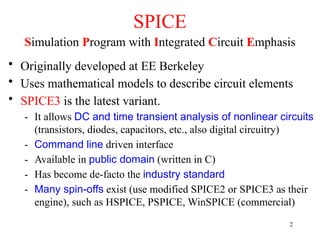
SPICE
Simulation Program withIntegrated Circuit Emphasis
• Originally developed at EE Berkeley
• Uses mathematical models to describe circuit elements
• SPICE3 is the latest variant.
- It allows DC and time transient analysis of nonlinear circuits
(transistors, diodes, capacitors, etc., also digital circuitry)
- Command line driven interface
- Available in public domain (written in C)
- Has become de-facto the industry standard
- Many spin-offs exist (use modified SPICE2 or SPICE3 as their
engine), such as HSPICE, PSPICE, WinSPICE (commercial)
2
Netlist (closer look)
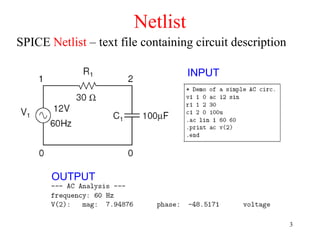
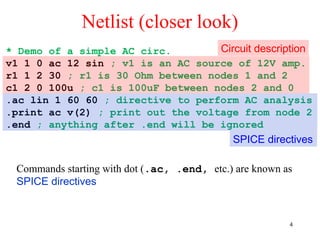
*Demo of a simple AC circ.
v1 1 0 ac 12 sin ; v1 is an AC source of 12V amp.
r1 1 2 30 ; r1 is 30 Ohm between nodes 1 and 2
c1 2 0 100u ; c1 is 100uF between nodes 2 and 0
.ac lin 1 60 60 ; directive to perform AC analysis
.print ac v(2) ; print out the voltage from node 2
.end ; anything after .end will be ignored
Commands starting with dot (.ac, .end, etc.) are known as
SPICE directives
Circuit description
SPICE directives
4
5.
LTspice IV
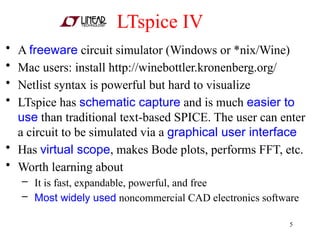
• Afreeware circuit simulator (Windows or *nix/Wine)
• Mac users: install http://winebottler.kronenberg.org/
• Netlist syntax is powerful but hard to visualize
• LTspice has schematic capture and is much easier to
use than traditional text-based SPICE. The user can enter
a circuit to be simulated via a graphical user interface
• Has virtual scope, makes Bode plots, performs FFT, etc.
• Worth learning about
– It is fast, expandable, powerful, and free
– Most widely used noncommercial CAD electronics software
5
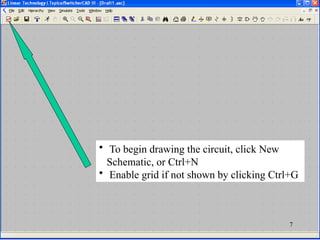
• To begindrawing the circuit, click New
Schematic, or Ctrl+N
• Enable grid if not shown by clicking Ctrl+G
7
8.
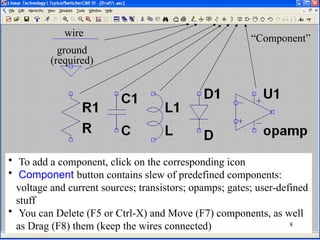
wire
ground
(required)
“Component”
• To adda component, click on the corresponding icon
• Component button contains slew of predefined components:
voltage and current sources; transistors; opamps; gates; user-defined
stuff
• You can Delete (F5 or Ctrl-X) and Move (F7) components, as well
as Drag (F8) them (keep the wires connected) 8
9.
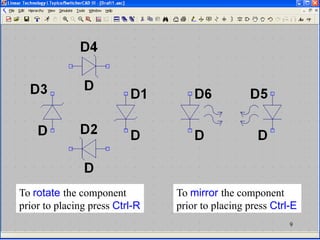
To rotate thecomponent
prior to placing press Ctrl-R
To mirror the component
prior to placing press Ctrl-E
9
10.
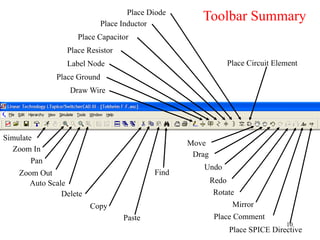
Place Circuit Element
DrawWire
Place Ground
Label Node
Place Resistor
Place Capacitor
Place Inductor
Place Diode
Move
Drag
Undo
Redo
Rotate
Mirror
Place Comment
Place SPICE Directive
Zoom In
Pan
Zoom Out
Auto Scale
Delete
Copy
Paste
Find
Simulate
Toolbar Summary
10
11.
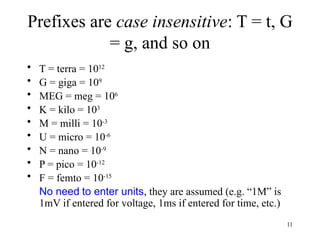
Prefixes are caseinsensitive: T = t, G
= g, and so on
• T = terra = 1012
• G = giga = 109
• MEG = meg = 106
• K = kilo = 103
• M = milli = 10-3
• U = micro = 10-6
• N = nano = 10-9
• P = pico = 10-12
• F = femto = 10-15
No need to enter units, they are assumed (e.g. “1M” is
1mV if entered for voltage, 1ms if entered for time, etc.)
11
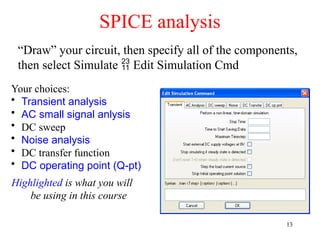
“Draw” your circuit,then specify all of the components,
then select Simulate Edit Simulation Cmd
Your choices:
• Transient analysis
• AC small signal anlysis
• DC sweep
• Noise analysis
• DC transfer function
• DC operating point (Q-pt)
Highlighted is what you will
be using in this course
SPICE analysis
13
14.
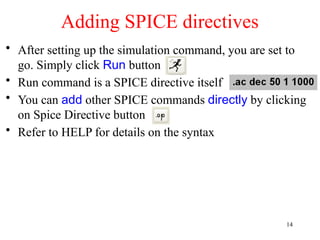
• After settingup the simulation command, you are set to
go. Simply click Run button
• Run command is a SPICE directive itself
• You can add other SPICE commands directly by clicking
on Spice Directive button
• Refer to HELP for details on the syntax
Adding SPICE directives
14
15.
• Your homeassignment for this week includes working
your way through Supplement Part 1 (a tutorial) then
working home problems using LTspice.
• Install LTspice on your own computer. LTspice is installed
on all lab computers and in A&EP computer room
• Supplement Part 2 contains LTspice experiments.
They will start after the break and are to be done in the
same way as the usual lab experiments, but using LTspice.
Print out results using the lab printers, attach them to
your lab report, etc.
• You can do LTspice experiments anywhere you have
access to LTspice, not just in the lab
SPICE use in this course
15
16.
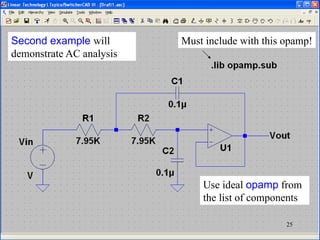
• We willlook at how to setup two examples
– Example1: crossover corrected push-pull amp (ex6.10)
– Example2: active filter
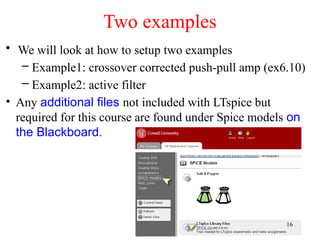
• Any additional files not included with LTspice but
required for this course are found under Spice models on
the Blackboard.
Two examples
16
17.
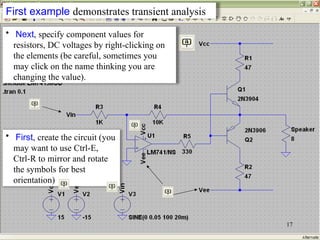
• First, createthe circuit (you
may want to use Ctrl-E,
Ctrl-R to mirror and rotate
the symbols for best
orientation)
17
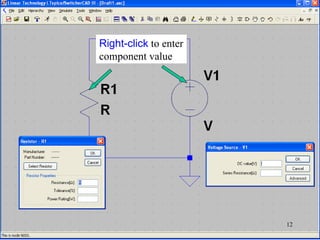
• Next, specify component values for
resistors, DC voltages by right-clicking on
the elements (be careful, sometimes you
may click on the name thinking you are
changing the value).
First example demonstrates transient analysis
18.
Assigning Vin
• Right-clickon Vin, then click Advanced. You will see a
window like this. Choose SINE Function.
Enter:
DC offset[V] : 0
Amplitudep[V]: 0.05
Freq[Hz]: 100
Tdelay[s]: 20m
18
19.
Assigning Diodes andTransistors
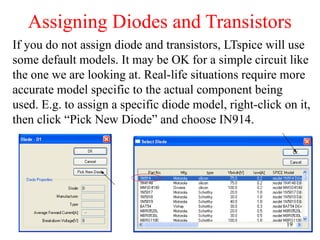
If you do not assign diode and transistors, LTspice will use
some default models. It may be OK for a simple circuit like
the one we are looking at. Real-life situations require more
accurate model specific to the actual component being
used. E.g. to assign a specific diode model, right-click on it,
then click “Pick New Diode” and choose IN914.
19
20.
Assigning Transistors andopamp
• Similarly, assign the transistors to be 2N3904 and 2N3906
• Note: you will find some familiar components missing
(e.g. LM741 op-amp); you have to add them to LTspice
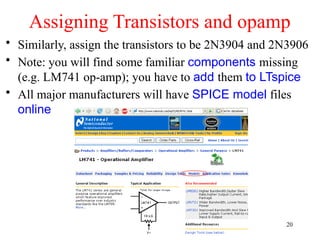
• All major manufacturers will have SPICE model files
online
20
21.
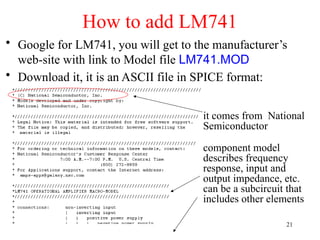
How to addLM741
• Google for LM741, you will get to the manufacturer’s
web-site with link to Model file LM741.MOD
• Download it, it is an ASCII file in SPICE format:
it comes from National
Semiconductor
component model
describes frequency
response, input and
output impedance, etc.
can be a subcircuit that
includes other elements
21
22.
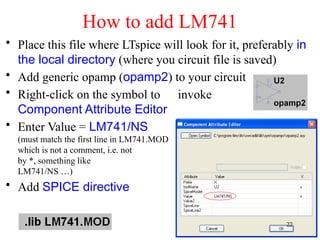
How to addLM741
• Place this file where LTspice will look for it, preferably in
the local directory (where you circuit file is saved)
• Add generic opamp (opamp2) to your circuit
• Right-click on the symbol to invoke
Component Attribute Editor
• Enter Value = LM741/NS
(must match the first line in LM741.MOD file,
which is not a comment, i.e. not preceded
by *, something like .SUBCKT
LM741/NS …)
• Add SPICE directive
22
23.
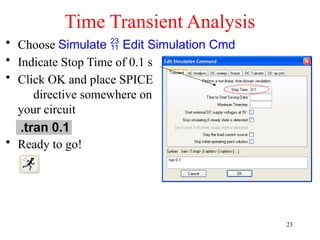
Time Transient Analysis
•Choose Simulate Edit Simulation Cmd
• Indicate Stop Time of 0.1 s
• Click OK and place SPICE
directive somewhere on
your circuit
• Ready to go!
23
24.
Looking at theresult
• LTspice has nice tools to look at the waveforms, voltages
or currents, FFT (Fourier Analysis), gain amplitude and
phase (in AC analysis)
• You can open multiple panes, plot signals versus time
or signal versus another signal
• You can zoom in, zoom out, also activate scope-like
cursor(s) for more accurate measurements on waveforms
• By default the mouse cursor transforms into voltage
probe, however, when hovering over a component (or
pressing Alt over wire), it transforms into current probe
• Pressing Alt over an element will report instantaneous
power drawn by the element (thermometer icon) 24
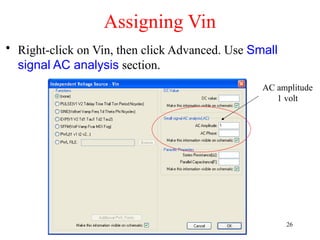
Assigning Vin
• Right-clickon Vin, then click Advanced. Use Small
signal AC analysis section.
AC amplitude
1 volt
26
27.
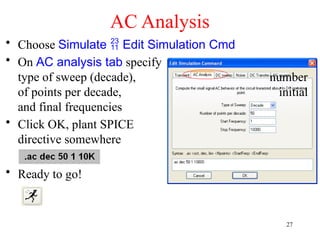
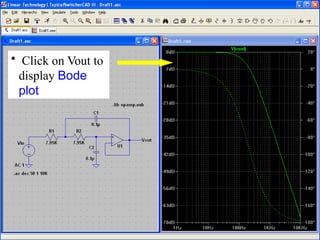
AC Analysis
• ChooseSimulate Edit Simulation Cmd
• On AC analysis tab specify
type of sweep (decade), number
of points per decade, initial
and final frequencies
• Click OK, plant SPICE
directive somewhere
• Ready to go!
27
Few gotchas
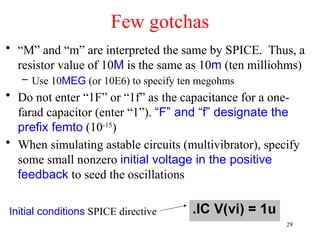
• “M”and “m” are interpreted the same by SPICE. Thus, a
resistor value of 10M is the same as 10m (ten milliohms)
– Use 10MEG (or 10E6) to specify ten megohms
• Do not enter “1F” or “1f” as the capacitance for a one-
farad capacitor (enter “1”). “F” and “f” designate the
prefix femto (10-15
)
• When simulating astable circuits (multivibrator), specify
some small nonzero initial voltage in the positive
feedback to seed the oscillations
Initial conditions SPICE directive
29
30.
Additional resources
• LTspiceSupplement (read Part 1 Tutorial this week)
• Documentation and examples installed with LTspice
• Our PHYS3360 mailing group
• Yahoo! LTspice group (great resource, kept active by
many thousands of users)
30
![Assigning Vin
• Right-click on Vin, then click Advanced. You will see a
window like this. Choose SINE Function.
Enter:
DC offset[V] : 0
Amplitudep[V]: 0.05
Freq[Hz]: 100
Tdelay[s]: 20m
18](https://image.slidesharecdn.com/ltspicelecture-250601100820-35caf206/85/LTspice_lecture-electronic-circuit-Modeling-pptx-18-320.jpg)


![LTspice getting started guide [2011]](https://cdn.slidesharecdn.com/ss_thumbnails/ltspicegettingstartedguide-160914203116-thumbnail.jpg?width=640&height=640&fit=bounds)


