LIPTON FIRE ALARMPROJECT
TRAINING SESSION
INTRODUCTION.
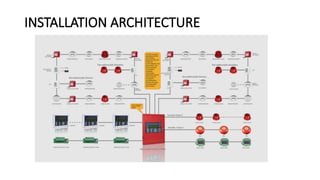
Fire alarm system is the system which is used for the safety purpose, its main
goal to alert people inside the building or a place where this system is installed
incase of fire or any emergency which requires people to evacuate the area.
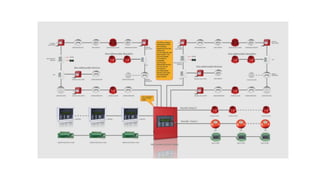
This system contains fire alarm control panel (FACP) and detection devices such
as smoke detectors, heat detectors and manual call points (MCPs), but also it
contains output devices such as sounder and beam lights.
2.
TRAINING SESSION
•In thissession we are going to conduct training in
three categories.
• End User Training (Security and safety officers)
• Technical Training (Engineering dept )
• Monitoring Software Training (Control room staff and
Engineering dept)
3.
END USER TRAINING…
In this categories we are going to show how to use and operate the FACP which are
installed in various area in Lipton premises as per scope. In case there is an alarm we
will teach users how to attend it starting from the panel, to the area where the fire is
triggered and if everything is fine, how to reset the system to normal operating state.
We will also teach users how to report the faults of the systems in case it happen and
how to handle them initially and then escalate them to the technical team.
We will also teach users to reset Manual call points in case the alarm was triggered
when the MCP is pressed.
4.
FAULT ALARMS ANDFIRE ALARMS
There are two type of alarm from the panel. Fault alarm and fire alarm. Fault
Alarm sound only at the panel buzzer and it can be silenced by using the silence
buzzer button on the panel.
When alarm sound first of all is to evacuate the area, and safety officer or
security officer should check the panel to allocated the area which triggered the
alarm and checking if the specific area has fire or not. If everything is fine RESET
the panel to normal working state by pressing the RESET button on the panel.
5.
HOW TO RESETMCPs…
If the fire alarm was triggered by Manual call point (MCP) as indicated on the
panel, you should first indicate the MCP as per name displayed on the screen of
the panel. You can identify the pressed MCP by checking the red LED on the MCP
and yellow strip on the MCP face plate.
Once you identified it you should use the special key which is available with the
panel keys to reset the MCP by inserting it below the MCP and pull down the
faceplate of the MCP and push it back up. After that you should press the RESET
button on the panel.
6.
HOW TO HANDLEFAULT….
Once the fault is displayed on the panel, as all other faults and alarms will be
also monitored in the Control Room and control room team will be working
with security officers all the time to make sure everything is under control.
When you see fault you need to report it to the control room after silencing
the panel buzzer for further instructions. There are some fault which requires
just a RESET button and others which requires technical assistant.
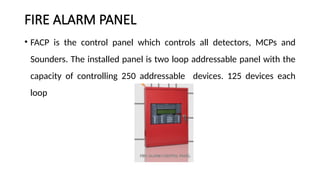
FIRE ALARM PANEL
•FACP is the control panel which controls all detectors, MCPs and
Sounders. The installed panel is two loop addressable panel with the
capacity of controlling 250 addressable devices. 125 devices each
loop
10.
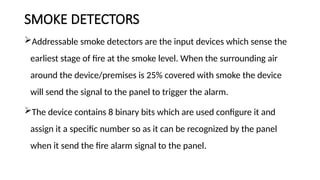
SMOKE DETECTORS
Addressable smokedetectors are the input devices which sense the
earliest stage of fire at the smoke level. When the surrounding air
around the device/premises is 25% covered with smoke the device
will send the signal to the panel to trigger the alarm.
The device contains 8 binary bits which are used configure it and
assign it a specific number so as it can be recognized by the panel
when it send the fire alarm signal to the panel.
11.
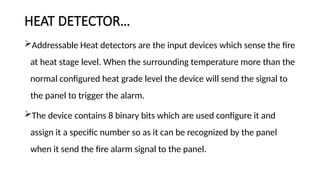
HEAT DETECTOR…
Addressable Heatdetectors are the input devices which sense the fire
at heat stage level. When the surrounding temperature more than the
normal configured heat grade level the device will send the signal to
the panel to trigger the alarm.
The device contains 8 binary bits which are used configure it and
assign it a specific number so as it can be recognized by the panel
when it send the fire alarm signal to the panel.
12.
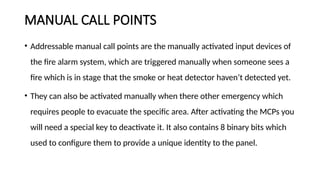
MANUAL CALL POINTS
•Addressable manual call points are the manually activated input devices of
the fire alarm system, which are triggered manually when someone sees a
fire which is in stage that the smoke or heat detector haven’t detected yet.
• They can also be activated manually when there other emergency which
requires people to evacuate the specific area. After activating the MCPs you
will need a special key to deactivate it. It also contains 8 binary bits which
used to configure them to provide a unique identity to the panel.
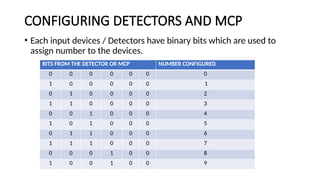
CONFIGURING DETECTORS ANDMCP
• Each input devices / Detectors have binary bits which are used to
assign number to the devices.
BITS FROM THE DETECTOR OR MCP NUMBER CONFIGURED
0 0 0 0 0 0 0
1 0 0 0 0 0 1
0 1 0 0 0 0 2
1 1 0 0 0 0 3
0 0 1 0 0 0 4
1 0 1 0 0 0 5
0 1 1 0 0 0 6
1 1 1 0 0 0 7
0 0 0 1 0 0 8
1 0 0 1 0 0 9
15.
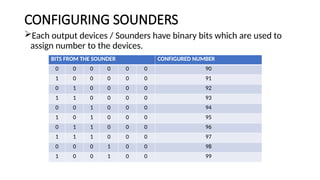
CONFIGURING SOUNDERS
Each outputdevices / Sounders have binary bits which are used to
assign number to the devices.
BITS FROM THE SOUNDER CONFIGURED NUMBER
0 0 0 0 0 0 90
1 0 0 0 0 0 91
0 1 0 0 0 0 92
1 1 0 0 0 0 93
0 0 1 0 0 0 94
1 0 1 0 0 0 95
0 1 1 0 0 0 96
1 1 1 0 0 0 97
0 0 0 1 0 0 98
1 0 0 1 0 0 99
16.
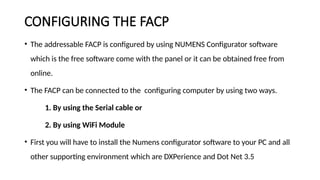
CONFIGURING THE FACP
•The addressable FACP is configured by using NUMENS Configurator software
which is the free software come with the panel or it can be obtained free from
online.
• The FACP can be connected to the configuring computer by using two ways.
1. By using the Serial cable or
2. By using WiFi Module
• First you will have to install the Numens configurator software to your PC and all
other supporting environment which are DXPerience and Dot Net 3.5
17.
BY USING SERIALCABLE
• The serial cable is connected on the serial port which is found on in the FACP and allow
connecting to the PC option in the FACP data transfer configuration option.
• After connecting the PC with the serial cable to the FACP, login into the FACP as admin by
pressing OK Key then Up Down Up Down Up as the password.
• After accessing the access level 3 go to 7 – General, then 7-3- Other Option, then 7-3-6 –
Configuring Data Transfer then go to connect to the PC option. Your FACP will be read to
connect to the PC.
• In the Numens configurator software set the communication port to the one similar with
com port installed i.e. COM3 or COM5 etc.
18.
BY USING WiFiModule
• You can also connect your PC to FACP by using WiFi Module by just connecting your
PC and FACP to the same Access Point (AP).
• For the FACP to connect to the AP you need to configure it in the data transfer option
under the option of configuring WiFi parameters, then go to connecting to AP
options and write the AP name and Password and allow it to connect.
• After connecting to the AP you will need to configure LAN Server at the same option
below the Connecting to AP option. The LAN server IP Address has to be the same as
the PC IP Address then configure the Port number and allow it to connect to LAN
Server. After successfully connection the status will change to Connected status.
19.
CONFIGURING DEVICE NAMESAND OTHER PARAMETERS.
• After connecting to the FACP with the Numens configurator software
you can read the devices from the panel and name them according to
the addressable number configured to the specific devices during
installation.
• After configuring the devices and assigning zones and configuring all
other parameter you can write the configured information to the
FACP by just pressing the write button on the software.
20.
MONITORING SOFTWARE TRAINING.
•All the panels are connected to the Lugoda HO Control room for
monitoring purpose. In the Control room there is a monitoring
software installed in one of the computer as per scope.
• The Griphic monitoring software will be conducted in the control
room more practical from the computer in the control room.
---THE END---