1
2
3
liking
ⓒ Copyright 2021| Ankush Choudhary | All Rights Reserved
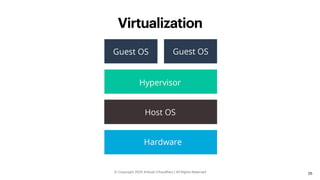
Virtualization
• There are softwares like VirtualBoX and VMware
• These help and create instances in our computer where we can run and
install other OS
• I am going to use VirtualBox as it if free to use and support for a lot of OS
• If you have a decent PC you can go ahead and install VirtualBox
25
ⓒ Copyright 2021| Ankush Choudhary | All Rights Reserved
Virtualization
26
ⓒ Copyright 2021| Ankush Choudhary | All Rights Reserved
Linux Directories
27
ⓒ Copyright 2021| Ankush Choudhary | All Rights Reserved
Directory & Description
28
ⓒ Copyright 2021| Ankush Choudhary | All Rights Reserved
Directory & Description
29
ⓒ Copyright 2021| Ankush Choudhary | All Rights Reserved
Directory & Description
30
ⓒ Copyright 2021| Ankush Choudhary | All Rights Reserved
Basic Commands
• whoami It is basically “who”,”am”,”i” as whoami.
• It displays the username of the current user when this
command is invoked.
• pwd present working directory
• When you first open the terminal, you are in the home
directory of your user. To know which directory you are in, you
can use the “pwd” command. It gives us the absolute path,
which means the path that starts from the root.
31
ⓒ Copyright 2021| Ankush Choudhary | All Rights Reserved
Basic Commands
• ls — Use the "ls" command to know what files are in the directory you are
in. You can see all the hidden files by using the command “ls -a”.
• ls -R shows sub directories
• ls -a shows hidden directories
• ls -l shows details like owner
and permissions
32
ⓒ Copyright 2021| Ankush Choudhary | All Rights Reserved
Basic Commands
• cd command in linux known as change directory command. It is used to
change current working directory.
• cd / changes directory to the root directory
• cd changes directory to the home directory
• cd ~ changes directory to the home directory can be to move
from one directory to some other directory inside home
• cd .. move one level up from the current directory. “..”
represents parent directory.
33
ⓒ Copyright 2021| Ankush Choudhary | All Rights Reserved
Basic Commands
• mkdir — to create a folder or a directory.
• rmdir — to delete a folder or a directory.
• touch — to create a file
• rm — to delete a file
34
ⓒ Copyright 2021| Ankush Choudhary | All Rights Reserved
Sudo
• sudo — A widely used command in the Linux command line, sudo stands
for "SuperUser Do". So, if you want any command to be done with
administrative or root privileges, you can use the sudo command. For
example, if you want to edit a file like viz. alsa-base.conf, which needs
root permissions, you can use the command – sudo nano alsa-base.conf.
• You can also use the command “su” and log in as super user
35
ⓒ Copyright 2021| Ankush Choudhary | All Rights Reserved
Getting help
• help — used to get more information on another command
• ls —help (to know more about command)
• man — used to display the user manual of any command that we can run
on the terminal
• man ls (to open manual page)
• q (to quit manual page)
• www.linux.org
36
ⓒ Copyright 2021| Ankush Choudhary | All Rights Reserved
Printing Contents of Files
• cat — to display the contents of a file.
• echo — The "echo" command helps us print something we can also move
some data, usually text into a file.
37
ⓒ Copyright 2021| Ankush Choudhary | All Rights Reserved
Printing contents of Files
• more — is quite similar to the cat command in case of larger files, the
more command displays screenful output at a time.
• ENTER key: To scroll down page by line.
• Space bar: To move to the next page.
• b key: To move to the previous page.
• / key: To search the string.
• less — is similar to the more command. It also includes some extra
features such as 'adjustment in width and height of the terminal.'
38
ⓒ Copyright 2021| Ankush Choudhary | All Rights Reserved
Printing contents of Files
• head — It displays the first 10 lines of a file.
• tail — it displays the last ten lines of the file content. It is useful for
reading the error message.
• tac — displays the file content in reverse order
39
ⓒ Copyright 2021| Ankush Choudhary | All Rights Reserved
Coping, moving, renaming Files
• cp — to copy files through the command line. It takes two arguments
location of file one and the one where we want to copy it.
• mv — Use the mv command to move files through the command line. We
can also use the mv command to rename a file.
40
ⓒ Copyright 2021| Ankush Choudhary | All Rights Reserved
Editors
• nano — is preinstalled text editors in the Linux command line. Good text
editor that denotes keywords with color and can recognize most
languages.A pseudo-graphical layout.
• To create or edit a file use command “nano check.txt”
• vi — Vi is created as a full-featured text editor. A bit advanced it has a edit
mode and an command mode to perform operations.
41
ⓒ Copyright 2021| Ankush Choudhary | All Rights Reserved
Find and Locate
• find — used to find a particular file within a directory
• (.) : For current directory name
• (/) : For root
• locate — used to search a file by file name. Similar to find command; the
difference is that it is a background process. It searches the file in the
database, whereas the find command searches in the file system. It is
faster, keep your database updated.
42
ⓒ Copyright 2021| Ankush Choudhary | All Rights Reserved
File Operations
• grep — The ‘grep‘ command searches the given file for lines containing a
match to the given strings or words. Search ‘/etc/passwd‘ for ‘tecmint‘
user.
• grep -i TECMINT /etc/passwd
• cmp — compare two files to the standard output. By default, ‘cmp‘
Returns 0 if the files are the same; if they differ, the byte and line number
at which the first difference occurred is reported. cmp file1.txt file2.txt
43
ⓒ Copyright 2021| Ankush Choudhary | All Rights Reserved
File Operations
• comm — compare two files to the standard output. Gives the output in
column as common and non common parts
44
ⓒ Copyright 2021| Ankush Choudhary | All Rights Reserved
pipe |
• A pipe is a form of redirection (transfer of standard output to some other
destination) that is used in Linux and other Unix-like operating systems to
send the output of one command/program/process to another
command/program/process for further processing.
• echo Hellopeople | sed 's/people/1'
45
ⓒ Copyright 2021| Ankush Choudhary | All Rights Reserved
sed
• sed — The sed command is also known as stream editor. It is used to edit
files using a regular expression. It does not permanently edit files; instead,
the edited content remains only on display. It does not affect the actual
file.
Syntax:
command | sed ’s/<oldWord>/<newWord>/'
Ex:
echo Hello people | sed 's/people/you/'
46
ⓒ Copyright 2021| Ankush Choudhary | All Rights Reserved
File Size
• df — df command shows available disk space in each of the partitions in the
system. Type df in the command line and you can see each mounted partition
and their used/available space in % and in KBs. “df -m” will show in megabytes.
• du — Use du to know the disk usage of a file in your system. If you want to
know the disk usage for a particular folder or file in Linux, you can type in the
command df and the name of the folder or file.
• You can also use the command “ls -lah” to view the file sizes of all the
files in a folder.
47
ⓒ Copyright 2021| Ankush Choudhary | All Rights Reserved
Compress and Decompress
• tar — Use tar to work with tarballs (or files compressed in a
tarball archive) in the Linux command line. It has a long list of
uses. It can be used to compress and uncompress different
types of tar archives like .tar, .tar.gz, .tar.bz2,etc.
• zip, unzip — Use zip to compress files into a zip archive, and
unzip to extract files from a zip archive.
48
ⓒ Copyright 2021| Ankush Choudhary | All Rights Reserved
System Info
• uname - Use uname to show the information
about the system your Linux distro is running.
Using the command “uname -a” prints most of
the information about the system. This prints the
kernel release date, version, processor type, etc.
• id — is used to display the user ID (UID) and group
ID (GID).
49
ⓒ Copyright 2021| Ankush Choudhary | All Rights Reserved
Utility Commands
• date — used to display date, time, time zone, and more.
• cal — used to display the current month's calendar with the current date
highlighted.
• sleep — used to hold the terminal by the specified amount of time. By
default, it takes time in seconds.
50
ⓒ Copyright 2021| Ankush Choudhary | All Rights Reserved
Utility Commands
• time — to display the time to execute a command.
• zcat — used to display the compressed files.
• mount — to connect an external device file system to the system's file
system.
51
ⓒ Copyright 2021| Ankush Choudhary | All Rights Reserved
Utility Commands
• exit — to exit from the current shell. It takes a parameter as a number and
exits the shell with a return of status number.
• clear — is used to clear the terminal screen.
• sudo shutdown — shuts down the computer
52
ⓒ Copyright 2021| Ankush Choudhary | All Rights Reserved
Utility Commands
• uptime — the time since the machine has been up
• alias — alias is a built in shell command that lets you assign name for a
long command or frequently used command.
alias l='ls -l’
• unalias — remove a existing alias
53
ⓒ Copyright 2021| Ankush Choudhary | All Rights Reserved
User Management
• useradd — used to add or remove a user on a Linux server.
• passwd — used to create and change the password for a user.
• groupadd — used to add a new user group
• To sin in as another user $ su - <UserID>
54
ⓒ Copyright 2021| Ankush Choudhary | All Rights Reserved
User Management Permissions
• ls -l lists with detail of read write and executable permissions and the
ownership and group associated with that file or folder.
r - - read only
- w- write only
- - x execute only
- w x write and execute
r - x read and execute
r w - read and write
r w x All
55
ⓒ Copyright 2021| Ankush Choudhary | All Rights Reserved
User Management Permissions
• How do I change the user/owner associated with file1?
# chown usr2 file1
• How do I change the group associated with file1?
# chown :groupA file1
• How do I change the owner and group at the same time for file2?
# chown user02:groupA file2
56
ⓒ Copyright 2021| Ankush Choudhary | All Rights Reserved
User Management Permissions
• chmod +rwx filename to add permissions.
• chmod -rwx directoryname to remove permissions.
• chmod +x filename to allow executable permissions.
• chmod -wx filename to take out write and executable permissions.
*This only changes the permissions for the owner of the file.
57
ⓒ Copyright 2021| Ankush Choudhary | All Rights Reserved
Change Permissions in Numeric Code
• Permission numbers are:
• 0 = —
• 1 = —x
• 2 = -w-
• 3 = -wx
• 4 = r-
• 5 = r-x
• 6 = rw-
• 7 = rwx
58
ⓒ Copyright 2021| Ankush Choudhary | All Rights Reserved
Change Permissions in Numeric Code
• For example:
• chmod 777 foldername will give read, write, and execute permissions for everyone.
• chmod 700 foldername will give read, write, and execute permissions for the user
only.
• chmod 327 foldername will give write and execute (3) permission for the user, w (2)
for the group, and read, write, and execute for the users.
59
ⓒ Copyright 2021| Ankush Choudhary | All Rights Reserved
Network
• hostname — It displays your hostname and typing in “hostname
-I” gives your IP.
• ping — Used to check your connection to a server. “ping
google.com”, it checks if it can connect to the server and
come back.
• host — displays IP address of given domain name and vice versa.
60
ⓒ Copyright 2021| Ankush Choudhary | All Rights Reserved
Network
• ifconfig — to look and see network settings and your ip
• ip a — an updated version of the ifconfig command. It is used to assign an
IP address, initialize an interface, disable an interface.
• curl ifconfig.me — to check your public ip
61
ⓒ Copyright 2021| Ankush Choudhary | All Rights Reserved
Firewall
• sudo ufw enable — to enable firewall
• sudo ufw status — to check the status of firewall
• sudo ufw allow http — to allow http traffic
• sudo ufw deny http — to deny http trafic
62
ⓒ Copyright 2021| Ankush Choudhary | All Rights Reserved
Firewall
• sudo ufw deny proto tcp from 13.37.46.71 to any port 22 — to reject out
ssh traffic form that ip
• sudo ufw delete deny http — to delete the rule
• sudo ufw reset — to set firewall to its default state
63
ⓒ Copyright 2021| Ankush Choudhary | All Rights Reserved
Memory
• free — the most widely used and without any doubt the most helpful, we
will mention its usage first. This command is used to check information
about the RAM usage by your system.
• vmstat — to view memory statistics
64
ⓒ Copyright 2021| Ankush Choudhary | All Rights Reserved
Running processes
• ps — it provides processes started in terminal. 'ps -e’ lists all the
processes in the system. ‘-f’ will give more details.
• top — It provides a dynamic real-time view of the running system. Usually,
this command shows the summary information of the system and the list
of processes or threads which are currently managed by the Linux Kernel.
65
ⓒ Copyright 2021| Ankush Choudhary | All Rights Reserved
Kill a process
• kill — find the pid of the process and then kill it.
to find pid of specific process - $ ps -e | grep <‘process name’>
then $ kill <PID>
• To kill processes using the top command. First, search for the process
that you want to kill and note the PID. Then, press k while top is running
(this is case sensitive). It will prompt you to enter the PID of the process
that you want to kill.
66
ⓒ Copyright 2021| Ankush Choudhary | All Rights Reserved
Running code (c program)
• gcc is the in-built compiler for ‘c‘ language in Linux Environment. A simple
c program, save it on ur desktop as hello.c (remember ‘.c‘ extension is
must).Might need to install dev library
$ sudo apt install libc6-dev
• Compile it
$ gcc hello.c
• Run it
$ ./a.out
67
ⓒ Copyright 2021| Ankush Choudhary | All Rights Reserved
Installing Apache
• Installing and creating apache server
$ sudo apt update
$ sudo apt install apache 2
• To check if apache server is up and running
$ sudo systemctl status apache2
Hit your IP in browser and see
68
ⓒ Copyright 2021| Ankush Choudhary | All Rights Reserved
Apache
• To restart apache server
$ sudo systemctl restart apache2
• To stop apache server
$ sudo systemctl stop apache2
• To start apache server
$ sudo systemctl start apache2
69
ⓒ Copyright 2021| Ankush Choudhary | All Rights Reserved
Apache
• Hit your IP in browser and see
• Write your first webpage go to
sudo nano /var/www/html/
70
ⓒ Copyright 2021| Ankush Choudhary | All Rights Reserved
Shell Scripts
• The basic concept of a shell script is a list of commands, which are listed
in the order of execution.
• The scrips have .sh extension
• This tells the system that the commands that follow are to be executed by
the Bourne shell. It's called a shebang because the # symbol is called a
hash, and the ! symbol is called a bang.
#!/bin/sh
71
ⓒ Copyright 2021| Ankush Choudhary | All Rights Reserved
Creating a script
• Write your script in *.sh file starting with #!/bin/sh and save it
• To make the script executable
$ chmod +x test.sh
• To execute the script
$ ./test.sh
72
ⓒ Copyright 2021| Ankush Choudhary | All Rights Reserved

Linux.pdf

  • 1.
  • 2.
  • 3.
  • 20.
  • 24.
    ⓒ Copyright 2021|Ankush Choudhary | All Rights Reserved
  • 25.
    Virtualization • There aresoftwares like VirtualBoX and VMware • These help and create instances in our computer where we can run and install other OS • I am going to use VirtualBox as it if free to use and support for a lot of OS • If you have a decent PC you can go ahead and install VirtualBox 25 ⓒ Copyright 2021| Ankush Choudhary | All Rights Reserved
  • 26.
    Virtualization 26 ⓒ Copyright 2021|Ankush Choudhary | All Rights Reserved
  • 27.
    Linux Directories 27 ⓒ Copyright2021| Ankush Choudhary | All Rights Reserved
  • 28.
    Directory & Description 28 ⓒCopyright 2021| Ankush Choudhary | All Rights Reserved
  • 29.
    Directory & Description 29 ⓒCopyright 2021| Ankush Choudhary | All Rights Reserved
  • 30.
    Directory & Description 30 ⓒCopyright 2021| Ankush Choudhary | All Rights Reserved
  • 31.
    Basic Commands • whoamiIt is basically “who”,”am”,”i” as whoami. • It displays the username of the current user when this command is invoked. • pwd present working directory • When you first open the terminal, you are in the home directory of your user. To know which directory you are in, you can use the “pwd” command. It gives us the absolute path, which means the path that starts from the root. 31 ⓒ Copyright 2021| Ankush Choudhary | All Rights Reserved
  • 32.
    Basic Commands • ls— Use the "ls" command to know what files are in the directory you are in. You can see all the hidden files by using the command “ls -a”. • ls -R shows sub directories • ls -a shows hidden directories • ls -l shows details like owner and permissions 32 ⓒ Copyright 2021| Ankush Choudhary | All Rights Reserved
  • 33.
    Basic Commands • cdcommand in linux known as change directory command. It is used to change current working directory. • cd / changes directory to the root directory • cd changes directory to the home directory • cd ~ changes directory to the home directory can be to move from one directory to some other directory inside home • cd .. move one level up from the current directory. “..” represents parent directory. 33 ⓒ Copyright 2021| Ankush Choudhary | All Rights Reserved
  • 34.
    Basic Commands • mkdir— to create a folder or a directory. • rmdir — to delete a folder or a directory. • touch — to create a file • rm — to delete a file 34 ⓒ Copyright 2021| Ankush Choudhary | All Rights Reserved
  • 35.
    Sudo • sudo —A widely used command in the Linux command line, sudo stands for "SuperUser Do". So, if you want any command to be done with administrative or root privileges, you can use the sudo command. For example, if you want to edit a file like viz. alsa-base.conf, which needs root permissions, you can use the command – sudo nano alsa-base.conf. • You can also use the command “su” and log in as super user 35 ⓒ Copyright 2021| Ankush Choudhary | All Rights Reserved
  • 36.
    Getting help • help— used to get more information on another command • ls —help (to know more about command) • man — used to display the user manual of any command that we can run on the terminal • man ls (to open manual page) • q (to quit manual page) • www.linux.org 36 ⓒ Copyright 2021| Ankush Choudhary | All Rights Reserved
  • 37.
    Printing Contents ofFiles • cat — to display the contents of a file. • echo — The "echo" command helps us print something we can also move some data, usually text into a file. 37 ⓒ Copyright 2021| Ankush Choudhary | All Rights Reserved
  • 38.
    Printing contents ofFiles • more — is quite similar to the cat command in case of larger files, the more command displays screenful output at a time. • ENTER key: To scroll down page by line. • Space bar: To move to the next page. • b key: To move to the previous page. • / key: To search the string. • less — is similar to the more command. It also includes some extra features such as 'adjustment in width and height of the terminal.' 38 ⓒ Copyright 2021| Ankush Choudhary | All Rights Reserved
  • 39.
    Printing contents ofFiles • head — It displays the first 10 lines of a file. • tail — it displays the last ten lines of the file content. It is useful for reading the error message. • tac — displays the file content in reverse order 39 ⓒ Copyright 2021| Ankush Choudhary | All Rights Reserved
  • 40.
    Coping, moving, renamingFiles • cp — to copy files through the command line. It takes two arguments location of file one and the one where we want to copy it. • mv — Use the mv command to move files through the command line. We can also use the mv command to rename a file. 40 ⓒ Copyright 2021| Ankush Choudhary | All Rights Reserved
  • 41.
    Editors • nano —is preinstalled text editors in the Linux command line. Good text editor that denotes keywords with color and can recognize most languages.A pseudo-graphical layout. • To create or edit a file use command “nano check.txt” • vi — Vi is created as a full-featured text editor. A bit advanced it has a edit mode and an command mode to perform operations. 41 ⓒ Copyright 2021| Ankush Choudhary | All Rights Reserved
  • 42.
    Find and Locate •find — used to find a particular file within a directory • (.) : For current directory name • (/) : For root • locate — used to search a file by file name. Similar to find command; the difference is that it is a background process. It searches the file in the database, whereas the find command searches in the file system. It is faster, keep your database updated. 42 ⓒ Copyright 2021| Ankush Choudhary | All Rights Reserved
  • 43.
    File Operations • grep— The ‘grep‘ command searches the given file for lines containing a match to the given strings or words. Search ‘/etc/passwd‘ for ‘tecmint‘ user. • grep -i TECMINT /etc/passwd • cmp — compare two files to the standard output. By default, ‘cmp‘ Returns 0 if the files are the same; if they differ, the byte and line number at which the first difference occurred is reported. cmp file1.txt file2.txt 43 ⓒ Copyright 2021| Ankush Choudhary | All Rights Reserved
  • 44.
    File Operations • comm— compare two files to the standard output. Gives the output in column as common and non common parts 44 ⓒ Copyright 2021| Ankush Choudhary | All Rights Reserved
  • 45.
    pipe | • Apipe is a form of redirection (transfer of standard output to some other destination) that is used in Linux and other Unix-like operating systems to send the output of one command/program/process to another command/program/process for further processing. • echo Hellopeople | sed 's/people/1' 45 ⓒ Copyright 2021| Ankush Choudhary | All Rights Reserved
  • 46.
    sed • sed —The sed command is also known as stream editor. It is used to edit files using a regular expression. It does not permanently edit files; instead, the edited content remains only on display. It does not affect the actual file. Syntax: command | sed ’s/<oldWord>/<newWord>/' Ex: echo Hello people | sed 's/people/you/' 46 ⓒ Copyright 2021| Ankush Choudhary | All Rights Reserved
  • 47.
    File Size • df— df command shows available disk space in each of the partitions in the system. Type df in the command line and you can see each mounted partition and their used/available space in % and in KBs. “df -m” will show in megabytes. • du — Use du to know the disk usage of a file in your system. If you want to know the disk usage for a particular folder or file in Linux, you can type in the command df and the name of the folder or file. • You can also use the command “ls -lah” to view the file sizes of all the files in a folder. 47 ⓒ Copyright 2021| Ankush Choudhary | All Rights Reserved
  • 48.
    Compress and Decompress •tar — Use tar to work with tarballs (or files compressed in a tarball archive) in the Linux command line. It has a long list of uses. It can be used to compress and uncompress different types of tar archives like .tar, .tar.gz, .tar.bz2,etc. • zip, unzip — Use zip to compress files into a zip archive, and unzip to extract files from a zip archive. 48 ⓒ Copyright 2021| Ankush Choudhary | All Rights Reserved
  • 49.
    System Info • uname- Use uname to show the information about the system your Linux distro is running. Using the command “uname -a” prints most of the information about the system. This prints the kernel release date, version, processor type, etc. • id — is used to display the user ID (UID) and group ID (GID). 49 ⓒ Copyright 2021| Ankush Choudhary | All Rights Reserved
  • 50.
    Utility Commands • date— used to display date, time, time zone, and more. • cal — used to display the current month's calendar with the current date highlighted. • sleep — used to hold the terminal by the specified amount of time. By default, it takes time in seconds. 50 ⓒ Copyright 2021| Ankush Choudhary | All Rights Reserved
  • 51.
    Utility Commands • time— to display the time to execute a command. • zcat — used to display the compressed files. • mount — to connect an external device file system to the system's file system. 51 ⓒ Copyright 2021| Ankush Choudhary | All Rights Reserved
  • 52.
    Utility Commands • exit— to exit from the current shell. It takes a parameter as a number and exits the shell with a return of status number. • clear — is used to clear the terminal screen. • sudo shutdown — shuts down the computer 52 ⓒ Copyright 2021| Ankush Choudhary | All Rights Reserved
  • 53.
    Utility Commands • uptime— the time since the machine has been up • alias — alias is a built in shell command that lets you assign name for a long command or frequently used command. alias l='ls -l’ • unalias — remove a existing alias 53 ⓒ Copyright 2021| Ankush Choudhary | All Rights Reserved
  • 54.
    User Management • useradd— used to add or remove a user on a Linux server. • passwd — used to create and change the password for a user. • groupadd — used to add a new user group • To sin in as another user $ su - <UserID> 54 ⓒ Copyright 2021| Ankush Choudhary | All Rights Reserved
  • 55.
    User Management Permissions •ls -l lists with detail of read write and executable permissions and the ownership and group associated with that file or folder. r - - read only - w- write only - - x execute only - w x write and execute r - x read and execute r w - read and write r w x All 55 ⓒ Copyright 2021| Ankush Choudhary | All Rights Reserved
  • 56.
    User Management Permissions •How do I change the user/owner associated with file1? # chown usr2 file1 • How do I change the group associated with file1? # chown :groupA file1 • How do I change the owner and group at the same time for file2? # chown user02:groupA file2 56 ⓒ Copyright 2021| Ankush Choudhary | All Rights Reserved
  • 57.
    User Management Permissions •chmod +rwx filename to add permissions. • chmod -rwx directoryname to remove permissions. • chmod +x filename to allow executable permissions. • chmod -wx filename to take out write and executable permissions. *This only changes the permissions for the owner of the file. 57 ⓒ Copyright 2021| Ankush Choudhary | All Rights Reserved
  • 58.
    Change Permissions inNumeric Code • Permission numbers are: • 0 = — • 1 = —x • 2 = -w- • 3 = -wx • 4 = r- • 5 = r-x • 6 = rw- • 7 = rwx 58 ⓒ Copyright 2021| Ankush Choudhary | All Rights Reserved
  • 59.
    Change Permissions inNumeric Code • For example: • chmod 777 foldername will give read, write, and execute permissions for everyone. • chmod 700 foldername will give read, write, and execute permissions for the user only. • chmod 327 foldername will give write and execute (3) permission for the user, w (2) for the group, and read, write, and execute for the users. 59 ⓒ Copyright 2021| Ankush Choudhary | All Rights Reserved
  • 60.
    Network • hostname —It displays your hostname and typing in “hostname -I” gives your IP. • ping — Used to check your connection to a server. “ping google.com”, it checks if it can connect to the server and come back. • host — displays IP address of given domain name and vice versa. 60 ⓒ Copyright 2021| Ankush Choudhary | All Rights Reserved
  • 61.
    Network • ifconfig —to look and see network settings and your ip • ip a — an updated version of the ifconfig command. It is used to assign an IP address, initialize an interface, disable an interface. • curl ifconfig.me — to check your public ip 61 ⓒ Copyright 2021| Ankush Choudhary | All Rights Reserved
  • 62.
    Firewall • sudo ufwenable — to enable firewall • sudo ufw status — to check the status of firewall • sudo ufw allow http — to allow http traffic • sudo ufw deny http — to deny http trafic 62 ⓒ Copyright 2021| Ankush Choudhary | All Rights Reserved
  • 63.
    Firewall • sudo ufwdeny proto tcp from 13.37.46.71 to any port 22 — to reject out ssh traffic form that ip • sudo ufw delete deny http — to delete the rule • sudo ufw reset — to set firewall to its default state 63 ⓒ Copyright 2021| Ankush Choudhary | All Rights Reserved
  • 64.
    Memory • free —the most widely used and without any doubt the most helpful, we will mention its usage first. This command is used to check information about the RAM usage by your system. • vmstat — to view memory statistics 64 ⓒ Copyright 2021| Ankush Choudhary | All Rights Reserved
  • 65.
    Running processes • ps— it provides processes started in terminal. 'ps -e’ lists all the processes in the system. ‘-f’ will give more details. • top — It provides a dynamic real-time view of the running system. Usually, this command shows the summary information of the system and the list of processes or threads which are currently managed by the Linux Kernel. 65 ⓒ Copyright 2021| Ankush Choudhary | All Rights Reserved
  • 66.
    Kill a process •kill — find the pid of the process and then kill it. to find pid of specific process - $ ps -e | grep <‘process name’> then $ kill <PID> • To kill processes using the top command. First, search for the process that you want to kill and note the PID. Then, press k while top is running (this is case sensitive). It will prompt you to enter the PID of the process that you want to kill. 66 ⓒ Copyright 2021| Ankush Choudhary | All Rights Reserved
  • 67.
    Running code (cprogram) • gcc is the in-built compiler for ‘c‘ language in Linux Environment. A simple c program, save it on ur desktop as hello.c (remember ‘.c‘ extension is must).Might need to install dev library $ sudo apt install libc6-dev • Compile it $ gcc hello.c • Run it $ ./a.out 67 ⓒ Copyright 2021| Ankush Choudhary | All Rights Reserved
  • 68.
    Installing Apache • Installingand creating apache server $ sudo apt update $ sudo apt install apache 2 • To check if apache server is up and running $ sudo systemctl status apache2 Hit your IP in browser and see 68 ⓒ Copyright 2021| Ankush Choudhary | All Rights Reserved
  • 69.
    Apache • To restartapache server $ sudo systemctl restart apache2 • To stop apache server $ sudo systemctl stop apache2 • To start apache server $ sudo systemctl start apache2 69 ⓒ Copyright 2021| Ankush Choudhary | All Rights Reserved
  • 70.
    Apache • Hit yourIP in browser and see • Write your first webpage go to sudo nano /var/www/html/ 70 ⓒ Copyright 2021| Ankush Choudhary | All Rights Reserved
  • 71.
    Shell Scripts • Thebasic concept of a shell script is a list of commands, which are listed in the order of execution. • The scrips have .sh extension • This tells the system that the commands that follow are to be executed by the Bourne shell. It's called a shebang because the # symbol is called a hash, and the ! symbol is called a bang. #!/bin/sh 71 ⓒ Copyright 2021| Ankush Choudhary | All Rights Reserved
  • 72.
    Creating a script •Write your script in *.sh file starting with #!/bin/sh and save it • To make the script executable $ chmod +x test.sh • To execute the script $ ./test.sh 72 ⓒ Copyright 2021| Ankush Choudhary | All Rights Reserved