INTERNALS OF LINUX
CONTAINERS
NOISY
NEIGHBOUR
PROBLEM?
ISOLATION
• As far as a process is concerned, it has the whole system to
itself.
• A process should only know about the resources it has access
to.
• A process should only worry about itself and not other
processes.
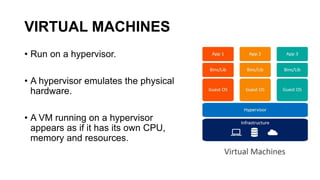
VIRTUAL MACHINES
• Run on a hypervisor.
• A hypervisor emulates the physical
hardware.
• A VM running on a hypervisor
appears as if it has its own CPU,
memory and resources.
QUIZ: WHAT ARE TYPE 1 &TYPE 2 HYPERVISORS?
VIRTUAL MACHINES: DISADVANTAGES
• Too much time to load, because it goes through the same boot
process as the OS running.
• Hence, Heavy.
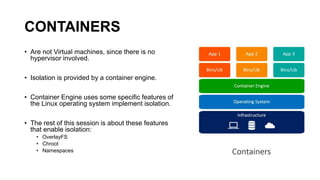
CONTAINERS
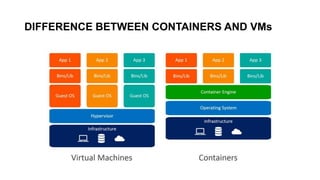
• Are not Virtual machines, since there is no
hypervisor involved.
• Isolation is provided by a container engine.
• Container Engine uses some specific features of
the Linux operating system implement isolation.
• The rest of this session is about these features
that enable isolation:
• OverlayFS
• Chroot
• Namespaces
DIFFERENCE BETWEEN CONTAINERS AND VMs
CONTAINERS
• Quick intro
• A logical way to package
applications
• Provides isolated execution
environments
• Composable
• Portable
# Example Dockerfile
FROM ubuntu
MAINTAINER asbilgi@microsoft.com
RUN apt-get update
RUN apt-get install –y python
CMD [/bin/bash]
CONTAINERS
• Use features of the Linux operating system to implement isolation.
• The rest of this session is about those Linux Operating System Features.
• If you know these Linux Operating System features, you can write your own container
runtime, like docker, containerd, rkt, podman, etc.
• Even if you do not plan to write your own container runtime, it is good to know how
containers work.
CONTAINER FILE SYSTEM
• Let us see what a docker image’s directory structure looks like.
• Let’s see a demo
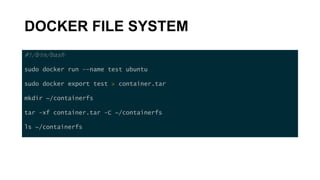
DOCKER FILE SYSTEM
#!/bin/bash
sudo docker run –-name test ubuntu
sudo docker export test > container.tar
mkdir ~/containerfs
tar -xf container.tar -C ~/containerfs
ls ~/containerfs
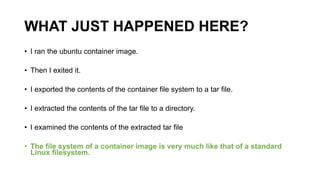
WHAT JUST HAPPENED HERE?
• I ran the ubuntu container image.
• Then I exited it.
• I exported the contents of the container file system to a tar file.
• I extracted the contents of the tar file to a directory.
• I examined the contents of the extracted tar file
• The file system of a container image is very much like that of a standard
Linux filesystem.
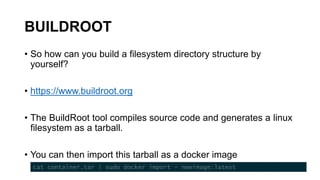
BUILDROOT
BUILDROOT
• So how can you build a filesystem directory structure by
yourself?
• https://www.buildroot.org
• The BuildRoot tool compiles source code and generates a linux
filesystem as a tarball.
• You can then import this tarball as a docker image
cat container.tar | sudo docker import - newimage:latest
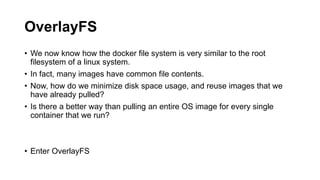
OverlayFS
OverlayFS
• We now know how the docker file system is very similar to the root
filesystem of a linux system.
• In fact, many images have common file contents.
• Now, how do we minimize disk space usage, and reuse images that we
have already pulled?
• Is there a better way than pulling an entire OS image for every single
container that we run?
• Enter OverlayFS
OverlayFS
• OverlayFS allows you to merge multiple directories and present
them as a single filesystem.
• This is great for sharing common files across multiple programs,
without having to duplicate them.
• Let us see a demo
OverlayFS
#!/bin/bash
pushd ~
mkdir test
pushd test
mkdir upper lower work merged
echo "This is in lower" > lower/lower_1.txt
echo "This is in upper" > upper/upper_1.txt
echo "This is in lower" > lower/both_1.txt
echo "This is in upper" > upper/both_1.txt
sudo mount -t overlay overlay -o 
lowerdir=/home/vagrant/test/lower,upperdir=/home/vagrant/test/upper,workdir=/home/vagrant/test/work 
/home/vagrant/test/merged
ls /home/vagrant/test/merged
WHAT JUST HAPPENED HERE?
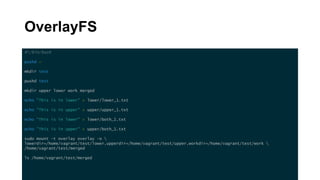
• I created 4 directories: upper, lower, work, and merged.
• I created some files in the upper and lower directories.
• I created an overlay filesystem using the upper and lower directories and
mounted them onto the merge directory.
• I examined the contents of the merged directory.
• We can observe that the contents of upper and lower have been presented
as a single, merged, filesystem.
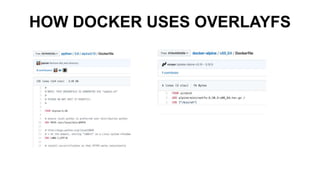
HOW DOCKER USES OVERLAYFS
CHROOT
CHROOT
• Provides filesystem level isolation.
• A process can view its files alone and not the system’s.
CHROOT
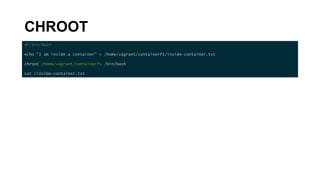
#!/bin/bash
echo ”I am inside a container” > /home/vagrant/containerfs/inside-container.txt
chroot /home/vagrant/containerfs /bin/bash
cat /inside-container.txt
WHAT JUST HAPPENED HERE?
• I created a file inside the container file system.
• Using the chroot command, I invoked the shell binary “/bin/bash”.
• This started a process which ran the bash shell.
• The chroot command restricted this bash processes view of the filesystem to the
containerfs directory.
• I could now see the file that I created, in the root directory.
NAMESPACES
• So how do we contain the processes?
• We use a Linux kernel feature called namespaces.
• Namespaces isolate processes:
• A process can only see other processes belonging to the same
namespace.
TYPES OF NAMESPACES
• Process
• User ID
• UTS
• Mount
• CGroup
• Network
• IPC
PREREQUISITES:
LEARN JUST ENOUGH GOLANG
JUST ENOUGH GOLANG
package main
import (
"fmt"
"log"
"os"
"os/exec"
"syscall"
)
func main() {
fmt.Println("Entering go program")
cmd := exec.Command("/bin/bash")
cmd.Stdout = os.Stdout
cmd.Stderr = os.Stderr
cmd.Stdin = os.Stdin
cmd.SysProcAttr = &syscall.SysProcAttr{}
if err := cmd.Run(); err != nil {
log.Fatal(err)
}
fmt.Println("Exiting go program")
}
WHAT JUST HAPPENED HERE?
• I ran a go program that invoked a new process.
• This new process is a bash shell.
• When I exit the bash shell, the go program will also terminate.
• Currently, this bash shell is unrestricted; it has access to the rest of the system.
• This is our container runtime; albeit a rather shitty one. It doesn’t contain
anything!
• ... at least, not yet 
JUST ENOUGH GOLANG
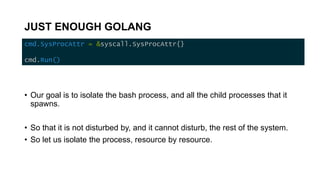
cmd.SysProcAttr = &syscall.SysProcAttr{}
cmd.Run()
• Our goal is to isolate the bash process, and all the child processes that it
spawns.
• So that it is not disturbed by, and it cannot disturb, the rest of the system.
• So let us isolate the process, resource by resource.
PROCESS NAMESPACES
PROCESS NAMESPACES
• We want the processes running inside the container to think
that it is the only process running there.
• This is where we have process namespaces
• Let’s see a demo
PROCESS NAMESPACES
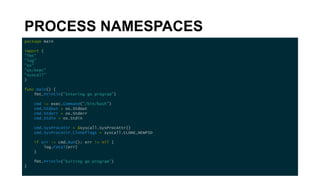
package main
import (
"fmt"
"log"
"os"
"os/exec"
"syscall"
)
func main() {
fmt.Println("Entering go program")
cmd := exec.Command("/bin/bash")
cmd.Stdout = os.Stdout
cmd.Stderr = os.Stderr
cmd.Stdin = os.Stdin
cmd.SysProcAttr = &syscall.SysProcAttr{}
cmd.SysProcAttr.Cloneflags = syscall.CLONE_NEWPID
if err := cmd.Run(); err != nil {
log.Fatal(err)
}
fmt.Println("Exiting go program")
}
WHAT JUST HAPPENED HERE?
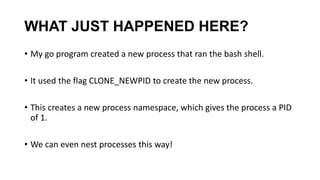
• My go program created a new process that ran the bash shell.
• It used the flag CLONE_NEWPID to create the new process.
• This creates a new process namespace, which gives the process a PID
of 1.
• We can even nest processes this way!
USER NAMESPACE
USER NAMESPACE
• Allows a process to have arbitrary user and group ids within the
namespace.
• i.e. UID 42, GID 42.
• Let’s see a demo.
USER NAMESPACE
cmd.SysProcAttr = &syscall.SysProcAttr{
Cloneflags: syscall.CLONE_NEWPID | syscall.CLONE_NEWUSER,
UidMappings: []syscall.SysProcIDMap{
{
ContainerID: 42,
HostID: os.Getuid(),
Size: 1,
},
},
GidMappings: []syscall.SysProcIDMap{
{
ContainerID: 42,
HostID: os.Getgid(),
Size: 1,
},
},
}
WHAT JUST HAPPENED HERE?
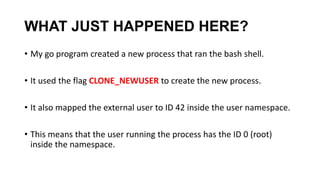
• My go program created a new process that ran the bash shell.
• It used the flag CLONE_NEWUSER to create the new process.
• It also mapped the external user to ID 42 inside the user namespace.
• This means that the user running the process has the ID 0 (root)
inside the namespace.
UTS NAMESPACE
UTS NAMESPACE
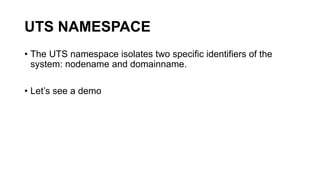
• The UTS namespace isolates two specific identifiers of the
system: nodename and domainname.
• Let’s see a demo
UTS NAMESPACE
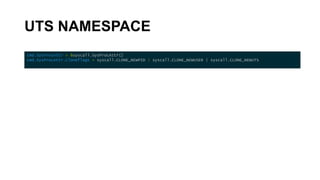
cmd.SysProcAttr = &syscall.SysProcAttr{}
cmd.SysProcAttr.Cloneflags = syscall.CLONE_NEWPID | syscall.CLONE_NEWUSER | syscall.CLONE_NEWUTS
WHAT JUST HAPPENED HERE?
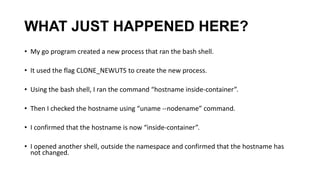
• My go program created a new process that ran the bash shell.
• It used the flag CLONE_NEWUTS to create the new process.
• Using the bash shell, I ran the command “hostname inside-container”.
• Then I checked the hostname using “uname --nodename” command.
• I confirmed that the hostname is now “inside-container”.
• I opened another shell, outside the namespace and confirmed that the hostname has
not changed.
MOUNT NAMESPACE
MOUNT NAMESPACE
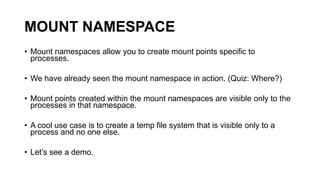
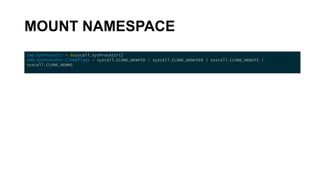
• Mount namespaces allow you to create mount points specific to
processes.
• We have already seen the mount namespace in action. (Quiz: Where?)
• Mount points created within the mount namespaces are visible only to the
processes in that namespace.
• A cool use case is to create a temp file system that is visible only to a
process and no one else.
• Let’s see a demo.
MOUNT NAMESPACE
cmd.SysProcAttr = &syscall.SysProcAttr{}
cmd.SysProcAttr.Cloneflags = syscall.CLONE_NEWPID | syscall.CLONE_NEWUSER | syscall.CLONE_NEWUTS |
syscall.CLONE_NEWNS
WHAT JUST HAPPENED HERE?
• I launched a shell with its own mount namespace.
• Created a temp directory using “mkdir /tmp/testmount”.
• “mount -n -o size=1m -t tmpfs tmpfs /tmp/testmount” to mount a temp
file system.
• Created some files in the temp file system.
• Inspected the contents of the /tmp/testmount temp directory, verify that
the mount was not visible outside the namespace.
NETWORK NAMESPACES
NETWORK NAMESPACES
• The network namespace isolates the process’s view of the
network
• Let’s see a demo
NETWORK NAMESPACE
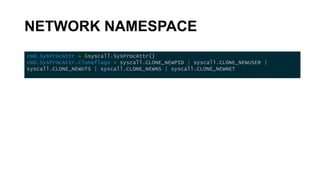
cmd.SysProcAttr = &syscall.SysProcAttr{}
cmd.SysProcAttr.Cloneflags = syscall.CLONE_NEWPID | syscall.CLONE_NEWUSER |
syscall.CLONE_NEWUTS | syscall.CLONE_NEWNS | syscall.CLONE_NEWNET
WHAT JUST HAPPENED HERE?
• I ran “ip link” command to display all the devices in the link layer.
• It showed all the link layer devices.
• My go program created a new process that ran the bash shell.
• It used the flag CLONE_NEWNET to create the new process.
• Using the bash shell, I ran “ip link” again.
• This time, it showed only the loopback device. The other network interfaces were
not available inside the network namespace.
NETWORK NAMESPACE
• Container networking is vast.
• The network setup we saw inside the namespace is not usable.
NETWORK NAMESPACE
• To make it work, we need to
• set up additional “virtual” network interfaces
• create Ethernet bridges (connect two separate networks as if they were
a single network)
• Have a routing process in the global network namespace to receive
traffic from the physical interface
• Route it through the appropriate virtual interfaces to to the correct child
network namespaces.
NETWORK NAMESPACE
• There are a lot of libraries and packages that do this for you in
the container world
https://kubernetes.io/docs/concepts/cluster-administration/networking/
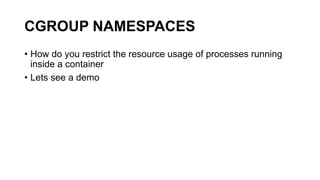
CGROUP NAMESPACES
CGROUP NAMESPACES
• How do you restrict the resource usage of processes running
inside a container
• Lets see a demo
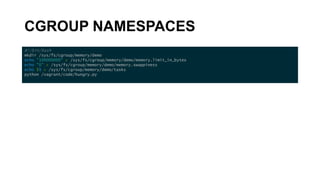
CGROUP NAMESPACES
#!/bin/bash
mkdir /sys/fs/cgroup/memory/demo
echo "100000000" > /sys/fs/cgroup/memory/demo/memory.limit_in_bytes
echo "0" > /sys/fs/cgroup/memory/demo/memory.swappiness
echo $$ > /sys/fs/cgroup/memory/demo/tasks
python /vagrant/code/hungry.py
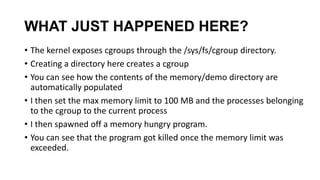
WHAT JUST HAPPENED HERE?
• The kernel exposes cgroups through the /sys/fs/cgroup directory.
• Creating a directory here creates a cgroup
• You can see how the contents of the memory/demo directory are
automatically populated
• I then set the max memory limit to 100 MB and the processes belonging
to the cgroup to the current process
• I then spawned off a memory hungry program.
• You can see that the program got killed once the memory limit was
exceeded.
Future proposed Namespaces
• Syslog namespace
• Time namespace
QUESTIONS?
Source code
https://github.com/ashwnacharya/containers_from_scratch_talk
THANK YOU!

Linux container internals

  • 1.
  • 2.
  • 3.
    ISOLATION • As faras a process is concerned, it has the whole system to itself. • A process should only know about the resources it has access to. • A process should only worry about itself and not other processes.
  • 4.
    VIRTUAL MACHINES • Runon a hypervisor. • A hypervisor emulates the physical hardware. • A VM running on a hypervisor appears as if it has its own CPU, memory and resources.
  • 5.
    QUIZ: WHAT ARETYPE 1 &TYPE 2 HYPERVISORS?
  • 6.
    VIRTUAL MACHINES: DISADVANTAGES •Too much time to load, because it goes through the same boot process as the OS running. • Hence, Heavy.
  • 7.
    CONTAINERS • Are notVirtual machines, since there is no hypervisor involved. • Isolation is provided by a container engine. • Container Engine uses some specific features of the Linux operating system implement isolation. • The rest of this session is about these features that enable isolation: • OverlayFS • Chroot • Namespaces
  • 8.
  • 9.
    CONTAINERS • Quick intro •A logical way to package applications • Provides isolated execution environments • Composable • Portable # Example Dockerfile FROM ubuntu MAINTAINER asbilgi@microsoft.com RUN apt-get update RUN apt-get install –y python CMD [/bin/bash]
  • 10.
    CONTAINERS • Use featuresof the Linux operating system to implement isolation. • The rest of this session is about those Linux Operating System Features. • If you know these Linux Operating System features, you can write your own container runtime, like docker, containerd, rkt, podman, etc. • Even if you do not plan to write your own container runtime, it is good to know how containers work.
  • 11.
  • 12.
    CONTAINER FILE SYSTEM •Let us see what a docker image’s directory structure looks like. • Let’s see a demo
  • 13.
    DOCKER FILE SYSTEM #!/bin/bash sudodocker run –-name test ubuntu sudo docker export test > container.tar mkdir ~/containerfs tar -xf container.tar -C ~/containerfs ls ~/containerfs
  • 14.
    WHAT JUST HAPPENEDHERE? • I ran the ubuntu container image. • Then I exited it. • I exported the contents of the container file system to a tar file. • I extracted the contents of the tar file to a directory. • I examined the contents of the extracted tar file • The file system of a container image is very much like that of a standard Linux filesystem.
  • 15.
  • 16.
    BUILDROOT • So howcan you build a filesystem directory structure by yourself? • https://www.buildroot.org • The BuildRoot tool compiles source code and generates a linux filesystem as a tarball. • You can then import this tarball as a docker image cat container.tar | sudo docker import - newimage:latest
  • 17.
  • 18.
    OverlayFS • We nowknow how the docker file system is very similar to the root filesystem of a linux system. • In fact, many images have common file contents. • Now, how do we minimize disk space usage, and reuse images that we have already pulled? • Is there a better way than pulling an entire OS image for every single container that we run? • Enter OverlayFS
  • 19.
    OverlayFS • OverlayFS allowsyou to merge multiple directories and present them as a single filesystem. • This is great for sharing common files across multiple programs, without having to duplicate them. • Let us see a demo
  • 20.
    OverlayFS #!/bin/bash pushd ~ mkdir test pushdtest mkdir upper lower work merged echo "This is in lower" > lower/lower_1.txt echo "This is in upper" > upper/upper_1.txt echo "This is in lower" > lower/both_1.txt echo "This is in upper" > upper/both_1.txt sudo mount -t overlay overlay -o lowerdir=/home/vagrant/test/lower,upperdir=/home/vagrant/test/upper,workdir=/home/vagrant/test/work /home/vagrant/test/merged ls /home/vagrant/test/merged
  • 21.
    WHAT JUST HAPPENEDHERE? • I created 4 directories: upper, lower, work, and merged. • I created some files in the upper and lower directories. • I created an overlay filesystem using the upper and lower directories and mounted them onto the merge directory. • I examined the contents of the merged directory. • We can observe that the contents of upper and lower have been presented as a single, merged, filesystem.
  • 22.
    HOW DOCKER USESOVERLAYFS
  • 23.
  • 24.
    CHROOT • Provides filesystemlevel isolation. • A process can view its files alone and not the system’s.
  • 25.
    CHROOT #!/bin/bash echo ”I aminside a container” > /home/vagrant/containerfs/inside-container.txt chroot /home/vagrant/containerfs /bin/bash cat /inside-container.txt
  • 26.
    WHAT JUST HAPPENEDHERE? • I created a file inside the container file system. • Using the chroot command, I invoked the shell binary “/bin/bash”. • This started a process which ran the bash shell. • The chroot command restricted this bash processes view of the filesystem to the containerfs directory. • I could now see the file that I created, in the root directory.
  • 27.
    NAMESPACES • So howdo we contain the processes? • We use a Linux kernel feature called namespaces. • Namespaces isolate processes: • A process can only see other processes belonging to the same namespace.
  • 28.
    TYPES OF NAMESPACES •Process • User ID • UTS • Mount • CGroup • Network • IPC
  • 29.
  • 30.
    JUST ENOUGH GOLANG packagemain import ( "fmt" "log" "os" "os/exec" "syscall" ) func main() { fmt.Println("Entering go program") cmd := exec.Command("/bin/bash") cmd.Stdout = os.Stdout cmd.Stderr = os.Stderr cmd.Stdin = os.Stdin cmd.SysProcAttr = &syscall.SysProcAttr{} if err := cmd.Run(); err != nil { log.Fatal(err) } fmt.Println("Exiting go program") }
  • 31.
    WHAT JUST HAPPENEDHERE? • I ran a go program that invoked a new process. • This new process is a bash shell. • When I exit the bash shell, the go program will also terminate. • Currently, this bash shell is unrestricted; it has access to the rest of the system. • This is our container runtime; albeit a rather shitty one. It doesn’t contain anything! • ... at least, not yet 
  • 32.
    JUST ENOUGH GOLANG cmd.SysProcAttr= &syscall.SysProcAttr{} cmd.Run() • Our goal is to isolate the bash process, and all the child processes that it spawns. • So that it is not disturbed by, and it cannot disturb, the rest of the system. • So let us isolate the process, resource by resource.
  • 33.
  • 34.
    PROCESS NAMESPACES • Wewant the processes running inside the container to think that it is the only process running there. • This is where we have process namespaces • Let’s see a demo
  • 35.
    PROCESS NAMESPACES package main import( "fmt" "log" "os" "os/exec" "syscall" ) func main() { fmt.Println("Entering go program") cmd := exec.Command("/bin/bash") cmd.Stdout = os.Stdout cmd.Stderr = os.Stderr cmd.Stdin = os.Stdin cmd.SysProcAttr = &syscall.SysProcAttr{} cmd.SysProcAttr.Cloneflags = syscall.CLONE_NEWPID if err := cmd.Run(); err != nil { log.Fatal(err) } fmt.Println("Exiting go program") }
  • 36.
    WHAT JUST HAPPENEDHERE? • My go program created a new process that ran the bash shell. • It used the flag CLONE_NEWPID to create the new process. • This creates a new process namespace, which gives the process a PID of 1. • We can even nest processes this way!
  • 37.
  • 38.
    USER NAMESPACE • Allowsa process to have arbitrary user and group ids within the namespace. • i.e. UID 42, GID 42. • Let’s see a demo.
  • 39.
    USER NAMESPACE cmd.SysProcAttr =&syscall.SysProcAttr{ Cloneflags: syscall.CLONE_NEWPID | syscall.CLONE_NEWUSER, UidMappings: []syscall.SysProcIDMap{ { ContainerID: 42, HostID: os.Getuid(), Size: 1, }, }, GidMappings: []syscall.SysProcIDMap{ { ContainerID: 42, HostID: os.Getgid(), Size: 1, }, }, }
  • 40.
    WHAT JUST HAPPENEDHERE? • My go program created a new process that ran the bash shell. • It used the flag CLONE_NEWUSER to create the new process. • It also mapped the external user to ID 42 inside the user namespace. • This means that the user running the process has the ID 0 (root) inside the namespace.
  • 41.
  • 42.
    UTS NAMESPACE • TheUTS namespace isolates two specific identifiers of the system: nodename and domainname. • Let’s see a demo
  • 43.
    UTS NAMESPACE cmd.SysProcAttr =&syscall.SysProcAttr{} cmd.SysProcAttr.Cloneflags = syscall.CLONE_NEWPID | syscall.CLONE_NEWUSER | syscall.CLONE_NEWUTS
  • 44.
    WHAT JUST HAPPENEDHERE? • My go program created a new process that ran the bash shell. • It used the flag CLONE_NEWUTS to create the new process. • Using the bash shell, I ran the command “hostname inside-container”. • Then I checked the hostname using “uname --nodename” command. • I confirmed that the hostname is now “inside-container”. • I opened another shell, outside the namespace and confirmed that the hostname has not changed.
  • 45.
  • 46.
    MOUNT NAMESPACE • Mountnamespaces allow you to create mount points specific to processes. • We have already seen the mount namespace in action. (Quiz: Where?) • Mount points created within the mount namespaces are visible only to the processes in that namespace. • A cool use case is to create a temp file system that is visible only to a process and no one else. • Let’s see a demo.
  • 47.
    MOUNT NAMESPACE cmd.SysProcAttr =&syscall.SysProcAttr{} cmd.SysProcAttr.Cloneflags = syscall.CLONE_NEWPID | syscall.CLONE_NEWUSER | syscall.CLONE_NEWUTS | syscall.CLONE_NEWNS
  • 48.
    WHAT JUST HAPPENEDHERE? • I launched a shell with its own mount namespace. • Created a temp directory using “mkdir /tmp/testmount”. • “mount -n -o size=1m -t tmpfs tmpfs /tmp/testmount” to mount a temp file system. • Created some files in the temp file system. • Inspected the contents of the /tmp/testmount temp directory, verify that the mount was not visible outside the namespace.
  • 49.
  • 50.
    NETWORK NAMESPACES • Thenetwork namespace isolates the process’s view of the network • Let’s see a demo
  • 51.
    NETWORK NAMESPACE cmd.SysProcAttr =&syscall.SysProcAttr{} cmd.SysProcAttr.Cloneflags = syscall.CLONE_NEWPID | syscall.CLONE_NEWUSER | syscall.CLONE_NEWUTS | syscall.CLONE_NEWNS | syscall.CLONE_NEWNET
  • 52.
    WHAT JUST HAPPENEDHERE? • I ran “ip link” command to display all the devices in the link layer. • It showed all the link layer devices. • My go program created a new process that ran the bash shell. • It used the flag CLONE_NEWNET to create the new process. • Using the bash shell, I ran “ip link” again. • This time, it showed only the loopback device. The other network interfaces were not available inside the network namespace.
  • 53.
    NETWORK NAMESPACE • Containernetworking is vast. • The network setup we saw inside the namespace is not usable.
  • 54.
    NETWORK NAMESPACE • Tomake it work, we need to • set up additional “virtual” network interfaces • create Ethernet bridges (connect two separate networks as if they were a single network) • Have a routing process in the global network namespace to receive traffic from the physical interface • Route it through the appropriate virtual interfaces to to the correct child network namespaces.
  • 55.
    NETWORK NAMESPACE • Thereare a lot of libraries and packages that do this for you in the container world https://kubernetes.io/docs/concepts/cluster-administration/networking/
  • 56.
  • 57.
    CGROUP NAMESPACES • Howdo you restrict the resource usage of processes running inside a container • Lets see a demo
  • 58.
    CGROUP NAMESPACES #!/bin/bash mkdir /sys/fs/cgroup/memory/demo echo"100000000" > /sys/fs/cgroup/memory/demo/memory.limit_in_bytes echo "0" > /sys/fs/cgroup/memory/demo/memory.swappiness echo $$ > /sys/fs/cgroup/memory/demo/tasks python /vagrant/code/hungry.py
  • 59.
    WHAT JUST HAPPENEDHERE? • The kernel exposes cgroups through the /sys/fs/cgroup directory. • Creating a directory here creates a cgroup • You can see how the contents of the memory/demo directory are automatically populated • I then set the max memory limit to 100 MB and the processes belonging to the cgroup to the current process • I then spawned off a memory hungry program. • You can see that the program got killed once the memory limit was exceeded.
  • 60.
    Future proposed Namespaces •Syslog namespace • Time namespace
  • 61.
  • 62.
  • 63.