Business Analytics with Excel
Data Cleaning and Preparation
Learning Objectives
By the end of this lesson, you will be able to:
Implement sort and filter functionalities to order or filter data
Organize the data using group by and ungroup functions
Execute Remove duplicates function to rid the data of
duplicates
Implement data validation function to a given data
A Day in the Life of Business Analyst
As a business analyst of an organization:
You are required to sort and filter data.Also, improper data needs to be eliminated and data
must be cleaned and be meaningful which serves the business purpose of the organization
To achieve these tasks, you will be learning a few concepts, such as sort, filter, group by,
subtotal and removing duplicates.
Sort and Filter
Sort and Filter
The sort and filter functionalities are available in Excel to order or filter the data for further analysis.
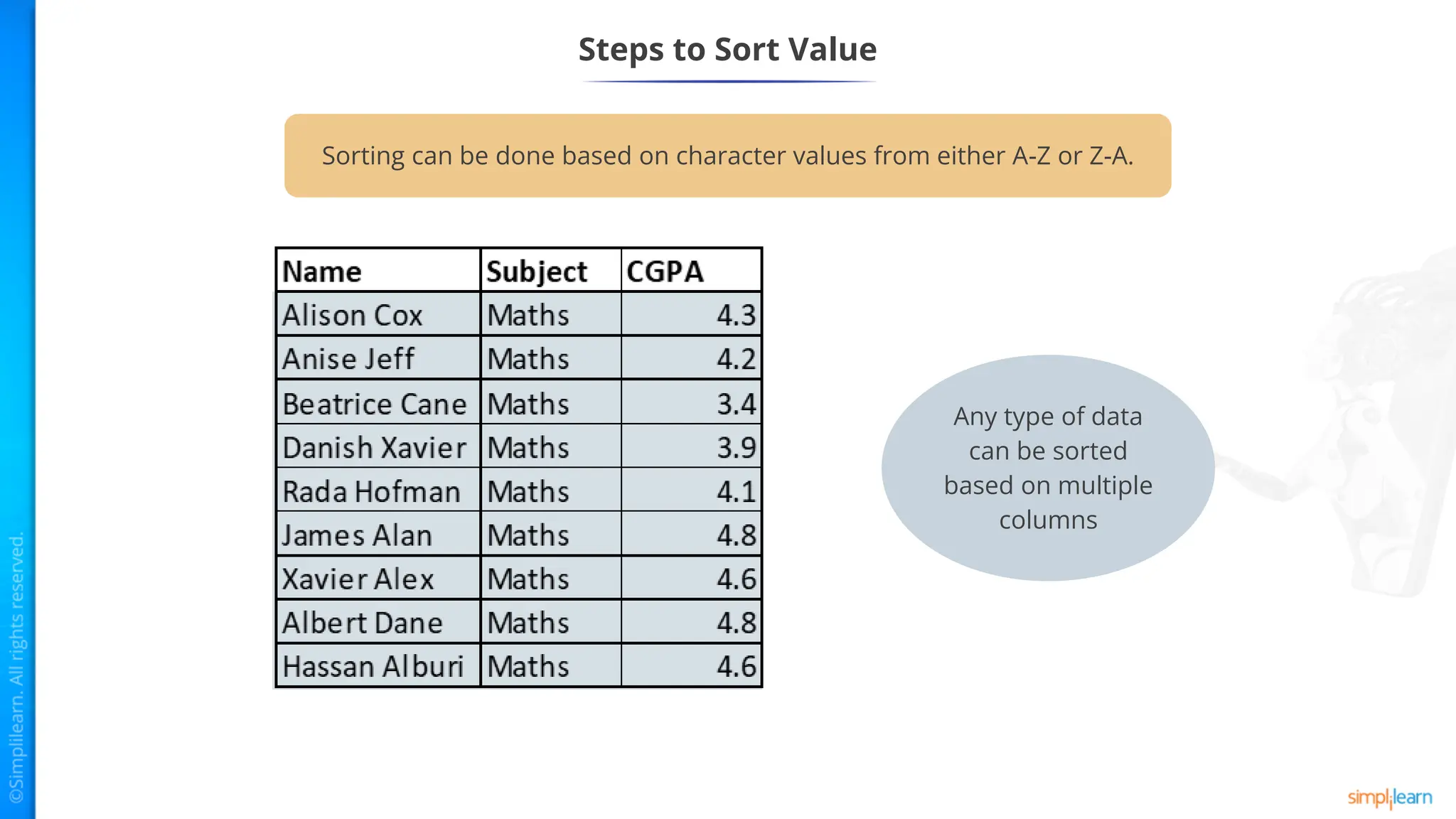
Example: The results of nine students for the Maths subject.
Sort and Filter
Steps to Sort Value
To sort the data based on the CGPA in descending order, choose the CGPA column name and then click on
Sort under the Data tab
Under sort columns, choose CGPA and then select ‘Largest to Smallest’
Steps to Sort Value
These are the sorted values:
Steps to Sort Value
Sorting can be done based on character values from either A-Z or Z-A.
Steps to Sort Value
Any type of data
can be sorted
based on multiple
columns
Steps to Sort Value
Under the Sort by tab, select Name and choose order as A to Z and click OK
The results will be in the following order.
Steps to Sort Value
Filter option allows us to choose any column we would like to filter the data on.
Filter
Choose a column to filter and in the Data tab, click on Filter
Steps to Filter Data
Example: To view CGPA’s that are greater than or equal to four.
Steps to Filter Data
Choose the greater than or equal to option from the dropdown, and then mention the number
In this case, it is 4.0.
Steps to Filter Data
The result will be in the following order.
Steps to Filter Data
Group by and Subtotal
Group by and Ungroup
Group by and ungroup allow data to group data by collapse and expanding rows with similar content to
create more compact and understandable views.
Group by and ungroup by are available under the Data tab within the outline section.
Group By
The group by functionality in Excel allows us to show necessary data for easy viewing and analysis.
It is possible to create subtotals and outline for a given set of data.
Group By
Group by can be done for rows or columns.
Grouping for Columns
Grouping for Rows
Steps for Grouping
Step 1: To group data, select the rows and columns you want to group
Let us discuss the steps for grouping data.
Steps for Grouping
Step 2: Click on Group under Data tab
Grouping for Columns
Step 3: Choose Columns and click on OK
Grouping for Columns
Step 4: This groups the three columns chosen, and applies a control to show or hide the grouped content
Grouping for Columns
Clicking on – hides the content, while clicking on + shows the grouped content.
Grouping for Rows
Similarly, for row-wise grouping, select the rows you want to group.
Grouping for Rows
Step 1: Click on Group under the Data tab, and then select rows option from the dialog box
Step 2: Click on OK
Grouping for Rows
Clicking on – hides the content and clicking on + shows the grouped content.
Grouping for Rows
We can create a group within a group by choosing rows or columns within the grouped data.
Create a row or column group again.
Grouping for Rows
This will be the result.
Ungrouping
The ungroup option allows us to remove the groups created by group.
Step 1:
Choose the data already chosen for grouping
(row/column)
Ungrouping
Step 2: Click on Ungroup under the Data tab
Ungrouping
Step 3: Choose Rows to remove row-level grouping
Ungrouping
Step 4: The group chosen will be removed
Subtotal
Subtotal allows us to create groups and have a subtotal for each group.
Subtotal: Example
Let us understand this by taking an example.
For the following data set,
find the total per student by
grouping students and adding their
marks.
Subtotal: Example
Step 1: Select the data we need to group by and subtotal
Subtotal: Example
Step 2: Click on Subtotal under Data tab
Subtotal: Example
Step 3: Click on the column to which the sum function has to be applied
Subtotal: Example
The subtotaling provides control to the group and shows subtotals per student.
Text to Column
It converts raw text into columns in excel, which can save a user the time of manually separating the text
in a cell into several columns.
Text to Column
Raw text Text put in excel columns
Name, age, address, phone number, university
Tom Smith, 22,4th street, 8998798901, St Gallen
University
Text to Column: Example
Step 1: Open Excel and paste the content into a sheet
Text to Column: Example
Step 2: Choose Column A
Step 2: Choose column A and click on text to columns under Data tab.
Text to Column: Example
Step 3: Go to the Data tab and click on Text to Columns
Step 4: Select the Delimited
option in the dialog box and click
Next
Text to Column: Example
Step 5: Choose Comma and click Next,
since the delimiter is a comma here.
Text to Column: Example
The text to column function puts each element separated by comma in an individual box
Text to Column: Example
Removing Duplicates
Duplicate
Duplicate refers to a copy of the original.
Removing Duplicates in Excel
In any data analytics work, there will always be cases where we get duplicates in
different columns.
Excel is very handy in removing duplicates in the data.
Causes of Duplicates
Duplicates can occur in data and cause errors in analytics.
Duplicates occur when there is an incorrect submission of user data.
Causes of Duplicates
When there is a missing validation in the data set.
Causes of Duplicates
Duplicates occur when we merge multiple data sources using Joins.
Causes of Duplicates
When data is copy pasted multiple times.
When duplicates are removed using Excel, we can choose a single column or
multiple columns to check the data.
Removing Duplicates Using Single Column: Example
Step 1: Choose the column with a set of rows to remove duplicates
There are many duplicates in this column.
Removing Duplicates Using Single Column: Example
Step 2:
• Select the entire column
• Click on Data
• Click on Remove Duplicates
Removing Duplicates Using Single Column: Example
Click OK
Step 3: After clicking the option a pop up will appear
Removing Duplicates Using Single Column: Example
Step 4: It is clearly visible that all the duplicates are removed
Removing Duplicates Using Multiple Columns: Example
• Here, there are two entries for Maths
subject under the same name, Albert Dane.
• When removing duplicates for this, only the
first row is retained.
Let us consider the following data set as an example for removing duplicates with
multiple columns:
Removing Duplicates Using Multiple Columns: Example
Step 1: Let us choose the data to
remove duplicates
Removing Duplicates Using Multiple Columns: Example
Step 2: Now click on Remove Duplicates from Data tab
Removing Duplicates Using Multiple Columns: Example
Step 3: Choose the columns where duplicates need to be checked
A pop up will occur to remove duplicates.
Removing Duplicates Using Multiple Columns: Example
Step 4: Once it is checked, click OK
Removing Duplicates Using Multiple Columns: Example
Another pop up will appear which notifies that, 1 duplicate value was found and removed,
also 3 unique values remain.
Removing Duplicates Using Multiple Columns: Example
This is the final data set
Data Validation
Data Validation
Data in Excel can be validated using some rules set in data validation dialog.
This helps in reducing the amount of unstandardized data, errors, or irrelevant information in the
worksheet.
Data Validation: Example
• Choose a cell or a group of cells to validate
• Click on Data Validation under Data tab
Let us understand data validation through an example.
Data Validation: Example
It is important to remember that:
• Validation applies to new data entered in the cells where rules are placed.
• Existing data is not validated.
Data Validation: Example
‘Any value’ allows any alphanumeric value
in the cells.
After clicking on the data validation, a pop-up appears regarding the validation criteria
and the following validations are possible.
Data Validation: Example
‘Whole number’ allows whole numbers
and a set of rules including a range of
minimum and maximum to be set.
Data Validation: Example
‘List’ allows only a list of values specified in a
range of cells or written manually in the ‘source’
input box.
Data Validation: Example
‘Date’ allows only dates and a set of rules
including a range of minimum and
maximum to be set.
Data Validation: Example
‘Time’ allows only time values and a set of
rules including a range of minimum and
maximum to be set.
Data Validation: Example
‘Text length’ allows only text within the
specified length and a set of rules on
the length to be set.
Data Validation: Example
‘Custom’ allows custom rules on data to
be set.
Key Takeaways
The sort and filter functionalities are available to order or filter the
data for further analysis.
Group by functionality in Excel allows us to show necessary data for
easy viewing and analysis.
The ungroup option allows us to remove the groups created by
group.
While removing duplicates, we can choose a single column or
multiple columns to check the data.
Data validation applies only to new data entered in the cells
where rules are placed.
Knowledge Check
Knowledge
Check
a.
b.
c.
d.
1
In which of the following sections can we find Group By and Subtotal under the data
tab?
Sort & Filter
Data Tools
Outline
Analyze
Knowledge
Check
The correct answer is
a.
b.
c.
d.
In which of the following sections can we find Group By and Subtotal under the data
tab?
1
Outline section under Data tab allows group by and subtotal.
Data Tools
Outline
Analyze
Sort & Filter
c
Knowledge
Check
a.
b.
c.
d.
2
Group By within a Group By is possible. True or False.
True
False
Knowledge
Check
The correct answer is
a.
b.
c.
d.
Group By within a Group By is possible. True or False.
2
True. Group By within a Group By is possible.
False
True
a
Knowledge
Check
a.
b.
c.
d.
3
Which of the following options can be used for sorting on multiple columns?
Options
Add Level
Sort On
Order
Knowledge
Check
The correct answer is
a.
b.
c.
d.
Which of the following options can be used for sorting on multiple columns?
3
Add Level helps to add multiple columns for sorting.
b
Options
Add Level
Sort On
Order
Knowledge
Check
a.
b.
c.
d.
4
Pattern matching is possible in filters. True or False.
True
False
Knowledge
Check
The correct answer is
a.
b.
c.
d.
Pattern matching is possible in filters. True or False.
4
True. Pattern matching is done using regular expressions such as ? and *.
True
False
a
Knowledge
Check
a.
b.
c.
d.
5
Which of the following options is used to convert text to columns when there is no
delimiters?
Delimiter
Fixed Width
Comma
Space
Knowledge
Check
The correct answer is
a.
b.
c.
d.
Which of the following options is used to convert text to columns when there is no
delimiters?
5
Fixed width allows us to convert data into columns based on the length of each column.
b
Delimiter
Fixed Width
Comma
Space
Knowledge
Check
a.
b.
c.
d.
6
How to convert a CSV format data into excel?
Use text to columns
Use remove duplicates
Use copy paste to take out each CSV value
Knowledge
Check
The correct answer is
a.
b.
c.
d.
How to convert a CSV format data into excel?
6
Text to columns is the easiest way to convert data to columns
Use text to columns
Use remove duplicates
Use copy paste to take out each CSV value
a
Knowledge
Check
a.
b.
c.
d.
7
Is it possible to separate data with multiple delimiters into columns?(Example
1,2,3;4,5|6)? True or False.
True
False
Knowledge
Check
The correct answer is
a.
b.
c.
d.
Is it possible to separate data with multiple delimiters into columns?(Example
1,2,3;4,5|6)? True or False.
7
True. Multiple delimiters can be specified in Text to Columns
True
False
a
Knowledge
Check
a.
b.
c.
d.
8
Why do duplicates occur in a dataset?
Missing validation
Duplicates cannot occur in a dataset
Excel has a feature to create duplicates
Knowledge
Check
The correct answer is
a.
b.
c.
d.
Why do duplicates occur in a dataset?
8
Duplicates occur if the input feed has not validated the data and allowed duplicates.
Missing validation
Duplicates cannot occur in a dataset
Excel has a feature to create duplicates
a
Knowledge
Check
a.
b.
c.
d.
9
How do you specify that data has header while removing duplicates?
Click on "My data has headers" Checkbox
Remove headers manually
Cannot be specified
Knowledge
Check
The correct answer is
a.
b.
c.
d.
How do you specify that data has header while removing duplicates?
9
The "My data has headers" checkbox specifies that the data has headers
Click on "My data has headers" Checkbox
Remove headers manually
Cannot be specified
a
Knowledge
Check
a.
b.
c.
d.
10
Is it possible to remove rows in a dataset where only one row has duplicates? True or
False.
True
False
Knowledge
Check
The correct answer is
a.
b.
c.
d.
Is it possible to remove rows in a dataset where only one row has duplicates? True or
False.
10
True. It is possible to remove all rows in a dataset where one column only has duplicates.
True
False
a
Knowledge
Check
a.
b.
c.
d.
11
Which of the following options in data validation allows us to validate a list of values?
Any Value
Data
List
Custom
Knowledge
Check
The correct answer is
a.
b.
c.
d.
Which of the following options in data validation allows us to validate a list of values?
11
Outline section under Data tab allows group by and subtotal.
Any Value
Data
List
Custom
b
Knowledge
Check
a.
b.
c.
d.
12
Which of the following range of values can be provided in data validation?
not between
equal to
greater than
between
Knowledge
Check
The correct answer is
a.
b.
c.
d.
Which of the following range of values can be provided in data validation?
12
Between allows us to set range of values.
not between
equal to
greater than
between
d

Lesson_3_Data_Cleaning_and_Preparation.pdf

  • 1.
  • 2.
    Data Cleaning andPreparation
  • 3.
    Learning Objectives By theend of this lesson, you will be able to: Implement sort and filter functionalities to order or filter data Organize the data using group by and ungroup functions Execute Remove duplicates function to rid the data of duplicates Implement data validation function to a given data
  • 4.
    A Day inthe Life of Business Analyst As a business analyst of an organization: You are required to sort and filter data.Also, improper data needs to be eliminated and data must be cleaned and be meaningful which serves the business purpose of the organization To achieve these tasks, you will be learning a few concepts, such as sort, filter, group by, subtotal and removing duplicates.
  • 5.
  • 6.
    Sort and Filter Thesort and filter functionalities are available in Excel to order or filter the data for further analysis.
  • 7.
    Example: The resultsof nine students for the Maths subject. Sort and Filter
  • 8.
    Steps to SortValue To sort the data based on the CGPA in descending order, choose the CGPA column name and then click on Sort under the Data tab
  • 9.
    Under sort columns,choose CGPA and then select ‘Largest to Smallest’ Steps to Sort Value
  • 10.
    These are thesorted values: Steps to Sort Value
  • 11.
    Sorting can bedone based on character values from either A-Z or Z-A. Steps to Sort Value Any type of data can be sorted based on multiple columns
  • 12.
    Steps to SortValue Under the Sort by tab, select Name and choose order as A to Z and click OK
  • 13.
    The results willbe in the following order. Steps to Sort Value
  • 14.
    Filter option allowsus to choose any column we would like to filter the data on. Filter
  • 15.
    Choose a columnto filter and in the Data tab, click on Filter Steps to Filter Data
  • 16.
    Example: To viewCGPA’s that are greater than or equal to four. Steps to Filter Data
  • 17.
    Choose the greaterthan or equal to option from the dropdown, and then mention the number In this case, it is 4.0. Steps to Filter Data
  • 18.
    The result willbe in the following order. Steps to Filter Data
  • 19.
    Group by andSubtotal
  • 20.
    Group by andUngroup Group by and ungroup allow data to group data by collapse and expanding rows with similar content to create more compact and understandable views. Group by and ungroup by are available under the Data tab within the outline section.
  • 21.
    Group By The groupby functionality in Excel allows us to show necessary data for easy viewing and analysis. It is possible to create subtotals and outline for a given set of data.
  • 22.
    Group By Group bycan be done for rows or columns. Grouping for Columns Grouping for Rows
  • 23.
    Steps for Grouping Step1: To group data, select the rows and columns you want to group Let us discuss the steps for grouping data.
  • 24.
    Steps for Grouping Step2: Click on Group under Data tab
  • 25.
    Grouping for Columns Step3: Choose Columns and click on OK
  • 26.
    Grouping for Columns Step4: This groups the three columns chosen, and applies a control to show or hide the grouped content
  • 27.
    Grouping for Columns Clickingon – hides the content, while clicking on + shows the grouped content.
  • 28.
    Grouping for Rows Similarly,for row-wise grouping, select the rows you want to group.
  • 29.
    Grouping for Rows Step1: Click on Group under the Data tab, and then select rows option from the dialog box Step 2: Click on OK
  • 30.
    Grouping for Rows Clickingon – hides the content and clicking on + shows the grouped content.
  • 31.
    Grouping for Rows Wecan create a group within a group by choosing rows or columns within the grouped data. Create a row or column group again.
  • 32.
    Grouping for Rows Thiswill be the result.
  • 33.
    Ungrouping The ungroup optionallows us to remove the groups created by group. Step 1: Choose the data already chosen for grouping (row/column)
  • 34.
    Ungrouping Step 2: Clickon Ungroup under the Data tab
  • 35.
    Ungrouping Step 3: ChooseRows to remove row-level grouping
  • 36.
    Ungrouping Step 4: Thegroup chosen will be removed
  • 37.
    Subtotal Subtotal allows usto create groups and have a subtotal for each group.
  • 38.
    Subtotal: Example Let usunderstand this by taking an example. For the following data set, find the total per student by grouping students and adding their marks.
  • 39.
    Subtotal: Example Step 1:Select the data we need to group by and subtotal
  • 40.
    Subtotal: Example Step 2:Click on Subtotal under Data tab
  • 41.
    Subtotal: Example Step 3:Click on the column to which the sum function has to be applied
  • 42.
    Subtotal: Example The subtotalingprovides control to the group and shows subtotals per student.
  • 43.
  • 44.
    It converts rawtext into columns in excel, which can save a user the time of manually separating the text in a cell into several columns. Text to Column Raw text Text put in excel columns Name, age, address, phone number, university Tom Smith, 22,4th street, 8998798901, St Gallen University
  • 45.
    Text to Column:Example Step 1: Open Excel and paste the content into a sheet
  • 46.
    Text to Column:Example Step 2: Choose Column A
  • 47.
    Step 2: Choosecolumn A and click on text to columns under Data tab. Text to Column: Example Step 3: Go to the Data tab and click on Text to Columns
  • 48.
    Step 4: Selectthe Delimited option in the dialog box and click Next Text to Column: Example
  • 49.
    Step 5: ChooseComma and click Next, since the delimiter is a comma here. Text to Column: Example
  • 50.
    The text tocolumn function puts each element separated by comma in an individual box Text to Column: Example
  • 51.
  • 52.
    Duplicate Duplicate refers toa copy of the original.
  • 53.
    Removing Duplicates inExcel In any data analytics work, there will always be cases where we get duplicates in different columns. Excel is very handy in removing duplicates in the data.
  • 54.
    Causes of Duplicates Duplicatescan occur in data and cause errors in analytics. Duplicates occur when there is an incorrect submission of user data.
  • 55.
    Causes of Duplicates Whenthere is a missing validation in the data set.
  • 56.
    Causes of Duplicates Duplicatesoccur when we merge multiple data sources using Joins.
  • 57.
    Causes of Duplicates Whendata is copy pasted multiple times. When duplicates are removed using Excel, we can choose a single column or multiple columns to check the data.
  • 58.
    Removing Duplicates UsingSingle Column: Example Step 1: Choose the column with a set of rows to remove duplicates There are many duplicates in this column.
  • 59.
    Removing Duplicates UsingSingle Column: Example Step 2: • Select the entire column • Click on Data • Click on Remove Duplicates
  • 60.
    Removing Duplicates UsingSingle Column: Example Click OK Step 3: After clicking the option a pop up will appear
  • 61.
    Removing Duplicates UsingSingle Column: Example Step 4: It is clearly visible that all the duplicates are removed
  • 62.
    Removing Duplicates UsingMultiple Columns: Example • Here, there are two entries for Maths subject under the same name, Albert Dane. • When removing duplicates for this, only the first row is retained. Let us consider the following data set as an example for removing duplicates with multiple columns:
  • 63.
    Removing Duplicates UsingMultiple Columns: Example Step 1: Let us choose the data to remove duplicates
  • 64.
    Removing Duplicates UsingMultiple Columns: Example Step 2: Now click on Remove Duplicates from Data tab
  • 65.
    Removing Duplicates UsingMultiple Columns: Example Step 3: Choose the columns where duplicates need to be checked A pop up will occur to remove duplicates.
  • 66.
    Removing Duplicates UsingMultiple Columns: Example Step 4: Once it is checked, click OK
  • 67.
    Removing Duplicates UsingMultiple Columns: Example Another pop up will appear which notifies that, 1 duplicate value was found and removed, also 3 unique values remain.
  • 68.
    Removing Duplicates UsingMultiple Columns: Example This is the final data set
  • 69.
  • 70.
    Data Validation Data inExcel can be validated using some rules set in data validation dialog. This helps in reducing the amount of unstandardized data, errors, or irrelevant information in the worksheet.
  • 71.
    Data Validation: Example •Choose a cell or a group of cells to validate • Click on Data Validation under Data tab Let us understand data validation through an example.
  • 72.
    Data Validation: Example Itis important to remember that: • Validation applies to new data entered in the cells where rules are placed. • Existing data is not validated.
  • 73.
    Data Validation: Example ‘Anyvalue’ allows any alphanumeric value in the cells. After clicking on the data validation, a pop-up appears regarding the validation criteria and the following validations are possible.
  • 74.
    Data Validation: Example ‘Wholenumber’ allows whole numbers and a set of rules including a range of minimum and maximum to be set.
  • 75.
    Data Validation: Example ‘List’allows only a list of values specified in a range of cells or written manually in the ‘source’ input box.
  • 76.
    Data Validation: Example ‘Date’allows only dates and a set of rules including a range of minimum and maximum to be set.
  • 77.
    Data Validation: Example ‘Time’allows only time values and a set of rules including a range of minimum and maximum to be set.
  • 78.
    Data Validation: Example ‘Textlength’ allows only text within the specified length and a set of rules on the length to be set.
  • 79.
    Data Validation: Example ‘Custom’allows custom rules on data to be set.
  • 80.
    Key Takeaways The sortand filter functionalities are available to order or filter the data for further analysis. Group by functionality in Excel allows us to show necessary data for easy viewing and analysis. The ungroup option allows us to remove the groups created by group. While removing duplicates, we can choose a single column or multiple columns to check the data. Data validation applies only to new data entered in the cells where rules are placed.
  • 81.
  • 82.
    Knowledge Check a. b. c. d. 1 In which ofthe following sections can we find Group By and Subtotal under the data tab? Sort & Filter Data Tools Outline Analyze
  • 83.
    Knowledge Check The correct answeris a. b. c. d. In which of the following sections can we find Group By and Subtotal under the data tab? 1 Outline section under Data tab allows group by and subtotal. Data Tools Outline Analyze Sort & Filter c
  • 84.
    Knowledge Check a. b. c. d. 2 Group By withina Group By is possible. True or False. True False
  • 85.
    Knowledge Check The correct answeris a. b. c. d. Group By within a Group By is possible. True or False. 2 True. Group By within a Group By is possible. False True a
  • 86.
    Knowledge Check a. b. c. d. 3 Which of thefollowing options can be used for sorting on multiple columns? Options Add Level Sort On Order
  • 87.
    Knowledge Check The correct answeris a. b. c. d. Which of the following options can be used for sorting on multiple columns? 3 Add Level helps to add multiple columns for sorting. b Options Add Level Sort On Order
  • 88.
    Knowledge Check a. b. c. d. 4 Pattern matching ispossible in filters. True or False. True False
  • 89.
    Knowledge Check The correct answeris a. b. c. d. Pattern matching is possible in filters. True or False. 4 True. Pattern matching is done using regular expressions such as ? and *. True False a
  • 90.
    Knowledge Check a. b. c. d. 5 Which of thefollowing options is used to convert text to columns when there is no delimiters? Delimiter Fixed Width Comma Space
  • 91.
    Knowledge Check The correct answeris a. b. c. d. Which of the following options is used to convert text to columns when there is no delimiters? 5 Fixed width allows us to convert data into columns based on the length of each column. b Delimiter Fixed Width Comma Space
  • 92.
    Knowledge Check a. b. c. d. 6 How to converta CSV format data into excel? Use text to columns Use remove duplicates Use copy paste to take out each CSV value
  • 93.
    Knowledge Check The correct answeris a. b. c. d. How to convert a CSV format data into excel? 6 Text to columns is the easiest way to convert data to columns Use text to columns Use remove duplicates Use copy paste to take out each CSV value a
  • 94.
    Knowledge Check a. b. c. d. 7 Is it possibleto separate data with multiple delimiters into columns?(Example 1,2,3;4,5|6)? True or False. True False
  • 95.
    Knowledge Check The correct answeris a. b. c. d. Is it possible to separate data with multiple delimiters into columns?(Example 1,2,3;4,5|6)? True or False. 7 True. Multiple delimiters can be specified in Text to Columns True False a
  • 96.
    Knowledge Check a. b. c. d. 8 Why do duplicatesoccur in a dataset? Missing validation Duplicates cannot occur in a dataset Excel has a feature to create duplicates
  • 97.
    Knowledge Check The correct answeris a. b. c. d. Why do duplicates occur in a dataset? 8 Duplicates occur if the input feed has not validated the data and allowed duplicates. Missing validation Duplicates cannot occur in a dataset Excel has a feature to create duplicates a
  • 98.
    Knowledge Check a. b. c. d. 9 How do youspecify that data has header while removing duplicates? Click on "My data has headers" Checkbox Remove headers manually Cannot be specified
  • 99.
    Knowledge Check The correct answeris a. b. c. d. How do you specify that data has header while removing duplicates? 9 The "My data has headers" checkbox specifies that the data has headers Click on "My data has headers" Checkbox Remove headers manually Cannot be specified a
  • 100.
    Knowledge Check a. b. c. d. 10 Is it possibleto remove rows in a dataset where only one row has duplicates? True or False. True False
  • 101.
    Knowledge Check The correct answeris a. b. c. d. Is it possible to remove rows in a dataset where only one row has duplicates? True or False. 10 True. It is possible to remove all rows in a dataset where one column only has duplicates. True False a
  • 102.
    Knowledge Check a. b. c. d. 11 Which of thefollowing options in data validation allows us to validate a list of values? Any Value Data List Custom
  • 103.
    Knowledge Check The correct answeris a. b. c. d. Which of the following options in data validation allows us to validate a list of values? 11 Outline section under Data tab allows group by and subtotal. Any Value Data List Custom b
  • 104.
    Knowledge Check a. b. c. d. 12 Which of thefollowing range of values can be provided in data validation? not between equal to greater than between
  • 105.
    Knowledge Check The correct answeris a. b. c. d. Which of the following range of values can be provided in data validation? 12 Between allows us to set range of values. not between equal to greater than between d