CORELDRAW
• CorelDraw isa software program for
editing vector graphics. Vector graphics are
created in graphics packages and consist of
objects. Each object can be edited
separately, meaning that the shape, colour,
size and position can be changed.
Pick tool
This toolhas an icon like the
mouse cursor on the default
settings.
Serves to select or choose the
object.
7.
SHAPE TOOL
use toedit the line shape function tool or object to
the manipulation of the point. Has the keyboard
shortcut F10. Shape tool itself is again divided into
3 types namely:
•Smudge Brush: T
o change the object image
with attractive margins.
•Roughen Brush: T
o distort the image object
with attractive margins.
•Free Transform: T
o change the free such as:
using
the rotation, change size, angle the object, etc..
8.
CROP TOOL
used toremove unwanted parts of the
object. Crop tool also has 3 types again:
•Knife: to cut the object into two separate
parts.
•Eraser: to remove unwanted areas in
objects.
•Virtual Segment Delete: to remove a
section object that is in the intersection
9.
Zoom tool
working tochange the level of magnification
window corel document which we are open. This
is very useful to edit the objects that are too small
or too large objects, so that the view object in
accordance with our eyes.
There is another type of zoom tools, namely the
Pan Tool.
•Pan tool serves to shift the display area / object
without changing the level of zoom level.
10.
Freehand tool
coreldraw toolthat serves to draw a curve (curved line) and
the straight line in the segment. Has a shortcut key F5 on your
keyboard. Freehand tool is divided into 7 types again that is:
•2-point line tool: to draw a straight line from one point (starting point)
to one other point (end point).
•Bezier tool: draw a curved line in a segment at a time.
•Artistic media tool: add effects brush, spray and pen calligraphy by
using
the cursor freely. Many effects that may interest you in this one tool.
•Pen tool: draw a curved line in the segment and view / review of
each segment you have created.
•B-spline tool: draw a curved line to control the setting point
(point) without damaging the segment.
• Polyline tool: draw a straight line connection or a continue curve
(continuous) in a single action.
•3-point curves tool: draw a curve by dragging from the start point,
11.
Smart fill tool
workingto create an object from overlapping
areas of anaesthetized fill with color or
texture.
This tool has one more type of smart
drawing tool.
•Smart Drawing tool: to change /
convert your pointers graffiti pictures
into shape
shape object (basic shapes) or a smooth
curve line.
12.
Rectangle tool
to drawa rectangular shape or a
box with just drag and click
your mouse.
Having one type again that is a 3-
point rectangle tool.
•3-Point Rectangle tool: working to form
a square and a box to arrange them
per
13.
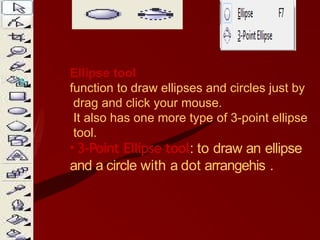
Ellipse tool
function todraw ellipses and circles just by
drag and click your mouse.
It also has one more type of 3-point ellipse
tool.
• 3-Point Ellipse tool: to draw an ellipse
and a circle with a dot arrangehis .
14.
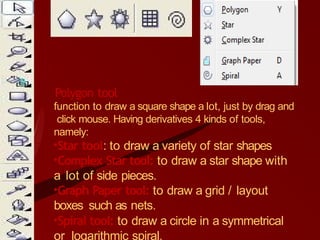
Polygon tool
function todraw a square shape a lot, just by drag and
click mouse. Having derivatives 4 kinds of tools,
namely:
•Star tool: to draw a variety of star shapes
•Complex Star tool: to draw a star shape with
a lot of side pieces.
•Graph Paper tool: to draw a grid / layout
boxes such as nets.
•Spiral tool: to draw a circle in a symmetrical
or logarithmic spiral.
15.
Basic Shapes tool
•workingto simplify / speed up the process of drawing
a triangle, circle, cylinder, love / heart, and many other
forms. Having derivatives 4 kinds of tools, namely:
•Arrow shapes tool: to draw the shape of the arrow in
different variations
•Flowchart shapes tool: to facilitate drawing a chart
(chart)
•Banner shapes tool: to draw a ribbon shape or form
explosive
•Callout shapes tool: to draw a balloon talk (illustrated
•talk), and labels.
16.
T
ext tool
to makethe writing on
the image area serves as
both artistic and written
descriptions.
17.
BLEND TOOL
•Blend tool: a picture in coreldraw equipment that serves to
unify the object by creating a lot of objects and colors are
located in the middle.
•Contour tool: working to assemble a number of objects
with concentric spread into or out of an object.
•Distort tool: working to change the object by pushing or
pulling to form a zipper or twister effect.
•Drop shadow tool: to create a shadow behind or beside the
object.
•Envelope tool: working to change the form of an object into
an envelope with drag specific points.
•Extrude tool: to create the illusion of an object into a deep
3D
effect.
•Transparency tool : to create a transparent effect that is
18.
Color eye droppertool
Color functioning eye dropper tool to
sample the object and apply a color or
color copying
in other objects (similar to copy and paste)
19.
Outline tool
Outline thepen tool serves to provide
the outline of an object. In this tool
we can also set the type, large and
color of
the border.
20.
Fill tool
Fill toolserves to provide some form of object
color. There are 5 types of fill that we can use are:
•Uniform fill: providing solid colors on an object
•Fountain fills: give color with gradients
(mixed colors) on an object
•Pattern fill: fill objects by color or patterns
with colors of a picture that you have.
•T
exture fill: fill objects by color texture was
already available.
•PostScript fill: fill object with colors
that complicated or what we call
21.
The Interactive filltool lets you apply
fountain (gradient), texture, and
pattern fills to objects in a drawing.
You can edit the fill you've applied
interactively and view the result of
your edits as you apply them.