Unit 1: Web Fundamentals
Lesson 2: Learning to Use HTML
August 23, 2013
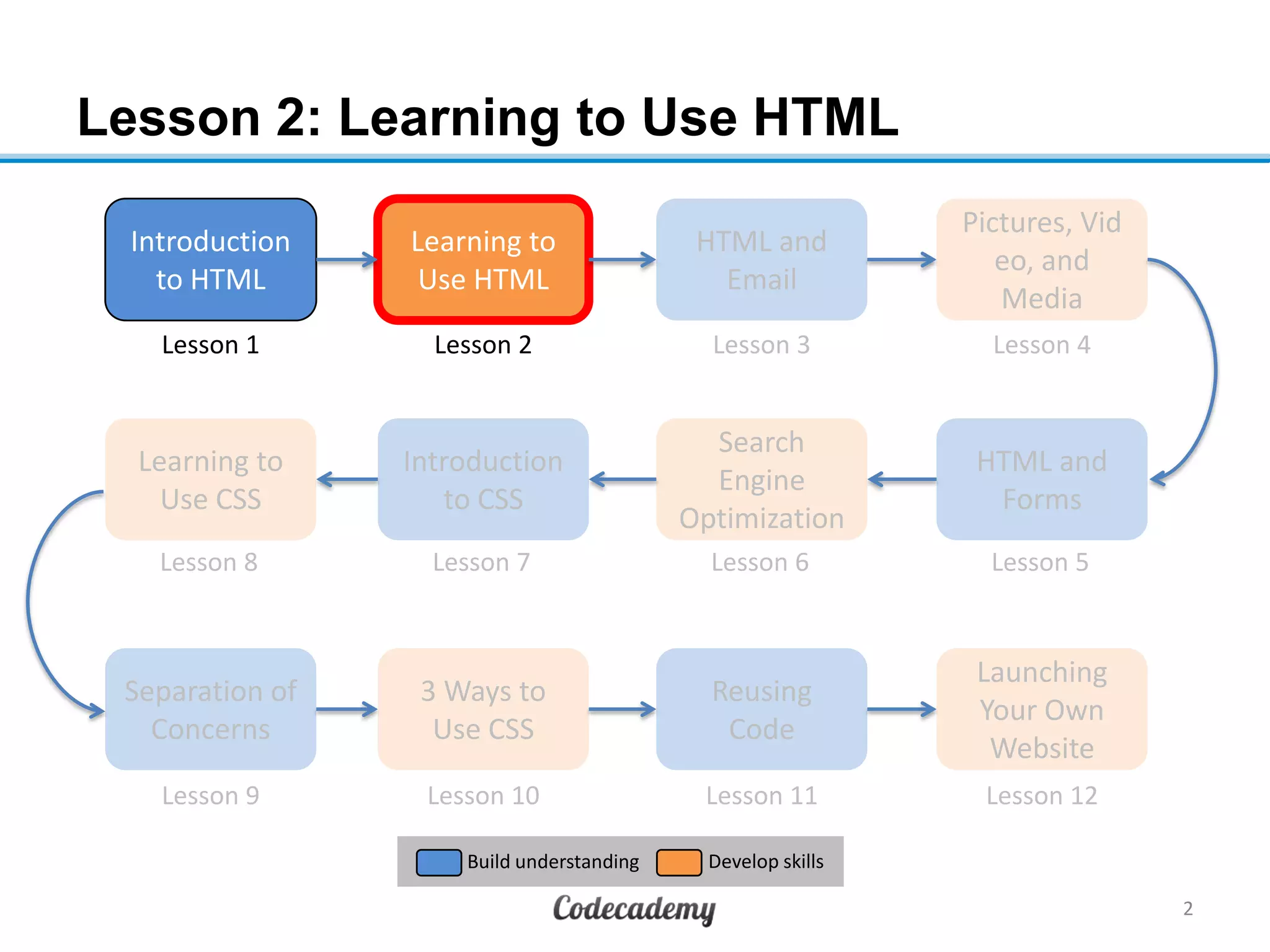
Lesson 2: Learning to Use HTML
2
Introduction
to HTML
Learning to
Use HTML
HTML and
Email
Pictures, Vid
eo, and
Media
HTML and
Forms
Search
Engine
Optimization
Learning to
Use CSS
Introduction
to CSS
Reusing
Code
3 Ways to
Use CSS
Separation of
Concerns
Launching
Your Own
Website
Lesson 1 Lesson 2 Lesson 3 Lesson 4
Lesson 8 Lesson 7 Lesson 6 Lesson 5
Lesson 9 Lesson 10 Lesson 11 Lesson 12
Build understanding Develop skills
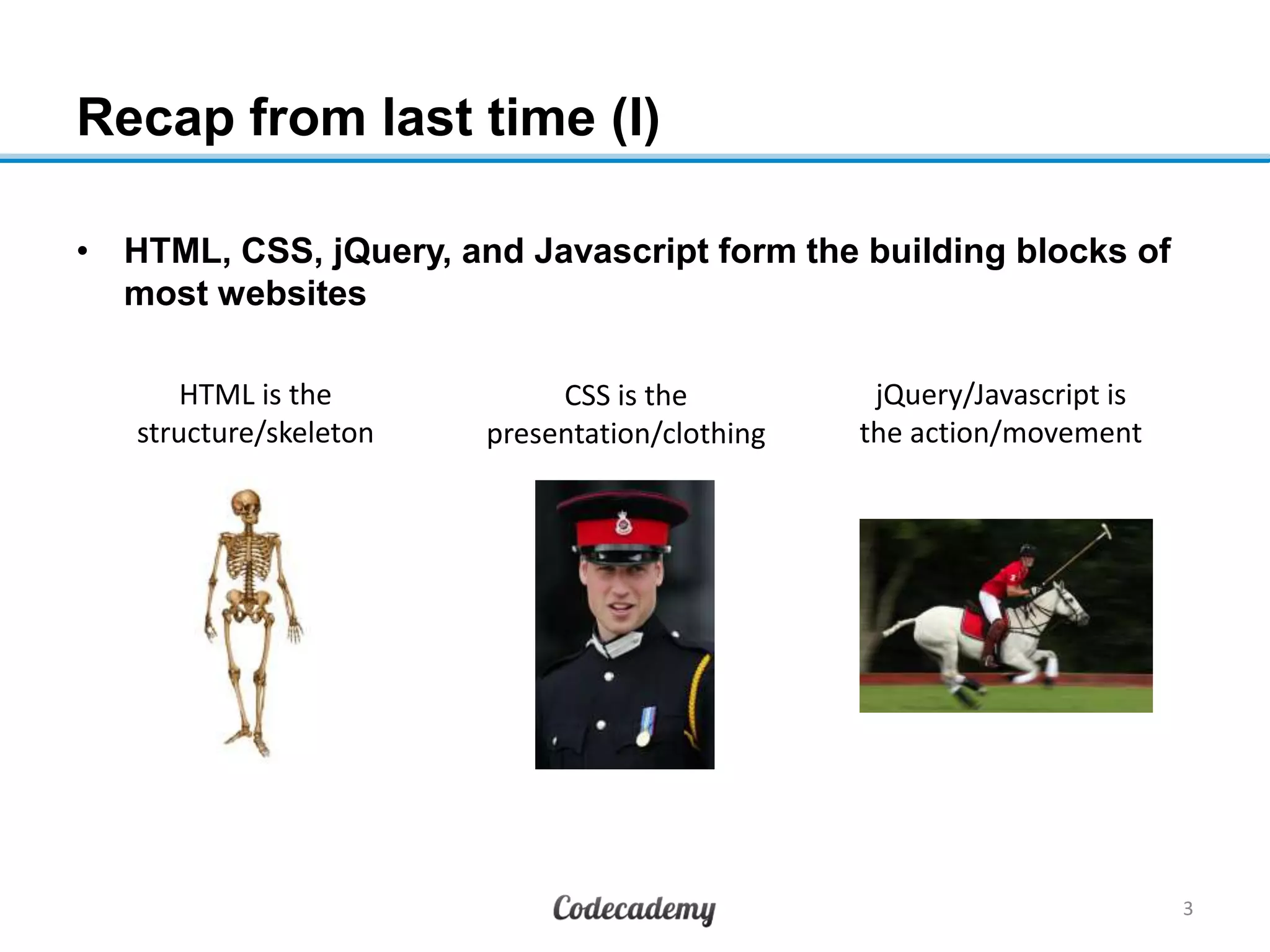
Recap from last time (I)
• HTML, CSS, jQuery, and Javascript form the building blocks of
most websites
3
HTML is the
structure/skeleton
CSS is the
presentation/clothing
jQuery/Javascript is
the action/movement
Recap from last time (II)
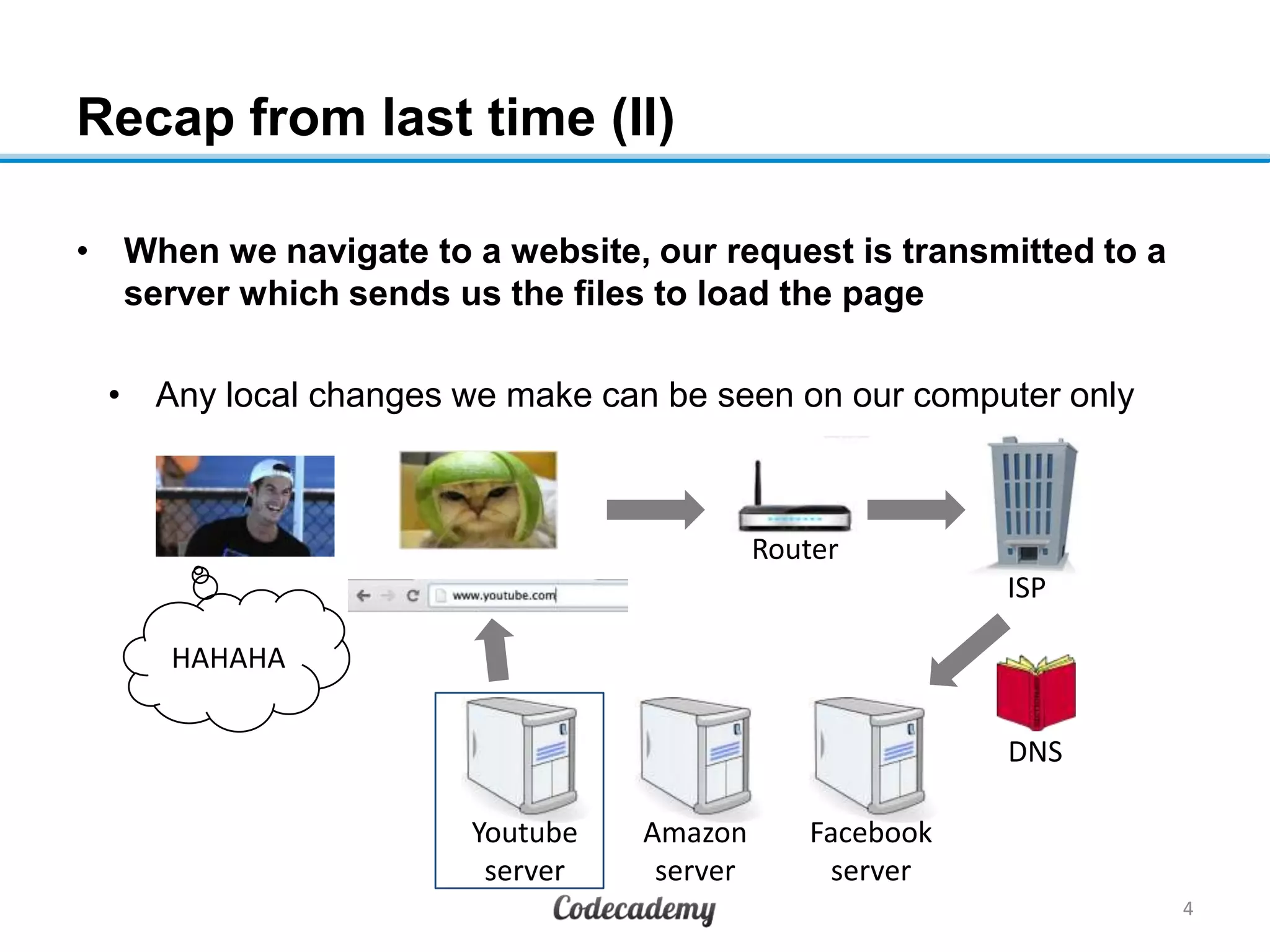
• When we navigate to a website, our request is transmitted to a
server which sends us the files to load the page
• Any local changes we make can be seen on our computer only
4
HAHAHA
Router
ISP
Facebook
server
Amazon
server
Youtube
server
DNS
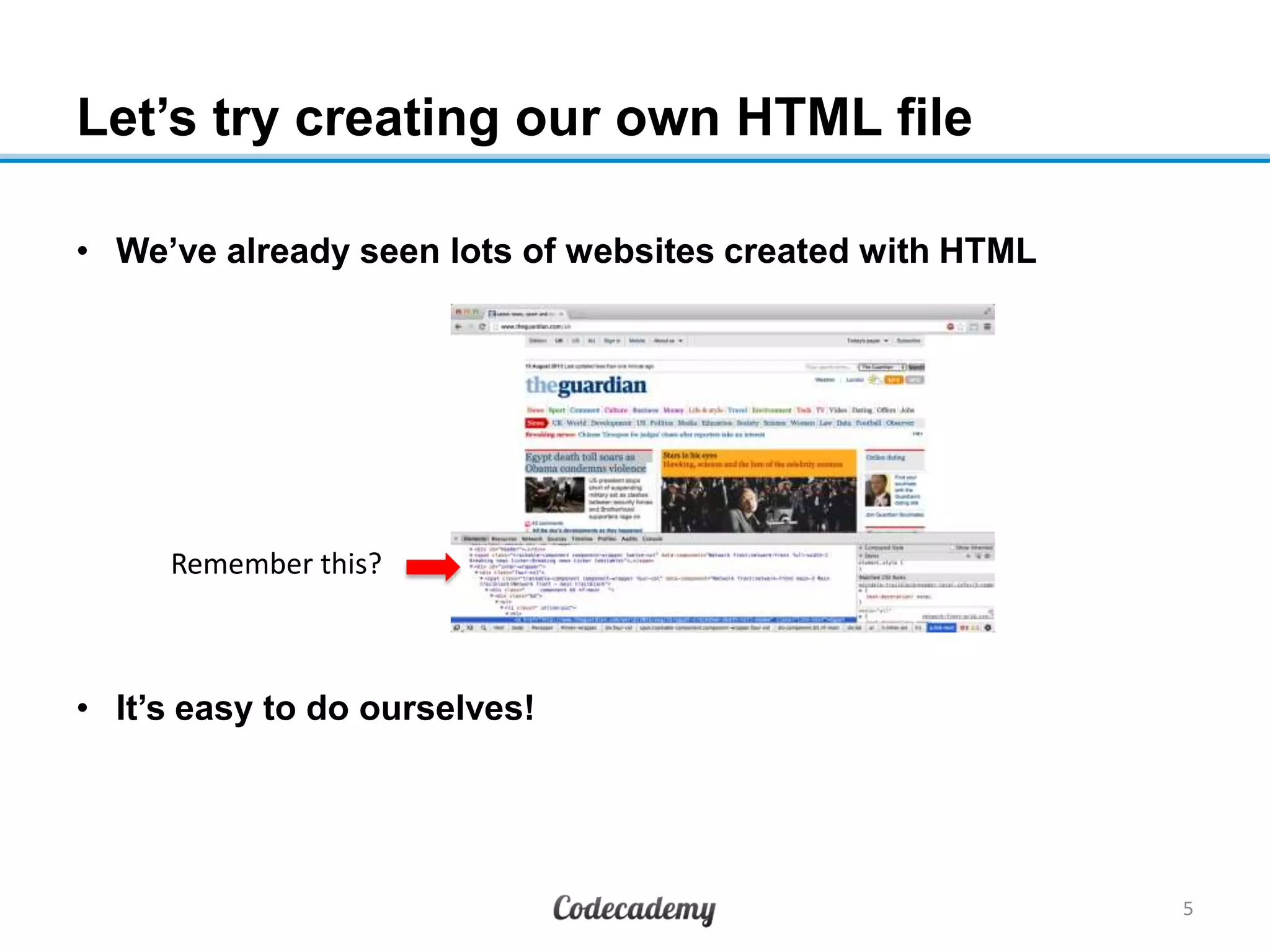
Let’s try creating our own HTML file
• We’ve already seen lots of websites created with HTML
• It’s easy to do ourselves!
5
Remember this?
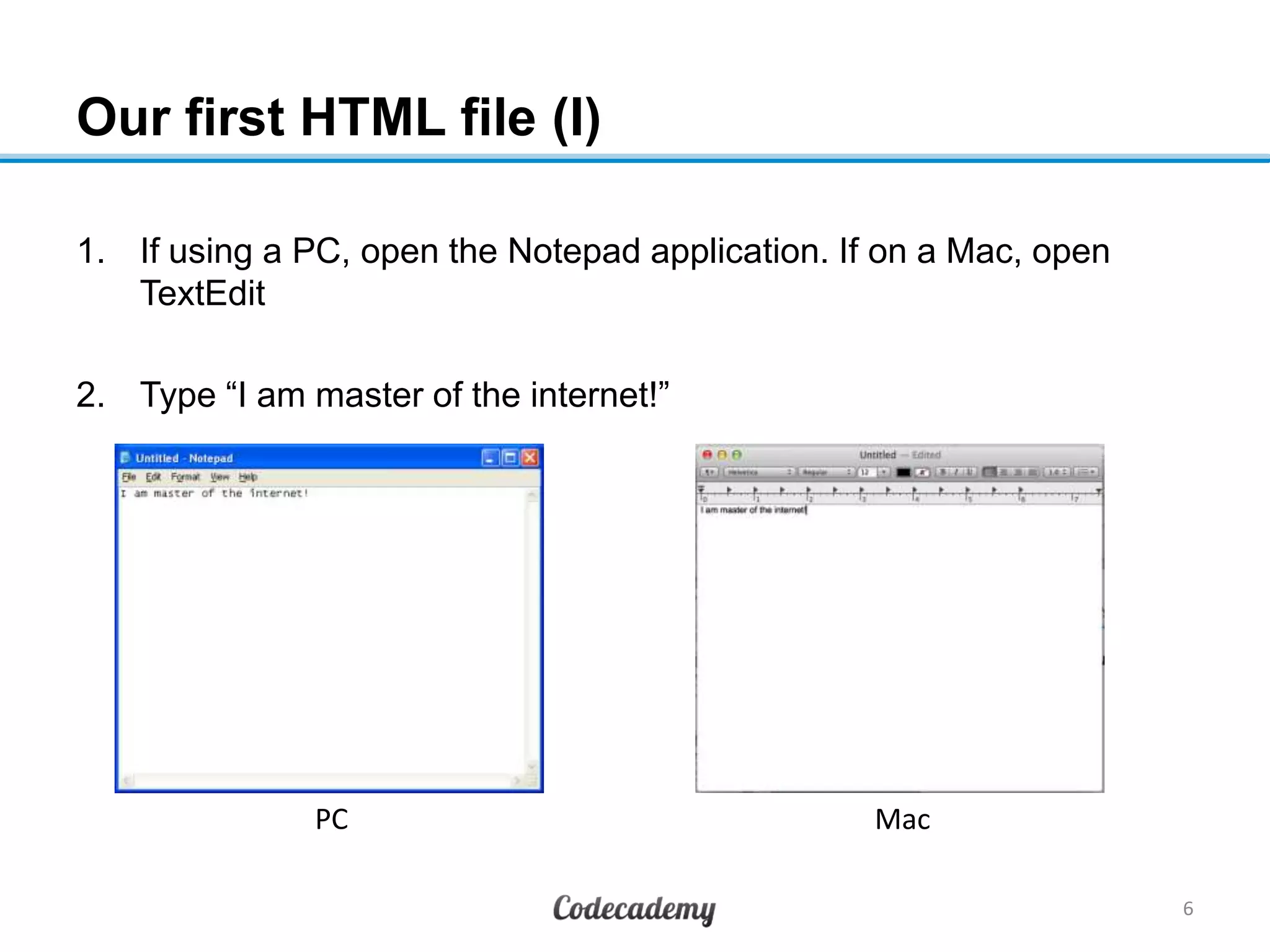
Our first HTML file (I)
1. If using a PC, open the Notepad application. If on a Mac, open
TextEdit
2. Type “I am master of the internet!”
6
MacPC
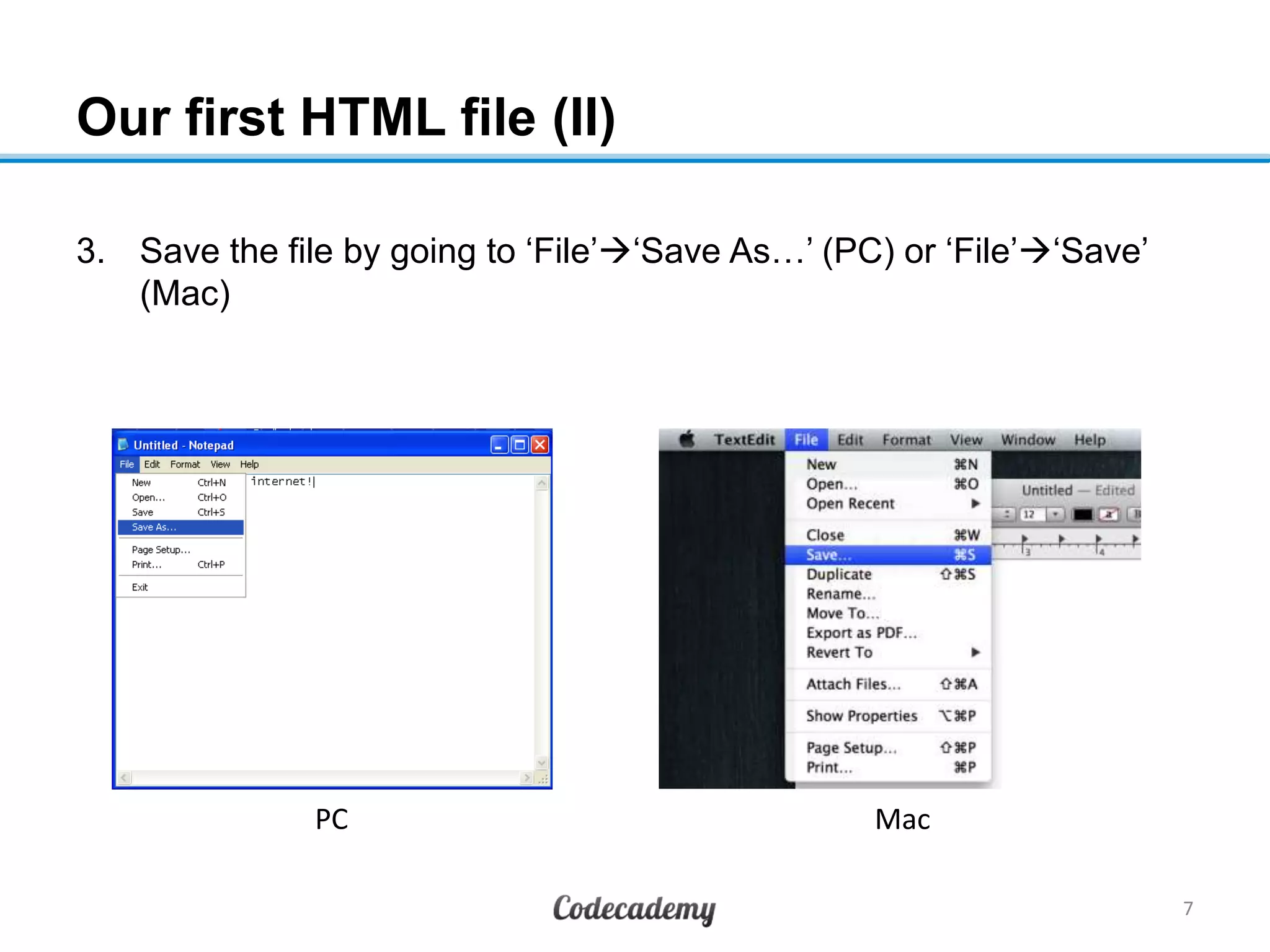
Our first HTML file (II)
3. Save the file by going to „File‟„Save As…‟ (PC) or „File‟„Save‟
(Mac)
7
MacPC
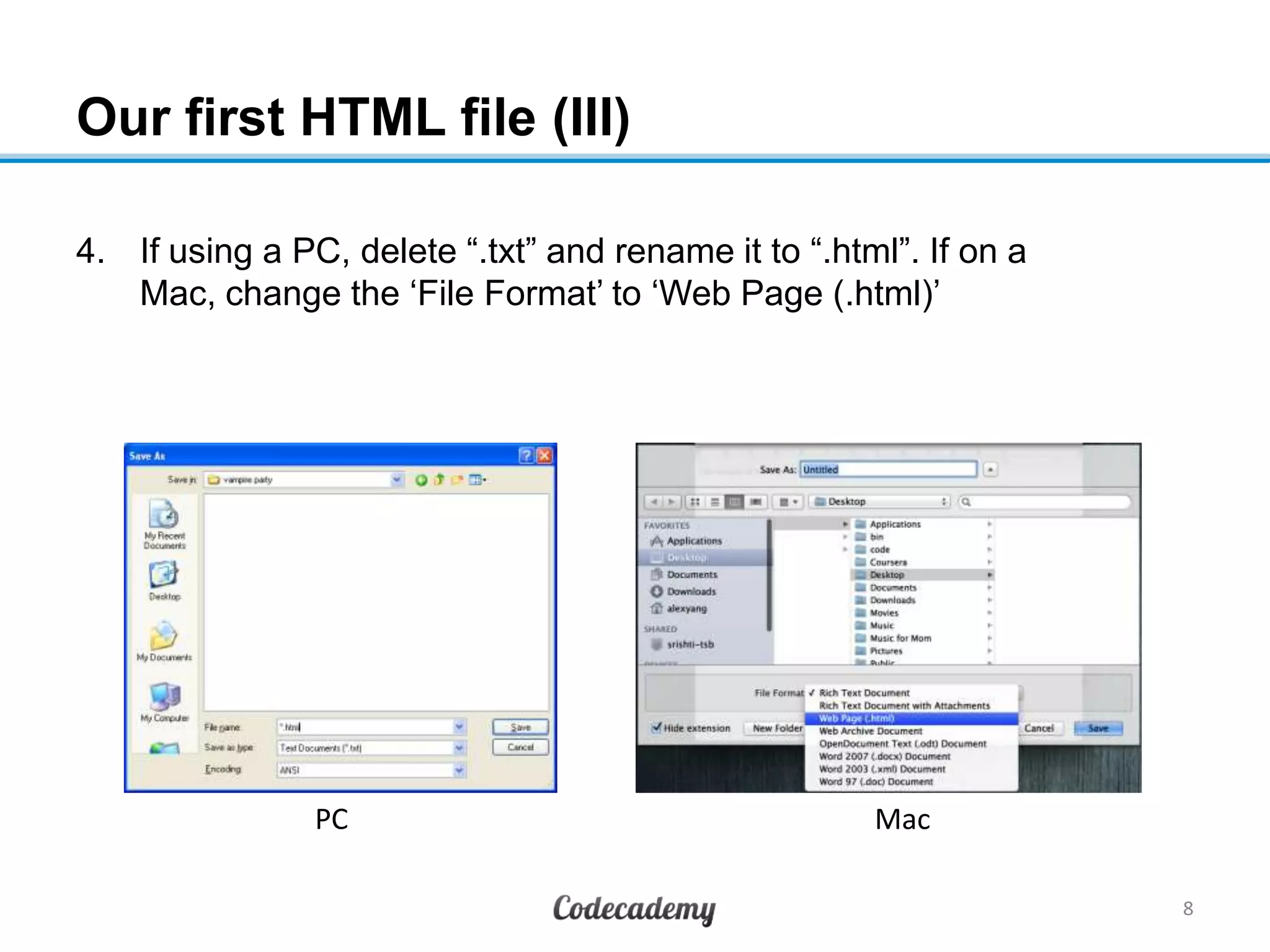
Our first HTML file (III)
4. If using a PC, delete “.txt” and rename it to “.html”. If on a
Mac, change the „File Format‟ to „Web Page (.html)‟
8
MacPC
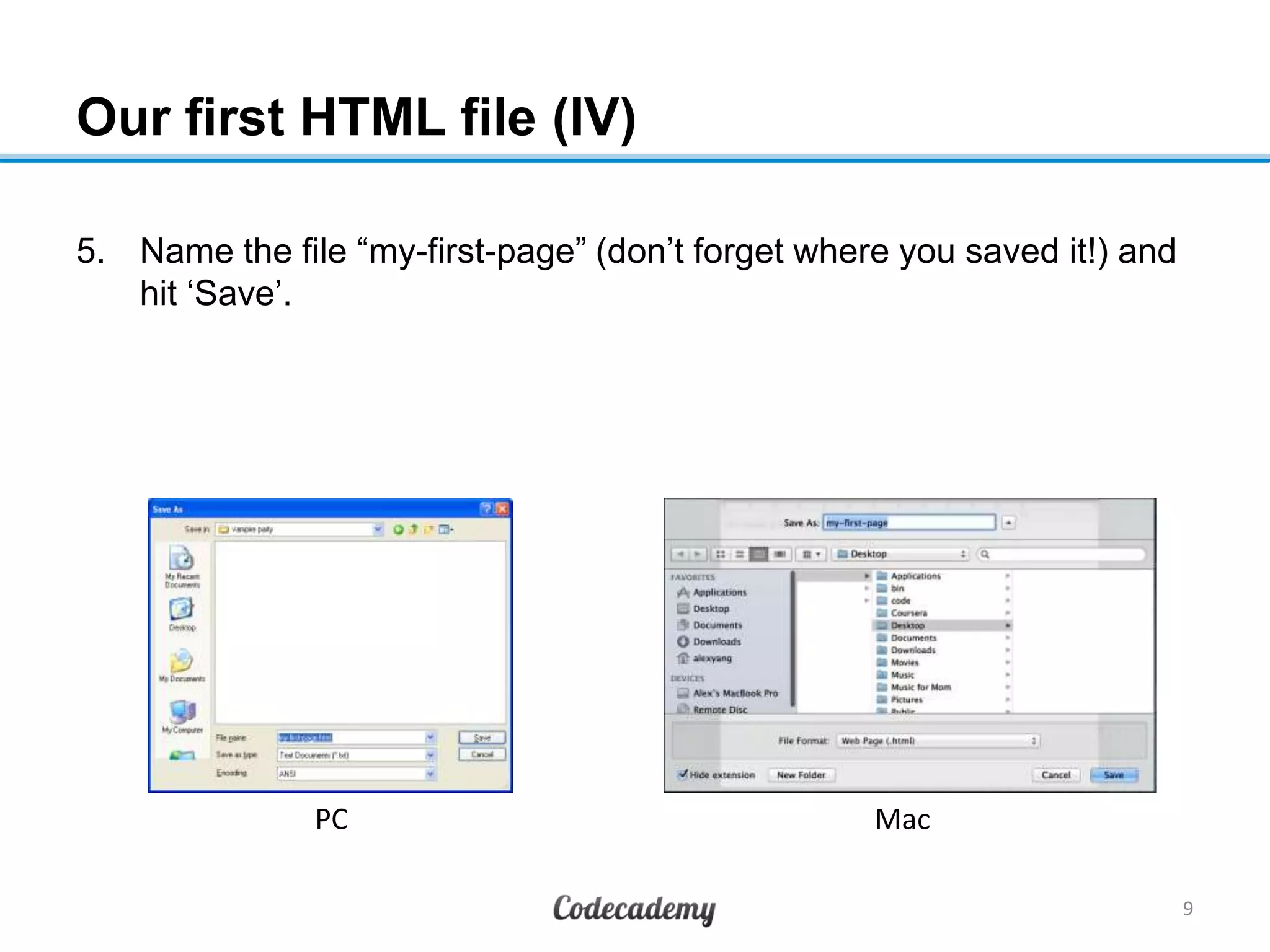
Our first HTML file (IV)
5. Name the file “my-first-page” (don‟t forget where you saved it!) and
hit „Save‟.
9
MacPC
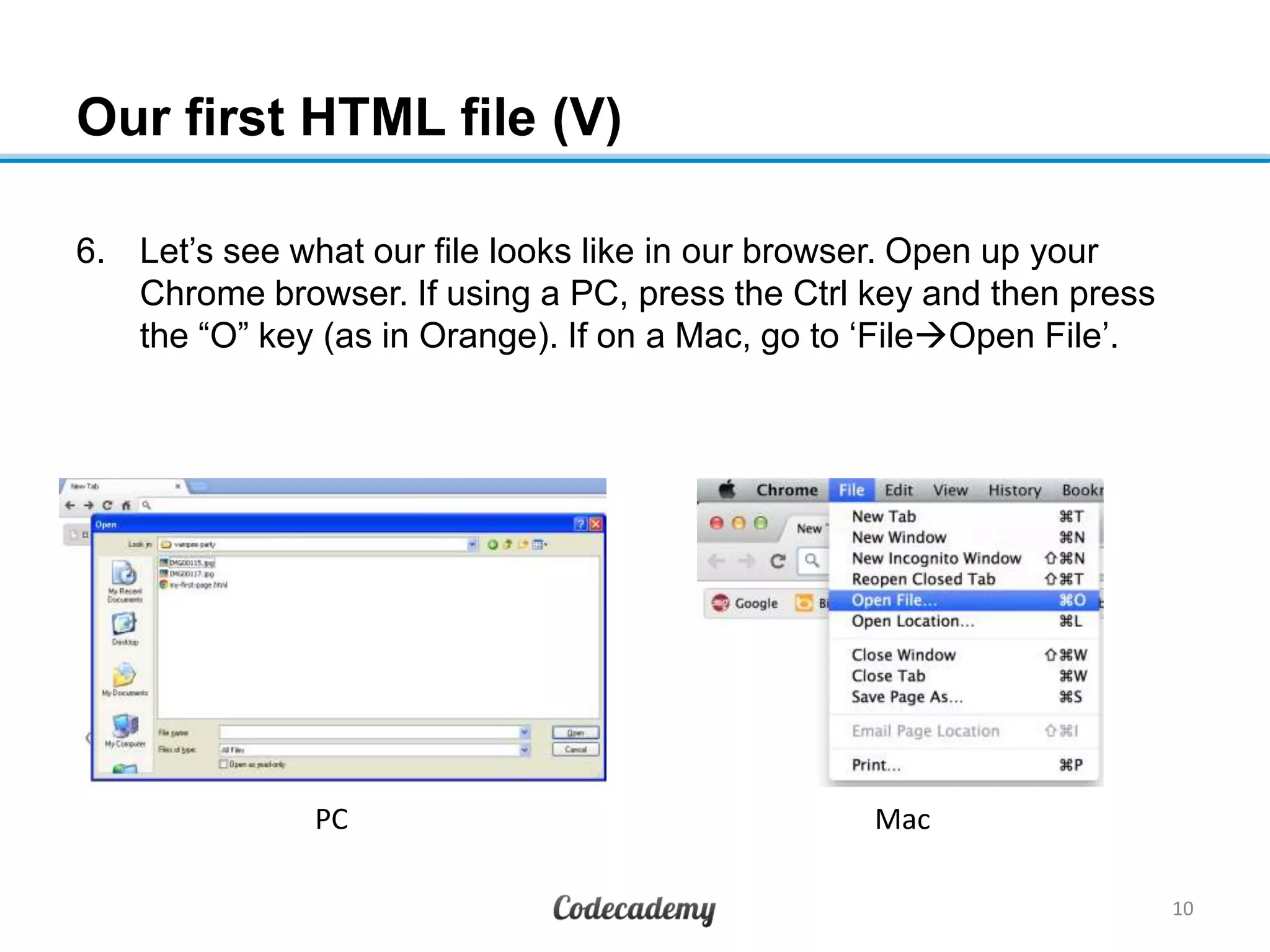
Our first HTML file (V)
6. Let‟s see what our file looks like in our browser. Open up your
Chrome browser. If using a PC, press the Ctrl key and then press
the “O” key (as in Orange). If on a Mac, go to „FileOpen File‟.
10
MacPC
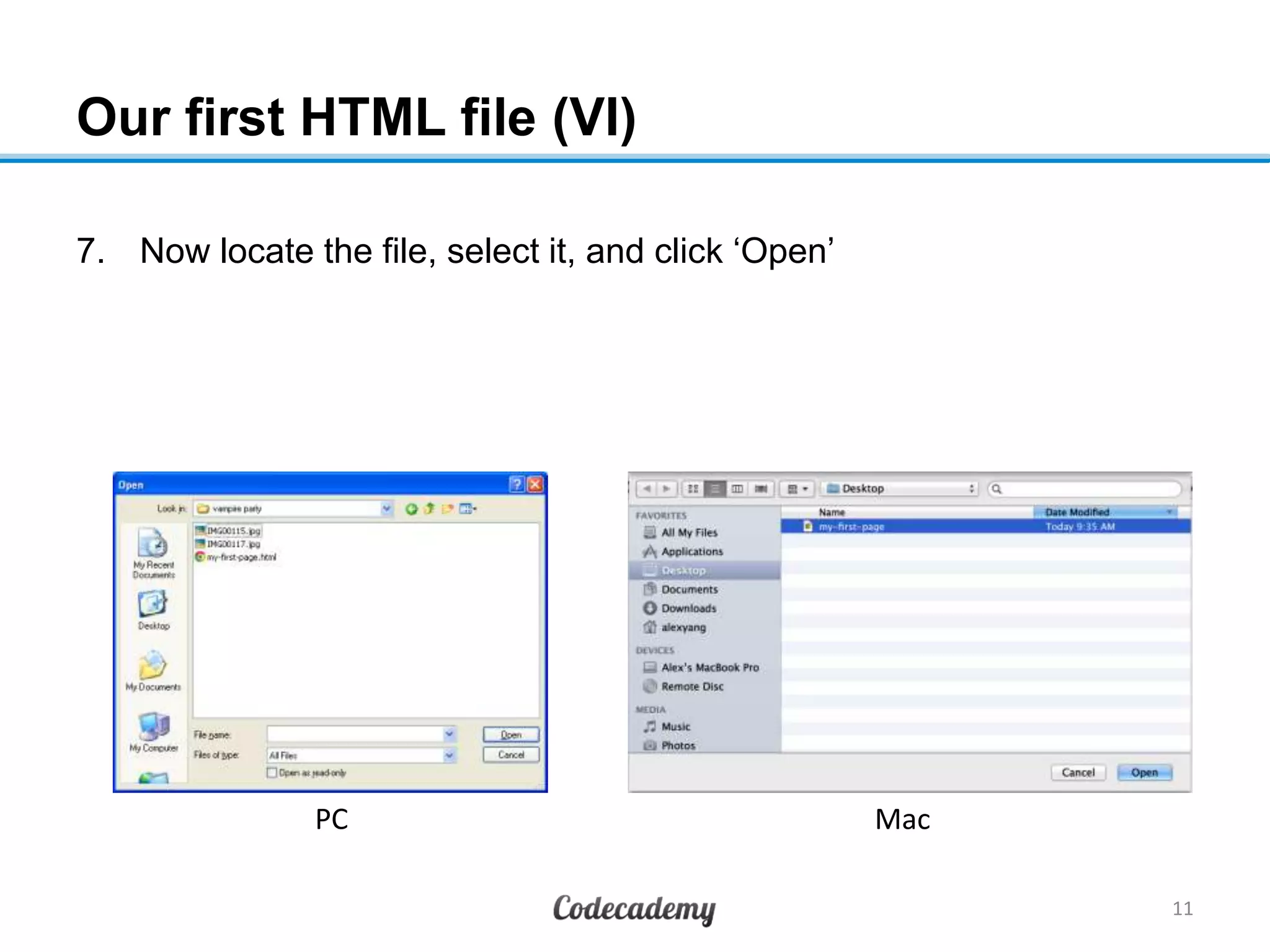
Our first HTML file (VI)
7. Now locate the file, select it, and click „Open‟
11
MacPC
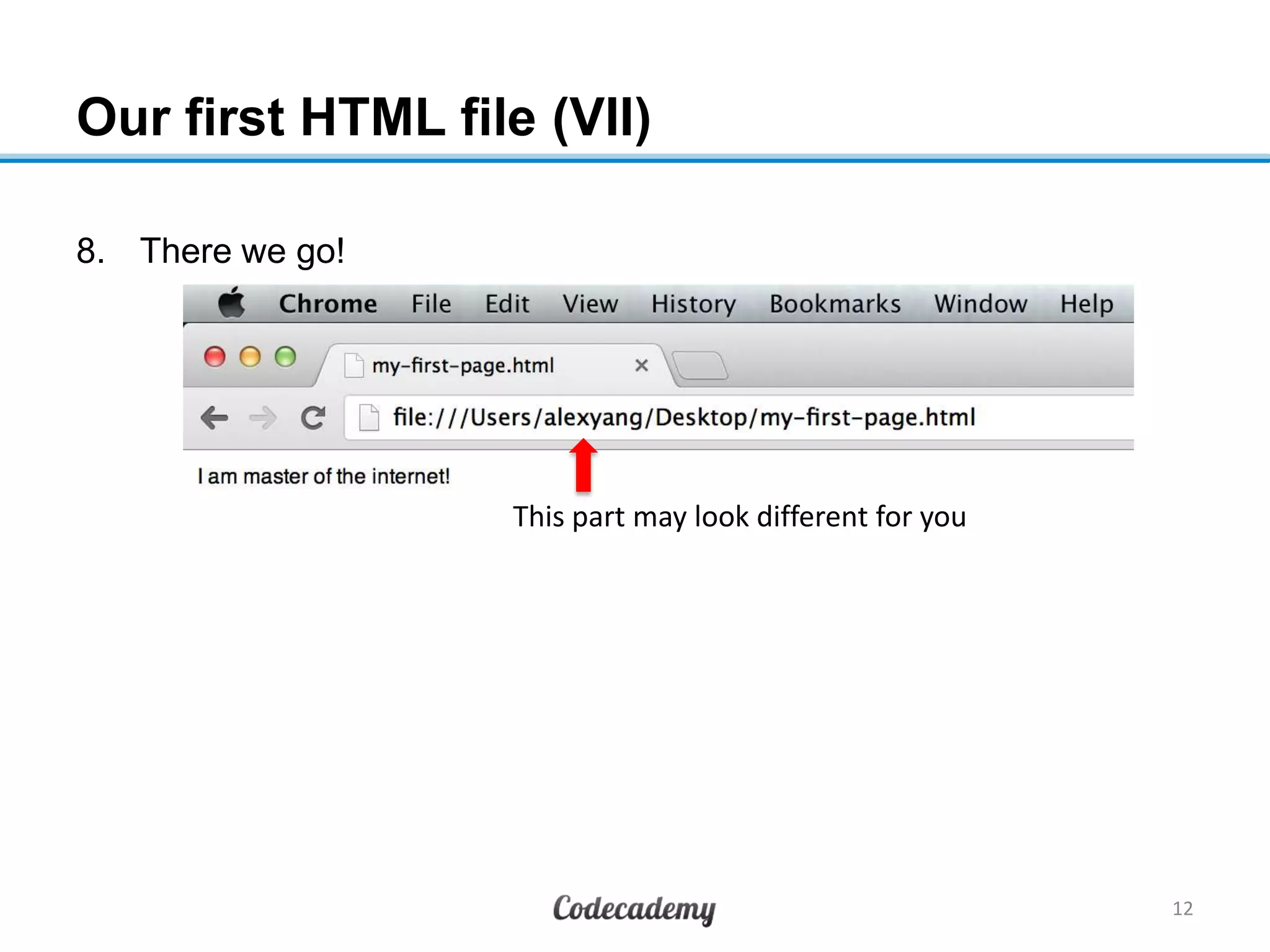
Our first HTML file (VII)
8. There we go!
12
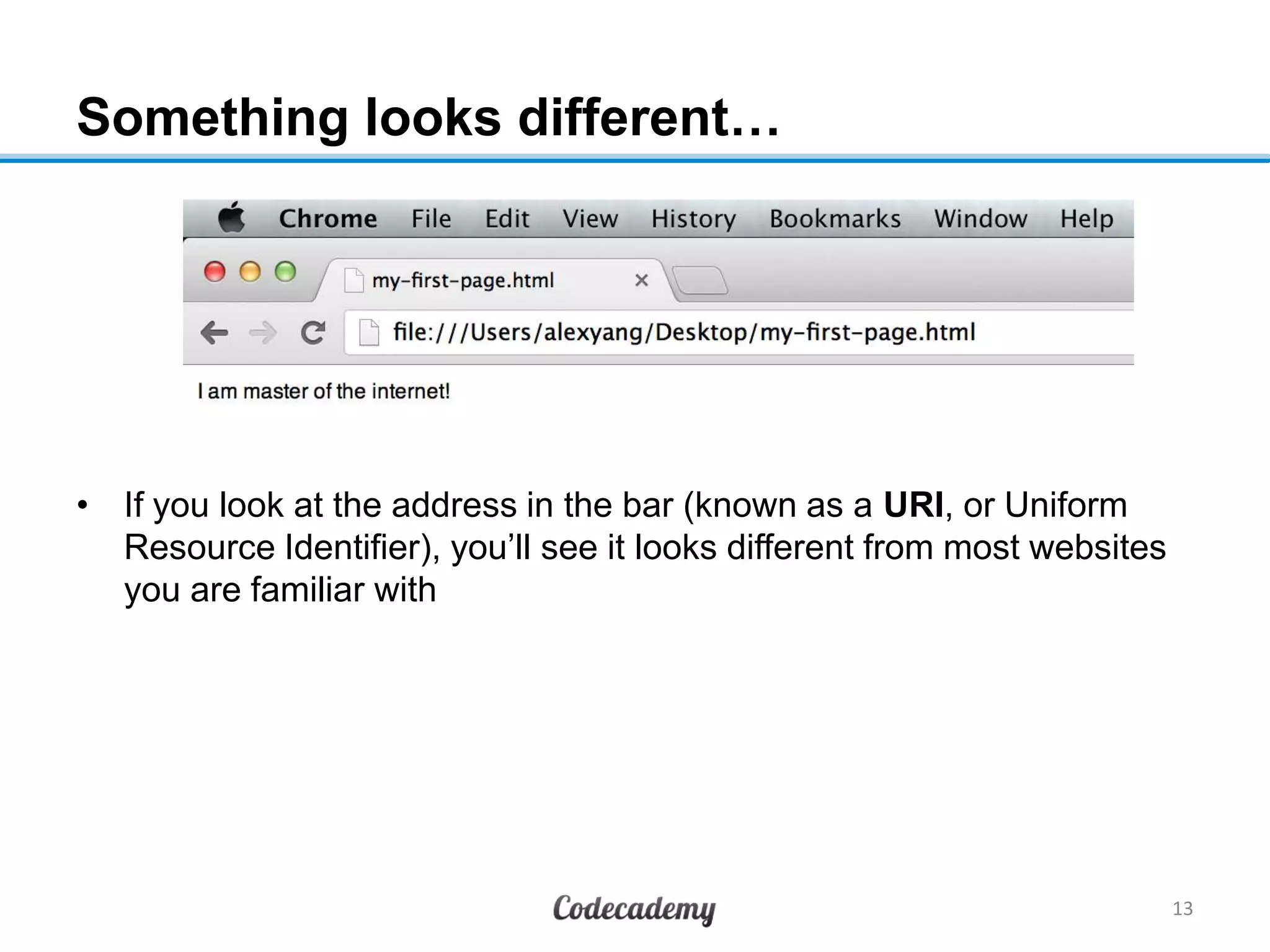
This part may look different for you
Something looks different…
• If you look at the address in the bar (known as a URI, or Uniform
Resource Identifier), you‟ll see it looks different from most websites
you are familiar with
13
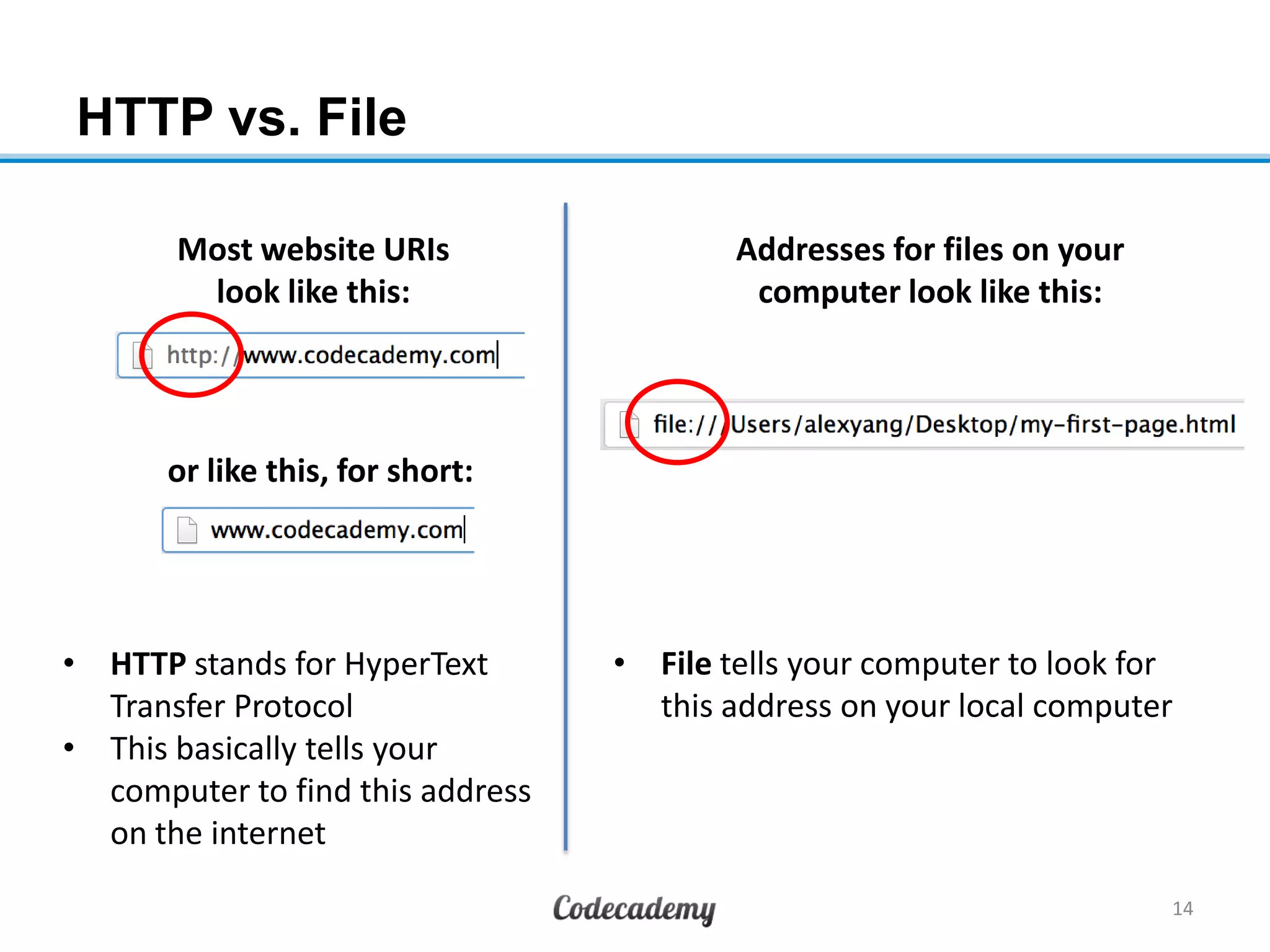
HTTP vs. File
14
Most website URIs
look like this:
or like this, for short:
Addresses for files on your
computer look like this:
• HTTP stands for HyperText
Transfer Protocol
• This basically tells your
computer to find this address
on the internet
• File tells your computer to look for
this address on your local computer
What exactly is a web browser?
• A web browser is an application used to access and display web
pages and other content on the internet
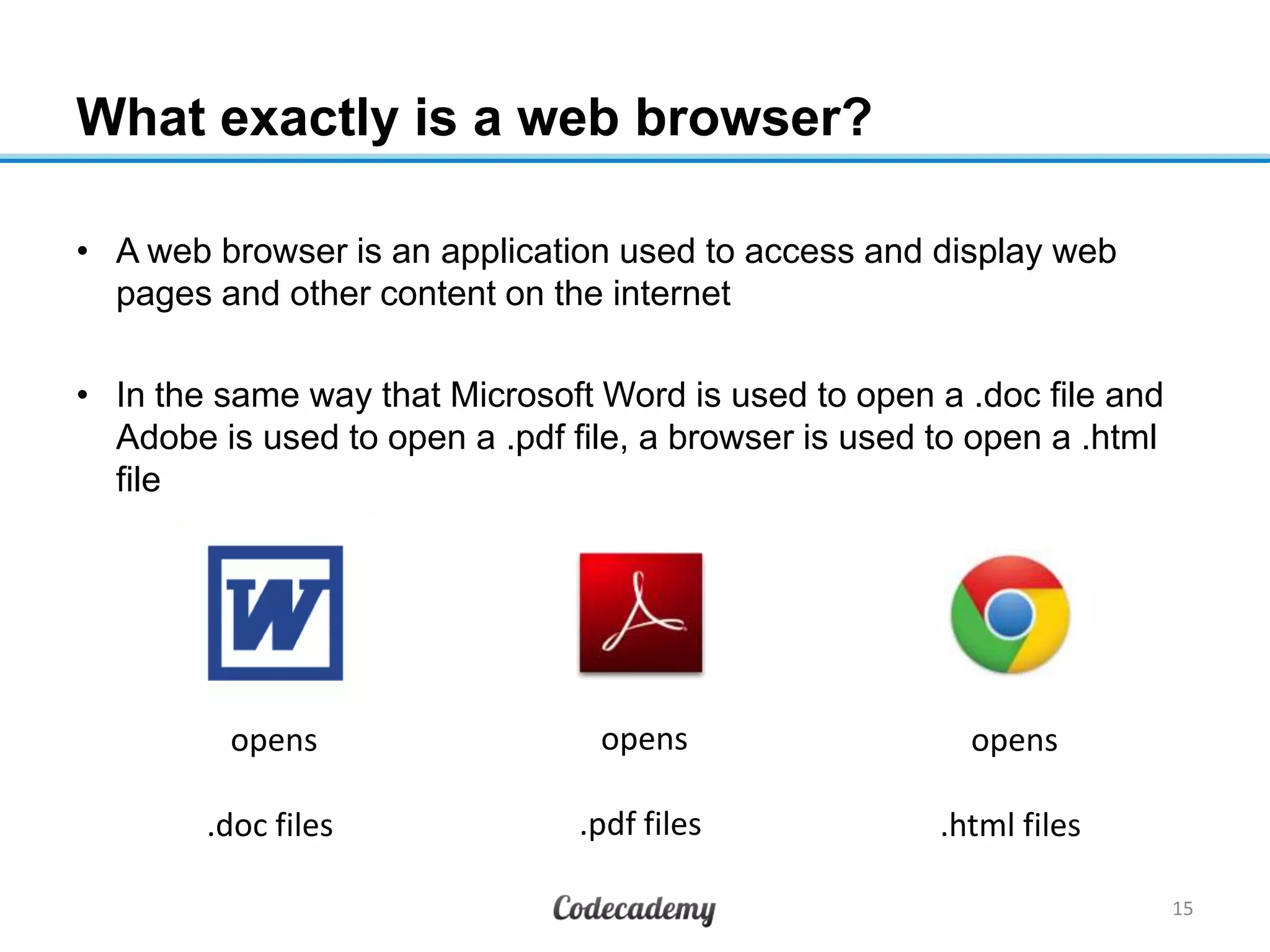
• In the same way that Microsoft Word is used to open a .doc file and
Adobe is used to open a .pdf file, a browser is used to open a .html
file
15
opens
.doc files
opens
.pdf files
opens
.html files
Why are there so many different browsers? (I)
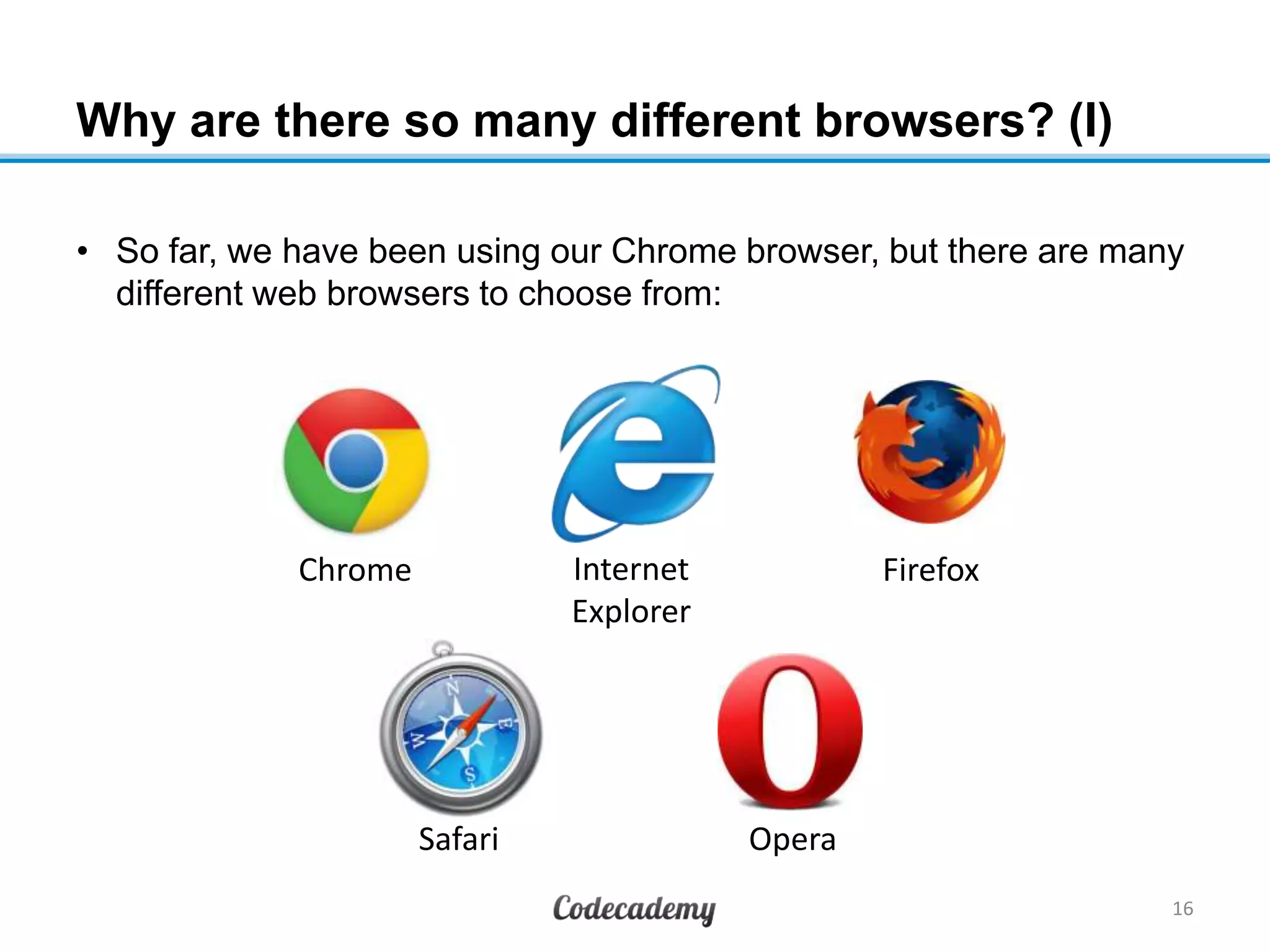
• So far, we have been using our Chrome browser, but there are many
different web browsers to choose from:
16
Chrome Internet
Explorer
Firefox
Safari Opera
Why are there so many different browsers? (II)
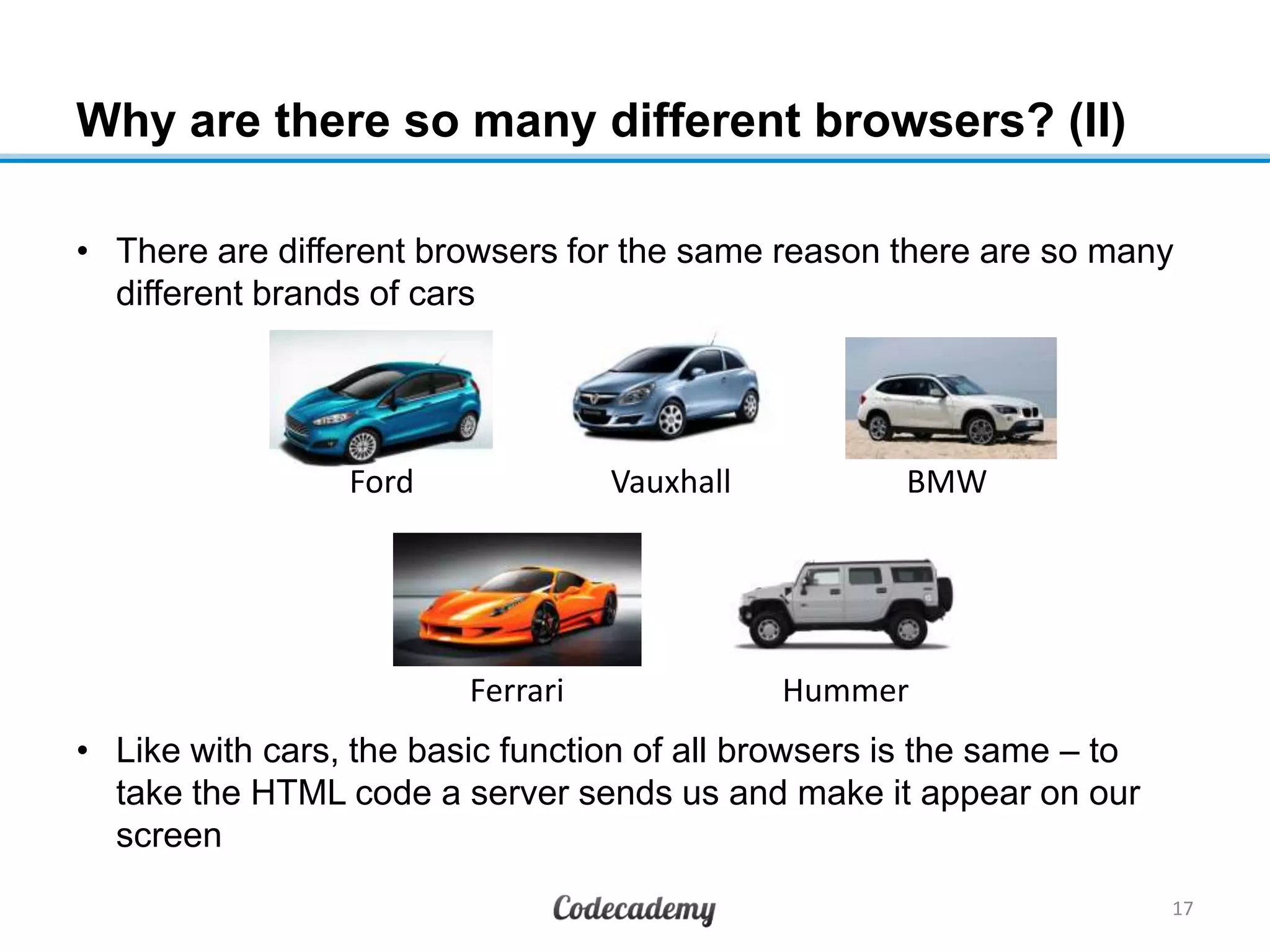
• There are different browsers for the same reason there are so many
different brands of cars
• Like with cars, the basic function of all browsers is the same – to
take the HTML code a server sends us and make it appear on our
screen
17
Ford Vauxhall BMW
Ferrari Hummer
Why are there so many different browsers? (III)
• Like with cars, the basic function of all browsers is the same – to
take the HTML code a server sends us and make it appear on our
screen
• Each browser does things a little differently:
• Some are faster
• Some look cooler
• Some are easier-to-use
• Some have just been around for as long as anyone can remember
18
Summary
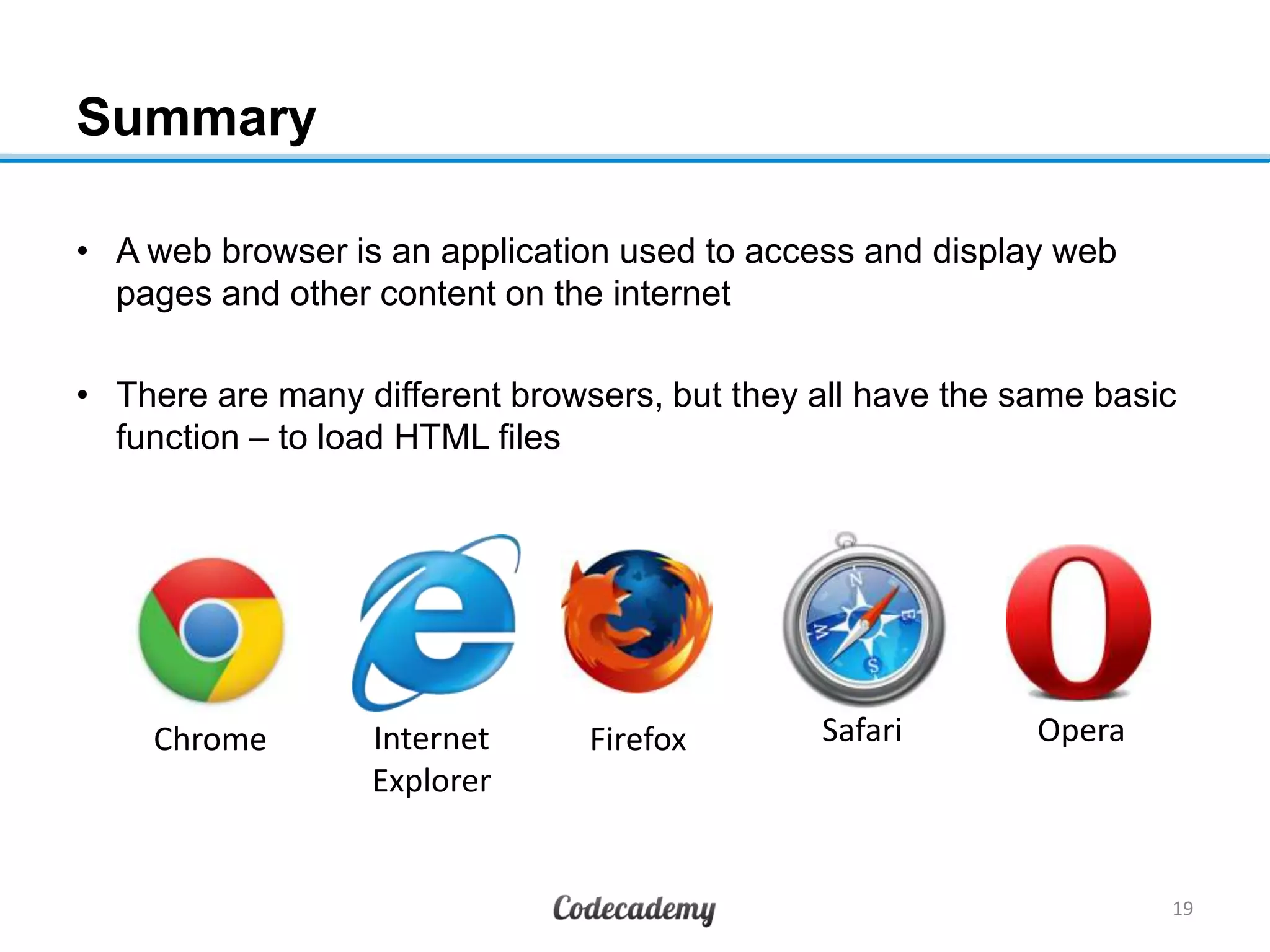
• A web browser is an application used to access and display web
pages and other content on the internet
• There are many different browsers, but they all have the same basic
function – to load HTML files
19
Chrome Internet
Explorer
Firefox Safari Opera
What to do on your own
1. Go to URL to complete the Codecademy course online
2. Do the practice set on the material learned
1. Take the follow-up quiz to test your understanding
20

Lesson 102 23 aug13-1430-ay

  • 1.
    Unit 1: WebFundamentals Lesson 2: Learning to Use HTML August 23, 2013
  • 2.
    Lesson 2: Learningto Use HTML 2 Introduction to HTML Learning to Use HTML HTML and Email Pictures, Vid eo, and Media HTML and Forms Search Engine Optimization Learning to Use CSS Introduction to CSS Reusing Code 3 Ways to Use CSS Separation of Concerns Launching Your Own Website Lesson 1 Lesson 2 Lesson 3 Lesson 4 Lesson 8 Lesson 7 Lesson 6 Lesson 5 Lesson 9 Lesson 10 Lesson 11 Lesson 12 Build understanding Develop skills
  • 3.
    Recap from lasttime (I) • HTML, CSS, jQuery, and Javascript form the building blocks of most websites 3 HTML is the structure/skeleton CSS is the presentation/clothing jQuery/Javascript is the action/movement
  • 4.
    Recap from lasttime (II) • When we navigate to a website, our request is transmitted to a server which sends us the files to load the page • Any local changes we make can be seen on our computer only 4 HAHAHA Router ISP Facebook server Amazon server Youtube server DNS
  • 5.
    Let’s try creatingour own HTML file • We’ve already seen lots of websites created with HTML • It’s easy to do ourselves! 5 Remember this?
  • 6.
    Our first HTMLfile (I) 1. If using a PC, open the Notepad application. If on a Mac, open TextEdit 2. Type “I am master of the internet!” 6 MacPC
  • 7.
    Our first HTMLfile (II) 3. Save the file by going to „File‟„Save As…‟ (PC) or „File‟„Save‟ (Mac) 7 MacPC
  • 8.
    Our first HTMLfile (III) 4. If using a PC, delete “.txt” and rename it to “.html”. If on a Mac, change the „File Format‟ to „Web Page (.html)‟ 8 MacPC
  • 9.
    Our first HTMLfile (IV) 5. Name the file “my-first-page” (don‟t forget where you saved it!) and hit „Save‟. 9 MacPC
  • 10.
    Our first HTMLfile (V) 6. Let‟s see what our file looks like in our browser. Open up your Chrome browser. If using a PC, press the Ctrl key and then press the “O” key (as in Orange). If on a Mac, go to „FileOpen File‟. 10 MacPC
  • 11.
    Our first HTMLfile (VI) 7. Now locate the file, select it, and click „Open‟ 11 MacPC
  • 12.
    Our first HTMLfile (VII) 8. There we go! 12 This part may look different for you
  • 13.
    Something looks different… •If you look at the address in the bar (known as a URI, or Uniform Resource Identifier), you‟ll see it looks different from most websites you are familiar with 13
  • 14.
    HTTP vs. File 14 Mostwebsite URIs look like this: or like this, for short: Addresses for files on your computer look like this: • HTTP stands for HyperText Transfer Protocol • This basically tells your computer to find this address on the internet • File tells your computer to look for this address on your local computer
  • 15.
    What exactly isa web browser? • A web browser is an application used to access and display web pages and other content on the internet • In the same way that Microsoft Word is used to open a .doc file and Adobe is used to open a .pdf file, a browser is used to open a .html file 15 opens .doc files opens .pdf files opens .html files
  • 16.
    Why are thereso many different browsers? (I) • So far, we have been using our Chrome browser, but there are many different web browsers to choose from: 16 Chrome Internet Explorer Firefox Safari Opera
  • 17.
    Why are thereso many different browsers? (II) • There are different browsers for the same reason there are so many different brands of cars • Like with cars, the basic function of all browsers is the same – to take the HTML code a server sends us and make it appear on our screen 17 Ford Vauxhall BMW Ferrari Hummer
  • 18.
    Why are thereso many different browsers? (III) • Like with cars, the basic function of all browsers is the same – to take the HTML code a server sends us and make it appear on our screen • Each browser does things a little differently: • Some are faster • Some look cooler • Some are easier-to-use • Some have just been around for as long as anyone can remember 18
  • 19.
    Summary • A webbrowser is an application used to access and display web pages and other content on the internet • There are many different browsers, but they all have the same basic function – to load HTML files 19 Chrome Internet Explorer Firefox Safari Opera
  • 20.
    What to doon your own 1. Go to URL to complete the Codecademy course online 2. Do the practice set on the material learned 1. Take the follow-up quiz to test your understanding 20