Importants of ComputerHardware
Knoweledge
Understanding computer hardware is essential for anyone
studying or working with technology. Hardware forms the
physical backbone of every computer system – from processors,
memory, and storage devices to input/output units. Without
knowledge of hardware, one cannot fully appreciate how
software runs or why a computer behaves in a certain way.
4.
Relation between Hardwareand
System Performance
01 02
03 04
Processor(CPU/GPU) Ram
Storage (HDD VS SSD) Motherboared and Bus
Speed
05 Power Supply and Cooling
CPU (THE “BRAIN”OF COMPUTER)
The CPU (Central Processing Unit) is responsible for
carrying out all instructions given by software.
It performs three main tasks:
1. Fetch – Retrieves instructions from memory.
2. Decode – Interprets what the instruction means.
3. Execute – Carries out the instruction (e.g., a calculation,
logic operation, or moving data).
Every action in a computer, from opening an
application to browsing the internet, depends on the
CPU’s efficiency.
8.
CPU (THE “BRAIN”OF COMPUTER)
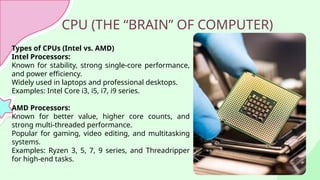
Types of CPUs (Intel vs. AMD)
Intel Processors:
Known for stability, strong single-core performance,
and power efficiency.
Widely used in laptops and professional desktops.
Examples: Intel Core i3, i5, i7, i9 series.
AMD Processors:
Known for better value, higher core counts, and
strong multi-threaded performance.
Popular for gaming, video editing, and multitasking
systems.
Examples: Ryzen 3, 5, 7, 9 series, and Threadripper
for high-end tasks.
9.
CPU (THE “BRAIN”OF COMPUTER)
Key CPU Features Affecting Performance
Clock Speed (GHz):
Determines how many instructions per second the CPU can
execute.
Higher clock speed = faster performance, but also more heat
and power consumption.
Cores and Threads:
Core: Independent processing unit within a CPU.
Threads: Virtual cores enabled by Hyper-Threading (Intel) or
SMT (AMD).
More cores/threads = better multitasking and faster execution
of parallel workloads.
Cache Memory:
Small, high-speed memory inside the CPU.
Stores frequently used instructions/data to reduce access
time.
Types: L1 (fastest, smallest), L2, and L3 (larger, slower but still
RANDOM ACCESS MEMORY
Function:Temporary Storage for
Active Processes
DEFINITION
Unlike hard drives or SSDs, RAM is volatile,
meaning all data is lost when the power is turned
off.
RAM (Random Access Memory) is the
computer’s short-term memory.
It temporarily holds data and instructions
that the CPU is actively using.
When you open multiple applications, each one
uses a portion of RAM for smooth performance.
MOTHERBOARD
1.Definition & Role
Themotherboard is the main circuit
board of a computer.
The motherboard is the main circuit
board of a computer.
It acts as the central backbone,
connecting all components such as CPU,
RAM, storage devices, GPU, and
peripherals.
Ensures communication between
hardware components through buses and
chipsets.
GPU(GRAPHICS PROCESSING UNIT)
AGPU is a specialized processor designed for graphics rendering and parallel
computation.
Initially created to accelerate 2D/3D graphics, images, and video rendering, GPUs
are now widely used for:
Gaming: Smooth, high-quality visuals and faster frame rates.
Professional Graphics: CAD design, video editing, 3D animation.
AI & Machine Learning: Training deep learning models using parallel processing.
Scientific Computing: Simulations, data visualization, and crypto mining.
Thanks!
Does anyone haveany questions?
sayanroyofficial221@gmail.com
+91 8479065593
Cmd
Ctrl
A
Z
C
+
Editor's Notes
#3 Understanding computer hardware is essential for anyone studying or working with technology. Hardware forms the physical backbone of every computer system – from processors, memory, and storage devices to input/output units. Without knowledge of hardware, one cannot fully appreciate how software runs or why a computer behaves in a certain way.
For students, it builds a foundation for advanced topics like operating systems, networks, and computer architecture.
For professionals, it helps in decision-making, whether selecting appropriate hardware for an application, upgrading systems, or improving performance.
In day-to-day life, even a basic knowledge of hardware helps individuals manage their own devices better.
#4 Processor (CPU/GPU): Determines how quickly instructions are executed. A faster processor means smoother multitasking and quicker computations.
RAM (Memory): The more RAM available, the better the system can handle multiple applications simultaneously without lag.
Storage (HDD vs SSD): SSDs offer much faster read/write speeds compared to HDDs, which directly improves boot time and application loading.
Motherboard & Bus Speed: Affects how efficiently different hardware components communicate with each other.
Power Supply & Cooling: Ensure system stability and prevent hardware failure under load.
#5 PC Assembly:
Choosing compatible components (CPU, motherboard, RAM, GPU, storage).
Understanding power supply requirements and system cooling.
Building custom PCs tailored for gaming, video editing, or data analysis.
Troubleshooting:
Identifying faulty RAM, overheating CPUs, or failing hard drives.
Diagnosing system bottlenecks (slow performance due to limited RAM or old HDD).
Replacing defective parts instead of replacing the entire system.
Upgrading Systems:
Adding more RAM to run modern applications.
Replacing HDD with SSD for faster performance.
Installing a dedicated GPU for graphics-intensive tasks.
#8 👉 Both Intel and AMD now focus on multi-core designs to improve parallel processing.
#12 DDR (Double Data Rate) is the most common type of RAM used in modern systems.
DDR3:
Older generation, still found in older PCs/laptops.
Lower speed (800–2133 MHz).
DDR4:
Standard in most computers today.
Faster (2133–3200+ MHz) and more power-efficient than DDR3.
DDR5:
Latest generation, used in new high-performance systems.
Much higher speed (up to 6400+ MHz).
Supports larger capacity per module and better efficiency.
#13 Capacity (Size):
Determines how many applications you can run at once.
Example:
4 GB: Suitable for very basic tasks.
8 GB: Standard for daily use and light multitasking.
16 GB: Ideal for gaming and professional work.
32 GB+: Required for video editing, 3D design, and high-end applications.
Speed (MHz):
Higher RAM speed = faster data transfer between RAM and CPU.
Affects how quickly applications load and run.
Important for gaming, rendering, and scientific computing.
Dual-Channel vs. Single-Channel:
Using two RAM sticks in dual-channel mode doubles the bandwidth, improving performance.
#15 Function of Storage Devices
Storage devices are responsible for permanent data storage in a computer system.
Unlike RAM, data in storage is non-volatile – it remains even when power is turned off.
Stores the Operating System, applications, and user files.
Two most common types today: HDDs (Hard Disk Drives) and SSDs (Solid State Drives).
2. HDD (Hard Disk Drive)
Technology: Uses spinning magnetic platters to read/write data via a moving arm (like a record player).
Speed: Slower due to mechanical movement (typically 80–160 MB/s read/write speed).
Capacity: Available in larger storage sizes (up to 10 TB or more).
Cost: More cost-effective per gigabyte compared to SSD.
Durability: Mechanical parts make it prone to wear and tear, shock damage.
Best suited for:
Bulk storage (movies, backups, archives).
Users prioritizing storage size over speed.
👉 Analogy: HDD is like a traditional library with shelves – it has lots of space but takes time to fetch books.
3. SSD (Solid State Drive)
Technology: Uses flash memory chips, with no moving parts.
Speed: Much faster (500 MB/s to 7000 MB/s depending on SATA or NVMe).
Capacity: Usually smaller than HDDs, but high-capacity SSDs are becoming available.
Cost: More expensive per gigabyte.
Durability: More shock-resistant since there are no moving parts.
Best suited for:
Operating System and applications (for fast boot and load times).
Gaming, video editing, professional workloads.
👉 Analogy: SSD is like a modern digital e-library – you can access books instantly without searching shelves.
4. Performance Comparison (HDD vs SSD)
Boot Speed:
HDD: 30–60 seconds to boot Windows.
SSD: 10–15 seconds or less.
Application Load Time:
HDD: Slower, noticeable lag when opening large programs.
SSD: Almost instantaneous loading.
Data Transfer:
HDD: Limited by mechanical read/write head.
SSD: Extremely fast due to direct flash memory access.
Hybrid Storage (HDD + SSD Combination)
Many modern PCs use a hybrid approach:
SSD for Operating System + frequently used apps (fast speed).
HDD for mass storage (low cost, high capacity).
This provides the best balance of speed and storage space.
#17 CPU Socket: Slot where the processor is installed (LGA for Intel, AM4/AM5 for AMD).
Chipset: Controls communication between CPU, memory, and peripherals (Northbridge/Southbridge in older boards, now integrated into the chipset).
RAM Slots (DIMM slots): Hold system memory (DDR3, DDR4, DDR5 depending on generation).
Expansion Slots (PCIe): For adding graphics cards, sound cards, Wi-Fi cards, etc.
Storage Connectors: SATA ports (HDD/SSD) and M.2/NVMe slots for modern SSDs.
Power Connectors: ATX 24-pin and CPU 8-pin connectors supply power from the PSU.
I/O Ports: USB, HDMI, Ethernet, Audio, etc., available on the back panel.
BIOS/UEFI Chip: Firmware that initializes hardware during boot and loads the OS.
Cooling Fan Headers: Connect system and CPU fans for thermal management.
#18 ATX (Advanced Technology eXtended):
Standard size (12 × 9.6 inches).
More expansion slots, RAM slots, and connectivity.
Common in desktops and gaming PCs.
Micro-ATX:
Smaller (9.6 × 9.6 inches).
Fewer expansion slots but still supports most features.
Budget-friendly and widely used.
Mini-ITX:
Very compact (6.7 × 6.7 inches).
Limited slots, but energy-efficient.
Ideal for small form-factor PCs (HTPCs, compact builds).
#21 Integrated GPU (iGPU):
Built into the CPU or motherboard.
Shares system RAM instead of having its own memory.
Suitable for everyday tasks (browsing, office work, watching videos).
Example: Intel UHD Graphics, AMD Vega integrated graphics.
Dedicated GPU (Discrete GPU):
A separate graphics card with its own processor and VRAM (Video RAM).
Delivers much higher performance for gaming, rendering, and AI workloads.
Connects via PCIe slot on the motherboard.
Example: NVIDIA GeForce RTX series, AMD Radeon RX series.