Lesson 7
Fragments
Victor Matos
Cleveland State University
Portions of this page are reproduced from work created and shared by Google and used according to terms
described in the Creative Commons 3.0 Attribution License.
• Android is a multitasking OS and its hardware specs allow for real
parallelism. However, at any given time only one activity per app can be
‘visible’ and ‘active’. This fact is rather limiting considering the extensive
screen area offered by larger devices (tablets, phablets, TV sets, etc).
Fragments offer an escape solution.
• The Fragment class produces visual objects that can be dynamically
attached to designated portions of the app’s GUI. Each fragment object
can expose its own views and provide means for the users to interact
with the application.
• Fragments must exist within the boundaries of an Activity that acts as a
‘home-base’ or host.
• A host activity’s GUI may expose any number of fragments. In this GUI
each fragment could be visible and active.
Fragments
6 - 2
• Fragments behave as independent threads, usually they cooperate in
achieving a common goal; however each can run its own I/O, events and
business logic.
• Fragments could access ‘global data’ held in the main activity to which
they belong. Likewise, they could send values of their own to the main
activity for potential dissemination to other fragments.
• Fragments have their own particular Life-Cycle, in which the
onCreateView method does most of the work needed to make them.
• Fragments were first introduced in the Honeycomb SDK (API 11).
Fragments
6 - 3
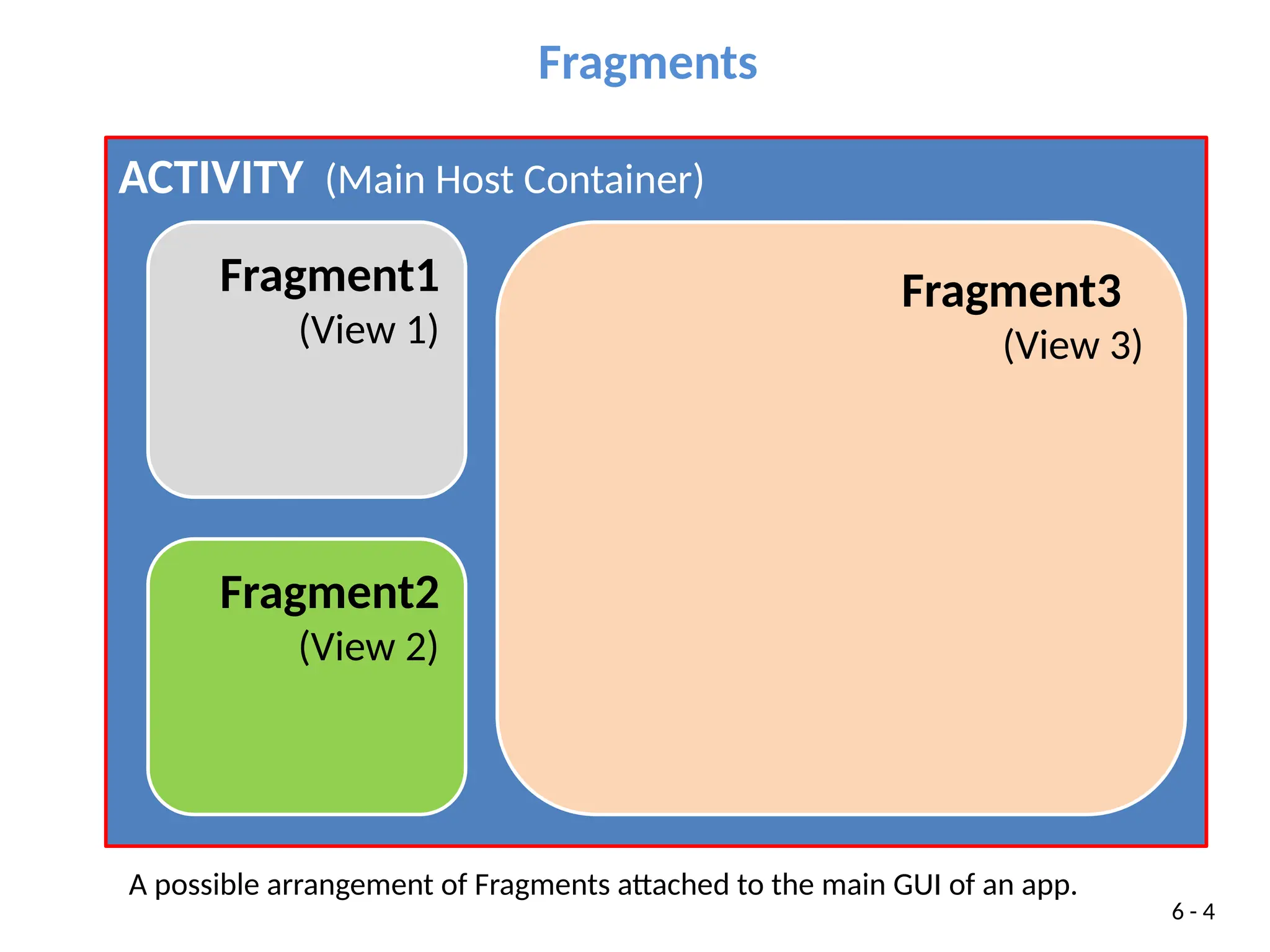
ACTIVITY (Main Host Container)
Fragment3
(View 3)
Fragment1
(View 1)
Fragment2
(View 2)
Fragments
A possible arrangement of Fragments attached to the main GUI of an app.
6 - 4
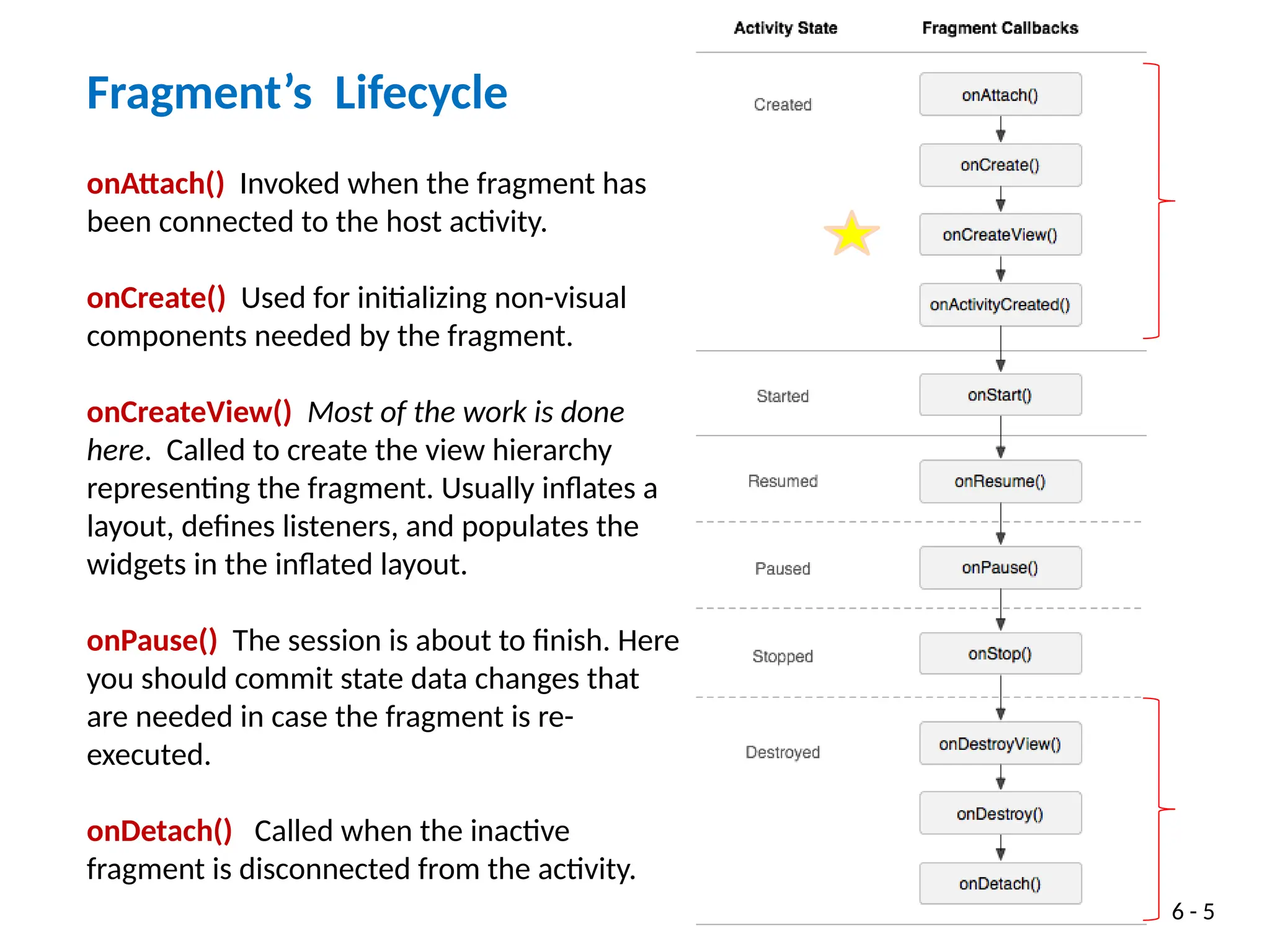
Fragment’s Lifecycle
onAttach() Invoked when the fragment has
been connected to the host activity.
onCreate() Used for initializing non-visual
components needed by the fragment.
onCreateView() Most of the work is done
here. Called to create the view hierarchy
representing the fragment. Usually inflates a
layout, defines listeners, and populates the
widgets in the inflated layout.
onPause() The session is about to finish. Here
you should commit state data changes that
are needed in case the fragment is re-
executed.
onDetach() Called when the inactive
fragment is disconnected from the activity.
6 - 5
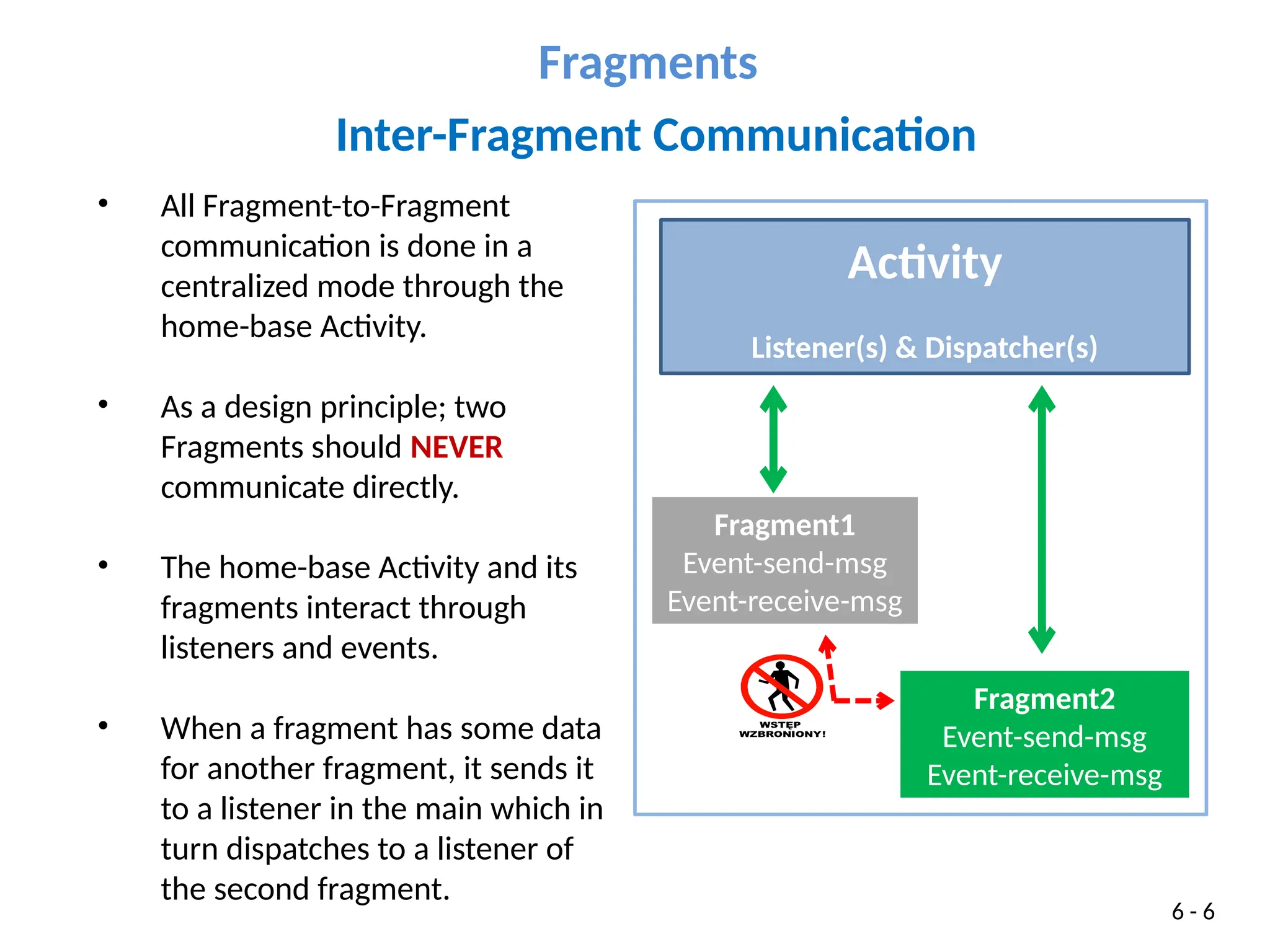
• All Fragment-to-Fragment
communication is done in a
centralized mode through the
home-base Activity.
• As a design principle; two
Fragments should NEVER
communicate directly.
• The home-base Activity and its
fragments interact through
listeners and events.
• When a fragment has some data
for another fragment, it sends it
to a listener in the main which in
turn dispatches to a listener of
the second fragment.
Fragments
6 - 6
Inter-Fragment Communication
Activity
Listener(s) & Dispatcher(s)
Fragment1
Event-send-msg
Event-receive-msg
Fragment2
Event-send-msg
Event-receive-msg
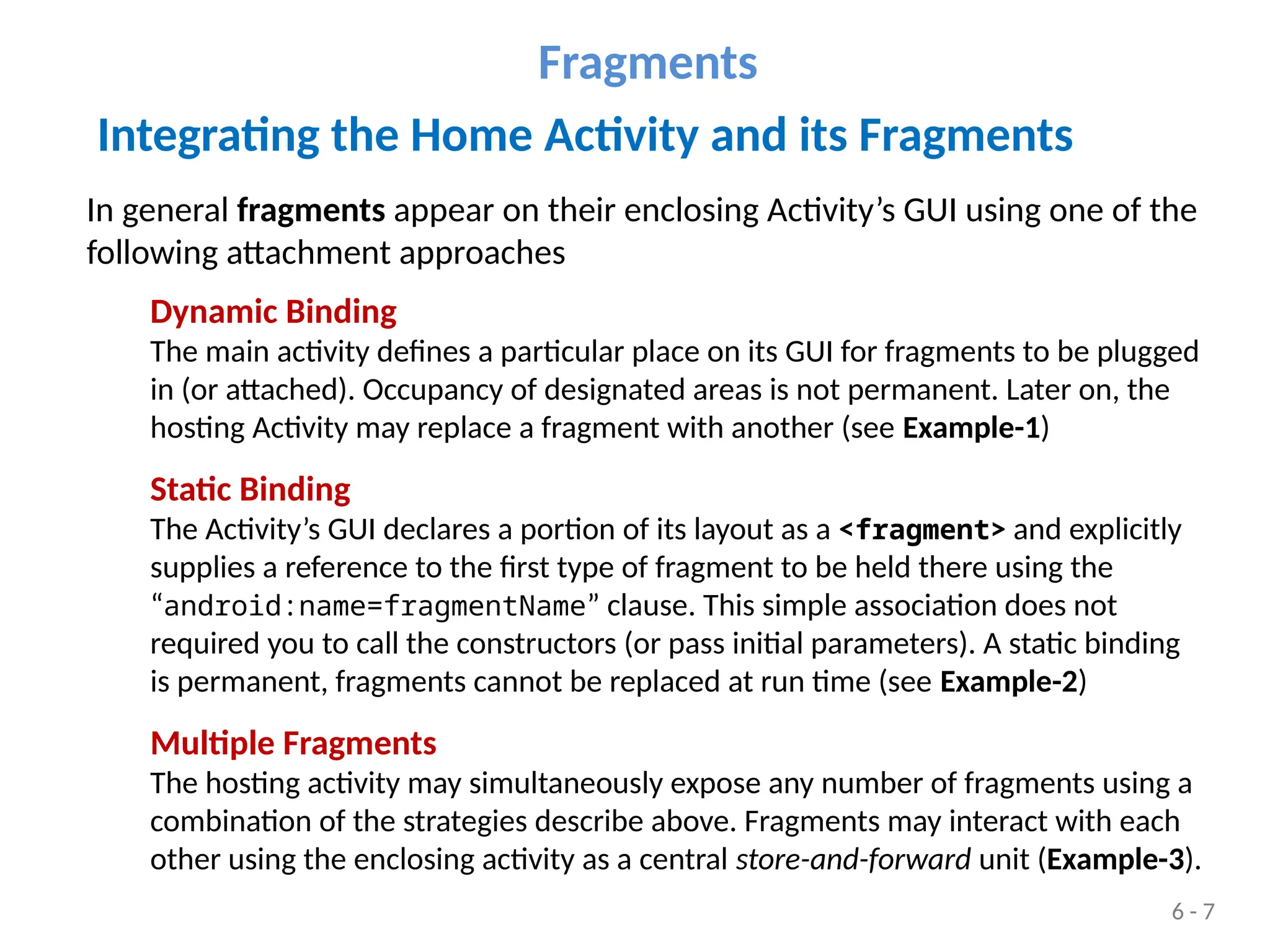
Integrating the Home Activity and its Fragments
In general fragments appear on their enclosing Activity’s GUI using one of the
following attachment approaches
Dynamic Binding
The main activity defines a particular place on its GUI for fragments to be plugged
in (or attached). Occupancy of designated areas is not permanent. Later on, the
hosting Activity may replace a fragment with another (see Example-1)
Static Binding
The Activity’s GUI declares a portion of its layout as a <fragment> and explicitly
supplies a reference to the first type of fragment to be held there using the
“android:name=fragmentName” clause. This simple association does not
required you to call the constructors (or pass initial parameters). A static binding
is permanent, fragments cannot be replaced at run time (see Example-2)
Multiple Fragments
The hosting activity may simultaneously expose any number of fragments using a
combination of the strategies describe above. Fragments may interact with each
other using the enclosing activity as a central store-and-forward unit (Example-3).
Fragments
6 - 7
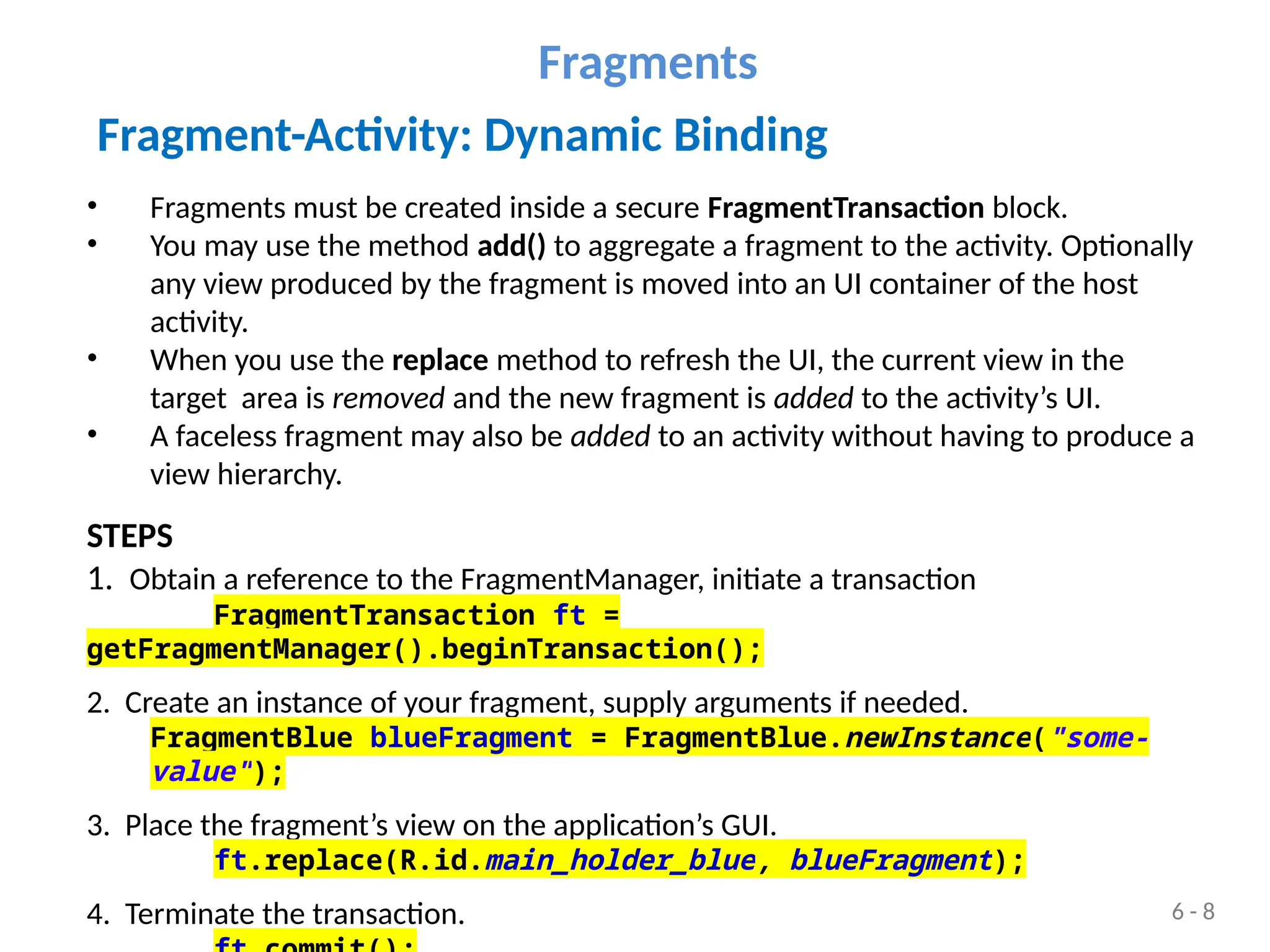
Fragment-Activity: Dynamic Binding
• Fragments must be created inside a secure FragmentTransaction block.
• You may use the method add() to aggregate a fragment to the activity. Optionally
any view produced by the fragment is moved into an UI container of the host
activity.
• When you use the replace method to refresh the UI, the current view in the
target area is removed and the new fragment is added to the activity’s UI.
• A faceless fragment may also be added to an activity without having to produce a
view hierarchy.
STEPS
1. Obtain a reference to the FragmentManager, initiate a transaction
FragmentTransaction ft =
getFragmentManager().beginTransaction();
2. Create an instance of your fragment, supply arguments if needed.
FragmentBlue blueFragment = FragmentBlue.newInstance("some-
value");
3. Place the fragment’s view on the application’s GUI.
ft.replace(R.id.main_holder_blue, blueFragment);
4. Terminate the transaction.
Fragments
6 - 8
Integrating the Home Activity and its Fragments
// create a new RED fragment - show it
ft = getFragmentManager().beginTransaction();
redFragment = FragmentRed.newInstance("new-
red");
ft.replace(R.id.main_holder_red, redFragment);
ft.commit();
Fragments
6 - 9
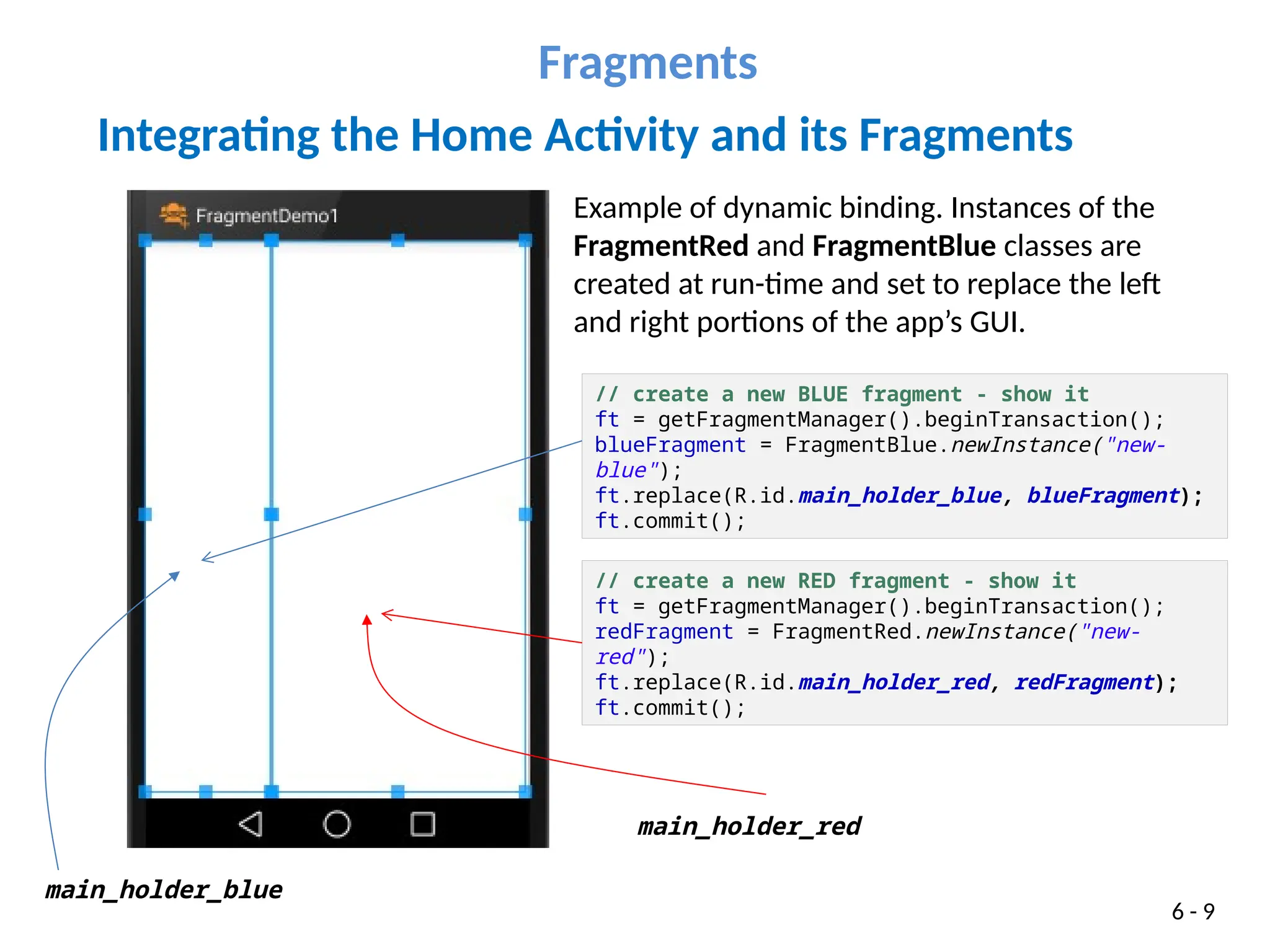
main_holder_red
main_holder_blue
// create a new BLUE fragment - show it
ft = getFragmentManager().beginTransaction();
blueFragment = FragmentBlue.newInstance("new-
blue");
ft.replace(R.id.main_holder_blue, blueFragment);
ft.commit();
Example of dynamic binding. Instances of the
FragmentRed and FragmentBlue classes are
created at run-time and set to replace the left
and right portions of the app’s GUI.
6 - 10
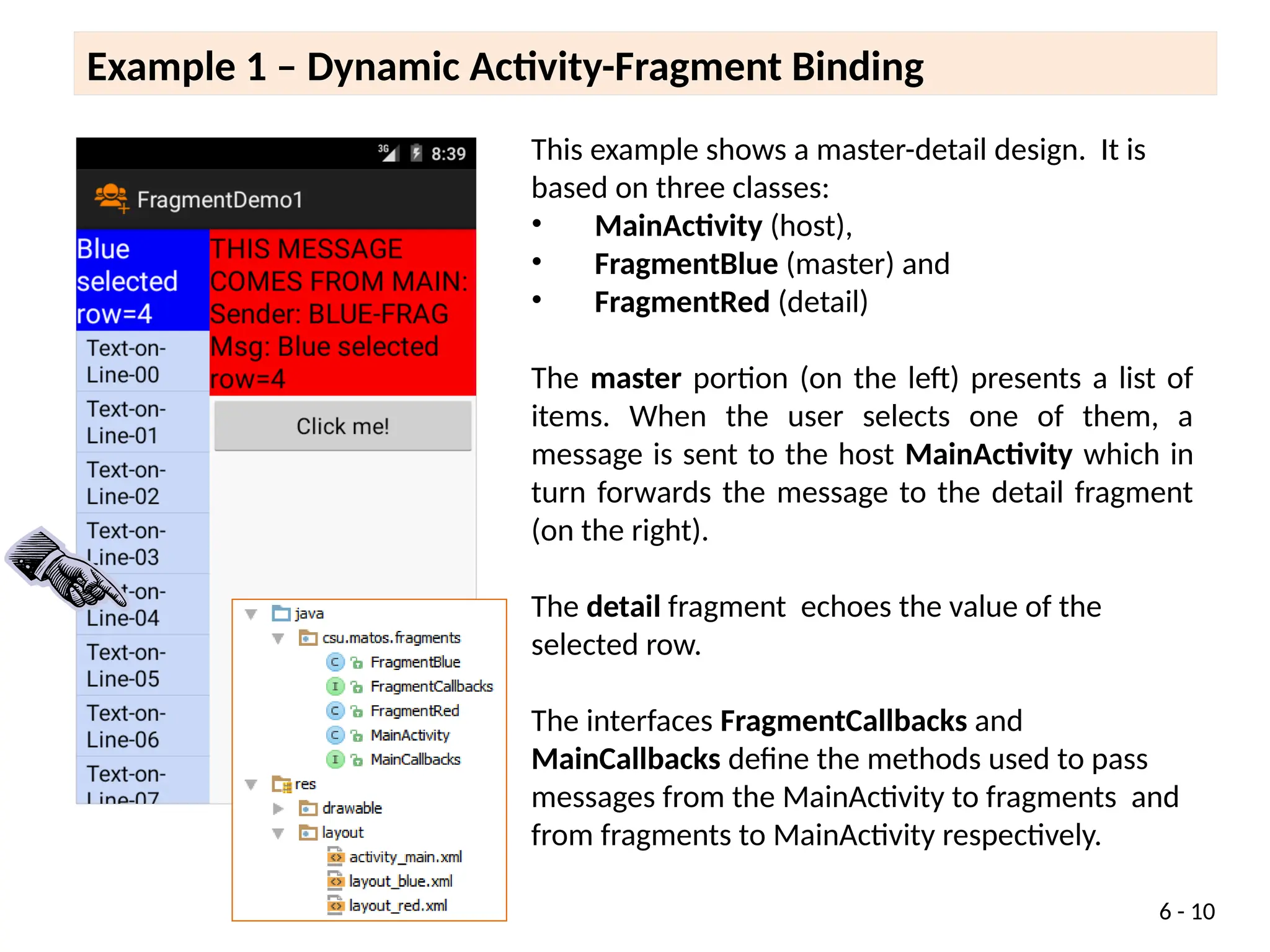
This example shows a master-detail design. It is
based on three classes:
• MainActivity (host),
• FragmentBlue (master) and
• FragmentRed (detail)
The master portion (on the left) presents a list of
items. When the user selects one of them, a
message is sent to the host MainActivity which in
turn forwards the message to the detail fragment
(on the right).
The detail fragment echoes the value of the
selected row.
The interfaces FragmentCallbacks and
MainCallbacks define the methods used to pass
messages from the MainActivity to fragments and
from fragments to MainActivity respectively.
Example 1 – Dynamic Activity-Fragment Binding
6 - 11
Example 1 – Dynamic Activity-Fragment Binding
<?xml version="1.0" encoding="utf-8"?>
<LinearLayout xmlns:android="http://schemas.android.com/apk/res/android"
android:layout_width="match_parent"
android:layout_height="match_parent"
android:baselineAligned="false"
android:orientation="horizontal" >
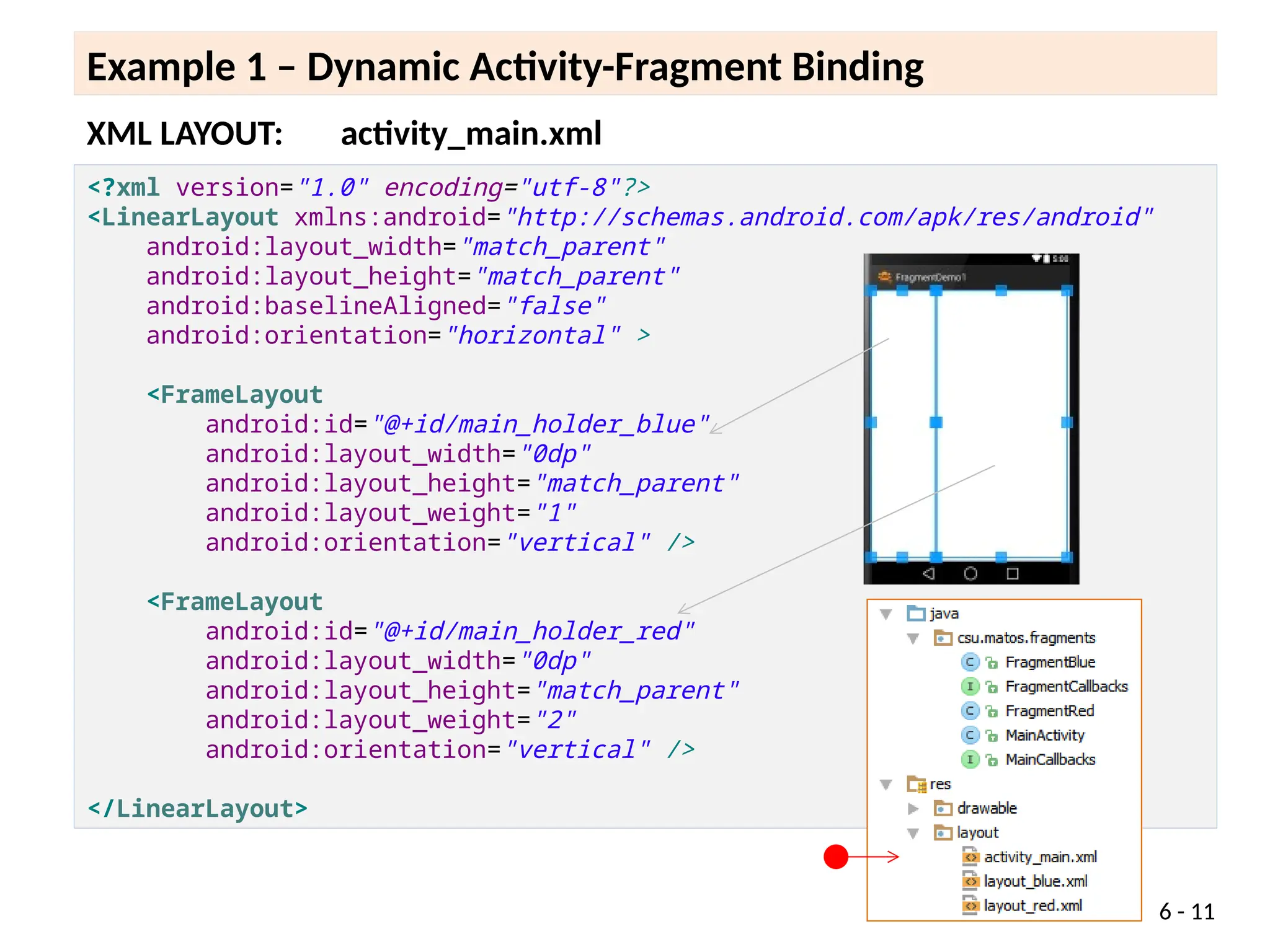
<FrameLayout
android:id="@+id/main_holder_blue"
android:layout_width="0dp"
android:layout_height="match_parent"
android:layout_weight="1"
android:orientation="vertical" />
<FrameLayout
android:id="@+id/main_holder_red"
android:layout_width="0dp"
android:layout_height="match_parent"
android:layout_weight="2"
android:orientation="vertical" />
</LinearLayout>
XML LAYOUT: activity_main.xml
6 - 12
Example 1 – Dynamic Activity-Fragment Binding
<?xml version="1.0" encoding="utf-8"?>
<LinearLayout xmlns:android="http://schemas.android.com/apk/res/android"
android:id="@+id/layout_blue"
android:layout_width="match_parent"
android:layout_height="match_parent"
android:orientation="vertical" >
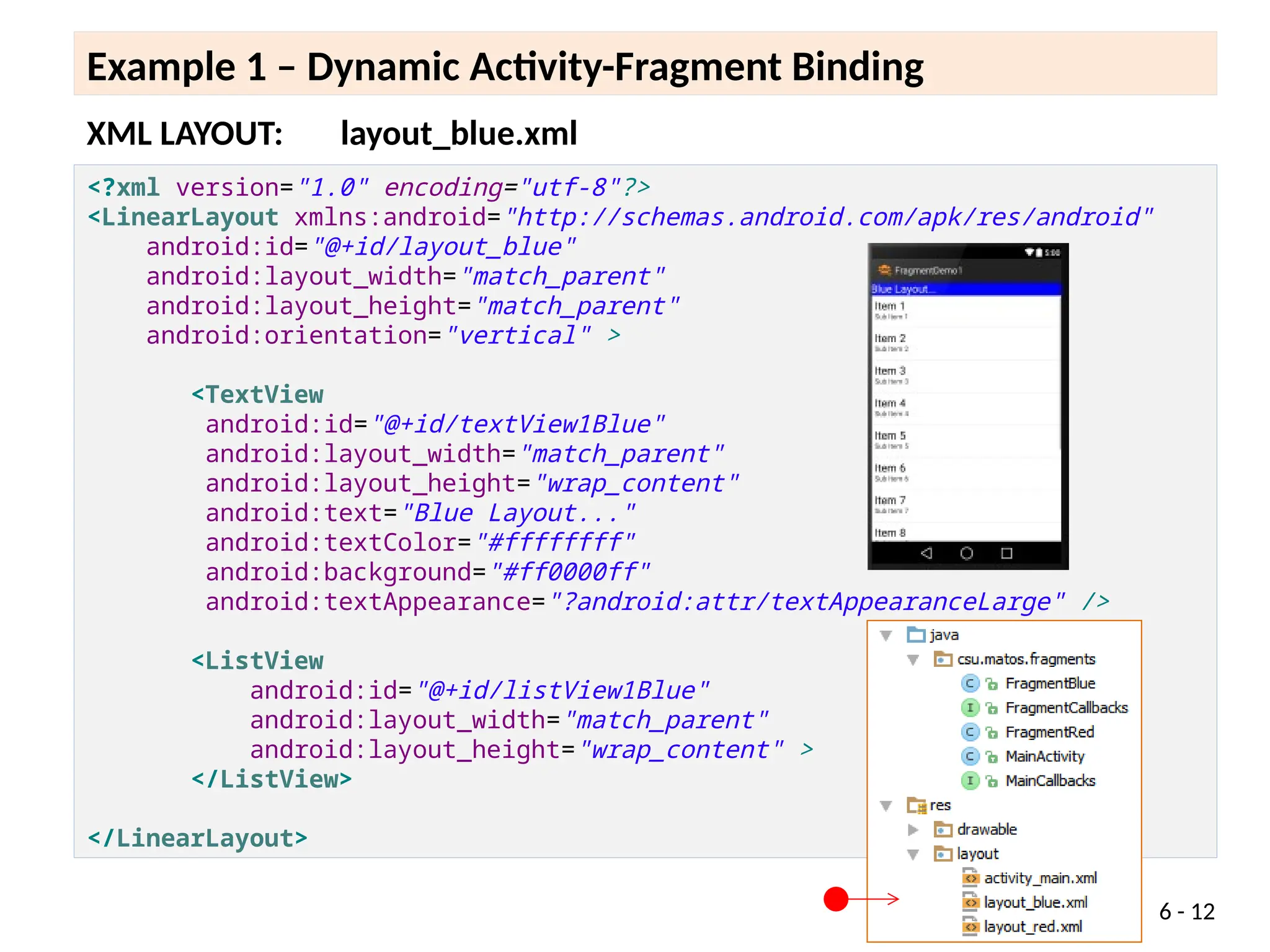
<TextView
android:id="@+id/textView1Blue"
android:layout_width="match_parent"
android:layout_height="wrap_content"
android:text="Blue Layout..."
android:textColor="#ffffffff"
android:background="#ff0000ff"
android:textAppearance="?android:attr/textAppearanceLarge" />
<ListView
android:id="@+id/listView1Blue"
android:layout_width="match_parent"
android:layout_height="wrap_content" >
</ListView>
</LinearLayout>
XML LAYOUT: layout_blue.xml
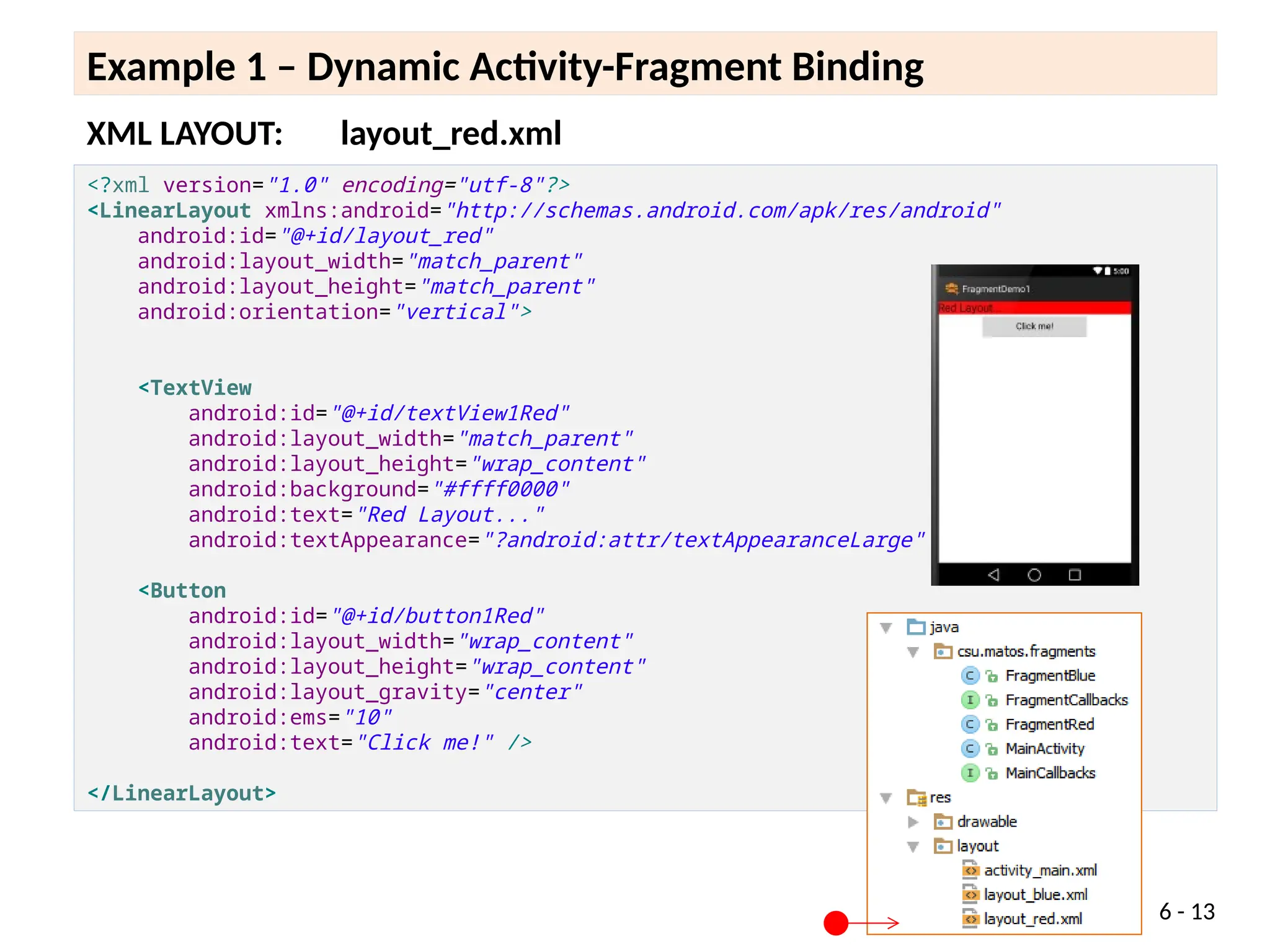
XML LAYOUT: layout_red.xml
6 - 13
Example 1 – Dynamic Activity-Fragment Binding
<?xml version="1.0" encoding="utf-8"?>
<LinearLayout xmlns:android="http://schemas.android.com/apk/res/android"
android:id="@+id/layout_red"
android:layout_width="match_parent"
android:layout_height="match_parent"
android:orientation="vertical">
<TextView
android:id="@+id/textView1Red"
android:layout_width="match_parent"
android:layout_height="wrap_content"
android:background="#ffff0000"
android:text="Red Layout..."
android:textAppearance="?android:attr/textAppearanceLarge" />
<Button
android:id="@+id/button1Red"
android:layout_width="wrap_content"
android:layout_height="wrap_content"
android:layout_gravity="center"
android:ems="10"
android:text="Click me!" />
</LinearLayout>
6 - 14
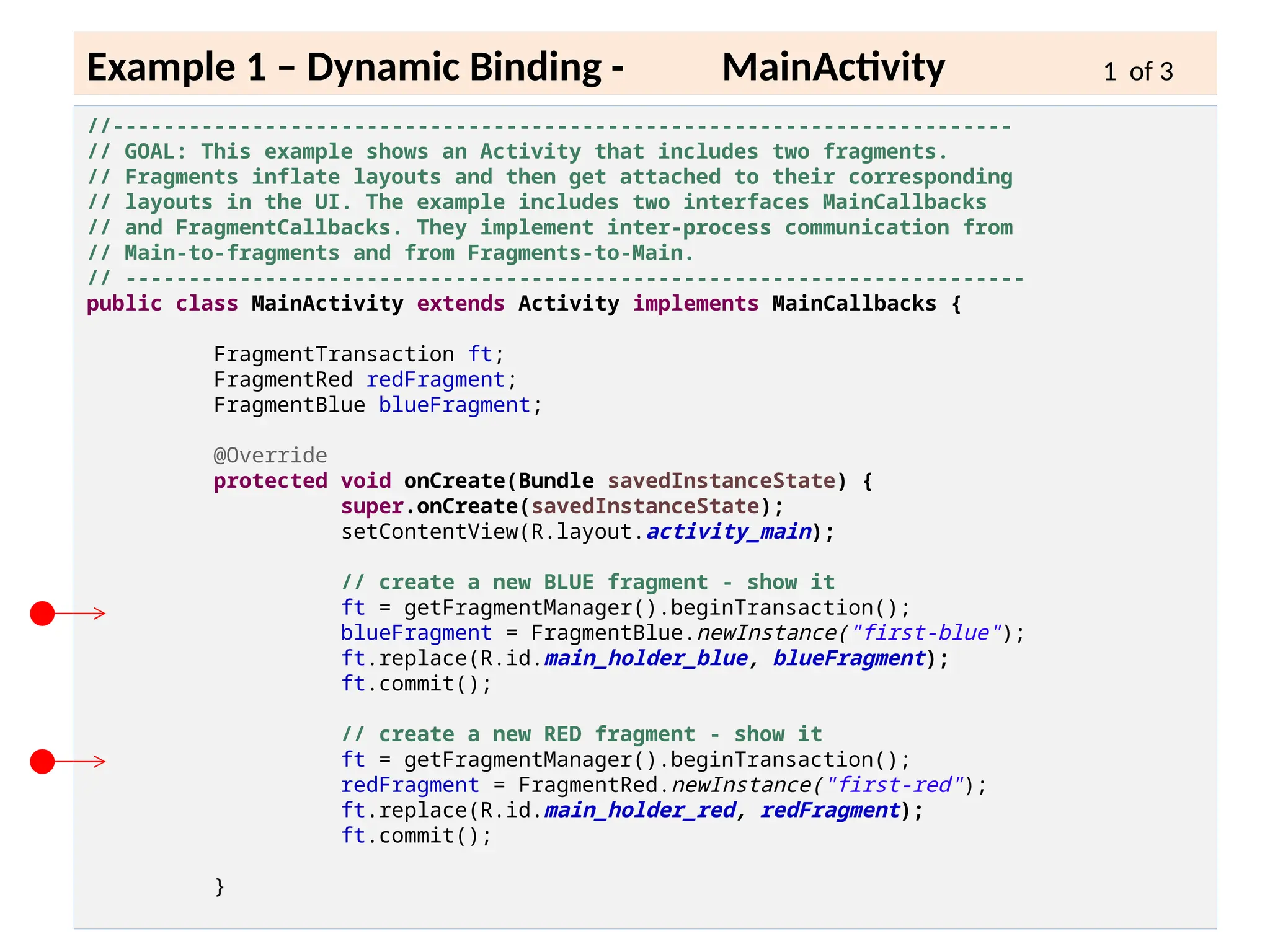
Example 1 – Dynamic Binding - MainActivity 1 of 3
//-----------------------------------------------------------------------
// GOAL: This example shows an Activity that includes two fragments.
// Fragments inflate layouts and then get attached to their corresponding
// layouts in the UI. The example includes two interfaces MainCallbacks
// and FragmentCallbacks. They implement inter-process communication from
// Main-to-fragments and from Fragments-to-Main.
// -----------------------------------------------------------------------
public class MainActivity extends Activity implements MainCallbacks {
FragmentTransaction ft;
FragmentRed redFragment;
FragmentBlue blueFragment;
@Override
protected void onCreate(Bundle savedInstanceState) {
super.onCreate(savedInstanceState);
setContentView(R.layout.activity_main);
// create a new BLUE fragment - show it
ft = getFragmentManager().beginTransaction();
blueFragment = FragmentBlue.newInstance("first-blue");
ft.replace(R.id.main_holder_blue, blueFragment);
ft.commit();
// create a new RED fragment - show it
ft = getFragmentManager().beginTransaction();
redFragment = FragmentRed.newInstance("first-red");
ft.replace(R.id.main_holder_red, redFragment);
ft.commit();
}
6 - 15
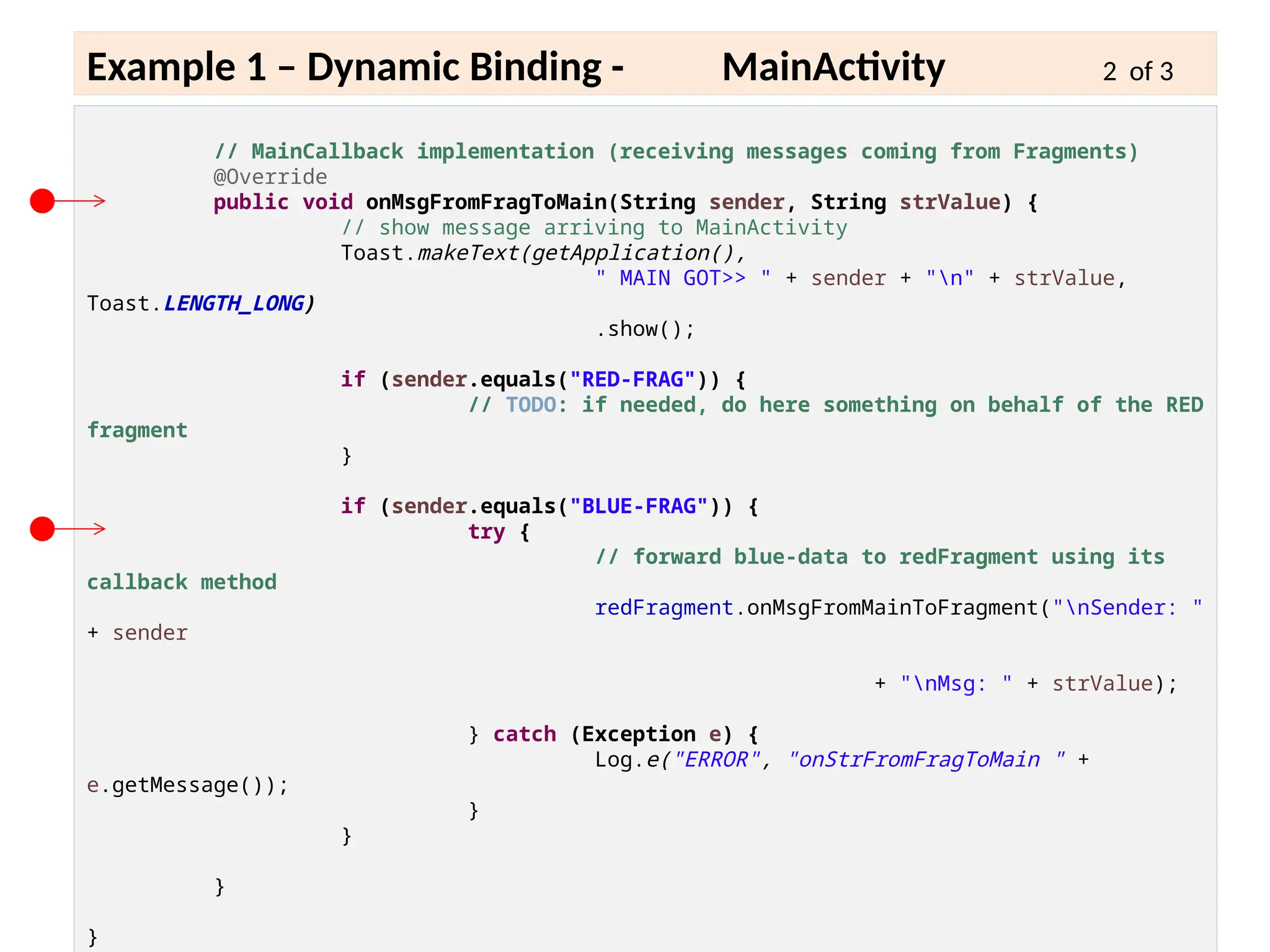
Example 1 – Dynamic Binding - MainActivity 2 of 3
// MainCallback implementation (receiving messages coming from Fragments)
@Override
public void onMsgFromFragToMain(String sender, String strValue) {
// show message arriving to MainActivity
Toast.makeText(getApplication(),
" MAIN GOT>> " + sender + "n" + strValue,
Toast.LENGTH_LONG)
.show();
if (sender.equals("RED-FRAG")) {
// TODO: if needed, do here something on behalf of the RED
fragment
}
if (sender.equals("BLUE-FRAG")) {
try {
// forward blue-data to redFragment using its
callback method
redFragment.onMsgFromMainToFragment("nSender: "
+ sender
+ "nMsg: " + strValue);
} catch (Exception e) {
Log.e("ERROR", "onStrFromFragToMain " +
e.getMessage());
}
}
}
}
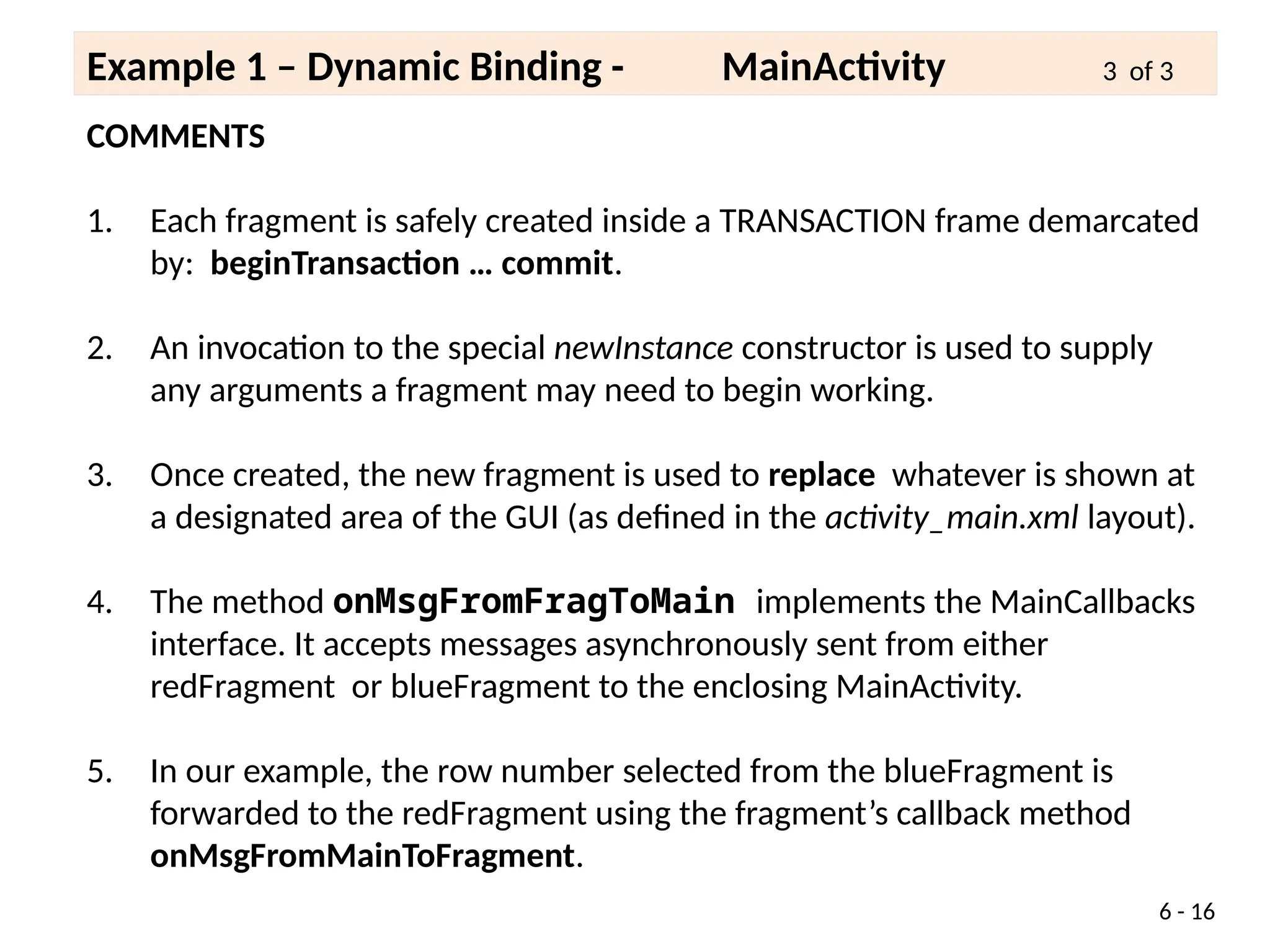
COMMENTS
1. Each fragment is safely created inside a TRANSACTION frame demarcated
by: beginTransaction … commit.
2. An invocation to the special newInstance constructor is used to supply
any arguments a fragment may need to begin working.
3. Once created, the new fragment is used to replace whatever is shown at
a designated area of the GUI (as defined in the activity_main.xml layout).
4. The method onMsgFromFragToMain implements the MainCallbacks
interface. It accepts messages asynchronously sent from either
redFragment or blueFragment to the enclosing MainActivity.
5. In our example, the row number selected from the blueFragment is
forwarded to the redFragment using the fragment’s callback method
onMsgFromMainToFragment.
6 - 16
Example 1 – Dynamic Binding - MainActivity 3 of 3
6 - 17
Example 1 – Dynamic Binding - FragmentBlue 1 of 3
public class FragmentBlue extends Fragment {
// this fragment shows a ListView
MainActivity main;
Context context = null;
String message = "";
// data to fill-up the ListView
private String items[] = { "Text-on-Line-00", "Text-on-Line-01",
"Text-on-Line-02", "Text-on-Line-03", "Text-on-Line-04",
"Text-on-Line-05", "Text-on-Line-06", "Text-on-Line-07",
"Text-on-Line-08", "Text-on-Line-09", "Text-on-Line-
10", };
// convenient constructor(accept arguments, copy them to a bundle, binds
bundle to fragment)
public static FragmentBlue newInstance(String strArg) {
FragmentBlue fragment = new FragmentBlue();
Bundle args = new Bundle();
args.putString("strArg1", strArg);
fragment.setArguments(args);
return fragment;
}
@Override
public void onCreate(Bundle savedInstanceState) {
super.onCreate(savedInstanceState);
try {
context = getActivity(); // use this reference to invoke
main callbacks
main = (MainActivity) getActivity();
} catch (IllegalStateException e) {
throw new IllegalStateException(
"MainActivity must implement
@Override
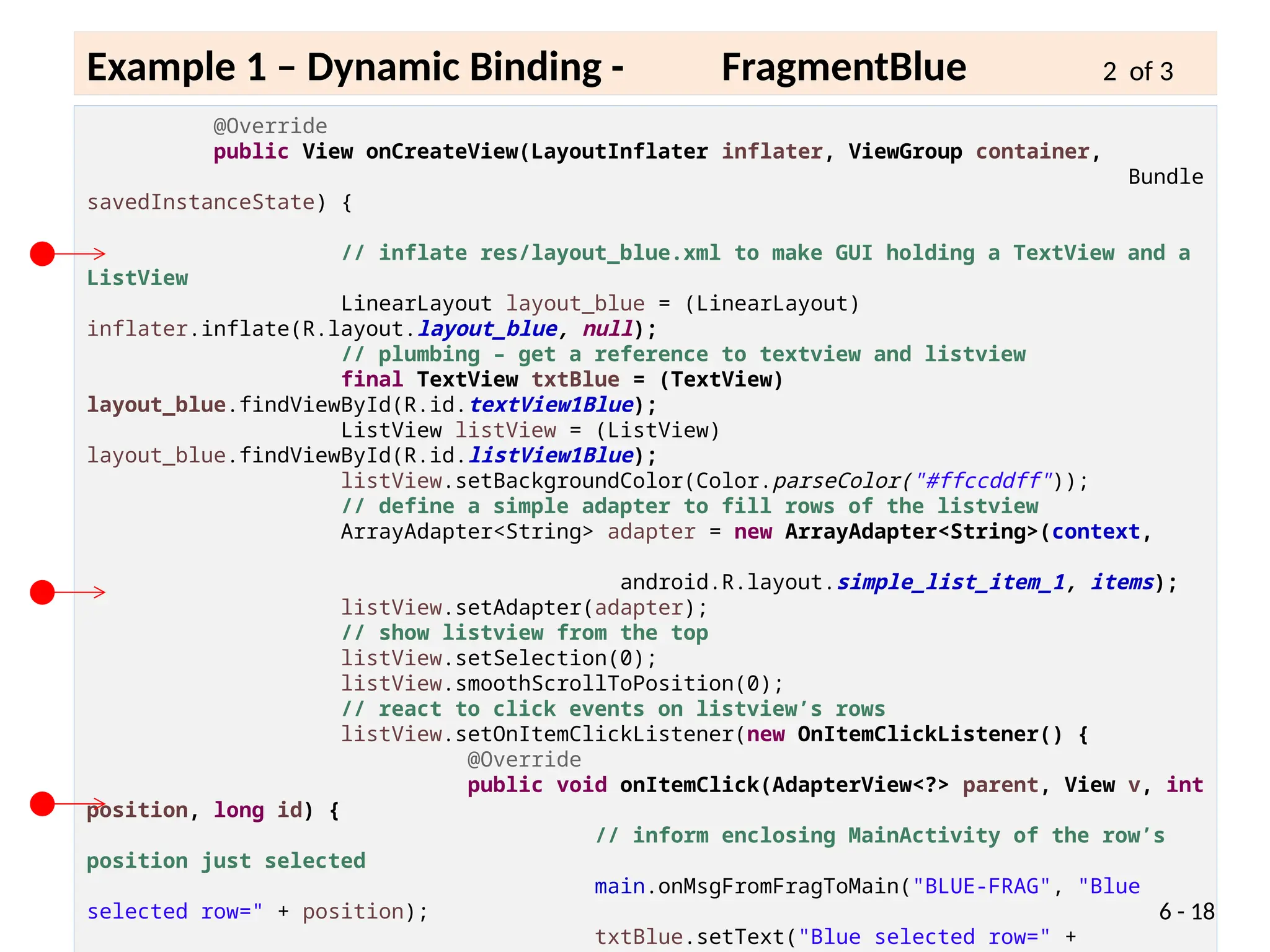
public View onCreateView(LayoutInflater inflater, ViewGroup container,
Bundle
savedInstanceState) {
// inflate res/layout_blue.xml to make GUI holding a TextView and a
ListView
LinearLayout layout_blue = (LinearLayout)
inflater.inflate(R.layout.layout_blue, null);
// plumbing – get a reference to textview and listview
final TextView txtBlue = (TextView)
layout_blue.findViewById(R.id.textView1Blue);
ListView listView = (ListView)
layout_blue.findViewById(R.id.listView1Blue);
listView.setBackgroundColor(Color.parseColor("#ffccddff"));
// define a simple adapter to fill rows of the listview
ArrayAdapter<String> adapter = new ArrayAdapter<String>(context,
android.R.layout.simple_list_item_1, items);
listView.setAdapter(adapter);
// show listview from the top
listView.setSelection(0);
listView.smoothScrollToPosition(0);
// react to click events on listview’s rows
listView.setOnItemClickListener(new OnItemClickListener() {
@Override
public void onItemClick(AdapterView<?> parent, View v, int
position, long id) {
// inform enclosing MainActivity of the row’s
position just selected
main.onMsgFromFragToMain("BLUE-FRAG", "Blue
selected row=" + position);
txtBlue.setText("Blue selected row=" +
6 - 18
Example 1 – Dynamic Binding - FragmentBlue 2 of 3
COMMENTS
1. The Class.newInstance(…) construction is a reflective method commonly
used for creating instances of classes (regardless of the number of
parameters).
2. Creating an Android fragment begins with the making of a new Bundle in
which each of the supplied arguments is stored as a <key,value> entry.
Then the bundle is bound to the fragment trough the .setArguments(…)
method. Finally the newly created fragment is returned.
3. In our example, the onCreate method verifies that the MainActivity
implements the Java Interface defining methods needed to send data
from the fragment to the MainActivity.
4. Fragments do most of their work inside of onCreateView. In this
example, the predefined layout_blue.xml is inflated and plumbing is
done to access its internal widgets (a TextView and a ListView).
5. A simple ArrayAdapter is used to fill the rows of the ListView.
6. An event handler is set on the ListView, so when the user clicks on a row
its position is sent to the MainActivity’s listener
onMsgFromFragToMain. 6 - 19
Example 1 – Dynamic Binding - FragmentBlue 3 of 3
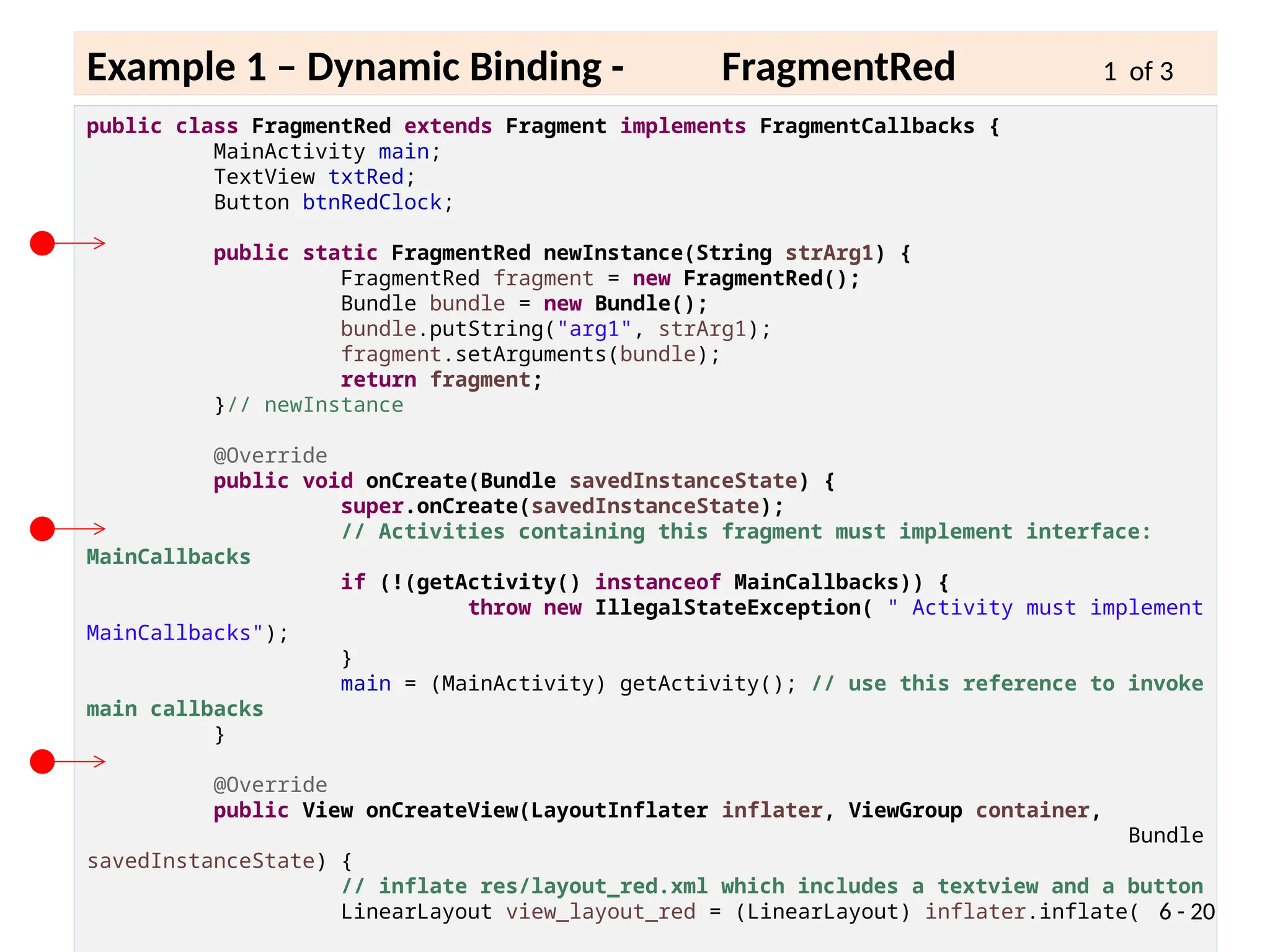
public class FragmentRed extends Fragment implements FragmentCallbacks {
MainActivity main;
TextView txtRed;
Button btnRedClock;
public static FragmentRed newInstance(String strArg1) {
FragmentRed fragment = new FragmentRed();
Bundle bundle = new Bundle();
bundle.putString("arg1", strArg1);
fragment.setArguments(bundle);
return fragment;
}// newInstance
@Override
public void onCreate(Bundle savedInstanceState) {
super.onCreate(savedInstanceState);
// Activities containing this fragment must implement interface:
MainCallbacks
if (!(getActivity() instanceof MainCallbacks)) {
throw new IllegalStateException( " Activity must implement
MainCallbacks");
}
main = (MainActivity) getActivity(); // use this reference to invoke
main callbacks
}
@Override
public View onCreateView(LayoutInflater inflater, ViewGroup container,
Bundle
savedInstanceState) {
// inflate res/layout_red.xml which includes a textview and a button
LinearLayout view_layout_red = (LinearLayout) inflater.inflate( 6 - 20
Example 1 – Dynamic Binding - FragmentRed 1 of 3
// show string argument supplied by constructor (if any!)
try {
Bundle arguments = getArguments();
String redMessage = arguments.getString("arg1", "");
txtRed.setText(redMessage);
} catch (Exception e) {
Log.e("RED BUNDLE ERROR - ", "" + e.getMessage());
}
// clicking the button changes the time displayed and sends a copy
to MainActivity
btnRedClock = (Button)
view_layout_red.findViewById(R.id.button1Red);
btnRedClock.setOnClickListener(new OnClickListener() {
@Override
public void onClick(View v) {
String redMessage = "Red clock:n" + new
Date().toString();
txtRed.setText(redMessage);
main.onMsgFromFragToMain("RED-FRAG",
redMessage);
}
});
return view_layout_red;
}
@Override
public void onMsgFromMainToFragment(String strValue) {
// receiving a message from MainActivity (it may happen at any point
in time)
txtRed.setText("THIS MESSAGE COMES FROM MAIN:" + strValue);
6 - 21
Example 1 – Dynamic Binding - FragmentRed 2 of 3
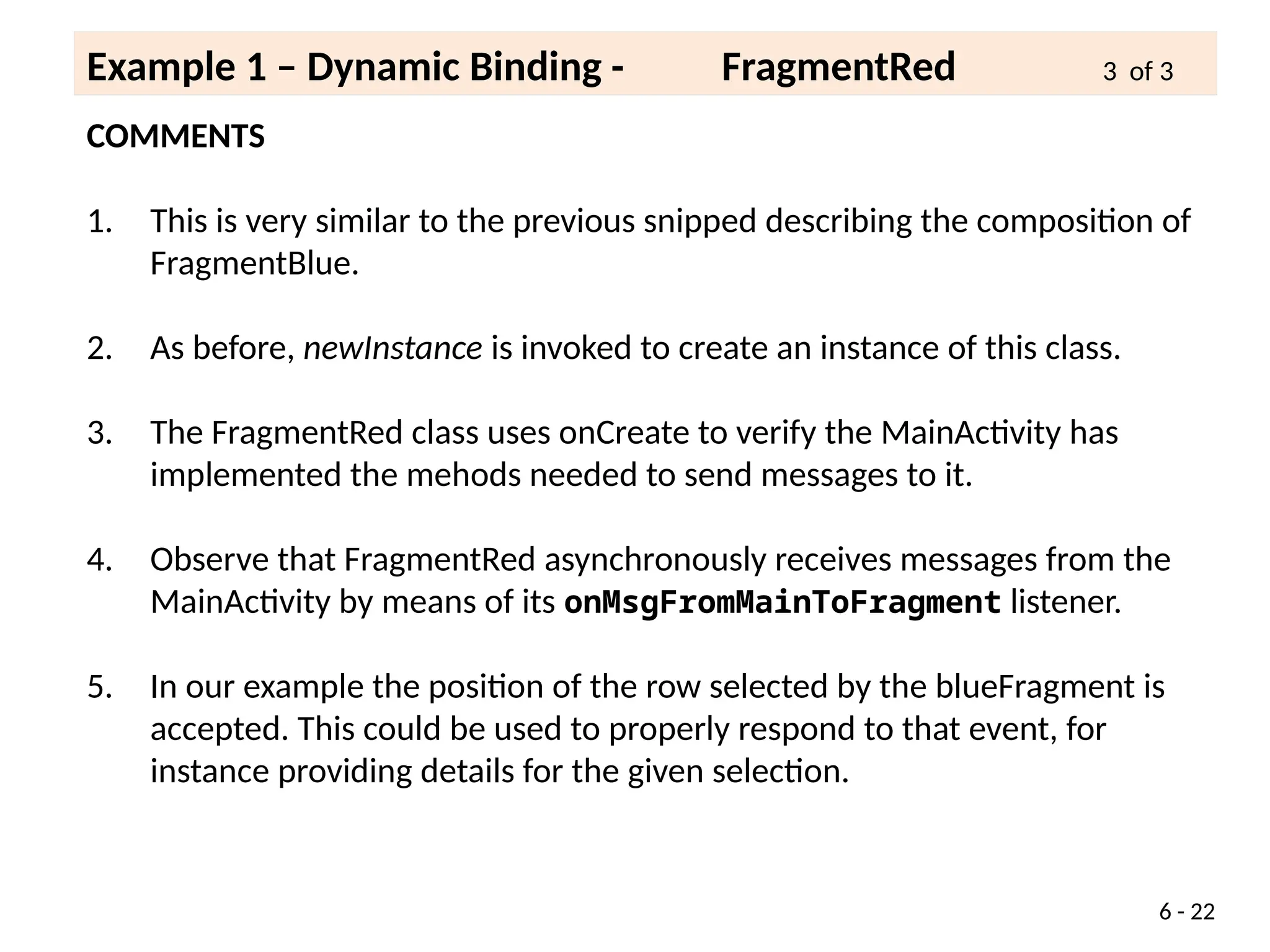
COMMENTS
1. This is very similar to the previous snipped describing the composition of
FragmentBlue.
2. As before, newInstance is invoked to create an instance of this class.
3. The FragmentRed class uses onCreate to verify the MainActivity has
implemented the mehods needed to send messages to it.
4. Observe that FragmentRed asynchronously receives messages from the
MainActivity by means of its onMsgFromMainToFragment listener.
5. In our example the position of the row selected by the blueFragment is
accepted. This could be used to properly respond to that event, for
instance providing details for the given selection.
6 - 22
Example 1 – Dynamic Binding - FragmentRed 3 of 3
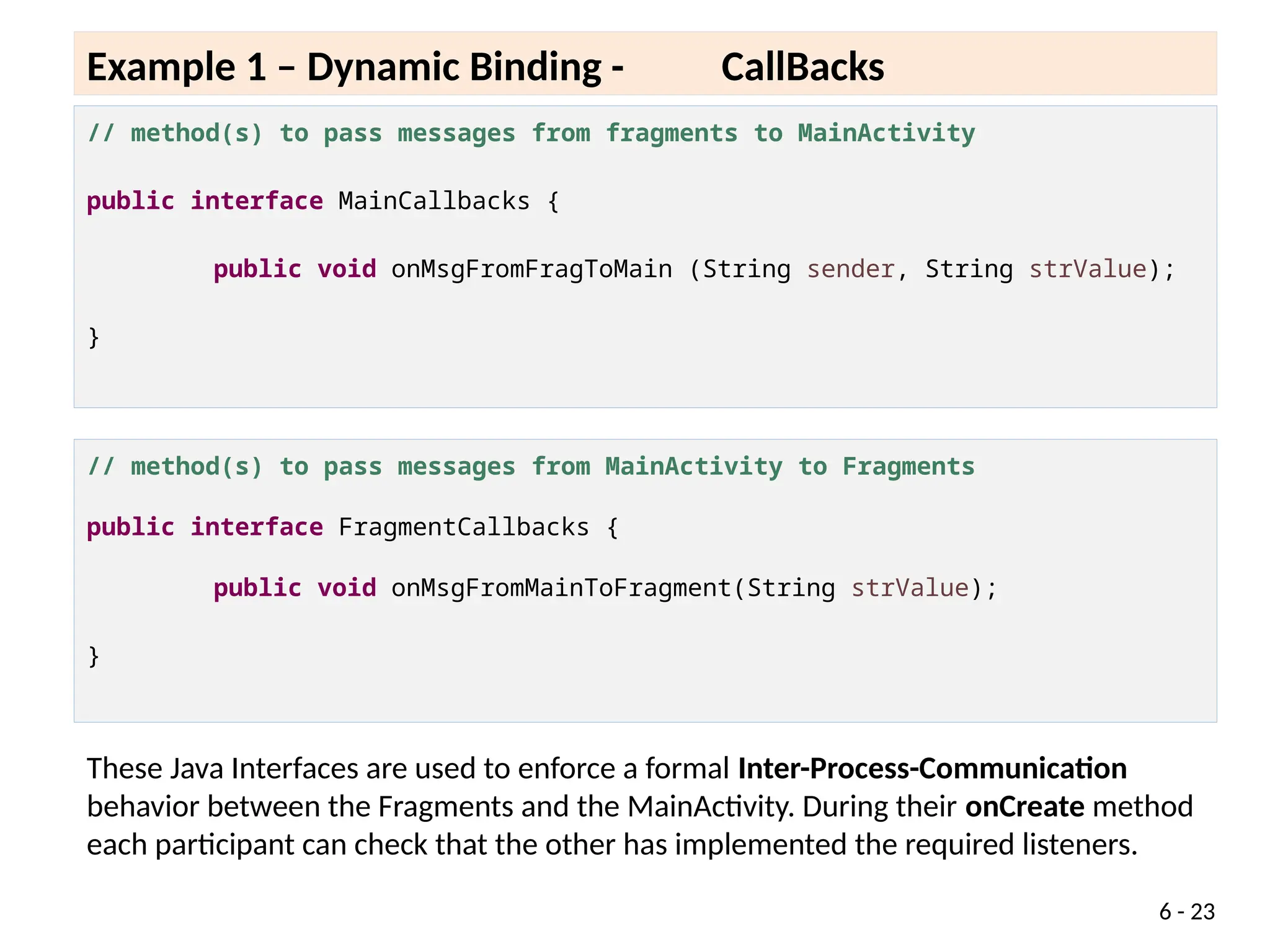
// method(s) to pass messages from fragments to MainActivity
public interface MainCallbacks {
public void onMsgFromFragToMain (String sender, String strValue);
}
6 - 23
Example 1 – Dynamic Binding - CallBacks
// method(s) to pass messages from MainActivity to Fragments
public interface FragmentCallbacks {
public void onMsgFromMainToFragment(String strValue);
}
These Java Interfaces are used to enforce a formal Inter-Process-Communication
behavior between the Fragments and the MainActivity. During their onCreate method
each participant can check that the other has implemented the required listeners.
6 - 24
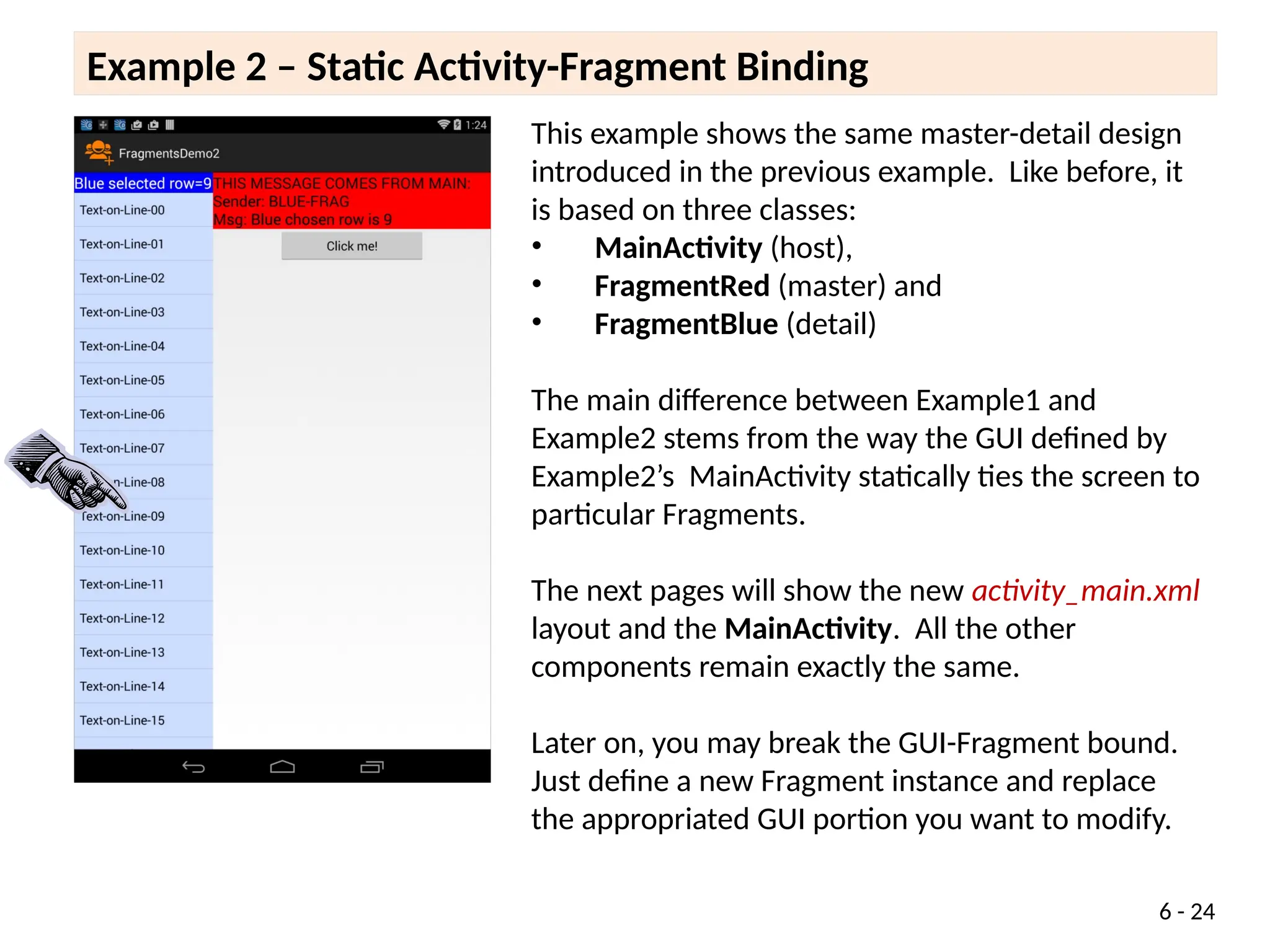
This example shows the same master-detail design
introduced in the previous example. Like before, it
is based on three classes:
• MainActivity (host),
• FragmentRed (master) and
• FragmentBlue (detail)
The main difference between Example1 and
Example2 stems from the way the GUI defined by
Example2’s MainActivity statically ties the screen to
particular Fragments.
The next pages will show the new activity_main.xml
layout and the MainActivity. All the other
components remain exactly the same.
Later on, you may break the GUI-Fragment bound.
Just define a new Fragment instance and replace
the appropriated GUI portion you want to modify.
Example 2 – Static Activity-Fragment Binding
6 - 25
• Static binding is simple and requires less programming than dynamic binding.
• This approach is appropriate for apps in which the interface retains the same
fragment(s) for their entire session.
• Statically attached fragments cannot be removed (however other fragments can be
added to the interface).
• The Activity’s layout file uses the <fragment> element to mark the position and
size of the area on which a fragment instance is to be injected.
• The following attributes can be used to identify the fragment in case it needs to be
restarted (if none is provided the fragment is identified by the system’s id of the
fragment’s container id)
1. android:name="AppPackageName.FragmentClassName"
2. android:id="@id+/uniqueName" or
android:tag="string"
Example 2 – Static Activity-Fragment Binding
6 - 26
Example 2 – Static Activity-Fragment Binding
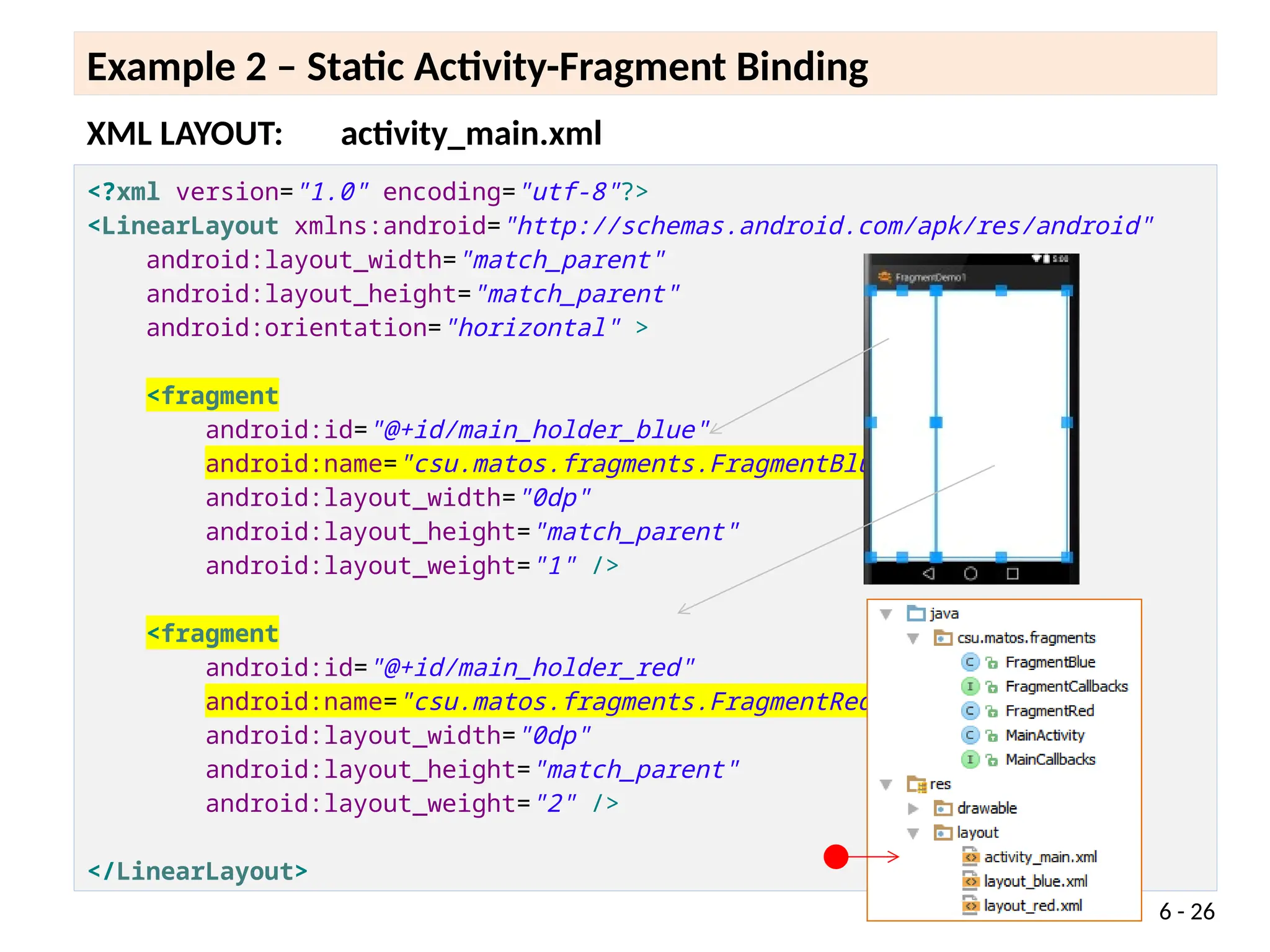
<?xml version="1.0" encoding="utf-8"?>
<LinearLayout xmlns:android="http://schemas.android.com/apk/res/android"
android:layout_width="match_parent"
android:layout_height="match_parent"
android:orientation="horizontal" >
<fragment
android:id="@+id/main_holder_blue"
android:name="csu.matos.fragments.FragmentBlue"
android:layout_width="0dp"
android:layout_height="match_parent"
android:layout_weight="1" />
<fragment
android:id="@+id/main_holder_red"
android:name="csu.matos.fragments.FragmentRed"
android:layout_width="0dp"
android:layout_height="match_parent"
android:layout_weight="2" />
</LinearLayout>
XML LAYOUT: activity_main.xml
6 - 27
Example 2 – Dynamic Binding - MainActivity 1 of 3
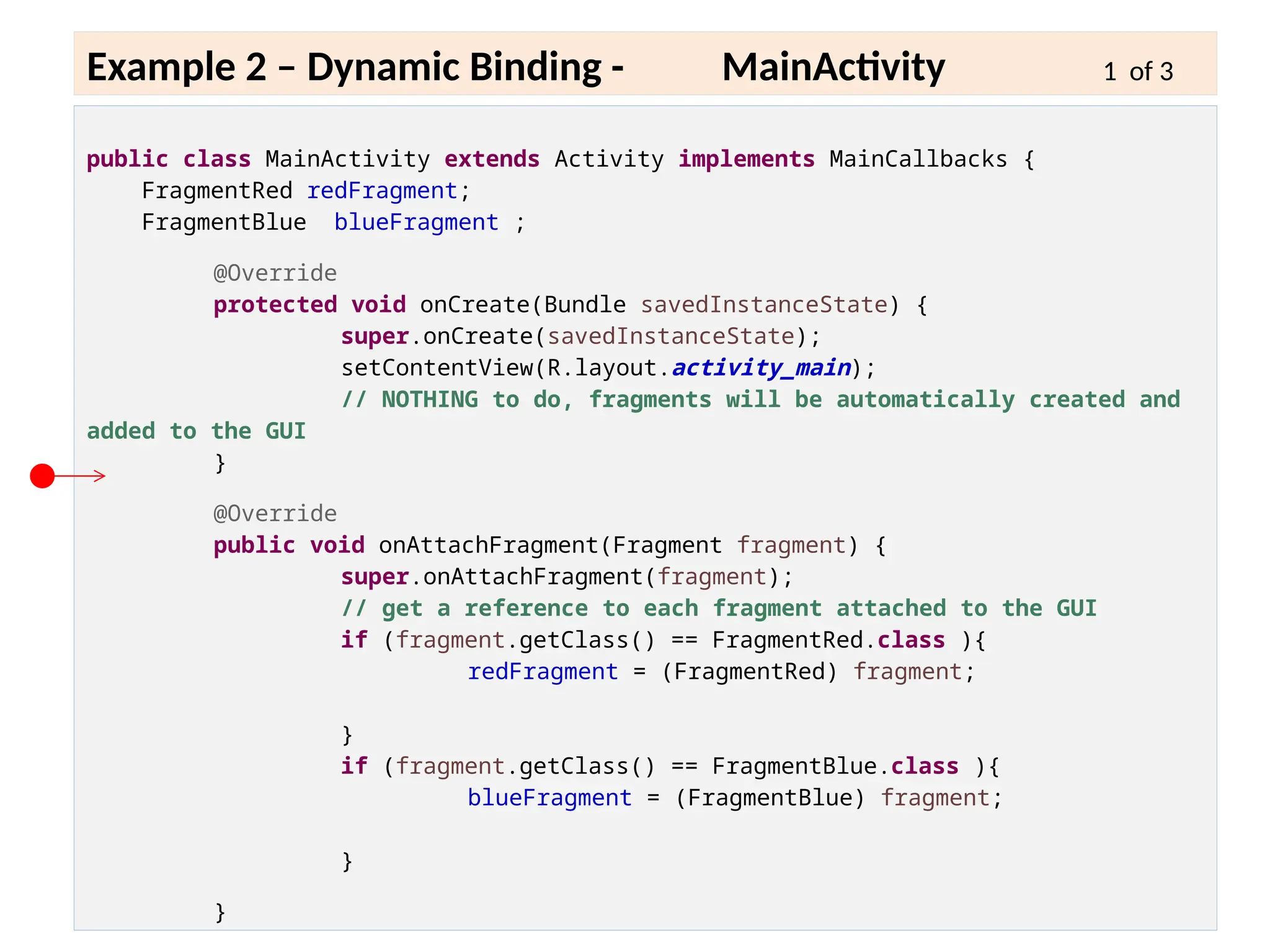
public class MainActivity extends Activity implements MainCallbacks {
FragmentRed redFragment;
FragmentBlue blueFragment ;
@Override
protected void onCreate(Bundle savedInstanceState) {
super.onCreate(savedInstanceState);
setContentView(R.layout.activity_main);
// NOTHING to do, fragments will be automatically created and
added to the GUI
}
@Override
public void onAttachFragment(Fragment fragment) {
super.onAttachFragment(fragment);
// get a reference to each fragment attached to the GUI
if (fragment.getClass() == FragmentRed.class ){
redFragment = (FragmentRed) fragment;
}
if (fragment.getClass() == FragmentBlue.class ){
blueFragment = (FragmentBlue) fragment;
}
}
6 - 28
Example 2 – Dynamic Binding - MainActivity 1 of 3
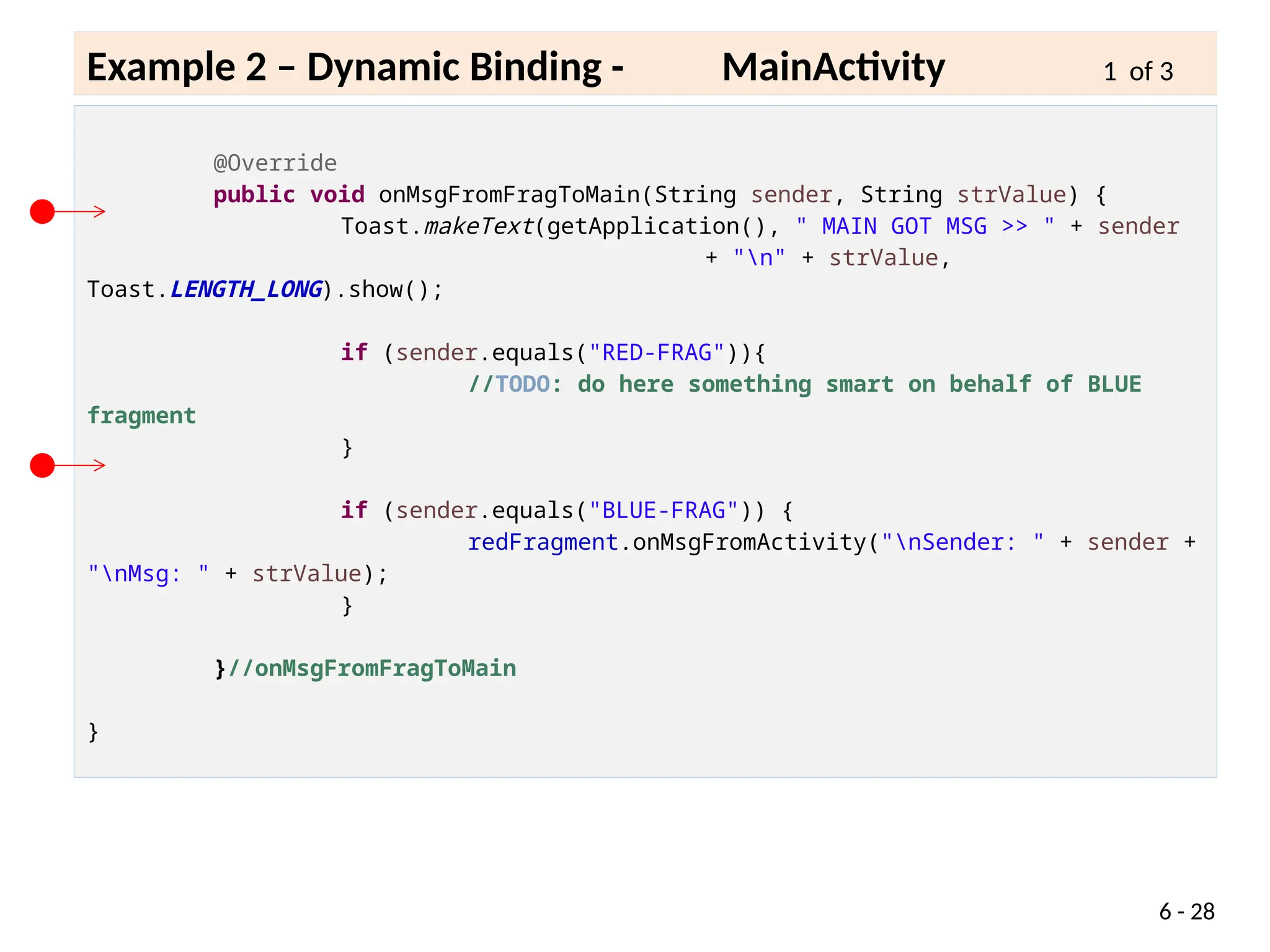
@Override
public void onMsgFromFragToMain(String sender, String strValue) {
Toast.makeText(getApplication(), " MAIN GOT MSG >> " + sender
+ "n" + strValue,
Toast.LENGTH_LONG).show();
if (sender.equals("RED-FRAG")){
//TODO: do here something smart on behalf of BLUE
fragment
}
if (sender.equals("BLUE-FRAG")) {
redFragment.onMsgFromActivity("nSender: " + sender +
"nMsg: " + strValue);
}
}//onMsgFromFragToMain
}
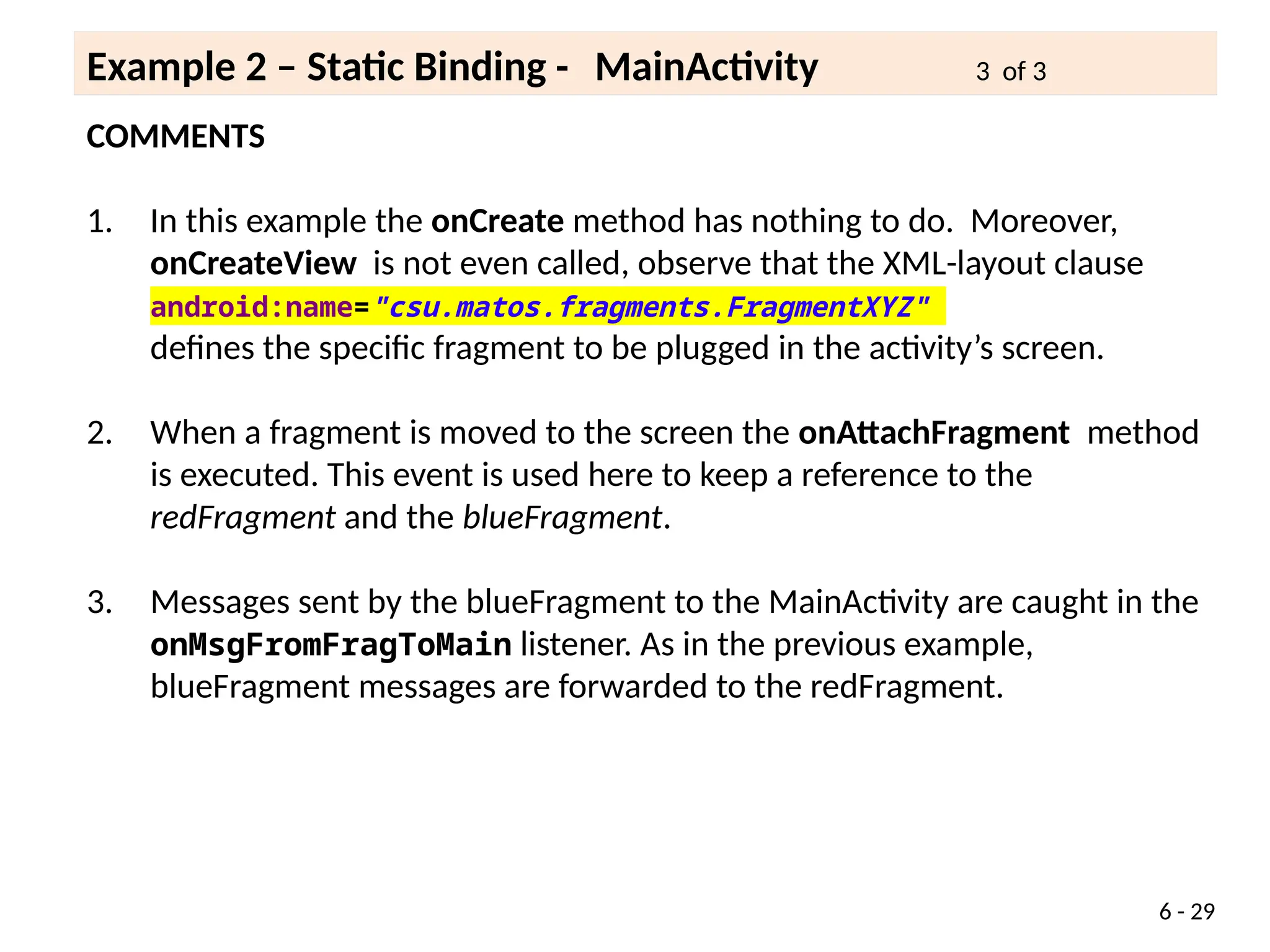
COMMENTS
1. In this example the onCreate method has nothing to do. Moreover,
onCreateView is not even called, observe that the XML-layout clause
android:name="csu.matos.fragments.FragmentXYZ"
defines the specific fragment to be plugged in the activity’s screen.
2. When a fragment is moved to the screen the onAttachFragment method
is executed. This event is used here to keep a reference to the
redFragment and the blueFragment.
3. Messages sent by the blueFragment to the MainActivity are caught in the
onMsgFromFragToMain listener. As in the previous example,
blueFragment messages are forwarded to the redFragment.
6 - 29
Example 2 – Static Binding - MainActivity 3 of 3
6 - 30
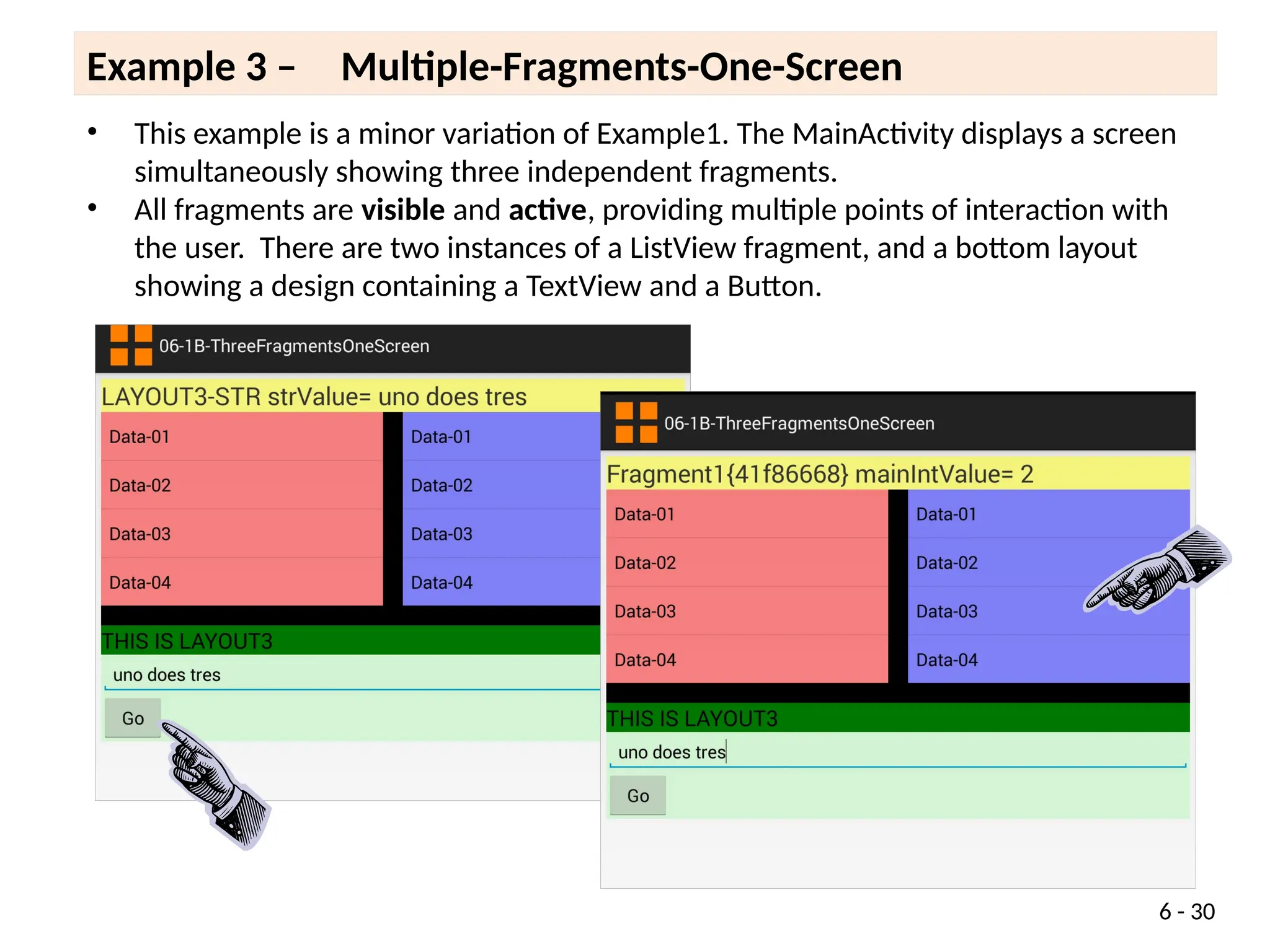
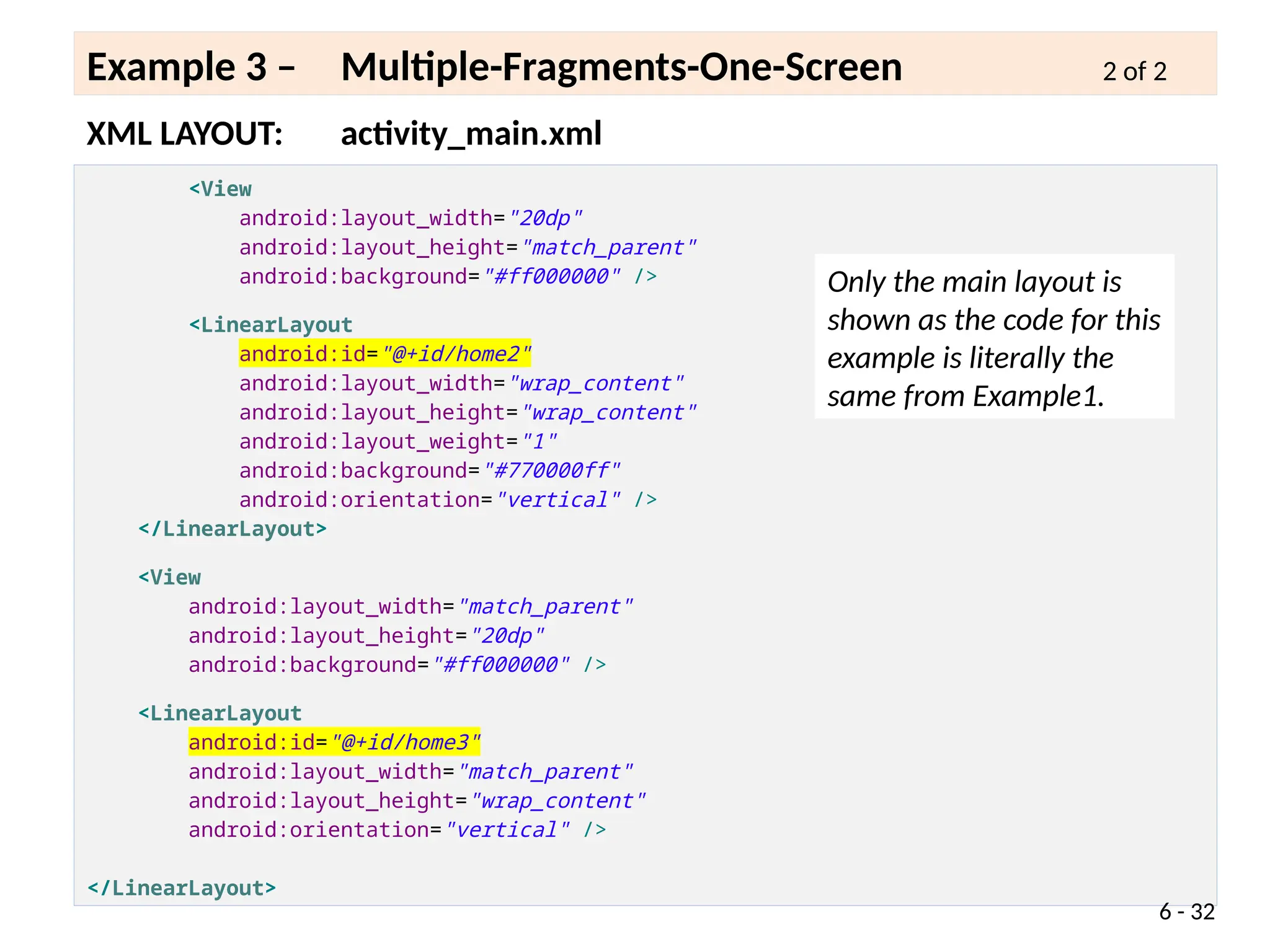
• This example is a minor variation of Example1. The MainActivity displays a screen
simultaneously showing three independent fragments.
• All fragments are visible and active, providing multiple points of interaction with
the user. There are two instances of a ListView fragment, and a bottom layout
showing a design containing a TextView and a Button.
Example 3 – Multiple-Fragments-One-Screen
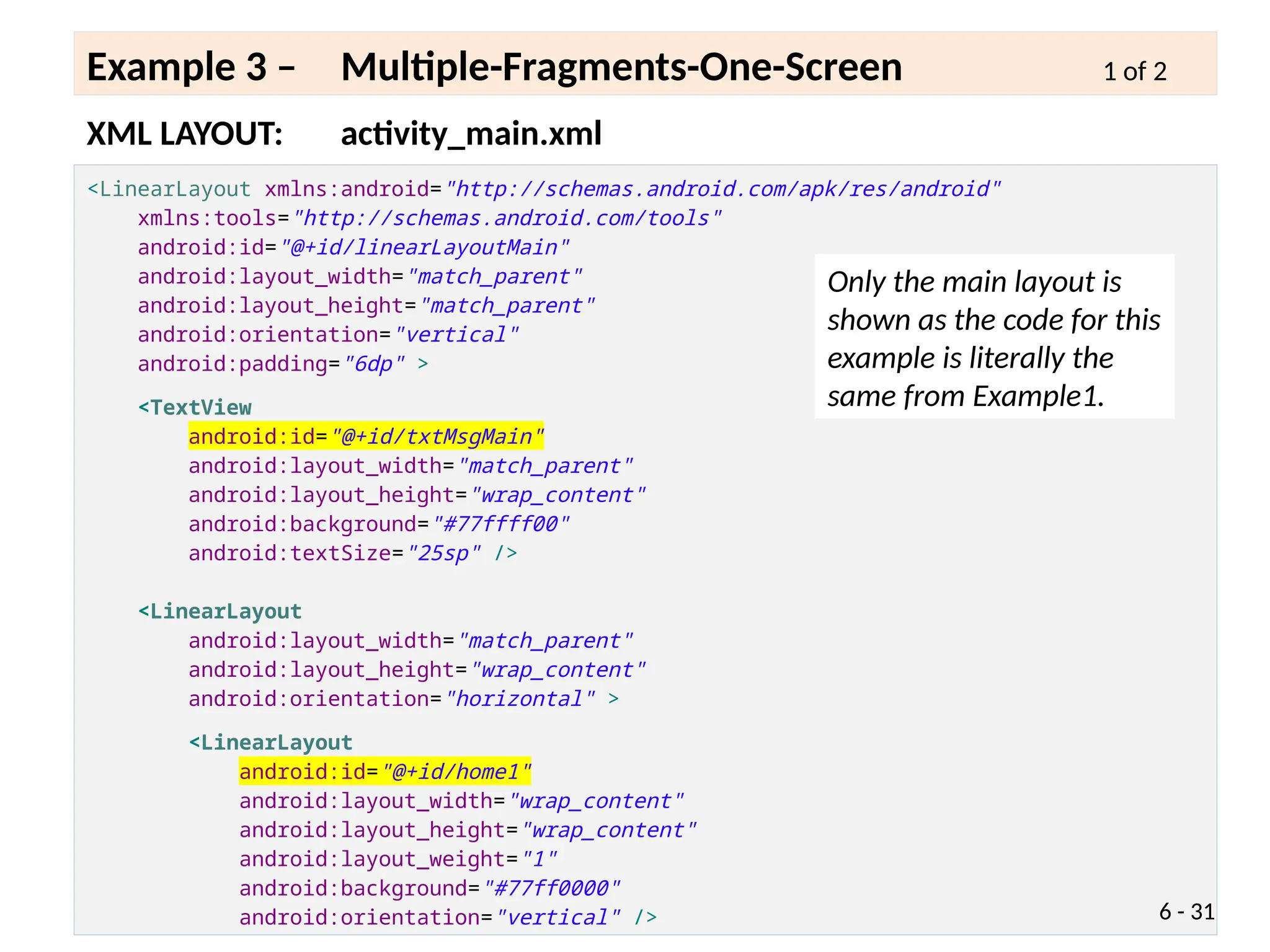
<LinearLayout xmlns:android="http://schemas.android.com/apk/res/android"
xmlns:tools="http://schemas.android.com/tools"
android:id="@+id/linearLayoutMain"
android:layout_width="match_parent"
android:layout_height="match_parent"
android:orientation="vertical"
android:padding="6dp" >
<TextView
android:id="@+id/txtMsgMain"
android:layout_width="match_parent"
android:layout_height="wrap_content"
android:background="#77ffff00"
android:textSize="25sp" />
<LinearLayout
android:layout_width="match_parent"
android:layout_height="wrap_content"
android:orientation="horizontal" >
<LinearLayout
android:id="@+id/home1"
android:layout_width="wrap_content"
android:layout_height="wrap_content"
android:layout_weight="1"
android:background="#77ff0000"
android:orientation="vertical" />
XML LAYOUT: activity_main.xml
Example 3 – Multiple-Fragments-One-Screen 1 of 2
6 - 31
Only the main layout is
shown as the code for this
example is literally the
same from Example1.
<View
android:layout_width="20dp"
android:layout_height="match_parent"
android:background="#ff000000" />
<LinearLayout
android:id="@+id/home2"
android:layout_width="wrap_content"
android:layout_height="wrap_content"
android:layout_weight="1"
android:background="#770000ff"
android:orientation="vertical" />
</LinearLayout>
<View
android:layout_width="match_parent"
android:layout_height="20dp"
android:background="#ff000000" />
<LinearLayout
android:id="@+id/home3"
android:layout_width="match_parent"
android:layout_height="wrap_content"
android:orientation="vertical" />
</LinearLayout>
XML LAYOUT: activity_main.xml
Example 3 – Multiple-Fragments-One-Screen 2 of 2
6 - 32
Only the main layout is
shown as the code for this
example is literally the
same from Example1.
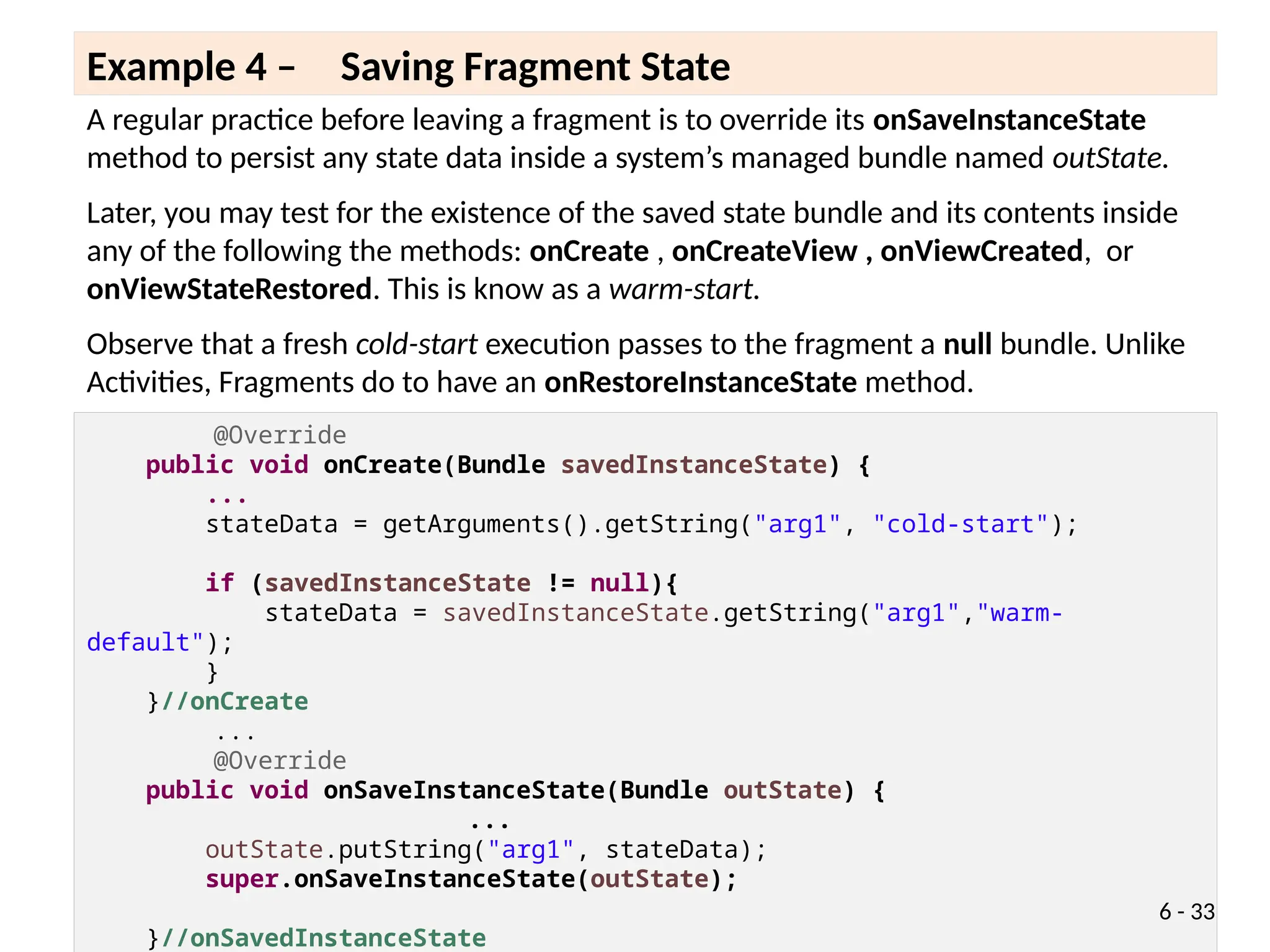
A regular practice before leaving a fragment is to override its onSaveInstanceState
method to persist any state data inside a system’s managed bundle named outState.
Later, you may test for the existence of the saved state bundle and its contents inside
any of the following the methods: onCreate , onCreateView , onViewCreated, or
onViewStateRestored. This is know as a warm-start.
Observe that a fresh cold-start execution passes to the fragment a null bundle. Unlike
Activities, Fragments do to have an onRestoreInstanceState method.
Example 4 – Saving Fragment State
@Override
public void onCreate(Bundle savedInstanceState) {
...
stateData = getArguments().getString("arg1", "cold-start");
if (savedInstanceState != null){
stateData = savedInstanceState.getString("arg1","warm-
default");
}
}//onCreate
...
@Override
public void onSaveInstanceState(Bundle outState) {
...
outState.putString("arg1", stateData);
super.onSaveInstanceState(outState);
}//onSavedInstanceState
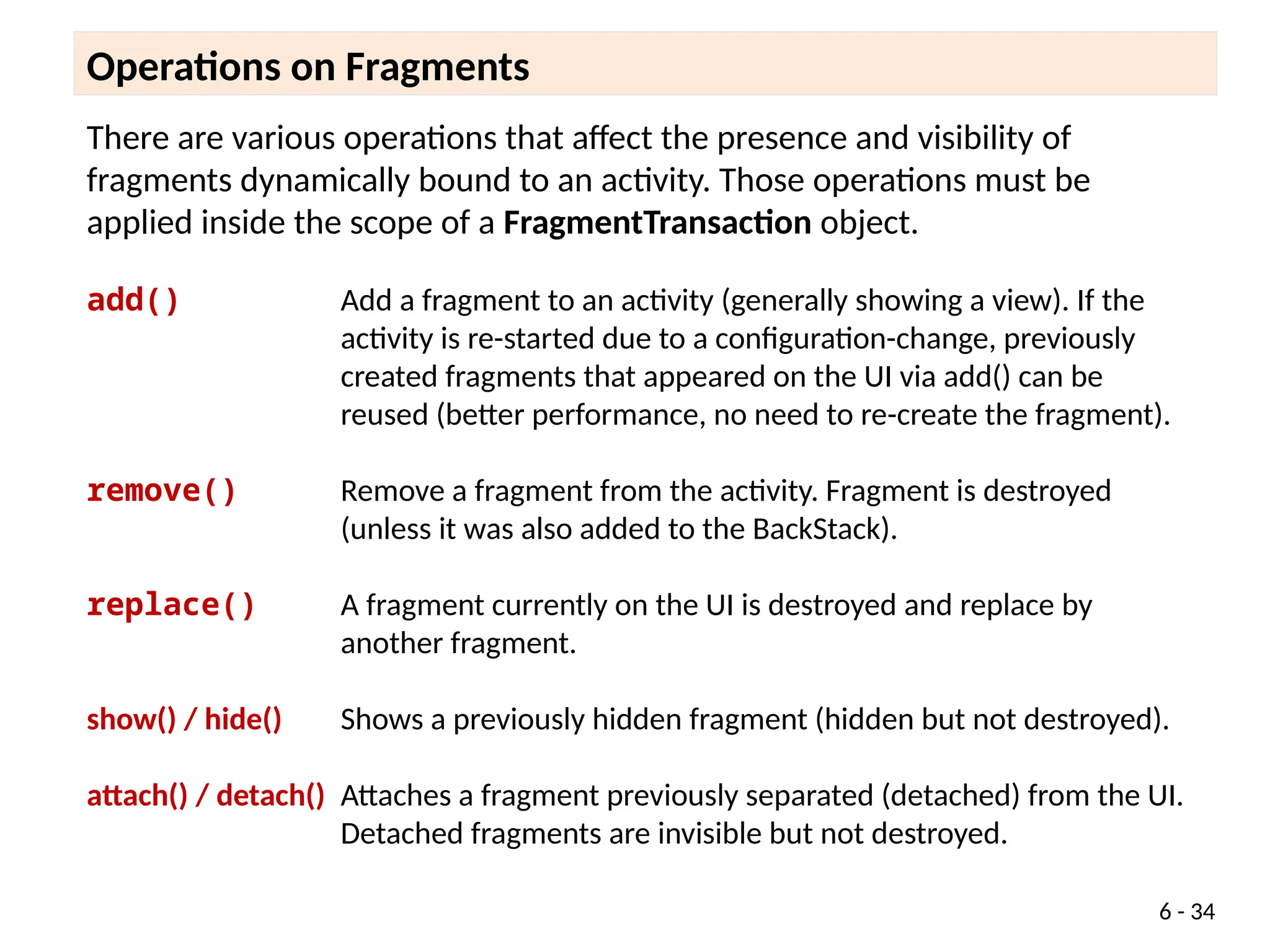
6 - 33
There are various operations that affect the presence and visibility of
fragments dynamically bound to an activity. Those operations must be
applied inside the scope of a FragmentTransaction object.
add() Add a fragment to an activity (generally showing a view). If the
activity is re-started due to a configuration-change, previously
created fragments that appeared on the UI via add() can be
reused (better performance, no need to re-create the fragment).
remove() Remove a fragment from the activity. Fragment is destroyed
(unless it was also added to the BackStack).
replace() A fragment currently on the UI is destroyed and replace by
another fragment.
show() / hide() Shows a previously hidden fragment (hidden but not destroyed).
attach() / detach() Attaches a fragment previously separated (detached) from the UI.
Detached fragments are invisible but not destroyed.
Operations on Fragments
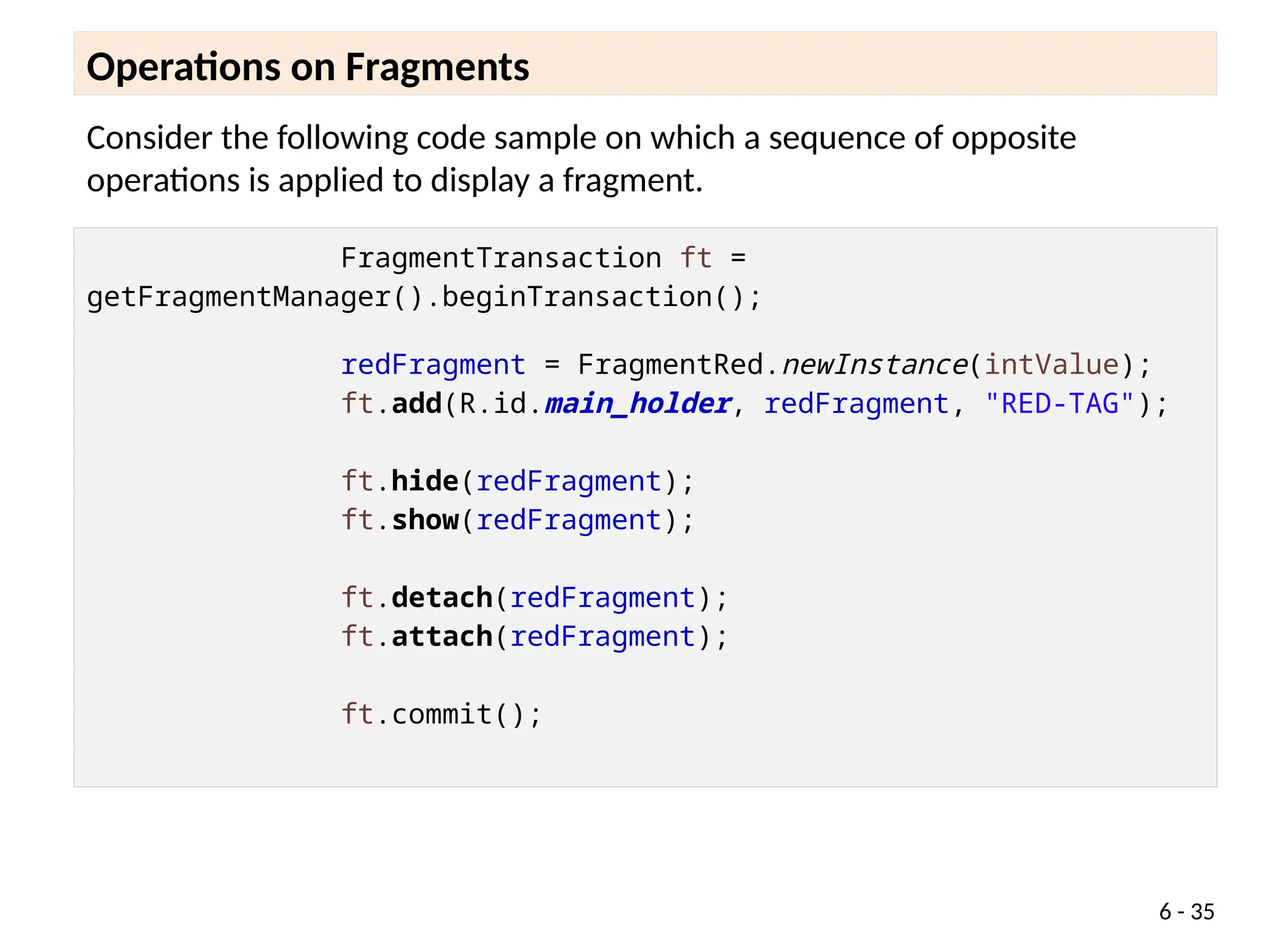
6 - 34
Consider the following code sample on which a sequence of opposite
operations is applied to display a fragment.
Operations on Fragments
6 - 35
FragmentTransaction ft =
getFragmentManager().beginTransaction();
redFragment = FragmentRed.newInstance(intValue);
ft.add(R.id.main_holder, redFragment, "RED-TAG");
ft.hide(redFragment);
ft.show(redFragment);
ft.detach(redFragment);
ft.attach(redFragment);
ft.commit();
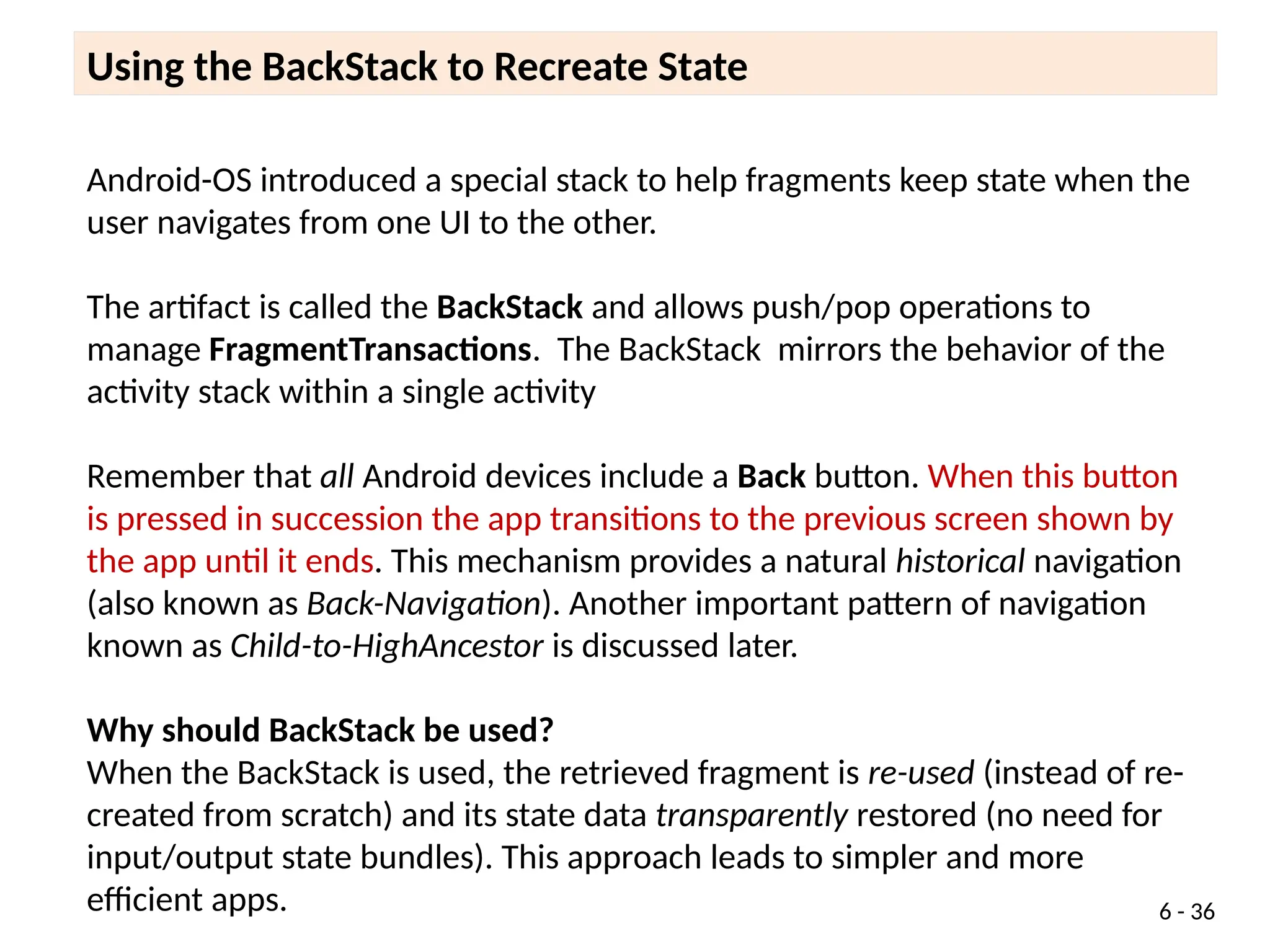
Android-OS introduced a special stack to help fragments keep state when the
user navigates from one UI to the other.
The artifact is called the BackStack and allows push/pop operations to
manage FragmentTransactions. The BackStack mirrors the behavior of the
activity stack within a single activity
Remember that all Android devices include a Back button. When this button
is pressed in succession the app transitions to the previous screen shown by
the app until it ends. This mechanism provides a natural historical navigation
(also known as Back-Navigation). Another important pattern of navigation
known as Child-to-HighAncestor is discussed later.
Why should BackStack be used?
When the BackStack is used, the retrieved fragment is re-used (instead of re-
created from scratch) and its state data transparently restored (no need for
input/output state bundles). This approach leads to simpler and more
efficient apps.
Using the BackStack to Recreate State
6 - 36
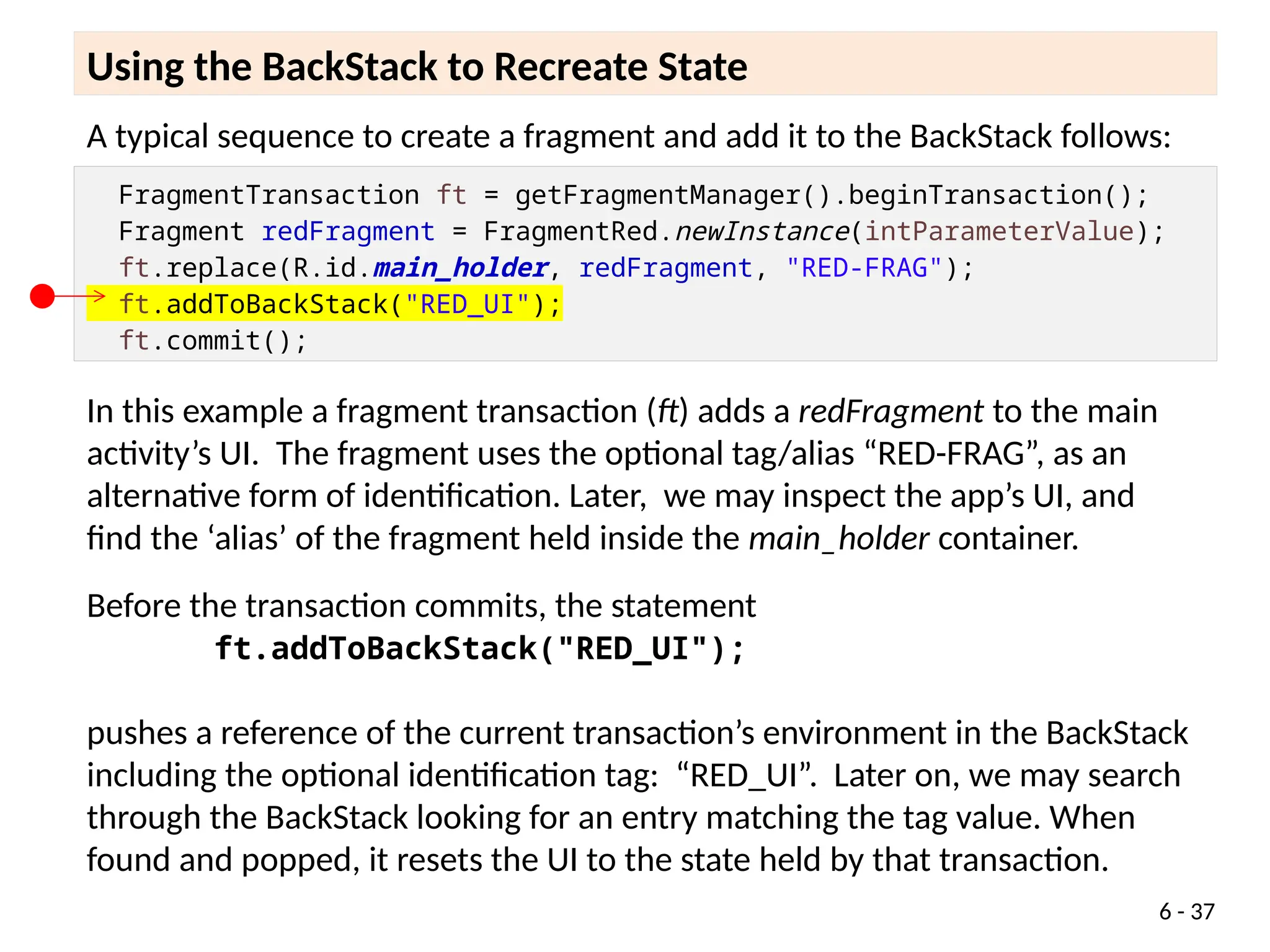
A typical sequence to create a fragment and add it to the stack follows:
Using the BackStack to Recreate State
A typical sequence to create a fragment and add it to the BackStack follows:
FragmentTransaction ft = getFragmentManager().beginTransaction();
Fragment redFragment = FragmentRed.newInstance(intParameterValue);
ft.replace(R.id.main_holder, redFragment, "RED-FRAG");
ft.addToBackStack("RED_UI");
ft.commit();
In this example a fragment transaction (ft) adds a redFragment to the main
activity’s UI. The fragment uses the optional tag/alias “RED-FRAG”, as an
alternative form of identification. Later, we may inspect the app’s UI, and
find the ‘alias’ of the fragment held inside the main_holder container.
Before the transaction commits, the statement
ft.addToBackStack("RED_UI");
pushes a reference of the current transaction’s environment in the BackStack
including the optional identification tag: “RED_UI”. Later on, we may search
through the BackStack looking for an entry matching the tag value. When
found and popped, it resets the UI to the state held by that transaction.
6 - 37
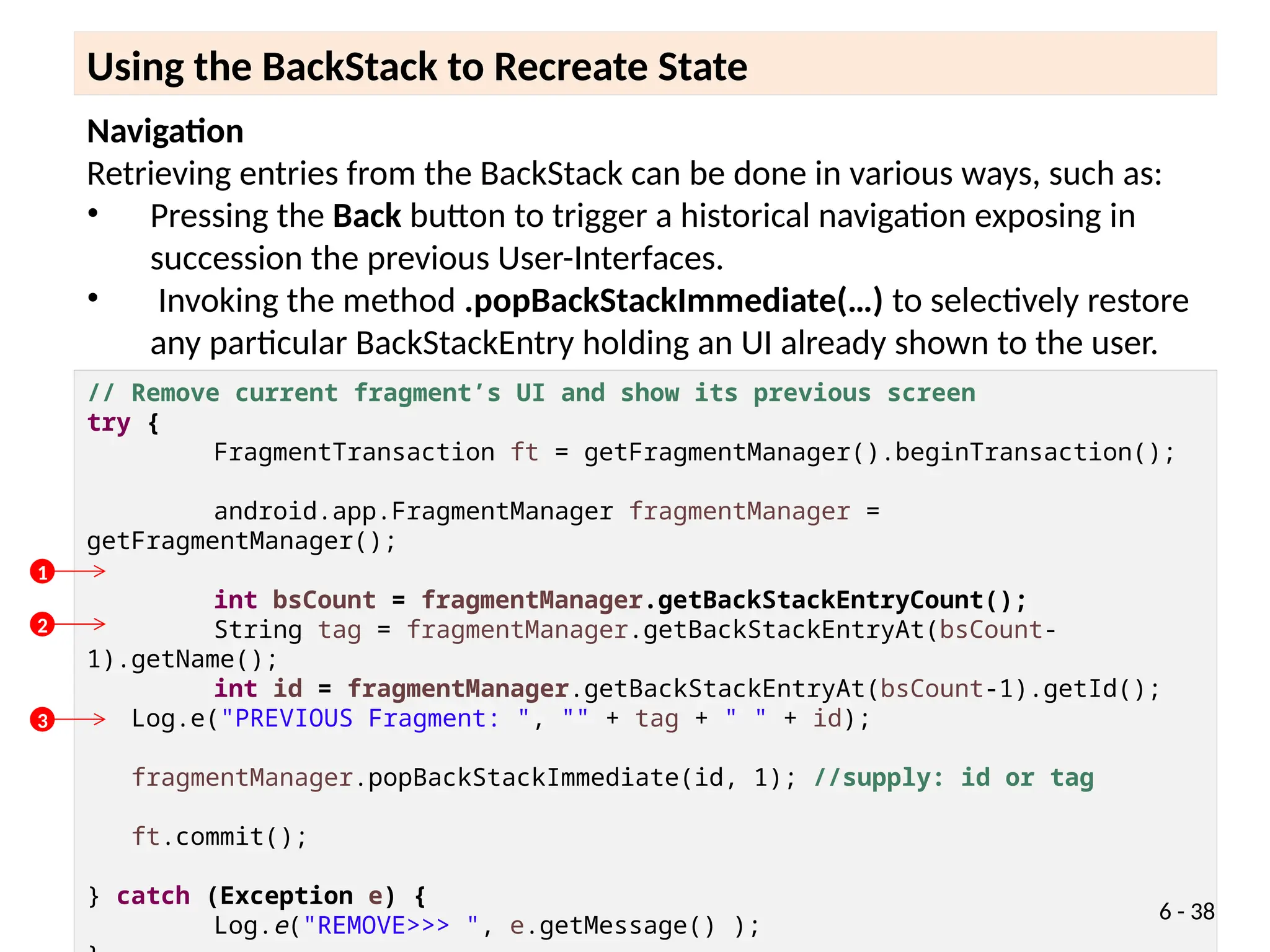
Navigation
Retrieving entries from the BackStack can be done in various ways, such as:
• Pressing the Back button to trigger a historical navigation exposing in
succession the previous User-Interfaces.
• Invoking the method .popBackStackImmediate(…) to selectively restore
any particular BackStackEntry holding an UI already shown to the user.
Using the BackStack to Recreate State
// Remove current fragment’s UI and show its previous screen
try {
FragmentTransaction ft = getFragmentManager().beginTransaction();
android.app.FragmentManager fragmentManager =
getFragmentManager();
int bsCount = fragmentManager.getBackStackEntryCount();
String tag = fragmentManager.getBackStackEntryAt(bsCount-
1).getName();
int id = fragmentManager.getBackStackEntryAt(bsCount-1).getId();
Log.e("PREVIOUS Fragment: ", "" + tag + " " + id);
fragmentManager.popBackStackImmediate(id, 1); //supply: id or tag
ft.commit();
} catch (Exception e) {
Log.e("REMOVE>>> ", e.getMessage() );
6 - 38
1
2
3
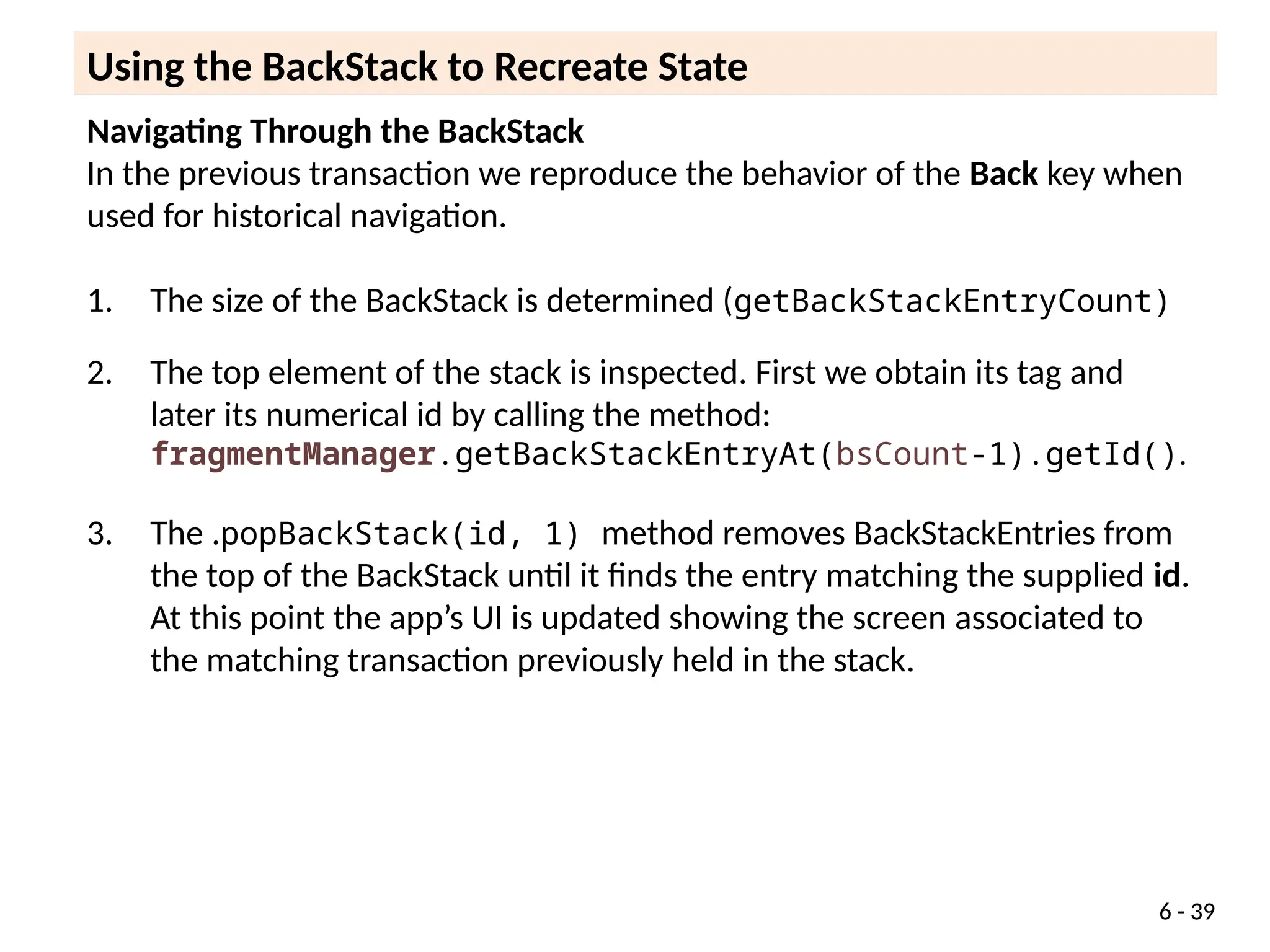
Navigating Through the BackStack
In the previous transaction we reproduce the behavior of the Back key when
used for historical navigation.
1. The size of the BackStack is determined (getBackStackEntryCount)
2. The top element of the stack is inspected. First we obtain its tag and
later its numerical id by calling the method:
fragmentManager.getBackStackEntryAt(bsCount-1).getId().
3. The .popBackStack(id, 1) method removes BackStackEntries from
the top of the BackStack until it finds the entry matching the supplied id.
At this point the app’s UI is updated showing the screen associated to
the matching transaction previously held in the stack.
Using the BackStack to Recreate State
6 - 39
Using the BackStack to Recreate State
try {
FragmentTransaction ft = getFragmentManager().beginTransaction();
android.app.FragmentManager fragmentManager = getFragmentManager();
fragmentManager.popBackStackImmediate(null,
FragmentManager.POP_BACK_STACK_INCLUSIVE);
ft.commit();
} catch (Exception e) {
Log.e("CLEAR-STACK>>> ",
Navigating Through the BackStack
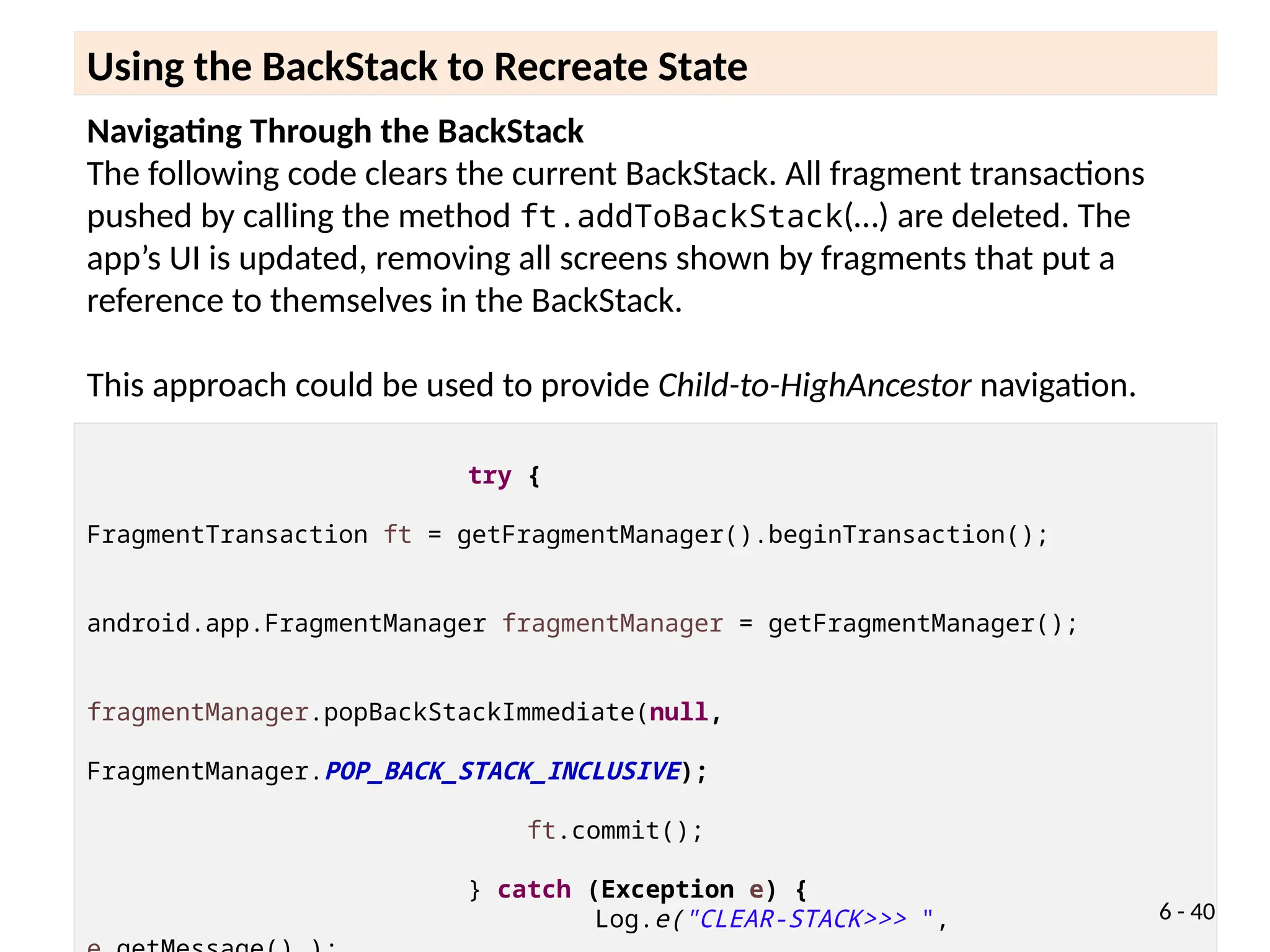
The following code clears the current BackStack. All fragment transactions
pushed by calling the method ft.addToBackStack(…) are deleted. The
app’s UI is updated, removing all screens shown by fragments that put a
reference to themselves in the BackStack.
This approach could be used to provide Child-to-HighAncestor navigation.
6 - 40
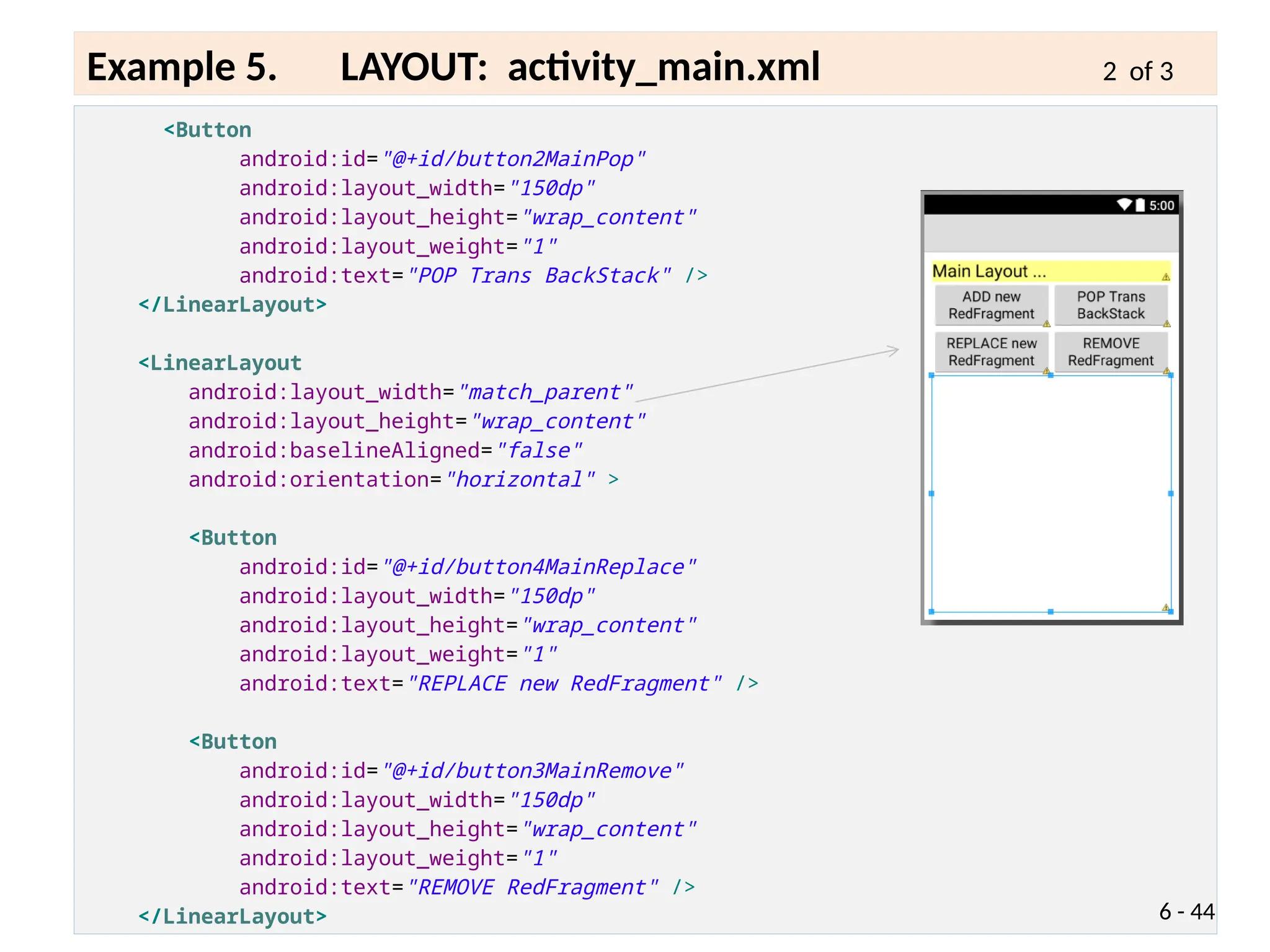
Example 5 - Using the BackStack 1 of x
6 - 41
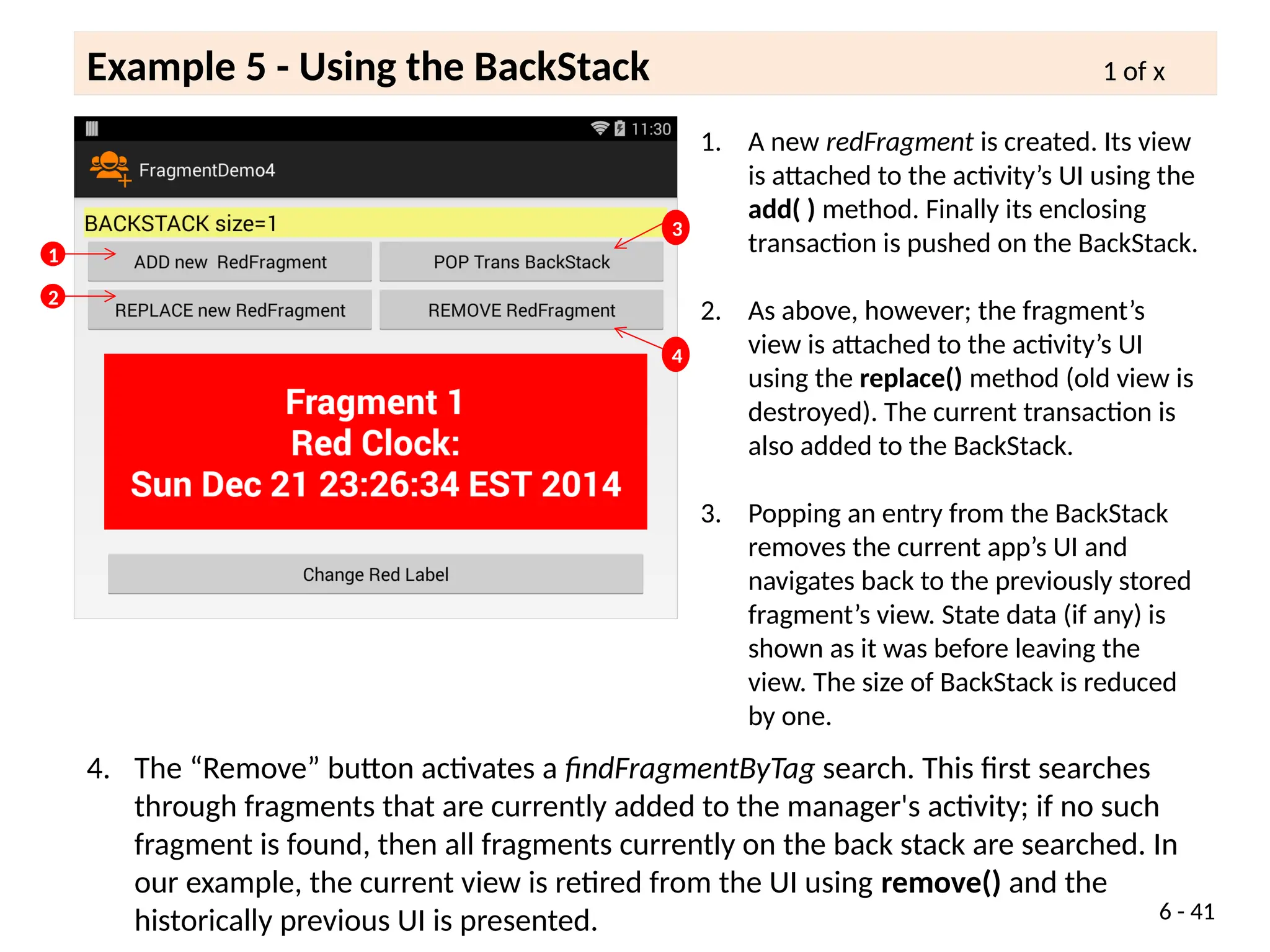
1. A new redFragment is created. Its view
is attached to the activity’s UI using the
add( ) method. Finally its enclosing
transaction is pushed on the BackStack.
2. As above, however; the fragment’s
view is attached to the activity’s UI
using the replace() method (old view is
destroyed). The current transaction is
also added to the BackStack.
3. Popping an entry from the BackStack
removes the current app’s UI and
navigates back to the previously stored
fragment’s view. State data (if any) is
shown as it was before leaving the
view. The size of BackStack is reduced
by one.
1
2
4. The “Remove” button activates a findFragmentByTag search. This first searches
through fragments that are currently added to the manager's activity; if no such
fragment is found, then all fragments currently on the back stack are searched. In
our example, the current view is retired from the UI using remove() and the
historically previous UI is presented.
3
4
Example 5 - Using the BackStack 1 of x
6 - 42
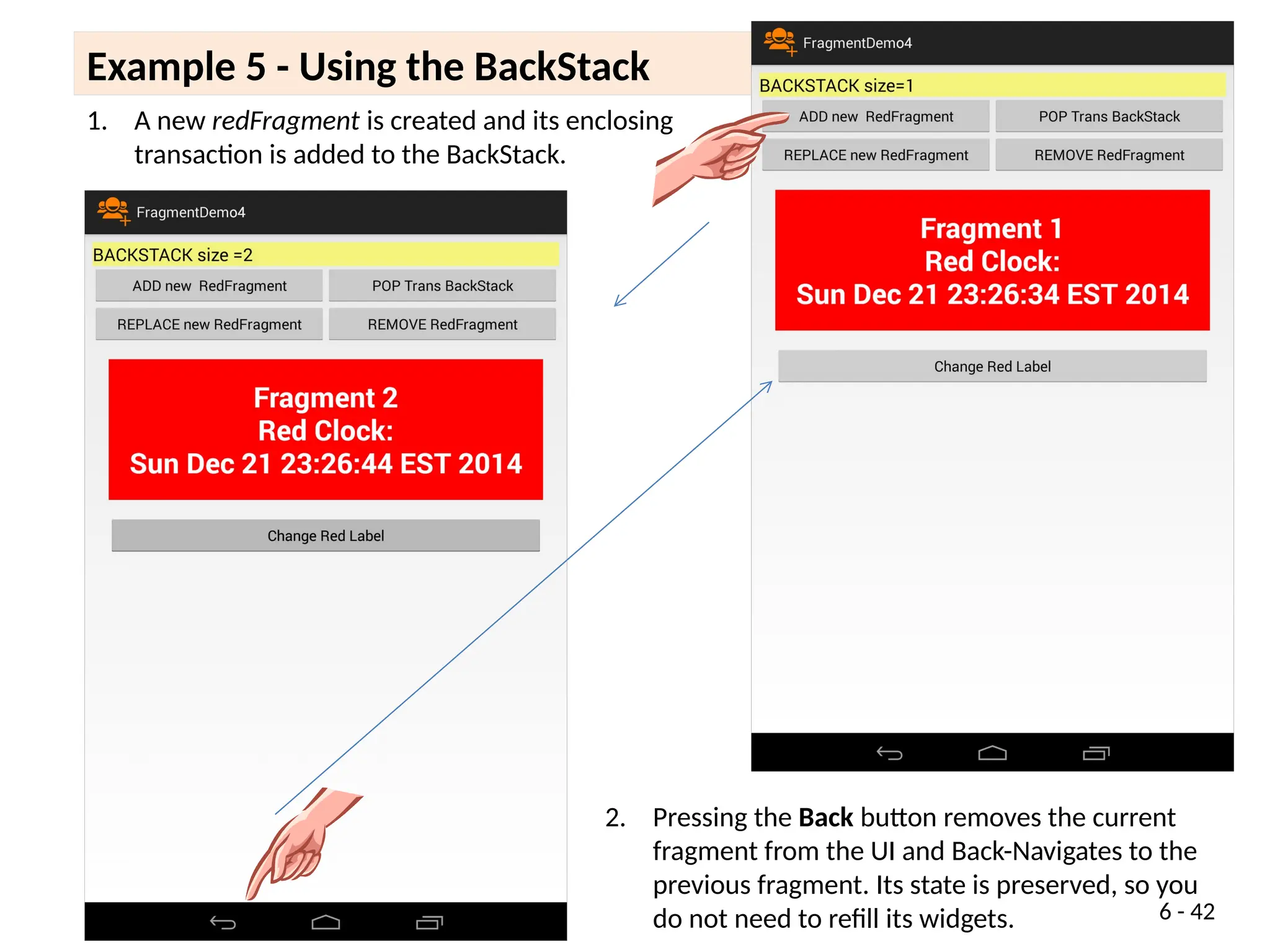
1. A new redFragment is created and its enclosing
transaction is added to the BackStack.
2. Pressing the Back button removes the current
fragment from the UI and Back-Navigates to the
previous fragment. Its state is preserved, so you
do not need to refill its widgets.
<?xml version="1.0" encoding="utf-8"?>
<LinearLayout xmlns:android="http://schemas.android.com/apk/res/android"
android:layout_width="match_parent"
android:layout_height="match_parent"
android:baselineAligned="false"
android:orientation="vertical"
android:padding="10dp" >
<TextView
android:id="@+id/textView1Main"
android:layout_width="match_parent"
android:layout_height="wrap_content"
android:background="#77ffff00"
android:text="Main Layout ..."
android:textAppearance="?android:attr/textAppearanceLarge" />
<LinearLayout
android:layout_width="match_parent"
android:layout_height="wrap_content"
android:baselineAligned="false"
android:orientation="horizontal" >
<Button
android:id="@+id/button1MainShowRed"
android:layout_width="150dp"
android:layout_height="wrap_content"
android:layout_weight="1"
android:text="ADD new RedFragment" /> 6 - 43
Example 5. LAYOUT: activity_main.xml 1 of 3
<Button
android:id="@+id/button2MainPop"
android:layout_width="150dp"
android:layout_height="wrap_content"
android:layout_weight="1"
android:text="POP Trans BackStack" />
</LinearLayout>
<LinearLayout
android:layout_width="match_parent"
android:layout_height="wrap_content"
android:baselineAligned="false"
android:orientation="horizontal" >
<Button
android:id="@+id/button4MainReplace"
android:layout_width="150dp"
android:layout_height="wrap_content"
android:layout_weight="1"
android:text="REPLACE new RedFragment" />
<Button
android:id="@+id/button3MainRemove"
android:layout_width="150dp"
android:layout_height="wrap_content"
android:layout_weight="1"
android:text="REMOVE RedFragment" />
</LinearLayout> 6 - 44
Example 5. LAYOUT: activity_main.xml 2 of 3
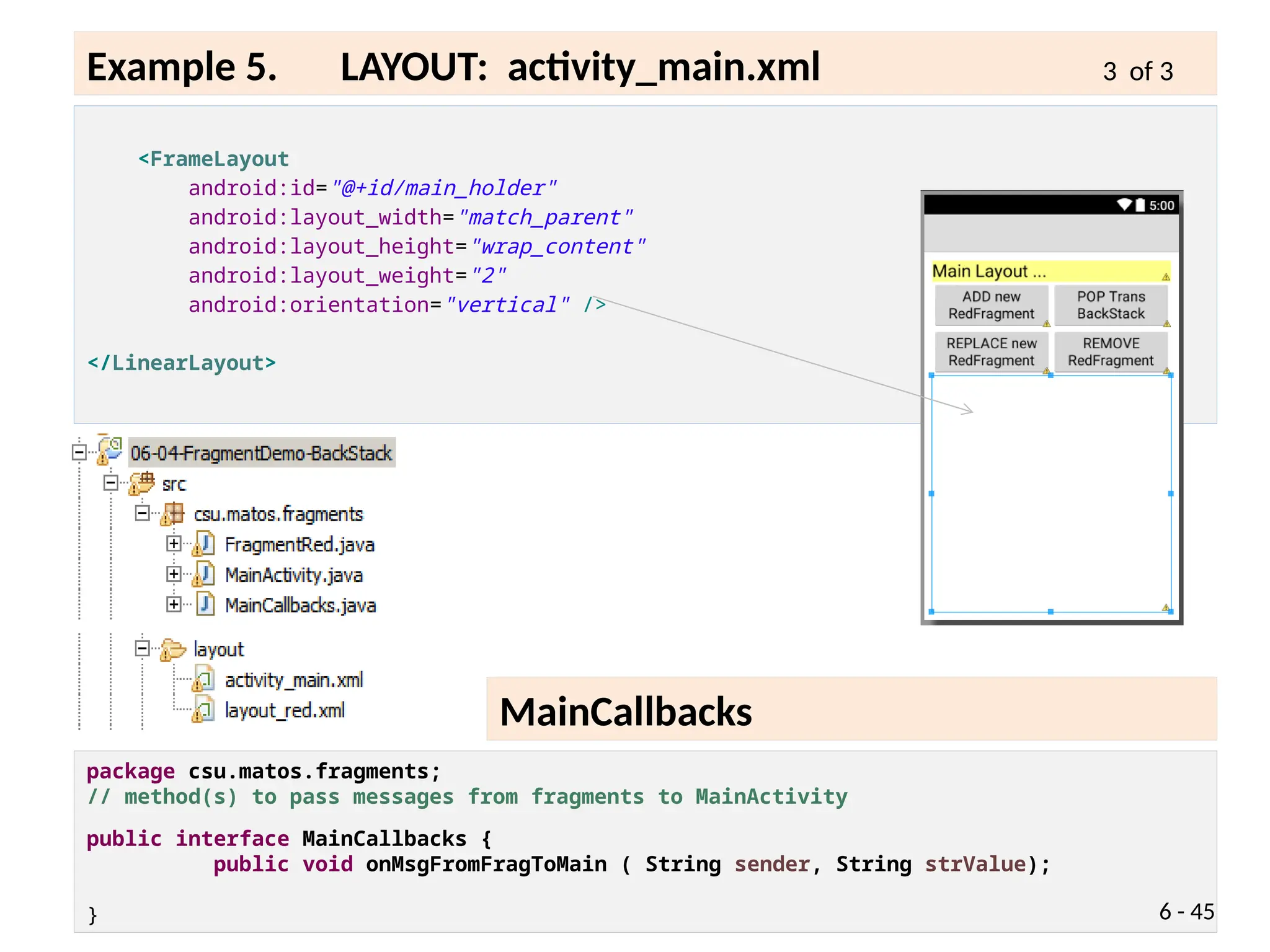
package csu.matos.fragments;
// method(s) to pass messages from fragments to MainActivity
public interface MainCallbacks {
public void onMsgFromFragToMain ( String sender, String strValue);
}
<FrameLayout
android:id="@+id/main_holder"
android:layout_width="match_parent"
android:layout_height="wrap_content"
android:layout_weight="2"
android:orientation="vertical" />
</LinearLayout>
6 - 45
Example 5. LAYOUT: activity_main.xml 3 of 3
MainCallbacks
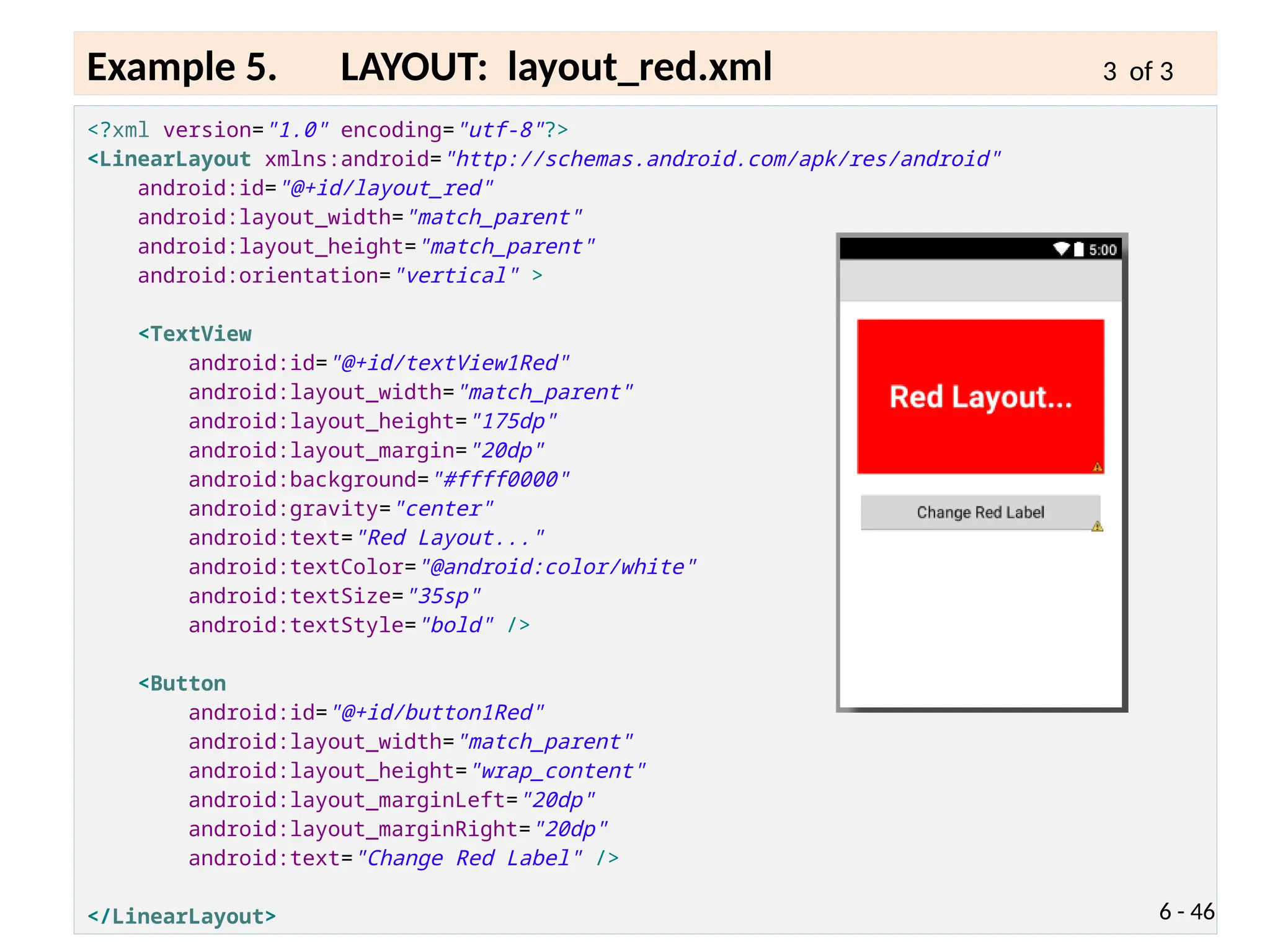
<?xml version="1.0" encoding="utf-8"?>
<LinearLayout xmlns:android="http://schemas.android.com/apk/res/android"
android:id="@+id/layout_red"
android:layout_width="match_parent"
android:layout_height="match_parent"
android:orientation="vertical" >
<TextView
android:id="@+id/textView1Red"
android:layout_width="match_parent"
android:layout_height="175dp"
android:layout_margin="20dp"
android:background="#ffff0000"
android:gravity="center"
android:text="Red Layout..."
android:textColor="@android:color/white"
android:textSize="35sp"
android:textStyle="bold" />
<Button
android:id="@+id/button1Red"
android:layout_width="match_parent"
android:layout_height="wrap_content"
android:layout_marginLeft="20dp"
android:layout_marginRight="20dp"
android:text="Change Red Label" />
</LinearLayout> 6 - 46
Example 5. LAYOUT: layout_red.xml 3 of 3
public class MainActivity extends Activity implements MainCallbacks, OnClickListener
{
FragmentTransaction ft;
FragmentRed redFragment;
TextView txtMsg;
Button btnAddRedFragment;
Button btnReplaceRedFragment;
Button btnPop;
Button btnRemove;
int serialCounter = 0; //used to enumerate fragments
String redMessage;
@Override
protected void onCreate(Bundle savedInstanceState) {
super.onCreate(savedInstanceState);
setContentView(R.layout.activity_main);
txtMsg = (TextView) findViewById(R.id.textView1Main);
btnAddRedFragment = (Button) findViewById(R.id.button1MainShowRed);
btnReplaceRedFragment = (Button)
findViewById(R.id.button4MainReplace);
btnPop = (Button) findViewById(R.id.button2MainPop);
btnRemove = (Button) findViewById(R.id.button3MainRemove);
btnAddRedFragment.setOnClickListener(this);
btnReplaceRedFragment.setOnClickListener(this);
btnPop.setOnClickListener(this); 6 - 47
Example 5. MainActivity 1 of 4
// CallBack (receiving messages coming from Fragments)
@Override
public void onMsgFromFragToMain(String sender, String strValue) {
// show message arriving to MainActivity
txtMsg.setText( sender + "=>" + strValue );
}
//
----------------------------------------------------------------------------------
public void onClick(View v) {
if(v.getId() == btnAddRedFragment.getId() ){
addRedFragment(++serialCounter);
}
if(v.getId() == btnReplaceRedFragment.getId() ){
replaceRedFragment(++serialCounter);
}
if(v.getId() == btnPop.getId() ){
FragmentManager fragmentManager = getFragmentManager();
int counter = fragmentManager.getBackStackEntryCount();
txtMsg.setText("BACKSTACK old size=" + counter);
if(counter>0) {
// VERSION 1 [ popBackStack could be used as opposite of
addBackStack() ]
// pop takes a Transaction from the BackStack and a view is also
deleted
fragmentManager.popBackStackImmediate();
txtMsg.append("nBACKSTACK new size=" +
6 - 48
Example 5. MainActivity 2 of 4
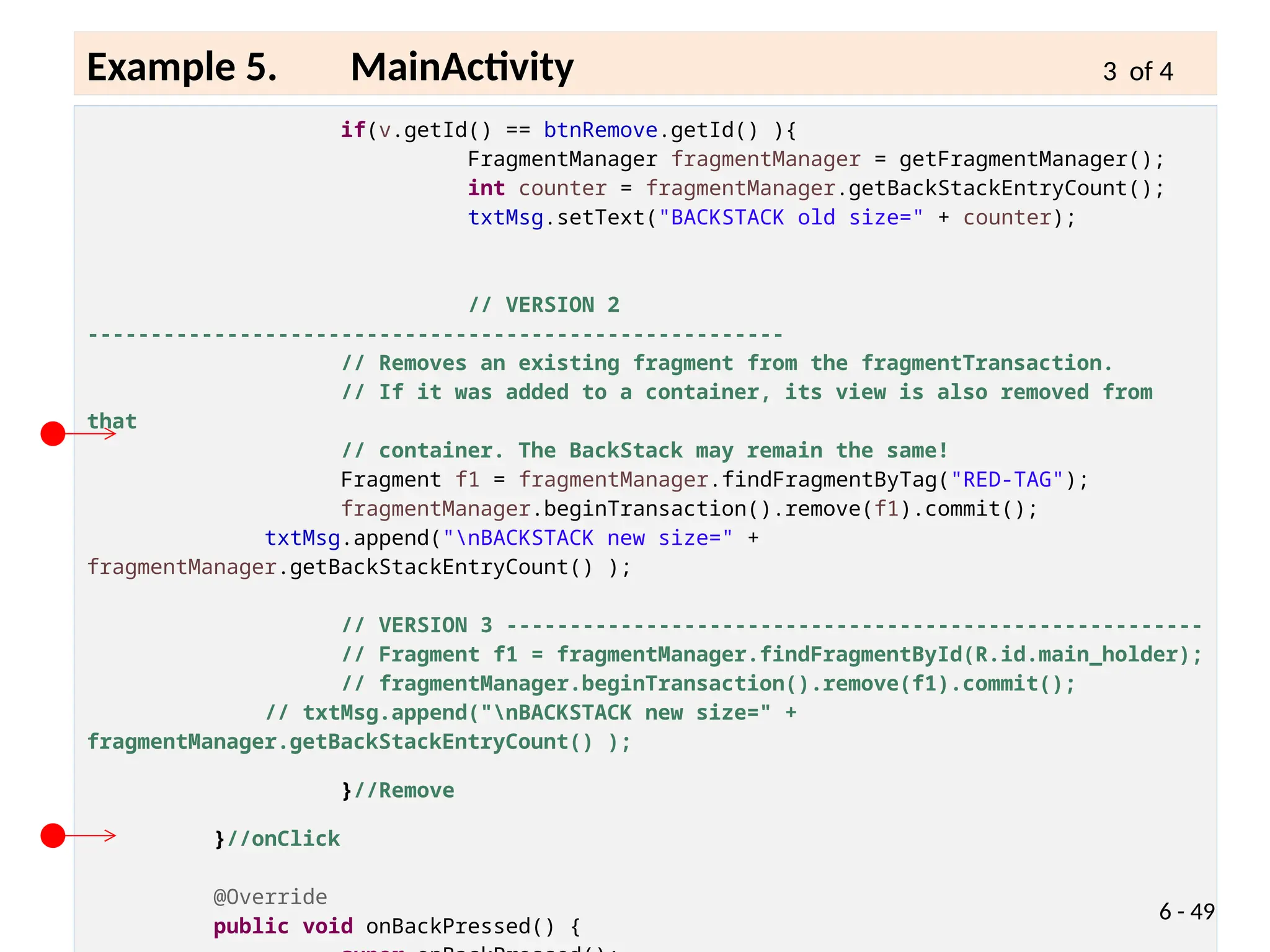
if(v.getId() == btnRemove.getId() ){
FragmentManager fragmentManager = getFragmentManager();
int counter = fragmentManager.getBackStackEntryCount();
txtMsg.setText("BACKSTACK old size=" + counter);
// VERSION 2
-------------------------------------------------------
// Removes an existing fragment from the fragmentTransaction.
// If it was added to a container, its view is also removed from
that
// container. The BackStack may remain the same!
Fragment f1 = fragmentManager.findFragmentByTag("RED-TAG");
fragmentManager.beginTransaction().remove(f1).commit();
txtMsg.append("nBACKSTACK new size=" +
fragmentManager.getBackStackEntryCount() );
// VERSION 3 -------------------------------------------------------
// Fragment f1 = fragmentManager.findFragmentById(R.id.main_holder);
// fragmentManager.beginTransaction().remove(f1).commit();
// txtMsg.append("nBACKSTACK new size=" +
fragmentManager.getBackStackEntryCount() );
}//Remove
}//onClick
@Override
public void onBackPressed() {
6 - 49
Example 5. MainActivity 3 of 4
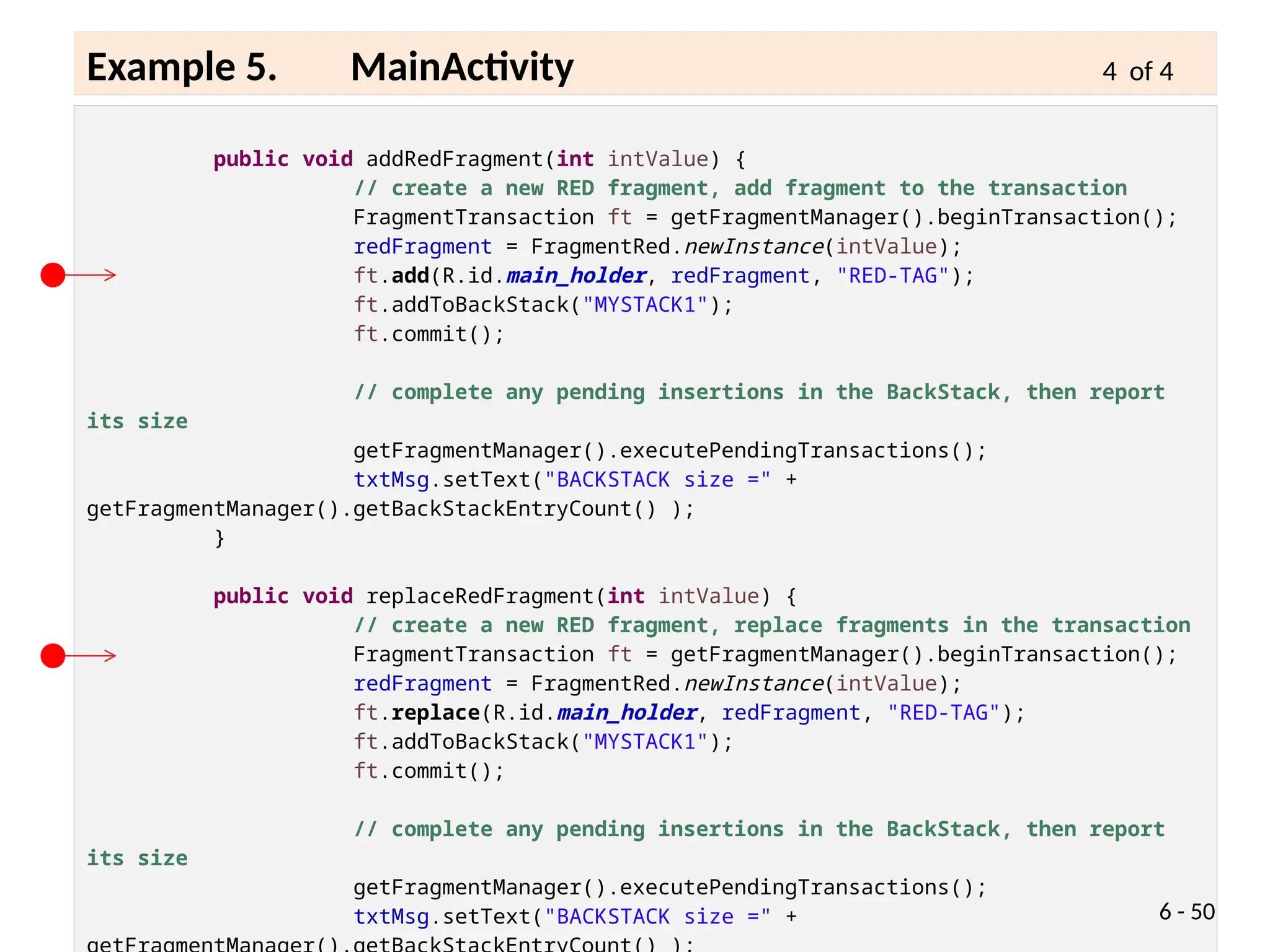
public void addRedFragment(int intValue) {
// create a new RED fragment, add fragment to the transaction
FragmentTransaction ft = getFragmentManager().beginTransaction();
redFragment = FragmentRed.newInstance(intValue);
ft.add(R.id.main_holder, redFragment, "RED-TAG");
ft.addToBackStack("MYSTACK1");
ft.commit();
// complete any pending insertions in the BackStack, then report
its size
getFragmentManager().executePendingTransactions();
txtMsg.setText("BACKSTACK size =" +
getFragmentManager().getBackStackEntryCount() );
}
public void replaceRedFragment(int intValue) {
// create a new RED fragment, replace fragments in the transaction
FragmentTransaction ft = getFragmentManager().beginTransaction();
redFragment = FragmentRed.newInstance(intValue);
ft.replace(R.id.main_holder, redFragment, "RED-TAG");
ft.addToBackStack("MYSTACK1");
ft.commit();
// complete any pending insertions in the BackStack, then report
its size
getFragmentManager().executePendingTransactions();
txtMsg.setText("BACKSTACK size =" + 6 - 50
Example 5. MainActivity 4 of 4
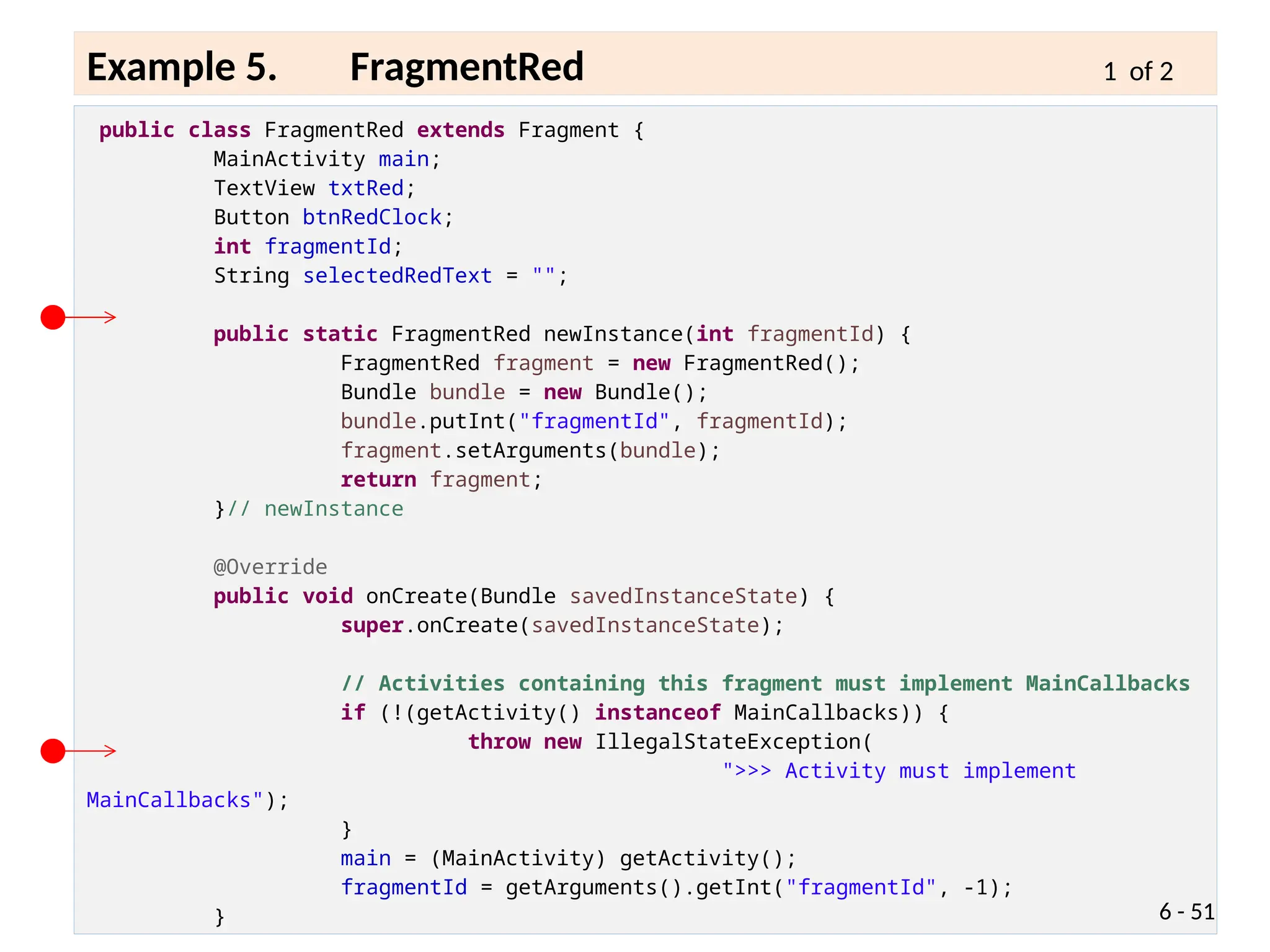
public class FragmentRed extends Fragment {
MainActivity main;
TextView txtRed;
Button btnRedClock;
int fragmentId;
String selectedRedText = "";
public static FragmentRed newInstance(int fragmentId) {
FragmentRed fragment = new FragmentRed();
Bundle bundle = new Bundle();
bundle.putInt("fragmentId", fragmentId);
fragment.setArguments(bundle);
return fragment;
}// newInstance
@Override
public void onCreate(Bundle savedInstanceState) {
super.onCreate(savedInstanceState);
// Activities containing this fragment must implement MainCallbacks
if (!(getActivity() instanceof MainCallbacks)) {
throw new IllegalStateException(
">>> Activity must implement
MainCallbacks");
}
main = (MainActivity) getActivity();
fragmentId = getArguments().getInt("fragmentId", -1);
} 6 - 51
Example 5. FragmentRed 1 of 2
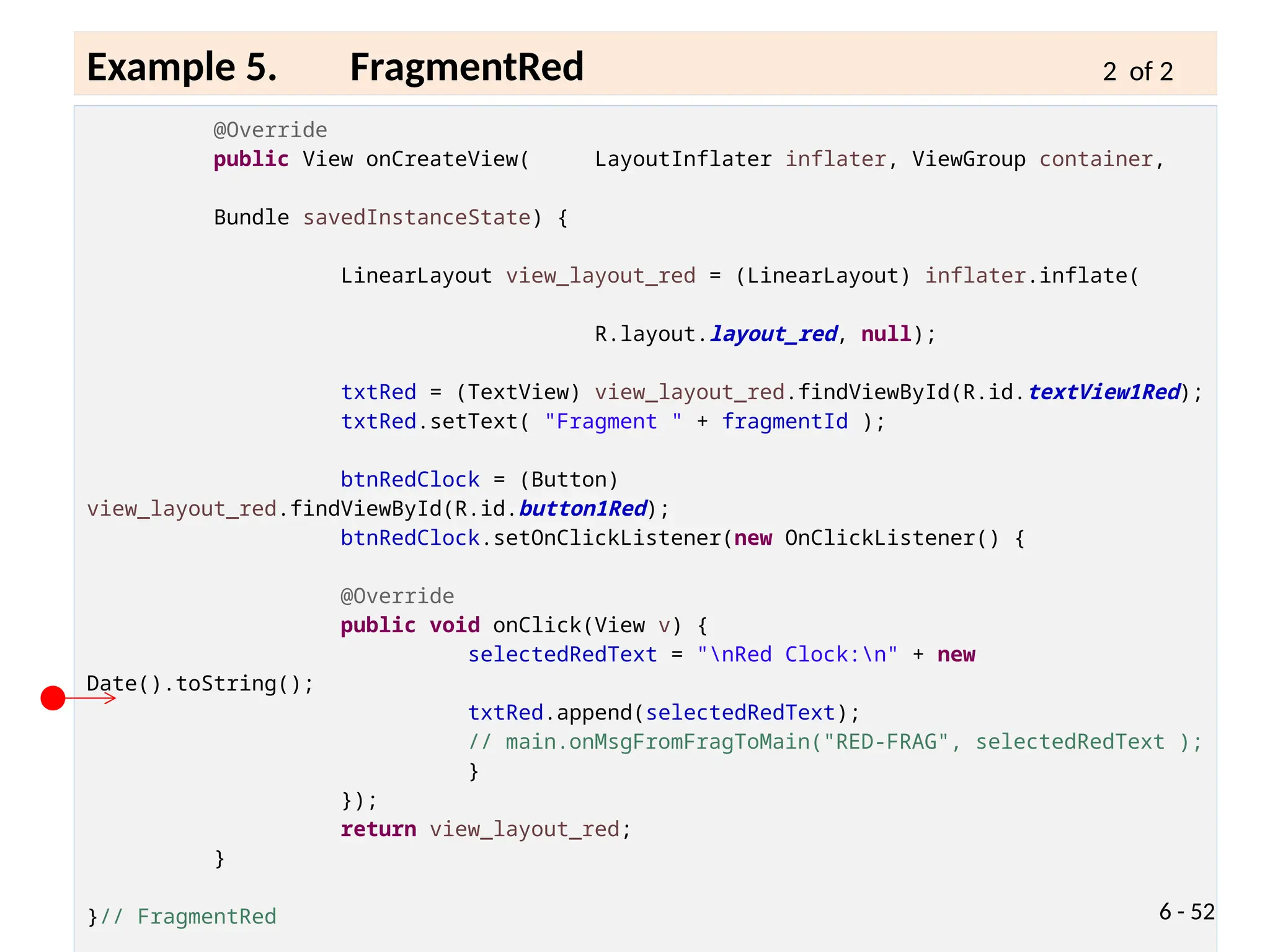
@Override
public View onCreateView( LayoutInflater inflater, ViewGroup container,
Bundle savedInstanceState) {
LinearLayout view_layout_red = (LinearLayout) inflater.inflate(
R.layout.layout_red, null);
txtRed = (TextView) view_layout_red.findViewById(R.id.textView1Red);
txtRed.setText( "Fragment " + fragmentId );
btnRedClock = (Button)
view_layout_red.findViewById(R.id.button1Red);
btnRedClock.setOnClickListener(new OnClickListener() {
@Override
public void onClick(View v) {
selectedRedText = "nRed Clock:n" + new
Date().toString();
txtRed.append(selectedRedText);
// main.onMsgFromFragToMain("RED-FRAG", selectedRedText );
}
});
return view_layout_red;
}
}// FragmentRed 6 - 52
Example 5. FragmentRed 2 of 2
ViewPager2 + Fragment
6 - 53
ViewPager2 được sử dụng thay thế cho ViewPager để tạo hiệu
ứng trượt giữa các trang (fragment) trong một màn hình
(activity).
ViewPager2 sử dụng RecyclerView nên hỗ trợ nhiều kiểu layout
khác nhau, hoạt động nhanh và hiệu quả hơn.
ViewPager2 + Fragment
6 - 54
Cách sử dụng ViewPager2 kết hợp với Fragment
Bước 1: Thêm thư viện ViewPager2 vào project
implementation
'androidx.viewpager2:viewpager2:1.0.0'
Bước 2: Tạo mới và thiết kế giao diện cho đối tượng fragment, được sử
dụng để hiển thị các trang.
Bước 3: Khai báo ViewPager2 trong file xml của activity
ViewPager2 + Fragment
6 - 55
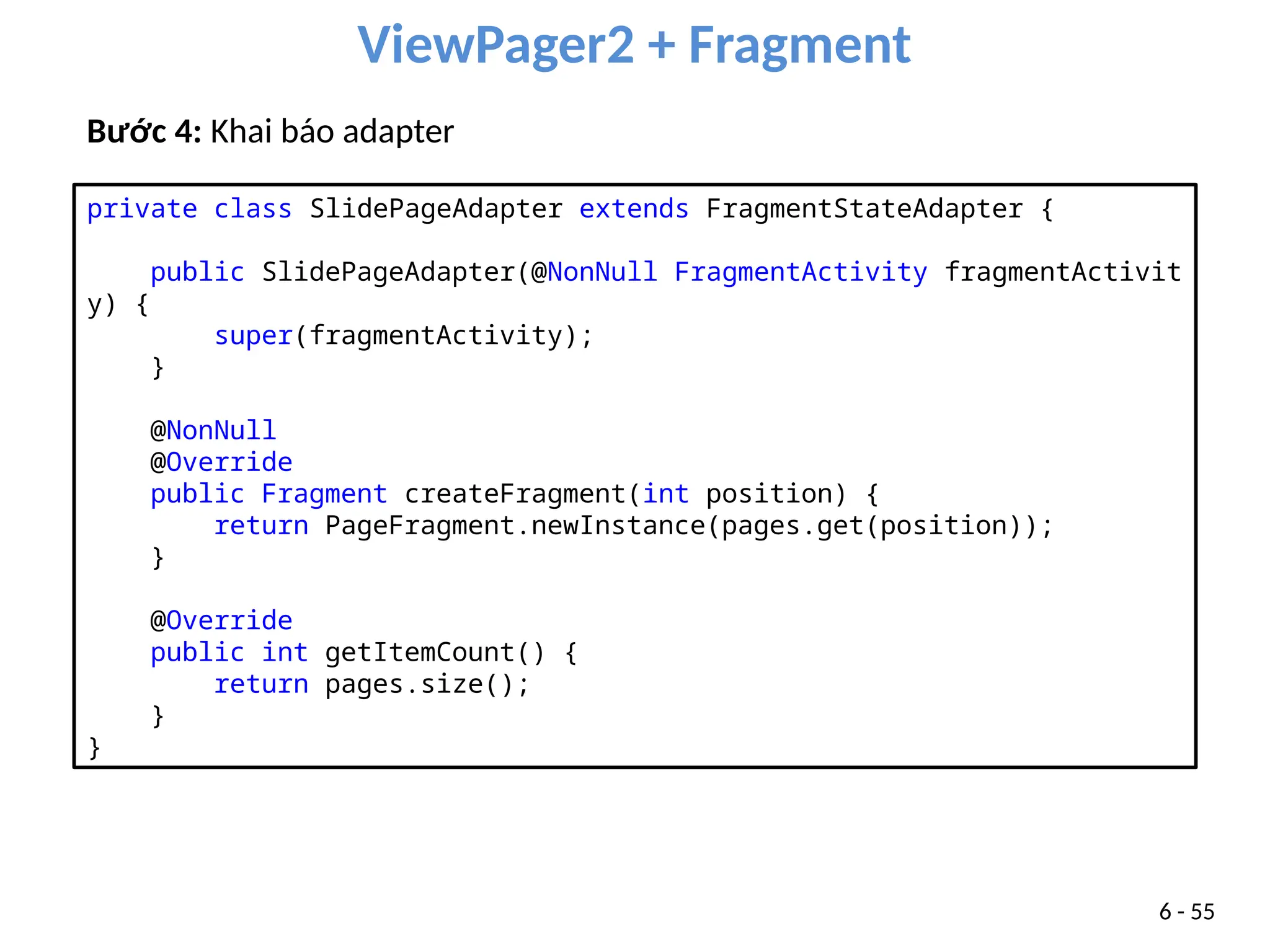
Bước 4: Khai báo adapter
private class SlidePageAdapter extends FragmentStateAdapter {
public SlidePageAdapter(@NonNull FragmentActivity fragmentActivit
y) {
super(fragmentActivity);
}
@NonNull
@Override
public Fragment createFragment(int position) {
return PageFragment.newInstance(pages.get(position));
}
@Override
public int getItemCount() {
return pages.size();
}
}
ViewPager2 + Fragment
6 - 56
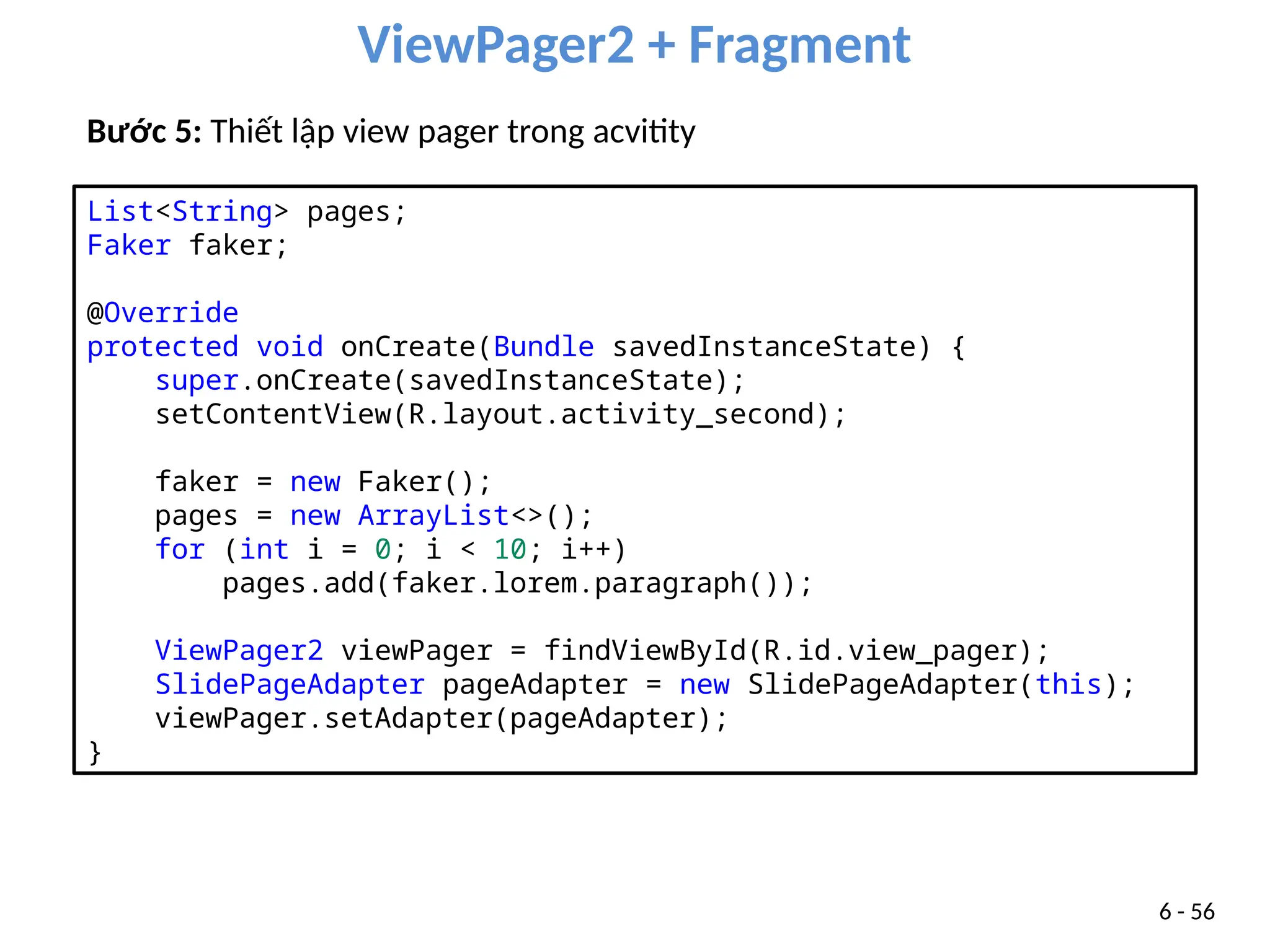
Bước 5: Thiết lập view pager trong acvitity
List<String> pages;
Faker faker;
@Override
protected void onCreate(Bundle savedInstanceState) {
super.onCreate(savedInstanceState);
setContentView(R.layout.activity_second);
faker = new Faker();
pages = new ArrayList<>();
for (int i = 0; i < 10; i++)
pages.add(faker.lorem.paragraph());
ViewPager2 viewPager = findViewById(R.id.view_pager);
SlidePageAdapter pageAdapter = new SlidePageAdapter(this);
viewPager.setAdapter(pageAdapter);
}
ViewPager2 + Fragment
6 - 57
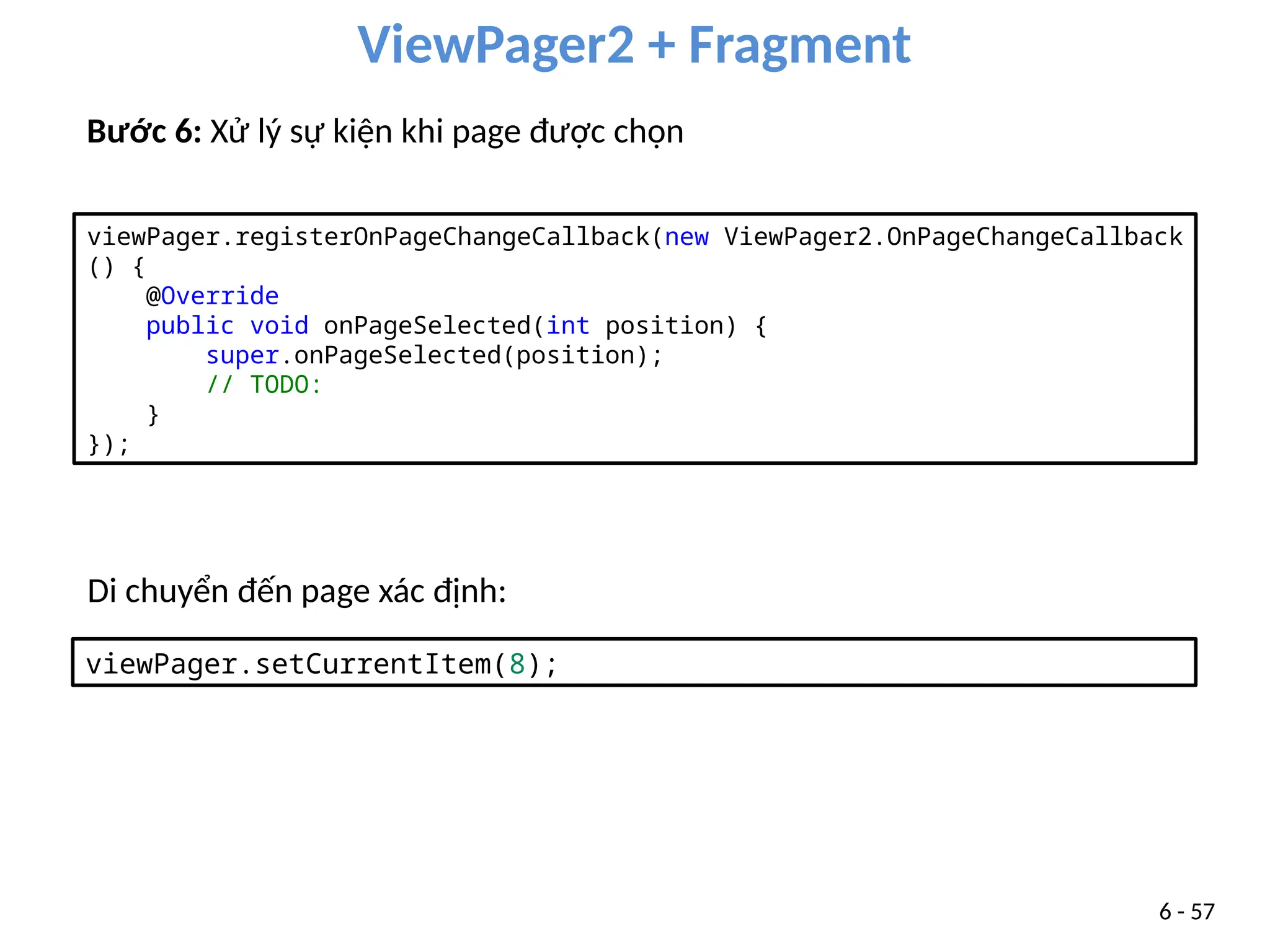
Bước 6: Xử lý sự kiện khi page được chọn
viewPager.registerOnPageChangeCallback(new ViewPager2.OnPageChangeCallback
() {
@Override
public void onPageSelected(int position) {
super.onPageSelected(position);
// TODO:
}
});
Di chuyển đến page xác định:
viewPager.setCurrentItem(8);
TabLayout + ViewPager2 + Fragment
6 - 58
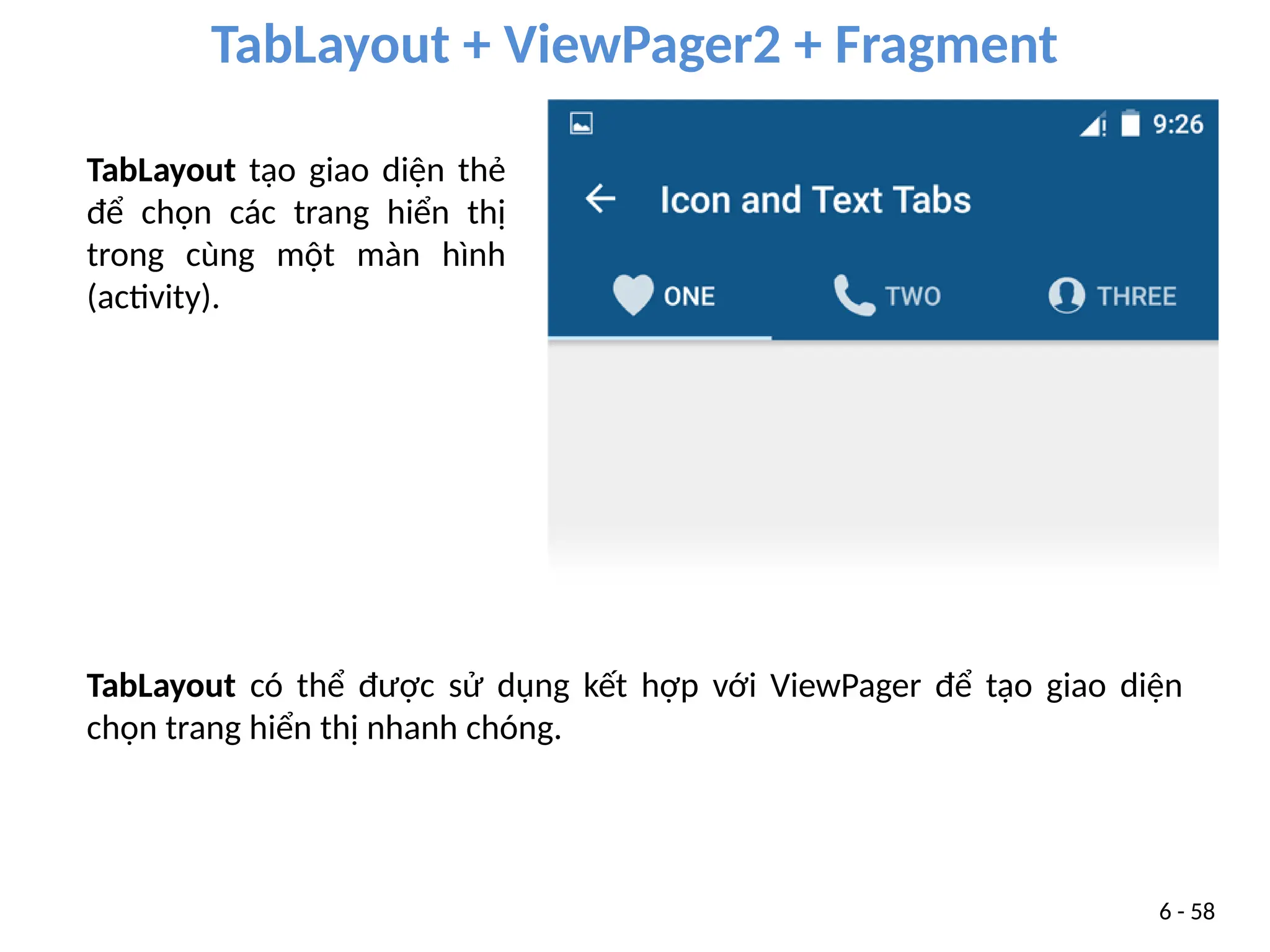
TabLayout có thể được sử dụng kết hợp với ViewPager để tạo giao diện
chọn trang hiển thị nhanh chóng.
TabLayout tạo giao diện thẻ
để chọn các trang hiển thị
trong cùng một màn hình
(activity).
TabLayout + ViewPager2 + Fragment
6 - 59
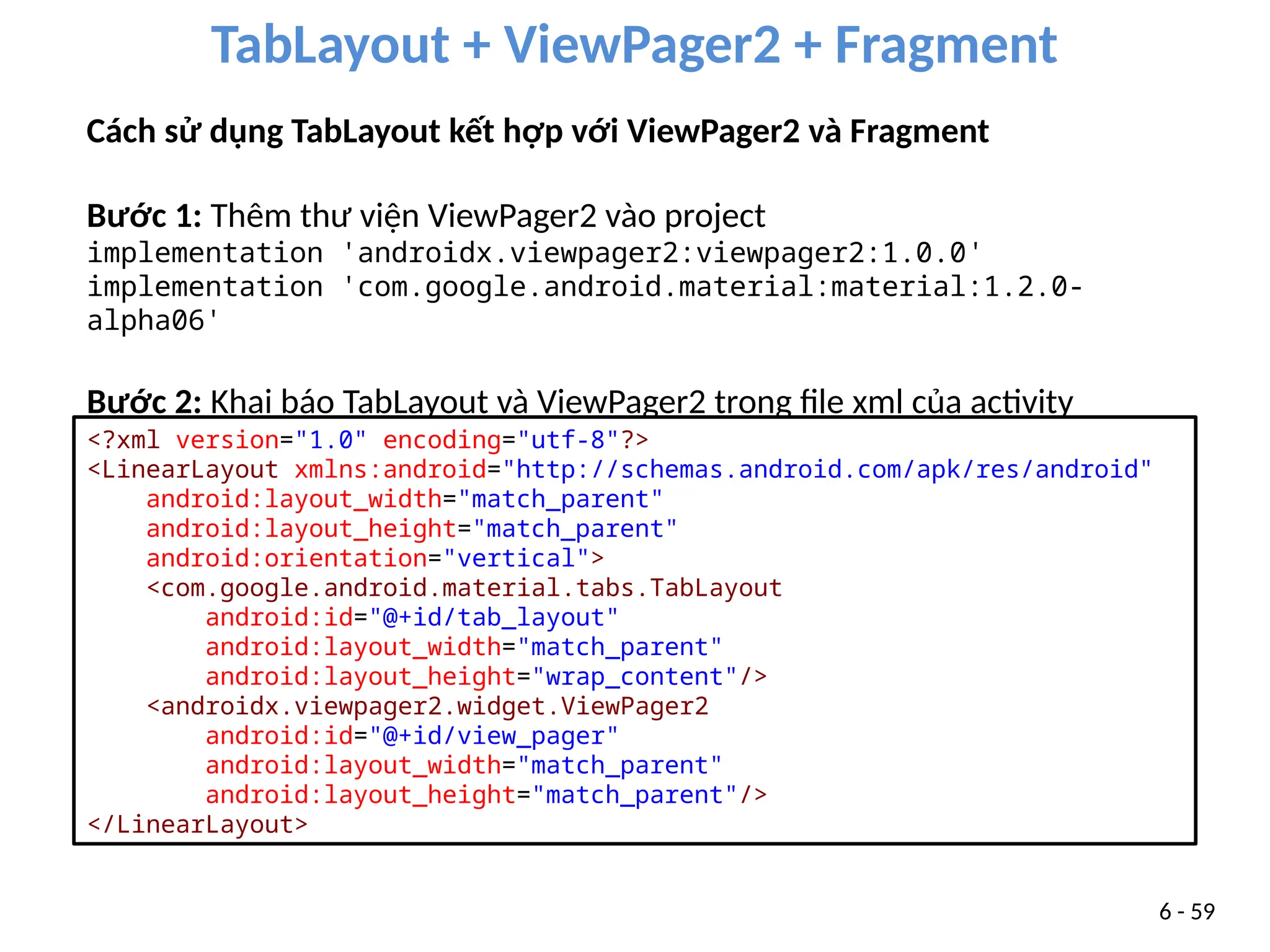
Cách sử dụng TabLayout kết hợp với ViewPager2 và Fragment
Bước 1: Thêm thư viện ViewPager2 vào project
implementation 'androidx.viewpager2:viewpager2:1.0.0'
implementation 'com.google.android.material:material:1.2.0-
alpha06'
Bước 2: Khai báo TabLayout và ViewPager2 trong file xml của activity
<?xml version="1.0" encoding="utf-8"?>
<LinearLayout xmlns:android="http://schemas.android.com/apk/res/android"
android:layout_width="match_parent"
android:layout_height="match_parent"
android:orientation="vertical">
<com.google.android.material.tabs.TabLayout
android:id="@+id/tab_layout"
android:layout_width="match_parent"
android:layout_height="wrap_content"/>
<androidx.viewpager2.widget.ViewPager2
android:id="@+id/view_pager"
android:layout_width="match_parent"
android:layout_height="match_parent"/>
</LinearLayout>
TabLayout + ViewPager2 + Fragment
6 - 60
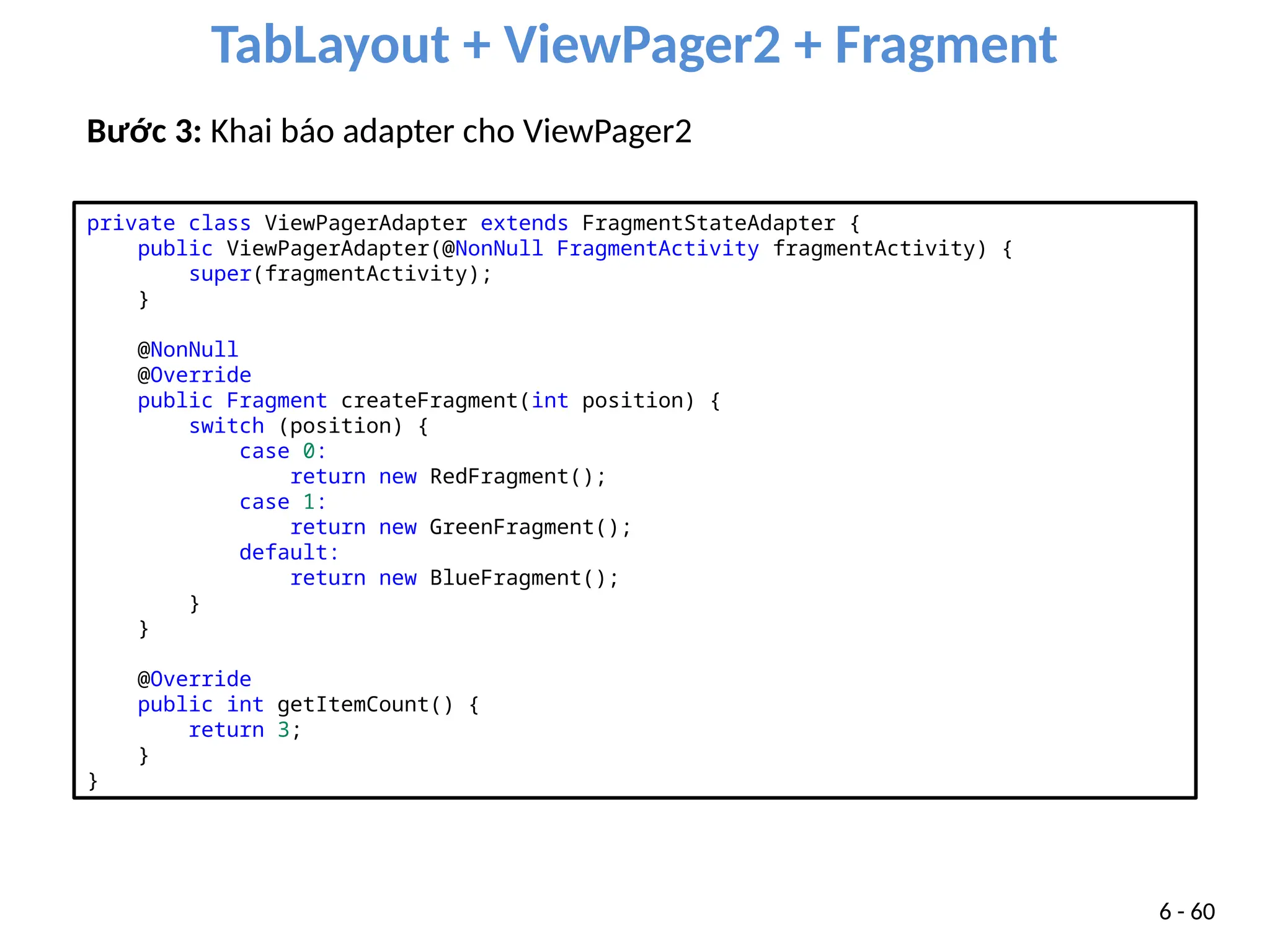
Bước 3: Khai báo adapter cho ViewPager2
private class ViewPagerAdapter extends FragmentStateAdapter {
public ViewPagerAdapter(@NonNull FragmentActivity fragmentActivity) {
super(fragmentActivity);
}
@NonNull
@Override
public Fragment createFragment(int position) {
switch (position) {
case 0:
return new RedFragment();
case 1:
return new GreenFragment();
default:
return new BlueFragment();
}
}
@Override
public int getItemCount() {
return 3;
}
}
TabLayout + ViewPager2 + Fragment
6 - 61
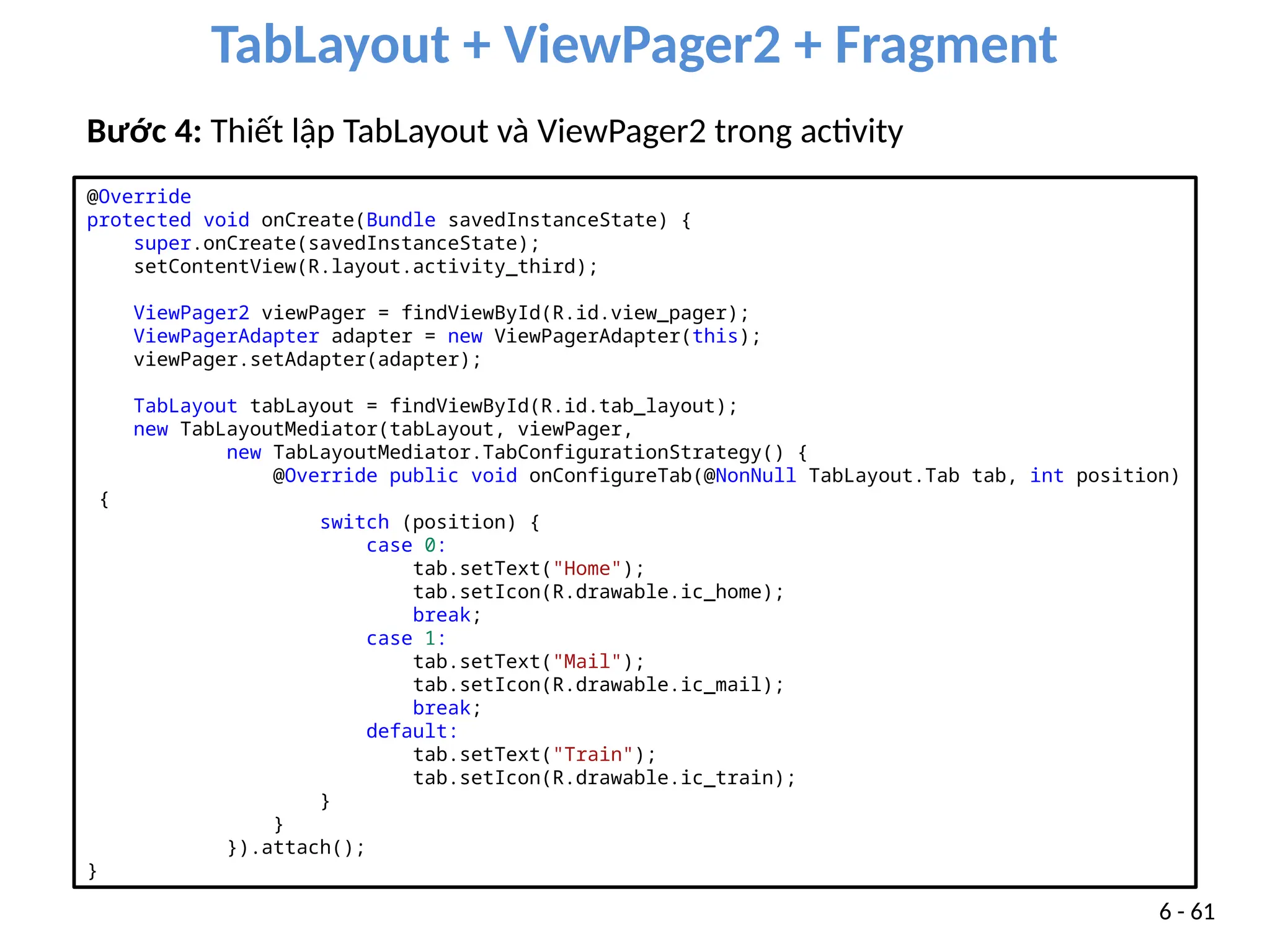
Bước 4: Thiết lập TabLayout và ViewPager2 trong activity
@Override
protected void onCreate(Bundle savedInstanceState) {
super.onCreate(savedInstanceState);
setContentView(R.layout.activity_third);
ViewPager2 viewPager = findViewById(R.id.view_pager);
ViewPagerAdapter adapter = new ViewPagerAdapter(this);
viewPager.setAdapter(adapter);
TabLayout tabLayout = findViewById(R.id.tab_layout);
new TabLayoutMediator(tabLayout, viewPager,
new TabLayoutMediator.TabConfigurationStrategy() {
@Override public void onConfigureTab(@NonNull TabLayout.Tab tab, int position)
{
switch (position) {
case 0:
tab.setText("Home");
tab.setIcon(R.drawable.ic_home);
break;
case 1:
tab.setText("Mail");
tab.setIcon(R.drawable.ic_mail);
break;
default:
tab.setText("Train");
tab.setIcon(R.drawable.ic_train);
}
}
}).attach();
}
Build a flexible UI
6 - 62
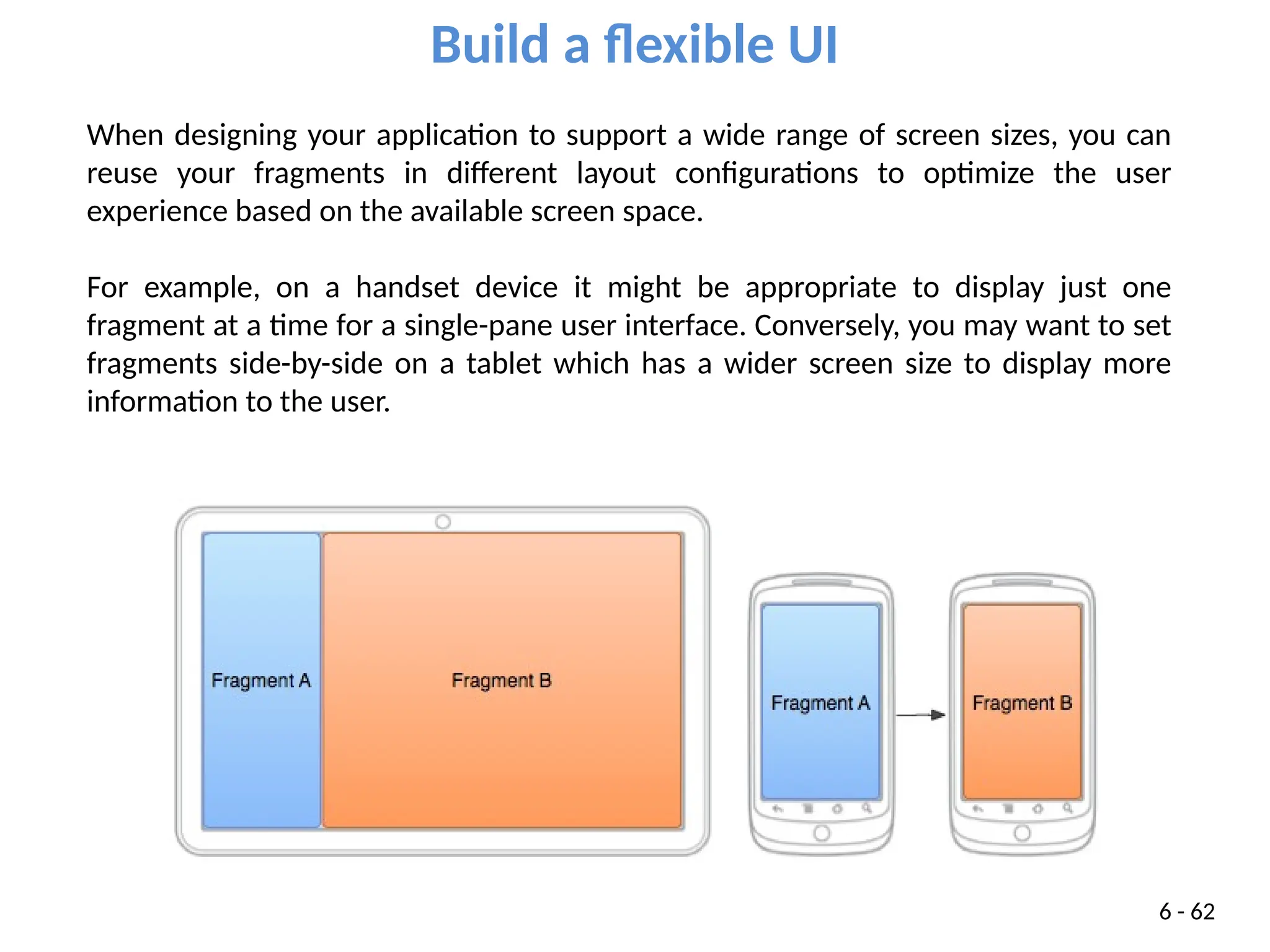
When designing your application to support a wide range of screen sizes, you can
reuse your fragments in different layout configurations to optimize the user
experience based on the available screen space.
For example, on a handset device it might be appropriate to display just one
fragment at a time for a single-pane user interface. Conversely, you may want to set
fragments side-by-side on a tablet which has a wider screen size to display more
information to the user.
63
Build a flexible UI
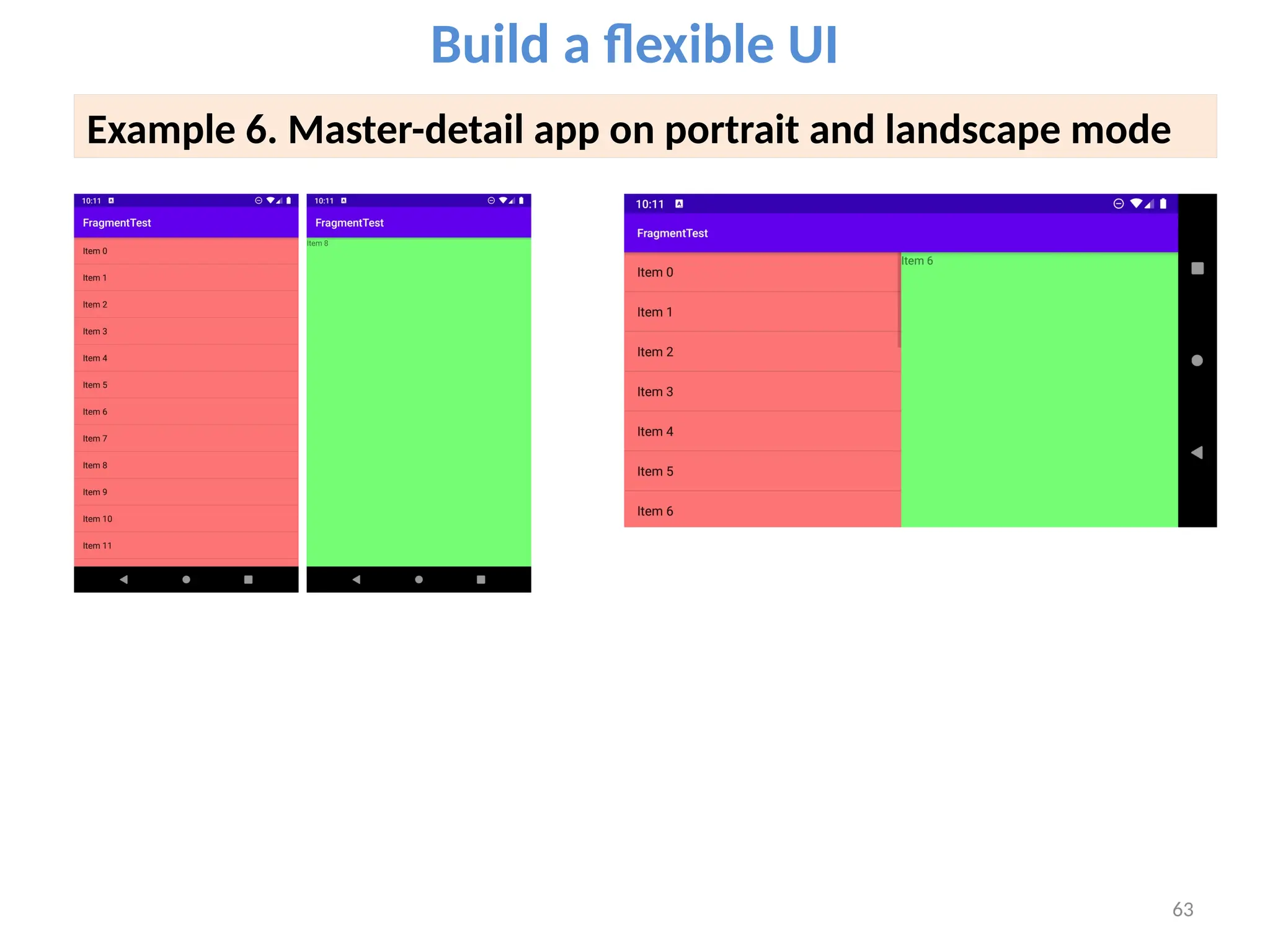
Example 6. Master-detail app on portrait and landscape mode
64
Build a flexible UI
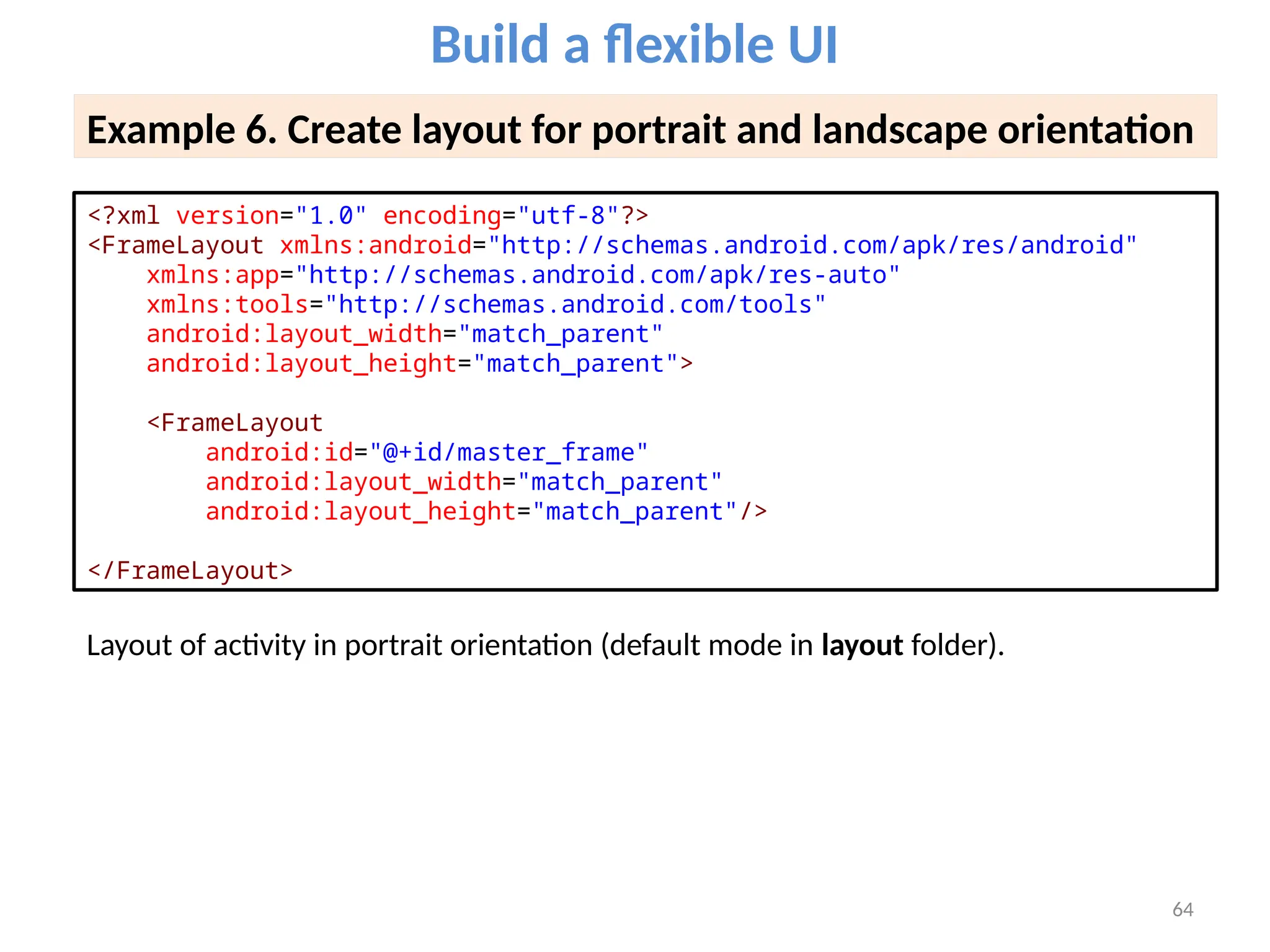
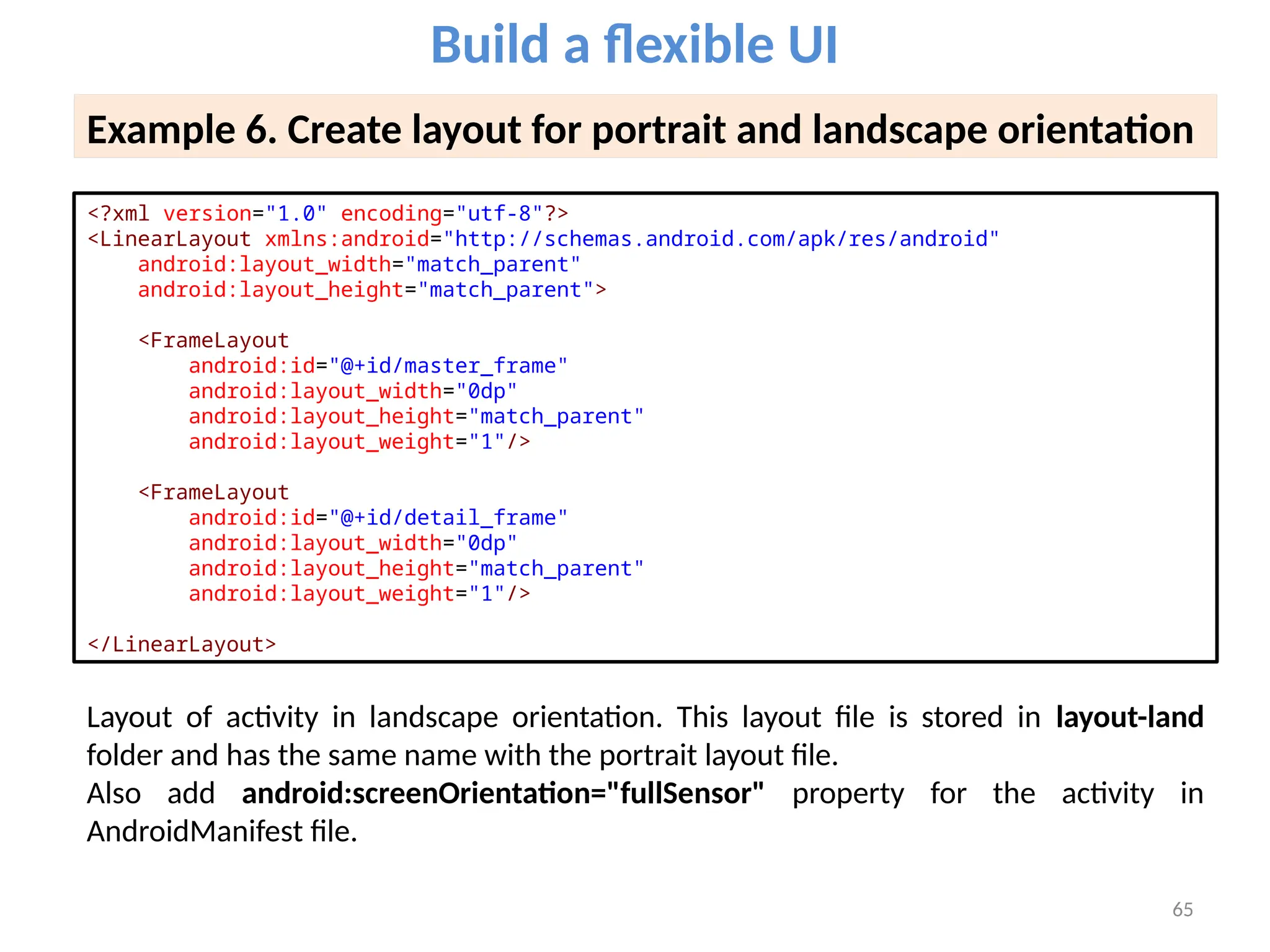
Example 6. Create layout for portrait and landscape orientation
<?xml version="1.0" encoding="utf-8"?>
<FrameLayout xmlns:android="http://schemas.android.com/apk/res/android"
xmlns:app="http://schemas.android.com/apk/res-auto"
xmlns:tools="http://schemas.android.com/tools"
android:layout_width="match_parent"
android:layout_height="match_parent">
<FrameLayout
android:id="@+id/master_frame"
android:layout_width="match_parent"
android:layout_height="match_parent"/>
</FrameLayout>
Layout of activity in portrait orientation (default mode in layout folder).
65
Build a flexible UI
Example 6. Create layout for portrait and landscape orientation
<?xml version="1.0" encoding="utf-8"?>
<LinearLayout xmlns:android="http://schemas.android.com/apk/res/android"
android:layout_width="match_parent"
android:layout_height="match_parent">
<FrameLayout
android:id="@+id/master_frame"
android:layout_width="0dp"
android:layout_height="match_parent"
android:layout_weight="1"/>
<FrameLayout
android:id="@+id/detail_frame"
android:layout_width="0dp"
android:layout_height="match_parent"
android:layout_weight="1"/>
</LinearLayout>
Layout of activity in landscape orientation. This layout file is stored in layout-land
folder and has the same name with the portrait layout file.
Also add android:screenOrientation="fullSensor" property for the activity in
AndroidManifest file.
66
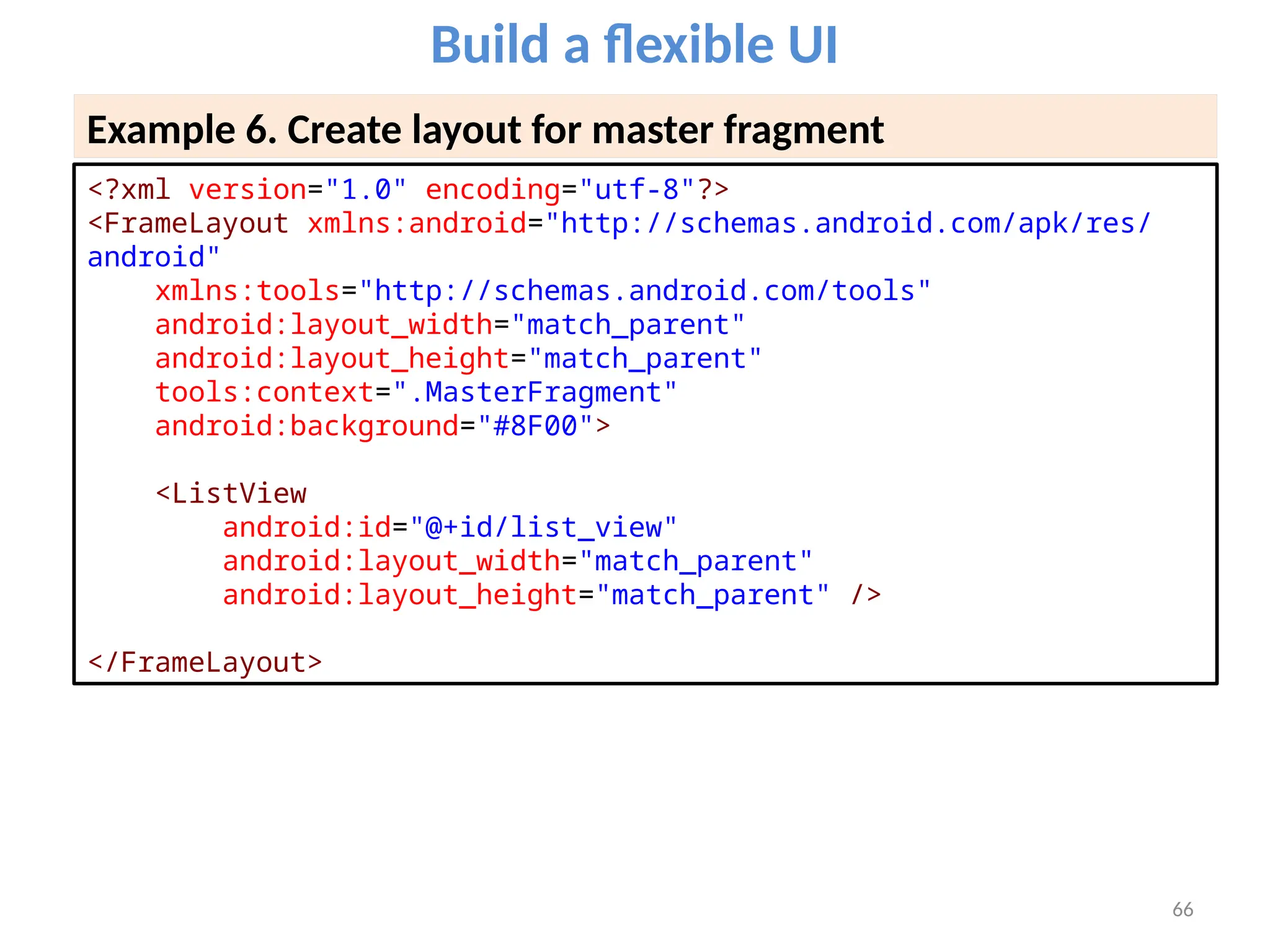
Build a flexible UI
Example 6. Create layout for master fragment
<?xml version="1.0" encoding="utf-8"?>
<FrameLayout xmlns:android="http://schemas.android.com/apk/res/
android"
xmlns:tools="http://schemas.android.com/tools"
android:layout_width="match_parent"
android:layout_height="match_parent"
tools:context=".MasterFragment"
android:background="#8F00">
<ListView
android:id="@+id/list_view"
android:layout_width="match_parent"
android:layout_height="match_parent" />
</FrameLayout>
67
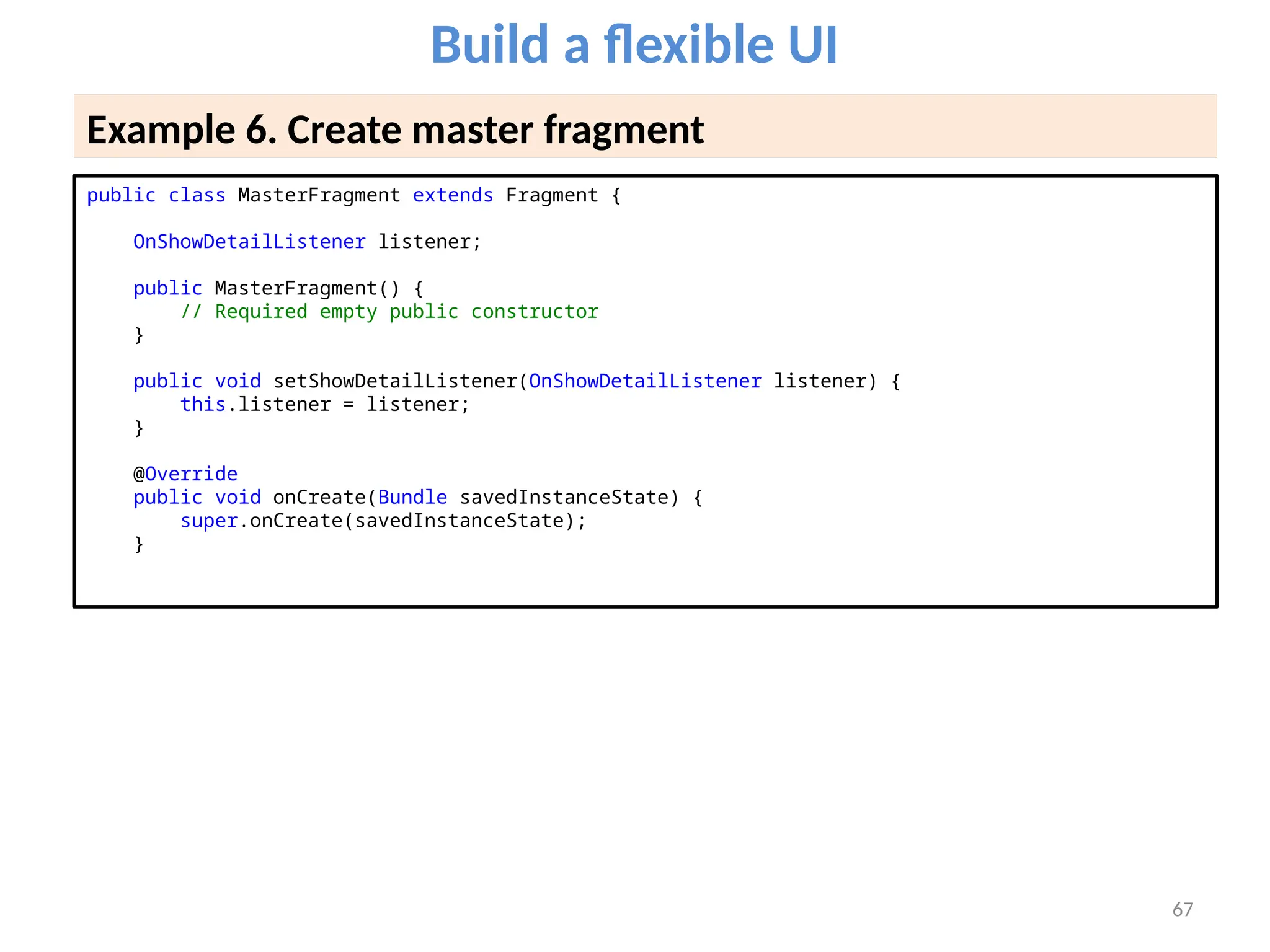
Build a flexible UI
Example 6. Create master fragment
public class MasterFragment extends Fragment {
OnShowDetailListener listener;
public MasterFragment() {
// Required empty public constructor
}
public void setShowDetailListener(OnShowDetailListener listener) {
this.listener = listener;
}
@Override
public void onCreate(Bundle savedInstanceState) {
super.onCreate(savedInstanceState);
}
68
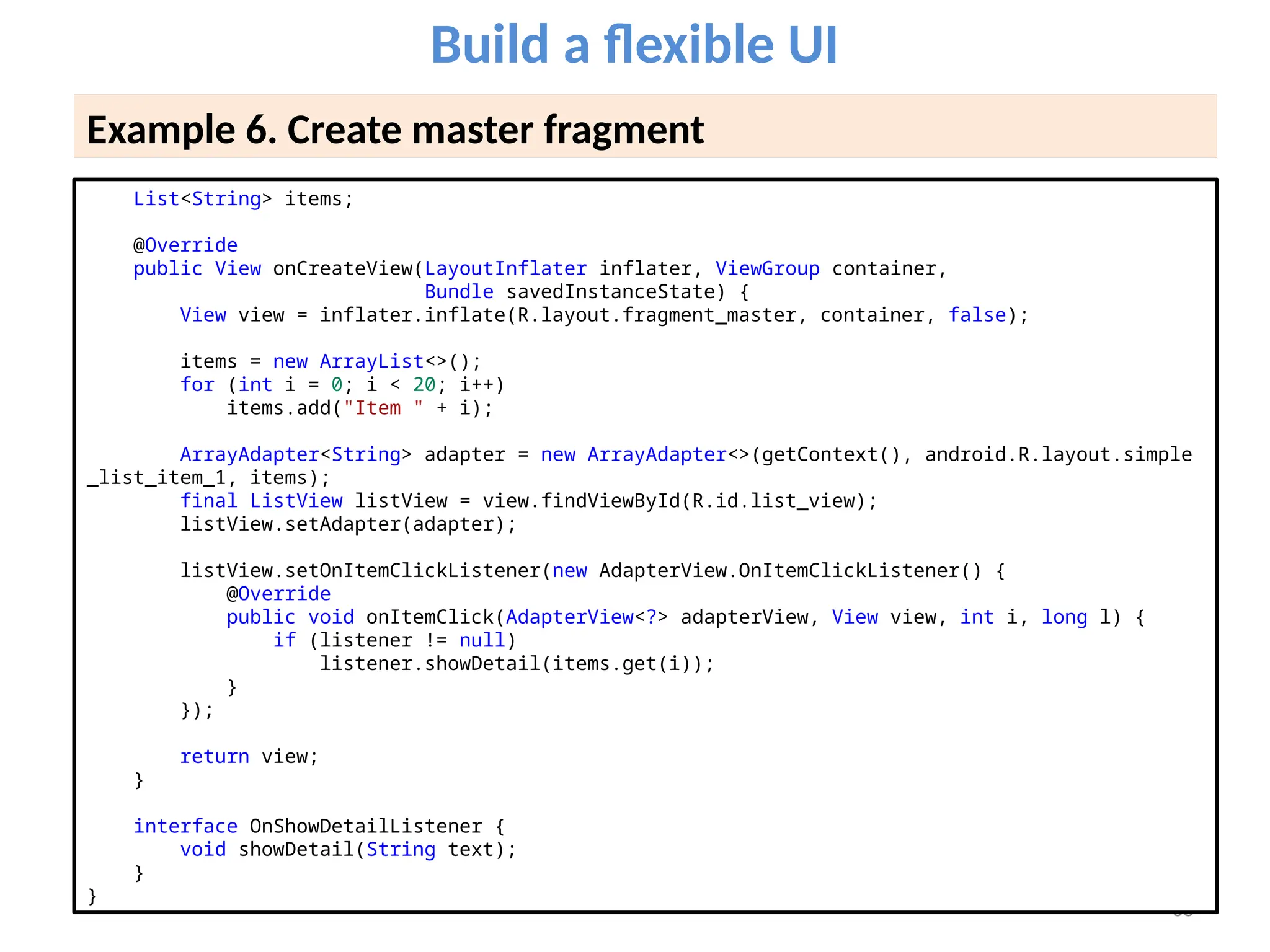
Build a flexible UI
Example 6. Create master fragment
List<String> items;
@Override
public View onCreateView(LayoutInflater inflater, ViewGroup container,
Bundle savedInstanceState) {
View view = inflater.inflate(R.layout.fragment_master, container, false);
items = new ArrayList<>();
for (int i = 0; i < 20; i++)
items.add("Item " + i);
ArrayAdapter<String> adapter = new ArrayAdapter<>(getContext(), android.R.layout.simple
_list_item_1, items);
final ListView listView = view.findViewById(R.id.list_view);
listView.setAdapter(adapter);
listView.setOnItemClickListener(new AdapterView.OnItemClickListener() {
@Override
public void onItemClick(AdapterView<?> adapterView, View view, int i, long l) {
if (listener != null)
listener.showDetail(items.get(i));
}
});
return view;
}
interface OnShowDetailListener {
void showDetail(String text);
}
}
69
Build a flexible UI
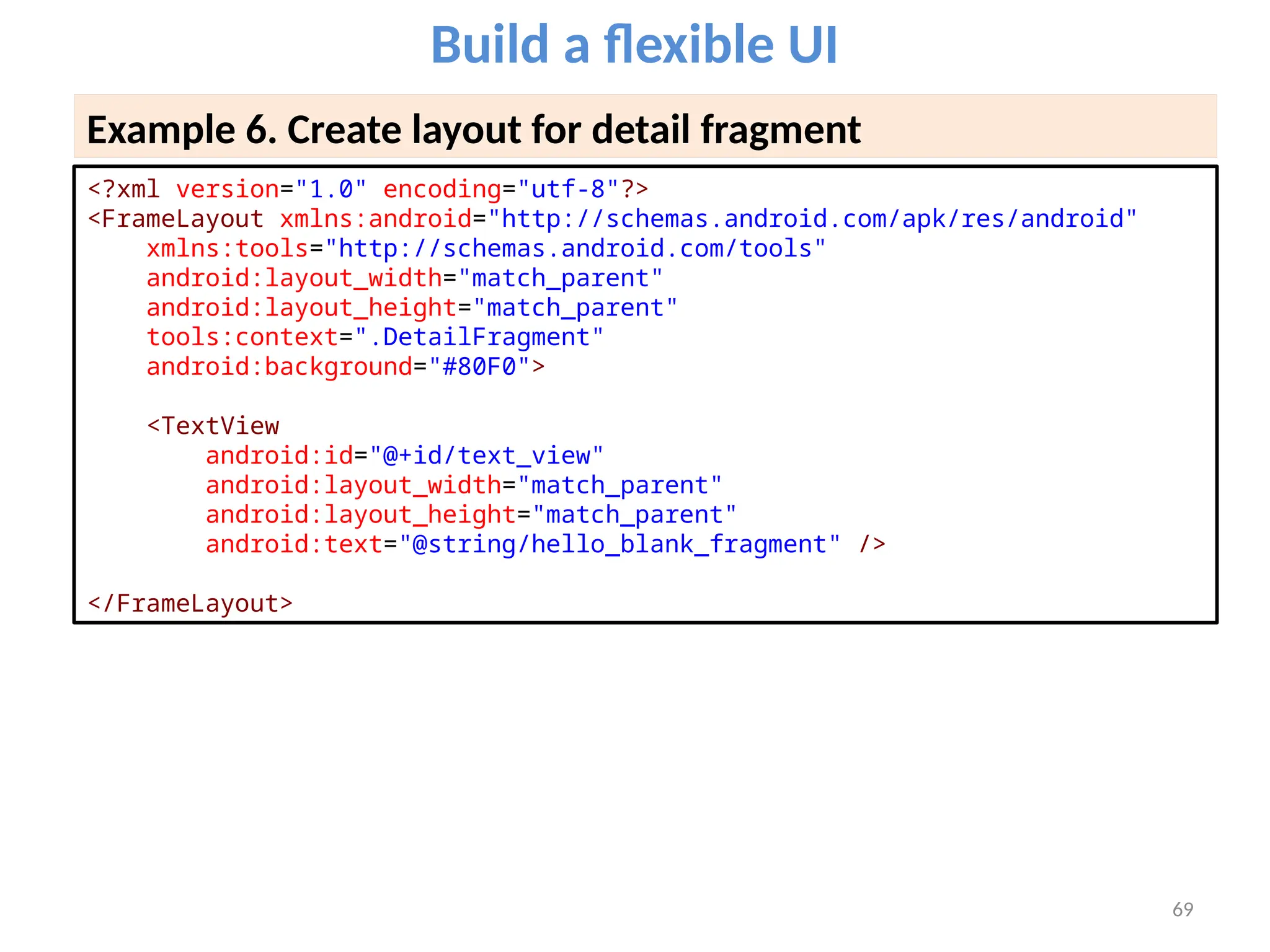
Example 6. Create layout for detail fragment
<?xml version="1.0" encoding="utf-8"?>
<FrameLayout xmlns:android="http://schemas.android.com/apk/res/android"
xmlns:tools="http://schemas.android.com/tools"
android:layout_width="match_parent"
android:layout_height="match_parent"
tools:context=".DetailFragment"
android:background="#80F0">
<TextView
android:id="@+id/text_view"
android:layout_width="match_parent"
android:layout_height="match_parent"
android:text="@string/hello_blank_fragment" />
</FrameLayout>
70
Build a flexible UI
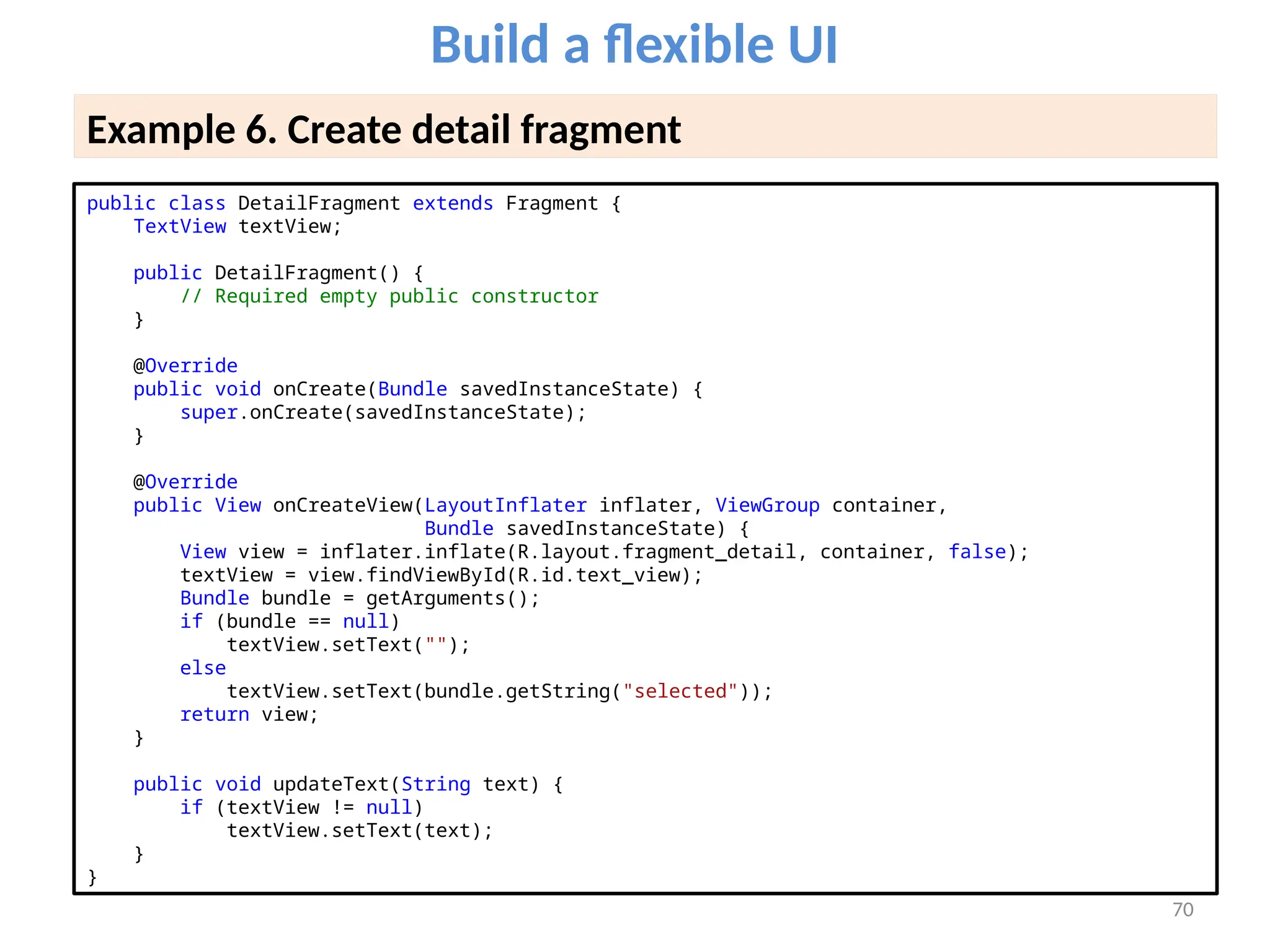
Example 6. Create detail fragment
public class DetailFragment extends Fragment {
TextView textView;
public DetailFragment() {
// Required empty public constructor
}
@Override
public void onCreate(Bundle savedInstanceState) {
super.onCreate(savedInstanceState);
}
@Override
public View onCreateView(LayoutInflater inflater, ViewGroup container,
Bundle savedInstanceState) {
View view = inflater.inflate(R.layout.fragment_detail, container, false);
textView = view.findViewById(R.id.text_view);
Bundle bundle = getArguments();
if (bundle == null)
textView.setText("");
else
textView.setText(bundle.getString("selected"));
return view;
}
public void updateText(String text) {
if (textView != null)
textView.setText(text);
}
}
71
Build a flexible UI
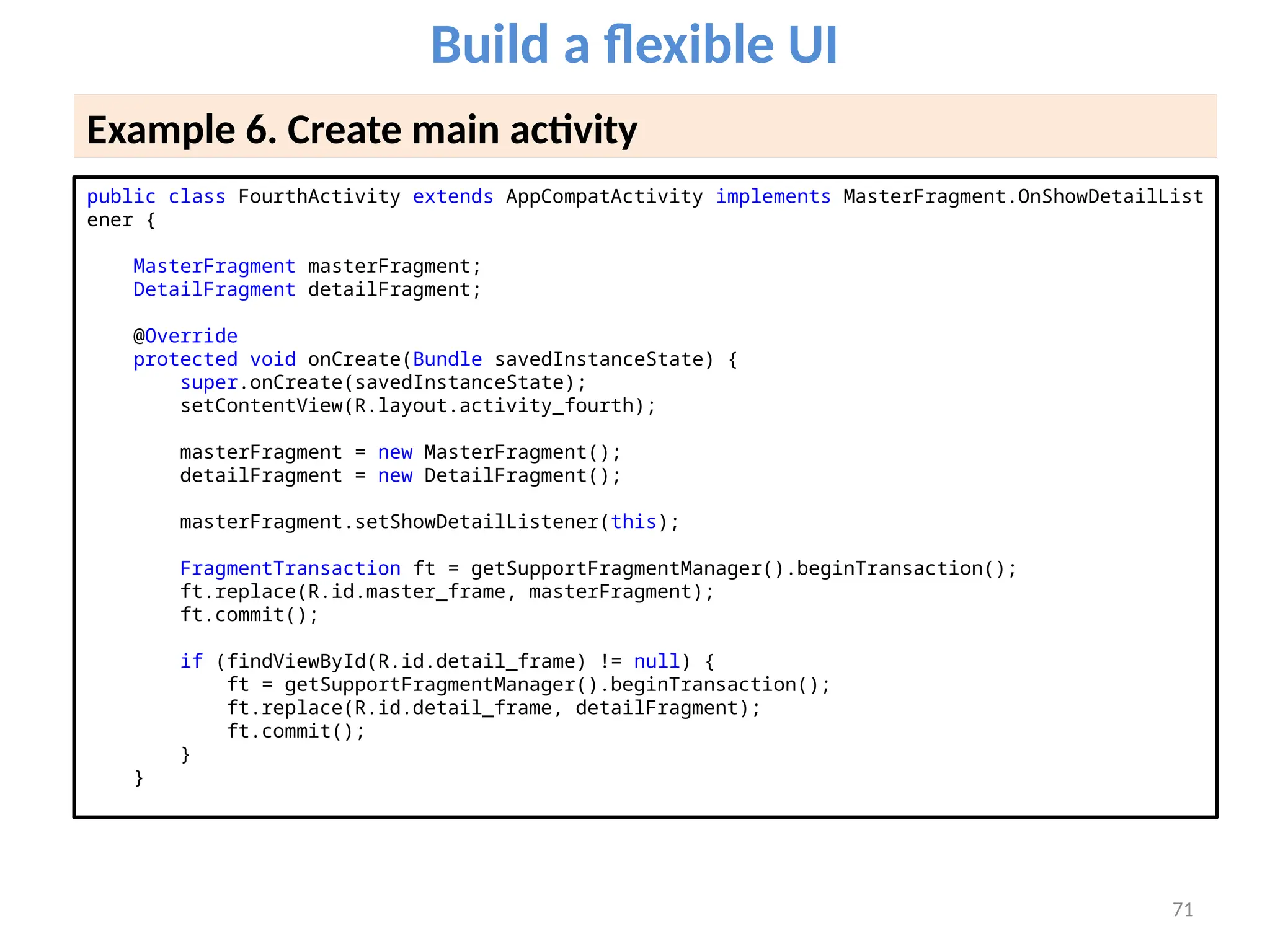
Example 6. Create main activity
public class FourthActivity extends AppCompatActivity implements MasterFragment.OnShowDetailList
ener {
MasterFragment masterFragment;
DetailFragment detailFragment;
@Override
protected void onCreate(Bundle savedInstanceState) {
super.onCreate(savedInstanceState);
setContentView(R.layout.activity_fourth);
masterFragment = new MasterFragment();
detailFragment = new DetailFragment();
masterFragment.setShowDetailListener(this);
FragmentTransaction ft = getSupportFragmentManager().beginTransaction();
ft.replace(R.id.master_frame, masterFragment);
ft.commit();
if (findViewById(R.id.detail_frame) != null) {
ft = getSupportFragmentManager().beginTransaction();
ft.replace(R.id.detail_frame, detailFragment);
ft.commit();
}
}
72
Build a flexible UI
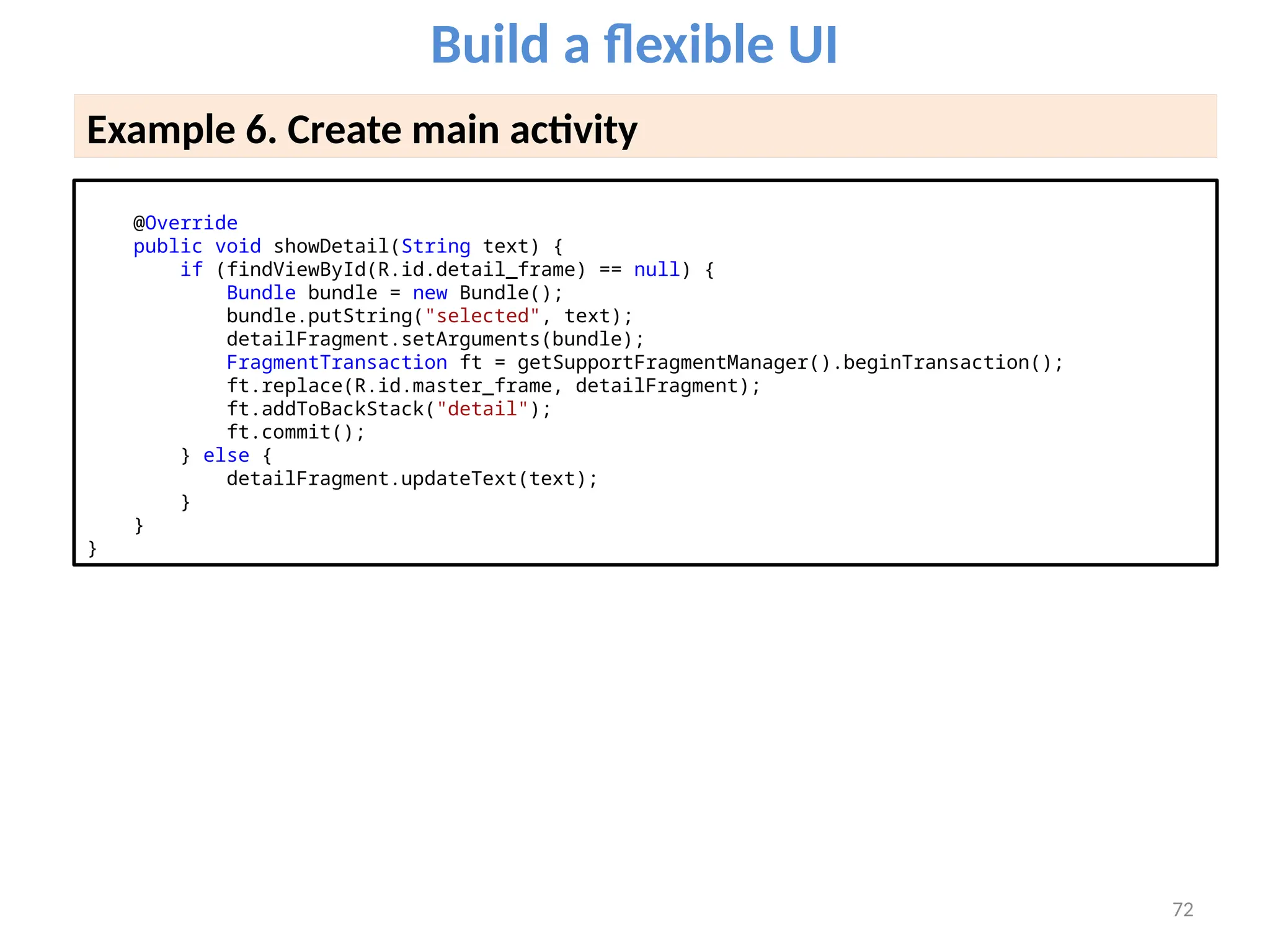
Example 6. Create main activity
@Override
public void showDetail(String text) {
if (findViewById(R.id.detail_frame) == null) {
Bundle bundle = new Bundle();
bundle.putString("selected", text);
detailFragment.setArguments(bundle);
FragmentTransaction ft = getSupportFragmentManager().beginTransaction();
ft.replace(R.id.master_frame, detailFragment);
ft.addToBackStack("detail");
ft.commit();
} else {
detailFragment.updateText(text);
}
}
}
Fragments
Questions ?

learn about Android Extended and Fragments.pptx

  • 1.
    Lesson 7 Fragments Victor Matos ClevelandState University Portions of this page are reproduced from work created and shared by Google and used according to terms described in the Creative Commons 3.0 Attribution License.
  • 2.
    • Android isa multitasking OS and its hardware specs allow for real parallelism. However, at any given time only one activity per app can be ‘visible’ and ‘active’. This fact is rather limiting considering the extensive screen area offered by larger devices (tablets, phablets, TV sets, etc). Fragments offer an escape solution. • The Fragment class produces visual objects that can be dynamically attached to designated portions of the app’s GUI. Each fragment object can expose its own views and provide means for the users to interact with the application. • Fragments must exist within the boundaries of an Activity that acts as a ‘home-base’ or host. • A host activity’s GUI may expose any number of fragments. In this GUI each fragment could be visible and active. Fragments 6 - 2
  • 3.
    • Fragments behaveas independent threads, usually they cooperate in achieving a common goal; however each can run its own I/O, events and business logic. • Fragments could access ‘global data’ held in the main activity to which they belong. Likewise, they could send values of their own to the main activity for potential dissemination to other fragments. • Fragments have their own particular Life-Cycle, in which the onCreateView method does most of the work needed to make them. • Fragments were first introduced in the Honeycomb SDK (API 11). Fragments 6 - 3
  • 4.
    ACTIVITY (Main HostContainer) Fragment3 (View 3) Fragment1 (View 1) Fragment2 (View 2) Fragments A possible arrangement of Fragments attached to the main GUI of an app. 6 - 4
  • 5.
    Fragment’s Lifecycle onAttach() Invokedwhen the fragment has been connected to the host activity. onCreate() Used for initializing non-visual components needed by the fragment. onCreateView() Most of the work is done here. Called to create the view hierarchy representing the fragment. Usually inflates a layout, defines listeners, and populates the widgets in the inflated layout. onPause() The session is about to finish. Here you should commit state data changes that are needed in case the fragment is re- executed. onDetach() Called when the inactive fragment is disconnected from the activity. 6 - 5
  • 6.
    • All Fragment-to-Fragment communicationis done in a centralized mode through the home-base Activity. • As a design principle; two Fragments should NEVER communicate directly. • The home-base Activity and its fragments interact through listeners and events. • When a fragment has some data for another fragment, it sends it to a listener in the main which in turn dispatches to a listener of the second fragment. Fragments 6 - 6 Inter-Fragment Communication Activity Listener(s) & Dispatcher(s) Fragment1 Event-send-msg Event-receive-msg Fragment2 Event-send-msg Event-receive-msg
  • 7.
    Integrating the HomeActivity and its Fragments In general fragments appear on their enclosing Activity’s GUI using one of the following attachment approaches Dynamic Binding The main activity defines a particular place on its GUI for fragments to be plugged in (or attached). Occupancy of designated areas is not permanent. Later on, the hosting Activity may replace a fragment with another (see Example-1) Static Binding The Activity’s GUI declares a portion of its layout as a <fragment> and explicitly supplies a reference to the first type of fragment to be held there using the “android:name=fragmentName” clause. This simple association does not required you to call the constructors (or pass initial parameters). A static binding is permanent, fragments cannot be replaced at run time (see Example-2) Multiple Fragments The hosting activity may simultaneously expose any number of fragments using a combination of the strategies describe above. Fragments may interact with each other using the enclosing activity as a central store-and-forward unit (Example-3). Fragments 6 - 7
  • 8.
    Fragment-Activity: Dynamic Binding •Fragments must be created inside a secure FragmentTransaction block. • You may use the method add() to aggregate a fragment to the activity. Optionally any view produced by the fragment is moved into an UI container of the host activity. • When you use the replace method to refresh the UI, the current view in the target area is removed and the new fragment is added to the activity’s UI. • A faceless fragment may also be added to an activity without having to produce a view hierarchy. STEPS 1. Obtain a reference to the FragmentManager, initiate a transaction FragmentTransaction ft = getFragmentManager().beginTransaction(); 2. Create an instance of your fragment, supply arguments if needed. FragmentBlue blueFragment = FragmentBlue.newInstance("some- value"); 3. Place the fragment’s view on the application’s GUI. ft.replace(R.id.main_holder_blue, blueFragment); 4. Terminate the transaction. Fragments 6 - 8
  • 9.
    Integrating the HomeActivity and its Fragments // create a new RED fragment - show it ft = getFragmentManager().beginTransaction(); redFragment = FragmentRed.newInstance("new- red"); ft.replace(R.id.main_holder_red, redFragment); ft.commit(); Fragments 6 - 9 main_holder_red main_holder_blue // create a new BLUE fragment - show it ft = getFragmentManager().beginTransaction(); blueFragment = FragmentBlue.newInstance("new- blue"); ft.replace(R.id.main_holder_blue, blueFragment); ft.commit(); Example of dynamic binding. Instances of the FragmentRed and FragmentBlue classes are created at run-time and set to replace the left and right portions of the app’s GUI.
  • 10.
    6 - 10 Thisexample shows a master-detail design. It is based on three classes: • MainActivity (host), • FragmentBlue (master) and • FragmentRed (detail) The master portion (on the left) presents a list of items. When the user selects one of them, a message is sent to the host MainActivity which in turn forwards the message to the detail fragment (on the right). The detail fragment echoes the value of the selected row. The interfaces FragmentCallbacks and MainCallbacks define the methods used to pass messages from the MainActivity to fragments and from fragments to MainActivity respectively. Example 1 – Dynamic Activity-Fragment Binding
  • 11.
    6 - 11 Example1 – Dynamic Activity-Fragment Binding <?xml version="1.0" encoding="utf-8"?> <LinearLayout xmlns:android="http://schemas.android.com/apk/res/android" android:layout_width="match_parent" android:layout_height="match_parent" android:baselineAligned="false" android:orientation="horizontal" > <FrameLayout android:id="@+id/main_holder_blue" android:layout_width="0dp" android:layout_height="match_parent" android:layout_weight="1" android:orientation="vertical" /> <FrameLayout android:id="@+id/main_holder_red" android:layout_width="0dp" android:layout_height="match_parent" android:layout_weight="2" android:orientation="vertical" /> </LinearLayout> XML LAYOUT: activity_main.xml
  • 12.
    6 - 12 Example1 – Dynamic Activity-Fragment Binding <?xml version="1.0" encoding="utf-8"?> <LinearLayout xmlns:android="http://schemas.android.com/apk/res/android" android:id="@+id/layout_blue" android:layout_width="match_parent" android:layout_height="match_parent" android:orientation="vertical" > <TextView android:id="@+id/textView1Blue" android:layout_width="match_parent" android:layout_height="wrap_content" android:text="Blue Layout..." android:textColor="#ffffffff" android:background="#ff0000ff" android:textAppearance="?android:attr/textAppearanceLarge" /> <ListView android:id="@+id/listView1Blue" android:layout_width="match_parent" android:layout_height="wrap_content" > </ListView> </LinearLayout> XML LAYOUT: layout_blue.xml
  • 13.
    XML LAYOUT: layout_red.xml 6- 13 Example 1 – Dynamic Activity-Fragment Binding <?xml version="1.0" encoding="utf-8"?> <LinearLayout xmlns:android="http://schemas.android.com/apk/res/android" android:id="@+id/layout_red" android:layout_width="match_parent" android:layout_height="match_parent" android:orientation="vertical"> <TextView android:id="@+id/textView1Red" android:layout_width="match_parent" android:layout_height="wrap_content" android:background="#ffff0000" android:text="Red Layout..." android:textAppearance="?android:attr/textAppearanceLarge" /> <Button android:id="@+id/button1Red" android:layout_width="wrap_content" android:layout_height="wrap_content" android:layout_gravity="center" android:ems="10" android:text="Click me!" /> </LinearLayout>
  • 14.
    6 - 14 Example1 – Dynamic Binding - MainActivity 1 of 3 //----------------------------------------------------------------------- // GOAL: This example shows an Activity that includes two fragments. // Fragments inflate layouts and then get attached to their corresponding // layouts in the UI. The example includes two interfaces MainCallbacks // and FragmentCallbacks. They implement inter-process communication from // Main-to-fragments and from Fragments-to-Main. // ----------------------------------------------------------------------- public class MainActivity extends Activity implements MainCallbacks { FragmentTransaction ft; FragmentRed redFragment; FragmentBlue blueFragment; @Override protected void onCreate(Bundle savedInstanceState) { super.onCreate(savedInstanceState); setContentView(R.layout.activity_main); // create a new BLUE fragment - show it ft = getFragmentManager().beginTransaction(); blueFragment = FragmentBlue.newInstance("first-blue"); ft.replace(R.id.main_holder_blue, blueFragment); ft.commit(); // create a new RED fragment - show it ft = getFragmentManager().beginTransaction(); redFragment = FragmentRed.newInstance("first-red"); ft.replace(R.id.main_holder_red, redFragment); ft.commit(); }
  • 15.
    6 - 15 Example1 – Dynamic Binding - MainActivity 2 of 3 // MainCallback implementation (receiving messages coming from Fragments) @Override public void onMsgFromFragToMain(String sender, String strValue) { // show message arriving to MainActivity Toast.makeText(getApplication(), " MAIN GOT>> " + sender + "n" + strValue, Toast.LENGTH_LONG) .show(); if (sender.equals("RED-FRAG")) { // TODO: if needed, do here something on behalf of the RED fragment } if (sender.equals("BLUE-FRAG")) { try { // forward blue-data to redFragment using its callback method redFragment.onMsgFromMainToFragment("nSender: " + sender + "nMsg: " + strValue); } catch (Exception e) { Log.e("ERROR", "onStrFromFragToMain " + e.getMessage()); } } } }
  • 16.
    COMMENTS 1. Each fragmentis safely created inside a TRANSACTION frame demarcated by: beginTransaction … commit. 2. An invocation to the special newInstance constructor is used to supply any arguments a fragment may need to begin working. 3. Once created, the new fragment is used to replace whatever is shown at a designated area of the GUI (as defined in the activity_main.xml layout). 4. The method onMsgFromFragToMain implements the MainCallbacks interface. It accepts messages asynchronously sent from either redFragment or blueFragment to the enclosing MainActivity. 5. In our example, the row number selected from the blueFragment is forwarded to the redFragment using the fragment’s callback method onMsgFromMainToFragment. 6 - 16 Example 1 – Dynamic Binding - MainActivity 3 of 3
  • 17.
    6 - 17 Example1 – Dynamic Binding - FragmentBlue 1 of 3 public class FragmentBlue extends Fragment { // this fragment shows a ListView MainActivity main; Context context = null; String message = ""; // data to fill-up the ListView private String items[] = { "Text-on-Line-00", "Text-on-Line-01", "Text-on-Line-02", "Text-on-Line-03", "Text-on-Line-04", "Text-on-Line-05", "Text-on-Line-06", "Text-on-Line-07", "Text-on-Line-08", "Text-on-Line-09", "Text-on-Line- 10", }; // convenient constructor(accept arguments, copy them to a bundle, binds bundle to fragment) public static FragmentBlue newInstance(String strArg) { FragmentBlue fragment = new FragmentBlue(); Bundle args = new Bundle(); args.putString("strArg1", strArg); fragment.setArguments(args); return fragment; } @Override public void onCreate(Bundle savedInstanceState) { super.onCreate(savedInstanceState); try { context = getActivity(); // use this reference to invoke main callbacks main = (MainActivity) getActivity(); } catch (IllegalStateException e) { throw new IllegalStateException( "MainActivity must implement
  • 18.
    @Override public View onCreateView(LayoutInflaterinflater, ViewGroup container, Bundle savedInstanceState) { // inflate res/layout_blue.xml to make GUI holding a TextView and a ListView LinearLayout layout_blue = (LinearLayout) inflater.inflate(R.layout.layout_blue, null); // plumbing – get a reference to textview and listview final TextView txtBlue = (TextView) layout_blue.findViewById(R.id.textView1Blue); ListView listView = (ListView) layout_blue.findViewById(R.id.listView1Blue); listView.setBackgroundColor(Color.parseColor("#ffccddff")); // define a simple adapter to fill rows of the listview ArrayAdapter<String> adapter = new ArrayAdapter<String>(context, android.R.layout.simple_list_item_1, items); listView.setAdapter(adapter); // show listview from the top listView.setSelection(0); listView.smoothScrollToPosition(0); // react to click events on listview’s rows listView.setOnItemClickListener(new OnItemClickListener() { @Override public void onItemClick(AdapterView<?> parent, View v, int position, long id) { // inform enclosing MainActivity of the row’s position just selected main.onMsgFromFragToMain("BLUE-FRAG", "Blue selected row=" + position); txtBlue.setText("Blue selected row=" + 6 - 18 Example 1 – Dynamic Binding - FragmentBlue 2 of 3
  • 19.
    COMMENTS 1. The Class.newInstance(…)construction is a reflective method commonly used for creating instances of classes (regardless of the number of parameters). 2. Creating an Android fragment begins with the making of a new Bundle in which each of the supplied arguments is stored as a <key,value> entry. Then the bundle is bound to the fragment trough the .setArguments(…) method. Finally the newly created fragment is returned. 3. In our example, the onCreate method verifies that the MainActivity implements the Java Interface defining methods needed to send data from the fragment to the MainActivity. 4. Fragments do most of their work inside of onCreateView. In this example, the predefined layout_blue.xml is inflated and plumbing is done to access its internal widgets (a TextView and a ListView). 5. A simple ArrayAdapter is used to fill the rows of the ListView. 6. An event handler is set on the ListView, so when the user clicks on a row its position is sent to the MainActivity’s listener onMsgFromFragToMain. 6 - 19 Example 1 – Dynamic Binding - FragmentBlue 3 of 3
  • 20.
    public class FragmentRedextends Fragment implements FragmentCallbacks { MainActivity main; TextView txtRed; Button btnRedClock; public static FragmentRed newInstance(String strArg1) { FragmentRed fragment = new FragmentRed(); Bundle bundle = new Bundle(); bundle.putString("arg1", strArg1); fragment.setArguments(bundle); return fragment; }// newInstance @Override public void onCreate(Bundle savedInstanceState) { super.onCreate(savedInstanceState); // Activities containing this fragment must implement interface: MainCallbacks if (!(getActivity() instanceof MainCallbacks)) { throw new IllegalStateException( " Activity must implement MainCallbacks"); } main = (MainActivity) getActivity(); // use this reference to invoke main callbacks } @Override public View onCreateView(LayoutInflater inflater, ViewGroup container, Bundle savedInstanceState) { // inflate res/layout_red.xml which includes a textview and a button LinearLayout view_layout_red = (LinearLayout) inflater.inflate( 6 - 20 Example 1 – Dynamic Binding - FragmentRed 1 of 3
  • 21.
    // show stringargument supplied by constructor (if any!) try { Bundle arguments = getArguments(); String redMessage = arguments.getString("arg1", ""); txtRed.setText(redMessage); } catch (Exception e) { Log.e("RED BUNDLE ERROR - ", "" + e.getMessage()); } // clicking the button changes the time displayed and sends a copy to MainActivity btnRedClock = (Button) view_layout_red.findViewById(R.id.button1Red); btnRedClock.setOnClickListener(new OnClickListener() { @Override public void onClick(View v) { String redMessage = "Red clock:n" + new Date().toString(); txtRed.setText(redMessage); main.onMsgFromFragToMain("RED-FRAG", redMessage); } }); return view_layout_red; } @Override public void onMsgFromMainToFragment(String strValue) { // receiving a message from MainActivity (it may happen at any point in time) txtRed.setText("THIS MESSAGE COMES FROM MAIN:" + strValue); 6 - 21 Example 1 – Dynamic Binding - FragmentRed 2 of 3
  • 22.
    COMMENTS 1. This isvery similar to the previous snipped describing the composition of FragmentBlue. 2. As before, newInstance is invoked to create an instance of this class. 3. The FragmentRed class uses onCreate to verify the MainActivity has implemented the mehods needed to send messages to it. 4. Observe that FragmentRed asynchronously receives messages from the MainActivity by means of its onMsgFromMainToFragment listener. 5. In our example the position of the row selected by the blueFragment is accepted. This could be used to properly respond to that event, for instance providing details for the given selection. 6 - 22 Example 1 – Dynamic Binding - FragmentRed 3 of 3
  • 23.
    // method(s) topass messages from fragments to MainActivity public interface MainCallbacks { public void onMsgFromFragToMain (String sender, String strValue); } 6 - 23 Example 1 – Dynamic Binding - CallBacks // method(s) to pass messages from MainActivity to Fragments public interface FragmentCallbacks { public void onMsgFromMainToFragment(String strValue); } These Java Interfaces are used to enforce a formal Inter-Process-Communication behavior between the Fragments and the MainActivity. During their onCreate method each participant can check that the other has implemented the required listeners.
  • 24.
    6 - 24 Thisexample shows the same master-detail design introduced in the previous example. Like before, it is based on three classes: • MainActivity (host), • FragmentRed (master) and • FragmentBlue (detail) The main difference between Example1 and Example2 stems from the way the GUI defined by Example2’s MainActivity statically ties the screen to particular Fragments. The next pages will show the new activity_main.xml layout and the MainActivity. All the other components remain exactly the same. Later on, you may break the GUI-Fragment bound. Just define a new Fragment instance and replace the appropriated GUI portion you want to modify. Example 2 – Static Activity-Fragment Binding
  • 25.
    6 - 25 •Static binding is simple and requires less programming than dynamic binding. • This approach is appropriate for apps in which the interface retains the same fragment(s) for their entire session. • Statically attached fragments cannot be removed (however other fragments can be added to the interface). • The Activity’s layout file uses the <fragment> element to mark the position and size of the area on which a fragment instance is to be injected. • The following attributes can be used to identify the fragment in case it needs to be restarted (if none is provided the fragment is identified by the system’s id of the fragment’s container id) 1. android:name="AppPackageName.FragmentClassName" 2. android:id="@id+/uniqueName" or android:tag="string" Example 2 – Static Activity-Fragment Binding
  • 26.
    6 - 26 Example2 – Static Activity-Fragment Binding <?xml version="1.0" encoding="utf-8"?> <LinearLayout xmlns:android="http://schemas.android.com/apk/res/android" android:layout_width="match_parent" android:layout_height="match_parent" android:orientation="horizontal" > <fragment android:id="@+id/main_holder_blue" android:name="csu.matos.fragments.FragmentBlue" android:layout_width="0dp" android:layout_height="match_parent" android:layout_weight="1" /> <fragment android:id="@+id/main_holder_red" android:name="csu.matos.fragments.FragmentRed" android:layout_width="0dp" android:layout_height="match_parent" android:layout_weight="2" /> </LinearLayout> XML LAYOUT: activity_main.xml
  • 27.
    6 - 27 Example2 – Dynamic Binding - MainActivity 1 of 3 public class MainActivity extends Activity implements MainCallbacks { FragmentRed redFragment; FragmentBlue blueFragment ; @Override protected void onCreate(Bundle savedInstanceState) { super.onCreate(savedInstanceState); setContentView(R.layout.activity_main); // NOTHING to do, fragments will be automatically created and added to the GUI } @Override public void onAttachFragment(Fragment fragment) { super.onAttachFragment(fragment); // get a reference to each fragment attached to the GUI if (fragment.getClass() == FragmentRed.class ){ redFragment = (FragmentRed) fragment; } if (fragment.getClass() == FragmentBlue.class ){ blueFragment = (FragmentBlue) fragment; } }
  • 28.
    6 - 28 Example2 – Dynamic Binding - MainActivity 1 of 3 @Override public void onMsgFromFragToMain(String sender, String strValue) { Toast.makeText(getApplication(), " MAIN GOT MSG >> " + sender + "n" + strValue, Toast.LENGTH_LONG).show(); if (sender.equals("RED-FRAG")){ //TODO: do here something smart on behalf of BLUE fragment } if (sender.equals("BLUE-FRAG")) { redFragment.onMsgFromActivity("nSender: " + sender + "nMsg: " + strValue); } }//onMsgFromFragToMain }
  • 29.
    COMMENTS 1. In thisexample the onCreate method has nothing to do. Moreover, onCreateView is not even called, observe that the XML-layout clause android:name="csu.matos.fragments.FragmentXYZ" defines the specific fragment to be plugged in the activity’s screen. 2. When a fragment is moved to the screen the onAttachFragment method is executed. This event is used here to keep a reference to the redFragment and the blueFragment. 3. Messages sent by the blueFragment to the MainActivity are caught in the onMsgFromFragToMain listener. As in the previous example, blueFragment messages are forwarded to the redFragment. 6 - 29 Example 2 – Static Binding - MainActivity 3 of 3
  • 30.
    6 - 30 •This example is a minor variation of Example1. The MainActivity displays a screen simultaneously showing three independent fragments. • All fragments are visible and active, providing multiple points of interaction with the user. There are two instances of a ListView fragment, and a bottom layout showing a design containing a TextView and a Button. Example 3 – Multiple-Fragments-One-Screen
  • 31.
    <LinearLayout xmlns:android="http://schemas.android.com/apk/res/android" xmlns:tools="http://schemas.android.com/tools" android:id="@+id/linearLayoutMain" android:layout_width="match_parent" android:layout_height="match_parent" android:orientation="vertical" android:padding="6dp" > <TextView android:id="@+id/txtMsgMain" android:layout_width="match_parent" android:layout_height="wrap_content" android:background="#77ffff00" android:textSize="25sp"/> <LinearLayout android:layout_width="match_parent" android:layout_height="wrap_content" android:orientation="horizontal" > <LinearLayout android:id="@+id/home1" android:layout_width="wrap_content" android:layout_height="wrap_content" android:layout_weight="1" android:background="#77ff0000" android:orientation="vertical" /> XML LAYOUT: activity_main.xml Example 3 – Multiple-Fragments-One-Screen 1 of 2 6 - 31 Only the main layout is shown as the code for this example is literally the same from Example1.
  • 32.
    <View android:layout_width="20dp" android:layout_height="match_parent" android:background="#ff000000" /> <LinearLayout android:id="@+id/home2" android:layout_width="wrap_content" android:layout_height="wrap_content" android:layout_weight="1" android:background="#770000ff" android:orientation="vertical" /> </LinearLayout> <View android:layout_width="match_parent" android:layout_height="20dp" android:background="#ff000000"/> <LinearLayout android:id="@+id/home3" android:layout_width="match_parent" android:layout_height="wrap_content" android:orientation="vertical" /> </LinearLayout> XML LAYOUT: activity_main.xml Example 3 – Multiple-Fragments-One-Screen 2 of 2 6 - 32 Only the main layout is shown as the code for this example is literally the same from Example1.
  • 33.
    A regular practicebefore leaving a fragment is to override its onSaveInstanceState method to persist any state data inside a system’s managed bundle named outState. Later, you may test for the existence of the saved state bundle and its contents inside any of the following the methods: onCreate , onCreateView , onViewCreated, or onViewStateRestored. This is know as a warm-start. Observe that a fresh cold-start execution passes to the fragment a null bundle. Unlike Activities, Fragments do to have an onRestoreInstanceState method. Example 4 – Saving Fragment State @Override public void onCreate(Bundle savedInstanceState) { ... stateData = getArguments().getString("arg1", "cold-start"); if (savedInstanceState != null){ stateData = savedInstanceState.getString("arg1","warm- default"); } }//onCreate ... @Override public void onSaveInstanceState(Bundle outState) { ... outState.putString("arg1", stateData); super.onSaveInstanceState(outState); }//onSavedInstanceState 6 - 33
  • 34.
    There are variousoperations that affect the presence and visibility of fragments dynamically bound to an activity. Those operations must be applied inside the scope of a FragmentTransaction object. add() Add a fragment to an activity (generally showing a view). If the activity is re-started due to a configuration-change, previously created fragments that appeared on the UI via add() can be reused (better performance, no need to re-create the fragment). remove() Remove a fragment from the activity. Fragment is destroyed (unless it was also added to the BackStack). replace() A fragment currently on the UI is destroyed and replace by another fragment. show() / hide() Shows a previously hidden fragment (hidden but not destroyed). attach() / detach() Attaches a fragment previously separated (detached) from the UI. Detached fragments are invisible but not destroyed. Operations on Fragments 6 - 34
  • 35.
    Consider the followingcode sample on which a sequence of opposite operations is applied to display a fragment. Operations on Fragments 6 - 35 FragmentTransaction ft = getFragmentManager().beginTransaction(); redFragment = FragmentRed.newInstance(intValue); ft.add(R.id.main_holder, redFragment, "RED-TAG"); ft.hide(redFragment); ft.show(redFragment); ft.detach(redFragment); ft.attach(redFragment); ft.commit();
  • 36.
    Android-OS introduced aspecial stack to help fragments keep state when the user navigates from one UI to the other. The artifact is called the BackStack and allows push/pop operations to manage FragmentTransactions. The BackStack mirrors the behavior of the activity stack within a single activity Remember that all Android devices include a Back button. When this button is pressed in succession the app transitions to the previous screen shown by the app until it ends. This mechanism provides a natural historical navigation (also known as Back-Navigation). Another important pattern of navigation known as Child-to-HighAncestor is discussed later. Why should BackStack be used? When the BackStack is used, the retrieved fragment is re-used (instead of re- created from scratch) and its state data transparently restored (no need for input/output state bundles). This approach leads to simpler and more efficient apps. Using the BackStack to Recreate State 6 - 36
  • 37.
    A typical sequenceto create a fragment and add it to the stack follows: Using the BackStack to Recreate State A typical sequence to create a fragment and add it to the BackStack follows: FragmentTransaction ft = getFragmentManager().beginTransaction(); Fragment redFragment = FragmentRed.newInstance(intParameterValue); ft.replace(R.id.main_holder, redFragment, "RED-FRAG"); ft.addToBackStack("RED_UI"); ft.commit(); In this example a fragment transaction (ft) adds a redFragment to the main activity’s UI. The fragment uses the optional tag/alias “RED-FRAG”, as an alternative form of identification. Later, we may inspect the app’s UI, and find the ‘alias’ of the fragment held inside the main_holder container. Before the transaction commits, the statement ft.addToBackStack("RED_UI"); pushes a reference of the current transaction’s environment in the BackStack including the optional identification tag: “RED_UI”. Later on, we may search through the BackStack looking for an entry matching the tag value. When found and popped, it resets the UI to the state held by that transaction. 6 - 37
  • 38.
    Navigation Retrieving entries fromthe BackStack can be done in various ways, such as: • Pressing the Back button to trigger a historical navigation exposing in succession the previous User-Interfaces. • Invoking the method .popBackStackImmediate(…) to selectively restore any particular BackStackEntry holding an UI already shown to the user. Using the BackStack to Recreate State // Remove current fragment’s UI and show its previous screen try { FragmentTransaction ft = getFragmentManager().beginTransaction(); android.app.FragmentManager fragmentManager = getFragmentManager(); int bsCount = fragmentManager.getBackStackEntryCount(); String tag = fragmentManager.getBackStackEntryAt(bsCount- 1).getName(); int id = fragmentManager.getBackStackEntryAt(bsCount-1).getId(); Log.e("PREVIOUS Fragment: ", "" + tag + " " + id); fragmentManager.popBackStackImmediate(id, 1); //supply: id or tag ft.commit(); } catch (Exception e) { Log.e("REMOVE>>> ", e.getMessage() ); 6 - 38 1 2 3
  • 39.
    Navigating Through theBackStack In the previous transaction we reproduce the behavior of the Back key when used for historical navigation. 1. The size of the BackStack is determined (getBackStackEntryCount) 2. The top element of the stack is inspected. First we obtain its tag and later its numerical id by calling the method: fragmentManager.getBackStackEntryAt(bsCount-1).getId(). 3. The .popBackStack(id, 1) method removes BackStackEntries from the top of the BackStack until it finds the entry matching the supplied id. At this point the app’s UI is updated showing the screen associated to the matching transaction previously held in the stack. Using the BackStack to Recreate State 6 - 39
  • 40.
    Using the BackStackto Recreate State try { FragmentTransaction ft = getFragmentManager().beginTransaction(); android.app.FragmentManager fragmentManager = getFragmentManager(); fragmentManager.popBackStackImmediate(null, FragmentManager.POP_BACK_STACK_INCLUSIVE); ft.commit(); } catch (Exception e) { Log.e("CLEAR-STACK>>> ", Navigating Through the BackStack The following code clears the current BackStack. All fragment transactions pushed by calling the method ft.addToBackStack(…) are deleted. The app’s UI is updated, removing all screens shown by fragments that put a reference to themselves in the BackStack. This approach could be used to provide Child-to-HighAncestor navigation. 6 - 40
  • 41.
    Example 5 -Using the BackStack 1 of x 6 - 41 1. A new redFragment is created. Its view is attached to the activity’s UI using the add( ) method. Finally its enclosing transaction is pushed on the BackStack. 2. As above, however; the fragment’s view is attached to the activity’s UI using the replace() method (old view is destroyed). The current transaction is also added to the BackStack. 3. Popping an entry from the BackStack removes the current app’s UI and navigates back to the previously stored fragment’s view. State data (if any) is shown as it was before leaving the view. The size of BackStack is reduced by one. 1 2 4. The “Remove” button activates a findFragmentByTag search. This first searches through fragments that are currently added to the manager's activity; if no such fragment is found, then all fragments currently on the back stack are searched. In our example, the current view is retired from the UI using remove() and the historically previous UI is presented. 3 4
  • 42.
    Example 5 -Using the BackStack 1 of x 6 - 42 1. A new redFragment is created and its enclosing transaction is added to the BackStack. 2. Pressing the Back button removes the current fragment from the UI and Back-Navigates to the previous fragment. Its state is preserved, so you do not need to refill its widgets.
  • 43.
    <?xml version="1.0" encoding="utf-8"?> <LinearLayoutxmlns:android="http://schemas.android.com/apk/res/android" android:layout_width="match_parent" android:layout_height="match_parent" android:baselineAligned="false" android:orientation="vertical" android:padding="10dp" > <TextView android:id="@+id/textView1Main" android:layout_width="match_parent" android:layout_height="wrap_content" android:background="#77ffff00" android:text="Main Layout ..." android:textAppearance="?android:attr/textAppearanceLarge" /> <LinearLayout android:layout_width="match_parent" android:layout_height="wrap_content" android:baselineAligned="false" android:orientation="horizontal" > <Button android:id="@+id/button1MainShowRed" android:layout_width="150dp" android:layout_height="wrap_content" android:layout_weight="1" android:text="ADD new RedFragment" /> 6 - 43 Example 5. LAYOUT: activity_main.xml 1 of 3
  • 44.
    <Button android:id="@+id/button2MainPop" android:layout_width="150dp" android:layout_height="wrap_content" android:layout_weight="1" android:text="POP Trans BackStack"/> </LinearLayout> <LinearLayout android:layout_width="match_parent" android:layout_height="wrap_content" android:baselineAligned="false" android:orientation="horizontal" > <Button android:id="@+id/button4MainReplace" android:layout_width="150dp" android:layout_height="wrap_content" android:layout_weight="1" android:text="REPLACE new RedFragment" /> <Button android:id="@+id/button3MainRemove" android:layout_width="150dp" android:layout_height="wrap_content" android:layout_weight="1" android:text="REMOVE RedFragment" /> </LinearLayout> 6 - 44 Example 5. LAYOUT: activity_main.xml 2 of 3
  • 45.
    package csu.matos.fragments; // method(s)to pass messages from fragments to MainActivity public interface MainCallbacks { public void onMsgFromFragToMain ( String sender, String strValue); } <FrameLayout android:id="@+id/main_holder" android:layout_width="match_parent" android:layout_height="wrap_content" android:layout_weight="2" android:orientation="vertical" /> </LinearLayout> 6 - 45 Example 5. LAYOUT: activity_main.xml 3 of 3 MainCallbacks
  • 46.
    <?xml version="1.0" encoding="utf-8"?> <LinearLayoutxmlns:android="http://schemas.android.com/apk/res/android" android:id="@+id/layout_red" android:layout_width="match_parent" android:layout_height="match_parent" android:orientation="vertical" > <TextView android:id="@+id/textView1Red" android:layout_width="match_parent" android:layout_height="175dp" android:layout_margin="20dp" android:background="#ffff0000" android:gravity="center" android:text="Red Layout..." android:textColor="@android:color/white" android:textSize="35sp" android:textStyle="bold" /> <Button android:id="@+id/button1Red" android:layout_width="match_parent" android:layout_height="wrap_content" android:layout_marginLeft="20dp" android:layout_marginRight="20dp" android:text="Change Red Label" /> </LinearLayout> 6 - 46 Example 5. LAYOUT: layout_red.xml 3 of 3
  • 47.
    public class MainActivityextends Activity implements MainCallbacks, OnClickListener { FragmentTransaction ft; FragmentRed redFragment; TextView txtMsg; Button btnAddRedFragment; Button btnReplaceRedFragment; Button btnPop; Button btnRemove; int serialCounter = 0; //used to enumerate fragments String redMessage; @Override protected void onCreate(Bundle savedInstanceState) { super.onCreate(savedInstanceState); setContentView(R.layout.activity_main); txtMsg = (TextView) findViewById(R.id.textView1Main); btnAddRedFragment = (Button) findViewById(R.id.button1MainShowRed); btnReplaceRedFragment = (Button) findViewById(R.id.button4MainReplace); btnPop = (Button) findViewById(R.id.button2MainPop); btnRemove = (Button) findViewById(R.id.button3MainRemove); btnAddRedFragment.setOnClickListener(this); btnReplaceRedFragment.setOnClickListener(this); btnPop.setOnClickListener(this); 6 - 47 Example 5. MainActivity 1 of 4
  • 48.
    // CallBack (receivingmessages coming from Fragments) @Override public void onMsgFromFragToMain(String sender, String strValue) { // show message arriving to MainActivity txtMsg.setText( sender + "=>" + strValue ); } // ---------------------------------------------------------------------------------- public void onClick(View v) { if(v.getId() == btnAddRedFragment.getId() ){ addRedFragment(++serialCounter); } if(v.getId() == btnReplaceRedFragment.getId() ){ replaceRedFragment(++serialCounter); } if(v.getId() == btnPop.getId() ){ FragmentManager fragmentManager = getFragmentManager(); int counter = fragmentManager.getBackStackEntryCount(); txtMsg.setText("BACKSTACK old size=" + counter); if(counter>0) { // VERSION 1 [ popBackStack could be used as opposite of addBackStack() ] // pop takes a Transaction from the BackStack and a view is also deleted fragmentManager.popBackStackImmediate(); txtMsg.append("nBACKSTACK new size=" + 6 - 48 Example 5. MainActivity 2 of 4
  • 49.
    if(v.getId() == btnRemove.getId()){ FragmentManager fragmentManager = getFragmentManager(); int counter = fragmentManager.getBackStackEntryCount(); txtMsg.setText("BACKSTACK old size=" + counter); // VERSION 2 ------------------------------------------------------- // Removes an existing fragment from the fragmentTransaction. // If it was added to a container, its view is also removed from that // container. The BackStack may remain the same! Fragment f1 = fragmentManager.findFragmentByTag("RED-TAG"); fragmentManager.beginTransaction().remove(f1).commit(); txtMsg.append("nBACKSTACK new size=" + fragmentManager.getBackStackEntryCount() ); // VERSION 3 ------------------------------------------------------- // Fragment f1 = fragmentManager.findFragmentById(R.id.main_holder); // fragmentManager.beginTransaction().remove(f1).commit(); // txtMsg.append("nBACKSTACK new size=" + fragmentManager.getBackStackEntryCount() ); }//Remove }//onClick @Override public void onBackPressed() { 6 - 49 Example 5. MainActivity 3 of 4
  • 50.
    public void addRedFragment(intintValue) { // create a new RED fragment, add fragment to the transaction FragmentTransaction ft = getFragmentManager().beginTransaction(); redFragment = FragmentRed.newInstance(intValue); ft.add(R.id.main_holder, redFragment, "RED-TAG"); ft.addToBackStack("MYSTACK1"); ft.commit(); // complete any pending insertions in the BackStack, then report its size getFragmentManager().executePendingTransactions(); txtMsg.setText("BACKSTACK size =" + getFragmentManager().getBackStackEntryCount() ); } public void replaceRedFragment(int intValue) { // create a new RED fragment, replace fragments in the transaction FragmentTransaction ft = getFragmentManager().beginTransaction(); redFragment = FragmentRed.newInstance(intValue); ft.replace(R.id.main_holder, redFragment, "RED-TAG"); ft.addToBackStack("MYSTACK1"); ft.commit(); // complete any pending insertions in the BackStack, then report its size getFragmentManager().executePendingTransactions(); txtMsg.setText("BACKSTACK size =" + 6 - 50 Example 5. MainActivity 4 of 4
  • 51.
    public class FragmentRedextends Fragment { MainActivity main; TextView txtRed; Button btnRedClock; int fragmentId; String selectedRedText = ""; public static FragmentRed newInstance(int fragmentId) { FragmentRed fragment = new FragmentRed(); Bundle bundle = new Bundle(); bundle.putInt("fragmentId", fragmentId); fragment.setArguments(bundle); return fragment; }// newInstance @Override public void onCreate(Bundle savedInstanceState) { super.onCreate(savedInstanceState); // Activities containing this fragment must implement MainCallbacks if (!(getActivity() instanceof MainCallbacks)) { throw new IllegalStateException( ">>> Activity must implement MainCallbacks"); } main = (MainActivity) getActivity(); fragmentId = getArguments().getInt("fragmentId", -1); } 6 - 51 Example 5. FragmentRed 1 of 2
  • 52.
    @Override public View onCreateView(LayoutInflater inflater, ViewGroup container, Bundle savedInstanceState) { LinearLayout view_layout_red = (LinearLayout) inflater.inflate( R.layout.layout_red, null); txtRed = (TextView) view_layout_red.findViewById(R.id.textView1Red); txtRed.setText( "Fragment " + fragmentId ); btnRedClock = (Button) view_layout_red.findViewById(R.id.button1Red); btnRedClock.setOnClickListener(new OnClickListener() { @Override public void onClick(View v) { selectedRedText = "nRed Clock:n" + new Date().toString(); txtRed.append(selectedRedText); // main.onMsgFromFragToMain("RED-FRAG", selectedRedText ); } }); return view_layout_red; } }// FragmentRed 6 - 52 Example 5. FragmentRed 2 of 2
  • 53.
    ViewPager2 + Fragment 6- 53 ViewPager2 được sử dụng thay thế cho ViewPager để tạo hiệu ứng trượt giữa các trang (fragment) trong một màn hình (activity). ViewPager2 sử dụng RecyclerView nên hỗ trợ nhiều kiểu layout khác nhau, hoạt động nhanh và hiệu quả hơn.
  • 54.
    ViewPager2 + Fragment 6- 54 Cách sử dụng ViewPager2 kết hợp với Fragment Bước 1: Thêm thư viện ViewPager2 vào project implementation 'androidx.viewpager2:viewpager2:1.0.0' Bước 2: Tạo mới và thiết kế giao diện cho đối tượng fragment, được sử dụng để hiển thị các trang. Bước 3: Khai báo ViewPager2 trong file xml của activity
  • 55.
    ViewPager2 + Fragment 6- 55 Bước 4: Khai báo adapter private class SlidePageAdapter extends FragmentStateAdapter { public SlidePageAdapter(@NonNull FragmentActivity fragmentActivit y) { super(fragmentActivity); } @NonNull @Override public Fragment createFragment(int position) { return PageFragment.newInstance(pages.get(position)); } @Override public int getItemCount() { return pages.size(); } }
  • 56.
    ViewPager2 + Fragment 6- 56 Bước 5: Thiết lập view pager trong acvitity List<String> pages; Faker faker; @Override protected void onCreate(Bundle savedInstanceState) { super.onCreate(savedInstanceState); setContentView(R.layout.activity_second); faker = new Faker(); pages = new ArrayList<>(); for (int i = 0; i < 10; i++) pages.add(faker.lorem.paragraph()); ViewPager2 viewPager = findViewById(R.id.view_pager); SlidePageAdapter pageAdapter = new SlidePageAdapter(this); viewPager.setAdapter(pageAdapter); }
  • 57.
    ViewPager2 + Fragment 6- 57 Bước 6: Xử lý sự kiện khi page được chọn viewPager.registerOnPageChangeCallback(new ViewPager2.OnPageChangeCallback () { @Override public void onPageSelected(int position) { super.onPageSelected(position); // TODO: } }); Di chuyển đến page xác định: viewPager.setCurrentItem(8);
  • 58.
    TabLayout + ViewPager2+ Fragment 6 - 58 TabLayout có thể được sử dụng kết hợp với ViewPager để tạo giao diện chọn trang hiển thị nhanh chóng. TabLayout tạo giao diện thẻ để chọn các trang hiển thị trong cùng một màn hình (activity).
  • 59.
    TabLayout + ViewPager2+ Fragment 6 - 59 Cách sử dụng TabLayout kết hợp với ViewPager2 và Fragment Bước 1: Thêm thư viện ViewPager2 vào project implementation 'androidx.viewpager2:viewpager2:1.0.0' implementation 'com.google.android.material:material:1.2.0- alpha06' Bước 2: Khai báo TabLayout và ViewPager2 trong file xml của activity <?xml version="1.0" encoding="utf-8"?> <LinearLayout xmlns:android="http://schemas.android.com/apk/res/android" android:layout_width="match_parent" android:layout_height="match_parent" android:orientation="vertical"> <com.google.android.material.tabs.TabLayout android:id="@+id/tab_layout" android:layout_width="match_parent" android:layout_height="wrap_content"/> <androidx.viewpager2.widget.ViewPager2 android:id="@+id/view_pager" android:layout_width="match_parent" android:layout_height="match_parent"/> </LinearLayout>
  • 60.
    TabLayout + ViewPager2+ Fragment 6 - 60 Bước 3: Khai báo adapter cho ViewPager2 private class ViewPagerAdapter extends FragmentStateAdapter { public ViewPagerAdapter(@NonNull FragmentActivity fragmentActivity) { super(fragmentActivity); } @NonNull @Override public Fragment createFragment(int position) { switch (position) { case 0: return new RedFragment(); case 1: return new GreenFragment(); default: return new BlueFragment(); } } @Override public int getItemCount() { return 3; } }
  • 61.
    TabLayout + ViewPager2+ Fragment 6 - 61 Bước 4: Thiết lập TabLayout và ViewPager2 trong activity @Override protected void onCreate(Bundle savedInstanceState) { super.onCreate(savedInstanceState); setContentView(R.layout.activity_third); ViewPager2 viewPager = findViewById(R.id.view_pager); ViewPagerAdapter adapter = new ViewPagerAdapter(this); viewPager.setAdapter(adapter); TabLayout tabLayout = findViewById(R.id.tab_layout); new TabLayoutMediator(tabLayout, viewPager, new TabLayoutMediator.TabConfigurationStrategy() { @Override public void onConfigureTab(@NonNull TabLayout.Tab tab, int position) { switch (position) { case 0: tab.setText("Home"); tab.setIcon(R.drawable.ic_home); break; case 1: tab.setText("Mail"); tab.setIcon(R.drawable.ic_mail); break; default: tab.setText("Train"); tab.setIcon(R.drawable.ic_train); } } }).attach(); }
  • 62.
    Build a flexibleUI 6 - 62 When designing your application to support a wide range of screen sizes, you can reuse your fragments in different layout configurations to optimize the user experience based on the available screen space. For example, on a handset device it might be appropriate to display just one fragment at a time for a single-pane user interface. Conversely, you may want to set fragments side-by-side on a tablet which has a wider screen size to display more information to the user.
  • 63.
    63 Build a flexibleUI Example 6. Master-detail app on portrait and landscape mode
  • 64.
    64 Build a flexibleUI Example 6. Create layout for portrait and landscape orientation <?xml version="1.0" encoding="utf-8"?> <FrameLayout xmlns:android="http://schemas.android.com/apk/res/android" xmlns:app="http://schemas.android.com/apk/res-auto" xmlns:tools="http://schemas.android.com/tools" android:layout_width="match_parent" android:layout_height="match_parent"> <FrameLayout android:id="@+id/master_frame" android:layout_width="match_parent" android:layout_height="match_parent"/> </FrameLayout> Layout of activity in portrait orientation (default mode in layout folder).
  • 65.
    65 Build a flexibleUI Example 6. Create layout for portrait and landscape orientation <?xml version="1.0" encoding="utf-8"?> <LinearLayout xmlns:android="http://schemas.android.com/apk/res/android" android:layout_width="match_parent" android:layout_height="match_parent"> <FrameLayout android:id="@+id/master_frame" android:layout_width="0dp" android:layout_height="match_parent" android:layout_weight="1"/> <FrameLayout android:id="@+id/detail_frame" android:layout_width="0dp" android:layout_height="match_parent" android:layout_weight="1"/> </LinearLayout> Layout of activity in landscape orientation. This layout file is stored in layout-land folder and has the same name with the portrait layout file. Also add android:screenOrientation="fullSensor" property for the activity in AndroidManifest file.
  • 66.
    66 Build a flexibleUI Example 6. Create layout for master fragment <?xml version="1.0" encoding="utf-8"?> <FrameLayout xmlns:android="http://schemas.android.com/apk/res/ android" xmlns:tools="http://schemas.android.com/tools" android:layout_width="match_parent" android:layout_height="match_parent" tools:context=".MasterFragment" android:background="#8F00"> <ListView android:id="@+id/list_view" android:layout_width="match_parent" android:layout_height="match_parent" /> </FrameLayout>
  • 67.
    67 Build a flexibleUI Example 6. Create master fragment public class MasterFragment extends Fragment { OnShowDetailListener listener; public MasterFragment() { // Required empty public constructor } public void setShowDetailListener(OnShowDetailListener listener) { this.listener = listener; } @Override public void onCreate(Bundle savedInstanceState) { super.onCreate(savedInstanceState); }
  • 68.
    68 Build a flexibleUI Example 6. Create master fragment List<String> items; @Override public View onCreateView(LayoutInflater inflater, ViewGroup container, Bundle savedInstanceState) { View view = inflater.inflate(R.layout.fragment_master, container, false); items = new ArrayList<>(); for (int i = 0; i < 20; i++) items.add("Item " + i); ArrayAdapter<String> adapter = new ArrayAdapter<>(getContext(), android.R.layout.simple _list_item_1, items); final ListView listView = view.findViewById(R.id.list_view); listView.setAdapter(adapter); listView.setOnItemClickListener(new AdapterView.OnItemClickListener() { @Override public void onItemClick(AdapterView<?> adapterView, View view, int i, long l) { if (listener != null) listener.showDetail(items.get(i)); } }); return view; } interface OnShowDetailListener { void showDetail(String text); } }
  • 69.
    69 Build a flexibleUI Example 6. Create layout for detail fragment <?xml version="1.0" encoding="utf-8"?> <FrameLayout xmlns:android="http://schemas.android.com/apk/res/android" xmlns:tools="http://schemas.android.com/tools" android:layout_width="match_parent" android:layout_height="match_parent" tools:context=".DetailFragment" android:background="#80F0"> <TextView android:id="@+id/text_view" android:layout_width="match_parent" android:layout_height="match_parent" android:text="@string/hello_blank_fragment" /> </FrameLayout>
  • 70.
    70 Build a flexibleUI Example 6. Create detail fragment public class DetailFragment extends Fragment { TextView textView; public DetailFragment() { // Required empty public constructor } @Override public void onCreate(Bundle savedInstanceState) { super.onCreate(savedInstanceState); } @Override public View onCreateView(LayoutInflater inflater, ViewGroup container, Bundle savedInstanceState) { View view = inflater.inflate(R.layout.fragment_detail, container, false); textView = view.findViewById(R.id.text_view); Bundle bundle = getArguments(); if (bundle == null) textView.setText(""); else textView.setText(bundle.getString("selected")); return view; } public void updateText(String text) { if (textView != null) textView.setText(text); } }
  • 71.
    71 Build a flexibleUI Example 6. Create main activity public class FourthActivity extends AppCompatActivity implements MasterFragment.OnShowDetailList ener { MasterFragment masterFragment; DetailFragment detailFragment; @Override protected void onCreate(Bundle savedInstanceState) { super.onCreate(savedInstanceState); setContentView(R.layout.activity_fourth); masterFragment = new MasterFragment(); detailFragment = new DetailFragment(); masterFragment.setShowDetailListener(this); FragmentTransaction ft = getSupportFragmentManager().beginTransaction(); ft.replace(R.id.master_frame, masterFragment); ft.commit(); if (findViewById(R.id.detail_frame) != null) { ft = getSupportFragmentManager().beginTransaction(); ft.replace(R.id.detail_frame, detailFragment); ft.commit(); } }
  • 72.
    72 Build a flexibleUI Example 6. Create main activity @Override public void showDetail(String text) { if (findViewById(R.id.detail_frame) == null) { Bundle bundle = new Bundle(); bundle.putString("selected", text); detailFragment.setArguments(bundle); FragmentTransaction ft = getSupportFragmentManager().beginTransaction(); ft.replace(R.id.master_frame, detailFragment); ft.addToBackStack("detail"); ft.commit(); } else { detailFragment.updateText(text); } } }
  • 73.