LDA

Labeling Documentation and Access
Introducing LDA
A LABEL PROGRAM DEVELOPED BY
GARY STRAWN
AT
NORTHWESTERN UNIVERSITY
(AKA VGERSPIN)
Why Change Label Programs
• Previous setup to create labels is very
time consuming
• Labels had to be typed out by person
creating label
• Human error could occur and labels
could get mistyped
• Ability to create consistent labels with
minimal effort
How LDA works
• Does not require that Voyager be open
to work (So nothing in Voyager can be
edited or changed by an unauthorized
user.)
• LDA works in conjunction with the
Holdings and Items records in Voyager
• Pulls in required label documentation
via the Barcode attached to the item
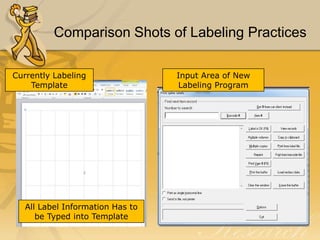
Comparison Shots of Labeling Practices
Currently Labeling
Template

All Label Information Has to
be Typed into Template

Input Area of New
Labeling Program
Review of the Holdings and
Item Records
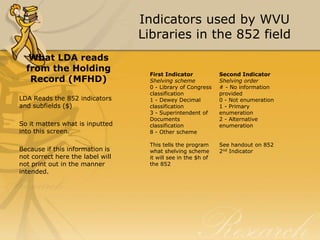
Indicators used by WVU
Libraries in the 852 field
What LDA reads
from the Holding
Record (MFHD)
LDA Reads the 852 indicators
and subfields ($)
So it matters what is inputted
into this screen.
Because if this information is
not correct here the label will
not print out in the manner
intended.

First Indicator
Shelving scheme
0 - Library of Congress
classification
1 - Dewey Decimal
classification
3 - Superintendent of
Documents
classification
8 - Other scheme

Second Indicator
Shelving order
# - No information
provided
0 - Not enumeration
1 - Primary
enumeration
2 - Alternative
enumeration

This tells the program
what shelving scheme
it will see in the $h of
the 852

See handout on 852
2nd Indicator
Subfields Read by LDA in the 852
• $k = Prefix - term that precedes a call
number – will allow LDA to label items
via sub-location
• $h = Classification - Classification
portion of the call number used as the
shelving scheme for an item
• $i = Item part - Cutter, date, or term
that is added to the classification
contained in subfield $h
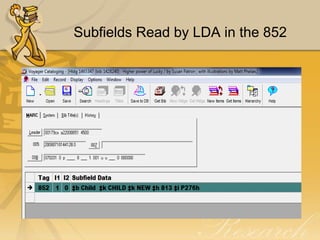
Subfields Read by LDA in the 852
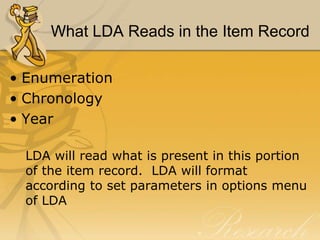
What LDA Reads in the Item Record
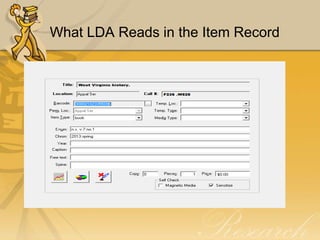
• Enumeration
• Chronology
• Year
LDA will read what is present in this portion
of the item record. LDA will format
according to set parameters in options menu
of LDA
What LDA Reads in the Item Record
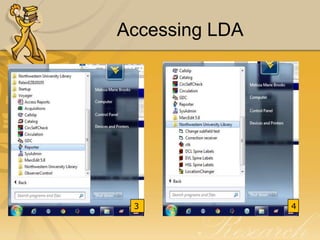
How to Access LDA
Using the program
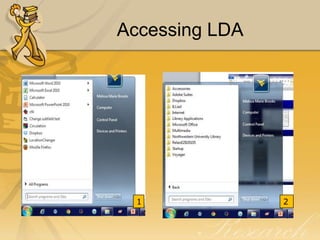
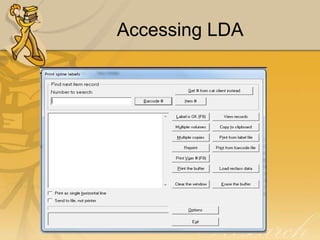
Accessing LDA

1

2
Accessing LDA

3

4
Accessing LDA
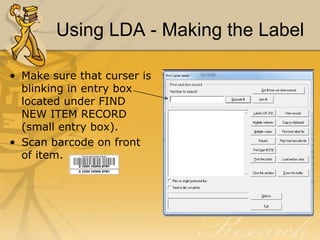
Using LDA - Making the Label
• Make sure that curser is
blinking in entry box
located under FIND
NEW ITEM RECORD
(small entry box).
• Scan barcode on front
of item.
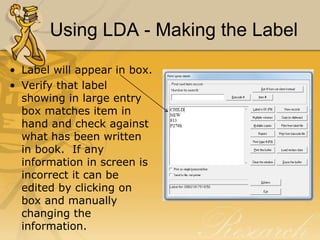
Using LDA - Making the Label
• Label will appear in box.
• Verify that label
showing in large entry
box matches item in
hand and check against
what has been written
in book. If any
information in screen is
incorrect it can be
edited by clicking on
box and manually
changing the
information.
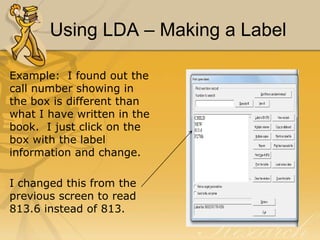
Using LDA – Making a Label
Example: I found out the
call number showing in
the box is different than
what I have written in the
book. I just click on the
box with the label
information and change.
I changed this from the
previous screen to read
813.6 instead of 813.
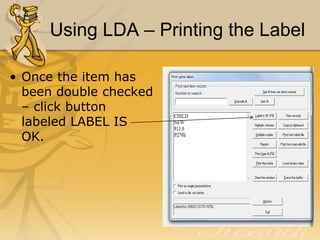
Using LDA – Printing the Label
• Once the item has
been double checked
– click button
labeled LABEL IS
OK.
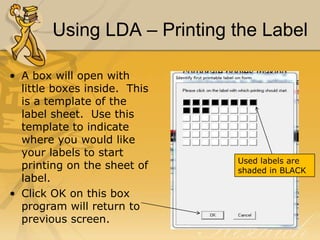
Using LDA – Printing the Label
• A box will open with
little boxes inside. This
is a template of the
label sheet. Use this
template to indicate
where you would like
your labels to start
printing on the sheet of
label.
• Click OK on this box
program will return to
previous screen.

Used labels are
shaded in BLACK
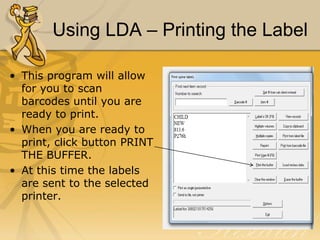
Using LDA – Printing the Label
• This program will allow
for you to scan
barcodes until you are
ready to print.
• When you are ready to
print, click button PRINT
THE BUFFER.
• At this time the labels
are sent to the selected
printer.
Using LDA – Printing the Label
• Go to printer and insert
label sheet FACE UP
with paper top of paper
at the top of the printer.
• Press CHECK MARK on
printer to indicate that
labels have been
inserted and are ready
to be printed
• The labels should now
be printed and ready for
placement on items.

Just a picture of
a label sheet.
Nothing Special
about these
labels at all. 
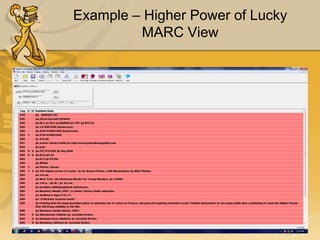
Example – Higher Power of Lucky
MARC View
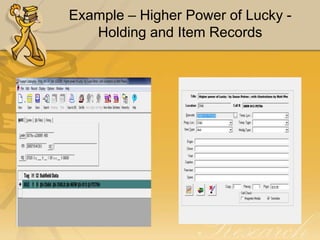
Example – Higher Power of Lucky Holding and Item Records
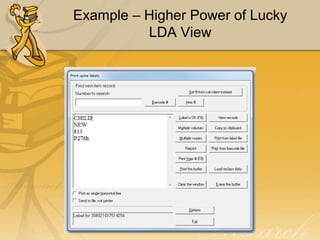
Example – Higher Power of Lucky
LDA View
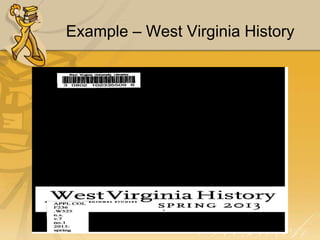
Example – West Virginia History
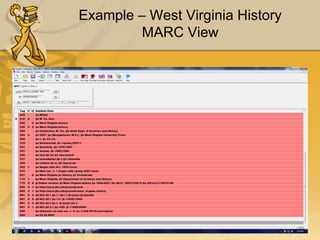
MARC View
Example – West Virginia History
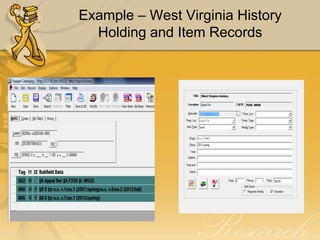
Holding and Item Records
Example – West Virginia History
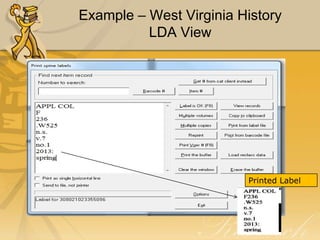
LDA View

Printed Label
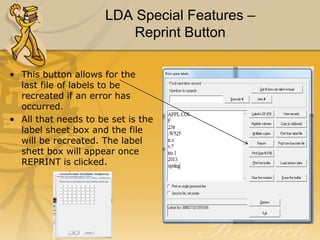
LDA Special Features –
Reprint Button
• This button allows for the
last file of labels to be
recreated if an error has
occurred.
• All that needs to be set is the
label sheet box and the file
will be recreated. The label
shett box will appear once
REPRINT is clicked.
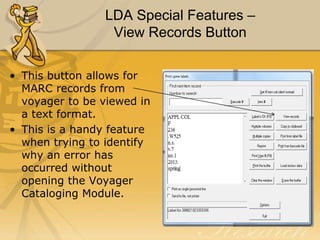
LDA Special Features –
View Records Button
• This button allows for
MARC records from
voyager to be viewed in
a text format.
• This is a handy feature
when trying to identify
why an error has
occurred without
opening the Voyager
Cataloging Module.
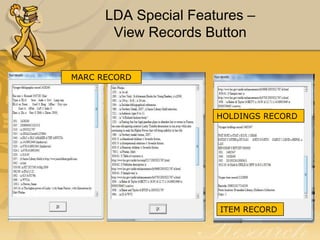
LDA Special Features –
View Records Button
MARC RECORD

HOLDINGS RECORD

ITEM RECORD
EVAN PLAYS – Manual Entry in LDA
EVAN PLAYS
• Type into Label Box - EVAN PLAYS (EVAN PLAYS on 1st line)
• Type on 2nd line – Author of Play
• Add volume enumeration if a 2nd or more copy of item as a 3rd
line if needed.
• Press F8 or Label is OK and move onto next item when label is
correct
EVAN PLAYS can be created at the same time as other
labels. There is no reason to create in a separate batch.
LDA – Closing Comments

Since we are new to this program bugs
and glitches will be found. Please let me
know about any issues and I will get
them fixed.

LDA

  • 1.
  • 2.
    Introducing LDA A LABELPROGRAM DEVELOPED BY GARY STRAWN AT NORTHWESTERN UNIVERSITY (AKA VGERSPIN)
  • 3.
    Why Change LabelPrograms • Previous setup to create labels is very time consuming • Labels had to be typed out by person creating label • Human error could occur and labels could get mistyped • Ability to create consistent labels with minimal effort
  • 4.
    How LDA works •Does not require that Voyager be open to work (So nothing in Voyager can be edited or changed by an unauthorized user.) • LDA works in conjunction with the Holdings and Items records in Voyager • Pulls in required label documentation via the Barcode attached to the item
  • 5.
    Comparison Shots ofLabeling Practices Currently Labeling Template All Label Information Has to be Typed into Template Input Area of New Labeling Program
  • 6.
    Review of theHoldings and Item Records
  • 7.
    Indicators used byWVU Libraries in the 852 field What LDA reads from the Holding Record (MFHD) LDA Reads the 852 indicators and subfields ($) So it matters what is inputted into this screen. Because if this information is not correct here the label will not print out in the manner intended. First Indicator Shelving scheme 0 - Library of Congress classification 1 - Dewey Decimal classification 3 - Superintendent of Documents classification 8 - Other scheme Second Indicator Shelving order # - No information provided 0 - Not enumeration 1 - Primary enumeration 2 - Alternative enumeration This tells the program what shelving scheme it will see in the $h of the 852 See handout on 852 2nd Indicator
  • 8.
    Subfields Read byLDA in the 852 • $k = Prefix - term that precedes a call number – will allow LDA to label items via sub-location • $h = Classification - Classification portion of the call number used as the shelving scheme for an item • $i = Item part - Cutter, date, or term that is added to the classification contained in subfield $h
  • 9.
    Subfields Read byLDA in the 852
  • 10.
    What LDA Readsin the Item Record • Enumeration • Chronology • Year LDA will read what is present in this portion of the item record. LDA will format according to set parameters in options menu of LDA
  • 11.
    What LDA Readsin the Item Record
  • 12.
    How to AccessLDA Using the program
  • 13.
  • 14.
  • 15.
  • 16.
    Using LDA -Making the Label • Make sure that curser is blinking in entry box located under FIND NEW ITEM RECORD (small entry box). • Scan barcode on front of item.
  • 17.
    Using LDA -Making the Label • Label will appear in box. • Verify that label showing in large entry box matches item in hand and check against what has been written in book. If any information in screen is incorrect it can be edited by clicking on box and manually changing the information.
  • 18.
    Using LDA –Making a Label Example: I found out the call number showing in the box is different than what I have written in the book. I just click on the box with the label information and change. I changed this from the previous screen to read 813.6 instead of 813.
  • 19.
    Using LDA –Printing the Label • Once the item has been double checked – click button labeled LABEL IS OK.
  • 20.
    Using LDA –Printing the Label • A box will open with little boxes inside. This is a template of the label sheet. Use this template to indicate where you would like your labels to start printing on the sheet of label. • Click OK on this box program will return to previous screen. Used labels are shaded in BLACK
  • 21.
    Using LDA –Printing the Label • This program will allow for you to scan barcodes until you are ready to print. • When you are ready to print, click button PRINT THE BUFFER. • At this time the labels are sent to the selected printer.
  • 22.
    Using LDA –Printing the Label • Go to printer and insert label sheet FACE UP with paper top of paper at the top of the printer. • Press CHECK MARK on printer to indicate that labels have been inserted and are ready to be printed • The labels should now be printed and ready for placement on items. Just a picture of a label sheet. Nothing Special about these labels at all. 
  • 23.
    Example – HigherPower of Lucky
  • 24.
    Example – HigherPower of Lucky MARC View
  • 25.
    Example – HigherPower of Lucky Holding and Item Records
  • 26.
    Example – HigherPower of Lucky LDA View
  • 27.
    Example – WestVirginia History
  • 28.
    Example – WestVirginia History MARC View
  • 29.
    Example – WestVirginia History Holding and Item Records
  • 30.
    Example – WestVirginia History LDA View Printed Label
  • 31.
    LDA Special Features– Reprint Button • This button allows for the last file of labels to be recreated if an error has occurred. • All that needs to be set is the label sheet box and the file will be recreated. The label shett box will appear once REPRINT is clicked.
  • 32.
    LDA Special Features– View Records Button • This button allows for MARC records from voyager to be viewed in a text format. • This is a handy feature when trying to identify why an error has occurred without opening the Voyager Cataloging Module.
  • 33.
    LDA Special Features– View Records Button MARC RECORD HOLDINGS RECORD ITEM RECORD
  • 34.
    EVAN PLAYS –Manual Entry in LDA EVAN PLAYS • Type into Label Box - EVAN PLAYS (EVAN PLAYS on 1st line) • Type on 2nd line – Author of Play • Add volume enumeration if a 2nd or more copy of item as a 3rd line if needed. • Press F8 or Label is OK and move onto next item when label is correct EVAN PLAYS can be created at the same time as other labels. There is no reason to create in a separate batch.
  • 35.
    LDA – ClosingComments Since we are new to this program bugs and glitches will be found. Please let me know about any issues and I will get them fixed.

Editor's Notes

  • #14 Go to start Menu – Click on All Programs Next Click on the Voyager File
  • #15 Click on Northwestern University Library Folder Click on DCL, EVL, or HSL Spine Labels --