LaTeX for Graduate Students
SET UP ACCOUNT
LOG IN TO A LAPTOP
WWW.OVERLEAF.COM
REGISTER AN ACCOUNT
DOWNLOAD FILES
GOOGLE:
“TTU LATEX WORKSHOP”
 EXAMPLE TEX DOCUMENT
 EXAMPLE BIBTEX FILE
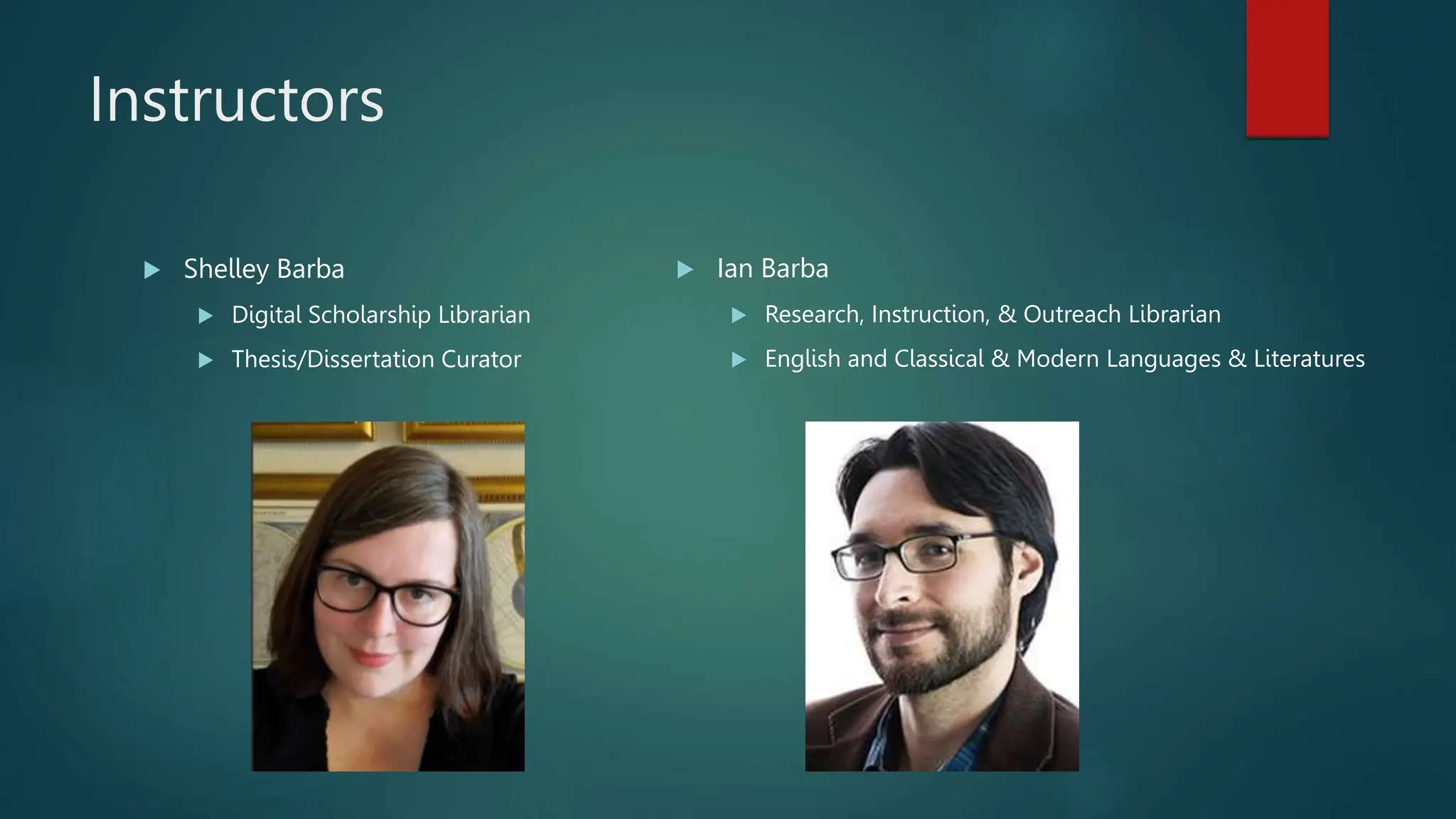
Instructors
 Shelley Barba
 Digital Scholarship Librarian
 Thesis/Dissertation Curator
 Ian Barba
 Research, Instruction, & Outreach Librarian
 English and Classical & Modern Languages & Literatures
Today we’re going to cover
BASICS OF THE
OVERLEAF LATEX EDITOR
CREATING A DOCUMENT UPLOADING AND
DOWNLOADING FILES
Important Concepts
usepackage
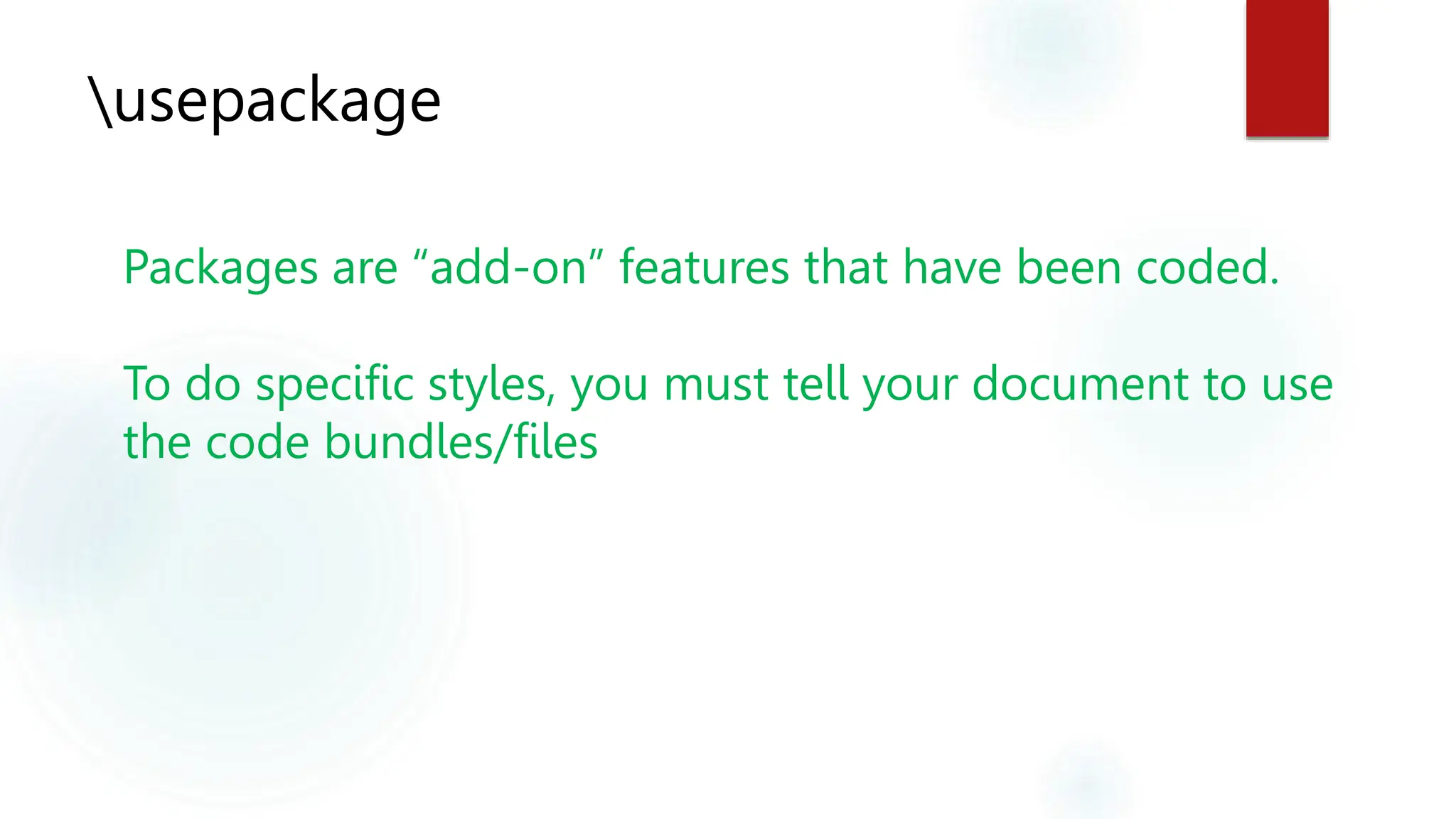
Packages are “add-on” features that have been coded.
To do specific styles, you must tell your document to use
the code bundles/files
Type every character in a command
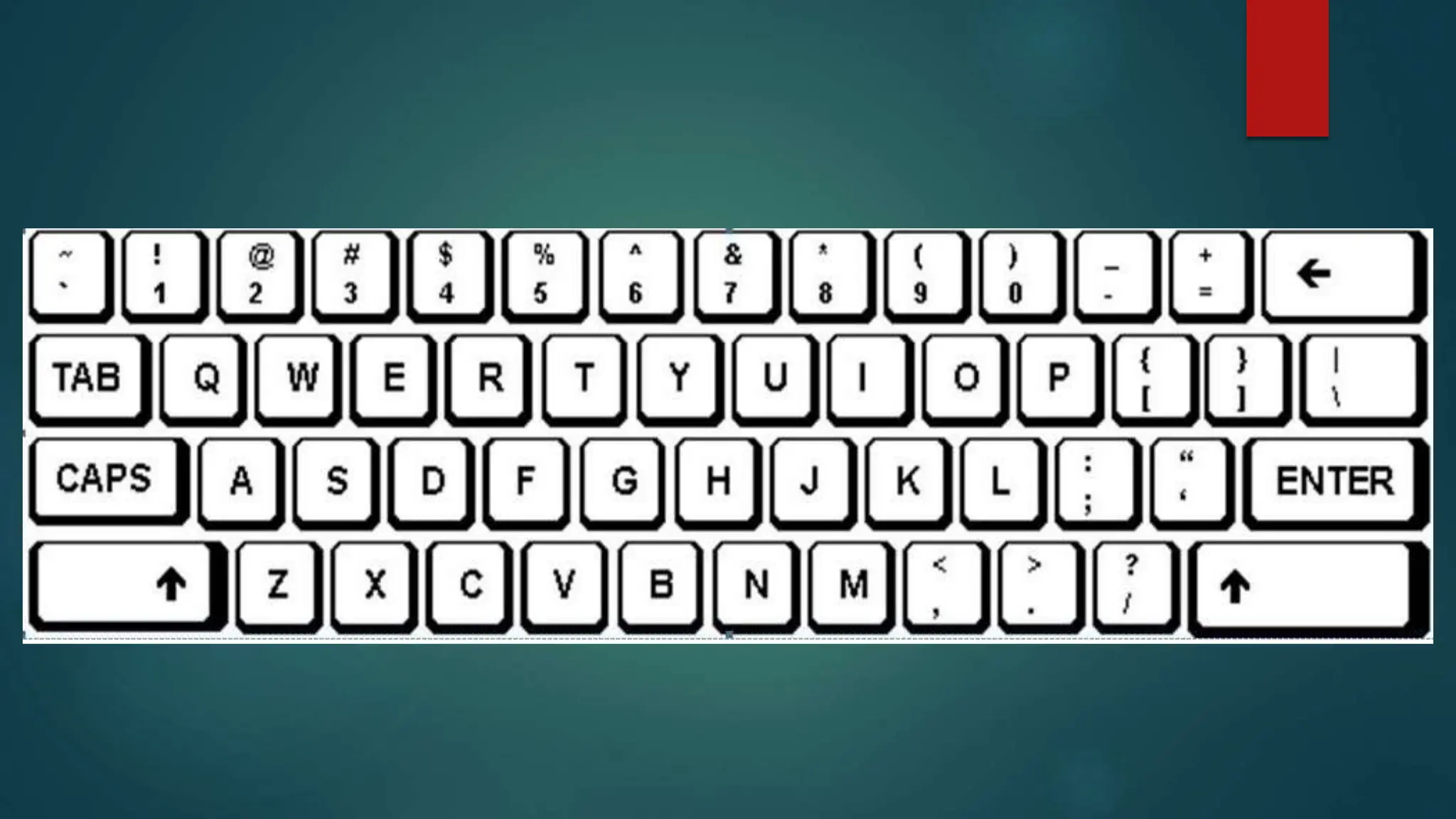
Uncommon Characters Commonly Used
LaTeX
{ } Curly Brackets
[ ] Square Brackets
| Vertical bar
 Backslash
Nest Commands
begin{table}[H]
centering
begin{tabular}{| c | c | c | c | c |} hline
$x$ & 0 & 1 & 2 & 3 hline
$3^x$ & 1 & 3 & 9 & 27 hline
end{tabular}
caption{Powers of 3}
label{tab:data1}
end{table}
Put each command on its own line.
usepackage[utf8]{inputenc}
usepackage[english]{babel}
usepackage{amsmath}
usepackage{amssymb}
author{Ian Barba}
title{A Sample LaTeX Document}
date{November 2023}
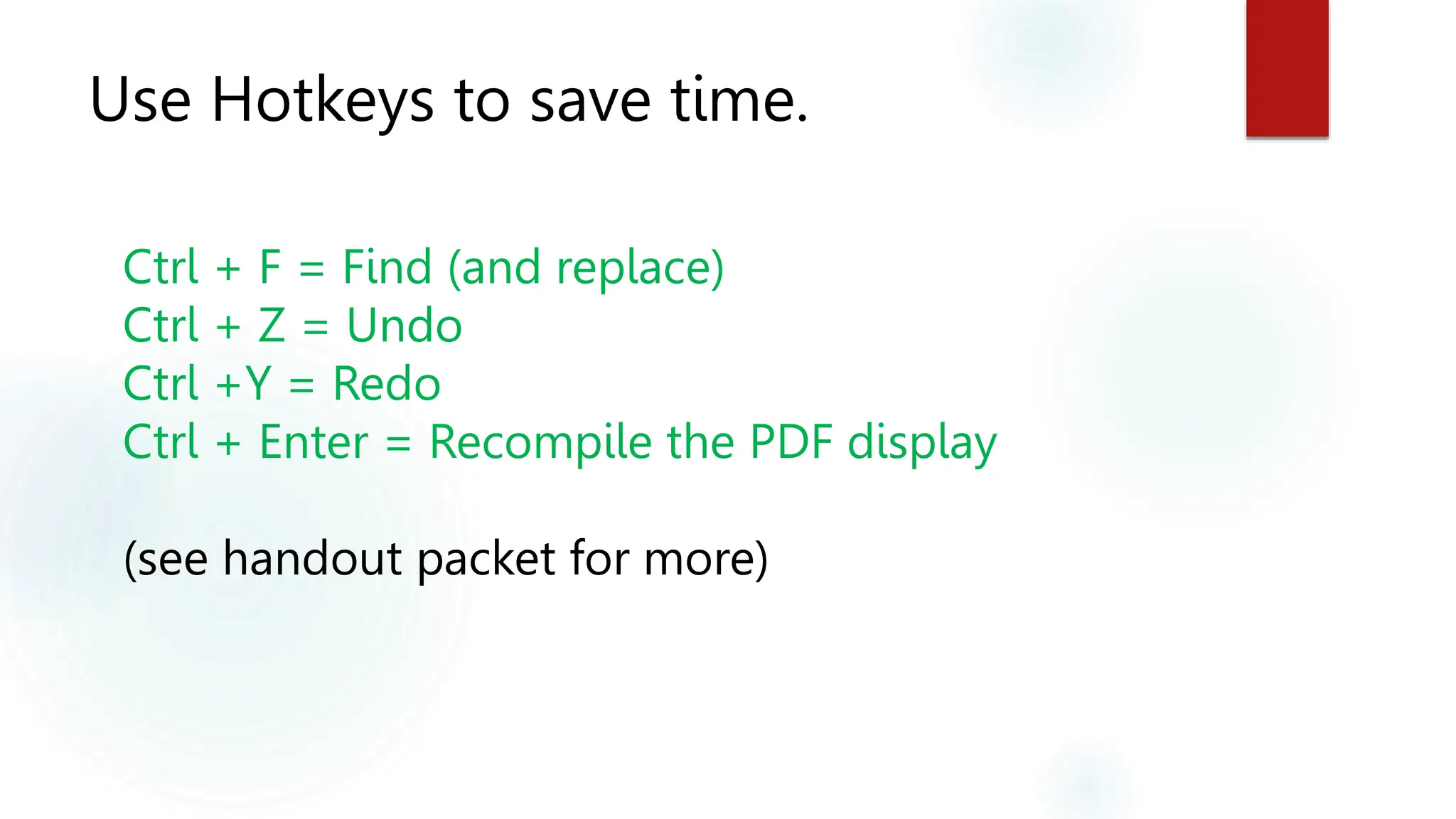
Use Hotkeys to save time.
Ctrl + F = Find (and replace)
Ctrl + Z = Undo
Ctrl +Y = Redo
Ctrl + Enter = Recompile the PDF display
(see handout packet for more)
Create a Document with:
TEXT EQUATIONS TABLES FIGURES CITATIONS BIBLIOGRAPHY FORMATTING

Latex Overleaf Workshop by Professor Antowel.ppt

  • 1.
    LaTeX for GraduateStudents SET UP ACCOUNT LOG IN TO A LAPTOP WWW.OVERLEAF.COM REGISTER AN ACCOUNT DOWNLOAD FILES GOOGLE: “TTU LATEX WORKSHOP”  EXAMPLE TEX DOCUMENT  EXAMPLE BIBTEX FILE
  • 2.
    Instructors  Shelley Barba Digital Scholarship Librarian  Thesis/Dissertation Curator  Ian Barba  Research, Instruction, & Outreach Librarian  English and Classical & Modern Languages & Literatures
  • 3.
    Today we’re goingto cover BASICS OF THE OVERLEAF LATEX EDITOR CREATING A DOCUMENT UPLOADING AND DOWNLOADING FILES
  • 9.
  • 10.
    usepackage Packages are “add-on”features that have been coded. To do specific styles, you must tell your document to use the code bundles/files
  • 11.
    Type every characterin a command Uncommon Characters Commonly Used LaTeX { } Curly Brackets [ ] Square Brackets | Vertical bar Backslash
  • 13.
    Nest Commands begin{table}[H] centering begin{tabular}{| c| c | c | c | c |} hline $x$ & 0 & 1 & 2 & 3 hline $3^x$ & 1 & 3 & 9 & 27 hline end{tabular} caption{Powers of 3} label{tab:data1} end{table}
  • 14.
    Put each commandon its own line. usepackage[utf8]{inputenc} usepackage[english]{babel} usepackage{amsmath} usepackage{amssymb} author{Ian Barba} title{A Sample LaTeX Document} date{November 2023}
  • 15.
    Use Hotkeys tosave time. Ctrl + F = Find (and replace) Ctrl + Z = Undo Ctrl +Y = Redo Ctrl + Enter = Recompile the PDF display (see handout packet for more)
  • 16.
    Create a Documentwith: TEXT EQUATIONS TABLES FIGURES CITATIONS BIBLIOGRAPHY FORMATTING

Editor's Notes

  • #4 Introduction to Overleaf LaTeX editor Creating a document (hands on) Uploading and downloading files
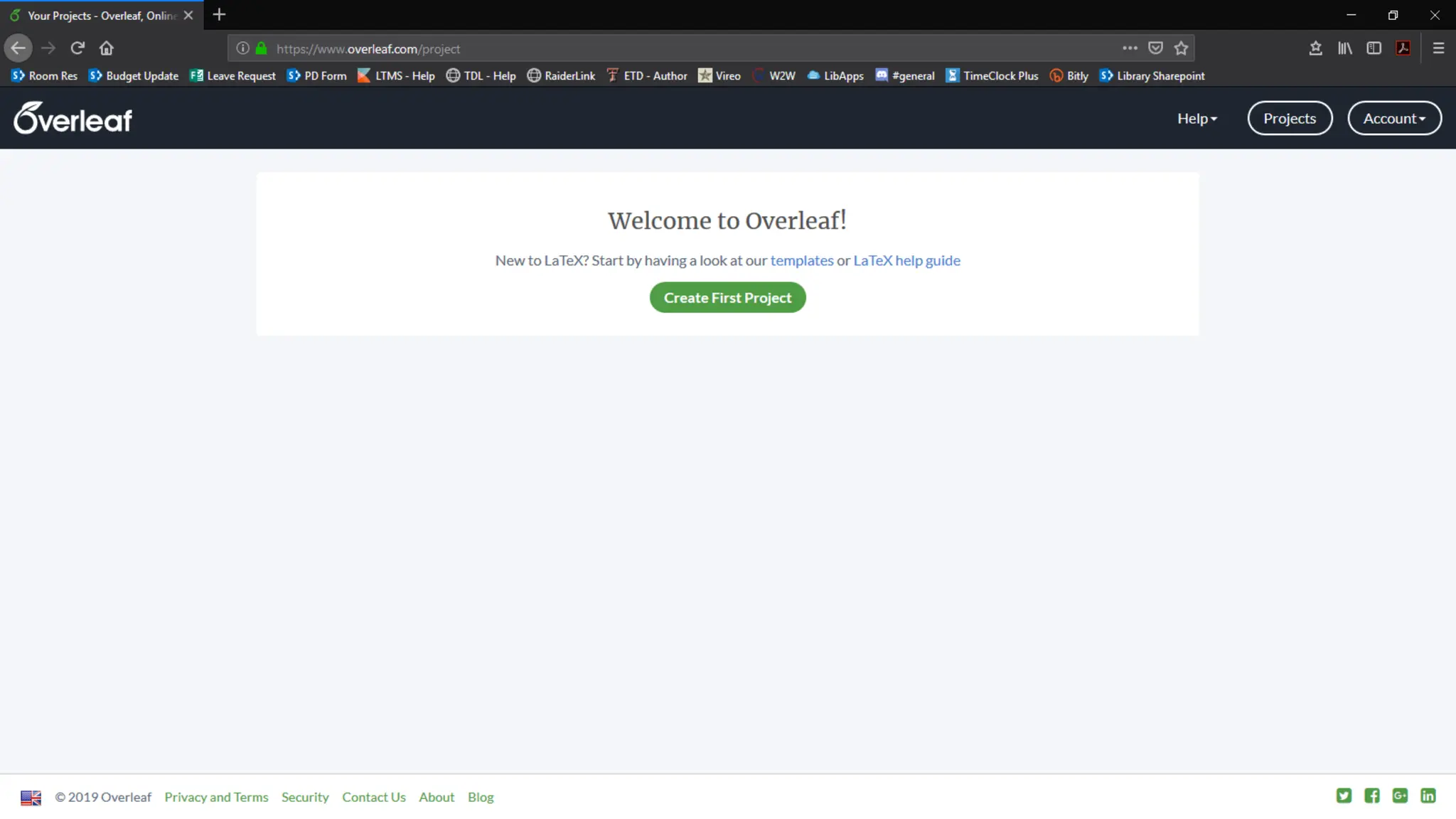
  • #5 Click on the green button here, and then blank project. Name it “LaTeX Demo”
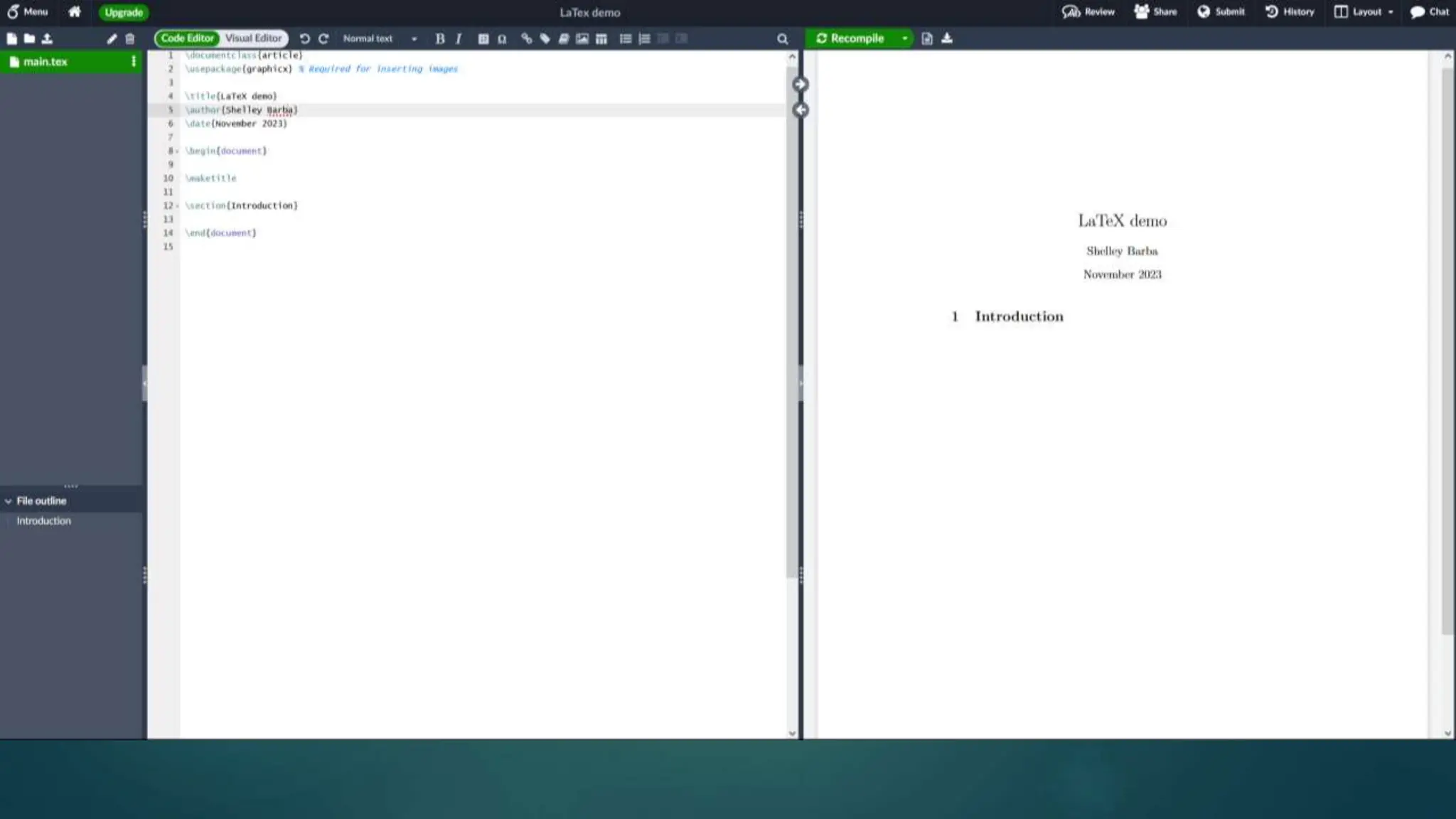
  • #6 We have three sections here File-tree window Editor window (with the option of Source, Source (legacy) or Rich Text) PDF Display (with our friend, Recompile button)
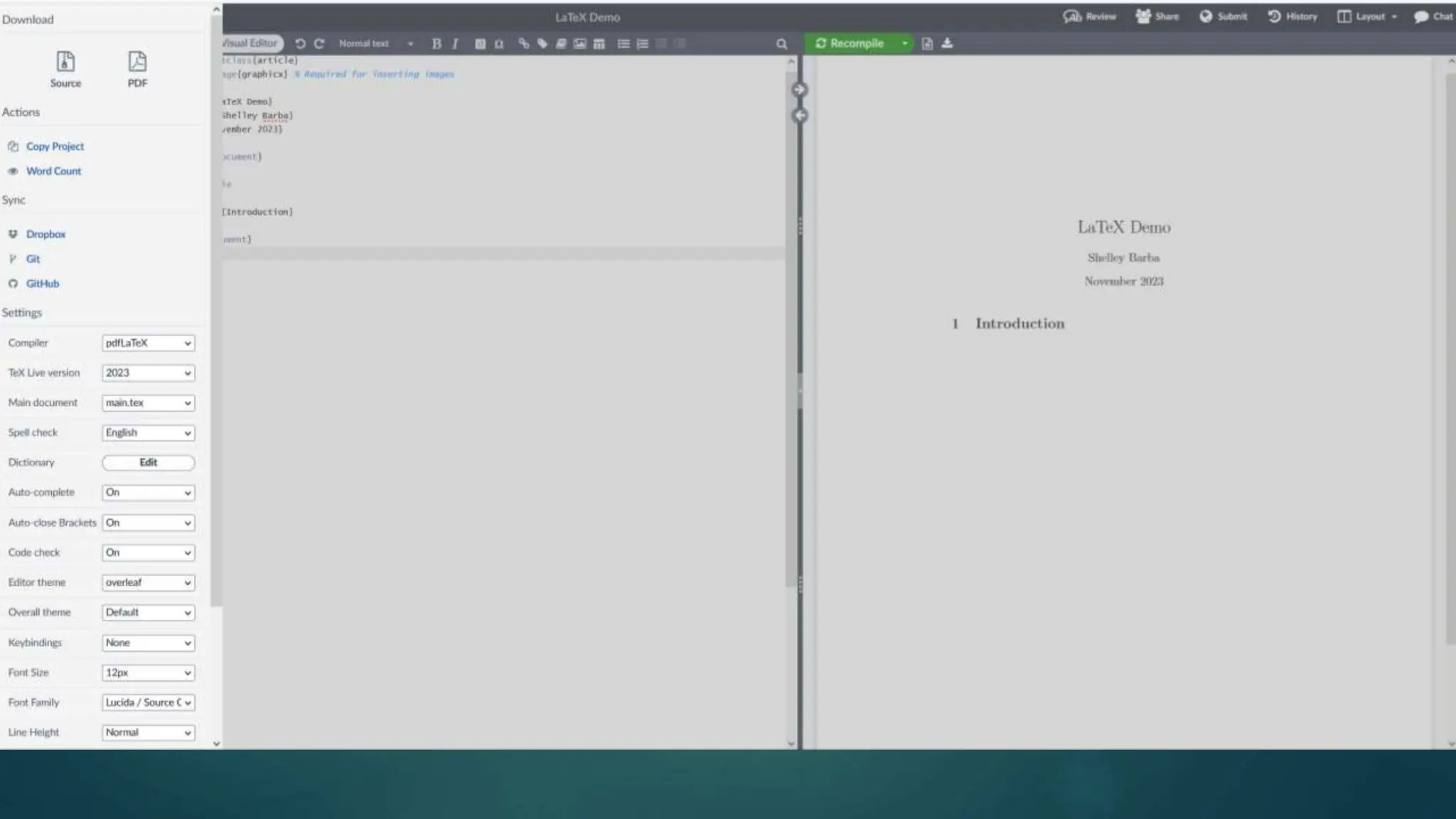
  • #7 Clicking on the “Menu Button”
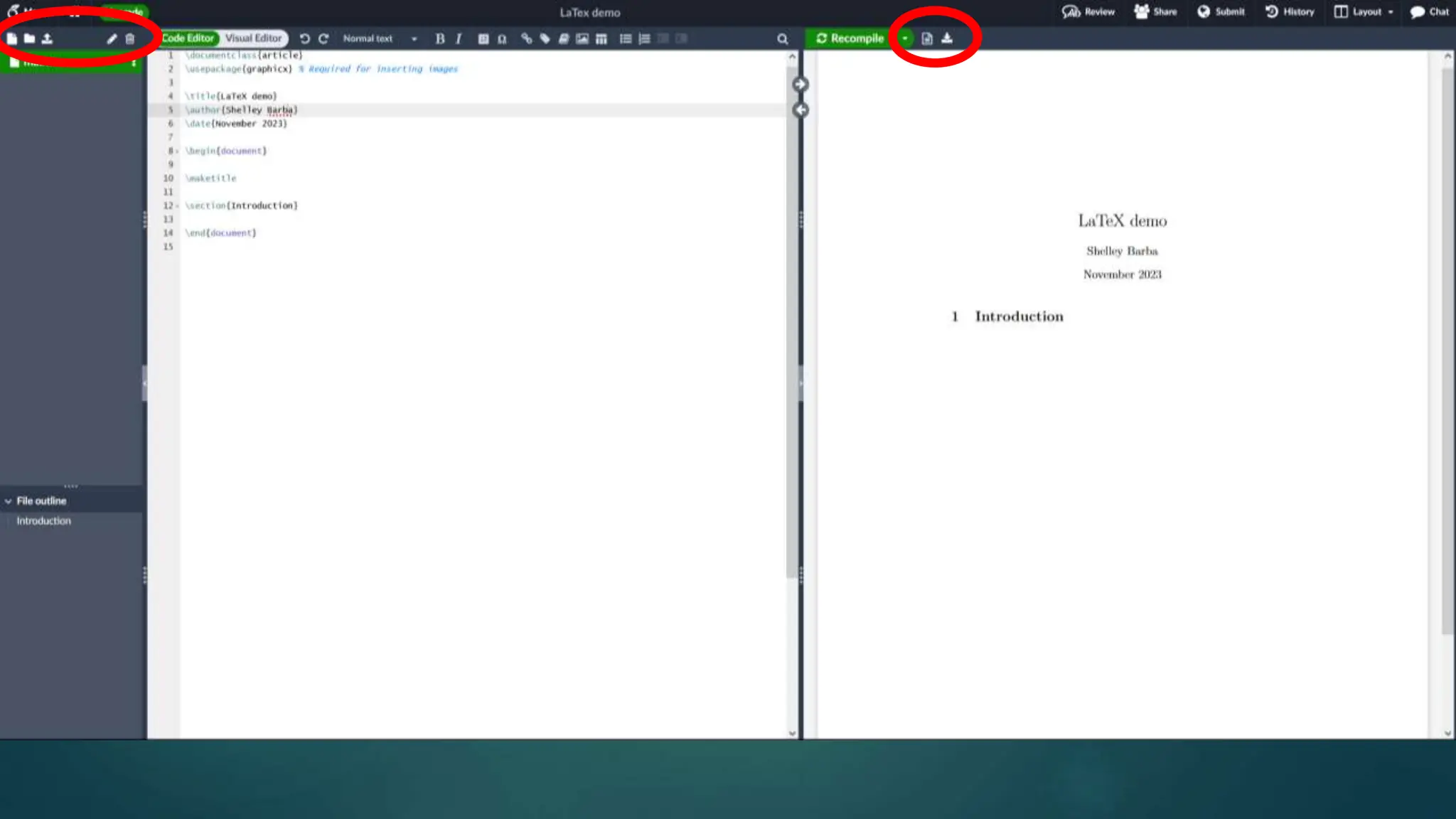
  • #8 Notice the buttons along the ribbon? They allow us to rename things (files, projects, parts), upload relevant files, reorganize things (parts), and download the PDF of our work.
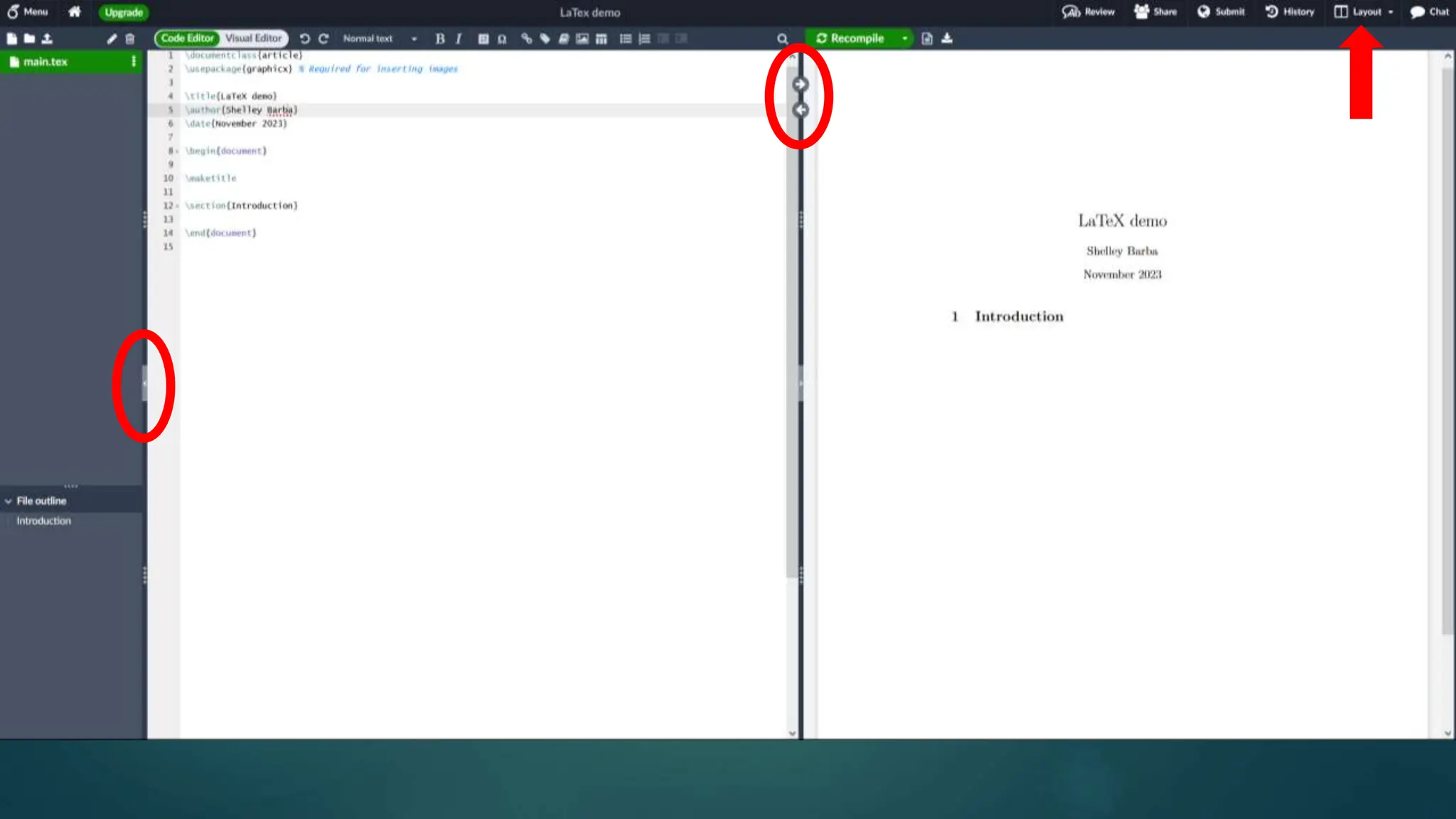
  • #9 There are three more button clusters I want to make sure you know about – 1. First one circled on the left allows you to “Hide” File-tree. This way you have more room for writing/coding. Click again to bring it back. 2. The right and left arrow in the middle of the display between the editor and the PDF windows. You can quickly find where in the code a part of your PDF is (and vice versa!) Right now, it doesn’t really show us much but think about having pages and pages of work or lines and lines of code and you’re trying to find a particular problem or section to add to. This becomes VERY helpful ! 3. Finally, at the top right in the interface ribbon menu, there is a drop-down selection for Layout including only seeing the editor part, only seeing the PDF display, AND having the PDF display open in a new tab.
  • #11 If you’re having a problem with how something is displaying, make sure you’ve put in the correct \usepackage ! (look for typos) We recommend putting all \usepackage at the top of your document.
  • #12 Curly Brackets are also known as “Braces” Square brackets are also known as just “Brackets” Vertical bar is also known pipe, bar, vbar, or line.
  • #13 Where uncommon characters are located on QWERTY keyboards.
  • #14 This is a concept borrowed from programming, and it's good just to make sure that we keep tabs (haha) on important parts Most important commands are on the outside or closest to the left, while those indented
  • #15 This is helpful when there is a problem, to be able to see quickly where the problem is.
  • #16 These four hotkeys / shortcuts will help save time but not having to hunt for the button on the page.
  • #17 Follow along with the Instruction Sheet (switch to Overleaf).