Mohammed
AlTayer
KEYBOARD AND MOUSE
EVENTS IN PYTHON
The simplest mouse interaction is to wait for the user to click
before proceeding in the program. Suppose the 3D display is in
scene, the default window created by VPython. Here is a way to
wait for a mouse click, which is defined as the mouse button
being pressed and released without moving the mouse (the
event occurs when the mouse button is released)
MOUSE INTERACTIONS
The mouse routines can handle a three-button mouse, with
"left", "right", and "middle" buttons. For systems with a two-
button mouse, the "middle" button consists of the left and right
buttons pressed together. For the Macintosh one-button mouse,
the right button is invoked by holding down the Command key
(normally used for rotating the camera view), and the middle
button is invoked by holding down the Option key (normally used
for zooming the camera view).
DIFFERENT KINDS OF MOUSE
VPython continues to provide the basic mouse event
functionality for handling events from right and middle buttons
when userspin or userzoom is disabled, out of concern for
supporting old programs. However, it has become evident that
there are limitations to this approach which could preclude
some kinds of mouse handling that people might want to do in
the future. For example, you might want to allow userspin with
right drags yet also pick up right clicks. For that reason it is
conceivable that future developments in this area might break
existing programs, and therefore for maximum forward
compatibility it is prudent to use only left-button interactions in
new programs.
DESIGN FOR LEFT-BUTTON EVENTS IF
POSSIBLE
There are two different ways to get a mouse event, "polling" and
"callback". In polling, you continually check scene.mouse.events
to see whether any events are waiting to be processed, and you
use scene.mouse.getevent() to get the next event to process.
Prior to VPython 6, this was the only way you could handle
mouse or keyboard events.
If you use the callback method, you specify a function to be
executed when a specific type of event occurs, and the function
is sent the event information when the specified type of event
occurs. For many purposes this is a better way to handle mouse
and keyboard events, and we will discuss it first. Programs that
use polling will continue to work, but you cannot mix polling and
callback approaches: you must use one or the other in a
program.
POLLING AND CALLBACK
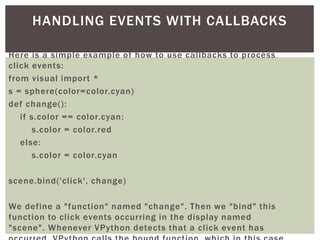
Here is a simple example of how to use callbacks to process
click events:
from visual import *
s = sphere(color=color.cyan)
def change():
if s.color == color.cyan:
s.color = color.red
else:
s.color = color.cyan
scene.bind('click', change)
We define a "function" named "change". Then we "bind" this
function to click events occurring in the display named
"scene". Whenever VPython detects that a click event has
HANDLING EVENTS WITH CALLBACKS
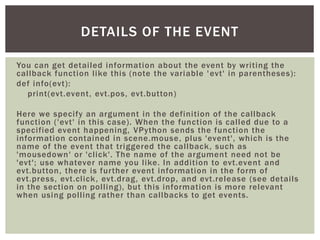
You can get detailed information about the event by writing the
callback function like this (note the variable 'evt' in parentheses):
def info(evt):
print(evt.event, evt.pos, evt.button)
Here we specify an argument in the definition of the callback
function ('evt' in this case). When the function is called due to a
specified event happening, VPython sends the function the
information contained in scene.mouse, plus 'event', which is the
name of the event that triggered the callback, such as
'mousedown' or 'click'. The name of the argument need not be
'evt'; use whatever name you like. In addition to evt.event and
evt.button, there is further event information in the form of
evt.press, evt.click, evt.drag, evt.drop, and evt.release (see details
in the section on polling), but this information is more relevant
when using polling rather than callbacks to get events.
DETAILS OF THE EVENT
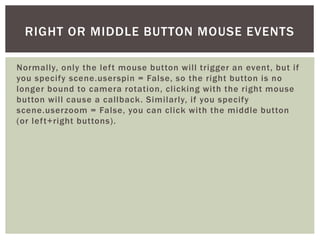
Normally, only the left mouse button will trigger an event, but if
you specify scene.userspin = False, so the right button is no
longer bound to camera rotation, clicking with the right mouse
button will cause a callback. Similarly, if you specify
scene.userzoom = False, you can click with the middle button
(or left+right buttons).
RIGHT OR MIDDLE BUTTON MOUSE EVENTS
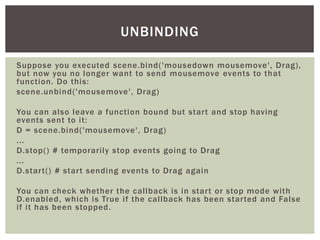
Suppose you executed scene.bind('mousedown mousemove', Drag),
but now you no longer want to send mousemove events to that
function. Do this:
scene.unbind('mousemove', Drag)
You can also leave a function bound but start and stop having
events sent to it:
D = scene.bind('mousemove', Drag)
...
D.stop() # temporarily stop events going to Drag
...
D.start() # start sending events to Drag again
You can check whether the callback is in start or stop mode with
D.enabled, which is True if the callback has been started and False
if it has been stopped.
UNBINDING
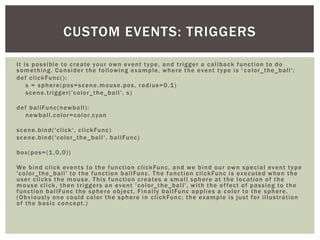
It is possible to create your own event type, and trigger a callback function to do
something. Consider the following example, where the event type is ' color_the_ball':
def clickFunc():
s = sphere(pos=scene.mouse.pos, radius=0.1)
scene.trigger('color_the_ball', s)
def ballFunc(newball):
newball.color=color.cyan
scene.bind('click', clickFunc)
scene.bind('color_the_ball', ballFunc)
box(pos=(1,0,0))
We bind click events to the function clickFunc, and we bind our own special event type
'color_the_ball' to the function ballFunc. The function clickFunc is executed when the
user clicks the mouse. This function creates a small sphere at the location of the
mouse click, then triggers an event ' color_the_ball', with the effect of passing to the
function ballFunc the sphere object. Finally ballFunc applies a color to the sphere.
(Obviously one could color the sphere in clickFunc; the example is just for illustration
of the basic concept.)
CUSTOM EVENTS: TRIGGERS
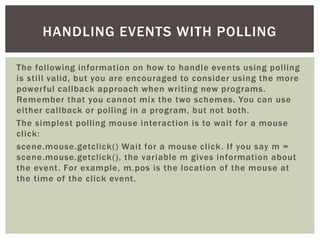
The following information on how to handle events using polling
is still valid, but you are encouraged to consider using the more
powerful callback approach when writing new programs.
Remember that you cannot mix the two schemes. You can use
either callback or polling in a program, but not both.
The simplest polling mouse interaction is to wait for a mouse
click:
scene.mouse.getclick() Wait for a mouse click. If you say m =
scene.mouse.getclick(), the variable m gives information about
the event. For example, m.pos is the location of the mouse at
the time of the click event.
HANDLING EVENTS WITH POLLING
 ere is a way to get the mouse position relative to a particular plane in
space:
 temp = scene.mouse.project(normal=(0,1,0),point=(0,3,0))
 if temp: # temp is None if no intersection with plane
 ball.pos = temp
 Here a plane is specified by its normal and a point in the plane, and if
point is not specified, the plane passes through the origin. You obtain the
3D location in the plane where the user sees the mouse cursor. If the
projection of the mouse misses the plane, as would happen if the plane is
seen edge-on, the result is the special Python value None.
 In the example shown above, the user of your program will be able to use
the mouse to place balls in a plane parallel to the xy plane, a height of 3
above the xy plane, no matter how the user has rotated the point of view.
 You can instead specify a perpendicular distance d from the origin to the
plane that is perpendicular to the specified normal. The example above is
equivalent to
 temp = scene.mouse.project(normal=(0,1,0), d=3)
PROJECTING MOUSE POSITION ONTO A GIVEN
PLANE
Often you want to pause for either mouse or keyboard input. You
can copy the following function into your program, and then insert
pause() wherever you want to pause.
def pause():
while True:
rate(30)
if scene.mouse.events:
m = scene.mouse.getevent()
if m.click == 'left': return
elif scene.kb.keys:
k = scene.kb.getkey()
return
As of VPython 6, an alternative to this function is simply to write
scene.waitfor('click keydown').
PAUSING FOR MOUSE OR KEYBOARD INPUT

Keyboard and mouse events in python

  • 1.
  • 2.
    The simplest mouseinteraction is to wait for the user to click before proceeding in the program. Suppose the 3D display is in scene, the default window created by VPython. Here is a way to wait for a mouse click, which is defined as the mouse button being pressed and released without moving the mouse (the event occurs when the mouse button is released) MOUSE INTERACTIONS
  • 3.
    The mouse routinescan handle a three-button mouse, with "left", "right", and "middle" buttons. For systems with a two- button mouse, the "middle" button consists of the left and right buttons pressed together. For the Macintosh one-button mouse, the right button is invoked by holding down the Command key (normally used for rotating the camera view), and the middle button is invoked by holding down the Option key (normally used for zooming the camera view). DIFFERENT KINDS OF MOUSE
  • 4.
    VPython continues toprovide the basic mouse event functionality for handling events from right and middle buttons when userspin or userzoom is disabled, out of concern for supporting old programs. However, it has become evident that there are limitations to this approach which could preclude some kinds of mouse handling that people might want to do in the future. For example, you might want to allow userspin with right drags yet also pick up right clicks. For that reason it is conceivable that future developments in this area might break existing programs, and therefore for maximum forward compatibility it is prudent to use only left-button interactions in new programs. DESIGN FOR LEFT-BUTTON EVENTS IF POSSIBLE
  • 5.
    There are twodifferent ways to get a mouse event, "polling" and "callback". In polling, you continually check scene.mouse.events to see whether any events are waiting to be processed, and you use scene.mouse.getevent() to get the next event to process. Prior to VPython 6, this was the only way you could handle mouse or keyboard events. If you use the callback method, you specify a function to be executed when a specific type of event occurs, and the function is sent the event information when the specified type of event occurs. For many purposes this is a better way to handle mouse and keyboard events, and we will discuss it first. Programs that use polling will continue to work, but you cannot mix polling and callback approaches: you must use one or the other in a program. POLLING AND CALLBACK
  • 6.
    Here is asimple example of how to use callbacks to process click events: from visual import * s = sphere(color=color.cyan) def change(): if s.color == color.cyan: s.color = color.red else: s.color = color.cyan scene.bind('click', change) We define a "function" named "change". Then we "bind" this function to click events occurring in the display named "scene". Whenever VPython detects that a click event has HANDLING EVENTS WITH CALLBACKS
  • 7.
    You can getdetailed information about the event by writing the callback function like this (note the variable 'evt' in parentheses): def info(evt): print(evt.event, evt.pos, evt.button) Here we specify an argument in the definition of the callback function ('evt' in this case). When the function is called due to a specified event happening, VPython sends the function the information contained in scene.mouse, plus 'event', which is the name of the event that triggered the callback, such as 'mousedown' or 'click'. The name of the argument need not be 'evt'; use whatever name you like. In addition to evt.event and evt.button, there is further event information in the form of evt.press, evt.click, evt.drag, evt.drop, and evt.release (see details in the section on polling), but this information is more relevant when using polling rather than callbacks to get events. DETAILS OF THE EVENT
  • 8.
    Normally, only theleft mouse button will trigger an event, but if you specify scene.userspin = False, so the right button is no longer bound to camera rotation, clicking with the right mouse button will cause a callback. Similarly, if you specify scene.userzoom = False, you can click with the middle button (or left+right buttons). RIGHT OR MIDDLE BUTTON MOUSE EVENTS
  • 9.
    Suppose you executedscene.bind('mousedown mousemove', Drag), but now you no longer want to send mousemove events to that function. Do this: scene.unbind('mousemove', Drag) You can also leave a function bound but start and stop having events sent to it: D = scene.bind('mousemove', Drag) ... D.stop() # temporarily stop events going to Drag ... D.start() # start sending events to Drag again You can check whether the callback is in start or stop mode with D.enabled, which is True if the callback has been started and False if it has been stopped. UNBINDING
  • 10.
    It is possibleto create your own event type, and trigger a callback function to do something. Consider the following example, where the event type is ' color_the_ball': def clickFunc(): s = sphere(pos=scene.mouse.pos, radius=0.1) scene.trigger('color_the_ball', s) def ballFunc(newball): newball.color=color.cyan scene.bind('click', clickFunc) scene.bind('color_the_ball', ballFunc) box(pos=(1,0,0)) We bind click events to the function clickFunc, and we bind our own special event type 'color_the_ball' to the function ballFunc. The function clickFunc is executed when the user clicks the mouse. This function creates a small sphere at the location of the mouse click, then triggers an event ' color_the_ball', with the effect of passing to the function ballFunc the sphere object. Finally ballFunc applies a color to the sphere. (Obviously one could color the sphere in clickFunc; the example is just for illustration of the basic concept.) CUSTOM EVENTS: TRIGGERS
  • 11.
    The following informationon how to handle events using polling is still valid, but you are encouraged to consider using the more powerful callback approach when writing new programs. Remember that you cannot mix the two schemes. You can use either callback or polling in a program, but not both. The simplest polling mouse interaction is to wait for a mouse click: scene.mouse.getclick() Wait for a mouse click. If you say m = scene.mouse.getclick(), the variable m gives information about the event. For example, m.pos is the location of the mouse at the time of the click event. HANDLING EVENTS WITH POLLING
  • 12.
     ere isa way to get the mouse position relative to a particular plane in space:  temp = scene.mouse.project(normal=(0,1,0),point=(0,3,0))  if temp: # temp is None if no intersection with plane  ball.pos = temp  Here a plane is specified by its normal and a point in the plane, and if point is not specified, the plane passes through the origin. You obtain the 3D location in the plane where the user sees the mouse cursor. If the projection of the mouse misses the plane, as would happen if the plane is seen edge-on, the result is the special Python value None.  In the example shown above, the user of your program will be able to use the mouse to place balls in a plane parallel to the xy plane, a height of 3 above the xy plane, no matter how the user has rotated the point of view.  You can instead specify a perpendicular distance d from the origin to the plane that is perpendicular to the specified normal. The example above is equivalent to  temp = scene.mouse.project(normal=(0,1,0), d=3) PROJECTING MOUSE POSITION ONTO A GIVEN PLANE
  • 13.
    Often you wantto pause for either mouse or keyboard input. You can copy the following function into your program, and then insert pause() wherever you want to pause. def pause(): while True: rate(30) if scene.mouse.events: m = scene.mouse.getevent() if m.click == 'left': return elif scene.kb.keys: k = scene.kb.getkey() return As of VPython 6, an alternative to this function is simply to write scene.waitfor('click keydown'). PAUSING FOR MOUSE OR KEYBOARD INPUT