June Webinar: How to Automate Content 
Submission into FileCatalyst Workflow 
Presenter: John Tkaczewski
Presenter Introduction 
John Tkaczewski 
• Co-Founder and President of Unlimi-Tech Software 
Inc – The creators of FileCatalyst products. 
• Oversees creative and technical vision for 
FileCatalyst Webmail and FileCatalyst Workflow 
• Blog: http://www.filecatalyst.com/blog 
2 | © Copyright FileCatalyst, 2013
Agenda 
• Overview: Automating Job Submission in Workflow 
• Settings required in FileCatalystWorkflow 
• Settings required in FileCatalyst HotFolder 
• Using HotFolder to Submit Jobs and Files 
• Using HotFolder to upload files only into File Areas 
• Upcoming Events 
• Questions 
3 | © Copyright FileCatalyst, 2013
Overview: Automating Job 
Submission in Workflow 
• Submitting files using a web browser in Workflow is 
easy BUT… it requires human interaction 
• Ability to submit files by simply dragging and 
dropping files into a folder 
• Better handling of very large files (2GB or more) or 
very long file transfers (2 hrs or more) 
• Ability to automate file transfers into file areas. 
4 | © Copyright FileCatalyst, 2013
Settings required in 
FileCatalyst Workflow 
• Make sure that you have a correct license 
• Make sure that “Allow Job Submission through 
HotFolder/Outlook/API/Mobile” for the user is 
checked 
5 | © Copyright FileCatalyst, 2013
Settings required in 
FileCatalyst HotFolder 
• Create a new site of Type FileCatalyst Web 
• Specify complete URL to FileCatalyst Workflow 
• Specify the user you created in Workflow in the 
previous slide 
• Create a task using the site 
• Make sure that after you Save the task you click on 
Edit – FCWEB Tab 
6 | © Copyright FileCatalyst, 2013
Using HotFolder to Submit 
Jobs and Files 
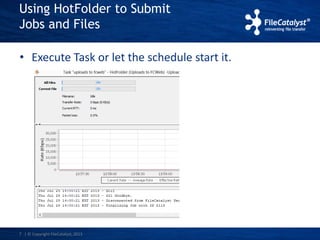
• Execute Task or let the schedule start it. 
7 | © Copyright FileCatalyst, 2013
Using HotFolder to upload 
into File Areas 
• Make sure that the user has access to a file area, for 
either a group or personal 
• Select in FCWEB Tab in the Hotfolder Task the File 
Area 
• Only files will transferred (no job will be created) 
8 | © Copyright FileCatalyst, 2013
Upcoming Events: 
- IBC, Amsterdam (Sept 13-17) 
- FileCatalyst User Forum, NYC (Oct. 1st) 
- Interop New York (Oct 2-3) 
- Broadcast India, Mumbai (Oct 9-11) 
- IP Expo, London, UK (Oct 16-17) 
And of course don’t forget our monthly webinars...
Questions?

How to automate content submission into FileCatalyst Workflow

  • 1.
    June Webinar: Howto Automate Content Submission into FileCatalyst Workflow Presenter: John Tkaczewski
  • 2.
    Presenter Introduction JohnTkaczewski • Co-Founder and President of Unlimi-Tech Software Inc – The creators of FileCatalyst products. • Oversees creative and technical vision for FileCatalyst Webmail and FileCatalyst Workflow • Blog: http://www.filecatalyst.com/blog 2 | © Copyright FileCatalyst, 2013
  • 3.
    Agenda • Overview:Automating Job Submission in Workflow • Settings required in FileCatalystWorkflow • Settings required in FileCatalyst HotFolder • Using HotFolder to Submit Jobs and Files • Using HotFolder to upload files only into File Areas • Upcoming Events • Questions 3 | © Copyright FileCatalyst, 2013
  • 4.
    Overview: Automating Job Submission in Workflow • Submitting files using a web browser in Workflow is easy BUT… it requires human interaction • Ability to submit files by simply dragging and dropping files into a folder • Better handling of very large files (2GB or more) or very long file transfers (2 hrs or more) • Ability to automate file transfers into file areas. 4 | © Copyright FileCatalyst, 2013
  • 5.
    Settings required in FileCatalyst Workflow • Make sure that you have a correct license • Make sure that “Allow Job Submission through HotFolder/Outlook/API/Mobile” for the user is checked 5 | © Copyright FileCatalyst, 2013
  • 6.
    Settings required in FileCatalyst HotFolder • Create a new site of Type FileCatalyst Web • Specify complete URL to FileCatalyst Workflow • Specify the user you created in Workflow in the previous slide • Create a task using the site • Make sure that after you Save the task you click on Edit – FCWEB Tab 6 | © Copyright FileCatalyst, 2013
  • 7.
    Using HotFolder toSubmit Jobs and Files • Execute Task or let the schedule start it. 7 | © Copyright FileCatalyst, 2013
  • 8.
    Using HotFolder toupload into File Areas • Make sure that the user has access to a file area, for either a group or personal • Select in FCWEB Tab in the Hotfolder Task the File Area • Only files will transferred (no job will be created) 8 | © Copyright FileCatalyst, 2013
  • 9.
    Upcoming Events: -IBC, Amsterdam (Sept 13-17) - FileCatalyst User Forum, NYC (Oct. 1st) - Interop New York (Oct 2-3) - Broadcast India, Mumbai (Oct 9-11) - IP Expo, London, UK (Oct 16-17) And of course don’t forget our monthly webinars...
  • 10.