Segments
Another data limiting option, segments gives you
the ability to refine data by specific segment
parameters – for example, if you needed to limit
data to a specific country, you could use:
gaid:::-1,segment=sessions::condition::ga:country==United
Kingdom
Filters
Allows you to restrict the data – which is
especially useful for restricting the data to
various subfolders – such as a blog or resource
section.
Limit
Mostly for larger sites, limit allows you to restrict
reporting to a sample size (useful for eCommerce
sites with millions of pages, for example).
Spreadsheet URL
Allows you to export data to a second sheet (not
usually necessary) for which you have edit
permissions.
Session Level
Page Level
For those of you who need the full list of dimensions –
the following link has a full list of the metrics and
dimensions you can use.
https://developers.google.com/analytics/devguides/reporting/core
/dimsmets
Duration
Divide the output from Analytics by 86400 (the number of
seconds in a day), and display in time format, you will get an
useable duration result for reporting.
Formula
=SUM(**CELL WITH DURATION FROM ANALYTICS**/86400)
Some basic formulae for
summarising data
Reporting period
The second lot of time-based formulae are those used for setting
the period of the report. While it’s not overly strenuous to
change a few dates each month, when you’re working on 50+
reports it gets a little more time-consuming, so you can use a
few formulae to automatically update the reporting period.
Formulae
Today’s date: =TODAY()
Start of the month: =EOMONTH(**CELL WITH THE TODAY
FORMULA**, -1)+1
End of the month: =EOMONTH(**CELL WITH THE TODAY
FORMULA**, 0)
SUMIF
This allows you to count or total a column using only the figures that match specific conditions (in
this case, generally, a character string).
Formula
=SUMIF(**LOCATION OF TEXT STRINGS**, “*TEXT STRING*”, **LOCATION OF NUMBERS**)
This breaks down into three section:
1. Where to look for the text string
2. What text to look for
3. Where to look for the numbers to add up
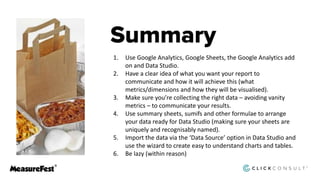
1. Use Google Analytics, Google Sheets, the Google Analytics add
on and Data Studio.
2. Have a clear idea of what you want your report to
communicate and how it will achieve this (what
metrics/dimensions and how they will be visualised).
3. Make sure you’re collecting the right data – avoiding vanity
metrics – to communicate your results.
4. Use summary sheets, sumifs and other formulae to arrange
your data ready for Data Studio (making sure your sheets are
uniquely and recognisably named).
5. Import the data via the ‘Data Source’ option in Data Studio and
use the wizard to create easy to understand charts and tables.
6. Be lazy (within reason)
John Warner MeasureFest 2018

John Warner MeasureFest 2018

  • 17.
    Segments Another data limitingoption, segments gives you the ability to refine data by specific segment parameters – for example, if you needed to limit data to a specific country, you could use: gaid:::-1,segment=sessions::condition::ga:country==United Kingdom Filters Allows you to restrict the data – which is especially useful for restricting the data to various subfolders – such as a blog or resource section.


  • 18.
    Limit Mostly for largersites, limit allows you to restrict reporting to a sample size (useful for eCommerce sites with millions of pages, for example). Spreadsheet URL Allows you to export data to a second sheet (not usually necessary) for which you have edit permissions.
  • 19.
  • 28.
  • 39.
    For those ofyou who need the full list of dimensions – the following link has a full list of the metrics and dimensions you can use. https://developers.google.com/analytics/devguides/reporting/core /dimsmets
  • 42.
    Duration Divide the outputfrom Analytics by 86400 (the number of seconds in a day), and display in time format, you will get an useable duration result for reporting. Formula =SUM(**CELL WITH DURATION FROM ANALYTICS**/86400) Some basic formulae for summarising data
  • 43.
    Reporting period The secondlot of time-based formulae are those used for setting the period of the report. While it’s not overly strenuous to change a few dates each month, when you’re working on 50+ reports it gets a little more time-consuming, so you can use a few formulae to automatically update the reporting period. Formulae Today’s date: =TODAY() Start of the month: =EOMONTH(**CELL WITH THE TODAY FORMULA**, -1)+1 End of the month: =EOMONTH(**CELL WITH THE TODAY FORMULA**, 0)
  • 44.
    SUMIF This allows youto count or total a column using only the figures that match specific conditions (in this case, generally, a character string). Formula =SUMIF(**LOCATION OF TEXT STRINGS**, “*TEXT STRING*”, **LOCATION OF NUMBERS**) This breaks down into three section: 1. Where to look for the text string 2. What text to look for 3. Where to look for the numbers to add up
  • 48.
    1. Use GoogleAnalytics, Google Sheets, the Google Analytics add on and Data Studio. 2. Have a clear idea of what you want your report to communicate and how it will achieve this (what metrics/dimensions and how they will be visualised). 3. Make sure you’re collecting the right data – avoiding vanity metrics – to communicate your results. 4. Use summary sheets, sumifs and other formulae to arrange your data ready for Data Studio (making sure your sheets are uniquely and recognisably named). 5. Import the data via the ‘Data Source’ option in Data Studio and use the wizard to create easy to understand charts and tables. 6. Be lazy (within reason)